
ConferenceSHOT AV - Video Conferencing System LEGRAND - Free user manual and instructions
Find the device manual for free ConferenceSHOT AV LEGRAND in PDF.


| Product Type | Video Conferencing System (camera + detachable speaker) |
| Camera Resolution | Native 1080p/60, 2.14 Megapixel effective |
| Optical Zoom | 10x (11x in Super-Wide mode) |
| Field of View | 74° horizontal (super-wide mode) |
| Video Output | Simultaneous uncompressed USB 3.0 and IP (H.264) streaming |
| Audio Inputs | Two EasyMic RJ-45 ports for Vaddio microphones |
| Audio Output | Line level differential audio + 12 VDC for optional amplified speaker |
| Connectivity | USB 3.0 Type B, RJ-45 PoE+ (network and power), RS-232 via Telnet over IP |
| Power | PoE+ (Power over Ethernet Plus) via included mid-span injector |
| Remote Control | IR remote (included), web interface, Telnet |
| Mounting | Thin Profile Wall Mount included; ceiling-mount option with inverted mount |
| Driver Support | UVC and UAC drivers for Windows, macOS, Linux; compatible with UC apps |
| Echo Cancellation | Acoustic echo cancellation (AEC) built-in |
| Operating Temperature | 0°C to 40°C (32°F to 104°F) |
| Storage Temperature | 0°C to 40°C (32°F to 104°F) |
| Humidity | Indoor use only; avoid condensing or wet environments |
| Compliance | FCC Part 15 Class A, ICES-003 Class A, EMC Directive 2014/30/EU, EN 55032/55024, IEC/EN 60950-1 Safety |
Frequently Asked Questions - ConferenceSHOT AV LEGRAND
User questions about ConferenceSHOT AV LEGRAND
0 question about this device. Answer the ones you know or ask your own.
Ask a new question about this device
Download the instructions for your Video Conferencing System in PDF format for free! Find your manual ConferenceSHOT AV - LEGRAND and take your electronic device back in hand. On this page are published all the documents necessary for the use of your device. ConferenceSHOT AV by LEGRAND.
USER MANUAL ConferenceSHOT AV LEGRAND
natural_image
Black Vaddi camera with adjustable lens and mesh base against blue background (no text or symbols visible)Installation Guide for the
ConferenceSHOT AV
Enterprise-Class Conferencing System
Document 411-0001-31 Rev F
August 2020
Contents
Overview 1.
What's in this Guide.1....
Features 1
Unpacking the Conferencing System 2....
A Quick Look at the System.3....
Front of the Camera and Speaker 3....
Back of the Camera 4.
Back of the Speaker 4.
Installation .5....
Don't Void Your Warranty! 5.
Before You Install the Camera.5....
Installing the Wall Mount.... 6
About Ceiling-Mounted Cameras.... 6
Cabling Notes....6
About Echo Cancellation.... 7
Basic Connections.... 8
Installing the Camera without the Speaker.... 10
Installing the Camera and Speaker.... 11
Powering Up the System.... 12
Status Indicator Light 12
Operation, Storage, and Care 12
Next Steps.... 12
Glossary 13
Compliance and Conformity Statements.... 17
FCC Part 15 Compliance.... 17
ICES-003 Compliance 17
European Compliance.... 18
Photo Credits 19
Index 20
Overview
This guide covers the ConferenceSHOT AV system – a camera and detachable speaker available in black or white, available individually or in conference room bundles.
ConferenceSHOT AV Camera
■ North America – 999-9995-000B (black), 999-9995-000W (white)
■ Europe and UK – 999-9995-001B (black), 999-9995-001W (white)
■ Australia and New Zealand – 999-9995-009B (black), 999-9995-009W (white)
This camera is no longer available in silver/black.
ConferenceSHOT AV Speaker
■ Worldwide - 999-9995-003 (black)
■ Worldwide - 999-9995-003W (white)
The ConferenceSHOT AV camera and speaker are also available in bundles that include other audio accessories.
Refer to legrandav.com for the latest information on ConferenceSHOT AV product bundles.
What's in this Guide
This guide covers:
■ Unpacking the system
■ Tips for a successful installation
■ Instructions for installing the camera mount
■ Information on connecting the system components
■ Instructions for mounting the camera and speaker
■ Camera power-on
Complete product information is available in the Complete Manual for the ConferenceSHOT AV Enterprise-Class Conferencing System.
Note
If you are responsible for configuring the equipment after installing it, please use the Comp Manual instead of this guide. The product's Complete Manual includes all the information in this guide, plus information on system administration, operation, and troubleshooting.
Features
■ Integrated HD camera and audio system ideal for small to medium conference rooms
■ 10x optical zoom, horizontal field of view of 74° in super-wide mode
■ 2.14 Megapixel effective, native 1080p/60 full HD image sensor
■ Audio inputs for two Vaddio microphones
■ Audio output for optional matching speaker – or integrate into existing audio infrastructure
■ Simultaneous uncompressed USB 3.0 and IP (H.264) video with full-duplex audio streaming
■ Selectable IP stream resolution; USB stream resolution auto-negotiated with conferencing client
■ Precise pan and tilt movements at up to 90° per second
■ Universal Video Class (UVC) and Universal Audio Class (UAC) drivers supported in ^® , Windows macOS ^® , and Linux operating systems, compatible with most UC conferencing applications
■ Integration-ready Telnet control
■ Enterprise-class IT administrative capabilities with full web controls for remote management
■ Presenter-friendly IR remote control
Unpacking the Conferencing System
Make sure you received all the items you expected. Here are the packing lists for the ConferenceSHOT AV system.
Caution
Always support the camera's body when lifting or moving it. Lifting the camera by its head or will damage it.

ConferenceSHOT AV camera
North America: 999-9995-000 (black/silver) or 999-9995-000W (white)
Europe and UK: 999-9995-001 (black/silver) or 999-9995-001W (white)
Australia and New Zealand: 999-9995-009 (black/silver) or 999-9995-009W (white)
■ ConferenceSHOT AV camera (silver/black or white)
■ Vaddio IR Remote Commander
■ PoE+ mid-span power injector with AC cord set(s)
■ Cat-5e cable, 10 ft (3 m)
■ USB 3.0 cable, 6 ft (1.8 m)
■ 4-contact Phoenix-style connector
■ Thin Profile Wall Mount with mounting hardware
ConferenceSHOT AV speaker
All locales: 998-9995-003 (black) or 998-9995-003W (white)
■ ConferenceSHOT AV speaker
■ Rail mount kit (mounts to the camera or the camera mount)
■ Power/audio cable, 6 in. (15 cm)
For bundle contents, refer to the ConferenceSHOT AV product pages on legrandav.com.
A Quick Look at the System
This section covers the physical features of the system.
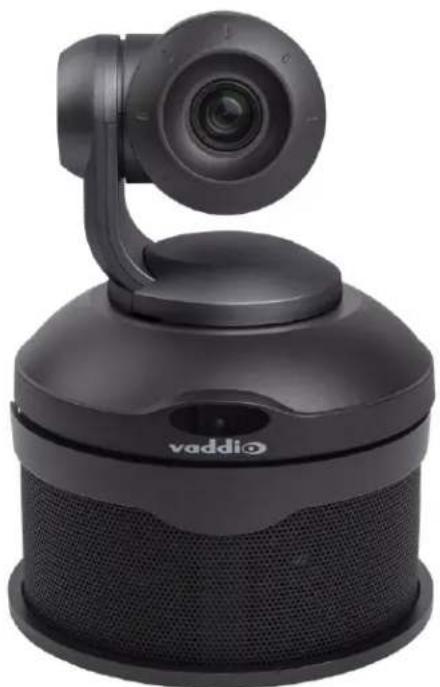
Front of the Camera and Speaker
natural_image
Black vaddi device with adjustable camera and mesh speaker (no visible text or symbols)Camera and zoom lens - The ConferenceSHOT AV camera features a 10X optical zoom lens (11X in Super-Wide mode).
IR sensor – Receives signals from the IR remote. Make sure there's nothing directly in front of the camera base, and point the remote at the camera.
Status light – The multi-colored LED indicates the camera's current state. This light can be turned off in the administrative web interface.
Note
By default, the camera's status indicator light is active during normal operation; however, it can be configured to remain off when the camera is powered up. The camera may be sending video input is off.
Speaker – Far-end conference audio for small rooms. Available in some ConferenceSHOT AV bundles or separately.
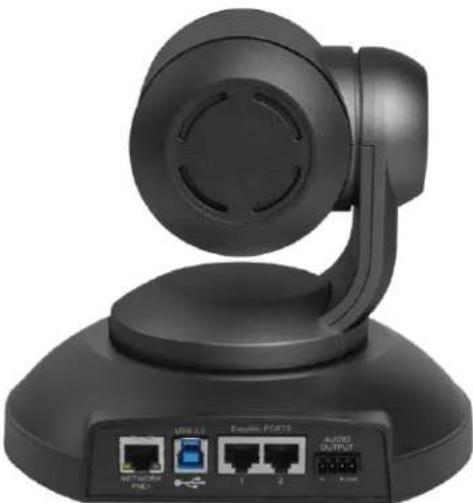
Back of the Camera
natural_image
Black remote control tower with ports and antenna, no visible text or symbols on the device body■ Network PoE+ – RJ-45 connector. Connect to the network and to power via the Power and Data Out port of the mid-span PoE+ power injector. Provides power and network access for IP streaming and camera control via web interface or Telnet.
- USB 3.0 – USB type B connector. Connect to a computer for use with soft conferencing applications. Provides uncompressed USB 3.0 stream.
- EasyMic ports – RJ-45 connectors. Connect Vaddio CeilingMIC, TableMIC, or other EasyMic-compatible microphones.
- Audio output – Line level differential audio and 12 VDC power output to the optional amplified speaker or other audio infrastructure.
Back of the Speaker
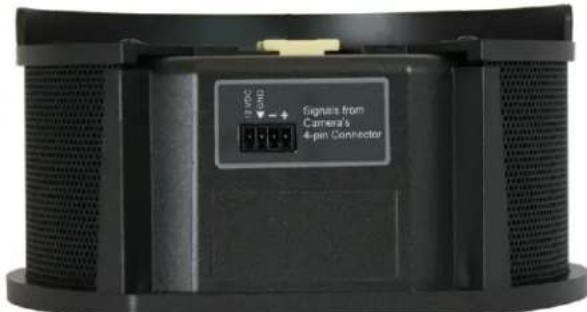
Use the provided speaker cable to connect the speaker to the camera's audio output.
Installation
This section covers:
■ Selecting the location for the camera
■ Installing the mount
■ Connection diagrams
■ Mounting the camera
And a required safety note here:
Note
PoE type networks connected to this equipment are for intra-building use only and should not be to lines that run outside of the building in which this product is located.
Don't Void Your Warranty!



Caution
Always support the camera's body when lifting or moving it. Lifting the camera by its head or will damage it.
Caution
This product is for indoor use. Do not install it outdoors or in a humid environment without the protective enclosure. Do not allow it to come into contact with any liquid.
Caution
Do not install or operate this product if it has been dropped, damaged, or exposed to liquids. It is things happen, return it to Vaddio for safety and functional testing.
Before You Install the Camera
Things to keep in mind when deciding where to install the camera:
- Consider camera viewing angles, lighting conditions, line-of-sight obstructions, and in-wall obstructions where the camera is to be mounted.
■ Ensure that the camera body can move freely and will normally point away from the ceiling and lights.
The camera will not perform well if it is pointed toward a light source such as a light fixture or window.
■ If the remote will be used, ensure that nothing blocks the IR lens in the camera's base.
Prepare for a successful installation:
■ Be sure you can identify all cables correctly.
■ Check Cat-5 cables for continuity.
- Talk to the network administrator. If installing the camera in a non-DHCP network (one that does not automatically assign IP addresses), you will need to configure the camera with a static IP address as directed by the network administrator.
Installing the Wall Mount
The camera is shipped with a wall mount. Other mounting options are available as well. Contact us if you don't have the camera mount you need.
You can install the camera wall mount to a 2-gang wall box or directly to the drywall.
■ If you mount it to drywall, use the wall anchors provided with the wall mount.
■ If you mount it to a wall box, use the cover plate screws supplied with the wall box.
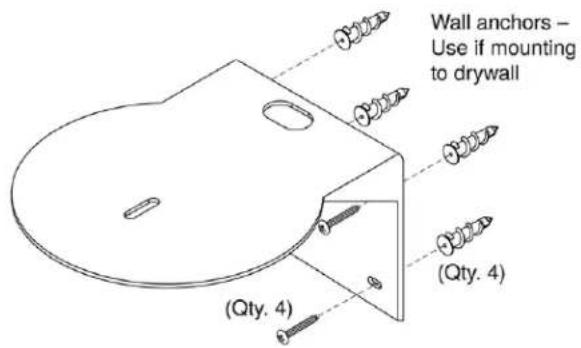
This mount may be installed as shown, or flipped 180^ so that the wall attachment is directly behind the camera.
About Ceiling-Mounted Cameras
If you use an inverted mount, set the camera's Image Flip mode ON for inverted operation. This orients the video image correctly and sets the tilt motors to respond appropriately to tilt up and down commands from the remote, web interface, and connected control devices. This control is available to the administrator on the web interface's System page.
Cabling Notes
Caution
When building cables for Vaddio products, do not use pass-through RJ-45 connectors. If they are crimped incorrectly, they can cause intermittent connections and degrade signal quality. Incorrectly crimped pass-through connectors can also damage the connectors on the product, which will void your warranty.
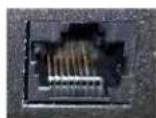
Intact – will make reliable contact with cable connector
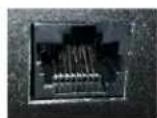
Damaged - Bent contact fingers will NOT make reliable contact with cable connector
Use Cat-5e or better cable. We recommend using high-quality connectors and a high-quality crimping tool. We recommend shielded cabling if the cables will be coiled, run tightly with other cables, or routed near sources of electromagnetic interference such as power lines or fluorescent light fixtures.
Caution
Check your cables. Connecting a cable to the wrong port or using the wrong pin-out can result damage and will void the warranty.
Pro Tip
Label all cables at both ends.
About Echo Cancellation
When a microphone picks up the audio from a speaker (far-end audio) during a conference, it sends the far-end audio back to the participants at the far end, creating an echo. Acoustic echo cancellation prevents this.
Here's how it works:
- The speaker feeds the far-end audio into the room. This signal also goes to the audio processor as the reference that needs to be canceled.
- The audio processor inverts the signal and sends it to the microphone.
- The sum of the audio that the microphone picks up from the speaker and the inverted signal is 0: The echo is canceled.
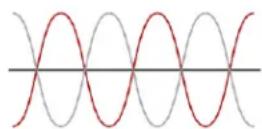

Far-end audio signal

Inverted audio signal
With the audio from the speaker canceled out, the audio from the microphone includes only the sounds originating at your end of the conference.
For the ConferenceSHOT AV system's acoustic echo cancellation to work,
■ The line outputs or the powered speaker must be connected to provide the audio to be canceled, and
■ The microphone(s) must be connected, to route the audio from the speakers to the audio processor.
In the soft conferencing client, you must select the speakers and microphone connected to the camera as the conference audio devices.
Basic Connections
Here is an example of how the camera might be set up in a medium-size conference room. (Shown: ConferenceSHOT AV bundle – TableMIC 2.) In this setup, a PC uses a unified communications conferencing application to manage the camera and connected microphones and speaker. When connected in this way, the system provides echo cancellation.
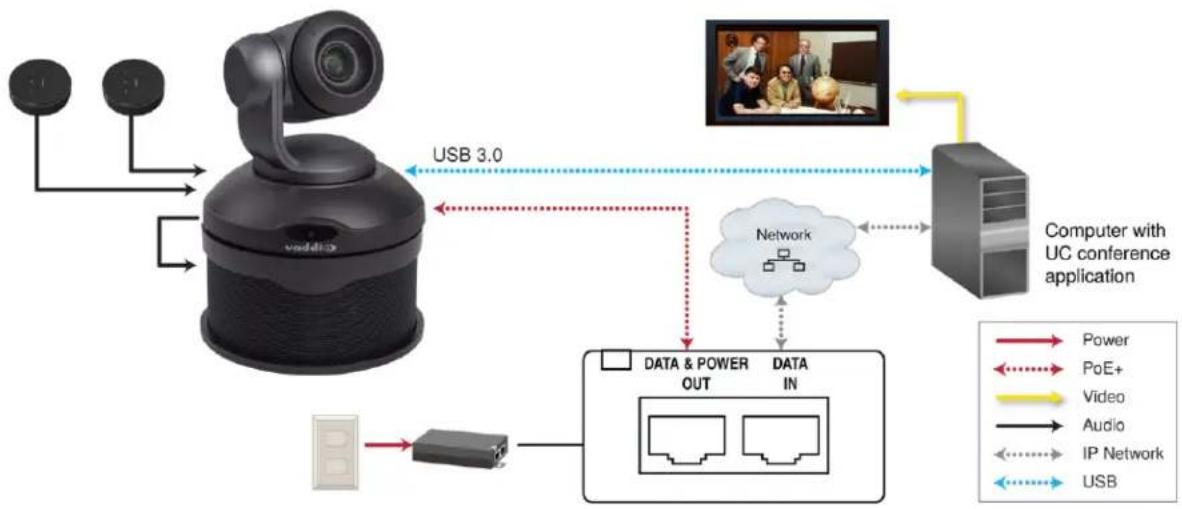
flowchart
graph TD
    A["Camera"] -->|USB 3.0| B["Network"]
    B --> C["Computer with UC conference application"]
    C -->|USB| D["Data IN"]
    D --> E["Data & POWER OUT"]
    E --> F["USB Port"]
    G["Image"] --> H["Power"]
    G --> I["PoE+"]
    G --> J["Video"]
    G --> K["Audio"]
    G --> L["IP Network"]
    G --> M["USB"]
The camera can also be connected without the speaker, using an HDMI audio embedder to include the far-end audio in the HDMI output. (Shown: ConferenceSHOT AV bundle - TableMIC 1 without speaker.) This allows you to use a display with integrated speakers. When connected this way, the system provides echo cancellation.
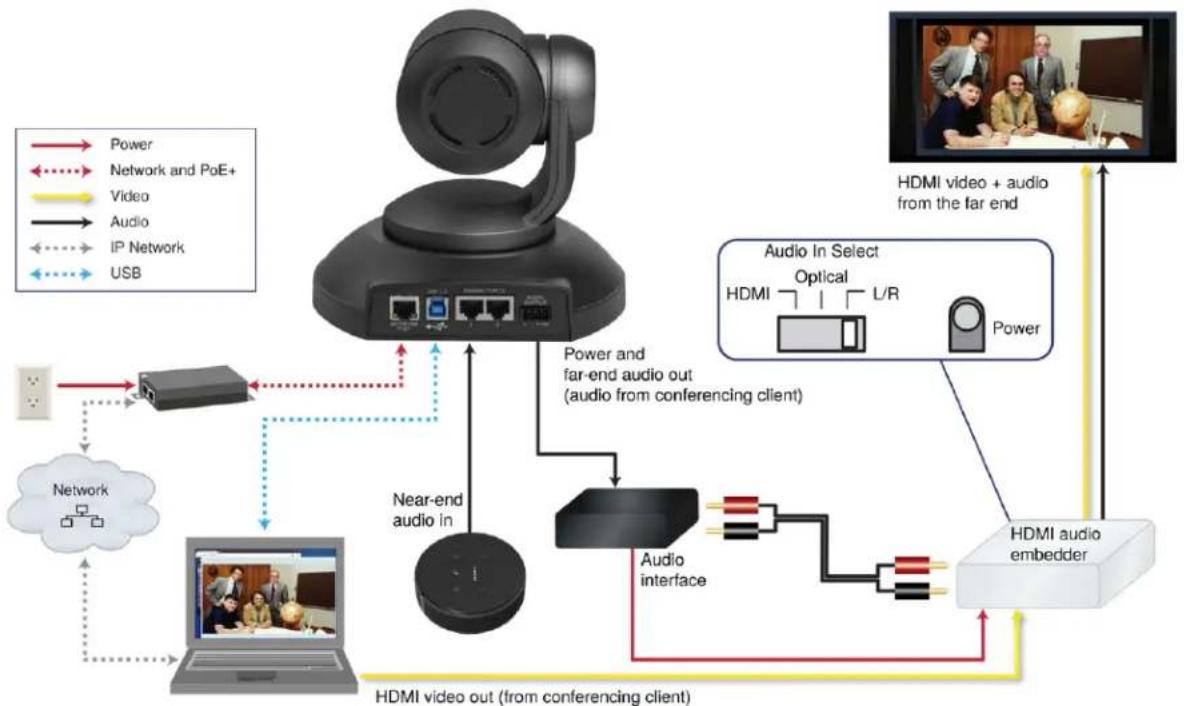
flowchart
graph TD
    A["Remote Device"] -->|Power| B["Local Network"]
    A -->|Network and PoE+| C["Local Network"]
    A -->|Video| D["Local Network"]
    A -->|Audio| E["Local Network"]
    A -->|IP Network| F["Local Network"]
    A -->|USB| G["Local Network"]
    A --> H["Near-end audio in"]
    H --> I["Local Audio Interface"]
    I --> J["HDMI audio embedder"]
    J --> K["Output to HDMI video + audio from the far end"]
    K --> L["Output to HDMI video out (from conferencing client)"]
    style A fill:#f9f,stroke:#333
    style J fill:#ccf,stroke:#333
This product is intended for installation and use only in environments where all PoE/PoE+ connect originate within the building. It is not to be connected to lines that run outside the building when installed.
Installing the Camera without the Speaker
Caution
Before you start, be sure you can identify all cables correctly. Connecting a cable to the wrong result in equipment damage.
Caution
Check your cables. Connecting a cable to the wrong port or using the wrong pin-out can result damage and will void the warranty.
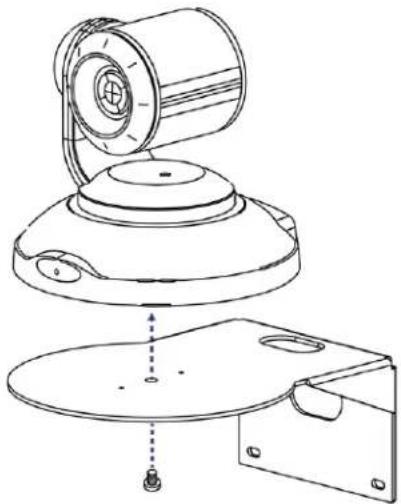
- Route the cables through the opening in the mounting shelf.
- Connect all required cables to the camera.
- Secure the camera to the mounting shelf using the mounting screw (¼-20 x .375 in.) supplied with the camera.
natural_image
Technical line drawing of a mechanical device with a cylindrical component and a base plate (no text or symbols)Note
If the camera is jostled or bumped while it is connected to power, it may require a pan-tilt re.
Installing the Camera and Speaker
-
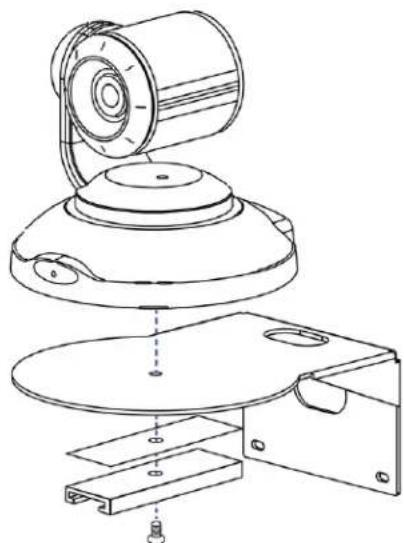
If you are adding a speaker to a previously-installed ConferenceSHOT AV camera, remove its mounting screw.
-
Place the camera on the mounting shelf if you have not already done so.
-
Secure the speaker rail, gasket, and camera to the mounting shelf with the 0.5 in. 1/4-20 flathead screw.
natural_image
Technical line drawing of a mechanical device with exploded view, showing internal components and mounting base (no text or symbols)-
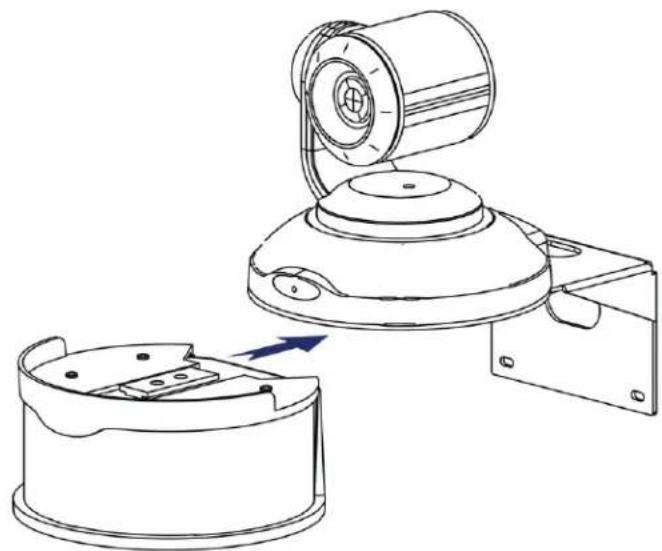
Connect the speaker cable (power and line level signal) to the speaker.
-
Slide the speaker into place.
natural_image
Technical line drawing of a mechanical device with a cylindrical component and base housing, showing no text or symbols.Note
If the camera is jostled or bumped while it is connected to power, it may require a pan-tilt
Powering Up the System
Connect camera power. The camera will initialize and move. This will take a few seconds. When an image is available, the camera is ready to accept control information.
Status Indicator Light
The light in the camera's base indicates its current state.
■ Blue – Camera is active
■ Purple – Standby mode or booting
■ Yellow – Firmware update is in progress
■ Blinking blue – USB cable is disconnected (UC color scheme)
■ Blinking red – Video mute is on (UC color scheme)
■ Blinking yellow – Motor out of calibration
Caution
Do not remove power or reset the camera while the indicator is yellow, showing a firmware upa progress. Interrupting a firmware update can make the camera unusable.
Note
By default, the camera's status indicator light is active during normal operation; however, it can be configured to remain off when the camera is powered up. The camera may be sending video input is off.
Operation, Storage, and Care
For smears or smudges on the product, wipe with a clean, soft cloth. Use a lens cleaner on the lens. Do not use any abrasive chemicals.
Keep this device away from food and liquids.
Do not operate or store the device under any of the following conditions:
■ Temperatures above 40^ C ( 104^ F) or below 0^ C ( 32^ F)
■ High humidity, condensing or wet environments
■ Inclement weather
■ Severe vibration
■ In a wind tunnel
■ Dry environments with an excess of static discharge
Do not attempt to take this product apart. There are no user-serviceable components inside.
Next Steps
The camera is now ready to configure and use. This information is available in the Complete Manual for the ConferenceSHOT AV Enterprise-Class Conferencing System.
Glossary
AEC
Acoustic echo cancellation. Audio processing that subtracts the far-end (speaker) audio from the sound that your microphone picks up.
auto white balance
A setting that allows the camera to manage color adjustments automatically.
backlight compensation
A setting that reduces contrast to adjust for bright light behind the main subject of the shot.
bandwidth
Data transfer rate (bits per second) for the stream. In some cases, using a high bandwidth can slow down other network traffic. On networks with very low bandwidth, video issues may result. Streaming at a lower resolution or frame rate can reduce bandwidth usage.
chroma
A setting that adjusts color intensity.
detail
A setting that adjusts image sharpness. If detail is set too low, the image may appear unrealistically smooth – like an episode of Moonlighting.
DHCP
Dynamic Host Configuration Protocol. A network management protocol that assigns an IP address to a device automatically when it is connected to the network.
DIY
Do It Yourself. As in, "You can copy information from this document to create a DIY room guide customized for your conference room." Yes! You can do that! In fact, the "Info for DIY Room Guides" document is specifically designed for you to adapt and customize.
dynamic range
The amount of difference between extremes - for example, the darkest and lightest areas in a shot, or the softest and loudest sounds that a microphone picks up.
EasyMic
Vaddio's proprietary connectivity standard for conferencing microphones.
echo cancellation
Audio processing that subtracts the far-end (speaker) audio from the sound that your microphone picks up.
far end
(conferencing) A location in the conference other than the one where you are. Far-end video is what you typically see in a conference – the people at the other end of the call.
Field of View (FOV)
How wide the video image is. Vaddio measures horizontal field of view. Some manufacturers use diagonal field of view, which yields a bigger number for the same actual image area. Tilt your head to one side and diagonal FOV will make sense.
flombodulator
A technically complex item the name of which you can't recall at the moment.
frame rate
The number of output video frames per second. Different outputs (such as the IP stream and the USB stream) may use different frame rates. For streaming, higher frame rates use more bandwidth.
full-duplex
Simultaneous two-way (or multi-way) audio; conference participants at the near end can talk and still hear the participants at the far end(s), as in a face-to-face meeting.
gamma
A setting that adjusts the range (gray density) between bright areas and shadows.
gateway
Network information automatically assigned in a DHCP network. If installing equipment on a non-DHCP network, get this information from the network administrator.
HDMI
A video output format; may also carry audio information.
HID audio controls
(Human Interface Device) Controls to enable conference participants to use the conferencing client to control the audio.
home (camera)
The settings to which the camera returns after a reboot or on exiting standby mode. Depending on the camera's capabilities, home may include zoom, color and lighting settings, and (for PTZ cameras) pan/tilt position.
home button (microphone)
A One Touch trigger control on a tabletop microphone. The button can be associated with one macro in momentary mode, or two macros in latching mode.
HTTP
HyperText Transfer Protocol. The magic that makes websites work.
HTTPS
HyperText Transfer Protocol Secure. The magic that uses encryption to make websites work securely. See SSL certificate for more information.
IP address
Where a given device is on the IP network, logically. The IP address enables the network to route data to the right device – and that's the reason IP address conflicts are bad.
IP address conflict
Two or more devices attempting to use the same IP address on a network. Results are unpredictable but never good.
LED
Light-Emitting Diode. An indicator light.
macro
A defined sequence of commands that a device performs in response to a trigger event.
mic
Microphone. Pronounced "mike" because the etymology matters more than English pronunciation rules, which are inconsistent anyway.
MTU
Maximum Transmission Unit. The largest number of bytes allowed in a packet. If you don't know what that means, don't change MTU size.
near end
(conferencing) Your location in a conference. When you mute the video, your camera stops sending near-end video.
NTP
Network Time Protocol. Ensures that NTP-enabled devices on the network all show the same system time, so timestamps are accurate.
PoE, PoE+, PoE++
Power over Ethernet; a means of powering a device using its network connection. Requires a mid-span power injector. PoE+ and PoE++ deliver more power than PoE.
preset
A stored camera position. Contains pan, tilt, and zoom position; may also include color settings.
RCLB
Really Cool Logo Badge. A visual cue that the device is a genuine Vaddio product. Accept no substitutes!
resolution
- The image size. For Vaddio cameras, resolution is expressed in terms of digital TV standards, with 1080p being the default in most cases. Resolution and frame rate are set together on Vaddio cameras.
- The thing that usually flies out the window by January 10th.
RTMP
Real-Time Messaging Protocol. Used for livestreaming video (and audio, if available) to a service such as YouTube Live.
RTSP
Real-Time Streaming Protocol. Used for streaming video and audio over your network.
soft conferencing client
A conferencing application (such as Zoom, Google Hangouts, or Skype for Business) that uses a computer rather than requiring a conferencing codec.
SSL certificate
A file used with HTTPS proving that a web page really originates from its purported source. If you enable or require HTTPS on a camera or other device without installing an SSL certificate, your browser will pop up security warnings when you try to browse to the device's web interface.
streaming protocol
A set of rules that define how video and audio data are sent over the network. See RTMP and RTSP.
subnet mask
Network information automatically assigned in a DHCP network. If installing equipment on a non-DHCP network, get this information from the network administrator.
trigger
An event, such as pressing the Home button on a connected TableMIC, that can be associated with a macro (defined command sequence). Devices that originate trigger events are sometimes called triggers or trigger devices.
UAC drivers
(Universal Audio Class) Standard USB audio drivers used by Vaddio conferencing products with audio capabilities.
UCC, UC conferencing
Unified Communications Conferencing; refers to soft-client conferencing (such as Zoom or Skype for Business) using a computer with USB-connected peripherals.
USB 2
An older, lower-speed USB protocol; good for audio but offers lower maximum resolutions for video conferencing. USB 2 products can be connected to USB 2 or USB 3 ports on your computer.
USB 3
A high-speed USB protocol, capable of handling high-quality video and audio as in conferencing applications. USB 3 products should be connected to USB 3 ports; performance may be degraded otherwise.
USB playback
Audio from other sites (far-end audio) in a conference call.
USB record
Audio from your site (near-end audio) in a conference call.
UVC drivers
(Universal Video Class) Standard USB video drivers used by Vaddio cameras. They're the reason your computer doesn't have to stop and download a driver when you connect your new Vaddio USB camera to it.
UVC extensions
Controls in UVC drivers to allow participants at the far end of a conference to control your camera, if it processes UVC commands. The administrator may choose to disable these.
Compliance and Conformity Statements
Compliance testing was performed to the following regulations:
| FCC Part 15 (15.107, 15.109), Subpart B Class A | |
| ICES-003, Issue 54: 2012 Class A | |
| EMC Directive 2014/30/EU Class A | |
| EN 55032: 2015 Class A | |
| EN 55024: November 2010 Class A | |
| IEC 60950-1:2005 (2nd Edition); Am 1: 2009 + Am 2: 2013 Safety | |
| EN 60950-1: 2006 + A11: 2009 + A1: 2010 + A12: 2011 + A2: 2013 Safety |
FCC Part 15 Compliance
This equipment has been tested and found to comply with the limits for a Class A digital device, pursuant to Part 15, Subpart B, of the FCC Rules. These limits are designed to provide reasonable protection against harmful interference when the equipment is operated in a commercial environment. This equipment generates, uses, and can radiate radio frequency energy and, if not installed and used in accordance with the instruction manual, may cause harmful interference to radio communications. Operation of this equipment in a residential area is likely to cause harmful interference in which case the user will be required to correct the interference at his/her own expense.
Operation is subject to the following two conditions: (1) This device may not cause interference, and (2) This device must accept any interference including interference may cause undesired operation of the device.

Changes or modifications not expressly approved by Vaddio can affect emission compliance and could void the user's authority to operate this equipment.
ICES-003 Compliance
This digital apparatus does not exceed the Class A limits for radio noise emissions from digital apparatus set out in the Radio Interference Regulations of the Canadian Department of Communications.
This product has been evaluated for Electromagnetic Compatibility under the EMC Directive for Emissions and Immunity and meets the requirements for a Class A digital device. In a domestic environment this product may cause radio interference in which case the user may be required to take adequate measures.
Standard(s) To Which Conformity Is Declared:

EMC Directive 2014/30/EU
EN 55032: 2015 – Conducted and Radiated Emissions
EN 55024: November 2010 – Immunity
IEC 60950-1: 2005 (2nd Edition); Am 1: 2009 + Am 2: 2013 – Safety
EN 60950-1: 2006 + A11: 2009 + A1: 2010 + A12: 2011 + A2: 2013 - Safety
IEC 62368-1: 2014 (2nd Edition) – Safety
Photo Credits
This guide may include some or all of these photos.
European Space Agency (ESA) astronaut Samantha Cristoforetti, a Flight Engineer with Expedition 42, photographs the Earth through a window in the Cupola on the International Space Station
By NASA - https://blogs.nasa.gov/ISS_Science_Blog/2015/03/06/women-in-space-part-two-whats-gender-got-to-do-with-it/, Public Domain, https://commons.wikimedia.org/w/index.php?curid=38834990
Carl Sagan, Bruce Murray, Louis Friedman (founders) and Harry Ashmore (advisor), on the occasion of signing the papers formally incorporating The Planetary Society
By credit NASA JPL - JPL, Public Domain, https://commons.wikimedia.org/w/index.php?curid=1180927
Main Control Room / Mission Control Room of ESA at the European Space Operations Centre (ESOC) in Darmstadt, Germany
By European Space Agency - ESOC flickr, Credit: ESA - Jürgen Mai, CC BY-SA 3.0-igo, https://commons.wikimedia.org/w/index.php?curid=36743173
Expedition 42 on orbit crew portrait, International Space Station, Mar. 7, 2015 – Barry Wilmore (Commander) Top, Upside down, to the right cosmonaut Elena Serova, & ESA European Space Agency Samantha Cristoforetti. Bottom center US astronaut Terry Virts, top left cosmonauts Alexander Samokutyaev and Anton Shkaplerov.
By NASA - https://www.flickr.com/photos/nasa2explore/16166230844/, Public Domain, https://commons.wikimedia.org/w/index.php?curid=38931301
European Space Agency astronaut Luca Parmitano, Expedition 36 flight engineer, outside the International Space Station
By NASA - http://spaceflight.nasa.gov/gallery/images/station/crew-36/html/iss036e016704.html, Public Domain, https://commons.wikimedia.org/w/index.php?curid=27263573
Chris Cassidy, Luca Parmitano, and Karen Nyberg, ISS, 2013. Photo Credit: NASA
Nicolas Altobelli, Rosetta Scientist at ESA's European Space Astronomy Centre, Villanueva de la Cañada, Madrid, Spain
By European Space Agency - Nicolas Altobelli talks to the media, CC BY-SA 3.0-igo, https://commons.wikimedia.org/w/index.php?curid=36743144
Andrea Accomazzo, ESA Rosetta Spacecraft Operations Manager, providing a live update from the Main Control Room at ESA's European Space Operations Centre, Darmstadt, Germany during the Rosetta wake-up day.
By European Space Agency - Live update from the Main Control Room, CC BY-SA 3.0-igo, https://commons.wikimedia.org/w/index.php?curid=36743150
Sleeping goose
By ladypine - Own work, CC BY-SA 3.0, https://commons.wikimedia.org/w/index.php?curid=1695227
By Rick Dikeman - Image:Wayne Gretzky 1997.jpg, CC BY-SA 3.0, https://commons.wikimedia.org/w/index.php?curid=945698
Photo AS11-40-5948, Aldrin assembles seismic experiment, by National Aeronautics and Space Administration, courtesy of the NASA History Office and the NASA JSC Media Services Center
Index
A
AEC 7-9
anatomy of the system 3-4
audio 4
connections 4
B
behavior on power-up 12
C
cable connectors 4, 6
camera mount 5-6
camera placement 5
capabilities 1
ceiling-mounted cameras 6
cleaning 12
color codes for status light 12
connecting the speaker 11
connection diagram 8-9
connectors 4
D
damage, preventing 2, 5-6
diagram, connection 8-9
E
echo cancellation 7-9
H
HDMI audio embedder 9
|
indicator light 12
meaning of colors 12
installation 6, 8-11
basic connections 8-9
camera 10
camera mount 6
speaker 11
inverted installation 6
L
light, status indicator 12
meaning of colors 12
location of the camera 5
locations of connectors 4
M
MicPOD ports 4
microphones 8-9
mount 5-6
mounting the camera 5, 10
mounting the speaker 11
0
operating environment 5, 12
P
packing list 2
part numbers 2
power connector 4
power on/power off 12
precautions 2, 5
for handling the camera 2
for operating the system 5
product capabilities 1
R
requirements 5
installation 5
mounting 5
RJ-45 connectors 6
S
shelf, camera mount 6
site requirements 5
speaker 8-9, 11
mounting and connecting 11
speaker port 4
status light 12
meanings of colors 12
storage environment 12
switch settings 6
T
temperature, operating and storage 12
V
visual parts identification 3
W
wall mount 6
warranty 5
Vaddio is a brand of Legrand AV Inc. · www.legrandav.com · Phone 800.572.2011 / +1.763.971.4400 · Fax +1.763.971.4464 · Email av.vaddio.support@legrand.com
Visit us at www.legrandav.com for firmware updates, specifications, drawings, manuals, technical support information, and more.
©2020 Legrand AV Inc.
Vaddio is a registered trademark of Legrand AV Inc. All other brand names or marks are used for identification purposes and are trademarks of their respective owners. All patents are protected under existing designations. Other patents pending.
A brand of legrand®
Commercial AV Brands Chief | Da-Lite | Middle Atlantic | Projecta | Vaddio
vaddio®
- ConferenceSHOT AV
- Contents
- Overview
- ConferenceSHOT AV Camera
- ConferenceSHOT AV Speaker
- What's in this Guide
- Note
- Features
- Unpacking the Conferencing System
- Caution
- A Quick Look at the System
- Back of the Camera
- Back of the Speaker
- Installation
- Don't Void Your Warranty!
- Before You Install the Camera
- Installing the Wall Mount
- About Ceiling-Mounted Cameras
- Cabling Notes
- Pro Tip
- About Echo Cancellation
- Basic Connections
- Installing the Camera without the Speaker
- Installing the Camera and Speaker
- Powering Up the System
- Status Indicator Light
- Operation, Storage, and Care
- Next Steps
- Glossary
- AEC
- auto white balance
- backlight compensation
- bandwidth
- chroma
- detail
- DHCP
- DIY
- dynamic range
- EasyMic
- echo cancellation
- far end
- Field of View (FOV)
- flombodulator
- frame rate
- full-duplex
- gamma
- gateway
- HDMI
- HID audio controls
- home (camera)
- home button (microphone)
- HTTP
- HTTPS
- IP address
- IP address conflict
- LED
- macro
- mic
- MTU
- near end
- NTP
- PoE, PoE+, PoE++
- preset
- RCLB
- resolution
- RTMP
- RTSP
- soft conferencing client
- SSL certificate
- streaming protocol
- subnet mask
- trigger
- UAC drivers
- UCC, UC conferencing
- USB 2
- USB 3
- USB playback
- USB record
- UVC drivers
- UVC extensions
- Compliance and Conformity Statements
- FCC Part 15 Compliance
- ICES-003 Compliance
- Photo Credits
- Index
- A
- B
- C
- D
- E
- H
- |
- L
- M
- 0
- P
- R
- S
- T
- V
- W
- A brand of legrand®
Brand : LEGRAND
Model : ConferenceSHOT AV
Category : Video Conferencing System