QCW3MPEN16 - Security Camera Q-See - Free user manual and instructions
Find the device manual for free QCW3MPEN16 Q-See in PDF.


User questions about QCW3MPEN16 Q-See
0 question about this device. Answer the ones you know or ask your own.
Ask a new question about this device
Download the instructions for your Security Camera in PDF format for free! Find your manual QCW3MPEN16 - Q-See and take your electronic device back in hand. On this page are published all the documents necessary for the use of your device. QCW3MPEN16 by Q-See.
USER MANUAL QCW3MPEN16 Q-See
What's Included....3
Understanding Your NVR....4
Get Connected
Registration....5
Connect Your Cameras ....5 Connect NVR to Display ....6
Connect Mouse....7
Connect to the Router....8
Powering Up the NVR & Cameras 8
Startup Wizard 9
Setting Up the QC View Mobile App....13
QC View On Your Computer
OS X, Mac Users....15
Windows, PC Users 17
Adding Your NVR to QC View 21
Additional Features
Adding Multiple Mobile Devices 24
Camera Features....25
Get the Most Out of Your Cameras
Camera Placement Tips 28
Troubleshooting....30
Glossary....31
Warranty and Support 31
WelcomeTable of Conten
Congratulations on your latest purchase and welcome to the Q-See family. This guide includes everything you will need to help get your Wi-Fi NVR and cameras up and running right out of the box. We are excited to have you on board and thank you for choosing Q-See!
Sincerely,
Priti Sharma
President

Connect with us on social media.


What's Included
Wi-Fi Dome Camera Wi-Fi Bullet Camera
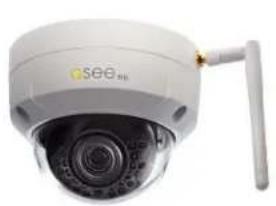
natural_image
Exterior view of a white security camera with a white lens and attached antenna (no visible text or symbols)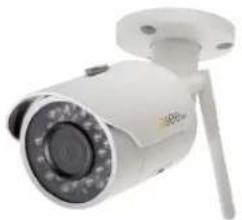
natural_image
White surveillance camera with mounted sensor and antenna (no visible text or symbols)Wi-Fi NVR
May include preinstalled hard driveCamera(s) included will ve

natural_image
Black wireless router with three antennas and model number Q300H (no visible text or symbols on body)Mouse
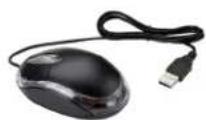
One for each camera and one for NVR
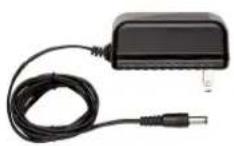
NVR CablesPower Supplies


natural_image
Coiled black Ethernet cable with two Ethernet ports (no text or labels visible)HDMI Cable Network (Ethernet)
Cable
Understanding Your NVR: Rear Panel
NOTE: Connections on the back of your system may vary based on your model.
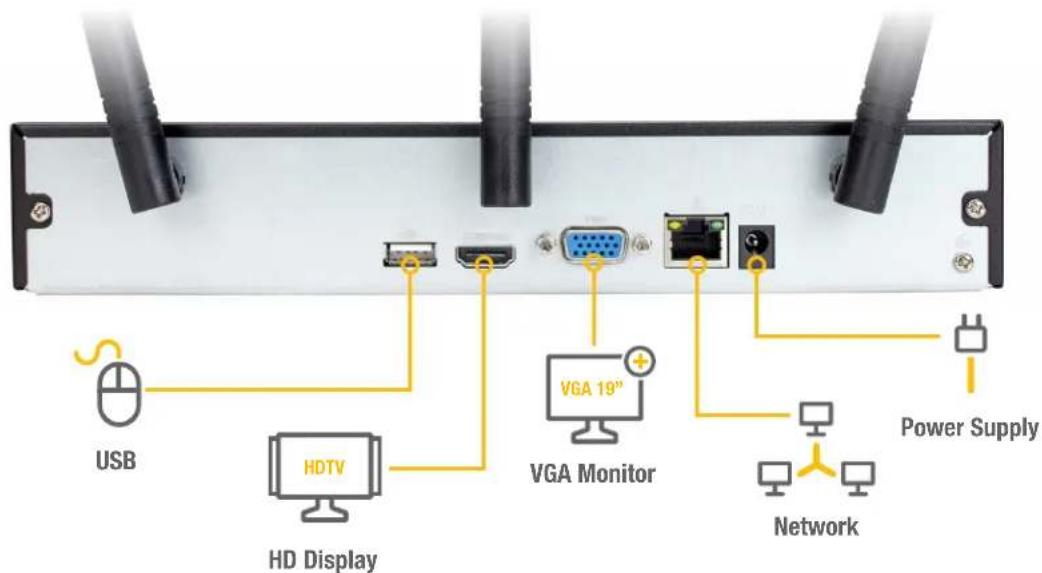
text_image
USB HDTV HD Display VGA 19" VGA Monitor Network Power SupplyIMPORTANT: Go through all of the steps to setup and test your system before mounting any cameras or hardware. Always visit www.q-see.com/support to find the most recent guides and up-to-date support for your Q-See products.
Get Connected
Step 1: Registration
Before installing, please register your device on the Q-See Support Portal at www.q-see.com/register to receive critical updates and support for your system. Registering will also help us to assist you with any technical or warranty issues if ever necessary.
Please be sure to keep a record of your model number(s) and to save this guide, as you will need this information if you are ever in need of technical or warranty support.
NOTE: Your username and password used to register your device are not the same as those you use to log in to your system. Please write down your username, password, and model number(s) in the spaces provided below:
Username: ____
Password:
Model #: ____
Step 2: Connect Your Cameras
A. Slide the included rubber grommet onto the antenna stem of the camera. Screw the supplied Wi-Fi antenna on to the bullet or dome camera.

natural_image
Two-step installation of a white SEE H20 security camera with a hand inserting a cable to its base, showing the device's internal components and rotation arrows (no text or symbols present)B. Plug in and connect the power supply to turn on the Wi-Fi camera(s). Please make sure that you test the system completely before mounting the cameras.

natural_image
Two types of security camera modules: one with cable and sensor, the other with a mounted camera and cables (no visible text or symbols)Step 3: Connect NVR to Display
There are two options to connect the NVR to a display.
Option A: HDMI
A1. Plug the included HDMI cable into the NVR's HDMI port.
A2. Connect the other end of the HDMI cable to the monitor or TV.
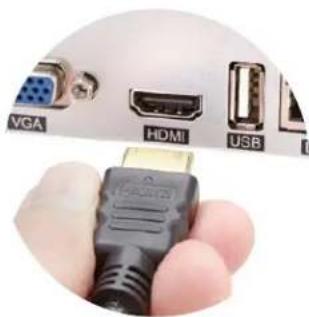
natural_image
Close-up of a hand holding a black USB connector with labeled ports (VGA, HDMI, USB) against a white background (no text or symbols on the connector body)A3. Plug the monitor or TV into a surge protector.
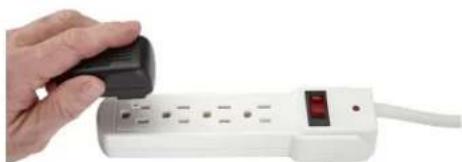
natural_image
Hand holding a black push-button icon next to a white power strip with a red indicator light (no text or symbols visible)Option B: VGA Monitor
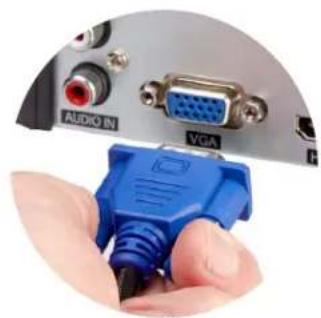
B1. Plug a VGA cable (not included) into the NVR's VGA port. VGA might not support full high definition output.
B2. Connect the other end of the VGA cable to the monitor. A 19" monitor or larger with 1280 x 1024 resolution is highly recommended.
B3. Plug the monitor into a surge protector.
natural_image
Close-up of a hand holding a blue DGA connector with an inset showing VGA port (no text or symbols visible)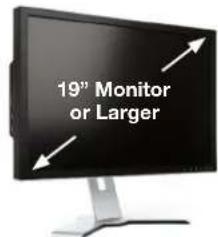
text_image
19th Monitor or LargerStep 4: Connect Mouse
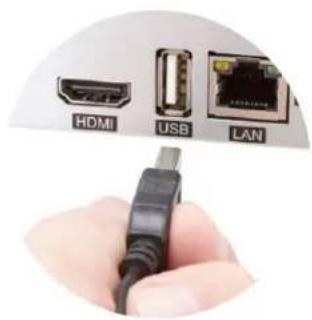
Plug the included mouse into the USB port on the back of the NVR. If your model has two USB ports on the back, either one will work.
text_image
HDMI USB LANStep 5: Connect to the Router
A. Plug the included Network (Ethernet) cable into the Network (LAN) port on the back of the NVR.
B. Connect the other end of the cable to an open port on your router (not included). You will hear a click when the cable is properly connected.

natural_image
Close-up of a hand holding a white USB port connector with HDMI, USB, and LAN labels (no readable text beyond labels)Step 6: Powering Up the NVR & Cameras
A. Plug the NVR power supply cord into the DC Port on the back of the NVR.

natural_image
Close-up of a finger holding a black key inserted into a computer motherboard (no visible text or symbols)B. Plug the cameras and NVR power supplies into a surge protector.

natural_image
Hand placing a black pushpin onto a white power strip with a red control panel (no text or symbols visible)C. The NVR may beep as it powers up and the cameras may make a faint clicking noise when powering on. The Startup Wizard will appear on-screen after a few minutes.
Step 7: Startup Wizard
A. In order to effectively use the search functions and maintain accurate recordings, you must complete the Startup Wizard. Click on Next Step to begin.

text_image
Startup Wizard Q-See NVR/DVR Start Up Wizard Startup Wizard for: 1. Language 2. Date-Time Setup 3. Network / Internet Setup 4. Mobile Devices Connection Next Step CancelNOTE: The cameras will take about one minute after powering on to begin displaying on the monitor.
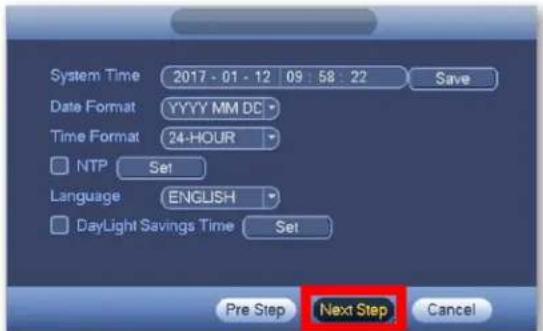
B. Set the current Date and Time in the screen below and then click Next Step.
text_image
System Time 2017 - 01 - 12 09 : 58 : 22 Save Date Format YYYY MM DC Time Format 24-HOUR NTP Set Language ENGLISH DayLight Savings Time Set Pre Step Next Step CancelC. Click on EmailSet to add an email address to recover a lost/forgotten password. When you click EmailSet it will ask you for login credentials, use the default username "admin" and default password "admin". Enter your email address, select a security question and provide an answer.

text_image
You should change the password for your NVR/DVR from the default 'admin'. Modify Password Old Password New Password: Repeat New Password: IMPORTANT! Please keep your new password in a safe location. EmailSet add an email address in case you forget your password Pre Step Next StepD. Click Test and then check the inbox of the email that you entered in the previous step. You should receive an email with the authorization code shortly.
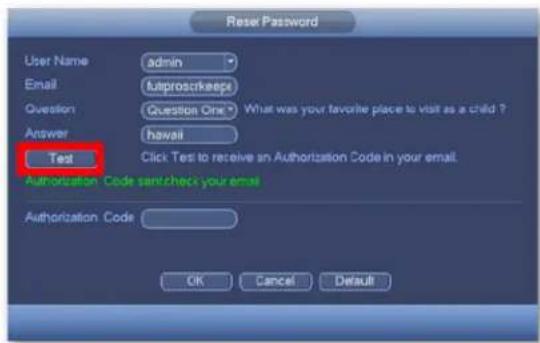
text_image
Reset Password User Name admin Email fulproscrkeps Question Question One What was your favorite place to visit as a child ? Answer hawaii Test Click Test to receive an Authorization Code in your email Authorization Code sent check your email Authorization Code OK Cancel DefaultE. Enter the Authorization Code you received in your email. Click OK.
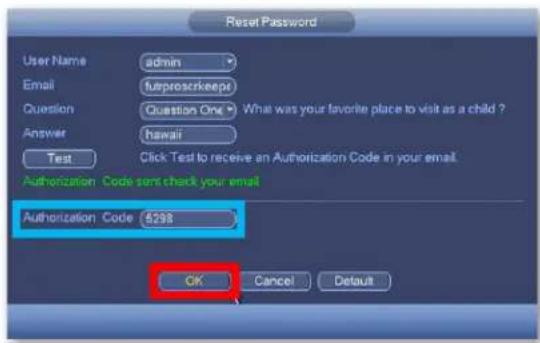
text_image
Reset Password User Name admin Email funproscrkeepers Question Question One What was your favorite place to visit as a child ? Answer hawaii Test Click Test to receive an Authorization Code in your email Authorization Code sends check your email Authorization Code 5298 OK Cancel DefaultF. Check Modify Password to change the existing default password which is "admin".

text_image
You should change the password for your NVR/DVR from the default 'admin'. Modify Password ✓ Old Password •••••• New Password: ••••••• Repeat New Password: ••••••• IMPORTANT! Please keep your new password in a safe location. EmailSet Add an email address in case you forget your password Pre Step Next StepPlease write down your new password in the space provided below:
Username: admin
Password:
NOTE: Password is case sensitive and can not exceed eight characters.
G. Ensure the network cable from the NVR is connected to the router. Click Next Step to start the remote monitoring setup.
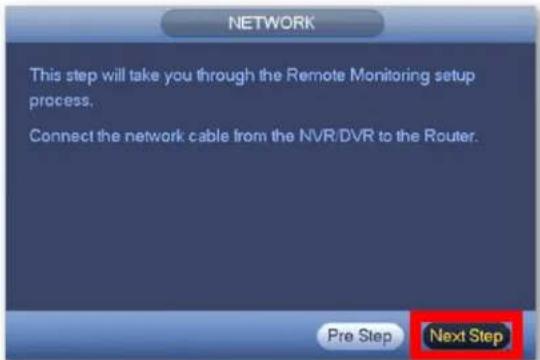
text_image
NETWORK This step will take you through the Remote Monitoring setup process. Connect the network cable from the NVR/DVR to the Router. Pre Step Next StepH. Once the network connection has been successfully established, click Next Step. If the connection is not successful, try powering off the NVR for 30 seconds and going through all of Step 7 again. If this does not work, check www.q-see.com/support for additional troubleshooting.
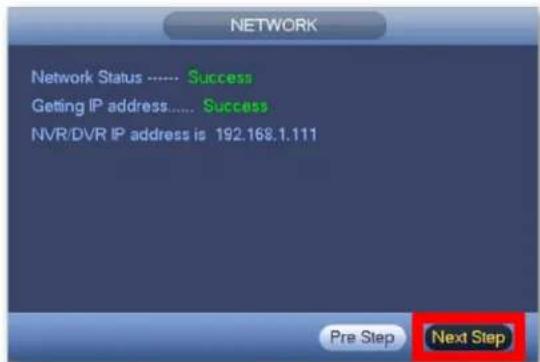
text_image
NETWORK Network Status ...... Success Getting IP address..... Success NVR/DVR IP address is 192.168.1.111 Pre Step Next StepI. Select Local & Internet to connect to your NVR remotely

text_image
NETWORK Select 'LOCAL & INTERNET' to remotely access the NVR/DVR from your PC or mobile devices. Select 'LOCAL ONLY' if you are not going to access the NVR/DVR remotely. Pre Step Local & Internet Local OnlyStep 8: Setting Up the QC View Mobile App
Download our free QC View mobile app to your mobile device, available for both Android and iOS.

text_image
QC Download on the App Store GET IT ON Google PlayNOTE: Please do not log in to the app yet.
A. Select your desired mobile device in the following window and click Next Step.

text_image
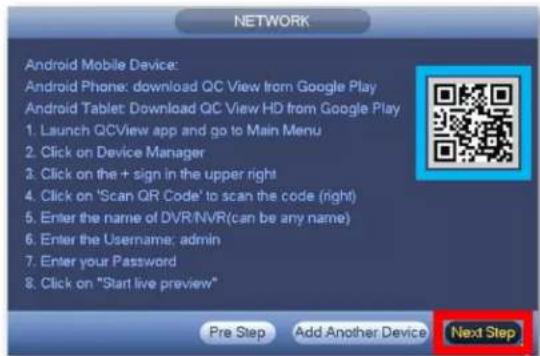
NETWORK Scan N° View Setup Choose your device: • Android ○ Apple ○ Computer Pre Step Next StepB. Follow the steps shown on screen to configure your mobile device and get to the Live Preview screen. After the Live Preview is successful, click Next Step.
text_image
NETWORK Android Mobile Device: Android Phone: download QC View from Google Play Android Tablet: Download QC View HD from Google Play 1. Launch QCView app and go to Main Menu 2. Click on Device Manager 3. Click on the + sign in the upper right 4. Click on 'Scan QR Code' to scan the code (right) 5. Enter the name of DVR/NVR(can be any name) 6. Enter the Username; admin 7. Enter your Password 8. Click on "Start live preview" Pre Step Add Another Device Next Step
natural_image
Group of children playing with toys and toys, no visible text or symbolsNOTE: To add multiple mobile devices to your system, first complete the Startup Wizard successfully and then refer to page 24 of this quick start guide.
← Screenshot of Live Preview from the QC View app on iOS.
C. The Q-See Startup Wizard is complete. To prevent the wizard from appearing after each reboot, uncheck the Startup box and click OK.

text_image
Startup Wizard The Q-See Startup Wizard is finished Please uncheck the 'Startup Wizard' box to turn it off. It is strongly recommended to uncheck the Startup box below for the security purpose. Startup OKNOTE: If the Live Preview is unsuccessful and no camera feed is available, check the Troubleshooting section on page 30 of this guide to verify the camera is activating.
QC View On Your Computer
OS X, Mac Users
Step 1
Go to www.q-see.com/support and search for answer ID "2799" to download the latest QC View software.
Click the Downloads button and, once fully downloaded, double-click QC View.pkg to open the file.

text_image
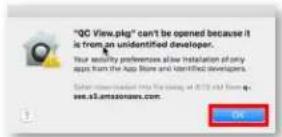
com/app/answers/detail/a_ Downloads Clear QC View.pkg 10.6 MB of 86.3 MB — 58 seconds remainingNOTE: If during the install process you see a message that the file is
from an unidentified developer, click OK and refer to answer ID 2634 at www.q-see.com/support for info on allowing installations from unidentified developers.
Step 2
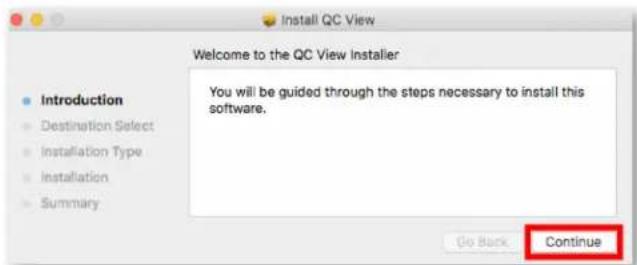
The QC View Installer will appear. Click Continue to proceed with the installation.
text_image
Install QC View Welcome to the QC View Installer Introduction Destination Select Installation Type Installation Summary You will be guided through the steps necessary to install this software. Go Back ContinueStep 3
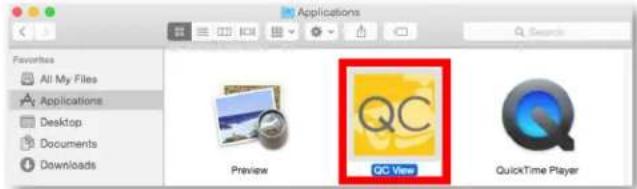
QC View will be located in your Applications Folder. Double-click QC View to launch the app.
text_image
Applications Favorites All My Files Applications Desktop Documents Downloads Preview QC View QuickTime PlayerStep 4
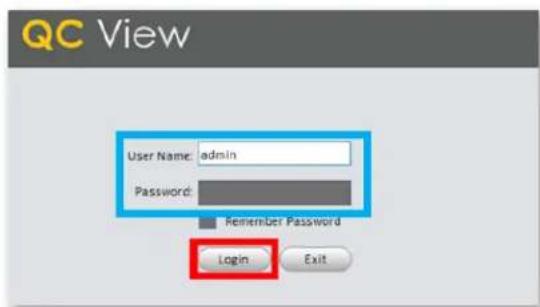
QC View will open to the Login Screen. Enter the default Username & Password below and click Login to continue. These credentials are independent of those used on the NVR.
Username: admin
Password: admin
text_image
QC View User Name: admin Password: Remember Password Login ExitNOTE: Adding the devices (NVR or cameras) to QC View has been elaborated further on page 21 of this guide.
Windows, PC Users
Step 1
Go to www.q-see.com/support and search for answer ID "2502" to download the latest QC View software.
Internet Explorer Users
Download QC View and click Run.

text_image
Do you want to run or save QCView_Setup.exe (111 MB) from q-see.com? This type of file could harm your computer. Run Save CancelChrome Users
In the Downloads bar at the bottom of the browser window click QCView_Setup.exe to open the file.

Step 2
Proceed with the Installation by clicking Next.

text_image
QC View Welcome to QC View Installation Fully functional and easily customizable Flexible Interface puts most functions just a click array. Group multiple systems and cameras according to your needs. All of the same functions found on your DWF - and more! We've interested to you Playback interface based on user feedback. Export recorded files and clips of his value while viewing. Multiple search modes to fit your style. Local Storage - QC PC-HWR Have your computer keep an eye on your system. Separate ways in case DWF or camera is locked off-line. Set up separate recording slots - video saved to computer next drive. New features, new flexibility, new power How functions to give you increased awareness. Configure your DWF sensitivity from your computer. Save settings for tasks, alarms and more. Next CancelStep 3
Review and Accept the License Agreement. Click Next.

text_image
QC View END-USER LICENSE AGREEMENT ("SILA") 1. Prepare Please read the following Agreement carefully before installing the Software. The End User License Agreement ("SILA" or "Agreement") is an agreement between you ("Fis" in "User"), and the Software provider, and the provider ("Provider") of approved services. By installing, copying, downloading or otherwise using the Software the User agree to be built by the terms of the Agreement. If YOU DO NOT AGREE TO THE TERMS OF THIS SILA, YOU MAY NOT USE. THE SOFTWARE Please immediately also installing, copying, or otherwise using the software, plus discers any parts of the Software that you have installed or stored. 2. Defaults Software: In the Agreement "Software" means information processing program or supporting file composed of machines or functions units, with supported files of all part of source code, except code and relevant images, photos, cons, video, sound records, video records, music, text, radio, plus dashboards, functions, features, contents, quality, tools, user manuals, ECA and other broadcast or electronic version of documents or technical files ("Software Product" or "Software") relevant to the software of Internet or Whorov's products. You in the Agreement "You" means any individual or individual entities, complete entry including company, enterprise, organization or section that has contained license to equal use of the Software. Additionally, Rated in the Agreement "Rehabilitation period" means file period before completion of user reproduction which allowed users to evaluate the Software within its entity. 3. Software Period: Refuse Apply Back Next CancelStep 4
Ensure both QC View and QC PC-NVR are checked.
Click Next.

text_image
QC View Please select the functions you want to install. Delete the installed you do not want to install. Click [host] to continue. QC View QC PC Award Description: QC View software helps you manage your DV4, NV8 and JP. Combine from a single point of access on your PC or Web. computer. Switch video fixed in next time, play back recorded when and back up next. Combine video streams from multiple interfaces on a single server. Remedy adjust the settings on any system in next time. Read Space[alt as N6]: 454 Back Next CancelStep 5
Click Install to begin the installation.

text_image
QC View Click [Install] to continue. Click [Preview] to install in different folders. Destination Folder Outperform the Web User Web Time Browse The free space of C:\71611096 The free space of F:\25132P6 Back Install NextNOTE: You must have full administrator privileges to install the software on your computer. If you receive any permission errors please contact your system administrator.
Step 6
Please be patient, the installation may take a couple of minutes to complete.

text_image
QC View Fully functional and easily customizable Flexible interface puts most functions just a click away. Group multiple systems and cameras according to your needs. All of the same functions found on your DVR and more!Step 7
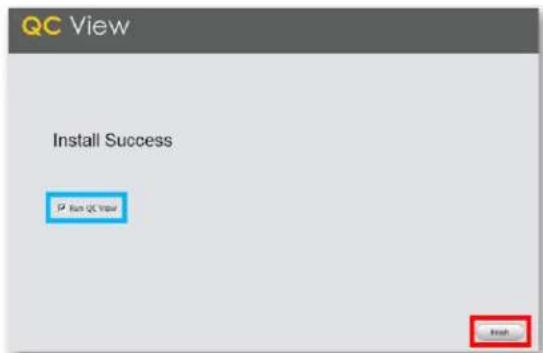
Once completed, ensure Run QC View is checked. Click Finish.
text_image
QC View Install Success P Run QC Impact FinishStep 8
QC View will open to the Login Screen. Enter the default Username and Password listed below and click Login to continue. These credentials are independent of those used on the NVR.
Username: admin
Password: admin

text_image
QC View User Name: admin Password: Remember Password Login ExitAdding Your NVR to QC View Step 1
Select Devices from the Home Page.

text_image
SETTINGS DEVICES DEVICE CFG ALARM CFG TOUR & TASKStep 2
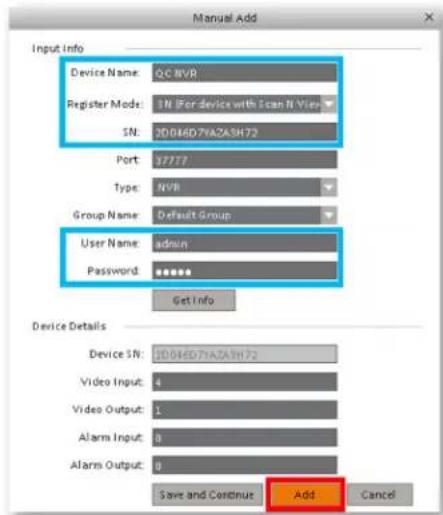
Click Manual Add to add your NVR to QC View.

text_image
QC View HOME FACE DEVICES LIVESTREAMS Online Devices 9 All Type Mac Port Refresh Add All Devices 0 Online 0 All Name Type IPDomain Name Manual Add Delete Import ExportStep 3
Device Name: Create a new name for your device Register mode: SN (For a device with Scan N' View) SN: Enter the device serial number located on the top panel of the NVR
Username: admin (unless changed on page 11)
Password: admin (unless changed on page 11)
Once completed, click Add and then click OK.
text_image
Manual Add Input Info Device Name: QC NVR Register Mode: 1H Per Device with Scan N View SN: 20046D76AZA3H72 Port: 37777 Type: NVR Group Name: Default Group User Name: admin Password: ****** Get Info Device Details Device SN: 20046D76AZA3H72 Video Input: 4 Video Output: 1 Alarm Input: 0 Alarm Output: 0 Save and Continue Add CancelStep 4
Please be patient, it can take up to 1 minute for the State to change from Offline to Online.

text_image
AI Devices 1 Online 0 Name Type IP/O domain Name Pref. Channel No State ON Operation GC WYN M4B 2604657N2A3H71 37777 A5/5/6 OFF: 2604657N2A3H72 AI Devices 1 Online 1 Name Type IP/O domain Name Pref. Channel No State ON Operation GC WYN M4B 2604657N2A3H72 37777 A5/5/6 OFF: 2604657N2A3H72Step 5
Click the Home Page tab then selectLiveView.

text_image
QC View HOME PAGE DEVICES BASIC LIVEVIEW PLAYBACK ALARM LOGStep 6
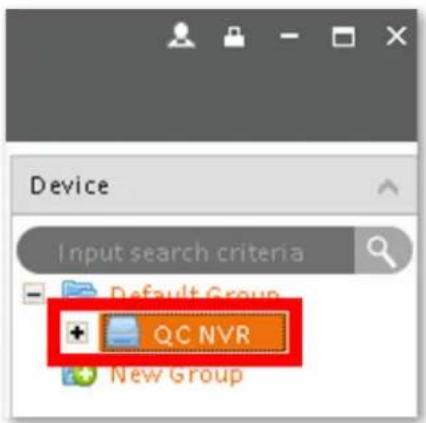
Click the + to display your device(s).

text_image
Device Input search criteria + Default Group New GroupStep 7
Double click the Device(s) you wish to display.
text_image
Device Input search criteria Default Group QC NVR New GroupStep 8
The camera feeds will display automatically.

text_image
QC View View 1 2 3 4 5 6 7 8 9 10 11 12 13 14 15 16 17 18 19 20 21 22 23 24 25 26 27 28 29 30 31 32 33 34 35 36 37 38 39 40 41 42 43 44 45 46 47 48 49 50 51 52 53 54 55 56 57 58 59 60 61 62 63 64 65 66 67 68 69 70 71 72 73 74 75 76 77 78 79 80 81 82 83 84 85 86 87 88 89 90 91 92 93 94 95 96 97 98 99 100Additional Features
Adding Multiple Mobile Devices Step 1
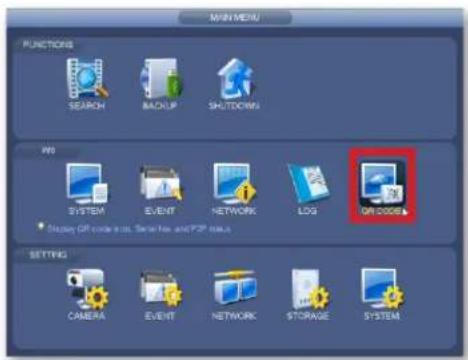
After completing the Startup Wizard, to add additional devices, first download the QC View app on your new device. On the NVR, go to the Main Menu and click QR Code. You will need to reference the steps from the screenshot in Step 8B on page 14 of this guide for mobile setup.
text_image
MINIMUM FUNCTIONS SEARCH BACKUP SHUTDOWN NO SYSTEM EVENT NETWORK LOG OK CODE Display OR code to log, Server key and TCP key SETTING CAMERA EVENT NETWORK STORAGE SYSTEMStep 2
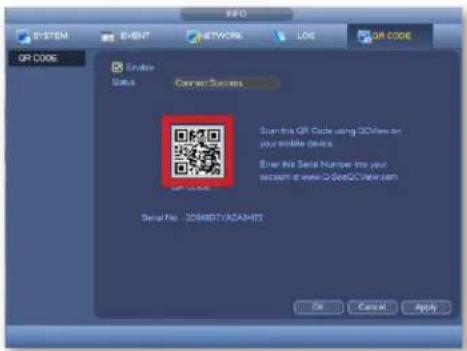
In the screenshot shown on Step 8B on page 14 of this guide, when you reach step 4 (scanning QR code) you can now scan the QR code shown on screen.
text_image
SYSTEM EVENT NETWORK LOG OR CODE OR CODE Enable Status Connect Success Scan the OR Code using QCDView or your mobile devices Email No Serial Number into your account at www.ORCode.com/item Serial No: 200801VACAMTS OK Cancel Apply
text_image
O-See Sain IV Vee SN: 2016405MA2016NOTE: You can also scan the QR code from the label located on the top of your NVR.
Bullet Camera Micro SD Card
The SD memory card slot is located under the bottom panel of the camera. Push the card in firmly to load the card. To eject, press the card firmly again. Some units will include a micro SD card.

natural_image
Close-up of a hand inserting a black plastic clip into a white appliance (no text or symbols visible)Bullet Camera Reset Button
If you wish to connect to a different Wi-Fi network, while the camera is powered on, hold the reset button for 15 seconds and setup your camera again.

natural_image
Close-up of a hand inserting a plastic clip into a white plastic housing (no text or symbols visible)NOTE: The micro SD memory card slot and reset button can both be accessed by removing the bottom panel from the camera with a standard Phillips screwdriver. Reattach the panel before mounting cameras.
Dome Camera Micro SD Card

natural_image
Close-up of a green printed circuit board with a metal connector and cable, being held by fingers (no visible text or symbols)The micro SD memory card slot is located under the lens cover which can be removed with the included wrench. Slide the slot open, place a memory card in, close the slot and lock the card into position. Some units will include a micro SD card.
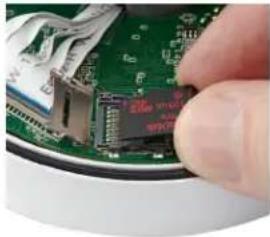
natural_image
Close-up of a hand inserting a green electronic component into a circuit board (no visible text or symbols)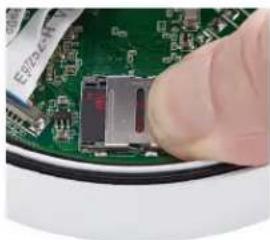
natural_image
Close-up of a finger pressing a small electronic component on a green circuit board (no visible text or symbols)Dome Camera Reset Button
The reset button on your dome camera is located under the lens cover which can be removed with the included wrench. If you wish to connect to a different Wi-Fi network, while the camera is powered on, hold the reset button for 15 seconds and setup your camera again.

natural_image
Close-up of a green printed circuit board with visible components and wiring, no text or symbols present.Dome Camera Lens Adjustment
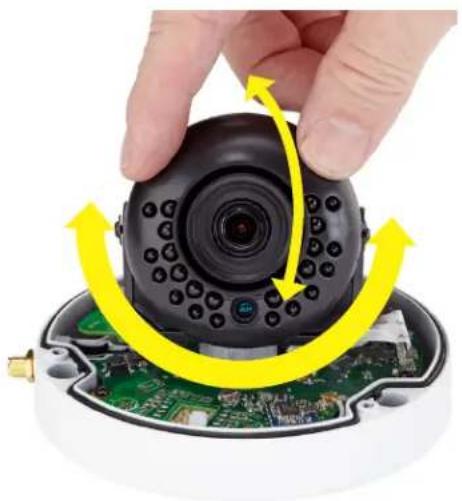
The lens of your dome camera can be adjusted based on where you are mounting it by gently loosening its screw and rotating the angle and orientation of the camera. The LEDs denote the bottom half of the camera, so be sure to rotate the lens accordingly or the camera view will be sideways. The center blue sensor should point directly down when mounted.
natural_image
Close-up of a hand holding a black camera module with yellow directional arrows indicating rotation or assembly (no text or symbols visible)Network Cable
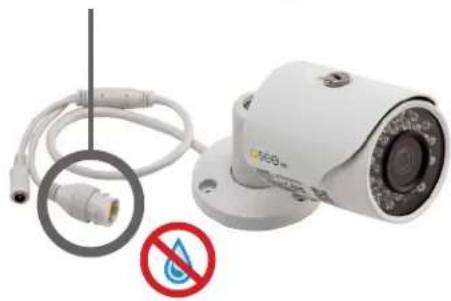
Please do not worry about the additional network cable on your camera. This network cable connection can alternatively be used to hard-wire the camera using an Ethernet cable instead of a Wi-Fi connection. Please make sure that this cable is never exposed to moisture.
natural_image
White surveillance camera with attached cable and connector, plus a red prohibition symbol (no text or labels)Get the Most Out of Your Q-See Cameras
Follow these tips to maximize the life and performance of your cameras.
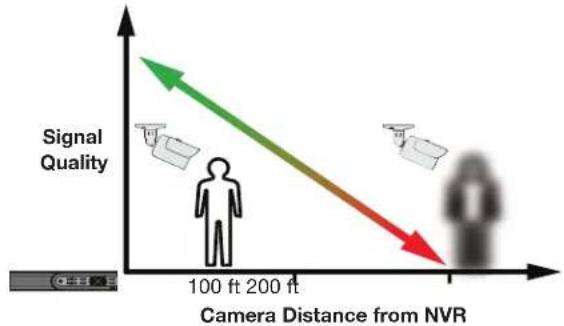
Distance From Viewing/Recording Device
Walls & floors will affect signal strength, especially concrete.
text_image
Signal Quality 100 ft 200 ft Camera Distance from NVRMounting Surface Thickness
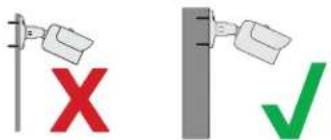
Mount your camera on a wall that is at least 2.5" thick.
text_image
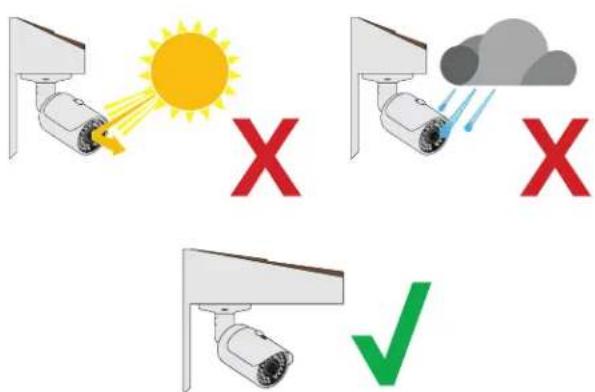
XAvoid direct exposure to weather
Mount your camera under an eave or awning if possible.
text_image
X X ✓Do not place camera behind a window

natural_image
Illustration of a door with a glass on top, set against a wooden wall (no text or symbols)X
Do not place near high-voltage wires or other sources of electrical interference

natural_image
Security camera with warning symbol (no text or labels)X
Light levels should be approximately the same between camera and target area
Consistent lighting conditions will provide optimal camera performance.

text_image
Diagram illustrating surveillance camera targeting with sun, target, and X symbols indicating detection or failure zonesLegal Considerations
Always check state and local laws before installing cameras. (2011 NEC 820.44)
Troubleshooting
Testing for Power & Night Vision
After you connect your camera to the NVR and power, if you do not see a video image on screen and your NVR does not display a "video loss" message, you should test your camera to ensure it is properly connected.
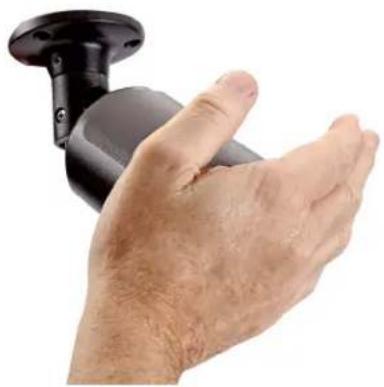
- With your camera(s) still connected to power, cover the lens end of your camera with your hand or an object to completely block it.
natural_image
Close-up of a hand holding a black wall-mounted device (no text or symbols visible)- Keep the lens blocked for 10 seconds. You should see a faint red glow from the infrared LEDs. This indicates that your camera has power and is working properly.
Advanced troubleshooting and information is all available on our website at: www.q-see.com/support
Setting Up a Wi-Fi Camera Without an NVR
Go to www.q-see.com/support and search for answer ID 3009 for steps to set up a camera on a different Wi-Fi network or to setup a Wi-Fi camera independently without an NVR.
Glossary
IP (Internet Protocol): IP devices communicate with each other via a local network or over the Internet.
Language: This is the language the NVR will use.
Local IP Address: The NVR's address on your local area network (LAN).
NTP (Network Time Protocol): This maintains the accuracy of the NVR's clock.
NVR (Network Video Recorder): Wi-Fi cameras connect to the recorder using a Wi-Fi signal or can connect directly with network (Ethernet) cables.
Warranty & Support
Q-See is always here to answer your questions and take your valued suggestions. Our focus is providing excellent customer support and always working to improve our customers' experience.
Please do not hesitate to call us at 1-877-998-3440 Monday-Friday 6:00 AM - 7:00 PM PST.
Visit www.q-see.com/support for 24/7 support and access to our Support Portal.
DISCLAIMER: Although Q-See has made every effort to ensure that the information in this guide was correct at the time of printing, Q-See does not assume any liability to any party for any loss, damage, or disruption caused by any errors, omissions, or typos that may occur.
24/7 Online Support Portal and Knowledge Base
www.q-see.com/support

Repairs and Returns

How-To's

Support Videos

Firmware Updates

Software

Manuals and Guides
ADDITIONAL SUPPORT
Live Phone Support
Mon-Fri : 6AM-7:00PM PST
1-877-998-3440
Chat Support
Mon-Fri: 6AM-7PM PST
Sat-Sun 9AM-5PM PST
Languages
English, Spanish