Mondopad INF7520AG - Workstation INFOCUS - Free user manual and instructions
Find the device manual for free Mondopad INF7520AG INFOCUS in PDF.


User questions about Mondopad INF7520AG INFOCUS
0 question about this device. Answer the ones you know or ask your own.
Ask a new question about this device
Download the instructions for your Workstation in PDF format for free! Find your manual Mondopad INF7520AG - INFOCUS and take your electronic device back in hand. On this page are published all the documents necessary for the use of your device. Mondopad INF7520AG by INFOCUS.
USER MANUAL Mondopad INF7520AG INFOCUS
Declaration of Conformity ....3
Safety Considerations 4
General 4
Moving this Display 4
Installation and Location....4
Ventilation 5
Power Source, Power Cord, Plugs 5
Medical Concerns....5
Treatment of Display and Remote 6
Cleaning the Display....6
What's Included....7
Setup 8
Mounting To A Wall 8
Mounting Location 8
Mounting Technique 8
Mounting the Camera....9
Panel Front, Under, and Side....10
Panel Back and Side 10
Connecting AC Power....11
Connecting to Other Devices 12
Side Panel Ports 12
Front Panel Ports....14
Working With the Remote....15
Understanding the Remote Buttons....15
Installing Remote Batteries....16
Operating the Remote 16
Treatment of the Remote/Display and Batteries 16
Using the Keypad Buttons on Front of Display 17
Locating the Keypad....17
Understanding the Keypad Buttons....17
LED Indicators....18
Connecting the Display to a PC....18
Connecting To the Optional PC In the Bay On Back Of Panel....18
Understanding the Display and External PC Connections....19
Connecting the Display to an External PC....20
Plugging a PC Into the Display 20
Connecting the Display To a PC Using Wifi 21
Basic Functions....22
Turning On the Display 22
Turning Off the Display....23
Adjusting Volume Without Using the On Screen Display Menus....24
Total Touch Control....25
Defining Total Touch Control 25
Understanding the Total Touch Control Menu Options....25
Using Total Touch Control 26
Working with Sources....27
Accessing Sources Using Total Touch Control 27
Understanding Source Touch Control Icons 27
Selecting a Source Using Total Touch Control 28
Accessing Sources Using the Remote 29
Understanding Source Options 29
Selecting a Source Using The Remote 31
Working with Total Touch Control Advanced Functions Menu 32
Understanding Total Touch Control Advanced Functions Menu 32
Selecting an Advanced Function Option Using Touch Control 33
Working With the On Screen Display Settings 34
Defining On Screen Display 34
Understanding On Screen Display Menu Selections....34
Picture Mode Menu 34
Sound Mode Menu....36
Settings Mode Menu 37
Selecting an On Screen Display Menu....38
Adjusting Display Picture, Using the On Screen Display Menu....40
Adjusting the Sound Mode Using the On Screen Display Menu....41
Adjusting Display Settings Using the On Screen Display Menu....42
Working with Android Settings 44
Android Setting Overview 44
Device....44
Preferences....46
Personal 47
Troubleshooting 48
Limited Warranty 51
DECLARATION OF CONFORMITY
Manufacturer: InFocus Corporation, 13190 SW 68th Parkway, Suite 200, Portland, Oregon 97223-8368 USA
Trademarks
Apple, Mac and Facetime are trademarks or registered trademarks of Apple, Inc. Microsoft, Windows, PowerPoint, Excel and Word are trademarks or registered trademarks of Microsoft Corporation. Adobe and Acrobat are trademarks or registered trademarks of Adobe Systems Incorporated. HDMI logo and "High Definition Multimedia Interface" are registered trademarks of HDMI Licensing LLC. Manufactured under license from Dolby Laboratories. Dolby and the double-D symbol are trademarks of Dolby Laboratories. SRS TruSurround HD and SRS TruVolume are trademarks of SRS Labs, Inc. TruSurround HD and TruVolume technologies are incorporated under license from SRS Labs, Inc. InFocus, In Focus, INFOCUS (stylized), MondoCenter, Mondopad, BigTouch, JTouch, and ShareView are either registered trademarks or trademarks of InFocus Corporation in the United States and other countries. All other trademarks are the property of their respective owners. Any other trademarks, service marks, personal names or product names are assumed to be the property of their respective owners and are used only for reference. There is no implied sponsorship, affiliation, certification, approval or endorsement if we use one of these terms.
FCC Warning
This equipment has been tested and found to comply with the limits for a Class A digital device, pursuant to part 15 of the FCC Rules. These limits are designed to provide reasonable protection against harmful interference when the equipment is operated in a commercial environment. This equipment generates, uses and can radiate radio frequency energy and, if not installed and used in accordance with the instruction manual, may cause harmful interference to radio communications.
Operation of the equipment in a residential area is likely to cause harmful interference in which case the user will be required to correct the interference at his own expense. Changes or modifications not expressly approved by InFocus Corporation may void authority to operate the equipment.
This device complies with part 15 of the FCC Rules. Operation is subject to the following two conditions: (1) This device may not cause harmful interference and (2) this device must accept any interference received, including interference that may cause undesired operation.
The manufacturer is not responsible for any radio or TV interference caused by unauthorized modifications to this equipment. Such modifications could void the user's authority to operate the equipment.
Canada
This Class A digital apparatus complies with Canadian ICES-003.
Industry Canada Statement:
"This device complies with Industry Canada license-exempt RSS standard(s). Operation is subject to the following two conditions: (1) this device may not cause interference, and (2) this device must accept any interference, including interference that may cause undesired operation of the device."
Industry Canada, Products with Detachable Antennas:
Under Industry Canada regulations, this radio transmitter may only operate using an antenna of a type and maximum (or lesser) gain approved for the transmitter by Industry Canada. To reduce potential radio interference to other users, the antenna type and its gain should be so chosen that the equivalent isotropically radiated power (e.i.r.p.) is not more than that necessary for successful communication.
This radio transmitter (identify the device by certification number, or model number if Category II) has been approved by Industry Canada to operate with the antenna types listed below with the maximum permissible gain and required antenna impedance for each antenna type indicated. Antenna types not included in this list, having a gain greater than the maximum gain indicated for that type, are strictly prohibited for use with this device.
Warning: This is a class A product. In a domestic environment this product may cause radio interference in which case the user may be required to take adequate measures.
Europe Wireless (WiFi):
This product operates at fundamental frequencies of 2.4 and 5 GHz. Each frequency outputs a maximum of 100 mW of power."
See product certification label.
This document applies to regulatory model: D103
Input ratings: AC 100-240V AC, 5.0A, 50-60Hz
InFocus reserves the right to alter product offerings and specifications at any time without notice
SAFETY CONSIDERATIONS

Please read and follow all safety instructions provided below and on the display before connecting the display to a power source. Failure to comply with safety instructions may result in fire, electrical shock, or personal injury and may damage or impair protection provided by the equipment. Please save all safety instructions.
General
- Refer to this guide for proper startup and shutdown procedures.
- Follow all warnings and cautions in this manual and on the display.
- Turn off display and unplug power, if there is a power outage, unstable voltage, thunder or lighting storm, abnormal sound or smell, damaged power cord, or product damaged caused by impact, fall, or strike.
Moving this Display
- Move and install this display with two individuals, as it is very heavy. Do not attempt to move or install the display by yourself, otherwise injury and/or damage may occur.
- Hold the display firmly using the handles and side or bottom bezels, when you move it. Do not hold the top bezel.
- Hold the four corners and bottom side of the display. To not exert pressure on the front of the display.
- Do not tilt or invert the carton, when you move the display or carton. Always keep display and carton in an upright orientation.
- Disconnect all accessories and cables before moving or repositioning the display.
Installation and Location
WARNING: Securely attach this display to the floor/wall per installation instructions. Tipping, shaking, or rocking the machine may cause injury or death.
- Use only properly rated wall and stand mounting hardware, which meets this product's specifications and follow the manufacturer installation instructions. The warranty does not cover any damage caused by use of improperly rated mounting hardware or from improper installation.
- Use only Metric Number 6 (3.505 mm) screws, when you mount the display to a wall. In addition, the mounting interface should comply with the UL178 standard in North America.
The mounting means should be strong enough to bear the weight of the display. For 55" diagonal display, that is M6 screws. - Do not install or use the display or speakers near any heat sources such as radiators, heat registers, stoves, or other devices (including amplifiers) that produce heat.
- Do not place the display in direct sunlight, humid, greasy or dusty places or in places where the display may come into contact with rain, smoke, steam, flammable or explosive substances, combustible or corrosive gasses.
- Do not use any components of the display, including the speakers, near water.
- Make sure no naked flame source, such as lighted candles, are placed on the display.
- Do not install the display in places subject to mechanical vibration.
- Do not place the display on an unstable surface, which could result in serious personal injuries and display damage. When mounting the display to a stand, be sure to following the manufacturer's instructions. Use only the mounting hardware recommended by the manufacturer, M6 (3.505 mm) screws.
Ventilation
- Maintain a distance of at least 1.98" (5 cm) between the display and the wall to provide adequate ventilation, if the display is installed against the wall.
- Locate the display at least 4^ (1.2 m) away from heating and cooling vents.
- Do not block ventilation openings. Locate the display in a well-ventilated area without obstructions to intake or exhaust vents.
- Maintain 1 1/2" (30 cm) above, 1/2" (10 cm) on each side, and 1/2" (10 cm) below display to provide adequate ventilation.
Power Source, Power Cord, Plugs
- Make sure the power outlet used to power this display is readily accessible for fast disconnection, in case of emergency.
- Do not use an outlet that has been damaged or has a non-standard power supply.
- Use the power cord provided.
- Ensure a good connection as you connect the power cord to a receptacle with a protective safety (earth) ground terminal.
- Ground Class 1 display.
- Use a surge-protected power strip. Do not overload wall outlets.
• Do not use the display with the power cord near water: for instance, near a bathtub, washbowl, kitchen sink or swimming pool, etc. - Do not place any heavy objects on the power cord.
- Protect the power cord from being walked on or pinched particularly at plugs, convenience receptacles and the point where they exit from the display.
- Unplug the display if you are not going to use it for an extensive period of time.
- Hold the plug, not the cord, when you disconnect the system.
- Keep power plug free of dusk and metal attachments.
- Unplug the display if you need to clean it with the included micro-fiber cleaning cloth. The screen may be wiped with the cleaning cloth when the power is off. Never use alcohol, solvents or ammonia-based liquids on this display.
- Do not touch the power cord with wet hands.
Medical Concerns
- Rinse skin for 15 minutes, in the event that the LCD screen breaks and leeks onto skin.
- Use the display with adequate light. Insufficient light or continuous use may damage vision.
Treatment of Display and Remote
WARNING: Do not expose this equipment or any component of this equipment to rain or moisture, because fire or electric shock may result.
WARNING: Do not allow children to climb on display.
WARNING: Do not insert any sharp objects, metal, or liquid into the unit. Do not allow such objects to contact ventilation holes or signal connectors. Short circuiting of the product, damage, or electrical shock may result.
WARNING: Do not remove the cover or back or service your display, yourself; doing so can be dangerous and will void your warranty. Refer all service to qualified service personnel.
WARNING: Unplug Panel before a lighting/ thunder storm. Damage to product or electrical overload could result if power surge is allowed to overload system.
- Use only replacement parts, specified by InFocus. Unauthorized substitutions may result in fire, electrical shock, or injury and may void the warranty.
- Do not drop the display.
- Do not spill liquid on the display. Spilled liquid may damage the display.
- Wash hands after handling the cables supplied with this display.
- Do not use hard objects or press forcibly on the display screen.
- Do not twist the display.
- Do not use hash chemicals to clean display.
- Do not allow any image, text or icon to display indefinitely on the screen. Ghosting of an image may occur and is not covered by warranty.
- Allow display to adjust to new temperature slowly, upon change of location. Do not use it immediately.
- Make sure the polarity (+/-) of the remote control's batteries is correctly aligned. Dispose of used batteries in accordance with local disposal laws. Batteries are not included.
Cleaning the Display
Clean the display with a soft cloth and a cleaner, made for cleaning high tech screens. Spray a soft cloth with minimal cleaner and rub carefully to remove smudges and finger oils.
Note: Most common window cleaners will not hurt the display; use them limitedly and carefully.
Warning: Never spill liquids or use excessive cleaning products on the screen or any part of the display.
Warning: Follow these instructions to help ensure personal safety and image quality over the life of the display. Failure to follow these instructions may affect the warranty.
WHAT'S INCLUDED

text_image
InFocus68.4" × 41.55" × 4.4"
This product does not ship with mounting accessories. Only use commercially manufactured mounting accessories which meet this product's specifications and follow the manufacturer installation instructions. Use only M6 (3.505 mm) screws.
WARNING: This display must be securely attached to the floor/wall per installation instructions. Tipping, shaking, or rocking the machine may cause injury or death.
Mounting Location
• Install the display near an easily accessible AC power outlet.
- Mount display to solid wall or stable horizontal surface.
- Do not install the display in places subject to mechanical vibration.
- Do not place the display on an unstable surface, which could result in serious personal injuries and display damage. When you mount the display to a stand, be sure to follow the manufacturer's instructions. Use only the mounting hardware recommended by the manufacturer.
- Do not install or use the display near any heat sources such as radiators, heat registers, stoves, or other devices (including amplifiers) that produce heat.
- Do not place the display in direct sunlight, humid, greasy or dusty places or in places where the display may come into contact with rain, smoke or steam.
- Protect display from environmental hazards; that is: heavy dust, insects, condensation, other moisture, and strong electromagnetic fields.
Mounting Technique
- Use a professional technician to properly install display.
- Use only properly rated wall and stand mounting hardware that meet this product's specifications and follow the manufacturer installation instructions. The warranty does not cover any damage caused by use of improperly rated mounting hardware or from improper installation.
- Place your display front face-down on a clean, cushioned surface, to prevent damage to the screen surface.
- Use Metric number 6 (3.505 mm) screws, when you mount the display to a wall. Use spring washers to prevent the screws from coming loose. In addition, the mounting interface should comply with the UL1678 standard in North America. The mounting means should be strong enough to bear the weight of the display.
- Maintain a distance of at least 1.98" (5 cm) between the display and the wall, if the display is installed against the wall; this distance provides adequate ventilation.
Mounting the Camera
To mount the camera on the top of the panel, follow these steps.
1) Remove center screw, top, back of panel.

text_image
panel, follow these steps. panel.2) Attach the camera adapter to top of panel, using the Phillips-head screw, provided with the camera adapter.

natural_image
Mechanical assembly diagram showing a bolt and nut assembly with a black arrow indicating direction (no text or symbols)3) Place the camera assembly over the camera adapter, then screw in the two thumb screws (provided with the camera), through the holes, which line up with the attached camera adapter.

natural_image
Mechanical assembly diagram showing a lever mechanism with springs and adjustment parts (no text or labels)Panel Front, Under, and Side

text_image
Side Panel Ports Optional PC Ports Light and Sensor InFocus Under Panel Ports Front Panel Ports Front Panel ButtonsPanel Back and Side

text_image
Trapezoid Plug In On/Off SwitchCONNECTING AC POWER
| Step Action | Plug End | |
| 1 | Connect the trapezoid plug end of the AC power cord to the AC In jack on the back of the display. |  |
| 2 | Connect the other end of the AC power cord to an AC outlet.Note: Depending on your country, you may need to check the proper voltage of the outlet and product requirements. |
CAUTION:
- Operate the display from the power source indicated on the label.
- Unplug the AC power cord from the power outlet when you are not using your display for an extended period of time, before you move it, or when you are connecting other devices.
CONNECTING TO OTHER DEVICES
Connection ports are located on the side in the back, and under the display which can be connected to a full range of digital input devices, and output devices including: accessories, source devices, PCs, tablets, daisy-chain displays, etc.
Side Panel Ports
The side panel ports are located on the left side of the back of the display. This table shows how to connect them.
 | |
| Port Connection Instructions | |
| RS232 IN Connect to RS232 control device for remote control applications. | |
| RS232 OUT Connect to RS232 control device for remote control applications. | |
| OPS PC USB Connect a USB 2.0 device to the OPS module. | |
| Touch USB Connect a A-B cable between this type B port and your computer to get touch control. | |
| SPDIF Connect a SPDIF cable to Output audio. | |
| Headset Connect a 3.5 mm headset to output audio. This will mute the internal speakers. | |
| USB 2.0 Connect a USB 2.0 device to the internal Android PC. | |
| USB 3.0 Connect a USB 2.0/3.0 device to the internal Android PC. | |
| USB 3.0 Connect a USB 2.0/3.0 device to the internal Android PC. | |
| R-IN Connect an RCA L/R audio cable to an external device, provides audio in for the AV- IN source. | |
| L-IN Connect an RCA L/R audio cable to an external device, provides audio in for the AV- IN source. | |
| AV-IN Connect a composite video cable from the display to an external device (such as VCR or DVD player). | |
| Pr | Connect Red component RCA video cable from the display to an external device (such as a DVD player, HD device, or Laser Disc player) Pr signal. |
| Pb | Connect Blue component RCA video cable from the display to an external device (such as a DVD player, HD device, or Laser Disc player) Pb signal. |
| Y | Connect Red component RCA video cable from the display to an external device (such as a DVD player, HD device, or Laser Disc player) Y signal. |
| AV-Out Connect a composite video cable to display the Output from AV-IN. | |
Under Panel Ports
The under panel ports are located on the left side of the bottom of the display. This table shows how to connect them.
 | |
| Port Name | Connection Instructions |
| HDMI 1 Connect a HDMI cable from the display to a HDMI external device. | |
| HDMI 2 Connect a HDMI cable from the display to a HDMI external device. | |
| HDMI 3 Connect a HDMI cable from the display to a HDMI external device. | |
| HDMI-Out | Connect an HDMI cable from this port to an HDMI Input port on another display.This will mirror the content of this display to the 2nd display. Only works with HDMI inputs 1-3. |
| LAN Connect RJ45 cable to provide network connections for Internal Android. | |
| HDMI 4 (MHL) | Connect a HDMI cable from the display to a HDMI external device, such as your computer.Supports HDMI 2.0/HDCP 2.2 and MHL standards. |
| VGA Connect a VGA computer cable from the monitor to an external computer. | |
| PC Audio | Connect a 3.5 mm audio cable to your computer for audio when displaying VGA input. |
Front Panel Ports
The front panel ports are located on the left side of the bottom front of the display. This table shows how to connect them.
 | [WS2D] | PC USB MEDIA USB | TOUCH USB HDMI | ||||
 |  |  |  |  | [ZWY4] | ||
| Port Name | Connection Instructions | ||||||
| Headset Connect a 3.5 mm headset to output audio. This will mute the internal speakers. | |||||||
| Mic Connect a 3.5 mm microphone or cable for audio input. Overrides audio from all other sources when connected. | |||||||
| PC USB Connect a USB 2.0 device to the OPS module. | |||||||
| Media USB | Connect a USB 2.0 device to the Internal Android. | ||||||
| Touch USB | Connect a USB A-B cable between this type B port and your computer to get touch control. This works with front HDMI port. | ||||||
| HDMI Connect an HDMI cable from the display to an HDMI external device, such as a computer. | |||||||
WORKING WITH THE REMOTE
Understanding the Remote Buttons

text_image
POWER SCREENSHOT MUTE ABC DEF GHI 1 2 3 JKL MNO PQR 4 5 6 STU VWX YZ- 7 8 9 F1 CHLIST 0 FREEZE HOME MENU OK + VOL - SOURCE + CH - AUDIO INFO ZOOM IMAGE SY S STEREO PLAY PAUSE STOP ROTATE PREV NEXT BACK SPEEDPower: Switches the power on or puts the display into Standby.
Screen Shot: Takes a screen shot.
Mute: Switches the audio on or off.
Numbered Keys: Inputs any letter or number.
Note: When you begin entering numbers, the on screen keyboard appears.
F1 3D (Freeze): When enabled, freezes the image which is currently displayed.
CH List: Reserved for future use.
Home: Displays the Home Screen.
Menu: Displays small On Screen Display Menus Mode when accessed from a screen, other than the Home Screen.
Note: Menu key has no function in the Home Screen.
Cursor Keys (Left, Right, Up, Down Arrows): Use these buttons to navigate through and make changes to the On-screen Menu features.
OK: Confirms the operation (Enter).
Volume Up: Increases the audio volume.
Volume Down: Decreases the audio volume.
Back: Returns the user to the previous menu.
Source: Displays the Source Selection Menu on the bottom of the display.
CH Up: Reserved for future use.
CH Down: Reserved for future use.
Audio (Sound Mode): Accesses On Screen Display Sound Mode Menu: Movie Sports, User, Standard, Music settings.
Sleep mode: Allows you set a "sleep time" for the display.
OSD: Reserved for future use.
Zoom: Accesses ODS Menu Mode for Panorama, PC Mode, Just Scan, Auto, Default settings.
Image (Picture Mode): Accesses On Screen Display Picture Mode Menu: User, Standard, Lightness, Soft, PC settings.
Blank: Reserved for future use.
SYS: Reserved for future use.
Stereo: Reserved for future use.
Play: For online video - Plays media.
Pause: For online video - Pauses media play.
Stop: For online video - Stops media play.
Rotate: For online video - Rotates picture.
Previous: For online video - Skips to previous scene.
Next: For online video - Skips to next scene.
Back (Fast Reverse): For online video - Shows media backwards quickly.
Speed (Fast Forward): For online video - Shows media forwards quickly.
Installing Remote Batteries
| Step Action | |
| 1 Remove the cover from the remote's back. | |
| 2 Align the + and - ends of the batteries | |
| 3 Slide the batteries into place. | |
| 4 Replace the cover. | |
| Note: The remote uses two (2) AAA batteries (not included). | |
Operating the Remote
| Step Action | |
| 1 Point the remote at the display sensor at the bottom right-hand corner of the display. | |
| 2 | Keep the remote in optimum range for best operation, about 26' (8 m) from remote to display and within a horizontal and vertical angle of 30 degrees of the sensor; see picture. |
TREATMENT OF THE REMOTE/DISPLAY AND BATTERIES
| Remote and Display Batteries | |
| ⚠️ Keep remote dry; if the remote control gets wet, wipe it dry immediately. | ⚠️ Remove batteries from the remote control when storing or not in use for a prolonged period. |
| ⚠️ Protect the Display and Remote from excessive heat and humidity. | ⚠️ Do not mix new and old batteries or different types of batteries together. |
| Ensure the batteries’ polarity (+/-) is properly aligned. | |
| Replace the batteries as soon as they run out. | |
| Dispose of batteries in an environmentally proper manner. |
Note: Batteries are not included.
USING THE KEYPAD BUTTONS ON FRONT OF DISPLAY
Locating the Keypad
The keypad, located on the right side of the front, bottom of the display.

text_image
InferousUnderstanding the Keypad Buttons
The keypad has the following buttons:
| icon | |
 | Power: Switches the power to the screen on/off or puts the display into Standby Mode. ?? |
 | Settings: Displays the Settings Menus.Note: This button is not functional on from the Home Screen.Display must be connected to a PC, and the selected source must be the PC.Note: To access menu options for Picture Mode and Sound Mode Menu choices, each menu title bar must be set to "User." |
| Volume +/-: Increases or decreases the volume. Buttons have same functionality as those on remote.Navigation: These buttons can also serve as navigation tools for selecting options on the left and right of the current selection. Touch the screen or press OK on the remote to select the highlighted choice. | |
| Navigation: These buttons serve as navigation tools for selecting options to the right and left of the current selection. Touch the screen or press OK on the remote to select the highlighted choice. | |
 | Total Touch Control - Enable/Disable: Enables or disables touch screen gesture function for the display screen. Press this button to activate and deactivate Total Touch Control so that you can make selections by touching the display screen. |
LED INDICATORS
| Front LED Color(near IR sensor) | Meaning |
| Red The display is powered off or the display is in standby mode. Note: Press the Power button on the remote or on the lower front, right of the display,to turn on the display. | |
| Green The display is powered on. Note: Sometimes it takes a few seconds for the display screen to brighten. | |
| Flashing Green The display is changing to standby mode. | |
| Off The system does not have power. | |
CONNECTING THE DISPLAY TO A PC
Connecting To the Optional PC In the Bay On Back Of Panel
Infocus sells a PC that can be installed in the bay. In addition, PCs can be purchased from other vendors that can be installed in the bay at the back of the panel. To connect the a PC using the bay:
1) Unplug the Display for safety.
2) Push the PC into place in the bay.
Note: If the PC will not go all the way in, turn it over. The antenna should be on the top, pointing up.
3) Screw in the thumb screws until moderately tight.
Result: The PC and the Display connect.
Note: Choose OPS as a Source. See "Selecting a Source Using Total Touch Control" on page 28.
Understanding the Display and External PC Connections
Follow the schematic drawing, below, to hook up an external PC.
Note: Remember to disconnect the display from power, before you connect/disconnect it from the PC.

text_image
HDMI 1 HDMI 2 HDMI 3 HDMI OUT HDMI 4 (MHL) VGA PC-AUDIOLAN Under Display Ports PC Ports HDMIDC-IN VGA SDIF USB LAN AUDIO-OUT MIC-IN TOUCH USB USBConnecting the Display to an External PC
Plugging a PC Into the Display
To connect a laptop or other external computer by plugging into the display, follow theses steps:
| Step Do This... Location Connection Ends | ||
| 1 Unplug the Display from power, for safety. | ||
| 2 Connect an external computer to the display using one of these cables: HDMI (Front Panel Port) or VGA (Under Panel Port).Note:The HDMI in the front of the display is unnumbered. | 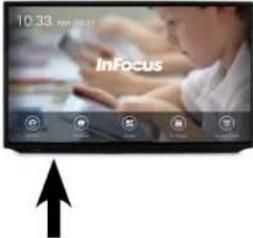 Front Panel Ports Front Panel Ports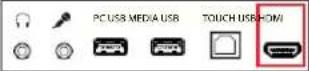 Under Panel Ports Under Panel Ports |  HDMIVGA HDMIVGA |
| 3 Connect the A to B USB cable to the USB Type A jack on the computer and to the USB Type B jack, labeled "Touch Control" on the front, left (Front Ports) of the display.Note:This connection allows you to use touch control on the computer screen to control the display. |  Front Panel Ports Front Panel Ports |  USB A to B USB A to B |
| 4 Choose the appropriate connections, when prompted. | ||
| 5 Set the unnumbered HDMI or VGA as your source. Note: See "Understanding Source Touch Control Icons" on page 27. |
Connecting the Display To a PC Using Wifi
To connect a laptop or other external computer wirelessly, follow theses steps:
| Step Do This... Location Result | |||
| 1 | Remove the USB dongle, , from it's packaging and connect it to the USB 2.0 port on the back side of the display.[IMAGE] |  | |
| 2 Choose the Display in the connection pop-up window on your PC.Note:The pop-up window usually displays with signal strength bars and identifies the wifi signals in your area. Usually it is accessed by clicking the signal bars on the lower right of your computer screen.Note:You may have to enter a password for your local wifi server. | Once the PC is connected, it will automatically be selected as the source.Note:This connection allows you to cast from your PC screen to the display screen and to control the display screen from your PC. | ||
BASIC FUNCTIONS
Turning On the Display
| Step Do This... Press Location Result | ||||
| 1 Verify the power cord is connected to power outlet and the trapezoid plug is connected to the back of the display.Note: See "Connecting AC Power" on page 11. |  | The system has access to power. | ||
| 2 TurnON thePower Switchon the back of the display. |  | The system power turns on. | ||
| 3 Press thePower Button on the remote. |  | The display power turns on and the Home Screen displays. | ||
 | ||||
| Press thePower Button on the bottom, right side of the front of the display. | The green LED on the front of the display turns on, indicating that both the system and screen have power. | |||
Turning Off the Display
| Step Do This... Press Location Result | |||||
| 1 | Press thePowerButton on the remote. |  | The display power turns off and the screen goes black. The green LED on the front of the display flashes and then turns to red, indicating that the system still has power but the screen does not. The green LED on the front of the display flashes and then turns to red, indicating that the system still has power but the screen does not. | ||
| Press thePowerButton on the bottom, right side of the front of the display. | 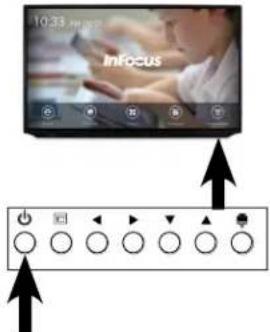 - - | ||||
| 2 | TurnOFFthe Power Switchon the back of the display. |  |  | The system power turns off.The red LED on the front of the display turns off, indicating that the system power is off. | |
Note: Remember to unplug the display from the power outlet before you move it; this prevents bodily harm or harm to the display. Remember to unplug the display from the power outlet during an electrical storm; this prevents an electrical surge from harming the display.
Adjusting Volume Without Using the On Screen Display Menus
To adjust the volume of the display from any screen without using the on screen display menus, take one of these actions.
| Step | Do this... Tap or | Press | Location Result | |
| 1 | Press the Volume button on the remote to increase or decrease the volume. |  |  | The volume changes. |
| Press the Arrow buttons on the lower right of the display, to increase or decrease the volume. | ◀ ▶ |  | ||
| Touch the Volume button on the Total Touch Control Menu. Note: See "Selecting an Advanced Function Option Using Touch Control" on page 33. |  |  | A Volume Sliding Scale displays. | |
| 2 | Slide the bar at the center of the scale to the right to increase volume or left to decrease volume. |  | The volume changes. |
TOTAL TOUCH CONTROL
Defining Total Touch Control
Total Touch control means that once the display is turned on, from within an Android application, anything you need to do with the display can be done by touching the screen. Use the touch controlled menus to move through desired tasks, choose tools, and manipulate the display.
Note: The remote control and the buttons on the bottom lower right of display can also be used to assist you in navigation and selection.
Understanding the Total Touch Control Menu Options
The table below defines the base Total Touch Control Menu icons, which appear on either side of the screen, when you tap the side arrow on either side of the screen.
| Left Arrow | Right Arrow | Icon Icon Name Does This... Sub Menu Icons | |||
 | Source Displays a Menu of Sources. |  | |||
 | Back Arrow | Takes you back a level in an application or back a page in a browser.Returns to previous displayed screen. | |||
 | Freeze | Freezes the display, temporarily. | |||
 | Advanced Functions Menu | Displays options. | |||
 | Home Displays the Home Screen. | ||||
Using Total Touch Control
To access any of the Total Touch Control Menu Options from within Android applications, follow these steps:
| Step Do This... Press or | Tap | Location Result | ||
| 1 Make sure touch gestures are enabled; press the Total Touch Control button, lower right of display. Note: Total Touch Control button enables and disables touch gestures for the display. Repeated presses of the Total Touch Control button will toggle between enabling and disabling touch gestures. |  | 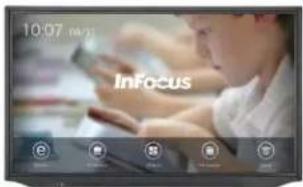  | Total Touch Control is enabled. | |
| 2 Tap theArrowon either side of the screen. Note: To display any of the Side Sub- Menus, select a Total Touch Control Menu Option by touching it. | [2Y6Z] |  | The Total Touch Control Menu Icons Display. 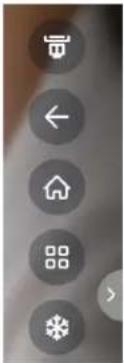  | |
WORKING WITH SOURCES
Accessing Sources Using Total Touch Control
Understanding Source Touch Control Icons
| Source Sub-menu Icons Icon Name Location of Source Port Description | |||||
 | VGAVideo GraphicsArray | Under Panel Ports  | Connect Video Media Device. | ||
 | AV CompositeVideo | Side Panel Ports | Connect to DVD. | ||
 | Component Video Connect to component devices. | ||||
 | OPSOpen Plug-ableStandard (PC) | PC Bay | Connect to the optional PC in the bayon back of panel. | ||
 | HDMI (Front)Note: This HDMIhas no number | Front and Under Panel Ports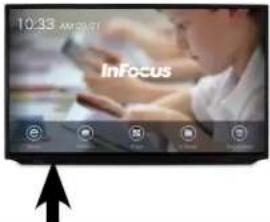 [IMAGE] [IMAGE] | Connect to an external PC.Note: This HDMI selection is blank;it's on panel front. | ||
 | HDMI (1-4) Conn |  | |||
Selecting a Source Using Total Touch Control

The "Return to Source" selection on the Home Screen displays the last source, which was selected.
To select a new source using touch control, first ensure that Total Touch Control is enabled, then follow these steps:
| Step | Do This... Press Location Result | |||
| 1 | Tap theArrowat the either side of the display, to reveal the Total Touch Control Menu Options. |  | The Total Touch Control Menu Icons display.  | |
| 2 | TapSource.The Source Menu | Options display. |  |  |
| 3 | Tap the source icon that shows the port, that is connected to your desired source. | Any source icon |  | The source you selected is connected.Note: For a list of source definitions, see "Working with Total Touch Control Advanced Functions Menu" on page 32. |
Note: If you want to connect to PC, select a source which is attached to the PC. Select OPS as the source, for a PC in the bay on the back of the panel. For connecting to an external PC, see "Connecting the Display to an External PC" on page 20.
Accessing Sources Using the Remote
Understanding Source Options
When you access source options with the remote control, your choices appear at the bottom of the screen. Here they are:

text_image
No PC Save As Windows XP XP/XP OPs Active Windows 2.1.0 (Windows)
text_image
Start PC Send to PC HDMI HDMI2 HDMI3 HDMI4 HDMI5| Source Icon Icon Name Location Description | |||
 | VGAVideo GraphicsArray | Under Panel Ports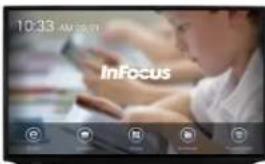 [IMAGE] [IMAGE] | Connect Video Media Device. |
 | AV Composite | Side Panel Ports | Connect to DVD. |
 | Component Connect to component devices. | ||
 | OPSOpen Plug-able Standard | PC Bay | Connect to the optional PC in the bay on back of panel. |
 | HDMI (Blank) | Front and Under Panel Ports | Connect to an external PC.Note: This HDMI selection is blank; it's on panel front. |
    | HDMI (1-4) Connect |   | HDMI device. |
 |  | Note: Connect to the USB port on the front of the panel. | |
Note: If you want to choose an external computer as your source, then choose the port, to which the computer is connected. If you want to choose the PC in the bay on the back of the Display as the source, choose "OPS" as the source.
Selecting a Source Using The Remote

The "Return to Source" selection on the Home Screen displays the last source, which was selected.
To select a new source with the remote control, follow these steps:
| Step Do This... Press Location Result | ||||
| 1 | Press Source on the Remote. | SOURCE |  | The Source Menu Options display at the bottom of the screen.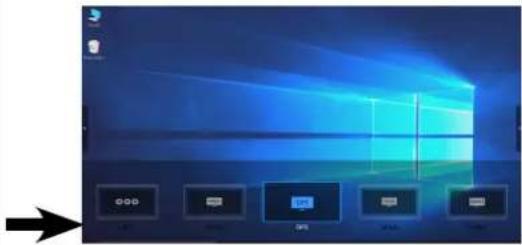 Note: The OPS (in bay PC) option is highlighted. Note: The OPS (in bay PC) option is highlighted. |
| 2 | Navigate to port that is connected to your desired source, using the remote arrows: then press OK. | OK |  | The selected option is set as source. |
WORKING WITH TOTAL TOUCH CONTROL ADVANCED FUNCTIONS MENU
Understanding Total Touch Control Advanced Functions Menu
The table below defines the Total Touch Control Advanced Function Menu options. They look like this on the screen.

 | |||
| Menu Icon Icon Name Function | |||
 | File(Image Upload) | Allows you to browse to select a file or image to view or upload to Display. | |
 | Settings | Allows you to access several Android menus and sub menus. Menu categories include Device, Preferences, and Personal. | |
| Device: Used to control various Display features. | |||
| Network: Wifi, Ethernet, PPPoENote: WiFi works only with a dongle. | |||
| System Sounds: Toggle On and Off | |||
| App: Downloaded Apps, System Apps, Running Apps | |||
| Storage & Reset: Storage and Factory Reset | |||
| About: System Information- Model, Android Version, Software Version | |||
| Preferences | |||
| Language: English (US) and Chinese | |||
| Keyboard: Configure- Auto Caps, Sound on Key Press, Voice Input Key, Text Correction, Show Correction | |||
| Personal | |||
| Add Accessory: Bluetooth Compatibility | |||
| Security & Restrictions: Unknown Sources, Verify Apps, Restricted Profile, Device Administration | |||
| Date & Time: Auto, Manual Date and Time Adjustment | |||
 | Volume(Sound Settings) | Allows you to adjust the volume level for the Display's speakers. | |
 | Screen Shot | Takes a screen shot of the display screen and saves it to internal memory by default, or saves to an attached USB Thumb Drive, if inserted in front USB media port, on bottom left of display.Note: The USB on the left side, front of the display is the default storage location. | |
 | AnnotationFunction | Allows you to Annotate on any video input source screen.You can then take a Screen Shot of the Annotation and current video image.Allows you to Annotate (draw) on any background, without affecting the original image. | |
Selecting an Advanced Function Option Using Touch Control
To select one of the Advanced Functions using touch control, first ensure that Total Touch Control is enabled, then follow these steps:
| Step | Do This... Tap Location result | |||
| 1 | Tap theArrowat the either side of the display, to reveal the Total Touch Control Menu Options. |  |  | The Total Touch Control Menu Icons display.      |
| 2 | Tap theAdvanced Function Menu icon. |  | The Advanced Function Menu options display.  | |
| 3 | Tap your desired Advanced Function Menu option icon | Any one of the Advanced Function Menu option icons |   | The menu item you selected will allow you to take the action you have chosen.Note: For a list of menu definitions, see "Working with Total Touch Control Advanced Functions Menu" on page 32. |
WORKING WITH THE ON SCREEN DISPLAY SETTINGS
Defining On Screen Display
The On Screen Display settings let you adjust the picture, sound, and other settings, so you can personalize your display. The display has to be connected to a PC, and the selected source must be a PC, in order for you to access the On Screen Display Menus. In addition, one can not access the On Screen Display Menus from the Home Screen.
Understanding On Screen Display Menu Selections
The On Screen Display Menus let you adjust various features of your Display. The three On Screen Display Menus are: Picture Mode, Sound Mode and Settings Mode.
Picture Mode Menu

text_image
Picture Mode Picture Mode user Contrast 36 Brightness 74 Hue 50 Sharpness 69 Saturation 86| Option Function | |
| Picture Mode Controls which settings are accessible and the overall look of the display screen.Choose the picture mode which best fits your source and displays the picture according to your preferences. | |
| User Must be in this mode to adjust other settings; allows you to customize your display | |
| PC Predefined setting | |
| Lightness Predefined setting | |
| Standard Recommended general purpose color scheme | |
| Soft Predefined setting | |
| Contrast Increases or decreases the contrast between light and dark values of the images on the display. | |
| Brightness Increases or decreases brightness of the images on the display. | |
| Hue Allows an adjustment of the image hues. | |
| Sharpness Increases or decreases the sharpness (edges) between various colors of the images on the display. | |
| Saturation Increases or decreases the intensity of the colors of the images on the display. | |
| PC Image Mode Adjusts timing of an analog PC signal. | |
| Color Temperature Adjusts the color temperature. | |
| Warm 7500K | |
| Cool 13,000K | |
| Nature 10,000K | |
| Zoom Mode Changes the size of the image projected onto the Display: Default, Just Scan, 14.9, PC Mode, 4.3, Auto, Panorama. | |
Sound Mode Menu

text_image
Sound Mode Sound Mode User Low Pitch 55 High Pitch 69 Balance 0 SPDIF Output PCM| Option Function | |
| Sound Mode Controls which settings are accessible, and optimizes sound settings for preset uses. | |
| Music Optimizes sound for music listening experience. | |
| Movie Optimizes sound for movie watching experience. | |
| Sports Optimizes sound for sports watching experience. | |
| User Must be in this mode to access other settings. | |
| Standard Balances sound range. | |
| Low Pitch Adjusts bass level in User mode. | |
| High Pitch Adjusts treble level in User mode. | |
| Balance Balances the sound between the right and left display speakers. | |
| SPDIF Output Computability mode for audio output to other connected devices. This setting allows you to choose the appropriate type of audio data for your device. | |
| Raw Outputs raw audio data. | |
| PCM Outputs encoded audio data. | |
Settings Mode Menu

text_image
Setting Menu Time 10 Seconds MHL Auto Switch On Light Sensor On HDMI_CEC Off HDMI EDID Version EDID 2.0 Boot Source OPS| Option Function | |
| Menu Time Sets length of time a menu displays, before disappearing (5 - 30 seconds) | |
| MHL Auto Switch Mobile High Definition LinkAllows you to plug in your phone via it's charging port, and watch your phone's screen in 1080p.Note: You must have the correct adapter, and your phone must support MHL. | |
| Light Sensor Toggles the light sensor On and Off. | |
| HDMI_CEC Consumer Electronics ControlAllows the Display remote to control other devices that are plugged into the HDMI port.Note: Your device must support Consumer Electronics Control, CEC. | |
| HDMI EDID Version | HDMI Extended Display Identification DataAllows you to choose the version of HDMI that is compatible with your device.Supported HDMI versions include: 1.4, 2.0.Note: Only change this setting if a device has a compatibility issue. |
| Boot Source (default source) | Sets the default source, when the display powers on.Options include: Last Input, VGA, Android, AV, YPb, Pr, Ops (Installed PC), HDMI, HDMI 1-4.Note: Choose Android to view the Home Screen by default.Note: See "Understanding Source Touch Control Icons" on page 27, for a description of different sources. |
| Restore to Default Returns the Display Settings Mode to Factory Settings. | |
Selecting an On Screen Display Menu
To access the On Screen Display Menu Options, ensure your display is connected to a PC, then follow these steps:
| Step | Do This... Press Location Result | |||
| 1 Press the Menu button on the remote. Note: The remote Menu button is active when viewing one of the video input sources. The remote Menu button doesn't work from the Home Screen or when in an Android application. | MENU  |  | The first of the On Screen Display Settings Menus appears.  | |
| 2 To Select a menu: Picture Mode, Sound Mode, or Setting ModeUse the navigation buttons on your remote to scroll though menu selections, then press OK. | ◀ ▶OK |  | One of the three On Screen Display Menus is selected: Picture Mode, Sound Mode, or Setting Mode. | |
  | ||||
Adjusting Display Picture, Using the On Screen Display Menu
To adjust the display picture, follow the instructions for choosing an On Screen Display Menu, "Selecting an On Screen Display Menu" on page 38. Make sure that a PC is connected to the display and that it is selected as a source. Make sure that Total Touch Control is activated. Select the Picture Mode Menu and follow these steps:
| Step | Do this... Tap or Press Location Result | |||
| 1 | Tap the Picture Mode line at the top of the menu repeatedly, until the setting reads, "User."Note: This menu displays several options. It is necessary for this setting to be set to "User" for adjustments to be available. |  |  | The Picture Mode is set to "User." |
| 2 | Choose a setting to adjust:ContrastBrightnessHueSharpnessSaturationPC Image ModeColor Temperature ModeZoomUse the navigation buttons on your remote to navigate to your selection and press OK. |  |  | Contrast, Brightness, Hue, Sharpness, Saturation:Your selection highlights and a sliding scale with bar-line appears on your chosen setting. Image Mode, Color Temperature Mode, Zoom:Your setting selection highlights. Image Mode, Color Temperature Mode, Zoom:Your setting selection highlights. |
| Use the panel buttons, to navigate to your selection, then touch it. |  |   | ||
| Touch your selection. |  |  |
| 3 Contrast, Brightness, Hue, Sharpness, Saturation: Touch the bar-line, and drag it to the left to decrease and right to increase your chosen adjustment. |  | Your adjustment is implemented. | |
| Image Mode, Color Temperature Mode, Zoom: Repeatedly tap your chosen setting option to toggle through the choices, until the one you want appears. |  | When the menu disappears, your adjustment is implemented. |
Adjusting the Sound Mode Using the On Screen Display Menu
To adjust the display sound level, follow the instructions for choosing an On Screen Display Menu, "Understanding On Screen Display Menu Selections" on page 34. Make sure that a PC is connected to the display and that it is selected as a source. Make sure that Total Touch Control is activated. Select the Sound Mode Menu and follow these steps:
| Step | Do this... Tap or Press Location Result | |||
| 1 | Tap the Sound Mode line at the top of the menu repeatedly, until the setting reads, "User."Note: This menu displays several options. It is necessary for this setting to be set to "User" for adjustments to be available. |  |  | The Sound Mode is set to "User." |
| 2 Choose a setting to adjust:Low PitchHigh PitchBalanceSPDIF Output(Digital Audio Signal)Raw Audio DataPCM - Encoded Audio DataUse the navigation buttons on your remote to navigate to your selection and press OK.Note: "Understanding On Screen Display Menu Selections" on page 34. | ▼ ▲ |  | Low Pitch, High Pitch and Balance:Your selection highlights.A sliding scale with bar-line appears on your chosen setting.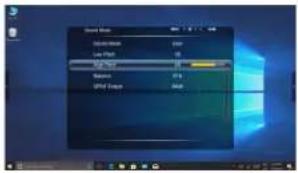 SPDIF Output:Your selection highlights. SPDIF Output:Your selection highlights. | |
Adjusting Display Settings Using the On Screen Display Menu
To adjust the display picture, follow the instructions for choosing an On Screen Display Menu, "Selecting an On Screen Display Menu" on page 38. Make sure that a PC is connected to the display and that it is selected as a source. Make sure that Total Touch Control is activated. Select the Settings Mode Menu and follow these steps:
| Step | Do this... Tap or Press Location Result | |||
| 1 Choose a setting to adjust:Menu TimeMHL Auto SwitchLight SensorHDMI_CECHDMI EDID VersionBoot SourceRestore to DefaultUse the navigation buttons on your remote to navigate to your selection and press OK. | ▼ ▲ |  | Your selection highlights and a sliding scale with bar-line appears on your chosen setting. | |
WORKING WITH ANDROID SETTINGS
Android Setting Overview
The Display has three main categories of Android setting screens: Device, Preferences, and Personal. These settings allow you to choose various default settings and personalize your Display. To access these settings from any Android screen, press the settings menu icon, on the screen. See "Selecting an Advanced Function Option Using Touch Control" on page 33.
Category options display as highlighted, when chosen. To scroll to see other categories, swipe from bottom to top.
Device
The Device category includes Network, System Sounds, Apps, Storage & Reset, and About.
| Category Icon Name Function | |||
| Network | |||
| Wi-fi • Toggles Wi-fi On and Off• Connects to available networks• Gives status and information on networks: IP address, signal strength, etc.• Offers you a chance to cancel networks from Display memory• Offers other Wi-fi options such as portable hotspots and adding networks | |||
| Ethernet • Connect and disconnect | |||
| PPPoE • Point-to-Point Protocol over Ethernet• Offers ability to save a new account | |||
 | System Sound | ||
| System Sounds • | Toggles the Sound System On and Off | ||
 | Apps | ||
| Downloaded Apps | • Apps are currently loaded onto the system and can be used | ||
| System Apps • | Apps come pre-loaded on the system from the factory | ||
| Running Apps • | Apps are currently being used by the system | ||
| Category Icon Name Function | ||
 | Storage and Reset | |
| Storage • Gives the User information on how much storage space is taken by Apps, Photos, etc. It also tells User how much storage space is available | ||
| Factory Data Reset | • Allows you to reset the system default settings to the factory specifications | |
 | About | |
| • Gives information about the system: System update, device name, model, Android version, Software version, etc. | ||
Preferences
The Preferences category includes Date & Time, Language, and Keyboard.
| Category Icon Name Function | ||
 | Date & Time | |
| Auto Date & Time | • Allows an automatic update of the date and time through internet | |
| Date | • Allows manual setting of the date in different formats | |
| Time | • Allows manual setting of the time in different time zones | |
| 24 Hour Clock | • Allows user to display a 24 hour clock | |
 | Language | |
| Language | • English• Chinese | |
 | Keyboard | |
| Current Keyboard | • Android Keyboard layout loaded• Allows Users to download a different Android on screen keyboard layout | |
| Configure Keyboard | • Allows changes to an on screen keyboard• Settings include: Voice input key, Auto caps, Pop-up on key press, Text Auto Correction, Show Correction Suggestions, etc.Note: In order to use the voice command function, one must first purchase a microphone and connect it to the panel. | |
| Personal Dictionary | • Allows Users to add words to the dictionary• Checks spelling | |
Personal
The Personal category includes Add accessory and Security & Restrictions.
| Category Icon Name Function | ||
 | Add Accessory | |
| Accessory • Allows Users to connect to Bluetooth devices, if bluetooth is available | ||
 | Security & Restrictions | |
| Unknown Sources | Toggles On and Off• Allows/Disallow Users to install apps from places other than trusted sourcesNote: For Example: A trusted source would be the Google Play Store. An un-trusted source might be the Amazon App Store. | |
| Verify apps | Toggles On and Off• Verifies applications | |
| Restricted Profile | Toggles On and Off• Restricts certain identified sources from accessing the Display | |
| Device Administrators | • Administrator level settings, such as setting a new pin | |
TROUBLESHOOTING
| If This Happens... Try This... | Icon/Button | Reference(Link or document) | |
| Screen is black.This is probably because the display has no power. If the display has power, the small green light in the right corner of the front of the display panel should be on. | Verify that:Both ends of the power cord are connected.The system power switch is on.The display is on.Verify that the outlet is suppling proper voltage with a volt meter, for some countries and locations. | See "" on page 21. | |
| No Image shows on the display, but power is on to system and to display. | Verify that:The cables, cords, and connections are in good condition.A correct input source is selected and that the input signal is compatible with the display. | See "Power Source, Power Cord, Plugs" on page 5.See "Understanding Source Touch Control Icons" on page 27. | |
Display says "No Signal." Display is looking for a connected video source. | Connect to any video source: VHS, Apple TV, external PC, etc. | See ""Connecting the Display to an External PC" on page 20.See "Working with Sources" on page 27. | |
| The display shuts down suddenly.Note: The display may have overheated. | Verify that a source is active (the connection is still viable).Remove any objects blocking the vents. | See "Connecting the Display to an External PC" on page 20.See "Ventilation" on page 5. | |
| The display screen does not respond touch gestures. | Press the Total Touch Control button on the right, bottom of the front of the display to turn on touch control. Cycle Power; that is: power off the display, wait a few seconds, then power on the display. Cycle Power; that is: power off the display, wait a few seconds, then power on the display. |  | |
| There is no touch control from a connected external PC. | Verify that:The USB B to USB type A cable is plugged from the computer into the display correctly.The computer's operating system is Windows* 7, 8, 10, 16.Note:The display touchpad supports only Windows. | See "Connecting the Display to an External PC" on page 20. | |
| The colors aren't correct on the display. | Adjust the color settings in the Picture menu.Reset the picture settings.Verify that:Connections between the source and the display have been made correctly.Cables, cords, and connections are in good condition.Correct input source is selected and that the input signal is compatible with the display. | See "Selecting an Advanced Function Option Using Touch Control" on page 33.See "Understanding Source Touch Control Icons" on page 27.See "Power Source, Power Cord, Plugs" on page 5. | |
| Remote functions are not working properly. | Verify that:The display is turned on, pressPowerbutton on the remote. The remote batteries are situated correctly in the remote and that they are fresh. (Batteries are not included.)Replace remote batteries with fresh ones. (Batteries are not included.)Aim the remote to the right, lower edge of the panel; where the sensor is.Ensure that you are pointing the remote at the sensor at an angle between 26 and 30 degrees, both vertically and horizontally.Remove any obstruction in front of the sensor. The remote batteries are situated correctly in the remote and that they are fresh. (Batteries are not included.)Replace remote batteries with fresh ones. (Batteries are not included.)Aim the remote to the right, lower edge of the panel; where the sensor is.Ensure that you are pointing the remote at the sensor at an angle between 26 and 30 degrees, both vertically and horizontally.Remove any obstruction in front of the sensor. |  | See "Understanding the Remote Buttons" on page 15.See "Installing Remote Batteries" on page 16.See "Operating the Remote" on page 16. |
| Feedback noise is coming through the speakers. | Move the infrared communication equipment away from the display.Note:Noise can occur when infrared communication equipment (for example, infrared cordless headphones) is used near the display. | ||
| There is NO sound is coming from external connected speakers or device. | Verify that:The speakers are connected properly and that the speaker power switch is turned on.An audio cable is correctly installed between an external device and the display."Mute" is not active; test the Mute button on the remote.  The volume is turned up.Note: An HDMI* 1.3 (or higher) source and source device is required to hear audio via the HDMI cable. The volume is turned up.Note: An HDMI* 1.3 (or higher) source and source device is required to hear audio via the HDMI cable. |  | See "Connecting to Other Devices" on page 12.See "Adjusting Volume Without Using the On Screen Display Menus" on page 24. |
| There is No sound is coming from internal speakers. | Verify that:The volume is turned up.The sound has not been muted, from remote control. (See above.)Verify the playback has not been paused and that the video's audio has not been muted, for video viewing. | See "Adjusting Volume Without Using the On Screen Display Menus" on page 24. | |
| The On Screen Display Menus don't display. | Verify that:There is a PC correctly connected.The PC is selected as the source.You are not trying to access the On Screen Display Menus from the Home Screen.If you are trying to access the Picture Mode settings or the Sound Mode settings, set the menu (title bar) to "User." | See "Selecting an Advanced Function Option Using Touch Control" on page 33.See "Selecting an On Screen Display Menu" on page 38.See "Adjusting Display Picture, Using the On Screen Display Menu" on page 40.See "Adjusting the Sound Mode Using the On Screen Display Menu" on page 41. | |
| PC and Display do not recognize each other.My device isn't communicating with the Display. | Change the EDID setting, under the Settings Menu in the On Screen Display. | See "Understanding On Screen Display Menu Selections" on page 34.See "Adjusting Display Settings Using the On Screen Display Menu" on page 42. |
For additional troubleshooting support, please contact:
InFocus Corporation - Technical Support
6AM-5PM PST
877-388-8385
www.infocus.com/support
LIMITED WARRANTY
InFocus Limited Warranty For InFocus Branded Hardware Products Only
LIMITED WARRANTY. InFocus' warranty obligations for the hardware products are limited to the terms set forth herein. InFocus warrants the InFocus-branded hardware products against defects in materials and workmanship under normal use for a period outlined in the Limited Warranty Periods section below from the date of retail purchase by the original end-user purchaser ("Warranty Period"). The Warranty Period starts on the date of purchase. Your dated sales or delivery receipt, showing the date of purchase of the product, is your proof of the purchase date. You may be required to provide proof of purchase and proof that the product was purchased new as a condition of receiving warranty service. If a hardware defect arises and a valid claim is received within the Warranty Period, at its option and to the extent permitted by law, InFocus will either (1) repair the hardware defect at no charge, using new parts or refurbished parts that are equivalent to new in performance and reliability, (2) exchange the product with a product that is new or refurbished that is equivalent to new in performance and reliability and is at least functionally equivalent to the original product, or (3) refund the purchase price of the product. InFocus may request that you replace defective parts with customer-installable new or refurbished parts that InFocus provides in fulfillment of its warranty obligation ("Customer Self Repair"). A replacement product or part, including a Customer Self Repair part that has been installed in accordance with instructions provided by InFocus, assumes the remaining warranty of the original product or ninety (90) days from the date of replacement or repair, whichever provides longer coverage. When a product or part is exchanged, any replacement item becomes your property and the replaced item becomes InFocus's property. Parts provided by InFocus in fulfillment of its warranty obligation must be used in products for which warranty service is claimed. When a refund is given, the product for which the refund is provided must be returned to InFocus and becomes InFocus's property. This is your exclusive remedy for defective products.
Limited Warranty Periods vary depending on your product model and the country of purchase. To review the warranty period associated with your product model, please refer to the product specifications information on www.infocus.com. By inputting your product model in the Quick Search box on the website, you will find warranty terms in the Specifications matrix.
EXCLUSIONS AND LIMITATIONS. This Limited Warranty applies only to the hardware products manufactured by or for InFocus, and sold by InFocus, its worldwide subsidiaries, authorized re-sellers or country distributors, that can be identified by the "InFocus" trademark, trade name, or logo affixed to it, and to required firmware. The Limited Warranty does not apply to any non-InFocus hardware products or peripherals external to the InFocus-branded hardware products (including but not limited to external storage subsystems, displays, printers, speakers or other peripherals), or to any software applications or programs, even if packaged or sold with the InFocus hardware. Manufacturers, suppliers, or publishers of products, software or peripherals, other than InFocus, may provide their own warranties to the end user purchaser, but InFocus, in so far as permitted by law, provides their products "AS IS" without the InFocus Limited Warranty. Software distributed by InFocus with or without the InFocus brand name (including, but not limited to system software) is not covered under this Limited Warranty. Refer to the licensing agreement accompanying the software for details of your rights with respect to its use.
InFocus does not warrant that the operation of the products will be uninterrupted or error-free. InFocus is not responsible for damage arising from failure to follow instructions relating to the products' use.
INFOCUS IS NOT RESPONSIBLE FOR DAMAGE TO OR LOSS OF ANY PROGRAMS, DATA, OR REMOVABLE STORAGE MEDIA. INFOCUS IS NOT RESPONSIBLE FOR THE RESTORATION OR REINSTALLATION OF ANY PROGRAMS OR DATA OTHER THAN SOFTWARE INSTALLED BY INFOCUS WHEN THE PRODUCT IS MANUFACTURED.
To enable InFocus to provide the best possible support and service during the Limited Warranty Period, you will be required to:
- Maintain a proper and adequate environment, and use the InFocus hardware products in accordance with the instructions furnished.
- Verify configurations, load most recent firmware, install software patches, run InFocus diagnostics and utilities, and implement temporary procedures or work-arounds provided by InFocus while InFocus works on permanent solutions.
- Allow InFocus to keep resident on your systems or sites certain system and network diagnosis and maintenance tools to facilitate the performance of warranty support (collectively referred to as “Proprietary Service Tools”); Proprietary Service Tools are and remain the sole and exclusive property of InFocus.
Additional Limitations:
- Products external to the system processor (CPU) box, such as external storage subsystems, printers and other peripherals, are covered by the applicable warranty for those products or options.
- An effective repair does not necessarily require the replacement of a defective part. For example, cleaning the heads of a floppy drive or updating revision levels of ROM BIOS on a PCA board are activities that in many instances deliver an effective repair.
- BIOS/Firmware upgrades are not covered under the Limited Warranty. Firmware that is an integral part of the option hardware board is not automatically upgraded when new versions of firmware are released.
- It is the responsibility of the customer to ensure that their software is compatible with the latest BIOS/firmware revision.
This Limited Warranty does not apply: (a) to consumable or expendable parts, such as batteries, or protective coatings designed to diminish over time unless failure has occurred due to a defect in materials or workmanship; (b) to cartons, carrying cases, shipping cases, external cabinets, accessories used in connection with the product; (c) to cosmetic damage, including but not limited to scratches, dents, and broken plastic on ports; (d) to damage caused by use with non-InFocus products; (e) to damage caused by accident, abuse, misuse, improper ventilation, smoke exposure, contamination, improper or inadequate maintenance, cleaning or calibration, liquid contact, unusual physical or electrical stress and/or power surges, virus infection, fire, earthquake, disaster, lightning or other external causes; (f) to damage caused by operating the product outside the permitted or intended uses or usage parameters described by InFocus (including burned display screens and incorrect input voltage); (g) to damage caused by service (including upgrades and expansions) performed by anyone other than a representative of InFocus or an InFocus Authorized Service Provider ("ASP") or your own installation of customer-installable parts as instructed by InFocus; (h) to a product or part that has been modified to alter functionality or capability without the written permission of InFocus (including use of an unauthorized mount); (i) to defects caused by normal wear and tear or otherwise due to the normal aging of the product; (j) to failure to follow maintenance procedures as outlined in the product user documentation including where a schedule is specified for regular cleaning of certain parts (based on usage and environment); (k) to loss or damage in transit; or (l) if the product is not used under normal operating conditions which are defined as use not in excess of 16 hours continuously per day with a minimum 8 hour period of continuous rest in the powered off state; or (m) if any InFocus serial number has been removed or defaced. In addition, LCD burn-in as a result of excessive display of static images on the product is not covered under the terms of this Limited Warranty.
Important: Do not open the hardware products unless otherwise directed by InFocus for the purposes of a Customer Self Repair (CSR). Opening the hardware products may cause damage that is not covered by this Limited Warranty. Only InFocus or an ASP should perform service on the hardware products.
TO THE EXTENT PERMITTED BY LAW, THIS WARRANTY AND THE REMEDIES SET FORTH ABOVE ARE EXCLUSIVE AND IN LIEU OF ALL OTHER WARRANTIES, REMEDIES AND CONDITIONS, WHETHER ORAL, WRITTEN, STATUTORY, EXPRESS OR IMPLIED. AS PERMITTED BY APPLICABLE LAW, INFOCUS SPECIFICALLY DISCLAIMS ANY AND ALL STATUTORY OR IMPLIED WARRANTIES, INCLUDING, WITHOUT LIMITATION, WARRANTIES OF MERCHANTABILITY AND FITNESS FOR A PARTICULAR PURPOSE AND WARRANTIES AGAINST HIDDEN OR LATENT DEFECTS. IF INFOCUS CANNOT LAWFULLY DISCLAIM STATUTORY OR IMPLIED WARRANTIES THEN TO THE EXTENT PERMITTED BY LAW, ALL SUCH WARRANTIES SHALL BE LIMITED IN DURATION TO THE DURATION OF THE EXPRESS WARRANTY AND TO THE REPAIR OR REPLACEMENT SERVICE AS DETERMINED BY INFOCUS IN ITS SOLE DISCRETION. No InFocus reseller, agent, or employee is authorized to make any modification, extension, or addition to this warranty. If any term is held to be illegal or unenforceable, the legality or enforceability of the remaining terms shall not be affected or impaired.
EXCEPT AS PROVIDED IN THIS WARRANTY AND TO THE MAXIMUM EXTENT PERMITTED BY LAW, INFOCUS IS NOT RESPONSIBLE FOR DIRECT, SPECIAL, INCIDENTAL OR CONSEQUENTIAL DAMAGES RESULTING FROM ANY BREACH OF WARRANTY OR CONDITION, OR UNDER ANY OTHER LEGAL THEORY, INCLUDING BUT NOT LIMITED TO LOSS OF USE; LOSS OF REVENUE; LOSS OF ACTUAL OR ANTICIPATED PROFITS (INCLUDING LOSS OF PROFITS ON CONTRACTS); LOSS OF THE USE OF MONEY; LOSS OF ANTICIPATED SAVINGS; LOSS OF BUSINESS; LOSS OF OPPORTUNITY; LOSS OF GOODWILL; LOSS OF REPUTATION; LOSS OF, DAMAGE TO, COMPROMISE OR CORRUPTION OF DATA; OR ANY INDIRECT OR CONSEQUENTIAL LOSS OR DAMAGE HOWSOEVER CAUSED INCLUDING THE REPLACEMENT OF EQUIPMENT AND PROPERTY, ANY COSTS OF RECOVERING, PROGRAMMING OR REPRODUCING ANY PROGRAM OR DATA STORED IN OR USED WITH THE INFOCUS PRODUCT AND ANY FAILURE TO MAINTAIN THE CONFIDENTIALITY OF DATA STORED ON THE PRODUCT. THE FOREGOING LIMITATION SHALL NOT APPLY TO DEATH OR PERSONAL INJURY CLAIMS, OR ANY STATUTORY LIABILITY FOR INTENTIONAL AND GROSS NEGLIGENT ACTS AND/OR OMISSIONS. INFOCUS DISCLAIMS ANY REPRESENTATION THAT IT WILL BE ABLE TO REPAIR ANY PRODUCT UNDER THIS WARRANTY OR MAKE A PRODUCT EXCHANGE WITHOUT RISK TO OR LOSS OF PROGRAMS OR DATA.
Limitation on Bringing Action: No action, regardless of form, arising out of the agreement to purchase the Product may be brought by purchaser more than one year after the cause of action has accrued. Governing Law: Any action, regardless of form, arising out of the agreement to purchase the Product is governed by the laws of the State of Oregon, U.S.A. Mandatory Arbitration – Any action, regardless of form, arising out of the agreement to purchase the Product is subject to mandatory arbitration.
ADDITIONAL RIGHTS. FOR CUSTOMERS, WHO ARE COVERED BY CONSUMER PROTECTION LAWS OR REGULATIONS IN THEIR COUNTRY OF PURCHASE OR, IF DIFFERENT, THEIR COUNTRY OF RESIDENCE, THE BENEFITS CONFERRED BY THIS WARRANTY ARE IN ADDITION TO ALL RIGHTS AND REMEDIES PROVIDED BY SUCH CONSUMER PROTECTION LAWS AND REGULATIONS. THIS WARRANTY DOES NOT EXCLUDE, LIMIT OR SUSPEND ANY RIGHTS OF CONSUMERS ARISING OUT OF NONCONFORMITY WITH A SALES CONTRACT. SOME COUNTRIES, STATES AND PROVINCES DO NOT ALLOW THE EXCLUSION OR LIMITATION OF INCIDENTAL OR CONSEQUENTIAL DAMAGES OR ALLOW LIMITATIONS ON HOW LONG AN IMPLIED WARRANTY OR CONDITION MAY LAST, SO THE LIMITATIONS OR EXCLUSIONS DESCRIBED BELOW MAY NOT APPLY TO YOU. THIS WARRANTY GIVES YOU SPECIFIC LEGAL RIGHTS, AND YOU MAY ALSO HAVE OTHER RIGHTS THAT VARY BY COUNTRY, STATE OR PROVINCE. INFOCUS, THE WARRANTOR UNDER THIS LIMITED WARRANTY, IS IDENTIFIED AT THE END OF THIS DOCUMENT.
EXTENDED WARRANTIES. InFocus extended product warranties are available for an additional charge. For further information on InFocus extended product warranties, please contact InFocus or your product reseller.
OBTAINING WARRANTY SERVICE. Please access and review the online help resources located at www.infocus.com/support before seeking warranty service. If the product is still not functioning properly after making use of these resources, please contact InFocus Technical Support or, if applicable, an ASP using the information provided below. When contacting InFocus via telephone, other charges may apply depending on your location. When calling, InFocus Technical Support or an ASP will help determine whether your product requires service and, if it does, will inform you how InFocus will provide it. You must assist in diagnosing issues with your product and follow InFocus's warranty processes. InFocus may restrict service to the country where InFocus or its Authorized Distributors originally sold the hardware product. InFocus will provide warranty service either (i) at an ASP location, where service is performed at the location, or the ASP may send the product to an InFocus repair service location for service, (ii) by sending you prepaid way bills (and if you no longer have the original packaging, InFocus may send you packaging material at your cost) to enable you to ship the product to an InFocus repair service location, or (iii) by sending you customer-installable new or refurbished replacement parts to enable you to conduct Customer Self Repair, or (iv) by exchanging the product for a new or refurbished replacement.
Customer Self Repair
InFocus products are designed with many Customer Self Repair (CSR) parts to minimize repair time and allow for greater flexibility in performing defective parts replacement. If during the diagnosis period, InFocus identifies that the repair can be accomplished by the use of a CSR part, InFocus will ship that part directly to you for replacement. There are two categories of CSR parts:
- Parts for which customer self repair is mandatory. If you request InFocus to replace these parts, you will be charged for the travel and labor costs of this service.
- Parts for which customer self repair is optional. These parts are also designed for customer self repair. If, however, you require that InFocus replace them for you, this may be done at no additional charge under the type of warranty service designated for your product.
Based on availability and where geography permits, InFocus will attempt to ship CSR parts out the next business day. Customer receipt will vary based upon the actual part, customer location and shipping method. Next Day service may be offered at an additional charge where geography permits. If assistance is required, you can call the InFocus Technical Support Center and a technician will help you over the phone. InFocus specifies in the materials shipped with a replacement CSR part whether a defective part must be returned to InFocus. In cases where it is required to return the defective part to InFocus, you must ship the defective part back to InFocus within a defined period of time, normally five (5) business days, and clearly display the Return Material Authorization (RMA#) on the outside of the shipping carton or a similar package affording an equal degree of protection. The defective part must be returned with the associated documentation in the provided shipping material. Failure to return the defective part may result in InFocus charging you for the replacement. With a Customer Self Repair, InFocus will pay all shipping and part return costs and determine the courier/carrier to be used.
Upon receipt of the replacement product or part, the original product or part becomes the property of InFocus and you agree to follow instructions, including arranging the return of original product or part to InFocus in a timely manner. When providing a product exchange or Customer Self Repair (CSR) part requiring the return of the original product or part, InFocus may require a credit card authorization as security for the retail price of the replacement product or part and applicable shipping costs. When returning product to InFocus, a Return Material Authorization Number (RMA #) is required and must be clearly displayed on the outside of the shipping carton or a similar package affording an equal degree of protection. Service options, parts availability and response times may vary according to the country in which service is requested. Service options are subject to change at any time. You may be responsible for shipping and handling charges if the product cannot be serviced in the country in which service is requested. If you seek service in a country that is not the country of original purchase, you will comply with all applicable import and export laws and regulations and be responsible for all custom duties, V.A.T. and other associated taxes and charges. Where international service is available, InFocus may repair or exchange defective products and parts with comparable products and parts that comply with local standards. In accordance with applicable law, InFocus may require that you furnish proof of purchase details and/or comply with registration requirements before receiving warranty service. Resources with more details on this and other matters on obtaining warranty service are described below.
PRIVACY. InFocus will maintain and use customer information in accordance with the InFocus Privacy Policy available at www.Infocus.com/privacy and InFocus's applicable legal obligations.
BACKUP. If your product is capable of storing software programs, data and other information, you should protect its contents against possible operational failures. Before you deliver your product for warranty service it is your responsibility to keep a separate backup copy of the contents, remove all personal information and data that you want to protect and disable any security passwords. THE CONTENTS OF YOUR PRODUCT WILL BE DELETED AND THE STORAGE MEDIA REFORMATTED IN THE COURSE OF WARRANTY SERVICE. Your product or a replacement product will be returned to you as your product was configured when originally purchased, subject to applicable updates. InFocus may install system software updates as part of warranty service that will prevent the hardware from reverting to an earlier version of the system software. Third party applications installed on the hardware may not be compatible or work with the hardware as a result of the system software update. You will be responsible for reinstalling all other software programs, data and passwords. Recovery and reinstallation of software programs and user data are not covered under this Limited Warranty.
RESOURCES. Support and service information including Authorized Distributor and Authorized Service Provider locations is available at: www.infocus.com/support.
InFocus Corporation, 13190 SW 68th Parkway, Suite 200, Portland, OR 97223-8368 USA
© 2016 InFocus Corp. All rights reserved. InFocus and the InFocus logo are trademarks of InFocus Corp., registered in the U.S. and other count