PS5074KT-N - Monitor Planar - Free user manual and instructions
Find the device manual for free PS5074KT-N Planar in PDF.


User questions about PS5074KT-N Planar
0 question about this device. Answer the ones you know or ask your own.
Ask a new question about this device
Download the instructions for your Monitor in PDF format for free! Find your manual PS5074KT-N - Planar and take your electronic device back in hand. On this page are published all the documents necessary for the use of your device. PS5074KT-N by Planar.
USER MANUAL PS5074KT-N Planar
Planar PS Series 4K Displays

text_image
NORTHSHIRE Signature Respite Hotel & Spa 10% with a visit pouch last. 60 minute custom massage 110 Check In Spa Dining Ride 4K ULTRAHD| PS5074K | PS5074K-N |
| PS5074KT | PS5074KT-N |
| PS5574K | PS5574K-N |
| PS5574KT | PS5574KT-N |
| PS6574K | PS6574K-N |
| PS6574KT | PS6574KT-N |
Copyright © July 2020 by Planar Systems, Inc.
All rights reserved.
This document may not be copied in any form without permission from Planar. Information in this document is subject to change without notice.
Trademark Credits
Windows ^TM is a trademark of Microsoft Corp.
All other companies are trademarks or registered trademarks of their respective companies.
Disclaimer
The information contained in this document is subject to change without notice. Planar Systems, Inc. makes no warranty of any kind with regard to this material. While every precaution has been taken in the preparation of this manual, the Company shall not be liable for errors or omissions contained herein or for incidental or consequential damages in connection with the furnishing, performance, or use of this material.
Warranty and Service Plans
Planar warranty and service plans will help you maximize your investment by providing great support, display uptime, and performance optimization. From post-sale technical support, to a full suite of depot services, our services are performed by trained employees. When you purchase a Planar product, you get more than a display; you get the service and support you need to maximize your investment. To find the latest warranty and service information regarding your Planar product, please visit http://www.planar.com/support
Part Number: 020-1384-00C
Table of Contents
Introduction 5
- Safety Information 6
- Safety Precautions....6
2.1 Important Safety Instructions: 7
- Recommended Usage 8
3.1 Burn-In Versus Temporary Image Retention 8
3.2 Warranty Coverage 8
3.3 Important Waste Disposal Information....9
3.4 Normal Usage Guidelines 9
- VESA Mounts, General Description.... 10
- Cleaning the Display 11
Package Contents....12
- Installing the Cable Clips....14
- Standard Inputs.... 15
Installing the Display....16
- Before You Begin 16
8.1 Tools/Equipment List.... 16
8.2 Other Things You May Need....16
8.3 Plan Your Installation.... 16
8.4 Prepare Your Installation Location....17
8.5 Cable Length Recommendations.... 17
Operating the Display....18
- OSD Keypad....18
- Remote Control Receiver.... 19
- Installing IR Extender 20
- LED Indicators....21
- Using the Display in Portrait Mode.... 22
- Using the Display in Flat or Tilted Orientation 22
- Using the Touch Screen.... 23
- Using the Remote Control.... 24
16.1 Locking/Unlocking the OSD Menus 27
- Basic Remote Functions 28
17.1 Turning the Display On 28
17.2 Turning the Display Off 28
17.3 Adjusting the Volume 28
17.4 Selecting the Input Source....28
17.5 Navigating Through the Menus....28
-
Input Menu....29
-
Picture Menu 30
19.1 Picture Menu – Color Control Submenu....32
- Audio Menu 33
- OSD Settings Menu....34
- Setup Menu 36
- Advanced Setup Menu.... 40
- Communication Menu 42
- Information Menu 48
- OSD Android Settings Menu.... 49
26.1 Android Main Menu 49
26.2 Apps....50
26.3 Files 51
- Media Player....51
27.1 Supported Media Formats 51
27.2 Main Menu....53
External Control 58
Signal Compatibility 59
Color Subsampling Support....61
Specifications....62
Dimensions....64
PS5074K 64
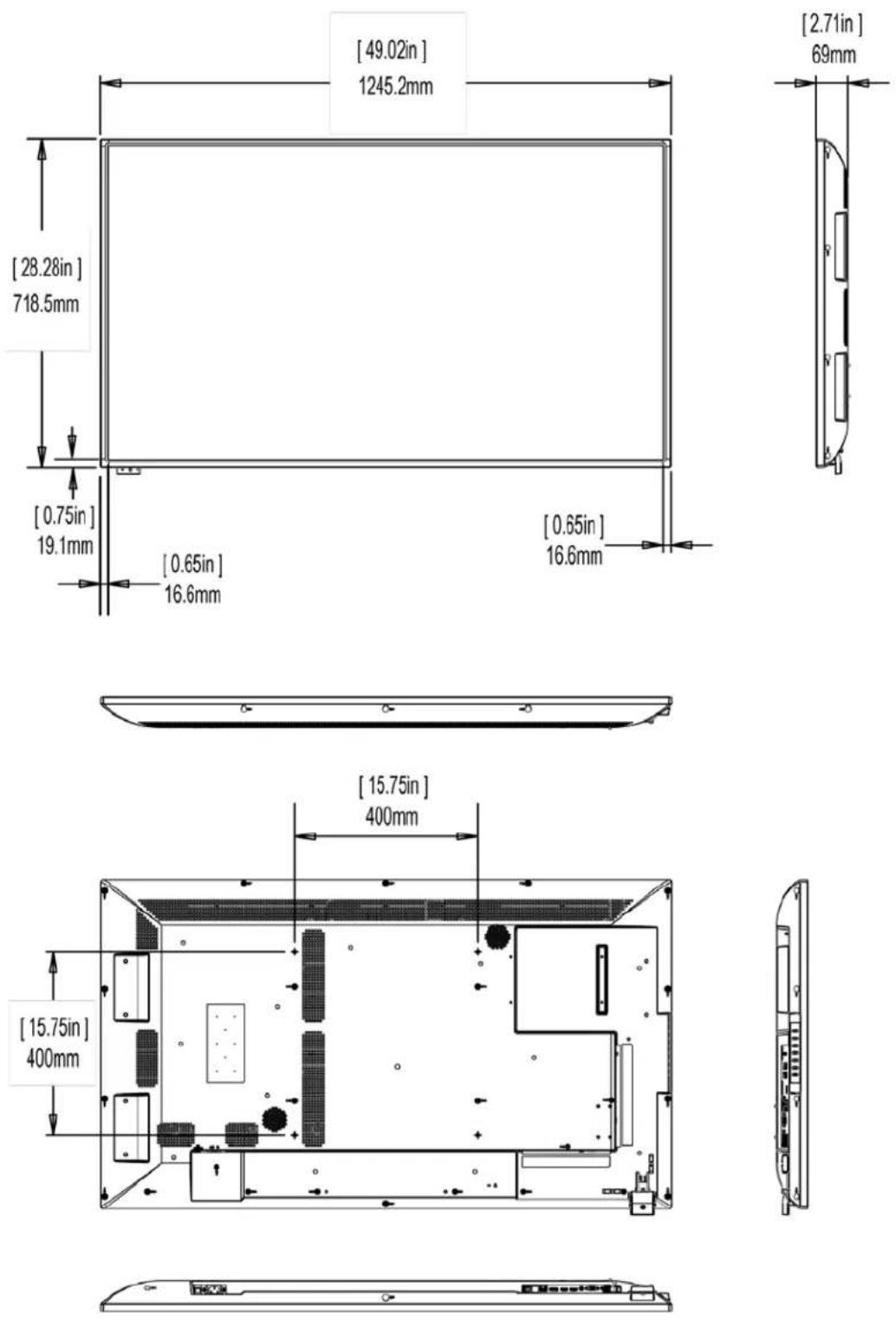
PS5074KT 65
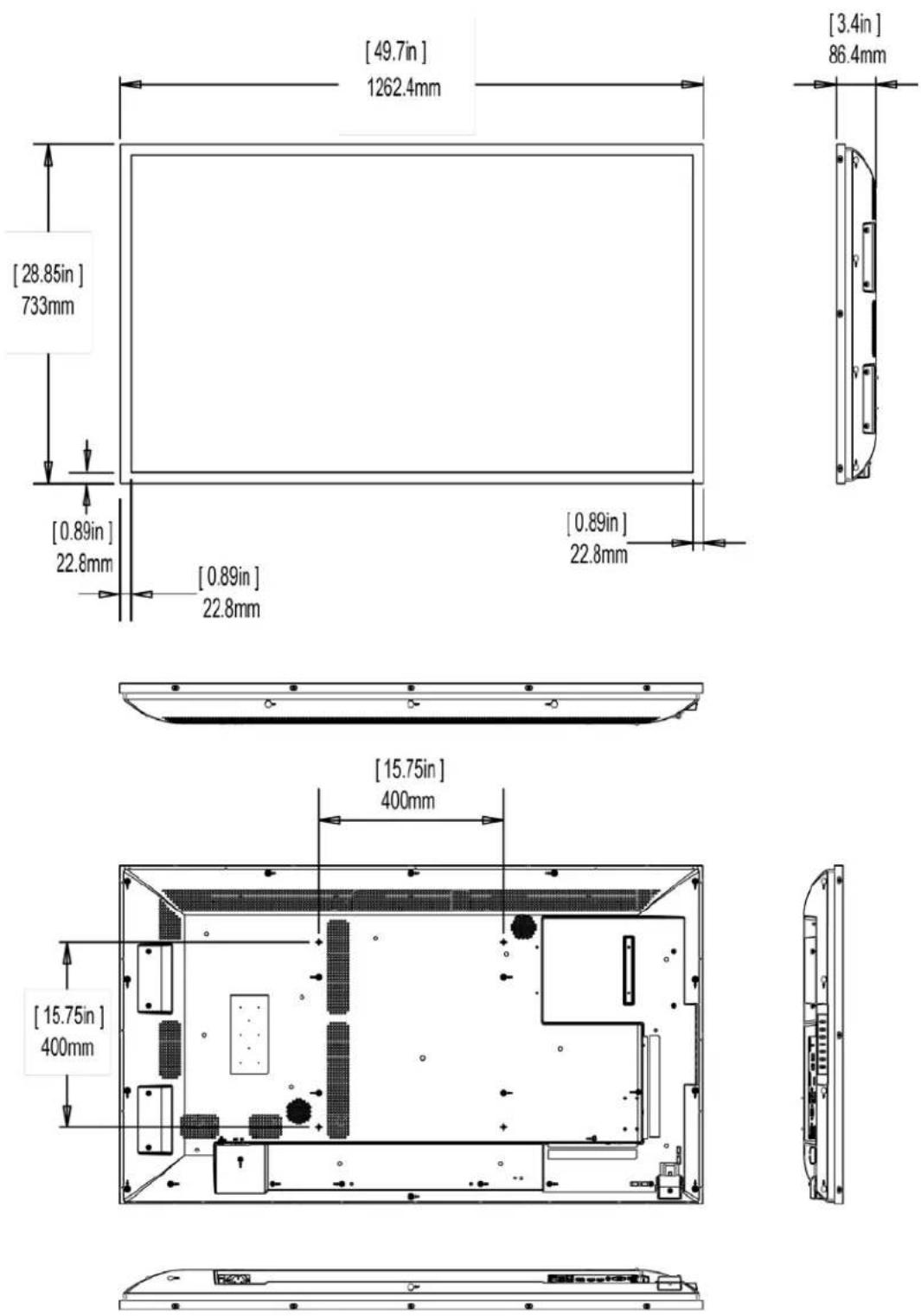
PS5574K 66
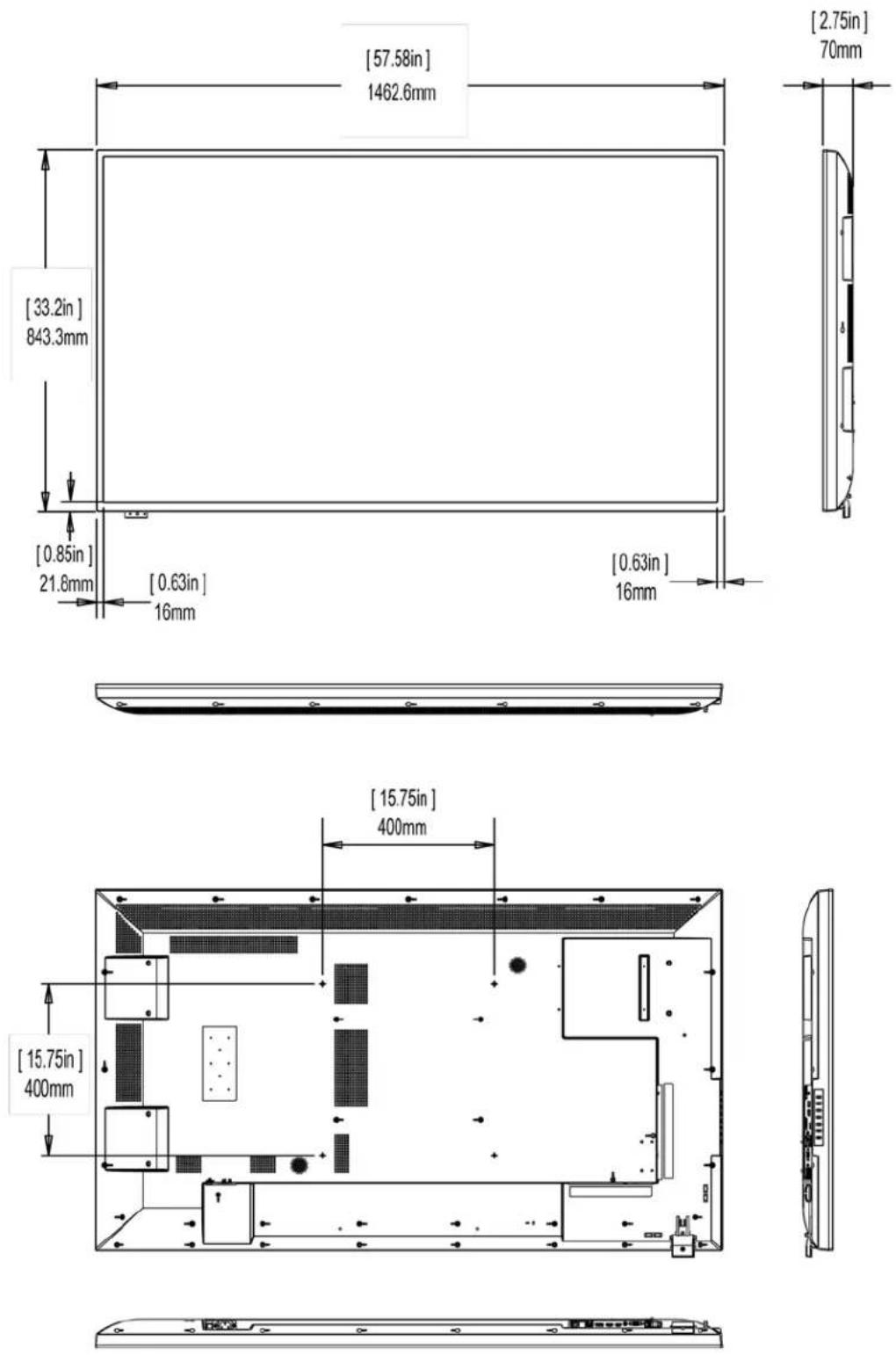
PS5574KT 67
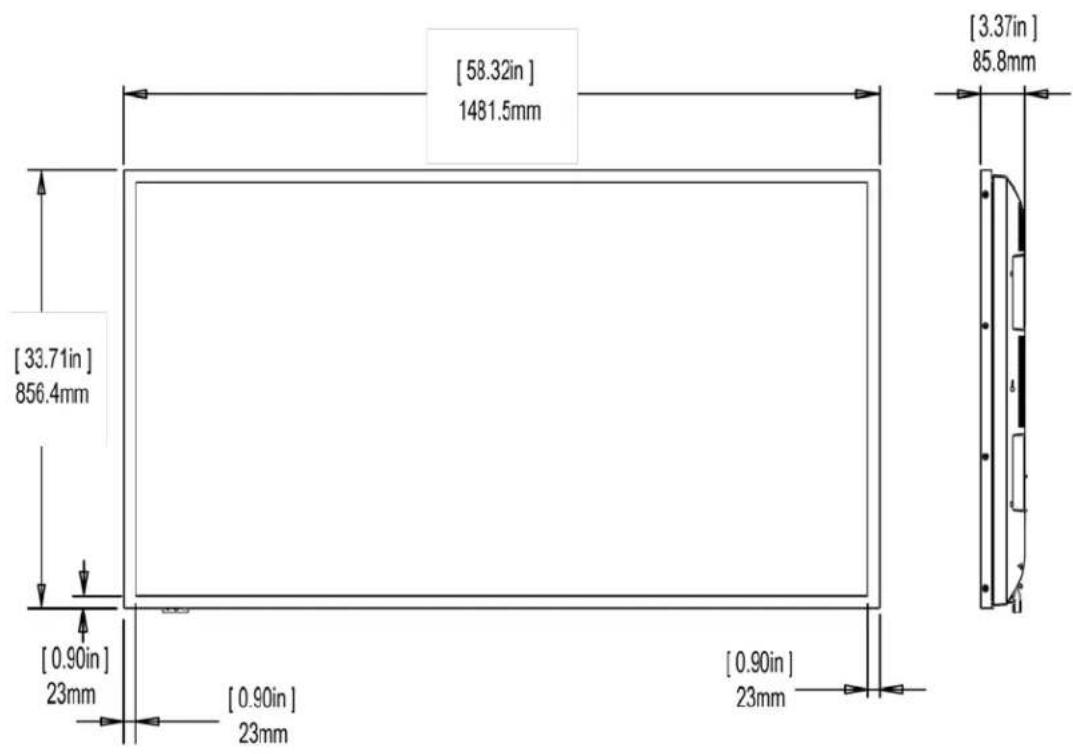
PS6574K 68
PS6574KT 69
Troubleshooting....70
Accessing the Planar Technical Support Website 71
Index 72
Introduction
The Planar ^® PS Series 4K line of TAA-compliant large format LCD displays is designed for digital signage applications. From static content viewing to content interaction, Planar PS Series 4K displays have you covered for a variety of retail, corporate or museum applications.
Available in 50", 55" and 65", the models feature narrow, logo-free bezels, slim profiles and 500-nit range brightness, delivering sleek looks and beautiful image quality. With an embedded Android® operating system, each model is capable of supporting cloud-based digital signage applications. With embedded WiFi, there's no need to physically connect the display to a network, so it can be installed wherever needed. For interactive content, multi-touch models are also available.
Each Planar PS Series 4K display is excellent for 24x7 operation and supports either landscape or portrait oriented mounting. Planar PS Series 4K displays deliver vibrant ultra-high definition images and messages that captivate the attention of any audience.
Caution: This manual is intended for use by qualified service persons and end users with experience installing LCD displays.
1. Safety Information
Before using the Planar PS Series 4K, please read this manual thoroughly to help protect against damage to property, and to ensure personnel safety.
- Be sure to observe the following instructions.
- For your safety, be sure to observe ALL the warnings detailed in this manual.
- For installation or adjustment, please follow this manual's instructions, and refer all servicing to qualified service personnel.
2. Safety Precautions
- If water is spilled or objects are dropped inside the display, remove the power plug from the outlet immediately. Failure to do so may result in fire or electrical shock. Contact your dealer for inspection.
- If the display is dropped or the chassis is damaged, remove the power plug from the outlet immediately. Failure to do so may result in fire or electrical shock. Contact your dealer for inspection.
WARNING! Wall mounts must be secure.
- If the display is hung on a wall, the wall must be strong enough to hold it. Simply mounting it to wallboard or wall paneling won't be adequate or safe.
Caution: The screen could be damaged by heavy pressure.
- Slight pressure on the LCD will cause distortion of the image. Heavier pressure will cause permanent damage. Displays should be mounted where viewers cannot touch the screen or insert small objects in the openings that will create hazards by contacting bare conductive parts.
Caution: The front polarizer is soft and subject to scratches from sharp objects.
- The polarizer is a thin sheet of film laminated to the outside layer of glass on the LCD screen. Take care when handling items near the screen.
- If the power cord or plug is damaged or becomes hot, turn off the main power switch of the display. Make sure the power plug has cooled down and remove the power plug from the outlet. If the display is still used in this condition, it may cause a fire or an electrical shock. Contact your dealer for a replacement.
2.1 Important Safety Instructions:
- Read these instructions.
- Keep these instructions.
- Heed all warnings.
- Follow all instructions.
- Do not use the display near water.
- Clean the LCD screens with an LCD screen cleaner or LCD wipes.
- Do not install near any heat sources such as radiators, heat registers, stoves or other apparatus (including amplifiers) that produce heat.
- Do not defeat the safety purpose of the polarized or grounding type plug. A polarized plug has two blades with one wider than the other. A grounding type plug has two blades and a third grounding prong. The wide blade or the third prong is provided for your safety. When the provided plug does not fit into your outlet, consult an electrician for the replacement of the obsolete outlet.
- Protect the power cord from being walked on or pinched, particularly at plugs, convenience receptacles and the point where they exit from any Planar large format LCD display.
- Only use the attachments/accessories specified by the manufacturer.
- Unplug all displays during lightning storms or when unused for long periods of time.
- In instances where a power surge has occurred and a display no longer has an image, the display power will need to be reset.
- You must follow all National Electrical Code regulations. In addition, be aware of local codes and ordinances when installing your system.
- Refer all servicing to qualified service personnel. Servicing is required when any of the displays have been damaged in any way, such as the AC power cord or plug is damaged, liquid has been spilled or objects have fallen into a product, the products have been exposed to rain or moisture, do not operate normally or have been dropped.
- Keep the packing material in case the equipment should ever need to be shipped.
- Wall mounts must be secure. The wall must be strong enough to hold displays brackets, cables and accessories. Seismic engineers should be consulted in areas prone to earthquakes.
- Slight pressure on the LCD will cause distortion of the image. Heavier pressure will cause permanent damage. Displays should be mounted where viewers cannot touch the screen or insert small objects in the openings that will create hazards by contacting bare conductive parts.
- The front polarizer is soft and subject to scratches from sharp objects. The polarizer is a thin sheet of film laminated to the outside layer of glass on the LCD screen. Take care when handling items near the screen.
- Caution: There is a risk of explosion if the battery is replaced with incorrect type. Dispose of used batteries according to local regulations.
3. Recommended Usage
In order to get the most out of your LCD, use the following recommended guidelines to optimize the display.
3.1 Burn-In Versus Temporary Image Retention
Burn-in causes the screen to retain an image essentially forever, with little or no way to correct the problem. Under normal use, an LCD will not experience burn-in, as plasma displays do, nor will it retain images in any way.
Normal use of an LCD is defined as displaying continuously changing video patterns or images. However, LCDs can experience temporary image retention when recommended usage guidelines are not followed.
What is Temporary Image Retention?
Temporary image retention (TIR) can occur when a static image is displayed continuously for extended periods of time (12 hours or longer). An electrical charge differential may build up between the electrodes of the liquid crystal, which causes a negative-color video image (color-inverted and brightness-inverted version of the previous image) to be retained when a new image is displayed. This behavior is true for any LCD device from any LCD manufacturer.
TIR is not covered under warranty. See standard warranty terms and conditions for details. Here are some guidelines to help you avoid TIR:
- Use the LCD to show a screen saver, moving images or still pictures that change regularly. When using high-contrast images, reposition the images frequently.
- Turn off the LCD when it is not in use. To use your source computer's Power Options Properties, set up your computer to turn off the display when not in use.
3.2 Warranty Coverage
The following models are warranted for 24 x 7 usage:
- 50": PS5074K, PS5074K-N, PS5074KT, PS5074KT-N
- 55": PS5574K, PS5574K-N, PS5574KT, PS5574KT-N
- 65": PS6574K, PS6574K-N, PS6574KT, PS6574KT-N
Planar recommends turning off the power for 4 hours per day for optimal performance.
For complete warranty details, please visit www.planar.com/warranty.
3.3 Important Waste Disposal Information
Please recycle or dispose of all electronic waste in accordance with local, state, and federal laws. Additional resources can be found online at http://www.planar.com/about/green/.
The crossed-out wheelie bin symbol is to notify consumers in areas subject to Waste Electrical and Electronic Equipment (WEEE) Directive 2012/19/EU that the product was placed on the market after August 13, 2005 and must not be disposed of with other waste. Separate collection and recycling of electronic waste at the time of disposal ensures that it is recycled in a manner that minimizes impacts to human health and the environment. For more information about the proper disposal of electronic waste, please contact your local authority, your household waste disposal service, or the seller from whom you purchased the product.

3.4 Normal Usage Guidelines
Normal use of the LCD is defined as operating in the open air to prevent heat buildup, and without direct or indirect heat sources such as lighting fixtures, heating ducts, or direct sunlight that can cause the modules to experience high operating temperatures. For all modules, do not block fans or ventilation openings. If the LCD module will be installed in a recessed area with an LCD surround or enclosure, ensure adequate openings are applied for proper air flow and ventilation.
At 3000 meters or below, the maximum ambient operating temperature for the LCD module cannot be above 40^ C nor below the minimum ambient operating temperature of 0^ C. If one of these conditions exists, it is up to the installer to ensure that module placement is changed, thermal shielding is provided and/or additional ventilation is provided to keep the display within its nominal operating parameters.
Cooling Requirements
For optimal performance, active cooling by the installer should be planned for when the ambient temperature at the top of the wall is predicted to be above the specified ambient temperature for the panel. Cooling may be done behind the displays and depending on the wall configuration.
4. VESA Mounts, General Description
VESA mounts are used to secure the Planar PS Series 4K Display. The display can be installed using a variety of VESA mounts available through Planar. If you do not have a VESA mount, and would like to purchase one, contact Planar.
If you purchased a VESA mount, you should have a received a separate box with mounting supplies and an installation manual. Follow these instructions carefully.
Caution: Shorter screws will result in insufficient mounting strength and longer screws could puncture parts inside the display. The device may fall, causing serious personal injury or death. To prevent injury, this device must be securely attached to the wall in accordance with the installation instructions supplied with the mount. The mount must be secured to the PS Series 4K display using the four M6x1.0 VESA mounting locations, and 5mm - 10mm thread engagement is required for secure mounting. Select the correct screw/spacer combination for the mount.
- Prior to installation, make sure you know where all of the mounting points are located.
- Follow all safety precautions outlined in the VESA Installation manual.
- Verify the parts received with the list shown in the VESA Installation manual.
5. Cleaning the Display
If dust collects on the power plug, remove the plug from the outlet and clean off the dust. Dust build-up may cause a fire.
Remove the power plug before cleaning. Failure to do so may result in electrical shock or damage.
Keep the following points in mind when cleaning the surface of the display:
- When the surface of the display becomes dirty, wipe the surface lightly with a soft clean cloth.
- If the surface requires additional cleaning, use LCD screen cleaner or LCD wipes, which are available at most electronics stores.
- Do not let cleaner seep into the display, as it may cause electrical shock or damage.
Package Contents
| Part | Description | Number | Picture |
| LCD Display | One per box. | 1 | 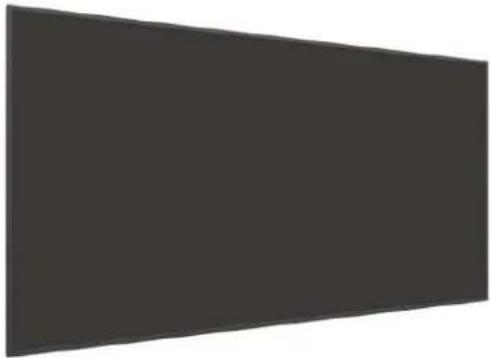 |
| HDMI Cable | HDMI cable. | 1 | 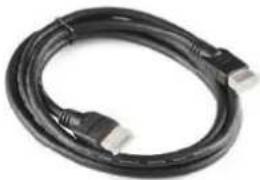 |
| AC Power Cord (US) | Power cord (US) | 1 | 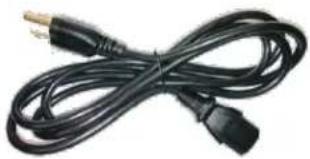 |
| AC Power Cord (EU) | Power cord (EU) | 1 | 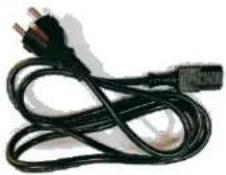 |
| IR Extender Cable | Receive signals from the remote control. | 1 | 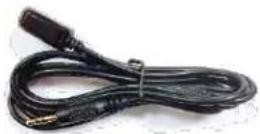 |
| USB Cable | Connects to a PC for touch functionality (touch models only). | 1 | |
| Remote Control | Used to control the display (AAA batteries included) | 1 | 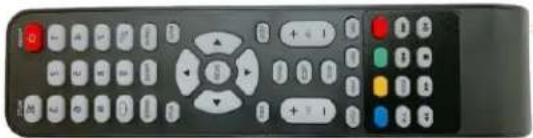 |
| Cable Clips | Used to clamp and organize the cables. | 2 | 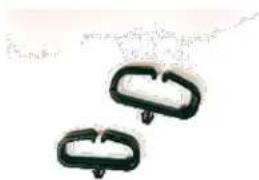 |
| Wi-Fi Antenna | 2.4G 2dBi Dipole Antenna | 1 | 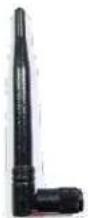 |
| Quick Start Guide | Quick start guide. | 1 |  |
6. Installing the Cable Clips
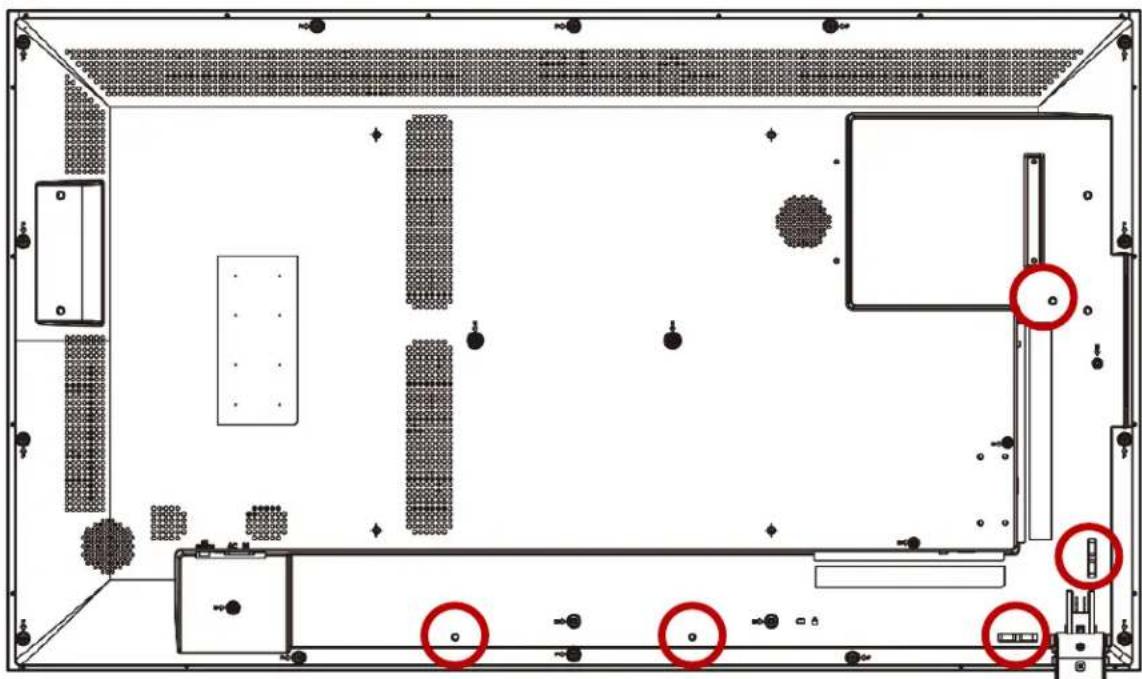
Use the cable clips included in the Accessory Kit to assist with cable management. These clips snap into place in the locations shown in the image below.
natural_image
Top-down schematic of a room layout with furniture and numbered components (no text or symbols)7. Standard Inputs
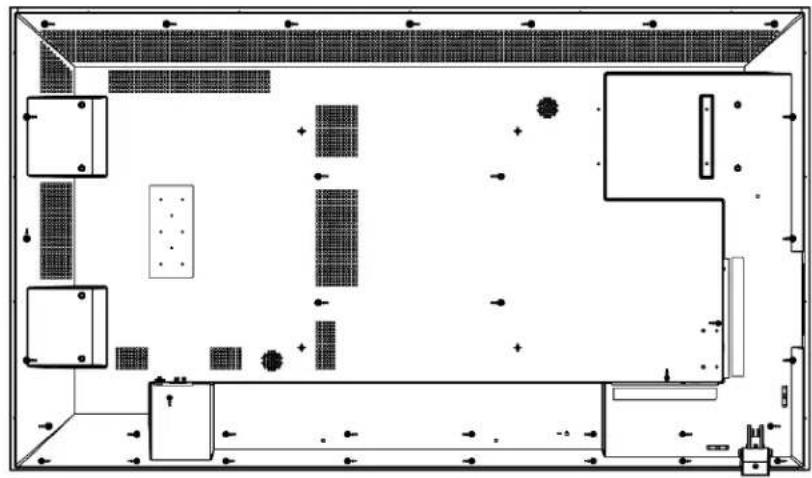
natural_image
Top-down architectural floor plan showing room layouts and structural elements (no text or labels)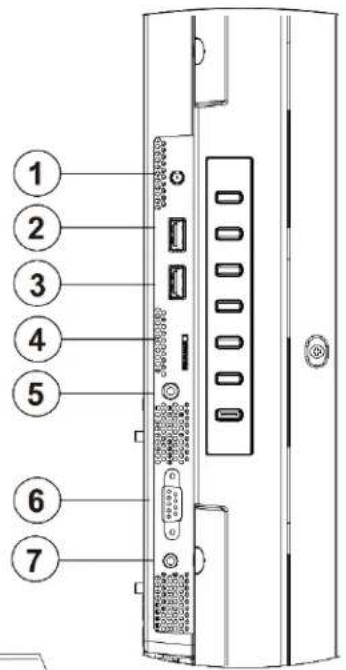
text_image
Diagram of a device rear panel with numbered labels pointing to ports and connectors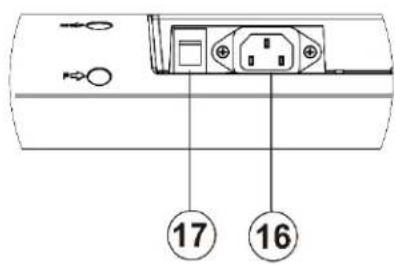
text_image
17 16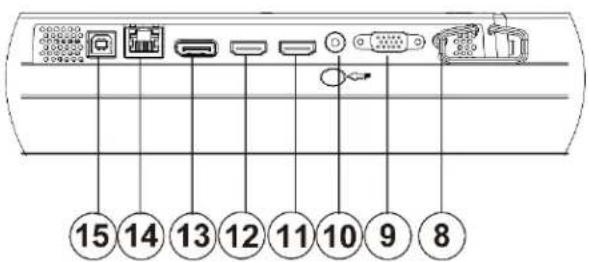
text_image
15 14 13 12 11 10 9 8① Wi-Fi
② USB 2 /
③ USB 1
④ microSD
⑤ Audio Out
⑥ RS232 In
⑦ IR
⑧ PC Audio In
⑨ VGA
⑩ SPDIF Out
⑪ HDMI 2
⑫ HDMI 1
⑬ DP
⑭ LAN
⑮ Touch USB (Touch models)
⑯ AC In
⑰ Power Switch
Installing the Display
This section explains how to install your display. We suggest that you read the entire section before you attempt to install the unit.
8. Before You Begin
Make sure you have all the items in these lists before you begin unpacking and installing your display(s).
8.1 Tools/Equipment List
Depending on your installation, you may need one or more of the following items:
- String/string level
- Digital/laser level
- Ladders/lift
- Back brace
• Stud finder (if hanging display on a wall) - Planar PS 4K Series handle accessory (sold separately. Part Number: 998-1876-xx)
8.2 Other Things You May Need
• LCD screen cleaner or LCD wipes - available at most electronics stores
- At least two very strong people to help lift unit into place
8.3 Plan Your Installation
You should have a detailed plan of how the units are to be configured. The plan should include calculations for the following:
• Power maximums reference below by display size:
PS5074K(T): 8 units max per 20A circuit for 115V operation
PS5574K(T): 6 units max per 20A circuit for 115V operation
PS6574K(T): 8 units max per 20A circuit for 115V operation
- Cable runs
• Ventilation and cooling requirements - If hanging display on a wall, location of studs in the wall
8.4 Prepare Your Installation Location
Prepare the area where you will install the unit. If custom enclosures are part of the installation, they must be fully designed to accommodate the installation of the displays, the installed units, and ventilation and cooling requirements.
If your installation includes a lot of construction or dust, it is highly recommended that you clean all of the screens after the wall installation and configuration are complete.
8.5 Cable Length Recommendations
Cable length performance may vary between different cables and sources. The recommended maximum cable lengths are as follows:
HDMI
• 4K @ 50/60Hz: 5m (15 ft) maximum
• 4K @ 24/25/30Hz: 15m (50 ft) maximum
• 1080p @ 60Hz and lower resolutions: 20m (65 ft) maximum
DisplayPort
• 8m (25 ft) maximum
Operating the Display
9. OSD Keypad
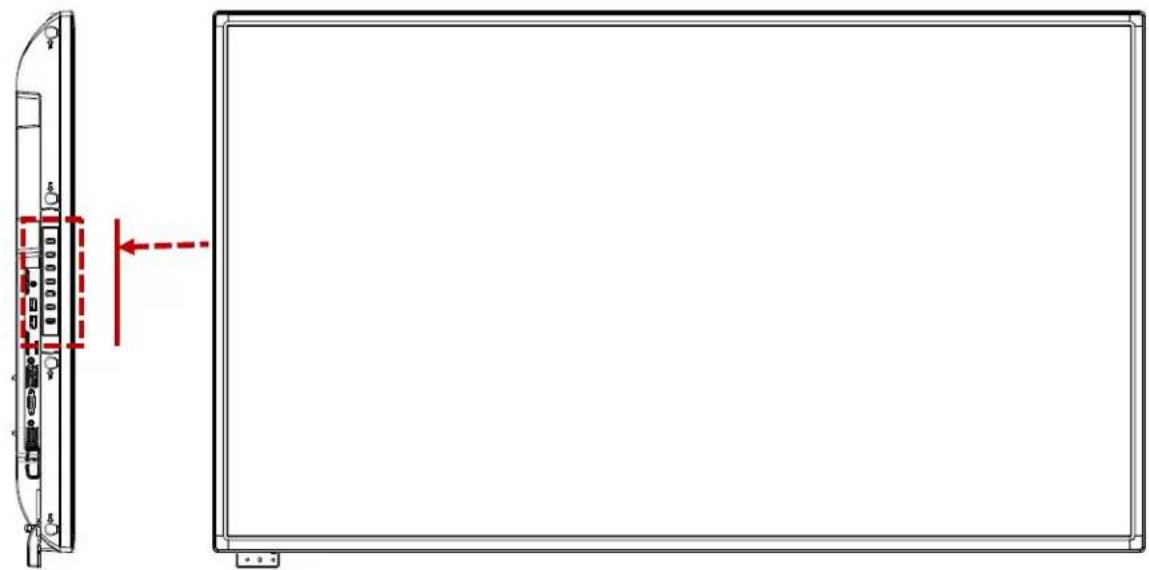
The OSD keypad is located on the left side of the display.
natural_image
Technical line drawing of a device panel with a side view and a red dashed arrow indicating a measurement or alignment (no text or symbols present)OSD Keypad Buttons

text_image
MENU SOURCE + - ▲| Key Descriptions | |
| POWER | Power on / Power off |
| ▲ | Menu Down |
| ▼ | Menu Up |
| - | Menu Left / Decrease value / Volume - |
| + | Menu Right / Increase value / Volume + |
| SOURCE | Source Selection |
| MENU | Menu Open / Close |
10. Remote Control Receiver
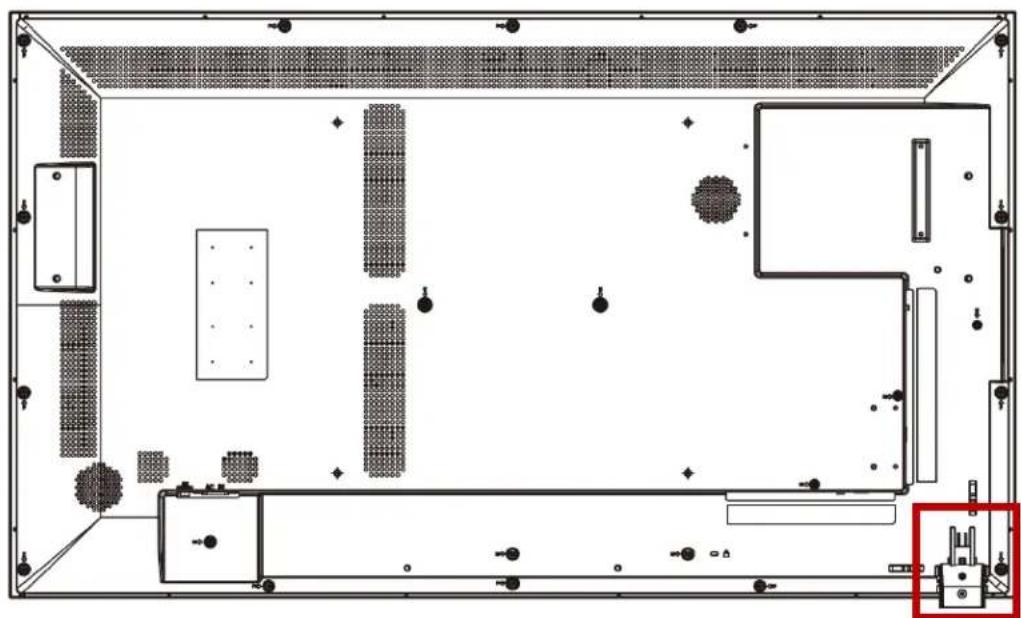
The remote control receiver is located on a module on the rear side of the display. Pull down the module to provide front facing sensor visibility. See the drawing below for reference. Use the IR extender cable to improve remote control distance and angular performance.
natural_image
Top-down architectural floor plan of a room with furniture and fixtures (no text or labels visible)11. Installing IR Extender
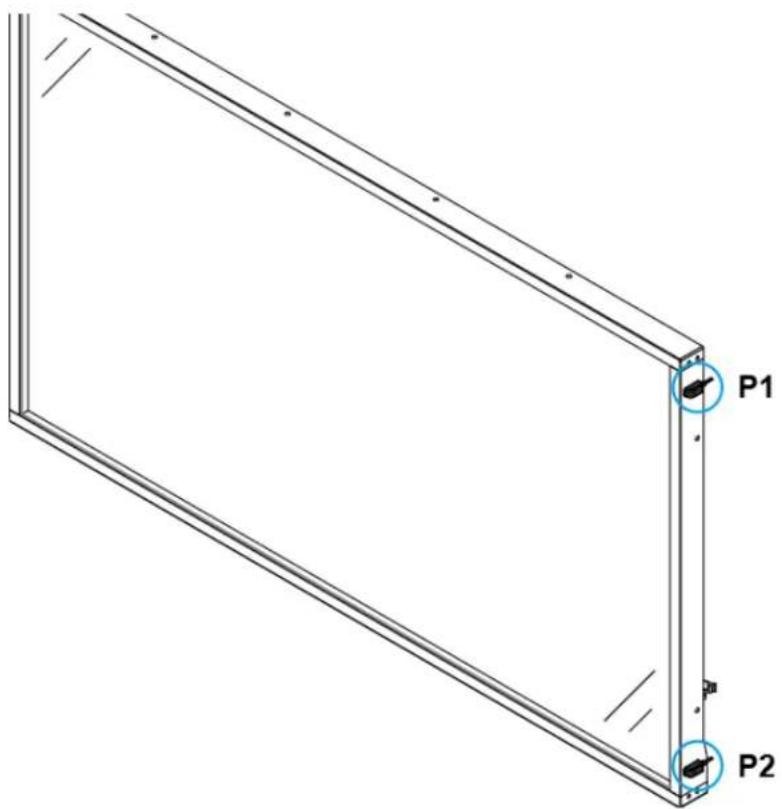
The position of the IR extender will affect the reception of the IR signal. To ensure the best IR reception, P1 and P2, the two positions marked in the figure below, are recommended for installing the IR extender.
text_image
P1 P212. LED Indicators
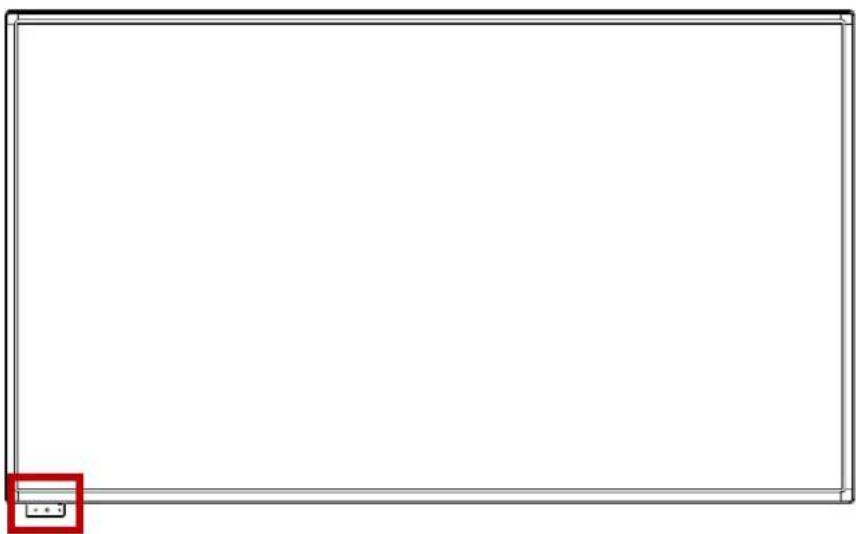
The LED indicator light is located at the bottom left side of the display. The following table explains what the different colors and blink patterns mean.
natural_image
Blank whiteboard with a red square highlight at the bottom left corner (no text or symbols)LED On
| Power Status Condition | |
| Green | Power on; Normal operation |
| Red | Power save mode |
| Power off | |
| Off | AC off |
13. Using the Display in Portrait Mode
When using the display in the portrait position and looking at the rear of the display, it should be rotated according to the arrow stickers on the back of the display. This will allow for proper ventilation. Then select the OSD rotation of landscape or portrait on the OSD menu (MAIN MENU > OSD SETTINGS > OSD ROTATION).
For reference, the following list indicates the rotation direction of each display model when placed in portrait mode when viewed from the front:
• PS5074K(-T): Counterclockwise
• PS5574K(-T): Counterclockwise
• PS6574K(-T): Counterclockwise
Caution: Improper ventilation may shorten the life of the display
14. Using the Display in Flat or Tilted Orientation
The display is not recommended for use in flat orientation for tabletop, floor, or ceiling installations. LCD panels of this size are at risk of panel deflection, which can cause cosmetic sagging, brightness uniformity issues, and a shortened life span. Installations where the display is tilted downward or upward at an angle may also be prone to these issues and are not recommended.
Note: Failure to follow these instructions will void the warranty.
15. Using the Touch Screen
You can use the touch screen to control your Windows, Mac or Linux operating system. The Planar PS Series 4K is HID compliant, delivering up to 20 points of touch on both Windows and Linux without a driver. Single touch only is supported for Mac operating systems. To achieve more than single touch Mac support, drivers will need to be installed, which can be found on http://www.planar.com/support/.
Note: Ensure that you have installed the USB cable on the display to a computer.
Note: The menu system is connected internally to the touch system and can be controlled in this manner. This behavior is configurable via the Touch Control setting.
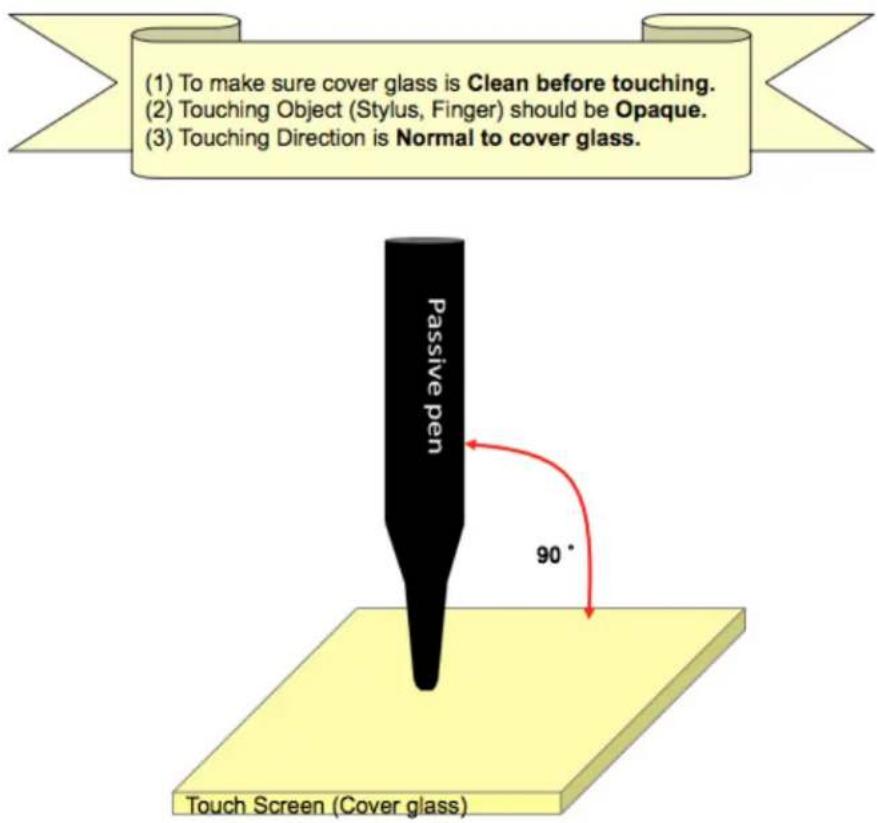
Note: When using the passive stylus on the touch screen, make sure to follow the instructions shown in the picture below:
text_image
(1) To make sure cover glass is Clean before touching. (2) Touching Object (Stylus, Finger) should be Opaque. (3) Touching Direction is Normal to cover glass. Passive pen 90° Touch Screen (Cover glass)16. Using the Remote Control
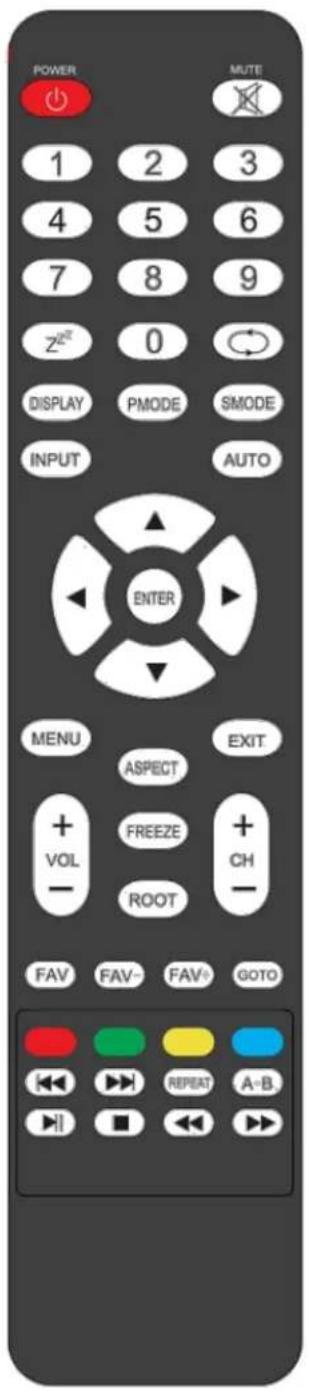
Below is a picture of the remote control and its corresponding Hex codes.
text_image
POWER MUTE 1 2 3 4 5 6 7 8 9 Z²°² 0 DISPLAY PMODE SMODE INPUT AUTO ENTER MENU ASPECT EXIT + FREEZE + VOL - ROOT - FAV FAV- FAV® GOTO REPEAT A-B ▶▶ ▶▶ ▶▶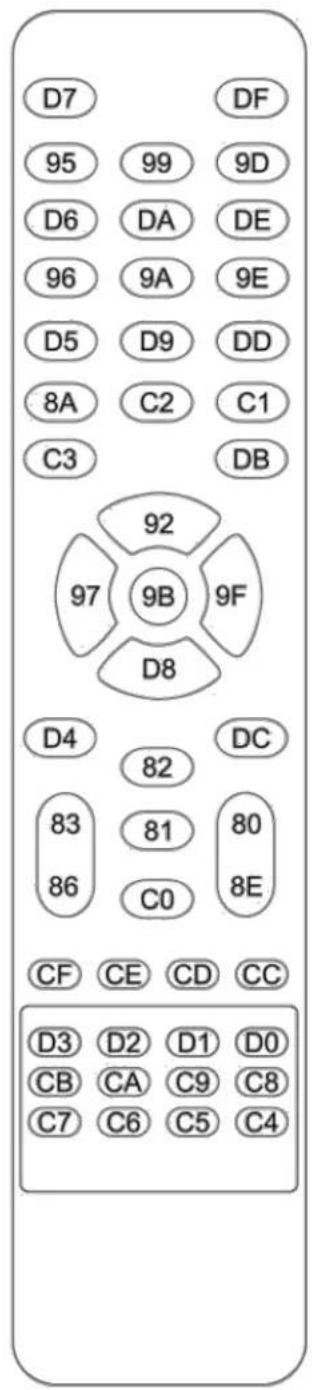
text_image
D7 DF 95 99 9D D6 DA DE 96 9A 9E D5 D9 DD 8A C2 C1 C3 DB 92 97 9B 9F D8 D4 82 DC 83 81 80 86 C0 8E CF CE CD CC D3 D2 D1 D0 CB CA C9 C8 C7 C6 C5 C4IR Remote Key Codes
| Key Name | Address | Data | NEC Data | Description |
| POWER | 2295 | 215 | 0x08F7D728 | Power toggle |
| MUTE | 2295 | 223 | 0x08F7DF20 | Audio mute |
| 1 | 2295 | 149 | 0x08F7956A | Number 1 |
| 2 | 2295 | 153 | 0x08F79966 | Number 2 |
| 3 | 2295 | 157 | 0x08F79D62 | Number 3 |
| 4 | 2295 | 214 | 0x08F7D629 | Number 4 |
| 5 | 2295 | 218 | 0x08F7DA25 | Number 5 |
| 6 | 2295 | 222 | 0x08F7DE21 | Number 6 |
| 7 | 2295 | 150 | 0x08F79669 | Number 7 |
| 8 | 2295 | 154 | 0x08F79A65 | Number 8 |
| 9 | 2295 | 158 | 0x08F79E61 | Number 9 |
| 0 | 2295 | 217 | 0x08F7D926 | Number 0 |
| ZZZ | 2295 | 213 | 0x08F7D52A | Sleep mode toggle |
| 2295 | 221 | 0x08F7DD22 | Not used | |
| DISPLAY | 2295 | 138 | 0x08F78A75 | Source Information |
| PMODE | 2295 | 194 | 0x08F7C23D | Picture Mode |
| SMODE | 2295 | 193 | 0x08F7C13E | Sound Mode |
| INPUT | 2295 | 195 | 0x08F7C33C | Source selection |
| AUTO | 2295 | 219 | 0x08F7DB24 | Auto adjust on VGA |
| UP | 2295 | 146 | 0x08F7926D | Navigate up |
| LEFT | 2295 | 151 | 0x08F79768 | Navigate left |
| ENTER | 2295 | 155 | 0x08F79B64 | Selects the current menu item |
| RIGHT | 2295 | 159 | 0x08F79F60 | Navigate right |
| DOWN | 2295 | 216 | 0x08F7D827 | Navigate down |
| MENU | 2295 | 212 | 0x08F7D42B | Opens the menu |
| EXIT | 2295 | 220 | 0x08F7DC23 | Exits the menu |
| VOL + | 2295 | 131 | 0x08F7837C | Volume increase |
| VOL - | 2295 | 134 | 0x08F78679 | Volume decrease |
| ASPECT | 2295 | 130 | 0x08F7827D | Aspect ratio toggle |
| FREEZE | 2295 | 129 | 0x08F7817E | Freezes the current input source |
| ROOT | 2295 | 192 | 0x08F7C03F | Return to Android |
| CH + | 2295 | 128 | 0x08F7807F | Not used |
| CH - | 2295 | 142 | 0x08F78E71 | Not used |
| FAV | 2295 | 207 | 0x08F7CF30 | Not used |
| FAV - | 2295 | 206 | 0x08F7CE31 | Not used |
| FAV + | 2295 | 205 | 0x08F7CD32 | Not used |
| GOTO | 2295 | 204 | 0x08F7CC33 | Not used |
| [Red] | 2295 | 211 | 0x08F7D32C | Red button (function varies) |
| [Green] | 2295 | 210 | 0x08F7D22D | Green button (function varies) |
| [Yellow] | 2295 | 209 | 0x08F7D12E | Yellow button (function varies) |
| [Blue] | 2295 | 208 | 0x08F7D02F | Blue button (function varies) |
| 2295 | 203 | 0x08F7CB34 | Rewind content to the beginning | |
| 2295 | 202 | 0x08F7CA35 | Fast forward content to the end | |
| REPEAT | 2295 | 201 | 0x08F7C936 | Repeat content |
| A-B | 2295 | 200 | 0x08F7C837 | Not used |
| IR Remote Key Codes | ||||
| Key Name | Address | Data | NEC Data | Description |
| ▶|| | 2295 | 199 | 0x08F7C738 | Play or pause content |
| ■ | 2295 | 198 | 0x08F7C639 | Stop content |
| ◀◀ | 2295 | 197 | 0x08F7C53A | Rewind content |
| ▶▶ | 2295 | 196 | 0x08F7C43B | Fast forward content |
16.1 Locking/Unlocking the OSD Menus
You can lock or unlock the OSD menus by pressing a series of key commands on the remote control. To lock the menu, press the following keys on the remote in the order listed: ENTER, ENTER, EXIT, EXIT, ENTER and EXIT. To unlock it, simply follow the same sequence.
Depending on whether you locked or unlocked the menu, you will see one of the following messages on the screen.
Key Unlocked
Key Locked
17. Basic Remote Functions
17.1 Turning the Display On
- Insert the power cord into the display and into the power outlet.
- Ensure the AC switch is set to “—”.
- Press the power button on the remote or keypad.
17.2 Turning the Display Off
With the power on, press the power button on the remote or keypad to put the LCD panel in a standby mode. To turn off power completely, turn the AC switch to "O" or disconnect the AC power cord from the power outlet.
Note: If there is no signal for a certain period of time, the LCD panel will automatically go into standby mode.
17.3 Adjusting the Volume
- Using the remote, press the VOL- or VOL+ to increase or decrease the volume.
- Pressing the MUTE button temporarily turns off all sound. To restore the sound, press the MUTE button again.
Note: The analog audio out is variable. S/PDIF is fixed.
17.4 Selecting the Input Source
Press the INPUT button on the remote or press the Source button on the keypad. Use the arrow buttons (▲▼) to select one of the following input sources: DP, HDMI1, HDMI2, VGA, Android, and press ENTER.
Note: When the display cannot find a source, a "No signal" message will appear.
17.5 Navigating Through the Menus
- With the power on, press MENU. The main menu appears.
- Within the menu, use ▲, ▼, ◀, ▶, and ENTER to navigate through the menus and adjust options.
- Press MENU to return to the previous menu. To exit the menu system, press EXIT.
18. Input Menu
Below are the menus used for selecting the input sources for all models:
| Input | Main Input | HDMI1 |
| Picture | Auto Scan | Off |
| Audio | Aspect Ratio | Full Screen |
| OSD Settings | Power On Input | Last Input |
| Setup | ||
| Adv. Setup | ||
| Communications | ||
| Information |
Main Input
- Select the input source
- Options: VGA, HDMI1, HDMI2, DP, Android, Web Browser, Android APP
- Default: HDMI1
Auto Scan
- Select to scan inputs in order until a valid signal is detected. Continue scanning when the signal on the selected input is lost.
- Options: On, Off
- Default: Off
Aspect Ratio
- Adjust the aspect ratio of the screen.
- Options: Full Screen, Letterbox, 4:3, Native
- Default: Full Screen
Power On Input
- Select the input source to be displayed at power up. Selecting Last Input will cause the last selected input to be used as the power up source.
- Options: Last Input, VGA, HDMI1, HDMI2, DP, Android, Web Browser, Android APP
- Default: Last Input
19. Picture Menu
This menu is used for making common image adjustments.
| Input | Scheme | Standard |
| Picture | Contrast | 50 |
| Audio | Brightness | 50 |
| OSD Settings | Sharpness | 50 |
| Setup | Hue | 50 |
| Advanced Setup | Saturation | 50 |
| Communications | Backlight | 80 |
| Information | Gamma | 2.2 |
| Color Temperature | 9300K | |
| Color Control | >>> | |
| Overscan | 0 | |
| HDMI Color Range | Auto |
Scheme
- Press to select one of the following:
- Options: Standard, Soft, User, Vivid, Natural, Sports
- Default: Standard
Contrast
- Increase or decrease the contrast of picture. Press ◀ or ▶ to select the desired level.
- Range: 0\~100
- Default: 50
Brightness
- Increase or decrease the brightness of picture. Press ◀ or ▶ to select the desired level.
- Range: 0\~100
- Default: 50
Sharpness
- Adjust the definition of picture. Press ◀ or ▶ to select the desired level.
- Range: 0\~100
- Default: 50
Hue
- Increase or decrease the green hue. Press ◀ or ▶ to select the desired level.
- Range: 0\~100
- Default: 50
Saturation
- Adjust the brilliance and brightness. Press ◀ or ▶ to select the desired level.
- Range: 0\~100
- Default: 50
Backlight
- Increase or decrease the intensity of the LCD backlight. Press ◀ or ▶ to select the desired level.
- Range: 15\~100
- Default: 80
Gamma
- Select gamma
- Options: Off, 1.85, 1.9, 1.95, 2.0, 2.05, 2.10, 2.15, 2.2, 2.25, 2.3, 2.35, 2.4, 2.45, 2.5, 2.55, 2.6
- Default: 2.2
Color Temperature
- Select color temperature
- Options: User, 3200K, 5000K, 6500K, 7500K, 9300K
- Default: 9300K
Color Control
- Adjust color calibration. See page 32 for more details.
Overscan
- Adjust the zoom (overscan) of the image
- Options: 0\~10
- Default: 0
HDMI Color Range
- Select RGB range for HDMI and DisplayPort sources
- Options: Auto, 0\~255, 16\~235
- Default: Auto
19.1 Picture Menu – Color Control Submenu
Note: Certain settings are only available in later versions of firmware. Please upgrade to the latest firmware version if unsupported settings are encountered.
| Color Control | |
| Red Gain | 128 |
| Green Gain | 128 |
| Blue Gain | 128 |
| Red Offset | 128 |
| Green Offset | 128 |
| Blue Offset | 128 |
Red Gain
- Adjust the amount of red in bright content
- Range: 0\~256
- Default: 128
Green Gain
- Adjust the amount of green in bright content
- Range: 0\~256
- Default: 128
Blue Gain
- Adjust the amount of blue in bright content
- Range: 0\~256
- Default: 128
Red Offset
- Adjust the amount of red in dark content
- Range: 0\~256
- Default: 128
Green Offset
- Adjust the amount of green in dark content
- Range: 0\~256
- Default: 128
Blue Offset
- Adjust the amount of blue in dark content
- Range: 0\~256
- Default: 128
20. Audio Menu
This menu is used for adjusting audio settings.
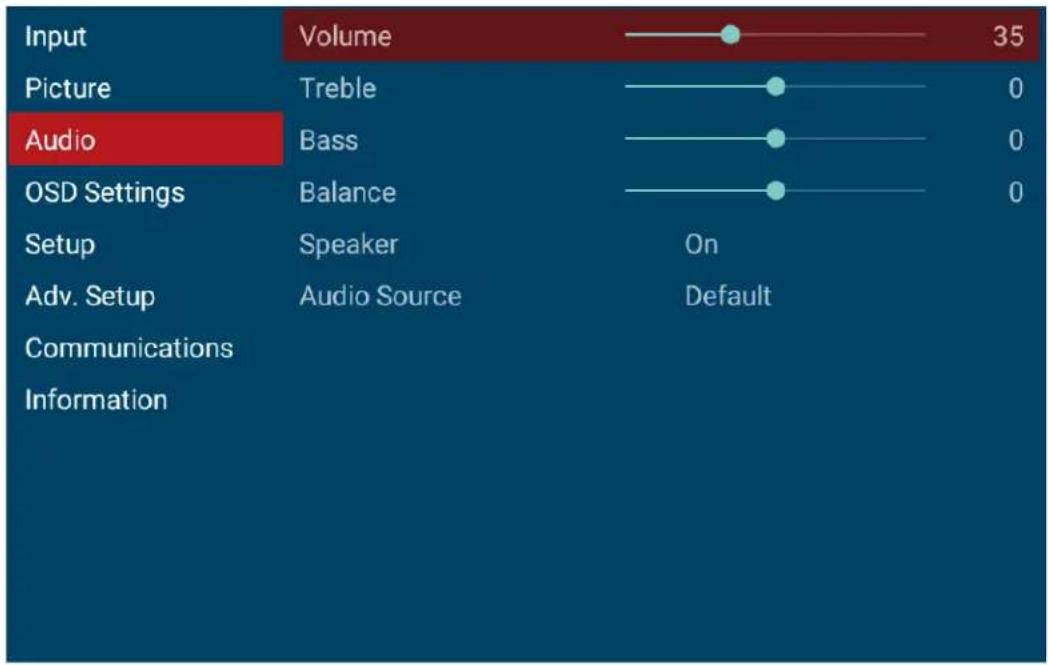
bar
| Input | Volume | | ------------ | ------ | | Picture | 35 | | Audio | 0 | | OSD Settings | 0 | | Setup | On | | Adv. Setup | Default | | Communications | | Information | The chart displays a single value for 'Volume' on the right axis. The other three rows are empty because they are labeled 'On'.Volume
- Adjust the sound. Press ◀ or ▶ to select the desired level.
- Range: 0\~100
- Default: 35
Treble
- Adjust the sound in high tones (treble). Press ◀ or ▶ to select the desired level.
• Range: -50\~+50 - Default: 0
Bass
- Adjust the sound in low tones (bass). Press ◀ or ▶ to select the desired level.
• Range: -50\~+50 - Default: 0
Balance
- Adjust the balance of the left and right speakers. Press ◀ or ▶ to select the desired level.
• Range: -50\~+50 - Default: 0
Speaker
• Turn the speaker on or off
- Options: On, Off
- Default: On
Audio Source
- Select the audio source that is played through the display's internal speakers, audio out and digital audio out.
• Options: Default, Audio In - Default: Default
21. OSD Settings Menu
This menu is used to make initial setup adjustments to the OSD (On-Screen Display) menu and other on-screen messages.
| Input | OSD Horizontal | 50 |
| Picture | OSD Vertical | 50 |
| Audio | OSD Transparency | 0 |
| OSD Settings | OSD Timeout | 30 seconds |
| Setup | OSD Rotation | Landscape |
| Advanced Setup | OSD Sound | On |
| Communications | Language | English |
| Information | Splash Screen | On |
| Message Box | On | |
| Power LED | On | |
| Navigation Bar | On |
OSD Horizontal
- Adjust the horizontal position of the OSD menu. Press ◀ or ▶ to select the desired level.
- Range: 0\~100
- Default: 50
OSD Vertical
- Adjust the vertical position of the OSD menu. Press ◀ or ▶ to select the desired level.
- Range: 0\~100
- Default: 50
OSD Transparency
- Submenu to adjust the transparency of the OSD menu. Press ◀ or ▶ to select the desired level.
- Options: 0\~10
- Default: 0
OSD Timeout
- Submenu to adjust the time in seconds before the OSD menu disappears. Press ◀ or ▶ to select the desired level.
• Options: Off, 5 sec, 10 sec, 20 sec, 30 sec, 60 sec - Default: 30 sec
OSD Rotation
- Rotate the OSD for use in either landscape or portrait orientation.
• Options: Landscape, Portrait
• Default: Landscape
OSD Sound
• Turn off the Android OSD sound effects
- Options: On, Off
- Default: On
Language
- Select the OSD language
- Options: English, Français, Deutsch, Español, 繁體中文, 簡体中文, 日本語, Italiano, Português
- Default: English
Splash Screen
- Select whether a splash screen appears when the monitor is powered up
- Options: On, Off
- Default: On
Message Box
- Select whether a message box is displayed on screen
- Options: On, Off
- Default: On
Power LED
- Enable or disable the status LED
- Options: On, Off
- Default: On
Navigation Bar
- Select whether to display the Android navigation bar at startup and when swiping up from the bottom. Use the touch screen or a USB mouse to perform the swipe.
- Options: On, Off
- Default: On
22. Setup Menu
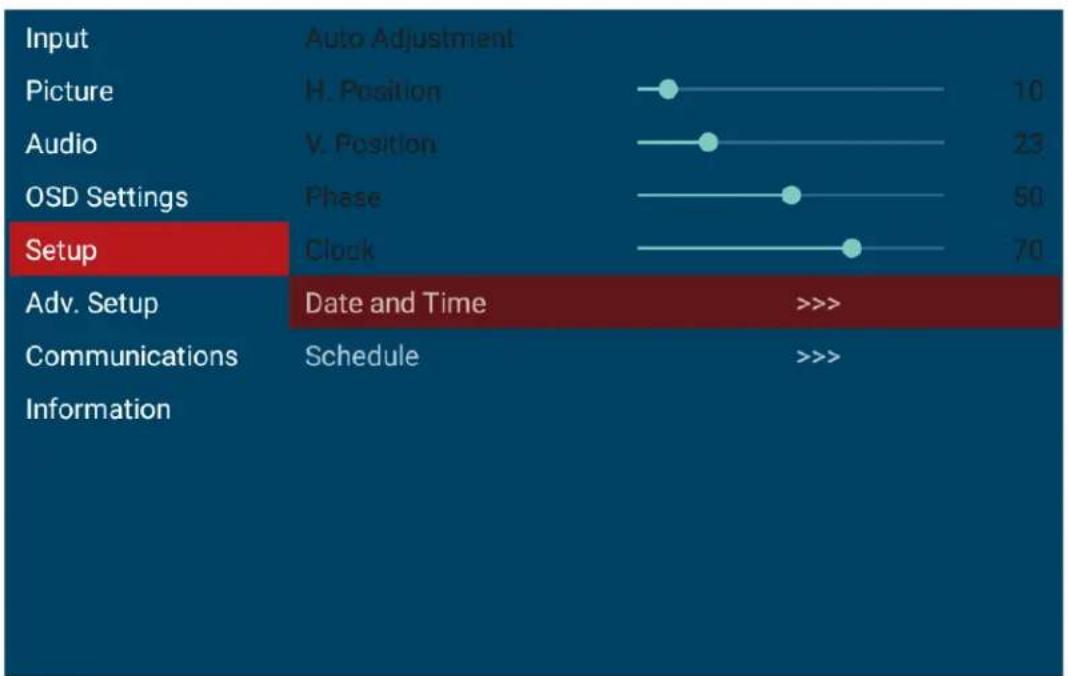
bar
| Input | Auto Adjustment | Value | | :--- | :--- | :--- | | Picture | H. Position | 10 | | Audio | V. Position | 23 | | OSD Settings | Phase | 50 | | Setup | Clock | 70 | | Adv. Setup | Date and Time >>> | | | Communications Information | Schedule >>> | |Auto Adjustment
- Force the display to reacquire and lock to the input signal (VGA source only). This is useful when the signal quality is marginal.
• Note: This feature does not continually reacquire the signal.
H Position
- Adjust the horizontal position of the image (VGA source only). Press ◀ or ▶ to select the desired level.
- Range: 0\~100
- Default:50
V Position
- Adjust the vertical position of the image (VGA source only). Press ◀ or ▶ to select the desired level.
- Range: 0\~100
- Default: 50
Phase
- Adjust the phase of the displayed signal (VGA source only). Press ◀ or ▶ to select the desired level.
- Range: 0\~100
Clock
- Adjust the clock of the displayed signal (VGA source only). Press ◀ or ▶ to select the desired level.
- Range: 0\~100
Date and Time
- This menu is used to set the internal clock of the display.
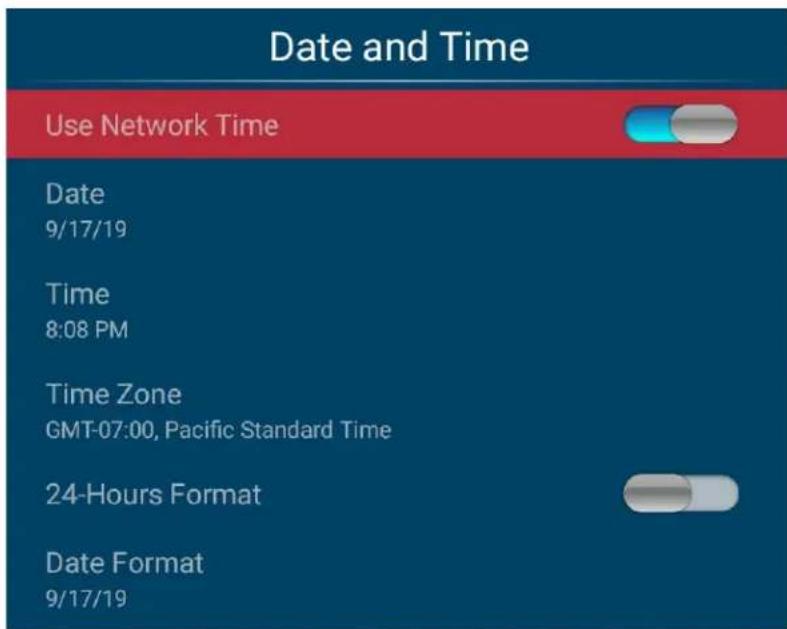
text_image
Date and Time Use Network Time Date 9/17/19 Time 8:08 PM Time Zone GMT-07:00, Pacific Standard Time 24-Hours Format Date Format 9/17/19Use Network Time
• Automatically set the current date and time information from a network.
- Options: On, Off
- Default: On
Date
- Set the current date. Configurable when Use Network Time is turned off.
Time
- Set the current time. Configurable when Use Network Time is turned off.
Time Zone
- Select the current time zone.
24-Hours Format
• Change the time format to a 24-hour format.
- Options: On, Off
- Default: Off
Date Format
- Select the desired date format.
• Options: month/day/year, day/month/year, year/month/day
Schedule
- This menu is used to set power on and power off the display at preset times if desired. Up to three different schedules can be set.
| Schedule | |||
| Current Time | 2019/09/17 | 20:08 | Tuesday |
| Timer Mode | User Mode | ||
| Weekday | Enable | Power On | Power Off |
| Monday | □ | 00:00 | 00:00 |
| Tuesday | □ | 00:00 | 00:00 |
| Wednesday | □ | 00:00 | 00:00 |
| Thursday | □ | 00:00 | 00:00 |
| Friday | □ | 00:00 | 00:00 |
| Saturday | □ | 00:00 | 00:00 |
| Sunday | □ | 00:00 | 00:00 |
User Mode
- Select the power on/off time for each day of the week
- Options: Disable, Enable
- Use the arrow keys to specify the on and off times
| Schedule | |||
| Current Time | 2019 / 09 / 17 | 20 : 08 | Tuesday |
| Timer Mode | Workdays | ||
| Weekday | Enable | Power On | Power Off |
| Monday ~ Friday | □ | 00 : 00 | 00 : 00 |
| Saturday | □ | 00 : 00 | 00 : 00 |
| Sunday | □ | 00 : 00 | 00 : 00 |
Workdays
- Select the power on/off time for Monday–Friday, Saturday, and Sunday
- Options: Disable, Enable
- Use the arrow keys to specify the on and off times.
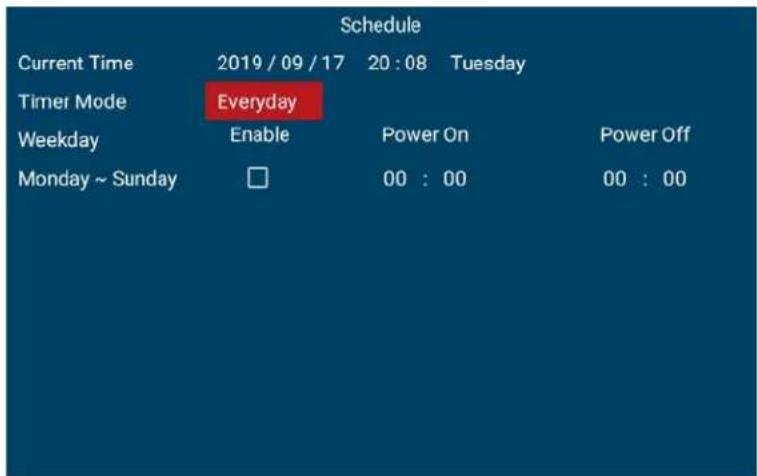
text_image
Schedule Current Time 2019 / 09 / 17 20 : 08 Tuesday Timer Mode Everyday Weekday Enable Power On Power Off Monday ~ Sunday □ 00 : 00 00 : 00Everyday
- Select the power on/off time for Monday–Sunday
- Options: Disable, Enable
- Use the arrow keys to specify the on and off times.
23. Advanced Setup Menu
| Input | Smart Light Control | Off |
| Picture | Pixel Orbit | Off |
| Audio | Noise Reduction | Off |
| OSD Settings | Power Saving Config | Standby Mode |
| Setup | EDID Setup | >>> |
| Advanced Setup | Touch Control | Auto |
| Communications | CEC Setup | >>> |
| Information | App Manager | >>> |
| Factory Reset | ||
| Firmware Update (USB) |
Smart Light Control
- Enable dynamic contrast
- Options: On, Off
- Default: Off
Pixel Orbit
- Create slight frame motion to help avoid image retention
- Options: On, Off
- Default: Off
Noise Reduction
- Reduce random noise in video content
- Options: Off, Low, Medium, High, Auto
- Default: Off
Power Saving Config
- Select the behavior of the display when a signal is detected while in standby mode. Standby Mode will turn on the display when a signal is detected on the VGA or HDMI input. Wake on All will turn on the display when a signal is detected on any input.
- Options: Standby Mode, Networked Standby Mode, Wake on All, Always On
- Default: Standby Mode
- Note: For Standby Mode and Wake on All, the display will enter power saving mode if no signal is received for 5 minutes.
- Note: RS232 and LAN functionality will not work in standby mode if Standby Mode is selected. Use another Power Saving Config selection if RS232 or LAN support is needed.
EDID Setup
- Select EDID (Extended Display Identification Data) of the HDMI and DisplayPort inputs
- Options:
- HDMI 1, HDMI2: HDMI 1.4, HDMI 2.0;
。 DP: 4K30, 4K60
- Default:
- Note: HDMI 2.0 is the more modern standard and supports 3840x2160 @ 60Hz resolution. However, sometimes HDMI 1.4 is needed for compatibility with older devices.
Touch Control
- Select whether the touch screen controls an external PC via the Touch USB connector, or controls the display's menu system.
- Options: Auto, Internal, External
- Default: Auto
CEC Setup
- Control of a device and display panels over the HDMI port by using one remote control.
- CEC Enable
■ Enable HDMI-CEC control
- Options: On, Off
- Default: Off
Auto Standby
■ Enable auto standby and make sure that CEC Enable is set to On first.
- Options: On, Off
- Default: Off
App Manager
- Shows all downloaded Android apps in the display, including information of app version and installed size.
- At the bottom appears the amount of total and free storage space.
Factory Reset
- Restore all settings to their default
- Options: No, Yes
- Default: No
Firmware Update (USB)
- Plug in the USB flash drive and select Yes to proceed with firmware update.
- Options: No, Yes
- Default: Yes
24. Communication Menu
This menu configures the display's RS-232 and Ethernet communication ports.
| Input | Baud Rate | 19200 |
| Picture | LAN Configuration | >>> |
| Audio | Wi-Fi Configuration | >>> |
| OSD Settings | Hotspot Configuration | >>> |
| Setup | Email Configuration | >>> |
| Adv. Setup | SNMP Configuration | >>> |
| Communications | Control Over TCP | >>> |
| Information | Ethernet MAC | 00:1f:b6:50:02:65 |
| Wi-Fi MAC | 3c:33:00:f9:78:df |
Baud rate
- Select the baud rate of the display's RS-232 port
- Options: 115200, 38400, 19200, 9600
- Default: 19200
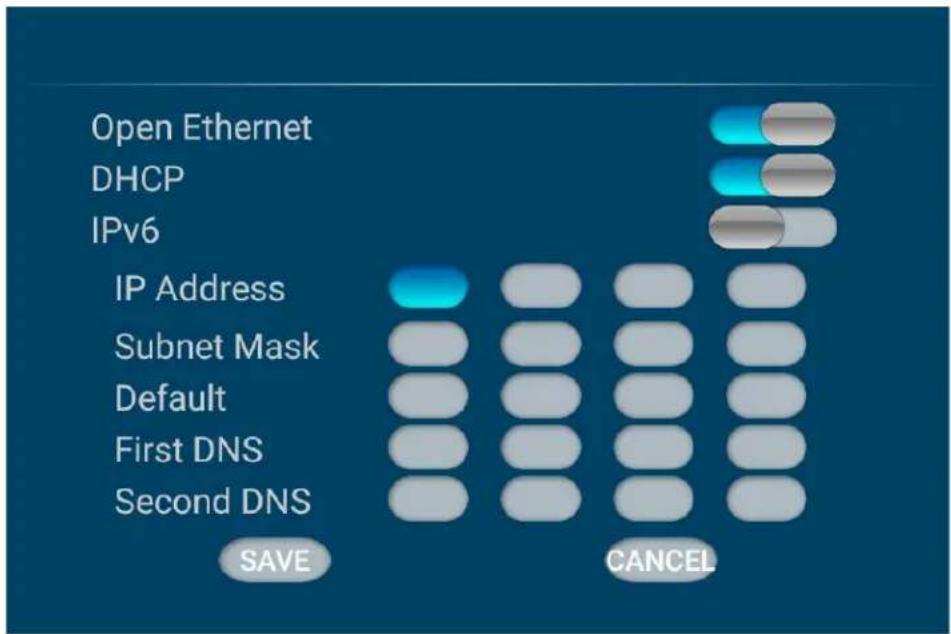
LAN Configuration
text_image
Open Ethernet DHCP IPv6 IP Address Subnet Mask Default First DNS Second DNS SAVE CANCEL- Open Ethernet
Enable the display's built-in Ethernet port
Options: On, Off
Default: On
- DHCP
- Enable dynamic IP mode
Options: On, Off
Default: On
- IPv6
- Enable IPv6 support
Options: On, Off
Default: Off
- IP Address
- Set IP address
Options: 255.255.255.255
Default: 0.0.0.0
- Subnet Mask
- Set subnet mask
Options: 255.255.255.255
Default: 0.0.0.0
- Default
- Set gateway address
Options: 255.255.255.255
Default: 0.0.0.0
- First DNS
- Set DNS address
Options: 255.255.255.255
Default: 0.0.0.0
- Second DNS
- Set DNS address
Options: 255.255.255.255
Default: 0.0.0.0
WiFi Configuration
- Enable a WiFi connection
- Options: On, Off
- Default: On
Hotspot Configuration
- WiFi hotspot
- Enable WiFi hotspot settings
Options: On, Off
Default: Off
- Config WiFi hotspot
Configure WiFi hotspot settings
Email Configuration
- This menu configures a Simple Mail Transfer Protocol (SMTP) server for sending status information from the display via e-mail.
| Email Configuration | |
| SMTP Enable | On |
| Server | Gmail |
| Password | |
| SMTP Server | smtp.gmail.com |
| Security type | SSL |
| Port | 465 |
| Manager Email | |
- SMTP Enable
Use this menu to enter the Simple Mail Transfer Protocol (SMTP) server settings. Ask your network administrator or ISP to provide the correct settings for the following fields.
Options: On, Off
Default: On
- Server
Select whether a Gmail server or another server will be used.
Options: Gmail, Other
Default: Gmail
Note: Using Gmail requires enabling support for less secure apps in your Gmail account. Consult your Gmail settings for more information.
• Specify the email account that will send messages.
- Password
The password for the e-mail account.
- SMTP Server
The SMTP server name or address associated with the e-mail account.
Default: smtp.gmail.com
- Security Type
The type of security for the SMTP connection.
Options: None, SSL, TLS, STARTTLS
Default: SSL
- Port
The port for the SMTP connection. Typically, this is port 465.
- Manager Email
- Specify the email address that will receive notifications.
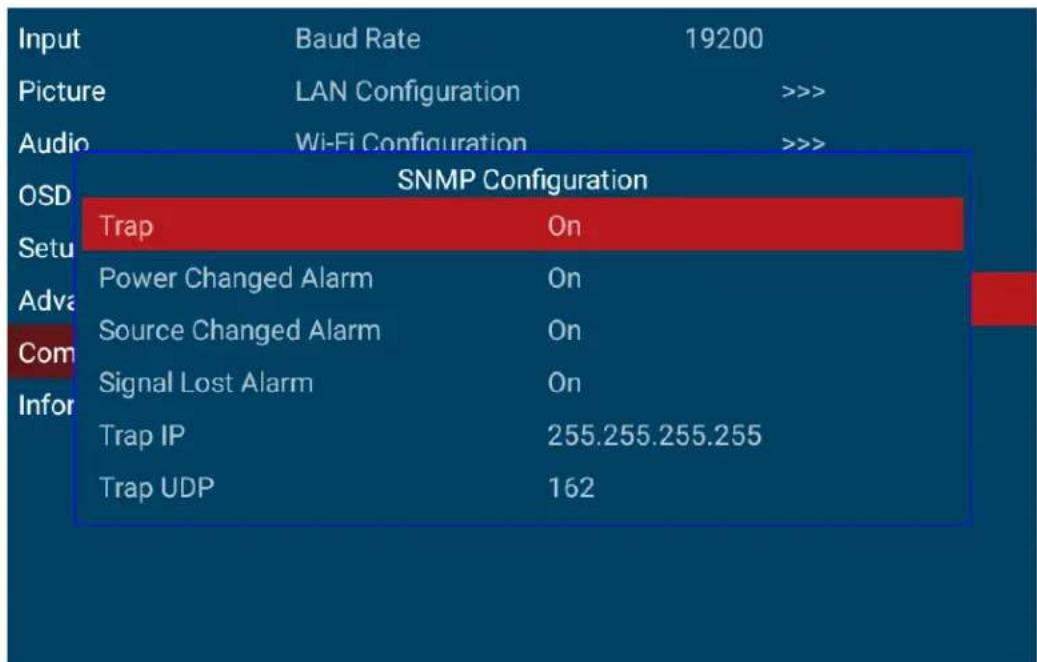
SNMP Configuration
- Configure the Simple Network Management Protocol (SNMP) settings
text_image
Input Baud Rate 19200 Picture LAN Configuration >>> Audio Wi-Fi Configuration >>> OSD SNMP Configuration Setup Trap On Power Changed Alarm On Source Changed Alarm On Signal Lost Alarm On Com Trap IP 255.255.255.255 Infor Trap UDP 162- Trap
- Enable and configure the Trap communication
Options: On, Off
Default:
• Power Changed Alarm
- Enable the power changed alarm
Options: On, Off
Default: On
- Source Changed Alarm
- Enable the source changed alarm
Options: On, Off
Default: On
- Signal Lost Alarm
• Enable the signal changed alarm
Options: On, Off
Default: On
- Trap IP
- Specify the destination IP address for the SNMP trap receiver
Default: 255.255.255.255
- Trap UDP
• Specify the UDP port for SNMP trap receiver connections
Default: 162
Control Over TCP
- Enable and configure the TCP communication over the LAN and WiFi connections
- Settings:
- Enable Control Over TCP
■ Enable TCP communication over the network
- Options: On, Off
- Default: On
。 TCP Port
- Select the TCP port for network connections
- Default: 23
Ethernet MAC
• Show the MAC address of the display
WiFi MAC
• Show the WiFi address of the display
25. Information Menu
This read-only menu provides information on the active sources and the latest firmware version.
| Input | Input Source | HDMI1 |
| Picture | No Signal | |
| Audio | ||
| OSD Settings | Default APP | Hypersign |
| Setup | Android | 6.0(API:23) |
| Advanced Setup | Wi-Fi IP | |
| Communications | LAN IP | |
| Information | Model | None |
| Version | v1.10 | |
| Serial No. | None |
26. Android Settings Menu
26.1 Android Main Menu
To access the Android menu, open the Input menu and select Android.
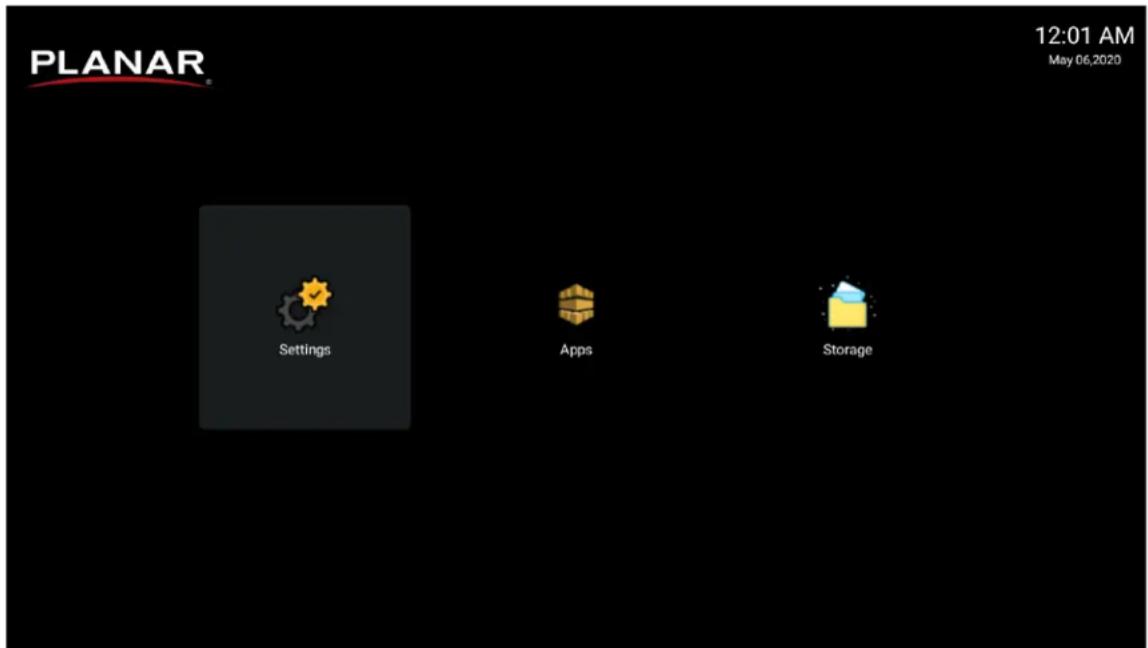
text_image
PLANAR 12:01 AM May 06,2020 Settings Apps StorageNote: In addition to the IR remote control, use the touchscreen or a USB keyboard and mouse to navigate the Android menu and modify settings.
26.2 Apps
Lists pre-installed apps on the display. Select an app to run it.
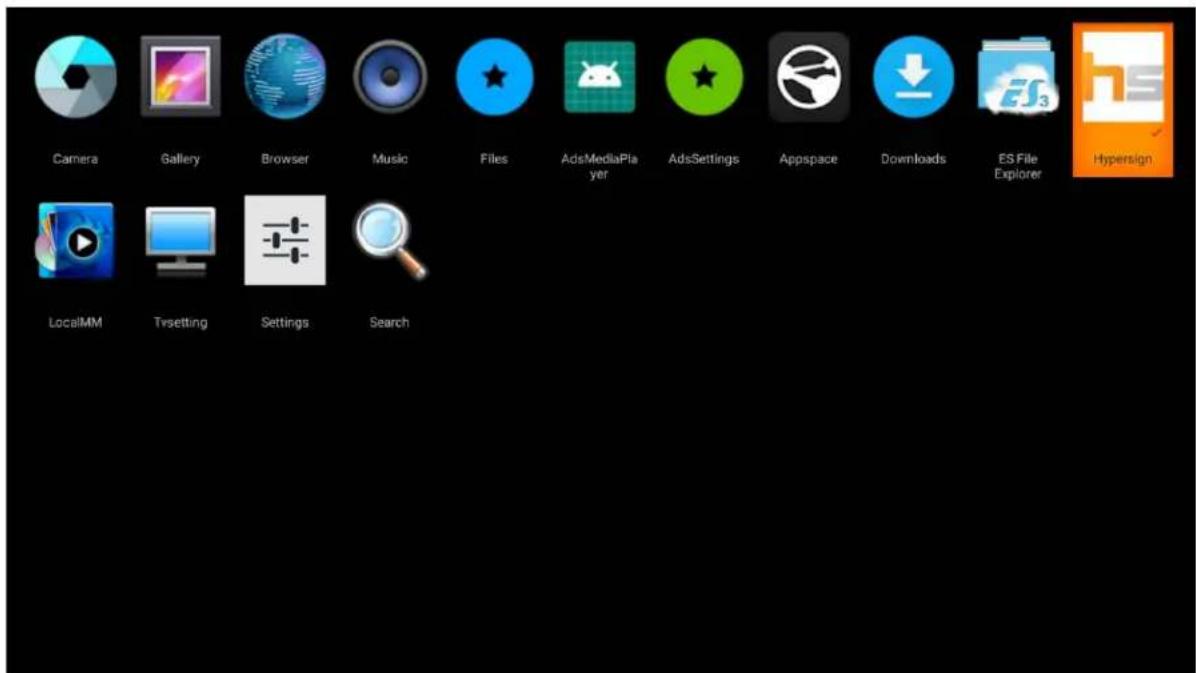
text_image
Camera Gallery Browser Music Files AdsMediaPlayer AdsSettings Appspace Downloads ES File Explorer Hypersign LocalMM Tvsetting Settings SearchTo set a default app, long press on an app and a selection pops up then click on Set to Default.
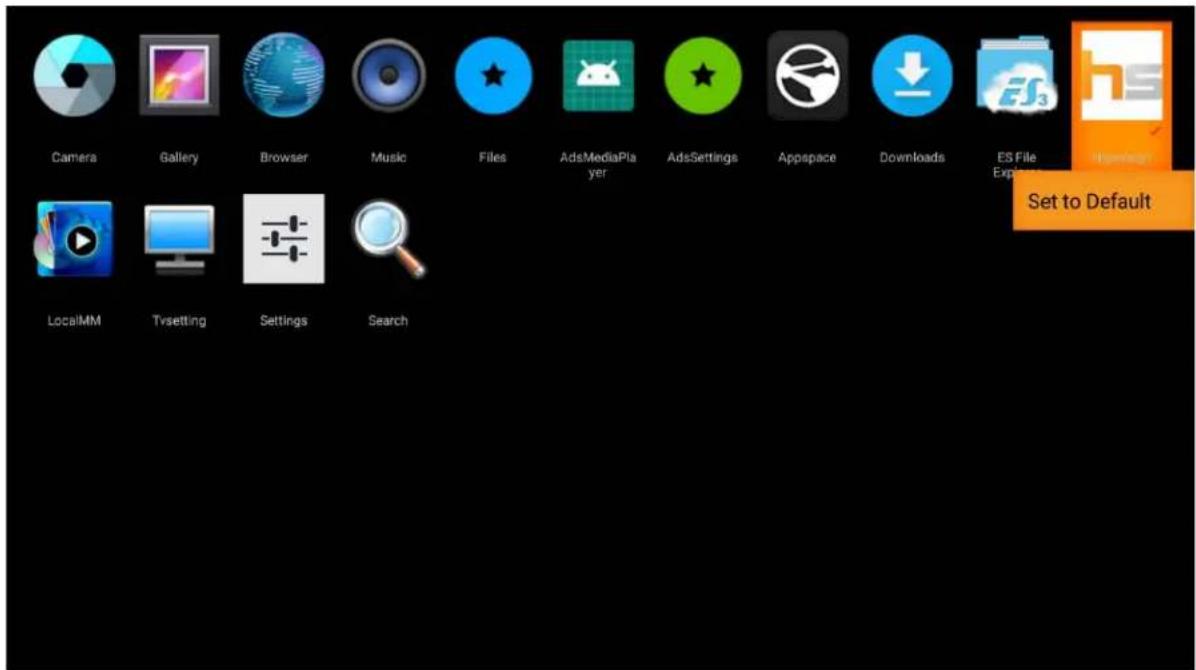
text_image
Camera Gallery Browser Music Files AdsMediaPlayer AdsSettings Appspace Downloads ES File Explorer LocalMM Tvsetting Settings Search Set to Default• The default app name will be displayed on the OSD Information Menu (see page 47).
• By default, the input source of Android App will allow the default app to be automatically
launched at startup.
26.3 Files
Allows management of the internal file system and any drives connected via USB.
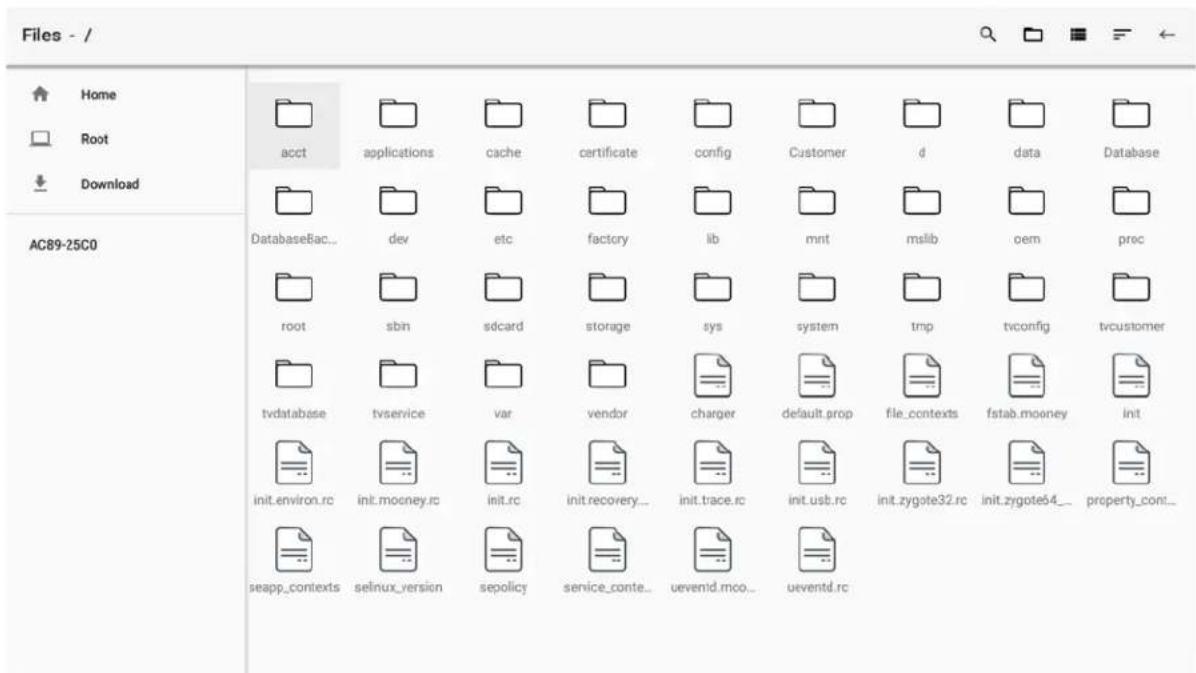
text_image
Files - / Home Root Download AC89-25C0 acct applications cache certificate config Customer d data Database DatabaseBac... dev etc factory lib mnt mslib oem prec root sbin sdcard storage sys system tmp tvconfig tvcustomer tvdatabase tvservice var vendor charger default.prop file_contexts fstab.mooney init init.environ.rc init.mooney.rc init.rc init.recovery... init.trace.rc init.usb.rc init.zygote32.rc init.zygote64._ property_cont._ seapp_contexts selinux_version sepolicy service_conte... ueventd.moo... ueventd.rc27. Media Player
The Planar PS Series 4K display has an embedded Media Player that can be used to play videos, photos and/or music from a USB Drive. Please see below for more information.
27.1 Supported Media Formats
The table below outline the supported media formats and compatibility for video, audio, and visual content.
| Media Player Video Compatibility | ||
| Format | File Types | Max Resolution and Bit Rate |
| MPEG 1/2 | MPEG program stream (.dat, .vob, .mpg, .mpeg)MPEG transport stream (.ts, .trp, .tp)MP4 (.mp4, .mov)3GPP (.3gpp, .3gp)AVI (.avi)MKV (.mkv) | 1080p MP@HL, HD level |
| MPEG 4 | MP4 (.mp4, .mov)3GPP (.3gpp, .3gp)AVI (.avi)MKV (.mkv) | 1080p @ 30fpsDivx Home Theater & HD profilesFLV v1 video decoding |
| H.264 | FLV (.flv)MP4 (.mp4, .mov)3GPP (.3gpp, .3gp)MPEG transport stream (.ts, .trp, .tp)ASF (.asf)WMV (.wmv)AVI (.avi)MKV (.mkv) | 1080p @ 60fps62.5Mbps |
| H.265 | MP4 (.mp4, .mov)3GPP (.3gpp, .3gp)MPEG transport stream (.ts, .trp, .tp)MKV (.mkv) | 4096x2160 @ 60fps100Mbps |
| Google VP8 | MKV (.mkv)WebM (.webm) | 1080p @ 30fps50Mbps |
| Google VP9 | MKV (.mkv)WebM (.webm) | 4096x2160 @ 60fps100Mbps |
| Motion JPEG | AVI (.avi)3GPP (.3gpp, .3gp)MP4 (.mp4, .mov)MKV (.mkv) | 1280 x720 @ 30fps |
| Media Player Audio Compatibility | ||
| Format | File Types | Max Bit Rate and Sampling Rate |
| MPEG Audio (MPEG 1/2/2.5 Audio Layer 1/2/3) | MP3 | 8-320 Kbps16-48 KHz2 Channel |
| Windows Media Audio (WMA Version 7, 8, 9) | WMA | 8-768 Kbps8-96 KHz2 Channel |
| AAC Audio (MAIN, ADIF, ATDS Header, AAC-LC, AAC-HE | AACM4A | Bit Rate: N/A8-48 KHz5.1 Channel |
| Media Player Image Compatibility | ||
| Format | File Types | Max Resolution |
| JPEG (JFIF file format 1.2) | JPG JPEG | 8192 x 8192 |
| BMP | BMP | 8192 x 8192 |
| PNG | PNG | 8192 x 8192 (8 bits)4096 x 8192 (16 bits) |
27.2 Main Menu
Play
- This menu starts showing the content in a created playlist. If no playlists are available, create one starting with the Compose section on page 53.
- The content will play in the order selected during content creation, and with the features selected in the Settings menu.
Media Player
Compose
- Use this menu to create a playlist of photos and/or videos.
- Select media from
Internal
。USB
SD card
- Photos must be in the following folder: /planar/photo
- Videos must be in the following folder: /planar/video
• Audio files must be in the following folder: /planar/music
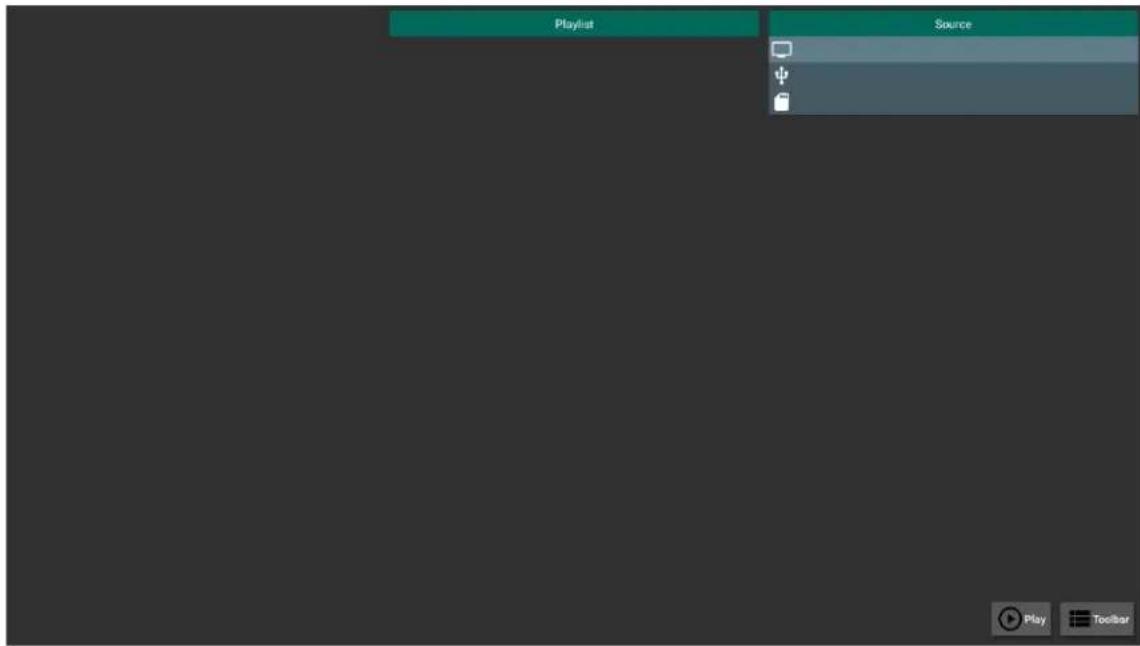
text_image
Playlist Source Play Toolbar- Press the Toolbar button 📄 Toolbar on the screen to bring up the sidebar menu
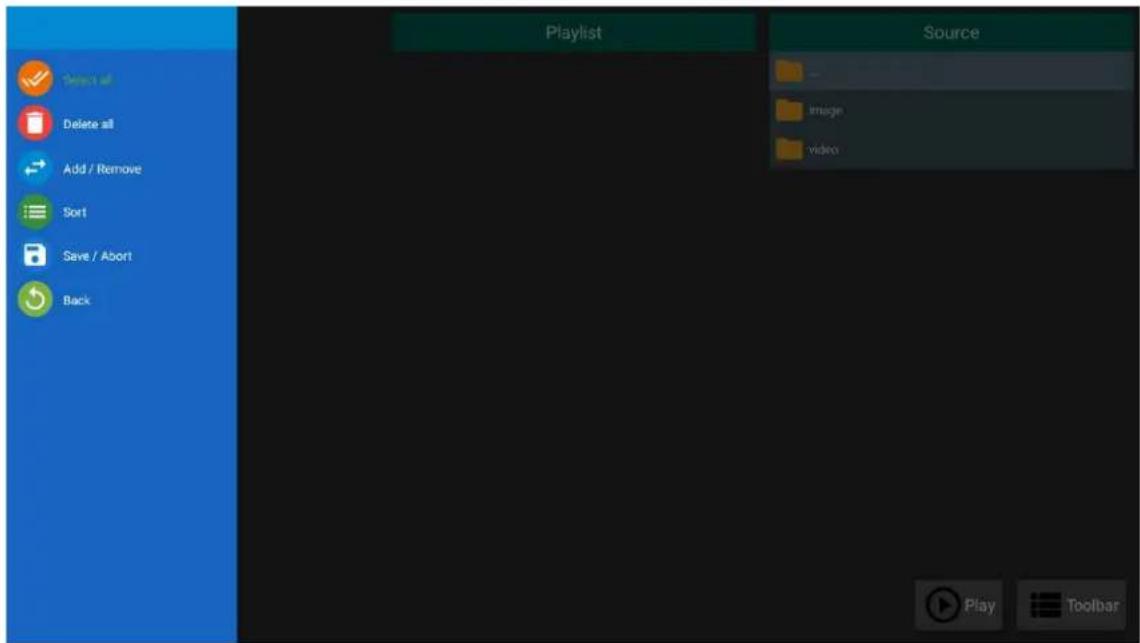
text_image
Playlist Source - Image video Back Select all Delete all Add / Remove Sort Save / Abort BackDelete All: Remove all items from the current playlist
- Add / Remove: Add or keep checked items in the playlist.
- Remove unchecked items from the playlist if present.
Sort: Rearrange the order of files in the playlist
• Save / Abort: Save or discard the changes to the playlist
- Note: Save changes to the playlist once, modifications are complete. Any unsaved changes will be lost.
• After saving the playlist, background music can be added.
Note: This option is displayed after saving a playlist (see image below).
- Back: Close the sidebar menu.
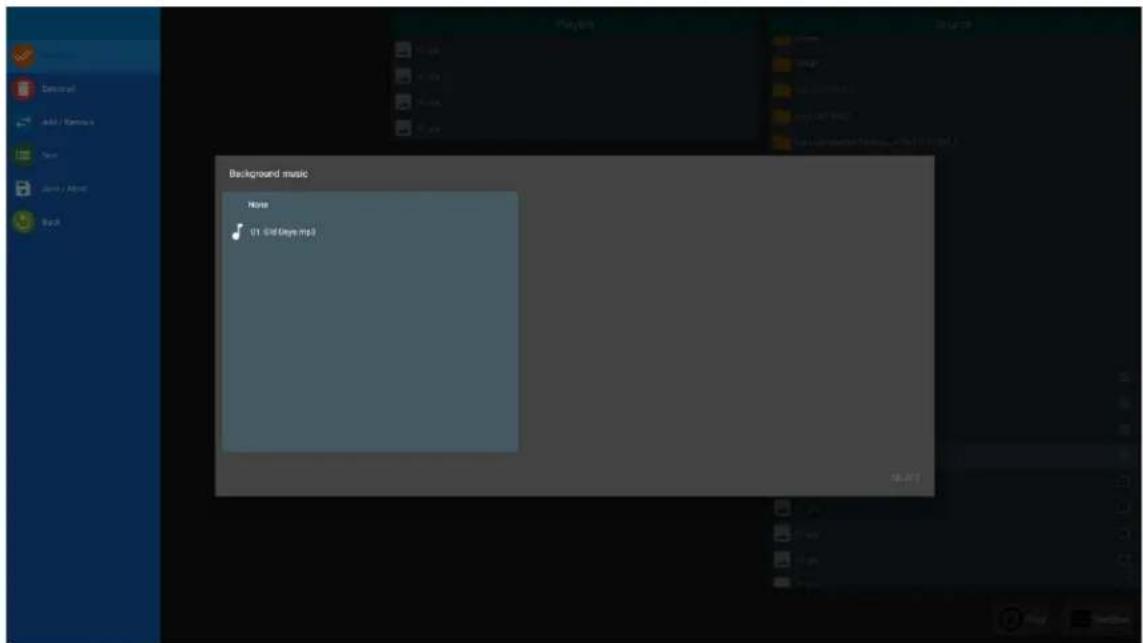
text_image
Background music None 01.12 (Days.mp3)Settings
- This menu contains several options for customizing your playback experience.
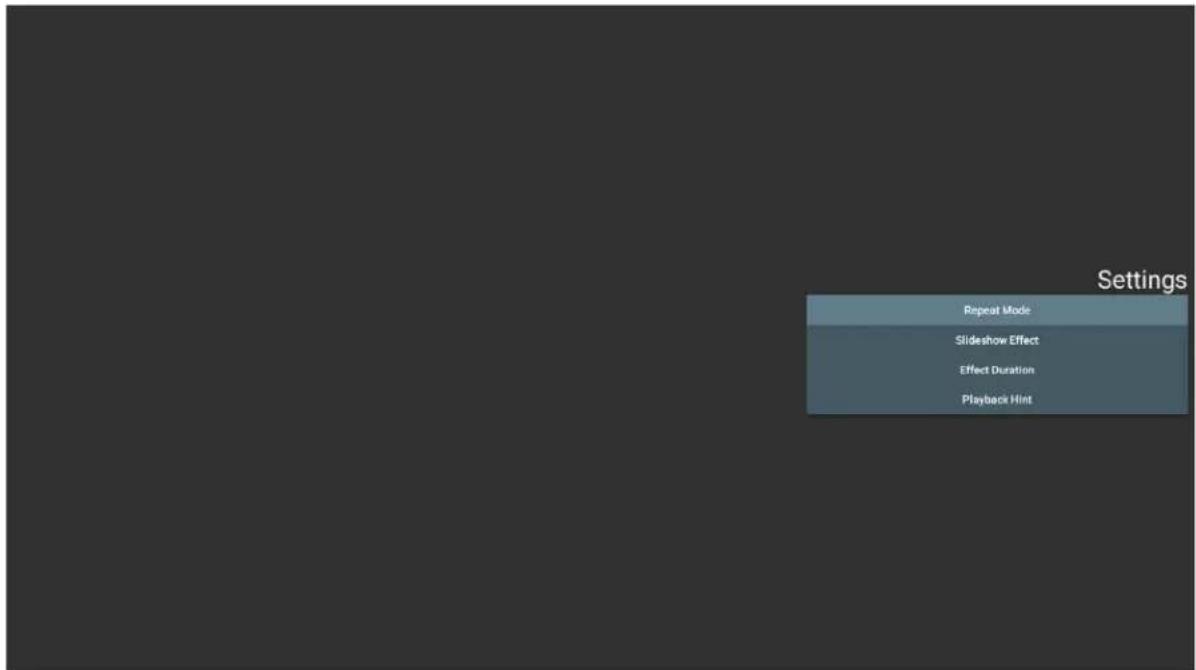
text_image
Settings Repeat Mode Slideshow Effect Effect Duration Playback Hint- Repeat Mode
• Play each file only one time or repeat them
Options: Repeat Once (display each file once), Repeat All (repeat showing all
- files)
Default: Repeat All
- Slideshow Effect
Select the transition type that occurs when switching from one image to another
Options: Random, Bounce, Fade In/Out, Top to Bottom, Zoom, Left to Right,
• Right to Left, Fold, Corner, None
Default: None
- Effect Duration
• Select the amount of time to show each image in the playlist
Options: 5s, 10s, 15s, 20s
Default: 5s
- Playback Hint
• Display the file name as the caption below the image while playing it
Options: On, Off
Default: Off
External Control
In addition to using the Planar PS Series 4K remote control and display, there are other methods of controlling the Planar PS Series 4K display externally:
- Using a serial link to send binary commands and to receive responses to those commands. The same set of commands can be sent over RS-232 or TCP. See the Planar PS Series 4K RS232 User Manual for more information.
• Using discrete infrared (IR) codes to program a third-party remote control.
Signal Compatibility
| Compatible Video Sources | ||||||||
| Signal Type | Resolution | Frame Rate (Hz) | Line Rate (kHz) | Pixel Rate (MHz) | HDMI 1-2 | DP | VGA | References |
| PC | 640x480 | 59.940 | 31.469 | 25.175 | x | x | x | VESA DMT, CEA-861-F Format 1 |
| 640x480 | 72.809 | 37.861 | 31.500 | x | x | x | VESA DMT | |
| 640x480 | 75.000 | 37.500 | 31.500 | x | x | x | VESA DMT | |
| 640x480 | 85.008 | 43.269 | 36.000 | x | x | x | VESA DMT | |
| 800x600 | 60.317 | 37.879 | 40.000 | x | x | x | VESA DMT | |
| 800x600 | 72.188 | 48.077 | 50.000 | x | x | x | VESA DMT | |
| 800x600 | 75.000 | 46.875 | 49.500 | x | x | x | VESA DMT | |
| 800x600 | 85.061 | 53.674 | 56.250 | x | x | x | VESA DMT | |
| 848x480 | 59.659 | 29.830 | 31.500 | x | x | x | VESA CVT | |
| 848x480 | 74.769 | 37.684 | 41.000 | x | x | x | VESA CVT | |
| 848x480 | 84.751 | 42.969 | 46.750 | x | x | x | VESA CVT | |
| 1024x768 | 60.004 | 48.363 | 65.000 | x | x | x | VESA DMT | |
| 1024x768 | 70.069 | 56.476 | 75.000 | x | x | x | VESA DMT | |
| 1024x768 | 75.029 | 60.023 | 78.750 | x | x | x | VESA DMT | |
| 1024x768 | 84.997 | 68.677 | 94.500 | x | x | x | VESA DMT | |
| 1152x864 | 70.012 | 63.851 | 94.500 | x | x | x | VESA DMT | |
| 1152x864 | 75.000 | 67.500 | 108.000 | x | x | x | VESA DMT | |
| 1152x864 | 84.999 | 77.094 | 121.500 | x | x | x | VESA DMT | |
| 1280x768 | 49.929 | 39.593 | 65.250 | x | x | x | VESA CVT | |
| 1280x768 | 59.995 | 47.396 | 68.250 | x | x | x | VESA CVT-R | |
| 1280x768 | 59.870 | 47.776 | 79.500 | x | x | x | VESA CVT | |
| 1280x768 | 74.893 | 60.289 | 102.250 | x | x | x | VESA CVT | |
| 1280x768 | 84.837 | 68.633 | 117.500 | x | x | x | VESA CVT | |
| 1280x960 | 60.000 | 60.000 | 108.000 | x | x | x | VESA DMT | |
| 1280x960 | 75 | 75.000 | 126.000 | x | x | x | VESA DMT | |
| 1280x960 | 85.002 | 85.938 | 148.500 | x | x | x | VESA DMT | |
| 1280x1024 | 60.020 | 63.981 | 108.000 | x | x | x | VESA DMT | |
| 1280x1024 | 75.025 | 79.976 | 135.000 | x | x | x | VESA DMT | |
| 1280x1024 | 85.024 | 91.146 | 157.500 | x | x | x | VESA DMT | |
| 1366x768 | 59.790 | 47.712 | 85.500 | x | x | x | VESA DMT | |
| 1400x1050 | 49.965 | 54.113 | 100.000 | x | x | x | VESA CVT | |
| 1400x1050 | 59.948 | 64.744 | 101.000 | x | x | x | VESA CVT-R | |
| 1400x1050 | 59.978 | 65.317 | 121.750 | x | x | x | VESA CVT | |
| 1400x1050 | 74.867 | 82.278 | 156.000 | x | x | x | VESA CVT | |
| 1600x1200 | 60.000 | 75.000 | 162.000 | x | x | x | VESA DMT | |
| 1920x1080 | 49.929 | 55.621 | 141.500 | x | x | x | VESA CVT | |
| 1920x1080 | 59.963 | 67.158 | 173.000 | x | x | x | VESA CVT | |
| 1920x1080 | 59.950 | 66.587 | 138.500 | x | x | x | VESA CVT-R | |
| 1920x1200 | 49.932 | 61.816 | 158.250 | x | x | x | VESA CVT | |
| 1920x1200 | 59.950 | 74.038 | 154.000 | x | x | x | VESA CVT-R | |
| 1680x1050 | 49.974 | 54.121 | 119.500 | x | x | x | VESA CVT | |
| 1680x1050 | 59.954 | 65.290 | 146.250 | x | x | x | VESA CVT | |
| 1920x2160 | 60.000 | 135.000 | 297.000 | x | x | CEA-861-F, VIC 16, with vertical parameters doubled | ||
| 1920x2160 | 59.988 | 133.293 | 277.250 | x | x | VESA CVT-R | ||
| 2560x1440 | 59.951 | 88.787 | 241.500 | x | x | VESA CVT-R | ||
| 2560x1600 | 59.972 | 98.713 | 268.500 | x | x | VESA CVT-R | ||
| 3840x2160 | 23.999 | 52.438 | 209.750 | x | x | VESA CVT-R | ||
| 3840x2160 | 29.981 | 65.688 | 262.750 | x | x | VESA CVT-R | ||
| 3840x2160 | 49.977 | 110.500 | 442.000 | x | VESA CVT-R | |||
| 3840x2160 | 59.997 | 133.313 | 533.250 | x | VESA CVT-R | |||
| Apple Mac | 640x480 | 66.59 | x | x | x | |||
| 832x624 | 75.087 | 49.107 | 55.000 | x | x | x | ||
| 1024x768 | 59.278 | 48.193 | 64.000 | x | x | x | ||
| 1024x768 | 74.927 | 60.241 | 80.000 | x | x | x | ||
| 1152x870 | 75.062 | 68.681 | 100.000 | x | x | x | ||
| SDTV | 480i | 60 | x | SMPTE 125M, CEA-861-F Formats 6 & 7 | ||||
| 576i | 50 | x | ITU-R BT.601, CEA-861-F Formats 21 & 22 | |||||
| EDTV | 480p | 60 | 31.469 | 27.000 | x | x | x | ITU-R BT.1358, CEA-861-F Format 17 & 18 |
| 576p | 50 | 31.250 | 27.000 | x | x | x | SMPTE 125M, CEA-861-F Format 6 & 7 | |
| HDTV | 1080i | 50 | 28.125 | 74.500 | x | x | x | SMPTE 274M, CEA-861-F Format 20 |
| 1080i | 60 | 33.750 | 74.250 | x | x | x | SMPTE 274M, CEA-861-F Format 5 | |
| 720p | 50 | 37.500 | 74.250 | x | x | x | SMPTE 296M, CEA-861-F Format 19 | |
| 720p | 60 | 45.000 | 74.250 | x | x | x | SMPTE 296M, CEA-861-F Format 4 | |
| 1080p | 24 | 27.000 | 74.250 | x | x | x | SMPTE 274M, CEA-861-F Format 32 | |
| 1080p | 25 | 28.125 | 74.250 | x | x | x | SMPTE 274M, CEA-861-F Format 33 | |
| 1080p | 30 | 33.750 | 74.250 | x | x | x | SMPTE 274M, CEA-861-F Format 34 | |
| 1080p | 50 | 56.250 | 148.500 | x | x | x | SMPTE 274M, CEA-861-F Format 31 | |
| 1080p | 60 | 67.500 | 148.500 | x | x | x | SMPTE 274M, CEA-861-F Format 16 | |
| UHDTV | 3840x2160 | 24 | 54.000 | 297.000 | x | x | CEA-861-F Format 93, HDMI 1.4b VIC 1 | |
| 3840x2160 | 25 | 56.250 | 297.000 | x | x | CEA-861-F Format 94, HDMI 1.4b VIC 2 | ||
| 3840x2160 | 30 | 67.500 | 297.000 | x | x | CEA-861-F Format 95, HDMI 1.4b VIC 3 | ||
| 3840x2160 | 50 | 67.500 | 297.000 | CEA-861-F Format 96, 4:2:0 sub-sampling | ||||
| 3840x2160 | 50 | 135.000 | 594.000 | x | CEA-861-F Format 96 | |||
| 3840x2160 | 60 | 67.500 | 297.000 | CEA-861-F Format 97, 4:2:0 sub-sampling | ||||
| 3840x2160 | 60 | 135.000 | 594.000 | x | CEA-861-F Format 97 | |||
| 4096x2160 | 24 | 54.000 | 297.000 | x | x | CEA-861-F Format 98 | ||
| 4096x2160 | 25 | 56.250 | 297.000 | x | x | CEA-861-F Format 99 | ||
| 4096x2160 | 30 | 67.500 | 297.000 | x | x | CEA-861-F Format 100 | ||
Color Subsampling Support
| Video Timing | Input | RGB 4:4:4 Supported | YUV 4:4:4 Supported | YUV 4:2:2 Supported | YUV 4:2:0 Supported |
| 4K @ 50/60Hz | HDMI 1-4 | x x x x | |||
| All Other Supported Timings | All | x x x |
Specifications
| Item | PS5074K PS5074K-N | PS5074KT PS5074KT-N | PS5574K PS5574K-N | PS5574KT PS5574KT-N | PS6574K PS6574K-N | PS6574KT PS6574KT-N |
| LCD Panel | ||||||
| Display Technology | Commercial-Grade VA LCD | |||||
| Resolution | 3840x2160 | |||||
| Aspect Ratio | 16:9 | |||||
| Screen Size | 50" | 55" | 65" | |||
| Orientation | Landscape / Portrait | |||||
| Brightness (Typ.) | 550 cd/m^2 | 500 cd/m^2 | 550 cd/m^2 | 500 cd/m^2 | 50 cd/m^2 | 400 cd/m^2 |
| Contrast Ratio | 4000:1 | |||||
| Viewing Angle (Typ.) | 178 degrees | |||||
| Response Time (Typ.) | 8ms | |||||
| Color Gamut | 72% NTSC | |||||
| Display Color | 1.07 billion(10-bit depth) | |||||
| Connectivity | ||||||
| Standard Inputs | HDMI 2.0 x 2, DisplayPort 1.2, VGA | |||||
| HDCP 2.2 | Yes (HDMI) | |||||
| Audio Output | Line out, S/PDIF out | |||||
| Control and Monitoring | LAN RJ45, WiFi (802.11 b/g/n, 2.4 GHz), RS232 In, IR In, KeypadNOTE: Models ending in -N do not include WiFi | |||||
| Operating System | Android 6.0 | |||||
| Mechanical | ||||||
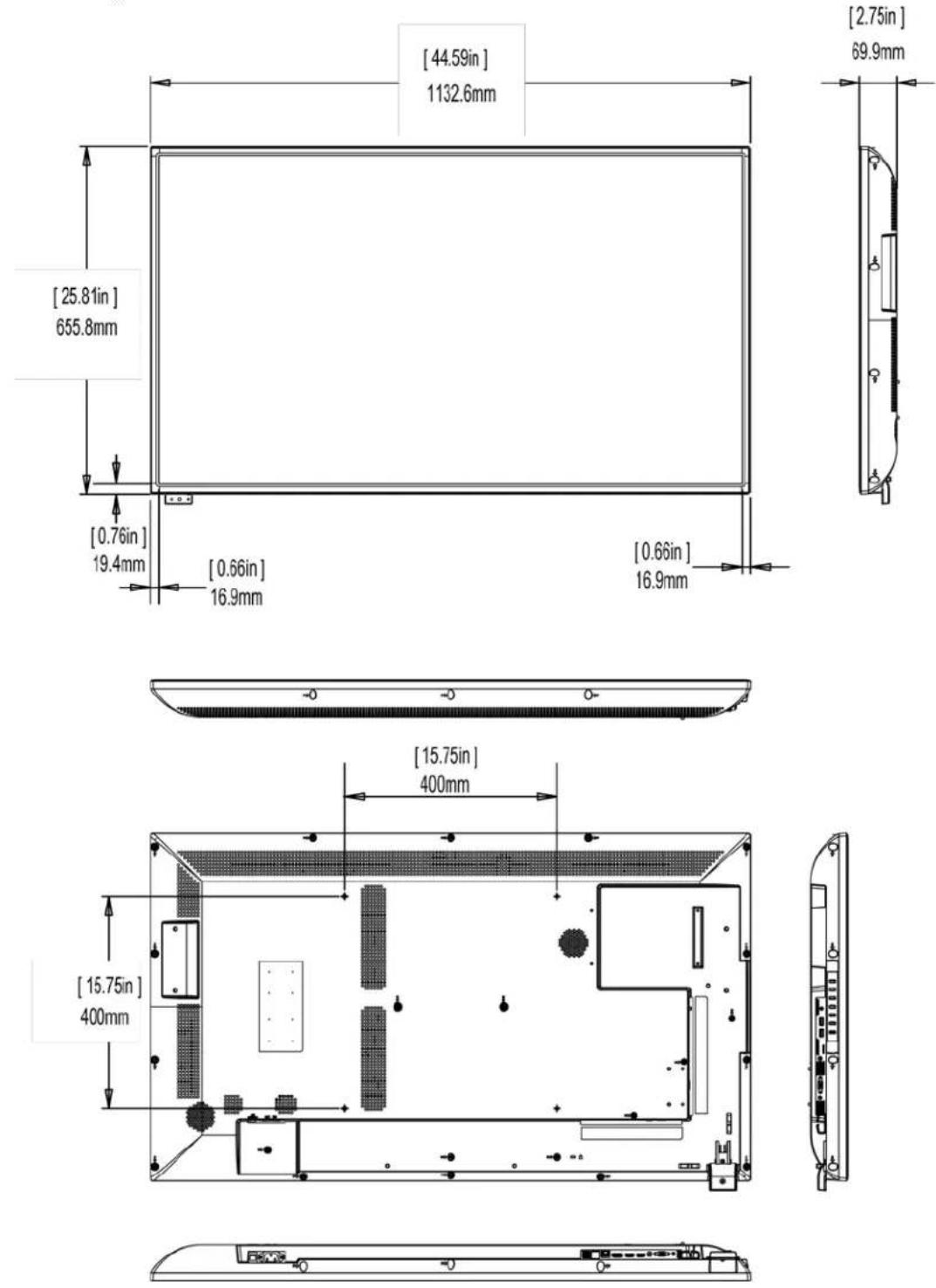
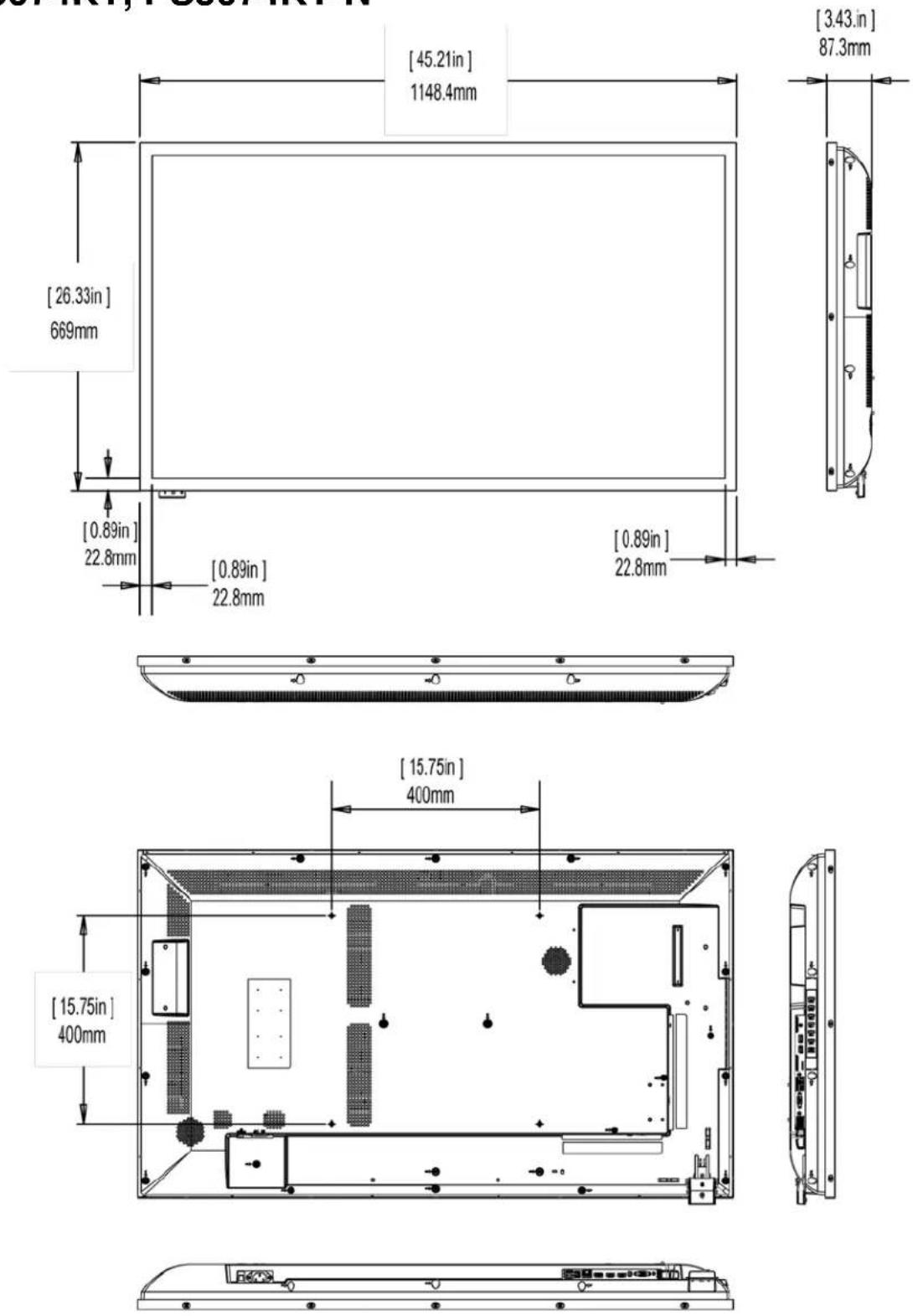
| Display Dimensions | 44.6" x 25.8"x 2.8"(1132.6mm x 655.8mm x 69.9mm) | 45.2" x 26.3"x 3.4"(1148.4mm x 669mm x 87.3mm) | 49.0" x 28.3"x 2.7"(1245.2mm x 718.5mm x 69mm) | 49.7" x 28.9"x 3.4"(1262.4mm x 733mm x 86.4mm) | 57.6" x 33.2"x 2.8"(1462.6mm x 843.3mm x 70mm) | 58.3" x 33.7"x 3.4"(1481.5mm x 856.4mm x 85.8mm) |
Specifications
| Bezel Width | 16.9mm (top/left/right) , 19.4mm (bottom) | 22.8mm even | 16.6mm (top/left/right) , 19.1mm (bottom) | 22.8mm even | 16mm (top/left/right) , 21.8mm (bottom) | 23mm even |
| Display Weight | 33 lbs (15 kg) | 54 lbs (25 kg) | 40 lbs (18 kg) | 65 lbs (30 kg) | 54 lbs (25 kg) | 88 lbs (40 kg) |
| Mounting VESA | 400 mm x 400 mm | |||||
| Fanless Yes | ||||||
| Speakers | 10W x 2 built-in | |||||
| Touch Related | ||||||
| Protective Glass | Not applicable | 4mm with AG coating | Not applicable | 4mm with AG coating | Not applicable | 4mm with AG coating |
| Touch Technology | Not applicable | IR 20-point | Not applicable | IR 20-point | Not applicable | IR 20-point |
| Touch Interface | Not applicable | USB-B | Not applicable | USB-B | Not applicable | USB-B |
| Usage | ||||||
| Recommended Usage | 24x7 | |||||
| Backlight D-LED | ||||||
| Backlight Life 30 | 000 hours min | |||||
| Power Source | ||||||
| Power Consumption (Typ.) | 115W | 145W | 120W | |||
| BTU/hr (Typ.) | 115Wx 3.42 BTU = 393 BTU/hr | 145Wx 3.42 BTU = 496 BTU/hr | 120Wx 3.42 BTU = 410 BTU/hr | |||
| Standby Power Consumption | < 0.5W | |||||
| Input Voltage / Frequency | AC 100-240V 50-60 Hz | |||||
| AC Inlet Type C14 | ||||||
| Environment | ||||||
| Storage Temperature | Min -4°F ~ Max 140°F (-20°C ~ 60°C) | |||||
| Operating Temperature | Min 32°F ~ Max 104°F (0-40°C) at up to 3000 m | |||||
| Humidity | 20-85% RH | |||||
| Approvals | FCC Class A, cTUVus, CE | |||||
Dimensions
PS5074K, PS5074K-N
PS5074KT, PS5074KT-N
PS5574K, PS5574K-N
PS5574KT, PS5574KT-N
PS6574K, PS6574K-N
PS6574KT, PS6574KT-N
text_image
[58.32in] 1481.5mm [33.71in] 856.4mm [0.90in] 23mm [0.90in] 23mm [0.90in] 23mm [3.37in] 85.8mm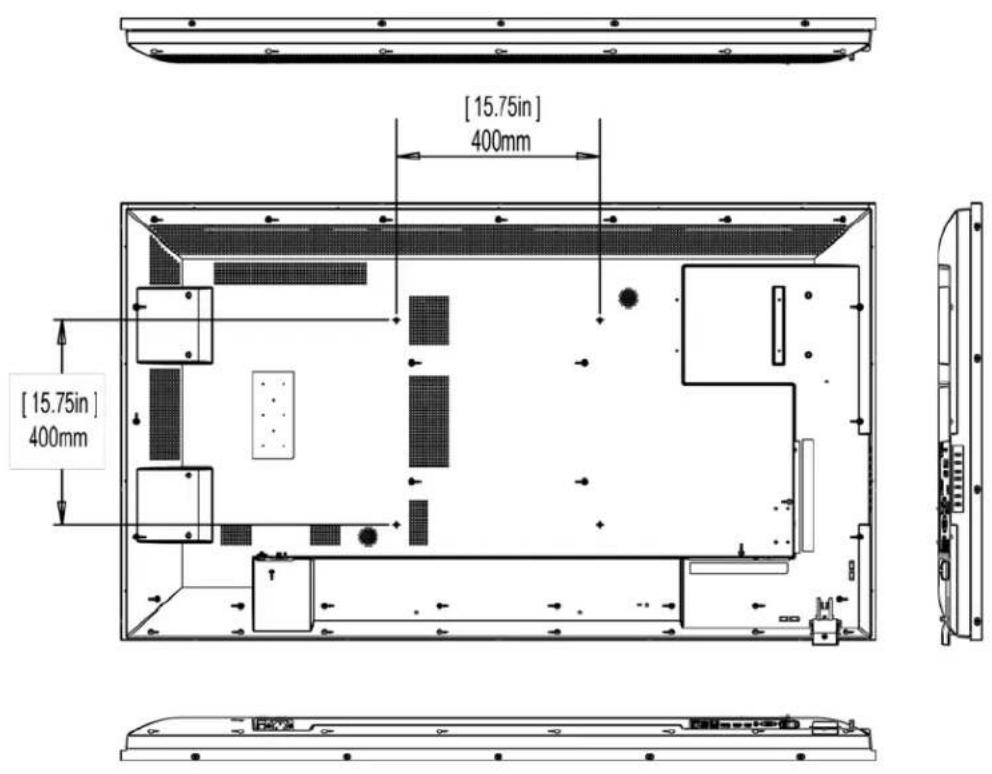
text_image
[15.75in] 400mm [15.75in] 400mmTroubleshooting
Before calling service personnel, please check the following table for a possible cause of the problem you are experiencing. Please note the following:
- Perform the adjustments according to "Operating the Display" on page 18.
- If the problem you are experiencing is not described below, or you cannot correct the problem, stop using the display and contact Planar's Technical Support Department. See "Accessing the Planar Technical Support Website" on page 69.
| Issue | Check for the following |
| No image is displayed | Make sure the correct source is selected. |
| Make sure the main power switch is ON. | |
| Check that the source equipment is operating correctly. | |
| Make sure the input signal is compatible with this display. | |
| The image is not centered | Make sure the input signal is compatible with this display. |
| The remote control doesn't work | Make sure the batteries are new and installed correctly.Ensure the remote is aimed at the IR sensor. |
| Make sure the remote control sensor is plugged in correctly. | |
| Make sure the remote is aimed towards the back of the display where the sensor is located. | |
| The picture color looks poor | Check the picture settings.Reset the display |
Accessing the Planar Technical Support Website
Go to http://www.planar.com/support/ to locate the following support documents and resources:
- User Guide
• RS232 User Manual
• Standard Warranties
• Planar support hotline number and email
Index
A
Accessory Kit, 14
Adjust
Volume, 28
Advanced Settings, 23, 42, 47
Android Settings Menu, 48
Audio, 34
Audio Compatibility, 51
Audio Settings, 33
B
Batteries, 13
C
Cable Clips, 13
Installing, 14
Cable Length Recommendations, 17
Cleaning the Display, 11
Color Subsampling Support, 59
Configuration 1, 36
Configuration 2, 23, 40, 42, 47
Cooling Requirements, 9, 16
D
Definition, 30
Dimensions, 62
E
External Control, 56
H
HDMI
Installing the Display, 17
Package contents, 12
|
Image Compatibility, 51
Important Waste Disposal Information, 9
information, 47
Input Menu. 29
Installing the Display, 16
L
LED Indicators, 21
Locking, 27
M
Menus
Audio Settings, 29
Basic Settings, 29
Display Settings, 29
N
Normal Usage Guidelines, 9
0
Operating the Display, 18
OSD Keypad, 18
P
Package Contents, 12
Plan Your Installation
Install, 16
R
Remote Control Receiver, 19, 20
S
Safety, 6
Safety Instructions, 7
Signal Compatibility, 57
T
Temporary Image Retention, 8
Troubleshooting, 68
U
Unlocking, 27
V
VESA Mounts, 10
Volume, 18, 28, 33
W
Warranty Coverage, 8
What is Temporary Image Retention?
Image Retention, 8