GCS1934M - KVM Switch IOGEAR - Free user manual and instructions
Find the device manual for free GCS1934M IOGEAR in PDF.


User questions about GCS1934M IOGEAR
0 question about this device. Answer the ones you know or ask your own.
Ask a new question about this device
Download the instructions for your KVM Switch in PDF format for free! Find your manual GCS1934M - IOGEAR and take your electronic device back in hand. On this page are published all the documents necessary for the use of your device. GCS1934M by IOGEAR.
USER MANUAL GCS1934M IOGEAR
IOGEAR's GCS1932M/1934M 2/4-Port 4K DisplayPort KVMP Switch with Dual Video Out and RS-232 takes a giant leap forward in KVM switch functionality by combining KVM switch with a DisplayPort video interface, 2-Port USB 3.1 Gen1 hub and 2.1 channel audio for rich bass in surround sound. DisplayPort technology provides up to 4K DCI - 4096 x 2160 @60Hz resolution that displays the most vivid high definition images available while delivering premium sound for music, movies, and gaming.
GCS1932M/1934M allows users to access two or four DisplayPort computers from a single USB keyboard, USB mouse, HDMI and/or DisplayPort monitor(s). In addition to the front panel pushbuttons, hotkeys, and RS-232 commands, IOGEAR's GCS1932M/1934M offers the latest mouse port-switching functionality to change ports. Power ON detection feature also ensures that if one computer is powered OFF, the GCS1932M/1934M will automatically switch port to the next powered ON computer.
With built-in USB 3.1 Gen1 hub, each connected computer has SuperSpeed 5Gbps transfer rate to all connected peripherals. GCS1932M/1934M's independent (asynchronous) switching feature allows the KVM to focus on one computer while the USB peripheral focus on another. This eliminates the need to purchase separate USB hub or stand-alone peripheral sharing device – such as printer server, modem splitter, etc.
IOGEAR's GCS1932M/1934M's built-in MST hub receives DisplayPort 1.2 signals from the source device, independently splits and routes the video signals to multiple monitors.
Featuring a revolutionary combination of 4K resolutions, the next generation USB 3.0 Hub, and enhanced user-friendly operation, IOGEAR's GCS1932M/1934M provides the latest innovations in desktop KVM technology.
Package Contents
GCS1932M/1934M
1 x GCS1932M/ GCS1934M
2/4 x DisplayPort Cables
2/4 x USB 3.0 Cable Set
2/4 x Audio Cables
1 x Power Adapter
1 x User Manual
Please verify that all components are present and nothing was damaged in shipping. If you encounter a problem, contact your dealer.
Read this manual thoroughly and follow the installation and operation procedure to prevent any damage to the unit, and/or any of the devices connected to it.
Features
- 2 (GCS1932M) or 4 (GCS1934M)-Port DisplayPort KVMP Switch with USB 3.1 Gen1 hub and 2.1 surround sound audio
- One USB console controls two (GCS1932M) or four (GCS1934M) computers and two USB 3.0 peripherals
- Computer selection via front panel pushbuttons, hotkeys, mouse ^1 , and RS-232 ^2
- Independent switching of KVM, USB, and Audio focus
- Superior 4K video quality – 4K DCI (4096x2160 @60Hz)
- Dual-Mode DisplayPort (DP++) supports HDMI and DVI adapters ^3
• 2-Port USB 3.0 Hub with SuperSpeed 5Gbps transfer rate - DisplayPort 1.2 compliant and HDCP compliant
• Supports HD audio through DisplayPort
• Full bass response for high quality 2.1 channel surround sound systems - Power On Detection – if a computer is powered OFF, GCS1932M/1934M automatically switches to the next powered ON computer
- Hot pluggable – add or remove computers without turning GCS1932M/1934 power OFF
- Mouse emulation or bypass feature supports most mouse drivers and multifunction mice
- Multi-platform support
- Multilingual keyboard mapping supports English, French, and German keyboards
• Mac ^® keyboard support and emulation ^4
• Auto Scan Mode feature to monitor all computers - Firmware upgradeable
Note:
- Mouse port switching supported by mouse emulation mode using a USB 3-button mouse wheel.
- DB9 to RJ-11 cable not included
- DP++ active adapters are recommended if you are unsure of the video source's DP++ compatibility.
- PC keyboard combinations emulate Mac ^® keyboards. Mac ^® keyboards only work using their own Operating System.
Requirements
Console
• 1 DisplayPort or HDMI monitor capable of the highest possible resolution
- 1 USB mouse
- 1 USB keyboard
- Microphones and speakers (optional)
Computers
- DisplayPort port*
- USB Type-A port
• Audio ports (optional)
Cables
Use only the included IOGEAR DisplayPort KVM cable sets, designed specifically to work with the GCS1932M/1934M.
Note:
The quality of the display is affected by the quality and length of the cables. If you need additional cable set, please contact your dealer or IOGEAR to purchase IOGEAR approved cables.
*DisplayPort 1.1 PC source will result in mirror displays on 2 monitors. DisplayPort 1.2 MST PC source may result in extend displays on 2 monitors. Certain graphic cards support up to 3 monitors with resolution on each monitor adjusted
| OSVersion | ||
| Windows | 7 / 10 and higher | |
| Linux | RedHat 9.0, Fedora and higher, RHEL AS 4, RHEL 5 | |
| SuSE 10 / 1 | 1.1 and higher; OpenSUSE 10.2; SLES 10 SP1 | |
| Debian | 3.1 / 4.0 | |
| Ubuntu | 7.04 / 7.10 and higher | |
| Unix | IBM AIX | 4.3 / 5L (V5.2, V5.3) / V6 (V6.1) |
| FreeBSD | 5.5 / 6.1 /6.2 | |
| Novell | Netware 6.0 / 6.5 | |
| Mac | OS 10.1 / 10.2 / 10.3 / 10.4 / 10.5 / 10.7 / 10.8 and higher | |
Overview
GCS1932M Front View
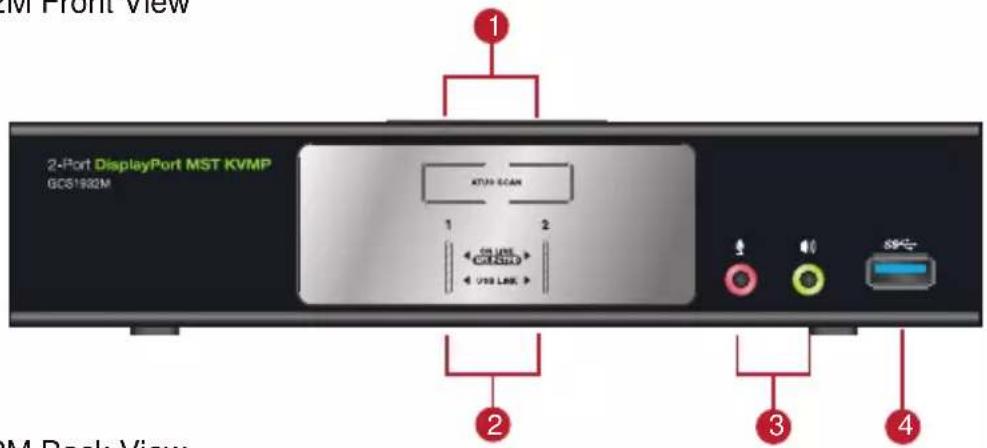
text_image
2-Port DisplayPort MST KVMP GCS1932M ATJ30 SCAN 1 2 ON LIME ON LIME USB LIME 2 3 4 AM Back ViewGCS1932M Back View
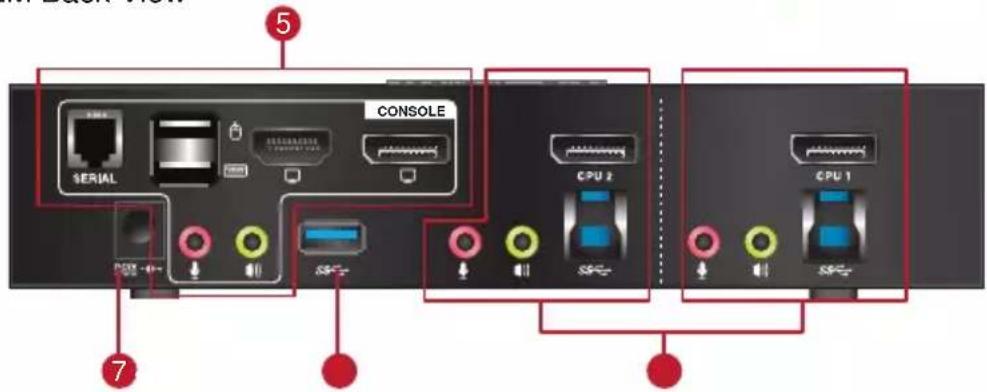
text_image
5 CONSOLE SERIAL CPU 2 CPU 1 7 SP-
text_image
GCS1934M Front View 4-Port DisplayPort MST KVMP GCS1934M AUTO SCAN KM RESET 1 2 3 4 ON LINE CONTROL USB LINK 2 3 4GCS1934M Back View

text_image
5 CONSOLE SERIAL CPU 4 powertrain CPU 3 CPU 2 powertrain CPU 1 7 4 6| No. | Component Description |
| 1 | Port Selection Pushbuttons |
| 2 | Port LEDs The Port LEDs are built into the Port Selection Pushbuttons. The upper LEDs are KVM Port LEDs, the lower LEDs are the USB LEDs:KVMONLINE LED lights DIM ORANGE to indicate that the computer attached to the corresponding port is connected.Selected LED lights BRIGHT ORANGE to indicate that the computer attached to the corresponding port is the one that has the KVM FOCUS (Selected).LED flashes to indicate that the computer attached to its corresponding port is being accessed under Auto Scan Mode.USBSelected LED lights GREEN to indicate that the computer plugged to its corresponding port has the access to the USB Peripherals. |
| 3 | Audio Ports The cables from the main microphone and speakers are to be connected into these audio ports microphone and speakers connected into these audio ports have priority over those connected in the rear side panel of the GCS1932M/1934M. |
| 4 | USB 3.0 Hub USB peripherals (printers, scanners, etc.) can be connected into this port. The built-in USB 3.0 ports feature 5 Gbps data transfer rates for compatible USB peripherals. |
| 5 | Console Ports The cables from the DisplayPort monitor, USB keyboard, USB mouse, speakers, and microphone are connected into these ports. Connect RJ-11 cable to the serial port for RS-232 command control. Each connector is marked with an appropriate icon to indicate its use. |
| 6 | KVM Ports The KVM cables that the computers to the GCS1932M/1934M are connected into these ports. Each KVM port section is comprised of a microphone jack, speaker jack, USB type B socket and a DisplayPort connector. |
| 7 | Power Jack The power adapter cable is connected into this jack. |
Hardware Installation
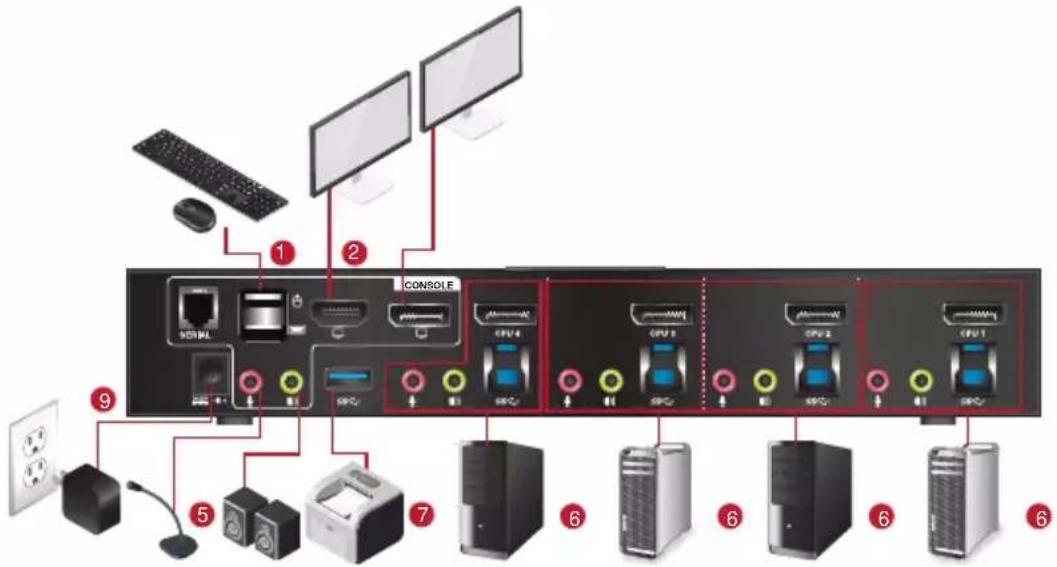
Please make sure that all devices including the GCS1932M/1934M, DisplayPort monitor, and computers are powered OFF
- Connect the USB keyboard and the USB mouse to the GCS1932M/1934M Console ports located on the rear side panel.
- Connect the HDMI and/or DisplayPort monitor(s) to the GCS1932M/1934M Console ports located on the rear side panel. For multiple monitor setups, see Display Modes section.
- Turn monitor(s) power to ON.
- Connect the main microphone and speakers into the GCS1932M/1934M microphone and speaker jacks located on the front side panel. The microphone and speakers connected into this front port have priority over those connected on the rear port. (optional)
-
Connect the secondary microphone and speakers into the GCS1932M/1934M Console microphone and speaker jacks located on the rear panel. (optional)
-
Using the provided cables with this package,
a. Connect the provided DisplayPort connector into any available DisplayPort port in the KVM Port section of the GCS1932M/1934M
b. Connect the provided USB, microphone, and speaker connector into their corresponding USB, microphone, and speaker ports on the GCS1932M/1934M
c. Connect the other end of the KVM cables into their respective DisplayPort, USB, microphone, and speaker ports on the computers -
Connect up to two USB peripherals into the USB 3.0 type A ports (front and rear panel of the GCS1932M/1934M).
-
Connect the provided power adapter to an AC power source. Then, connect the power adapter cable into the GCS1932M/1934M power jack.
-
Turn all connected computers power to ON
Note:
Verify that all the connectors are on the same KVM Port sockets (all in Port 1, all in Port 2, etc.) and that each socket is marked with an appropriate icon to indicate itself.
By default, the GCS1932M/1934M switches to the first computer that is powered ON. We recommend that the total video cable length from the computer to the console monitor cannot exceed 3 meters.
Please make sure that only high quality video cables used in order to achieve 4K DCI (4096 x 2160 @60Hz) resolution.
GCS1932M

text_image
Diagram of computer setup with labeled components including console, monitor, keyboard, and tower
text_image
3-Port DisplayPort MST KVMP GOS1922M 4 4 4 6MHz HDD 7GCS1934M
text_image
Diagram showing network device connections with labeled components including console, CPU, and monitor ports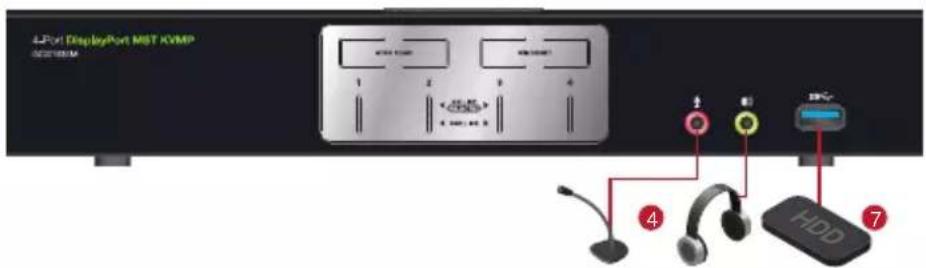
text_image
4Port DisplayPort MIST KVMP MSTVSPROM 1 2 3 4 + - - + - - + - - + - - HDD ④ ⑥ ⑦Basic Operation
There are four convenient methods to access the computer:
a. Manual – involves pressing the port selection pushbuttons located on the GCS1932M/1934M's front panel.
b. Hotkey – involves entering combinations from the keyboard (see Hotkey Operation section for details).
c. Mouse – involves pressing the mouse wheel button (clicking it twice) to switch between ports (see Mouse Emulation and Mouse Port Switching section for more details).
d. RS-232 Commands – involves connecting the KVM to the computer via serial port. (Commands available on separate RS-232 Commands Manual)
For Manual Port Selection:
- Press and release a port selection pushbutton to bring the focus of the KVM focus to the computer attached to the corresponding port. USB and Audio focus do not change – they stay with the port that they are already on.
- Press a port selection pushbutton twice to bring the audio focus to the computer attached to its corresponding port.
- Press and hold a port selection pushbutton for more than 2 seconds to bring the KVM focus, plus the USB and Audio focus to the computer attached to its corresponding port.
- Press and hold port selection pushbutton 1 and 2 for more than 2 seconds to start Auto Scan Mode (see Auto Scan Mode section for more details).
- Press and release either port selection pushbutton to stop Auto Scan Mode. The KVM focus goes to the computer attached to the corresponding port of the switch you pressed.
Hot Plugging
The GCS1932M/1934M support USB hot plugging – components can be removed and added back into the installation by unplugging their cables from the USB hub ports, without the need to shut the unit down.
Powering OFF and Restarting
If it becomes necessary to Power OFF the GCS1932M/1934M, before switching it back ON, you must follow below steps:
- Shut down or Power OFF all computers that are attached to the GCS1932M/1934M.
- Unplug the GCS1932M/1934M power adapter cable.
- Wait for 10 (ten) seconds, then plug the GCS1932M/1934M power adapter cable back into the unit.
- After the GCS1932M/1934M turns ON, power ON all the attached computers.
Port ID Numbering
Each KVM port section on the GCS1932M/1934M is assigned a port number
1 or 2 for the GCS1932M
1, 2, 3, or 4 for the GCS1934M
The port numbers are marked on the rear panel of the GCS1932M/1934M.
The Port ID of a computer is derived from the KVM port number it is connected to. For example, a computer connected to KVM port 2 has a Port ID of 2.
The Port ID is used to specify which computer gets the KVM, USB peripheral, and audio focus with the Hotkey port selection method (see Hotkey Operation for details).
Alternative Manual Port Selection Settings
When Hotkey Setting Mode has been activated, pressing [S] will invoke the alternative front panel pushbutton manual port selection functions as follows:
- Press a port selection pushbutton once to bring the KVM, audio and USB focus to the computer attached to its corresponding port
- Press a port selection pushbutton twice to bring the audio focus to the computer attached to its corresponding port
- Press and hold a port selection pushbutton for more than 2 seconds to bring only the KVM focus to the computer attached to its corresponding port
- Press and hold port selection pushbuttons 1 and 2 for more than 2 seconds to start Auto Scan Mode (see Auto Scan Mode for details)
Display Setup
Single Monitor
a. Connecting a display to the DisplayPort port:

text_image
CONSOLE SEMIAL CPU 1 CPU 1b. Connecting a display to the HDMI port:

text_image
CONSOLE SERIAL PS CPU x CPU tNote: The optimum resolution for single monitor installation is 4K DCI 4096 x 2160 @60Hz
Dual Monitor DisplayPort 1.1
DisplayPort 1.1 PC Source allows for 2 monitor duplicate/mirror
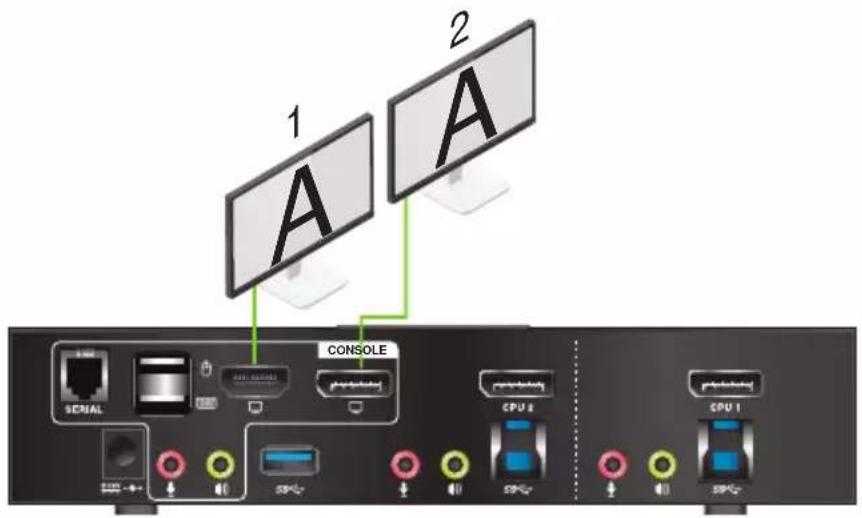
text_image
1 2 1 A CONSOLE SENIAL PHARMACEUTICAL CPU 8 PHARMACEUTICAL CPU 1Note: The optimum resolution for DisplayPort 1.1 Mirror Mode is 4K UHD 3840 x 2160 @30Hz
Dual Monitor DisplayPort 1.2

text_image
1 2 1 A CONSOLE SERIAL CPU 2 CPU 1DisplayPort 1.2 MST PC Source allows for both mirror and extended display.
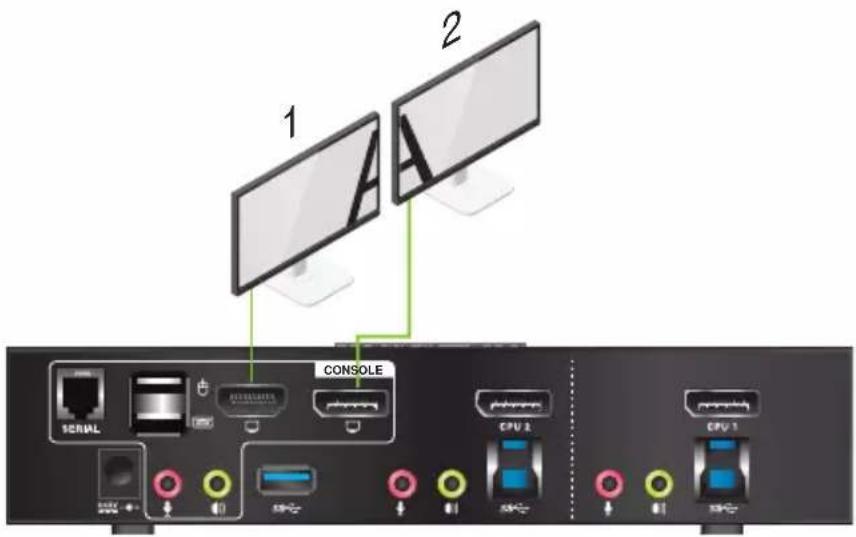
text_image
1 2 CONSOLE SERIAL CPU 2 CPU 1Note: The optimum resolution for two monitors in MST mode is 4096 x 2160 @ 30Hz
Certain DisplayPort 1.2 graphic cards support up to 3 monitors setup
A third monitor can be added to split the DisplayPort 1.2 signal, shown below:
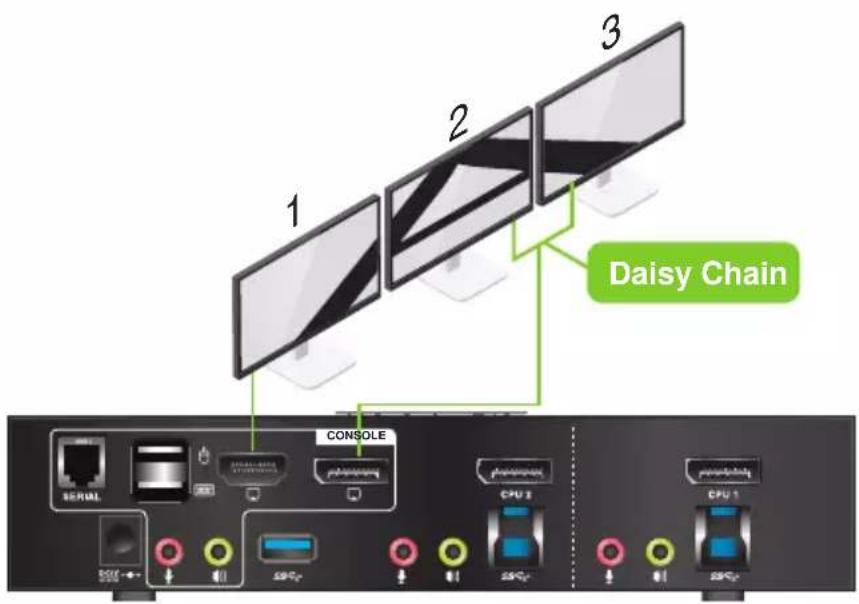
text_image
1 2 3 Daisy Chain CONSOLE SERIAL CPU 1 CPU 2 50°C 50°C 50°CNote: The optimum resolution for three monitors will depend on the bandwidth shared between the displays
Hotkey Operation
IOGEAR's GCS1932M/1934M provides an extensive, easy-to-use, hotkey function for convenience in controlling and configuring KVM installation from the keyboard. Hotkeys provide asynchronous (independent) switching of the KVM, USB hub, and audio focus. Therefore, users can give one computer the KVM focus, another the USB hub focus, while a third has the audio focus.
Port Switching
All port switching begins by clicking [Scroll Lock] twice. The tables below describe the actions that each combination performs.
Note: If using the [Scroll Lock] key conflicts with other programs running on the computer, the [Ctrl] key can be used, instead. See Alternate Port Switching Key for details.
Cycling Through the Ports
| Hotkey Function | |
| [Scroll Lock][Scroll Lock][Enter] | Brings the KVM, USB hub, and Audio focus to the next higher port (1 to 2; 2 to 3; 3 to 4; 4 to 1).Note:The KVM, USB hub, and Audio focus all go to this port even if they were on different ports to begin with. |
| [Scroll Lock][Scroll Lock][K][Enter] Brings | only the KVM to the next higher port.The USB and audio focus remain where they are. |
| [Scroll Lock][Scroll Lock][U][Enter] Brings | only the USB to the next higher port*The KVM and audio focus remain where they are. |
| [Scroll Lock][Scroll Lock][S][Enter] Brings | only the Audio to the next higher portThe KVM and USB hub remain where they are. |
Going Directly to a Port
| Hotkey Function | |
| [Scroll Lock][Scroll Lock][n][Enter] | Brings the KVM, USB hub, and Audio focus to computer attached to [n] port.[n] stands for the computer's Port ID number. Replace [n] with the appropriate Port ID when entering hotkey combinations.Note:The KVM, USB hub, and Audio focus all go to this port even if they were on different ports to begin with. |
| [Scroll Lock][Scroll Lock][n][K][Enter] Brings only the KVM to the computer on [n] port The USB hub and audio focus remain where they are. | |
| [Scroll Lock][Scroll Lock][n][U][Enter] Brings only the USB hub focus to the computer on [n] port. The KVM and audio focus remain where they are. | |
| [Scroll Lock][Scroll Lock][n][S][Enter] Brings only the Audio to the computer on [n] port The KVM and USB hub focus remain where they are. | |
| [Scroll Lock][Scroll Lock][n][K][U][Enter] | Brings the KVM and the USB hub focus to the computer on [n] port. The audio focus remain where it is. |
| [Scroll Lock][Scroll Lock][n][K][S][Enter] | Brings the KVM and Audio focus to the computer on [n] port. The USB hub focus remain where it is. |
| [Scroll Lock][Scroll Lock][n][U][S][Enter] | Brings the USB hub and Audio focus to the computer on [n] port. The KVM focus remain where it is. |
Auto Scan Mode
GCS1932M/1934M's Auto Scan feature allows you to monitor computer activities without switching from port to port manually. This feature automatically cycles the KVM focus through the computer ports at regular intervals. See table below for details.
When Auto Scan is in effect, only Auto Scan Mode compliant keystrokes and mouse clicks work. Ordinary keyboard and mouse functions are suspended. Click [Esc] or Space Bar to exit Auto Scan Mode to regain normal control of the console.
Although video focus switches from port to port, keyboard, mouse and USB focus do not switch. They remain on the port when Auto Scan began.
| Hotkey Function | |
| [Scroll Lock][Scroll Lock][A][Enter] Invokes Auto ScanThe KVM focus cycles from port to port at 5 seconds (default) intervals. | |
| [Scroll Lock][Scroll Lock][A][n][Enter] The KVM focus cycles from port to port at [n] second intervals. | |
Note:
- The [n] stands for the number of seconds that the GCS1932M/1934 should dwell on a port before moving on to the next port. Replace [n] with a number between 1 and 99 when entering this hotkey combination.
- While Auto Scan Mode is in effect, ordinary keyboard and mouse functions are suspended – only Auto Scan Mode compliant keystrokes and mouse clicks can be input. You must exit Auto Scan Mode in order to regain normal control of the console.
- Although the video focus switches from port to port, the keyboard, mouse, and USB focus do not switch. They stay at the port they were on when Auto Scanning started.
- To exit Auto Scan Mode, press [Esc] or Spacebar.
Hotkey Setting Mode
Hotkey Setting Mode is used to set up your GCS1932M/1934M switch configuration. All operations begin with invoking Hotkey Setting Mode (HSM).
To invoke HSM (Default)
- Press and hold down [Num Lock] (use [Clear] on Mac)
- Press and release [-] minus key
- Release [Num Lock] key (use [Clear] on Mac)
- To exit HSM manually, press [Esc] or Spacebar
Note:
The [-] minus key must be released within one half second, otherwise Hotkey invocation is cancelled.
When HSM is active, [Caps Lock] and [Scroll Lock] LEDs will flash in succession to indicate that HSM is in effect. They will stop flashing and revert to normal status when you exit HSM.
Only Hotkey compliant keystrokes and mouse clicks (described on Hotkey Settings Mode Summary Table) function. Ordinary keyboard and mouse functions are suspended while on HSM.
At the conclusion of some hotkey operations, you can automatically exit hotkey mode. With some operations, you must exit manually by pressing [Esc] or Spacebar.
Alternate HSM Invocation Keys
In some instances, the default hotkey settings conflict with programs running on your computer and in some instances the default hotkeys either do not exist on your keyboard (Mac keyboards do not have [Scroll Lock]), or are inconvenient to use, Hotkey Setting Mode allows you to select alternate configurations for the KVM's hotkeys. An alternate set of HSM invocation keys is provided in case the default set conflicts with programs running on the computers.
On Alternate HSM, the HSM invocation keys become the [Ctrl] key (instead of Num Lock) and [F12] (instead of [-] minus key)
To switch to the Alternate HSM invocation set:
- Invoke Default HSM above
- Press and release [H]
Note:
This procedure is a toggle between the two methods. To revert back to the original HSM invocation keys, invoke HSM, then press and release [H] key again.
Alternate Port Switching Keys
The port switching activation keys can be changed from clicking [Scroll Lock] key twice ([Scroll Lock][Scroll Lock]) to clicking [Ctrl] key twice ([Ctrl][Ctrl]).
To change the port switching activation keys:
- Invoke HSM
- Press and release [T] key
Note:
This procedure is a toggle between the two methods. To revert back to the default [Scroll Lock][Scroll Lock] method, invoke HSM, then press and release [T] key again.
List Switch Settings
To see a listing of the current switch settings:
- Open a text editor or word processor and place the cursor in the page window
- Invoke HSM
- Press and release [F4] to display the settings
USB Reset
If the USB loses focus and needs to be reset:
- Invoke HSM
- Press and release [F5]
Keyboard Language
To change the keyboard language:
- Invoke HSM
- Press [F6] [nn] [Enter]
Note: [nn] is a two-digit number that represents the keyboard language code
US English: 33
French: 08
German: 09
Hotkey Beeper
The Beeper can be hotkey toggled ON and OFF. To toggle the Beeper:
- Invoke HSM
- Press and release [B]
The Beeper toggles ON or OFF
Port Switching Keys
To disable the Port Switching Keys ([Scroll Lock][Scroll Lock]) or ([Ctrl][Ctrl]):
- Invoke HSM
- Press [X] [Enter]
Note: This procedure is a toggle. To enable the Port Switching keys, repeat Step 1 and 2
Firmware Upgrade Mode
To set the GCS1932M/1934M to Firmware Upgrade Mode:
- Invoke HSM
2.Key in [u][p][g][r][a][d][e] - Press [Enter]
The front panel LEDs will flash to indicate the Upgrade has started
Note: To exit Firmware Upgrade Mode, you must power OFF the GCS1932M/1934M
To reset the GCS1932M/1934M to its default hotkey settings:
- Invoke HSM
- Press [R][Enter]
Alternative Manual Port Selection
To toggle between the default and the alternative front panel pushbutton manual port selection settings:
- Invoke HSM
- Press [S]
This procedure is a toggle. Repeat to revert to the original setting. See Alternative Manual Port Selection for more information
Power on Detection
With Power on Detection, if the focus computer is powered OFF, the GCS1932M/1934M will automatically switch to the next powered ON computer. Power on Detection can be enabled or disabled. The default setting is enabled. To disable Power on Detection:
- Invoke HSM
- Press and release [E]
This procedure is a toggle. Repeat to revert to the original setting
Monitor Re-detection
If the monitor's display shows blank, use the following hotkey combination to re-detect the monitor's EDID. Monitor re-detection can be enabled or disabled. The default setting is disabled. To enable monitor re-detection, follow below steps:
- Invoke HSM
- Press [Q] [n] [Enter]
[n] is a one-digit number that represents the port number:
n is 1 - 2 for GCS1932M, n is 1 - 4 for GCS1934M
This procedure is a toggle. Repeat to revert to the original setting.
Mouse Emulation
To toggle between mouse emulation enabled and disabled:
- Invoke HSM
- Press [M]
- This procedure is a toggle. Repeat to revert to the original setting.
Mouse Port Switching
Mouse Port Switching allows you to use the mouse wheel button (clicking it twice) to switch between ports. Mouse Emulation (above) must be enabled in order for Mouse Port Switching to work. To toggle between mouse port switching enabled and disabled:
- Invoke HSM
- Press [W]
This procedure is a toggle. Repeat Step 1 and 2 to disable Mouse Port Switching
Note: This feature is only supported by 3-key USB scroll wheel mice. The default setting is OFF. This feature is only supported when mouse emulation is also enabled.
Keyboard Emulation
Console keyboard port emulation/bypass feature supports most gaming/multimedia keyboards. The default setting is enabled. To disable:
- Invoke HSM
- Press [N]
This procedure is a toggle. Repeat Step 1 and 2 to enable Keyboard Emulation
Note: When keyboard emulation is disabled, the [M], [W], [F2], [F3], [F4], [F5], [F6], and [F10] are also disabled
SPC Mode
To set the keyboard/mouse to use SPC mode so that it can work under special operating systems as a standard (104 key) keyboard/mouse:
- Invoke HSM
- Press [F1]
Keyboard Operating Platform
IOGEAR's GCS1932M/1934M default port configuration is for PC compatible keyboard operating platform. If your console uses a PC compatible keyboard and you have a Mac or Sun computer attached to GCS1932M/1934M, you can change the port's Keyboard Operating Platform configuration so that the PC compatible keyboard emulates Mac keyboard, by
- Bring the KVM focus to the port you want to set
- Invoke HSM
- Press and release the appropriate Function keys listed on table below
| Key Function | |
| [F1] To set the keyboard/mouse in SPC mode so it works under special operating system as a standard (104 key) keyboard/mouse | |
| [F2] Enables Mac keyboard emulation, see Mac Keyboard Emulation. | |
| [F10] Disables keyboard emulation. Key presses are passed straight through. You're your console uses a Mac keyboard to access a Mac attached to a port, for example. Automatically detects and sets the keyboard operating platform. |
- You will automatically exit HSM once this procedure is completed
Hotkey Settings Mode Summary Table
| Key Function | |
| [B] Enables/Disables the beeper/buzzer | |
| [E] Enables/Disables Power ON Detection feature | |
| [H] Toggles between the default combination([Num Lock][-]) and alternate combination ([Ctrl][F12]) | |
| [M] Enables/Disables mouse emulation | |
| [N] Enables/Disables keyboard emulation | |
| [Q][n][Enter] Enable/Disables monitor re-detection on port [n] | |
| [R][Enter] Resets the hotkey settings to their default statuses | |
| [S] Toggles between the default and alternate manual port selection pushbutton settings | |
| [T] Toggles between the default combination ([Scroll Lock][Scroll Lock]) and alternate combination ([Ctrl][Ctrl]) | |
| [u][p][g][r][a][d][e] Invokes Firmware Upgrade Mode | |
| [W] Enables/Disables mouse port-switching | |
| [X][Enter] Enables/Disables the port switching keys | |
| [F1] Allows the keyboard/mouse to work under special operating systems as a standard (104 key) keyboard/mouse | |
| [F2] Enables Mac keyboard emulation | |
| [F4] Lists current switch settings via Paste function of a text editor | |
| [F5] Performs a reset on all USB devices | |
| [F6][nn][Enter] Sets the keyboard languageNote: nn is a two-digit number that represents one of the following keyboard language code:US English:33French:08German:09 | |
| [F10] Automatically detects and sets the keyboard operating platform | |
Mac Keyboard Emulation
The PC compatible (101/104 key) keyboard can emulate the functions of Mac keyboard. The emulation mapping are listed in table below (follow GCS1932/1934 Manual)
| Pc Keyboard Mac Keyboard | |
| [Shift] Shift | |
| [Ctrl] Ctrl | |
 |  |
| [Ctrl][1] |  |
| [Ctrl][2] |  |
| [Ctrl][3] |  |
| [Ctrl][4] |  |
| [Alt] Alt | |
| [Print Screen] F13 | |
| [Scroll Lock] F14 | |
 | [1447] |
| [Enter] Return | |
| [Backspace] Delete | |
| [Ctrl] [BKXH] |
Note: When using key combinations, press and release the first key [Ctrl], then press and release the activation key.
Firmware Upgrade Configuration
GCS1932M/1934M Windows based Firmware Upgrade Utility (FWUpgrade.exe) provides a smooth-automated process for firmware upgrade.
The Utility comes as part of a Firmware Upgrade Package that is specific for each device. New firmware upgrade packages are posted on our IOGEAR.COM website, as new firmware revisions become available. Please check the website regularly to find latest packages and information relating to firmware revisions and upgrades.
Before Starting Firmware Upgrade
In order to perform a firmware upgrade, use a computer that is not connected to the GCS1932M/1934M. To set GCS1932M/1934M to Firmware Upgrade Mode:
- From a computer that is not part of the KVM installation, go to www.iogear.com/product/GCS1932M or www.iogear.com/product/GCS1934M to get a list of available Firmware Upgrade Packages
- Choose the Firmware Upgrade Package (usually the most recent one), and download it to a computer that is not part of the KVM installation.
- Disconnect the GCS1932M/1934M from the KVM installation and power the switch OFF.
- Connect one of the USB DisplayPort KVM cable set's Type A USB connectors to a USB Type A port on the computer that is not part of your KVM installation.
- At the other end of the cable set, connect the USB Type B connector to the Type B USB port in Port 1 KVM section on the GCS1932M/1934M.
Note: The USB DisplayPort KVM cable set's USB Type B connector can be connected to any USB Type KVM Port Section, but the Port Selection pushbutton in Step 6 below must be Port 1
-
Press and hold Port 1 selection pushbutton.
-
While holding Port 1 selection pushbutton, connect the power adapter to the GCS1932M/1934M to enter Firmware Upgrade Mode.
-
The front panel LEDs will flash together, indicating Firmware Upgrade Mode is in effect.
Starting Firmware Upgrade
- Run the downloaded Firmware Upgrade Package file – either by double clicking the file icon, or using a command line to enter the full path.
| Name | Date modified | Type | Size |
| GCS1932M_34M_v1.0.063 | 8/15/2016 11:42 AM | Application | 649 KB |
- The Firmware Upgrade Utility Welcome screen appears.
- Read the License Agreement and click "I Agree" button and click "Next".
- The Firmware Upgrade Utility main screen appears. The Utility inspects your installation. All the devices capable of being upgraded by the package are listed in the Device List panel.
- As you select a device from the list, the device's description appears in the Device Description panel. After you have made your device selection(s), Click "Next" to perform the upgrade.
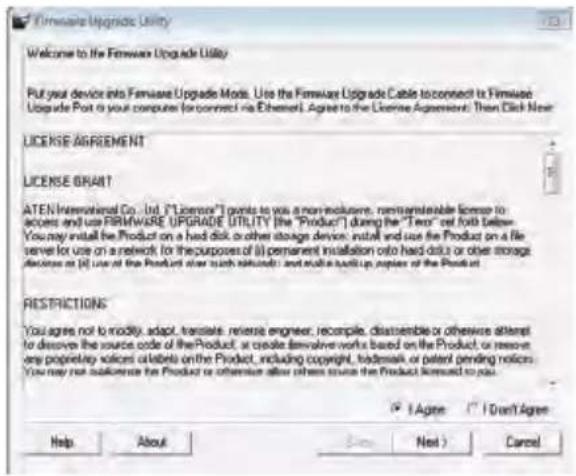
text_image
Firmware Upgrade Utility Welcome to the Firmware Upgrade Utility Put your device into Firmware Upgrade Mode. Use the Firmware Upgrade Cable to connect to Firmware Upgrade Post or your computer (or connect via Ethernet). Agree to the License Agreement: Then Click Now LICENSE AGREEMENT LICENSE GRAIT ATEN International Co., Ltd. ("Licensor") points to use a non-inclusive, noninstandable license to access and use FIRMWARE UPGRADE UTILITY (the "Product") during the "Text" on both sides. You may install the Product on a hard disk or other storage device, install and use the Product on a file server for use on a network (for the purposes of it) permanent installation onto hard disk or other storage devices at [4] use of the Product over such instructions and could not apply copies of the Product. RESTRICTIONS You agree not to modify, adapt, translate, reverse engineer, recompile, disassemble or otherwise attempt to dissolve the source code of the Product, or create derivative works based on the Product, or resist any proprietary solicitation or labels on the Product, including copyright, trademarks or patent pending notices. You may not enhance the Product or otherwise offer others since the Product licensed to pay. ✓ I Agree ✓ I Don't Agree Help About Next Cancel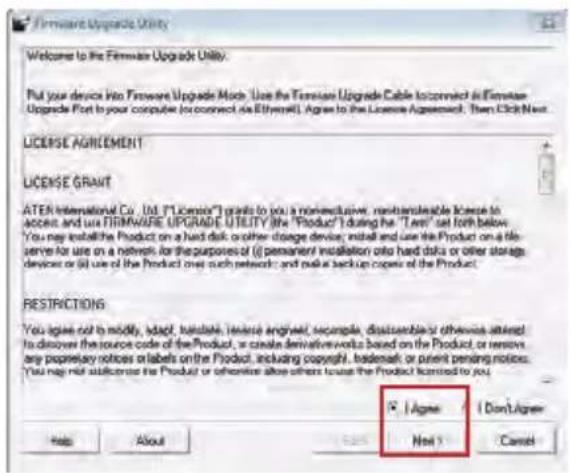
text_image
Firmware Upgrade Utility Welcome to the Firmware Upgrade Utility. Put your device into Firmware Upgrade Mode. Use the Firmware Upgrade Cable to connect in Firmware Upgrade Port to your computer (or connect via Ethernet). Agree to the License Agreement. Then Click Next. LICENSE AGREEMENT LICENSE GRANT ATEN International Co. Ltd. (FLICO) grants to you a nonexclusive, restorable license to accept and use FIRMWARE UPGRADE UTILITY (the "Product") during the "Last" set forth below. You may install the Product on a hard disk or other storage device; install and use the Product on a file server for use on a network for the purposes of (i) permanent installation onto hard disk or other storage devices or (ii) use of the Product over such networks; and make a backup copies of the Product. RESTRICTIONS You agree not to modify, adapt, translate, translate agreed, example, disassemble or otherwise attract to discover the source code of the Product, or create derivative works based on the Product, or restore any proprietary notices or labels on the Product, including copyright, trademark or patent pending notices. You may not subscribe the Product or otherwise allow others to purchase the Product licensed to you. ☑ | Agree | Don't Agree Next > Help About Cancel
text_image
If Check Firmware Version is checked, the utility compares the device's firmware level with the upgrade tiles. If the device's version is never, the utility lets you decide whether to continue or not. It is not checked, the utility performs the upgrade directly. Click Next to begin Device List DP MST KVM(MAIN) 000 Device Description Status Messages: > Loading & testing tiles > Loading & testing tiles: OK * Using Windows Check Firmware Version Process Help View Log ( Back ) Next > Cancel- If you enabled Check Firmware Version, the Utility compares the device's firmware level with that of the upgrade files. If the device's version is higher than the upgrade version, a dialog box below will give you the option to Continue or Cancel.
- If you did not enable Check Firmware Version, the Utility installs the upgrade files without checking whether they are of higher level, or not.
- As the Firmware Upgrade proceeds, a vstatus message will appear in the Status Messages panel, and the progress toward completion is shown on the Progress bar.
- After the upgrade has completed, a screen appears to inform you that the procedure was successful. Click Finish to close the Firmware Upgrade Utility.
- After a successful completion, the GCS1932M/1934 will exit the Firmware Upgrade Mode and resets itself.

text_image
Warning The firmware (Ver 1.0.062) is not newer than current firmware (Ver 1.0.062) in device DP MST KVM (MAIN): 000 Continue the upgrade? (Yes/No) Yes No
text_image
If Check Firmware Version is checked, the utility compares the device's firmware level with the upgrade files. If the device's version is never, the utility lets you decide whether to continue or not. It is not checked, the utility performs the upgrade directly. Click Next to begin Device List DP BIST AVR (MAIN) 008 Device Description CPU: 9021/52 Device F/W: Ver 1.0.961 Upgrade F/W: Ver 1.1.102 MID: 000 Status Messages > Loading & testing files ... > Loading & testing files: OK > Searching for devices ... > Preparing firmware upgrade ... > Preparing firmware upgrade: OK > Upgrade by: Display CURRENT Siena Hardware Help Progress Help View Log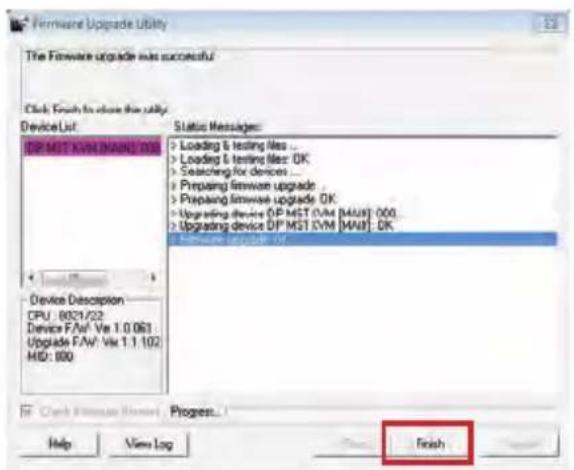
text_image
Firmware Upgrade Utility The Firmware upgrade was successful Click Finish to close this utility Device List: DP MST EVM NAME 108 Status Messages: Loading & testing files ... Loading & testing files: OK Searching for devices ... Preparing firmware upgrade ... Preparing firmware upgrade OK Upgrading device DP MST EVM [MAU]: 000 Upgrading device DP MST EVM [MAU]: OK Device Description CPU : 8021/22 Device FAW: Vdc 1.0.063 Upgrade FAW: Vdc 1.1.102 MID: 000 Maintenance Update -108 Check Version Status Progress... Finish Help View LogFirmware Upgrade Fail
If the Upgrade Succeeded screen does not appear, this means that the upgrade failed to complete successfully. If this occurs, repeat the upgrade procedure from the beginning (see Before Starting Firmware Upgrade).
| Function CS1932M CS1934M | ||||
| Connections | Computer 2 4 | |||
| Console 1 | ||||
| Port Selection Pushbuttons, Hotkey, Mouse*, RS-232 Commands | ||||
| Connectors | Console Ports | Keyboard 1 x USB Type A (Black) | ||
| Video 1 x DisplayPort (Black)1 x HDMI (Black) | ||||
| Mouse 1 x USB Type A (Black) | ||||
| Speakers 1 x 3.5 mm Mini Stereo Jack (Green; Front)1 x 3.5 mm Mini Stereo Jack (Green; Rear) | ||||
| Microphone 1 x 3.5 mm Mini Stereo Jack (Pink; Front)1 x 3.5 mm Mini Stereo Jack (Pink; Rear) | ||||
| KVM Ports | Keyboard / Mouse | 2 x USB 3.0 Type B (Blue) | 4 x USB 3.0Type B (Blue) | |
| Video | 2 x DisplayPort (Black) | 4 x DisplayPort (Black) | ||
| Speakers | 2 x 3.5 mm Mini StereoJack (Green) | 4 x 3.5 mm Mini StereoJack (Green) | ||
| Microphone | 2 x 3.5 mm Mini StereoJack (Pink) | 4 X 3.5 mm Mini StereoJack (Pink) | ||
| USB Hub | 1 x USB 3.0 Type A (Blue; Front)1 x USB 3.0 Type A (Blue; Rear) | |||
| Serial | 1 x RJ-11 Female | |||
| Power | 1 x DC Jack | |||
| Switches | Selected | 2 x Pushbutton 4 x Pushbutton | ||
| LED | On Line / Selected | 2 (Orange) | 4 (Orange) | |
| USB Link | 2 (Green) | 2 (Green) | ||
| Emulation | Keyboard / Mouse | USB | ||
| Video | Up to 4096 x 2160 @60Hz (4K DCI) | |||
| Scan Interval | 1-99 second (5 second Default) | |||
| Power Consumption | DC 5V | DC 5V | ||
| Environment | Operating Temp. | 0 - 50°C | ||
| Storage Temp. | -20 – 60°C | |||
| Humidity | 0 – 80% RH, Non-c ondensing | |||
| Housing | Metal | |||
* Mouse emulation mode must be turned on for mouse port switching with 3-button wheel USB mouse
Troubleshooting
Operation problems occur due to variety of causes. The first step in solving them is to make sure that all cables are securely attached and plugged in completely in their sockets.
In addition, updating the GCS1932M/1934M's firmware may solve problems that have been discovered and resolved since the prior version was released. If your product is not running the latest firmware version, we strongly recommend that you upgrade. See The Firmware Upgrade Utility for upgrade details.
Compliance Information
FEDERAL COMMUNICATIONS COMMISSION INTERFERENCE STATEMENT
This equipment has been tested and found to comply with the limits for a Class B digital service, pursuant to Part 15 of the FCC rules. These limits are designed to provide reasonable protection against harmful interference in a residential installation. Any changes or modifications made to this equipment may void the user's authority to operate this equipment. This equipment generates, uses, and can radiate radio frequency energy. If not installed and used in accordance with the instructions, may cause harmful interference to radio communications. However, there is no guarantee that interference will not occur in a particular installation. If this equipment does cause harmful interference to radio or television reception, which can be determined by turning the equipment off and on, the user is encouraged to try to correct the interference by one or more of the following measures:
- Reorient or relocate the receiving antenna.
- Increase the separation between the equipment and receiver.
- Connect the equipment into an outlet on a circuit different from that to which the receiver is connected.
- Consult the dealer or an experienced radio/TV technician for help.
This device complies with Part 15 of the FCC Rules. Operation is subject to the following two conditions:
- this device may not cause harmful interference, and
- this device must accept any interference received, including interference that may cause undesired operation.
FCC Caution: Any changes or modifications not expressly approved by the party responsible for compliance could void the user's authority to operate this equipment.
Limited Warranty
Warranty Information
This product carries a 3 Year Limited Warranty. For the terms and conditions of this warranty, please go to http://www.iogear.com/support/warranty
Register online at https://www.iogear.com/registration
Important Product Information
Product Model ____
Serial Number ____
Contact
WE'RE HERE TO HELP YOU! NEED ASSISTANCE SETTING UP THIS PRODUCT?
Make sure you:
- Visit www.iogear.com for more product information
- Visit www.iogear.com/support for live help and product support
IOGEAR
www.iogear.com
iogear.custhelp.com
support@iogear.com
