My Net WDBWNJ0000NBL - NAS WESTERN DIGITAL - Free user manual and instructions
Find the device manual for free My Net WDBWNJ0000NBL WESTERN DIGITAL in PDF.


User questions about My Net WDBWNJ0000NBL WESTERN DIGITAL
0 question about this device. Answer the ones you know or ask your own.
Ask a new question about this device
Download the instructions for your NAS in PDF format for free! Find your manual My Net WDBWNJ0000NBL - WESTERN DIGITAL and take your electronic device back in hand. On this page are published all the documents necessary for the use of your device. My Net WDBWNJ0000NBL by WESTERN DIGITAL.
USER MANUAL My Net WDBWNJ0000NBL WESTERN DIGITAL
natural_image
Black wireless router device with indicator lights and ports (no visible text or symbols)WD® Service and Support
Should you encounter a problem, please give us an opportunity to address it before returning this product. Most technical support questions can be answered through our knowledge base or e-mail support service at http://support.wdc.com. If the answer is not available or, if you prefer, please contact WD at the best telephone number shown below.
Your product includes 30 days of free telephone support during the warranty period. This 30-day period starts on the date of your first telephone contact with WD technical support. E-mail support is free for the entire warranty period and our extensive knowledge base is available 24/7. To help us keep you informed of new features and services, remember to register your product online at http://register.wdc.com.
Accessing Online Support
Visit our product support website at http://support.wdc.com and choose from these topics:
- Downloads - Download drivers, software, and updates for your WD product.
- Registration - Register your WD product to get the latest updates and special offers.
- Warranty & RMA Services - Get Warranty, Product Replacement (RMA), RMA Status, and Data Recovery Information.
- Knowledge Base - Search by keyword, phrase, or answer ID.
- Installation - Get online installation help for your WD product or software.
- WD Community – Share your thoughts and connect with other users.
Contacting WD Technical Support
When contacting WD for support, have your WD product serial number, system hardware, and system software versions available.
| United States/North America | |
| English/Spanish | 855.842.5370 |
| Asia Pacific 00 +80085584253 | |
| Australia | 0011 +80085584253 |
| Hong Kong/Singapore/Thailand | 001 +80085584253 |
| Japan | 001/0033/0061 +80085584253 |
| Europe 00 +80085584253 | |
| Finland | 990/999 +80085584253 |
| Middle East 0031.880062100 | |
| Africa 0031.880062100 | |
| South Africa | 09 +80085584253 |
Go to http://support.wdc.com/contact for a list of additional phone support numbers by region.
Table of Contents
WD ^® Service and Support 2
1 Important User Information .... 1
Important Safety Instructions....1
Recording Your WD Product Information....2
Registering Your WD Product 2
2 Product Overview .... 3
Features 3
Package Contents 4
Components....6
3 Getting Started 8
Installing the Router on the Network 8
Setting up a New Router 10
4 Basic Settings and Tasks 14
Opening My Dashboard After Setup 14
Understanding My Dashboard .... 15
Connecting to the Internet 17
Configuring Basic Wireless Settings 18
Setting up External Storage 20
Adding a Device 22
5 Advanced Settings 24
Introduction....24
Advanced WAN (Internet) Category 26
Advanced Wireless Category 30
Advanced LAN Category 32
Advanced Storage Category 34
Security Settings Category.... 36
Additional Features Category 38
Admin Category 40
6 Performing Advanced Tasks 43
Enabling Guest Access 43
Setting Up Parental Controls 44
Changing the Administrator's Password 45
Accessing Files Stored on an Attached USB Drive 46
Updating the Router's Firmware 47
Restoring the Router to Factory Defaults 48
Rebooting the Router 49
Using the Router as an Access Point 49
Configuring UPnP 53
Enabling Port Forwarding 53
7 Installing and Using Additional WD Software 55
WD Print Share 55
My Net View (Windows) 57
8 Troubleshooting 59
9 Regulatory and Warranty Information 60
Regulatory Compliance 60
Warranty Information (All Regions Except Australia/New Zealand) 64
Warranty Information (Australia/New Zealand only) 65
GNU General Public License ("GPL") 66
Appendix: Technical Specifications 67
Index 72
1
Important User Information
Important Safety Instructions
Do not use this apparatus near water.
■ Clean only with dry cloth.
- Do not block any ventilation openings. Install in accordance with the manufacturer's instructions.
- Do not install near any heat sources such as radiators, heat registers, stoves, or other apparatus (including amplifiers) that produce heat.
- Protect the power cord from being walked on or pinched particularly at plugs, convenience receptacles, and the point where they exit from the apparatus.
■ Only use attachments/accessories specified by the manufacturer.
- Unplug this apparatus during lightning storms or when unused for long periods of time.
- Refer all servicing to qualified service personnel. Servicing is required when the apparatus has been damaged in any way, such as power-supply cord or plug is damaged, liquid has been spilled or objects have fallen into the apparatus, the apparatus has been exposed to rain or moisture, does not operate normally, or has been dropped.
- Carefully read and follow the Quick Install Guide and User Manual.
- Do not operate this device outside the temperature range of 5°C–35°C (41°F–95°F).
■ Do not drop or shake the device.
- Do not move the device when it is powered on.
■ Power supply cords should be routed so that they are not likely to be walked on or pinched by items placed upon them or against them.
- Do not overload wall outlets.
For additional safety information, refer to www.wdc.com.
Recording Your WD Product Information
In the following table, write the serial and model numbers of your new WD product. You can find this information on the label on the bottom of the device. You should also note the date of purchase. This information may be required when requesting technical support.
| Serial Number: |
| Model Number: |
| Purchase Date: |
| System and Software Notes: |
Registering Your WD Product
Your WD product includes 30 days of free technical support during the applicable warranty period for your product. The 30-day period commences on the date of your first telephone contact with WD technical support. Register your WD product online at http://register.wdc.com.
2
Product Overview
Thank you for purchasing the My Net™ router. This user manual provides step-by-step instructions for installing and using your new router. For the latest WD product information and news, visit our website at www.wdc.com.
This chapter contains the following topics:
Features
Package Contents
Components
Getting Started
My Net AC1300 Router is a high performance AC WiFi dual-band router that enables you to transfer information across a network at extremely high rates, with 5 Gigabit ports to match the top performing AC platform.
| Feature Description | |
| Wireless link speed1 | 2.4 GHz band: 450 Mbps5 GHz band: 1300 Mbps |
| Protocol(s) 2.4 GHz band: 802.11 n, g, b5 GHz band: 802.11 ac, n, a | |
| Wired speed | 10/100/1000 Gigabit Ethernet |
| Ethernet ports (1) WAN, (4) LAN RJ45 | |
| USB ports | (2) USB 2.0 |
| WMM QoS | √ |
| FasTrackTM | √ |
Features
Note: For detailed technical specifications, see "Appendix: Technical Specifications" on page 69.
Browser setup – From any device's browser, quickly install and set up your router, creating a secure wireless home network. No computer is required. For Windows computers, you have the option of using the EasySetup utility on the Setup and Resource CD to start the installation.
Simultaneous dual band speed ^1 – Enables you to enjoy smooth, uninterrupted video streaming and online gaming.
Wired speed – Connect wireless and up to four Ethernet-enabled devices for fast Gigabit speed within your network.
Exclusive FasTrack™ technology – Instantly detects entertainment traffic and deliver smart real-time prioritization for smooth HD streaming to your smart TV, tablet, smartphone, computers, and other Wi-Fi connected devices.
Plug USB storage, printers, and scanners into your router – Gives you the flexibility to add storage and share files as well as to connect a printer or scanner and print from any computer within your network.
DLNA/UPnP media server – An external hard drive connected to a USB port on the My Net router can be used to stream photos, video, and music to any media client on the network.
Parental Controls – Use this feature to block web sites or content based on your preferences.
Guest access – Set up guest access to allow others to use your Internet connection without joining your personal network. While guests will have access to the Internet, they will not have access to your personal files or local resources such as printers.
WPS (Wi-Fi Protected Setup™) security – Use the one-touch WPS button on your router to establish a secure connection between the router and other WPS-enabled Wi-Fi devices such as tablets, notebook computers, printers, extenders, and bridges.
Additional software – The following applications are available at http://support.wdc.com/ and on the Setup and Resource CD:
- WD Print Share enables users to share a printer or scanner connected to a USB port on the My Net router.
- My Net View (Windows only) monitors your network. It shows how many devices are on your network, analyzes common network connectivity issues, and helps correct them when they occur so you are back up and running quickly. WD Customer Service also uses this software to get necessary information to support customers with network issues.
Package Contents
In addition to your router, the package contains:
■ Network (Ethernet) cable
- AC Power adapter
■ Setup & Resource CD containing setup and additional WD software
- Quick Install Guide
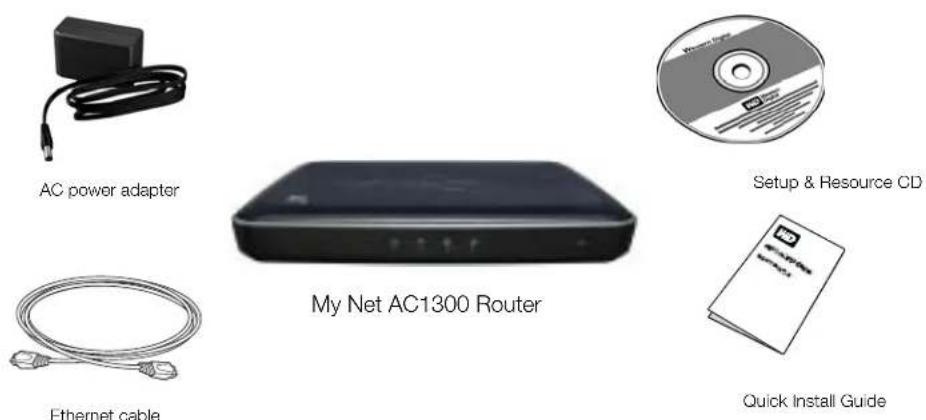
Ethernet cable
Accessories
For U.S. residents, visit www.shopwd.com to view additional accessories available for your My Net router. For users outside the U.S., visit http://support.wdc.com.
AC Power Adapters
The AC power adapter varies, depending on your location. Refer to the illustrations below. Some locations do not require a power plug clip; units sold in those locations have a fixed power plug.
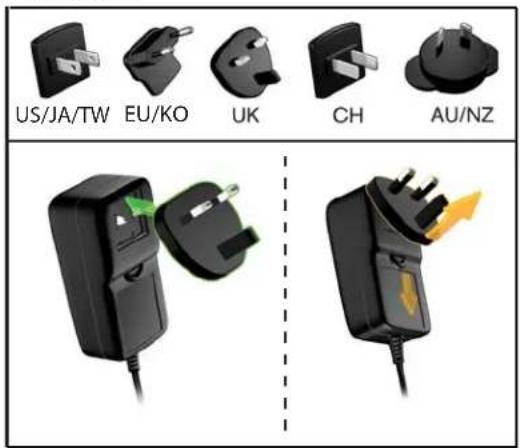
text_image
US/JA/TW EU/KO UK CH AU/NZInstalling
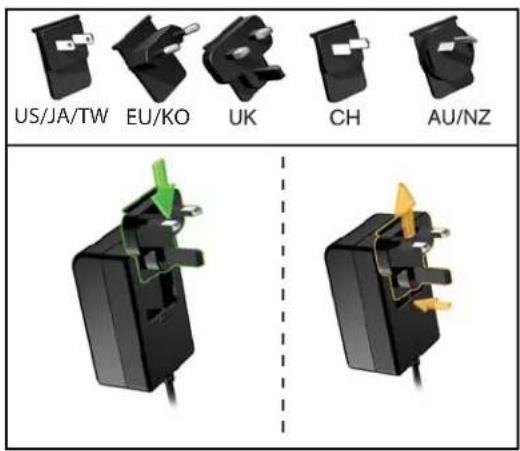
text_image
US/JA/TW EU/KO UK CH AU/NZInstalling
Removing
Components
Front Panel
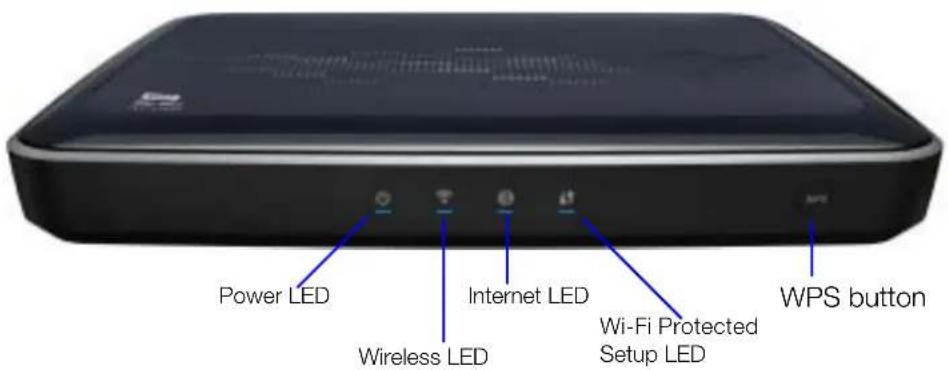
text_image
Power LED Wireless LED Internet LED Wi-Fi Protected Setup LED WPS buttonFront panel LED indicators
LED Description
Power Steady when the router is powered on and operational; flashes slowly during firmware upgrades and system self-tests.
Wireless Lit when wireless connection is active.
Internet Lit when Internet connection is active.
Wi-Fi Protected Setup (WPS) When connecting the router and a wireless device (e.g., a printer) that you want to add to the network, the LED indicates the status of WPS:
- When WPS is connecting a network device, the light blinks slowly.
- If an error occurs during setup, the light blinks quickly.
• After setup, light is solid when WPS is active.
Front button
Button Description
WPS (Wi-Fi) Enables you to securely connect WPS-enabled wireless clients. Protected Setup) button
Back Panel
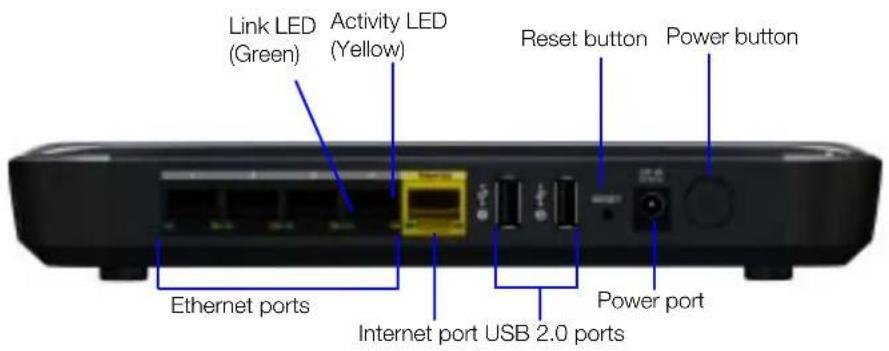
text_image
Link LED (Green) Activity LED (Yellow) Reset button Power button Ethernet ports Internet port USB 2.0 ports Power portComponents
Component How to use
(4) Ethernet (LAN) ports Use Ethernet (network) cables to connect wired network devices to these ports.
Internet (WAN) port Use an Ethernet (network) cable to connect this port to a modem.
(2) USB 2.0 port(s) Connect storage devices such as the WD Passport or a printer to your network so you can share files and resources.
Reset button To reset your My Net router to factory defaults, press and hold the Reset button until the power LED begins blinking (about ten seconds).
Power port Use the AC power adapter included in the box to connect the power source to this port.
Power button Press to turn on the router. Press again to turn off the router.
Port LEDS
Component LED Description
| Ethernet ports Link LED (Green) Steady on when a cable connects the port to a network device's Ethernet port. | ||
| Activity LED (Yellow) | Blinks to indicate network activity on that Ethernet port. | |
| Internet port | Link LED (Green) | On when a cable connects the port to the modem. |
| Activity LED (Yellow) | Blinks to indicate network activity on that port. | |
3
Getting Started
This chapter contains the following topics:
Installing the Router on the Network
Setting up a New Router
Installing the Router on the Network
After physically connecting the My Net AC1300 Router, you configure the router on your network using a browser. Windows users have the option of launching the browser setup using the Easy Setup utility on the Setup and Resources CD.
The initial physical connection may be wired, as described in "Connecting the Router Physically" below, or wireless, as described in "Connecting the Router Wirelessly" on page 9.
Connecting the Router Physically
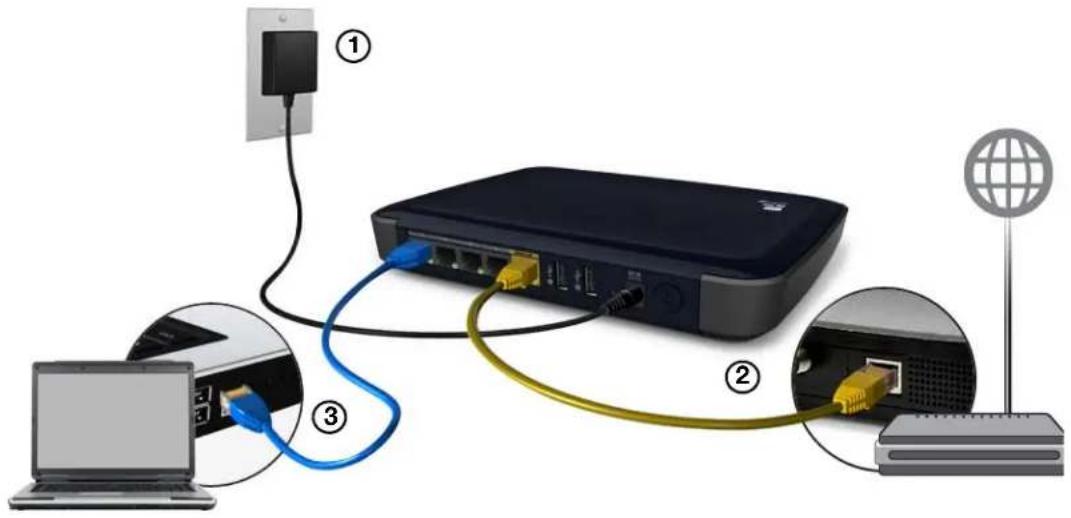
text_image
Diagram showing network connection between a router, laptop, and satellite via cable, with labeled components.-
Connect the power cable to the router's DC connector and into an AC power outlet. Press the On/Off button on the back of the router once to turn it on. The power LED flashes slowly, and the four LEDs on the front panel of the router light up one by one as it boots up.
-
Connect the included yellow Internet (Ethernet) cable to the router's Internet port and the modem.
Note: One Ethernet (network) cable is included in the product package. You can purchase additional cables from the WD Store or another source.
-
Using Ethernet cables, connect network devices or computers to the router's unused Ethernet ports.
-
Continue to "Setting up a New Router" on page 10.
Connecting the Router Wirelessly
If you are using a desktop computer with a wireless card or a laptop computer with wireless capability, you can connect wirelessly to the router immediately. The same is true of mobile wireless devices with Wi-Fi enabled.
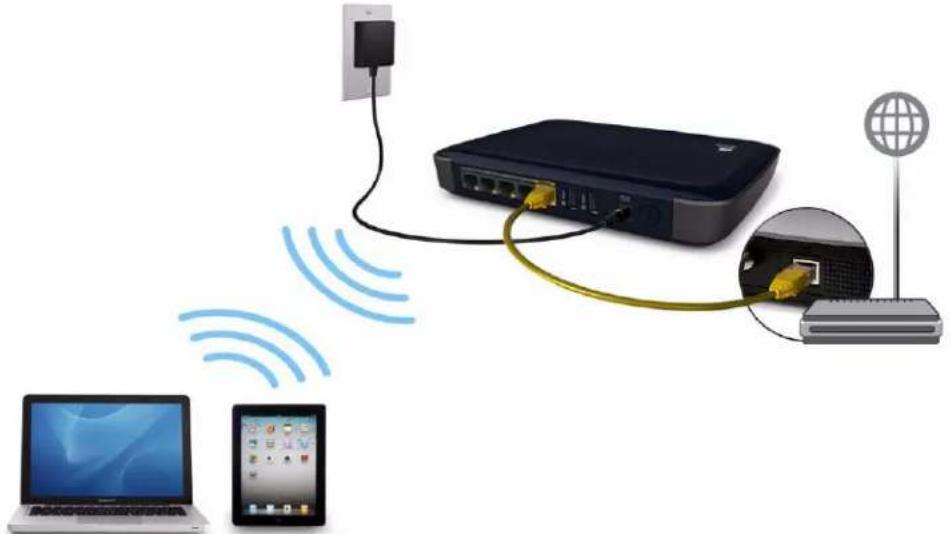
natural_image
Diagram showing wireless network connection between a router, laptop, and satellite (no text or symbols)- Make sure your computer's Wi-Fi is turned on.
- Select the MyNetAC1300 network from the list of wireless networks on the computer's or device's screen and connect. By default there is no password.
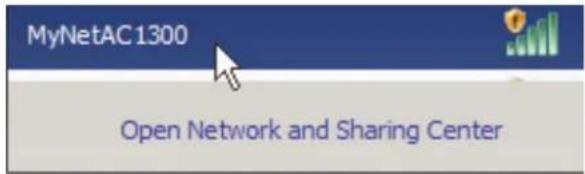
text_image
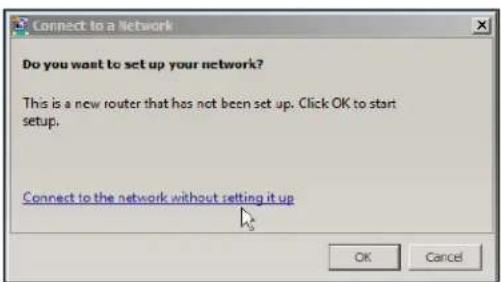
MyNetAC1300 Open Network and Sharing Center- If the following screen displays, click Connect to the network without setting it up.
text_image
Connect to a Network Do you want to set up your network? This is a new router that has not been set up. Click OK to start setup. Connect to the network without setting it up OK Cancel- Continue to "Setting up a New Router" on page 10.
Setting up a New Router
Starting with a Browser
- Open a browser. (See requirements in "Appendix: Technical Specifications" on page 69.)
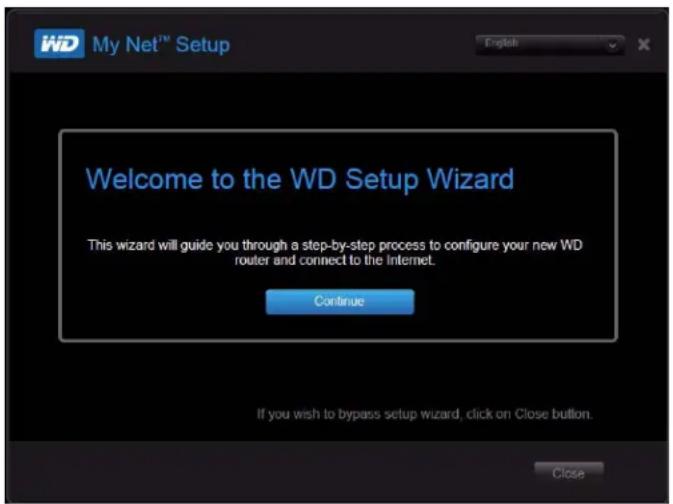
- If you do not see a welcome screen, in the address field, type http://wdrouter, http://wdrouter.local (for Mac computers), or http://192.168.1.1. The WD Setup Wizard Welcome screen displays.
text_image
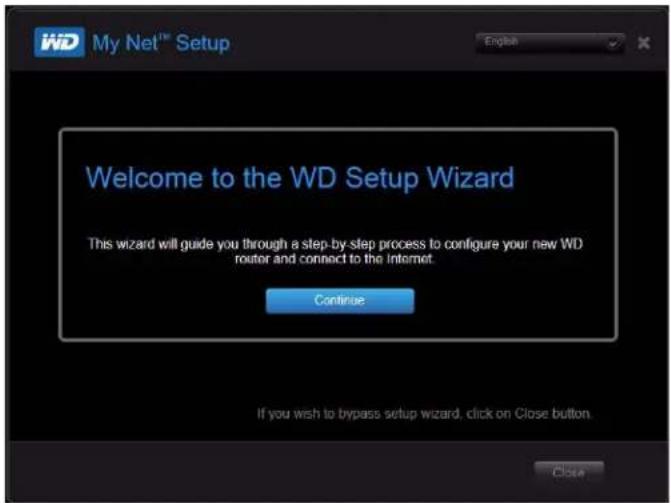
My Net™ Setup Welcome to the WD Setup Wizard This wizard will guide you through a step-by-step process to configure your new WD router and connect to the Internet. Continue If you wish to bypass setup wizard, click on Close button. Close- Continue with "Completing the WD Setup Wizard" on page 12.
Starting with Easy Setup on the CD (Windows)
Windows XP
-
Insert the Setup & Resource CD into your computer's CD/DVD drive.
-
If AutoRun (AutoPlay) is enabled, the Welcome to the WD Setup Wizard screen displays.
-
If AutoRun (AutoPlay) is disabled, click Start > My Computer and locate the My Net router CD drive under Devices with Removable Storage. Double-click the CD, and then double-click EasySetup to display the Welcome to the WD Setup Wizard screen.
-
Continue to "Completing the WD Setup Wizard" on page 12.
Windows Vista/Windows 7
- Insert the Setup & Resource CD into your computer's CD/DVD drive.
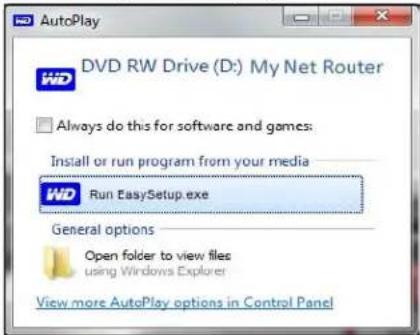
If a dialog box displays, click Run EasySetup.exe.
text_image
AutoPlay DVD RW Drive (D:) My Net Router Always do this for software and games: Install or run program from your media WD Run EasySetup.exe General options Open folder to view files using Windows Explorer View more AutoPlay options in Control PanelIf a dialog box does not display, click Start or > Computer and locate the My Net router CD drive under Devices with Removable Storage. Double-click the CD, and then double-click EasySetup.
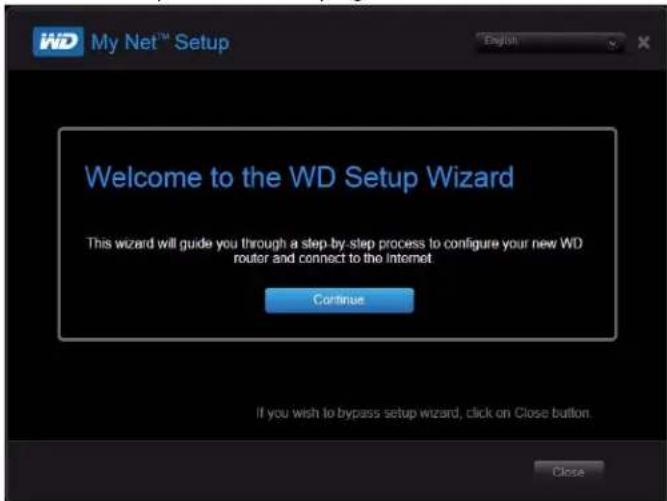
- When the Welcome to the WD Setup Wizard screen appears, continue with "Completing the WD Setup Wizard" on page 12.
text_image
My Net™ Setup Welcome to the WD Setup Wizard This wizard will guide you through a step-by-step process to configure your new WD router and connect to the Internet. Continue If you wish to bypass setup wizard, click on Close button. CloseCompleting the WD Setup Wizard
- On the Welcome to the WD Setup Wizard screen, click Continue to display a connection diagram.
text_image
My Net™ Setup Welcome to the WD Setup Wizard This wizard will guide you through a step-by-step process to configure your new WD router and connect to the Internet. Continue If you wish to bypass setup wizard, click on Close button. Close- Click Next to check your connections.

text_image
WD My Net™ Setup About | User Manual Setup Options > Connect Router > Network Security > Setup Complete Checking your connection. We are checking your connection to the Internet Your Computer WD Router The Internet ✓ Internet connection is successful. < Back Next >- When both connections are confirmed, click Next.
Note: The screen asks additional questions if the system is not able to auto detect the Internet settings
-
Continue through the installation wizard.
-
When the Secure your wireless screen displays, you can change the Network Name (SSID) and Security Mode for more protection. See "Configuring Basic Wireless Settings" on page 19 for more information.)
Note: If you change Network Name and Security Mode, you will have to connect your computer or wireless device to the new name.

text_image
My Net™ Setup About | User Manual Setup Options > Connect Router > Network Security > Secure your wireless network. Why do I have two network names? What is the difference between 2.4GHz and 5GHz? You can change the green wireless settings before or through the router with page filter Network Name (2.4GHz) Western Digital_DWB2.4 Network Name (5GHz) Western Digital_DC_5 Password (minutes 5 characters) password This information is required to add wireless drivers, such as a laptop, to your network. Print Saving your new wireless setting... If setting up wirelessly, reconnect to your new network with the credentials below. Then click OK once you are reconnected Network Name: Western Digital_DWB2.4 for 2.4GHz Western Digital_DC_5 for 5GHz (sometimes called Wi-fi Network or Wireless Network Name) Network Key: password (sometimes called Password, Pass Key or Passphrase) OK- Click Save. The Router Setup screen displays.

text_image
WD My Net™ Setup About | User Manual Setup Options > Connect Router > Network Security > Setup Complete Router Set Up Your WD router is ready for use Click Next to continue setup. ✓ Check online for the latest router firmware update. ✓ Install software for your router Exit Next >- Two checkboxes are enabled by default:
■ The first checks for updates for the router.
■ The second opens a link to install WD Print Share and My Net View.
Note: For information about WD Print Share, see "Installing and Using Additional WD Software" on page 56. For information about My Net View, see "Installing and Using Additional WD Software" on page 56.
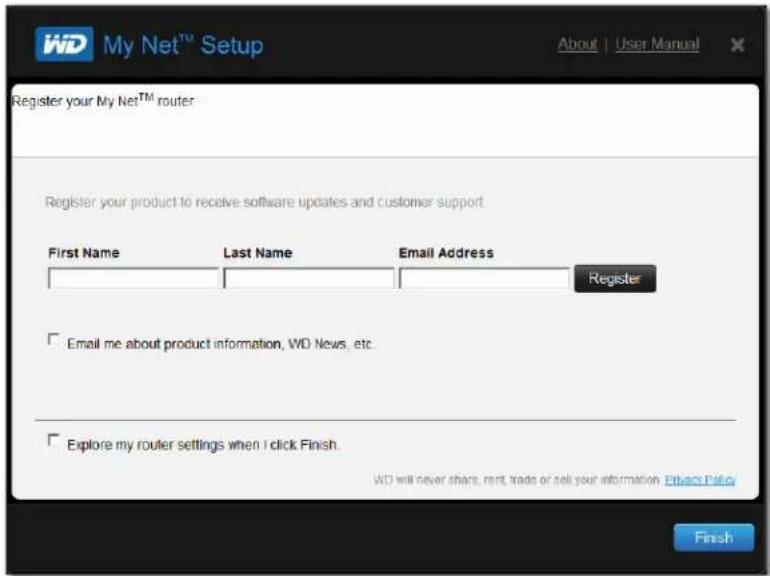
- To continue configuration, click Next. The Registration screen displays.
text_image
My Net™ Setup Register your My Net™ router Register your product to receive software updates and customer support. First Name Last Name Email Address Register □ Email me about product information, WD News, etc. □ Explore my router settings when I click Finish. WD will never share, rent, trade or sell your information. Privacy Policy Finish- Complete the registration information and optionally select the check boxes. Click Finish. If you selected the Explore my router settings when I click Finish, the My Dashboard home page displays.
Note: To optionally configure other router settings, continue with "Basic Settings and Tasks" on page 15.

Basic Settings and Tasks
This chapter contains the following topics:
Opening My Dashboard After Setup
Understanding My Dashboard
Connecting to the Internet
Configuring Basic Wireless Settings
Setting up External StorageAdding a Device
Opening My Dashboard After Setup
To open the My Net router dashboard after initial setup:
- Open a web browser. The login page displays.

text_image
WiD Welcome, please sign in Username Password SubmitImportant: If the login page does not display, type http://wdrouter, http://wdrouter.local (for Mac computers), or http://192.168.1.1 in your browser's address field.
- Enter the router's username (default value is admin) and password (default value is lowercase password) and click Submit. The My Dashboard home screen displays:

text_image
My Dashboard Network Name (2.4GHz) Western Digital_DWB2.4 > Network Name (5GHz) Western Digital_DC_5 > Password password > Password password > Device Name MyNetAC1300 > Attached Storage USB Port2 Altached > Internet Status Connected > Number of Devices Connected 2 > Parental Controls Guest Network NameUnderstanding My Dashboard
Basic Dashboard Icons
The icons at the top of the screen open modules and wizards for performing important tasks. The red Alert icon at the upper right of the screen displays notices concerning the router.
| Icon Name Actions See ... | |||
 | My Dashboard | Review and change current settings. | “Basic Settings and Tasks” on page 15 |
 | Connect to Internet | Connect the router to the Internet and follow the wizard through the process of setting up the Internet connection. | “Connecting to the Internet” on page 18 |
 | Set up Wireless Configure wireless settings such as network name and security. | “Configuring Basic Wireless Settings” on page 19 | |
 | Set up Storage Follow the wizard guiding you through setting up a storage device connected to a USB port of the router. | “Setting up External Storage” on page 21 | |
 | Add a Device Add a wireless device and configure its security settings. | “Adding a Device” on page 23 | |
 | Advanced Settings | Configure advanced settings for Internet connections, wireless connections, storage, devices, system administration, security, and the local network (LAN) settings. | “Advanced Settings” on page 25 |
 | Alert Click to display recent alerts and messages about new firmware, network issues, and shortcuts to important settings. | ||
Reviewing Current Settings

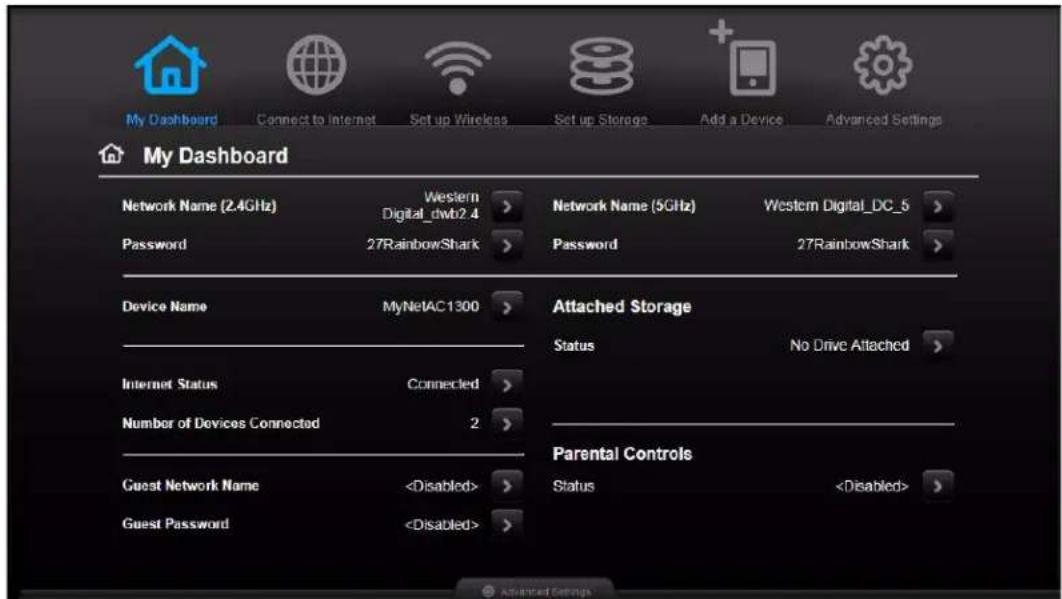
The My Dashboard's home screen is a simple snapshot of the router's configuration with the most essential information in one screen. It includes summary information for wireless settings, Internet status, guest network, parental control, and attached hard drive(s).
text_image
My Dashboard Network Name (2.4GHz) Western Digital_dwb2.4 > Network Name (5GHz) Western Digital_DC_5 > Password 27RainbowShark > Password 27RainbowShark > Device Name MyNetAC1300 > Attached Storage Internet Status Connected > Number of Devices Connected 2 > Guest Network Name- Review the following settings on the My Dashboard home page. You may have changed some of the values during setup, and you can change them here as well.
Setting Description
Network Name (2.4 GHz and 5 GHz) Unique identifiers of the 2.4 GHz and 5 GHz networks.
The 5 GHz network is generally used for media and smart devices because it avoids interference that might interrupt media streaming.
Password Password(s) for accessing the 2.4 GHz and 5 GHz networks.
Device Name Name assigned to the router.
Internet Status Router is Connected to or Disconnected from the Internet.
Number of Devices Connected Number of devices connected to the router.
Guest Network Name To provide guests with limited access to the Internet, you can create a guest network. The guest network is disabled by default.
Guest Password Password for accessing the guest network.
Attached Storage Storage device(s) connected to the router's USB port(s).
Setting Description
Parental Controls status If the status is Enabled, this feature controls
access to the Internet by restricting dangerous or undesirable web access. Disabled by default.
- To change a setting, click the arrow on the right of the setting to display another screen or a list of options.
Connecting to the Internet

To check or troubleshoot your Internet connection:
- Click the Connect to Internet icon to access Step 1 of the Connect to Internet wizard. Check the cable connections screen. Make sure your router cables are connected correctly.

text_image
Welcome to My Net AC1300 Router Firmware Version 1.00.10 You have 4 mere notification(s) My Dashboard Connect to Internet Set up Windows Set up Storage Add a Device Advanced Settings Connect to Internet Step 1. Check cable connections. Check your cables and make sure your modem is connected. Confirm that your cables are connected correctly. WD Router Wireless Connection Power Cord > Your Computer Cable to Internet > Your Modem Next- Click Next. Step 2 displays the status of the connections: from the computer to the router and from the router to the Internet.
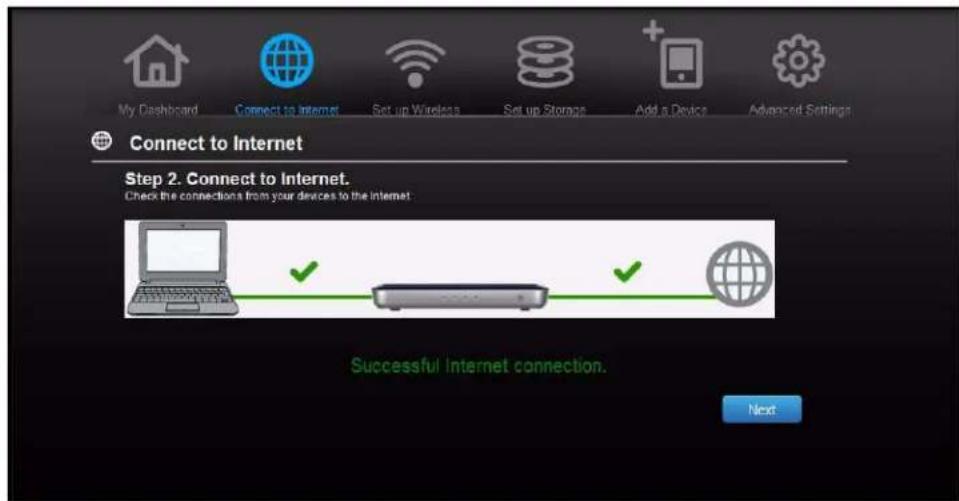
text_image
My Dashboard Connect to Internet Set up Wireless Set up Storage Add a Device Advanced Settings Connect to Internet Step 2. Connect to Internet. Check the connections from your devices to the Internet Successful Internet connection. NextWhen a connection succeeds, a check mark displays above it.
a. Click Next to display the final connection screen.
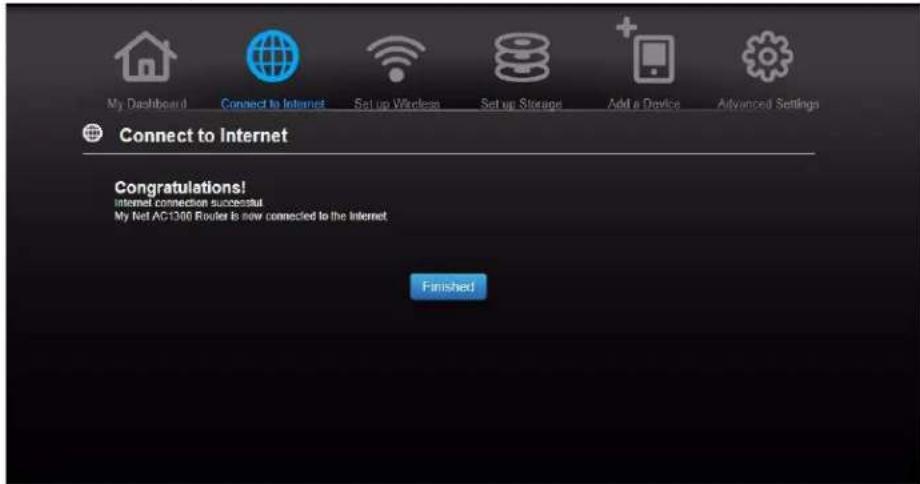
text_image
My Dashboard Connect to Internet Set up Wireless Set up Storage Add a Device Advanced Settings Connect to Internet Congratulations! Internet connection successful My Net AC1300 Router is now connected to the Internet. Finishedb. Click Finished to display the My Dashboard home page again.
- If the connection to the Internet fails:
a. Click Next and enter your Internet service provider account PPPoE Username and Password.
b. Click Next to display the My Dashboard home page again.
Note: For more tips on connecting the router to the Internet, see "Troubleshooting" on page 61.
Configuring Basic Wireless Settings

Once you configure wireless settings on the router, you can easily connect wireless devices such as notebooks, laptops, tablets, PDAs, or smart phones to the Internet and to other devices on the network.

natural_image
Diagram showing wireless network connection between a laptop, router, and satellite (no text or symbols)- Click the Set Up Wireless icon at the top of the page. The Set Up Wireless screen displays:

text_image
My Dashboard Connect to Internet Set up Wireless Set up Storage Add a Device Advanced Settings Set up Wireless Wireless 2.4Ghz On Network Name (SSID) Western Digital_AE Security Mode WPA2 - Personal Password 27RainbowShark Channel Width 20/40 MHz(Auto) Channel Auto Wireless 5Ghz On Network Name (SSID) Western Digital_AD_5 Security Mode WPA2 - Personal Password 27RainbowShark Channel Width 20/10/90 MHz(Auto) Channel Auto Cancel Save- View or modify the required wireless settings for the 2.4 GHz network and the 5 GHz network and then click Save.
Note: You can change some settings on this screen. See "Advanced WAN (Internet) Category" on page 27 for additional wireless settings.
Setting Description
On/Off Wireless service is enabled by default. To disable it, toggle to the Off setting.
Network Name (SSID) Name given to the wireless network.
Security Mode Select the type of security to be applied to the wireless network.
Options from strongest to weakest security include:
- WPA2-Personal
- WPA/WPA2-Personal
• W P A - P e r s o n a l
• WEP (Wired Equivalent Privacy)
If 802.11n or 802.11ac is selected as the network mode, WEP is not available, but it is available to 802.11b-only, 802.11 g-only, 802.11 a-only, and a mix of these.
WPA (Wi-Fi Protected Access) and WPA2 are security protocols that use a dynamically changing key. WPA2 is the second generation protocol that uses stronger AES (Advanced Encryption Standard) encryption. The third option is None.
WPA/WPA2 mixed security mode provides better compatibility with legacy devices. However, for better performance and higher security, WPA2 security mode is highly recommended.
Password Password for accessing the wireless network.
Setting Description
Channel Width The default setting is 20/40/80 MHz (Auto) for the 5 GHz band. This setting is recommended unless you have connectivity issues. The other options are 20 MHz or 20/40 MHz.
The default setting for the 2.4 GHz band 20/40 MHz (Auto). The other option is 20 MHz.
Channel Accept the default (Auto), or select a channel from the drop-down list.
Setting up External Storage

You can modify storage settings such as network shares for USB storage device(s) attached to the router.
- Make sure the storage device is properly connected to one of the router's USB ports.
- Click the Set Up Storage icon to display Step 1 of the storage wizard.
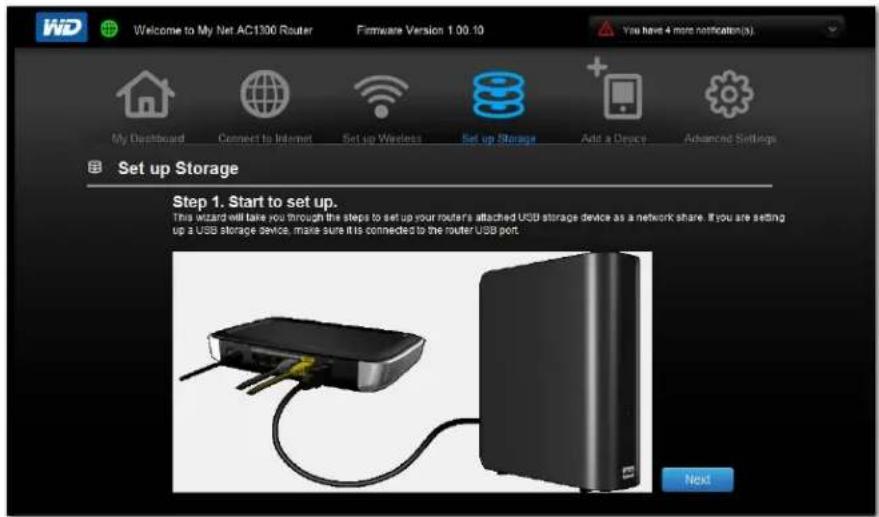
text_image
WiD Welcome to My Net AC1300 Router Firmware Version 1.00.10 You have 4 more notification(s). My Dashboard Connect to Internet Set up Wireless Set up Storage Add a Device Advanced Settings Set up Storage Step 1. Start to set up. This wizard will take you through the steps to set up your router's attached UCB storage device as a network share. If you are setting up a USB storage device, make sure it is connected to the router USB port. Next- Click Next to display Step 2, which shows a list of connected storage devices:
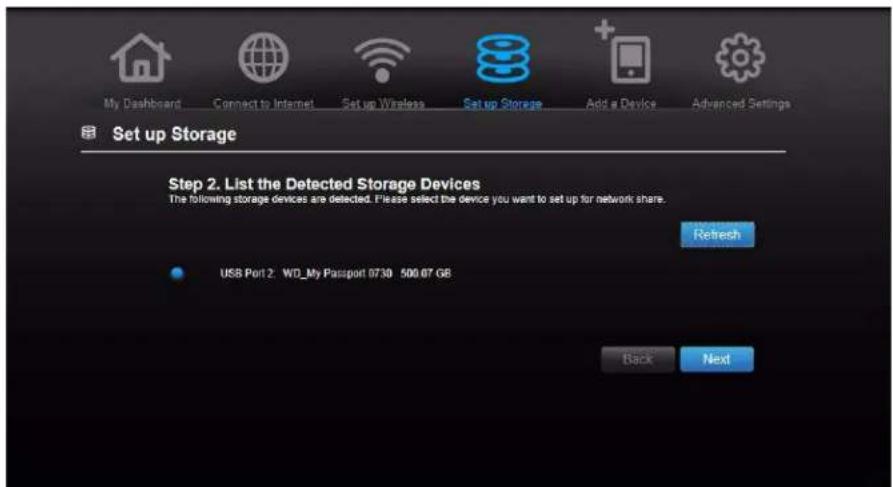
text_image
My Dashboard Connect to Internet Set up Wireless Set up Storage Add a Device Advanced Settings Set up Storage Step 2. List the Detected Storage Devices The following storage devices are detected. Please select the device you want to set up for network share. Refresh USB Port2: WD_My Passport 0730 500.07 GB Back Next- Select the device you want to set up and click Next to display Step 3.
Note: If the storage device is locked, enter the device's password as prompted.
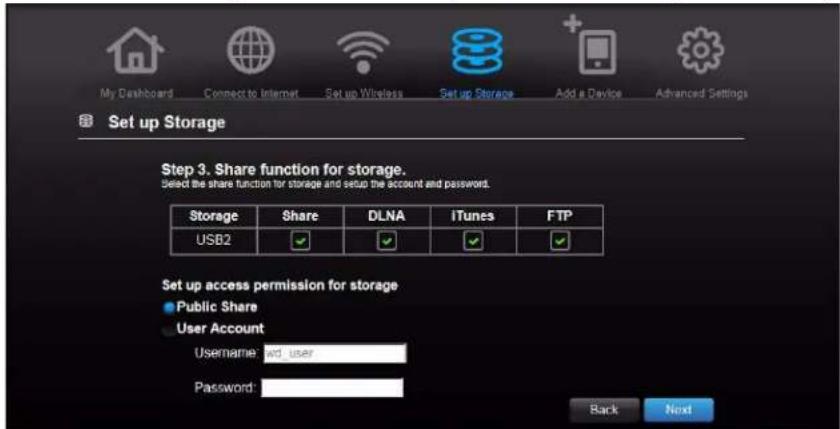
text_image
My Dashboard Connect to Internet Set up Wireless Set up Storage Add a Device Advanced Settings Set up Storage Step 3. Share function for storage. Select the share function for storage and setup the account and password. Storage Share DLNA IiTunes FTP USB2 Set up access permission for storage Public Share User Account Username: wd.user Password: Back Next- In the table, select the check box(es) for the desired services. The services allow you to serve the contents stored on the USB device using Share (Samba), DLNA, iTunes, and FTP.
- Create or change your user account by entering a user name and password for accessing content (e.g., music for iTunes) on the USB device. The default value is Public.
- Click Next to go to Step 4, and then click Finish.

text_image
My Dashboard Connect to Internet Set up Wireless Set up Storage Add a Device Advanced Settings Set up Storage Step 4. Setup Complete. You have finished basic setup of attached storage for use in the network To change other options of the shared drive, please go to the USB Attached Storage section of the Advanced Settings Back Finish Advanced SettingsThe My Dashboard home screen appears showing the storage device attached.

text_image
Attached Storage USB Port2 Attached >Adding a Device

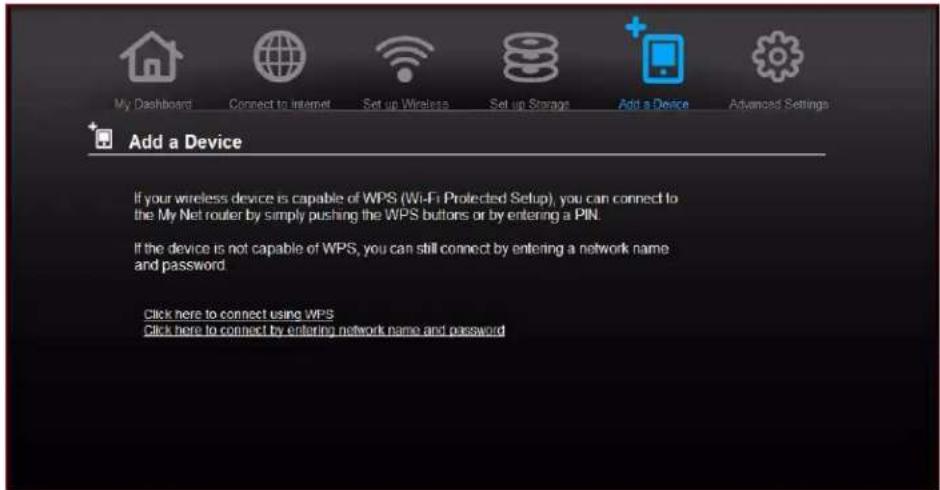
To connect a WPS-enabled wireless device, press the WPS button on the front of the router, or enter a PIN on the device's Wi-Fi connection page. If the device is not capable of WPS, you can still connect it to the router using a network name and password.
text_image
My Dashboard Connect to Internet Set up Wireless Set up Storage Add a Device Advanced Settings Add a Device If your wireless device is capable of WPS (Wi-Fi Protected Setup), you can connect to the My Net router by simply pushing the WPS buttons or by entering a PIN. If the device is not capable of WPS, you can still connect by entering a network name and password. Click here to connect using WPS Click here to connect by entering network name and passwordTo connect a WPS-enabled device:
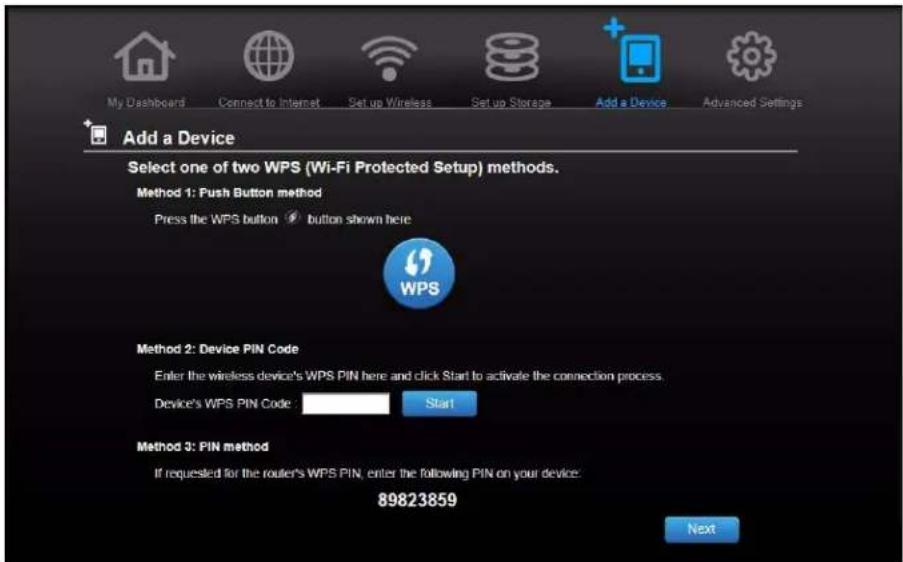
- Click the Click here to connect using WPS link to display the screen shown below:
text_image
My Dashboard Connect to Internet Set up Wireless Set up Storage Add a Device Advanced Settings Add a Device Select one of two WPS (Wi-Fi Protected Setup) methods. Method 1: Push Button method Press the WPS button button shown here WPS Method 2: Device PIN Code Enter the wireless device's WPS PIN here and click Start to activate the connection process. Device's WPS PIN Code: Start Method 3: PIN method If requested for the router's WPS PIN, enter the following PIN on your device: 89823859 Next- Select one of three WPS methods:
Method 1: Click the blue WPS button on the screen. On your wireless device, press the physical WPS button or click the virtual WPS button.
Method 2: Enter the device's WPS PIN code and click Start.
Method 3: If prompted by your wireless device, enter the router's WPS PIN shown on the screen into your wireless device.
Note: The label on the bottom of the router also displays the default PIN. You can change the PIN on the Wi-Fi Protected Setup screen. (See "Advanced WAN (Internet) Category" on page 27.) Once you change the PIN, the default value is invalid unless you reset the router or the PIN to default values.
- Click Next. The first Add a Device screen displays.
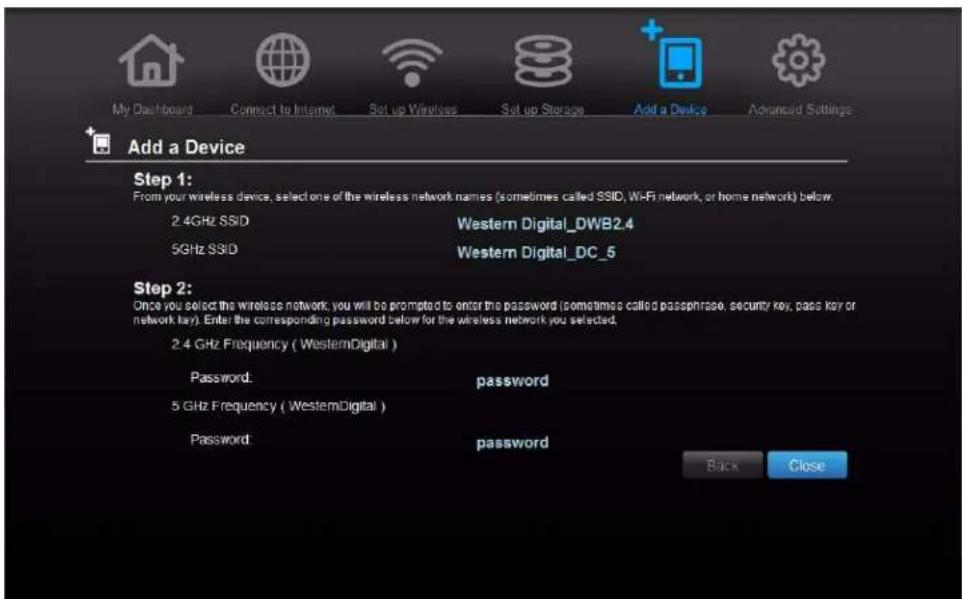
To connect a device that is not WPS enabled:
- On the first Add a Device screen (see "Adding a Device" on page 23), click Click here to connect by entering network name and password.
text_image
My Dashboard Connect to Internet Set up Wireless Set up Storage Add a Device Advanced Settings Add a Device Step 1: From your wireless device, select one of the wireless network names (sometimes called SSID, Wi-Fi network, or home network) below. 2.4GHz SSID Western Digital_DWB2.4 5GHz SSID Western Digital_DC_5 Step 2: Once you select the wireless network, you will be prompted to enter the password (sometimes called passphrase, security key, pass key or network key). Enter the corresponding password below for the wireless network you selected. 2.4 GHz Frequency ( WesternDigital ) Password: password 5 GHz Frequency ( WesternDigital ) Password: password Back Close- Using the values shown on the screen, enter the following into your wireless device's Wi-Fi connection screen as prompted:
■ The Wi-Fi network name (SSID) for each wireless network you want to use
■ The password for the wireless network you selected
- Click Close.
5
Advanced Settings

This chapter contains the following topics:
Introduction
Advanced WAN (Internet) Category
Advanced Wireless Category
Advanced LAN Category
Advanced Storage Category
Security Settings Category
Additional Features Category
Admin Category
Introduction
Chapter Organization
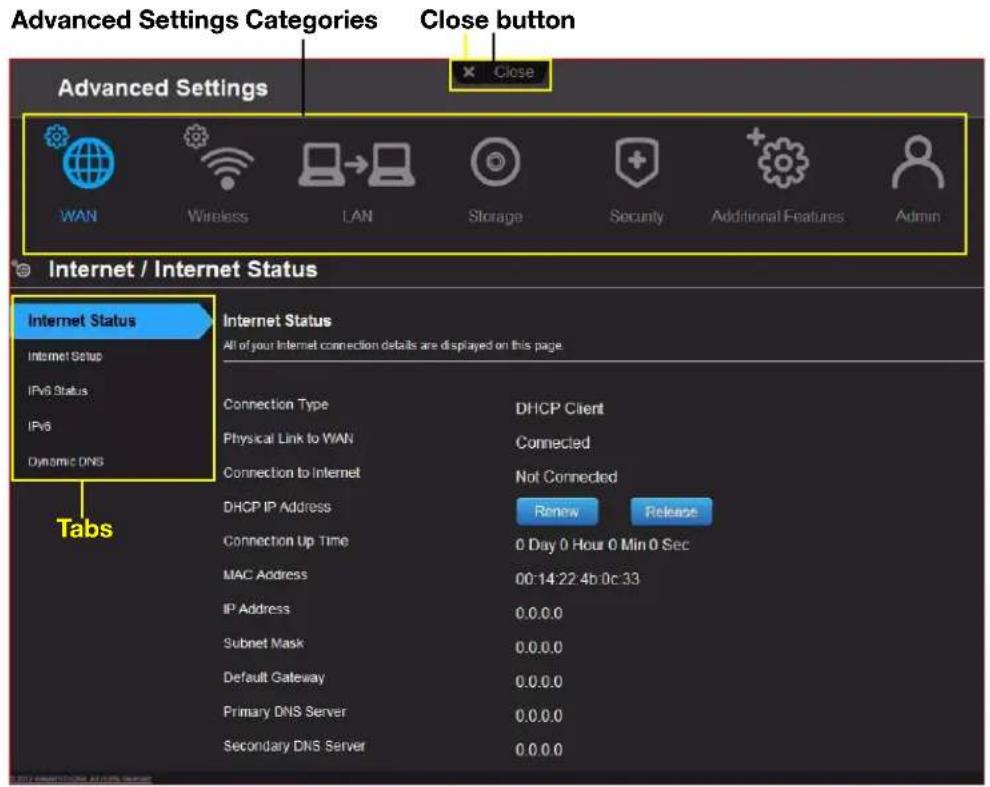
This chapter is organized by categories, represented by icons at the top of the My Dashboard screens. For each category, this chapter includes descriptions of the screens and definitions of the screen settings. It defines settings only once within a category and omits settings that do not require definition.
Accessing Advanced Settings Screens
The Advanced Settings icon on any basic My Dashboard screen takes you to icons and screens for specifying more detailed settings and advanced functions than those discussed in the previous chapter.
Note: Another way to access the Advanced Settings screen is to click the arrow to the right of the setting on the basic screen. When a “basic” icon has a small Advanced Settings icon to its upper left, you are configuring that function’s advanced settings. For example, the icon for Internet Settings looks like this:
Typical Advanced Settings Screen
text_image
Advanced Settings Categories Close button Advanced Settings WAN Wireless LAN Storage Security Additional Features Admin Internet / Internet Status Internet Status Internet Setup IPv6 Status IPv8 Dynamic DNS Tabs Internet Status All of your Internet connection details are displayed on this page Connection Type DHCP Client Physical Link to WAN Connected Connection to Internet Not Connected DHCP IP Address Renew Release Connection Up Time 0 Day 0 Hour 0 Min 0 Sec MAC Address 00:14:22:4b 0c:33 IP Address 0.0.0.0 Subnet Mask 0.0.0.0 Default Gateway 0.0.0.0 Primary DNS Server 0.0.0.0 Secondary DNS Server 0.0.0.0Note: To close an Advanced Settings screen and open the My Dashboard home screen, click the Close button at the top of the screen.
Advanced WAN (Internet) Category


text_image
Advanced Settings WAN Wireless LAN Storage Security Additional Features Admin WAN / Internet Status Internet Status All of your Internet connection details are displayed on this page. Internet Setup IPv6 Status IPv6 Dynamic DNS Internet Status Connection Type Dynamic IP (DHCP) Physical Link to WAN Connected Connection to Internet Connected DHCP IP Address Renew Release Connection Up Time 4 Days1 Hour 3 Min 45 Soc MAC Address 00.90.A9.F0.07.AC IP Address 192.168.2.114 Subnet Mask 255.255.255.0 Default Gateway 192.168.2.1 Primary DNS Server 68.105.28.16 Secondary DNS Server 68.105.29.16Internet Status Screen
Purpose: Displays current Internet connection details. Allows you to renew or release a DHCP IP Address or to connect or disconnect a PPTP/PPPoE/L2TP connection.
| Connection Type Can be Static IP, Dynamic IP (DHCP), PPPoE, LT2P, or PPTP (Username/Password). | |
| Physical Link to WAN | Indicates whether the router has established a physical link to the modem. |
| Connection to Internet Indicates whether the router is connected to an Internet Service Provider (ISP). | |
| DHCP IP Address IP address assigned dynamically by a DHCP server.Click theRenewbutton to renew the address or theReleasebutton to return it to the pool for other clients. | |
| Connection Up Time Days, hours, minutes, and seconds the connection has been active. | |
| MAC Address | Unique identifier that the manufacturer assigns to a device. |
| IP Address | The WAN/Internet IP address assigned to your router by the ISP. |
| Subnet Mask Your ISP configures and maintains the subnet mask.Check with your ISP for this information. | |
| Default Gateway The IP address of the device to which your router is connected. | |
| Primary DNS Server/Secondary DNS Server | The primary and secondary DNS Server addresses are configured and maintained by your ISP. Contact your ISP for this information. |
Internet Setup Screen
Purpose: Configure your Internet connection type.
| MTU (Maximum Transmission Unit) | Size (in bytes) of the largest protocol data unit that can be transmitted over the network. The default value is 1500. |
MAC Address Identification number assigned to the router by the manufacturer.
Note: With some ISPs, you may have to set the MAC address to match the MAC address of your previous router.
Clone Your computer's MAC Address button:
Copies the MAC address of the computer that are you currently using into the MAC address field. This allows the router to present your computer's MAC address to your ISP.
| Primary/Secondary DNS Server The primary DNS Server is the first DNS server you want to use. For DHCP connections, this is optional. If you enter a primary DNS server when using DHCP, it will override your ISPs DNS server. The secondary DNS Server is the one that will be used if the primary DNS server is not reachable. This field is optional. |
If Internet Connection Type is: PPPoE, PPTP, or L2TP (Username/Password):
| Address Mode Select to assign the router either a static or a dynamic IP address. |
Username Username for accessing the ISP.
| Password/Verify Password Password for accessing the ISP. |
Service Name Your ISP configures and maintains the Service Name. Contact your ISP for this information.
| Reconnect Mode | Select one of the reconnect modes for your PPPoE, PPTP, or L2TP connection: • Always On – Your Internet connection will remain connected and reconnect if there is a disconnection from the server. • On Demand – Your Internet connection will disconnect after the Idle time has passed. The connection will automatically reconnect when a client attempts to access the Internet. • Manual – You can connect or disconnect the Internet connection on the Internet Status page. |
Maximum Idle Time Number of minutes the connection can be idle; 0 (zero) means the disconnection can last indefinitely.
DNS Mode Method by which names are associated with IP addresses.
IPv6 Status Screen
Purpose: View all Internet and network connection details related to the IPv6 Internet protocol.
IPv6 Connection Type Can be Static IPv6, Auto (SLAAC/DHCPv6), PPPoE or Link-local Only connection type to connect to your ISP.
IPv6 Default Gateway The IPv6 address of the gateway device to which your router is connected.
LAN IPv6 Link-Local Address The LAN link-local IPv6 address of your router that is assigned automatically.
IPv6 Address IPv6 address of your computer on the IPv6 network.
Name (if any) Name of the computer associated with the IPV6 address.
IPv6 Screen
Purpose: Configure the IPv6 connection type and internal network settings of your router.
LAN IPv6 Address Initial network address of your router. If you change it here, you may need to change PC network settings to access the network again.
Enable Automatic IPv6 address assignment Toggle to On to enable automatic IPv6 address assignment to the computers and devices on your network.
Autoconfiguration Type From the drop-down list, select the type of autoconfiguration Options are SLAAC+RDNSS, SLAAC+Stateless DHCP, and Stateful DHCPv6.
Router Advertisement Lifetime Number of minutes an IP address can be advertised (e.g., 30 minutes).
IPv6 Address Range (Start and Finish) If automatic IPv6 address assignment is enabled, enter the range of IPv6 addresses that can be assigned to the computers and devices on your network.
IPv6 Address Lifetime Enter the number of minutes an IP address should be in effect.
Dynamic DNS Screen
Purpose: Host a server (for example, an FTP or a Game server) using a domain name purchased with your dynamically assigned IP address from a DDNS service provider. Once you have DDNS set up, others can just enter your domain name into their browser or FTP client, for example, and connect just as they would to any other site, even if your ISP changes your router's WAN IP address.
| Dynamic DNS (Domain Name System) | Click On or Off to enable or disable dynamic DNS. |
| DNS (Domain Name Server) | System that translates text host names into numeric IP addresses used to uniquely identify any device connected to the Internet. From the drop-down list, select DynDNS.org or TZO. |
| Host Name The host name (domain name) you configured/purchased from your DDNS service provider. | |
| Username (Email) | Username (email) required to access your DDNS account. For DynDNS.org, this is the username required to access your account. For TZO, this is the email address required to access your account. |
| Password (Key)/Verify Password (Key) Password required for accessing your DDNS account. For DynDNS.org, this is your account password. For TZO, this is your account key. | |
| Status Status of whether your router can successfully connect to and update your IP address on the DDNS service. | |
Advanced Wireless Category

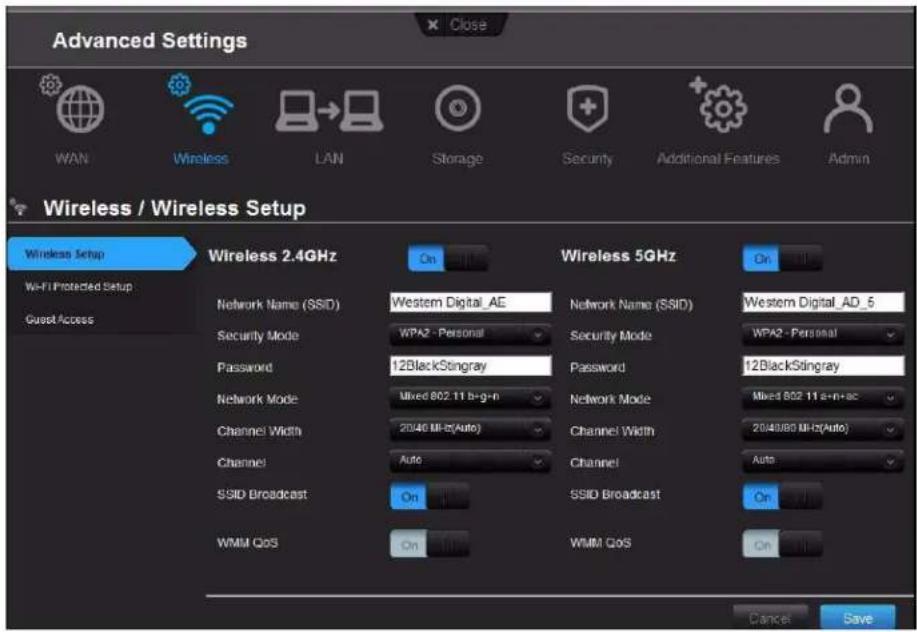
text_image
Advanced Settings WAN Wireless LAN Storage Security Additional Features Admin Wireless / Wireless Setup Wireless Setup Wi-Fi Protected Setup Guest Access Wireless 2.4GHz On Wireless 5GHz On Network Name (SSID) Western Digital_AE Network Name (SSID) Western Digital_AD_6 Security Mode WPA2 - Personal Security Mode WPA2 - Personal Password 12BlackStingray Password 12BlackStingray Network Mode Mixed 802 11 b-g-n Network Mode Mixed 802 11 a-n-ac Channel Width 2046 MI-5(Auto) Channel Width 2046/80 MHz(Auto) Channel Auto Channel Auto SSID Broadcast On SSID Broadcast On WMM QoS On WMM QoS Cancel SaveWireless Setup Screen
Purpose: Change wireless settings and turn SSID Broadcast and WMM QoS on or off.
Network Name (SSID) Name given to the wireless network.
Security Mode Select the type of security to be applied to the wireless network.
Options from strongest to weakest security include:
- WPA2-Personal
- WPA/WPA2-Personal
• W P A - P e r s o n a l
• WEP (Wired Equivalent Privacy)
If 802.11n or 802.11ac is selected as the network mode, WEP is not available, but it is available to 802.11b-only, 802.11 g-only, 802.11 a-only, and a mix of these.
WPA (Wi-Fi Protected Access) and WPA2 are security protocols that use a dynamically changing key. WPA2 is the second generation protocol that uses stronger AES (Advanced Encryption Standard) encryption. The third option is None.
WPA/WPA2 mixed security mode provides better compatibility with legacy devices. However, for better performance and higher security, WPA2 security mode is highly recommended.
Password Password for accessing the wireless network.
For some Enterprise modes, additional fields display:
- Radius Server IP Address
- Port
- Shared Secret
Network Mode For the 2.4 GHz band, the default network mode is Mixed
802.11 b+g+n. Keep this setting for maximum client compatibility. The other network modes are 802.11b only, 802.11g only, 802.11n only, Mixed 802.11 b+g, and Mixed 802.11 g+n.
For the 5 GHz band, the default network mode is Mixed
802.11 a+n+ac. Keep this setting for maximum client compatibility. The other network modes are 802.11a only, 802.11n, Mixed 802.11 a+n, and Mixed 802.11 n+ac only.
Channel Width The default setting of 20/40/80 MHz (Auto) for the 5 GHz
network is recommended unless you are having connectivity issues. The default for the 2.4 GHz network is 20/40 MHz (Auto).
Channel Accept the default (Auto) or select a channel from the drop-
down list.
SSID Broadcast Your wireless clients identify and connect to your router using
the network name or SSID (Service Set Identifier). The SSID broadcast is On by default. For additional security, you can turn SSID broadcast to Off.
WMM QoS WMM (Wi-Fi Multimedia) is a standard that defines quality of
service (QoS) in Wi-Fi networks, prioritizes capability, and optimizes video and audio performance.
WMM QoS is forced to On (grayed out) when the Network mode set includes when the Network mode set includes
802.11ac. If you select any mode not including 802.11n or
802.11ac, you have the option of turning WMM QoS Off.
Wi-Fi Protected Setup (WPS) Screen
Purpose: Add a new wireless device into this network using the WPS push button or PIN; generate a new PIN or set it to the default value.
Enable WPS Enable the router to establish a secure connection to other
WPS-enabled Wi-Fi devices. Enabled by default.
Enable Router's WPS PIN Personal identification number for WPS authentication.
Push Button Method Click the blue WPS button on the screen to activate the connection process.
Device PIN Code Enter the wireless device's WPS PIN code and click Start.
Router PIN Code Enter the PIN shown on the screen into the wireless device's screen. The default PIN is printed on the bottom of the router.
Optionally, click the appropriate button to generate a new PIN or reset it to the default value.
Guest Access Screen
Purpose: Allow visitors access to the 2.4 GHz and 5 GHz wireless bands. For information on setting up guest access, see "Enabling Guest Access" on page 44.
Advanced LAN Category

text_image
Advanced Settings WAN Wireless LAN Storage Security Additional Features Admin LAN / Host and LAN Settings Host and LAN Settings DHCP Server Settings Device and Client Tables Host Name The host name is used to identify your device in the network. Host Name MyNetN750 IP Address This Internet setting will be used in the LAN side when the device is working in the router mode. LAN IP Address 192.168.1.1 Subnet Mask 265.255.255.0 Enable DNS Relay On Cancel SaveHost and LAN Settings Screen
Purpose: View and change host name, subnet mask, and LAN IP address, and enable DNS (Domain Name System) relay.
Host Name Name identifying the router on the network.
LAN IP address IP address of the router on the network (when router is in router mode). This IP address determines which IP addresses are used by other devices on your local network.
Subnet Mask The subnet mask controls which subnet the computers connected to the router belong to. In most cases, the default value of 255.255.255.0 is sufficient as it allows up to 255 unique devices on the network.
Enable DNS Relay Enable for LAN-side clients to use the router to relay DNS queries to the Internet.
DHCP Server Settings Screen
Purpose: Enable or disable DHCP server, which provides IP addresses to the LAN-side computers dynamically (when your router is in router mode).
Enable DHCP Server Enable the server that provides an IP address to the LAN-side computers dynamically.
DHCP IP Address Range Range of IP addresses that can be assigned by the DHCP server.
Local Domain Name You can append a local domain name to your clients' Internet requests to avoid entering the complete address of commonly used Internet domains.
DHCP Lease Time Amount of time for which the device or computer leases the DHCP address. If the client does not renew the lease before it expires, the IP address returns to the pool for other clients.
Device and Client Tables Screen
Purpose: View the DHCP client table. This table shows all of the wired and wireless devices that are connected to the router. You can manually add a device to the table.
IP Address IP address of a device being added on your network.
MAC Address Unique identifier of the device being added.
Device Name Name of the device attached to your network.
Client Lease Time Amount of time remaining on the client's IP address lease.
Advanced Storage Category

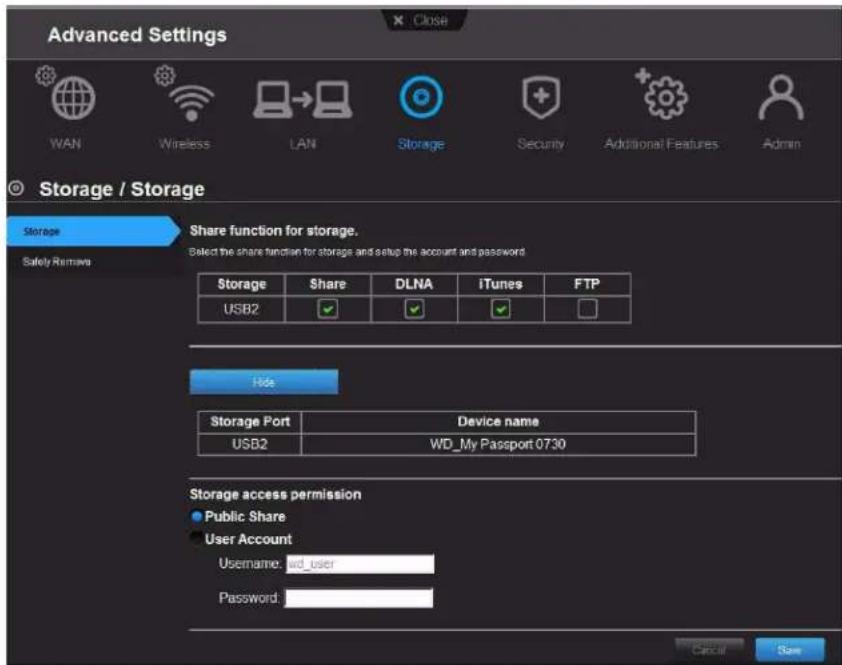
text_image
Advanced Settings WAN Wireless LAN Storage Security Additional Features Admin Storage / Storage Share function for storage. Select the share function for storage and setup the account and password Safety Remove Storage Share DLNA IiTunes FTP USB2 Hide Storage Port Device name USB2 WD_My Passport 0730 Storage access permission ● Public Share ● User Account Username: wd_user Password: Cancel SaveStorage Screen
Purpose: You can update your user account and storage settings on this screen. (See "Setting up External Storage" on page 21.)
| Storage USB port on the router to which the storage device is connected. | |
| Share | Files sharing service among local network client devices using the Samba protocol. |
| DLNA (Digital Living Network Alliance) | Makes stored digital media contents available to networked media players. |
| iTunes | Allows streaming of music to other devices in the network that have iTunes. |
| FTP Uses the File Transfer protocol (FTP) to exchange files over the network. | |
| Storage Port | Click the Show button to display the number of the port (1 or 2) to which the storage device is attached. |
| Device name | When you click the Show button, the name of the storage device appears. |
| Public Share | Select to enable public access (no authentication) to the shares/services. Selected by default. |
| User Account Select to enable user account authentication access to the private share and FTP service. | |
Username To restrict access, enter the username of the person being granted access to the private share and FTP service.
Password Enter the password of the person being granted access to the private share and FTP service.
Safely Remove Screen
Purpose: Use this screen to safely remove USB storage devices connected to the router's USB port(s).
Eject button
Click the button to the right of the USB device name on the table to safely detach the USB storage drive.
Security Settings Category

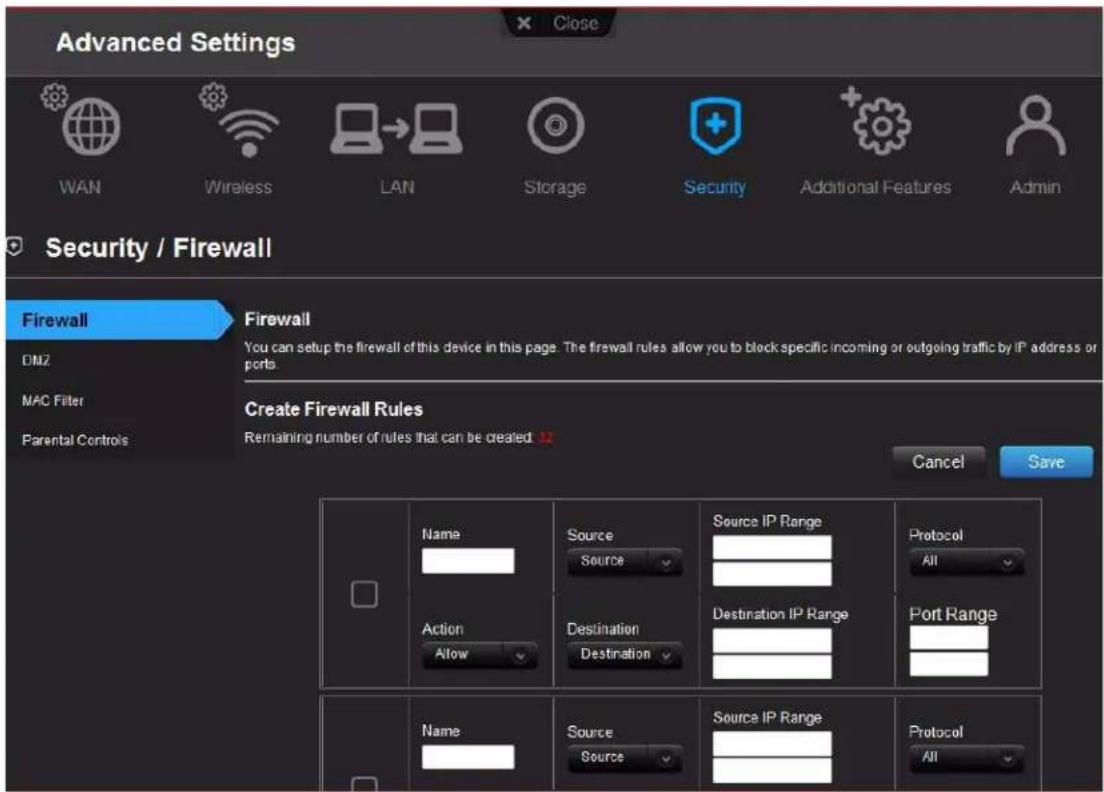
text_image
Advanced Settings WAN Wireless LAN Storage Security Additional Features Admin Security / Firewall Firewall DMZ MAC Filter Parental Controls Firewall You can setup the firewall of this device in this page. The firewall rules allow you to block specific incoming or outgoing traffic by IP address or ports. Create Firewall Rules Remaining number of rules that can be created ▶ Cancel Save Name Source Source IP Range Protocol All Action Destination Destination IP Range Port Range All Name Source Source IP Range Protocol AllFirewall Screen
Purpose: Set up a firewall for this router to block specific incoming or outgoing traffic by IP address and/or ports.
| Name | Name to identify the firewall rule. |
| Source Local network (LAN) or Internet (WAN). | |
| Source IP Range | Range of IP addresses where the traffic initiates. |
| Protocol | Protocol that will be applied in the firewall rule. Available options are All, TCP, UDP, and ICMP. |
| Action | From the drop-down list, select whether to allow or deny incoming and outgoing traffic. |
| Destination Local network (LAN) or Internet (WAN). | |
| Destination IP Range | Range of IP addresses where the traffic is destined. |
| Port Range | Network traffic port range that will be applied in the firewall rule. |
DMZ Screen
Purpose: Set up a DMZ (Demilitarized Zone) to allow all incoming traffic to be forwarded to a specific device (e.g., computer, phone, or game console) as if it were connected outside of the router. If you are aware of the specific TCP and UDP ports that a service is using, we recommend using port forwarding as an alternative.
Note: Firewall settings and Port Forwarding Rules supersede the configured DMZ host.
Important: Because of serious security concerns, use this option only as a last resort.
| Enable DMZ | Toggle the button to On to enable DMZ. |
| DMZ IP Address | If DMZ is enabled, select a device from the drop-down list and click the double arrows to populate the IP address, or manually enter the computer's IP address. |
MAC Filter Screen
Purpose: Control network access based on the MAC address of the client device.
MAC Filtering drop-down list The default setting is Turn MAC Filtering OFF. Other options are:
- Turn MAC Filtering ON and DENY computers listed to access the network.
- Turn MAC Filtering ON and ALLOW computers listed to access the network.
Active Status of the MAC filtering entry.
MAC Address Unique identifier of your local network device being filtered.
Double arrows After selecting a computer from the DHCP Client List, click the double arrows to populate the MAC Address box.
DHCP Client List Computers and devices that are currently connected to your router.
Computer Name Name assigned to the computer for easier identification. From the drop-down list, click the computer name to populate its MAC address.
Parental Controls Screen
Purpose: Control Internet access to specific websites and access periods. (See "Setting Up Parental Controls" on page 45.)
Additional Features Category

text_image
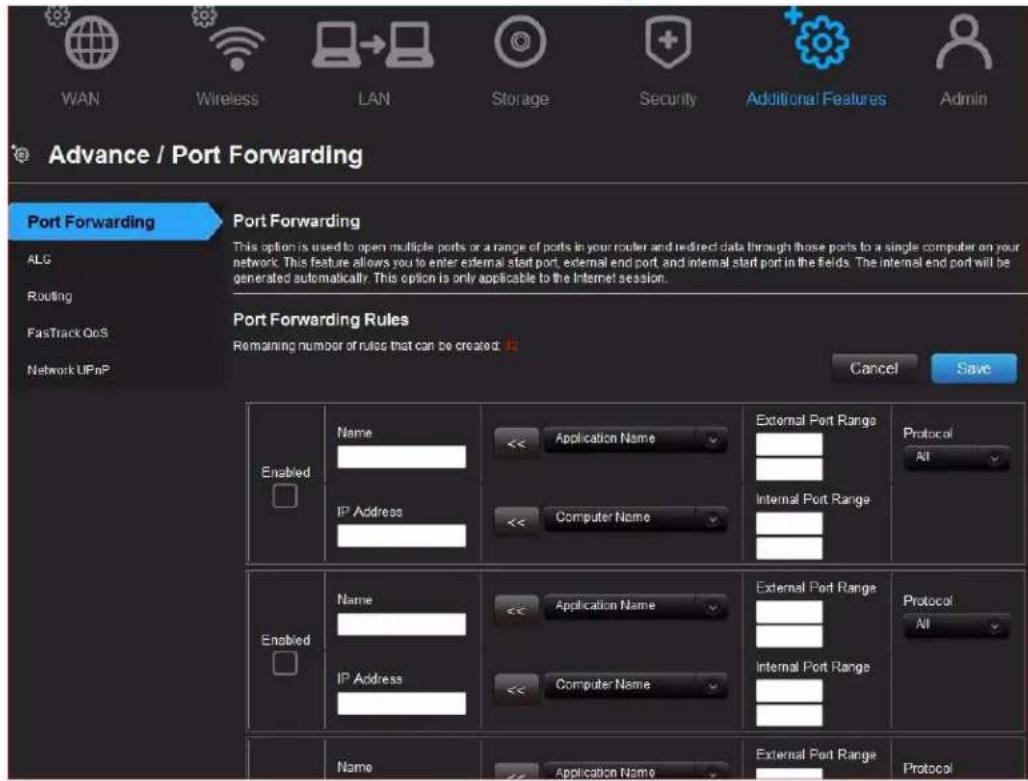
WAN Wireless LAN Storage Security Additional Features Admin Advance / Port Forwarding Port Forwarding Port Forwarding This option is used to open multiple ports or a range of ports in your router and redirected data through those ports to a single computer on your network. This feature allows you to enter external start port, external end port, and internal start port in the fields. The internal end port will be generated automatically. This option is only applicable to the Internet session. Port Forwarding Rules Remaining number of rules that can be created: Cancel Save Enabled Name << Application Name External Port Range Protocol All IP Address << Computer Name Internal Port Range Enabled Name << Application Name External Port Range Protocol All IP Address << Computer Name Internal Port Range Name << Application Name External Port Range ProtocolPort Forwarding Screen
Purpose: Open a single port or a range of ports in your router and redirect data. Applies only to traffic coming from the Internet. Applies only to traffic coming from the Internet. For information on port forwarding, see "Enabling Port Forwarding" on page 54.
ALG (Application Level Gateway) Screen
Purpose: Enable or disable Application Level Gateway (ALG) configuration. Enabling allows certain clients, such as PPTP, IPSec or SIP, to communicate more reliably through a firewall by adjusting certain parameters in the message headers.
| PPTP (Point-to-Point Tunneling Protocol) | Turn On (default) PPTP ALG if you use a PPTP client to dial into your corporate network via the Internet. |
| IPSec (VPN) | Turn On (default) IPSec ALG if you use a IPSec client to dial into your corporate network via the Internet. |
| SIP (Session Initiation Protocol) | A signaling protocol for Internet Telephony. Turn On (default) SIP ALG if you use VoIP telephone service over your Internet connection. |
Routing Screen
Purpose: Define static routes to specific destinations.
Active Select the check box to enable the routing entry.
Name Enter a name for the routing entry.
Interface Select the interface (WAN or LAN) for the routing entry.
Destination IP IP address/network to which the data is sent.
Netmask Enter a Netmask for the Destination IP to define the destination network.
Gateway Enter the Gateway IP address through which this router can be reached. The Gateway IP should be reachable from your router.
FasTrack QoS Screen
Purpose: Configure QoS powered by WD FasTrack QoS technology. This engine improves your media applications and online game experience by prioritizing your game traffic over other network traffic, such as Web traffic. Use QoS rules to set the priority of your applications.
Enable QoS Enable the QoS application to prioritize different client applications/traffic types over the Internet.
Uplink Speed The uplink speed (in Kbps) at which data can be transferred from the router to your ISP. The Auto (default) setting can automatically detect the uplink speed. You can select other values from the drop-down list or enter your own. QoS uses this setting to determine how much bandwidth needs to be reserved for prioritizing Internet traffic.
FasTrack Services Select the types of media and gaming services you want to prioritize.
Name Name given to the service/client for the entry.
Priority When creating a rule, select the precedence in which the application or device sends data over the network compared to other applications or devices. The default value is 1-Highest.
Type From the drop-down list, select the option that specifies whether the rule applies to a connected device or to an application.
Detail
- For Device rules, specify the LAN IP and/or Remote IP address(es) and protocol(s) for the rule.
- For Application rules, specify the Start and End port as well as the protocol for the rule.
• The protocols available are TCP, UDP, and Both.
Delete icon
Click to delete the row.
Network UPnP Screen
Purpose: Enable or disable peer-to-peer Plug and Play functionality for network devices.
Enable/Disable UPnP IGD Toggle to enable or disable Universal Plug and Play functionality (Internet Gateway Device) for network devices.
Admin Category


text_image
Advanced Settings WAN Wireless LAN Storage Security Additional Features Admin Admin / Administrator Administrator Time Settings Firmware Update System Connection Check Registration Log Language Device Mode Admin Password The 'admin account can access the management interface. The admin has read/write access and can change the password. By default there is no password configured. It is highly recommended that you create a password to keep your router secure. Admin Password Please enter the same password into both boxes for confirmation. Original Password New Password Verify New Password Administration Enable HTTPS Server Off Remote Management Enable Remote Management Off Remote Admin Port 8089 Notice: Remote Admin Port can not be in the external port range of Port Forwarding. Use HTTPS OffAdministrator Screen
Purpose: The admin account manages the router interface. The admin has read/write access and can create passwords. The default password is password. To keep your router secure, it is a best practice to create a new password. See "Changing the Administrator's Password" on page 46.
| Enable HTTPS Server Click to enable or disable Hypertext Transfer Protocol Secure (HTTPS), a combination of Hypertext Transfer Protocol (HTTP) with SSL/TLS protocol. It provides encrypted communication and secure identification of your web connections to your router. | |
| Enable Remote Management | Click to allow managing the router from a remote location. |
Remote Admin Port The port that will be used for remote management connections. Default is 8080. The Remote Admin Port cannot be used in an external port range of any port forwarding rules.
Use HTTPS Click to enable or disable use of HTTPS for remote management of the router.
Time Settings Screen
Purpose: Configure, update, and maintain the correct time on the router manually or automatically by NTP (Network Time Protocol).
Time Current date and time at the router's location.
Time Zone Select the time zone in which the router is located.
Enable Daylight Saving Click to enable or disable Daylight Saving time.
Daylight Saving Offset If you select Daylight Saving time, from the drop-down list, select the daylight saving offset. The offset is a formula that combines a time of day with the time zone and is based on a 24-hour clock.
Daylight Saving Dates If you select Daylight Saving time, from the drop down lists select the month, week, day of the week, and time of the start and end of Daylight Saving time in your time zone.
Adding User Defined NTP Server Add alternate NTP servers to be used.
NTP Server Used From the drop-down list, select the name of the NTP server to be used.
Firmware Update Screen
Purpose: Check for router firmware updates and upload new firmware.
For information on updates, see "Updating the Router's Firmware" on page 48.
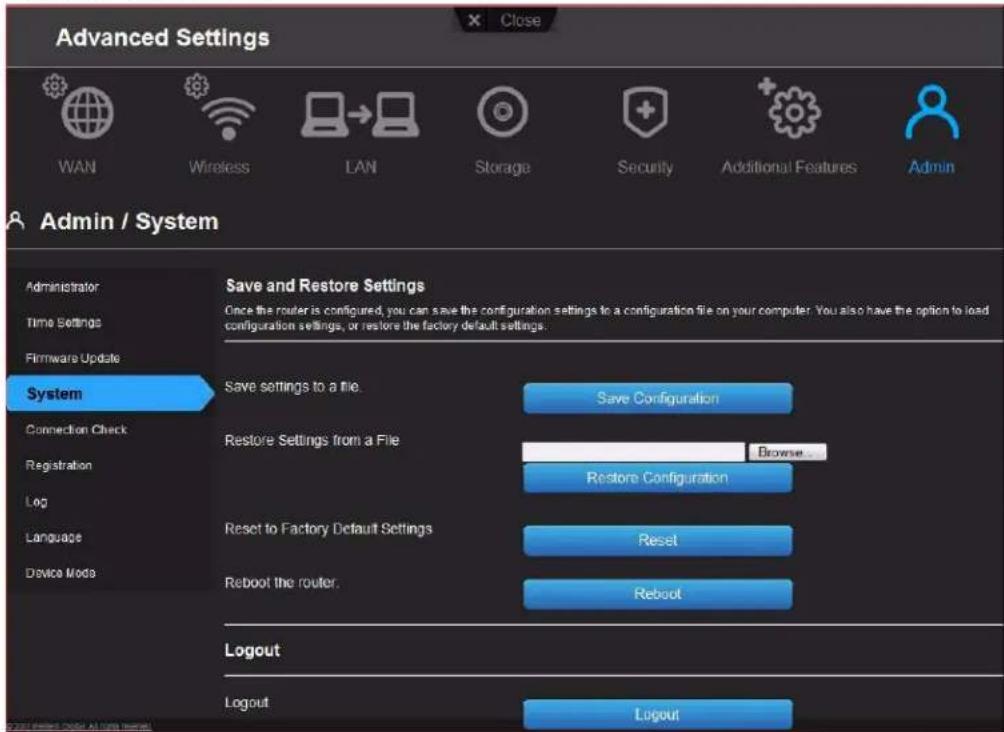
System Screen
Purpose: Save configuration settings on your local hard drive, load configuration settings, restore factory default settings, and log out.
For information on factory resets and rebooting, see "Restoring the Router to Factory Defaults" on page 49 and "Rebooting the Router" on page 50.
Save settings to a file Click Save Configuration. The router's current configuration is downloaded to your computer.
Restore Settings from a File To restore settings from a file, click Choose File and select it. Click Restore Configuration.
Logout Click Logout.
Connection Check Screen
Purpose: Use ping tests to check connectivity between the router and network/Internet hosts.
Host Name or IP Address Enter the host name or IP address of a computer you want to locate on the network. Click Ping.
Ping Result The result of whether your router can reach the specified host name or IP address.
Registration Screen
Purpose: Register your router if you have not already done so. Registering enables WD to notify you of updates to the firmware and send you important information.
Log Screen
Purpose: Display and save logs generated by the router.
Save Log File to Local Hard Drive Click Save to copy the contents of the system log to a file on your computer.
Log Level From the drop-down list, select the alert level of the log you want to generate. Options are Debug, Notice, and Warning.
Log Type From the drop-down list, select the type of log you want to generate. Options are System, Attack, and Drop. The default is System.
Log Table Click the tabs to reveal the log pages to view or to clear or refresh the table.
Language Screen
Purpose: The language is normally auto-detected based on your web browser settings. If the selected language is not the language you desire, you can manually choose another language.
Select language From the drop-down list, select the language in which you want the user interface to display.
Device Mode Screen
Purpose: Configure your router to operate in either router mode or AP (access point) mode. When the router is used as an access point, it disables certain services, such as DHCP and routing, to turn the router into a Wi-Fi access point, allowing you to expand your existing wireless network without replacing your router.
For information about changing to AP mode, see "Using the Router as an Access Point" on page 50

Performing Advanced Tasks
This chapter describes the most important tasks the administrator performs in setting up and maintaining the My Net AC1300 router. It includes the following topics:
Enabling Guest Access
Setting Up Parental Controls
Changing the Administrator's Password
Accessing Files Stored on an Attached USB Drive
Updating the Router's Firmware
Restoring the Router to Factory Defaults
Rebooting the Router
Using the Router as an Access Point
Configuring UPnP
Enabling Port Forwarding
Installing and Using Additional WD Software
Enabling Guest Access

A guest network allows you to give visitors Internet access without giving them access to your home network.
- On the Advanced Setting screen, click the Wireless icon.
- Click the Guest Access tab:

text_image
Advanced Settings WAN Wireless LAN Storage Security Additional Features Admin Wireless / Guest Access Wireless Setup Wi-Fi Protected Setup Guest Access Guest Access Guest Network allows visitors to get Internet access without giving them access to your home network. You can set two separate guest network names and network pass keys for 2.4GHz and 5GHz wireless networks. Wireless 2.4GHz Off Wireless 5GHz Off Guest Network SSID Guest Network SSID Security Mode Security Mode Password Password RADIUS Server IP Address Port Shared Secret Cancel Save- For the wireless 2.4 GHz and/or 5 GHz band, toggle the On/Off button to On to turn access on.
4. Specify the following:
Setting Description
Guest Network Name Accept the default value or enter another name for the wireless network.
Security Mode The default value is None. To restrict guest access, select the type of security needed from the drop-down list:
- WPA2 - Personal
- WPAWPA2 - Personal
• W P A - P e r s o n a l
Guest Password Create a password for the guest user to prevent an unauthorized user from accessing your guest network.
5. Click Save.
Setting Up Parental Controls

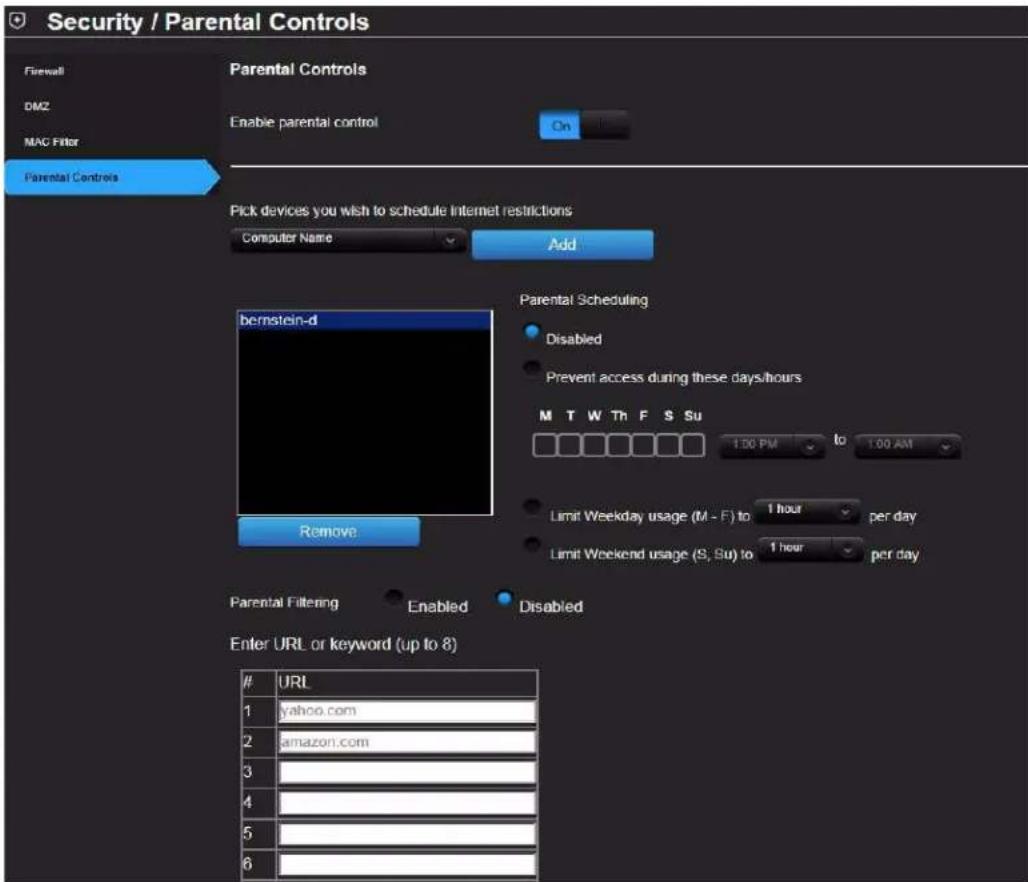
Set up your router with parental controls that restrict the websites and content a user can access on the Internet and schedule the times the user will have access.
- On the Advanced Setting screen, click the Security icon.
- Click the Parental Controls tab:
text_image
Security / Parental Controls Firewall DMZ MAC Filter Parental Controls Parental Controls Enable parental control On Pick devices you wish to schedule Internet restrictions Computer Name Add Bernstein-d Parental Scheduling Disabled Prevent access during these days/hours M T W Th F S Su 1:00 PM to 1:00 AM Limit Weekday usage (M - F) to 1 hour per day Limit Weekend usage (S, Su) to 1 hour per day Remove Parental Filtering Enabled Disabled Enter URL or keyword (up to 8)URL
1 yahoo.com 2 amazon.com 3 4 5 6- Toggle the Enable parental control button to On.
The screen displays settings for controlling user access.
-
From the drop-down list of computers on the network, select one to which you want to restrict access and click Add.
-
In the Parental Scheduling section of the screen:
a. Select to enable or disable parental scheduling.
b. If disabling, continue to step 7.
c. If enabling, select Prevent access during these days/hours, and then select the days of the week and the time range on those days for which user access will be restricted.
-OR-
To limit use on weekdays or weekends, select Limit Weekday usage (M-F) or Limit Weekend usage (S, Su) and the number of hours per day you want to restrict access.
- To restrict the user from accessing specified Internet sites, for Parental Filtering, select Enabled and enter up to 8 URLs (web site addresses) or keywords.
- Click Save.
- Repeat steps 4-7 for each computer you want to restrict.
Changing the Administrator's Password

It is a good practice to change the administrator's password from the default (password) for accessing and managing the router.
To change the administrator's password:
- On the Advanced Settings screen, click the Admin icon. The Administrator tab displays.

text_image
Advanced Settings WAN Wireless LAN Storage Security Additional Features Admin Admin / Administrator Administrator Time Settings Firmware Update System Connection Check Registration Log Language Device Mode Admin Password The admin account can access the management interface. The admin has read/write access and can change the password. By default there is no password configured. It is highly recommended that you create a password to keep your router secure. Admin Password Please enter the same password into both boxes for confirmation. Original Password New Password Verify new Password Administration Enable HTTPS Server Off Remote Management Enable Remote Management Off Remote Admin Port 8000 Notice: Remote Admin Port can not be in the external port range of Port Forwarding Use HTTPS Off- Enter the new administrator's password in the Password and Verify Password fields and click Save.
Accessing Files Stored on an Attached USB Drive
To access the files stored on a USB drive connected to the router, make sure that the drive was properly set up as described in "Setting up External Storage" on page 21. After the setup is complete, access stored files through the network as follows:
Using Windows Explorer
Windows XP
- Click Start > Run and type \mynetac1300. If the router's default name was changed during setup, substitute the new name. The folder that displays represents the external USB drive.
- Double-click the folder to access the drive.
- If a password was set on the router during storage setup, at the prompts, enter the username and the password that you created.
Windows Vista/Win7
- Click > Start and in the Search programs and files box, type \mynetac1300. If the router's default host name was changed during setup, substitute the new name. The folder that displays represents the external USB drive.
- Double-click the folder to access its contents.
- If a password was set on the router during storage setup, at the prompts, enter the username and the password that you created.
Setting up a Share (Mac)
To access the files stored on a USB drive connected to the router, make sure that the drive was properly set up as described in "Setting up External Storage" on page 21. After the setup is complete, access it through the network by doing the following:
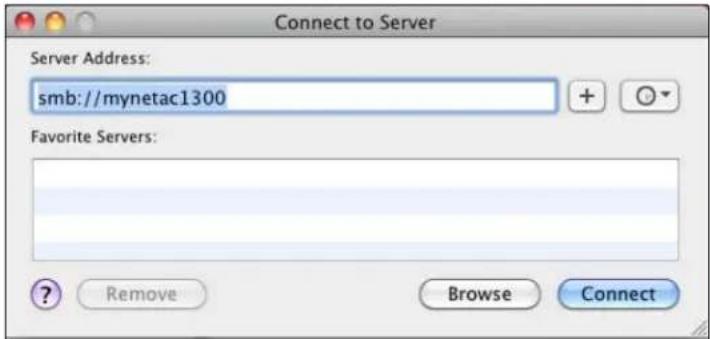
- Click Finder and on the menu bar, click Go > Connect to Server.
- Type smb://mynetac1300. If the router's default host name was changed during setup, substitute the new name. The folder that appears is the external USB drive.
text_image
Connect to Server Server Address: smb://mynetac1300 Favorite Servers: ? Remove Browse Connect-
Click OK to mount the volume.
-
If you are prompted for a username and password, enter the username and password that you created when you set up external storage. If a password was not created, select or enter guest. Click Connect.

text_image
Enter your name and password for the server "mynetac1300". Connect as: Guest Registered User Name: wd_user Password: ****** Remember this password in my keychain Cancel ConnectUpdating the Router's Firmware

Note: For best results, upload the firmware using a wired connection.
Important: Do not disconnect or turn off the router while the update is in process.
- On the Advanced Setting screen, click the Administrator icon.
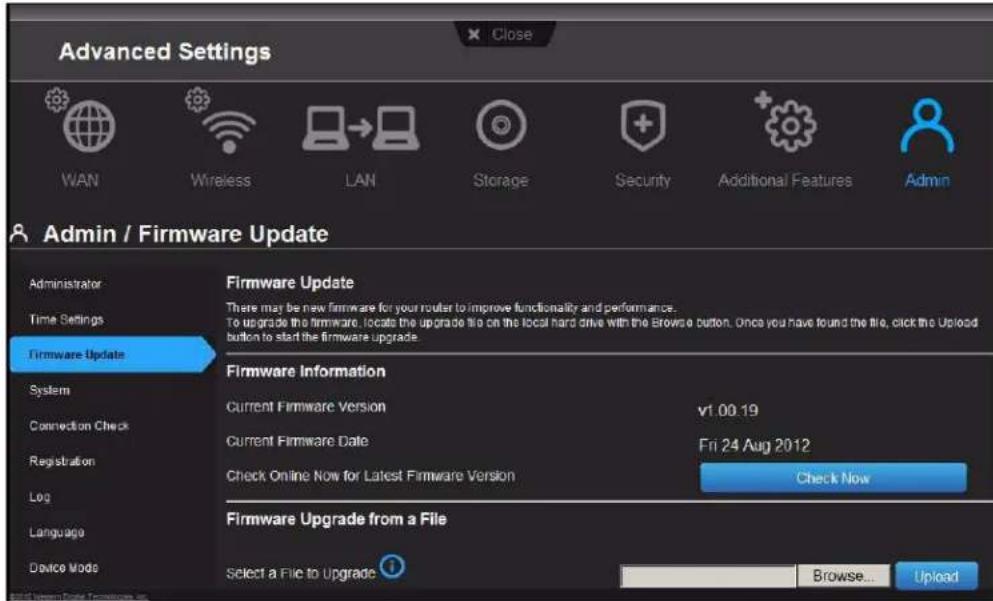
- Click the Firmware Update tab:
text_image
Advanced Settings WAN Wireless LAN Storage Security Additional Features Admin Admin / Firmware Update Administrator Time Settings Firmware Update System Connection Check Registration Log Language Device Mod Firmware Update There may be new firmware for your router to improve functionality and performance. To upgrade the firmware, locate the upgrade file on the local hard drive with the Browse button. Once you have found the file, click the Upload button to start the firmware upgrade. Firmware Information Current Firmware Version vt 00.19 Current Firmware Date Fri 24 Aug 2012 Check Online Now for Latest Firmware Version Check Now Firmware Upgrade from a File Select a File to Upgrade Browse... UploadTo check for the latest firmware version:
- Click Check Now. The router searches the WD website for a new firmware file.
- If a new file exists, click Update Now to begin the firmware update. A message informs you of how long the upload will take. Please wait while the firmware update is taking place.
To update from a file:
- Locate the firmware file on the WD Support site at http://support.wdc.com and download it to your computer.
- On the router screen, browse to the firmware file you saved and click Open on a Windows computer or Choose on Mac. The file name displays in the browser screen.
- Click Upload. A message says how long the upload will take. Please wait while the firmware update is taking place.
Restoring the Router to Factory Defaults

You may want to reset the router to how it was when you bought it. You have two options for restoring factory defaults: through the user interface or through the Reset button on the side of the router.
Important: Do not reboot the router or close the application while the process is taking place.
To use the user interface:
- On the Advanced Setting screen, click the Administrator icon.
- Click the System tab:
text_image
Advanced Settings WAN Wireless LAN Storage Security Additional Features Admin / System Administrator Time Settings Firmware Update System Save and Restore Settings Once the router is configured, you can save the configuration settings to a configuration file on your computer. You also have the option to load configuration settings, or restore the factory default settings. Save settings to a file. Save Configuration Restore Settings from a File Browse... Restore Configuration Reset to Factory Default Settings Reset Reboot the router. Reboot Logout Logout Logout- Click Reset to the right of Reset to Factory Default Settings.
- When a confirmation message displays, click OK.
- Wait until the router reboots before using it.
To reset the router manually:
- Press and hold the Reset button on the back of the router (to the right of the USB ports) for at least 10 seconds. When the reset finishes, the power LED blinks.
- Release the Reset button, and the router reboots.
Rebooting the Router

You can reboot the router two ways. If you are physically close to it, just press the On/Off button on the router. If you cannot easily press the button:
- On the Advanced Setting screen, click the Administrator icon.
- Click the System tab:

text_image
Advanced Settings WAN Wireless LAN Storage Security Additional Features Admin Admin / System Administrator Time Settings Firmware Update System Save and Restore Settings Once the router is configured, you can save the configuration settings to a configuration file on your computer. You also have the option to load configuration settings, or restore the factory default settings. Save settings to a file: Save Configuration Restore Settings from a File Browse... Restore Configuration Reset to Factory Default Settings Reset Reboot the router Reboot Logout Logout Logout- Click Reboot.
Using the Router as an Access Point

You can use your My Net router as a wired access point (AP) to:
- Add wireless coverage to a home network that does not have wireless coverage.
- Expand a home network's wireless coverage.
Important: Connect a computer directly to the router to change the mode to AP. After configuring, connect it via Ethernet to your primary router.
To convert the router to AP mode:
- On the Advanced Setting screen, click the Admin icon.
- Click the Device Mode tab:
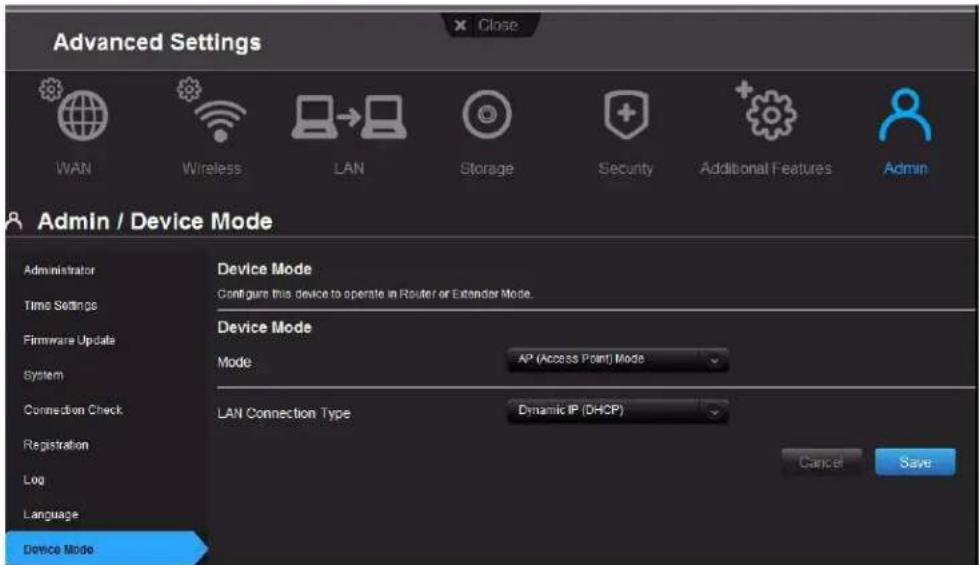
text_image
Advanced Settings WAN Wireless LAN Storage Security Additional Features Admin Admin / Device Mode Administrator Time Settings Firmware Update System Connection Check Registration Log Language Device Mode Device Mode Configure this device to operate in Router or Extender Mode. Device Mode Mode AP (Access Point) Mode LAN Connection Type Dynamic IP (DHCP) Cancel Save- From the Device Mode drop-down list, select AP (Access Point) mode. The LAN Connection Type displays.
- To configure LAN Connection Type, select Dynamic IP (DHCP) (default) or Static IP. For Dynamic IP, continue to step 6.
- If you select Static IP, complete the required entries:
| Setting Description | |
| LAN IP address IP address of the device that is being configured as an access point. The IP address should be on the same network as your existing router. | |
| Subnet Mask The subnet mask is used to control how many subnetworks can exist in your local network. | |
| Default Gateway IP address of the router to which this device is connected while configured as an access point. | |
| Primary/Secondary DNS Server | Your ISP configures and maintains the primary and secondary DNS Server addresses. You can find them on your main router or by contacting your ISP. |
- Click Save. The screen informs you of how long the process will take. The router reboots, and the login screen displays.
Note: The IP address of the access point is the static IP you assigned or the DHCP IP address assigned by your router.
Setting up the DHCP Server on the My Net Router
You can use your router as a DHCP server that assigns IP addresses to other components of your network.
To set up a DHCP Server on your My Net AC1300 Router:
- On the Advanced Setting screen, click the LAN icon.
- Click the DHCP Server Settings tab:
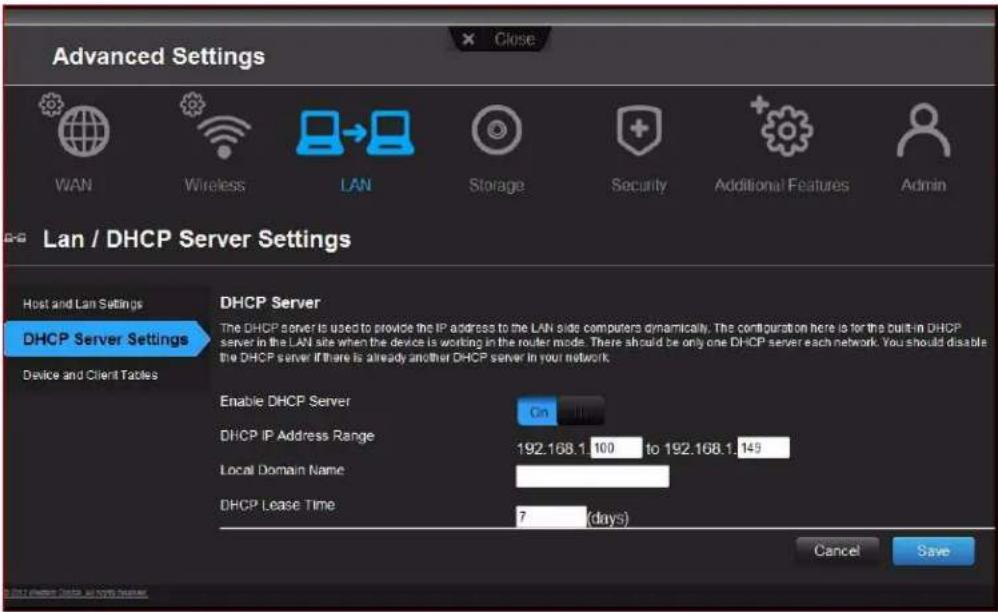
text_image
Advanced Settings WAN Wireless LAN Storage Security Additional Features Admin LAN / DHCP Server Settings Host and Lan Settings DHCP Server Settings Device and Client Tables DHCP Server The DHCP server is used to provide the IP address to the LAN side computers dynamically. The configuration here is for the built-in DHCP server in the LAN site when the device is working in the router mode. There should be only one DHCP server each network. You should disable the DHCP server if there is already another DHCP server in your network. Enable DHCP Server On DHCP IP Address Range 192.168.1.100 to 192.168.1.149 Local Domain Name DHCP Lease Time 7 (days) Cancel Save- Enable DHCP server (On by default) and click Save.
- Configure DHCP IP Address Range.
Note: Note: The first part of the DHCP address range (192.168.1 by default) is determined by the router's LAN IP address.
- (Optional) Set a Local Domain Name.
- Set the DHCP Lease Time (hours) and click Save.
- Connect all of the client devices.
8. Click the Device and Client Table tab:

text_image
LAN / Device and Client Tables Host and LAN Settings DHCP Server Settings Device and Client Tables DHCP Client Table Wired/Wireless DevicesIP Address MAC Address Device Name Client Lease Time
1 192.168.1.137 00:25:4B:C6:00:B6 5 Day 22 Hour 50 Min 5 Soc 2 192.168.1.138 D4.BE:D9:C4.EA:32 bernstein-d 5 Day 22 Hour 50 Min 12 Sec Manual Added Device IP Address MAC Address Device Name Add/UpdateIP Address MAC Address Device Name
Cancel SaveThe table lists all of the client devices (wired/wireless) and displays the number of devices connected along with the IP address and MAC address of each device.
To manually assign a DHCP IP address to a device:
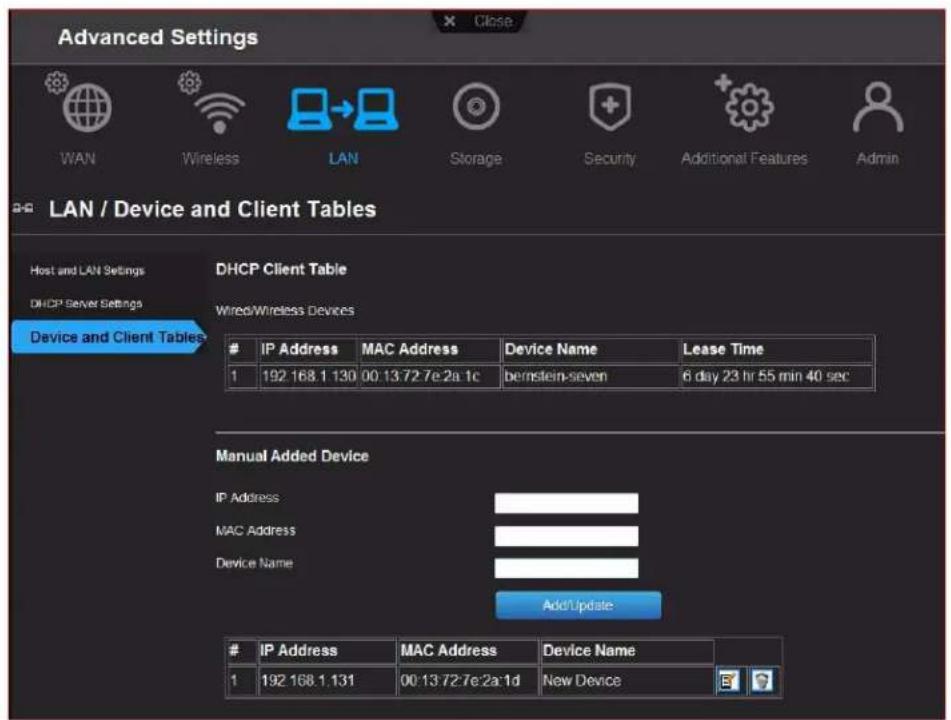
text_image
Advanced Settings WAN Wireless LAN Storage Security Additional Features Admin LAN / Device and Client Tables Host and LAN Settings DHCP Server Settings Device and Client Tables DHCP Client Table Wired/Wireless DevicesIP Address MAC Address Device Name Lease Time
1 192.168.1.130 00:13:72:7e:2a:1c bernstein-seven 6 day 23 hr 55 min 40 sec Manual Added Device IP Address MAC Address Device Name Add/UpdateIP Address MAC Address Device Name
1 192.168.1.131 00:13:72:7e:2a:1d New Device- In the Manual Added Device section of the screen, enter the device's IP address, MAC address, and device name.
- Click Add/Update. The device information populates the device table below.
- To update a device, select it in the table and click the Edit icon. Edit the information and click Add/Update.
- To delete a device, disconnect it, select it in the table, and click the Delete (trash can) icon.
Note: For more information, search for KBA Answer ID 9423 on the Customer Support website at http://support.wdc.com.
Configuring UPnP

UPnP enables networked devices to discover each other and start working together on a network. In the case of the router, UPnP allows certain applications running on the local network to automatically configure port forwarding rules to allow Internet computers to communicate with them. For example, a UPnP-enabled FTP server would automatically configure the router to forward port 21 to it, so computers on the Internet can reach your server.
- On the Advanced Setting screen, click the Additional Features icon.
- Click the Network UPnP tab:

text_image
Advanced Settings WAN Wireless LAN Storage Security Additional Features Admin Advance / Network UPNP Part Forwarding ALG Routing FastTrack QoS Network UPNP UPNP Universal Plug and Play(UPnP) supports peer to peer Plug and Play functionality for network devices. Enable UPnP IGD On Cancel Save- To enable UPnP, make sure the UPnP IGD (Internet Gateway Device) button is On (default.)
- Click Save.
Enabling Port Forwarding

On a private network, port forwarding maps Internet traffic coming into a specific port to a specific device on your LAN like a web server. Port forwarding is useful, for example, when you host a game to which others want to connect. Instead of their being blocked because of the router's network address translation (NAT), their information comes through.
- On the Advanced Settings screen, click the Additional Features icon.
- Click the Port Forwarding tab:
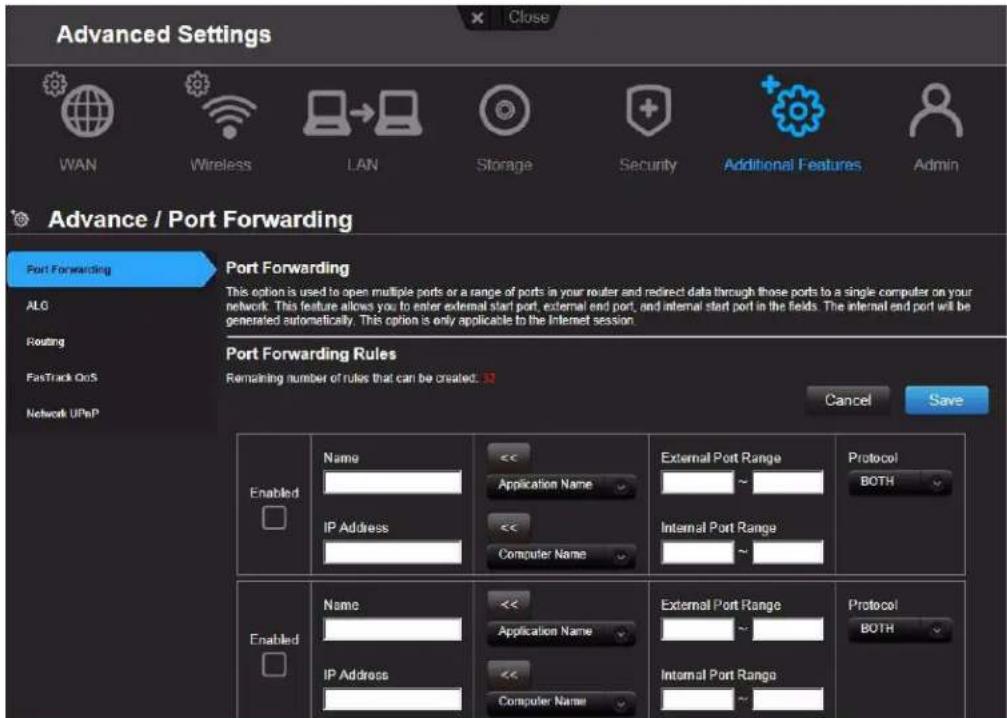
text_image
Advanced Settings WAN Wireless LAN Storage Security Additional Features Admin Advance / Port Forwarding Port Forwarding ALG Routing FastTrack QoS Network UPnP Port Forwarding This option is used to open multiple ports or a range of ports in your router and redirect data through those ports to a single computer on your network. This feature allows you to enter external start port, external end port, and internal start port in the fields. The internal end port will be generated automatically. This option is only applicable to the Internet session. Port Forwarding Rules Remaining number of rules that can be created: 32 Cancel Save Enabled Name << Application Name << Computer Name External Port Range External Port Range Protocol BOTH IP Address Internal Port Range Enabled Name << Application Name << Computer Name External Port Range Protocol BOTH IP Address Internal Port Range- Specify the following information for each rule you create:
| Port Forwarding Rules | |
| Enabled Select the check box to enable the rule. Clear the check box to disable it. | |
| Application Name From the drop-down list, select the application whose data you want to forward to the client on your local network. Click the double arrows to populate Name, Internal Port, External Port and Protocol. | |
| External Port Range Enter the port(s) you want to forward from the WAN interface (Internet). The port is automatically populated when you pick an application from the drop-down list. | |
| Protocol Select the protocol that you wish to port forward. The options are All, TCP, and UDP. The protocol automatically displays if you pick an application from the drop-down list. | |
| IP Address Can be manually entered or populated by your selection from the Computer Name drop-down list. | |
| Computer Name | Device on your local network to which the rule will be applied. Click the double arrows to populate the IP Address field. |
| Internal Port Range Enter the port(s) on the LAN client to which you want to forward data. The port is automatically populated when you pick an application from the drop-down list. | |
- Click Save at the top or bottom of the page.
7
Installing and Using Additional WD Software
This chapter contains the following topics:
WD Print Share
My Net View (Windows)
The My Net AC1300 router supports two Western Digital applications: WD Print Share and My Net View. To install the software, you have two options:
- Install it from the WD Software folder on the Setup and Resource CD.
■ Download it from http://support.wdc.com/.
Note: After downloading and saving the software files, follow the same procedure as you would for installing the files from the CD.
WD Print Share

Your My Net AC1300 Router can share a printer, a multi-function printer, or a scanner with computers on your network. Just connect the printer/scanner to an available USB port on the router, install the printer/scanner manufacturer's software, and then install WD Print Share software on each computer that will share the printer/scanner.
This chapter contains the following topics:
Installing WD Print Share (Windows)
Before installing WD Print Share software, make sure the manufacturer's printer/scanner driver and software are installed in your computer.
- Connect the USB printer/scanner to any available USB port on the back your router.
- Insert the Setup and Resources CD into your computer's CD drive.
- Double-click WD Software > WDPrintShare > setup. The InstallShield Wizard for WD Print Share displays.
- Follow the wizard's instructions to display the Print Share Control Center screen.
Note: To open this screen in the future, double-click the WD Print Share icon on your desktop.
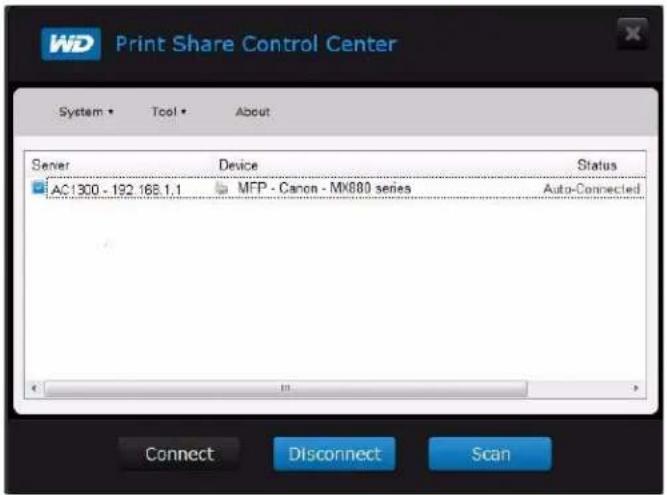
text_image
WD Print Share Control Center System • Tool • About Server Device Status AC1300 - 192 168.1.1 MFP - Canon - MX880 series Auto-Connected Connect Disconnect Scan- Make sure the status is Auto-Connected or Connected. You are now ready to print.
Installing WD Print Share (Mac)
Before installing WD Print Share software, make sure the manufacturer's printer/scanner driver and software are installed in your computer.
- Open the CD and in Finder, double-click WD Software > WDPrintShare > WD Print Share Installer.dmg.

text_image
WD Print Share Installer 1 item, 12.7 MB available WD Print Share Installer- Double-Click the WD Print Share Installer icon to display the Installer welcome screen.

text_image
WD Print Share Installer 2:07 Welcome to the WD Print Share Installer Please click install to start the installation process. Cancel Install-
Click Install and follow the installation wizard to install WD Print Share.
-
When the installation is done, click the WD Print Share icon on the desktop 🔑 to displaythe WD Print Share Control Center.
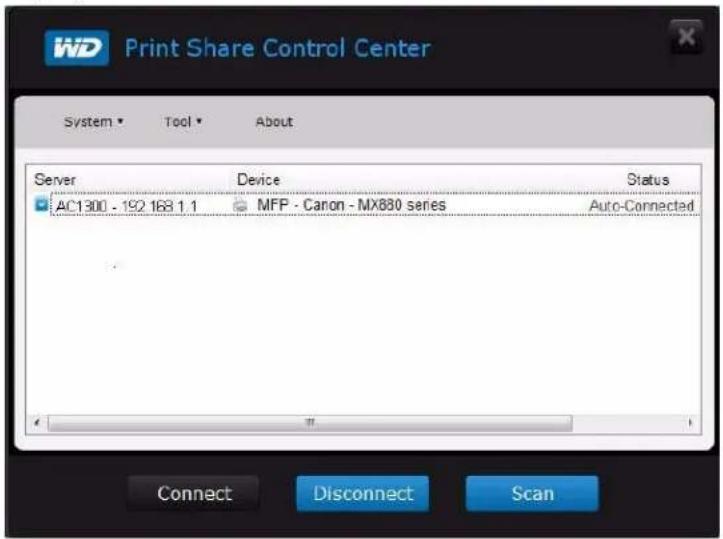
text_image
WD Print Share Control Center System Tool About Server Device Status AC1300 - 192 168 1.1 MFP - Canon - MX880 series Auto-Connected Connect Disconnect ScanUsing WD Print Share
Opening WD Print Share
To display the WD Print Share Control Center at any time, click the WD Print Share icon on the desktop.
Using an Auto-Connected Printer
By default, the printer is in Auto-Connected mode, which allows the computer to be connected to the printer only when you send a print job to the printer. Another user in the network can use the printer while you are disconnected.
Using the Connect Button
Connected mode is for both printing and scanning. Selecting the printer or scanner and clicking Connect manually connects the device to your computer for the timeout duration set in Tool > Set Timeout on the menu.
Using the Connect Button With a Scanner
- Select the scanner from the list on the WD Print Share Control Center.
- Click Connect. The status changes to Connected.
- Launch the software that came with your scanner.
- After the scanning job is done, disconnect by clicking Disconnect or let the scanner disconnect automatically in the predefined time period in Tool > Set Timeout on the menu.
Using the Scan Button
You can also use the Scan button on the WD Print Share Control Center to activate scanning with the industry standard TWAIN or WIA interface.
- Select the scanner from the list on the WD Print Share Control Center.
- Click Scan. You are prompted to select a scanner interface. A scanner user interface appears on the screen.
- Choose options and click Scan to scan your picture or document.
- After scanning is done, click Close.
My Net View (Windows)
Installing with My Net View Setup (on CD)
- Open the CD and double-click WD Software > MyNetView > MyNetViewSetup to display the My Net View Setup Wizard welcome screen.

text_image
My Net View Setup Welcome to the My Net View Setup Wizard The Setup Wizard will install My Net View on your computer. Click Next to continue or Cancel to exit the Setup Wizard.- Click Next and follow the wizard's instructions until you see the Completed the My Net View Setup Wizard screen.
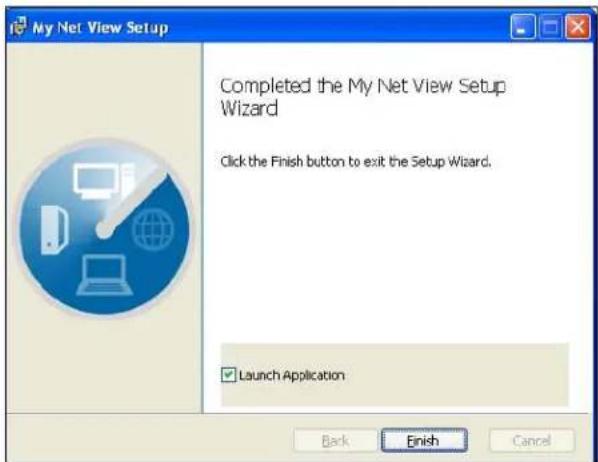
text_image
My Net View Setup Completed the My Net View Setup Wizard Click the Finish button to exit the Setup Wizard. Launch Application Back Finish Cancel-
By default, the Launch Application check box is checked. If you do not want to start My Net View, clear the check box.
-
Click Finish.
Using My Net View for Network Diagnostics
Once you install My Net View on your computer, you can use it to diagnose network problems.
- Double-click the My Net View icon in the Western Digital folder in the Start menu. The My Net View Welcome screen displays.
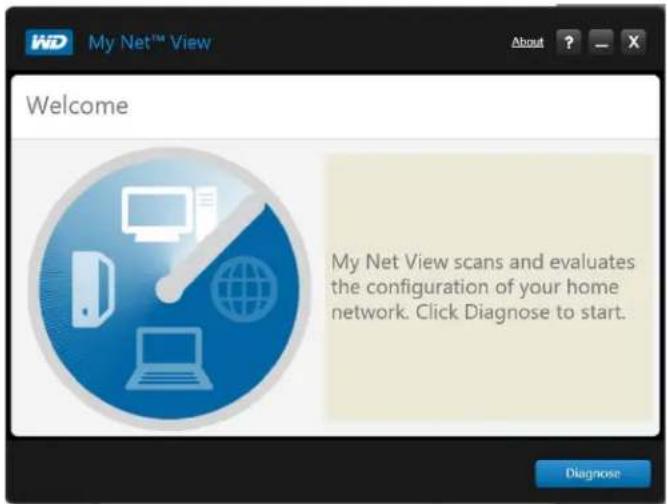
text_image
My Net™ View Welcome My Net View scans and evaluates the configuration of your home network. Click Diagnose to start. Diagnose- Click Diagnose and use the online Help (?) to guide you through the diagnostic procedures.

Troubleshooting
| Problem Solution | |
| The power LED does not illuminate. | 1. Ensure that the power cord is connected to the router correctly.2. Ensure that the power switch is on and the electrical outlet is working properly. To do this, plug a different electronic device into the outlet and try to power it on.3. Ensure that you are using the AC adapter provided with the router. |
| A port number LED does not illuminate. | 1. Ensure that the connected device is powered on.2. Ensure that the Ethernet cable(s) are securely connected to the ports on both the device and the router.3. To ensure that the cable between the router and the electronic device is working properly, replace it with another cable. |
| Computers are unable to access the Internet. | 1. Ensure that the router is powered on. The power LED should be solid and not flashing.2. Check the cable connections between the modem, router, and computer: ·The Ethernet cable connected to your modem should be connected to the Internet port on the router. ·An Ethernet cable from your computer should be connected to a LAN port on the back of the router.3. Power off and power on your modem, router, and computer.4. If all else fails, install My Net View from the Setup & Resource CD or contact Technical Support at http://support.wdc.com or your ISP. |
| All front panel LEDs flash continuously. | 1. Relocate your router to a place that has good ventilation.2. Turn off your router, and set it aside for 15 to 20 minutes until it cools down. Turn your router back on to resume operation.3. If the problem persists, contact Customer Support at http://support.wdc.com. |

Regulatory and Warranty Information
This chapter contains the following topics:
Regulatory Compliance
Warranty Information (All Regions Except Australia/New Zealand)
Warranty Information (Australia/New Zealand only)
Regulatory Compliance
Federal Communication Commission Interference Statement
This device complies with Part 15 of the FCC Rules. Operation is subject to the following two conditions: (1) This device may not cause harmful interference, and (2) this device must accept any interference received, including interference that may cause undesired operation.
This equipment has been tested and found to comply with the limits for a Class B digital device, pursuant to Part 15 of the FCC Rules. These limits are designed to provide reasonable protection against harmful interference in a residential installation. This equipment generates, uses and can radiate radio frequency energy and, if not installed and used in accordance with the instructions, may cause harmful interference to radio communications. However, there is no guarantee that interference will not occur in a particular installation. If this equipment does cause harmful interference to radio or television reception, which can be determined by turning the equipment off and on, the user is encouraged to try to correct the interference by one of the following measures:
■ Reorient or relocate the receiving antenna.
■ Increase the separation between the equipment and receiver.
- Connect the equipment into an outlet on a circuit different from that to which the receiver is connected.
- Consult the dealer or an experienced radio/TV technician for help.
Regulatory Information/Disclaimers
Installation and use of this Wireless LAN device must be in strict accordance with the instructions included in the user documentation provided with the product. Any changes or modifications (including the antennas) made to this device that are not expressly approved by the manufacturer may void the user's authority to operate the equipment. The manufacturer is not responsible for any radio or television interference caused by unauthorized modification of this device, or the substitution of the connecting cables and equipment other than manufacturer specified. It is the responsibility of the user to correct any interference caused by such unauthorized modification, substitution or attachment. Manufacturer and its authorized resellers or distributors will assume no liability for any damage or violation of government regulations arising from failing to comply with these guidelines.
For operation within 5.15 \~ 5.25 GHz frequency range, it is restricted to indoor environment. This device meets all the other requirements specified in Part 15E, Section 15.407 of the FCC Rules.
CAUTION: To comply with FCC RF exposure compliance requirements, the antenna used for this transmitter must be installed to provide a separation distance of at least 20 cm from all persons and must not be co-located or operating in conjunction with any other antenna or transmitter.
Note: The country code selection is for non-US models only and is not available for all US models. Per FCC regulations, all WiFi products marketed in the US must be fixed to US operation channels only.
Industry Canada (IC)
This device complies with RSS-210 of the Industry Canada Rules. Operation is subject to the following two conditions: (1) This device may not cause harmful interference, and (2) this device must accept any interference received, including interference that may cause undesired operation.
CAUTION! The device for operation in the band 5150-5250 MHz is only for indoor use to reduce the potential for harmful interference to co-channel mobile satellite systems.
Radiation Exposure Statement: This equipment complies with IC radiation exposure limits set forth for an uncontrolled environment. This equipment should be installed and operated with minimum distance 20 cm between the radiator and your body.
This device complies with Canadian ICES-003 Class B.
This product is intended to be supplied by a listed limited power source, double insulated, or direct plug-in power unit marked "Class 2."
Safety Compliance
Approved for US and Canada. CAN/CSA-C22.2 No. 60950-1, UL 60950-1: Safety of Information Technology Equipment.
This device is only for use with the compatible UL Listed AC adapter.
CE Compliance for Europe
Operation of this device is subjected to the following National regulations and may be prohibited to use if certain restriction should be applied.
Marking by the CE symbol indicates compliance of this system to the applicable Council Directives of the European Union, including the EMC Directives (2004/108/EC), (1999/5/EC), the Low Voltage Directive (2006/95/EC), and EuP Directive (2005/32/EC). A “Declaration of Conformity” in accordance with the applicable directives has been made and is on file at Western Digital Europe.
Environmental Compliance (China)
产品中有毒有害物质或元素的名称及含量
Warranty Information (All Regions Except Australia/New Zealand)
Limited Warranty
WD warrants that the Product, in the course of its normal use, will for the term defined below, be free from defects in material and workmanship and will conform to WD's specification therefor. The term of your limited warranty depends on the country in which your Product was purchased. The term of your limited warranty is for 1 year in the North, South and Central America region, 2 years in the Europe, the Middle East and Africa region, and 3 years in the Asia Pacific region, unless otherwise required by law. The term of your limited warranty period shall commence on the purchase date appearing on your purchase receipt. WD may at its discretion make extended warranties available for purchase. WD shall have no liability for any Product returned if WD determines that the Product was stolen from WD or that the asserted defect a) is not present, b) cannot reasonably be rectified because of damage occurring before WD receives the Product, or c) is attributable to misuse, improper installation, alteration (including removing or obliterating labels and opening or removing external enclosures, unless the product is on the list of limited user-serviceable products and the specific alteration is within the scope of the applicable instructions, as found at http://support.wdc.com), accident or mishandling while in the possession of someone other than WD. Subject to the limitations specified above, your sole and exclusive warranty shall be, during the period of warranty specified above and at WD's option, the repair or replacement of the Product with an equivalent or better Product. The foregoing warranty of WD shall extend to repaired or replaced Products for the balance of the applicable period of the original warranty or ninety (90) days from the date of shipment of a repaired or replaced Product, whichever is longer.
The foregoing limited warranty is WD's sole warranty and is applicable only to products sold as new. The remedies provided herein are in lieu of a) any and all other remedies and warranties, whether expressed, implied or statutory, including but not limited to, any implied warranty of merchantability or fitness for a particular purpose, and b) any and all obligations and liabilities of WD for damages including, but not limited to accidental, consequential, or special damages, or any financial loss, lost profits or expenses, or lost data arising out of or in connection with the purchase, use, or performance of the Product, even if WD has been advised of the possibility of such damages. In the United States, some states do not allow exclusion or limitations of incidental or consequential damages, so the limitations above may not apply to you. This warranty gives you specific legal rights, and you may also have other rights which vary from state to state.
Obtaining Service
WD values your business and always attempts to provide you the very best of service. If this Product requires maintenance, either contact the dealer from whom you originally purchased the Product or visit our product support Web site at http://support.wdc.com for information on how to obtain service or a Return Material Authorization (RMA). If it is determined that the Product may be defective, you will be given an RMA number and instructions for Product return. An unauthorized return (i.e., one for which an RMA number has not been issued) will be returned to you at your expense. Authorized returns must be shipped in an approved shipping container, prepaid and insured, to the address provided on your return paperwork. Your original box and packaging materials should be kept for storing or shipping your WD product. To conclusively establish the period of warranty, check the warranty expiration (serial number required) via http://support.wdc.com. WD shall have no liability for lost data regardless of the cause, recovery of lost data, or data contained in any Product placed in its possession.
Warranty Information (Australia/New Zealand only)
For consumers purchasing products in Australia and New Zealand, please refer to this warranty information.
Nothing in this warranty modifies or excludes your legal rights under the Australian Competition and Consumer Act or the New Zealand Consumer Guarantees Act. This warranty identifies WD's preferred approach to resolving warranty claims which is likely to be quick and simple for all parties.
No other warranties either express or implied by law, including but not limited to those contained in the Sale of Goods Act, are made with respect to the Product. If you purchased your Product in New Zealand for the purposes of a business, you acknowledge and agree that the New Zealand Consumer Guarantees Act does not apply.
In Australia, our goods come with guarantees that cannot be excluded under the Australian Consumer Law. You are entitled to a replacement or refund for a major failure and compensation for any other reasonably foreseeable loss or damage. You are also entitled to have the goods repaired or replaced if goods fail to be of acceptable quality and the failure does not amount to a major failure. What constitutes a major failure is set out in the Australian Consumer Law.
Warranty
WD warrants that the Product, in the course of its normal use, will for the term defined below, be free from defects in material and workmanship and will conform to WD's specifications. The term of your warranty is 3 years in Australia and New Zealand, unless otherwise required by law. The term of your warranty period shall commence on the purchase date appearing on your purchase receipt from an authorized distributor or authorized reseller. Proof of purchase shall be required to be eligible for this warranty and to establish the commencement date of this warranty. Warranty service will not be provided unless the Product is returned to an authorized distributor, authorized reseller or regional WD return center where the Product was first shipped by WD. WD may at its discretion make extended warranties available for purchase. WD shall have no liability for any Product returned if WD determines that the Product was (i) not purchased from an authorized distributor or authorized reseller, (ii) not used in accordance with WD specifications and instructions, (iii) not used for its intended function, or (iv) stolen from WD, or that the asserted defect a) is not present, b) cannot reasonably be rectified because of damage occurring before WD receives the Product, or c) is attributable to misuse, improper installation, alteration (including removing or obliterating labels and opening or removing external enclosures, including the mounting frame, unless the product is on the list of limited user-serviceable products and the specific alteration is within the scope of the applicable instructions, as found at http://support.wdc.com), accident or mishandling while in the possession of someone other than WD.
PRODUCTS ARE COMPLEX AND FRAGILE ITEMS THAT MAY OCCASSIONALY FAIL DUE TO (A) EXTERNAL CAUSES, INCLUDING WITHOUT LIMITATION, MISHANDLING, EXPOSURE TO HEAT, COLD, AND HUMIDITY, AND POWER FAILURES, OR (B) INTERNAL FAULTS. SUCH FAILURES CAN RESULT IN THE LOSS, CORRUPTION, DELETION OR ALTERATION OF DATA. NOTE THAT YOU SHALL BE RESPONSIBLE FOR THE LOSS, CORRUPTION, DELETION OR ALTERATION OF HOWSOEVER CAUSED, AND FOR BACKING UP AND PROTECTING DATA AGAINST LOSS, CORRUPTION, DELETION OR ALTERATION. YOU AGREE TO CONTINUALLY BACK UP ALL DATA ON THE PRODUCT, AND TO COMPLETE A BACKUP PRIOR TO SEEKING ANY GENERAL SERVICE AND TECHNICAL SUPPORT FROM WD.
In Australia, if the Product is not of a kind ordinarily acquired for personal, domestic or household use or consumption, provided it is fair and reasonable to do so, WD limits its liability to replacement of the Product or supply of equivalent or better Product.
This warranty shall extend to repaired or replaced Products for the balance of the applicable period of the original warranty or ninety (90) days from the date of shipment of a repaired or replaced Product, whichever is longer. This warranty is WD's sole manufacturer's warranty and is applicable only to Products sold as new.
Obtaining Service
WD values your business and always attempts to provide you the very best of service. Should you encounter any problem, please give us an opportunity to address it before returning this Product. Most technical support questions can be answered through our knowledge base or e-mail support service at http://support.wdc.com. If the answer is not available or, if you prefer, please contact WD at the applicable telephone number shown in the front of this document.
If you wish to make a claim, you should initially contact the dealer from whom you originally purchased the Product. If you are unable to contact the dealer from whom you originally purchased the Product, please visit our product support Web site at http://support.wdc.com for information on how to obtain service or a Return Material Authorization (RMA). If it is determined that the Product may be defective, you will be given an RMA number and instructions for Product return. An unauthorized return (i.e., one for which an RMA number has not been issued) will be returned to you at your expense. Authorized returns must be shipped in an approved shipping container, prepaid and insured, to the address provided with your RMA number. If following receipt of a qualifying claim under this warranty, WD or the dealer from whom you originally purchased the Product determines that your claim is valid, WD or such dealer shall, at its discretion, either repair or replace the Product with an equivalent or better Product or refund the cost of the Product to you. You are responsible for any expenses associated with a claim under this warranty. The benefits provided to you under this warranty are in
addition to other rights and remedies available to you under the Australian Competition and Consumer Act or the New Zealand Consumer Guarantees Act.
Your original box and packaging materials should be kept for storing or shipping your WD product. To conclusively establish the period of warranty, check the warranty expiration (serial number required) via http://support.wdc.com.
Western Digital Technologies, Inc.
3355 Michelson Drive, Suite 100
Phone: 949-672-7000
E-mail: support@wdc.com
GNU General Public License ("GPL")
Firmware incorporated into this product may include third party copyrighted software licensed under the GPL or Lesser General Public License ("LGPL") (collectively, "GPL Software") and not Western Digital's End User License Agreement. In accordance with the GPL, if applicable: 1) the source code for the GPL Software may be downloaded at no charge from http://support.wdc.com/download/gpl or obtained on CD for a nominal charge from http://support.wdc.com/download/gpl or by calling Customer Support within three years of the date of purchase; 2) you may re-use, re-distribute, and modify the GPL Software; 3) with respect solely to the GPL Software, no warranty is provided, to the extent permitted by applicable law; and 4) a copy of the GPL is included herewith, may be obtained at http://www.gnu.org, and may also be found at http://support.wdc.com/download/gpl.
Modification of or tampering with the Software, including but not limited to any Open Source Software, is solely at your own risk. Western Digital is not responsible for any such modification or tampering. Western Digital will not support any product in which you have or have attempted to modify the Software supplied by Western Digital.
Appendix: Technical Specifications
| Specification | |
| Ethernet (5) 10/100/1000 Gigabit Ethernet ports | |
| USB ports (2) USB 2.0 ports | |
| Supported operating systems | Windows XP with Service Pack 3 |
| Windows Vista with Service Pack 2 | |
| Windows 7 with Service Pack 1 | |
| Mac OS X Leopard | |
| Mac OS X Snow Leopard | |
| Mac OS X Lion | |
| Mac OS X Mountain Lion | |
| Supported browsers | For PCs: IE7, IE8, and IE9 |
| For MACs: Safari | |
| For PCs and MACs: Firefox and Google Chrome | |
| Physical dimensions | Width: 9.0" (230.5 mm) |
| Depth: 6.6" (168.8 mm) | |
| Height: 1.4" (36.2 mm) | |
| Weight: 0.96 lb (0.44 Kg) | |
| Power supply | Input voltage: 100V to 240V AC |
| Input frequency: 50 to 60 Hz | |
| Output voltage: 12V DC, 3A | |
| Power supply: 36W | |
| Temperature | Operating temperature: 0 to 40°C (32 to 104°F) |
| Storage temperature: -40 to 70°C (-40 to 158°F) | |
Index
A
AC power adapters 5
accessories 5
adding a wireless device 23
admin password 46
administrative settings 41
Advanced Settings screens
accessing 25
closing 26
advanced tasks 44
attached storage, accessing files on 47
B
back panel
components 7
LEDs 7
box contents 4
browser setup 10
button
Close 26
On/Off 8
Power 7
Reset 7
WPS 6, 23
C
CE compliance for Europe 64
changing admin password 46
Close button 26
closing an Advanced Settings screen 26
compliance with regulations 62
connecting to the Internet 18
connectivity check 42
D
device
not WPS enabled, connecting 24
WPS enabled, connecting 23
device and client tables 34
device mode 43
DHCP settings 34
DLNA/UPnP media server 4
dual band speed 3
E
Easy Setup 10
environmental compliance 66
external USB storage
accessing 47
setting up 21, 35
F
factory defaults, restoring 49
FasTrack QoS 4, 40
firmware updates 42
front panel
components 6
LEDS 6
G
getting started 8
GPL software 68
guest access 4, 44
|
icons, My Dashboard 16
installing My Net View 59
installing router on the network 8
Internet
connection 18
setup 28
status of connection 27
L
LAN connections 33
LEDs 6, 7
M
Mac
router setup 10
setting up WD Print Share 56
My Dashboard
current settings 17
icons 16
opening after setup 15
My Net View
description 4
installing 59
using 59
My Net View Setup 59
0
obtaining service 66
obtaining service in Australia and New
Zealand 67
on-screen language, changing 43
operating precautions 1
P
package contents 4
parental controls 4, 45
port forwarding 39, 54
port LEDs 7
power adapters 5
Power button 7
product
accessories 5
overview 3
registration 2
safety information 1
warranty 66
product information, recording 2
R
rebooting 50
registration 2, 43
regulatory compliance 62
Reset button 7
restoring to factory defaults 49
RoHS (China) 66
router
access point (AP) mode 50
features 3
installation 8
physical connections 8
wireless connections 9
S
safety compliance 63
safety instructions 1
screen components 26
screens
Additional Features 39
Administrator 41
Advanced Storage 35
Advanced WAN 27
ALG 39
Connection Check 42
Device and Client Tables 34
Device Mode 43
DHCP Server Settings 34
DMZ 38
Dynamic DNS 30
FasTrack QoS 40
Firewall 37
Firmware Update 42
Guest Access 33
Host and LAN Settings 33
Internet Setup 28
Internet Status 27
IPv6 29
IPv6 Status screen 29
Language 43
Log 43
MAC Filter 38
Network UPnP 41
Parental Controls 38
Port Forwarding 39
Registration 43
Routing 40
Safely Remove 36
System 42
Time Settings 42
Wi-Fi Protected Setup (WPS) 32
Wireless Setup 31
security 37
service 66
service (Australia /New Zealand) 67
settings
advanced 25
basic 15
setup
browser 10
Easy Setup 10
Windows Vista/Win7 11
Windows XP 10
sharing a printer on the network 56
software, GPL 68
speed, wired and wireless 3
storage
on USB drives 4, 21
share types 35
system logs 43
system restore 42
T
tasks
advanced 44
basic 15
troubleshooting
all front panel LEDs flash continuously 61
computers unable to access Internet 61
port number LED does not illuminate 61
power LED does not illuminate 61
U
UPnP 54
USB
accessing stored files on 47
ports 3
storage 4, 35
W
WAN connection 27
warranty 66
warranty, Australia/New Zealand 67
WD Print Share 4, 56
installing on Mac computer 57
installing on Windows computer 56
using 58
WD Setup Wizard 12
WD software 4, 56
Wi-Fi Protected Security (WPS) 4
wired speed 3
wireless device, connecting 23
wireless settings 19, 27
wireless speed 3
WPS
button 6
disabled on router 23
LED 6
WPS-enabled device, connecting 23
Information furnished by WD is believed to be accurate and reliable; however, no responsibility is assumed by WD for its use nor for any infringement of patents or other rights of third parties which may result from its use. No license is granted by implication or otherwise under any patent or patent rights of WD. WD reserves the right to change specifications at any time without notice.
Western Digital, WD and the WD logo are registered trademarks in the U.S. and other countries; My Net is a registered trademark of Western Digital Technologies, Inc. Adobe and Adobe Reader and the included Adobe Reader logo are either registered trademarks or trademarks of Adobe Systems Incorporated in the United States and/or other countries. Other marks may be mentioned herein that belong to other companies.
© 2012 Western Digital Technologies, Inc. All rights reserved.
Western Digital
3355 Michelson Drive, Suite 100
Irvine, California 92612 U.S.A.