
Fusion FCA810V - Video Conferencing System Chief - Free user manual and instructions
Find the device manual for free Fusion FCA810V Chief in PDF.


| Product Type | Video Conferencing Camera Mounting Kit |
| Model | Fusion FCA810V |
| Brand | Chief |
| Dimensions | Extension range: 16.1-30.8 in (approx. 40.9-78.2 cm) depending on configuration |
| Weight | Approximately 5 lbs (2.3 kg) |
| Power Supply | None (passive mount) |
| Supported Mounting Types | Wall, cart, ceiling; above or below display |
| Adjustability | Height, extension, and swivel adjustments |
| Included Components | Mounting brackets, camera mount, hardware kit, USB hub, cables, speakerphone, extender box (FCA810VE) |
| Compatible Camera | Logitech Webcam C930e (default) |
| System Requirements | Windows 7+ or Mac OS X 10.7+; 2.4 GHz Intel Core 2 Duo, 2 GB RAM, USB 2.0 port |
| Intended Use | For video conferencing cameras only; not for monitors or TVs |
| Maintenance | Wipe with dry cloth; periodically check and tighten hardware |
| Safety Warnings | Do not use outdoors; do not mount video equipment; follow installation instructions to avoid injury |
| Spare Parts | Hardware kit included; contact Chief for replacements |
| Certifications | Not specified; compliance with standard safety regulations assumed |
Frequently Asked Questions - Fusion FCA810V Chief
User questions about Fusion FCA810V Chief
0 question about this device. Answer the ones you know or ask your own.
Ask a new question about this device
Download the instructions for your Video Conferencing System in PDF format for free! Find your manual Fusion FCA810V - Chief and take your electronic device back in hand. On this page are published all the documents necessary for the use of your device. Fusion FCA810V by Chief.
USER MANUAL Fusion FCA810V Chief
INSTALLATION INSTRUCTIONS

Fusion™ Viewshare Camera Mounting Kits
DISCLAIMER
Milestone AV Technologies and its affiliated corporations and subsidiaries (collectively "Milestone"), intend to make this manual accurate and complete. However, Milestone makes no claim that the information contained herein covers all details, conditions or variations, nor does it provide for every possible contingency in connection with the installation or use of this product. The information contained in this document is subject to change without notice or obligation of any kind. Milestone makes no representation of warranty, expressed or implied, regarding the information contained herein. Milestone assumes no responsibility for accuracy, completeness or sufficiency of the information contained in this document.
Chief® is a registered trademark of Milestone AV Technologies. All rights reserved.
DEFINITIONS
MOUNTING SYSTEM: A MOUNTING SYSTEM is the primary Chief product to which an accessory and/or component is attached.
ACCESSORY: AN ACCESSORY is the secondary Chief product which is attached to a primary Chief product, and may have a component attached or setting on it.
COMPONENT: A COMPONENT is an audiovisual item designed to be attached or resting on an accessory or mounting system such as a video camera, CPU, screen, display, projector, etc.

WARNING: A WARNING alerts you to the possibility of serious injury or death if you do not follow the instructions.

CAUTION: A CAUTION alerts you to the possibility of damage or destruction of equipment if you do not follow the corresponding instructions.

IMPORTANT SAFETY INSTRUCTIONS

WARNING: Failure to read, thoroughly understand, and follow all instructions can result in serious personal injury, damage to equipment, or voiding of factory warranty! It is the installer's responsibility to make sure all mounting systems are properly assembled and installed using the instructions provided.

WARNING: RISK OF INJURY TO PERSONS! Do not place video equipment such as televisions or computer monitors on FCA810V/VE camera mount surface.

WARNING: Use of this accessory will decrease the weight capacity of the mount to which it is attached by the combined weight of the accessory!

WARNING: Use this mounting system only for its intended use as described in these instructions. Do not use attachments not recommended by the manufacturer.

WARNING: Never operate this mounting system if it is damaged. Return the mounting system to a service center for examination and repair.

WARNING: Do not use this product outdoors.

WARNING: RISK OF INJURY TO PERSONS! Do not use this mounting system to support video equipment such as televisions or computer monitors.
IMPORTANT ! : Make sure the system meets the following requirements.
- Windows® 7, 8, 8.1 or higher
• Mac OS® X 10.7 or higher
With:
• 2.4GHz Intel® Core 2 Duo Processor
- 2GB RAM or more
• USB 2.0 port (USB 3.0 ready)
NOTE: Refer to milestone.com for the latest software compatibility requirements.
--SAVE THESE INSTRUCTIONS--
DIMENSIONS

TYPICAL FUSION INTERFACES ARE 0.625° [15.9] DEEP
DIMENSIONS (CONTINUED)
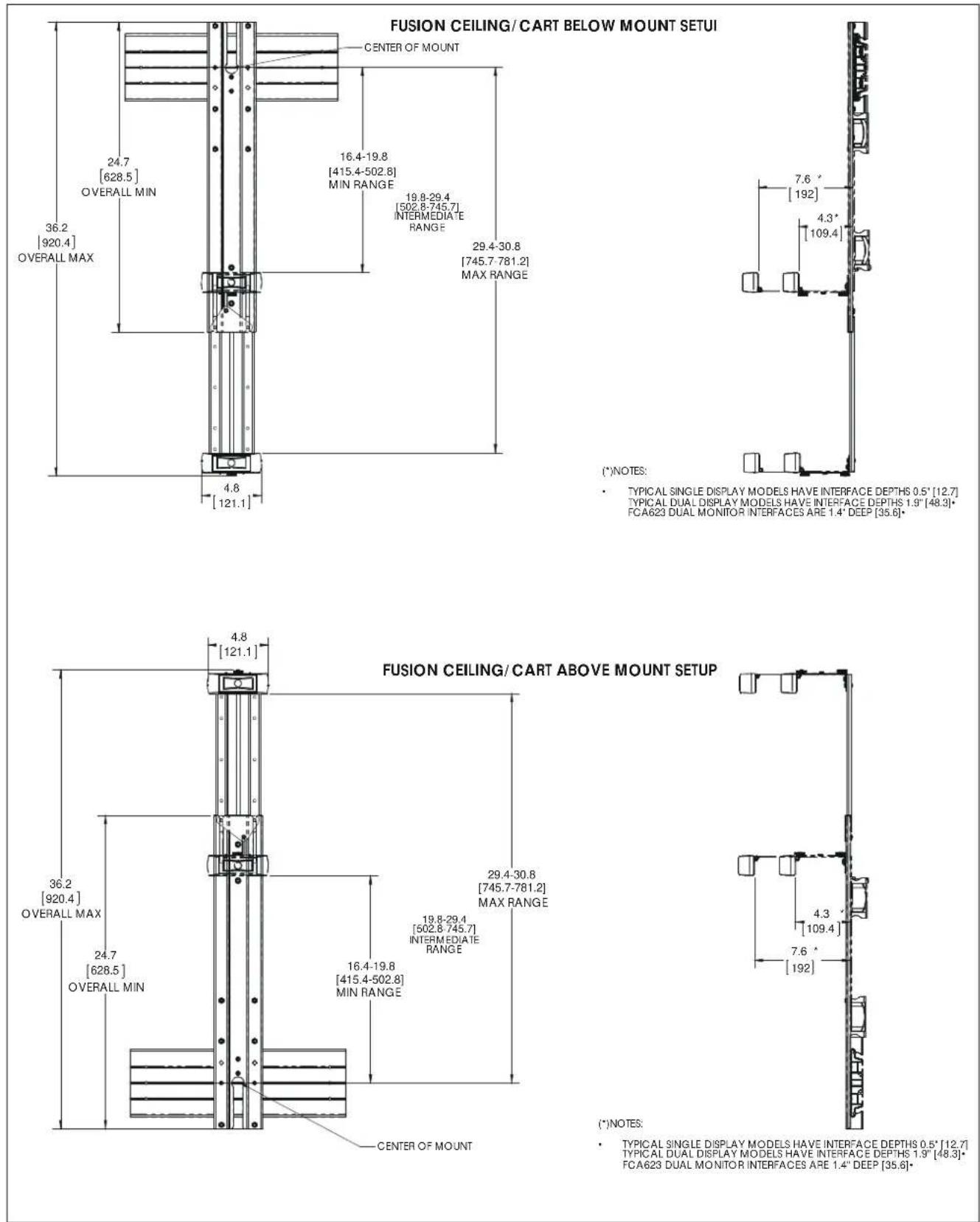
DIMENSIONS (CONTINUED)
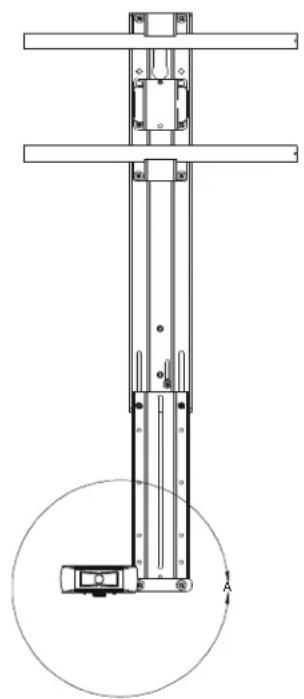
natural_image
Technical line drawing of a vertical mechanical assembly with mounting brackets and a circular component, no text or symbols present.OFFSET FEATURE SETUP
![3.8 [96.4] OFFSET MAX](/content/2026/06/1203842/images/be72cb68db84e69c9e86ac8c17f8c2156a90df051b6ebc347d6b833593e8e06f.jpg)
DETAIL A SCALE 2:5

natural_image
Technical line drawing of a vertical support structure with two parallel rods and mounting base (no text or symbols)LEGEND
 | Tighten Fastener |
| Apretar elemento de fijación | |
| Befestigungsteil festziehen | |
| Apertar fixador | |
| Serrare il fissaggio | |
| Bevestiging vastdraaien | |
| Serrez les fixations | |
 | Loosen Fastener |
| Aflojar elemento de fijación | |
| Befestigungsteil lösen | |
| Desapertar fixador | |
| Allentare il fissaggio | |
| Bevestiging losdraaien | |
| Desserrez les fixations | |
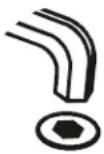 | Hex-Head Wrench |
| Llave de cabeza hexagonal | |
| Sechskantschlüssel | |
| Chave de cabeça sextavada | |
| Chiave esagonale | |
| Zeskantsleutel | |
| Clé à tête hexagonale |
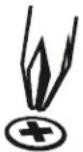 | Phillips Screwdriver |
| Destornillador Phillips | |
| Kreuzschlitzschraubendreher | |
| Chave de fendas Phillips | |
| Cacciavite a stella | |
| Kruiskopschroevendraaier | |
| Tournevis à pointe cruciforme | |
 | Open-Ended Wrench |
| Llave de boca | |
| Gabelschlüssel | |
| Chave de bocas | |
| Chiave a punte aperte | |
| Steeksleutel | |
| Clé à fourche |
TOOLS REQUIRED FOR INSTALLATION

PARTS
![A (1) [Upright bracket] B (1) [Main bracket] C (2) [Support bracket] F (1) [FCA810V/VE camera mount] D (1) [Extender box holder] (810VE model only) G (1) [Horizontal bracket] E (2) #10-24 x 3/8" H (1) [Center washer] N (1) 1/4-20 (810VE model only) T (4) 1/4-20 x 7/16" BB (1) [USB gender changer] (810V only) CC (1) [10' USB cable] DD (1) [Speaker phone] EE (1) [USB-Cat5 extender box] (810VE only) FF (1) [4-port USB 3.0 hub] J (4) #10-24 P (6/7) [Large washer] (810V-6, 810VE-7) U (4) 3/5" K (3) [Small washer] Q (1) 1/4-20 x 1 1/2" (810VE only) L (3) 1/4-20 x 1/2" R (7) 1/4-20 x 1/4" M (1) 1/4-20 X 5/8" S (1) #10-32 x 3/8" X (1) 5/32" Y (1) 1/8" V (1) [Adapter plate]](/content/2026/06/1203842/images/ba9475afed8dad4d368544ed1e0be99685fb79a0bfc5430922b0618ca6e36fee.jpg)
ASSEMBLY AND INSTALLATION
Below Installation
NOTE: FCA810V/VE camera mounts may be installed above or below displays. To install above display, proceed to "Above Installation" Section.
Assembling Camera Mount to Upright Bracket
- Attach camera housing (Z) to camera mount (F) using two #8-32 x 3/8" Phillips flat head machine screws (AA). (See Figure 1)
IMPORTANT ! : Make sure straight slot on camera housing is pointing in the proper direction. (See Figure 1)

Figure 1
- (Standard to cart/ceiling) Use three 1/4-20 x 1/2" button head cap screws (L) and two large washers (P) to secure camera mount (F) to upright bracket (A). (See Figure 2)
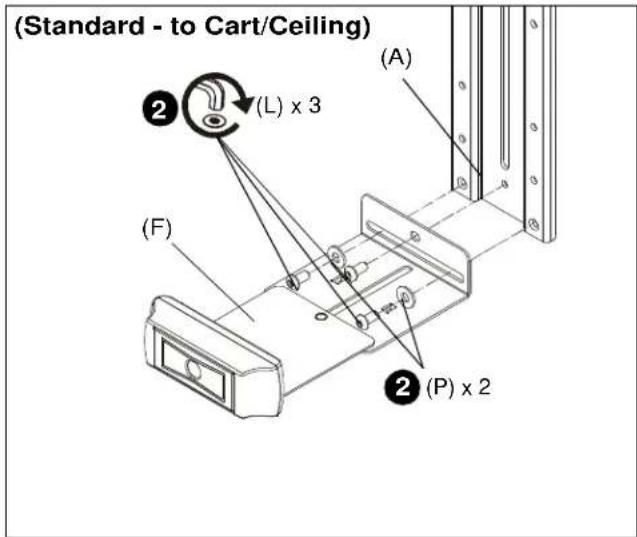
Figure 2
- (Standard to wall) Use two 1/4-20 x 1/2" button head cap screws (L), two large washers (P) and one 1/4-20 x 1/4" button head cap screw (R) to secure camera mount (F) to upright bracket (A). (See Figure 3)

Figure 3
NOTE: If camera must be offset to one side or the other, attach camera mount (F) to upright bracket (A) as shown in Steps 4 and 5.
- (Offset) Use two 1/4-20 x 1/2" button head cap screws (L) and two large washers (P) to secure horizontal bracket (G) to upright bracket (A). (See Figure 4)
- (Offset) Use two #10-24 lock nuts (J), two small washers (K) and two round head carriage bolts (E) to secure camera mount (F) to horizontal bracket (G). (See Figure 4)

Figure 4
Attaching Accessory to Wall Mount
NOTE: If attaching to cart or ceiling mount, proceed to Attach Accessory to Cart/Ceiling Section.
- Use two 1/4-20 x 1/4" button head cap screws (R) and two large washers (P) to secure support bracket (C) to main bracket (B). (See Figure 5)

CAUTION: Slide bracket with caution so that the bracket does not scratch or damage the wall!
- Slide main bracket (B) behind wall mount rails until support bracket (C) rests on top of wall mount rail. (See Figure 5)

Figure 5
- Slide second support bracket (C) underneath lower rail on wall mount, lining up holes on support bracket (C) to main bracket (B). (See Figure 6)
- Use two 1/4-20 x 1/4" button head cap screws (R) and two large washers (P) to secure support bracket (C) to main bracket (B). (See Figure 6)

Figure 6
NOTE: Refer to Table 1 and dimension drawings on pages 3-4 to determine the extension level based on extension distance from mount center.
Table 1: Below Wall Mount
| Extension distance from center of mount (in.) | |
| 16.1-19.5 Minimum | |
| 19.5-27.7 Intermediate | |
| 27.7-29.1 Maximum | |
- (For maximum extension) Use #10-32 x 3/8" button head cap screw (S) and small washer (K) to secure adapter plate (V) to main bracket (B). (See Figure 7)
- (For maximum extension) Use two #10-24 lock nuts (J) to secure upright bracket (A) to main bracket (B) and adapter plate (V). (See Figure 7)

Figure 7
- (For minimum/intermediate extension) Use two #10-24 lock nuts (J) to secure upright bracket (A) to main bracket (B) and adapter plate (V). (See Figure 8)
NOTE: Minimum configuration is shown below. Several intermediate configurations are possible depending on which holes are used. - (For minimum/intermediate extension) Use 1/4-20 x 5/8" hex head flange bolt (M) and center washer (H) to secure upright bracket (A) to main bracket (B). (See Figure 8)
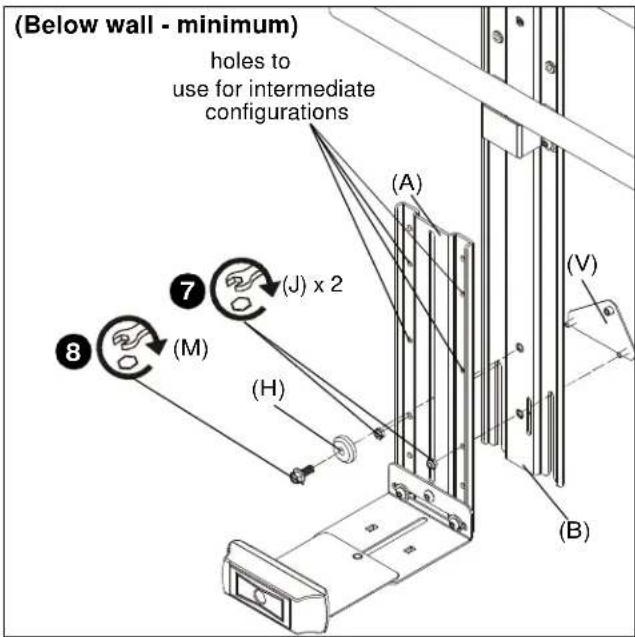
Figure 8
Attaching Accessory to Cart/Ceiling Mount
IMPORTANT ! : If installing to a 2x1 display cart using the FCA623 accessory, proceed to "Installing to FCA623 Accessory" Section (Step 6).
- Use two 1/4-20 x 1/4" button head cap screws (R) and two large washers (P) to secure support bracket (C) to main bracket (B). (See Figure 9)
- Slide main bracket (B) onto front of cart/ceiling mount head assembly until support bracket (C) rests on top of head assembly. (See Figure 9)

Figure 9
- Slide second support bracket (C) underneath cart/ceiling mount head assembly, lining up holes on support bracket (C) to holes on main bracket (B). (See Figure 10)
- Use two 1/4-20 x 1/4" button head cap screws (R) and two large washers (P) to secure support bracket (C) to main bracket (B). (See Figure 10)
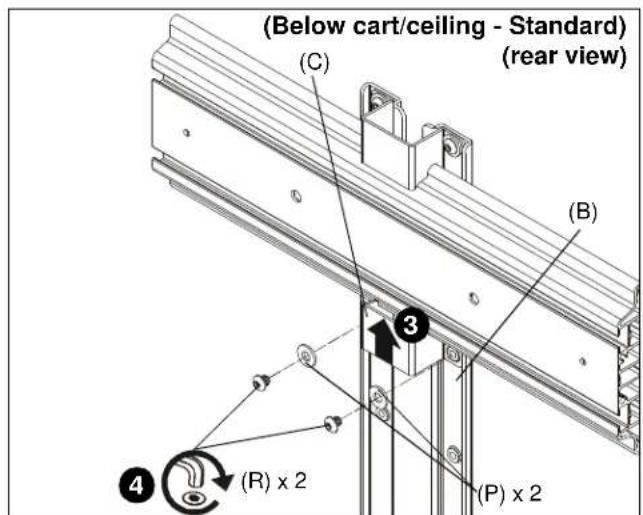
Figure 10
- Proceed to Step 11.
Installing to FCA623 Accessory
IMPORTANT ! : Steps 6-10 only apply if installing to FCA623 accessory.
- Use two 1/4-20 x 7/16" button head cap screws (T), two large washers (P) and two 3/5" spacers (U) to secure support bracket (C) to main bracket (B). (See Figure 11)
- Slide main bracket (B) onto front of cart/ceiling mount head assembly until support bracket (C) rests on top of head assembly. (See Figure 11)
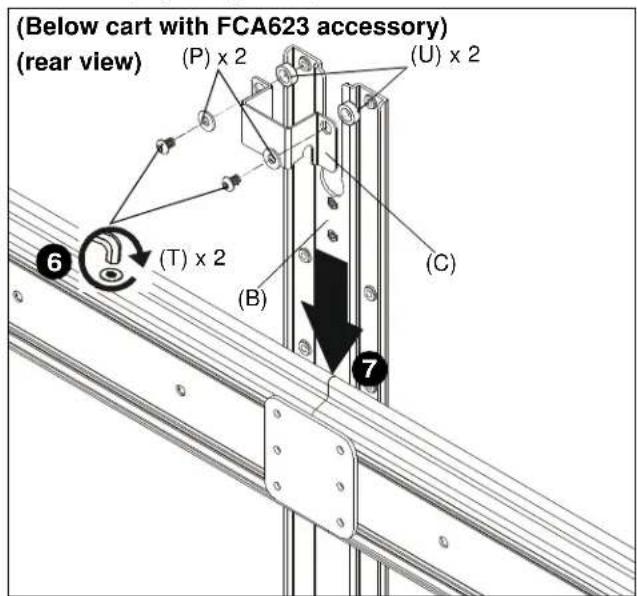
Figure 11
- Slide second shelf bracket (C) underneath cart mount head assembly, lining up holes on support bracket (C) to holes on main bracket (B). (See Figure 12)
- Slide two 3/5" spacers (U) in between support bracket (C) and main bracket (B). (See Figure 12)
- Use two 1/4-20 x 7/16" button head cap screws (T) and two large washers (P) to secure shelf bracket (C) to main bracket (B). (See Figure 12)
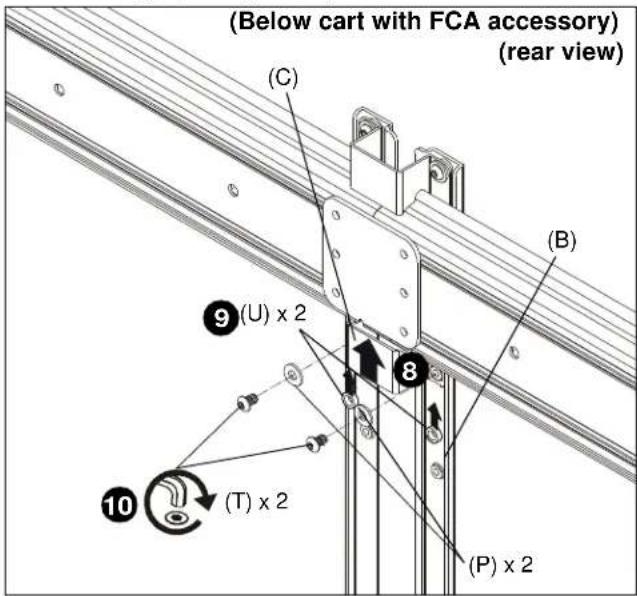
Figure 12
NOTE: Refer to Table 2 and dimension drawings on pages 3-4 to determine the extension level based on extension distance from mount center.
Table 2: Below Cart/Ceiling Mount
| Extension distance from center of mount (in.) | |
| 16.4-19.8 Minimum | |
| 19.8-29.4 Intermediate | |
| 29.4-30.8 Maximum | |
- (For maximum extension) Use #10-32 x 3/8" button head cap screw (S) and small washer (K) to secure adapter plate (V) to main bracket (B). (See Figure 13)
- (For maximum extension) Use two #10-24 lock nuts (J) to secure upright bracket (A) to main bracket (B) and adapter plate (V). (See Figure 13)

Figure 13
- (For Intermediate extension) Use 1/4-20 x 5/8" hex head flange bolt (M) and center washer (H) to secure upright bracket (A) to main bracket (B). (See Figure 14)
- (For Intermediate extension) Use two #10-24 lock nuts (J) to secure upright bracket (A) to main bracket (B) and adapter plate (V). (See Figure 14)
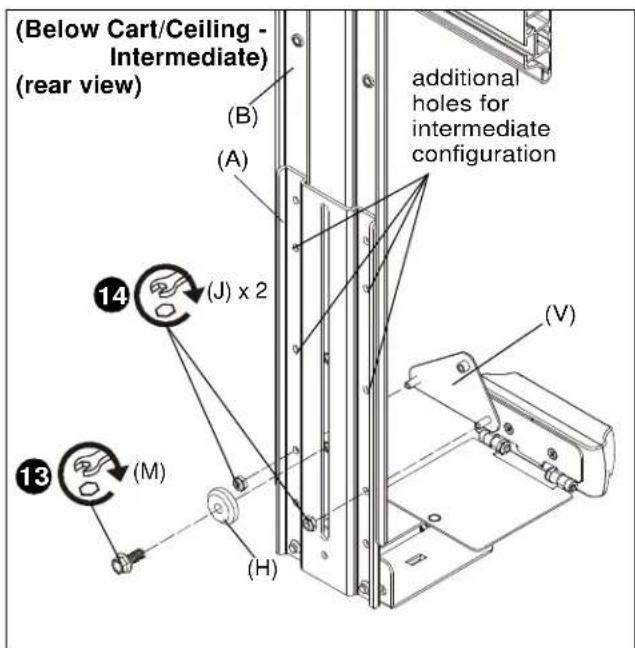
Figure 14
NOTE: For minimum extension on the FCA810VE model, the extender box holder (D) may be installed as part of the installation of the camera mount to the main bracket. Skip Step 16 if mounting the FCA810VE to minimum extension and installing the extender box holder (D).
- (For minimum extension) Slide upright bracket (A) behind main bracket (B). (See Figure 15)
- (For minimum extension - 810V or VE) Use 1/4-20 x 5/8" hex head flange bolt (M) and center washer (H) to secure upright bracket (A) to main bracket (B). (See Figure 15)

Figure 15
- (For minimum extension - 810VE only) Use 1/4-20 x 1 1/2" button head cap screw (Q) and 1/4-20 hex nut (N) and large washer (P) to extender box holder (D) and upright bracket (A) to main bracket (B). (See Figure 16)
- (For minimum extension - 810VE only) Tighten 1/4-20 hex nut (N) to fully secure upright bracket (A) to main bracket (B). (See Figure 16)
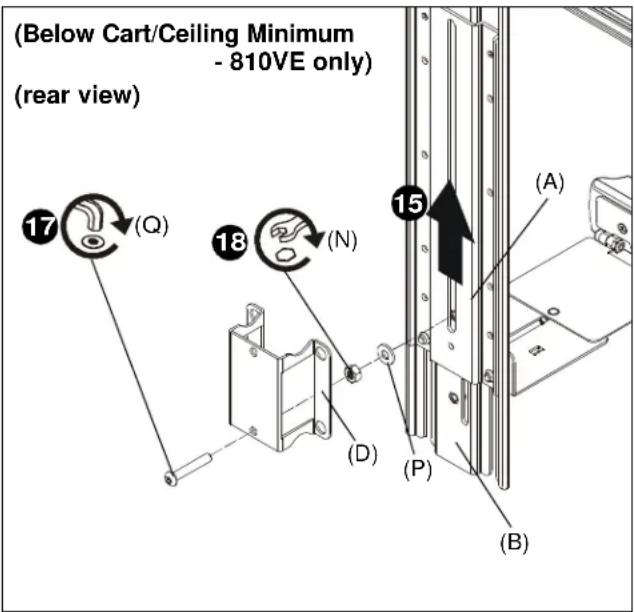
Figure 16
Above Installation
Assembling Camera Mount to Upright Bracket
- Attach camera housing (Z) to camera mount (F) using two #8-32 x 3/8" Phillips flat head machine screws (AA). (See Figure 17)
IMPORTANT ! : Make sure straight slot on camera housing is pointing in the proper direction. (See Figure 17)

Figure 17
- (Standard to cart/ceiling) Use three 1/4-20 x 1/2" button head cap screws (L) and two large washers (P) to secure camera mount (F) to upright bracket (A). (See Figure 18)

Figure 18
- (Standard to wall) Use two 1/4-20 x 1/2" button head cap screws (L), two large washers (P) and one 1/4-20 x 1/4" button head cap screw (R) to secure camera mount (F) to upright bracket (A). (See Figure 19)

Figure 19
NOTE: If camera must be offset to one side or the other, attach camera mount to upright bracket as shown in Steps 4 and 5.
- (Offset) Use two 1/4-20 x 1/2" button head cap screws (L) and two large washers (P) to secure horizontal bracket (G) to upright bracket (A). (See Figure 20)
- (Offset) Use two #10-24 lock nuts (J), two small washers (K) and two round head carriage bolts (E) to secure camera mount (F) to horizontal bracket (G). (See Figure 20)

Figure 20
Attaching Accessory to Wall Mount
- Use two 1/4-20 x 1/4" button head cap screws (R) and two large washers (P) to secure support bracket (C) to main bracket (B). (See Figure 21)

CAUTION: Slide bracket with caution so that the bracket does not scratch or damage the wall!
- Slide main bracket (B) behind wall mount rails until support bracket (C) rests on top wall mount rail. (See Figure 21)

Figure 21
- Slide second support bracket (C) underneath lower rail on wall mount, lining up holes on support bracket (C) to holes on main bracket (B). (See Figure 22)
- Use two 1/4-20 x 1/4" button head cap screws (R) and two large washers (P) to secure support bracket (C) to main bracket (B). (See Figure 22)
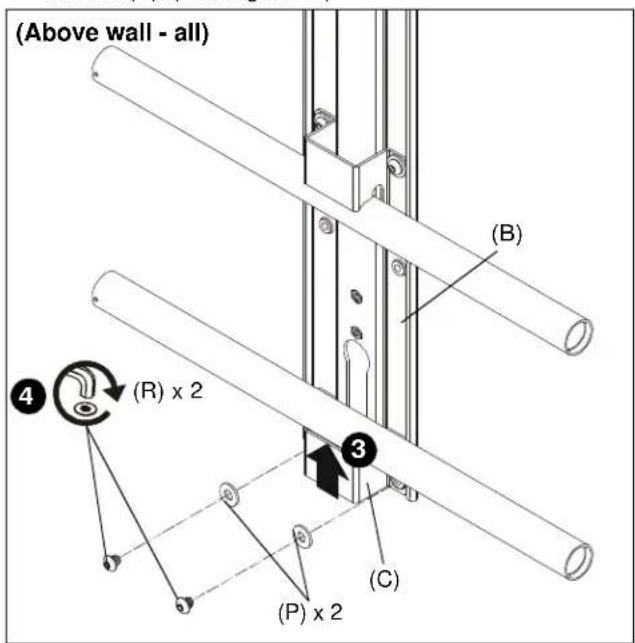
Figure 22
NOTE: Refer to Table 3 and dimension drawings on pages 3-4 to determine the extension level based on extension distance from mount center.
Table 3: Above Wall Mount
| Extension distance from center of mount (in.) | |
| 16.1-19.5 Minimum | |
| 19.5 - 27.7 Intermediate | |
| 27.7-29.1 Maximum | |
- (For maximum extension) Use #10-32 x 3/8" button head cap screw (S) and small washer (K) to secure adapter plate (V) to main bracket (B). (See Figure 23)
- (For maximum extension) Use two #10-24 lock nuts (J) to secure upright bracket (A) to main bracket (B) and adapter plate (V). (See Figure 23)

Figure 23
- (For minimum/intermediate extension) Use two #10-24 lock nuts (J) to secure upright bracket (A) to main bracket (B) and adapter plate (V). (See Figure 24)
- (For minimum/intermediate extension) Use 1/4-20 x 5/8" hex head flange bolt (M) and center washer (H) to secure upright bracket (A) to main bracket (B). (See Figure 24)
NOTE: Minimum configuration is shown below. Several intermediate configurations are possible depending on which holes are used.

Figure 24
Attaching Accessory to Cart/Ceiling Mount
IMPORTANT ! : If installing to a 2x1 display cart using the FCA623 accessory, proceed to "Installing to FCA623 Accessory" Section (Step 6).
- Use two 1/4-20 x 1/4" button head cap screws (R) and two large washers (P) to secure support bracket (C) to main bracket (B). (See Figure 25)
- Slide main bracket (B) onto front of cart/ceiling mount head assembly until support bracket (C) rests on top of head assembly. (See Figure 25)
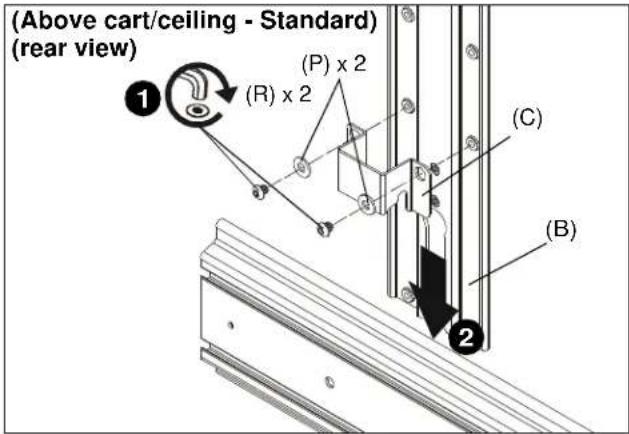
Figure 25
- Slide second support bracket (C) underneath cart/ceiling mount head assembly, lining up holes on support bracket (C) to holes on main bracket (B). (See Figure 26)
- Use two 1/4-20 x 1/4" button head cap screws (R) and two large washers (P) to secure support bracket (C) to main bracket (B). (See Figure 26)

Figure 26
- Proceed to Step 11.
Installing to FCA623 Accessory
NOTE: Steps 6-10 only apply if installing to FCA623 accessory.
- Use two 1/4-20 x 7/16" button head cap screws (T), two large washers (P) and two 3/5" spacers (U) to secure support bracket (C) to main bracket (B). (See Figure 27)
- Slide main bracket (B) onto front of cart mount head assembly until support bracket (C) rests on top of head assembly. (See Figure 27)

Figure 27
- Slide second support bracket (C) underneath cart mount head assembly, lining up holes on support bracket (C) to holes on main bracket (B). (See Figure 28)
- Slide two 3/5" spacers (U) in between support bracket (C) and main bracket (B). (See Figure 28)
- Use two 1/4-20 x 7/16" button head cap screws (T) and two large washers (P) to secure support bracket (C) to main bracket (B). (See Figure 28)

Figure 28
NOTE: Refer to Table 4 and dimension drawings on pages 3-4 to determine the extension level based on extension distance from mount center.
Table 4: Above Cart/Ceiling
| Extension distance from center of mount (in.) | |
| 16.4-19.8 Minimum | |
| 19.8-29.4 Intermediate | |
| 29.4-30.8 Maximum | |
- (For maximum extension) Use two #10-24 lock nuts (J) to secure upright bracket (A) to main bracket (B) and adapter plate (V). (See Figure 29)
- (For maximum extension) Use #10-32 x 3/8" button head cap screw (S) and small spacer (K) to secure upright bracket (A) to adapter plate (V). (See Figure 29)

Figure 29
- (For Intermediate extension) Use 1/4-20 x 5/8" hex head flange bolt (M) and center washer (H) to secure upright bracket (A) to main bracket (B). (See Figure 30)
- (For Intermediate extension) Use two #10-24 lock nuts (J) to secure upright bracket (A) to main bracket (B) and adapter plate (V). (See Figure 30)

Figure 30
NOTE: For minimum extension on the FCA810VE model, the extender box holder (D) may be installed as part of the installation of the camera mount to the main bracket. Skip Step 16 if mounting the FCA810VE to minimum extension and installing the extender box holder (D).
- (For minimum extension) Slide upright bracket (A) behind main bracket (B). (See Figure 31) or (See Figure 32)
- (For minimum extension - 810V or VE) Use 1/4-20 x 5/8" hex head flange bolt (M) and center washer (H) to secure upright bracket (A) to main bracket (B). (See Figure 31)

Figure 31
- (For minimum extension - 810VE only) Use 1/4-20 x 1 1/2" button head cap screw (Q), 1/4-20 hex nut (N) and large washer (P) to secure extender box holder (D) and upright bracket (A) to main bracket (B). (See Figure 32)
- (For minimum extension - 810VE only) Tighten 1/4-20 hex nut (N) to fully secure upright bracket (A) to main bracket (B). (See Figure 32)

Figure 32
Extender Box Holder Attachment
NOTE: For cart/ceiling minimum height extension installations, extender box holder (D) was already installed as part of the shelf installation. Proceed to Viewshare Installation Section.
- Use two 1/4-20 x 1/4" button head cap screws (R) to secure extender box holder (D) to main bracket (B) at the correct location depending on configuration.
• To wall, in between mounting rails. (See Figure 33)
• To cart/ceiling below, below head assembly. (See Figure 34)
• To cart/ceiling above, above head assembly. (See Figure 34)

Figure 33

Figure 34
Viewshare Installation
NOTE: Refer to milestone.com for the latest software compatibility requirements.
FCA810V
- Connect camera to USB gender changer (BB) using USB cable supplied with camera. (See Figure 35)
- Connect USB gender changer (BB) to 4-port USB hub (FF) using 10' USB cable (CC). (See Figure 35)
- Connect speaker phone (DD) to 4-port USB hub (FF) using USB cable supplied with speaker phone. (See Figure 35)
- Connect 4-port USB hub (FF) to computer using 30" USB 3.0 cable included with hub. (See Figure 35)
- Connect computer to display or projector. (See Figure 35)
- Verify the correct audio and video sources are selected in computer's settings (PC) or preferences (Mac). The camera will show up as "Logitech Webcam C930e."
- Download latest version of Skype or comparable video conferencing application.
FCA810VE
- Connect camera to USB extender box (EE) using USB cable supplied with camera. (See Figure 35)
- Connect USB extender box (EE) to second USB extender box using CAT5 cable (not included). (See Figure 35)
- Connect second USB extender box to 4-port USB hub (FF) using USB cable (CC). (See Figure 35)
- Connect speaker phone (DD) to 4-port USB hub (FF) using USB cable supplied with speaker phone (DD). (See Figure 35)
- Connect 4-port USB hub (FF) to computer using 30" USB 3.0 cable included with hub. (See Figure 35)
- Connect computer to display or projector. (See Figure 35)
- Verify the correct audio and video sources are selected in computer's settings (PC) or preferences (Mac). The camera will show up as "Logitech Webcam C930e."
- Download latest version of Skype or comparable video conferencing application.

Figure 35
Height Adjustment
- Loosen hardware used to attach main bracket (B) to upright bracket (A). (See Figure 36)
- Adjust shelf height as desired. (See Figure 36)
NOTE: For all above display installations, it is recommended that the shelf be positioned so that it rests on top of display to help ensure an even mount.
- Tighten hardware used to attached main bracket (B) to upright bracket (A). (See Figure 36)

Figure 36
Extension and Swivel Adjustment
- Loosen extension adjustment screw. (See Figure 37)
- Adjust to desired extension length. (See Figure 37)
- Tighten extension adjustment screw. (See Figure 37)

Figure 37

- INSTALLATION INSTRUCTIONS
- Fusion™ Viewshare Camera Mounting Kits
- DISCLAIMER
- DEFINITIONS
- IMPORTANT SAFETY INSTRUCTIONS
- ASSEMBLY AND INSTALLATION
- Below Installation
- Assembling Camera Mount to Upright Bracket
- Attaching Accessory to Wall Mount
- Attaching Accessory to Cart/Ceiling Mount
- Installing to FCA623 Accessory
- Above Installation
- Extender Box Holder Attachment
- Viewshare Installation
- FCA810V
- FCA810VE
- Height Adjustment
- Extension and Swivel Adjustment
Brand : Chief
Model : Fusion FCA810V
Category : Video Conferencing System