BL20V - Smartphone LG - Free user manual and instructions
Find the device manual for free BL20V LG in PDF.


User questions about BL20V LG
0 question about this device. Answer the ones you know or ask your own.
Ask a new question about this device
Download the instructions for your Smartphone in PDF format for free! Find your manual BL20V - LG and take your electronic device back in hand. On this page are published all the documents necessary for the use of your device. BL20V by LG.
USER MANUAL BL20V LG
natural_image
Front view of a black LG phone with control buttons and a blank screen (no readable text or symbols beyond branding)natural_image
Two views of a smartphone showing internal components and a close-up of the exterior (no text or symbols visible)
警告:手機開機時,不要取下電
池,因爲這樣會損壞手機。
2 安装智能咭
natural_image
Close-up of a smartphone rear panel showing internal components and a magnified view of the internal structure (no text or symbols visible)3 安装電池
natural_image
3D rendering of a device casing with red directional arrows indicating movement or flow (no text or symbols)記憶咭
安裝記憶咭
natural_image
3D rendering of a device casing with internal components and a red arrow pointing to a component (no text or symbols visible)取出記憶咭
開啓滑蓋,並按下圖所示,小心將其取出。
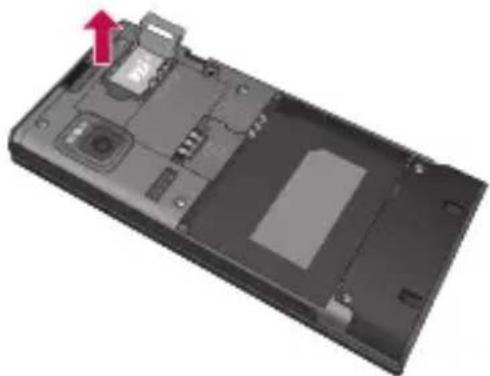
natural_image
3D rendering of a device casing with internal components and a red arrow indicating a location (no text or symbols)格式化記憶咭
natural_image
Hand holding a flip-flop with a keyboard, no visible text or symbols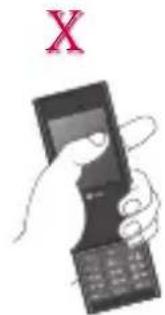
natural_image
Illustration of a small electrical plug connected to a coiled cable (no text or symbols visible)USB 線及 光碟
natural_image
Illustration of a USB cable and CD/DVD disc (no text or symbols)電池
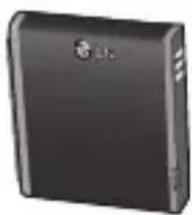
natural_image
Black rectangular electronic device with a logo on top (no visible text or symbols)使用手册
了解有關 BL20v 的更多 資訊。
natural_image
Illustration of a pair of earbuds with straps and earphones (no text or symbols)注意
Declaration of Conformity

LG Electronics
Suppliers Details
Name
LG Electronics Inc
Address
LG Electronics Inc. LG Twin Towers 20,
Yeouido-dong, Yeongdeungpo-gu, Seoul, Korea 150-721
Product Details
Product Name
UMTS 900/2100/E-GSM 900/DCS 1800/PCS 1900 Terminal Equipment
Model Name
BL20v
Trade Name
LG
CE 0168
Applicable Standards Details
R&TTE Directive 1999/5/EC
EN 301 489-01 V1.6.1, EN 301 489-07 V1.3.1
EN 301 489-17 V1.2.1, EN 301 489-24 V1.3.1
EN 301 511 V9.0.2
EN 301 908-1 V3.2.1 EN 301 908-2 V3.2.1,
EN 300 328 V1.7.1
EN 50360:2001/EN62209-1:2006
EN 60950-1 : 2001
Supplementary Information
The conformity to above standards is verified by the following Notified Body(BABT)
BABT, Balfour House, Churchfield Road, Walton-on-Thames, Surrey, KT12 2TD, United Kingdom Notified Body Identification Number : 0168
Declaration
I hereby declare under our sole responsibility that the product mentioned above to which this declaration relates complies with the above mentioned standards and Directives
European Standard Center
LG Electronics Logistics and Services B.V.
Veluwezoom 15, 1327 AE Almere, The Netherlands
Tel: +31 - 36 - 547 - 8940, Fax: +31 - 36 - 547 - 8794
e-mail: jacob@lge.com
Name
Issued Date
Seung Hyoun, Ji / Director
14.Aug. 2009

Signature of representative
安全及有效使用準則
natural_image
Two views of a smartphone showing internal components and a close-up of the exterior (no text or symbols visible)

手机开机时,不要取出电
池,这可能会损坏手机。
2 安装 USIM 卡
natural_image
Close-up of a device showing internal components and a magnified view of a component with a red arrow indicating a specific area (no text or symbols present)3 安装电池
natural_image
Interior view of a device showing a black case with red directional arrows indicating movement or flow (no text or symbols present)存储卡
安装存储卡
natural_image
3D rendering of a device casing with internal components and a red arrow pointing to a component (no text or symbols visible)取出存储卡
natural_image
3D rendering of a black electronic device casing with internal components and a red arrow pointing to a component (no text or symbols visible)格式化存储卡
natural_image
Hand holding a handheld device with a keyboard, no visible text or symbols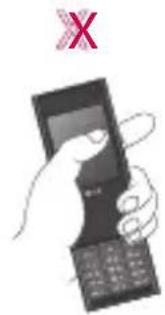
natural_image
Illustration of a small electrical plug connected to a cable (no text or symbols visible)数据线和
CD
natural_image
Illustration of a USB cable and CD/DVD disc (no text or symbols)电池
natural_image
Exterior view of a black rectangular electronic device (no visible text or symbols)用户手册
了解更多关于 BL20v 的信息。

natural_image
Line drawing of a pair of earbuds with earphones and connectors (no text or symbols)注意
Declaration of Conformity

LG Electronics
Suppliers Details
Name
LG Electronics Inc
Address
LG Electronics Inc. LG Twin Towers 20,
Yeouido-dong, Yeongdeungpo-gu, Seoul, Korea 150-721
Product Details
Product Name
UMTS 900/2100/E-GSM 900/DCS 1800/PCS 1900 Terminal Equipment
Model Name
BL20v
Trade Name
LG
CE0168
Applicable Standards Details
R&TTE Directive 1999/5/EC
EN 301 489-01 V1.6.1, EN 301 489-07 V1.3.1
EN 301 489-17 V1.2.1, EN 301 489-24 V1.3.1
EN 301 511 V9.0.2
EN 301 908-1 V3.2.1 EN 301 908-2 V3.2.1,
EN 300 328 V1.7.1
EN 50360:2001/EN62209-1:2006
EN 60950-1 : 2001
Supplementary Information
The conformity to above standards is verified by the following Notified Body(BABT)
BABT, Balfour House, Churchfield Road, Walton-on-Thames, Surrey, KT12 2TD, United Kingdom Notified Body Identification Number : 0168
Declaration
I hereby declare under our sole responsibility that the product mentioned above to which this declaration relates complies with the above mentioned standards and Directives
European Standard Center
LG Electronics Logistics and Services B.V.
Veluwezoom 15, 1327 AE Almere, The Netherlands
Tel: +31-36-547-8940, Fax: +31-36-547-8794
e-mail: jacob@lge.com
Name
Issued Date
Seung Hyoun, Ji / Director
14.Aug. 2009

Signature of representative
关于安全有效使用手机的准则
Some of the contents in this manual may differ from your phone depending on the software of the phone or your service provider.
BL20v User Guide
Congratulations on your purchase of the advanced and compact BL20v phone by LG, designed to operate with the latest digital mobile communication technology.
Contents
Getting to know your phone ......6
Open view 7
Installing the SIM and battery...... 8
Memory card 9
Installing a memory card 9
Removing the memory card.... 9
Formatting the memory card 9
Your standby screen 10
The quick keys ......10
The main menu ....10
The status bar 11
Calls 12
Making a call or video call 12
Making a call from your contacts ..... 12
Answering and rejecting a call 12
Adjusting the call volume 13
Speed dialling.... 13
Viewing your call logs 13
Using call divert 14
Using call barring 14
Contacts....15
Searching for a contact 15
Adding a new contact 15
Contact options 15
Adding a contact to a group 16
Renaming a group 16
Messaging 17
Messaging 17
Sending a message 17
Entering text ......18
Setting up your email 19
Sending an email using your new account.... 20
Message folders 20
Managing your messages 21
Using templates 21
Changing your email settings .....22
Changing your other settings 22
Camera 23
Taking a quick photo 23
After you've taken your photo 23
Getting to know the viewfi nder......24
Viewing your saved photos 24
Setting a photo as Wallpaper or
Picture ID 24
Contents
Video camera 25
Shooting a quick video 25
After you've shot your video 25
Watching your saved videos 26
Adjusting the volume when viewing a video 26
MP3 player ......27
MP3 player 27
Transferring music onto your phone ..... 27
Playing a song 27
Creating a playlist ....28
Playing a playlist 28
Editing a playlist ....28
Deleting a playlist 29
My stuff 30
Images....30
Images options menu.... 30
Sending a photo 31
Organising your images 31
Deleting an image ....31
Deleting multiple images 31
Creating a slide show.... 32
Sounds 32
Using a sound 32
Videos 32
Watching a video 32
Using options while video is paused .....33
Sending a video clip ....33
Video options menu 33
External memory ....34
Using your phone as a mass storage device....34
Transferring a fi le to your phone ......35
Sending and receiving your fi les using Bluetooth 35
Games and Apps ......37
Games and Apps 37
Playing a game 37
Viewing applications 37
Browser 38
Accessing the web....38
Adding and accessing your bookmarks 38
Saving a page 39
Viewing your browser history .....39
Changing the web browser settings ..... 39
Settings 40
Changing your display settings ..... 40
Changing your security settings ..... 40
Resetting your phone 41
Viewing memory status ....41
Changing your Bluetooth settings......41
Changing your connectivity settings ..... 41
Pairing with another Bluetooth device .42
Using a Bluetooth headset 42
Phone Software update ....43
Accessories 44
Network service 45
Technical data......45
Guidelines for safe and effi cient use ... 47
Getting to know your phone
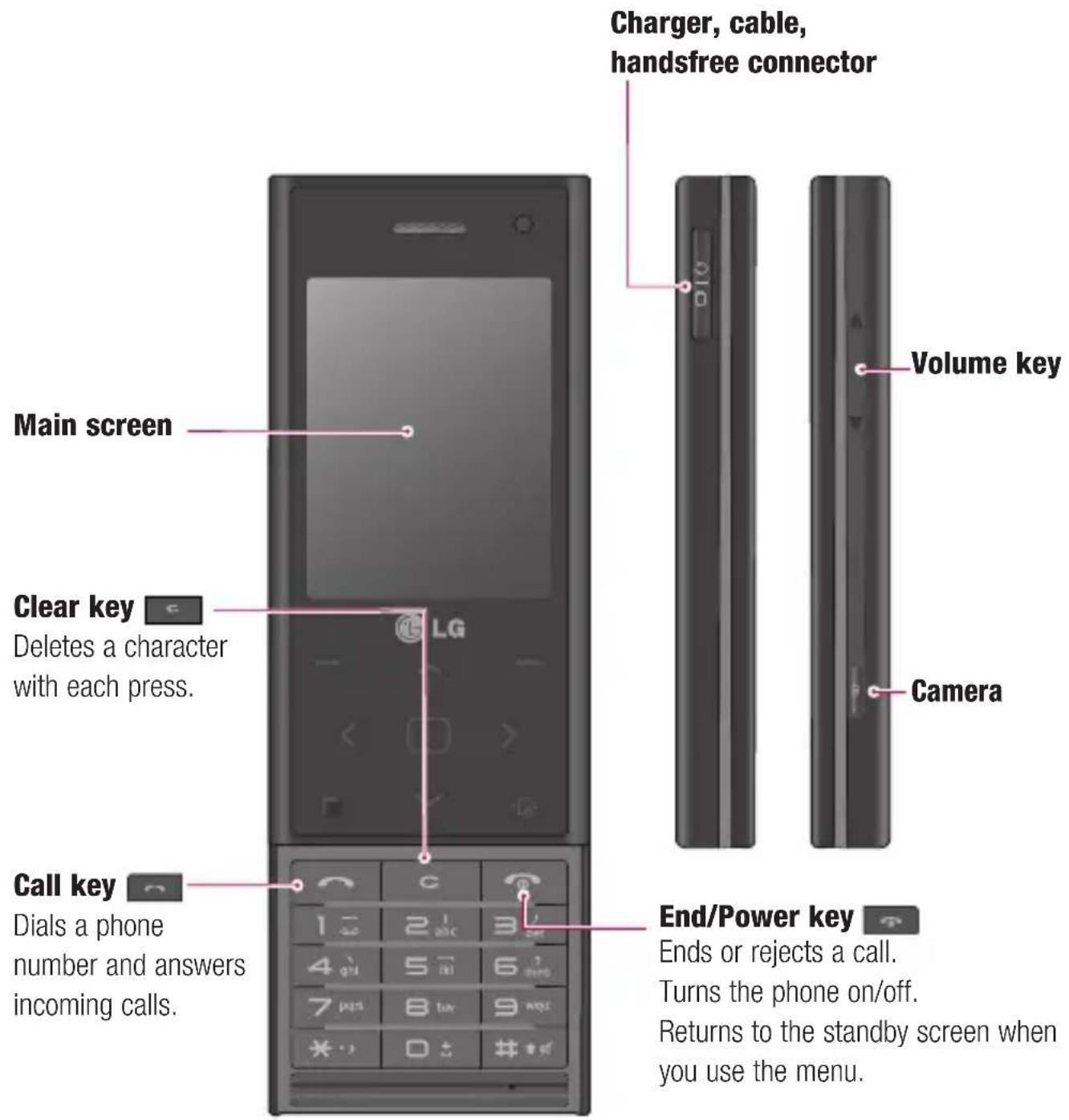
Open view
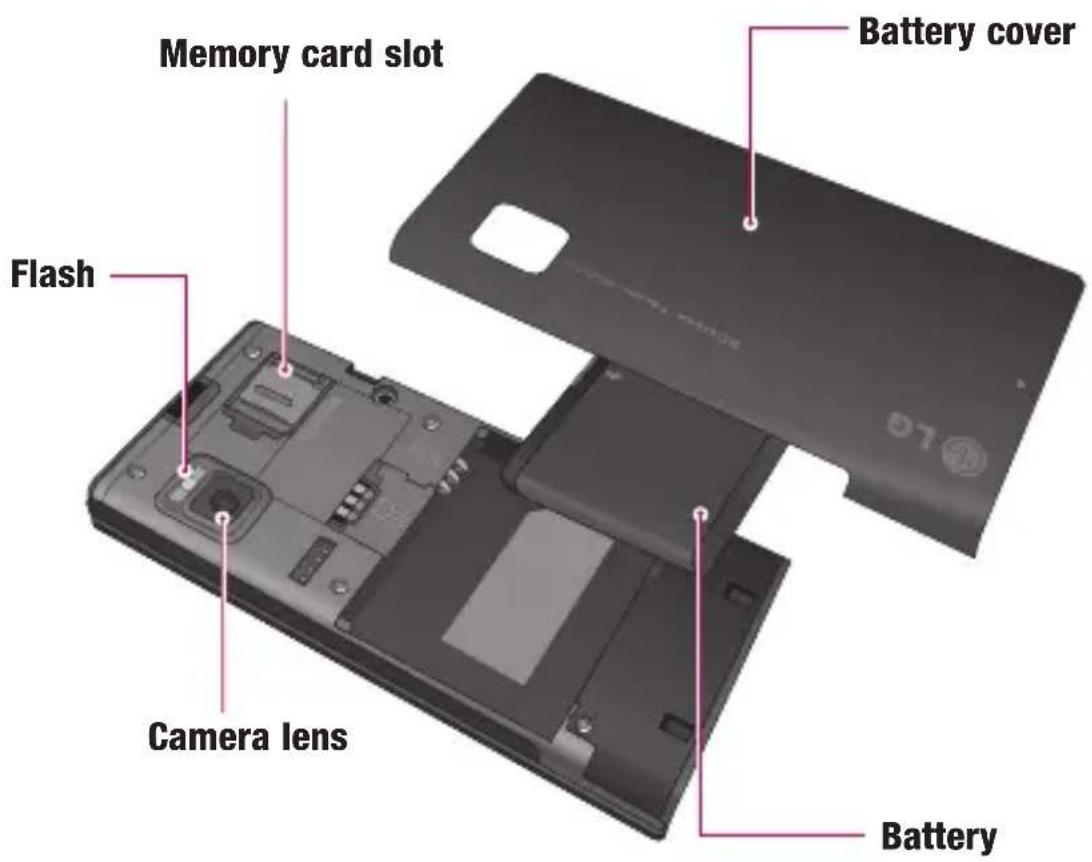
Installing the SIM and battery
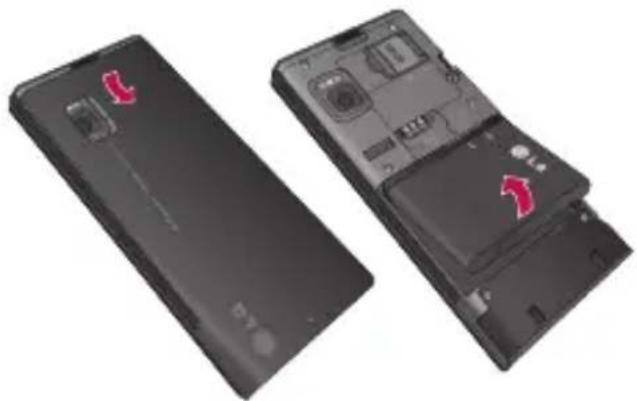
1 Remove the battery cover and the battery
Slide down the battery cover and pull out the battery.
natural_image
Two views of a smartphone showing internal components and a close-up of the exterior (no text or symbols visible)
WARNING: Do not remove the battery
when the phone is switched on, as this may damage the phone.
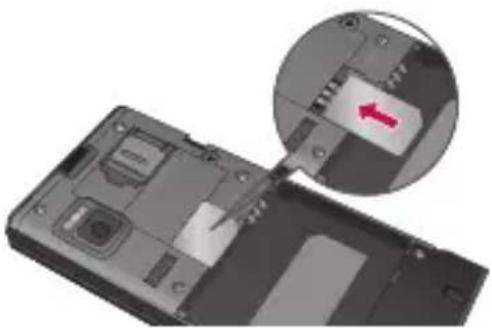
2 Install the USIM card
Slide the USIM card into the USIM card holder. Make sure the gold contact area on the card is facing downwards. To remove the USIM card, gently pull it outwards.
natural_image
Close-up of a computer case showing internal components and a magnified view of the internal part with a red arrow indicating a specific area (no text or symbols present)3 Install the battery
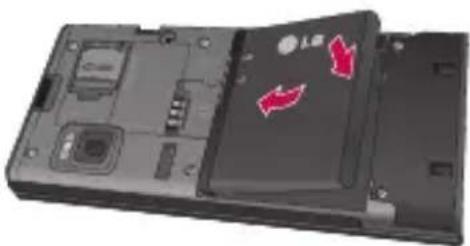
Insert the top of the battery into the top edge of the battery compartment first.
Ensure that the battery contacts align with the phone's terminals. Press the bottom of the battery down until it clips into place.
natural_image
3D rendering of a device casing with internal components and red directional arrows indicating movement or flow (no text or symbols)Memory card
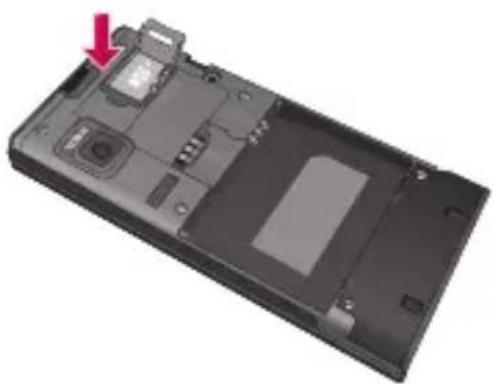
Installing a memory card
You can expand the memory space available on your phone using a memory card.
TIP! A memory card is an optional accessory.
Open the slide covering the memory card slot. Slide the memory card into the slot, until it clicks into place. Make sure that the gold contact area is facing downwards.
natural_image
3D rendering of a device casing with internal components and a red arrow pointing to a component (no text or symbols visible)Removing the memory card
Open the slide and carefully remove the memory card by gently pushing it as shown in the following diagram:
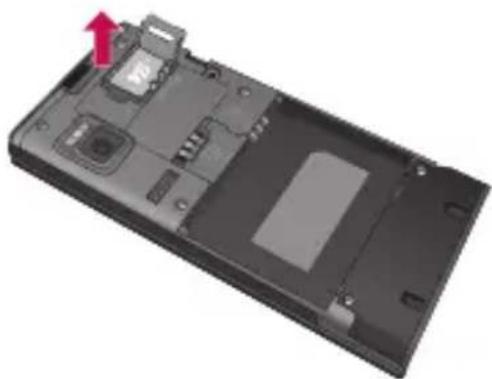
natural_image
3D rendering of a black electronic device casing with internal components and a red arrow indicating a location (no text or symbols)Formatting the memory card
If your memory card is not already formatted, you will need to do so before you can begin using it.
1 From the standby screen press Center key and select Settings.
2 Choose Memory status and select External memory.
3 Press Format and enter the password, which is set to 0000 as default. Your card will be formatted and ready to use.
4 To view the new formatted folders on your BL20v press Center key and select My stuff. Choose External memory.
WARNING: When you format your memory card, all the content will be wiped. If you do not want to lose the data on your memory card, back it up first.
Your standby screen
The quick keys
The quick keys provide easy, one-press access to your most used functions.

Select to open your message editor.

Select to choose a sound profi le for your phone.

Select to open the quick menu.

Select to open contacts.
The main menu
The main menu provides twelve menu options. To open the main menu:
1 Select Center key.
2 The main menu will appear on the screen.
3 Move the highlighted image onto your desired position. And select center key to open.
Advice to the customer
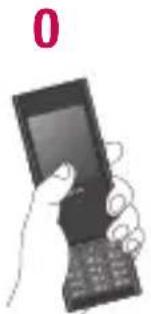
In order to allow better antenna sensitivity LG suggest that you hold the handset as shown in the figure below.
natural_image
Hand holding a handheld device with a screen, no visible text or symbols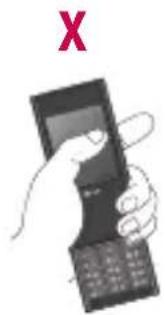
Please do not cover the antenna area with your hand during a call or when using a Bluetooth connection. It may interfere and degrade signal quality.
The status bar
The status bar uses various icons to indicate things like signal strength, new messages and battery life, as well as telling you whether your Bluetooth is active.
Below is a table explaining the meaning of icons you're likely to see in the status bar.
| Icon Description | |
 | Network signal strength(number of bars will vary) |
 | No network signal |
 | GPRS available |
 | EDGE available |
 | Flight mode is activated |
| [8W80] | Calls are diverted |
 | Roaming service |
| [27A2] | Bluetooth®is activated |
 | WAP service is connected |
 | An alarm is set |
| [277D] | Schedule |
| Icon Description | |
 | New message |
 | New voice message |
 | General profi le in use |
 | Silent profi le in use |
| [3W0W] | Outdoor profi le in use |
| [kzxx] | Headset profi le in use |
| [BXBA] | Remaining battery life |
 | Battery empty |
Calls
Making a call or video call
1 Key in the number using the keypad. To delete a digit press
2 Press to initiate the call.
3 To end the call, press
TIP! To enter + when making an international call, press and hold 0.
TIP! After key in the number, You can Make video call, Send message, Save number or Search contacts by selecting the option soft key.
Making a call from your contacts
1 Select Contacts from the Standby screen.
2 Using the keypad, enter the first letter of the contact you want to call. For example, for Offi ce, press6 three times.
3 Select Call or press 📄 to initiate the call.
Answering and rejecting a call
When your phone rings, press Accept or press 📞 to answer the call.
While your phone is ringing, press the lock key, then select Silent to mute the ringing. This is great if you have forgotten to change your profi le toSilent for a meeting.
Press 📞 or select Reject to reject the incoming call.
TIP! You can change the settings on your phone to answer your calls in different ways. Press Center key, select Settings and choose Call and choose Common settings. Select Answer mode and choose from Press send key, Slide up or Press any key.
Adjusting the call volume
To adjust the volume during a call, press the lock key, then press the volume key on the right hand side of your phone.
Speed dialling
You can assign a speed dial number to a contact you call frequently.
1 Press Contacts and press options, then select Speed dials.
2 Your voicemail is set to speed dial 1 and you cannot change this. Select any other number either by using the navigation key arrows and selecting Assign or by pressing the hard key number.
3 Your address book will open. Select the contact you'd like to assign to that number using the navigation arrows, then select OK.
To call a speed dial number, press and hold the assigned number until the contact appears on screen. The call will initiate automatically; there's no need to press
Viewing your call logs
Press Center key, select Calls. Choose to view:
All calls - View a complete list of all your dialled, received and missed calls.
Missed calls - View a list of any calls you have missed.
Dialled calls - View a list of all the numbers you have called.
Received calls - View a list of all the numbers that have called you.
Call duration - View details of time you have spent on your received and dialled calls.
Call costs - View the charges applied to your Last call or All calls. This service is network dependent, some operators are unable to support this.
Data volume - View the amount of all your received and sent data in kilobytes.
TIP! From any call log select Options and choose Delete to delete selected or all of the recorded items.
TIP! Using the navigation key arrows, highlight any single call entry to view the date and time of the call. To view the call duration select View.
Calls
Using call divert
1 Select Center key, select Settings and choose Call.
2 Select Call divert.
3 Choose whether to divert all calls, when calls are not answered, when you are out of reach or when you are busy on another call.
4 Choose Activate and select whether to divert to another number or your favourite number.
5 Enter your divert number or select Search to browse Contacts for your divert number.
Note: Charges are incurred for diverting calls. Please contact your network provider for details.
TIP! To turn off all call diverts, choose Deactivate all from the Call divert menu.
Using call barring
1 Select Center key, select Settings and choose Call.
2 Select Call barring and choose Voice/Video calls.
3 Choose options:
4 Select Activate and enter the call barring password. Please check with your network operator for this service.
TIP! Select Fixed dial number from the Call menu to turn on and compile a list of numbers which can be called from your phone. You'll need your PIN2 code from your operator. When activated, only numbers included in the fixed dial list can be called from your phone.
Contacts
Searching for a contact
1 Select Contacts from the standby screen, and choose Search.
2 Using the keypad enter the first letter of the contact you want to call. For example, for Offi ce, press6 three times.
3 To scroll through the contacts and their different numbers use the navigation arrows.
Adding a new contact
1 Select Contacts and choose Create new contact.
2 Choose whether to store your new contact on your Phone or SIM card.
3 Enter all the information you have in the fi elds provided and selectSave.
Or, using the slightly quicker method...
1 Enter the number you wish to store on the standby screen and select Options.
2 Choose Save number as New Contact or Update existing contact.
3 Enter the relevant information as above and select Done.
Note: When you are storing a contact's email address, press 📄 to enter a symbol and scroll with the navigation arrows until you see @.
Contact options
There are many things you can do when viewing a contact. Here's how to access and use the Options menu:
1 Open the contact you'd like to use. See Searching contacts above.
2 Select Options to open the list of options.
From here you can:
Edit - Change any of the contact's details.
New message - Send a message to the contact. If the contact has an email address, select whether you'd like to send a Message or Email.
Send via - Send the contact's details to another person as a business card. Choose to send as a Text message, Multimedia message, via Bluetooth or by Email.
Delete - Delete the contact. Select Yes if you are sure.
New contact - Add a new contact.
Contacts
Multi delete - Mark multiple contacts to delete.
Copy to SIM/phone - Choose to move or copy to the SIM card or phone (depending on where you originally saved the contact).
Adding a contact to a group
You can save your contacts into groups, for example, keeping your work colleagues and family separate.
1 Select Contacts and choose Groups.
2 Scroll to the group you wish to add a contact to and select View then select Add.
3 Your contacts will open. Scroll to any contacts you would like to add to the group and press ☑, then select Done.
4 Select Yes if you are sure.
TIP! You can assign a ringtone or icon to a group. Select the group you wish to assign the ringtone or icon to and select Options and choose an item you want.
Renaming a group
You can rename any of the groups to fit your lifestyle.
1 Select Contacts and choose Groups.
2 Select a group you want to rename.
3 Choose Options, select Rename and enter your new group name.
4 Select Save.
Note: You can only assign a contact to a group or add a picture to a contact that is saved in your phone (not SIM) memory.
Messaging
Messaging
Your BL20v includes functions related to SMS (Short Message Service), MMS (Multimedia Message Service) and email, as well as the network's service messages. Simply press
Center key and select Messaging.
Sending a message
1 Press Center key, select Messaging and choose Create new message.
2 Choose Message to send an SMS or MMS.
3 A new message editor will open.
Message editor combines SMS and MMS into one intuitive and easy to switch between mode. The default setting of the message editor is SMS mode.
4 Enter your message using either the T9 predictive mode or Abc manual mode.
See Entering text to see how to switch between the different text entry modes.
5 Select Options and choose Insert to add an Image, Sound, Video, Symbol, Text template, Emoticon, Name & Number, New slide, Subject or More (Contact/My business card/Schedule/Memo/Task).
6 Press the centre key Send to.
7 Enter the phone number or press Options and select Contacts or Recent list to open your contacts list. You can add multiple contacts.
8 Select Send.
WARNING: If an Image, Sound, Video, New slide or Subject is added to the message editor, it will be automatically converted to MMS mode and you will be charged accordingly.
Messaging
Entering text
You can enter alphanumeric characters using the phone's keypad. For example, storing names in Contacts, writing a message and creating scheduling events in the calendar all require entering text. The following text input methods are available in the phone: T9 predictive mode, ABC manual mode and 123 mode.
Note: Some fi elds may allow only one text input mode (e.g. telephone number in address book fi elds).
To turn on T9 mode in the text entry fi eld, choose Options, select Set T9 and choose
On or simply press and hold for several seconds. With T9 on, you can switch text input mode by pressing . You will notice the text input mode indicator in the upper left corner of the display.
To input a symbol in the text entry fi eld, press the ⚙️ key and select a symbol, then select OK.
Complete each word with a space by pressing 0.
To delete a character, press ☐ key.
T9 predictive mode
T9 predictive mode uses a built-in dictionary to recognise words you're writing based on the key sequences you press. Simply press the number key associated with the letter you want to enter, and the dictionary will recognise the word once all the letters are entered. For example, press 8, 3, 5, 3, 7, 4, 6, 6, 3 to write 'telephone'.
If the word you want doesn't appear, select Options and select New T9 word, then you can enter the word using ABC manual mode. Your word will be added to the dictionary.
Note: You can select a different T9 language by pressing Options and select Writing options - Writing language.
ABC manual mode
In ABC manual mode you may need to press the key repeatedly to enter a letter. For example, to write ‘hello’, press4 twice, 3 twice, 5 three times, 5 three times again, then 6 three times.
123 mode
Type numbers using one keystroke per number. You can also add numbers whilst in letter modes by pressing and holding the desired key.
Setting up your email
You can stay in press on the move using email on your BL20v. It's quick and simple to set up a POP3 or IMAP4 email account.
1 Press Center key, select Messaging and choose Settings.
2 Select Email then Email account.
3 Select Add.
4 You can now choose how your accountworks:
Account name - Enter a name for this account.
My name - Enter your name.
User name - Enter the account user name.
Password - Enter the account password.
Email address - Enter the account email address.
Reply email address - Enter the “reply to” email address.
Outgoing mail server - Enter the account details.
Incoming mail server - Enter the account details.
Maximum receive size - Choose the size limit of your emails, the maximum is 300KB.
Mailbox type - Select the mailbox type, POP3 or IMAP4.
Save to server - Choose whether to save your emails to the server. For IMAP4 accounts copies are always saved.
Auto retrieving - Select to automatically retrieve your emails.
To enter the following information, choose Options and select Advanced settings.
Outgoing port number - Normally this is 25.
Incoming port number - Normally, this is 110 for POP3 and 143 for IMAP4 accounts.
Outgoing mail authentication - Select on or off.
Outgoing server ID - Enter the account details.
Outgoing server password - Enter the account details.
APOP secure login - Choose whether to save your emails to the server of the phone (only for IMAP4).
Messaging
Retrieve download - Select Headers only, Headers + body (only for IMAP4) or All.
Now your account is set up, it will appear in the list of accounts in your Email folder.
Sending an email using your new account
To send/receive an email, you should set up an email account.
1 Select Center key, select Messaging and choose Create new message.
2 Choose Email and a new email will open.
3 Write a subject then press OK.
4 Enter your message using T9 predictive mode or ABC manual mode. See Entering text to see how to switch between the different text entry modes.
5 Select Options and choose an attachment to add: Image, Sound, Video, Symbol, Text template, Emoticon, Name & Number, New slide, Subject or More (Contact/My business card/Schedule/Memo/Task).
6 Press Send and enter the recipient's address or press Options and select Contacts to open your contacts list.
7 Press Send and your email will be sent.
Message folders
Press Center key, select Messaging. The folder structure used on your BL20v is fairly self-explanatory.
Inbox - All the messages you receive are placed into your Inbox. From here you can reply, forward and more, see below for details.
Email box - Contains all your email messages. Select the account you want to use then select Retrieve. Your BL20v will connect to your email account and retrieve your new messages.
Drafts - If you don't have time to fi nish writing a message, you can save what you have done so far here.
Outbox - This is a temporary storage folder while messages are being sent.
Sent - All the messages you send are placed into your Sent folder.
Templates - A list of useful messages, already written for a quick reply.
Managing your messages
You can use your Inbox to manage your messages.
1 Press Center key, select Messaging and choose Inbox.
2 Select Options and then choose to:
Delete - Delete the selected message.
Reply - Send a reply to the selected message.
Forward- Send the selected message on to another person.
Makecall - Call the person who sent you the message.
Information- View the details of a message, for example, the time it was sent.
Copy/Move - Choose to copy or move the selected message to the SIM card or phone.
Multi selection - You can mark multiple messages and then delete or move to myfolder for marked messages.
Filter - You can filter certain type of messages (for example text message).
If you see the message No space for SIM message, you should delete some text messages with from your message box.
If you see the message No space for messages, you should delete messages to create space.
Using templates
You can create templates for the Text and Multimedia messages you send most frequently. There are some templates already on your phone, which can be edited if you wish.
1 Press Center key, select Messaging and choose Templates.
2 Choose Text or Multimedia. You can then select Options and choose Edit to change existing templates, to add New template or to Delete templates.
3 To send a Multimedia template, select the one you want to send, choose Options and select Write multimedia message.
4 Select a contact and select Send.
Messaging
Changing your email settings
You can adapt your email settings to your own preferences.
1 Press Center key, select Messaging and choose Settings.
2 Select Email then you can adapt the following settings:
Emailaccount - You can set up an email account.
Retrieveinterval- Choose how often your BL20v checks for new email messages.
Signature- Create an email signature and switch this feature on.
Changing your other settings
Press Center key, select Messaging, choose Settings then:
Voicemail number - Your voicemail number is stored here. Contact your network operator for more information on the service they provide.
Service message - Here you can switch off service message, which means your messages will no longer be pushed directly to your device as they are received, only when you check for new messages.
Info message - Choose the reception status, alerts and language of your info messages.
Camera
Taking a quick photo
1 Hold the camera key down on the right side of the handset. The camera's viewfinder will appear on screen.
2 Holding the phone horizontally, point the lens towards the subject of the photo.
3 Press the camera key halfway. A focus box will appear in the centre of the viewfinder screen. Position the phone so you can see the subject of your photo in the focus box. When the focus box turns green, the camera has focused on your subject.
4 Press the centre soft key or press the camera key all the way down to take a photo.
Note: You can also access the camera menu from the standby screen. Select Center key and select Camera, scroll down to and select Camera to open the viewfinder.
After you've taken your photo
Your captured photo will appear on the screen. The name of the image runs along the bottom of the screen and you will see fi ve options displayed on the right side of the screen.
Images - Select to look at the other photos in your album. Your current photo will be saved.
Send - Select to send the photo as a Multimedia message or Email.
New image - Take another photo straightaway. Your current photo will be saved.
Use as - Select to open a sub menu to set your image as Wallpaper or Picture ID, Start up and shut down.
Delete - Delete the photo you have just taken and confirm by selecting Yes. The viewfi nder will reappear.
Camera
Getting to know the viewfi nder
Note: You can adjust the zoom using the volume key on the left side of the phone. The zoom function is only available when the resolution is set to 2048x1536 or below. See Changing the image size.
TIP! When using the camera, power consumption increases. If icon appears indicating low battery, recharge the battery before use.
Viewing your saved photos
1 You can access your saved photos from within the camera mode and captured screen. From the viewfinder, simply select 📄 on the navigation key. From the standby screen you should select Center key, then select My stuff and Images.
2 Your gallery will appear on screen.
3 Use the navigation keys to select the photo you want to view and select View to enlarge it.
Setting a photo as Wallpaper or Picture ID
From your image gallery, use the navigation keys to select an image and choose Options and Set as to use the selected image as Wallpaper, Picture ID, Start up, Shut Down, Incoming call or Outgoing call for one of your contacts.
Note: Picture ID can only be added to contacts saved to your phone, not your SIM.
Video camera
Shooting a quick video
1 The video camera's viewfinder will appear on screen.
2 Point the camera lens towards the subject of the video.
3 Press the camera key on the right side of the handset to start recording.
4 REC will appear in the bottom right center and a timer will show the length of your video.
5 To pause the video select Pause and resume by selecting Resume.
6 Select Stop to stop recording.
Note: You can also access the Video camera from the standby screen. Select Center key and select Camera, scroll down and select Video camera to open the viewfinder.
After you've shot your video
The name of the video runs along the bottom of the screen and fi ve options will be displayed on the right side of the screen.
Delete - Delete the video you have just recorded and confi rm by selecting Yes. The viewfi nder will reappear.
New - Select to shoot another video straight away. Your current video will be saved.
Play - Select to play the video you have just recorded.
Send - Select to send the video as a Message, E-mail, Bluetooth.
Videos - Select to look at the other video clips in your album. Your current video clip will be saved.
Video camera
Watching your saved videos
1 You can access your saved videos either from within video camera mode or from the standby screen. From the standby screen you should select Center key, then select My stuff and Videos.
2 Your gallery will appear on screen.
3 Use the navigation keys to select the video you want to view and press the centre soft key to watch it.
Adjusting the volume when viewing a video
To adjust the volume of the audio on a video whilst it is playing, use the volume keys on the right side of the handset.
MP3 player
MP3 player
Your LG BL20v has a built-in MP3 player so you can play all your favourite music.
To access the MP3 player, or select Center key and select Music then MP3 player. From here you have access to:
All songs - Contains all of the songs you have on your phone.
My playlists - Contains any playlists you have created.
Artists - Browse through your music collection by artist.
Albums - Browse through your music collection by album.
Genres - Browse through your music collection by genre.
Transferring music onto your phone
The easiest way to transfer music onto your phone is via Bluetooth or your sync cable. To transfer using Bluetooth:
1 Make sure both devices have Bluetooth switched on and are visible to one another.
2 Select the music fi le on the other device and choose to send it via Bluetooth.
3 When the fi le is sent you will have to accept it on your phone by selecting Yes.
4 The file should appear in All songs.
Playing a song
1 Press Center key and select Music, then choose MP3 player.
2 Choose All songs then select the song you want to play. Select ▶.
3 Select □ to pause the song.
4 Select ▶to skip to the next song.
5 Select ◆ to skip to the previous song.
TIP! To change the volume while listening to music, use the volume keys on the side of your phone.
MP3 player
Using options while playing music
Select Options and choose from:
Minimize - Hide the music player screen so that you can continue using your phone as normal while music is playing.
Add to playlist - Adds the current track to a playlist.
Set as - Set the current track as your Ringtone or Message tone.
Information - You can view information about the MP3 fi le you are listening to.
Settings - Change the Shuffle, Repeat, or Equalizer settings from options.
Creating a playlist
You can create your own playlists by choosing a selection of songs from the All songs folder.
1 Press Center key and select Music.
2 Choose MP3 player, then select My playlist.
3 Press Options and select New playlist, enter the playlist name and press Save.
4 The New playlist folder will show. Select all of the songs that you would like to include in your playlist by scrolling to them and selecting √.
5 Select Save to store the playlist.
Playing a playlist
1 Press Center key and select Music.
2 Choose MP3 player, then select My playlist.
3 Select the playlist you would like to play and select View, then select ▶.
Editing a playlist
From time to time, you may want to add new songs or delete songs from a playlist.
If you want to organise your playlists, you can edit them using the Options menu.
1 Press Center key and select Music.
2 Choose MP3 player, then select My playlist.
3 Scroll to the playlist you want to edit and select View, then select Options. Choose from:
Add - You can add songs to the playlist using this option.
Remove - Remove a song from the playlist. Select Yes to confirm.
Multi-selection - Delete selected songs from the playlist.
Remove all - Remove all of the songs from the playlist.
Information - View the playlist information.
Deleting a playlist
1 Press Center key and select Music.
2 Choose MP3 player, then select My playlist.
3 Scroll to the playlist you want to delete and select Options.
4 Select Delete all and select Yes to confirm.
Note:
As a result of the Digital Rights Management (DRM) system, some of the media items you download from the Internet or receive by MMS may have a “Purchase right” menu to access them. You can acquire the key to purchase the right from the website which owns the rights to the contents.
Music is copyright protected in international treaties and national copyright laws. It may be necessary to obtain permission or a licence to reproduce or copy music. In some countries national law prohibits private copying of copyrighted material. Please check the national legislation of the applicable country concerning the use of such material.
My stuff
You can store any multimedia fi les into your phone's memory so that you have easy access to all of your pictures, sounds, videos and games. You can also save your fi les to a memory card. The advantage of using a memory card is that you can free up space on your phone's memory.
All your multimedia fi les will be saved in My stuff. Select Center key then select My stuff to open a list of folders.
Images
Images contains a folder of default images and default fl ash fi les pre-loaded onto your phone, images downloaded by you and images taken on your phone's camera.
Images options menu
The options which are available to you in Images depend on what type of image you have selected. All of the options will be available for pictures you have taken on the phone's camera. Only the Set as, File info, Search, Sort by, Slide show, List View, Memory info, Delete all options are available for default images.
In the Images folder, select Options to bring up your list of options.
Delete - Delete the selected image.
Set as - Set the selected image as your Wallpaper or as a Picture ID.
Send via - Send the selected image to a friend via Multimedia message, Bluetooth or Email.
Note: The image may need to be resized before it can be sent by MMS.
Print via - Print an image file via Bluetooth.
Slide show - See Creating a slide show on page 32.
New folder - Create a new folder within the main Images folder.
Multi-selection - Select more than one.
Delete all - Delete all the photos in your Images folder.
Sort by - Arrange your images by Date, Type or Name.
List view / Grid View - Change the way you view your photos.
Sending a photo
1 Press Center key then select My stuff.
2 Select Images.
3 Select a photo and choose Options.
4 Select Send via and choose from Multimedia message, Bluetooth or Email.
5 If you choose Multimedia message or Email, your photo will be attached to the message and you can write and send the message as normal. If you choose Bluetooth, you will be prompted to turn Bluetooth on and your phone will search for a device to send the picture to.
Organising your images
1 Press Center key then select My stuff.
2 Select Images.
3 Choose Options then select Sort by.
4 Choose from Date, Type or Name.
Deleting an image
1 Press Center key then select My stuff.
2 Select Images.
3 Select an image and press Options.
4 Select Delete.
Deleting multiple images
1 Press Center key then select My stuff.
2 Select Images.
3 Choose Options and select Multi-selection.
4 A box will appear next to each image. Select each image and select ☑ to mark it. To unmark an image, select ☑ again so that the tick disappears from the box. Or, you can select Options then choose Mark all or Unmark all.
5 Once you have marked all of the appropriate boxes, select Delete and confirm you want to delete all of the marked images.
My stuff
Creating a slide show
If you want to look at all of the images on your phone or scan through what you've got, you can create a slide show to save you from having to open and close each individual image.
1 Press Center key then select My stuff.
2 Select Images.
3 Select the photo you would like to begin the slide show and select Options.
4 Choose Slide show and it will begin.
5 Press Pause to pause the slide show and Quit to end the slide show and return to the Images folder.
Selecting Options during the slide show presents further options:
View - Choose between Full image and Full screen. Select Landscape to change the orientation of the image.
Repeat on / off - Decide whether you want the slide show on repeat or not.
Sounds
The Sounds folder contains the Default sounds, your voice recordings and sound fi les downloaded by you. From here you can manage, send or set sounds as ringtones.
Using a sound
1 Press Center key then select My stuff.
2 Scroll to and select Sounds.
3 Select Default sounds or choose from the list of voice recording fi les.
4 Select a sound and press▶ to listen to it.
5 Select Options, select Set as and choose from Voice Ringtone, Video ringtone, Ringtone ID, Message tone, Start up and Shut down.
Videos
The Videos folder shows the list of downloaded videos and videos you have recorded on your phone.
Watching a video
1 Press Center key then select My stuff.
2 Scroll to and select Videos.
3 Select a video and press ▶.
Using options while video is paused
By selecting Options, the video you are playing will be in pause mode and you can choose from:
Delete - Delete the video.
Send via - Send the video to a friend via Multimedia message, Bluetooth or Email.
Information - View the Name, Size, Date, Time, Type and Copyright details of the selected file.
Sending a video clip
1 Press Center key then select My stuff.
2 Scroll to and select Videos.
3 Select the video clip you want and press Options.
4 Press Send via and choose from Multimedia message, Bluetooth or Email.
5 If you choose Message or Email, your video clip will be attached to the message and you can write and send the message as normal. If you choose Bluetooth, you will be prompted to turn Bluetooth on and your phone will search for a device to send the video to.
Note: The video may need to be resized before it can be sent by MMS. Some videos may be too large to send by MMS at all.
Video options menu
In the Videos folder, press Options to bring up the following list of options.
Delete - Delete the selected video.
Send via - Send the selected video to a friend via Multimedia message, Email or Bluetooth.
New folder - Create a new folder within the main Videos folder.
Multi-selection - Select more than one.
Delete all - Delete all the clips in your Videos folder.
Sort by - Arrange your videos by Date, Type or Name.
My stuff
List view / Thumbnail view - Change the way you view your videos.
External memory
If you've inserted a memory card it will be displayed as a folder within My stuff. Your external memory folder will be divided into four further folders: Images, Sounds,
Videos and Others. Each folder will contain all the fi les of that type which are saved to your memory card rather than your handset.
Using your phone as a mass storage device
Your BL20v can be used as a mass storage device, just like a USB stick. This is a great way of moving your fi les from your computer to your phone. If you've inserted a memory card, when connecting as Mass storage, the phone will be displayed as two drives on your computer: the handset memory and external memory.
1 Press Center key, select Settings and Connectivity.
2 Select USB Connection.
3 Scroll to Mass storage and select OK.
4 Insert the smaller end of the USB cable into the USB cable connector on the edge of the BL20v. Plug the larger end into the USB port of your computer.
5 A removable disk folder will open automatically on your computer. Two folders will open if you have a memory card inserted. It will show all the folders on your phone or memory card.
6 Drag and drop your images, videos, music or documents into the correct folders.
7 Safely remove your phone by clicking on the Safely remove hardware icon in your desktop toolbar.
8 When you want to access a file, for example an image, press center key, then select My stuff followed by Images. All the images you transfer will be contained in this file.
Transferring a fi le to your phone
You can also transfer fi les from your computer to your phone using Bluetooth.
1 Make sure your phone and computer have Bluetooth switched on and are visible to one another.
2 Use your computer to send the fi le via Bluetooth.
3 When the fi le is sent you will have to accept it on your phone by selecting Yes.
4 The fi le will be saved within the appropriate folder depending on its type. So for example, photographs will be saved in the Images folder and music in the Sounds folder. If your phone cannot identify the fi le type, the fi le will be saved in the Others folder.
Sending and receiving your fi les using Bluetooth
Bluetooth is a great way to send and receive fi les as no wires are needed and connection is quick and easy. You can also connect to a Bluetooth headset to make and receive calls.
Before you can start sharing fi les using Bluetooth, you will need to pair your phone with another Bluetooth device. For information on pairing devices, see Pairing with another Bluetooth device.
To switch Bluetooth on:
1 Press Center key and select Settings and Connectivity, then choose Bluetooth.
2 Select Bluetooth on/off and choose On.
3 Select Off to switch Bluetooth off.
To send a file:
1 Open the fi le you want to send, typically this will be a photo, video or music fi le.
2 Select Options and choose Send via, then Bluetooth.
3 Select Yes to turn Bluetooth on if it is not already activated.
My stuff
4 Your BL20v will automatically search for other Bluetooth enabled devices within range.
5 Choose the device you want to send the file to and select Send.
To receive a file:
1 To receive fi les, your Bluetooth must be both On and Visible. See Changing your Bluetooth settings on page 41 for more information.
2 A message will prompt you to accept the fi le from the sender. selectYes to receive the fi le.
TIP! Keep an eye on the progress bar to make sure your file is sent.
Note The Bluetooth ^® word mark and logos are owned by the Bluetooth SIG, Inc. and any use of such marks by LG Electronics is under licence. Other trademarks and trade names are those of their respective owners.
Games and Apps
Games and Apps
Your BL20v comes with preloaded games to keep you amused when you have time to spare. If you choose to download any additional games or applications they will be saved into this folder.
Playing a game
1 Press Center key and select Games & Apps.
2 Select Games.
3 Choose the game you want to play and select Play.
Viewing applications
You can manage the Java applications installed in your phone by using the Applications menu. You can also delete downloaded applications.
1 Press Center key and select Games & Apps.
2 Select Applications.
3 View and manage any applications you have.
Social network services (SNS)
Your BL20v has SNS that lets you enjoy and manage your social network. A social network service focuses on building and reflecting a social network or social relationship among people who share interests and/or activities.
To access a social network service from the Standby screen:
1 Press Center key and select Games & apps.
2 Select Applications -> Social Networking.
3 Choose your favorite social networks such as Facebook, Myspace and Twitter.
4 Add the Account and Log in to use the on-screen application specific functions and options.
TIP! Facebook is a native application preloaded onto your phone, and easy to access. Twitter is a java application based on Java technology. Other applications access to the WAP (Wireless Application Protocol) services.
Games and Apps
Note An additional costs may be incurred when connecting and using online services. Check your data charges with your network provider.
Facebook - Facebook is a social networking website that is operated and privately owned by Facebook, Inc.
Myspace - Myspace is a social networking website that allows Members to create unique personal profi les online in order to find and communicate with old and new friends.
Twitter - Twitter is a social networking and micro blogging service that enables its users to send and read messages known as tweets.
Browser
With a browser at the tip of your fingers, you can get up to date news and weather forecasts as well as information on sports or traffic whenever you need it. In addition, the browser allows you to download the latest music, ringtones, wallpapers and games.
Accessing the web
1 Press Center key and select Browser.
2 To access the browser homepage directly, select Home. Alternately, select Enter address and type in your desired URL, followed by Connect.
Note: An additional cost is incurred when connecting to this service and downloading content. Check your data charges with your network provider.
Adding and accessing your bookmarks
For easy and fast access to your favourite websites, you can add bookmarks and save web pages.
1 Press Center key and select Browser.
2 Select Bookmarks. A list of your bookmarks will appear on the screen.
3 To add a new bookmark, select Options and choose New bookmark. Enter a name for your bookmark followed by the URL.
4 Press Save. Your bookmark will now appear in the list of bookmarks.
5 To access the bookmark simply scroll to the required bookmark and select Connect. You will be connected to your bookmarked page.
Browser
Saving a page
1 Access your required web page as described.
2 Choose Options and select Save items, Save this page.
3 Select OK.
Accessing a saved page
1 Press Center key and select Browser.
2 Select Saved pages.
3 Select the required page and press Open.
TIP! This menu will also allow you to delete saved pages.
Viewing your browser history
1 Press Center key and select Browser.
2 Select History and select OK.
3 A list of web pages you have accessed recently will be displayed. To access one of these pages, select Open.
Changing the web browser settings
1 Press Center key and select Browser.
2 Select Browser settings.
3 You can choose the way your mobile handles, displays and uses information when browsing the internet. You can amend settings within Browser profiles, Appearance settings (Show image, JavaScript), Cache, Cookies, Security certificates, Reset Settings.
4 Once you have changed your settings, select OK.
Settings
Changing your display settings
1 Press Center key and select Settings.
2 Select Screen and choose from:
Homescreen - Choose a wallpaper to appear on your screen display.
Backlight - Choose for how long the backlight remains on.
TIP! The longer the backlight is on for, the more battery power is used and you may need to charge your phone more often.
Brightness - Use the navigation keys to adjust the brightness. Choose from 40%, 60%, 80% or 100%, then select OK to save your change.
Font - Change the font size of the following : Small, Medium and Large.
Handset Theme - Quickly change the whole look of your screen.
Changing your security settings
Change your security settings to keep your BL20v and the important information it holds protected.
1 Press Center key and select Settings.
2 Select Security and choose from the list below:
PIN code request - Choose a PIN code to be requested when you turn your phone on.
Handset lock - Choose a security code to lock your phone When power on, When SIM changed or Immediately.
Change codes - Change your Security code, PIN1 code or PIN2 code and ATMT code.
Settings
Resetting your phone
Use Reset to reset all the settings to their factory definitions. You need the security code to activate this function.
Viewing memory status
Your BL20v has three memories available: the phone, the SIM card and an external memory card (you may need to purchase the memory card separately).
You can use the memory manager to determine how each memory is used and see how much space is available.
Press Center key and select Settings.
Choose Memory info. and you will then see the current status of the memories (Common, Reserved, SIM card and External memory) in your BL20v.
Changing your Bluetooth settings
1 Press Center key and select Settings and Connectivity, then choose Bluetooth.
2 Choose settings. Make your changes to:
My device visibility - Choose whether to Show or Hide your device to others.
My device name - Enter a name for your BL20v.
My address - View your Bluetooth address.
Changing your connectivity settings
Your connectivity settings have already been set up by your network operator, so you can enjoy your new phone immediately after putting SIM. If you want to change any settings, use this menu.
Press Center key and select Settings.
Choose Connectivity. Your options are:
Bluetooth - Set up your BL20v for Bluetooth use. You can adapt your visibility to other devices or search through devices your phone is paired with.
Network - Your BL20v connects automatically to your preferred network. To change these settings use this menu. You can also add new access points using this menu.
USB connection - Choose Data service and synchronise your BL20v using the LG PC Suite software to copy fi les from your phone. If you have a memory card inserted, select Mass storage to use your phone in the same way as you would use a USB stick. Connect to your computer and drag and drop fi les to the BL20v removable device folder.
Pairing with another Bluetooth device
By pairing your BL20v and another device, you can set up a passcode protected connection. This means your pairing is more secure.
1 Check your Bluetooth is On and Visible. You can change your visibility in the Bluetooth settings menu, by selecting My device visibility, then visible.
2 Select Search new device from the Bluetooth menu and choose New.
3 Your BL20v will search for devices. When the search is completed Add and Retry will appear on screen.
4 Choose the device you want to pair with, select Pair and enter a passcode then choose OK.
5 Your phone will then connect to the other device, on which you should enter the same passcode.
6 Your passcode protected Bluetooth connection is now ready.
Using a Bluetooth headset
1 Check your Bluetooth is On and Visible.
2 Follow the instructions that came with your headset to place it in pairing mode and pair your devices.
3 Your BL20v will then automatically connect to your Bluetooth headset and switch to headset profi le.
Phone Software update
LG Mobile Phone Software upgrade in web site
For more information and using this function, Please visit LGmobile.com site
path: http://www.lgmobile.com - select country – Products menu - Manual & software menu
This Feature allows you to upgrade your software to the latest version and conveniently on the internet without needing to visit our service center.
As the mobile phone software upgrade requires the user's full attention for the duration of the upgrade process, please be sure to check any instructions and notes that appear at each step before proceeding. Please note that removing the USB data communication cable or battery during the upgrade may seriously damage you mobile phone.
As the manufacturer takes no responsibility for loss of data during the upgrade process, you are advised to note down any important information in advance for safekeeping.
Accessories
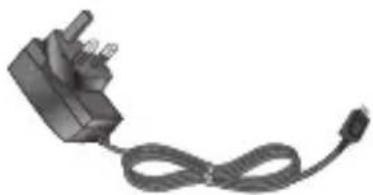
These accessories were supplied with your BL20v.
Charger
natural_image
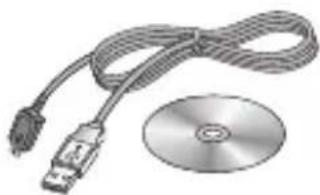
Black electrical plug with attached cable, no visible text or symbolsData cable and CD
Connect and synchronise your BL20v and PC.
natural_image
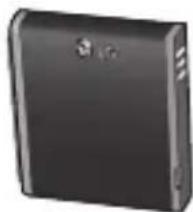
Illustration of a USB cable and CD/DVD drive (no text or symbols)Battery
natural_image
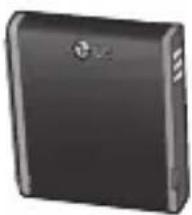
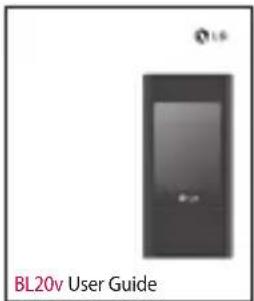
Exterior view of a black rectangular electronic device (no visible text or symbols)User Guide
Learn more about your BL20v.
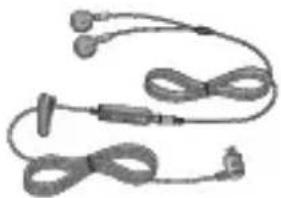
Stereo headset
natural_image
Illustration of a pair of earbuds with earphones and straps (no text or symbols)Note
• Always use genuine LG accessories.
Failure to do this may invalidate your warranty.
• Accessories may be different in different regions; please check with our regional service company or agent for further inquires.
Network service Technical data
The wireless phone described in this guide is approved for use on the UMTS 900/2100 / E-GSM 900 / DCS 1800 and PCS 1900 networks.
A number of features included in this guide are called Network Services. These are special services that you arrange through your wireless service provider. Before you can take advantage of any of these Network Services, you must subscribe to them through your service provider and obtain instructions for their use from your service provider.
General
Product name : BL20v
System : UMTS 900/2100 / E-GSM 900 / DCS 1800 / PCS 1900
Ambient Temperatures
Max : +55°C (discharging) +45°C (charging)
Min : -10°C
Declaration of Conformity

LG Electronics
Suppliers Details
Name
LG Electronics Inc
Address
LG Electronics Inc. LG Twin Towers 20,
Yeouido-dong, Yeongdeungpo-gu, Seoul, Korea 150-721
Product Details
Product Name
UMTS 900/2100/E-GSM 900/DCS 1800/PCS 1900 Terminal Equipment
Model Name
BL20v
Trade Name
LG
CE 0168
Applicable Standards Details
R&TTE Directive 1999/5/EC
EN 301 489-01 V1.6.1, EN 301 489-07 V1.3.1
EN 301 489-17 V1.2.1, EN 301 489-24 V1.3.1
EN 301 511 V9.0.2
EN 301 908-1 V3.2.1 EN 301 908-2 V3.2.1,
EN 300 328 V1.7.1
EN 50360:2001/EN62209-1:2006
EN 60950-1:2001
Supplementary Information
The conformity to above standards is verified by the following Notified Body(BABT)
BABT, Balfour House, Churchfield Road, Walton-on-Thames, Surrey, KT12 2TD, United Kingdom Notified Body Identification Number : 0168
Declaration
I hereby declare under our sole responsibility that the product mentioned above to which this declaration relates complies with the above mentioned standards and Directives
European Standard Center
LG Electronics Logistics and Services B.V.
Veluwezoom 15, 1327 AE Almere, The Netherlands
Tel: +31 - 36 - 547 - 8940, Fax: +31 - 36 - 547 - 8794
e-mail: jacob@lge.com
Name
Issued Date
Seung Hyoun, Ji / Director
14.Aug. 2009

Signature of representative
Guidelines for safe and efficient use
Please read these simple guidelines. Not following these guidelines may be dangerous or illegal.
Exposure to radio frequency energy
Radio wave exposure and Specific Absorption Rate (SAR) information
This mobile phone model BL20v has been designed to comply with applicable safety requirements for exposure to radio waves. These requirements are based on scientific guidelines that include safety margins designed to assure the safety of all persons, regardless of age and health.
- The radio wave exposure guidelines employ a unit of measurement known as the Specific Absorption Rate, or SAR. Tests for SAR are conducted using standardized method with the phone transmitting at its highest certified power level in all used frequency bands.
-
While there may be differences between the SAR levels of various LG phone models, they are all designed to meet the relevant guidelines for exposure to radio waves.
-
The SAR limit recommended by the International Commission on Non-Ionizing Radiation Protection (ICNIRP) is 2W/kg averaged over 10g of tissue.
- The highest SAR value for this model phone tested by DASY4 for use at the ear is 0.667 W/kg (10g) and when worn on the body is 1.45 W/kg (10g).
- SAR data information for residents in countries/regions that have adopted the SAR limit recommended by the Institute of Electrical and Electronics Engineers (IEEE), which is 1.6 W/kg averaged over 1g of tissue.
Product care and maintenance
WARNING
Only use batteries, chargers and accessories approved for use with this particular phone model. The use of any other types may invalidate any approval or warranty applying to the phone, and may be dangerous.
- Do not disassemble this unit. Take it to a qualified service technician when repair work is required.
-
Keep away from electrical appliances such as TVs, radios, and personal computers.
-
The unit should be kept away from heat sources such as radiators or cookers.
- Do not drop.
- Do not subject this unit to mechanical vibration or shock.
- Switch off the phone in any area where you are required by special regulations. For example, do not use your phone in hospitals as it may affect sensitive medical equipment.
- Do not handle the phone with wet hands while it is being charged. It may cause an electric shock and can seriously damage your phone.
- Do not to charge a handset near fl ammable material as the handset can become hot and create a fi re hazard.
- Use a dry cloth to clean the exterior of the unit (do not use solvents such as benzene, thinner or alcohol).
- Do not charge the phone when it is on soft furnishings.
- The phone should be charged in a well ventilated area.
-
Do not subject this unit to excessive smoke or dust.
-
Do not keep the phone next to credit cards or transport tickets; it can affect the information on the magnetic strips.
- Do not tap the screen with a sharp object as it may damage the phone.
- Do not expose the phone to liquid or moisture.
- Use the accessories like earphones cautiously. Do not press the antenna unnecessarily.
Effi cient phone operation Electronics devices
All mobile phones may get interference, which could affect performance.
- Do not use your mobile phone near medical equipment without requesting permission. Avoid placing the phone over pacemakers, for example in your breast pocket.
Some hearing aids might be disturbed by mobile phones. - Minor interference may affect TVs, radios, PCs, etc.
Guidelines for safe and efficient use
Road safety
Check the laws and regulations on the use of mobile phones in the areas when you drive.
• Do not use a hand-held phone while driving.
- Give full attention to driving.
- Use a hands-free kit, if available.
- Pull off the road and park before making or answering a call if driving conditions so require.
- RF energy may affect some electronic systems in your vehicle such as car stereos and safety equipment.
- When your vehicle is equipped with an air bag, do not obstruct with installed or portable wireless equipment. It can cause the airbag to fail or cause serious injury due to improper performance.
- If you are listening to music whilst out and about, please ensure that the volume is at a reasonable level so that you are aware of your surroundings. This is particularly imperative when near roads.
Avoid damage to your hearing
Damage to your hearing can occur if you are exposed to loud sound for long periods of time. We therefore recommend that you do not turn on or off the handset close to your ear. We also recommend that music and call volumes are set to a reasonable level.
Blasting area
Do not use the phone where blasting is in progress. Observe restrictions, and follow any regulations or rules.
Potentially explosive atmospheres
• Do not use the phone at a refueling point.
• Do not use near fuel or chemicals.
- Do not transport or store fl ammable gas, liquid, or explosives in the same compartment of your vehicle as your mobile phone and accessories.
In aircraft
Wireless devices can cause interference in aircraft.
- Turn your mobile phone off before boarding any aircraft.
- Do not use it on the ground without permission from the crew.
Children
Keep the phone in a safe place out of the reach of small children. It includes small parts which may cause a choking hazard if detached.
Emergency calls
Emergency calls may not be available under all mobile networks. Therefore, you should never depend solely on the phone for emergency calls. Check with your local service provider.
Battery information and care
- You do not need to completely discharge the battery before recharging. Unlike other battery systems, there is no memory effect that could compromise the battery's performance.
- Use only LG batteries and chargers. LG chargers are designed to maximize the battery life.
- Do not disassemble or short-circuit the battery pack.
- Keep the metal contacts of the battery pack clean.
- Replace the battery when it no longer provides acceptable performance. The battery pack maybe recharged hundreds of times until it needs replacing.
- Recharge the battery if it has not been used for a long time to maximize usability.
- Do not expose the battery charger to direct sunlight or use it in high humidity, such as the bathroom.
- Do not leave the battery in hot or cold places, this may deteriorate the battery performance.
Guidelines for safe and efficient use
- There is risk of explosion if the battery is replaced by an incorrect type.
- Dispose of used batteries according to the manufacturer's instructions. Please recycle when possible. Do not dispose as household waste.
- If you need to replace the battery, take it to the nearest authorized LG Electronics service point or dealer for assistance.
- Always unplug the charger from the wall socket after the phone is fully charged to save unnecessary power consumption of the charger.
- Actual battery life will depend on network configuration, product settings, usage patterns, battery and environmental conditions.
Life's

LG
Warranty Card
產品保用證
Mobile Phone
手提電話
Warranty Card
產品保用證
LG Customer Care Centre
客戶維修服務中心

Welcome to contact for detailed information
& Customer Care Centre address
歡迎致電查詢詳細資料及維修服務中心地址
Customer Service Hotline 客戶服務熱線:(852) 3543 7777
E-mail Us 客戶查詢電郵 : cshelpdesk@lge.com
Thank you for your purchase of LG Electronics product under the terms and conditions listed on this warranty card.
IMPORTANT: Please keep and present this warranty card and purchase invoice when services are rendered. Otherwise, this warranty will be voided.
(1) LG Electronics Hong Kong Limited (hereafter LGEHK) provides warranty period from the date of purchase are as follows and only valid for mobile purchase in Hong Kong only (any promotion gift item is not included):
(i) Handsel, 12 months (ii) Charger 6 months
(II)Biliary :6 months (IX) bland free earphone 12 months
(2) Warranty is valid only for authorized product, parallel import and counterfeit product are invalid.
(3) Product is under warranty against manufacturing defects by reason of faulty workmanship or internal electronic parts materials. This warranty does not cover defects arising from natural wear of the product (including casing, key pad, display, pricing, and accessories, etc.)
(4) If check-up or repairing are required, customer must present the original invoice and warranty card on which the relevant IMEI number was printed. Upon any failure to present the above documentation, customer must pay for the costs of the services provided.
(5) All parts replaced within the warranty period are the property of LGEHK. We have rights to handle those parts as necessary.
(6) Data stored in handsets may be lost after the repair and thus should be properly stored by customer beforehand.
(7) Warranty will be voided under the following conditions, and LGENK reserves the right to refuse providing service and/or shall demand charges for any costs of servicing from customer:
[1] Product has been tampered with or undergone unauthorized repair by third parties, improper installation, alternation or modification to this product, or damage, tearing, removal of the warranty sticker that is affixed to this product.
同 Dalesis arising from misuse, mishandling, abuse, accident, negligence and damage caused directly or indirectly by fire, flood, liquid water, corrosion, convulsion of nature, war, rat or civil commotion.
(4) The MEI number sticker on this product has been erased or modified.
(5) The content of warranty policy has been modified without authorization.
(8) LGENK is not responsible for any loss of data or system corruption during the process of transportation or repair to and from the Service Centre and due to the forces of nature.
(9) LGEHK reserves the right to terminate or modify the terms of this warranty card. For exceptional cases, subject to report of our investigation, we reserve the right to terminate this warranty card or modify terms of warranty policy.
(10) Our company will not be liable for any loss directly or indirectly caused by the breakdown of the product.
(11) This warranty card is restricted within Hong Kong SAR only.
North Point Post Office Box No.54509
香港北角郵政信箱54509號
Limited Warranty
限期保用證
To provide our best after-sales service, please complete and return this warranty card to us. 您的寶貴意見能使我們的服務更加完善,請填妥及寄回此保用證以享受閣下尊有的售後服務。
Customer Information
客戶資料
Date of Purchase: 購買日期
Invoice/Sales Docket No.:
購買單據編號