
U360-003-KM - USB Kit Tripp Lite - Free user manual and instructions
Find the device manual for free U360-003-KM Tripp Lite in PDF.


| Product Type | 3-Port USB 3.0 SuperSpeed Hub with Keyboard/Mouse Sharing and File Transfer |
| Model | U360-003-KM |
| Brand | Tripp Lite |
| Dimensions (approx.) | 3.5 x 2 x 0.8 inches |
| Weight (approx.) | 0.2 lbs |
| Power Source | Bus-powered via USB connection (up to 900mA from USB 3.0) |
| USB Standard | USB 3.0 SuperSpeed (up to 5 Gbps), backward compatible with USB 2.0 and 1.1 |
| Number of Ports | 3 USB 3.0 hub ports (top) + 1 SHARE port (front) for KM sharing |
| Keyboard/Mouse Sharing | Yes, between two computers or computer and OTG Android device |
| File Transfer | Yes, via built-in GO!Bridge software (Windows, Mac, Android) |
| Clipboard Sharing | Yes, copy and paste between connected computers |
| Software | MacKMLink for KM sharing; GO!Bridge for file transfer; Windroid Linker app for Android |
| Supported Operating Systems | Windows 2000 SP3, XP, Vista, 7, 8 (excl. RT), 8.1, 10; Mac OS X 10.6+; Android 2.2/3.0/3.1+ (OTG) |
| Language Support | 11 languages with automatic switching (English, Spanish, French, German, Italian, Russian, Simplified Chinese, Traditional Chinese, Korean, Japanese, Portuguese) |
| System Requirements | Intel Pentium II or PowerPC G4+, 256MB RAM, 50MB hard disk space |
| Package Contents | U360-003-KM hub, USB 2.0 Type-A to Type-A cable (4 ft.), USB 2.0 Micro-B to Type-A OTG adapter, owner's manual |
| Optional Accessories | M100 Lightning cables, M110 Apple 30-pin cables, U322 USB 3.0 A-B cables, U326 USB 3.0 A-Micro-B cables |
| Maintenance | Clean with dry cloth; avoid liquids and abrasives |
| Safety/Certifications | FCC Class B, WEEE compliant |
| Warranty | 1-year limited warranty; register online for extended benefits |
Frequently Asked Questions - U360-003-KM Tripp Lite
User questions about U360-003-KM Tripp Lite
0 question about this device. Answer the ones you know or ask your own.
Ask a new question about this device
Download the instructions for your USB Kit in PDF format for free! Find your manual U360-003-KM - Tripp Lite and take your electronic device back in hand. On this page are published all the documents necessary for the use of your device. U360-003-KM by Tripp Lite.
USER MANUAL U360-003-KM Tripp Lite
3-Port USB 3.0 SuperSpeed Hub with Keyboard/Mouse Sharing and File Transfer
Model: U360-003-KM
PROTECT YOUR INVESTMENT!
Register your product for quicker service and ultimate peace of mind.
You could also win an ISOBAR6ULTRA surge protector—a \$100 value!
www.tripplite.com/warranty


Manufacturing Excellence.
1111 W. 35th Street, Chicago, IL 60609 USA • www.tripplite.com/support
Copyright © 2015 Tripp Lite. All rights reserved.
Product Features
- Compact design easily fits into a laptop bag—perfect for travel
- Supports USB 3.0 SuperSpeed data transfer rates up to 5 Gbps; backwards compatible with USB 2.0 and 1.1
- Bus-powered through USB connection
- Additional USB port connects to another computer or On-the-Go (OTG) compliant Android™ device (USB Micro-OTG adapter included) to share a keyboard and mouse, and transfer files
• Built-in software allows for keyboard and mouse sharing between computers, with the cursor able to travel from one screen to the next - Includes clipboard sharing for copy-and-pasting between computers
- Built-in GO!Bridge file transfer software transfers files on Windows and Mac computers, plus OTG compatible Android devices
- Supports 11 languages (English, Spanish, French, German, Italian, Russian, Simplified Chinese, Traditional Chinese, Korean, Japanese and Portuguese) with automatic switching capability to match your operating system's language
System Requirements
- Compatible with all major operating systems with a USB port (USB 3.0 port is required to achieve USB 3.0 speeds)
- Windows® 2000 SP3, XP, Vista, 7, 8 (Excluding RT), 8.1, and 10
• Mac OS ^® X 10.6 and later - OTG compliant device with Google Android 2.2, 3.0, 3.1 and later
Note: Android devices must install the Windroid Linker App—see GO!Bridge section of this manual for details
- Intel Pentium II Processor / PowerPC G4 processor or higher
• 256MB RAM or higher - At least 50MB hard disk space
Package Includes
• U360-003-KM
- USB 2.0 Type-A (Male) to Type-A (Male) Cable for KM Share, 4 ft.
• USB 2.0 Micro-B (Male) to Type-A (Female) OTG Adapter
- Owner's Manual
Optional Accessories
• M100-Series Lightning Cables
• M110-Series Apple 30-Pin Cables
• U322-Series USB 3.0 Type-A to Type-B Device Cables
• U326-Series USB 3.0 Type-A to Micro-B Device Cables
Setup
- Connect the built-in USB 3.0 cable to an available USB port on your computer or laptop.
- Connect USB devices to the available hub ports located on the top of the unit.
Note: The hub is powered via the connected computer port (USB 3.0 provides up to 900mA). If you are connecting devices that require more power than is being supplied by the connected computer port, they will need to be powered by an external power supply. - To use the KM sharing and/or file transfer features, connect the included USB cable between the SHARE port on the front of the hub to an available USB port on a second computer, laptop or OTG compatible Android device.
Note: A USB Micro-B OTG Adapter is provided for connecting to Android devices).
Setup
Software Installation
Upon connecting the SHARE port on the front of the hub to another computer, the built-in software will automatically install MacKMLink on Windows computers. If the software fails to install automatically, go to the My Computer screen and click on the MacKMLink icon to run it manually.
On Mac computers, a MacKMLink folder will appear on the desktop. Open the folder and run the MacKMLink file to install the software. When prompted to Run SKLoader.exe, click to proceed.

The two computers will then recognize each other, at which time you will be able to start using the KM sharing and file transfer features.

Setup
Software Settings
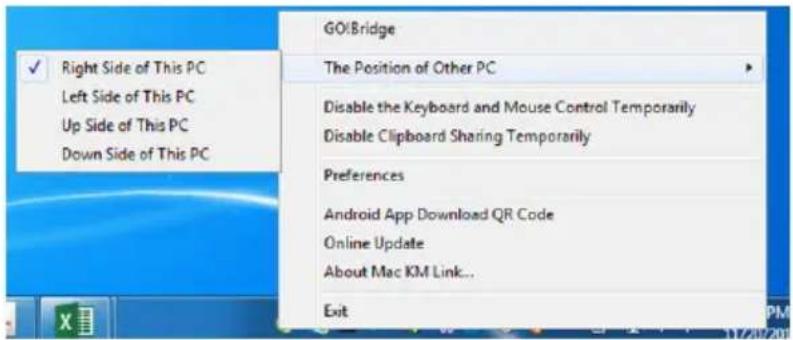
Once installed and recognized, a MacKMLink icon will appear in the bottom-right of a Windows desktop interface, or in the tray at the bottom of a Mac desktop interface. For Windows systems, right-click on the icon to bring up the software settings menu. For Mac systems, click and hold on the icon. The settings menu shown below will appear.
| GO!Bridge |
| The Position of Other PC |
| Disable the Keyboard and Mouse Control Temporarily Disable Clipboard Sharing Temporarily |
| Preferences |
| Android App Download QR Code Online Update About Mac KM Link... |
| Exit |
The following section provides an overview of the options in the software settings menu.
The Position of the Other PC
Selecting this option from the software settings menu allows you to choose where the connected computer is in relation to the computer you are currently accessing. This will determine which side of the screen you drag the mouse cursor off of to use on the other computer. Once you have dragged your cursor onto the other computer, you can begin accessing it with both the keyboard and mouse.
Setup
Disable the Keyboard and Mouse Temporarily
Selecting this option prevents the mouse and keyboard of the computer you are currently accessing from being used to control the connected computer. To reactivate keyboard and mouse control, open up the software settings menu and choose the option Enable Keyboard and Mouse Control.
Disable Clipboard Sharing Temporarily
When clipboard sharing is enabled, you can copy data to the clipboard of one computer and paste it on the other computer. Selecting the Disable Clipboard Sharing Temporarily option from the software settings menu disables this functionality. When disabled, go back into the software settings menu and select Enable Clipboard Share.
Preferences
When selecting this option in the software settings screen, the Preferences Setup screen appears, allowing you to adjust settings of the MacKMLink software. The Preferences option is only available in Windows.

Setup
Keyboard and Mouse Control Switching Settings
The following section allows you to toggle the Keyboard and Mouse control settings.
- Turn Off – Checking this option prevents you from using your keyboard and mouse to control the other computer. When turned off, the Disable Keyboard and Mouse Temporarily option is removed from the software settings menu.
- Use Mouse Middle Button – This option requires that the host computer (i.e. the computer the hub is connected to) be a Windows computer. When selected, clicking the middle button on your mouse will cause control of the non-host computer to switch from one keyboard and mouse set to the other.
- Use Mouse Move Off The Edge of Screen – This option is not available for Window to Android or Mac to Android connections. When selected, it lets you move the mouse off of one monitor and on to the other. When selected, you can choose from the dropdown menu directly below where the other computer is in relation to the computer you are currently accessing.
- Hotkey Toggle – The Hotkey Toggle defaults to [Alt][S]. When pressing and holding [Alt][S] on the keyboard, control of the non-host computer will switch from one keyboard and mouse set to the other. When in the Preferences Setup screen, you can click the Hotkey Toggle field to change it. After you have clicked on it, you can hit a key (e.g. O, Enter, Shift, etc.) or combination of keys (e.g. [Shift][O], [Ctrl][A], etc.) to change the hotkey used to switch control.
Clipboard Share Options
This section allows you to turn the clipboard share feature on and off. To turn it on, select the Auto Share option. To turn it off, select the Turn Off option.
Setup
Event Notification
This section allows you to turn different notifications on and off. The available options are:
- When Clipboard Data Is Arriving – Selects one of two types of notifications (Play Sound and Popup a Balloon Tip) that occur when clipboard data is being transferred from the other computer. You can also choose for both notifications to occur. No notifications will occur if neither is selected.
- When Clipboard Data Is Sending – Selects the Popup a Balloon Tip option to display a balloon notification when clipboard data is being transferred to the other computer. A notification will not occur if it is not selected.
- When Switch Keyboard And Mouse Control to Another Computer – Selects the Play Sound option to play a sound notification when keyboard and mouse control is being transferred to the other computer. A notification will not occur if it is not selected.
Others
Other settings include:
- Resident This Application – When checked, the MacKMLink program will automatically start up once the device is plugged in.
- Double Click the System Tray Icon to Turn On/Off Sharing Temporarily – When selected, double-clicking the MacKMLink icon in the lower-right corner will disable both keyboard and mouse sharing and clipboard sharing. Double-clicking the icon again will enable sharing.
- Send Ctrl-Alt-Del to another computer by pressing – This setting allows you to choose a hotkey that can be performed on one computer, which will send the Ctrl-Alt-Del command to the other computer.
Setup
Android App Download QR Code
Select this option from the software settings menu to view the QR code that can be scanned by an Android device and direct a user to the Windroid Linker app.

Online Update
Select this option from the software settings menu to search online for new versions of the MacKMLink software to download.
About MacKMLink
Select this option from the software settings menu to view a prompt displaying the current version of MacKMLink installed on your computer.
Exit
Select this option from the software settings menu to close MacKMLink.
GO!Bridge
Clicking on the GO!Bridge option in the software settings menu shows the file transfer interface, which will default to displaying the files on the connected computer's desktop. To use file transfer with an OTG compatible Android device, you must first install the Windroid Linker app. You can search for this in the Android Market or right-click on the MacKMLink icon in your Windows or Mac computer and choose the Android App Download QR Code option. A QR code that directs you to the app will appear to scan with your Android device.
Note: When using an Android device to transfer files, a Windows or Mac computer must always be the host device (i.e. the computer the hub is connected to).

Setup
In the information at the top of the GO!Bridge interface, the name of the connected computer and the amount of disk space available on it will be displayed.
In the upper-right of the Windows desktop interface is a down-arrow icon (). When clicked a pop-up menu will display. The down-arrow icon and pop-up menu are not available in the Mac interface. However, the Open Dock option from the Windows pop-up menu is available in the Mac interface by clicking on the right-arrow option in the 🔗 icon in the upper-right portion of the interface. The Open Dock in Mac functions the same as in Windows, described in following section.
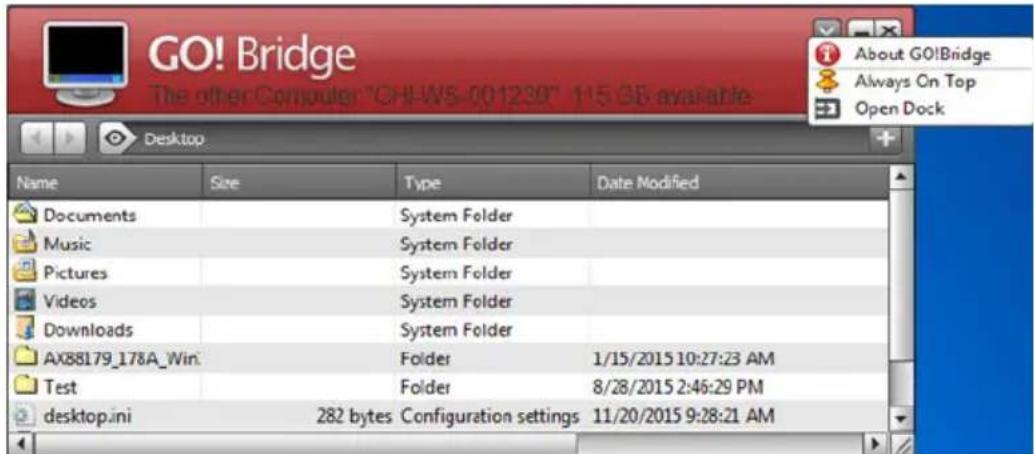
There are three options in this pop-up menu:
About GO!Bridge – Selecting this option displays a graphic showing the GO!Bridge version that is currently installed.
Always On Top – Selecting this option makes the GO!Bridge interface always display on top of other screens open in the computer. For example, if you open your web browser, the GO!Bridge interface will display on top of it and you will need to click the minimize button on the interface to remove it from the screen. When enabled, go to the down-arrow pop-up menu and click on Disable Always On Top to disable this feature.
Open Dock – Selecting this option opens a dock to the right of the interface, where you can drag files that you want to transfer from the connected computer. When you have stored all of the files you wish to transfer, you can transfer them from the dock to your computer all at once.
Setup

Using GO!Bridge to Access and Transfer Files
Accessing and transferring files from the connected computer can be done as easily as if they were on your computer. You can use your mouse to drag-and-drop a file from the GO!Bridge interface to your computer to copy it wherever you want. You can also right-click on the file to pull up a menu that allows you to choose from a list of commands, such as open, copy, rename and delete.
To navigate to different locations on the connected computer, click the icon to the left of the address bar in the Windows interface and select the location you wish to display. For Mac systems, drives and places in the connected computer are displayed on the interface's left-hand side; simply click on the desired location to go there.
When you are done accessing and transferring files, close out the GO!Bridge interface.
Warranty and Product Registration
1-YEAR LIMITED WARRANTY
TRIPP LITE warrants its products to be free from defects in materials and workmanship for a period of one (1) year from the date of initial purchase. TRIPP LITE's obligation under this warranty is limited to repairing or replacing (at its sole option) any such defective products. To obtain service under this warranty, you must obtain a Returned Material Authorization (RMA) number from TRIPP LITE or an authorized TRIPP LITE service center. Products must be returned to TRIPP LITE or an authorized TRIPP LITE service center with transportation charges prepaid and must be accompanied by a brief description of the problem encountered and proof of date and place of purchase. This warranty does not apply to equipment, which has been damaged by accident, negligence or misapplication or has been altered or modified in any way.
EXCEPT AS PROVIDED HEREIN, TRIPP LITE MAKES NO WARRANTIES, EXPRESS OR IMPLIED, INCLUDING WARRANTIES OF MERCHANTABILITY AND FITNESS FOR A PARTICULAR PURPOSE.
Some states do not permit limitation or exclusion of implied warranties; therefore, the aforesaid limitation(s) or exclusion(s) may not apply to the purchaser.
EXCEPT AS PROVIDED ABOVE, IN NO EVENT WILL TRIPP LITE BE LIABLE FOR DIRECT, INDIRECT, SPECIAL, INCIDENTAL OR CONSEQUENTIAL DAMAGES ARISING OUT OF THE USE OF THIS PRODUCT, EVEN IF ADVISED OF THE POSSIBILITY OF SUCH DAMAGE. Specifically, TRIPP LITE is not liable for any costs, such as lost profits or revenue, loss of equipment, loss of use of equipment, loss of software, loss of data, costs of substitutes, claims by third parties, or otherwise.
PRODUCT REGISTRATION
Visit www.triplite.com/warranty today to register your new Tripp Lite product. You'll be automatically entered into a drawing for a chance to win a FREE Tripp Lite product!*
* No purchase necessary. Void where prohibited. Some restrictions apply. See website for details.
FCC Notice, Class B
This device complies with part 15 of the FCC Rules. Operation is subject to the following two conditions: (1) This device may not cause harmful interference, and (2) this device must accept any interference received, including interference that may cause undesired operation.
Note: This equipment has been tested and found to comply with the limits for a Class B digital device, pursuant to part 15 of the FCC Rules. These limits are designed to provide reasonable protection against harmful interference in a residential installation. This equipment generates, uses and can radiate radio frequency energy and, if not installed and used in accordance with the instructions, may cause harmful interference to radio communications. However, there is no guarantee that interference will not occur in a particular installation. If this equipment does cause harmful interference to radio or television reception, which can be determined by turning the equipment off and on, the user is encouraged to try to correct the interference by one or more of the following measures:
- Reorient or relocate the receiving antenna.
- Increase the separation between the equipment and receiver.
- Connect the equipment into an outlet on a circuit different from that to which the receiver is connected.
- Consult the dealer or an experienced radio/TV technician for help.
Any changes or modifications to this equipment not expressly approved by Tripp Lite could void the user's authority to operate this equipment.
WEEE Compliance Information for Tripp Lite Customers and Recyclers (European Union)
Under the Waste Electrical and Electronic Equipment (WEEE) Directive and implementing regulations, when customers buy new electrical and electronic equipment from Tripp Lite they are entitled to:
- Send old equipment for recycling on a one-for-one, like-for-like basis (this varies depending on the country)
- Send the new equipment back for recycling when this ultimately becomes waste
Tripp Lite has a policy of continuous improvement. Specifications are subject to change without notice.


1111 W. 35th Street, Chicago, IL 60609 USA • www.tripplite.com/support
- 3-Port USB 3.0 SuperSpeed Hub with Keyboard/Mouse Sharing and File Transfer
- PROTECT YOUR INVESTMENT!
- Product Features
- System Requirements
- Package Includes
- Optional Accessories
- Setup
- Software Installation
- Software Settings
- The Position of the Other PC
- Disable the Keyboard and Mouse Temporarily
- Disable Clipboard Sharing Temporarily
- Preferences
- Keyboard and Mouse Control Switching Settings
- Clipboard Share Options
- Event Notification
- Others
- Android App Download QR Code
- Online Update
- About MacKMLink
- Exit
- GO!Bridge
- Using GO!Bridge to Access and Transfer Files
- Warranty and Product Registration
- 1-YEAR LIMITED WARRANTY
- PRODUCT REGISTRATION
- FCC Notice, Class B
- WEEE Compliance Information for Tripp Lite Customers and Recyclers (European Union)
Brand : Tripp Lite
Model : U360-003-KM
Category : USB Kit