MCK1309WB.64 - Hi-Fi System BOSS - Free user manual and instructions
Find the device manual for free MCK1309WB.64 BOSS in PDF.


User questions about MCK1309WB.64 BOSS
0 question about this device. Answer the ones you know or ask your own.
Ask a new question about this device
Download the instructions for your Hi-Fi System in PDF format for free! Find your manual MCK1309WB.64 - BOSS and take your electronic device back in hand. On this page are published all the documents necessary for the use of your device. MCK1309WB.64 by BOSS.
USER MANUAL MCK1309WB.64 BOSS
WITH USB AND SD MEMORY CARD PORTS AND FRONT PANEL AUX INPUT
0115
BOSS®
AUDIO SYSTEMS
3451 Lunar Court • Oxnard, CA 93030
www.bossaudio.com
800.999.1236
tech support: www.bosssaudio.com/support

CE
E4
iPod8/iPhone8 are trademarks of Apple, Inc. registered in the U.S. and other countries, ROSS, Airpin Systems is not affiliated with Apple Inc.
USER'S MANUAL
MR1309UAB
BLUETOOTH®-ENABLED
FULLY MARINIZED
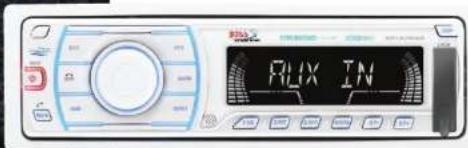
MP3-COMPATIBLE DIGITAL MEDIA RECEIVER
WITH USB AND SD MEMORY CARD PORTS AND FRONT PANEL AUX INPUT



BOSS®
AUDIO SYSTEMS
INSTRUCTION MANUAL
CAR RADIO RECEIVER / MP3 PLAYER WITH BULETOOTH HAND FREE SYSTEM

INSTALLATION
- Before final installation, connect the wiring temporarily and make sure it is all working properly.
- Use only the parts included with the unit to ensure proper installation. The use of unauthorized parts can cause malfunctions.
- This item must be installed by an authorized dealer in order to keep the warranty valid.
- Install the unit where it does not get in the driver's way and cannot injure the passenger if there is a sudden stop, like an emergency stop.
- Avoid installing the unit where it would be subject to high temperature, such as direct sunlight, or hot air, heater or where it would be subject to dust dirt or excessive vibration.
- Be sure to remove the front panel before installing the unit.
DIN FRONT/REAR-MOUNT
This unit can be property installed either from Front (conventional DIN Front-mount) or Rear (DIN Rear-mount installation, utilizing threaded screw holes at the sides of the unit chassis). For details, refer to the following illustrated installation methods A and B.
- DIN FRONT-MOUNT (Method A) Installation the unit
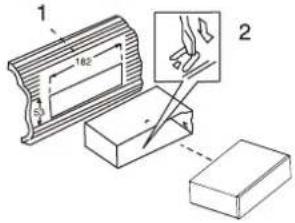
Removing the unit
- Dashboard
- Holder
After inserting the half sleeve into the dashboard, select the appropriate tab according to the thickness of the dashboard material and bend them inwards to secure the holder in place.
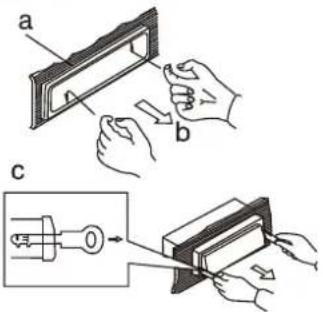
a. Frame
b. Insert fingers into the groove in the front of frame and pull out to remove the frame. (When re-attaching the frame, point the side with a groove down wards and attach it.)
c. Insert the levers supplied with the unit into the grooves at both sides of the unit as shown in figure until they click. Pulling the levers makes it possible to remove the unit from the dashboard.
- DIN REAR-MOUNT (METHOD B)
Installation using the screw holes on the sides of the unit. Fastening the unit to the factory radio mounting bracket.
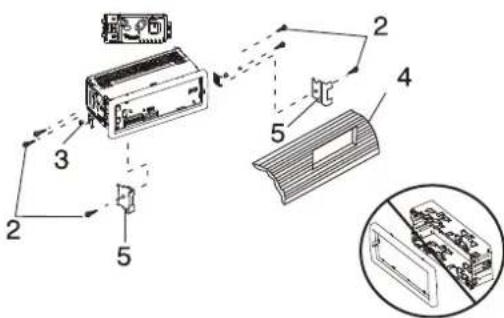
-
Select a position where the screw holes of the bracket and the screw holes of the main unit become aligned (are fitted) and tighten the screws at 2 places on each side.
-
Screw
- Factory radio mounting bracket.
- Dashboard or Console
- Hook (Remove this part)
Note: the mounting box, outer trim ring, and half-sleeve are not used for method B installation.
2. DETACHABLE CONTROL PANEL (D.C.P.)
Removing The Detachable Control Panel (D.C.P).
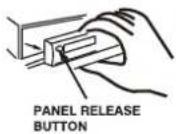
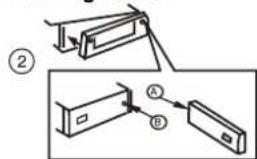
Attaching the DCP
- Turn the power off
- Press the D.C.P. release button
-
Remove the D.C.P.
-
Attach the panel at the right side first, with point B on the main unit touching point A on the D.C.P. (As shown on the diagram).
-
Then press the left side of D.C.P. onto the main unit until a click sound is heard.
CAUTION
- DO NOT insert the D.C.P from the left side. Doing so may damage it.
- The D.C.P can easily be damaged by shocks. After removing it, place it in a protective case and be careful not to drop it or subject it to strong shocks.
- When the release button is pressed and the D.C.P is unlocked, the car's vibrations may cause it to fall. To prevent damage to the D.C.P, always store it in a protective case after detaching it.
- The rear connector that connects the main unit and the D.C.P is an extremely important part. Be careful not to damage it by pressing on it with fingernails, pens, screwdrivers, etc.
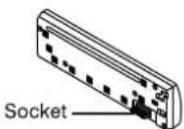
Note:
If the D.C.P is dirty, wipe off the dirt with soft, dry cloth only. And use a cotton swab soaked in isopropyl alcohol to clean the socket on the back of the D.C.P.
DETACHABLE CONTROL PANEL (D.C.P.)
Removing The Detachable Control Panel (D.C.P).
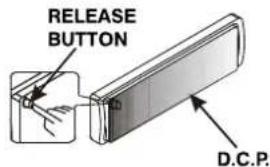
- Turn the Power off.
- Press the Panel Release Button.
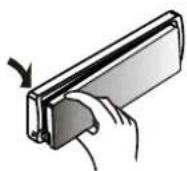
- Remove the D.C.P.
Attaching the Detachable Control panel (D.C.P.)
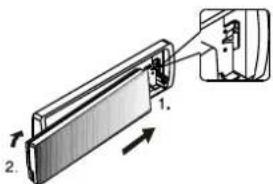
- Insert the right side of the D.C.P. Into the main unit.
NOTE: The D.C.P. Must be attached into the T-Joint.
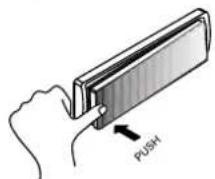
- Press the D.C.P. On to the left side of middle of D.C.P. Until a click sound is heard.
CAUTION
- DO NOT insert the D.C.P from the left side. Doing so may damage it.
- The D.C.P can easily be damaged by shocks. After removing it, place it in a protective case and be careful not to drop it or subject it to strong shocks.
- When the release button is pressed and the D.C.P is unlocked, the car's vibrations may cause it to fall. To prevent damage to the D.C.P, always store it in a protective case after detaching it.
- The rear connector that connects the main unit and the D.C.P is an extremely important part. Be careful not to damage it by pressing on it with fingernails, pens, screwdrivers, etc.
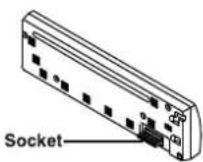
Note:
If the D.C.P is dirty, wipe off the dirt with soft, dry cloth only. And use a cotton swab soaked in isopropyl alcohol to clean the socket on the back of the D.C.P.
ELECTRICAL CONNECTION
a. Make sure your car battery is a 12 volt negative ground system.
b. Before starting wiring connections, disconnect the power supply by removing the fuse from the fuse box.
c. Connect the power wire to one of the extra terminals of the fuse box.
d. Connect the black ground wire to a metal part of the car. It is important to make good contact.
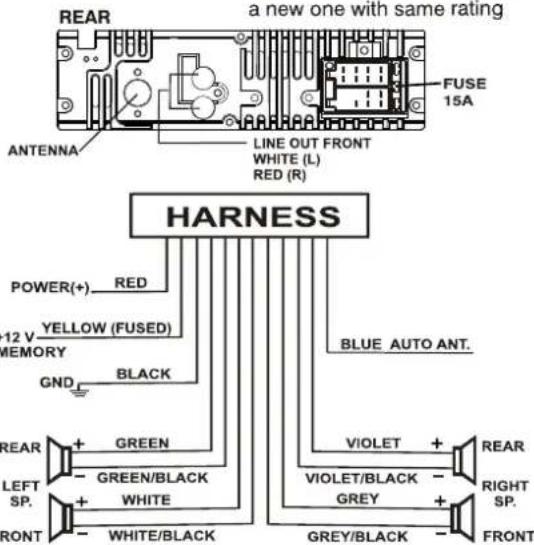
e. Make other wiring connections as shown.
f. If your car does not have ISO connector, you can procure it from any car accessory shop.
Notes: INCORRECT WIRING OR OPERATION WILL VOID THE WARRANTY OF THIS UNIT.
ELECTRICAL CONNECTION
Fuse Replacement:
To replace the fuse, pull out the blown fuse from the socket. Insert a new one with same rating
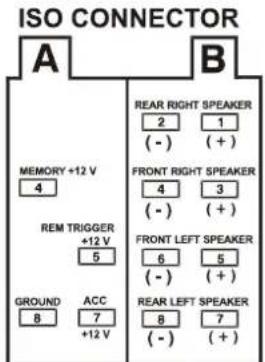
| SIDE A | SIDE B |
| 4 YELLOW | 1 VIOLET |
| 5 BLUE | 2 VIOLET/BLACK |
| 7 RED | 3 GREY |
| 8 BLACK | 4 GREY/BLACK |
| 5 WHITE | |
| 6 WHITE/BLACK | |
| 7 GREEN | |
| 8 GREEN/BLACK |
GENERAL OPERATION
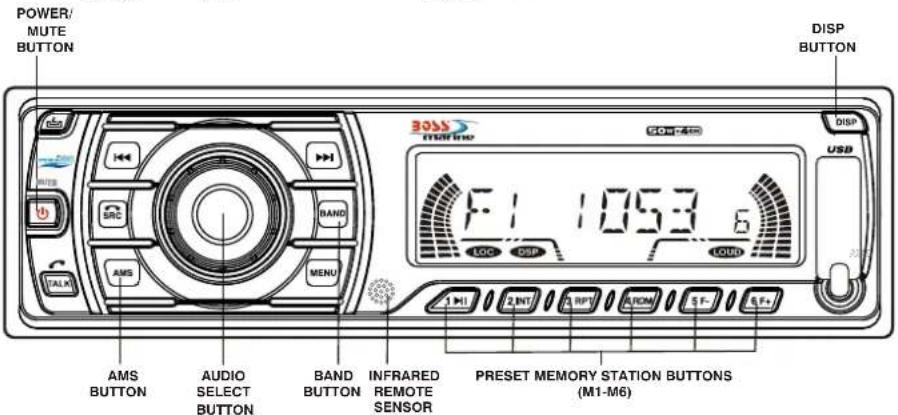
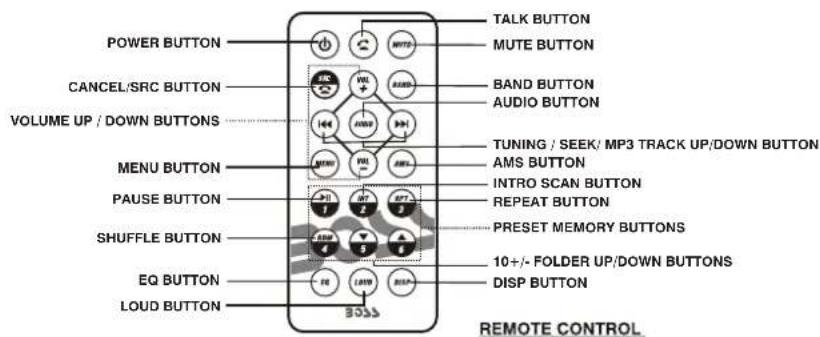
POWER ON/OFF BUTTON (①)
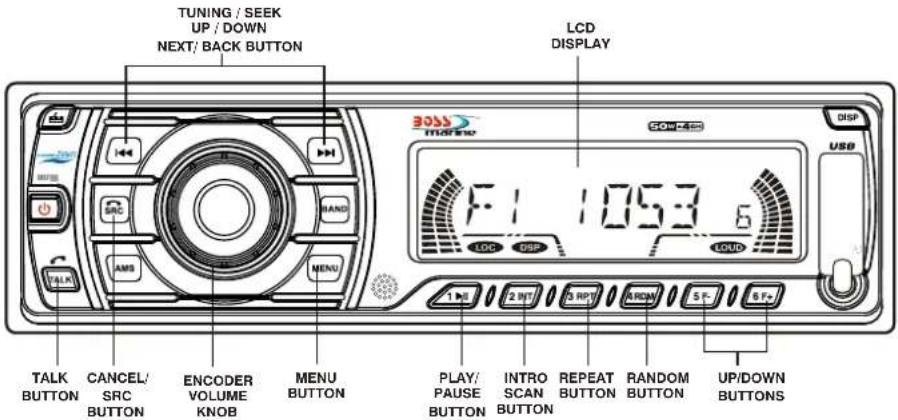
Press POWER button or any other button on the front of the radio to turn the unit on. Press POWER button briefly to turn the unit off.
MUTE BUTTON
Press the mute button momentarily to mute the audio volume, and "Mute" will in the display. Press the mute button again to restore volume to the previous setting.
AUDIO SELECT BUTTON (ROTARY VOLUME CONTROL KNOB)
Press this button to select desired audio function.
VOLUME (VOL)->BASS (BAS)->TREBLE (TRE)->BALANCE (BAL)->FADER (FAD)->EQ (DSP OFF/POP/ROCK/CLASSIC)->LOUD
Rotate Volume Control to adjust desired setting within 3 seconds.
At DSP OFF mode EQ will be controlled by BASS/TREBLE setting.
LOUD
Use the LOUDNESS control to increase bass output.
MENU BUTTON
Press MENU Button to navigate through the menu items, while the desired menu item is displayed, use Volume control to adjust the selected function:
- LOC/DX MODE
Use this mode to change between Local and Distant (DX) tuning mode. Local Mode improves reception in some areas where the signal is too strong.
- BEEP MODE (BEEP ON / OFF)
BEEP OFF: disable audible beep tone when any function is accessed. BEEP ON: enable audible beep tone.
- SWITCHING BETWEEN USA AND EUROPE FREQUENCY
In radio mode, Press MENU button until AREA USA or AREA EUR is displayed. Rotate Volume knob to switch between USA and EUR (Europe) frequency. Leave it for 3-4 seconds until current frequency menu resumes or press any button to continue operation. Every time desired area frequency is selected, frequency and tuning step will be switched to corresponding settings automatically.
ROTARY ENCODER VOLUME KNOB
When the Menu function is not activated, rotate this knob to change the volume level. When Menu function is activated, rotate this knob to navigate through different menu items.
SRC BUTTON
- Press this button to select different sources, sequence as follow:
A) Tuner mode (Radio)
B) USB (only if a USB drive is inserted)
C) SD/MMC (only is a SD or MMC card is inserted)
D) AUX IN
E) BT MODE (only if unit is paired to a mobile phone)
SOURCES PRIORITY
- Whenever a USB or SD/MMC is being inserted, unit will automatically switch to USB or SD/MMC mode, does not matter the unit is currently in what mode. When in USB or SD / MMC mode, if the USB or SD / MMC is being removed, unit will automatically switch to radio mode.
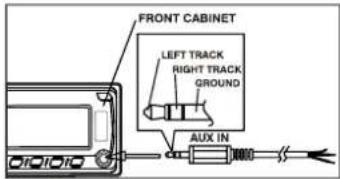
FRONT AUX INPUT
Connect the external signal to the front 3.5mm earphone jack on front panel, then press Mode button to select Aux mode. Press Mode button again to cancel Aux Mode and return to previous mode.
DISP BUTTON
Press DISP button once to display current playing status (e.g. Frequency of Radio/AUX/Music information (Elapsed time and ID3) of USB/SD-MMC Play).
- During USB / SD-MMC play. Elapsed and ID3 tag of current track will be displayed in sequence.
AUTO MEMORY STORE/PRESET SCAN BUTTON (AMS)
1.PRESET SCAN: Press AMS button briefly enter Preset Scan mode, it will scan all the preset stations in the memories, you can hear that will stay on each station for about 5 seconds.
2. AUTO MEMORY STORE: Press AMS button long to enter Auto Store mode, this feature will automatically scan the current band and enter up to 6 strongest stations into the 6 preset memories. To stop Auto Store & Scan, press the AMS button again.
Press this button to search for radio stations.
BAND BUTTON
Press this button to change between bands FM1, FM2, FM3, MW1, MW2(AM).
RESET BUTTON
The RESET button is located on the front panel (as shown on the diagram). To press it vertically with a ballpoint pen or metal object will activate it. The reset button is to be activated for the following reasons:
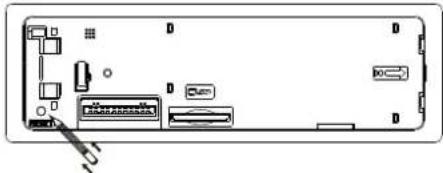
natural_image
Back view of a computer chassis showing internal components and connectors (no text or labels visible)- Initial installation of the unit when all wiring is completed.
- All the function buttons do not operate.
- Error symbol on the display.
Note: If the unit cannot function normally after resetting, please use a cotton swab soaked in isopropyl alcohol to clean the socket on the back of the control panel.
LIQUID CRYSTAL DISPLAY PANEL (LCD)
The LCD panel display the frequency, time and activated functions.
NOTE:
It is a characteristic of LCD panel that if subjected to cold temperatures for an extended period of time, they will take longer time to illuminate than under normal conditions, in addition, the visibility of the numbers on the LCD may slightly decrease. The LCD read-out will return to normal when temperatures increase to a normal range.
STATION PRESET BUTTONS (M1-M6)
You can store & recall six preset radio stations by pressing M1-M6 buttons
TO STORE A STATION: 1) select a band (if needed)
2) select a station by tuning up / down button
3) hold a preset button which you want store the station for at least 2 seconds. The preset number will appear on the display accompanied by a beeps sound.
TO RECALL A STATION: 1) select a band (if needed)
2) press a preset button briefly to recall the stored station.
MP3/SD/USB OPERATIONS
M1)PLAY/PAUSE AND FIRST TRACK BUTTON
Press this button briefly to pause MP3 play, press again to release pause.
M2)INTRO SCAN BUTTON
Press this button to select Intro Scan function, the first 10 seconds of each track will be played sequentially until this button is pressed again, then normal play will resume at the current track.
M3)REPEAT BUTTON
Pressing this button will activate Repeat Function in the following order :
RPT ONE→RPT ALL
When random play mode is selected, the tracks will be played in random order, press this key one more time to cancel random play mode.
TRACK UP AND TRACK DOWN BUTTON (|◀◀▶▶)
Under normal play mode, press the Track Up Button for less than 1 second to skip the playback to the next track, or press the Track Down Button for less than 1 seconds to return to the beginning of the current track, press this button one more time to skip to the previous track.
When any of these buttons is pressed for more than 1 second, the Mp3 player will enter Cue/Review mode, this is indicated by the flashing track number on the LCD. When the key is released, normal play will resume.
MMC/SD CARD & USB DEVICE OPERATIONS
START THE USB DEVICE MODE
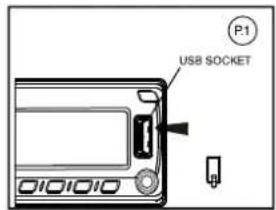
- The USB socket is accessible as indicated in picture
1.(P.1)
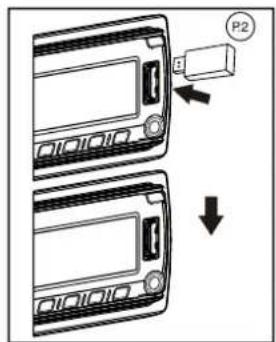
2.Plug in the USB drive / device completely as indicated in picture 2(P.2) and display will show USB-LOAD to indicate that the USB drive / device is being plugged in correctly & the download has begun. - Does not matter which source the unit is in (TUNER, SD/MMC, AUX, etc), once a USB drive / device is being plugged into the unit, unit will automatically switch to USB mode.
- All the USB files playback function is same as normal MP3 files playback.
Warning: Excessive weight or size USB drive/device may cause permanent & serious damage to the unit and may cause access to the buttons on the front panel impossible. User must use an extension cable (provide by USB device manufacturer) to connect with USB socket to prevent any damage cause.
TO STOP USB PLAYBACK
- If the USB drive / device is unplugged, the unit will automatically switch to radio mode. Or user can use MODE button to switch to other mode.
2.User can use the MODE button to choose USB mode (only if USB drive / device is inserted in the unit) or any other modes, when they are in any mode.
USB SPECIFICATION
* SUPPORT MAX 32G USB FLASH MEMORY
* SUPPORT MAX 9999 SONGS
* USB 1.1 DEVICE SUPPORT
* USB 2.0 DEVICE SUPPORT
(TRANSFER SPEED SAME AS VER 1.1)
* FILE MANAGER: FAT12/FAT16/FAT32
* CURRENT SUPPLY: MAX 500mA
CAUTION
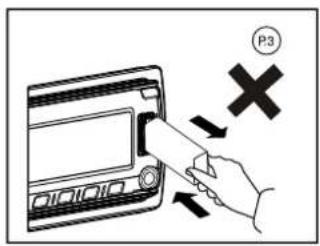
- Always unplugged the USB gently from the unit, excessive force used will cause permanent & serious damage to the unit & the USB drive / device.
COMPATIBILITY
Due to the fast changing technology world, this unit may or may not be compatible to all the USB drive / device available with all the future technology, especially those USB drive / device which require to install a driver. Always choose a compatible USB drive / device which is compatible with this unit.
NOTE:
This unit is not compatible with portable Hard-Disc.
START THE SD/MMC MODE
natural_image
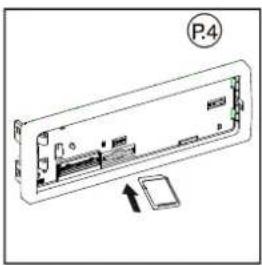
Diagram of a computer RAM module with an attached drive and indicator (no text or symbols)- The SD/MMC card slot is located on top of the front panel as indicated in (P.4).
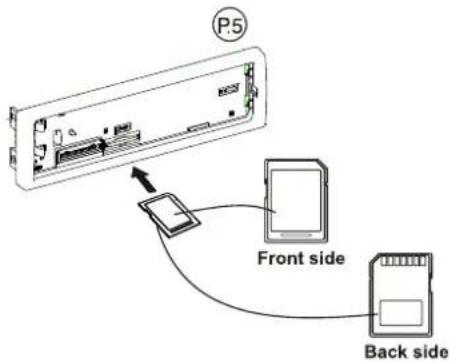
- Insert the SD/MMC card into the card slot in the correct direction until a CLICK sound is heard.
- The display will show SD-MMC to indicate that the SD or MMC card is correctly inserted. Once the SD or MMC card is inserted, the MP3 file will automatically loaded & playback will also start.
- Does not matter the unit is in what sources(TunerUSB,AUX,etc), once a SD or MMC card is being inserted in the unit, unit will automatically switch to SD / MMC mode.
- All the SD / MMC files playback function is same as normal MP3 files playback.
TO STOP SD/MMC CARD PLAYBACK
- Push on the end of the SD or MMC card to eject the sd or MMC card. Once the SD or MMC card is taken out, the unit will automatically switch to previous mode.
2.User can use the MODE button to choose SD / MMC mode (only if SD or MMC is inserted in the unit) or any other modes, when they are in any mode.
SD/MMC SPECIFICATION
* SUPPORT MAX 32G SD/MMC CARD
* SUPPORT MAX 9999 SONGS
* FILE MANAGER FAT12, FAT16, FAT32 SUPPORTED
CAUTION
- Please make sure to insert the SD or MMC card in the correct direction / orientation as indicated in picture 6(P.5). Wrong insert will cause permanent & serious damage to the unit & the SD or MMC card.
MP3 OPERATIONS(MP3/SD/MMC/USB FILES)
Loading MP3 File ( MMC/SD/USB Drive)
During MP3 play, Current Track Number & Time Elapse of current track will be shown on the LCD. If the disc is ID3 compatible, press DISP button to display elapsed time and Id3 tag of current track, The following categories of ID3 tag will be shown:
- Track name SONG
- Title name TITLE
- Artist name ARTIST
- Album name ALBUM
- Folder name DIR
Navigating Through Folders and Tracks
There are Four ways to select your favourite folder/tracks.
- By Track Up/Down Button (◀◀ ▶▶)
Press track up/down button to skip the current tracks.
2.10-Track Up/Down Button
Press Folder up (M6)/F+ or Folder down Button (M5)/F- for more than 1 seconds skip10 tracks.
3.Folder UP/Down
Press Folder up (M6)/F+ or Folder down Button (M5)/F- briefly to skip Folder.
4.NAVIGATING THROUGH DIRECTORIES AND TRACKS
Under MP3 play modes, press AMS Menu button once, the display shows TRK-SCH, then turn the Encoder Volume knob to select desired track number directly. Then press Volume knob to confirm.
Before you use your Car HANDSFREE System, you need to pair it with your mobile phone.
-
The Bluetooth set system on the head unit will automatically go into pairing mode when the POWER turned on.
-
Set your Bluetooth phone to discover the BOSS AUDIO
-
Your phone will find the BOSS AUDIO
Your phone then asks if you want to pair with it. Accept by pressing Yes or OK on the phone and confirm with the passkey or PIN=0000 (4 zeros). Your phone will confirm when pairing is complete.
In case of unsuccessful pairing, repeat steps 1 to 3
2. OPERATION
- Call Accept: Single click TALK button during an incoming call to accept the call.
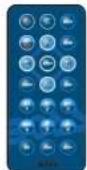
- Call Reject: Click CANCEL (SRC) or (STOP) on the remote during an incoming call will reject the call.
- Call End: Single click SRC 📋 button when communication or dialling an outgoing call to hang up.
- Call Disconnect: No BT mode Click TALK button about 1.5 seconds when it is not in communication mode. And Disconnect and BT OFF will show on the display.
- Call Re-connect, Click TALK button again at the Disconnect Status. The connection will be reconnected and CONNECT & BT ON will show on the display.
- Call Transfer (Private mode): Click TALK button about 1.5 seconds at communicating time, transfer the call to phone, click talk button once again, transfer the call to Bluetooth.
- Auto Answer (Depend on mobile phone feature): PIs refer to your own mobile phone manual for handsfree auto answer setting.
• Volume Adjust: User can use the volume up/down to adjust the volume level.
3. WHAT DISPLAY CAN SHOW DURING THE INCOMING/OUTGOING CALL MODE INCOMING CALL
- When there is an incoming call, the display will display the incoming caller telephone number if the incoming call has no caller number, the LCD will display 00000000 user can short press the TALK button answer / accept the call and the Talking display will be showed when the call is answered.
- To end the conversation, press the CANCEL(SRO) or (STOP) at the Remote control and the Hang up will show on display. The unit and the display on the LCD will switch back to the previous mode automatically.
OUTGOING CALL
- User can use his / her Mobile Phone or remote control to dial and make an outgoing call. Once the user start dialling, the display should show DIALING.
- The audio output of the present mode will ONLY be muted after pressing the TALK button as a confirmation to dial the outgoing call.
- During talking mode, the LCD Display will display talking time.
- To end the conversation, press the CANCEL (SRC) button or (STOP) at the Remote control and the Hang up will show on display. The unit and the display on the LCD will switch back to the previous mode automatically. The mute of the previous mode will be released at the same time.
4. BLUETOOTH NOTICE
- Before you start to use our Bluetooth HEAD UNIT, Please pair the unit with your mobile phone completely. Please refer to the section of PAIRING To ensure the best reception for Pairing & Re-connection, please make sure the phone Battery is fully charged when making the pairing or Re-connection.
- Every time you turn the power on, the unit will automatically re-connect with the mobile phone.
- By pressing the TALK button the unit will start the Auto-Reconnection. In some conditions, the user will need to reconnect manually. For example like the following.
- If the mobile phone is out of range. (2 meters away from the head unit) the unit will be disconnected from the mobile phone.
- If user wants to re-connect, it will have to be done manually.
- The Bluetooth symbol (...) and the connected symbol (< / >) on the mobile phone will be different from one to another. Please refer to the corresponding specification.
- When you hang up the phone, the main unit will revert to previous state (radio, CD or other mode).
- Some brand of Mobile Phone like Sony Ericsson may have "Power Saving Mode" selection when Blue Tooth mode is switched on. PLEASE DO NOT Switch ON Power saving Mode when operating with this Head Unit, . As some abnormal communication behaviour will happen Power Saving Mode is switched on.
- To ensure the best conversation quality / performance, please always keep talking within 1 metres of the Head Unit.
- Some Mobile Phones can support IN BAND RING TONE, such as Motorola, Nokia. In such case, the Incoming Ringing Tone will be same as the original Ring-tone of the Mobile Phone. But some Mobile Phones like Sony Ericsson do not support this feature. The Ring-tone will be using the standard Ring-tone of the Head unit.
- Using voice dialling, please make sure the phone and the head unit within 3 metres of each other. Also please make sure your mobile phone support voice dialling function. And please consult with your mobile phone supplier if you want to know the operation further about voice dialling.
- If user wants to Dis-connect the Head unit with the Mobile Phone, please click talk button long once or switch "OFF" Blue Tooth connectivity on the Mobile Phone.
- BOSS AUDIO is capable of streaming music over Bluetooth from a mobile phone supporting A2DP. Press the SRO button to select Bluetooth BT audio mode, once you have paired your Car Handsfree with your mobile phone, use your phone to play, pause, stop, skip forward and backward. When you receive a call, the music will be automatically paused and you will be able to answer or reject a call through the headset. Once you end a call, the music will continue. On some phones you may have to press play to start the music again.
- And you can also make an outgoing call (This function is compatible with some phones which can make outgoing calls during the A2DP mode.)
Specifications for Blue tooth
BLUE TOOTH
Power Consumption
Output Power
Frequency Band
Range
Standard
200mA Max.
0 dBm (Class II)
2.4GHz \~ 2.4835GHz ISM Band
3 meters (free space)
Bluetooth 2.1 specification
- Specifications subject to change without notice.
Remark:
Our Bluetooth Handsfree System adapts to the Bluetooth spec V2.1. It is compatible with profiles such as Handsfree profile and Head Set profile. However the functionality may be limited due to some phones dedicated interfacing specifications, even with phones of which the actual Bluetooth specifications and used profiles apply to our Bluetooth Handsfree System specifications.
Please check the compatibility list or try it out in practice your phone at the local dealer in case it is not mentioned in the list.
Note:
Compatibility and connectivity with all Bluetooth mobile phones is not guaranteed.
Warning:
Many jurisdictions have laws regarding the use of a phone in a vehicle.
Obey all local laws. Always keep your hands free to operate the vehicle while driving.
Your first consideration while driving should be road safety.
SPECIFICATIONS
RADIO SECTION
FM
| Frequency Range | 87.5 -107.9 MHz (USA) |
| 87.5 -108.0 MHz (EUR) | |
| Usable Sensitivity | Better than 15dB at S/N 30 dB |
| Stereo Separation | 25 dB at 1KHz |
| S/N Ratio | 50 dB |
AM (MW)
| Frequency Range | 530 -1710 KHz (USA) |
| 522 -1620 KHz (EUR) | |
| Usable Sensitivity | Better than 45dB |
| S/N Ratio | 40 dB |
GENERAL
| Power Supply | DC 11 -14V |
| Polarity | Negative Ground |
| Speaker impedance | 4 Ω |
| Power Output | 50W x 4 |
REMARK :
Specifications subject to change without notice.