Signature 2 - Television SunBriteTV - Free user manual and instructions
Find the device manual for free Signature 2 SunBriteTV in PDF.


| Product Type | Outdoor Television |
| Brand | SunBriteTV |
| Model | Signature 2 |
| Screen Size | 55 inches (also available in 43, 65, 75 inches) |
| Resolution | 4K Ultra HD (3840 x 2160) |
| Brightness | 1000 nits (Full-Sun) |
| Refresh Rate | 120 Hz |
| HDR Support | HDR10, HLG, Dolby Vision |
| Smart Platform | Android TV |
| Weather Rating | IP54 (dust and water resistant) |
| Operating Temperature | -24°F to 122°F (-31°C to 50°C) |
| Connectivity | HDMI 2.1 (3), USB 2.0 (2), Ethernet, Bluetooth 5.0, Wi-Fi |
| Power Consumption | 200W typical |
| Weight (without stand) | 45 lbs (20.4 kg) |
| Dimensions (W x H x D without stand) | 48.5 x 28.1 x 2.5 inches (123.2 x 71.4 x 6.4 cm) |
| Mounting | VESA 400x400 mm |
| Warranty | 3 years limited |
| Care Instructions | Clean with soft cloth and mild detergent; avoid harsh chemicals |
| Safety Information | Install away from direct water spray; use grounded outlet; keep ventilation |
Frequently Asked Questions - Signature 2 SunBriteTV
User questions about Signature 2 SunBriteTV
0 question about this device. Answer the ones you know or ask your own.
Ask a new question about this device
Download the instructions for your Television in PDF format for free! Find your manual Signature 2 - SunBriteTV and take your electronic device back in hand. On this page are published all the documents necessary for the use of your device. Signature 2 by SunBriteTV.
USER MANUAL Signature 2 SunBriteTV
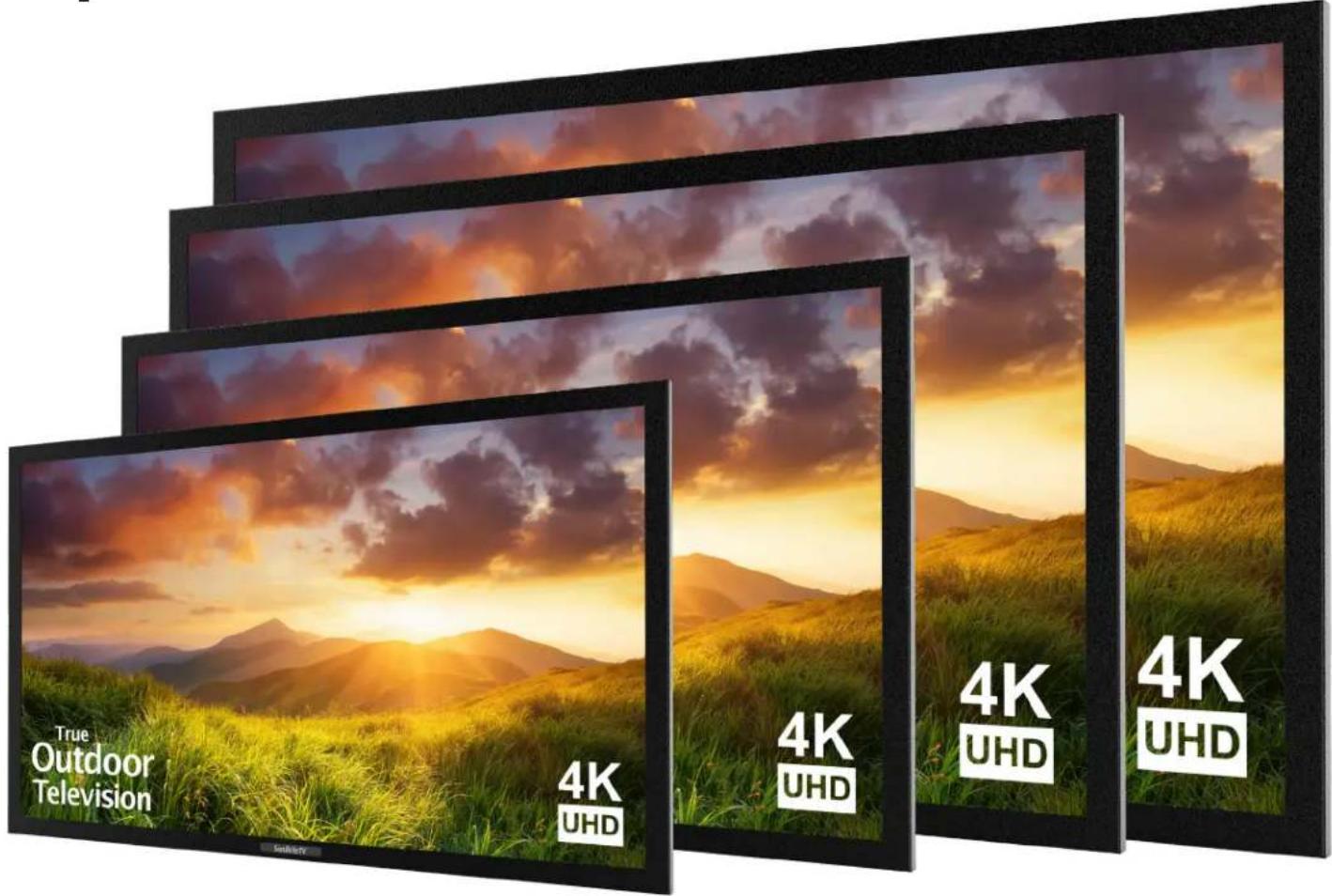
True Outdoor Television
Operator's Manual
text_image
True Outdoor Television 4K UHD 4K UHD 4K UHD 4K UHDSignature Series 4K Ultra HD
Model SB-S-43-4K
SB-S-55-4K
SB-S-65-4K
SB-S-75-4K
Dear SunBriteTV Customer:
Congratulations on the ownership of your SunBriteTV all-weather outdoor LCD TV, and welcome to the family of satisfied SunBrite customers. You are in great company, with thousands of homeowners and esteemed commercial facilities such as Yankee Stadium, Fenway Park, Disney World, and Sea World who have trusted us to deliver superior performance, lasting durability and the enjoyment of superb television viewing in the great outdoors.
Our products are designed to withstand the rigors of the outdoor environment and provide our customers with many years of optimum viewing, while delivering excellent picture and sound as well as the ease of use and convenience of conventional indoor TVs.
To ensure safety and long product life, please read the Important Safety Instructions and complete manual carefully before using the TV. If you have any questions about the installation procedures, please contact our qualified SunBriteTV Customer Support Team at 866.357.8688.
IMPORTANT SAFETY INSTRUCTIONS
1) Read these instructions, and keep them for future use.
2) Heed all warnings and follow all instructions.
3) Do not block any ventilation openings. Install in accordance with the manufacturer's instructions.
4) Do not install near any heat sources such as radiators, heat registers, stoves, or other apparatus (including amplifiers) that produce heat.
5) Do not defeat the safety purpose of the polarized or grounding-type plug. A polarized plug has two blades with one wider than the other. A grounding type plug has two blades and a third grounding prong. The wide blade or the third prong are provided for your safety. If the provided plug does not fit into your outlet, consult an electrician for replacement of the obsolete outlet.
6) Protect the power cord from being walked on or pinched, particularly at plugs, convenience receptacles, and the point where the cord exits from the apparatus.
PORTABLE CART WARNING
PORTABLE CART WARNING
7) Only use attachments/accessories specified by the manufacturer.
8) Use only the cart, stand, tripod, bracket or table specified by the manufacturer, or sold with the apparatus. When a cart is used, use caution when moving the cart/apparatus combination to avoid injury from tip-over.
9) Unplug this apparatus during lightning storms.
10) Refer all servicing to qualified service personnel. Servicing is required when the apparatus has been damaged in any way, such as power-supply cord or plug is damaged, liquid has been spilled or objects have fallen into the apparatus, does not operate normally, or has been dropped.

WARNING: TV must be plugged into a GFCI receptacle.
TV and GFCI RECEPTACLE MUST BE INSTALLED NO LESS THAN 5 FEET FROM ANY BODY OF WATER (SUCH AS POOL OR SPA). Check local building codes for proper installation guidelines.
WARNING: This unit is equipped with a 3-pin grounded plug. The plug will only fit into a grounded power outlet. This is a safety feature. If you are unable to insert the plug into the outlet, contact your electrician. Do not alter this plug, as this will defeat the safety feature.
CAUTION: THE POWER SUPPLY CORD IS USED AS THE MAIN DISCONNECT DEVICE, ENSURE THAT THE SOCKET-OUTLET IS LOCATED/INSTALLED NEAR THE EQUIPMENT AND IS EASILY ACCESSIBLE
WARNING: This product shall be connected to a mains socket outlet with a protective earthing connection.
CAUTION: TO PREVENT ELECTRIC SHOCK, MATCH WIDE BLADE OF PLUG TO WIDE SLOT, FULLY INSERT.
WARNING: FCC Regulations state that any unauthorized changes or modifications to this equipment not expressly approved by the manufacturer could void the user's authority to operate this equipment.
NOTE TO CATV SYSTEM INSTALLER: This reminder is provided to call the CATV system installer's attention to Article 820-40 of the National Electrical Code that provides guidelines for proper grounding and, in particular, specifies that the cable ground shall be connected to the grounding system of the building, as close to the point of cable entry as practical.
WARNING: To reduce the risk of fire or electric shock, do not expose the inside of this apparatus to rain or moisture.
This product utilizes tin-lead solder. Disposal of these materials may be regulated due to environmental considerations. For disposal or recycling information, please contact your local authorities or the Electronic Industries Alliance: www.eia.org.
Disclaimer: While SunBriteTV LLC intends to make this manual accurate and complete, we do not make claims that the information contained within covers all details, conditions or variations, nor does it provide for every possible contingency in connection with the installation or use of this product. The information contained in this manual may change without notice.
Cleaning Instructions: See "Care of SunBriteTV" on page 38.
Attachments: Do not use attachments not specifically recommended by the manufacturer. Use of improper attachments can result in accidents.
Power Source: SunBriteTV must operate on a power source indicated on the specification label. If you are not sure of the type of power supply used in your home, consult your dealer or local power company. When using the TV outdoors, you must use a GFI-protected AC outlet with "in-use" waterproof cover.
Installation: Do not place the product on an unstable cart, stand, tripod, table, or anywhere the unit is not permanently installed. Placing the product on an unstable place can cause the product to fall, resulting in potential serious personal injuries, as well as damage to the product.
Precautions when Transporting the TV: Carrying the television requires at least two people.
WARNING: DO NOT IMMERSE TELEVISION IN WATER OR OTHER LIQUID. DO NOT INSTALL TV WITHIN 5 FEET OF BODY OF WATER (SUCH AS SPA OR POOL).

CAUTION RISK OF ELECTRICK SHOCK. DO NOT OPEN.

CAUTION: TO REDUCE THE RISK OF ELECTRIC SHOCK, DO NOT REMOVE COVER (OR BACK), FROM THE TELEVISION, EXCEPT WHERE SPECIFIED IN THE MANUAL. NO USER-SERVICEABLE PARTS INSIDE. REFER SERVICING TO QUALIFIED SERVICE PERSONNEL.

The lightning flash with arrowhead symbol, within an equilateral triangle, is intended to alert the user to the presence of uninsulated "dangerous voltage" within the product's enclosure that may be of sufficient magnitude to constitute a risk of electric shock to persons.

The exclamation point within a triangle is intended to alert the user to the presence of important operating and maintenance (servicing) instructions in the literature accompanying the product.
IMPORTANT SAFETY PRECAUTIONS.
If an outside antenna is connected to the television equipment, be sure the antenna system is grounded so as to provide some protection against voltage surges an built-up static charges. Section 810 of the National Electrical Code provides information with respect to proper grounding of the mast and supporting structure, ground of the lead-in wire to an antenna discharge unit, side of grounding conductors, location of antenna discharge unit, connection to grounding electrodes, and requirements for the grounding electrode.
For protection of the television equipment against direct lightning strikes, refer to NFPA 780 and CAN/CSA-B72-M87 (R2003) for additional requirements.

text_image
EXAMPLE OF ANTENNA GROUNDING AS PER NATIONAL ELECTRICAL CODE GROUNDS CLAMP ELECTRIC SERVICE EQUIPMENT ANTENNA LEAD-IN WIRE ANTENNA DISCHARGE UNIT (NEC SECTION 810-20) GROUNDING CONDUCTORS (NEC SECTION 810-21) GROUND CLAMPS POWER SERVICE GROUNDING ELECTRODE SYSTEM (NEC ART 250, PART H) NEC - NATIONAL ELECTRICAL CODEFor added protection for this television equipment during a lightning storm, or when it is left unattended and unused for long periods of time, unplug it from the wall outlet and disconnect the antenna. This will prevent damage to the equipment due to lighting and power-line surges.
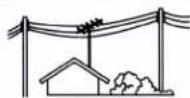
■ An outside antenna system should not be located in the vicinity of overhead power lines or other electric light or power circuits, or where it can fall into such power lines or circuits. When installing an outside antenna system, extreme care should be taken to keep from touching such power lines or circuits as contact with them might be fatal.
FCC Statement
This equipment complies with the limits for a Class B digital device, pursuant to part 15 of the FCC Rules. These limits are designed to provide reasonable protection against harmful interference in a residential installation. This equipment generates, uses, and can radiate radio frequency energy and, if not installed and used in accordance with the instructions, may cause harmful interference to radio communications. However, there is no guarantee that interference will not occur in a particular installation. If this equipment does cause harmful interference to radio or television reception, which can be determined by turning the equipment off and on, the user is encouraged to try to correct the interference by one or more of the following measures:
- Reorient or relocate the receiving antenna.
- Increase the separation between the equipment and receiver.
- Connect the equipment into an outlet on a circuit different from that to which the receiver is connected.
- Consult the dealer or an experienced radio/TV technician for help.
Modifications not expressly approved by the manufacturer could void the user's authority to operate the equipment under FCC rules. This device complies with part 15 of the FCC Rules. Operation is subject to the following two conditions:
- This device may not cause harmful interference.
- This device must accept any interference received, including interference that may cause undesired operation.

Tested To Comply with FCC Standards
FOR HOME OR OFFICE USE
Ventilation: Adequate ventilation must be maintained to ensure reliable and continued operation and to protect the television from overheating. There must be at least 1.5" of space on all sides.
Power cord protection: The power cord must be routed properly to prevent people from stepping on it, or objects from resting on it. Check the cords at the plugs and product.
Power source: This product must operate on a power source specified on the specification label. If you are unsure of the type of power supply used in your home, consult your dealer or local power company.
Do not let metal pieces or objects of any kind fall into the television from ventilation holes. High voltage flows in the product, and inserting an object can cause electric shock and/or short internal parts.
Do not mount SunBriteTV near a motor or transformer where strong magnetism is generated. Images on the television will become distorted and the color irregular.
Do not mount SunBriteTV near heat sources such as radiators, heaters, stoves and other heat-generating products (including amplifiers).
Do not submerge SunBriteTV in water: The SunBriteTV will resist water exposure from normal rain, sprinklers, garden hoses, etc.; however, it is not designed to be submerged in water.
Do not pressure-wash SunBriteTV: SunBriteTV will resist water exposure from normal rain, sprinklers, garden hoses, etc.; however, it is not designed to withstand pressure washers, high-pressure water jets, or hurricane-type weather.
Do not service SunBriteTV yourself: Removal of the television screen cover may expose you to high voltage or other dangerous risks. Refer all servicing to a qualified service professional. Warranty will not be honored if you service the unit yourself.
Repair: If any of the following conditions occurs, unplug the power cord, and call a qualified service professional to perform repairs:
When power cord or plug is damaged.
When objects have fallen into the product.
If unit was submerged in water or pressure-washed.
When product does not operate properly as described in the operating instructions. Do not touch the controls other than as described in the operating instructions. Improper adjustments of controls not described in the instructions can cause damage, which can require extensive repair work by a qualified technician.
When the product has been dropped or damaged.
When the product displays an abnormal condition. Any noticeable abnormality in the product indicates that the product needs servicing.
Replacement parts: In case the product needs replacement parts, make sure that the service person uses replacement parts provided by SunBriteTV. Use of unauthorized parts can result in fire, electric shock and/or other danger.
Safety checks: Upon completion of service or repair work, ask the service technician to perform safety checks to ensure that the product is in proper operating condition.
Table of Contents
Important Safety Instructions 2
Table of Contents 5
Supplied Accessories 6
TV Installation
Choose a Location for the TV 7
Rear Panel Internal Connect Source 8
Rear Panel Connection Diagrams 9
Connecting the Power Cord 19
Remote Control 20
Side Panel and Front Panel Controls 21
Display Menu 22
Channel Menu 23
Picture Menu 26
Audio Menu 27
Time Menu 28
Setup Menu 29
Lock Menu 32
Using the USB Input / Menu 37
Troubleshooting 37
Care of SunBriteTV - Filter cleaning 38
Specifications 39
Features Information and Instructions 43
Programming Other Manufacturers' Universal Remote Control Devices 43
SunBriteTV Pixel Quality Policy 43
Extreme Climate Warning 43
Ir Emitter Installation 44
Appendix A - RS232 Control Codes 45
Unpacking
Always have two people unpack the TV and ensure the front panel is not squeezed or compressed. After unpacking the SunBriteTV television, please make sure that the following items are included in the carton and that they are in good condition. If items are damaged or missing, contact your dealer immediately.
SunBriteTV LCD Television
Quick Start Guide
Remote Control with Batteries

text_image
True Outdoor Television 4K UHDSE Series 4k Ultra HD Outdoor TV
text_image
SunBriteTV Operator's Manual 4K 2000 18-5-33-4K 18-5-61-4K 58-5-73-4K Signature Series 4K Ultra HD Model 58-5-41-4K 58-5-33-4K 58-5-61-4K 58-5-73-4K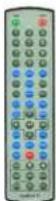
Quick Start Guide Remote Control
Choose a Location for the TV
Important: The TV must be installed at least 5 feet from pool, spa, or other body of water.
The TV should be installed so the screen is not facing direct sunlight, or can be easily turned away from direct sunlight.
Ideal placement is in an area where the TV is shaded by trees, landscape and/or structures, or under a patio cover or gazebo.
Remember that the position of the sun changes during the day, as seen in the drawing at right. This means that the quality of the picture will change during the day. If you intend to install the TV in areas where direct-facing sunlight will reach it, it's best to position the TV for optimum performance during the time of day when you do most of your TV watching.
If the sun shines directly on the screen for long periods of time, dark areas may develop on the screen. This is a normal reaction for the LCD panel, and will not cause damage to the screen. Either turn the screen away from the sun, or apply shade to the TV, and the dark areas will quickly disappear.

flowchart
graph TD
    A["Sunrise"] --> B["Noon"]
    C["Sunset"] --> D["Noon"]
    E["Sunrise"] --> F["Noon"]
    G["Sunset"] --> H["Noon"]
    B --> I["Bottom Panel"]
    D --> I
    F --> I
    H --> I
WARNING: Do not connect the power source before making connections.
Internal Connect Source through the cable access door.
The Internal Connect Source allows you to easily connect to the Audio, Video, VGA, HDMI, Audio Out, and RF connectors. The internal connect Source are inside the cable cover located on the back of the unit (Figure1).
- Unscrew the two Thumb Screws (Figure1), and pull the cover towards you.
- Route the cables to the proper inputs, and place the cable cords over the Rubber Sealing Gasket on the bottom of the cable access opening (Figure 2).
- Be sure the cables are routed past the indentation on the bottom of the door. Cable cannot be routed through the top and side of the rubber sealing gasket (Figure 3).
- Close the cover. Route the cables as shown to provide a drip loop below the door. This will prevent water from dripping down the cord and possibly entering the door area.
- Press firmly on the cover, and screw the Thumb Screws tightly (Figure 4).

text_image
Figure 1 Thumb Screw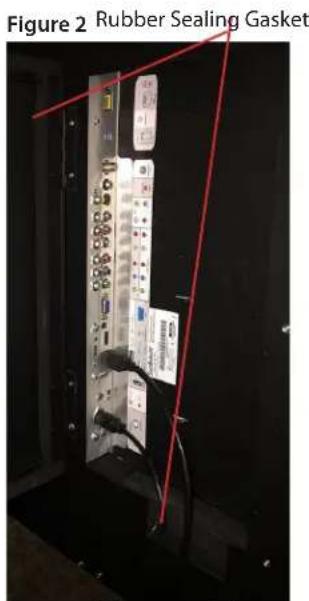
text_image
Figure 2 Rubber Sealing GasketRoute cables trough the bottom of the door only

text_image
Figure 3 Figure 4 Drip LoopTV Installation - Connecting the Power Cord
Do not connect power cord until all cable connections have been made.
Connect the power cord to a GFCI protected AC outlet with an "in-use" waterproof cover.
WARNING:
TV AND GFCI RECEPTACLE MUST BE INSTALLED AT LEAST 5 FEET AWAY FROM STANDING WATER, SUCH AS (BUT NOT LIMITED TO) A POOL OR SPA. BE SURE TO CHECK LOCAL ELECTRICAL CODES AND COMPLY WITH THEIR LOCAL STANDARDS.
TV Installation – Rear Panel Connections
Connections
text_image
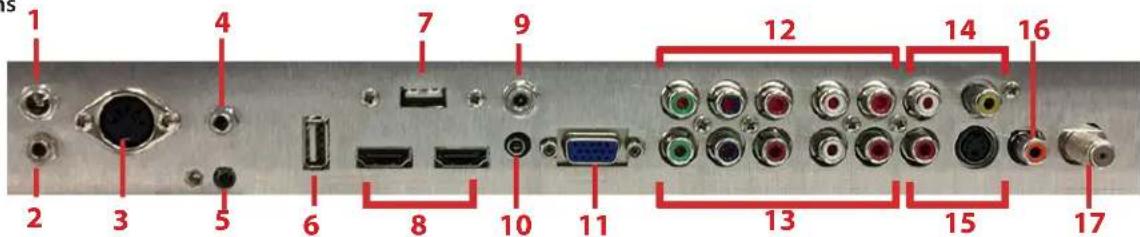
1 2 3 4 5 6 7 8 9 10 11 12 13 14 15 16 17- 2.5mm power jack - 12v @ 3amps Auxiliary power supply
- RS232 - 3.5mm Stereo Jack - For remote control using RS232 commands.
- 5 pin din jack - SunBriteTV optional speaker bar connection.
- ANALOG AUDIO OUT (Variable) - Used to connect headphones, stereo receivers and amplified speakers via a 3.5mm headphone jack.
- IR WINDOW - Rear IR receiver, allows IR emitter to be installed inside the cable compartment.
-
SERVICE PORT - This port is for factory service only, do not use.
-
USB power port - 5vdc @ 3.5a Auxiliary power supply
-
HDMI 1 & 2 - Connects to devices that use HDMI cables such as Blu-ray or HD DVD player or HD cable / satellite set-top box. This connection port receives pure digital audio and high definition signal through one single cable. This port also can accept a HDCP video device for video or PC for monitor display usage. Use the SOURCE button to select HDMI1 on your MAIN SOURCE to view this connection. Please note: when using HDMI, your sound signal must be PCM for the TV to decode digital audio. When using this source for PC display, you must connect the audio cable to VGA Stereo Input for audio.
-
1.3mm Power Jack - 5vdc @ 3.5a Auxiliary power supply
-
VGA STEREO INPUT - This connection port is for people who want to provide audio to the TV when using a PC or a DVI video device. Use a 3.5mm mini-jack audio cable (headphone jack) to provide audio for a HDCP enabled DVI video device or PCs with VGA or DVI connection.
-
VGA - This connection port connects to a PC for video using VGA cable. Be sure to connect your audio cable to the VGA Stereo input if you require sound out of the VGA video source. Use the SOURCE button to select PC on your MAIN SOURCE to view this connection
-
COMPONENT 1 (Lower) - These connection RCA jacks are for DVD players or satellite/cable set-top boxes that use component cables. From left to right, connect green, blue and red for video, and then connect white for left channel audio, red for right channel audio. Use the Source Button to select Component to view this connection.
-
COMPONENT 2 (Upper) - These connection RCA jacks are for DVD players or satellite/cable set-top boxes that use component cables. From left to right, connect green, blue and red for video, and then connect white for left channel audio, red for right channel audio. Use the Source Button to select Component2 to review this connection.
-
AV 1 (CVBS or S-Video) - Connects to devices that use composite cables such as older VCR or camcorder or video game consoles. Connect the video portion with either the yellow connector. Use the SOURCE button to select AV on your MAIN SOURCE to view this connection.
-
S-Video - Not supported on SunBriteTV 4k models.
-
DIGITAL AUDIO OUT - This connection port is used for sending out audio signals to other audio devices such as stereo/surround sound receivers. The orange (SPDIF OUT) connector sends out either bit-stream or PCM digital sound signal to a home theater receiver with digital input
-
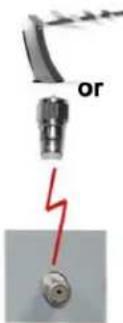
ATSC/NTSC/QAM Coax input – This connection is for digital or analog cable without the cable box or over-the-airwave antennas. The tuner is a hybrid tuner that tunes to both analog and digital channels. This connection uses coaxial RF cable. For over-the airwave digital stations please check http://www.antennaweb.org.
Connections continued
text_image
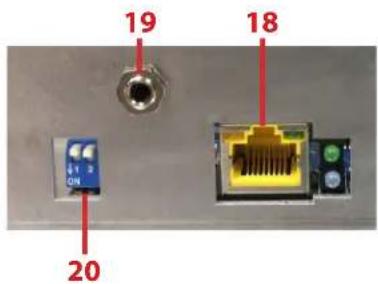
19 18 20- HDbaseT - HD/UHD extender receiver.
Bottom Blue LED - indicates board power
Top Green LED - when lit indicates positive link to a HDBaseT transmitter
Left RJ45 Yellow LED - flashing = non-HDCP video transmitting/steady = HDCP video transmitting Right RJ45 Green LED - Link from transmitter active
Warning: Do not connect HDbaseT to ethernet network based devices, damage to the HDbaseT receiver and/or the Ethernet network device may result.
- Emitter port - Connect an emitter to control the SunbriteTV through the HDBaseT compatible transmitter which supports IR repeating.
- Option Switches- reserved for future use. Swith settings do not effect the HDBaseT operation at this time.
HDBase-T information
The Signature Series 4K Ultra HD incorporates an HDBaseT receiver based on the SnapAV Binary B-540-RX-330.
A front IR receiver is incorporated into the design to extend the IR via the HDBaseT Transmitter and Receiver installation.
The IR repeater is dedicated to the integrated B-540-RX-330 and cannot be used with any other IR extender.
Connection Descriptions:
| Port Quality & Name | Port Picture | Cable Used & Resolution | Devices that use this Port |
| Best HDMI (Digital HD/UHD) | 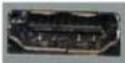 | HDMI2160, 1080p, 1080i720p,720i,480p,480i | Blu-ray DVD Player HD Cable or Satellite Set top box, PC |
| Best HdbaseT (Digital HD/UHD) | 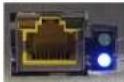 | HDBaseT2160@30, 1080p, 1080i720p,720i,480p,480i | Blu-ray DVD Player HD Cable or Satellite Set top box, PC Requires additional compatible HDbaseTextender transmitter |
| Best/Fair ATSC/NTSC (Digital HD) |  | Coaxial RF1080i720p,720i,480p,480i | Antenna(Over the Air) or Digital Cable without the Cable set top box |
| Best VGA (HD Capable) |  | VGA1920 x 1080 or lower | PC or MAC with VGA Connection. |
| Better Component 1&2 (HD Capable) | 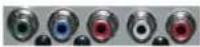 | Component1080i, 720p,720i,480p,480i | DVD Player, Video Game Console, High Definition Cable or Satellite set top box. |
| N/A |  | S-Video | SunbriteTV 4k TV's do not support SVideo source. |
| Fair Composite (Non-HD) |  | Composite480i only | Non High Definition Cable or Satellite Set-top box, VCR, Older Game Console, Camcorders. |
Cable Descriptions:
| Cable Name | Cable Picture |
| HDMI | 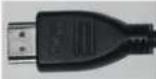 |
| Coaxial RF | 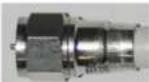 |
| VGA | 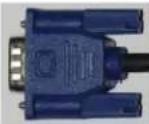 |
| Component | 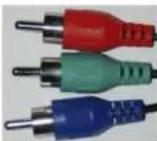 Red Green Blue Red Green Blue |
| S-Video | 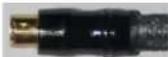 |
| Composite | 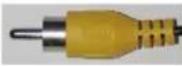 Yellow Yellow |
| 1/8"(3.5mm) Audio Mini-plug |  Green Green |
| RCA Audio plug | 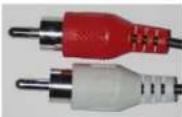 Red White Red White |
| AC Power | 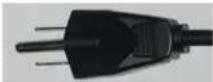 |
| Coaxial SPDIF Digital Audio plug | 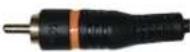 |
Switching Sources for Ports:
Your SunBrite TV offers several options when connecting your devices to the TV. The chart below will help you understand which source you switch to for each of the ports.
| Port Picture | Cable Used | Source Name to Select |
 | HDMI or HDMI-DVI | HDMI1 or HDMI2 |
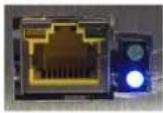 | Category 5e Category 6 Ethernet Cable | HDBaseT |
 | COAXIAL RF (CABLE OR ANTENNA) | TV |
 | VGA (PC-MAC) | PC |
 | COMPONENT | COMPONENT1 or COMPONENT2 |
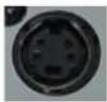 | N/A | Not Supported |
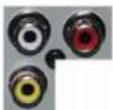 | COMPOSITE | AV |
CONNECTING TO AN ANTENNA

natural_image
Close-up of electronic component ports and connectors (no visible text or labels)Connecting to Digital Cable without Cable Box or Antenna
text_image
or- Make sure the power to the TV is turned off.
- Connect the Coaxial RF cable from your antenna or digital cable to the ATSC/NTSC port off the back of the TV.
- Turn on the TV.
- Select TV (Air) for antenna or TV (Cable) for digital cable from either your remote control's source button or source button on the right side of the TV.
- Use the On-Screen Display to scan for channels.
Connecting to Cable or Antenna
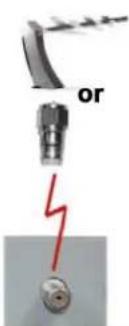
text_image
or- Make sure the power of the TV is turned off.
- Connect the Coaxial RF cable from your antenna or cable to the ATSC/NTSC port off the back of the TV.
- Turn on the TV.
- Select TV (Air) for antenna or TV (Cable) for cable from either your remote control's source button or source button on the right side of the TV.
- Use the On Screen Display to scan for channels.
Please Note :
- Not all broadcasts are in High Definition (HD). Please refer to your local broadcasting stations for more information.
- The TV's tuner is designed for HDTV therefore requires a stronger signal than normal TVs. If you cannot achieve that signal level with your antenna or cable, the TV might lose picture or sound.
CONNECTING TO AN ANTENNA--(Continued)
Connecting to Cable or Antenna through VCR

- Make sure the power of the TV is turned off.
- Make sure there is an antenna or cable connection to the VCR already.
- Use a Coaxial RF cable and connect from your VCR's Antenna Out or Output to TV to the ATSC/NTSC port of your TV.
- Turn on the TV.
- Select TV (Air) for antenna or TV (Cable) for digital cable from either your remote control's source button or source button on the TV.
- Use the On-Screen Display to scan for channels.
Please Note :
- Some VCRs must be turned On before its output will have a signal to the TV. Please consult your VCR manual for further reference.
- Not all broadcasts are in High Definition (HD). Please refer to your local broadcasting stations for more information.
- This model's tuner is designed for HDTV therefore it requires a stronger signal than normal TVs. If you cannot achieve that signal level with your antenna or cable, the TV might lose picture or sound.
- This TV will turn off automatically if there's no signal present for more than 15 minutes.

text_image
CONNECTING TO A D Connecting with HDMI (Best)- Make sure the power of the TV and your DVD player is turned off.
- Connect a HDMI cable to the HDMI port of your DVD player and the other end to the HDMI port off the back of your TV.
- Turn on the TV and your DVD player.
- Use the remote control's source button or the source button on the TV to switch to HDMI.
Please Note :
- Refer to the DVD player's manual to make sure the DVD player is configured to output correctly to the TV.
- This TV does not decode Bit stream digital audio, so make sure the DVD is setup for PCM digital audio through HDMI.
- If HDMI 1 is occupied, use HDMI 2 as your connection port.
text_image
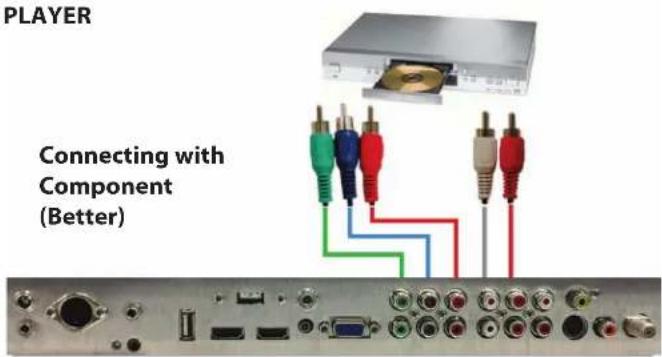
PLAYER Connecting with Component (Better)- Make sure the power of TV and your DVD player is turned off.
- With a Component Cable, connect the green connector to the DVD player and Component 1's green connector port on the TV.
- Connect the blue color connector to your DVD player and Component 1's blue connector port on the TV.
- Connect the red color connector to both your DVD player and Component 1's red connector port on the TV.
- With an RCA Audio Cable, connect the white color connector to both your DVD player and Component 1's white connector port on the TV.
- Connect the red color connector to both your DVD player and
- Component 1's red connector port on the TV.
- Turn on the TV and your DVD player. Use the remote control's source button or the source button on the TV to switch to YPbPr1.
Please Note :
- If Component 1 is already occupied, please use Component 2 as your connection port and switch to source YPbPr2.
- Refer to the DVD player's manual to make sure the DVD player is configured to output correctly to the TV.
- This TV will turn off automatically if there's no signal present for more than 15 minutes.
CONNECTING TO A DVD PLAYER (Continued)
text_image
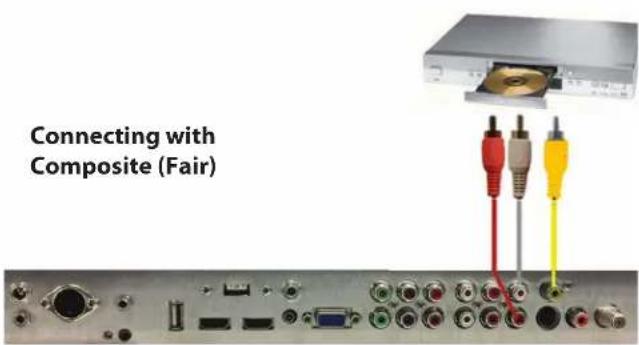
Connecting with Composite (Fair)- Make sure the power of the TV and your DVD player is turned off.
- Obtain a Yellow Video Cable. Connect the Yellow Video connector to both your DVD player and Composite's Yellow Video connector port off the back of your TV.
- Obtain a RCA Audio Cable. Connect the white color connector to both your DVD player and Composite's white connector port off the back of your TV.
- Connect the red color connector to both your DVD player and Composite's red connector port off the back of your TV.
- Turn on the TV and your DVD player.
- Use the remote control's source button or the source button on the right side of the TV to switch to AV1 (CVBS).
Please note:
- Reference the DVD player's manual to make sure the DVD player is configured to output correctly to the TV.
- This TV will turn off automatically if there's no signal present for more than 15 minutes.
CONNECTING TO A SATELLITE OR CABLE SET-TOP BOX
text_image
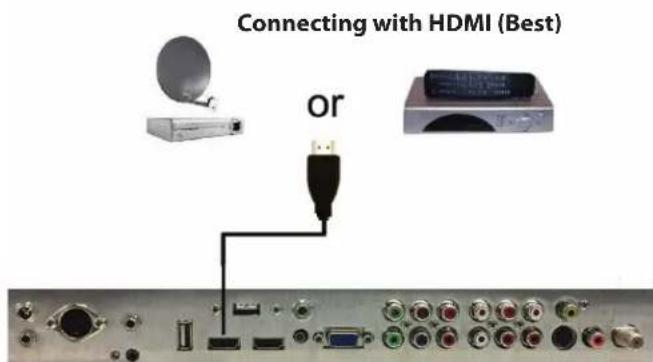
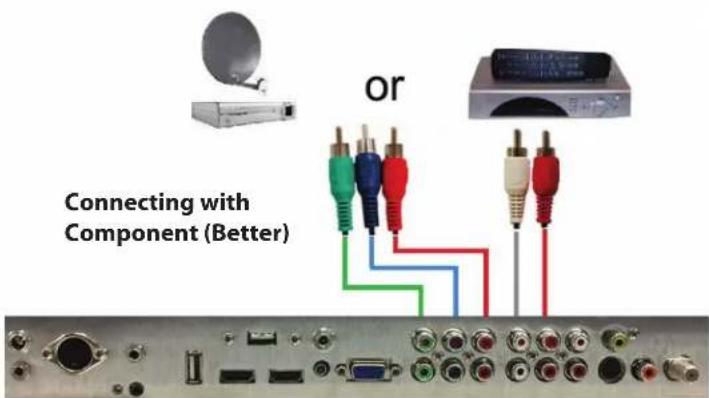
Connecting with HDMI (Best) or- Make sure the power of the TV and your set-top box is turned off.
- Connect a HDMI cable to the HDMI output of your set-top box and the other end to the HDMI port off the back of your TV.
- Turn on the TV and your set-top box.
- Use the remote control's source button or the source button on the right side of the TV to switch to HDMI 1.
- Refer to the set-top box's manual, to make sure the set-top box is configured to output correctly to the TV.
- If HDMI 1 is already occupied, use HDMI 1 as your connection port and switch source to HDMI 2.
- This model supports SONY's universal remote code. If SunBriteTV is not listed, please look up SONY's codes in your universal remote's hand book.
- This TV will turn off automatically if there's no signal present for more than 15 minutes.
Please Note :
text_image
or Connecting with Component (Better)- Make sure the power of TV and your set-top box is turned off.
- Obtain a Component Cable. Connect the green color connector to both your set-top box and Component 1's green connector port off the back of your TV.
- Connect the blue color connector to both your set-top box and Component 1's blue connector port off the back of your TV.
- Connect the red color connector to both your set-top box and Component 1's red connector port off the back of your TV.
- Obtain a RCA Audio Cable. Connect the white color connector to both your set-top box and Component 1's white connector port off the back of your TV to the right side of your green, blue, red component connection.
- Connect the red color connector to both your set-top box and Component 1's red connector port off the back of your TV to the right side of your green, blue, red component connection.
- Turn on the TV and your set-top box.
- Use the remote control's source button or the source button on the TV to switch to YPbPr1.
Please Note :
- If Component 1 is already occupied, please use Component 2 is your connection port and switch to source YPbPr2.
- Please refer to the set-top box's manual to make sure the set-top box is configured to output correctly to the TV.
- This model supports SONY's universal remote code. If SunBriteTV is not listed, please look up SONY's codes in your universal remote's hand book.
- This TV will turn off automatically if there's no signal present for more than 15 minutes.
CONNECTING TO A SATELLITE OR CABLE SET-TOP BOX (Continued)
or

Connecting with Composite (Fair)


natural_image
Close-up of electronic component ports and connectors (no visible text or symbols)- Make sure the power of the TV and your DVD player is turned off.
- Obtain a Yellow Video Cable. Connect the Yellow Video connector to both your DVD player and Composite's Yellow Video connector port off the back of your TV.
- Connect the white color connector to both your DVD player and Composite's white connector port off the back of your TV.
- Connect the red color connector to both your DVD player and Composite's red connector port off the back of your TV.
- Turn on the TV and your DVD player.
- Use the remote control's source button or the source button on the right side of the TV to switch to AV1 (CVBS).
Please Note :
- Refer to the set-top box's manual to make sure the set-top box is configured to output correctly to the TV.
- This model supports SONY's universal remote code. If SunBriteTV is not listed, please look up SONY's codes in your universal remote's hand book.
- This TV will turn off automatically if there's no signal present for more than 15 minutes.
CONNECTING TO AN EXTERNAL AMPLIFIER OR AMPLIFIED SPEAKERS
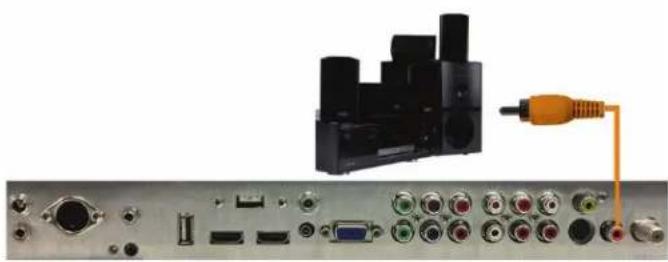
Connecting with Coaxial SPDIF Digital (Best)
natural_image
Back panel of a computer interface showing an electronic device connected to ports and cables (no visible text or labels)- Make sure the power of the TV and your receiver is turned off.
- Obtain a Coaxial SPDIF cable, connect it to your receiver's coaxial SPDIF digital input and the Coaxial SPDIF connection on the LINE OUT port off the back of the TV.
- Turn on the TV and your receiver.
Please Note :
- If you want pure digital stream for your receiver to decode, you must also configure the TV's OSD Sound->Digital Audio Out function. Make sure the option is on Bit Stream.
- If your receiver is making static noises when receiving Bit Stream, you must use the PCM option instead.
- Refer to the receiver's manual to make sure the receiver is configured to receive signals correctly from the TV
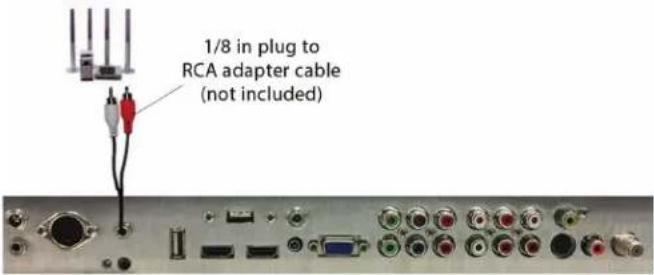
Connecting with RCA Audio Analog (Good)
text_image
1/8 in plug to RCA adapter cable (not included)- Make sure the power of the TV and your receiver is turned off.
- Obtain a 3.5mm stereo/audio cable (if your amplifier audio connection requires RCA audio out jacks you will need to obtain an 1/8" Stereo Mini Plug to RCA adapter cable). Connect it to your receiver's audio input connection and the 3.5mm stereo/audio connection on the Analog Audio port on the back of the TV.
- Turn on the TV and your receiver.
Please Note :
- If you want pure digital stream for your receiver to decode, you must also configure the TV's OSD Sound->Digital Audio Out function. Make sure the option is on Bit Stream.
- If your receiver is making static noises when receiving Bit Stream, you must use the PCM option instead.
- Refer to the receiver's manual to make sure the receiver is configured to receive signals correctly from the TV
CONNECTING TO A PC
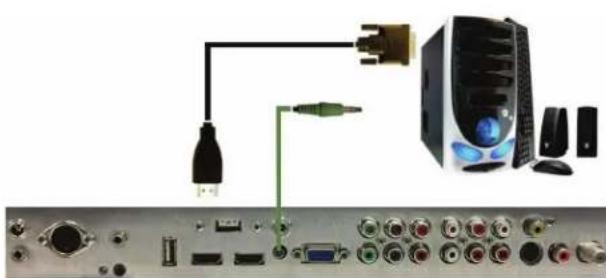
Connecting with DVI Digital (Best)
natural_image
Diagram showing connections between a computer tower, audio equipment, and ports (no text or labels visible)- Make sure the power of the TV and your receiver is turned off.
- Obtain a HDMI to DVI conversion cable; connect the DVI side of the conversion cable to the DVI output of your PC, and the HDMI side of the conversion cable to the HDMI port off the back of TV.
- Obtain a 3.5 mm Mini-jack, connect to the audio out of your PC and the other end to the VGA Stereo Input Port.
- Turn on the power to the TV and the PC.
- From the remote control's source button, or the Source button from the TVs panel, switch to HDMI.
Please Note :
- For the best picture, set your PC resolution to 1920 x 1080 at 60 Hz. Refer to the PC or graphic card manual for further instructions on how to set your resolution and refresh rate.
- Refer to your PC manual for video output requirements of the video card.
- The TV will turn off automatically if there's no signal present for more than 15 minutes.
- If HDMI 1 is already occupied, use HDMI 2 as your connection port, and switch source to HDMI 2.
Continued on next page
CONNECTING TO A PC (Continued)
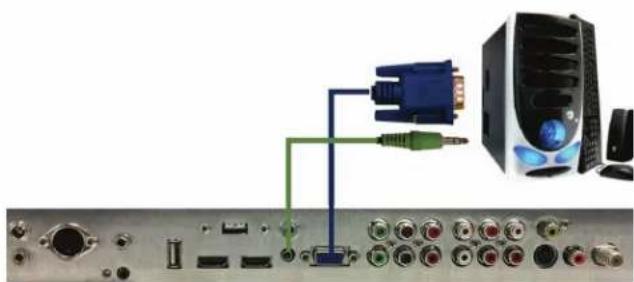
Connecting with VGA Analog (Good)
natural_image
Back panel of a computer setup showing connected ports and connectors (no visible text or labels)- Make sure the power of the TV and your PC is turned off.
- Obtain a 15-pin D-Sub VGA cable, connect to the VGA output of your PC and the other end to the VGA port off the back of your TV.
- Obtain a 3.5 mm Mini-jack, connect to the audio out of your PC and the other end to the VGA Stereo Input port.
- Turn on the power of the TV and your PC.
- Use the remote control's source button or the source button the TV to switch to VGA.
Please Note :
- For the best results, please set your PC resolution to
- 1920 x 1080at 60 Hz. Refer to the PC or graphic card's manual for further instructions on how to set your resolution and refresh rate.
- Refer to your PC manual for video output requirements of the video card.
- The VGA port of the TV features a power saving mode which will automatically turn off the TV if there is no signal provided for more than 15 minutes.
Connecting the Power Cord
WARNING:
TV AND GFCI RECEPTACLE MUST BE INSTALLED AT LEAST 5 FEET AWAY FROM STANDING WATER, SUCH AS (BUT NOT LIMITED TO) A POOL OR SPA.
Connect the power cord after you have made connections to your video equipment.

natural_image
Top-down view of a dark rectangular electronic panel with mounting flanges and four circular holes (no text or symbols)Connect the power cord to a GFCI-protected AC outlet with "in-use" waterproof cover.
Warning: TV must be installed at least 5 feet away from standing water, such as (but not limited to) a pool or spa.
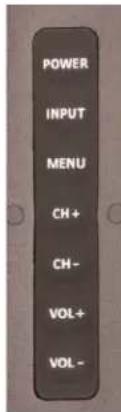
Side Panel Controls
| POWER |
| INPUT |
| MENU |
| CH+ |
| CH- |
| VOL+ |
| VOL- |
| Power Turn on | the TV by pressing the button once. Press the button again to turn off the TV. |
| Input This button switches between the different sources of the TV. When the On-Screen Display (OSD) is active, this button acts as the enter button and confirms the menu selection. | |
| Menu This button activates the OSD. If a sub-menu is active, pressing this button will return selection to the previous menu level. | |
| CH+/CH- These buttons change the TV channel up or down. If the OSD is active, these buttons function as up or down controls for the menu. | |
| Vol+/Vol- These buttons increase or decrease the volume. If a sub-menu is active, pressing these buttons will move the selection left or right. If the OSD is active, Vol+/Vol- is used to select the highlighted options. | |
Front Panel

text_image
True Outdoor Television 4K UHDIR Sensor
LED power indicator
Ambient light sensor
Remote Control Guide
When programming a DirectTV, local cable universal remote control or Control system, you may find that SunBriteTV may not be on the list of TV manufacturers. If that is the case, your SunBriteTV supports SONY's TV universal remote code.

text_image
ON OFF 1 2 3 4 5 6 7 8 9 - 0 R Freeze Sleep CC V+ Mute CH+ V- Menu CH- MTS SRS DNR Add/Del ↑ Back ← ← → Sound ↓ Exit Picture Guide Input Info Shift Asped Favorite Add Delete Add/Del ▼ ▲ Audio Video Source On/Off Size Pos SunBrite TVON – Powers the TV On.
OFF – Powers the TV Off.
0\~9 – Allows you to set the channels directly. To access a digital channel, use these buttons with the (-) button to switch channels.
Dash (-) – Insert the dash for selecting digital channels directly.
R – Returns to the previous channel.
SLEEP- Sets time for the TV to turn Off.
CC- Selects Closed Caption (CC only works under sources TV, AV1 and AV2.)
V+ - Functions the Volume Up.
V- - Functions the Volume Down.
MUTE - Mutes the TVs Audio.
MENU – Opens / Exits the TV menu.
CH+ – Functions the Channel Up.
CH- - Functions the Channel Down.
MTS – Selects stereo, mono, or second audio programming.
↑ / ↓ / ← / → / - Allow you to navigate inside the OSD menu. They also function as CH+/- and Vol +/-
- Allows you to select functions inside the OSD menu, acts as the Enter button for OSD menu for changing channels.
SOUND – Selects various preset sound settings.
EXIT – Exits the TV menu.
PICTURE – Selects various preset picture settings.
GUIDE – Opens the current digital channel information guide.
SOURCE – Cycles between different input sources of the TV.
INFO – Shows current channel information, display input and resolution.
ASPECT – Selects different screen sizes
FAVORITE – Cycles the favorite channels.
FAVORITE ADD / DEL – Adds or deletes the current channel from the favorites channel list.
The following functions (illustrated with bold squares on the remote) are not applicable to this TV:
SRS
DNR
ADD/Del
BACK
The Picture In Picture/Picture On Picture functions Audio, Video, Source, On/Off, Size and Pos
FREEZE – Freezes the TV picture. Press the button again to unfreeze the picture.
SHIFT – To select discrete inputs press and hold shift then press buttons 0-9
| Shift-1 AV |
| Shift-2 NA |
| Shift-3 HDBaseT |
| Shift-4 USB |
| Shift-5 Component1 |
| Shift-6 Component2 |
| Shift-7 PC (VGA) |
| Shift-8 HDMI 1 |
| Shift-9 HDMI 2 |
| Shift-0 TV (Tuner) |
About the Water-Resistant Remote Control
The SunBriteTVWater-Resistant Remote Controller is engineered to give you many years of service.
"Water-resistant" means that the remote control can be in water for short periods of time without damaging the internal workings of the unit. It can be left in the rain, and even dropped in water, as long as it is retrieved quickly. The remote control should not be left floating in water.
The functionality of the remote control is under warranty for one year. If the remote control malfunctions within the one-year warranty period, replace the batteries with new long-life alkaline batteries.
If the problem is not solved with new batteries, contact the SunBriteTV Customer Care Center. SunBriteTV will repair or replace the remote control at SunBriteTV's option.
If you have a warranty claim, contact the SunBriteTV Customer Care Center for further instructions.
800.331.4626
www.sunbritetv.com
Via the Remote Control
Adjusting the On Screen Display (OSD) from the Remote Control

flowchart
graph TD
    A["Left"] --> B["Right"]
    C["Left"] --> D["Down"]
    E["Right"] --> F["Down"]
    G["Left"] --> H["Up"]
    I["Right"] --> J["Up"]
This button is the UP direction in the OSD.
This button functions as the DOWN direction in the OSD.
This button functions as the left direction in the OSD.
This button functions as the right direction in the OSD
This button changes the channel in conjunction with the number pad and also functions as enter for selectioning options in the OSD.

This button opens the OSD and also exits the OSD by going to the previous level of the OSD.

This button exits the OSD entirely.
Via the TV Side Panel Buttons
Adjusting the On Screen Display from the TV Side Panel Buttons
text_image
POWER INPUT MENU CH+ CH- VOL+ VOL-Menu - This button opens the OSD
CH + ▲ - This button changes the channel to a higher number and also functions the up direction of OSD buttons to move the cursor to the item to be selected.
CH - ▼- This button changes the channel to a lower number and also functions as down direction in the OSD
Vol(+) ▶ - This button increases the volume and functions as left direction in the OSD. If the OSD is active, use Vol+ and Vol- to select a choice.
Vol(-) ◀ - This button decreases the volume and functions as right direction in the OSD. If the OSD is active, use Vol+/Vol- to select a choice.
Your TV has been factory-set to plug-in and enjoy your programming. In the event you turn on the TV and get the message, "Please run Channel Auto Scan," press your remote's Menu button, press the Channel function and press Auto Scan.
Note: To run the Channel function, you must be in the TV Source. To access the TV source, click Input on the TV's side panel or Source button on the Remote Control. Press TV from the Input Select option.

text_image
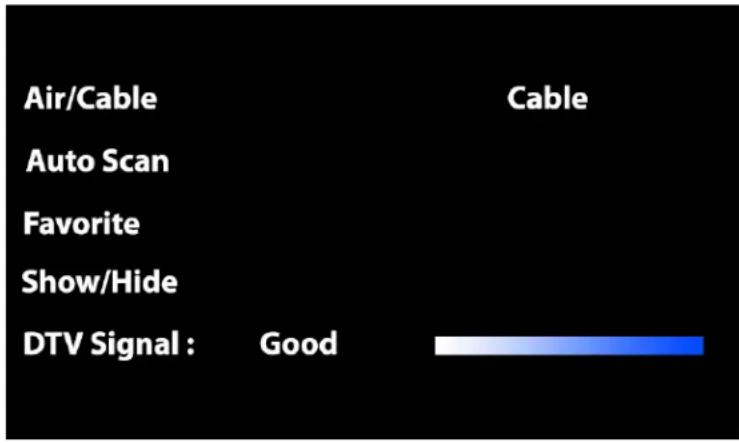
Air/Cable Auto Scan Favorite Show/Hide DTV Signal : Good CableChannel Menu.
This menu manages Channel functions including: Air/Cable
Auto Scan
Favorite
Show/Hide
DTV Signal strength
text_image
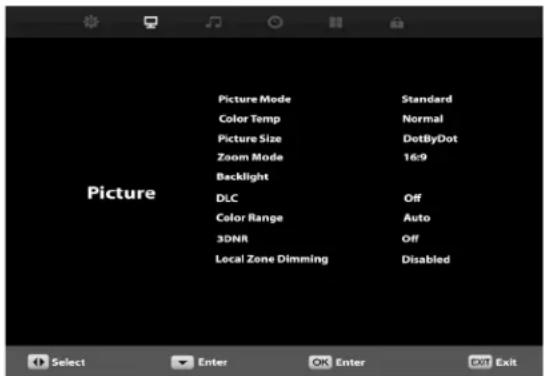
Picture Picture Mode Standard Color Temp Normal Picture Size DotByDot Zoom Mode 16:9 Backlight DLC Off Color Range Auto 3DNR Off Local Zone Dimming DisabledPicture Menu.
This menu manages Picture functions including:
Picture Mode Color Range
Color Temp 3DNR
Picture Size Local Zone Dimming*
Zoom Mode Backlight
DLC
*Not supported on all models
text_image
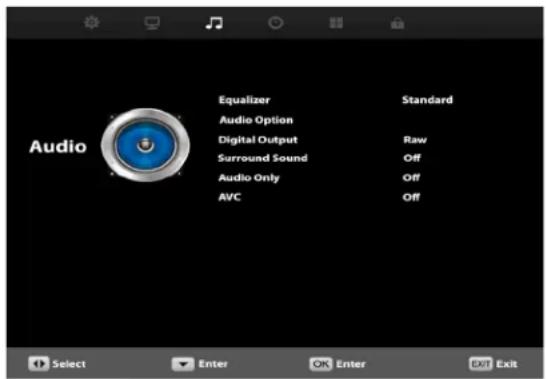
Equalizer Audio Option Digital Output Surround Sound Audio Only AVC Standard Raw Off Off Select Enter OK Enter Exit ExitAudio Menu.
This menu manages Audio functions including: Equalizer
Audio Option
Digital Output
Surround Sound
Audio Only
AVC

text_image
Sleep Timer Time Zone Time Format Auto Sync Clock Wake Up Off Pacific 12-hour Off 1980-01-01 12:00 AM 1980-01-01 12:00 AM Select Enter OK Enter Exit ExitTime Menu
This menu manages Time functions including:
Sleep Timer
Time Zone
Time Format
Auto Sync
Clock
Wake

text_image
Ambient Sensor Value 0 Auto Backlight Floor 50% Backlight Sensor Floor 128 Wake Up on Signal Restore Disabled Setup Select Enter OK Enter Exit ExitSetup Menu
This menu manages Setup functions including:
Menu Language CEC + ARC
Transparency (menu) Analog Audio on/off
Closed Caption
Restore Default Ambient Light Sensor *
Setup Wizard
Software Update Auto Backlight Floor
EDID Switch(HDMI Mode) Backlight Sensor Floor
Wake up on signal Restore
Speaker on/off
Ambient Sensor
* Available in P mode only
text_image
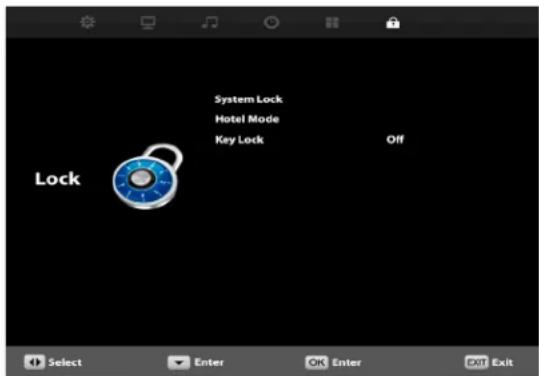
System Lock Hotel Mode Key Lock Off Lock Select Enter OK Enter Exit ExitLock Menu
This menu manages Lock functions including:
System Lock
Hotel Mode
Input Block
IRKeylock

natural_image
Gray-scale icon set with six application icons: gear, monitor, music note, clock, grid, and lock on dark background (no text or symbols)- Press the ▼▲ buttons on the remote or CH+/CH- on the TV) to move the cursor to the item to be selected.
- Press the ◀▶ buttons on the remote or VOL+/VOL- on the TV to make the desired adjustments.
- When your adjustments are complete, press MENU or EXIT on the remote or MENU on the TV to exit the main menu.
text_image
Air/Cable Auto Scan Favorite Show/Hide DTV Signal : Good CableThe Channel Menu is available only when TV is selected as the source. To select TV as the source, push the SOURCE button on the remote repeatedly until TV comes up as the source in the onscreen display. Or push the INPUT button on the side of the TV, then push the CH+ or CH- button on the side of the TV repeatedly until TV comes up as the source in the onscreen display.
Air/Cable
Press the ▼▲ buttons to highlight the Air/Cable adjustment. Press the ◀▶ buttons to select Air (antenna) or Cable.
Auto Scan
Press the ▼▲ buttons to highlight the Air/Cable adjustment. Press the ▶ button to begin the Auto Scan process. A screen will appear with the message "Are You Sure You Want to Auto Scan?" Press the ◀ button to begin Auto Scan, or ▶ to go back to the Menu. Auto Scan will automatically build a list of the stations your TV can receive through the antenna or cable. The scan process will typically take 5 to 10 minutes.
Show/Hide
Press the ▼▲ buttons to highlight the Show/Hide adjustment. Press the ▶ button to begin the Auto Scan process. A screen will appear with the list of channels learned into the channel memory.
Highlight those channels which you do not wish to keep, have poor signal or are scrambled and hide them from the channel selections.
Favorite
Press the ▼▲ buttons to highlight the Air/Cable adjustment. Press the ▶ button to enter the favorite channel submenu seen at left. This will allow you to select specific channels as your favorites, which you can access by pressing the Favorites button on the remote control.
To add a channel to your favorites list, press the ▼▲ buttons to highlight the channel. Press the ← button to enter the channel as a favorite. You will see a red heart appear next to the channel in the list.
To delete a channel from your favorites list, press the ▼▲ buttons to highlight the channel. Press the ← button to delete the channel from your favorites. The red heart next to the channel will disappear.

text_image
Favorite 2.1 KCBS-HD ♥ 2.2 KCBS-SD 4.1 NBC4-LA ♥ 4.2 COZY-TV 5.1 KTLA-DT 5.2 Antenna 5.3 This TV ♥ 12.1 KTBV 12.2 KTBV 12.3 KTBV Menu ↑Move OK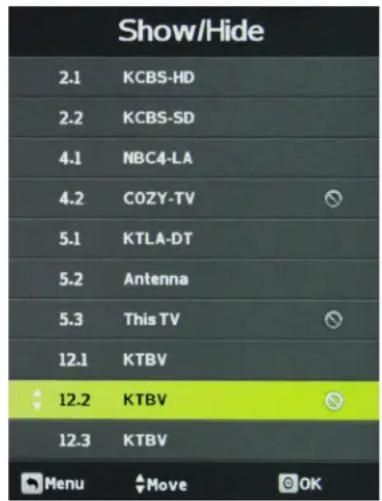
text_image
Show/Hide 2.1 KCBS-HD 2.2 KCBS-SD 4.1 NBC4-LA 4.2 COZY-TV 5.1 KTLA-DT 5.2 Antenna 5.3 This TV 12.1 KTBV 12.2 KTBV 12.3 KTBV Menu Move OK
text_image
Air/Cable Auto Scan Favorite Show/Hide DTV Signal : Good CableShow/Hide
Press the ▼▲ buttons to highlight the Show/Hide adjustment. Press the ▶ button to enter the Show/Hide submenu seen at left. This will allow you to delete specific channels from the channels that will appear when you use the CH+/CH- buttons on the remote or on the TV.
To delete a channel from your CH+/CH- channel scan, press the ▼▲ buttons to highlight the channel. Press the ← button to delete the channel from the scan list. You will see a Ⓧ character appear next to the channel in the list.
To restore a channel to your CH+/CH- channel scan, press the ▼▲ buttons to highlight the channel. Press the ← button to restore the channel from the scan list. You will see the ⊗ character next to the channel disappear.
DTV Signal
This meter, shown near the bottom of the image at left, indicates the signal strength of the channel shown in the Channel No. item of the menu. The longer the horizontal bar appears, the better the signal strength. If the signal strength is extremely poor, no meter will appear and the menu will simply say Bad.

natural_image
Gray-scale toolbar with six icons: gear, monitor, music note, clock, grid, and lock (no text or labels)- Press ▼▲ buttons on the remote or CH+/CH- on the TV) to move the cursor to the item to be selected.
- Press ◀▶ buttons on the remote or VOL+/VOL- on the TV to make the desired adjustments.
- When your adjustments are complete, press MENU or EXIT on the remote or MENU on the TV to exit the main menu.

text_image
Picture Picture Mode Standard Color Temp Normal Picture Size DotByDot Zoom Mode 16:9 Backlight DLC Off Color Range Auto 3DNR Off Local Zone Dimming DisabledPicture Mode
Press the ▼▲ buttons to highlight Picture Mode, press
OptiView Day and Night modes provide the ultimate outdoor viewing experience with a single touch. These preconfigured, end-user settings are optimized for brighter daytime or darker nighttime outdoor viewing environments.
Select Personal Mode if you wish to enable and use the ambient light sensor for backlight dimming.
Color Temp
Press the ▼▲ buttons to highlight Color Temp. adjustment, press
Zoom Mode
Press the ▼▲ buttons to highlight Zoom Mode adjustment, press
Backlight
Press the ▼▲ buttons to highlight Backlight adjustment, press
DLC - Dynamic Light Control
Press the ▼▲ buttons to highlight DLC, press
DLC automatically optimizes brightness and contrast for the program you're watching.
Color Range
Press the ▼▲ buttons to highlight Color Range, press
3DNR - 3D Noise Reduction
Press the ▼▲ buttons to highlight 3DNR adjustment, press
Local Zone Dimming
Press the ▼▲ buttons to highlight Local Zone Dimming adjustment, press

natural_image
Five gray icons on a dark background: gear, monitor, music note, clock, grid, and lock (no text or symbols)- Press ▼▲ buttons on the remote or CH+/CH- on the TV) to move the cursor to the item to be selected.
- Press ◀▶ buttons on the remote or VOL+/VOL- on the TV to make the desired adjustments.
- When your adjustments are complete, press MENU or EXIT on the remote or MENU on the TV to exit the main menu.

text_image
Audio Equalizer Audio Option Digital Output Surround Sound Audio Only AVC Standard Raw Off Off Off Select Enter OK Enter EXIT ExitEqualizer
Press the ▼▲ buttons to highlight Equalizer, then use ◀▶ to select Standard, Music, Movie, Sports or Personal sound mode.
Audio Option
Press the ▼▲ buttons to highlight Equalizer, press
Need more detail here on setting the audio frequency levels...
Digital Output
Press the ▼▲ buttons to highlight the Digital Output adjustment, press
Surround Sound
Press the ▼▲ buttons to highlight the Surround Sound adjustment, press
Audio Only
Press the ▼▲ buttons to highlight the Audio Only adjustment, press
AVC - Automatic Volume Control
Press the ▼▲ buttons to highlight the AVC adjustment, press
When on the AVC will reduce the level of loud sounds in the audio. (need to confirm this)

natural_image
Five gray icons on a dark background: gear, monitor, music note, clock, grid, and lock (no text or symbols)- Press ▼▲ buttons on the remote or CH+/CH- on the TV) to move the cursor to the item to be selected.
- Press ◀▶ buttons on the remote or VOL+/VOL- on the TV to make the desired adjustments.
- When your adjustments are complete, press MENU or EXIT on the remote or MENU on the TV to exit the main menu.

text_image
Sleep Timer Time Zone Time Format Auto Sync Clock Wake Up Off Pacific 12-hour Off 1980-01-01 12:00 AM 1980-01-01 12:00 AMSleep Timer
Press the ▼▲ buttons to highlight Sleep Timer, then use ◀▶ to select Off or 5, 10, 15, 30, 60, 90, 120, 180 or 240 minutes. The TV will turn off automatically after the selected time has elapsed.
Time Zone
Press the ▼▲ buttons to highlight the Time Zone adjustment, then use ◀▶ to select Atlantic, Eastern, Central, Mountain, Pacific, Alaska or Hawaii time zone.
Time Format
Press the ▼▲ buttons to highlight the Time Format adjustment, then use ◀▶ to select 12-hour or 24-hour.
Auto Sync
Press the ▼▲ buttons to highlight the Auto Sync adjustment, then use ◀▶ to turn auto sync on and off. Auto sync automatically sets the time on your TV based on information from TV signals. Clock setting and DST adjustments are not available when auto sync is activated.
Clock
Press the ▼▲ buttons to highlight the Clock setting adjustment, then use ◀▶ to enter the Clock submenu pictured at left.
Now press the ▼▲ buttons to highlight the adjustment you want to make (day, hour, minute, etc.), then use ◀▶ to make the adjustment. Repeat until the clock is set correctly.

text_image
Clock Year 2014 Month 5 Day 4 Hour 5 PM Minute 51 MenuWake Up
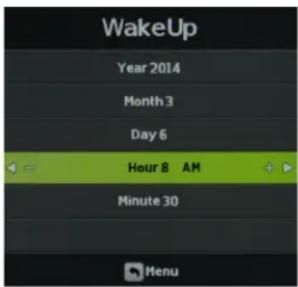
This function allows the TV to turn on automatically at a preset time. Press the ▼▲ buttons to highlight the Wake Up setting adjustment, then use ◀▶ to enter the Wake Up submenu pictured at left.
text_image
WakeUp Year 2014 Month 3 Day 6 Hour 8 AM Minute 30 MenuNow press the ▼▲ buttons to highlight the adjustment you want to make (day, hour, minute, etc.), then use ◀▶ to make the adjustment. Repeat until the desired wake up time is set.
Note the TV does not have a battery backed up clock. Should power be lost the setting will be reset to default.

natural_image
Gray-scale toolbar with six icons: gear, monitor, music note, clock, grid, and lock (no text or labels)- Press ▼▲ buttons on the remote or CH+/CH- on the TV) to move the cursor to the item to be selected.
- Press ◀▶ buttons on the remote or VOL+/VOL- on the TV to make the desired adjustments.
- When your adjustments are complete, press MENU or EXIT on the remote or MENU on the TV to exit the main menu.
text_image
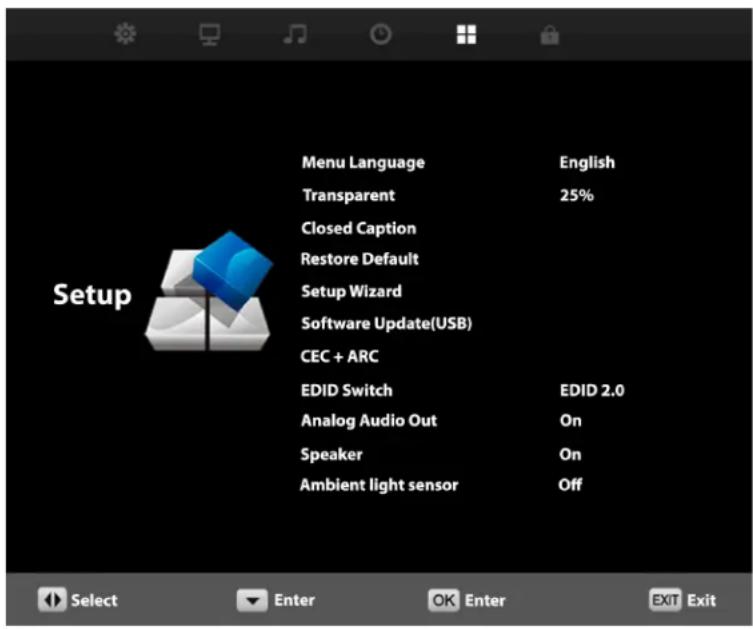
Menu Language Transparent Closed Caption Restore Default Setup Wizard Software Update(USB) CEC + ARC EDID Switch Analog Audio Out Speaker Ambient light sensor English 25% EDID 2.0 On On OffMenu Language
Press the ▼▲ buttons to highlight Menu Language, then use ◀▶ to select English, French or Spanish.
Transparent
Press the ▼▲ buttons to highlight Transparent, then use ◀▶ to select to what degree the picture shows through the on-screen menus: 0%, 25%, 50%, 75% or 100%. At 0%, none of the underlying picture will show through the menus.
Closed Caption
This option appears only when TV is selected as the source. Press the ▼▲ buttons to highlight Closed Caption, then use ◀▶ to enter the CC Mode submenu shown at left. Pressing ◀▶ will now select among the three closed caption modes: Off, On and CC on Mute. The last option shows captions only when mute is activated.
Restore Default
Press the ▼▲ buttons to highlight Restore Default, then use ◀▶ to bring up the Restore Default submenu. Press ◀ to restore the TV to factory settings, press ▶ to cancel.

text_image
Setup Wizard Menu Language English Go to next step Please select your prefer language MENU OK
text_image
Setup Wizard Time Zone Pacific DST On Time Format 12-hour Go to next step Select the time zone & Daylight saving time MENU OK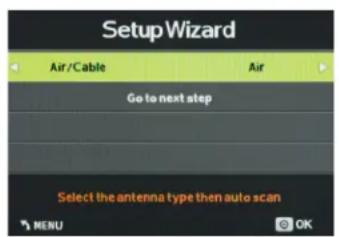
text_image
Setup Wizard Air/Cable Air Go to next step Select the antenna type then auto scan MENU OK
text_image
Setup Wizard Found : 0 Programme(S) Analog : 0 Programme(S) Digital : 0 Programme(S) 11 %... CH B DTV+ATV T\ MENUSetup Wizard
Press the ▼▲ buttons to highlight Restore Default, then use ◀▶ to bring up the Setup Wizard.
Setup Wizard
Press the ▼▲ buttons to highlight Setup Wizard, then use ◀▶ to start the Setup Wizard. You will see the first of four submenus, all of which are shown at left. The Setup Wizard will take you quickly through several basic settings on the TV, including Menu Language, Time Zone, DST on/off, Time Format, Air/Cable and Auto Scan.
For each of the first three menus, press the ▼▲ buttons to highlight each setting to be adjusted, then use ◀▶ to make the adjustment. When you're finished with the adjustments on a submenu, press ▼ to highlight Go to Next Step, then press ◀ or ▶ to go to the next screen of the Setup Wizard.
When you have finished with the third Setup Wizard screen, the Setup Wizard will automatically activate Auto Scan to identify and memorize the channels that can be received.

natural_image
Five gray icons on a dark background: gear, monitor, music note, clock, grid, and lock (no text or symbols)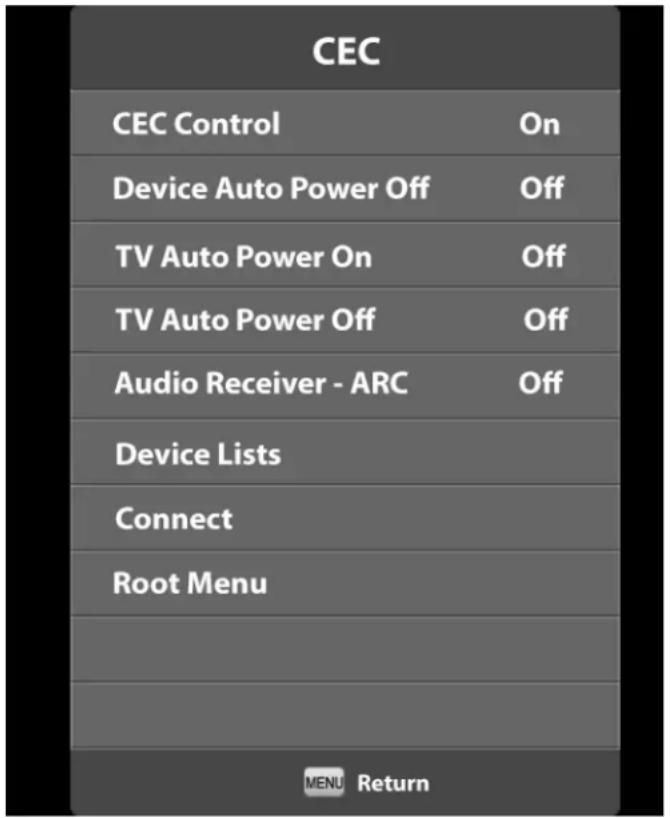
text_image
CEC CEC Control On Device Auto Power Off Off TV Auto Power On Off TV Auto Power Off Off Audio Receiver - ARC Off Device Lists Connect Root Menu MENU ReturnCEC Control
On enables the HDMI CEC device control and audio return channel (ARC) from HDMI1
Device Auto Power Off
When turned on the TV will power down certain source devices. Note: the TV CEC control cannot turn on devices.
TV Auto Power on
When on the TV can be turned on using the CEC HDMI control from certain source devices.
TV Auto Power Off
When on the TV can be turned off using the CEC HDMI control from certain source devices.
Audio Receiver - ARC (Audio Return channel)
When on allows the audio channel to be returned via HDMI1 port to a compatible audio receiver.
Device Lists
Connect
Root Menu
Reserved for future use.
text_image
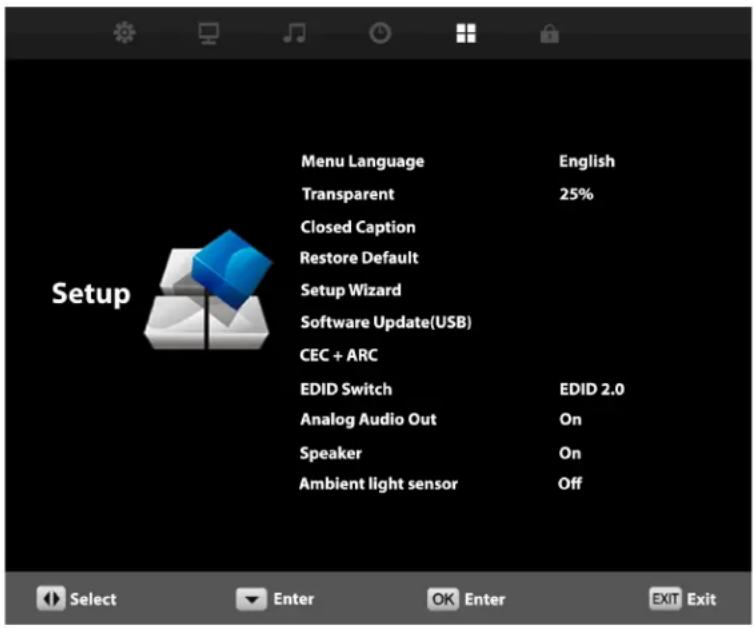
Menu Language Transparent Closed Caption Restore Default Setup Wizard Software Update(USB) CEC + ARC EDID Switch Analog Audio Out Speaker Ambient light sensor English 25% EDID 2.0 On On Off Select Enter OK Enter EXIT ExitSoftware Update (USB)
This function is used to update the software on your TV. Consult your dealer or SunBrite TV for more information.
EDID Switch
Press the ▼▲ buttons to highlight the EDID Switch, then use ◀▶ to select EDID 1.4 or EDID 2.0 mode.
EDID 1.4 should be used for older devices or with 4k extenders or cables which are limited to 4k @ 30hz.
EDID 2.0 should be used for newer source devices for full 4k @ 60hz resolution
Analog Audio Out
The 3.5mm analog audio output on the rear panel can be used to feed a soundbar or other external audio system. Press the
▼▲ buttons to highlight the analog audio output adjustment, then use ◀▶ to switch the earphone output on and off.
Speaker
This control turns the TV's speakers on and off. Press the
▼▲ buttons to highlight the Speaker adjustment, then use
◀▶ to switch the speakers on and off.

natural_image
Gray-scale toolbar with six icons: gear, monitor, music note, clock, window, and lock (no text or labels)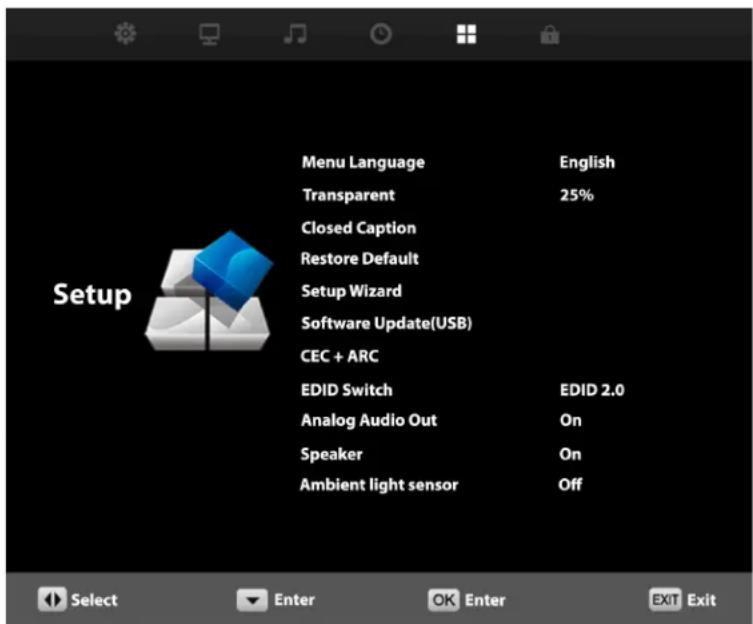
text_image
Menu Language Transparent Closed Caption Restore Default Setup Wizard Software Update(USB) CEC + ARC EDID Switch Analog Audio Out Speaker Ambient light sensor English 25% EDID 2.0 On On Off
text_image
Ambient Sensor Value 0 Auto Backlight Floor 50% Backlight Sensor Floor 128 Wake Up on Signal Restore Disabled Setup Select Enter OK Enter EXIT ExitWake Up on Signal Restore
Disabled by default.
When enabled the TV will go to standby after 10 minutes without a signal. When signal is restored the TV will turn on. The feature is typically used with PC's, Media players and other applications where the TV needs to automatically turn off if the signal is removed.
Ambient Light Sensor
Note the Ambient sensor function is only available when the Personal Picture mode is selected.
Press the ▼▲ buttons to highlight the Ambient Light Sensor adjustment, then use ◀▶ to turn the ambient light sensor on and off. The ambient light sensor automatically measures ambient light level and adjusts the backlight to the level preset using the Auto Backlight Floor adjustment explained below. When TV is selected as a source, you will have to go all the way to the bottom of the Setup menu and press ▼ to reach this adjustment.
Ambient Sensor Value
This meter shows the level of ambient light as measured at the light sensor on front of the TV (near the SunBright TV logo). This shows the level of the ambient light. The value in the meter remains fixed until another menu item is highlighted. To refresh the meter, press the ▼▲ buttons. Unless TV is selected as the source, you will have to go all the way to the bottom of the Setup menu and press ▼ to reach this adjustment. This adjustment is available only when the ambient light sensor is activated.
Auto Backlight Floor
This adjustment sets the level to which the backlight will be lowered when the ambient light level falls below the level set on the Backlight Sensor Floor adjustment below. Press the ▼▲ buttons to highlight the Auto Backlight Floor adjustment, then use ◀▶ to set the auto backlight floor value. This adjustment is available only when the ambient light sensor is activated.
Backlight Sensor Floor
This adjustment sets the threshold for the automatic backlight adjustment, governed by the ambient light sensor.
When the Ambient Light Sensor value is above the Backlight Sensor Floor value, the backlight level will be 100%.
When the Ambient sensor value is below BackLightSensor Floor value the backlight is reduced to the level set with the Auto Backlight Floor adjustment.
Press the ▼▲ buttons to highlight the Backlight Sensor Value adjustment, then use ◀▶ to set the backlight sensor value. This adjustment is available only when the ambient light sensor is activated.
How it works:
If the Ambient sensor value is below the value set in Backlight sensor floor, the backlight will DIM (Night Mode)
If the ambient sensor value is above the value set in the backlight sensor floor, the backlight will return to 100% brightness (Day Mode)

natural_image
Five gray icons on a dark background: gear, monitor, music note, clock, grid, and lock (no text or symbols)- Press ▼▲ buttons on the remote or CH+/CH- on the TV) to move the cursor to the item to be selected.
- Press ◀▶ buttons on the remote or VOL+/VOL- on the TV to make the desired adjustments.
- When your adjustments are complete, press MENU or EXIT on the remote or MENU on the TV to exit the main menu.
text_image
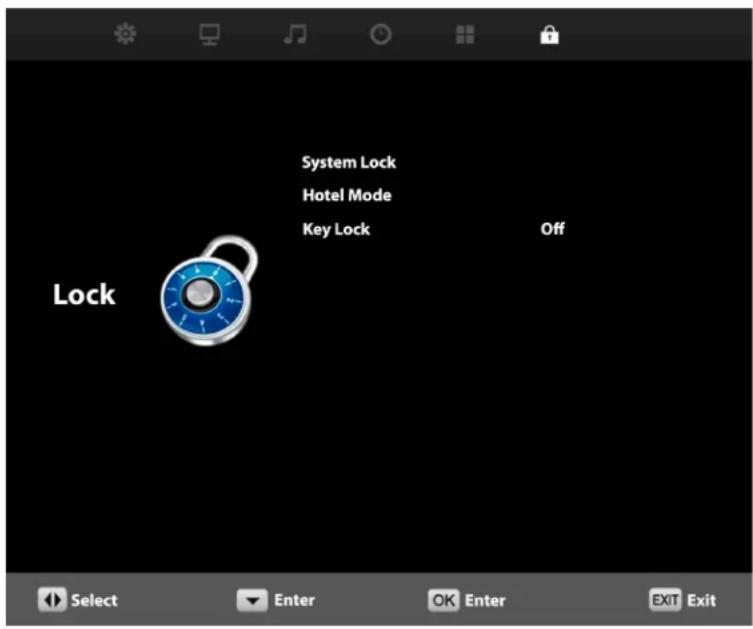
System Lock Hotel Mode Key Lock Off Lock Select Enter OK Enter EXIT ExitSystem Lock
Press the ▼▲ buttons to highlight System Lock, then use ◀▶ to enter the Password menu shown at lower left. This menu allows you to set a password that will be required to access inputs that are locked out using the Input Block feature described below. Selecting Hotel Mode will remove the System Lock option from the menu until Hotel Mode is deactivated.
You must enter the system password to access this feature. See instructions below.
Hotel Mode
Press the ▼▲ buttons to highlight System Lock, then use ◀▶ to enter the Password menu shown at lower left. This menu allows you to set a password that will be required to access inputs that are locked out using the Input Block feature described below. Selecting Hotel Mode will remove the System Lock option from the menu until Hotel Mode is deactivated.
You must enter the system password to access this feature. See instructions below.

text_image
Enter Password Clear CancelEnter Password
You will have to enter the TV's password to turn the System Lock feature on and off. Use the numeric keypad on the remote to enter the password. The default password is 0000. You can change this password using the Change Password feature in the menu.
text_image
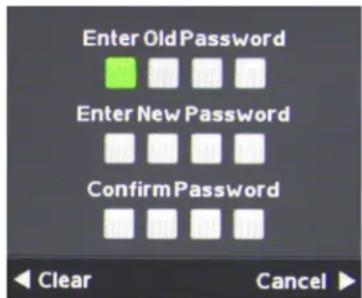
Enter Old Password Enter New Password Confirm Password Clear CancelChange Password
Press the ▼▲ buttons to highlight Change Password, then use ◀▶ to enter the Change Password menu shown at left. To change the password, use the numeric keypad on the remote to enter the current password (0000 unless you previously changed it), then enter the new password twice.
If you enter a new password but forget it later, contact your SunBrite TV dealer for assistance.

text_image
System Lock Hotel Mode Key Lock Off Lock Select Enter OK Enter Exit ExitUsing System Lock
Once you are in System Lock mode, press the ▼▲ buttons to highlight the different functions in the menu, then use ◀▶ to activate those features.
text_image
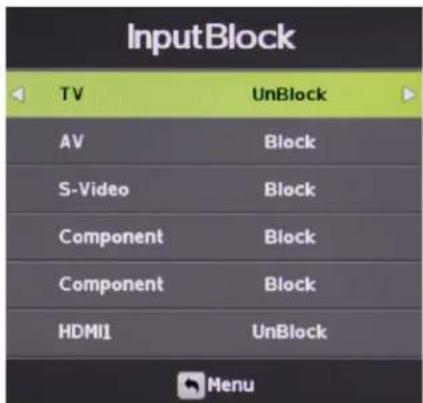
InputBlock TV UnBlock AV Block S-Video Block Component Block Component Block HDMI1 UnBlock MenuInput Block
To use the Input Block function, you must enter the Input Block submenu shown at left. After activating System Lock Mode, press the ▼▲ buttons to highlight the different inputs in the submenu, then use ◀▶ to block or unblock those inputs.
If an input is blocked, using it will require entering the system password.
US
Canada
RRT Setting
Reset RRT
These functions are not adjustable and are for service use only.
text_image
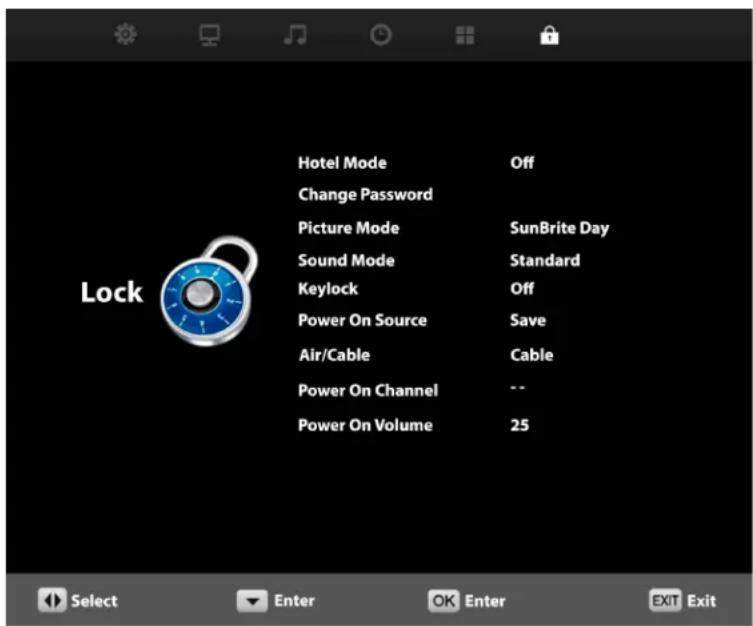
Hotel Mode Change Password Picture Mode Sound Mode Keylock Power On Source Air/Cable Power On Channel Power On Volume Off SunBrite Day Standard Off Save Cable -- 25
text_image
Max Volume 100 Clear All LockUsing Hotel Mode
Once you are in Hotel Mode, press the ▼▲ buttons to highlight the different functions in the menu, then use to activate those features.

Picture Mode
Press the ▼▲ buttons to highlight Picture Mode, then use ◀▶ to choose among Personal, Standard, SunBrite Day and SunBrite Night picture modes. This will be the preset picture mode for the TV, changeable only by re-entering the Hotel Mode menu and/or deactivating Hotel Mode.
Sound Mode
Press the ▼▲ buttons to highlight Sound Mode, then use ◀▶ to choose among Music, Movie, Sports and Personal sound modes. This will be the preset sound mode for the TV, changeable only by re-entering the Hotel Mode menu and/or deactivating Hotel Mode.
Key Lock
Press the ▼▲ buttons to highlight Key Lock, then use ◀▶ to turn Key Lock on and off. Key Lock mode deactivates the side-panel controls on the TV except for the power button.
Power On Source
Press the ▼▲ buttons to highlight Power On Source, then use ◀▶ to select among the different inputs. This is the source that will be selected when the TV is turned on. Save will return to the last selected source.
Air/Cable
Press the ▼▲ buttons to highlight Air/Cable, then use ◀▶ to select Air (antenna) or Cable tuning for the TV input. This selection cannot be changed without entering the system password.
Power On Channel
Press the ▼▲ buttons to highlight Power On Channel, then use ◀▶ to select the default TV channel that will come up every time the TV is turned on.
Power On Volume
You can reach Power On Volume and the other settings below by pressing the ▼ button when Power On Channel is highlighted. This will highlight Power On Volume. Use ◀ to set the default volume level that will be set every time the TV is turned on.
Max Volume
Press the ▼▲ buttons to highlight Max Volume, then use ◀▶ to set the maximum volume level the TV can be turned up to.
Clear All
Press the ▼▲ buttons to highlight Clear All, then use ◀▶ to return all of the above adjustments to factory default settings.

text_image
System Lock Hotel Mode Key Lock Off Lock Select Enter OK Enter EXIT Exit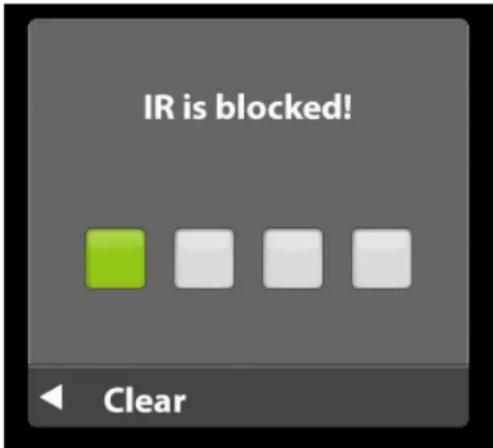
text_image
IR is blocked! ClearKeylock
When turned on it will force an access code to perform any remote or side control function, including power off.
This is useful when the TV is installed in a public space. Users will not be able to make programming changes to the TV using the side control panel or the remote code.
Users will not be able to make changes to the programming using a universal remote including TV remote APS which are available on many smart phones.
The default code is 0000 or 2580
Each time the correct code is entered the remote will unlock to allow one function to be performed.
Example, if you wish to change the channel to the next channel up or down.
Press the channel +/- button, the screen will prompt for a code, enter the unlock code. Then press the desired fuction Ch+ or Ch-, the channel will change then the TV will relock.
If multiple functions are to be performed, its best to press the menu button, enter the unlock key, press the menu button again to enter the menu, then turn the Keylock function off.
RS232 note: when the keylock is enabled RS232 commands will also be locked out.
Using the USB input on the rear panel of the TV, you can access material stored on a USB stick. The material can be MP3 or WAV music files, or JPEG or BMP pictures. The TV also has the ability to display the first few sentences of plain text (.TXT) documents, but because it shows only a few lines, this function is of very limited use.

text_image
INPUT SOURCE TV AV Component1 Component2 HDMI1 HDMI2 HDBaseT FC USB OK OkAccessing the USB input
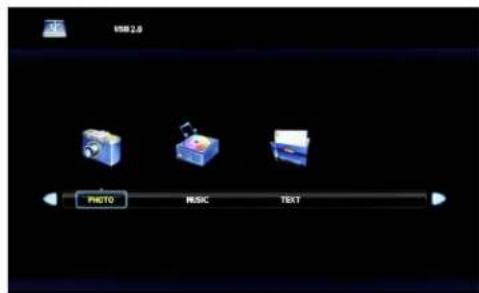
Press the Source button on the remote or on the side control panel of the TV, then press ▼▲ buttons to highlight USB. Now press ← to select the USB input. The main USB menu seen below left will appear.
text_image
USB 2.0 PHOTO MUSIC TEXTSelecting the Media on the USB Stick
From the main USB menu seen at left, you can choose the type of media you want to access: photos, music or text. Use ◀▶ to highlight the type of media you want to watch, then press ← to select a media type..
This action will take you either directly to media on the USB stick, or to the folders on the stick that the media is stored in. If folders appear, press ◀▶ to highlight the folder you want, then press ← to open the folder.
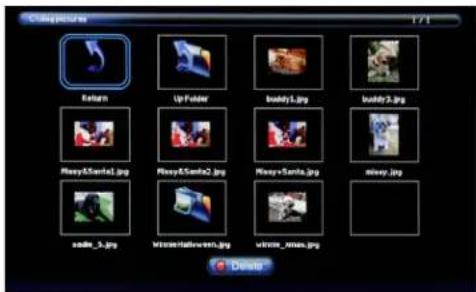
text_image
C:\My PC\My Return Up Folder Body1.jpg Body2.jpg Body3.jpg Body4.Semla1.jpg Body5.Semla2.jpg Body6.Semla3.jpg Body7.jpg Body8.jpg sable_3.jpg Wicson@lawnveen.jpg wimre_xmas.jpg DeleteViewing Pictures from the USB Stick
Use ◀▶ to highlight the picture you want to view, then press ← to view that picture. The picture will appear, along with a text screen that shows data about the picture. Highlight a thumbnail and press ← to select photo. Press POS button on the remote to start and pause the slideshow.
Use Menu and the ▼▲◀▶ buttons to select various slide show options. Slideshow will allow you to select the transitions between the slideshow.
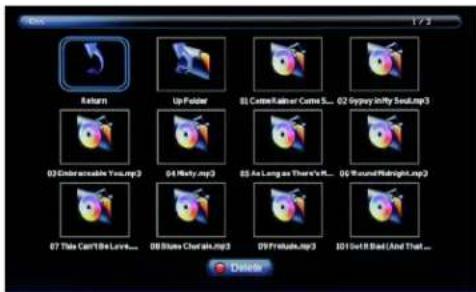
text_image
Box 173 Return Up Folder 01 Cause/Rather Cause S... 02 Oppsy Infty Soul.mp3 03 Undescalable You.mp3 04 Likely.mp3 05 As Long as There's R... 06 Sound/Midnight.mp3 07 This Can't Be Love... 08 Blues Chorals.mp3 09 Precludes.mp3 10 Set It Bad (And That... DeleteListening to Music from the USB Stick
Use ◀▶ to highlight the tune you want to listen to, then press ← to play the tune.. The music will begin playing, and a text screen that shows data about the audio file will appear.
The following table contains the common problems and the solutions to these problems. Please check this list before you contact the technicians.
| Trouble Solutions | |
| No picture Check the following: Power cord is connected correctly. Power is turned on.The video cable is connected correctly. You have selected the proper input signal source.If you have done the above, without resolve, unplug TV for at least 1 hour to perform Hard Reset. | |
| Abnormal colors Match the colors on the cable to the connector. (Red cable to red colored port.) | |
| Picture is too dark Adjust your contrast, brightness and backlight settings from the OSD menu | |
| Audio only, no picture | Make sure both the audio and video cables are connected.The TV tuner signal must not be lower than 65 percent.Unplug TV for at least 1 hour to perform Hard Reset. |
| Picture only, no audio | Make sure the audio cable is connected.Readjust your volume via the remote control.The TV tuner signal must not be lower than 65 percent. |
| Remote control does not work | Turn off the TV, unplug it from the socket. Remove the batteries from the remote for 30 minutes. Press the remote buttons and the power button randomly for 2 full seconds, then reinstall the batteries.The TV's remote sensor is housed in the same place as the power indicator light.Make sure there is line of sight from the remote control's first sensor to the remote sensor of the TV. |
| Cannot receive sufficient channels through the ATSC/NTSC Tuner | The TV's tuner signal must not be lower than 65 percent.Change the direction of your antenna and re-scan the channels.If you have cable, call the cable provider and ask to have your signal strength checked. |
| No color Adjust your picture setup and make sure the color saturation is not turned all the way down. | |
| Weak signal or no program symbol on screen | The TV tuner signal must not be lower than 65 percent.Change the direction of your antenna and re-scan the channels.If you have cable, call the cable provider and ask to have your signal strength checked. |
| TV's Universal Remote Code | This television follows Sony's universal remote code. You may be able to find SunBriteTV's code in your own universal remote's guide book. |
| TV channels are blocked | Check the Auto Lock function settings on the OSD. Channels may have been locked previously. |
| The TV turns on or off slowly, and the screen shows up slowly | This is a high definition liquid crystal display panel TV. It requires a few more seconds than normal TVs to power up and show the picture. |
| No sound from PC Make sure you have a 3.5 mm mini-jack cable connected from your PC's sound output to the TV's VGA Stereo Input. | |
| HDCP video says no HDCP support | Reboot your HDCP video device by turning it off, and unplugging the power cord.Wait up to 8 minutes to plug the power back in to see if that works. |
| HDCP video has no audio | Make sure you have a 3.5 mm mini-jack cable connected from your HDCP video device sound output to the TV's VGA stereo input. If your HDCP video device uses RCA audio jacks, you'll need to obtain an audio cable with RCA plugs on one end and a 3.5mm plug on the other. |
| Cannot get 1920 x 1080 from PC VGA | Using VGA/PC the screen's max resolution is 1920 x 1080. Your video card may not support this resolution. Check your video card's maximum resolution, and use that setting. |
| Picture is distorted or has an abnormal sound | This might be from interference from large electrical appliances, cars, motorcycles or fluorescent lights. If the TV is close to the wall, try moving the TV to another location to see if the problem still occurs. |
| Picture does not cover the entire screen | If you are using HDMI or a TV digital channel, use the Aspect button to switch to 16:9 format. If you are using VGA, use the computer's video controls to adjust the image to the screen. Note: If you are watching regular 4:3 TV or 4:3 signals from a VCR or DVD player in 480i resolution, use the Aspect button to switch to 16:9 in order to fill up the screen. However, this feature will distort the picture. |
| Trouble Solutions | |
| Picture quality is very poor | For best image quality, view HD widescreen programs. If HD content is not available, use a digital source (DVD or Blu-ray player, digital satellite or digital cable box). Standard 480i TV programs will be noticeably inferior to HD quality. |
| Some pixels are always displaying the same color | SunBriteTV LCD screens are manufactured to rigorous standards to maintain optimal viewing. However, the LCD screen may have minor defects that appear as a small bright or dark pixel. This is common to all LCD screens used in display and television products, and is not specific to SunBriteTV. For more information, see SunBriteTV's Pixel Quality Policy in this manual. |
| Switching a channel or source changes the volume | Different channels and inputs sometimes have this effect because the channel signal's volume is pre-set. |
| There is noise or trash pixels on the screen | When your TV's resolution is higher than the digital channel's broadcast resolution, the signal is up-converted to match your TV's resolution. Up-converting can cause this kind of effect. |
| Tips for high-definition users | The TV is an ideal platform for viewing high-definition content. The best image quality can be achieved by HDMI, YPbPr (component), then VGA. However, due to variances in broadcast practices, it is possible that some image distortion may occur. |
| Tips for letterbox content users | Letterbox (widescreen) versions of DVD movies are most commonly formatted for standard 4:3 TVs. The TV has the capability of expanding this content so the entire screen is filled, at the expense of the image proportion. To use this function, press the Aspect button on the remote control and cycle among the available options. |
| The TV turns off automatically | The TV features a power-saving mode which will automatically turn off the TV if there is no signal provided for 15 minutes. |
Caring for the LCD Panel:
1. Cleaning the LCD Panel:
With your TV turned off, gently wipe the surface of the display panel with a damp (with water) microfiber, cotton or flannel cloth. (Do not use tissues, rags, sponges or paper towels because they may damage the screen and leave lint pieces behind).
If the LCD panel is very dirty, you can mix equal parts of isopropyl alcohol and distilled water in a clean spray bottle, spray the mixture onto the cloth (do not spray the solution directly on the panel) and gently clean the panel.
2. When the TV is not in use, keep it covered with the SunBriteTV Outdoor Dust Cover:
The fitted dust cover is designed to protect the LCD panel from the harmful UV rays from direct sunlight, and keeps wind-blown objects from scratching the surface of the panel.
To order a Dust Cover contact your Authorized SunBriteTV dealer, SunBriteTV's Customer Care Center at 866.357.8688, or visit www.sunbritetv.com.
General Cleaning
Remove any dirt and salt deposits from the unit, being careful to rinse the cloth frequently to avoid scratching the TV or screen surface. Avoid using harsh chemicals, abrasives, or solvents when cleaning any surface on the unit.
Snow and Ice
Use a soft brush and towel to remove snow and ice from the unit.
Specifications
| LCD Screen 43-inch diagonal Color Active Matrix TFT LED LCD | |
| Resolution 3840 x 2160 | JHD 4k |
| Aspect Ratio 16:9 | |
| Blacklight Brightness - Surface Luminance, white | 700 nits (cd/m2) |
| Contrast Ratio 3000:1 | |
| Viewing Angle 178 | ° x 178° |
| Response Time 8 millisecond | |
| TV formats 2160p*,1080p, 1080i, 720p, 720i, 480p, 480i* using hdmi only | |
| Input Connectors: Tuner HDMI Video Composite Video Component PC HDBase-T | Antenna/CATV (ATSC/QAM/NTSC) x1 HDMI Input x 2 (supports HDMI 2.0, HDCP 2.2, HDMI 1.4 & HDCP 1.4a) Composite Video, L/R Audio Inputs x1 YPbPr plus Stereo Audio x2 15-pin D-sub VGA plus Stereo Audio Single Cat5e/Cat 6 cable**refer to detailed data sheet for supported resolutions, refresh, color depth and Cat5e/Cat 6 cable lengths. |
| Control Set RS232 Serial, | Discrete IR Control, Concealed rear IR Window |
| Audio Out Digital SPDIF | x 1 (fixed) Analog 1/8" headphone jack (variable) |
| Accessory DC Power Out | 5vdc @ 3.5amps 1.3mm power jack or usb type A jack 12vdc @ 3amps 2.5mm power jack |
| Speaker Output 20-watt | (10w x 2) Does not have internal speakers. Optional Speaker Bar not included. |
| Exterior Powder-coated Aluminum | |
| Colors Silver, Black and White | |
| Input Power 100-240 VAC | 50-60 Hz 1.9A |
| Operating Temp. | -24° to 122° F. (-31° to 50° C.) * |
| Non-op. Temp. (Off-mode with power applied) | -24° to 140° F. (-31° to 60° C.) The non-operating temperature feature requires power to be applied |
| Accessories Included Water-resistant remote control | |
| Dimensions | 39in W x 23in H x 2.7in D 995mm W x 584mm H x 68mm D |
| Weight | 41.5 lbs 18.8kg |
| Residential Warranty | Two year, in-factory, parts and labor |
| Commercial Warranty | Two year, in-factory, parts and labor |
| Mount Pattern | 200 mm x 200 mm |
Model SB-S-43-4K Signature Series 4K Ultra HD Dimensions
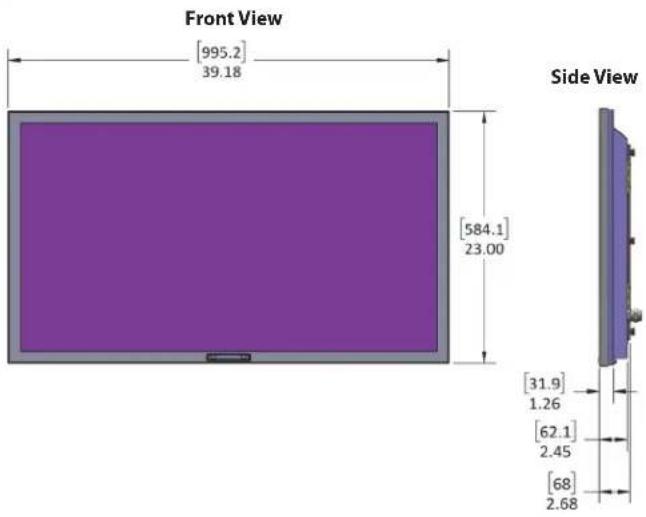
text_image
Front View [995.2] 39.18 [584.1] 23.00 Side View [31.9] 1.26 [62.1] 2.45 [68] 2.68Rear View

text_image
VESA PATTERN 200mm X 200mm M6 4X [200] 7.87 [292.1] 11.50 [200] 7.87 [114.3] 4.50 [293.3] 11.55 AC IN| LCD Screen 55-inch diagonal Color Active Matrix TFT LED LCD | |
| Resolution 3840 x 2160 | JHD 4k |
| Aspect Ratio 16:9 | |
| Blacklight Brightness - Surface Luminance, white | 700 nits (cd/m2) |
| Contrast Ratio 4000:1 | |
| Viewing Angle 178 | ° x 178° |
| Response Time 8 milliseconds | |
| TV formats 2160p*,1080p, 1080i, 720p, 720i, 480p, 480i* using hdmi only | |
| Input Connectors: Tuner | Antenna/CATV (ATSC/QAM/NTSC) x1 |
| HDMI | HDMI Input x 2 (supports HDMI 2.0, HDCP 2.2, HDMI 1.4 & HDCP 1.4a) |
| Video Composite | Composite Video, L/R Audio Inputs x1 |
| Video Component | YPbPr plus Stereo Audio x2 |
| PC | 15-pin D-sub VGA plus Stereo Audio |
| HDBase-T | Single Cat5e/Cat 6 cable**refer to detailed data sheet for supported resolutions, refresh, color depth and Cat5e/Cat 6 cable lengths. |
| Control Set RS232 Serial | Discrete IR Control, Concealed rear IR Window |
| Audio Out Digital SPDIF | x 1 (fixed)Analog 1/8" headphone jack (variable) |
| Accessory DC Power Out | 5vdc @ 3.5amps 1.3mm power jack or usb type A jack12vdc @ 3amps 2.5mm power jack |
| Speaker Output 20-watt | (10w x 2) Does not have internal speakers. Optional Speaker Bar not included. |
| Exterior Powder-coated Aluminum | |
| Colors Silver, Black and White | |
| Input Power 100-240 VAC | 50-60 Hz 2.3A |
| Operating Temp. | -24° to 122° F. (-31° to 50° C.) * |
| Non-op. Temp. (Off-mode with power applied) | -24° to 140° F. (-31° to 60° C.)The non-operating temperature feature requires power to be applied |
| Accessories Included Water-resistant remote control | |
| Dimensions 50.5in W x 2 | 9.75in H x 3.8in D1285mm W x 755mm H x 96mm D |
| Weight | 68.5lbs*31kg |
| Residential Warranty | Two year, in-factory, parts and labor |
| Commercial Warranty | Two year, in-factory, parts and labor |
| Mount Pattern | 400 mm x 400 mm |
Model SB-S-55-4K Signature Series 4K Ultra HD Dimensions
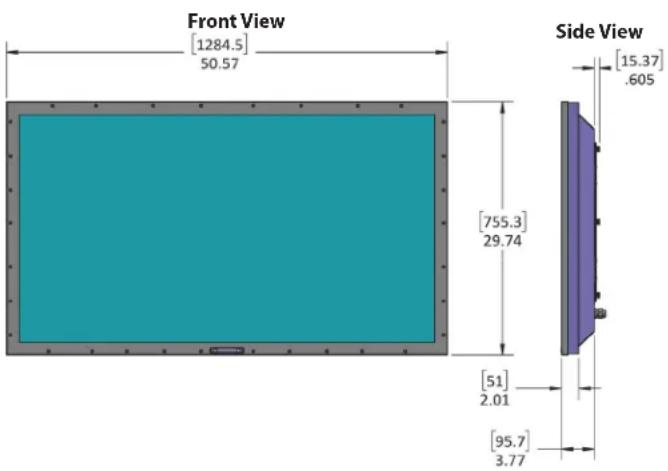
text_image
Front View [1284.5] 50.57 Side View [15.37] .605 [755.3] 29.74 [51] 2.01 [95.7] 3.77Rear View

text_image
VESA PATTERN 400mm X 400mm M6 4X [400] 15.75 [377.7] 14.87 [200] 7.87 [400] 15.75 [123.7] 4.87 [312.1] 12.29 AC IN*note: due to internal LCD panel structure the 55 inch is 2lbs more than the 65
11/18/2016
Specifications are subject to change.
| LCD Screen 65-inch diagonal Color Active Matrix TFT LED LCD | |
| Resolution 3840 x 2160 | JHD 4k |
| Aspect Ratio 16:9 | |
| Blacklight Brightness - Surface Luminance, white | 700 nits (cd/m2) |
| Contrast Ratio 4000:1 | |
| Viewing Angle 178 | °x 178° |
| Response Time 8 milliseconds | |
| TV formats 2160p*,1080p, 1080i, 720p, 720i, 480p, 480i* using hdmi only | |
| Input Connectors: Tuner | Antenna/CATV (ATSC/QAM/NTSC) x1 |
| HDMI | HDMI Input x 2 (supports HDMI 2.0, HDCP 2.2, HDMI 1.4 & HDCP 1.4a) |
| Video Composite | Composite Video, L/R Audio Inputs x1 |
| Video Component | YPbPr plus Stereo Audio x2 |
| PC | 15-pin D-sub VGA plus Stereo Audio |
| HDBase-T | Single Cat5e/Cat 6 cable**refer to detailed data sheet for supported resolutions, refresh, color depth and Cat5e/Cat 6 cable lengths. |
| Control Set RS232 Serial | Discrete IR Control, Concealed rear IR Window |
| Audio Out Digital SPDIF x 1 (fixed) | Analog 1/8" headphone jack (variable) |
| Accessory DC Power Out | 5vdc @ 3.5amps 1.3mm power jack or usb type A jack12vdc @ 3amps 2.5mm power jack |
| Speaker Output 20-watt | (10w x 2) Does not have internal speakers. Optional Speaker Bar not included. |
| Exterior Powder-coated aluminum | |
| Colors Silver, Black and White | |
| Input Power 100-240 VAC, 50-60 Hz 2.5A | |
| Operating Temp. | -24° to 122°F. (-31° to 50°C.) * |
| Non-op. Temp. (Off-mode with power applied) | -24° to 140°F. (-31° to 60°C.)The non-operating temperature feature requires power to be applied |
| Accessories Included Water-resistant remote control | |
| Dimensions | 58.5in W x 34in H x 3.4in D1484mm W x 860mm H x 86mm D |
| Weight | 66.5lbs*30.1kg |
| Residential Warranty | Two year, in-factory, parts and labor |
| Commercial Warranty | Two year, in-factory, parts and labor |
| Mount Pattern | 400 mm x 400 mm |
*note: due to internal LCD panel structure the 55 inch is 2lbs more than the 65
11/18/2016
Specifications are subject to change.
Model SB-S-65-4K Signature Series 4K Ultra HD Dimensions

text_image
Front View [1484] 58.43 Side View [91.5] 3.60 [9.5] .37 [860.8] 33.89 [38.3] 1.51 [85.6] 3.37Rear View
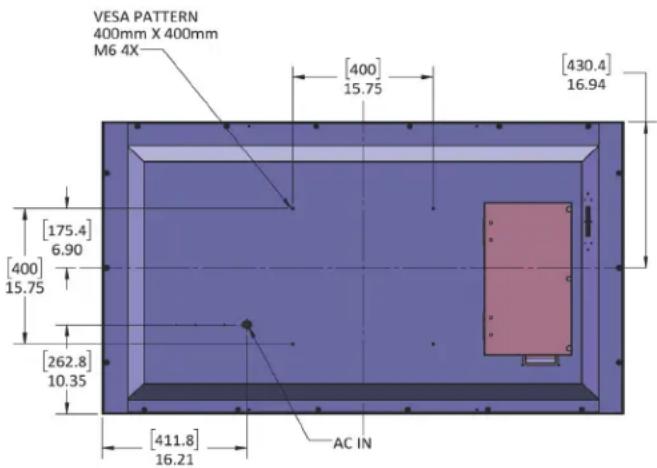
text_image
VESA PATTERN 400mm X 400mm M6 4X [400] 15.75 [430.4] 16.94 [175.4] 6.90 [400] 15.75 [262.8] 10.35 [411.8] 16.21 AC INSpecifications
| LCD Screen 75-inch diagonal Color Active Matrix TFT LED LCD | |
| Resolution 3840 x 2160 UHD 4k | |
| Aspect Ratio 16:9 | |
| Blacklight Brightness - Surface Luminance, white | 700 nits (cd/m2) |
| Contrast Ratio 4000:1 | |
| Viewing Angle 178 | ° x 178° |
| Response Time 6.5 milliseconds | |
| TV formats 2160p*,1080p, 1080i, 720p, 720i, 480p, 480i* using hdmi only | |
| Input Connectors: Tuner HDMI Video Composite Video Component PC HDBase-T | Antenna/CATV (ATSC/QAM/NTSC) x1 HDMI Input x 2 (supports HDMI 2.0, HDCP 2.2, HDMI 1.4 & HDCP 1.4a) Composite Video, L/R Audio Inputs x1 YPbPr plus Stereo Audio x2 15-pin D-sub VGA plus Stereo Audio Single Cat5e/Cat 6 cable**refer to detailed data sheet for supported resolutions, refresh, color depth and Cat5e/Cat 6 cable lengths. |
| Control Set RS232 Serial | Discrete IR Control, Concealed rear IR Window |
| Audio Out Digital SPDIF x 1 (fixed) Analog 1/8" headphone jack (variable) | |
| Accessory DC Power Out | 5vdc @ 3.5amps 1.3mm power jack or usb type A jack 12vdc @ 3amps 2.5mm power jack |
| Speaker Output 20-watt | (10w x 2) Does not have internal speakers. Optional Speaker Bar not included. |
| Exterior Powder-coated aluminum | |
| Colors Silver, Black and White | |
| Input Power 100-240 VAC, 50-60 Hz 2.8A | |
| Operating Temp. | -24° to 122° F. (-31° to 50° C.) * |
| Non-op. Temp. (Off-mode with power applied) | -24° to 140° F. (-31° to 60° C.) The non-operating temperature feature requires power to be applied |
| Accessories Included Water-resistant remote control | |
| Dimensions 67.12in W x | 39in H x 4.30in D 1705mm W x 990mm H x 110mm D |
| Weight | 95 lbs* 43 kg |
| Residential Warranty | Two year, in-factory, parts and labor |
| Commercial Warranty | Two year, in-factory, parts and labor |
| Mount Pattern | 400 mm x 400 mm |
Model SB-S-75-4K Signature Series 4K Ultra HD Dimensions

bar
Front View | Dimension | Value | | :--- | :--- | | Top Section | 1704.8 | | Bottom Section | 989.5 | | Total Height | 67.12 | | Total Width | 38.96 |Side View
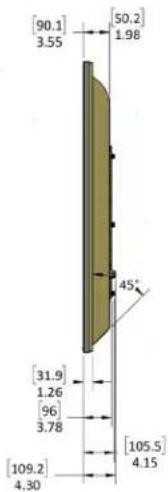
text_image
[90.1] 3.55 [50.2] 1.98 45° [31.9] 1.26 [96] 3.78 [109.2] 4.30 [105.5] 4.15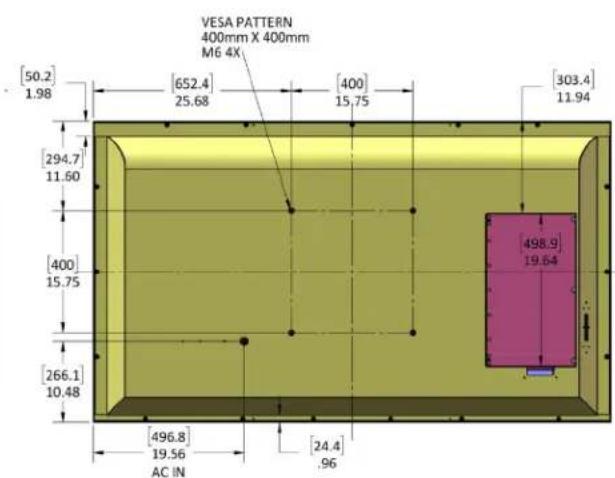
text_image
VESA PATTERN 400mm X 400mm M6 4X [50.2] 1.98 [652.4] 25.68 [400] 15.75 [303.4] 11.94 [294.7] 11.60 [400] 15.75 [266.1] 10.48 [496.8] 19.56 AC IN [24.4] .96 498.9 19.64Programming Other Manufacturers' Universal Remote Control Devices
When programming a DirecTV, local cable universal remote control or Control system, you may find that SunBriteTV may not be on the list of TV manufacturers. If that is the case, your SunBriteTV supports SONY's universal remote code.
SunBriteTV Pixel Quality Policy
SunBriteTV's Pixel Quality Policy
(Applicable to LCD TVs sold within USA and Canada only.)
SunBriteTV LCD screens are manufactured with rigorous standards to maintain optimal viewing. However, the LCD screen may have minor defects that appear as a small bright or dark pixel. This is common to all LCD screens used in display and television products, and is not specific to SunBriteTV.
Bright dots are dots that appear bright and unchanged in size when a LCD TV screen displays a black pattern.
Dark dots are dots that appear dark and unchanged in size when a LCD TV screen displays a pure red, green, or blue pattern.
Adjacent dots are pixels located directly next to each other.
Your SunBriteTV will be replaced under warranty if it meets one of the following criteria:
—A total of 7 defective pixels, including both bright dots and dark dots are present. (This LCD screen has over a million pixels.)
—2 or more pairs of adjacent bright dots are present.
—3 adjacent bright dots are present.
—3 adjacent dark dots are present.
To locate defective pixels, the LCD panel should be examined under normal operating conditions, in its native display resolution, with a 90 degree viewing angle, from a distance of a approximately 20 inches.
To qualify for replacement, a defective LCD screen must be reported to SunBriteTV within 60 days from the day the customer receives the TV.
For questions, please call our Customer Care Center at 866.357.8688.
Extreme Climate Warning
If temperatures below -24^ F. are expected, we recommend that you bring your SunBriteTV inside to prevent damage to the LCD screen.
To install the IR Emitter:
The photo to the right shows an IR Emitter* installed.
The end of the Emitter is to be mounted in front of the IR Emitter Window.
Place the emitter on the white tie-down block and use the tie-down to secure it in place.
Place the emitter cable over the bottom of the cable box and connect the other end of the emitter to the appropriate control block*.
Note it may be necessary to use a small amount of glue to secure the IR emitter in place as most IR emitters dual stick tape does not adhere well to powder coated surfaces. Use a small amount of glue or RTV (Silicon) to secure the emitter in place yet allowing it to be removed or replaced.
Follow instructions on page 8 to close the cable door.
* Neither the emitter or control block are supplied by SunBriteTV. See instructions that come with your IR Emitter and control block to determine how to make the connections.
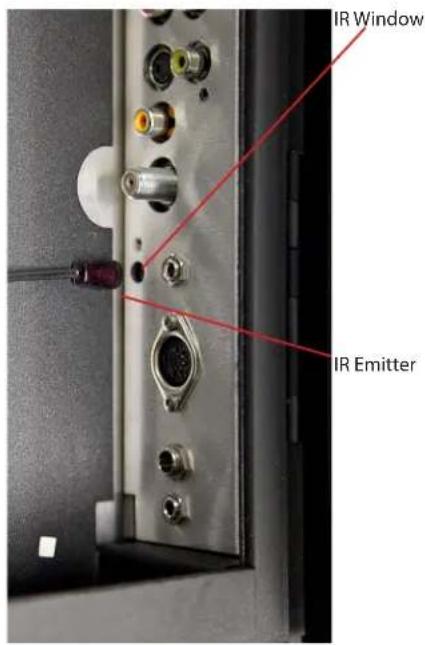
text_image
IR Window IR Emitter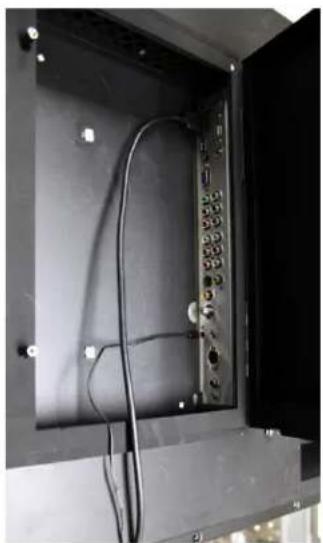
natural_image
Interior view of an open industrial enclosure with visible wiring and control panel (no text or symbols)Place IR Emitter Cable over the bottom of the cable door.
Appendix A - RS232 Control Cable Pinout

text_image
DB9F, Typical PC Serial / Control System RS232 port. 1/8" Stereo Plug Com Specs: 9600 baud 8 data, 1 stop, no parity Ground Rx Data From control system Tx Data to control systemCom Spec: 9600,8.1,n
RS 232 Control codes SunbriteTV
Rev. 04/11/2018
| Function | ASCII | HEX | Command Received Response from TV to control system | Command Executed Response from TV to control system |
| Model Class ID | [ESC]? | 1B 3F | [B3220AHD-X.XX] or | na |
| [B4610AHD-X.XX] | ||||
| Firmware Version | [ESC]? | 1B 2E | XXXXX-X.XX | main board followed by version |
| Power Status | [ESC]! | 1B 21 | [PWRON] | na |
| [PWROFF] | ||||
| Power Toggle | [ESC] | 1B 24 | [] | [PWR] |
| Power ON | [ESC]A | 1B 41 | [A] | [PWRON] |
| Power OFF | [ESC]B | 1B 42 | [B] | [PWROFF] |
| Input 10 - Tuner | [ESC]C | 1B 43 | [C] | [TN1] |
| Input 1 - AV | [ESC]D | 1B 44 | [D] | [AV] |
| Input 2 - NA | [ESC]E | 1B 45 | [E] | [N/A] |
| Input 3 - HDBaseT | [ESC]F | 1B 46 | [F] | [HDBaseT] |
| Input 4 - USB | [ESC]G | 1B 47 | [G] | [USB] |
| Input 5 - Component1 | [ESC]H | 1B 48 | [H] | [Component 1] |
| Input 6 - Component2 | [ESC]I | 1B 49 | [I] | [Component2] |
| *Input 7 -VGA | [ESC]K | 1B 4B | [K] | [VGA] |
| *Input 8 - HDMI1 | [ESC]J | 1B 4A | [J] | [HDMI1] |
| Input 9 - HDMI2 | [ESC]L | 1B 4C | [L] | [HDMI2] |
| Mute | [ESC]X | 1B 58 | [X] | [MUTE] |
| Vol Up | [ESC]Y | 1B 59 | [Y] | [VOL+] |
| Vol Down | [ESC]Z | 1B 5A | [Z] | [VOL-] |
| Channel Up | [ESC]V | 1B 56 | [V] | [CH+] |
| Channel Down | [ESC]W | 1B 57 | [W] | [CH-] |
| 1 | [ESC]1 | 1B 31 | [1] | na |
| 2 | [ESC]2 | 1B 32 | [2] | na |
| 3 | [ESC]3 | 1B 33 | [3] | na |
| 4 | [ESC]4 | 1B 34 | [4] | na |
| 5 | [ESC]5 | 1B 35 | [5] | na |
| 6 | [ESC]6 | 1B 36 | [6] | na |
| 7 | [ESC]7 | 1B 37 | [7] | na |
| 8 | [ESC]8 | 1B 38 | [8] | na |
| 9 | [ESC]9 | 1B 39 | [9] | na |
| 0 | [ESC]0 | 1B 30 | [0] | na |
| - | [ESC]- | 1B 2D | [-] | na |
| Channel Return(Previous Channel) | [ESC]r | 1B 72 | [r] | na |
| Source Toggle | [ESC]b | 1B 62 | [b] | na |
| Aspect | [ESC]a | 1B 61 | [a] | na |
| Enter | [ESC]e | 1B 65 | [e] | na |
| Info | [ESC]i | 1B 69 | [i] | na |
| CC | [ESC]c | 1B 63 | [c] | na |
| Sleep | [ESC]z | 1B 7A | [z] | na |
| Picture | [ESC]p | 1B 70 | [p] | na |
| Sound | [ESC]s | 1B 73 | [s] | na |
| Menu | [ESC]m | 1B 6D | [m] | na |
| Up Arrow | [ESC]^ | 1B 5E | [^] | na |
| Down Arrow | [ESC]v | 1B 76 | [v] | na |
| Right Arrow(*1) | [ESC]> | 1B 3E | [>] | na |
| Left Arrow | [ESC]< | 1B 3C | [<] | na |
| Picture Mode 1 - Personal | [ESC]P | 1B 50 | [P] | na |
| Picture Mode 2 - Standard | [ESC]Q | 1B 51 | [Q] | na |
| Picture Mode 3 - SunBrite Day | [ESC]R | 1B 52 | [R] | na |
| Picture Mode 4 - Sunbrite Night | [ESC]S | 1B 53 | [S] | na |
| * input 7 and 8 are out of letter sequence to remain compatible with legacy SunBrite RS232 commands *1 - Right arrow control requires current firmware | ||||
SunBriteTV®
True Outdoor Television