Signature 5565HD - Television SunBriteTV - Free user manual and instructions
Find the device manual for free Signature 5565HD SunBriteTV in PDF.


User questions about Signature 5565HD SunBriteTV
0 question about this device. Answer the ones you know or ask your own.
Ask a new question about this device
Download the instructions for your Television in PDF format for free! Find your manual Signature 5565HD - SunBriteTV and take your electronic device back in hand. On this page are published all the documents necessary for the use of your device. Signature 5565HD by SunBriteTV.
USER MANUAL Signature 5565HD SunBriteTV
All-Weather Outdoor LCD-LED Television
Operator's Manual
natural_image
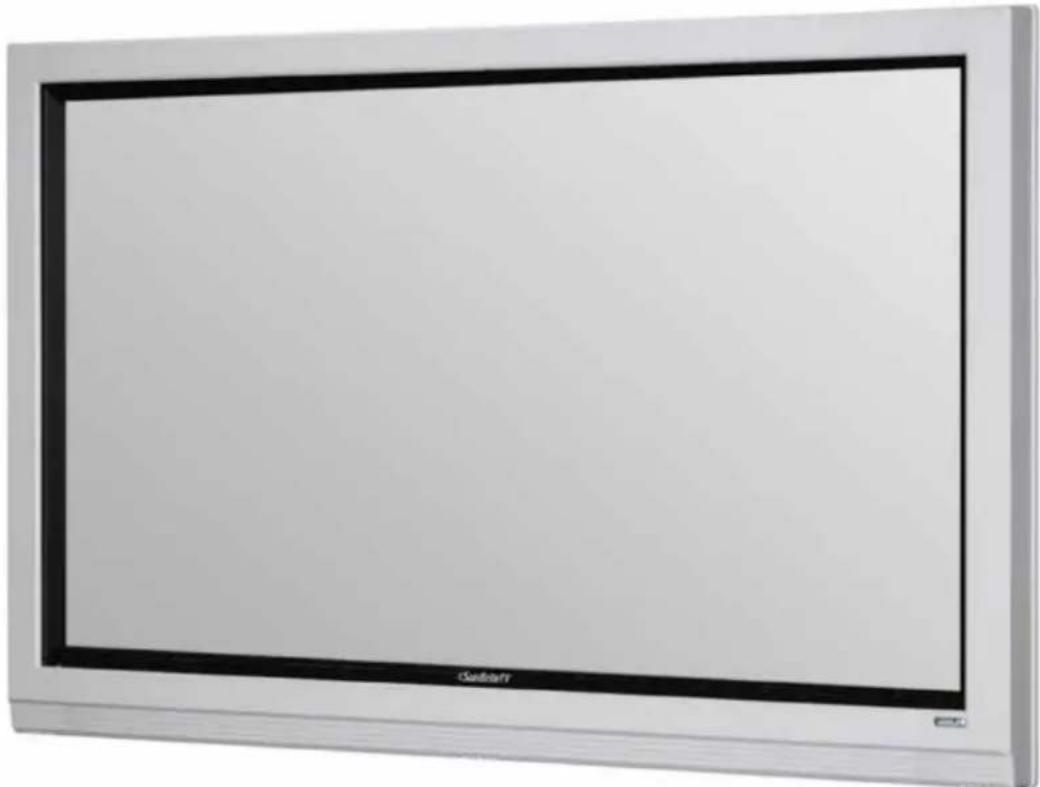
Exterior view of a modern flat-screen TV or monitor with a black frame and 'Cablett' logo on the front panel (no other text or symbols visible)Model SB-5565HD
Dear SunBriteTV Customer:
Congratulations on the ownership of Model 5565HD all-weather outdoor LCD-LED TV, and welcome to the family of satisfied SunBriteTV customers. You are in great company with thousands of homeowners and esteemed commercial facilities such as Yankee Stadium, Fenway Park, Disney World, and Sea World who have trusted us to deliver superior performance, lasting durability and the enjoyment of superb television viewing in the great outdoors.
With a traditional sense of customer satisfaction and attention to detail, our products are designed to withstand the rigors of the outdoor environment and provide our customers with many years of optimum viewing.
To ensure safety and long product life, please read the Important Safety Instructions and complete manual carefully before using the TV. If you have any questions about the installation procedures, please contact our qualified SunBriteTV Customer Care Center at800.331.4626.
IMPORTANT SAFETY INSTRUCTIONS
1) Read these instructions, and keep them for future use.
2) Heed all warnings and follow all instructions.
3) Do not block any ventilation openings. Install in accordance with the manufacturer's instructions.
4) Do not install near any heat sources such as radiators, heat registers, stoves, or other apparatus (including amplifiers) that produce heat.
5) Do not defeat the safety purpose of the polarized or grounding-type plug. A polarized plug has two blades with one wider than the other. A grounding type plug has two blades and a third grounding prong. The wide blade or the third prong are provided for your safety. If the provided plug does not fit into your outlet, consult an electrician for replacement of the obsolete outlet.
6) Protect the power cord from being walked on or pinched particularly at plugs, convenience receptacles, and the point where the cord exits from the apparatus.
7) Only use attachments/accessories specified by the manufacturer.
8) Use only the cart, stand, tripod, bracket or table specified by the manufacturer, or sold with the apparatus. When a cart is used, use caution when moving the cart/apparatus combination to avoid injury from tip-over.
9) Unplug this apparatus during lightning storms.
10) Refer all servicing to qualified service personnel. Servicing is required when the apparatus has been damaged in any way, such as power-supply cord or plug is damaged, liquid has been spilled or objects have fallen into the apparatus, does not operate normally, or has been dropped.

text_image
PORTABLE CART WARNING S3125AWARNING: TV must be plugged into a GFCI receptacle.
TV and GFCI RECEPTACLE MUST BE INSTALLED NO LESS THAN 5 FEET FROM ANY BODY OF WATER (SUCH AS POOL OR SPA). Check local building codes for proper installation guidelines.
WARNING: This unit is equipped with a 3-pin grounded plug. The plug will only fit into a grounded power outlet. This is a safety feature. If you are unable to insert the plug into the outlet, contact your electrician. Do not alter this plug, as this will defeat the safety feature.
WARNING: The main plug is used as the disconnect device and shall remain readily operable.
WARNING: This product shall be connected to a mains socket outlet with a protective earthing connection.
CAUTION: TO PREVENT ELECTRIC SHOCK, MATCH WIDE BLADE OF PLUG TO WIDE SLOT, FULLY INSERT.
WARNING: FCC Regulations state that any unauthorized changes or modifications to this equipment not expressly approved by the manufacturer could void the user's authority to operate this equipment.
NOTE TO CATV SYSTEM INSTALLER: This reminder is provided to call the CATV system installer's attention to Article 820-40 of the National Electrical Code that provides guidelines for proper grounding and, in particular, specifies that the cable ground shall be connected to the grounding system of the building, as close to the point of cable entry as practical.
WARNING: To reduce the risk of fire or electric shock, do not expose the inside of this apparatus to rain or moisture. The inside of this apparatus shall not be exposed to dripping or splashing.
This product utilizes tin-lead solder, and fluorescent lamp containing a small amount of mercury. Disposal of these materials may be regulated due to environmental considerations. For disposal or recycling information, please contact your local authorities or the Electronic Industries Alliance: www.eia.org.
Disclaimer: While SunBriteTV LLC intends to make this manual accurate and complete, we do not make claims that the information contained within covers all details, conditions or variations, nor does it provide for every possible contingency in connection with the installation or use of this product. The information contained in this manual may change without notice.
Cleaning Instructions: See "Care of SunBriteTV" on page 32
Attachments: Do not use attachments not specifically recommended by the manufacturer. Use of improper attachments can result in accidents.
Power Source: SunBriteTV must operate on a power source indicated on the specification label. If you are not sure of the type of power supply used in your home, consult your dealer or local power company. When using the TV outdoors, you must use a GFI-protected AC outlet with "in-use" waterproof cover.
Installation: Do not place the product on an unstable cart, stand, tripod, table, or anywhere the unit is not permanently installed. Placing the product on an unstable place can cause the product to fall, resulting in potential serious personal injuries, as well as damage to the product.
Precautions when Transporting the TV: Carrying the television requires at least two people.
WARNING: DO NOT IMMERSE TELEVISION IN WATER OR OTHER LIQUID. DO NOT INSTALL TV WITHIN 5 FEET OF BODY OF WATER (SUCH AS SPA OR POOL).

CAUTION RISK OF ELECTRIC SHOCK. DO NOT OPEN.

CAUTION: TO REDUCE THE RISK OF ELECTRIC SHOCK, DO NOT REMOVE COVER (OR BACK), FROM THE TELEVISION OR EXTERNAL POWER PACK, EXCEPT WHERE SPECIFIED IN THE MANUAL. NO USER-SERVICEABLE PARTS INSIDE. REFER SERVICING TO QUALIFIED SERVICE PERSONNEL.

The lightning flash with arrowhead symbol, within an equilateral triangle, is intended to alert the user to the presence of uninsulated "dangerous voltage" within the product's enclosure that may be of sufficient magnitude to constitute a risk of electric shock to persons.

The exclamation point within a triangle is intended to alert the user to the presence of important operating and maintenance (servicing) instructions in the literature accompanying the product.
IMPORTANT SAFETY PRECAUTIONS
If an outside antenna is connected to the television equipment, be sure the antenna system is grounded so as to provide some protection against voltage surges and built-up static charges. Section 810 of the National Electrical Code provides information with respect to proper grounding of the mast and supporting structure, grounding of the lead-in wire to an antenna discharge unit, size of grounding conductors, location of antenna discharge unit, connection to grounding electrodes, and requirements for the grounding electrode.

text_image
EXAMPLE OF ANTENNA GROUNDING AS PER NATIONAL ELECTRICAL CODE GROUNDS CLAMP ELECTRIC SERVICE EQUIPMENT ANTENNA LEAD-IN WIRE ANTENNA DISCHARGE UNIT (NEC SECTION 810-20) GROUNDING CONDUCTORS (NEC SECTION 810-21) GROUND CLAMPS POWER SERVICE GROUNDING ELECTRODE SYSTEM (NEC ART 250, PART H) NEC—NATIONAL ELECTRICAL CODEFor added protection for this television equipment during a lightning storm, or when it is left unattended and unused for long periods of time, unplug it from the wall outlet and disconnect the antenna. This will prevent damage to the equipment due to lightning and power-line surges.

An outside antenna system should not be located in the vicinity of overhead power lines or other electric light or power circuits, or where it can fall into such power lines or circuits. When installing an outside antenna system, extreme care should be taken to keep from touching such power lines or circuits as contact with them might be fatal.
FCC Statement
This equipment complies with the limits for a Class B digital device, pursuant to part 15 of the FCC Rules. These limits are designed to provide reasonable protection against harmful interference in a residential installation. This equipment generates, uses, and can radiate radio frequency energy and, if not installed and used in accordance with the instructions, may cause harmful interference to radio communications. However, there is no guarantee that interference will not occur in a particular installation. If this equipment does cause harmful interference to radio or television reception, which can be determined by turning the equipment off and on, the user is encouraged to try to correct the interference by one or more of the following measures:
- Reorient or relocate the receiving antenna.
- Increase the separation between the equipment and receiver.
- Connect the equipment into an outlet on a circuit different from that to which the receiver is connected.
- Consult the dealer or an experienced radio/TV technician for help.
Modifications not expressly approved by the manufacturer could void the user's authority to operate the equipment under FCC rules. This device complies with part 15 of the FCC Rules. Operation is subject to the following two conditions:
- This device may not cause harmful interference.
- This device must accept any interference received, including interference that may cause undesired operation.
Ventilation: Adequate ventilation must be maintained to ensure reliable and continued operation and to protect the television from overheating. Do not block ventilation slots and openings with objects, or install the television in a place where ventilation may be hindered. There must be at least 1.5" of space on all sides.
Power cord protection: The power cord must be routed properly to prevent people from stepping on it, or objects from resting on it. Check the cords at the plugs and product.
Power source: This product must operate on a power source specified on the specification label. If you are unsure of the type of power supply used in your home, consult your dealer or local power company.
Do not let metal pieces or objects of any kind fall into the television from ventilation holes. High voltage flows in the product, and inserting an object can cause electric shock and/or short internal parts.
Do not mount SunBriteTV near a motor or transformer where strong magnetism is generated. Images on the television will become distorted and the color irregular.
Do not mount SunBriteTV near heat sources such as radiators, heaters, stoves and other heat-generating products (including amplifiers).
Do not submerge SunBriteTV in water: The SunBriteTV will resist water exposure from normal rain, sprinklers, garden hoses, etc.; however, it is not designed to be submerged in water.
Do not pressure-wash SunBriteTV: SunBriteTV will resist water exposure from normal rain, sprinklers, garden hoses, etc.; However, it is not designed to withstand pressure washers, high-pressure water jets, or hurricane-type weather.
Do not service SunBriteTV yourself: Removal of the television screen cover may expose you to high voltage or other dangerous risks. Refer all servicing to a qualified service professional. Warranty will not be honored if you service the unit yourself.
Repair: If any of the following conditions occurs, unplug the power cord, and call a qualified service professional to perform repairs:
When power cord or plug is damaged.
When objects have fallen into the product.
If unit was submerged in water or pressure-washed.
When product does not operate properly as described in the operating instructions. Do not touch the controls other than as described in the operating instructions. Improper adjustments of controls not described in the instructions can cause damage, which can require extensive repair work by a qualified technician.
When the product has been dropped or damaged.
When the product displays an abnormal condition. Any noticeable abnormality in the product indicates that the product needs servicing.
Replacement parts: In case the product needs replacement parts, make sure that the service person uses replacement parts provided by SunBriteTV. Use of unauthorized parts can result in fire, electric shock and/or other danger.
Safety checks: Upon completion of service or repair work, ask the service technician to perform safety checks to ensure that the product is in proper operating condition.

natural_image
Symbolic icon of two figures exchanging a box inside a circle (no text or symbols)WARNING: To prevent personal injury and/or damage to the TV or personal property, use at least two people to install or move the TV.
Table of Contents
Important Safety Instructions 2
Table of Contents 5
Supplied Accessories 6
TV Installation
Choose a Location for the TV 7
Rear Panel Internal Connect Source 8
Rear Panel Connections 9
Starting the TV 18
Side Panel and Front Panel Controls 18
Remote Control Guide 19
On-Screen Display Controls 21
Adjusting On-Screen Displays
Picture Menu
Audio Menu 21
Time Menu 22
Set-up 24
Lock Menu 26
Parental Menu 29
Channel Menu 30
Trouble Shooting 31
Care of SunBriteTV 31
Specifications 32
Features Information and Instructions
Extreme Climate Warning 34
Programming Other Manufacturers' Universal Remote Control Devices 34
SunBriteTV Pixel Quality Policy 34
Dust Cover 34
IR Emitter Installation 35
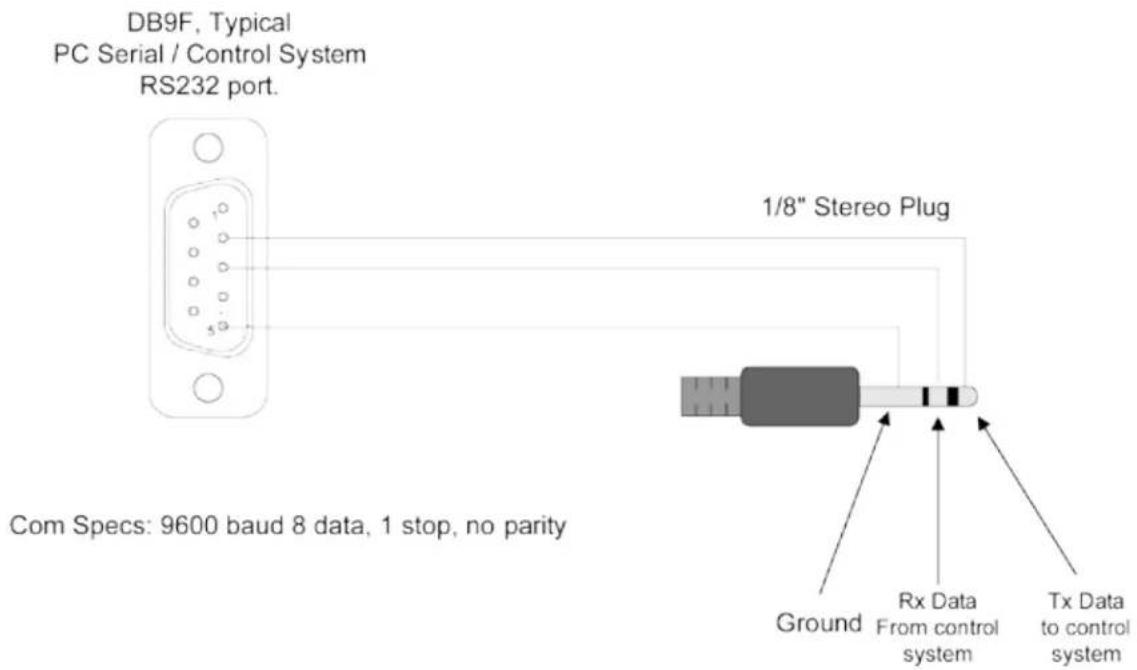
Appendix A - RS232 Control Codes 36
Appendix B - RS232 Control Cable Pinout 37
Unpacking
After unpacking the SunBriteTV television, please make sure that the following items are included in the carton and that they are in good condition. If items are damaged or missing, contact your dealer immediately.
SunBriteTV LCD-LED Television Model 5565HD
Remote Control with Batteries
Operator's Manual
Outdoor Dust Cover
natural_image
Front view of a blank flat-screen monitor with no visible text or symbolsModel 5565HD

natural_image
Front view of a white industrial panel with mounting brackets and a central rectangular opening (no text or symbols visible)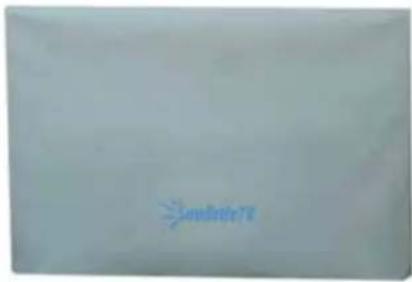
text_image
SendateOutdoor Dust Cover
text_image
SunBriteTV Operator's Manual Model 5000023Operator's Manual
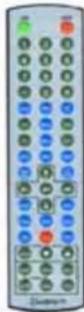
Water-Resistant
Wireless Remote
Control
Choose a Location for the TV
Important: The TV must be installed at least 5 feet from pool, spa, or other body of water.
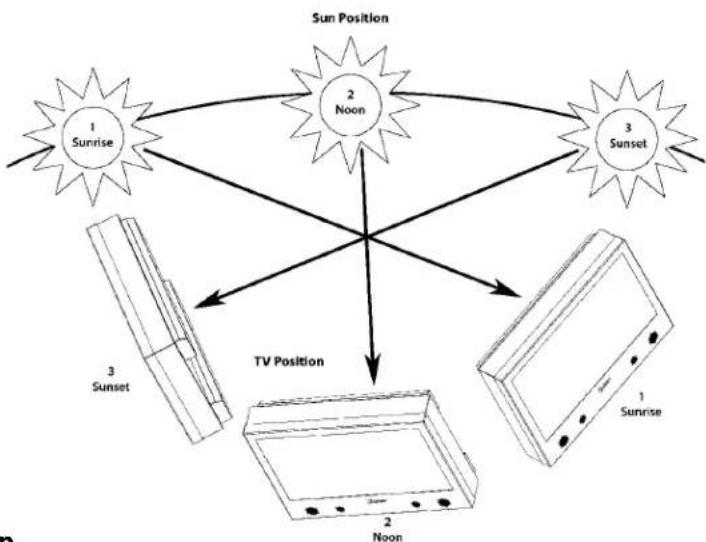
The TV should be installed so the screen is not facing direct sunlight, or can be easily turned away from direct sunlight.
Ideal placement is in an area where the TV is shaded by trees, landscape and/or structures, or under a patio cover or gazebo.
If the sun shines directly on the screen for long periods of time, dark areas may develop on the screen. This is a normal reaction for the LCD panel, and will not cause damage to the screen. Either turn the screen away from the sun, or apply shade to the TV, and the dark areas will quickly disappear.
flowchart
graph TD
    A["Sun"] --> B["1 Sunrise"]
    A --> C["2 Noon"]
    A --> D["3 Sunset"]
    B --> E["3 Sunset"]
    C --> F["TV Position"]
    D --> G["TV Position"]
    E --> H["2 Noon"]
    F --> I["2 Noon"]
    G --> J["1 Sunrise"]
Important! To protect the life of the LCD-LED screen, keep the dust cover on the TV when the TV is not in use.

natural_image
Symbolic icon of two figures exchanging a box inside a circle (no text or symbols)WARNING: To prevent personal injury and/or damage to the TV or personal property, use at least two people to install or move the TV.
Rear Panel Connections
WARNING: Do not connect the power source before making connections.
Internal Connect Source
The Internal Connect Source allows you to easily connect to the Audio, Video, S-Video, SVGA, HDMI, Audio Out, RF, RS232, and 12 VDC connectors, and the IR emitter window. The Internal Connect Source is inside the Cable Cover located on the back of the unit (Figure 1).
- Unscrew the three gray Thumb Screws (Figure 1), and pull the cover towards you.
- Route the cables to the proper inputs, and place the cable cords over the Rubber Sealing Gasket (Figure 2).
Note: There is an Indentation on the Rubber Sealing Gasket (on the bottom portion of the right and left sides). Make sure cable cords are not placed on the Indentation.
- Close the cover (Figure 3).
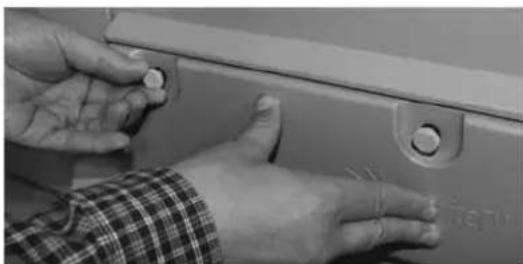
- Press firmly on the cover, and secure the Thumb Screws tightly (Figure 4).
Figure 1

text_image
Thumb Screws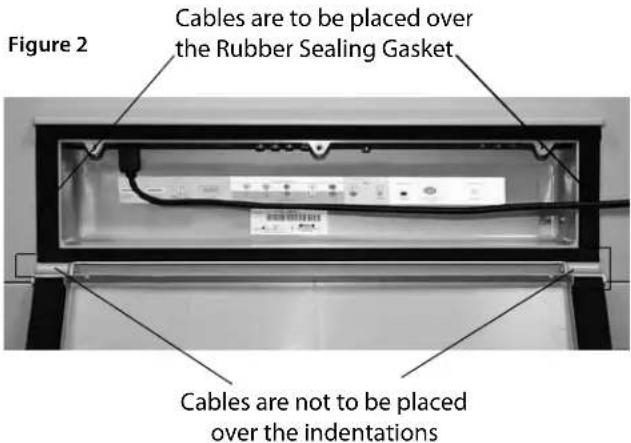
text_image
Figure 2 Cables are to be placed over the Rubber Sealing Gasket. Cables are not to be placed over the indentationsFigure 3

natural_image
Exterior view of a white rectangular electronic device with three mounting holes (no text or symbols visible)Figure 4
natural_image
Close-up of hands adjusting a car door panel with a small circular component (no visible text or symbols)Press firmly on the cover, and secure the Thumb Screws tightly.

text_image
1 2 3 4 5 6 7910 8 9 11 12 13 14-
SERVICE PORT - This port is for factory service only...DO NOT USE
-
HDMI 1 - Connects to devices that use HDMI cables such as Blu-ray or HD DVD player or HD cable / satellite set-top box. This connection port receives pure digital audio and high definition signal through one single cable. This port also can accept a HDCP video device for video or PC for monitor display usage. Use the SOURCE button to select HDMI1 on your MAIN SOURCE to view this connection. Please note: when using HDMI, your sound signal must be PCM for the TV to decode digital audio. When using this source for PC display, you must connect the audio cable to VGA Stereo Input for audio.
-
HDMI 2 - Same as HDMI 1
-
SERVICE PORT - This pot is for factory service only...DO NOT USE
-
VGA STEREO INPUT - This connection port is for people who want to provide audio to the TV when using a PC or a DVI video device. Use a 3.5mm mini-jack audio cable (headphone jack) to provide audio for a HDCP enabled DVI video device or PCs with VGA or DVI connection.
-
VGA - This connection port connects to a PC for video using VGA cable. Be sure to connect your audio cable to the VGA Stereo input if you want sound out of the VGA video source. Use the SOURCE button to select VGA on your MAIN SOURCE to view this connection.
-
COMPONENT 1 (Lower) - This connection ports are for DVD players or satellite/cable set-top boxes that use component cables. From left to right, connect green, blue and red for video, and then connect white for left channel audio, red for right channel audio. Use the Source Button to select YPbPr1 to review this connection.
-
COMPONENT 2 (Upper) - his connection ports are for DVD players or satellite/cable set-top boxes that use component cables. From left to right, connect green, blue and red for video, and then connect white for left channel audio, red for right channel audio. Use the Source Button to select YPbPr2 to review this connection.
-
AV 1 (CVBS or S-Video) - Connects to devices that use composite or s-video cables such as VCR or camcorder or video game consoles. Connect the video portion with either the yellow connector or the S-Video connector. Do NOT connect both video connectors. Use the SOURCE button to select AV1 (CVBS) on your MAIN SOURCE if you are using the yellow plug for video, use the SOURCE button to select AV1 (S-Video on your MAIN SOURCE if you are using the S-Video connector to view this connection.
-
DIGITAL AUDIO OUT - This connection port is used for sending out audio signals to other audio devices such as stereo/ surround sound receivers. The orange (SPDIF OUT) connector sends out either bit-stream or PCM digital sound signal to a home theater receiver with digital input.
-
ATSC/NTSC/QAM – This connection is for digital or analog cable without the cable box or over-the-airwave antennas. The tuner is a hybrid tuner that tunes to both analog and digital channels. This connection uses coaxial RF cable. For over-the airwave digital stations please check http://www.antennaweb.org.
-
ANALOG AUDIO OUT (Variable) - Used to connect headphones, stereo receivers and amplified speakers via a 3.5mm headphone jack.
-
IR WINDOW - For remote control using IR commands.
-
RS232 - For remote control using RS232 commands
Connection Descriptions:
| Port Quality & Name | Port Picture | Cable Used & Resolution | Devices that use this Port |
| Best HDMI (Digital HD Capable) |  | HDMI 1080i, 720p, 480p, 480i | Blu-ray DVD Player, HD-DVD Player, High Definition Cable or Satellite Set-top Box, HDCP devices |
| Best/Fair ATSC/NTSC (Digital HD Capable) |  | Coaxial RF 1080i, 720p, 480p, 480i | Antenna or Digital Cable with out the cable box |
| Best VGA (HD Capable) |  | VGA 1980 x 1080 or lower | PC or MAC with VGA connection |
| Better COMPONENT 1 & 2 (HD Capable) | 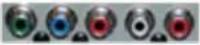 | Component 1080i, 720p, 480p, 480i | DVD Player, Video Game Console, High Definition Cable or Satellite Set-top Box |
| Good COMPOSITE (Non-HD) |  | S-Video 480i only | Non High Definition Cable or Satellite Set-top Box, S-Video VCR |
| Fair COMPOSITE (Non-HD) |  | Composite 480i only | Non High Definition Cable or Satellite Set-top Box, VCR, Old Game Console, Camcorder |
Cable Descriptions:
| Cable Name | Cable Picture |
| HDMI | 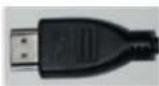 |
| Coaxial RF |  |
| VGA | 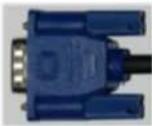 |
| Component | 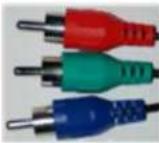 Red Green Blue Red Green Blue |
| S-Video | 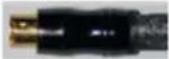 |
| Composite | 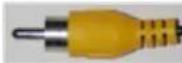 Yellow Yellow |
| 3.5 mm Mini-jack | 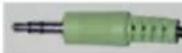 Green Green |
| RCA Audio | 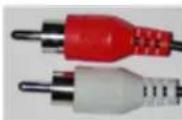 Red White Red White |
| AC Power | 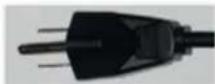 |
| Coaxial SPDIF | 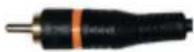 |
Switching Sources for Ports:
Model 5565HD offers several options when connec ting your devices to the TV. The chart below will help you understand which source you switch to for each of the ports.
| Port Picture | Cable Used | Source Name to Switch to |
 | HDMI or HDMI-DVI | HDMI 1 or HDMI 2 |
 | COAXIAL RF | TV (CABLE / AIR) |
 | VGA | VGA |
 | YPBPR | YPBPR 1 or YPBPR 2 |
 | S-VIDEO | AV 1 (S-VIDEO) or AV 2 (S-VIDEO) |
  | COMPOSITE | AV 1 (CBVS) or AV 2 (CVBS) |
CONNECTING TO AN ANTENNA

natural_image
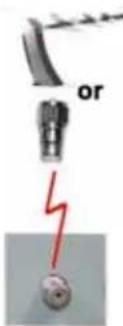
Close-up of electronic equipment ports including VGA, color-coded connectors, and a highlighted metallic component (no text or symbols visible)Connecting to Digital Cable without Cable Box or Antenna
text_image
or- Make sure the power to the TV is turned off.
- Connect the Coaxial RF cable from your antenna or digital cable to the ATSC/NTSC port off the back of the TV.
- Turn on the TV.
- Select TV (Air) for antenna or TV (Cable) for digital cable from either your remote control's source button or source button on the right side of the TV.
- Use the On-Screen Display to scan for channels.
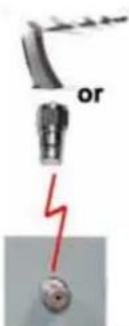
Connecting to Cable or Antenna
text_image
or- Make sure the power of the TV is turned off.
- Connect the Coaxial RF cable from your antenna or cable to the ATSC/NTSC port off the back of the TV.
- Turn on the TV.
- Select TV (Air) for antenna or TV (Cable) for cable from either your remote control's source button or source button on the right side of the TV.
- Use the On Screen Display to scan for channels.
Please Note :
- Not all broadcasts are in High Definition (HD). Please refer to your local broadcasting stations for more information.
- The TV's tuner is designed for HDTV therefore requires a stronger signal than normal TVs. If you cannot achieve that signal level with your antenna or cable, the TV might lose picture or sound.
CONNECTING TO AN ANTENNA--(Continued)
Connecting to Cable or Antenna through VCR

- Make sure the power of the TV is turned off.
- Make sure there is an antenna or cable connection to the VCR already.
- Use a Coaxial RF cable and connect from your VCR's Antenna Out or Output to TV to the ATSC/NTSC port of your TV.
- Turn on the TV.
- Select TV (Air) for antenna or TV (Cable) for digital cable from either your remote control's source button or source button on the TV.
- Use the On-Screen Display to scan for channels.
Please Note :
- Some VCRs must be turned On before its output will have a signal to the TV. Please consult your VCR manual for further reference.
- Not all broadcasts are in High Definition (HD). Please refer to your local broadcasting stations for more information.
- The MODEL 5565HD's tuner is designed for HDTV therefore requires a stronger signal than normal TVs. If you cannot achieve that signal level with your antenna or cable, the TV might lose picture or sound.
- This TV will turn off automatically if there's no signal present for more than 15 minutes.

text_image
Connecting with HDMI (Best)CONNECTING TO A DVD PLAYER
Connecting with HDMI (Best)
- Make sure the power of the TV and your DVD player is turned off.
- Connect a HDMI cable to the HDMI port of your DVD player and the other end to the HDMI port off the back of your TV.
- Turn on the TV and your DVD player.
- Use the remote control's source button or the source button on the TV to switch to HDMI.
Please Note :
Refer to the DVD player's manual to make sure the DVD player is configured to output correctly to the TV.
Please Note :
- Refer to the DVD player's manual to make sure the DVD player is configured to output correctly to the TV.
- This TV does not decode Bit stream digital audio, so make sure the DVD is setup for PCM digital audio through HDMI.
- If HDMI 1 is occupied, use HDMI 2 as your connection port.

text_image
PLAYER Connecting with Component (Better)- Make sure the power of TV and your DVD player is turned off.
- With a Component Cable, connect the green connector to the DVD player and Component 1's green connector port on the TV.
- Connect the blue color connector to your DVD player and Component 1's blue connector port on the TV.
- Connect the red color connector to both your DVD player and Component 1's red connector port on the TV.
- With an RCA Audio Cable, connect the white color connector to both your DVD player and Component 1's white connector port on the TV.
- Connect the red color connector to both your DVD player and
- Component 1's red connector port on the TV.
- Turn on the TV and your DVD player. Use the remote control's source button or the source button on the TV to switch to YPbPr1.
- If Component 1 is already occupied, please use Component 2 as your connection port and switch to source YPbPr2.
- Refer to the DVD player's manual to make sure the DVD player is configured to output correctly to the TV.
- This TV will turn off automatically if there's no signal present for more than 15 minutes.
Please Note :
CONNECTING TO A DVD PLAYER (Continued)
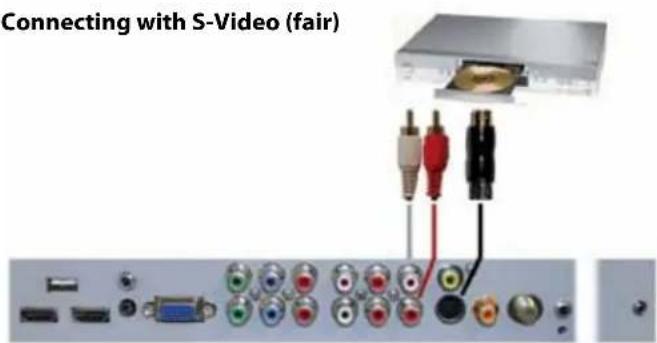
text_image
Connecting with S-Video (fair)- Make sure the power of the TV and your DVD player is turned off.
- Obtain an S-Video Cable. Connect the S-Video connector to both your DVD player and Composite's S-Video connector port off the back of your MODEL 5565HD.
- Obtain a RCA Audio Cable. Connect the white color connector to both your DVD player and Composite's white connector port off the back of your MODEL 5565HD.
- Connect the red color connector to both your DVD player and Composite's red connector port off the back of your TV.
- Turn on the TV and your DVD player.
- Use the remote control's source button or the source button on the right side of the TV to switch to AV1 (S-Video).

text_image
Connecting with Composite (Fair)- Make sure the power of the TV and your DVD player is turned off.
- Obtain a Yellow Video Cable. Connect the Yellow Video connector to both your DVD player and Composite's Yellow Video connector port off the back of your TV.
- Obtain a RCA Audio Cable. Connect the white color connector to both your DVD player and Composite's white connector port off the back of your TV.
- Connect the red color connector to both your DVD player and Composite's red connector port off the back of your TV.
- Turn on the TV and your DVD player.
- Use the remote control's source button or the source button on the right side of the TV to switch to AV1 (CVBS).
Please note:
- If AV 1 is already occupied, use AV2, as your connection port, and switch source to AV 2 (S-Video)
- Reference the DVD player's manual to make sure the DVD player is configured to output correctly to the TV.
- This TV will turn off automatically if there's no signal present for more than 15 minutes.
CONNECTING TO A SATELLITE OR CABLE SET-TOP BOX
Connecting with HDMI (Best)

text_image
or- Make sure the power of the TV and your set-top box is turned off.
- Connect a HDMI cable to the HDMI output of your set-top box and the other end to the HDMI port off the back of your TV.
- Turn on the TV and your set-top box.
- Use the remote control's source button or the source button on the right side of the TV to switch to HDMI 1.
- Refer to the set-top box's manual, to make sure the set-top box is configured to output correctly to the TV.
- If HDMI 1 is already occupied, use HDMI 1 as your connection port and switch source to HDMI 2.
- SunBriteTV's MODEL 5560HD supports SONY's universal remote code. Please look up SONY's codes in your universal remote's hand book.
- This TV will turn off automatically if there's no signal present for more than 15 minutes.
Please Note :
Connecting with Component (Better)
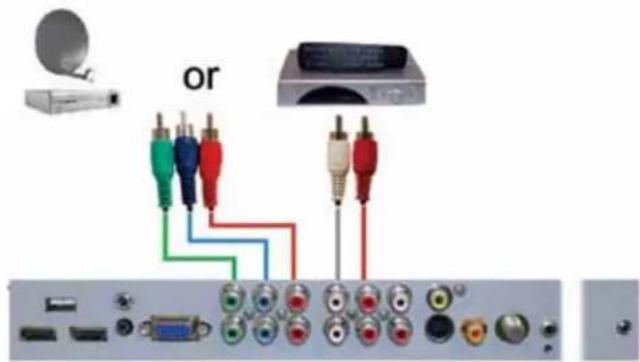
text_image
or- Make sure the power of TV and your set-top box is turned off.
- Obtain a Component Cable. Connect the green color connector to both your set-top box and Component 1's green connector port off the back of your TV.
- Connect the blue color connector to both your set-top box and Component 1's blue connector port off the back of your TV.
- Connect the red color connector to both your set-top box and Component 1's red connector port off the back of your TV.
- Obtain a RCA Audio Cable. Connect the white color connector to both your set-top box and Component 1's white connector port off the back of your TV to the right side of your green, blue, red component connection.
- Connect the red color connector to both your set-top box and Component 1's red connector port off the back of your TV to the right side of your green, blue, red component connection.
- Turn on the TV and your set-top box.
- Use the remote control's source button or the source button on the TV to switch to YPbPr1.
Please Note :
- If Component 1 is already occupied, please use Component 2 is your connection port and switch to source YPbPr2.
- Please refer to the set-top box's manual to make sure the set-top box is configured to output correctly to the TV.
- SunBriteTV's MODEL 5565HD supports SONY's universal remote code. Please look up SONY's codes in your universal remote's hand book.
- This TV will turn off automatically if there's no signal present for more than 15 minutes.
CONNECTING TO A SATELLITE OR CABLE SET-TOP BOX (Continued)
Connecting with S-Video (Fair)
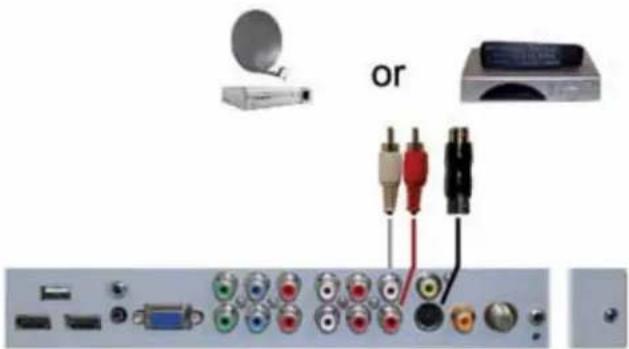
text_image
or- Make sure the power of the TV and your DVD player is turned off.
- Obtain an S-Video Cable. Connect the S-Video connector to both your DVD player and Composite's S-Video connector port off the back of your MODEL 5565HD.
- Obtain a RCA Audio Cable. Connect the white color connector to both your DVD player and Composite's white connector port off the back of your MODEL 5565HD.
- Connect the red color connector to both your DVD player and Composite's red connector port off the back of your TV.
- Turn on the TV and your DVD player.
- Use the remote control's source button or the source button on the right side of the TV to switch to AV1 (S-Video).
Please Note :
- If AV 1 is already occupied, use AV 2 as your connection port and switch source to AV 2 (S-Video).
- Refer to the set-top box's manual to make sure the set-top box is configured to output correctly to the TV.
- SunBriteTV's MODEL 5560HD supports SONY's universal remote code. Please look up SONY's codes in your universal remote's hand book.
- This TV will turn off automatically if there's no signal present for more than 15 minutes.
Connecting with Composite (Fair)

text_image
composite (Pan) or- Make sure the power of the TV and your DVD player is turned off.
- Connect a Yellow Video connector to both your DVD player and Composite's Yellow Video connector port off the back of your TV.
- Connect a white color connector to both your DVD player and Composite's white connector port off the back of your TV.
- Connect the red color connector to both your DVD player and Composite's red connector port off the back of your TV.
- Turn on the TV and your DVD player.
- Use the remote control's source button or the source button on the right side of the TV to switch to AV1 (CVBS).
- If AV 1 is already occupied, use AV 2 as your connection port and switch source to AV 2 (S-Video).
- Refer to the set-top box's manual to make sure the set-top box is configured to output correctly to the TV.
- SunBriteTV's MODEL 5565HD support to SONY's universal remote code. Please look up SONY's codes in your universal remote's hand book.
- This TV will turn off automatically if there's no signal present for more than 15 minutes.
Please Note :
CONNECTING TO AN EXTERNAL AMPLIFIER OR AMPLIFIED SPEAKERS
Connecting with Coaxial SPDIF Digital (Best)

natural_image
Back panel of a computer interface showing an electronic device connected to various ports (no visible text or labels)- Make sure the power of the TV and your receiver is turned off.
- Obtain a Coaxial SPDIF cable, connect it to your receiver's coaxial SPDIF digital input and the Coaxial SPDIF connection on the LINE OUT port off the back of the TV.
- Turn on the TV and your receiver.
Please Note :
- If you want pure digital stream for your receiver to decode, you must also configure the TV's OSD Sound->Digital Audio Out function. Make sure the option is on Bit Stream.
- If your receiver is making static noises when receiving Bit Stream, you must use the PCM option instead.
- Refer to the receiver's manual to make sure the receiver is configured to receive signals correctly from the TV
Connecting with RCA Audio Analog (Good)
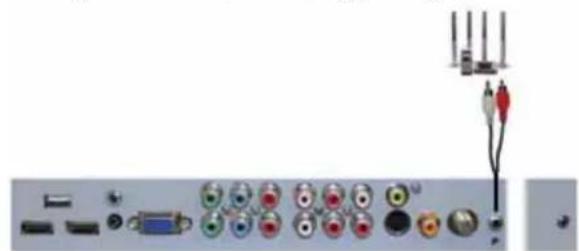
natural_image
Back panel of a computer interface showing various electronic components and connectors (no visible text or labels)- Make sure the power of the TV and your receiver is turned off.
- Obtain a 3.5mm stereo/audio cable (if your amplifier audio connection requires RCA audio out jacks you will need to obtain an 1/8" Stereo Mini Plug to RCA adapter cable). Connect it to your receiver's audio input connection and the 3.5mm stereo/audio connection on the Analog Audio port on the back of the TV.
- Turn on the TV and your receiver.
Please Note :
- If you want pure digital stream for your receiver to decode, you must also configure the TV's OSD Sound->Digital Audio Out function. Make sure the option is on Bit Stream.
- If your receiver is making static noises when receiving Bit
- Stream, you must use the PCM option instead.
- Refer to the receiver's manual to make sure the receiver is configured to receive signals correctly from the TV
CONNECTING TO A PC
Connecting with DVI Digital (Best)
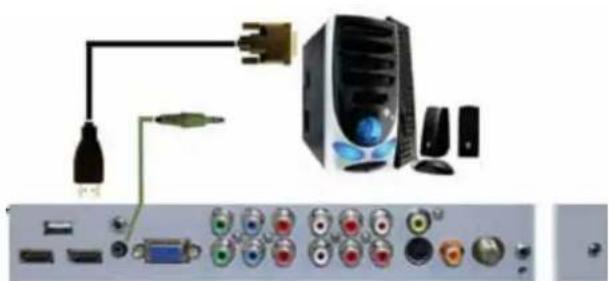
natural_image
Diagram of a computer setup with ports, cables, and connectors (no text or labels visible)- Make sure the power of the TV and your receiver is turned off.
- Obtain a HDMI to DVI conversion cable; connect the DVI side of the conversion cable to the DVI output of your PC, and the HDMI side of the conversion cable to the HDMI port off the back of TV.
- Obtain a 3.5 mm Mini-jack, connect to the audio out of your PC and the other end to the VGA Stereo Input Port.
- Turn on the power to the TV and the PC.
- From the remote control's source button, or the Source button from the TVs panel, switch to HDMI.
Please Note :
- For the best picture, set your PC resolution to 1920 x 1080 at 60 Hz. Refer to the PC or graphic card manual for further instructions on how to set your resolution and refresh rate.
- Refer to your PC manual for video output requirements of the video card.
- The TV will turn off automatically if there's no signal present for more than 15 minutes.
- If HDMI 1 is already occupied, use HDMI 2 as your connection port, and switch source to HDMI 2.
Continued on next page
CONNECTING TO A PC (Continued)
Connecting with VGA Analog (Good)
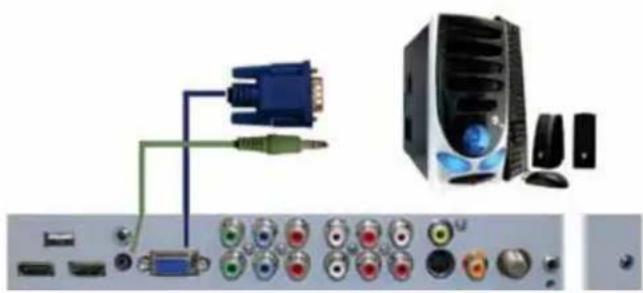
natural_image
Electronic equipment panel with connectors and a server tower (no visible text or symbols)- Make sure the power of the TV and your PC is turned off.
- Obtain a 15-pin D-Sub VGA cable, connect to the VGA output of your PC and the other end to the VGA port off the back of your TV.
- Obtain a 3.5 mm Mini-jack, connect to the audio out of your PC and the other end to the VGA Stereo Input port.
- Turn on the power of the TV and your PC.
- Use the remote control's source button or the source button the TV to switch to VGA.
Please Note :
- For the best results, please set your PC resolution to
- 1920 x 1080at 60 Hz. Refer to the PC or graphic card's manual for further instructions on how to set your resolution and refresh rate.
- Refer to your PC manual for video output requirements of the video card.
- The VGA port of the TV features a power saving mode which will automatically turn off the TV if there is no signal provided for more than 15 minutes.
Connecting the Power Cord
WARNING:
TV AND GFCI RECEPTACLE MUST BE INSTALLED AT LEAST 5 FEET AWAY FROM STANDING WATER, SUCH AS (BUT NOT LIMITED TO) A POOL OR SPA.
Connect the power cord after you have made connections to your video equipment.

text_image
Connect the with "in-use" Warning: TV standing wa spa. Power CordBack Panel
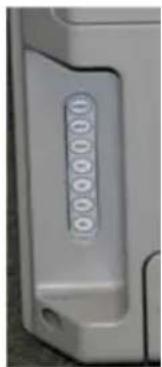
natural_image
Close-up of a gray electronic device's side panel with a circular button labeled '000000' (no additional text or symbols visible)| Power Turns TV on/off. | |
| Menu Displays the On-Screen Display (OSD) menu.In OSD menu, press key to return to pre-phase. | |
| Vol+/Vol- Adjusts volume.In OSD menu, both keys are used to navigate within menu.Vol+/Vol- is used to select the highlighted options. | |
| CH+/CH- Adjusts channels.In OSD menu, both keys are used to navigate within the menu. | |
| Source Press to change the input sources. |

text_image
IR Sensor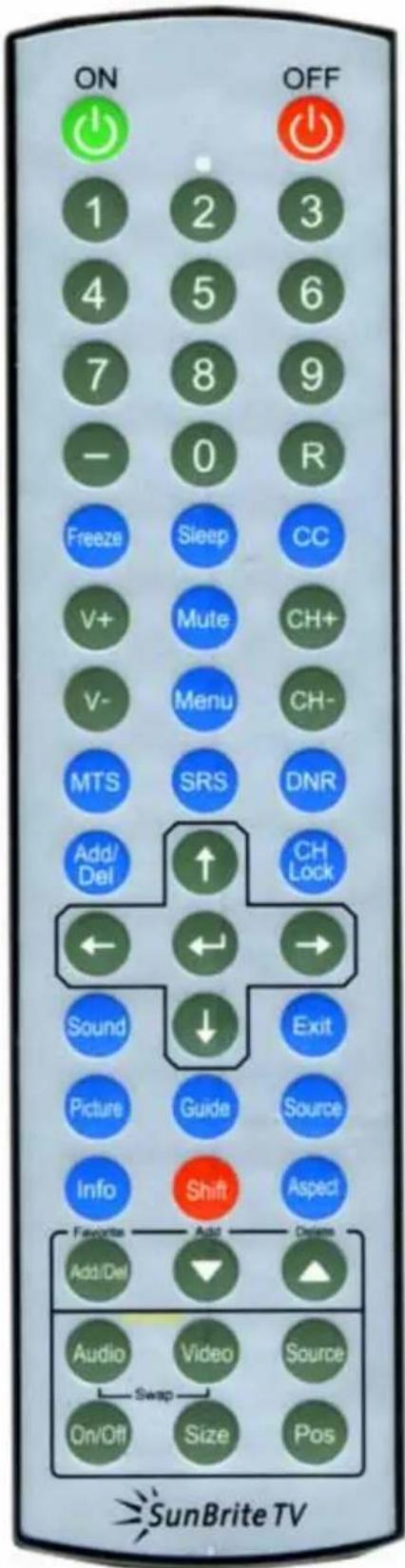
text_image
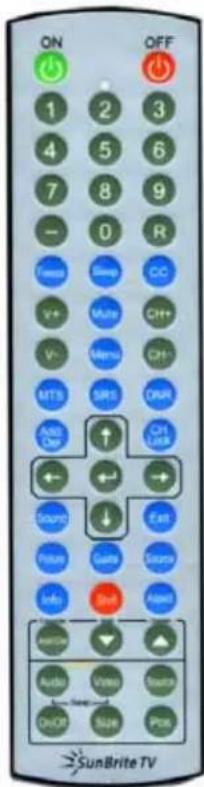
ON OFF 1 2 3 4 5 6 7 8 9 - 0 R Freeze Sleep CC V+ Mute CH+ V- Menu CH- MTS SRS DNR Add/ Del ↑ CH Lock ← ← → Sound ↓ Exit Picture Guide Source Info Shift Asped Focce Add Odom Add/Del ▼ ▲ Audio Video Source On/Off Swap Pos SunBrite TVON – Powers the TV On.
OFF – Powers the TV Off.
0\~9 - Sets the channels.
Dash (-) – Inserts the dash for selecting digital channels directly.
R – Returns to the previous channel.
FREEZE – Freezes the TV picture. CC – Cycles between different closed captioning modes.
SLEEP – Sets the Sleep timer.
CC- Selects Closed Caption.
V+ – Functions the Volume Up and Menu Right.
V- – Functions the Volume Down and Menu Left.
MUTE – Mutes the TVs Audio.
MENU – Opens / Exits the TV menu.
CH+ – Functions the Channel Up and Menu Up.
CH- – Functions the Channel Down and Menu Down.
MTS – Selects stereo, mono, or second audio programming.
SRS – Sets Surround Sound.
DNR – Enables the Digital Noise Reduction on the TV.
ADD/Del – Adds or deletes the current channel.
CH Lock – Locks the current channel you are on, so that kids cannot view the locked channel unless unlocked by a password. You will also need to input a password when locking the channel.
↑ / ↓ / ← / → / - Allow you to navigate inside the OSD menu. They also function as CH+/- for digital channels in the tuner.
- (Enter) – Allows you to select functions inside the OSD menu, acts as the Enter button for OSD menu for changing channels.
SOUND – Selects various preset sound settings.
EXIT – Allows you to quit from the OSD menu..
PICTURE – Selects various preset picture settings.
GUIDE – Opens the current digital channel information guide.
SOURCE – Cycles between different inputs of the TV.
INFO – Shows current channel information, display input and resolution.
SHIFT – Used with the 0-9 numeric pad to select inputs.
ASPECT – Changes the TV between different display modes.
FAVORITE ▲/▼ – Changes the channel up or down from you Favorite channel list.
FAVORITE ADD / DEL – Adds or deletes the current channel from the favorites channel list.
Picture In Picture/Picture On Picture (PIP and POP) Functions
(Note: PIP functions are not supported on this model)
AUDIO – Switches Audio from the TV and PIP or POP windows.
VIDEO – Switches video from the PIP window to the main screen.
SOURCE – Changes the input source of the PIP window and POP window.
ON/OFF – Turns on or off the PIP and POP window.
SIZE – Changes size of the PIP window.
POS – Changes the position of the PIP window.
text_image
ON OFF 1 2 3 4 5 6 7 8 9 - 0 R Famps Sling CC V++ Multi CH+ V+ Miero CH- MTS SRS OKR Auto Opt ↑ CH Sound ↓ Exit Profile Guide Source Info Red Alt Audio View Search OROT SUK PDS SunBrite TVThis remote control follows Sony's TV remote codes with discrete on/off and input select. Direct TV code is 10,000
About the Water-Resistant Remote Control
The SunBriteTV ^® Water-Resistant Remote Controller is engineered to give you many years of service.
"Water-resistant" means that the remote control can be in water for short periods of time without damaging the internal workings of the unit. It can be left in the rain, and even dropped in water, as long as it is retrieved quickly. The remote control should not be left floating in water.
The functionality of the remote control is under warranty for one year. If the remote control malfunctions within the one-year warranty period, replace the batteries with new long-life alkaline batteries.
If the problem is not solved with new batteries, contact the SunBriteTV Customer Care Center. SunBriteTV will repair or replace the remote control at SunBriteTV's option.
If you have a warranty claim, contact the SunBriteTV Customer Care Center for further instructions.
800.331.4626
www.sunbritetv.com
On-Screen Display Controls
Via Remote Control
In order to adjust most of the options inside the On Screen Display (OSD), the picture below shows all the buttons used on the remote control.

natural_image
Cross-shaped diagram with six green circular arrows pointing in different directions (no text or symbols)- This button functions as up direction in the OSD.
- This button functions as down direction in the OSD.
- This button functions as left direction in the OSD.
- This button functions as right direction in the OSD
This button changes the channel in conjunction with the number pad and also functions as enter for selecting options in the OSD.

This button opens the OSD and also exits the OSD by going to the previous level of the OSD.

This button exits the OSD entirely.
Via the TV's Side Panel Buttons
In order to provide more than one type of OSD control buttons, the side panel's buttons have also been made functional for adjusting the OSD.

MENU - This button opens the OSD
CH(▲) – This button changes the channel to a higher number and also functions as up direction in the OSD.
CH(▼) – This button changes the channel to a lower number and also functions as down direction in the OSD.
VOL(+) – This button decreases the volume and functions as left direction in the OSD. It also is used to select the highlighted options.
VOL(·) – This button decreases the volume and functions as right direction in the OSD.
Your TV has been factory-set to instantly enjoy your programming. In the event you turn on the TV and get the message, "Please run Channel Auto Scan," press your remote's Menu button, Press the Channel function and press Auto Scan.

text_image
Picture Audio Time Setup Lock Channel| Picture:This function changes the picture settings for all ports, such as tint, contrast, sharpness and dynamic noise reduction. | Audio:This menu manages the audio settings such as Bass, Treble, Balance, AVC, SPDIF, Audio Language, etc. | Time:This menu manages the time functions such as Sleep Timer, Time Zone, Daylight Saving Time, and Clock. | Setup:This menu manages Language, Transparency, Zoom Mode, Noise Reduction, Closed Caption, etc. | Lock:This menu manages parental controls. | Channel:This menu manages Channel functions such as scanning channels, editing channels, checking signal strength, etc. |
Adjusting On-Screen Displays – Picture Menu
Picture Menu
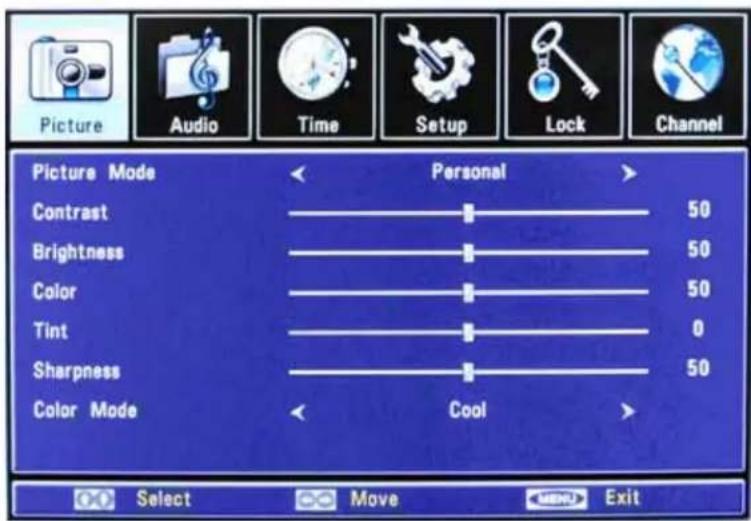
From the PICTURE menu you can adjust PICTURE MODE, CONTRAST, BRIGHTNESS, COLOR, TINT SHARPRESS, COLOR MODE.
- Press ▼▲ buttons to move the cursor to the item to be selected.
- Press ◀▶ buttons to make the desired adjustments.
- When you are satisfied with your adjustments, press MENU or EXIT to exit the main menu.
Picture Menu
text_image
Picture Audio Time Setup Lock Channel Picture Mode < Personal > Contrast 50 Brightness 50 Color 50 Tint 0 Sharpness 50 Color Mode < Cool > Select Move ExitPicture Mode
Press ▼▲ buttons to Picture Mode, then use ◀▶ to adjust the Picture Mode such as Personal/Standard/Dynamic/Soft.
Contrast
Press ▼▲ buttons to Contrast, then use ◀▶ to adjust the contrast of the picture.
Brightness
Press ▼▲ buttons to Brightness, and use ◀▶ to adjust the brightness of the picture.
Color
Press ▼▲ button to Color, then use ◀▶ to adjust the color saturation.
Tint
Press ▼▲ button to Tint, then use ◀▶ to adjust the tint of picture.
This function is available in the NTSC, which is one of the color systems.
Sharpness
Press ▼▲ buttons to Sharpness, then use ◀▶ to adjust the sharpness level of picture.
Color mode
Press ▼▲ buttons to Color Mode, then use ◀▶ to adjust the color mode of picture, such as Cool, Normal and Warm
Audio Menu
- Press ▼▲ buttons to move the cursor to the item to be selected.
- Press ◀▶ buttons to make the desired adjustments.
- When you are satisfied with your adjustments, press MENU or EXIT to exit the main menu.
Sound Mode

text_image
Picture Audio Time Setup Lock Channel Sound Mode Personal Bass 51 Trable 50 Balance 50 Surround Off AVC Off SPDIF RAW Audio Language English Select Move MENU ExitSound Mode
Allows you to you choose your sound preferences. Press ▼▲ buttons to Sound Mode, then use ◀▶ to adjust the Sound Mode such as Personal/Standard/Music/Movie.
Bass
Press ▼▲ buttons and then use ◀▶ button to increase or decrease the level of the Bass response.
Treble
Press ▼▲ buttons and then use ◀▶ buttons to increase or decrease the level of the Treble sounds.
Balance
Pressd ▼▲ buttons and then use ◀▶ buttons to adjust the audio output level between Left and Right Speakers.
Surround
Surround Sound is not supported on this model.
AVC
Press ▼▲ buttons and then use ◀▶ buttons to select AVC On or Off.
SPDIF
Press ▼▲ buttons and then use ◀▶ buttons to select SPDIF Type, such as PCM and RAM.
Audio Language
Press ▼▲ buttons to select one of the audio languages such as English/French/Spanish.
The language code must be programmed for this option to be available. If there is no selection it has not been programmed for this model.
Note: SPDIF Type and Audio Language are available only in DTV.
Time Menu
- Press ▼▲ buttons to move the cursor to the item to be selected.
- Press ▶ buttons to make the desired adjustments.
- When you are satisfied with your adjustments, press MENU or EXIT to exit the main menu.
Time Menu
text_image
Picture Audio Time Setup Lock Channel Sleep Timer Off Time Zone Pacific Daylight Saving Time Off Clock 2012/12/31 04:03PM Backlight 10 Select Move ExitSleep Timer
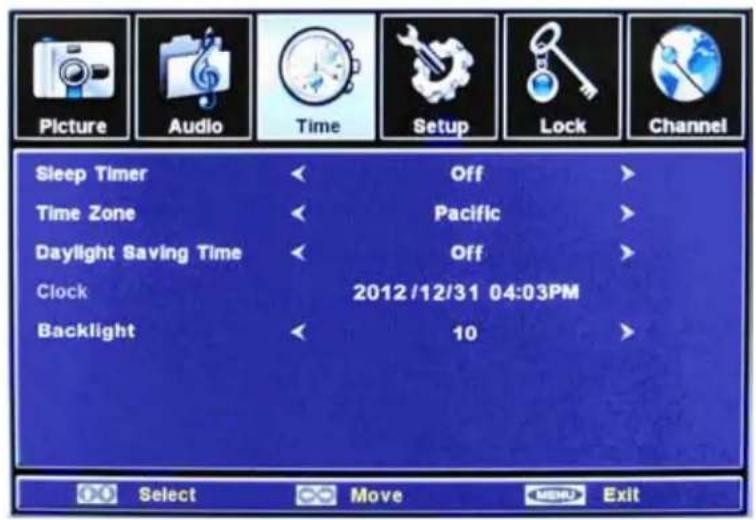
Press ▼▲ buttons to Sleep Timer, then use ◀▶ buttons to select the sleep timer. The options are: Off; 5Min; 10Min; 15Min; 30Min; 45Min; 60Min; 90Min; 120Min; 180Min; 240Min.
Time Zone
Press ▼▲ buttons to Time Zone, then use ◀▶ buttons to select the correct time zone. The options are: Alaska; Hawaii; Pacific; Mountain; Central; Eastern.
Daylight Saving Time
Press ▼▲ buttons and then use ◀▶ buttons to select Daylight Saving Time ON or OFF. When Daylight Saving Time is ON, the clocks are set one hour ahead of local standard time.
Clock
The time is decoded from the digital signal and displayed (such as DTV,HDMI) This item is available only in English.
Setup Menu
- Press ▼▲ buttons to move the cursor to the item to be selected.
- Press ◀▶ buttons to make the desired adjustments.
- When you are satisfied with your adjustments, press MENU or EXIT to exit the main menu.
Setup Menu

text_image
Picture Audio Time Setup Lock Channel Menu Language English Transparency On Zoom Mode Wide Noise Reduction Weak Advanced Closed Caption XVS Restore Default Select Move MENU ExitMenu language
Press ▼▲ buttons to Menu Language, then use ◀▶ buttons to select menu language, the options are English / French / Spanish.
Transparency
Press ▼▲ buttons to Transparency, then use ◀▶ buttons to select Transparency ON or OFF.
Zoom Mode
Press ▼▲ buttons to Zoom Mode, then use ◀▶ buttons to select current zoom mode, the options are Normal / Wide / Zoom / Cinema.
Noise Reduction
Press ▼▲ buttons to Noise Reduction, then use ◀▶ buttons to select current noise reduction level, the options are off / Weak / Middle / Strong.
Advanced
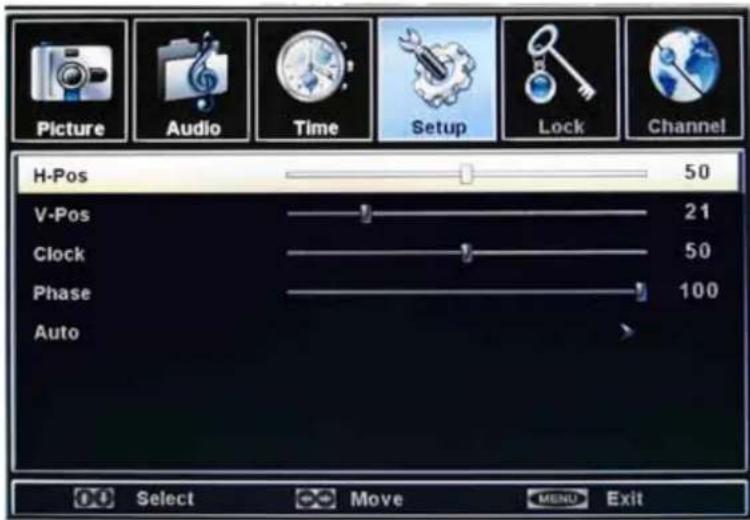
Press ▼▲ buttons to Advanced, then press ▶ button to enter the Advanced Sub Menu shown below Note: This item is only available in VGA source input.
Advanced Sub Menu
text_image
Picture Audio Time Setup Lock Channel H-Pos 50 V-Pos 21 Clock 50 Phase 100 Auto Select Move MEND ExitH-Pos
Press ▼▲ buttons and then use ◀▶ adjust the horizontal position of the picture (this function is to adjust the picture to Left/Right as to your preference).
V-Pos
Press ▼▲ buttons and then use ◀▶ adjust the vertical position of the picture (to adjust the picture to Left/Right as to your preference).
Clock
Press ▼▲ buttons and then use ◀▶ to adjust the clock of the picture. (This function is to minimize any vertical bars or stripes visible on the background screen. The horizontal screen size will also change.
Phase
Press ▼▲ buttons and then use ◀▶ to adjust the phase of the picture. (This function allows you to remove any horizontal noise and to sharpen the image of characters).
Auto
Press ▼▲ buttons and then press OK button to perform the Auto Adjust function that automatically adjusts the available options for the best viewing configuration.
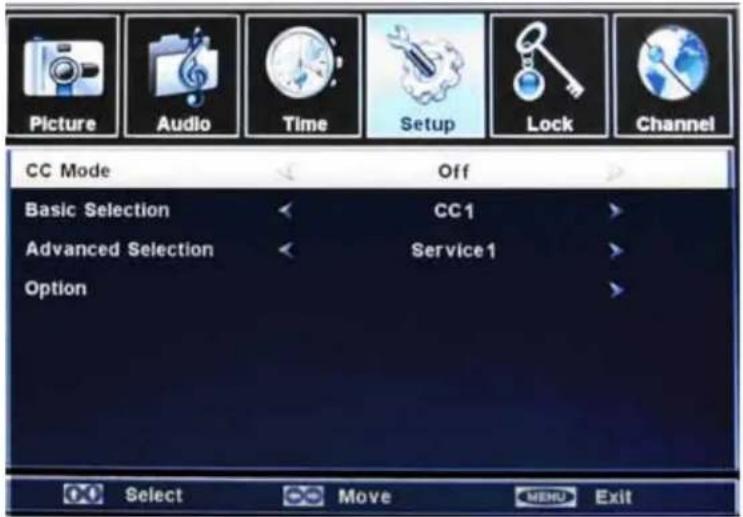
Closed Caption
From the Setup Menu, press ▼▲ buttons to Closed Caption, then press ▶ button to enter the Closed Caption submenu list shown below.
Closed Caption Submenu
text_image
Picture Audio Time Setup Lock Channel CC Mode Off Basic Selection < CC1 > Advanced Selection < Service1 > Option > Select Move MENU ExitBasic Selection
Press ▼▲ buttons and then use ◀▶ buttons to select current zoom mode, the options are CC1 / CC2 / CC3 / CC4 / TEXT1 / TEXT2 / TEXT3 / TEXT4.
Advanced selection
Press ▼▲ buttons and then use ◀▶ buttons to select current zoom mode, the options are Service1 / Service 2 / Service 3 / Service 4 / Service 5 / Service 6.
Option
Press the ▶ button to enter the submenu list shown below.
Closed Caption/OptionSub-Menu

text_image
Picture Audio Time Setup Lock Channel Mode Default Font Style Default Font Size Default Font Edge Style Default Font Edge Color Default FG Color Default BG Color Default FG Opacity Default BG Opacity Default Select Move ExitXVS Submenu
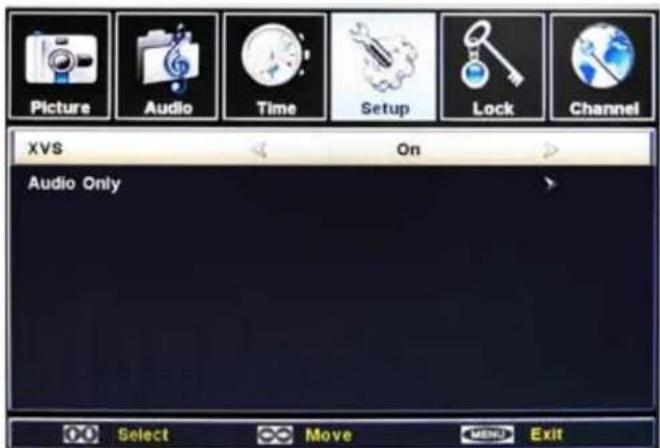
text_image
Picture Audio Time Setup Lock Channel XVS On Audio Only Select Move MENU ExitMode: Press ▼▲ keys to select either Default and Custom. If you set Automatic, the other choices are disabled and can't be adjusted.
Font Style: press ◀▶ keys to select one of the Defaults and from Font0 to Font7.
Font Size: press ◀▶ to select one of Default / Normal / Large / Small.
Font Edge Style: press ◀▶ keys to select one of Default / None / Raised / Depressed / Uniform / Left Shadow / Right Shadow.
Font Edge Color: press ◀▶ keys to select one of Default / Black / White / Red / Green / Blue / Yellow / Magenta / Cyan.
FG Color: press ◀▶ keys to select one of Default / White / Black / Red / Green / Blue / Yellow / Magenta / Cyan.
BG Color: press ◀▶ keys to select one of Default / Black / White / Red / Green / Blue / Yellow / Magenta / Cyan.
FG Opacity: press ◀▶ to select one of Default / Solid / Flashing / Translucent / Transparent.
BG Opacity: press ◀▶ to select one of Default / Solid / Flashing / Translucent / Transparent.
XVS (Dynamic Luminance Control)
From the Setup Menu, press ▼▲ buttons to XVS, to enter the XVS menu. Use the ◀▶ buttons to select ON or OFF.
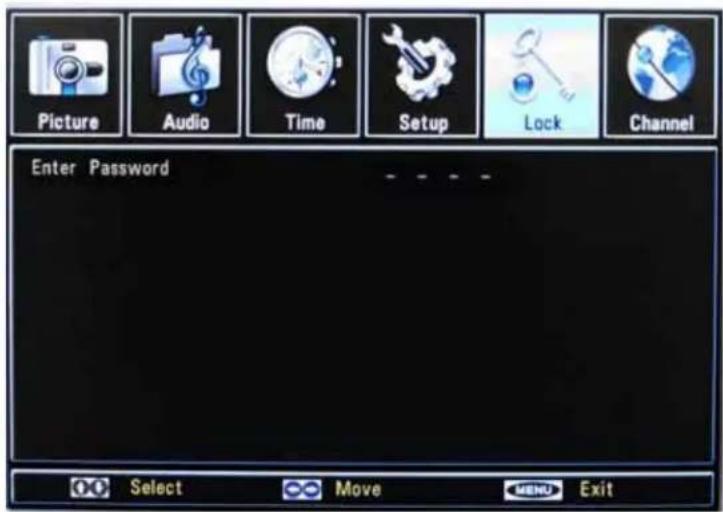
lock Menu
text_image
Picture Audio Time Setup Lock Channel Enter Password OO Select ∞ Move MEND ExitPress ▼▲ buttons to move the cursor to the Enter Password selection.
Press "Enter Password" to enter the password. (The default password is 0000.)
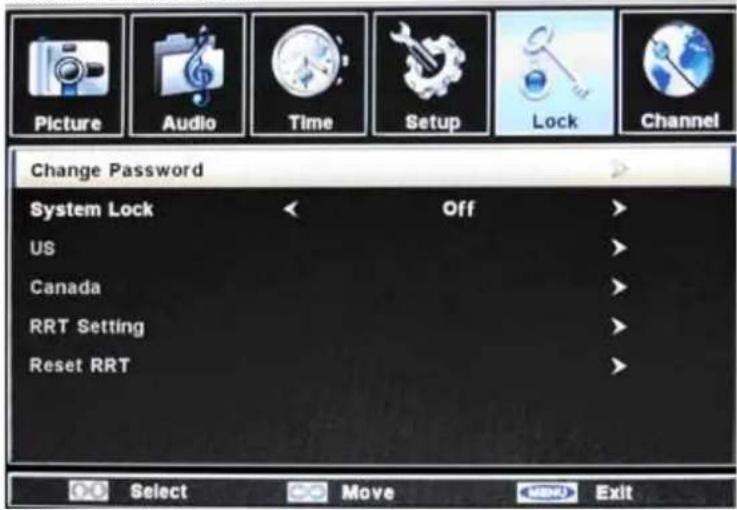
To change the Password, press the ▶ button to enter the Lock Menu submenu
lock Menu Sub-Menu
text_image
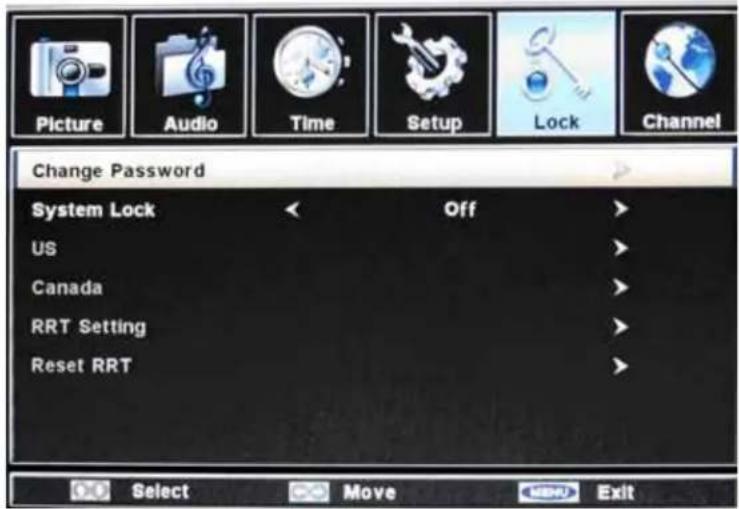
Picture Audio Time Setup Lock Channel Change Password System Lock < Off US Canada RRT Setting Reset RRT Select Move ExitChange password
Press ▶ button to enter the submenu. Once there, you can enter the new password and confirm it. The password will be changed.
Note: If you change the password, write down the new password, and keep it in a safe place
System lock
Press ▼▲ buttons and then use ◀▶ buttons to select system lock ON or OFF. When system lock is OFF, the item choices are: US / Canada / RRT setting. Reset RRT will be grayed
US
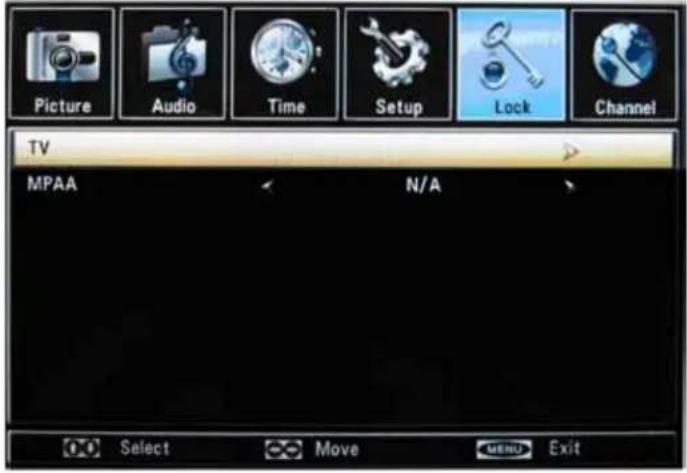
Press the ▶ button to enter the submenu list to set the US rating functions. (US Menu is on the next page.)
US Menu
text_image
Picture Audio Time Setup Lock Channel TV MPAA N/A Select Move MENU ExitFrom the US Menu, press ▼▲ buttons to the TV function.
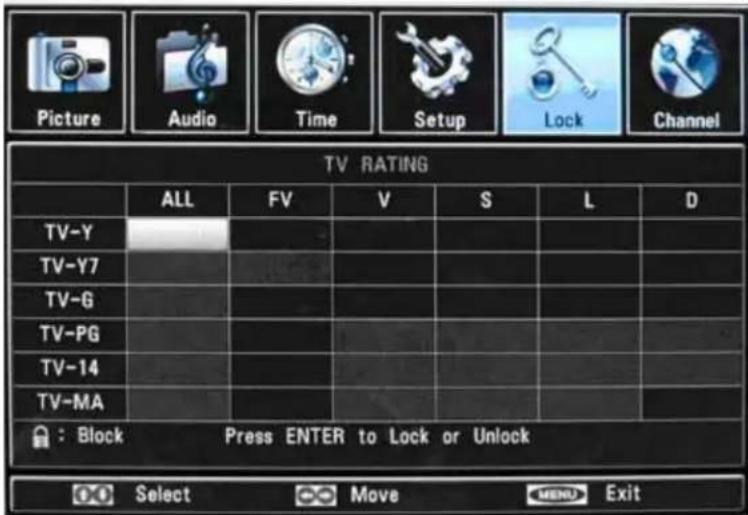
Press ▶ button to enter the submenu shown below.
TV Menu
text_image
Picture Audio Time Setup Lock Channel TV RATING ALL FV V S L D TV-Y TV-Y7 TV-G TV-PG TV-14 TV-MA Block Press ENTER to Lock or Unlock Select Move Menu ExitTV-Y: For all children
TV-Y7: For children above 7
TV-g: For anyone
TV-Pg: Children can watch with guardian
TV-14: Need parent guide
TV-MA: Only for adult
All: Select all functions above
FV: Fantasy Violence
I: Language (abusive, sexual)
S: Sexual
V: Violence
D: Dialog (sexual)
Us Menu
text_image
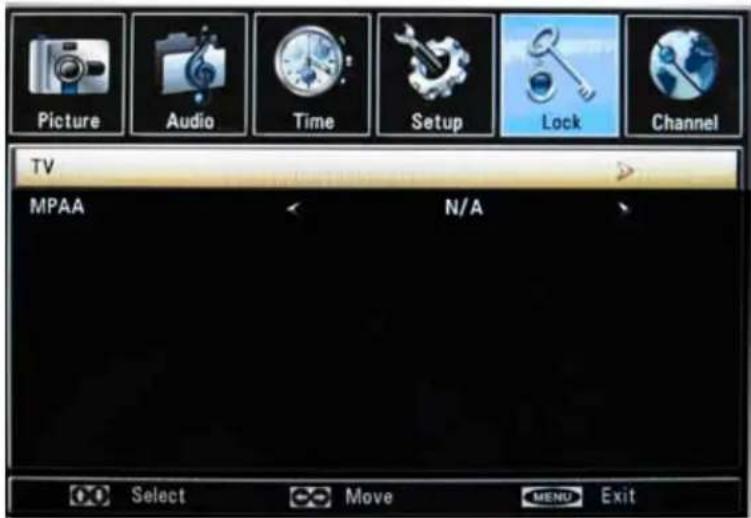
Picture Audio Time Setup Lock Channel TV MPAA N/A Select Move MENU ExitMPAA
From the Us Menu, press ▼▲buttons and use ◀▶ buttons to select one of N/A / G / PG / PG-13 / R / NC-17 / X.
Lock Menu Sub-Menu
text_image
Picture Audio Time Setup Lock Channel Change Password System Lock < Off US Canada RRT Setting Reset RRT Select Move ExitCanada
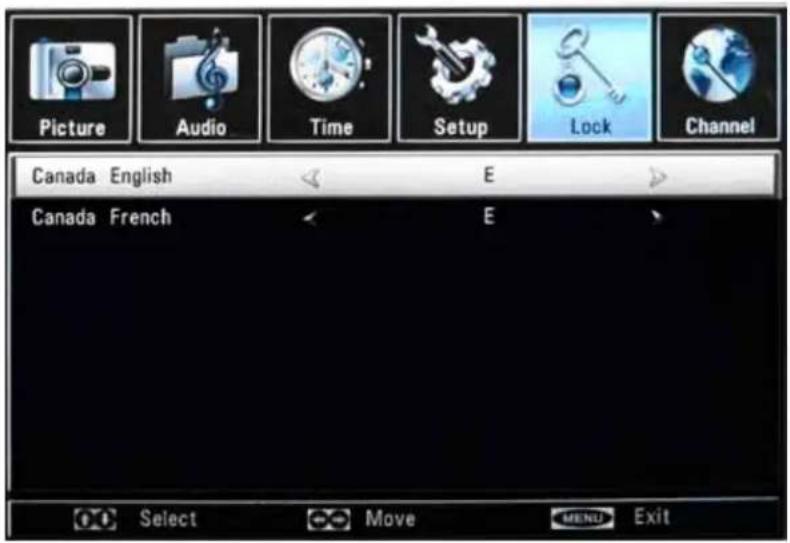
Press the ▶ button to enter the submenu for the Canadian rating functions.
Canada Menu
text_image
Picture Audio Time Setup Lock Channel Canada English E Canada French E Select Move MENU ExitCanada English
Press the ◀▶ button to select one of E / C / C8+ / G / PG / 14+ / 18+.
Canada French
Press the ◀▶ button to select one of E / G / 8ans+ / 13ans+ / 16ans+ / 18ans+.
Channel Menu
- Press ▼▲ buttons to move the cursor to the item to be selected.
- Press ◀▶ buttons to make the desired adjustments.
- When you are satisfied with your adjustments, press MENU or EXIT to exit the main menu.
text_image
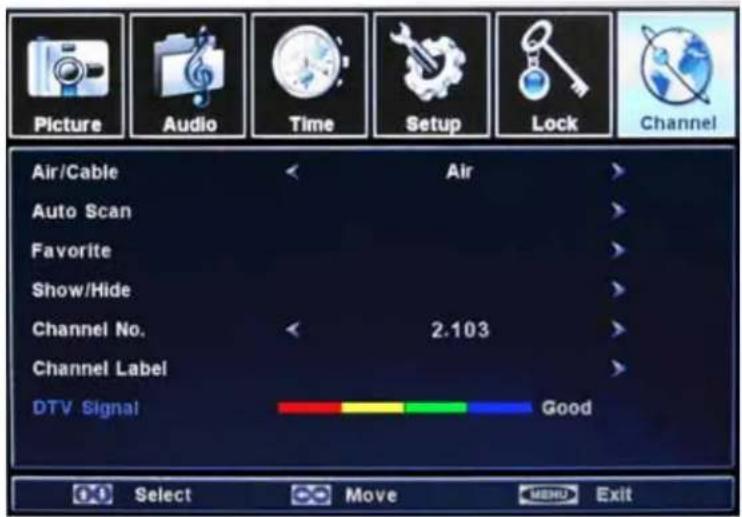
Picture Audio Time Setup Lock Channel Air/Cable Air Auto Scan Favorite Show/Hide Channel No. 2.103 Channel Label DTV Signal Good Select Move MERD ExitChannel Menu
The CHANNEL MENU is used in TV source, only. You can complete channel search and settings here
Air/Cable
Press ◀▶ buttons to select Air or Cable.
Auto Scan
Press the ▶ button to enter the submenu list below
Auto Scan

text_image
Picture Audio Time Setup Lock Channel Cable System AUTO Start to Scan Select Move MENU ExitCable system
Press the ◀▶ button to select the cable system.
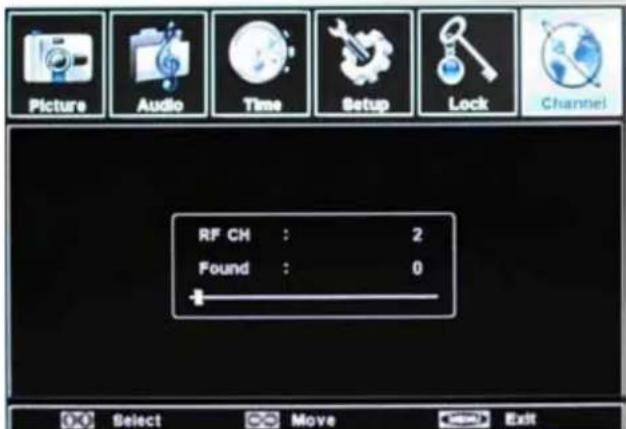
Start to Scan
Press the ▶ button to start auto scan.
text_image
Picture Audio Time Setup Lock Channel RF CH : 2 Found : 0 Select Move ExitFavorite

text_image
Picture Audio Time Setup Lock Channel No. Program Name Favorite 2.103 Select Move MENU ExitFavorite
From the Channel Menu, press the ▼▲ buttons to select Favorite. Press the ▶ button to enter the submenu shown at left.
Press ▼▲ keys to select channels, and press OK to add current channel to Favorite Channel Table.
Follow the same directions to delete a channel from the Favorite Channel Table.
Show/Hide Menu
text_image
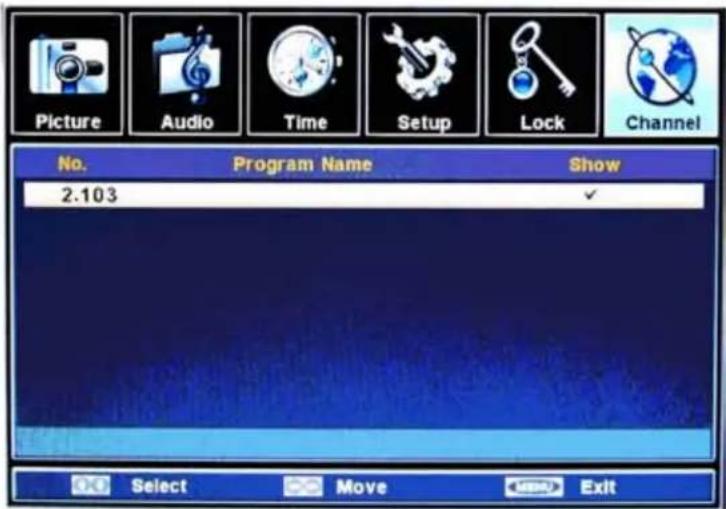
Picture Audio Time Setup Lock Channel No. Program Name Show 2.103 OK Select Move SSD ExitShow/Hide
From the Channel Menu, press the ▼▲ buttons to select Show/Hide. Press the ▶ button to enter the submenu (shown left).
Press ▼▲ keys to your desired channel. Press OK to show or hide the specified channel.
If the channel is Hidden, user will be unable to see the channel by pressing CH+ or CH-. They can select the channel by pressing the channel number directly.
Channel Menu

text_image
Picture Audio Time Setup Lock Channel Air/Cable Air Auto Scan Favorite Show/Hide Channel No. 2.103 Channel Label DTV Signal Good Select Move MENU ExitFrom the Channel Menu, press the ▼▲ buttons to select the following functions:
Channel No.
Press the ◀▶ button to select the channel No.
Channel Label
Press the ▶ button to enter the submenu, where you can edit the channel label.
DTV Signal
This item shows current DTV signal strength.
The following table contains the common problems and the solutions to these problems. Please check this list before you contact the technicians.
| Problems | Solutions |
| NO PICTURE | Connect power cord correctly. |
| Turn on power. | |
| Connect video cable correctly. | |
| Select the input signal source with proper cable connection with the source button. Unplug TV for at least one hour to perform hard reset. | |
| ABNORMAL COLORS | Match the colors on the cables to the ports off the back of the television. I.E. red cable to red colored port. |
| PICTURE IS TOO DARK | Adjust your contrast, brightness and lamp settings from the OSD Menu. |
| AUDIO ONLY NO PICTURE | Make sure you have connected both your video and audio cables. |
| The TV's tuner signal must not be lower than 65 %. | |
| PICTURE ONLY NO AUDIO | Make sure the audio cable is connected. |
| Readjust your volume via the remote control. | |
| The TV's tuner signal must not be lower than 65 %. | |
| REMOTE CONTROL DOES NOT WORK | Turn off the TV, unplug it from the socket. Remove the batteries out of the remote for 30 minutes. Press the remote buttons and the power button randomly for a good 2 seconds, and then reinstall the batteries. Try the remote to see if it works. |
| The TV's remote sensor is also housed in the same place as the power indicator light. Please make sure there is line of sight from the remote control's front sensor to the remote sensor of the TV. | |
| CANNOT RECEIVE SUFFICIENT CHANNELS THROUGH THE ATSC/NTSC TUNER | The TV's tuner signal must not be lower than 65 %. Change the direction of your antenna and rescan your channels. If you have cable call up your cable company and ask about signal strength of your local cable. |
| NO COLOR | Please adjust your picture setup and make sure the saturation and the RGB are not turned all the way down. |
| The TV's tuner signal must not be lower than 65 %. Check your signal. | |
| WEAK SIGNAL OR NO PROGRAM SYMBOL ON SCREEN | The TV's tuner signal must not be lower than 65 %. Change the direction of your antenna and rescan your channels. If you have cable call up your cable company and ask about signal strength of your local cable. |
| TV'S UNIVERSAL REMOTE CODE | This television follows SONY's universal remote code. To find the actual code you must read through your own universal remote's guide book. |
| Problems | Solutions |
| TV CHANNELS ARE BLOCKED | Check your auto lock function's settings inside the OSD. You may have locked up some channels but forgot about them. |
| UNIVERSAL REMOTE CODE | This TV follows SONY's universal remote code. Please check your hand book for SONY's codes then apply them. |
| THE TV TURNS ON OR OFF SLOWLY AND THE SCREEN SHOWS UP SLOWLY | This TV is a High Definition liquid crystal display panel TV. It requires a few more seconds than normal TVs to power up and show the picture. |
| NO SOUND ON PC | Make sure you have a 3.5 mm mini-jack cable connected from your pc's sound output to the TV's VGA STEREO INPUT. |
| HDCP VIDEO SAYS NO HDCP SUPPORT | Reboot your HDCP video device but turning them off and unplugging the power cord. Wait up to 8 minutes to plug the power back in to see if it works or not. |
| HDCP VIDEO HAS NO AUDIO | Make sure you have a 3.5 mm mini-jack cable connected from your HDCP video device's sound output to the TV's VGA STEREO INPUT. If your HDCP video device uses RCA AUDIO jacks, you'll need to obtain a RCA audio converted into 3.5 mm mini-jack cable. |
| CANNOT GET 1366X768 ON PC VGA | Although the screen's max resolution is 1366x768, no video card maker can support such resolution. The industry standard for similar resolution support is 1360x768. Please use that as you resolution. |
| PICTURE IS DISTORTED OR HAS ABNORMAL SOUND | This might be from interference from large electrical appliances, cars, motorcycles, or fluorescent lights. If the TV is close to the wall, try moving the TV to another room in your house to see if the problem still occurs. |
| PICTURE DOES NOT COVER THE ENTIRE SCREEN | If you're using HDMI or a TV digital channel make sure you use the ASPECT button to switch to 16:9 format. If you are using VGA, use the AUTO ADJUST function to adjust to the screen. Please Note : If you are using regular analog TV, AV, or component in 480i resolution, use the ASPECT button to switch to 16:9 in order to fill up the screen. Please Note : This note this feature will distort the picture. |
| PICTURE QUALITY IS HORRIBLE!! | For best image quality, view HD widescreen programs where possible. If HD content is not available view "Standard Definition" from a digital source. Standard, analog TV will always be noticeable inferior to HD because your HDTV has video that is many times better than old TV's and so you can see interference and deficiencies you did not KNOW you had. |
| PICTURE HAS PIXELS THAT ARE ALWAYS DISPLAYING THE SAME COLOR | Your TV is manufactured using an extremely high level of precision technology, however, sometimes some pixels of your TV may not display. Pixels defects within industry specifications are inherent to this type of product and do not constitute a defective product. |
| Problems | Solutions |
| SWITCHING A CHANNEL OR SOURCE CHANGES THE VOLUME | Different channels and inputs will sometimes have this effect because the channel signal's own volume is already loud. There is no way remove this completely. The TV has an AUTO VOLUME LEVEL function that can combat this type of effect. Please make sure that function is turned on. |
| THERE IS NOISE OR TRASH PIXELS ON THE SCREEN | When your LCD HDTV's resolution is higher than the digital channel's broadcast resolution, the signal is up-converted to match your TV's resolution. Up-converting can cause this type of effect. |
| TIPS FOR HIGH DEFINITION USERS | The TV is an ideal platform for viewing High Definition Content. The best image quality can be achieved by HDMI, YPbPr (Component), then VGA. However, due to variances in broadcast practices, it is possible some image distortions can occur. |
| TIPS FOR LETTERBOX CONTENT USERS | Letterboxed (Widescreen) versions of DVD movies are most commonly formatted for standard 4:3 TVs. The TV has the capability of expanding this content so the entire screen is filled at the expense of the image proportion. To use this function press the aspect button on the remote control and cycle among the available options. |
| I CANNOT FIND THE VOLUME AND CHANNEL CHANGING BUTTONS | The buttons are represented by the ▲▼◄► buttons located on the remote control. ▲▼ changes the channels and ◀► changes the volume. |
| I CANNOT FIND ENTER BUTTON | The enter button has the symbol ⌈. It is located in the center of the ▲▼◄► buttons. |
| TV TURNS OFF AUTOMATICALLY AFTER 5 MINUTES | The TV features a power saving mode which will automatically turn off the TV, if there's no signal provided for more than 5 minutes. |
Caring for the LCD Panel:
1. Cleaning the LCD Panel:
Gently wipe the surface of the display panel with a soft cloth (cotton or flannel is best). Be sure the cloth is clean and does not contain liquid cleaners or other chemicals.
If the LCD panel is very dirty, use a soft damp (with water only) cloth to gently clean the panel.
2. When the TV is not in use, keep it covered with the SunBriteTV Outdoor Dust Cover
The fitted dust cover is designed to protect the LCD panel from the harmful UV rays from direct sunlight, and keeps wind-blown objects from scratching the surface of the panel.
To order a replacement Dust Cover, contact your Authorized SunBriteTV dealer or SunBriteTV's Customer Care Center at 800.331.4626.
General Cleaning
Remove any dirt and salt deposits from the cabinet, being careful to rinse the cloth frequently to avoid scratching the TV or screen surface. Avoid using harsh chemicals, abrasives, or solvents when cleaning any surface on the unit.
Snow and Ice
Use a soft brush and towel to remove snow and ice from the unit.
Fiber Filter- The Fiber Filters are located on the back of the TV, inside the Intake Vent at the top of the TV (Figure 1). Check the Fiber Filters periodically to ensure they are free of dust and debris. Follow the procedures below to clean the filters:
CAUTION! NEVER SPRAY OR DIRECT A HOSE INTO THE VENT OPENING OF THE TV.
- To clean the Fiber Filter, unscrew the Filter Holder (Figure 2), and lift the Filter Holder out of the TV (Figure 3).
- Pull the Fiber Filter out of the Filter Holder (Figure 4).
- Clean by removing the filter and washing with warm soapy water. Allow to completely air dry overnight prior to reinstalling. (Do not compress or squeeze filter as it will break down it's cellular structure.)
To Order Replacement Filters, contact your Authorized SunBriteTV Dealer or SunBriteTV's Customer Care Center at 800.331.4626.
- Put the Fiber Filter back up into the Filter Holder and place the Filter Holder back into the TV. Screw securely.
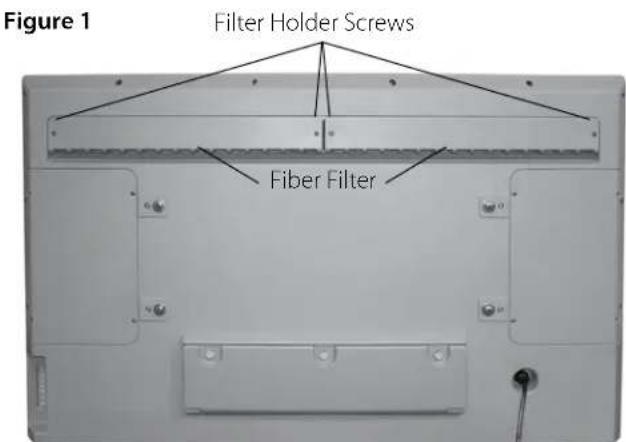
text_image
Figure 1 Filter Holder Screws Fiber Filter
natural_image
Close-up of a hand using a screwdriver to cut a laptop keyboard (no text or symbols visible)
natural_image
Hand holding a white plastic tray with evenly spaced pins, labeled 'Figure 3' (no other text or symbols visible)
natural_image
Exterior view of a modern office building (no signage)Specifications for SunBriteTV Model 5560HD
| LCD-LED Screen 55-inch | Diagonal TFT Active Matrix, LED Backlight |
| Resolution 1920 x 1080 full-HD 1080p | |
| Aspect Ratio 16:9 | |
| Contrast Ratio | 4000:1 |
| Frame Rate | 60 Hz |
| Viewing Angle 176 | ^ x 176^ |
| Response Time | 6.5 milliseconds |
| TV formats 1080p, 1080i, | 720p, 480p, 480i |
| Anti-Reflective Window Not Applicable | |
| Input Connectors:RFHDMIVideo CompositeVideo ComponentPC | Antenna/CATV (ATSC/QAM/NTSC) x1HDMI ^TM Input x2S-Video x1 and Composite Video x1, L/R Audio Inputs x1YPbPr plus Stereo Audio x215-pin D-sub VGA plus Stereo Audio |
| Control Set RS232 Serial, | Discrete IR (Sony TV IR Code Set),Concealed IR Window |
| Audio Out Digital SPDIF Audio (fixed),Analog 1/8" Headphone Jack (variable) | |
| Speakers 20-Watt Built-in Speakers | |
| Exterior | Outdoor rated ASA High-Impact Resin |
| Input Power 100-240 VAC, | 50-60 Hz 2.0 A Max |
| Operating Temp. | -24 ^ to 122 ^ F. (-31 ^ to 50 ^ C.) * |
| Non-op. Temp. | -24 ^ to 140 ^ F. (-31 ^ to 60 ^ C.)The non-operating temperature feature requires power to be applied |
| Heater Board Not Applicable | |
| Accessories Included | Weather-Proof Remote Control, outdoor dust cover |
| TV Dimensions | 53.27" W x 33.64" H x 7.35" D |
| Shipping Dimensions | 60" W x 46" H x 13" D |
| Weight | 109.0 lbs. |
| Shipping Weight | 129.0 lbs. |
| Residential Warranty | Two-year parts and labor |
| Commercial Warranty | Two-year parts and labor |
Specifications are subject to change.
*Temperature range is for operation in shaded location.
The TV should be installed in a shaded area where the screen is not facing direct sunlight (or placed/mounted where the TV can easily be turned away from direct sunlight).
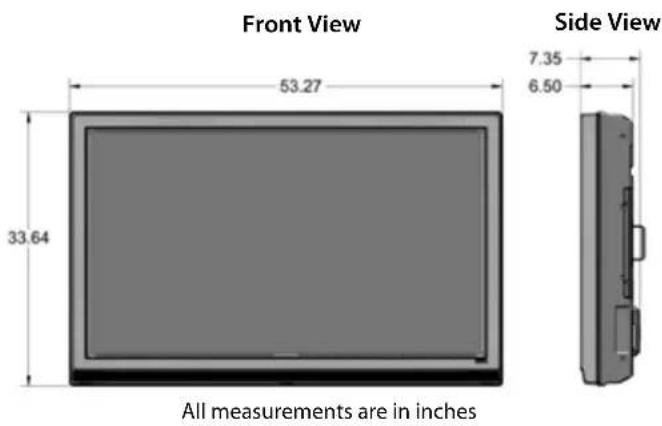
text_image
Front View 53.27 33.64 All measurements are in inches Side View 7.35 6.50Extreme Climate Warning
If temperatures below -24 F. are expected, we recommend that you bring your SunBriteTV inside to prevent damage to the LCD screen.
Programming Other Manufacturers' Universal Remote Control Devices
When programming a DirectTV, local cable universal remote control or Control system, you may find that SunBriteTV may not be on the list of TV manufacturers. If that is the case, Model 5560HD supports SONY's universal remote code. Direct TV is 10000.
SunBriteTV Pixel Quality Policy
SunBriteTV's Pixel Quality Policy
(Applicable to LCD TVs sold within USA and Canada only.)
SunBriteTV LCD screens are manufactured with rigorous standards to maintain optimal viewing. However, the LCD screen may have minor defects that appear as a small bright or dark pixel. This is common to all LCD screens used in display and television products, and is not specific to SunBriteTV.
Bright dots are dots that appear bright and unchanged in size when a LCD TV screen displays a black pattern.
Dark dots are dots that appear dark and unchanged in size when a LCD TV screen displays a pure red, green, or blue pattern.
Adjacent dots are pixels located directly next to each other.
Your SunBriteTV will be replaced under warranty if it meets one of the following criteria:
—A total of 7 defective pixels, including both bright dots and dark dots are present. (This TV screen has over a million pixels.)
—2 or more pairs of adjacent bright dots are present.
—3 adjacent bright dots are present.
—3 adjacent dark dots are present.
To locate defective pixels, the LCD panel should be examined under normal operating conditions, in its native display resolution, with a 90 degree viewing angle, from a distance of a approximately 20 inches.
To qualify for replacement, a defective LCD screen must be reported to SunBriteTV within 60 days from the day the customer receives the TV.
For questions, please call our Customer Care Center at 800.331.4626.
SunBriteTV Dust Cover

text_image
SonBriteTVThe SunBriteTV Dust Cover is constructed with weatherproof nylon ripstop UV protection fabric to help keep your all-weather outdoor television clean, protect the finish, and ensure years of maximum enjoyment. Tighten both pull cords to secure the cover in place.
We recommend that you keep your TV covered when not in use.
To install the IR Emitter:
The photo to the right shows an IR Emitter* installed.
The end of the Emitter is to be mounted in front of the IR Emitter Window.
Place the emitter on the white tie-down block and use the tie-down to secure it in place.
Place the emitter cable over the right or left side of the cable box and connect the other end of the emitter to the appropriate control block*.
* Neither the emitter or control block are supplied by SunBriteTV. See instructions that come with your IR Emitter and control block to determine how to make the connections.

text_image
IR Window Tie-Down Tie-Down Block IR Emitter Place IR Emitter Cable over right or left side of the cable box.RS 232 Control codes SunbriteTV
Com Spec: 9600.8.1.n
| Function | ASCII | HEX | Command Received Response from TV to control system | Command Executed Response from TV to control system |
| Model Class ID | [ESC]? | 1B 3F | [B3220AHD-X.XX] or [B4610AHD-X.XX] | na |
| Power Status | [ESC]! | 1B 21 | [PWRON] [PWROFF] | na |
| Power Toggle | [ESC] | 1B 24 | [] | [PWR] |
| Power ON | [ESC]A | 1B 41 | [A] | [PWRON] |
| Power OFF | [ESC]B | 1B 42 | [B] | [PWROFF] |
| Tuner Input | [ESC]C | 1B 43 | [C] | [TN1] |
| Composite Video Input 1 | [ESC]D | 1B 44 | [D] | [AV1(CVBS)] |
| S-Video Input 1 | [ESC]E | 1B 45 | [E] | [AV1(S-VIDEO)] |
| Composite Video Input 2 | [ESC]F | 1B 46 | [F] | [AV2(CVBS)] |
| S-Video Input 2 | [ESC]G | 1B 47 | [G] | [AV2(S-VIDEO)] |
| Component1 Input | [ESC]H | 1B 48 | [H] | [YpbPr1] |
| Component2 Input | [ESC]I | 1B 49 | [I] | [YpbPr2] |
| HDMI Input 1 | [ESC]J | 1B 4A | [J] | [HDMI1] |
| VGA Input | [ESC]K | 1B 4B | [K] | [VGA] |
| HDMI Input 2 | [ESC]L | 1B 4C | [L] | [HDMI2] |
| Mute | [ESC]X | 1B 58 | [X] | [MUTE] |
| Vol Up | [ESC]Y | 1B 59 | [Y] | [VOL+] |
| Vol Down | [ESC]Z | 1B 5A | [Z] | [VOL-] |
| Channel Up | [ESC]V | 1B 56 | [V] | [CH+] |
| Channel Down | [ESC]W | 1B 57 | [W] | [CH-] |
| 1 | [ESC]1 | 1B 31 | [1] | na |
| 2 | [ESC]2 | 1B 32 | [2] | na |
| 3 | [ESC]3 | 1B 33 | [3] | na |
| 4 | [ESC]4 | 1B 34 | [4] | na |
| 5 | [ESC]5 | 1B 35 | [5] | na |
| 6 | [ESC]6 | 1B 36 | [6] | na |
| 7 | [ESC]7 | 1B 37 | [7] | na |
| 8 | [ESC]8 | 1B 38 | [8] | na |
| 9 | [ESC]9 | 1B 39 | [9] | na |
| 0 | [ESC]0 | 1B 30 | [0] | na |
| - | [ESC]- | 1B 2D | [-] | na |
| Channel Return(Previous Channel) | [ESC]r | 1B 72 | [r] | na |
| Source Toggle | [ESC]b | 1B 62 | [SRC] | na |
| Aspect | [ESC]a | 1B 61 | [ASPECT] | na |
| Enter | [ESC]e | 1B 65 | [ENTER] | na |
| Info | [ESC]i | 1B 69 | [INFO] | na |
| CC | [ESC]c | 1B 63 | [CC] | na |
| Sleep | [ESC]z | 1B 7A | [SLEEP] | na |
| Picture | [ESC]p | 1B 70 | [PICT] | na |
| Sound | [ESC]s | 1B 73 | [SND] | na |