
H500 - Earphones ZEBRA - Free user manual and instructions
Find the device manual for free H500 ZEBRA in PDF.


| Product Type | Bluetooth Handsfree Headset |
| Model | H500 |
| Brand | Zebra (Manufactured by Motorola) |
| Bluetooth Version | 2.0 (Estimated) |
| Profiles Supported | Handsfree, Headset |
| Battery Type | Rechargeable Lithium-Ion (Estimated) |
| Charging Time | Approximately 2 hours |
| Talk Time | Up to 8 hours (Estimated) |
| Standby Time | Up to 150 hours (Estimated) |
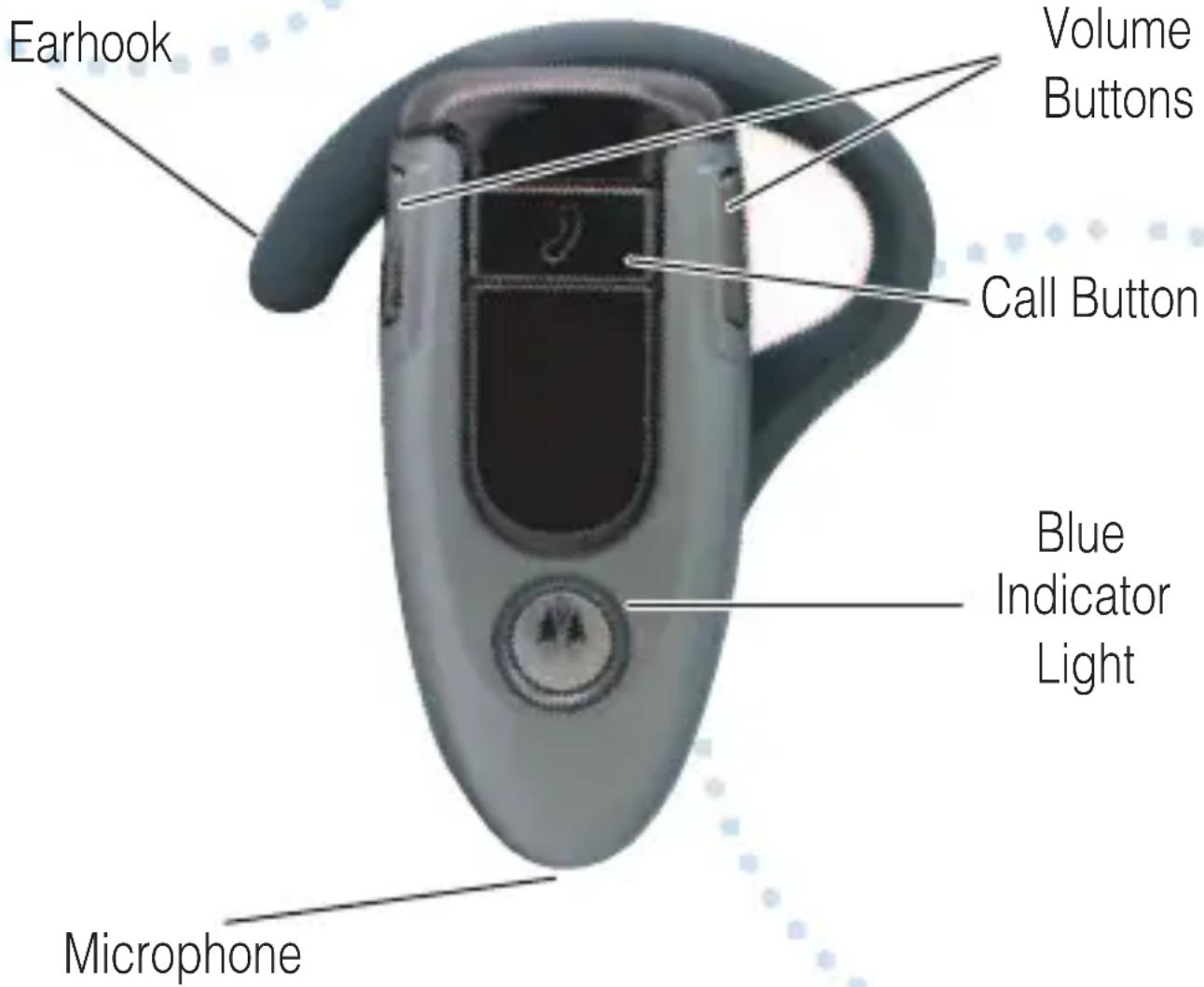
| Indicator Light | Blue LED for power, pairing, and charging status |
| Audio Tones | Audible tones for volume, low battery, call status, pairing |
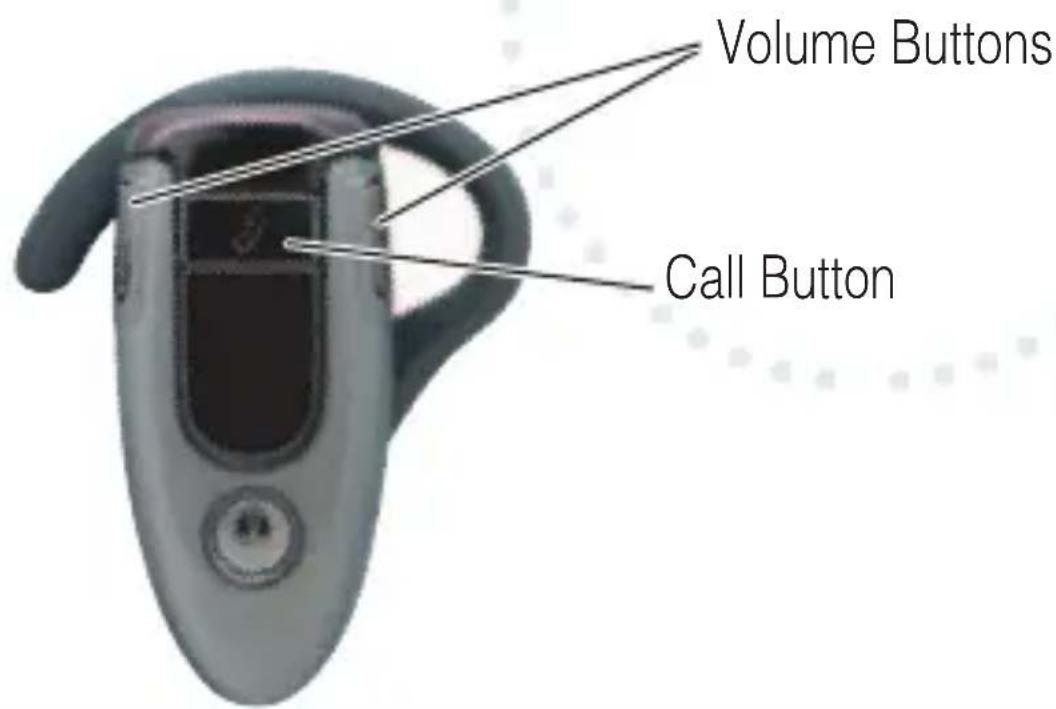
| Controls | Call button, dual volume buttons |
| Earhook | Detachable, reversible for left or right ear |
| Weight | Approximately 12 g (Estimated) |
| Dimensions | Approximately 60 x 20 x 10 mm (Estimated) |
| Operating Range | Up to 10 meters (33 feet) typical Bluetooth range |
| Compatibility | Most Bluetooth-enabled phones |
| Charging Connector | Proprietary Motorola charger (included) |
| Passkey | 0000 (fixed) |
| Wearing Style | Over-the-ear with adjustable earhook |
| Safety Compliance | EU Directive 1999/5/EC |
Frequently Asked Questions - H500 ZEBRA
User questions about H500 ZEBRA
0 question about this device. Answer the ones you know or ask your own.
Ask a new question about this device
Download the instructions for your Earphones in PDF format for free! Find your manual H500 - ZEBRA and take your electronic device back in hand. On this page are published all the documents necessary for the use of your device. H500 by ZEBRA.
USER MANUAL H500 ZEBRA
natural_image
Close-up of a gray ergonomic device with a handle and control buttons (no visible text or symbols)Get Connected in
4 Quick Steps
1 - CHARGE
2 - START
BLUETOOTH
FEATURE
3 - PAIR
4 - TEST AND USE
BEFORE YOU
BEGIN

natural_image
Simple black silhouette of a hand wearing a glove, set against a light blue circular background (no text or symbols)Before using this product, read the Important Safety and Legal Information pamphlet and follow its instructions.
Take a moment before you get started to familiarize yourself with your new H500 Handsfree Headset.
CHARGE
Your Headset's Battery
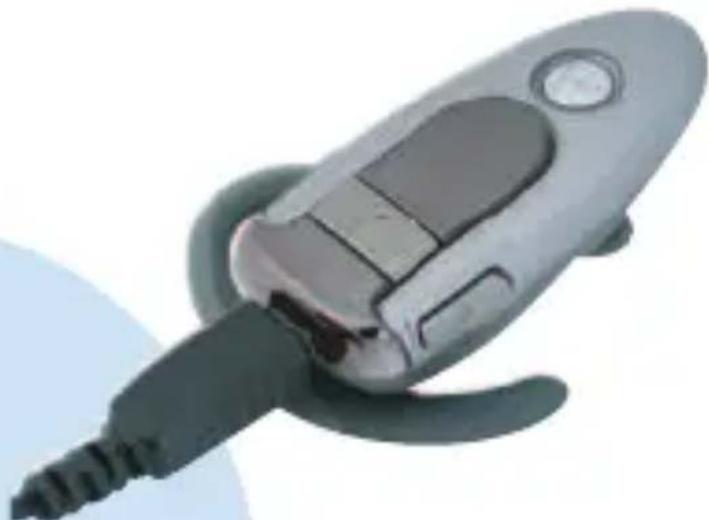
Charge your headset's battery for 2 hours:
natural_image
Illustration of a handheld electronic device with a black cable and control panel (no text or symbols visible)1 Plug the Motorola charger into the end of the headset.
The blue indicator light turns on when the battery is charging. It may take up to 1 minute for the light to turn on. When the headset's battery is fully charged (about 2 hours), the blue indicator light turns off.
2 Unplug the charger from the headset.
Note: Headset is not functional while charging.

START BLUETOOTH
Feature
On Your Phone
Your phone's Bluetooth feature is off by default. To use your headset, turn on the Bluetooth feature in your phone.
For most Motorola phones:
1 Select ☐ (Menu) > Settings > Connection > Bluetooth Link > Setup.
2 Scroll to Power.
3 Press Change.
4 Scroll to On.
5 Press Select to turn on the Bluetooth feature. Bluetooth feature remains on until you turn it off.
Note: These steps are for most Motorola phones. For other phones, see your phone's user's guide.
TROUBLESHOOTING
My phone does not find my headset.
Make sure the blue light on your headset is steadily lit when your phone is searching for devices (see step 3).
My headset worked before but now it's not working.
Make sure your phone is on and the Bluetooth feature is turned on in your phone (see step 2). If the Bluetooth feature has been turned off or was turned on only temporarily, you may need to restart the Bluetooth feature (see step 2). If you have confirmed the Bluetooth feature is on in your phone, pair your phone and headset again (see step 3).
Support.
If you need more help, contact us at 1-877-MOTOBLU or visit us at www.hellomoto.com/bluetooth and click Support.
Motorola, Inc.
Consumer Advocacy Office
1307 East Algonquin Road
Schaumburg, IL 60196
www.hellomoto.com
1-877-MOTOBLU
1-888-390-6456 (TTY/TDD United States for hearing impaired)
Guide Number: 6809494A56-C
MOTOROLA and the Stylized M Logo are registered in the US Patent & Trademark Office. The use of wireless devices and their accessories may be prohibited or restricted in certain areas. Always obey the laws and regulations on the use of these products. The Bluetooth trademarks are owned by their proprietor and used by Motorola, Inc. under license. All other product or service names are the property of their respective owners.
© Motorola, Inc. 2006.
natural_image
Two circular icons: one black with number 3 inside a circle, the other a stylized black object inside a light blue circle (no text or symbols)PAIR Your Headset
Step A - PUT HEADSET IN PAIRING MODE
Before you can use your headset, you must pair (link) it with your phone.
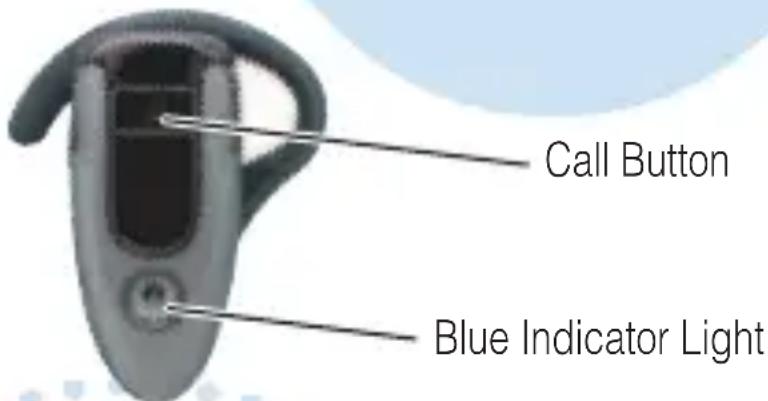
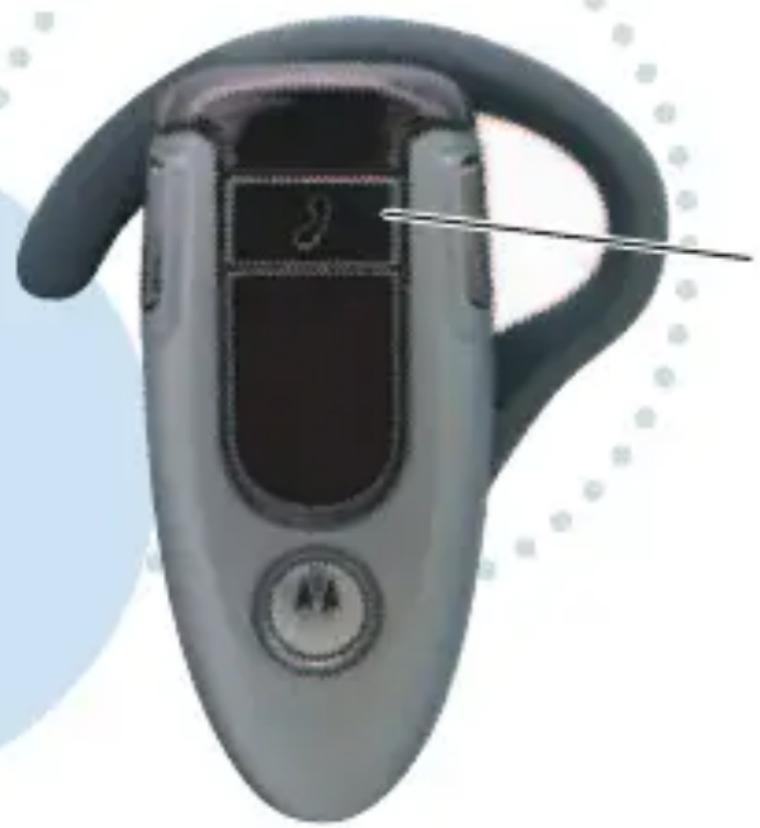
1 With the headset power off, press and hold the Call button for 6 to 10 seconds until the blue indicator light turns on and remains steadily lit. (The light will flash while you hold the Call button.)
2 If the indicator light is flashing or does not remain steadily lit, turn off the headset and repeat step 1.
Note: To turn off headset, see "Turning On and Off" on the reverse side of this guide.

natural_image
Simple black diagonal line inside a light blue circle (no text or symbols)PAIR Your Phone
Step B - SET THE PHONE TO LOOK FOR YOUR HEADSET
For most Motorola phones:
1 Select ☐ Menu) > Settings > Connection > Bluetooth Link > Handsfree > Look for Devices.
The phone lists all Bluetooth devices it finds.
2 Select Motorola H500.
3 Press OK or Yes to pair (link) the handsfree device.
4 Enter the passkey 0000 and press OK.
Note: Passkey cannot be changed from 0000.
When your headset is successfully paired with your phone, the blue indicator light changes from steadily lit to flashing.
Note: These steps are for most Motorola phones. For other phones, see your phone's user's guide.

TEST AND USE
natural_image
Two black silhouettes of a shoe, one with a curved handle and the other with a straight handle, connected by double arrows (no text or symbols)Your phone and headset are now paired and ready to make and receive calls. To confirm they are operating properly, make a call:
1 Place the headset over your ear. See "Wearing the Headset" on the reverse side of this guide.
2 On your phone, dial the number you want to call and press the Send key.
3 If your phone and headset are successfully paired, you will hear ringing on the headset.
After you have successfully paired your phone and headset, you do not need to repeat these initial setup steps each time you use the headset.
USING YOUR H500
See Features and Functions Guide
on the reverse side of this guide
for information on
using your H500.

natural_image
Abstract blue graphic design with curved and angular shapes (no text or symbols)Features and Functions Guide
H500 Bluetooth® Handsfree Headset

IMPORTANT:
Be sure to first follow the
MOTOSTART
Quick Start Guide
on the reverse side of this guide
to complete initial setup
of your H500.
TURNING HEADSET ON/OFF
To turn your headset on, press and hold the Call button until the indicator light flashes. Then, release the button.
Note: Headset may take up to 4 to 5 seconds to turn on.
To turn your headset off, press and hold the Call button until the indicator light flashes rapidly and then turns off.
natural_image
Close-up of a handheld electronic device with a screen and handle, no visible text or symbolsCall Button
WEARING THE HEADSET
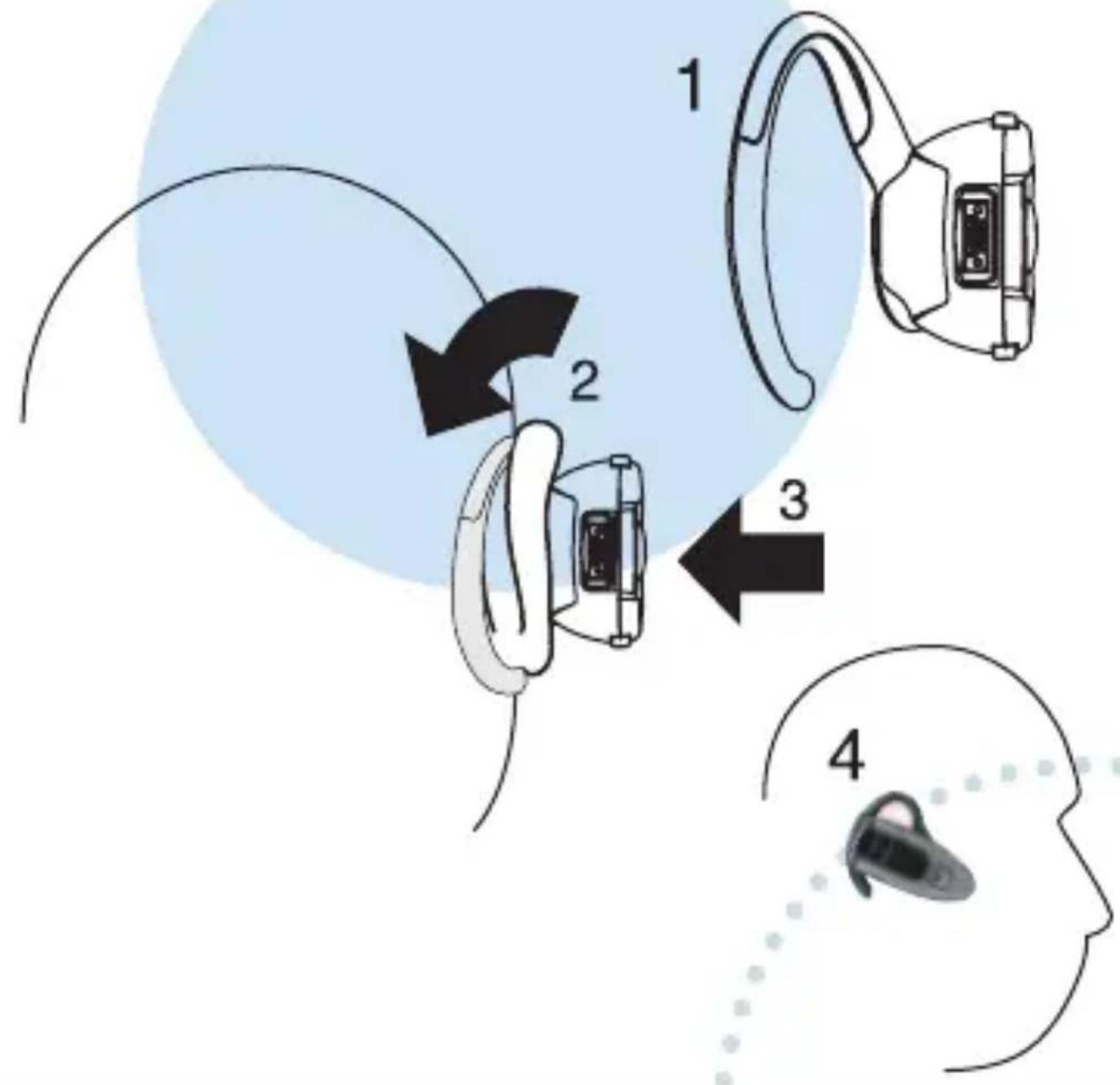
1 Open the earhook.
2 Loop the earhook over your ear.
3 Press the headset to your ear.
flowchart
graph TD
    A["Step 1: Ear closed"] --> B["Step 2: Ear placement"]
    B --> C["Step 3: Ear positioning"]
    C --> D["Step 4: Eye placement"]
    D --> E["Human Head silhouette"]
CHANGING FOR USE ON OTHER EAR
You can wear your H500 headset on your left or right ear. The headset comes ready for the right ear. To change the headset for the left ear:
1 Open the earhook 90 degrees from the headset.
2 Gently lift and pull the top of the earhook up and off the upper hinge pin. Then, pull it away to remove it.
3 Flip the headset over.
4 Hook the bottom of the earhook onto the lower hinge pin, then lift and pull the top of the earhook over the upper hinge pin.
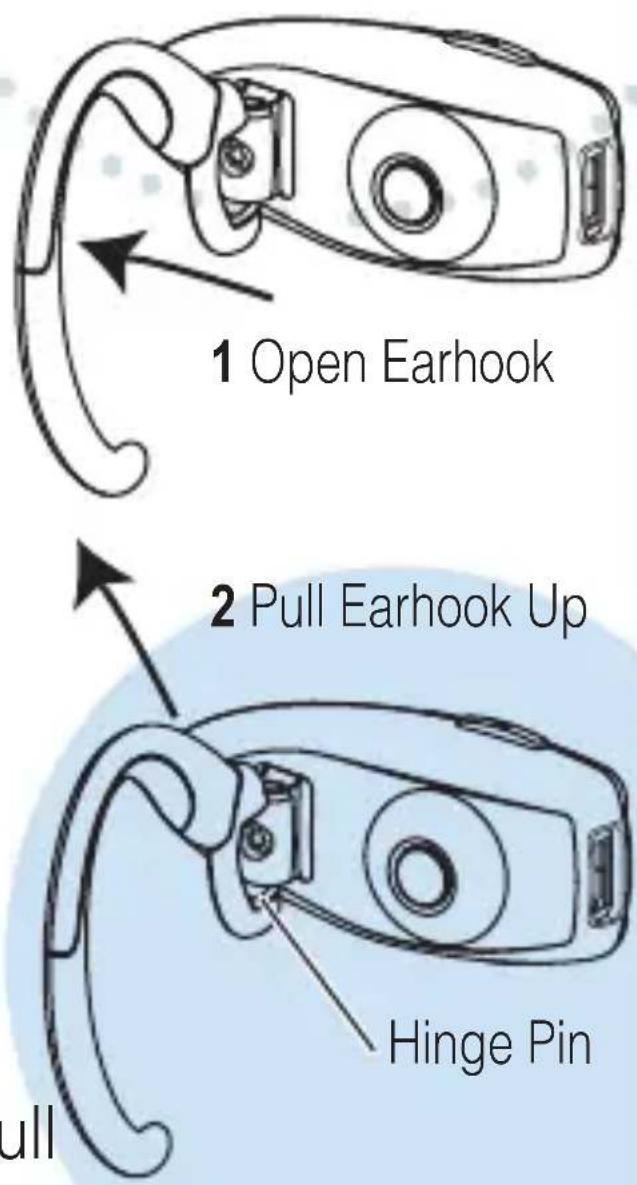
1 Open Earhook
2 Pull Earhook Up
Hinge Pin
CHANGING VOLUME BUTTON ORIENTATION
If you change your headset to wear on the other ear, you can also change the orientation of the volume buttons.
1 Turn the headset power off.
2 Press the Call button and the volume button you want to assign as the "volume up" button until the indicator light flashes twice.
The headset power turns on.
European Union Directives Conformance Statement
Hereby, Motorola declares that this product is in compliance with:
- The essential requirements and other relevant provisions of Directive 1999/5/EC.
• All other relevant EU Directives.
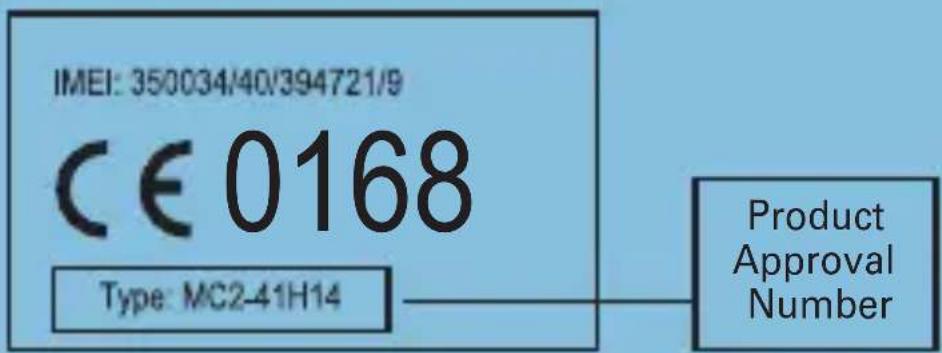
The above gives an example of a typical Product Approval Number.
You can view your product's Declaration of Conformity (DoC) to Directive 1999/5/EC (to R&TTE Directive) at www.motorola.com/rtte. To find your DoC, enter the product Approval Number from your product's label in the “Search” bar on the web site.
MAKING CALLS
Function Action
Make a voice dial call Tap the Call button and speak the name after the tone
End a call Tap the Call button
Receive a call Tap the Call button
Reject a call Press and hold the
Call button until you hear a beep
Redial last call Press and hold the
Call button until you hear a beep
Answer a second Press and hold the incoming call Call button (places
first call on hold)
Note: Your H500 supports both Handsfree and Headset Profiles. Accessing call functions depends upon which profile your phone supports. See your phone's user's guide for more information.
MAKING CALLS CONTINUED
| Function | Action |
| Toggle between two press and hold active calls the Call button | |
| Join a 3-way call Press and hold both Volume | |
| Put an active call on Press and hold the hold or resume a call Call button until you on hold hear a beep | |
| Disable or enable the Press and hold indicator light both Volume buttons for 3 to 4 seconds | |
| Mute or unmute a call Tap both Volume buttons | |
Note: Some features are phone/network dependent.
INDICATOR LIGHTS
The indicator light provides information about your headset status.
With the Charger Plugged In
Headset Indicator Headset Status
On (steady) Charging
Off Charging complete
With No Charger Plugged In
Headset Indicator Headset Status
Off Power off
On (steady) Pairing mode
10 rapid flashes Pairing successful
Slow pulse Connected
(on a call)
Quick flash Standby
(not on call)
Note: After 5 minutes of inactivity, the light stops flashing to conserve power, but the headset remains in standby mode.
AUDIO TONES
The audio tones provide information about your headset status.
Audio Tone Headset Status
Single high tone when Volume at minimum pressing volume button or maximum
Five rapid high tones Low battery repeated every 60 sec.
No audio indications; Out of range deteriorating quality
Ring tone Incoming call
Single high tone Pairing confirmation
Single low tone Voice activation
Dual high/low tone Voice tag not recognized
Single high tone End call
Low to high tone Phone network not available
Two ascending tones Mute enabled
Two descending tones Mute disabled
- BEFORE YOU
- BEGIN
- CHARGE
- Your Headset's Battery
- Charge your headset's battery for 2 hours:
- START BLUETOOTH
- Feature
- On Your Phone
- TROUBLESHOOTING
- My phone does not find my headset.
- My headset worked before but now it's not working.
- Support.
- PAIR Your Headset
- Step A - PUT HEADSET IN PAIRING MODE
- PAIR Your Phone
- Step B - SET THE PHONE TO LOOK FOR YOUR HEADSET
- TEST AND USE
- USING YOUR H500
- See Features and Functions Guide
- Features and Functions Guide
- H500 Bluetooth® Handsfree Headset
- IMPORTANT:
- MOTOSTART
- Quick Start Guide
- TURNING HEADSET ON/OFF
- WEARING THE HEADSET
- CHANGING FOR USE ON OTHER EAR
- CHANGING VOLUME BUTTON ORIENTATION
- European Union Directives Conformance Statement
- MAKING CALLS
- Function Action
- MAKING CALLS CONTINUED
- INDICATOR LIGHTS
- With the Charger Plugged In
- Headset Indicator Headset Status
- With No Charger Plugged In
- AUDIO TONES
- Audio Tone Headset Status
Brand : ZEBRA
Model : H500
Category : Earphones