
ARK-2121S - Security Camera Advantech - Free user manual and instructions
Find the device manual for free ARK-2121S Advantech in PDF.


| Product Type | Outdoor HD NVR (Network Video Recorder) |
| Model | ARK-2121S-S9A1E |
| CPU | Intel Atom E3845 Quad Core 1.91 GHz |
| Chipset | Intel Gen7 Graphics |
| System Memory | 1 x 204-pin SODIMM, DDR3L 1333 MHz, up to 8 GB |
| Storage | 1 x 2.5" removable drive bay (max 9.5mm height) + 1 x full-size mSATA |
| PoE Ports | 4 x 10/100 Mbps; full load Class 2 (7W) or 2 ports Class 3 (15.4W) |
| Ethernet | 2 x GbE LAN (Intel I218 + I210), support Wake-on-LAN |
| USB Ports | 3 x USB 2.0 + 1 x USB 3.0 |
| Video Output | 1 x VGA (up to 2560x1600) + 1 x lockable HDMI (up to 1080p) |
| Digital I/O | 6 x DI + 2 x DO with 3kV isolation, screw terminal |
| Serial Ports | 2 x RS-232/422/485 (optional) |
| Power Input | 9-36 VDC wide range, isolated (1.5kV) |
| Operating Temperature | -30 to 60°C (industrial) or 0 to 45°C (standard peripherals) |
| Enclosure | Ruggedized aluminum housing |
| Dimensions (W x H x D) | 264.5 x 69.2 x 133.0 mm (10.41" x 2.96" x 5.24") |
| Vibration (operation) | 3 Grms, 5-500 Hz, 1 hr/axis (with mSATA/SSD) |
| Shock (operation) | 30 G, half sine, 11 ms duration |
| Certifications | CE/FCC Class A, CCC, BSMI, UL, CB |
| Warranty | 2 years |
| Included Accessories | 3-pin Phoenix power block, 10-pin DIO plug block, Chinese quick manual |
Frequently Asked Questions - ARK-2121S Advantech
User questions about ARK-2121S Advantech
0 question about this device. Answer the ones you know or ask your own.
Ask a new question about this device
Download the instructions for your Security Camera in PDF format for free! Find your manual ARK-2121S - Advantech and take your electronic device back in hand. On this page are published all the documents necessary for the use of your device. ARK-2121S by Advantech.
USER MANUAL ARK-2121S Advantech
natural_image
Illustration of various electronic circuit boards and a server unit in purple outline style (no text or symbols)ARK-2121S
Outdoor HD NVR w/4 PoE Ports
Attention!
This package contains a hard-copy user manual in Chinese for China CCC certification purpOS, Please download the latest English user manual and drivers on website:
http://www.advantech.com/products/1-flnuyz/ark-2121s/mod_fab8bb78-ee4f-4c8d-9584-9da7ddd9d28e
Please disregard the printed Chinese copy of the user manual if the product is not to be sold and/or installed in China.
甲類警語:
The documentation and the software included with this product are copyrighted 2015 by Advantech Co., Ltd. All rights are reserved. Advantech Co., Ltd. reserves the right to make improvements in the products described in this manual at any time without notice. No part of this manual may be reproduced, copied, translated or transmitted in any form or by any means without the prior written permission of Advantech Co., Ltd. Information provided in this manual is intended to be accurate and reliable. However, Advantech Co., Ltd. assumes no responsibility for its use, nor for any infringements of the rights of third parties, which may result from its use.
Acknowledgements
Intel® and Pentium® are trademarks of Intel Corporation.
Microsoft Windows® is a registered trademark of Microsoft Corp.
All other product names or trademarks are properties of their respective owners.
Product Warranty (2 years)
Advantech warrants to you, the original purchaser, that each of its products will be free from defects in materials and workmanship for two years from the date of purchase.
This warranty does not apply to any products which have been repaired or altered by persons other than repair personnel authorized by Advantech, or which have been subject to misuse, abuse, accident or improper installation. Advantech assumes no liability under the terms of this warranty as a consequence of such events.
Because of Advantech's high quality-control standards and rigorous testing, most of our customers never need to use our repair service. If an Advantech product is defective, it will be repaired or replaced at no charge during the warranty period. For out-of-warranty repairs, you will be billed according to the cost of replacement materials, service time and freight. Please consult your dealer for more details.
If you think you have a defective product, follow these steps:
-
Collect all the information about the problem encountered. (For example, CPU speed, Advantech products used, other hardware and software used, etc.) Note anything abnormal and list any onscreen messages you get when the problem occurs.
-
Call your dealer and describe the problem. Please have your manual, product, and any helpful information readily available.
-
If your product is diagnosed as defective, obtain an RMA (return merchandise authorization) number from your dealer. This allows us to process your return more quickly.
-
Carefully pack the defective product, a fully-completed Repair and Replacement Order Card and a photocopy proof of purchase date (such as your sales receipt) in a shippable container. A product returned without proof of the purchase date is not eligible for warranty service.
-
Write the RMA number visibly on the outside of the package and ship it prepaid to your dealer.
Part No. 2006K21250 Edition 1
Printed in China December 2015
Declaration of Conformity
CE
This product has passed the CE test for environmental specifications. Test conditions for passing included the equipment being operated within an industrial enclosure. In order to protect the product from being damaged by ESD (Electrostatic Discharge) and EMI leakage, we strongly recommend the use of CE-compliant industrial enclosure products.
FCC Class A
Note: This equipment has been tested and found to comply with the limits for a Class A digital device, pursuant to part 15 of the FCC Rules. These limits are designed to provide reasonable protection against harmful interference when the equipment is operated in a commercial environment. This equipment generates, uses, and can radiate radio frequency energy and, if not installed and used in accordance with the instruction manual, may cause harmful interference to radio communications. Operation of this equipment in a residential area is likely to cause harmful interference in which case the user will be required to correct the interference at his own expense.
Technical Support and Assistance
- Visit the Advantech web site at www.advantech.com/support where you can find the latest information about the product.
- Contact your distributor, sales representative, or Advantech's customer service center for technical support if you need additional assistance. Please have the following information ready before you call:
– Product name and serial number
– Description of your peripheral attachments
– Description of your software (operating system, version, application software, etc.)
– A complete description of the problem
– The exact wording of any error messages
Warnings, Cautions and Notes
Warning! Warnings indicate conditions, which if not observed, can cause personal injury!

Caution! Cautions are included to help you avoid damaging hardware or losing data.

Note! Notes provide optional additional information.

Document Feedback
To assist us in making improvements to this manual, we would welcome comments and constructive criticism. Please send all such - in writing to: support@advantech.com
Packing List
Before setting up the system, check that the items listed below are included and in good condition. If any item does not accord with the table, please contact your dealer immediately.
1 x ARK-2121S unit
■ 1 x Hard copy user manual (Simplified Chinese)
■ 1 x 3 pin phoenix power block 3.81mm
■ 1 x 10 pin DIO plug block
Ordering Information
P/N Description
ARK-2121S-S9A1E Intel Atom E3845 QC 1.91 Ghz w/ 4 POE
Safety Instructions
- Read these safety instructions carefully.
- Keep this User Manual for later reference.
- Disconnect this equipment from any AC outlet before cleaning. Use a damp cloth. Do not use liquid or spray detergents for cleaning.
- For plug-in equipment, the power outlet socket must be located near the equipment and must be easily accessible.
- Keep this equipment away from humidity.
- Put this equipment on a reliable surface during installation. Dropping it or letting it fall may cause damage.
- Do not leave this equipment in an environment unconditioned where the storage temperature under -40^ C or above 80^ C, it may damage the equipment. Operating temperature is -30^ C to 60^ C.
- The openings on the enclosure are for air convection. Protect the equipment from overheating. DO NOT COVER THE OPENINGS.
- Make sure the voltage of the power source is correct before connecting the equipment to the power outlet. Cable of Power source should be shielded.
- Position the power cord so that people cannot step on it. Do not place anything over the power cord. The voltage and current rating of the cord should be greater than the voltage and current rating marked on the product.
- All cautions and warnings on the equipment should be noted.
- If the equipment is not used for a long time, disconnect it from the power source to avoid damage by transient overvoltage.
- Never pour any liquid into an opening. This may cause fire or electrical shock.
- Never open the equipment. For safety reasons, the equipment should be opened only by qualified service personnel.
- If one of the following situations arises, get the equipment checked by service personnel:
■ The power cord or plug is damaged.
- Liquid has penetrated into the equipment.
■ The equipment has been exposed to moisture.
The equipment does not work well, or you cannot get it to work according to the user's manual.
■ The equipment has been dropped and damaged.
■ The equipment has obvious signs of breakage.
-
CAUTION: The computer is provided with a battery-powered real-time clock circuit. There is a danger of explosion if battery is incorrectly replaced. Replace only with same or equivalent type recommended by the manufacture. Discard used batteries according to the manufacturers instructions.
-
ATTENTION: L'ordinateur est muni d'un circuit en temps réel de l'horloge alimentée par betterie. Il ya un danger d'explosion si la pile est replacée de façon incorrecte. Remplacez uniquement par un type identique ou équivalent recommandé par le fabricant. Jetez les piles usagées selon les instructions du fabricant.
-
CAUTION: Always completely disconnect the power cord from your chassis whenever you work with the hardware. Do not make connections while the power is on. Sensitive electronic components can be damaged by sudden power surges.
- CAUTION: Always ground yourself to remove any static charge before touching the motherboard, backplane, or add-on cards. Modern electronic devices are very sensitive to static electric charges. As a safety precaution, use a grounding wrist strap at all times. Place all electronic components on a static-dissipative surface or in a static-shielded bag when they are not in the chassis.
- CAUTION: Any unverified component could cause unexpected damage. To ensure the correct installation, please always use the components (ex. screws) provided with the accessory box.
- ATTENTION: Tout composant non vérifiée pourrait causer des dommages inattendu. Pour garantir une installation correcte, s'il vous plaît utilisez toujours les composants( vis ex.) fournies avec la boîte d'accessories.
Contents
Chapter 1 General Introduction ......1
1.1 Introduction 2
1.2 General Specification 3
1.3 Specifications 3
Table 1.1: Power Input / Output support information...... 4
1.4 Dimensions 5
Figure 1.1 ARK-2121S dimensions .... 5
Chapter 2 Hardware installation ....7
2.1 Overview of Hardware Installation & Upgrading 8
2.2 Installing Memory 8
2.3 Installing storage 9
2.3.1 Installing 2.5" SSD or HDD 9
2.3.2 Installing mSATA Storage....9
2.4 Installing Optional Modules 10
2.4.1 Installing WLAN module.... 10
2.4.2 Installing WWAN module 11
Chapter 3 Jumper and Switch Settings ......13
3.1 Setting Jumpers and Switches.... 14
3.2 Locations of Jumpers 14
3.2.1 Main board 14
Figure 3.1 Top side of main board.... 14
3.3 Jumper Lists.... 15
3.3.1 Main Board.... 15
Table 3.1: Jumpers & Switches 15
3.4 Jumper Settings 15
3.4.1 Main Board 15
Table 3.2: Auto Power On Setting (J2).... 15
Table 3.3: LCD Power (J5) 15
Table 3.4: Clear CMOS (SW2) 16
Chapter 4 Pin Assignments ......17
4.1 ARK-2121S-S9A1E I/O Connectors.... 18
4.1.1 ARK-2121S-S9A1E Front I/O View.... 18
4.1.2 ARK-2121S-S9A1E Rear I/O View 18
4.2 ARK-2121S-S9A1E I/O Pin Definition.... 18
4.2.1 VGA Connector.... 18
Figure 4.1 VGA Connector 18
Table 4.1: VGA Connector Pin Assignments.... 18
4.2.2 USB Connector 19
Figure 4.2 USB Connector [Upper (black): USB2.0 / Down (blue): USB 3.0] .... 19
Table 4.2: USB Connector Pin Assignments.... 19
4.2.3 Ethernet Connector....19
Figure 4.3 Ethernet Connector 19
Table 4.3: Ethernet Connector Pin Assignments.... 19
4.2.4 HDMI Connector 20
Figure 4.4 HDMI Connector....20
Table 4.4: HDMI / Display Port Connector Pin Assignments .... 20
4.2.5 DIO Connector.... 20
Figure 4.5 DIO Connector 20
4.2.6 Power Input Connector 21
Figure 4.6 Power Input Connector.... 21
4.2.7 Power Over Ethernet 21
Figure 4.7 Power Over Ethernet Connector .... 21
Table 4.5: Power Over Ethernet (PoE) Pin Definition ...... 21
4.2.8 System Audio Connector 22
Figure 4.8 System Audio Connector.... 22
Table 4.6: Audio Connector Pin Assignments.... 22
4.2.9 Optional I/O 22
Table 4.7: COM Connector Pin Assignments.... 22
4.2.10 Power On/Off Button.... 23
Figure 4.9 Power ON/OFF Button 23
4.2.11 Reset 23
Figure 4.10Reset 23
4.2.12 LED Indicator 23
Figure 4.11LED Indicator....23
Chapter 5 BIOS settings 25
5.1 Introduction 26
Figure 5.1 Setup program initial screen.... 26
5.2 Entering Setup 27
5.2.1 Main Setup.... 27
Figure 5.2 Main setup screen 27
5.2.2 Advanced BIOS Features Setup.... 28
Figure 5.3 Advanced BIOS features setup screen 28
5.2.3 Chipset Configuration 40
5.2.4 Security.... 46
5.2.5 Boot 47
5.2.6 Save & Exit 48
Appendix A WDT Sample Code 49
A.1 Watchdog Timer Sample Code.... 50
Chapter 1
General Introduction
This chapter gives background information on ARK-2121S series.
1.1 Introduction
ARK-2121S is an industrial grade quad core portable device for outdoor NVR solution. ARK-2121S is a fully integrated HD NVR with certified hardware and intelligent management software SDK and APIs for surveillance applications. It offers good expansion capacity and wireless communication (Wi-fi/3G /mSATA) for excellent connectivity, and 1080P@ 120fps video.
ARK-2121S-S9A1E I/O Overview


1.2 General Specification
Intel® Celeron E3845 1.91 GHz
■ 4 PoE ports to support mainstream IP cameras
■ Diverse communication abilities: WWAN, WLAN
- Change to 9 \~ 36 *V _DC wide power input w/isolation (*Power input constraint at low power 9 \~ 10.9V)
■ Dual storage: 1 x 2.5" removable drive bay & 1 x F/S mSATA
■ Supports iManager, SUSIAccess and embedded software APIs
1.3 Specifications
■ CPU: ARK-2121S-S9A1E Intel Core E3845 QC 1.91GHz
Chipset: ARK-2121S-S9A1E: Intel Gen7 graphics
BIOS: AMI EFI 64 Mbit
System memory: ARK-2121S-S9A1E: 1 x 204pin SODIMM, DDR3L 1333 MHz, up to 8GB
Storage:
- 2.5" drive bay: 1 x 2.5" removable drive bay (Max 9.5mm height)
- mSATA: 1x full size mSATA storage
■ Optional I/O: ARK-2121S-S9A1E: 2 x RS-232/422/485
■ Universal serial bus (USB) port: 3 x USB 2.0 & 1 x USB3.0
■ LAN port: 2 x Giga LAN 10/100/1000Mbps, support wake on LAN
■ Power over Ethernet, POE (ARK-2121S-S9A1E only):
– Supports 4 x 10/100 Mbps
- 4 ports full-load, IEEE802.3af Class 2 (7Watt)
- 2 ports full-load, IEEE802.3af Class 3 (15.4Watt)
■ LED: Power LED, SSD LED
■ Graphic output:
- 1 x VGA, up to 2560 x 1600 with 60 Hz
- 1 x lockable HDMI connector, up to 1080p
■ Mini PCI express bus expansion slot:
- 1 x full size mini PCIe slot, support mSATA storage
- 1 x full size mini PCIe slot, support WLAN module
- 2 x full size mini PCIe slots w/SIM holder, support WWAN module (USB interface)
■ Watchdog timer: 255-level timer interval, setup by software
■ RTC Battery: 3.0 V @ 200 mAH Lithium battery.
Digital I/O: 6 x DI & 2 x DO w/ 3KV isolation
– Input Voltage: 0 to 30 VDC at 25 Hz
– Digital Input Levels for Dry Contacts:
Logic level 0: Close to GND
Logic level 1: Open
- Digital Input Levels for Wet Contacts: Logic level 0: +3 V max Logic level 1: +5 V to +30 V
- Output Current: Max. 500 mA per channel - On-state Voltage: 24 VDC nominal, open collector to 30 VDC
■ Audio: Main system: Realtek ALC888S, High Definition Audio (HD), Line-in, Line out, Mic-in
Power Requirement:
– Power type: ATX/AT
- Input voltage: Supports: 9\~36 VDC*
*Power input voltage constraint at lower voltage 9 \~ 10.9 V
– Vehicle power ignition: selection boot up & shut-down voltage, on/off delay time
– Isolation: 1.5 KV Isolated
Table 1.1: Power Input / Output support information
| Output: 12 V (for M/B) Output: 48 V (for PoE) | |
| Input 11 V ~ 36 V 5 A 0.75 A | |
| Input 10.0 V ~ 10.9 V 4 A 0.5 A | |
| Input 9.0 V ~ 9.9 V 3.5 A N/A |
– Isolation: 1.5 KV isolated
■ Dimensions: (W x H x D): 264.5 x 69.2 x 133.0 mm (10.41" x 2.96" x 5.24").
■ Enclosure: Ruggedized aluminum housing.
- Operating temperature:
- ARK-2121S-S9A1E:
With extended temperature peripherals:-30 \~ 60° C with 0.7m/s air flow
With standard temperature peripherals: 0 \~ 45° C with 0.7m/s air flow
■ Storage temperature: -40 \~ 85°C (-40\~185°F)
■ Relative humidity: 95% @ 40°C (non-condensing)
Vibration during operation: With mSATA/SSD: 3 Grms, IEC 60068-2-64, random 5\~500 Mz, 1 hr/axis
■ Shock during operation: With mSATA/SSD: 30 G, IEC 60068-2-27, half sine, 11 ms duration
Certifications:
- EMC: CE/FCC Class A, CCC, BSMI
– Safety: UL, CB, CCC, BSMI
1.4 Dimensions

Figure 1.1 ARK-2121S dimensions
Chapter 2
Hardware installation
This chapter introduces the installation of ARK-2121S Hardware.
2.1 Overview of Hardware Installation & Upgrading
Warning! Do not remove the ruggedized aluminum covers until verifying that no power is flowing within the computer. Power must be switched off and the power cord must be unplugged. Take care in order to avoid injury or damage to the equipment.
2.2 Installing Memory
Need to remove total 9pcs screws and can install memory on the top side of board. (4pcs on top and 5pcs on side of top cover)

natural_image
Technical line drawing of an electronic device chassis showing internal components like heat sinks, connectors, and ports (no text or labels)2.3 Installing storage
2.3.1 Installing 2.5" SSD or HDD
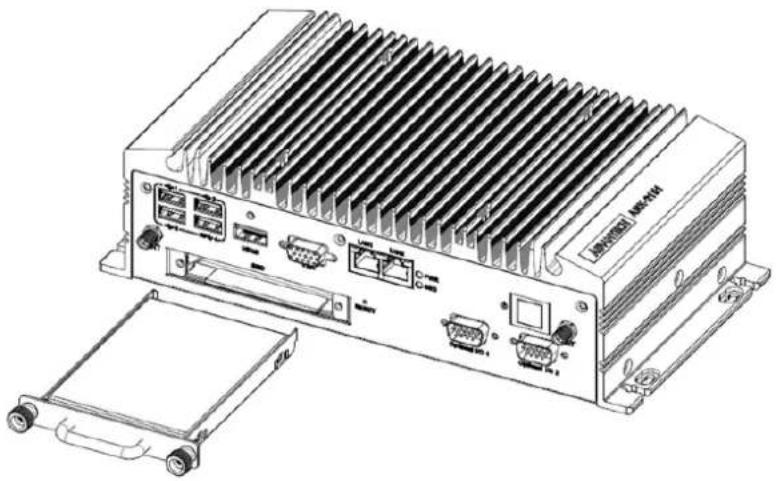
natural_image
Line drawing of a server rack unit with heat sinks and ports, shown from front and side views (no text or symbols)2.3.2 Installing mSATA Storage
- Remove 6pcs screws on bottom cover.
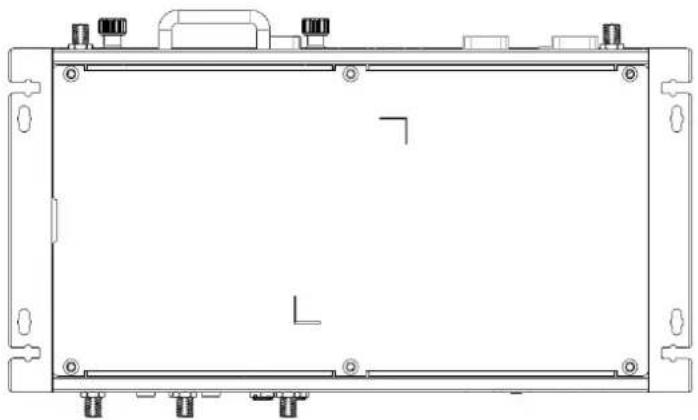
natural_image
Technical line drawing of a rectangular electronic device frame with mounting brackets and connectors (no text or symbols)- Remove 2.5" drive bay and Insert full size mSATA storage in marked place.

2.4 Installing Optional Modules
2.4.1 Installing WLAN module
- Remove 6pcs screws on bottom cover.
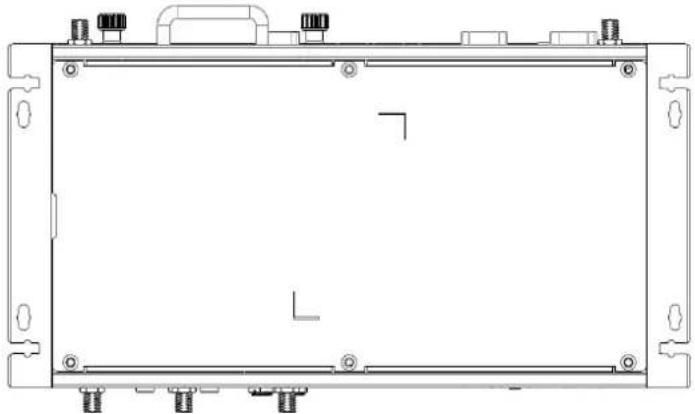
natural_image
Technical line drawing of a rectangular electronic device frame with mounting brackets and mounting holes (no text or symbols)- Remove 2.5" drive bay and Insert half size WLAN module in place.
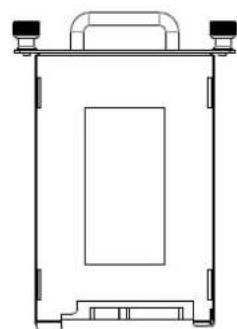
natural_image
Technical line drawing of a rectangular device with mounting tabs and a central panel (no text or symbols)
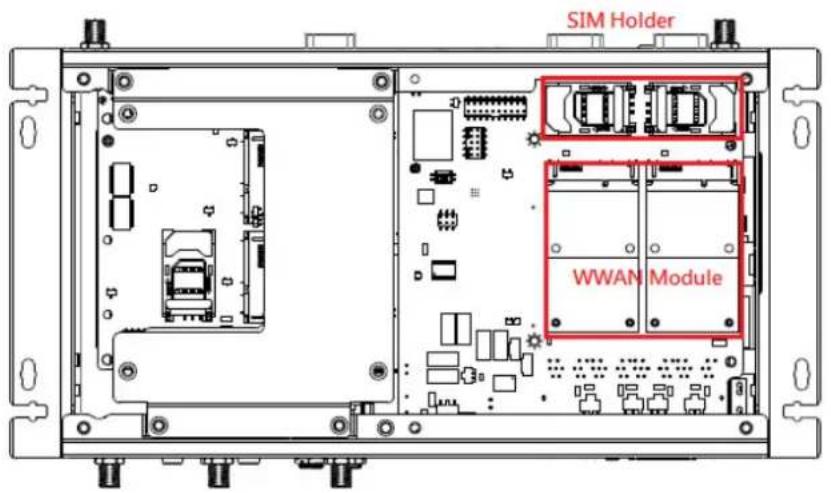
2.4.2 Installing WWAN module
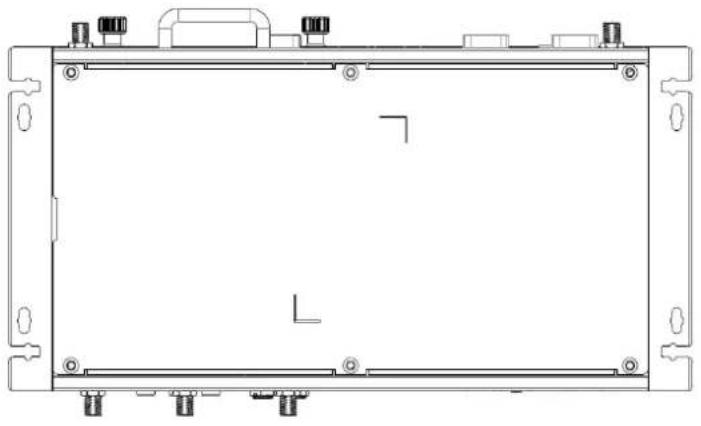
- Remove 6pcs screws on bottom cover.
natural_image
Technical line drawing of a rectangular electronic device frame with mounting brackets and mounting holes (no text or symbols)- Remove 2.5" drive bay and Insert full size WWAN module in marked place.
Chapter 3
Jumper and Switch Settings
This chapter explains how to set up ARK-2121S Series hardware, including instructions on setting jumpers and connecting peripherals, and how to set switches and read indicators.
Be sure to read all the safety precautions before beginning the installation procedure.
3.1 Setting Jumpers and Switches
It is possible to configure the In-Vehicle Computing Box to match the needs of the application by resetting the jumpers. A jumper is the simplest kind of electrical switch. It consists of two metal pins and a small metal clip, often protected by a plastic cover that slides over the pins to connect them. To “close” a jumper, connect the pins with the clip. To “open” a jumper, remove the clip. Sometimes a jumper has three pins, labeled 1, 2, and 3. In this case, connect either pins 1 and 2, or pins 2 and 3.

A pair of needle-nose pliers may be helpful when working with jumpers. If there are any doubts about the best hardware configuration for the application, contact the local distributor or sales representative before making any changes.
An arrow is used on the motherboard to indicate the first pin of each jumper.
3.2 Locations of Jumpers
3.2.1 Main board
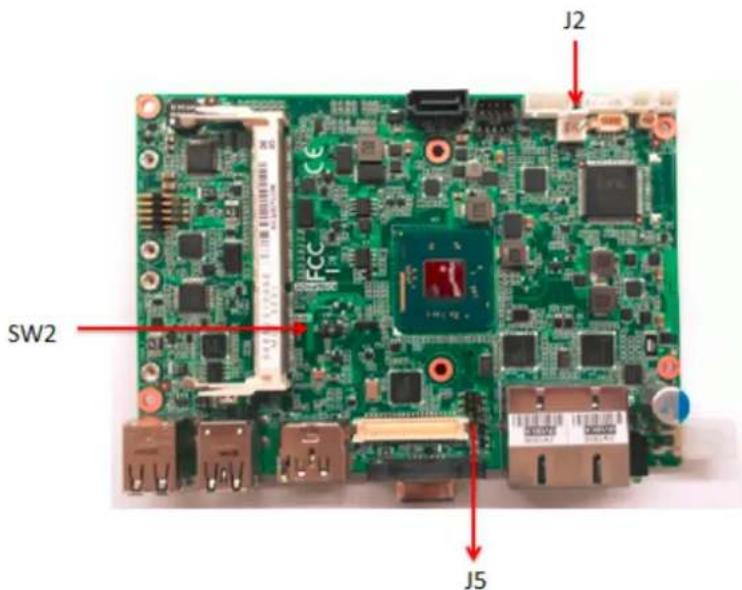
Figure 3.1 Top side of main board
3.3 Jumper Lists
3.3.1 Main Board
Table 3.1: Jumpers & Switches
| J2 Auto Power On |
| J5 LCD Power |
| SW2 Clear CMOS |
3.4 Jumper Settings
3.4.1 Main Board
3.4.1.1 Auto Power On Setting (J2)

OPEN
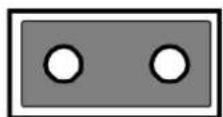
Closed
Table 3.2: Auto Power On Setting (J2)
| Setting Function |
| (Open) Power Button for Power On |
| (Close)*Auto Power On |
* Default
Table 3.3: LCD Power (J5)
| Setting Function |
| (1-3)* +3.3V |
| (3-5) +5V |
| (3-4) +12V |
Table 3.4: Clear CMOS (SW2)
Setting Function
| (1)* Normal |
| (3) Clear CMOS |
Chapter 4
Pin Assignments
This chapter explains Pin Assignments of ARK-2121S Series.
4.1 ARK-2121S-S9A1E I/O Connectors
4.1.1 ARK-2121S-S9A1E Front I/O View

4.1.2 ARK-2121S-S9A1E Rear I/O View

4.2 ARK-2121S-S9A1E I/O Pin Definition
4.2.1 VGA Connector
ARK-2121S provides a high resolution VGA interface connected by a D-sub 15-pin connector to support a VGA CRT monitor. It supports display resolution of up to 2560 x 1600 with 60 Hz.
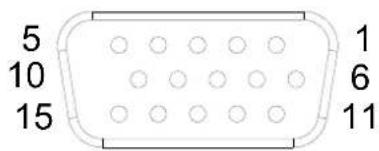
Figure 4.1 VGA Connector
Table 4.1: VGA Connector Pin Assignments
| Pin Signal Name Pin Signal Name | ||||||
| 1 | R | e | d | 2 | G | |
| 3 Blue 4 NC | ||||||
| 5 GND 6 GND | ||||||
| 7 GND 8 GND | ||||||
| 9 | N | C | 1 | 0 | G | N |
| 11 | NC | 12 | DDC Date | |||
| 13 | H-SYNC | 14 | V-SYNC | |||
| 15 | DDC Clock | |||||
4.2.2 USB Connector
The ARK-2121S provides up to four USB interface connectors - 3 x USB 2.0 & 1 x USB 3.0, which give complete Plug & Play. The USB interface is compliant with USB UHCI, Rev. 2.0 & 3.0. The USB interface supports Plug and Play, which enables you to connect or disconnect a device whenever you want, without turning off the computer.
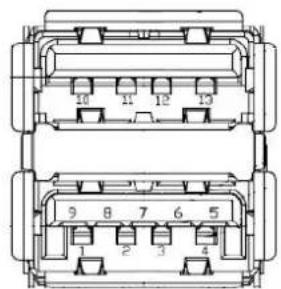
Figure 4.2 USB Connector [Upper (black): USB2.0 / Down (blue): USB 3.0]
Table 4.2: USB Connector Pin Assignments
| Pin Signal Name Pin Signal Name | |||||||
| 1 | + | 5 | V | 2 | D - | ||
| 3 | D | + | 4 | G | N D | ||
| 5 SSRX- 6 SSRX+ | |||||||
| 7 GND 8 SSTX- | |||||||
| 9 SSTX+ | 10 | +5V | |||||
| 11 | D- | 12 | D+ | ||||
| 13 | GND | ||||||
4.2.3 Ethernet Connector
ARK-2121S provides two RJ45 LAN interface connectors, which are fully compliant with IEEE 802.3u 10/100/1000 Base-T CSMA/CD standards. LAN1 is equipped with Intel I218 GbE and LAN2 is equipped with Intel I210 GbE. The Ethernet ports use standard RJ-45 jack connectors with LED indicators on the front side to show Active/Link status and Speed status.

Figure 4.3 Ethernet Connector
Table 4.3: Ethernet Connector Pin Assignments
| Pin Signal Name Pin Signal Name | |||
| 1 TX+(10/100),BI_DA+(GHz) | 5 BI_DC-(GHz) | ||
| 2 TX-(10/100),BI_DA-(GHz) | 6 | RX-(10/100),BI_DB-(GHz) | |
| 3 RX+(10/100),BI_DB+(GHz) | 7 BI_DD+(GHz) | ||
| 4 BI_DC+(GHz) | 8 BI_DD-(GHz) | ||
4.2.4 HDMI Connector
ARK-2121S provides 1 x lockable HDMI port which resolution can support up to 1080P.
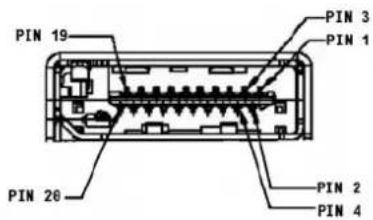
Figure 4.4 HDMI Connector
Table 4.4: HDMI / Display Port Connector Pin Assignments
| Pin Signal Name Pin Signal Name | |||
| 1 TMDS_Data2+/ DP_Data0+ 2 GND | |||
| 3 | TMDS_Data2-/ DP_Data0- | 4 | TMDS_Data1+/ DP_Data1+ |
| 5 GND | 6 TMDS_Data1-/ DP_Data1- | ||
| 7 TMDS_Data0+/ DP_Data2+ 8 GND | |||
| 9 TMDS_Data0-/ DP_Data2- | 10 | TMDS_Clock+/ DP_Data3+ | |
| 11 | GND | 12 | TMDS_Clock-/ DP_Data3- |
| 13 | NC | 14 | NC |
| 15 | SCL/ AUX_CH+ | 16 | SDA/ GND |
| 17 | DDC GND/ AUX_CH- | 18 | +5V/ Hot plug detect |
| 19 | Hot plug detect/ Return | 20 | DP_PWR |
4.2.5 DIO Connector
ARK-2121S offers an 8-bit phenix type DIO connector and two ground pin. 6 x DI & 2 x DO w/ 3 KV isolation.
■ Connector Type: 10-pin screw terminal block (6 DI points, 2 DO points, GND)
■ Input Voltage: 0 to 30 VDC at 25 Hz
■ Digital Input Levels for Dry Contacts:
Logic level 0: Close to GND
Logic level 1: Open
■ Digital Input Levels for Wet Contacts:
Logic level 0: +3 V max
Logic level 1: +5 V to +30 V
■ Output Current: Max. 500 mA per channel
On-state Voltage: 24 VDC nominal, open collector to 30 VDC

Figure 4.5 DIO Connector
4.2.6 Power Input Connector
ARK-2121S comes with 3-pin phenix type power input connector for 9 \~ 36 VDC input.

Figure 4.6 Power Input Connector
4.2.7 Power Over Ethernet
ARK-2121S-S9A1E provides 4 x 10/100 PoE ports.
■ 4ports full-load, IEEE802.3af Class 2 (7 Watt)
■ 2ports full-load, IEEE802.3af Class 3 (15.4 Watt)
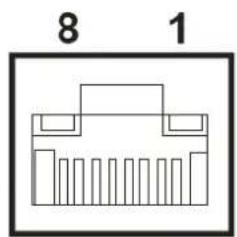
Figure 4.7 Power Over Ethernet Connector
Table 4.5: Power Over Ethernet (PoE) Pin Definition
| Pin Signal Name Pin Signal Name |
| 1 Rx + / DC + 5 unused |
| 2 RX - / DC + 6 Tx - / DC - |
| 3 Tx + / DC - 7 Unused |
| 4 Unused 8 Unused |
4.2.8 System Audio Connector
ARK-2121S offers stereo audio ports by a phone jack connector of Line-out, Mic-in & Line-in. The audio chip controller is by Realtek ALC888, High Definition Audio.

flowchart
graph TD
    A["System"] --> B["1"]
    A --> C["2"]
    A --> D["3"]
Figure 4.8 System Audio Connector
Table 4.6: Audio Connector Pin Assignments
| Pin Audio Signal Name | ||||
| 1 | MIC | |||
| 2 | L | i | n | e |
| 3 | L | i | n | e |
4.2.9 Optional I/O
ARK-2121S-S9A1E provides two optional DB9 connectors which can have possible combination as below.
■ 2 x DB9 connectors for RS-232/422/485 signal (Default)
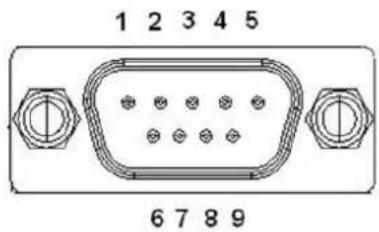
Table 4.7: COM Connector Pin Assignments
| RS-232 RS-422 RS-485 | |||
| Pin Signal Name Signal Name Signal Name | |||
| 1 | DCD | Tx- | DATA- |
| 2 | RxD | Tx+ | DATA+ |
| 3 | TxD | Rx+ | NC |
| 4 | DTR | Rx- | NC |
| 5 | GND | GND | GND |
| 6 | DSR | NC | NC |
| 7 | RTS | NC | NC |
| 8 | CTS | NC | NC |
| 9 | RI | NC | NC |
4.2.10 Power On/Off Button
ARK-2121S comes with a Power On/Off button, that support dual function of Soft Power -On/Off (Instant off or Delay 4 Second), and Suspend.

Figure 4.9 Power ON/OFF Button
4.2.11 Reset
ARK-2121S comes with reset function for users to reset the unit if necessary.

Figure 4.10 Reset
4.2.12 LED Indicator
There are two LEDs on ARK-2121S front metal face plate for indicating system status: PWR LED is for power status; and SSD LED is for SSD flash disk status.

Figure 4.11 LED Indicator
Chapter 5
BIOS settings
This chapter introduces how to set BIOS configuration data.
5.1 Introduction
With the AMIBIOS Setup program, you can modify BIOS settings and control the various system features. This chapter describes the basic navigation of the ARK-2121S BIOS setup screens.
![Aptio Setup Utility - Copyright (C) 2013 American Megatrends, Inc. Main Advanced Chipset Security Boot Save & Exit BIOS Information BIOS Vendor American Megatrends Core Version 5.0.0.9 0.15 x64 Compliancy UEFI 2.3; PI 1.2 Project Version ARK L210000IF60X008 Build Date and Time 12/27/2014 13:22:56 BayTrail SoC B3 Stepping Memory Information Memory Frequency 1066 MHz Total Memory 8192 MB (LPDDR3) GOP Information Intel(R) GOP Driver [N/A] TXE Information Sec RC Version 00.05.00.00 TXE FW Version 01.00.02.1060 System Language [English] System Date [Wed 01/14/2015] System Time [15:23:59] Choose the system default language +: Select Screen ↑↓: Select Item Enter: Select +/-: Change Opt. F1: General Help F2: Previous Values F3: Optimized Defaults F4: Save & Exit ESC: Exit Version 2.16.1242. Copyright (C) 2013 American Megatrends, Inc.](/content/2026/06/1202338/images/4967bd752ef679c19269dd61008f5a1504e9d1fa3b4a49dcbbc25780d3db6ef6.jpg)
Figure 5.1 Setup program initial screen
AMI's BIOS ROM has a built-in setup program that allows users to modify the basic system configuration. This information is stored in battery-backed CMOS so it retains the setup information when the power is turned off.
5.2 Entering Setup
Turn on the computer and then press to enter the Setup menu.
5.2.1 Main Setup
When you first enter the BIOS Setup Utility, you will enter the Main setup screen. You can always return to the Main setup screen by selecting the Main tab. There are two Main Setup options. They are described in this section. The Main BIOS Setup screen is shown below.
![Aptio Setup Utility - Copyright (C) 2013 American Megatrends, Inc. Main Advanced Chipset Security Boot Save & Exit BIOS Information BIOS Vendor Core Version Compliance Project Version Build Date and Time BayTrail SoC Memory Information Memory Frequency Total Memory GOP Information Intel(R) GOP Driver TXE Information Sec RC Version TXE FW Version System Language System Date System Time American Megatrends 5.0.0.9 0.15 x64 UEFI 2.3; PI 1.2 ARK L210000IF60X008 12/27/2014 13:22:56 B3 Stapping 1066 MHz 8192 MB (LPDDR3) [N/A] 00.05.00.00 01.00.02.1060 [English] [Wed 01/14/2015] [15:23:59] Choose the system default language +: Select Screen 11: Select Item Enter: Select +/-: Change Opt. F1: General Help F2: Previous Values F3: Optimized Defaults F4: Save & Exit ESC: Exit Version 2.16.1242. Copyright (C) 2013 American Megatrends, Inc.](/content/2026/06/1202338/images/b1464e7e5dcdacce05f61366c810128cfe9e254c1ccecc2810684ec1e5dce852.jpg)
Figure 5.2 Main setup screen
The Main BIOS setup screen has two main frames. The left frame displays all the options that can be configured. Grayed-out options cannot be configured; options in blue can. The right frame displays the key legend.
Above the key legend is an area reserved for a text message. When an option is selected in the left frame, it is highlighted in white. Often a text message will accompany it.
System Time / System Date
Use this option to change the system time and date. Highlight System Time or System Date using the
5.2.2 Advanced BIOS Features Setup
Select the Advanced tab from the ARK-2121S setup screen to enter the Advanced BIOS Setup screen. You can select any of the items in the left frame of the screen, such as CPU Configuration, to go to the sub menu for that item. You can display an Advanced BIOS Setup option by highlighting it using the
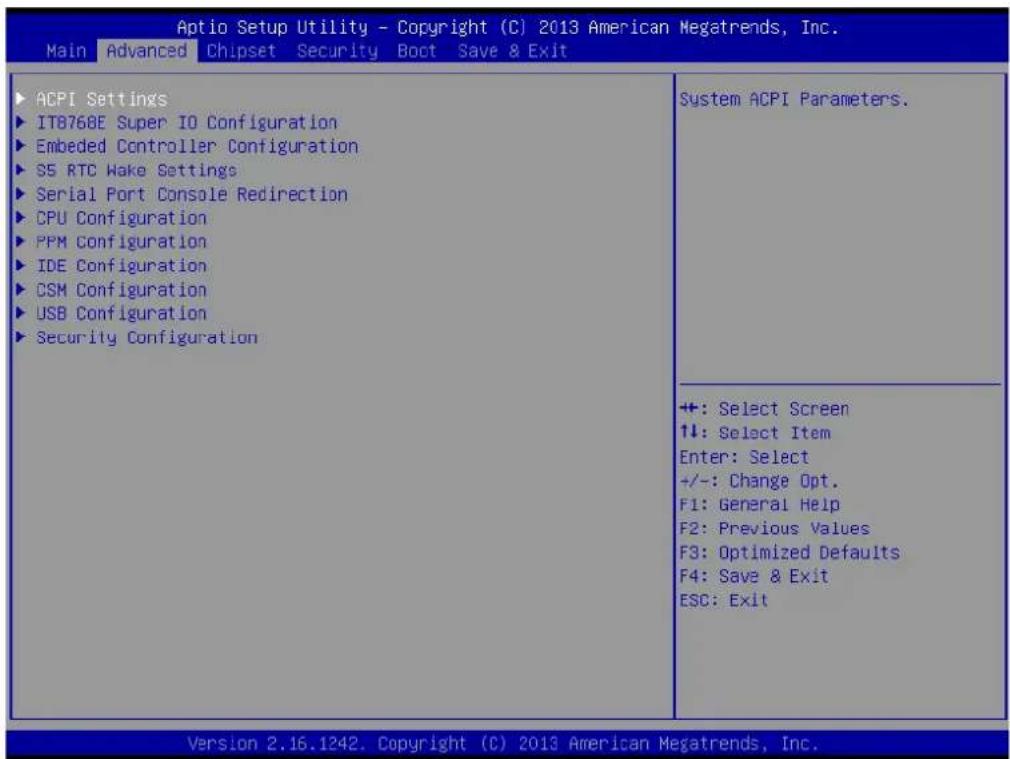
Figure 5.3 Advanced BIOS features setup screen
5.2.2.1 ACPI Setting
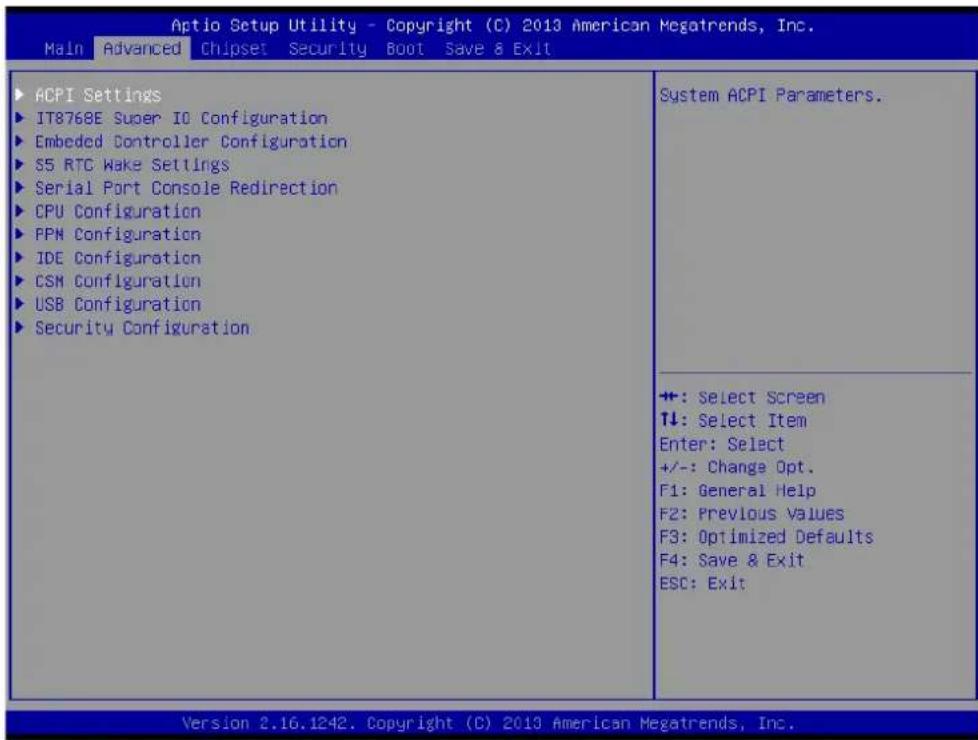
■ Enable ACPI Auto Configuration
Enable or Disable BIOS ACPI auto configuration
■ Enable Hibernation
Enables or Disables system ability to hibernate (OS/S4 Sleep State). This option may not be effective with some OS.
ACPI Sleep State
Select the highest ACPI sleep state the system will enter when the SUS-PEND button is pressed
■ Lock Legacy Resources
Enables or disables lock of legacy resources
5.2.2.2 Super I/O Configuration

Serial Port 1 Configuration
This item allows users to configure serial port 1.
Serial Port 2 Configuration
This item allows users to configure serial port 2.
5.2.2.3 Embedded Controller Configuration
![Aptio Setup Utility - Copyright (C) 2013 American Megatrends, Inc. Advanced EC Firmware Version I2055V0200 EC Hardware Monitor CPU temperature : +32°C +VBAT : +2.973 V +5VSB : +5.038 V +12V : +11.916 V Vcore : +0.785 V Current : +1.039 A Power Saving Mode [Normal] EC Watch Dog Function [Disable] Select Ite0510 Power Saving Mode +: Select Screen ↑↓: Select Item Enter: Select +/-: Change Opt. F1: General Help F2: Previous Values F3: Optimized Defaults F4: Save & Exit ESC: Exit Version 2.16.1242. Copyright (C) 2013 American Megatrends, Inc.](/content/2026/06/1202338/images/c323638df407a80ac444ad959278cf7d5df5b38282a82c1f47a834958d6e9d80.jpg)
EC Hardware Monitor
This page displays all information about system Temperature/Voltage/Current.
■ iManager WatchDog IRQ
This item allows users to set the IRQ number of EC watchdog.
■ Backlight Enable Polarity
This item allows users to set backlight mode.
■ EC Power Saving Mode
This item allows users to set board's power saving mode when off.
■ EC Watch Dog Function
This item allows users to select EC watchdog timer.
5.2.2.4 S5 RTC Wake Settings
![Aptio Setup Utility - Copyright (C) 2013 American Megatrends, Inc. Advanced Wake system from S5 [Disabled] Enable or disable System wake on alarm event. Select FixedTime, system will wake on the hr::min::sec specified. Select DynamicTime , System will wake on the current time + Increase minute(s) +: Select Screen ↑↓: Select Item Enter: Select +/-: Change Opt. F1: General Help F2: Previous Values F3: Optimized Defaults F4: Save & Exit ESC: Exit Version 2.16.1242. Copyright (C) 2013 American Megatrends, Inc.](/content/2026/06/1202338/images/c14ee05c033a7b057650df9a6053082594e296106530fdeced43cb72bcf34f20.jpg)
■ Wake system from S5
Enable or disable System wake on alarm event. Select FixedTime, system will wake on the hr::min::sec specified.
5.2.2.5 Serial Port Console Redirection
![Aptio Setup Utility - Copyright (C) 2013 American Megatrends, Inc. Advanced COM1 Console Redirection [Disabled] ► Console Redirection Settings Serial Port for Out-of-Band Management/ Windows Emergency Management Services (EMS) Console Redirection [Disabled] ► Console Redirection Settings Console Redirection Enable or Disable. +: Select Screen +: Select Item Enter: Select +/-: Charge Opt. F1: General Help F2: Previous Values F3: Optimized Defaults F4: Save & Exit ESC: Exit Version 2.16.1242. Copyright (C) 2013 American Megatrends, Inc.](/content/2026/06/1202338/images/45aaf243c9f855e2509c7f7a92e1245f00e3749b367a0d30ccc2422ddf105e6d.jpg)
■ Console Redirection
This item allows users to enable or disable console redirection for Microsoft-Windows Emergency Management Services (EMS).
■ Console Redirection
This item allows users to configuration console redirection detail settings.
5.2.2.6 CPU Configuration
![Aptio Setup Utility - Copyright (C) 2013 American Megatrends, Inc. Advanced CPU Configuration Socket 0 CPU Information CPU Speed 2001 MHz 64-bit Supported Limit CPUID Maximum [Disabled] Execute Disable Bit [Enabled] Hardware Prefetcher [Enabled] Adjacent Cache Line Prefetch [Enabled] Intel Virtualization Technology [Enabled] Power Technology [Energy Efficient] Socket specific CPU Information +: Select Screen ↑↓: Select Item Enter: Select +/-: Change Opt. F1: General Help F2: Previous Values F3: Optimized Defaults F4: Save & Exit ESC: Exit Version 2.16.1242. Copyright (C) 2013 American Megatrends, Inc.](/content/2026/06/1202338/images/9b78cfb2ebe152cc31ffeca7aa6c6b27423ef886a3bce67f7debf2a4895bc155.jpg)
■ Limit CPUID Maximum
Disabled for Windows XP.
■ Execute Disable Bit
XD can prevent certain classes of malicious buffer overflow attacks when combined with a supporting OS (Windows Server 2003 SP1, Windows XP SP2, SuSE Linux 9.2, RedHat Enterprise 3 Update 3.)
Hardware Prefetcher
Enable the mid level cache(L2) streamer prefetcher.
■ Adjacent Cache Line Prefetch
Enable the mid level cache(L2) prefetching of adjacent cache lines.
Intel Virtualization Technology
When enabled, a VMM can utilize the additional hardware capabilities provided by Vanderpool Technology.
Power Technology
Enable the power management features.
5.2.2.7 PPM Configuration
![Aptio Setup Utility - Copyright (C) 2013 American Megatrends, Inc. Advanced PPM Configuration EIST [Enabled] CPU C state Report [Enabled] Max CFU C-state [ C7] Enable/Disable CPU C state report to OS +: Select Screen ↑↓: Select Item Enter: Select +/-: Charge Opt. F1: General Help F2: Previous Values F3: Optimized Defaults F4: Save & Exit ESC: Exit Version 2.16.1242. Copyright (C) 2013 American Megatrends, Inc.](/content/2026/06/1202338/images/9b9ed45d63d725ae5d8e5fcceefc5791c55ecac17d10d67f614798b61e968292.jpg)
CPU C state Report
Enable/Disable CPU C state report to OS.
Max CPU C-state
This option controls Max C state that the processor will support.
S0ix
Enable/Disable CPU S0ix state.
5.2.2.8 IDE Configuration
![Aptio Setup Utility - Copyright (C) 2013 American Megatrends, Inc. Advanced IDE Configuration Serial-ATA (SATA) [Enabled] SATA Speed Support [Cen2] SATA ODD Port [No ODD] SATA Mode [AHCI Mode] Serial-ATA Port 0 [Enabled] SATA Port0 HotPlug [Disabled] Serial-ATA Port 1 [Enabled] SATA Port1 HotPlug [Disabled] SATA Port0 Not Present SATA Port1 Not Present Enable / Disable Serial ATA +: Select Screen ↑↓: Select Item Enter: Select +/-: Change Opt. F1: General Help F2: Previous Values F3: Optimized Defaults F4: Save & Exit ESC: Exit Version 2.16.1242. Copyright (C) 2013 American Megatrends, Inc.](/content/2026/06/1202338/images/dc0c3c5088392dc6f22f6fd9ea31d5c59c6ced3872c2d79fc96f3a8ba8682ca5.jpg)
Serial-ATA (SATA)
Enable / Disable Serial ATA.
■ SATA Speed Support
SATA Speed Support Gen1 or Gen2.
SATA ODD Port
SATA ODD is Port0 or Port1.
SATA Mode
Select IDE / AHCI.
Serial-ATA Port 0 / Port1
Enable / Disable Serial ATA Port0 / Port1.
■ SATA Port 0 / Port1 HotPlug
Enable / Disable SATA Port0 / Port1 hotplug function.
5.2.2.9 CSM Configuration
| Aptio Setup Utility - Copyright (C) 2013 American Megatrends, Inc. Advanced | |
| Compatibility Support Module Configuration | Enable/Disable CSM Support. |
| CSM Support [Enabled] | |
| CSM16 Module Version 07.75 | |
| GateA20 Active [Upon Request] Option ROM Messages [Force BIOS] INTI9 Trap Response [Immediate] | |
| Boot option filter [UEFI and Legacy] | |
| Option ROM execution | |
| Network [UEFI] Storage [UEFI] Video [Legacy] Other PCI devices [UEFI] | +: Select Screen ↑↓: Select Item Enter: Select +/-: Change Opt. F1: General Help F2: Previous Values F3: Optimized Defaults F4: Save & Exit ESC: Exit |
| Version 2.16.1242. Copyright (C) 2013 American Megatrends, Inc. | |
CSM Support
Enable/Disable CSM Support.
GateA20 Active
UPON REQUEST - GA20 can be disabled using BIOS services. ALWAYS - do not allow disabling GA20; this option is useful when any RT code is executed above 1MB.
Option ROM Messages
Set display mode for Option ROM.
■ INT19 Trap Response
BIOS reaction on INT19 trapping by Option ROM: IMMEDIATE - execute the trap right away; POSTPONED - execute the trap during legacy boot.
■ Boot option filter
This option controls Legacy/UEFI ROMs priority.
Network
Controls the execution of UEFI and Legacy PXE OpROM.
Storage
Controls the execution of UEFI and Legacy Storage OpROM.
Video
Controls the execution of UEFI and Legacy Video OpROM.
■ Other PCI devices
Determines OpROM execution policy for devices other than Network, Storage, or Video.
5.2.2.10 USB Configuration
| Aptio Setup Utility - Copyright (C) 2013 American Megatrends, Inc. Advanced | |
| USB Configuration USB Module Version 8.11.01 USB Devices: 1 Drive, 1 Keyboard, 2 Hubs Legacy USB Support [Enabled] XHCI Hand-off [Enabled] EHCI Hand-off [Disabled] USB Mass Storage Driver Support [Enabled] | |
| USB hardware delays and time-outs: USB transfer time-out [20 sec] Device reset time-out [20 sec] Device power-up delay [Auto] | |
| Mass Storage Devices: USB 2.0 USB Flash Drive 0.00 [Auto] | |
| Version 2.16.1242. Copyright (C) 2013 American Megatrends, Inc. | |
| Enables Legacy USB support. AUTO option disables legacy support if no USB devices are connected. DISABLE option will keep USB devices available only for EFI applications. | |
| +: Select Screen ↑↓: Select Item Enter: Select +/-: Change Opt. F1: General Help F2: Previous Values F3: Optimized Defaults F4: Save & Exit ESC: Exit |
■ Legacy USB Support
Enables Legacy USB support. AUTO option disables legacy support if no USB devices are connected. DISABLE option will keep USB devices available only for EFI applications.
XHCI Hand-off
This is a workaround for OSes without XHCI hand-off support. The XHCI ownership change should be claimed by XHCI driver.
EHCI Hand-Off
This is a workaround for OSes without EHCl hand-off support. The EHCl ownership change should claim by EHCl driver.
USB Mass Storage Driver Support
Enable/Disable USB Mass Storage Driver Support.
USB transfer time-out
Time-out value for control, Bulk, and interrupt transfers.
■ Device reset time-out
USB mass storage device start unit command time-out.
■ Device power-up delay
Maximum time the device will take before it properly reports itself to the Host Controller. 'Auto' uses default value: for a Root port it is 100 ms, for a Hub port the delay is taken from Hub descriptor.
5.2.2.11 Security Configuration
![Aptio Setup Utility - Copyright (C) 2013 American Megatrends, Inc. Advanced Intel(R) TXE Configuration TXE [Enabled] TXE HMRFPO [Disabled] TXE Firmware Update [Enabled] TXE EOP Message [Enabled] TXE Unconfiguration Perform +: Select Screen 1↓: Select Item Enter: Select +/-: Change Opt. F1: General Help F2: Previous Values F3: Optimized Defaults F4: Save & Exit ESC: Exit Version 2.16.1242. Copyright (C) 2013 American Megatrends, Inc.](/content/2026/06/1202338/images/fa4272d1dc93e7ed3f841e968c2b43bbb213d1a72b1c1eb811ce22d174bfe626.jpg)
TXE
TXE HMRFPO Disable
TXE Firmware Update
■ TXE EOP Message
Send EOP Message Befor Enter OS
■ TXE Unconfiguration Perform
Revert TXE settings to factory defaults
5.2.3 Chipset Configuration

North Bridge
Detail for North Bridge items.
South Bridge
Detail for South Bridge items.
5.2.3.1 Intel IGD Configuration
![Aptio Setup Utility - Copyright (C) 2013 American Megatrends, Inc. Chipset Primary IGFX Boot Display [VBIOS Default] LVDS Panel Type [Disable] DVMT Pre-Allocated [64M] DVMT Total Gfx Mem [256MB] Aperture Size [256MB] DOP CG [Enabled] GTT Size [2MB] IGD Thermal [Disabled] Spread Spectrum clock [Disabled] 2nd LVDS Backlight Control [DC] Select the Video Device which will be activated during POST. This has no effect if external graphics present. Secondary boot display selection will appear based on your selection. VGA modes will be supported only on primary display ++: Select Screen ↑: Select Item Enter: Select +/-: Change Opt. F1: General Help F2: Previous Values F3: Optimized Defaults F4: Save & Exit ESC: Exit Version 2.16.1242. Copyright (C) 2013 American Megatrends, Inc.](/content/2026/06/1202338/images/3010d008a080e521533547d3b09bf98e1c388609bbaad92f95477a2283122168.jpg)
■ Primary IGFX Boot Display
Select the Video Device which will be activated during POST.\nThis has no effect if external graphics present.\nSecondary boot display selection will appear based on your selection.\nVGA modes will be supported only on primary display.
LVDS Panel Type
This item allow user to select LVDS panel type.
DVMT Pre-Allocated
Select DVMT 5.0 Pre-Allocated (Fixed) Graphics Memory size used by the Internal Graphics Device.
DVMT Total Gfx Mem
Select DVMT 5.0 Total Graphic Memory size used by the Internal Graphics Device.
Aperture Size
Select the Aperture Size.
DOP CG
Enable/Disable DOP clock gating.
GTT Size
Select the GTT Size
IGD Thermal
Enable/Disable IGD Thermal.
■ Spread Spectrum clock
Enable/Disable Spread Spectrum clock.
5.2.3.2 South Bridge
![Aptio Setup Utility - Copyright (C) 2013 American Megatrends, Inc. Chipset Azalla HD Audio USB Configuration PCI Express Configuration High Precision Timer [Enabled] Lan1 Controller [Enabled] Lan2 Controller [Enabled] PCIE Wake [Disabled] Restore AC Power Loss [Power Off] Serial IRQ Mode [Quiet] Global SMI Lock [Enabled] BIOS Read/Write Protection [Disabled] Azalia HD Audio Options +: Select Screen ↑↓: Select Item Enter: Select +/-: Change Opt. F1: General Help F2: Previous Values F3: Optimized Defaults F4: Save & Exit ESC: Exit Version 2.16.1242. Copyright (C) 2013 American Megatrends, Inc.](/content/2026/06/1202338/images/12f8f7f5a252cb7c2c189c17650ccca76c9a1351d90ef2dc37921c35a707f7c0.jpg)
Azalia HD Audio
Azalia HD Audio Options.
USB Configuration
USB Configuration Settings.
PCI Express Configuration
PCI Express Configuration settings.
■ High Precision Timer
Enables or disables the high precision timer.
■ LAN1 Controller
Enable or Disable the LAN1.
■ LAN2 Controller
Enable or Disable the LAN2.
PCIE Wake
Enable or Disable PCIE to wake the system from S5.
■ Restore AC Power Loss
Select AC power state when power is re-applied after a power failure.
Serial IRQ Mode
Configure Serial IRQ Mode.
Global SMI Lock
Enable or Disable SMI lock.
■ BIOS Read/Write Protection
Enable or Disable BIOS SPI region read/write protect.
5.2.3.3 Azalia HD Audio
![Aptio Setup Utility - Copyright (C) 2013 American Megatrends, Inc. Chipset Audio Configuration Audio Controller [Enabled] Azalia HDMI Codec [Enabled] HDMI Port B [Enabled] HDMI Port C [Disabled] Control Detection of the Azalia device. Disabled = Azalia will be unconditionally disabled. Enabled = Azalia will be unconditionally Enabled. Auto = Azalia will be enabled if present disabled otherwise. +: Select Screen 1↓: Select Item Enter: Select +/-: Change Opt. F1: General Help F2: Previous Values F3: Optimized Defaults F4: Save & Exit ESC: Exit Version 2.16.1242. Copyright (C) 2013 American Megatrends, Inc.](/content/2026/06/1202338/images/f9c383186fedb74b1183c7cd1ad74c23a82b039b0b8b7442a9c7cb0046afe5ea.jpg)
Audio Controller
Control Detection of the Azalia device. Disabled = Azalia will be unconditionally disabled. Enabled = Azalia will be unconditionally Enabled. Auto = Azalia will be enabled if present disabled otherwise.
Azalia HDMI Codec
Enable/Disable internal HDMI codec for Azalia
HDMI Port B
| Aptio Setup Utility - Copyright (C) 2013 American Megatrends, Inc. Advanced | |
| USB Configuration USB Module Version 8.11.01 USB Devices: 1 Drive, 1 Keyboard, 2 Hubs Legacy USB Support [Enabled] XHCI Hand-off [Enabled] EHCI Hand-off [Disabled] USB Mass Storage Driver Support [Enabled] | |
| USB hardware delays and time-outs: USB transfer time-out [20 sec] Device reset time-out [20 sec] Device power-up delay [Auto] | |
| Mass Storage Devices: USB 2.0 USB Flash Drive 0.00 [Auto] | |
| Version 2.16.1242. Copyright (C) 2013 American Megatrends, Inc. | |
| Enables Legacy USB support. AUTO option disables legacy support if no USB devices are connected. DISABLE option will keep USB devices available only for EFI applications. | |
| +: Select Screen ↑↓: Select Item Enter: Select +/-: Change Opt. F1: General Help F2: Previous Values F3: Optimized Defaults F4: Save & Exit ESC: Exit |
■ Legacy USB Support
Enables Legacy USB support. AUTO option disables legacy support if no USB devices are connected. DISABLE option will keep USB devices available only for EFI applications.
XHCI Hand-off
This is a workaround for OSes without XHCI hand-off support. The XHCI ownership change should be claimed by XHCI driver.
EHCI Hand-Off
This is a workaround for OSes without EHCl hand-off support. The EHCl ownership change should claim by EHCl driver.
USB Mass Storage Driver Support
Enable/Disable USB Mass Storage Driver Support.
USB transfer time-out
Time-out value for control, Bulk, and interrupt transfers.
■ Device reset time-out
USB mass storage device start unit command time-out.
■ Device power-up delay
Maximum time the device will take before it properly reports itself to the Host Controller. 'Auto' uses default value: for a Root port it is 100 ms, for a Hub port the delay is taken from Hub descriptor.
5.2.3.5 PCI Express Configuration
![Aptio Setup Utility - Copyright (C) 2013 American Megatrends, Inc. Chipset PCI Express Configuration PCI Express Port 0 [Enabled] Speed [Auto] PCI Express Port 2 [Enabled] Speed [Auto] Enable or Disable the PCI Express Port 0 in the Chipset. +: Select Screen 1↓: Select Item Enter: Select +/-: Change Opt. F1: General Help F2: Previous Values F3: Optimized Defaults F4: Save & Exit ESC: Exit Version 2.16.1242. Copyright (C) 2013 American Megatrends, Inc.](/content/2026/06/1202338/images/d0012d11798770dfcc4fbbfea7a3820d230068d12e92ded371a849e3b2078b61.jpg)
PCI Express Port0 / Port2
Enable or Disable the PCI Express Port0 / Port 2 in the Chipset.
Speed
Configure PCIe Port Speed.
5.2.4 Security
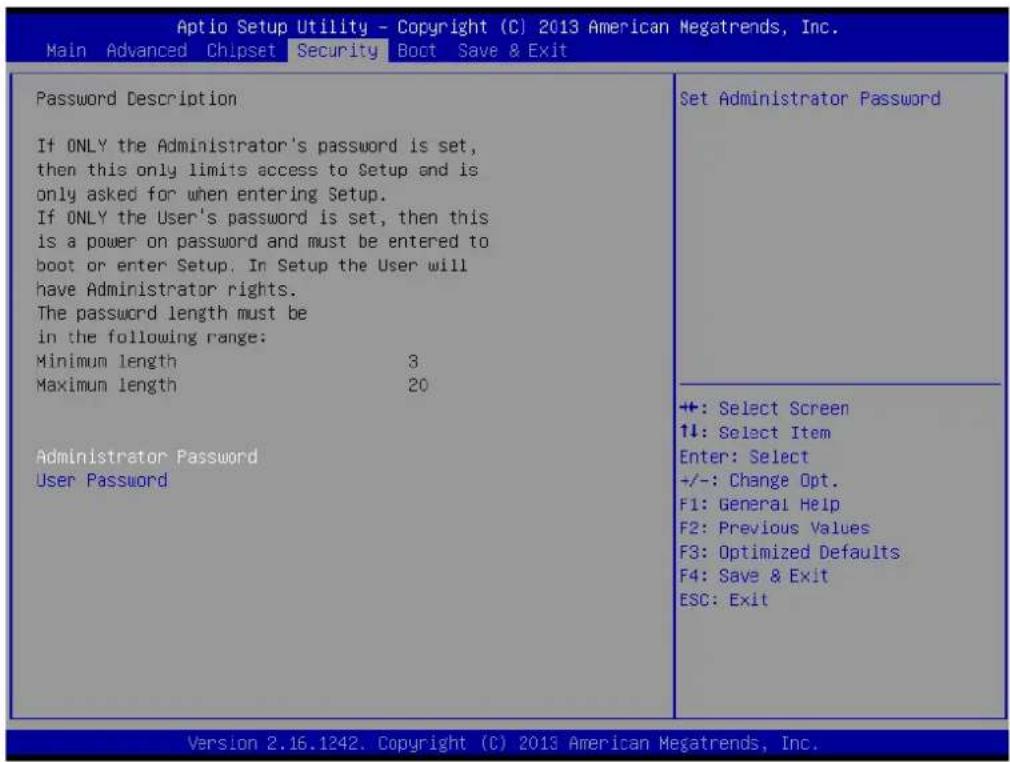
Select Security Setup from the MIO-5251 Setup main BIOS setup menu. All Security Setup options, such as password protection and virus protection are described in this section. To access the sub menu for the following items, select the item and press
■ Change Administrator / User Password
Select this option and press
5.2.5 Boot
![Aptio Setup Utility - Copyright (C) 2013 American Megatrends, Inc. Main Advanced Chipset Security Boot Save & Exit Boot Configuration Setup Prompt Timeout 1 Bootup NumLock State [On] Quiet Boot [Disabled] Boot Option Priorities Boot Option #1 [UEFI: Built-in EFI ...] Boot Option #2 [Disabled] Boot Option #3 [Disabled] Hard Drive BBS Priorities Sets the system boot order +: Select Screen 1↓: Select Item Enter: Select +/-: Change Opt. F1: General Help F2: Previous Values F3: Optimized Defaults F4: Save & Exit ESC: Exit Version 2.16.1242. Copyright (C) 2013 American Megatrends, Inc.](/content/2026/06/1202338/images/fdae47206dd135e69e6a689b3e00036e1a8dee7e4c61cde617f1b4b3c9f4d7b5.jpg)
Setup Prompt Timeout
Number of seconds that the firmware will wait before initiating the original default boot selection. A value of 0 indicates that the default boot selection is to be initiated immediately on boot. A value of 65535(0xFFFF) indicates that firmware will wait for user input before booting. This means the default boot selection is not automatically started by the firmware.
■ Bootup NumLock State
Select the keyboard NumLock state.
Quiet Boot
Enables or disables Quiet Boot option.
■ Boot Option #1
Sets the system boot order.
5.2.6 Save & Exit
| Aptio Setup Utility - Copyright (C) 2013 American Megatrends, Inc. | |
| Main Advanced Chipset Security Boot Save & Exit | |
| Save Changes and ExitDiscard Changes and ExitSave Changes and ResetDiscard Changes and ResetSave OptionsSave ChangesDiscard ChangesRestore DefaultsSave as User DefaultsRestore User DefaultsBoot OverrideUEFI: Built-in EFI ShellUEFI: USB 2.0 USB Flash Drive 0.00USB 2.0 USB Flash Drive 0.00Launch EFI Shell from filesystem deviceReset System with ME disable ModeMEUDOCO | Exit system setup after saving the changes.+: Select Screen↑↓: Select ItemEnter: Select+/-: Change Opt.F1: General HelpF2: Previous ValuesF3: Optimized DefaultsF4: Save & ExitESC: Exit |
■ Save Changes and Exit
This item allows you to exit system setup after saving the changes.
■ Discard Changes and Exit
This item allows you to exit system setup without saving any changes.
■ Save Changes and Reset
This item allows you to reset the system after saving the changes.
■ Discard Changes and Reset
This item allows you to rest system setup without saving any changes.
■ Save Changes
This item allows you to save changes done so far to any of the options.
■ Discard Changes
This item allows you to discard changes done so far to any of the options.
Restore Defaults
This item allows you to restore/load default values for all the options.
■ Save as User Defaults
This item allows you to save the changes done so far as user defaults.
Restore User Defaults
This item allows you to restore the user defaults to all the options.
■ Boot Override
Boot device select can override your boot priority.
Appendix A
WDT Sample Code
A.1 Watchdog Timer Sample Code
EC_Command_Port = 0x29Ah
EC_Data_Port = 0x299h
Write EC HW ram = 0x89
Watch dog event flag = 0x57
Watchdog reset delay time = 0x5E
Reset event = 0x04
Start WDT function = 0x28

================

.model small
.486p
.stack 256
.data
.code
org 100h
.STARTup

mov dx, EC_Command_Port
mov al, 89h ; Write EC HW ram.
out dx, al

mov dx, EC_Data_Port
mov al, 5Fh ; Watchdog reset delay time low byte (5Eh is high byte) index.
out dx, al

mov dx, EC_Data_Port
mov al, 30h ; Set 3 seconds delay time.
out dx, al

mov dx, EC_Command_Port
mov al, 89h ; Write EC HW ram.
out dx, al

mov dx, EC_ EC_Data_Port
mov al, 57h ; Watch dog event flag.
out dx, al

mov dx, EC_Data_Port
mov al, 04h ; Reset event.
out dx, al

mov dx, EC_Command_Port
mov al, 28h ; start WDT function.
out dx, al
.exit
ADVANTECH
Enabling an Intelligent Planet
www.advantech.com
Please verify specifications before quoting. This guide is intended for reference purposes only.
All product specifications are subject to change without notice.
No part of this publication may be reproduced in any form or by any means, electronic, photocopying, recording or otherwise, without prior written permission of the publisher.
All brand and product names are trademarks or registered trademarks of their respective companies.
© Advantech Co., Ltd. 2015
- ARK-2121S
- Attention!
- Acknowledgements
- Product Warranty (2 years)
- Declaration of Conformity
- CE
- FCC Class A
- Technical Support and Assistance
- Warnings, Cautions and Notes
- Document Feedback
- Packing List
- Ordering Information
- P/N Description
- Safety Instructions
- Contents
- Chapter 1 General Introduction ......1
- Chapter 2 Hardware installation ....7
- Chapter 3 Jumper and Switch Settings ......13
- Chapter 4 Pin Assignments ......17
- Chapter 5 BIOS settings 25
- Appendix A WDT Sample Code 49
- Chapter 1
- General Introduction
- Introduction
- General Specification
- Specifications
- Power Requirement:
- Dimensions
- Chapter 2
- Overview of Hardware Installation & Upgrading
- Installing Memory
- Installing storage
- Installing 2.5" SSD or HDD
- Installing mSATA Storage
- Installing Optional Modules
- Installing WLAN module
- Installing WWAN module
- Chapter 3
- Jumper and Switch Settings
- Setting Jumpers and Switches
- Locations of Jumpers
- Main board
- Jumper Lists
- Main Board
- Jumper Settings
- Main Board
- Auto Power On Setting (J2)
- Chapter 4
- Pin Assignments
- ARK-2121S-S9A1E I/O Connectors
- ARK-2121S-S9A1E Front I/O View
- ARK-2121S-S9A1E Rear I/O View
- ARK-2121S-S9A1E I/O Pin Definition
- VGA Connector
- USB Connector
- Ethernet Connector
- HDMI Connector
- DIO Connector
- Power Input Connector
- Power Over Ethernet
- System Audio Connector
- Optional I/O
- Power On/Off Button
- Reset
- LED Indicator
- Chapter 5
- BIOS settings
- Introduction
- Entering Setup
- Main Setup
- System Time / System Date
- Advanced BIOS Features Setup
- ACPI Setting
- Super I/O Configuration
- Embedded Controller Configuration
- S5 RTC Wake Settings
- ■ Wake system from S5
- Serial Port Console Redirection
- ■ Console Redirection
- CPU Configuration
- PPM Configuration
- IDE Configuration
- CSM Configuration
- USB Configuration
- ■ Legacy USB Support
- XHCI Hand-off
- EHCI Hand-Off
- USB Mass Storage Driver Support
- USB transfer time-out
- ■ Device reset time-out
- ■ Device power-up delay
- Security Configuration
- Chipset Configuration
- Intel IGD Configuration
- South Bridge
- Azalia HD Audio
- Audio Controller
- Azalia HDMI Codec
- HDMI Port B
- PCI Express Configuration
- Security
- ■ Change Administrator / User Password
- Boot
- Setup Prompt Timeout
- ■ Bootup NumLock State
- Quiet Boot
- ■ Boot Option #1
- Save & Exit
- Appendix A
- ADVANTECH
- www.advantech.com
Brand : Advantech
Model : ARK-2121S
Category : Security Camera