Series 5000 S5251 - Electric razor PHILIPS - Free user manual and instructions
Find the device manual for free Series 5000 S5251 PHILIPS in PDF.


User questions about Series 5000 S5251 PHILIPS
0 question about this device. Answer the ones you know or ask your own.
Ask a new question about this device
Download the instructions for your Electric razor in PDF format for free! Find your manual Series 5000 S5251 - PHILIPS and take your electronic device back in hand. On this page are published all the documents necessary for the use of your device. Series 5000 S5251 by PHILIPS.
USER MANUAL Series 5000 S5251 PHILIPS
natural_image
Black Philips Series 5000 electric shaver with three rotary buttons and power button (no visible text or symbols beyond product branding)フィリップ ス電 動 シェー バー
品番 S5395/26,S5395/12, S5272/12,S5212/12, S5231/12,S5396/12, S5273/12,S5213/12, S5252/12,S5251/12
※この写真の製品はS5395/26、
S5395/12、
S5396/12です
取扱説明書
保証書付
保証書は、この取扱説明
書の最終ページについて
おりますので 販売 店で 記
入を 受 け てくだ さい。
natural_image
Line drawing of a handheld electric shaver with three circular buttons (no text or symbols)natural_image
Line drawing of a mechanical device with a handle and central component (no text or symbols)natural_image
Line drawing of a stylized object resembling a container or device (no text or symbols)トリマー
natural_image
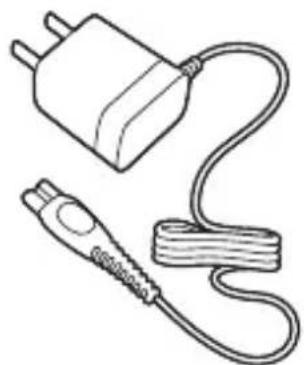
Line drawing of a connected power plug and cable (no text or symbols)充電アダプタ
natural_image
Simple line drawing of a mechanical component with a handle and central hole (no text or symbols)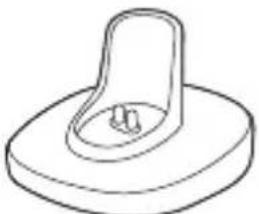
natural_image
Simple line drawing of a mechanical component with a handle and circular base (no text or symbols)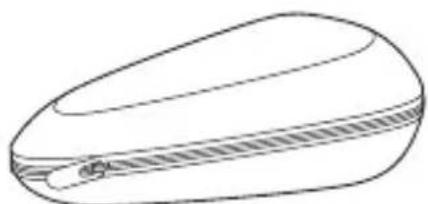
natural_image
Simple line drawing of a closed, oval-shaped object with a textured center and a small protrusion at the bottom (no text or symbols)収納ケース
Guidance in English 26\~54
● 保 証
保証とアフターサービス …55……
仕様 56
無料修理規定 …58……
保証書 ...... 最終ページ
必ずお守り ください
安全上のご注意
natural_image
Line drawing of a mechanical component with curved surfaces and a base (no text or symbols)トリマー
●シェービングユニット
natural_image
Simple line drawing of a rectangular container with a side tab (no text or symbols)natural_image
Line drawing of a mechanical device with a lever and housing (no text or symbols)JC5107
※付属モデルのみ
●洗浄ランプ

natural_image
Line drawing of a hand inserting a power button into a device (no text or symbols)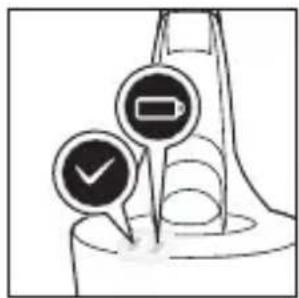
お客様による充電池の交換はできません。
この商品は通常時間充電です。
natural_image
Illustration of a hand pressing a circular button on a device (no text or symbols visible)natural_image
Illustration of a person applying makeup to their ear with a brush (no text or symbols)上手に 剃るには
natural_image
Line drawing of a person applying facial massage to their ear (no text or symbols)ほお
natural_image
Illustration of a hand performing a neck massage technique with a curved arrow indicating motion (no text or symbols)あごの裏側
natural_image
Illustration of a person performing a medical or therapeutic procedure on another person's neck (no text or symbols present)ほおの奥から首筋
natural_image
Line drawing of a person applying a medical or cosmetic tool to their neck area, with no visible text or symbols.鼻の下
natural_image
Illustration of a person applying a product to their ear with a brush (no text or symbols)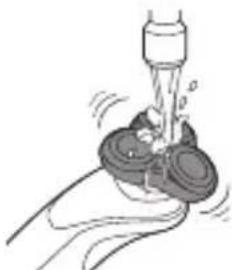
natural_image
Illustration of a hand holding a small object with motion lines indicating movement (no text or symbols)natural_image
Illustration of a person using a hairdryer (no text or symbols present)4 シェービングユニットのつけ方
natural_image
Illustration of a hand holding a device with tubing and a circular object, no text or symbols presentnatural_image
Illustration of a food item being processed with chopsticks (no text or symbols)natural_image
Illustration of a stylized human head with ornate patterns and a curved arrow indicating motion (no text or symbols)natural_image
Simple line drawing of a hand holding two circular buttons with spiral patterns, next to a ladder (no text or symbols)4
natural_image
Diagram showing two steps of a food processor: one with an upward arrow inside a container, the other with an arrow inserted into a base (no text or symbols present)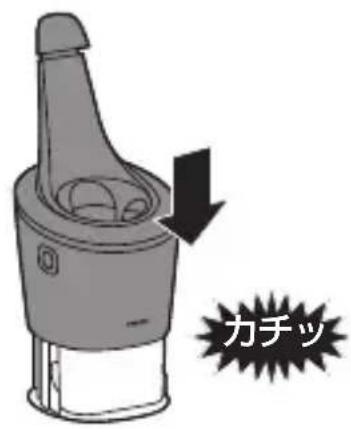

注意
natural_image
Illustration of a hand holding a shoe with a foot, next to a plant stem (no text or symbols)natural_image
Simple line drawing of a spray nozzle emitting particles (no text or symbols)保管の仕方
natural_image
Illustration showing a hand holding a device with a downward arrow indicating motion (no text or symbols present)natural_image
Illustration of a traditional East Asian figure with ornate headwear and decorative elements (no text or symbols)natural_image
Illustration of two hands holding a tray with circular patterns, one moving down and the other moving up with a spark (no text or symbols)natural_image
Illustration of three different tools or components: a tool, a pen-like object, and a mechanical clamp (no text or symbols present)natural_image
Illustration of two skis with directional arrows indicating motion (no text or symbols)natural_image
Diagram of two mechanical components with arrows indicating motion or force direction (no text or symbols)natural_image
Illustration of a robotic hand gripping a tool, with an arrow indicating the movement (no text or symbols present)Congratulations on your purchase and welcome to
Philips! To fully benefit from the support that
Philips offers, register your product at
www.philips.com/welcome.
General description (Fig. 1)
1 Click-on trimmer attachment
2 Click-on shaving unit
3 On/off button
4 Turbo button (S5396/12, S5395/26, S5395/12 only)
5 Handle
6 Socket for small plug
7 Battery charge indicator with 1 light (S5273/12, S5272/12, S5251/12, S5252/12, S5231/12, S5213/12, S5212/12 only)
8 Battery charge indicator with 3 lights (S5396/12, S5395/26, S5395/12 only)
9 Unplug for use symbol
10 Travel lock symbol
11 Replacement reminder
12 Cleaning reminder
13 Supply unit
14 Small plug
15 Pouch
16 Cap of SmartClean system
17 SmartClean system (S5395/26 only)
18 On/off button
19 Battery symbol
20 Ready symbol
21 Rinsing symbol
22 Replacement symbol
23 Cleaning cartridge for SmartClean system
24 Product stand
The accessories supplied may vary for different products. The box shows the accessories that have been supplied with your appliance.
Important safety information
Read this important information carefully before you use the appliance and its accessories and save it for future reference. The accessories supplied may vary for different products.
Danger

natural_image
Prohibition sign showing a faucet without spraying water, enclosed in a circle (no text)- Keep the supply unit dry.
Warning
- To charge the battery, only use the detachable supply unit (HQ8505) provided with the appliance.
- The supply unit contains a transformer. Do not cut off the supply unit to replace it with another plug, as this causes a hazardous situation.
- This appliance can be used by children aged from 8 years and above and persons with reduced physical, sensory or mental capabilities or lack of experience and knowledge if they have been given supervision or instruction concerning use of the appliance in a safe way and understand the hazards involved. Children shall not play with the appliance. Cleaning and user maintenance shall not be made by children without supervision.
- Always unplug the shaver before you clean it under the tap.
- Always check the appliance before you use it. Do not use the appliance if it is damaged, as this may cause injury. Always replace a damaged part with one of the original type.
English
Caution

natural_image
Prohibition sign showing a faucet with a diagonal line and a showerhead symbol (no text)- Do not open the appliance to replace the rechargeable battery.
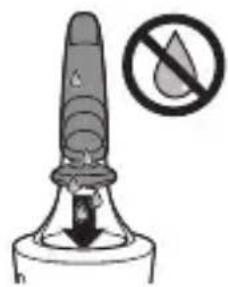
- Never immerse the cleaning system or the charging stand in water and do not rinse it under the tap.
- Never use water hotter than 80^ C to rinse the shaver.
- Only use this appliance for its intended purpose as shown in the user manual.
- For hygienic reasons, the appliance should only be used by one person.
- Never use compressed air, scouring pads, abrasive cleaning agents or aggressive liquids such as petrol or acetone to clean the appliance.
- If your shaver comes with a cleaning system, always use the original Philips cleaning fluid (cartridge or bottle, depending on the type of cleaning system).
- Always place the cleaning system on a stable, level and horizontal surface to prevent leakage.
- If your cleaning system uses a cleaning cartridge, always make sure the cartridge compartment is closed before you use the cleaning system to clean or charge the shaver.
- When the cleaning system is ready for use, do not move it to prevent leakage of cleaning fluid.
- Water may drip from the socket at the bottom of the shaver when you rinse it. This is normal and not dangerous because all electronics are enclosed in a sealed power unit inside the shaver.
- Do not use the supply unit in or near wall sockets that contain an electric air freshener to prevent irreparable damage to the supply unit.
Electromagnetic fields (EMF)
- This Philips appliance complies with all applicable standards and regulations regarding exposure to electromagnetic fields.
General

- This shaver is waterproof. It is suitable for use in the bath or shower and for cleaning under the tap. For safety reasons, the shaver can therefore only be used without cord.
- The appliance is suitable for mains voltages ranging from 100 to 240 volts.
- The supply unit transforms 100-240 volts to a safe low voltage of less than 24 volts.
The display
Charging
Note: If you press the on/off button during charging, the 'unplug for use' symbol flashes white to remind you that you have to disconnect the appliance from the wall socket.
Battery charge indicator with 3 lights
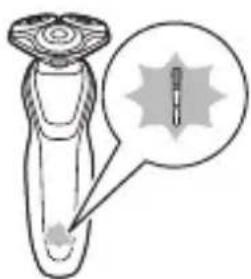
Quick charge: When the battery is empty and you connect the appliance to the wall socket, the lights of the battery charge indicator light up one after the other repeatedly. When the appliance contains enough energy for one shave, the bottom light of the battery charge indicator starts flashing slowly. While the appliance continues to charge, first the bottom light of the battery charge indicator flashes and then lights up continuously. Then the second light flashes and then lights up continuously, and so on until the appliance is fully charged.
(S5396/12, S5395/26, S5395/12 only).
natural_image
Illustration of a hairdryer with a magnified inset showing the tip and bulb (no text or symbols)English

natural_image
Illustration of a laboratory test tube with a capillary top and a magnified inset showing a labeled component (no text or symbols present)Battery charge indicator with 1 light
Quick charge: When the battery is empty and you connect the appliance to the wall socket, the battery charge indicator flashes quickly. When the appliance contains enough energy for one shave, the battery charge indicator starts flashing slowly.
While the appliance continues to charge, the battery charge indicator flashes slowly until the appliance is fully charged.
(S5273/12, S5272/12, S5252/12, S5251/12, S5231/12, S5213/12, S5212/12 only).
Battery fully charged
Note: When the battery is full, the display switches off automatically after 30 minutes.
Note: This appliance can only be used without cord.
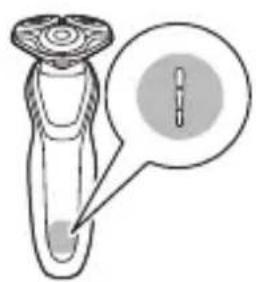
natural_image
Diagram of a laboratory test tube with a magnified inset showing internal structures (no text or labels)Battery charge indicator with 3 lights
When the battery is fully charged, all lights of the battery charge indicator light up white continuously.
(S5396/12, S5395/26, S5395/12 only).
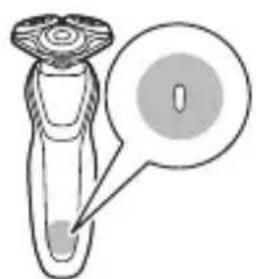
natural_image
Diagram of a test tube with a magnified inset showing internal structure (no text or labels)Battery charge indicator with 1 light
When the battery is fully charged, the battery charge indicator lights up white continuously.
(S5273/12, S5272/12, S5252/12, S5251/12, S5231/12, S5213/12, S5212/12 only).
Battery low
Battery charge indicator with 3 lights
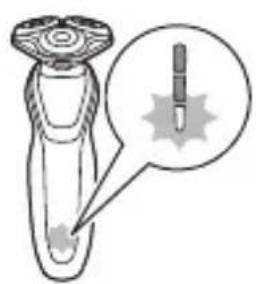
natural_image
Illustration of a hairdryer with a magnified inset showing the tip and base (no text or symbols)When the battery is almost empty, the bottom light of the battery charge indicator flashes orange. (S5396/12, S5395/26, S5395/12 only).

natural_image
Illustration of a test tube with a magnified inset showing internal structures (no text or symbols)Battery charge indicator with 1 light
When the battery is almost empty, the battery charge indicator flashes orange. (S5273/12, S5272/12, S5252/12, S5251/12, S5231/12, S5213/12, S5212/12 only).
Remaining battery charge
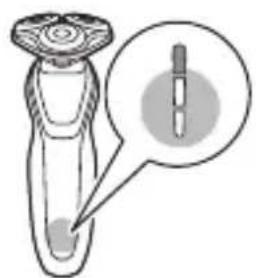
natural_image
Illustration of a test tube with a magnified inset showing internal structure (no text or symbols)Battery charge indicator with 3 lights
The remaining battery charge is shown by the lights of the battery charge indicator that light up continuously. (S5396/12, S5395/26, S5395/12 only).
'Unplug for use' reminder
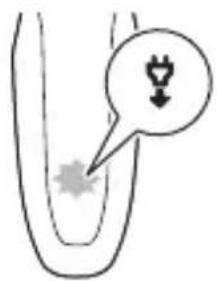
The appliance is equipped with an ‘unplug for use’ reminder. The ‘unplug for use’ symbol flashes to remind you that you have to disconnect the appliance from the supply unit before you can switch it on.
English
Cleaning reminder
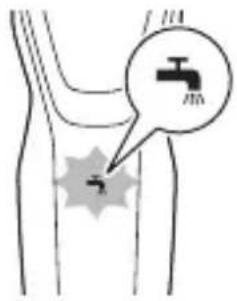
Clean the shaver after every shave for optimal performance. When you switch off the appliance, the cleaning reminder flashes to remind you to clean the appliance.
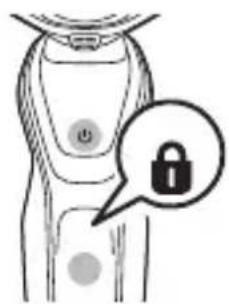
Travel lock
You can lock the appliance when you are going to travel. The travel lock prevents the appliance from being switched on by accident.
Activating the travel lock
1 Press the on/off button for 3 seconds to enter the travel lock mode.
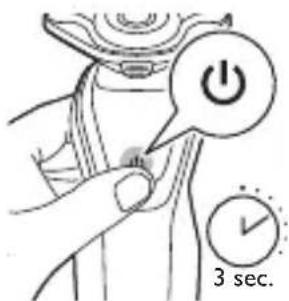
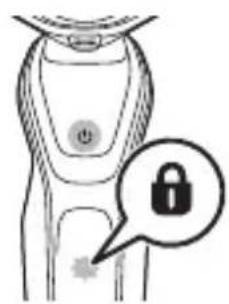
While you activate the travel lock, the travel lock symbol lights up continuously. When the travel lock is activated, the travel lock symbol flashes.
natural_image
Illustration of a person wearing a smartwatch with a lock icon and a speech bubble (no text or symbols)Deactivating the travel lock
1 Press the on/off button for 3 seconds.
The travel lock symbol flashes and then lights up continuously. The appliance is now ready for use again.
natural_image
Illustration of a person wearing a smartwatch with a lock icon and speech bubble (no text or symbols)Replacement reminder
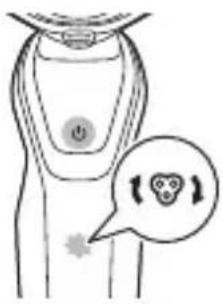
For maximum shaving performance, we advise you to replace the shaving heads every two years. The appliance is equipped with a replacement reminder which reminds you to replace the shaving heads. The shaving unit symbol and arrows light up to indicate that you have to replace the shaving heads.
Note: After replacing the shaving heads, you need to reset the replacement reminder by pressing the on/off button for 7 seconds.
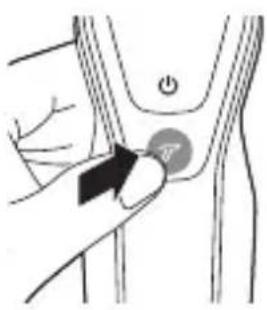
Turbo setting
The appliance is equipped with a Turbo or Turbo+ setting. This setting is intended for quicker and more intense shaving and makes hard-to-reach areas easier to shave.
(S5396/12, S5395/26, S5395/12 only).
Activating the Turbo setting
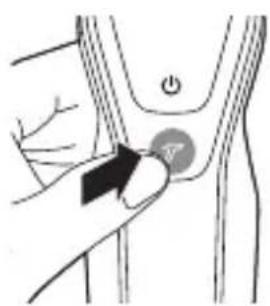
1 To activate the Turbo setting, press the Turbo button once when the appliance is switched on.
Deactivating the Turbo setting
1 To deactivate the Turbo setting, press the Turbo button once.
natural_image
Illustration of a hand holding a circular button with a black arrow, pointing to a medical or anatomical structure (no text or symbols present)Charging
Charge the shaver before you use it for the first time and when the display indicates that the battery is almost empty. Charging takes approx. 1 hour.
S5396/12, S5395/26, S5395/12: a fully charged shaver provides up to 50 shaving minutes.
English
S5273/12, S5272/12, S5231/12, S5213/12, S5212/12: a fully charged shaver provides up to 40 shaving minutes.
Note: You cannot use the appliance while it is charging.
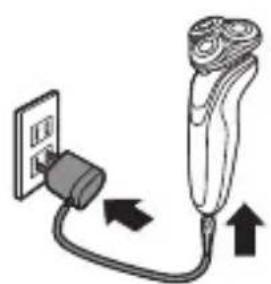
Charging with the supply unit
natural_image
Diagram showing a hairbrush connecting its cable to a wall socket, with arrows indicating direction (no text or symbols)1Make sure the appliance is switched off.
2Put the supply unit in the wall socket and put the small plug in the appliance.
3After charging, remove the supply unit from the wall socket and pull the small plug out of the appliance.
Charging in the SmartClean system
(S5395/26 only)
1Put the small plug in the back of the SmartClean system.
2Put the supply unit in the wall socket.
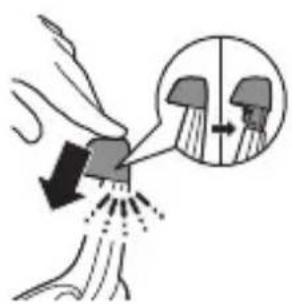
3Press the top cap to be able to place the shaver in the holder ('click').
natural_image
Diagram showing a hand spraying water with an arrow indicating flow direction, and a magnified inset showing a cross-section of a human head (no text or symbols)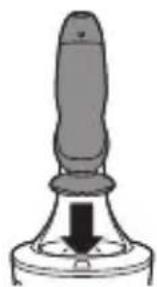
natural_image
Simple line drawing of a mechanical component with a downward arrow indicating force or direction (no text or symbols)4Hold the shaver upside down above the holder. Make sure the front of the shaver points towards the SmartClean system.
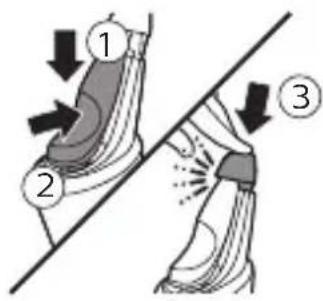
5 Place the shaver in the holder (1), tilt the shaver backwards (2) and press down the top cap to connect the shaver ('click') (3).
The battery symbol starts to flash to indicate that the appliance is charging. When the battery is fully charged, the battery symbol lights up continuously.
Using the appliance
Note: This appliance can only be used without cord.
Switching the appliance on and off
natural_image
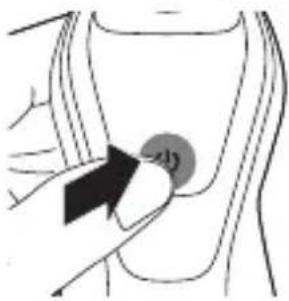
Illustration of a hand holding a circular object with an arrow pointing to it, no text or symbols present1 To switch on the appliance, press the on/off button once.
2 To switch off the appliance, press the on/off button once.
Battery charge indicator with 3 lights: The display lights up for a few seconds to show the remaining battery status.
(S5396/12, S5395/26, S5395/12 only).
Shaving
Skin adaptation period
Your first shaves may not bring you the result you expect and your skin may even become slightly irritated. This is normal. Your skin and beard need time to adapt to any new shaving system. To allow your skin to adapt to this new appliance, we advise you to shave regularly (at least 3 times a week) and exclusively with this appliance for a period of 3 weeks.
Dry shaving
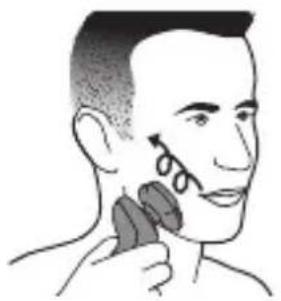
1 Switch on the appliance.
English
natural_image
Illustration of a person applying a toothbrush to their face (no text or symbols)2 Move the shaving heads over your skin in circular movements to catch all hairs growing in different directions. Exert gentle pressure for a close comfortable shave.
Note: Do not press too hard, this can cause skin irritation.
3 Clean the appliance after use (see 'Cleaning and maintenance').
Wet shaving
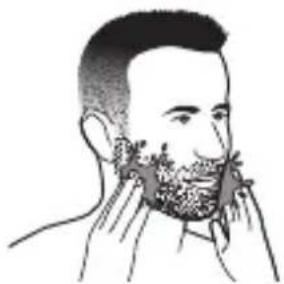
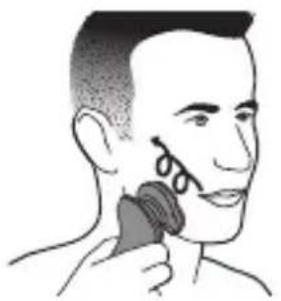
You can also use this appliance on a wet face with shaving foam or shaving gel.
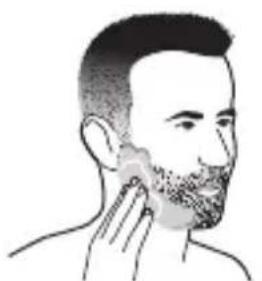
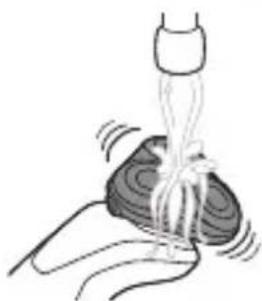
To shave with shaving foam or shaving gel, follow the steps below:
natural_image
Line drawing of a man with beard and hand near face, no text or symbols present1 Apply some water to your skin.
natural_image
Illustration of a person applying a tooth product to their face (no text or symbols)2 Apply shaving foam or shaving gel to your skin.
natural_image
Illustration of a hand holding a small object with a coiled tube or tube inserted, no text or symbols present.3 Rinse the shaving unit under the tap to ensure that the shaving unit glides smoothly over your skin.
4 Switch on the appliance.
natural_image
Illustration of a person applying makeup to their cheek, showing the brush and nail (no text or symbols)5 Move the shaving heads over your skin in circular movements to catch all hairs growing in different directions. Exert gentle pressure for a close comfortable shave.
Note: Do not press too hard, this can cause skin irritation.
Note: Rinse the shaving unit regularly to ensure that it continues to glide smoothly over your skin.
6 Dry your face.
7 Clean the appliance after use (see 'Cleaning and maintenance').
Note: Make sure you rinse all foam or shaving gel off the appliance.
Turbo setting (specific types only)
The appliance is equipped with a Turbo or Turbo+ setting. This allows you to shave hard-to-reach areas more quickly.
1 Switch on the appliance.
2 To activate the Turbo setting, press the Turbo button once when the appliance is switched on.
natural_image
Illustration of a hand holding a circular device with an arrow pointing to it, against a human body (no text or symbols)3 Move the shaving heads over your skin in circular movements to catch all hairs growing in different directions. Exert gentle pressure for a close comfortable shave.
Note: Circular movements provide better shaving results than straight movements.

natural_image
Illustration of a person's head with a T-shaped logo, no text or symbols present4 To deactivate the Turbo setting, press the Turbo button once.
(S5396/12, S5395/26, S5395/12 only).
English
Using the click-on attachments
Note: The accessories supplied may vary for different products. The box shows the accessories that have been supplied with your appliance.
Removing or attaching the click-on attachments
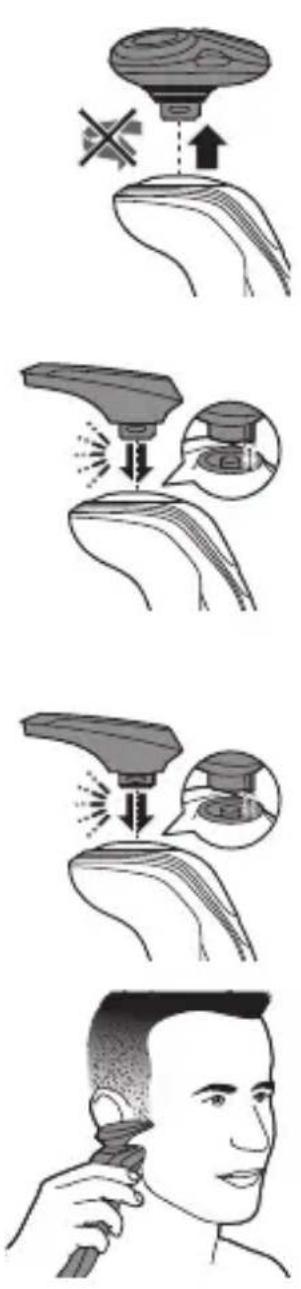
1 Make sure the appliance is switched off.
2 Pull the attachment straight off the appliance.
Note: Do not twist the attachment while you pull it off the appliance.
3 Insert the lug of the attachment into the slot in the top of the appliance. Then press down the attachment to attach it to the appliance ('click').
Using the trimmer attachment
You can use the trimmer attachment to groom your sideburns and moustache.
1 Attach the attachment to the appliance ('click').
2 Switch on the appliance.
3 Hold the trimmer attachment perpendicular to the skin and move the appliance downwards while you exert gentle pressure.
4 Clean the attachment after use (see 'Cleaning and maintenance').
Cleaning and maintenance
Note: The accessories supplied may vary for different products. The box shows the accessories that have been supplied with your appliance.
Cleaning the shaver in the SmartClean system (specific types only)
(S5395/26 only).
Preparing the SmartClean system for use

Caution: Do not tilt the SmartClean system to prevent leakage.
Note: Hold the SmartClean system while you prepare it for use.
Note: If you clean the shaver in the SmartClean system once a week, the SmartClean cartridge lasts approximately three months.
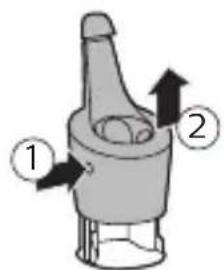
1 Put the small plug in the back of the SmartClean system.
2 Put the supply unit in the wall socket.
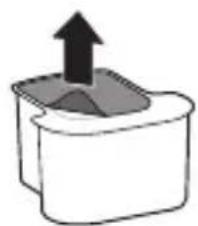
3 Press the button on the side of the SmartClean system (1) and lift the top part of the SmartClean system (2).
natural_image
Simple line drawing of a container with an upward arrow, no text or symbols present4 Pull the seal off the cleaning cartridge.
English
natural_image
Simple line drawing of a blender with a handle and base (no text or symbols)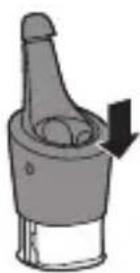
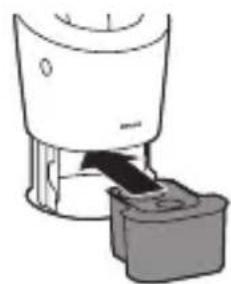
5 Place the cleaning cartridge in the SmartClean system.
6 Push the top part of the SmartClean system back down ('click').
Using the SmartClean system
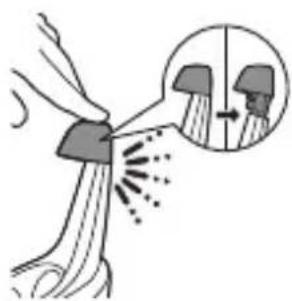
Caution: Always shake excess water off the shaver before you place it in the SmartClean system.
natural_image
Diagram showing a mechanical joint or bracket with an inset close-up of a pin (no text or symbols present)1 Press the top cap to be able to place the shaver in the holder ('click').
natural_image
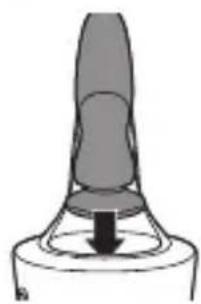
Simple line drawing of a mechanical component with a downward arrow, no text or symbols present.2 Hold the shaver upside down above the holder. Make sure the front of the shaver points towards the SmartClean system.
natural_image
Line drawing of a hand holding two circular buttons with 'Power' and 'Control' symbols, connected to a device (no text or labels)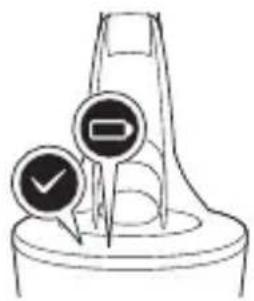
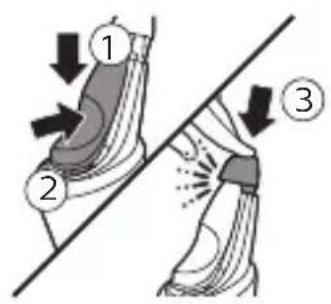
3Place the shaver in the holder (1), tilt the shaver backwards (2) and press down the top cap to connect the shaver ('click') (3).
The battery symbol starts to flash, which indicates that the shaver is charging.
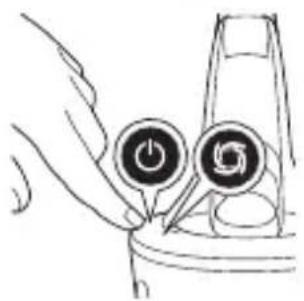
4Press the on/off button on the SmartClean system to start the cleaning program.
During the rinsing phase, the rinsing symbol flashes. When the rinsing phase is done (after approx. 10 minutes), the rinsing symbol lights up continuously.
When the cleaning program is done, the ready symbol lights up continuously.
30 minutes after the cleaning program and charging are done, the SmartClean system switches off automatically.
The battery symbol lights up continuously to indicate that the shaver is fully charged. Charging takes approx. 1 hour.
5To let the shaver dry, you can leave it in the SmartClean system until your next shave. You can also remove the shaver from the SmartClean system, shake off excess water, open the shaving unit and let the shaver air dry.
Note: If you press the on/off button of the SmartClean system during the cleaning program, the program aborts. In this case, the rinsing or drying symbol goes out.
Note: If you remove the supply unit from the wall socket during the cleaning program, the program aborts.
English
natural_image
Simple line drawing of a blender with a handle and base, no text or symbols present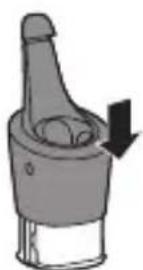
natural_image
Diagram of a mechanical component with a downward arrow indicating force or direction (no text or symbols)Replacing the cartridge of the SmartClean system
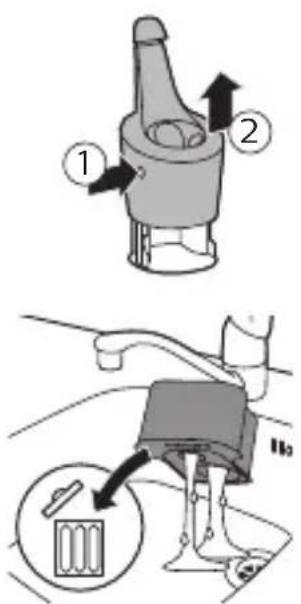
Replace the cleaning cartridge when the replacement symbol flashes orange or when you are no longer satisfied with the cleaning result. If you clean the shaver in the SmartClean system once a week, the SmartClean cartridge lasts approximately three months.
1 Press the button on the side of the SmartClean system (1) and lift the top part of the SmartClean system (2).
2 Remove the cleaning cartridge from the SmartClean system and pour out any remaining cleaning fluid.
You can simply pour the cleaning fluid down the sink.
3 Throw away the empty cleaning cartridge.
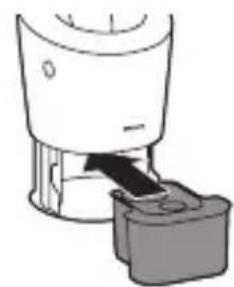
4 Unpack the new cleaning cartridge and pull off the seal.
5 Place the cleaning cartridge in the SmartClean system.
6 Push the top part of the SmartClean system back down ('click').
Cleaning the shaver under the tap
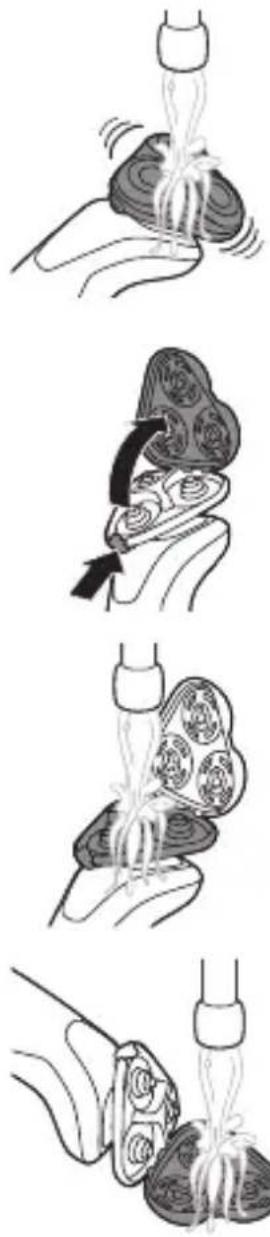
Clean the shaver after every shave for optimal performance.
Caution: Be careful with hot water. Always check if the water is not too hot, to prevent burning your hands.
Never dry the shaving unit with a towel or tissue, as this may damage the shaving heads.
natural_image
Four-step illustration showing a hand holding a small object being handled, with no visible text or symbols.1 Switch on the appliance.
2 Rinse the shaving unit under a warm tap.
3 Switch off the appliance. Press the release button to open the shaving unit.
4 Rinse the hair chamber under the tap.
5 Rinse the shaving head holder under a warm tap.
6 Carefully shake off excess water and let the shaving head holder dry.
English
natural_image
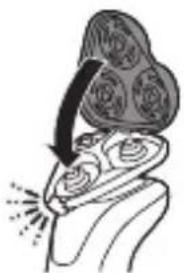
Illustration of a hand holding a leaf with three circular patterns, no text or symbols present7 Close the shaving head holder ('click').
Cleaning the click-on attachments
Never dry trimmer or beard styler attachments with a towel or tissue, as this may damage the trimming teeth.
The accessories supplied may vary for different products. The box shows the accessories that have been supplied with your appliance.
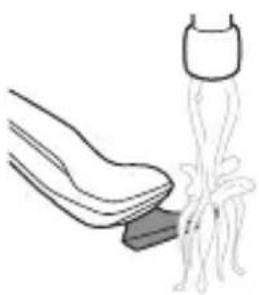
Cleaning the trimmer attachment
Clean the trimmer attachment every time you have used it.
1 Switch on the appliance with the trimmer attachment attached.
2 Rinse the attachment under a warm tap.
3 After cleaning, switch off the appliance.
4 Carefully shake off excess water and let the attachment dry.
Tip: For optimal performance, lubricate the teeth of the attachment with a drop of sewing machine oil every six months.
natural_image
Illustration of a shoe being lifted by a string, showing the foot and ankle (no text or symbols)Storage
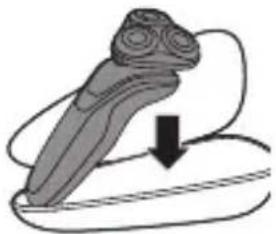
We advise you to let the appliance and its attachments dry before you put the protection caps on the attachments or store the shaver in the pouch.
Note: The accessories supplied may vary for different products. The box shows the accessories that have been supplied with your appliance.
natural_image
Illustration of a stylized blade or blade with a downward arrow indicating motion (no text or symbols)Store the shaver in the pouch (if supplied).
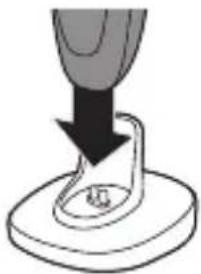
natural_image
Close-up of a mechanical component with a downward arrow indicating compression or disassembly (no text or symbols visible)Alternatively, place the appliance in the product stand.
Replacement
Replacing the shaving heads
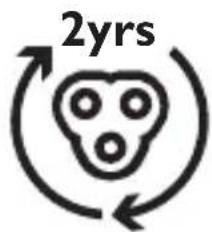
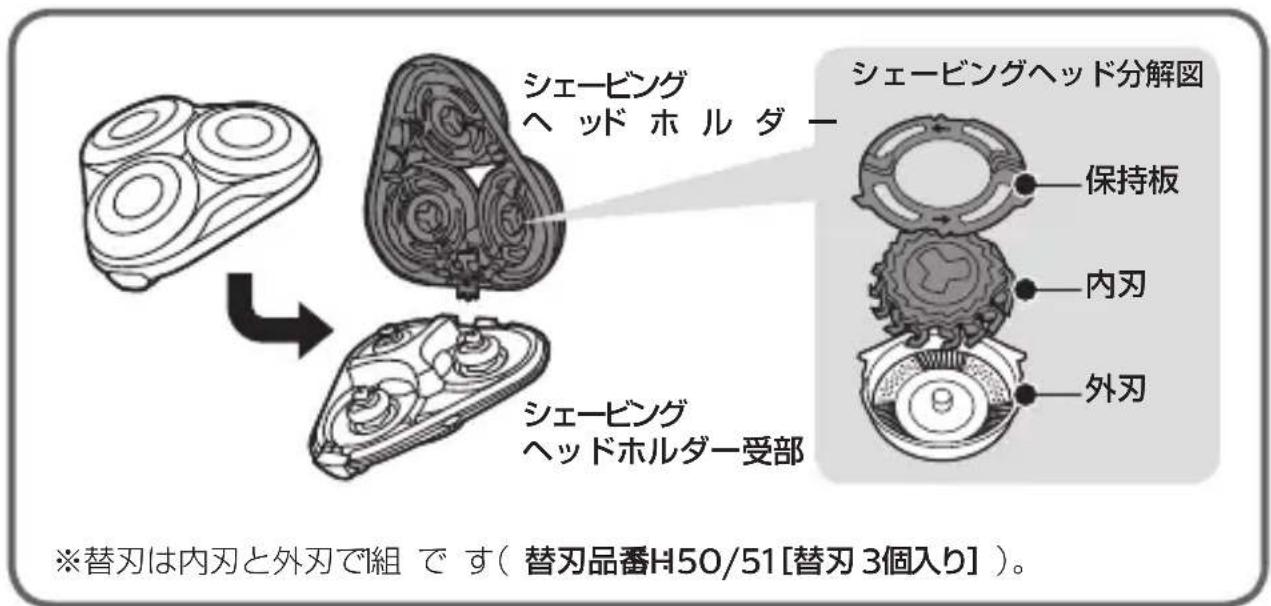
For maximum shaving performance, we advise you to replace the shaving heads every two years. Replace damaged shaving heads immediately. Always replace the shaving heads with original Philips shaving heads (see 'Ordering accessories').
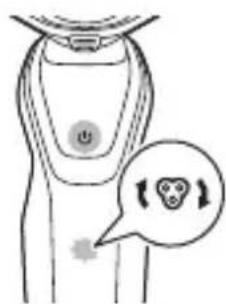
Replacement reminder
The replacement reminder indicates that the shaving heads need to be replaced. The shaving unit symbol and arrows light up when you switch off the appliance.
1 Switch off the appliance.
2 Press the release button to open the shaving unit.

natural_image
Illustration of a person with a cloud-like shape above their head, showing a curved arrow indicating rotation or movement (no text or symbols present)English

flowchart
graph TD
    A["Initial Implant"] --> B["Step 1: Anatomical Procedure"]
    B --> C["Step 2: Anatomical Procedure"]
    C --> D["Step 3: Anatomical Procedure"]
    D --> E["Final Treatment"]
3 Pull the shaving head holder off the bottom part of the shaving unit.
4 Turn the retaining rings anticlockwise and remove them. Place them aside in a safe place.
5 Remove the shaving heads from the shaving head holder.
Throw away the used shaving heads immediately to avoid mixing them with the new shaving heads.
6 Place the new shaving heads in the shaving head holder.
Note: Make sure that the projections of the shaving heads fit exactly into the recesses of the shaving head holder.
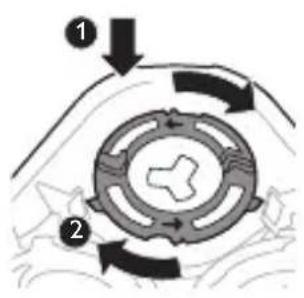
7 Place the retaining rings back onto the shaving heads and turn them clockwise to reattach the retaining ring.
Each retaining ring has two recesses and two projections that fit exactly in the projections and recesses of the shaving head holder.
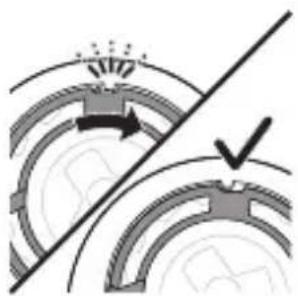
natural_image
Diagram showing a gear mechanism with motion arrows and a checkmark (no text or symbols)- Turn the ring clockwise until your hear a click to indicate that the ring is fixed.
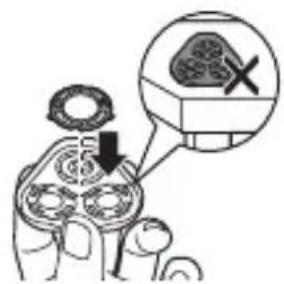
Note: Hold the shaving head holder in your hand when you reinsert the shaving heads and reattach the retaining rings. Do not place the shaving head holder on a surface when you do this, as this may cause damage.
natural_image
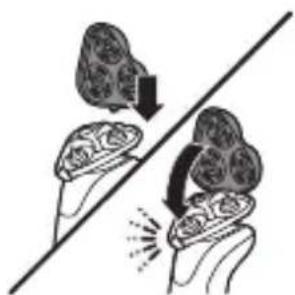
Illustration of two hands exchanging a tray with a downward arrow and a spark effect (no text or symbols)8 Reinsert the hinge of the shaving head holder into the slot of the shaving unit. Close the shaving head holder ('click').
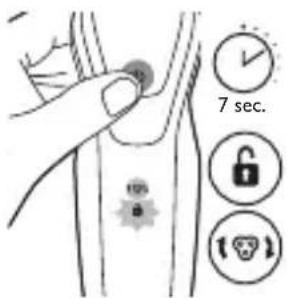
9 To reset the replacement reminder, press and hold the on/off button for approx. 7 seconds.
Ordering accessories
To buy accessories or spare parts, visit www.shop.philips.com/service or go to your Philips dealer. You can also contact the Philips
English
Consumer Care Centre in your country (see the worldwide guarantee leaflet for contact details).
The following accessories and spare parts are available:
- SH50 Philips shaving heads
- RQ111 Philips beard styler attachment
- RQ585 Philips cleansing brush attachment
- RQ560, RQ563 Philips cleansing brush heads
- JC301, JC302, JC303, JC304, JC305 cleaning cartridge
- HQ8505 supply unit
Note: The availability of the accessories may differ by country.
Recycling
- Do not throw away the product with the normal household waste at the end of its life, but hand it in at an official collection point for recycling. By doing this, you help to preserve the environment.
- This product contains a built-in rechargeable battery which shall not be disposed of with normal household waste. We strongly advise you to take your product to an official collection point or a Philips service centre to have a professional remove the rechargeable battery.
- Follow your country's rules for the separate collection of electrical and electronic products and rechargeable batteries. Correct disposal helps prevent negative consequences for the environment and human health.
Removing the rechargeable appliance battery
Only remove the rechargeable battery when you discard the appliance. Before you
remove the battery, make sure that the appliance is disconnected from the mains and that the battery is completely empty.
Take any necessary safety precautions when you handle tools to open the appliance.
Be careful, the battery strips are sharp.
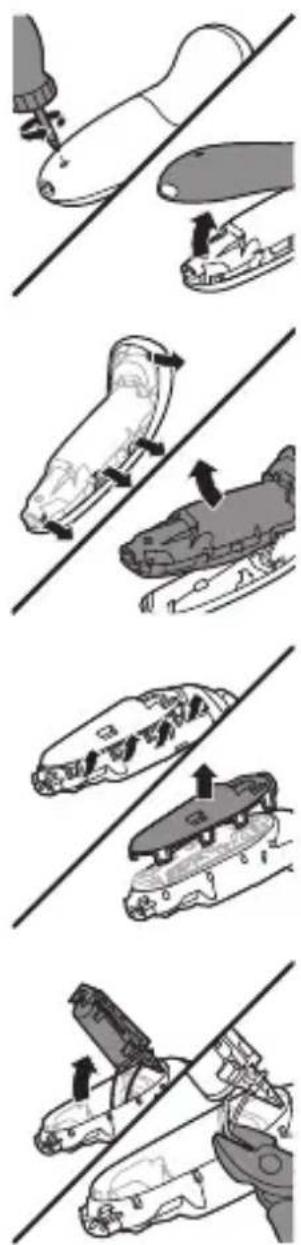
1 Remove the screw in the back panel with a screwdriver. Then remove the back panel.
2 Bend the hooks aside and remove the power unit.
3 Break the snap hooks and remove the front panel of the power unit.
4 Take out the battery holder and cut the battery tags with a pair of cutting pliers.
English
Warranty and support
If you need information or support, please visit www.philips.com/support or read the international warranty leaflet.
Guarantee restrictions
The shaving heads (cutters and guards) are not covered by the terms of the international guarantee because they are subject to wear.
Troubleshooting
This chapter summarizes the most common problems you could encounter with the appliance. If you are unable to solve the problem with the information below, visit www.philips.com/support for a list of frequently asked questions or contact the Consumer Care Center in your country.
Shaver
Problem Possible cause Solution
| The appliance does not work when I press the on/off button. | The appliance is still attached to the wall socket. For safety reasons, the appliance can only be used without cord. | Unplug the appliance and press the on/off button to switch on the appliance. |
| The rechargeable battery is empty. | Recharge the battery (see 'Charging'). | |
| The travel lock is activated. | Press the on/off button for 3 seconds to deactivate the travel lock. |
Problem Possible cause Solution
| The shaving unit is soiled or damaged to such an extent that the motor cannot run. | Clean the shaving heads thoroughly or replace them. Also see 'Hairs or dirt obstruct the shaving heads' for a detailed description of how to clean the shaving heads thoroughly. | |
| The appli-ance does not shave as well as it used to. | The shaving heads are damaged or worn. | Replace the shaving heads (see 'Replacement'). |
| Hairs or dirt obstruct the shaving heads. | Clean the shaving heads in the regular way or clean them thoroughly. | |
| To clean the shaving heads thoroughly, remove the shaving heads from the shaving head holder one by one (see 'Replacement'). Then separate the cutter from its guard and rinse each matching set under the tap. After rinsing, place the cutter back into its corresponding guard. Finally, put the shaving heads back into the shaving head holder (see 'Replacement'). | ||
| I replaced the shaving heads, but the replacement reminder is still showing. | You have not reset the appliance. | Reset the appliance by pressing the on/off button for approx. 7 seconds. |
Problem Possible cause Solution
| A shaving head symbol has suddenly appeared on the display. | This symbol is a replacement reminder. | Replace the shaving heads (see 'Replacement'). |
| Water is leaking from the bottom of the appliance. | During cleaning, water may collect between the inner body and the outer shell of the appliance. | This is normal and not dangerous because all electronics are enclosed in a sealed power unit inside the appliance. |
SmartClean system
Problem Possible cause Solution
| The SmartClean system does not work when I press the on/off button. | The SmartClean system is not connected to the wall socket. | Put the small plug in the SmartClean system and put the supply unit in the wall socket. |
| The cleaning cartridge is empty. The replacement symbol flashes to indicate that you have to replace the cleaning cartridge. | Place a new cleaning cartridge in the SmartClean system. | |
| The shaver is not entirely clean after I clean it in the SmartClean system. | You have not placed the shaver in the SmartClean system properly, so there is no electrical connection between the SmartClean system and the shaver. | Press down the top cap ('click') to ensure a proper connection between the shaver and the SmartClean system. |
Problem Possible cause Solution
| The cleaning cartridge needs to be replaced. | Replace the cleaning cartridge. | |
| You have used another cleaning fluid than the original Philips cleaning cartridge. | Only use the original Philips cleaning cartridge. | |
| The drain of the cleaning cartridge is blocked. | Remove the cartridge from the SmartClean system and push the hairs down the drain with a toothpick. | |
| The shaver is not fully charged after I charge it in the SmartClean system. | You have not placed the shaver in the SmartClean system properly, so there is no electrical connection between the SmartClean system and the shaver. | Press down the top cap ('click') to ensure a proper connection between the shaver and the SmartClean system. |