
DWA-192 - Wi-Fi Adapter D-LINK - Free user manual and instructions
Find the device manual for free DWA-192 D-LINK in PDF.


| Product Type | Wi-Fi Adapter |
| Brand | D-Link |
| Model | DWA-192 |
| Wi-Fi Standard | 802.11ac |
| Frequency Band | 2.4 GHz and 5 GHz |
| Maximum Speed | Up to 1300 Mbps |
| Interface | USB 3.0 |
| Wireless Security | WEP, WPA, WPA2 |
| Dimensions | 50 x 30 x 10 mm |
| Weight | 50 g |
| Power | Via USB port |
| Operating Temperature | 0 °C to 40 °C |
| System Compatibility | Windows, Mac, Linux |
| Certifications | CE, FCC, IC |
| Care and Cleaning | Clean with a soft, dry cloth |
| Safety | Use indoors, avoid moisture and heat sources |
| Spare Parts and Repairability | Not applicable (sealed product) |
| Warranty | 2 years |
| Package Contents | Wi-Fi adapter, quick start guide |
| Recycling | WEEE compliant, recyclable |
Frequently Asked Questions - DWA-192 D-LINK
User questions about DWA-192 D-LINK
0 question about this device. Answer the ones you know or ask your own.
Ask a new question about this device
Download the instructions for your Wi-Fi Adapter in PDF format for free! Find your manual DWA-192 - D-LINK and take your electronic device back in hand. On this page are published all the documents necessary for the use of your device. DWA-192 by D-LINK.
USER MANUAL DWA-192 D-LINK
Getting Started. 7
Remove Existing Installations 7
Disable Other Wireless Adapters 8
Driver Installation 10
Wireless Installation Considerations 13
Connecting to a Wireless Network 14
Using Windows 8. 14
Using Windows 7 16
Configuring Wireless Security 18
Troubleshooting 21
Wireless Basics 25
Wireless Modes 29
Networking Basics 30
Check your IP address. 30
Statically Assign an IP address 31
Technical Specifications 32
Regulatory Information 33
Product Overview Package Contents
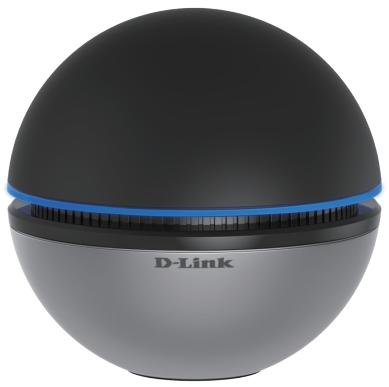
D-Link DWA-192 AC1900 Wi-Fi USB 3.0 Adapter
- Micro-USB 3.0 Cable
- Manual and Warranty on CD
- Quick Installation Card
System Requirements
- A computer or laptop with an available USB port (USB 3.0 recommended)
- Windows® 8.1 / 8 / 7
- CD-ROM drive
- 1.3 GHz processor and at least 128 MB of RAM
- A 802.11ac/n/b/g/a access point or wireless router
Introduction
The DWA-192 AC1900 Wi-Fi USB 3.0 Adapter is a convenient wireless connectivity solution for desktop or notebook PCs. Instead of stringing Ethernet cables to your PC or dismantling your desktop computer case, the DWA-192 can enable 802.11ac wireless connectivity by simply utilizing your desktop or notebook PC's USB port.
Powered by Wireless AC technology, the DWA-192 provides a much faster wireless connection and superior reception than 802.11n*. The DWA-192 is designed for use in bigger homes and for those that demand higher bandwidth networking. Maximize wireless performance by connecting this USB adapter to a Wireless AC router and stay connected from virtually anywhere in the home. This USB adapter supports WPA and WPA2 encryption to prevent outside intrusion and protect your personal information from being exposed.
Compact in size, robust in speed the DWA- 192 AC1900 Wi-Fi USB 3.0 Adapter is a convenient solution for providing high performance wireless connectivity to your desktop or notebook PC. Enjoy the many benefits of Wireless AC connectivity today!
- Maximum wireless signal rate derived from IEEE Standard 802.11ac and 802.11n specifications. Actual data throughput will vary. Network conditions and environmental factors, including volume of network traffic, building materials and construction, and network overhead, lower actual data throughput rate. Environmental conditions will adversely affect wireless signal range.
Features
- Compact size for placement anywhere
- Convenience of Plug & Play installation
• Fully 802.11n/g/b/a compatible
802.11ac compliant - Advanced AC SmartBeam technology for enhanced speed and range
- Powered by the USB port; no external power source required
- USB 3.0 standard*
- You can securely connect to a wireless network using WPA/WPA2 (Wi-Fi Protected Access) providing you a much higher level of security for your data and communication than has previously been available.
- Position the DWA-192 almost anywhere in your workspace to achieve the best reception possible
-
User-friendly setup wizard
-
Using a USB 2.0 or USB 1.1 port will adversely affect throughput.
Hardware Overview
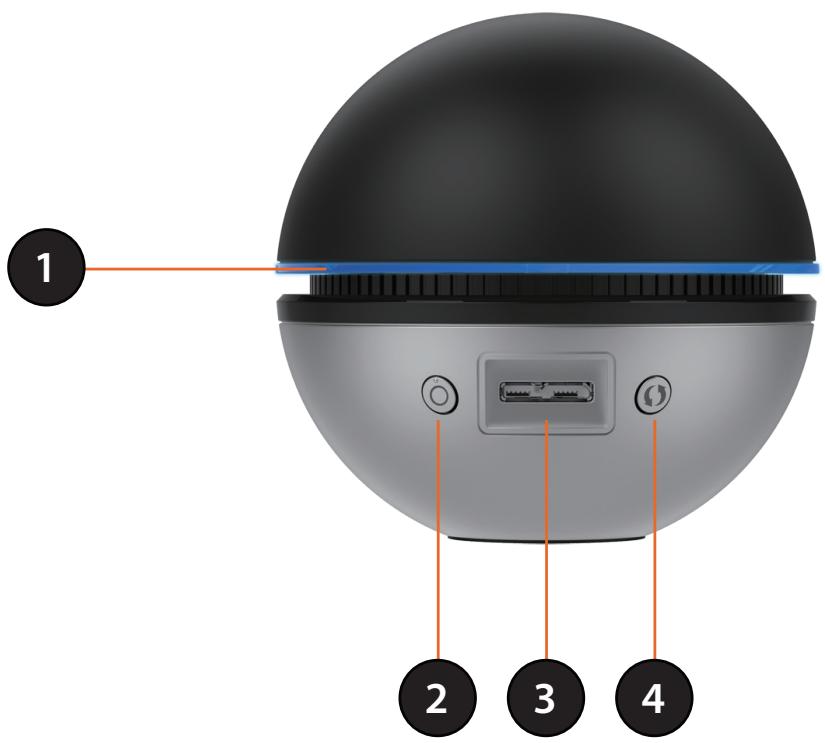
| 1 | Status LED | Blinking blue: The device is connected to the computer. Solid blue: The device is connected to the network. |
| 2 | LED On/Off Button | Turns the Status LED on or off. |
| 3 | Micro USB 3.0 Connector | Used to connect the DWA-192 to your computer via the included cable. |
| 4 | WPS Button | Press the WPS button to automatically connect to a WPS-enabled wireless router or access point and establish connectivity. |
Installation
This section will walk you through the installation process. If you have a built-in wireless adapter, please disable it in device manager before installing your D-Link adapter. Also, if you have previously installed another wireless adapter, please make sure any software is uninstalled.
Getting Started
Before installing your new D-Link wireless adapter, please verify the following:
- Remove any previous installations of wireless adapters
- Disable any built-in wireless adapters
- Verify the settings such as the SSID and security settings of the network you want to connect to.
Remove Existing Installations
If you've installed a different manufacturer's adapter or a different model D-Link adapter, make sure the software is uninstalled before installing the new software. Some utilities may cause a conflict with the new software. If you plan to use multiple adapters at different times, make sure the utilities are not set to load when your computer boots up.
To remove any old software:
Windows® 7/8 users: Click Start > Control Panel > Programs and Features.
Disable Other Wireless Adapters
Most newer laptops may include a built-in wireless adapter. To prevent any conflicts with the D-Link wireless adapter, it is recommended to disable the wireless adapter (as well as any unused Ethernet adapters).
From the desktop, right-click on the My Computer icon and select Properties.
Click the Hardware tab and then click Device Manager. Scroll down the list and click the + sign to the left of Network Adapters.
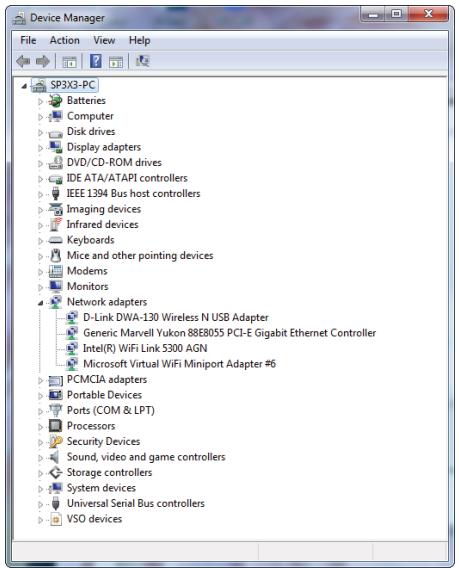
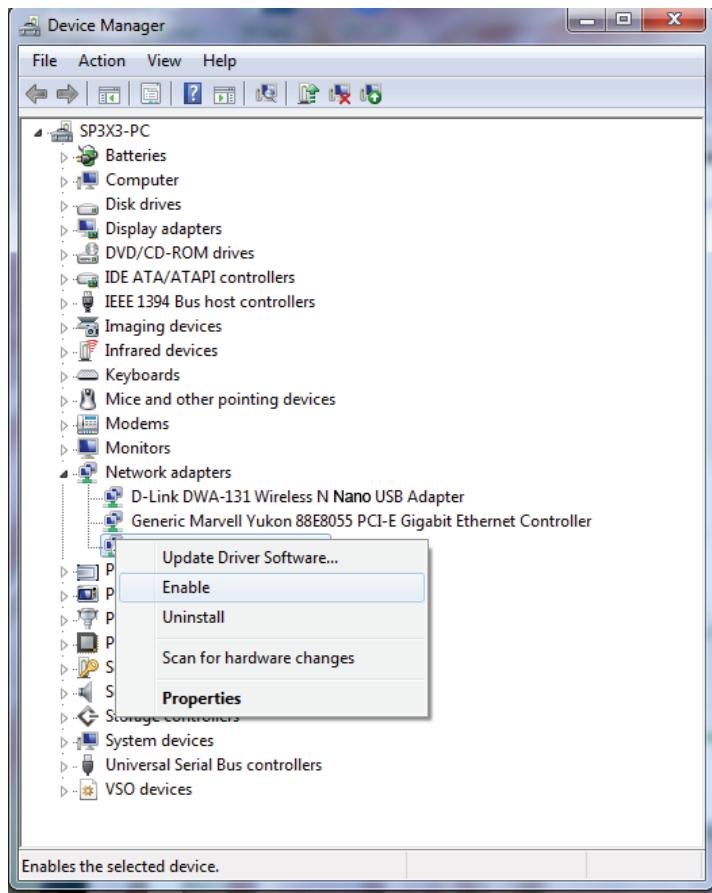
Right-click the adapter you would like to disable and select Disable.
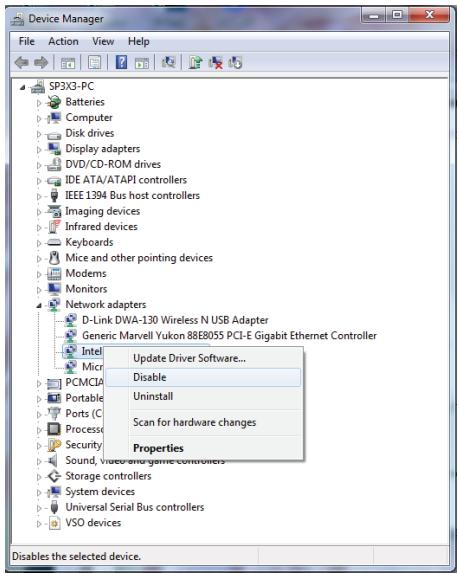
Click Yes to disable the adapter.
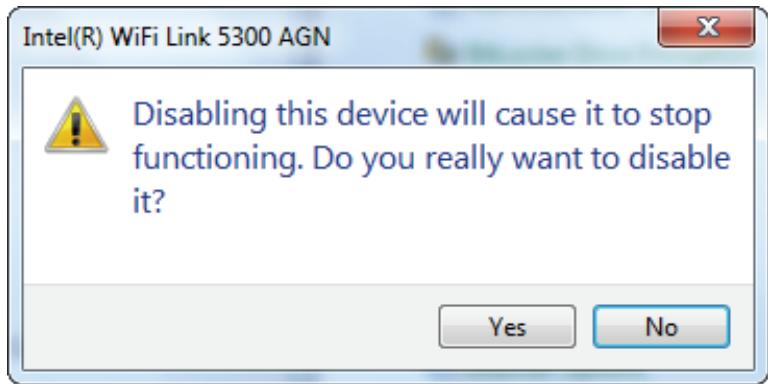
The adapter is now disabled. When disabled, a red X will be displayed.
Disabling the adapter will not remove the drivers. If you would like to use the adapter, simply right-click it and select Enable.
Driver Installation
Before using the DWA-192 AC1900 Wi-Fi USB 3.0 Adapter, you must first install a device driver from the included D-Link CD.
Warning: Do NOT connect the DWA-192 AC1900 Wi-Fi USB 3.0 Adapter to your computer's USB port before installing the driver software from the D-Link CD.
Turn on the computer and insert the D-Link DWA-192 Driver CD in the CD-ROM drive.
Note: If the CD Autorun function does not automatically start on your computer, go to Start > Run. In the run box type "D:\autorun.exe" (where D: represents the drive letter of your CD-ROM drive).
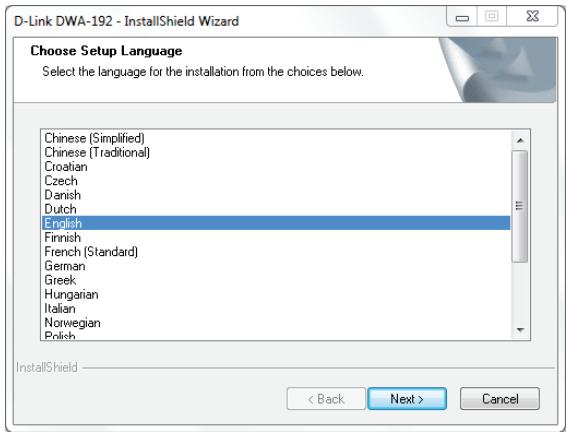
The D-Link DWA-192 InstallShield Wizard window will appear. Select the setup language from the list and click Next.
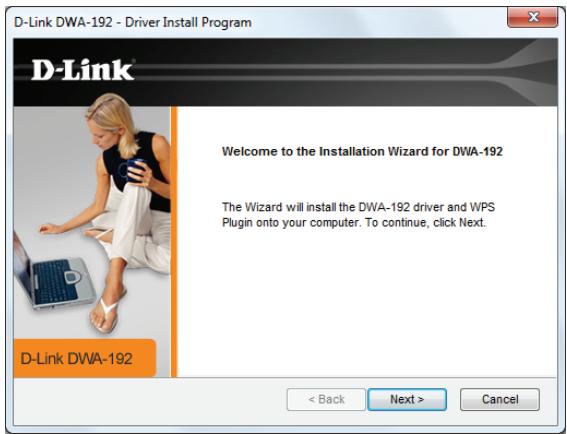
The welcome window will appear. Click Next to continue.
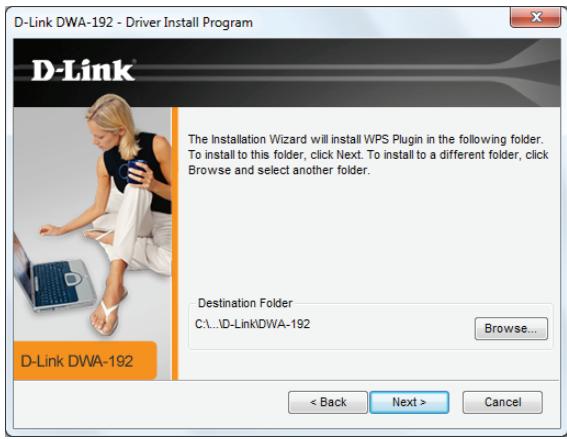
By default setup will install to the default location:
C:\Program Files\D-Link\DWA-192, where C: represents the drive letter of your hard drive. To install to a different location click Browse and specify the location, then click Next.
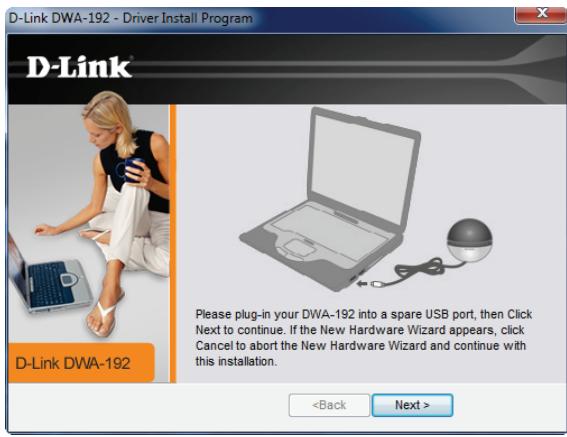
Insert the adapter into an available USB port on your computer. Click Next to continue.
If the Found New Hardware Wizard appears, click Cancel.
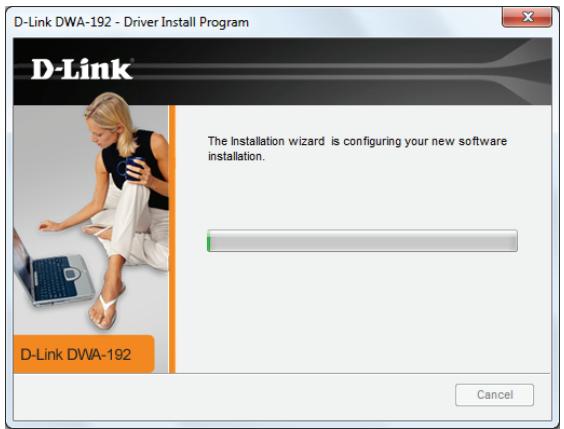
The drivers and software will now install. Please allow 1-2 minutes for this process to finish.
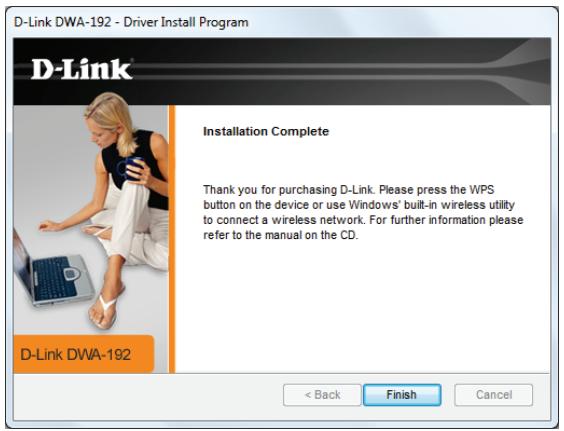
The driver installation process is complete. Click Finish to exit setup.
The DWA-192's Status LED should be blinking blue (see Hardware Overview on page 6).
To connect to your wireless network, see Connecting to a Wireless Network on page 14. Once a connection is established, the Status LED should be solid blue.
Wireless Installation Considerations
The D-Link wireless adapter lets you access your network using a wireless connection from virtually anywhere within the operating range of your wireless network. Keep in mind that the number, thickness and location of walls, ceilings, or other objects that the wireless signals must pass through, may limit the range. Typical ranges vary depending on the types of materials and background RF (radio frequency) noise in your home or business. The key to maximizing wireless range is to follow these basic guidelines:
- Keep the number of walls and ceilings between the D-Link adapter and other network devices to a minimum - each wall or ceiling can reduce your adapter's range from 3-90 feet (1-30 meters.) Position your devices so that the number of walls or ceilings is minimized.
- Be aware of the direct line between network devices. A wall that is 1.5 feet thick (.5 meters), at a 45-degree angle appears to be almost 3 feet (1 meter) thick. At a 2-degree angle it looks over 42 feet (14 meters) thick! Position devices so that the signal will travel straight through a wall or ceiling (instead of at an angle) for better reception.
- A solid metal door or aluminum studs may have a negative effect on range. Try to position access points, wireless routers, and computers so that the signal passes through drywall or open doorways. Materials and objects such as glass, steel, metal, walls with insulation, water (fish tanks), mirrors, file cabinets, brick, and concrete will degrade your wireless signal.
- Keep your product away (at least 3-6 feet or 1-2 meters) from electrical devices or appliances that generate RF noise.
- If you are using 2.4 GHz cordless phones or X-10 (wireless products such as ceiling fans, lights, and home security systems), your wireless connection may degrade dramatically or drop completely. Make sure your 2.4 GHz phone base is as far away from your wireless devices as possible. The base transmits a signal even if the phone in not in use.
Connecting to a Wireless Network Using Windows 8
It is recommended to enable wireless security (WPA/WPA2) on your wireless router or access point before configuring your wireless adapter. If you are joining an existing network, you will need to know the security key (Wi-Fi password) being used.
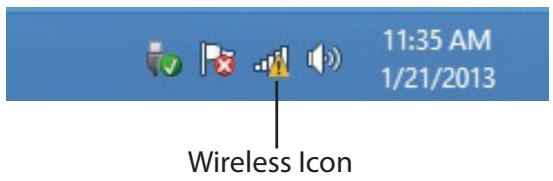
To join an existing network, locate the wireless network icon in the taskbar, next to the time display.
Clicking on this icon will display a list of wireless networks which are within connecting proximity of your computer. Select the desired network by clicking on the network name.
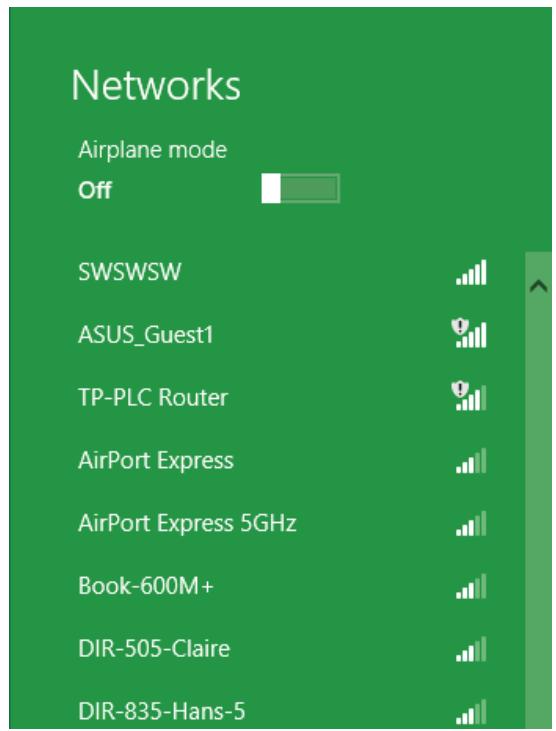
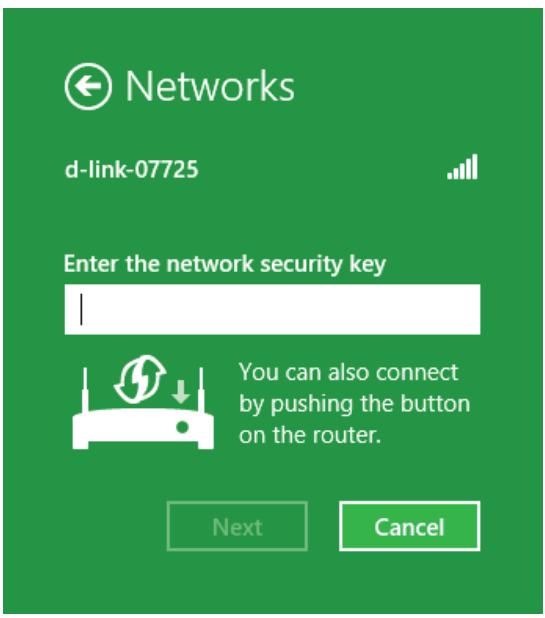
You will then be prompted to enter the network security key (Wi-Fi password) for the wireless network. Enter the password into the box and click Next.
If you wish to use Wi-Fi Protected Setup (WPS) to connect to the router, you can also press the WPS button on your router at this point to enable the WPS function.
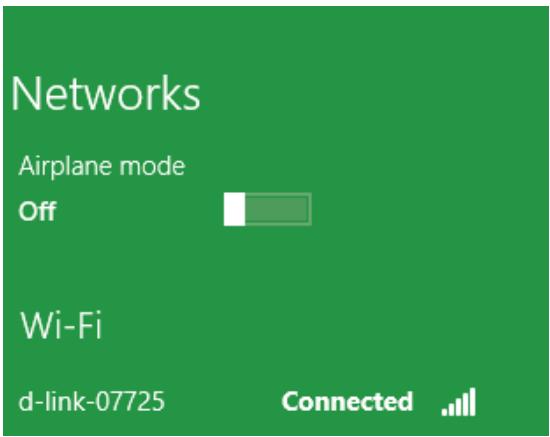
When you have established a successful connection to a wireless network, the word Connected will appear next to the name of the network to which you are connected.
Using Windows 7
Windows 7 users may use the built-in wireless utility to connect to a wireless network. If you are using another company's utility or Windows 2000, please refer to the user manual of your wireless adapter for help with connecting to a wireless network. Most utilities will have a "site survey" option similar to the Windows 7 utility as seen below.
If you receive the Wireless Networks Detected bubble, click on the center of the bubble to access the utility. You can also click on the wireless icon in your system tray (lower-right corner).
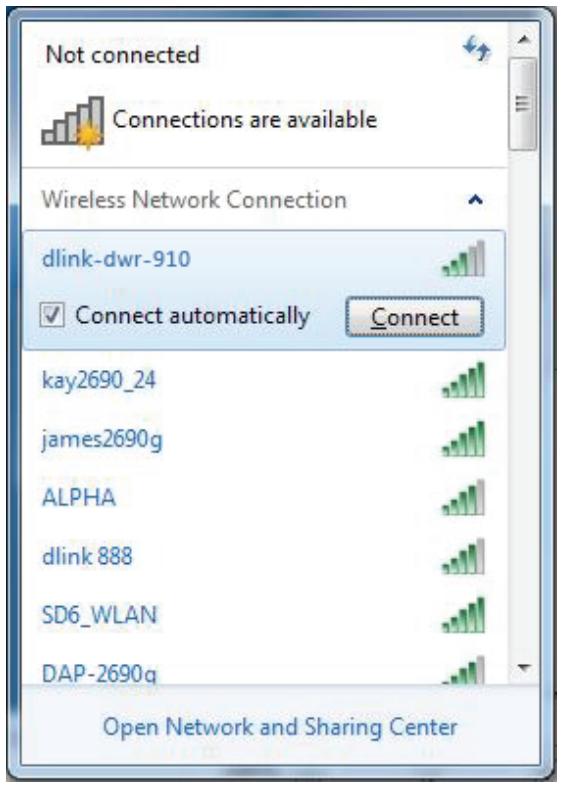
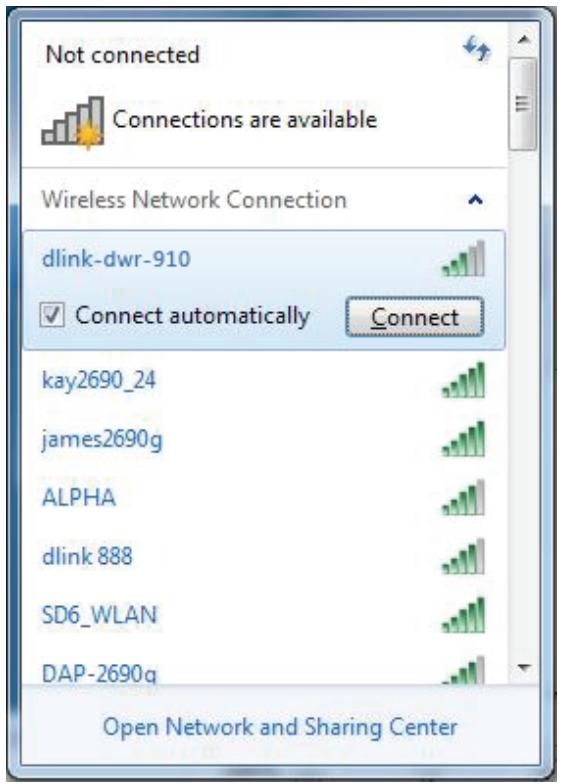
The utility will display any available wireless networks in your area.
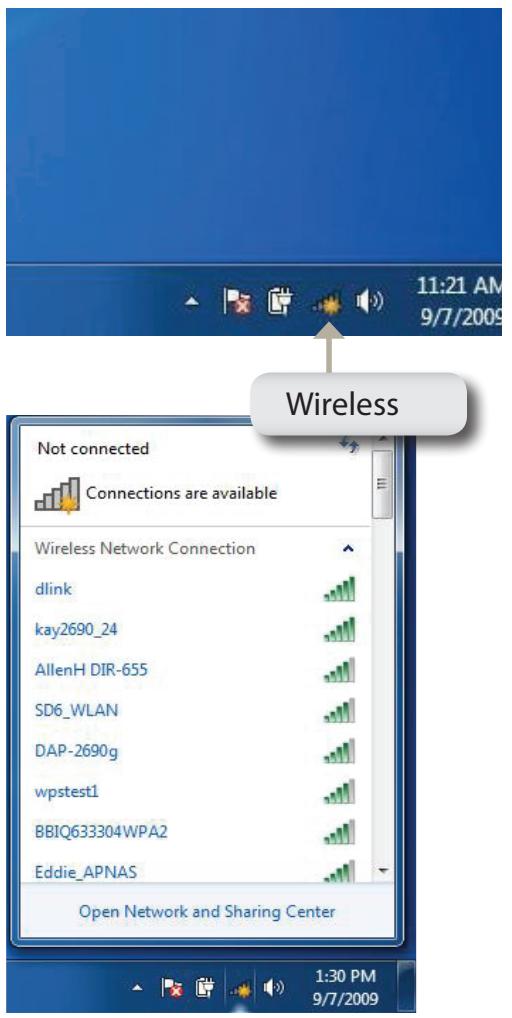
Highlight the wireless network (SSID) you would like to connect to and click the Connect button.
If you get a good signal but cannot access the Internet, check your TCP/IP settings for your wireless adapter. Refer to Networking Basics on page 30 for more information.
Configuring Wireless Security
It is recommended to enable wireless security (WPA/WPA2) on your wireless router or access point before configuring your wireless adapter. If you are joining an existing network, you will need to know the security key or passphrase being used.
- Click on the wireless icon in your system tray (lower-right corner).
- The utility will display any available wireless networks in your area.
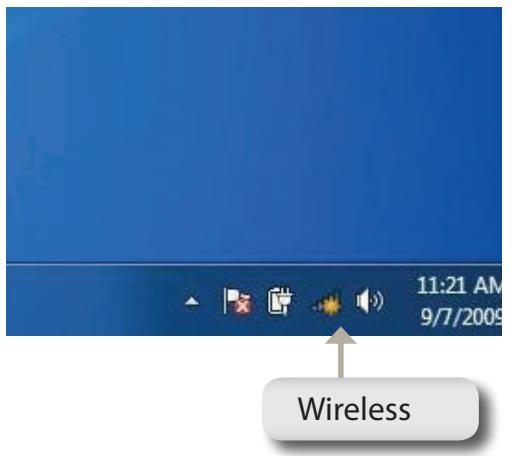
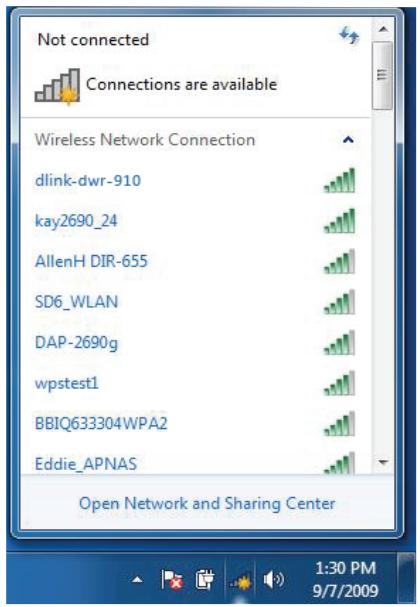
- Highlight the wireless network (SSID) you would like to connect to and click the Connect button.
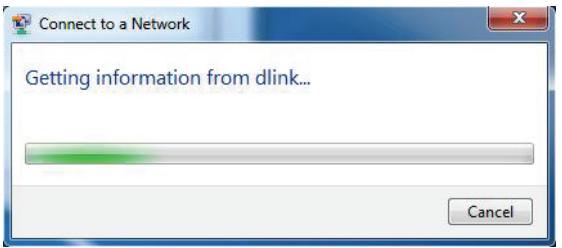
- The following window appears while your computer tries to connect to the router.
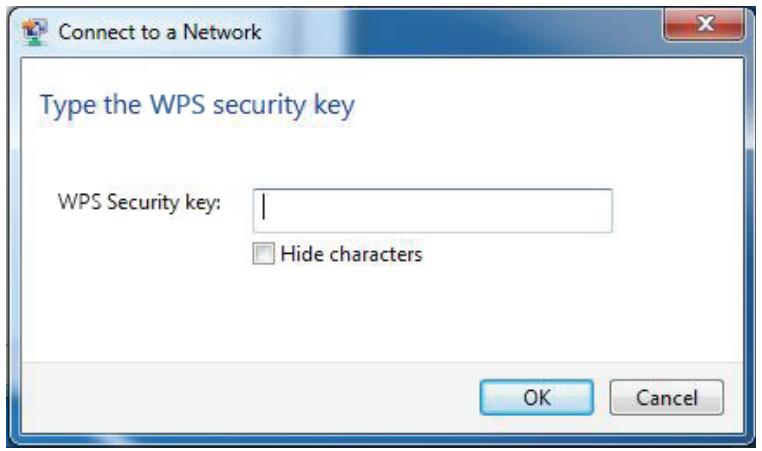
- Enter the same security key or passphrase that is on your router and click Connect.
It may take 20-30 seconds to connect to the wireless network. If the connection fails, please verify that the security settings are correct. The key or passphrase must be exactly the same as on the wireless router.
Troubleshooting
This chapter provides solutions to problems that can occur during the installation and operation of the DWA-192. Read the following descriptions if you are having problems. The examples below are illustrated in Windows 7. If you have a different operating system, the process on your computer will be similar.
1. How do I know if my adapter is installed properly?
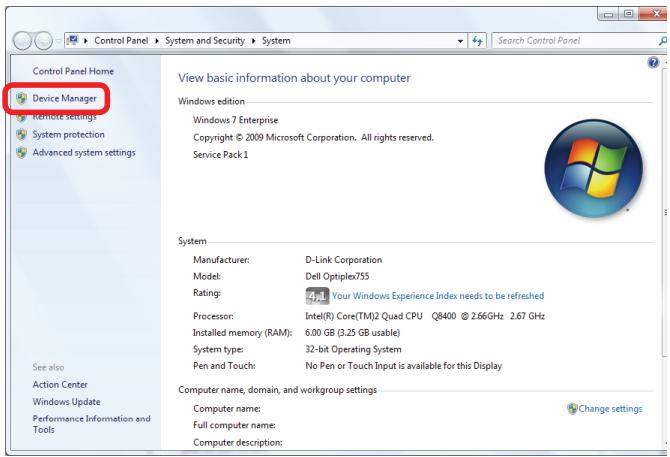
Go to Start > Computer (right-click) > Properties.
This will bring up the System settings under the Windows Control Panel.
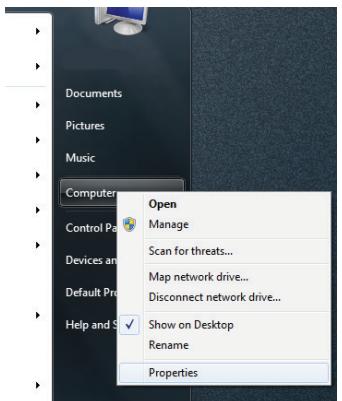
Click Device Manager.
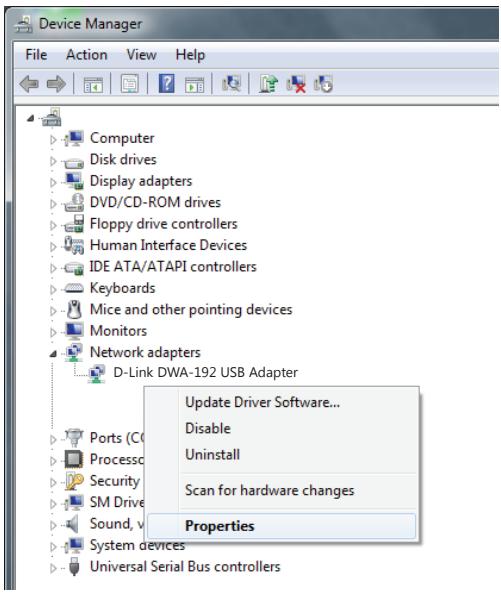
Click the + sign next to Network Adapters.
Right-click on D-Link DWA-192 USB Adapter.
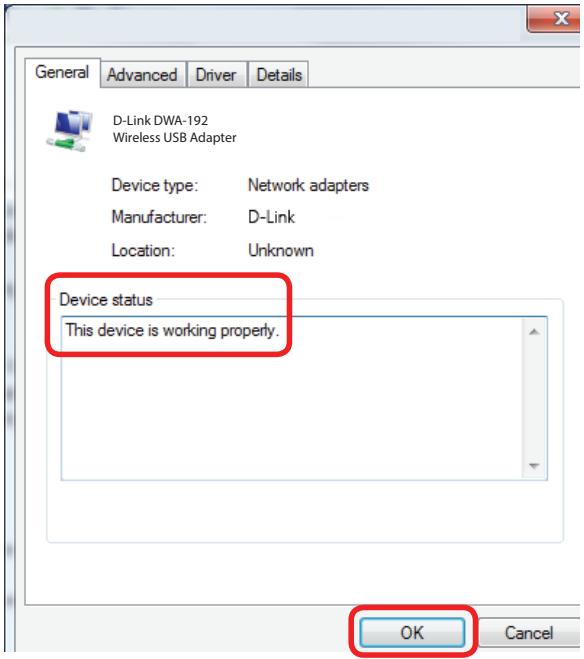
Select Properties to check that the drivers are installed properly.
Look under Device Status to check that the device is working properly. Click OK to continue.
2. The computer does not recognize the DWA-192 AC1900 Wi-Fi USB 3.0 Adapter.
Make sure that the DWA-192 AC1900 Wi-Fi USB 3.0 Adapter is properly seated in the computer's USB port.
If Windows does not detect the hardware upon insertion of the adapter, make sure to completely remove drivers that were previously loaded.
3. The computer with the DWA-192 installed is unable to connect to the wireless network and/or the Internet.
- Check that the LED indicators for the broadband modem are indicating normal activity. If not, there may be a problem with the broadband connection.
- Check that the LED indicators on the wireless router are functioning properly. If not, check that the AC power and Ethernet cables are firmly connected.
- Check that the IP address, subnet mask, gateway, and DNS settings are correctly entered for the network
Check that the Network Connection for the wireless client is configured properly. Select AP (Infrastructure) when connecting to an access point. Double-click on the WLAN icon in the taskbar > click on Configuration to change the settings for the wireless adapter.
If Security is enabled, make sure that the correct encryption keys are entered on both the DWA-192 and the access point. Double-click on the WLAN icon in the taskbar > click Encryption. Check to see that the key selected is set to the same key as other devices on the network.
Wireless Basics
D-Link wireless products are based on industry standards to provide easy-to-use and compatible high-speed wireless connectivity within your home, business or public access wireless networks. Strictly adhering to the IEEE standard, the D-Link wireless family of products will allow you to securely access the data you want, when and where you want it. You will be able to enjoy the freedom that wireless networking delivers.
A wireless local area network (WLAN) is a cellular computer network that transmits and receives data with radio signals instead of wires. Wireless LANs are used increasingly in both home and office environments, and public areas such as airports, coffee shops and universities. Innovative ways to utilize WLAN technology are helping people to work and communicate more efficiently. Increased mobility and the absence of cabling and other fixed infrastructure have proven to be beneficial for many users.
Wireless users can use the same applications they use on a wired network. Wireless adapter cards used on laptop and desktop systems support the same protocols as Ethernet adapter cards.
Under many circumstances, it may be desirable for mobile network devices to link to a conventional Ethernet LAN in order to use servers, printers or an Internet connection supplied through the wired LAN. A wireless router is a device used to provide this link.
What is Wireless?
Wireless or Wi-Fi technology is another way of connecting your computer to the network without using wires. Wi-Fi uses radio frequency to connect wirelessly, so you have the freedom to connect computers anywhere in your home or office network.
Why D-Link Wireless?
D-Link is the worldwide leader and award winning designer, developer, and manufacturer of networking products. D-Link delivers the performance you need at a price you can afford. D-Link has all the products you need to build your network.
How does wireless work?
Wireless works similar to how cordless phone work, through radio signals to transmit data from one point A to point B. But wireless technology has restrictions as to how you can access the network. You must be within the wireless network range area to be able to connect your computer. There are two different types of wireless networks Wireless Local Area Network (WLAN), and Wireless Personal Area Network (WPAN).
Wireless Local Area Network (WLAN)
In a wireless local area network, a device called an Access Point (AP) connects computers to the network. The access point has a small antenna attached to it, which allows it to transmit data back and forth over radio signals. With an indoor access point as seen in the picture, the signal can travel up to 300 feet. With an outdoor access point the signal can reach out up to 30 miles to serve places like manufacturing plants, industrial locations, college and high school campuses, airports, golf courses, and many other outdoor venues.
Wireless Personal Area Network (WPAN)
Bluetooth is the industry standard wireless technology used for WPAN. Bluetooth devices in WPAN operate in a range up to 30 feet away.
Compared to WLAN, the speed and wireless operation range are both less than WLAN, but in return it doesn't use nearly as much power which makes it ideal for personal devices, such as mobile phones, PDAs, headphones, laptops, speakers, and other devices that operate on batteries.
Who uses wireless?
Wireless technology as become so popular in recent years that almost everyone is using it, whether it's for home, office, business, D-Link has a wireless solution for it.
Home
- Gives everyone at home broadband access
- Surf the web, check email, instant message, and etc.
- Gets rid of the cables around the house
- Simple and easy to use
Small Office and Home Office
- Stay on top of everything at home as you would at office
- Remotely access your office network from home
- Share Internet connection and printer with multiple computers
- No need to dedicate office space
Where is wireless used?
Wireless technology is expanding everywhere not just at home or office. People like the freedom of mobility and it's becoming so popular that more and more public facilities now provide wireless access to attract people. The wireless connection in public places is usually called "hotspots".
Using a D-Link USB adapter with your laptop, you can access the hotspot to connect to Internet from remote locations like: airports, hotels, coffee shops, libraries, restaurants, and convention centers.
Wireless network is easy to setup, but if you're installing it for the first time it could be quite a task not knowing where to start. That's why we've put together a few setup steps and tips to help you through the process of setting up a wireless network.
Tips
Here are a few things to keep in mind, when you install a wireless network.
Centralize your router or access point
Make sure you place the router/access point in a centralized location within your network for the best performance. Try to place the router/access point as high as possible in the room, so the signal gets dispersed throughout your home. If you have a two-story home, you may need a repeater to boost the signal to extend the range.
Eliminate Interference
Place home appliances such as cordless telephones, Nanowaves, and televisions as far away as possible from the router/access point. This would significantly reduce any interference that the appliances might cause since they operate on same frequency.
Security
Don't let your next-door neighbors or intruders connect to your wireless network. Secure your wireless network by turning on the WPA or WEP security feature on the router. Refer to product manual for detail information on how to set it up.
Wireless Modes
There are basically two modes of networking:
- Infrastructure - All wireless clients will connect to an access point or wireless router.
- Ad hoc - Directly connecting to another computer, for peer-to-peer communication, using wireless network adapters on each computer.
An Infrastructure network contains an access point or wireless router. All the wireless devices, or clients, will connect to the wireless router or access point.
An ad hoc network contains only clients, such as laptops with wireless USB adapters. All the adapters must be in ad hoc mode to communicate.
Networking Basics
Check your IP address
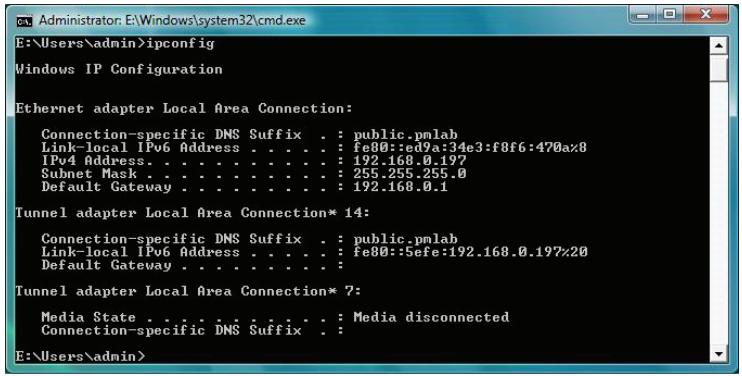
After you install your new D-Link wireless adapter and have established a wireless connection, by default, the TCP/IP settings should be set to obtain an IP address from a DHCP server (i.e. router) automatically. To verify your IP address, please follow the steps below.
- Click Start > All Programs > Accessories > Command Prompt. You may need administrative access to run this application.
- For all additional prompt windows inquiring of running the command prompt application, select Yes, OK, or Continue.
- At the prompt, type ipconfig and press Enter.
- This will display the IP address, subnet mask, and default gateway of your adapter.
If the address is 0.0.0.0, check your adapter installation, security settings, and the settings on your router. Some firewall software programs may block a DHCP request on newly installed adapters.
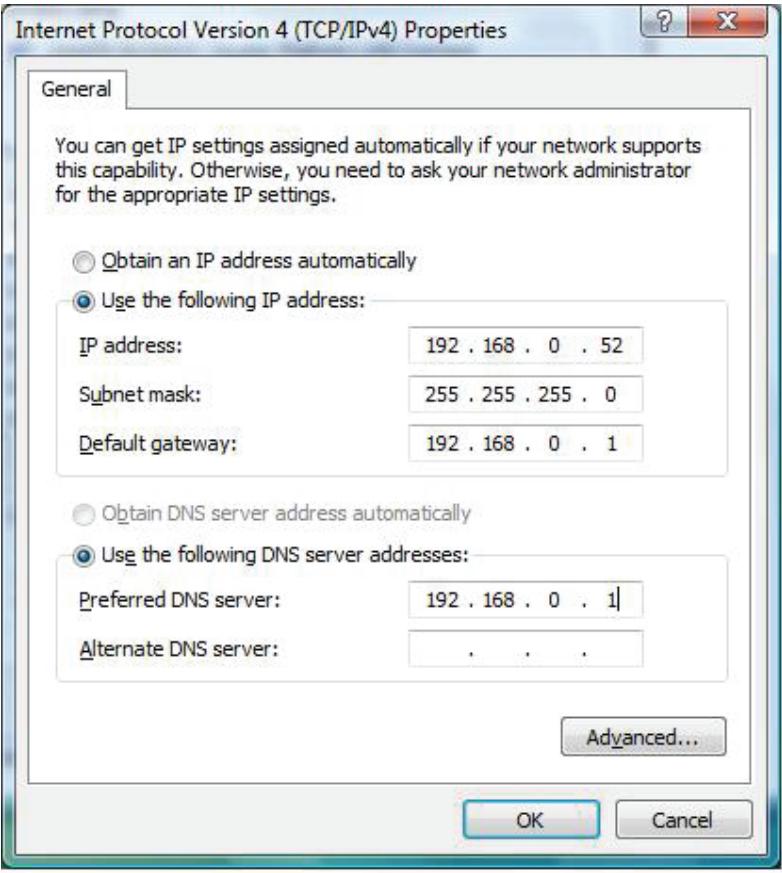
Statically Assign an IP address
If you are not using a DHCP capable gateway/router, or you need to assign a static IP address, please follow the steps below:
- Click on Start > Control Panel (make sure you are in Classic View). Double-click on the Network and Sharing Center icon and then click on Change adapter settings.
- Right-click on the Local Area Connection which represents your D-Link wireless network adapter which will be connected to your network.
- Highlight Internet Protocol Version 4 (TCP/IPv4) and click Properties.
- Click Use the following IP address and enter an IP address that is on the same subnet as your network or LAN IP address on your router or network.
Example: If the router's LAN IP address is 192.168.0.1, make your IP address 192.168.0.X where X is a number between 2 and 99. Make sure that the number you choose is not in use on the network.
- Set Default Gateway the same as the LAN IP address of your router or gateway.
- Set Primary DNS the same as the LAN IP address of your router or gateway.
- The Secondary DNS is optional (you may enter a DNS server from your ISP).
- Click OK to save your settings.
Technical Specifications
Standards
- IEEE 802.11ac
- IEEE 802.11n
- IEEE 802.11g
- IEEE 802.11b
- IEEE 802.11a
Bus Type
USB 3.0 (2.0, 1.1 compatible)
Security
Wi-Fi Protected Access (WPA™ & WPA2™)
Wi-Fi Protected Setup - PBC
Frequency Range
2.4 GHz to 2.4835 GHz
5.150 GHz to 5.850 GHz
Operating Voltage
- 5VDC+/-10%
Current Consumption
- 880 mA
Operating Temperature
- 0^ C to 40^ C ( 32^ F to 104^ F )
Operating Humidity
10% to 90% maximum (non-condensing)
Dimensions
- 79.92 × 79.92 × 77 mm( 3.15 × 3.15 × 3.03inches)
Weight
167 grams (5.89 ounces)
Certifications
FCC Class B
IC
CE
RoHS
Wi-Fi
RCM
Wi-Fi Protected Setup
Regulatory Information
Federal Communication Commission Interference Statement:
This equipment has been tested and found to comply with the limits for a Class B digital device, pursuant to Part 15 of the FCC Rules. These limits are designed to provide reasonable protection against harmful interference in a residential installation. This equipment generates, uses and can radiate radio frequency energy and, if not installed and used in accordance with the instructions, may cause harmful interference to radio communications. However, there is no guarantee that interference will not occur in a particular installation. If this equipment does cause harmful interference to radio or television reception, which can be determined by turning the equipment off and on, the user is encouraged to try to correct the interference by one of the following measures:
Reorient or relocate the receiving antenna.
- Increase the separation between the equipment and receiver.
- Connect the equipment into an outlet on a circuit different from that to which the receiver is connected
- Consult the dealer or an experienced radio/TV technician for help.
Non-modifications Statement:
Any changes or modifications not expressly approved by the party responsible for compliance could void the user's authority to operate this equipment.
Caution:
This device complies with Part 15 of the FCC Rules. Operation is subject to the following two conditions: (1) This device may not cause harmful interference, and (2) this device must accept any interference received, including interference that may cause undesired operation.
For product available in the USA/Canada market, only channel 1 11 can be operated. Selection of other channels is not possible.
This device and its antenna(s) must not be co-located or operating in conjunction with any other antenna or transmitter except in accordance with FCC multi-transmitter product procedures.
The USB dongle transmitter is approved for use in typical laptop computers. To comply with FCC RF exposure requirements, it should not be used in other devices or certain laptop and tablet computer configurations where the USB connectors on the host computer are unable to provide or ensure the necessary operating configurations intended for the device and its users or bystanders to satisfy RF exposure compliance requirements.
Note:
The country code selection is for non-US model only and is not available to all US model. Per FCC regulation, all Wi-Fi product marketed in US must fixed to US operation channels only.
RF Frequency Requirements:
This device is for indoor use only when using all channels in the 5.150 GHz - 5.250 GHz, 5.250 GHz - 5.350 GHz, 5.470 GHz - 5.725 GHz, 5.725 GHz - 5.850 GHz frequency range. High power radars are allocated as primary users of the 5.150 GHz - 5.250 GHz, 5.250 GHz - 5.350 GHz, 5.470 GHz - 5.725 GHz, 5.725 GHz - 5.850 GHz bands. These radar stations can cause interference with and/or damage this device. This device will not operate on channels which overlap the 5600 - 5650 MHz band.
It is restricted in indoor environment only."
IMPORTANT NOTE:
FCC Radiation Exposure Statement:
The product comply with the FCC portable RF exposure limit set forth for an uncontrolled environment and are safe for intended operation as described in this manual. The further RF exposure reduction can be achieved if the product can be kept as far as possible from the user body or set the device to lower output power if such function is available. This device has been tested and meets the FCC RF exposure guidelines. The maximum SAR value reported is 1.06w / kg
Industry Canada Statement:
This device complies with Industry Canada licence-exempt RSS standard(s). Operation is subject to the following two conditions:
(1) this device may not cause interference, and
(2) this device must accept any interference, including interference that may cause undesired operation of the device.
(i) the device for operation in the band 5150-5350 MHz is only for indoor use to reduce the potential for harmful interference to co-channel mobile satellite systems;
(ii) the maximum antenna gain permitted for devices in the bands 5250-5350 MHz and 5470-5725 MHz shall comply with the e.i.r.p. limit; and
(iii) the maximum antenna gain permitted for devices in the band 5725-5825 MHz shall comply with the e.i.r.p. limits specified for point-to-point and non point-to-point operation as appropriate.
(iv) Users should also be advised that high-power radars are allocated as primary users (i.e. priority users) of the bands 5250-5350 MHz and 5650-5850 MHz and that these radars could cause interference and/or damage to LE-LAN devices.
Avertissement:
Radiation Exposure Statement:
The product comply with the Canada portable RF exposure limit set forth for an uncontrolled environment and are safe for intended operation as described in this manual. The further RF exposure reduction can be achieved if the product can be kept as far as possible from the user body or set the device to lower output power if such function is available.
This device complies with the essential requirements of the R&TTE Directive 1999/5/EC. For more information, please refer to the Declaration of Conformity.
Notice of Wireless Radio LAN Usage in The European Community:
- At the time of writing this addendum, some countries such as Italy, Greece, Portugal and Spain have not allowed operation of radio devices in the 5 Ghz bands, although operation of 2.4 Ghz radio devices are allowed. Please check with your local authority to confirm.
- This device is restricted to indoor use when operated in the European Community using channels in the 5.15-5.35 GHz band to reduce the potential for interference.
- This device is a 2.4 GHz wideband transmission system (transceiver), intended for use in all EU member states and EFTA countries, except in France where restrictive use applies. This device may not be used for setting up outdoor radio links in France and in some areas the RF output power may be limited to 10mW EIR P in the frequency range of 2454 - 2483.5MHz . For detailed information the end-user should contact the national spectrum authority in France.
This equipment may be operated in AL, AD, BE, BG, DK, DE, FI, FR, GR, GW, IS, IT, HR, LI, LU, MT, MK, MD, MC, NL, NO, AT, OL, PT, RO, SM, SE, RS, SK, ES, CI, HU, CY
Usage Notes:
- To remain in conformance with European National spectrum usage regulations, frequency and channel limitations will be applied on the products according to the country where the equipment will be deployed.
- This device is restricted from functioning in Ad-hoc mode while operating in 5 GHz. Ad-hoc mode is direct peer-to-peer communication between two client devices without an Access Point.
- Access points will support DFS (Dynamic Frequency Selection) and TPC (Transmit Power Control) functionality as required when operating in 5 GHz within the EU.
5 GHz Wireless Frequency and Channel Operation in EEC Countries:
| Allowable 802.11a Frequencies and Channels | Countries |
| 5.15-5.25 GHz (Channels 36, 40, 44, 48) | Liechtenstein |
| 5.15-5.25 Ghz & 5.725-5.875 Ghz (Channels 36, 40, 44, 48, 149, 153, 157, 161, 165, 169) | Austria |
| 5.15-5.35 GHz (Channels 36, 40, 44, 48, 52, 56, 60, 64) | France |
| 5.15-5.35 & 5.47-5.725 GHz (Channels 36, 40, 44, 48, 52, 56, 60, 64, 100, 104, 108, 112, 116, 120, 124, 128, 132, 136, 140) | Denmark, Germany, Iceland, Finland, Netherlands, Norway, Poland, Sweden, Slovenia, Luxembourg, U.K., Ireland, Slovak, Switzerland, Hungary, Italy |
| 5.15-5.35 Ghz & 5.725-5.875 Ghz (Channels 36, 40, 44, 48, 52, 56, 60, 64, 149, 153, 157, 161, 165, 169) | Czech Republic |
European Community Declaration of Conformity:
| Česky [Czech] | D-Link tímtó prohlăšuje, ze tento DWA-192 je ve shodě se základními požadaky a dalšími príslušnými ustanoveními směrnice 1999/5/ES. |
| Dansk [Danish] | Undertegnede D-Link erklær herved, at følgende udstyr DWA-192 overholder de væsentlige krav og øvrige relevante krav i direktiv 1999/5/EF. |
| Deutsch [German] | Hiermit erklärt D-Link, dass sich das Gerät DWA-192 in Übereinstimmung mit den grundlegenden Anforderungen und den übrigen einschlögigen Bestimmungen der Richtlinie 1999/5/EG befindet. |
| Eesti [Estonian] | Käesolevaga kinnitab D-Link seadme DWA-192 vastavust direktiivi 1999/5/EÜ põhinõuetele ja nimetatud direktiivist tulenevatele teistele asjakohastele sâtetele. |
| English | Hereby, D-Link, declares that this DWA-192 is in compliance with the essential requirements and other relevant provisions of Directive 1999/5/EC. |
| Espanol [Spanish] | Por medio de la presente D-Link declara que el DWA-192 cumple con los requisitos esencias y cualesquiera除外 dispositions aplicables o exigibles de la Directiva 1999/5/CE. |
| Ελληνική [Greek] | ΜΕΤΗΝ ΠΑΡΟΥΣΑ D-Link ΔΗΛΩΝΕΙ ΟΤΙ DWA-192 ΣΥΜΜΟΦΩNETΑΙ ΠΡΟΣ TΙΣ ΜΥΣΙΩΔΕΙΣ ΑΝΑΙΤΗΣΕΙΣΚΑΙ TΙΣ ΑΟΙΝΕΣ ΣχETAΙΚΕΣ ΔΙΑΤΑΕΙΣ ΘΗ ΕΔΗΓΙΑΣ 1999/5/EK. |
| François [French] | Par la présente D-Link déclare que l'appareil DWA-192 est conforme aux exigences essentielles et aux autres dispositions pertinentes de la directive 1999/5/CE. |
| Italiano [Italian] | Con la presente D-Link dichiara che questo DWA-192 è conforme ai requisiti essenziali ed alle autres dispositions pertinenti stabilite dalla direttiva 1999/5/CE. |
| Latviski [Latvian] | Ar šo D-Link deklare, ka DWA-192 atbilst Direktīvas 1999/5/EK būtiskajām prasibām un citiem ar to saistītajiem noteikumiem. |
| Lietuviç [Lithuanian] | Šiuo D-Link deklaruoja, kad šis DWA-192 atitinka esminius reikalavimus irKitas 1999/5/EB Direktyvos nuostatas. |
| Nederlands [Dutch] | Hierbij verkaart D-Link dat het toestel DWA-192 in overeenstemming is met de essentièle eisen en de andere relevante bepalingen van richtlijn 1999/5/EG. |
| Malti [Maltese] | Hawnhekk, D-Link, jiddikjara li dan DWA-192 jikkonforma mal-htigijiet essenzjali u ma provvedimenti ohrajn relevanti li hemm fid-Dirrettiva 1999/5/EC. |
| Magyar [Hungarian] | Alulírott, D-Link nyilatkozom, hogy a DWA-192 megfelel a vonatkozó alapvető követelményeknek és az 1999/5/EC irányelv egyéb előirásainak. |
| Polski [Polish] | Niniejszym D-Link oswiadcza, ze DWA-192 jest zgodny z zasadniczymi wymogami oraz pozostałymi stosownymi postanowieniami Dyrektywy 1999/5/EC. |
| Português [Portuguese] | D-Link declara que este DWA-192 está conforme com os requisitos essenciais e outras dispositions da Directa 1999/5/CE. |
| Slovensko [Slovenian] | D-Link izjavlja, da je ta DWA-192 v skladu z bistvenimi zahevami in ostalimi relevantnimi dolocili direktive 1999/5/ES. |
| Slovensky [Slovak] | D-Link týmto vyhlasuje, ze DWA-192 splína základné požiadavky a vsetky prísluné ustanovenia Smernice 1999/5/ES. |
| Suomi [Finnish] | D-Link vakuuttaa täten että DWA-192 typpinen laite on direktiivin 1999/5/EY oleellisten vaatimusten ja sitä koskevien direktiivin muiden ehtojen mukainen. |
Warning Statement:
The power outlet should be near the device and easily accessible.

Safety Instructions
Please adhere to the following safety guidelines to help ensure your own personal safety and protect your system from potential damage. Any acts taken that are inconsistent with ordinary use of the product, including improper testing, etc., and those not expressly approved by D-Link may result in the loss of product warranty.
Unless expressly approved by an authorized representative of D-Link in writing, you may not and may not permit others to:
- Disassemble or reverse engineer the device or attempt to derive source code (underlying ideas, algorithms, or structure) from the device or from any other information provided by D-Link, except to the extent that this restriction is expressly prohibited by local law.
- Modify or alter the device.
- Remove from the device any product identification or other notices, including copyright notices and patent markings, if any. To reduce the risk of bodily injury, electrical shock, fire, and damage to the device and other equipment, observe the following precautions:
Power Sources
- Observe and follow service markings.
- Do not push any objects into the openings of your device unless consistent with the authorized operation of the device. Doing so can cause a fire or an electrical shock by shorting out interior components.
- The powering of this device must adhere to the power specifications indicated for this product.
- Do not overload wall outlets and/or extension cords as this will increase the risk of fire or electrical shock.
- Do not rest anything on the power cord or on the device (unless the device is made and expressly approved as suitable for stacking).
- Position system cables and power cables carefully; route cables so that they cannot be stepped on or tripped over. Be sure that nothing rests on any cables.
- Operate the device only from the type of external power source indicated on the electrical ratings label.
- To help avoid damaging your device, be sure the voltage selection switch (if provided) on the power supply is set to match the power available at your location.
- Also be sure that attached devices are electrically rated to operate with the power available in your location.
-
Use only approved power cable(s). If you have not been provided a power cable for your device or for any AC -powered option intended for your device, purchase a power cable that is approved for use in your country and is suitable for use with your device. The power cable must be rated for the device and for the voltage and current marked on the device's electrical ratings label. The voltage and current rating of the cable should be greater than the ratings marked on the device.
-
To help prevent an electrical shock, plug the device and peripheral power cables into properly grounded electrical outlets. These cables are equipped with three-prong plugs to help ensure proper grounding. Do not use adapter plugs or remove the grounding prong from a cable. If you must use an extension cable, use a 3-wire cable with properly grounded plugs.
- Observe extension cable and power strip ratings. Ensure that the total ampere rating of all products plugged into the extension cable or power strip does not exceed 80 percent of the ampere ratings limit for the extension cable or power strip.
- To help protect your device from sudden, transient increases and decreases in electrical power, use a surge suppressor, line conditioner, or uninterruptible power supply (UPS).
- Do not modify power cables or plugs. Consult a licensed electrician or your power company for site modifications. Always follow your local/national wiring rules.
- When connecting or disconnecting power to hot-pluggable power supplies, if offered with your device, observe the following guidelines.
- Install the power supply before connecting the power cable to the power supply.
- Unplug the power cable before removing the power supply.
- If the system has multiple sources of power, disconnect power from the device by unplugging all power cables from the power supplies.
Servicing/Disassembling
- Do not service any product except as expressly set forth in your system documentation.
- Opening or removing covers that are marked with the triangular symbol with a lightning bolt may expose you to an electrical shock. Only a trained service technician should service components inside these compartments.
- To reduce the risk of electrical shock, never disassemble this device. None of its internal parts are user-replaceable; therefore, there is no reason to access the interior.
- Do not spill food or liquids on your system components, and never operate the device in a wet environment. If the device gets wet, see the appropriate section in your troubleshooting guide or contact your trained service provider.
- Use the device only with approved equipment.
- Move products with care; ensure that all casters and/or stabilizers are firmly connected to the system. Avoid sudden stops and uneven surfaces.
Environment
- Do not use this device near water (e.g. near a bathtub, sink, laundry tub, fish tank, in a wet basement or near a swimming pool).
-
Do not use this device in areas with high humidity.
-
This device must not be subjected to water or condensation.
- Keep your device away from radiators and heat sources. Also, do not block cooling vents.
Cleaning
- Always unplug the power before cleaning this device.
- Do not use liquid or aerosol cleaners of any kind. Use only compressed air that is recommended for electronic devices.
- Use a dry cloth for cleaning.
Protecting Against Electrostatic Discharge
Static electricity can harm delicate components inside your system. To prevent static damage, discharge static electricity from your body before you touch any of the electronic components, such as the microprocessor. You can do so by periodically touching an unpainted metal surface on the chassis.
You can also take the following steps to help prevent damage from electrostatic discharge (ESD):
- When unpacking a static-sensitive component from its shipping carton, do not remove the component from the antistatic packing material until you are ready to install the component in your system. Just before unwrapping the antistatic packaging, be sure to discharge static electricity from your body.
- When transporting a sensitive component, first place it in an antistatic container or packaging.
- Handle all sensitive components in a static-safe area. If possible, use antistatic floor pads, workbench pads, and an antistatic grounding strap.
Disposing of and Recycling Your Product ENGLISH
This symbol on the product or packaging means that according to local laws and regulations this product should be not be disposed of in the household waste but sent for recycling. Please take it to a collection point designated by your local authorities once it has reached the end of its life, some will accept products for free. By recycling the product and its packaging in this manner you help to conserve the environment and protect human health.
D-Link and the Environment
At D-Link, we understand and are committed to reducing any impact our operations and products may have on the environment. To minimise this impact D-Link designs and builds its products to be as environmentally friendly as possible, by using recyclable, low toxic materials in both products and packaging.
D-Link recommends that you always switch off or unplug your D-Link products when they are not in use. By doing so you will help to save energy and reduce CO2 emissions.
To learn more about our environmentally responsible products and packaging please visit www.dlinkgreen.com
DEUTSCH DE
- Connecting to a Wireless Network 14
- Troubleshooting 21
- Wireless Basics 25
- Networking Basics 30
- Technical Specifications 32
- Regulatory Information 33
- Product Overview Package Contents
- System Requirements
- Introduction
- Features
- Hardware Overview
- Installation
- Getting Started
- Remove Existing Installations
- Disable Other Wireless Adapters
- Driver Installation
- Wireless Installation Considerations
- Connecting to a Wireless Network Using Windows 8
- Using Windows 7
- Configuring Wireless Security
- Troubleshooting
- How do I know if my adapter is installed properly?
- The computer does not recognize the DWA-192 AC1900 Wi-Fi USB 3.0 Adapter.
- The computer with the DWA-192 installed is unable to connect to the wireless network and/or the Internet.
- Wireless Basics
- What is Wireless?
- Why D-Link Wireless?
- How does wireless work?
- Wireless Local Area Network (WLAN)
- Wireless Personal Area Network (WPAN)
- Who uses wireless?
- Home
- Small Office and Home Office
- Where is wireless used?
- Tips
- Centralize your router or access point
- Eliminate Interference
- Security
- Wireless Modes
- Networking Basics
- Check your IP address
- Statically Assign an IP address
- Technical Specifications
- Standards
- Bus Type
- Frequency Range
- Operating Voltage
- Current Consumption
- Operating Temperature
- Operating Humidity
- Dimensions
- Weight
- Certifications
- Regulatory Information
- Federal Communication Commission Interference Statement:
- Non-modifications Statement:
- Caution:
- Note:
- RF Frequency Requirements:
- IMPORTANT NOTE:
- FCC Radiation Exposure Statement:
- Industry Canada Statement:
- Avertissement:
- Radiation Exposure Statement:
- Notice of Wireless Radio LAN Usage in The European Community:
- Usage Notes:
- Warning Statement:
- Safety Instructions
- Power Sources
- Servicing/Disassembling
- Environment
- Cleaning
- Protecting Against Electrostatic Discharge
- Disposing of and Recycling Your Product ENGLISH
- D-Link and the Environment
- DEUTSCH DE
Brand : D-LINK
Model : DWA-192
Category : Wi-Fi Adapter