
MF 3850 MF 3830 - Multifunction Printer SAGEM - Free user manual and instructions
Find the device manual for free MF 3850 MF 3830 SAGEM in PDF.


| Product type | Multifunction laser printer |
| Brand | SAGEM |
| Model | MF 3850 / MF 3830 |
| Dimensions (W x D x H) | Approximately 420 x 350 x 250 mm |
| Weight | Approximately 6.5 kg |
| Power supply | 220-240 V, 50/60 Hz |
| Power consumption | Average 350 W, standby 15 W |
| Main functions | Printing, copying, scanning, fax |
| Printing technology | Monochrome laser |
| Print resolution | Up to 600 x 600 dpi |
| Print speed | Up to 12 pages per minute (A4) |
| Paper tray capacity | 150 sheets (main tray) |
| Supported paper sizes | A4, A5, Letter, Envelopes |
| Media types | Plain paper, envelopes, transparencies (if applicable) |
| Connectivity | USB 1.1, parallel, telephone (RJ11) |
| Memory | 8 MB (expandable) |
| Monthly duty cycle | Up to 5000 pages |
| Maintenance and cleaning | Clean the rollers with a lint-free cloth; replace the drum and toner depending on usage |
| Safety | Child safety lock, complies with CE standards |
| Spare parts and repairability | Toner cartridge, drum, rollers available; repair by an authorized technician |
| General information | User manual included; online support |
Frequently Asked Questions - MF 3850 MF 3830 SAGEM
User questions about MF 3850 MF 3830 SAGEM
0 question about this device. Answer the ones you know or ask your own.
Ask a new question about this device
Download the instructions for your Multifunction Printer in PDF format for free! Find your manual MF 3850 MF 3830 - SAGEM and take your electronic device back in hand. On this page are published all the documents necessary for the use of your device. MF 3850 MF 3830 by SAGEM.
USER MANUAL MF 3850 MF 3830 SAGEM
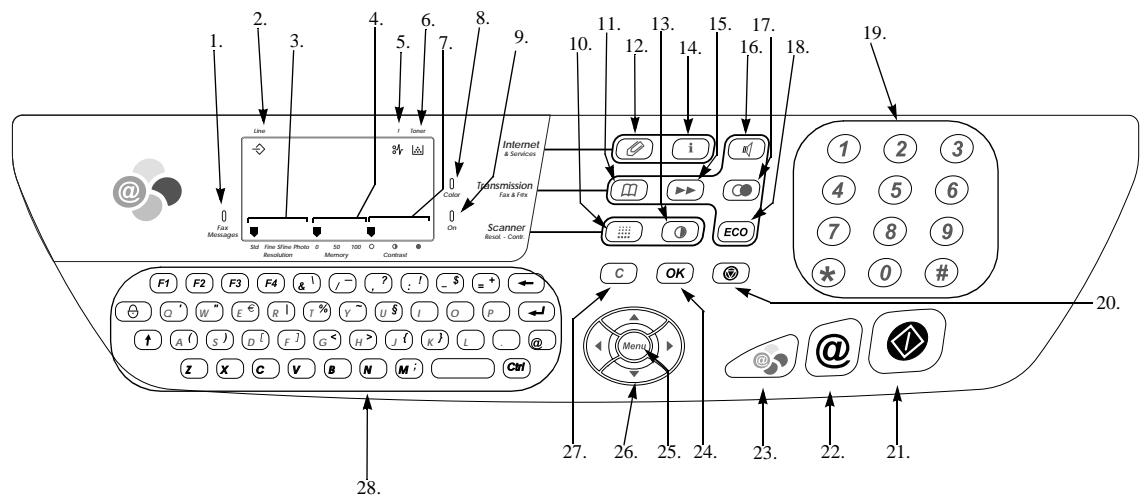
- Signal"Fax Messages": On: set as fax answering Flashing: message received as fax answer
- Icon "Line" : On: communication in progress Flashing: establishment of communication
- Scan mode (Std, Fine, SFine, Photo
- Memory storage (0 to 100% )
- Icon "paper jam" 89 printer
- Icone "Toner" supply : On: end of toner Flashing: toner almost empty
- Contrast indicator
- Signal "color"
-
Signal "On": Green: Unit switch on Red: incidents
10.Key : choice of scan mode resolution
11.Key : call a number (or Abr.Num) in the directory
12.Key : E-mail attachment -
Contrast setting ①
14.Key i: print functions list
15.Key sending a fax to several call numbers
16.Key : manual transmission
17.Key automatic recall of last number dialed
18.Key Eco : economy period transmission
19.Numeric keypad
20.Key:stop current operation
21.Key : transmission for fax black and white and local copy
22.Key @: transmission for fax Internet
23.Key : colour copy or transmission for internet
24.Key Ok : validation of selection displayed on screen
25.Key MENU : access to various functions - Navigation keys
27.Key C:Return to previous menu to correct your entry
28.Alphanumeric keypad


CONTENTS
WELCOME
1 INSTALLATION
Printer 1-1
Unpacking the printer 1-1
Printer installation 1-1
Installation requirements 1-1
Setting the consumable items 1-2
Setting the paper reserve 1-5
Installing the additional paper tray (depending on model) 1-6
Scanner 1-7
Unpacking the scanner 1-7
Scanner installation 1-7
Setting the detachable items 1-7
Connections 1-8
Printer connection 1-8
Telephone and Ian connection 1-9
Power line connection and switch on 1-9
Updating the consumables 1-9
2 QUICK USAGE
Navigation methods 2-1
Presentation 2-1
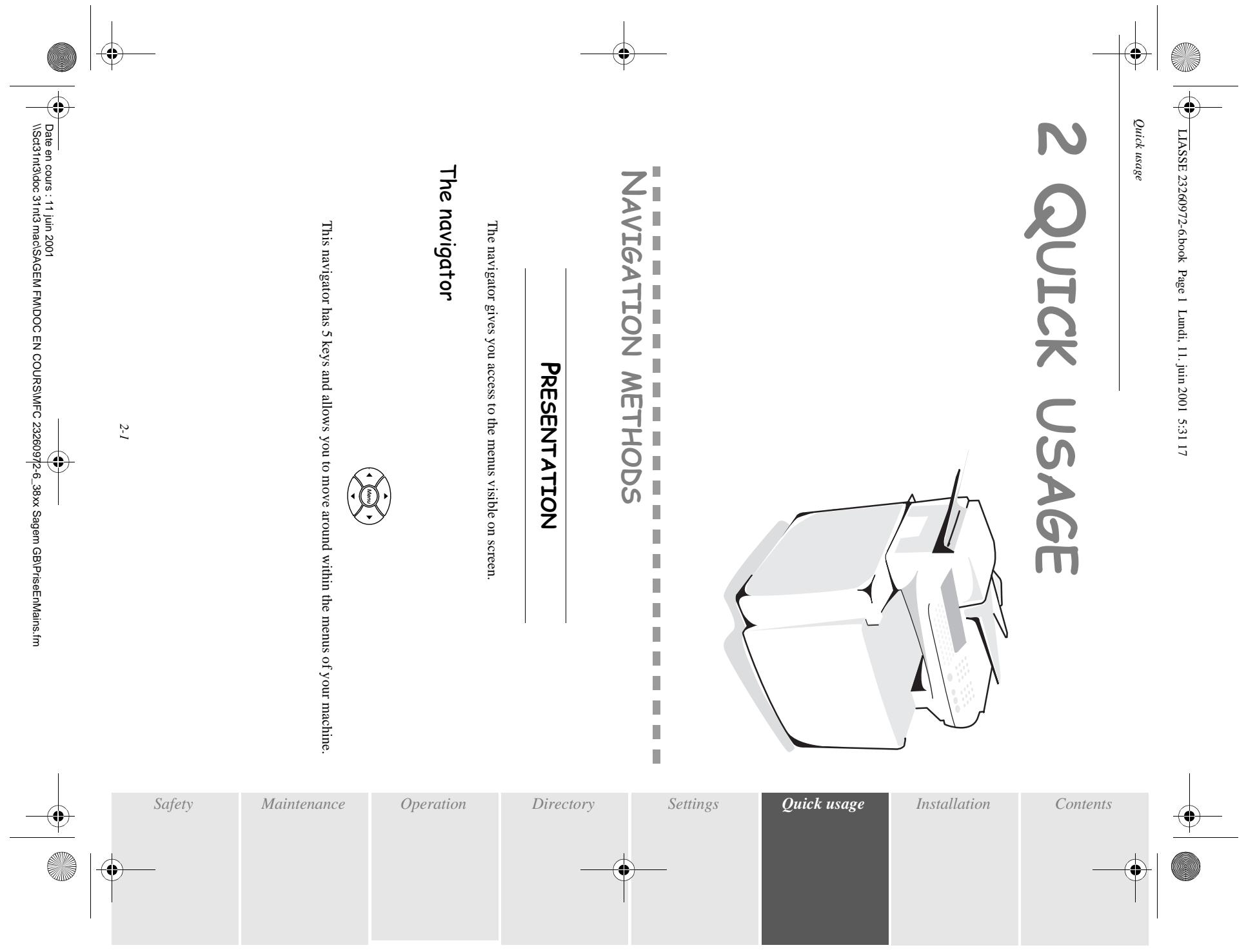
The navigator 2-1
The display screen 2-3
Access to functions 2-3
Step by step function access 2-3
Direct access by number 2-4
Functions list 2-4
3 SETTINGS
Main settings 3-1
Before transmission 3-1
Date/Time 3-1
Your fax number 3-1
Name 3-2
Type of network 3-2
Geographical settings (depending on model) 3-2
Local prefix 3-3
Transmission report and deposit notice 3-3
Economy period 3-4
Document feed types 3-4
Before reception 3-5
-1-
Fax answering machine 3-5
Reception without paper 3-5
Number of copies 3-6
Relay broadcast 3-6
Fax or PC Reception (Option) 3-7
Technical parameters 3-7
Local Area Network (LAN) settings (depending on
model) 3-9
Local network settings 3-9
Automatic configuration 3-9
Manual configuration 3-10
IEEE address (or Ethernet address) 3-10
Netbios names 3-10
Mail service and the internet 3-11
Internet Registration 3-11
initialisation parameters 3-11
Access to connection and mailbox parameters 3-12
Access to servers parameters 3-12
Settings 3-12
Standard settings 3-13
Mail sorting 3-14
Internet Connection 3-15
Immediate connection to the Internet 3-16
Programmed connection 3-16
Deactivate the Internet function 3-16
4 DIRECTION
Creating subscriber records 4-1
Adding a record 4-2
Creating subscribers lists 4-2
Adding a list 4-3
Adding or deleting a number from the list 4-3
Consulting a record or list 4-4
Modifying a record or a list 4-4
Deleting a record or a list 4-4
Printing the directory 4-5
Importing a directory 4-5
The file structure 4-5
Procedure 4-6
Exporting a directory 4-7
5 OPERATION
Sending 5-1
Positioning the document 5-1
Sheet feed scanner 5-2
Flat-bed scanner 5-2
Choosing the resolution/the contrast 5-2
Resolution 5-2
Contrast 5-3
Dialling 5-3
From the directory 5-3
From the radial key 5-4
To multiple call numbers 5-4
Transmission via the Public Switched Telephone Network (PSTN) 5-4
Immediate transmission 5-4
Delayed transmission 5-5
Transmission with dialing follow-up 5-5
Transmission via the Internet 5-6
Sending a paper fax to an E-Mail address 5-6
Sending a colour document to an E-Mail address 5-6
Sending a keyed-in message to an E-Mail address 5-6
Transmission waiting queues 5-7
Consult or modify the waiting queue 5-8
Immediately perform transmission from the waiting queue 5-8
Printing a document in waiting or in deposit 5-8
Print the waiting queue 5-9
5-9
Cancelling transmission in progress 5-9
Reception 5-9
Reception via the Public Switched Telephone Network (PSTN) 5-9
Reception via the Internet 5-10
Copying 5-10
Local black and white copy 5-10
Standard copy 5-10
"Sophisticated" copy 5-10
Colour copy 5-11
Standard copy 5-11
"Sophisticated"copy 5-11
Specific settings for the copy 5-11
Scanner settings 5-12
Printer settings 5-14
Other functions 5-14
Logs 5-14
Printing the functions list 5-15
Printing the machine settings 5-15
Memorizing a sequence of keys 5-15
Counters 5-16
Deposit and polling 5-16
Place a document in deposit 5-17
Polling a deposited document 5-17
Interlock 5-18

Entering the interlock code 5-18
Keypad interlocking 5-18
Number interlocking 5-18
Locking colour printing 5-19
Mail box (MBX FAX) 5-19
MBX Management 5-20
Initialising a MBX 5-20
Modifying the features of an MBX 5-20
Print the contents of an MBX 5-21
Delete an MBX 5-21
Print the MBX list 5-21
MBX deposit in a remote fax 5-21
MBX polling from a remote fax 5-22
6 MAINTENANCE
Maintenance 6-1
General 6-1
Replacing the consumables 6-2
Replacing the toner cartridges 6-2
Replacing the oil cartridge and the cleaning roller 6-4
Installation / Reinstallation the oil cartridge 6-5
Replacing the toner bin 6-7
Cleaning 6-8
Cleaning the development roller 6-8
Cleaning the loading unit 6-9
Cleaning the scanner's reading devices 6-10
Scanner calibration 6-11
Incidents 6-11
Communication errors 6-11
Transmission from the feeder 6-12
Transmission from the memory 6-12
Communication error codes 6-12
Printer incidents 6-14
Error messages 6-14
Printer paper jam 6-16
Scanner incidents 6-19
Sheet-feed scanner paper jam 6-19
Miscellaneous incidents 6-20
Characteristics 6-21
Unit characteristics 6-21
Consumable Characteristics 6-22
7 SAFETY
-4-

This unit has been designed in accordande with European standards I-CTR37 and CTR21, it is designed for connection to the Public Switched Telephone Network (PSTN). In case of any problems, first contact your Supplier.
The mark CE attests that the products comply with the essential requirements of Directive R&TTE 1999/5/EC, for user safety, in accordance with Directives 73/23/EC for electromagnetic interference, in accordance with Directive 89/336/EC.
And that it makes efficient use of the radio spectrum allocated to terrestrial communications.
The manufacturer declares that the products are manufactured in accordance with ANNEX II of Directive R&TTE 1999/5/EC.
WELCOME
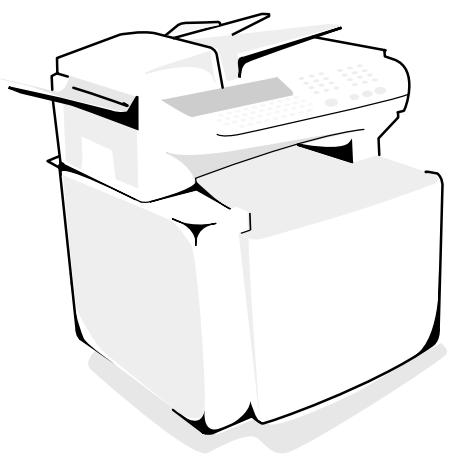
Thank you for purchasing this new generation communication terminal. Both a colour laser fax machine and a terminal with access to the Internet, your machine is the answer to all your most demanding professional needs.
This User's Manual presents the two models in the range :
| Model | Equipment |
| 3830 | Model without LAN function. |
| 3850 | Model with LAN function. |
It combines power, user-friendliness and simplicity thanks to its navigator, its multitask access and direct access directory.
The colour laser printer lets you print and receive colour documents.
Its two scanners (sheet-feed and flat-bed), let you send a colour document and use your machine as a true black & white and colour copier.
The flat-bed scanner lets you send portions of bound documents with a better resolution.
1 INSTALLATION
PRINTER
UNPACKING THE PRINTER
Check the presence of the following items:
- 4 toner cartridges:
- Black (K)
- Yellow (Y)
-
Magenta (M)
Cyan (C) -
Printer
- OPC cartridge
Oil bottle - Starting gauge card (chip card)
PRINTER INSTALLATION
Installation requirements
When choosing the place to install your printer, please consider the following points:
- The telephone and earth sockets must be less than 2 meters from the printer, otherwise an extension cord will be required.
-
To access the printer easily, leave a space of about 10cm at each side and in the rear of the machine. The front of the printer must always remain clear.
-
Do not place the printer in direct sunlight, near radiators, air conditioning and in general in areas that are too hot, dry, damp or dusty.
- Avoid areas with frequent vibrations.
- Avoid areas where water or other products could accidentally spill on the printer.
- Never try to access the hot parts (heater), or try to remove the cover (laser beam).
Setting the consumable items
Setting the four colour toner cartridges
Your printer has 4 colour toner cartridges: Cyan, Magenta, Yellow and Black.
To install the starting cartridges :
Open the front cover of the printer.
Remove the cartridges from their packaging.
Repeat the following steps for each colour toner cartridge.
Caution - A colour label identifies each cartridge. Place the cartridge in the housing with the corresponding colour label. Exert no pressure when you insert the cartridge in the housing. Check that you insert the cartridge of the right colour.
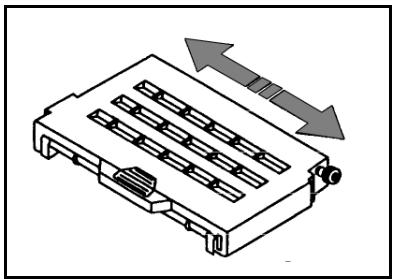
Gently shake the cartridge sideways to event out the toner.
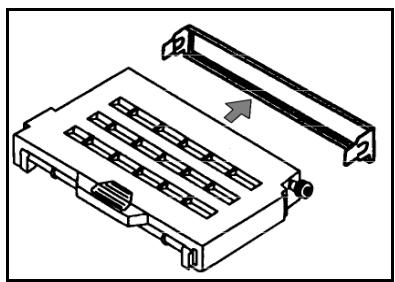
Remove the protection bar.
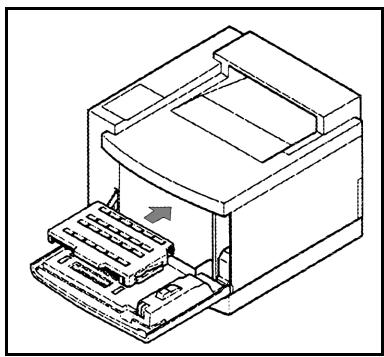
Install the toner cartridge. Align the cartridge and slid it entirely in the printer.
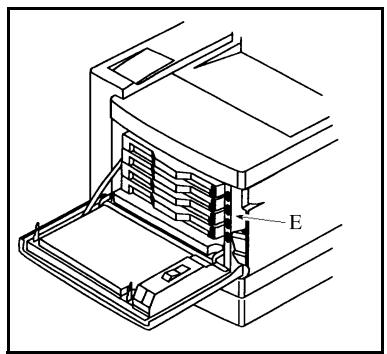
Each cartridge is inserted in the housing which has the corresponding colour label (E).
Setting the OPC cartridge
Caution - Do not place the OPC cartridge in direct lighting and sunlight. Store it in its protective packaging until you are ready to install it. Handle it carefully. Fingerprints, oil stains and scratches damage the print quality.
Caution - Make sure the front cover is completely open, so that you can move slightly the cartridges forward, and leave a space to install the OPC cartridge. If the front cover is not completely open, you may damage the OPC cartridge.
Open the upper cover of the printer.
Proceed in order to the following steps:
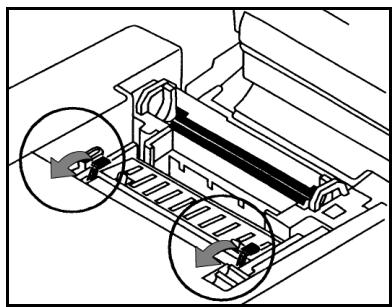
Pivot both lever locks upward (one on each side) before setting up the OPC cartridge.
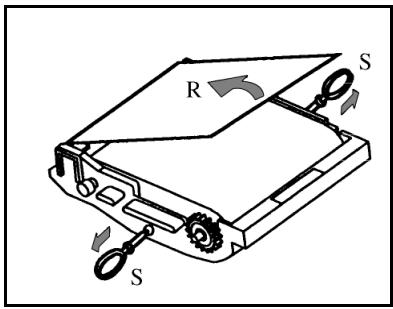
Remove the protective sheet (R) from the OPC cartridge and pull out both bolts (S).
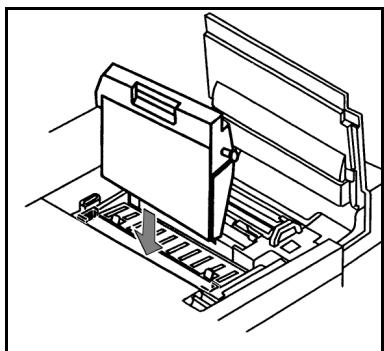
Hold the OPC cartridge above the printer, and place its pegs in the corresponding slots of the lever locks. Place the OPC cartridge with its white tooth wheel on the right-hand side, and with its green side facing you.
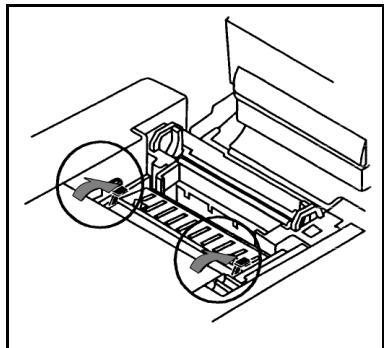
Lower both lever locks to fit the OPC cartridge in the printer.
Insert the OPC cartridge.
Setting the oil bottle and the cleaning roll
The first oil bottle used to start the printer has a shortest lifetime than the next ones..
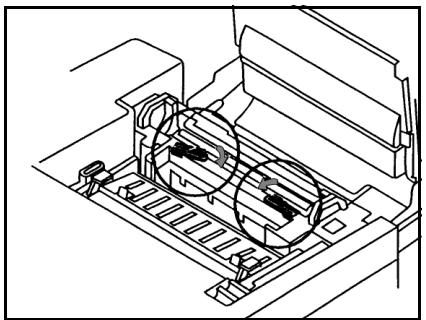
Turn both lever locks.
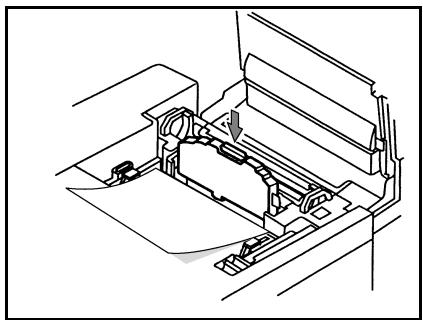
Insert the oil bottle in its housing, taking care to place a sheet below it. Remove it when the cartridge is at housing level. The tab of the oil bottle must be on the right-hand side.
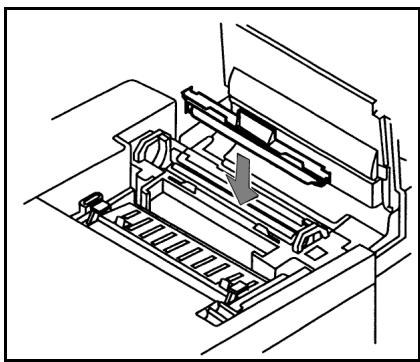
Install the cleaning roll in its housing. The visible side must face the oil bottle.
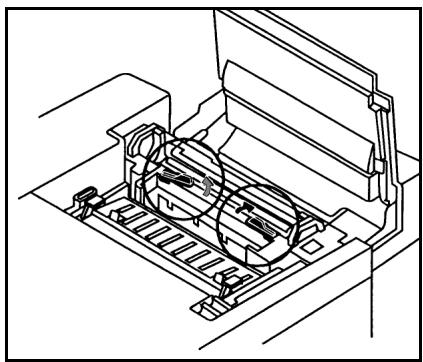
Turn off both lever locks.
Setting the paper reserve
Caution - To avoid damaging the heater, do not use ink jet paper.
The paper tray can contain up to 250 sheets of 80g / m^2
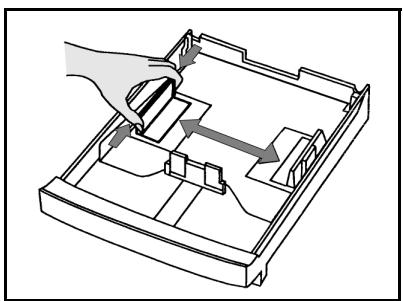
Remove the paper tray from the printer.
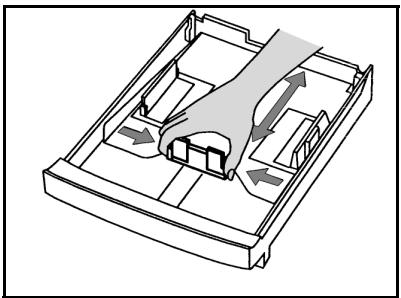
Adjust the paper guides according to the paper size you wish to load.
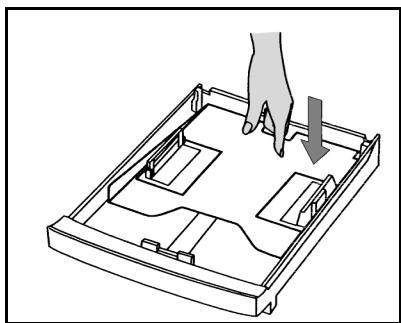
Press on the sheets compression plate inside the tray to lock it.
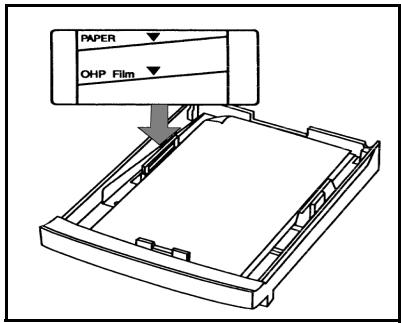
Load the stack in the paper tray.
Place the paper tray back in the printer.
On the left-hand side of the tray, a line indicates the maximum amount of paper to stack. Do not overload it.
Place the paper with its print side on top. An arrow on the paper packaging generally indicates the sheets printable side.
Installing the additional paper tray (depending on model)
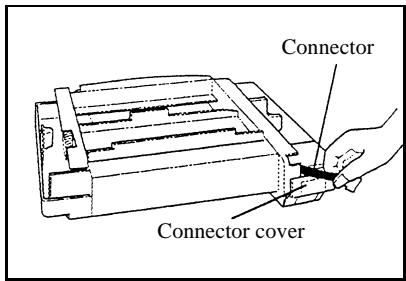
Unpack the additional tray.
Pull the connector backwards and remove its cover.
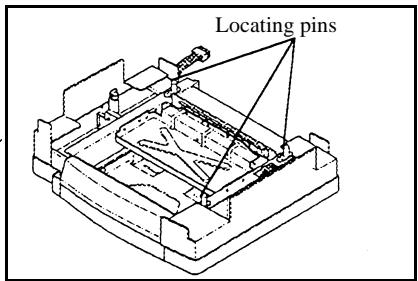
Check the three retaining pins of the printer.
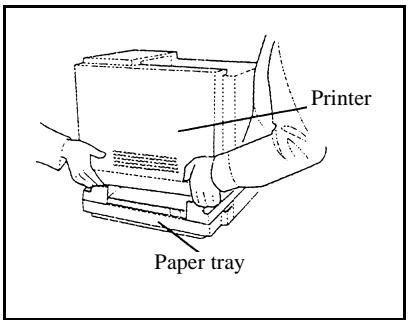
With the help of another person, place the printer above the additional paper tray.
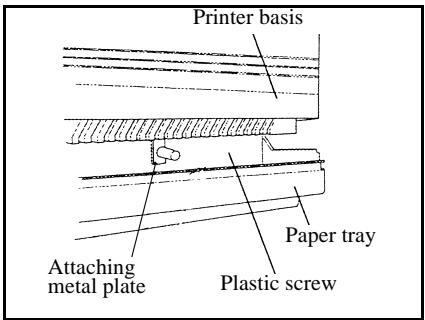
Place the two metal plates on the right and left-hand side of the printer.
Affix them using the two screws.
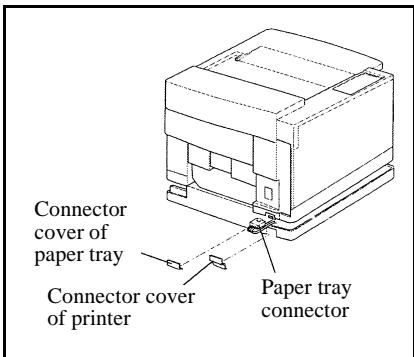
Remove the connector cover from the rear of the printer, and connect the tray connector.
Remove the tray connector cover and attach it on the printer connector.
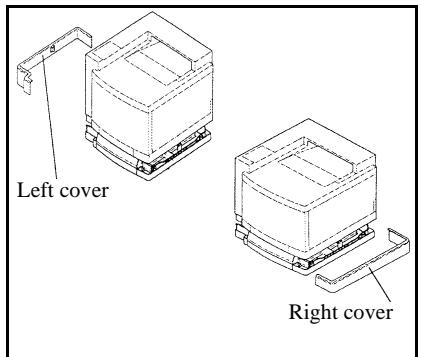
Position the right and left covers on the machine sides.


SCANNER
UNPACKING THE SCANNER
Check the presence of the following items:
- Scanner
- Scanner support
- Outlet tray for out going document
-
Mainpower cord
-
Printer connection cord
- Printer main power connection cord
Telephone line cord - Starting gauge card (chipcard)
SCANNER INSTALLATION
Setting the detachable items
Setting the scanner support
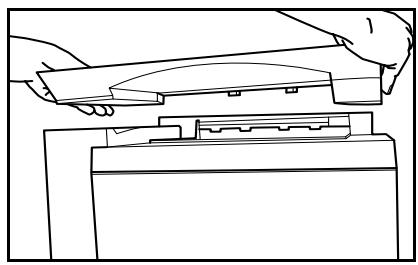
Check that the upper cover of printer is closed.
Place the scanner support on the printer.
Place the scanner on its support.
Installation of the outlet tray for outgoing document
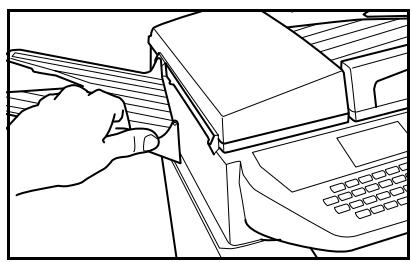
Set the outlet tray on the left-hand side of the fax machine by engaging the two pins in their respective holes.
CONNECTIONS
PRINTER CONNECTION
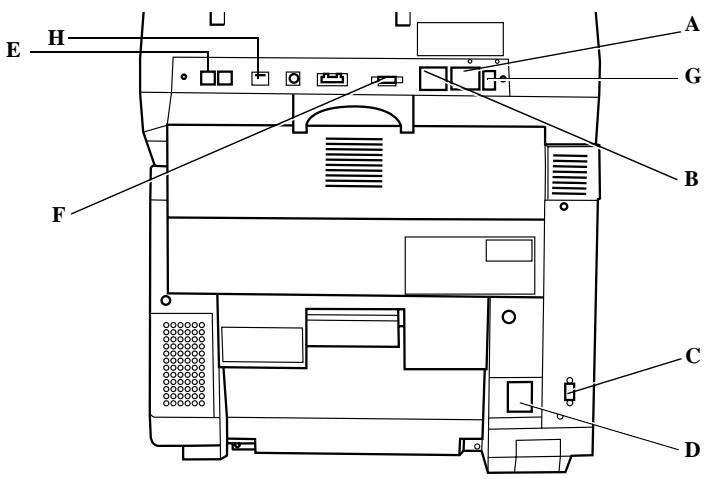
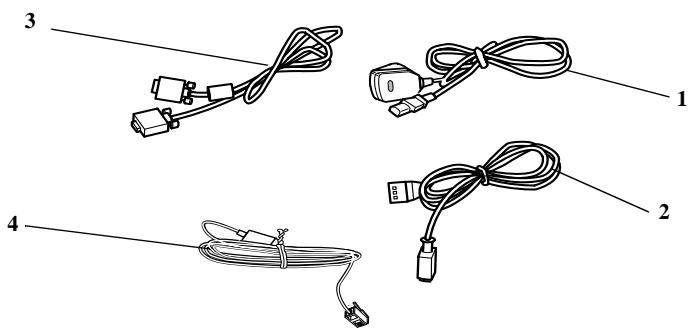
Plug end of the connection cord (3) into the jack of the fax machine (F) and the other end into the printer's jack (C).
Plug end of the main power cord (2) into its jack on the fax machine (A) and the other end into the printer's jack (D).
Caution - Plug only the power pack supplied with your machine into the port (A) by means of the main power cord (2).
TELEPHONE AND LAN CONNECTION
Plug end of the telephone line (4) into its jack on the fax machine (E), and the other end into the wall telephone socket.
Plug end of the LAN cord (as provided by your network administrator) into port (H) of your fax machine and the other end into your local network port dedicated to your fax machine.
POWER LINE CONNECTION AND SWITCH ON
Caution - Refer to safety procedures in the Safety Chapter.
Plug end of the main power cord (1) into the jack of the fax (B), and the other end in the wall outlet
Set the switch (G) (depending on model) to position 1 (On).
After a few seconds, when the printer has warmed up, the date and time will appear.
UPDATING THE CONSUMABLES
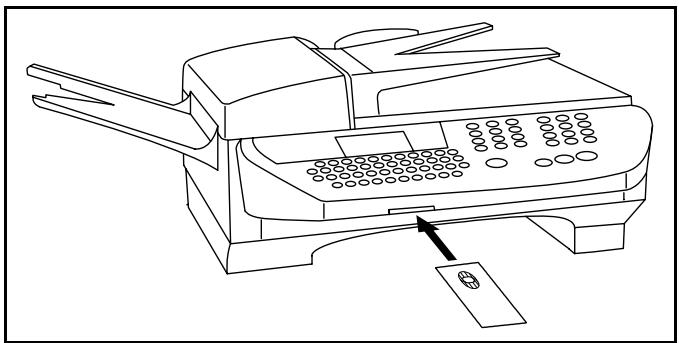
A chip card is delivered with the consumables. This card initializes the system which enables you to know at any time the toner cartridges consumption level.
After installing all the consumables in the printer, you need to inform the machine about their features.
For this purpose, you must read the chip card provided with the machine, before using it. The screen indicates:
INIT
INSERT GAUGE CARD
Insert the chip card (or gauge card) in the card reader as shown below:
The following indications appear on the screen of the scanner unit:
INIT OF CONSUMABLES? CONFIRM = OK CANCEL = C
Press key OK, the display indications are:
OPERATION IN PROGRESS ! . . . PLEASE WAIT
As soon as the reading operation is over, remove the card:
INIT OF CONSUMABLES RECORDED REMOVE CARD
The operation is over, the card is no more necessary.
Moving within the menus
| To | Use key | Symbol |
| Enter the main menu. | Menu | MENU |
| Select the next line in the menu. | ▼ | |
| Select the previous line in the menu. | ▲ | |
| Go to the following menu. | OK | OK |
| Return to the previous menu. | C | C |
| Confirm and exit from the current menu. | ◇ | |
| Exit without confirming from the current menu. | ◇ |

Moving within a data entry field
| To | Use key | Symbol |
| Moving left or right. | ←→ | ←→ |
| Confirm your entry. | OK | OK |
| Delete a character by moving the cursor to the left | ←- | ←- |
| Delete a character on the left of the cursor without moving the cursor. | C | C |

| To | Use key | Symbol |
| Confirm your entry and return to the initial screen. | ◇ | ◇ |
The display screen
The screen has 4 lines of 20 characters.
The cursor shows the line you selected.
F----FUNCTION
1▶DIRECTORY
2 SETUP
3 SEND
For menus with more than three choices, use the arrows or of the navigator to obtain the next (hidden) lines of the menu (4, 5, 6 etc.).
ACCESS TO FUNCTIONS
Access to functions may be achieved in two ways.
- Step by step function access.
- Direct function access,
Step by step function access
You may print the function list (key i) to know the number of a function.
The following example describes how to enter your name so that it prints out as a header on your fax (name of this function SETUP / YOUR NAME).
Press the MENU key, the functions list appear, move the cursor , with the or navigator arrows to place it in front of the line desired..
F----FUNCTION
1 DIRECTION
2 SETUP
3 SEND
Validate your choice by pressing OK.
In the selected menu, move the cursor , with the or arrows to place it in front of the sub-function desired.
F2----SETUP
1 DATE TIME
2 YOUR NUMBER
3 YOUR NAME
Validate your choice by pressing OK.
Direct access by number
You may print the functions list (key i) to know the number of a function.
From the stand-by mode:
Press the MENU key, and enter the numbers of the required functions one after another.
FUNCTIONS LIST
MAIN MENU 1:DIRECTORY
| Functions | Function Description | Page |
| MEN:L:11 - ADD NAME | Phone number directory fill in | p. 4/2 |
| MEN:L:12 - ADD LIST | Enter the broadcasting list | p. 4/3 |
| MEN:L:13 - SEE OR MODIFY | Name modification in the directory | p. 4/3 |
| MEN:L:14 - CANCEL | Name deletion in the directory | p. 4/4 |
| MEN:L:15 - PRINT | Directory printing | p. 4/5 |
| MEN:L:16 - SAVE/LOAD | Store the directory on a chip card | p. 4/1 |
| 161 SAVE | Save the directory on a chip card | p. 4/1 |
| 162 LOAD | Load the directory from a chip card | p. 4/1 |
| MEN:L:17 - IMPORT | Enable/disable e-mail import | p. 4/6 |
| MEN:L:18 - EXPORT | Export directory e-mail | p. 4/7 |
MAIN MENU 2:SETUP
| Functions | Function Description | Page | |
| MENUS21 - DATE TIME | Date / time setting | p. 3/1 | |
| MENUS22 - YOUR NUMBER | Telephone or fax number | p. 3/2 | |
| MENUS23 - YOUR NAME | User name | p. 3/2 | |
| MENUS24 - SEND | Send | ||
| 241 | SEND REPORT | Sending report printing type(see MENUS371) | |
| 242 | MEMORY SEND. | Sending from scanner or memory(see MENUS372) | |
| 243 | ECO PERIOD | Setting economy period nbr(see MENUS373) | |
MAIN MENU 2:SETUP
| Functions | Function Description | Page | |
| MEN:25 - RECEPTION | Reception | ||
| 253 | REC. WITHOUT PAPER | Acceptance of reception without paper | p. 3/6 |
| 254 | NBR OF COPIES | Nb of copies for received documents | p. 3/6 |
| 255 | FAX TAD | Fax answering activation | p. 3/5 |
| 256 | ANSWER CODE | Remote control enquiry code selection | p. 3/5 |
| 257 | PC RECEPTION | Choice for PC reception (a) | p. 3/7 |
| MEN:26 - NETWORKS | Network | ||
| 261 | TEL NETWORK | p. 3/2 | |
| 2611 | NETWORK TYPE | Network type selection (PABX OR PSTN) (a.) | p. 3/2 |
| 262 | LOCAL NETWORK | ||
| 2621 | CONFIGURATION | Configuration mode selection (a.) | p. 3/10 |
| 2622 | IP ADDRESS | IP address of the terminal (a.) | p. 3/10 |
| 2623 | SUBNET MASK | Sub-network mask (a.) | p. 3/10 |
| 2624 | GATEWAY | Gateway address (a.) | p. 3/10 |
| 2625 | IEEE ADDRESS | IEEE address of the terminal (a.) | p. 3/10 |
| 2626 | NETBIOS NAME 1 | Netbios Name 1 | p. 3/10 |
| 2627 | NETBIOS NAME 2 | Netbios Name 2 | p. 3/10 |
| MEN:28 - PRINT | Print settings list (see MEN 54) | ||
| MEN:29 - TECHNICAL | Technical parameters | p. 3/7 | |
| MEN:20 - GEOGRAPHIC | Geographical settings (a.) | ||
| 201 | COUNTRY | The country you select will set the network language and corresponding keyboard (a.) | p. 3/2 |
| 202 | NETWORK | Sets the network individually (a.) | p. 3/2 |
| 203 | LANGUAGE | Sets the language individually (a.) | p. 3/3 |
a. Depending on model.
MAIN MENU 3:SEND
| Functions | Function Description | Page | |
| MENU : 31 | - TRANSMISSION | Delayed transmission and broadcasting | p. 5/5 |
| MENU : 32 | - POLLING RX | Polling a document | p. 5/17 |
| MENU : 33 | - POLLING TX | Inserting a document to be polled | p. 5/17 |
| MENU : 34 | - MBX SENDING | Sending to a MBX | p. 5/21 |
| MENU : 35 | - MBX POLLING | Polling of a MBX | p. 5/22 |
| MENU : 36 | - BROADCAST | Sending of broadcasting | p. 3/6 |
| MENU : 37 | - SETUP | see MENU 24 | |
| 371 | SEND REPORT | Sending report printing type | p. 3/4 |
| 372 | MEMORY SEND. | Sending from feeder or memory | p. 3/4 |
| 373 | ECO PERIOD | Setting economy period nbr | p. 3/4 |
MAIN MENU 4: FAX TAD
| Functions | Function Description | Page |
| MEN:L:41 - PRINT | Print the received messages | p. 3/5 |
| MEN:L:42 - ACTIVATION | Fax tad activation | p. 3/5 |
| MEN:L:43 - ANSWER CODE | Remote access code selection | p. 3/5 |
MAIN MENU 5:PRINT
| Functions | Function Description | Page |
| MEN:L:51 - FUNCTIONS LIST | Functions list printing | p. 5/15 |
| MEN:L:52 - LOGS | Tx and Rx logs printing | p. 5/15 |
| MEN:L:53 - DIRECTORY | Print the directory | p. 4/5 |
| MEN:L:54 - SETUP | User parameters printing | p. 5/15 |
| MEN:L:55 - COMMANDS | Printing of the command list (see MENU 65) | |
| MEN:L:56 - MBX | Print list of MBX (see MENU 75) |
MAIN MENU 6:COMMANDS
| Functions | Function Description | Page |
| MEN:L:61 - PERFORM | Perform a command on hold | p. 5/8 |
| MEN:L:62 - SEE OR MODIFY | Update of a command on hold | p. 5/8 |
| MEN:L:63 - CANCEL | Delete a command on hold | p. 5/9 |
| MEN:L:64 - PRINT | Printing of a document in wait queue | p. 5/8 |
| MEN:L:65 - PRINT LIST | Printing of the command list | p. 5/9 |
MAIN MENU 7: MAILBOXES.
| Functions | Function Description | Page |
| MEN:L:71 - INITIALISE | Creating and modification of a MBX | p. 5/20 |
| MEN:L:72 - POLLING TX | Storing a document in a Mailbox | p. 5/21 |
| MEN:L:73 - PRINT | Print content of a Mailbox | p. 5/21 |
| MEN:L:74 - CANCEL | Suppress an empty mailbox | p. 5/21 |
| MEN:L:75 - PRINT LIST | Print list of MBX | p. 5/21 |
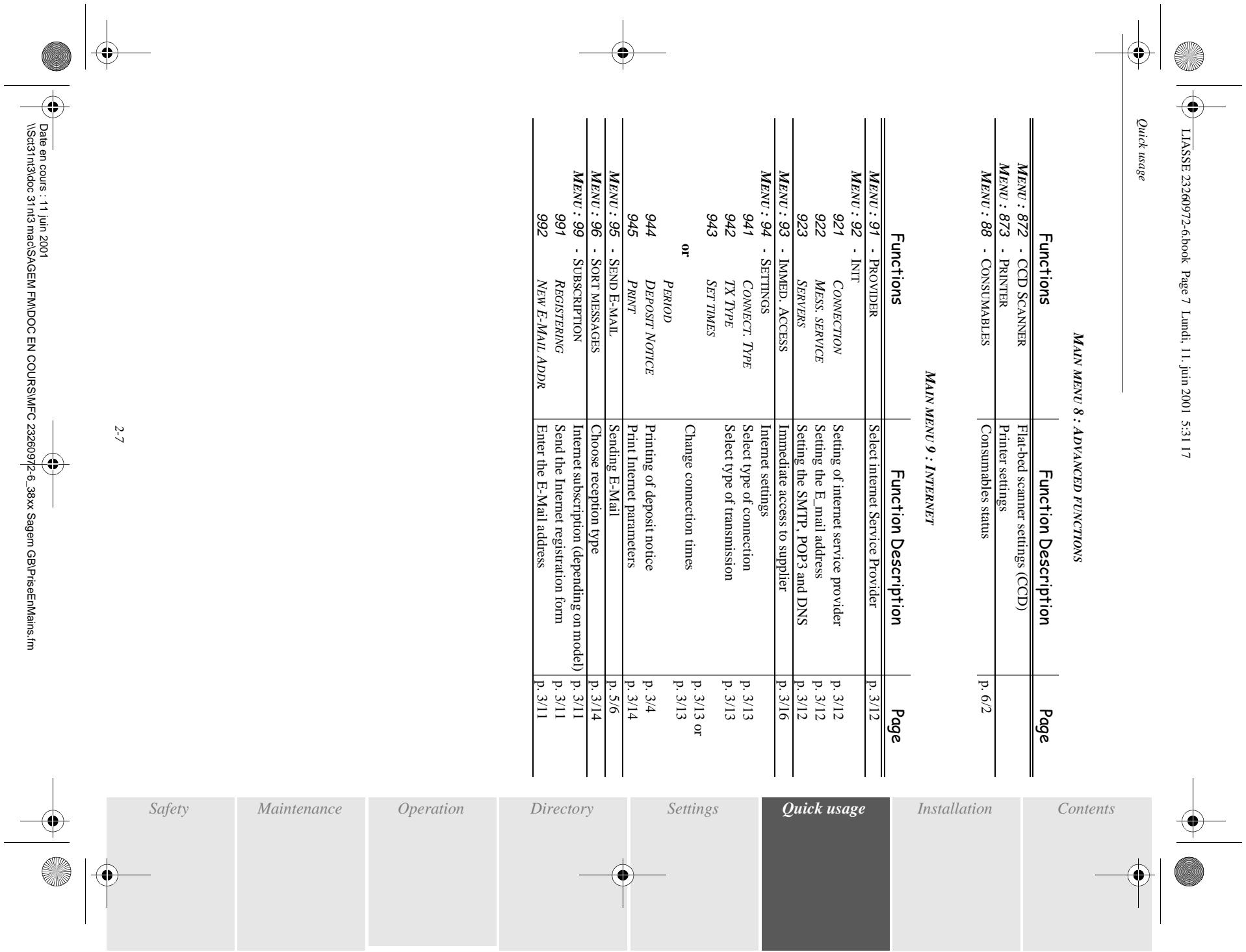
MAIN MENU 8: ADVANCED FUNCTIONS
| Functions | Function Description | Page | |
| MENU:80 - CALIBRATION | Scanner calibration | ||
| MENU:82 - LOCK | Interlocking activation | ||
| 821 | LOCKING CODE | Entering interlock code | p. 5/18 |
| 822 | LOCK KEYBOARD | Keypad interlocking activation | p. 5/18 |
| 823 | LOCK NUMBER | Number interlocking activation | p. 5/19 |
| 825 | LOCK COLOR | Color locking selection | p. 5/19 |
| MENU:83 - Prefix | Dialing prefix activation | ||
| 831 | NUMBER SIZE | Min. size number to be send with prefix | p. 3/3 |
| 832 | PREFIX SETTING | Entry of dialing prefix value | p. 3/3 |
| MENU:84 - COUNTERS | Seeing activity counters | ||
| 841 | PRINTED PAGES | Printed apges counter | p. 5/16 |
| 842 | LOCAL COPIES | Local copies counter | p. 5/16 |
| 843 | SENT PAGES | Sent pages counter | p. 5/16 |
| 844 | RECEIVED PAGES | Received pages counter | p. 5/16 |
| MENU:87 - SCAN. AND PRINT. | Scanners and printer setting | p. 5/12 | |
| MENU:871 - CIS SCANNER | Sheet-feed scanner settings (CIS) | ||
Quick usage
MAIN MENU 8: ADVANCED FUNCTIONS
MAIN MENU 9:INTERNET
| Functions | Function Description | Page |
| MENU:872 - CCD SCANNER | Flat-bed scanner settings (CCD) | |
| MENU:873 - PRINTER | Printer settings | |
| MENU:88 - CONSUMABLES | Consumables status | p. 6/2 |
| Functions | Function Description | Page | |
| MEN:91 | - PROVIDER | Select internet Service Provider | p. 3/12 |
| MEN:92 | - INIT | ||
| 921 | CONNECTION | Setting of internet service provider | p. 3/12 |
| 922 | MESS. SERVICE | Setting the E_mail address | p. 3/12 |
| 923 | SERVERS | Setting the SMTP, POP3 and DNS | p. 3/12 |
| MEN:93 | - IMMED. ACCESS | Immediate access to supplier | p. 3/16 |
| MEN:94 | - SETTINGS | Internet settings | |
| 941 | CONNECT. TYPE | Select type of connection | p. 3/13 |
| 942 | TX TYPE | Select type of transmission | p. 3/13 |
| 943 | SET TIMES | ||
| or | Change connection times | p. 3/13 or p. 3/13 | |
| PERIOD | |||
| 944 | DEPOSIT NOTICE | Printing of deposit notice | p. 3/4 |
| 945 | Print Internet parameters | p. 3/14 | |
| MEN:95 | - SEND E-MAIL | Sending E-Mail | p. 5/6 |
| MEN:96 | - SORT MESSAGES | Choose reception type | p. 3/14 |
| MEN:99 | - SUBSCRIPTION | Internet subscription (depending on model) | p. 3/11 |
| 991 | REGISTERING | Send the Internet registration form | p. 3/11 |
| 992 | NEW E-MAIL ADDR | Enter the E-Mail address | p. 3/11 |
saaee
Quick usage


3 SETTINGS
MAIN SETTINGS
To obtain machine
__________
Date/Time
At any moment you may change the date and time of your fax machine.
MENU:21-SETUP/DATE TIME
Enter one after another the numbers of the required time and date.
(To example for pressing key OK)
number
number
Your fax offers to print out your fax number on every document it transmits if you saved this
parameters, page 3/7).
3-1
saaee

To save your fax number:
MENU:22-SETUP/YOUR NUMBER
Enter your fax number (20 digits max.) and validate by pressing key OK.
Name
Your fax offers to print out your name on every document it transmits if you saved your name and if the machine is set with SENDINGHEADER (refer to paragraph Technical parameters, page 3/7).
To save your name:
MENU:23-SETUP/YOUR NAME
Enter your name (20 characters max) then validate with the key OK.
Type of network
You may connect your fax to either a PSTN or private network like auto switch exchange PABX. You must define for example the network the most convenient.
To select the type of network:
MENU:2611-SETUP/NETWORKS/TEL.NETWORK/NETWORKTYPE
Select option PABX or PSTN then validate your choice with OK.
Geographical settings (depending on model)
These settings will enable you to use your terminal in different preset countries and in different languages.
Country
By choosing a country, you initialise:
- the settings for its public telephone network
- its default language
- its default type of keyboard.
To select the country:
MENU:201-SETUP/GEOGRAPHIC/COUNTRY
Select the required option and press the OK key to confirm.
Network
This setting enables you to individually set the type of public telephone network so that your terminal can communicate over the public network of the country you have chosen in compliance with the applicable standards.
Remark : This setting is different from the NETWORK TYPE setting (p. 3/2), which allows choosing between public and private network.
To select the network:
MENU:202-SETUP/GEOGRAPHIC/NETWORK
Select the required option and press the OK key to confirm.
Language
This setting enables you to choose a language other than that imposed by the COUNTRY setting.
To select the language:
MENU:203-SETUP/GEOGRAPHIC/LANGUAGE
Select the required option and press the OK key to confirm.
Local prefix
This function is used when your fax is installed with a private network, behind an auto branch exchange telephone company. It allows you to program an additional automatic local prefix (to be defined), enabling you to automatically exit the company's telephone network system, but only under certain conditions:
- the company's internal numbers, where a prefix is not required, must be short numbers less than the minimal size (to be defined),
- the outside numbers requiring a prefix, must be long numbers greater or equal to the minimal size (to be defined, for example France has 10 numbers).
Programming your fax with the local prefix consists of two steps:
- defining the minimal size (or equal) of the company's outside numbers,
- defining the outgoing local prefix of the company's telephone network. This prefix will automatically be added as soon as an external number is dialled.
Caution - If you define a local prefix, do not add it to the numbers stored in the directory: it will be dialled with each number.
Defining the minimal size
MENU:831-ADVANCEDFUNCTIONS/PREFIX/NUMBERSIZE
You can change the default value for the minimal size of the company's outside numbers and validate with OK. The minimal size will range between 1 and 30.
Defining the local prefix
MENU:832-ADVANCEDFUNCTIONS/PREFIX/PREFIX SETTING
Enter the outgoing local prefix of the company's telephone network (maximum 5 characters) and validate with OK.
Transmission report and deposit notice
You may print a transmission report for all communications via the telephone network (STN) or a deposit sheet for all communications via Internet.
You may choose between more than one criteria for printing reports or deposit sheets:
- WtH, a report is given when the transmission was properly performed or when it is completely abandoned (but there is only one report per request),
- WITHOUT, no transmission report, however, your fax notes all transmissions that took place in its log, (refer to paragraph Logs, page 5/14)
- ALWAYS, a report is printed with each transmission,
- ON ERROR, a report is printed only if the transmissions failed or if completely abandoned.
At each transmission report from the memory, a reduced version of the first page is automatically combined.
To select the report type:
MENU:241-SETUP/SEND/SENDREPORT
Select the required option WITH, WITHOUT, ALWAYS, or ON ERROR and validate your choice with OK.
To select the deposit notice type:
MENU:944-INTERNET/ SETTINGS/DEPOSIT NOTICE
Select the required option WITH, WITHOUT, ALWAYS, or ON ERROR and validate your choice with OK.
Economy period
This function allows you to defer a fax transmission to defer a fax transmisison to "off-peak hours" and thus reduce the cost of your communications.
The economy period, giving you a more advantageous rate via the telephone network (at off-peak hours), is preset by default from 6.00 P.M to 8.00 A.M. Nevertheless you may change this time slot.
Modifying the economy period
MENU:243-SETUP/SEND/ECOPERIOD
Enter the hours of the new economy period and validate your selection with the key OK.
Using the economy period
To transmit in economy period, you just have to press the ECO key instead of the key. The fax will automatically be transmitted during the economy period.
Document feed types
You may choose the way you want to feed your documents at transmission:
- from memory, transmission will take place only after memory storage of the document and dialing. It allows you to recuperate originals more rapidly.
- from the feeder of the sheet-feed scanner (refer to paragraph Positioning the document, page 5/1), transmission will occur after dialing. It allows transmission of bulky documents (its size may exceed the memory capacity).
To select the way you want to feed your documents :
MENU:242-SETUP/SEND/MEMORYSEND.
Select the option MEMORY or FEEDER and validate your choice with OK.
BEFORE RECEPTION
Fax answering machine
The Fax answering machine allows you to keep confidential all documents in storage and to avoid always printing them at reception.
The signal "Fax Messages" lets you know the state of your Fax answering machine:
- Light on: the answering machine is on.
- Flashing: Your fax has documents in storage or is in the process of receiving faxes.
- Light off: the answering machine is off.
You can assure document confidentiality by using the 4 digit access code. Once saved, you will be asked this access code for:
- printing fax messages found in memory,
- activate or deactivate the Fax answering machine.
Saving an access code
MENU:43-FAX TAD/ANSWER CODE
or
MENU:256-SETUP/RECEPTION/ANSWERCODE
Enter the code (4 digits) and validate with the key OK.
Activate or deactivate the answering machine
MENU:42-FAX TAD/ACTIVATION
or
MENU:255-SETUP/RECEPTION/FAX TAD
Select the required option WITH or WITHOUT and validate your choice with OK.
If you saved an access code for your Fax answering enter it and validate with OK.
Your Fax answering is either on with the signal light "Fax Messages" on, or off with the signal light "Fax Messages" off.
Print fax messages stored in the memory
MENU:41-FAX TAD/PRINT
If you have defined an access code for your fax TAD, enter it and press OK to confirm.
Documents received and stored in the memory are printed.
Reception without paper
Your fax offers you the possibility to either accept or refuse document reception if your printer is unavailable.
If your fax printer is unavailable, you may choose between two modes of reception:
- reception mode WITHOUT PAPER, your fax saves the incoming messages in the memory,
3-5
- reception mode WITH PAPER, your fax refuses all incoming subscribers.
To select the reception mode :
MENU:253-SETUP/RECEPTION/REC.WHOTOUT PAPER
Select the option WITH PAPER or WITHOUT PAPER and validate your choice with OK.
Remark
: The lack of paper is indicated by a beep and a message on the screen. Then received faxes are stored in memory (icon "Fax messages" flashing) to be printed as soon as you add paper in the feeder.
Number of copies
You may print incoming documents more than once (1 to 99).
To set the number of each document received:
MENU:254-SETUP/RECEPTION/NBR OF COPIES
Enter the wanted number of copies and validate with OK.
At each document reception, your fax will print the number of copies requested.
Relay broadcast
Your fax machine (initiator) can relay a document, in other words, transmit a document to your subscribers via a remote fax and with a precise relay list.
To do this the initiator fax and the remote fax must both have the relay function.
To relay you need to supply the remote fax with the document and the relay list number. The remote fax will then transmit this document to all subscribers belonging to the list.
Once the relay is activated by your fax and as soon as the document is received by the remote fax, this document is first printed before relay to all subscribers on the list.
To activate relay from your fax machine:
insert the document to relay (refer to paragraph Positioning the document, page 5/1),
select MENU 36 -SEND / BROADCAST and validate your choice with OK,
enter the remote fax number where you will relay or choose your dialling mode (refer to paragraph Dialling, page 5/3) and validate with OK,
_ enter the relay list number used by the remote fax and press OK,
you may enter the time you wish to transmit the document next to the current time and press OK.
if you wish to modify the document feed type, select one of the options FEEDER or MEMORY press OK,
if you wish, you may enter the number of pages of your document before transmitting.
activate relay by pressing key
The document in the feeder will be relayed either immediately or at a later time (according to your choice) to the remote fax which will relay the document.
Fax or PC Reception (Option)
MENU:257-SETUP/RECEPTION/PC RECEPTION
If you have a PC kit, this menu will enable you to select the machine you wish to receive the documents on:
fax,
PC,
- PC if available otherwise the fax.
For more details, please report to the instruction manual provided with this kit.
Fax or PC reception (optional)
TECHNICAL PARAMETERS
Upon arrival your fax has been preset by default. However, you may adjust it to meet your requirements by resetting the technical parameters.
To set the technical parameters:
MENU:29-SETUP/TECHNICAL
Select the desired parameter and validate with OK,
With the keys or , modify the parameter settings by following the table below and press OK.
| Parameter | Setting | Signification |
| 1 - SCANNING MODE | 1 - NORMAL2 - FINE3 - SFINE4 - PHOTO | Default value of the scan mode resolution for the documents to be transmitted. |
| 2 - SENDING HEADER | 1 - WITH2 - WITHOUT | If this parameter is on, your header will appear on all documents sent to your subscribers with your name, number, date and number of pages. |
| 3 - TRANSMISS RATE | 1 - 336002 - 144003 - 120004 - 96005 - 72006 - 48007 - 2400 | Transmission speed for outgoing documents.For a quality telephone line (compatible, no echo), communications occur at maximum speed.However, it may be necessary to restrict the transmission speed for some calls. |
| 4 - ECHO PROTECT | 1 - WITH2 - WITHOUT | If this parameter is on, the on-line echo will be reduced during long distance calls. |
| 6 - ECHO PROTECT TONE | 1 - WITH2 - WITHOUT | For some long distance calls (satellite), the on-line echo may disturb the call. |
| 7 - COM. DISPLAY | 1 - RATE2 - PAGE NUMBER | Choice between transmission speed displayed and number of the page in progress. |
| 8 - STANDBY MODE | 1 - WITHOUT2 - DELAY 5 MINUTES3 - DELAY 15 MINUTES4 - DELAY 30 MINUTES5 - STANDBY PERIOD | Choosing the printer standby delay: the printer will switch to standby after a delay (in minutes) of NON-operation or during the period of time of your choice |
| 10 - RECEPTION HEADER | 1 - WITH2 - WITHOUT | If this parameter is on, all documents received by your fax will include the subscriber's header with his name, number (if available) fax print date and the page number. |
| 11 - RECEPTION RATE | 1 - 336002 - 144003 - 96004 - 48005 - 2400 | Transmission speed for incoming documents.For a quality telephone line (compatible, no echo), communications occur at maximum speed.However, it may be necessary to restrict the transmission speed for some calls. |
| 12 - NBR OF RINGS | 2 → 9 | Number of rings to automatically start your machine. |
| 20 - CORRECTION MODE | 1 - WITH2 - WITHOUT | ON, this parameter helps correct the calls made on disturbed telephone lines. It is used when the lines are weak or too noisy. Transmission times may be longer. |
| 70 - INTERNET VALID | 6H01 → 21H59 | This menu is used to define the period of time for which periodical connections are authorized. |
| 71 - INTERNET ACTIVE | 1 - 7 DAYS A WEEK2 - MONDAY TO FRIDAY | Allows either an automatic 7 day connection or only Monday to Friday, (prevents a weekend connection). |
| 72 - DATA RATE | 1 - 560002 - 336003 - 144004 - 120005 - 96006 - 72007 - 48008 - 24009 - 1200 | Choice of maximum Internet transmission speed.For a quality telephone line (compatible, no echo), communications occur at the maximum speed.However, it may be necessary to restrict the transmission speed for some Internet calls (bad line or bad ISP settings). |
| 73 - IMPROVE E-MAIL | 1 - WITH2 - WITHOUT | On, this parameter lets you automatically register the Internet address of your subscriber fax during a call (if available). |
| 74 - ERASE MAILBOX | 1 - WITH | When the fax receives an e-mail with an attachment and cannot treat it, it erases the message of the ISP MBX, prints and transmits to the message sender, a notice of uncomprehension. |
| 2 - WITHOUT | At E-mail reception, the fax does not destroy the MBx message, it prints a notice of uncomprehension asking you to recuperate this message with your computer equipment. This parameter is useful only if you have PC equipment. The memory capacity is limited, you need to empty your MBX or else new messages may not be received. | |
| 75 - TEXT ATTACHMENT | 1 - WITH | Attachment with or without processing, and printing of incoming Internet documents. |
| 2 - WITHOUT |
LOCAL AREA NETWORK (LAN) SETTINGS (DEPENDING ON MODEL)
Your Internet F@xTM is a new generation machine that will be part of your local network just like a PC. Its built-in local network access card will enable you to send documents through an SMTP/POP3 local message server (internally or externally, depending on the settings of your message server).
To take advantage of all the available network options, you should make the following settings, described in the sections below:
- local network settings, to introduce your fax machine into your local network.
- message service settings, for all your faxes and E-mails to be automatically managed by your message server.
Caution - Although rather simple, network settings sometimes requires a sound knowledge of your own computer configuration. If that is administrated by anyone in your company, we recommend you ask that person for the settings described below.
We recommend you to carry out a manual configuration of your Internet F@xTM machine. The automatic configuration of the local network settings may be considered if your local network features a DHCP or BOOTP server that can dynamically assign addresses to the peripheral devices present on the LAN.
To automatically configure the local network settings
MENU:2621-SETUP/NETWORKS/LOCAL NETWORK/CONFIGURATION
Choose Auto and press OK to confirm. The Internet F@x^TM scans the local network for a DHCP or BOOTP server that can assign it its settings dynamically (the message ss. is displayed).
Once the message SELF-CONF IN PROGR. has disappeared, check for the IP Address, Sub-network mask and Gateway address. If these are missing, you should carry out a manual configuration (see below).
Manual configuration
To configure you Internet F@x^TM manually, you should obtain the usual information used to set a peripheral device (IP address, sub-network mask, network and gateway address).
To configure the local network settings manually
MENU:2621-SETUP/NETWORKS/LOCAL NETWORK/CONFIGURATION
Choose MANUAL and press OK to confirm.
IP address
MENU:2622-SETUP/NETWORKS/LOCAL NETWORK/IP ADDRESS
Enter the IP address of your Internet F@x^TM and press OK to confirm.
Sub-network mask
MENU:2623-SETUP/NETWORKS/LOCAL NETWORK/SUBNETMASK
Enter the sub-network mask of your Internet F@x^TM and press OK to confirm.
Gateway address
MENU:2624-SETUP/NETWORKS/LOCAL NETWORK/GATEWAY
Enter the IP address of the newtork gateway and press OK to confirm.
IEEE address (or Ethernet address)
MENU:2625-SETUP/NETWORKS/LOCAL NETWORK/IEEE ADDRESS
The Ethernet card of your Internet F@x^TM already has an unmodifiable, yet consultable, IEEE address.
Netbios names
These names, which can be used with the network options, are used to identify your Internet F@xTM machine from a PC connected to a local network (for instance with the name "IMP-NETWORK-1"
MENU:2626-SETUP/NETWORKS/LOCAL NETWORK/NETBIOS NAME1
MENU:2627-SETUP/NETWORKS/LOCAL NETWORK/NETBIOS NAME 2
Enter the selected name (15 characters max) and press OK to confirm.
MAIL SERVICE AND THE INTERNET
Your F@x™ Internet lets you send and receive documents and E-mails from subscribers throughout the world via the Internet network.
An E-mail is an electronic message sent by the Internet, to an E-mail address (which is a personal Internet mailbox).
Access to the Internet is possible thanks to an Internet service provider (ISP). The provider puts at your disposal a server or computer system which allows you to connect to the Internet and your mailbox through your telephone line.
Before worldwide transmission, you must:
- subscribe to an Internet service provider (ISP),
- check that all initialisation parameters correspond to those provided by your ISP,
- perform the proper settings, if needed, for the Internet connection.
You may then connect yourself to the Internet via your ISP to send and receive fax-Internet or E-mails. Both operations will be performed during an Internet connection.
INTERNET REGISTRATION
Your machine is delivered ready to use and preset with an Internet registration and ISP.
To take advantage of this offer and create your own E-mail address, all you have to do is return the registration form:
complete the Internet registration form provided with your machine,
insert this form in the feeder (as for a document transmission),
select MENU:991-INTERNET/SUBSCRIPTION/REGISTERING
Sending your registration form (to ISP), is automatic.
Your ISP will provide you with the initialisation parameters to ensure a proper identification with the Internet.
When you receive your Internet address you may enter it by using MENU : 992 - INTERNET / SUBSCRIPTION / NEW E-MAIL ADDR.
INITIALISATION PARAMETERS
You must define or at least check all the parameters needed to identity yourself with the Internet. Your ISP will provide you with these parameters as soon as you are registered with them.
The parameters are divided into 3 categories:
- connection, allows you to identify dial up number, identifier and password (hidden on screen),
- E-mail address, allows you to identify your personal mailbox, password and E-mail address,
- server, allows you to identify IP address of Internet SMTP providers (send) and POP3
(MBX reception) and the address of DNS PRIMARY and DNS SECONDARY providers.
The server address is made up of 4 groups of 3 digits maximum separated by dots.
If the ISP is OTHER, the parameters are automatically given after the connection and mailbox parameters.
Access to connection and mailbox parameters
MENU:91-INTERNET/PROVIDER
select the Internet provider in the list No ACCESS, PROVIDER_1, or OTHER (for providers not in the list) or LOCAL NETWORK, and press OK.
Choosing No Access disables access to Internet functions.
MENU:921-INTERNET/INIT/CONNECTION
enter the CALLING NUMBER., press OK,
enter connection IDENTIFIER, press OK,
enter connection PASSWORD, press OK,
MENU:922-INTERNET/INIT/MESS.SERVICE
enter Email IDENTIFIER, press OK,
enter Email Password, press OK,
enter E-MAIL ADDRESS, press OK.
Access to servers parameters
MENU:923-INTERNET/INIT/SERVERS
enter SMTP Server, press OK,
enter Pop3 Server, press OK,
enterPRIMARYDNS,pressOK,
enter SECONDARY DNS, press OK,
SETTINGS
The settings are divided into several categories.
- the standard settings define the connection type and frequency to the Internet as well as the transmission type for your documents,
- the E-mail sorting defines treatment for all stored E-mail messages received,
Standard settings
Your machine has two types of settings:
- Connection type and frequency to your ISP.
| DURING SET TIMES | an Internet connection is established every day at 09h00, 12h30 and 17h00(a) (default values) |
| PERIODIC | an Internet connection is established every 3 hours(a.) (default value) |
| ON DEMAND | an Internet connection is established at your request by IMMED. ACCESS |
a. To avoid Internet access saturation, the automatic connection will occur in reality 12 minutes give or take around the requested time.
- Type of transmission via the Internet.
| IMMEDIATE | document transmission will occur immediately at each transmission request |
| DURING CONNECTIONS | transmissions will only occur at programmed connections DURING SET TIMES or PERIODIC |
At any moment you may print the settings of your machine to know their status.
Access to choice of connection
MENU:941-INTERNET/ SETTINGS/CONNECT.TYPE
select one of the connection options DURING SET TIMES, PERIODIC or ON DEMAND press OK.
Modify standard connection times on set times
MENU:943-INTERNET/ SETTINGS/SETTIMES
having selected the DURING SET TIMES mode, choose the time to either modify or cancel,
press keys # or or to cancel the time,
enter the new connection time with the numeric keypad and press OK.
An Internet connection is established every day at 9:00, 12:00 and 17:00 (default values).
Modify periodic connection period
MENU:943-INTERNET/ SETTINGS/PERIOD
having selected the PERIODIC mode, enter to new connection period with the numeric keypad (value between 00h01 and 23h59) and press OK.
An internet connection is established every three hours (default value).
Access to transmission type selection
MENU:942-INTERNET/ SETTINGS/TX TYPE
Select one of the options IMMEDIATE or DURING connections and press OK to confirm.
3-13
Access to print the Internet settings
MENU:945-INTERNET/ SETTINGS/PRINT
The Internet settings are printed.
These settings may also be printed with the machine's other settings (refer to paragraph Printing the machine settings, page 5/15).
Mail sorting
This function lets you choose the treatment mode for all Internet documents stored in your mail box.
You have three choices,
- F@x ONLY, lets you poll and print E-mails in your machine.
- PC ONLY, lets you keep your E-mails in your mailbox for later use with a computer (no E-mail poll),
-
SHARE PC lets you:
-
if PC and fax have two different addresses, transfer all mail or only those with attachments to a PC,
- if PC and fax share the same address, use the fax as a printer for E-mails for the PC.
Mode only F@x
MENU:96-INTERNET/SORT MESSAGES
select option F@X ONLY press OK.
All E-mails are polled and printed.
Mode only PC
MENU:96-INTERNET/SORTMESSAGES
select option PC ONLY press OK.
The E-mails are neither polled nor printed and they may be used with a computer.
At each connection, the number of E-mails in your mailbox is displayed on the screen.
Mode share PC
MENU:96-INTERNET/SORTMESSAGES
select option SHARE PC, press OK.
You may choose to transfer your E-mails to a PC or use the fax as an E-mail printer.
To transfer the E-mails to a PC:
select option WHITH PC TRANS. and press OK,
enter the E-mail address of the computer you wish to transfer your E-mails press Ok,
select your option from the table below and press OK.
| Menu | Description |
| SEND ALL MAILS | All E-mails are sent to the PC. |
| UNUSABLE ATTACH. | The fax machine polls and prints the usable E-mails and transfers to the PC mailbox all the E-mails containing attachments it cannot use. |
To use the fax as an E-mail printer:
select option W/OPC TRANS. and press OK,
select your option from the table below and validate with OK.
| Menu | Description |
| DELETE MAILS | The E-mails opened and read by the fax (w/o attachment) are erased after fax print. |
| SAVE MAILS | The E-mails opened and read by the fax are not erased. |
At each connection, the number of E-mails still present in your mailbox are displayed on the screen.
Selecting the economical transmission mode
The transmission mode (FAX, or AUTOMATIC) can be chosen manually for each transmission or set for all transmissions:
Manual selection of the transmission mode.
Press key ECO before launching a transmission, select the desired mode then press OK to enter the subscriber(s).
Set transmission mode.
MENU:243-SETUP/SEND/ECOPERIODOR
MENU:373-SEND/SETUP/ECOFUNCTION
Select the desired option FAX, or AUTOMATIC and press key OK to validate.
INTERNET CONNECTION
An Internet connection is made with an ISP. It allows both document sending and reception while connected.
A connection takes place the following way:
- send to one or more of your subscriber's Internet mailbox, all fax-Internet waiting for transmission.
If your sending to a computer, the transmitted fax will be received as an attachment to an E-Mail.
Settings
- reception of all fax-Internet and E-Mails deposited in your personal Internet mailbox.
You may connect either immediately or automatically depending on the time periods defined.
The triggering of a programmed Internet connection depends on the standard settings of your machine.
Immediate connection to the Internet
There are two methods to immediately connect to the Internet:
Access by the Menu,
MENU:93-INTERNET/IMMED.Access
Direct access,
Press twice on key @.
Programmed connection
An automatic connection to the Internet depends on how your machine is programmed and more particularly on the standard settings. (refer to paragraph Standard settings, page 3/13).
DEACTIVATE THE INTERNET FUNCTION
If you do not wish to use the Internet functions:
MENU:91-INTERNET/PROVIDER
- Select No Access in the ISP list and validate with OK.
4 DIRECTORY
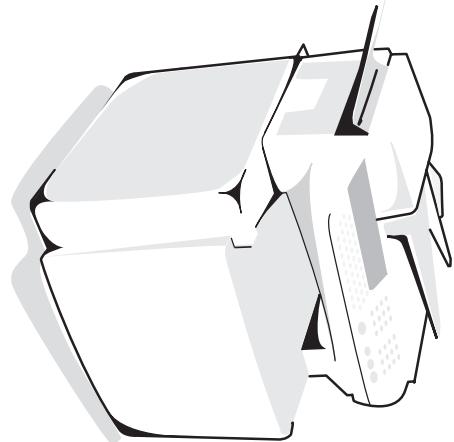
Your fax lets you create a directory by memorizing subscriber records and subscriber lists.
A subscriber list is made from the subscriber records already stored.
-
create
-
consult,
-
delete
You may save and if needed load your directory . To proceed , you need to contact your distributor
and purchase the optional kit " Save . This gives you access to functions 101 and 102 . Refer to paragraph Functions list , page 2/4
paragraph functions list, page 2/4
For each subscriber record you are not required to fill in each line, only name, tel or E-Mail
NAME of your subscriber.
-
TEL, and fax number of your subscriber,
-
E-MAIL address, example : jones@address.com,
4-1
saaee

\Sct31nt3\doc 31nt3 mac\SAGEM FM\DOC EN COURS\MFC 23260972-6_38xx Sagem GB\Répertoire.fm

- record NUMBER ASSIGNED, this number is automatically assigned by the fax, it allows quick access to the answering machine,
- RATE, for each subscriber you may choose your fax transmission speed. The available rates are 2400, 4800, 7200, 9600, 12000, 14400 and 33600 bits per second. With a good telephone connection, well adapted and without echo, the appropriate rate is the highest one,
If your subscriber number has both TEL and E-MAIL listed, the validation key ( or @ ) will determine if the document will be sent via the telephone network or via Internet.
ADDING A RECORD
MENU:11-DIRECTORY/ADDNAME
Your fax has just created a new record, fill in by first entering your subscriber's name then validate with OK.
Remark : You can stop record creation at any time by pressing
enter fax ^1 number of your subscriber,
enter the E-Mail address of your subscriber,
your subscriber's ID number will automatically appear on the screen, if you wish to modify this number you may do so by choosing another free number and validate with OK,
select the appropriate fax transmission speed then validate with OK.
Menu
Procedure
ASSOCIATED KEY
enter a free letter as an associated key or select one letter displayed on the screen then, validate with OK.
If need be, select the appropriate transmission speed to send your correspondents faxes, and confirm your choice by pressing the OK key.
CREATING SUBSCRIBERS Lists
A subscriber list is made from the subscriber records already stored.
For each list fill in the following lines:
- NAME of the list,
- NUMBER ASSIGNED, this number is automatically assigned by the fax. It allows quick access to the answering machine,
-
LIST COMPOSITION, it lists the ID numbers assigned to the subscriber records included in the list,
-
LIST NUMBER, a number lets you identify the list filed under (L).
A list may include both fax and internet subscribers.
The same subscriber may be included in different lists.
Caution - It is impossible to add one subscriber list to another subscriber list.
ADDING A LIST
MENU:12-DIRECTORY/ADDLIST
your fax machine has just created a new list, fill in by first entering the name of this list then validate with OK,
Remark
: You can stop list or record creation at any time by pressing
your subscriber list ID number will automatically appear on the screen, if you wish to modify this number you may do so by choosing another free number and validate with OK.
The cursor being on LIST COMPOSITION, press the key.
The empty line ENTER ELEMENTS appears, you must fill in the ID numbers assigned to the subscriber records included in this list.
There are three ways detailed in the table below, to choose and add one or more subscribers to your list. Then validate your choice by pressing OK.
From ...
Procedure
| subscriber's name | with the alphanumeric keypad enter the first letters of your subscriber's name and continue until the whole name is displayed on the screen. |
| subscriber ID number | enter directly the subscriber's ID number. |
| subscriber directory | press key then select your subscriber. |
for every subscriber included in this list repeat the above step then validate with Ok,
the list ID number will automatically appear on the screen, if you wish to modify this number you may do so by choosing another free number and validate with OK.
ADDING OR DELETING A NUMBER FROM THE LIST
MENU:13-DIRECTORY/SEEORMODIFY
select the subscriber list (L) validate your choice with OK,
Select the LIST COMPOSITION menu and press the or key, in order to display the field ENTER ELEMENTS, and add or delete the correspondent as shown in the table hereafter:
| To ... | Procedure |
| add | enter the subscriber ID number you wish to add and validate with OK, repeat this step for each added subscriber. |
| delete | place the keys < or > , on the number you wish to delete, press key C to delete the number assigned to the list, repeat these 2 steps for each subscriber you wish to delete from the list. |
Validate the new list by pressing key
CONSULTING A RECORD OR LIST
Press key
The directory appears in alphabetical order.
Select the subscriber record or subscriber list (L) you wish to consult.
IFYING A RECORD OR A LIST
MENU:13-DIRECTORY/SEEORMODIFY
The directory appears in alphabetical order.
select the subscriber record or subscriber list (L) you wish to modify and validate with OK,
modify the line or lines in the subscriber record or subscriber list and validate each modification with OK.
Remark : You may validate your modification by pressing key , but you will exit the menu and may not be able to modify the following lines.
DELETEING A RECORD OR A LIST
MENU:14-DIRECTORY/CANCEL
The directory appears in alphabetical order.
select the subscriber record or subscribers list (L) you wish to delete and validate with OK.
Press again the OK key to confirm your deleting.
The record or list is deleted from the directory.
PRINTING THE DIRECTORY
You may print all the numbers stored in the directory, including all the existing subscriber record or subscribers lists.
To print the directory,
MENU:15-DIRECTORY/PRINT
The directory is printed in alphabetical order.
IMPORTING A DIRECTORY
You can import an existing directory of contacts into your fax machine as an electronic file. This file must be in a specific format and must not comprise more than 250 entries.
The process of importing a directory uses electronic mail as the transfer mechanism. The electronic file containing the directory is received and processed as an e-mail attachment.
Caution - Importing a new directory completely overwrites any existing directory entries.
THE FILE STRUCTURE
The electronic file containing the data in the directory must be structured into lines or records each comprising five fields separated from one another by a unique character (a tab stop, a comma or a semi-colon). The lines themselves are separated by a carriage return character.
| Fields | Contents |
| Name | A unique identifier in your directory, up to 20 characters long. This field is mandatory; the name should not include the field separator character. |
| Fax number | Your contact's fax number, without spaces or dots. Can be up to 30 characters long (including any * and # characters). This field may be left empty, for instance in the case of contacts to whom you only send e-mails and never faxes. |
| e-mail address | Your contact's e-mail address. Can be up to 80 characters long, but must not comprise the field separator character. Any other characters may be used in this field, which can also be left blank. |
Directory
| Shortcut key | A capital letter (A to Z), unique in the directory, which is associated with a specific contact and enables quick selection of the latter. As with the two previous fields, this field can be left blank. |
| Speed | The fax transmit speed over the PSTN. If you do not specify a value, the default speed is the maximum speed. This field may be left blank if all your fax transmissions are handled by a fax server. |
Caution - You must enter a value for at least one of the Fax number or e-mail address fields. To enter a blank line, key in four field separator characters in a row.
For example :
Smith;0123456789;jsmith@isp.co.uk;J:8
Jones;01987654321;@;8
O'Connor;0123469874;d.oconnor@hello.net;U;8
The rate is coded on a number, see the following board:
| Rate | code number |
| 600 | 7 |
| 1200 | 6 |
| 2400 | 5 |
| 4800 | 4 |
| 7200 | 3 |
| 9600 | 2 |
| 12000 | 1 |
| 14400 | 0 |
| 33600 | 8 |
Caution - You must always enter the field separator character, even if one or more of the fields are left blank. In the example above, which uses a semi-colon as a separator, the entry for « Jones » lacks both e-mail address and shortcut key.
PROCEDURE
To import a directory,
MENU:17-DIRECTORY/IMPORT
Select WITH to authorise the importation of a directory.
Dreecy
e
must have a .sy extension. For example:
eannnne nnnnne ennnnne eannnnne ennnnne ennnnne ennnnne ennnnne ennnnne ennnnne ennnnne ennnnne ennnnne ennnnne ennnnne ennnnne ennnnne ennnnne ennnnne ennnnne ennnnne ennnnne ennnnne ennnnne ennnnne ennnnne ennnnne ennnnne ennnnne ennnnee
your message via your mail server:
Paaee
aon - Importing a new directory completely overwrites any existing directory entries on
the tax machine. Once you can run the machine in
FNT: 12 - DIRETOBY / MORT
e
EXPORTING A DIRECTORY
eererree
aee aee eae aee eae aee eae aee eae aee eae aee eae aee
rnnnne nnnnne rannnne
e e e e e e e e e e e e e e e e e e e e e e e e e e e
aannnnnne aannnnnne
P
Confirm by pressing OK.
aee
mucnns or send the same line toseveral PC users on your local network.
hur to which you want to export the
Dir
atio
Op
ce
Maintenance
Safety

The faxes sent via the Switched Telephone Network STN are sent from the feeder or the memory.
Via the telephone network, all your taxes are sent in black and white.
Via the Internet, you can sent black and white documents (TIFF format) or colour1 documents
POSITIONING THE DOCUMENT
Your fax is composed of a scanner including two modes of reading original documents: the
The flat-bed scanner allows scanning bound documents (books, encyclopedia, etc.).
- Only on the model with a colour scanner
5-1

saaee
mnnnne
Pee
rnnnne nnnnne
eeess
Quee
nne aee


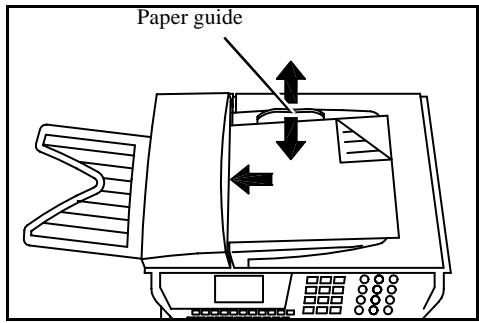
Sheet feed scanner
Flat-bed scanner
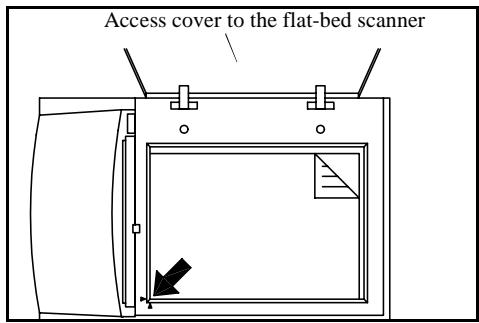
Flat-bed scanner top view
Place your original documents in the document feeder:
- face down,
- first page under the stack.
Set the paper guide to the document width.
Once the operation is over, take your original documents back on the scanned document receptacle.
Open the access cover of the flat-bed scanner.
Put your original document respecting its origin, scan side facing the machine.
Close the access cover of the flat-bed scanner.
Caution - If you forgot to position the document to be transmitted, the addressee will receive a blank page.
Remark
: Since the addressee's number is generally on the document to be transmitted, you may also dial before positioning the document.
CHOOSING THE RESOLUTION/THE CONTRAST
Resolution
You have 4 test modes for document transmissions.
The mode choice depends on the type of document to be transmitted:
-
Normal mode, symbolized by Std at the bottom of the display screen. To be used for good quality documents, without drawings or small details,
-
Fine mode, symbolized by Fine at the bottom of the display screen. To be used for documents with drawings or small characters,
- Super Fine mode, symbolized by SFine at the bottom of the display screen. To be used for documents with very fine or small character drawings (only if fax reception can process),
- Photo mode symbolized by Photo at the bottom of the display screen. To be used for photographic documents.
To select the resolution mode:
Press key as many times as necessary to select the required mode and thus place an arrow above the symbol of the chosen mode.
Contrast
You can set the contrast if your document is too light or too dark. If the document is light, you must raise the contrast and if it is dark, you must reduce it.
To set the contrast:
Press as many times as necessary to choose the desired contrast. A icon on the screen indicates the selected contrast.
DIALLING
From the directory
Dialling alphabetically
Enter the first letters of your subscriber's name with the alphanumeric keypad, then add the remaining letters until your subscriber's name is complete.
Assigned number dialling
presskey
Your fax lists the subscribers records and lists in the Directory in crescent alphabetical order,
then
use keys or of the navigator to scroll all subscribers and the list of subscribers for choice, and choose the required subscriber or subscribers list,
or
enter the subscriber's or subscriber list assigned number.
The screen displays the name of the subscriber or subscriber list assigned to this number.
From the radial key
You may call back a number among the last 10 subscribers fax numbers or Internet previously dialled.
For a fax number (Tel in the Directory)
Press key C.
The screen displays the last number called.
Use keys or of the navigator to eventually select another number.
For an E-mail address
Press key @ then
The screen displays the last E-mail address used.
Use keys or of the navigator to eventually select another E-mail address.
To multiple call numbers
You may dial to send a document simultaneously to multiple call numbers.
Caution - This may be achieved only if the machine is parametered to send from the memory (refer to paragraph Document feed types, page 3/4).
enter the fax or E-mail address, or use the Directory or key (refer to above paragraphs),
press key and enter the number of the second subscriber or second subscribers list,
repeat this last step for all subscribers or subscriber lists (maximum 10 subscribers or subscriber list).
TRANSMISSION VIA THE PUBLIC SWITCHED TELEPHONE NETWORK (PSTN)
Immediate transmission
Position the document (refer to paragraph Positioning the document, page 5/1)
^ enter the fax number of your call number or choose your dialling mode ( refer to paragraph Dialling, page 5/3) then press
The "Line" icon flashes during the call phase, it stays lit when both faxes are in communication.
at the end of transmission the initial screen is displayed.
Delayed transmission
This function allows you to transmit a document at a different time.
To program a postponed transmission you need to identify the subscriber number, transmission time, feeder type and number of pages.
To delay the transmission time of your document :
Position the document (refer to paragraph Positioning the document, page 5/1),
select MENU 31 -SEND / TRANSMISSION,
enter the subscriber number you wish to program at a different time or choose your dialling mode (refer to paragraph Dialling, page 5/3) and validate with OK,
,
Adjust the contrast and confirm by pressing the OK key.
select the feed type, FEEDER or MEMORY and validate with OK (refer to paragraph Document feed types, page 3/4),
you may enter the number of pages before transmission and validate with OK,
validate postponed transmission by pressing key
Your document is stored and will be sent at the new time.
Transmission with dialling follow-up
This function allows you to hear, thanks to the machine speaker, the dialling operation during a fax transmission. In that case, the maximum transmission rate will be 14400 bps.
This function allows for example:
- to hear if the subscriber's fax is engaged and so, choose the moment when the line is clear to launch the document transmission,
- to control the communication progress in case of uncertain numbers, etc.
To take the phone line manually:
Place the document in the fax feeder.
Press 1.
If necessary, set the sound level with navigator or keys.
If not already done, enter the subscriber number (or refer to paragraph From the radial key, page 5/4 to call back the last subscriber).
As soon as you hear the remote fax tone, the line is clear and you can launch the transmission.
Press to launch the document transmission.
If your machine is set in order to print a transmission report (refer to paragraph Main settings, page 3/1), for this one, the reduced copy of the document first page will not be printed and it notifies you that the communication is manual.
TRANSMISSION VIA THE INTERNET
Sending a paper fax to an E-Mail address
Position the document (refer to paragraph Positioning the document, page 5/1)
press the @ key and enter the addressee's E-mail address, or choose your dialling mode (refer to paragraph Dialling, page 5/3).
adjust the contrast and the resolution if necessary (refer to paragraph Choosing the resolution/the contrast, page 5/2).
press the @ key. The document is scanned and memorized, it will be sent at the time of Internet connection.
If your subscriber is equipped with a PC, he will receive an E-mail with your fax as an attachment in the TIFF format.
If your subscriber has a fax internet, he will receive a paper fax.
Sending a colour document to an E-Mail address
Position the document (refer to paragraph Positioning the document, page 5/1)
Enter the addressee's E-mail address or choose your dialling mode (refer to paragraph Dialling, page 5/3).
adjust the contrast and the resolution if necessary (refer to paragraph Choosing the resolution/the contrast, page 5/2).
Press key
The document is scanned and memorized, it will be sent at the next Internet connection.
If your subscriber is equipped with a PC, he will receive an E-mail with your fax as an attachment (JPEG format).
If your subscriber has a colour fax Internet, he will then receive a proper fax.
Sending a keyed-in message to an E-Mail address
You can send a keyed-in message to an E-mail mailbox. You can also add an attachment to this keypad message (the attachment is a scanned paper document).
Access by the menu.
MENU:95-INTERNET/SEND E-MAIL
Direct access.
Press key @.
Then, to send to E-mail address.
Enter the addressee's E-mail address or choose your dialling mode, (refer to paragraph Dialling, page 5/3),
Enter the address of someone you want to receive a copy of the document (CC:), as appropriate,
P
Enter the object for the mail (80 characters max) and press OK.
e
- for the capiai letters, use key Shift ke
T) or key Caps lock (key T)
to erase a character on the right of the cursor (without moving the cursor), use the key C
to erase a character (moving the cursor to the left), use the key
to insert a line, use key
to insert a line, use key
- to cite text of a work, use Key F2.
to paste a text or a word use key F4.
To go to the next line, use key
33 Send directly the Keypad mail Press OK: the mail is memorized and will be sent at the next
rrnnnne nnnnne
the shack) or on the flat-bed scanner(scan side facing the machine),
The document is scanned and the mail is memorized. They will be sent at the next Internet
eannnnnne nnnnne eannnnnne ennnnnnne
TANNSSESSWATTTNGUEES
1
in deposit or in
Documents may have the following status:
- TX: transmission,
- DOC: in deposit,
- POL: polling,
- REL: retrieval,
- MBX: send to mailbox,
- PMB: mailbox polling,
- TR: ongoing commands,
- CNX: Internet connection,
-
NET: Internet transmission.
-
immediately perform a transmission from the waiting queue,
- print a document in storage, waiting to be transmitted or in deposit,
-
print the waiting queue, to have the status of each document in queue, by either:
-
queue order number,
- document name or number,
-
time forecasted for transmission (fax),
-
operation type regarding the document: transmission from the memory, delayed transmission, deposit,
- number of pages of the document,
- document size (percentage of space stored in memory).
- cancel a transmission request in the waiting queue.
Consult or modify the waiting queue
MENU:62-COMMANDS/SEEORMODIFY
in the waiting queue select the required document and validate your choice with OK,
you may now modify the parameters of the given document then validate your modifications by pressing key 1
Immediately perform transmission from the waiting queue
MENU:61-COMMANDS/PERFORM
select the document in the waiting queue and validate your choice with OK or to immediately perform the selected transmission.
Printing a document in waiting or in deposit
MENU:64-COMMANDS/PRINT
in the waiting queue select the desired document and validate your choice with Ok.
Print the waiting queue
MENU:65-COMMANDS/PRINTLIST
The recap document called ** COMMAND LIST ** is printed.
Deleting a transmission on hold
MENU:63-COMMANDS/CANCEL
in the waiting queue select the desired document and validate your choice with OK.
CANCELLING TRANSMISSION IN PROGRESS
Cancelling a transmission in progress is possible whatever the type of transmission but varies depending on whether the transmission is a single call number or a multi call number.
- For a single call number from the memory, the document is erased from the memory.
- For a multi call number, only the call number in progress at the time of the cancellation is erased from the transmission queue.
To cancel transmission in progress,
press key
A message will ask you to confirm cancellation by pressing a second time on key , appears on the screen.
press key to confirm cancellation in progress.
If your machine is set to print a transmission report (refer to paragraph Transmission report and deposit notice, page 3/3), it will print that the communication was cancelled by the user.
RECEPTION
Document reception via Internet is automatic at each Internet connection.
You can receive either a black and white document (TIFF format) or a colour document (JPEG format).
Reception of all documents via the telephone line is done in black and white one at a time at fax reception.
RECEPTION VIA THE PUBLIC SWITCHED TELEPHONE NETWORK (PSTN)
Fax reception depends on the parameter settings of your machine:
RECEPTION VIA THE INTERNET
Whatever the document received, reception is automatic at each Internet connection.
You can receive black and white or colour documents.
Incoming documents other than fax files (Word process file, CAD, etc.) may not be opened by your fax. However, you may keep this (or these) document(s) in your Internet mailbox until it is automatically converted by the F@x to Fax service, if you have a subscription or until computer use or automatic transfer. (Refer to chapter Mail sorting, page 3/14).
COPYING
Your fax offers to print out one or many black and white or color copies of one or more pages.
LOCAL BLACK AND WHITE COPY
Standard copy
Positon the document face down (refer to paragraph Positioning the document, page 5/1)
Press key twice.
You obtain a black and white copy of your original.
"Sophisticated" copy
Positon the document face down (refer to paragraph Positioning the document, page 5/1)
Press key
Enter the desired number of copies and press OK to validate.
Choose the FAST, QUALITY or PHOTO resolution with keys or , then press OK to validate.
Set the desired zoom value 25% to 400% with keys or and the numerical keypad, then press OK to validate.
Set the required origin values with keys or the numerical keypad and press OK to validate.
Set the required contrast value with keys or and press OK to validate.
Set the required colour saturation value with keys or and press OK to validate.
Set the required RGB value (0 to 255) for each colour with keys or and the numerical keypad and press OK to validate.
Set the required brightness value with keys or and press OK to validate.
Choose the type of paper, NORMAL, THICK with keys or and press OK to validate.
Choose the paper tray, AUTOMATIC, UPPER or LOWER with keys or and press OK to validate.
COLOUR COPY
You may follow this whole procedure or exit the settings mode as soon as they have been achieved by pressing key for the black and white copies or key for the colour copies.
Standard copy
Position the document (refer to paragraph Positioning the document, page 5/1).
Press key twice.
You obtain a black and white copy of your original.
"Sophisticated" copy
Position the document (refer to paragraph Positioning the document, page 5/1).
Press key
Enter the desired number of copies and press OK to validate.
Choose the FAST, QUALITY or PHOTO resolution with keys or , then press OK to validate.
Set the desired zoom value with keys or and the digital keypad, and then press OK to validate.
Select the paper type "Normal-Thick" with keys or
Press key
Caution - The modification of these settings has no effect on the default settings of the MENU 87. These settings are only valid for the current copy.
SPECIFIC SETTINGSFOR THECOPY
When the copy quality is no longer staisfactory, you can perform a calibration. To do so, refer to paragraph Scanner calibration, page 6/11
Moreover, a high number of controls let you improve the copy quality.
Setting parameters for the scanners.
Each of the two scanners may be set separately.
- RESOLUTION to set the photocopy resolution,
- ZOOM and ORIGIN settings to reduce or magnify any portion of a document by choosing the origin and value of the zoom to apply to that portion.
- CONTRAST to choose the photocopy contrast.
- SATURATION is used to set the colour stauration level.
- RGB (Red, Green, Blue). Your machine lets you perform individual settings for the Red, Green or Blue colours of any image placed in your original document.
- BRIGHTNESS is used to make your original document lighter or darker.
- L/R MARGINS to shift the margins of your original document to the left or to the right.
Setting parameters for the printer.
- BRIGHTNESS is used to choose the copy quality on the printer.
- PAPER is used to tell your machine what type of paper you use by default.
- TRAY is used to tell your machine which paper tray should be used by default.
- L/R MARGINS to shift the margins of your document to the left or to the right.
Caution - All the settings performed through this menu will become the machine's default settings.
To access to the settings
MENU:87-ADVANCED FUNCTIONS/SCAN.AND PRINT.
Select the scanner (CIS SCANNER for the sheet-feed scanner, CCD SCANNER for the flat-bed scanner) or the PRINTER to be set and pres Ok to confirm.
use keys or of the navigator to scroll the described hereafter settings you want to modify.
Scanner settings
Resolution
Set the desired resolution FAST, QUALITY or PHOTO with keys or
Validate your setting by pressing key OK.
Zoom and Origin
Your fax offers you to reduce or magnify a determined part of a document by 25 to 400% .
Enter the desired zoom value with the numeric keypad (ZOOMING).
Validate your setting by pressing key OK.
If you wish, you can change the origin of the flat-bed scanner (by default, this is the front left angle of the scanner window marked with two arrows)
By entering new values of X and Y given in mm (X < 210 and Y < 297) , you will move the scanned zone as shown on the figure below

Select the X and Y coordinates with keys or .
Set the required coordinates with the numeric keypad.
Validate your setting by pressing the OK key.
Contrast
-☑ - validate your setting by pressing key OK.
Duration
Set the desired saturation with keys or .
Validate your setting by pressing key OK.
Remark
RGB
The maximum value for each colour (RGB) is 255.
Select the colour to be modified with keys or validate with key OK.
Set the colour with the numerical keypad (or and ).
Validate your setting by pressing key OK.
Set desired brightness with keys or
validate your setting by pressing key OK.
Marqins
If you want to shift the side margins of your document to the left or to the right:
Adjust the left/right margin shift (in steps of 0.5mm ) with keys or .
Validate your setting by pressing key OK.
5-13
saaee


Printer settings
Brightness
If the printed document still appears too dark after setting the scanner, you can make it lighter.
Set the desired brightness with keys or .
Validate your setting by pressing OK.
Paper
Select the type of paper NORMAL or THICK with keys or
Validate your setting by pressing key OK.
Remark : When the THICK type of paper is selcted, the printing speed is slowed down.
Paper tray
Select the paper tray to be used (AUTOMATIC, LOWER or UPPER) using keys or .
Validate your setting by pressing key OK.
Night standby
If you want your printer to automatically switch to standby mode for the selected time slot:
Select Yes or No for standby with keys or (if you chose No, the switching to standby will be automatic all day long).
Validate your setting by pressing key OK.
OTHER FUNCTIONS
Logs
The incoming and outgoing logs list the last 30 subscribers (ingoing and outgoing) made by your fax.
An automatic print out will take place after every 30 subscribers. However, you may request a print out at any time.
Each log (incoming or outgoing) contains a table with the following information:
- date and time of the ingoing or outgoing document,
- subscriber's number or E-mail address,
- transmission mode (Std, Fine, SFine or Photo),
number of pages sent or received, -
call duration,
-
incoming or outgoing results: noted CORRECT if properly transmitted
or
information codes for special calls (polling, manual subscribers, etc.)
- reason for call error (example: your subscriber does not answer).
To print the logs :
MENU:52-PRINT/LOGS
The incoming and outgoing logs are printed on the same page.
PRINTING THE FUNCTIONS LIST
The fax function list may be printed in two ways, by the menu or by the key i.
Printing by the menu:
MENU:51-PRINT/FUNCTIONS LIST
Printing with the key:
press the key i.
PRINTING THE MACHINE SETTINGS
At any moment, you may print the list of your fax's parameter settings to control any changes possibly made to the default parameters.
Printing the machine settings:
MENU:54-PRINT/SETUP
Your fax prints the list of stored parameters.
MEMORIZING A SEQUENCE OF KEYS
You may memorize a sequence of keys (for example, to send directly a fax to one or multiple subscribers, to call this subscriber or to get access to a specific menu, etc.).
This sequence is registered in one of the keys F1, F2, F3 or F4 (as you want).
Then, by pressing one of these keys, you will execute directly the registered sequence.
To register a sequence (for example, in key F1).
Press key MENU, then F1: you enter in the menus.
From this moment, all the key pressings are memorized in the key F1.
Press key F1 to register the sequence if you are still in the menus. The sequence memorizing is automatic if you have already exited the menu.
Example : to memorize a fax sending to various subscribers in key F1:
Press keys MENU then F1.
Press keys 3 then 1.
Enter the subscriber fax number.
Press key and enter the second subscriber fax number or subscribers list.
Repeat this last step for all subscribers or subscribers lists.
Press key F1: the sequence is memorized.
To send a fax directly to your subscribers (key F1 preset):
Press key F1.
Position the document (refer to paragraph Positioning the document, page 5/1)
Press the key
COUNTERS
At any time, you may consult the activity counters of your machine.
To get access to the counters of the machine:
MENU:84-ADVANCED FUNCTIONS/COUNTERS
These counters indicate the number of:
- printed pages,
MENU:841-ADVANCEDFUNCTIONS/COUNTERS/PRINTED PAGES
- local copies,
MENU:842-ADVANCED FUNCTIONS/COUNTERS/LOCAL COPIES
transmitted pages,
MENU:843-ADVANCEDFUNCTIONS/COUNTERS/SENT PAGES
received pages.
MENU:844-ADVANCED FUNCTIONS/COUNTERS/RECEIVED PAGES
DEPOSIT AND POLLING
You may deposit a document in your fax and keep it available to one or more subscribers who can obtain a fax of this document by calling your fax with the POLL function.
Setting the machine for document deposits,
you must define the type:
- SIMPLE, it may be polled only once from the memory or feeder,
- MULTIPLE, it may be polled as many times as necessary from the memory
Setting the machine for polled documents,
you must define the poll number, then depending on the type of poll you may:
- launch an immediate poll,
- program a delayed poll with a chosen time,
- launch a multipoll, either immediately or later.
Place a document in deposit
insert the document to deposit in the feeder,
select MENU 33 - SEND / POLLING TX and validate with OK,
choose the type, according to the table below:
Menu
Procedure
| SIMPLE | select FEEDER or MEMORY, select the black and white mode and validate with OK, if necessary, adjust the contrast and validate with OK, enter the number of pages that you wish to deposit, |
| MULTIPLE | select the black and white mode and validate with OK, if necessary, adjust the contrast and validate with OK, enter the number of pages that you wish to deposit, |
^ confirm deposit pressing OK key.
Polling a deposited document
MENU:32-SEND/POLLINGRX
^ Enter the number of the party whose document you want to poll or choose your dialling mode (refer to paragraph Dialling, page 5/3).
Remark : You can poll several documents using the key.
Depending on type of poll you should:
| Choice | Procedure |
| Immediate poll | Press ◆, |
| Postponed poll | Press OK, Next to the current time, enter the time you wish to poll the document and press OK, |
5-17
INTERLOCK
There are four restrictions to the use of your fax:
- Interlocking of received documents printing, refer to paragraph Fax answering machine, page 3/5,
- Keypad interlocking,
- Numbers interlocking
- Printing color interlocking.
Entering the interlock code
The operator access parameters are confidential; they are protected by a four-digit interlock code that the authorised operators must know.
To access the interlock code
MENU:821-ADVANCED FUNCTIONS/LOCK/LOCKINGCODE
Enter your four-digit interlock code on the keypad.
Validate by pressing OK.
Confirm the interlock code by entering the code one more time.
Press OK to validate.
Remark : When a code is already registered, the machine asks you first to give the former code before allowing you to modify it.
Keypad interlocking
This function allows you to prevent access to non-authorised persons. An access code must be entered each time a person wants to use the machine.
To access the keypad unlocking menu
MENU:822-ADVANCED FUNCTIONS/LOCK/LOCKKEYBOARD
Enter the four-digit interlock code with the leypad.
Press key OK to validate.
With keys or of the navigator, select the option WITH.
Press key OK to validate.
Remark : After each operation, the machine interlocks automatically.
Number interlocking
This function locks dialling and the numerical keypad is disabled. Transmissions are only possible from numbers included in the directory.
You can still send mails by typing in the addressee's address (if this has no numbers in it).
Operation
To access the number interlocking option
MENU:825-ADVANCED FUNCTIONS/LOCK/LOCK COLOR
Enter the four-digit interlock code with the keypad
Press key OK to validate.
With keys or of the navigator, select the option DIRECTION ONLY.
Press key OK to validate.
Press key OK to validate.
Locking colour printing
This function prevents access to colour photocopying and fax transmissions via Internet or the
local network. Black and white photocopying and fax transmission
code will be requested every time someone wants to use the unit:
to access the menu for locking colour printing.
MENU:825-ADVANCEDFUNCTIONS/LOCK/LOCKCOLOR
Key in a four-digit locking code using the numerical keypad.
Confirm by pressing OK.
If you have already set an access modify it
modify it.
#
IL BOX (MDX T AX)
There are 32 mailboxes (MBX), enabling you to transmit documents in complete confidence thanks to an access code (named code MBX), to all subscribers equipped with a fax compatible
MBW 00 is public. It is handled directly by the terminal to record the messages of the fax TAD
MBX's 01 to 31 are private. Each is password-protected. They can be used to receive documents
confidentially.
The use and access to MDA or S1 are conducted code (if needed) and a mneponic (its S1D).
modify the features of an MBX
- modify the features of an MBX,
- print the contents of an MBX, or
(with a star next to the MBX). When the contents of an MBX have been printed it becomes
-
delete an MBX, only if the MBX is initialised and empty,
-
print the MBX fax list.
5-19
saaee


Sct31nt3\doc 31nt3 mac\SAGEM FMDOC EN COURSMFC 23260972-6_38xx Sagem GB\Utilisation.fm





-
-
8
o
-
S
S
Dir
Pee
eneane
M
fet

You may receive and send through an MBX in complete confidentiality.
In deposit, the MBX are accessible without a MBX code and all documents deposited in an MBX are added to the ones already present.
In polling, the MBX are only accessible with an MBX code.
You may perform MBX deposits or polls by:
- deposit a document in a fax MBX,
- transmit to deposit a document in a remote fax MBX,
- perform document poll from a remote fax
MBX MANAGEMENT
Initialising a MBX
MENU:71-MAILBOXES/INITIALISE
select a free MBX out of the 31 MBX or directly enter the number of a free MBX and validate with OK,
select option MAILBOX CODE and press OK.
Value 0000 is always displayed.
enter the code of your choice, if needed, and press OK,
select option S.I.D. and press OK,
enter this MBX's S.I.D. (20 characters max.) and press OK.
The MBX is initialised. If you wish to initialise another, press C and repeat the same procedure.
To exit this menu MAILBOXES press
Modifying the features of an MBX
MENU:71-MAILBOXES/INITIALISE
select one MBX out of the 31 MBX or enter directly the number of this MBX, validate your choice with OK,
enter the code of this MBX, if there is one, and validate with OK,
select the menu MAILBOX CODE or S.I.D. then validate your choice with OK,
perform data modification of the menu and validate with OK,
if needed, repeat the last two steps for the other menu.
Print the contents of an MBX
MENU:73-MAILBOXES/PRINT
select one MBX out of the 31 MBX or enter directly the number of this MBX, validate your choice with OK,
enter the code of this MBX, if there is one, and validate with OK.
All documents found in the MBX are printed and the MBX is emptied.
Delete an MBX
Before deleting an MBX, you need to make sure it is empty, by printing its contents.
MENU:74-MAILBOXES/CANCEL
select one MBX out of the 31 MBX or enter directly the number of this MBX, validate you choice with OK,
enter the code of this MBX, if there is one, and validate with OK.
The MBX is deleted and will appear as a free MBX in the list.
Print the MBX list
MENU:75-MAILBOXES/PRINT LIST
The list gives the status of each MBX.
MBX deposit in your fax
insert the document in the fax machine's feeder,
select MENU 72 - MAILBOXES / POLLING Tx and validate with OK,
select one MBX out of the 31 MBX or enter directly the number of this MBX, validate your choice with OK.
The document is placed in the feeder and saved in the selected MBX.
MBX deposit in a remote fax
insert the document in the fax machine's feeder,
select MENU 34 -SEND / MBX SENDING and validate with OK,
enter your subscriber's number for MBX deposit or choose your dialling mode (refer to paragraph Dialling, page 5/3) and validate with OK,
enter your subscriber's MBX number and press OK,
if you wish to delay transmission, enter the new transmission time next to the current time and press OK,
if you wish to modify the document feed type, select one of the options FEEDER or MEMORY, and press OK,
if you wish, you may enter the number of pages of your document before transmitting,
validate the transmission request to a remote MBX fax by pressing key
In case of an immediate transmission, the document is sent immediately.
If the document is set for a postponed transmission the document will be stored in the memory and sent at the requested time.
MBX polling from a remote fax
MENU:35-SEND/MBX POLLING
enter your subscriber's number for MBX deposit or choose your dialling mode (refer to paragraph Dialling, page 5/3) and validate with OK,
enter the subscriber MBX number and press OK,
enter this MBX access code and press OK,
if you wish to delay the poll time, enter the departure time next to the current time,
validate the MBX poll request by pressing key
As soon as the remote fax is subscribed, either immediately or later, the document(s) in the remote fax MBX are received in your fax.
6 MAINTENANCE
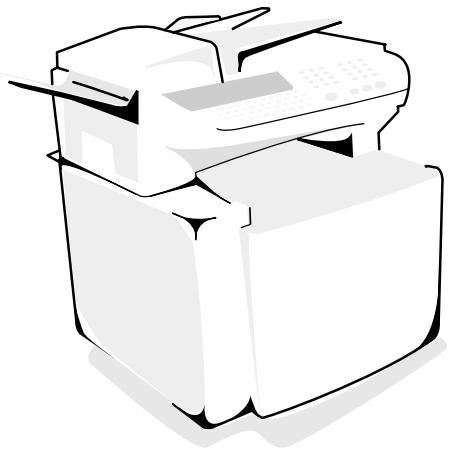
MAINTENANCE
GENERAL
To ensure the best operating conditions for your fax, it is recommended to regularly clean the inside.
For normal usage, please respect the following rules:
- Never leave the cover open unless required.
- Protect the machine from direct sunlight.
- Do not attempt to oil the machine.
- Always gently close the cover and avoid vibrations.
- Do not open the cover while printing.
- Never try to dismantle the machine.
- Do not use paper that has stayed in the machine to long in the paper tray.
Report to the safety rules in Safety chapter at the end of the booklet.
REPLACING THE CONSUMABLES
To access to available percentages:
MENU:88-ADVANCED FUNCTIONS/CONSUMABLES
Replacing the toner cartridges
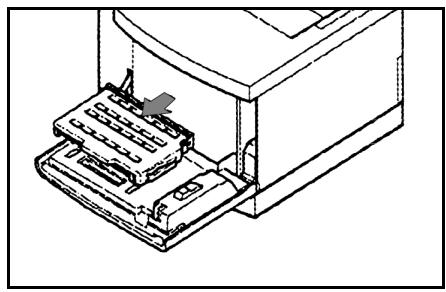
Open the front cover of the printer and take out the cartridge to be replaced, taking care not to spill the toner. Do not take out both toner cartridges at the same time.
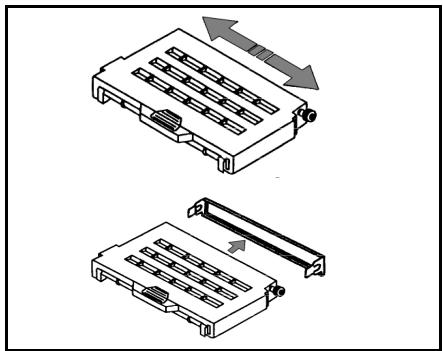
Unpack the new cartridge.
Spread in the toner by shaking the cartridge.
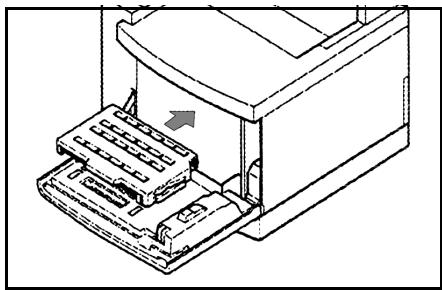
Remove the protection bar.
Install the new cartridge, inserting it entirely in the printer.
Close the front cover.
A chip card is provided with the toner cartridges.
After replacing a consumable in the printer, you need to inform the machine about its features.
For this purpose, you must read the chip card provided with each toner cartridge before printing.
Insert the SmartCard gauge into the appropriate slot ensuring that the chip is oriented as shown in the drawing below.
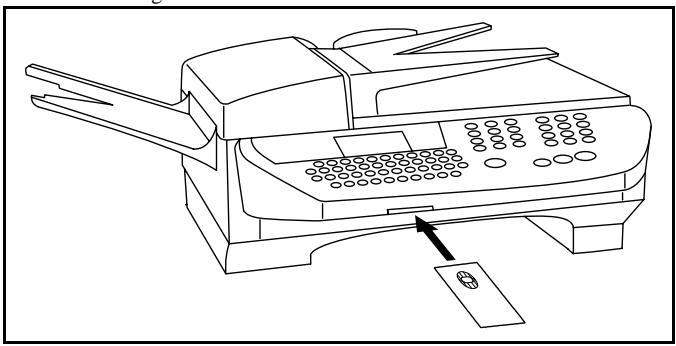
The display of the scanner keypad shows the following (assuming black toner cartridge):
Once the SmartCard has been read, the display shows:
RENEW BLACK TONER RECORDED REMOVE CARD
Remove the SmartCard.
Caution - If the following is displayed, make sure you have properly inserted the chipcard supplied with the consumable. Otherwise, contact your supplier.
INVALID CARD
REMOVE CARD
CONTACT YOUR
SUPPLIER
Replacing the oil cartridge and the cleaning roller
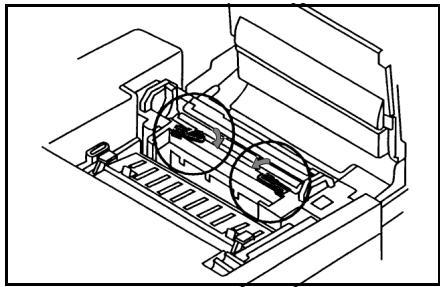
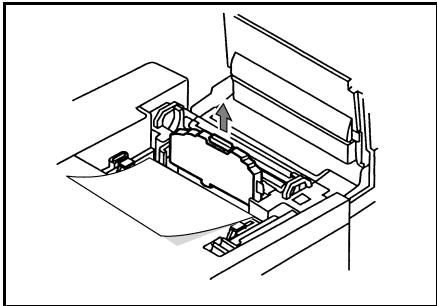
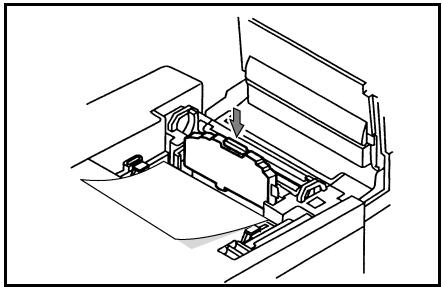
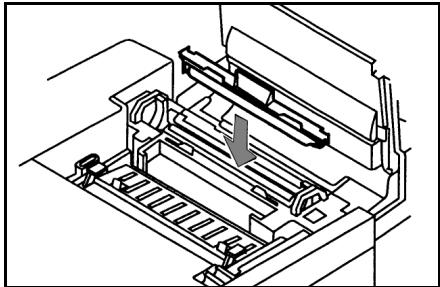
Remove the scanner from its support.
Open the upper cover of the printer.
To release the cleaning ribbon and the oil cartridge, turn both locking levers.
Extract the oil cartridge taking care to place a sheet of paper under it. A single drop spilled on one of the printer elements could result in remediable damages.
Insert the new oil cartridge in its housing, always taking care to put a sheet of paper under it.
Remove the paper when the cartridge is at its new position. The tongue situated on the bottle must be on the right-hand side.
Install the ribbon in its housing, the visible part of the ribbon must be in front of the oil bottle.
Turn both locking levers to put them in closed position.
Close the upper cover of the printer.
Reinstall the scanner support on the printer.
Reinstall the scanner.
Installation / Reinstallation the oil cartridge
If after the preheating period the display shows:
REINSTALL THE OIL BOTTLE
Open the upper cover of the printer
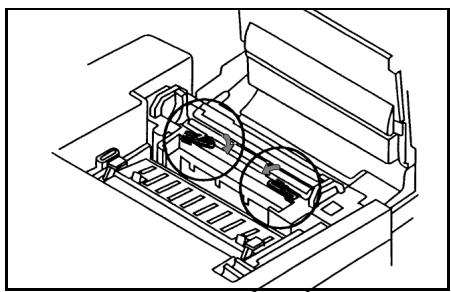
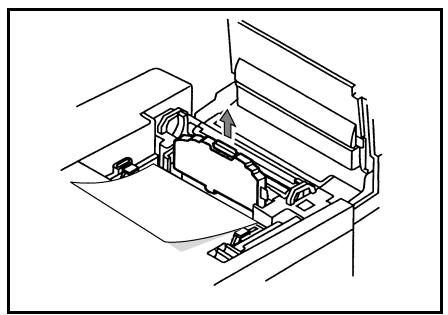
To release the oil cartridge, turn both locking levers.
Extract the oil cartridge taking care to place a sheet of paper under it and shake it lightly once or twice A single drop spilled on one of the printer elements could result in. irremediable damages.
Maintenance
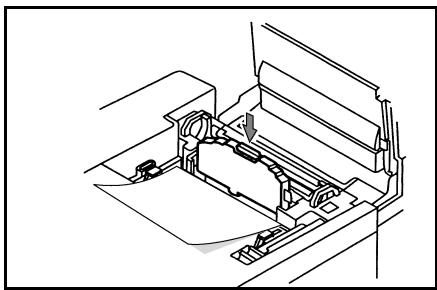
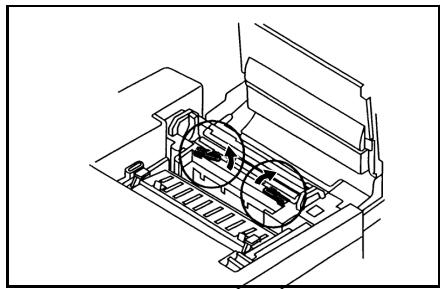
Reinstall the oil cartridge in its housing, always taking care to put a sheet of paper under it.
Remove the paper when the cartridge is at its new position. The tongue situated on the bottle must be on the right-hand side.
Turn both locking levers to put them in closed position.
Close the upper cover of the printer.
Reinstall the scanner support on the printer.
Reinstall the scanner.
Replacing the toner bin
If the "On" red indicator flashes and if the message SEE TONER BIN appears on the fax display, do the following steps in order to replace the toner bin. Open the front cover of the printer by pressing the two buttons situated on each sides (refer to paragraph Printer incidents, page 6/14).
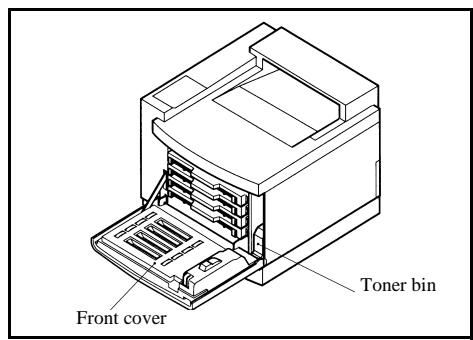
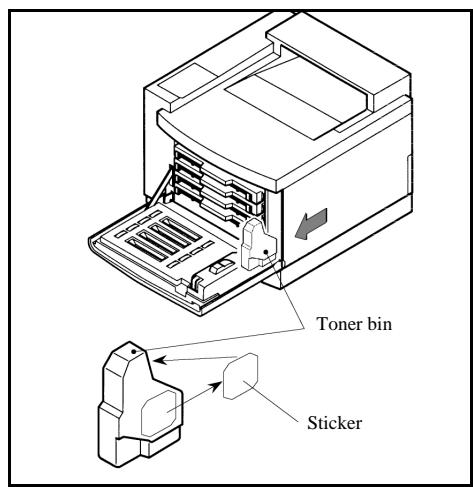
Remove the toner bin from its housing.
Peel off the sticker from the toner bin and stick it on its opening.
Place the toner bin in the plastic bag.
Install the new toner bin in its housing.
Close the front cover.
CLEANING
Cleaning the development roller
If vertical or irregular colour lines appear on the sheet during printing, do the following steps in order to clean the development roller.
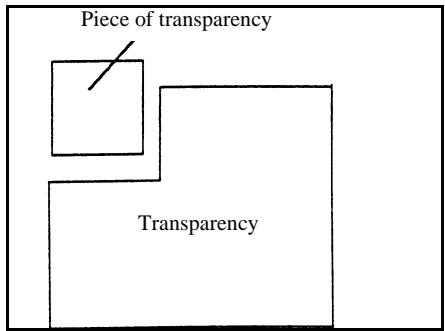
Prepare a piece of transparency of about 5 × 5 ~cm .
keep this piece of transparency away from foreign objects, like dust.
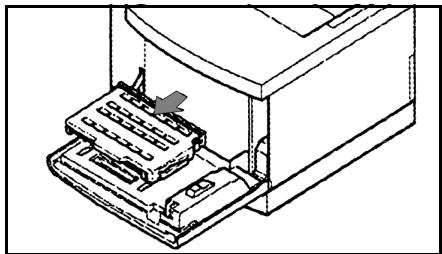
Open the front cover of the printer, remove the cartridge to be cleaned and avoid spilling the toner. Do not remove two cartridges at the same time.
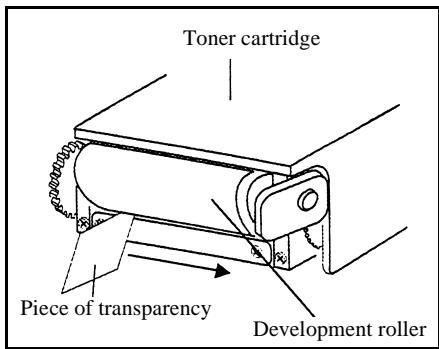
Insert a piece of about 1cm of the transparency under the development roller, on its left-hand side.
Slide the transparency to the right-hand side of the roller.
Do it once only.
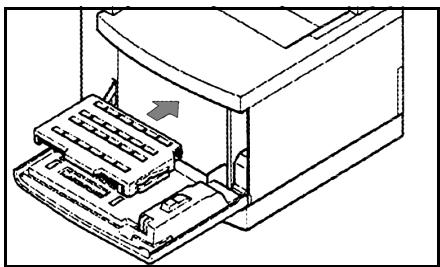
Place the cartridge back in its housing and close the front cover.
Cleaning the loading unit
If vertical or irregular colour lines appear on the sheet during printing, see the followings steps to clean the OPC cartridge loading system.
Switch off the machine.
Remove the scanner and its support
Open the printer upper cover and remove the OPC cartridge.
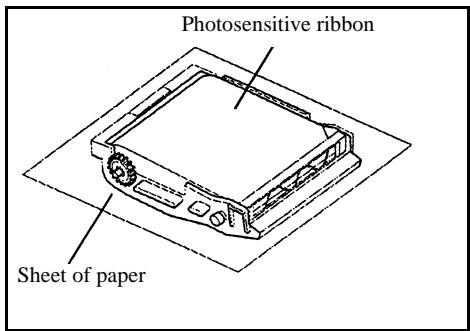
Place the OPC cartridge on a stable surface preferably covered with paper, to avoid spilling the toner.
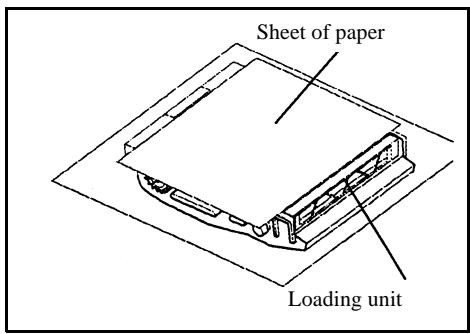
Place a clean black protection sheet on the photosensitive ribbon to protect it from light.
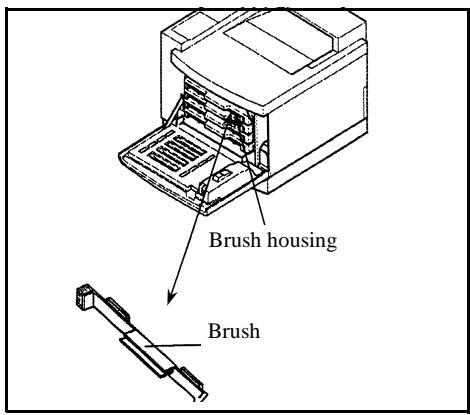
Use the brush to clean the loading unit corona. This brush is fixed under the printer front side.
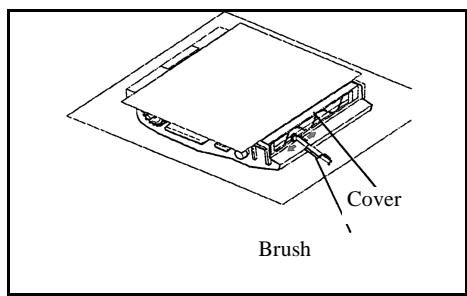
Remark
: The photosensitive ribbon is very sensitive to light. An exposure to an 800 lux intensity of light or more during 2 minutes would damage the photosensitive ribbon. As much as possible, avoid to expose the OPC belt.
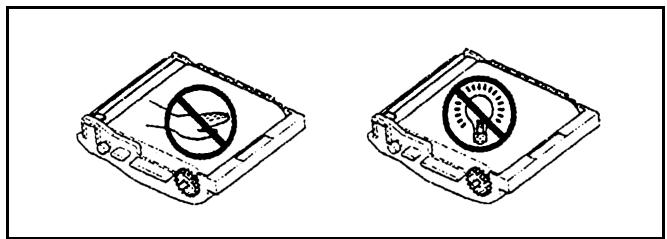
Cleaning the scanner's reading devices
Sheet-feed scanner
When one or more vertical lines appear on transmitted copies or faxes, do the following steps:
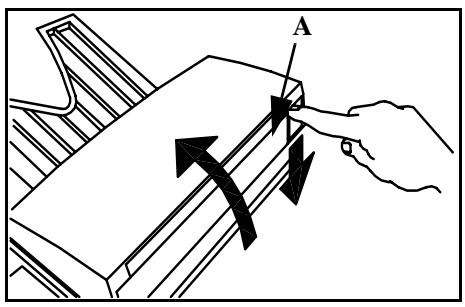

Open the scanning cover of the sheet-feed scanner by pressing the open key (A).

Clean the transparent scanning glass (B) with a soft lint-free cloth soaked with alcohol.
Close the scanning cover.
Make a copy in order to make sure that the symptoms are gone.
Flat-bed scanner
For an optimum scanning quality, make sure that the glass of the flat-bed scanner is clean. Clean the glass with a soft lint-free cloth soaked with alcohol.
SCANNER CALIBRATION
You can perform this operation when the quality of photocopied documents is no longer satisfactory.
MENU:80-ADVANCED FUNCTIONS/CALIBRATION
Insert a blank page into the sheet-feed scanner and press OK to confirm.
Remark
: Since the page you insert will be used to define the quality of subsequent copies, it must be free from any visible defects.
INCIDENTS
COMMUNICATION ERRORS
If the communication fails, the fax advises you of an automatic retry later.
Example of what is displayed:
Current time
FRI 11 SEP 20:13
Time of next try
0142685014 20:18
6-11
Transmission from the feeder
You have the choice between:
- waiting until the transmission takes place at the given time,
- restarting the transmission immediately by pressing , the document still present,
- abandoning transmission by pressing . To eject the document, press again on .
Transmission from the memory
You have the choice between:
- waiting until the transmission takes place at the given time,
- restarting the transmission using the transmission queue (refer to paragraph Immediately perform transmission from the waiting queue, page 5/8). In this case, for a document composed of several pages, the transmission will take place from the page where the error occurred.
- abandoning the transmission by deleting the corresponding command in the transmission line (refer to paragraph Deleting a transmission on hold, page 5/9).
The fax machine makes at most 5 automatic redials.
Message GIVE UP DIALING:
This message is displayed when transmission failed 12 times in a row. All the documents on hold for transmission are then automatically cleared from the memory of the fax machine. To clear the message GIVE UP DIALING from the screen, press .
Communication error codes
The communication error codes appear in the logs and transmission reports.
General codes
Code 01 - Busy or no fax answer
This code appears after 6 unsatisfactory attempts. Call later.
Code 02 -Burnt number
A number is burnt after 6 unsatisfactory transmission attempts. No recall is possible. You have to validate the subscriber's number a second time: refer to his record in the directory.
Code 03 - User break
A communication has been stopped by the user pressing the key
Code 04 - Non programmed number
A number saved as a one-touch key or abbreviated number is not valid: check it. (Example: a delayed transmission was programmed with a one-touch key and this key has been deleted in the meantime).
Code 05 - Scanning default
An incident occurred at the place where the document is placed to be scanned, for example, the sheet is jammed.
Code 06 - Printer default
An incident occurred in the printer part: no paper, paper jam, opened cover. In the reception mode, this incident appears only if the reception parameter no paper is switched to WITHOUT PAPER (refer to paragraph Reception without paper, page 3/5).
Code 07 - Disconnected
The link has been cut (bad line). Check the call number.
Code 08 - Quality
The document you sent was badly received. Contact your subscriber to know if it must be sent again. The disturbance may have occurred in an unimportant part of the document.
Code 0A - No document to be polled
You tried to poll a document from a subscriber who had not prepared his document (no deposit) or the password entered was incorrect.
Code 0B - Wrong number of pages
There is a difference between the number of pages indicated during preparation for the transmission and the number of pages sent: check the number of pages in the document.
Code 0C - Received document error
Ask the subscriber who called you to check the length of his document (it is too long to be completely received).
Code 0D - Transmission failed
Ask the sender to retransmit the document.
Code 13 - Memory full
Your fax can no longer receive since its memory is full: there are too many received unprinted documents or too many documents in the transmission line.
Print the received documents and delete or transmit immediately the documents in the transmission line.
Code 14 - Memory full
Received document memory full. Put the printer back in working order.
Code 15 - Unknown mailbox number
You wish to deposit a document in a subscriber's mailbox. The mailbox number does not exist.
Code 16 - No Relay Bcast list Nr x
You requested a document relay from a remote fax but the fax has not programmed the list of subscribers requested.
Code 17 - Unknown mailbox number
You wish to recover a document from a subscriber's mailbox. The mailbox number does not exist.
Code 18 - Relay Bcst impossible
You requested a document relay from a remote fax which does not have the relay broadcast function.
Code 19 - Subscriber has stopped
The communication has been stopped by your subscriber. (Example: a fax wanted to poll your fax but there is no document deposited).
Code 1A - Disconnected
The transmission has not started. The telephone line is too busy.
Code 1B - Transmission failed
During transmission: start again.
During reception: ask your subscriber to resend the document.
Internet codes
Codes 40 and 41 - No answer from provider
The modem cannot connect to the Internet service provider. If the error always occurs, check the supplier's dial-up number.
Code 42 - Cannot acces provider
The service provider refuses the connection, the serice is temporarily unavailable. if the error always occurs, check the Internet connection parameters.
Code 43 - Transmiss. server unavailable
Cannot connect to the SMTP server for sending mail, the service is temporarily unavailable. If the errors always occurs, check the Internet e-mail and server parameters.
Code 44 - Reception server unavailable
Cannot connect to the POP3 server for mail reception, the service is temporarily unavailable. If the errors always occurs, check the Internet e-mail and server parameters.
Code 45 - Provider disconnected
The service is temporarily unavailable; try again later.
Code 46 - Trans. server disconnected
The SMTP server for sending mail is disconnected. The service is temporarily unavailable; try again later.
Code 47 - Reception server disconnected
The POP3 server for mail reception is disconnected. The service is temporarily unavailable; try again later.
Code 48 - Disconnection from Internet
The service is temporarily unavailable; try again later.
Code 49 - Cannot connect to Internet
Check the call number and eventually the associated prefix of the machine.
To check the Internet parameters, print them by pressing in turn the keys MENU, 9, 4, 5 and OK.
PRINTER INCIDENTS
Error messages
If the colour printer has one of the problems described below, the signal "On" flashes red, and you can't use your fax temporarily. The corresponding message is displayed on the screen.

| Message | Action |
| DRUM JAM | Open the cover. Remove the sheet at the OPC cartridge level. |
| REPLACE FUSER INSERT GAUGE CARD | Replace the heater (call the customer service) |
| REPLACE RIBON INSERT GAUGE CARD | Replace the ribbon. To proceed, refer to paragraph Setting the OPC cartridge, page 1/3. |
| REPLACE KIT INSERT GAUGE CARD | Change consumable kit (oil cartridge, cleaning ribbon) To proceed, refer to the following paragraph: Replacing the oil cartridge and the cleaning roller, p. 6/4 |
| REPLACE BLACK TONER BLACK, YELLOW, MAGENTA OR CYAN INSERT GAUGE CARD | Replace the toner cartridge. To proceed, refer to paragraph Replacing the toner cartridges, page 6/2. |
| CLOSE FRONT COVER | Close the front cover of the printer. |
| CLOSE UPPER COVER | Close the upper cover of the printer. |
| CLOSE REAR COVER | Close the back cover of the printer. |
| NO PRINTER | Check the printer to scanner connection. (refer to paragraph Printer connection, page 1/8). |
| PAPER EMPTY | Install the paper tray. Fill in the tray with the required format paper. |
| OVERHEATING | Wait until the printer is available again. |
| CHECK FUSER | Check the heater (call the customer Service). |
| PAPER JAM INSIDE | Open the tray. Remove the jammed sheet. |
| PAPER JAM EXTERNAL TRAY | Open the cover. Remove the sheet jammed in printing. |
| PAPER JAM INTERNAL TRAY | Open the cover. Remove the sheet jammed between the tray and the heater. |
| CHECK ROLL | Check the cleaning ribbon installation (call the customer Service). |
| CHECK RIBBON | Check belt cartridge. To proceed, refer to paragraph Setting the OPC cartridge, page 1/3 |
| CHECK TONER BLACK, YELLOW, MAGENTA, CYAN | Check the indicated cartridge installation. To proceed, refer to paragraph Setting the four colour toner cartridges, page 1/2 |
| CHECK PAPER TYPE | Check paper meets the requirements. The paper used must respect the following features: • 60 to 80 g/m² (standard paper). • special transparencies for laser printers. • 90 to 160 g/m² (thick paper). Caution - Never use ink-jet paper. |
| SEE TONER BIN | Toner bin is full, replace it (refer to paragraph Replacing the toner bin, page 6/7). |
| CHECK PRINTER:XX | Disconnect the terminal and plug it back again. If the problem persists, contact your supplier. |
| REINSTALL THE OIL CARTRIDGE | Check the oil cartridge To proceed, refer to the following paragraph: Installation / Reinstallation the oil cartridge, p. 6/4 |
| PAPER SIZE ERROR | Check the paper size (A4, letter, ...). |
Printer paper jam
When a sheet is jammed, the following message is displayed on the screen:
- printer tray jam,
- internal jam,
external jam,
drum jam.
If jams often occur in a specific part of the unit, the latter needs to be cchecked, cleaned or repaired. To avoid this, check if your choices correspond with the printer programing, such as for the paper type etc.
The figure below shows the paper track inside the printer (left-hand side sectional view). Locate the belt cartridge, the paper tray and the 4 toner cartridges attachment unit (C, M, J and N). The paper track is indicated by the bold line ending with an arrow.
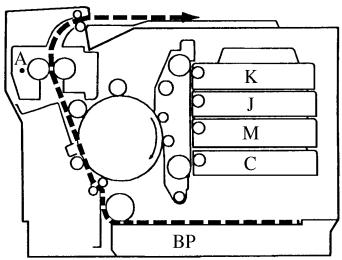
Printer tray jam solution
Remove the printer paper tray.
Remove the jammed paper.
Make sure the sheet is not crumpled and the tray is not overloaded.
Place the tray back in the printer.
Remark : To avoid damaging the ribbons, remove the jammed paper without tearing it up. If you leave a peace of paper inside, it may block the mechanism and create other jams.
Internal and drum jams solutions
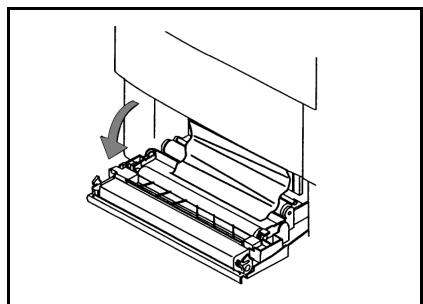
Open the printer back cover.
Remove the jammed paper, pulling it toward you.
If you remove the sheet without tearing it up close the printer back cover.
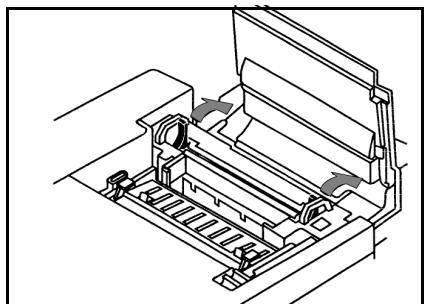
If you can't remove the paper, open the upper cover and press both ribbon's attachment levers.
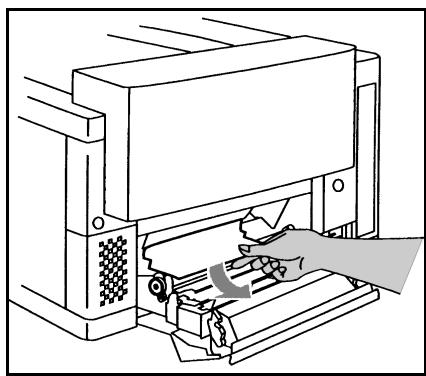
To remove the paper, pull it forward from the back outlet, and not from the upper outlet. (To prevent the ribbons from being stained by the unfixed toner).
Put both levers in their initial position.
Close the printer upper cover, then the printer back cover.
Reinstall the scanner and its support on the printer.
SCANNER INCIDENTS
Sheet-feed scanner paper jam
When a paper jam occurs, the following message appears on the control panel screen REMOVE DOCUMENT.
If jams often occur in a specific part of the unit, the latter needs to be checked, cleaned or repaired.
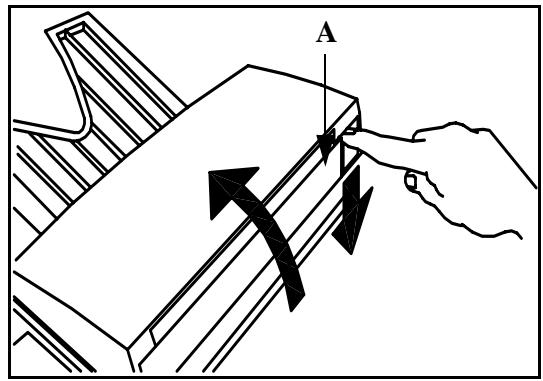
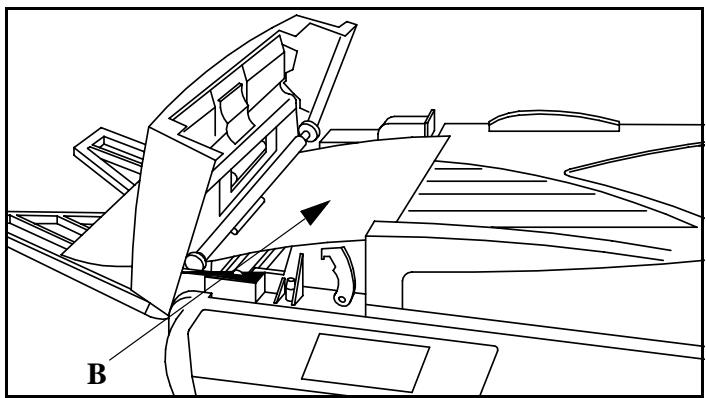
Open the scanning cover of the sheet-feed scanner by pressing key (A).
Remove the jammed paper (B) without tearing it up.
Then, close the scanning cover of the sheet-feed scanner.
MISCELLANEOUS INCIDENTS
At switch-on nothing appears on screen
Check that the mains cable is plugged in, and check the mains plug if necessary.
The message No PRINTER is displayed.
Check that the power switch of the printer is in the I (On) position (refer to paragraph Printer connection, page 1/8).
The fax does not detect the presence of your inserted document. The message READY does not appear on the screen.
At the start and during scanning, REMOVE DOCUMENT appears on the screen and the "On" signal is red.
Remove the document or press key
Check the thickness of the document (30 sheets of paper of 80g / m^2
Iron out the sheets if needed.
Help the sheets along.
The fax machine does not receive any faxes
Check that the telephone line cable is correctly plugged in and that there is a tone signal on the telephone line.
- If the message No Printer is displayed on the screen, check if it is switched on, and check that the printer connection cord is correctly plugged into the printer's and fax's jack.
You receive a blank page
Make a photocopy of a document ; if it is correct then your fax is functioning normally. Call back the subscriber and have him resend the document. It was probably sent with the sheet inserted backwards.
You cannot send a fax
Check that the telephone line cable is correctly plugged in.
Check tonality by pressing key
CHARACTERISTICS
Device type: Office colour fax machine, fast operation with all group 3 devices according to ITU-T recommendations.
UNIT CHARACTERISTICS
Dimensions not including receptacles:
Power consumption (max values):
Approximately 46kg
220-240 V - 50-60 Hz - 5 A
Operating temperature:
45 W (standby)
Operating humidity :
55 W (operation) (750 W during printing)
Original document size:
+10°C to 35°C
+20% to 80% RH (non condensing)
Width: 216mm max.
Document feeder:
Height: 297mm
Thickness: 0.05mm to 0.15mm (1 sheet) 0.06mm to 0.12mm (several sheets)
Max. capacity : paper stack height 5mm (i.e. 50 sheets typically (80g / m^2) )
Reception format (A4):
Width: 210mm
Length: 297mm
Paper reception:
Plain paper (copier type (80g / m^2) )
Paper tray capacity:
260 sheets max. (80g / m^2)
Additional tray (optional)
1 additional tray: 250 sheets
Transmission procedures:
In accordance with UIT-T recommendations for group 3 fax machines
Possible phone line connections:
To all Public Switched Telephone Networks (or equivalent)
Scanned image analysis
Sheet-feed scanner : 300 dpi
Flat-bed scanner : 600 dpi
Printer: 600 × 600 dpi
Reading system:
Optronics reading, CIS (sheet-feed scanner) and CCD (flat-bed scanner)
Print type:
Laser printing on plain paper
Communication rate:
For group 3:
33600/14400/12000/9600/7200/4800/2400 bps
The effective transmission duration for an A4 page ranges from a few seconds to approx. one minute (depending on the line quality, the modem speed, the quantity of information in the original and the resolution) ^(*) .
(*) Without taking into account the initialisation exchange procedure.
Coding types:
MH (Modified Huffman)
MR (Modified Read)
MMR (Modified Modified Read)
Internet general specifications:
TCP/IP/PPP protocols
SMTP/POP3/MIME protocols for e-mail
TIFF-F and JPEG file format
CONSUMABLE CHARACTERISTICS
OPC belt:
Up to 50 000 plans
Colour toner cartridge:
Approximately 6000 pages at 5%
Black toner cartridge:
Approximately 16000 pages (letter ITU.01)
Storage of consumable drum and toner:
Temperature:
5 to 35^ 24 months in original packaging.
Humidity:
20 à 85% RH (no condensation)



7 SAFETY

SAFETY WARNING
This unit must not be installed on the floor.
Before powering on your unit, make sure the mains outlet it is connected to meets the requirements printed on the warning label on your unit, or on the separate power supply (depending on the model).
If your unit works with a separate Power Supply, use only the one delivered with your unit; never use another power supply.
If your unit works with a battery, replace it only with the same type of battery or an equivalent type recommended by the manufacturer.
Warning: incorrect replacement of the battery may cause an explosion. Replace only with the same or equivalent type recommended by the manufacturer. Dispose of used batteries according to the manufacturer's instructions.
Used batteries must be disposed of following the manufacturer's instructions.
Depending on the model, the unit's mains plug may be the only way to disconnect the unit from the power network. Therefore you must respect the following:
- Your unit must be connected to a mains outlet located nearby.
The mains outlet must remain easily accessible.
Your unit is delivered with a power cord including a plug which, depending on the model, may be:
- without earth (the symbol on the warning label).
- with earth (no symbol on the warning label). It is imperative that a power plug with an earth be connected to a wall outlet with an earth.
The European version of this unit includes the CE stamp, following the 73/23/CEE, 89/336/CEE and 93/68/CEE directives.

APPEARIL A RAYONnement LASER DE CLASSES1 CLASS 1 LASER PRODUCT CLASS 2 CLASS 3 APPEARCHIC LASER DESI CLASSES 1 PRODUCTO LASER DE CLASSES 1 APARELHO LASER DE CLASSES 1
If the machine is powered when you remove the upper cover, be careful with the two following dangers:
- Laser beam interception by human eye can produce irremediable injuries.
Human contact with parts electrically powered can produce a very dangerous electric shock.
Safety



CONSUMABLE REFERENCES
Black Toner cartridge: 23332523-8
Magenta Toner cartridge: 23332525-9
Yellow Toner cartridge : 23332526- 2
Cyan Toner cartridge : 23332524-1
Maintenance Consumable Kit: 23332520-9
BELT Consumable Kit: 23332521-7






User's guide
SAGEM SA
27, rue Leblanc 75512 PARIS CEDEX 15 - FRANCE
- CONTENTS
- WELCOME
- INSTALLATION
- QUICK USAGE
- SETTINGS
- DIRECTION
- OPERATION
- Mail box (MBX FAX) 5-19
- MAINTENANCE
- SAFETY
- PRINTER
- UNPACKING THE PRINTER
- PRINTER INSTALLATION
- Installation requirements
- Setting the consumable items
- Setting the four colour toner cartridges
- Setting the OPC cartridge
- Setting the oil bottle and the cleaning roll
- Setting the paper reserve
- Installing the additional paper tray (depending on model)
- SCANNER
- UNPACKING THE SCANNER
- SCANNER INSTALLATION
- Setting the detachable items
- Setting the scanner support
- Installation of the outlet tray for outgoing document
- CONNECTIONS
- PRINTER CONNECTION
- TELEPHONE AND LAN CONNECTION
- POWER LINE CONNECTION AND SWITCH ON
- UPDATING THE CONSUMABLES
- Moving within the menus
- Moving within a data entry field
- The display screen
- ACCESS TO FUNCTIONS
- Step by step function access
- Direct access by number
- FUNCTIONS LIST
- Quick usage
- MAIN SETTINGS
- __________
- Date/Time
- Name
- Type of network
- Geographical settings (depending on model)
- Country
- Network
- Language
- Local prefix
- Defining the minimal size
- Defining the local prefix
- Transmission report and deposit notice
- Economy period
- Modifying the economy period
- Using the economy period
- Document feed types
- BEFORE RECEPTION
- Fax answering machine
- Saving an access code
- Activate or deactivate the answering machine
- Print fax messages stored in the memory
- Reception without paper
- To select the reception mode :
- Number of copies
- To set the number of each document received:
- Relay broadcast
- To activate relay from your fax machine:
- Fax or PC Reception (Option)
- TECHNICAL PARAMETERS
- To set the technical parameters:
- LOCAL AREA NETWORK (LAN) SETTINGS (DEPENDING ON MODEL)
- To automatically configure the local network settings
- Manual configuration
- To configure the local network settings manually
- IP address
- Sub-network mask
- Gateway address
- IEEE address (or Ethernet address)
- Netbios names
- MAIL SERVICE AND THE INTERNET
- INTERNET REGISTRATION
- INITIALISATION PARAMETERS
- Access to connection and mailbox parameters
- Access to servers parameters
- SETTINGS
- Standard settings
- Access to choice of connection
- Modify standard connection times on set times
- Modify periodic connection period
- Access to transmission type selection
- Access to print the Internet settings
- Mail sorting
- Mode only F@x
- Mode only PC
- Mode share PC
- Selecting the economical transmission mode
- INTERNET CONNECTION
- Immediate connection to the Internet
- Programmed connection
- DEACTIVATE THE INTERNET FUNCTION
- DIRECTORY
- ADDING A RECORD
- Menu
- Procedure
- CREATING SUBSCRIBERS Lists
- ADDING A LIST
- Remark
- ADDING OR DELETING A NUMBER FROM THE LIST
- CONSULTING A RECORD OR LIST
- IFYING A RECORD OR A LIST
- DELETEING A RECORD OR A LIST
- PRINTING THE DIRECTORY
- IMPORTING A DIRECTORY
- THE FILE STRUCTURE
- Dreecy
- EXPORTING A DIRECTORY
- POSITIONING THE DOCUMENT
- Sheet feed scanner
- Flat-bed scanner
- CHOOSING THE RESOLUTION/THE CONTRAST
- Resolution
- To select the resolution mode:
- Contrast
- DIALLING
- From the directory
- Dialling alphabetically
- Assigned number dialling
- From the radial key
- For a fax number (Tel in the Directory)
- For an E-mail address
- To multiple call numbers
- TRANSMISSION VIA THE PUBLIC SWITCHED TELEPHONE NETWORK (PSTN)
- Immediate transmission
- Delayed transmission
- To delay the transmission time of your document :
- Transmission with dialling follow-up
- To take the phone line manually:
- TRANSMISSION VIA THE INTERNET
- Sending a paper fax to an E-Mail address
- Sending a colour document to an E-Mail address
- Sending a keyed-in message to an E-Mail address
- P
- TANNSSESSWATTTNGUEES
- Consult or modify the waiting queue
- Immediately perform transmission from the waiting queue
- Printing a document in waiting or in deposit
- Print the waiting queue
- Deleting a transmission on hold
- CANCELLING TRANSMISSION IN PROGRESS
- To cancel transmission in progress,
- RECEPTION
- RECEPTION VIA THE PUBLIC SWITCHED TELEPHONE NETWORK (PSTN)
- RECEPTION VIA THE INTERNET
- COPYING
- LOCAL BLACK AND WHITE COPY
- Standard copy
- "Sophisticated" copy
- COLOUR COPY
- SPECIFIC SETTINGSFOR THECOPY
- Setting parameters for the scanners.
- Setting parameters for the printer.
- To access to the settings
- Scanner settings
- Zoom and Origin
- RGB
- Marqins
- Printer settings
- Brightness
- Paper
- Paper tray
- Night standby
- OTHER FUNCTIONS
- Logs
- PRINTING THE FUNCTIONS LIST
- PRINTING THE MACHINE SETTINGS
- MEMORIZING A SEQUENCE OF KEYS
- To register a sequence (for example, in key F1).
- To send a fax directly to your subscribers (key F1 preset):
- COUNTERS
- To get access to the counters of the machine:
- DEPOSIT AND POLLING
- Setting the machine for document deposits,
- Setting the machine for polled documents,
- Place a document in deposit
- Polling a deposited document
- INTERLOCK
- Entering the interlock code
- To access the interlock code
- Keypad interlocking
- To access the keypad unlocking menu
- Number interlocking
- Operation
- To access the number interlocking option
- Locking colour printing
- #
- MBX MANAGEMENT
- Initialising a MBX
- Modifying the features of an MBX
- Print the contents of an MBX
- Delete an MBX
- Print the MBX list
- MBX deposit in your fax
- MBX deposit in a remote fax
- MBX polling from a remote fax
- MAINTENANCE
- GENERAL
- REPLACING THE CONSUMABLES
- Replacing the toner cartridges
- Replacing the oil cartridge and the cleaning roller
- Installation / Reinstallation the oil cartridge
- Replacing the toner bin
- CLEANING
- Cleaning the development roller
- Cleaning the loading unit
- Cleaning the scanner's reading devices
- SCANNER CALIBRATION
- INCIDENTS
- COMMUNICATION ERRORS
- Transmission from the feeder
- Transmission from the memory
- Communication error codes
- General codes
- Code 06 - Printer default
- Code 07 - Disconnected
- Code 08 - Quality
- Code 0A - No document to be polled
- Code 0B - Wrong number of pages
- Code 0C - Received document error
- Code 0D - Transmission failed
- Code 13 - Memory full
- Code 14 - Memory full
- Code 15 - Unknown mailbox number
- Code 16 - No Relay Bcast list Nr x
- Code 17 - Unknown mailbox number
- Code 18 - Relay Bcst impossible
- Code 19 - Subscriber has stopped
- Code 1A - Disconnected
- Code 1B - Transmission failed
- Internet codes
- Codes 40 and 41 - No answer from provider
- Code 42 - Cannot acces provider
- Code 43 - Transmiss. server unavailable
- Code 44 - Reception server unavailable
- Code 45 - Provider disconnected
- Code 46 - Trans. server disconnected
- Code 47 - Reception server disconnected
- Code 48 - Disconnection from Internet
- Code 49 - Cannot connect to Internet
- PRINTER INCIDENTS
- Error messages
- Printer paper jam
- Printer tray jam solution
- Internal and drum jams solutions
- SCANNER INCIDENTS
- Sheet-feed scanner paper jam
- MISCELLANEOUS INCIDENTS
- CHARACTERISTICS
- UNIT CHARACTERISTICS
- CONSUMABLE CHARACTERISTICS
- SAFETY WARNING
- This unit must not be installed on the floor.
- CONSUMABLE REFERENCES
- SAGEM SA
Brand : SAGEM
Model : MF 3850 MF 3830
Category : Multifunction Printer