
MF 3760 - Multifunction Printer SAGEM - Free user manual and instructions
Find the device manual for free MF 3760 SAGEM in PDF.


| Product type | Laser multifunction printer |
| Brand | SAGEM |
| Model | MF 3760 |
| Main functions | Print, copy, scan, fax |
| Recommended monthly volume | Up to 15,000 pages |
| Estimated lifespan | 5 years or 300,000 pages with periodic maintenance |
| Connectivity | Parallel (PAR), USB, network option (OPT) |
| Consumable type | Toner cartridge |
| Consumable replacement | Procedure described in the manual, section 7-2 |
| Cleaning | Cleaning the corona and grid after toner replacement, section 7-10 |
| Laser safety | Class 1 laser device |
| Standards | CE (R&TTE 1999/5/EC, directives 73/23/EC and 89/336/EC) |
| Telephone connection | Compliant with I-CTR37 and CTR21 standards for PSTN |
| Interface indicator | Displays PAR, USB, OPT or -- |
| Paper tray | Indicator of used paper size |
| Country of origin | France (4 rue du Petit Albi, 95800 Cergy Saint-Christophe) |
Frequently Asked Questions - MF 3760 SAGEM
User questions about MF 3760 SAGEM
0 question about this device. Answer the ones you know or ask your own.
Ask a new question about this device
Download the instructions for your Multifunction Printer in PDF format for free! Find your manual MF 3760 - SAGEM and take your electronic device back in hand. On this page are published all the documents necessary for the use of your device. MF 3760 by SAGEM.
USER MANUAL MF 3760 SAGEM
SAGEM MF 3760 - MF 3780
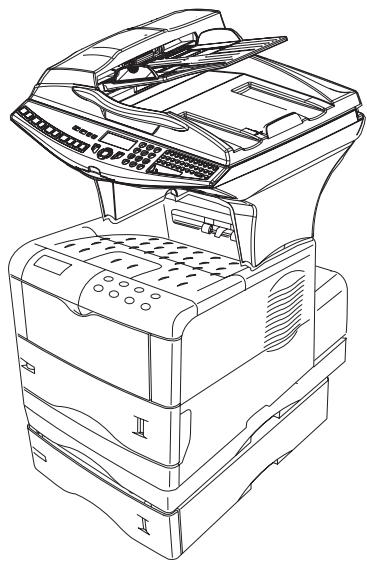
User Manual
WELCOME
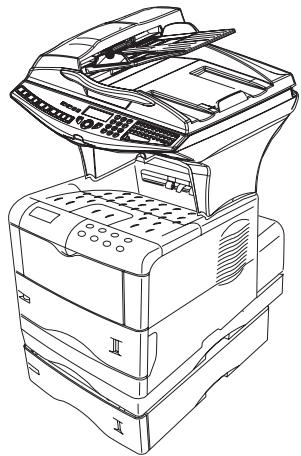
You have just acquired a new generation communications terminal from SAGEM and we congratulate you on your choice. This multi-function terminal is capable of faxing, printing and scanning and furthermore, can be used for Internet communications. Your terminal will meet all your professional requirements.
This User's Manual presents the model in the range:
| Model | Equipment |
| MF 3760 | • Duplex unit scanner colour • 33.6 kbps fax and 56 kbps data modem • 28 ppm Black & White laser printer • Emission / reception of SMS • Front/back module • Companion Suite Pro kit PC |
| MF 3780 | • Bilinear (depending on model) • Duplex unit scanner colour • 33.6 kbps fax and 56 kbps data modem • 28 ppm Black & White laser printer duplex-unit • Emission / reception of SMS • Front/back module • LAN 10/100 Base T • Companion Suite Pro kit PC |
It combines power, user-friendliness and simplicity thanks to its navigator, its multitask access and its direct access directory.
Providing access to the Internet, your terminal lets you, depending on model:
- send and receive faxes to E-mails thanks to the F@x to E-mail function,
- send and receive E-mails,
- send SMS's.
Denpending on model, you can also print to PCL® 6 and KPDL/SGScript 3 formats (emulation of Postscript® level 3 language).
We strongly recommend that you take the time to read this manual so that you can get the most out of your terminal's many features. Please read the safety instructions carefully (see the Safety chapter on page 8-1).
List of accessories
The following additional accessories are proposed for the Fax Laser Pro range:
- Directory card.
- 500-page paper tray.
- Front / rear module (optional depending on model
- Companion Suite Pro kit PC (depending on model).
Consumables
To refer to the last page of this user manual for the references.
Scanner console
- Key : stops current printing.
- Key : help in terminal use.
- Key : local photocopy.
- Key q^+ : reduce or enlarge.
- Key PC: scan to PC / scan to FTP.
- Key @ : scan to e-mail (sending of Internet fax).
- Key : double sided printing
- Key : selection of colour mode.
- Key : scan resolution.
- Key O : contrast setting.
- Scan resolution (Fine (Fin), SFine (Super Fin), Photo).
-
Icon "Ligne" :
-
On: communication in progress.
-
Falshing : communication setting up.
-
Icon : color mode selected.
-
Recto/Verso print indicated
-
On : duplex mode activated.
-
Out: printing mode deactivated.
-
Indicator reserve "Toner" :
On: end of toner,
Flashing: near the end of toner.
- Indicator printer paper jam 8% .
-
Icon fax reception icon reception:
-
On: reception possible.
-
Flashing : non-printed document(s) in memory or being received.
-
Out : reception impossible.
-
Digital keyboard.
- Alphabetical keyboard.
- Key : deletes the character to the left of the cursor
- Key : input or line feed.
- Key Ctrl: access to special characters.
- Key ↑ : Shift.
- Key : send fax.
- Key OK: validates displayed selection.
- Key : access to menu and browsing in menus downwards.
- Key C: return to previous menu and correction of text
- Key : browsing in menus upwards.
- Key : stops current operation.
- Key : access to directory and quick dial numbers.
- Key : line manual connection, listen for tone during fax sending.
- Key : dmultiple contact sending (fax, e-mail or SMS).
- Key SMS : sending of an SMS (Short Message Service).

Print console
- The console's LCD screen.
- WARNING indicator:
On: A problem or error (e.g. a paper jam) has occurred.
Blinking: The printer requires maintenance or is warming up.
- READY indicator:
On: The printer is ready. It prints out any data it receives.
Blinking: An error has occurred.
Off: The printer is idle. The data has been received but not printed out (see GO key).
- DATA indicator:
On: The data has been processed or stored on the memory card,
Blinking: Data transfer in progress.
- GO key: Used to take the printer into or out of idle mode.
- < key: Used to navigate the submenus and make certain settings.
- key: Used to navigate the menus and to increase numerical values.
-
key: Used to navigate the submenus, make certain settings and display help messages when certain errors
occur.
- ENTER key: Confirms the numerical values and other selections.
- key: Used to navigate the menus and to increase numerical values.
- MENU key: Used to access or exit the printer's menu.
- CANCEL key: Used to cancel a print job.

indicator: Shows the paper type used in the tray.

indicator: Shows the paper size used in the tray.

Installing your terminal 1-1
Installation requirements 1-1
Operational precautions 1-2
Unpacking the components 1-4
Unpacking the additional paper tray
(dependently on option) 1-4
Unpacking the front/back module
(depend on model or option) 1-5
Unpacking the scanner 1-6
Unpacking the printer 1-7
Description 1-8
Installing the terminal 1-9
Installing the additional paper tray 1-9
Installing the front/back module on top of the additional trays (depending on model or option) 1-9
Installing the printer on top of the front/back module 1-11
Installing the feet on the scanner/printer interface 1-12
Installing the scanner on top of the scanner/printer interface 1-13
Fitting the scanner interface to the printer 1-14
Terminal connections 1-15
Installing the cable holders 1-18
Connecting the scanner's mains lead to the printer 1-19
Connecting the printer's LAN and USB leads 1-20
Connecting the scanner's parallel port to the printer 1-21
Taking the various leads out of the terminal 1-22
Fitting the front/back module cover 1-23
Installing the removable components 1-24
Installing the scanner document feeder 1-24
Adjusting the original document output tray 1-25
Loading paper 1-25
Loading the multipurpose tray 1-28
Wall connections 1-33
Telephone and Ian connections 1-33
Power line connection and switch on 1-33
Configuring the printer driver 1-33
2 GETTING STARTED 2-1
Navigation methods 2-1
Presentation 2-1
The navigator 2-1
Moving within the menus 2-2
The display screen 2-3
Access to functions 2-3
Menu-driven access 2-3
Direct access by number 2-4
Guide to function list 2-5
PRINT CONSOLE NAVIGATION BASICS 2-9
NAVIGATING THE MENUS 2-9
Control panel keys 2-9
ACCESS TO FUNCTIONS 2-10
Printing out the menu guide 2-10
GUIDE TO FUNCTIONS 2-11
3 SETTING YOUR MACHINE 3-1
Main settings 3-1
Before transmission 3-2
Date/Time 3-2
Your fax number/your name 3-2
Type of network 3-2
Geographical settings 3-2
Local prefix 3-3
Transmission report 3-4
Document feed type 3-4
Economy period 3-4
Before reception 3-5
Fax answering machine 3-5
Reception without paper 3-5
Number of copies 3-6
Relay broadcast 3-6
Fax or PC reception (depending on model) 3-7
Duplex printing (depending on model) 3-7
Adjust to page 3-7
Technical parameters 3-8
Local Area Network (LAN) settings (depending on model) 3-11
Local network settings 3-11
Automatic configuration 3-11
Manual configuration 3-11
IEEE address (or Ethernet address) or MAC address 3-12
Netbios names 3-12
Print function settings 3-12
Updating network settings 3-12
Automatically configuring IP settings 3-13
Manually configuring IP settings 3-13
Remote configuration 3-14
System requirements 3-14
3-14
Message service and the Internet 3-15
Initialisation parameters 3-15
Access to connection and message service parameters 3-16
Access to servers parameters 3-16
Settings 3-18
Standard settings 3-18
Mail sorting 3-19
Internet Connection 3-21
Immediate connection to the Internet 3-21
Programmed connection 3-21
Deactivating the Internet function 3-21
The SMS service 3-22
SMS Parameters 3-22
Sending an SMS 3-23
Erase an SMS 3-24
SMS Reception 3-24
SMS Server 3-25
4 DIRECTION
Creating subscribers record 4-2
Adding a record 4-2
Creating subscribers lists 4-3
Adding a list 4-4
Adding or deleting a number from the list 4-5
Consulting a record or a list 4-5
Modifying a record or a list 4-5
Deleting a record or a list 4-6
Printing the directory 4-6
Importing a directory 4-6
The file structure 4-6
Procedure 4-8
Exporting a directory 4-8
LDAP server (depending on model) 4-9
Configuration 4-9
Accessing server contacts 4-9
Adding a server contact to the local directory 4-10
5 OPERATION
Sending 5-1
Document depositing 5-1
Scanner 5-1
From the flat scanner 5-2
Choosing the resolution/contrast 5-2
Resolution 5-2
Contrast 5-3
Dialling 5-3
From the directory 5-3
Using the last number dialled key 5-4
Transmission over the
Public Switched Telephone Network (PSTN) 5-5
Immediate transmission 5-5
Delayed transmission 5-5
Transmission with auto redial 5-6
Transmission over the Internet 5-7
Sending a black and white document to an E-Mail address 5-7
Sending a colour document to an E-mail address 5-7
| Sending a typed message to an E-Mail address | 5-8 |
| Scan to FTP | 5-9 |
| Simply put the file in an FTP server : | 5-10 |
| Multi-contact sending. | 5-10 |
| Transmission waiting queue | 5-11 |
| Immediately perform transmission from the waiting queue | 5-11 |
| Consult or modify the waiting queue | 5-12 |
| Deleting a transmission on hold | 5-12 |
| In the waiting queue select the desired document and confirm your choice with OK. | |
| 5-12 | |
| Printing a document in waiting or in deposit | 5-12 |
| Print the waiting queue | 5-12 |
| Cancelling a transmission in progress | 5-12 |
| Reception | 5-13 |
| Reception over the | |
| Public Switched Telephone Network (PSTN) | 5-13 |
| Reception over the Internet | 5-13 |
| Copying | 5-14 |
| Local copy | 5-14 |
| Standard copy | 5-14 |
| Duplex photocopies (depending on model) | 5-14 |
| "Sophisticated" copy | 5-15 |
| Specific copy settings | 5-17 |
| Scanner settings | 5-17 |
| Other functions | 5-19 |
| Logs | 5-19 |
| Printing the functions list | 5-19 |
| Printing the machine settings | 5-19 |
| Counters | 5-20 |
| Deposit and polling | 5-20 |
| Lock | 5-21 |
| Entering the locking code | 5-22 |
| Locking the keyboard | 5-22 |
| Locking the numbers | 5-22 |
| Locking the Internet settings | 5-23 |
| Locking the SMS service | 5-23 |
| Scan to PC (depends on model) | 5-23 |
| Mail box (MBX FAX) | 5-24 |
| MBX management | 5-24 |
| Creating an MBX | 5-24 |
| Modifying the features of a MBX | 5-25 |
| Printing the contents of a MBX | 5-25 |
| Deleting a MBX | 5-25 |
| Printing the MBX list | 5-25 |
| MBX deposit in your fax | 5-25 |
| MBX deposit in a remote fax | 5-26 |
| MBX polling from a remote fax | 5-26 |
6 PRINT FUNCTION
Using the console
The console
Messages displayed
Interface indicator
Paper size indicato
Paper type indicator
READY, DATA and ATTENTION indicators
Printing test pages
Printing out the menu map
Printing out the current configuration page
Printing out the detailed configuration page
Printing out the network interface card configuration
Printing out the font list
Paper size and type settings
Paper size settings
Paper type settings
Multi tray mode
Selecting the paper output tray
Pagina
Emulation
Font
Character encoding
Number of Copies
Page orientation
KIR
Draft mode
Resolution
Interface
Parallel interface
USB Interface mode
Network interface settings
CONFIGURING THE PRINTER
Page protection mode
Line break
Carriage return
80 character mode
Print density
Number of pages printed counter
Language selection
Automatic page break
Standby mode
Reinitialising the printer
Resource protection
Setting the alarm
Auto mode
Front/back printing error detection
6-1
6-1
6-1
7 MAINTENANCE 7-1
Maintenance 7-1
General 7-1
Replacing the consumables
(toner and drum) 7-2
Cleaning the scanner's reading devices 7-10
Cleaning the printer 7-10
Servicing 7-11
Scanner calibration 7-11
Incidents 7-11
Communication errors 7-11
Transmission from the feeder 7-11
Transmission from memory 7-12
Communication error codes 7-12
PRINTER INCIDENTS 7-14
Paper jam inside the printer 7-14
Scanner incidents 7-17
Scanner paper jam 7-17
Miscellaneous incidents 7-19
STORAGE 7-19
PACKING AND TRANSPORTING THE UNIT 7-19
Specifications 7-22
8 SAFETY 8-1
A proper location helps to ensure that your printer provides you with the long service life for which it is designed. Double-check to make sure that the location you select has the following characteristics.
- Choose a location that is well ventilated.
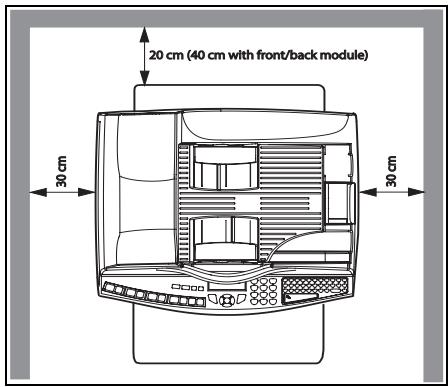
- Make sure you do not obstruct the ventilation grilles located on the left and right-hand sides of the unit and at the rear of the Front/Back module. If there is a wall nearby when you install the unit, make sure you install the terminal at the distances shown in the illustration below in order to make it easier to open the various covers.
- Make sure there is no chance of ammonia or other organic gasses being generated in the area.
- The grounded power outlet (refer to the safety instructions in the Safety section) you plan to connect to for power should be nearby and not obstructed.
- Make sure that the printer is not exposed to direct sunlight.
- Avoid areas in the direct airflow of air conditioners, heaters, or ventilators and areas subject to temperature and humidity extremes.
- Choose a sturdy, level surface where the printer will not be exposed to strong vibration.
- Keep the printer away from any objects that might block its heat vents.
- Do not locate the printer near curtains or other combustible objects.
- Choose an area where there is no possibility of the printer being splashed with water or other liquids.
- Make sure that the surrounding area is clean, dry, and free of dust.
Operational precautions
Note the following important precautions whenever using the printer.
Operating Environment
The following describes the operating environment required when using the printer:
- Temperature:
10^ to 35^ (50^ to 95^) with fluctuation of 10^ (18^) per hour.
- Humidity:
20% to 80% (no condensation) with fluctuation of 20% per hour.
Terminal
The following describes precautions for using the terminal.
- Never switch the power to the terminal off and never open the covers while the unit is printing.
- Never turn the terminal off or open any of its covers during a print operation.
- Never place flammable gasses, liquids or objects that generate magnetic forces near the terminal.
- When unplugging the power cord, always grasp the plug and never pull on the cord. A damaged cord creates the danger of fire or electrical shock.
- Never touch the power cord when your hands are wet. Doing so creates the danger of electrical shock.
- Always unplug the power cord before moving the terminal. Failure to do so can damage the power cord, creating the danger of fire or electrical shock.
- Always unplug the power cord if you do not plan to use the terminal for a long time.
- Never try to remove any secured panel or cover. The terminal contains high-voltage circuit which creates the danger of electrical shock when exposed.
- Make sure that the power to the printer is switched off before connecting or disconnecting an interface lead to the printer (use a shielded interface lead).
- Never try to modify the terminal. Doing so creates the danger of fire or electrical shock.
- Never place any heavy objects on the power cord, pull on it or bend it. Doing so creates the danger of fire or electrical shock.
-
Always make sure the terminal is not placed on the electrical cord or the communications cables of any other electrical equipment. Also make sure that cords and cables do not get into the terminal's mechanism. Any of these conditions create the danger of malfunction and fire.
-
Do not allow water or other liquids to spill on or near the terminal. Fire or electrical shock can occur should water or liquid come into contact with the terminal.
- Should liquid or any piece of metal accidentally get inside the printer, immediately turn it off, unplug the power cord, and contact your dealer. Failure to take this immediate action creates the danger of fire or electrical shock.
- Whenever the terminal emits unusually high amounts of heat, smoke, an unusual odor, or noise, immediately turn it off, unplug it, and contact your dealer. Failure to take this immediate action creates the danger of fire or electrical shock.
- Avoid using the terminal during an "electrical storm" as this may involve a risk of electric shock caused by the lightning.
- Paper for printer: do not use paper previously printed by your terminal or any other printer: the ink or toner deposited on that paper might damage the printing system of your terminal.
Caution - Be sure to locate the terminal in a well-ventilated location. A minimal amount of ozone is generated during normal operation of this terminal. Because of this, an unpleasant odor may result when the printer is used for extensive printing in a poorly ventilated area. For a comfortable, healthy, and safe operation, be sure to locate the terminal in a well-ventilated area.
UNPACKING THE COMPONENTS
UNPACKING THE ADDITIONAL PAPER TRAY (DEPENDING ON OPTION)
Take the additional tray out of its box.
Remove the protective side sections in the box.
Remove the plastic bag from the additional tray.
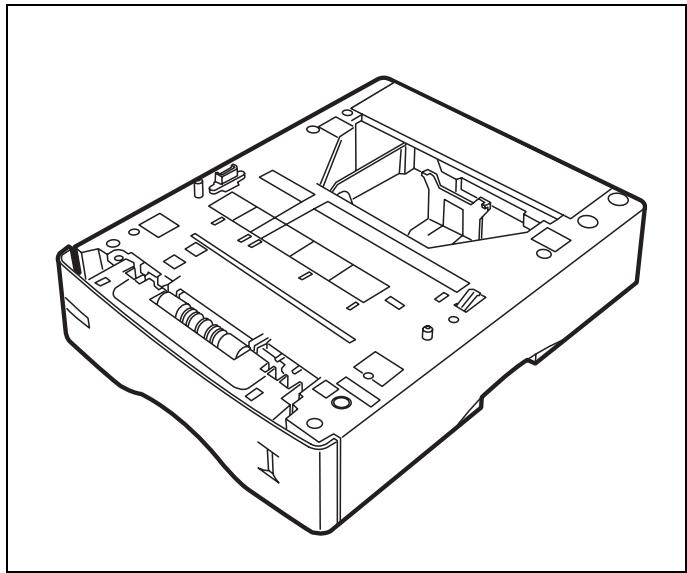
To install the additional tray please see the paragraph on Installing the terminal on page 1-9
UNPACKING THE FRONT/BACK MODULE (DEPENDING ON MODEL OR OPTION)
Remove the front/back module from its box.
Remove the protective side sections.
Remove the plastic bag from the front/back module.
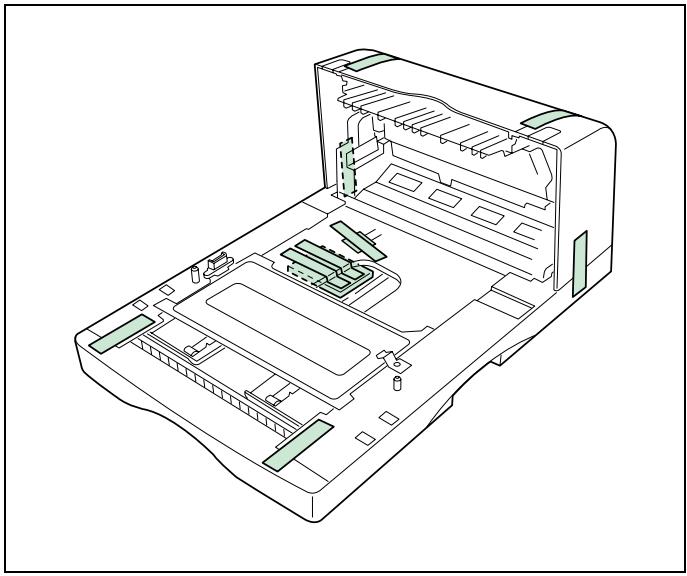
To install the front/back module, please see the paragraph on Installing the front/back module on additional trays (depending on model or option) on page 1-9.
UNPACKING THE SCANNER
Take the scanner module and its accessories out of the box.
Remove the plastic bag from the scanner.
Check that you have all the components listed below.
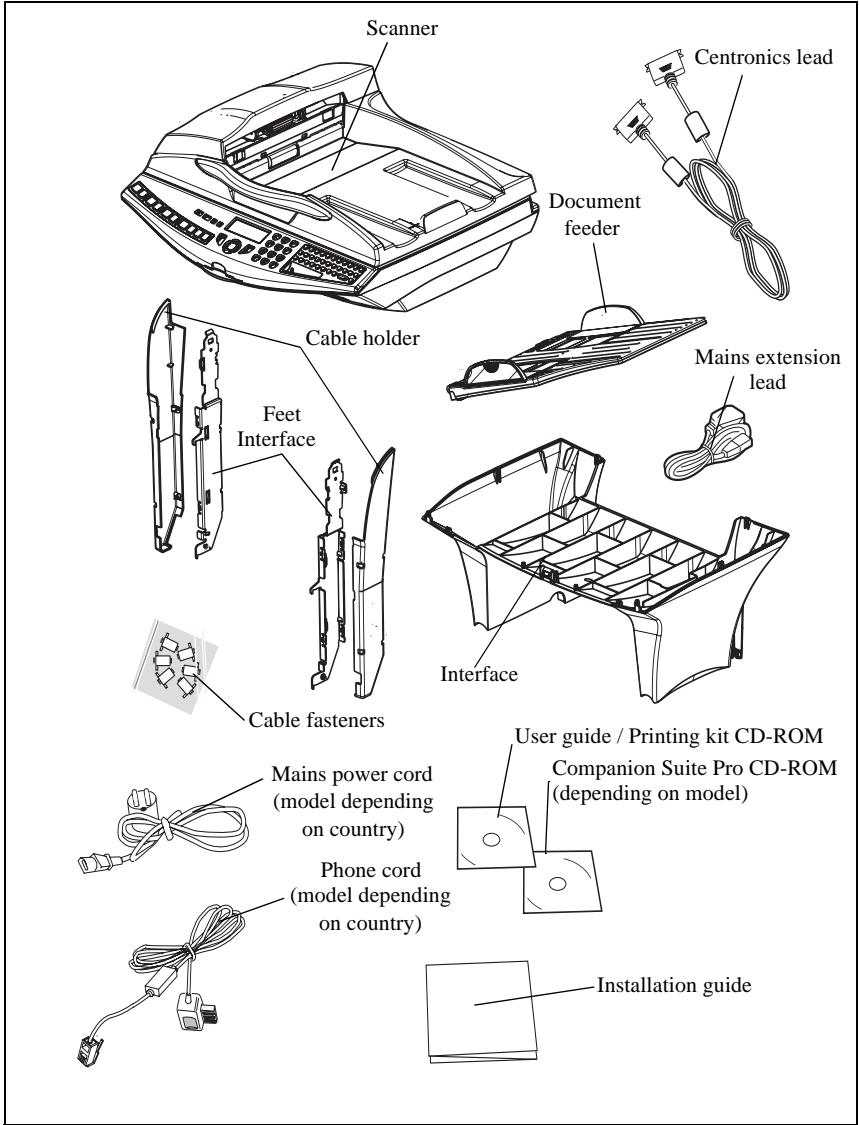
UNPACKING THE PRINTER
Take the printer and its accessories out of the box.
Remove the plastic bag from the printer.
Check that you have all the components illustrated below.
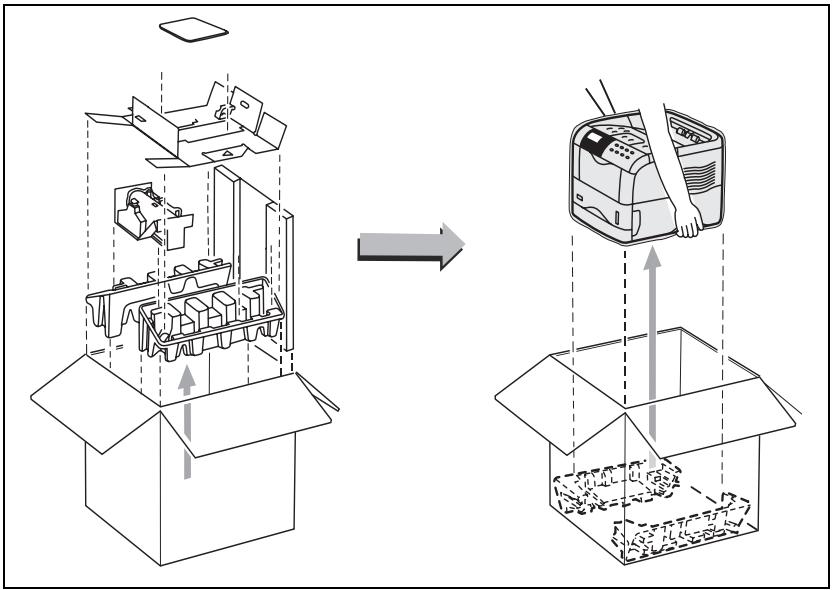
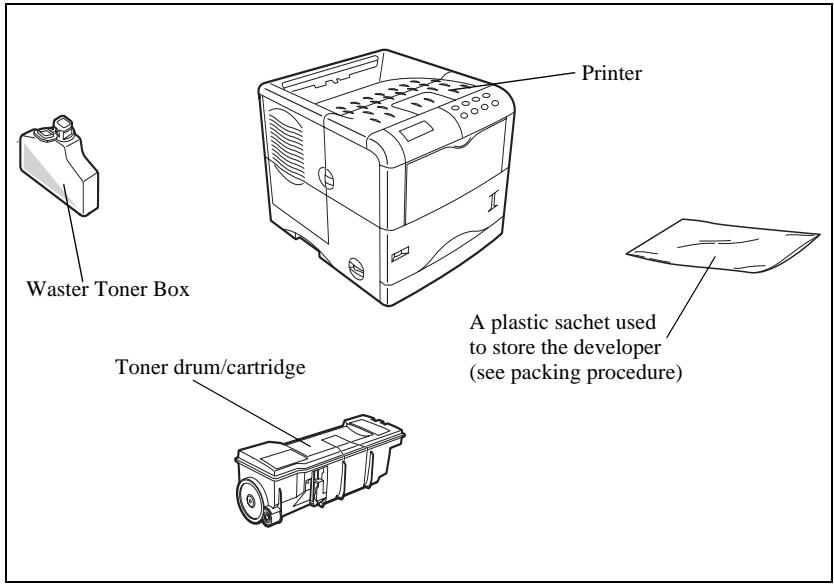
DESCRIPTION
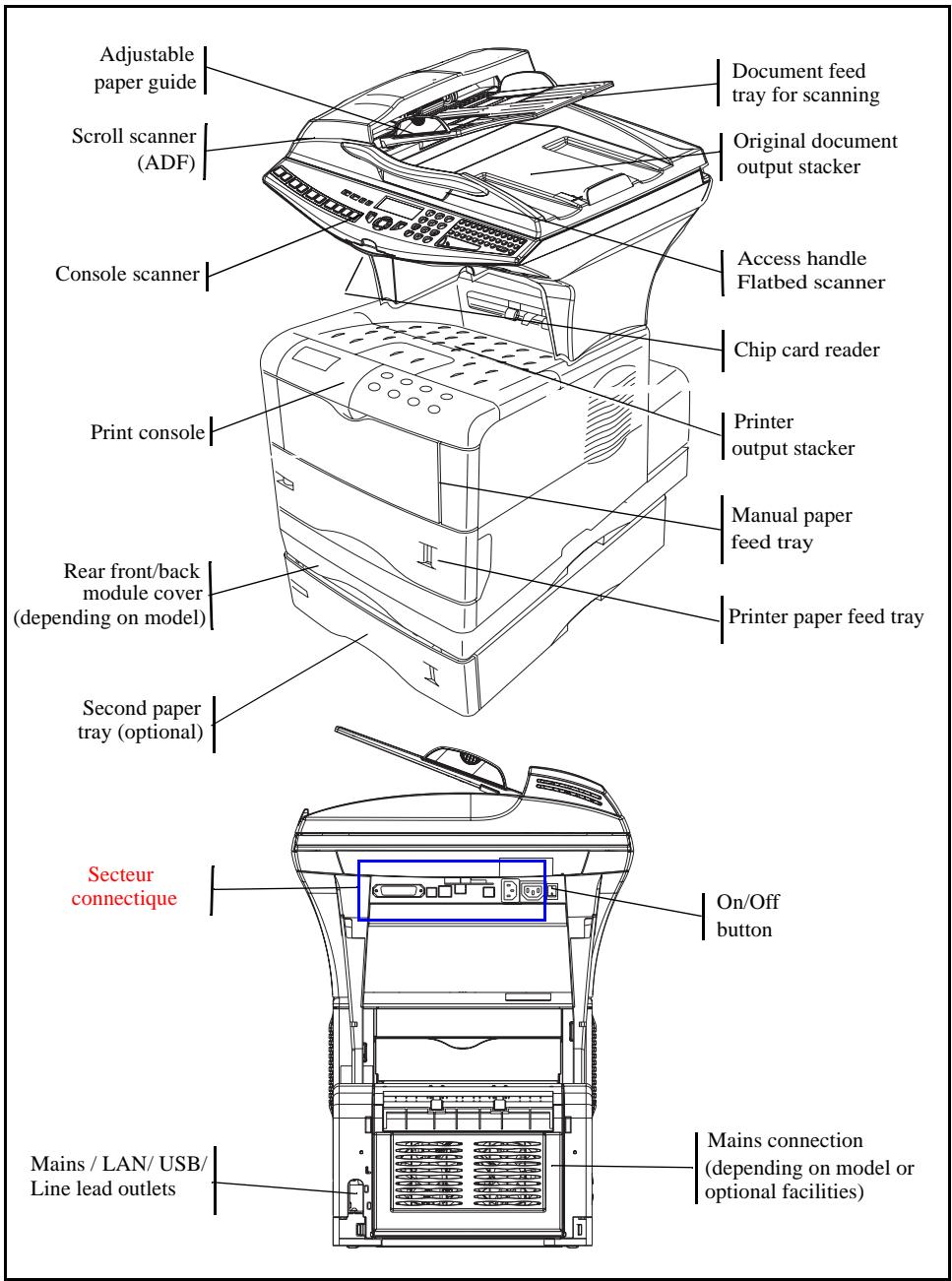
INSTALLING THE TERMINAL
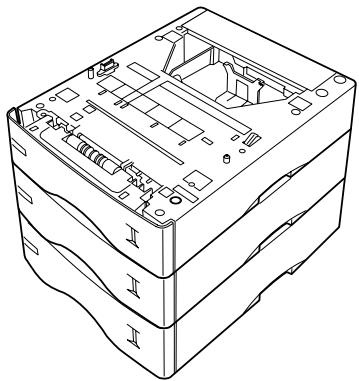
Installing the additional paper tray
You can install up to 3 additional paper trays.
Note: stacking paper feeders. (When installing multiple paper feeders).
Installing the front/back module on top of the additional trays (depending on model or option)
Install the front/back module on top of the additional tray (optional).
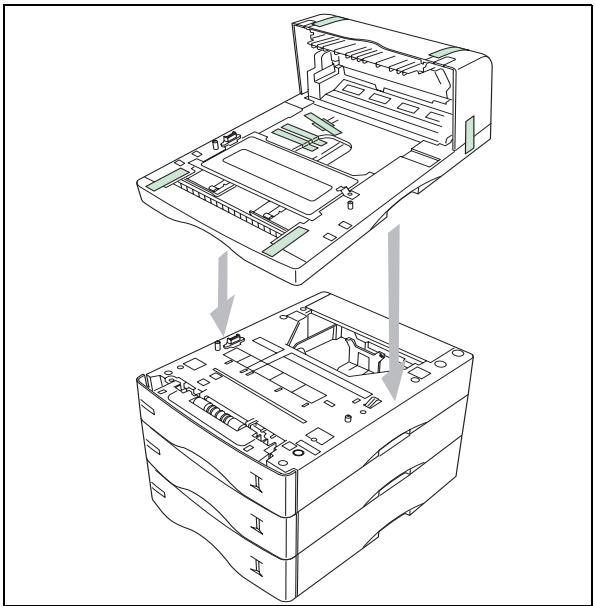
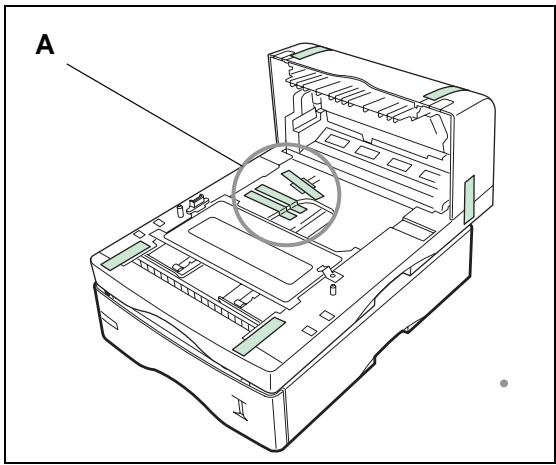
Remove the plug (A) and all the strips of fixing tape stuck onto the front/back module.
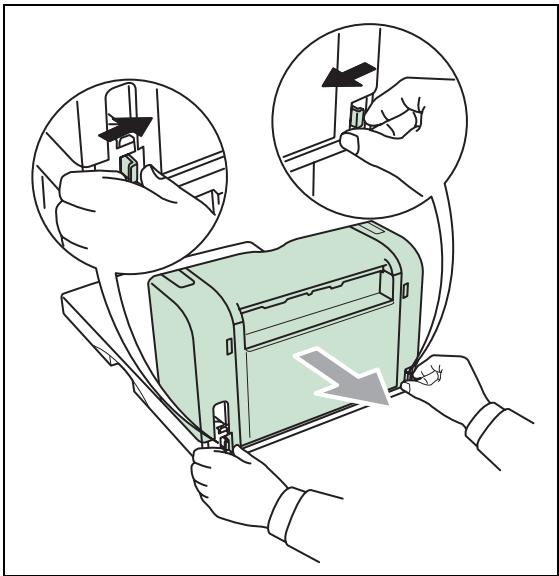
Remove the front/back module's rear cover by pressing it inwards (see illustration below).
Installing the printer on top of the front/back module
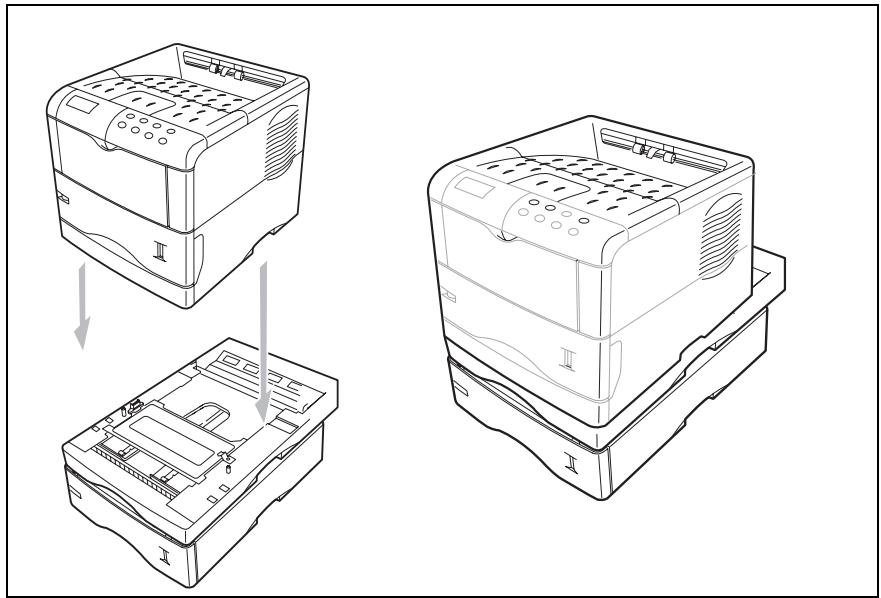
Place the printer on top of the front/back module and lay it down onto this module.
Installing the feet on the scanner/printer interface
Position the scanner/printer interface unit on top of the printer, around 3 centimetres back from the rear.
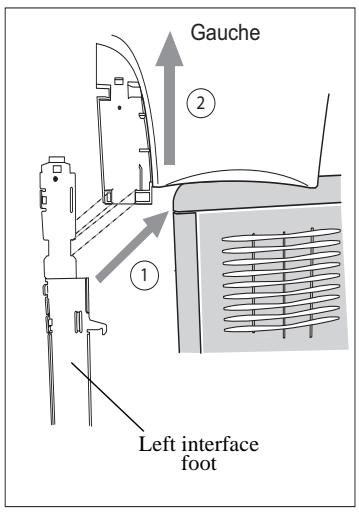
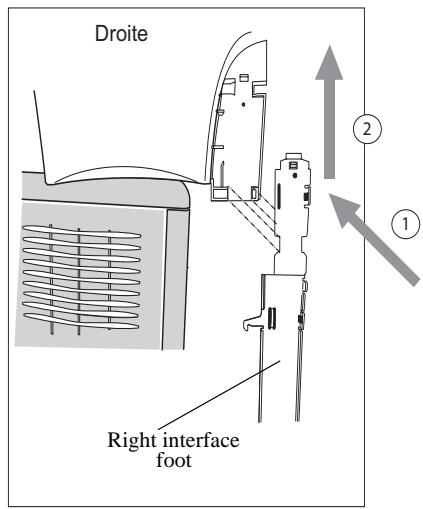
Insert the scanner/printer interface feet into the slots provided for this purpose, located on both sides at the rear of the scanner/printer interface, both of the feet have a fool-proofing device and can only be fitted in a single place.
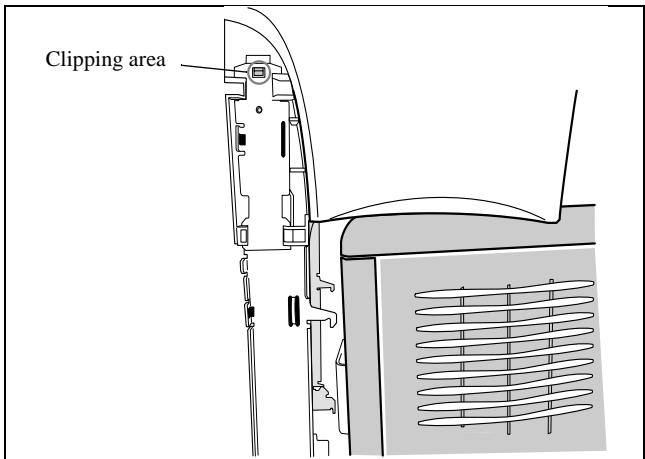
Once both of the feet have been positioned in their respective slots, press upwards until they clip and then lock into place (see illustration below).
Installing the scanner on top of the scanner/printer interface
Place the terminal's scanner on top of the scanner/printer interface and then lay it down.
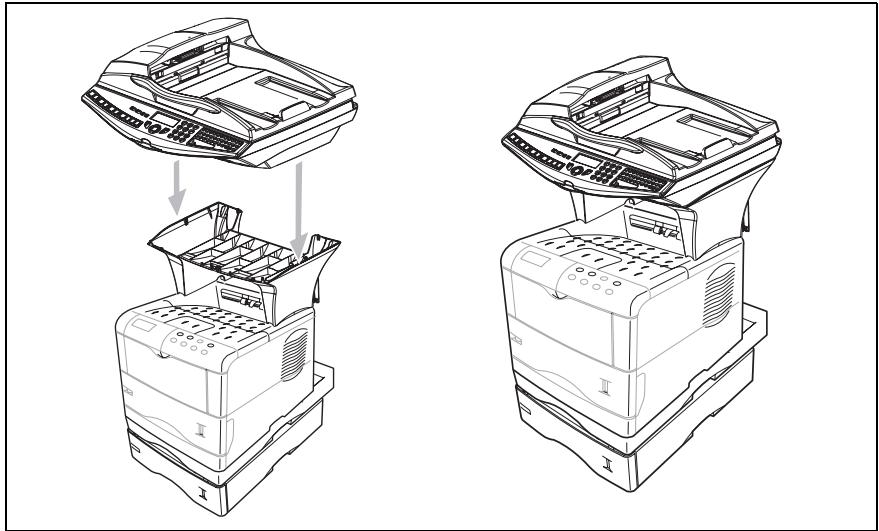
Fitting the scanner interface to the printer
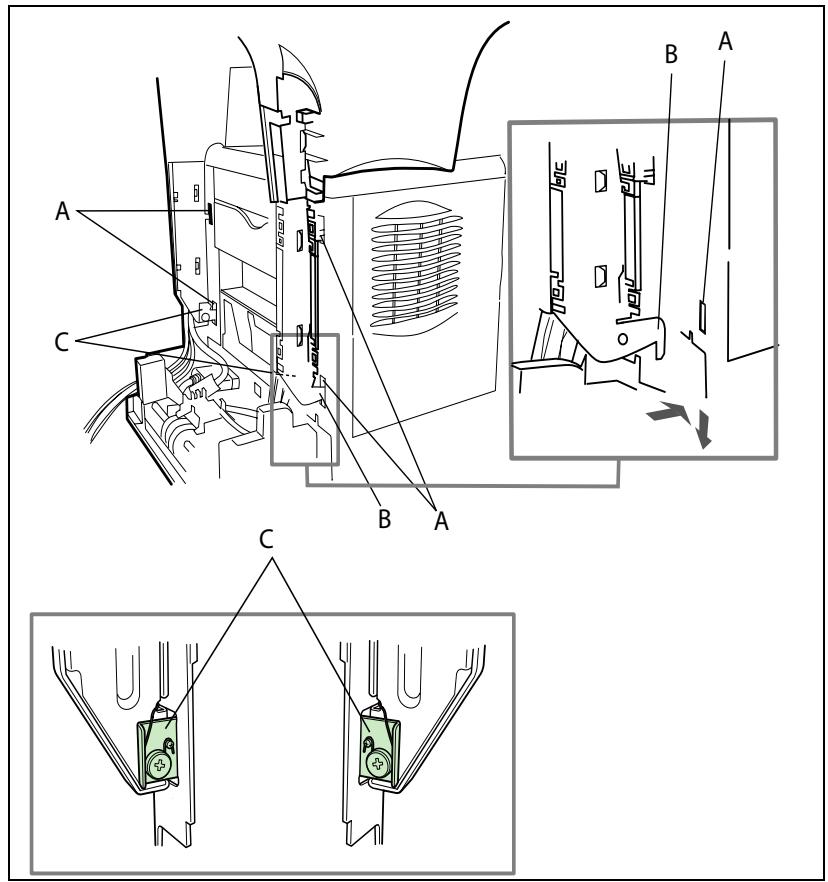
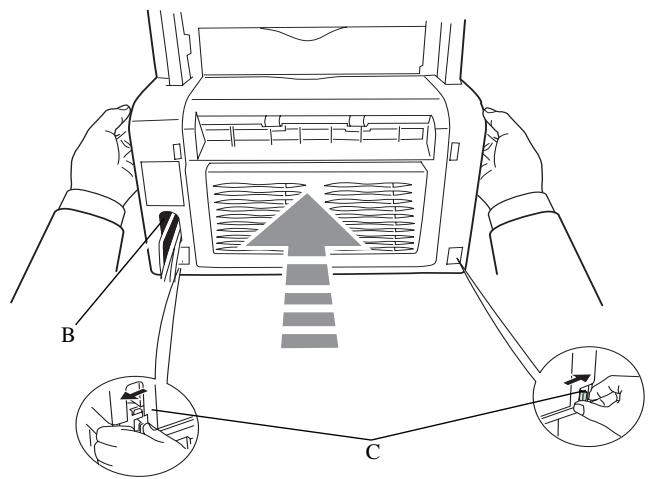
Lift up the scanner/printer interface unit and then position the 4 tabs (B) opposite the 4 slots (A) located on the left and right-hand side at the rear of the printer. Insert the 4 tabs into these slots then press downwards so that the unit is properly fixed onto the printer.
After fixing the unit onto the printer, make sure that the two blades on the positioning latches (C) are in a vertical position, if not turn them so that they are in the correct position.
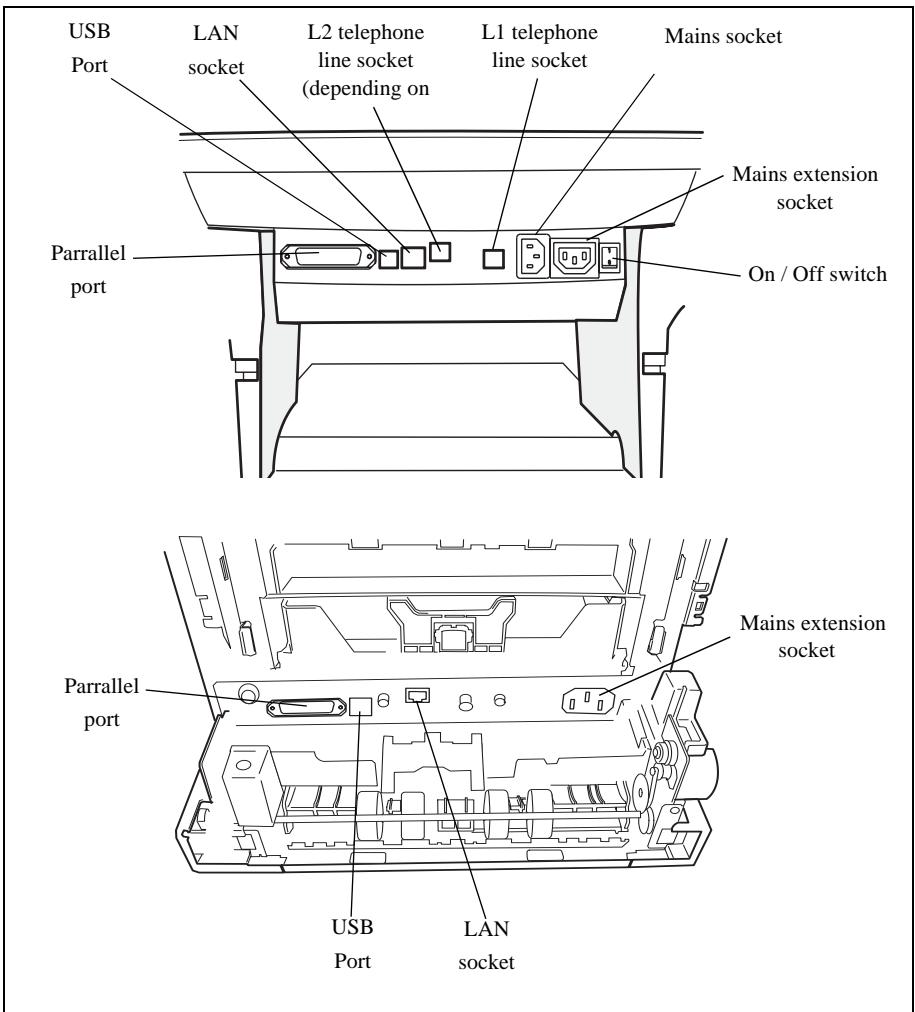
Terminal connections
If you stand at the rear of the unit you will be able to see all the available connections.
Connect your terminal's leads as shown below. Do not forget to lock the Centronics lead into place using the 2 metal clips.
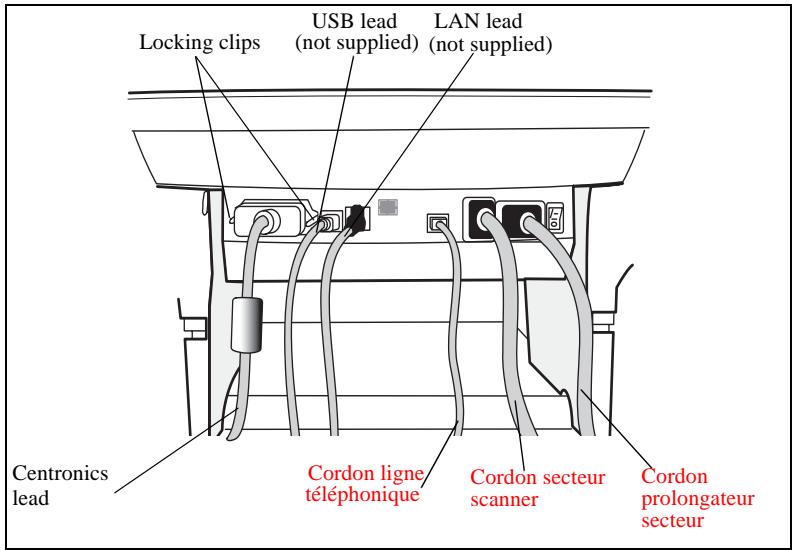
Connecting up the scanner/printer/front/back module
Once the various leads have been connected, position them by inserting them into the sockets provided for this purpose in the scanner/printer interface's two side feet as shown below.
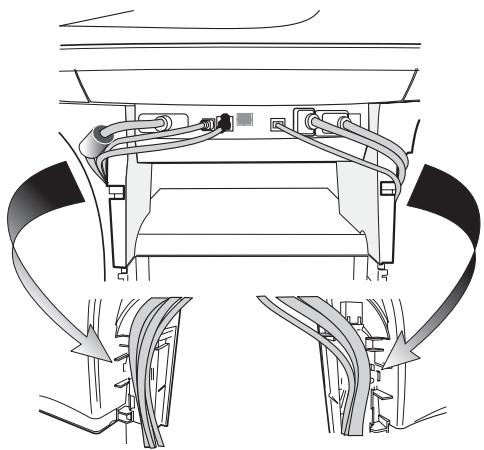
After carefully pushing the various leads into their respective sockets, clip the fasteners (A) onto the scanner/printer interface feet supplied with the scanner (6 fasteners), see illustrations below.
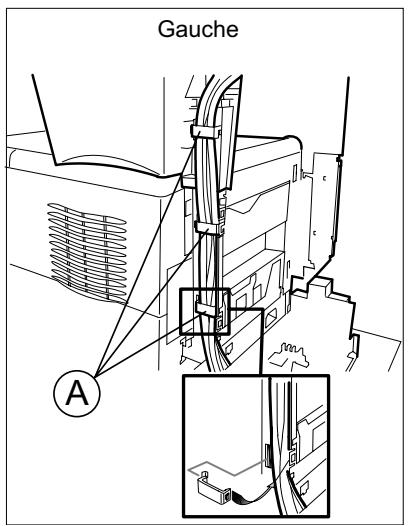
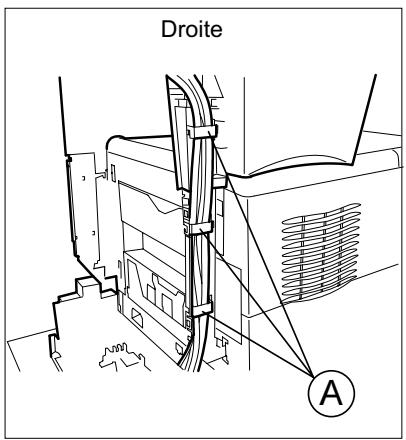
Installing the cable holders
Clip the 2 cable holders (see illustration below) onto the scanner/printer interface feet to hide the leads inside the feet.
Start by fitting the right-hand holder. Position the upper part of the holder (A) underneath the interface (B). Bring the lower part of the holder (C) against the foot making sure that the middle clip (D) is in the right position. Clip the whole unit together.
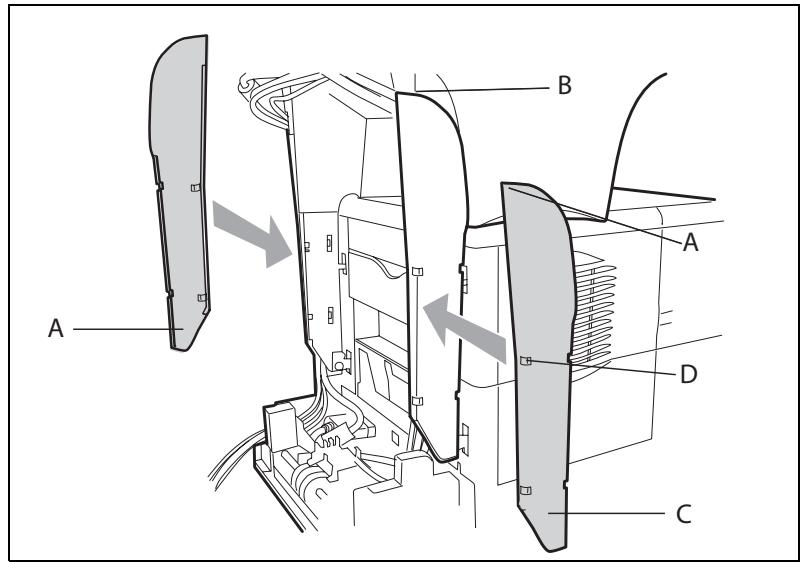
Then fit the left-hand holder in the same way.
Connecting the scanner's mains lead to the printer
Connect the end of the male/female mains lead (A) to the printer's male connector (E).
Pass the scanner's mains lead (B) and the telephone lead (F) from underneath the printer's mains lead (A) see illustrations below.
Make a loop with the mains lead (A) by inserting it into the grommet (D), see illustrations below.
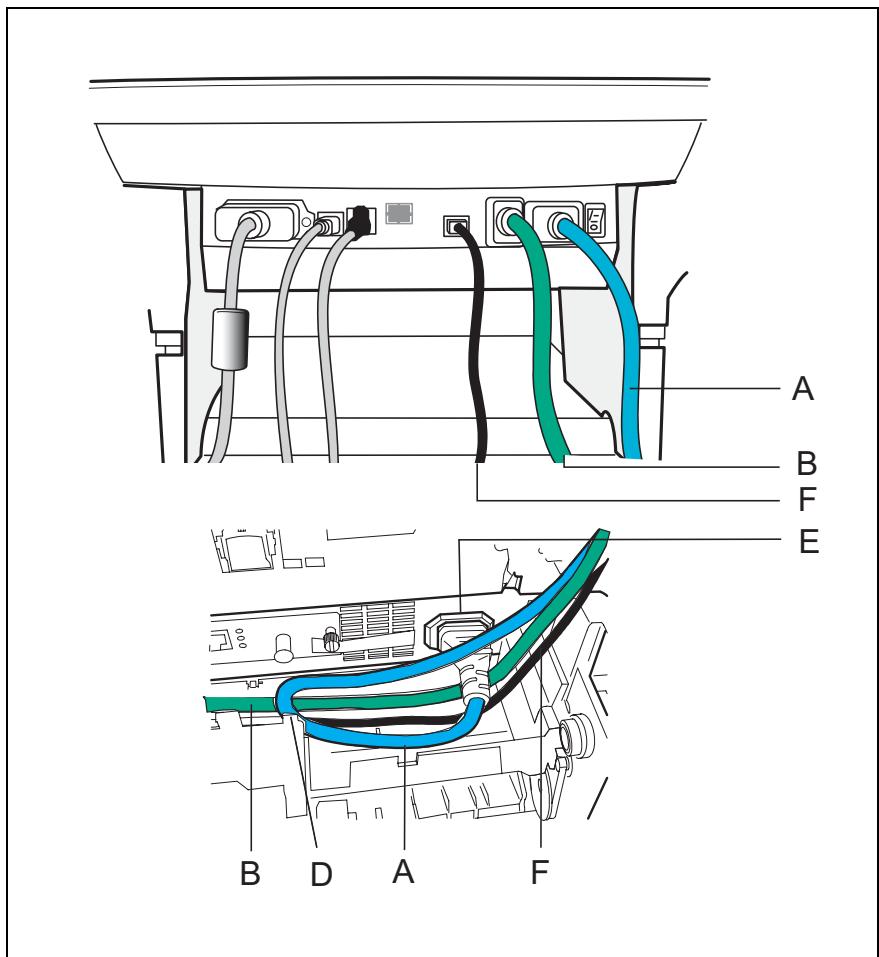
Connecting the printer's LAN and USB leads
Connect the printer's LAN lead (C) and USB lead (B) as shown in the illustration below.
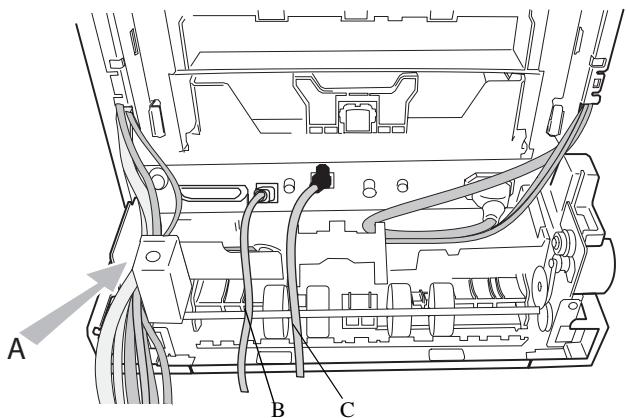
Connecting the scanner's parallel port to the printer
Connect the end of the lead (A) to the parallel port connector located on the left-hand side at the back of the printer and lock it into place with the 2 metal tabs.
Pass the USB, LAN and telephone leads underneath the parallel lead (A).
Position the lead (A) on the bottom of the front/back module by running it over the mains lead and the scanner line lead as shown in the illustrations below.
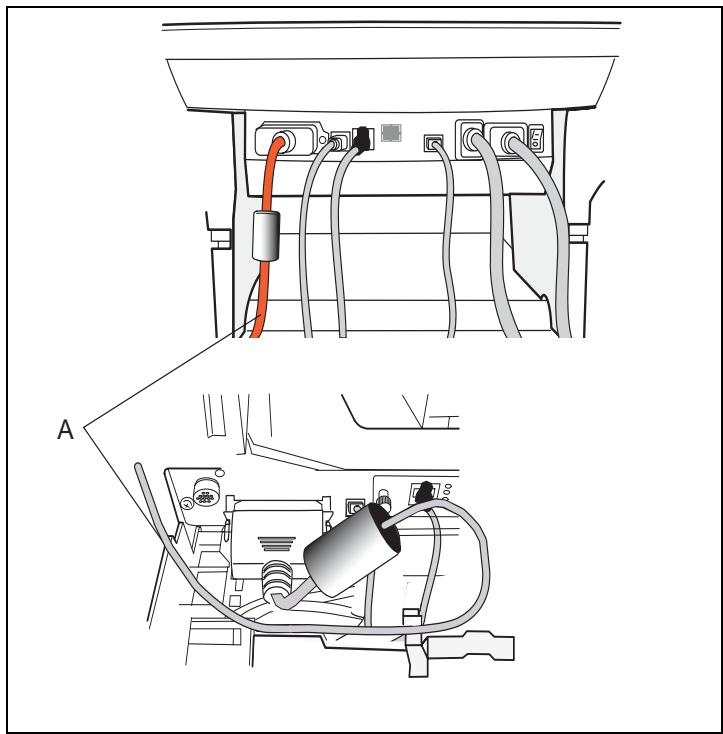
Taking the various leads out of the terminal
Once you have connected all of the terminal's leads, push them into the slot (A) provided for this purpose on the left of the front/back module, see illustration below..
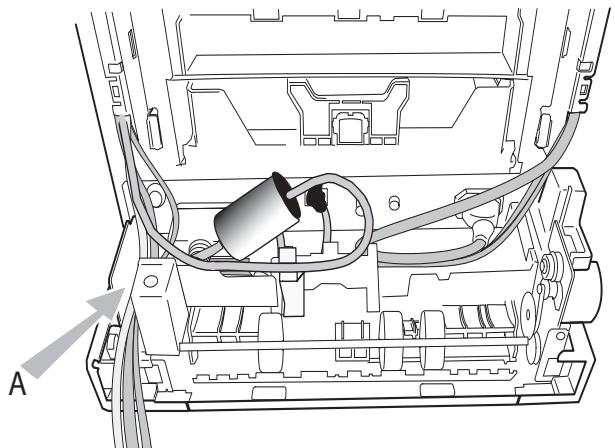
Fitting the front/back module cover
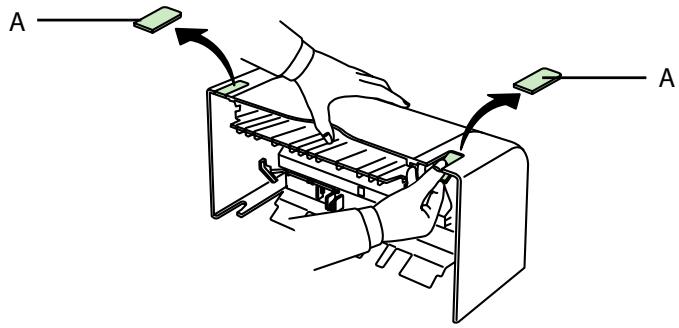
Remove the two flaps (A) from the rear front/back module cover.
Pass the leads (mains scanner, USB and LAN and line) through the hole (B) which is provided for this purpose, located on the left-hand side at the rear of the front/back module cover.
Fix the rear front/back module cover into place by clipping to its base. Make sure that the 2 clips (C) are properly locked into place.
INSTALLING THE REMOVABLE COMPONENTS
This section tells you how to install the terminal's removable components.
INSTALLING THE SCANNER DOCUMENT FEEDER
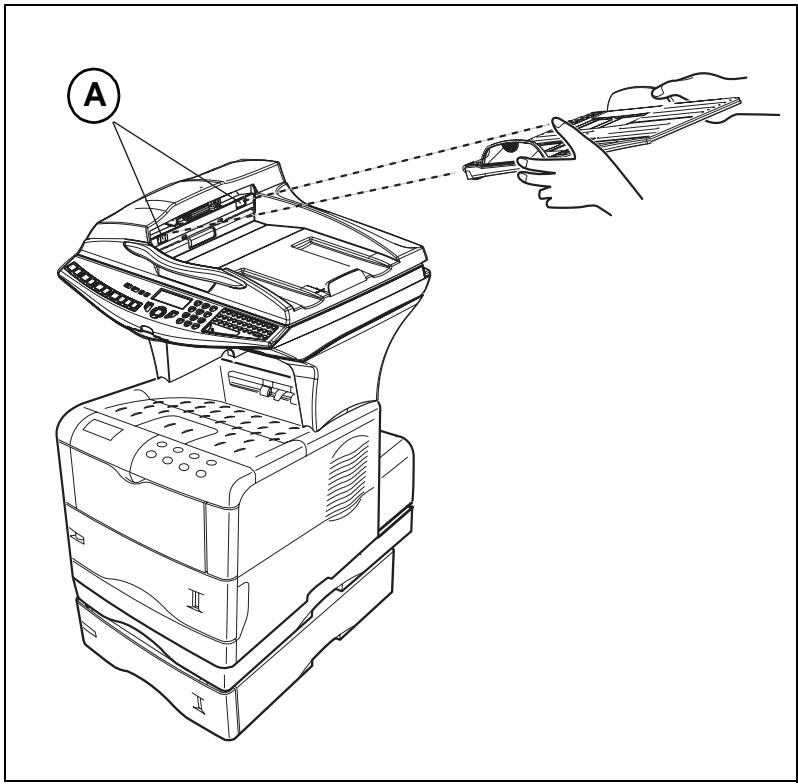
Fix the document feeder into place by clicking its two tabs into the appropriate holes (A) on the terminal.
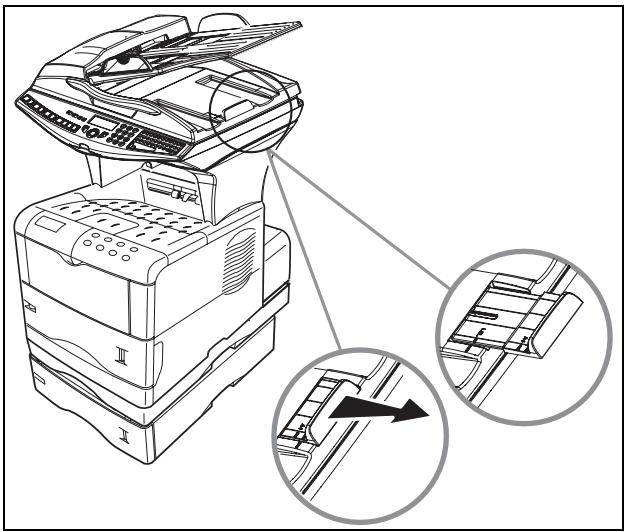
Depending on the format of the document to be scanned - A4 or LGAL (LEGAL) adjust the paper stop.
LOADING PAPER
Remove the printer paper tray.
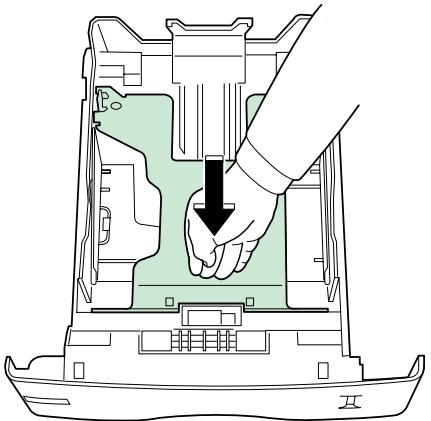
Push the lower tray downwards until it clicks into place.
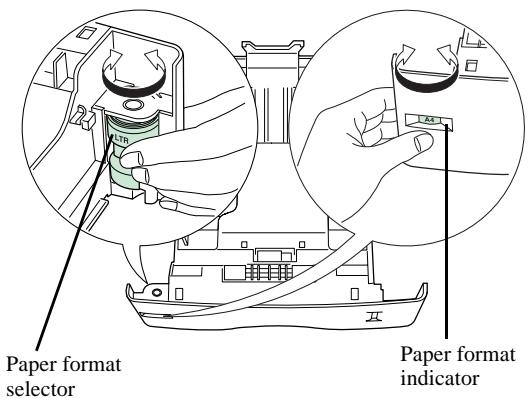
Turn the format dial so that the desired format appears in the paper format window.
Note:
If the paper format dial is set to OTHER you will need to adjust the paper format on the printer's control panel. See the user guide.
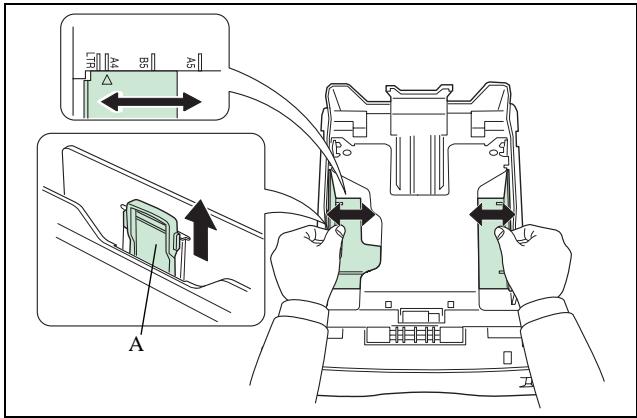
Adjust the paper guides to the paper format by lifting the lever (A) located on the left-hand guide.
Adjust the stop which is located at the rear of the tray by pulling the lever upwards.
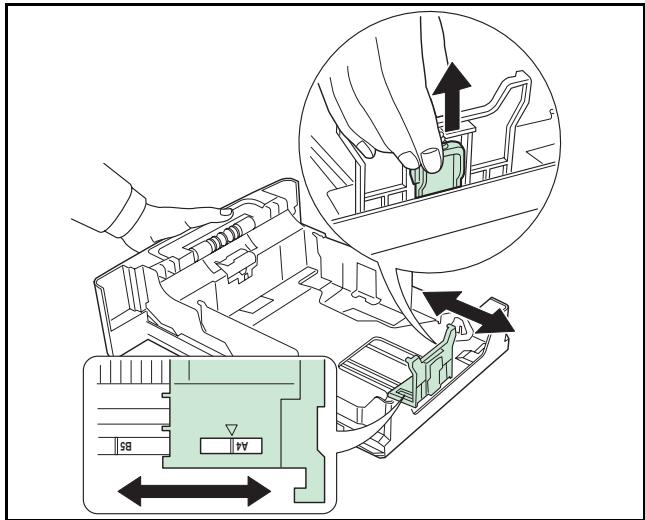
Place the paper into the tray. Be careful to slide the stack under the 2 hooks located at the bottom of the tray (A).
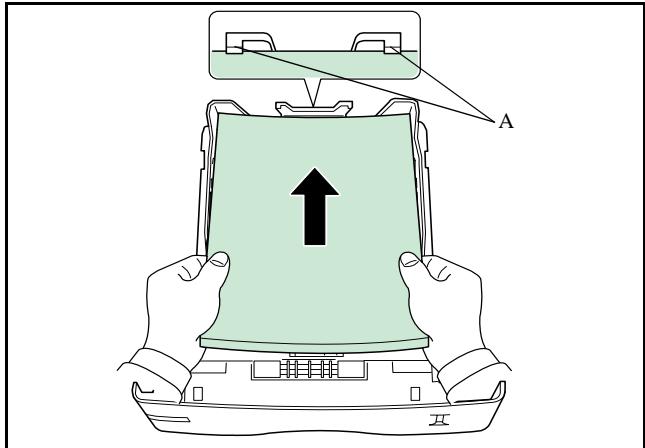
Caution - Never exceed the loading limits shown on the tray, the tray is designed to hold 500 sheets of 80g / m^2 paper.
Caution - Never add paper to the tray while the machine is printing.
Kinds of paper which the printer will take:
Printer paper tray
60 to 105g / m^2
Manual feeder
60 to 200g / m^2
Close the printer paper tray back up again.
LOADING THE MULTIPURPOSE TRAY
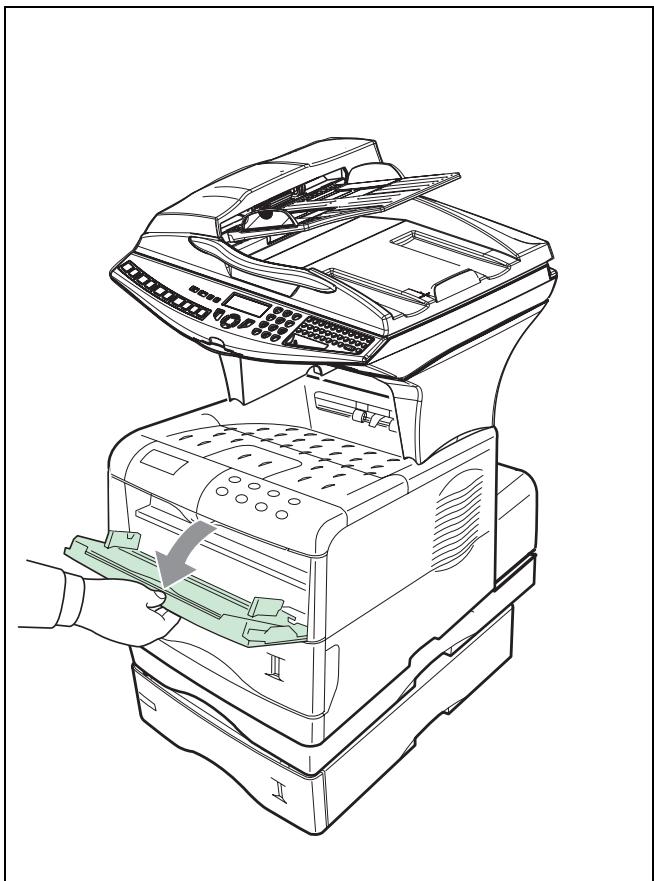
If you are printing onto special paper such as 60 to 200g / m^2 maximum colour paper or transparent film (laser printer-compatible), you should use the multipurpose tray which will hold up to 100 sheets of paper (A4).
Open the multipurpose tray cover.
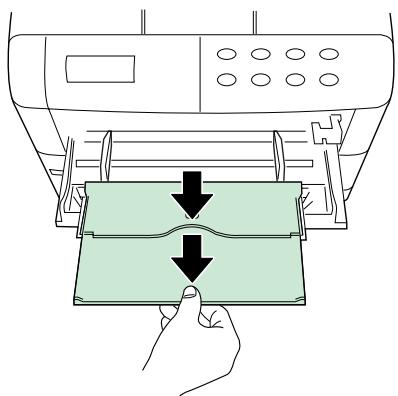
Put the paper support into place.
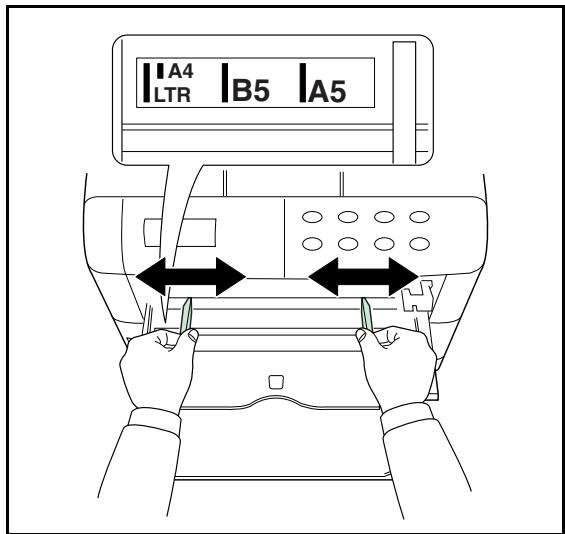
Adjust the width between the guides according to the type of paper you are using.
Put the paper in.
INSTALLATION DES CONSOMMABLES
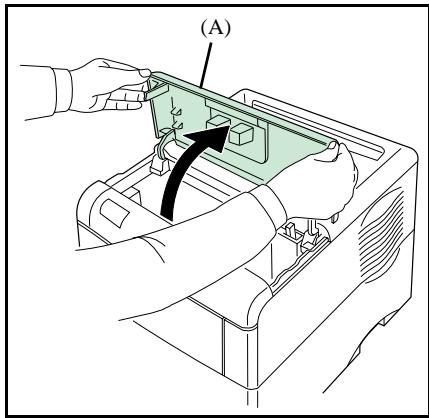
Open the printer top cover (A) all the way.
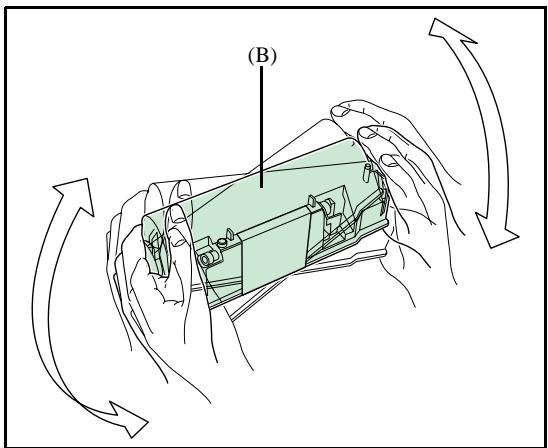
With the label side down, thoroughly shake the new toner container (D) (in the direction of the arrow) ten times or more to ensure that the toner is evenly distributed inside.
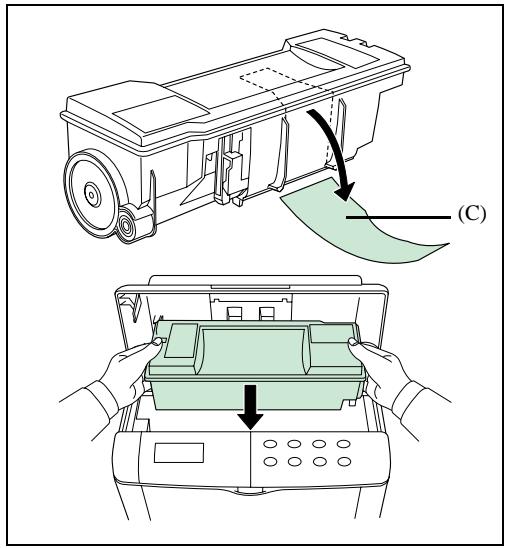
Carefully remove the protective seal [orange colored (E)] from the new toner container and then install the container into the printer.
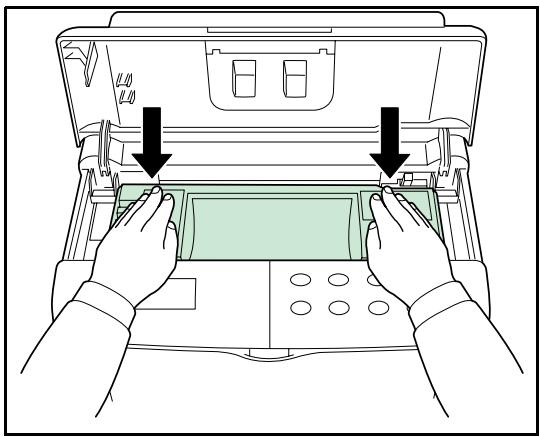
Push firmly on the top of the toner container at the positions marked PUSH HERE until you hear it click into place.
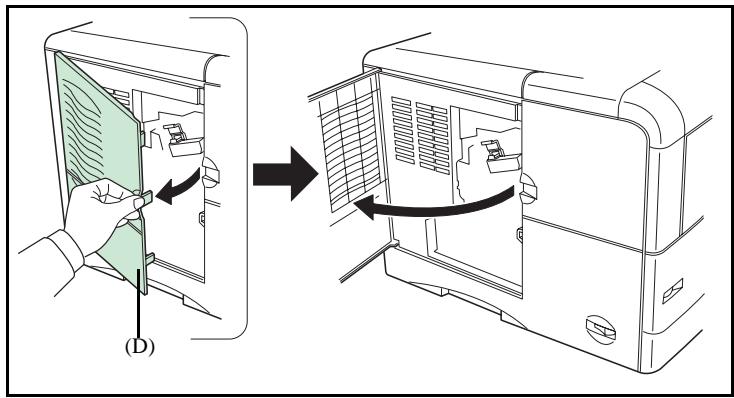
First open the left cover (D) on the left side of the printer.
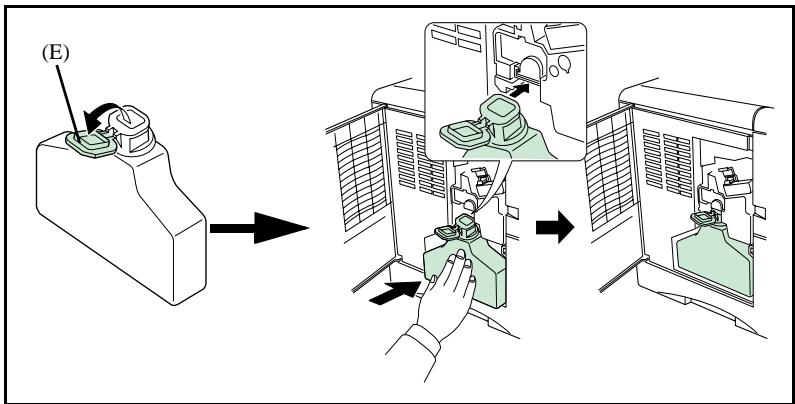
Open the cap of the new waste toner box (K). Insert the new waste toner box as shown in the figure. The box will be locked when it fits into place.
Close the left cover.
WALL CONNECTIONS
Caution - Make sure that the On/Off switch is in the 0 (Off) position.
TELEPHONE AND LAN CONNECTIONS
Connect the end of the telephone line lead to the telephone socket on the wall (see the paragraph on Terminal connections, on page 1-15, for instructions on how to connect the scanner).
Connect the end of the LAN lead (supplied by your network administrator) into your terminal's local network socket (please see the paragraph on Terminal connections, on page 1-15, for instructions on how to connect the scanner).
Note: depending on model, the printer and the scanner may have a LAN connection. If you only have one connection, you will need a hub or a switch.
POWER LINE CONNECTION AND SWITCH ON
Caution - Refer to safety procedures in the chapter on Safety.
Connect the end of the terminal's scanner mains lead to the mains socket on the wall (see the paragraph on Terminal connections, on page 1-15, for instructions on how to connect the scanner).
Set the printer's On/Off switch to the "I" (On) position then do the same with the scanner's switch.
After a few seconds, when the printer has warmed up, the date and time will appear. To adjust the language and time of your terminal, reportez-vous au paragraphe Setting your machine, page 3-1.
CONFIGURING THE PRINTER DRIVER
If you install the additional paper tray or the front/back module when the printer driver is already installed, you will need to configure the printer driver on your PC.
Click on the START button, select CONTROL PANEL and then click on PRINTERS.
Right click on the MFK28 icon then choose "Properties".
Click on the peripheral's PROPERTIES tab.
Check the boxes for the options you have installed.
2 GETTING STARTED
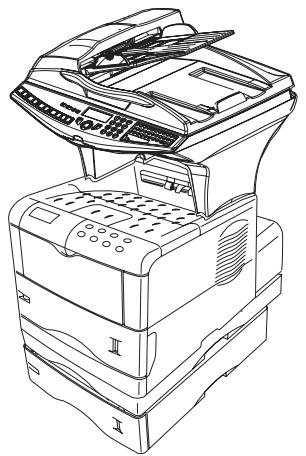
NAVIGATION METHODS
PRESENTATION
The navigator gives you access to the menus visible on screen.
The navigator
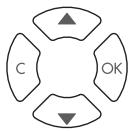
This navigator has 4 keys and allows you to move within the menus available on your machine.
Moving within the menus
| Enter the main menu. | Use key | Symbol used |
| Select the next line in a menu. | OK | OK |
| Select the previous line in a menu. | ▼ | |
| Confirm entry and go to the following menu. | ▲ | |
| Return to the previous menu. | c | C |
| Confirm and exit from the current menu. | ◇ | ◇ |
| Exit without confirming from the current menu. | ◇ |
Moving within a data entry field
| To | Use key | Symbol used |
| Move to the right. | ▼ | |
| Move to the left. | ▲ | |
| Confirm your entry. | OK | OK |
| Delete a character by moving the cursor to the left. | c | C |
| Confirm your entry and return to the initial screen. | ◇ | ◇ |
The display screen
The screen has two lines of 16 characters.
The cursor shows the line you selected.
1▶DIRECTORY
2 SETUP
For menus with more than two choices, use the arrows or of the navigator to obtain the next (hidden) lines of the menu (3,4, etc.).
ACCESS TO FUNCTIONS
Access to functions may be achieved in two ways.
- Menu-driven access.
- Direct function access.
Menu-driven access
You can print the guide to find out the number of a function by pressing 1 the key or by scrolling through the menus, as indicated below.
Press the key, the functions menu appear.
1▶ DIRECTION
2 SETUP
Use the or navigator arrows to move the cursor in front of the required function.
4 SMS SERVICE
5 PRINT
Validate your choice by pressing OK.
When in the selected menu, use the or navigator arrows to move the cursor in front of the required sub-function.
51▶ FUNCTIONS LIST
52 LOGS
Validate your choice by pressing OK.
Caution - The Duplex version cannot be used to print the guide. Therefore it can only be printed on one side.
Direct access by number
You may print the functions list (M 51 OK) to find out the number of a function.
From the stand-by mode:
Press the M key, enter the number of the required function and validate your choice by pressing OK.
GUIDE TO FUNCTION LIST
MAIN MENU 1:DIRECTORY
| Fonctions | Description de la fonction | Page | |
| 11 OK | - NEW CONTACT | Enter a new contact in the directory | p. 4-2 |
| 12 OK | - NEW LIST | Enter a relay broadcast list | p. 4-4 |
| 13 OK | - MODIFY | Modify a record or a list | p. 4-5 |
| 14 OK | - CANCEL | Delete a record or a list | p. 4-6 |
| 15 OK | Print the directory | p. 4-6 | |
| 16 OK | - SAVE/LOAD | Store the directory on a chip card | |
| 161 OK | SAVE | Save the directory to a chip card | |
| 162 OK | LOAD | Load the directory from a chip card | |
| 17 OK | - IMPORTATION | Enable directory importation by e-mailA | p. 4-8 |
| 18 OK | - EXPORTATION | Export the directory by e-mailA | p. 4-8 |
| 19 OK | - LDAP SERVER | Access to a directory server | p. 4-9 |
| 191 OK | ADRESSE IP | address or server name | p. 4-9 |
| 192 OK | IDENTIFIER | Connection identifier | p. 4-9 |
| 193 OK | password | Connection password | p. 4-9 |
| 194 OK | DN BASE | Search database | p. 4-9 |
| 195 OK | PORT | Connection port | p. 4-9 |
A.Inaccessible if Menu 91 SUPPLIER is on WITHOUT ACCESS
MAIN MENU 2:SETUP
| Functions | Function description | Page | |
| 21 OK - DATE/TIME | Enter the date and the time | p. 3-2 | |
| 22 OK - NUMBER / NAME | Enter your name and your number | p. 3-2 | |
| 23 OK - SEND | Transmission settings | ||
| 231 OK | SEND REPORT | Choose to print the communication report | p. 3-4 |
| 232 OK | MEMORY SEND. | Send from feeder or memory | p. 3-4 |
| 233 OK | ECO PER | Set the economy period | p. 3-4 |
| 24 OK - RECEPTION | Reception settings | ||
| 241 OK | REC. PAPER | Accept reception without paper | p. 3-6 |
| 242 OK | NBR OF COPIES | Number of copies of received documents | p. 3-6 |
| 243 OK | PC RECEPT. | Choice for PC reception | p. 3-7 |
| 244 OK | DUPLEX | Received fax printing in Recto /Verso mode | p. 3-7 |
| 245 OK | ADJUST PAGE | Adapt the print scaling | p. 3-7 |
| 25 OK - NETWORKS | Setting networks | ||
| 251 OK | TEL. NETWORK | Ajust tel. network settings | p. 3-2 |
| 2511 OK | NETWORK TYPE | Selection of network type | |
| 252 OK | PREFIX | Activate the dialling prefix | p. 3-3 |
| 2521 OK | SIZE NUMBER | Minimum size number to be send with prefix | p. 3-3 |
| 2522 OK | PREFIX SETTING | Setting dialling prefix | p. 3-3 |
| 253 OK | LOCAL NETWORK | LAN prameters settings (depending of model) | |
| 2531 OK | CONFIGURATION | Sélect configuration mode | p. 3-11 |
| 2532 OK | IP ADRESSE | Fax IP address | p. 3-12 |
| 2533 OK | SUBNET MASK. | Subnet mask | p. 3-12 |
| 2534 OK | GATEWAY | Gateway #1 address | p. 3-12 |
MAIN MENU 2:SETUP
| Functions | Function description | Page | |
| 2535 OK | IEEE ADRESSE | Fax IEEE address | p. 3-12 |
| 2536 OK | NETBIOS 1 | NetBIOS name 1 | p. 3-12 |
| 2537 OK | NETBIOS 2 | NetBIOS name 2 | p. 3-12 |
| 29 OK - TECHNICALS | Technicals parameters | p. 3-8 | |
| 20 OK - GEOGRAPHICAL | Geographical settings | p. 3-2 | |
| 201 OK | COUNTRY | Choice of country and language | p. 3-2 |
| 202 OK | NETWORK | Choice of country | p. 3-3 |
| 203 OK | LANGUAGE | Choice of language | p. 3-3 |
MAIN MENU 3: FAX
MAIN MENU 4: SMS SERVICE
| Functions | Function description | Page | |
| 31 OK - TRANSMISSION | Single- and multiple-address transmission | p. 5-5 | |
| 32 OK - ECO TRANS. | Send a document during the economy period | p. 3-4 | |
| 33 OK - POLLING RX | Polling request | p. 5-20 | |
| 34 OK - POLLING TX | Deposit a document | p. 5-20 | |
| 35 OK - MBX SENDING | Send to a mailbox | p. 5-26 | |
| 36 OK - MBX POLLING | Poll a mailbox | p. 5-26 | |
| 37 OK - BROADCAST | Broadcast transmission | p. 3-6 | |
| 38 OK - FAX ANSW. | Control of fax answering machine | p. 3-5 | |
| 39 OK - REROUTING | Rerouting of received messages | p. 5-6 | |
| 391 OK ACTIVATION | Rerouting activation | p. 5-6 | |
| 392 OK DESTINATION | Choice your destination | p. 5-7 | |
| 393 OK COPY | Printing activation of rerouting fax | p. 5-7 | |
| Functions | Function description | Page | |
| 41 OK | - SEND SMS | Send SMS | p. 3-20 |
| 42 OK | - READ SMS | Read SMS received | p. 3-21 |
| 43 OK | - DELETE SMS | Delete SMS received | p. 3-21 |
| 431 OK | SELECTION | Select SMS to delete | p. 3-21 |
| 432 OK | SMS READ | Delete all SMS read | p. 3-21 |
| 433 OK | ALL | Delete all the SMS read in memory | p. 3-21 |
| 44 OK | - PRINT SMS | Printing SMS received | p. 3-22 |
| 441 OK | SELECTION | Select SMS message to print | |
| 442 OK | NEW | Print new SMS messages | |
| 443 OK | ALL | Print all SMS messages received | |
| 45 OK | - PARAMETERS | SMS service / SMS parameters | p. 3-19 |
| 451 OK | AUTO PRINT | Automatically print SMS received | p. 3-19 |
| 452 OK | SMS BEEP | Beep on SMS reception mode | p. 3-20 |
| 453 OK | SENDER NAME | Choose to show/hide sender name | p. 3-20 |
| 454 OK | TERM. ADDR | Terminal address | p. 3-20 |
| 46 OK | - SERVER | SMS servers settings | p. 3-22 |
| 461 OK | SMS CENTRE 1 | Number of main SMS centre | p. 3-22 |
| 4611 OK | SEND NO | Transmission number | p. 3-22 |
| 4612 OK | RECEIVE NO | Reception number | p. 3-22 |
| 462 OK | SMS CENTRE 2 | Number of secondary SMS centre | p. 3-22 |
| 4621 OK | RECEIVE NO | Reception number | p. 3-22 |
MAIN MENU 5: PRINT
| Functions | Function description | Page |
| 51 OK - FUNCTIONS LIST | Function list printing | p. 5-18 |
| 52 OK - LOGS | Print TX and RX logs | p. 5-18 |
| 53 OK - DIRECTORY | Print the directory | p. 4-6 |
| 54 OK - SETUP | User parameters printing | p. 5-19 |
| 55 OK - COMMANDS | Commands list printing (see 65 OK) | |
| 56 OK - LISTE MBX | Mbx list printing (see 75 OK) | |
| 57 OK - PCL FONTS | Internal PCL fonts printing | p. 5-19 |
| 58 OK - SGSCRIPT FONTS | Internal SG Script fonts printing | p. 5-19 |
MAIN MENU 6: COMMANDS
| Functions | Function description | Page |
| 61 OK - PERFORM | Perform a command | p. 5-11 |
| 62 OK - MODIFY | Update of command | p. 5-12 |
| 63 OK - CANCEL | Delete a command | p. 5-12 |
| 64 OK - PRINT | Printing of a document in wait queue | p. 5-12 |
| 65 OK - PRINT LIST | Printing of the command list | p. 5-12 |
MAIN MENU 7: MAILBOXES
| Functions | Function description | Page |
| 71 OK - CREATE MBX | Creating and modification of a Mailbox | p. 5-24 |
| 72 OK - DEPOSIT MBX | Storing a document in a Mailbox | p. 5-25 |
| 73 OK - PRINT MBX | Print content of a Mailbox | p. 5-25 |
| 74 OK - DELETE MBX | Delete an empty Mailbox | p. 5-25 |
| 75 OK - PRT MBX LIST | Print list of Mailbox | p. 5-25 |
MAIN MENU 8: ADVANCED FCT
| Functions | Function description | Page | |
| 80 OK - CALIBRATION | Scanner calibration | p. 6-17 | |
| 81 OK - LOCK | Activate an access limitation lock | p. 5-21 | |
| 811 OK | LOCKING CODE | Locking code | p. 5-21 |
| 812 OK | LOCK KEYBD. | Activate keyboard lock | p. 5-21 |
| 813 OK | LOCK NUMBER | Activate dialling lock | p. 5-22 |
| 814 OK | LOCK PARAMETERS | Activate Internet settings lock | p. 5-22 |
| 815 OK | LOCK SMS | Activate SMS lock | p. 5-22 |
| 82 OK - COUNTERS | See the activity counters | p. 5-19 | |
| 821 OK | SENT PAGES | Printed pages counter | p. 5-19 |
| 822 OK | RECEIVED PG | Local copies counter | p. 5-19 |
| 823 OK | SCANNED PAGE | Sent pages counter | p. 5-19 |
| 824 OK | DUPLEX SCAN | Received pages counter | p. 5-19 |
| 825 OK | PRINTED PG | Printed pages counter | p. 5-19 |
| 826 OK | PRINTED SHT | Printed sheets counter | p. 5-19 |
| 84 OK - COPY | CIS scanner settings | p. 5-15 | |
| 841 OK | RESOLUTION | Resolution type choice | p. 5-16 |
MAIN MENU 8: ADVANCED FCT
| Functions | Function description | Page | |
| 842 OK | ZOOMING | Zoom setting | p. 5-16 |
| 843 OK | ASSEMBLED | Assembled or not copy choice | p. 5-16 |
| 844 OK | ORIGIN | Origin setting | p. 5-16 |
| 845 OK | CONTRAST | Contrast setting | p. 5-16 |
| 846 OK | LUMINOSITY | Luminosity setting | p. 5-17 |
| 847 OK | BINDING | Binding type choice | p. 5-17 |
| 85 OK | - SCAN. & PRINT | Réglages imprimante | p. 5-17 |
| 851 OK | PAPER | Type of paper choice | p. 5-17 |
| 852 OK | PAPER TRAY | Paper tray choice | p. 5-17 |
| 853 OK | PAPER SAVE | Paper save activation mode | p. 5-17 |
| 854 OK | S.F MARGINS | Set margins | p. 5-17 |
| 855 OK | FLATBED MARG | Sheet-feed scanner margins setting | p. 5-17 |
| 856 OK | PRINTER MARG | Printer margins setting | p. 5-18 |
| 86 OK | - CONSUMABLES | Consumables status | p. 6-1 |
MAIN MENU 9:INTERNET
| Functions | Function description | Page | |
| 91 OK | - SUPPLIER | Choix du fournisseur d'accès | p. 3-13 |
| 92 OK | - INIT. PROVIDER | Initialisationof your ProviderA | p. 3-13 |
| 921 OK | CONNECTION | ISP parameters | p. 3-13 |
| 9211 OK | CALL NUMB. | ISP call numberl | |
| 9212 OK | IDENTIFIER | ISP identifier | |
| 9213 OK | PASSWORD | ISP password | |
| 922 OK | MESS. SERV | Message service parameters | p. 3-13 |
| 9221 OK | IDENTIFIER | Message service identifier | p. 3-13 |
| 9222 OK | PASSWORD | Message service password | p. 3-13 |
| 9233 OK | E-MAIL ADR | Message service e-mail address | p. 3-13 |
| 923 OK | SERVERS | SMTP, POP3 and DNS parameters | p. 3-13 |
| 9231 OK | SMTP | SMTP server | |
| 9232 OK | POP3 | POP3 server | |
| 9233 OK | DNS 1 | Primary DNS | |
| 9234 OK | DNS 2 | Primary DNS | |
| 924 OK | SMTPAUTHENTIC. | SMTP authentication access parameters | p. 3-14 |
| 9241 OK | ACTIVATION | SMTP authentication activation | |
| 93 OK | - IMMED ACCES | Immediat access to ISPA | p. 3-18 |
| 94 OK | - SETTINGS | Internet settingsA | |
| 941 OK | CONNEC. TYPE | Select connection type | p. 3-16 |
| 942 OK | SEND TYPE | Select transmission type | p. 3-16 |
| 943 OK | PERIOD | Select the period of connection | p. 3-16 |
| 944 OK | DEPOSIT NOTI | Select to print a deposit notice | p. 3-16 |
| 945 OK | E-MAIL ADDR | Choose the address to which an e-mail will be sent | p. 3-17 |
| 946 OK | Print Internet settings | p. 3-17 | |
| 95 OK | Send an E-MailA | p. 5-8 | |
| 96 OK | - TRI MAILS | Select the reception typeA | p. 3-17 |
A.These menus will appear only with valid ISPN setting
PRINT CONSOLE NAVIGATION BASICS
NAVIGATING THE MENUS
Control panel keys
The keys on the console are used to configure the printer. Some keys also have secondary functions.


Note: Any settings made using these keys affect only the current interface.
| Key | Function |
| GO | • Connects and disconnects the printer. • Prints and then ejects a page. • Cancel specific errors. |
| CANCEL | • Cancels a print job. • Reinitialises the numerical values or cancels a configuration procedure. • Stops the alarm sound triggered by an error. |
| MENU | • If you press this key during mode selection: the configuration ends and the printer returns to Ready. • Selects the emulation, font and character encoding, in order to read a CompactFlash card, etc. |
| Used to access a section or to enter numerical values. The > and < keys are used to access or exit a subsection in some of the control procedures. | |
| Used to access a section or to enter numerical values. The > and < keys are used to access or exit a subsection in some of the control procedures. | |
| Used in the same way as the < key in the mode selection function. | |
| • Used in the same way as the > key in the mode selection function. • Displays on-line help messages on the screen when there is a paper jam: If you press this key when the printer is Ready : it displays explanations about the on-line help messages. If you press this key when the on-line help is displayed: the on-line help is cancelled. | |
| Confirms the numerical values and other selections. |
ACCESS TO FUNCTIONS
This section explains how to use the menu selection system. The MENU key on the operator console allows you to use the menu to configure or adapt the printer environment, making settings such as the number of copies to be made, the emulation, etc. depending on your own specific needs. You can make these settings when the printer screen shows Ready.
Note: The printer applies the most recent settings sent from the application software or from the printer driver, and these always take priority over any settings made from the operator console.
To navigate vertically within the functions, use the and keys (access the menu shown by repeatedly pressing one of the keys).
To navigate horizontally within the functions, use the > and < keys. To change or confirm the configuration of a component, press the ENTER key.
Printing out the menu guide
The list of menus may vary according to which options you have installed.
You can print out the print menu guide by moving within the menus as shown below.
MENUSTRUMENTURE
Press ENTER, a blinking "?" appears.
Press ENTER again to start printing.
GUIDE TO FUNCTIONS
| Functions | Description of the function | Page |
| - PRINT MENU STRUCTURE | Print out the menu guide | p. 2-10 |
| - PRINT CONFIG. PAGE | Print out the printer configuration | p. 6-4 |
| - INTERFACE | p. 6-17 | |
| PARALLEL | Parallel interface configuration | |
| USB | USB interface configuration | p. 6-17 |
| OPTIONAL | Network interface configuration | p. 6-17 |
| NETWARE | Turn this menu on if you are using the Netware protocol | |
| TCP/IP | Turn this menu on if you are using the TCP/IP protocol | |
| ETHERTALK | Turn this menu on if you are networking with a Macintosh | |
| PAGE STATUS OPT | When this menu is turned on, the network configuration page is printed out at the same time as the printer status page. | |
| - EMULATION | Select emulation type | p. 6-12 |
| - FONT | p. 6-13 | |
| SELECT FONT | Select font | |
| COUNTRY | Select character encoding | |
| FONT Lists | List of available fonts | |
| - PAGE CONFIG | ||
| COPIES | Set the number of copies to be made | p. 6-15 |
| ORIENTATION | Choose the paper orientation | p. 6-15 |
| LINE BREAK | Action following a line break | p. 6-18 |
| CARRIAGE RETURN | Action following a carriage return | p. 6-18 |
| 80 CHARAC. MODE | Optimise the number of characters per line | p. 6-19 |
| - PRINT QUALITY | Sets the print quality | |
| KIR MODE | Image antialIASing mode | p. 6-15 |
| DRAFT MODE | Draft mode | p. 6-16 |
| RESOLUTION | Choose resolution type | p. 6-17 |
| PRINT DENSITY | Choose print density | p. 6-19 |
| - PPTIONAL ROM | ||
| - RAM DISK MODE | ||
| - MEMORY CARD | ||
| - PAPER MANAGEMENT | ||
| MULTI TRAY MODE | Multipurpose tray operating mode | p. 6-10 |
| MULTI TRAY FORMAT | Choose the paper format in the multipurpose tray | p. 6-7 |
| MULTI TRAY MODE | Choose the paper type in the multipurpose tray | p. 6-8 |
| TRAY 1 TYPE | Choose the paper type in tray 1 | p. 6-8 |
| TRAY 2 TYPE | Choose the paper type in tray 2 (depending on option) | p. 6-8 |
| PAPER SOURCE | Choose the source tray | p. 6-11 |
| DUPLEX MODE | Switch front/back mode on | |
| STACKER | ||
| A4/LT PRIORITY | Force the printing of letter documents in A4 format | p. 6-11 |
| PAPER SETTING | ||
| POIDS PAPIER | Choose the paper weight | p. 6-10 |
| Functions CHEMIN DUPLEX ANNULATION RÉG | Description of the function | Page |
| - COMPTEURS DE PAGES | Number of pages printed counter | p. 6-19 |
| - AUTRES LANGUE | Choose the language in which messages will be displayed | p. 6-19 |
| SAUT DE PAGE | Set the time before printing out an incomplete page. | p. 6-19 |
| MISE EN VEILLE | Set the time before entering standby mode | p. 6-20 |
| MODE VEILLE | Switch the standby mode on | p. 6-20 |
| IMPRESSION INITIALISER | Reinitialise the settings to their default values | p. 6-20 |
| RESSOURCE PROT. | Save downloaded PCL6 parameters | p. 6-20 |
| SONNERIE | Turn the error alarm on or off | p. 6-20 |
| MODE AUTO | Continue printing after error | p. 6-21 |
| AUTO CONTIN. COMPTEUR | Waiting time before continuing | p. 6-21 |
| FIN ERREUR | Manage front/back errors | p. 6-21 |
| RECTO VERSO | ||
| SERVICE IMPRESSION DéVELOPPEUR | Print out the status page or log | p. 6-21 |
| DRUM-CTRL | ||
| TAMBOUR |
3 SETTING YOUR MACHINE
MAIN SETTINGS
At machine powerup, the screen displays:
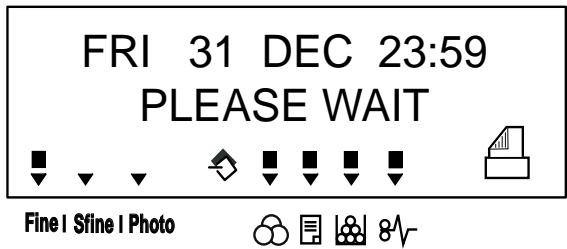
You have to set the date and time, telephone network, language parameter and verify the other parameters listed below.
BEFORE TRANSMISSION
Date/Time
At any moment you may change the date and time on your fax machine.
To change the date and time:
21 OK - SETUP / DATE/TIME
Enter the numbers of the required time and date one after another,
(for example November 8 2004 at 9h33, press 0 8 1 1 0 4 0 9 3 3) and press OK to confirm.
Your fax number/your name
Your fax will print out your fax number on each document it transmits if you save this number and if the machine is set to SENDINGHEADER (reportez-vous au paragraphe Technical parameters, page 3-8).
To save your fax number and your name:
22 OK - SETUP / NUMBER / NAME
^ Enter your fax number (20 digits max.) and press OK to confirm.
Enter your name (20 characters max) then press OK to confirm.
Type of network
You may connect your fax to either a PSTN or private network such as private automatic branch exchange (PABX). You must select the network which is the most convenient.
To select the type of network:
251 OK - SETUP / NETWORKS / TEL. NETWORK
Select option PABX or PSTN then confirm your choice with OK.
Geographical settings
These settings will enable you to use your machine in different preset countries using different languages.
Country
By choosing a country, you initialise:
- the settings for the public telephone network,
the language by default.
To select the country:
201 OK - SETUP / GEOGRAPHICAL / COUNTRY
Select the required option and press the OK key to confirm.
Network
This setting enables you to individually set the type of public telephone network so that your machine can communicate over the public network of the country you have chosen in compliance with the applicable standards.
Remark
: these settings are different from the NETWORK TYPE (p. 2-5), which allows you to choose between public and private network.
To select the network:
202 OK - SETUP / GEOGRAPHICAL / NETWORK
Select the required option and press the OK key to confirm.
Language
This setting enables you to choose a language other than that imposed by the COUNTRY setting.
To select the language:
203 OK - SETUP / GEOGRAPHICAL / LANGUAGE
Select the required option and press the OK key to confirm.
Local prefix
This function is used when your fax is installed with a private network, behind a company's PABX. It allows you to program an additional automatic local prefix (to be defined), enabling you to automatically exit the company's telephone network system, but only under certain conditions:
- the company's internal numbers, where a prefix is not required, must be short numbers less than the minimal size (to be defined, for example France has 10 digits),
- the outside numbers requiring a prefix, must be long numbers greater or equal to the minimal size (to be defined, for example France has 10 digits).
Programming your fax with the local prefix consists of two steps:
- defining the minimal size (or equal) of the company's outside numbers,
- defining the outgoing local prefix of the company's telephone network. This prefix will automatically be added as soon as an external number is dialled.
Caution - If you define a local prefix, do not add it to the numbers stored in the directory, it will be automatically dialled with each number.
Defining the minimal size and the local prefix
252 OK - SETUP / NETWORKS / PREFIX
You can change the default value for the minimal size of the company's outside numbers and validate with OK. The minimal size will range between 1 and 30.
Enter the outgoing local prefix of the company's telephone network (maximum 5 characters) and validate with OK.
Transmission report
You may print a transmission report for all communications over the telephone network (STN).
You may choose between more than one criteria for printing reports:
- WITH: a report is given when the transmission was properly performed or when it is completely abandoned (but there is only one report per request),
- WITHOUT: no transmission report, however, your fax will note all transmissions that took place in its log (reportez-vous au paragraphe Logs, page 5-18),
- ALWAYS: a report is printed with each transmission,
- ON ERROR: a report is printed only if the transmission failed or is abandoned.
With each transmission report from memory, a reduced version of the first page is automatically reproduced.
To select the report type:
231 OK - SETUP / SEND / SEND REPORT
Select the required option WITH, WITHOUT, ALWAYS or ON ERROR and confirm your choice with OK.
Document feed type
You may choose the way you want to feed your documents:
- from memory, transmission will take place only after memory storage of the document and dialling. It allows you to get your originals back quickly to free up the machine.
- from the feeder of the sheet-feed scanner (reportez-vous au paragraphe Document depositing, page 5-1), transmission will occur after dialling. It allows transmission of larger documents.
To select the way you want to feed your documents:
232 OK-SETUP/SEND/MEMORYSEND.
Select the option MEMORY or FEEDER and validate your choice with OK.
Remark : in feeder mode, the reduced image will not appear on the transmission report.
Economy period
This function allows you to defer a fax transmission to "off-peak hours" and thus reduce the cost of your communications. The economy period, via the telephone network (at off-peak hours), is preset by default from 7.00 pm to 7.30 am. Nevertheless you may change this time slot.
Modifying the economy period:
233 OK - SETUP / SEND / ECO PER.
Enter the hours of the new economy period and confirm your selection with the key OK.
Using the economy period:
32 OK - FAX / ECO TRANS.
Enter the call number and confirm with OK.
BEFORE RECEPTION
Fax answering machine
The Fax answering machine allows you to keep confidential documents in storage and to avoid printing them as you receive them.
The "Fax Messages" indicator light lets you know the state of your Fax answering machine:
- Light on: the answering machine is on.
- Blinking: your fax has documents in storage or is in the process of receiving faxes.
- Light off: memory full, the terminal cannot receive any more documents.
You can assure document confidentiality by using the 4 digit access code. Once saved, you will require this access code for:
- printing fax messages in memory,
- activate or deactivate the fax answering machine.
Saving an access code
383 OK - FAX / FAX ANSW. / ANSWER CODE
Enter the code (4 digits) and confirm with OK.
Activating or deactivating the answering machine
382 OK - FAX / FAX ANSW. / ACTIVATION
If you saved an access code for your fax answering machine, enter it and validate with OK.
Select the required option WITH or WITHOUT answering machine and confirm you choice with OK.
Print fax messages stored in the memory
381 OK - FAX / FAX ANSW. / PRINT
If you have defined an access code for your fax answering machine, enter it and press OK. Documents received and stored in the memory are printed.
Reception without paper
Your fax offers you the possibility to either accept or refuse document reception if your printer is unavailable (no paper...).
If your fax printer is unavailable, you may choose between two modes of reception:
- reception mode WITHOUT PAPER, your fax saves the incoming messages in the memory,
- reception mode WITH PAPER, your fax refuses all incoming subscribers.
To select the reception mode:
241 OK - SETUP / RECEPTION / REC. PAPER
Select the option WITH PAPER or WITHOUT PAPER and confirm your choice with OK.
Remark
: Paper out is indicated by a beep and a message on the screen.
Received faxes are then stored in memory (icon "Fax messages" flashing) to be printed as soon as you add paper into the feeder.
Number of copies
You may print incoming documents more than once (1 to 99).
To set the number of each document received:
242 OK - SETUP / RECEPTION / NBR OF COPIES
Enter the wanted number of copies and confirm with OK.
At each document reception, your fax will print the number of copies requested.
Relay broadcast
Your fax machine (initiator) can relay a document, in other words, transmit a document to your subscribers via a remote fax and with a precise relay list.
To do this the initiator fax and the remote fax must both have the relay function.
To relay you need to supply the remote fax with the document and the relay list number. The remote fax will then transmit this document to all subscribers on the list.
Once the relay is activated by your fax and as soon as the document is received by the remote fax, the document is printed before relaying to all subscribers on the list.
To activate relay from your fax machine:
Insert the document to relay (reportez-vous au paragraphe Document depositing, page 5-1).
Select 37 OK-FAX/BROADCAST.
Enter the remote fax number where you will relay to or choose your dialling mode (reportez-vous au paragraphe Dialling, page 5-3) and press OK.
Enter the relay list number used by the remote fax and press OK.
You may enter the time you wish to transmit the document next to the current time and press OK.
If you wish to modify the document feed type, select one of the options FEEDER or MEMORY, then press OK.
If you wish, you may enter the number of pages of your documents before transmitting.
Activate relay by pressing key
The document in the feeder will be relayed either immediately or at a later time (according to your choice) to the remote fax which will relay the document.
Fax or PC reception (depending on model)
243 OK - SETUP / RECEPTION / PC RECEPT.
This menu, combined with a software program installed on your PC (supplied or on option depending on model) will enable you to select the machine you wish to receive the documents on:
fax.
PC.
- PC if available, fax otherwise.
For more details, please refer to the instruction manual provided with the software kit.
Duplex printing (depending on model)
This function is only available if you have previously installed the duplex module and the additional paper tray at the back of your terminal.
After installing the Duplex module at the back of your multi-function terminal, you can print taxes received in two ways:
All faxes received are printed according to the mode selected from the menu, no matter how the duplex key is set.
To select the fax print mode :
244 OK - SETUP / RECEPTION / DUPLEX
Select the required option SINGLE SIDED or DOUBLE SIDED and validate your choice with the OK key.
Adjust to page
This option allows you to print out documents automatically adjusting them to the page format.
To turn adjust to page mode on:
245 OK - SETTINGS / RECEIVE / ADJUST PAGE
Select the WITH option and confirm your choice using the OK key.
TECHNICAL PARAMETERS
As delivered your fax is preset by default. However, you may adjust it to meet your requirements by resetting the technical parameters.
To set the technical parameters:
29 OK - SETUP / TECHNICALS
Select the desired parameter and confirm with OK.
With the keys or , modify the parameter settings by following the table below and press OK.
| Parameter | Setting | Signification |
| 1 - SCANNING MODE | 1 - NORMAL2 - FINE3 - SFINE4 - PHOTO | Default value of the scan mode resolution for the documents to be transmitted. |
| 2 - TX HEADER | 1 - WITH2 - WITHOUT | If this parameter is on, your header will appear on all documents sent to your subscribers with your name, number, date and number of pages.Warning: If you send a fax from the document loader, the transmission header will not appear on the document your correspondent receives. |
| 3 - TX SPEED | 1 - 336002 - 144003 - 120004 - 96005 - 72006 - 48007 - 2400 | Transmission speed for outgoing documents.For a quality telephone line (compatible, no echo), communications occur at maximum speed.However, it may be necessary to restrict the transmission speed for some calls. |
| 4 - ECHO PROTECT | 1 - WITH2 - WITHOUT | If this parameter is on, the on-line echo will be reduced during long distance calls. |
| 6 - EPT MODE | 1 - WITH2 - WITHOUT | For some long distance calls (satellite), the on-line echo may disturb the call. |
| 7 - COM. DISPLAY | 1 - SPEED2 - PAGE NUMBER | Choice between transmission speed displayed or number of the page in progress. |
| 8 - ECO ENERGY | 1 - WITHOUT2 - DELAY 5 MIN3 - DELAY 15 MIN4 - DELAY 30 MIN5 - DELAY 60 MIN | Choosing the printer standby delay: the printer will switch to standby after a delay (in minutes) of NON-operation or during the period of time of your choice. |
| 10 - RX HEADER | 1 - WITH2 - WITHOUT | If this parameter is on, all documents received by your fax will include the subscriber's header with his name, number (if available) fax print date and the page number. |
| 11 - RX SPEED | 1 - 336002 - 144003 - 96004 - 48005 - 2400 | Transmission speed for incoming documents.For a quality telephone line (compatible, no echo), communications occur at maximum speed.However, it may be necessary to restrict the transmission speed for some calls. |
| 12 - RINGS | 2 TO 9 | Number of rings to automatically start your machine. |
| 20 - E.C.M. | 1 - WITH2 - WITHOUT | This parameter helps correct the calls made on disturbed telephone lines. It is used when the lines are weak or too noisy. Transmission times may be longer. |
| 70 - NET VALID | 06:01 TO 21:59 | This parameter lets you modify the period when the fax connects automatically to the Internet.This menu is available only if the connection type is set to PERIODIC (▼ 941). |
| 71 - NET ACTIVE | 7 DAYS / WEEKMON TO FRI | This parameter lets you select the days of the week when the fax connects automatically to the Internet.This menu is available only if the connection type is set to PERIODIC (▼ 941). |
| 72 - MODEM SPEED | 1 - 560002 - 336003 - 144004 - 120005 - 96006 - 72007 - 48008 - 24009 - 12000 - 600 | Choice of maximum Internet transmission speed.Fora quality telephone line (compatible, no echo), communications occur at the maximum speed.However, it may be necessary to restrict the transmission speed for some Internet calls (bad line or bad ISP settings). |
| 73 -IMPROVE REP @ | 1 - WITH2 - WITHOUT | This parameter lets you automatically register the Internet address of your subscribers fax during a call (if available). |
| 74 - ERASEMAILBOX | 1 - WITH | When the fax machine receives an e-mail with an attachment and cannot open it, it erases the message from the ISP MBX, prints and transmits with a notice of uncomprehension to the message sender. |
| 76 - ATTACHMENT FORMAT | 1 - IMAGE2 - PDF | Default format of document sent on the Internet :PDF : monochrome or colourIMAGE : monochrome (TIFF) or colour (JPEG) |
| 77 - LAN SPEED | AUTO100 FULL100 HALF10 FULL10 HALF | To define the communication speed of the peripheral units in relation to the implemented Local Area Network (LAN). |
| 80 - TONER SAVE | 1 - WITH2 - WHITHOUT | Makes printing lighter to save toner cartridge ink |
LOCAL AREA NETWORK (LAN) SETTINGS (DEPENDING ON MODEL)
Your terminal is a new generation machine that will be part of your local network just like a PC. Its built-in local network access card will enable you to send documents through an SMTP/POP3 local message server (internally or externally, depending on the settings of your message server).
To benefit from all the available network options, you should make the following settings, described in the sections below:
- local network settings, to introduce your fax machine into your local network.
- message service settings, for all your faxes and E-mails to be automatically managed by your message server.
Caution - Although rather simple, network settings sometimes require a sound knowledge of your own computer configuration. If that is administrated by anyone in your company, we recommend you ask that person for the settings described below.
We recommend that you carry out a manual configuration of your terminal. The automatic configuration of the local network settings may be considered, if your local network features a DHCP or BOOTP server that can dynamically assign addresses to the peripheral devices present on the LAN.
To automatically configure the local network settings:
2531 OK - SETUP / NETWORKS / LOCAL NETWORK / CONFIGURATION
Choose AUTOMATIC and press OK to confirm. The terminal scans the local network for a DHCP or BOOTP server that can assign it its settings dynamically (the message SELF-CONF is displayed).
Once the message SELF-CONF has disappeared, check for the IP Address, Sub-network mask and Gateway address. If these are missing, you should carry out a manual configuration (see below).
Manual configuration
To configure your terminal manually, you should obtain the usual information used to set a peripheral device (IP address, sub-network mask, network and gateway address).
To configure the local network setting manually:
2531 OK - SETUP / NETWORKS / LOCAL NETWORK / CONFIGURATION
Choose MANUAL and press OK to confirm.
IP address
2532 OK - SETUP / NETWORKS / LOCAL NETWORK / IP ADRESSE
Enter the IP address of your terminal and press OK to confirm.
Sub-network mask
2533 OK - SETUP / NETWORKS / LOCAL NETWORK / SUBNET MASK.
Enter the sub-network mask of your terminal and press OK to confirm.
Gateway address
2534 OK - SETUP / NETWORKS / LOCAL NETWORK / GATEWAY
^ Enter the IP address of the network gateway and press OK to confirm.
IEEE address (or Ethernet address) or MAC address
2535 OK - SETUP / NETWORKS / LOCAL NETWORK / IEEE ADRESSE
The Ethernet card of your terminal already has an unmodifiable, yet consultable, IEEE address.
Netbios names
These names, which can be used with the network options, are used to identify your terminal machine from a PC connected to a local network (for instance with the name "IMP-NETWORK-1")
2536 OK - SETUP / NETWORKS / LOCAL NETWORK / NETBIOS 1
2537 OK - SETUP / NETWORKS / LOCAL NETWORK / NETBIOS 2
Enter the selected name (15 characters max) and press OK to confirm.
PRINT FUNCTION SETTINGS
The printer can be connected to the local network as it has its own IP address.
Updating network settings
The print console allows you to:
- turn TCP/IP, NetWare and EtherTalk on or off
- turn DHCP on or off
- enter the IP address, the subnet mask address and the default gateway address. Pour vérifier ou modifier
To check or change the network card settings:
Press the MENU key.
^ Repeatedly press the or keys until INTERFACE appears.
One of the interface names below appears, showing that it is the current interface.
Press ENTER, a blinking "?" appears.
Repeatedly press the keys or until OPTIONAL appears. Press ENTER.
Press the > key
This example shows how to switch the TCP/IP protocol on to connect the terminal to the network. You can switch Netware or EtherTalk on in the same way.
If TCP/IP is OFF. Press ENTER, a blinking "?" appears. Select ON using the or keys. Press ENTER again.
Automatically configuring IP settings
You can make these settings when the TCP/IP protocol is on. We recommend that you manually configure your terminal. However, local network settings can be automatically configured if you have a DHCP or BOOTP server on your local network which can dynamically distribute addresses to peripherals on the LAN.
To automatically configure network local settings:
MENU - V - INTERFACE > - V - TCP/IP > DHCP
Press ENTER, a blinking "?" appears.
Select ON using the or , then press ENTER.
Press the MENU key.
Switch your terminal off and then back on again. You have now finished configuring the IP address
Manually configuring IP settings
You can make these settings when the TCP/IP protocol is on.
To configure your terminal manually, you will need the usual information for setting up a peripheral (IP address, subnet mask and gateway address).
To manually configure network local settings:
MEN - INTERFACE >- - TCP/IP > DHCP
Check that DHCP is set to OFF. If not press ENTER, then select OFF with the or . keys Press ENTER.
Press
Press ENTER to enter the IP address. A cursor (.) starts to flash in the right-hand segment (3 figures). Press the key to increment the value and the key to decrement it. Once you have set the value for the right-hand segment, press the < key to place the cursor in the next segment. Again, press the key to increment the value and the key to decrement it. Proceed in the same way for all of the segments. Press ENTER once all the segments have been set up.
Press
Enter the subnet mask address in the same way as for the IP address.
Press
^ Enter the gateway's IP address in the same way as for the IP address.
Press the MENU key.
Switch your terminal off and then back on again. You have now finished configuring the IP address.
Rermarque : Other print-related settings are described in the Print Functions chapter.
You can configure the same settings either remotely or locally.
System requirements
To remotely configure your machine you will need:
- a Web browser (preferably Internet Explorer version 4), to make the Local Network settings for your machine (IP address, subnet mask, etc.). You should ask your network administrator for
- these settings. Once you have this information, please see the paragraph on Local Network Settings (depending on model), on page 3-11 on how to fill out the necessary fields.
Accessing the Web Server
^ Open a Web browser from a PC registered on the network.
Enter the IP address of the terminal you want to configure in the Address field, as shown in the window below:

Confirm by pressing ENTER.
The welcome window is displayed, choose the interface language.
Change the settings of your choice on the screen then confirm.
MESSAGE SERVICE AND THE INTERNET
Your terminal lets you send and receive documents and E-mails from subscribers throughout the world over the Internet.
An E-mail is an electronic message sent over the Internet, to an E-mail address (which is a personal Internet mailbox).
Access to the Internet is possible thanks to an Internet service provider (ISP). The provider puts at your disposal a server, or computer system which allows you to connect to the Internet and your mailbox through your telephone line.
Before worldwide transmission, you must:
- take out an Internet subscription from an Internet Service Provider (ISP),
- check that all initialisation parameters correspond to those provided by your ISP,
- perform the proper settings, if needed, for the Internet connection.
You may then connect yourself to the Internet via your ISP to send and receive fax-Internet or E-mails. Both operations will be performed during an Internet connection.
INITIALISATION PARAMETERS
You must define or, at least check all parameters needed to identify yourself with the Internet. Your ISP will provide you with these parameters as soon as you are registered with them.
The parameters are divided in three categories:
- connection, allows you to identify the dial up number, the connection identifier and the connection password,
- message service, allows you to define the message service identifier, the message service password and the E-Mail address,
- servers, allows you to identify the name of the OP address of Internet SMTP providers (send) and POP3 (MBX reception) and the address of DNS 1 and DNS 2 servers. The server address is made up of 4 groups of 3 digits maximum, separated by dots.
- SMTP Authentication, used to activate the authentication protocol when the SMTP server used requests this to end e-mails.
Access to connection and message service parameters
91 OK - INTERNET / SUPPLIER
Select the Internet provider from the list NO ACCESS, PROVIDER_1, PROVIDER_2, PROVIDER_3, PROVIDER_4, PROVIDER_5, PROVIDER_6 or LOCAL NETWORK, and press OK.
Choosing NO ACCESS disables access to Internet functions. OK.
92 OK - INTERNET / INIT. PROVIDER
921 OK - INTERNET / INIT. PROVIDER / CONNECTION
Enter the CALL NUMB., press OK.
Enter connection IDENTIFIER, press OK.
Enter connection PASSWORD, press OK.
922 OK - INTERNET / INIT. PROVIDER /MESS. SERV
Enter Email IDENTIFIER, press OK.
Enter Email PASSWORD, press OK.
Enter E-MAIL ADR, press OK.
Access to servers parameters
923 OK-INTERNET/INIT.PROVIDER/SERVERS
Enter SMTP, press OK.
Enter POP3, press OK.
Enter DNS 1 (primary), press OK.
Enter DNS 2 (secondary), press OK.
Access to the authentication SMTP parameters - 924 OK - INTERNET / INIT. PROVIDER / SMTPAUTHENTICATE.
In the ACTIVATION menu, select WITH to activate SMTP authentication then validate with OK key.
In the PARAMETERS menu, select ID.MESS.SERV to keep the same identification parameters as in the messaging service or AUTHENTICATE. SPEC. to define other identification parameters, then validate with Access to SMTP authentication parameters by pressing OK key. When you select AUTHENTICATE. SPEC, carry out the two following operations
Enter the IDENTIFIER then validate with OK key.
Enter the PASSWORD then validate with OK key.
Sample Internet settings for the terminal (56 kbps modem)
Your access provider should give you the following information:
| CALL NUMBER: | 08 60 00 10 00 |
| CONNECTION IDENTIFIER: | sg048944@wn.net |
| CONNECTION PASSWORD: | ***** |
| MESSAGE SERVICE IDENTIFIER: | demo jt12 |
| MESSAGE SERVICE PASSWORD: | ***** |
| E-MAIL ADDRESS: | demo2@gofornet.com |
| SERVER: | |
| SMTP | mail.gofornet.com |
| POP | mail.gofornet.com |
| DNS 1 | 103.195.014.001 |
| DNS 2 | 103.195.014.002 |
Non-functional data given by way of example.
You should then complete the following MENUS on your fax machine:
| 91 | SUPPLIER | PROVIDER 1 |
CONNECTION
| 9211 | CALL NUMB. | 0860001000 |
| 9212 | IDENTIFIER | sg048944@wn.net |
| 9213 | password | ***** |
MESSAGE SERVICE
| 9221 | EMAIL ID | demo jt 12 |
| 9222 | EMAIL PASSWORD | ***** |
| 9223 | E-MAIL ADR | demo2@gofornet.com |
SERVERS
| 9231 | SMTP | mail.gofornet.com |
| 9232 | POP3 | mail.gofornet.com |
| 9233 | DNS 1 | 103.195.014.001 |
| 9234 | DNS 2 | 103.195.014.002 |
SMTP AUTHENTIC.
| 9241 | ACTIVATION | With or Without |
Your terminal is now configured.
SETTINGS
The settings are divided into several categories:
- the standard settings define the connection type and frequency to the Internet as well as the transmission type for your documents,
- the E-mail sorting defines treatment for all stored E-mail messages received.
Standard settings
Your machine has two types of settings that let you define:
- The type and frequency of the connection to your ISP.
| SET TIMES | an Internet connection is established every day at 9:00 am, 12:30 am and 5:00 pmA |
| PERIODIC | an Internet connection is established every 3 hours1. (default value) |
| ON DEMAND | an Internet connection is established at your request by IMMED. ACCESS (reportez-vous au paragraphe Internet Connection, page 3-21) |
A. To avoid Internet access saturation, the automatic connection will occur in reality 12 minutes, give or take, around the requested time.
- Type of transmission over the Internet.
| IMMEDIATE | document transmission will occur immediately at each transmission request |
| DURING CONNECTIONS | transmissions will only occur at programmed connectionsSET TIMES or PERIODIC TYPE |
At any moment you may print the settings of your machine to know their status.
Selecting the connection type
941 OK - INTERNET / SETTINGS / CONNEC. TYPE
Select one of the connection options among SET TIMES, PERIODIC or ON DEMAND and press OK to confirm.
Selecting the transmission type
942 OK - INTERNET / SETTINGS / SEND TYPE
Select one of the send options IMMEDIATE or DURING CNX then press OK to validate.
Changing the connection period (PERIODIC type)
943 OK - INTERNET / SETTINGS / PERIOD
With the PERIODIC mode, enter the new connection period by means of the numerical keypad (between 00:01 am and 11:59pm ) and press OK to confirm.
An Internet connection will be established every three hours (default value).
Selecting the print mode for the deposit notice
944 OK - INTERNET / SETTINGS / DEPOSIT NOTI
Select one of the deposit notice options WITH, WITHOUT, ALWAYS or ON ERROR and press OK to confirm.
Choosing the address to which an e-mail will be sent
945 OK - INTERNET / SETTINGS / RETURN ADDR
Enter the e-mail address then confirm using the OK key.
Printing the Internet settings
946 OK - INTERNET / SETTINGS / PRINT
The Internet settings are printed.
These settings may also be printed together with all the other settings of your machine (reportez-vous au paragraphe Printing the machine settings, page 5-19).
Mail sorting
This function lets you choose the mode for all Internet documents stored in your mail box.
You have three choices:
- F@X ONLY, lets you poll and print E-Mails in your machine.
- PC ONLY, lets you keep your E-Mails in your mailbox for later use with a computer (no E-Mail poll),
-
SHARE PC lets you:
-
if your PC and fax have two different addresses, transfer all mails or only those with attachments to a PC,
- if your PC and fax share the same address, use the fax as a printer for E-Mails for the PC.
96 OK - INTERNET / TRIMAILS
F@X Only mode
Select option F@X ONLY and press OK to confirm.
All E-Mails are polled and printed.
PC Only mode
Select option PC ONLY and press OK to confirm.
The E-mails are neither polled nor printed and they may be used with a computer.
At each connection, the number of E-mails in your mailbox is displayed on the screen.
Share PC mode
Select option SHARE PC and press OK to confirm.
You may choose to transfer your E-mails to a PC or use the fax as an E-mail printer.
To transfer the E-Mails to a PC:
Select option WITH PC TRANS. and press OK to confirm.
Enter the E-Mail address of the computer you wish to transfer your E-Mail and press OK to confirm.
Select your option from the table below and press OK to confirm.
| Menu | Description |
| SEND ALL MAILS | All E-Mails are sent to the PC. |
| UNUSABLE ATTAC | The fax machine polls and prints the usable E-mails and transfers to the PC mailbox all the E-mails containing attachments it cannot use. |
To use the fax as an E-Mail printer:
Select option W/O PC TRANS and press OK to confirm.
Select your option from the table below and validate with OK.
| Menu | Description |
| DELETE MAILS | The E-mails opened and read by the fax (w/o attachment) are erased after the fax has printed. |
| SAVE MAILS | The E-mails opened and read by the fax are not erased. |
At each connection, the number of E-mails still present in your mailbox are displayed on the screen.
INTERNET CONNECTION
An Internet connection is made with an ISP. It allows both document sending and reception while connected.
A connection takes place the following way:
- Send to one or more of your subscriber's Internet mailboxes, all fax-Internet documents waiting for transmission.
If you are sending to a computer, the transmitted fax will be received as an attachment to an E-Mail. - Reception of all fax-Internet and E-Mails deposited in your personal Internet mailbox.
You may connect either immediately or automatically depending on the time periods defined.
The triggering of a programmed Internet connection depends on the standard settings of your machine.
Immediate connection to the Internet
There are two methods to immediately connect to the Internet:
Access through the menu:
93 OK - INTERNET / IMMED ACCES
Direct access:
Press the @ key twice.
Programmed connection
An automatic connection to the Internet depends on how your machine is programmed and more particularly on the standard settings (reportez-vous au paragraphe Standard settings, page 3-18).
DEACTIVATING THE INTERNET FUNCTION
If you do not wish to use the Internet functions:
91 OK - INTERNET / SUPPLIER
Select NO ACCESS in the ISP list and confirm with OK.
THE SMS SERVICE
Thanks to the e SMS button you can send an SMS to subscribers all over the world. An SMS (Short Message Service) is a service which permits short written messages to be sent to mobile phones or other SMS-compatible devices.
The number of characters you can send per message is dependent upon the service provider and the country you are sending your SMS from (e.g. Germany 160 characters, Italy 640 characters).
The SMS service is dependent upon the country and the service provider.
Caution: There is a special scale of charges for the SMS service.
SMS PARAMETERS
This menu is used to set several options:
- automatic SMS print on reception,
beep activated during SMS reception, - send your details activated,
the address of your terminal.
The address is only modified if several terminals are installed on your line. It is used to differentiate between two machines during SMS reception.
When you want a contact to send SMSs to the terminal you choose, you must send him your line number and the destination terminal address.
If your contact does not add the address of the terminal, the SMS will be received in the terminal with address 0.
45 OK - MAIN MENU 4: SMS SERVICE / - PARAMETERS
Automatic print of SMS received..
- 451 OK - MAIN MENU 4: SMS SERVICE / - PARAMETERS / AUTO PRINT
Select the option WITH or WITHOUT automatic print, then validate with OK key.
Beep activated on SMS reception
452 OK - MAIN MENU 4: SMS SERVICE / - PARAMETERS / SMS BEEP
Select the option WITH or WITHOUT BEEP on reception, then validate with OK key.
Presentation of SMS sender
453 OK - MAIN MENU 4: SMS SERVICE / - PARAMETERS / SENDER NAME
Select the option WITH or WITHOUT presentation of the sender, then validate with OK key.
Terminal address
454 OK - MAIN MENU 4: SMS SERVICE / - PARAMETERS / TERM. ADDR.
Enter the terminal number, then validate with OK key.
SENDING AN SMS
To send an SMS to any SMS-compatible devices:
Press the SMS key
Write your SMS by means of the Qwerty keypad
To do so, you have a true editor at your disposal:
for the upper case letters, use the
to move inside the data entry field, use the or keys
- to move in the text from one word to another, press the CTRL key and one of the navigator keys
to go to the next line, use the key
- to delete a character (by moving the cursor to the left), use the or C key
Pres the SMS key to confirm your entry
Dial the number of the recipient (mobile phone or any other SMS-compatible device) in one of the following ways:
- dial the number by means of the numerical keypad
- enter the first letters of the recipient name
- press the key until the required name appears (names are classified in alphabetical order)
- Press the key to send the SMS.
^ Your SMS may be sent to only one person or to several people. To send an SMS:
to only one person, press the SMS key to confirm
to several people:
- press the key and enter the next person's name,
- repeat the operations as many times as required (10 persons max.). Press the SMS key to confirm.
SENDING SMS is displayed as the SMS is being sent.
- If SMS appears, then the SMS has been put on hold and a further attempt will take place a couple of minutes later. To immediately execute or cancel transmission, reportez-vous au paragraphe Transmission waiting queue, page 5-11.
- To check the SMS has been sent properly, you may print the transmission/reception log ( 52 OK - PRINT /LOGS, p. 2-7).
ERASE AN SMS
Proceed as follows to erase an SMS:
- 43 OK - MAIN MENU 4: SMS SERVICE / - DELETE SMS
Select the messages to erase.
431 OK - MAIN MENU 4: SMS SERVICE / - DELETE SMS / SELECTION
Select SELECTION using keys and and validate with OK key.
Select a message using keys and and validate with OK key.
Erase messages already read
432 OK - MAIN MENU 4: SMS SERVICE / - DELETE SMS / SMS READ
Select MESSAGES READ using keys and and validate with OK key.
Confirm with OK key.
Erase all messages from memory.
- 433 OK - MAIN MENU 4: SMS SERVICE / - DELETE SMS / ALL
Select ALL using keys and and validate with OK key.
Confirm with OK key.
Select ALL using keys and and validate with OK key.
Confirm with OK key.
SMS RECEPTION
SMS messages received are automatically printed (you can modify this setting with 451 OK Auto print). If you disable automatic printing, the messages are automatically stored in the memory.
SMS read
Access by menus:
42 OK - MAIN MENU 4: SMS SERVICE / - READ SMS
- Direct access
Press key SMS.
Select READ SMS using keys and and validate with OK key.
Select a message using keys and and validate with OK key.
Scroll messages using keys and .
Print an SMS
Access by menus:
OK - MAIN MENU 4: SMS SERVICE / - PRINT SMS
- Direct access
- Select PRINT SMS using keys and and validate with OK key.
- Select SELECTION (to choose messages to print), NEW (to print all unread messages) or ALL (to print all messages in memory) using keys and and validate with OK key.
Confirm with OK key.
SMS SERVER
This menu is used to set the transmission and reception numbers of your SMS centers. They will be provided by your access provider. You can define two SMS centres, one main and one secondary. The secondary centre may only be used for SMS reception.
Access to server mode
46 OK - MAIN MENU 4: SMS SERVICE / - SERVER
Define SMS centre numbers 1
461 OK - MAIN MENU 4: SMS SERVICE / - SERVER / SMS CENTRE 1
Define send number
▼4611 OK - MAIN MENU 4: SMS SERVICE / - SERVER / SMS CENTRE 1 /
SEND NO
Enter the send number of your main SMS centre, then validate with OK key
Define reception number
▼4612 OK - MAIN MENU 4: SMS SERVICE / - SERVER / SMS CENTRE 1 /
RECEIVE NO
Enter the reception number of your main SMS centre, then validate with OK key.
Define SMS 2 Centre numbers
462 OK - MAIN MENU 4: SMS SERVICE / - SERVER / SMS CENTRE 2
Define reception number
▼4621 OK - MAIN MENU 4: SMS SERVICE / - SERVER / SMS CENTRE 1 /
RECEIVE NO
Enter the reception number of your secondary SMS centre, then validate with OK key.
4 DIRECTORY
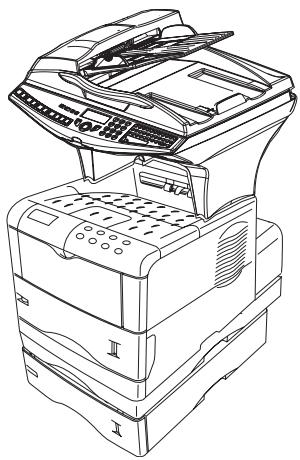
Your fax lets you create a directory by memorising subscriber records and subscriber lists.
- Your machine can store up to 500 subscriber records with names and phone numbers.
- You may also group several names to build a subscriber list with up to 32 subscriber lists. A subscriber list is made from the subscriber records already stored.
For all subscriber records or subscriber lists you may:
- create
- consult
- modify contents
- delete
- print the directory
You may save and if needed load your directory. To proceed, you need to contact your reseller and purchase the optional "Directory card". This gives you access to functions 161 and 162 (reportez-vous au paragraphe Guide to function list, page 2-5). To proceed, you need to contact your reseller and purchase the optional kit "save".
CREATING SUBSCRIBERS RECORD
For each contact record, complete the fields listed below. Only fields with the Name and Telephone number have to be completed:
- Contact NAME,
- TEL and fax number of contact,
- E-mail address, example: dupont@messagerie.com,
or
- FTP address, example: 134.1.22.9
Remark : If you have not entered an e-mail address, then you have the possibility of entering an FTP address (for archiving purposes).
- FORMAT: by default, the attachment is PDF or Image (.tif or .jpeg)
- RECORD NUMBER: this number is automatically allocated by the fax (you can, none the less, modify it). It gives you quick access to the directory,
- RATE send fax you can choose for each contact the minimum send rate for faxes you send to him. Available rates are 2400, 4800, 7200, 9600, 12000, 14400 and 33600 bits per second. The maximum speed can be used if the telephone line is of good quality, meaning appropriate, without echo.
Remark : If a contact has the two fields TEL and E-MAIL completed, the validation key (◇ or @) will define whether the document is sent by telephone network or via the internet.
ADDING A RECORD
11 OK - DIRECTION / NEW CONTACT
Your fax has just created a new record, fill in it by first entering your subscriber's name then validate with OK.
To associate an e-mail address :
Remark : you can stop the list creation at any time by pressing
Enter the person's fax number1 and press OK to confirm.
Enter the E-Mail address of your subscriber and press OK to confirm.
Your subscriber's ID number will automatically appear on the screen, if you wish to modify this number you may do so by choosing another free number and validate with OK.
Select the option WITH assigned key if you want to assign a letter (shortcut key) to your subscriber. The first available letter appears by default. If you want to change it, scroll the letters by命数 of the or keys, and press OK to confirm.
If need be, select the appropriate transmission speed to send your faxes, and confirm your choice by pressing the OK key.
To associate an FTP address :
Do not enter the e-mail address.
Enter the FTP address of the contact, then validate with OK key (for example: 134.1.22.9).
Enter the FTP user name (for example: Durand).
Enter the PASSWORD of the FTP user.
If necessary, enter the file destination directory (when this field is not completed, the files are stored directly under the root) of the FTP server (for example: server name / Durand).
Define the attachment format (Image or PDF) OK.
A number allocated to your contact will be automatically displayed on the screen. If you do not want to use this number, it can be modified by entering another number, then validating with OK key.
Select the option WITH the associated key if you want to associate a letter (shortcut key) with your contact. The first letter free is displayed by default. If you want to modify this, scroll through the alphabet by using keys 6 or 5, then validate your choice with the OK key
Select, if necessary, the appropriate send rate for a fax intended for your contact, then validate your choice with the OK key.
CREATING SUBSCRIBERS Lists
A subscriber list is made from the subscriber records already stored.
For each list fill in the following lines:
NAME of the list
- NUMBER ASSIGNED to the list, this number is automatically assigned by the fax. It allows quick access to the answering machine
- LIST COMPOSITION, its lists the ID numbers assigned to the subscribers records included in the list
- LIST NUMBER, a number lets you identify the list filed under (L)
A list may include both fax and internet subscribers.
The same subscriber may be included in different lists.
Caution - It is impossible to add one subscriber list to another subscriber list.
ADDING A LIST
To add a list:
12 OK - DIRECTION / NEW LIST
^ Your fax machine has just created a new list, fill it in by first entering the name of this list then confirm with OK.
Remark
: You can stop a list or record creation at any time by pressing . Also, you do not have to complete all the list characteristics as you create it; you can save the list as it is by pressing
The empty field ENTER ABR. NUM. appears, you must fill in the ID numbers assigned to the subscriber records included in this list.
There are three ways detailed in the table below, to choose and add one or more subscribers to your list. Then confirm your choice by pressing OK.
| From ... | Procedure |
| subscriber's name | With the alphanumeric keypad enter the first letters of your subscriber's name and continue until the whole name is displayed on the screen. |
| subscriber's ID number | Enter directly the subscriber's ID number. |
| subscribers directory | Press key then select by means of the▼ or ▲ keys. |
For every subscriber included in the list repeat the above step then validate with OK.
Remark
: you can stop record creation at any time by pressing
The list ID number will automatically appear on the screen, if you wish to modify this number you may do so by choosing another free number and validate with OK.
Press to confirm your entry.
ADDING OR DELETING A NUMBER FROM THE LIST
13 OK -DIRECTORY /MODIFY
Select the subscriber list (L) by means of the or keys and validate your choice with OK.
Press OK to display the ENTER ABR. NUM. field, and add or delete the subscriber as shown in the table hereafter:
| To ... | Procedure |
| add | Enter the subscriber ID number you wish to add and confirm with OK. Repeat this step for each added subscriber you want to add. |
| delete | Place the keys▼ or▲, on the number you wish to delete. Press key C to delete the number assigned to the list. Repeat these 2 steps for each subscriber you wish to delete from the list. |
Confirm the new list by pressing key
CONSULTING A RECORD OR A LIST
Press key.
The directory appears in alphabetical order.
Select the subscriber record or subscriber list (L) you wish to consult.
MODIFYING A RECORD OR A LIST
13 OK -DIRECTORY /MODIFY
The directory appears in alphabetical order.
Use the or keys to select the subscriber list (L) you wish to modify and press OK to confirm.
Modify the line or lines in the subscriber record or subscriber list and confirm each modification with OK.
Remark
: You may confirm your modification by pressing key, but you will exit the menu and may not be able to modify the following lines.
DELETING A RECORD OR A LIST
14 OK -DIRECTORY / CANCEL
The directory appears in alphabetical order.
Use the or keys to select the subscriber record or subscribers list (L) you wish to delete and confirm with OK.
Press again OK to confirm your deleting.
The record or list is deleted from the directory.
PRINTING THE DIRECTORY
You may print all the numbers stored in the directory, including all the existing subscriber records or subscriber lists (or 53 OK).
To print the directory:
15 OK -DIRECTORY / PRINT
The directory is printed in alphabetical order.
IMPORTING A DIRECTORY
You can import an existing directory of contacts into your fax machine as an electronic file. This file must be in a specific format and must not comprise more than 500 entries.
The process of importing a directory uses electronic mail as the transfer mechanism. The electronic file containing the directory is received and processed as an e-mail attachment.
Caution - Importing a new directory completely overwrites any existing directory entries.
THE FILE STRUCTURE
The electronic file containing the data in the directory must be structured into lines or records each comprising five fields separated from one another by a unique character (a tab stop, a comma or a semi-colon). The lines themselves are separated by a line break (carriage return).
| Fields | Contents |
| Name | A unique identifier in your directory, up to 20 characters long. This field is mandatory; the name should not include the field separator character. |
| Fax number | Your contacts' fax number, without spaces or dots, can be up to 30 characters long (including any * and # characters). This field may be left empty, for instance, in the case of contacts to whom you only send e-mails. |
| E-mail address | Your contacts' e-mail address. Can be up to 80 characters long, but must not comprise the field separator character. Any other characters may be used in this field, which can also be left blank. |
| Shortcut key | A capital letter (A to Z), unique to the directory, which is associated with a specific contact and enables quick selection. As with the two previous fields, this field can be left blank. |
| Speed | The fax transmit speed over the PSTN. If you do not specify a value, the default speed is the maximum speed. This field may be left blank if all your fax transmissions are handled by a fax server. |
Caution - You must enter a value for at least one of the Fax number or E-mail address fields. To enter a blank line, key in four field separator characters in a row.
For example:
Smith;0123456789;jsmith@isp.co.uk;J;8
Jones:01987654321;@;8
O'Connor;0123469874;d.oconnor@hello.net;U;8
Remark : @ alone is the indication that no associated key is assigned to the entry.
The rate is coded on a number, see the following board:
| Rate | code number |
| 600 | 7 |
| 1200 | 6 |
| 2400 | 5 |
| 4800 | 4 |
| 7200 | 3 |
| 9600 | 2 |
| 12000 | 1 |
| 14400 | 0 |
| 33600 | 8 |
Caution - You must always enter the field separator character, even if one or more of the fields are left blank. In the example above, which uses a semi-colon as a separator, the entry for « Jones » lacks both E-mail address and shortcut key.
PROCEDURE
To import a directory:
17 OK - DIRECTORY / IMPORTATION
Select WITH to authorise the importation of a directory.
Create your directory on a PC in a file whose structure corresponds to that set out above. In order to be recognised as a directory, the file name must include the word directory and must have a .csv extension. For example: smithdirectory01.csv, jonesdirectory.csv, or simply directory.csv.
Create an e-mail addressed to your fax E-mail address, attach the file to it, and send your message via your mail server.
Your fax will receive the e-mail containing the directory when it connects to the mail server, and will automatically import the attached file into its directory.
Repeat the procedure as many times as required, for instance to update all the LAN faxes on your network with the same directory.
Caution - Importing a new directory completely overwrites any existing directory entries on the fax machine. Once your fax machine has a complete directory, we advise you to disable importing in order to protect the data already on the fax.
To disable importing:
17 OK - DIRECTORY / IMPORTATION
Select WITHOUT to prevent users from importing a directory.
EXPORTING A DIRECTORY
You may also export a directory from a fax machine as a text file, and send it to any mail client (be it PC or fax based), in the form of an e-mail attachment entitled directoryxxx.csv.
To export the directory:
18 OK - DIRECTION / EXPORTATION
Key in the e-mail address of the PC or other fax machine to which you want to export the directory. You may export a directory to several fax machines simultaneously (reportez-vous au paragraphe Dialling, page 5-3).
Confirm by pressing OK.
Repeat the procedure as many times as required, for instance to update all your fax machines or send the same file to several PC users on your local network.
LDAPSERVER (DEPENDING ON MODEL)
The LDAP server allows you to access a directory server, for contacts or lists of contacts (maximum 500 recipients).
The LDAP function can be switched on only once there are at least 50 free entries in the unit's local directory. If this is not the case a message will ask you to delete the necessary number of entries.
CONFIGURATION
191 OK -DIRECTORY/ADDRESS
Enter the IP address or the server name and press the OK key to confirm..
192 OK - DIRECTORY / IDENTIFIER
^ Enter the identifier for connecting to the server and press the OK key to confirm.
193 OK - DIRECTORY / PASSWORD
Enter the password for connecting to the server and press the OK key to confirm.
194 OK - DIRECTORY / DN BASE
Enter the database name and press the OK key to confirm.
195 OK - DIRECTION / PORT
^ Enter the port number for connection to the server and press the OK key to confirm.
ACCESSING SERVER CONTACTS
When the LDAP function on your terminal is switched on, you can send documents or e-mails to contacts in the server's directory.
This is what happens when you search for a contact: when you enter the first letter of the recipient's name, all the entries in the server's directory which begin with this letter will be alphabetically added to the local ones.
If there are too many entries on the server, a message will ask you to enter more of the letters in the name to refine the search.
Note:
If a list contains too many recipients, a message will inform you that the list cannot be used.
ADDING A SERVER CONTACT TO THE LOCAL DIRECTORY
On the Change menu:
13 OK -DIRECTORY / CHANGE
Use the or arrows to select the server contact to add to the local directory and press the OK key to confirm.
Change the desired field(s) in the contact's file and press the OK key to confirm each change.
When you reach the last setting: choose the Local option instead of Remote and press the OK key to confirm.
Note: You can confirm your changes by pressing the key, but in that case you exit the menu and you do not have access to the following fields.
5 OPERATION
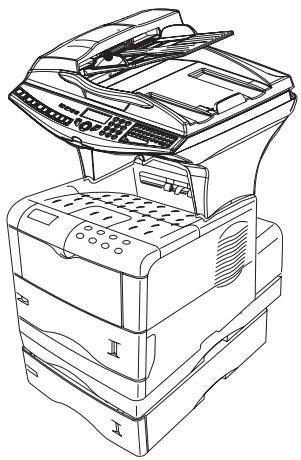
SENDING
Faxes sent over the telephone network are sent from the feeder or the memory.
Documents sent over the Internet are first memorised and sent at the time of Internet connection.
Over the telephone network: all fax transmissions are in black and white.
Over the Internet: you can send black and white documents (TIFF format or PDF) or colour documents (JPEG format or PDF).
DOCUMENT DEPOSITING
Scanner
From the automatic feeder tray
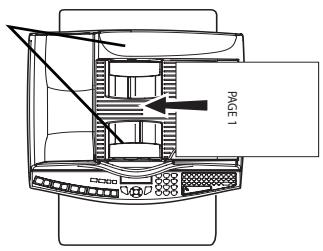
Paper guides
Place your original documents in the document feeder:
- face printed on the top,
- first page under the stack.
Set the paper guide to the document width.
Once the operation is over, take your original documents back from the document exit tray.
If you put the documents to send upside down, the contact will receive a blank page.
Remark :ince the addressee's number is generally on the document to be transmitted, you may also dial before positioning the document.
From the flat scanner
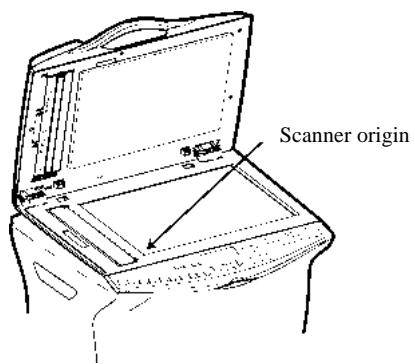
Using the handle, lift up the document feeder tray.
Put your document, with the printed face down on the scanner window. The scanner origin is located at your end, to the left, as shown opposite.
Once the operation is complete, lift the document feeder tray and recover your document.
CHOOSING THE RESOLUTION/CONTRAST
Resolution
You have 4 modes for document transmission.
The mode choice depends on the type of document to be transmitted:
- Normal mode, to be used for good quality documents, without drawings or small details
- Fine mode, symbolised by Fine at the bottom of the display screen. To be used for documents with drawings or small characters
- Super Fine mode, symbolised by SFine at the bottom of the display screen. To be used for documents with very fine or small character drawings
- Photo mode symbolised by Photo at the bottom of the display screen. To be used for photographic documents
To select the resolution mode:
Press key as many times as necessary to select the required mode. A icon on the screen shows the current mode.
Contrast
You can set the contrast if your document is too light or too dark. If the document is light, you must raise the contrast and if it is dark, you must reduce it.
To set the contrast:
Press 1 as many times as necessary to choose the desired contrast, as shown by the position of a cursor.
DIALLING
From the directory
Dialling alphabetically
Enter the first letter of your subscriber's name with the alphanumeric keypad, then add the remaining letters until your subscriber's name is complete.
Assigned number dialling
Press key
Your fax lists the subscribers records and lists in the Directory in alphabetical order, then use keys or of the navigator to scroll all subscribers for choice, and choose the required subscriber or subscriber list.
or
Press key
Then press the letter assigned to the subscriber (reportez-vous au paragraphe Adding a record, page 4-2)
The screen displays the corresponding name.
or
Enter the subscriber or subscriber list assigned number.
The screen displays the name of the subscriber or subscriber list assigned to this number
Using the last number dialled key
You can redial one number among the ten last numbers you just dialled before.
For a fax number (Tel in the Directory)
Press the key
If the radial list is empty the display will show :
TO:
You may enter the call number of the subscriber using the key block or the directory.
Confirm with the key to send the fax copy.
When the radial list is not empty the display will show:
REDIAL
TO:_
Using the keys or within the navigator you can scroll through the numbers already available in the Redial-list.
You may select a call number or eventually enter the number via the numerical key pad or using the directory.
Confirm the number with the key to send the fax copy.
For an Internet transmission
Press the @ key.
If the radial list is empty the display will show:
TYPE ADDRESS:
一
You may enter the e-mail address of the subscriber using the alphanumeric keys or the directory.
Confirm the entry with the @ key to send the message.
If the radial list contains call numbers the display will show:
REDIAL
TO:
Using the keys or within the navigator you can scroll through the e-mail addresses already available in the Redial-listing.
You may select the e-mail address or eventually enter the e-mail address using the alphanumeric keys or the directory.
Confirm the address with the @ key to send the message.
To multiple numbers
You may dial to send a document simultaneously to multiple call numbers.
Caution - This may be achieved only if the machine is parametered to send from the memory (reportez-vous au paragraph Document feed type, page 3-4).
Enter the fax or E-mail address, or use the Directory (refer to above paragraphs).
Press key * and enter the number of the second subscriber or second subscriber list
Repeat this last step for all subscribers or subscriber lists (maximum 10 subscribers or subscriber lists).
Press OK, , or @ to confirm the last addressee depending on the required operation.
TRANSMISSION OVER THE PUBLIC SWITCHED TELEPHONE NETWORK (PSTN)
Immediate transmission
Position the document (refer to paragraph Document depositing, page 5-1).
Enter the fax number or choose your dialling mode (reportez-vous au paragraphe Dialling, page 5-3) then press
The "Line" icon flashes during the call phase, it stays lit when both faxes are in communication.
At the end of transmission the initial screen is displayed.
Delayed transmission
This function allows you to transmit a document at a later time.
To program a postponed transmission you need to identify the subscriber number, transmission time, feeder type and number of pages.
To delay the transmission time of your document :
Position the document (refer to paragraph Document depositing, page 5-1)
Select OK-FAX/TRANSMISSION
Enter the subscriber number you wish to program at a different time or choose your dialling mode (reportez-vous au paragraphe Dialling, page 5-3) and confirm with OK.
Next to the current time, enter the new time and confirm with OK.
Choose the required IMAGE or PDF format.
Choose SCAN B & W or COLOR SCAN.
Adjust the contrast and confirm by pressing the OK key.
Select the feed type, FEEDER or MEMORY and confirm with OK (reportez-vous au paragraphe Document feed type, page 3-4).
You may enter the number of pages before transmission and confirm with OK.
^ Confirm postponed transmission by pressing key
Your document is stored and will be sent at the new time.
Remark
: When sending in "Deferred Send" mode, make sure that the document in the feeder tray or on the scanner window is located in the right direction.
Transmission with auto radial
This function allows you to monitor the dialling operation during a fax transmission. In this case, the maximum transmission rate will be 14400 bps.
This function allows for example:
- to hear if the subscriber's fax is engaged and if so, choose the moment when the line is clear to start the document transmission.
- to control the communication progress in case of uncertain numbers, etc.
To take the line manually:
Place the document in the fax feeder.
Press
If necessary, set the sound level with navigator or keys.
If not already done, enter the subscriber number (or reportez-vous au paragraphe Using the last number dialled key, page 5-4 to call back the last subscriber).
As soon as you hear the remote fax tone, the line is clear and you can start the transmission.
Press to start the document transmission.
If your machine is set in order to print a transmission report (reportez-vous au paragraphe Main settings, page 3-1), the reduced copy of the document first page will not be printed and it notifies you that the communication is manual.
Rerouting
This function is used to reroute faxes received to a directory contact. To use this function, you have to perform two operations: set the rerouting address of the fax and activate rerouting.
Activate rerouting
391 OK - FAX / REROUTING / ACTIVATION
Using the keys or within the navigator select option >>3911 WITH.
Confirm with the OK key.
Remark
: If the function WITHOUT is selected the menus 392 and 393 will not be included in the functions overview, when it is printed out.
Set the re-direction contact
392 OK - FAX / RERouting / DESTINATION
Using the keys or within the navigator select the subscriber from the directory (If the directory is empty the display will show DIRECTIONALITY). Enter the number of the subscriber manually or store the name and related number in the directory. (reportez-vous au paragraphe Creating subscribers record, page 4-2).
Remark
: You may forward a fax to the e-mail address of the subscriber stored in your directory if the fax is not available. The Fax will then be sent as an attachment in the pre-defined file format (p. 3-10 for the configuration of the attachment files format).
393 OK - FAX / REROUTING / COPY
Using the keys or within the navigator select the COPY option (local printout of the information relayed to your system) either WITH or WITHOUT.
Confirm with the OK key.
Caution - E-mails can only be relayed to e-mail addresses. The configuration of landlines does not provide for relaying to fax machines.
TRANSMISSION OVER THE INTERNET
Sending a black and white document to an E-Mail address
Position the document (refer to paragraph Document depositing, page 5-1).
Press the @ key and enter the recipient's E-mail address or choose your dialling mode (reportez-vous au paragraphe Dialling, page 5-3).
Adjust the contrast and the resolution if necessary (reportez-vous au paragraphe Choosing the resolution/contrast, page 5-2).
Press the @ key.
If your contact has a PC, he will receive an E-mail to which your fax is attached in monochrome PDF or TIFF format, depending on the format choice you made.
If your subscriber has an Internet fax, he will receive a paper fax.
Sending a colour document to an E-mail address
Position the document (refer to paragraph Document depositing, page 5-1).
Press the @ key and enter the addressee's E-mail address or choose your dialling mode (reportez-vous au paragraphe Dialling, page 5-3).
Adjust the contrast and the resolution if necessary (reportez-vous au paragraphe Choosing the resolution/contrast, page 5-2).
Press the key.
The document is scanned and memorised, it will be sent at the time of Internet connection.
If your contact has a PC, he will receive an E-mail to which your fax is attached in colour PDF or TIFF format, depending on the format choice you made.
If your subscriber has an Internet fax, he will receive a paper fax.
Sending a typed message to an E-Mail address
You can send a typed message to an E-mail mailbox. You can also add an attachment to this keypad message (the attachment is a scanned paper document).
Access through the menu.
95 OK - INTERNET / E-MAIL
Direct access.
Press key @.
Then, to send to E-mail address.
Enter the addressee's E-mail address or choose your dialling mode (reportez-vous au paragraphe Dialling, page 5-3).
Enter the address of who you want to receive a copy of the document (CC:), and press OK to confirm.
Enter the object for mail (80 characters max.) and press OK.
Enter the text with the alphabetical keypad (100 lines of 80 characters) and confirm with OK.
To go to the next line, use key
Then, you can choose between two options:
Send the typed mail directly. Press OK, the mail is memorised and will be sent at the next Internet connection, validate by pressing the key. Your subscriber will receive an E-mail.
Add an attachment (scanned document) to your mail:
Select the scanner to use to scan your document. SCANNER ADF (scroll scanner) or FLAT SCANNER (reportez-vous au paragraph Description, page 1-7).
Validate with OK key.
Select B&W SCAN to send a black and white document or COLOR SCAN to send a color document, and validate with OK key (this setting can be changed at any time during the send procedure, using the colour key).
Enter the name of the attachment and validate with OK key.
If necessary, change the attachment format: PDF or IMAGE and validate with OK key.
If you have started to scan with the flat scanner, the unit will scan the other pages. Put your second page to scan, select NEXT and validate with OK.
Press key @.
Set contrast and resolution if necessary (reportez-vous au paragraphe Choosing the resolution/contrast, page 5-2).
Press key @.
The document is scanned and the mail sent to memory. It will be sent during the next connection to the Internet.
Your contact will receive an E-mail with an attachment.
Scan to FTP
The scan to FTP function enables you to put your TIFF, JPEG and PDF files in an FTP server, for example, for archiving.
To connect to the FTP server, you must know the name of the FTP user and the PASSWORD.
When sending files, the machine connects to the FTP server using the defined connection parameters.
Simply put the file in an FTP server :
Put the document in one of the scanners (refer to the Positioning the document paragraph, page 5-1).
Press key PC. A choice screen is displayed.
Select Scan to FTP with keys or then press OK key.
Enter the FTP address of the server or select it from the directory by pressing the key.
Enter the name of the FTP user (operation prohibited when the address is in the directory).
Enter the password of the FTP user (operation not necessary when the address is selected in the directory).
Select the scanner to use to scan the document, SCANNER ADF (scroll scanner) or FLAT SCANNER.
Validate with OK key.
Select B&W SCAN to send a document in black and white or COLOR SCAN to send a document in colour. Validate with OK key (this setting may be changed at any time during the send procedure with the colour key).
Enter the name of the attachment and validate with OK key.
If necessary, change the attachment format: PDF or IMAGE et validate with OK key.
If you have started to scan with the flat scanner, the unit will scan the other pages. Put your second page to scan, select NEXT and validate with OK.
Multi-contact sending.
Multi-contact sending is not possible with the key dedicated to this function. To make this type of send, you have to create a group containing exclusively the FTP addresses.
Then carry out the same operations as for sending to one address, except that you select an FTP address group in the directory, and not a single address.
TRANSMISSION WAITING Queue
This function lets you obtain a recap of all documents queuing, for transmission, including those in deposit or in delayed transmission, etc.
It allows you to:
- consult or modify the waiting queue. In this waiting queue the documents are coded the following way:
Order number in the queue / document status / subscriber's telephone number.
Documents may have the following status:
- TX: transmission
- REL: relay
- DOC: in deposit
- POL: polling
- MBX: send to mailbox
- PMB: mailbox polling
- TR: ongoing commands
- CNX: Internet connection
- NET: Internet transmission
-
SMS: SMS transmission
-
immediately perform a transmission from the waiting queue
- print a document in storage, waiting to be transmitted or in deposit
-
print the waiting queue, to get the status of each document in the queue, by either:
-
queue order number
- document name or number
- scheduled transmission time (fax)
- operation type regarding the document: transmission from memory, delayed transmission, deposit
- number of pages of the document
-
document size (percentage of space stored in memory)
-
cancel a transmission request in the waiting queue.
Immediately perform transmission from the waiting queue
61 OK - COMMANDS / PERFORM
Select the document in the waiting queue and confirm your choice with OK or to immediately perform the selected transmission.
Consult or modify the waiting queue
- 62 OK - COMMANDS / MODIFY
In the waiting queue select the required document and confirm your choice with OK.
You may now modify the parameters of the given document then confirm your modifications by pressing key .
Deleting a transmission on hold
63 OK - COMMANDS / CANCEL
In the waiting queue select the desired document and confirm your choice with OK.
Printing a document in waiting or in deposit
64 OK - COMMANDS / PRINT
In the waiting queue select the desired document and confirm your choice with OK.
Print the waiting queue
65 OK-COMMANDS/PRINT LIST
A document called ** COMMAND LIST ** is printed.
CANCELLING A TRANSMISSION IN PROGRESS
Cancelling a transmission in progress is possible whatever the type of transmission but varies depending on whether the transmission is a single call number or a multi-call number.
- For a single call number from the memory, the document is erased from the memory.
- For a multi-call number, only the call number in progress at the time of the cancellation is erased from the transmission queue.
To cancel transmission in progress
Press key
A message will ask you to confirm cancellation by pressing the key a second time.
Press key to confirm cancellation in progress.
If your machine is set to print a transmission report (reportez-vous au paragraphe Transmission report, page 3-3), it will print that the communication was cancelled by the user.
RECEPTION
Document reception over the Internet is automatic at each Internet connection.
Reception of all documents over the telephone network is done one at a time at fax reception.
RECEPTION OVER THE PUBLIC SWITCHED TELEPHONE NETWORK (PSTN)
Fax reception depends on the parameter settings of your machine.
RECEPTION OVER THE INTERNET
Whatever the document received, reception is automatic at each Internet connection.
Incoming documents other than fax files (Word process file, CAD, etc.) may not be opened by your fax. However, you may keep this (or these) document(s) in your Internet mailbox until it is automatically converted by the F@X to Fax service, if you have a subscription or until computer use or automatic transfer (reportez-vous au paragraphe Mail sorting, page 3-17).
COPYING
Your fax offers to print out one more copies of one or more pages.
You can also make copies in tiled or poster mode. The tiling function allows you to print a number of pages imported from the ADF scanner onto a page, at a reduced scale (there are 2 modes available: 2 scanned pages onto a sheet or 4 scanned pages onto a sheet).
The poster function allows you to do the opposite; in other words you can print a scanned page onto a number of pages (there are 2 modes available: 1 scanned page onto 4 pages or 1 scanned page onto 9 pages).
If the front/back module (depending on model) is installed on your terminal you can make photocopies in front/back mode.
LOCAL COPY
Standard copy
Position the document (refer to paragraph Document depositing, page 5-1).
Press key twice.
Duplex photocopies (depending on model)
This function is available for photocopying if you have previously installed the duplex module and an additional paper tray at the rear of your terminal.
This duplex module only works with A4 (210 x 297 mm) format paper.
Press once, the key.
When the duplex mode is activated, a pictogram is shown on the screen.
The internal memories of your terminal can be printed one side only, except in PAPER SAVE mode.
The features available are described in the following table :
| ORIGINAL FORMAT | → | FINAL FORMAT |
| DUPLEX/DUPLEX | → | DUPLEX/DUPLEX |
| ONE SIDE | → | DUPLEX/DUPLEX |
| DUPLEX/DUPLEX | → | ONE SIDE |
| ONE SIDE | → | ONE SIDE |
"Sophisticated" copy
Position the document (refer to paragraph Document depositing, page 5-1).
Press key.
Enter the required number of copies and confirm with the OK key.
Using the keys or select the scan modes ^1 DUPLEX->DUPLEX (Front/Rear) or SIDE->DUPLEX or DUPLEX->SIDE or SIDE->SIDE and confirm with the OK key.
Using the keys or select the resolution: ULTRA FAST, FAST, QUALITY or PHOTO and confirm with the OK key.
Choose one of the tiling (see examples below) print options (ADF scanner): 1 page onto 1, 2 pages on 1 or 4 pages onto 1 or one of the poster printing options: 1 page to 1, 1 page to 4 or 1 page to 9 (flatbed scanner) using the or keys, then press the OK key to confirm.
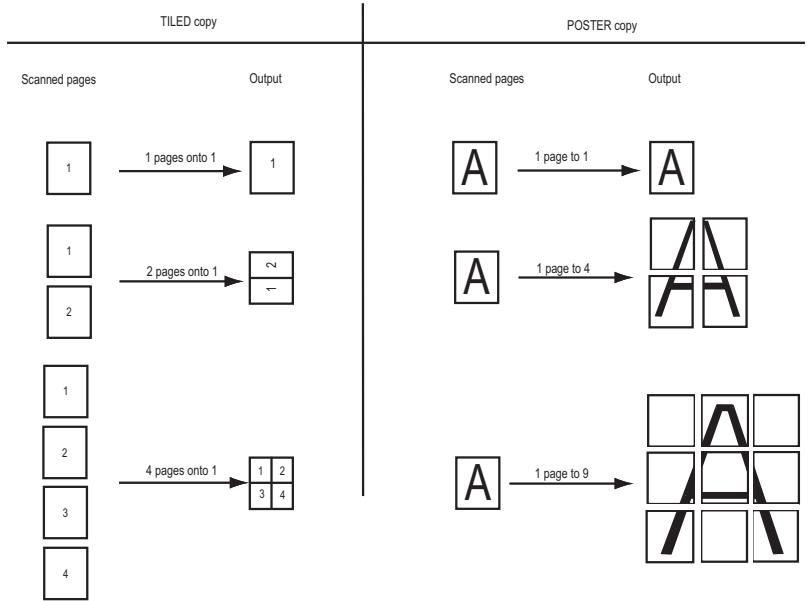
Using the keys or select the degree of contrast and confirm with the OK key.
Using the keys or select the degree of brightness and confirm with the OK key.
Using the keys or or the numeric key pad or eventually the key dedicated for zoom set up the degree of zoom between 25% TO 400% and confirm with the OK key.
Select the collation mode COPY ASSEMBLED or NOT ASSEMBLED and confirm with the OK key.
Using the keys or or the numerical key pad select the required base values and confirm with the OK key.
Using the keys or select the type of paper NORMAL PAPER or THICK and confirm with the OK key.
Using the keys or select the required paper tray, AUTOMATIC TRAY, UPPER TRAY or LOWER TRAY and confirm with the OK key.
SPECIFIC COPY SETTINGS
When the copy quality is no longer satisfactory, you can perform a calibration. To do so, reportez-vous au paragraphe Scanner calibration, page 6-17.
Moreover, a high number of controls let you improve the copy quality.
Scanner settings
841 OK - ADVANCED FCT / COPY / RESOLUTION
The Resolution parameter adjusts the photocopying resolution. Select High Speed, Quality or Photo resolution using keys or , then validate the choice with the OK key.
842 OK - ADVANCED FCT / COPY / ZOOMING
The zoom setting is used to reduce or enlarge part of the document by choosing the original and the zoom value to apply to the document, 25 to 400% . Enter the zoom value required using the keys of the digital key pad. Validate the choice with the OK key.
▼843 OK - ADVANCED FCT / COPY / ASSEMBLED
The ASSEMBLED parameter is used to define the choice of your printer outputs; either assembled or not assembled. Validate the choice with the OK key.
844 OK - ADVANCED FCT / COPY / ORIGIN
If you wish, you can change the origin of the scanner.
By entering new values of X and Y given in mm (X < 210 and Y < 286) , you will move the scanning zone as shown on the figure below.
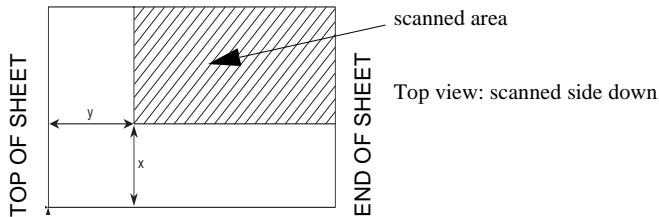
Select the X and Y coordinates with keys or .
Set the required coordinates with the numeric keypad or or .
Confirm your setting by pressing key OK.
845 OK - ADVANCED FCT / COPY / CONTRAST
The CONTRAST parameter is used to select the photocopy contrast. Adjust the contrast using 1 keys and , then validate the choice with the OK key.
You can also directly adjust the desired contrast using the key, press this key several times until the required adjustment is obtained without using 845.
846 OK - ADVANCED FCT / COPY / LUMINOSITY
The LUMINOSITY parameter is used to make your original document lighter or darker. Adjust the brightness required using keys and , then validate the choice with the OK key.
847 OK - ADVANCED FCT / COPY / BINDING
The BINDING parameter is used to choose the long or short side according to the type of binding of your document. Make your choice using keys and , then validate the choice with the OK key.
All settings made using this menu become default settings of the machine.
85 OK - ADVANCED FCT / SCAN. & PRINT
Use keys or of the browser to scroll the setting described below that you want to modify.
Validate your setting by pressing the OK key.
851 OK - ADVANCED FCT / SCAN. & PRINT / PAPER
Select NORMAL or THICK paper using keys and .
Validate your setting by pressing the OK key.
1) When THICK paper type is selected, the print speed is slowed down.
2) Use the manual feeder for paper with a weight greater than 90g / m^2
852 OK - ADVANCED FCT / SCAN. & PRINT / PAPER TRAY
Select the paper tray that you want to use; AUTOMATIC, LOWER or UPPER using keys and . Validate by pressing the OK key.
853 OK - ADVANCED FCT / SCAN. & PRINT / PAPER SAVE
This function prints all your documents duplex.
This function requires the prior installation on the rear of your machine of the duplex module and the additional paper tray (option or depending on model).
Select WITH or WITHOUT using keys and .
Validate by pressing the OK key.
854 OK - ADVANCED FCT / SCAN. & PRINT / S.F MARGINS
If you want to offset the side margins of your document to the left or to the right when scanning with your scroll scanner.
Adjust the offset of the left/right margins (in 0.5mm steps mm) using keys and
Validate by pressing the OK key.
855 OK - ADVANCED FCT / SCAN. & PRINT / FLATBED MARG
If you want to offset the side margins of your document to the left or to the right when scanning with your flat scanner:
Adjust the offset of the left/right margins (in 0.5mm steps mm) using keys and
Validate by pressing the OK key.
OTHER FUNCTIONS
Logs
The incoming and outgoing logs list the last 30 transmissions (incoming and outgoing) made by your machine.
An automatic print out will take place after every 30 transmissions. However, you may request a print out at any time.
Each log (incoming or outgoing) contains a table with the following information:
- date and time of the incoming or outgoing document
- subscriber's number or E-mail address
- transmission mode (Norm, Fine, SFine or Photo)
number of pages sent or received - call duration
- incoming or outgoing results: noted CORRECT if properly transmitted or information codes for special calls (polling, manual subscribers, etc.)
- reason for call error (example: your subscriber does not answer)
To print the logs:
52 OK - PRINT / LOGS
The incoming and outgoing logs are printed on the same page.
PRINTING THE FUNCTIONS LIST
You may print the functions list of your fax machine at any time.
To print the functions list:
51 OK - PRINT / FUNCTIONS LIST
PRINTING THE MACHINE SETTINGS
At any moment, you may print the list of your fax's parameter settings to control any changes possibly made to the default parameters.
Printing the machine settings:
54 OK - PRINT / SETUP
Your fax prints the list of stored parameters.
COUNTERS
At any time, you may consult the activity counters of your machine.
To get access to the counters of the machine:
82 OK - ADVANCED FCT / COUNTERS
These counters indicate the number of:
transmitted pages
received pages
- scanned pages
- scanned sheets
- printed pages
821 OK - ADVANCED FCT / COUNTERS / SENT PAGES
822 OK - ADVANCED FCT / COUNTERS / RECEIVED PG
823 OK - ADVANCED FCT / COUNTERS / SCANNED PAGE
824 OK - ADVANCED FCT / COUNTERS / DUPLEX SCAN
825 OK - ADVANCED FCT / COUNTERS / PRINTED PG
DEPOSIT AND POLLING
You may deposit a document in your fax and keep it available to one or more subscribers who can obtain a fax of this document by calling your fax with the POLL function.
Setting the machine for document deposits,
you must define the type:
- SIMPLE-it may be polled only once from the memory or feeder
- MULTIPLE- it may be polled as many times as necessary from the memory
Setting the machine for polled documents,
you must define the poll number, then depending on the type of poll you may:
- launch an immediate poll
- program a delayed poll with a chosen time
- launch a multi-poll, either immediately or later.
Placing a document in deposit
Insert the document to deposit in the feeder.
Select 34 OK-FAX/POLLING TX and confirm with OK.
Choose the type, according to the table below:
| Menu | Procedure |
| SIMPLE | Select FEEDER or MEMORY If necessary, adjust the contrast and confirm with OK Enter the number of pages that you wish to deposit |
| MULTIPLE | If necessary, adjust the contrast and confirm with OK Enter the number of pages that you wish to deposit |
Confirm deposit by pressing the OK key.
Polling a deposited document
33 OK - FAX / POLLING RX
Enter the number of the party whose document you want to poll or choose your dialing mode (reportez-vous au paragraphe Dialling, page 5-3).
Remark : you can poll several documents using the _ key.
Depending on the type of poll you should:
| Choice | Procedure |
| Immediate poll | Press ◆ |
| Delayed poll | Press OK Next to the current time, enter the time you wish to poll the document and press ◆ |
Lock
There are restrictions to the use of your fax:
- To lock the printing of received documents (reportez-vous au paragraphe Fax answering machine, page 3-5)
- locking the keyboard
- locking the numbers
- locking the Internet settings
- locking the access to the SMS transmission function
Entering the locking code
The operator access parameters are confidential; they are protected by a four-digit interlock code that the authorised operators must know.
To access the locking code:
811 OK - ADVANCED FCT / LOCK / LOCKING CODE
Enter your four-digit interlock code on the keypad.
Confirm by pressing OK.
Confirm the interlock code by entering the code one more time.
Press OK to confirm.
Remark : when a code is already registered, the machine asks you to give the former code before allowing you to modify it.
Locking the keyboard
This function allows you to prevent access to non-authorised persons. An access code must be entered each time a person wants to use the machine.
To access the keypad unlocking menu:
812 OK - ADVANCED FCT / LOCK / LOCK KEYBD.
Enter the four-digit interlock code.
Press key OK to confirm.
With keys or of the navigator, select the option WITH.
Press key OK to confirm.
Remark : after each operation, the machine interlocks automatically.
Locking the numbers
This function locks dialling and the numerical keypad is disabled. Transmissions are only possible from numbers included in the directory.
You can still send mails by typing in the addressee's address (if this has no numbers in it).
To access the number interlocking option:
813 OK - ADVANCED FCT / LOCK / LOCK NUMBER
Enter the four-digit interlock code with the keypad.
Press key OK to confirm.
^ With keys or of the navigator, select the option DIRECT ONLY.
Press key OK to confirm.
Locking the Internet settings
This function prevents access to all the Internet settings of menu 9.
As a matter of fact, any untoward change to these settings might result in repeated connection failures. You can still send documents to an E-mail address (▼ 95) and get connected (▼ 93).
To access the Internet settings locking menu:
814 OK - ADVANCED FCT / LOCK / LOCK PARAMETERS
Enter the four-digit locking code with the numerical keypad.
Press OK to confirm.
With keys or , select the option WITH.
Press OK to confirm.
Locking the SMS service
This function prevents access to the SMS service.
To access the SMS service locking menu:
815 OK - ADVANCED FCT / LOCK / LOCK SMS
^ Enter the four-digit locking code with the numerical keypad.
Press key OK to confirm.
With keys or , select the option WITH.
Press key OK to confirm.
Remark : your machine is provided with a Scan to PC key. This key activates, first of all, the SCAN -TO - PC, function, which associated with the Companion Suite Pro kit makes it possible to send an opening notice of a scan function of a PC connected to your machine. For more information, refer to the User Manual provided with your PC Kit (Companion Suite Pro).
MAIL BOX (MBX FAX)
There are 32 mailboxes (MBX), enabling you to transmit documents in complete confidence using an access code (named code MBX), to all subscribers equipped with a fax compatible to yours.
MBX 00 is public. It is handled directly by the terminal to record the messages of the fax TAD as soon as this is put into service.
MBX's 01 to 31 are private. Each is password-protected. They can be used to receive documents confidentially.
The use and access to MBX 01 - 31 are conditioned by the initialisation, defined by a MBX code (if needed) and a mnenonic (its S.I.D.).
Later you may:
- modify the features of an MBX
- print the contents of an MBX, only possible if the MBX contains one or more documents (with a star next to the MBX). When the contents of an MBX have been printed it becomes empty
- delete an MBX, only if the MBX is initialised and empty
- print the list of your fax machine's MBX's
You may receive and send through an MBX in complete confidentiality.
The deposit a document into your MBX, the access code is not needed. All documents deposited in a MBX are added to the ones already present.
In polling, the MBX are only accessible with an MBX code.
You may perform MBX deposits or polls by:
- depositing a document in a fax MBX
- transmit to deposit a document in a remote fax MBX
- perform document poll from a remote fax.
MBX MANAGEMENT
Creating an MBX
71 OK - MAILBOXES / CREATE MBX
Select a free MBX out of the 31 MBX or directly enter the number of a free MBX and confirm with OK.
Select option MAILBOX CODE and press OK.
Value 0000 is always displayed.
Enter the code of your choice, if needed, and press OK.
Select option MAILBOX NAME and press OK.
Enter this MBX's S.I.D. (20 characters max.) and press OK.
The MBX is initialised. If you wish to initialise another, press C and repeat the same procedure.
To exit the MBX, press
Modifying the features of a MBX
71 OK - MAILBOXES / CREATE MBX
Select a free MBX out of the 31 MBX, or enter the number of a free MBX directly (1-31).
Enter the code of this MBX, if there is one, and confirm with OK.
Select the menu MAILBOX CODE or MAILBOX NAME, then confirm your choice with OK.
Perform data modification of the menu and confirm with OK.
If needed, repeat the last two steps for the other menu.
Printing the contents of a MBX
73 OK - MAILBOXES / PRINT MBX
Select a free MBX out of the 31 MBX, or enter the number of a free MBX directly (1-31).
Enter the code of the MBX, if there is one, and confirm with OK.
All documents found in the MBX are printed and the MBX is emptied.
Deleting a MBX
Before deleting an MBX, you need to make sure it is empty, by printing its content.
74 OK - MAILBOXES/DELETE MBX
Select a free MBX out of the 31 MBX, or enter the number of a free MBX directly (1-31)
Enter the code of the MBX, if there is one, and confirm with OK
The MBX is deleted and will appear as a free MBX in the list.
Press to confirm MBX deletion
Printing the MBX list
75 OK - MAILBOXES / PRT MBX LIST
The list gives the status of each MBX.
MBX deposit in your fax
Insert the document in the fax machine's feeder.
Select 72 OK - MAILBOXES / DEPOSIT MBX and confirm with OK.
Select a free MBX out of the 31 MBX, or enter the number of a free MBX directly (1-31). The document is placed in the feeder and saved in the selected MBX.
MBX deposit in a remote fax
Insert the document in the fax machine's feeder.
Select 35 OK-FAX/MBXSENDING and confirm with OK.
Enter your subscriber's number for MBX deposit or choose your dialling mode (reportez-vous au paragraphe Dialling, page 5-3) and validate with OK.
Enter the subscriber's MBX number and confirm with OK.
If you wish to delay transmission, enter the new transmission time next to the current time and press OK. If you wish to modify the document feed type, select one of the options FEEDER or MEMORY, and press OK.
If you wish, you may enter the number of pages of your document before transmitting.
Confirm the transmission request to a remote MBX fax by pressing key
In the case of an immediate transmission, the document is sent immediately.
If the document is set for a postponed transmission the document will be stored in the memory and sent at the requested time.
MBX polling from a remote fax
36 OK - FAX / MBX POLLING
Enter your subscriber's number for MBX deposit or choose your dialling mode (reportez-vous au paragraphe Dialling, page 5-3) and validate OK.
Enter the subscriber MBX number and press OK.
Enter this MBX access code and press OK.
If you wish to delay the poll time, enter the departure time next to the current time.
Confirm the MBX poll request by pressing key.
As soon as the remote fax is subscribed, either immediately or later, the document(s) in the remote fax MBX are receiveid in your fax.
Remark : please check for remote fax compatibility.
6 PRINT FUNCTION
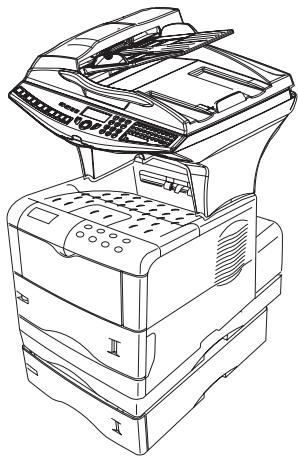
USING THE CONSOLE
The console is made up of an LCD screen, three indicators and eight keys. Navigation basics are described in the paragraph on Navigation in the menus, on page 2-9.
THE CONSOLE
Messages displayed
The console screen displays information in the form of short messages. The eight following messages are displayed while the machine is warming up and printing.
Other messages are displayed if the printer requires any action from an operator. These messages are explained in the "Printer technical guidelines" documentation.
| Message | Definition |
| Self test | The printer carries out self tests after the power has been switched on. |
| Please wait | LThe printer is warming up and is not ready. When the power is first switched on after the installation of a toner cartridge, the message (Adding toner) is also displayed. |
| Ready | The printer is ready to print. |
| Processing | The printer is processing: it is receiving data, generating graphics, reading a CompactFlash card or printing.. |
| On standby | The printer is in standby mode. Standby mode is switched off every time that the GO key on the printer console is pressed or the cover is opened or closed, or whenever the printer receives data. The printer then starts warming up and connects. The period of inactivity before entering standby mode can be set in the standby configuration section. |
| Delete data | The print jobs are currently being cancelled |
| Waiting | The printer is waiting for the end of job command before printing the last page. Pressing the GO key allows you to print the last page out immediately. |
| page break | The printer prints the last page after a period of waiting. |
Interface indicator

INTERFACE
The indicator shows the interface being used.
PAR Parallel port
USB USB port
OPT Network card
--- No active interface.
Paper size indicato


The following abbreviations are displayed to show the size of the paper in the tray which is currently being used.
| Message Displayed | Paper size | Message Displayed | Paper size |
| A4 | ISO A4 (21 × 29.7 cm) | EX | Executive (7-1/4 × 10-1/2 inches) |
| A5 | ISO A5 (14.8 × 21 cm) | #6 | Commercial 6-3/4 (3-5/8 × 6-1/2 inches)A |
| A6 | ISO A6 (10.5 × 14.8 cm)A | #9 | Commercial 9 (3-7/8 × 8-7/8 inches)A |
| B5 | JIS B5 (18.2 × 25.6 cm) | O2 | Oficio II (8-1/2 × 13 inches) |
| B6 | JIS B6 (12.8 × 18.2 cm)A | 16K | 16 kai (19.7 × 27.3 cm) |
| LT | Letter (8-1/2 × 11 inches) | ST | Statement (5-1/2 × 8-1/2 inches)A |
| LG | Legal (8-1/2 × 14 inches) | FO | Folio (21 × 33 cm) |
| MO | Monarch (3-7/8 × 7-1/2 inches)A | HA | Japanese Postcard (10 × 14.8 cm)A |
| BU | Business (4-1/8 × 9-1/2 inches)A | OH | Return Postcard (20 × 14.8 cm)A |
| DL | ISO DL (11 × 22 cm)A | Y2 | Envelope (Youkei 2) (11.4 × 16.2 cm)A |
| C5 | ISO C5 (16.2 × 22.9 cm) | Y4 | Envelope (Youkei 4) (10.5 × 23.5 cm)A |
| b5 | ISO B5 (17.6 × 25 cm) | CU | Custom Size (14.8 × 21 cm à 21.6 × 35.6 cm) |
A. Only with the multipurpose tray.
Note:
When the printer is processing data, the SIZE indicator shows the size of the of the paper selected by the application software.
Paper type indicator
The paper type indicator displays the type of paper set for the current paper tray. The paper type triggers the automatic changing of the paper tray.
You can specify the paper type on the operator's console, please see the paragraph on Creating a custom paper type, on page 6-9.
The following abbreviations are used to show the paper type.
| Message Displayed | Paper type | Message Displayed | Paper type |
| None | Auto | HEADER | Header |
| NORMAL | Normal | COLOUR | Colour |
| TRANSPARE | \( Transparent^A \) | PERFORATED | Perforated |
| PRE-PRINTED | Pre-printed | ENVELOPE | Envelope |
| LABEL | Labels | CARD | Card |
| BOUND | Bound | THICK | Thick |
| RECYCLE | Recycled | HIGHT QLTY | Hight quality |
| VELLUN | Vellum | SPECIFIC 1 (to 8) | Specific 1 (to 8) |
| ROUGH | Rough | ||
A. Only with the multipurpose tray.
READY, DATA and ATTENTION indicators
The following indicators light up during normal use and when the printer requires action.
| Indicator | Description |
| READY | Blinking: Indicates that there is an error which you can resolve yourself. On: Indicates that the printer is connected. The printer prints out any data it receives. Off: Indicates that the printer is disconnected. It is receiving data but does not print it out. Also indicates that printing is automatically suspended due to an error. |
| DATA | Blinking: Data transfer in progress. On: Indicates that the data is currently being processed or that it is currently being written to the memory card. |
| WARNING | Blinking: Indicates that the printer requires maintenance or that the printer is warming up. (Please wait). On: Indicates that there is an error or a problem which you can resolve yourself. (e.g. a paper jam.) |
PRINTING TEST PAGES
This paragraph describes the procedures for printing out internal information. You can use the menu map as a guide to find your way around the printer's menu structure.
The configuration page contains a list of printer configuration parameters and settings.
Printing out the menu map
The printer prints out a list of the menus. The list of menus may vary according to which options you have installed.
MENUST-PRINTMENUSTRUMENTURE
Press ENTER, a "?" appears.
Press ENTER to start printing.
Printing out the current configuration page
The configuration page provides information about the machine's configuration (memory, options, etc.)
MEN - PRINT PAGE CONFIG.
Press ENTER, a "?" appears.
Press ENTER to start printing.
Printing out the detailed configuration page
This page gives you more details about the machine's configuration.
MENU - V - OTHERS - > - V - SERVICE > - V - PRINT PAGE CONFIG.
Press ENTER, a "?" appears.
Press ENTER to start printing.
Printing out the network interface card configuration
Note: You can only use this function if the network card is installed.
The following information is available: software version, network address and miscellaneous information about the network protocols. You need to authorise the printing out of this information.
MENU - √ - INTERFACE - > - √ - OPT STATUS PAGE.
Select the optional interface, please see the paragraph on Print function settings, on page 3-12
Press ENTER, a "?" appears.
Press and choose ON.
Press ENTER to allow printing. It will then be printed out at the same time as the printer's configuration page.
Printing out the font list
Printing out this list can help you to choose a font.
MENU - V - FONT -> - V - INTERNAL FONT LISTS
Press ENTER, a "?" appears.
Press ENTER to start printing.
PAPER SIZE AND TYPE SETTINGS
This chapter describes how to use the control console to change the paper size and type for each paper source, as well as the multipurpose tray settings.
Paper size settings
Select the paper size according to the paper which will be in the tray and in the multipurpose tray.
If the selected paper does not match the paper in the tray, the document will not be printed out onto the right paper size when automatically selected by the application software (printer driver).
Setting the paper size for the tray
Use the following procedure to set a standard paper size (A5, A4, B5, Letter and Legal (for the USA.)) for the tray.
For more details about the paper formats which can be used please see the "Printing technical guideline" documentation.
If you wish to use a non-standard paper size, please see the paragraph on Custom paper size, on page 6-6.
Set the paper size indicator on the front of the tray.
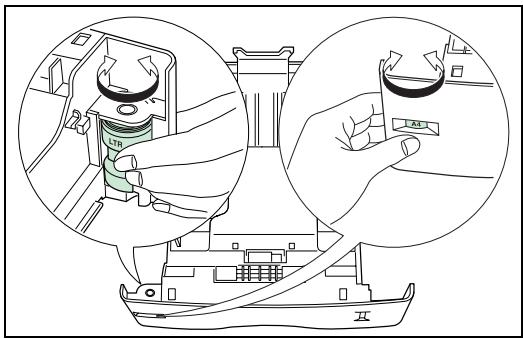
Set the guides and the stop inside the tray according to the paper you will be using. Load the paper into the tray. Please see the paragraph on Loading paper, on page 1-25 for more details.
Custom paper size
Formats other than A5, A4, B5, Letter and Legal (for the USA) can be used in the tray, in this case please following the procedure below. If an additional tray is installed, the procedures for making settings remain the same.
This menu appears when the tray's paper size indicator is set to OTHER.
Set the paper size indicator to OTHER and configure the menu:
MENU - √ - PAPER MANAGEMENT - > - TRAY SIZE
Press ENTER, a blinking "?" appears.
Press the and keys to choose the desired format. The following formats are available:
-
Specific
-
Oficio II
Folio
16k
C5
A5
B5
ISO B5
A4
Executive
- Lettre
Legal
Press ENTER. If the selected size is Specific, you may need to set the paper dimensions and the measurement unit.
Selecting the measurement unit
This procedure allows you to select the measurement unit.
Press the > key.
Press the key until UNIT appears.
Press ENTER, a blinking "?" appears.
Select the unit (MM or INCHES), press ENTER.
Press the key to enter the paper dimensions..
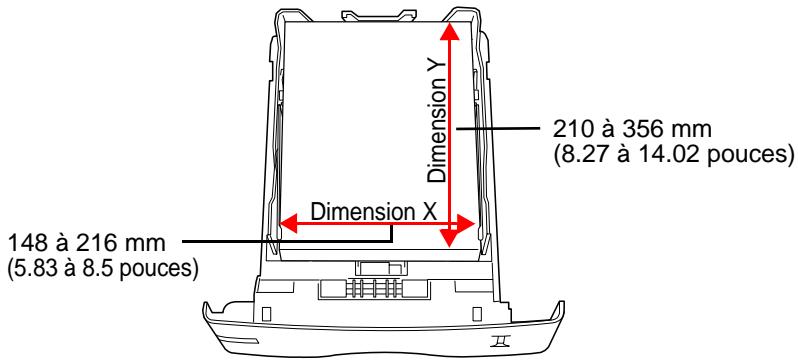
A screen displays the width "Dimension in X", press ENTER. A blinking cursor appears underneath the units figure. Set the width using the and buttons to increment or decrement the selected figure and the < and > buttons to move to the tens and hundreds. Press ENTER.
As soon as the width has been set, press the key to set the length.
Set the length in the same way as for the width. Press ENTER
When printing using the custom paper size defined above, you need to set the same size on the printer driver.
Setting the paper size for the multipurpose tray
When you use the multipurpose tray in cassette mode, you must use the same paper format as that specified for the print job.
MENU - √ - PAPER MANAGEMENT - > - √ - MULTI TRAY FORMAT
Press ENTER, a blinking "?" appears.
Press the and keys to choose the desired format. The following formats are available:
A4
Executive
- Lettre
Legal
-
Custom
-
Oficio II
Statement
Folio
-
Youkei 2
-
Youkei 4
16k
Hagaki
-
OufukuHagaki
-
Monarch
Business
Comm.#9
Comm. #6 3/4
DL
C5
A6
B6
A5
B5
ISO B5
Press ENTER.
Paper type settings
Select the paper type according to the paper which will be in the cassette and in the multipurpose tray.
Setting the paper type for the tray
Make this setting to adapt the type of paper loaded from the printer's paper tray.
If the paper type is correctly configured, you can print using the automatic paper type selection function from the application software (printer driver). The default setting is Normal.
MENU - V - PAPER MANAGEMENT - > - V - TRAY 1 TYPE (TRAY 2 TYPE) I
Press ENTER, a blinking "?" appears.
Press the and keys to choose the desired type. The following types are available:
Normal
Pre-printed
Bound
Recycled
Rough
- Header
Colour
Perforated
High quality
- Specific (1 to 8)
Press ENTER.
Setting the paper type for the multipurpose tray
You can automatically select the paper using an automatic selection function in the application software (printer driver). The default setting is Normal.
For further details about the paper types which can be used.
MENU - √ - PAPER MANAGEMENT - > - √ - MULTI TRAY TYPE
Press ENTER, a blinking "?" appears.
Press the and keys to choose the desired type. The following types are available:
Normal
Transparent
-
Pre-printed
-
Labels
Bound
Recycled
Vellum
Rough
- Header
Colour
Perforated
-
Envelope
-
Card
Thick
High quality
- Specific (1 to 8)
Press ENTER.
Creating a custom paper type
Use the procedure shown below to customise the printer's paper type. You can save up to eight different custom types. Once they have been configured, each of these custom types can be called up when you configure the paper type. After you have selected the paper type (see procedure below), you can configure the paper weight and front/back mode (please see the paragraph on Selecting the paper weight, on page 6-9, and see also the paragraph on Switching the "Duplex path" on and off, on page 6-10). To reinitialise the customising process, please see the paragraph on Reinitialising the custom paper type, on page 6-10.
MENU - √ - PAPER MANAGEMENT - > - √ - PAPER SETTINGS
Press ENTER, a blinking "?" appears.
Press the and keys to choose the desired type. The following types are available:
Normal
Transparent
-
Pre-printed
-
Labels
Bound
Recycled
Vellum
Rough
- Header
Colour
Perforated
-
Envelope
-
Card
Thick
High quality
- Specific (1 to 8)
Press ENTER.
Press > to set the paper weight, please see the paragraph on Selecting the paper weight, on page 6-9.
Selecting the paper weight
You can configure the paper weight to customise your paper type.
MENU - √ - PAPER MANAGEMENT - > - √ - PAPER SETTINGS > PAPER WEIGHT
Press ENTER, a blinking "?" appears.
Press the and keys to choose the desired type. The following types are available:
Light
Normal 1
Normal 2
Normal 3
-
Heavy 1
-
Heavy 2
-
Heavy 3
-
Very heavy
Press ENTER.
Note:
If the paper type is specific and the front/back module is installed, you must choose whether or not to allow front/back printing. Please see the paragraph on Switching the "Duplex path" on and off, on page 6-10.
Switching the "Duplex path" on and off
Note: The front/back module must be installed on the printer to use this function.
If the paper type is specific and the front/back module is installed, you can choose whether or not to allow printing via the front/back module as shown in the following procedure.
MENU - √ - PAPER MANAGEMENT - > - √ - PAPER SETTINGS > DUPLEX PATH
Press ENTER, a blinking "?" appears.
Press the and keys to choose the desired type. The following types are available:
Press ENTER.
Reinitialising the custom paper type
MENU - √ - PAPER MANAGEMENT - > - √ - CANCEL PAPER SETTINGS
Press ENTER, a blinking "?" appears.
Press ENTER.
All custom settings (paper weight and duplex path) are reinitialised to their default values.
Multi tray mode
The multipurpose tray can be used in two modes - Priority or cassette. The multipurpose tray loads the paper differently depending on which mode has been chosen:
Cassette mode
Default mode. The multipurpose tray acts like all the other paper sources. The printer can load paper from any other source controlled from the printer driver. Cassette mode allows quicker printing than Priority mode.
- Priority mode
The paper placed in the multipurpose tray is automatically loaded and replaces any other paper source selected from the printer driver. Once all the sheets of paper in the multipurpose tray have been used, (approximately 100 sheets [size A4, 0.11mm in thickness], the printer is again fed from the previously selected paper source. This mode allows you to load paper of an individual size or type without needing to reload the current paper source. To feed the printer from the chosen paper source, empty the multipurpose tray.
Note: The manual feeder's maximum capacity is 100 sheets with A4 paper. If you are using Legal paper, the number of pages must be below 100 in order to avoid paper jams.
To switch the multipurpose tray to priority mode, follow the procedure below:
MENU - √ - PAPER MANAGEMENT - > - √ - MULTI TRAY MODE
Press ENTER, a blinking "?" appears.
Select CASSETTE or PRIORITY using the or keys. Press ENTER.
Selecting the source tray
This menu allows you to select the source tray to be used for a print job. If no options are installed, only tray 1 and the MULTI tray are available. If additional trays are installed, they will appear on the list.
MENU - √ - PAPER MANAGEMENT - > - √ - PAPER SOURCE
Press ENTER, a blinking "?" appears.
Select TRAY 1 (or TRAY 2, etc., depending on option) or MULTI TRAY using the and keys. Press ENTER. Selecting the paper output tray
Selecting the paper output tray
This menu allows you to choose the paper output tray when printing.
MENU - √ - PAPER MANAGEMENT - > - √ - STACKER
Press ENTER, a blinking "?" appears.
Select BC SP F-TO BOTTOM (output at the top) or TRAY ABOVE FABOVE (output at the rear) using the and keys. Press ENTER.
Printing Letter documents in A4 format
This menu allows you to turn the difference between A4 format and Letter format on and off. When set to Off this prevents printing if the size of the paper in the paper source does not match the paper size used for the print jobs. If this size is different, an error message is displayed on the screen. The default setting of On forces printing even if the size of the paper in the paper source does not match the paper size used for the print jobs.
MENU - √ - PAPER MANAGEMENT - > - √ - A4/LT PRIORITY
Press ENTER, a blinking "?" appears.
Select ON or OFF using the or keys. Press ENTER.
PAGINATION
The following settings can be made:
- emulation,
- font,
code set,
number of copies,
page orientation, - KIR (image antialIASing),
- draft mode,
resolution.
Emulation
This procedure allows you to set the emulation type for the printer.
Change emulation
MEN - V - EMULATION
Press ENTER, a blinking "?" appears.
Select the emulation type using the and keys in the list shown:
PCL6
-
KPDL(PostScript emulation)
-
KPDL (auto)
-
Imprim. Line
-
IBM Proprimer
DIABLO 630
EPSON LQ-850
Press ENTER.
Alternative emulation for KPDL emulation
When it is switched on, the KPDL (auto) emulation allows you to automatically change the emulation depending on the print job received
MEN - V - EMULATION
Press ENTER, a blinking "?" appears.
Select the KPDL (AUTO) emulation using the and keys. Press ENTER.
Press the > key.
Select ALT. EMULATION using the and keys. Press ENTER, a blinking "?" appears. Select the emulation using the or keys from the following list:
-
PCL 6 (default)
-
Print Line
-
IBM Proprinter
DIABLO 630
EPSON LQ-850
Press ENTER.
Printing out KPDL errors
You can print out a description of any printing errors which may occur in KPDL emulation mode. To do this you need to switch this option on (it is switched off by default).
MENU - √ - EMULATION
Press ENTER, a blinking "?" appears.
Select the KPDL or KPDL (AUTO) emulation using the and keys. Press ENTER.
Press the > key.
Select KPDL PRINT. ERR. using the and keys.
Press ENTER, a blinking "?" appears.
Select ON for using the or keys. Press ENTER.
Font
You can select the default font for the current interface. Any additional fonts downloaded into the printer's memory or stored on a CompactFlash card can be chosen as the default font.
This menu also allows you to configure the type and pitch for the Courier and Letter Gothic fonts.
Default font
MENU-√-FONT->-√-SELECT.FONT
Press ENTER, a blinking "?" appears.
Select where the fonts come from (IINTERNAL or others) using the and keys. Press ENTER.
Press the > key. A font number appears on screen. The letter shows where the font is located, as shown in the table below:
| Letter | Description |
| I | Internal fonts |
| S | Software fonts |
| M | Fonts from a flash card |
| H | RAM disk |
| O | Optional ROM |
Press ENTER, a blinking "?" appears.
Select the default font to use with the and keys.
Default font size
Follow the procedure below to configure the default font size. If the default font is a fixed font such as Courier or Letter Gothic, you can change the character pitch instead of the font size.
MENU -√-FONT -> -√-SELECT FONT -> -√-FONT SIZE
Press ENTER, a blinking cursor appears. Use the and keys to increment or decrement the selected figure and the < and > keys to move the cursor to the left or the right (the font
size is between 4 and 999.75 in increments of 0.25). Press ENTER.Changing the Courier/Letter Gothic font Types
Changing the Courier/Letter Gothic font Types
The Courier or Letter Gothic font type can be Normal or dark.
MENU - V - FONT - > - V - SELECT FONT - > - V - COURIER (LETTER GOTHC)
Press ENTER, a blinking "?" appears.
Select the NORMAL or DARK option using the and keys. Press ENTER.
Character tilt for the Courier/Letter Gothic fonts
Character tilt can be set when the default font is Courier or Letter Gothic.
MENUG-√-FONT-> -√-SELECT FONT->-V-PITCH
Press ENTER, a blinking cursor appears. Use the and keys to increment or decrement the selected figure and the < and > keys to move the cursor to the left or the right (the font size is between 0.44 and 99.99 in increments of 0.01). Press ENTER.
Character encoding
You can change the character encoding. The available character encoding varies depending on the current font. (The default character encoding is IBM PC-8.)
MENU-√-FONT->-V-COUNTRY
Press ENTER, a blinking "?" appears.
Select the desired character encoding using the and keys. Press ENTER.
Number of Copies
VYou can programme the number of copies to be printed for each interface. The number of copies must be between 1 and 999.
MEN - V - P A G E C O N F I G. > - V - COPIES
Press ENTER, a blinking cursor appears. Use the and keys to increment or decrement the selected figure and the < and > keys to move the cursor to the left or the right Press ENTER.
Page orientation
You can choose the default page orientation for printing to either landscape or portrait.
MENUGV-PAGECONFIG.>V-ORIENTATION
Press ENTER, a blinking "?" appears.
elect PORTRAIT or LANDSCAPE using the and keys. Press ENTER.
KIR
The printer includes an antialiasing function (KIR). This function gives high print quality by improving the resolution in software.
KIR off

KIR on
Note:
Set the print density to 3 when you configure the KIR function. For more details about print density, please see p. 6-19.
For the best possible KIR function settings, look at the check line, which is the last line on a status page.
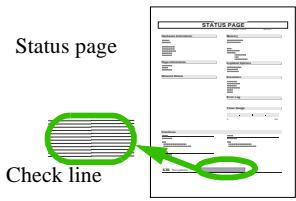
Optimised stripes
The KIR configuration is the best.
Black vertical stripes
Set KIR mode to Off. Print the status page out again. If there are still black stripes, reduce the print density.
White vertical stripes
Set KIR mode to On. Print the status page out again. If there are still white stripes, reduce the print density.
MENU - √ - PRINT QUALITY - > - √ - KIR MODE
Press ENTER, a blinking "?" appears.
Select ON or OFF using the and keys. Press ENTER.
Draft mode
The "Draft mode" function allows you to reduce the amount of toner on the page in order to cut printing costs. This function has no effect on printing speed.

Draft mode off (default)

Draft mode on
MENU - V - PRINT QUALITY - > - V - DRAFT MODE
Press ENTER, a blinking "?" appears.
Select ON or OFF using the and keys. Press ENTER.
Resolution
Allows you to set the print resolution. The higher the resolution the sharper the printed characters and graphics will be.
MENU - √ - PRINT QUALITY - > - √ - RESOLUTION
Press ENTER, a blinking "?" appears.
Select 1200 DPI, 600 DPI or 300 DPI using the and keys. Press ENTER.
INTERFACE
The printer has a parallel port and a USB port. A network card is also installed. You can independently change the printing environment settings (such as the default emulation) on different interfaces using the printer's menu selection system. Select the interface before making the changes described in the procedure below.
Note: Selecting the interface as described below does not select the interface from which the data will be received.
Parallel interface
Warning - To ensure that your terminal works properly, you MUST retain the AUTO option for the parallel interface settings.
USB Interface mode
Press the MENU key.
Select Interface > using the or keys. The name of an interface appears underneath: this is the current interface. Parallel (default) USB Optional (when a network card is installed)
Press the ENTER key. A blinking question mark (?) appears.
Select USB using the or keys.
Press the ENTER key.
Press the MENU key. The message Ready appears on the screen again.
Network interface settings
For further details, please see the paragraph on Updating network settings, on page 3-12..
CONFIGURING THE PRINTER
Page protection mode
The Page protection menu does not normally appear. However, if there is a printing error due to a lack of memory on the printer, the Page protection menu will be forced to On. When this occurs, reset the Page protection menu to Auto (default) to maintain the best possible use of the printer's memory.
MENU - -PAGE CONFIG. -> - -PAGE PROTECTION
Press ENTER, a blinking "?" appears on the left of the current status (on or off).
Select the option (On, Off or Auto) using the [image] and [image] keys. Press ENTER.
Line break
This setting allows you to define what action the printer should take when it receives a line break.
MENU -√-PAGE CONFIG. -> -√-LINE BREAK
Press ENTER, a blinking "?" appears on the left of the current status.
Choose one of the available options:
- ONLY: a line break will be added,
- CR + LF : a carriage return and a line break will added,
- NO EFFECT: the line break will be ignored
Press ENTER.
Carriage return
This setting allows you to define what action the printer should take when it receives a carriage return.
MENU - -PAGE CONFIG. - > - -CARRIAGE RETURN
Press ENTER, a blinking "?" appears on the left of the current status.
Choose one of the available options:
- ONLY: a carriage return will be added,
- CR + LF : a carriage return and a line break will added,
- NO EFFECT: the carriage return will be ignored
Press ENTER.
80 character mode
This setting allows you to increase the maximum number of characters which can be printed on one line of an A4 and Letter page.
MENUGV-PAGECONFIG.->V-80CHARMODE.
Press ENTER, a blinking "?" appears on the left of the current status.
Select ON for using the or keys. Press ENTER.
Print density
The print density can be set over 5 levels: from 1 (light) to 5 (dark). The default setting is 3.
MENU - √ - PRINT QUALITY - > - √ - PRINT DENSITY
Press ENTER, a blinking "?" appears on the left of the current status.
Select the desired print density by incrementing or decrementing the values using the and keys. Press ENTER.
Number of pages printed counter
This menu allows you to display the total number of pages printed by the printer.
MENU - √ - PAGE COUNTER > NO. OF PAGES
The number of pages printed appears on screen.
Language selection
You can choose the language for messages displayed on the screen.
MENUSTHEOTHERS- -V-LANGUAGE
Choose the language from the list. Press ENTER twice, the first time to choose and the second to confirm your choice.
Automatic page break
The time to wait before printing the current page, when the printer stops receiving data. The time can be set from 0 to 495 seconds incrementing the values by 5.
MENU - √ - OTHERS - > - √ - PAGE BREAK
Press ENTER, a blinking cursor appears underneath the units figure.
Set the time using the and buttons to increment or decrement the selected figure and the < and > buttons to move to the tens and hundreds.
Press ENTER to confirm.
Standby mode
Switching standby mode on and off
MENU - √ - OTHERS - > - √ - ENTER STANDBY MODE > STANDBY MODE
Press ENTER, a blinking "?" appears on the left of the current status.
Select the option (ON or OFF) using the and keys. Press ENTER.
Setting the time before entering standby mode
The time before entering standby mode is between 5 and 240 minutes in 5-minute steps.
MENU - √ - OTHERS - > - √ - ENTER STANDBY MODE
Press ENTER, a blinking cursor appears underneath the units figure.
Set the time before entering standby mode using the and buttons to increment or decrement the selected figure and the < and > buttons to move to the tens and hundreds.
Press ENTER to confirm.
Reinitialising the printer
The printer's settings are restored to their default values.
MENU - √ - OTHERS - > - √ - INITIALISE THE PRINTER
Press ENTER twice, the first time to choose and the second to confirm your choice. The SELF TEST message appears on the screen during reinitialisation.
Resource protection
This setting prevents you from losing any fonts and macros you have downloaded when going from PCL6 to another emulation.
MENU- OTHERS -> - -PROT. RESOURCES
Press ENTER, a blinking "?" appears on the left of the current status.
Choose one of the available options:
- OFF,
PERMANENT,
PERM/TEMP.
Appuyez sur ENTER.
Setting the alarm
MENU- -OTHERS- > - -ALARM
Press ENTER, a blinking "?" appears on the left of the current status.
Select the option (ON or OFF) using the and keys. Press ENTER.
Auto mode
Switching this mode on allows you to continue printing the document, without any interaction on the printer, following one of the following errors:
Memory full Press GO
- Page offset Press GO
- KPDL error ## Press GO
- File missing Press GO
- RAM disk Err## Press GO
- Mem.Card Err ## Press GO
- Front back off Press GO
MENU - √ - OTHERS - > - √ - AUTO CONTIN. MODE
Press ENTER, a blinking "?" appears on the left of the current status.
Select the option (ON or OFF) using the and keys. Press ENTER.
Setting auto mode time
MENU - √ - OTHERS - > - √ - AUTO CONTIN. MODE > AUTO CONTIN. MODE > AUTO CONTIN.
Press ENTER, a blinking cursor appears underneath the units figure.
et the time using the and buttons to increment or decrement the selected figure and the < and > buttons to move to the tens and hundreds.
Press ENTER to confirm.
Front/back printing error detection
When it is switched on, this setting allows you to detect an error when the size or type of paper used does not match the format to be used for front/back printing. In this case the printing is halted and the message "Front back off Press GO" is displayed. Pressing the GO button starts front printing only.
MENU - V - OTHERS - > - V - ERROR END > FRONT BACK
Press ENTER, a blinking "?" appears on the left of the current status.
Select the option (ON or OFF) using the and keys. Press ENTER.
7 MAINTENANCE
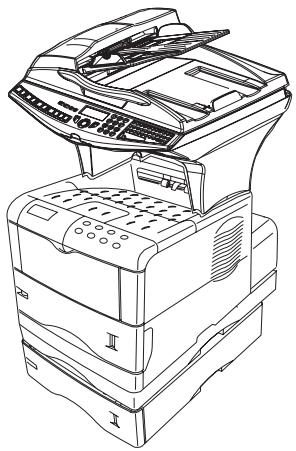
MAINTENANCE
GENERAL
To ensure the best operating conditions for your fax, it is recommended that you regularly clean the inside.
For normal usage, please respect the following rules:
- Never leave the cover open unless required.
- Protect the machine from direct sunlight.
- Do not attempt to oil the machine.
- Always gently close the cover and avoid vibrations.
- Do not open the cover while printing.
- Never try to dismantle the machine.
- Do not use paper that has stayed in the paper tray for a long time.
Look at the safety rules in the Safety chapter at the end of this user manual.
REPLACING THE CONSUMABLES (TONER AND DRUM)
To check the remaining capacities of the consumables:
86 OK - ADVANCED FCT / CONSUMABLES
The toner cartridge and the drum cartridge come with a chip card.
After replacing a consumable item in the printer, you need to inform the machine about its features.
For this purpose, the chip card supplied with each toner cartridge must be read by the machine each time a new consumable item is installed.
Open the printer top cover (A) all the way.Pull the lock lever (blue colored (B) to the right and gently lift the old toner container.
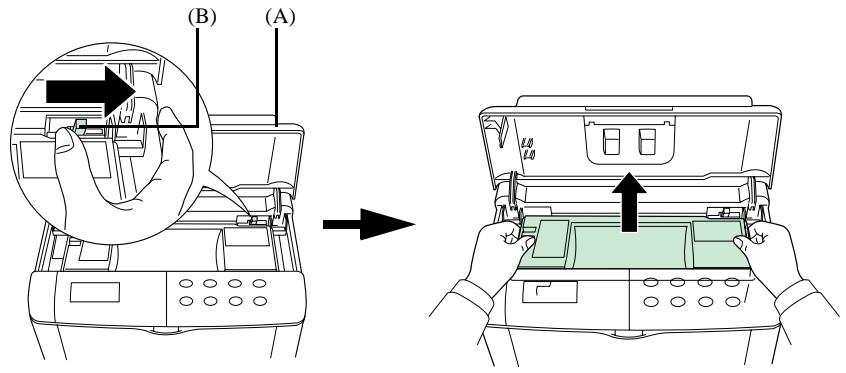
With the label side down, thoroughly shake the new oner container (C) (in the direction of the arrow) ten times or more to ensure that the toner is evenly distributed inside.
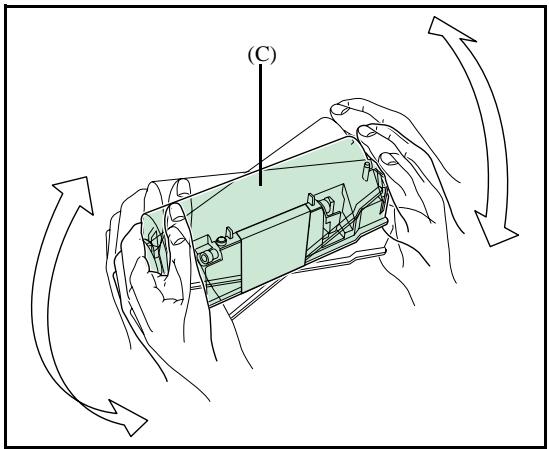
Carefully remove the protective seal [orange colored (D)] from the new toner container and then install the container into the printer.
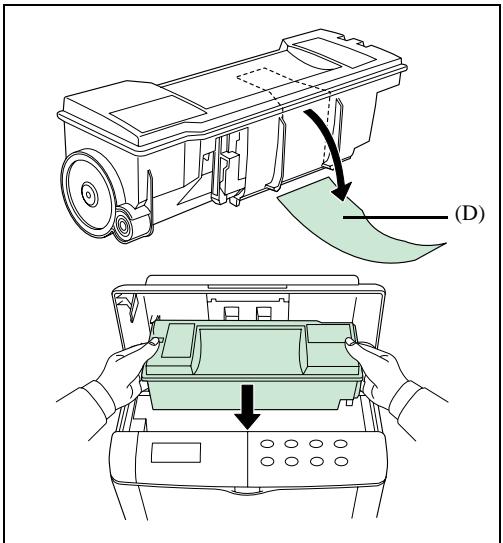
Push firmly on the top of the toner container at the positions marked PUSH HERE until you hear it click into place. Close the top cover.

Replace the waste toner box as follows. First open the left cover (E) on the left side of the printer..
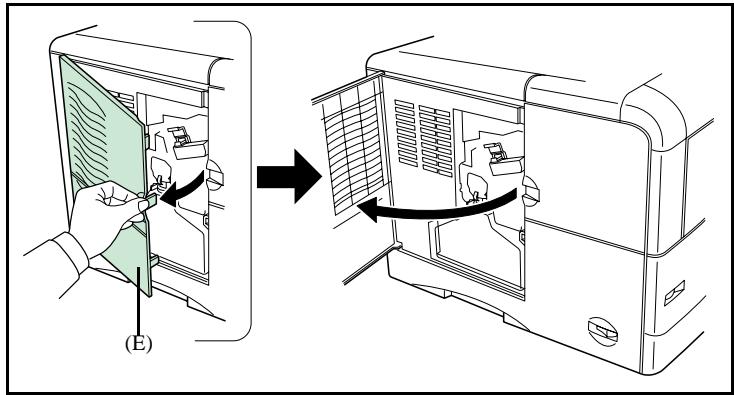
While holding the waste toner box, press the lock lever(F) and then gently remove the waste toner box (G)..
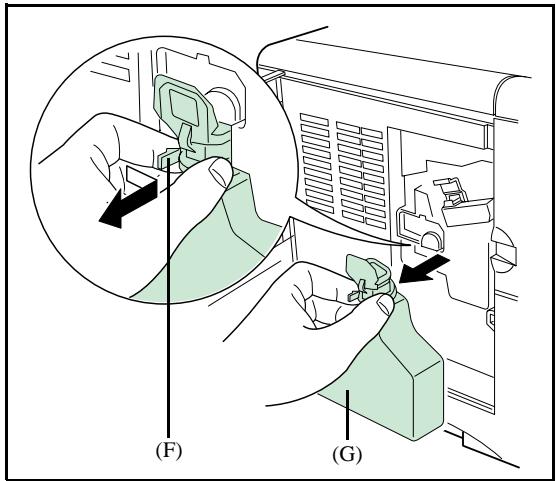
Cap the waste toner box (I) after removing from the printer. To avoid toner spilling, place the capped waste toner box in the plastic bag (J) supplied. Place the old toner container (C) in the supplied plastic
bag. Place the old toner container as well as the waste toner box into the cardboard of the new cartridge before sending them to be recycled ; see the attached instructions..
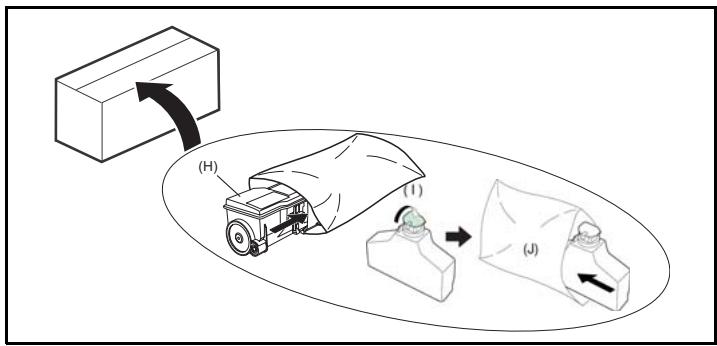
Open the cap of the new waste toner box (K). Insert the new waste toner box as shown in the figure. The box will be locked when it fits into place.
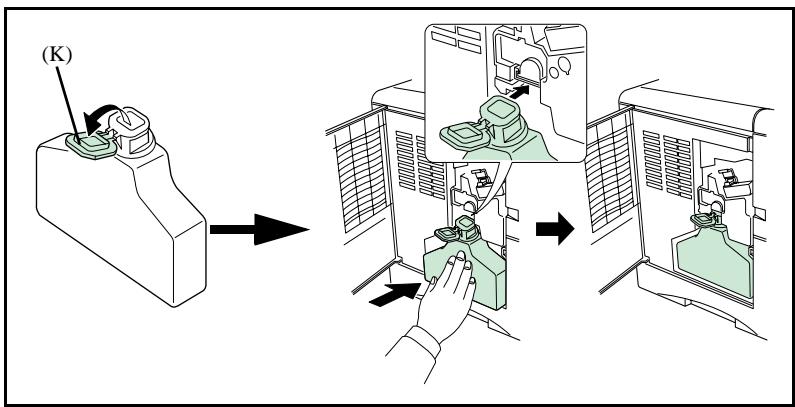
Clean the printer as follows. First pull the cleaning knob [green colored (L)] slowly in and out a few times. The charger wire inside the printer is cleaned by this procedure. After cleaning the charger wire, push the cleaning knob firmly all the way in.
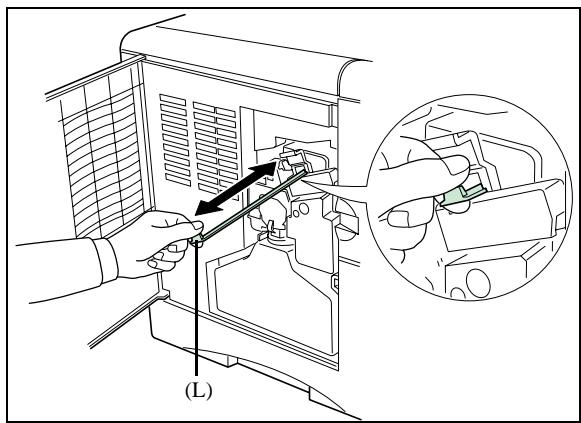
Take the grid cleaner (M) from protective bag (N) in the new toner kit, and remove the cap (O). Attach the grid cleaner (M) to the printer with the pad uppermost, as shown in the figure.
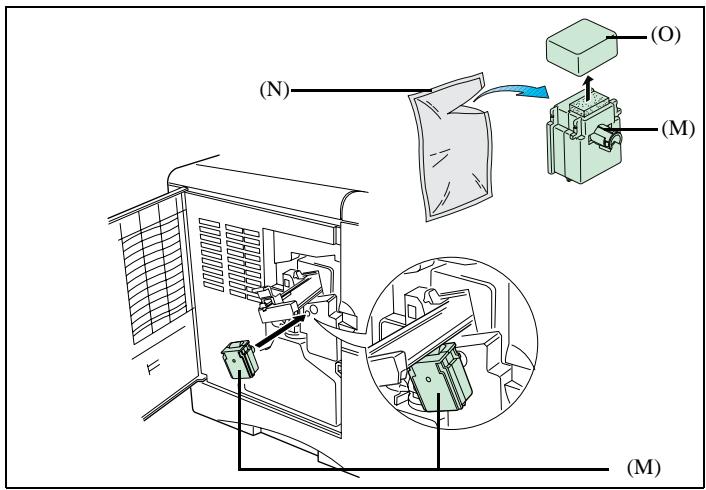
After attaching the grid cleaner, repeat the action of slowly pulling out and then pushing back in the main charger unit (P) at least 5 times, as shown in the figure. The grid part underneath the main charger is cleaned by this procedure.
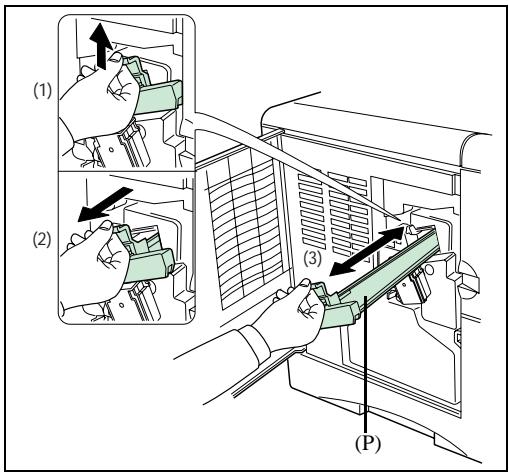
Remove the grid cleaner from the printer and dispose of it. The grid cleaner is not re-usable. After cleaning the charger wire, push the main charger unit all the way in and close the left cover.
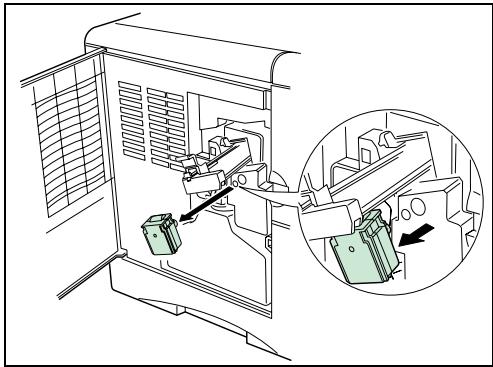
While pulling the paper transfer unit release lever (Q) pull out the paper transfer unit (R).
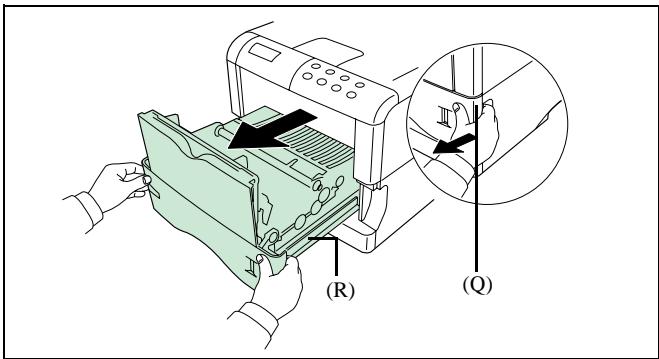
Wipe the paper dust on the registration roller (S) and the paper ramp (T) using the wiper cloth included in the toner kit..
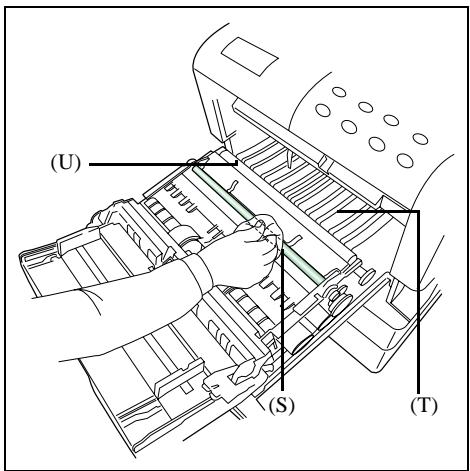
Caution - Do not touch the transfer roller [the black roller (U)] when wiping the paper ramp.
After cleaning, return the paper transfer unit to its original position.
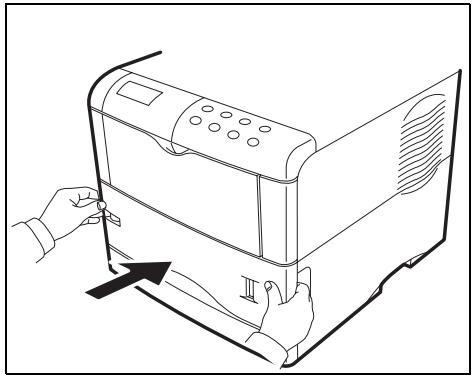
Press OK on the scanner keypad.
The display shows :
INSERT THE
TONER CARD
Insert chip card (supplied with the toner cartridge) into the card reader ensuring that the chip is entered as shown in the drawing below
The display shows :
CHANGE TONER?
YES= OK - NO = C
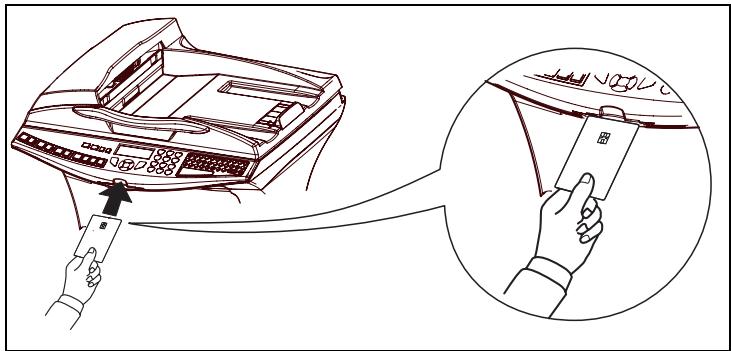
Press OK once the chip card has been read.
The display shows :
NEW TONER
REMOVE CARD
CLEANING
Cleaning the scanner's reading devices
When one or more vertical lines appear on transmitted copies or faxes, follow these steps :
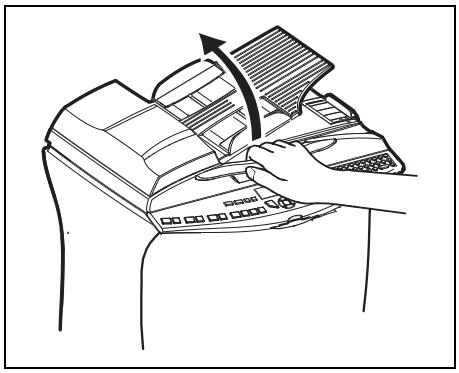
Open the scanner cover by pushing it backwards until held vertically in position
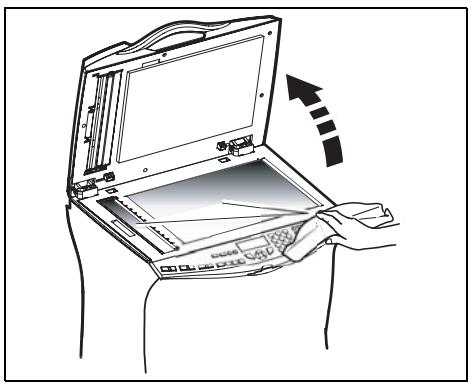
Clean the two transparent scanning windows with a soft, lint-free cloth, dampened with alcohol.
^ Close the scanner cover.
Make a copy to check that the symptoms have been cleared..
Cleaning the printer
Dust, dirt and paper debris on the outer surfaces and inside the printer can interfere with printer performance. Clean the printer regularly.
Remark
Caution - Use a soft cloth to clean the printer. Never use abrasive or corrosive detergents.
The fusing unit can become very hot during operation. To avoid injury - do not touch.
Wait for at least 10 minutes after the printer has been turned off and make sure that the fusing unit has cooled before cleaning the interior of the printer.
Cleaning the outside of the printer
Clean the outside of the printer with a smooth duster.
SERVICING
For guaranteed performance of your terminal, some maintenance work (replacing the fusing unit and the transfer roll) has to be done on the printer approximately every 300,000 printed pages. Please contact your supplier for this operation.
SCANNER CALIBRATION
You can perform this operation when the quality of photocopied documents is no longer satisfactory.
80 OK - ADVANCED FCT / CALIBRATION
Confirm your choice by pressing the OK key.
INCIDENTS
COMMUNICATION ERRORS
If the communication fails, the fax advises you of an automatic retry later.
Example of what is displayed:
Current time FRI 11 SEP 20:13
Time of next try 0142685014 20:18
Transmission from the feeder
You have the choice between:
- waiting until the transmission takes place at the given time
- restarting the transmission immediately by pressing
- abandoning transmission by pressing . To eject the document, press again.
Transmission from memory
You have the choice between:
- waiting until the transmission takes place at the given time
- restarting the transmission using the transmission queue reportez-vous au paragraphe Immediately perform transmission from the waiting queue, page 5-11). In this case, for a document composed of several pages, the transmission will take place from the page where the error occurred
- abandoning the transmission by deleting the corresponding command in the transmission line (reportez-vous au paragraphe Deleting a transmission on hold, page 5-12).
The terminal makes at most 5 automatic redials. The non-transmitted document is automatically deleted from the memory and a transmission report is then printed together with an error code and the cause for transmission failure (see the communication error codes).
Communication error codes
The communication error codes appear in the logs and transmission reports.
General codes
Code 01 - Busy or no fax answer
This code appears after 6 unsatisfactory attempts. Call later.
Code 03 - User break
A communication has been stopped by the user pressing the key.
Code 04 - Non programmed number
A number saved as a one-touch key or abbreviated number is not valid-check it. (Example: a delayed transmission was programmed with a one-touch key and this key has been deleted in the meantime).
Code 05 - Scanning default
An incident occurred with the scanner, for example, the sheet is jammed.
Code 06 - Printer default
An incident occurred in the printer: no paper, paper jam, opened cover... In the reception mode, this incident appears only if the reception parameter is switched to WITHOUT PAPER (reportez-vous au paragraphe Reception without paper, page 3-5).
Code 07 - Disconnected
The link has been cut (bad line). Check the number and try again.
Code 08 - Quality
The document you sent was not well received. Contact your subscriber to see if you need to send again.
Code 0A - No document to be polled
You tried to poll a document from a subscriber who had not prepared his document (no deposit) or the password entered was incorrect.
Code 0B - Wrong number of pages
There is a difference between the number of pages indicated during preparation for the transmission and the number of pages sent- check the number of pages in the document.
Code 0C - Received document error
Ask the subscriber who called you to check the length of his document (it may be too long to be completely received).
Code 0D - Transmission failed
Ask the sender to resend the document.
Code 13 - Memory full
Your fax can no longer receive since its memory is full. There are too many received unprinted documents or too many documents in the transmission line.
Print the received documents and delete or transmit immediately the documents in the transmission line.
Code 14 - Memory full
Received document memory full.
Code 15 - Unknown mailbox number
You wish to deposit a document in a subscriber's mailbox. The mailbox number does not exist.
Code 16 - No Relay Bcst list Nr x
You requested a document relay from a remote fax but the fax has not programmed the list of subscribers requested.
Code 17 - Unknown mailbox number
You wish to recover a document from a subscriber's mailbox. The mailbox number does not exist.
Code 18 - Relay Bcst impossible
You requested a document relay from a remote fax which does not have the relay broadcast function.
Code 19 - Subscriber has stopped
The communication has been stopped by your subscriber. (Example: a fax wanted to poll your fax but there is no document deposited).
Code 1A - Disconnected
The transmission has not started. The telephone line is busy.
Code 1B - Transmission failed
During transmission: start again.
During reception: ask your subscriber to resend the document.
Internet codes
Codes 40 and 41 - No reply from supplier
The modem cannot connect to the Internet service provider. If this error always occurs, check the supplier's dial-up number.
Code 42 - Cannot access supplier
The service provider refuses the connection, the service is temporarily unavailable. If this error always occurs, check the Internet connection parameters.
Code 43 - Xmission server unavailable
Cannot connect to the SMTP server for sending mail, the service is temporarily unavailable. If the error always occurs, check the Internet e-mail and server parameters.
Code 44 - Reception server unavailable
Cannot connect to the POP3 server for mail reception, the service is temporarily unavailable. If the error always occurs, check the Internet e-mail and server parameters.
Code 45 - Supplier disconnected
The service is temporarily unavailable; try again later.
Code 46 - Xmission server disconnect
The SMTP server for sending mail is disconnected. The service is temporarily unavailable- try again later.
Code 47 - Reception server disconnect
The POP3 server for mail reception is disconnected. The service is temporarily unavailable- try again later.
Code 48 - Disconnection from Internet
The service is temporarily unavailable- try again later.
Code 49 - Cannot connect to Internet
Check the call number and eventually the associated prefix of the machine.
To check the Internet parameters, print them by pressing in turn the keys , 9, 4, 5 and OK.
PRINTER INCIDENTS
Caution - To ensure that your terminal works properly, you MUST retain the AUTO option for the parallel interface settings.
Paper jam inside the printer
Follow the procedure below to remove any sheets of paper which may have got trapped in the printer.
Take out the paper tray and remove the paper which has got trapped.
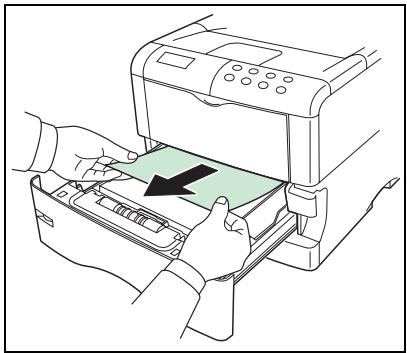
Put the paper tray back into its housing. Whilst pulling on the lever which unlocks the paper transfer unit, take out the paper transfer unit.
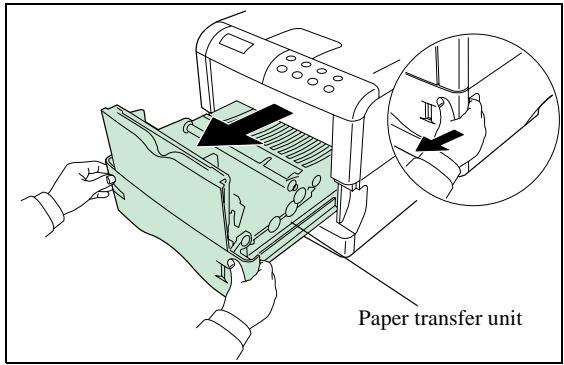
If the sheet of paper is trapped in front of the synchronisation roller, remove it as shown in illustration A. If the sheet is trapped underneath the synchronisation roller, remove it as shown in illustration B.
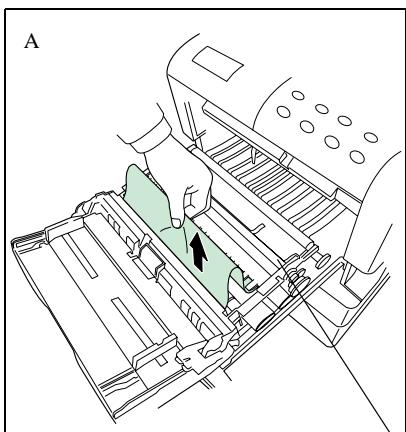
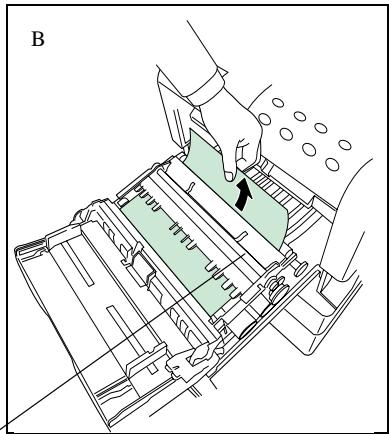
Synchronisation roller
Open the rear cover and remove the paper which has become trapped
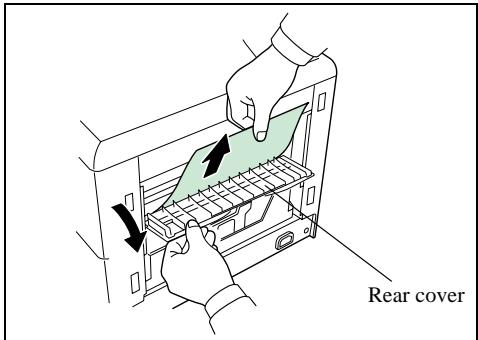
Insert the paper tray and the transfer unit and close the rear cover.
Paper jam in the front/back module
The figures below show various types of paper jams which can occur when using your device.
Open the front/back module's rear cover and remove the trapped paper.
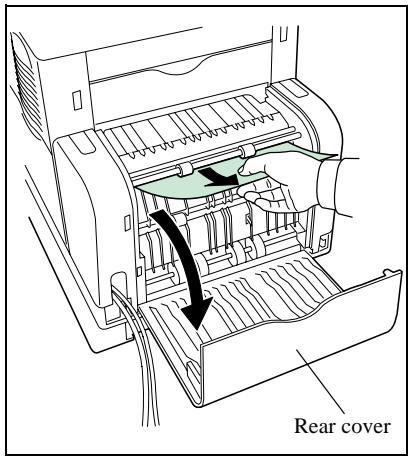
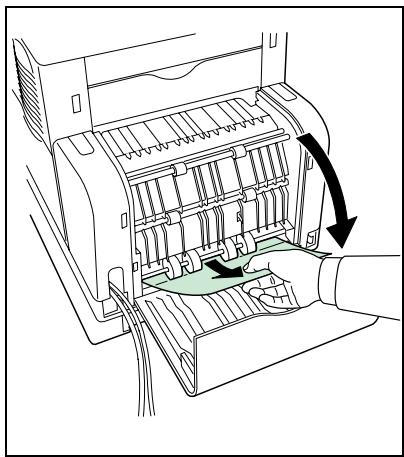
Remove the draw from the front/back module.
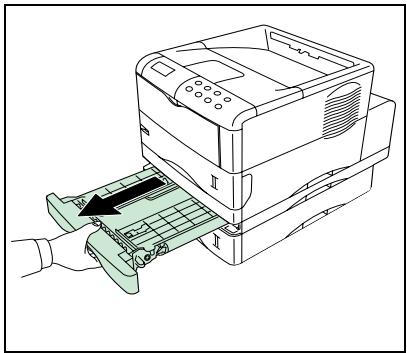
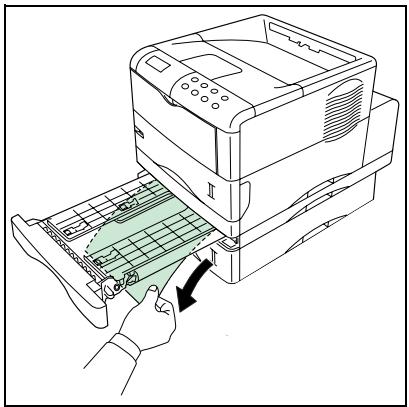
Remove the trapped paper.
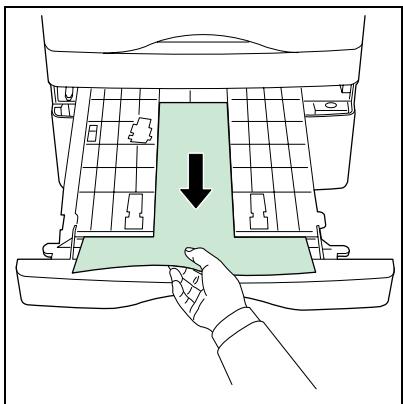
^ Close the drawer and the rear cover of the front/back module.
SCANNER INCIDENTS
Scanner paper jam
When a paper jam occurs, the following message appears on the control panel screen. REMOVE DOCUMENT.
If jams often occur in a specific part of the unit, the latter needs to be checked, cleaned or repaired.
Open the scanner cover.
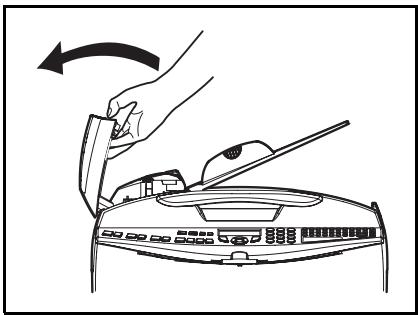
Remove the jammed paper (A) without tearing it.
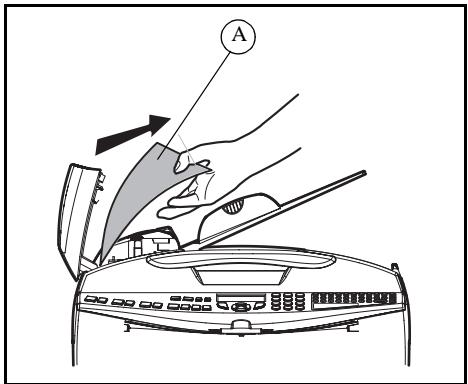
Then, close the scanner cover.
MISCELLANEOUS INCIDENTS
At switch-on nothing appears on screen
Check that the mains cable is plugged in, and check the mains plug if necessary.
The fax does not detect the presence of your inserted document. The message READY does not appear on the screen.
At the start and during scanning, REMOVE DOCUMENT appears on the screen.
Remove the document or press key
Check the thickness of the document (50 sheets of paper of 80g / m^2
Iron out the sheets if needed.
Help the sheets along.
The fax machine does not receive any faxes
Check that the telephone line cable is correctly plugged in and that there is a tone signal on the telephone line by means of the key.
You receive a blank page
Make a photocopy of a document ; if it is correct then your fax is functioning normally. Call back the subscriber and have him resend the document. It was probably sent with the sheet inserted backwards.
You cannot send a fax
Check that the telephone line cable is correctly plugged in.
Check the tone by pressing the key.
Check the prefix is correctly programmed and used.
STORAGE
If you will not be using the printer for a long time, remove the mains lead from the wall socket.
We recommend that you consult your dealer about any precautions to be taken in order to avoid any damage when using the printer again.
PACKING AND TRANSPORTING THE UNIT
If you wish to transport the unit, always use the original packaging. If you do not pack the unit correctly, you could void the warranty.
1 - Turn the power to your terminal off (button set to 0). Disconnect the unit from the network and from the mains.
2 - Uninstall the various components of your unit in reverse installation order (please see the paragraph on Installation, on page 1-1).
3-Pack the printer as follows:
- Remove the toner cartridge and the printer's toner bin. Place the toner cartridge into the plastic bag supplied to avoid any toner leakage. Make sure that the toner bin is properly closed.
- Disconnect the printer's developer connector (1) and pull on the unlocking lever (2), remove the printer's developer (3). Close the developer's protective cover (4) and place the developer into the plastic bag supplied (5).
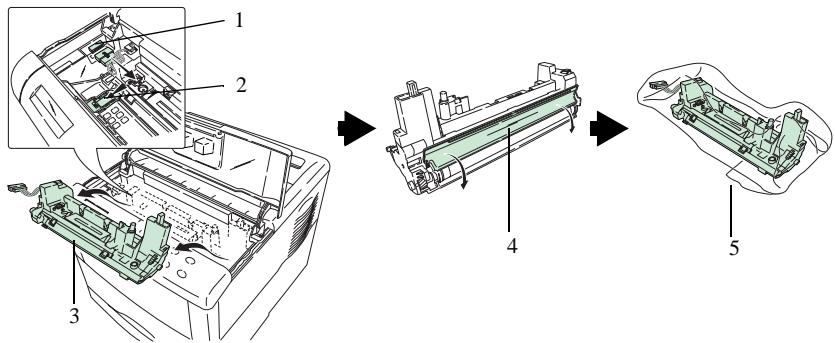
- Place the printer into the box (8) carrying out the unpacking operations in reverse order (please see the paragraph on Unpacking the printer, on page 1-7). Place the packing piece (7) as shown in the illustration below, then install the toner cartridge (6) and the bin (9).
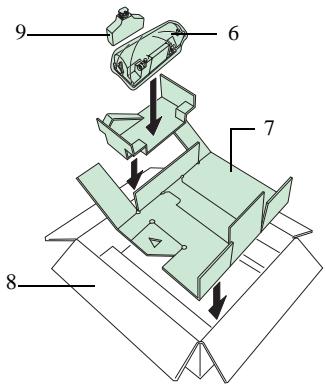
- Press on the centre of the packing piece as shown in the illustration below to make room for the developer.
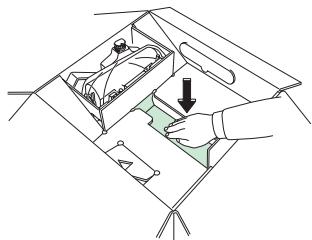
- Place the developer (10) into its location.
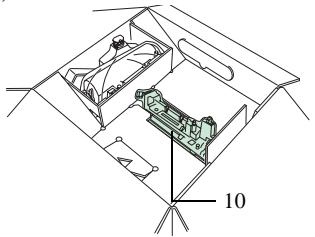
4 - Pack the other components into their original boxes with all the original packing pieces, carrying out the unpacking operations in reverse order (please see the paragraph on Unpacking the components, on page 1-4).
5 - Place all the documentation (printed documents and CD-ROM (depending on model)) into the boxes.
6 - Make sure that you properly close the boxes with adhesive tape.
SPECIFICATIONS
Type of device: fast professional terminal, for use with all group 3 devices according to the UIT-T recommendations.
| Dimensions (hors options) : | Largeur : 457 mm Profondeur : 478 mm (hors option module recto / verso) Hauteur : 655 mm (hors réceptacle et bac 500 feuilles) |
| Poids : | 20,4 kg |
| Alimentation électrique : | 220-240 V - 50/60 Hz - 4,5 A |
| Electrical consumption (maximum values): | - standby mode: below 15 W - wait mode: below 80 W - when operating: 580 W when copying (peak: 987 W) |
| Admissible ambient temperature: | - when operating: +10 °C to 32.5 °C (50 to 32.22 °C) with a maximum variation of 10 °C per hour. - storage: 0 °C to 40 °C (32 to 40.00 °C) with a maximum variation of 10 °C per hour. |
| Admissible humidity rate: | When operating or in storage: 20% to 80% HR (without condensation) with a maximum variation of 20% per hour |
| Scanner / communication | |
| Original document format: | A4 format Legal 60 to 90 g/m2paper |
| Document feeder: | Max. capacity: normal capacity of 50 pages (80g/m2) |
| Format on receipt (A4 format) and Legal: | Width: 210 / 216 mm Length: 297 / 355 mm |
| Scanned image resolution: | Scanner: 600 dpi |
| Reading system: | CIS opto-electronic reading |
| Communication speed: | In group 3: 33600/14400/12000/9600/7200/4800/2400 bps |
| The effective transmission time for an A4 page varies from a few seconds to around a minute (depending on the line quality, the modem speed, the amount of information in the original and the resolution) (*). (*) Without including the exchange initialisation procedure | |
| Internet: general specifications | TCP/IP/PPP protocols SMTP/POP3/MIME protocols for electronic mail V90 modem (up to 56 kbps/s) |
| SDRAM memory | 32 Mo |
| Processor | ARM 9 à 92 MHz |
| Connectivity | USB Ethernet 10/100 Base Tx |
| File formats: | - Image: TIFF-F for black/white documents and JPEG for colour documents - PDF: black and white and colour |
| The specifications may be altered without prior notice in order to make improvements. | |
| Printing | |
| Printing speed | 28 pages/minute (A4) for a multiple impression of the same page. |
| Resolution | 1200 fast mode with KIR600 dpi with KIR300 dpi with KIR |
| Starts printing | Approx. 19.5 seconds or less (A4), depending on input data |
| Warm-up time | Approx. 10 seconds or less (from standby mode)Approx. 18 seconds or less (from powering on) at 23 °C, 230 V |
| Memory | 32 MB, can be expanded to 288 MB |
| Processor | PowerPC 405 (266 MHz) |
| Connectivity | USB Full-Speed 2.0,Ethernet using 10/100 Base Tx network card |
| Paper | Ordinary paper (60 to 90 g/m2) / thick paper (90 to 105 g/m2) |
| Paper trays | Cassette:- A5 to A4/Letter 148 to 216 mm × 210 to 297 mm.- Capacity for 500 sheets (80 g/m2)Multipurpose tray:- 70 to 216 mm × 148 to 297 mm- Capacity for 100 sheets (80 g/m2) |
| Output tray capacity | Upper tray — 250 Ηηετσ (80 g/m2) |
| Emulation | - PCL® 6- KPDL / SG Script (PostScript® level 2 language emulation and PostScript®- level 3 language emulation with configuration file) |
Registered trademarks
PREScribe is a registered trademark of the Kyocera Corporation. KPDL and KIR (Kyocera Image Refinement) are commercial trademarks of the Kyocera Corporation.
Diablo 630 is a product from Xerox Corporation. IBM Proprinter X24E is an International Business Machines Corporation product. Epson LQ-850 is a Seiko Epson Corporation product.
Hewlett-Packard, PCL and PJL are registered trademarks of the Hewlett-Packard Company.
Centronics is a trademark of Centronics Data Computer Inc. PostScript is a registered trademark of Adobe Systems Incorporated. Adobe and Acrobat are commercial trademarks of Adobe Systems Incorporated. Macintosh is a registered trademark of Apple Computer, Inc. Microsoft, Windows and Windows NT are registered trademarks of the Microsoft Corporation. PowerPC and Microdrive are trademarks of the International Business Machines Corporation. Compact Flash is a trademark of the ScanDisk Corporation. Energy Star is a registered trademark in the USA. All other trademarks and product names mentioned are registered trademarks of their respective owners.
This Kyocera printer uses the PeerlessPrintXL process to provide an emulation compatible with the PCL6 language used by HP LaserJet printers.
PeerlessPrintXL is a trademark of The Peerless Group, Redondo Beach, CA 90278, United States. This product has been developed using the TornadoTM Real Time Operating System and utilities from Wind River Systems.


It includes UFST™ nd Micro Type® from Agfa Corporation.
IBM PROGRAM LICENSE AGREEMENT
The following instructions can be supplied in English.
The device you have purchased contains one or more software programs ("Programs") which belong to international business machines corporation ("IBM"). This document defines the terms and conditions under which the software is being licensed to you by IBM. If you do not agree with the terms and conditions of this license, then within 14 days after your acquisition of the device you may return the device for a full refund. If you do not so return the device within the 14 days, then you will be assumed to have agreed to these terms and conditions.
The Programs are licensed not sold. IBM, or the applicable IBM country organization, grants you a license for the Programs only in the country where you acquired the Programs. You obtain no rights other than those granted you under this license.
The term "Programs" means the original and all whole or partial copies of it, including modified copies or portions merged into other programs. IBM retains title to the Programs. IBM owns, or has licensed from the owner, copyrights in the Programs.
1. License
Under this license, you may use the Programs only with the device on which they are installed and transfer possession of the Programs and the device to another party.
If you transfer the Programs, you must transfer a copy of this license and any other documentation to the other party. Your license is then terminated. The other party agrees to these terms and conditions by its first use of the Program.
You may not:
1) use, copy, modify, merge, or transfer copies of the Program except as provided in this license;
2) reverse assemble or reverse compile the Program; or
3) sublicense, rent, lease, or assign the Program.
2. Limited Warranty
The Programs are provided "AS IS."
There are no other warranties covering the Programs (or conditions), express or implied, including, but not limited to, the implied warranties of merchantability and fitness for a particular purpose.
Some jurisdictions do not allow the exclusion of implied warranties, so the above exclusion may not apply to you.
3. Limitation of Remedies
IBM's entire liability under this license is the following;
1) For any claim (including fundamental breach), in any form, related in any way to this license, IBM's liability will be for actual damages only and will be limited to the greater of:
a) the equivalent of U.S.$25,000 in your local currency; or
b) IBM's then generally available license fee for the Program
This limitation will not apply to claims for bodily injury or damages to real or tangible personal property for which IBM is legally liable.
IBM will not be liable for any lost profits, lost savings, or any incidental damages or other economic consequential damages, even if IBM, or its authorized supplier, has been advised of the possibility of such damages. IBM will not be liable for any damages claimed by you based on any third party claim. This limitation of remedies also applies to any developer of Programs supplied
to IBM. IBM's and the developer's limitations of remedies are not cumulative. Such developer is an intended beneficiary of this Section. Some jurisdictions do not allow these limitations or exclusions, so they may not apply to you.
4. General
You may terminate your license at any time. IBM may terminate your license if you fail to comply with the terms and conditions of this license. In either event, you must destroy all your copies of the Program. You are responsible for payment of any taxes, including personal property taxes, resulting from this license. Neither party may bring an action, regardless of form, more than two years after the cause of action arose. If you acquired the Program in the United States, this license is governed by the laws of the State of New York. If you acquired the Program in Canada, this license is governed by the laws of the Province of Ontario. Otherwise, this license is governed by the laws of the country in which you acquired the Program.
Typeface Trademark Acknowledgement
All resident fonts in this printer are licensed from Agfa Corporation.
Helvetica, Palatino and Times are registered trademarks of Linotype-Hell AG.
ITC Avant Garde Gothic, ITC Bookman, ITC ZapfChancery and ITC Zapf Dingbats are registered trademarks of International Typeface Corporation.
Agfa Japan License Agreement
-
"Software" shall mean the digitally encoded, machine readable, scalable outline data as encoded in a special format as well as the UFST Software.
-
You agree to accept a non-exclusive license to use the Software to reproduce and display weights, styles and versions of letters, numerals, characters and symbols ("Typefaces") solely for your own customary business or personal purposes at the address stated on the registration card you return to Agfa Japan. Under the terms of this License Agreement, you have the right to use the Fonts on up to three printers. If you need to have access to the fonts on more than three printers, you need to acquire a multi-user license agreement which can be obtained from Agfa Japan. Agfa Japan retains all rights, title and interest to the Software and Typefaces and no rights are granted to you other than a License to use the Software on the terms expressly set forth in this Agreement.
-
To protect proprietary rights of Agfa Japan, you agree to maintain the Software and other proprietary information concerning the Typefaces in strict confidence and to establish reasonable procedures regulating access to and use of the Software and Typefaces.
-
You agree not to duplicate or copy the Software or Typefaces, except that you may make one backup copy. You agree that any such copy shall contain the same proprietary notices as those appearing on the original.
-
This License shall continue until the last use of the Software and Typefaces, unless sooner terminated. This License may be terminated by Agfa Japan if you fail to comply with the terms of this License and such failure is not remedied within thirty (30) days after notice from Agfa Japan. When this License expires or is terminated, you shall either return to Agfa Japan or destroy all copies of the Software and Typefaces and documentation as requested.
-
You agree that you will not modify, alter, disassemble, decrypt, reverse engineer or decompile the Software.
-
Agfa Japan warrants that for ninety (90) days after delivery, the Software will perform in accordance with Agfa Japan-published specifications, and the diskette will be free from defects in material and workmanship. Agfa Japan does not warrant that the Software is free from all bugs, errors and omissions.
The parties agree that all other warranties, expressed or implied, including warranties of fitness for a particular purpose and merchantability, are excluded.
- Your exclusive remedy and the sole liability of Agfa Japan in connection with the Software and Typefaces is repair or replacement of defective parts, upon their return to Agfa Japan.
In no event will Agfa Japan be liable for lost profits, lost data, or any other incidental or consequential damages, or any damages caused by abuse or misapplication of the Software and Typefaces.
9.New York, U.S.A. law governs this Agreement.
- You shall not sublicense, sell, lease, or otherwise transfer the Software and/or Typefaces without the prior written consent of Agfa Japan.
11.Use, duplication or disclosure by the Government is subject to restrictions as set forth in the Rights in Technical Data and Computer Software clause at FAR 252-227-7013, subdivision (b)(3)(ii) or subparagraph (c)(1)(ii), as appropriate. Further use, duplication or disclosure is subject to restrictions applicable to restricted rights software as set forth in FAR 52.227-19 (c)(2).
12. You acknowledge that you have read this Agreement, understand it, and agree to be bound by its terms and conditions. Neither party shall be bound by any statement or representation not contained in this Agreement. No change in this Agreement is effective unless written and signed by properly authorized representatives of each party. By opening this diskette package, you agree to accept the terms and conditions of this Agreement.

SAFETY WARNING
Before powering on your unit, make sure the mains outlet it is connected to meets the requirements printed on the warning label on your unit, or on the separate power supply (depending on the model).
This unit must not be installed on the floor.
If your unit works with a separate Power Supply, use only the one delivered with your unit; never use another power supply.
If your unit works with a battery, replace it only with the same type of battery or an equivalent type recommended by the manufacturer.
Warning: incorrect replacement of the battery may cause an explosion. Replace only with the same or equivalent type recommended by the manufacturer. Dispense of used batteries according to the manufacturer's instructions.
Used batteries must be disposed of following the manufacturer's instructions.
Depending on the model, the unit's mains plug may be the only way to disconnect the unit from the power network. Therefore you must respect the following:
- Your unit must be connected to a mains outlet located nearby.
The mains outlet must remain easily accessible.
Your unit is supplied with a mains lead fitted with an earthed plug.
An earthed mains plug must be connected to a wall socket with an earth connected to the building's protective earthing system.
Warning: disposing of toner cartridges
Do not incinerate the toner or toner cartridges. The sparks could cause burns.
- Never open the cartridge or throw away the toner bin.
- Do not inhale the toner, do not rub your eyes or touch your mouth if your hands have any toner on them. Make sure that the toner does not come into contact with your skin.
- To dispose of used toner cartridges or bins, consult your dealer; or dispose of the toner and toner cartridges in places designated by national or local authorities.
- Keep toner cartridges and bins away from children.
The EC mark certifies that the product complies with the essential requirements of European Parliament and Council directive 1999 / 5 / EC on radio equipment and telecommunication terminals equipment and the mutual acknowledgement of their compliance.
The declaration of compliance may be viewed at www.sagem.com in the "support" section or a copy may be requested by writing to the following address:
SAGEM SA - Customer relations department
CLASS 1 LASER PRODUCT
LASER KLASSE
APPARECCHIO LASER DI CLASSE 1
PRODUCTO LASER DE CLASE 1
APARELHO A LASER DE CLASSE 1
Repairs-maintenance: Have any repair and maintenance work carried out by a qualified technician. Contains no user-reparable parts. To avoid any danger of electrocution, you should not attempt to carry out these operations yourself because opening or removing the covers exposes you to danger in two ways:
- Laser beam interception by human eye can produce irremediable injuries.
Human contact with parts electrically powered can produce a very dangerous electric shock.
The standard toner cartridge can produce up to 15,000 pages (when printing on A4 paper with a 5% max. black and white ratio).
The initial toner cartridge can produce up to 7,500 pages (when printing on A4 paper with a 5% max. black-and-white ratio).
The service life of the toner cartridge mainly depends on the type of printed document and the average number of pages per print operation).
Data subject to change without notice

SAGEM SA
- SAGEM MF 3760 - MF 3780
- WELCOME
- List of accessories
- Consumables
- Scanner console
- Print console
- GETTING STARTED 2-1
- DIRECTION
- OPERATION
- PRINT FUNCTION
- Using the console
- CONFIGURING THE PRINTER
- MAINTENANCE 7-1
- Maintenance 7-1
- Incidents 7-11
- PRINTER INCIDENTS 7-14
- Specifications 7-22
- SAFETY 8-1
- Operational precautions
- Operating Environment
- Terminal
- UNPACKING THE COMPONENTS
- UNPACKING THE ADDITIONAL PAPER TRAY (DEPENDING ON OPTION)
- UNPACKING THE FRONT/BACK MODULE (DEPENDING ON MODEL OR OPTION)
- UNPACKING THE SCANNER
- UNPACKING THE PRINTER
- DESCRIPTION
- INSTALLING THE TERMINAL
- Installing the additional paper tray
- Installing the front/back module on top of the additional trays (depending on model or option)
- Installing the printer on top of the front/back module
- Installing the feet on the scanner/printer interface
- Installing the scanner on top of the scanner/printer interface
- Fitting the scanner interface to the printer
- Terminal connections
- Connecting up the scanner/printer/front/back module
- Installing the cable holders
- Connecting the scanner's mains lead to the printer
- Connecting the printer's LAN and USB leads
- Connecting the scanner's parallel port to the printer
- Taking the various leads out of the terminal
- Fitting the front/back module cover
- INSTALLING THE REMOVABLE COMPONENTS
- INSTALLING THE SCANNER DOCUMENT FEEDER
- LOADING PAPER
- Note:
- LOADING THE MULTIPURPOSE TRAY
- INSTALLATION DES CONSOMMABLES
- WALL CONNECTIONS
- TELEPHONE AND LAN CONNECTIONS
- POWER LINE CONNECTION AND SWITCH ON
- CONFIGURING THE PRINTER DRIVER
- GETTING STARTED
- NAVIGATION METHODS
- PRESENTATION
- The navigator
- Moving within the menus
- Moving within a data entry field
- The display screen
- ACCESS TO FUNCTIONS
- Menu-driven access
- Direct access by number
- From the stand-by mode:
- GUIDE TO FUNCTION LIST
- PRINT CONSOLE NAVIGATION BASICS
- NAVIGATING THE MENUS
- Control panel keys
- Printing out the menu guide
- SETTING YOUR MACHINE
- MAIN SETTINGS
- BEFORE TRANSMISSION
- Date/Time
- Your fax number/your name
- Type of network
- Geographical settings
- Country
- Network
- Language
- Local prefix
- Defining the minimal size and the local prefix
- Transmission report
- Document feed type
- Economy period
- BEFORE RECEPTION
- Fax answering machine
- Saving an access code
- Activating or deactivating the answering machine
- Print fax messages stored in the memory
- Reception without paper
- To select the reception mode:
- Remark
- Number of copies
- Relay broadcast
- To activate relay from your fax machine:
- Fax or PC reception (depending on model)
- Duplex printing (depending on model)
- Adjust to page
- TECHNICAL PARAMETERS
- LOCAL AREA NETWORK (LAN) SETTINGS (DEPENDING ON MODEL)
- Manual configuration
- IP address
- Sub-network mask
- Gateway address
- IEEE address (or Ethernet address) or MAC address
- Netbios names
- PRINT FUNCTION SETTINGS
- Updating network settings
- Automatically configuring IP settings
- To automatically configure network local settings:
- Manually configuring IP settings
- To manually configure network local settings:
- System requirements
- Accessing the Web Server
- MESSAGE SERVICE AND THE INTERNET
- INITIALISATION PARAMETERS
- Access to connection and message service parameters
- Access to servers parameters
- Sample Internet settings for the terminal (56 kbps modem)
- SMTP AUTHENTIC.
- SETTINGS
- Standard settings
- Selecting the connection type
- Mail sorting
- PC Only mode
- Share PC mode
- INTERNET CONNECTION
- Immediate connection to the Internet
- Programmed connection
- DEACTIVATING THE INTERNET FUNCTION
- THE SMS SERVICE
- SMS PARAMETERS
- SENDING AN SMS
- To send an SMS to any SMS-compatible devices:
- SENDING SMS is displayed as the SMS is being sent.
- ERASE AN SMS
- SMS RECEPTION
- SMS read
- Print an SMS
- OK - MAIN MENU 4: SMS SERVICE / - PRINT SMS
- SMS SERVER
- DIRECTORY
- CREATING SUBSCRIBERS RECORD
- or
- ADDING A RECORD
- To associate an e-mail address :
- To associate an FTP address :
- CREATING SUBSCRIBERS Lists
- ADDING A LIST
- To add a list:
- ADDING OR DELETING A NUMBER FROM THE LIST
- CONSULTING A RECORD OR A LIST
- MODIFYING A RECORD OR A LIST
- DELETING A RECORD OR A LIST
- PRINTING THE DIRECTORY
- IMPORTING A DIRECTORY
- THE FILE STRUCTURE
- PROCEDURE
- To import a directory:
- To disable importing:
- EXPORTING A DIRECTORY
- To export the directory:
- LDAPSERVER (DEPENDING ON MODEL)
- CONFIGURATION
- ACCESSING SERVER CONTACTS
- ADDING A SERVER CONTACT TO THE LOCAL DIRECTORY
- On the Change menu:
- SENDING
- DOCUMENT DEPOSITING
- Scanner
- From the automatic feeder tray
- From the flat scanner
- CHOOSING THE RESOLUTION/CONTRAST
- Resolution
- To select the resolution mode:
- Contrast
- DIALLING
- From the directory
- Dialling alphabetically
- Assigned number dialling
- Using the last number dialled key
- For a fax number (Tel in the Directory)
- For an Internet transmission
- To multiple numbers
- TRANSMISSION OVER THE PUBLIC SWITCHED TELEPHONE NETWORK (PSTN)
- Immediate transmission
- Delayed transmission
- Transmission with auto radial
- To take the line manually:
- Rerouting
- Activate rerouting
- OK - FAX / RERouting / DESTINATION
- OK - FAX / REROUTING / COPY
- TRANSMISSION OVER THE INTERNET
- Sending a black and white document to an E-Mail address
- Sending a colour document to an E-mail address
- Sending a typed message to an E-Mail address
- Scan to FTP
- Simply put the file in an FTP server :
- Multi-contact sending.
- TRANSMISSION WAITING Queue
- Immediately perform transmission from the waiting queue
- Consult or modify the waiting queue
- Deleting a transmission on hold
- Printing a document in waiting or in deposit
- Print the waiting queue
- CANCELLING A TRANSMISSION IN PROGRESS
- To cancel transmission in progress
- RECEPTION
- RECEPTION OVER THE PUBLIC SWITCHED TELEPHONE NETWORK (PSTN)
- RECEPTION OVER THE INTERNET
- COPYING
- LOCAL COPY
- Standard copy
- Duplex photocopies (depending on model)
- "Sophisticated" copy
- SPECIFIC COPY SETTINGS
- Scanner settings
- OK - ADVANCED FCT / COPY / RESOLUTION
- OK - ADVANCED FCT / COPY / ZOOMING
- ▼843 OK - ADVANCED FCT / COPY / ASSEMBLED
- OK - ADVANCED FCT / COPY / ORIGIN
- OK - ADVANCED FCT / COPY / CONTRAST
- OK - ADVANCED FCT / COPY / LUMINOSITY
- OK - ADVANCED FCT / COPY / BINDING
- OK - ADVANCED FCT / SCAN. & PRINT
- OK - ADVANCED FCT / SCAN. & PRINT / PAPER
- OK - ADVANCED FCT / SCAN. & PRINT / PAPER TRAY
- OK - ADVANCED FCT / SCAN. & PRINT / PAPER SAVE
- OK - ADVANCED FCT / SCAN. & PRINT / S.F MARGINS
- OK - ADVANCED FCT / SCAN. & PRINT / FLATBED MARG
- OTHER FUNCTIONS
- Logs
- To print the logs:
- PRINTING THE FUNCTIONS LIST
- PRINTING THE MACHINE SETTINGS
- COUNTERS
- DEPOSIT AND POLLING
- Placing a document in deposit
- Polling a deposited document
- Lock
- Entering the locking code
- Locking the keyboard
- Locking the numbers
- Locking the Internet settings
- Locking the SMS service
- MAIL BOX (MBX FAX)
- MBX MANAGEMENT
- Creating an MBX
- Modifying the features of a MBX
- Printing the contents of a MBX
- Deleting a MBX
- Printing the MBX list
- MBX deposit in your fax
- MBX deposit in a remote fax
- MBX polling from a remote fax
- THE CONSOLE
- Messages displayed
- Interface indicator
- Paper size indicato
- Paper type indicator
- READY, DATA and ATTENTION indicators
- PRINTING TEST PAGES
- Printing out the menu map
- Printing out the current configuration page
- Printing out the detailed configuration page
- Printing out the network interface card configuration
- Printing out the font list
- PAPER SIZE AND TYPE SETTINGS
- Paper size settings
- Setting the paper size for the tray
- Custom paper size
- Selecting the measurement unit
- Setting the paper size for the multipurpose tray
- Paper type settings
- Setting the paper type for the tray
- MENU - V - PAPER MANAGEMENT - > - V - TRAY 1 TYPE (TRAY 2 TYPE) I
- Setting the paper type for the multipurpose tray
- MENU - √ - PAPER MANAGEMENT - > - √ - MULTI TRAY TYPE
- Creating a custom paper type
- MENU - √ - PAPER MANAGEMENT - > - √ - PAPER SETTINGS
- Selecting the paper weight
- MENU - √ - PAPER MANAGEMENT - > - √ - PAPER SETTINGS > PAPER WEIGHT
- Switching the "Duplex path" on and off
- Reinitialising the custom paper type
- Multi tray mode
- Selecting the source tray
- Selecting the paper output tray
- Printing Letter documents in A4 format
- PAGINATION
- Emulation
- Change emulation
- Alternative emulation for KPDL emulation
- Printing out KPDL errors
- Font
- Default font
- MENU-√-FONT->-√-SELECT.FONT
- Default font size
- MENU -√-FONT -> -√-SELECT FONT -> -√-FONT SIZE
- Changing the Courier/Letter Gothic font Types
- Character tilt for the Courier/Letter Gothic fonts
- Character encoding
- Page orientation
- KIR
- Optimised stripes
- Black vertical stripes
- White vertical stripes
- MENU - √ - PRINT QUALITY - > - √ - KIR MODE
- Draft mode
- INTERFACE
- Parallel interface
- USB Interface mode
- Network interface settings
- Page protection mode
- Line break
- Carriage return
- character mode
- Print density
- Number of pages printed counter
- Language selection
- Automatic page break
- Standby mode
- Reinitialising the printer
- Resource protection
- Setting the alarm
- Auto mode
- Setting auto mode time
- Front/back printing error detection
- MAINTENANCE
- MAINTENANCE
- GENERAL
- REPLACING THE CONSUMABLES (TONER AND DRUM)
- CLEANING
- Cleaning the scanner's reading devices
- Cleaning the printer
- Cleaning the outside of the printer
- SERVICING
- SCANNER CALIBRATION
- INCIDENTS
- COMMUNICATION ERRORS
- Transmission from the feeder
- Transmission from memory
- Communication error codes
- General codes
- Code 0C - Received document error
- Code 0D - Transmission failed
- Code 13 - Memory full
- Code 14 - Memory full
- Code 15 - Unknown mailbox number
- Code 16 - No Relay Bcst list Nr x
- Code 17 - Unknown mailbox number
- Code 18 - Relay Bcst impossible
- Code 19 - Subscriber has stopped
- Code 1A - Disconnected
- Code 1B - Transmission failed
- Internet codes
- Codes 40 and 41 - No reply from supplier
- Code 42 - Cannot access supplier
- Code 43 - Xmission server unavailable
- Code 44 - Reception server unavailable
- Code 45 - Supplier disconnected
- Code 46 - Xmission server disconnect
- Code 47 - Reception server disconnect
- Code 48 - Disconnection from Internet
- Code 49 - Cannot connect to Internet
- PRINTER INCIDENTS
- Paper jam inside the printer
- Paper jam in the front/back module
- SCANNER INCIDENTS
- Scanner paper jam
- MISCELLANEOUS INCIDENTS
- STORAGE
- PACKING AND TRANSPORTING THE UNIT
- SPECIFICATIONS
- Registered trademarks
- IBM PROGRAM LICENSE AGREEMENT
- License
- Limited Warranty
- Limitation of Remedies
- General
- Typeface Trademark Acknowledgement
- Agfa Japan License Agreement
- SAFETY WARNING
- This unit must not be installed on the floor.
- Warning: disposing of toner cartridges
Brand : SAGEM
Model : MF 3760
Category : Multifunction Printer