
IntelliStation A Pro - Workstation IBM - Free user manual and instructions
Find the device manual for free IntelliStation A Pro IBM in PDF.


| Product Type | Workstation |
| Brand | IBM |
| Model | IntelliStation A Pro (Type 6224) |
| Dimensions (Height x Width x Depth) | 438 mm x 265 mm x 483 mm (17.25 in x 6.5 in x 19 in) |
| Weight | 16.3 kg to 20.8 kg (36 lb to 45.8 lb) depending on configuration |
| Power Supply | 530 W (115-230 V ac, auto-switching) |
| Microprocessor | Up to two AMD Opteron processors with 1 MB Level-2 cache, 800 MHz FSB |
| Memory | Minimum 1 GB, maximum 16 GB PC2700 DDR registered SDRAM (4 or 8 DIMM slots) |
| Internal Drives | SCSI or SATA hard disk drive; one optical drive (CD-ROM, DVD/CD-RW, or CD-RW); three 3.5-inch bays, two 5.25-inch bays |
| Expansion Slots | Four 100 MHz/64-bit PCI-X slots, one 133 MHz/64-bit PCI-X slot, one AGP Pro 110 slot |
| Integrated Functions | Broadcom 5703 Gigabit Ethernet, RAID 0/1 capability, dual serial ports, parallel port, dual IDE controller, five USB 2.0 ports, two IEEE 1394a (FireWire) ports, audio ports |
| Video Adapter | NVIDIA Quadro NVS 280 (64 MB), FX 1100 (128 MB), or FX 3000 (256 MB) – AGP 8X |
| Operating System | Windows XP Professional or Red Hat Enterprise Linux WS (preinstalled) |
| Cooling | Two to three speed-controlled fans |
| Environmental – Temperature (operating) | 10° to 35°C (50° to 95°F) |
| Environmental – Humidity | 8% to 80% (operating and storage) |
| Acoustical Noise | Sound power: 4.9 bel (idle), 5.0 bel (operating) |
| Security Features | Cover lock, chassis intrusion detection, user and administrator passwords, boot password |
| Reliability, Availability, Serviceability (RAS) | ECC memory, SMART hard drives, POST, diagnostics, Wake on LAN, remote management |
| Maintenance – Battery | Replaceable lithium battery (IBM P/N 33F8354) for CMOS/clock |
| Spare Parts / Upgrades | Memory modules, microprocessors, adapters, drives; refer to user manual for compatibility |
Frequently Asked Questions - IntelliStation A Pro IBM
Optional ServeRAID controllers can be configured using the ServeRAID Manager startable CD.
User questions about IntelliStation A Pro IBM
0 question about this device. Answer the ones you know or ask your own.
Ask a new question about this device
Download the instructions for your Workstation in PDF format for free! Find your manual IntelliStation A Pro - IBM and take your electronic device back in hand. On this page are published all the documents necessary for the use of your device. IntelliStation A Pro by IBM.
USER MANUAL IntelliStation A Pro IBM
Before using this information and the product it supports, be sure to read the information in Appendix B, "Notices," on page 103 and the Warranty information in the Installation Guide.
Contents
Safety . . . . . . . . . . . . . . . . . . . . . . . . . . . . . . . . . . . . . . . . . . . . . . . . . . . . . . . . . . . . . . . . . . . . . . . . vii
Chapter 1. Introducing the IntelliStation A Pro computer. . . . . . . . . . 1
Related documents. 1
Notices and statements used in this document. 2
Features and specifications. 3
What your computer offers . . . . . . . . . . . . . . . . . . . . . . . . 4
Software. 4
Preinstalled software 5
Software on CD 6
Software available on the World Wide Web . . . . . . . . . . . . . . . . . 6
Reliability, availability, and serviceability features . . . . . . . . . . . . . . . 7
Chapter 2. Operating the computer . . . . . . . . . . . . . . . . . . . . . . . . . . . . . . . 9
Controls, LEDs, and connectors . . . . . . . . . . . . . . . . . . . . . . 9
Turning on the computer 10
Using preinstalled software 11
Running the operating-system setup program. 11
Installing other operating systems . . . . . . . . . . . . . . . . . . . 12
Viewing the license agreement . . . . . . . . . . . . . . . . . . . . 12
Registering your computer. 13
Creating an emergency recovery-repair diskette in Windows . . . . . . . 13
Creating an IBM Enhanced Diagnostics diskette in Windows . . . . . . . 14
Using video features. 15
Video device drivers. 15
Changing monitor settings. 15
Using audio features. 16
Using security features . . . . . . . . . . . . . . . . . . . . . . . . . 16
Anti-intrusion features 16
Component protection 16
Data protection. 17
Locking the keyboard 17
Updating system programs 17
Managing your computer 18
Shutting down the operating system . . . . . . . . . . . . . . . . . . . . 18
Turning off the computer 19
Chapter 3. Configuring the computer . . . . . . . . . . . . . . . . . . . . . . . 21
Using the Configuration/Setup Utility program ..... 21
Starting the Configuration/Setup Utility program . . . . . . . . . . . . . 22
Configuration/Setup Utility menu choices . . . . . . . . . . . . . . . . . 22
Passwords 24
Enabling the Broadcom NetXtreme Gigabit Ethernet Boot Agent. . . . . . . 25
Using the Adaptec HostRAID configuration programs. . . . . . . . . . . 25
Using the Adaptec RAID Configuration Utility programs (for Serial ATA RAID) 26
Using the SCSISelect Utility program (for SCSI RAID) . . . . . . . . . . 27
Using ServeRAID Manager 28
Configuring the controller . . . . . . . . . . . . . . . . . . . . . . . 28
Viewing the configuration . . . . . . . . . . . . . . . . . . . . . . . . 29
Configuring the Gigabit Ethernet controller. . . . . . . . . . . . . . . . 30
Using the SCSISelect Utility program (some models) . . . . . . . . . . . 30
Starting the SCSISelect Utility program . . . . . . . . . . . . . . . . . 30
SCSISelect menu choices. . . . . . . . . . . . . . . . . . . . . . . 30
Chapter 4. Installing options . . . . . . . . . . . . . . . . . . . . . . . . . . . . . . . 33
Installation guidelines 33
System reliability considerations 33
Handling static-sensitive devices 33
Installing options in your computer. 34
Major components of your computer . . . . . . . . . . . . . . . . . . 34
System-board option connectors 35
System-board internal connectors 36
Optional microprocessor board connectors. 36
System-board external connectors. 37
Removing the side cover 37
Removing and installing the support bracket . . . . . . . . . . . . . . 38
Removing the bezel 39
Installing an adapter . . . . . . . . . . . . . . . . . . . . . . . . . . 40
Cabling an optional SCSI adapter . . . . . . . . . . . . . . . . . . . . 43
Installing internal drives. 44
Installing memory modules 53
Installing a second microprocessor 56
Installing an external SCSI cable 61
Installing a security rope clip . . . . . . . . . . . . . . . . . . . . . . . . 62
Replacing the bezel 63
Replacing the side cover 63
Connecting external options . . . . . . . . . . . . . . . . . . . . . . . . . 64
Input/output connectors. 64
Audio connectors . . . . . . . . . . . . . . . . . . . . . . . . . . . . . . 65
Auxiliary-device (pointing-device) connector 66
Ethernet (RJ-45) connector 66
IEEE 1394A (FireWire) connector . . . . . . . . . . . . . . . . . . . . . . . . 66
Keyboard connector . . . . . . . . . . . . . . . . . . . . . . . . . . . . 67
Parallel connector. 67
Serial connectors . . . . . . . . . . . . . . . . . . . . . . . . . . . . . . . . 67
Ultra320 SCSI connector 67
Universal Serial Bus connectors 68
Video connector 69
Chapter 5. Solving problems . . . . . . . . . . . . . . . . . . . . . . . . . . . . . . . . . . . . . . . . . 71
Diagnostic tools overview . . . . . . . . . . . . . . . . . . . . . . . . . . . . . 71
Power-on self-test (POST). 73
POST beep codes 73
POST error messages 75
Diagnostic programs and error messages . . . . . . . . . . . . . . . . . . 79
Text messages. 79
Starting the diagnostic programs and viewing the test log . . . . . . . . 80
Diagnostic error message tables 81
Small computer system interface (SCSI) messages 86
PC-Doctor for Windows. 86
Troubleshooting charts 86
CD-ROM drive problems 87
Diskette drive problems. 87
General problems 87
Hard disk drive problems 88
Intermittent problems. 88
Keyboard, mouse, or pointing-device problems . . . . . . . . . . . . . 88
Memory problems. 89
Microprocessor problems 89
Monitor problems 89
Option problems 90
Parallel port problems 91
Power problems 91
Printer problems 91
Serial port problems . . . . . . . . . . . . . . . . . . . . . . . . . . . . 92
Software problems 92
Universal Serial Bus (USB) port problems . . . . . . . . . . . . . . . . 92
System-board error LEDs 92
Microprocessor-board error LEDs 93
Troubleshooting the Ethernet controller . . . . . . . . . . . . . . . . . 94
Recovering your operating system and preinstalled software . . . . . . . . 94
Recovering the operating system . . . . . . . . . . . . . . . . . . . . . 94
Recovering or installing device drivers . . . . . . . . . . . . . . . . . . 95
Using the IBM Enhanced Diagnostics diskette . . . . . . . . . . . . . . . . 95
Using the recovery-repair diskette in Windows . . . . . . . . . . . . . . . 96
Updating (flash-updating) the BIOS code on the computer . . . . . . . . . . 96
Recovering from a POST/BIOS update failure 97
Erasing a lost or forgotten password (clearing CMOS) . . . . . . . . . . . 98
Replacing the battery 99
Appendix A. Getting help and technical assistance ..... 101
Before you call 101
Using the documentation. 101
Getting help and information from the World Wide Web . . . . . . . . . . 102
Software service and support . . . . . . . . . . . . . . . . . . . . . . . . 102
Hardware service and support. . . . . . . . . . . . . . . . . . . . . . . . . . 102
Appendix B. Notices 103
Edition notice . . . . . . . . . . . . . . . . . . . . . . . . . . . . . . . . 103
Trademarks. 104
Important notes 104
Product recycling and disposal 105
Battery return program 105
Electronic emission notices . . . . . . . . . . . . . . . . . . . . . . . . . 106
Federal Communications Commission (FCC) statement .....106
Industry Canada Class B emission compliance statement. . . . . . . . 106
European Union EMC Directive conformance statement ..... 107
Power cords 107
Index . . . . . . . . . . . . . . . . . . . . . . . . . . . . . . . . . . . . . . . . . . . . . . . . . 111
Safety
Before installing this product, read the Safety Information.
Electrical current from power, telephone, and communication cables is hazardous.
To avoid a shock hazard:
- Do not connect or disconnect any cables or perform installation, maintenance, or reconfiguration of this product during an electrical storm.
- Connect all power cords to a properly wired and grounded electrical outlet.
- Connect to properly wired outlets any equipment that will be attached to this product.
- When possible, use one hand only to connect or disconnect signal cables.
- Never turn on any equipment when there is evidence of fire, water, or structural damage.
- Disconnect the attached power cords, telecommunications systems, networks, and modems before you open the device covers, unless instructed otherwise in the installation and configuration procedures.
- Connect and disconnect cables as described in the following table when installing, moving, or opening covers on this product or attached devices.
To Connect:
- Turn everything OFF.
- First, attach all cables to devices.
- Attach signal cables to connectors.
- Attach power cords to outlet.
- Turn device ON.
To Disconnect:
- Turn everything OFF.
- First, remove power cords from outlet.
- Remove signal cables from connectors.
- Remove all cables from devices.
Statement 2:

CAUTION:
When replacing the lithium battery, use only IBM Part Number 33F8354 or an equivalent type battery recommended by the manufacturer. If your system has a module containing a lithium battery, replace it only with the same module type made by the same manufacturer. The battery contains lithium and can explode if not properly used, handled, or disposed of.
Do not:
- Throw or immerse into water
• Heat to more than 100°C (212°F)
• Repair or disassemble
Dispose of the battery as required by local ordinances or regulations.
Statement 3:

CAUTION:
When laser products (such as CD-ROMs, DVD drives, fiber optic devices, or transmitters) are installed, note the following:
- Do not remove the covers. Removing the covers of the laser product could result in exposure to hazardous laser radiation. There are no serviceable parts inside the device.
- Use of controls or adjustments or performance of procedures other than those specified herein might result in hazardous radiation exposure.

DANGER
Some laser products contain an embedded Class 3A or Class 3B laser diode. Note the following.
Laser radiation when open. Do not stare into the beam, do not view directly with optical instruments, and avoid direct exposure to the beam.
Statement 4:


≥ 18 kg (39.7 lb)

≥ 32 kg (70.5 lb)

≥ 55 kg (121.2 lb)
CAUTION:
Use safe practices when lifting.
Statement 5:

CAUTION:
The power control button on the device and the power switch on the power supply do not turn off the electrical current supplied to the device. The device also might have more than one power cord. To remove all electrical current from the device, ensure that all power cords are disconnected from the power source.

Statement 8:

CAUTION:
Never remove the cover on a power supply or any part that has the following label attached.

Hazardous voltage, current, and energy levels are present inside any component that has this label attached. There are no serviceable parts inside these components. If you suspect a problem with one of these parts, contact a service technician.
Statement 23

CAUTION:
Do not place any object weighing more than 50 kg (110 lb) on top of rack-mounted devices.

50 kg (110 lb)
WARNING: Handling the cord on this product or cords associated with accessories sold with this product, will expose you to lead, a chemical known to the State of California to cause cancer, and birth defects or other reproductive harm. Wash hands after handling.
All caution and danger statements in this documentation begin with a number. This number is used to cross reference an English caution or danger statement with translated versions of the caution or danger statement in the IBM Safety Information document.
For example, if a caution statement begins with a number 1, translations for that caution statement appear in the IBM Safety Information document under statement 1.
Be sure to read all caution and danger statements in this documentation before performing the instructions. Read any additional safety information that comes with your computer or optional device before you install the device.
Chapter 1. Introducing the IntelliStation A Pro computer
The IBM ^® IntelliStation ^® A Pro Type 6224 incorporates many of the latest advances in computing technology and can be expanded and upgraded as your needs change.
You can obtain up-to-date information about your computer and other IBM computer products at http://www.ibm.com/pc/intellistation/.
Note: The illustrations in this document might differ slightly from your hardware.
Related documents
This User's Guide provides general information about your computer, including information about features, how to configure the computer, how to install options, and how to solve problems and get help. In addition to this User's Guide, the following documentation comes with your computer.
• Installation Guide
This printed document contains setup and installation instructions.
- Safety Information
This document is in Portable Document Format (PDF) on the IBM IntelliStation Documentation CD. It contains translated caution and danger statements. Each caution and danger statement that appears in the documentation has a number that you can use to locate the corresponding statement in your language in the Safety Information document.
• Adaptec SCSI documentation
This document is in PDF on the Device Drivers CD. It contains information and instructions for installing and configuring small computer system interface (SCSI) device drivers and devices.
• Readme files on the Device Drivers CD
Several readme files on this CD contain information about the preinstalled device drivers. Other readme files on this CD contain information about the various adapters and devices that might be installed in or attached to your computer.
• IBM IntelliStation Documentation CD
This CD contains all of the IBM IntelliStation APro Type 6224 documents in Portable Document Format (PDF).
Depending on your computer model, additional documentation might be included on the IBM IntelliStation Documentation CD.
The following additional document is available for your computer:
• Hardware Maintenance Manual
This document is in PDF at http://www.ibm.com/pc/support. It contains information for trained service technicians.
Your computer might have features that are not described in the documentation that you received with the computer. The documentation might be updated occasionally to include information about those features, or technical updates might be available to provide additional information that is not included in your computer documentation. These updates are available from the IBM Web site. Complete the following steps to check for updated documentation and technical updates:
-
Go to http://www.ibm.com/pc/support/.
-
In the Learn section, click Online publications.
- On the "Online publications" page, in the Brand field, select IntelliStation.
- In the Family field, select IntelliStation A Pro.
- Click Continue.
Notices and statements used in this document
The caution and danger statements that appear in this document are also in the multilingual Safety Information document, which is on the IBM IntelliStation Documentation CD. Each statement is numbered for reference to the corresponding statement in the Safety Information document.
The following notices and statements are used in this document:
• Notes: These notices provide important tips, guidance, or advice.
- Important: These notices provide information or advice that might help you avoid inconvenient or problem situations.
- Attention: These notices indicate potential damage to programs, devices, or data. An attention notice is placed just before the instruction or situation in which damage could occur.
- Caution: These statements indicate situations that can be potentially hazardous to you. A caution statement is placed just before the description of a potentially hazardous procedure step or situation.
- Danger: These statements indicate situations that can be potentially lethal or extremely hazardous to you. A danger statement is placed just before the description of a potentially lethal or extremely hazardous procedure step or situation.
Features and specifications
The following table provides a summary of the features and specifications of your computer. Depending on your model, some features might not be available, or some specifications might not apply.
Table 1. Features and specifications
| Microprocessor:Supports up to two AMD Opteron microprocessors1 MB Level-2 cache800 MHz front-side bus (FSB) with data rate of 1.6 GHzMemory:Minimum: 1 GBMaximum: 16 GB (depending on your configuration)Type: PC2700 double-data-rate (DDR) registeredConnectors: Four or eight dual inline memory module (DIMM) connectors, depending on your configurationInternal Drives:Hard disk drive: SCSI or Serial ATA (SATA)One of the following optical drives:– CD-ROM: IDE– DVD/CD-RW combo: IDE– CD-RW: IDEExpansion bays:Three slim-high 3.5-inch drive bays (one hard disk drive installed in some models)Two half-high 5.25-inch bays (optical drive installed in one bay)One slim-high 3.5-inch removable-media or hard disk drive bayPCI expansion slots:Four 100 MHz/64-bit PCI-X slotsOne 133 MHz/64-bit PCI-X slotOne Accelerated Graphics Port (AGP) Pro 110 slotPower supply:One 530 watts (115-230 V ac)Cooling:Two to three-speed-controlled fans | Integrated functions:Broadcom 5703 10/100/1000 Ethernet controller with RJ-45 Ethernet connectorIntegrated RAID capabilityTwo serial portsOne parallel portDual port Serial ATA controllerTwo IEEE 1394A (FireWire) ports (four-pin on front, six-pin on rear)Five Universal Serial Bus (USB) ports (two on front and three on rear)Keyboard portMouse portAudio ports– Line out (front and rear)– Mic (front and rear)– Line in (rear only)Dual-channel IDE controllerVideo adapter: (depending on your model)NVIDIA Quadro NVS 280 (LFH-60), AGP 8X, with 64 MB DDR synchronous dynamic random access memory (SDRAM) video memory and dual analog connectors (or dual digital monitor capability with the purchase of an additional pigtail cable)NVIDIA Quadro FX 1100 (DVI-I), AGP 8X, with 128 MB DDR SDRAM video memory with dual DVI-I connectorsNVIDIA Quadro FX 3000 (DVI-I), AGP 8X, with 256 MB DDR SDRAM video memory with dual DVI-I connectorsElectrical input:Sine-wave input (50 or 60 Hz) requiredInput voltage and frequency ranges automatically selectedInput voltage low range:– Minimum: 90 V ac– Maximum: 137 V acInput voltage high range:– Minimum: 180 V ac– Maximum: 265 V acInput kilovolt-amperes (kVA) approximately:– Minimum: 0.24 kVA– Maximum: 0.86 kVA | Heat output:Approximate heat output in British thermal units (Btu) per hour:Minimum configuration: 787 Btu (230 watts)Maximum configuration: 2780 Btu (815 watts)Environment:Air temperature:– Computer on: 10° to 35°C (50° to 95°F). Altitude: 0 to 2134 m (7000 ft)– Computer off: -40° to +60°C (-40° to 140°F). Maximum altitude: 2133 m (7000 ft)Humidity (operating and storage): 8% to 80%Acoustical noise emissions:Sound power, idle: 4.9 belSound power, operating: 5.0 belSize:Height: 438 mm (17.25 in.)Depth: 483 mm (19 in.)Width: 265 mm (6.5 in.)Weight: 16.3 kg (36 lb) to 20.8 kg (45.8 lb) depending upon configurationNotes:Power consumption and heat output vary depending on the number and type of optional features installed and the power-management optional features in use.These levels were measured in controlled acoustical environments according to the procedures specified by the American National Standards Institute (ANSI) S12.10 and ISO 7779 and are reported in accordance with ISO 9296. Actual sound-pressure levels in a given location might exceed the average values stated because of room reflections and other nearby noise sources. The declared sound-power levels indicate an upper limit, below which a large number of computers will operate. |
What your computer offers
Your computer uses the following features and technologies:
• Accelerated Graphics Port (AGP) graphics
Your computer comes with an installed AGP graphics adapter. This high-performance adapter supports high resolutions and includes many performance-enhancing features for your operating-system environment.
• Large system-memory capacity
Your computer supports up to 16 GB of system memory. Each memory controller provides error correcting code (ECC) support for up to four industry-standard PC2700, 2.5 V, 184-pin, buffered, double-data-rate synchronous dynamic random access memory (DDR SDRAM) dual inline memory modules (DIMMs).
Note: The Microsoft® Windows® XP operating systems recognize and support a maximum of 4 GB of system memory.
• Systems-management capabilities
Your computer comes with features that a network administrator or server can use to remotely manage and control the computer. These features include Wake on LAN ^® , Remote Administration, and IBM Director Agent. See “Managing your computer” on page 18 for more information.
• Integrated network support
Your computer comes with an integrated Ethernet controller, which supports connection to a 10-Mbps, 100-Mbps, or 1-Gbps network. For more information, see "Configuring the Gigabit Ethernet controller" on page 30. The controller supports Wake on LAN technology.
Software
Your computer comes with Microsoft Windows ^1 XP Professional or Red Hat Enterprise Linux WS (Workstation) preinstalled and a variety of software, including application programs, diagnostic tools, and device drivers.
Important: The software, other than the operating system, is licensed under the terms of the IBM International License Agreement for Non-Warranted Programs. Use of your computer signifies acceptance of this license agreement. For detailed instructions about viewing the license agreement, see "Viewing the license agreement" on page 12.
Preinstalled software
In addition to the operating system, your preinstalled software includes some or all of the following programs. Some programs might require setup and configuration before use:
• Access IBM Message Center
This program displays messages about software that is preinstalled on your computer. Access IBM Message Center also provides messages about new updates that are available to keep your software current.
- Adobe Acrobat Reader
You can use this program to read files in Portable Document Format (PDF), including your online documentation. You can download the most current versions of Adobe Acrobat Reader for other languages and operating systems from the Adobe Web site at http://www.adobe.com.
- Device drivers
Device drivers for factory-installed features are preinstalled on your computer. The latest device drivers are also available at http://www.ibm.com/pc/support.
• IBM Drive Letter Access
This software comes on models with CD-RW drives or DVD/CD-RW combo drives only. You can use this program to copy files to CD-R or CD-RW media.
• IBM Product Registration
You can use this program to register your computer with IBM. When you register your computer with IBM, information is entered into a database so that you can be contacted in case of a recall or other problems. Some locations offer extended privileges and services to registered users.
- IBM RecordNow
This software comes on models with CD-RW drives or DVD/CD-RW combo drives only. You can use this program to record data or audio to CD-R or CD-RW media or to create copies of existing CDs.
- WinDVD
This software comes on models with DVD read capability. You can use this program to play DVDs.
- DVDCreator
This software comes on models with DVD write capability. You can use this program to create DVDs.
• Norton AntiVirus for IBM
You can use this program to detect and remove viruses from your computer.
- Online Books
You can use this program to access documentation that contains detailed information about your computer.
- PC-Doctor
This program contains diagnostic tools that you can use within your operating system. In addition to isolating hardware problems, these tools provide information about your computer operating environment and some software components. Support documentation is built into the help system.
• Product Recovery program
You can use this program to recover the operating system and other software programs in the event of a system failure.
Attention: The Product Recovery program is on a hidden, hard disk drive partition. Do not delete or otherwise destroy this partition.
You must have Internet access to use some of these programs. For more information about connecting to the Internet, see the operating-system documentation that comes with your computer.
See "Using preinstalled software" on page 11 for more information about your preinstalled software. For more information about using the recovery programs and solving problems, see Chapter 5, "Solving problems," on page 71.
Important:
- You can reinstall the device drivers and applications that come with your computer from the directories on your hard disk. For more information about recovering the software, see "Recovering your operating system and preinstalled software" on page 94.
- The device drivers and some programs are also available at http://www.ibm/com/pc/support/ and on the Device Drivers CD.
Software on CD
In addition to your IBM-preinstalled programs and device drivers, additional software is provided on the Device Drivers CD or other CDs.
Software available on the World Wide Web
The following software is available from the IBM Web site:
• IBM Director Agent
You can use IBM Director Agent to view detailed information about your hardware and software, set up alerts, monitor a variety of system resources, and manage your asset security. IBM Director Agent streamlines and automates personal computer (PC) systems-management and support tasks, such as asset deployment and tracking.
• Remote Deployment Manager
Remote Deployment Manager (RDM) is a graphical, server-based system deployment program that enables mass unattended installations of operating systems, software images, device drivers, and BIOS code updates to remote systems. When used with the Wake on LAN feature, Remote Deployment Manager can remotely turn on your computer so that the installation can be done while the computer is not being used.
• System Migration Assistant
System administrators can use System Migration Assistant (SMA) to remotely transfer configurations, profile settings, printer device drivers, and files from an IBM or non-IBM computer to supported IBM systems.
See the product documentation for these tools to determine whether your operating system supports this software. Complete the following steps to get information about these tools orto download any of this software:
- Go to http://www.ibm.com/pc/support/.
- Under Download, click Downloads & Drivers.
- From the Brand drop-down list, click Systems Management; then, click Continue.
- Scroll down and click a product to get more details about the product or to download the product.
Reliability, availability, and serviceability features
Three important computer design features are reliability, availability, and serviceability (RAS). The RAS features help to ensure the integrity of the data that is stored in your computer, the availability of the computer when you need it, and the ease with which you can diagnose and repair problems.
Your computer has the following RAS features:
• 24 hours a day, 7 days a week ^2 customer support
• 3-year limited warranty
• Advanced Configuration and Power Interface (ACPI)
- Optional automatic computer restart after a power failure
• Automatic error retry or recovery
- Boot-block recovery
• Built-in, menu-driven configuration and setup programs
• Built-in, menu-driven SCSI configuration programs (some models)
• Diagnostic programs
• Cooling fans with speed-sensing capability
• Error codes and messages
- Error correcting code (ECC) double-data-rate (DDR) synchronous dynamic random access memory (SDRAM) with serial presence detect (SPD)
• Integrated Ethernet controller
• Monitoring support for temperatures, voltages, and fan speed
• Power-on self-test (POST)
- Self-Monitoring Analysis and Reporting Technology (SMART) on hard disk drives for early prediction of failures
- Read-only memory (ROM) checksums
- Upgradeable basic input/output system (BIOS) and POST code
- Wake on LAN capability
Chapter 2. Operating the computer
This chapter provides information about how to use your computer.
Controls, LEDs, and connectors
The following illustration shows the controls, LEDs, and front connectors on the IntelliStation A Pro Type 6224 computer. See "Input/output connectors" on page 64 for an illustration and description of the connectors on the rear of the computer.
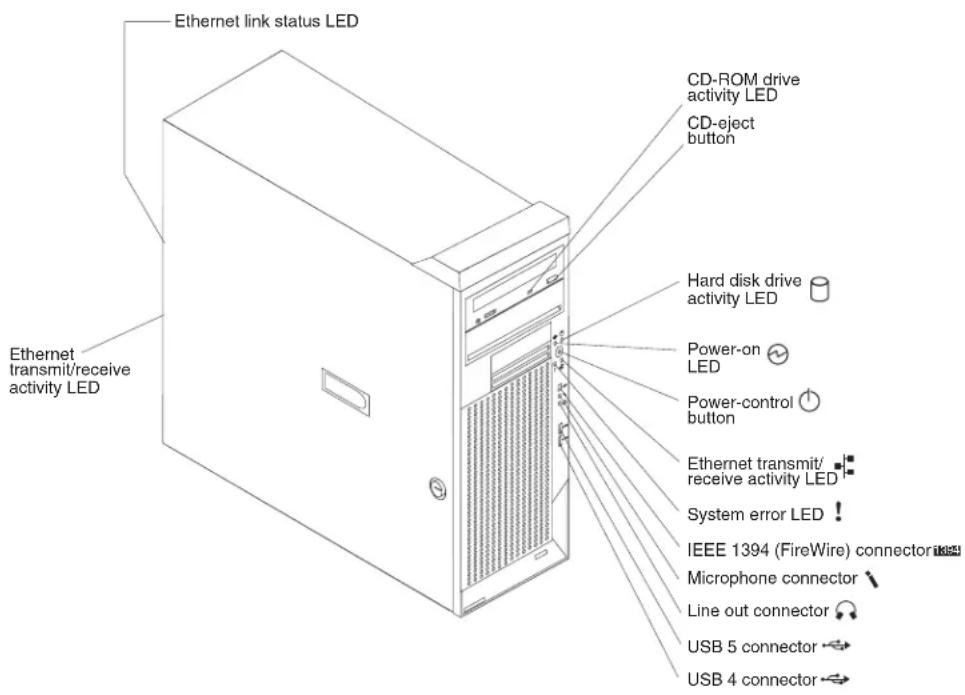
CD-ROM drive activity LED
When this LED is lit, it indicates that the CD-ROM drive is in use.
CD-eject button
Press this button to insert a CD into or remove a CD from the CD-ROM drive.
Hard disk drive activity LED
When this LED is lit, it indicates that the hard disk drive is in use.
Power-on LED
When this LED is lit and not flashing, it indicates that the computer is turned on. When this LED is flashing, it indicates that the computer is off and still connected to an ac power source.
Power-control button
Press this button to turn the computer on or off.
Ethernet transmit/receive activity LED
When this LED is lit, it indicates that there is activity between the computer and the network. There are two of these LEDs, one on the front and one on the rear of the computer.
Ethernet link status LED
When this LED is lit, it indicates that there is an active connection on the Ethernet port. This LED is located on the rear of the computer.
System-error LED
When this LED is lit, it indicates that a system error has occurred. An LED on the system board is also lit to help isolate the error.
IEEE 1394A (FireWire) connectors
Use these connectors (four-pin on the front and six-pin on the rear) to connect FireWire devices, such as digital video cameras and external hard disk drives.
Mic connector (pink)
Use this connector to connect a microphone to your computer when you want to record voices or other sounds on the hard disk. You can also use this connector (and a microphone) with speech-recognition software.
Line out connector (green)
Use this connector to send audio signals from the computer to external devices, such as speakers with built-in amplifiers, headphones, multimedia keyboards, or the audio line-in jack on a stereo system.
USB connectors
Use these connectors to connect USB devices to your computer, using redundant Plug and Play technology.
Turning on the computer
When the computer is connected to an ac power source but is not turned on, the operating system does not run, and all core logic is shut down; however, the computer can respond to remote requests to turn on the computer. The power-on LED flashes to indicate that the computer is connected to an ac power source but is not turned on.
Notes:
- Turn on all external devices, such as the monitor, before turning on the computer.
- The power-on LED on the front of the computer is lit when the computer is on and while it is being turned on.
Approximately 20 seconds after the computer is connected to ac power, the power-control button becomes active, and you can turn on the computer and start the operating system by pressing the power-control button. The computer can also be turned on in any of the following ways:
- If a power failure occurs while the computer is turned on, the computer will restart automatically when power is restored.
- When you connect the computer to power for the first time, the Wake on LAN feature can turn on the computer. If the computer was previously turned on, it must be turned off correctly for the Wake on LAN feature to turn on the computer.
What you see and hear when you start the computer depends on the features that are installed and the settings in the Configuration/Setup Utility program.
If the power-on self-test (POST) detects a problem, there might be a series of beeps or no beep, and a numeric error message might appear on the screen. Write
down any beep series and error code numbers with descriptions, and then see "Troubleshooting charts" on page 86 for an explanation of the error codes.
On a computer running a Windows operating system, the following messages might be displayed briefly during startup:
• To start the Product Recovery Program, Press F11
- Press F1 for Configuration/Setup Utility, Press F12 for Boot Menu
- Press CTRL+A for SCSISelect Utility (some models)
On a computer running the Red Hat Linux operating system, the following messages might be displayed briefly during startup:
- Press F1 for Configuration/Setup Utility
- Press CTRL+A for SCSISelect Utility (some models)
To start the Product Recovery program in Red Hat Linux, watch the screen until the operating system selection menu is displayed and select IBM Preload Recovery & Diagnostics.
To use these features, press the applicable function key or keys quickly. The messages appear for only a short time. For more information about these messages, see "Using the Configuration/Setup Utility program" on page 21 and "Using the SCSI Select Utility program (some models)" on page 30
Use the Configuration/Setup Utility program to configure passwords, PCI adapters, and other options.
The operating system and application programs start from the hard disk. If your computer is attached to a network, the computer will begin attaching to any LANs and remote applications to which you have access. A network administrator can also start your computer remotely to download programs or gather information about computer performance. For more information, see “Wake on LAN” on page 18.
Using preinstalled software
This section provides information to assist you in setting up the preinstalled operating system and describes how to use the programs that come with your computer.
Running the operating-system setup program
The setup program runs automatically when you start the computer the first time. The program will prompt you to make choices or type information. If you need more information than is provided in this User's Guide, see your operating-system manual.
Important:
- After turning on your computer for the first time, you must complete the operating-system setup procedure before turning off your computer; otherwise, unexpected results might occur.
- The setup program might be slightly different from the one described in your operating-system manual. Some choices do not appear because they are preset.
-
During the setup procedure, you must indicate that you accept the license agreement.
-
For Windows operating systems, the registration information will already be displayed in the registration field. If the Product ID number is not already displayed, you must type it. The Product ID number is on a label attached to the computer.
You will need the following information to complete the setup program:
- The documentation that comes with your computer.
• Network information from your network administrator, if your computer is being connected to a network. - The printer model and port, if a printer is attached directly to your computer.
After the setup procedure is completed and the computer restarts, the desktop opens, and the computer is ready for use.
Installing other operating systems
Your computer comes with Microsoft Windows XP Professional or Red Hat Enterprise Linux Workstation preinstalled. To install another operating system, follow the instructions in the documentation that comes with the operating system.
Note: If you plan to install a Microsoft Windows XP 32-bit operating system on a SCSI drive, you must have a diskette drive attached during installation to be able to load the SCSI driver.
If you are installing an operating system other than Microsoft Windows XP Professional or Red Hat Enterprise Linux Workstation, follow the instructions in the readme files on the Device Drivers CD to install the device drivers. You might also need additional software or device drivers.
Note: If you experience problems with the device drivers installed from the Device Drivers CD, you can obtain the latest device drivers from http://www.ibm.com/pc/support/.
Before installing any operating system, make sure that you obtain the latest updates. Contact the operating-system manufacturer or, if applicable, check the manufacturer's Web site to obtain the updates.
Additional information about operating systems is posted periodically at http://www.ibm.com/pc/support/.
Viewing the license agreement
The IBM International License Agreement for Non-Warranted Programs is viewable from the Access IBM folder. Use of your computer signifies acceptance of this agreement.
Complete the following steps to view the license agreement in Windows XP:
-
From the Windows XP desktop, click Start → All Programs → Access IBM.
-
Click IBM License Agreement.
For Red Hat Linux, when you start the computer, the License Agreement window opens. To accept the terms of the agreement, click I Agree. You can also view the license agreement by clicking the IBM License Agreement icon on the desktop.
Registering your computer
Registering your computer helps IBM provide better service to you. When IBM receives your registration information, the information is placed into a central technical support database. If you need technical assistance, the technical-support representative will have information about your computer. In addition, comments about your computer are reviewed by a team dedicated to customer satisfaction and are taken into consideration in making improvements to IBM computers.
Use one of the following methods to register your computer in Windows:
- From the Windows XP desktop, click Start → All Programs → IBM Registration and then follow the instructions. If you do not have access to the Internet, you can use the registration program that starts from the IBM Registration folder to print your registration information and provide your mailing address to IBM for future assistance.
- Register your computer at http://www.ibm.com/pc/register/.
For Red Hat Linux, click the Register PC icon on the desktop to register your computer on the World Wide Web.
Creating an emergency recovery-repair diskette in Windows
Note: To create and use a diskette, you must add a diskette drive to the computer. To enable a USB diskette drive to work, you must disable the legacy diskette drive function in the Configuration/Setup Utility program (click Devices and I/O Ports → Disable Legacy Diskette A).
At your earliest opportunity, create a recovery-repair diskette and an IBM Enhanced Diagnostics diskette, and store them in a safe place. In the unlikely event that the computer becomes unusable, you can use the recovery-repair diskette to access the Product Recovery program. For more information about using this diskette, see "Using the recovery-repair diskette in Windows" on page 96.
In Windows, you can create a recovery-repair diskette from the c:\ibmtools directory or from the Product Recovery program partition.
Complete the following steps to create a recovery-repair diskette from the c:\ibmtools directory:
- Start the computer and operating system.
- Use Windows Explorer to display the directory structure of the hard disk.
- Open the c:\ibmtools folder.
- Double-click rrdisk.bat and follow the instructions on the screen.
Complete the following steps to create a recovery-repair diskette from the Product Recovery program partition:
- Shut down the operating system and turn off the computer.
- Wait for at least 5 seconds; then, press and hold the F11 key while you restart the computer. When a menu appears, release the F11 key.
- Use one of the following procedures:
- If a menu is displayed in which you can select an operating system, use the arrow keys to select the operating system that is currently installed, press Enter, and then continue with the next step.
-
If an operating system menu is not displayed, continue with the next step.
-
From the Product Recovery main menu, use the arrow keys to select System utilities, and then press Enter.
- Use the arrow keys to select Create a Recovery Repair diskette, and then press Enter.
- Follow the instructions on the screen.
See "Creating an IBM Enhanced Diagnostics diskette in Windows" for information about how to create an IBM Enhanced Diagnostics diskette.
Creating an IBM Enhanced Diagnostics diskette in Windows
Note: To create and use a diskette, you must add a diskette drive to your computer. To enable a USB diskette drive to work, you must disable the legacy diskette drive function in the Configuration/Setup Utility program (click Devices and I/O Ports → Disable Legacy Diskette A).
The IBM Enhanced Diagnostics diskette is a self-starting diagnostics diskette that you can use to test hardware components in your computer. You can create an IBM Enhanced Diagnostics diskette from the Product Recovery program or from the World Wide Web.
Complete the following steps to create an IBM Enhanced Diagnostics diskette from the Product Recovery program partition:
- Restart the computer and watch the monitor.
- When the message To start the Product Recovery Program, Press F11 appears, quickly Press F11.
- Select System utilities.
- Select Create IBM Enhanced Diagnostics Diskette.
- Follow the instructions on the screen.
Complete the following steps to create an IBM Enhanced Diagnostics diskette from the World Wide Web:
- Go to http://www.ibm.com.
- Click Support & downloads.
- Click Search technical support.
- In the Enter keyword(s) field, type diagnostics 6224, and click Submit.
- From the "Search results" page, click the Enhanced Diagnostics item for your computer.
- On the next page, click the executable file for the Enhanced Diagnostics code to download it (be sure to download the file to a hard disk directory and not to a diskette). You can click the text file to display the readme file.
- At a command prompt, change to the directory where the file was downloaded.
- Insert a blank, high-density diskette into the diskette drive.
- Type filename a: where filename is the name of the file you downloaded and a is the drive letter of the diskette drive; then, press Enter.
The downloaded file is self-extracting and is copied to the diskette. When the copy is completed, store the diskette in a safe place.
For more information, see "Using the IBM Enhanced Diagnostics diskette" on page 95.
Using video features
Your computer has an Accelerated Graphics Port (AGP) graphics adapter that renders 2D or 3D image quality and uses a standard video protocol for displaying text and graphic images. The adapter supports a variety of video modes (combinations of resolution, refresh rate, and color that are defined by a video standard for displaying text or graphics).
Video device drivers
To use the full capabilities of the graphics adapter in your computer, some operating systems and application programs require custom video device drivers. These device drivers provide greater speed, higher resolution, more available colors, and flicker-free images.
Device drivers for the graphics adapter and a readme file with instructions for installing the device drivers are provided on the Device Drivers CD that comes with your computer and in the c:\ibmtools\drivers directory on the hard disk. Use the device-driver installation instructions if you need to reinstall the device drivers or if you need information about obtaining and installing updated device drivers. For more information about installing device drivers, see "Recovering or installing device drivers" on page 95
Changing monitor settings
To get the best possible image on your screen and to reduce flicker, you might need to reset the resolution and refresh rate of your monitor. You can view and change monitor settings through the operating system using the instructions in the readme files on the Device Drivers CD or in the c:\ibmtools\drivers\ directory on the hard disk. See your operating-system documentation for more information about monitor settings.
Attention: Before changing monitor settings, review the documentation that comes with your monitor. Using a resolution or refresh rate that the monitor does not support might cause the screen to become unreadable and could damage the monitor. The information that comes with your monitor usually includes resolution and screen refresh rates that the monitor supports. If you need additional information, contact the manufacturer of the monitor.
If you are using a cathode ray tube (CRT) monitor, set the monitor for the highest noninterlaced refresh rate that it supports. If the monitor complies with the Video Electronics Standards Association (VESA) display data channel (DDC) standard, it probably is already set to the highest refresh rate that the monitor and video controller support. If you are not sure whether your monitor is DDC-compliant, see the documentation that comes with the monitor.
If you are using a flat-panel monitor, the refresh rate does not have to be set to the highest noninterlaced refresh rate that the monitor supports. Flat-panel monitors produce flicker-free images even when they are operating at a minimum 60 Hz noninterlaced rate.
If you have a dual-monitor video adapter, see the video adapter device-driver readme file and documentation for more information about enabling dual monitors.
Using audio features
Your computer has an integrated audio controller that supports Sound Blaster applications. Your computer also has a single internal speaker and three types of audio connectors. Using the audio controller, you can record and play back sound and music to enhance multimedia applications. Optionally, you can connect external speakers to the line-out connector to provide improved sound with multimedia applications.
The audio connectors in your computer are 3.5 mm (0.125-in.) mini-jacks. For the location of the audio connectors, see "Input/output connectors" on page 64
Line in
This connector accepts audio signals into the computer sound system from external devices, such as the line output from a stereo, television, or a musical instrument. One line-in connector is on the rear of the computer.
Line out
This connector sends audio signals from the computer to external devices, such as speakers with built-in amplifiers, headphones, multimedia keyboards, or the audio line-in jack on a stereo system. Line-out connectors are on both the front and the rear of the computer.
Microphone
Use this connector to connect a microphone to your computer when you want to record voice or other sounds on the hard disk. With a microphone attached to the computer, you can also use speech-recognition software. Microphone connectors are on both the front and the rear of the computer.
Using security features
To deter unauthorized use of your computer, you can use anti-intrusion features and other security features that are provided with the computer.
Anti-intrusion features
IBM anti-intrusion features help protect against the theft of computer components, such as the microprocessor, system memory modules, or hard disk drives.
A cover lock is built into the computer to prevent the cover from being removed. Two identical keys for the cover lock are also supplied. A tag that is attached to the keys has the key serial number and the address of the key manufacturer.
Important: Keep the key-code number, manufacturer address, and phone number in a safe place. Because locksmiths are not authorized to duplicate cover-lock keys, you must order replacement keys from the key manufacturer. You will need the key code when ordering replacement keys.
You can set the chassis-intrusion detector inside the computer to alert the network administrator each time the computer cover is removed. For more information about enabling the chassis-intrusion detection, see Chapter 3, "Configuring the computer," on page 21
Component protection
Each component in your computer has a serial number that you can register with a security company. You can register the components individually, or you can register the entire computer. By registering computer components, you can improve the
chances of identifying the components if they are ever stolen and recovered. For more information about component registration, go to
http://www.ibm.com/pc/support/.
Data protection
You can lose data from the hard disk for a variety of reasons. Security violations, viruses, or hard disk drive failures can all cause data loss. To help protect against the loss of valuable data, IBM has incorporated the following data-saving features in your computer:
• SMART hard disk drive
Your computer comes with a self-monitoring and reporting technology (SMART) hard disk drive that is enabled to report potential hard disk failures. If an error is detected, a Desktop Management Interface (DMI) compliant warning message is displayed on the monitor screen and, if the computer is part of a network, on the administrator console. When an error is detected, the data on the hard disk can be backed up and the drive replaced.
- Virus protection
Your computer has built-in virus protection that you can enable through the IBM Configuration/Setup Utility program. This built-in protection checks for viruses in the boot record only. Also, Norton AntiVirus for IBM is available on the hard disk.
Locking the keyboard
You can lock the keyboard so that others are unable to use it. If you have set a user password, the keyboard is locked when you turn on the computer. You must type the password to unlock the keyboard. See "Passwords" on page 24.
Some operating systems have a keyboard and mouse lock-up feature. See the documentation that comes with your operating system for more information.
Updating system programs
System programs are the basic layer of software that is built into your computer. They include the power-on self-test (POST), the basic input/output system (BIOS), and the Configuration/Setup Utility program.
System programs are stored in electrically erasable programmable read-only memory (EEPROM) on the system board. This is sometimes referred to as flash memory.
IBM occasionally makes changes and enhancements to the system programs. When updates are released, they are available as downloadable files on the World Wide Web (see Appendix A, "Getting help and technical assistance," on page 101). You can update system programs by starting your computer using a flash update diskette, or if the computer is connected to a network, a network administrator can update the system programs remotely. Instructions for using system program updates are included in a readme file that comes with the downloadable files.
Managing your computer
Your computer comes with features that a network administrator or server can use to remotely manage and control the computer. This section describes some of these network-management tools. See the product documentation for these tools to find out whether your operating system supports this software. Complete the following steps to get more detailed information about these tools or to download any of this software:
- Go to http://www.ibm.com/pc/support/.
- Under Download, click Downloads & Drivers.
- From the Brand drop-down list, click Systems Management; then, click Continue.
- Scroll down and click a product to get more details about the product or to download the product.
Your computer supports the following system management tools:
- IBM Director Agent
IBM Director Agent streamlines and automates personal computer (PC) systems management and support tasks, such as asset deployment and tracking. These utilities are available for IBM computers at no additional charge, helping to reduce total cost of ownership of networked computers. IBM Director Agent is available at http://www.ibm.com/pc/support/.
You can use IBM Director Agent to view detailed information about your computer hardware and software, set up alerts, monitor a variety of system resources, and manage your asset security.
- Wake on LAN
A network administrator can use the Wake on LAN feature to turn on your computer from a remote location. When the Wake on LAN feature is used with network-management software, many functions, such as data transfers, software updates, and POST or BIOS code updates can be performed on many computers simultaneously.
Note: The Wake on LAN feature functions through the adapter in PCI-X slot 1 and only if the computer was properly shut down and turned off.
• Remote Deployment Manager
Remote Deployment Manager is a graphical, server-based program that performs mass unattended installations of operating systems, software, device drivers, and BIOS code updates to remote systems. Used with the Wake on LAN feature, Remote Deployment Manager can remotely turn on your computer so that installations can be done while the computer is not being used.
• Software Migration Assistant
A network administrator can use Software Migration Assistant (SMA) to remotely transfer configurations, profile settings, printer device drivers, and files from an IBM or non-IBM computer to supported IBM systems.
Shutting down the operating system
When you are ready to turn off the computer, use the shutdown procedure for your operating system to save data and prevent damage to your applications. See your operating-system documentation for more information.
If you are using the preinstalled Microsoft Windows XP operating system, complete the following steps to shut down the operating system and computer:
- Save and close all files that you are working with.
- Close all open applications.
- Click Start.
- Click Turn Off Computer; then, click Turn Off to confirm.
If you are using the preinstalled Red Hat Linux operating system, complete the following steps to shut down the operating system and computer:
- Save and close all files with which you are working.
- Close all open applications.
- Click Red Hat Linux Main Menu Button → Log out → Shut Down.
- Click OK to confirm.
Turning off the computer
When you turn off the computer and leave it connected to ac power, the computer can respond to requests, such as a remote request to turn on the computer. To remove all power from the computer, you must disconnect it from the power source.
Some operating systems require an orderly shutdown before you turn off the computer. See your operating-system documentation for information about shutting down the operating system.
Statement 5:

CAUTION:
The power control button on the device and the power switch on the power supply do not turn off the electrical current supplied to the device. The device also might have more than one power cord. To remove all electrical current from the device, ensure that all power cords are disconnected from the power source.

The computer can be turned off in any of the following ways:
- You can turn off the computer through the operating system. If this feature is supported by your operating system, it will turn off the computer after performing an orderly shutdown of the operating system. See "Shutting down the operating system" on page 18.
- You can press the power-control button on the front of the computer to start an orderly shutdown of the operating system and turn off the computer, if your operating system supports this feature.
Note: After turning off the computer, wait at least 5 seconds before you press the power-control button to turn on the computer again.
- You can press and hold the power-control button for more than 4 seconds to cause an immediate shutdown of the computer. You can use this feature to turn off the computer if the operating system stops functioning.
Chapter 3. Configuring the computer
The following configuration programs are available to configure your computer:
- Configuration/Setup Utility program
The Configuration/Setup Utility program is part of the basic input/output system (BIOS) code in your computer. You can use this program to configure serial port assignments, change interrupt request (IRQ) settings, change the device startup sequence, set the date and time, set passwords, and set the chassis-intrusion detector. For information about using this utility program, see "Using the Configuration/Setup Utility program."
• Broadcom NetXtreme Gigabit Ethernet Boot Agent
The Broadcom NetXtreme Gigabit Ethernet Boot Agent is part of the BIOS code in your computer. You can use it to configure the network as a startable device, and you can customize where the network startup option appears in your startup sequence. You enable and disable the Broadcom NetXtreme Gigabit Ethernet Boot Agent from the Configuration/Setup Utility program. For information, see "Enabling the Broadcom NetXtreme Gigabit Ethernet Boot Agent" on page 25
- Adaptec® HostRAID™ configuration programs
- Adaptec RAID Configuration Utility programs (for Serial ATA RAID)
Use the Array Configuration Utility within the Adaptec RAID Configuration Utility programs to configure the integrated Serial ATA (SATA) controller with integrated RAID and the devices that are attached to it. For more information about using these utility programs, see "Using the Adaptec RAID Configuration Utility programs (for Serial ATA RAID)" on page 26
- SCSISelect Utility program (for SCSI RAID)
Use the SCSI HostRAID feature of SCSISelect Utility program to configure the integrated SCSI controller with integrated RAID and the devices that are attached to it. For more information about using this utility program, see "Using the SCSISelect Utility program (for SCSI RAID)" on page 27
- ServeRAID Manager
ServeRAID™ Manager is available as a stand-alone program and as an IBM Director extension. If a ServeRAID controller is installed in your computer, use ServeRAID Manager to define and configure your disk-array subsystem before you install your operating system. For information about using this program, see "Using ServeRAID Manager" on page 28
- Ethernet controller configuration
To configure the integrated Gigabit Ethernet controller, see "Configuring the Gigabit Ethernet controller" on page 30.
• SCSISelect Utility program (some models)
If your computer comes with a SCSI adapter, you can use the SCSISelect Utility program to configure devices that are attached to the SCSI adapter. Use this program to change default values, resolve configuration conflicts, and perform a low-level format on a SCSI hard disk drive. For information about using this utility program, see "Using the SCSISelect Utility program (some models)" on page 30.
Using the Configuration/Setup Utility program
This section provides instructions for starting the Configuration/Setup Utility program and descriptions of the menu choices that are available.
Starting the Configuration/Setup Utility program
Complete the following steps to start the Configuration/Setup Utility program:
-
Turn on the computer and watch the monitor screen. If the computer is already on when you start this procedure, you must shut down the operating system, turn off the computer, wait a few seconds until all in-use LEDs are turned off, and restart the computer.
-
When the message Press F1 for Configuration/Setup appears on the screen during startup, press F1. (This prompt appears on the screen for only a few seconds. You must press F1 quickly.) If you have set both a user password and an administrator password, you must type the administrator password to access the full Configuration/Setup Utility menu.
-
Follow the instructions on the screen.
Configuration/Setup Utility menu choices
The following choices are on the Configuration/Setup Utility main menu. You can press F1 to display help information for a selected menu item. Depending on the version of the BIOS code in your computer, some menu choices might differ slightly from these descriptions.
- System Summary
Select this choice to view configuration information, including the type, speed, and cache size of the microprocessor and the amount of installed memory. When you make configuration changes through other options in the Configuration/Setup Utility program, the changes are reflected in the system summary; you cannot change settings directly in the system summary. This choice is on the full and limited Configuration/Setup Utility menus.
- System Information
Select this choice to view the machine type and model of the computer, the serial number, the system board identifier, and the revision level and issue date of the BIOS code stored in the electrically erasable programmable ROM (EEPROM). When you make changes through other options in the Configuration/Setup Utility program, some of those changes are reflected in the system information; you cannot change settings directly in the system information. This choice is on the full Configuration/Setup Utility menu only.
• Devices and I/O Ports
Select this choice to set keyboard operating characteristics such as keyboard speed or numlock state and to enable or disable the PS/2 mouse, diskette controller, integrated SCSI controller, serial ATA controller, Ethernet controllers, legacy diskette drive, 1394 (FireWire) and standard ports (such as serial and parallel). Enable is the default setting for all controllers. If you disable a device, it cannot be configured, and the operating system will not be able to detect it (this is equivalent to disconnecting the device). If you disable the integrated SCSI controller and no SCSI adapter is installed, the computer will have no SCSI capability. If you disable the integrated Ethernet controller and no Ethernet adapter is installed, the computer will have no Ethernet capability.
Note: To use a diskette on your computer, you must add a diskette drive to the computer. To enable a USB diskette drive to work, you must disable the legacy diskette drive function in the Configuration/Setup Utility program (click Devices and I/O Ports → Disable Legacy Diskette A).
This choice is on the full Configuration/Setup Utility menu only.
- Date and Time
Select this choice to set the date and time in the computer, in 24-hour format (hour:minute:second).
This choice is on the Configuration/Setup Utility menu only.
- Startup
Select this choice to view or change the start options. Changes in the start options take effect when you start the computer.
The startup sequence specifies the order in which the computer checks devices to find a boot record. The computer starts from the first boot record that it finds.
Note: You can enable the computer to start from the network by enabling the Broadcom NetXtreme Gigabit Ethernet Boot Agent to configure the network as the first startable device in the startup sequence.
You can select to run POST in the quick mode or display the diagnostic screen.
This choice is on the full Configuration/Setup Utility menu only.
- Advanced Setup
Select this choice to change values for advanced hardware features, such as PCI configuration and hardware monitor.
Important: the computer might malfunction if these options are incorrectly configured. Follow the instructions on the screen carefully.
This choice is on the full Configuration/Setup Utility menu only.
- Installed OS
Select this choice to specify the operating system on the computer.
- Reset Configuration Data
Select this choice to clear the extended system configuration data (ESCD) area.
- 4 GB Memory Hole Adjust
Select this choice to specify how the memory hole size will be determined.
- Multiprocessor Specification
Select this choice to set the multiprocessor specification revision level. Some operating systems require version 1.1 for compatibility.
- MP table uses PCI entries
Select this choice to configure the multiprocessor table with PCI-interrupt entries.
- Fan Speed Control
Select this choice to view or change the fan-speed control setting. Disabling the built-in fan speed control forces the computer fans to full-speed at all times.
- Chipset Configuration
Attention: Do not make changes to the Chipset Feature unless directed to do so by an IBM authorized service representative.
Select this choice to modify settings that control features of the core chip set on the system board.
- PCI configuration
Select this choice to view the system resources that are used by the installed PCI or PCI-X devices.
- Hardware Monitor
Select this choice to display the computer temperature and voltage status, and fan speeds.
- POST Error Log
Select this choice to view the three most recent error codes and messages that were generated during POST, and to view the DMI log. Select Clear error log to clear the POST error log.
- System Security
Select this choice to set a user password or a supervisor (administrator) password. See "Passwords" for more information.
• Power Management
Select this choice to enable or disable system power settings, including automatic power-on settings such as Wake on LAN.
- Save Settings
Select this choice to save the changes you have made in the settings.
- Restore Settings
Select this choice to cancel the changes you have made in the settings and restore the previous settings.
- Load Default Settings
Select this choice to cancel the changes you have made in the settings and restore the factory settings.
- Exit Setup
Select this choice to exit from the Configuration/Setup Utility program. If you have not saved the changes you have made in the settings, you are asked whether you want to save the changes or exit without saving them.
Note: Always reset the Configuration/Setup Utility program to the default values (select Load Default Settings) after updating the BIOS code.
Passwords
From the System Security choice, you can set, change, and delete a user (power-on) password and an administrator password. The System Security choice is on the full Configuration/Setup menu only.
You can use any combination of up to seven characters (A–Z, a–z, and 0–9) for the user password or the administrator password.
If you set both a user password and an administrator password, you can type either password at the password prompt that appears as you start the computer. However, if you want to change the settings in the Configuration/Setup Utility program, you must type the administrator password to access the full Configuration/Setup Utility menu. If you type the user password, you have access to only the limited Configuration/Setup Utility menu.
Keep a record of your password in a secure place. If you forget the user or administrator password, you can regain access to the computer through one of the following methods:
- If you have forgotten the user password and an administrator password is set, type the administrator password at the power-on prompt. Start the Configuration/Setup Utility program and change the user password.
- Clear CMOS settings by changing the position of the CMOS recovery jumper (JP1). See "Erasing a lost or forgotten password (clearing CMOS)" on page 98 for instructions.
- Remove the battery and then reinstall the battery (see "Replacing the battery" on page 99).
Enabling the Broadcom NetXtreme Gigabit Ethernet Boot Agent
The Broadcom NetXtreme Gigabit Ethernet Boot Agent is part of the BIOS code in your computer. You can use it to configure the network as a startable device, and you can customize where the network startup option appears in your startup sequence. You enable and disable the Broadcom NetXtreme Gigabit Ethernet Boot Agent from the Configuration/Setup Utility program.
Complete the following steps to enable the Broadcom NetXtreme Gigabit Ethernet boot agent:
- From the Configuration/Setup Utility main menu, select Devices and I/O Ports and press Enter.
- Select System Board Ethernet PXE/DHCP and use the Right Arrow ( ) key to set it to Enabled.
- Select Save Settings and press Enter.
Using the Adaptec HostRAID configuration programs
Use the Adaptec RAID Configuration Utility programs and SCSISelect Utility (also referred to as IBM ServeRAID-7e) to add RAID levels 0 and 1 functionality to the integrated Serial ATA controller and the integrated SCSI controller. Be sure to use these programs as described in this document. Use these programs to:
- Configure a redundant array of independent disks (RAID) array
• View or change your RAID configuration and associated devices
Consider the following information when using the Adaptec RAID Configuration Utility programs and SCSISelect Utility program to configure and manage arrays:
- The integrated SCSI controller with integrated SCSI RAID (SCSI models) and the integrated Serial ATA controller (SATA models) with integrated SATA RAID supports RAID levels 0 and 1 with the option of having a hot-spare drive. Installing an optional ServeRAID controller provides additional RAID levels.
- Hard disk drive capacities affect how you create arrays. Drives in an array can have different capacities, but the RAID controller treats them as if they all have the capacity of the smallest hard disk drive.
- To help ensure signal quality, do not mix drives with different speeds and data rates.
- To update the firmware and BIOS code for an optional ServeRAID controller, you must use the IBM ServeRAID Support CD that comes with the ServeRAID option.
- If you install a different type of RAID controller in your computer, use the configuration method described in the instructions that come with that RAID controller to view or change SCSI settings for attached devices.
Using the Adaptec RAID Configuration Utility programs (for Serial ATA RAID)
Use the Array Configuration Utility within the Adaptec RAID Configuration Utility programs to add RAID levels 0 and 1 functionality to the integrated Serial ATA (SATA) controller. This utility is a part of the BIOS code in your computer. For additional information about using the Adaptec RAID Configuration Utility programs, see the documentation on the IBM ServeRAID-7e (Adaptec HostRAID) Support CD. If this CD did not come with your computer, you can download the IBM ServeRAID-7e (Adaptec HostRAID) Support CD from http://www.ibm.com/pc/support/.
The integrated Serial ATA RAID feature (SATA HostRAID) comes disabled by default. You must enable the SATA RAID feature and install the device drivers before you can use it. The SATA RAID feature configuration utilities, device drivers, and information are available on the IBM ServeRAID-7e (Adaptec HostRAID) Support CD.
Enabling the Serial ATA HostRAID feature
Complete the following steps to enable the SATA RAID feature:
- Turn on the computer and watch the monitor screen.
- When the message Press F1 for Configuration/Setup appears, press F1. If you have set a supervisor password, you are prompted to type the password.
- Select Devices and I/O Ports.
- Scroll down and select SATA RAID Enable.
- Select Enabled.
- Press Esc; then, select Yes to save your changes.
Using the Serial ATA HostRAID feature
The instructions in this section are for using the Array Configuration Utility program to access and perform an initial RAID level-1 configuration. If you install a RAID adapter in your server, use the configuration method described in the instructions that come with that adapter to view or change settings for the attached devices.
See the documentation on the IBM ServeRAID-7e (Adaptec HostRAID) Support CD for additional information about using the Array Configuration Utility program to create, configure, and manage arrays. If this CD did not come with your server, you can download the IBM ServeRAID-7e (Adaptec HostRAID) Support CD from http://www.ibm.com/pc/support.
Configuring the controller: Complete the following steps to use the Array Configuration Utility program to configure a RAID level-1 array on your computer.
- Turn on the computer and watch the monitor screen.
- When the message Press
< for Adaptec RAID Configuration Utility appears, press Ctrl+A. - Select Array Configuration Utility (ACU).
- Select Create Array.
- From the list of ready drives, select the two drives that you want to group into the array.
- Select RAID-1 when asked to select the RAID level.
- (optional) Type an identifier for the array.
-
Select Quick Int when asked for the array build method.
-
Follow the instructions on the screen to complete the configuration, and select Done to exit.
- Restart the computer.
Viewing the configuration: Complete the following steps to view information about the Serial ATA controller:
- Start the Array Configuration Utility.
- From the Array Configuration Utility window, select Manage Arrays.
- Select an array and press Enter.
- Press Esc to exit the program.
Using the SCSISelect Utility program (for SCSI RAID)
Use the SCSISelect Utility to add RAID levels 0 and 1 functionality to the integrated SCSI controller. This utility is part of the BIOS code in your computer.
The integrated SCSI RAID feature (SCSI HostRAID) comes disabled by default. You must enable the SCSI RAID feature and install the device drivers before you can use it. The SCSI RAID configuration utilities, device drivers, and information are available on the IBM ServeRAID-7e (Adaptec HostRAID) Support CD. If this CD did not come with your server, you can download the IBM ServeRAID-7e (Adaptec HostRAID) Support CD from http://www.ibm.com/pc/support/.
Enabling the SCSI HostRAID feature
Complete the following steps to enable the SCSI RAID feature:
- Turn on the computer and watch the monitor screen.
- When the message Press
for SCSISelect Utility appears, press Ctrl+A. If you have set a supervisor password, you are prompted to type the password. - Use the arrow keys to select the channel for which you want to change settings and press Enter.
- Select Configure/View SCSI Controller Setting; then, select HostRAID.
- Select Enabled.
- Press Esc; then, select Yes to save the changes.
Using the SCSI HostRAID feature
The instructions in this section describe how to access the SCSI RAID feature from the SCSISelect Utility program and perform an initial RAID level-1 configuration on your computer. If you install a RAID adapter in your computer, use the configuration method described in the instructions that come with that adapter to view or change SCSI settings for attached devices.
See the documentation on the IBM ServeRAID-7e (Adaptec HostRAID) Support CD for additional information about how to use the SCSI HostRAID feature.
Configuring the controller: Complete the following steps to use the SCSI HostRAID feature to configure a RAID level-1 array on your computer:
- From the SCSISelect main menu, select Configure/View HostRAID Settings.
- From the list of ready drives, type C to create an array.
- Select RAID-1 when asked to select the RAID type.
- From the list of ready drives, select the two drives that you want to group into the array.
-
Select Create new RAID-1.
-
Type an identifier for the array.
- Select Yes to create the array.
- Press Esc to exit the utility.
- Restart the computer.
Viewing the configuration: You can use the SCSISelect Utility program to view information about the integrated SCSI controller. From the list of available arrays, select an array and press Enter. Press Esc to exit the utility.
Using ServeRAID Manager
Use the ServeRAID Manager program to:
- Configure arrays
• View your RAID configuration and associated devices
• Monitor operation of your RAID controllers
To perform some tasks, you can run ServeRAID Manager as an installed program. However, to configure the SCSI controller and perform an initial RAID configuration on your computer, you must run ServeRAID Manager in a Startable-CD mode, as described in the instructions in this section. If you install a RAID adapter in your computer, use the configuration method described in the instructions that come with the adapter to view or change SCSI settings for attached devices.
See the ServeRAID documentation on the IBM ServeRAID Support CD or additional information about RAID technology and instructions for using ServeRAID Manager to configure your SCSI controller. Additional information about ServeRAID Manager is also available from the Help menu. For information about a specific object in the ServeRAID Manager tree, select the object and click Actions → Hints and tips.
Configuring the controller
By running ServeRAID Manager in Startable CD mode, you can configure the controller before you install your operating system. The information in this section assumes that you are running ServeRAID Manager in Startable CD mode.
To run the ServeRAID Manager program in startable-CD mode, turn on the computer; then, insert the IBM ServeRAID Support CD into the CD-ROM drive. If the ServeRAID Manager program detects an unconfigured controller and ready drives, the program automatically starts the Configuration wizard.
In the Configuration wizard, you can select Express configuration or Custom configuration. Express configuration automatically configures the controller by grouping the first two physical drives in the ServeRAID Manager tree into an array and creating a RAID level-1 logical drive. If you select custom configuration, you can select the two physical drives that you want to group into an array and create a hot-spare drive.
Using express configuration
Complete the following steps to use Express configuration:
- In the ServeRAID Manager tree, click the controller that you want to configure.
- From the toolbar, click Create.
- Click Express configuration.
-
Click Next. The "Configuration summary" window opens.
-
Review the information that is displayed in the "Configuration summary" window. To change the configuration, click Modify arrays or Modify logical drives.
Note: Some operating systems have size limitations for logical drives. Before you save the configuration, verify that the size of the logical drive is appropriate for your operating system.
-
Click Apply; then, click Yes when asked if you want to apply the new configuration. The configuration is saved in the controller and in the physical drives.
-
Exit from the ServeRAID Manager program and remove the CD from the CD-ROM drive.
-
Restart the computer.
Using custom configuration
Complete the following steps to use custom configuration:
- In the ServeRAID Manager tree, click the controller that you want to configure.
- From the toolbar, click Create.
- Click Custom configuration.
- Click Next. The "Create arrays" window opens.
- Click the appropriate tab in the right pane; then, from the list of ready drives, select the two drives you want to move to the array.
- Click the icon to add the drives to the array.
- Complete the following steps if you want to configure a hot-spare drive:
a. Click the Spares tab.
b. Select the physical drive you want to designate as the hot-spare drive; then, click the icon to add the drive.
- Click Next. The "Configuration summary" window opens.
- Review the information that is displayed in the "Configuration summary" window. To change the configuration, click Back.
- Click Apply; then, click Yes when asked if you want to apply the new configuration. The configuration is saved in the controller and in the physical drives.
- Exit from the ServeRAID Manager program, and remove the CD from the CD-ROM drive.
- Restart the computer.
Viewing the configuration
You can use ServeRAID Manager to view information about RAID controllers and the RAID subsystem (such as arrays, logical drives, hot-spare drives, and physical drives). When you click an object in the ServeRAID Manager tree, information about that object appears in the right pane. To display a list of available actions for an object, click the object and click Actions.
To display available actions for an item, click the item in the ServeRAID Manager tree and click Actions.
Configuring the Gigabit Ethernet controller
The Ethernet controller is integrated on the system board. It provides an interface for connecting to a 10-Mbps, 100-Mbps, or 1-Gbps network and provides full duplex (FDX) capability, which enables simultaneous transmission and reception of data on the network. If the Ethernet port in the computer supports auto-negotiation, the controller detects the data-transfer rate (10BASE-T, 100BASE-TX, or 1000BASE-T) and duplex mode (full-duplex or half-duplex) of the network and automatically operates at that rate and mode.
You do not have to set any jumpers or configure the controller. However, you must install a device driver to enable the operating system to address the controller. For device drivers and information about configuring the Gigabit Ethernet controller, go to http://www.ibm.com/pc/support
Using the SCSISelect Utility program (some models)
Use the SCSISelect Utility program to configure SCSI devices.
Starting the SCSISelect Utility program
Complete the following steps to start the SCSISelect utility program:
- Turn on the computer.
- When the prompt <<< Press
for SCSISelect Utility! >>> prompt appears, press Ctrl+A. If you have set an administrator password, you are prompted to type the password. - Use the arrow keys to select a choice for which you want to change settings, and press Enter.
- When the prompt Would you like to configure the SCSI controller or run the SCSI disk utility? appears, make your selection and press Enter.
- Use the arrow keys to select a choice from the menu.
- Follow the instructions on the screen to change the settings of the selected items, and press Enter.
SCSISelect menu choices
The following choices are on the SCSISelect Utility menu:
- Configure/View SCSI Controller Settings
Select this choice to view or change SCSI controller settings. To reset the SCSI controller to its default values, press F6 and follow the instructions on the screen.
You can view or change the following controller settings:
- SCSI Controller ID
Select this choice to view the SCSI controller ID, which is typically 7. - SCSI Controller Termination
This choice is set to Enabled and cannot be changed.
- Boot Device Configuration
Select this choice to configure bootable-device parameters. You must know the SCSI ID of the device that you want to configure.
- SCSI Device Configuration
Select this choice to configure SCSI-device parameters. You must know the SCSI ID of the device that you want to configure.
The sync transfer rate is the transfer rate for Ultra SCSI devices. For Ultra3 SCSI LVD devices, the maximum rate is 160 MBps; for Ultra2 SCSI LVD devices, 80 MBps; for Fast SCSI devices, 20 MBps.
- Advanced Configuration
Select this choice to view or change the settings for advanced configuration options.
• SCSI Disk Utilities
Select this choice to view the SCSI IDs assignments or to format a SCSI device. Select a device from the list and read the instructions on the screen carefully before making a selection.
If you press Ctrl+A before a selected drive is ready, an Unexpected SCSI Command Failure screen might appear. Restart the computer and watch the SCSISelect messages as each drive spins up. When the selected drive is ready, press Ctrl+A.
Chapter 4. Installing options
This chapter provides instructions for installing or replacing hardware options in your computer. For a list of supported options for your computer, go to http://www.ibm.com/pc; then, select your country and navigate to the list of options for your computer.
Installation guidelines
Before you begin installing options in your computer, read the following information:
- Read the safety information beginning on page [vi], and the guidelines in "Handling static-sensitive devices." This information will help you work safely with your computer and options.
- Make sure that you have an adequate number of properly grounded electrical outlets for your computer, monitor, and other devices that you will connect to the computer.
- Back up all important data before you make changes to disk drives.
• Have a small flat-blade screwdriver available. - When you need to access the inside of the computer to install options, you might find it easier to lay the computer on its side.
- Blue on a component indicates touch points, where you can grip the component to remove it from or install it in the computer, open or close a latch, and so on.
System reliability considerations
To help ensure proper cooling and system reliability, make sure that:
• Each of the drive bays has a drive or a filler panel and electromagnetic compatibility (EMC) shield installed in it.
- There is adequate space around the computer to allow the computer cooling system to work properly. Leave approximately 50 mm (2 in.) of open space around the front and rear of the computer. Do not place objects in front of the fans. For proper cooling and airflow, replace the computer cover before turning on the computer. Operating the computer for extended periods of time (more than 30 minutes) with the computer cover removed might damage computer components.
- You have followed the cabling instructions that come with optional adapters.
- You have replaced a failed fan as soon as possible.
Handling static-sensitive devices
Attention: Static electricity can damage electronic devices, and your computer. To avoid damage, keep static-sensitive devices in their static-protective packages until you are ready to install them.
To reduce the possibility of damage from electrostatic discharge, observe the following precautions:
- Limit your movement. Movement can cause static electricity to build up around you.
- Handle the device carefully, holding it by its edges or its frame.
- Do not touch solder joints, pins, or exposed circuitry.
-
Do not leave the device where others can handle and damage it.
-
While the device is still in its static-protective package, touch it to an unpainted metal part of the computer for at least 2 seconds. This drains static electricity from the package and from your body.
- Remove the device from its package and install it directly into the computer without setting down the device. If it is necessary to set down the device, put it back into its static-protective package. Do not place the device on your computer cover or on a metal surface.
• Take additional care when handling devices during cold weather. Heating reduces indoor humidity and increases static electricity.
Installing options in your computer
This section provides instructions for installing hardware options in your computer.
Note: To remove the side cover and install options, you might find it easier to lay the computer on its side.
Major components of your computer
The following illustration shows the major components in the A Pro Type 6224 computer.
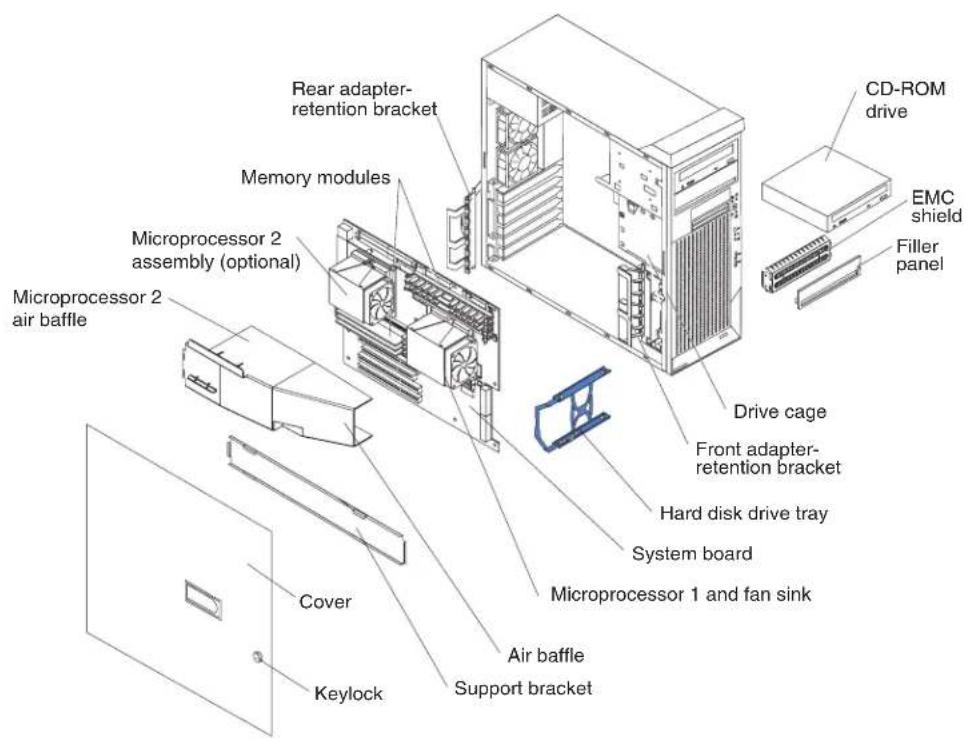
System-board option connectors
The following illustration shows the system-board connectors for user-installable options.
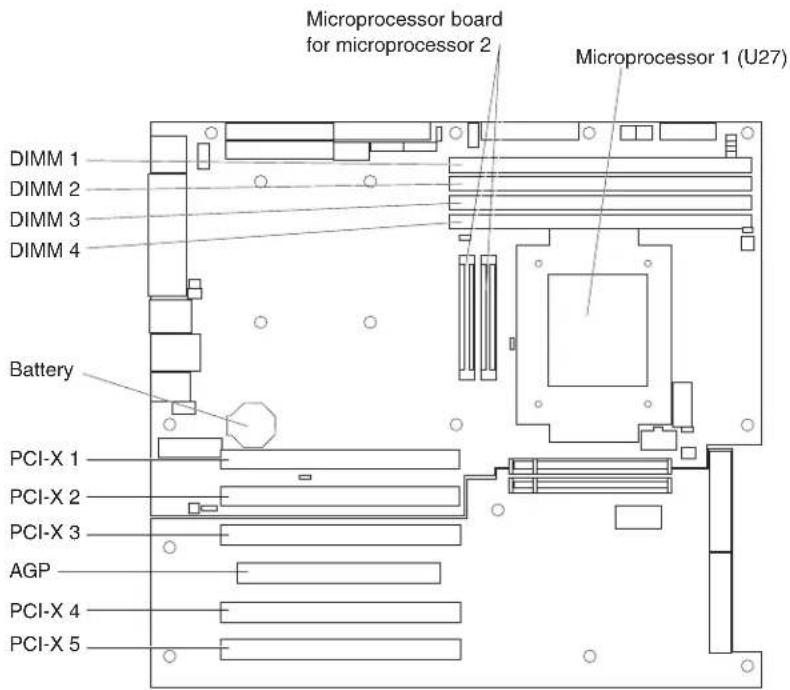
System-board internal connectors
The following illustration shows the internal connectors on the system board.
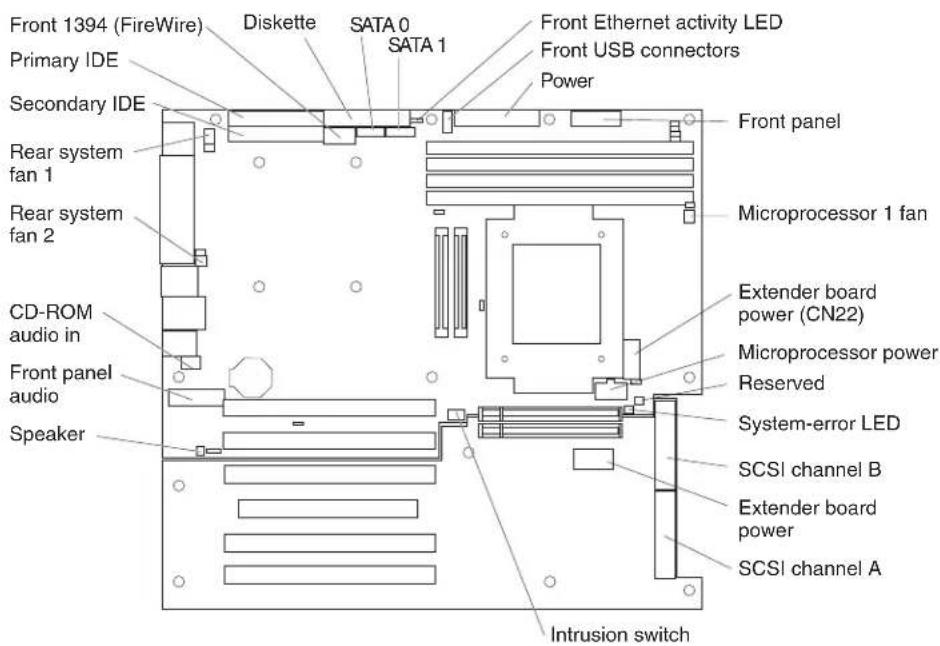
Optional microprocessor board connectors
If you decide to add a second microprocessor to your computer, the microprocessor option kit includes a microprocessor board that you attach to the system board. The following illustration shows the connectors on the microprocessor board.
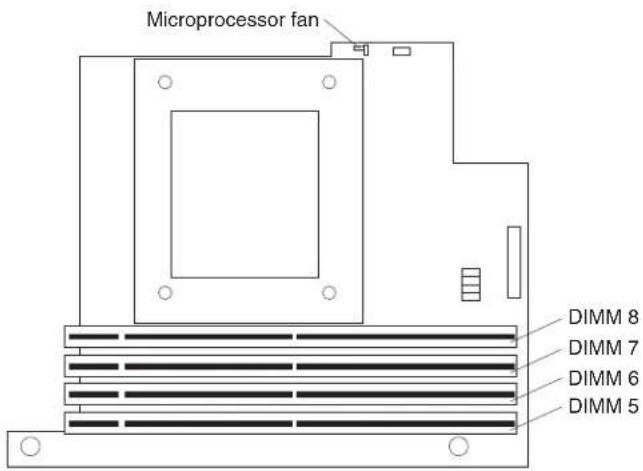
System-board external connectors
The following illustration shows the external input/output connectors on the system board.
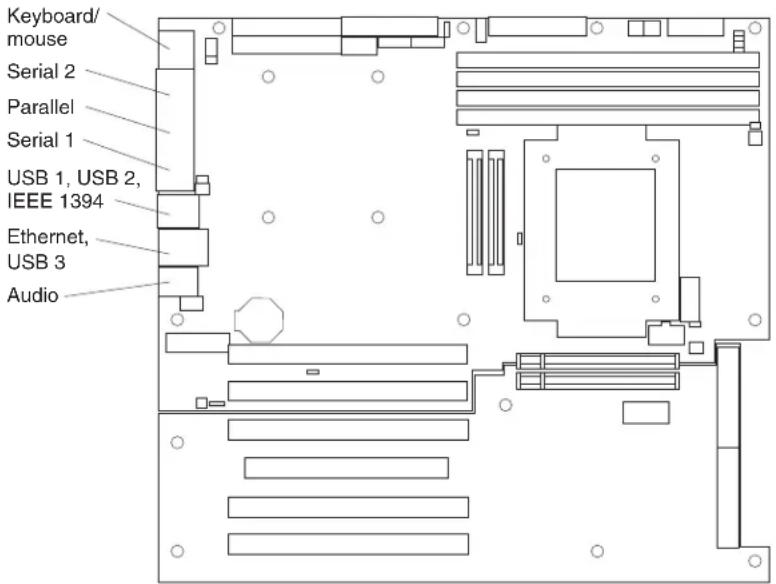
Removing the side cover
To remove the side cover, you might find it easier to lay the computer on its side.
Complete the following steps to remove the side cover of the computer:
- Read the safety information beginning on page vi. and the guidelines in "Handling static-sensitive devices" on page 33.
- Turn off the computer and all attached devices (see "Turning off the computer" on page 19).
- Disconnect all external cables and power cords.
- Pull the cover-release latch away from the computer, and push the cover toward the rear of the computer. Lift the side cover off the computer and set it aside.
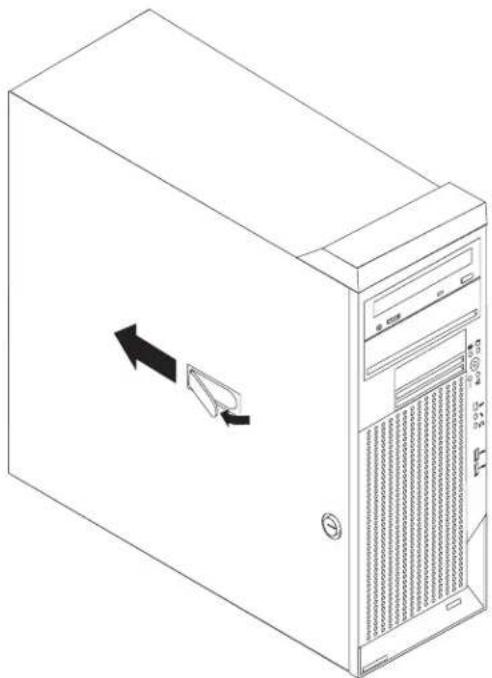
natural_image
Line drawing of a desktop computer tower with an arrow indicating left and right movement (no text or symbols)For instructions for replacing the side cover, see "Replacing the side cover" on page 63.
Attention: For proper cooling and airflow, replace the cover before turning on the computer. Operating the computer with the cover removed might damage computer components.
Removing and installing the support bracket
When working with some devices, such as hard disk drives, adapters, and memory modules, you must first remove the support bracket to access the device.
Complete the following steps to remove the support bracket:
-
Read safety information beginning on page vi and the guidelines in "Handling static-sensitive devices" on page 33.
-
Remove the side cover ("Removing the side cover" on page 3/4).
-
Pull out on the rear end of the support bracket approximately 150 mm (6 in.).
-
Disengage the front end of the support bracket from the computer and set the bracket aside.

natural_image
Technical line drawing of a server rack with ventilation ducts and drive bays (no text or symbols)To reinstall the support bracket, reverse the previous steps.
Removing the bezel
When working with some devices, such as additional optical drives, you must first remove the bezel to access the device.
Complete the following steps to remove the bezel:
- Unlock the side-cover lock.
- Remove the side cover (see "Removing the side cover" on page 37).
- Locate the bezel-release lever; then, press the bezel-release lever toward the front of the server.
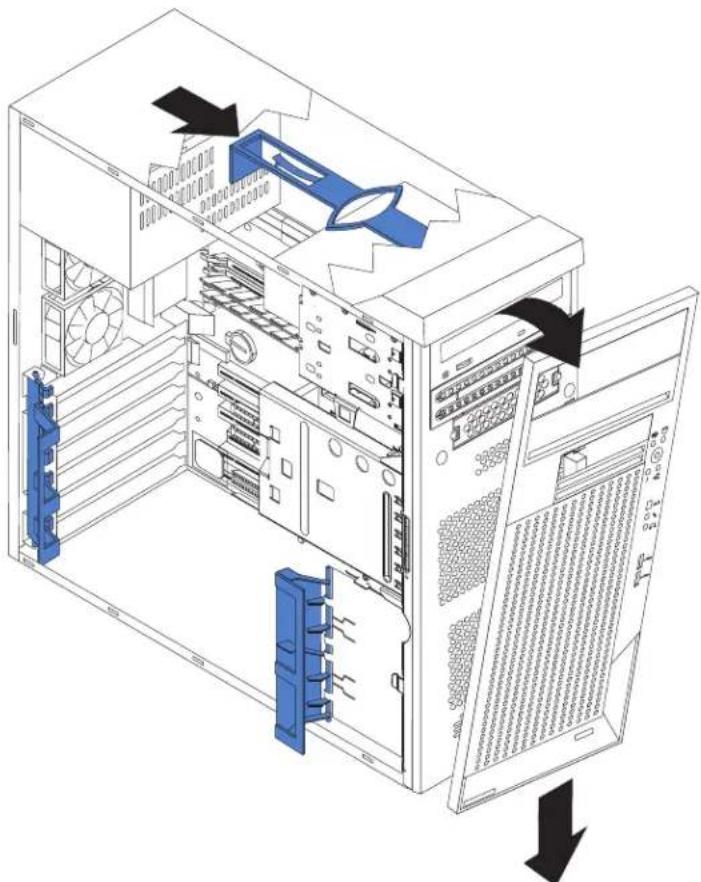
natural_image
Isometric diagram of a computer tower internal structure showing ventilation, drive, and ventilation ducts (no text or labels)-
Pull the top of the bezel away from the chassis; then, push the bezel down to disengage the bottom tabs.
-
Remove the bezel from the server and store the bezel in a safe place.
For instructions for replacing the bezel, see "Replacing the bezel" on page 63
Installing an adapter
The following notes describe the types of adapters that your computer supports and other information that you must consider when installing an adapter. See "System-board option connectors" on page 35 for an illustration of the adapter slot locations.
- Read the documentation that comes with your operating system.
- Locate the documentation that comes with the adapter and follow those instructions in addition to the instructions in this chapter. If you need to change the switch or jumper settings on your adapter, follow the instructions that come with the adapter.
- Your computer comes with adapter connectors or slots. The Accelerated Graphics Port (AGP) video adapter is installed in the AGP slot. You can install up to five additional adapters in your computer in PCI-X slots 1, 2, 3, 4, and 5.
- Your computer supports PCI-X adapters, 3.3 V PCI adapters, and universal PCI adapters.
• None of the PCI-X slots are hot-plug slots.
• You can install 64-bit or 32-bit adapters in PCI-X slots 1, 2, 3, 4, and 5.
- You can install full-length adapters in PCI-X slots 1, 3, 4, and 5; you can install a full-length adapter in PCI-X slot 2 only if it does not have a full-length adapter attached to it.
Exception: If your computer has an NVIDIA Quadro FX 3000 adapter installed in the AGP slot, some wide adapters might not fit in PCI-X slot 3, and no adapter can be installed in PCI-X slot 4.
- If you install a ServeRAID 6i+ adapter, it must be installed in slot 3.
- The computer scans the AGP slot and PCI-X expansion slots to assign system resources. Then, it starts the PCI devices in the following order, if you have not changed the default startup sequence: AGP slot; PCI-X expansion slot 1; system-board integrated drive electronics (IDE), Serial ATA (SATA), or small computer system interface (SCSI) devices; and then PCI-X slots 2 through 6.
- For a list of supported options for your computer, go to http://www.ibm.com/pc; then, select your country and navigate to the list of options for your computer.
Complete the following steps to install an adapter in your computer:
- Read the safety information beginning on page vi and the guidelines in "Handling static-sensitive devices" on page 33.
- Turn off the computer and all attached devices (see "Turning off the computer" on page 19); then, disconnect all external cables and power cords.
- Remove the side cover (see "Removing the side cover" on page 37).
- Determine which PCI-X slot you will use for the adapter. Review the instructions that come with the adapter for any requirements, restrictions, or cabling instructions. It might be easier to route cables before you install the adapter.
- For full-length adapters, rotate the rear adapter-retention bracket to the open (unlocked) position and remove it from the computer. Rotate the front adapter-retention bracket to the open position. If you are installing a smaller adapter, remove only the rear adapter-retention bracket.
- If there is an adapter already installed in the slot, remove it and place it on a static-protective surface.
If the slot is empty, remove the expansion-slot cover. From the rear of the computer, press on the slot cover. Grasp it and pull it out of the expansion slot. Store it in a safe place for future use.
Attention: Expansion-slot covers must be installed on all vacant slots. This maintains the electronic emissions standards of the computer and ensures proper ventilation of computer components.
- Follow the instructions that come with the adapter to set jumpers or switches, if any.
- Remove the adapter from the static-protective package, carefully grasp the adapter by the top edge or upper corners, and align it with the expansion slot guides; then, press the adapter firmly into the expansion slot. Move the adapter directly from the static-protective package to the adapter slot. Avoid touching the components and gold-edge connectors on the adapter.
Attention: Make sure that the adapter is correctly seated in the expansion slot before you turn on the computer. Incomplete installation of an adapter might damage the system board or the adapter.
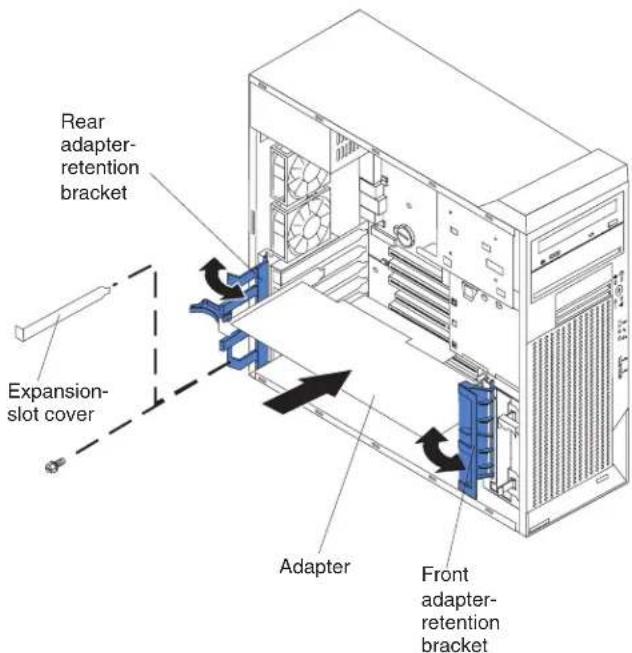
-
Connect required cables to the adapter. Route cables so that they do not block the flow of air from the fans. If you are installing an optional SCSI adapter, see "Cabling an optional SCSI adapter" on page 43 for additional information.
-
If you have another adapter to install, repeat steps 4 through 9.
-
If you have installed a full-length adapter, rotate the front adapter-support bracket to the closed (locked) position.
Note: If any adapter in your computer is large or has heavy cables attached to it, you can secure the adapter with a screw: insert one backup expansion-slot screw (stored on the frame-support bracket) through the top of each adapter bracket into the screw hole and secure the adapter before proceeding to the next step. If you use a screw to secure an adapter, you will have to secure all adapters with screws. You cannot use both the screws and the retention brackets to secure adapters. You must use one method or the other.
- Reinstall the rear adapter-retention bracket; then, rotate the bracket to the closed (locked) position.
Note: The rear retention bracket rests against the computer side cover. You might find it easier to lay the computer on its side to replace the side cover.
-
If you have other options to install, do so now; otherwise, continue with step 14.
-
Replace the support bracket (see "Removing and installing the support bracket" on page 38).
-
Replace the side cover (see "Replacing the side cover" on page 63).
-
Reconnect the external cables and power cords; then, turn on the attached devices and the computer.
Cabling an optional SCSI adapter
You can install an optional SCSI adapter in your computer to control the internal hard disk drives and provide additional RAID capabilities. With a SCSI adapter installed, you can configure the internal hard disk drives into disk arrays. You can also cable a SCSI adapter to external hard disk drives. See your SCSI adapter option documentation for complete instructions for installing a SCSI adapter in your computer and for additional information about SCSI adapters.
The following notes describe information that you must consider when cabling an optional SCSI adapter.
- The SCSI cables that are used by the integrated SCSI controller cannot be used with an optional SCSI adapter.
- If you install a ServeRAID 6i+ adapter, it must be installed in slot 3; no cabling is required for this adapter.
Complete the following steps to cable anoptional SCSI adapter:
- Install the SCSI adapter.
- Connect the SCSI-signal cable to the adapter and to one or more of the signal-cable connectors on the rear of the SCSI devices.

- Complete the installation of the optional SCSI adapter.
Installing internal drives

The following notes describe the types of drives that your computer supports and other information that you must consider when installing internal drives.
- Your IntelliStation A Pro computer comes with an IDE optical drive (CD-ROM, CD-RW, or DVD/CD-RW combo drive) in bay 1 and a hard disk drive in bay 4.
- You can install removable-media drives in bays 1, 2, and 3 only. Tape drives, diskette drives, CD-ROM, DVD/CD-RW, and DVD-ROM drives are examples of removable-media drives.
- You can install a 3.5-in. slim-high or 5.25-in. half-high removable-media drive, such as a tape backup drive, in bay 2.
- You can install an IDE diskette drive or a 3.5-in slim-high hard disk drive in bay 3.
- To install a 3.5-in. drive in a 5.25-in. bay, you must use the 5.25-in. conversion kit.
- The IntelliStation A Pro computer supports only one diskette drive: either an IDE diskette drive in bay 3 or a USB drive connected to the USB connector on the front of the computer.
- If you plan to install a Microsoft Windows XP 32-bit operating system on a SCSI drive, you must have a diskette drive attached during installation to be able to load the SCSI driver.
- Two Serial ATA hard disk drive connectors are on the system board.
- When SCSI drives are installed, set the drive jumpers either to disable auto-start or to delay startup, to prevent overtaxing the system power supply by all drives trying to spin up at once.
- If you have SCSI hard disk drives and SATA hard disk drives in the same computer, note the following HostRAID considerations for hard disk drives:
- You can enable HostRAID on only one subsystem (SCSI or SATA)
- If HostRAID is enabled on a subsystem, you can install boot hard disk drives on that subsystem only.
If you fail to observe these restrictions, the computer will usually disable the BIOS for the last subsystem loaded, which typically is SCSI.
For more information about HostRAID, see "Using the Adaptec HostRAID configuration programs" on page 25.
- The electromagnetic interference (EMI) integrity and cooling of the computer are protected by having all bays and PCI-X slots covered or occupied. When you install a drive or PCI-X adapter, save the EMC shield and filler panel from the bay or the PCI-X adapter slot cover in the event you later remove the drive or adapter.
- For a complete list of supported options for your computer, go to http://www.ibm.com/pc; then, select your country and navigate to the list of options for your computer.
Installing a drive in bay 2
Complete the following steps to install a drive in bay 2:
- Read the safety information beginning on page vii, the guidelines in "Handling static-sensitive devices" on page 33, and the documentation that comes with your drive.
- Make sure that you have all the cables and other equipment that is specified in the documentation that comes with the drive.
- Check the instructions that come with the drive to determine whether you must set any switches or jumpers on the drive. If you are installing a SCSI device, make sure that you set the SCSI ID for that device.
- Turn off the computer and all attached devices; then, disconnect all external cables and power cords.
- Remove the side cover (see "Removing the side cover" on page 37).
- Remove the front bezel (see "Removing the bezel" on page 39).
- Remove the support bracket (see "Removing and installing the support bracket" on page 38).
- Use a screwdriver to pry the filler panel and EMC shield away from the computer.
Note: If you are installing a drive that contains a laser, review the following safety precaution.
Statement 3:

CAUTION:
When laser products (such as CD-ROMs, DVD drives, fiber optic devices, or transmitters) are installed, note the following:
- Do not remove the covers. Removing the covers of the laser product could result in exposure to hazardous laser radiation. There are no serviceable parts inside the device.
- Use of controls or adjustments or performance of procedures other than those specified herein might result in hazardous radiation exposure.

DANGER
Some laser products contain an embedded Class 3A or Class 3B laser diode. Note the following.
Laser radiation when open. Do not stare into the beam, do not view directly with optical instruments, and avoid direct exposure to the beam.
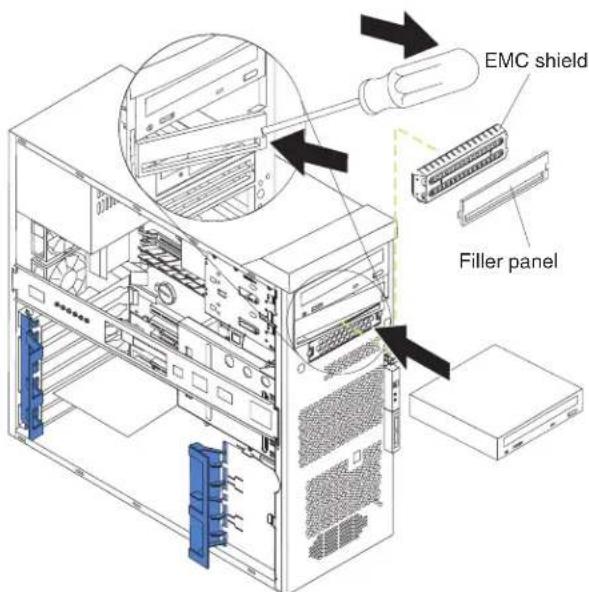
-
Touch the static-protective package containing the drive to any unpainted metal surface on the computer; then, remove the drive from the package and place it on a static-protective surface.
-
Follow the instructions that come with the drive to set jumpers or switches, if any.
Note: You might find it easier to install the new drive into the opening on the front and then attach the cables.
-
If you are installing a 3.5-in. drive in bay 2, attach a 5.25-in. conversion kit to the 3.5-in. drive.
-
Remove the clip from the side of the drive cage of bays 1 and 2 by sliding the clip to the left; then, snap the clip into the screw holes on the side of the drive or conversion kit (the blue side of the clip should be facing outward).
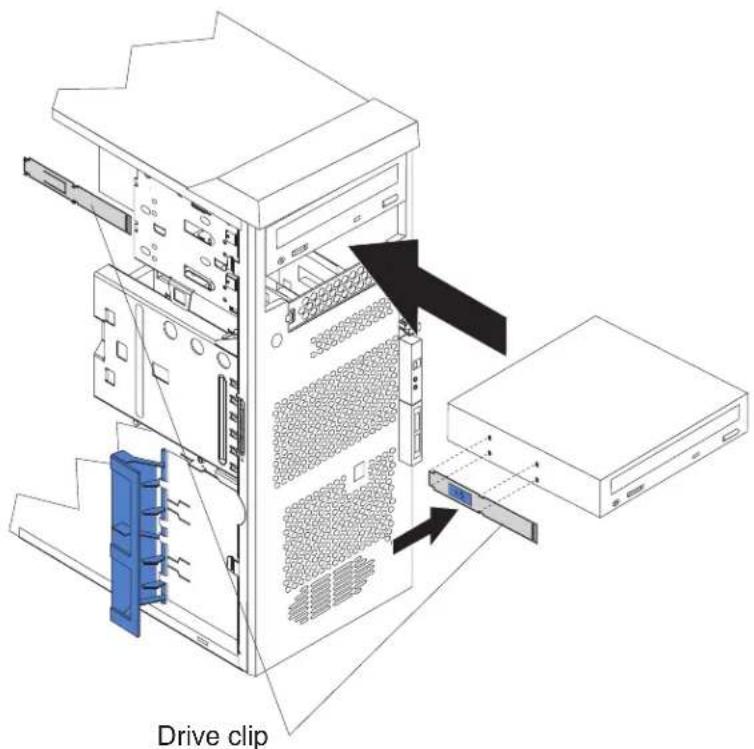
-
Push the drive into the bay.
-
Determine whether the drive is an IDE or SCSI device; then, connect one end of the applicable signal cable into the back of the drive and the other end of this cable into the applicable IDE or SCSI connector on the system board. See "Power and signal cables for internal drives" on page 52 for additional information about cabling drives and "System-board internal connectors" on page 36 for the location of IDE and SCSI connectors on the system board. If there are open connectors on the cables connecting existing IDE or SCSI drives, you can use these cables to connect the new drive.
-
Route the signal cable so that it does not block the airflow to the rear of the drives or over the microprocessor.
-
Connect the power cable to the back of the drive. The connectors are keyed and can be inserted only one way.
-
If you have other options to install or remove, do so now.
-
Replace the support bracket (see "Removing and installing the support bracket" on page 38).
-
Replace the bezel (see "Replacing the bezel" on page 63).
-
Replace the side cover (see "Replacing the side cover" on page 63).
-
Reconnect the external cables and power cords; then, turn on the attached devices and the computer.
Installing a drive in bay 3
Note: Only a 3.5-in. device can be installed in bay 3.
Complete the following steps to install a drive in bay 3:
- Read the safety information beginning on page vii, the guidelines in "Handling static-sensitive devices" on page 33, and the documentation that comes with your drive.
- Make sure that you have all the cables and other equipment specified in the documentation that comes with the drive.
- Check the instructions that come with the drive to determine whether you need to set any switches or jumpers on the drive. If you are installing a SCSI device, make sure that you set the SCSI ID for that device.
- Turn off the computer and all attached devices; then, disconnect all external cables and power cords.
- Remove the side cover (see "Removing the side cover" on page 37).
- Remove the front bezel (see "Removing the bezel" on page 39).
- Remove the support bracket (see "Removing and installing the support bracket" on page 38).
- Use a screwdriver to pry the filler panel and EMC shield away from the computer.
Note: If you are installing a drive that contains a laser, review the following safety precaution.
Statement 3:

CAUTION:
When laser products (such as CD-ROMs, DVD drives, fiber optic devices, or transmitters) are installed, note the following:
- Do not remove the covers. Removing the covers of the laser product could result in exposure to hazardous laser radiation. There are no serviceable parts inside the device.
- Use of controls or adjustments or performance of procedures other than those specified herein might result in hazardous radiation exposure.

DANGER
Some laser products contain an embedded Class 3A or Class 3B laser diode. Note the following.
Laser radiation when open. Do not stare into the beam, do not view directly with optical instruments, and avoid direct exposure to the beam.

-
Touch the static-protective package containing the drive to any unpainted metal surface on the computer; then, remove the drive from the package and place it on a static-protective surface.
-
Follow the instructions that come with the drive to set jumpers or switches, if any.
Notes:
a. You might find it easier to install the new drive into the opening on the front and then attach the cables.
b. If you are installing a hard disk drive, you might need to temporarily disconnect the front-panel cable from the system board. You can reconnect the front-panel cable after you have finished installing the hard disk drive.
-
Push the drive into the bay; then, use the two screws to attach the drive to the drive cage.
-
Determine whether the drive is an IDE or SCSI device; then, connect one end of the applicable signal cable into the back of the drive and the other end of this cable into the applicable IDE or SCSI connector on the system board (if you are installing a diskette drive in bay 3, connect the other end of the cable to the diskette connector on the system board). See "Power and signal cables for internal drives" on page 52 for additional information about cabling drives and "System-board internal connectors" on page 36 for the location of diskette, IDE, and SCSI connectors on the system board. If there are open connectors on the cables connecting existing IDE or SCSI drives, you can use these cables to connect the new drive.
-
Route the signal cable so that it does not block the airflow to the rear of the drives or over the microprocessor.
-
Connect the power cable to the back of the drive. The connectors are keyed and can be inserted only one way.
-
If you have other options to install or remove, do so now.
-
Replace the support bracket (see "Removing and installing the support bracket" on page 38).
-
Replace the bezel (see "Replacing the bezel" on page 63).
-
Replace the side cover (see "Replacing the side cover" on page 63).
-
Reconnect the external cables and power cords; then, turn on the attached devices and the computer.
Installing a hard disk drive in bay 4, 5, or 6
Bays 4, 5, and 6 are in the drive cage. The drive cage is behind the front of the adapter-support bracket.
Note: When installing options, you might find it easier to work with the computer lying on its side.
Complete the following steps to install a drive in bay 4, 5, or 6:
- Read the safety information beginning on page vi, the guidelines in "Handling static-sensitive devices" on page 33 and the documentation that comes with your drive.
- Make sure that you have all the cables and other equipment that is specified in the documentation that comes with the drive.
- Select the bay in which you want to install the drive.
- Check the instructions that come with the drive to determine whether you must set any switches or jumpers on the drive. If you are installing a SCSI device, make sure that you set the SCSI ID for that device.
- Turn off the computer and all attached devices (see "Turning off the computer" on page 19); then, disconnect all power cords and external cables.
- Remove the side cover (see "Removing the side cover" on page 37).
-
Remove the support bracket (see "Removing and installing the support bracket" on page 38).
-
Grasp the drive cage and rotate the cage out of the computer until it locks into place with the drive-cage retention tab.
Note: You might need to disconnect the power cables from the drives before you rotate the cage all the way.
The open ends of the drive slots and installed drives will face you. Make sure that the drive cage locks into place over the drive-cage retention tab by rotating the drive cage all the way out of the computer.

natural_image
Technical line drawings of a dual-chamber server unit (no text or symbols)- If you are installing a new drive in an empty bay, slide the existing drive tray out of the drive bay. If you are replacing a drive, complete the following steps:
a. Slide the existing drive out of the drive bay.
b. Remove the drive from the drive tray by gently pulling both sides of the drive tray outward until the mounting pins are disengaged from the holes on the drive; then, lift the drive out of the drive tray.
-
Touch the static-protective package containing the new drive to any unpainted metal surface on the computer; then, remove the drive from the package and place it on a static-protective surface.
-
Set any jumpers or switches on the new drive according to the documentation that comes with the drive.

natural_image
Technical line drawing of a mechanical device with mounting brackets and directional arrows indicating movement (no text or symbols)- Attach the new drive to the drive tray. Place the drive on the drive tray and align the holes on the drive with the mounting pins on the drive tray. Gently pull both sides of the drive tray outward and insert the mounting pins into the holes on the drive.
- Slide the drive into the drive bay until the drive snaps into place.
- Determine whether the drive is a Serial ATA or SCSI device; then, connect one end of the applicable signal cable into the back of the drive and the other end of this cable into the applicable Serial ATA or SCSI connector on the system board. If there are open connectors on the cables connecting existing Serial ATA or SCSI drives, you can use these cables to connect the new drive. See "Power and signal cables for internal drives" for additional information about cabling drives and "System-board internal connectors" on page 36 for the location of Serial ATA and SCSI connectors on the system board.
- Route the signal cable so that it does not block the airflow to the rear of the drives or over any microprocessor.
- Connect the power cable to the back of the drive. The connectors are keyed and can be inserted only one way.
- Push the drive cage outward, and press in on the drive-cage release tab. Rotate the cage part-way into the computer; then, reconnect any power cables you disconnected in step 3 and rotate the cage the rest of the way back into the computer. Make sure that the drives and cables do not strike the microprocessor fan sink.
- If you have other options to install or remove, do so now.
- Replace the support bracket (see "Removing and installing the support bracket" on page 38).
- Replace the side cover (see "Replacing the side cover" on page 63).
- Reconnect the external cables and power cords; then, turn on the attached devices and the computer.
Power and signal cables for internal drives
Your computer uses cables to connect IDE, Serial ATA, and SCSI devices to the power supply and to the system board. (See "System-board internal connectors" or page 36 for the location of system-board connectors.) Review the following information before connecting power and signal cables to internal drives:
- The drives that are preinstalled in your computer come with power and signal cables attached. If you replace any drives, remember which cable is attached to which drive, or label the cables.
- When you install a drive, make sure that one of the drive connectors of the signal cable is connected to the drive and that the connector at the other end of the signal cable is connected to the system board.
- When you install a drive, set the jumpers either to disable auto-start or to delay startup, to prevent the system power supply from being overtaxed by all drives trying to spin up at once.
- The computer has two IDE buses, primary and secondary. Each of these buses supports up to two IDE devices. The primary IDE bus uses connector IDE1 on the system board and the secondary IDE bus uses connector IDE2.
- If you have only one IDE device on a cable, it must be set as a master device.
- If two IDE devices are used on a single cable, one must be designated as the master device and the other as the subordinate device; otherwise, the computer might not recognize some of the IDE devices. The master and subordinate designation is determined by switch or jumper settings on each IDE device.
The following cables are provided:
- Power cables: Four-wire power cables connect the drives to the power supply. At the end of these cables are plastic connectors that can be attached to different drives; these connectors vary in size. With Serial ATA drives, you can use either a four-wire power cable or a five-wire Serial ATA power cable, but do not use both at the same time (use one or the other).
- Signal cables: Signal cables typically are flat cables, also called ribbon cables, that connect IDE, SATA, SCSI, and diskette drives to the system board. Two or three types of signal cable come with your computer:
- IDE: The wider IDE signal cable has three connectors. One of these connectors is attached to the drive, one is a spare, and the third is attached to the primary or secondary IDE connector on the system board. The spare connector can be used to connect additional IDE drives to your computer.
Note: The optical drive is attached to an ATA 100 signal cable. ATA 100 signal cables are color-coded. The blue connector is connected to the system board. The black connector is connected to the master IDE device. The gray middle connector is connected to the subordinate IDE device.
- Serial ATA: The narrower, black signal cable has two connectors. One is connected to the SATA drive, and the other is connected to the connector on the system board. Each SATA drive comes with a cable. If you install an additional SATA drive, you will need an additional cable.
- SCSI: The following cables can be used to attach SCSI devices to the integrated SCSI controller on the system board:
- An Ultra320 twisted ribbon cable connects the internal Ultra320 SCSI hard disk drive to the SCSI connector on the system board. This cable has four additional connectors for attaching more internal SCSI devices.
- A round SCSI cable connects external SCSI devices to the integrated SCSI controller (SCSI B) on the system board. For more information about connecting SCSI devices, see the SCSI documentation.
Installing memory modules
The following notes describe the types of dual inline memory modules (DIMMs) that your computer supports and other information that you must consider when installing DIMMs:
- The computer must have at least one pair of DIMMs installed in the DIMM connectors for each microprocessor installed.
- The system board contains four DIMM connectors for microprocessor 1. Your computer comes with one pair of DIMMs installed in the DIMM connectors on the system board.
- If you install a second microprocessor, the board that comes with the microprocessor option (microprocessor board) contains four DIMM connectors for microprocessor 2. You must install at least one pair of DIMMs in the DIMM connectors on the microprocessor board.
- You can add a second pair of DIMMs for either microprocessor at any time. It is not necessary to add a second pair of DIMMs for microprocessor 1 before adding a second pair of DIMMs for microprocessor 2.
- The DIMM options that are available for your computer are 512 MB, 1 GB, and 2 GB. Your computer supports a minimum of 1 GB and a maximum of 16 GB of system memory.
Exception: Although your computer supports a maximum of 16 GB of system memory, the Microsoft Windows XP operating systems recognize and support a maximum of 4 GB of system memory.
- Your computer comes with two 512 MB or 1 GB memory DIMMs installed.
- Install only 2.5 V, 184-pin, double-data-rate (DDR), PC2700, registered, buffered synchronous dynamic random-access memory (SDRAM) with error correcting code (ECC) DIMMs. These DIMMs must be compatible with the latest PC2700 SDRAM buffered DIMM specification. For a list of supported options for your computer, go to http://www.ibm.com/pc; then, select your country and navigate to the list of options for your computer.
- DIMMs must be installed in matched pairs. The DIMMs in each pair must be the same size, speed, type, and technology as each other but do not have to match other pairs. You can mix compatible DIMMs from various manufacturers.
- The first pair of DIMMs on the system board are installed in DIMM connectors 1 and 2. If you install a second pair of DIMMs for microprocessor 1, install the pair in DIMM connectors 3 and 4. The following illustration shows the system board DIMM installation sequence.
| installation sequence on system board | |
| DIMMs | Slots |
| First pair of DIMMs | 1,2 |
| Second pair of DIMMs | 3,4 |
- If you install a second microprocessor (microprocessor 2), install the first pair of DIMMs for the microprocessor in DIMM connectors 5 and 6 on the microprocessor option board. If you install a second pair of DIMMs for the microprocessor, install the pair in DIMM connectors 7 and 8 on the microprocessor board. See "Installing a second microprocessor" on page 56 for more information about the microprocessor option. The following illustration shows the microprocessor board DIMM installation sequence.
| installation sequence on microprocessor board | |
| DIMMs | Slots |
| First pair of DIMMs | 5, 6 |
| Second pair of DIMMs | 7, 8 |
- Your computer supports two-way memory interleaving across the memory banks for each microprocessor.
- The amount of usable memory will be reduced depending on the system configuration. A certain amount of memory must be reserved for system resources. The BIOS will display the total amount of installed memory and the amount of configured memory. To obtain a full 16 GB or more of usable memory, you must install a second microprocessor and memory.
- When you restart the computer after adding or removing DIMMs, the computer displays a message that the memory configuration has changed.
Complete the following steps to install a pair of DIMMs:
- Read the safety information beginning on page vii, and the guidelines in "Handling static-sensitive devices" on page 33.
- Turn off the computer and all attached devices (see "Turning off the computer" on page 19); then, disconnect all external cables and power cords.
-
Remove the side cover (see "Removing the side cover" on page 37).
-
Remove the support bracket (see "Removing and installing the support bracket" on page 38).
-
For easier access to the memory modules on the system board, rotate the drive cage out of the computer until it locks into place. You might need to disconnect the power cables from the drives before you rotate the cage all the way.
Note: If you are installing memory modules on the microprocessor board for a second microprocessor on the computer, it is not necessary to move the drive cage.
- If you are installing DIMMs for microprocessor 1, and you have installed a second microprocessor on the computer, remove the microprocessor 2 air baffle:
a. Lift up on the large end of the baffle until it releases.
b. Slide the baffle toward the front of the computer; then, lift the baffle out of the computer.
-
Locate the DIMM connectors. Determine the connectors into which you will install the DIMMs. See the notes on page 54 for the installation sequence.
-
Gently open the retaining clips on each end of the DIMM connectors you have selected and, if necessary, remove any existing DIMMs.
-
Touch the static-protective package containing the new DIMM to any unpainted metal surface on the computer. Then, remove the new DIMM from the package.
-
Turn the DIMM so that the contacts align correctly with the connector.
-
Insert the DIMM into the connector. Firmly press the DIMM straight down into the connector by applying pressure on both ends of the DIMM simultaneously. The retaining clips snap into the locked position when the DIMM is firmly seated in the connector. If there is a gap between the DIMM and the retaining clips, the DIMM has not been correctly installed. Open the retaining clips, remove the DIMM, and then reinsert it.
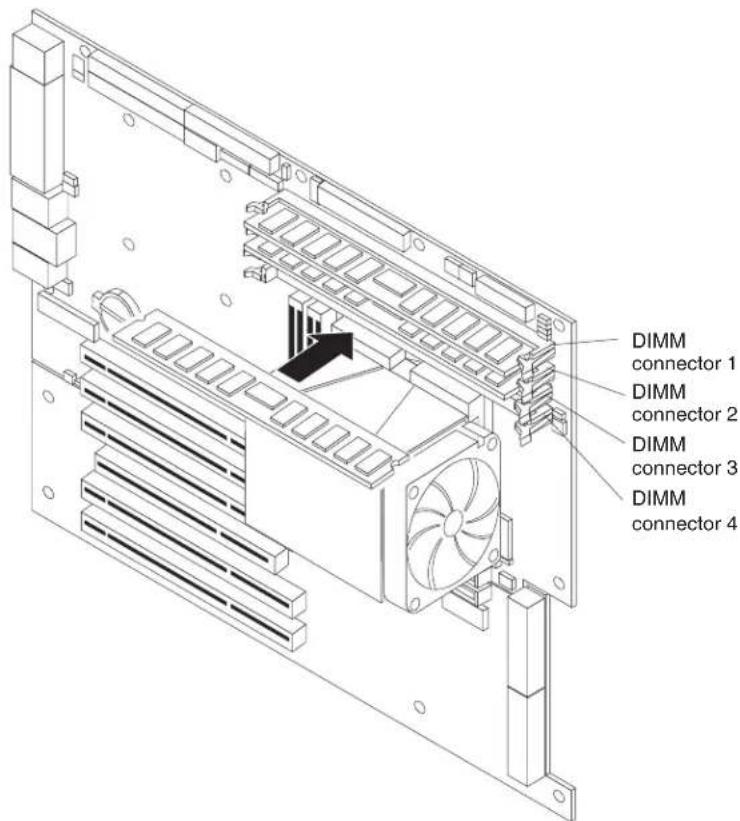
-
Repeat steps 8 through 11 for the second DIMM in the pair.
-
If you have other options to install or remove, do so now.
-
If you moved the drive cage out of the way in step 3, push the drive cage outward and press in on the drive-cage release tab. Rotate the cage part-way into the computer, reconnect any power cables you disconnected from the drives, and rotate the cage the rest of the way back into the computer.
-
If you removed the air baffle for the optional second microprocessor in step 6, replace the air baffle.
-
Replace the support bracket (see "Removing and installing the support bracket" on page 38).
-
Replace the side cover (see "Replacing the side cover" on page 63).
-
Reconnect the external cables and power cords. Turn on the attached devices, and turn on the computer.
Installing a second microprocessor
Your computer supports a second microprocessor, on its own microprocessor board, with its own memory modules.
Note: When installing options, you might find it easier to work with the computer lying on its side.
The following notes describe information that you must consider when installing a second microprocessor in your computer.
• The speed of microprocessors 1 and 2 must match.
- The microprocessor option kit comes with a microprocessor board, a microprocessor socket, the microprocessor, a fan sink, and a microprocessor air baffle. The necessary screws and the microprocessor socket are preinstalled on the microprocessor board.
• Each microprocessor contains a memory controller for the memory modules that are associated with it. - You must install at least one pair of matched DIMMs on the microprocessor board with the microprocessor. The DIMMs in each pair must be the same size, speed, type, and technology as each other but do not have to match other pairs. See "Installing memory modules" on page 53 for information about the installation order and the type of DIMMs that are supported.
- With more than one microprocessor, the computer can operate as a symmetric multiprocessing (SMP) computer. With SMP, certain operating systems and application programs can distribute the processing load among the microprocessors. This enhances performance for database and other applications.
- To use SMP, obtain an SMP-capable operating system. For a list of supported operating systems, go to http://www.ibm.com/pc/us/compat/.
- Read the documentation that comes with the microprocessor to determine whether you need to update the computer basic input/output system (BIOS) code. The most current level of BIOS code for the computer is available from http://www.ibm.com/pc/support.
- For a list of supported microprocessor options for your computer, go to http://www.ibm.com/pc; then, select your country and navigate to the list of options for your computer
Before you begin, obtain the following items:
• A Phillips-head screwdriver
• A flat-blade screwdriver or a nut driver
Complete the following steps to install a second microprocessor.
Note: For clarity, the illustrations in this procedure show only the system board. You will not remove the system board from the computer to perform this procedure.
- Read the safety information beginning on page Ⅶ, and the guidelines in "Handling static-sensitive devices" on page 33.
- Turn off the computer and all attached devices (see "Turning off the computer" on page 19).
- Disconnect all external cables and power cords; then, remove the side cover (see "Removing the side cover" on page 37).
- Remove the support bracket (see "Removing and installing the support bracket" on page 38).
- Remove the rear adapter-retention bracket.
- Touch the static-protective package containing the microprocessor board to any unpainted metal surface on the computer. Then, remove the microprocessor board from the package.

-
Remove the six indicated screws from the system board.
-
Position the alignment holes in the microprocessor board over the two plastic alignment pins on the system board; then, lower the microprocessor board onto the alignment pins.
Notes:
a. When lowering the microprocessor board onto the two plastic alignment pins, it might help to hold it by one of the DIMM slot tabs and one of the retention spring clips.
b. The screws on the microprocessor board are spring-loaded. When the microprocessor board is correctly in place, the screws will stick straight down and align with the six screw holes on the system board.
c. Make sure that the connectors on the underside of the microprocessor board line up with the second-microprocessor connectors on the system board.
- Tighten the four screws on the fan-sink socket; then, tighten the two screws on the corners of the microprocessor board to secure the microprocessor board to the system board.
Attention: When you tighten the screw on the microprocessor board that is closest to the rear fan in computer, you might have to push the rear fan slightly to the side.
-
Press down on the barcode label and the indicated corner to make sure that the microprocessor board is firmly seated in the connectors on the system board.
-
Remove the protective cover, tape, or label from the surface of the microprocessor socket, if any is present.
-
Lift the microprocessor-release lever to the fully open position (90°).
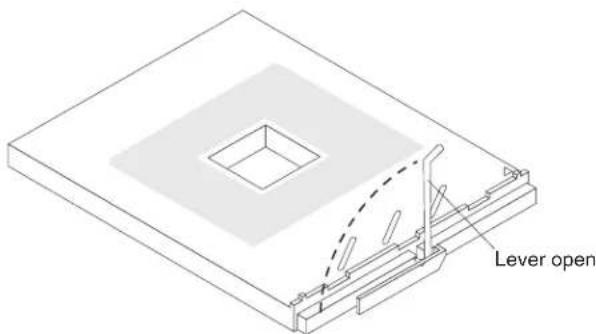
Attention: You must make sure that the locking lever on the microprocessor socket is in the fully open position before you insert the microprocessor in the socket. Failure to do so might result in permanent damage to the microprocessor, microprocessor socket, and system board.
- Install the new microprocessor:
a. Touch the static-protective package containing the new microprocessor to any unpainted metal surface on the computer; then, remove the microprocessor from the package.
b. Position the microprocessor over the microprocessor socket as shown in the following illustration. Carefully press the microprocessor into the socket.
Attention: To avoid bending the pins on the microprocessor, do not use excessive force when pressing it into the socket.
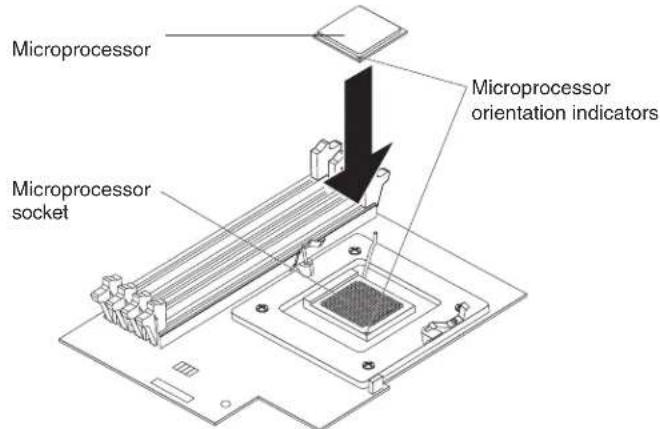
- Close the microprocessor-release lever to secure the microprocessor.
Attention:
- Do not disturb or contaminate the grey thermal material on the bottom of the new fan sink. Doing so damages its heat-conducting capability and exposes the new microprocessor to overheating.
• If you need to remove the fan sink after installing it, call for service.
a. Make sure that the two retention spring clips on the microprocessor retention bracket (on the microprocessor board) are open and rotated to either side as shown in the above illustration.
b. Remove the fan sink from its package and remove the cover from the bottom of the fan sink. Make sure that the thermal material is still on the bottom of the fan sink.
c. Remove the release liner and orient the fan sink above the microprocessor.
d. Make sure that you install the fan sink toward the rear of the computer so that the front of the fan sink and the fan-sink screws do not come in contact with any electrical components on the microprocessor board.
e. Connect the fan-sink cable to the microprocessor fan connector on the microprocessor board; then, press the fan sink into place (see the illustration in "Optional microprocessor board connectors" on page 36 for the location of the connector).
f. Raise the retention spring clips into position on each side of the fan sink. Start both screws into the fan-sink socket; then, tighten both screws. Do not overtighten the screws.
-
Install at least one pair of supported DIMMs on the microprocessor board. See "Installing memory modules" on page 53 for information about the installation order and the type of supported DIMMs.
-
Install the microprocessor air baffle.
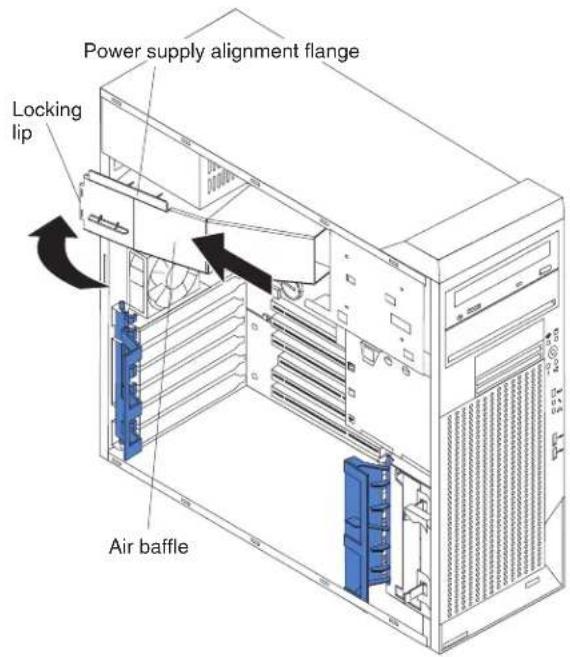
a. Orient the air baffle as shown and align it with the side of the power supply.
b. Insert the small end of the baffle into the computer toward the front of the computer.
c. Lower the larger end of the baffle until the side flange rests on the power supply.
d. Slide the baffle toward the rear of the computer until it stops and the rear flange (locking lip) is inside the computer chassis; then, press down on the large end of the baffle until it clicks into place.
-
If you have other options to install or remove, do so now.
-
Replace the support bracket (see "Removing and installing the support bracket" on page 38).
-
Replace the side cover (see "Replacing the side cover" on page 63).
-
Reconnect the external cables and power cords. Turn on the attached devices, and turn on the computer.
Installing an external SCSI cable
To install an external SCSI connector on the rear of the computer, install an external SCSI interface option. For a list of supported external SCSI interface options for your computer, go to http://www.ibm.com/pc/.
The external SCSI interface option contains a SCSI cable with a connector at one end and on the other end another connector or an expansion-slot cover with an embedded connector. Complete the following steps to install and route the SCSI cable in the computer:
-
Turn off the computer and all peripheral devices. Disconnect all power cords; then, disconnect all external signal cables from the computer.
-
Remove the computer cover (see "Removing the side cover" on page 37).
-
Remove the support bracket (see "Removing and installing the support bracket" on page 38).
-
Open the front adapter-retention bracket and remove the rear adapter-retention bracket from the PCI-X slots (see "Installing an adapter" on page 40 for instructions). You might also have to remove longer adapters for access to the SCSI connectors on the system board.
- Connect the SCSI signal cable end labeled "PLANAR" to the connector for SCSI channel B on the system board. See "System-board internal connectors" on page 36 for the location of the SCSI channel B connector.
- Route the SCSI cable between the chassis and PCI-X slot 5 to the back of the computer. Make sure the cable does not block the flow of air to the microprocessors or hard disk drives.
- Attach the external connector to the rear of the computer.
- If the external end of the SCSI cable has a standard SCSI connector, complete the following steps:
a. Remove the SCSI-connector knockout from the rear of the computer.
b. Insert the external SCSI connector on the SCSI cable into the knockout opening and secure it with the attached screws.
- If the external end of the SCSI cable has an expansion-slot cover with an embedded connector, complete the following steps:
a. Remove an expansion-slot cover from an available PCI-X slot.
b. Insert the expansion-slot cover with embedded connector into the slot opening.
- Replace any adapters you removed in step 4. Close the front adapter-retention bracket and replace the rear adapter-retention bracket.
- Replace the support bracket (see "Removing and installing the support bracket" on page 38).
- Replace the cover (see "Replacing the side cover" on page 63).
- Reconnect the external cables and power cords. Turn on the attached devices, and turn on the computer.
- Use the SCSISelect program to configure SCSI channel B (see "Using the SCSISelect Utility program (some models)" on page 30).
Installing a security rope clip
To help prevent hardware theft, you can add a security rope clip and cable to your computer. After you add the security cable, make sure that it does not interfere with other cables that are connected to the computer.
Before you begin, obtain the following items:
• A flat-blade screwdriver
• An adjustable wrench
- A 19 mm (0.75 in.) rope clip or wire rope (similar to National Manufacturing number 3230, stock number 176-735)
- Threaded nuts that fit the rope clip
- A security cable
- A lock, such as a combination lock or padlock
Complete the following steps to install a rope clip:
- Turn off the computer and all attached devices.
- Disconnect all external cables and power cords; then, remove the side cover. See "Removing the side cover" on page 37
-
Use a screwdriver to remove the two metal knockouts.
-
Insert the rope clip through the rear panel; then, attach and tighten the nuts.
- Thread the cable through the rope clip and around an object that is not part of or permanently secured to the building structure or foundation and from which the cable cannot be removed. Fasten the cable ends together with a lock. After you add the security cable, make sure that it does not interfere with other cables that are connected to the computer.

- If you have other options to install or remove, do so now; otherwise, replace the side cover (see "Replacing the side cover").
- Reconnect the external cables and power cords. Turn on the attached devices, and turn on the computer.
Replacing the bezel
Complete the following steps to replace the bezel:
- Insert the two tabs on the bottom of the bezel into the matching holes on the server chassis.
- Push the top of the bezel toward the server until the two tabs at the top of the bezel snap into place.
Replacing the side cover
If you removed the support bracket, reinstall it before you replace the side cover. See "Removing and installing the support bracket" on page 38.
Note: The rear adapter-retaining bracket rests against the computer side cover. You might find it easier to lay the computer on its side to replace the side cover.
Complete the following steps to replace the side cover:
- Make sure that all cables, adapters, and other components are installed and seated correctly and that you have removed all work tools or parts from inside the computer.
- Install the side cover by placing it into position on the computer. Make sure that the lip on the bottom of the cover rests on the ledge on the bottom of the chassis before rotating the cover up to the vertical position. Press down on the cover-release latch as you slide the side cover forward to lock the side cover.

natural_image
Line drawing of a desktop computer tower with an arrow pointing to a device component (no text or symbols present)-
Reconnect the external cables and power cords to the computer; then, connect the power cords to electrical outlets.
-
Turn on the attached devices; then, turn on the computer.
Connecting external options
You can connect a number of optional external devices to the connectors on the rear and front of the computer.
Complete the following steps to connect an external device:
-
Read the safety information beginning on page vi, the guidelines in "Handling static-sensitive devices" on page 33, and the documentation that comes with your options.
-
Turn off the computer and all attached devices (see "Turning off the computer" on page 19).
-
Follow the instructions that come with the option to prepare it for installation and to connect it to the computer.
If you are attaching a SCSI device, see "Ultra320 SCSI connector" on page 67 for SCSI ID and cabling information.
Input/output connectors
Connect optional external devices to the connectors on the front and rear of the computer.
Your computer has the following input/output (I/O) connectors:
- One audio line in
- Two audio line out
- Two audio microphone
- One Ethernet
- Two IEEE 1394A (FireWire)
- One keyboard
- One mouse
- One parallel
- Two serial
• Five Universal Serial Bus (USB) - One video
The following illustration shows the locations of the connectors on the rear of the computer. See "Controls, LEDs, and connectors" on page 9 for the locations of the connectors on the front of the computer.
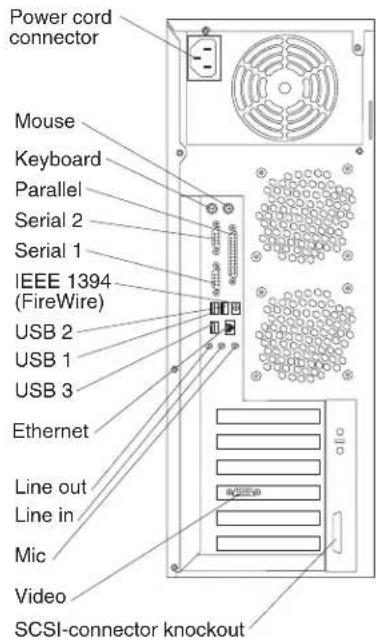
The following sections describe these connectors.
Audio connectors
Use the audio connectors to connect external audio equipment to the computer. The following illustration shows the audio connectors.

Line in
There is one line-in connector on the rear of the computer. The computer receives audio signals through this connector from an external audio device.
Line out
There are two line-out connectors, one on the front and one on the rear of the computer. The computer sends audio signals through this connector to powered speakers with built-in amplifiers, headphones, a multimedia keyboard, or the audio
line-in connector on a stereo system. The internal speaker in the computer is disabled when a device is attached to this connector.
Mic
There are two microphone connectors, one on the front and one on the rear of the computer. Connect a microphone to this connector to record sounds onto the hard disk or to use speech-recognition software.
Auxiliary-device (pointing-device) connector
There is one auxiliary-device connector on the rear of the computer. Use this connector to connect a mouse or other pointing device. The following illustration shows an auxiliary-device connector.
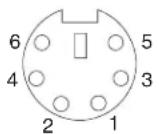
Ethernet (RJ-45) connector
There is one Ethernet connector on the rear of the computer. Use this connector to connect the computer to a 10-Mbps, 100-Mbps, or 1000-Mbps network. The following illustration shows an Ethernet connector.
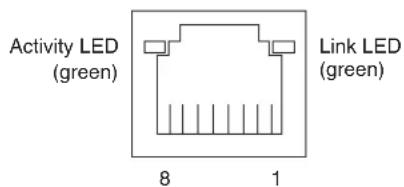
Connect a Category 3, 4, or 5 unshielded twisted-pair (UTP) cable to this connector. The 100BASE-TX and 1000BASE-T Fast Ethernet standards require Category 5 or higher cabling.
The Ethernet connector has one LED that indicates Ethernet-link status. When this LED is lit, it indicates that there is an active connection on the Ethernet port. Activity between the computer and the network is indicated by the Ethernet transmit/receive activity LEDs on the front and rear of the computer (see "Controls, LEDs, and connectors" on page 9).
IEEE 1394A (FireWire) connector
There is one 4-pin IEEE 1394A (FireWire) connector on the front of the computer and one 6-pin IEEE 1394A (FireWire) connector on the rear of the computer. Use these connectors to connect IEEE 1394 (FireWire) devices. The following illustrations show the IEEE 1394A (FireWire) connectors.
4-pin IEEE 1394A (FireWire) connector (front)
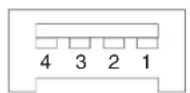
6-pin IEEE 1394A (FireWire) connector (rear)
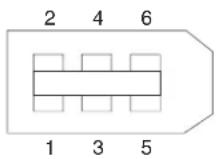
Keyboard connector
There is one keyboard connector on the rear of the computer. Use this connector to connect a PS/2 (non-USB) keyboard. The following illustration shows a keyboard connector.
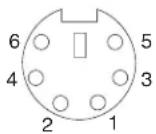
If you attach a keyboard to this connector, USB ports and devices are disabled during the power-on self-test (POST).
Parallel connector
There is one parallel connector on the rear of the computer. Use this connector to connect a parallel device. The following illustration shows a parallel connector.

The parallel connector supports three standard Institute of Electrical and Electronics Engineers (IEEE) 1284 modes of operation: standard parallel port (SPP), enhanced parallel port (EPP), and extended capability port (ECP). If you configure the parallel port to operate in bidirectional mode, it supports the ECP and EPP modes. When the parallel connector is configured as bidirectional, use an IEEE 1284-compliant cable that does not exceed 3 meters (9.8 ft). Use the Devices and I/O Ports options in the IBM Configuration/Setup Utility program to configure the parallel connector as bidirectional.
Serial connectors
There are two serial connectors on the rear of the computer. Use these connectors to connect serial devices. The following illustration shows a serial connector.
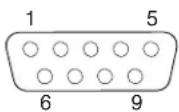
Ultra320 SCSI connector
Your computer has an integrated SCSI controller. This dual-channel controller supports two independent, Ultra320 SCSI channels that support up to 15 SCSI devices each. The SCSI connectors for the channels are on the system board. The controller has the following features:
- Double-transition clocking to achieve up to 320 MBps (megabytes per second) data-transfer rates
- Domain name validation to negotiate compatible data-transfer speeds with each device
• Cyclic-redundancy checking (CRC) to improve data reliability
• An active terminator for SCSI bus termination
The following illustration shows a SCSI connector.
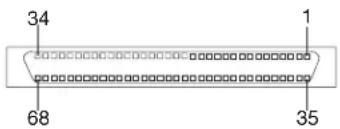
SCSI cabling requirements
You can install four internal SCSI devices using the SCSI signal cable that comes with some computer models. If you plan to attach external SCSI devices, you can order an additional SCSI cable, remove the SCSI knockout from the rear of the computer, and connect the new cable from the SCSI channel B connector on the system board to this opening. To select and order the correct cables for use with external devices, contact your IBM reseller or IBM marketing representative. See "System-board internal connectors" on page 36 for the locations of the SCSI connectors.
If you want to attach external SCSI devices to the computer without using the internal SCSI channel B, you must install an optional SCSI adapter.
Setting SCSI IDs
Each SCSI device that is connected to a SCSI controller must have a unique SCSI ID. This ID enables the SCSI controller to identify the device and ensure that different devices on the same SCSI channel do not attempt to transfer data simultaneously. SCSI devices that are connected to different SCSI channels can have duplicate SCSI IDs. See the information that comes with the device for instructions for setting its SCSI ID.
Universal Serial Bus connectors
There are five Universal Serial Bus (USB) 2.0 connectors, two on the front and three on the rear of the computer. Use the USB connectors to connect optional telephony and multimedia devices. USB 2.0 technology transfers data at up to 480 Mb per second (Mbps) with a maximum of 127 external devices and a maximum signal distance of 5 meters (16 ft) per segment (if the device that is attached to the computer is a USB 2.0 device). If multiple USB devices are attached to the computer, the USB hub must be USB 2.0; otherwise, all USB 2.0 devices will transfer data at 12 Mbps. Using Plug and Play technology, USB devices are configured automatically. The following illustration shows a USB connector.
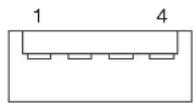
Use a 4-pin USB cable to connect an external devices to a USB connector.
If you connect a PS/2 (non-USB) keyboard to the keyboard connector, USB ports and devices are disabled during power-on self-test (POST).
If you connect a USB keyboard that has a mouse port, the keyboard emulates a mouse, and you cannot disable the mouse settings in the Configuration/Setup Utility program.
Video connector
The Accelerated Graphics Port (AGP) adapter, which is in the AGP slot on the system board, provides the video connector. This connector is on the rear of the computer. Use the video connector to connect a monitor or other display device. The following illustrations show examples of different video connectors.
Analog video connector
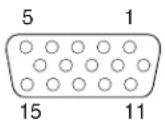
Digital (DVI-I) video connector

Low force helical-60 (LFH-60) video connector
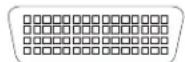
Stereo shutter glasses video connector
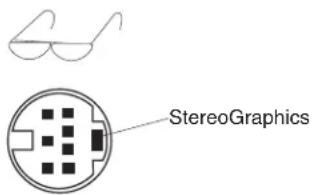
Some models come with a digital video interface (DVI) connector for connecting a digital monitor. If you have problems viewing information with a second monitor, see "Changing monitor settings" on page 15
Models with the NVIDIA Quadro FX 1100 or NVIDIA Quadro FX 3000 video adapter come with a DVI-I to VGA style analog converter for each DVI-I connector.
If your software application supports it, the connector identified by an eyeglasses icon is used for stereo shutter glasses.
Attention: To get the best performance from the NVIDIA Quadro FX 1100 and NVIDIA Quadro FX 3000 video adapters, you must connect the video adapter to the computer power supply. Otherwise, the video adapter will be operating with very limited power, resulting in a decrease in performance for some applications. Use one of the disk drive power drops to connect the video adapter to the computer power supply. This means that when you install this video adapter in your computer, you have one less power drop for optional internal devices. The following illustration shows the location of the video adapter power connector:

Models with the NVIDIA Quadro NVS 280 video adapter come with a low force helical-60 (LFH-60) to dual-analog monitor pigtail cable. If you want to setup two digital monitors, you will have to purchase a separate dual-digital monitor cable.
Chapter 5. Solving problems
This section provides basic troubleshooting information to help you solve some problems that might occur.
If you cannot diagnose and correct the problem using the information in this chapter, see Appendix A, "Getting help and technical assistance," on page 101 for more information.
Diagnostic tools overview
The following tools are available to help you diagnose and solve hardware-related problems:
• Computer Support flowchart
The Computer Support flowchart on the following page will help you determine how to get help from IBM and register your computer.
• POST beep codes and error messages
The power-on self-test generates beep codes and messages to indicate successful test completion or the detection of a problem. See "Power-on self-test (POST)" on page 73 for more information. Additional information is recorded in the system error logs. (For detailed information, see POST Error Log in Advanced Setup in "Configuration/Setup Utility menu choices" on page 22).
• Diagnostic programs
The system diagnostic programs are on a hidden partition on the hard disk. These programs are the primary methods of testing the major components of your computer. See "Diagnostic programs and error messages" on page 79 for more information.
- Troubleshooting charts
These charts list problem symptoms and steps to correct each problem. See the "Troubleshooting charts" on page 86 for more information.
• System-board and microprocessor board error LEDs
An LED on the system board (or microprocessor board if a second microprocessor is installed) might also be lit to help isolate an error indicated by the system error LED on the front of the computer. See the "System-board error LEDs" on page 92 and the "Microprocessor-board error LEDs" on page 93 for more information.
Computer Support

flowchart
graph TD
    A["Computer working properly?"] -->|Yes| B["Register your computer. Go to http://www.ibm.com/pc/register/"]
    A -->|No| C["Check all cables for loose connections and verify that all optional devices you installed are on the compatibility matrix. You can view the atcompatibility matrix http://www.pc.ibm.com/us/compat/intellistation/"]
    C --> D{Problem solved?}
    D -->|Yes| E["View information about IBM Support Line at http://www.ibm.com/services/sl/products/ or view support telephone numbers at http://www.ibm.com/planetwide/"]
    D -->|No| F["Use the troubleshooting information provided with your computer to determine the cause of the problem and the action to take."]
    F --> G{Problem solved?}
    G -->|Yes| H["View support telephone numbers at http://www.ibm.com/planetwide/"]
    G -->|No| I["Flash the latest levels of BIOS, and download the latest level of diagnostics. You can download this code at http://www.ibm.com/pc/support/"]
    I --> J{Problem solved?}
    J -->|No| K["Hardware or Software problem?"]
    J -->|Yes| L["Hardware"]
    K --> M["Software"]
    L --> M
Power-on self-test (POST)
When you turn on the computer, the power-on self-test (POST) performs a series of tests to check the operation of system components and some of the installed options.
If POST finishes without detecting any problems, the first window of your operating system or application program opens.
If POST detects a problem, more than one beep sounds and an error message appears on the screen.
Notes:
- If you have set a user password, you must type the password and press Enter, when prompted, before the operating system will start.
- A single problem might cause several error messages. When this occurs, work to correct the cause of the first error message. After you correct the cause of the first error message, the other error messages usually will be resolved the next time you run the test.
POST beep codes
Use the following beep code descriptions to help diagnose and solve problems that are detected during startup:
No beeps
If no beep occurs after the computer completes POST, call for service.
Continuous beep
The startup (boot) microprocessor has failed, or the system board or speaker subsystem might contain a failing component. If the computer continues through POST with no errors, call for service. If no video appears, the startup processor has failed.
Beep codes for specific failures
Beep codes indicating specific system problems are listed in the following table.
Table 2. POST beep codes
| Beep code | Description | Action |
| 1-1-3 | CMOS write/read test has failed. | Call for service |
| 1-1-4 | BIOS EEPROM checksum has failed. | |
| 1-2-1 | Programmable interval timer test has failed. | |
| 1-2-2 | DMA initialization has failed. | |
| 1-2-3 | DMA page register write/read test has failed. | |
| 1-3-1 | First 64 Kb RAM test has failed. | Reseat the memory modules or install a memory module. If the problem remains, call for service. |
| 2-1-1 | Secondary DMA register test has failed. | Call for service |
| 2-1-2 | Primary DMA register test has failed. | |
| 2-1-3 | Primary interrupt mask register test has failed. | |
| 2-1-4 | Secondary interrupt mask register test has failed. | |
| 2-2-2 | Keyboard controller test has failed. | |
| 2-2-3 | CMOS power failure and checksum checks have failed. | |
| 2-4-1 | Screen test indicates the screen is operable. | Call for service |
| 3-1-1 | Timer tick interrupt test has failed. | |
| 3-1-2 | Interval timer channel2 test has failed. | |
| 3-1-3 | RAM test has failed above address 0FFFFH. | |
| 3-1-4 | Time-of-day clock test has failed. | |
| 3-2-1 | Serial port test has failed. | |
| 3-2-2 | Parallel port test has failed. | |
| 3-2-3 | Math coprocessor test has failed. | |
| 3-2-4 | Comparison of CMOS memory size against actual has failed. | |
| 3-3-1 | A memory sizemismatch has occurred. | Reseat the memory modules or install a memory module. If the problem remains, call for service. |
| 3-3-2 | Critical SMBUS error occurred (I2C bus has failed). | Call for service |
| 3-3-3 | No optional memory in the system.Attention: In some memory configurations, the 3-3-3 beep code might sound during POST followed by a blank display screen. If this occurs and the Boot Fail Count feature in the Start Options of the IBM Configuration/Setup Utility program is set to Enabled (its default setting), you must restart the computer three times to force the system BIOS to reset the memory connector from Disabled to Enabled. | Reseat the memory modules or install a memory module. If the problem remains, call for service. |
POST error messages
The following table provides information about the POST error messages that can appear during startup.
Table 3. POST error messages
| POST message | Description |
| 062 | The computer failed to start on three consecutive attempts.All caches are disabled. Repeatedly turning the computer on and off or resetting the computer might cause this problem.Action:Take the following steps to correct the problem:1. Start the Configuration/Setup Utility program and make sure that all settings are correct.Use the Cache Control selection in the Advanced Setup menu of the Configuration/Setup Utility program to enable the caches.2. Install a new battery. See “Replacing the battery” on page 99 for instructions.If the problem remains, call for service. When the problem is corrected, be sure to enable the caches. |
| 101, 102, and 106 | An error occurred during the system board and microprocessor test.Action:Call for service. |
| 151 | A real-time clock (RTC) error occurred.Action:Call for service. |
| 161 | The real-time clock battery has failed.Action:Replace the battery yourself or call for service.You can use the computer until you replace the battery. However, you must run the Configuration/Setup Utility program and set the time and date and other custom settings each time you turn on the computer. |
| 162 | A change in device configuration occurred. This error occurs under one or more of the following conditions:A new device has been installed.A device has been moved to a different location or cable connection.A device has been removed or disconnected from a cable.A device is failing and is no longer recognized by the computer as being installed.An external device is not turned on.An invalid checksum is detected in the battery-backed memory.Action:Make sure that all external devices are turned on. You must turn on external devices before turning on the computer.If you did not add, remove, or change the location of a device, a device is probably failing.Running the diagnostic program might isolate the failing device. See “Using the IBM Enhanced Diagnostics diskette” on page 95If the problem remains, call for service. |
| 163 | The time of day has not been set.Action:Set the date and time. If the date and time are set correctly and saved but the 163 error message reappears, call for service.You can use the computer until the system is serviced, but any application programs that use the date and time will be affected. |
| 164 | A change in the memory configuration occurred. This message might appear after you add or remove memory.Note: The computer can be used with decreased memory capacity.Action: Take the following steps to correct the problem:1. If POST error message 289 also occurred, follow the instructions for that error message first.2. If you just installed or removed memory, run the Configuration/Setup Utility program; then, exit, saving the new configuration settings.If the message appears again, shut down the computer, reseat the memory modules, and restart the computer.If the problem remains, call for service. |
| 175 | A vital product data (VPD) error occurred.Action: Call for service. |
| 184 | The power-on password information stored in your computer has been removed.Action: From the Configuration/Setup Utility program main menu, select System Security. Then, follow the instructions on the screen.If this information cannot be restored, call for service. |
| 187 | The VPD serial number is not set.Action: The system serial number is set in the VPD EEPROM at the time of manufacturing. If the system board has been replaced, the system serial number will be invalid and must be reset. From the main menu of the Configuration/Setup Utility program, select System Information, and then select Product Data. If the problem remains, call for service. |
| 188 | A vital product data (VPD) error occurred.Action: Start the Configuration/Setup Utility program and make sure that all settings are correct. If the problem remains, call for service. |
| 189 | An attempt has been made to access the computer with invalid passwords. After three incorrect attempts, the computer locks up; that is, the logon data fields are no longer available to the user. |
| 201 | An error occurred during the memory controller test. This error can be caused by:Incorrectly installed memoryA failing memory moduleA system board problemAction: Take the following steps to correct the problem:If you just installed memory, make sure that the new memory is correct for your computer.Also make sure that the memory is installed and seated correctly.If the problem remains, call for service. |
| 289 | An error occurred during POST memory tests and a failing DIMM was disabled.Action: Take the following steps to correct the problem:If you just installed memory, make sure that the new memory is correct for your computer.Also make sure that the memory is installed and seated correctly.Start the Configuration/Setup Utility program and select Memory Settings from the Advanced Setup menu to enable the DIMM.If the problem remains, replace the failing DIMM.If the problem remains, call for service. |
| 301 and 303 | An error occurred during the keyboard and keyboard controller test. These error messages also might be accompanied by continuous beeping.Action:Take the following steps to correct the problem:1. Make sure that:Nothing is resting on the keyboard and pressing a key.No key is stuck.The keyboard cable is connected correctly to the keyboard and to the correct connector on the computer.2. After installing a USB keyboard, you might need to use the Configuration/Setup Utility program to enable keyboardless operation and prevent the POST error message from being displayed during startup.Running the diagnostic tests can isolate the computer component that failed, but you must have your computer serviced. If the error message remains, call for service.Note:If you just connected a new mouse or other pointing device, turn off the computer and disconnect that device. Wait at least 5 seconds; then, turn on the computer. If the error message goes away, replace the device. |
| 602 | Invalid diskette boot recordAction:Take the following steps to correct the problem:1. Replace the diskette.If the problem remains, make sure that the diskette drive cables are correctly and securely connected.If the problem remains, replace the diskette drive.If the problem remains, call for service. |
| 604 | An error occurred during a diskette drive test.Action:Take the following steps to correct the problem:1. Make sure that the Configuration/Setup Utility program correctly reflects the type of diskette drive that you have installed.Run the diagnostic tests. If the computer fails the diagnostic tests, call for service. |
| 662 | A diskette drive configuration error occurred.Action:If you removed a diskette drive, make sure that the diskette drive setting is correct in the Configuration/Setup Utility program. If the setting is not correct, change it.If the problem remains, call for service. |
| 962 | A parallel port configuration error occurred.Action:If you changed a hardware option, make sure that the parallel port setting is correct in the Configuration/Setup Utility program. If the setting is not correct, change it.If the problem remains, call for service. |
| 1162 | The serial port configuration conflicts with another device in the system.Action:Take the following steps to correct the problem:1. Make sure that the IRQ and I/O port assignments needed by the serial port are available.If all interrupts are being used by adapters, remove an adapter to make an interrupt available to the serial port, or force other adapters to share an interrupt. |
| 1762 | Hard disk configuration error.Action:Take the following steps to correct the problem:1. Make sure that the hard disk drive is set correctly in the Configuration/Setup Utility program.Make sure that the hard disk drive cables are correctly and securely connected.If the problem remains, replace the hard disk drive.If the problem remains, call for service. |
| 1962 | No valid startup devices were found. The computer cannot find the startup drive or operating system.Action: Make sure that the drive you want to start from is in the startup sequence.1. Select Start Options from the Configuration/Setup Utility program main menu. If you are unable to set the startup sequence, call for service.2. Check the list of startup devices in the Startup device data fields. Is the drive you want to start from in the startup sequence?Yes Exit from this screen; then, select Exit Setup to exit the Configuration/Setup menu. Go to step3.No Follow the instructions on the screen to add the drive; then, save the changes and exit the Configuration/Setup menu. Restart the computer.3. Is an operating system installed?Yes Turn off the computer. Go to step4.No Install the operating system in the computer; then, follow your operating-system instructions to shut down and restart the computer.4. During computer startup, watch for messages indicating a hardware problem.If the same error message appears, call for service. |
| 2462 | A video memory configuration error occurred.Action: Call for service. |
| 5962 | An IDE CD-ROM configuration error occurred.Action: Check the signal and power cable connections to the CD-ROM drive.If the problem remains, call for service. |
| 8603 | An error occurred during the mouse (pointing device) controller test. The addition or removal of a mouse, or a failing system board can cause this error.Note: This error also can occur if electrical power was lost for a very brief period and then restored. In this case, turn off the computer for at least 5 seconds; then, turn it back on.Action: Make sure that the keyboard and mouse (pointing device) are attached to the correct connectors. If they are connected correctly, use the following procedure:1. Turn off the computer.2. Disconnect the mouse from the computer.3. Turn on the computer.If the POST error message does not reappear, the mouse is probably failing. See the documentation that comes with the mouse for additional testing information. If the problem remains, replace the mouse or pointing device.If the POST error message reappears, run the diagnostic tests to isolate the problem. If the diagnostic tests do not find a problem and the POST error message remains, call for service. |
| 00012000 | Processor machine check.Action: Take the following steps to correct the problem:1. Update the system BIOS code.2. If the problem remains, replace the microprocessor. |
| 00180300 | A PCI adapter has requested memory above 1 MB.Action: Replace the PCI adapter. If the problem remains, call for service. |
| 00180700 | xxxxyyyyplanar PCI device does not respond or is disabled by user (where xxxx is the PCI vendor ID and yyyy is the PCI device ID).Action: Start the Configuration/Setup Utility program, select Devices and I/O Ports, and make sure that the device is enabled. If the problem remains, call for service. |
| 01298001 | No update data is available for the microprocessor.Action: Update the system BIOS code to a level that supports the microprocessors that are installed in the computer. |
| 01298200 | Microprocessor speed mismatch.Action:Replace one or both microprocessors so that both microprocessors have the same speed. |
| I9990650 | AC power has been restored.Action:No action is required. This message appears each time ac power is restored to the computer after an ac power loss. |
| Other Numbers | POST found an error.Action:Follow the instructions on the screen. |
Diagnostic programs and error messages
The system diagnostic programs are stored on a hidden partition on the computer hard disk. These programs are the primary method of testing the major components of your computer.
You can also download the latest version of the diagnostics programs from http://www.ibm.com/pc/support and use the downloaded file to create an IBM Enhanced Diagnostics diskette. See "Creating an IBM Enhanced Diagnostics diskette in Windows" on page 14 for instructions.
Note: When using diagnostics with a USB keyboard and mouse attached, you must first enable USB emulation. Complete the following steps to enable USB emulation:
- Restart the computer and press F1 to start the Configuration/Setup Utility.
- Select Devices and I/O Ports.
- Select USB Setup.
- Make sure that the USB keyboard and mouse are enabled.
Diagnostic error messages indicate that there is a problem; they are not intended to be used to identify a failing part. Troubleshooting and servicing complex problems that are indicated by error messages must be performed by trained service personnel.
Sometimes the first error to occur causes additional errors. In this case, the computer displays more than one error message. Always follow the suggested action instructions for the first error message that appears.
Text messages
The diagnostic text message format is as follows:
result test_specific_string
where:
result is one of the following results:
Passed
This test was completed without any errors.
Failed This test discovered an error.
User Aborted
You stopped the test before it was completed.
Not Applicable
You attempted to test a device that is not present in the computer.
Aborted
The test could not proceed because of the computer configuration.
Warning
A possible problem was reported during the test (for example, a device that was to be tested is not installed).
test\_specific\_string
is an error code or other information about the error.
Starting the diagnostic programs and viewing the test log
The IBM Enhanced Diagnostics programs isolate problems from the computer hardware and software. The programs run independently of the operating system. This method of testing is generally used when other methods are not accessible or have not been successful in isolating a problem suspected to be hardware related.
Complete the following steps to view the test log.
Note: If you are already running the Enhanced Diagnostics program, begin with step 4.
- Start the Enhanced Diagnostics programs.
• To start the Enhanced Diagnostics programs in Windows operating systems, complete the following steps:
a. Restart the computer and when the message To start the Product Recovery program is displayed, quickly press F11.
b. Select System utilities.
c. Select Run diagnostics to start the diagnostics programs.
- To start the Enhanced Diagnostics programs in Red Hat Linux operating system, complete the following steps:
a. Restart the computer.
b. When the operating system selection menu is displayed, select IBM Preload Recovery & Diagnostics.
c. Select Run diagnostics to start the diagnostics programs.
(Optionally, insert the IBM Enhanced Diagnostics diskette and restart the computer.)
- Run the applicable diagnostics program and when the Diagnostic Programs screen appears, select Utility.
- Select View Test Log from the list; then, follow the instructions on the screen. The test log records data about system failures and other pertinent information. The test log will not contain any information until after the diagnostic program has run.
- Save the test log to a file on a diskette or to your hard disk.
Notes:
a. To save the test log to a diskette, you must use a diskette that you have formatted yourself; this function does not work with preformatted diskettes. If the diskette has sufficient space for the test log, the diskette can contain other data.
b. The system maintains the test-log data only while the Enhanced Diagnostics program is running. When you end the Enhanced Diagnostics program, the test log is cleared.
Diagnostic error message tables
The following tables provide descriptions of the error messages that might be listed in the test log after you run the diagnostic programs.
Important: If error messages are displayed that are not listed in the following table, make sure that the computer has the latest level of BIOS code installed.
| Code | Function | Result | Text message | Action |
| 001 | Core system | Failed | Core tests | Call for service. |
| System board ECC | ||||
| 005 | Video port | Failed | Any failure message | 1. Replace the video adapter.2. Call for service. |
| 011 | Serial port | Integrated serial port | 1. Make sure that the loopback plug is correctly connected to the external serial port.2. Make sure that the cable from the external serial port is correctly connected to the system board.3. Call for service. | |
| 014 | Parallel port | Integrated parallel port | 1. Make sure that the loopback plug is connected correctly to the external parallel port.2. Call for service. | |
| 015 | USB interface | Aborted | Can NOT test USB interface while it is in use.Note: If you have USB devices attached, you cannot run the diagnostic program for the USB interface. | 1. Turn off the computer.2. Replace the all USB devices with standard devices.3. Turn on the computer.4. Run the diagnostic test again. |
| Failed | Any failure message | Call for service. | ||
| 020 | PCI interface | Failed | System board | Call for service. |
| 030 | SCSI interface | Failed | SCSI adapter in slot n failed register/counter/power test(where n is the slot number of the failing adapter) | See the information that comes with the adapter for instructions.If the problem remains, call for service. |
| 089 | Microprocessor test | Failed | Any failure message | 1. Make sure that the microprocessor is installed and seated correctly.2. If the computer does not have the latest level of BIOS code installed, update the BIOS code to the latest level.3. If the problem remains, call for service. |
| 175 | System thermal | Failed | Fan # n(where n is the number of the failing fan) | Replace the indicated fan. |
| Temperature sensed on system board is out of range | Call for service. | |||
| 180 | Status display | Failed | Any failure message | Call for service. |
| 201 | System memory | Failed | DIMM is in location DIMM n(where n is the number of the socket that contains the failing DIMM) | 1. Reseat the failing DIMM.2. If the problem remains, replace the DIMM.If the problem remains, call for service. |
| Test setup error: Corrupt BIOS in ROM | If the computer does not have the latest level of BIOS code installed, update the BIOS code to the latest level.If the problem remains, call for service. | |||
| Test setup error: Corrupt DMI BIOS, information in BIOS is not as expected | ||||
| 202 | Microprocessor cache | Failed | Any failure message | 1. Make sure that the microprocessor is installed and seated correctly.2. If the computer does not have the latest level of BIOS code installed, update the BIOS code to the latest level.3. If the problem remains, call for service. |
| 206 | Diskette drive | Failed | Internal diskette drive | 1. Run the test with another diskette drive.2. Make sure that the cables are correctly connected to the diskette drive.3. Run the test again.4. Call for service. |
| 215 | CD-ROM | Failed | On system board. | 1. Run the test with another CD-ROM drive.2. Make sure that the cables are correctly connected to the CD-ROM drive.3. Run the test again.4. Call for service |
| Aborted | The CD-ROM drive is not present. | Make sure that the cables are correctly connected to the CD-ROM drive. If the problem remains, call for service. | ||
| 217 | Hard disk drive | Failed | drive # n (where n is the drive bay number) | 1. Check the cables and power connections to the drive.2. Replace the hard disk drive.3. Call for service. |
| Aborted | Could not establish drive parameters | 1. Check the cables and power connections to the drive.2. Replace the hard disk drive.3. Call for service. | ||
| 264 | Magnetic tape drive | Aborted | Test setup error: No tape drive found | 1. Check the cables and power connections to the drive.2. See the information that comes with the tape drive.3. See the error messages and text in the PC-Doctor error log for detailed information about each tape drive error.4. If the problem remains, call for service. |
| Failed | The load/mount test failed for device n on adapter m(where n is the number of the device and m is the adapter number) | See the information that comes with the tape drive.If the problem remains, call for service.Note:The push button test is applicable only to SCSI tape drives that have a push button. | ||
| The self-diagnostic failed for device n on adapter m.(where n is the number of the device and m is the adapter number) | ||||
| The unload/eject test failed for device n on adapter m(where n is the number of the device and m is the adapter number) | ||||
| The unload/eject push button test failed for device n on adapter m(where n is the number of the device and m is the adapter number) | ||||
| The Read/Write Self-diagnostic failed for device n on adapter m(where n is the number of the device and m is the adapter number) | Insert a new tape cartridge; then, run the diagnostic test again.See the information that comes with the tape drive.If the problem remains, call for service. | |||
| 301 | Keyboard | Failed | On system-board keyboard test failed | Make sure that the keyboard cable is connected to the correct port (for example, make sure that it is not connected to the mouse port).If the problem remains, replace the keyboard cable.Replace the keyboard.Call for service. |
| 302 | Mouse | Failed | On system-board pointing device test failed. | Make sure that the pointing device (mouse) cable is correctly connected to the correct port.Replace the pointing device.Call for service. |
| 305 | Video monitor | Any message | See the information that came with the monitor. | |
| 405 | Ethernet | Failed | In PCI-X slot n(where n is the PCI-X slot number in which the failing Ethernet adapter is installed) | Replace the Ethernet adapter in slot n.If the problem remains, call for service. |
| On system board | Use the Configuration/Setup Utility program to make sure that the Ethernet adapter is not disabled.Call for service. | |||
| 415 | Modem | Failed | Any failure message | Make sure that the modem is present and correctly connected to the computer.Replace the modem cable.Replace the modem.Call for service. |
Small computer system interface (SCSI) messages
If you receive a SCSI error message when running the SCSISelect Utility program, it might be the result of any of the following problems:
• A failing SCSI device (adapter or drive)
• An incorrect SCSI configuration
- Duplicate SCSI IDs in the same SCSI chain
• An incorrectly installed SCSI terminator
• A defective SCSI terminator
• An incorrectly installed cable
- A defective cable
To solve the problem, make sure that:
- The external SCSI devices are turned on. External SCSI devices must be turned on before the computer.
- The cables for all external SCSI devices are connected correctly.
• The last device in each SCSI chain is terminated correctly.
• The SCSI devices are configured correctly.
If the problem remains, run the diagnostic programs to obtain additional information about the failing device. If the error remains or recurs, call for service.
Note: If the computer does not have a SCSI hard disk drive, ignore any message that indicates that the BIOS code is not installed.
PC-Doctor for Windows
Your computer contains PC-Doctor for Windows, which is designed specifically for the Windows operating environment. Because these diagnostics work with the operating system, they test hardware and analyze certain software components. These diagnostic programs are especially useful for isolating operating-system and device-driver problems.
Complete the following steps to use PC-Doctor for Windows:
- On the Windows desktop, click Start → All Programs → PC-Doctor.
- Follow the instructions on the screen. Help is available online.
Troubleshooting charts
Use the troubleshooting charts in this section to find solutions to problems that have definite symptoms.
Important: If diagnostic error messages are displayed that are not listed in the following table, make sure that the latest level of BIOS code is installed.
See "Starting the diagnostic programs and viewing the test log" on page 80 to test the computer. If you have run the diagnostic test programs or if running the tests does not detect the problem, call for service.
If you have just added new software or a new option and the computer is not working, complete the following steps before using the troubleshooting chart:
-
Remove the software or device that you just added.
-
Run the diagnostic tests to determine whether the computer is running correctly.
- Reinstall the new software or new device.
CD-ROM drive problems
| Symptom | Suggested action |
| CD-ROM drive is not recognized. | Make sure that:• The IDE channel to which the CD-ROM drive is attached (primary or secondary) is enabled in the Configuration/Setup Utility program.• All cables and jumpers are installed correctly.• The correct device driver is installed for the CD-ROM drive.If the problem remains, call for service. |
| A CD is not working correctly. | Clean the CD.If the problem remains, call for service. |
| The CD-ROM drive tray is not working. | 1. Make sure the computer is turned on.2. If the CD-ROM tray still does not work, insert the end of a straightened paper clip into the manual tray-release opening.If the problem remains, call for service. |
Diskette drive problems
| Symptom | Suggested action |
| The diskette drive activity LED stays lit, or the computer bypasses the diskette drive. | If there is a diskette in the drive, make sure that:The diskette drive is enabled in the Configuration/Setup Utility program.The diskette is good and not damaged. (Try another diskette if you have one.)The diskette is inserted correctly in the drive.The diskette contains the necessary files to start the computer.The software program is working correctly.The cable is installed correctly (in the correct orientation).To prevent diskette drive read/write errors, make sure that the distance between the monitor and the diskette drive is at least 76 mm (3 in.).If the problem remains, call for service. |
General problems
| Symptom | Suggested action |
| A cover lock is broken, an LED is not working, or a similar problem has occurred. | Call for service. |
Hard disk drive problems
| Symptom | Suggested action |
| Not all drives are recognized by the hard disk drive diagnostic test (Fixed Disk test). | 1. Remove the first drive that is not recognized and try the hard disk drive diagnostic test again.2. If the remaining drives are recognized, replace the drive that you removed with a new one.If the problem remains, call for service. |
| The computer stops responding during the hard disk drive diagnostic test. | 1. Remove the hard disk drive that was being tested when the computer stopped responding and try the diagnostic test again.2. If the hard disk drive diagnostic test runs successfully, replace the drive that you removed with a new one.If the problem remains, call for service. |
Intermittent problems
| Symptom | Suggested action |
| A problem occurs onlyoccasionally and is difficult todiagnose. | Make sure that:All cables and cords are connected securely to the rear of the computer andattached devices.When the computer is turned on, air is flowing from the rear of the computer atthe fan grille. If there is no airflow, the fans are not working. This can cause thecomputer to overheat and shut down.The SCSI bus and devices are configured correctly and the last external devicein each SCSI chain is terminated correctly.If the problem remains, call for service. |
Keyboard, mouse, or pointing-device problems
| Symptom | Suggested action |
| All or some keys on the keyboard do not work. | Make sure that the keyboard cable is securely connected to the system and that the keyboard and mouse cables are not reversed.Make sure that the computer and the monitor are turned on.Try using another keyboard.If the problem remains, call for service. |
| The mouse or pointing device does not work. | Make sure that the mouse or pointing-device cable is securely connected and that the keyboard and mouse cables are not reversed.Make sure that the mouse device drivers are installed correctly.Make sure that the computer and the monitor are turned on.Try using another mouse or pointing device.If the problem remains, call for service. |
Memory problems
| Symptom | Suggested action |
| The amount of system memory displayed is less than the amount of physical memory installed. | Make sure that:The DIMMs are seated correctly.You have installed the correct type of memory.If you changed the memory, you updated the memory configuration with the Configuration/Setup Utility program.All banks of memory are enabled. The computer might have automatically disabled a memory bank when it detected a problem, or a memory bank could have been manually disabled.Check POST error log for error message 289:If the DIMM was disabled by a system-management interrupt (SMI), replace the DIMM.If the DIMM was disabled by the user or by POST, run the Configuration/Setup Utility program and enable the DIMM.If the problem remains, call for service. |
Microprocessor problems
| Symptom | Suggested action |
| The computer emits a continuous tone during POST. | The startup (boot) microprocessor is not working correctly. Call for service. |
Monitor problems
Some IBM monitors have their own self-tests. If you suspect a problem with your monitor, see the information that comes with the monitor for instructions for testing and adjusting the monitor. If you cannot diagnose the problem, call for service.
| Symptom | Suggested action |
| The screen is blank. | Make sure that:• The computer power cord is connected to the computer and a working electrical outlet.• The monitor cables are connected correctly.• The monitor is turned on and the brightness and contrast controls are adjusted correctly.If the problem remains, call for service. |
| Only the cursor appears. | Call for service. |
| The monitor works when you turn on the computer, but the screen goes blank when you start some application programs. | Make sure that:• The application program is not setting a display mode higher than the capability of the monitor.• The primary monitor cable is connected to the video port.• You have installed the necessary device drivers for the application programs.If the problem remains, call for service. |
| The monitor has screen jitter, or the screen image is wavy, unreadable, rolling, or distorted. | If the monitor self-tests show that the monitor is working correctly, consider the location of the monitor. Magnetic fields around other devices (such as transformers, appliances, fluorescent lights, and other monitors) can cause screen jitter or wavy, unreadable, rolling, or distorted screen images. If this happens, complete the following steps:1. Turn off the monitor.Attention: Moving a color monitor while it is turned on might cause screen discoloration.2. Move the device and the monitor at least 300 mm (12 in.) apart, and turn on the monitor.Notes:1. If you have attached a diskette drive to the computer, make sure that the distance between the monitor and diskette drive is at least 75 mm (3 in.) to prevent diskette drive read/write errors.2. Non-IBM monitor cables might cause unpredictable problems.3. An enhanced monitor cable with additional shielding is available for the 9521 and 9527 monitors. For information about the enhanced monitor cable, contact your IBM marketing representative or authorized reseller.If the problem remains, call for service. |
| Wrong characters appear on the screen. | If the wrong language is displayed, update the BIOS code with the correct language.If the problem remains, call for service. |
Option problems
| Symptom | Suggested action |
| An IBM option that was just installed does not work. | 1. Make sure that:The option is designed for the computer (see the ServerProven®list at http://www.ibm.com/pc/compat).You followed the installation instructions that come with the option.The option is installed correctly.You have not loosened any other installed options or cables.You updated the configuration information in the Configuration/Setup Utility program. Whenever memory or an option is changed, you must update the configuration.2. Replace the option you just installed.If the problem remains, call for service. |
| An IBM option that used to work does not work now. | Make sure that all of the option hardware and cable connections are secure.If the option comes with test instructions, use those instructions to test the option.If the failing option is a SCSI device, make sure that:The cables for all external SCSI devices are connected correctly.The last device in each SCSI chain, or the end of the SCSI cable, is terminated correctly.Any external SCSI devices are turned on. You must turn on external SCSI devices before turning on the computer.Replace the failing option.If the problem remains, call for service. |
Parallel port problems
| Symptom | Suggested action |
| A parallel device does not work. | Make sure that:• The device is compatible with the computer.• The parallel port is enabled.If the problem remains, call for service. |
Power problems
| Symptom | Suggested action |
| The power-control button does not work, and the reset button, if supported, does work. | Call for service. |
| The computer does not turn on. | Make sure that the power cords are correctly connected to the computer.Make sure that the electrical outlet functions correctly.Make sure that the type of memory installed is correct.If you just installed an option, remove it, and restart the computer. If the computer now turns on, you might have installed more options than the power supply supports.If the problem remains, call for service. |
| The computer does not turn off. | Determine whether you are using an ACPI or non-ACPI operating system. If you are using a non-ACPI operating system, complete the following steps:Press Ctrl+Alt+Delete.Turn off the computer by holding the power-control button for 4 seconds.If the computer fails during POST and the power-control button does not work, remove the ac power cord.If the problem remains, call for service. |
Printer problems
| Symptom | Suggested action |
| The printer does not work. | Make sure that:• The printer is turned on and is online.• The printer signal cable is connected to the correct serial or parallel port on the computer.Note: Non-IBM printer cables might cause unpredictable results.• You have assigned the printer port correctly in your operating system or application program.• You have assigned the printer port correctly using the Configuration/Setup Utility program.• You have run the tests that are described in the documentation that comes with your printer.If the problem remains, call for service. |
Serial port problems
| Symptom | Suggested action |
| The number of serial ports identified by the operating system is less than the number of serial ports that are installed. | Make sure that:Each port is assigned a unique address in the Configuration/Setup Utility program and none of the serial ports is disabled.The serial-port adapter, if you installed one, is seated correctly.If the problem remains, call for service. |
| A serial device does not work. | Make sure that:The device is compatible with the computer.The serial port is enabled and is assigned a unique address.The device is connected to the correct connector.Run serial port diagnostics.Replace the failing serial device.If the problem remains, call for service. |
Software problems
| Symptom | Suggested action |
| You suspect a software problem. | To determine if problems are caused by the software, make sure that:The computer has the minimum memory needed to use the software. For memory requirements, see the information that comes with the software.If you have just installed an adapter or memory, the computer does not have a memory-address conflict.The software is designed to operate on the computer.Other software works on the computer.The software that you are using works on another computer.If you received any error messages when using the software program, see the information that comes with the software for a description of the messages and suggested solutions to the problem.If y the problem remains, contact your place of purchase of the software. |
Universal Serial Bus (USB) port problems
| Symptom | Suggested action |
| A USB device does not work. | Make sure that:You are not trying to use a USB device during POST if a standard (non-USB) keyboard is connected to the keyboard connector. If a standard (non-USB) keyboard is attached to the keyboard connector, the USB is disabled, and no USB device will work during POST.The correct USB device driver is installed.The operating system supports USB devices.If the problem remains, call for service. |
System-board error LEDs
The following illustration shows the error LEDs on the system board.
Each error LED is lit to indicate a problem with a specific component. After a problem is corrected, the LED will not be lit the next time the computer is restarted.
If the problem remains, the LED will continue to be lit. For information about how to correct the problems indicated by the error LEDs, see the "Diagnostic error message tables" on page 81

Microprocessor-board error LEDs
If you have installed a second microprocessor, it is installed on a microprocessor board, which is installed on the system board. The following illustration shows the error LEDs on the microprocessor board.
Each error LED is lit to indicate a problem with a specific component. After a problem is corrected, the LED will not be lit the next time the computer is restarted. If the problem remains, the LED will continue to be lit. For information about how to correct the problems indicated by the error LEDs, see the "Diagnostic error message tables" on page 81
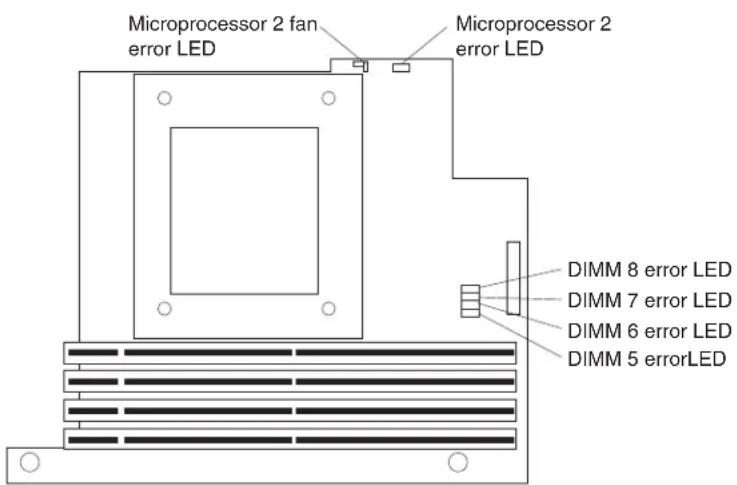
Troubleshooting the Ethernet controller
See the Ethernet controller documentation on the Device Drivers CD for information about problems that might occur with the 1 Gbps Ethernet controller.
Recovering your operating system and preinstalled software
This section contains instructions for recovering BIOS code, device drivers, the operating system, and other support software.
Recovering the operating system
The Product Recovery program is on a hidden partition of the hard disk. The Product Recovery program runs independently of the operating system and reinstalls your operating system and preinstalled software.
Attention: If you are using FDISK, Disk Management, or another utility to reformat the hard disk, you might see the partition where the Product Recovery program is stored. Do not delete this partition; otherwise, the Product Recovery program will be lost.
If your hard disk drive, including the partition that contains the Product Recovery program, becomes damaged or if you replace the hard disk drive, contact IBM to order the IBM Product Recovery CD to recover your preinstalled operating system, application programs, and device drivers. See Appendix A, "Getting help and technical assistance," on page 101 for details.
Complete the following steps to recover the Windows operating system.
Note: The recovery process replaces all information stored on drive C. If possible, back up your data files before starting this process. The recovery process does not affect any other drives.
- If possible, shut down the operating system.
- If the computer is still on, turn it off.
Note: If the computer will not turn off after you hold down the power-control button for at least 4 seconds, disconnect the power cord and wait a few seconds before reconnecting it.
- Turn on the computer, and wait for the prompt
To start the Product Recovery program, press F11.
If the DOS command prompt or the F11 prompt is not displayed, see "Using the recovery-repair diskette in Windows" on page 96.
- Quickly press F11, and wait for the program menu.
- Select Full recovery and follow the instructions on the screen.
- When recovery is complete, exit from the program.
- Restart the computer.
Complete the following steps to recover the Red Hat Linux operating system.
Note: The recovery process replaces all information stored on drive C. If possible, back up your data files before starting this process.
- If possible, shut down the operating system.
- If your computer is still on, turn it off.
Note: If the computer will not turn off after you hold down the power-control button for at least 4 seconds, disconnect the power cord and wait a few seconds before reconnecting it.
-
Turn on the computer and wait for the operating system menu to be displayed; then, quickly select IBM Preload Recovery & Diagnostics.
-
Select the recovery options that you want and follow the instructions on the screen.
Note: To restore the operating system, device drivers, and application programs, choose a full recovery.
- When recovery is complete, exit from the program. The computer will restart automatically.
Recovering or installing device drivers
Restoring the factory-preinstalled device drivers is part of the Product Recovery program and the Device Drivers CD.
Before you can recover or install device drivers, your operating system must be installed on the computer. Make sure that you have the documentation and software media for the device before you start recovering or installing device drivers.
Device drivers for IBM devices and the instructions to install them (readme.txt) are on the Device Drivers CD and in the c:\ibmtools\drivers\ directory.
The latest device drivers are also available at http://www.ibm.com/pc/support/ on the World Wide Web.
Using the IBM Enhanced Diagnostics diskette
If you have attached a diskette drive to the computer and created an IBM Enhanced Diagnostics diskette, complete the following steps to start the diskette. For instructions to create an IBM Enhanced Diagnostics diskette, see "Creating an IBM Enhanced Diagnostics diskette in Windows" on page 14.
- Turn off any attached devices and the computer.
- Insert the IBM Enhanced Diagnostics diskette into the diskette drive.
- Turn on all attached devices; then, turn on the computer.
- Follow the instructions on the screen.
When the tests have been completed, you can view the test log by selecting Utility from the top of the screen.
Using the recovery-repair diskette in Windows
In some circumstances, files on your hard disk might become damaged so that the F11 prompt is not displayed when you start the computer. If you have attached a diskette drive to the computer and created a recovery-repair diskette, use the following procedure to access the Product Recovery program on the hard disk. For instructions to create a recovery-repair diskette, see "Creating an emergency recovery-repair diskette in Windows" on page 13. Complete the following steps to run the recovery-repair diskette:
- Insert the recovery-repair diskette into the diskette drive.
- Turn off the computer.
- Turn on the computer, and follow the instructions on the screen.
If the repair operation is completed without error, the F11 prompt will be displayed the next time you restart the computer.
If an error message is displayed during the repair operation and the repair operation cannot be completed, you might have a problem with the Product Recovery program or the partition that contains the Product Recovery program. Use a Product Recovery CD to access the Product Recovery program. To obtain a Product Recovery CD, contact IBM. See Appendix A, "Getting help and technical assistance," on page 101 for details.
Updating (flash-updating) the BIOS code on the computer
Periodically, IBM might post new levels of BIOS code on the Web. Always check the IBM Support Web site at http://www.ibm.com/pc/support/ for the latest level of BIOS code, device drivers, documentation, and hints and tips. You can use one of the following methods to update (flash) the BIOS code on the computer:
- Download the BIOS code update file directly to the hard disk.
- Download the BIOS code update file to a diskette (attach an external Universal Serial Bus [USB] portable diskette drive if you have not installed an integrated diskette drive); then, update the BIOS code on the computer.
You can order an optional IBM USB Portable Diskette Drive such as part number 05K9276. For a list of supported options for your computer, go to http://www.ibm.com/pc/compat/. - Download the BIOS code update file to a CD using a writable optional device (CD-RW drive); then, start the computer with the CD in the CD-ROM drive to update the BIOS code on the computer.
One file is available for each method. The description next to each file indicates the type of medium to which you can download the file. A readme file is available with instructions for installing the BIOS code update.
Complete the following steps to download the BIOS (flash) update files:
- Go to http://www.ibm.com/pc/support/.
- In the Downloads category, click Downloads & drivers.
- In the Brand field, select IntelliStation.
- In the Family field, select IntelliStation A Pro.
- In the Type field, select 6224 and click Continue.
- In the Filter by category field, select BIOS (system).
-
Scroll down and select the applicable file for your operating system.
-
Select the file for the type of medium you want to use; then, download the file and install it.
- Restart the computer.
See the readme file for additional information about how to install the image files.
Note: Always reset the Configuration/Setup Utility program to the default values after updating the BIOS code.
Recovering from a POST/BIOS update failure
Note: You can download a file to create the POST/BIOS flash CD from http://www.ibm.com/pc/support on the World Wide Web. For more information, see Appendix A, "Getting help and technical assistance," on page 101.
If power to your computer is interrupted while POST/BIOS code is being updated (flash update), the computer might not restart (reboot) correctly. If this happens, use the following procedure to recover:
- Review the safety information beginning on page vi and "Handling static-sensitive devices" on page 33.
- Turn off the computer and all attached devices.
- Disconnect the power cord.
- Remove the cover and support bracket.
- Locate the boot block recovery jumper (JP2) on the system board. The following illustration shows the location of the boot block jumper on the system board.
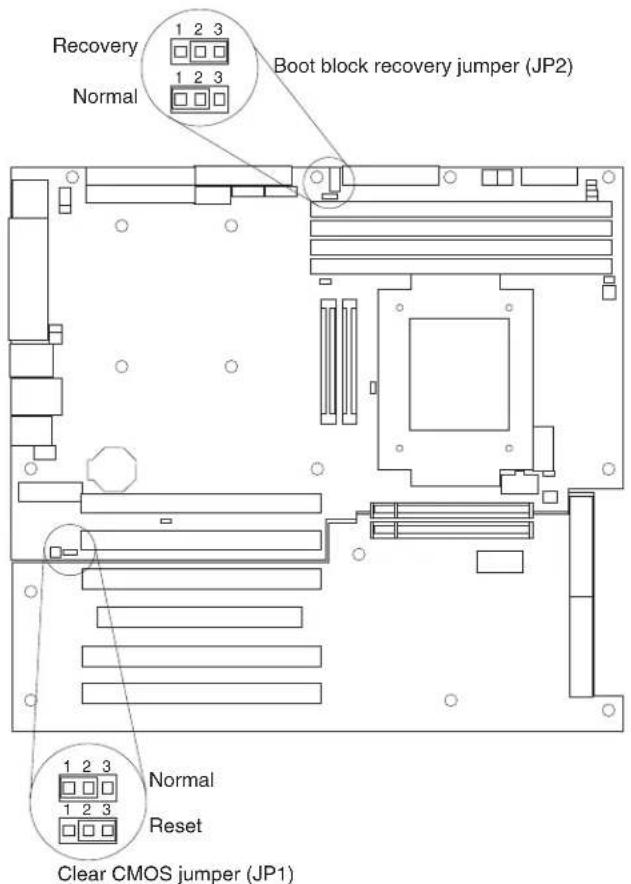
- Remove the boot block recovery jumper from pins 1 and 2.
- Replace any adapters that were removed; then, replace the support bracket and replace the cover.
- Connect the computer to a power source, keyboard, monitor, and mouse.
- Insert the POST/BIOS update (flash) CD into the CD-ROM drive.
- Turn on the computer and the monitor.
- After the update session is completed, the computer will turn off.
- Remove the CD from the CD-ROM drive.
- Disconnect all power cords; then, remove the computer cover.
- Return the boot block recovery jumper to pins 1 and 2.
- Replace the computer cover; then, reconnect all external cables and power cords and turn on the peripheral devices.
- Turn on the computer to restart the operating system.
Erasing a lost or forgotten password (clearing CMOS)
This section applies to lost or forgotten passwords. More information about lost or forgotten passwords is available in Access IBM.
Complete the following steps to set the CMOS recovery jumper and erase a forgotten password:
-
Review the safety information beginning on page vi and "Handling static-sensitive devices" on page 33.
-
Turn off the computer and all attached devices.
- Disconnect the power cord.
- Remove the side cover and support bracket.
- Locate the CMOS recovery jumper (JP1) on the system board, removing any adapters that impede access to the jumper. An illustration showing the location of the jumper on the system board is in "Recovering from a POST/BIOS update failure" on page 97.
- Move the CMOS recovery jumper from pins 1 and 2 to pins 2 and 3.
- Wait 60 seconds; then, return the CMOS recovery jumper to pins 1 and 2.
- Replace any adapters that were removed; then, replace the support bracket and replace the side cover.
You can now start the computer one time, and start the Configuration/Setup Utility program, without having to use the power-on password. At this time, you can either delete the old password or set a new user password. If you do not change or delete the password, the next time you start the computer the original user password will be reinstated. - Connect the computer to a power source, keyboard, monitor, and mouse.
- Turn on the computer. The Configuration/Setup Utility program starts.
- Follow the instructions to erase the existing password or create a new password.
- Select Save Settings and press Enter.
Replacing the battery
When replacing the battery, you must replace it with a lithium battery of the same type from the same manufacturer. To avoid possible danger, read and follow the information in "Safety" on page vii.
To order replacement batteries, call 1-800-772-2227 within the United States, and 1-800-465-7999 or 1-800-465-6666 within Canada. Outside the U.S. and Canada, call your IBM marketing representative or authorized reseller.
Note: After you replace the battery, you must reconfigure the computer and reset the system date and time.
Complete the following steps to replace the battery:
- Review the safety information beginning on page vi, "Installation guidelines" on page 33, and "Handling static-sensitive devices" on page 33
- Follow any special handling and installation instructions that come with the replacement battery.
- Turn off the computer and all attached devices. Disconnect all external cables and power cords; then, remove the computer cover and the support bracket. (See "Removing the side cover" on page 37 and "Removing and installing the support bracket" on page 38.)
- Remove the battery:
a. Use a fingernail to press the top of the battery clip away from the battery. The battery pops up when released.
b. Use your thumb and index finger to lift the battery from the socket.

natural_image
Pure technical line drawing of a mechanical component with no text or symbols
natural_image
Technical line drawing of a mechanical assembly with a cylindrical housing and a rectangular component (no text or symbols)- Insert the new battery:
a. Tilt the battery so that you can insert it into the socket on the side opposite the battery clip.
b. Press the battery down into the socket until it clicks into place. Make sure that the battery clip holds the battery securely.
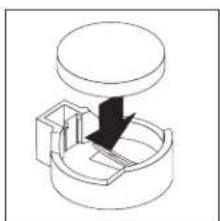
natural_image
Pure mechanical diagram showing a cylindrical component with a downward arrow indicating force or motion (no text or symbols)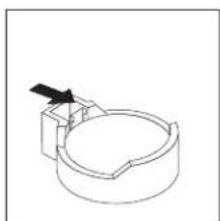
natural_image
Pure technical line drawing of a mechanical component with no text or symbols-
Replace the support bracket (see "Removing and installing the support bracket" on page 38).
-
Replace the cover and connect the cables.
-
Turn on the computer.
-
Start the Configuration/Setup Utility program and set configuration parameters.
-
Set the system date and time.
- Set passwords if necessary.
- Save the configuration.
Appendix A. Getting help and technical assistance
If you need help, service, or technical assistance or just want more information about IBM products, you will find a wide variety of sources available from IBM to assist you. This appendix contains information about where to go for additional information about IBM and IBM products, what to do if you experience a problem with your xSeries or IntelliStation system, and whom to call for service, if it is necessary.
Before you call
Before you call, make sure that you have taken these steps to try to solve the problem yourself:
- Check all cables to make sure that they are connected.
- Check the power switches to make sure that the system is turned on.
- Use the troubleshooting information in your system documentation, and use the diagnostic tools that come with your system. Information about diagnostic tools is in the Hardware Maintenance Manual and Troubleshooting Guide on the IBM xSeries Documentation CD or in the IntelliStation Hardware Maintenance Manual at the IBM Support Web site.
- Go to the IBM Support Web site at http://www.ibm.com/pc/support/to check for technical information, hints, tips, and new device drivers or to submit a request for information.
You can solve many problems without outside assistance by following the troubleshooting procedures that IBM provides in the online help or in the publications that are provided with your system and software. The information that comes with your system also describes the diagnostic tests that you can perform. Most xSeries and IntelliStation systems, operating systems, and programs come with information that contains troubleshooting procedures and explanations of error messages and error codes. If you suspect a software problem, see the information for the operating system or program.
Using the documentation
Information about your IBM xSeries or IntelliStation system and preinstalled software, if any, is available in the documentation that comes with your system. That documentation includes printed books, online books, readme files, and help files. See the troubleshooting information in your system documentation for instructions for using the diagnostic programs. The troubleshooting information or the diagnostic programs might tell you that you need additional or updated device drivers or other software. IBM maintains pages on the World Wide Web where you can get the latest technical information and download device drivers and updates. To access these pages, go to http://www.ibm.com/pc/support/ and follow the instructions. Also, you can order publications through the IBM Publications Ordering System at http://www.elink.ibmlink.ibm.com/public/applications/publications/cgibin/pbi.cgi.
Getting help and information from the World Wide Web
On the World Wide Web, the IBM Web site has up-to-date information about IBM xSeries and IntelliStation products, services, and support. The address for IBM xSeries information is http://www.ibm.com/eserver/xseries/. The address for IBM IntelliStation information is http://www.ibm.com/pc/intellistation/.
You can find service information for your IBM products, including supported options, at http://www.ibm.com/pc/support/.
Software service and support
Through IBM Support Line, you can get telephone assistance, for a fee, with usage, configuration, and software problems with xSeries servers, IntelliStation workstations, and appliances. For information about which products are supported by Support Line in your country or region, go to http://www.ibm.com/services/sl/products/.
For more information about Support Line and other IBM services, go to http://www.ibm.com/services/, or go to http://www.ibm.com/planetwide/ for support telephone numbers. In the U.S. and Canada, call 1-800-IBM-SERV (1-800-426-7378).
Hardware service and support
You can receive hardware service through IBM Integrated Technology Services or through your IBM reseller, if your reseller is authorized by IBM to provide warranty service. Go to http://www.ibm.com/planetwide/ for support telephone numbers, or in the U.S. and Canada, call 1-800-IBM-SERV (1-800-426-7378).
In the U.S. and Canada, hardware service and support is available 24 hours a day, 7 days a week. In the U.K., these services are available Monday through Friday, from 9 a.m. to 6 p.m.
Appendix B. Notices
This publication was developed for products and services offered in the U.S.A.
IBM may not offer the products, services, or features discussed in this document in other countries. Consult your local IBM representative for information on the products and services currently available in your area. Any reference to an IBM product, program, or service is not intended to state or imply that only that IBM product, program, or service may be used. Any functionally equivalent product, program, or service that does not infringe any IBM intellectual property right may be used instead. However, it is the user's responsibility to evaluate and verify the operation of any non-IBM product, program, or service.
IBM may have patents or pending patent applications covering subject matter described in this document. The furnishing of this document does not give you any license to these patents. You can send license inquiries, in writing, to:
IBM Director of Licensing
IBM Corporation
North Castle Drive
Armonk, NY 10504-1785
U.S.A.
INTERNATIONAL BUSINESS MACHINES CORPORATION PROVIDES THIS PUBLICATION "AS IS" WITHOUT WARRANTY OF ANY KIND, EITHER EXPRESS OR IMPLIED, INCLUDING, BUT NOT LIMITED TO, THE IMPLIED WARRANTIES OF NON-INFRINGEMENT, MERCHANTABILITY OR FITNESS FOR A PARTICULAR PURPOSE. Some jurisdictions do not allow disclaimer of express or implied warranties in certain transactions, therefore, this statement may not apply to you.
This information could include technical inaccuracies or typographical errors. Changes are periodically made to the information herein; these changes will be incorporated in new editions of the publication. IBM may make improvements and/or changes in the product(s) and/or the program(s) described in this publication at any time without notice.
Any references in this publication to non-IBM Web sites are provided for convenience only and do not in any manner serve as an endorsement of those Web sites. The materials at those Web sites are not part of the materials for this IBM product, and use of those Web sites is at your own risk.
IBM may use or distribute any of the information you supply in any way it believes appropriate without incurring any obligation to you.
Edition notice
© Copyright International Business Machines Corporation 2004. All rights reserved.
U.S. Government Users Restricted Rights — Use, duplication, or disclosure restricted by GSA ADP Schedule Contract with IBM Corp.
Trademarks
The following terms are trademarks of International Business Machines Corporation in the United States, other countries, or both:
| Active Memory | Predictive Failure Analysis |
| Active PCI | PS/2 |
| Active PCI-X | ServeRAID |
| Alert on LAN | ServerGuide |
| BladeCenter | ServerProven |
| C2T Interconnect | TechConnect |
| Chipkill | ThinkPad |
| EtherJet | Tivoli |
| e-business logo | Tivoli Enterprise |
| @server | Update Connector |
| FlashCopy | Wake on LAN |
| IBM | XA-32 |
| IBM (logo) | XA-64 |
| IntelliStation | X-Architecture |
| NetBAY | XceL4 |
| Netfinity | XpandOnDemand |
| NetView | xSeries |
| OS/2 WARP |
Intel, MMX, and Pentium are trademarks of Intel Corporation in the United States, other countries, or both.
Microsoft, Windows, and Windows NT are trademarks of Microsoft Corporation in the United States, other countries, or both.
UNIX is a registered trademark of The Open Group in the United States and other countries.
Java and all Java-based trademarks and logos are trademarks or registered trademarks of Sun Microsystems, Inc. in the United States, other countries, or both.
Adaptec and HostRAID are trademarks of Adaptec, Inc., in the United States, other countries, or both.
Red Hat, the Red Hat “Shadow Man” logo, and all Red Hat-based trademarks and logos are trademarks or registered trademarks of Red Hat, Inc., in the United States and other countries.
Other company, product, or service names may be trademarks or service marks of others.
Important notes
Processor speeds indicate the internal clock speed of the microprocessor; other factors also affect application performance.
CD-ROM drive speeds list the variable read rate. Actual speeds vary and are often less than the maximum possible.
When referring to processor storage, real and virtual storage, or channel volume, KB stands for approximately 1000 bytes, MB stands for approximately 1 000 000 bytes, and GB stands for approximately 1 000 000 000 bytes.
When referring to hard disk drive capacity or communications volume, MB stands for 1 000 000 bytes, and GB stands for 1 000 000 000 bytes. Total user-accessible capacity may vary depending on operating environments.
Maximum internal hard disk drive capacities assume the replacement of any standard hard disk drives and population of all hard disk drive bays with the largest currently supported drives available from IBM.
Maximum memory may require replacement of the standard memory with an optional memory module.
IBM makes no representation or warranties regarding non-IBM products and services that are ServerProven ^® , including but not limited to the implied warranties of merchantability and fitness for a particular purpose. These products are offered and warranted solely by third parties.
IBM makes no representations or warranties with respect to non-IBM products. Support (if any) for the non-IBM products is provided by the third party, not IBM.
Some software may differ from its retail version (if available), and may not include user manuals or all program functionality.
Product recycling and disposal
This unit contains materials such as circuit boards, cables, electromagnetic compatibility gaskets, and connectors which may contain lead and copper/beryllium alloys that require special handling and disposal at end of life. Before this unit is disposed of, these materials must be removed and recycled or discarded according to applicable regulations. IBM offers product-return programs in several countries. Information on product recycling offerings can be found on IBM's Internet site at http://www.ibm.com/ibm/environment/products/prp.shtml.
Battery return program
This product may contain a sealed lead acid, nickel cadmium, nickel metal hydride, lithium, or lithium ion battery. Consult your user manual or service manual for specific battery information. The battery must be recycled or disposed of properly. Recycling facilities may not be available in your area. For information on disposal of batteries outside the United States, go to http://www.ibm.com/ibm/environment/products/batteryrecycle.shtml or contact your local waste disposal facility.
In the United States, IBM has established a collection process for reuse, recycling, or proper disposal of used IBM sealed lead acid, nickel cadmium, nickel metal hydride, and battery packs from IBM equipment. For information on proper disposal of these batteries, contact IBM at 1-800-426-4333. Have the IBM part number listed on the battery available prior to your call.
In the Netherlands, the following applies.

Electronic emission notices
IBM IntelliStation A Pro Type 6224
Federal Communications Commission (FCC) statement
Note: This equipment has been tested and found to comply with the limits for a Class B digital device, pursuant to Part 15 of the FCC Rules. These limits are designed to provide reasonable protection against harmful interference in a residential installation. This equipment generates, uses, and can radiate radio frequency energy and, if not installed and used in accordance with the instructions, may cause harmful interference to radio communications. However, there is no guarantee that interference will not occur in a particular installation. If this equipment does cause harmful interference to radio or television reception, which can be determined by turning the equipment off and on, the user is encouraged to try to correct the interference by one or more of the following measures:
• Reorient or relocate the receiving antenna.
- Increase the separation between the equipment and receiver.
- Connect the equipment into an outlet on a circuit different from that to which the receiver is connected.
- Consult an IBM authorized dealer or service representative for help.
Properly shielded and grounded cables and connectors must be used in order to meet FCC emission limits. Proper cables and connectors are available from IBM authorized dealers. IBM is not responsible for any radio or television interference caused by using other than recommended cables and connectors or by unauthorized changes or modifications to this equipment. Unauthorized changes or modifications could void the user's authority to operate the equipment.
This device complies with Part 15 of the FCC Rules. Operation is subject to the following two conditions: (1) this device may not cause harmful interference, and (2) this device must accept any interference received, including interference that may cause undesired operation.
Responsible party:
International Business Machines Corporation
New Orchard Road
Armonk, NY 10504
Telephone: 1-919-543-2193

Tested To Comply
With FCC Standards
FOR HOME OR OFFICE USE
Industry Canada Class B emission compliance statement
This Class B digital apparatus complies with Canadian ICES-003.
European Union EMC Directive conformance statement
This product is in conformity with the protection requirements of EU Council Directive 89/336/EEC on the approximation of the laws of the Member States relating to electromagnetic compatibility. IBM cannot accept responsibility for any failure to satisfy the protection requirements resulting from a nonrecommended modification of the product, including the fitting of non-IBM option cards. This product has been tested and found to comply with the limits for Class B Information Technology Equipment according to CISPR 22/European Standard EN 55022. The limits for Class B equipment were derived for typical residential environments to provide reasonable protection against interference with licensed communication devices.
Power cords
For your safety, IBM provides a power cord with a grounded attachment plug to use with this IBM product. To avoid electrical shock, always use the power cord and plug with a properly grounded outlet.
IBM power cords used in the United States and Canada are listed by Underwriter's Laboratories (UL) and certified by the Canadian Standards Association (CSA).
For units intended to be operated at 115 volts: Use a UL-listed and CSA-certified cord set consisting of a minimum 18 AWG, Type SVT or SJT, three-conductor cord, a maximum of 15 feet in length and a parallel blade, grounding-type attachment plug rated 15 amperes, 125 volts.
For units intended to be operated at 230 volts (U.S. use): Use a UL-listed and CSA-certified cord set consisting of a minimum 18 AWG, Type SVT or SJT, three-conductor cord, a maximum of 15 feet in length and a tandem blade, grounding-type attachment plug rated 15 amperes, 250 volts.
For units intended to be operated at 230 volts (outside the U.S.): Use a cord set with a grounding-type attachment plug. The cord set should have the appropriate safety approvals for the country in which the equipment will be installed.
IBM power cords for a specific country or region are usually available only in that country or region.
| IBM power cord part number | Used in these countries and regions |
| 02K0546 | China |
| 13F9940 | Australia, Fiji, Kiribati, Nauru, New Zealand, Papua New Guinea |
| 13F9979 | Afghanistan, Albania, Algeria, Andorra, Angola, Armenia, Austria, Azerbaijan, Belarus, Belgium, Benin, Bosnia and Herzegovina, Bulgaria, Burkina Faso, Burundi, Cambodia, Cameroon, Cape Verde, Central African Republic, Chad, Comoros, Congo (Democratic Republic of), Congo (Republic of), Cote D'lvoire (Ivory Coast), Croatia (Republic of), Czech Republic, Dahomey, Djibouti, Egypt, Equatorial Guinea, Eritrea, Estonia, Ethiopia, Finland, France, French Guyana, French Polynesia, Germany, Greece, Guadeloupe, Guinea, Guinea Bissau, Hungary, Iceland, Indonesia, Iran, Kazakhstan, Kyrgyzstan, Laos (People's Democratic Republic of), Latvia, Lebanon, Lithuania, Luxembourg, Macedonia (former Yugoslav Republic of), Madagascar, Mali, Martinique, Mauritania, Mauritius, Mayotte, Moldova (Republic of), Monaco, Mongolia, Morocco, Mozambique, Netherlands, New Caledonia, Niger, Norway, Poland, Portugal, Reunion, Romania, Russian Federation, Rwanda, Sao Tome and Principe, Saudi Arabia, Senegal, Serbia, Slovakia, Slovenia (Republic of), Somalia, Spain, Suriname, Sweden, Syrian Arab Republic, Tajikistan, Tahiti, Togo, Tunisia, Turkey, Turkmenistan, Ukraine, Upper Volta, Uzbekistan, Vanuatu, Vietnam, Wallis and Futuna, Yugoslavia (Federal Republic of), Zaire |
| 13F9997 | Denmark |
| 14F0015 | Bangladesh, Lesotho, Maceo, Maldives, Namibia, Nepal, Pakistan, Samoa, South Africa, Sri Lanka, Swaziland, Uganda |
| 14F0033 | Abu Dhabi, Bahrain, Botswana, Brunei Darussalam, Channel Islands, China (Hong Kong S.A.R.), Cyprus, Dominica, Gambia, Ghana, Grenada, Iraq, Ireland, Jordan, Kenya, Kuwait, Liberia, Malawi, Malaysia, Malta, Myanmar (Burma), Nigeria, Oman, Polynesia, Qatar, Saint Kitts and Nevis, Saint Lucia, Saint Vincent and the Grenadines, Seychelles, Sierra Leone, Singapore, Sudan, Tanzania (United Republic of), Trinidad and Tobago, United Arab Emirates (Dubai), United Kingdom, Yemen, Zambia, Zimbabwe |
| 14F0051 | Liechtenstein, Switzerland |
| 14F0069 | Chile, Italy, Libyan Arab Jamahiriya |
| 14F0087 | Israel |
| 1838574 | Antigua and Barbuda, Aruba, Bahamas, Barbados, Belize, Bermuda, Bolivia, Brazil, Caicos Islands, Canada, Cayman Islands, Costa Rica, Colombia, Cuba, Dominican Republic, Ecuador, El Salvador, Guam, Guatemala, Haiti, Honduras, Jamaica, Japan, Mexico, Micronesia (Federal States of), Netherlands Antilles, Nicaragua, Panama, Peru, Philippines, Taiwan, United States of America, Venezuela |
| 24P6858 | Korea (Democratic People's Republic of), Korea (Republic of) |
| 34G0232 | Japan |
| 36L8880 | Argentina, Paraguay, Uruguay |
| 49P2078 | India |
| 49P2110 | Brazil |
| 6952300 | Antigua and Barbuda, Aruba, Bahamas, Barbados, Belize, Bermuda, Bolivia, Caicos Islands, Canada, Cayman Islands, Colombia, Costa Rica, Cuba, Dominican Republic, Ecuador, El Salvador, Guam, Guatemala, Haiti, Honduras, Jamaica, Mexico, Micronesia (Federal States of), Netherlands Antilles, Nicaragua, Panama, Peru, Philippines, Saudi Arabia, Thailand, Taiwan, United States of America, Venezuela |
Index
A
acoustical noise emissions 3
Adaptec RAID Configuration Utility, using 26
adapter
considerations 40
full length 41
installing 41
PCI bus 41
PCI or PCI-X 40
SCSI 43
advanced setup 23
Array Configuration Utility
using to access RAID configuration 26
using to configure the SATA controller 26
audio
connectors 16, 65
controller 16
features 16
B
battery
connector 35
replacement 99
bays
2 45
3 48
4, 5, and 6 50
drive 44
filler panel 45, 48
beep codes 73
bezel
removing 39
replacing 63
bi-directional parallel port configuration 67
BIOS code, updating 24, 96
Broadcom NetXtreme Gigabit Ethernet Boot Agent
enabling 25
general 21
C
cables
internal drives 52
power 52
power and signal 52
signal 52
USB 68
cabling
Ethernet 66
external SCSI connector 61
SCSI adapter 43
SCSI requirements 68
system-board external connectors 37
system-board internal connectors 36
CD-ROM drive
eject button 9
CD-ROM drive (continued)
installing 44
CD-ROM problems 87
channels, SCSI 68
chart, troubleshooting 86
components
microprocessor board 36
of the computer 34
system board 35
computer
configuring 21
controls on 9
indicators on 9
shutting down 18
turning on 10
configuration
custom 29
express 28
fine-tuning 29
ServeRAID programs 21
summary window 29
configuration programs
Adaptec RAID Configuration Utility programs 21
Broadcom NetXtreme Gigabit Ethernet Boot
Agent 21
Configuration/Setup Utility program 21
general 21
SCS|Select Utility program 21
configuring
the computer 21
the controller using ServeRAID Manager 28
the Ethernet controller 30
connecting external options 64
connectors
adapter 35
audio 65
battery 35
Ethernet 66
external port 37
external SCSI 61
front 9
IEEE 1394 (FireWire) 66
input/output 64, 65
internal cable 36
memory 35
microprocessor 35, 36
rear 65
serial 67
Serial ATA 44
system board 35
Ultra 320 SCSI 68
universal serial bus(USB) 68
controller
Ethernet 4,30
memory 57
SCSI 43
configuring 27
Serial ATA 21
controller (continued)
configuring 26
controls and indicators 9
cooling 3,33
core chipset control 23
cover
removing 37
replacing 63
creating
an emergency recovery diskette in Windows 13
an IBM Enhanced Diagnostics diskette in Windows 14
custom configuration 29
D
data protection
SMART hard disk drive 17
virus protection 17
data rate, Ethernet controller 30
device drivers
installing 95
recovering 95
Device Drivers and IBM Diagnostics CD 95
diagnostic
error message tables 81
error messages 79
programs 79, 80
programs and error messages 79
test log 80
text messages 79
diagnostics
downloading 14
using a diskette 95
DIMM connector
for microprocessor 1 35
for microprocessor 2 36
installing memory 54
DIMM retaining clips 55
diskette
IBM Enhanced Diagnostics
creating 14
using 95
recovery repair
creating 13
using 96
diskette drive problem 87
DMI 17
DMI log 24
drive
bay filler panel 45, 48
cage 51
installation 45, 48, 50
drives, installing 44
E
electrical input 3
enabling
Broadcom NetXtreme Gigabit Ethernet Boot Agent 25
enabling (continued)
the SCSI HostRAID feature 27
the Serial ATA RAID feature 26
environment 3
error LEDs 92, 93
error messages
diagnostic 79, 81
POST 75
Ethernet
cabling 66
connector 66
high performance modes 30
integrated on system board 30
modes 30
port 66
teaming 30
troubleshooting information 94
Ethernet controller 4
configuration 21
configuring 30
expansion bays
location 44
type 44
express configuration 28
external options, connecting 53, 64
external SCSI devices 53
F
feature
SATA RAID, enabling 26
SCSI RAID, enabling 27
features and specifications 3
filler panel 45, 48
G
guidelines for options installation 33
H
handling static-sensitive devices 33
hard diskdrive, installing 50
heat output 3
HostRAID considerations 44
HostRAID feature for SATA
enabling 26
using to configure the integrated SATA controller 26
HostRAID feature for SCSI
enabling 27
using to configure the SCSI controller 27
|
IBM Configuration/Setup Utility program
menu choices 22
starting 22
using 21
IBM Director Agent 18
IDs, setting SCSI 68
IEEE 1394 (FireWire) connectors 66
information, related publications 1
input/output connectors 64
installation order, memory modules 54
installing
adapters 41
battery 99
bezel 63
drive in bay 2 45
drive in bay 3 48
drives in bays 4,5, or 6 50
internal drives 44
memory modules 53
options 33
other operating systems 12
SCSI cable 61
security rope clip 62
integrated Serial ATA controller, configuring 26
intermittent problems 88
internal
drive bays 44
drives, installing 44
K
keyboard problems 88
L
LEDs
activity 9
error 92, 93
local area network (LAN) 4
M
managing your computer 18
memory
installing 53
modules 54
problems 89
memory module
order of installation 54
specifications 3
supported 53
messages
diagnostic error 79, 81
diagnostic text 79
POST 75
small computer system interface (SCSI) 86
microprocessor
board 36
specifications 3
microprocessor board 36
connectors 36
error LEDs 93
installing 56
modes, Ethernet 30
monitor
problems 89
settings 15
mouse
connector 66
problems 88
N
notes, important 104
notices
book 2
0
operating system
connectors 35
installing 12
preinstalled 4
recovering 94
running the setup program 11
operating your computer 9
optical drive 44
option problems 90
options installation 33
guidelines 33
order of installation, memory modules 54
P
parallel port
connector 67
problem 91
password
administrator 17
forgotten power-on 24
setting 24
user 17
passwords
using 24
PC-Doctor for Windows
program 86
using 86
PCI
adapters 40
configuration 23
expansion slots 3
pointing device problems 88
port
See connectors
POST (power-on self-test) 73
POST error messages 75
power control button 9
power cords
disconnecting 61
power supply specifications 3
power-on LED 9
problems
CD-ROM drive 87
diskette drive 87
intermittent 88
keyboard 88
memory 89
mouse 88
problems (continued)
option 90
parallel port 91
pointing device 88
power 91
printer 91
serial port 92
software 92
USB port 92
Product Recovery program 5
starting 11
using 94
R
RAS features 7
recovering
device drivers 95
operating system 94
POST/BIOS update failure 97
preinstalled software 94
recovery repair diskette
creating 13
recovery-repair diskette
using 96
registering your computer
in Red Hat Linux 13
in Windows 13
related publications 1
reliability, system 33
Remote Deployment Manager 18
removable media drives, installing 44
removing
bezel 39
side cover 37
support bracket 38
replacing
battery 99
bezel 63
the cover 63
retaining clips, DIMM 55
rope clip, installing for security 62
S
Safety information vii
SATA HostRAID feature, enabling 26
SCSI
external cable 61
external devices 53
SCSI connector
description 68
location 36, 61
SCSI controller
cabling 43
configuring 27
SCSI HostRAID feature
enabling 27
using to configure the SCSI controller 27
SCSISelect Utility program
menu choices 30
SCSISelect Utility program (continued)
starting 30
using 30
using to configure the SCSI controller 27
security
anti-intrusion 16
chassis-intrusion detector 16
component protection 16
data protection 17
features 16
locking the keyboard 17
passwords 17
rope clip 62
SMART hard disk drive 17
virus protection 17
serial
connectors 67
port problems 92
ServeRAID Manager 29
Configuration wizard 28
description 28
overview 28
startable-CD mode 28
using 28
ServeRAID programs 21
setup, advanced 23
side cover, removing 37
size 3
small computer system interface (SCSI)
cabling requirements 68
messages 86
setting IDs 68
software
available on the Web 6
CDs 5
installed 4
network management 18
other 6
preinstalled 5
problems 92
system management 18
startable-CD mode 28
starting
diagnostic programs 80
SCSISelect Utilityprogram 30
starting the computer 10
static-sensitive devices, handling 33
support bracket, removing 38
system
major components 34
system board
connectors
external 37
internal cable 36
options 35
SCSI 36, 67
error LEDs 92
system management
capabilities 4
IBM Director Agent 18
Remote Deployment Manager 18
system management (continued)
System Migration Assistant (SMA) 18
Wake on LAN 18
System Migration Assistant (SMA) 18
system offerings 4
system programs, updating 17
system reliability 33
system specifications 3
T
tape drive, installing 44
test log
error messages 81
viewing diagnostic 80
trademarks 104
troubleshooting
chart 86
Ethernet controller 94
turn off computer 19
turn on computer 10
U
Ultra160 SCSI connector 68
universal serial bus (USB)
cables 68
connectors 68
ports 68
Universal Serial Bus (USB) problems 92
updating
system programs 17
using
Adaptec RAID Configuration Utility 26
Configuration/Setup Utility program 21
Enhanced Diagnostics diskette 95
IBM Configuration/Setup Utility program 21
passwords 24
Product Recovery program 94
recovery-repair diskette 96
SCSI HostRAID to configure the controller 27
SCSISelect Utility program 30
ServeRAID Manager 28
the Adaptec HostRAID configuration programs 25
the SATA HostRAID feature 26
the SCSI HostRAID feature 27
the SCSISelect Utility 27
V
video
device drivers 15
DVI connector 69
features 15
monitor settings 15
video controller 3
W
Wake on LAN 18
weight 3
IBM
Part Number: 24R8390
Printed in USA
(1P) P/N: 24R8390
- Contents
- Chapter 1. Introducing the IntelliStation A Pro computer. . . . . . . . . . 1
- Chapter 2. Operating the computer . . . . . . . . . . . . . . . . . . . . . . . . . . . . . . . 9
- Chapter 3. Configuring the computer . . . . . . . . . . . . . . . . . . . . . . . 21
- Chapter 4. Installing options . . . . . . . . . . . . . . . . . . . . . . . . . . . . . . . 33
- Chapter 5. Solving problems . . . . . . . . . . . . . . . . . . . . . . . . . . . . . . . . . . . . . . . . . 71
- Safety
- To avoid a shock hazard:
- To Connect:
- To Disconnect:
- Statement 2:
- CAUTION:
- Do not:
- Statement 3:
- DANGER
- Statement 8:
- Statement 23
- Chapter 1. Introducing the IntelliStation A Pro computer
- Related documents
- Notices and statements used in this document
- Features and specifications
- What your computer offers
- • Accelerated Graphics Port (AGP) graphics
- • Large system-memory capacity
- • Systems-management capabilities
- • Integrated network support
- Software
- Preinstalled software
- • Access IBM Message Center
- - Adobe Acrobat Reader
- - Device drivers
- • IBM Drive Letter Access
- • IBM Product Registration
- - IBM RecordNow
- - WinDVD
- - DVDCreator
- • Norton AntiVirus for IBM
- - Online Books
- - PC-Doctor
- • Product Recovery program
- Important:
- Software on CD
- Software available on the World Wide Web
- • IBM Director Agent
- • Remote Deployment Manager
- • System Migration Assistant
- Reliability, availability, and serviceability features
- Chapter 2. Operating the computer
- Controls, LEDs, and connectors
- CD-ROM drive activity LED
- CD-eject button
- Hard disk drive activity LED
- Power-on LED
- Power-control button
- Ethernet transmit/receive activity LED
- Ethernet link status LED
- System-error LED
- IEEE 1394A (FireWire) connectors
- Mic connector (pink)
- Line out connector (green)
- USB connectors
- Turning on the computer
- Notes:
- Using preinstalled software
- Running the operating-system setup program
- Installing other operating systems
- Viewing the license agreement
- Registering your computer
- Creating an emergency recovery-repair diskette in Windows
- Creating an IBM Enhanced Diagnostics diskette in Windows
- Using video features
- Video device drivers
- Changing monitor settings
- Using audio features
- Line in
- Line out
- Microphone
- Using security features
- Anti-intrusion features
- Component protection
- Data protection
- • SMART hard disk drive
- - Virus protection
- Locking the keyboard
- Updating system programs
- Managing your computer
- - IBM Director Agent
- - Wake on LAN
- • Software Migration Assistant
- Shutting down the operating system
- Turning off the computer
- Statement 5:
- Chapter 3. Configuring the computer
- - Configuration/Setup Utility program
- • Broadcom NetXtreme Gigabit Ethernet Boot Agent
- - Adaptec® HostRAID™ configuration programs
- - Adaptec RAID Configuration Utility programs (for Serial ATA RAID)
- - SCSISelect Utility program (for SCSI RAID)
- - ServeRAID Manager
- - Ethernet controller configuration
- • SCSISelect Utility program (some models)
- Using the Configuration/Setup Utility program
- Starting the Configuration/Setup Utility program
- Configuration/Setup Utility menu choices
- - System Summary
- - System Information
- • Devices and I/O Ports
- - Date and Time
- - Startup
- - Advanced Setup
- - Installed OS
- - Reset Configuration Data
- - 4 GB Memory Hole Adjust
- - Multiprocessor Specification
- - MP table uses PCI entries
- - Fan Speed Control
- - Chipset Configuration
- - PCI configuration
- - Hardware Monitor
- - POST Error Log
- - System Security
- • Power Management
- - Save Settings
- - Restore Settings
- - Load Default Settings
- - Exit Setup
- Passwords
- Enabling the Broadcom NetXtreme Gigabit Ethernet Boot Agent
- Using the Adaptec HostRAID configuration programs
- Using the Adaptec RAID Configuration Utility programs (for Serial ATA RAID)
- Enabling the Serial ATA HostRAID feature
- Using the Serial ATA HostRAID feature
- Using the SCSISelect Utility program (for SCSI RAID)
- Enabling the SCSI HostRAID feature
- Using the SCSI HostRAID feature
- Using ServeRAID Manager
- Configuring the controller
- Using express configuration
- Using custom configuration
- Viewing the configuration
- Configuring the Gigabit Ethernet controller
- Using the SCSISelect Utility program (some models)
- Starting the SCSISelect Utility program
- SCSISelect menu choices
- - Advanced Configuration
- • SCSI Disk Utilities
- Chapter 4. Installing options
- Installation guidelines
- System reliability considerations
- Handling static-sensitive devices
- Installing options in your computer
- Major components of your computer
- System-board option connectors
- System-board internal connectors
- Optional microprocessor board connectors
- System-board external connectors
- Removing the side cover
- Removing and installing the support bracket
- Removing the bezel
- Installing an adapter
- Cabling an optional SCSI adapter
- Installing internal drives
- Installing a drive in bay 2
- Installing a drive in bay 3
- Installing a hard disk drive in bay 4, 5, or 6
- Power and signal cables for internal drives
- Installing memory modules
- Installing a second microprocessor
- Attention:
- Installing an external SCSI cable
- Installing a security rope clip
- Replacing the bezel
- Replacing the side cover
- Connecting external options
- Input/output connectors
- Audio connectors
- Mic
- Auxiliary-device (pointing-device) connector
- Ethernet (RJ-45) connector
- IEEE 1394A (FireWire) connector
- 6-pin IEEE 1394A (FireWire) connector (rear)
- Keyboard connector
- Parallel connector
- Serial connectors
- Ultra320 SCSI connector
- SCSI cabling requirements
- Setting SCSI IDs
- Universal Serial Bus connectors
- Video connector
- Analog video connector
- Digital (DVI-I) video connector
- Low force helical-60 (LFH-60) video connector
- Stereo shutter glasses video connector
- Chapter 5. Solving problems
- Diagnostic tools overview
- Power-on self-test (POST)
- POST beep codes
- No beeps
- Continuous beep
- Beep codes for specific failures
- POST error messages
- Diagnostic programs and error messages
- Text messages
- User Aborted
- Not Applicable
- Aborted
- Warning
- test\_specific\_string
- Starting the diagnostic programs and viewing the test log
- Diagnostic error message tables
- Small computer system interface (SCSI) messages
- PC-Doctor for Windows
- Troubleshooting charts
- Monitor problems
- System-board error LEDs
- Microprocessor-board error LEDs
- Troubleshooting the Ethernet controller
- Recovering your operating system and preinstalled software
- Recovering the operating system
- Recovering or installing device drivers
- Using the IBM Enhanced Diagnostics diskette
- Using the recovery-repair diskette in Windows
- Updating (flash-updating) the BIOS code on the computer
- Recovering from a POST/BIOS update failure
- Erasing a lost or forgotten password (clearing CMOS)
- Replacing the battery
- Appendix A. Getting help and technical assistance
- Before you call
- Using the documentation
- Getting help and information from the World Wide Web
- Software service and support
- Hardware service and support
- Appendix B. Notices
- Edition notice
- Trademarks
- Important notes
- Product recycling and disposal
- Battery return program
- Electronic emission notices
- Federal Communications Commission (FCC) statement
- Industry Canada Class B emission compliance statement
- European Union EMC Directive conformance statement
- Power cords
- Index
- A
- B
- C
- D
- E
- F
- G
- H
- |
- K
- L
- M
- N
- 0
- P
- R
- S
- T
- U
- V
- W
Brand : IBM
Model : IntelliStation A Pro
Category : Workstation