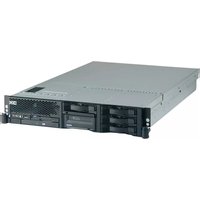
BladeCenter HX5 - Server IBM - Free user manual and instructions
Find the device manual for free BladeCenter HX5 IBM in PDF.


Pick your language and provide your email: we'll send you a specifically translated version.
| Product Type | Blade Server |
| Brand | IBM |
| Model | BladeCenter HX5 |
| Processor Support | Intel Xeon E7-8800/4800/2800 series |
| Maximum Memory Capacity | Up to 2TB DDR3 ECC |
| Storage Options | SAS, SATA, SSD via BladeCenter chassis backplane |
| Dimensions (H x W x D) | 1.7 inches (4.3 cm) x 8.7 inches (22.1 cm) x 29.7 inches (75.4 cm) |
| Weight | Approximately 20 lbs (9 kg) |
| Power Consumption | Up to 250W per blade (varies by configuration) |
| Management Module | Integrated System Management Module (IMM) |
| Cooling | Chassis-level managed redundant fans |
| Networking | Dual 10Gb Ethernet (optional Fibre Channel mezzanine) |
| Supported Operating Systems | Windows Server 2008/2012, Red Hat Enterprise Linux, SUSE Linux, VMware vSphere |
| Maintenance Features | Hot-swappable drives, firmware updates via IBM ToolsCenter |
| Safety Certifications | UL 60950-1, CSA C22.2, EN 60950-1, FCC Class A, CE |
| Spare Parts Availability | Authorized IBM service parts (memory, disk, mezzanine cards) |
| Repairability | Field replaceable units (FRUs); IBM service technician or qualified partner |
Frequently Asked Questions - BladeCenter HX5 IBM
How do I install additional memory in the IBM BladeCenter HX5?
To install memory, power off the blade, remove it from the chassis, open the cover, and locate the DIMM slots. Insert the DDR3 ECC memory modules firmly into the slots, ensuring correct orientation. Replace the cover and reinstall the blade. The system should automatically detect the new memory.
How can I update the firmware on the HX5?
Use the IBM ToolsCenter or IBM Support website to download the latest firmware packages for the blade. You can update via the management module web interface using FTP or by booting a firmware update CD/DVD. Ensure to update the IMM, UEFI, and any mezzanine card firmware.
What operating systems are supported on the BladeCenter HX5?
The HX5 supports Windows Server 2008 R2 and 2012, Red Hat Enterprise Linux 6 and 7, SUSE Linux Enterprise Server 11 and 12, and VMware vSphere 5.x and 6.x. Check IBM's compatibility matrix for specific versions.
How do I connect the HX5 to a network?
The HX5 has integrated dual 10Gb Ethernet ports via the chassis backplane. Connect the corresponding chassis network modules (e.g., pass-thru or switch) to your network infrastructure. Alternatively, install a mezzanine card for additional connectivity like Fibre Channel.
How to replace a failed hard drive in the HX5?
Hot-swap drives are accessible from the front of the blade. Identify the failed drive via the LED indicator, press the release button to unlatch, and pull out the drive carrier. Insert a new drive of similar type and capacity into the same slot, ensuring it clicks into place. The RAID controller will rebuild automatically.
What should I do if the HX5 fails to boot?
Check the blade LED status on the front. Common issues include memory errors, CPU problems, or boot device failure. Try reseating memory modules, checking power connections, and reviewing system logs via the IMM web interface. You can also boot to the UEFI setup to verify configuration.
How to reset the Integrated Management Module (IMM)?
You can reset the IMM via the web interface by selecting 'Reset IMM'. Alternatively, power off the blade, remove it from the chassis, and press the IMM reset button (if present) or hold the power button for 10 seconds. Wait 30 seconds before powering back on.
How to configure RAID on the HX5?
Access the RAID controller setup during POST by pressing Ctrl+H or specific key for your RAID card (e.g., ServeRAID M5110). Use the configuration utility to create RAID arrays (RAID 0, 1, 5, 10, etc.). Ensure the drives are properly initialized and set as bootable if needed.
How can I monitor the temperature and health of the HX5?
Use the IBM Systems Director or simply access the IMM web interface. The IMM dashboard provides real-time sensors for temperature, voltage, fan status, and system events. You can set alerts for thresholds and view historical logs.
Where can I find the user manual and technical documentation?
The user manual and other documentation are available for free download on the IBM Support website under 'BladeCenter HX5' product page. You can also find them on third-party sites like notice-facile.com. The manual covers installation, configuration, and troubleshooting in detail.
User questions about BladeCenter HX5 IBM
0 question about this device. Answer the ones you know or ask your own.
Ask a new question about this device
No questions yet. Be the first to ask one.
Download the instructions for your Server in PDF format for free! Find your manual BladeCenter HX5 - IBM and take your electronic device back in hand. On this page are published all the documents necessary for the use of your device. BladeCenter HX5 by IBM.
USER MANUAL BladeCenter HX5 IBM


Manual assistant
Powered by Anthropic
Waiting for your message
Product information
Brand : IBM
Model : BladeCenter HX5
Category : Server