FC-24ETH - Router Kramer - Free user manual and instructions
Find the device manual for free FC-24ETH Kramer in PDF.


| Type of Product | Router |
| Brand | Kramer |
| Model | FC-24ETH |
| Dimensions | 19 x 1.75 x 8 inches (rackmount 1U) |
| Weight | 2.5 kg (5.5 lbs) |
| Power Supply | 100-240V AC, 50/60 Hz, 30W |
| Ethernet Ports | 24 x 10/100/1000 Mbps (RJ45) |
| Management | Web-based GUI, CLI (SSH/Telnet), SNMP |
| Routing Protocols | Static, RIP, OSPF, BGP |
| VLAN Support | 802.1Q VLAN, up to 256 VLANs |
| Quality of Service | 802.1p, DSCP, traffic shaping |
| Multicast | IGMP snooping, PIM |
| Cooling | Internal fan (variable speed) |
| Operating Temperature | 0°C to 40°C (32°F to 104°F) |
| Certifications | CE, FCC Class A |
| Warranty | 3 years |
| Maintenance | Clean with dry cloth; avoid liquids |
| Safety | Use included power cord; ensure proper grounding |
| Spare Parts Available | Power supply, fan module |
| Repairability | Repair by authorized Kramer service centers |
Frequently Asked Questions - FC-24ETH Kramer
User questions about FC-24ETH Kramer
0 question about this device. Answer the ones you know or ask your own.
Ask a new question about this device
Download the instructions for your Router in PDF format for free! Find your manual FC-24ETH - Kramer and take your electronic device back in hand. On this page are published all the documents necessary for the use of your device. FC-24ETH by Kramer.
USER MANUAL FC-24ETH Kramer
FC-21ETH, FC-22ETH and FC-24ETH
Ethernet Controller
FC-21ETH FC-22ETH FC-24ETH Ethernet Controller Quick Start Guide

This guide helps you install and use your product for the first time. For more detailed information, go to http://www.kramerelectronics.com/support/product_downloads.asp to download the latest manual or scan the QR code on the left.
Step 1: Check what's in the box

FC-21ETH, FC-22ETH or FC -24ETH Ethernet Controller

1 Power adapter (5V DC)

1 Quick Start Guide

4 Rubber feet
Save the original box and packaging in case your FC-21ETH, FC-22ETH or FC-24ETH needs to be returned to the factory for service.
Step 2: Install the FC-21ETH, FC-22ETH and FC-24ETH
Mount the device in a rack (using a suitable rack adapter) or attach the rubber feet and place the device on a shelf.
Step 3: Connect the inputs and outputs
Always switch off the power to all devices before connecting them to your FC-21ETH, FC-22ETH or FC-24ETH.
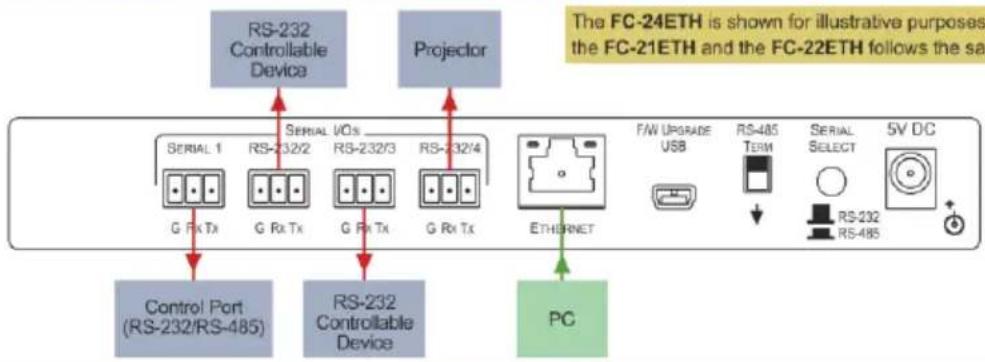
flowchart
graph TD
    A["Control Port (RS-232/RS-485)"] --> B["RS-232 Controllable Device"]
    C["Projector"] --> D["RS-232/4"]
    B --> E["SERIAL 1 G Rx Tx"]
    B --> F["SERIAL VCS G Rx Tx"]
    B --> G["RS-232/2 G Rx Tx"]
    B --> H["RS-232/3 G Rx Tx"]
    B --> I["RS-232/4 G Rx Tx"]
    J["PC"] --> K["EThORNET"]
    L["F/W UPGRADE USB"] --> M["TERM"]
    N["SERIAL SELECT"] --> O["RS-232 RS-485"]
    P["5V DC"] --> Q["+"]
Always use Kramer high-performance cables for connecting equipment to the FC-21ETH, FC-22ETH or FC-24ETH.
Step 4: Connect the power

Connect the power adapter to the FC-21ETH, FC-22ETH or FC-24ETH and plug the power adapter it into the mains electricity.
Step 5: Configure and Operate the FC-21ETH, FC-22ETH and FC-24ETH
-
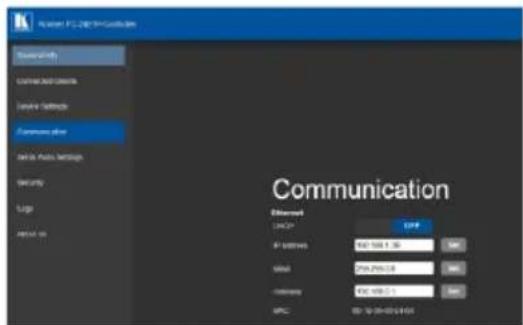
Using the embedded Web pages, configure the Ethernet controller:
-
Set DHCP or assign a static IP address
- Associate IP port(s) with serial port(s)
-
Configure the serial port parameters
-
Configure virtual port(s) on the PC.
- Configure Ethernet connection(s) on the PC.
Contents
1 Introduction 1
2 Getting Started 2
2.1 Achieving the Best Performance 2
2.2 Safety Instructions 2
2.3 Recycling Kramer Products 3
3 Overview 4
4 Defining the FC-21ETH, FC-22ETH and FC-24ETH Ethernet Controllers 6
4.1 Defining the FC-21ETH Ethernet Controller 6
4.2 Defining the FC-22ETH Ethernet Controller 8
4.3 Defining the FC-24ETH Ethernet Controller 10
5 Initial Configuration and Use Overview 12
5.1 Configuring the FC-21ETH, FC-22ETH and FC-24ETH 13
5.2 Configuring a Virtual Port on the PC 14
5.3 Configuring an Ethernet Connection on the PC 14
6 Connecting the FC-21ETH, FC-22ETH and FC-24ETH 15
6.1 Connecting via Ethernet 17
6.2 Connecting to the Ethernet Controller via RS-232 20
6.3 Connecting to a Controlled Device via the RS-485 Port 21
7 Remote Operation via the Web Pages 22
7.1 Browsing the FC-24ETH Web Pages 22
7.2 Connected Clients Page 24
7.3 Device Settings Page 25
7.4 Communication Page 26
7.5 Serial Port Settings Page 27
7.6 Security Page 28
7.7 Logs Page 30
7.8 About Us Page 31
8 Configuring and Maintaining the FC-21ETH, FC-22ETH and FC-24ETH 32
8.1 Selecting the RS-232 or RS-485 Serial Port 32
8.2 Terminating the RS-485 Bus 32
8.3 Activating DHCP 33
8.4 Resetting to the Factory Default Settings 33
8.5 Upgrading the Firmware 33
9 Technical Specifications 34
9.1 Data Handling Performance 35
9.2 Example Bandwidth Calculation 35
10 Default Communication Parameters 36
11 Kramer Protocol 3000 37
11.1 Kramer Protocol 3000 – Syntax 37
11.2 Kramer Protocol 3000 – Command List 40
11.3 Kramer Protocol 3000 – Detailed Commands 41
11.4 Parameters 53
Figures
Figure 1: FC-21ETH Ethernet Controller Front Panel 6
Figure 2: FC-21ETH Ethernet Controller Rear Panel 7
Figure 3: FC-22ETH Ethernet Controller Front Panel 8
Figure 4: FC-22ETH Ethernet Controller Rear Panel 9
Figure 5: FC-24ETH Ethernet Controller Front Panel 10
Figure 6: FC-24ETH Ethernet Controller Rear Panel 11
Figure 7: Connecting the FC-24ETH for Initial Configuration 12
Figure 8: Configuring a Remote Connection 14
Figure 9: Connecting the FC-24ETH Ethernet Controller 16
Figure 10: Local Area Connection Properties Window 18
Figure 11: Internet Protocol Version 4 Properties Window 19
Figure 12: Internet Protocol Version 6 Properties Window 19
Figure 13: Internet Protocol Properties Window 20
Figure 14: General Info Page 23
Figure 15: Connected Clients Page 24
Figure 16: Device Settings Page 25
Figure 17: Communication Page 26
Figure 18: Serial Port Settings Page 27
Figure 19: Security Page 28
Figure 20: Security Confirmation Popup 28
Figure 21: Authentication Required Popup 29
Figure 22: Security Activated Page 29
Figure 23: Logs Page 30
Figure 24: About Us Page 31
1 Introduction
Welcome to Kramer Electronics! Since 1981, Kramer Electronics has been providing a world of unique, creative, and affordable solutions to the vast range of problems that confront video, audio, presentation, and broadcasting professionals on a daily basis. In recent years, we have redesigned and upgraded most of our line, making the best even better!
Our 1,000-plus different models now appear in 14 groups that are clearly defined by function: GROUP 1: Distribution Amplifiers; GROUP 2: Switchers and Routers; GROUP 3: Control Systems; GROUP 4: Format/Standards Converters; GROUP 5: Range Extenders and Repeaters; GROUP 6: Specialty AV Products; GROUP 7: Scan Converters and Scalers; GROUP 8: Cables and Connectors; GROUP 9: Room Connectivity; GROUP 10: Accessories and Rack Adapters; GROUP 11: Sierra Video Products; GROUP 12: Digital Signage; GROUP 13: Audio; and GROUP 14: Collaboration.
Congratulations on purchasing your Kramer FC-21ETH, FC-22ETH or FC-24ETH Ethernet Controller, which is ideal for the following typical applications:
• Use with Ethernet/RS-232 interfaces and/or Ethernet/RS-485 interfaces
2 Getting Started
We recommend that you:
- Unpack the equipment carefully and save the original box and packaging materials for possible future shipment
- Review the contents of this user manual
- Use Kramer high performance high resolution cables

Go to www.kramerav.com/downloads/FC-22ETH
to check for up-to-date user manuals, application programs, and to check if firmware upgrades are available (where appropriate).
2.1 Achieving the Best Performance
To achieve the best performance:
- Use only good quality connection cables (we recommend Kramer high-performance, high-resolution cables) to avoid interference, deterioration in signal quality due to poor matching, and elevated noise levels (often associated with low quality cables) Do not secure the cables in tight bundles or roll the slack into tight coils
- Avoid interference from neighboring electrical appliances that may adversely influence signal quality
- Position your Kramer FC-21ETH, FC-22ETH and FC-24ETH away from moisture, excessive sunlight and dust

This equipment is to be used only inside a building. It may only be connected to other equipment that is installed inside a building.
2.2 Safety Instructions

Caution: There are no operator serviceable parts inside the unit
Warning: Use only the Kramer Electronics input power wall adapter that is provided with the unit.
Warning: Disconnect the power and unplug the unit from the wall before installing
2.3 Recycling Kramer Products
The Waste Electrical and Electronic Equipment (WEEE) Directive 2002/96/EC aims to reduce the amount of WEEE sent for disposal to landfill or incineration by requiring it to be collected and recycled. To comply with the WEEE Directive, Kramer Electronics has made arrangements with the European Advanced Recycling Network (EARN) and will cover any costs of treatment, recycling and recovery of waste Kramer Electronics branded equipment on arrival at the EARN facility. For details of Kramer's recycling arrangements in your particular country go to our recycling pages at www.kramerav.com/support/recycling/.
3 Overview
The FC-21ETH, FC-22ETH and FC-24ETH are a family of high-performance, easy-to-use, bidirectional hardware and software interface systems for controlling RS-232 and/or RS-485 controllable machines via an Ethernet LAN, as well as via the Internet.
These Ethernet to serial controllers bridge the gap between Ethernet infrastructures and serial communication devices by offering bidirectional Ethernet to serial conversion. All setup and maintenance of the devices is done from built-in Web pages which are accessible using any common Web browser. All devices offer one RS-232/RS-485 dual-use serial port.
In particular, the FC-21ETH, FC-22ETH and FC-24ETH:
- Offer network connectivity that lets you connect a Kramer (or other) device via its RS-232 or RS-485 port to an Ethernet LAN
- Let you control up to three RS-232 devices and one RS-485 device (model dependent) via Ethernet from a PC
- Let you control a device from multiple Ethernet points (PCs or remote controllers), via a LAN or the Internet
- Include Windows ^® based Virtual Port software for setting up virtual ports on a PC
- Support Internet-based, remote firmware upgrades
- Can be rack mounted in a 1U rack space with the optional rack adapters
More specifically, the FC-21ETH, FC-22ETH and FC-24ETH feature:
- One RS-232/RS-485 port (FC-21ETH), one RS-232 and one RS-232/RS-485 port (FC-22ETH), three RS-232 and one RS-232/RS-485 ports (FC-24ETH)
• An Ethernet LAN connection
• Static or dynamic (DHCP) IP addressing
• A USB port for upgrading the firmware
• A 5V DC power supply
- A compact Kramer TOOLS™ enclosure (FC-21ETH, FC-22ETH) or MegaTOOLS™ enclosure (FC-24ETH) which can be mounted side by side in a 19-inch rack using suitable rack adapters
The FC-21ETH, FC-22ETH and FC-24ETH include the Virtual Serial Port Manager (Kramer VSPM) for compatibility with applications based on COM-port communication. The virtual serial port:
- Makes the FC-21ETH, FC-22ETH and FC-24ETH compatible with all Windows®-based applications which require a physical COM port. This includes all versions of K-Router and other Kramer control applications. It lets you operate all RS-232 and RS-485 controllable devices via an Ethernet LAN using their existing PC software
- Operates like a physical COM port, that is, a logical COM port that behaves like a standard hardware COM port. In reality, it transparently reroutes the data using the TCP/IP network to the FC-21ETH, FC-22ETH or FC-24ETH interface via a virtual connection which you can emulate over the Ethernet or Internet
- Can be created in any quantity on your PC and does not occupy a physical serial port
4 Defining the FC-21ETH, FC-22ETH and FC-24ETH Ethernet Controllers
4.1 Defining the FC-21ETH Ethernet Controller
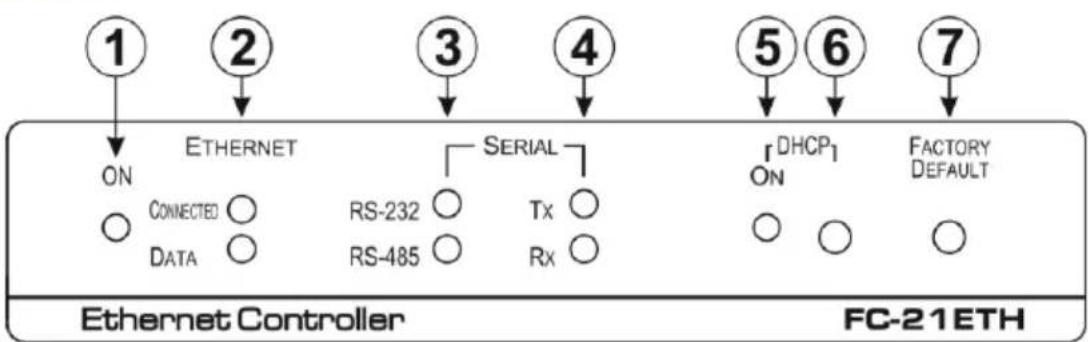
Figure 1 defines the front panel of the FC-21ETH.
flowchart
graph TD
    A["①"] --> B["ON"]
    C["②"] --> D["ETHERNET"]
    E["③"] --> F["SERIAL"]
    G["④"] --> H["Tx"]
    I["⑤"] --> J["DHCP₁"]
    K["⑥"] --> L["ON"]
    M["⑦"] --> N["FACTORY DEFAULT"]
    O["Ethernet Controller"] --> P["Connected"]
    O --> Q["DATA"]
    R["FC-21ETH"] --> S["Tx"]
    R --> T["Rx"]
Figure 1: FC-21ETH Ethernet Controller Front Panel
| # | Feature | Function | |
| 1 | ON LED | Lights green when the unit is on | |
| 2 | ETHERNET LEDs | CONNECTED | Lights yellow when the Ethernet port is connected |
| DATA | Flashes green when data is transferred over the Ethernet link | ||
| 3 | SERIAL LEDs | RS-232 | Lights green when RS-232 is selected |
| RS-485 | Lights green when RS-485 is selected | ||
| 4 | Tx | Flashes red when the serial port is transmitting data | |
| Rx | Flashes green when the serial port is receiving data | ||
| 5 | DHCP | ON LED | Lights green when DHCP is selected |
| 6 | Button | Press to toggle the selection between DHCP and static IP addressing, (see Section 8.3) | |
| 7 | FACTORY DEFAULT Button | Press and hold while power-cycling the device to reset to factory default parameters, (see Section 10) | |
Figure 2 defines the rear panel of the FC-21ETH.
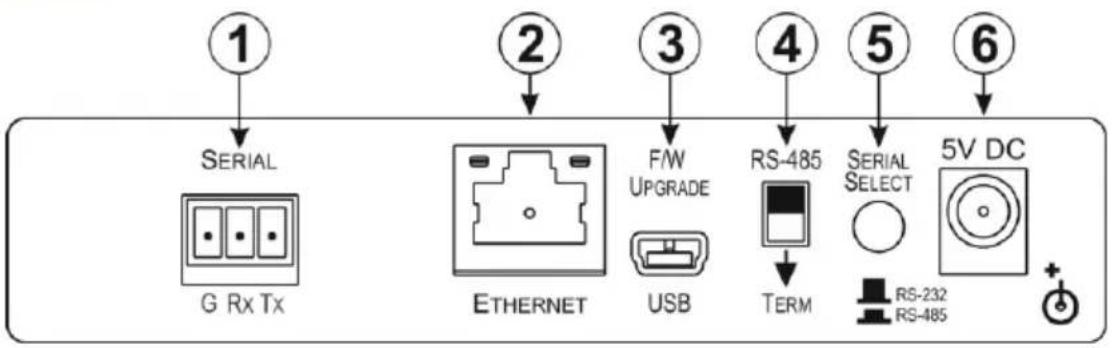
Figure 2: FC-21ETH Ethernet Controller Rear Panel
| # | Feature | Function |
| 1 | SERIAL 3-pinTerminal Block | Connect to an RS-232 or RS-485 controlled device.When connecting as an RS-485 port, the connections are G,B, A in place of G, Rx, Tx |
| 2 | ETHERNET RJ-45 Connector | Connect to the PC or other controller directly or via a LAN (see Section 6.1) |
| 3 | F/W UPGRADE USB Connector | Connect to a PC to upgrade the firmware |
| 4 | RS-485 TERM Switch | Terminates the RS-485 bus, (see Section 8.3).Slide down when this is the last device on an RS-485 bus.Slide up when this device is not the last device on an RS-485 bus |
| 5 | SERIAL SELECT Button | Selects either RS-232 or RS-485 serial communication, (see Section 8.3).Depress for RS-485 serial communication.Release for RS-232 serial communication |
| 6 | 5V DC Connector | Connect to the 5V DC power supply, center pin positive |
4.2 Defining the FC-22ETH Ethernet Controller
Figure 3 defines the front panel of the FC-22ETH.
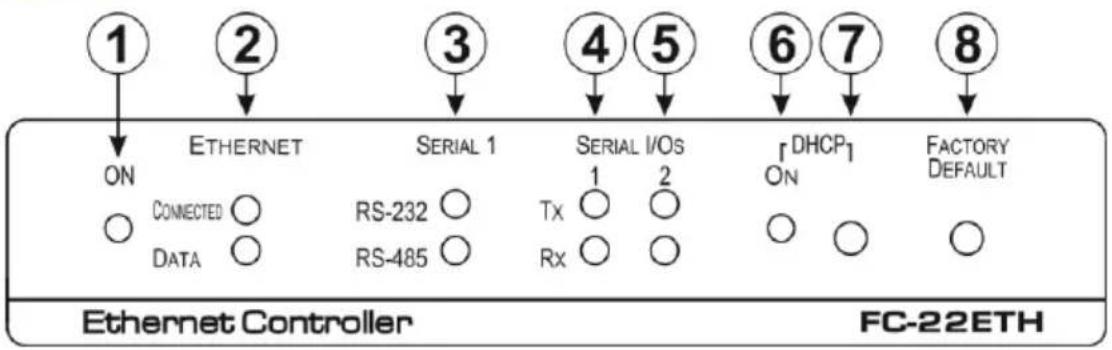
flowchart
graph TD
    A["1"] --> B["ON"]
    C["2"] --> D["ETHERNET"]
    E["3"] --> F["SERIAL 1"]
    G["4"] --> H["SERIAL I/Os"]
    I["5"] --> J["DHCP1"]
    K["6"] --> L["Factory DEFAULT"]
    M["7"] --> N["ON"]
    O["8"] --> P["Data"]
    Q["Connected"] --> R["RS-232"]
    S["RS-485"] --> T["Tx"]
    U["Rx"] --> V["Tx"]
    W["○"] --> X["○"]
    Y["○"] --> Z["○"]
    AA["○"] --> AB["○"]
Figure 3: FC-22ETH Ethernet Controller Front Panel
| # | Feature | Function | |
| 1 | ON LED | Lights green when the unit is on | |
| 2 | ETHERNET LEDs | CONNECTED | Lights yellow when the Ethernet port is connected |
| DATA | Flashes green when data is transferred over the Ethernet link | ||
| 3 | SERIAL 1 LEDs | RS-232 | Lights green when RS-232 is selected |
| RS-485 | Lights green when RS-485 is selected | ||
| 4 | SERIAL I/Os 1 LEDs | Tx | Flashes red when the device is transmitting data over serial port 1 |
| Rx | Flashes green when the device is receiving data on serial port 1 | ||
| 5 | SERIAL I/Os 2 LEDs | Tx | Flashes red when the device is transmitting data over serial port 2 |
| Rx | Flashes green when the device is receiving data on serial port 2 | ||
| 6 | DHCP | ON LED | Lights green when DHCP is selected |
| 7 | Button | Selects either DHCP or static IP addressing, (see Section 8.3).Press to toggle the selection between DHCP and static IP addressing | |
| 8 | FACTORY DEFAULT Button | Press and hold while power-cycling the device to reset to factory default parameters, (see Section 10) | |
Figure 4 defines the rear panel of the FC-22ETH.
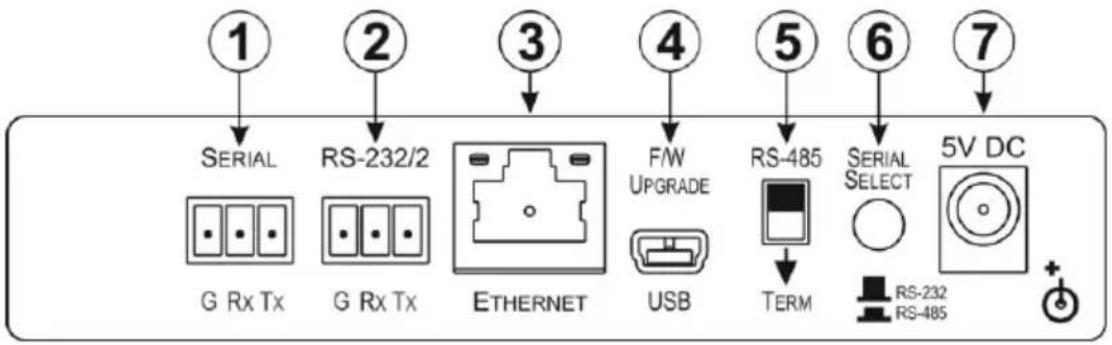
Figure 4: FC-22ETH Ethernet Controller Rear Panel
| # | Feature | Function |
| 1 | SERIAL 3-pin Terminal Block | Connect to an RS-232 or RS-485 controlled device.When connecting as an RS-485 port, the connections are G,B, A in place of G, Rx, Tx |
| 2 | RS-232/2 3-pin Terminal Block | Connect to an RS-232 controlled device |
| 3 | ETHERNET RJ-45 Connector | Connect to the PC or other controller directly or via a LAN (see Section 6.1) |
| 4 | F/W UPGRADE USB Connector | Connect to a PC to upgrade the firmware |
| 5 | RS-485 TERM Switch | Terminates the RS-485 bus, (see Section 8.3).Slide down when this is the last device on an RS-485 bus.Slide up when this device is not the last device on an RS-485 bus |
| 6 | SERIAL SELECT Button | Selects either RS-232 or RS-485 serial communication for the SERIAL port, (see Section 8.3).Depress for RS-485 serial communication.Release for RS-232 serial communication |
| 7 | 5V DC Connector | Connect to the 5V DC power supply, center pin positive |
4.3 Defining the FC-24ETH Ethernet Controller
Figure 5 defines the front panel of the FC-24ETH.
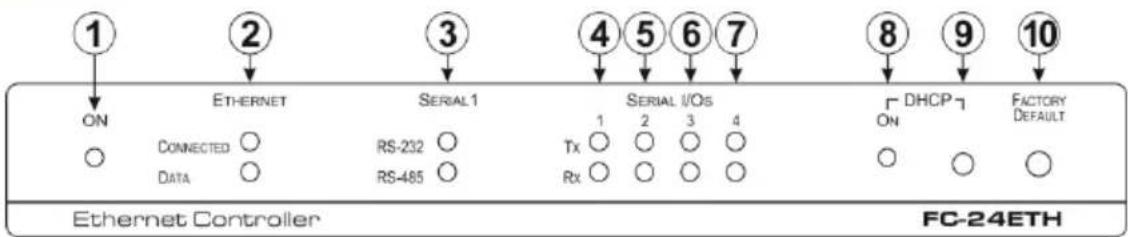
Figure 5: FC-24ETH Ethernet Controller Front Panel
| # | Feature | Function | |
| 1 | ON LED | Lights green when the unit is on | |
| 2 | ETHERNET LEDs | CONNECTED | Lights yellow when the Ethernet port is connected |
| DATA | Flashes green when data is transferred over the Ethernet link | ||
| 3 | SERIAL 1 LEDs | RS-232 | Lights green when RS-232 is selected |
| RS-485 | Lights green when RS-485 is selected | ||
| 4 | SERIAL I/Os 1 LEDs | Tx | Flashes red when the device is transmitting data over serial port 1 |
| Rx | Flashes green when the device is receiving data on serial port 1 | ||
| 5 | SERIAL I/Os 2 LEDs | Tx | Flashes red when the device is transmitting data over serial port 2 |
| Rx | Flashes green when the device is receiving data on serial port 2 | ||
| 6 | SERIAL I/Os 3 LEDs | Tx | Flashes red when the device is transmitting data over serial port 3 |
| Rx | Flashes green when the device is receiving data on serial port 3 | ||
| 7 | SERIAL I/Os 4 LEDs | Tx | Flashes red when the device is transmitting data over serial port 4 |
| Rx | Flashes green when the device is receiving data on serial port 4 | ||
| 8 | DHCP | ON LED | Lights green when DHCP is selected |
| 9 | Button | Selects either DHCP or static IP addressing, (see Section 8.3).Press to toggle the selection between DHCP and static IP addressing | |
| 10 | FACTORY DEFAULT Button | Press and hold while power-cycling the device to reset to factory default parameters, (see Section 10) | |
Figure 6 defines the rear panel of the FC-24ETH.
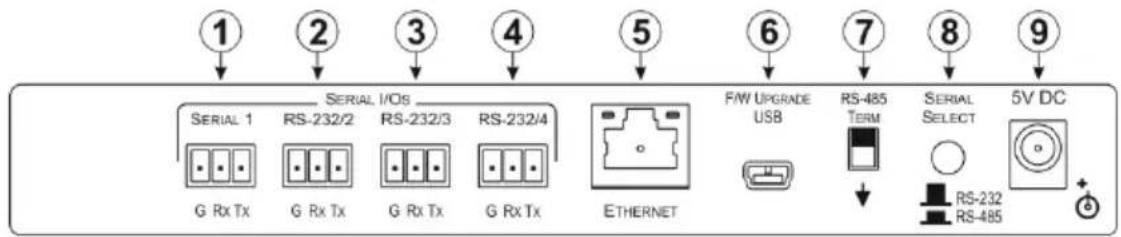
Figure 6: FC-24ETH Ethernet Controller Rear Panel
| # | Feature | Function | |
| 1 | SERIAL I/Os | SERIAL 3-pin Terminal Block | Connect to an RS-232 or RS-485 controlled device. When connecting as an RS-485 port, the connections are G, B, A in place of G, Rx, Tx |
| 2 | RS-232/2 3-pin Terminal Block | Connect to an RS-232 controlled device | |
| 3 | RS-232/2 3-pin Terminal Block | Connect to an RS-232 controlled device | |
| 4 | RS-232/2 3-pin Terminal Block | Connect to an RS-232 controlled device | |
| 5 | ETHERNET RJ-45 Connector | Connect to the PC or other controller directly or via a LAN (see Section 6.1) | |
| 6 | F/W UPGRADE USB Connector | Connect to a PC to upgrade the firmware | |
| 7 | RS-485 TERM Switch | Terminates the RS-485 bus, (see Section 8.3). Slide down when this is the last device on an RS-485 bus.Slide up when this device is not the last device on an RS-485 bus | |
| 8 | SERIAL SELECT Button | Selects either RS-232 or RS-485 serial communication for the SERIAL port, (see Section 8.3).Depress for RS-485 serial communication.Release for RS-232 serial communication | |
| 9 | 5V DC Connector | Connect to the 5V DC power supply, center pin positive | |




5 Initial Configuration and Use Overview
This chapter provides an overview of the initial configuration and basic operation of the FC-21ETH, FC-22ETH and FC-24ETH. The chapter comprises:
- Configuring the FC-21ETH, FC-22ETH and FC-24ETH (see Section 0)
- Configuring a virtual port on the PC (see Section 5.2)
- Configuring an Ethernet connection on the PC (see Section 5.3)
In the following description the FC-24ETH is used as an example. The same principles apply to the FC-21ETH and FC-22ETH.
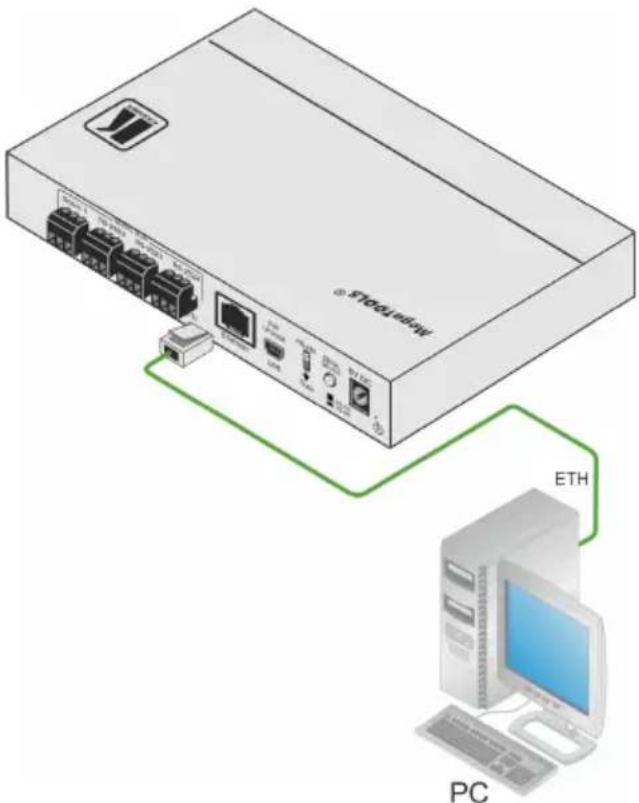
Figure 7: Connecting the FC-24ETH for Initial Configuration
5.1 Configuring the FC-21ETH, FC-22ETH and FC-24ETH
To configure the FC-21ETH, FC-22ETH and FC-24ETH:
- Connect the Ethernet port on the rear panel of the FC-21ETH, FC-22ETH and FC-24ETH to a PC either directly or via a LAN, (see Section 6.1).
- Using a Web browser, (see Section 6.1 and Section 7) browse to the General Info home page (see Figure 14).
- Click on Device Settings to browse to the Device Settings page, (see Figure 16).
- Enter the time and date manually, or enter the Time server address for automatic time and date synchronization.
- Click Save Changes.
- Click on Communication to browse to the Communication page, (see Figure 17).
- Enter the IP address, mask and gateway for static IP addressing and click Set. —OR— click DHCP On for dynamic IP addressing.
Note: If you have changed the IP from the default setting, you must reload the General Info home page again using the new IP address.
Note: FC-22ETH and FC-24ETH are supplied with DHCP activated. If you reset the unit to factory default settings, DHCP is deactivated.
- Click on Serial Ports Settings to browse to the Serial Port Settings page, (see Figure 18).
- Associate the required serial ports with their corresponding TCP/UDP settings.
- For each associated serial port, enter the serial port configuration parameters using the drop-down lists under Serial Configuration.
-
Click Save Changes.
-
If required, click on Security to browse to the Security page.
- Click ON to activate security.
The user name and password credentials popup appears. - Enter the required user name and password.
5.2 Configuring a Virtual Port on the PC
If the control application cannot work with an Ethernet driver, download the Kramer VSPM from our Web site to set a virtual port for each local port on your FC-21ETH, FC-22ETH and FC-24ETH.
The Kramer VSPM software lets you emulate virtual ports which normally would be present in the machine hardware. After setup, the virtual port lets you control Kramer machines via your PC.
5.3 Configuring an Ethernet Connection on the PC
If the control application can directly connect to the Ethernet driver, select the host IP and port number according to your FC-21ETH, FC-22ETH and FC-24ETH configuration, as illustrated in Figure 8.
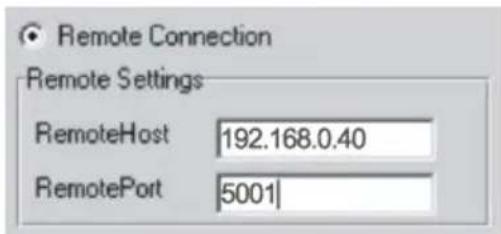
Figure 8: Configuring a Remote Connection
6 Connecting the FC-21ETH, FC-22ETH and FC-24ETH
This section describes:
- Connecting the FC-21ETH, FC-22ETH or FC-24ETH via Ethernet (see Section 6.1)
- Connecting the FC-21ETH, FC-22ETH or FC-24ETH via RS-232 (see Section 6.2)
- Connecting the FC-21ETH, FC-22ETH or FC-24ETH via RS-485 (see Section 6.3)

Always switch off the power to each device before connecting it to your FC-21ETH, FC-22ETH and FC-24ETH. After connecting your FC-21ETH, FC-22ETH and FC-24ETH, connect its power and then switch on the power to each device.
In the following description, the FC-24ETH is used as an example. The same principles apply to the FC-21ETH and FC-22ETH.
flowchart
graph TD
    A["Wireless Network Device"] -->|RS-232| B["Projector"]
    A -->|RS-232/RS-485 Control Port| C["Control Port"]
    A -->|RS-232 Controllable Device| D["Controllable Device"]
    A -->|RS-232 Controllable Device| E["RP1"]
    A -->|ETH| F["Computer PC"]
    style A fill:#f9f,stroke:#333
    style B fill:#ccf,stroke:#333
    style C fill:#cfc,stroke:#333
    style D fill:#fcc,stroke:#333
    style E fill:#cff,stroke:#333
    style F fill:#ffc,stroke:#333
Figure 9: Connecting the FC-24ETH Ethernet Controller
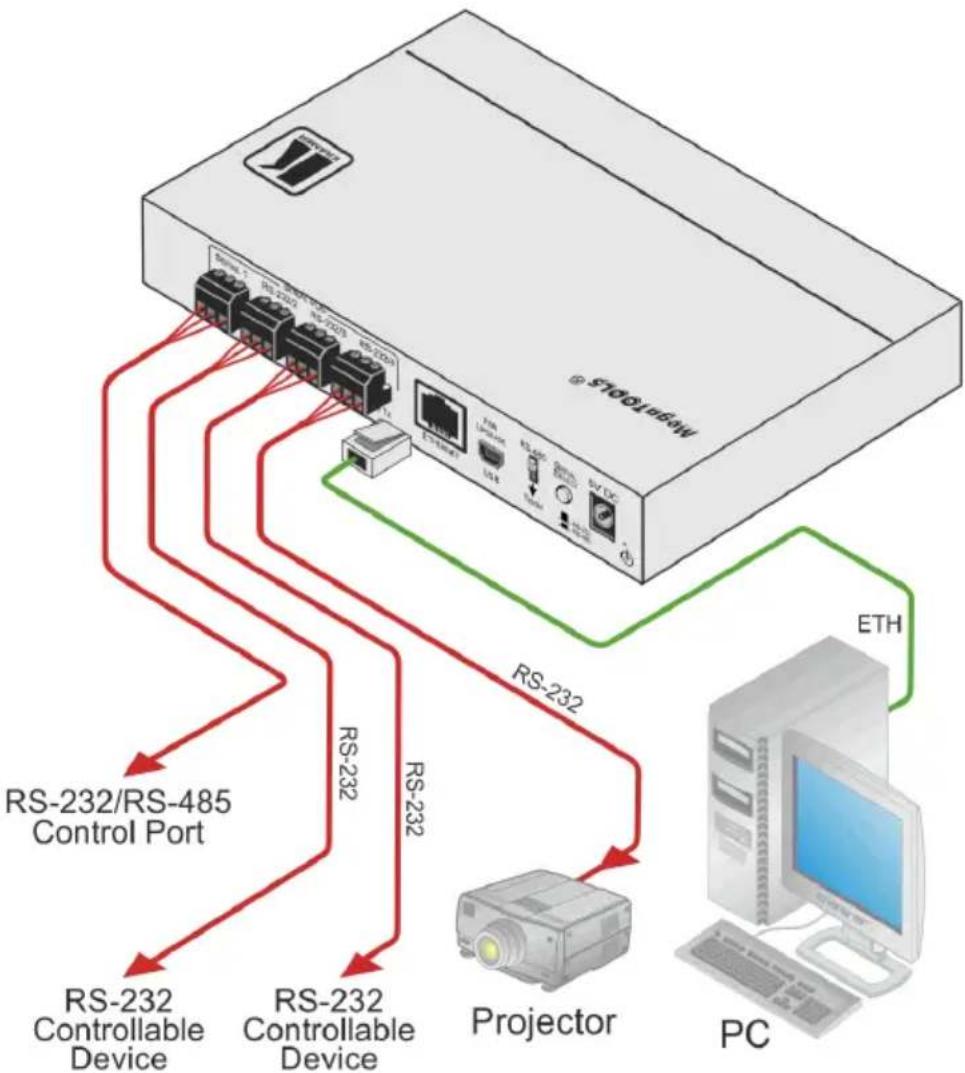
To connect the FC-24ETH as illustrated in the example in Figure 9:
- Connect the device to a LAN or PC via the RJ-45 Ethernet connector.
- Connect up to 4 serially controlled devices, (for example, an RS-232/RS-485 controlled device, a projector and two other devices) to the 3-pin, RS-232 terminal blocks.
- Connect the device to the power adapter and connect the power adapter to the mains electricity (not shown in Figure 9).
6.1 Connecting via Ethernet
You can connect to the FC-24ETH via Ethernet using either of the following methods:
- Directly to the PC using a crossover cable (see Section 6.1.1)
- Via a network hub, switch, or router, using a straight-through cable (see Section 6.1.2)
Note: If you want to connect via a router and your IT system is based on IPv6, speak to your IT department for specific installation instructions.
6.1.1 Connecting the Ethernet Port Directly to a PC
You can connect the Ethernet port of the FC-24ETH directly to the Ethernet port on your PC using a crossover cable with RJ-45 connectors.

This type of connection is recommended for identifying the FC-24ETH with the factory configured default IP address.
After connecting the FC-24ETH to the Ethernet port, configure your PC as follows:
- Click Start > Control Panel > Network and Sharing Center.
-
Click Change Adapter Settings.
-
Highlight the network adapter you want to use to connect to the device and click Change settings of this connection.
The Local Area Connection Properties window for the selected network adapter appears as shown in Figure 10.
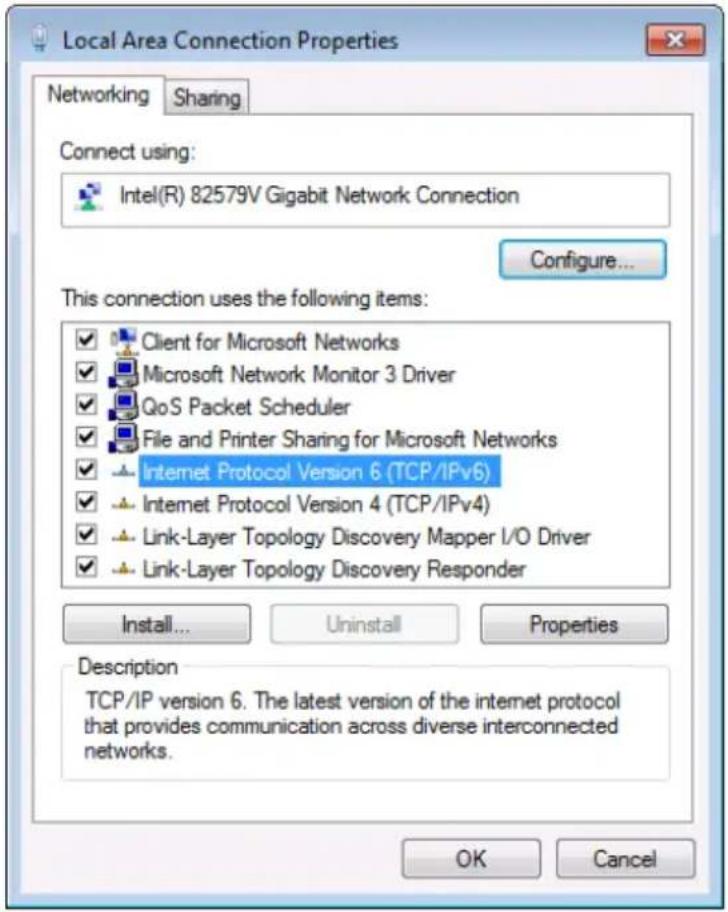
Figure 10: Local Area Connection Properties Window
- Highlight either Internet Protocol Version 6 (TCP/IPv6) or Internet Protocol Version 4 (TCP/IPv4) depending on the requirements of your IT system.
5. Click Properties.
The Internet Protocol Properties window relevant to your IT system appears as shown in Figure 11 or Figure 12.
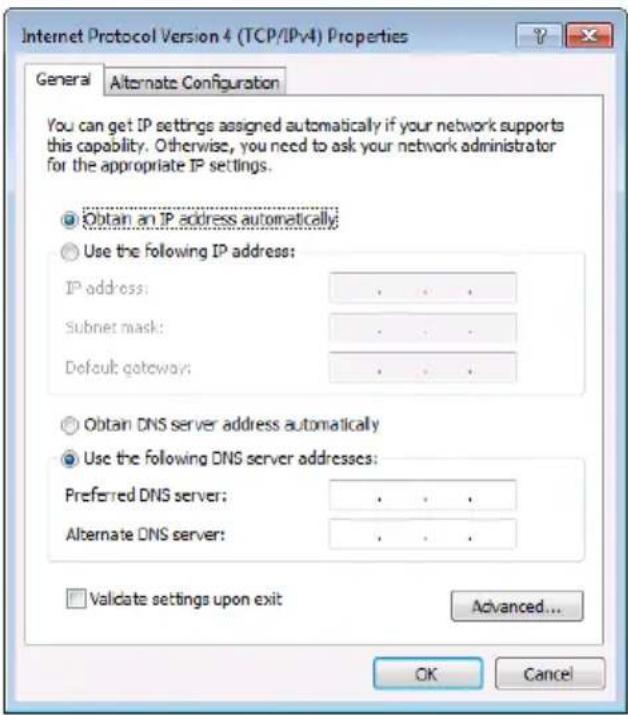
Figure 11: Internet Protocol Version 4 Properties Window
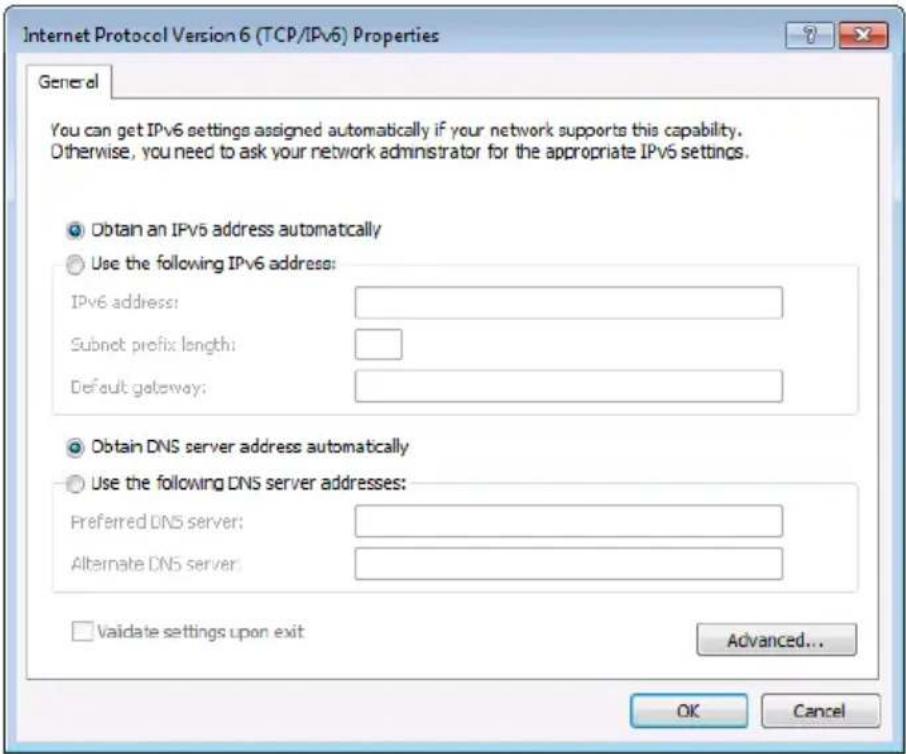
Figure 12: Internet Protocol Version 6 Properties Window
- Select Use the following IP Address for static IP addressing and fill in the details as shown in Figure 13.
For TCP/IPv4, use any IP address from 192.168.1.1 to 192.168.1.255
(excluding 192.168.1.39) that is provided by your IT department.
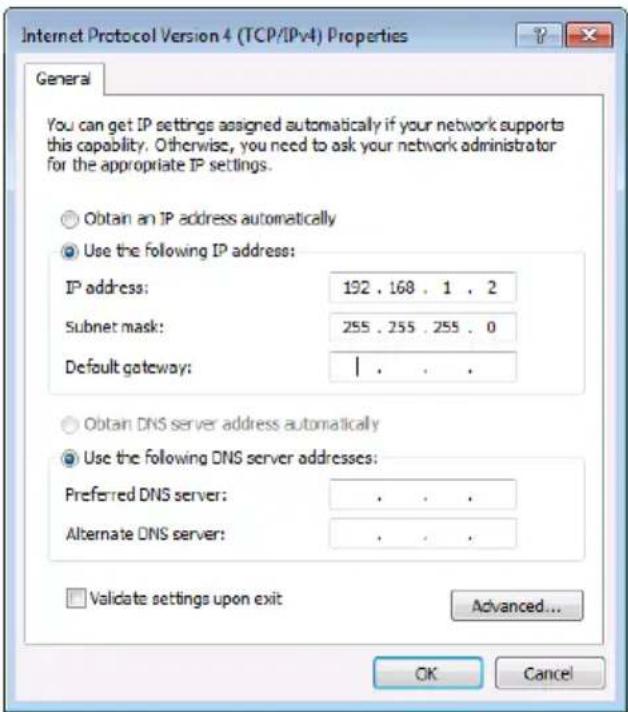
Figure 13: Internet Protocol Properties Window
- Click OK.
- Click Close.
6.1.2 Connecting the Ethernet Port via a Network Hub or Switch
You can connect the Ethernet port of the FC-24ETH to the Ethernet port on a network hub or using a straight-through cable with RJ-45 connectors.
6.2 Connecting to the Ethernet Controller via RS-232
To connect to the FC-21ETH, FC-22ETH and FC-24ETH via RS-232:
- Connect the RS-232, 3-pin, terminal block connectors on the rear panel of the FC-21ETH, FC-22ETH and FC-24ETH unit via 3-wire cable (pin TX to pin 2, RX to pin 3, and G to pin 5) to the RS-232 9-pin D-sub port on the devices to be controlled
6.3 Connecting to a Controlled Device via the RS-485 Port
You can control a device up to 1200m (3900ft) away by using the RS-232/RS-485 port on the FC-21ETH, FC-22ETH and FC-24ETH and setting it to RS-485 operation. To connect via RS-485, you must switch the Serial 1 port on the rear panel of the FC-21ETH, FC-22ETH and FC-24ETH to RS-485 operation and set the RS-485 bus termination.
Note: On the dual-use Serial port, the connections are G, B, A in place of G, Rx, Tx.
To connect a device with an RS-485 port to the FC-21ETH, FC-22ETH and FC-24ETH:
-
Depress the Serial Select switch on the rear panel of the FC-21ETH, FC-22ETH and FC-24ETH.
-
Connect the devices as follows:
-
Connect the B (−) pin on the RS-485 port of the PC to the Tx (A) pin on the RS-485 port on the rear panel of the FC-21ETH, FC-22ETH and FC-24ETH
- Connect the A (+) pin on the RS-485 port of the PC to the Rx (B) pin on the RS-485 port on the rear panel of the FC-21ETH, FC-22ETH and FC-24ETH
-
Connect the G pin on the RS-485 port of the PC to the G pin on the RS-485 port on the rear panel of the FC-21ETH, FC-22ETH and FC-24ETH
-
Terminate the RS-485 bus at the FC-21ETH/FC-22ETH/FC-24ETH by sliding the RS-485 Term switch on the rear panel of the FC-21ETH, FC-22ETH and FC-24ETH down.
7 Remote Operation via the Web Pages
The embedded Web pages can be used to remotely operate the FC-21ETH, FC-22ETH and FC-24ETH using a Web browser and an Ethernet connection.
Before attempting to connect:
• Perform the procedures in Section 6.1.
- Ensure that your browser is supported (see Section 9)
Note: The FC-24ETH is used throughout this chapter as an example. The same principles apply to the FC-21ETH and the FC-22ETH.
7.1 Browsing the FC-24ETH Web Pages
To browse the FC-24ETH Web pages:
- Open your Internet browser.
- Type the device's IP number (see Section 10) in the Address bar of your browser.

http://192.168.1.39

The Loading page appears followed shortly by the General Info page shown in Figure 14.
The General Info page displays the following:
- Model Name
- Firmware version
• Device serial number - Web page version
At the bottom left hand side of all pages there are Load/Save Configuration buttons. These allow you to save the current configuration and load any presaved configurations.
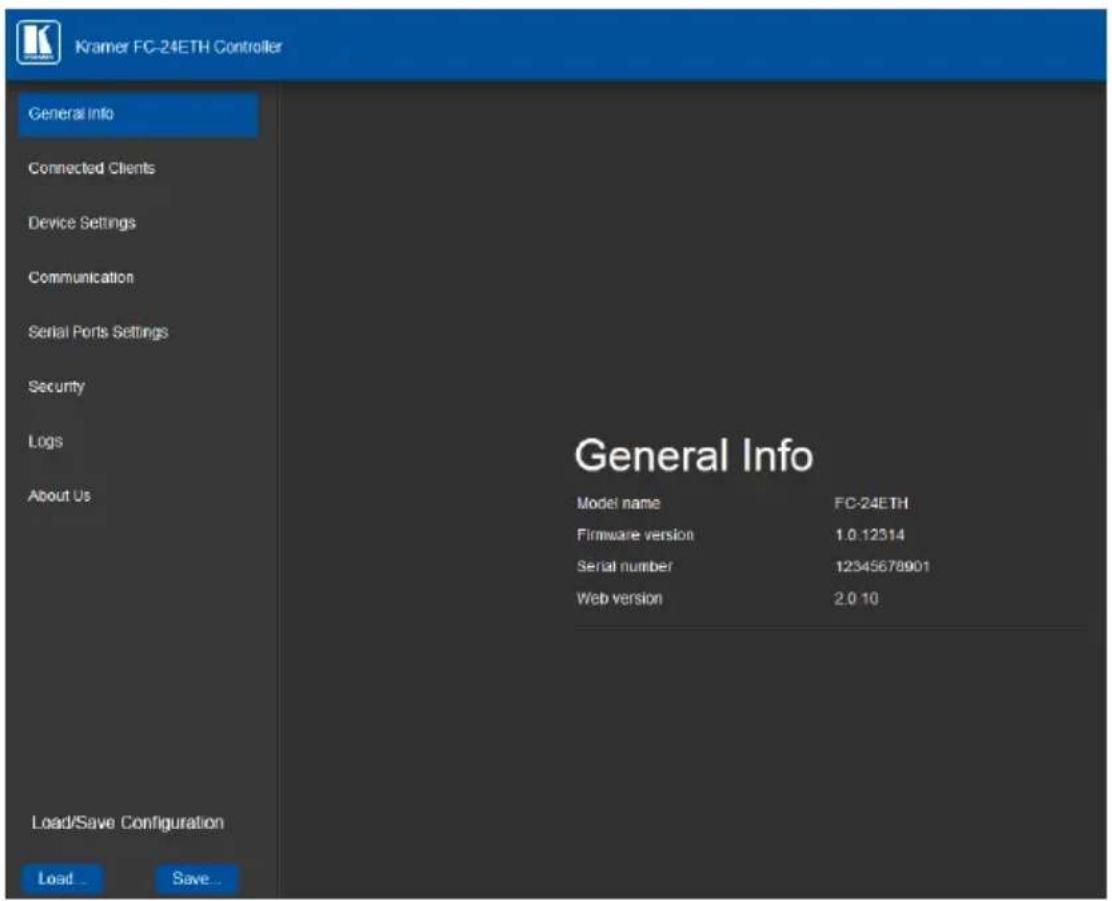
Figure 14: General Info Page
7.2 Connected Clients Page
The Connected Clients page is informational and allows you to view the following details of any client devices connected via Ethernet to the FC-24ETH:
- IP address
• The port it is connected to
• Method of connection - Whether or not Send Replies is enabled for the port
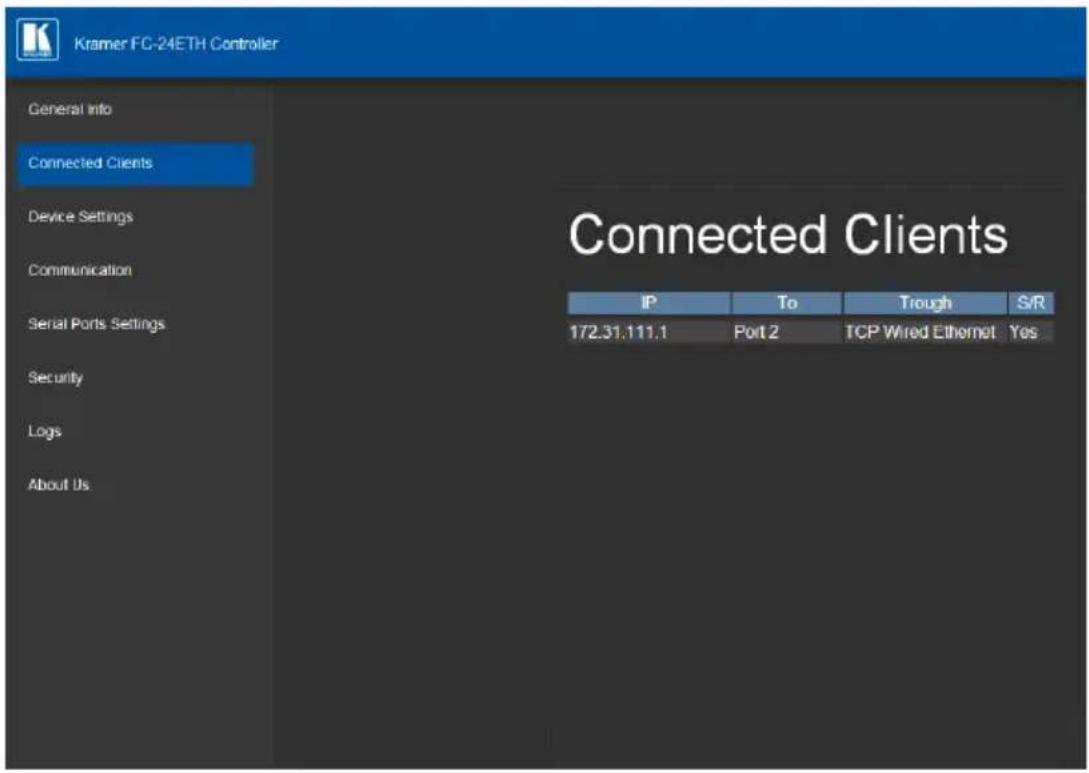
Figure 15: Connected Clients Page
7.3 Device Settings Page
The Device Settings page allows you to view the model name and time server status, and modify the following fields:
- Device name
- Time and date automatically using a Time Server (if the device is connected to the Internet), including the Time Zone and daylight savings time
• Time and date manually
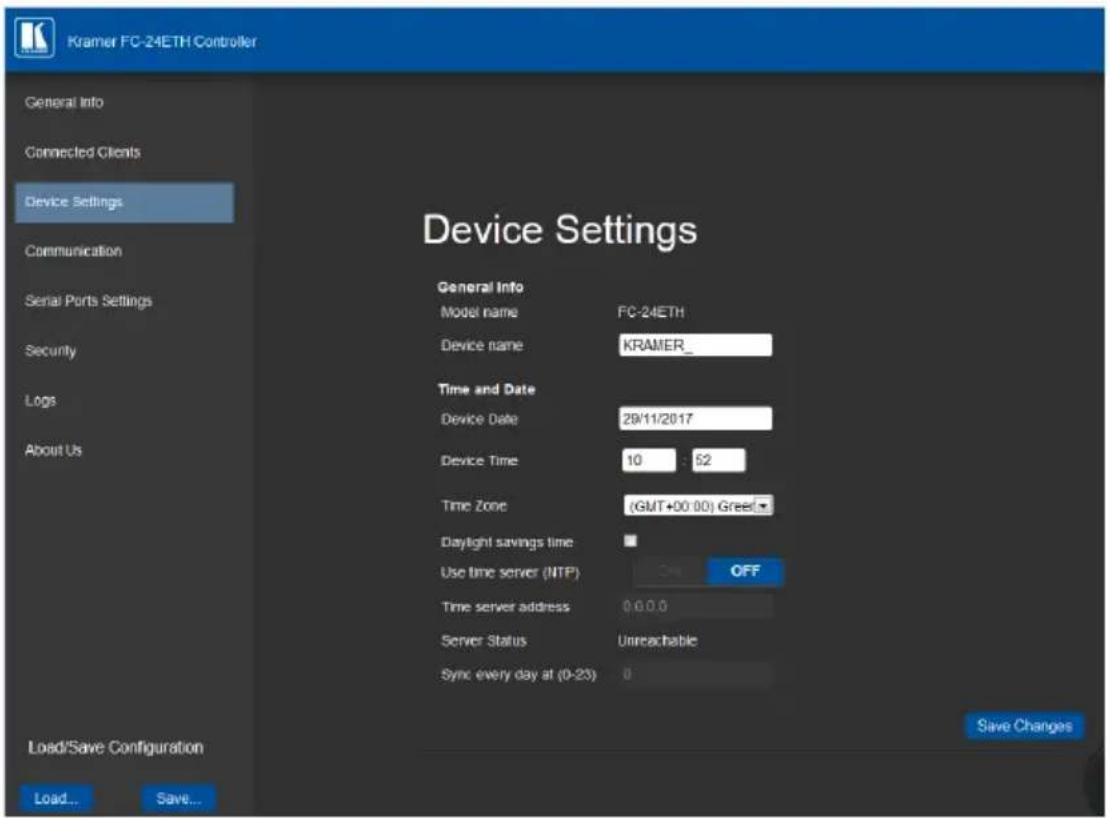
Figure 16: Device Settings Page
The FC-24ETH has a built-in clock that can synchronize with a Time Server if required.
To enable Time Server synchronization:
-
Browse to the Device Settings page by clicking Device Settings.
The Device Settings page is displayed as shown in Figure 16. -
Click the Use Time Server ON button.
-
Enter the IP address of the Time Server.
- Enter the time of day at which the FC-24ETH should synchronize with the Time Server.
- Click Save Changes.
7.4 Communication Page
The communication page allows you to:
- Turn DHCP for the device on and off
Note: FC-22ETH and FC-24ETH are supplied with DHCP activated. If you reset the unit to factory default settings, DHCP is deactivated.
• Edit the IP settings for static IP
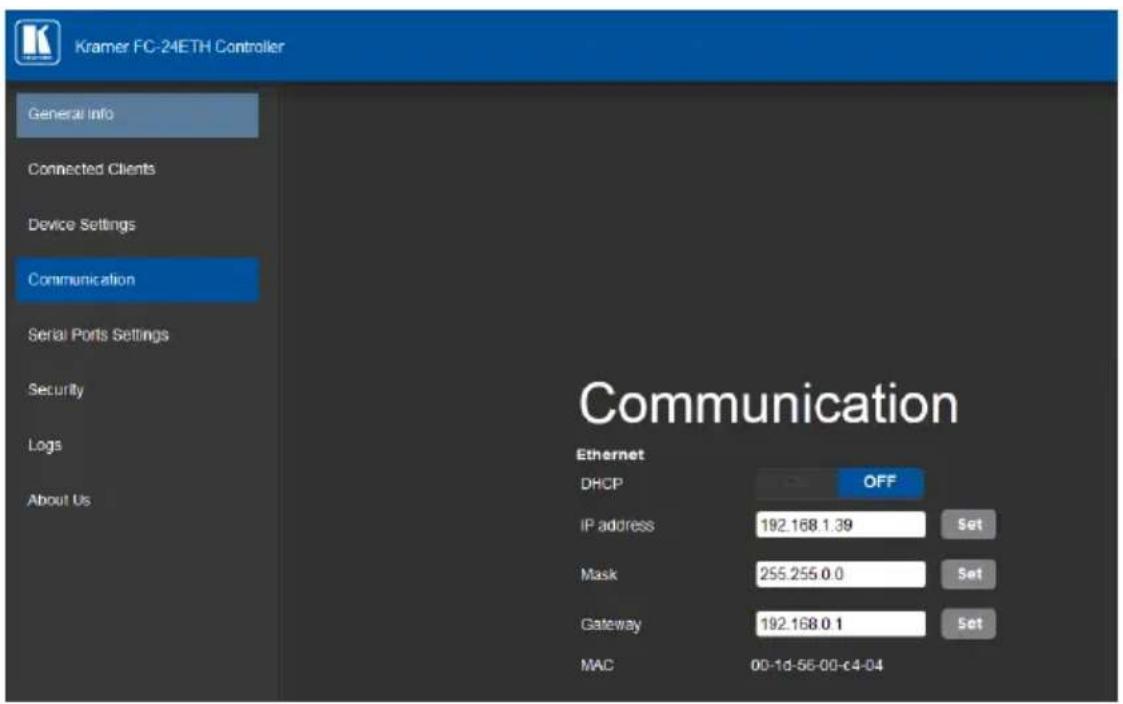
Figure 17: Communication Page
After modifying any of the IP settings, click Set to save the changes.
7.5 Serial Port Settings Page
The Serial Port Settings page allows you to:
- Set the following Ethernet parameters for each Ethernet port:
■ Select TCP or UDP
IP port label
TCP keep alive time 0-3600sec (default 60sec), after which the detected idle connection is disconnected
- Set the following serial parameters for each serial port:
- Parity
Data bits
Baud rates - Stop bits
- Select whether or not to send replies on the port to the new client
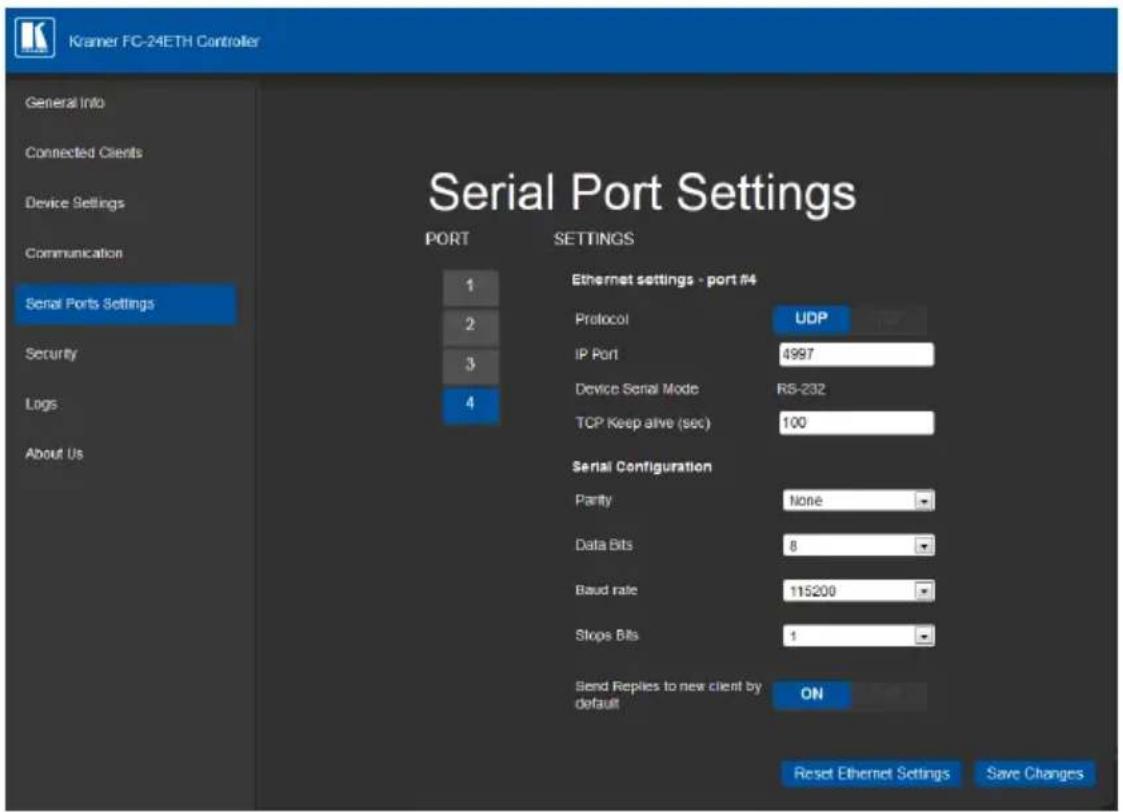
Figure 18: Serial Port Settings Page
7.6 Security Page
The Security page allows you to turn the security for the device on or off.
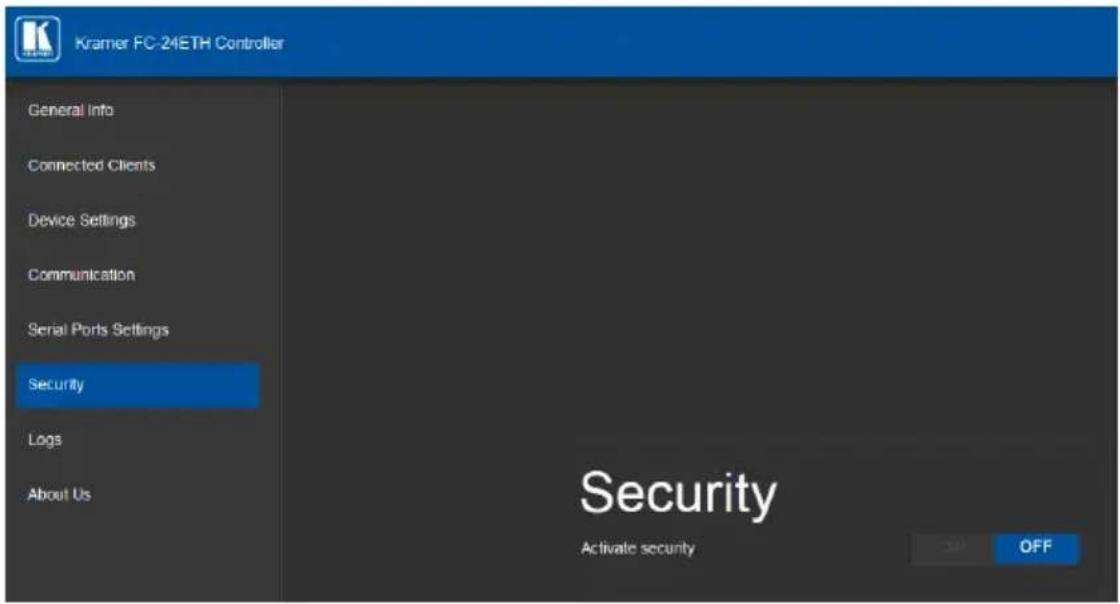
Figure 19: Security Page
When security is on, access to the Web pages is only granted on submission of a valid user and password. The default credentials are "Admin" for both User Name and Password.
To activate Web page security:
- On the Security page, click ON.
The confirmation popup is displayed as shown in Figure 20.
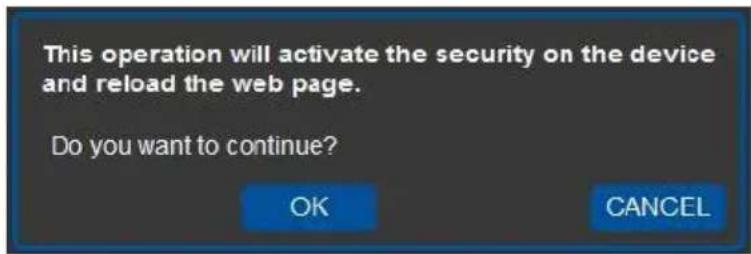
Figure 20: Security Confirmation Popup
2. Click OK.
The Authentication Required popup is displayed as shown in Figure 21.
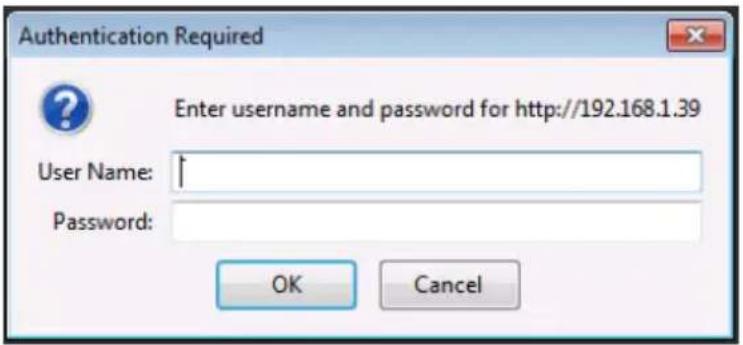
Figure 21: Authentication Required Popup
- Enter the default User Name and Password.
- Click OK.
- Wait until the Web pages have reloaded and click to browse to the Security page.
The page show in Figure 22 is displayed.
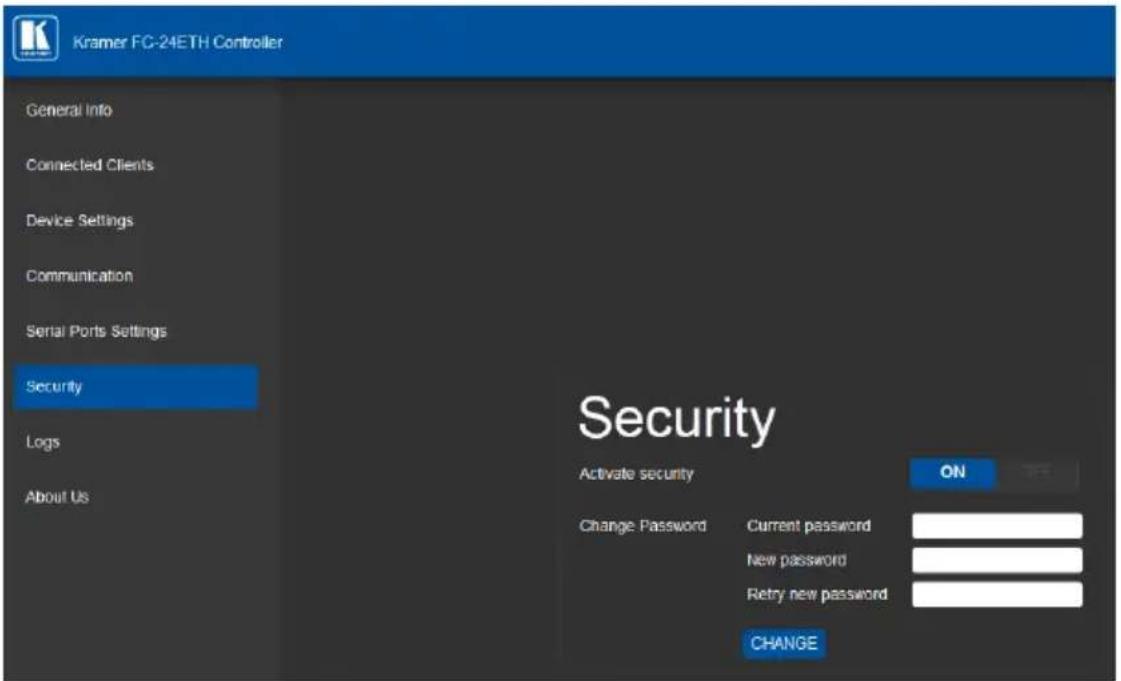
Figure 22: Security Activated Page
- If required, turn security off by clicking OFF or change the password and click Change.
7.7 Logs Page
The Logs page allows you to:
• View current logs
- Configure the logs
- Filter the logs
![Kramer FC-24ETH Controller General Info Connected Clients Device Settings Communication Serial Ports Settings Security Logs About Us Date Time Type Client Event 2014-01-19 11:53:45 INFO [Device Control] Listening on port 4997 → units 4 2014-01-19 11:53:45 INFO [Device Control] Set serial 4 to 38400 BN1 2014-01-19 11:53:22 INFO [Device Control] Listening on port 5000 → units 1 2014-01-19 11:53:21 INFO [Device Control] Removing listening port 5000 2014-01-19 11:53:21 INFO [Device Control] Removed unit 1 from listening port 5000 2014-01-19 11:53:21 INFO [Device Control] Set serial 1 to 115200 BN1 2014-01-19 11:53:14 INFO [Device Control] Listening on port 4998 → units 2 2014-01-19 11:53:13 INFO [Device Control] Set serial 2 to 9600 BN1 2014-01-19 11:52:46 INFO [Device Control] Listening on port 4999 → units 3 2014-01-19 11:52:45 INFO [Device Control] Set serial 3 to 19200 BN1 2014-01-19 11:52:24 INFO [Device Control] Listening on port 5000 → units 1 2014-01-19 11:52:24 INFO [Device Control] Set serial 1 to 115200 BN1 LOG FILTER LOG CONFIG ✓ Device Control ✓ Device Control ✓ Tx Data ✓ Tx Data ✓ Rx Data ✓ Rx Data ✓ Errors Refresh](/content/2026/06/1199527/images/1cde4fb77f6aa6ec1866f9f3e8a4cff6fea78e6a827a2de2b727a1f4bb49da3d.jpg)
Figure 23: Logs Page
The display is not updated automatically. Click Refresh to update the display.
Use the Log Config check-boxes to select which events are recorded. Use the Log Filter check-boxes to select which events to display from the log.
7.8 About Us Page
The About Us page displays the Web page version and the Kramer company details.
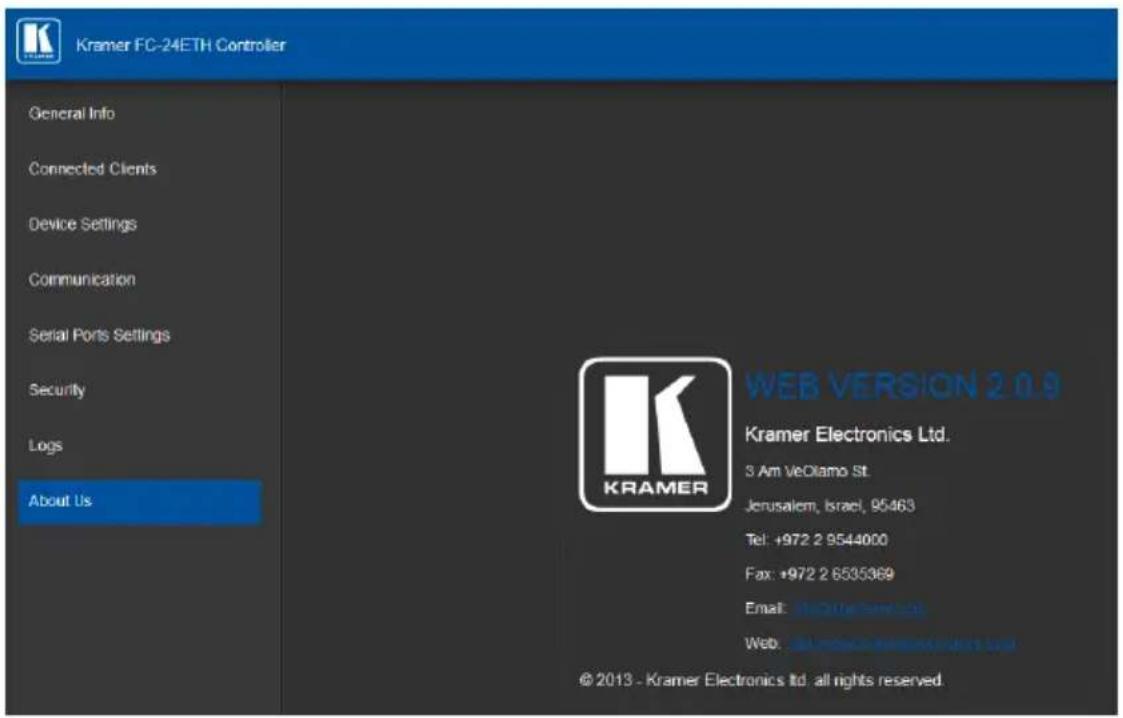
Figure 24: About Us Page
8 Configuring and Maintaining the FC-21ETH, FC-22ETH and FC-24ETH
This section describes:
• Selecting the RS-232 or RS-485 Port (see Section 8.1)
• Terminating the RS-485 bus (see Section 8.2)
• Activating DHCP (see Section 8.3)
- Resetting to the factory default settings (see Section 8.4)
• Upgrading the firmware (see Section 8.5)
8.1 Selecting the RS-232 or RS-485 Serial Port
The 3-pin Serial terminal block can be used as either an RS-232 or as an RS-485 port.
To set the Serial port as an RS-232 port:
- Release the RS-232/RS-485 button on the rear panel. The Serial RS-232 LED lights
To set the Serial port as an RS-485 port:
- Depress the RS-232/RS-485 button on the rear panel. The Serial RS-485 LED lights
8.2 Terminating the RS-485 Bus
The devices at both ends of the RS-485 chain must be terminated; all other devices in the chain must be left unterminated.
To terminate the RS-485 bus:
- Slide the RS-485 Term switch down
8.3 Activating DHCP
The IP address of the FC-21ETH, FC-22ETH and FC-24ETH can be set either statically or dynamically where it is issued by a DHCP server.
Note: FC-22ETH and FC-24ETH are supplied with DHCP activated. If you reset the unit to factory default settings, DHCP is deactivated.
. If you reset the unit to factory default settings, DHCP is deactivated.
To activate and deactivate DHCP:
-
Press the DHCP button on the front panel.
DHCP is activated, the DHCP LED lights green. -
Press the DHCP button again.
DHCP is deactivated and the DHCP LED no longer lights.
8.4 Resetting to the Factory Default Settings
To reset the device to its factory default settings:
- Turn off the power to the device.
- Press and hold the Reset button on the front panel.
- Turn on the power to the device while holding down the Reset button for a few seconds.
- Release the button.
The device is reset to the factory default settings.
8.5 Upgrading the Firmware
For instructions on upgrading the firmware see the "Kramer K-Upload User Manual".
9 Technical Specifications
| FC-21ETH | FC-22ETH | FC-24ETH | |
| Ports: | 1 Ethernet on an RJ-45 connector | ||
| 1 USB on a mini USB connector for programming | |||
| 1 RS-232/RS-485 serial port on a 3-pin terminal block | 1 RS-232/RS-485 serial port on a 3-pin terminal block1 RS-232 serial port on 3-pin terminal blocks | 1 RS-232/RS-485 serial port on a 3-pin terminal block3 RS-232 serial ports on 3-pin terminal blocks | |
| Maximum Serial Port Baud Rate: | 115200bps | ||
| Rs-232 Communication: | Transparent up to 115200bps | ||
| Overall Device Baudrate Support: | 150kbps | 140kbps | 180kbps |
| Supported Web Browsers: | Microsoft IE V9.0 and higherGoogle ChromeFirefox V3.0 and higher | ||
| Power Consumption: | 5V DC, 200mA | 5V DC, 250mA | |
| Operating Temperature: | 0° to +40°C (32° to 104°F) | ||
| Storage Temperature: | -40° to +70°C (-40° to 158°F) | ||
| Humidity: | 10% to 90%, RHL non-condensing | ||
| Dimensions: | 12.1cm x 6.97cm x 2.48cm(4.76" x 2.74" x 0.98") W, D, H | 18.8cm x 11.3cm x 2.5cm(7.4" x 4.5" x 1") W, D, H | |
| Weight: | 0.48kg (1.1lbs) approx. | 0.72kg (1.59lbs) approx. | |
| Included Accessories: | Power adapter | ||
| Options: | 19" Rack adapter RK-3T | 19" Rack adapter RK-T2B | |
| Specifications are subject to change without notice at www.kramerav.com | |||
9.1 Data Handling Performance
The FC-21ETH, FC-22ETH and FC-24ETH are designed to support mainly AV-relevant RS-232 communication.
These devices have overall data bandwidth limits which should be high enough in most AV installations to support the required communication bandwidth.
In extremely demanding cases, we recommend that you take into account the bandwidth limitations.
The total sustained data bandwidth that each device can handle for all ports simultaneously is as follows:
• FC-21ETH—150kbps
• FC-22ETH—140kbps
• FC-24ETH—180kbps
9.2 Example Bandwidth Calculation
The FC-22ETH has two serial ports. Each serial port can support up to:
• 140kbps / 2 = 70kbps
If each of your protocol commands is 100 bytes, (that is, 800bits), you can safely send and/or receive a minimum of 85 of these commands per second on each serial port ((140kbps * 1024) / 800bits / 2 = 89.2). The same calculation applies to all devices. A similar calculation applies when fewer ports are used at the same time; in this case higher bandwidth per port can be achieved.
In critical applications requiring a lossless data transfer, we recommend that communication on all the other ports is stopped when making a long file transfer (for example, when performing a firmware upgrade via one of the serial ports).
10 Default Communication Parameters
Note: FC-22ETH and FC-24ETH are supplied with DHCP activated. If you reset the unit to factory default settings, DHCP is deactivated.
| RS-232Protocol 3000 | |
| Baud Rate: | 115200 |
| Data Bits: | 8 |
| Stop Bits: | 1 |
| Parity: | None |
| Ethernet | |
| IP Address: | 192.168.1.39 |
| TCP Port Number: | 5000 |
| Network Mask: | 255.255.0.0 |
| Default Gateway: | 192.168.0.1 |
11 Kramer Protocol 3000
The FC-21ETH can be operated using serial commands from a PC, remote controller or touch screen using the Kramer Protocol 3000.
This section describes:
• Kramer Protocol 3000 syntax (see Section 11.1)
• Kramer Protocol 3000 commands (see Section 11.2)
11.1 Kramer Protocol 3000 – Syntax
11.1.1 Host Message Format
| Start | Address(optional) | Body | Delimiter |
| # | Destination_id@ | Message | CR |
11.1.1.1 Simple Command
Command string with only one command without addressing:
| Start | Body | Delimiter |
| # | Command SP Parameter_1,Parameter_2,... | CR |
11.1.1.2 Command String
Formal syntax with commands concatenation and addressing:
| Start | Address | Body | Delimiter |
| # | Destination_id@ | Command_1Parameter1_1,Parameter1_2,...|Command_2Parameter2_1,Parameter2_2,...|Command_3Parameter3_1,Parameter3_2,...|... | CR |
11.1.2 Device Message Format
| Start | Address(optional) | Body | delimiter |
| ~ | Sender_id@ | Message | CR LF |
11.1.2.1 Device Long Response
Echoing command:
| Start | Address (optional) | Body | Delimiter |
| ~ | Sender_id@ | Command SP [Param1,Param2 ...] result | CR LF |
CR= Carriage return (ASCII 13 = 0x0D)
LF = Line feed (ASCII 10 = 0x0A
= Space (ASCII 32 = 0x20)
11.1.3 Command Terms
Command
A sequence of ASCII letters ('A'-'Z', 'a'-'z' and '-'').
Command and parameters must be separated by at least one space.
Parameters
A sequence of alphanumeric ASCII characters ('0'-9', 'A'-Z', 'a'-z' and some special characters for specific commands). Parameters are separated by commas.
Message string
Every command entered as part of a message string begins with a message starting character and ends with a message closing character.
Note: A string can contain more than one command. Commands are separated by a pipe ('|') character.
Message starting character
'#' – For host command/query
'\~' – For device response
Device address (Optional, for K-NET)
K-NET Device ID followed by '@'
Query sign
'?' follows some commands to define a query request.
Message closing character
CR- For host messages; carriage return (ASCII 13)
CRLF – For device messages; carriage return (ASCII 13) + line-feed (ASCII 10)
Command chain separator character
When a message string contains more than one command, a pipe ('|') character separates each command.
Spaces between parameters or command terms are ignored.
11.1.4 Entering Commands
You can directly enter all commands using a terminal with ASCII communications software, such as HyperTerminal, Hercules, etc. Connect the terminal to the serial or Ethernet port on the Kramer device. To enter CR press the Enter key.
( LF is also sent but is ignored by command parser).
For commands sent from some non-Kramer controllers like Crestron, some characters require special coding (such as, /X##). Refer to the controller manual.
11.1.5 Command Forms
Some commands have short name syntax in addition to long name syntax to allow faster typing. The response is always in long syntax.
11.1.6 Chaining Commands
Multiple commands can be chained in the same string. Each command is delimited by a pipe character ("|"). When chaining commands, enter the message starting character and the message closing character only once, at the beginning of the string and at the end.
Commands in the string do not execute until the closing character is entered.
A separate response is sent for every command in the chain.
11.1.7 Maximum String Length
64 characters
11.2 Kramer Protocol 3000 – Command List
| Command | Description |
| # | Protocol handshaking |
| BUILD-DATE? | Read device build date |
| FACTORY | Restart the machine with the default |
| HELP | List of commands |
| LOGIN | Set/get protocol permission |
| LOGOUT | Demotes the terminal security level to minimum |
| MODEL? | Read device model |
| NAME | Set/get device (DNS) name |
| NET-DHCP | Set/get DHCP mode |
| NET-GATE | Set/get gateway IP |
| NET-IP | Set/get device IP address |
| NET-MAC? | Get the MAC address |
| NET-MASK | Set/get the device subnet mask |
| PASS | Set/get the password for login level |
| PROT-VER? | Get protocol version |
| RESET | Reset device |
| SECUR | Set/get current security state |
| SN? | Get device serial number |
| TIME | Set/get the time |
| TIME-LOC | Set/get local time offset from UTC/GMT |
| TIME-SRV | Set/get time synchronization from server |
| UART | Set/get a port serial parameters |
| VERSION? | Get firmware version number |
11.3 Kramer Protocol 3000 – Detailed Commands
This section lists the detailed commands applicable to the FC-21ETH, FC-22ETH, FC-24ETH.
| Command - # | Command Type - System-mandatory | ||
| Command Name | Permission | Transparency | |
| Set: | # | End User | Public |
| Get: | - | - | - |
| Description | Syntax | ||
| Set: | Protocol handshaking | #CR | |
| Get: | - | - | |
| Response | |||
| ~nn@SPOKCR LF | |||
| Parameters | |||
| Response triggers | |||
| Notes | |||
| Use to validate the Protocol 3000 connection and get the machine number | |||
| Command - BUILD-DATE? | Command Type - System-mandatory | ||
| Command Name | Permission | Transparency | |
| Set: | - | - | - |
| Get: | BUILD-DATE? | End User | Public |
| Description | Syntax | ||
| Set: | Read device build date | #BUILD-DATECR | |
| Get: | - | - | |
| Response | |||
| ~nn@BUILD-DATESPdateSPtimeCRLF | |||
| Parameters | |||
| date - Format: YYYY/MM/DD where YYYY = Year, MM = Month, DD = Day time - Format: hh:mm:ss where hh = hours, mm = minutes, ss = seconds | |||
| Response triggers | |||
| Notes | |||
| Command - FACTORY | Command Type - System-mandatory | ||
| Command Name | Permission | Transparency | |
| Set: | FACTORY | End User | Public |
| Get: | - | - | - |
| Description | Syntax | ||
| Set: | Reset device to factory defaults configuration | #FACTORYCR | |
| Get: | - | - | |
| Response | |||
| ~nn@BUILD-DATESPdateSPtimeCRLF | |||
| Parameters | |||
| Response triggers | |||
| Notes | |||
| This command deletes all user data from the device. The deletion can take some time. | |||
| Command - HELP | Command Type - System-mandatory | ||
| Command Name | Permission | Transparency | |
| Set: | - | - | - |
| Get: | HELP | End User | Public |
| Description | Syntax | ||
| Set: | - | - | |
| Get: | Get command list or help for specific command | 2 options:1. #HELPCR2. #HELPSPcommand_nameCR | |
| Response | |||
| 1. Multi-line: ~nn@Device available protocol 3000 commands: CR LF command, SP command... CR LFTo get help for command use: HELP (COMMAND_NAME) CR LF2. Multi-line: ~nn@HELP SP command: CR LF description CR LF USAGE: usage CR LF | |||
| Parameters | |||
| Response triggers | |||
| Notes | |||
| Command - LOGIN | Command Type - Authentication | ||
| Command Name | Permission | Transparency | |
| Set: | LOGIN | Not Secure | Public |
| Get: | LOGIN? | Not Secure | Public |
| Description | Syntax | ||
| Set: | Set protocol permission | #LOGIN _SP login_level, password _CR | |
| Get: | Get current protocol permission level | #LOGIN? _CR | |
| Response | |||
| Set: ~nn@LOGIN _SP login_level,password _SP OK _CR LFor~nn@LOGIN _SP ERR _SP 004 _CR LF(if bad password entered)Get: ~nn@LOGIN _SP login_level _CR LF | |||
| Parameters | |||
| login_level - level of permissions required (End User or Admin)password - predefined password (by PASS command). Default password is an empty string | |||
| Response triggers | |||
| Notes | |||
| For devices that support security, LOGIN allows to the user to run commands with an End User or Administrator permission levelIn each device, some connections can be logged in to different levels and some do not work with security at allConnection may logout after timeoutThe permission system works only if security is enabled with the “SECUR” command | |||
| Command - LOGOUT | Command Type - Authentication | ||
| Command Name | Permission | Transparency | |
| Set: | LOGOUT | Not Secure | Public |
| Get: | - | - | - |
| Description | Syntax | ||
| Set: | Cancel current permission level | #LOGOUTCR | |
| Get: | - | - | |
| Response | |||
| ~nn@LOGOUTSP OKCR LF | |||
| Parameters | |||
| Response triggers | |||
| Notes | |||
| Logs out from End User or Administrator permission levels to Not Secure | |||
| Command - MODEL? | Command Type - System-mandatory | ||
| Command Name | Permission | Transparency | |
| Set: | - | - | - |
| Get: | MODEL? | End User | Public |
| Description | Syntax | ||
| Set: | - | - | |
| Get: | Get device model | #MODEL?CR | |
| Response | |||
| ~nn@MODELSPmodel_nameCRLF | |||
| Parameters | |||
| model_name - String of up to 19 printable ASCII chars | |||
| Response triggers | |||
| Notes | |||
| Command - NAME | Command Type - System (Ethernet) | ||
| Command Name | Permission | Transparency | |
| Set: | NAME | Administrator | Public |
| Get: | NAME? | End User | Public |
| Description | Syntax | ||
| Set: | Set machine (DNS) name | #NAMESPmachine_nameCR | |
| Get: | Get machine (DNS) name | #NAME?CR | |
| Response | |||
| Set: ~nn@NAMESPmachine_nameSPOKCR LF | |||
| Get: ~nn@NAME?SPmachine_nameCR LF | |||
| Parameters | |||
| machine_name - String of up to 14 alpha-numeric chars (can include hyphen, not at the beginning or end) | |||
| Response triggers | |||
| Notes | |||
| The machine name is not the same as the model name. The machine name is used to identify a specific machine or a network in use (with DNS feature on) | |||
| Command - NET-DHCP | Command Type - Communication | ||
| Command Name | Permission | Transparency | |
| Set: | NET-DHCP | Administrator | Public |
| Get: | NET-DHCP? | End User | Public |
| Description | Syntax | ||
| Set: | Set DHCP mode | #NET-DHCPSPmodeCR | |
| Get: | Get DHCP mode | #NET-DHCP?CR | |
| Response | |||
| Set: ~nn@ NET-DHCPSPmodeSPOKCR LF | |||
| Get: ~nn@ NET-DHCPSPmodeCR LF | |||
| Parameters | |||
| mode - 0 - Do not use DHCP. Use the IP set by the factory or using the IP set command1 - Try to use DHCP. If unavailable, use IP as above | |||
| Response triggers | |||
| Notes | |||
| Connecting Ethernet to devices with DHCP may take more time in some networksTo connect with a randomly assigned IP by DHCP, specify the device DNS name (if available) using the command “NAME”. You can also get an assigned IP by direct connection to USB or RS-232 protocol port if availableFor proper settings consult your network administrator | |||
| Command - NET-GATE | Command Type - Communication | ||
| Command Name | Permission | Transparency | |
| Set: | NET-GATE | Administrator | Public |
| Get: | NET-GATE? | End User | Public |
| Description | Syntax | ||
| Set: | Set Gateway IP | #NET-GATESPip_addressCR | |
| Get: | Get Gateway IP | #NET-GATE?CR | |
| Response | |||
| Set: ~nn@ NET-GATESPip_addressSPOKCR LF | |||
| Get: ~nn@ NET-GATESPip_addressCR LF | |||
| Parameters | |||
| ip_address - format: xxx.xxx.xxx.xxx | |||
| Response triggers | |||
| Notes | |||
| A network gateway connects the device via another network and maybe over the Internet. Be careful of security problems. For proper settings consult your network administrator | |||
| Command - NET-IP | Command Type - Communication | ||
| Command Name | Permission | Transparency | |
| Set: | NET-IP | Administrator | Public |
| Get: | NET-IP? | End User | Public |
| Description | Syntax | ||
| Set: | Set device IP address | #NET-IP _SP ip_address _CR | |
| Get: | Get device IP address | #NET-IP? _CR | |
| Response | |||
| Set: ~nn@ NET-IP _SP ip_address _SP OK _CR LFGet: ~nn@ NET-IP _SP ip_address _CR LF | |||
| Parameters | |||
| ip_address - format: xxx.xxx.xxx.xxx | |||
| Response triggers | |||
| Notes | |||
| For proper settings consult your network administrator | |||
| Command - NET-MAC? | Command Type - Communication | ||
| Command Name | Permission | Transparency | |
| Set: | - | - | - |
| Get: | NET-MAC? | End User | Public |
| Description | Syntax | ||
| Set: | |||
| Get: | Get MAC address | #NET-MAC?CR | |
| Response | |||
| ~nn@NET-MACSP mac_addressCR LF | |||
| Parameters | |||
| mac_address - Unique MAC address. Format: XX-XX-XX-XX-XX where X is hex digit | |||
| Response triggers | |||
| Notes | |||
| Command - NET-MASK | Command Type - Communication | ||
| Command Name | Permission | Transparency | |
| Set: | NET-MASK | Administrator | Public |
| Get: | NET-MASK? | End User | Public |
| Description | Syntax | ||
| Set: | Set device subnet mask | #NET-MASKSPnet_maskCR | |
| Get: | Get device subnet mask | #NET-MASK?CR | |
| Response | |||
| Set: ~nn@NET-MASKSPnet_maskSPOKCR LF | |||
| Get: ~nn@NET-MASKSPnet_maskCR LF | |||
| Parameters | |||
| net_mask - format: xxx.xxx.xxx.xxx | |||
| Response triggers | |||
| The subnet mask limits the Ethernet connection within the local networkFor proper settings consult your network administrator | |||
| Notes | |||
| Command - PASS | Command Type - Authentication | ||
| Command Name | Permission | Transparency | |
| Set: | PASS | Administrator | Public |
| Get: | PASS? | Administrator | Public |
| Description | Syntax | ||
| Set: | Set password for login level | #PASS _SP login_level, password _CR | |
| Get: | Get password for login level | #PASS? _SP login_level _CR | |
| Response | |||
| ~hn@PASS _SP login_level, password _SP OK _CR LF | |||
| Parameters | |||
| login_level - level of login to set (End User or Administrator).password - password for the login_level. Up to 15 printable ASCII chars | |||
| Response triggers | |||
| Notes | |||
| The default password is an empty string | |||
| Command - PROT-VER? | Command Type - System-mandatory | ||
| Command Name | Permission | Transparency | |
| Set: | - | - | - |
| Get: | PROT-VER? | End User | Public |
| Description | Syntax | ||
| Set: | - | - | |
| Get: | Get protocol version | #PROT-VER?CR | |
| Response | |||
| ~nn@PROT-VERSP3000:versionCR LF | |||
| Parameters | |||
| Version - XX.XX where X is a decimal digit | |||
| Response triggers | |||
| Notes | |||
| Command - RESET | Command Type - System-mandatory | ||
| Command Name | Permission | Transparency | |
| Set: | RESET | Administrator | Public |
| Get: | - | - | - |
| Description | Syntax | ||
| Set: | Reset device | #RESETCR | |
| Get: | - | - | |
| Response | |||
| ~nn@RESET$P OK CR LF | |||
| Parameters | |||
| Response triggers | |||
| Notes | |||
| To avoid locking the port due to a USB bug in Windows, disconnect USB connections immediately after running this command. If the port was locked, disconnect and reconnect the cable to reopen the port. | |||
| Command - SECUR | Command Type - Authentication | ||
| Command Name | Permission | Transparency | |
| Set: | SECUR | Administrator | Public |
| Get: | SECUR? | Not Secure | Public |
| Description | Syntax | ||
| Set: | Set security | #SECURSPsecurity_modeCR | |
| Get: | Get current security state | #SECUR?CR | |
| Response | |||
| Set: ~hn@SECURSPsecurity_modeSPOKCR LF | |||
| Get: ~hn@SECURSPsecurity_modeCR LF | |||
| Parameters | |||
| security_mode – 1/ON - enables security, 0/OFF - disables security | |||
| Response triggers | |||
| Notes | |||
| The permission system works only if security is enabled with the “SECUR” command | |||
| Command - SN? | Command Type - System-mandatory | ||
| Command Name | Permission | Transparency | |
| Set: | - | - | - |
| Get: | SN? | End User | Public |
| Description | Syntax | ||
| Set: | - | - | |
| Get: | Get serial number | #SN?CR | |
| Response | |||
| ~nn@SNSPserial_numberCRLF | |||
| Parameters | |||
| serial_number - 11 decimal digits, factory assigned | |||
| Response triggers | |||
| Notes | |||
| For new products with 14 digit serial numbers, use only the last 11 digits | |||
| Command - TIME | Command Type - System | ||
| Command Name | Permission | Transparency | |
| Set: | TIME | Administrator | Public |
| Get: | TIME? | End User | Public |
| Description | Syntax | ||
| Set: | Set device time and date | #TIMESPday_of_week, date, timeCR | |
| Get: | Get device time and date | #TIME?CR | |
| Response | |||
| ~hn@TIME SPday_of_week, date, time SP OK CR LF | |||
| Parameters | |||
| day_of_week - one of {SUN,MON,TUE,WED,THU,FRI,SAT}date - Format: DD-MM-YYYY.time - Format: hh:mm:ss | |||
| Response triggers | |||
| Notes | |||
| The year must be 4 digitsThe device does not validate the day of week from the dateTime format - 24 hoursDate format - Day, Month, Year | |||
| Command - TIME-LOC | Command Type - System | ||
| Command Name | Permission | Transparency | |
| Set: | TIME-LOC | End User | Public |
| Get: | TIME-LOC? | End User | Public |
| Description | Syntax | ||
| Set: | Set local time offset from UTC/GMT | #TIME-LOC _SP UTC_off,DayLight _CR | |
| Get: | Get local time offset from UTC/GMT | #TIME-LOC? _CR | |
| Response | |||
| ~nn@TIME-LOC _SP UTC_off,DayLight _CR LF | |||
| Parameters | |||
| UTC_off - Offset of device time from UTC/GMT (without daylight time correction)DayLight - 0 - no daylight saving time, 1 - daylight saving time | |||
| Response triggers | |||
| Notes | |||
| If the time server is configured, device time calculates by adding UTC_off to UTC time (that it got from the time server) + 1 hour if daylight savings time is in effectTIME command sets the device time without considering these settings | |||
| Command - TIME-SRV | Command Type - System | ||
| Command Name | Permission | Transparency | |
| Set: | TIME-SRV | End User | Public |
| Get: | TIME-SRV? | End User | Public |
| Description | Syntax | ||
| Set: | Set time synchronization from server | #TIME-SRV _SP mode, srv_ip, sync_hour _CR | |
| Get: | Get time synchronization settings | #TIME-SRV? _CR | |
| Response | |||
| For Set: ~nn@TIME-SRV _SP mode,srv_ip,sync_hour _CR LF For Get: ~nn@TIME-SRV _SP mode,srv_ip,server_status,sync_hour _CR LF | |||
| Parameters | |||
| Mode - 0 - disabled, 1 - enabledsrv_ip - time server IP addresssync_hour - hour in day for time syncserver_status - ON/OFF | |||
| Response triggers | |||
| Notes | |||
| Device must have a valid gateway (NTGT command) and DNS server (NTDNS command) | |||
| Command - UART | Command Type - Communication | ||
| Command Name | Permission | Transparency | |
| Set: | UART | Administrator | Public |
| Get: | UART? | End User | Public |
| Description | Syntax | ||
| Set: | Set com port configuration | # UART _SP COM_Num, baud_rate, data_bit, parity, stop_bit _CR | |
| Get: | Get com port configuration | # UART? _SP COM_Num _CR | |
| Response | |||
| Set: ~ nn@ UART _SP COM_Num, baud_rate, data_bit, parity, stop_bit _CR LF Get: ~ nn@ UART _SP COM_Num, baud_rate, data_bit, parity, stop_bit, serial1_type, 485_term _CR LF | |||
| Parameters | |||
| COM_Num - 1-4baud_rate - 9600 - 115200data_bit - 7-8parity - See Section11.4.1 Parity Typesstop_bit - 1-2serial1_type - 232/485 (see Section 11.4.2 Serial Types)485_term - 1/0 (optional - this exists exist only when serial1_type = 485) | |||
| Response triggers | |||
| Notes | |||
| In the FC-2x the serial port is selectable to RS-232 or RS-485 (usually serial port 1).If Serial1 is configured when RS-485 is selected, the RS-485 UART port is automatically changed | |||
| Command - VERSION? | Command Type - System-mandatory | ||
| Command Name | Permission | Transparency | |
| Set: | - | - | - |
| Get: | VERSION? | End User | Public |
| Description | Syntax | ||
| Set: | - | - | |
| Get: | Get firmware version number | #VERSION?CR | |
| Response | |||
| ~nn@VERSIONSPfirmware_versionCR LF | |||
| Parameters | |||
| firmware_version - XX.XX.XXXX where the digit groups are: major.minor.build version | |||
| Response triggers | |||
| Notes | |||
11.4 Parameters
11.4.1 Parity Types
| Number | Value |
| 0 | No |
| 1 | Odd |
| 2 | Even |
| 3 | Mark |
| 4 | Space |
11.4.2 Serial Types
| Number | Value |
| 0 | 232 |
| 1 | 485 |
LIMITED WARRANTY
The warranty obligations of Kramer Electronics for this product are limited to the terms set forth below:
What is Covered
This limited warranty covers defects in materials and workmanship in this product.
What is Not Covered
This limited warranty does not cover any damage, deterioration or malfunction resulting from any alteration, modification, improper or unreasonable use or maintenance, misuse, abuse, accident, neglect, exposure to excess moisture, fire, improper packing and shipping (such claims must be presented to the carrier), lightning, power surges, or other acts of nature. This limited warranty does not cover any damage, deterioration or malfunction resulting from the installation or removal of this product from any installation, any unauthorized tampering with this product, any repairs attempted by anyone unauthorized by Kramer Electronics to make such repairs, or any other cause which does not relate directly to a defect in materials and/or workmanship of this product. This limited warranty does not cover cartons, equipment enclosures, cables or accessories used in conjunction with this product.
Without limiting any other exclusion herein, Kramer Electronics does not warrant that the product covered hereby, including, without limitation, the technology and/or integrated circuit(s) included in the product, will not become obsolete or that such items are or will remain compatible with any other product or technology with which the product may be used.
How Long Does this Coverage Last
Seven years as of this printing; please check our Web site for the most current and accurate warranty information.
Who is Covered
Only the original purchaser of this product is covered under this limited warranty. This limited warranty is not transferable to subsequent purchasers or owners of this product.
What Kramer Electronics will do
Kramer Electronics will, at its sole option, provide one of the following three remedies to whatever extent it shall deem necessary to satisfy a proper claim under this limited warranty:
-
Elect to repair or facilitate the repair of any defective parts within a reasonable period of time, free of any charge for the necessary parts and labor to complete the repair and restore this product to its proper operating condition. Kramer Electronics will also pay the shipping costs necessary to return this product once the repair is complete.
-
Replace this product with a direct replacement or with a similar product deemed by Kramer Electronics to perform substantially the same function as the original product.
-
Issue a refund of the original purchase price less depreciation to be determined based on the age of the product at the time remedy is sought under this limited warranty.
What Kramer Electronics will not do Under This Limited Warranty
If this product is returned to Kramer Electronics or the authorized dealer from which it was purchased or any other party authorized to repair Kramer Electronics products, this product must be insured during shipment, with the insurance and shipping charges prepaid by you. If this product is returned uninsured, you assume all risks of loss or damage during shipment. Kramer Electronics will not be responsible for any costs related to the removal or re-installation of this product from or into any installation. Kramer Electronics will not be responsible for any costs related to any setting up this product, any adjustment of user controls or any programming required for a specific installation of this product.
How to Obtain a Remedy under this Limited Warranty
To obtain a remedy under this limited warranty, you must contact either the authorized Kramer Electronics reseller from whom you purchased this product or the Kramer Electronics office nearest you. For a list of authorized Kramer Electronics resellers and/or Kramer Electronics authorized service providers, please visit our web site at www.kramerelectronics.com or contact the Kramer Electronics office nearest you.
In order to pursue any remedy under this limited warranty, you must possess an original, dated receipt as proof of purchase from an authorized Kramer Electronics reseller. If this product is returned under this limited warranty, a return authorization number, obtained from Kramer Electronics, will be required. You may also be directed to an authorized reseller or a person authorized by Kramer Electronics to repair the product.
If it is decided that this product should be returned directly to Kramer Electronics, this product should be properly packed, preferably in the original carton, for shipping. Cartons not bearing a return authorization number will be refused.
Limitation on Liability
THE MAXIMUM LIABILITY OF KRAMER ELECTRONICS UNDER THIS LIMITED WARRANTY SHALL NOT EXCEED THE ACTUAL PURCHASE PRICE PAID FOR THE PRODUCT. TO THE MAXIMUM EXTENT PERMITTED BY LAW, KRAMER ELECTRONICS IS NOT RESPONSIBLE FOR DIRECT, SPECIAL, INCIDENTAL OR CONSEQUENTIAL DAMAGES RESULTING FROM ANY BREACH OF WARRANTY OR CONDITION, OR UNDER ANY OTHER LEGAL THEORY. Some countries, districts or states do not allow the exclusion or limitation of relief, special, incidental, consequential or indirect damages, or the limitation of liability to specified amounts, so the above limitations or exclusions may not apply to you.
Exclusive Remedy
TO THE MAXIMUM EXTENT PERMITTED BY LAW, THIS LIMITED WARRANTY AND THE REMEDIES SET FORTH ABOVE ARE EXCLUSIVE AND IN LIEU OF ALL OTHER WARRANTIES, REMEDIES AND CONDITIONS, WHETHER ORAL OR WRITTEN, EXPRESS OR IMPLIED. TO THE MAXIMUM EXTENT PERMITTED BY LAW, KRAMER ELECTRONICS SPECIFICALLY DISCLAIMS ANY AND ALL IMPLIED WARRANTIES, INCLUDING, WITHOUT LIMITATION, WARRANTIES OF MERCHANTABILITY AND FITNESS FOR A PARTICULAR PURPOSE. IF KRAMER ELECTRONICS CANNOT LAWFULLY DISCLAIM OR EXCLUDE IMPLIED WARRANTIES UNDER APPLICABLE LAW, THEN ALL IMPLIED WARRANTIES COVERING THIS PRODUCT, INCLUDING WARRANTIES OF MERCHANTABILITY AND FITNESS FOR A PARTICULAR PURPOSE, SHALL APPLY TO THIS PRODUCT AS PROVIDED UNDER APPLICABLE LAW. IF ANY PRODUCT TO WHICH THIS LIMITED WARRANTY APPLIES IS A 'CONSUMER PRODUCT' UNDER THE MAGNUSON-MOSS WARRANTY ACT (15 U.S.C.A. §2301, ET SEQ.) OR OTHER APPLICABLE LAW, THE FOREGOING DISCLAIMER OF IMPLIED WARRANTIES SHALL NOT APPLY TO YOU, AND ALL IMPLIED WARRANTIES ON THIS PRODUCT, INCLUDING WARRANTIES OF MERCHANTABILITY AND FITNESS FOR THE PARTICULAR PURPOSE, SHALL APPLY AS PROVIDED UNDER APPLICABLE LAW.
Other Conditions
This limited warranty gives you specific legal rights, and you may have other rights which vary from country to country or state to state.
This limited warranty is void if (i) the label bearing the serial number of this product has been removed or defaced, (ii) the product is not distributed by Kramer Electronics or (iii) this product is not purchased from an authorized Kramer Electronics reseller. If you are unsure whether a reseller is an authorized Kramer Electronics reseller, please visit our Web site at
www.kramerelectronics.com or contact a Kramer Electronics office from the list at the end of this document.
Your rights under this limited warranty are not diminished if you do not complete and return the product registration form or complete and submit the online product registration form. Kramer Electronics thanks you for purchasing a Kramer Electronics product. We hope it will give you years of satisfaction.

For the latest information on our products and a list of Kramer distributors, visit our Web site where updates to this user manual may be found.
We welcome your questions, comments, and feedback.
Web site: www.kramerav.com
E-mail: info@kramerel.com





SAFETY WARNING
D is connect the unit from the power supply before opening and servicing
P/N: 2900-300221
Rev: 6