PX2411W - Monitor Planar - Free user manual and instructions
Find the device manual for free PX2411W Planar in PDF.


| Brand | Planar |
| Model | PX2411W |
| Category | Monitor |
| Screen Size | 24 inches (61 cm) |
| Native Resolution | 1920 x 1200 (WUXGA) |
| Aspect Ratio | 16:10 |
| Panel Type | IPS (estimated) |
| Brightness | 300 cd/m² (typical) |
| Contrast Ratio | 1000:1 (typical) |
| Response Time | 5 ms (GTG) |
| Viewing Angles | 178° horizontal / 178° vertical |
| Connectivity | DVI-D, VGA, DisplayPort (estimated) |
| Power Consumption | Typical 40W, Standby <1W |
| Dimensions (with stand) | 22.2 x 16.6 x 9.3 inches (565 x 422 x 237 mm) |
| Weight (with stand) | 14.5 lbs (6.6 kg) |
| VESA Mount | 100 x 100 mm |
| Features | Anti-glare, tilt, swivel, height adjustable stand (estimated) |
| Cleaning | Use a soft, dry cloth; avoid harsh chemicals |
| Safety | UL/cUL, FCC Class B, CE, RoHS compliant |
| Spare Parts & Reparability | Contact Planar support for replacement parts; repair not user-serviceable |
Frequently Asked Questions - PX2411W Planar
User questions about PX2411W Planar
0 question about this device. Answer the ones you know or ask your own.
Ask a new question about this device
Download the instructions for your Monitor in PDF format for free! Find your manual PX2411W - Planar and take your electronic device back in hand. On this page are published all the documents necessary for the use of your device. PX2411W by Planar.
USER MANUAL PX2411W Planar
Planar provides the following technical support services:
Internet Support
For support available 24/7 visit Planar's Online Technical Support at www.planar.com/support. Our Online Technical Support is where you'll find solutions to many common problems, download documentation, view answers to frequently asked questions (FAQs) and get troubleshooting advice, or email Planar your support question.
Talk to a Customer Service Representative
To contact Planar's Customer First(TM) Technical Support Service call 1.866.PLANAR.1 (866.752.6271). This service is available 5am - 5pm Pacific Time, 8am - 8pm Eastern Time, Monday through Friday.
Contact Us
24x7 Online Technical Support: http://www.planar.com/support
Email: PlanarSupport@planar.com
Tel: 1-866-PLANAR1 (866) 752-6271
Hours: M-F, 5am - 5pm Pacific Time, 8am - 8pm Eastern
The information contained in this document is subject to change without notice. This document contains proprietary information that is protected by copyright. All rights are reserved. No part of this document may be reproduced, translated to another language or stored in a retrieval system, or transmitted by any means, electronic, mechanical, photocopying, recording, or otherwise, without prior written permission. Windows is a registered trademark of Microsoft Inc. Other brand or product names are trademarks of their respective holders.
TABLE OF CONTENTS
For Your Safety
For Your Safety ----5
General Notes
Special notes on LCD monitors 7
Other notes 7
Before You Operate The Monitor
Features 8
Checking the contents of the package 8
Installation Instructions
Power source 9
Connecting the cables 10
Tilt and height adjustment 11
Operating Instructions
External controls 12
How to adjust a setting 14
The descriptions for function control LEDs 15
Technical Support (FAQ)
Technical Support (FAQ) 17
Error message & possible solution 18
Appendix
Specifications 19
Preset display modes 21
Connector pin assignment 22
FOR YOUR SAFETY
Before operating the monitor, please read this manual thoroughly. This manual should be retained for future reference.
FCC Class B Radio Frequency Interference Statement WARNING: (FOR FCC CERTIFIED MODELS)
NOTE: This equipment has been tested and found to comply with the limits for a Class B digital device, pursuant to Part 15 of the FCC Rules. These limits are designed to provide reasonable protection against harmful interference in a residential installation. This equipment generates, uses and can radiate radio frequency energy, and if not installed and used in accordance with the instructions, may cause harmful interference to radio communications. However, there is no guarantee that interference will not occur in a particular installation. If this equipment does cause harmful interference to radio or television reception, which can be determined by turning the equipment off and on, the user is encouraged to try to correct the interference by one or more of the following measures:
- Reorient or relocate the receiving antenna.
- Increase the separation between the equipment and receiver.
- Connect the equipment into an outlet on a circuit different from that to which the receiver is connected.
- Consult the dealer or an experienced radio/TV technician for help.

_AMP(S) INSIDE THIS PRODUCT CONTAIN MERCURY AND MUST BERECYCLED OR DISPOSED OF ACCORDING TO LOCAL, STATE OR FEDERAL LAWS. FOR MORE INFORMATION, CONTACT THE ELECTRONIC INDUSTRIES ALLIANCE AT WWW.EIAE.ORG. FOR LAMP SPECIFIC DISPOSAL INFORMATION CHECK WWW.LAMPRECYCLE.ORG.
NOTICE:
- The changes or modifications not expressly approved by the party responsible for compliance could void the user's authority to operate the equipment.
- Shielded interface cables and AC power cord, if any, must be used in order to comply with the emission limits.
- The manufacturer is not responsible for any radio or TV interference caused by unauthorized modification to this equipment. It is the responsibilities of the user to correct such interference.
WARNING:
To prevent fire or shock hazard, do not expose the monitor to rain or moisture. Dangerously high voltages are present inside the monitor. Do not open the cabinet. Refer servicing to qualified personnel only.
PRECAUTIONS
- Do not use the monitor near water, e.g. near a bathtub, washbowl, kitchen sink, laundry tub, swimming pool or in a wet basement.
- Do not place the monitor on an unstable cart, stand, or table. If the monitor falls, it can injure a person and cause serious damage to the appliance. Use only a cart or stand recommended by the manufacturer or sold with the monitor. If you mount the monitor on a wall or shelf, use a mounting kit approved by the manufacturer and follow the kit instructions.
- Slots and openings in the back and bottom of the cabinet are provided for ventilation. To ensure reliable operation of the monitor and to protect it from overheating, be sure these openings are not blocked or covered. Do not place the monitor on a bed, sofa, rug, or similar surface. Do not place the monitor near or over a radiator or heat register. Do not place the monitor in a bookcase or cabinet unless proper ventilation is provided.
- Do not install the monitor in a location near heat sources such as radiators or air ducts, or in a place subject to direct sunlight, or excessive dust or mechanical vibration or shock.
- The monitor should be operated only from the type of power source indicated on the label. If you are not sure of the type of power supplied to your home, consult your dealer or local power company.
- The monitor is equipped with a three-pronged grounded plug, a plug with a third (grounding) pin. This plug will fit only into a grounded power outlet as a safety feature. If your outlet does not accommodate the three-wire plug, have an electrician install the correct outlet or ground the appliance safely. Do not defeat the safety purpose of the grounded plug.
- Unplug the unit during a lightning storm or when it will not be used for long period of time. This will protect the monitor from damage due to power surges.
- Do not overload power strips and extension cords. Overloading can result in fire or electric shock.
- Never push any object into the slot on the monitor cabinet. It could short circuit parts causing a fire or electric shock. Never spill liquids on the monitor.
- Do not attempt to service the monitor by yourself. Opening or removing covers can expose you to dangerous voltages and other hazards. Please refer all servicing to qualified service personnel.
- To ensure satisfactory operation, use the monitor only with UL listed computers which have appropriate configured receptacles marked between 100 - 240V AC. Min. 5A.
- The wall socket shall be installed near the equipment and shall be easily accessible.
GENERAL NOTES
SPECIAL NOTES ON LCD MONITORS
The following symptoms are normal with LCD monitor and do not indicate a problem.
- Due to the nature of the fluorescent light, the screen may flicker during initial use. Turn off the Power Switch and then turn it on again to make sure the flicker disappears.
- You may find slightly uneven brightness on the screen depending on the desktop pattern you use.
- The LCD panel used in this monitor is a very high technology product with 6,912,000 thin film transistors giving you fine picture details. Occasionally, a few non-active pixels may appear on the screen as a fixed point of red, green, blue, white or black. Please note that this does not indicate a defective panel.
- Due to the nature of the LCD screen, an after-image of the previous screen may remain after switching the image when the same image has been displayed for a long time. The monitor will slowly recover from this.
- LCD monitors have a fixed size & number of pixels. Due to this, an interpolation is necessary to operate the monitor in a relation below it's native resolution which may slightly degrade the display quality. Therefore, it is highly recommended to operate the monitor at its native resolution of 1920 x 1200 @ 60Hz.
OTHER NOTES
- The screen surface is very soft. Do not rub, touch or tap the screen surface with sharp object such as pen or pencil. This contact may scratch or damage the screen. These damages are not covered under the warranty.
- Turn your computer OFF before installing your new monitor. Refer to your computer manual for the proper shut down procedure.
- Save the original shipping carton and packing materials, as they will come in handy if you ever have to ship your monitor.
- For maximum protection, repackage your monitor as it was originally packed at the factory.
- To keep the monitor looking new, periodically clean the case & surface of the TFT-LCD panel with a soft non-fiberous cloth lightly dampened with a glass cleaner. Do not use any paper products to clean the screen. Never spay the glass cleaner directly on the monitor. Never use strong solvents such as thinner, benzene, or abrasive cleaners, since these will damage the case & panel. As a safety precaution, always unplug the monitor before cleaning it.
• 24" (61cm) TFT Color LCD Monitor
- Crisp & Clear Display for Windows
• Recommended Resolution: 1920 X 1200 @ 60Hz
• Ergonomic Design with Tilt Adjustable Stand
• Space Saving, Compact Case Design
CHECKING THE CONTENTS OF THE PACKAGE
The product package should include the following items:
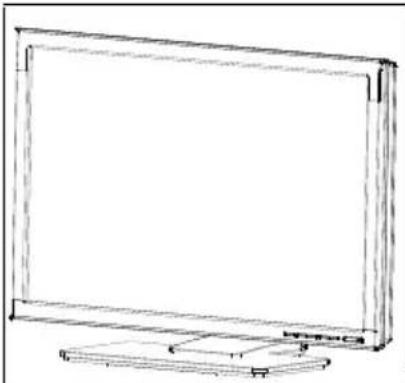 | 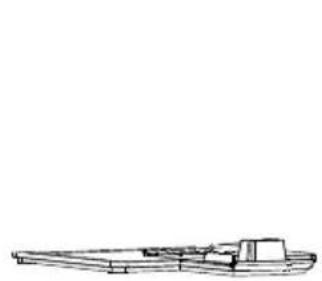 |  |
| Monitor | Base | User Manual |
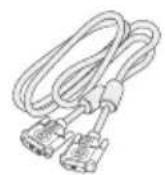 | 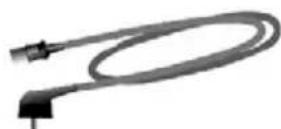 | 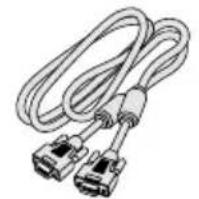 |
| 24-Pin DVI Cable | Power Cord 15-pin D-Sub Cable | |
Register Your Planar Products Today
Thank you for choosing Planar. To assure you receive all the benefits of your Planar product and services, register your Planar product today. Visit our website to register your product at http://www.planar.com/support/product_registration.html
Cables, Replacement Lamps and Accessories
To find cables, replacement lamps and accessories for your Planar projector, LCD monitor, touchscreen or other Planar products visit our online store at www.PlanarOnline.com or find other stores who carry Planar products at http://www.planar.com/howtobuy
Power Source:
- Make sure that the power cord is the correct type required in your area.
- This LCD monitor has an internal Universal Power Supply that allows operation in either 100/120V AC or 220/240V AC voltage area (No user adjustment is required.)
- Connect the AC-power cord into your LCD monitor's AC-power-input. The AC-power cord may be connected to either a wall power outlet or the power outlet socket on your PC, depending on the type of power cord supplied with your LCD monitor.
A certified power supply cord has to be used with this equipment. The relevant national installation and/or equipment regulations shall be considered. A certified power supply cord not lighter than ordinary polyvinyl chloride flexible cord according to IEC 60227 (designation H05VV-F 3G 0.75mm ^2 or H05VVH2-F2 3G 0.75mm ^2 ) shall be used. As an alternate, a flexible cord of synthetic rubber according to IEC 60245 (designation H05RR-F 3G 0.75mm ^2 ) shall be used.
The accessory power cord for the Northern American region is the wall plug with NEMA 5-15 style and is UL listed and CSA labeled. The voltage rating for the power cord shall be 125 volts AC.
Supplied with units intended for connection to power outlet of personal computer: Please use a cord set consisting of a minimum No. 18 AWG, type SJT or SVT three conductors flexible cord. One end terminates with a grounding type attachment plug, rated 10A, 250V, CEE-22 male configuration. The other end terminates with a molded-on type connector body, rated 10A, 250V, having standard CEE-22 female configuration.
Please note that power supply cord needs to use VDE 0602, 0625, 0821 approval power cord in European counties.
INSTALLATION INSTRUCTIONS (cont.)
Connecting The Cables
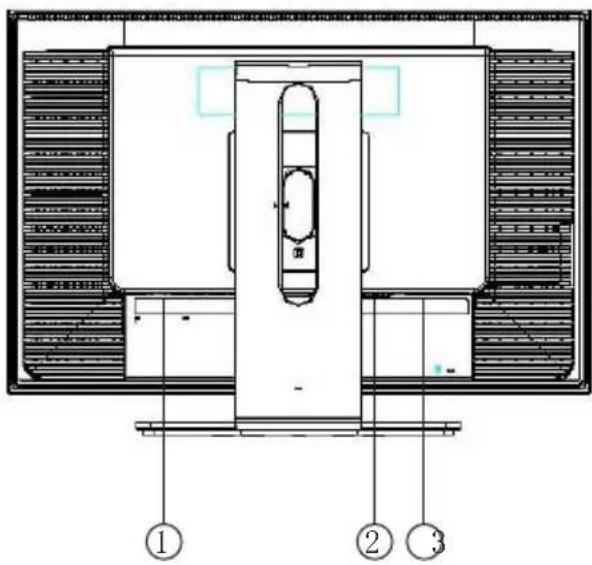
text_image
Technical diagram of a mechanical or architectural component with numbered annotations pointing to structural sections.Figure 2 Connecting Cables
| 1. | AC Power Cord | 2 | DVI Cable |
| 3. | 15-pin D-SUB Cable |
Turn off your computer before performing the procedure below.
- Connect the female end of the AC power cord to the AC-in port on the back of the monitor. Connect the other end to a nearby AC-outlet.
- Connect one end of the 15-pin D-Sub cable to the back of the monitor and connect the other end to the computer's D-Sub port.
- (Optional – Requires a video card with DVI port) Connect one end of the 24-pin DVI cable to the back of the monitor and connect the other end to the computer's DVI port. be tightened.
- Turn on your monitor and computer. If you monitor displays an image, installation is complete. If not, refer to the FAQ (frequently asked questions) section for troubleshooting.
INSTALLATION INSTRUCTIONS (cont.)
Tilt Adjustment
For optimal viewing it is recommended to look at the full face of the monitor, then adjust the monitor's angle to your own preference.
Hold the stand so you do not topple the monitor when you change the monitor's angle.
You are able to adjust the monitor's angle from -5^ to 20^ .
You are able to adjust the monitor's height adjustable stand 3.55"(90.2mm).
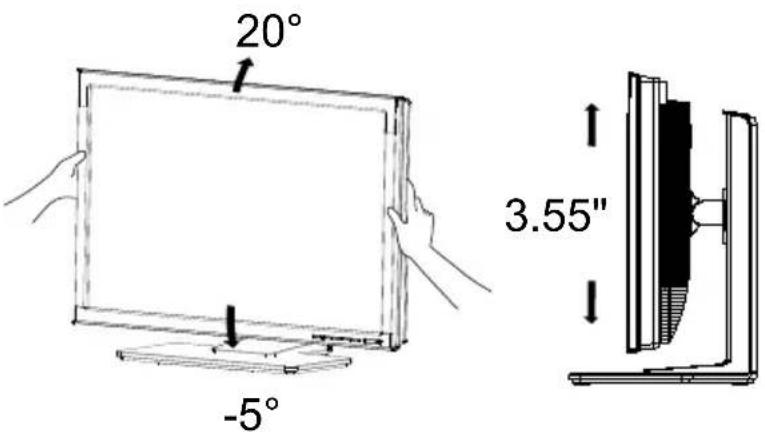
text_image
20° -5° 3.55"Figure 3
NOTES
- Do not touch the LCD screen when making the adjustments above. It may cause damage or break the LCD screen.
- Careful attention is required not to catch your fingers or hands when making the adjustments above.
OPERATING INSTRUCTIONS
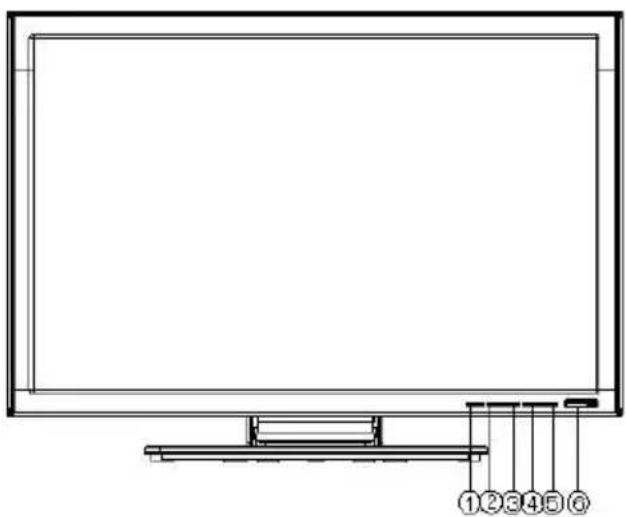
EXTERNAL CONTROLS
natural_image
Line drawing of a flat-screen monitor with labeled buttons at the base (no text or symbols on the screen)Figure 4 - External Controls
| 1. | Source | 4. | >/Brightness |
| 2. | Auto Adjust button/Exit | 5. | Menu/Enter |
| 3. | 6. | Power Button </Contrast |
- Power Button:
Press this button to turn the monitor ON or OFF.
- > / Brightness
Adjust brightness or function adjust.
- < / Contrast
Adjust contrast or function adjust.
- MENU / ENTER:
Activates OSD menu or confirms function.
- Source
Select the VGA or DVI function.
OPERATING INSTRUCTIONS (cont.)
- Auto Adjust button / Exit:
- When OSD menu is in active status, this button will act as EXIT-KEY (EXIT OSD menu) or go back to the previous menu.
- When OSD menu is in off status, press this button for 2 seconds to activate the Auto Adjustment function.
The Auto Adjustment function is used to set the HPos, VPos, Clock and Focus.
• Power Indicator:
Green — Power On mode.
Amber — Standby mode.
- OSD-Lock Function: To lock the OSD, press and hold the MENU-button while the monitor is off and then press power button to turn the monitor on. To un-lock the OSD - press and hold the MENU- button while the monitor is off and then press power button to turn the monitor on.
OPERATING INSTRUCTIONS (cont.)
How To Adjust A Setting
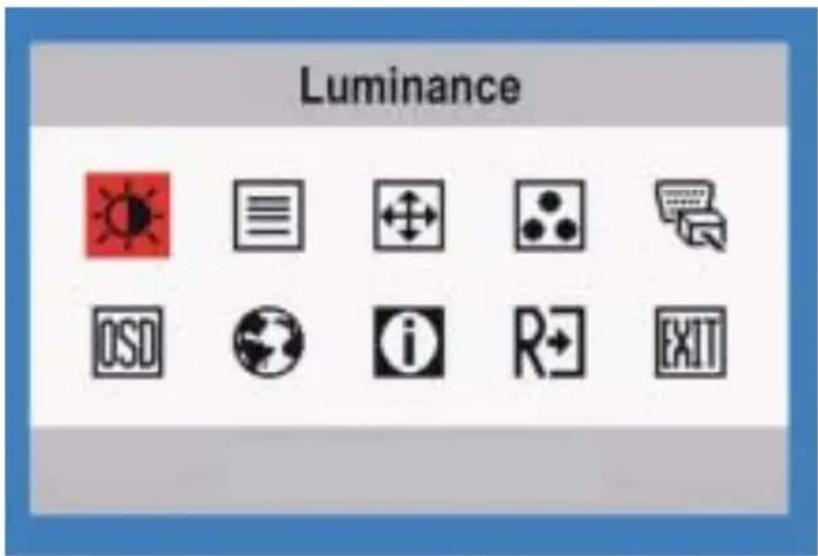
- Press the MENU-button to activate the OSD window (Figure 5).
- Press < or > to navigate through the functions. Once the desired function is highlighted, press the MENU-button to activate it. If the function selected has a sub-menu, press < or > again to navigate through the sub-menu functions. Once the desired function is highlighted, press MENU-button to activate it.
- Press < or > to change the settings of the selected function.
- To exit and save, select the exit function. If you want to adjust any other function, repeat steps 2-3.
text_image
Luminance OSD i R+ EXITFigure 5 The OSD Message
The descriptions for function control LEDS
| Main Menu Item | Main Menu Icon | Sub Menu Item | Sub Menu Icon | Description |
 | Contrast Adj  | contrast. Luminance | ||
| Brightness |  | Adjusts Brightness. | ||
| Image Setup |  | Focus Adjust  | Phase to reduce Horizontal-Line noise | |
| Clock |  | Adjust picture Clock to reduce Vertical-Line noise. | ||
| Image Position |  | H. Position | Adjust the horizontal position of the picture. | |
| V. Position |  | Adjust the vertical position of the picture. | ||
| Color Temp. |  | Warm N/A | Sets display to Warm Color temperature. | |
| Cool N/A | Sets display to Cool Color temperature. | |||
| sRGB N/A | Sets to sRGB temperature. | |||
| User / Red | U  fines Red gain. fines Red gain. | |||
| User / Green |  | User defines Green gain. | ||
| User / Blue |  | User defines Blue gain. | ||
OPERATING INSTRUCTIONS (cont.)
| Main Menu Item | Main Menu Icon | Sub Menu Item | Sub Menu Icon | Description |
| Input Select |  | Analog N/A | Select input signal from analog source(D-Sub) | |
| Digital N/A | Select input signal from digital source (DVI) | |||
| OSD Setup |  | H. Position | A  | horizontal position of the OSD. |
| V. Position | A  | vertical position of the OSD. | ||
| OSD Timeout |  | Adjust the OSD timeout. | ||
Language Lang  | N/A | Set OSD language | ||
Information Info  | N/A Show | the resolution, H/V frequency and input port of current input timing. | ||
 | Yes N/A | Reset to factory default setting. Reset | ||
| No N/A Do not execute reset, return to main menu. | ||||
| Exit N/A | ' A  | Exit | OSD | |
| Problem & Question Possible Solution | |
| Power LED is not on *Check if | the Power Switch is in the ON position*Power Cord should be connected |
| No Plug & Play *Check if the PC system is Plug & Play compatible*Check if the Video Card is Plug & Play compatible*Check if the D-15 plug pin of Video Cable is bent*Make sure the LCD Monitor Drivers are installed | |
| Picture is fuzzy *Adjust the Contrast and Brightness Controls. | |
| Picture bounces or a wave pattern is present in the picture | *Move electrical devices that may cause electrical interference. |
| The power LED is ON (Amber) but there's no video or no picture. | *Computer Power Switch should be in the ON position.*Computer Video Card should be snugly seated in its slot*Make sure monitor's video cable is properly connected to the computer.*Inspect monitor's video cable and make sure none of the pins are bent.*Make sure computer is operational by hitting the CAPS LOCK key on the keyboard while observing the CAPS LOCK LED. The LED should either turn ON or OFF after hitting the CAPS LOCK key. |
| Missing one of the primary colors (RED, GREEN, or BLUE) | *Inspect the monitor's video cable and make sure that none of the pins are bent. |
| Screen image is not centered or sized properly. | *Adjust pixel frequency (CLOCK) and FOCUS or press hot-key (AUTO) |
| Picture has color defects (white does not look white) | *Adjust RGB color or select color temperature |
| Horizontal or vertical disturbances on the screen | *Use win 95/98 shut-down mode Adjust CLOCK and FOCUS or perform hot-key (AUTO-key). |
TECHNICAL SUPPORT (FAQ) (cont.)
CLOCK (pixel frequency) controls the number of pixels scanned by one horizontal sweep. If the frequency is not correct, the screen shows vertical stripes and the picture has not correct width.
FOCUS adjusts the phase of the pixel clock signal. With a wrong phase adjustment the picture has horizontal disturbances in light picture.
For FOCUS and CLOCK adjustment use "dot-pattern" or win 95/98 shut-down mode pattern.
ERROR MESSAGE & POSSIBLE SOLUTION
CABLE NOT CONNECTED :
- Check that the signal-cable is properly connected, If the connector is loose, tighten the connector's screws.
- Check the signal -cable connection pins for damage.
INPUT NOT SUPPORTED :
Your computer has been set to unsuitable display mode. Set the computer to a display mode given in the Preset Display Modes table.
SPECIFICATIONS
| LCD Panel Size 61cmPixel pitch 0.270mm( | Driving system TFT Color LCD | ||
| (24") | |||
| H)x 0.270mm(V) | |||
| InputH-Frequency 30KHz- | R,G,B Analog Interface | ||
| Digital interface | |||
| 94KHz | |||
| V-Frequency | 56-75Hz | ||
| Display Colors 16.7M Colors | |||
| Dot Clock 165 MHz | |||
| Max. Resolution 1920 x 1200 @ 60Hz | |||
| Plug & Play VESA DDC2B | TM | ||
| Power Consumption | ON Mode | ≤ 80 W | |
| OFF Mode | ≤ 1.5W | ||
| Input Connector | D-Sub 15pin | ||
| DVI 24pin | |||
| Input Video Signal | Analog:0.7Vp-p(standard),75 OHM, Positive | ||
| Digital signal | |||
| Maximum Screen Size Horizontal : 518.4mm | |||
| Vertical : 324.0mm | |||
| Power Source | 100~240VAC,50~60HZ | ||
| Environmental Considerations | Operating Temp | p: 10° to 35°CStorage Temp.: -20° to 60°COperating Humidity: 5% to 95% | |
| Dimensions | 567.2(W)X413.8(H)X173.3(D)mm | ||
| Weight (N. W.) | 10.25kg Unit (net) | ||
| Switch | ● Auto Adjust button/Exit● Contrast● Brightness● Menu/Enter● Power Button | ||
| External Controls: Functions | ● Contrast | ● Brightness● Focus● Clock● H.Position● V.Position● (Warm) Color● (Cool)Color● sRGB Color temperature● User● Input signal Selection● OSD Setup● Language● Display information● Reset● Exit | |
| Power Consumption ( Maximum ) 80 Watts | |||
| Regulatory Compliance UL/cUL,CE,FCC B | |||
Preset Display Modes
| STANDARD | RESOLUTION | HORIZONTAL FREQUENCY(KHZ) | VERTICAL FREQUENCY(HZ) | |
| IBM | DOS | 720x400 | 31.469 | 70 |
| DOS | 640x480 | 31.500 | 60 | |
| MAC | VGA | 640x480 | 35.000 | 67 |
| SVGA | 832x624 | 49.725 | 75 | |
| SXGA | 1152x870 | 67.500 | 75 | |
| VESA | VGA | 640x480 | 31.469 | 60 |
| 640x480 | 37.861 | 72 | ||
| 640x480 | 37.500 | 75 | ||
| SVGA | 800x600 | 35.156 | 56 | |
| 800x600 | 37.879 | 60 | ||
| 800x600 | 48.077 | 72 | ||
| 800x600 | 46.875 | 75 | ||
| XGA | 1024x768 | 48.363 | 60 | |
| 1024x768 | 57.700 | 72 | ||
| 1024x768 | 60.023 | 75 | ||
| SXGA | 1152x864 | 67.500 | 75 | |
| 1280x960 | 60.000 | 60 | ||
| 1280x960 | 75.000 | 75 | ||
| 1280x1024 | 64.000 | 60 | ||
| 1280x1024 | 77.900 | 72 | ||
| WXGA+ | 1440x900 | 55.500 | 60 | |
| UXGA | 1600x1200 | 75.000 | 60 | |
| WSXGA | 1680x1050 | 65.290 | 60 | |
| WUXGA | 1920x1200 | 74.000 | 60 | |
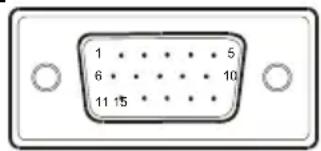
Connector Pin Assignment
text_image
1 6 11 15 5 1015 - Pin Color Display Signal Cable
| PIN NO. | DESCRIPTION PIN NO. | DESCRIPTION | |
| 1. | Video-Red 9. +5V | ||
| 2. | Video-Green | 10. Detect | |
| 3. | Video-Blue | 11. NC | |
| 4. | NC | 12. | DDC-Serial |
| 5. | Ground | 13. | H-sync |
| 6. | GND-R | 14. | V-sync |
| 7. | GND-G | 15. | DDC-Serial |
| 8. | GND-B | ||
Cable
data
clock
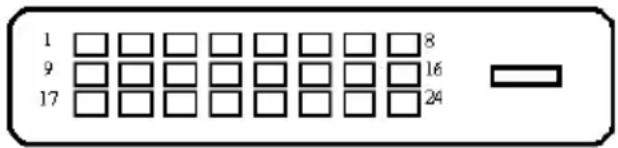
text_image
1 9 17 8 16 2424 - Pin Color Display Signal Cable
| PIN NO. | DESCRIPTION | PIN NO. | DESCRIPTION |
| 1. TMD | S Data 2- 13. TMDS Data 3+ | ||
| 2. TMD | S Data 2+ 14. | +5V Power | |
| 3. | TMDS Data 2/4 Shield | 15. | Ground(for+5V) |
| 4. TMD | S Data 4- 16. Hot Plug | Detect | |
| 5. TMD | S Data 4+ 17. | TMDS Data 0- | |
| 6. DDC | Clock 18. | TMDS Data 0+ | |
| 7. | DDC Data | 19. | TMDS Data 0/5 Shield |
| 8. NC | 20. | TMDS Data 5- | |
| 9. TMD | S Data 1- 21. TMDS Data 5+ | ||
| 10. | TMDS Data 1+ | 22. TMDS Clock Shield | |
| 11. | TMDS Data 1/3 Shield | 23. | TMDS Clock + |
| 12. | TMDS Data 3- 24. | TMDS Clock - |
Planar Systems, Inc
1195 NW Compton Drive Beaverton, OR 97006-1992 www.planar.com
© 2007 Planar Systems, Inc. Planar is a registered trademark of Planar Systems, Inc. Other brands and names are the property of their respective owners. Technical information in this document is subject to change without notice.