PE150M - Monitor Planar - Free user manual and instructions
Find the device manual for free PE150M Planar in PDF.


User questions about PE150M Planar
0 question about this device. Answer the ones you know or ask your own.
Ask a new question about this device
Download the instructions for your Monitor in PDF format for free! Find your manual PE150M - Planar and take your electronic device back in hand. On this page are published all the documents necessary for the use of your device. PE150M by Planar.
USER MANUAL PE150M Planar
Identifying Components 2
The LCD Monitor — Front View 2
The LCD Monitor — Rear View 3
Adjusting the Tilting Angle 3
Raising Your Monitor to an Upright Position and Adjusting Monitor Angle 4
Connecting AC Power, Video and Audio Cable 5
Power Management System 5
CHAPTER 2....6
LCD Monitor Control Panel 6
Adjusting the Monitor's Display 7
OSD Main Menu 7
Hot-Key Buttons for Quick Adjustment of Monitor Settings. 11
APPENDIX A 12
TFT LCD Monitor Specifications 12
APPENDIX B 13
APPENDIX C 14
Troubleshooting Procedures 14
PREFACE....16
Unpacking
After you unpack your LCD monitor, make sure the following items are included in the box and in good condition:
Standard Items
• PE150M LCD monitor
• VGA Cable With 15-Pin D-Sub VGA Connector (Male)
- Power cord
- User's Manual
- CD Manual
- Landing Strip
• 1.5M Stereo Jack audio cable
If you find that any of these items are missing or appear damaged, contact your dealer immediately. Do not throw away the packing material or shipping carton in case you need to ship or store the LCD monitor in the future.
Identifying Components
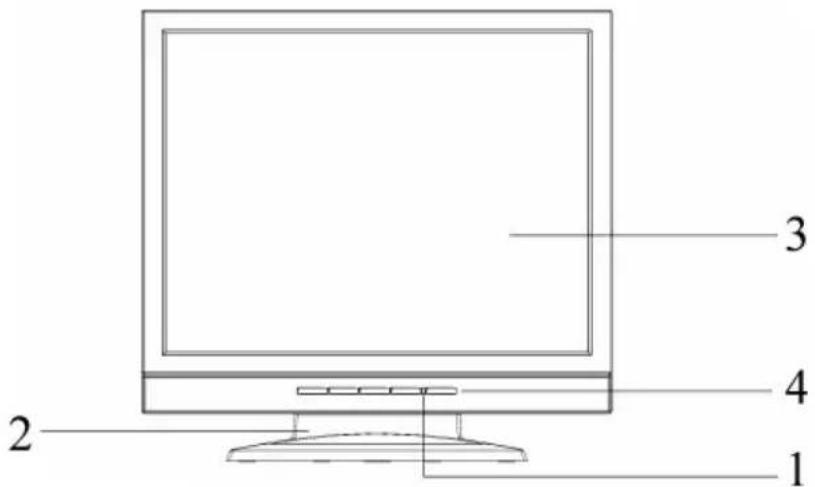
The LCD Monitor — Front View
text_image
2 3 4 1Figure 1-1: The LCD Monitor Front View
1. Power-On Indicator
This LED indicator stays lit when the power is on and blinks when the LCD monitor is in power saving mode.
2. Monitor Stand
3. LCD Screen
The LCD monitor screen is a 15-inch TFT 1024 x 768 screen.
4. LCD Monitor Control Panel
Refer to Chapter 2 for details.
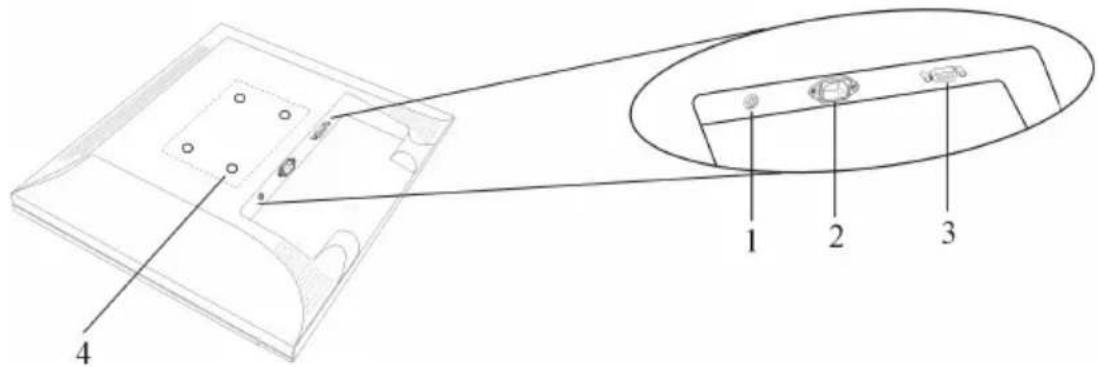
The LCD Monitor — Rear View
text_image
4 1 2 3Figure 1-2: LCD Monitor Rear View
- Audio Line-in (optional)
- AC Power Jack
- VGA Cable With 15-Pin D-Sub VGA Connector (Male)
- VESA interface: It can be mounted to VESA arm. (75mm pitch)
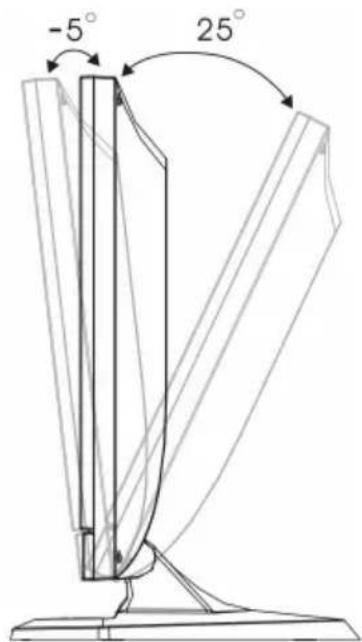
Adjusting the Tilting Angle
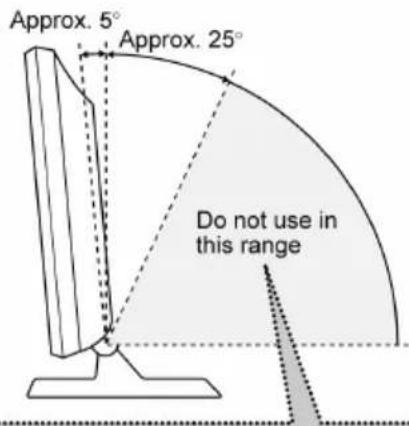
The LCD monitor's angle settings range from -5^ to 25^ . See Figure 1-3.
text_image
-5° 25°Figure 1-3: Tilting the Monitor
Raising Your Monitor to an Upright Position and Adjusting Monitor Angle
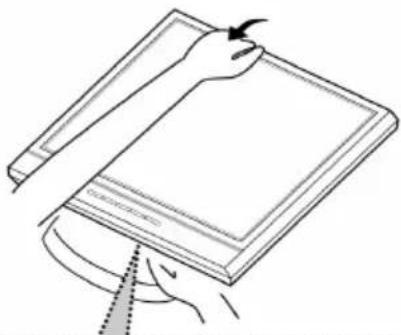
Raising Your Monitor to an Upright Position
Please
When handling the monitor, take care to hold only the frame. Holding or applying pressure to the LCD panel may cause damage to your monitor.
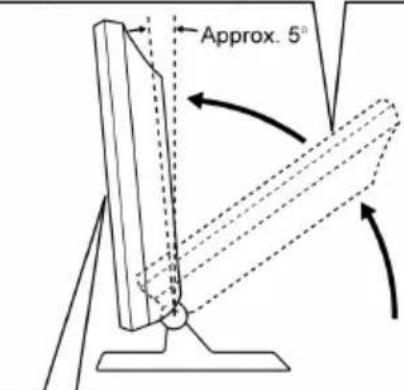
① Firmly grip and hold down the monitor stand while you gently rotate your monitor upward.
natural_image
Line drawing of a hand holding a tablet with an arrow pointing to the screen (no text or symbols)Caution!
Be careful not to catch your fingers or hand between the stand and the monitor.
② Some parts of the apparatus will tighten in the process of adjusting your monitor. When this happens, apply greater force and continue to adjust until the screen is standing upright and can not be adjusted further.
Some parts of the apparatus will tighten in the process of adjusting your monitor. When this happens, apply greater force and continue to raise your monitor to an upright position.
text_image
Approx. 5°Continue to adjust the position of your monitor until it can not move any further forward. (Adjust until the monitor is tilted approximately 5° toward you.
③ At this point you may freely adjust to a comfortable position.
Adjusting the Angle of Your Monitor
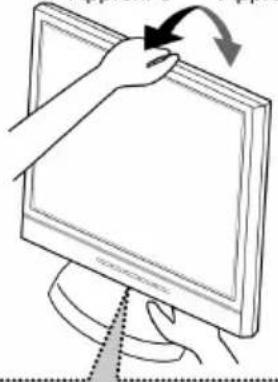
Firmly grip and hold down the monitor stand while you gently adjust your monitor to a desired angle.
Approx. 5° Approx. 25°
natural_image
Illustration of a hand pressing down on a computer monitor with an arrow indicating rotation (no text or symbols)Caution!
Be careful not to catch your fingers or hand between the stand and the monitor.
text_image
Approx. 5° Approx. 25° Do not use in this rangeCaution!
Do not use your monitor pushed back more than 25°. Doing so may cause your monitor to fall over and lead to your injury or malfunction of the monitor.
Connecting AC Power, Video and Audio Cable
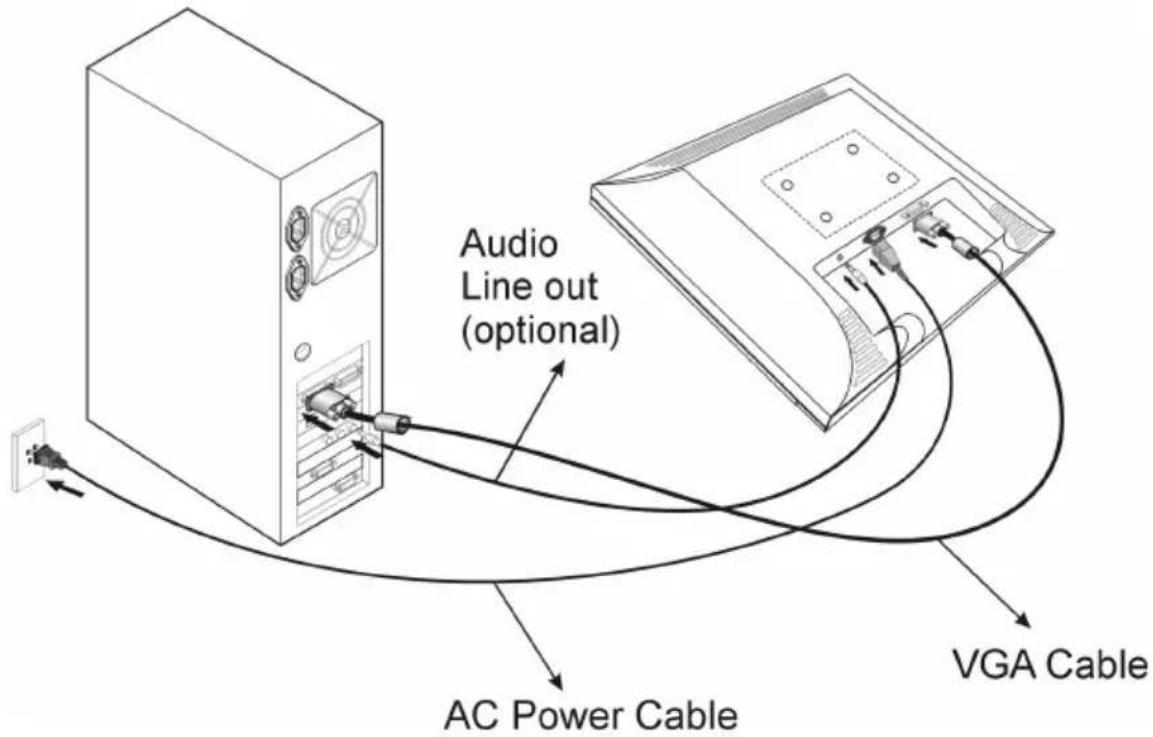
Turn off your PC and the LCD monitor before connecting your LCD monitor to the computer.
text_image
Audio Line out (optional) AC Power Cable VGA CableFigure 1-4: The AC Adapter
Power Management System
The LCD monitor complies with the VESA DPMS power management proposal.
When the LCD monitor is in power saving mode or detects an incorrect timing, the monitor screen will be blank and the power LED indicator starts blinking.
The Display Controls
LCD Monitor Control Panel
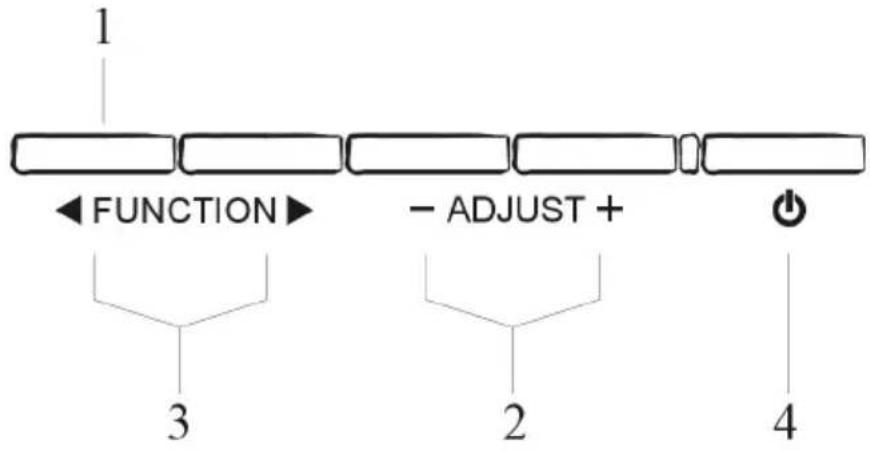
text_image
1 FUNCTION ▶ - ADJUST + 3 2 4Figure 2-1: The LCD Monitor Panel
1. OSD Menu Button
Press this button to pop up the OSD (On-Screen Display) menu. This button is also a Function Select button.
2. Adjustment Control Buttons
These two buttons allow you to adjust the selected control functions in the OSD.
3. Function Select Buttons
These two buttons allow you to select the control functions in the OSD. Press either button to scroll through the main menu and submenu items.
4. Power Switch
Push the power switch to turn the monitor on and off. This switch is also a hot-key button to close the OSD menu.
Adjusting the Monitor's Display
OSD Main Menu
To access the OSD main menu, press the OSD Menu button. Use the Function Select buttons to scroll between the OSD main menu options. The option that is currently selected is highlighted.
Pressing the OSD Menu button causes the following screen to appear:
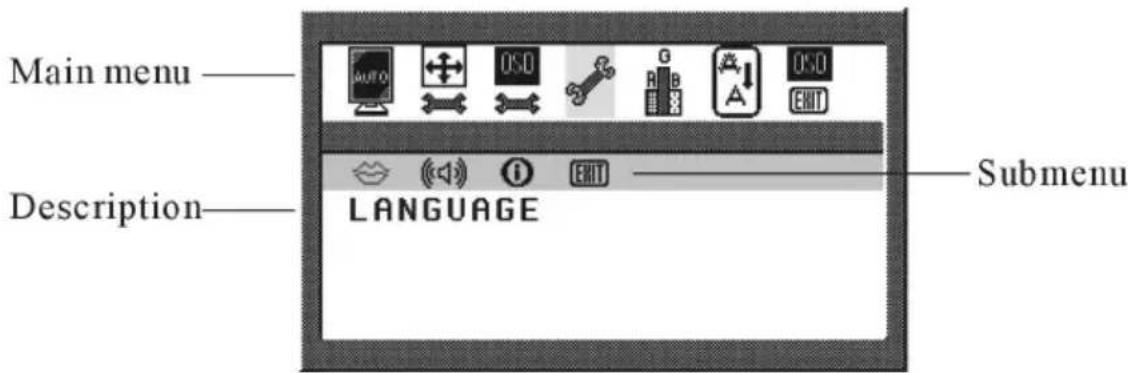
text_image
Main menu Description LANGUAGE SubmenuFigure 2-2: The OSD Main Menu
The Auto Adjust Option
Choosing the Auto Adjust option lets the monitor determine and select the settings that are most appropriate for your system requirements.

With the Auto Adjust icon selected, press the Adjustment control button to apply the monitor settings automatically.
The Monitor-Control Option
The Monitor-Control option allows you to adjust the LCD monitor's display settings.

Press Adjustment control button to display the submenu.
H-Position: To move the LCD monitor's display left or right on a horizontal plane.

V-Position: To move the LCD monitor's display up or down on a vertical plane.
Phase: To adjust the focus and clarity of the display.
Clock: To adjust the display pixel alignment.

Reset: To reset all of the Monitor-Control submenu settings.

Exit: To exit the Monitor-Control submenu.
OSD-Control Option
The OSD-Control menu option lets you adjust the position of the OSD on the screen.
Press the Adjustment control button to display the submenu. Use the Function Select buttons to select one of the following submenu options:
OSD-H-Position: To change the position of the OSD on a horizontal plane.

OSD-V-Position: To change the position of the OSD on a vertical plane.

Exit: To exit the OSD-Control submenu.
Misc-Control Option
The Misc-Control menu option lets you select the OSD display language, adjust the volume setting and view system information.

Press the Adjustment control button to display the submenu.

Language: The supported languages include German, English, French, Spanish, Italian and Japanese.

Audio Volume (optional): To increase or decrease the volume of the LCD monitor's sound system.

Information: To indicate display mode and firmware version.

Exit: To exit the Misc-Control submenu.
Graphic-Control Option
The Graphic-Control option lets you make adjustments that effect the contrast, brightness and color of the LCD monitor's display.
Press the Adjustment control button to display the submenu.

Contrast: To adjust the contrast level of the display screen.

Brightness: To adjust the light level on the display screen.

Color: To select the LCD monitor's color display. The available options are 9300, 6500 and User. Selecting the user option lets you make individual adjustments to the R, G and B items.

R, G and B: To make individual adjustments to the Red, Blue, Green (RGB) gain for the color temperature.
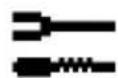
Auto Level: To automatically adjust the white balance of the display.

Exit: To exit the Graphic-Control submenu.
Graphic/Text Option
The Graphic/Text option lets you switch between text and graphic display modes.
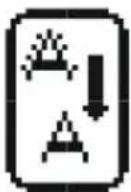
Press the Adjustment button to switch between the text and graphic options.
OSD Exit Option
Use the OSD Exit item to close the OSD menu.
The OSD will close by itself if left inactive.
Note:
1. No Video
When the monitor is ON and there is no Video signal received, the following message will be displayed.
NO SIGNAL
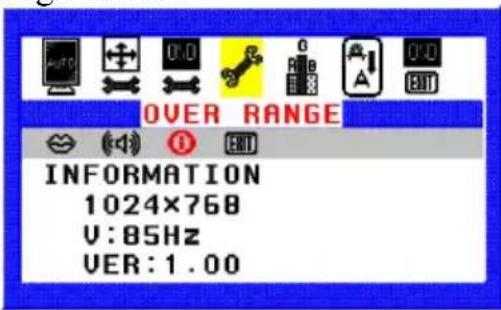
2. Signal out of monitor's supported range
Then the frequency range of the signal is out of the monitor's specifications, the display will show messages in the following manner:
Case 1:
The incoming frame rate is higher than 75Hz.
In this case, the screen display may not be centered and a warning message appears.
text_image
OVER RANGE INFORMATION 1024×768 V:85Hz VER:1.00Case 2:
The incoming resolution is higher than 1024x768.
In this case, the video data will be turned off and a warning message appears at center.
OVER RANGE
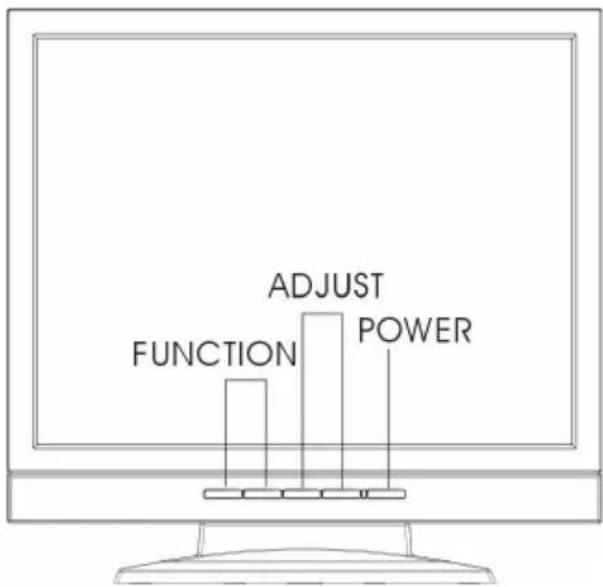
Hot-Key Buttons for Quick Adjustment of Monitor Settings.
text_image
FUNCTION ADJUST POWER1. "Auto-adjust" hot-key button:
Press the 2^nd function button to apply the monitor setting automatically. A small “Auto Adjust” OSD is also displayed.
2. "Contrast-adjust" hot-key button:
Press the 1^st adjustment control button to allow you to adjust the contrast of the display directly. A small “Contrast” OSD is also displayed.
3. "Adjust-volume" hot-key button:
Press 2^nd adjustment control button to allow you to adjust the audio volume directly. A small “Audio Volume” OSD is also displayed.
AUTO ADJUST


TFT LCD Monitor Specifications
| LCD Panel 15" XGA | ||
| Control Functions Power | Software Power switch with LED indicator(ON/OFF) | |
| On-Screen Display(OSD) | Main Menu Submenu | |
| Auto Adjust | ||
| Monitor Control Horizontal Position/Vertical Position/Phase/Clock/Reset/Exit | ||
| OSD Control OSD Horizontal Position/OSD Vertical Position/Exit | ||
| Misc. Control Language/Audio Volume/Information/Exit | ||
| Graphic Control Contrast/Brightness/Color/R/G/B Auto Level/Exit | ||
| Graph/Text 640 x 400/720 x 400 | ||
| OSD Exit | ||
| Display Area (mm) 304.1 x 228.1 (15" diagonal) | ||
| Display Colors 16.7M | ||
| Video Interface VGA Compatible Analog RGB Composite Sync. | ||
| Scanning FrequencyH/V, Hz | 24-62K50-75Hz | |
| Response Time (TR/TF) (typ.) 20ms / 5ms | ||
| Contrast Ratio | 500:1 | |
| Brightness | 300 cd/m2 | |
| Viewing Angle (H/V) | 140°/130° | |
| Power Management | Meets VESA DPMS | |
| Power Consumption (ON/OFF, W) | 30/2.5Max. | |
| Dimensions WxHxD mm | 344x332x200 | |
| Net Weight (Kg) Approx. | 3.2 | |
| Power Supply | Built-In Universal Input Off-Line Power Supply | |
| Environment | Operating Temperature: 0 to 40°CRelative Humidity: 10% to 90% | |
| Audio (Two 1 Watt speakers with amplifier) | Yes | |
| Regulatory | CUL, TÜV-GS, CE, FCC B, DoC,TCO'99 (optional), Energy star, TÜV-Ergonomics | |
APPENDIX B
Supported Timing
| Item | Standards | Resolution | Dot Clock (MHz) | Vertical Scanning Frequency (Hz) | Horizontal Scanning Frequency (kHz) |
| 1 | NEC | PC98 | 640x400 | 25.20 | 70.15 |
| 2 | NEC | PC98 | 640x400 | 21.05 | 56.42 |
| 3 MAC 13" mode 640x480 30.24 66.67 35.00 | |||||
| 4 MAC 16" mode 832x624 57.28 74.55 49.73 | |||||
| 5 MAC 17" mode 1024x768 80.00 75.02 60.24 | |||||
| 6 | VGA | 640x350 | 25.18 | 70.09 | 31.47 |
| 7 | VGA | 640x400 | 25.18 | 70.09 | 31.47 |
| 8 | VGA | 640x480 | 25.18 | 59.94 | 31.47 |
| 9 | VESA | 640x480 | 31.50 | 72.81 | 37.86 |
| 10 | VESA | 640x480 | 31.50 | 75.00 | 37.50 |
| 11 | VESA | 800x600 | 36.00 | 56.25 | 35.16 |
| 12 | SVGA | 800x600 | 40.00 | 60.32 | 37.88 |
| 13 | VESA | 800x600 | 50.00 | 72.19 | 48.08 |
| 14 | VESA | 800x600 | 49.50 | 75.00 | 46.88 |
| 15 | VGA | 720x400 | 28.32 | 70.09 | 31.47 |
| 16 | XGA | 1024x768 | 65.00 | 60.00 | 48.36 |
| 17 | VESA | 1024x768 | 75.00 | 70.07 | 56.48 |
| 18 | VESA | 1024x768 | 78.75 | 75.03 | 60.02 |
| 19 | 1024x768 | 71.64 | 66.13 | 53.96 | |
| 20 | SUN | 1024x768 | 64.13 | 59.98 | 48.29 |
| 21 | SUN | 1024x768 | 74.25 | 70.04 | 56.59 |
| 22 | SUN | 1024x768 | 84.38 | 77.07 | 62.04 |
*Once a mode is optimized, there is no need to make any further adjustment as long as the VGA card remains unchanged.
*Specifications are subject to change without notice.
Troubleshooting Procedures
This LCD monitor comes pre-adjusted with standard VGA timing. Due to output timing differences among various VGA cards, you may initially experience an unstable or unclear display when a new display mode or new VGA card is selected.
Before applying any of the following troubleshooting procedures, you should first apply the Auto Adjust option in the OSD menu.
PROBLEM: Display is Unclear and Unstable
To stabilize and clarify your display, follow this procedure:
- In Windows, enter the windows shut down screen.
- Open the OSD and select the Clock function. Press one of the Adjustment Control buttons until the dark vertical bands disappear.
- Select the Phase function and press one of the Adjustment Control buttons until horizontal dark and light lines appear. The number of lines increases as you press the button. Press the other Adjustment Control button until the lines disappear and you have a clear display.
If there is no display on the LCD, refer to the following:
- Make sure that the power indicator on the LCD monitor is lit, all connections are secure, and the system is running on the correct timing. Refer to the Addendum for information on timing.
- Turn off the LCD monitor and then turn it back on again. Press the OSD Menu button (refer to Chapter 2) once and then press either Adjustment Control button several times. If there is still no display, press the other Adjustment Control button several times.
- If step 2 doesn't work, connect your PC system to another external CRT. If your PC system functions properly with a CRT monitor but it does not function with the LCD monitor, and the LCD monitor's power LED is blinking, the output timing of the PC's VGA card may be out of the LCD's synchronous range. Change to one of the alternate modes, listed in the Addendum, or replace the VGA card and repeat steps 1 and 2.
- If the power LED is not lit, check that the AC power connector is securely connected. Verify that the AC adapter LED is lit. If the AC adapter LED is not lit, please contact your dealer or Planar for assistance.
This device complies with part 15 of the FCC Rules. Operation is subjected to the following two conditions:
- This device may not cause harmful interference, and
- This device must accept any interference received, including interference that may cause undesired operation.
FCC WARNING
This equipment has been tested and found to comply with the limits for a Class B digital device, pursuant to Part 15 of the FCC Rules. These limits are designed to provide reasonable protection against harmful interference in a residential installation.
This equipment generates, uses and can radiate radio frequency energy and, if not installed and used in accordance with the instructions, may cause harmful interference to radio communications.
However, there is no guarantee that interference will not occur in a particular installation. If this equipment does cause harmful interference to radio or television reception, which can be determined by turning the equipment off and on, the user is encouraged to try to correct the interference by one or more of the following measures:
- Reorient or relocate the receiving antenna.
- Increase the separation between the equipment and the receiver.
- Connect the equipment into an outlet different from that to which the receiver is connected.
- Consult the dealer or an experienced radio/TV technician for help.
Caution:
To comply with the limits for an FCC Class B computing device, always use the shielded signal cord supplied with this unit.
The Federal Communications Commission warns that changes or modifications of the unit not expressly approved by the party responsible for compliance could void the user's authority to operate the equipment.
CE mark for Class B ITE (Following European standard EN55022/1998; EN61000-3-2/1995; EN61000-3-3/1995, EN55024/1998, EN60950/1992+A1+A2+A3+A4+A11)
Radio Frequency Interference Statement
Warning:
This is a Class B product. In a domestic environment, this product may cause radio interference in which case the user may be required to take adequate measures.
Canadian Doc Notice
For Class B Computing Devices
This digital apparatus does not exceed the Class B limits for radio noise emissions from digital apparatus as set out in the Radio Interference Regulation of the Canadian Department of Communications.
Please read the following instructions carefully. This manual should be retained for future use.
- To clean the LCD monitor screen, first, make sure the monitor is in the power off mode. Unplug the monitor from its power source before cleaning it. Do not spray liquid cleaners directly onto the unit. Without applying excessive pressure, clean the screen with a slightly dampened rag.
- Do not place your LCD monitor near a window. Exposing the monitor to rain, water, moisture, or sunlight can severely damage it.
- Do not place anything on top of the monitor-to-PC signal cord. Make sure the cord is placed in an area where it will not be stepped on.
- Do not apply pressure to the LCD screen. Excessive pressure may cause permanent damage to the display.
- Do not remove the cover or attempt to service this unit by yourself. You may void the warranty. Servicing of any nature should be performed only by an authorized technician.
- Safe storage of the LCD monitor is in a range of minus 20 to plus 60 degrees Celsius. Storing your LCD monitor outside this range could result in permanent damage.
-
Immediately unplug your monitor and call an authorized technician when:
-
The power or monitor-to-PC signal cord is frayed or damaged.
• Liquid has been spilled into the monitor, or it has been exposed to rain. -
The monitor has been dropped or the case has been damaged.
-
Only with use of supplied adaptor, in case of loss or replacement contact the retailer or service center.
-
If you have lost the included power cord, you can purchase a same configuration/type power cord (with ground connection) with the following specifications:
U.S.: VW-1; 18AWG X 3C; SVT with national approval as UL and/or CSA approval/number(s)
Japan : VCTF type, 3 wires or with ground-wire, T-mark approval is required.
Europe : VDE/ÖVE and/or KEMA approval; H05VV-F, 3G, 0.75mm ^2 , or equivalent.
Planar Systems, Inc
Customer Service
Online Support : http://planar.custhelp.com
E-mail: desktopmonitors@planar.com
Tel: 1-886-PLANAR-1 (1-866-752-6271)
Hours : m-f, 8am-9pm Eastern Time
© 2003 Planar Systems, Inc.
Other brands and names are the property of their respective owners.
Technical Information in this document is subject to change without notice.
01/04