R56WH76 - Television RCA - Free user manual and instructions
Find the device manual for free R56WH76 RCA in PDF.


User questions about R56WH76 RCA
0 question about this device. Answer the ones you know or ask your own.
Ask a new question about this device
Download the instructions for your Television in PDF format for free! Find your manual R56WH76 - RCA and take your electronic device back in hand. On this page are published all the documents necessary for the use of your device. R56WH76 by RCA.
USER MANUAL R56WH76 RCA
Changing Entertainment. Again.
HDTV User's Guide
Find Inside:
- Introduction ......page 2
- Connections ......page 7
- Remote ......page 21
- Features ......page 31
- Menu ......page 41
- FAQs ...... page 54
- Troubleshooting ...page 55

natural_image
Black-and-white photo of a hiker in a grassy field with mountainous background (no visible text or symbols)Model R52WH73 is pictured here.

natural_image
Black-and-white photo of two puppies sitting side by side, one larger and one smaller, with no visible text or symbols.www.rca.com/television
WARNING
To reduce the risk of fire or electric shock, do not expose this product to rain or moisture.
The apparatus shall not be exposed to dripping or splashing and that no objects filled with liquids, such as vases, shall be placed on the apparatus.
CAUTION
RISK OF ELECTRIC SHOCK DO NOT OPEN

This symbol indicates that this product incorporates double insulation between hazardous mains voltage and user accessible parts. When servicing use only identical replacement parts.
Caution: To reduce the risk of electric shock, do not remove cover (or back). No user serviceable parts inside. Refer servicing to qualified service personnel.

This symbol indicates "dangerous voltage" inside the product that presents a risk of electric shock or personal injury.

This symbol indicates important instructions accompanying the product.
Refer to the identification/rating label located on the back panel of your product for its proper operating voltage.
FCC Regulations state that unauthorized changes or modifications to this equipment may void the user's authority to operate it.
Caution: Using video games or any external accessory with fixed images for extended periods of time can cause them to be permanently imprinted on the picture tube (or projection TV picture tubes). ALSO, some network/program logos, phone numbers, black borders (sides, top and bottom), etc. might cause similar damage. This damage is not covered by your warranty.
Cable TV Installer: This reminder is provided to call your attention to Article 820-40 of the National Electrical Code (Section 54 of the Canadian Electrical Code, Part 1) which provides guidelines for proper grounding and, in particular, specifies that the cable ground shall be connected to the grounding system of the building as close to the point of cable entry as practical.
Warning: Do not use the Freeze feature for an extended period of time. This can cause the image to be permanently imprinted on the picture tube. Such damage is not covered by your warranty. Press any button to unfreeze the picture at any time.
Important Stand and Base Safety Information: Choose the location for your TV carefully. Place the TV on a stand or base that is of adequate size and strength to prevent the TV from being accidentally tipped over, pushed off, or pulled off. This could cause personal injury and/or damage the TV. Refer to the Important Safety Instructions on page 1.
Product Registration
Please fill out the product registration card (packed separately) and return it immediately. For US customers: Your RCA Consumer Electronics product may also be registered at www.rca.com/television. Registering this product allows us to contact you if needed.
Product Information
Keep your sales receipt to obtain warranty parts and service and for proof of purchase. Attach it here and record the serial and model numbers in case you need them. These numbers are located on the product.
Model No.
Serial No.
Purchase Date:
Dealer/Address/Phone:
IMPOrTAnT SAFETY InSTrUCTIONS
- Read these instructions.
- Keep these instructions.
- Heed all warnings.
-
Follow all instructions.
-
Do not use this apparatus near water.
-
Clean only with dry cloth.
-
Do not block any ventilation openings. Install in accordance with the manufacturer's instructions.
-
Do not install near any heat sources such as radiators, heat registers, stoves, or other apparatus (including amplifiers) that produce heat.
-
Do not defeat the safety purpose of the polarized or grounding-type plug. A polarized plug has two blades with one wider than the other. A grounding type plug has two blades and a third grounding prong. The wide blade or the third prong is provided for your safety. If the provided plug does not fit into your outlet, consult an electrician for replacement of the obsolete outlet.
-
Protect the power cord from being walked on or pinched particularly at plugs, convenience receptacles, and the point where they exit from the apparatus.
-
Only use attachments/accessories specified by the manufacturer.
-
Use only with the cart, stand, tripod, bracket, or table specified by the manufacturer, or sold with the apparatus. When a cart is used, use caution when moving the cart/apparatus combination to avoid injury from tip-over.

-
Unplug this apparatus during lightning storms or when unused for long periods of time. Even if the power indicator is off, the apparatus is still not fully disconnected from the power source. To disconnect the apparatus completely from the power source, take its power plug out of the wall outlet or power strip. The power plug must be easily accessible.
-
Refer all servicing to qualified service personnel. Servicing is required when the apparatus has been damaged in any way, such as power-supply cord or plug is damaged, liquid has been spilled or objects have fallen into the apparatus, the apparatus has been exposed to rain or moisture, does not operate normally, or has been dropped.
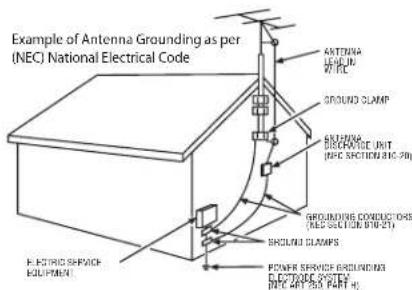
If an outside antenna is connected to the TV receiver, be sure the antenna system is grounded so as to provide some protection against voltage surges and built up static charges. In the U.S. Section 810-21 of the National Electrical Code and in Canada, Part 1 of the Canadian Electrical Code provides information with respect to proper grounding of the antenna system. See the figure on the right for details.
text_image
Example of Antenna Grounding as per (NEC) National Electrical Code ANTERRA LEND OF WPC GROUND CLAMP ELECTRIC SERVICE EQUIPMENT GROUNDING CONDUCTORS (REC SECTION 816-21) BECHUAI CLAMPS POWER SERVICE GROUNDING ELECTRONE SYSTEM (REC CRY BHA PART H)To assure adequate ventilation for this product, maintain a spacing of 4 inches from the top and sides of the TV receiver and 2 inches from the rear of the TV receiver and other surfaces.

natural_image
Diagram showing four different household appliances or fixtures with no visible text, numbers, or symbols.Connect the off-air antenna for digital television to this input jack.

text_image
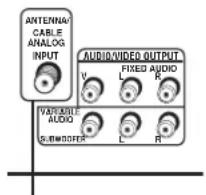
ANTENNA/ CABLE ANALOG INPUT AUDIO/VIDEO OUTPUT V L FIXED AUDIO R VARIABLE AUDIO SWIMEMBER L RConnect cable TV or your off-air antenna for regular, analog TV to this input jack.
Thank you for choosing RCA
Congratulations on purchasing this RCA High Definition Television (HDTV). Your purchase decision represents an investment in a new generation of technology—HDTV. Even though this is a technologically advanced HDTV, it is the most user-friendly of its kind—with on-screen instructions that guide you through all of the TV's features.
The best of both worlds
Your HDTV has two tuners: one for regular, analog television and one for off-air digital television (ATSC). On your HDTV's back panel you'll see two inputs—one for cable TV or regular, off-air programming and one for off-air digital television.
While you're watching TV, you can switch from one tuner to the other with the ANT•CABLE button on your remote.
There are many off-air antennas you can use to receive off-air digital television. Find out which antenna will work best in your environment and where you should put your antenna for the best reception. For more information on antenna reception in different parts of the U.S., go to www.antennaweb.org.
What makes HDTV better
With your new High-Definition Television, you can embark on the next generation of TV viewing—HDTV. There are many technological advancements that make HDTV better than analog TV, but there are basically three things about HDTV that bring you a superior viewing experience: (1) resolution, (2) aspect ratio, and (3) digital signal and sound.
Resolution (it's math...that works for you)
The crisp, lifelike picture that people rave about when experiencing true HDTV is due to the resolution this technology provides. The resolution is measured by calculating the number of active lines of pixels. A pixel (which stands for picture element) is a small dot. The picture you see on your TV is composed of these dots.
A regular, analog television only has a resolution of about 200,000 pixels (480 vertical pixels x 440 horizontal pixels = 211,200 pixels). The HDTV format is capable of more than 2 million pixels (1,920 x 1,080 = 2,073,600).
More pixels equal more detail. In summary, HDTV is capable of resolution that is up to 10 times the resolution of the picture on a regular, analog TV!
| Feature Analog (NTSC) HD Digital (ATSC) | ||
| Total Scan Lines 525 | 1125 | |
| Effective Scan Lines | 480 1080 | |
| Aspect Ratio 4:3 | 16:9 (Widescreen) | |
| Max Resolution 720 | x 480 1920 x 1080 | |
| Sound 2-ch Stereo | 5.1 ch Surround | |

natural_image
Black-and-white photo of a young boy in traditional attire gesturing with both hands (no visible text or symbols)16:9 Aspect Ratio

natural_image
Black-and-white photo of a young boy in traditional attire, hand resting on chest (no visible text or symbols)4:3 Aspect Ratio
Aspect Ratio
Aspect ratio is simply the width and height of the picture. Regular TVs use a 4:3 aspect ratio, which means the picture is a little wider than it is tall (a screen that is 20 inches wide is about 15 inches tall).
When the standards were being developed for television broadcasting in 1941 by the NTSC (the National Television Standards Committee), it made sense to adopt the 4:3 aspect ratio the film industry was using at that time.
As TVs dropped in price and people prospered in the 1950s, the movie industry had to find a way to get people out of their living rooms and back to the movie theatres. That's when they created the 16:9 aspect ratio (also called widescreen format). When the standards for HDTV were being developed by the ATSC (Advanced Television Standards Committee), the 16:9 aspect ratio was chosen as the format for HDTV.
This widescreen format makes sense because it's much closer to the way we see. Our field of vision is actually much wider than tall because of our peripheral vision. Not only is it closer to the way we see, but the pictures are crisper and cleaner with more detail in the close-up and panoramic views.
Digital Signal and Sound
The analog television broadcast system that has been used in the United States for the past 50 years transmits signals as electronic waves. These waves can suffer degradation as the signal travels to your home. Additionally, the analog waves are susceptible to interference from planes passing overhead, weather, and household appliances.
Digital signals, in contrast to analog signals, can be reproduced precisely because the images are transmitted and received using the computer language of 1s and 0s. Such precision yields a signal with amazing picture clarity and outstanding sound quality.
Other Key Features of owning an RCA HDTV
There are other HDTVs on the market. But your RCA HDTV has been designed with features that will enhance your TV viewing experience, and features that provide flexibility to build on the digital revolution that is taking place. A summary of your TV's most unique features follows. Go to Chapter 3 for more details on these and additional features.
Continues on next page...
TruScan Digital Reality™ Feature
With the Film Mode option turned on, the intelligent signal processing of the TruScan Digital Reality feature recognizes incoming video signals and progressively converts them to achieve optimum digital picture performance. It also recognizes when original film sources have been modified and can automatically convert the analog frame rate back to its original format to bring out the detail—a process commonly referred to as reverse 3:2 pulldown.
DVI-HDTV Input
Lets you connect a device with a DVI (Digital Visual Interface) output. DVI provides an uncompressed, digital video interface developed for high-bandwidth digital connection. It supports the overlay of high-resolution graphics needed by some electronic program guide navigation and other interactive services. DVI, when combined with HDCP (High bandwidth Digital Content Protection) technology, creates a protected digital connection. The DVI-HDTV connection is designed to display either progressive scan (480p or 720p) or HDTV (1080i) signals at a bandwidth of up to 1.78 Gigabits per second.
Table of Contents
Important Safety Instructions....1
Introduction....2
The best of both worlds 2
What makes HDTV better 2
Other Key Features of owning an RCA HDTV 3
Chapter 1: Connections & Setup 7
Things to Consider Before You Connect 8
Choose Your Connection....9
TV + DVD + VCR 10
TV + Satellite Receiver + VCR....12
TV + DVI Device....14
TV+ A/V Receiver 14
Plug in the TV....15
Put Batteries in the Remote 15
Use the Remote Control to Complete the Initial Setup ....15
Turn on the TV....15
Complete the Initial Setup 16
Set the Menu Language 16
Welcome Screen and Connection Confirmation 16
Complete the Auto Channel Search 16
Changing Lists and Labels 17
Automatic Convergence 17
Explanation of Jacks 18
The Front of Your TV....20
Front Input Jacks....20
Front Panel Buttons....20
Chapter 2: Using the Remote Control 21
The Buttons on the Remote Control 22
Programming the Remote to Operate Other Devices 23
Find Out If You Need to Program the Remote 24
Programming the Remote 24
How to Use the Remote After You've Programmed It 25
Modes of Operation 25
Volume Punchthrough Feature 26
Deleting All Volume Punchthrough Commands 26
Using the INPUT Button....27
Remote Code List....27
Continues on next page...
Chapter 3: Using the TV's Features 31
Channel Banner....32
Digital and Analog Channels 33
Digital Channels....33
Direct Tuning to a Digital Channel 33
Autotuning....33
Why You Should Use the Autotuning Feature 33
How to Set Up the Autotuning Feature 34
Parental Controls and V-Chip 35
How V-Chip Works for USA and Canada 35
US V-Chip TV Rating Limit 35
The V-Chip Rating Screen 36
Age-Based Ratings 36
USA Description and Content Themes for Age-Based Ratings 36
Blocking/Viewing Age-Based Ratings 37
Blocking/Viewing Specific Content Themes 37
Canada V-Chip Ratings 38
Canadian English V-Chip Rating System 38
Canadian French V-Chip Rating System 39
Blocking Canadian V-Chip Ratings 39
V-Chip Movie Rating Limit 40
Blocking Movie Ratings 40
Blocking Unrated/Exempt Programs 40
Lock/Unlock Parental Controls 40
Front Panel Block....40
Chapter 4: Using the TV's Menu System 41
Sound Menu 42
Picture Menu 44
Channel Guide Menu....46
Time Menu....47
Parental Control Menu 47
Setup Menu 48
Chapter 5: Other Information .... 53
FAQs (Frequently Asked Questions) 54
Troubleshooting....55
Care and Cleaning....58
FCC Information 58
Limited Warranty 59
Index 61
Chapter 1: Connections & Setup
Chapter Overview:
- Things to Consider Before You Connect
- Choose Your Connection
- Connection Instructions
- Plug in the TV
- Put Batteries in the Remote
- Use the Remote Control to Complete the Initial Setup
- Turn on the TV
- Complete the Initial Setup
- Explanation of Jacks
- Front Panel Buttons and Jacks

natural_image
Two white dog breeds sitting side by side, one larger and one smaller, both wearing matching collar ties (no text or symbols visible)www.rca.com/television
Things to Consider Before You Connect
Protect Against Power Surges
- Connect all devices before you plug any of their power cords into the wall outlet.
- Turn off the TV and/or device before you connect or disconnect any cables.
- Make sure all antennas and cables are properly grounded. Refer to the Important Safety Instructions on page 1.
Protect Devices from Overheating
- Don't block ventilation holes on any of the devices. Arrange the devices so that air can circulate freely.
- Don't stack devices.
- If you place devices in a stand, make sure you allow adequate ventilation.
- If you connect an audio receiver or amplifier, place it on the top shelf so the heated air from it won't flow around other devices.
Position Cables Properly to Avoid Audio Interference
- Insert each cable firmly into the designated jack.
- If you place devices above the TV, route all cables down the side of the back of the TV instead of straight down the middle of the TV.
- If your antenna uses 300-ohm twin lead cables, do not coil the cables. Also, keep the twin lead cables away from audio/video cables.
Use Indirect Light
Don't place the TV where sunlight or room lighting will be directed toward the screen. Use soft or indirect lighting.
Cables Needed to Connect Devices to Your TV
The pictures below show the cables needed for the connections represented in this book. The next two pages explain the inputs and outputs your HDTV offers for connecting devices.
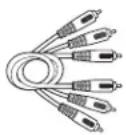
Audio/Video cables
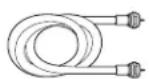
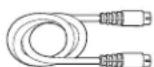

S-Video cableCoaxial component Video (Y•Pb•Pr) cables
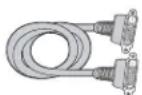
DVI-HDTV Cable
Choose Your Connection
There are several ways to connect your HDTV. Please use the following chart to determine which connection is best for you. Proceed to the appropriate page and connect your HDTV.
| Devices Cables Connection Go to... Needed Title | |||
Video Connections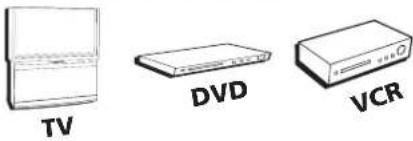 | CoaxialAudio/videoComponent video | TV + DVD + VCR | pages 10-11 |
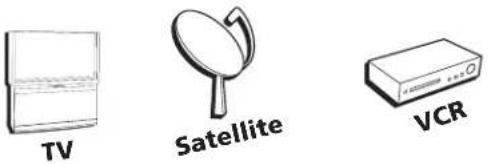 | CoaxialAudio/videoS-Video | TV + SatelliteReceiver + VCR | pages 12-13 |
DVI Connection | AudioDVI | TV + DVI device | page 14 |
Audio Connection | Audio | TV + A/Vreceiver | page 14 |
Connections & Setup
flowchart
graph TD
    A["DVD"] --> B["DVD PLAYER"]
    B --> C["COMPONENT INPUTS"]
    C --> D["COMPosite INPUTS"]
    D --> E["AUDIO/VIDEO OUTPUT"]
    E --> F["HDTV"]
    G["VCR"] --> H["CABLE"]
    H --> I["OFF-AIR ANTENNA"]
    J["TV"] --> K["1B"]
    K --> L["1A"]
    L --> M["4"]
    N["OFF-AIR ANTENNA"] --> O["4"]
    P["3"] --> Q["2C"]
    Q --> R["2B"]
    R --> S["2A"]
    T["2B"] --> U["2C"]
    U --> V["2A"]
    W["1B"] --> X["COMPONENT INPUTS"]
    X --> Y["COMPosite INPUTS"]
    Y --> Z["AUDIO/VIDEO OUTPUT"]
    Z --> AA["HDTV"]
    AB["1A"] --> AC["4"]
    AD["2C"] --> AE["2B"]
    AE --> AF["2A"]
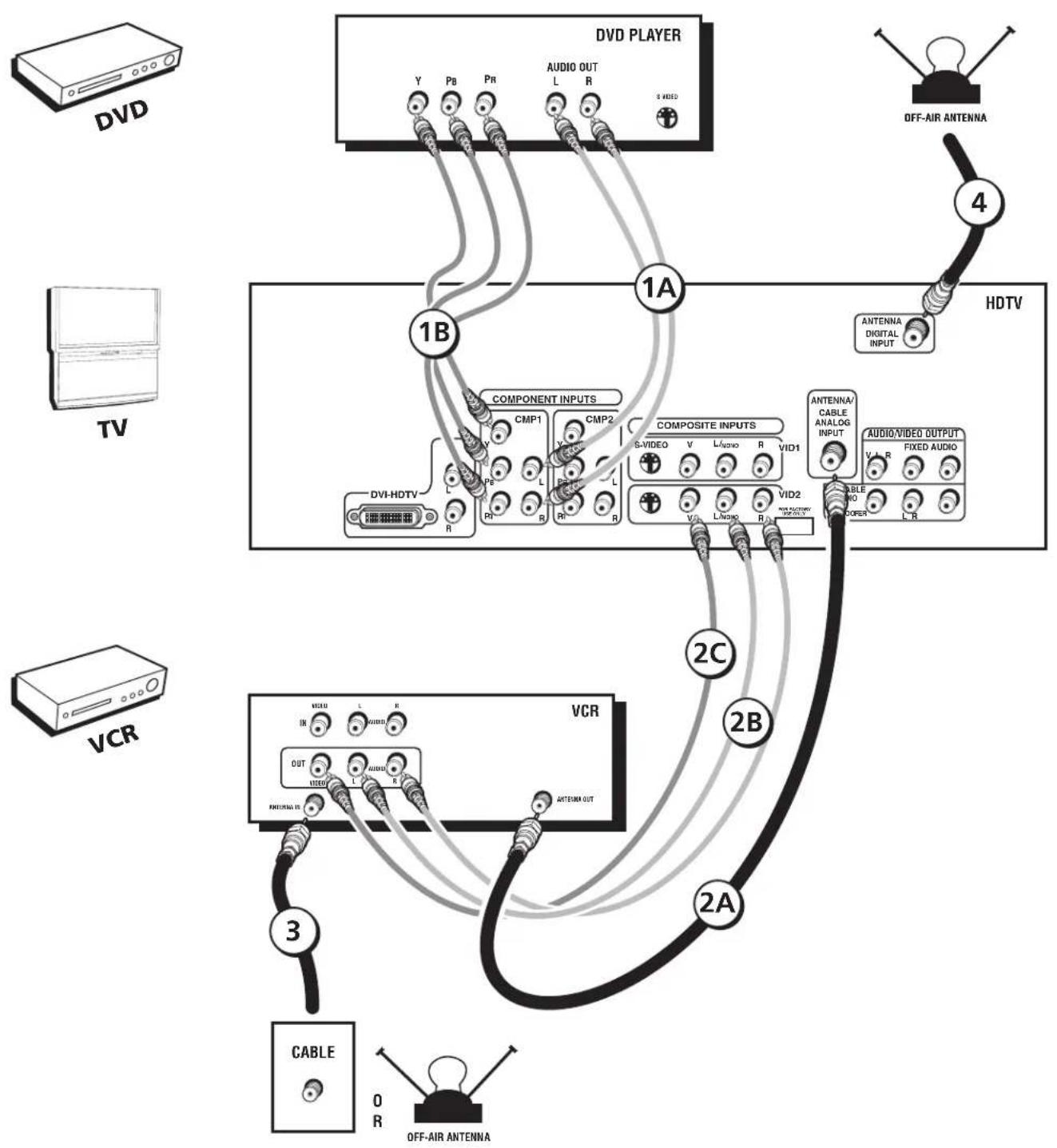
TV + DVD + VCr
- Connect your DVD Player to your TV.
A. Connect the audio (white and red) cables to the CMP1 L and R audio input jacks on the back of the TV and to the audio output jacks on the DVD player.
B. Connect three video grade cables to the CMP1 Y Pb Pr jacks on the back of the TV and to the Y Pb Pr jacks on the DVD player.
Notes:
If your DVD player does not have Y P_b Pr jacks, but does have an S-Video jack, connect the player to the VID1 S-VIDEO jack on the TV using an S-Video cable.
If your DVD player does not have an S-Video jack, connect the player to the VID1 V (Video) jack on the back of the TV using a video cable.
Important: If you use the VID1 S-VIDEO or V (Video) jack to connect your TV to the DVD player, you must connect the audio cables to the VID1 L/MONO and R jacks on the TV.
- Connect your VCR to your TV.
A. Connect a coaxial cable to the VCR's antenna output jack and to the ANTENNA/CABLE ANALOG INPUT jack on the TV.
B. Connect the audio (white and red) cables to the VID2 L/MONO and R audio input jacks on the back of the TV and to the audio output jacks on the VCR.
C. Connect the video cable to the VID2 V (Video) jack on the back of the TV and to the video output jack on the VCR.
- Make sure cable or antenna is connected to your VCR.
Connect the coaxial cable from your cable outlet or antenna to the antenna input jack on the VCR.
- Connect the coaxial cable from an off-air antenna to the ANTENNA DIGITAL INPUT jack.
Note: Do not connect a digital cable signal to this input.
text_image
• To review other connections, go to the next page. • If you are done connecting devices to your TV, go to page 16 to complete the Initial Setup. • If you want more details of the jacks on your TV, go to page 18.
flowchart
graph TD
    A["SATellite"] --> B["3C"]
    B --> C["3B"]
    C --> D["3A"]
    D --> E["HDTV"]
    E --> F["4"]
    F --> G["OFF-AIR ANTENNA"]
    H["TV"] --> I["COMPONE INPUTS"]
    I --> J["CMP1"]
    J --> K["PA"]
    K --> L["L"]
    L --> M["Pa"]
    M --> N["R"]
    N --> O["COMP2"]
    O --> P["Y"]
    P --> Q["L"]
    Q --> R["PE"]
    R --> S["L"]
    S --> T["R"]
    T --> U["COMPOSITE INPUTS"]
    U --> V["S-VIDEO"]
    V --> W["V"]
    W --> X["U"]
    X --> Y["R"]
    Y --> Z["VID1"]
    Z --> AA["ANTenna/CABLE ANALOG INPUT"]
    AA --> AB["AUDIO/VIDEO OUTPUT"]
    AB --> AC["V L R"]
    AC --> AD["FIXED AUDIO"]
    AD --> AE["AMSTER OUT"]
    AE --> AF["AMSTER OUT"]
    AF --> AG["AMSTER OUT"]
    AG --> AH["AMSTER OUT"]
    AH --> AI["AMSTER OUT"]
    AI --> AJ["AMSTER OUT"]
    AJ --> AK["AMSTER OUT"]
    AK --> AL["AMSTER OUT"]
    AL --> AM["AMSTER OUT"]
    AM --> AN["AMSTER OUT"]
    AN --> AO["AMSTER OUT"]
    AO --> AP["AMSTER OUT"]
    AP --> AQ["AMSTER OUT"]
    AQ --> AR["AMSTER OUT"]
    AR --> AS["AMSTER OUT"]
    AS --> AT["AMSTER OUT"]
    AT --> AU["AMSTER OUT"]
    AU --> AV["AMSTER OUT"]
TV + Satellite Receiver + VCR
1. Connect your VCR to your TV.
A. Connect a coaxial cable to the VCR's antenna output jack and to the ANTENNA/CABLE ANALOG INPUT jack on the TV.
B. Connect the audio (white and red) cables to the VID2 L/MONO and R audio jacks on the back of the TV and to the Audio Output jacks on the VCR.
C. Connect the video cable to the VID2 V (Video) jack on the back of the TV and to the video output jack on the VCR.
2. Make sure cable or antenna is connected to your VCR.
Connect the coaxial cable from your cable outlet or antenna to the antenna input jack on the VCR.
3. Connect your Satellite Receiver to your TV.
Note: Use the best connection offered by your satellite receiver—if your satellite receiver has component video jacks, connect those
A. Connect the audio (white and red) cables to the VID1 L/MONO and R audio jacks on the back of the TV and to the audio output jacks on the satellite receiver.
B. Connect the video cable to the VID1 V (Video) jack on the back of the TV and to the video output jack on the satellite receiver.
C. If your satellite receiver has an S-Video jack, connect an S-Video cable (instead of the video cable in step B) to the S-VIDEO jack on the TV and to the S-VIDEO output jack on the satellite receiver.
4. Connect the coaxial cable from an off-air antenna to the ANTENNA DIGITAL INPUT jack.
Note: Do not connect a digital cable signal to this input.
text_image
• To review other connections, go to the next page. • If you are done connecting devices to your TV, go to page 18 to complete the Initial Setup. • If you want more details of the jacks on your TV, go to page 18.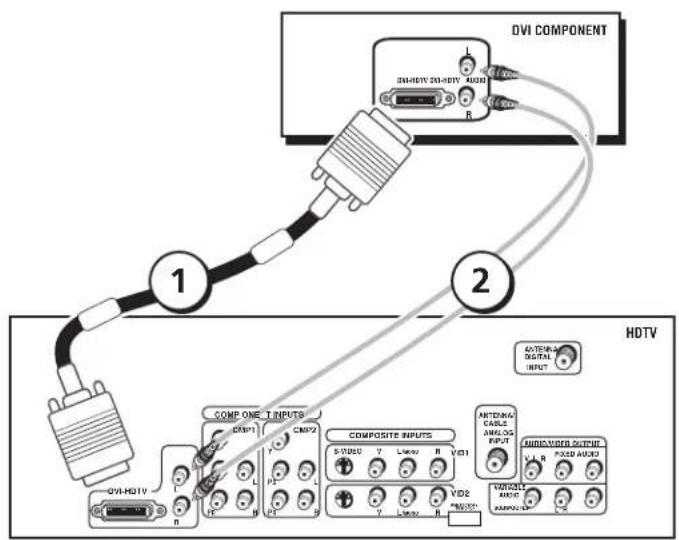
text_image
DVI COMPONENT COMPONENT INPUTS COMPONENT INPUTS HDTV COMPONENT INPUTS COMPONENT INPUTS COMPONENT INPUTS COMPONENT INPUTS COMPONENT INPUTS COMPONENT INPUTS COMPONENT INPUTS COMPONENT INPUTS COMPONENT INPUTS COMPONENT INPUTS COMPONENT INPUTS COMPONENT INPUTS COMPONENT INPUTS COMPONENT INPUTS COMPONENT INPUTS COMPONENT INPUTS COMPONENT INPUTS COMPONENT INPUTS COMPONENT INPUTS COMPONENT INPUTS COMPONENT INPUT S:10000 V Linear R VDD1 COMPONENT INPUTS COMPONENT INPUTS COMPONENT INPUTS COMPONENT INPUTS COMPONENT INPUTS COMPONENT INPUTS COMPONENT INPUTS COMPONENT INPUTS COMPONENT INPUTS COMPONENT INPUTS COMPONENT INPUTS COMPONENT INPUTS COMPONENT INPUTS COMPONENT INPUTS COMPONENT INPUTS COMPONENT INPUTS COMPONENT INPUTS COMPONENT INPUTS COMPONENT INPUTS COMPONENT INPUTTV + DVI Device
To connect a DVI Device to your TV:
- Connect the audio (white and red) cables to the DVI-HDTV L and R audio jacks on the back of the HDTV and to the audio output jacks on the DVI device.
- Connect the video cable to the DVI-HIDTV jack on the back of the HIDTV and to the DVI jack on the DVI device.

These are two different ways your TV uses a device to hear audio.
Connect audio cables to either the FIXED or VARIABLE AUDIO I and R OUTPUT jacks and to the audio inputs on the A/V receiver.
Note: If you've connected your VCR or other device to the FIXED outputs on the HDTV, use the VARIABLE inputs for your A/V Receiver.
- FIXED provides fixed-level audio output from the TV. This audio output is ideal for connecting to an A/V receiver that has its own volume control.
-
VARIABLE provides variable-level audio output. Volume levels can be controlled by the volume controls on the TV and TV remote control.
-
If you are done connecting devices to your TV, go to page 18 to complete the Initial Setup.
• If you want more details of the jacks on your TV, go to page 18.
text_image
SIZE 'AA' 1.5V SIZE 'AA' 1.5VPlug in the TV
Plug the flat end of the cable into the power jack on the back of the TV. Then plug the other end of the power cord into an appropriate wall outlet. Be sure to insert the plug completely. Do not plug the TV into an outlet controlled by a light switch.
Put Batteries in the Remote
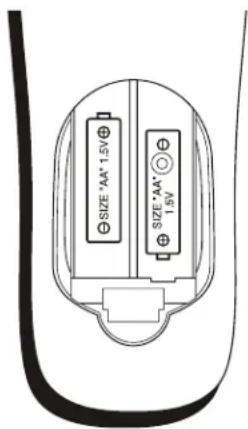
- Remove the battery compartment cover from the back of the remote by pushing the tab and lifting off the cover.
- Insert 2 fresh batteries. Make sure the polarities (+ and -) are aligned correctly.
- Replace the cover.
text_image
ON-OFF SAT-CABLE AUX DVD TV + GO BACK + VOL CH - MUTE - INFOGUIDE OK button FORMAT OK FREEZZI SUB CH MENU CLEAR 1 2 3 ArrowsUse the Remote Control to Complete the Initial Setup
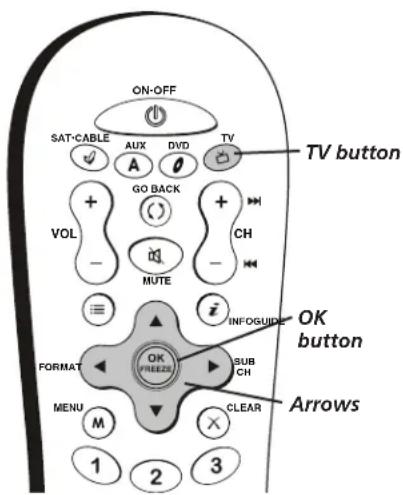
The technical term is “Navigation” – how you move through the on-screen menus. The theory is the same throughout the menu screens: highlight your choice and select it.
To highlight a menu item, press the arrow buttons on the remote to highlight one of the items listed on the screen. Use the up or down arrow button to move up or down. Use the right or left arrow button to move right or left.
To select the item that you've highlighted, press OK.
Note: Highlighted means that the menu item stands out from other menu items on the list (appears darker, brighter, or a different color).
Turn on the TV
Press TV on the remote, or press the Power button on the TV's front panel.
Note: Pressing the TV button turns on the TV and puts the remote into TV mode. "TV mode" means that the buttons on the remote control operate the TV's functions.
Tip
To access the setup menus manually, press MENU and choose SETUP.
text_image
English Français Español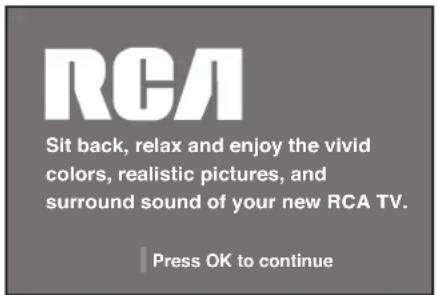
text_image
RCA Sit back, relax and enjoy the vivid colors, realistic pictures, and surround sound of your new RCA TV. Press OK to continue| Channel setup | |
| Go back | |
| Signal Source Analog Signal type Auto channel search | Both... Cable... Start |
| List and labels | ... |
| Press < / > to select where you would like to search for channels. | |
Complete the Initial Setup
The menu system in your TV allows the TV's features to work properly. The first time you turn on your TV, the setup screens appear.
Set the Menu Language
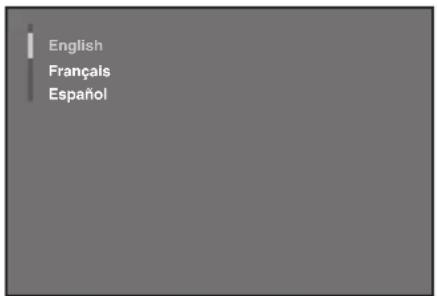
The first part of the setup allows you to select your preferred language for the menu system.
If English is your preferred language, press OK. If you want to choose another language, press the down arrow button until that language is highlighted, and press OK.
Welcome Screen and Connection Confirmation
The next screen welcomes you to your new RCA TV. Press OK to continue with the setup. After the welcome screen, the initial setup asks you to make sure that you've connected the HDTV to your cable or antenna signal. Once you've confirmed that the HDTV is connected, press OK. The Channel setup screen appears.
Complete the Auto Channel Search
The Channel setup screen lets you set your signal source and search for the available channels on that source. The Auto channel search allows the TV to search for all the viewable channels on both of your tuners—for digital or analog channels—or on each antenna separately. This is sometimes called auto programming.
When you first turn on your HDTV, it's set to search on both tuners.
To search for channels on the both tuners:
- Make sure the Signal Source is set to Both. If it's not, use the right arrow to change the setting to Both.
- Press the down arrow button on your remote control to highlight Analog Signal Type.
- Use the right arrow button to choose the signal type you're receiving on the analog tuner—either UHF/VHF Antenna for an off-air antenna or Cable.
- Press the down arrow button on your remote control to highlight Auto channel search.
- Press OK to start the Auto channel search on both tuners.
When the channel search is complete, press OK to access the List & Labels screen.
Note: The Auto Channel Search looks for channels for the Signal Source you choose—analog, digital, or both. To perform the Auto Channel Search for just one tuner, choose that tuner in step 1 above. Then follow the rest of the steps.
text_image
Go back Channel number 113 In channel list Channel label ESP_--- Enter the channel number or use keys.Changing Lists and Labels
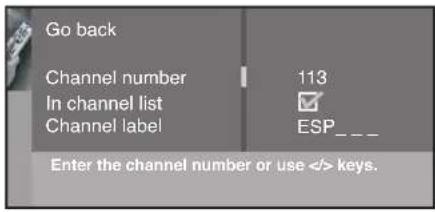
The List & Labels part of the setup lets you edit your channel list and choose or create a personal six-character label for each channel.
Note: Changing List and Labels can be time consuming. You can change these at a later time by accessing the Setup menu.
- Press the left or right arrow button to scroll through the channels and choose the one you want to edit.
Note: Labels for digital channels cannot be changed—they come from the signal sent by the broadcaster. If you're on a digital channel and you want to switch to an analog channel, press the ANT•CABLE button on your remote.
- Press the down arrow to highlight the In channel list option. Press the left or right arrow button to add (the box is checked) or remove (the box is unchecked) the channel from the list.
- Press the down arrow to highlight the Channel label option. Press the left or right arrow button to scroll through the available list of 25 most common labels. The last option in the list allows you to create your own six-character label for the channel (the first letter of the label is highlighted).
- Press the 1 or 2 number button to change the first letter of the label.
- Press the right arrow to highlight the second letter, then press the 1 or 2 number button to change the second letter, etc...
- When you are finished creating your label, press OK. Select Go back to go to the Auto Convergence menu.
text_image
Go back Automatic convergence ... Press < or > key to launch the automatic convergence. The process takes about 1 min. Pressing OK before the end will stop the process and keep old settings.Automatic Convergence
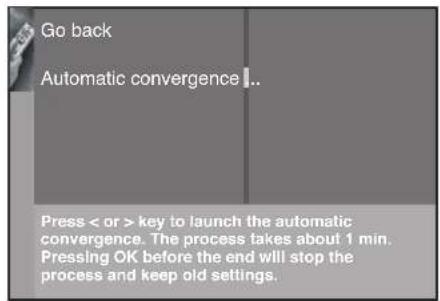
Your HDTV's picture tubes might have been disturbed during delivery or after you moved the HDTV, causing the color in your HDTV to be out of alignment. The colors adjust by starting auto convergence.
IMPORTANT: Auto convergence works best once the HDTV has warmed up for at least an hour. If you've just unpacked your HDTV, it's a good idea to repeat the Auto convergence function when the HDTV's been running for at least an hour. See page 51 for more information about Auto convergence.
- Press OK to begin auto convergence.
- When the auto convergence is complete, the Red center convergence menu appears. The cross in the middle of the screen should be yellow. If it is not, use the arrow buttons to move the red cross to overlap the green cross. Press OK when adjustments are complete.
- The Blue center convergence menu appears with a cyan cross in the middle of the screen. If it is not, use the arrow buttons to move the blue cross to overlap the green cross. Press OK (the TV tunes to the last selected/available channel in the channel list).
Note:
If you're using an HD source (such as a separate HDTV tuner or HDTV satellite receiver) on the CMP or DVI inputs, you should run Auto convergence separately for that input as well. Tune to the input you're using for the HD source, then go to page 51 for information on Auto convergence.
Explanation of Jacks
This section describes the jacks you can use for connections. There are several ways to connect devices to your TV.

text_image
AUDIO/VIDEO OUTPUT V L R FIXED AUDIO VARIABLE AUDIO SUBWOOFER L RBack Panel Jacks (in alphabetical order)
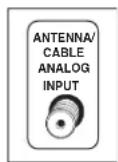
ANTENNA/CABLE ANALOG INPUT Lets you connect a coaxial cable to receive the signal from the antenna, cable, cable box, or a VCR. This input jack is for analog signals only.
ANTENNA DIGITAL INPUT Lets you connect the coaxial cable from an off-air antenna to receive the off-air digital signals.
Note: Do not connect a digital cable signal to this input.
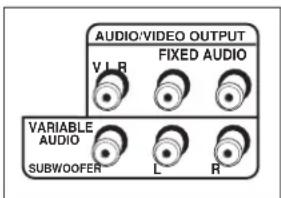
AUDIO/VIDEO OUTPUT Lets you connect an amplifier or audio receiver for improved sound quality. You can also connect a VCR or external monitor to the FIXED outputs.
- V Provides a standard-definition video output from your TV. You can use this video output along with the FIXED AUDIO L/R outputs to connect a VCR for recording programs in standard definition from the analog antenna input. You can also connect this output jack to an external monitor to watch standard definition programs.
Note: The V output does not carry video from the digital tuner.
- FIXED AUDIO L/R Provides fixed-level audio output from the TV. You can use these audio outputs along with the video output to connect a VCR for recording. You can also connect this audio output to an A/V receiver when you want to control the volume through the A/V receiver.
- VARIABLE AUDIO Provides variable-level audio output. Volume levels are controlled by the volume controls on the TV and remote control.
- SUBWOOFER Provides lower bass audio frequencies from the TV to a subwoofer.
Note: If you've connected a subwoofer, make sure you set the External Subwoofer option in the Sound menu. Go to page 42 for instructions.

text_image
COMPONENT INPUT CMP1 Y PB L PR RCOMPONENT INPUTS Lets you connect a component video source, such as a DVD player.
- CMP1 Y Pb Pr (Component Video) Provides optimum picture quality because the video is separated into three signals. Use three video-grade cables for the connection. When using CMP1 Y Pb Pr, make sure to connect left and right audio cables to the CMP1 L and R Audio Input jacks.
- CMP1 L (Audio) Provides left audio connection. The left audio connector is usually white.
- CMP1 R (Audio) Provides right audio connection. The right audio connector is usually red.
- CMP2 Y Pb Pr, and L and R Audio Allows you to connect a second component video source. Their description is the same as CMP1 above. When using CMP2 Y Pb Pr, make sure you connect the left and right audio cables to the CMP2 Audio jacks.
text_image
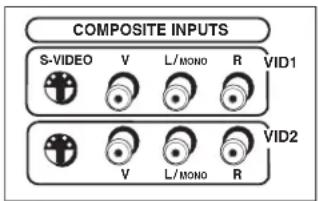
COMPOSITE INPUTS S-VIDEO V L/MONO R VID1 V L/MONO R VID2COMPOSITE INPUTS Lets you connect another device such as a VCR or DVD player. Its AUDIO jacks are the same as described for CMP1 above.
- VID1 S-VIDEO Provides better picture quality than the video jacks (VID1 and 2 Video) because the color part of the picture is separated from the black and white part of the picture. When using VID1 S-VIDEO, make sure to connect left and right audio cables to the VID1 L/MONO and R Audio Input jacks.
- VID1 V (Video) Provides composite video connection. The video connector is usually yellow.
- VID2 S-VIDEO, V and L/MONO and R Audio Allows you to connect a device such as a VCR or DVD player. Their description is the same as VID1 above.
Note: For each VID jack group (VID1 and VID2), you may connect either an S-Video or Video cable. Do not connect both at the same time in either of the VID jack groups.
text_image
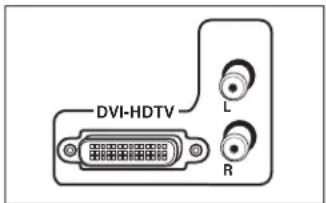
DVI-HDTV L RDVI-HDTV Input Lets you connect a device with a DVI output.
Important: The DVI-HDTV input is not intended for use with a computer.
- DVI (Digital Visual Interface) Provides an uncompressed, digital video interface developed for high-bandwidth digital connection. It supports the overlay of high-resolution graphics needed by some electronic program guide navigation and other interactive services. DVI, when combined with HDCP (High bandwidth Digital Content Protection) technology, creates a protected digital connection. The DVI-HDTV connection is designed to display either progressive scan (480p) or HDTV (1080i) signals at a bandwidth of up to 1.78 Gigabits per second.
- L (Audio) Provides left audio connection when using the DVI jack. The left audio connector is usually white.
- R (Audio) Provides right audio connection when using the DVI jack. The right audio connector is usually red.
Note: Remember to connect the left and right audio cables because the DVI cable carries only the picture signal, not the sound.
The Front of Your TV
Front Input Jacks
The TV has front input jacks for convenience in connecting a camcorder, digital camera, or video game system. Look for a hinged door and press to open the cover. Please note the illustration below is just an example of how these jacks might appear.

text_image
AUDIO IN -VIDEO S-VIDEO L/MONO R IN IN HEADPHONE MENU/OK CH CH VOL VOLNotes: The front panel illustration shows a typical front panel layout. The exact look may be different from the one on the front of your TV.
If you use the Front Button Block feature, the front panel no longer provides access to the menus. The Front Button Block feature disables all front panel buttons but not the jacks. For more information, see Chapter 3.
PHONES Allows you to connect headphones to listen to the sound coming from the TV. To adjust volume control of the headphones, press the VOL+ or VOL- button (the volume display appears). Press the arrow up or down button (the headphone volume display appears), then press the right or left arrow button to adjust the headphone volume.
Note: Use the VOL-button to turn the TV's volume down while listening to phones.
VIDEO (in) Receives video from another device, such as a camcorder, video game console, or VCR.
L/MONO and R AUDIO Receives audio from another device, such as a camcorder, video game console, or VCR.
S-VIDEO (in) Allows you to connect an S-Video cable from another device. Make sure you also connect audio cables from the device to the TV.
Notes: When connecting a device that uses a monaural cable, such as some camcorders, use the LIMONO input jack to get sound from both speakers.
Front Panel Buttons
If you cannot locate your remote, you can use the front panel buttons of your TV to operate many of the TV's features.
MENU/OK Brings up the Main menu. In the menu system, it selects highlighted items.
CH ▲ Scans down through the current channel list. In the menu system, acts like down arrow button on the remote control and adjusts menu controls.
CH ▼ Scans up through the channel list. In the menu system, acts like up arrow button on the remote control and adjusts menu controls.
VOL ◀ Decreases the volume. In the menu system, acts like left arrow button on the remote control and adjusts menu controls.
VOL ▶ Increases the volume. In the menu system, acts like right arrow button on the remote control and adjusts menu controls.
POWER Turns the TV on and off.
Chapter 2: Using the Remote Control
Chapter Overview:
• The Buttons on the Remote Control
- Programming the Remote to Operate Other Devices
- How To Use the Remote After You've Programmed It
• Volume Punchthrough Feature
• Using the INPUT Button
- Remote Code List

natural_image
Black-and-white photo of two puppies sitting side by side, no text or symbols visiblewww.rca.com/television
text_image
ON-OFF SAT-CABLE AUX DVD TV + GO BACK + VOL - MUTE CH - INFOGUIDE FORMAT OK SUB FREEZE CH MENU CLEAR M 1 2 3 4 5 6 7 8 9 INPUT ANT-CABLE IN 0 REVERSE PLAY FORWARD RECORD STOP PAUSEThe Buttons on the Remote Control
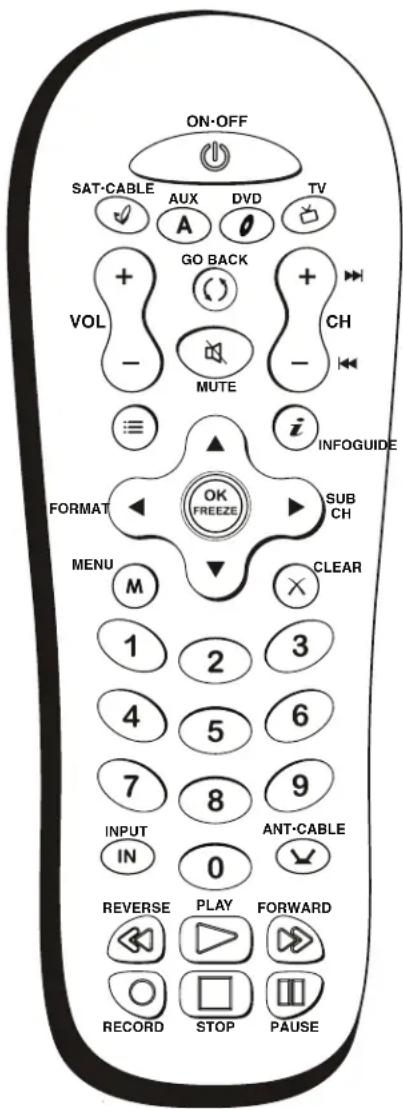
(0-9) Number Buttons Enter channel numbers and time settings. Also used in the TV menu to make selections. Analog inputs: To enter a one-digit channel, enter a zero first. To enter a two-digit channel, press the two digits. To enter a three-digit channel, press and hold the 1 button until 1 and two dashes (--) appear, then add the second two digits. Example: to tune to channel 123, press and hold 1 until 1-- appears, release the 1 button and then press 2 and 3. Digital inputs: Enter the channel number, press the right arrow button and enter the subchannel numbers. Press OK.
ANT•CABLE In TV mode, this button switches between Antenna and Cable Input. When tuned to an input, press to go back to the most recently used tuner (Antenna or Cable Input).
Arrows (up, down, left, right) Used to move through the on-screen menus. The right arrow (Zoom+) and left arrow (Zoom-) buttons on the remote change the TV's screen format (when no menus are on screen).
AUX Places the remote in auxiliary mode to operate a device (such as a cable box, satellite receiver, VCR or DVD player etc.) you've programmed to work with this button. If Auto Tuning is enabled, pressing the AUX button turns on the TV and tunes to the corresponding Video Input Channel for RCA devices. AUX by default is programmed for an RCA VCR. This button lights when you press a valid button in AUX mode (see Modes of Operation on page 25 for more details).
CH + or CH - Scrolls up or down through the channel or input list. Press once to change the channel up or down; press and hold to continue changing channels. In DVD mode (if programmed), these buttons work as chapter advance or chapter reverse buttons with some DVD players.
CLEAR Removes any menu or display from the screen.
DVD Places the remote in DVD mode. If Auto Tuning is enabled, pressing the DVD button turns on the TV and tunes to the corresponding Video Input Channel for RCA devices. This button lights when you press a valid button in DVD mode (see Modes of Operation on page 25 for more details).
FORMAT Changes the current video screen format. Format control is not available for digital 16:9 broadcasts.
FREEZE Freezes the entire screen. When watching TV, freezes the picture until you press any button on the remote to resume normal TV viewing. The FREEZE feature automatically times out after a short time. Please note that when you "unfreeze" you go back to live programming (skipping any programming that occurred during the freeze).
Note: The FREEZE feature does not work on signals from the DVI-HDTV, CMP1, or CMP2 inputs in progressive scan (480p) or HDTV (1080i) modes. It also does not work on digital channels.
Do not use the Freeze feature for an extended period of time. This can cause the image to be permanently imprinted on the picture tube. Such damage is not covered by your warranty. Press any button to unfreeze the picture at any time.
GO BACK Returns you to the previous channel.
GUIDE Displays the Channel Guide menu.
INFO Displays the Channel Banner with channel and viewing information. Press again to remove the banner.
Tip
To turn off all the RCA devices that are connected to the TV, press ON•OFF twice within two seconds.
This feature works with most RCA products.
Note:
The SAT•CABLE, AUX and DVD buttons operate most RCA products.
INPUT Press to toggle through the available input sources (VID1, VID2, FRNT, CMP1, CMP2 and DVI).
MENU Displays and clears the Main Menu.
Note: If you've just turned on the TV, the digital input takes some time to become available (usually about 25 seconds). While it's getting ready, you won't see the items related to the digital input in the menus. These items will show up once the digital tuner is ready.
MUTE Reduces the TV's volume to its minimum level. Press again to restore the volume. To program this button to work with devices connected to your audio system, follow the instructions in the Volume Punchthrough Feature section on page 26.
OK When a menu item is highlighted, press OK to select the item.
ON•OFF When in TV mode, turns the TV on and off. If in another device mode (SAT•CABLE, AUX or DVD) and programmed, will turn the device on and off.
REVERSE, PLAY, FORWARD, RECORD, STOP, PAUSE If programmed, provides transport control for some remote-controllable VCRs, DVRs, CD and DVD players etc.
Important: The RECORD button has a safety feature that requires you to press it twice.
SAT•CABLE (Satellite•Cable) Places the remote in SAT/CABLE box mode. If Auto Tuning is enabled, turns on the TV and tunes to the satellite or cable box Video Input Channel for RCA devices. This button lights when you press a valid button in SAT•CABLE mode (see Modes of Operation on page 25 for more details).
SUB CH (Subchannel) When entering a digital channel that has a subchannel, press this button to access the subchannel entry field. Enter the subchannel and press OK to tune to the channel.
TV Places the remote in TV mode. Turns on the TV and tunes to the last-viewed TV channel or input. This button lights when you press a valid button in TV mode (see Modes of Operation on page 25 for more details).
VOL - or VOL + Decreases or increases the TV's volume. To program this button to work with devices connected to your audio system, follow the instructions in the Volume Punchthrough Feature section on page 26.

text_image
ON-OFF SAT-CABLE AUX DVD TV + + VOL - GO BACK + - MUTE - CH -Device Buttons
Programming the Remote to Operate Other Devices
The universal remote can be programmed to operate many brands of remote-controllable VCRs, audio devices, DVD players, cable boxes, satellite receivers and other devices. In addition to being programmed to operate your television, it's already programmed to operate most RCA devices.
Note: The TV button can't be programmed on this remote to control any device; it controls only this TV.
Continues on next page...

text_image
ON-OFF SAT-CABLE AUX DVD TV A GO BACK VOL CH MUTE INFOGUIDE FORMAT OK FREEZE SUB CH MENU CLEAR 1 2 3 4 5 6 7 8 9 INPUT ANT-CABLE IN 0 REVERSE PLAY FORWARD RECORD STOP PAUSEYou'll use these buttons for Direct Entry.
Important: The remote may not be compatible with all models of all brands of devices. It also may not operate all functions of your device.
Find Out If You Need to Program the Remote
To determine whether the universal remote needs to be programmed to operate one of the devices connected to your TV, such as a DVD player, do the following:
- Turn on the device (in this example, a DVD player).
- Point the remote at the device.
- Press the corresponding device button (in this example, DVD).
- Press ON•OFF to see if the DVD player responds. If the DVD player doesn't respond, you need to program the remote to operate it.
Programming the Remote
There are three ways to program the remote control to operate other devices: Direct Entry, Manual Code Search and Automatic Code Search. If you have recently purchased the device you want to control or if the device has many codes, you might want to try the manual code search first. The codes in the code list at the end of this chapter are programmable for any of these device buttons (SAT•CABLE, AUX or DVD) on the TV's remote.
Using Direct Entry
- Turn on the device you want to control.
- Look up the brand and code number(s) for the device on the code list at the end of this section.
- On your remote control, simultaneously press and hold the ON•OFF and MUTE buttons (approximately 3 seconds) until a device button remains lit. Then release the buttons.
- Press and release the device button (SAT•CABLE, AUX or DVD) you want to program.
- Enter a three digit code from the code list.
- To test the code you've programmed for that device button, point the remote at the device and then press ON•OFF to see if the device responds to the remote control.
If the device turns off, you've entered the correct programming code for your device. (You might want to circle the code for future reference). If the device doesn't turn off, repeat these steps until you've tested all codes for your device's brand or try to run a manual code search.
Using Manual Code Search
Note: Try the direct entry method first, or if you want the AUX button to operate your DVR, for example, enter the first code from the DVR code list. (You save time by telling the remote what type of device you want to program). Now proceed with the following steps.
- Turn on the device you want to control.
-
On your remote control, simultaneously press and hold the ON•OFF and MUTE buttons (approximately 3 seconds) until a device button remains lit. Then release the buttons.
-
Press and release the device button (SAT•CABLE, AUX or DVD) you want to program.
- Repeatedly press and release the ON•OFF button, watching for the device to respond. If it does turn off, press and release the OK button within 3 seconds to save the code. If you accidentally passed the code before saving it, press the left arrow button to backtrack through the codes; then use the right arrow button to go forward through the codes again.
When all codes have been searched, the device button flashes 3 times, then the remote exits manual code search and returns to normal operation.
Using Automatic Code Search
- Turn on the device you want to control.
- On your remote control, simultaneously press and hold ON•OFF and MUTE (approximately 3 seconds) until a device button remains lit. Then release the buttons.
- Press and release the device button you want to program.
- Press and release the ON•OFF button once. There is a delay of approximately 6 seconds before the remote starts the code search.
The device buttons blinks each time the remote control sends a code to test for your device. Keep pointing the remote at the device.
- Once the device turns off, quickly press the OK button to save the code.
- If you accidentally passed the code before saving it, press the left arrow button to backtrack through the codes; then use the right arrow button to go forward through the codes again.
When all codes have been searched, the device button flashes 3 times, then the remote exits automatic code search and returns to normal operation.
How to Use the Remote After You've Programmed It
Once the remote has been programmed successfully, you are ready to use it to operate your devices.
To Operate the Device:
- Press the appropriate device button (SAT•CABLE, AUX, DVD) to set the remote to control the device.
- Press ON•OFF to turn the device ON or OFF.
- Use the remote buttons that apply to that device.
Notes: The remote control may not be compatible with all brands and models of devices.
Some of the remote buttons might operate differently for other devices, especially when you're using another device's menu system.
Modes of Operation
Because this universal remote can control several different devices (DVD player, VCR, cable box, etc.) it uses operational modes triggered by the device buttons. For example, if you want the remote control to operate the TV, press the TV button to put the remote into TV mode. If you want the remote to operate the DVD player, press the DVD button.
The button corresponding to the mode the remote is in lights up when you press any button that works in that mode. For example, if you're in TV mode and you press the VOL+ button, the TV button lights up. This tells you that the command to increase the volume is being sent to the TV (and not the satellite receiver, for example).
Volume Punchthrough Feature
You may find this feature helpful if you've connected an audio/video receiver (A/V receiver) or amplifier, and you want to use the TV's remote control to operate the volume for a device that is connected to the audio/video receiver. An example follows:
Let's say you've connected your DVD player to your audio/video receiver. You've also programmed your TV remote control to operate your DVD player. Since the DVD player sends its volume through the audio/video receiver, you would have to bounce back and forth between two remote controls: the A/V receiver's remote to adjust the volume and the TV's remote control to operate the DVD player.
The Volume Punchthrough feature eliminates the need for you to use two remote controls and saves a button press when you're using the TV remote to adjust the volume. In effect, you are telling the TV remote to retrieve and send volume commands from the A/V receiver whenever the TV remote is in DVD mode.
Therefore, after you've successfully set up the Volume Punchthrough feature, whenever the TV remote is in DVD mode (press the DVD button) and you want to adjust the volume, you only have to press the VOL +, VOL- or MUTE buttons. Follow the instructions below to set up Volume Punchthrough.
IMPORTANT: First, you must program a device button (SAT•CABLE, DVD, AUX) on the TV's remote control to operate your audio receiver or amplifier. Go to page 24 for instructions. If you can't program this remote to operate your audio receiver, Volume Punchthrough won't work.
While setting up Volume Punchthrough, it's best to point the remote away from other devices.
- On your remote control, simultaneously press and hold the ON•OFF and MUTE buttons (approximately 3 seconds) until a device button remains lit. Then release the buttons.
- Press and hold the MUTE button until the device button blinks off, then release the MUTE button.
- Press and release the device button that you programmed to operate the audio device (receiver or amplifier).
- Press and release the MUTE button.
- Now, test it by turning on your audio system.
- Turn on the device that is connected to the audio system (a satellite receiver, for example).
- Put the TV's remote in SAT mode by pressing the SAT•CABLE button.
- The volume from the audio system should increase or decrease when you press the VOL+ or VOL- buttons.
Deleting ALL Volume Punchthrough Commands
To delete all programmed Volume Punchthrough settings and return the remote control back to the factory defaults:
- Simultaneously press and hold the ON•OFF and MUTE buttons (approximately 3 seconds) until a device button lights.
- Release the ON•OFF and MUTE buttons (the device button stays lit).
- Press and hold the MUTE button (approximately 3 seconds) until the device button blinks off, then release the MUTE button.
- Press and release the MUTE button (the device button light turns off).
- The remote returns to normal operation and Volume/Mute control.

text_image
1 2 3 4 5 6 7 8 9 INPUT IN 0 ANT-CABLE REVERSE PLAY FORWARD RECORD STOP PAUSE INPUT buttonUsing the INPUT Button
-
Repeatedly press the INPUT button to scroll through the available input sources until you find the input associated with the device (such as a DVD player or cable box) you want to view.
-
Once you find the input source you want, stop pressing INPUT.
- If you tune to VID1 and your DVD player is connected to that input, you will be able to view your DVD player. To play, stop, or rewind the DVD using the remote that came with your TV, you must first press the (device button) SAT•CABLE, DVD or AUX button (whichever one is programmed to the DVD player) to put the remote control in DVD mode.
There are other ways of selecting a Video Input Channel:
- Program the device buttons (DVD, SAT•CABLE etc.) on the remote control to automatically tune to the corresponding Video Input Channel when pressed. For more details on Auto Tuning, see Chapter 3.
- When viewing an input, press ANT•CABLE, GO BACK or INPUT to go back to viewing channels or use the number buttons to enter the channel number.
Remote Code List
The codes below are programmable for any of these device buttons (SAT•CABLE, AUX or DVD) on the TV's remote.
Audio Codes
| AIWA | 839 842 851 860 |
| APEX | 436 |
| BOSE | 672 |
| CARVER | 825 |
| CITIZEN | 826 |
| CRITERION | 448 |
| DFNON | 803 817 852 |
| DELPHI | 708 |
| FISHER | 814 821 |
| GOLDSTAR | 766 |
| HARMAN KARDON | 804 818 |
| JVC | 790 813 819 |
| KENWOOD | 683 808 816 828 832 869 |
| KOSS | 415 |
| MAGNAVOX | 796 814 915 756 |
| MARANTZ | 688 824 |
| MITSUBISHI | 877 |
| NAD | 721 739 743 |
| NEO | 725 |
| NORCENT | 907 |
| ONKYO | 805 811 812 892 |
| OPTIMUS | 667 747 748 749 751 752 754 793 |
| PANASONIC | 791 810 815 823 |
| 863 864 891 950 | |
| PHILIPS | 755 814 823 824 825 |
| PIONEER | 837 866 867 878 893 |
| RADIO SHACK | 706 754 793 806 865 866 867 868 875 |
| 878 879 | |
| RCA | 717 726 772 781 795 827 845 866 867 870 871 |
| 872 875 878 879 449 895 | |
| REALISTIC | 822 |
| SABA | 894 |
| SAMSUNG | 454 |
| SANYO | 705 |
| SCOTT | 768 |
| SHARP | 671 684 809 |
| SHERWOOD | 706 806 858 859 |
| SKYFI | 725 |
| SONY | 323 778 779 785 797 798 |
| 799 833 834 835 836 843 909 | |
| TAO | 725 |
| TEAC | 710 807 855 856 857 |
| TECHNICS | 791 810 815 823 863 864 |
| TEVION | 448 |
| VENTURER | 745 |
| XM RADIO | 708 725 |
| YAMAHA | 801 802 838 840 841 846 847 848 849 |
| ZENITH | 676 730 749 759 765 766 784 814 787 850 |
| 405 |
Cable
| ABC | 461 464 465 466 463 |
| ADELPIIIA | 512 511 |
| ALLEGRO | 525 524 |
| AMERICAST | 527 |
| ANTRONIX | 468 469 |
| ARCHER | 468 469 470 471 |
| AT&T | 511 |
| BELL SOUTH | 527 |
| CABLETENNA | 468 |
| CABLEVIEW | 468 |
| CABLEVISION | 506 |
| CENTURY | 471 |
| CITIZEN | 471 |
| COGECO | 511 |
| COLOR VOICE | 472 | 473 |
| COMCAST | 511 | |
| COMTRONICS | 474 | 475 |
| CONTEC | 476 | |
| DIGITAL MUSIC EXPRESS | 514 | |
| EASTERN | 477 | |
| EVERQUEST | 474 | |
| GARRARD | 471 | |
| GC ELECTRONICS | 469 | |
| GEMINI | 536 | 479 |
| GE | 549 | |
| GENERAL INSTRUMENT (GI) | 509 | 461 465 511 513 |
| 518 | ||
| 530 | 531 514 464 463 | |
| HAMLIN | 461 | 480 481 482 |
| HITACHI | 463 | |
| ILLICO | 506 | |
| JASCO | 471 | |
| JERROLD | 509 | 461 465 518 463 464 520 526 |
| MAGNAVOX | 485 | |
| MEMOREX | 486 | |
| MOTOROLA | 509 | 465 513 518 530 531 464 511 526 |
| 463 | ||
| MOVIE TIME | 487 | |
| NSC | 487 | |
| OAK | 476 | 489 |
| PACE | 532 | |
| PANASONIC | 460 | 508 |
| PARAGON | 486 | 488 |
| PHILIPS | 471 | 479 485 490 491 492 |
| PHILIPS-MAGNAVOX | 505 | 534 |
| PIONEER | 478 | 506 493 494 |
| PULSAR | 486 | |
| RADIO SHACK | 505 | 534 525 |
| RCA | 460 | 471 507 |
| REALISTIC | 469 |
| REGAL | 482 |
| REGENCY | 477 |
| REMBRANDT | 463 |
| ROGERS | 506 |
| RUNCO | 486 |
| SAMSUNG | 474 494 |
| SCIENTIFIC ATLANTA | 498 497 506 535 512 466 496 |
| SHAW | 511 |
| SIGNAL | 474 |
| SIGNATURE | 463 |
| SL MARX | 474 |
| SPRUCER | 460 |
| STANDARD | 499 |
| STARCOM | 461 518 |
| STARGATE | 474 |
| STAR SIGHT | 507 |
| STAR TRAK | 516 |
| TANDY | 500 |
| TELEVIEW | 474 |
| TEXSCAN | 499 |
| TIME WARNER | 506 |
| TOCOM | 464 513 520 501 |
| TOSILIBA | 486 |
| TV86 | 487 |
| UNIKA | 468 469 471 |
| UNITED CABLE | 461 |
| UNIVERSAL | 468 469 470 471 502 524 |
| VIDEOWAY | 50 |
| VIDEOTRON | 506 |
| VIEWSTAR | 475 485 487 500 |
| VIDEO TECH | 550 |
| ZENITII | 503 525 471 486 521 522 523 |
| ZENITII NETWORK | 527 |
CD
| ADC | 660 |
| ADCOM | 661 714 |
| AIWA | 663 707 842 |
| AKAI | 715 737 830 |
| AUDIO TECHNICA | 665 |
| CALIFORNIA AUDIO LABS | 716 |
| CAPETRONIC | 669 |
| CARVER | 666 667 668 825 |
| CASIO | 777 |
| CITIZEN | 826 |
| CURTIS MATHES | 777 |
| DENON | 670 |
| EMERSON | 661 673 |
| FISHER | 667 675 676 677 718 |
| GENEXXA | 673 678 719 |
| GOLDSTAR | 720 |
| HARMAN KARDON | 680 691 |
| HITACHI | 678 |
| INKEL | 681 |
| JC PENNEY | 690 777 |
| JVC | 682 813 |
| KENWOOD | 679 683 685 727 728 828 |
| KRELI | 666 |
| KYOCERA | 660 |
| LUXMAN | 686 687 729 738 |
| LXI | 777 |
| MAGNAVOX | 666 731 800 |
| MARANTZ | 666 688 689 732 |
| MCS | 690 777 |
| MGA | 691 |
| MISSION | 666 |
| MITSUBISHI | 691 692 |
| NAD | 721 743 |
| NAKAMICHI | 693 694 831 |
| NEC | 690 |
| NIKKO | 665 673 676 |
| NSM | 666 |
| ONKYO | 695 696 722 811 |
| OPTIMUS .667 668 678 679 697 698 699 700 744 747 | |
| 751 | |
| PANASONIC ....716 733 740 820 862 | |
| PHILIPS ....666 731 825 | |
| PIONEER ....678 701 702 719 750 837 876 | |
| PROTON ....666 | |
| QUASAR ....716 | |
| RADIO SHACK ....668 699 706 750 786 868 874 876 | |
| RCA ....661 667 703 723 750 795 844 873 874 876 | |
| REALISTIC ....661 667 669 673 678 689 697 699 | |
| ROTEL ....666 | |
| SAE ....666 | |
| SAMSUNG ....741 | |
| SANSUI ....666 704 723 734 | |
| SANYO ....667 705 718 735 742 | |
| SCOTT ....661 673 | |
| SEARS ....679 689 777 | |
| SLARP ....679 689 | |
| SHERWOOD ....681 689 698 706 859 | |
| SHURE ....690 | |
| SONY ....707 792 794 800 | |
| STS ....660 | |
| SYLVANIA ....666 | |
| SYMPHONIC ....709 | |
| TEAC ....676 689 699 709 710 711 856 | |
| TECHNICS ....716 733 820 862 | |
| TIETA DIGITAL ....731 | |
| TOSHIBA ....721 | |
| VICTOR ....682 | |
| YAMALLA ....665 712 713 724 846 | |
| ZENTH ....676 730 759 784 850 | |
DVD codes
| DVD | |
| ADVENT | 922 |
| AFREEY | 417 |
| AIWA | 414 |
| AKAI | 395 435 |
| AMES | 431 |
| AMW | 917 918 |
| ANABA | 961 |
| APEX .386 390 391 392 424 430 436 439 445 457 459938 949 913 401 | |
| ASPIRE | 933 |
| A-TREND | 393 |
| AUDIOVOX | 921 |
| AXION | 921 |
| B & K | 978 |
| BLAUPUNKT | 430 |
| BODYSONIC | 417 |
| BOSE | 672 |
| BROKSONIC | 391 932 967 |
| CENTRIOS | 951 |
| CHANGHONG | 401 |
| CINEVISION | 405 |
| CLASSIC | 401 431 |
| COBY | 926 946 947 916 445 928 894 |
| CONCEPT | 430 |
| CRITERION | 448 |
| CURTIS INTERNATIONAL | 929 928 |
| CYBERIHOME | 393 985 939 |
| CYTRON | 446 388 |
| DAFWOO | 440 441 444 971 965 |
| DENON | 400 421 |
| DENZEL | 428 |
| DESAY | 958 |
| DIAMOND VISION | 948 892 896 |
| DIGIX | 934 |
| DIGITREX | 445 |
| DISNEY | 458 |
| DUAL | 447 984 956 428 446 |
| DURABRAND | 449 405 |
| DVD 2000 | 402 |
| ELTA | 431 435 |
| EMERSON | 405 456 458 940 899 |
| FSA | 956 |
| FARENHEIT | 960 |
| FISHER | 416 |
| FUNAI | 456 458 |
| GE | 409 430 |
| GOLDSTAR | 405 |
| GO-VIDEO | 407 426 455 431 937 971 454 902 901 |
| GPX | 936 944 |
| GRADIENTE | 415 |
| GREENHILL | 430 |
| HAAZ | 451 452 |
| HAIER | 935 |
| HARMAN KARDON | 427 |
| HITACHI | 404 407 419 428 |
| HITEKER | 445 |
| IUMAX | 912 |
| ILO | 959 |
| INFINITY | 417 |
| INSIGNIA | 405 456 905 921 430 |
| INTTIAL | 430 |
| INTEGRA | 422 |
| JBL | 427 |
| JVC | 406 418 923 964 900 |
| JWIN | 390 893 895 |
| KAWASAKI | 945 449 |
| KENWOOD | 400 429 |
| KISS | 428 |
| KLII | 430 906 386 |
| KONKA | 410 411 412 413 905 |
| KOSS | 415 388 |
| KXD | 894 |
| LASONIC | 451 948 |
| LENOXX | 931 435 |
| LG | 405 972 907 |
| LINN | 443 |
| LITEON | 982 902 898 |
| MAGNAVOX | 398 408 979 981 980 456 915 914 969 |
| MARANTZ | 398 405 408 423 981 |
| MAXENT | 923 |
| MEDION | 911 446 903 896 |
| MEMOREX | 446 |
| MICROSOFT | 409 |
| MINTEK | 430 |
| MITSUBISIII | 402 |
| MUSTEK | 431 |
| MYRON & DAVIS | 962 |
| NAD | 405 433 |
| NAKAMICHI | 432 |
| NESA | 430 |
| NEXXTECH | 952 954 955 956 |
| NORCENT | 926 982 927 925 928 |
| ONKYO | 422 975 |
| OPTIMUS | 404 |
| ORION | 394 |
| ORITRON | 415 |
| PANASONIC | 387 396 400 437 974 950 970 |
| PACIFIC | 446 |
| PHILIPS | 398 408 423 755 979 981 980 456 458 969 |
| PHILIPS-MAGNAVOX | 398 408 423 979 980 |
| PIONEER | 403 404 976 977 968 909 |
| POLAROID | 385 949 957 |
| POLK AUDIO | 398 408 981 |
| PORTLAND | 435 |
| PROLINE | 415 |
| PROSCAN | 409 890 |
| PROSONIC | 926 |
| RADIO SHACK | 449 453 919 920 |
| RCA | 409 430 449 453 920 890 |
| REGENT | 931 |
| REOC | 451 |
| ROSEN | 930 |
| ROTEL | 406 |
| SABA | 919 |
| SAMSUNG | 407 454 455 942 963 891 |
| SAMPO | 417 |
| SANSUI | 394 |
| SANYO | 416 904 |
| SFARS | 394 456 |
| SEG | 428 |
| SHARP | 397 897 |
| SIERWOOD | 425 |
| SHINCO | 430 |
| SHINSONIC | 430 |
| SONIC BLUE | 937 |
| SONY | 987 988 989 389 399 986 |
| SOUNDSTORM | 910 911 |
| SUNGALE | 953 |
| SUPERSCAN | 456 |
| SV2000 | 456 |
| SYLVANIA | 456 458 |
| SYMPTIONIC | 456 458 899 |
| TEAC | 404 449 |
| TECHNICS | 400 |
| TECHWOOD | 433 |
| TERAPIN | 943 |
| TEVION | 388 446 447 448 450 451 452 |
| THETA DIGITAL | 404 |
| TIVO | 912 909 |
| TOSHIBA | 394 398 973 924 983 |
| TREDFX | 941 |
| UNITED | 449 |
| VENTURER | 449 |
| WHARFEDALE | 442 417 |
| WHITE WESTINGHOUSE | 458 |
| X-BOX | 409 |
| XENIUS | 388 |
| YAMAIIA | 400 420 979 980 |
| YAMAKAWA | 438 428 |
| ZENITH | 405 907 |
DVD/VCR Combo Codes
Where the code is listed as [### ] the first is for the DVD and the second is for the VCR. Otherwise just the one code operates both the DVD and the VCR.
| APEX | 949 |
| BROKSONIC | 394 967 |
| CINEVISION | [405 245] |
| DAEWOO | 971 |
| DIAMOND VISION | 896 |
| DURABRAND | [405 245] |
| EMERSON | 456 [458 227] |
| FISHER | 116 267] |
| FUNAI | 456 [458 227] |
| GO-VIDEO | 407 426 455 971 |
| HITACHI | [419 227] |
| INSIGNIA | [405 245] |
| JVC | 418 |
| LG | 907 |
| MAGNAVOX | 456 [914 286] [969 286] |
| MEDION | 896 |
| PANASONIC | 437 |
| PHILIPS | 456 [969 286] |
| POLAROID | 949 |
| RCA | [409 255] |
| SAMSUNG | 455 963 |
| SANSUI | 394 |
| SANYO | [416 267] |
| SEARS | 394 |
| SONY | 389 |
| SYLVANIA | 456 [458 227] [458 236] |
| SYMPHONIC | 456 [458 227] [899 236] |
| TOSHIIBA | 924 |
| WHITE WESTINGHOUSE | [458 227] |
| ZENITH | [405 245] |
DVR/DVD Combos
| HUMAX | 912 |
| PANASONIC | 387 |
| PIONEER | 909 977 |
| TIVO | 912 909 |
| TOSHIBA | 983 973 |
DVR Codes
Where codes are shown like this [###] each one can be used if you have 2 or more of the SAME device.
| AT&T | 373 |
| HUGHES | 580 |
| IUMAX | 912 |
| PANASONIC | 373 |
| PHILIPS | |371|344|345| |
| PIONEER | 909 977 |
| RCA | 409 |
| REPLAYTV | 373 |
| SONIC BLUE | 373 |
| SONY | 372 657 |
| TiVo | 371 372 344 345 657 983 912 909 |
| TOSHIBA | 983 |
DVR/CABLE Combos
| CABLEVISION | 506 |
| ILLICO | 506 |
| PIONEER | 506 |
| ROGERS | 506 |
| SCIENTIFIC ATLANTA | 506 |
| TIME WARNER | 506 |
| VIDEOTRON | 506 |
DVR/SAT Combos
| BELL EXPRESSVU | 647 655 |
| DISH NETWORK | 655 647 |
| DREAMBOX | 620 |
| FCHOSTAR | 655 647 |
| EXPRESSVU | 647 655 |
| FORTEC STAR | 569 555 556 |
| HUGHES NETWORK | 621 580 |
| RCA | 653 |
| PHILIPS | 621 |
| PROSCAN | 653 |
| SAMSUNG | 583 |
| SONY | 657 659 |
| ULTIMATE TV | 653 659 |
| ZENITH | 656 |
Home Theatre in a Box
Where the code is listed as [###] the first is for the DVD and the second is for the AUDIO. Otherwise just the one code operates both the DVD and the AUDIO.
| AIWA | 414 839 |
| AMW | 918 |
| APEX | 436 |
| BOSE | 672 |
| CRITERION | 448 |
| DURABRAND | 449 405 |
| EMERSON | 940 |
| JVC | 964 |
| KLH | 906 |
| KOSS | 415 |
| LENOXX | 931 |
| LG | 972 |
| MAGNAVOX | 915 1969 756|1408 756| |
| MYRON & DAVIS | 962 |
| NORCENT | 928 |
| ONKYO | 975 |
| PANASONIC | 974 |
| PHILIPS | 755 [969 756] |
| PIONEER | 976 968 |
| RADIO SHACK | 149 894 895 [453 879] |
| RCA | 449 920 [453 879] |
| REGENT | 931 |
| SABA | 919 |
| SAMSUNG | 454 942 |
| SONY | 986 |
| TEVION | 448 |
| ZENITH | 1405 787 |
Satellite/DTV Receivers
Where codes are shown like this [###] each one can be used if you have 2 or more of the SAME device or brand.
| AMPLICA | 575 |
| BELL EXPRESSVU | 654 647 655 628 |
| CHANNEL MASTER | 577 578 579 |
| CHIAPPARAL | 560 561 |
| CHEYENNE | 561 |
| DRAKE | 562 574 587 |
| DREAMBOX | 620 |
| DIRECTV .622 632 629 621 623 576 586 616 613 630634 636 638641 652 653 657 659 607 619 641 | |
| DISI1 NETWORK ....[655] [647] 628 612 654 588 589590 | |
| DISHPRO | 588 589 590 654 |
| DX ANTENNA | 568 582 |
| ECHIOSPHIERE | 628 |
| ECHOSTAR .....[655] [647] 628 612 654 588 589 590 | |
| EXPRESSVU | 654 647 655 628 |
| FORTEC STAR | 569 555 556 557 558 559 |
| FUJITSU | 591 592 |
| GE | 636 649 637 622 653 650 651 652 |
| GEMINI | 595 |
| GENERAL INSTRUMENT (GI) .. [627] [642] [643] [644]648 640 645 564 565 566 593 | |
| GO VIDEO | 610 |
| HITACHI | 638 629 630 632 641 607 |
| HUGHES NETWORK .. 621 641 607 580 [632] [638] [630] | |
| JVC | 628 |
| KENWOOD | 598 |
| LUXOR | 599 |
| MAGNAVOX | 576 612 639 |
| MACOM | 600 |
| MITSUBISHII | 641 632 638 629 630 607 |
| MOTOROLA | 648 618 |
| NORSTAT | 601 |
| PACE | 614 615 646 |
| PANSAT | 584 |
| PANASONIC | 626 586 596 |
| PRIMESTAR | 627 640 |
| PHILIPS ...576 612 621 629 630 632 638 641 607 639 | |
| PHILIPS-MAGNAVOX | 576 612 639 |
| PIONEER | 604 |
| PROSAT | 563 |
| PROSCAN | 636 637 650 653 651 652 |
| RCA ....[636] 649 [637] 622 658 653 650 651 652 098 | |
| REALISTIC | 567 603 |
| SAMSUNG | 594 583 613 616 619 |
| SHARP | 604 |
| SKY NETWORK | 614 615 646 |
| SIERRA I II III | 561 |
| SONY | 623 657 659 602 |
| STARCHIOICE | 640 645 627 |
| STAR SIGHT | 633 |
| STAR TRAK | 608 |
| STS | 568 570 571 |
| SUPER GUIDE | 609 |
SYLVANIA 581
TOSHIBA 641 632 638 629 630 607 572 624 625 631
ULTIMATE TV 653 659
UNIDEN 633 573 611
UNITED 597
VIDEO CIPHER II 574
WEB TV 612 585
ZENITH ..... 617 634 656 595 646 562 574 587 635
VCR Codes
Where codes are shown like this [###] each one can be used if you have 2 or more of the SAME device or brand.
ACCELE 354
ADMIRAL 226
ADVENTURA 251
AIKO 252
AIWA 245 227 269 251
AKAI 227 229 228 230 231 254 303 337
ALLEGRO 247 329 243
AMERICAN HIGH 292
APEX 949
ASHA 354
AT&T 373
AUDIO DYNAMICS 376 377 234
AUDIOVOX 245
BELL & HOWELL 268
BEAUMARK 354
BROKSONIC ...... 256 250 257 310 394 967 237 289
CALIX 245
CANDLE 240 245 354 234 242 244
CANNON 225 292 339
CAPELLART 329
CARVER 287
CCE 252 356
CINEVISION 245
CITIZEN 240 245 252 354 234 242 244
COLORTYME 234
COLT 356
CRAIG 245 354 356 248
CURTIS MATHES .. 225 287 227 334 354 358 234 249
292
CYBERNEX 354
DAEWOO ..... 279 240 250 252 334 242 244 251 971
DBX 376 377 234
DIAMOND VISION 896
DIMENSIA 225
DURABRAND 245
DYNATECHI 227 251
ELECTROHOME 245 254
ELECTROPHONIC 245
EMERSON 250 245 252 256 257 290 310 325 354 240
233 227 265 266 268 269 456 458 231 237 249 251
254 259 262 263 270 289 292 301 330 341
FISHER 304 268 267 287 234 248 273 274
FUJI 229 292
FUNAI 227 456 458 251
GARRARD 251
GE 225 311 335 342 354 278 292
GOLDSTAR 227 245 338 329 346 234
GRADIENTE 251
GO-VIDEO 354 375 407 426 455 971 368
HARLEY DAVIDSON 251
HARMAN KARDON 234 254
HARWOOD 356
HEADQUARTER 268
HITACHI 369 227 347 303 332
111-Q 248
INFINITY 288
INSIGNIA 245
INSTANT REPLAY 227 292
INTEQ 245
JC PENNEY .... 225 245 268 354 369 376 377 292 303
332 343 234
JCL 292
JENSEN 369 303
JVC 376 377 268 247 418 234 303
KENWOOD 268 376 377 234 303
KLH 356
KODAK 245 292
LG 227 329 338 907
LLOYD 227 251
LOGIK 356
LXI 227 245
MAGNAVOX ..287 288 329 226 225 456 286 235 227
914 969 292
MAGNIN 354
MARANTZ 287 268 376 377 289 292 339 234
MARTA 245
MATSUSHITA 292
MEDION 896
MEI 292
MEMOREX ....287 245 268 304 310 329 354 226 227
337 248 251 292
MGA 290 254
MGN TECHNOLOGY 354
MIDLAND 278
MINOLTA 369 332
MITSUBISHI 290 298 369 376 377 254 295
MONTGOMERY WARD 226 300
MOTOROLA 226 292
MTC 227 354 251
MULTITECH 227 354 251 278 356
NEC 268 376 377 289 301 302 303 234 249
NIKKO 245
NOBLEX 354
OLYMPUS 292
OPTIMUS 239 354 363 245 361 374 381 226
OPTONICA 354 300
ORION 256 310
PANASONIC 363 381 374 373 225 437 292
PENTAX 369 234 332
PHILCO 287 225 235 292
PHILIPS ...287 288 344 345 371 378 383 456 286 292
PHILLIPS-MAGNAVOX 287 288 226
PILOT 245
PIONEER 305 369 376 377 343
PORTLAND 242 244
PROSCAN 225 308
PROTEC 356
PULSAR 329
QUARTER 268
QUARTZ 268
QUASAR 363 374 225 381 292
RADIO SHACK 225 226 227 239
....245 268 342 354 361 363 248 251 254 274 292 300
337
RADIX 245
RANDEX 245
RCA .... [225] 245 [308] 309 311 312 313 314 315 316
335 342
354 369 228 278 292 332
REALISTIC .....225 226 227 245 268 354 361 363 248
251
254 274 292 300 337
REPLAYTV 373
RICOH 353
RUNCO 329
SAMSUNG .....354 358 240 369 455 942 963 230 337
SANKY 226 329
SANSUI 310 376 377 394 256 303
SANYO 304 267 268 354 248
SCOTT 240 250 257 290 341 237 263
SEARS .....363 245 268 287 369 394 456 248 273 274
292 332 343
SHARP 360 361 226 227 266 242 254 300
SHINTOM 229 353 369 356 357
SHOGUN 354
SIGNATURE 227
SINGER 292 356
SONIC BLUE 373
SONY 379 324 229 323 353 389 372 364 365 366 380
STS 369 292 332
SUPERSCAN 456
SYLVANTA .....227 287 290 225 236 456 458 251 292
Chapter 3: Using the TV's Feature
Chapter Overview:
- Channel Banner
• Digital and Analog Channels - Autotuning
• Parental Controls and V-Chip

natural_image
Black and white photo of two puppies sitting side by side, one larger and one smaller, both wearing matching collar designs (no text or symbols visible)www.rca.com/television
Channel Banner
There are several indicators that might appear when you press the TV or INFO button on the remote. What you see depends on the input you're connected to (digital or analog) and the information available for the current program. This display is called the Channel Banner. The list at the bottom of this page describes the items on the Channel Banner screen (left to right and top to bottom).
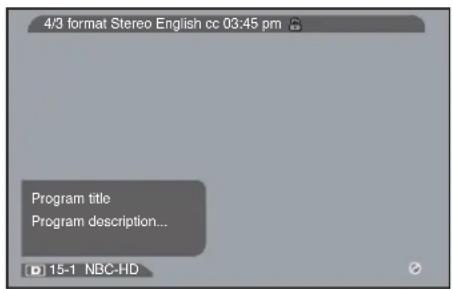
text_image
4/3 format Stereo English cc 03:45 pm Program title Program description... 15-1 NBC-HDSample channel banner on the digital input.
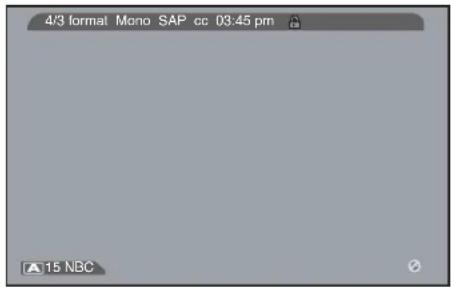
text_image
4/3 format Mono SAP cc 03:45 pm 15 NBCSample channel banner on the analog input.
4/3 format Current screen format.
Mono (or Stereo) Mono appears when the current channel is broadcasting in mono. Stereo appears when the current channel is broadcasting in stereo.
English (Digital input only) The current audio language.
SAP (Analog input only) The current channel is broadcasting SAP (Second Audio Program) information.

Parental Controls are locked.
CC On the digital input, shows that Closed Captioning is turned on. On the analog input, shows that Closed Captioning is available on the current channel.
03:45 pm Current time.
Program title (Digital input only) The title of the current program (if this information is available).
Program description (Digital input only) A brief description of the current program (if this information is available).

Shows that you're currently viewing a digital channel.

Shows that you're currently viewing an analog channel.
15 NBC-HD Current channel and subchannel (subchannels are available on the digital input only), plus the channel label.
Note: Channel labels for digital channels are part of the signal sent by the broadcaster, so you cannot change them. Channel labels for analog channels do not always come from the broadcaster, so you can create them and change them as you like.

Sound is muted.
Tip:
Look at the channel number to determine whether you're on the digital or analog input. A 'D' appears next to channel numbers on a digital channel, while an 'A' appears next to channel numbers on the analog channel.
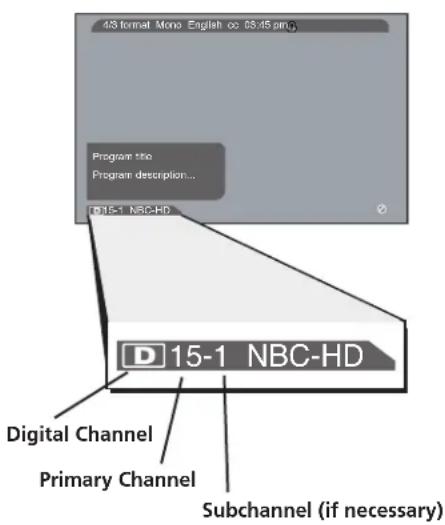
text_image
4S format Mono English oo 06:45 pm Program title Program description... 15-1 NBC-HD Digital Channel Primary Channel Subchannel (if necessary) D 15-1 NBC-HD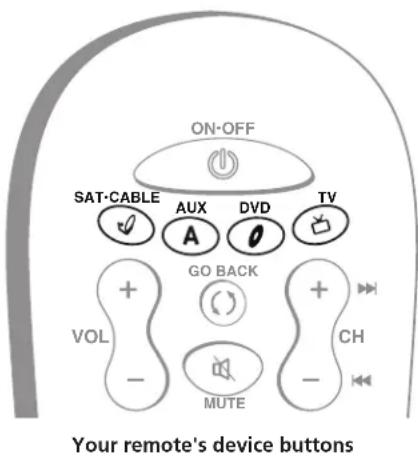
text_image
ON-OFF SAT·CABLE AUX DVD TV + GO BACK + VOL CH - MUTE Your remote's device buttonsDigital and Analog Channels
Your TV can choose both, analog and digital channels. You can switch between the two by pressing the ANT•CABLE button on your remote control when the remote is in TV mode.
Digital Channels
Digital channels can be made up of primary channels and subchannels.
Subchannels (sometimes called minor channels) are channels associated with the Primary channel (sometimes called the major channel). A primary channel may have just one subchannel or multiple subchannels.
Direct Tuning to a Digital Channel
- Make sure the remote is in TV mode by pressing TV on the remote control.
- Press ANT•CABLE until a "D" icon appears next to the channel number.
- Enter the primary channel number. This number appears first. Press OK or wait a few seconds. If you don't enter a subchannel, the TV tunes to the lowest digital subchannel.
- If the primary channel number has fewer than two digits, and you want to enter subchannel numbers, press the right arrow button to enter the subchannel.
- Enter the number of the subchannel. This number appears to the right of the primary channel number.
- Press OK to tune to the channel or wait a few seconds and the TV tunes to the channel.
Note: Once you've run the auto channel search, you can just use the channel up and down buttons on the remote control to change channels when the remote's in TV mode.
Autotuning
The autotuning feature works with RCA devices to automatically tune the TV to the correct channel/input. It works with devices you have connected to your TV (like a VCR, DVD player, etc.). When you set up autotuning in the menu system you don't have to remember to change your TV to the CMP1 input, for example, when you want to watch a DVD on your DVD player.
Why You Should Use the Autotuning Feature
Autotuning lets you go directly to the input you assign to a device button. For example, if you have a DVD player connected to the CMP1 input, you can have the autotuning feature go directly to the CMP1 input when you press the DVD button (instead of going through the inputs until you find the DVD signal).
Continues on next page...
How to Set Up the Autotuning Feature
The way you set up the autotuning feature in the TV's menu corresponds to the device buttons on the remote and the way you have each device connected to your TV. When you set up autotuning, you're telling the TV what channel/input to tune to when you press the SAT•CABLE, AUX or DVD button on the remote control.
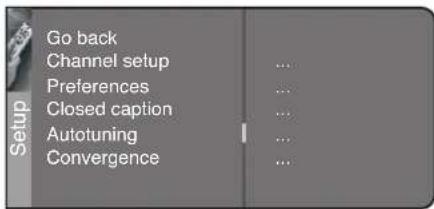
text_image
Go back Channel setup Preferences Closed caption Autotuning Convergence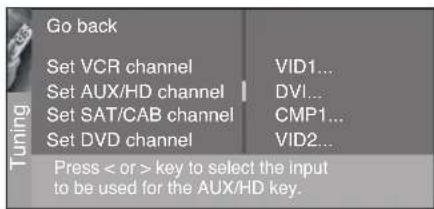
text_image
Go back Set VCR channel VID1... Set AUX/HD channel DVI... Set SAT/CAB channel CMP1... Set DVD channel VID2... Press < or > key to select the input to be used for the AUX/HD key.
text_image
Go back Set VCR channel VID1... Set AUX/HD channel DVI... Set SAT/CAB channel CMP1... Set DVD channel VID2... Press < or > key to select the input to be used for the AUX/HD key.- Press MENU (the MAIN MENU appears).
- Highlight Setup and press OK on your remote control.
- Highlight Autotuning and press OK.
- Choose which device button you would like to set:
Set VCR Channel Lets you set up the channel the TV tunes to when you press the AUX button.
Set SAT/CAB Channel Lets you set up the channel the TV tunes to when you press the SAT•CABLE button.
Set AUX/HD Channel Lets you set up the channel the TV tunes to when you press the AUX button.
Set DVD Channel Lets you set up the channel the TV tunes to when you press the DVD button.
- Press the right arrow button to select the choice that matches the way you have the device connected to this TV, and press OK.
You can select from the following inputs or channels:
N/A Choose this if you don't have this particular device connected to the TV, or if you don't want the TV to automatically tune to the correct channel/input when you're using this device.
Channel 3 or 4 The device is connected to the ANTENNA DIGITAL INPUT or the ANTENNA/CABLE ANALOG INPUT jack on the back of the TV, and you want the TV to tune to channel 3 when you press the corresponding button on the remote. Reminder: make sure the device's Channel 3/4 switch is set to channel 3.
VID1 or VID2 (Video Input) The device is connected to a VIDEO or S-Video jack on the back of the TV and you want the TV to tune to a VID input channel when you press the corresponding device button.
FRNT (Front Video Input) The device is connected to the VIDEO jack on the front of the TV and you want the TV to tune to the front VID input channel (FRNT) when you press the corresponding device button.
CMP1 (Component Video Input 1) Compatible component video source, such as a DVD player or digital TV converter box, is connected to the first set of three COMPONENT VIDEO INPUT jacks (Y,Pb,Pr) on the back of the TV and you want the TV to tune to the first component video input channel (CMP1) when you press the corresponding device button.
CMP2 (Component Video Input 2) Compatible component video source, such as a DVD player or digital TV converter box, is connected to the second set of three COMPONENT VIDEO INPUT jacks (Y,Pb,Pr) on the back of the TV and you want the TV to tune to the second component video input channel (CMP2) when you press the corresponding device button.
DVI The device is connected to the DVI-HDTV jack on the back of the TV and you want the TV to tune to the DVI input channel when you press the corresponding device button.
Parental Controls and V-Chip
The choices in the US V-CHIP and Canada V-CHIP menus involve software inside your TV (referred to as V-Chip) which allows you to block TV programs and movies based on violence, sex, or other content you may believe children should not view.
Once you block programs, you can unblock programs by entering a password.
By default, the software inside your TV is turned "off." For instructions to turn on V-Chip, go to page 40.
Note: Parental Control settings are not available for the DVI, CMP1, or CMP2 inputs.
How V-Chip Works for USA and Canada
V-Chip reads the program's age-based rating (TV-MA, TV-14, etc.) and content themes [(Violence (V), Adult Language (L), etc.)]. If you have blocked the rating and/or content themes that the program contains, you will receive the message This channel has not been approved for viewing. Change channel or press OK to enter password and temporarily deactivate the Parental Control.
Broadcasters are not required to provide content themes, so programs received with no content themes will only be blocked if you block their age-based rating. You can also block out programs that have been given an Exempt rating, and programs that are considered unrated. The next several pages have tables showing the TV age-based ratings and content themes for the US and Canada.

text_image
MAIN MENU Exit Sound Picture Channel Guide Time Parental Control Setup Go back US V-Chip Canada V-Chip Front panel block Channel block Unrated/Exempt Prog. Lock parental controls ... ... ... ... View... ... ... Parental Control Press OK to open US V-Chip Menu.US V-Chip TV Rating Limit
The V-Chip TV Rating Limit lets you decide which TV programs can and cannot be viewed.
To set TV programming limits:
- Choose Parental Control from the MAIN MENU. If Parental Controls have previously been locked, you must enter your password.
- Highlight and select US V-Chip. Then select V-Chip TV Rating.
- Once you get to the V-Chip TV rating limit screen, use the arrow buttons and OK on your remote to change the status of a TV program rating or content theme from View to Block.
- For TV rating limits to take effect, lock Parental Controls by accessing the Lock parental controls menu.
The following sections give you more details about how to change the status of TV program limits.
Note: If you forget your password, follow step one above to get to the password entry screen. Then press the VOL+ and CH+ buttons on the TV's front panel at the same time for at least 8 seconds. You will receive an on-screen message that Parental Controls have been unlocked once you've successfully reset the password.
The V-Chip Rating Screen
The following is an example of where items are located within the Rating Limit screen.
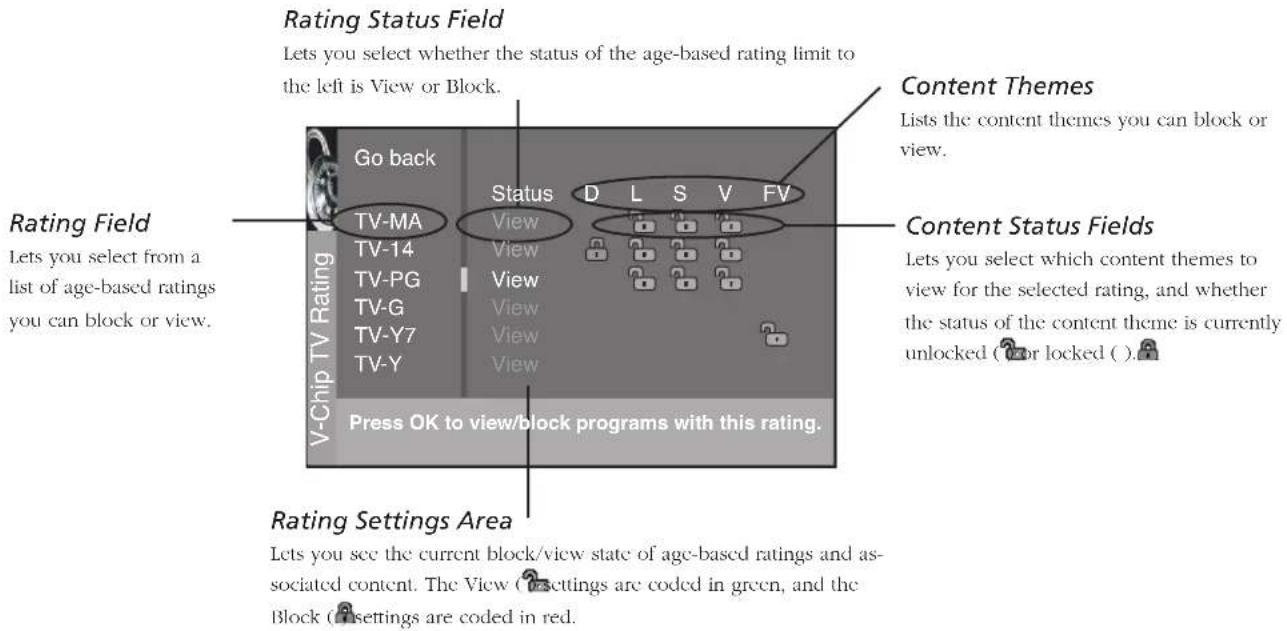
text_image
Rating Status Field Lets you select whether the status of the age-based rating limit to the left is View or Block. Content Themes Lists the content themes you can block or view. Rating Field Lets you select from a list of age-based ratings you can block or view. V-Chip TV Rating Go back TV-MA TV-14 TV-PG TV-G TV-Y7 TV-Y Status View View View View View Press OK to view/block programs with this rating. Content Status Fields Lets you select which content themes to view for the selected rating, and whether the status of the content theme is currently unlocked (or locked ( )). Rating Settings Area Lets you see the current block/view state of age-based ratings and as- sociated content. The View (settings are coded in green, and the Block (settings are coded in red.| Age-Based Rating | USA Description and Content Themes for Age-Based Ratings |
| TV-MA | Mature Audience Only. Specifically designed to be viewed by adults and may be unsuitable for children under 17. It contains one or more of the following content themes: crude indecent language (L), explicit sexual activity (S), or graphic violence (V). |
| TV-14 | Parents Strongly Cautioned. Contains some material that many parents would find unsuitable for children under 14. Parents are strongly urged to exercise greater care in monitoring this program and are cautioned against letting children under the age of 14 watch unattended. This program contains one or more of the following content themes: intensely suggestive dialogue (D), strong coarse language (L), intense sexual situations (S), or intense violence (V). |
| TV-PG | Parental Guidance Suggested. Contains material that parents may find unsuitable for younger children. Many parents may want to watch it with their younger children. The program contains one or more of the following content themes: some suggestive dialogue (D), infrequent coarse language (L), some sexual situations (S), or moderate violence (V). |
| TV-G | General Audience. Most parents would find this program suitable for all ages. It contains little or no sexual dialogue (D) or situations (S), no strong language (L), and little or no violence (V). |
| TV-Y7 | Directed to Children 7 years and older. Designed for children ages 7 and above. It may be more appropriate for children who have acquired the developmental skills needed to distinguish between make-believe and reality. Themes and elements in this program may include mild fantasy violence (FV) or comedic violence, or may frighten children under the age of 7. |
| TV-Y | All Children. Themes and elements in this program are designed for a young audience, including children from ages 2-6. It is not expected to frighten younger children. |
| Status | D | L | S | V | FV | |
| Go back | ||||||
| TV-MA | View | |||||
| TV-14 | View | |||||
| TV-PG | View | |||||
| TV-G | View | |||||
| TV-Y7 | View | |||||
| TV-Y | View | |||||
| Hierarchy of Age-Based Ratings | |
| TV-MA Mature Audience Only | |
| TV-14 Parents Strongly Cautioned | |
| TV-PG Parental Guidance Suggested | |
| TV-G General Audience | |
| TV-Y7 Directed to Children 7 years and older | |
| TV-Y All Children |
| Content Themes | |
| D Sexually explicit dialogue | |
| L Adult language | |
| S Sexual situations | |
| V Violence | |
| FV Fantasy Violence |
Tip
To change all V-Chip movie or TV ratings to View, press the 0 number button.
Blocking Age-Based Ratings
You can automatically block all program ratings above a specified age-based rating level. To block programs with higher ratings:
- Press the up or down arrow button to scroll to the rating corresponding with the lowest rating you do not want the child to watch.
- Press the OK button to toggle between View and Block. The status for the rating listed to the left and all higher ratings automatically changes to Block (and 📄).
- Use the up/down arrow buttons to highlight Go back and press OK.
- Select Lock Parental Controls from the Parental Control menu for rating limits to take effect.
Viewing Age-Based Ratings
After you block age-based ratings, you can change some of the ratings back to View.
- Use the up/down arrows to select the rating with a status of Block.
- Press OK to select View.
Blocking Specific Content Themes
You can block programs based on their content. (Content is represented by the D, L, S, V and FV on your screen.) When you block a content theme for a particular rating, you automatically block that content theme for higher rated programs as well.
To block program content:
- Determine the content themes you want to block.
- Press the down arrow button to scroll to the rating whose content theme you want to change.
- Press the right arrow button to move the yellow highlight to a particular content theme status.
- Press the OK button to change its status to ⚠In the example to the left, you block the language (L) corresponding with TV-14. The language for TV-MA is blocked as well.)
Notes: Broadcasters are not required to provide content themes or age-based ratings.
You must remember to lock Parental Controls for rating limits to take effect.
Viewing Specific Content Themes
If you block specific content themes, you have the option of going back and changing some of the them back to (💡) View:
- Determine the content themes you want to change to (View.
- Press the down arrow button to scroll to the rating whose content theme you want to change, such as 📐nder language (L) corresponding with TV-14.
- Press the right arrow button to move the yellow highlight to a particular content theme status.
- Press the OK button to change the status back to .our child would then be able to watch programs with the TV-14 adult language content, but not programs with TV-MA language content.
Note: Only the content theme status corresponding to TV-14 (L) language changes to (V) View. Higher rated content themes, such as that for TV-MA language, do not change.
Canada V-Chip ratings
Canadian TV V-Chip supports two different Canadian rating systems: English and French.
| rating | Canadian English V-Chip rating System |
| 18+ | Adults. Programming intended for adults 18 and older. It may contain elements of violence, language, and sexual content which could make it unsuitable for viewers under 18. Violence Guidelines: May contain violence integral to the development of the plot, character or theme, intended for adult audiences. Other Content Guidelines: May contain graphic language and explicit portrayals of nudity and/or sex. |
| 14+ | Viewers 14 and over. Programming contains themes or content which may not be suitable for viewers under the age of 14. Parents are strongly cautioned to exercise discretion in permitting viewing by pre-teens and early teens. Violence Guidelines: May contain intense scenes of violence. Could deal with mature themes and societal issues in a realistic fashion. Other Content Guidelines: May contain scenes of nudity and/or sexual activity. There could be frequent use of profanity. |
| PG | Parental Guidance. Programming intended for a general audience but which may not be suitable for younger children (under the age of 8). Parents may consider some content inappropriate for unsupervised viewing by children aged 8-13. Violence Guidelines: Depictions of conflict and/or aggression will be limited and moderate; may include physical, fantasy, or supernatural violence. Other Content Guidelines: May contain infrequent mild profanity, or mildly suggestive language. Could also contain brief scenes of nudity. |
| G | General Audience. Programming considered acceptable for all ages groups. While not designed specifically for children, it is understood younger viewers may be part of the audience. Violence Guidelines: Will contain very little violence, either physical or verbal or emotional. Will be sensitive to themes which could frighten a younger child, will not depict realistic scenes of violence which minimize or gloss over the effects of violent acts. Other Content Guidelines: There may be some inoffensive slang, no profanity and no nudity. |
| C8+ | Children 8 and older. Programming generally considered acceptable for children 8 years and over to watch on their own. Violence Guidelines: Violence will not be portrayed as the preferred, acceptable, or only way to resolve conflict or encourage children to imitate dangerous acts which they may see on television. Any realistic depictions of violence will be infrequent, discreet, of low intensity and will show the consequences of the acts. Other Content Guidelines: There will be no profanity, nudity or sexual content. |
| C | Children. Programming intended for children under age 8. Violence Guidelines: Careful attention is paid to themes which could threaten children's sense of security and well being. There will be no realistic scenes of violence. Depictions of aggressive behavior will be infrequent and limited to portrayals that are clearly imaginary, comedic or unrealistic in nature. Other Content Guidelines: There will be no offensive language, nudity or sexual content. |
| Rating Canadian French V-Chip Rating System | |
| 18 ans + | Adults. Programming is for adults only. This program contains sustained violence or extremely violent scenes. |
| 16 ans + | Viewers 16 and over. Programming is not suitable for those under age 16. This program contains frequent scenes of violence or intensely violent scenes. |
| 13 ans + | Viewers 13 and over. Programming may not be suitable for children under the age of 13. This program either contains several violent scenes or one or more scenes that are violent enough to affect them. Viewing in the company of an adult is therefore strongly recommended for children under the age of 13. |
| 8 ans + | Viewers 8 and over. Not recommended for young children. This program is suitable for most audiences, but it contains mild or occasional violence that could upset young children. Viewing in the company of an adult is therefore recommended for young children (under the age of 8) who do not distinguish between reality and imagination. Programming generally considered acceptable for children 8 years and over to watch on their own. Violence Guidelines: Violence will not be portrayed as the preferred, acceptable, or only way to resolve conflict or encourage children to imitate dangerous acts which they may see on television. Any realistic depictions of violence will be infrequent, discreet, of low intensity and will show the consequences of the acts. Other Content Guidelines: There will be no profanity, nudity or sexual content. |
| G | General Audience. This program is suitable for audiences of all ages. It contains no violence, or any violence that it does contain is either minimal or is presented in a humorous manner, as a caricature, or in an unrealistic way. |
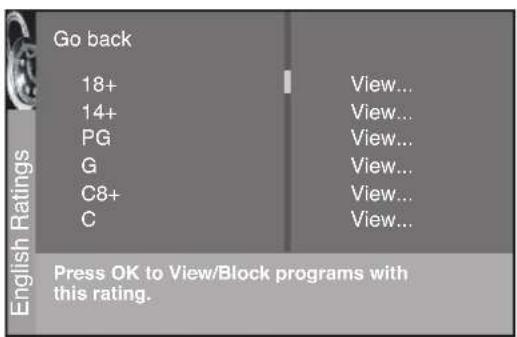
text_image
Go back 18+ 14+ PG G C8+ C View... View... View... View... View... View... View... View... English Ratings Press OK to View/Block programs with this rating.
text_image
Go back 18 ans+ 16 ans+ 13 ans+ 8 ans+ G View... View... View... View... View... View... French Ratings Press OK to View/Block programs with this rating.Blocking Canadian V-Chip Ratings
If you receive Canadian programs you can block Canadian English and French V-Chip by ratings only. When you block a particular rating, you automatically block the higher rated programs as well.
To block Canadian English and French program ratings:
- Select Canada V-Chip from the Parental Control menu.
- Highlight English ratings or French ratings and press OK.
- Determine the rating you want to block.
- Press the down arrow button to scroll to the rating you want to change.
- Press the OK button to change its status to block (the lock icon appears and all ratings above the one you selected change to lock).
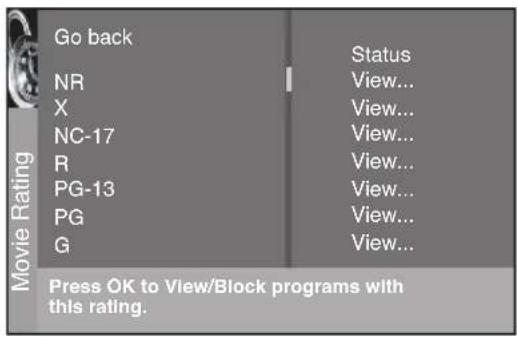
text_image
Go back NR X NC-17 R PG-13 PG G Status View... View... View... View... View... View... View... View... Press OK to View/Block programs with this rating.V-Chip Movie Rating Limit
Set movie rating limits by blocking movies rated above a specified level.
To access the Movie Rating Limit menu:
-
Press MENU on the remote control (the TV's MAIN MENU appears).
-
Select Parental Control.
-
Select US V-Chip.
-
Select V-Chip movie rating.
Blocking Movie Ratings
Once you are in the Movie Ratings menu, follow the same steps described for blocking TV ratings.
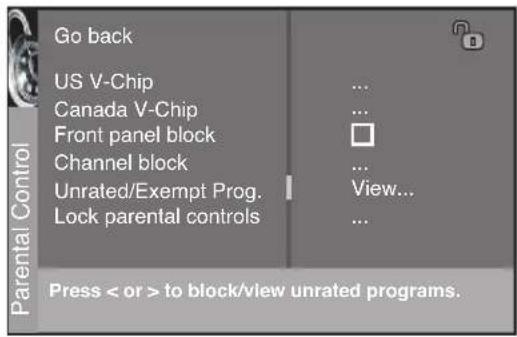
text_image
Go back US V-Chip Canada V-Chip Front panel block Channel block Unrated/Exempt Prog. Lock parental controls ... ... View... ... Press < or > to block/view unrated programs.Blocking Unrated/Exempt Programs
The Unrated/Exempt Prog. option lets you decide if programs that the V-Chip recognizes as unrated can be viewed. Unrated TV programs may include news, sports, political, religious, local and weather programs, emergency bulletins, public announcements, and programs without ratings. The Exempt option applies to both USA and Canadian unrated programs and Canadian programs rated E.
View All unrated programs are available.
Block All unrated programs are not available.
Note: You must remember to activate V-Chip for rating limits to take effect.
Press the down arrow to highlight Unrated/Exempt Prog. Then press the right arrow to toggle between View and Block.
Lock/Unlock Parental Controls
Selecting this option lets you lock and unlock parental controls settings using a password.
If you do not lock parental controls, none of the settings for V-Chip, Channel Block, or Front Panel Block will take effect.
If you forget your password, press the MENU button, then select Parental Control (the password entry screen appears). Simultaneously press and hold CH+ and VOL+ on the front panel for 8 seconds. Parental Controls unlock and the Parental Control menu appears. You can enter a new password by locking the Parental Controls again.
Front Panel Block
Selecting this option lets you block (disable) or unblock (enable) the TV's front panel. The remote still tunes to any channel. When using this as a Parental Control method, remove access to any remote that is capable of operating the television while you have the front panel blocked.
Don't forget to lock parental controls after you change the status. If you don't, the front panel block will not take effect.
Your TV is equipped to support a downloadable rating system. It is similar to the current rating system your TV has, called V-Chip. When the new rating system is available, the TV downloads it from the signal and there is nothing you need to do to receive the information. Once it's downloaded, a new option appears in your Parental Control menu. This option and its name are dependent on the content acquired from the broadcaster.
Note: These ratings are available only if the broadcaster is sending them.
Chapter 4: Using the TV's Menu System
Chapter Overview:
- Sound Menu
- Picture Menu
• Channel Guide Menu - Time Menu
• Parental Control Menu - Setup Menu

natural_image
Black-and-white photo of a small dog sitting upright and lying down, with no visible text or symbols.www.rca.com/television
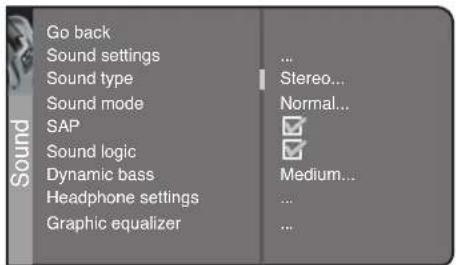
text_image
Go back Sound settings Sound type Sound mode SAP Sound logic Dynamic bass Headphone settings Graphic equalizer ... ... ... Stereo... Normal... Medium...The Sound menu for analog channels and all video inputs.

text_image
Go back Sound settings Default Dig.Ch. Audio Lang. Current Dig.Ch. Audio Lang. Sound mode Sound logic Dynamic bass Headphone settings Graphic equalizer ... ... ... English... English... Normal... Medium...The Sound menu for digital channels.
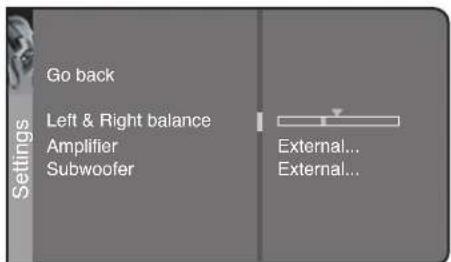
text_image
Go back Left & Right balance Amplifier Subwoofer External... External...Sound Menu
The Sound menu lets you adjust audio output. To access the Sound menu, press MENU on the remote, and then select Sound from the main menu.
Depending on the kind of signal you're watching, the Sound menu will have different items available for you to adjust:
- If you're watching the TV on the ANTENNA/CABLE ANALOG INPUT (look for an A on-screen as you change channels) or any of the video inputs, you'll see the Sound menu items shown in the first menu on the left.
- If you're watching TV on the ANTENNA DIGITAL INPUT (look for a D on-screen as you change channels), you'll see the Sound menu items shown in the second menu on the left.
This section describes the items available in both kinds of Sound menu.
Sound settings The Sound settings submenu contains the following items:
Left & Right balance Use the left or right arrow button to center the bar under the arrow to balance the left and right speakers.
Amplifier Use the left or right arrow button to select External (if your TV is using external amplifier only) or Internal (if your TV is using the speakers in the TV).
Subwoofer Set the TV's subwoofer to External, if the TV is using an external subwoofer; or None.
Sound type (available for regular antenna signals and video
inputs) Press the right arrow button to scroll through the available audio types, which control the way the sound comes through your speakers. The options available vary according to the input selected.
Mono (available for regular TV viewing only) Plays the sound in mono only. Use this setting when receiving broadcasts with weak stereo signals.
Stereo Splits the incoming stereo audio signal into left and right channels. Most TV programs and recorded materials have stereo audio. The word Stereo appears in the channel banner when you tune to a program that is broadcast in stereo.
Automatic (available for regular TV viewing only) Chooses the sound type according to the current signal.
Left and Right (available for audio/video inputs only) Isolates either the left or right channel of the incoming audio.
Default Dig.Ch. Audio Lang. (available for the digital channels only) Choose the language you prefer for dialog on digital channels. If your preferred language is being broadcast with a program, then the TV will play it. If not, then the TV will play the default audio for the program (usually English in the U.S.). The default digital channel audio language options are English, Spanish, German, Italian, Japanese, Chinese, and Korean.

text_image
Go back Sound settings Default Dig.Ch. Audio Lang. Current Dig.Ch. Audio Lang. Sound mode Sound logic Dynamic bass Headphone settings Graphic equalizer ... English... English... Normal... Medium... ...The Sound menu for digital channels
Current Dig.Ch. Audio Lang. (available for the digital channels only) Press the right arrow to choose from the audio languages available for the program you're watching. The language you choose becomes your preferred audio language for all digital channels until you turn the TV off. If the language you choose here is not being broadcast with a program, then the TV will play the default audio for the program (usually English in the U.S.).
Sound Mode Press the right arrow button to scroll through the available audio modes, which provide special processing through your speakers (depending on the setting you chose as your Sound type).
Normal Does not give any special processing, simply provides the mono or stereo sound provided by the signal you're watching.
Wide Available only for mono signals. "Widens" sound from mono broadcasts and mono components connected to your TV for a fuller, more spacious sound.
Magic Available only for stereo signals. Gives a surround effect with more bass.
Second Audio Program (SAP) Plays the program's audio in a second language, if one is available. The letters "SAP" appear in the channel banner when you tune to a program that is broadcast with SAP information. SAP audio is broadcast in mono. SAP is also used to broadcast a program's audio with descriptions of the video for the visually impaired.
Note: SAP is only offered on analog channels.
Sound logic Reduces the annoying blasts in volume during commercial breaks, and also amplifies softer sounds in program material. Eliminates the need to constantly adjust the volume.
Dynamic bass Enhances your TV's low-frequency response. The options are Off, Medium and High.
Headphone settings Displays a choice list of available settings you can adjust: Volume, Bass and Treble. The Headphone sound option allows you to choose stereo, mono or automatic. These descriptions are the same as for Sound Type (see the previous page).

text_image
Go back HP set Headphone volume Headphone bass Headphone treble Headphone sound Stereo...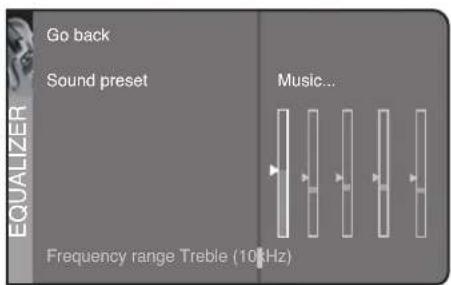
text_image
Go back Sound preset Music... Frequency range Treble (10 kHz)Graphic equalizer Allows you to choose a specific preset through the Sound Preset option. Press the right arrow to cycle through the options: Standard, Movie, Voice, Music, Flat, Videogame, Video camera and Personal.
The Frequency range displays the different treble and bass bands set for each Sound Preset option. You can choose a band and make adjustments. When you make adjustments, the Sound Preset option automatically changes to Personal. Press the left or right arrow button to select the frequency (Bass 100Hz, Mid Bass 500Hz, Medium 1.5kHz, Mid Treble 5kHz, Treble 10kHz) you want to adjust. Then use the up or down arrow button to adjust the level.
To view the frequency range of another Sound Preset option, press the right or left arrow until no band is selected and Frequency range is highlighted. Then press the up arrow to highlight Sound Preset.

text_image
Go back Advanced picture settings ... Picture preset Black level Color Contrast Sharpness Color warmth Tint Sports... Cool...Picture Menu
The Picture menu contains menus and controls to configure the following video settings: Advanced picture settings, Picture presets, Black level, Color, Contrast, Sharpness, Color Warmth, and Tint. The Picture menu options apply to the video for the main TV and video input selections.

text_image
Go back Contrast expand Scan Velocity Modulation Autoformat Video noise reduction Optimized still picture Auto skin tone Film mode (3:2 Pulldown) Low... Minimum... Auto...Advanced picture settings
Contrast expand You can adjust the contrast of the picture to suit the light of the room. Press the right arrow button to choose which of the following best describes the lighting in the room: Low, Medium or High.
Scan Velocity Modulation Improves the sharpness of the picture by changing the speed of the cathode-ray tube's electron beam when it transitions between dark and light areas of the screen. Choose to have it on (box checked) or off (box unchecked), depending on your preference.
Autoformat When enabled (box checked) the TV automatically selects the best screen format for the incoming signal for analog channels and inputs. The Autoformat feature is not available for digital channels.
Video noise reduction Reduce picture "static" or any type of interference. This feature is especially useful for providing a clearer picture in weak analog signal conditions. Press the right arrow button to choose between: Off for no noise reduction; Minimum for a softer, smoother picture that retains picture sharpness and detail; Medium for a slightly softer picture than the Minimum setting; Maximum for an even softer, smoother picture than the other settings (the picture detail is somewhat decreased).
Optimized still picture When enabled (box checked), enhances the picture specifically for still frames (for example, if you're watching a slide show on your HDTV, or if you've paused a frame of a DVD).
Auto Skin Tone When enabled (box checked), minimizes the flesh tone variations of the TV picture.
Film mode (3:2 Pulldown) Automatically detects video sources that were originally recorded on film (like most movies) and subsequently converted to a different format (for TV broadcast, for example). Film mode processes the converted signal so that it looks as close as possible to the original. Another name for this process is reverse 3:2 pulldown.
Note: Film mode is not available for digital channels.
Advanced (recommended) enables the feature only when the TV detects that movie playback quality could be improved. Advanced is the default setting.
The On setting should only be used in rare circumstances when the TV is used solely with film-based sources (like DVDs on a non-progressive-scan player).
The Off setting turns off film mode upconversion. Try using this setting if you think the reverse 3:2 pulldown is causing distortions in your picture.
Note: Autoformat and Video noise reduction are available for the CMP1 and CMP2 inputs only if the signal is 480i.
Tip:
If the picture is switching screen formats abruptly during normal TV viewing, switch the Autoformat feature off.
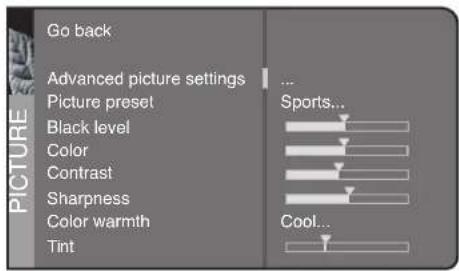
text_image
Go back Advanced picture settings Picture preset Black level Color Contrast Sharpness Color warmth Tint ... Sports... Cool...Tip:
You can select a different picture preset for each input. For example, The ANTENNA DIGITAL INPUT and the ANTENNA/CABLE ANALOG INPUT can have different picture presets.
Picture preset Displays a choice list that lets you select one of the preset picture settings: Vibrant, Cinematic, Natural, Sports, Videogame, Video Camera or Personal. Choose the setting that is best for your viewing environment. You can set a different picture preset for each input (including one for your regular TV channels).
Black Level Adjusts the brightness of the picture.
Color Adjusts the richness of the color.
Contrast Adjusts the difference between the light and dark areas of the picture.
Sharpness Adjusts the crispness of the edges in the picture.
Note: You can adjust sharpness for each channel and input. This is useful if the signal appears fuzzy.
Color Warmth Displays a choice list that lets you set one of three automatic color adjustments: Cool for a more blue palette of picture colors; Normal; or Warm for a more red palette of picture colors. The warm setting corresponds to the NTSC standard of 6500 K.
Tint Adjusts the balance between the red and green levels.
When you change any of these picture settings, the Picture Preset changes to Personal. Use the left or right arrow button to make adjustments. To return to the Picture menu, press the up or down arrow button.
Channel Guide Menu
The Channel Guide lets you view the entire list of channel numbers and labels. Press the GUIDE button to bring up the Channel Guide menu. There are two different kinds of channel guides—the one you see depends on the input jack used.
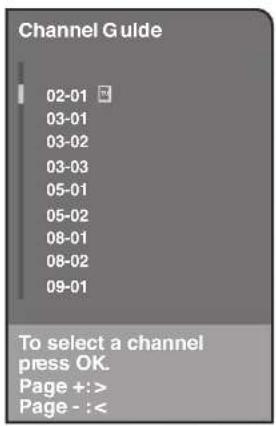
text_image
Channel Guide 02-01 03-01 03-02 03-03 05-01 05-02 08-01 08-02 09-01 To select a channel press OK. Page +: > Page - : <The Channel Guide for the digital input, showing channels and subchannels.

text_image
Channel Guide 01 My 01 02 My 02 03 My 03 04 My 04 05 My 05 06 My 06 07 My 07 08 My 08 09 My 09 To select a channel press OK. Page +: > Page - : <The Channel Guide for the analog input.
Channels on the digital input (channel 03 in the example above, for example) can have subchannels (channels 03-01 and 03-02). Each available subchannel is listed separately in the digital channel guide (see page 33 for more information on digital channels).
Use the up or down arrow button in the channel guide to scroll through the list. Use the left and right arrow buttons to move through the guide by "page" (each full screen of channels in the guide is a "page"). Press OK to select and tune to the highlighted channel or subchannel. Press the CLEAR button to remove the Channel Guide from the screen without changing channels.

text_image
Go back Sleep timer 00:15 Time 12:34 pm Wake up timer ✓ Wake up time 06:00 am Wake up duration 01:00 Channel number 04 ABC Daily ✓Time Menu
Sleep Timer Lets you set the TV to turn off after a given amount of time.
Time Lets you enter the current time. If it is eight o'clock, for example, you must first enter the number zero, then number eight. Use the OK button to choose between AM and PM.
Wake up timer Lets you set the TV to turn itself on. When you turn on Wake up timer, the following options appear:
Wake up time Lets you set the time you want the TV to turn itself on.
Wake up duration Lets you set how long you want the TV to stay on when it turns on.
Channel number Lets you select a specific channel the TV tunes to when the wake up timer is set. To change from digital to analog channels (or vice versa), highlight Channel number and press the ANT•CABLE button on your remote.
Daily Lets you choose if you want the wake up timer to turn on daily.
Note: The Wake up timer is available only when the time has been set.
Parental Control Menu
The Parental Control Menu was explained in Chapter 3. Go to page 35 for more information.

text_image
Go back Channel setup Preferences Closed caption Autotuning ConvergenceSetup Menu
The Setup menu lets you configure the TV to fit its surroundings and your preferences. To access the Setup menu, press MENU on the remote, and then select Setup from the main menu.
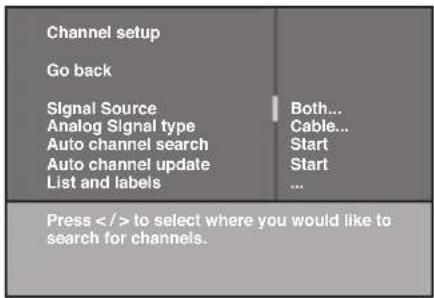
text_image
Channel setup Go back Signal Source Analog Signal type Auto channel search Auto channel update List and labels Both... Cable... Start Start ... Press to select where you would like to search for channels.Channel setup
Signal source Allows you to set which tuner you want to search for channels. You can select Analog tuner or Digital tuner to search that tuner separately, or you can select Both to search both tuners.
Analog Signal Type (available for the analog tuner only) The analog signal type was set during the initial setup. If you change how you receive broadcasts through the antenna input, you must change the Signal type setting. Choose Cable if you are using cable or a cable box for TV signals. Choose UHF/VHF Antenna if you are using an off-air antenna for analog TV signals.
Auto channel search Searches for channels the current tuner (analog or digital) is receiving. Go to page 16 for more information.
Auto channel update Searches for any new channels that are not in your channel list for the current tuner and adds them to that list.
List and labels Edit the channels in the list or choose labels for each channel. Go to page 17 for more information.
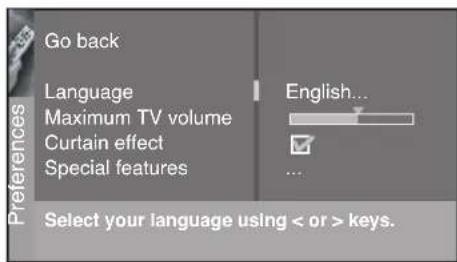
text_image
Go back Language Maximum TV volume Curtain effect Special features English... ... Select your language using < or > keys.Preferences
Language Allows you select your preferred language for the menus: English, Español or Français.
Maximum TV volume Allows you to set how high volume turns up when you press the VOL+ button. Highlight Maximum volume, then press and hold OK to hear the maximum volume. Make sure the volume has not been muted or turned down all the way.
Curtain effect Reveals the picture by "opening" it from the middle of the screen when the TV is switched on. Hides the picture by "closing" it from the sides when the TV is switched off.
Special features The Auto on setting switches your TV on after a power outage; Auto channel tunes the TV to the channel you specify as the Initial channel when Auto on is enabled; Auto volume tunes the TV to the volume you set in Initial volume when Auto on is enabled.
Short-term vs. Long-term Power Outages
The Auto channel and Auto volume settings don't take effect after short-term power outages (usually less than two to three minutes). The TV will turn back on at the same volume and channel as before the power outage.
The Auto channel and Auto volume settings take effect after power outages of several minutes or more.
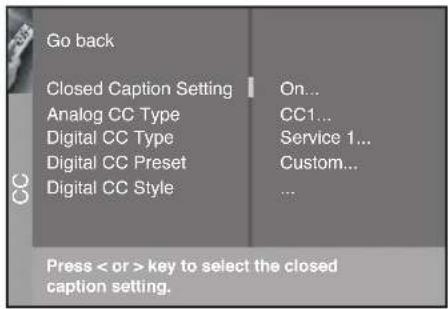
text_image
Go back Closed Caption Setting On... Analog CC Type CC1... Digital CC Type Service 1... Digital CC Preset Custom... Digital CC Style ... Press < or > key to select the closed caption caption setting.Closed Caption Many programs are encoded with closed-captioning information, which lets you display the audio portion of a program as text on the TV screen. Some programs on digital channels offer digital captioning information, which gives you more options for the way the captioning is displayed on the screen.
Closed captioning is not available on all channels at all times—only for specific programs encoded with closed-captioning information. When a program is closed captioned, CC is displayed in the channel banner (see Chapter 3 for more information about the channel banner).
The closed caption options are:
Closed Caption Setting Lets you choose the way both analog and digital closed captioning information appears on the screen. The Closed caption setting does not effect the DVI-HDTV input.
Off No captioning information displayed.
On always Captioning information shown always, when available.
On when mute Displays captioning information, when available, whenever the TV's sound is muted by pressing the MUTE button. The captioning information is not displayed when the sound is not muted.
Analog CC Type Lets you choose your preferred type of analog closed captions.
CC1 and Text 1 are the primary caption and text services. The captioning or text is displayed in the same language as the program's dialog.
CC3 and Text 3 serve as the preferred data channels. The captioning or text is often a secondary language translation, simplified English, or displayed at a slower rate.
CC2 and CC4 and Text 2 and Text 4 are rarely available and broadcasters use them only in special conditions, such as when CC1 and CC3 are not available, or Text1 and Text3 are not available.
Notes: The CC options display information at any position on the screen. These options overlay the text on top of the picture as it is received.
The Text options display information at one particular position (such as the bottom third) of the screen. You cannot see the picture underneath the text.
Digital CC Type Lets you select a closed caption service mode (1-6) for digital channels.
Service 1 and Service 2 are the primary and secondary languages, respectively.
Service 3 and Service 4, 5, 6 are additional caption sources that may be available.
Continues on next page...

text_image
Go back Closed Caption Setting On... Analog CC Type CC1... Digital CC Type Service 1... Digital CC Preset Custom... Digital CC Style ... Press < or > key to select the closed caption caption setting.Digital CC Preset Lets you choose the way the digital closed captioning appears on the screen.
Default Uses the settings sent by the broadcaster for the size, color, and font used for digital closed captioning, as well as for the color and opacity of the captioning's background.
Custom Lets you customize the size, color, and font used for digital closed captioning, as well as for the color and opacity of the captioning's background (see the Digital CC Style menu item below).
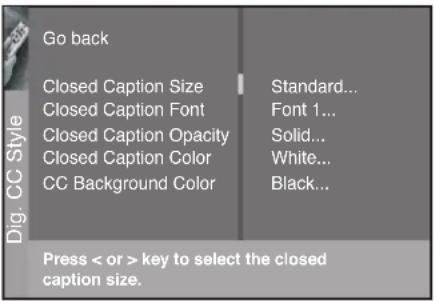
text_image
Go back Closed Caption Size Standard... Closed Caption Font Font 1... Closed Caption Opacity Solid... Closed Caption Color White... CC Background Color Black... Press < or > key to select the closed caption caption size.Digital CC Style If you set the Digital CC Preset option to Custom, you can customize the following digital closed-captioning settings:
Closed caption size Let you set the size of the digital closed-caption text. You can choose Standard, Large, or Small.
Closed caption font Lets you select a character design for the digital closed-caption text. A font is a complete assortment of letters, numbers, punctuation marks, etc. of a given design. You can choose from eight fonts with varying character styles and spacing.
Closed caption opacity. Lets you set the appearance of the space behind the digital closed-caption text: Solid, Transparent, Translucent, or Flashing.
Closed caption color Lets you choose the color of the digital closed-caption text: White, Black, Red, Green, Blue, Yellow, Magenta, or Cyan.
CC background color Lets you choose the color of the area of the screen behind the digital closed-caption text: White, Black, Red, Green, Blue, Yellow, Magenta, or Cyan.
Note: These captioning style options only have an effect on true digital closed captions.
Not all captioning on digital channels is digital captioning—it depends on what the broadcaster is sending. If the closed captioning for a program is not digital, the Digital CC Style settings will not have an effect.

text_image
Go back Channel setup Preferences Closed caption Autotuning ConvergenceAutotuning Displays a choice list that lets you set up the TV to automatically tune to the correct input channel when you press a device button (SAT•CABLE, AUX or DVD) on the remote. Go to Chapter 3 for details about the Autotuning feature.

text_image
Go back Channel setup Preferences Closed caption Autotuning ConvergenceConvergence The Auto convergence feature automatically adjusts the TV's tubes (this may take several minutes, after which you can make fine adjustments to the convergence settings); Red convergence displays the Red convergence screen, allowing you to use the arrow buttons to align the red and green images; Blue convergence displays the Blue convergence screen, allowing you to use the arrow buttons to align the blue and green images.
This page left blank intentionally.
Chapter 5: Other Information
Chapter Overview:
- FAQs
- Troubleshooting
- Care and Cleaning
- FCC Information
- Limited Warranty

natural_image
Black-and-white photo of two puppies sitting side by side, one larger and one smaller, with no visible text or symbols.www.rca.com/television
Frequently Asked Questions (FAQs)
What's the quickest way to view High Definition (HD) video?
Connect an off-air antenna to the ANTENNA DIGITAL INPUT to view local digital channels. You might need to purchase an antenna. Go to page 18 for more information.
How do I tell an analog channel from a digital channel?
There are several different ways to tell if your channel is digital or not. Press the INFO button to display the channel banner. Look at the lower left corner for a channel number. Channels with a primary channel and a subchannel are digital channels, but not all digital channels have subchannels. The lower left side shows a 'D' for digital channels and an 'A' for analog channels. If it's a digital station you might also see a digital TV program title and description shown. Page 33 also has more information.
Why does channel search find a lot of channels, but when I try to tune to them there's nothing there?
Some channels are enabled by the cable company that don't carry programming, such as video-on-demand. You probably want to get rid of these so they no longer appear in your channel list. Remove these in the Channel List menu. Go to page 17 for more information.
Why does the first channel search take a long time?
If you're searching for analog and digital (both) in the Channel Search menu, the TV is looking for all available channels in the channel list. If you do have digital channels, the TV is also searching for each subchannel of that digital channel.
How do I control other devices I've connected to the TV?
Because your TV came with a universal remote, you can program your remote to the button corresponding with the device you have connected to your TV. Go to page 24 for information on programming your remote.
Why are there black bars on my screen and can I get rid of them?
Analog channels are normally sent in a 4:3 format, which cannot fill a 16:9 screen like your TV. Most digital channels are sent in a 16:9 format which do fill your screen, but sometimes are sent in 4:3. It depends on how the broadcaster or device connected to your TV formatting the video. Aspect ratios are determined by the broadcaster and may change from one program to another. The Autoformat feature in the menu allows the TV to select the best picture format for the signal received. Go to page 44 for more details.
You can use the FORMAT button on the remote to see the different formats available that might eliminate the black bars. The format type is displayed on screen. No other options are possible aside from those you see by cycling through with this button.
Note: Format control is not available for digital 16:9 broadcasts.
Troubleshooting
Most problems you encounter with your TV can be corrected by consulting the following troubleshooting list.
TV Problems
TV won't turn on
- Press the TV button.
• Make sure the TV is plugged in. - Check the wall receptacle (or extension cord) to make sure it is "live" by plugging in something else.
- Something might be wrong with your remote control. Press the POWER button on the front of the TV. If the TV turns on, check the remote control solutions on the next page.
- The front panel controls may be locked (disabled). Use the remote control to unlock the front panel controls by selecting the Front Panel Block in the Parental Control menu and press OK to uncheck the box.
- The TV might be performing a periodic diagnostic check. Wait for a few minutes for the TV to turn on.
Buttons don't work
- If you're using the remote control, press the TV button first to make sure the remote is in TV mode.
- The front panel controls may be locked (disabled). Use the remote control to unlock the front panel controls by selecting the Front Panel Block in the Parental Control menu and press OK to uncheck the box.
- Unplug the TV for ten minutes and then plug it back in. Turn the TV on and try again.
TV turns off unexpectedly
- Sleep timer may have been activated. Go to page 47 for instructions.
- Electronic protection circuit may have been activated because of a power surge. Wait 30 seconds and then turn on again. If this happens frequently, the voltage in your house may be abnormally high or low.
- Unplug the TV. Wait ten minutes. Then, plug the TV in again.
TV turns on unexpectedly
- Wake up timer might have been activated. Go to page 47 for instructions.
- Auto on might have been activated. Go to page 47 for instructions.
- You might have pressed CH+ , CH- or INPUT on the remote accidentally.
Blank screen
- If you're trying to watch TV, change channels or press the ANT•CABLE button to switch tuners.
- If you're trying to watch something that's playing on a device connected to the TV (like a DVD or a VCR tape), press the TV button on the remote, then press INPUT until you get to the correct video input channel.
- If you're trying to watch a device (like your DVD player or VCR), make sure the device connected to the TV is turned on.
- If you're trying to watch a device (like your DVD player or VCR), make sure the device is connected correctly.
No sound, picture okay
- Maybe the sound is muted. Try pressing the volume up button to restore sound.
- If using S-Video or Y P b Pr, remember to also connect the device's left and right audio output jacks to the TV's L and R Audio Input jacks.
- The sound settings may not be set correctly. Go to page 42 for more information.
Sound okay, picture poor
- Check antenna connections. Make sure all of the cables are firmly connected to the jacks.
- Try adjusting sharpness function to improve weak signals. Go to page 45 for more instructions.
Can't select certain channel
• Make sure the remote control is in TV mode. Press the TV button and enter the channel number using the number buttons.
- Channel may be blocked or not approved in the Parental Controls menu.
- If using a VCR, check to make sure the TV/VCR button on the VCR is in the correct mode (press the TV/VCR button on your VCR).
Noisy stereo reception
- May be a weak station. Use Sound menu to choose mono sound.
No picture, no sound but TV is on
- Maybe the Signal Source is set to the wrong choice. Go to page 48 for detailed instructions.
- The channel might be blank — change channels.
- If you're watching your VCR and it's connected with a coaxial cable, tune the TV to channel 3 or 4 (whichever channel is selected on the 3/4 switch on the back of your VCR). Also check to make sure the TV/VCR button on the VCR is in the correct mode (press the TV/VCR button on your VCR).
Volume buttons not adjusting volume louder
- Check to make sure volume isn't limited by the maximum volume feature. Go to page 48 for more instructions.
Picture not moving
- You have activated the Freeze feature by pressing FREEZE or OK on the remote. Press any button to "unfreeze" the picture.
Black box appears on the screen
- Closed-captioning might be on. Check Closed Caption in the Setup menu. Go to page 49 for more instructions.
Freeze not working
- The freeze feature is not available for Component video (CMP1 or CMP2) or DVI inputs.
Low battery warning appears on screen
- Place new batteries in remote.
TV picture keeps switching between screen formats abruptly
- Switch the Autoformat feature to Off. See page 44 for more information.
Channel search finds few channels
- 'The cable connected to the ANTENNA/CABLE ANALOG INPUT' and/or ANTENNA DIGITAL INPUT jack might be loose.
- Your off-air antenna might be getting a weak signal. Move it higher or get a bigger antenna.
- If you have cable TV, make sure that signal is connected to the ANTENNA/CABLE ANALOG INPUT—do not connect it to the ANTENNA DIGITAL INPUT.
- If you have a cable box, you can't connect it to the ANTENNA DIGITAL INPUT jack. Connect it to the ANTENNA/CABLE ANALOG INPUT or a Video Input jack.
- Select the Both option in the Channel Search menu, and retry the channel search.
The Remote Control Doesn't Work
- Something might be between the remote and the remote sensor on the component. Make sure there is a clear path.
- Maybe the remote isn't aimed directly at the device (TV or DVD) that you're trying to operate.
Continues on next page...
- Maybe remote is not in TV Mode. Press the TV button so remote will control TV.
- Maybe batteries in remote are weak, dead, or installed incorrectly. Put new batteries in the remote. (Note, if you remove the batteries, you may have to reprogram the remote to operate other components.)
- You might need to drain the remote's microprocessor: remove batteries and press the number 1 button for at least 60 seconds. Release the 1 button, replace the batteries, and (if necessary) program the remote again.
Problems with DVI-HDTV Connection
- Make sure the DVI device is turned on and the cables are firmly connected. If problems still occur, turn off your device. Re-connect your device. Reset the power by unplugging the power cord and plugging it back in.
- If you are tuned to the DVI-IIDTV input and you're receiving Unusable Signal message on-screen, contact the manufacturer of the DVI device for further assistance.
- If you tune to the DVI-HDTV input and you see snow, the video goes in and out, or the video takes a long time to appear, your DVI device is having trouble sending video information to the TV. Re-connect your device. Reset the power by unplugging the power cord and plugging it back in. If problems persist, try connecting to the Y Pb Pr jacks instead if they are available or contact the manufacturer of the DVI device for further assistance.
- If you have bars on each side of your picture, the device you connected might have a switch or a menu option allowing you to change the picture format output that will fix this. Choose either 720p or 1080i.
Problems with V-Chip/Parental Controls
The rating limits don't work
- You must lock the settings. Go to the MAIN MENU (press MENU on your remote), select Parental Control, select Lock Parental Controls.
I don't remember my password and I want to unlock the TV
- If you forget your password, press MENU, then select Parental Control (the password entry screen appears). Simultaneously press and hold CH+ and VOL+ on the TV's front panel for 8 seconds. The Parental control menu appears on the screen, and you can re-enter a password via Lock Parental Controls.
The V-Chip won't let me watch a program even though it's not rated as violent.
- Maybe the movie was given an NR (Not Rated) status. After you block movie ratings, you must set NR to View separately in order to view movies with an NR rating.
What Else Can I Do?
- If you've been through the Troubleshooting section and nothing has fixed your problem, try rebooting your TV. Note that after a reboot you may need to run your TV through the setup process again. To do a reboot, unplug the power cord from the wall outlet, power strip, etc. Keep your TV unplugged for about 5 minutes. Then plug the TV back in, turn on the TV, and see if the problem is fixed. If the problem remains, then please visit www.rca.com/television for updated FAQs or contact RCA Customer Support at the support number provided in your Warranty under How To Get Service.
How Do I Replace My Remote?
- If you need to replace your remote, call 1-800-338-0376. Your remote part number is R401A1. A shipping and handling fee will be charged upon ordering, and the appropriate sales tax. Have your Visa, MasterCard or Discover Card ready.
Care and Cleaning
CAUTION: Turn OFF your TV before cleaning.
You can clean the TV as required, using a soft lint-free cloth. Be sure to occasionally dust the ventilation slots in the cabinet to help assure adequate ventilation.
The TV's screen may be cleaned with a soft, lint-free cloth as well. Take care not to scratch or mar the screen. If necessary, you may use a cloth dampened with warm water. Never use strong cleaning agents, such as ammonia-based cleaners, or abrasive powder. These types of cleaners will damage the TV.
While cleaning do not spray liquid directly on the screen, or allow liquid to run down the screen and inside the TV. Also, never place drinks or vases with water on top of the TV. This could increase the risk of fire or shock hazard or damage to the TV.
Caution: Using video games or any external accessory with fixed images for extended periods of time can cause them to be permanently imprinted on the picture tube (or projection TV picture tubes). ALSO, some network/program logos, phone numbers, etc. may cause similar damage. This damage is not covered by your warranty.
FCC Information
This equipment has been tested and found to comply with the limits for a Class B digital device, pursuant to Part 15 of the FCC Rules. These limits are designed to provide reasonable protection against harmful interference in a residential installation. This equipment generates, uses, and can radiate radio frequency energy and, if not installed and used in accordance with the instructions, may cause harmful interference to radio communications. However, there is no guarantee that interference will not occur in a particular installation. If this equipment does cause harmful interference to radio or television reception, which can be determined by turning the equipment off and on, the user is encouraged to try to correct the interference by one or more of the following measures:
• Reorient or relocate the receiving antenna.
- Increase the separation between the equipment and receiver.
- Connect the equipment into an outlet on a circuit different from that to which the receiver is connected.
- Consult the dealer or an experienced radio/TV technician for help.
This Class B digital apparatus complies with Canadian ICES-003.
RCA High-Definition Television (HDTV) Limited Warranty
What your warranty covers:
• Defects in materials or workmanship.
For how long after your purchase:
• One year from date of purchase for labor.
• One year from date of purchase for parts.
- Two years from date of purchase for the picture tubes.
What we will do:
Pay an Authorized Service Center the labor charges to repair your unit.
Pay an Authorized Service Center for the new, or at our option, refurbished replacement parts and picture tube required to repair your unit.
What your warranty does not cover:
- Customer instruction. (Your Owner's Manual describes how to install, adjust, and operate your unit. Any additional information should be obtained from your dealer.)
• Installation and related adjustments. - Damage resulting from non-approved installation methods.
• Signal reception problems not caused by your unit. - Damage from misuse or neglect.
• Damage from ordinary wear. - Damage from the failure to follow directions or improper maintenance.
- Batteries.
• Images burnt onto the screen. - A television that has been modified or incorporated into other products, or is used for institutional or other commercial purposes.
- A unit purchased or serviced outside the U.S.A.
- Acts of nature, such as but not limited to lightning damage.
How you get service:
- Call 1-877-RCA-HDTV and have your unit's date of purchase and model/serial number ready.
- A representative will troubleshoot your problem over the phone.
- If the representative determines that you should receive service, they will provide you with the name(s) of the Authorized Service Center in your area.
- Contact the Service Center and arrange for home or pick up, repair, and return service, provided that your unit is located within the geographic territory covered by an Authorized Service Center. If not, you must take your unit to the Service Center location at your own expense, or pay for the cost the Service Center may charge to transport your unit to and from your home.
- Proof of purchase in the form of a bill of sale or receipted invoice which is evidence that the product is within the warranty period must be presented to obtain warranty service. For rental firms, proof of first rental is also required.
Product Registration:
- Please complete the online Product Registration on www.rca.com/television or complete and mail the Product Registration Card packed with your unit. It will make it easier to contact you should it ever be necessary. The return of the card is not required for warranty coverage.
Continues on next page...
Limitation of Warranty:
- THE WARRANTY STATED ABOVE IS THE ONLY WARRANTY APPLICABLE TO THIS PRODUCT. EXCEPT TO THE EXTENT PROHIBITED BY APPLICABLE LAW, ANY IMPLIED WARRANTY OF MECHANTABILITY OR FITNESS FOR A PARTICULAR PURPOSE ON THIS PRODUCT IS LIMITED TO THE APPLICABLE WARRANTY PERIOD SET FORTH ABOVE. NO VERBAL OR WRITTEN INFORMATION GIVEN BY TTE TECHNOLOGY, INC., ITS AGENTS OR EMPLOYEES SHALL CREATE A GUARANTY OR IN ANY WAY INCREASE THE SCOPE OF THIS WARRANTY.
- REPAIR OR REPLACEMENT AS PROVIDED UNDER THIS WARRANTY IS THE EXCLUSIVE REMEDY OF THE CONSUMER. TTE TECHNOLOGY, INC. SHALL NOT BE LIABLE FOR INCIDENTAL OR CONSEQUENTIAL DAMAGES RESULTING FROM THE USE OF THIS PRODUCT OR ARISING OUT OF ANY BREACH OF ANY EXPRESS OR IMPLIED WARRANTY ON THIS PRODUCT. THIS DISCLAIMER OF WARRANTIES AND LIMITED WARRANTY ARE GOVERNED BY THE LAWS OF THE STATE OF INDIANA. EXCEPT TO THE EXTENT PROHIBITED BY APPLICABLE LAW, ANY IMPLIED WARRANTY OF MERCHANTABILITY OR FITNESS FOR A PARTICULAR PURPOSE ON THIS PRODUCT IS LIMITED TO THE APPLICABLE WARRANTY PERIOD SET FORTH ABOVE.
How State Law relates to warranty:
- Some states do not allow limitations on how long an implied warranty lasts, so the above limitation may not apply to you.
- Some states do not allow the exclusion or limitation of incidental or consequential damages, so the above limitation may not apply to you.
- This warranty gives you specific legal rights, and you also may have other rights that vary from state to state.
If you purchased your unit outside the United States:
- This warranty does not apply. Contact your dealer for warranty information.
Service calls which do not involve defective materials or workmanship are not covered by this warranty. Costs of such service calls are the sole responsibility of the purchaser.
A
A/V receiver 14
Age-based ratings 37
Amplifier 42
Analog Closed Captions 49, 50
Analog TV 2, 18, 32, 33, 46, 48
ANT•CAB button 2, 22
Antenna 2, 18
Jack 18
Aspect ratio 3
Audio
remote codes 27
Audio/Video
Cables 19
Jacks 19
Auto channel search 16, 48
Auto channel update 48
Auto convergence 51
Autoformat 56
Automatic code search 24, 25
Auto skin tone 44
Autotuning 33, 34
AUX button 22
B
Balance 42
Batteries 15
Black level 45
Buttons
ANT•CAB 2,22
AUX 22
Front panel 20
INFO 22
INPUT 27
SAT/CABLE 23
TV 23
VCR 23
C
Cables
Audio/Video 8
Coaxial 8
Component video 8
DVT 8
S-Video 8
Canadian V-Chip ratings 35, 39
English system 38
French system 39
Channel banner 32
Channel Guide menu 46
Channel number 32
Channel setup 48
CLEAR button 22
Closed Captions 32
Analog 49, 50
Digital 49, 50
CMP1/CMP2 inputs 19, 34
Coaxial cable 8
Code list
Audio 27
DVD 28
Home Theatre in a Box 29
PVR 29
VCR 30
Code List, Remote control 27
Color 45
Color warmth 45
Component buttons 33, 51
Connections 9, 10, 11, 12
Content themes 37.38
Contrast 45
Contrast expand 44
Curtain effect 48
D
Digital
Sound 3
Digital Closed Captions 49, 50
Digital TV 2, 11, 13, 16, 18, 32, 33, 46, 48
DVD
button 22,34
connection 10, 11
DVD remote codes 28
DVI input 19, 34
Dynamic bass 43
E
Exempt programs 40
F
Film Mode 4, 44
Freeze 22, 56
FRNT input 34
Front panel
Block 40
Buttons 20
jacks 20
G
GO BACK button 22
Graphic equalizer 43
GUIDE button 46
H
Headphones
Settings 43
Home Theatre
remote codes 29
|
INFO button 22
Initial setup 16
INPUT button 27
Inputs 19
ANTENNA/CABLE 45
CMP1 and CMP2 19, 34
DVI 34
FRNT 34
VID1 and VID2 34
J
Jacks 18, 19
ANTENNA/CABLE 34, 45
Component video 34
DVI 4,34
Front panel 20, 34
S-Video 34
Video 34
L
Language 16, 48
Lists and labels 17, 48
M
Maximum TV volume 48
Menu
Button 16, 23
Channel guide 46
Language 16, 48
Parental control 47
Picture 44
Setup 16, 51
Sound 43
Time 47
Mutc 23, 32
0
OK button 23
ON•OFF button 22
Optimized still picture 44
P
Parental control 35
Menu 47
Problems 57
Lock/unlock 40
Password 57
Picture menu 44
Picture presets 45
POWER button 20
Preferences 48
Programming the remote
Automatic code search 24, 25
PVR remote codes 29
r
Rating limits
problems 57
Remote control
batteries 56
code list 27
modes 25
problems 56
programming 23
Resolution 2
Reverse 3:2 pulldown 44
S
S-Video
jacks 19, 34
Safety information 2
SAT•CAB button 23
Satellite receiver 12, 13
Scan velocity modulation 44
Screen format 22, 32, 44, 56
Search
Automatic code 24, 25
Second audio program (SAP) 32, 43
Setup menu 16, 48
Sharpness 45
Signal type 48
Sleep timer 47
Sound
menu 43
mode 43
presets 43
settings 42
type 42
Sound logic 43
Stereo 32, 42, 56
Subwoofer 18, 42
T
Time 32, 47
Tint 45
Transport buttons 23
Troubleshooting 55, 56
TruScan 4
TV button 23
TV problems 55
TV remote codes 27
U
Unrated programs 40
US V-Chip ratings 35, 36, 40
V
V-Chip 35, 36
Canadian ratings 39
movie rating limit 40
problems 57
US ratings 40
Variable output 18
VCR 10, 11, 12, 13
recording 25
VCR button 23
VCR remote codes 30
Video input jacks
Video noise reduction 44
W
Wake up timer 47
Y
Y PB PR jacks 19
Visit the RCA website at www.rca.com/television
Please do not send any products to the Indianapolis address listed in this manual or on the carton. This will only add delays in service for your product.
TTE
TTE Technology, Inc.
101 West 103rd Street
Indianapolis, IN 46290
©2006 TTE Technology, Inc.
RCA and associated marks are trademarks of THOMSON S.A. used under license to TTE Corporation.
Printed in USA
TOCOM 16677400