
MY304X - Mobile Phone SAGEM - Free user manual and instructions
Find the device manual for free MY304X SAGEM in PDF.


| Product type | Mobile phone |
| Brand | SAGEM |
| Model | MY304X |
| Dimensions (L x W x H) | 105 x 45 x 19 mm |
| Weight | 85 g |
| Display | Monochrome LCD display 96x64 pixels |
| Battery | Lithium-Ion 700 mAh |
| Standby time | Up to 250 hours |
| Talk time | Up to 4 hours |
| Operating system | SAGEM proprietary |
| Main functions | Phone calls, SMS, phonebook, alarm, calculator, games |
| Connectivity | GSM 900/1800, Bluetooth (depending on version) |
| Power supply | Mains charger 5V, 500 mA |
| Care and cleaning | Wipe with a soft, dry cloth. Do not use abrasive products. |
| Safety | Avoid exposure to moisture and extreme temperatures. Use approved accessories. |
| Spare parts and repairability | Removable battery and back cover. Repairs possible by authorized center. |
| General information | Manual available in French, English and other languages upon request. |
Frequently Asked Questions - MY304X SAGEM
User questions about MY304X SAGEM
0 question about this device. Answer the ones you know or ask your own.
Ask a new question about this device
Download the instructions for your Mobile Phone in PDF format for free! Find your manual MY304X - SAGEM and take your electronic device back in hand. On this page are published all the documents necessary for the use of your device. MY304X by SAGEM.
USER MANUAL MY304X SAGEM
Lock and unlock the keyboard from the standby screen
Press then OK.
Redial last number
Press twice.
Make a call from a number stored in the directory
By name: enter the first letter of the name, press , scroll down the list to find your correspondent, then press to call.
- By location in the directory: enter the location number then press * to call.



2
MENUS
Enter using


Navigate using


Validate using OK
Quit or return to the previous menu using C
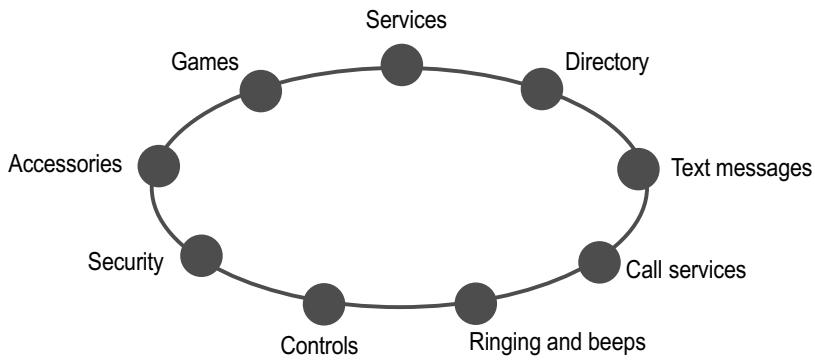
Briefly, the menus
MY_304X_EN-00.p65

28/12/01, 11:16


You have just bought a mobile phone and we congratulate you on your choice.
Your phone will allow you to use different international networks depending on the roaming agreements between the operators.
We would like to remind you that this phone is approved to European standards.
To get the most out of using your phone, we recommend that you read this manual carefully and keep it handy for future reference if needed.
WARNING
According to the configuration of the networks and associated subscriptions, certain functions may not be available (indicated by *).
If an incompatible SIM card is inserted, a message will be displayed when switching on a phone. For further information contact your Operator.
Compatibility of your SIM card
Your phone is compatible with SIM 3V cards only.
The SAGEM logo and trademark are the property of SAGEM SA. AT is a registered trademark of Hayes Microcomputer products Inc. Hayes is a registered trademark of Hayes Microcomputer Products Inc. T9TM Text Input is a registered trademark of ©Tegic Communications Inc. T9 is licensed under one or more of the following U.S. Patents: 5,818,437, 5,953,541, 5,187,480, 5,945,928, 6,011,554 and additional patents are pending worldwide.
GLOSSARY
Outgoing call A call made from your phone.
Incoming call A call received by your phone.
SIM card The card containing your subscription and access rights to services. The detachable part is the "micro-SIM".
PIN The personal code linked to your SIM card.
PIN2 The second personal code linked to your SIM card to access certain functions (^*)
Phone code The phone code is a secret code intended to protect the phone in case of theft.
IMEI The identification number of your phone.
SMS Short Message Service: sending and receipt of text messages, icons, animated screen savers and melodies.
Service Company which manages the network provider or subscription. Operator



-
Presentation of the phone 6
1.1 Exchanging the coloured front panel 9 -
Getting started 10
2.1 Information on the SIM card 10
2.2 Installing the SIM card and the battery 11
2.3 Charging the battery 12
2.4 Switching on/switching off, starting up 13
2.5 Menu access 14
2.6 Deleting characters 14
- Initial communication - Hands-free mode 15
3.1 Making a call 15
3.2 Receiving a call 16
3.3 Volume control 16
3.4 Hands-free mode 16
3.5 Ending a call 16
- Menu list 17
5.How to use the directory 20
5.1 Directory display 20
5.2 Storing a number 20
5.3 Deleting a number 21
5.4 Call groups 21
5.5 Sorting 23
5.6 Sending a short message to a stored number .. 23
5.7 Directory space memory 23
5.8 Displaying personal numbers 23
5.9 Making a call with a stored number 23
6.SMS 25
6.1 Receiving an SMS message 25
6.2 Editing a message using Easy Message T9™ .. 28
6.3 Edited messages 30
- How to use the call related features 31
7.1 Forwarding calls 31
7.2 Viewing the list of the last numbers used 32
7.3 Monitoring the duration and cost of calls 32
7.4 Displaying the numbers 33
7.5Authorising double call 34
7.6 Configuring automatic radial 34
7.7 Voice mail number 34
7.8 Local information distribution 34
7.9 Replacing the international prefix 34
7.10 Placing calls on hold 34
7.11 Multi-conferencing (^*) 35
- How to adjust the ringing tones and the vibrator 36
8.1 Selecting the volume and the type
of ringing tone 36
8.2 Call groups 37
8.3 Personalising the ringing tone 37
8.4 Setting the vibrator 37
8.5 Selecting silent mode 38
8.6 Setting the beeps 38
8.7 删除DTMF tones 38
Contents



- How to adjust and customize your phone 39
9.1 Customizing your phone 39
9.2 Selecting the display language 41
9.3 Select the type of response 41
9.4 Selecting the network 42
9.5 Setting the time and date 43
9.6 Controlling screen contrast 43
9.7 Converting currencies 43
- How to use the security features
of your phone 44
10.1 Locking the keyboard 44
10.2 Changing the PIN number 44
10.3 Changing the PIN2 number (^) 45
10.4 Changing the phone code 45
10.5 Changing the operator password (^) 46
10.6 Limiting incoming calls (^) 46
10.7 Limiting outgoing calls (^) 46
10.8 Setting up the pre-set directory (^) 47
10.9 Charge checking () 47
- Other functions 48
11.1 Calculator 48
11.2 Setting the alarm 49
11.3 Setting the timer 49
11.4 Configure your phone with a car kit 49
11.5 Data parameters 49
12.WAP Function 50
13Games 53
14. Available accessories 54
5
15.Upkeep 55
16.Recommendations 56
Answers to your questions 59
Contents
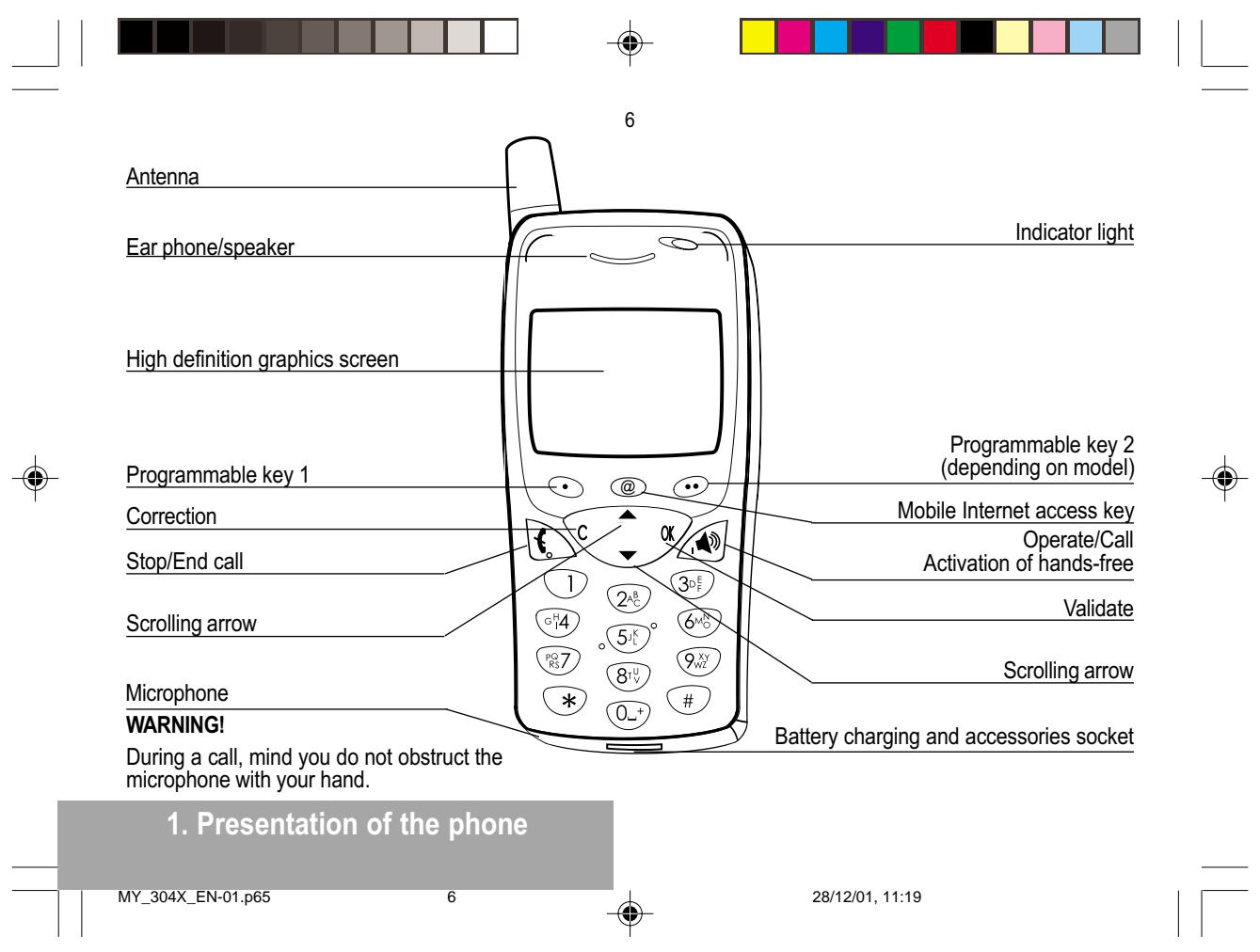

Function keys

Stop - Reject a call - Hang up

Go - Call a number - Receive a call - Hands-free mode
C Short press: Return to the previous menu - Delete a character Long press: Exit menu mode - Complete deletion of the entry
OK Validate
- Programmable keys for direct access to the functions that you have selected (depending on model)
Volume control during conversation ( key: lower, key: louder)
- Contextual action
@ Mobile Internet access key
and Entry and scrolling through the menus.

Alphanumeric keyboard
Made up of 12 keys: 0 to 9, and #.
To obtain a number or letter, hold down the relevant key until the desired number or letter appears.
Letters with accents are obtained by a long press on after entering the letter with no accent.
Punctuation marks and special symbols are obtained by a long press on the # key.
Key 1
A long press on key 1 allows you to access the voicemail service (depending on model).
1. Presentation of the phone



Display
The high definition graphics screen enables you to read messages easily. Various icons inform you about the status of functions.

Battery charge indicator (black if charged, clear if discharged)

Received signal strength indicator (maximum strength: 5 bars); the R letter indicates if the network found does not correspond to the subscription
If Y flashes, the phone is searching for a network

Hands-free loudspeaker

Call in progress

Permanent call forwarding
Silent mode
8

Receipt of SMS and
presence of SMS not read; Flashing: SMS memory full.

Voice messages present.
The three keys located under the screen are allocated to actions described at the bottom of the screen just above the key, each time it is necessary.
For example:
Validate
Pressing · · validates the current function.
1. Presentation of the phone

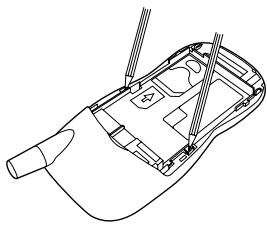
1.1 Exchanging the coloured front panel
Switch off the phone.
Remove the rear cover and the battery (see on page 11).
Hold the phone with the front panel facing downward, and with the antenna pressed against you.
Free the front panel by moving the retention lugs (0).
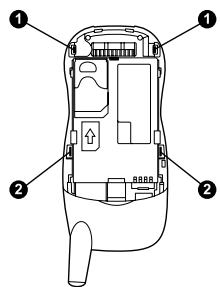
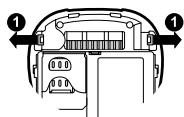

9
- Release the front panel by moving the retention lugs (2) if necessary and pushing them with a pen for example.

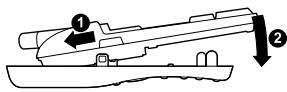
Install the keyboard in the new front panel.
Position the phone and the new front panel as shown.
Replace the battery and the cover.
- Presentation of the phone


10
2.1 Information on the SIM card
To use your phone, you have a small card called a SIM card. In addition to all of the information necessary for the network, this card contains other information that you can modify:
- secret codes (PIN and PIN2 - Personal Identification Number)
- directory
- mini-messages
functioning of specific services.
SIM card
This card must be handled and stored with care in order to avoid excessive stresses or scratches that would damage it. If your SIM card is lost, contact your Operator or Service Provider immediately. Note: Do not leave you SIM card within the reach of small children.
ting started
2. Getting started
MY_304X_EN-02.p65
10
28/12/01, 11:21

PIN code
This is the personal code for your SIM card. You may be asked to enter this code when the instruction: Pin number ? appears after you switch on your phone.
Enter the code of between 4 and 8 digits given to you by your operator. These digits will not be displayed on the screen for security reasons.
Press # or OK or to validate.
PIN2 code (*)
If one was given to you by your Operator, a second PIN code provides secure access to certain functions.
Warning
If the wrong PIN code is entered three times in a row, the card will be locked. To unlock your card:
- enter ^*05^
- enter the PUK code (Personal Unlocking Key) provided by your Network Operator and validate,
- enter your PIN code and validate,
- enter your PIN code again and validate.
After 5 or 10 times (depending on SIM card type), the SIM card will be permanently locked. Contact your Operator or your Service Provider to obtain a new card.
The same procedure (entering 052) applies when the PIN-2 code is blocked (PUK 2 code).

11
2.2 Installing the SIM card and the battery
Switch off your phone and disconnect the charger.
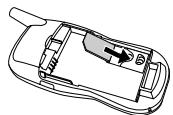
The SIM card is inserted beneath the phone's battery.
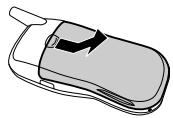
Turn your phone over and remove the rear cover. Press on top and make it slide.
- Slide the card along the base beneath the retaining plate, with the gold coloured sections facing towards the phone and the cut-off corner lined up to match the drawing on the phone.
- Place the battery by first inserting the upper section into the opening.
- Replace the cover sliding it until it locks.
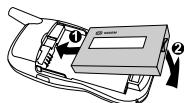
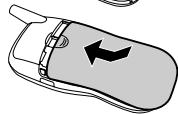
2. Getting started

2.3 Charging the battery
Your phone is powered by a rechargeable battery. A new battery must be charged for at least 4 hours before it is used for the first time. It will reach its nominal capacity after several usage cycles.
When your battery has run down, the phone displays it and cuts out.
To recharge your battery:
Connect the charger to a wall outlet.
- Connect the end of the charging cable to the bottom of your phone.
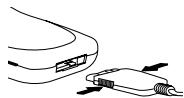
The phone will start charging. The battery charging indicator indicates the charge. Charging stops by itself.
Unplug the cable.
It is possible that during charging, the battery may heat up slightly; this is normal.
2. Getting started

12
WARNING


There is a risk of explosion if the battery is incorrectly replaced or disposed of in fire.
- Do not short-circuit.
The battery does not contain any components that can be changed by you.
- Do not attempt to open the battery case.
Only use the correct chargers and batteries as shown in the manufacturer's catalogue.
Spent batteries must be collected at the appropriate sites.
- You are advised to remove the battery if you intend to leave your telephone unused for a long period.



2.4 Switching on/switching off, starting up
To switch on your phone:
Press to switch on your phone.
If access to the SIM card is protected by a secret code, the phone will ask you to enter your PIN code.
Enter the code of between 4 and 8 digits given to you when you were given your SIM card. These digits will not be displayed on the screen for security reasons.
Press # or OK or to validate.
Control of the PIN code
If your phone displays SIM absent, press (long press) to switch off your phone and check that your SIM card is correctly positioned.
13
Searching for a network
The phone then searches for a network on which it can communicate:
If it finds one, the name of the network appears on the screen, and the indicator light flashes green.
You are ready to make or receive a call.
If the R letter and a network name are displayed, calls can be made and the indicator light flashes green.
If the R letter is displayed without any network name, only emergency services will be accessible (police, ambulance, fire brigade).
If the Y flashes, the phone will keep searching. No network is available.
Network indicator

The indicator of the level of network signal received enables you to visualise the quality of reception. If it shows less than three bars, look for better reception to make your call in good conditions.
2. Getting started



14
Switching off
Hold down the key until the end message is displayed.
- Release the key. The phone switches off.
2.6 Deleting characters
You can cancel an entry error:
Press quickly on C to delete the last character.
If you press this key longer, you will delete the previous word.
2.5 Menu access
The menu functions permit you to verify or modify the various functions of your phone to adapt it to your needs.
Press the scrolling arrows or to access the menus.
Scroll through the menus using the scrolling arrows then press OK to access the selected menu.
Each time you want to validate an action, press OK.
To abandon an action, press C.
To exit the menu mode, press and hold C.
Direct access to menus
To directly access a menu, press then enter the number of the selected menu.
2. Getting started


15
3.1 Making a call
The network is displayed.
- Dial the number, including the area code if necessary, by pressing keys on the alphanumeric keypad.
International call
Press 0 (long press) to display + then dial the country code without waiting for a tone, then the number you require.
Press
During the call, ±b flashes on the screen, and tones may signal the establishment of a connection.
- When the person you have called answers, speak.
Emergency
services
Depending on the operator, you can contact the emergency services with or without a SIM card or when the keyboard is locked. It is sufficient to be in a zone served by a network. To call the international emergency service, dial 112 then press
Other emergency service numbers may exist, depending on the country.
3. Initial communication
3. Initial communication Hands-free mode
MY_304X_EN-03.p65
15
28/12/01, 11:23

3.2 Receiving a call
When you receive a call:
Press then speak.
The caller's number is displayed when it is presented to the network.
All incoming and outgoing call numbers are registered in the list of the last calls.
3.3 Volume control
- Increase or decrease the volume during a conversation by pressing the or keys.


16
3.4 Hands-free mode
During a call, you can transfer from handset mode to hands-free mode simply by pressing one key and the reverse.

Press

The "Hands-free" mode enables you to follow a conversation with several people and be free to move, for example, to take notes during your conversation.
The screen displays for handset mode and for « hands-free » mode.
Before putting the phone to your ear, check the volume control settings as well as the selected listening method, especially if using integrated hands free mode, which could cause ear damage if used incorrectly.

3.5 Ending a call

Press
The end of call message appears on the screen.
3. Initial communication


17
You have the option of personalising the presentation of the menus, and so of limiting access to certain functions (See chapter How to adjust and customize your phone).
The following list presents the expert level (limiting itself to the 3rd sub-menu).
Services
Access to specific services offered by the operator
4. Menu list
According to the model of your phone, to the configuration of the networks and associated subscriptions, certain functions may not be available (indicated by ).
Directory
Directory menu 20
Sort by location
Create record
Call groups
Available memory
Personal numbers
Quit
Scroll through the names entered 23
See record
Modify
Delete
Call
Send message
Quit




18
Text messages
Access to the SMS 25
Call services
Callforwarding 31
All voice calls
All conditional fwd
Cancel voice forwards
Forward if busy
Forward if no answer
Forward if unavailable
Data forwarding
Faxes forwarding
View last numbers 32
Options
Call
Duration and cost of calls (^*) 32
Counters
Delete durations
Costs (^*)
Delete costs (^*)
Display of duration
Display numbers 33
Anonymous mode
Your number
Callers' number
Double call 34
Activation
De-activation
Status
Automatic redial 34
Voice mail number 34
Local information (^*) 34
Replace "+" prefix (^*) 34
Ringing and beeps
Volume and choice of music 36
Call groups 37
Personalised ringing tone 37
Create a tune
Vibrate 37
Vibrate and ring
Vibrate then ring
Inactive vibrate
Only vibrate
Silent mode 38
Beeps 38
Keypad beeps
Network beep
Low battery beep
Tones 38
4. Meals
| Controls | |
| Customization | 39 |
| Menu type | |
| Energy saving | |
| Screen Saver | |
| Greeting message (*) | |
| Prog. Key (*) | |
| Select language | 41 |
| Automatic response | 41 |
| Auto. answer | |
| Any key | |
| Network selection | 42 |
| Networks available | |
| Preferred networks | |
| Setting time/date | 43 |
| Display contrast | 43 |
| Currency converter | 43 |
| Rapid exchange | |
| Exchange rate | |
| Currencies | |
| Security | |
| Keyboard locking | 44 |
| PIN number | 44 |
| Modify | |
| Control PIN | |
| PIN2 number (*) | 45 |
| Phone code | 45 |
| Modify | |
| Control phone code | |

Operator password (*) 46
Limit incoming calls (^*) 46
Incoming voice calls
Incoming data calls
Incoming fax calls
All incoming calls
Limit outgoing calls (*) 46
Outgoing voice calls
Outgoing data calls
Outgoing fax calls
All outgoing calls
Pre-set directory (*) 47
Costs (^*) 47
Settings
Limitation
Accessories
48
Alarm 49
Timer 49
Car kit (*) 49
Data parameters 49
Games
- Meals


20
5.1 Directory display
You can store the telephone numbers that you call regularly:
- in the SIM card,
- in the phone it's
Different icons will inform you of the directory location where the number is stored when you search for it:
SIM card directory Your phone's direc
SIM card pre-set directory.
The number of telephone numbers stored in the SIM card directory varies depending on the capacity of the card. Your Operator or your Service Provider can provide you with this information.
5. How to use the directory
5.2 Storing a number
In the Directory menu, select Create record. Validate by pressing OK.
Enter the name (the number of accepted characters depends on the SIM card used). Validate.
Enter the number including the area code, if necessary (up to 20 characters). Validate.
It is advisable to store numbers in their international format (+, country code, and number). You can verify the contents of a record and modify it by selecting the required name.
5. Directory
MY_304X_EN-05.p65
20
28/12/01, 11:24



21
You can enter spaces in the number (displayed as commas " ,") by pressing (long press) on or # . The figures entered after a space are processed in a DTMF sequence (usable after a number).
If necessary, select the call group to which you want to assign this number.
When sorting by location, pressing on the key launches a search for the first available location; pressing on # returns to the start of the list.
Depending on the available space, you can select the storage location of the number entered: SIM card or phone itself.
5.3 Deleting a number
To delete the contents of a directory location, select the name using the scrolling arrows. Validate by pressing OK. Select Delete, then validate.
5.4 Call groups
You are also able to classify contacts recorded in the directory into Call Groups.
To each of these groups you attribute certain characteristics (icon, ringing tone, vibrator, etc.).
Creating a group
By default, groups have already been created in the phone.
In order to look up their characteristics, display a list of the groups - Directory/ Directory menu/Call groups menu.
Using the scrolling arrows, choose a group and press OK. You are then able to look up or alter its characteristics or to erase the group.
To create a new group:
- Go into Directory/Directory menu/Call groups.
Choose Create group.
Enter a name and validate.
Choose an icon using the scrolling arrows and validate.
Choose a ring tone, then choose a vibrator mode, and validate.
The selection of a call group is made when entering a number into the directory, or when modifying a number you have already saved.
5. Directory



Activate the Call Groups function
If you want the characteristics of the groups to apply to each call:
- Go into Directory/Directory menu/Call groups.
Choose Activate groups.
Tick the box and validate.
If call groups are not enabled, you cannot attach correspondents to groups.
The calls received from contacts who do not belong to a Call group use the parameters provided in the Ringing and beeps menu.
Available memory
To ascertain the number of groups which can still be created:
- Go into Directory/Directory menu/Call groups.
Choose Available memory.
The first number shows the number of groups which can still be created, and the second shows the maximum number of groups.
22
Looking up a group
- Select the group to be looked up and press OK.
- Choose See group. The screen presents the name, the icon, and the choice of vibrator mode of the group. If there are contacts attached to this group, press the key can be used to view the list of these ones.
Modifying a group
Select the group to be modified, and press OK.
Choose Modify.
- Carry out the wanted modifications.
Validate by OK.
Deleting a group
Select the group to be deleted, and press OK.
Choose Delete.
Confirm by OK.
5. Directory

5.5 Sorting
Directory menu enables you to sort the stored numbers by name or location; for the latter, the free locations are indicated in the list.
5.6 Sending a short message to a stored number
- Select the recipient scrolling using the scrolling arrows and validate using OK. Select Send message and validate using OK.
■ Compose your text message.
Press OK. Select Send and validate using OK. The recipient number is displayed.
Send your message using key.
5.7 Directory space memory
In Directory menu, select Available memory. Validate using OK.
The screen will display the amount of available space on the SIM card and on the phone itself.

23
5.8 Displaying personal numbers
Using Directory menu/Personal numbers menu, you can create records for your own numbers in order to be able to consult them.
5.9 Making a call with a stored number
Here are all the ways you can call a correspondent, whose number you have saved in the directory, from the standby screen:
1) Enter the first letter(s) of your correspondent's name, as you saved it into the directory, and then press . The directory list is displayed, with the first name that corresponds with the letter you entered at the top. If your correspondent is not at the top, use the scrolling arrows to select the name. Press on to make the call.
5. Directory



24
2) Enter the number under which you have saved your correspondent's details, and then press on (rapid dial).
3) Enter the number under which you have saved your correspondent's details, and then press on #. Your correspondent's number is displayed, at which point you can modify or add to the number.
Press on to make the call.


5. Directory
MY_304X_EN-05.p65
24
28/12/01, 11:25


25
6.1 Receiving an SMS message
Several types of SMS messages can be received:
text messages
- icons for call groups
- animated screen savers
- melodies
WAP bookmarks.
Access to this service depends on the network. For more information, consult your Operator or your Service Provider.
6. SMS
When you receive an SMS message, a beep is heard, (the beep selected in the menu Ringing and beeps/Volume and choice of music/Messages) a flashing red light appears and the icon is displayed on your phone screen.
This icon remains on screen as long as the SMS messages have not been read.
When the memory flashes, it is full.
6. SMS
MY_304X_EN-06.p65
25
28/12/01, 11:26



26
The receipt of icons, animated screen savers or melodies can take several minutes. Messages inform you of the downloading progress.
You can hide that screen at any time by pressing (e.g. to make a call or access other information on your phone) or delete the download in progress by pressing .
Go into the Text messages menu to access the list of messages received.
Ask your Operator about the downloading of SMS icons, animated screen savers or melodies.
Unread SMS messages are in bold.

This symbol indicates that an SMS message has been altered: it consists of several fragments, some of which have been deleted.
Meaning of the symbols in front of each SMS message
Call group icons
Animated screen savers
Text messages
Melodies.
Actions possible on an SMS message received
Select an SMS message.
By pressing ,you can:
- read an SMS text message
view and save an SMS icon or animated screen saver -
listen to and save an SMS melody.
-
When you press · (Options), various options are available according to the type of SMS message received:
read it
- delete it
mbols at the top of the

This symbol indicates a written text message. If this symbol is flashing, it means that the SMS message has not been sent.

This symbol indicates an SMS message received. If this symbol is flashing, it means that the SMS message has not been read yet.

This symbol indicates an SMS message which is incomplete or in the process of being downloaded.
6. SMS



- reply
forward it to another person - consult the available memory
- delete all SMS messages already read
- delete all SMS messages
choose a sending option - enter the number of the messaging centre
- add a WAP bookmark (see below)
save it in your phone (SMS melody, animated screen saver and icon (see below))
Adding a WAP bookmark in your phone
To add a WAP bookmark received:
If you have just read it, choose the Add WAP bookmark option by pressing (Options) or
- Select it in the list and choose the Add WAP bookmark option by pressing · (Options).
Warning
Only the screen savers and melodies without Copyright may be forwarded to another person and depending on model.
27
Saving a melody in your phone
A melody is saved in the Ringing and beeps/Personalised ringing tone menu.
If you have just listened to it, press (Record)
or
- Select it in the list and choose the Save option by pressing · (Options).
The space required as well as the space available in the phone are indicated.
If the maximum number of melodies or the maximum capacity has been reached, you will be asked if you wish to delete some melodies or replace an existing melody with the new one.
√
This sign placed in front of a melody indicates that it can be deleted and will free enough memory space to save the new one.
0
This sign placed in front of a melody indicates that it can be deleted but will not free enough memory space to save the new one.
Warning
You must listen to the entire melody in order to be able to save it.




Saving an animated screen saver on your phone
An animated screen saver is saved in the Controls/Customization/ Screen Saver menu.
If you have just viewed it, press (Record)
Warning
You must view the entire screen saver in order to be able to save it.
or
- Select it in the list and choose the Save option by pressing · (Options).
The space required as well as the space available in the phone are indicated.
If the maximum number of animated screen savers or the maximum capacity has been reached, you will be asked if you wish to delete some animated screen savers or replace an existing one with the new one.
Saving an icon in your phone
An icon is saved in the menu Ringing and beeps/Call groups/Call groups menu.
If you have just viewed the icon, press (Record) or
28
- Select it in the list and choose the Save option by pressing · (Options).
The space required as well as the space available in the phone are indicated.
If the maximum number of icons or the maximum capacity has been reached, you will be asked if you wish to delete some icons or replace an existing one with the new one.
6.2 Editing a message using Easy Message T9TM
The Easy Message T9™ function helps you to easily enter short messages.
Select the Text messages/Write new... menu and press OK.
Selecting the editing language
- Validate T9 by pressing the **key. Select using the scrolling arrows, the language required and validate by pressing OK.

T9TM mode is activated as soon as you create or modify a message.
Language
By default, the language used is that which is activated on the phone's menu display (or English if a language not supported by Easy Message T9TM is selected in the menu).
6. SMS



Using T9 mode
Press the key corresponding to the letter required, compose the word by continuing to press the keys corresponding to the different letters, without worrying about the display, until the whole word is entered: it will appear in negative, white on black.
If the word proposed corresponds to the one you are looking for, press 0 to validate it, create a space and go on to the next word.
It is possible that there are several words in the dictionary that contain the same sequence of keys pressed. If the word that appears is not the one you want, press @ to scroll through the words present in the dictionary, corresponding to this sequence of keys. When you find the word you want, press 0 to validate, type a space and go on to the next word.
If the word that you want does not appear in the dictionary, several additional modes allow you to vary the nature of the words entered.
29
Additional entry modes
The key selects one mode or another.
The 123 mode inserts numbers.
The Insert symbol mode displays a list of symbols and the figures from 0 to 9 that correspond to them.
To enter a symbol, simply type the number that appears above the character required, for example: 6 for ?. The symbol is inserted into the text and you return automatically to Easy Message T9™ mode. Several lists are accessible using the scrolling arrows.
The ABC mode enters words that do not exist in the dictionary or in another language. To obtain a letter, hold down the corresponding key. The letters and numbers scroll. Release the key when the required letter appears.
Capital letters
- You can type capital letters, by pressing the key before entering the relevant character. The following characters will automatically return to lowercase.



Words in capital letters
- You can also choose to type a whole word in capital letters by pressing twice on the * key before entering the word. It is possible to return to lower case mode by pressing once on the * key.
Punctuation marks
- Punctuation marks are obtained by using either the 1 key (except in numeric mode), or using the Insert symbols mode (quick access using # key).
Accented characters
- Accented characters are automatically generated in the word in Easy Message T9™ mode. In ABC mode, you need to wait for the accented character to be displayed whilst holding down the corresponding key.
The number of messages stored in the SIM card changes depending on the SIM card capacity; contact your Operator or your Service Provider. for further information.
30
After validating your text, you can choose one of the following options:
- Send your message
- Store your message
- De-activate Zoom
- Cancel.
6.3 Edited messages
Pressing the key · (Options), different options are available for an edited message:
read it
- send it
- delete it
- modify it
view the memory occupation level
- delete them all
- select a send option (acknowledgement, reply given, period of validity, message format)
- enter the message centre number.
6. SMS
MY_304X_EN-06.p65

28/12/01, 11:26


31
7.1 Forwarding calls
Forwarding voice calls
Depending on your subscription, this service allows you to transfer incoming calls to another number or a mailbox.
Look out for incompatibilities; for more information, consult your Operator or your Service Provider.
7. How to use the call related features
-
Scroll through the menu to activate the type of forwarding that you require:
-
Forward all voice calls: all incoming calls are forwarded to a number you define
Forward all conditional calls - Forward calls when your line is busy
- Forward calls when there is no answer on your extension after a period that you can define by answering the questions on the menu
- Forward calls when your phone is unavailable, outside of network coverage or switched off.
Enter the number to which you want to forward your calls. If necessary, include the area code you would use if you were calling the number from your phone.



32
- Validate by pressing . A message on the screen confirms that forwarding has been activated.
- You can also cancel all types of forwarding.
- You can view the status of a type of call forwarding in order to verify whether it is active or not. This function is also useful for controlling the number to which your calls are forwarded. The information supplied is provided by the network.
The forwarding number to the messaging centre depends on the subscription type.
Warning
Cancellations of forwarding can cause particular reactions in certain networks.
7.2 Viewing the list of the last numbers used
You can consult the list of the last numbers used (outgoing and incoming if available).
To radial a number:
- Select from the list using the scrolling arrows.
Make the call by pressing on
Several options are available for this number: store it in your directory, send it a short message, delete it. You can also delete the whole list of numbers.
Shortcut
From the standby screen, press on
Forwarding data or faxes
Depending on your subscription, this service permits you to transfer data or faxes that are addressed to you to another number.
You can activate the data or faxes forwarding service, to enter the required number, cancel it and view the status of the service.
For services specific to a network, such as mailboxes, short dialling is only valid when covered by the particular network. You may possibly prefer an international number. This memory is linked to the phone and not to the SIM card.
7.3 Monitoring the duration and cost of calls (^*)
- On the Counters menu you can view the duration of the last call and all calls made since the last deletion.
The Delete durations menu enables you to delete the duration of the last call and reset to zero the total calls counter.
7. Call related features



33
On the Costs (^) menu you can view the cost of the last call and all calls made since the last deletion.
The Delete costs (^) menu enables you to clear the cost of the last call and to reset the call counter after entering your PIN2 code.
The Display of duration menu enables you to select the duration display during a call.
This data is purely indicative and does not represent proof. The metering criteria for the network can be appreciably different (indivisible minutes, etc.).
7.4 Displaying the numbers
This menu permits you to see the status of the display numbers function for:
- your identity (phone number)
the identity of the person calling you.
Anonymous mode
You can decide whether the person you are calling is given your phone number or not.
- Preset: the phone network default mode.
-
No: you do not wish to use the anonymous mode and the person you are calling will know your number.
-
Yes: you wish to use the anonymous mode and the person you are calling cannot know your number.
Your number
- On outgoing calls you can check that your phone number is displayed on the phone of the person you are calling (CLIR).
- On incoming calls, you can check that the telephone number of a phone to which you are transferring calls will appear on the phone of a person calling you (COLR).
Callers Number
- On outgoing calls, you can see the phone number to which your call is being transferred (COLP) if the person you are calling has authorised his or her identity to be displayed by deactivating the COLR option.
- On incoming calls, when it is activated, this function displays on your phone the phone number of the person calling (CLIP). This function is only possible if the caller has authorised his identity to be displayed by deactivating his CLIR option.
7. Call related features



34
7.5 Authorising double call
(Service depending on the operator)
During a call, a special tone can inform you that another caller is trying to reach you. The caller's number - and name, if stored - is displayed on the screen.
During a call, when pressing the @ key, the key changes function and gives access to different possibilities of actions with this call.
7.6 Configuring automatic radial
You can activate automatic radial either by default or on demand.
7.7 Voice mail number
To program a special permanent call number, type in this number and validate.
This number is used when calling the voice mail centre with the programmable keys.
You can activate, deactivate and view the status of the call waiting service in order to check whether it is active or not.
7.8 Local information distribution
This menu allows you to activate and select reception of information distributed by the network.
Contact your operator for further details)
7.9 Replacing the international prefix
Depending on model)
In the event that a call is not possible with the "+" prefix, you have the option of choosing a replacement prefix with no need to change the number(s) already recorded with the prefix + in the directory.
7.10 Placing calls on hold
(Service depending on the operator)
During a call, you can put the current call on hold by pressing Ok.
During a call, when pressing the @ key, the • key changes function and enables you to access different options for the call.
Warning
In this case, pressing ends all calls.
7. Call related features



7.11 Multi-conferencing (^*)
(Service depending on the operator and depending on model)
A multi-conference is limited to 6 participants: 5 in a multi-conference and one additional call
During a call, when pressing the @ and o key, the key changes function and gives access to different possibilities of actions with this call.
Multi-conferencing enables you to talk to several callers (depending on the network capacity and on the model).
Standard commands
Sequences of standard keys also permit access to services such as call notification, call holding, multi-conferencing, and open up additional possibilities:

Reject a call holding or waiting (or multi-conference calls).

End the current call holding or waiting (or the multi-conference calls if there are any) and accept the call (or multi-conference calls).
35
End the current call order number X.

Place on hold the current call (or multi-conference calls) and accept the call holding or waiting (or multi-conference calls).

Place on hold the multiconference calls except for the current call order number X (private call).

Add a call holding (or multi-conference calls) to the current call (or to the multi-conference).

Place on hold the current call (or the multi-conference calls) and call another phone number.
If you use this feature, we recommend that you first place the current caller on hold, then dial the new number as a courtesy to your caller and to ensure privacy with the other party if desired.

End all calls except for a possible call waiting.
7. Call related features


36
8.1 Selecting the volume and the type of ringing tone
You can set your phone to ring on receiving calls and/or short messages.
- You can, during adjustment, listen to the melody selected or not: activate or don't by pressing @; the symbol appears barred or not.
- Select the ringing tone required using the scrolling arrows.
Press to move on to the next section. - Select the volume required for using the phone with the scrolling arrows (from 1 to 4 and + for the volume crescendo) and validate using OK.
Press to move on to the next section. - Select the volume required for using the hands free car or pedestrian kit with the scrolling arrows (from 1 to 4 and + for the volume crescendo) and validate using OK.
There are numerous tunes available (including a «silent ringing tone») and several volume levels including a crescendo.
8. How to adjust the ringing tones and the vibrator
8. Ringing tones and vibrator

8.2 Call groups
See chapter How to use the directory for all the functions about call groups.
Downloaded icons
If you have saved icons received by SMS (see SMS chapter), they will appear in the menu Ringing and beeps/Call groups/Call groups menu.
If you select an icon in the list, it will appear at the top of the screen.
You can then delete it or select one of the following options:
- change its title
- consult the available memory
- delete the selected icon
- delete all saved icons.
8.3 Personalising the ringing tone
You have the option of creating a personalised call tune. A help menu, accessible by pressing , will guide you.

37
If you have saved melodies received by SMS (see SMS chapter), they will appear in that menu.
You can then modify it (if the copyright allows it), listen to it or select one of the following options:
- change its title
- send it by SMS to another person (if it is not Copyright protected)
- consult its memory capacity
- consult the available memory
- delete the selected melody
- delete all melodies.
8.4 Setting the vibrator
Wherever you require your calls to arrive discreetly, you can use the vibrator or select the silent mode.
Using the scrolling keys, select one of the following options: inactive vibrate, only vibrate, vibrate and ring, vibrate then ring.
■ Validate by pressing
8. Ringing tones and vibrator



8.5 Selecting silent mode
If you want the ringing tone of your phone to be replaced by the vibrator and the beeps to be suppressed (except for the alarm tone), tick the box and validate by pressing OK.
This mode is indicated by the symbol on the screen saver.
Silent mode is automatically deactivated when the hands free kit car is connected as well as when the phone is switched on/off.
8.6 Setting the beeps
Different controls are available:
Setting the keypad tones
- Select the tone required using the scrolling arrows and validate (press ).
Setting the network tone
If you want your phone to give a warning beep when it locates a network on which it can communicate:
Tick the box and validate by pressing OK.
You can select the tones produced by your keyboard: Beep, DTMF (musical keys) or non active tones (in this last case, when you press your keyboard, it does not make a noise).
8. Ringing tones and vibrator
Setting the low battery tone
If you want your phone to give a warning beep when your battery is low:
Tick the box and validate by pressing OK.
8.7 Deleting DTMF tones
Depending on model)
You can delete the emission of DTMF tones during a call. You can thus make a call, in a comfortable and discreet way for you caller.
To be discreet, clear the selection from the box. Validate by pressing OK.



39
9.1 Customizing your phone
Menu type
You have the option of personalising the presentation of the menus, and so of limiting access to certain functions.
Three levels are available:
- Expert: presents all of the functions
Essential: presents the main functions - Restricted: limits access to certain functions.

9. How to adjust and customize your phone
Installing the energy saving mode
In order not to use the phone's screen light and thereby increase its operating time:
In the Customization/Energy saving menu, check No light and press OK to validate.

9. Phone adjustment
MY_304X_EN-09.p65
39
28/12/01, 11:29



Configuring the idle mode
You can choose between an animated idle screen or the economy mode.
In the Customization/Screen Saver menu, use the scrolling arrows to select the animation you want, a text, a banner or the economy mode.
Press to access the setting of the animation or economy mode activation interval.
Press OK to validate.
To exit the economy mode, press
If you have saved animated screen savers received by SMS (see SMS chapter), they will appear in that menu.
The following options are available according to the type of screen:
- validate the animated screen savers as default screen
- change its title (only downloaded screens)
The frequency of display of the screen saver has a direct impact on the phone's operating capacity. For optimal operating capacity, set the maximum interval.
40
- consult its memory capacity
- consult the available memory
- delete the selected screen
- delete all screens.
Personalising the welcome screen
Depending on model
You can personalise the welcome screen of your phone by typing a text. Validate by pressing OK.
Customizing the programmable keys
Depending on model
This menu, accessible directly by a short press on a programmable key from the standby screen, enables you to configure the and keys. There are different possibilities for each of the keys:
The action allocated to a programmable key is triggered by a long press or two short presses only from the standby screen.
Directory
Validate Directory.
When you press the key, you can see the names in the directory.
9. Phone adjustment



Rapid dial
- Select a name from the directory and validate. When you press the key, you will automatically call the name selected.
Silent mode
- Validate Silent mode. The ringing tone of your phone will be replaced automatically by the vibrator and all the beeps will be suppressed (except for the alarm).
Call voice mail
- Validate Call voice mail.
When you press the key you will automatically call your mailbox number.
Text messages
- Validate Text messages.
- When you press the key you can read the short messages stored in the SIM card or in the phone itself.
View calls
- Validate View calls
- When you press the key, you can view the list of the last calls made and received if available.
41
9.2 Selecting the display language
You can select the language in which you wish your phone display to operate:
Automatic selection. The display language will be that of your SIM card (if available).
- otherwise select the language of your choice using the scrolling arrows and validate by pressig OK.
9.3 Select the type of response
You can reply to a telephone call:
either automatically, if you have ticked the Automatic ans. box (for a hands free kit) and validated by pressing OK.
or by pressing any numeric key if you have ticked the Any key and validated by pressing OK.
9. Phone adjustment



42
9.4 Selecting the network
Every SIM subscription card can store an ordered list of preferred networks.
If the list has not been programmed, or if none of the networks on the list are available or authorised, the phone searches for an authorised network providing the highest level of signal.
If none of the available network is authorized, you can use your phone to make emergency calls only until a network connection can be re-established.
If no network is available, your phone continues to search for one.
In all cases, the phone searches for its home network first.
Network
When your home network is not accessible (abroad, for example), your phone automatically searches for another available and authorised network in the order of preference indicated by the list on the SIM card.
Available networks
This menu enables you to start a search for all available networks at the present location and to display them.
Use the scrolling arrows to scroll the available networks and validate the one wanted (press ...
Preferred networks
To program a list of preferred networks into your SIM card:
Use the scrolling arrows to select from the list.
Validate.
If the network is not on the list, select the country code then the network code (ask the organisation from which you obtained the SIM card).
Depending on model, you can choose a manual selection for a network search. A triangle appears in the antenna above the network icon to indicate the manual search.
9. Phone adjustment

9.5 Setting the time and date
Setting time/date/Control menu
- Set the hours and minutes by pressing on the corresponding numbers or by scrolling through the values using the or arrows.
Press to go to the next setting.
Set the day, month and year.
Press OK to validate.
Setting time/date/Display menu
Use the scrolling arrows to select the type of clock to be displayed on the screen or to display no clock. Press OK to validate.
9.6 Controlling screen contrast
Control screen contrast using the scrolling arrows, and validate by pressing OK.
9.7 Converting currencies
This menu enables you to convert one currency into another. Using the scrolling arrows, you can select:

43
Rapid exchange
If you tick the Rapid exchange box, the converter will operate on the standby screen, enter the digits required and use the scrolling arrows to perform a conversion.
Exchange rate
Enter the conversion rate corresponding to the two selected currencies.
Currencies
- Enter the symbols of the two currencies to convert. A long press on C returns to the beginning of the line to enter them (if the symbols are already entered).
9. Phone adjustment


44
10.1 Locking the keyboard
Locked keyboard
This menu enables you to lock your phone's keyboard to prevent calls from being made unintentionally in your bag or pocket.
You can still make emergency calls and answer calls.
- Tick the Lock box: the keyboard will automatically be locked.
For a quick keypad locking, press * then OK from the standby screen.
To unlock your keyboard: Press then OK. After unlocking, the keyboard will be locked after a certain period.
Warning
10.2 Changing the PIN number
If the wrong PIN code is entered three times in a row, the card will be locked. To unlock your card, call the organisation which issued your card for guidance in unlocking it. If your SIM card is permanently locked, contact your Operator or your Service Provider to obtain a new card.
You can change your PIN number:
To the question: Old pin number?, enter your old PIN code and validate (press
To the question: New pin number?, enter your new PIN code (a number between 4 and 8 digits) and validate by pressing OK.
10. Security
MY_304X_EN-10.p65
44
28/12/01, 11:30

To the question: Verify pin number?, enter your new PIN code a second time to verify and validate by pressing OK.
Checking the PIN number
You can activate your PIN number so that it is requested and checked every time the phone is switched on, so that if the phone is lost or stolen, your SIM card cannot be used:
To the question: Pin number?: enter your PIN number and validate (press ).
Tick the box Pin number cont and validate by pressing OK.
10.3 Changing the PIN2 number (*)
You have a second PIN number. The procedure for modifying the PIN2 number is identical to that for the PIN number.
10.4 Changing the phone code
The phone code menu enables you to activate the phone code so that it is requested and checked each time the phone is switched on, in the case of a different SIM card being used.

45
If the incorrect code is entered, the time interval between each attempt increases, making use impossible.
To change the phone code, you must first check that it is active (Control phone code menu).
To activate:
To the question: Phone code?, enter 0000 and validate (press
- Tick the Telephone contr box and validate by pressing OK.
To deactivate:
To the question: Phone code?, enter your code (possibly changed) and validate (press ).
- Do not tick the Telephone contr box and validate by pressing OK: it will reset the code to 0000.
Once the phone code is activated, you can modify it:
To the question: Old phone code?, enter your old phone code and validate (press ...).
The phone code is a secret code, intended to protect the phone in the event of theft. It is linked automatically to the SIM card present on activation.

10. Security

To the question: New phone code? enter your new phone code (a number of between 4 and 8 digits) and validate by pressing OK.
To the question: Verify phone code enter your new phone code a second time to verify it and validate by pressing OK.
10.5 Changing the operator password (*)
You have an operator password. The procedure for modifying this password is identical to that for your PIN code.
10.6 Limiting incoming calls (^*)
Depending on your subscription, this service enables you to restrict certain types of incoming calls.
If you have this service, you will have been provided with a password when you subscribed. This password is necessary to activate this function.
Access to this service depends on your subscription type. For more information contact your Operator or Service Provider.

46
- You can activate, deactivate, and view the status of the type of call barring. You can also cancel ALL types of barring.
10.7 Limiting outgoing calls (^*)
Depending on your subscription, this service stops certain types of outgoing calls being made from your phone.
If you have this service, you will have been provided with a password when you subscribed. This password is necessary to activate this function.
- You can activate, deactivate, and view the status of the type of call barring. You can also cancel ALL types of barring.
The restriction can apply to ALL incoming calls or to incoming calls when you are not in your home country (if you have roaming).
Access to this service depends on your subscription type. For more information contact your Operator or Service Provider.
The restriction can apply to ALL outgoing calls, to all your INTERNATIONAL outgoing calls or to outgoing international calls EXCEPT those sent to your HOME country.
10. Security



10.8 Setting up the pre-set directory (*)
The pre-set directory allows you to limit calls. When you activate this directory, only the numbers you store in this directory can be called.
Before creating it, you must first activate it:
Display the Pre-set directory menu.
Enter your PIN2 number.
Tick the Pre-set directory box.
Validate by pressing OK.
To create the pre-set directory, proceed as you would proceed for another directory (see chapter How to use the Directory/Storing a number).
This directory is linked to the SIM card. Thus, its size is determined by limitations of this card.
47
- Currency: enter the currency name (maximum 3 characters) and charge per unit. Ask your operator for this value.
- Telephone unit.
The Limitation menu allows you to activate the credit function in the selected currency after entering your PIN2 code.
Warning
These functions depend on the ability of the network to send charge data to your phone in real time, and on the capacity or options on your SIM card.
10.9 Charge checking (^*)
The Settings menu allows you to select the type of charge indication after entering your PIN2 code:


48
11.1 Calculator
You can operate the calculator using the following keys:
Add
@ Subtract
* Multiply
Divide
OK Equals
C Delete
Long press on:
*or # or @ or
Decimal point
Monetary operations if
there is no calculation in progress
(See chapter Phone
adjustment, § 9.7).
Monetary conversion.
From the standby screen, you can convert a currency into another according to the settings chosen (calculator key ) or menu (Controls/ Currency converter).
11. Other functions
MY_304X_EN-11.p65
48
28/12/01, 11:34



49
11.2 Setting the alarm
To use your phone as an alarm clock:
Using the numbers or the scrolling arrows, set the alarm time.
Press to go to the next item.
Set the minutes.
Tick the box and validate by pressing OK.
The ringer is stopped by pressing any key; the alarm remains programmed.
The alarm function remains active when the phone is switched off. It is not affected by silent mode.
11.3 Setting the timer
The same procedure is applied as for the alarm function, but in this case you start a time clock running against a defined value. The phone must remain switched on.
The alarm function is represented on the screen by the symbol
Permanent flashing of this symbol indicates that an alarm time has been programmed but the date and time clock has not been initialised.
11.4 Configure your phone with a car kit
Depending on the model)
As regards the phone, there are several options:
To use your phone with a hands free kit, see the notes supplied with the kit.
Programming the switch-off delay on your phone
Set the phone off delay using the numbers or scrolling arrows.
Press to go to the next item.
- Tick the box and validate by pressing OK.
This delay starts counting down as soon as the end of a call is detected.
Programming the alarm timing
You can be notified that your phone is ringing when you are not in your car.
This can only happen when the vehicle is not running.
- Set the delay after which an external warning is set off using the digits or scrolling arrows.
Tick the box and validate by pressing OK.
11.5 Data parameters
You can set the serial link speed when using AT commands.
11. Other functions


50
From the standby screen, press on the @ key to access the local menu for WAP functions.
Home: connection to the home page.
Bookmarks (depending on model): from the standby screen, following a number key with the @ key initiates access to the favourite corresponding with the number.
Depending on model, scrolling menu 0 allows you to access the WAP function.
This menu enables you to record a directory of Internet site names and addresses for easy and fast access.
12.WAP Function Mobile Internet
WAP: Wireless Application Protocol - This is a protocol which converts Internet language into the language which can be understood by a mobile telephone.
The WAP browser is licensed from:


The WAP browser remains the exclusive property of Phone.com. It is therefore highly prohibited to modify, translate, reverse engineer, de-compile or disassemble the Phone.com browser or any part thereof.
You can receive bookmarks by SMS and add them to this list (see SMS chapter). You can also send some by SMS: select a bookmark, press · (Options), then select Send by SMS.
Go to URL (depending on model): this menu enables you to directly enter an Internet address.
Advanced.... access to the sub-menus:
- Connection settings which allow you to set the parameters for several access providers (depending on model). The current access service has a star in front of it.
All of the information to be entered in the settings is supplied by your Operator or Service Provider.
12. WAP Function

Configuration of WAP parameters
- Select the desired access service using the scrolling arrows then press on Modify (· key).
- The parameters to be entered are: the name of the service, a user name,
a password,
the IP address of the WAP gateway: enter the IP number using the @ key (Next) then choose Secure or Non secure.
the call number,
the access mode (digital or analog).
Once all the parameters entered, you can activate the selected service.
-
Confirm your choice with OK.
-
Show URL which presents the current Internet address.
- Disconnect which ends the communication (allows a navigation without being connected).
- Linger timer enables you to set a time limit, after which the phone will disconnect automatically if you have forgotten to disconnect from a service.

51
- FastW@p (depending on model) which provides quicker access to the pages of Internet sites.
Reset cache: empties data stored from previous connections.
Quit: return to the phone standby screen.
The icon enables you, by pressing the @ key, to access two display modification possibilities:
- the zoom to change the size of characters by pressing on · successively
- full screen display by pressing on
Connection
From the Home menu, start up connection to a service.
Once connected to a service, press on then [Menu] to return to the local menu.
When connecting on the GSM network, the @ character flashes, and the cost of communications starts to clock up as soon as it stops flashing.
12. WAP Function




52
Disconnection
Disconnection is achieved by pressing on then [Menu] and then by using the Advanced... menu and Disconnect.
The @ character disappears from the screen.
You will be automatically disconnected after a short pause if you have forgotten to disconnect from a service.
Exit from the WAP function
To exit from the browser and end the current communication (if necessary):
press
or
from the local menu, select Quit and validate by pressing OK.

12. WAP Function




53
Depending on the model, several games are available. The presentation menu guides you on how to best use them.
13Games
MY_304X_EN-13.p65
53
- Games
28/12/01, 11:37


54
Depending on the model, different accessories are available on your phone:
Additional batteries
Additional chargers
- Desk charger
Cigarette lighter adapter
- Hands-free kits
- Coloured front panels.
Warning
Do not connect/ disconnect the special socket on your phone during a call. The use of the EXTERNAL SIGNAL function to activate the lights on a vehicle or the horn, in order to take a call on a public road may not be authorised.
14. Available accessories
14. Available accessories
MY_304X_EN-14.p65
54
28/12/01, 11:37


56
The use of your phone is controlled by safety regulations intended to protect both the user and his/her environment.
Electrical safety
C
CE marking on the unit conforms to directives 1999/5/ EC,89/336/CEE and 73/23/CEE.
16.Recommendations
Only use the appropriate chargers contained in the manufacturer's catalogue. Using another charger could be dangerous and will invalidate the manufacturer's warranty.
The main plug socket must be easily accessible.
The main voltage should correspond to that given on the manufacturer's plate on the charger.
16. Recommendations
MY_304X_EN-16.p65

28/12/01, 11:39

Airplane safety
In an airplane, your phone must be switched off to ensure that it does not interfere with the planes systems. Its use is illegal and you could be prosecuted or banned from using cellular networks in the future if you do not abide by these regulations.
Areas containing combustibles
It is advisable to switch your phone off in the vicinity of gas stations.
Regulations limit the use of radio equipment in chemical factories, gas depots and any area where there are mines. You are advised to abide by these rules.
Road safety
Except in an emergency, do not use your phone when driving without a hands-free kit that enables you to maintain your freedom of movement. Always keep your eyes on the road when you are driving. To make a call, pull to the side of the road, then make your call. Abide by the current laws.
MY_304X_EN-16.p65
57

57
The phone must be shielded sufficiently from electronic equipment in the vehicle. It gives off micro-waves, which may affect the operation of such equipment.
- Installation of your phone in a vehicle must only be performed by qualified personnel.
Warning
Ensure that no part of your body is permanently close to the aerial unless there is a metal screen (e.g.: a vehicle roof, ...).
Non ionising radiation
- To obtain maximum satisfaction from your phone, use it in a vertical position. Your personal safety can only be improved by doing so.
Electronic medical equipment
- Your phone emits radio waves that could possible interfere with electronic medical equipment, for example an auditory prosthesis, heart pacemakers, ... Your doctor or the manufacturer of the medical item will be able to advise you on whether your phone could cause such interference.
- In hospitals, the phone must be switched off.
16. Recommendations
28/12/01, 11:39

General precautions
- Do not attempt to open your phone and repair it yourself. The manufacturer cannot be held responsible for any damage/accident that may result from this.
- Any work carried out by non-authorised personnel will invalidate your warranty.
- Do not use your phone in damp areas (bathroom, swimming pool, ...). Protect it from water and other liquids.
- Do not expose your phone to extreme temperatures.
- Do not leave your phone within the reach of small children (certain removable parts may be accidentally ingested).
- Use your phone with original accessories, or your warranty will be rendered invalid.
- The physicochemical processes created by chargers impose temperature limits when charging the battery. Your phone automatically protects the batteries in extreme temperatures.
- Removing the battery may mean that the time is lost.
16. Recommendations

58
- You are strongly advised not to connect your phone to the charger if it doesn't contain a battery.
- To avoid the risk of demagnetisation, do not let electronic devices close to your phone for a long time.
Warning
The constructor cannot be held responsible if the above recommendations are not followed or if the phone is incorrectly used.
Note on downloading facilities
You can use your mobile phone to download ringing tones, icons and animated screen savers. Some of these items may contain data that causes your mobile phone to malfunction or to lose data (viruses for example).
Sagem declines all responsibility for (1) the reception of data that has been downloaded or loss of said data, (2) the consequences on the operation of the mobile phone and (3) damage resulting from the reception of said downloaded data or loss of said data. Moreover, Sagem draws attention to the fact that problems caused by the reception of downloaded data that does not comply with Sagem's specifications are not covered by the guarantee. Consequently, the cost of diagnosing and repairing mobile phones affected by said downloaded data will be charged to customers.
The software program developed by SAGEM remains the exclusive property of SAGEM SA. It is therefore highly prohibited to modify, translate, de-compile or disassemble this software program or any part thereof.

Answers to your questions
The telephone does not turn on
Remove the battery and then replace it.
or
- Connect the phone to the charger (check that this is plugged in) for approximately 5 minutes.
No network recognised
- Remove the SIM card. Check that there is no dust or grit in the SIM slot. Replace the SIM card being sure to push it right up to the stop point.
Calls to a messaging service or voice server do not get through
Check in the Ringing and beeps/Tones menu that the box is ticked.
Unable to turn the phone on
- Charge the phone for 15 minutes before turning it on.
Check the battery charging indicator: cycling: charging normally

59
not cycling: disconnect the charger, reconnect and then check the battery charging indicator: if it is still not cycling, disconnect the charger and re-connect several times.
If the battery is still not charging, contact the after sales service.
When the battery charging indicator is continuously on, the battery is fully charged.
Error message: BATTERY STATUS NOT KNOWN
The battery pack is not recognised by the phone. Check that the battery pack is correctly fitted in the phone.
Error message: LOW BATTERY
This message is displayed when the battery charge is too low. The phone turns off automatically. Charge the phone.
Error message: SIM NOT PRESENT
Check that the SIM card has been inserted correctly.

Examine the SIM card. If it is damaged, contact your mobile phone operator sales point. If the message is still displayed, contact the after sales service.
Error message: INCORRECT PIN
The PIN has been incorrectly entered. If the PIN is entered incorrectly three times, the SIM card is blocked.
Error message: SIM BLOCKED
The PIN has been incorrectly entered three times. Use your Personal Unblocking Key (PUK) to unblock the SIM card.
Enter:
05PUKPIN*PIN#
PUK: your PUK code supplied by your Operator.
PIN: your PIN code.
After 10 (or 5 depending on the type of SIM card) unsuccessful attempts, the SIM card is blocked permanently. You must then contact your Operator to get a new card.


60
Error message: SIM LOCKED
The Operator may require certain types of SIM card to be used. This message indicates that the SIM card is not accepted.
- Remove the SIM card and turn the phone on again. If you get the SIM not present error message, check with your phone dealer whether your SIM card is compatible. Otherwise, contact the after sales service.
The phone display does not change
Press a key. If nothing is displayed, check the position of the SIM card. If the problem continues, contact the after sales service.
No connection made
Check the form of the number called.
- Check that there is at least one field strength dot showing. If R is displayed but there is no mobile phone operator name, only emergency calls are allowed.
- Check that you have not used all your credit with the mobile phone operator.
Check that the SIM card provides the service you required and that it has not expired.
Answers to your questions

- Check and, if necessary, disable the outgoing call lock.
The network is saturated. Please try later.
If you still have problems getting a connection, contact the Hotline.
Unable to receive calls
Try to make a call to check that the phone and the network are operational.
- Check and, if necessary, disable the permanent call redirection (permanent call redirection icon displayed).
- Check and, if necessary, disable the incoming call lock.
If you still have problems receiving calls, contact the Hotline.
Cannot send messages
Check that the SIM card provides this service.
- Check that the message server is correctly set up.
Try to make a call to check that the phone and the network are operational.
Try sending the message later.

251108518
DATA SUBJECT TO CHANGE WITHOUT NOTICE
SAGEM SA
MOBILE PHONES DIVISION
Public Limited Company with an Executive Board and a Supervisory Board
with capital of € 36,235,876 - 562 082 909 RCS PARIS
- Lock and unlock the keyboard from the standby screen
- Redial last number
- Make a call from a number stored in the directory
- MENUS
- Briefly, the menus
- WARNING
- GLOSSARY
- Contents
- Function keys
- Alphanumeric keyboard
- Key 1
- Presentation of the phone
- Display
- Exchanging the coloured front panel
- Information on the SIM card
- SIM card
- ting started
- Getting started
- PIN code
- PIN2 code (*)
- Installing the SIM card and the battery
- Charging the battery
- Switching on/switching off, starting up
- Control of the PIN code
- Searching for a network
- Network indicator
- Switching off
- Deleting characters
- Menu access
- Direct access to menus
- Making a call
- International call
- Emergency
- services
- Initial communication
- Initial communication Hands-free mode
- Receiving a call
- Volume control
- Hands-free mode
- Ending a call
- Menu list
- Directory
- Text messages
- Call services
- Ringing and beeps
- Meals
- Directory display
- How to use the directory
- Storing a number
- Directory
- Deleting a number
- Call groups
- Creating a group
- Activate the Call Groups function
- Available memory
- Looking up a group
- Modifying a group
- Deleting a group
- Sorting
- Sending a short message to a stored number
- Directory space memory
- Displaying personal numbers
- Making a call with a stored number
- Receiving an SMS message
- SMS
- Meaning of the symbols in front of each SMS message
- Actions possible on an SMS message received
- mbols at the top of the
- Adding a WAP bookmark in your phone
- Saving a melody in your phone
- Saving an animated screen saver on your phone
- Saving an icon in your phone
- Editing a message using Easy Message T9TM
- Selecting the editing language
- Language
- Using T9 mode
- 29
- Additional entry modes
- Capital letters
- Words in capital letters
- Punctuation marks
- Accented characters
- Edited messages
- Forwarding calls
- Forwarding voice calls
- How to use the call related features
- Viewing the list of the last numbers used
- Forwarding data or faxes
- Monitoring the duration and cost of calls (*)
- Call related features
- 33
- Displaying the numbers
- Anonymous mode
- Your number
- Callers Number
- Authorising double call
- Configuring automatic radial
- Voice mail number
- Local information distribution
- Replacing the international prefix
- Placing calls on hold
- Multi-conferencing (*)
- Standard commands
- 35
- Selecting the volume and the type of ringing tone
- How to adjust the ringing tones and the vibrator
- Ringing tones and vibrator
- Call groups
- Downloaded icons
- Personalising the ringing tone
- 37
- Setting the vibrator
- Selecting silent mode
- Setting the beeps
- Setting the keypad tones
- Setting the network tone
- Setting the low battery tone
- Deleting DTMF tones
- Depending on model)
- Customizing your phone
- How to adjust and customize your phone
- Installing the energy saving mode
- Phone adjustment
- Configuring the idle mode
- Personalising the welcome screen
- Customizing the programmable keys
- Rapid dial
- Silent mode
- Call voice mail
- View calls
- Selecting the display language
- Select the type of response
- Selecting the network
- Network
- Available networks
- Preferred networks
- Setting the time and date
- Controlling screen contrast
- Converting currencies
- 43
- Rapid exchange
- Exchange rate
- Currencies
- Locking the keyboard
- Locked keyboard
- Changing the PIN number
- Security
- Checking the PIN number
- Changing the PIN2 number (*)
- Changing the phone code
- 45
- To activate:
- To deactivate:
- Changing the operator password (*)
- Limiting incoming calls (*)
- 46
- Limiting outgoing calls (*)
- Setting up the pre-set directory (*)
- Charge checking (*)
- Calculator
- Other functions
- Setting the alarm
- Setting the timer
- Configure your phone with a car kit
- Data parameters
- 50
- 12.WAP Function Mobile Internet
- WAP Function
- Configuration of WAP parameters
- 51
- Connection
- Disconnection
- Exit from the WAP function
- 13Games
- 54
- Available accessories
- 56
- Electrical safety
- C
- 16.Recommendations
- Recommendations
- Airplane safety
- Areas containing combustibles
- Road safety
- 57
- Non ionising radiation
- Electronic medical equipment
- General precautions
- 58
- Answers to your questions
- The telephone does not turn on
- No network recognised
- Calls to a messaging service or voice server do not get through
- Unable to turn the phone on
- Error message: BATTERY STATUS NOT KNOWN
- Error message: LOW BATTERY
- Error message: SIM NOT PRESENT
- Error message: INCORRECT PIN
- Error message: SIM BLOCKED
- Error message: SIM LOCKED
- The phone display does not change
- No connection made
- Unable to receive calls
- Cannot send messages
- SAGEM SA
- MOBILE PHONES DIVISION
Brand : SAGEM
Model : MY304X
Category : Mobile Phone