MYX-6 - Mobile Phone SAGEM - Free user manual and instructions
Find the device manual for free MYX-6 SAGEM in PDF.
Download the instructions for your Mobile Phone in PDF format for free! Find your manual MYX-6 - SAGEM and take your electronic device back in hand. On this page are published all the documents necessary for the use of your device. MYX-6 by SAGEM.
USER MANUAL MYX-6 SAGEM
Li À ma ra fm Page 1 Jeudi, 14. août 2003 9:20 09 & | Éd You have just purchased a SAGEM phone, we congratulate you: it is recommended that you read this handbook carefuly in order to use your phone efficientiy and in the best conditions. Your phone can be used intemationally in the various networks (GSM 900 MHz and DCS 1800 MHz or PCS 1900 MHz, depending on model) depending on the roaming arrangements with your operator. We remind you that this phone is approved to meet European standards. WARNING Depending on the model, network configuration and associated subscription cards, certain functions may not be available. Ensure that your SIM card is a 3 V SIM type that is compatible with your phone. Insertng an incompatible card will be indicated by a message when your phone is switched on. Contact your operator. Your phone is identified by its IMEÏ number. Write this number doun, and do not keep it with your phone, because you may be asked foritin the event of your phone being stolen, in order to prevent it from being used, even with a different SIM card. In order to display the IMEÏ on your phone's screen, type: “4064. SAGEM is a trademark of SAGEM SA. AT is a registered trademark of Hayes Microcomputer Products Inc. Hates is a registered trademark of Hayes Microcomputer Products Inc. ‘T9 is protected by one or more of the following US patents: 5,818,437, 5,953,541, 5.187.480, 5,945,928, 6,011,554 and other patents are being applied for worldwide + + 1e
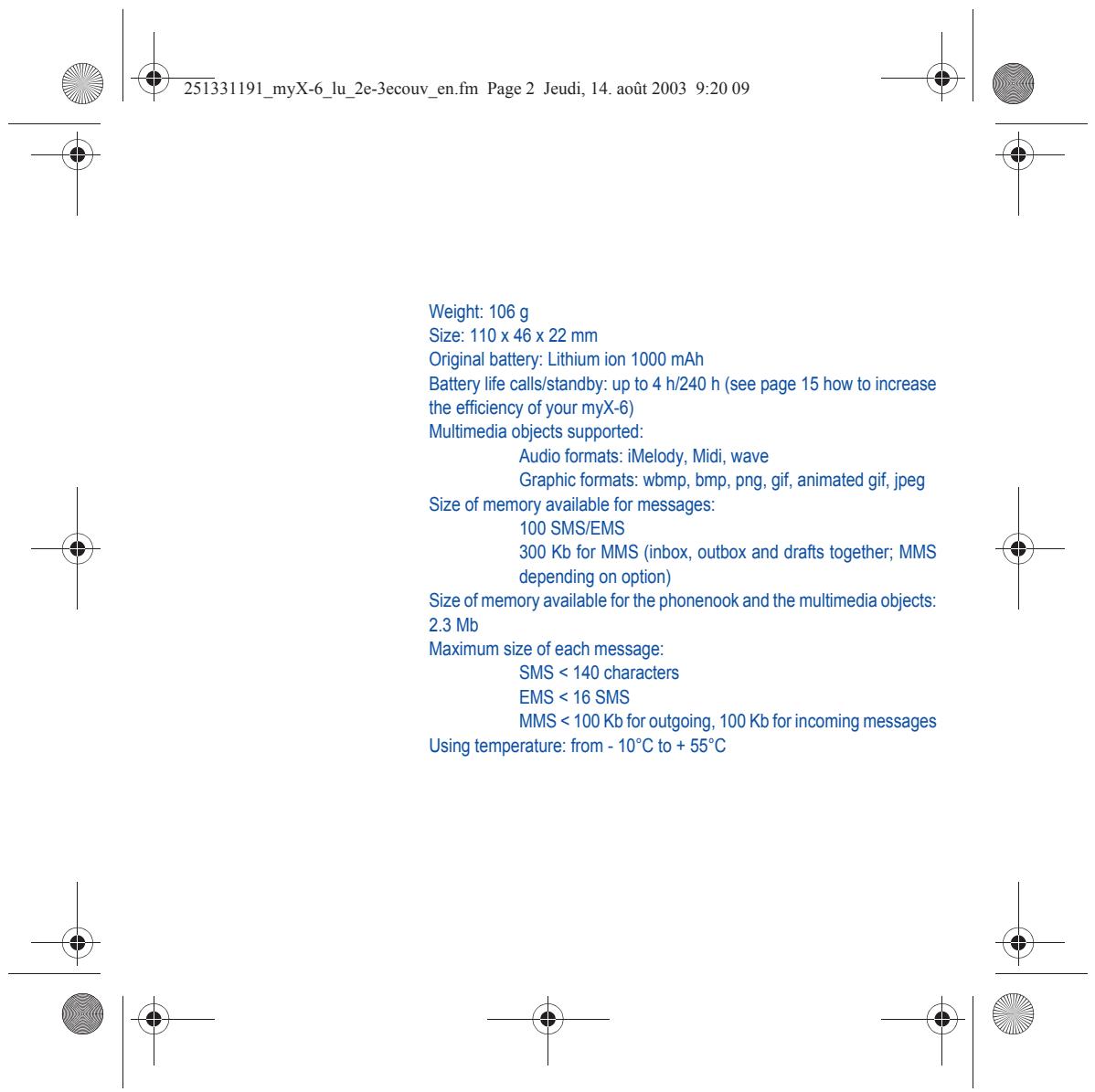
Li À ma ra fm Page 2 Jeudi, 14. août 2003 9:20 09 & | Éd Weight: 106 g Size: 110 x 46 x 22 mm Original battery: Lithium ion 1000 mAh Battery life calls/standby: up to 4 /240 h (see page 15 how to increase the efficiency of your myX:6) Multimedia objects supported Audio formats: iMelody, Midi, wave Graphic formats: wbmp, bmp, png, gif, animated gif, jpeg Size of memory available for messages: 100 SMS/EMS 300 Kb for MMS {inbox, outbox and drafts together; MMS depending on option) Size of memory available for the phonenook and the multimedia objects: 23 Mb Maximum size of each message: SMS < 140 characters EMS < 16 SMS MMS < 100 Kb for outgoing, 100 Kb for incoming messages Using temperature: from - 10°C to + 55°C + + 1e
Li En book Page 1 Jeudi, 7. août 2003 1:22 13 _4] Éd CE Conformance Document SAGEM SA deciares under its sole responsibility that the product GSM/DCS or PCS (depending on model) Type H2003 conforms to the requirements of the following EEC directives EEC Directive 1999/5/CE Safety EN 60950: 2000
Li & 251331191_myX-6_lu_en.book Page 2 Jeudi, 7. août 2003 1:22 13 & | Éd FCC Conformance Document FCC Part 24 Network NAPRDO3.ver 2.7.2 Health Draft IEEE Std 1528-200x Exposure to Radio Frequency Signals Your wireless handheld portable phone is a low power radio transmitter and receiver. When it is ON, it receives and also sends out frequency (RF) signal. In August, 1996, the Federal Communications Commissions (FCC) adopted RF exposure guidelines with safety levels for handheld wireless phones. Those guidelines are consistent with the safety standards previously set by both U.S. and international standards bodies: ANSI C95.1 (1992) NCPR Report 86 (1986)* ICNIRP (1996)* {) American National Standards Institute; National Council on Radiation Protection and Measurements; Intemational Commission and Non-lonizing Radiation Protection. = Those standards were based on comprehensive and periodic evaluations ofthe relevant scientific literature: For example, over 120 scientists, engineers, and physicians from universiies, govemment health agencies, and industry reviewed the available body of research to develop the ANS] Standard (C95.1). The design of your phone complies with the FCC guidelines (and those standards). = For body worn operation, this phone has been tested and meets FCC RF exposure guidelines when used with an accessory that contains no metal and that positions the handset a minimum of 1.5 cm from the body. Use of ofher accessories may not ensure compliance with FCC RF exposure guidelines.
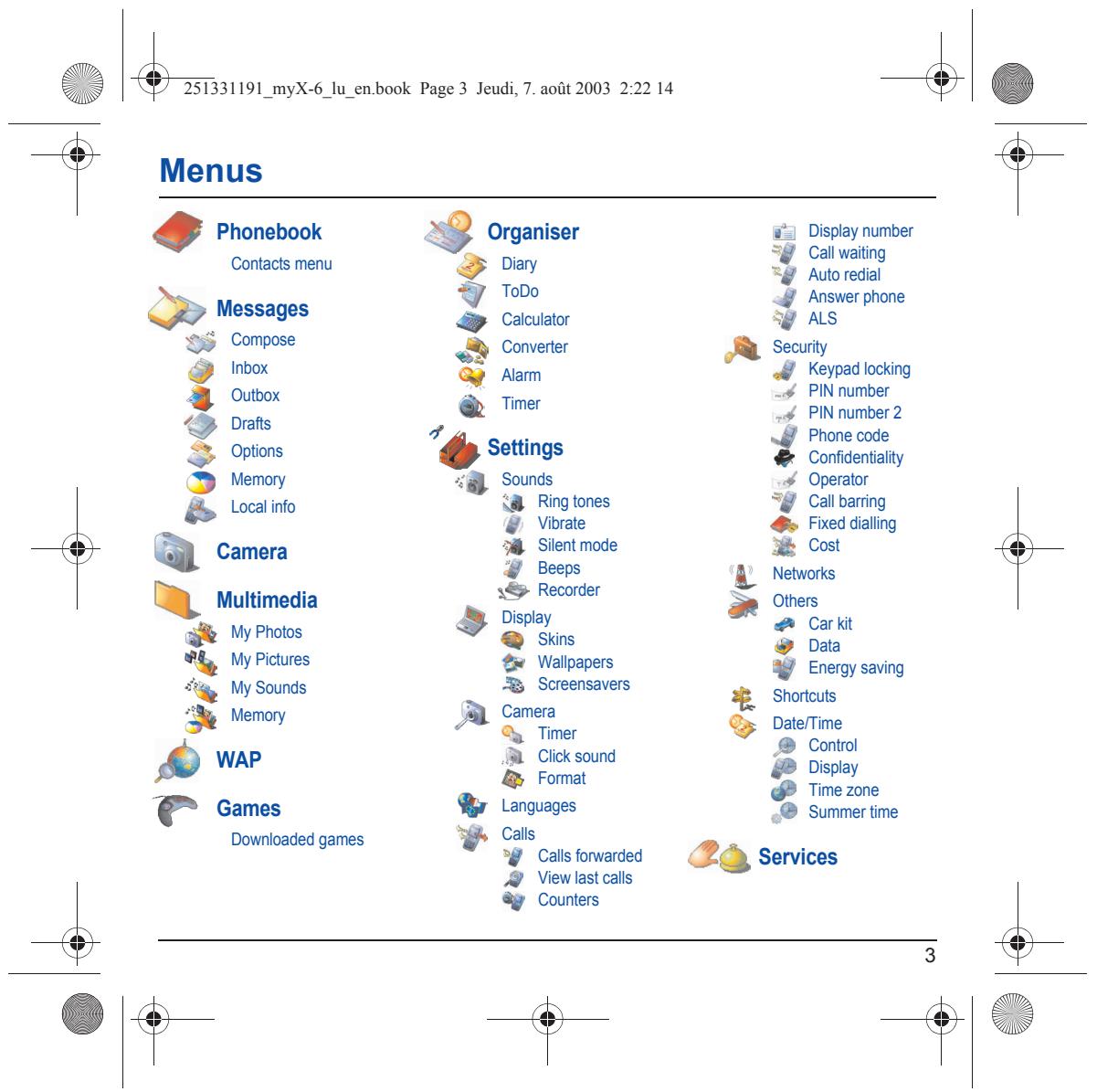
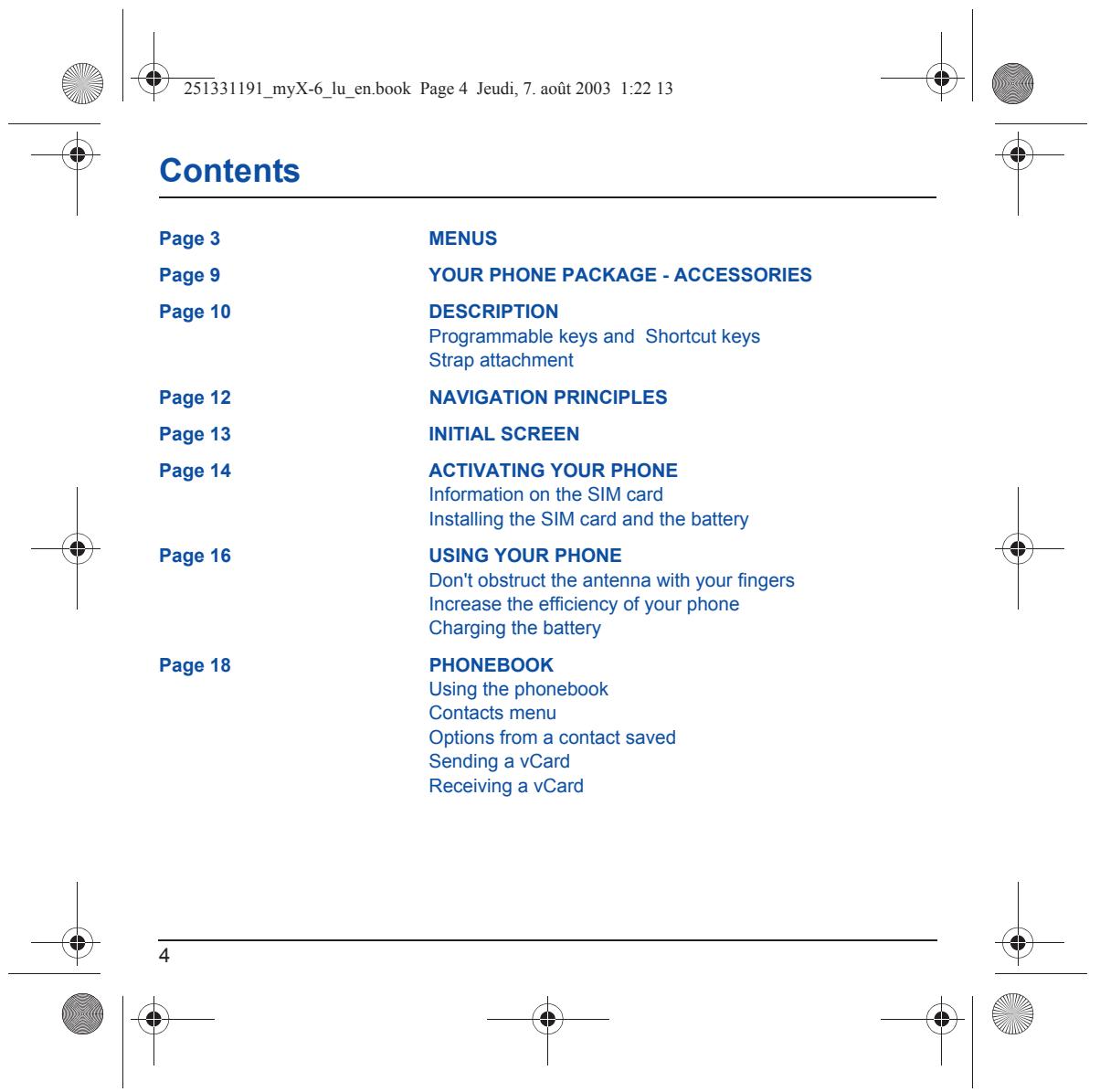
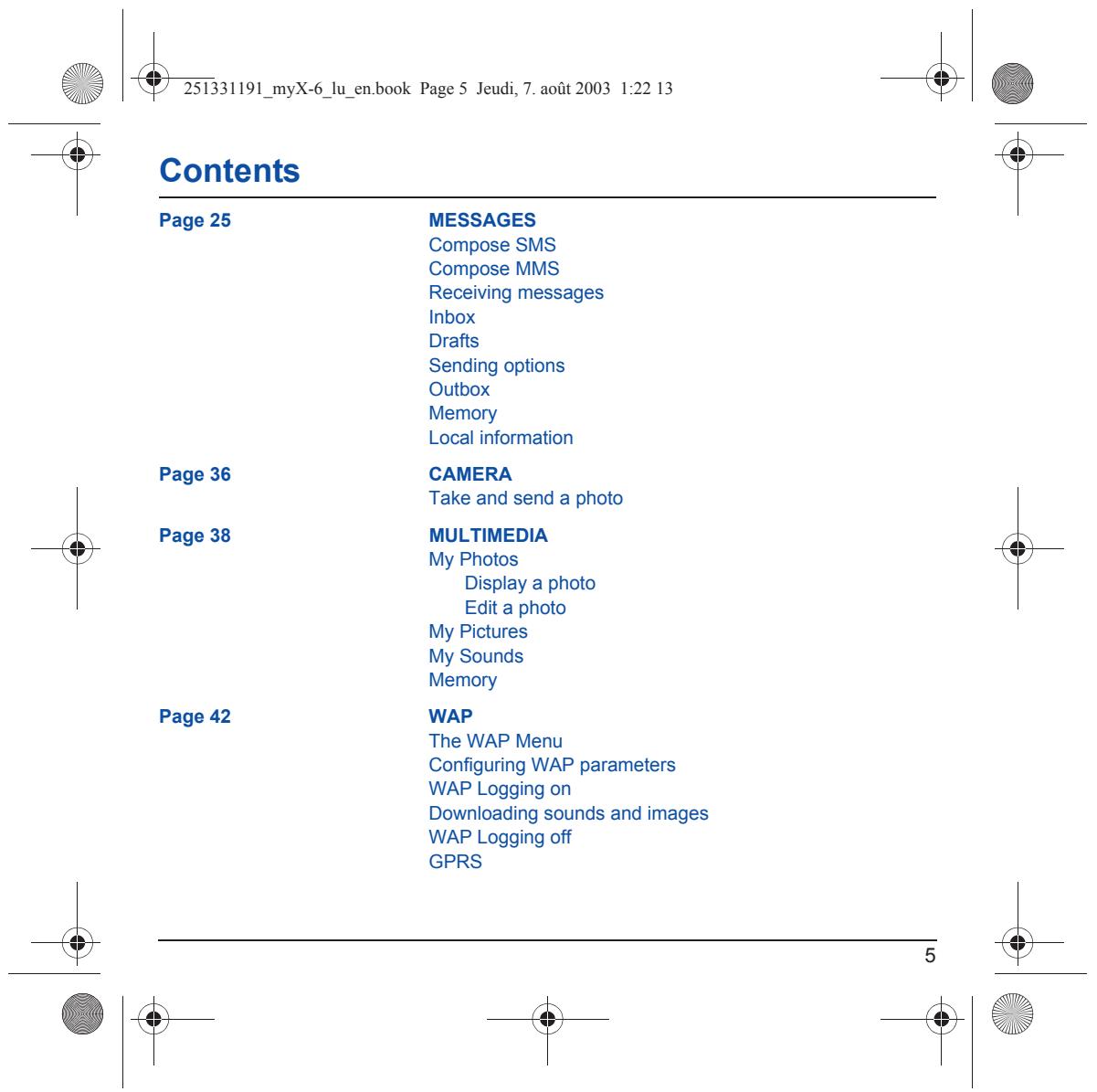
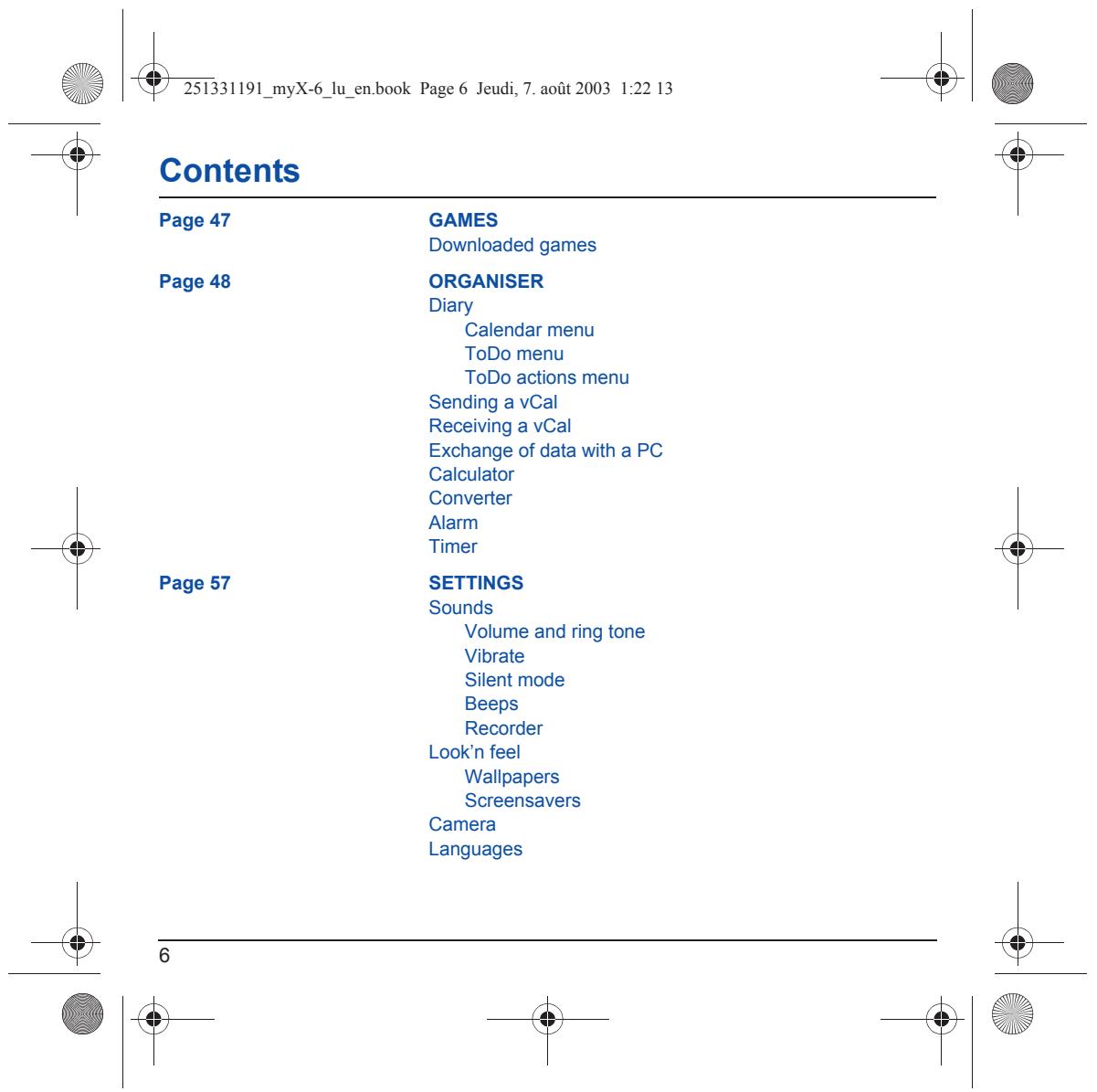
Page 47 Page 48 Page 57 GAMES Downloaded games ORGANISER Diary Calendar menu ToDo menu ToDo actions menu Sending a vCal Receiving a vCal Exchange of data with a PC Calculator Converter Alarm Timer SETTINGS Sounds Volume and ring tone Vibrate Silent mode Beeps Recorder Look'n feel Wallpapers Screensavers Camera Languages
È Contents Calls Call forwarded View last calls Counters Display number Call waiting Automatic redial Answer phone ALS Security Keypad locking PIN number PIN number 2 Phone code Confidentiality Operator Cal barring Fixed dialling Cost Networks Others Car kit Data Energy saving Shortcuts
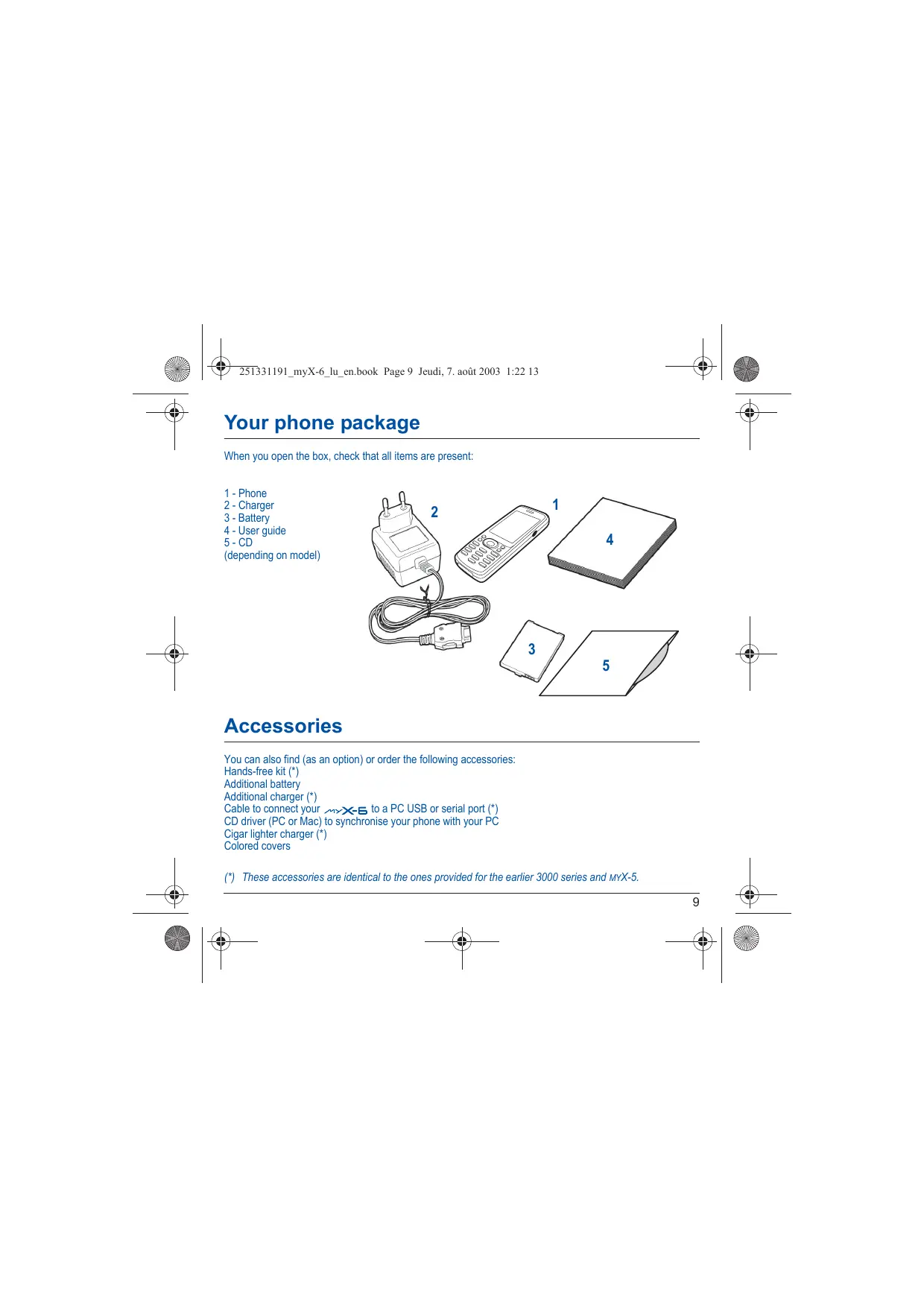
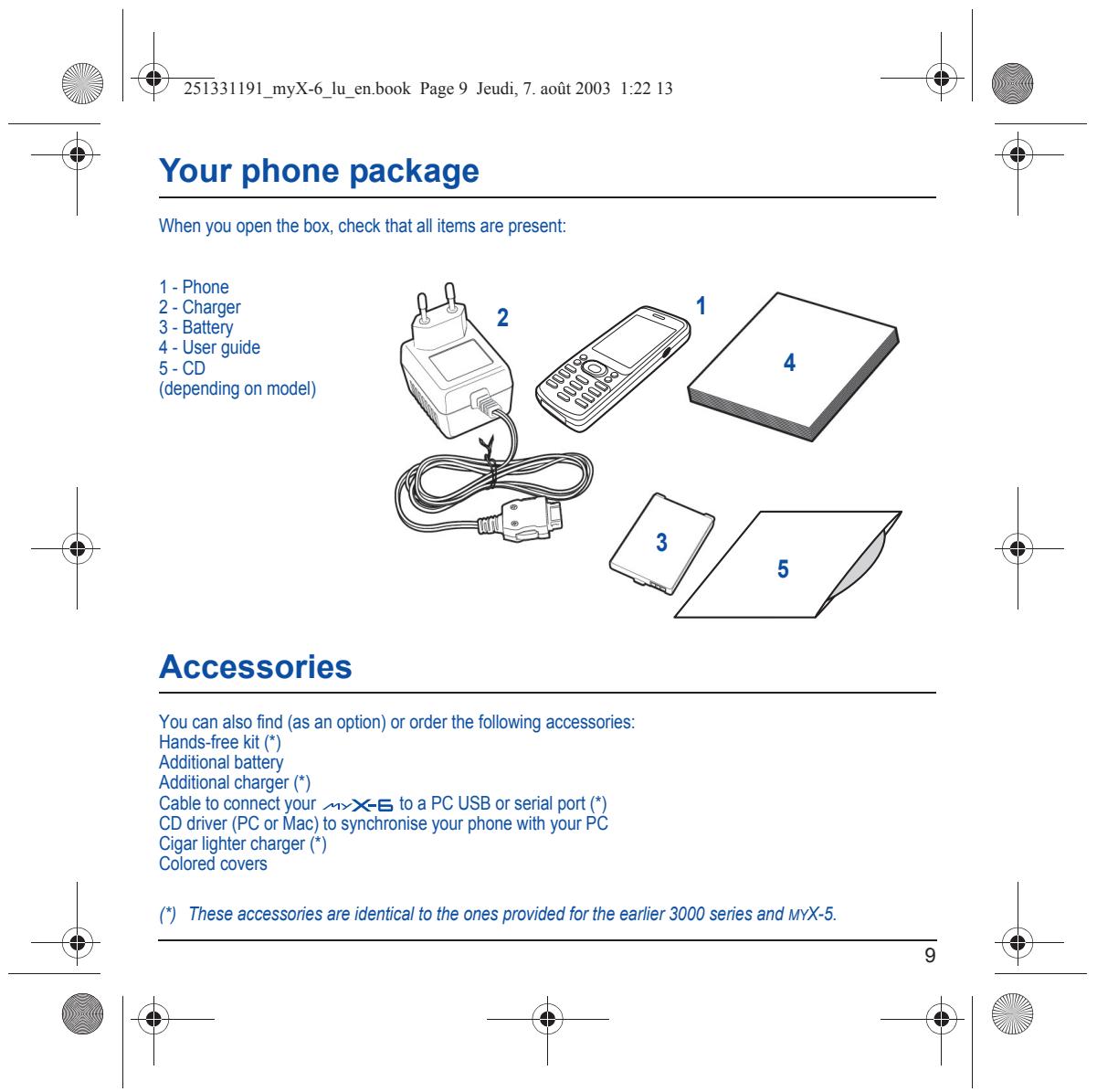
5-CD {depending on model) Accessories You can also find (as an option) or order the following accessories: Hands-free kit (*) Additional battery Additional charger (*) Cable to connect your ><-85 to a PC USB or serial port (*) CD driver (PC or Mac) to synchronise your phone with your PC Cigar lighter charger (*) Colored covers (‘) These accessories are identical to the ones provided for the earlier 3000 series and MX-5. + + 1e
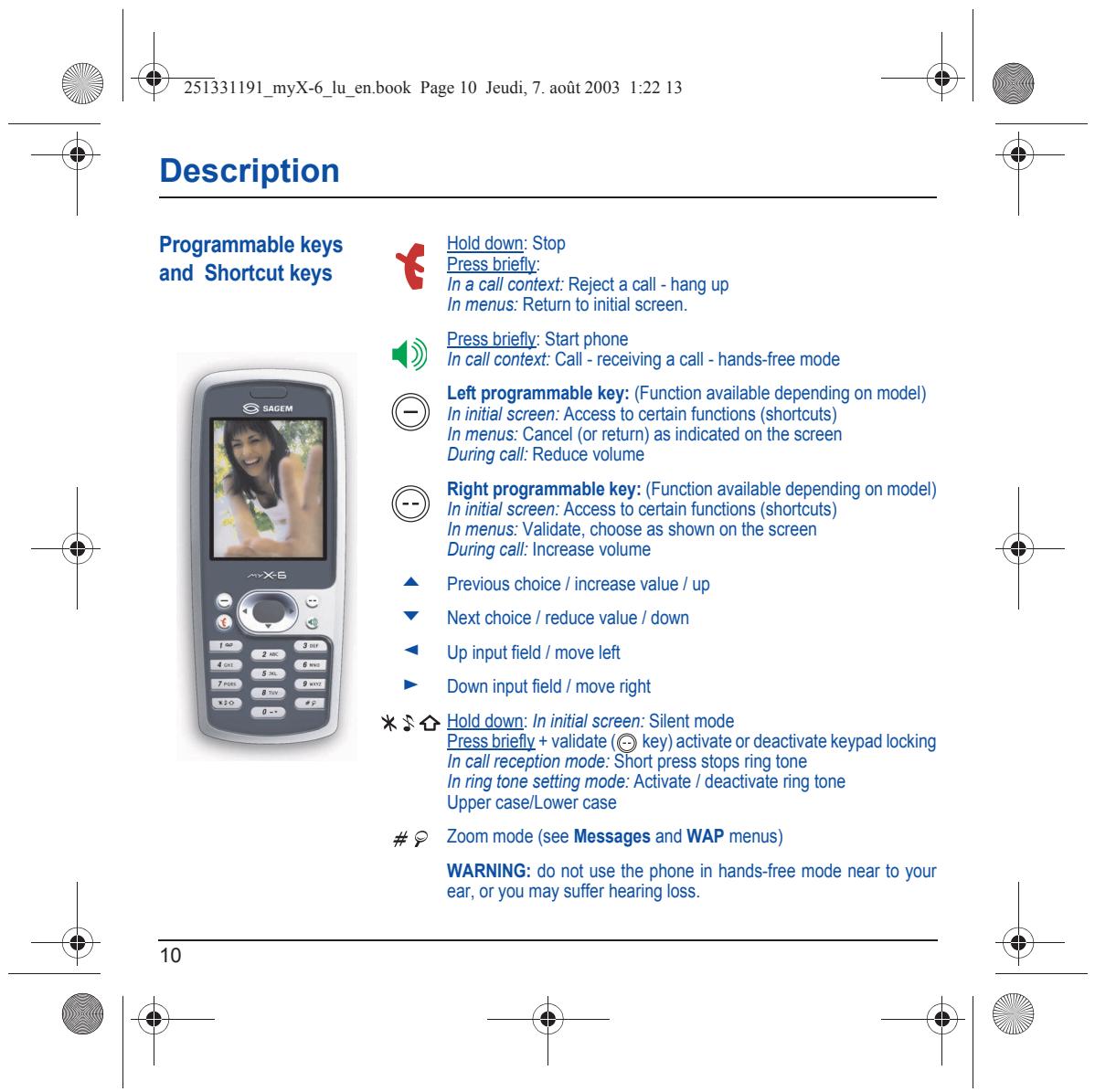
Li & 251331191_myX-6_lu_en.book Page 10 Jeudi, 7. août 2003 1:22 13 & | œ Description Press brief: and Shortcut keys În a call context: Reject a call - hang up In menus: Return to initial screen, Programmable keys { Hold down: Stop Press briefly: Start phone ©) 1 calrcontext Cal receving a call- hands-free mode In initial screen: Access to certain functions (shortcuts) In menus: Cancel (or return) as indicated on the screen During call: Left programmable key: (Function available depending on model) reduce volume Right programmable key: (Function available depending on model) In initial screen: Access to certain functions (shortcuts) In menus: Validate, choose as shown on the screen During cal: Increase volume A Previous choice / increase value / up Y Next choice / reduce value / down < Up input field / move left > Down input field / move right
2 Hold down: In initial screen: Silent mode Press brief + validate (©) key) activate or deactivate keypad locking In call reception mode: Short press stops ring tone In ring tone setting mode: Activate / deactivate ring tone Upper case/Lower case # © Zoom mode (see Messages and WAP menus)
WARNING: do not use the phone in hands-free mode near to your
ear, or you may suffer hearing loss.
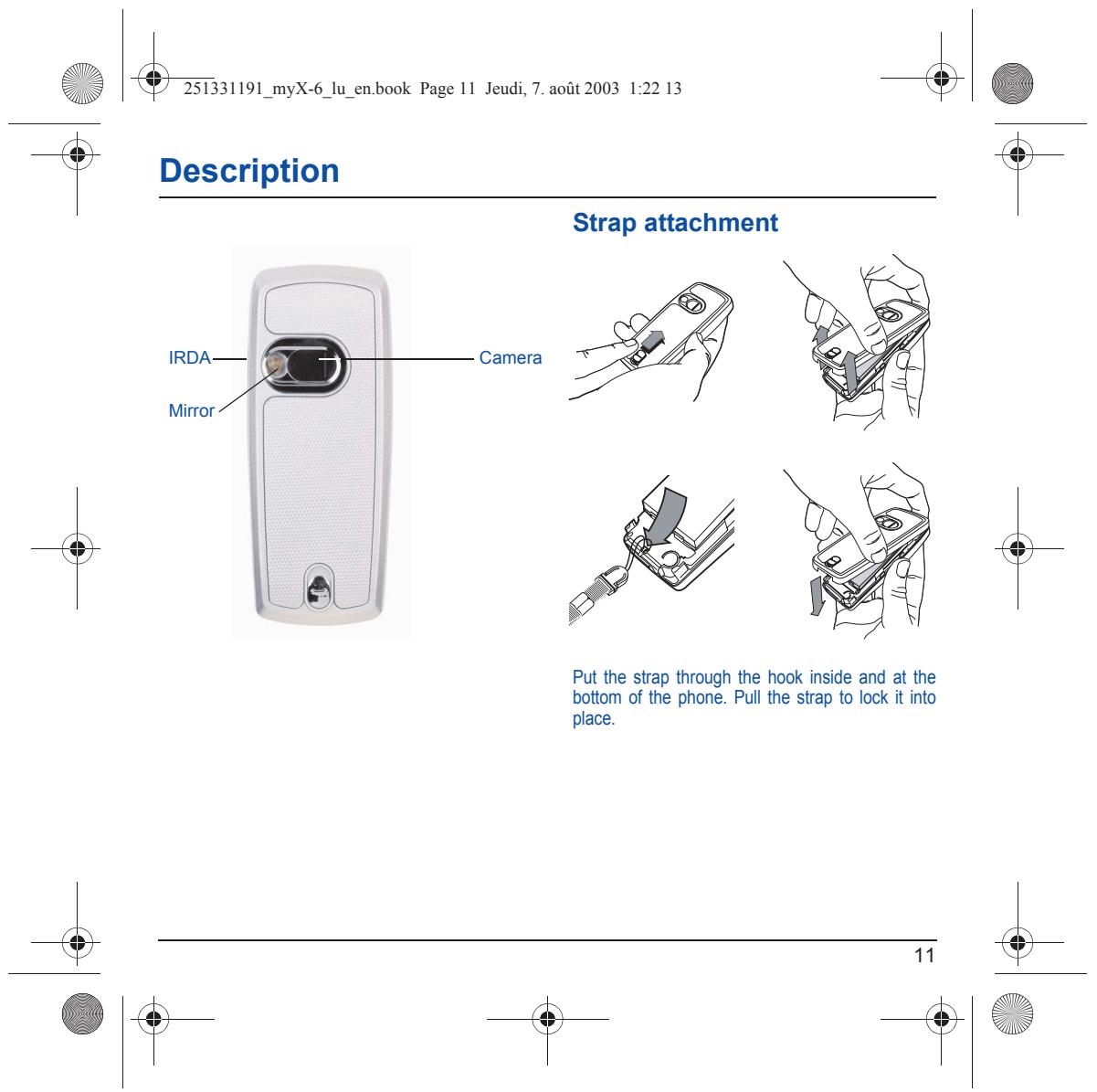
Li | & 25331191 myX-6_lu_en.book Page 11 Jeudi, 7. août 2003 1:22 13 $ Description Strap attachment Pt the strap through the hook inside and at the bottom of the phone. Pul the strap to lock it into place.
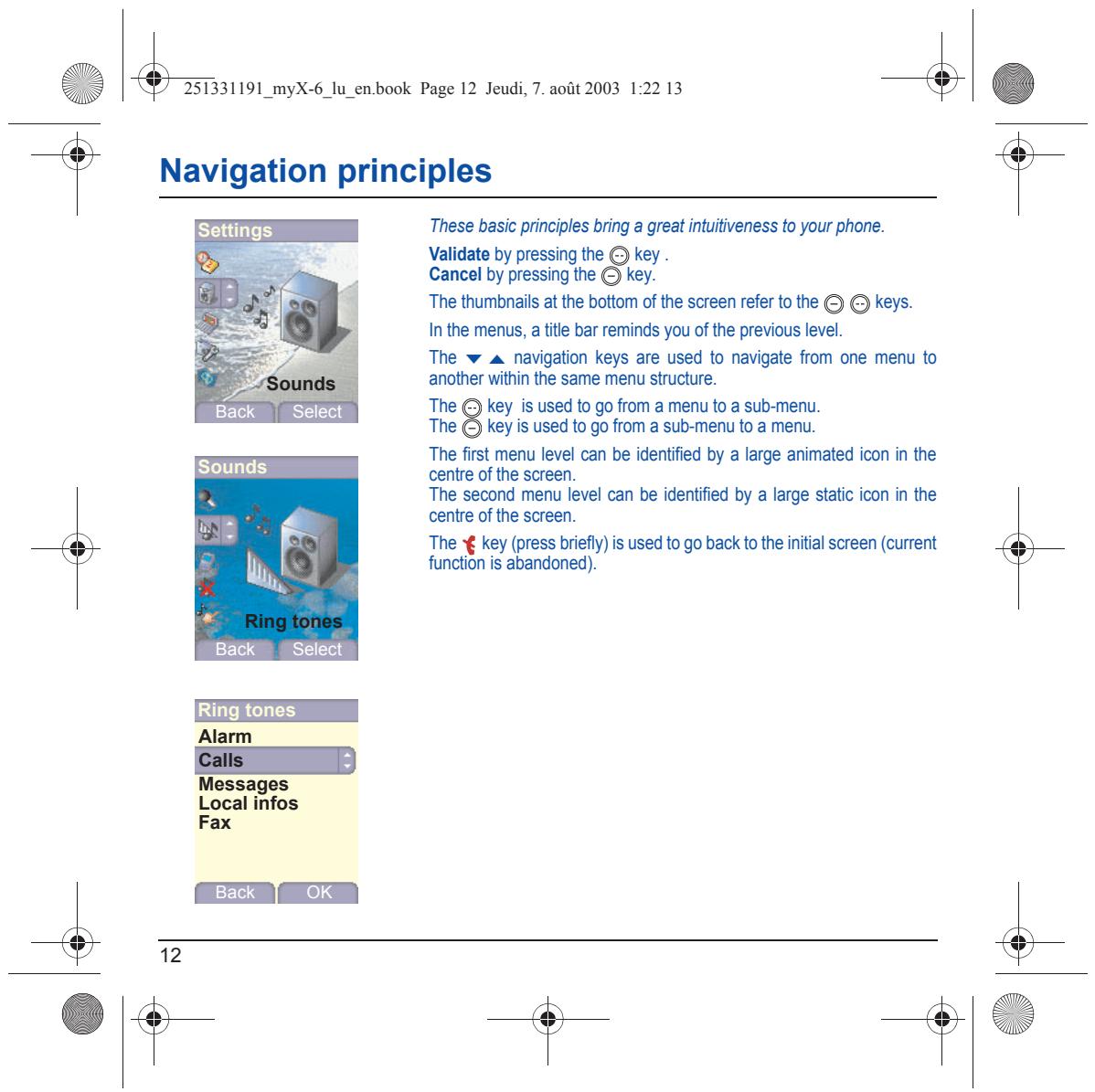
Li Enr cr Page 12 Jeudi, 7. août 2003 1:22 13 _4] Éd Navigation principles These basic principles bring a great intuitiveness to your phone. Validate by pressing the © key Cancel by pressing the key. The thumbnails at the bottom of the screen refer to the () € keys. Inthe menus, a title bar reminds you of the previous level. The w A navigation keys are used to navigate from one menu to another within the same menu structure. Backe \ -Select The €) key is used to go from a menu to a sub-menu. The © keys used to go from a sub-menu to a menu. ‘The first menu level can be identifed by a large animated icon in the centre of the screen. The second menu level can be identified by a large static icon in the centre of the screen. s The € key (press brieñy) is used to go back to the initial screen (current im function is abandoned). du, Back Select ing tones SSsa LES Fax
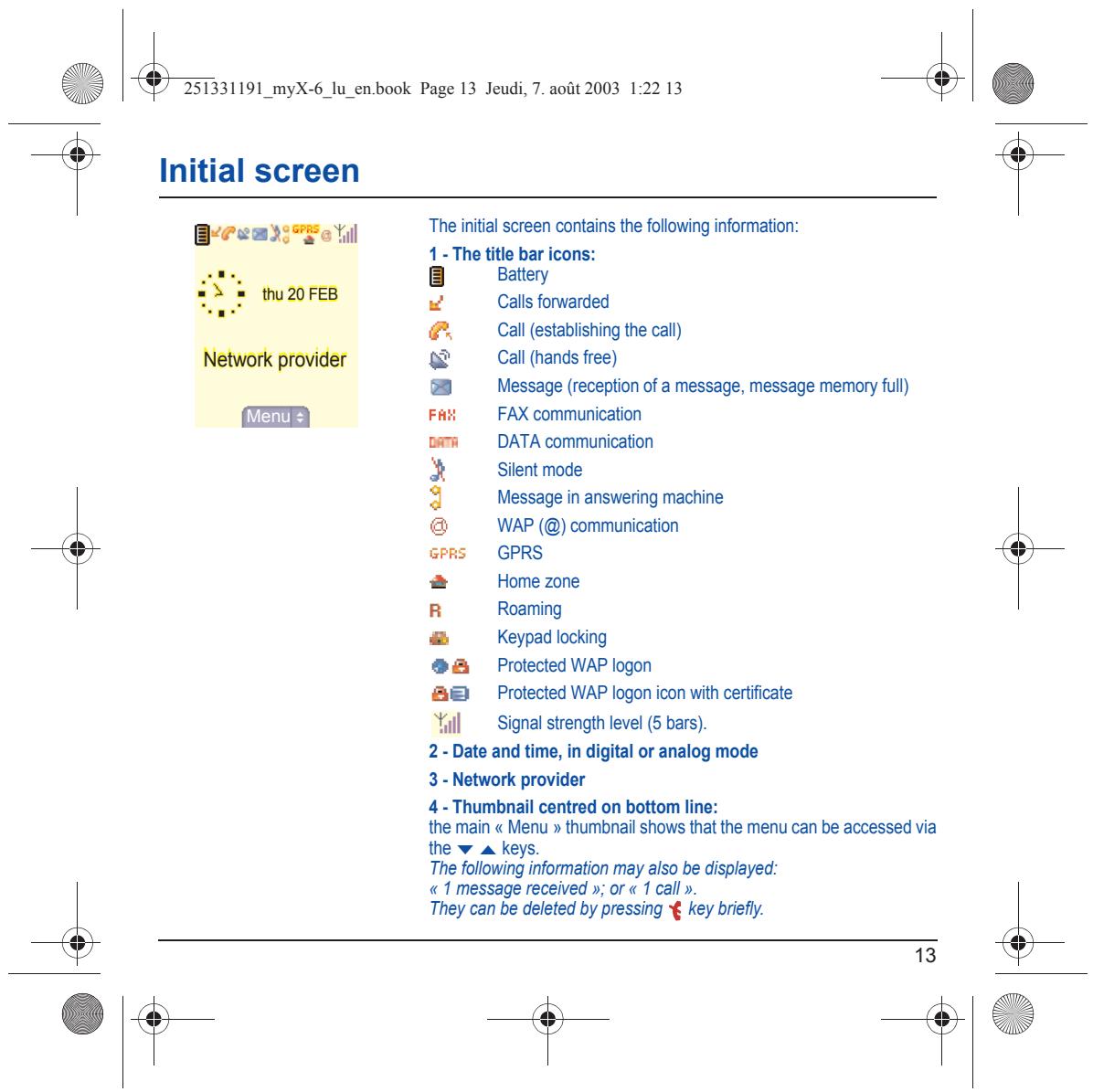
1 - The title bar icons:
Battery Calls forwarded Call (establishing the call) Call (hands free) Message (reception of a message, message memory full) FAX communication DATA communication Silent mode Message in answering machine WAP (@) communication GPRS Home zone Roaming Keypad locking Protected WAP logon Protected WAP logon icon with certificate Signal strength level (5 bars).
2- Date and time, in digital or analog mode
the main « Menu » thumbnail shows that the menu can be accessed via the v A keys The following information may also be displayed: «1 message received »; or « 1 call». They can be deleted by pressing € key briefy.
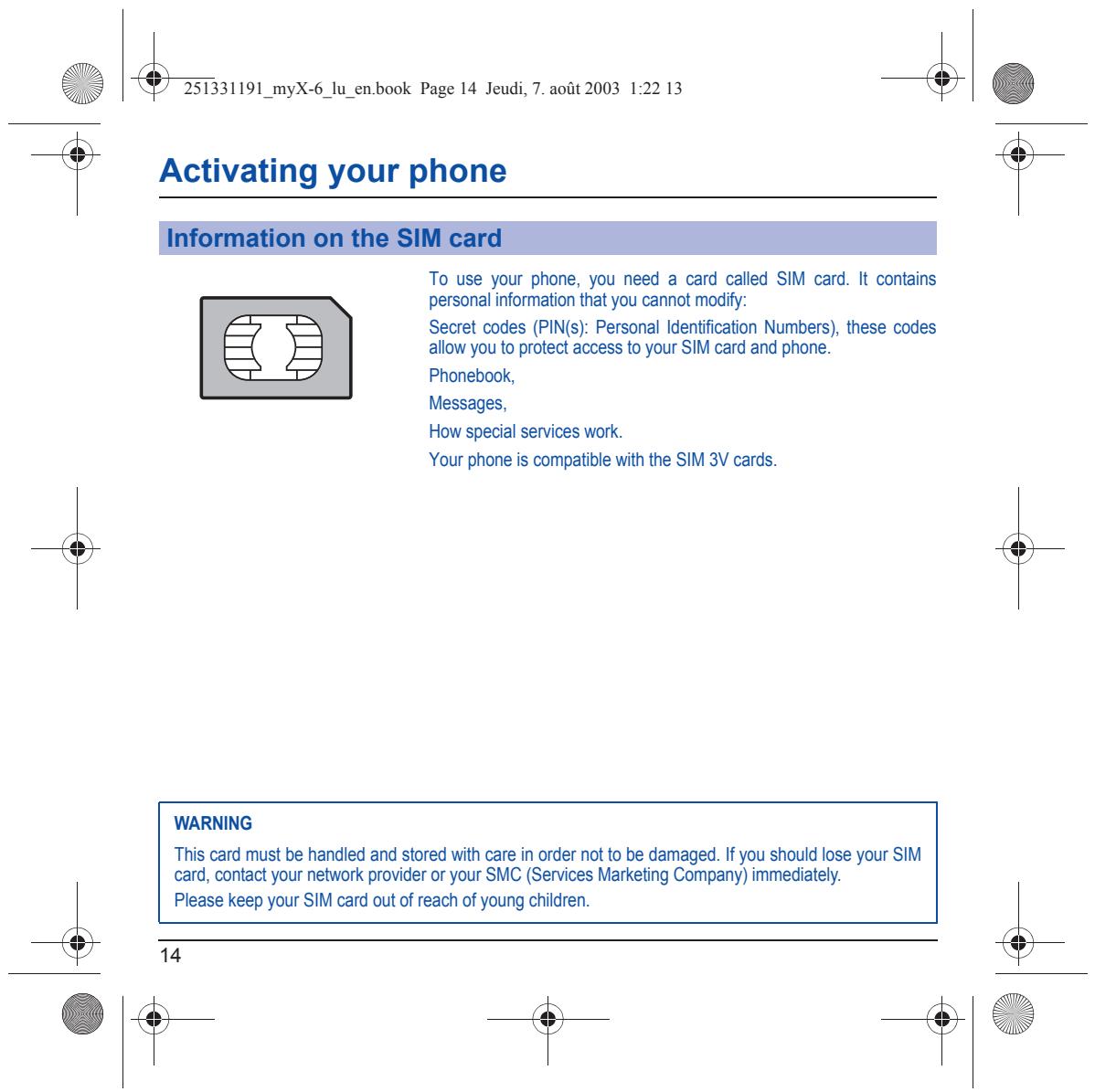
Li & 25331191 myX-6_lu_en.book Page 14 Jeudi, 7. août 2003 1:22 13 & | Éd Activating your phone To use your phone, you need a card called SIM card. It contains personal infommation nat you cannot modify: Secret codes (PIN(s): Personal Identification Numbers), these codes allow you to protect access to your SIM card and phone. Phonebook, Messages, How special services work Your phone is compatible with the SIM 3V cards. WARNING ‘This card must be handled and stored with care in order not to be damaged. If you should lose your SIM card, contact your network provider or your SC (Services Marketing Company) immediately. Please keep your SIM card out of reach of young children.
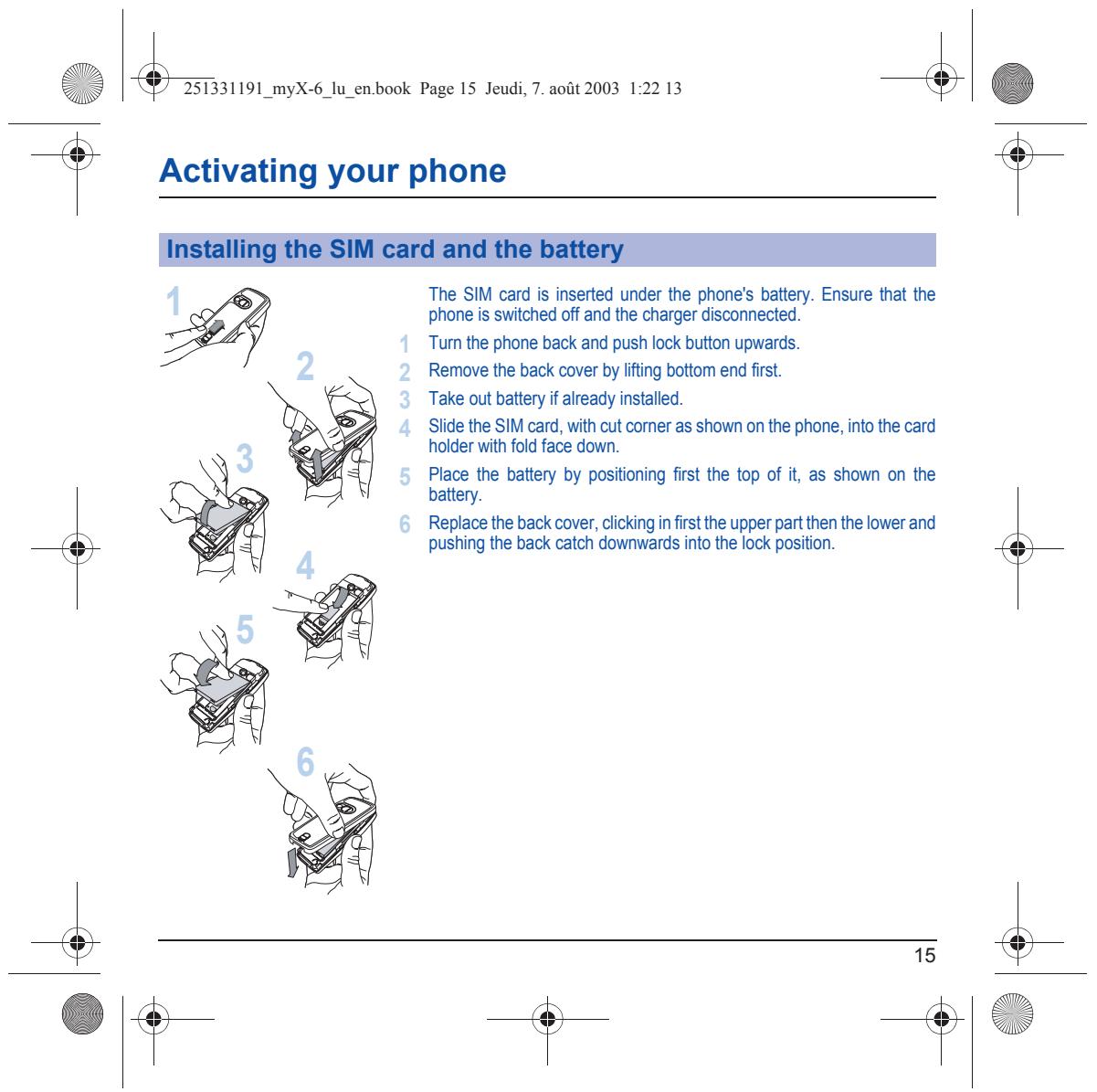
Li En book Page 15 Jeudi, 7. août 2003 1:22 13 _4] Éd Activating your phone The SIM card is inserted under the phone's battery. Ensure that the phone is switched off and the charger disconnected. Turn the phone back and push lock button upwrards Remove the back cover by lifting bottom end fist. Take out battery if already installed. Slide the SIM card, with cut comer as shown on the phone, into the card holder with fold face down. Place the battery by posiioning first the top of it, as shown on the battery. Replace the back cover, clickingin firstthe upper part then the lower and pushing the back catch dounwards into the lock position.
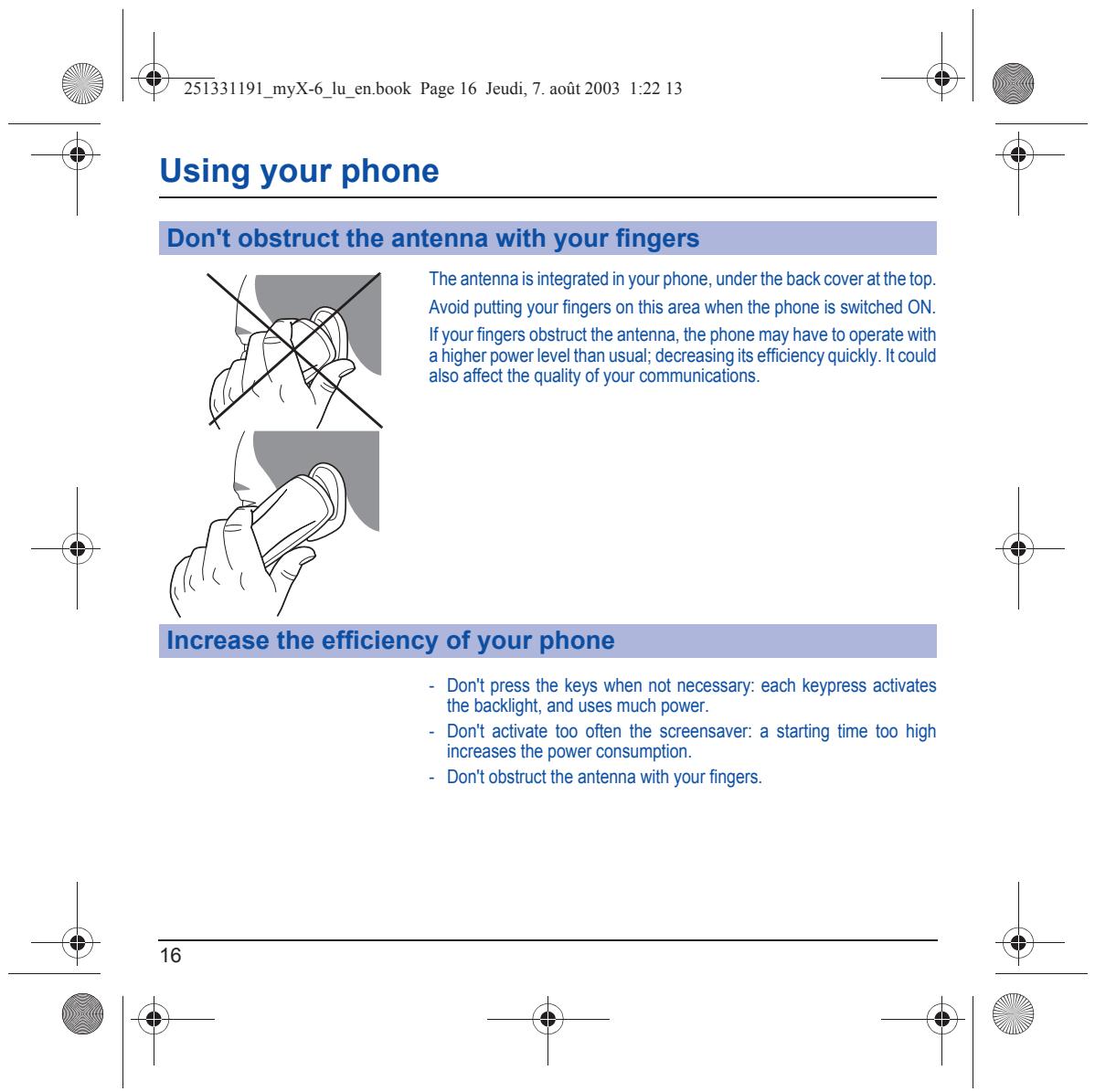
Li & 25331191 myX-6_lu_en.book Page 16 Jeudi, 7. août 2003 1:22 13 & | Éd Using your phone ‘The antenna is integrated in your phone, under the back cover atthe top. Avoid putting your fingers on this area when the phone is switched ON. If your fingers obstruct the antenne, the phone may have to operate with ahigher power level than usual; decreasing its efficiency quickly. I could also affect the quality of your communications. = Dont press the keys when not necessary: each keypress activates the backlight, and uses much power. = Dont activate too often the screensaver: a starting time too high increases the power consumption. = Dont obstructthe antenna with your fingers. + 1e
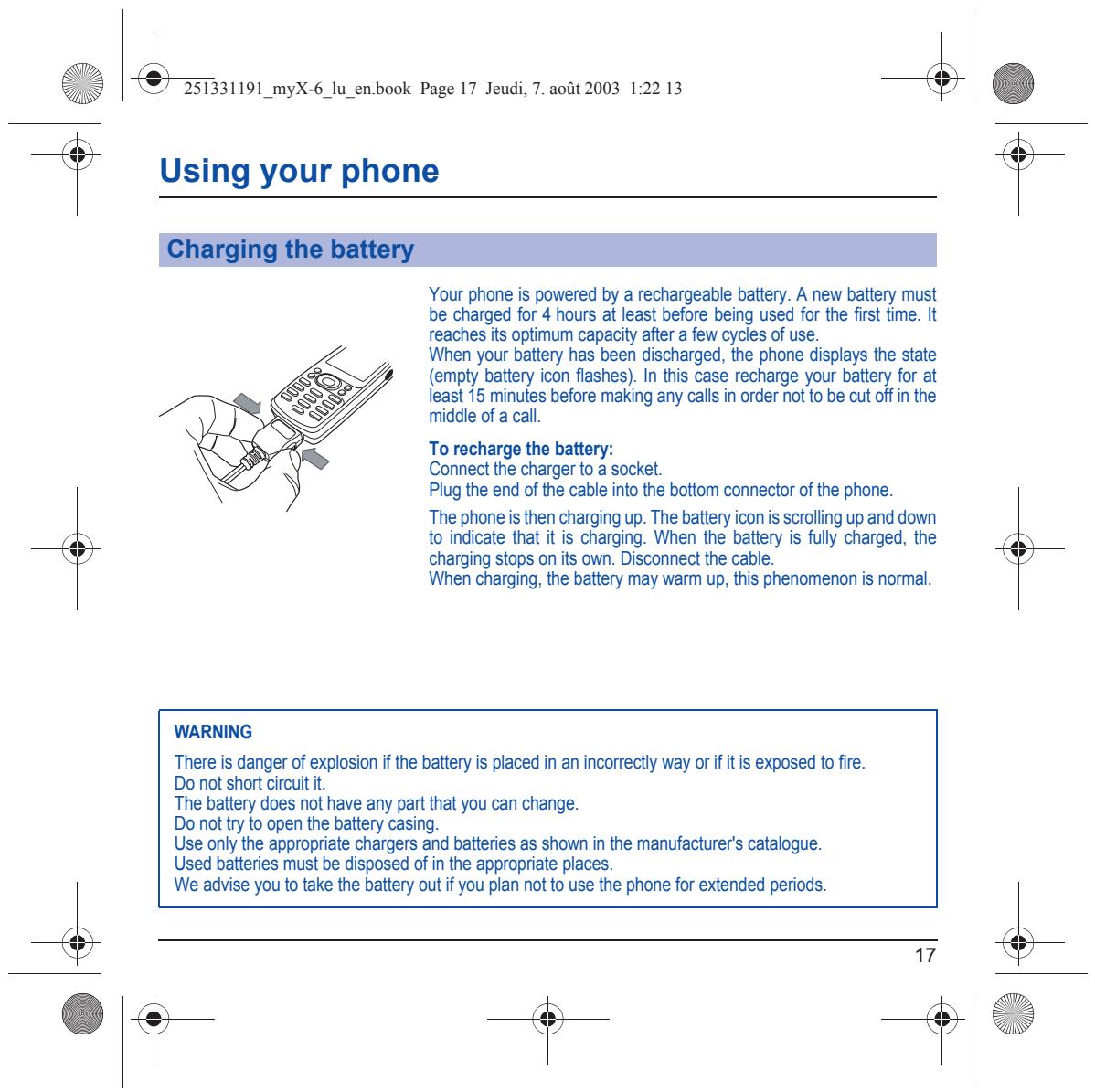
Li & 251331191_myX-6_lu_en.book Page 17 Jeudi, 7. août 2003 1:22 13 & | Éd Using your phone Your phone is powered by a rechargeable battery. À new battery must be charged for 4 hours at least before being used for the first fime. It reaches its optimum capacity after a few cycles of use. When your battery has been discharged, the phone displays the state {empty battery icon flashes). In this case recharge your battery for at least 15 minutes before making any call in order not to be cut off in the middle of a call To recharge the battery: Connect the charger to a socket. Plug the end of the cable into the bottom connector of the phone ‘The phone is then charging up. The battery icon is scrolling up and doun to indicate that it is charging. When the battery is fully charged, the charging stops on its own. Disconnect the cable. When charging, the battery may warm up, this phenomenon is normal. WARNING ‘There is danger of explosion if the battery is placed in an incorrecty way or ifitis exposed to fire. Do not short circuit. ‘The battery does not have any part that you can change. Do not ty to open the battery casing. Use only the appropriate chargers and batteries as shoun in the manufacturers catalogue. Used batteries must be disposed of in the appropriate places. We advise you to take the battery out if you plan not to use the phone for extended periods.
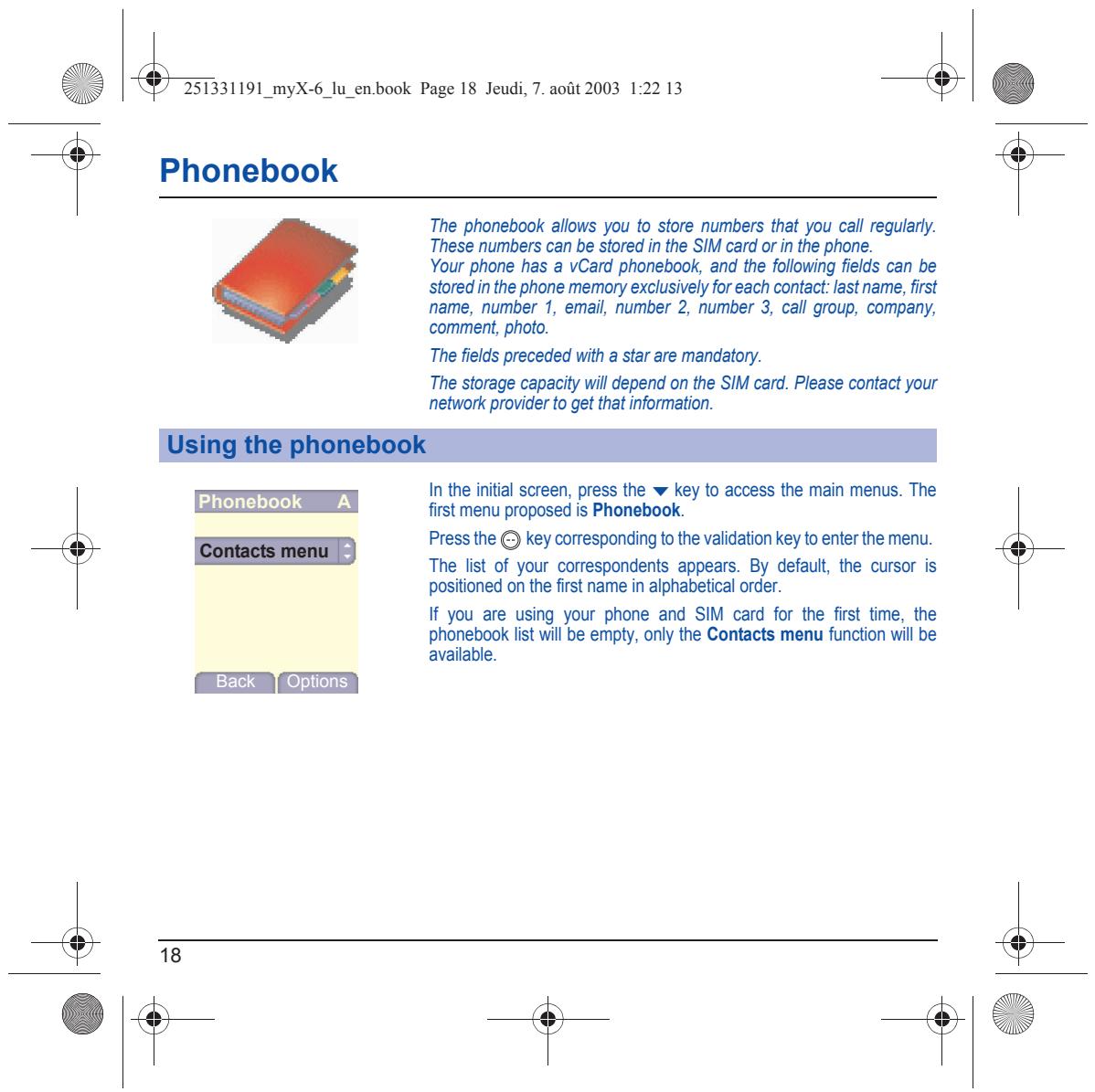
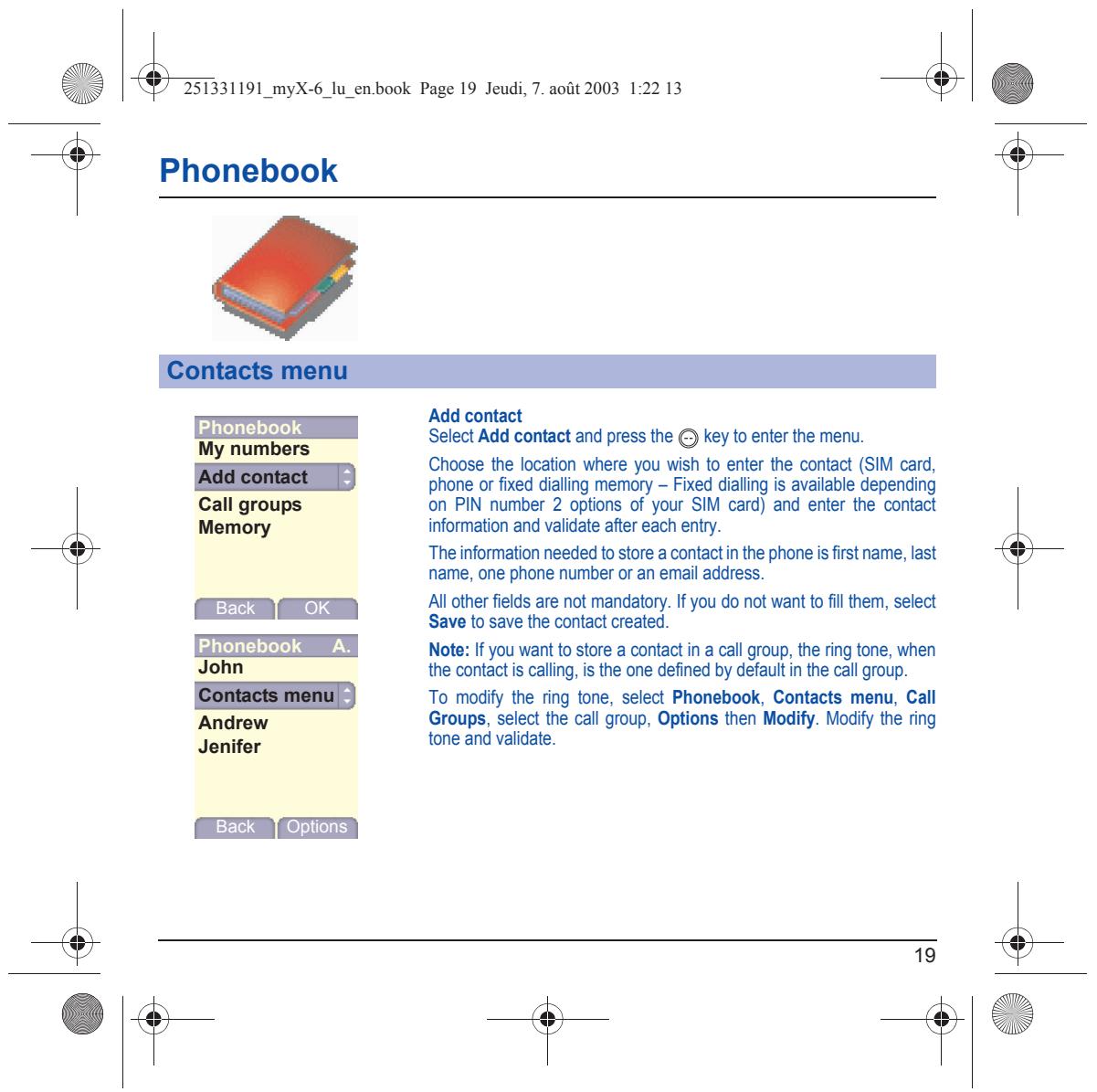
Li & 25331191 myX-6_lu_en.book Page 18 Jeudi, 7. août 2003 1:22 13 & | Éd Phonebook The phonebook allows you to store numbers that you call regular. These numbers can be stored in the SIM card or in the phone. Your phone has a vCard phonebook, and the following fields can be stored inthe phone memory exclusively for each contact: last name, first name, number , email, number 2, number 3, call group, company, comment, photo. The fields preceded with a star are mandatory. The storage capacity will depend on the SIM card. Please contact your network provider to get that information. In the initial screen, press the w key to access {he main menus. The Phonebook A first menu proposed is Phonebook. SUD Press the ©) key corresponding to he validation key to enter the menu. ‘The list of your correspondents appears. By default, the cursor is positioned on the first name in alphabetical order. If you are using your phone and SIM card for the first time, the phonebook list will be empty, only the Contacts menu function wil be available. Lsack L'Ontons |
Add contact Select Add contact and press he €) key to enter the menu. fu Choose the location where you wish to enter the contact (SIM card, Add contact |) phone or fixed dialing memory - Fixed dialing is available depending Call groups on PIN number 2 options. of your SIM card) and enter the contact Memory information and validate after each entry. ‘The information needed to store a contact in the phone is first name, last name, one phone number or an email address. ok Al other fields are not mandatory. l you do not want to fill them, select MMS save lo save the conact created. Phonebook A. Note: If you want to store a contact in a call group, the ring tone, when John the contact is calling, is the one defined by defaul in the call group. To modify the ring tone, select Phonebook, Contacts menu, Call Andrew Groups, select the call group, Options then Modify. Modify the ring Jenifer tone and validate. Lisa L'Ontons |
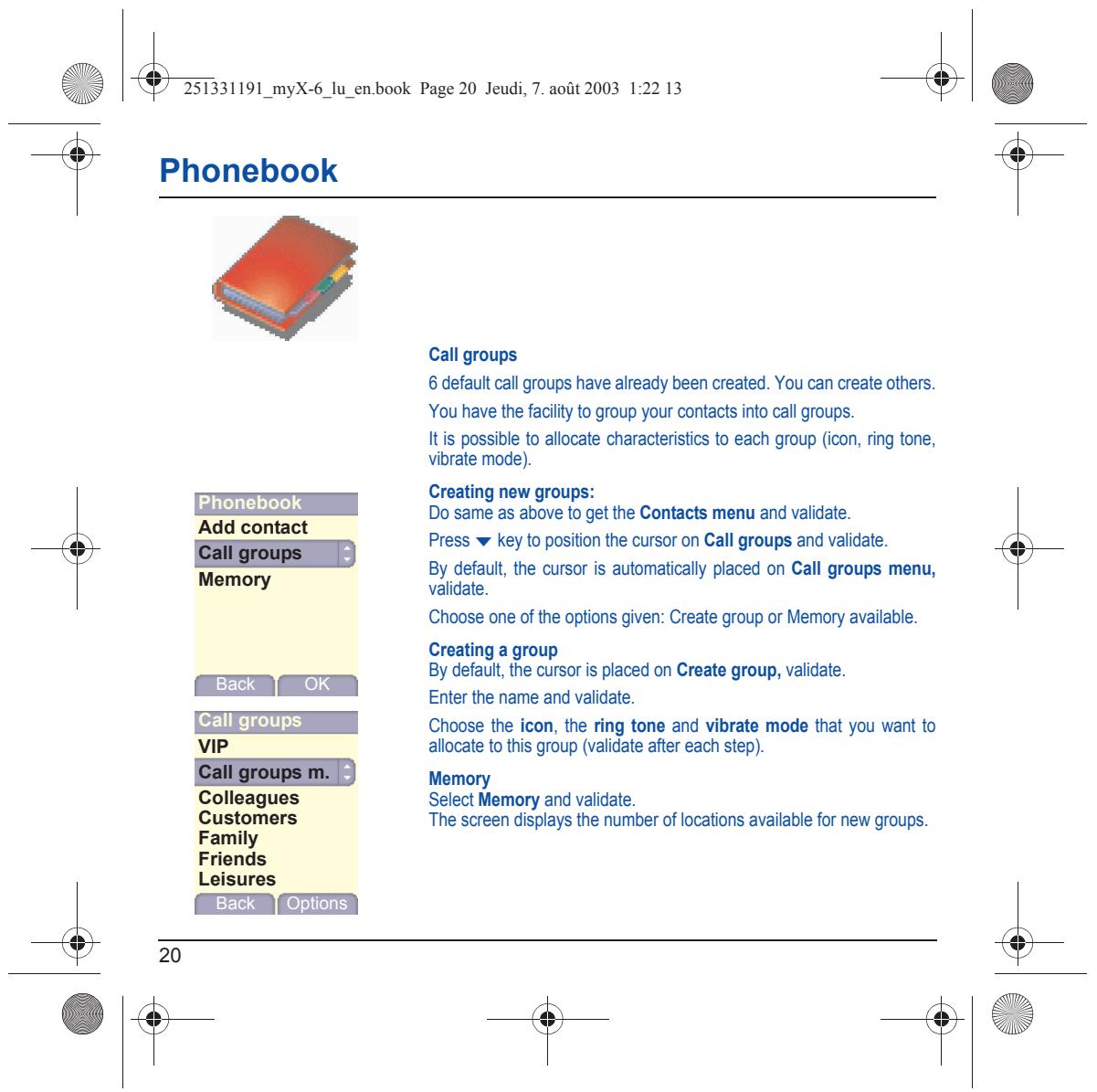
Li & 251331191_myX-6_lu_en.book Page 20 Jeudi, 7. août 2003 1:22 13 & | Éd Phonebook Call groups 6 default call groups have already been created. You can create others. You have the facility to group your contacts into cal groups. is possible to allocate characteristics to each group (icon, ring tone, vibrate mode). Creating new groups: Phonebook Do same as above to get the Contacts menu and validate. uen ne) Press w key to position the cursor on Call groups and validate By default, the cursor is automatically placed on Call groups menu, CE validate. Choose one ofthe options given: Create group or Memory available. Creating a group Œn By default, the cursor is placed on Create group, validate. Enter the name and validate. Call groups Choose the icon, the ring tone and vibrate mode that you want to allocate to this group (validate after each step). Memory Select Memory and validate. The screen displays the number of locations available for new groups. + 1e
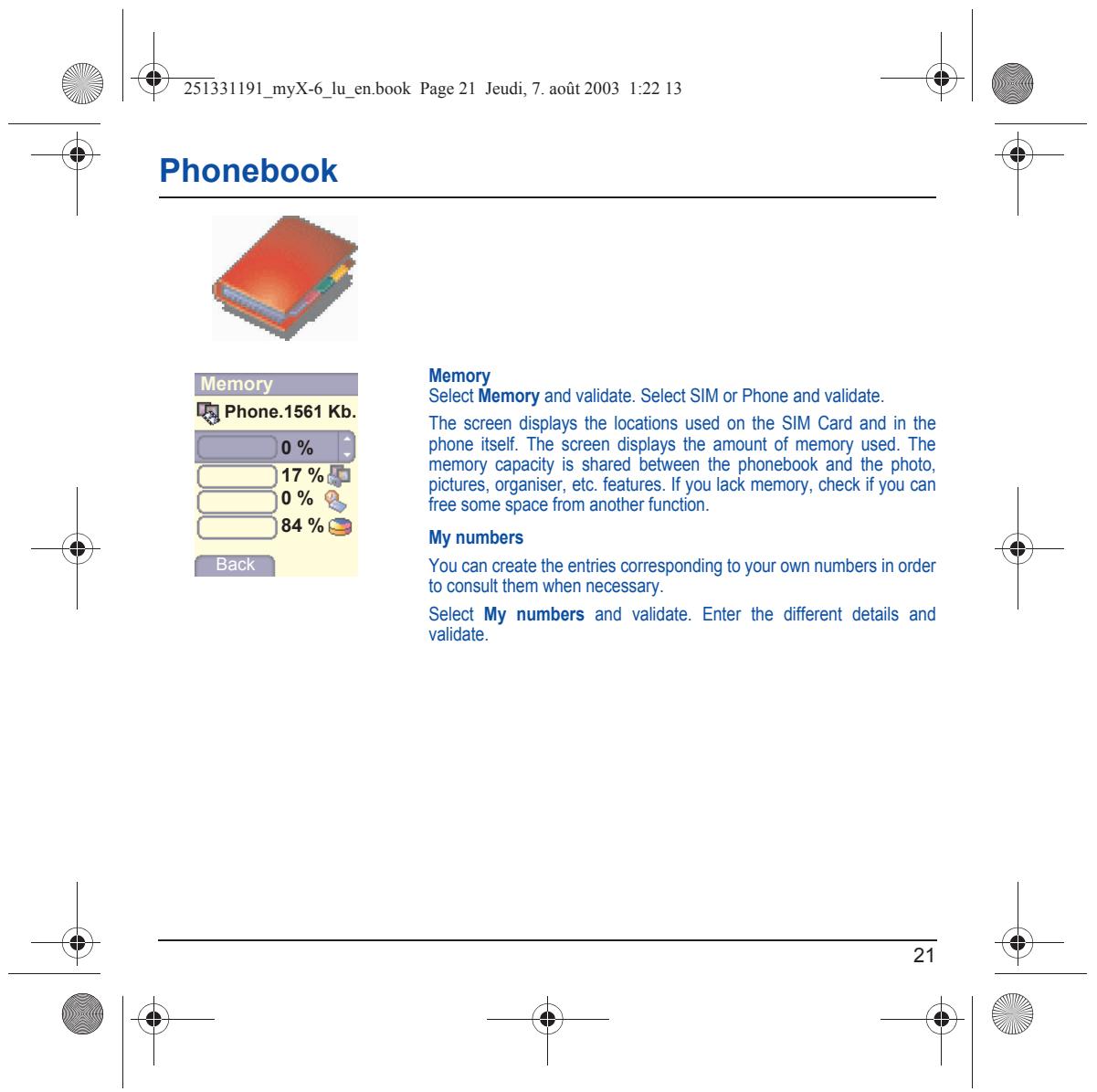
Phonebook Memory es 861 Kb, Select Memory and validate. Select SIM or Phone and validate. MRyPhons: | The screen displays the locations used on the SIM Card and in the phone itself. The screen displays the amount of memory used. The memory capacity is shared between {he phonebook and the pholo, 17 % pictures, organiser, ete. features. If you lack memory, check if you can 0% à free some space from another function.
*® My numbers You can create the entries corresponding to your own numbers in order to consult them when necessary. Select My numbers and validate. Enter the different details and validate
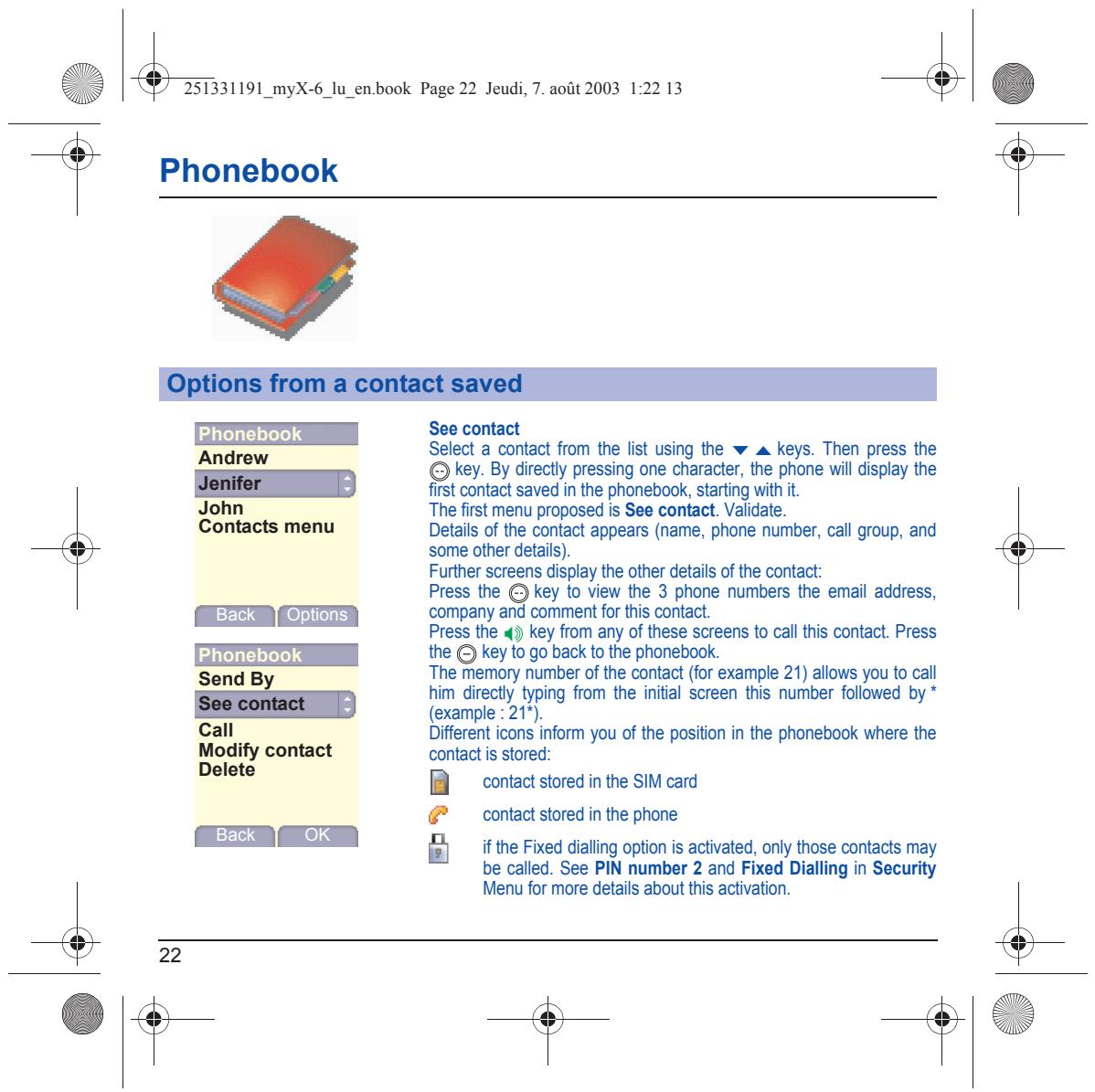
Li & 251331191_myX-6_lu_en.book Page 22 Jeudi, 7. août 2003 1:22 13 & | Éd Phonebook See contact . 'ATAFEW] Select a contact from the list using the w a keys. Then press the ©) key. By directly pressing one character, the phone will display the Jenifer |) first contact saved in the phonebook, starting with it. John The first menu proposed is See contact. Validate. Contacts menu Details of the contact appears (name, phone number, call group, and some other details). Further screens display the other details of the contact: Press the €) key to view the 3 phone numbers the email address, [ Back [Options | company and comment for this contact. Press the 4ÿ key from any of these screens to call this contact. Press Phonebook the €) key to go back to the phonebook. Send By The Memory number of the contact (for example 21) allows you to call bim directiy typing from the initial screen this number followed by * {example : 21°). Call Diferent icons inform you of the position in the phonebook were the EXT contact contact is stored: te contact stored in the SIM card contact stored in the phone CENCEN ifthe Fixed dialing option is activated, only those contacts may be called. See PIN number 2 and Fixed Dialling in Security Menu for more details about this activation.
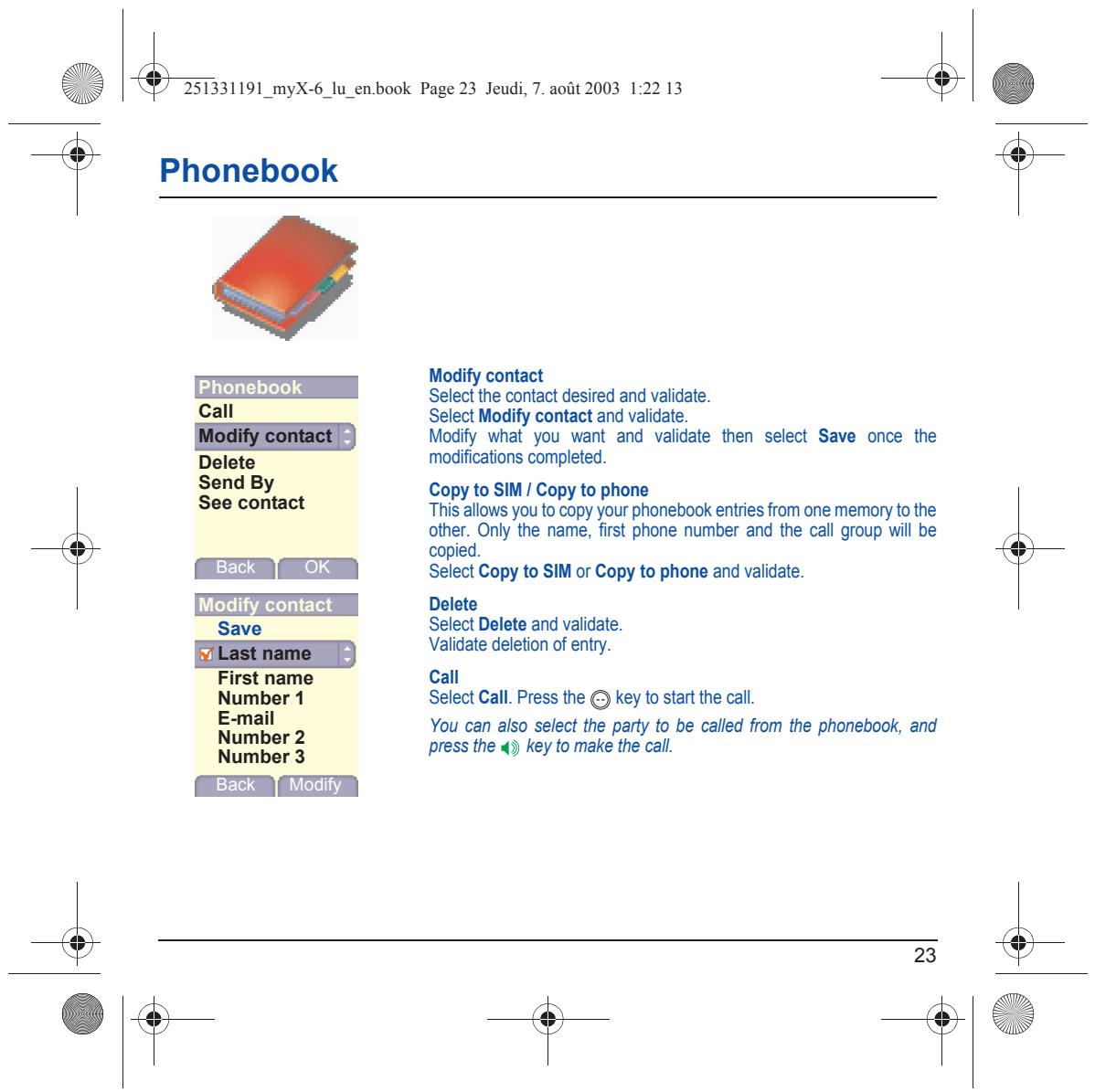
(| Ÿ Send By Copy to SIM / Copy to phone See contact This allows you to copy your phonebook entries from one memory to the other. Only the name, fist phone number and the call group will be copied. [ Back [ OK ] Select Copy to SIM or Copy to phone and validate. Modify contact Delete Save Select Delete and validate rome] Validate deletion of entry. irst naï Call Number 1 Select Call. Press the €) key to start the cal. RE 2 You can also select the party to be called from the phonebook, and Number $ press the 4ÿ key to make the call CNE
Li & 25331191 myX-6_lu_en.book Page 24 Jeudi, 7. août 2003 1:22 13 & | Éd Phonebook vCards can be sent to another phone supporting vCard. On a contact in the phonebook, please select the Send by option menu item (EMS, MMS or IRDA). Ifthe vCard is sent successfully, an information message is displayed. vCards can be sent as an attachment to an EMS or MMS message. See Compose MMS on page 28. When a vCard is received enclosed to an EMS or MMS message, the message « You have received 1 message » is displayed. Open the MMS from the inbox. Go to Options by pressing the } key, and select Extract; select the vCard among the list of objects atfached to this MMS, and add this contact to the phonebook by pressing the © key. À message is displayed to confirm the action.
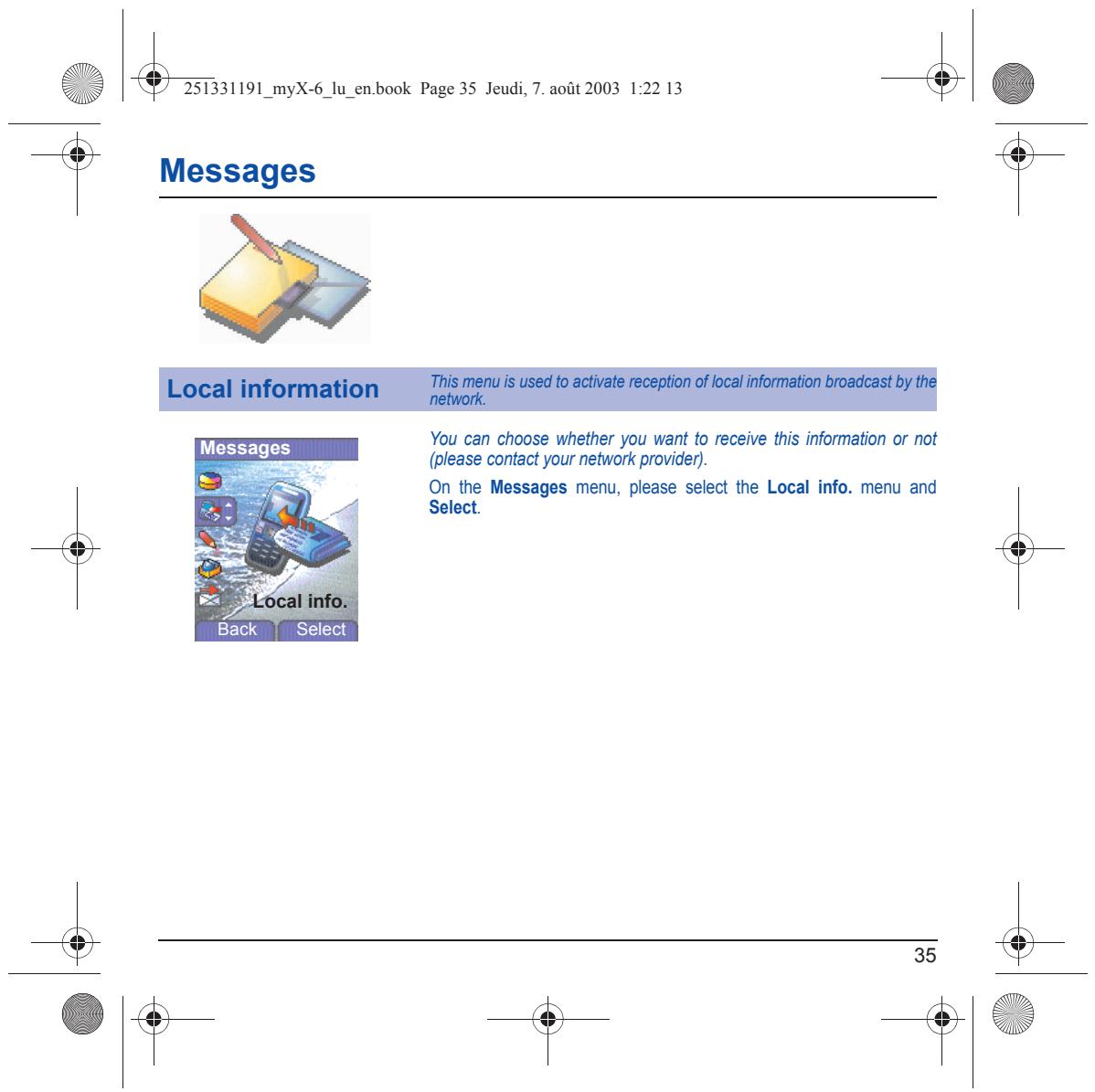
Li & 25133191 myX-6_lu_en.book Page 25 Jeudi, 7. août 2003 1:22 13 & | Éd Messages From this menu, you are able to send SMS, EMS and MMS. EMS is an extended message, longer than an SMS and which allows you to insert images and sounds to your text messages. MMS is a Multimedia Message Service, which allows you to enclose audio files, images and ofher rich content to your messages; these messages can even be composed of several slides. MMS are differently invoiced than SMS are. Please contact your network provider to get more information on their cost. This menu has been compiled in collaboration with magic4". magicuss On the Messages menu, please select the Compose menu and validate Choose the SMSoption. The language used is the one selected on the display of the phone (ir the language selected is not compatible with the Easy Message TO", the English language wil be automatically selected) When the text has been entered, the € key (options) can also be used to access the functions offered: Select Save is used to save a draft in memory Send is used to send the message by entering the correspondent s number ‘T9 options (see page 26) Editor mode (see page 27) Send options is used to indicate the message format, the period of valdiy, or to activate/deactivate a reply Cancel is used to delete al text entered Activate/deactivate zoom is used to modify size of characters Formatting is used to enrich a text Insert to insert an image or sound into your message (see page 28). Messages
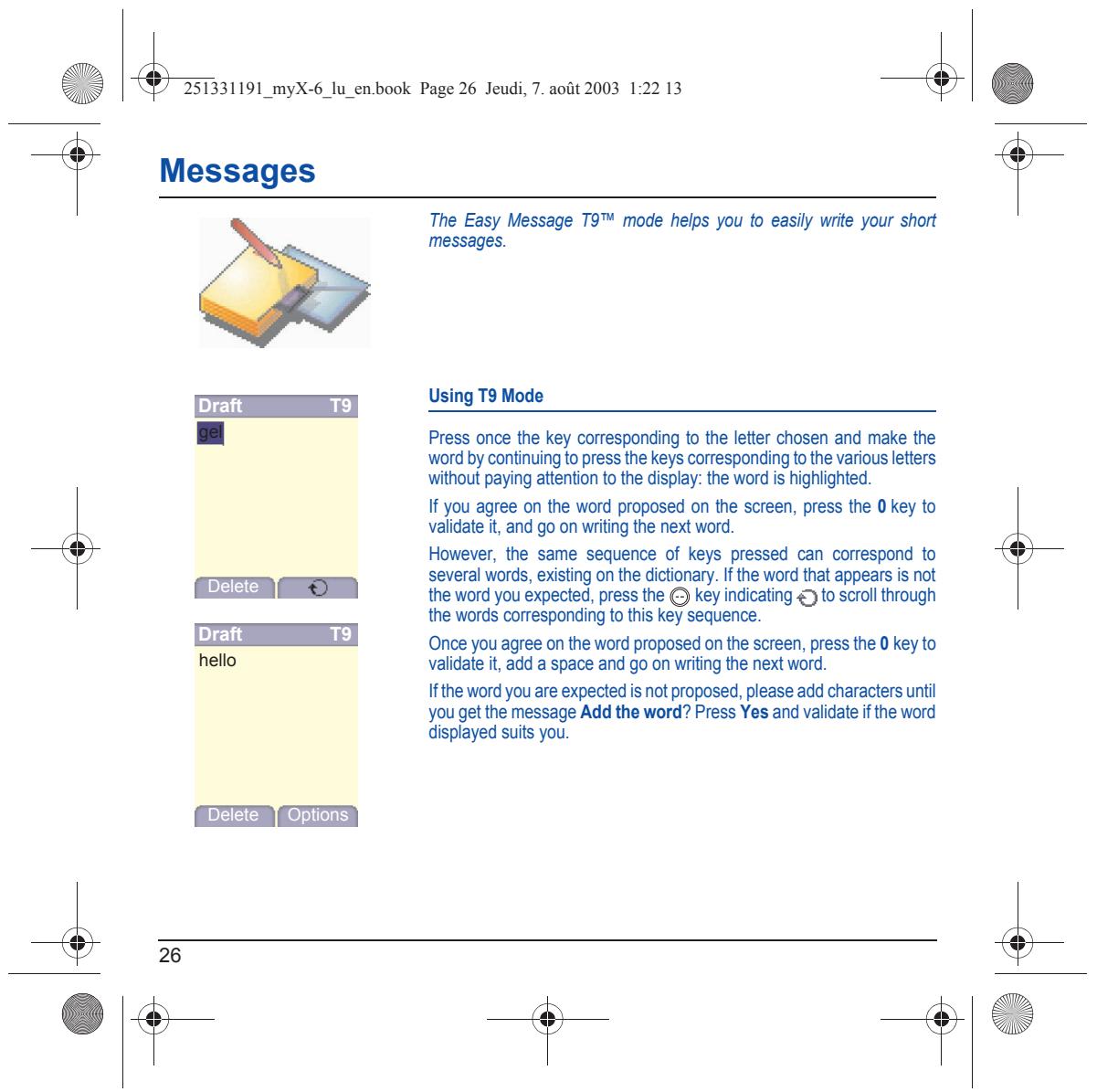
Li & 251331191_myX-6_lu_en.book Page 26 Jeudi, 7. août 2003 1:22 13 & | Éd Messages The Easy Message T9" mode helps you to easily write your short messages. — — Using T9 Mode L | Press once the key corresponding to the letter chosen and make the word by continuingÎo press the keys corresponding to the various letters without paying attention to the display the word is highlightec. If you agree on the word proposed on the screen, press he 0 key to validate i, and go on writing the next word However, he same sequence of keys pressed can correspond to several words, existing on the dictionary. the word that appears is not [apeleten [enr > | the word you expected, press he €) key indicating €) to scroll through the words corresponding to this keÿ sequence Draft T9 Once you agree on the word proposed on the screen, press the 0 key to hello validate i, add a space and go on writing the next word. Ifthe word you are expected is not proposed, please add characters until you getthe message Add the word? Press Yes and validateifthe word displayed suits you. Lbeiete L'Ontons |
Li & 251331191_myX-6_lu_en.book Page 27 Jeudi, 7. août 2003 1:22 13 & | Éd Messages In the input screen, the © key is used to access other input options. When composing a message: | _ Input modes The navigation keys assume the following functions: Editor mode: The ABC mode is used to write words that do not existin the dictionary. To get a particular character, please press the - <key: corresponding key several times: the characters wil| scroll down on your Last word screen. Mode 123 is used to add numbers. = » key: Insert mode is used to add symbols, animations, call group icons and Next word tunes: he SMS then becomes an EMS. Images and sounds can be of two types: pre-defined or customized. Pre-defined images and sounds : Ent ins are smaller, especially suited to exchanging messages key Upper case Next line A short press of the x 3 @ key wil display the next tte in upper case To short presses on ihe x 5e key allow you to switch to upper case - @ky: ERA lastieter editing mode for the whole message. key: Punctuation characters Punctuation characters are obtained thanks to key 1 (except in ù fi "955298 pions 123 mode), or with the help of Insert mode (fast access via the = #9 key (long press): #5 ke) Zoom mode (changes size of characters) Accented characters Accented characters are generated automatically in T9 mode. In ABC mode accented characters are available by pressing the key supportng the non-accented character in succession. = #8 key (short press): Access to symbol table
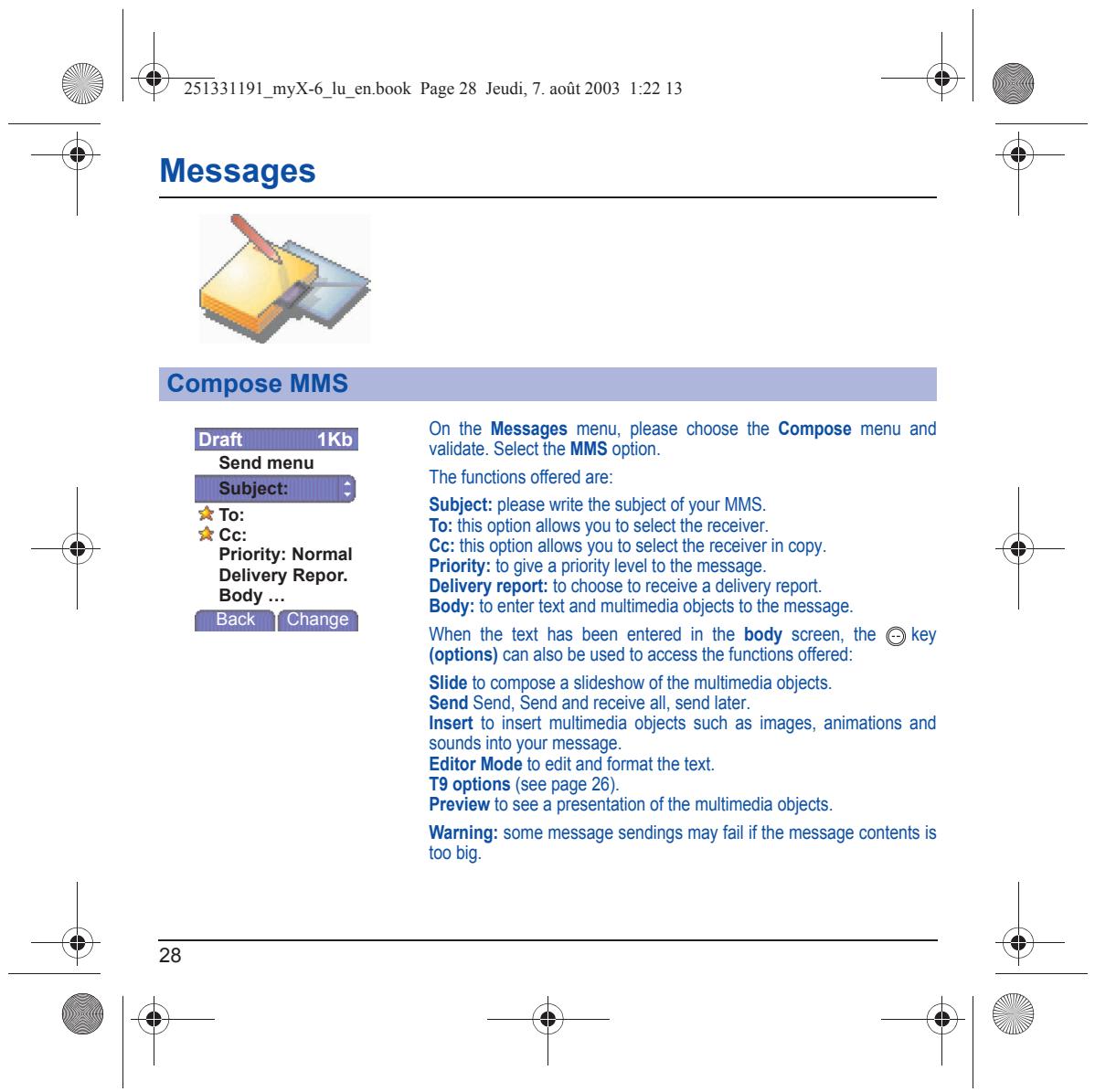
Li & 251331191_myX-6_lu_en.book Page 28 Jeudi, 7. août 2003 1:22 13 & | Éd Messages On the Messages menu, please choose the Compose menu and validate. Select ne MMS option. ‘The functions offered are: Subject: please write the subject of your MMS. To: this option allows you to select the receiver. Cc: this option allows you to select the receiver in copy. Priority: to give a priority level to the message. Bou 2 Repor. Delivery report: to choose to receive a delivery report. Body: to enter text and multimedia objects to the message. When the text has been entered in the body screen, the € key (options) can also be used to access the functions offered: Slide to compose a slideshow of the multimedia objects. Send Send, Send and receive all, send later. Insert to insert multimedia objects such as images, animations and sounds into your message. Editor Mode to edit and format the text. TT9 options (see page 26) Preview to see a presentation of the multimedia objects.
Warning: some message sendings may fai i the message contents is
Li & 251331191_myX-6_lu_en.book Page 29 Jeudi, 7. août 2003 1:22 13 & | Éd Messages Saving your message You can save your message as a draft by selecting « Save » from the options, vien editing the Subject or the Body. You will be able to edit it later from the Draft menu. Sending MMS messages Once the MMS are sent, you have the option to save them in your Outbox. It is recommended not saving them automatically: too many messages saved will quickly fil up the available memory and no further messages will be received Note: it is possible that the voice message format (amr) is not supported by some PC. See your PC provider. Receiving MMS messages Three options are offered to retrieve your MMS: automatic, semi- automatic and manual options. The « automatic retrieval » is automatically programmed in the phone. If you are using the network of another network provider, you wil get a message informing you that an MMS has been received. The «semi-automaic retrieval » gives you different options to retrieve the message. If you only want to read it once using your oun network, please select «Manual Retrieval »
Li & 25331191 myX-6_lu_en.book Page 30 Jeudi, 7. août 2003 1:22 13 & | Éd Messages When you receive a message, the phone will play the ring tone that you have selected, and the message icon Gwill come on the screen of your phone. If you do not read the messages, this icon remains displayed on the screen. When it flashes, the memory is full. Receiving icons, backgrounds or tunes can take several seconds. An icon is blinking when the download of your message is in progress. Note that you have three different possibiiies for receiving MMS: automatically, semi-automatically or manual, if « manual mode » is activated, then you wil receive only a notification in your Inbox, meaning that a MMS is available on the MMS Server, select is notification, and read it when you want to retrieve the MMS from the server. For more delails about automatic and retrieval modes, see « Sending Options » on page 32. Please contact your network provider to get more information on icons, backgrounds or tunes downloading.
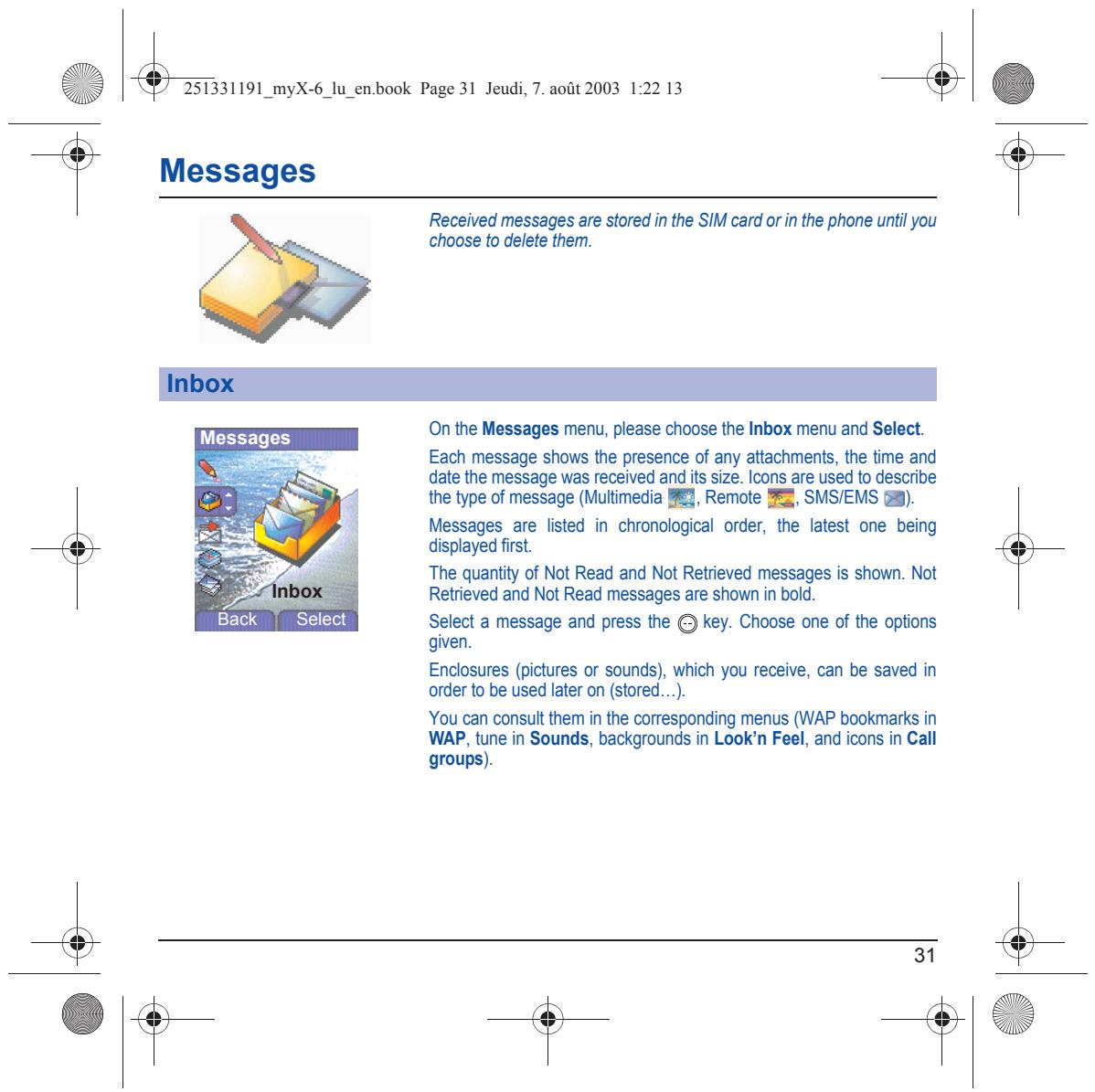
Li & 25331191 myX-6_lu_en.book Page 31 Jeudi, 7. août 2003 1:22 13 & | Éd Messages Received messages are stored in the SIM card or in the phone until your choose to delete them. On the Messages menu, please choose the Inbox menu and Select. Each message shows the presence of any attachments, the time and date the message was received and it size. Icons are used to describe the type of message (Multimedia BE, Remote a, SMS/EMS 52). Messages are listed in chronological order, the latest one being displayed first. ‘The quantity of Not Read and Not Retrieved messages is shown. Not Retrieved and Not Read messages are shown in bold. Select a message and press the € key. Choose one of the options given. Enclosures (pictures or sounds), which you receive, can be saved in order to be used later on (stored...). You can consult them in the corresponding menus (WAP bookmarks in WAP, tune in Sounds, background in Look'n Feel, and icons in Call groups). Messages
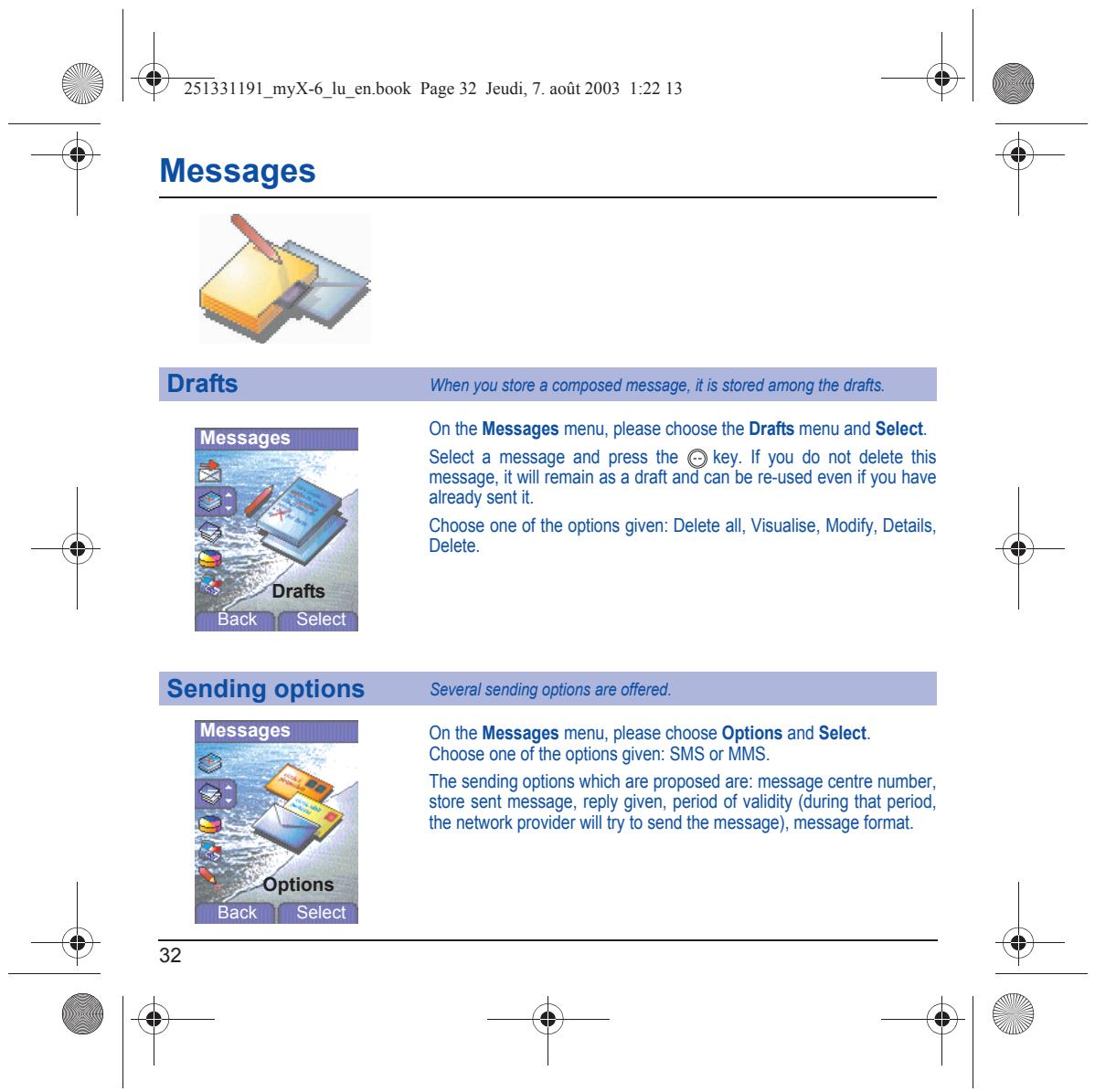
Li & 251331191_myX-6_lu_en.book Page 32 Jeudi, 7. août 2003 1:22 13 & | Éd Messages On the Messages menu, please choose the Drafts menu and Select. Select a message and press the 3 key. If you do not delete this message, it wil remain as a draft and can be re-used even if you have already sent it. Choose one of the options given: Delete al, Visualise, Modify, Details, Delete. Messages On the Messages menu, please choose Options and Select. Choose one ofthe options given: SMS or MMS. ‘The sending options which are proposed are: message centre number, store sent message, reply given, period of validity (during that period, the network provider will try to send the message), message fommat. + 1e
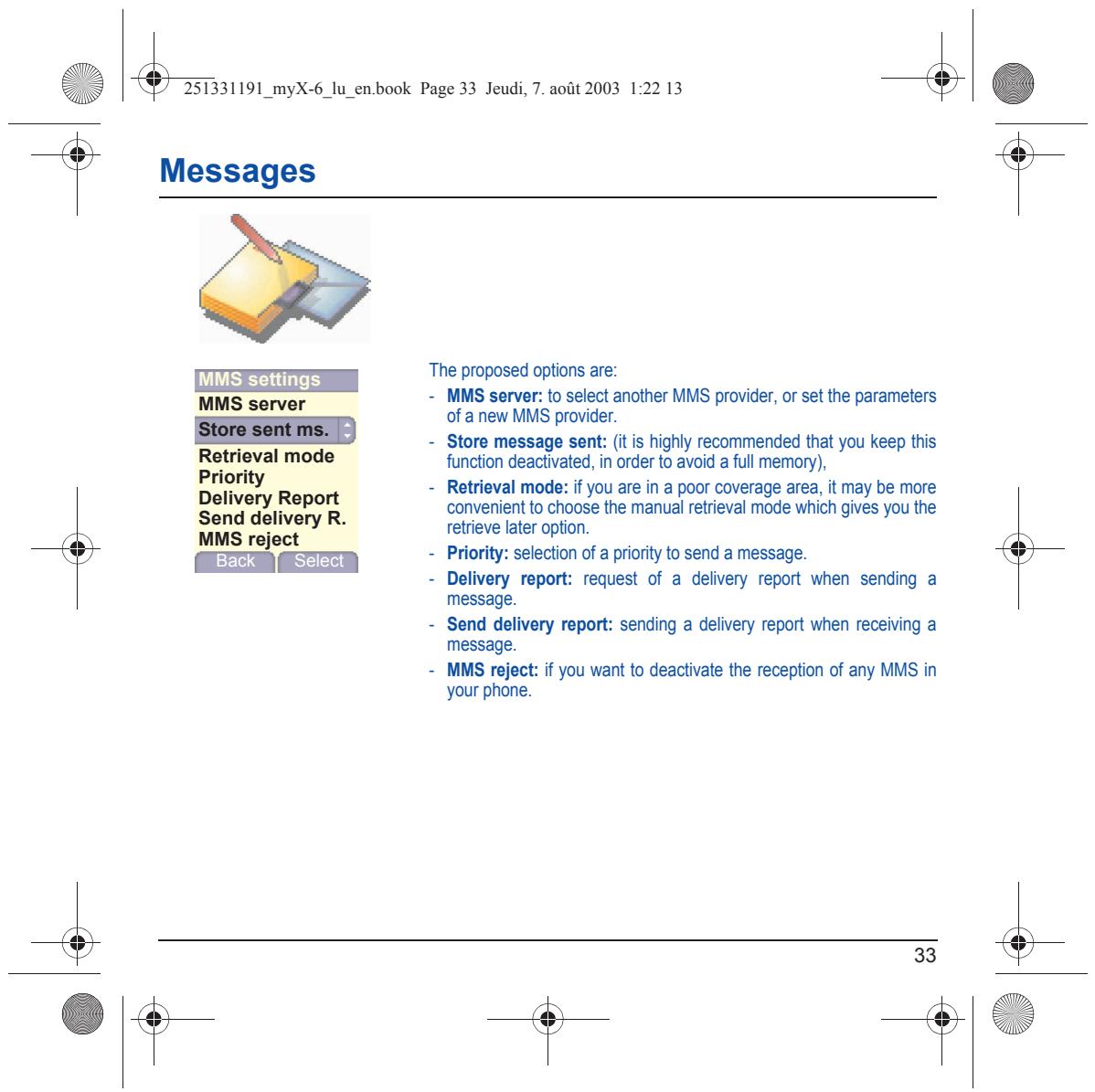
Li & 251331191_myX-6_lu_en.book Page 33 Jeudi, 7. août 2003 1:22 13 & | Éd Messages ‘The proposed options are: = MMS server: to select another MMS provider, or set the parameters of a new MMS provider. = Store message sent: (it is highly recommended that you keep this function deactivated, in order to avoid a full memory), RE Report = Retrieval mode: if you are in a poor coverage area, it may be more Send delivery R. convenient to choose the manual retrieval mode which gives you the MMS reject releve later option L'bect Ÿ select } = Priority: selection of a priority to send a message. = Delivery report: request of a delivery report when sending a message. = Send delivery report: sending a delivery report when receiving a message. = MMS reject: if you want to deactivate the reception of any MMS in your phone.
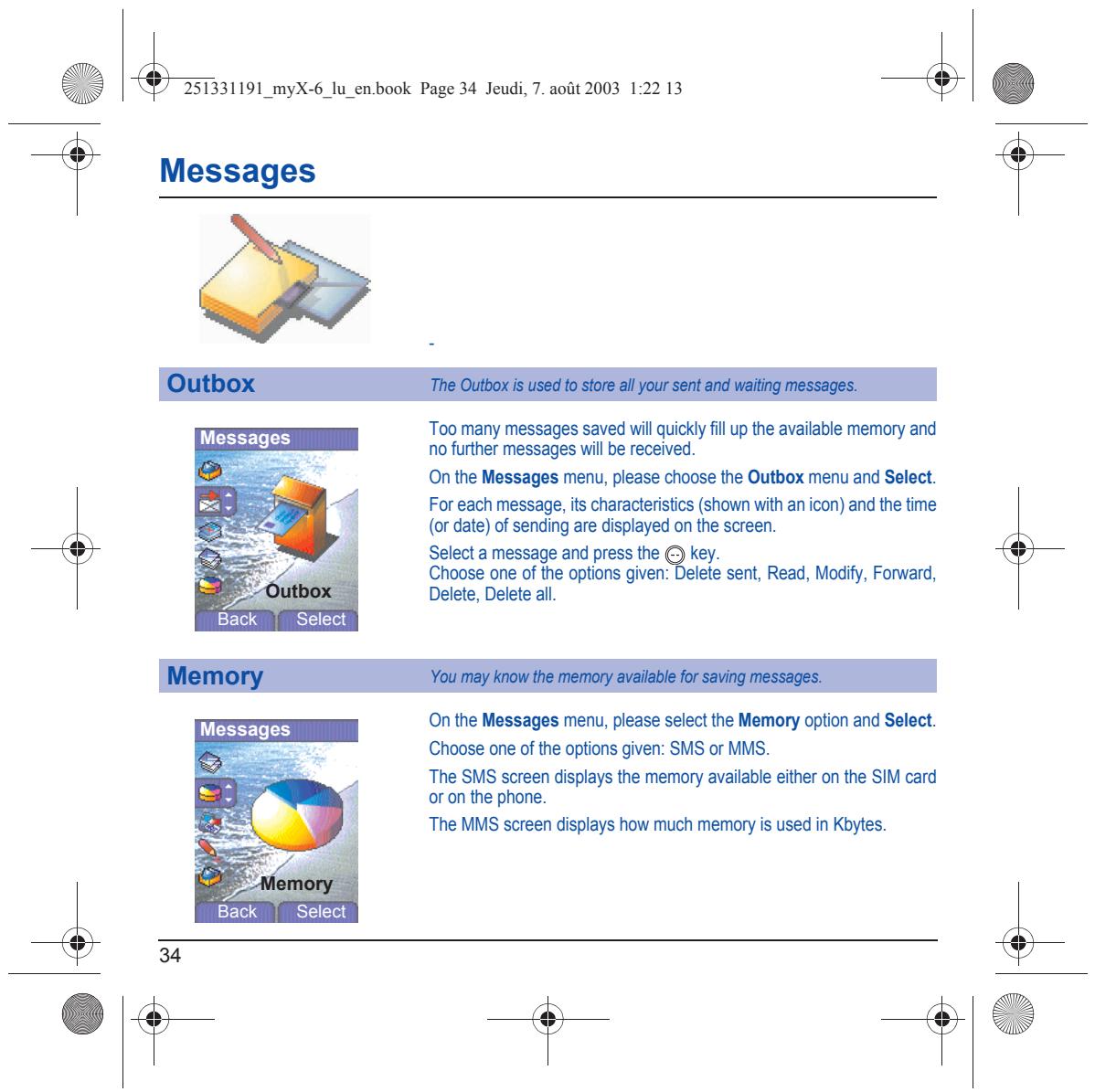
Li & 251331191_myX-6_lu_en.book Page 34 Jeudi, 7. août 2003 1:22 13 & | Éd Messages ‘Too many messages saved will quickly fil up the available memory and no further messages wil| be received. On the Messages menu, please choose the Outbox menu and Select. For each message, its characteristics (shown with an icon) and the time {or date) of sending are displayed on the screen. Select a message and press the € key. Choose one of the options given: Delete sent, Read, Modify, Forward, Delete, Delete all. On the Messages menu, please select the Memory option and Select. Choose one of the options given: SMS or MMS. The SMS screen displays the memory available either on the SIM card or on the phone. ‘The MMS screen displays how much memory is used in Kbytes. + 1e
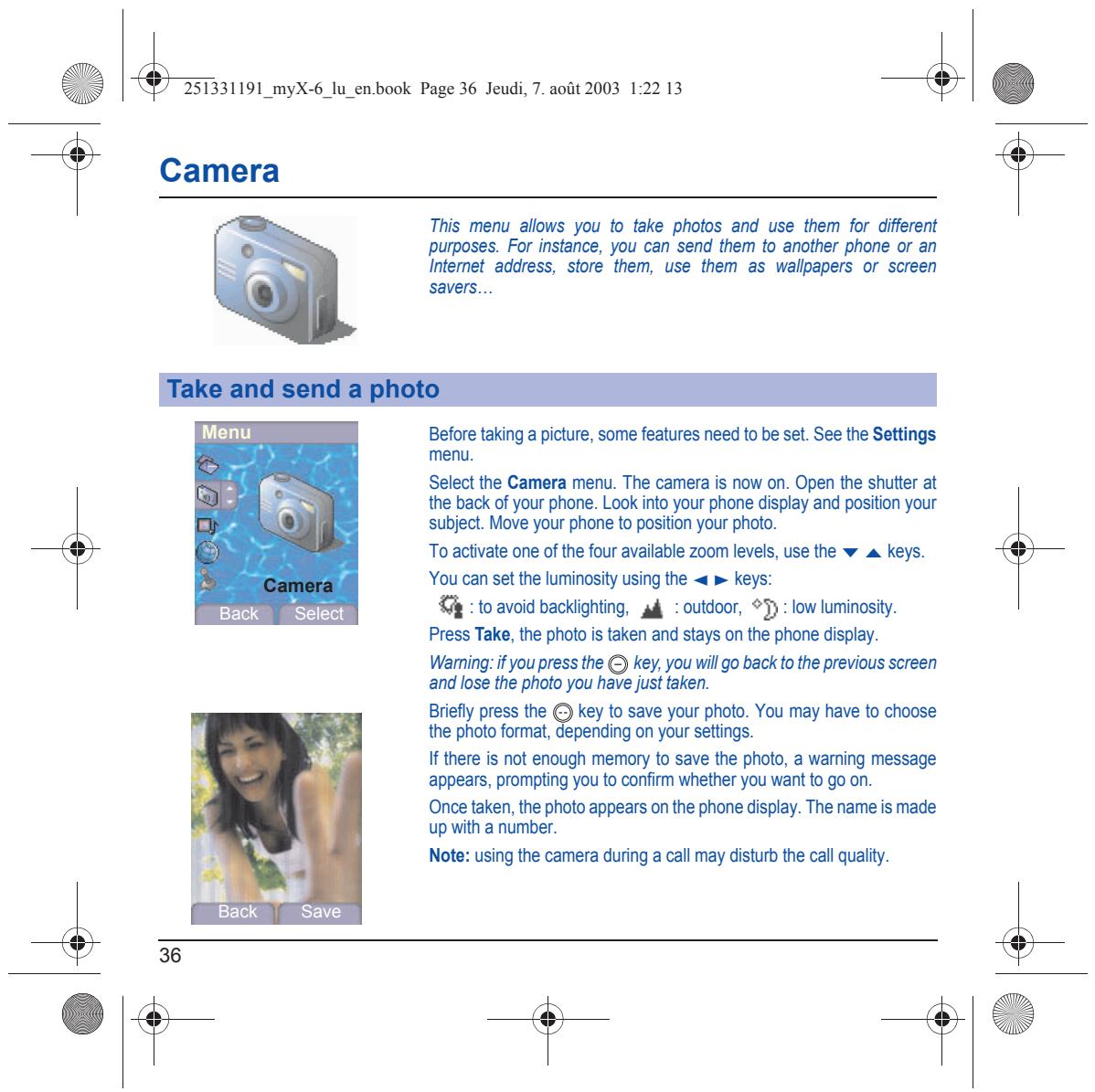
Li & 25331191 myX-6_lu_en.book Page 36 Jeudi, 7. août 2003 1:22 13 & | Éd Camera This menu allows you to take photos and use them for different purposes. For instance, you can send them to another phone or an Intemet address, store them, use them as wallpapers or screen savers… Before taking a picture, some features need to be set. See the Settings menu. Select the Camera menu. The camera is now on. Open the shutter at the back of your phone. Look into your phone display and position your subject. Move your phone to position your photo. To activate one ofthe four available zoom levels, use the wa Keys. You can set the luminosity using the « » keys: run conise k : to avoid backighting, ad : outdoor, ©ÿ3 : low luminosity. Press Take, the photo is taken and stays on the phone display. Warning if you press the €) key, you will go back to the previous screen and lose the photo you have just taken. Briefly press the (3 key to save your photo. You may have to choose the photo format, depending on your setings. Ifthere is not enough memory to save the photo, a waming message appears, prompting you to confirm whether you want to go on. Once taken, the photo appears on the phone display. The name is made up with a number. Note: using the camera during a call may disturb the call quality. val, Back Save + 1e
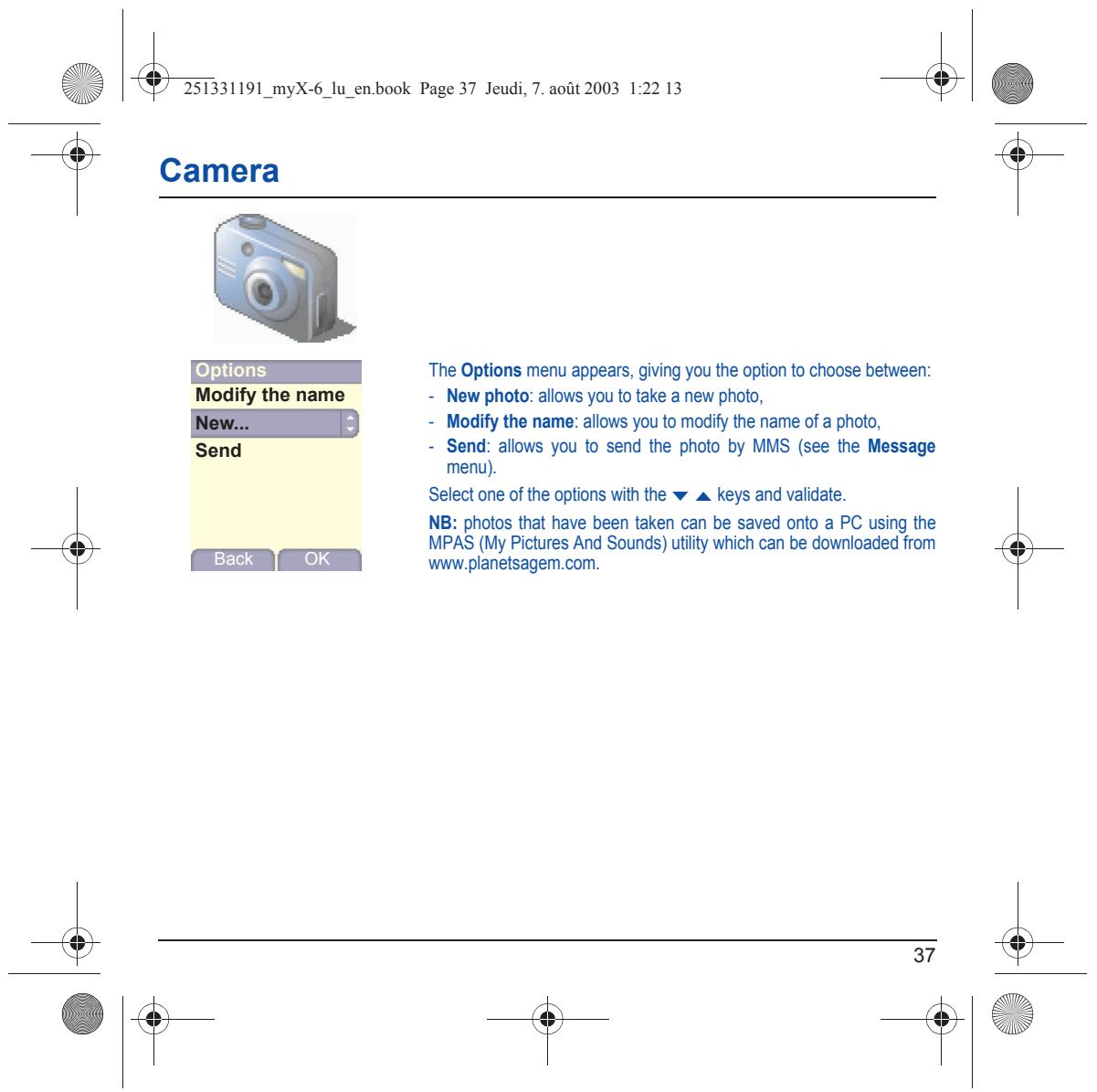
Li & 25331191 myX-6_lu_en.book Page 37 Jeudi, 7. août 2003 1:22 13 & | Éd Camera The Options menu appears, giving you the option to choose between: Modify the name = New photo: allows you to take a new photo, = Modify the name: allows you to modify the name of a photo, Send = Send: allows you to send the photo by MMS (see the Message menu). Select one of the options with the w a keys and validate. NB: photos that have been taken can be saved onto a PC using the MPAS (My Pictures And Sounds) utility which can be downloaded from ww.planetsagem.com.
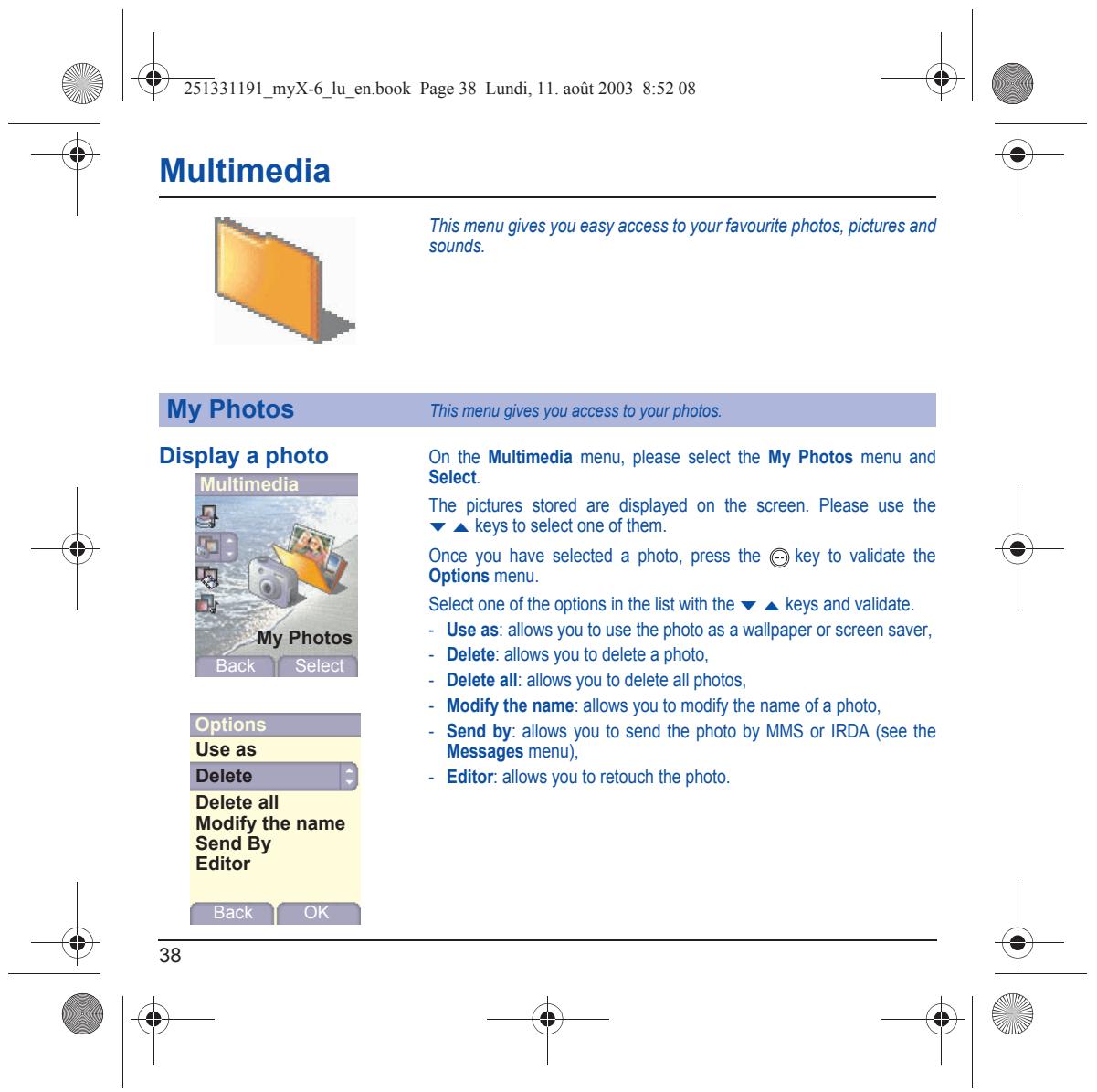
Li & 251331191_myX-6_lu_en.book Page 38 Lundi, 11. août 2003 8:52 08 & | Éd Multimedia This menu gives you easy access to your favourite photos, pictures and sounds. Display a photo On the Multimedia menu, please select the My Photos menu and Select. Multimedia The pictures stored are displayed on the screen. Please use the + A keys to select one ofthem. Once you have selected a photo, press the 3 key to validate the Options menu. Select one ofthe options in the list with the w a keys and validate. = Use as: allows you to use the photo as a wallpaper or screen saver, = Delete: allows you to delete a photo, = Delete all: allows you to delete all photos, = Modify the name: allows you to modify the name of a photo, = Send by: alows you to send the photo by MMS or IRDA (see the Messages menu), = Editor: allows you to retouch the photo. Éack | Select + 1e
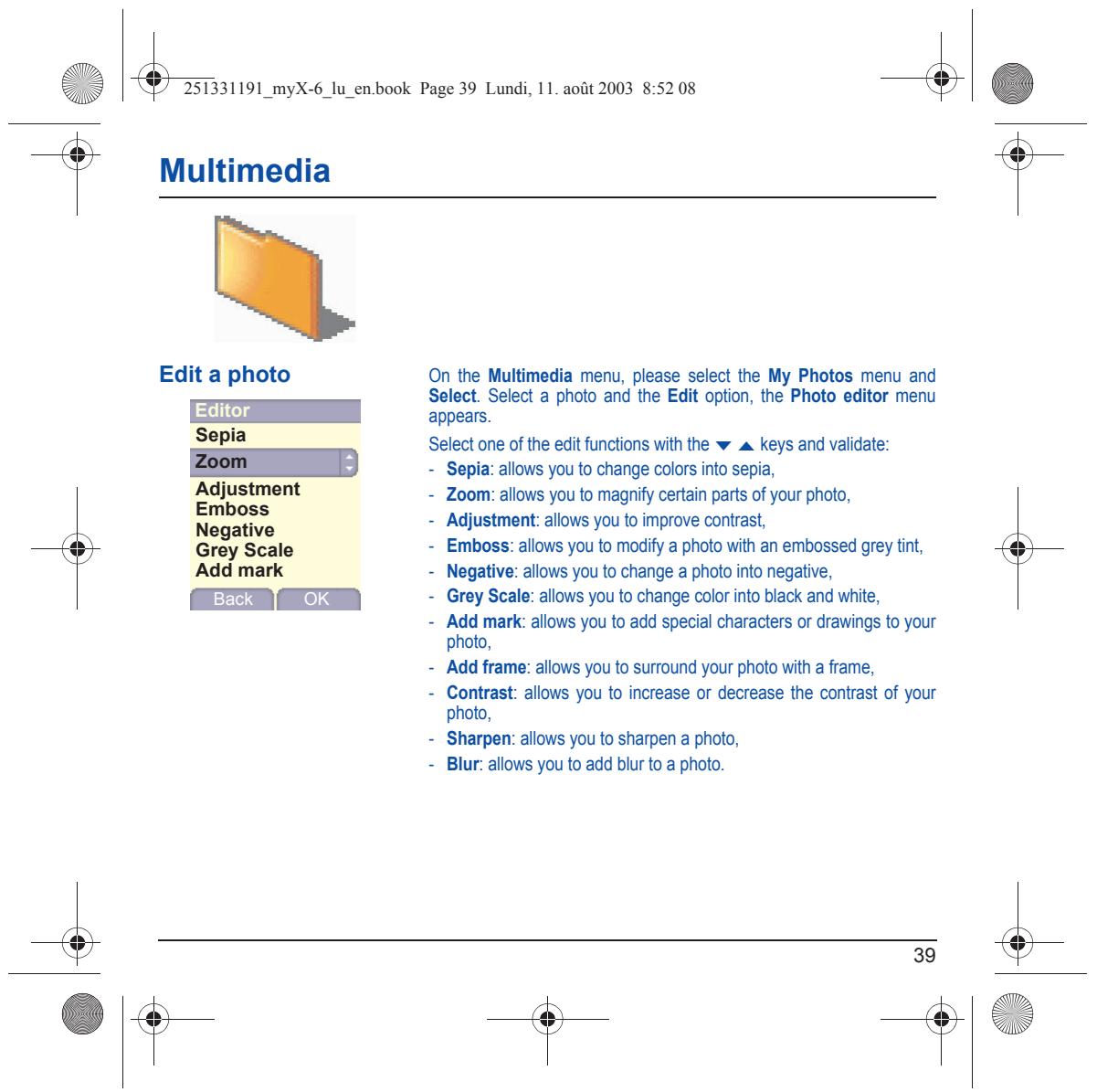
Edit a photo On the Multimedia menu, please select the My Photos menu and Select. Select a photo and the Edit option, the Photo editor menu appears. Select one of the edit functions with the w_ keys and validate: = Sepia: allows you to change colors into sepia, Sepia Adjustment -_ Zoom: allows you to magnify certain parts of your photo, Mnue = Adjustment: allows you to improve contrast, Scale = Emboss: allows you to modify a photo with an embossed grey tint, Add mark = Negative: allows you to change a photo into negative, [ Back | OK | = Grey Scale: allows you to change color into black and white, = Add mark: allows you to add special characters or drawings to your photo, = Add frame: allows you to surround your photo with a frame, = Contrast: allows you to increase or decrease the contrast of your photo, = Sharpen: allows you to sharpen a photo, = Blur: allows you to add blur to a photo.
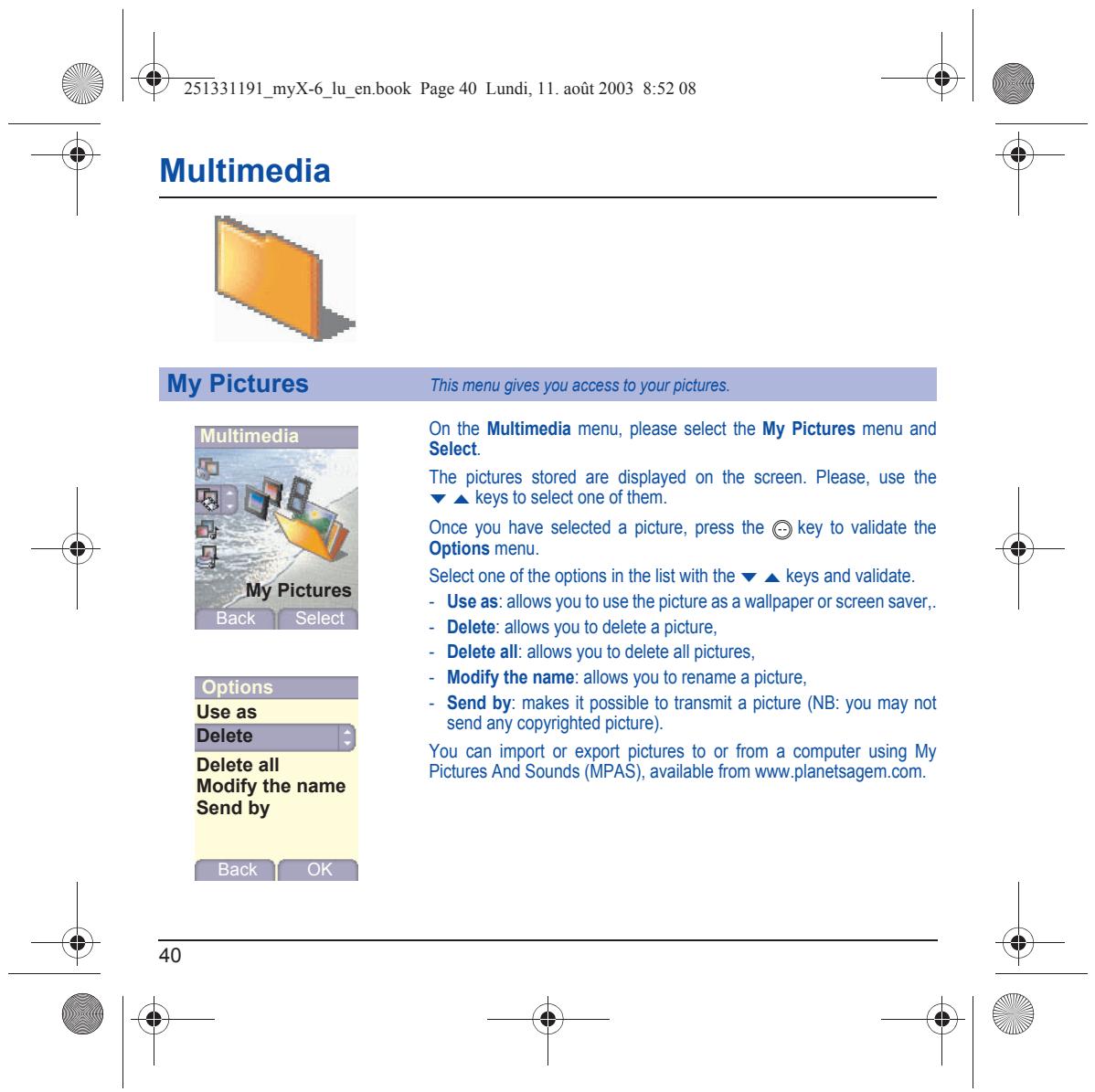
Li & 251331191_myX-6_lu_en.book Page 40 Lundi, 11. août 2003 8:52 08 & | Éd Multimedia On the Multimedia menu, please select the My Pictures menu and Select. The pictures stored are displayed on the screen. Please, use the + A keys to select one ofthem. Multimedia Once you have selected a picture, press the > key to validate the Options menu. Select one ofthe options in the list with the wa keys and validate. = Use as: allows you to use the picture as a wallpaper or screen saver,. = Delete: allows you to delete a picture, = Delete all: allows you to delete all pictures, = Modify the name: allows you to rename a picture, = Send by: makes it possible to transit a picture (NB: you may not send any copyrighted picture). You can import or export pictures to or from a computer using My Delete all Pictures And Sounds (MPAS), available from www. planetsagem.com. Modify the name Send by Back | Select
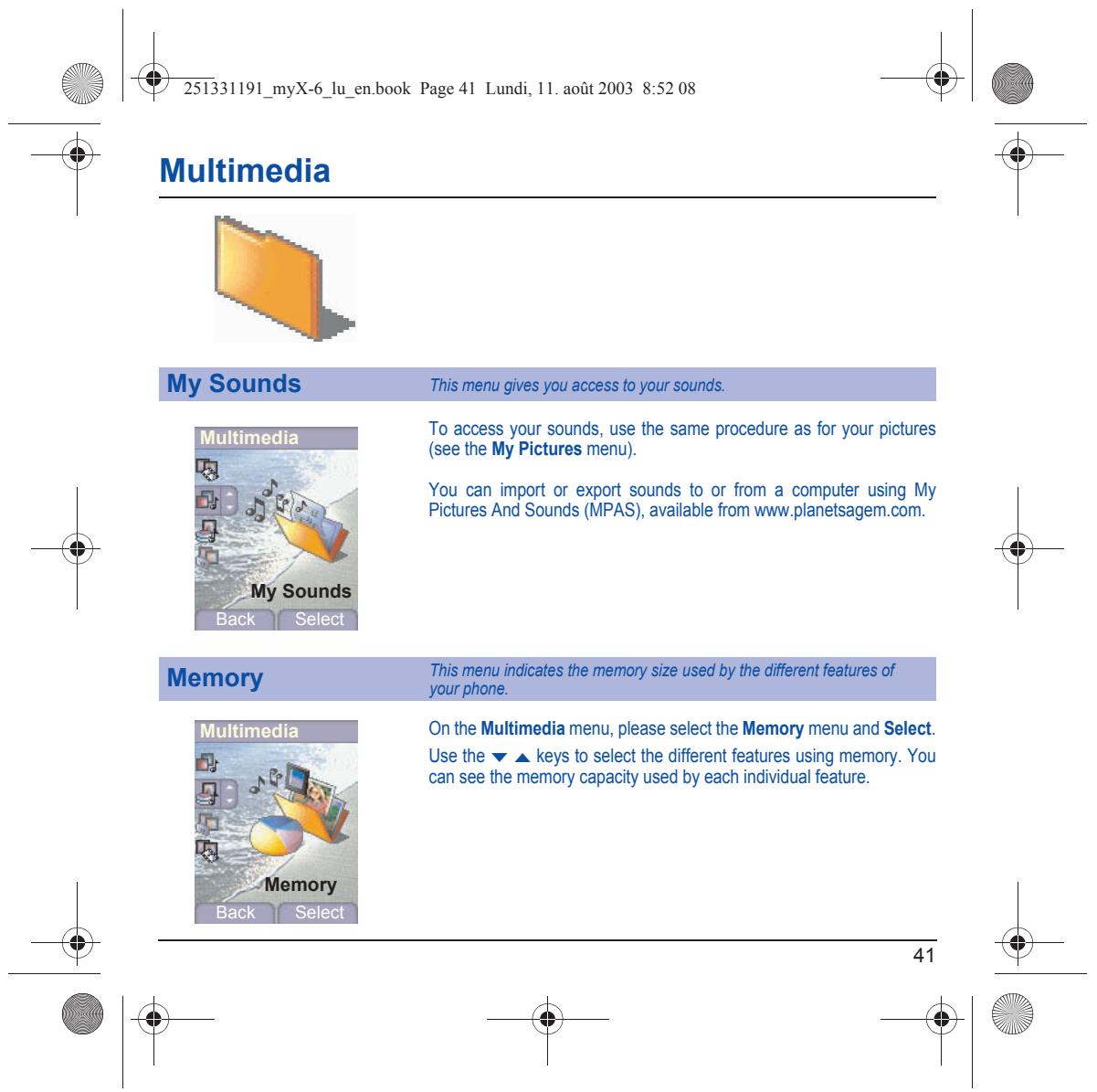
Li & 251331191_myX-6_lu_en.book Page 41 Lundi, 11. août 2003 8:52 08 & | Éd Multimedia To access your sounds, use the same procedure as for your pictures (see the My Pictures menu). Multimedia You can import or export sounds to or from a computer using My Pictures And Sounds (MPAS), available from www.planetsagem.com. On the Multimedia menu, please select the Memory menu and Select. Use the wa keys to select the different features using memory. You can se the memory capacity used by each individual feature. Back | Select
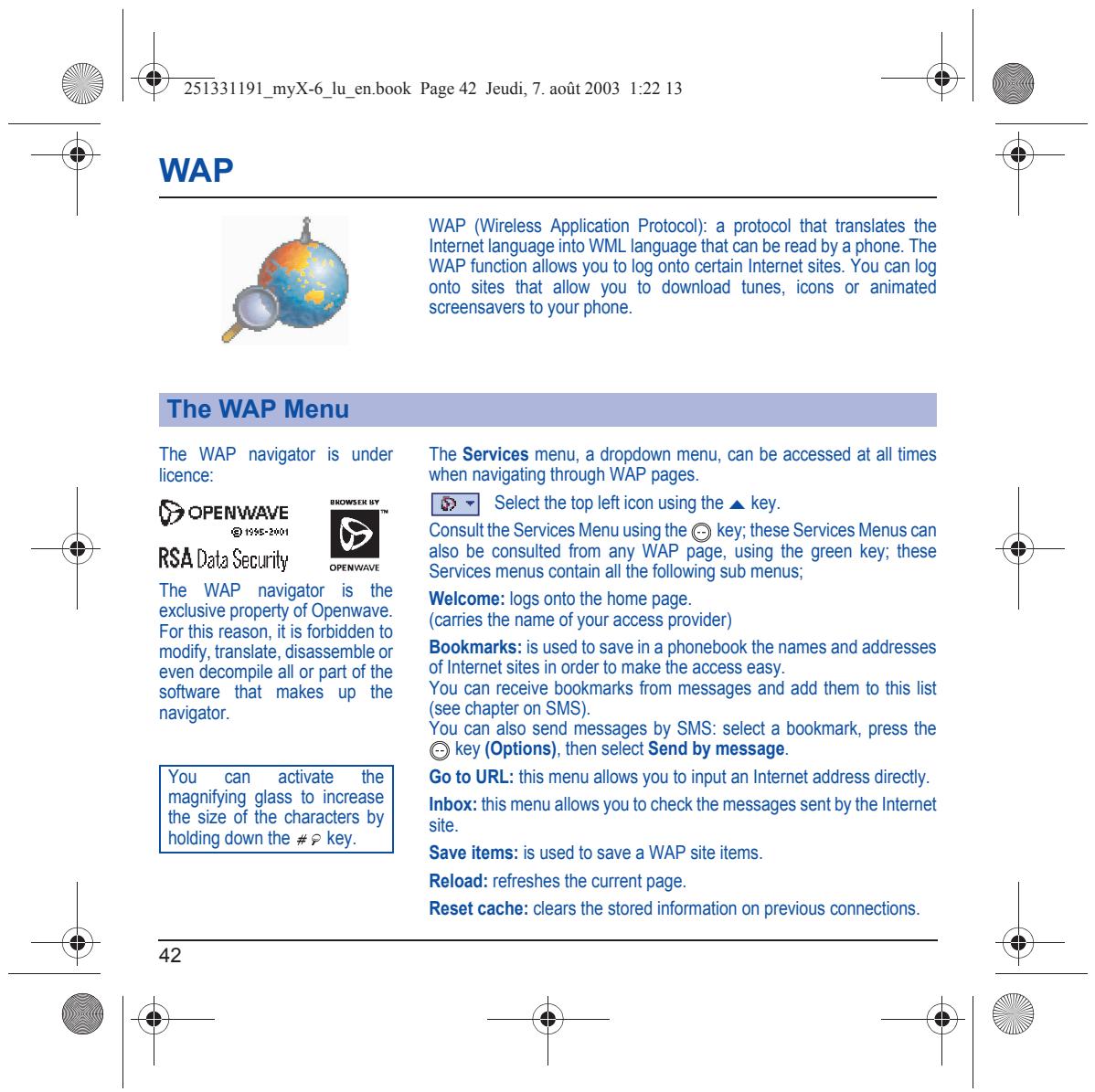
Li En book Page 42 Jeudi, 7. août 2003 1:22 13 _4] Éd WAP WAP (Wireless Application Protocol): a protocol that translates the Intemet language into WML language that can be read by a phone. The WAP function allows you to log onto certain Internet sites. You can log onto sites that allow you to download tunes, icons or animated screensavers to your phone The WAP navigator is under The Services menu, a dropdown menu, can be accessed at all times licence: when navigating through WAP pages. Dorennave ETS Select the top left icon using the A key. Emme Consul the Services Menu using he (key: these Services Menus can also be consulted from any WAP pâge, using the green key, these RSA DataSecurily own Services menus contain all the following sub menus; The WAP navigator is the exdusive property of Openwave.… Welcome: logs onlo the home page. Poe nn 0 fo den (cames fe name of your access provider) modify, translate, disassemble or Bookmarks: is used to save in a phonebook the names and addresses even decompile all or part of the Of Intemet sites in order to make the access easy. software that makes up the You can receive bookmarks from messages and add them to this list navigator. {see chapter on SMS). You can also send messages by SMS: select a bookmark, press the € key (Options), then select Send by message. ou can acivae the] Go to URL: this menu allows you to input an Internet address directly. magnifing glass to increase : Ve eue 01 Me character y | MMbOXE HS menu als jou 1 check ne messages sent by he Intrmet holding doun the #5 key. Save items: is used to save a WAP site items. Reload: refreshes the current page. Reset cache: clears the stored information on previous connections.
Li En book Page 43 Jeudi, 7. août 2003 1:22 13 _4] Éd Advanced... choose one ofthe following advanced settings = Settings = Show URL = Disconnect = Circuit prompt (if user wants to confirm each logon) = Security (is used to access information on making WAP connections secure). About... information on the browser. Exit: returns to the phone's home page Select the Advanced... menu, then the Settings menu. Choose from the proposed sub-menus: Connection settings is used to select or modify your access provider iogon parameters or configure the parameters of other access providers. The active access service is preceded with a star. Configuration of WAP and GPRS parameters: Al information to be entered in the parameters are provided by your operator or access provider. = Choose the access service, then press Options. Enter the title and validate. Enter Internet address of home page and validate. -_ Enter parameters of preferred connections: GSM if not GPRS (by default: the logon to WAP services uses the GPRS as a priority. However, in the event of unavalability of the GPRS network, the GSM network is used to establish the link GPRS: the logon to WAP services uses the GPRS network exdlusively. GSM: the logon to WAP services uses the GSM network exclusively.
Li En book Page 44 Jeudi, 7. août 2003 1:22 13 _4] Éd The GSM parameters to be entered are: = Login = Password IP address of WAP gateway = Porttype (secure or insecure) = Diakup number = Mode (digital, analog or automatic) In automatic mode access can be gained to the operator nebwork by a digital link and an analog link to a different network (in roaming). The GPRS parameters to be entered are: = Login = Password IP address of WAP gateway = Porttype (secure or insecure) = APN: if no APN has been defined, press the € key (Options) then the APN menu. Select or add an APN. Once al the settings have been entered, you can actvate the chosen access provider. Select him from the list. Validate your choice. Linger timer is used to choose the time after which the cal is automafically disconnected if you have forgotten to log off from a service.
Li & 251331191_myX-6_lu_en.book Page 45 Jeudi, 7. août 2003 1:22 13 & | Éd The connection to a WAP service Using the Welcome menu, you can log onto your access provider's on the GPRS network is not cut it WAP site by pressing the €} key. an incoming call is received. You 1f you are logging onto the GSM network, the @ symbol flashes, the can answer the call. metering of the cost of the call starts as soon as if stops flashing. Some WAP sites allow you to dounload tunes, icons or animated screensavers. Once downloaded, they are stored in your phone’s memory. You can then save them in your phone (same operation as used for downloading using messages). Tologof press 1he € ke. The got happens automaical alter feu seconds of inactivity you forget to log of. This period is defined by the linger time setting.
Li En book Page 46 Jeudi, 7. août 2003 1:22 13 _4] Éd Aflashing icon indicates thatthe phone is logging onto a GPRS network. A non-flashing icon indicates that the GPRS nebwork is available: f the icon is dark, it indicates that the phone is logged onto the GPRS network: see page 43 for the attachment options. “This icon is not displayed if the GPRS network is not available or if the SIM card inserted in your phone does not include the GPRS service. It may also disappear when accessing WAP services if the connection uses the GSM network instead of the GPRS nehwork.
Li & 251331191_myX-6_lu_en.book Page 47 Jeudi, 7. août 2003 1:22 13 & | Éd Games Your phone may be equipped with games, depending on the model. You can also download new games depending on your phone and your subscription. On the Games menu, please select the Downloaded games menu and validate; this menu can also be accessed from the initial screen by a long press on the 9 key. You can = Play the downloaded game already present (Wallbreaker). Use keys 2, 4,6, 8 or navigation key to move and 5 to acceptor_ # © = Download new games (available from the catalog) = Consult the loyalty points acquired during downloads, news, instructions, = Make settings:
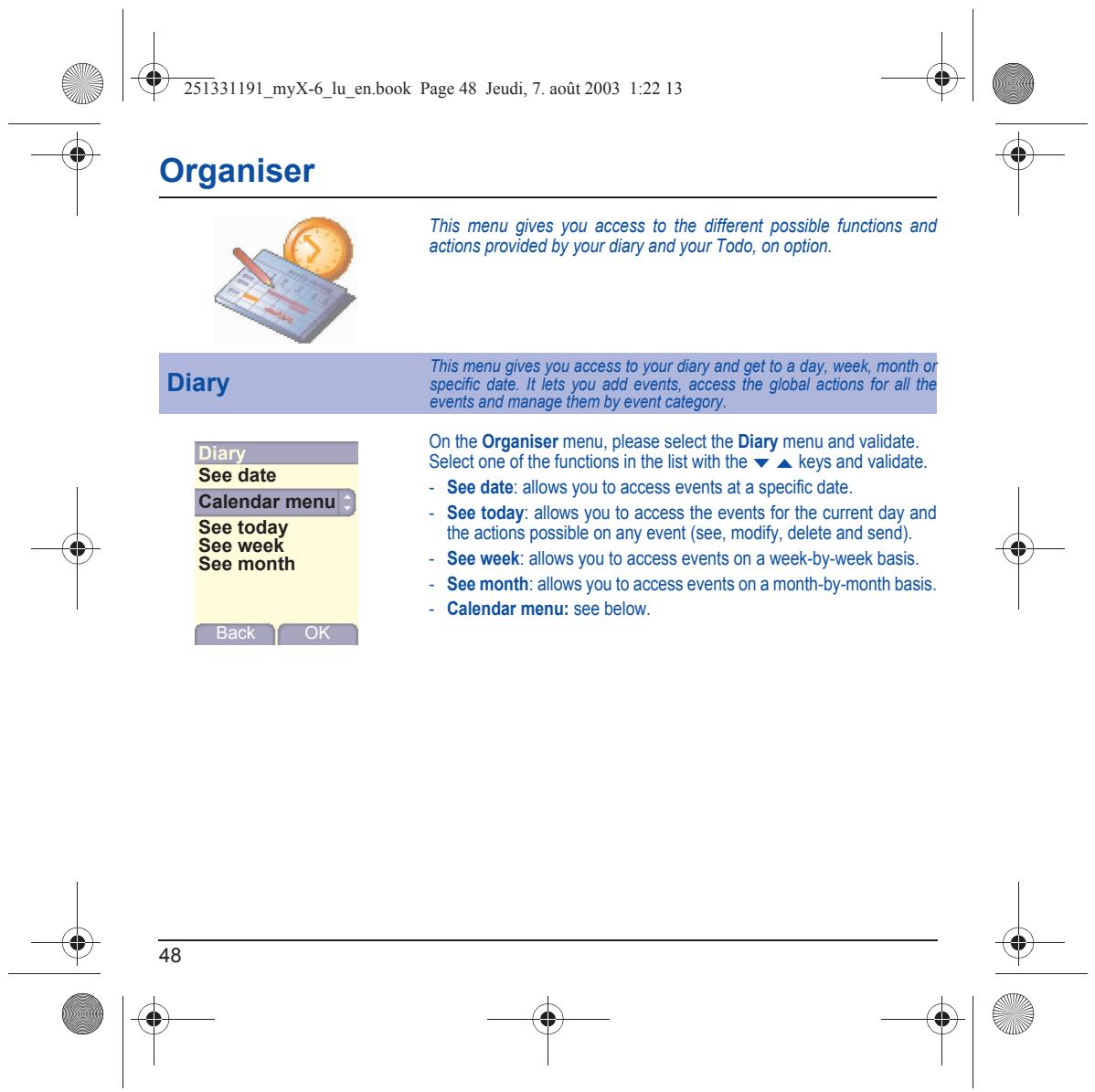
Li & 25331191 myX-6_lu_en.book Page 48 Jeudi, 7. août 2003 1:22 13 & | Éd Organiser This menu gives you access to the diferent possible functions and actions provided by your diary and your Todo, on option. On the Organiser menu, please select the Diary menu and validate. Select one of the functions in the list with the w a keys and validate. = See date: allows you to access events at a specific date. llows you to access the events for the current day and the actions possible on any event (see, modify, delete and send). ‘See month = See week: allows you to access events on a week-by-week basis. = See month: allows you to access events on a month-by-month basis. = Calendar menu: see below.
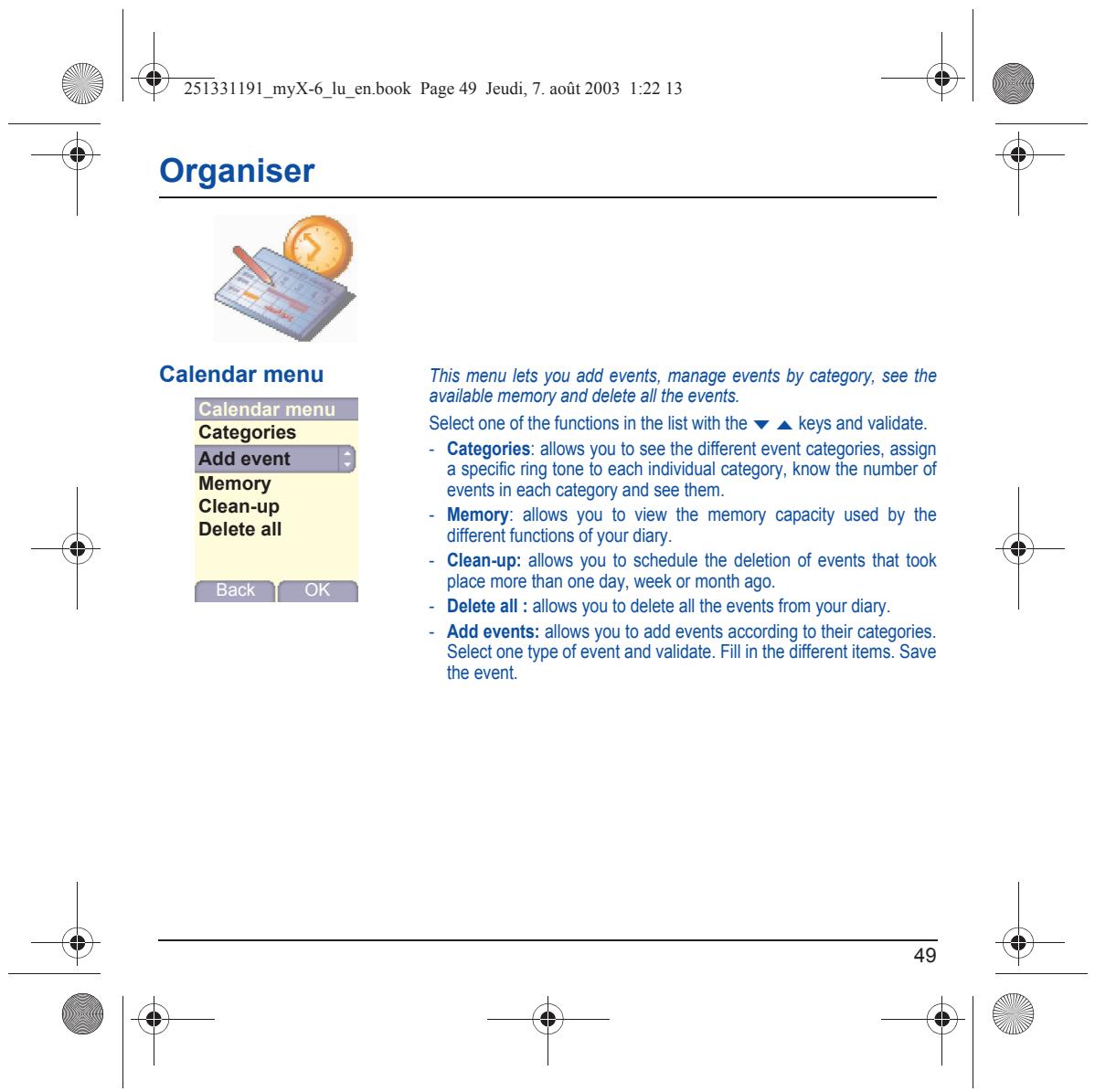
Li & 25331191 myX-6_lu_en.book Page 49 Jeudi, 7. août 2003 1:22 13 & | Éd Organiser Calendar menu This menu lets you add events, manage events by category, see the available memory and delete allthe events. ES — Select one of the functions in the list with the w a. keys and validate Error a] + Categories: allows you to see the different event categories, assign a specific ring tone {o each individual category, know the number of EY events in each category and see them. lean-up - Memory: allows you to view {he memory capacity used by the Delete all a " o9 pen » diferent functions of your diary. = Clean-up: allows you to schedule the deletion of events that took — place more than one day, week or month ago. SERA = Delete all: allows you to delete all the events from your diary. = Add events: allows you to add events according to their categories. Select one type of event and validate. Fil in the different items. Save the event
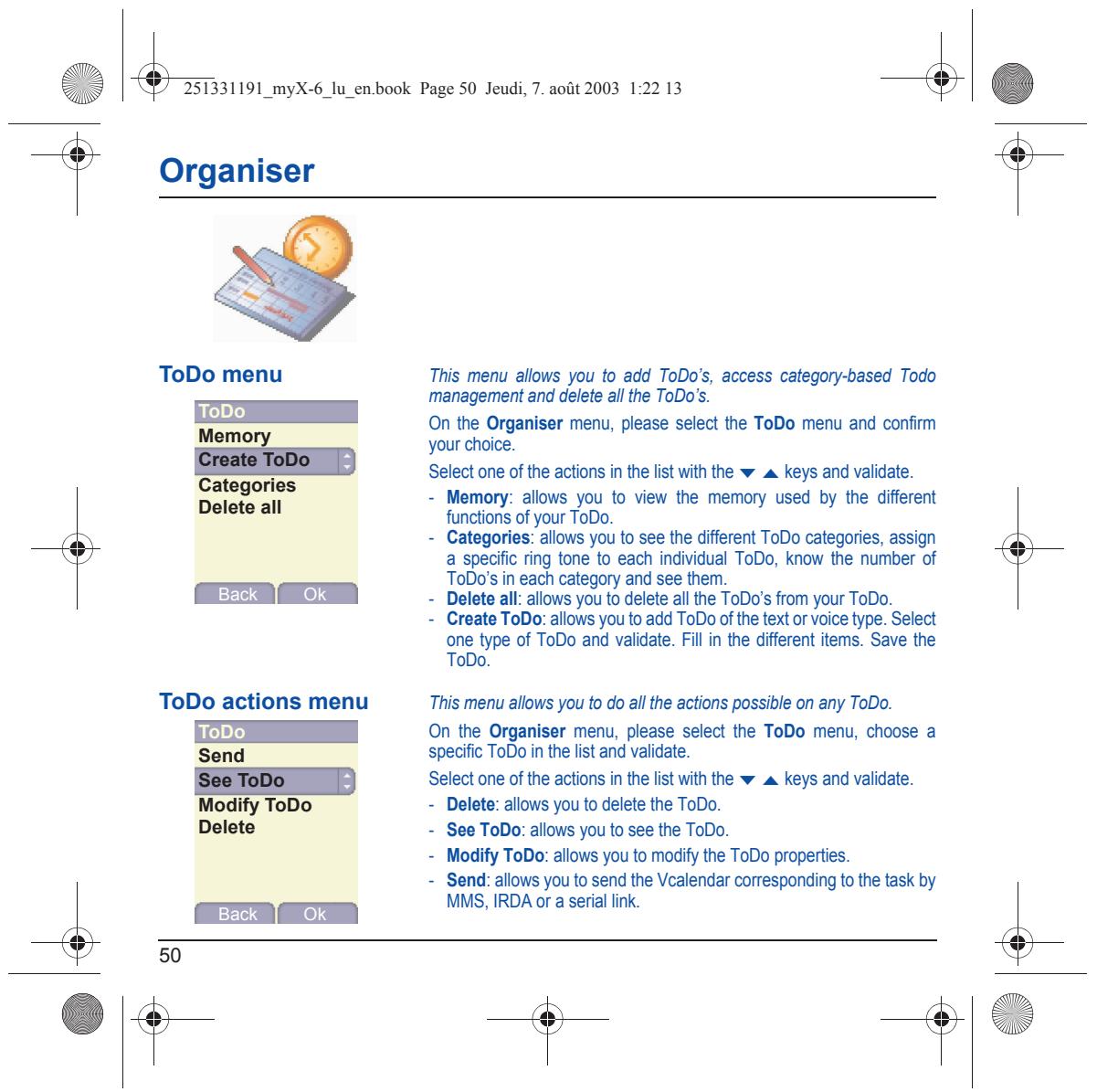
Li & 251331191_myX-6_lu_en.book Page 50 Jeudi, 7. août 2003 1:22 13 & | Éd Organiser ToDo menu This menu allows you to add ToDo's, access category-based Todo _ management and delete all the ToDo's. On the Organiser menu, please select the ToDo menu and confim E your choice. Select one of the actions in the list with the w a keys and validate. = Memory: alons you to view the memory used by the different functions of your ToDo. Categories: allons you to see the different ToDo categories, assign a specific ring tone to each indvidual ToDo, know the number of ToDos in each category and see them. [Back [ox 7] = Delete all: allows you to delete all te ToDo's from your ToDo. = Create ToDo: allows you to add ToDo ofthe text or voice type. Select one type of ToDo and validats. Fil in he diferent items. Save the ToDo. ToDo actions menu This menu allows you to do all the actions possible on any ToDo. On the Organiser menu, please select the ToDo menu, choose a Send specific ToDo in the list and validate. Select one of the actions in the list with the wa. keys and validate. lodify ToDo = Delete: allows you to delete the ToDo: Delete = See ToDo: allows you to see the ToDo. = Modify ToDo: allows you to modify the ToDo properties. = Send: allows you to send the Vcalendar corresponding to the task by. MMS, IRDA or a serial link.
Li & 251331191_myX-6_lu_en.book Page 51 Jeudi, 7. août 2003 1:22 13 & | Éd Organiser You can send vCals to another phone using MMS or IRDA depending on your phone and the recipients phone. On the See today list, please select an event and in theTodo event actions menu list, select Send. Then choose between EMS, MMS, IRDA or serial link for the type of sending and conf For EMS and MMS delveries, you should in addition select your contact information (phone number or Email address) before confiming. On the task list (Todo main menu), please select a task and in the Todo task actions menu list select Send ‘Then choose between MMS or IRDA for the type of sending and contirm When sending MMS, please select your contact information (phone number or Email address) before confrming If you receive à call while you are sending a vCal, the call will have precedence.
Li & 251331191_myX-6_lu_en.book Page 52 Jeudi, 7. août 2003 1:22 13 & | Éd Organiser ‘The vCal receipt mode differs with the type of delivery: = By EMS or MMS, you receive a message you have to open to extract the vCal. You cannot add the event to your diary until you have saved. = ByIRDA orseriallink, youreceive a message and when the download is completed, a message appears on your phone display, asking you what you want to do with he vCal (save i, delete it... You can assign a different beep to each diary event or Todo task. You can also assign a different ring tone to each diary event category or Todo task category
Li & 25331191 myX-6_lu_en.book Page 53 Jeudi, 7. août 2003 1:22 13 & | Éd Organiser Working from a PC, you can save/edi contacts, events and tasks stored in your phone To do this, you will need: either to connect your phone to the PC by means of a suitable data cable (serial or USB), -_orto use the infrared function on your phone (please refer to the Data paragraph in the Settings Chapter) Next, you will have to install he Wellphone software supplied with your phone or available from htip:{mww.wellphone.com. This software will also enable you to save your contacts, events and tasks by means of copyipaste. If a call comes in during an exchange of data with your PC, the link will be interrupted and wil have to be manually re-staried.
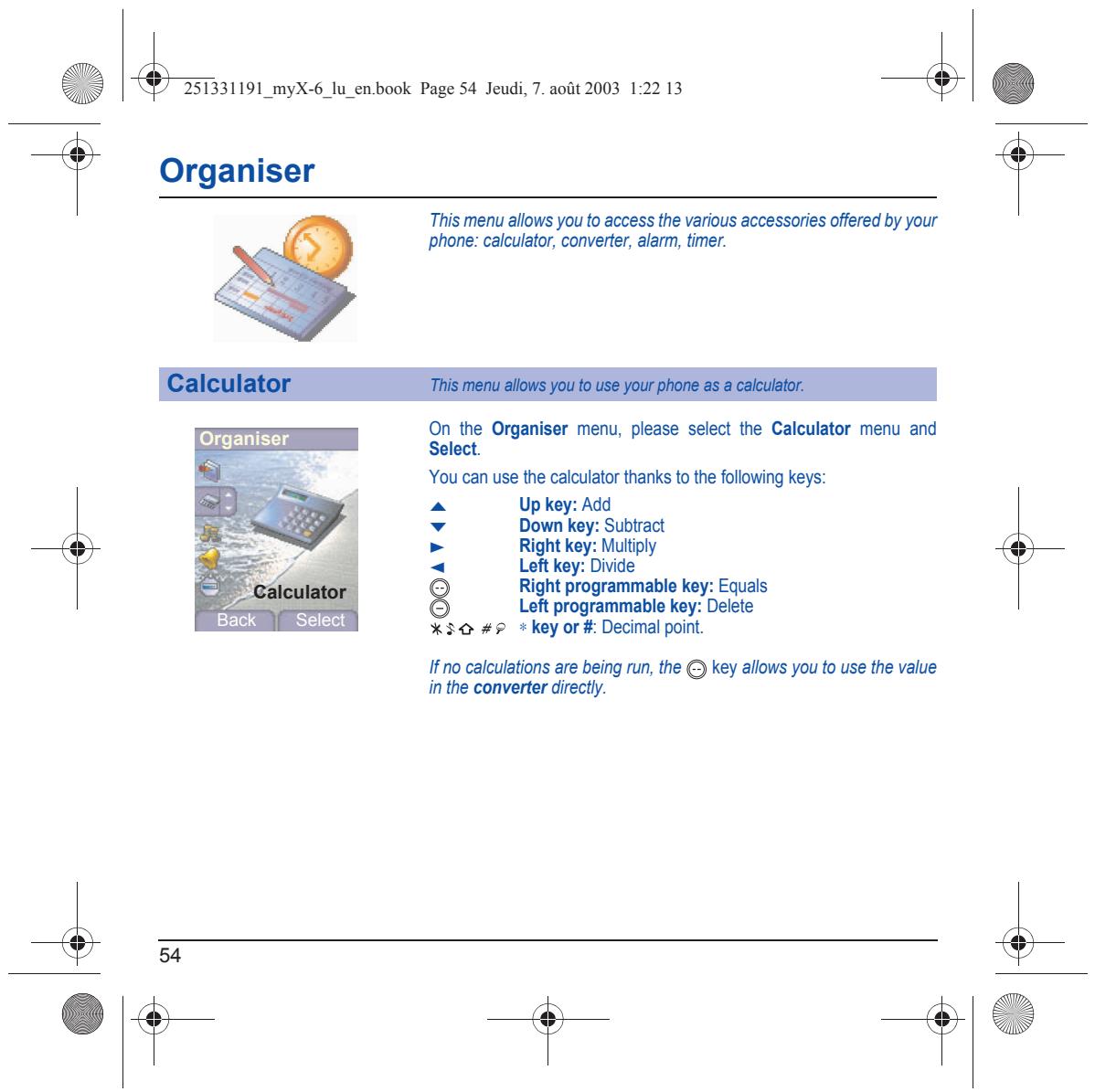
Li & 251331191_myX-6_lu_en.book Page 54 Jeudi, 7. août 2003 1:22 13 & | Éd Organiser This menu allows you to access the various accessories offered by your phone: calculator, converter, alarm, timer. Select On the Organiser menu, please select the Calculator menu and Select. You can use the caleulator thanks to the following keys: a Up key: Add v Down key: Subtract > Right key: « Left key: Divide Right programmable key: Equals Left programmable key: Delete Ho calculations are being run, the © key allows you to use the value inthe converter direct. + 1e
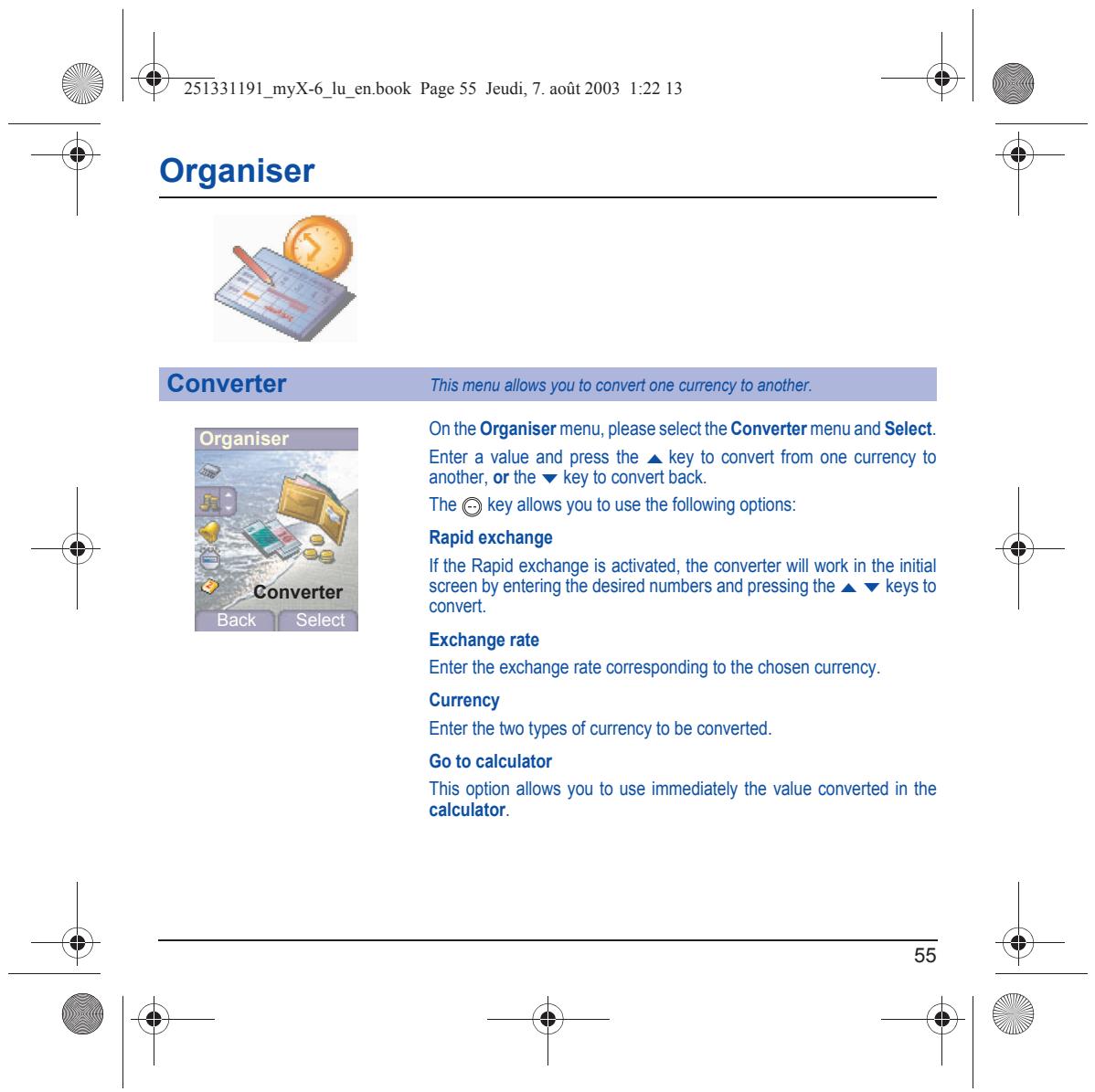
Li & 251331191_myX-6_lu_en.book Page 55 Jeudi, 7. août 2003 1:22 13 & | Éd Organiser On the Organiser menu, please selectthe Converter menu and Select. Enter a value and press the A key to convert from one currency to another, or the w key to convert back. The © key allows you to use the following options: Organiser Rapid exchange Ifthe Rapid exchange is activated, the converter will work in the initial screen by entering the desired numbers and pressing the A w keysto convert. Éack | Select Exchange rate Enter the exchange rate corresponding to the chosen currency. Currency Enter the two types of currency to be converted. Go to calculator This option allows you to use immediately the value converted in the calculator.
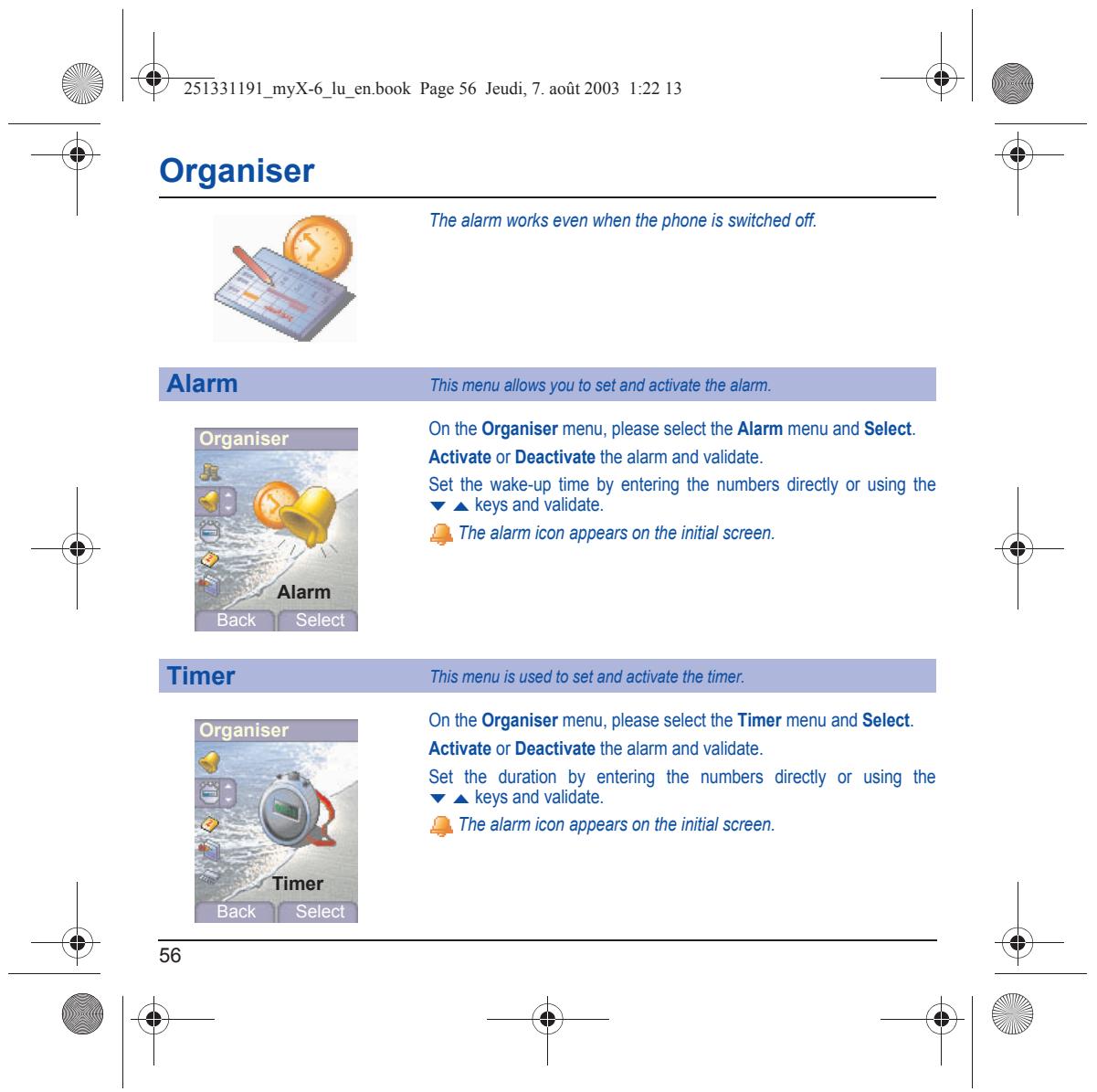
Li & 251331191_myX-6_lu_en.book Page 56 Jeudi, 7. août 2003 1:22 13 & | Éd Organiser The alarm works even when the phone is switched off. On the Organiser menu, please select the Alarm menu and Select. Activate or Deactivate the alarm and validate. Set the wake-up time by entering the numbers directly or using the v A keys and validate. 4 The alarm icon appears on the initial screen. Organiser Éack | Select On the Organiser menu, please select the Timer menu and Select. Activate or Deactivate the alarm and validate. Set the duration by entering the numbers directly or using the + A keys and validate. 4 The alarm icon appears on the initial screen. Organiser Éack | Select + 1e
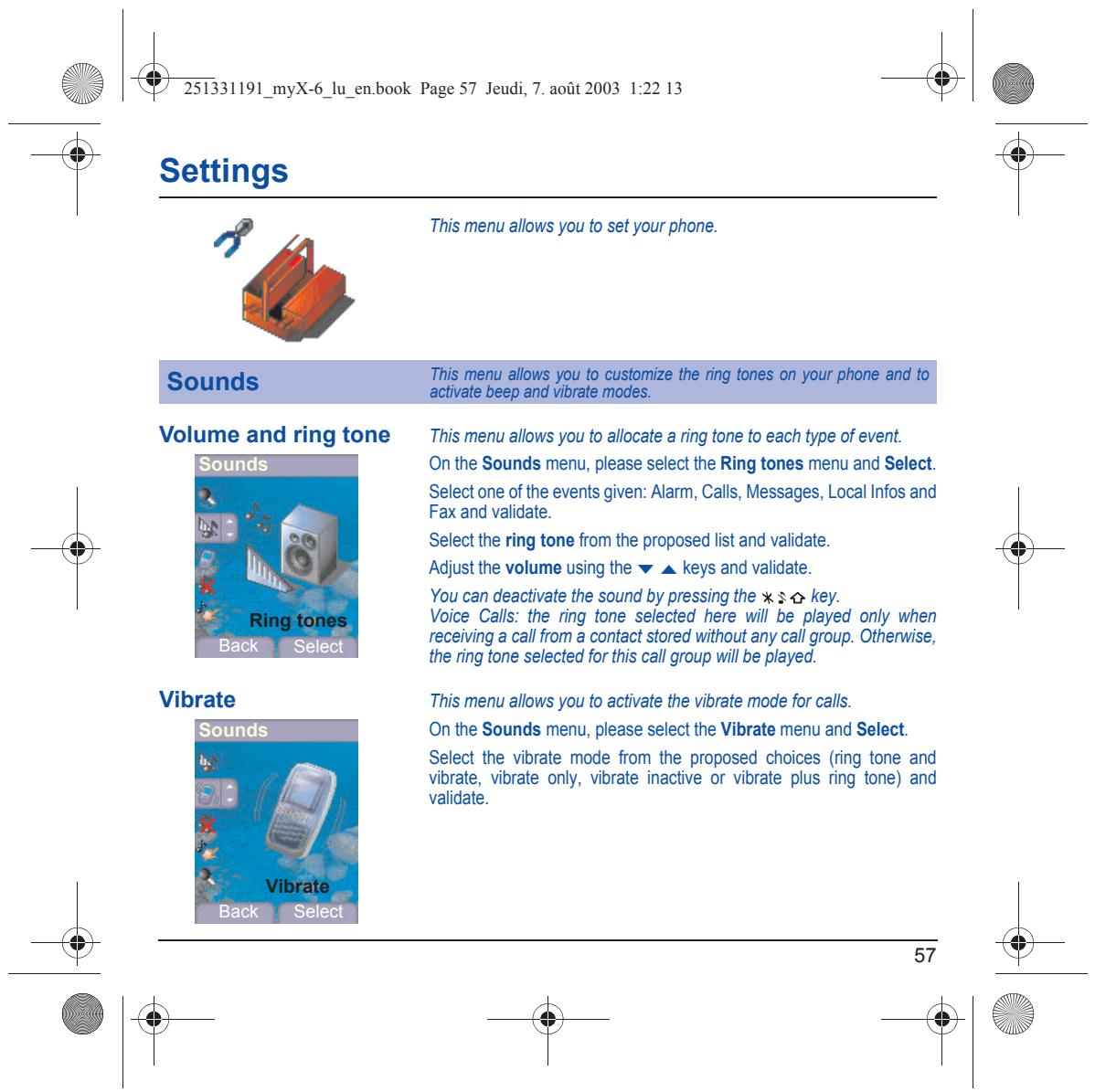
Li & 251331191_myX-6_lu_en.book Page 57 Jeudi, 7. août 2003 1:22 13 & | Éd Settings À This menu allows you to set your phone. Volume and ringtone This menu allows you to allocate a ring tone to each type of event. On the Sounds menu, please select the Ring tones menu and Select. Select one ofthe events given: Alarm, Calls, Messages, Local Infos and Fax and validate. M Select the ring tone from the proposed list and validate. im k Adjust the volume using the w a keys and validate. à You can deactivate the sound by pressing the x 5 key. Voice Calls: the ring tone selected here will be played only when receiving a call from a contact stored without any call group. Otherwise, the ring one selected for this call group will be played. Back Select Vibrate This menu allows you to activate the vibrate mode for calls. On the Sounds menu, please select the Vibrate menu and Select. Select the vibrate mode from the proposed choices (ring tone and vibrate, vibrate only, vibrate inactive or vibrate plus ring tone) and validate Back Select
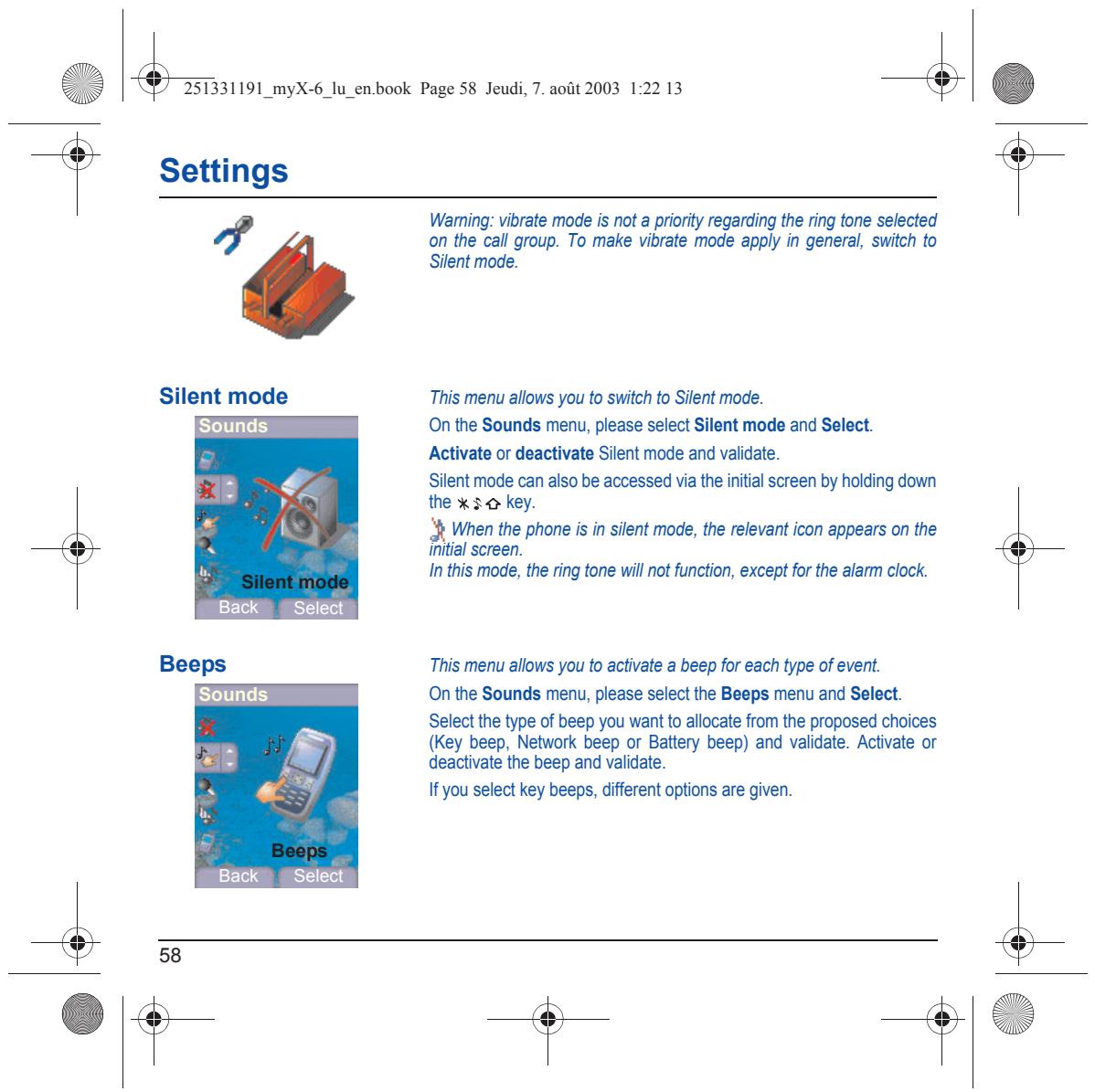
Li & 251331191_myX-6_lu_en.book Page 58 Jeudi, 7. août 2003 1:22 13 & | Éd Settings Waming: vibrate mode is not a priority regarding the ring tone selected LA on the call group. To make vibrate mode apply in general, switch to Silent mode. Silent mode This menu allows you to switch to Silent mode. On the Sounds menu, please select Silent mode and Select. Activate or deactivate Silent mode and validate. € Silent mode can also be accessed via the initial screen by holding doun Dé) the #50 key. f + When the phone is in silent mode, the relevant icon appears on the initial screen. In this mode, the ring tone will not function, except for the alarm clock. Back Select This menu allows you to activate a beep for each type of event. On the Sounds menu, please select the Beeps menu and Select. Select the type of beep you want to allocate from the proposed choices {Key beep, Network beep or Battery beep) and validate. Activate or deactivate the beep and validate. If you select key beeps, different options are given. Back Select + 1e
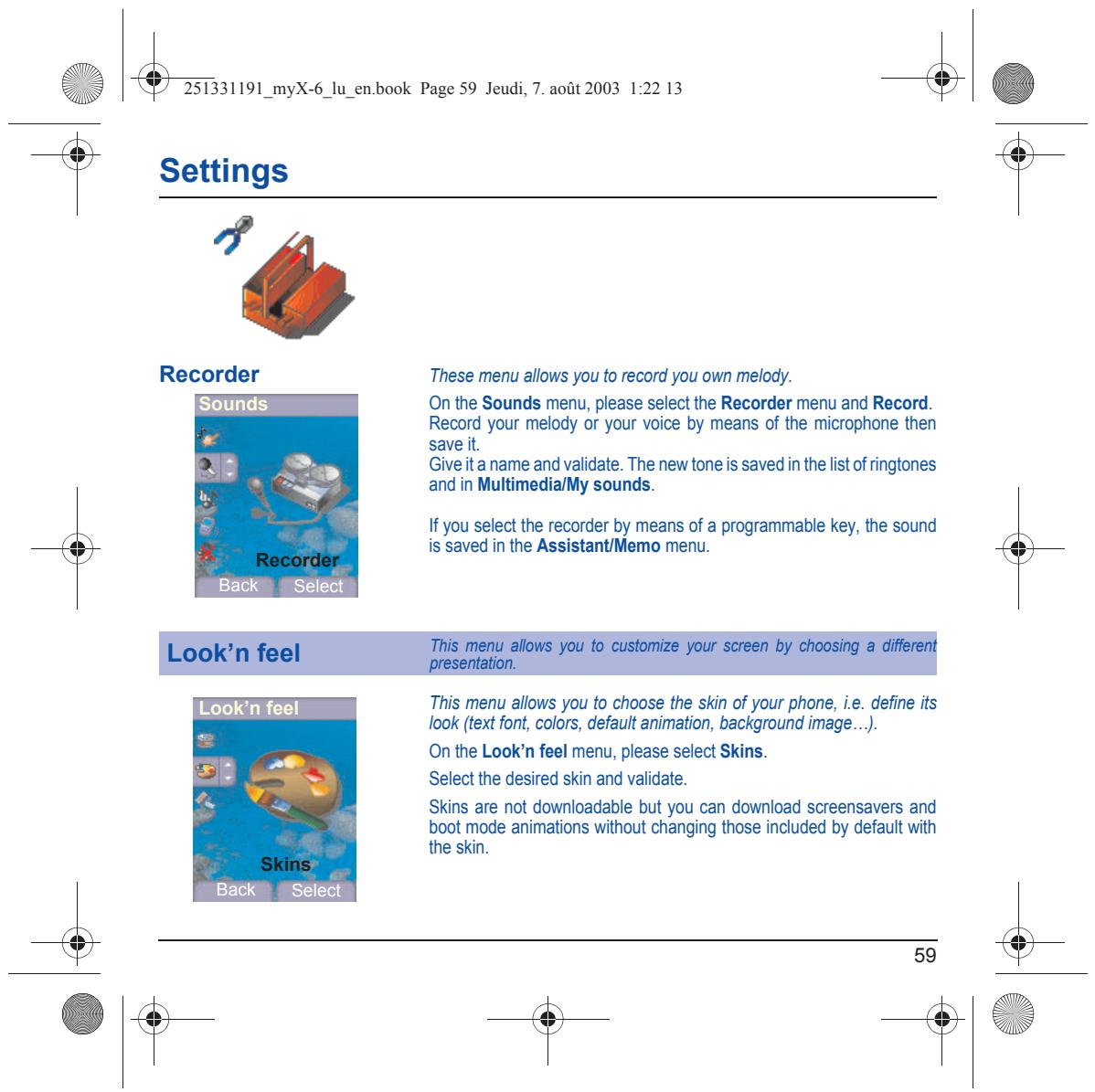
Recorder These menu allows you to record you own melody. On the Sounds menu, please select the Recorder menu and Record. Record your melody or your voice by means of the microphone then save Give ita name and validate. The new tone is saved in he list of ringtones and in Multimedia/My sounds. If you select the recorder by means of a programmable key, the sound is saved in the Assistant/Memo menu. Select LobkIntaEl This menu allows you to choose the skin of your phone, ie. define its Look (text font, colors, default animation, background image... On the Look'n feel menu, please select Skins. Select the desired skin and validate. Skins are not downloadable but you can download screensavers and boot mode animations without changing those included by default with the skin. Back Select
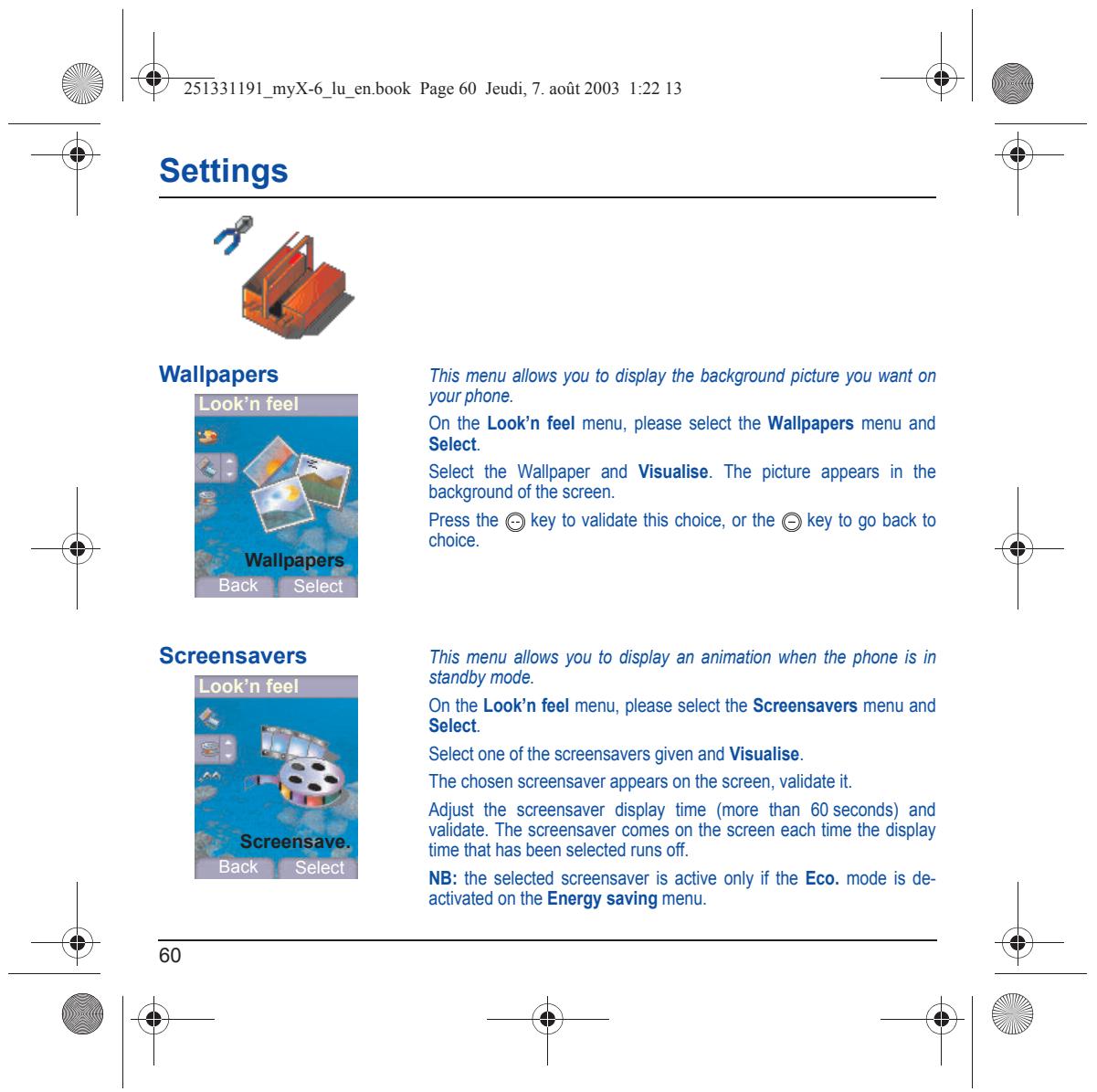
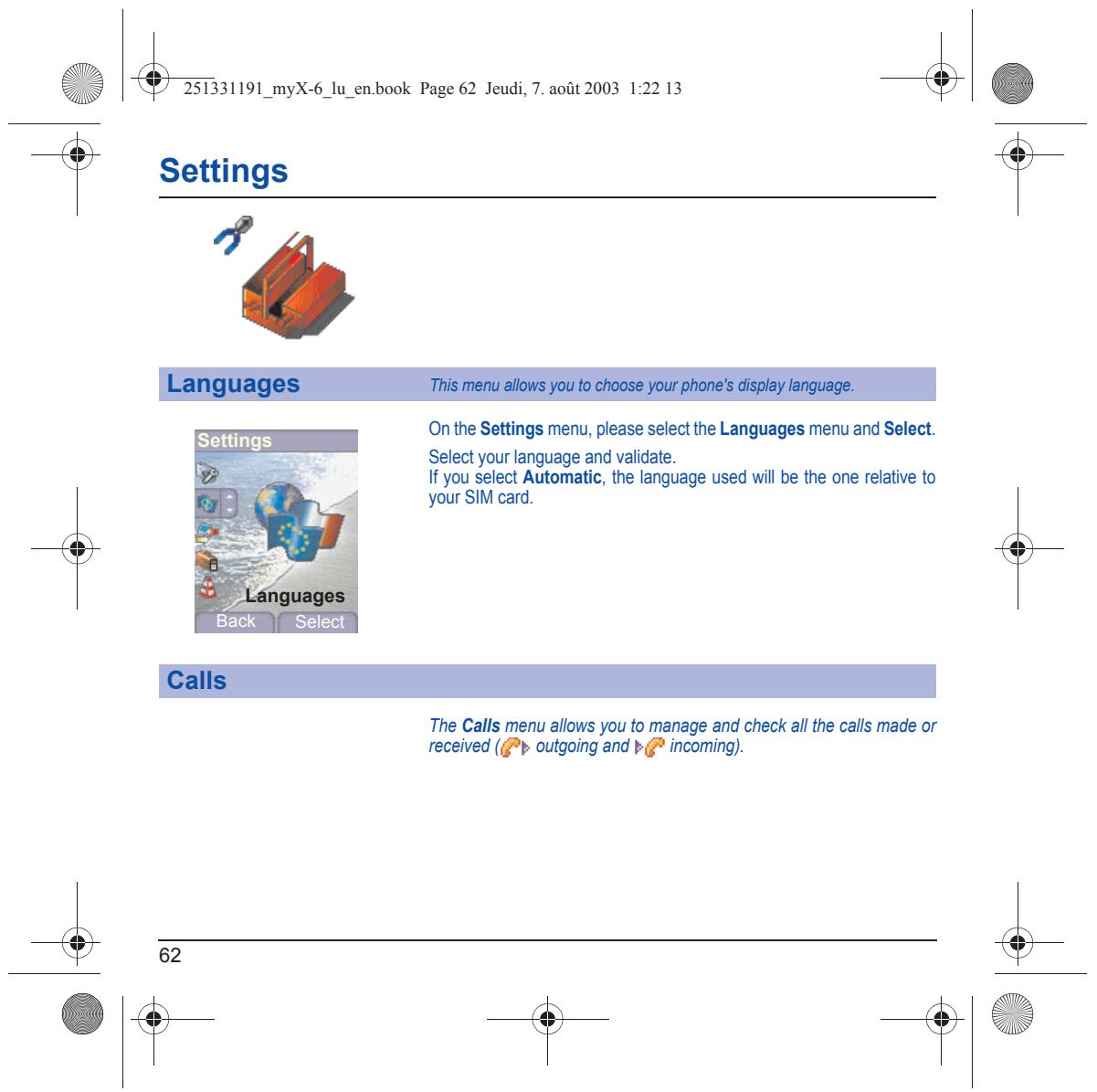
Wallpapers This menu allows you to display the background picture you want on Look'n feel your phone. On the Look'n feel menu, please select the Wallpapers menu and Select. Select the Walpaper and Visualise. The picture appears in the background of he screen. Press the €} key to validate this choice, or the € key to go back to choice. Back Select Screensavers This menu allows you to display an animation when the phone is in standby mode. On the Look'n feel menu, please select the Screensavers menu and Select. Select one of the screensavers given and Visualise. ‘The chosen screensaver appears on the screen, validate it. Adjust the screensaver display time (more than 60 seconds) and validate. The screensaver comes on the screen each time the display time that has been selected runs of. NB: the selected screensaver is active only if the Eco. mode is de- activated on the Energy saving menu. + 1e
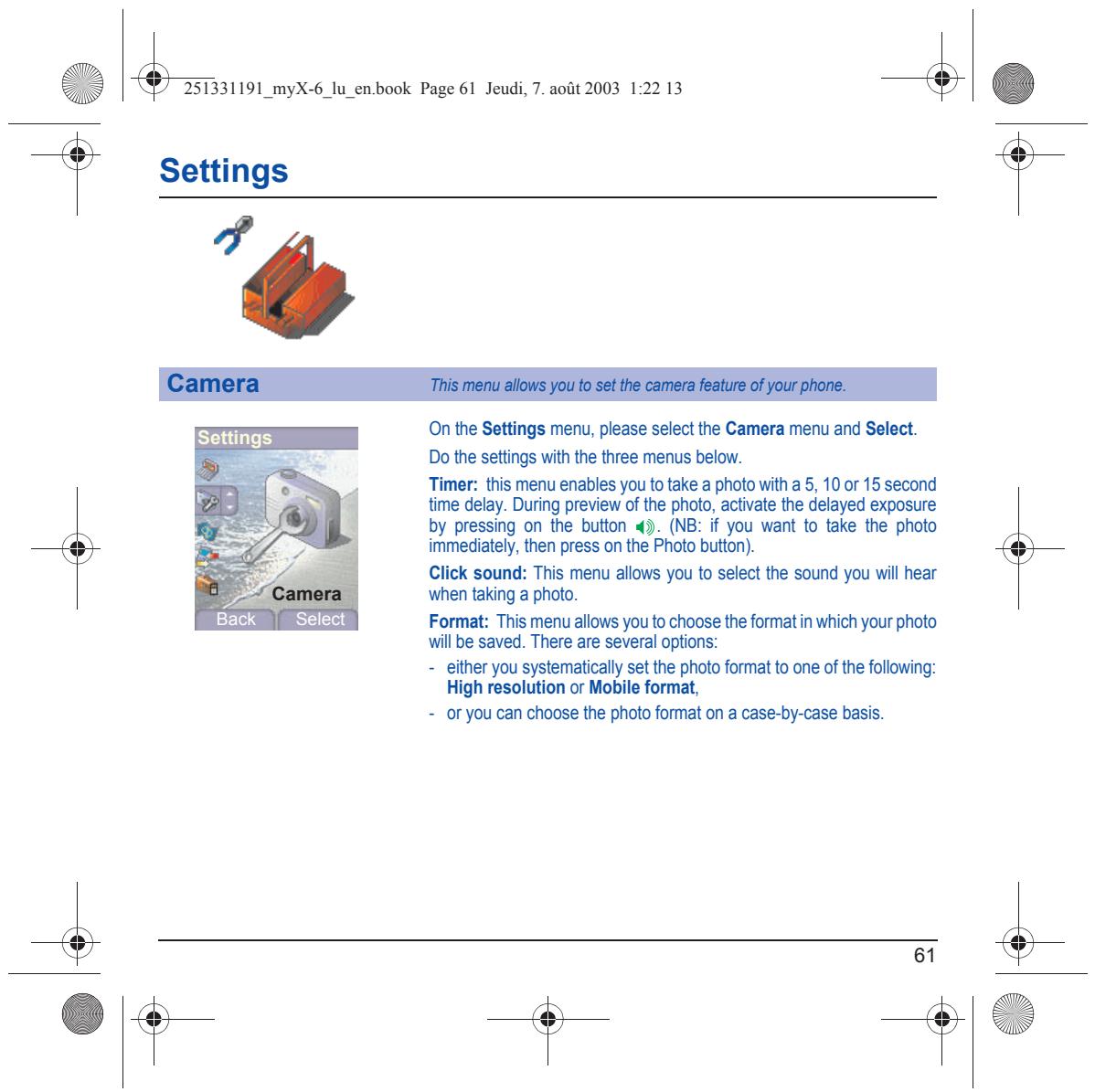
Li & 25331191 myX-6_lu_en.book Page 61 Jeudi, 7. août 2003 1:22 13 & | Éd Settings On the Settings menu, please select the Camera menu and Select. Do the settings with the tree menus below. Timer: this menu enables you to take a photo with a 5, 10 or 15 second time delay. During preview of the photo, activate the delayed exposure by pressing on the button 4. (NB: if you want to take the photo immediately, then press on the Photo bution). Click sound: This menu allows you to select the sound you wil hear when taking a photo. Back | Select Format: This menu allows you to choose the format in which your photo will be saved. There are several options: either you systematically set the photo format to one of the following: High resolution or Mobile format, -_ or you can choose the photo format on a case-by-case basis.
Back | Select The Calls menu allows you to manage and check all the calls made or received (+ outgoing and + & incoming). + + 1e
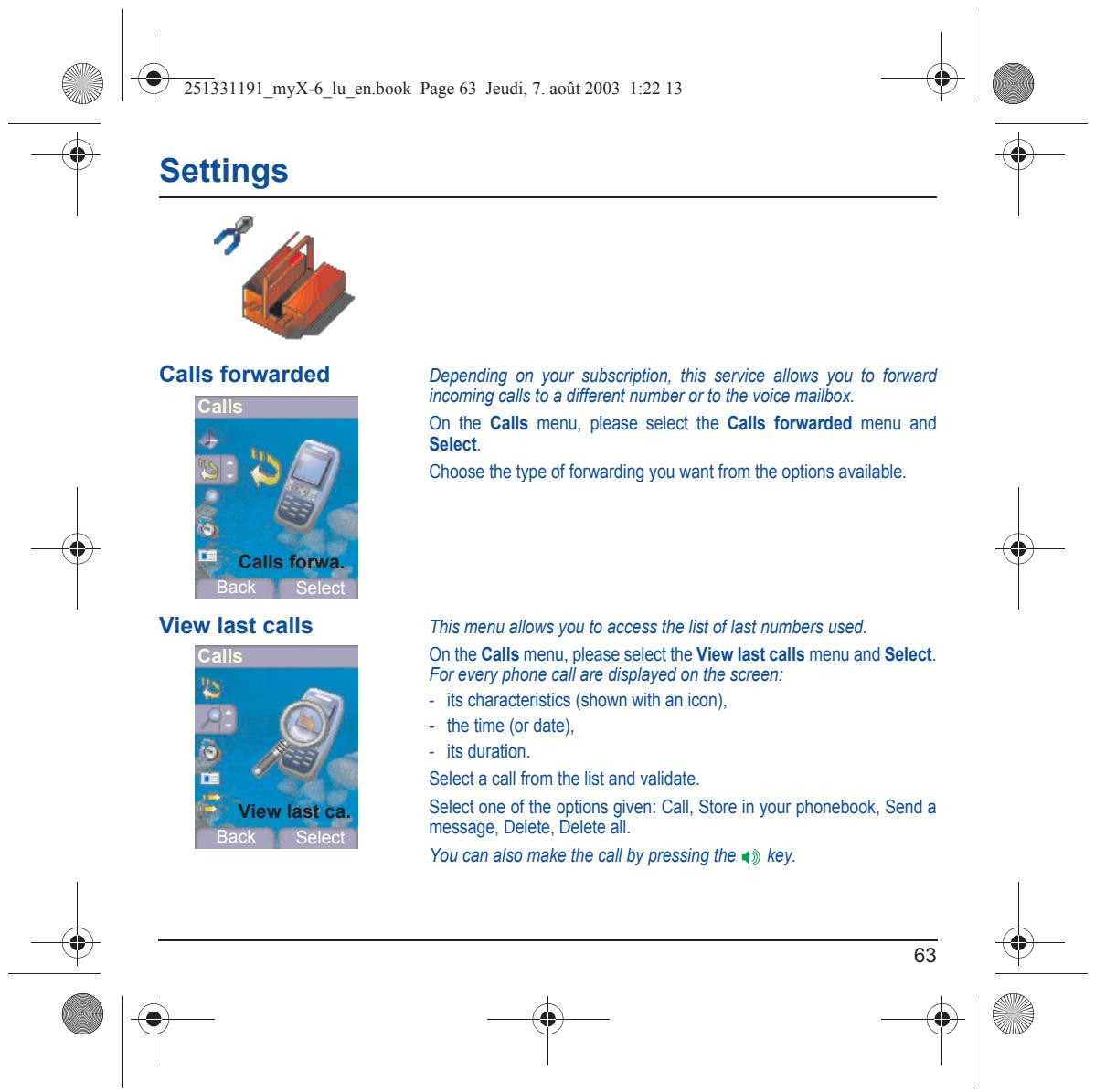
Calls forwarded Depending on your subscription, this service allows you to forward incoming call fo a different number or to the voice mailbox. On the Calls menu, please select the Calls forwarded menu and Select. Choose the type of forwarding you want from the options available. This menu allows you to access the list of last numbers used. On the Calls menu, please selectthe View last calls menu and Select. For every phone call are displayed on the screen: = its characteristics (shown with an icon), -_the time (or date), = its duration. Select a call from the list and validate. Select one of the options given: Call, Store in your phonebook, Send a message, Delete, Delete all. You can also make the call by pressing the 4ÿ key.
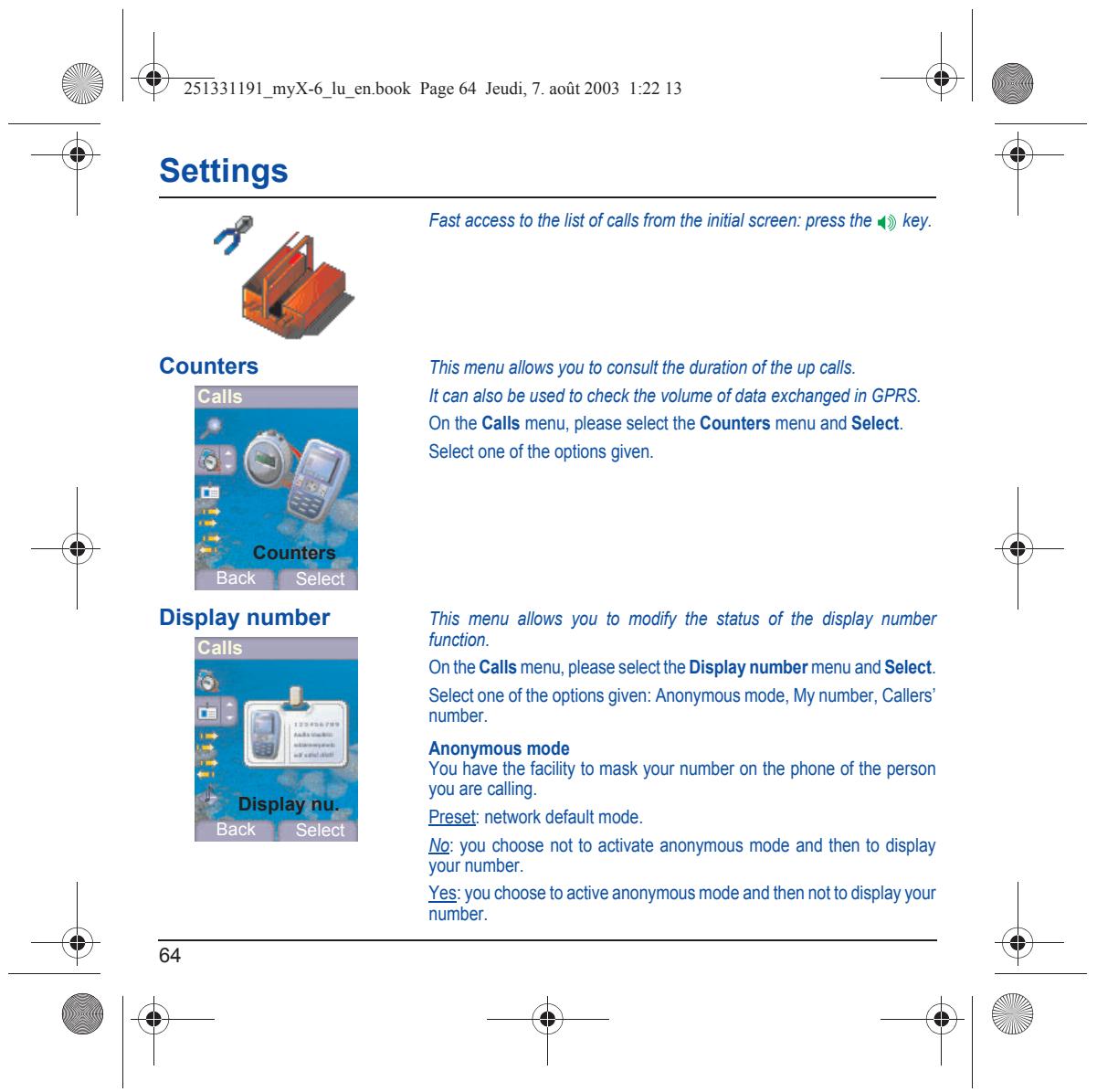
Li & 251331191_myX-6_lu_en.book Page 64 Jeudi, 7. août 2003 1:22 13 & | Éd Settings À Fast access to the list of call from the initial screen: press the 4ÿ key. Counters This menu allows you to consult the duration of the up call. It can also be used to check the volume of data exchanged in GPRS. On the Calls menu, please select the Counters menu and Select Select one of the options given. This menu allows you to modify the status of the display number function. Onthe Calls menu, please selectthe Display number menu and Select. Select one ofthe options given: Anonymous mode, My number, Callers' number. Anonymous mode You have the facility to mask your number on the phone of the person you are caling Preset: network default mode. No: you choose not to activate anonymous mode and then to display your number. Yes: you choose to active anonymous mode and then not t display your number.
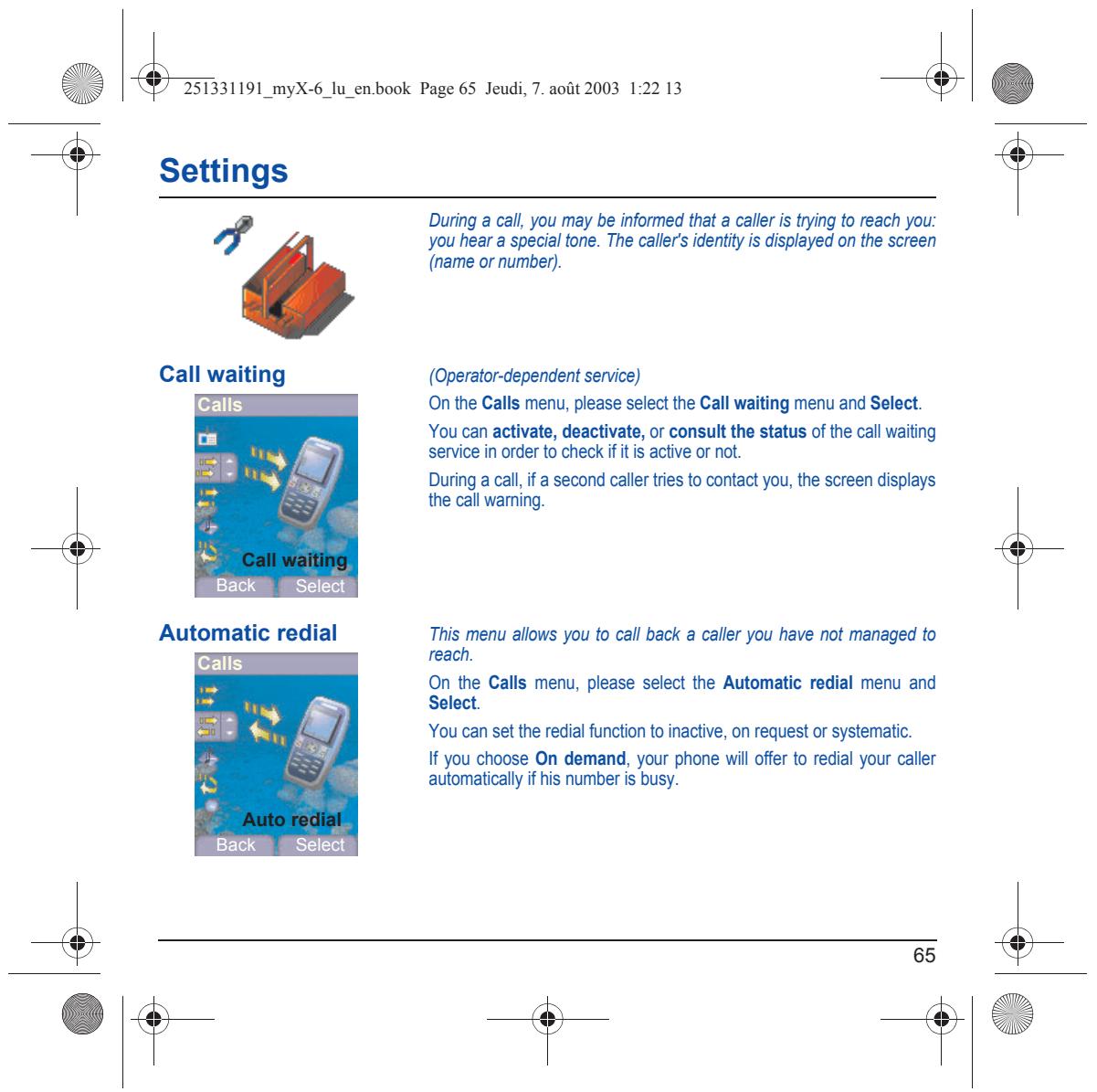
Li & 251331191_myX-6_lu_en.book Page 65 Jeudi, 7. août 2003 1:22 13 & | Éd Settings During a call, you may be informed that a caler is trying to reach you: LA you hear a special tone. The callers identity is displayed on the screen {name or number). Call waiting (Operator-dependent service) On the Calls menu, please select the Call waiting menu and Select. You can activate, deactivate, or consult the status of the call waiting service in order to check if itis active or not. During a cal, i a second caler tries to contact you, the screen displays the call waming. This menu allows you to call back a caler you have not managed to reach. On the Calls menu, please select the Automatic redial menu and Select. You can set the redial function to inactive, on request or systematic. If you choose On demand, your phone will offer to redial your caller automatically f his number is busy.
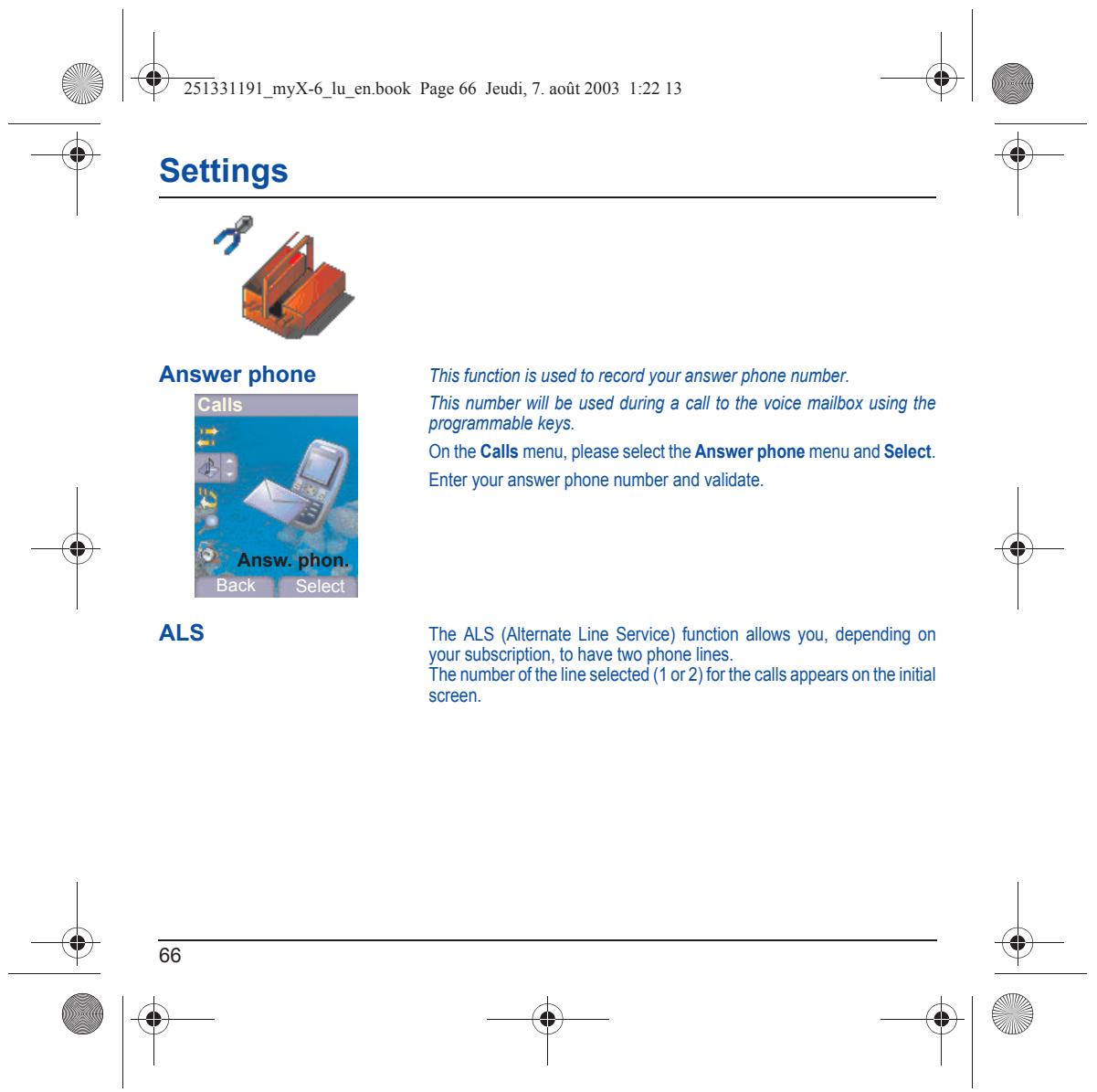
Answer phone This function is used to record your answer phone number. This number wil be used during a call to the voice maibox using the programmable keys. On the Calls menu, please selectthe Answer phone menu and Select. Enter your answer phone number and validate. The ALS (Altemate Line Service) function allows you, depending on your subscription, to have two phone lines. The number ofthe line selected (1 or 2) for the calls appears on the initial screen. + + 1e
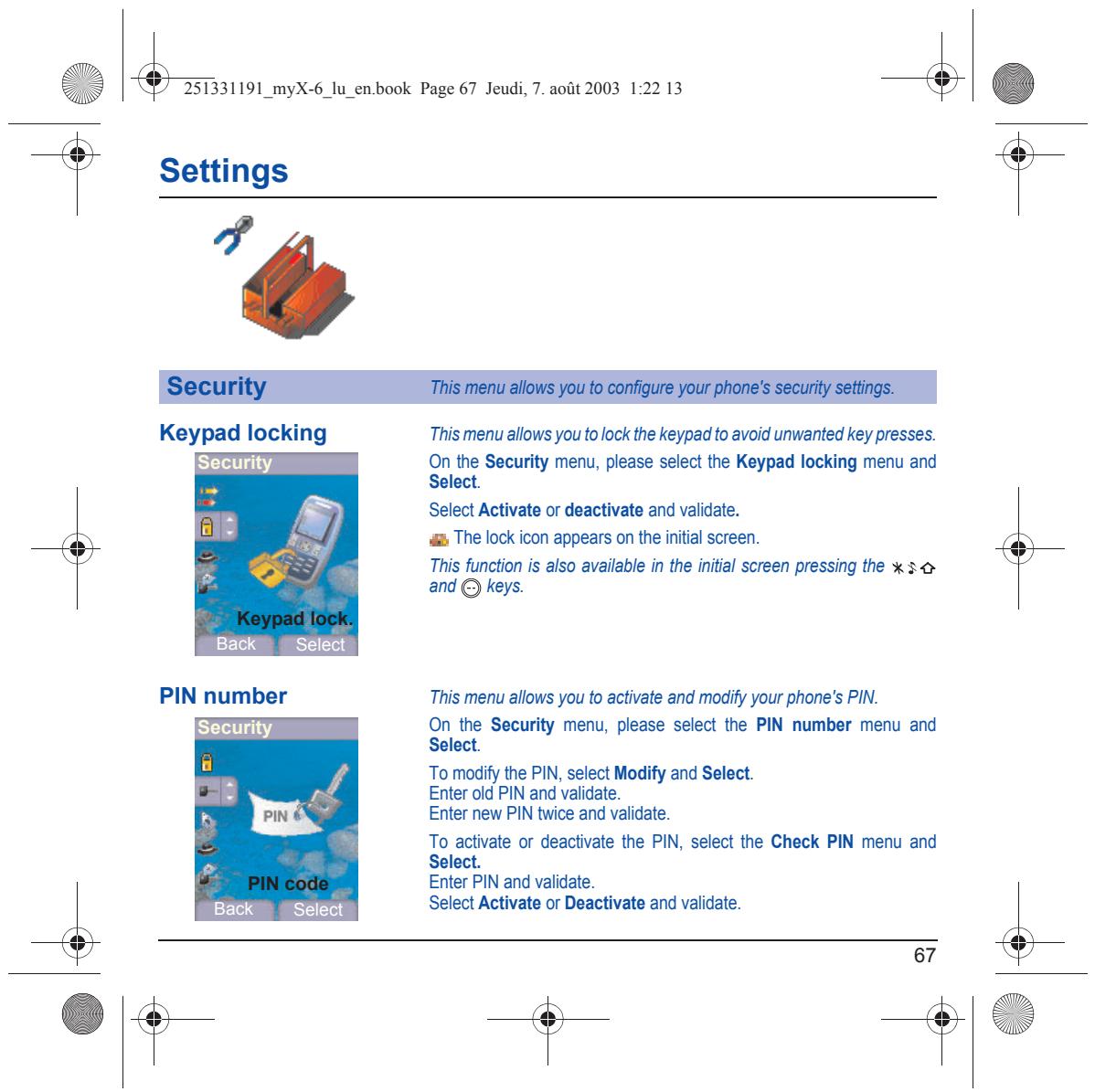
Keypad locking This menu allows you to lock the keypad to avoid unwanted key presses. On the Security menu, please select the Keypad locking menu and Select. Select Activate or deactivate and validate. The lock icon appears on the initial screen. This function is also available in the initial screen pressing the «50 and © keys. Select PIN number This menu allows you to activate and modify your phone's PIN. On the Security menu, please select the PIN number menu and Select. ‘To modify the PIN, select Modify and Select. Enter old PIN and validate. Enter new PIN twice and validate. To aclivate or deactivate the PIN, select the Check PIN menu and Select. Enter PIN and validate. Select Activate or Deactivate and validate. Back Select
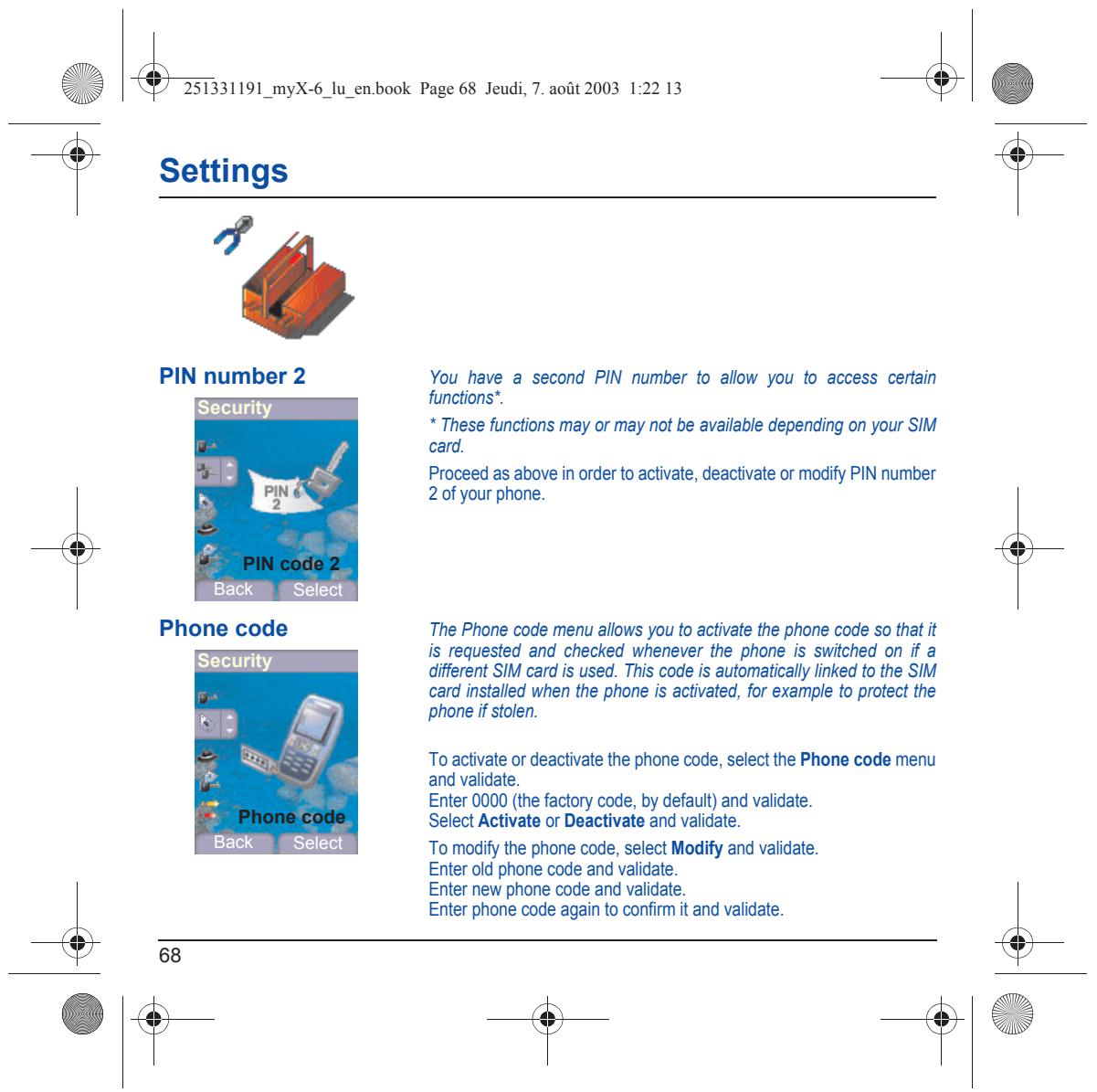
PIN number 2 You have a second PIN number to allow you fo access certain functions”.
- These functions may or may not be available depending on your SIM card. Proceed as above in order to activate, deactivate or modify PIN number 2 of your phone. Back Select Phone code The Phone code menu allows you to activate the phone code so that it is requested and checked whenever the phone is switched on if à diferent SIM card is used. This code is automatically linked to the SIM card installed when the phone is activated, for example to protect the phone if stolen. ‘To activate or deactivate the phone code, select the Phone code menu and validate. Enter 0000 (the factory code, by default) and validate. Select Activate or Deactivate and validate. Back Select To modify the phone code, select Modify and validate. Enter old phone code and validate. Enter new phone code and validate. Enter phone code again to confim it and validate. + + 1e
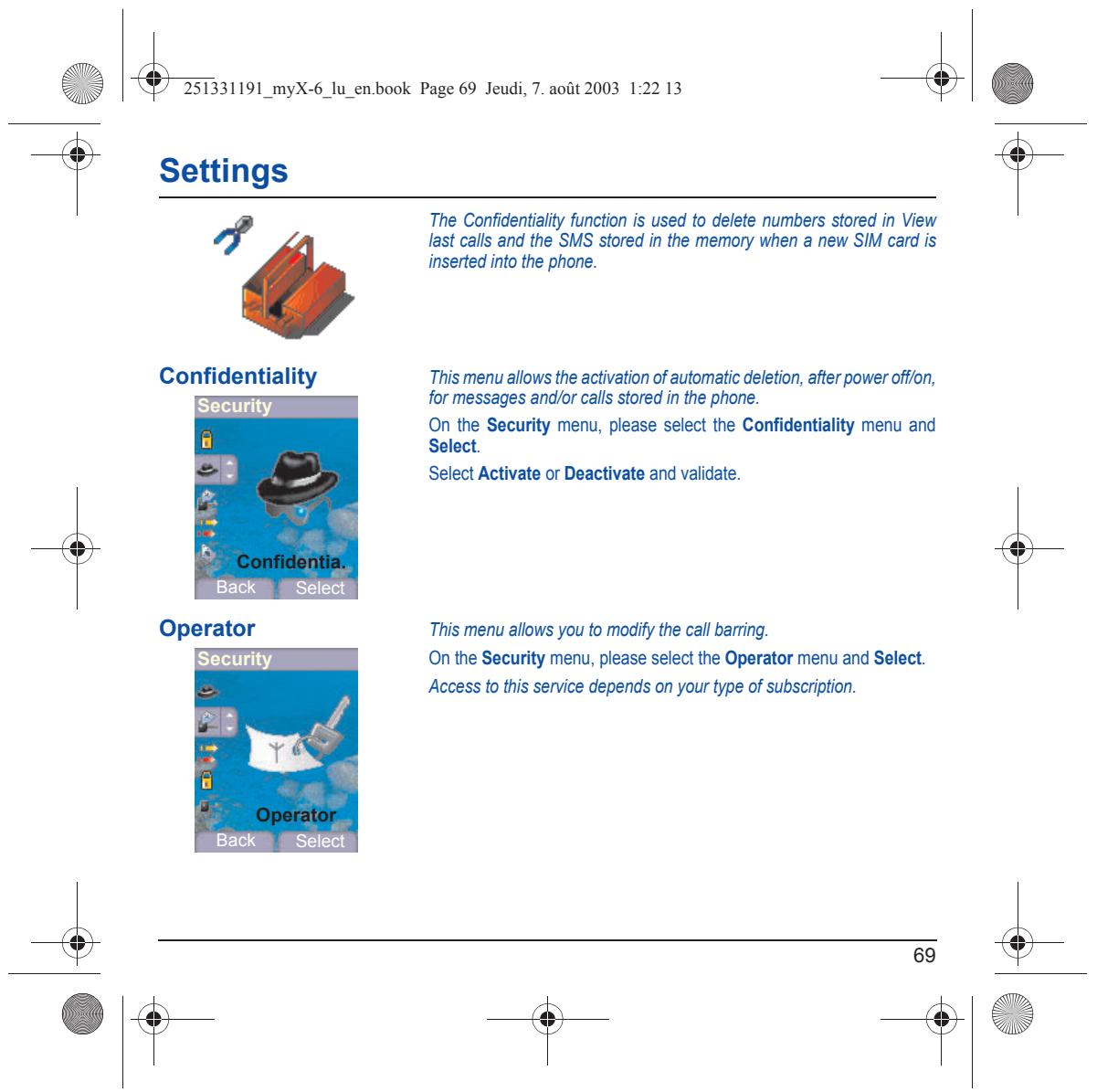
Li & 251331191_myX-6_lu_en.book Page 69 Jeudi, 7. août 2003 1:22 13 & | Éd Settings The Confidentialty function is used to delete numbers stored in View LA last calls and the SMS stored in the memory when a new SIM card is inserted into the phone. Confidentiality This menu allows the activation of automatic deletion, after power off/on, for messages and/or calls stored in the phone. On the Security menu, please select the Confidentiality menu and Select. Select Activate or Deactivate and validate. This menu allows you to modify the call barring. On the Security menu, please select the Operator menu and Select. Access to this service depends on your type of subscription.
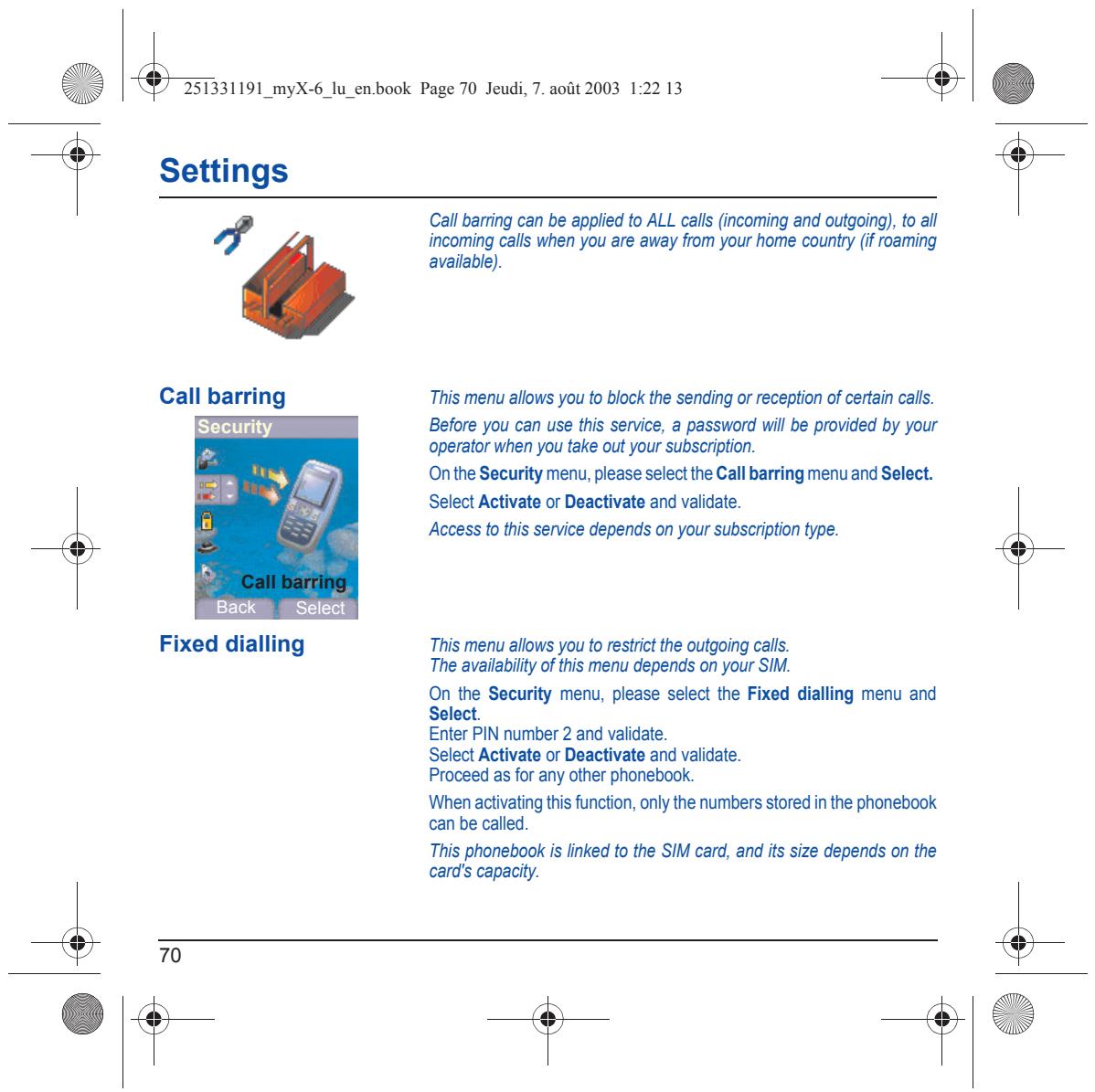
Li & 251331191_myX-6_lu_en.book Page 70 Jeudi, 7. août 2003 1:22 13 & | Éd Settings Call barring can be applied to ALL call (incoming and outgoing), to all LA incoming calls when you are away from your home country (if roaming available) Call barring This menu allows you to block the sending or reception of certain calls. Before you can use this service, a password will be provided by your operator when you take out your subscription. Onthe Security menu, please selectthe Call barring menu and Select. Select Activate or Deactivate and validate. Access to this service depends on your subscription type. Fixed dialling This menu allows you to restrict the outgoing calls. The availabilty of his menu depends on your SIM. On the Security menu, please select the Fixed dialling menu and Select. Enter PIN number 2 and validate. Select Activate or Deactivate and validate. Proceed as for any other phonebook When activating this function, only the numbers stored in the phonebook can be called. This phonebook is linked to the SIM card, and its size depends on the card's capacity.
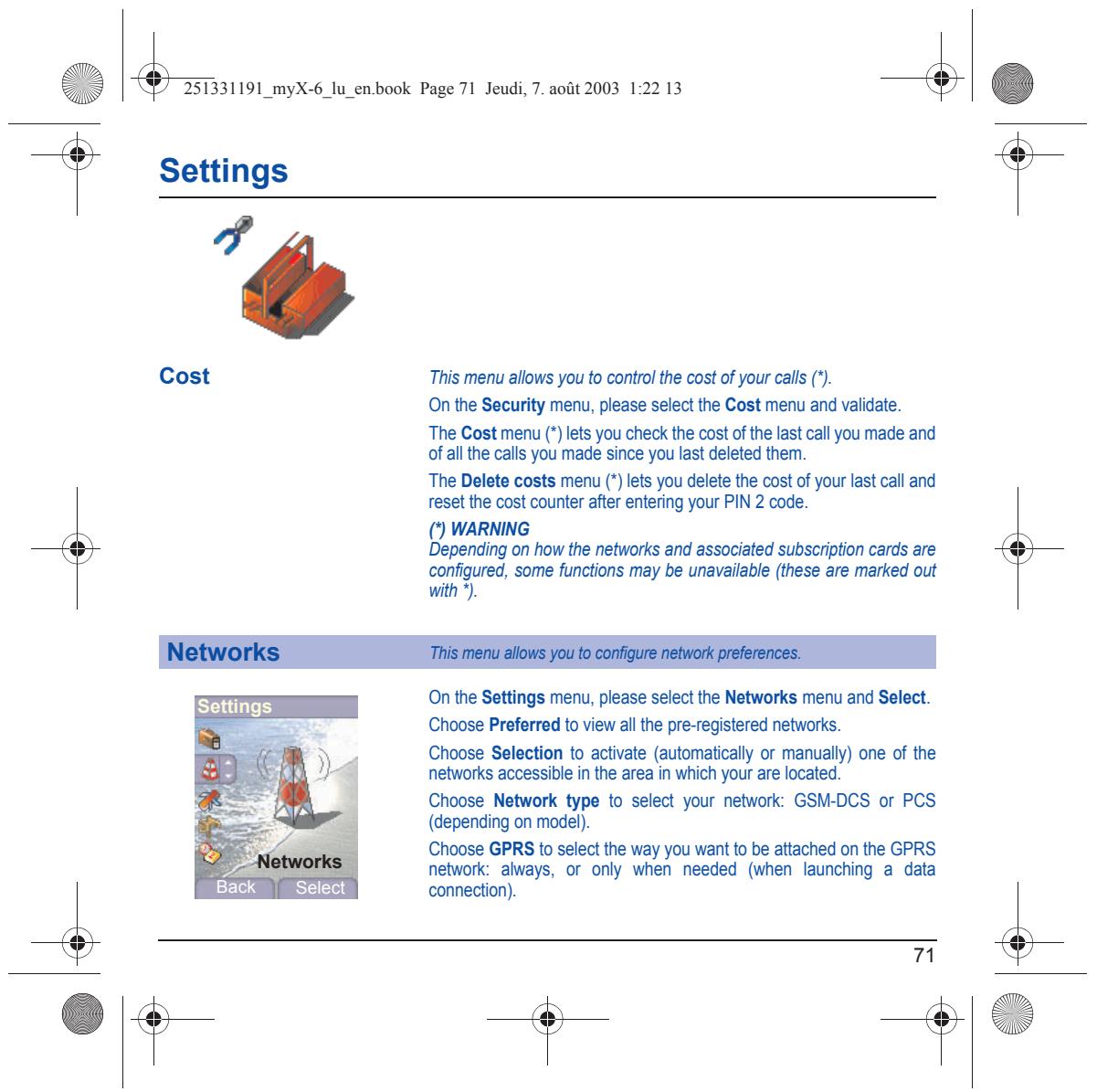
Cost This menu allows you to control the cost of your call () On the Security menu, please selectthe Cost menu and validate. The Cost menu (*) lets you check the cost ofthe last call you made and of al the calls you made since you last deleted them. The Delete costs menu (‘) lets you delete the cost of your last call and reset the cost counter after entering your PIN 2 code. () WARNING Depending on how the networks and associated subscription cards are configured, some functions may be unavailable (these are marked out with On the Settings menu, please select the Networks menu and Select. Choose Preferred to view all the pre-registered networks. Choose Selection to activate (automatically or manualy) one of the networks accessible in the area in which your are located. Choose Network type to select your network: GSM-DCS or PCS (depending on model). Choose GPRS to select the way you want to be attached on the GPRS network: always, or only when needed (when launching à data Back Select connection).
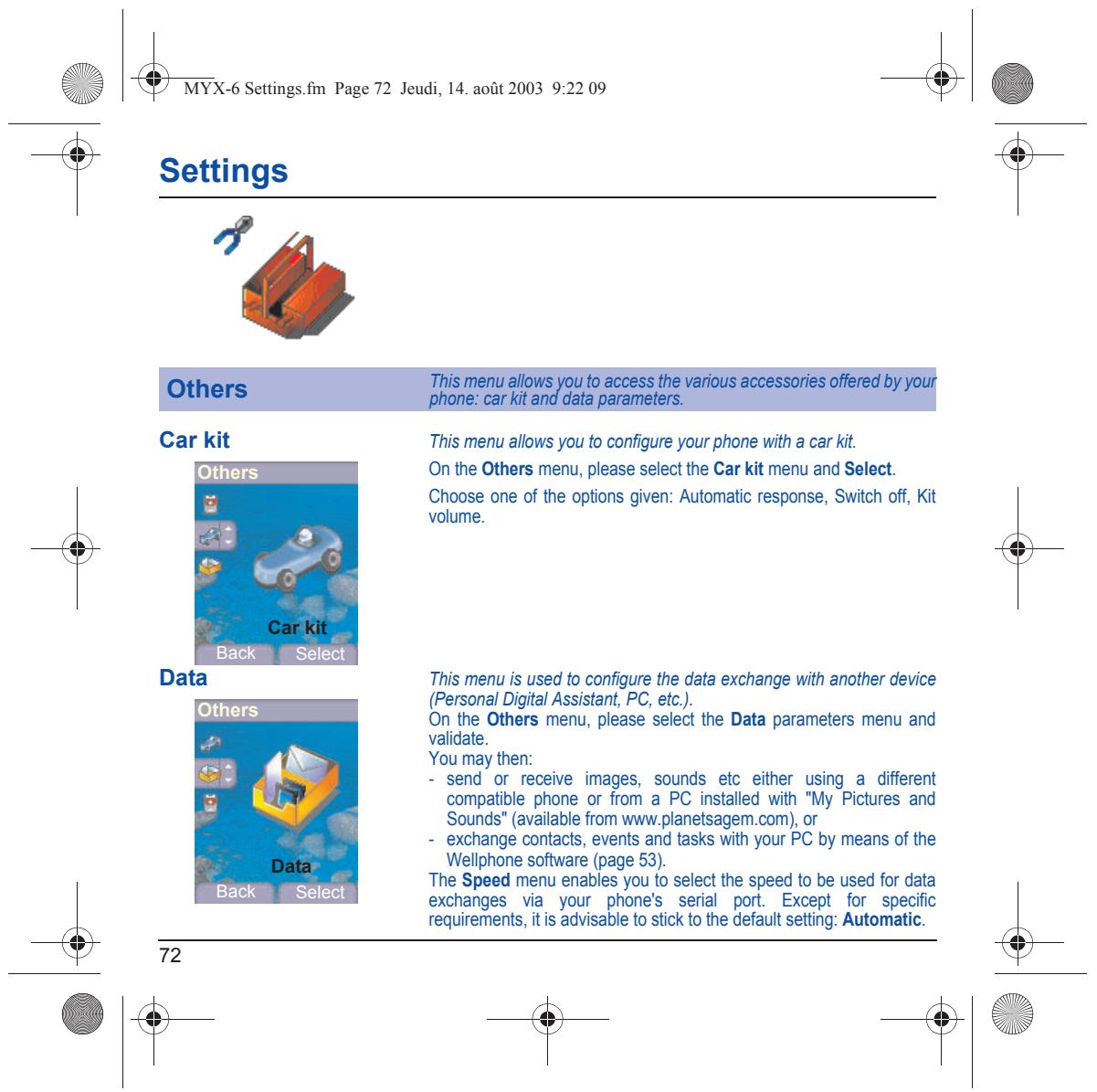
Li & MYX.6 Settings.fm Page 72 Jeudi, 14. août 2003 9:22 09 & | Éd Settings This menu allows you to configure your phone with a car Hit. On the Others menu, please select te Car kit menu and Select Choose one of the options given: Automatic response, Switch off, Kit volume. Back Select This menu is used to configure the data exchange with another device (Personal Digital Assistant, PC, ett.). On the Others menu, please select the Data parameters menu and validate You may then: - send or receive images, sounds etc either using a different compatible phone or from a PC installed with "My Pictures and Sounds” (available from www.planetsagem.com), or = exchange contacts, events and tasks with your PC by means of the Weliphone software (page 53). The Speed menu enables you to select the speed to be used for data exchanges via your phones serial port Except for specific requirements, itis advisable to stick to the default setting: Automatic: + 1e Back Select
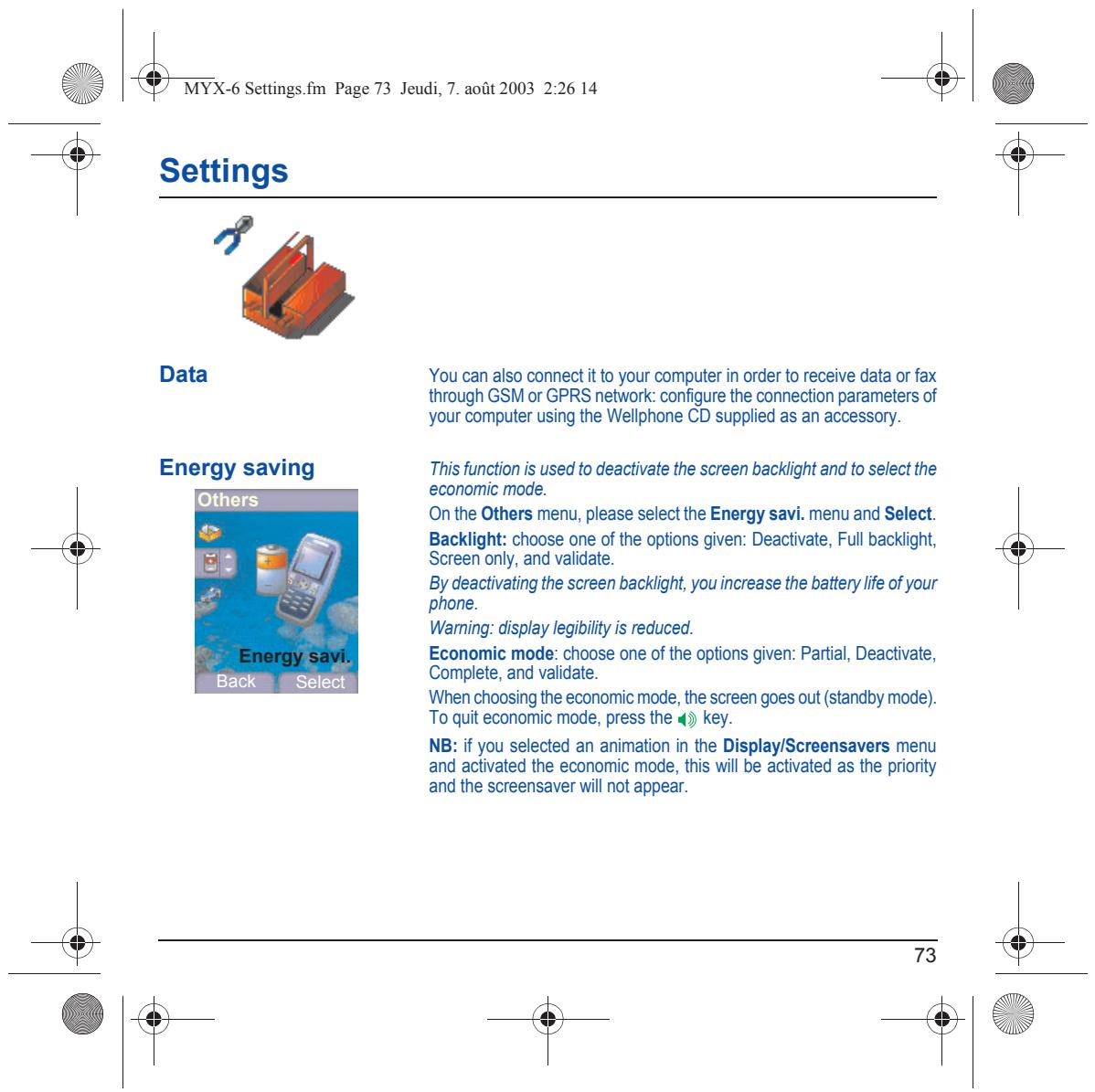
Data You can also connect it to your computer in order to receive data or fax through GSM or GPRS network: configure the connection parameters of your computer using the Wellphone CD supplied as an accessory. Energy saving This function is used to deactivate the screen backlight and to select the economic mode. On the Others menu, please select the Energy savi. menu and Select. Backlight: choose one of the options given: Deactivate, Full backight, Screen oniy, and validate. By deactivating the screen backight, you increase the battery life of your phone. Waming: display legibiity is reduced. Economic mode: choose one of the options given: Partial, Deactivate, Complete, and validate. ‘When choosing the economic mode, the screen goes out (standby mode). To quit economic mode, press the 4) key. NB: if you selected an animation in the Display/Screensavers menu and aclvated the economic mode, this wil be activated as the priority and the screensaver wil not appear.
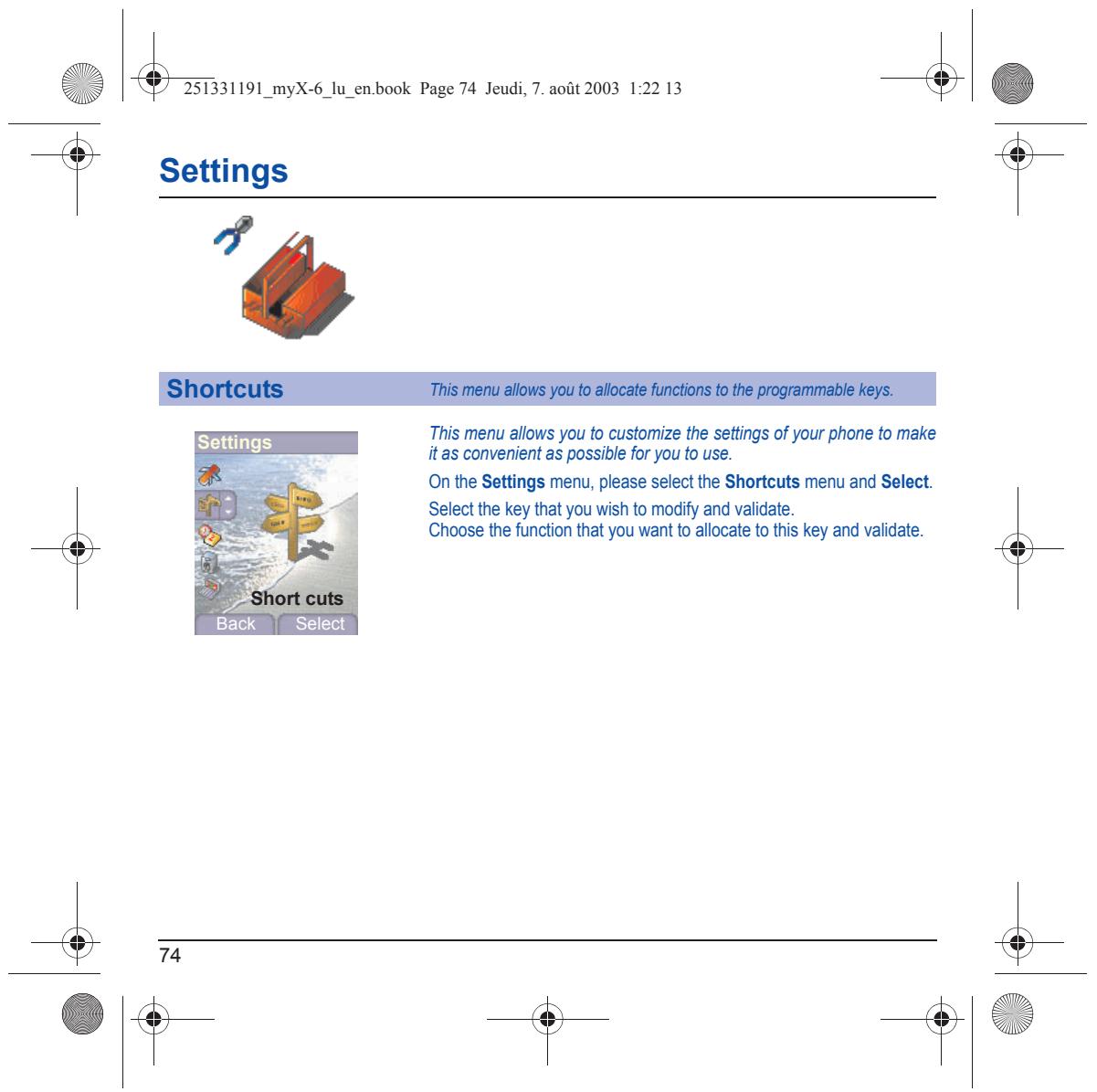
Li & 25331191 myX-6_lu_en.book Page 74 Jeudi, 7. août 2003 1:22 13 & | Éd Settings This menu allows you to customize the settings of your phone to make itas convenient as possible for you to use. On the Settings menu, please select the Shortcuts menu and Select. Select the key that you wish to modify and validate. Choose the function that you want to allocate to this key and validate. Back | Select
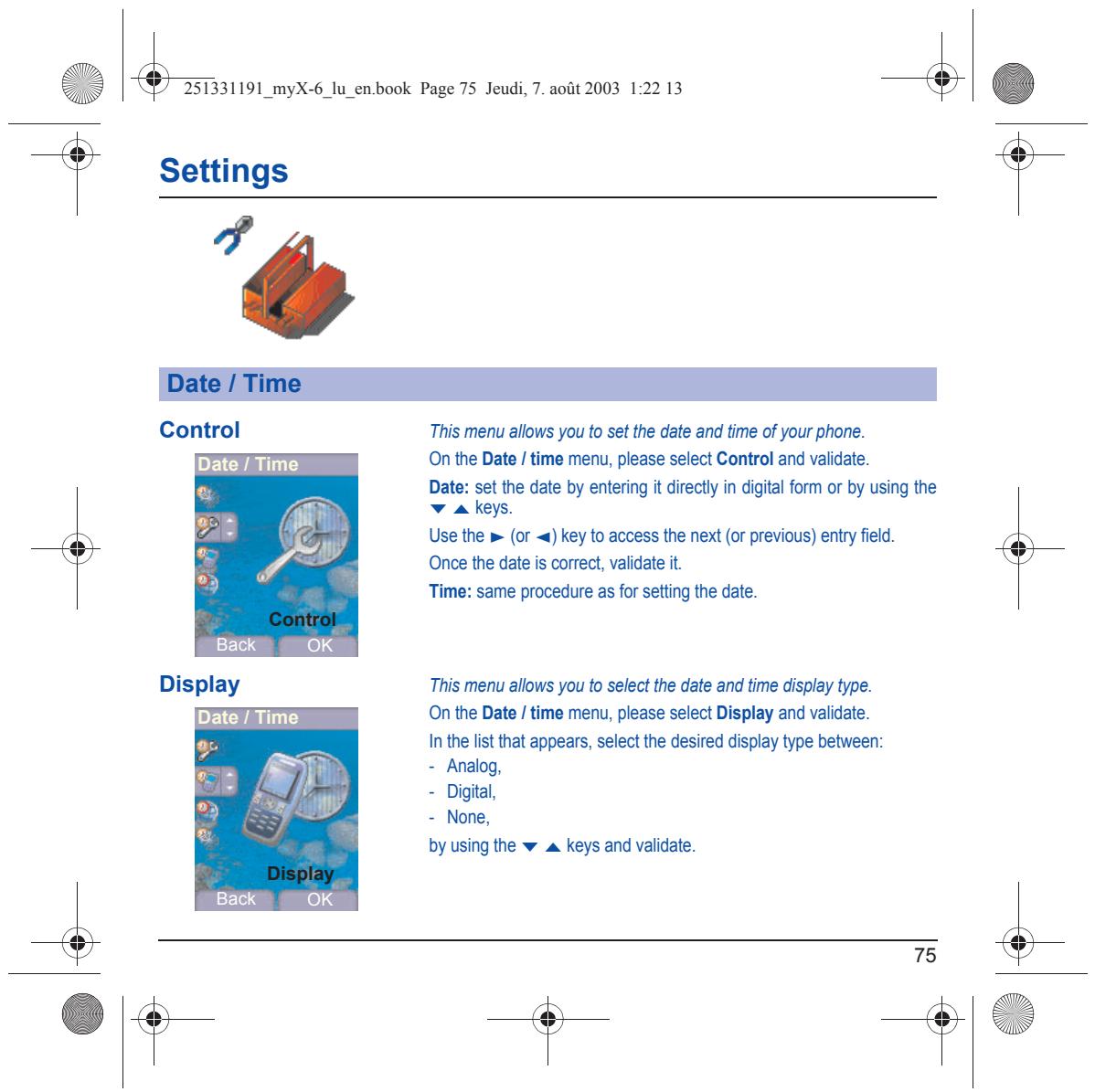
Control This menu allows you to set the date and time of your phone. On the Date / time menu, please select Control and validate. Date: set the date by entering it direct in digital form or by using the vakeys. Use the » (or ) key to access the next (or previous) entry field. Once the date is correct, validate it. Time: same procedure as for setting the date. This menu allows you to select the date and time display type. On the Date / time menu, please select Display and validate. In the lis that appears, select the desired display type between: = Analog, = Digital = None, by using the w a keys and validate.
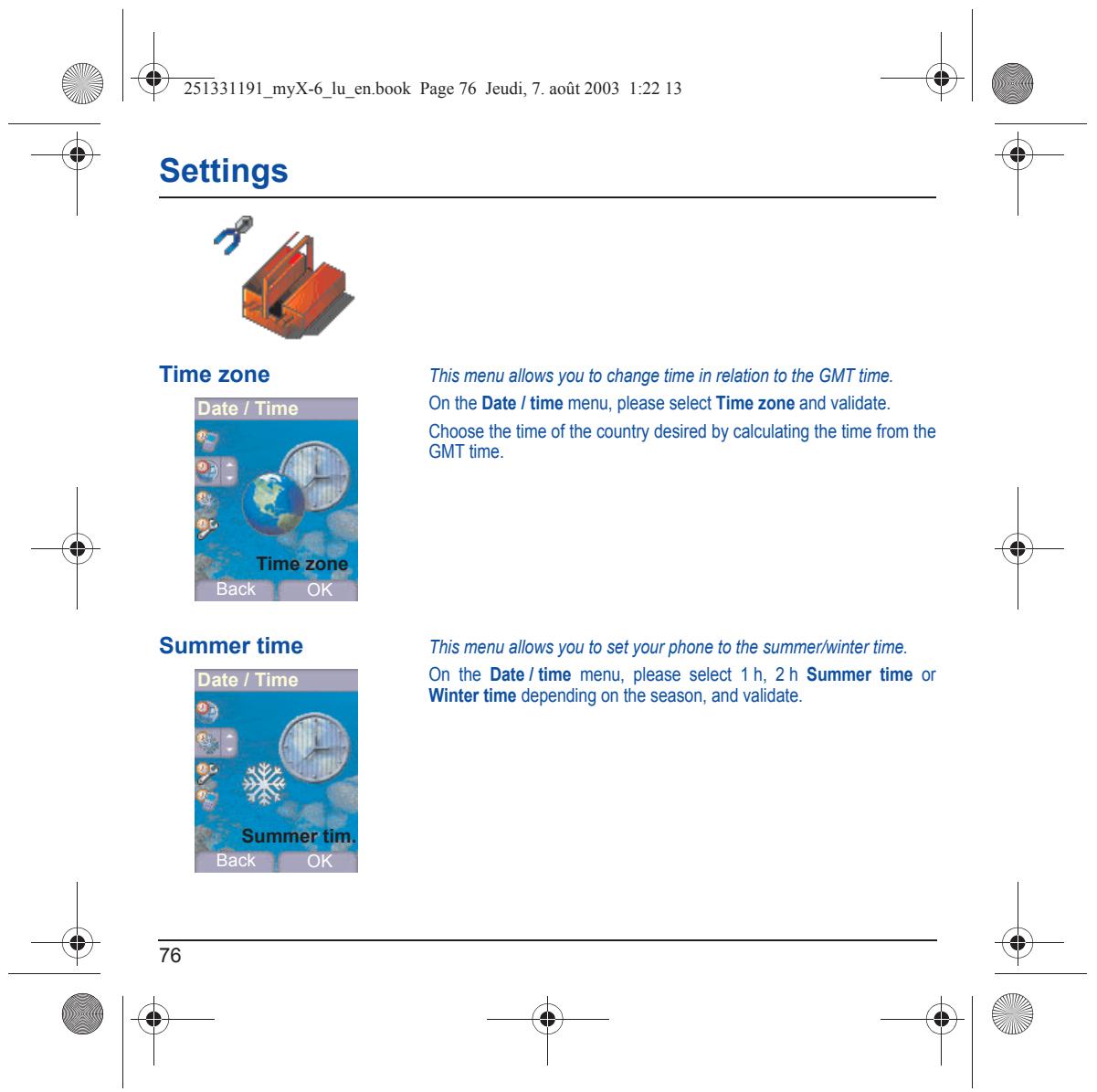
Time zone This menu allows you to change time in relation to the GMT time. On the Date / time menu, please select Time zone and validate. Choose the time of the country desired by calculating the time from the GMT time. This menu allows you to set your phone to the summer/winter time. On the Date /time menu, please select 1h, 2h Summer time or Winter time depending on the season, and validate. + 1e
Li En book Page 77 Jeudi, 7. août 2003 1:22 13 _4] Éd Services This menu allows you to access numerous services offered by your operator. The list of these services will appear in the menu depending on your subscription. On the Services menu, please choose from the list offered. This list depends on your SIM.
& Enr cr Page 78 Jeudi, 7. août 2003 1:22 13 _4] Éd Technical features Use of your phone is subject t safety measures designed to protect users and their environment. Electrical safety Only use the chargers listed in the manufacturers catalogue. Using any other charger may be dangerous; it would also invalidate your warranty. Line voltage must be exacty the one indicated on the charger serial plate raît safety When travelling by plane, you will need to switch your phone off when 50 instructed by the cabin crewr or the waming signs. Using a mobile phone maÿ be dangerous to the operation ofthe aircraft and may disrupt the phone network. Explosive materials Please comply with waming signs at petrol station asking you to switch your phone of. You will need to comp with radio equipment usage restrictions in places such as chemical plants, fuel depots and at any location where blasting operations are under way. Electronic medical equipment Your phone is a radio transmiter which may intefere with electronic medical equipment such as hearing aids, pacemakers, etc. our door orte manuftrers such equipment il be able to ve you any advice you may eg ni atea Aays make sur that your phone is suitched off in hospitals when so instructed by waming signs or by medical staf. Road safety Except in emergencies, do not use your phone when drving unless you have a hands-ree kit enabling you to manoeuvre freehy. In order to give your ul attention to dring, stop and park safely before making cal. You must comply with any current legislation. ‘This phone complies with European requirements governing exposure to radio waves. Your phone is a transmiterireceiver. lt has been designed and manufactured to comply with radiolrequency energy exposure limits recommended by the Council of the European Union and the ICNIRP for the entire population, These limits were established by independent scientific agencies on the basis of in-depth and reguiar evaluations of scientific studies. The lmis include a large safety margin that is intended to guarantee the safety of al, irespective of age or state of health The exposure standard fr phanes uses & uni of measure caled ne SAR. r Speao Absorion Rai. The SAR ii recommended by the Counol of the European Union and the ICNIRP is 2 Wkg ("}. lests were conducted on a standardised usage position basis, with the phone transmiting at is maximum level certfied in al its frequency bands. Although the standardised measurement is done at maximum power, the real SAR of the phone in use is generally very far below the maximum value. The phone was designed to operate at ne power level strict neces-sary to ensure communication with the network, In general, the closer you are to a base station, the lower the power at which the phone will transit Validation of confommity with European directive 1999/5 (directive R&TTE) is a pre-requisite for introducing any model of phone onto the market. Protection of health and he safety of the public and the user are a vital requirement of this directive. This models maximum SAR value measured in the conformity test is 0.65 Wikg. Although diferences may exist from one phone to the other and depending on position, all comply with European regulations, (°) The SAR limit or phones used by the general publi is 2 watts/kiogram (2 Wkg) on average for 10 g of issue. This value includes à large safety margin to increase profection and to take account of the variations in measurements. The SAR information may vary in diferent parts of the world, depending on declared national requirements and the frequency bands used by the network.
Li Enr cr Page 79 Jeudi, 7. août 2003 1:22 13 _4] Éd Warranty Usage precautions Your phone allows you to download ring tones, icons and animated screensavers. Some of these items may contain data that may cause malfunctions of your phone or data losses (virus for example), For this reason, SAGEM SA reject al responsibility conceming (1) the reception of dounloaded data or losses ofthe said data, {21 the impact on the operation ofthe phone and (3) damages resulting from receiving the said dounloaded data or loss of said data. In addition, SAGEM SA states that a failure caused by receiving downloëded data that do not comply with the speciications set by SAGEM SA is excluded from the warranty. Consequentÿ, the diagnosis and repair of a phone ifected by the said downloaded data will be at the expense of the customer. Warranty conditions Whenever you wish to make use of the warranty, please contact your vendor and present him with the purchasing paperwork that he gave you Ha fault occurs, he wi advise you
‘The new phone (excluding consumables), including new accessories bundied with the phone, are quaranteed by SAGEM SA, parts and labour (apart from travel) against any manufacturing fau fr a period of twelve (12) months with effect from the sale ofthe phone by SAGEM SA to the customer, on presentation of the paperwork stating the purchase date of the phone. Phones that have been repaired or replaced as standard during the warranty period stated above are guaranteed (parts and Tabour) until the later of these two dates: Expiry of the guarantee period of tmelve (12) months stated above or three (3) months with effect from the support provided by SAGEM SA In any disputes, he phone is covered by the legal warranty against the consequences of fault or hidden defects in compliance with articles 1641 and subsequent of the French civil code.
All fauity phones under warranty wil be replaced or repaired free of charge at SAGEM SA option (uith the exclusion of repair f any her damage) once i has been specñed that te uk required for ie application te warranty vil be done a workshop and that he retum costs (ranspor and insurance) of the phone t the address to be indicated toi by the SAGEM SA gfersals see, ose phone number ul appear on tr devery note, il be chamged te customer. Subject to essential legal provisions, SAGEM SA does not accept any warranty, explcit or mplct, other than the warranty provided expressiy in this chapter, nor shall SAGEM SA accept responsibility for any immateral and/or indirect damages (such s loss of orders, loss of profit or any ofher financial or commercial damage) under he warranty or not.
‘The acceptance of a phone under warranty demands that a purchase document hat legible and without modi-cation,stating vendors name and address, date and place of purchase, type of phone and IMEI, are aftached to the warranty, and that the information on the phone identification label legible and that this label or any other seal has not been tampered with ‘The warranty apples in normal conditions of use. Prior to sending the phone for repair, ii the customers responsibility to backup at his expense the customized data stored in the phone (phonebook, settings, wallpapers). À ist of backup faclties can be provided by SAGEM SA on request. The responsibiiy of SAGEM SA cannot be nvoked if damage occurs to customer îles, programs or data, The information or operating elements and the contents offles wil not be re-instlled in any case in the event of loss, SAGEM SA may decide at option t repart phone vit eu or recandtoned arts, replace te phone it ne phone or, in any dispute, a phone in good working condition. During its work SAGEM SA reserves the facility to make, where necessary, any technical modifications to the phone where these modifications doe not adversely affect is initial purpose: Fauly parts to be replaced during a repair under warranty wil| become the property of SAGEM SA ‘The phone repair and standstil time during the warranty period may not lead to an extension of the warranty period as stated in are 1 above, provided no other vital provisions have been agree. ‘The application ofthe warrantyis subject to the ful payment ofthe sums due for the phone when the request for support is made.
The following are exciuded from the warranty: Breakdowns or malfunctions due to non-compliance with the installation and use instuctons, to an extemal cause of the phone {hoc lightning fre, vancalism, malice, water damage of any type, contact with various iquis or any harmful agent, unsutable Sat uen. t modifications one phone made uitioutine uit consent SAGEM SA 1 seriong fut as described in the documentation supplied with the phone, to lack of supervision or care, to poor environmental conditions of the phone {especialy temperature and hygrometry, effects of variations in electic voltage, interference from the mains network or earth) or even due to arépair, a cal-out (opening or trying to open the phone) or to sericing done by personnel not approved by SAGEM Damage resuïing from inadequate packaging andior poor packing of the phone sent back to SAGEM SA. Normal wear and tear ofthe phone and accessories, Communication problems linked with a poor environment, especially Problems accessing and/or logging onto the Internet, such as breakdowns of the access network, the failure of the subscribers or hi correspondent line, transmission fault (poor geographic coverage by radio transmiters, iterference, disturbance, fai- lure or poor quality of phone lines... a faut inherent to the local network (cablng, fie server, user phone) andior transmission network faut (interference, isturbance, failure or poor quality of the network... Change of parameters of the cellular network made after the phone was sold Supply of new software versions. Current servicing work: delivery of consumables, installation or replacement of these consumables. Calkouts for phone or software modified or added without the written consent of SAGEM SA.
Li En book Page 81 Jeudi, 7. août 2003 1:22 13 _4] Éd Warranty Faut or isrupions resulting from the use of products or accessories not compatible with the phone. Phones retumed to SAGEM SA without having complied with the retum procedure specii to the phone cove-red by this warranty ‘The opening or closing of a SIM operator key and cal-outs resulting in the non-operation ofthe phone resuling from the opening or losing of SIM operator key done without the agreement of he onginal operator.
inthe cases of warranty exclusion and of expiry ofthe warranty period, SAGEM SA shall draw up an estimate to be given to the customer for acceptance before any cal-out. The repair and camiage costs (there and back) given in ne accepted estimate will be changed to the customer. ‘These provisions are valid unless a special written agreement has been made with the customer. one of the provisions tums out t infinge a legally essential rule that consumers could have the benefit of under the national legislation, this provision wall not be applied, but all other provisions vil remain valid.
Itis impossible to switch Putit on charge for at least 15 minutes before switching it back on again the phone on Check if the battery icon is scrolling up and down. Iso, the phone is charging. I not, please take the charger out and put it back on again. Please check that the charging icon is scroling up and dou. I you stil cannot switch the phone on, please disconnect the charger, put it back on again and please repeat that manipulation several times. I the charging icon is still not scroling up and down, please contact your after-sales services. When the charging icon has stopped scroling up and down, the battery is charged. Battery status unknown The phone does not recognize the battery. Please check the position of the battery. LOW BATTERY This message is displayed when the battery becomes too weak. The phone switches itself off automatically. Put the phone on charge. SIM not present Check if the SIM card is present and property positioned / inserted. Check the condition of the SIM card. I damaged, please go back to the operators shop for advice. Contact your after-sales service if the message persists. Incorrect PIN code An incorrect PIN code has been entered. Be carefull Three incorrect PIN codes will block the SIM Card. SIM BLOCKED You have entered three incorrect PIN codes. Enter your PUK code to unblock your SIM Card. You must enter: **05*PUK'PIN*PIN# You must enter the PUK code (Personal Unblocking Key) given by your network provider. 40 errors wil permanentiy block your SIM Card. You must then contact your network provider to get a new one.
SIM LOCKED On network providers’ request, the handset can only be used with some types of SIM cards. This message means that the SIM card you are using does not ft with the phone. Take the SIM card out, and switch itback on. fthe message SIM not present appears on the screen, you wil need to check its compatbilty next to te place where you bought it. I not, please contact your after-sales service. No call connection Check that the number you have dialled is correct. I the letter R is displayed on the top right comer of the screen, without any network name displayed, only emergency services can be called. Check the status of your credit. Check that the SIM Card you are using offers the service you are requesting ; check ifits validity has not expired. Check and deactivate the outgoing calls restriction when necessary. The network could be saturated. Try later. Ifthe problem persists, please contact your Technical Helpdesk No receiving calls Try to make a cal in order to check that the phone and the networks are operational. Check and deactvate the permanent call fonwarding (permanent call forwarding icon displayed on the screen) Check and deactivate the incoming calls restriction when necessary. Ifthe problem persists, please contact your Technical Helpdesk Quality reception when calling Avoid placing your fingers on the top of the phone, where the aerial is integrated: the phone wil have to use ful strength to establish a quality transmission. Impossible to send message Check hat the message centre number is correctly entered. To do so, please select the menu Settings, select Calls, select Answer phone number and check the number entered. Please contact your network provider to get this number.
No answer phonebox Ifanswer phone icon flashing Wrong ring tone is played on call reception Backlight does not work In WAP context:
SERVER NOT ANSWERING
message Logon to home page impossible Operator name does not appear on screen How do l un)lock the keypad? How do | switch to silent mode? How do ! activate zoom? How do | delete the envelop that appears on the screen? 58] ACTIONS Check that the SIM card does offer this service. Program the call to be forwarded to answer phoneusing the information provided by the operator. Check that the SIM card used offers this service. Try to make a cal to check that phone and network are operational. Check if the answer phone number is properiy configured. To do so, go to the Calls menu, select Answer phone number and check the number. Otherwise, enter your operators answer phone centre number. Call the answer phone to make it disappear. Check the call group of the contact who has called: check the ring tone selected for this group. Go into the Settings / Others menu, select the Energy saving menu and activate backlight. Switch off and then switch phone back on. In the WAP menu, Clear the cache. Go into the Settings menu, select Networks, then Selection. Wait until the operator appears, select it and validate. Press the #50 key, then the €) key (validate). Hold the # so key doun unless ring tone sounds, when a short touch is enough Can be activated onty in SMS and WAP screens; hold doun the # ? key. I you have received a voice mail, please call your voice mailbox and follow the instructions given.
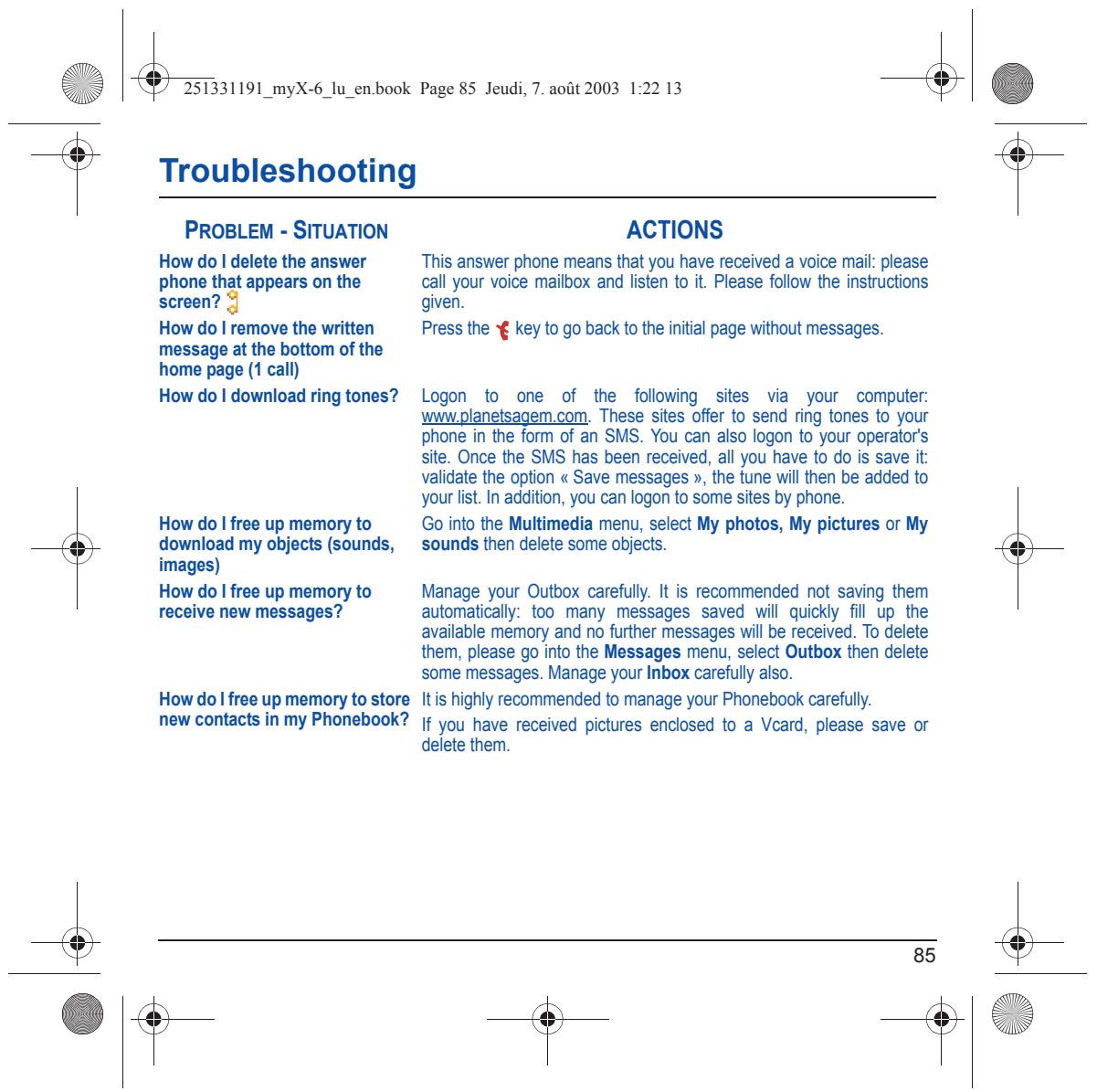
How do | delete the answer This answer phone means that you have received a voice mail: please phone that appears on the call your voice mailbox and listen to it. Please follow the instructions screen? given. How do I remove the written Press the %€ key to go back to the initial page without messages. message at the bottom of the home page (1 call) How do l download ringtones? Logon to one of the following sites via your computer wwplanetsagem.com, These sites offer to send ring tones to your phone in the form of an SMS. You can also logon to your operators Site. Once the SMS has been received, all you have to do is save it validate the option « Save messages », the tune will then be added to your ist. In addition, you can logon to some sites by phone. How do l free up memoryto Go into the Multimedia menu, select My photos, My pictures or My download my objects (sounds, sounds then delete some objects. images) How do l free up memoryto Manage your Outbox carefull. It is recommended not saving them receive new messages ? automatically: too many messages saved will quickly fil_up the available memory and no further messages will be received. To delete them, please go into the Messages menu, select Outbox then delete some messages. Manage your Inbox carefull also. How do | free up memory to store itis highly recommended to manage your Phonebook carefull. new contacts in my Phonebook? f you have received pictures enclosed to a Vcard, please save or delete them.
How can l increase the efficiency The most efficient actions are as follows: of my phone? You can deactivate the backlight (in the menu Others / Energy Saving), or please keep your phone safely in order to avoid pressing the keys umnecessariy: every time a key is pressed the screen lights up You can deactivate the screensaver or select the activation time to be more than every 300 s (the screensaver uses processing power). Make sure that you don't obstruct the antenna with your fingers when using the phone (see page 16). Press the 4} key.
ManualGo.com