D-VE45 - DVD player SONY - Free user manual and instructions
Find the device manual for free D-VE45 SONY in PDF.


User questions about D-VE45 SONY
0 question about this device. Answer the ones you know or ask your own.
Ask a new question about this device
Download the instructions for your DVD player in PDF format for free! Find your manual D-VE45 - SONY and take your electronic device back in hand. On this page are published all the documents necessary for the use of your device. D-VE45 by SONY.
USER MANUAL D-VE45 SONY
Portable VIDEO CD Player
Operating Instructions
تعليمات التشفيل

text_image
WALKMAN


D-VE45
Certain countries may regulate disposal of the battery used to power this product. Please consult with your local authority.
About the discs
This player can play the following discs:
• VIDEO CD
Disc logo


Contents Audio & video signals
- Audio CD
Disc logo

Contents Audio signals only
There are 2 types of CDs in size — 12 cm and 8 cm. Their longest play time is 74 and 20 minutes respectively. The actual play time, however, varies among the CDs.
About CD-Rs
This CD player can play CD-Rs recorded in the CD-DA* and Video CD format, but playback capability is depending on the quality of the media and the condition of the recording device.
* CD-DA is the abbreviation for Compact Disc Digital Audio. It is a recording standard used for the Audio CDs.
Note on VIDEO CDs
This player conforms to Version 1.1 and 2.0 of VIDEO CD standards. You can enjoy two kinds of playback according to the CD type.
| Disc type | You can |
| VIDEO CDs without PBC functions (Version 1.1) | Enjoy video playback (moving pictures) as well as music. |
| VIDEO CDs with PBC functions (Version. 2.0) | Play interactive software using menus displayed on the TV screen, in addition to the video playback function. Also play high-resolutive still pictures. |
About this manual
Conventions
- Controls in the instructions are those on the player; these may, however, be substituted by controls on the wireless remote commander that are similarly named or, when different, appear in the instructions within parentheses.
- The following icon is used in this manual:

Indicates a procedure that requires use of the wireless remote commander.
Table of Contents
Getting started
Locating the controls 4
Playing a VIDEO CD
- Connect your player. 8
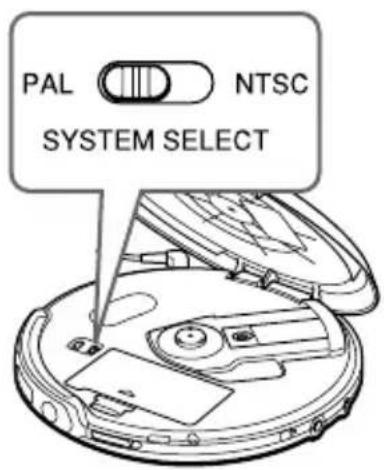
- Set the NTSC/PAL switch to the color system of your TV. 8
- Insert a VIDEO CD. 9
4.Play a VIDEO CD. 9
Playing an audio CD
- Connect your player. 11
- Insert an audio CD. 11
3.Play an audio CD. 11
Playing VIDEO CDs in various modes
Playing VIDEO CDs using the wireless remote commander 13
Playing VIDEO CDs in slow-motion (Slow-motion Play) 15
Playing VIDEO CDs with PBC functions (PBC Play) 16
Playing VIDEO CDs repeatedly 📷 (Repeat Play) 17
Using other functions ...... 18
Locating a track in VIDEO CDs
Locating a specific track by observing the TV screen 📷 (Search) 19
Locating a specific point directly 📄...... 19
Playing audio CDs in various modes
Selecting play mode 22
Using other functions 23
Turning off the operation beep sound..... 25
Connecting your player
Connecting a stereo system 26
Connecting to a power source
Using the dry batteries 27
Notes on the power source 28
Additional information
Precautions 29
Maintenance 29
Troubleshooting.... 30
Specifications 32
Accessories (supplied/optional) 33
Glossary 34
Locating the controls
For details, see pages in parentheses.
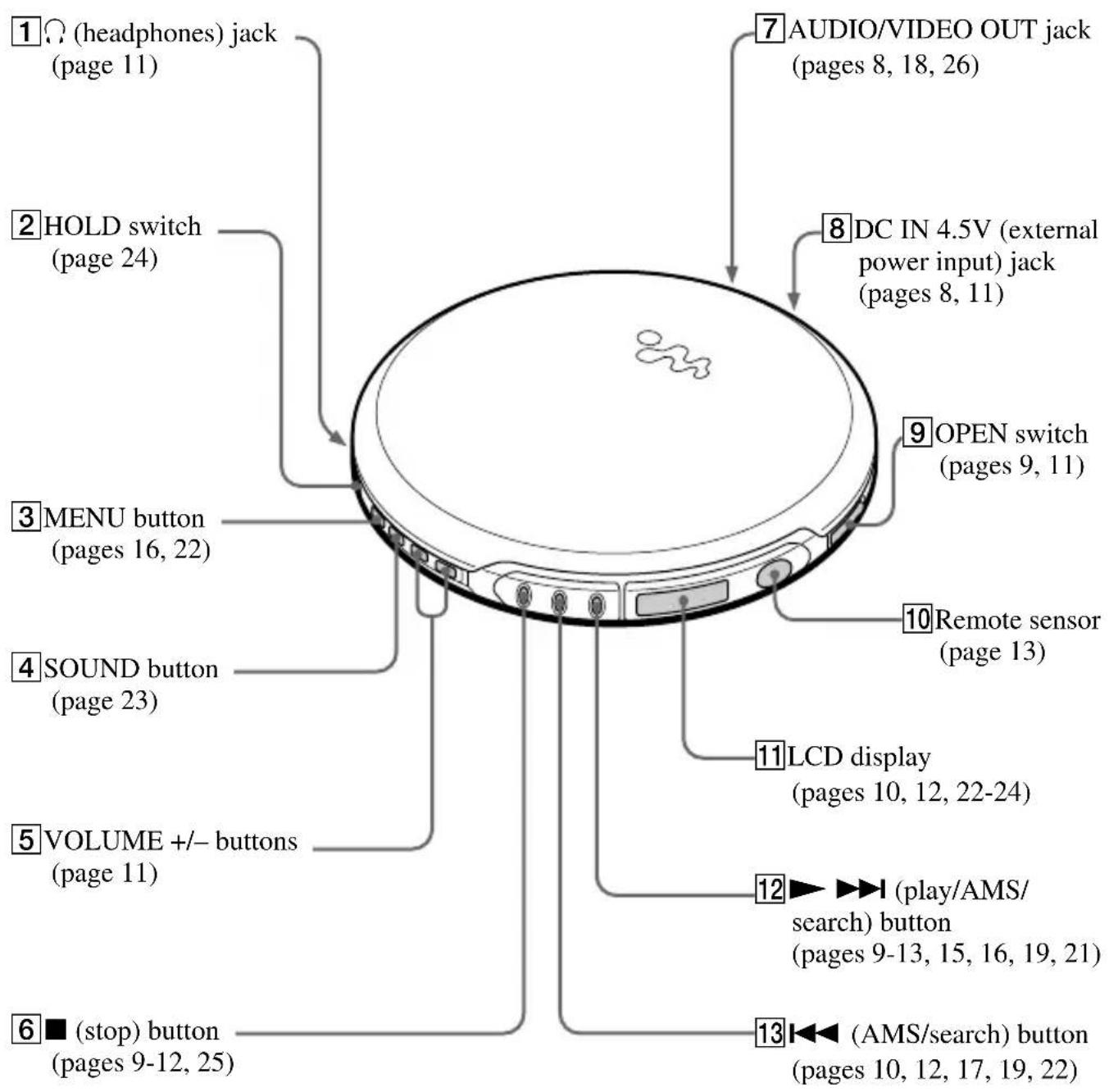
Player (front)
text_image
1○ (headphones) jack (page 11) 2HOLD switch (page 24) 3MENU button (pages 16, 22) 4SOUND button (page 23) 5VOLUME +/- buttons (page 11) 6■ (stop) button (pages 9-12, 25) 7AUDIO/VIDEO OUT jack (pages 8, 18, 26) 8DC IN 4.5V (external power input) jack (pages 8, 11) 9OPEN switch (pages 9, 11) 10Remote sensor (page 13) 11LCD display (pages 10, 12, 22-24) 12►►► (play/AMS/search) button (pages 9-13, 15, 16, 19, 21) 13◄◄ (AMS/search) button (pages 10, 12, 17, 19, 22)Player (rear)
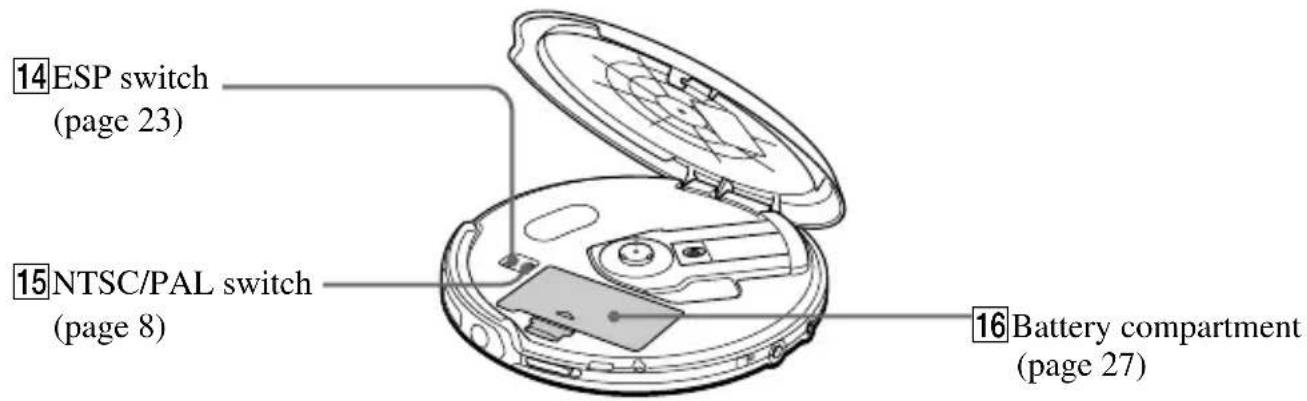
text_image
14ESP switch (page 23) 15NTSC/PAL switch (page 8) 16Battery compartment (page 27)Getting started
Wireless remote commander

text_image
17 OSD button (page13) 18 PBC button (page 16) 19 ▶ II (play/pause) button (pages 9-13, 15, 16) 20 PREV ◀◀ button (pages 10, 12, 17, 19, 22) 21 SLOW button (page 15) 22 PLAY MODE button (pages 21, 22) 23 TIME button (page 20) This button does not function on this model. 24 Number buttons (pages 10, 12, 16, 19-21) 25 ≥10 button (pages 16, 19, 20) 26 ■ (stop) button (pages 9-12) 27 NEXT ▶▶ button (pages 10, 12, 17, 19, 22) 28 RETURN 🔔 button (page 16) 29 SELECT button (page 16) 30 ST/L/R button (page 15) 31 V-INDEX button (page 19) 32 REPEAT/ENTER button (pages 17, 22)(Continued)
Using the supplied stand
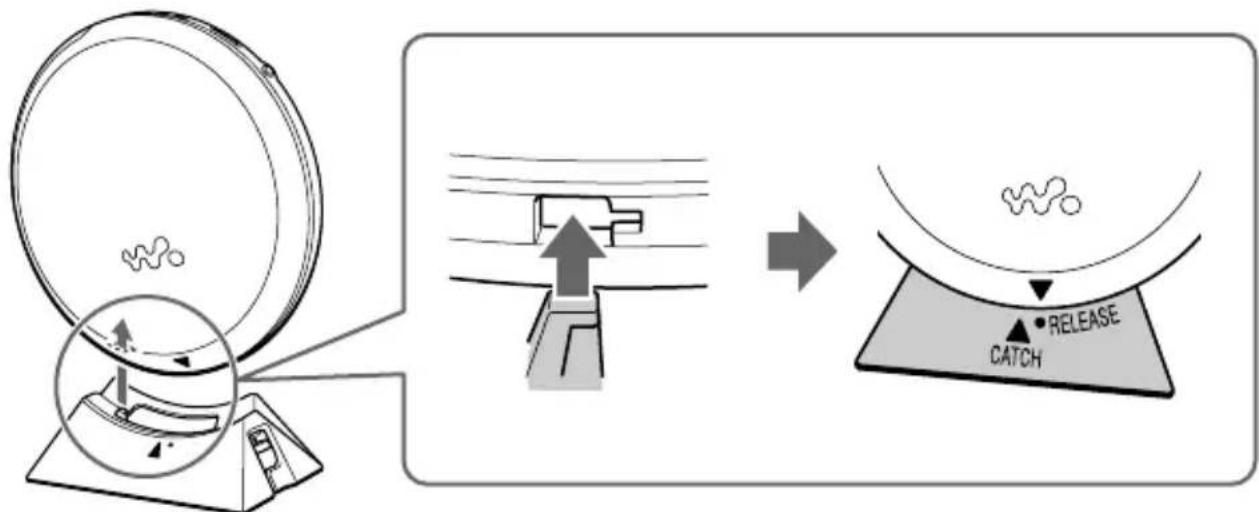
Attach the stand to the player as illustrated below:
①Fit the projecting part of the stand into the small hole in the player.
The ▼ mark on the player is aligned with the “•RELEASE” mark on the stand.
flowchart
graph LR
    A["Satellite dish with particles"] --> B["Recovery container with upward arrow and labeled 'CATCH' and 'RELEASE'"]
② Slide the stand in the direction of the arrow until it clicks into place so that the ▼ mark and the ▲CATCH align.

text_image
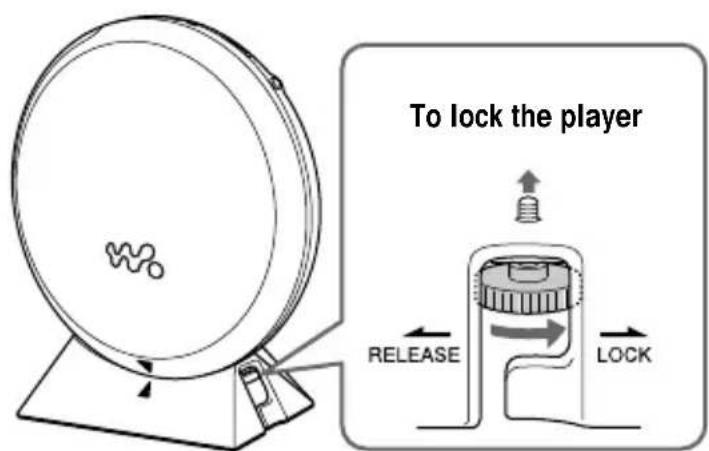
CATCH RELEASE → CATCH RELEASE③ Push the dial up in the direction as shown and turn the dial in the “LOCK” direction to attach the stand to the player.
text_image
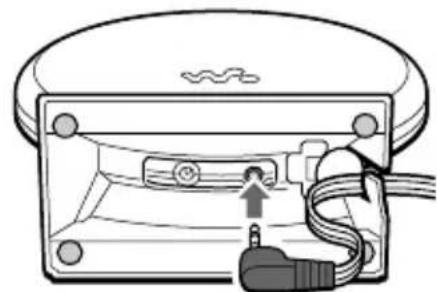
To lock the player RELEASE LOCKWhen connecting the AC power adaptor/the AV cable
①Attach the stand to the player securely as illustrated on page 6.
②Connect the AC power adaptor/the AV cable to the player.
③Pass the cord or the cable through the hole on the side of the stand.
②
natural_image
Diagram of a device with an open lid and cable, showing internal components and a small plug (no text or symbols)(bottom)
③

text_image
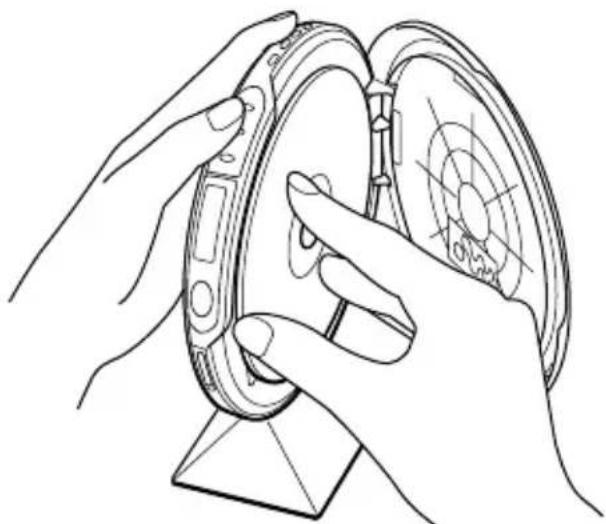
Technical diagram showing a device with a magnified view of its internal components labeled 'PIN LIME' and 'LOCK'.When opening the CD compartment lid and inserting/removing the disc
Hold the player with the hand as illustrated below.
natural_image
Line drawing of hands holding a device with a circular dial and antenna (no text or symbols)Playing a VIDEO CD
You can play back a VIDEO CD using the AC power adaptor. You can also use alkaline batteries. (See “Connecting to a power source.”)
To reproduce color pictures properly, you need to set the color system properly according to the connected TV.
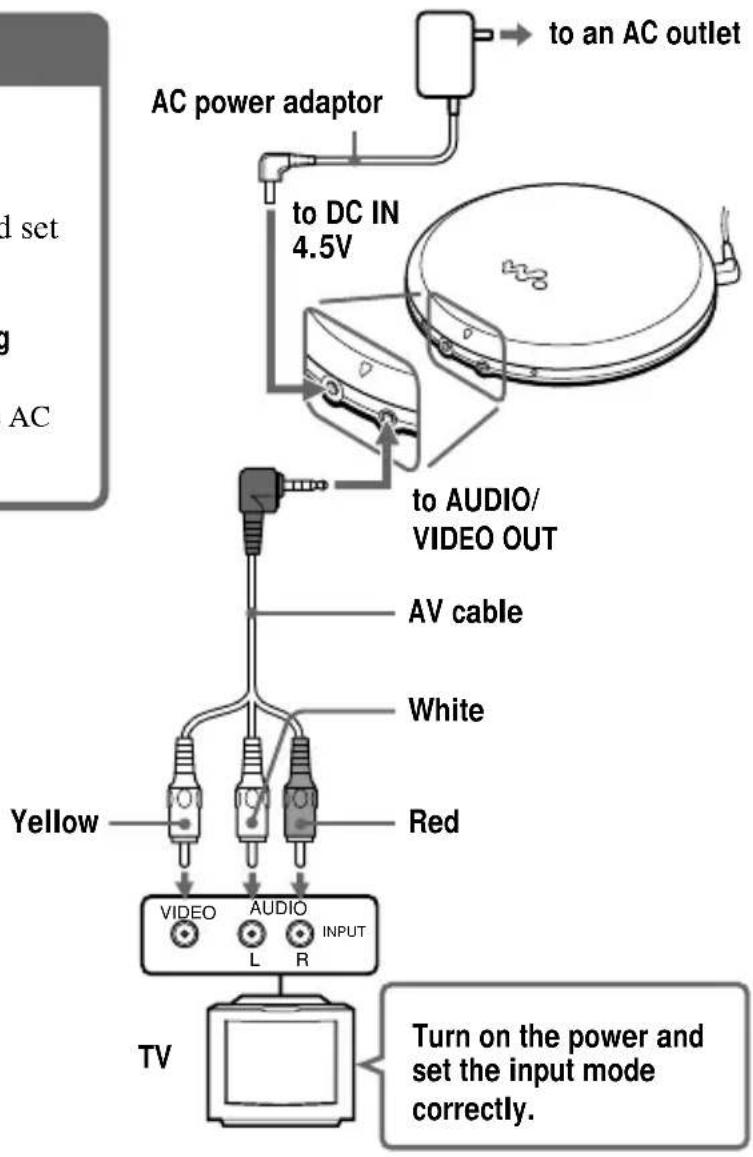
1. Connect your player.
①Connect the AC power adaptor.
②Connect the AV cable.
③Turn on the power of the TV and set the input mode correctly.
For models supplied with the AC plug adaptor
If the AC power adaptor does not fit the AC outlet, use the AC plug adaptor.
text_image
AC power adaptor to DC IN 4.5V to an AC outlet AV cable White Red Yellow VIDEO AUDIO INPUT L R TV Turn on the power and set the input mode correctly.2. Set the NTSC/PAL switch to the color system of your TV.
①Slide OPEN and raise the CD compartment lid.
② Switch to “PAL” or “NTSC”.
PAL system countries:
China, India, Indonesia, Singapore, Malaysia, etc.
NTSC system countries:
Japan, Korea, Taiwan, U.S.A., etc.
text_image
PAL NTSC SYSTEM SELECT3. Insert a VIDEO CD.
①Slide OPEN to open the lid.
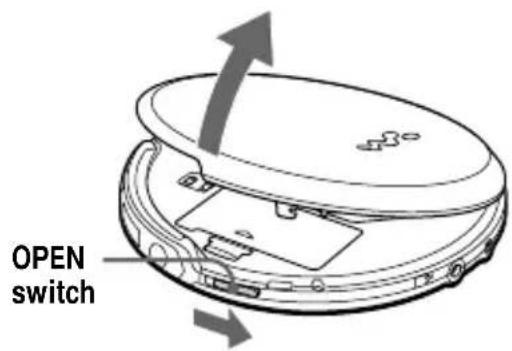
text_image
OPEN switch②Fit the VIDEO CD to the pivot and close the lid.

text_image
Label side up4. Play a VIDEO CD.
① Press ▶▶▶▶▶ (▶▶ for the wireless remote commander).
②Adjust the volume on the equipment connected to this player. (You cannot adjust the volume from this player except for the signals output from the Ⓞ jack of the player.)

natural_image
Line drawing of a circular electronic device with ports and a wavy top surface (no text or symbols)
text_image
SRS 1 2 3 4 5 6 7 8 9 PBC 0 ON-11 B PREV NEST ADD HH SLOW SELECT RETURN PLAYMOVE RESPONSE STL.N TIME SCENE YNDEXTo stop playing, press ■.
The CD player is also turned off.
Notes
The playback picture may be distorted when:
- playing back a PAL system VIDEO CD on an NTSC system TV with the NTSC/PAL switch of this player set to NTSC.
- playing back an NTSC system VIDEO CD on a PAL system TV with the NTSC/PAL switch of this player set to PAL.
(Continued)
| To | Press |
| Pause (on the wireless remote commander only) | ▶II |
| Stop | ■ |
| Resume play after pause | ▶▶▶I (▶II for the wireless remote commander) |
| Locate the next or succeeding tracks | ▶▶▶I (▶▶I for the wireless remote commander) repeatedly until you find the scene or track |
| Locate the current or preceding tracks | ◀◀ repeatedly until you find the scene or track |
| Locate a specific track directly with PBC* OFF (on the wireless remote commander only) | the number button of the track |
| Locate a point in the track while monitoring the picture** | ▶▶▶I or ◀◀◀ (▶▶◀I or ◀◀◀ for the wireless remote commander) and hold it down until ◀◀◀ or ▶▶ appears on the TV screen. |
* For PBC functions, see “Playing VIDEO CDs with PBC functions.”
**To return to normal playback, press ▶▶▶▶▶ (▶▶ for the wireless remote commander).
About the LCD display
When the PBC function is working
- During play, a rotating segment of 3 appears.
- During search, the segment rotates faster clockwise or counterclockwise.
- During pause, a square segment of flashes.
When the PBC function is not working
- During play, the current track number appears.
- During pause, the current track number flashes.
If the volume level does not increase (when listening with the earphones)
If the AVLS indication appears in the LCD display of the player, hold down SOUND until the AVLS indication disappears from the display. For details, see “To protect your hearing (AVLS)” on page 24.
Removing the VIDEO CD
Remove the VIDEO CD as illustrated.

natural_image
Line drawing of a hand inserting a compactie into a circular device (no text or symbols)Playing an audio CD
You can also use alkaline batteries. (See "Connecting to a power source.")
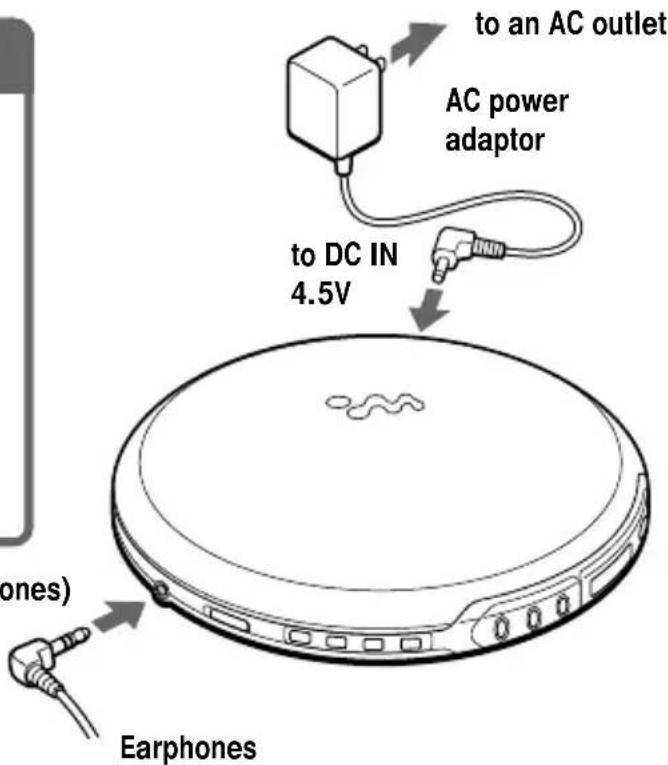
1. Connect your player.
①Connect the AC power adaptor.
②Connect the earphones.
Connect the earphones firmly. A loose connection may cause noise during playback.
For models supplied with the AC plug adaptor
If the AC power adaptor does not fit the AC outlet, use the AC plug adaptor.
to Ⓞ (headphones)
text_image
to an AC outlet AC power adaptor to DC IN 4.5V (ones) Earphones2. Insert an audio CD.
①Slide OPEN to open the lid.

text_image
OPEN switch②Fit the audio CD to the pivot and close the lid.
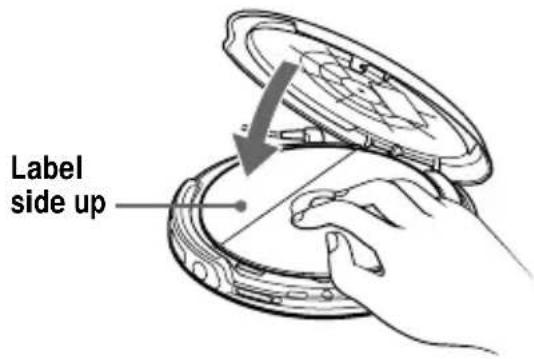
text_image
Label side up3. Play an audio CD.
① Press ▶▶▶▶I (▶II for the wireless remote commander).
②Adjust the volume by pressing VOLUME + or -.
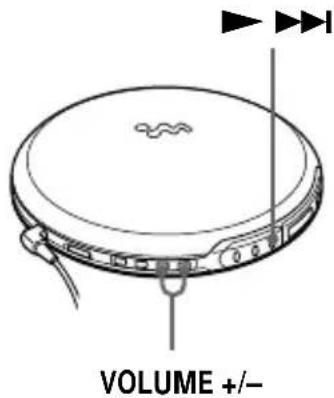
text_image
VOLUME +/-To stop playing, press ■.
The player is also turned off.
Note
When playing back an audio CD, it takes a while before the sound is heard.
(Continued)
| To | Press |
| Pause (on the wireless remote commander only) | ▶II |
| Stop | ■ |
| Resume play after pause | ▶▶▶I (▶II for the wireless remote commander) |
| Find the beginning of the current track (AMS*) | |◀◀ once** |
| Find the beginning of previous tracks (AMS) | |◀◀ repeatedly** |
| Find the beginning of the next track (AMS) | ▶▶▶I (▶▶I for the wireless remote commander) once** |
| Find the beginning of succeeding tracks (AMS) | ▶▶▶I (▶▶I for the wireless remote commander) repeatedly** |
| Locate a specific track directly(on the wireless remote commander only) | Number buttons of the track*** |
| Go forward quickly | Hold down ▶▶▶I (▶▶I for the wireless remote commander)*** |
| Go backwards quickly | Hold down |◀◀ *** |
* Automatic Music Sensor
** These operations are possible during play.
***These operations are possible during both play and pause.
About the LCD display
- When you press ▶▶▶▶ (▶▶ for the wireless remote commander), the total number of tracks in the audio CD appears for about two seconds.
- During play, the current track number appears.
- During pause, the current track number flashes.
If the volume level does not increase (when listening with the earphones)
- If the AVLS indication appears in the LCD display of the player, hold down SOUND until the AVLS indication disappears from the display. For details, see “To protect your hearing (AVLS)” on page 24.
- If the earphones are being connected to the AUDIO/VIDEO OUT jack, connect them to the (headphones) jack.
Removing the audio CD
Remove the audio CD as illustrated.
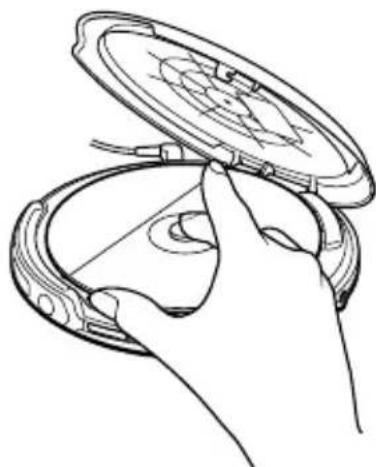
natural_image
Line drawing of a hand inserting a compactie into a compact case (no text or symbols)Playing VIDEO CDs using the wireless remote commander

Use the supplied wireless remote commander to play VIDEO CDs.
You can also play, stop playback, search forward or backward using the buttons on the player.
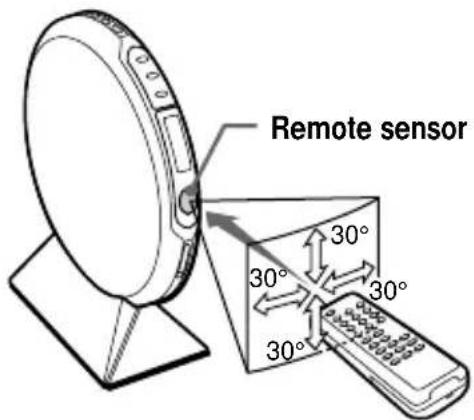
text_image
Remote sensor 30° 30° 30° 30°Point the wireless remote commander towards the remote sensor of the player.
Notes
- When using the player with alkaline batteries, you can turn on the player by pressing ▶II on the wireless remote commander within about 5 minutes after you have turned it off. If 5 minutes have passed, you need to press ▶▶▶▶I on the player to turn it on. (You cannot turn on the player using the wireless remote commander.)
- Do not expose the remote sensor to direct sunlight or lighting apparatuses.
- Remove any obstacles between the remote sensor on the player and the wireless remote commander.
To insert batteries into the wireless remote commander
Insert two R6 (size AA) batteries by matching the to the diagram inside the battery compartment.

natural_image
Diagram showing battery charging process with two batteries and a separate battery casing (no text or symbols)Displaying the operating status on the TV screen
You can check the operating status of the player and the information about the VIDEO CD on the TV screen.
Press OSD.
Each time you press the button, the OSD (On-Screen Display) mode changes as follows:

flowchart
graph LR
    A["OSD AUTO OSD ON"] --> B["Arrow"]
When “OSD AUTO” is selected, nothing is displayed on the TV screen. When “OSD ON” is selected, the time display is always displayed.
While playing a VIDEO CD without PBC functions/while playing back with PBC OFF
Track number Playing time Operating status
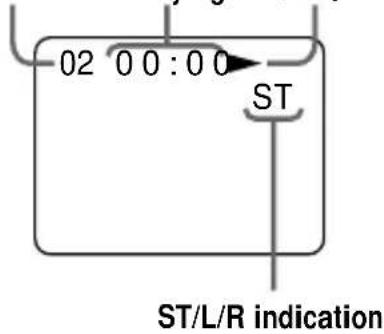
text_image
02 00:00 ST ST/L/R indicationWhile playing a VIDEO CD with PBC functions
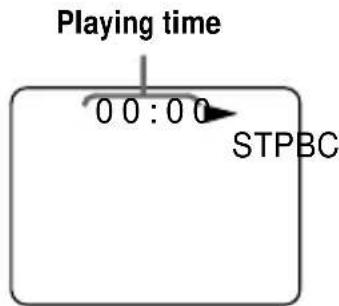
text_image
Playing time 0 0 : 0 0 STPBC(Continued)
Playing VIDEO CDs using the wireless remote commander
Various indications displayed on the TV screen
| Indication | What it means (page) |
| PBC | Playing a VIDEO CD with PBC functions with PBC ON (16) |
| SELECT | Waiting for you to select something (for instance, at the time of menu display) (16) |
| V INDEX | Video index search (19) |
| DIGEST | In the Track Digest mode (21) |
| NEXT | Next track number |
| PREV | Previous track number |
| Playing (9) | |
| Pausing (10) | |
| Slow-motion playing (15) | |
| Searching forward (10, 19) | |
| Searching backwards (10, 19) | |
| The player cannot accept the operation | |
| ST | Hearing stereo sound (15) |
| L | Hearing left channel sound (15) |
| R | Hearing right channel sound (15) |
| OSD AUTO | OSD mode has been switched to “OSD AUTO.” (13) |
| OSD ON | OSD mode has been switched to “OSD ON.” (13) |
| PBC OFF | PBC mode has been switched to OFF. (16) |
| PBC ON | PBC mode has been switched to ON. (16) |
| TIME | Time jump search (20) |
| Indication | What it means (page) |
| NTSC | The NTSC/PAL switch is set to “NTSC.” (8) |
| PAL | The NTSC/PAL switch is set to “PAL.” (8) |
| REP OFF | The repeat mode has been set to OFF. (17) |
| REP ALL * | Playing a whole VIDEO CD repeatedly (17) |
| REP 1 * | Playing the current track repeatedly (17) |
* Repeat play is not available during PBC playback.
Notes
- While playing an audio CD, the OSD mode cannot be displayed on the TV screen.
- When you record the playback picture of this player on another VCR, etc., be sure to select “OSD OFF.” Otherwise, the display information will also be recorded on the VCR.
Playing multiplex VIDEO CDs
On multiplex VIDEO CDs, different sounds are recorded for the left and right channels. You can select either the left or the right channel and hear the sound of the selected channel. In this case, the stereo effect will be lost.
Press ST/L/R while playing a multiplex VIDEO CD.
Each time you press the button, the indication and sound you hear change as follows:
| Press Indication | You will hear |
| Once L | Left channel sound |
| Twice R | Right channel sound |
| Three ST times | Stereo sound |
The initial setting is "ST."
Playing VIDEO CDs in slow-motion (Slow-motion Play)
You can make the play speed slower.
Press SLOW while playing a VIDEO CD.
To cancel slow-motion play
Press ▶|| (▶▶▶| on the player).
When playback of the current track is finished, slow-motion play will be cancelled automatically and return to normal play.
Playing VIDEO CDs with PBC functions (PBC Play)
Using the PBC functions, you can play a VIDEO CD with PBC functions (Version 2.0) (simple interactive software, software with search functions, etc.).
Refer also to the instructions supplied with the VIDEO CD, as the operating procedure may differ depending on the VIDEO CD.
1 Insert a VIDEO CD with PBC functions.
2 Press ▶II.
PBC playback starts, and the menu appears on the TV screen.
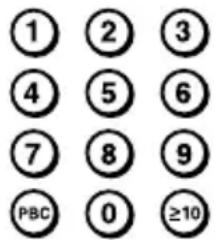
3 Press the number buttons to select item number of the menu you want to play.
text_image
① ② ③ ④ ⑤ ⑥ ⑦ ⑧ ⑨ PBC 0 ≥10For instance, to select item number 5, press 5.
To select an item number 10 or more, press ≥ 10 first, then the corresponding number buttons.
Examples:
For 12: ≥10, then 1 and 2
For 24: ≥10, then 2 and 4
For 135: ≥10, ≥10, then 1, 3 and 5
On the player
Press MENU repeatedly until the desired item number appears, then press ▶▶▶▶.
4 Repeat the above procedure, following the instructions shown on the menu.
| When | Press |
| You want to select an item number | Number button of the item you want on the wireless remote commander. On the player: Press MENU until the desired item number is displayed, then press ▶▶▶▶. |
| You want to go back to the previous menus | RETURN(or hold down MENU on the player). (The actual operation varies among the VIDEO CDs. Refer to the instructions supplied with the VIDEO CDs.) |
Note
When playing some VIDEO CDs, ▶ SELECT (or ▶) appears on the TV screen, instead of SELECT. In that case, press SELECT on the wireless remote commander. If you press ▶II, the player pauses.
To play the VIDEO CD in normal play mode and cancel play using PBC functions
Press PBC on the wireless remote commander so that “PBC OFF” appears on the TV screen. “PBC” disappears from the display, and normal play starts (in the sequence of the track numbers). In this case, you cannot play still pictures such as menu screens.
When you change the PBC mode
When you change the PBC mode (“PBC ON” or “PBC OFF”) and start play, the player plays the VIDEO CD from the beginning.
Playing VIDEO CDs repeatedly (Repeat Play)
You can play a whole VIDEO CD or a single track repeatedly.
To repeat all the tracks on a VIDEO CD
1 Set the PBC mode to "PBC OFF." (See "Playing VIDEO CDs with PBC functions.")
2 While playing a VIDEO CD, press REPEAT/ENTER repeatedly until "REP ALL" appears on the TV screen.
To cancel repeat play
Press REPEAT/ENTER until "REP OFF" appears on the TV screen.
To repeat a single track
1 Set the PBC mode to "PBC OFF." (See "Playing VIDEO CDs with PBC functions.")
2 While the track you want to repeat is playing, press REPEAT/ENTER until "REP 1" appears on the TV screen.
To repeat another track
Press ◀◀◀ or ▶▶◀ to select the track you want to repeat.
To cancel repeat play
Press REPEAT/ENTER until "REP OFF" appears on the TV screen.
Notes
- This function is not available during PBC playback.
- You cannot enjoy this function using the buttons on the player.
Using other functions
Shock protection function
By using a memory buffer that can store approximately 3 seconds of video data, the shock protection function prevents the pictures from skipping when you make a jolt or bump to your player.
Note
Noise may appear on the screen if
– the player receives stronger continuous shock than expected or
- a dirty or scratched VIDEO CD is played.
Connecting to other video equipment
You can record a VIDEO CD on a video tape. Refer to the instruction manual supplied with other equipment for details.
Before making connections, turn off each equipment.

text_image
To AUDIO/ VIDEO OUT AV cable White Red Yellow To LINE IN or REC IN VCR, etc.Note
Before you play a disc, turn down the volume of the connected equipment so as not to damage the speakers.
Locating a specific track by observing the TV screen 📷 (Search)
While playing a VIDEO CD, you can quickly locate any track or a specific point in a track by observing the TV screen.
| To | Do this |
| Locate the next or succeeding tracks | Press ▶▶▶ repeatedly until you find the track. |
| Locate the current or preceding tracks | Press ◀◀◀ repeatedly until you find the track. |
| Locate a specific track directly with PBC* OFF | Press the number button of the track (wireless remote commander only). |
| Locate a point in the track while monitoring the picture | Press ◀◀◀ or ▶▶▶ and hold it down until ◀◀ or ▶▶ appears on the TV screen. |
* For PBC functions, see “Playing VIDEO CDs with PBC functions.”
To directly locate an item number 10 or more
To select an item number 10 or more, press ≥ 10 first, then the corresponding number buttons.
Examples:
For 12: ≥10, then 1 and 2
For 24: ≥ 10 , then 2 and 4
For 135: ≥10, ≥10, then 1, 3 and 5
On the player
Press MENU repeatedly until the desired item number appears, then press ▶▶▶▶.
Locating a specific point directly
You can locate a specific point directly using the video index, the desired time and the DIGEST mode.
To locate a specific point using the video index numbers (Video Index Search)
Some VIDEO CDs with PBC functions have the video index numbers.
Check the current video index number by displaying it on the TV screen during playback.
1 Press V-INDEX while playing a VIDEO CD.
“V INDEX” appears on the TV screen.

text_image
The current video index number V 10 INDEX (Continued)Locating a specific point directly
2 Press the number buttons to select the video index number you want.
The selected video index number or the scene number appears on the TV screen.
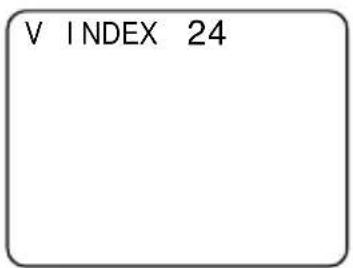
text_image
V INDEX 24To select a number 10 or more, press ≥10 first, then the corresponding number buttons.
Examples:
For 12: ≥10, then 1 and 2
For 24: ≥10, then 2 and 4
For 135: ≥10, ≥10 then 1, 3 and 5
If you have made a mistake
Repeat the same procedure from Step 1 again.
To cancel the video index search
Press V-INDEX again.
Notes
- You cannot use Video Index Search with tracks or VIDEO CDs which do not have video index numbers recorded.
- You cannot search for video index numbers in different tracks.
To locate a specific point by entering the desired time (Time Jump Search)
You can locate a specific point directly by entering the desired time.
1 Press TIME while playing a VIDEO CD.
“TIME” and “--:--” appear on the TV screen.
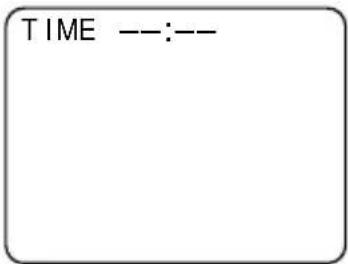
2 Press the number buttons to enter the desired time.
The picture of the selected time appears on the TV screen.
e.g. To select one minute and 50 seconds, press ①, ①, ⑤ and ⑩

text_image
① ② ③ ④ ⑤ ⑥ ⑦ ⑧ ⑨ ⑩To locate a specific point by observing nine scenes in the current track at one time (Track Digest Search)
You can locate a specific point directly by observing nine scenes in the current track at one time.
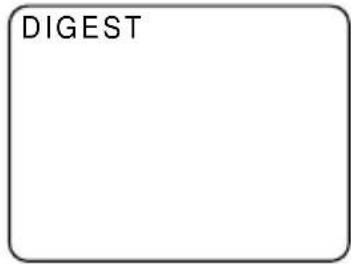
1 While playing a VIDEO CD, press PLAY MODE until "DIGEST" appears on the TV screen.
text_image
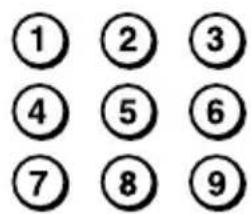
DIGESTThe player separates the current track into nine parts automatically, and displays the first picture of each part on the TV screen.

text_image
① ② ③ ④ ⑤ ⑥ ⑦ ⑧ ⑨2 Press the number button that corresponds to the picture you want to see.
text_image
① ② ③ ④ ⑤ ⑥ ⑦ ⑧ ⑨On the player
Press MENU repeatedly until the desired item number appears, then press ▶▶▶▶.
The player starts playing from the part you selected.
To cancel the DIGEST mode
Press PLAY MODE again before step 2.
Selecting play mode
You can enjoy the following six play modes: "Normal play," "Repeat play — all the tracks," "Single track play," "Repeat play — a single track," "Repeat shuffle play" and "Shuffle play."
The following operations can be done with the buttons on the player only.
Press MENU during play.
Each time you press the button, the play mode indication in the LCD display changes as follows:
The mode indication appears.

text_image
0.1 TRACK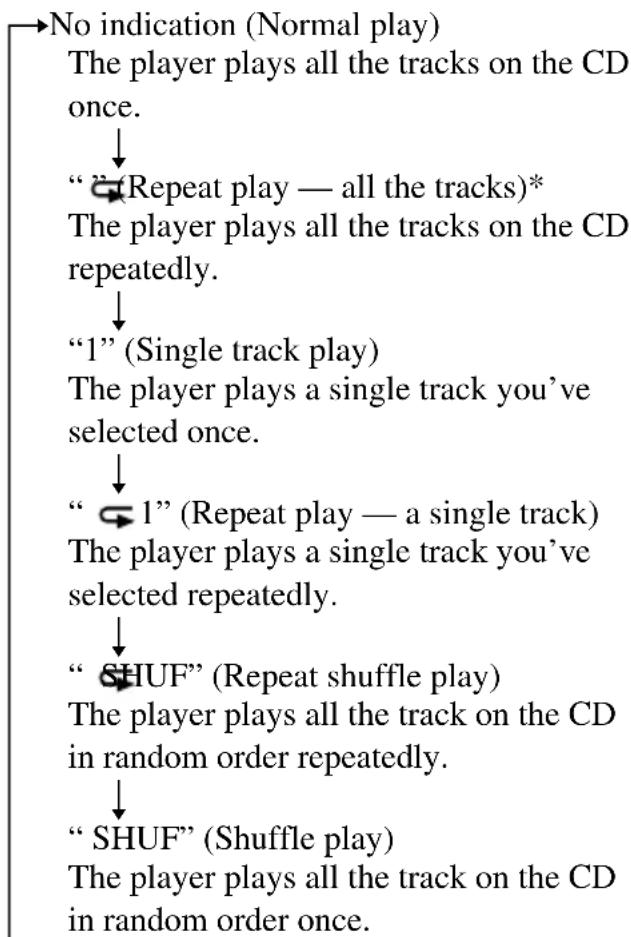
flowchart
graph TD
A["No indication (Normal play)<br>The player plays all the tracks on the CD once."] --> B["(Repeat play — all the tracks)*<br>The player plays all the tracks on the CD repeatedly."]
B --> C["1" (Single track play)<br>The player plays a single track you’ve selected once."]
C --> D["1" (Repeat play — a single track)<br>The player plays a single track you’ve selected repeatedly."]
D --> E["SHUF" (Repeat shuffle play)<br>The player plays all the track on the CD in random order repeatedly."]
E --> F[""SHUF" (Shuffle play)<br>The player plays all the track on the CD in random order once."]
* During Repeat play, you can locate the first track after the last track by pressing ▶▶▶▶. You can also locate the last track after the first track by pressing ◀◀ repeatedly.
To cancel repeat play
Press MENU repeatedly until the mode indication disappears from the display.
Notes
- During shuffle play, you cannot return to previous tracks by pressing ◀◀◀.
- If you locate a specific track using the number button on the wireless remote commander, shuffle play is cancelled.
On the wireless remote commander
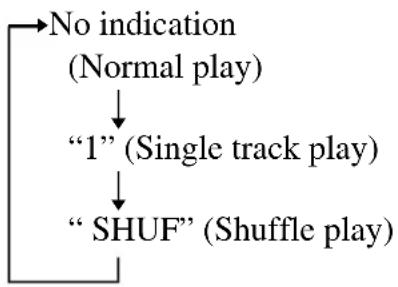
Press PLAY MODE during play to select “1” (Single track play) or “SHUF” (Shuffle play).
flowchart
graph TD
    A["No indication\n(Normal play)"] --> B[""1" (Single track play)"]
    B --> C[""SHUF" (Shuffle play)"]
You can play tracks repeatedly in normal, single and shuffle play modes.
Press REPEAT/ENTER during play. “” appears in the LCD display.
Using other functions
To minimize skipping (ESP ^2 )
The ESP ^2 function has been developed to provide protection against sound skipping.
Set ESP (under the lid) to "ON."
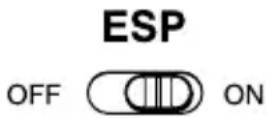
To turn off the ESP ^2 function
Set ESP to "OFF."
Note
Sound may skip:
- if the CD player receives stronger continuous shock than expected,
- if a dirty or scratched CD is played or
- when using poor-quality CD-Rs or if there is a problem with the recording device or application software.
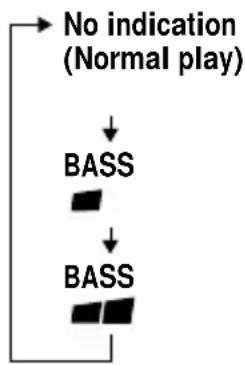
To enjoy more powerful bass sound (MEGA BASS Function)
You can enjoy a powerful bass-boosted sound.
Press SOUND to select "BASS or "BASS
flowchart
graph TD
    A["No indication (Normal play)"] --> B["BASS"]
    B --> C["BASS"]

text_image
BASSThe selected sound mode is displayed.
“BASS” enhances the bass sound more than “BASS”
Note
If the sound is distorted when emphasizing bass, turn down the volume.
(Continued)
Using other functions
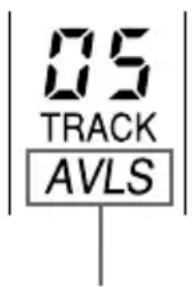
To protect your hearing (AVLS)
The AVLS (Automatic Volume Limiter System) function keeps down the maximum volume to protect your hearing.
Hold down SOUND until "AVLS" appears in the LCD display.
text_image
05 TRACK AVLSFlashes when the volume is turned up beyond a certain level.
When you turn up the volume to "3="
“AVLS” flashes and you cannot turn up the volume any more. If you want to turn up the volume to more than “3 hold down SOUND until “AVLS” disappears from the display.
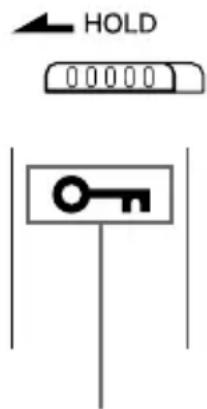
To lock the buttons (HOLD)
You can lock the controls on your player to prevent accidental button presses.
Slide HOLD in the direction of the arrow.
text_image
HOLD 00000Displayed when the HOLD function is activated. Flashes when you press a button.
To unlock the controls
Slide HOLD in the opposite direction of the arrow.
Turning off the operation beep sound
You can turn off the beep sound that is heard from your earphones when you operate your player.
1 Remove the power source (AC power adaptor or dry batteries) from the CD player.
2 Connect the power source while pressing ■.
To turn on the beep sound
Remove the power source and then connect the power source without pressing ■.
Note
The beep sound function is disabled during VIDEO CDs playback.
Connecting a stereo system
You can listen to CDs through a stereo system and record CDs on a cassette tape. For details, see the instruction manual that comes with the connected device.
Be sure to turn off all connected devices before making connections.
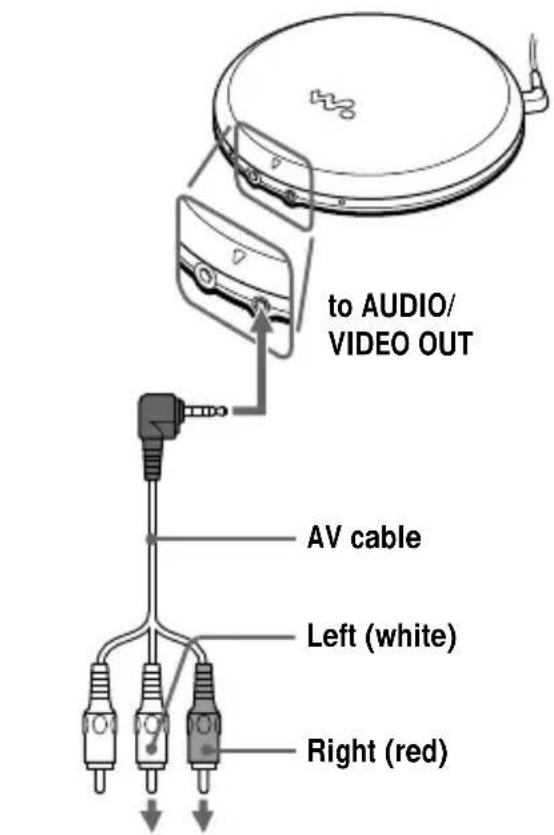
text_image
to AUDIO/ VIDEO OUT AV cable Left (white) Right (red)Stereo system, cassette recorder, radio cassette recorder, etc.
Notes
- Before you play a CD, turn down the volume of the connected device to avoid damaging the connected speakers.
- Use the AC power adaptor for recording. If you use the dry batteries as a power source, they may become completely depleted during recording.
- Adjust the volume properly on the connected device so that the sound will not be distorted.
Use the supplied (or recommended) AV cable to connect a stereo system
Otherwise, the sound is distorted. The jack type of the audio connecting cord is different from that of the supplied (or recommended) AV cable.
▶ Connecting to a power source
You can use the following power sources:
- AC power adaptor (see “Playing a VIDEO CD”)
• LR6 (size AA) alkaline batteries
For the battery life, see "Specifications."
Using the dry batteries
Use only the following dry battery type for your player:
• LR6 (size AA) alkaline batteries
Note
Be sure to remove the AC power adaptor when using the dry batteries.
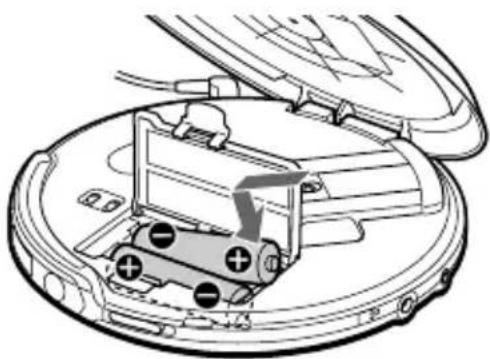
1 Open the battery compartment lid inside your player.

natural_image
Diagram of a device with an open lid and internal components, showing no text or symbols.2 Insert two alkaline batteries by matching ⊕ to the diagram inside the battery compartment and close the lid until it clicks into place.
natural_image
Diagram of a battery pack inside a car hood, showing internal components and battery symbols (no text or labels)To remove the batteries
Remove the batteries as illustrated below.

natural_image
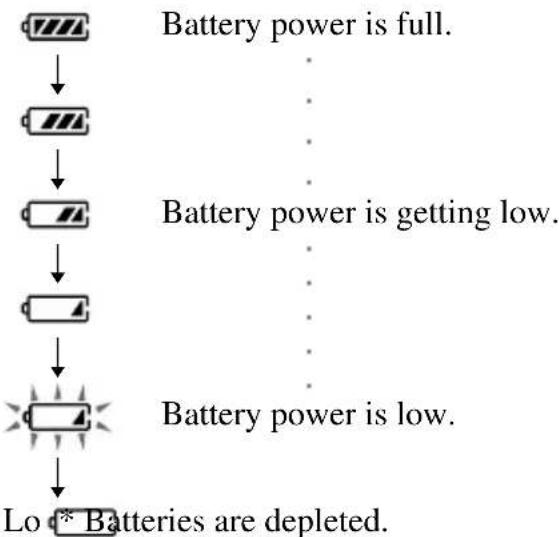
Diagram of a robotic vacuum cleaner with battery and motor components (no text or labels)When to replace the batteries
You can check the remaining power of the batteries in the display.
flowchart
graph TD
    A["Power Supply"] --> B{Battery Power is Full.}
    B --> C["Power Supply"]
    C --> D{Battery Power is Getting Low.}
    D --> E["Power Supply"]
    E --> F{Battery Power is Low.}
    F --> G["Depleted Battery *"]
* Beep sounds.
When the batteries are depleted, replace both batteries with new ones.
Notes
- The indicator sections of _R likely show the remaining battery power. One section does not always indicate one-fourth of the battery power.
- Depending on operating conditions, the indicator sections of 📂 may increase or decrease.
(Continued)
Using the dry batteries
To attach the battery compartment lid
If the battery compartment lid is detached by an accidental drop, excessive force, etc., attach it as illustrated below.
①Inset the left hook of the lid into the left hook in the player.
②Hang the right hook on the right upper part of the compartment. And slide the right hook toward the right hole in the player.

text_image
Diagram of a car interior showing labeled components and directional arrows, likely illustrating vehicle or mechanical parts.Notes on the power source
Disconnect all power sources when the player is not used.
On AC power adaptor
- Use only the AC power adaptor supplied or recommended in “Accessories (supplied/ optional).” Do not use any other AC power adaptor. It may cause a malfunction.
Polarity of the plug
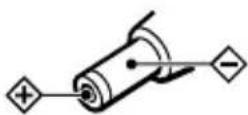
- When disconnecting the AC power adaptor from the AC outlet, grasp the adaptor itself. Do not pull it by the cord.
- Do not touch the AC power adaptor with wet hands.
On dry batteries
- Do not charge the dry batteries.
- Do not throw the batteries into fire.
- Do not carry the batteries with coins or other metallic objects. It can generate heat if the positive and negative terminals of the battery are accidentally contacted by a metallic object.
- Do not mix rechargeable batteries with dry batteries.
- Do not mix new batteries with old ones.
- Do not use different types of batteries together.
- When the batteries are not to be used for a long time, remove them.
- If battery leakage occurs, wipe off any deposit in the battery compartment, and install new batteries. In case the deposit adheres to you, wash it off thoroughly.
Precautions
On safety
- Should any solid objects or liquid fall into the player, unplug it and have it checked by qualified personnel before operating it any further.
- Do not put any foreign objects in the DC IN 4.5 V (external power input) jack.
On the player
- Keep the lens on the player clean and do not touch it. If you do so, the lens may be damaged and the player will not operate properly.
- Do not put any heavy object on top of the player. The player and the CD may be damaged.
- Do not leave the player in a location near heat sources, or in a place subject to direct sunlight, excessive dust or sand, moisture, rain, mechanical shock, unleveled surface, or in a car with its windows closed.
- If the player causes interference to the radio or television reception, turn off the player or move it away from the radio or television.
- Discs with non-standard shapes (e.g., heart, square, star) cannot be played on this player. Attempting to do so may damage the player. Do not use such discs.
On handling CDs
- To keep the CD clean, handle it by its edge. Do not touch the surface.
- Do not stick paper or tape onto the CD.

text_image
Diagram showing two hand positions with a circle and a cross symbol, possibly illustrating a task or procedure.Not these ways
- Do not expose the CD to direct sunlight or heat sources such as hot air ducts. Do not leave the CD in a car parked under direct sunlight.
- Do not use the CD soiled with dust. Malfunction may occur.
On headphones/earphones Road safety
Do not use headphones/earphones while driving, cycling, or operating any motorized vehicle. It may create a traffic hazard and is illegal in some areas. It can also be potentially dangerous to play your headsets at high volume while walking, especially at pedestrian crossings. You should exercise extreme caution or discontinue use in potentially hazardous situations.
Preventing hearing damage
Avoid using headphones/earphones at high volume. Hearing experts advise against continuous, loud and extended play. If you experience a ringing in your ears, reduce volume or discontinue use.
Consideration for others
Keep the volume at a moderate level. This will allow you to hear outside sounds and to be considerate to the people around you.
Maintenance
To clean the casing
Use a soft cloth slightly moistened in water or a mild detergent solution. Do not use alcohol, benzine or thinner.
Troubleshooting
Should any problem persist after you have checked these symptoms, consult your nearest Sony dealer.
| Symptom | Cause and/or corrective actions |
| CD playback does not start. | →When playing back an audio CD, it takes a while before the sound is heard. |
| The disc does not play or “no dISC” appears in the display when a CD is placed in the player. | →The buttons are locked. Slide the HOLD switch back. (page 24)→The CD is dirty or defective. (page 29)→Check that the CD is inserted with the label side up. (pages 9, 11)→Moisture condensation has occurred.Leave the CD player aside for several hours until the moisture evaporates.→The lens is dirty. Clean the lens.→Close the lid of the player and the battery compartment firmly. (pages 9, 27)→Make sure the batteries are inserted correctly. (page 27)→Connect the AC power adaptor to an AC outlet securely. (pages 8, 11)→Connect the DC plug of the AC power adaptor to the DC IN 4.5 V jack on the player securely. (pages 8, 11)→Batteries are depleted. Replace the batteries with new ones.→The CD-R was not finalized. Finalize the CD-R with the recording device.→There is a problem with the quality of the CD-R, recording device, or application software. |
| No sound, or noise is heard. | →Connect the plugs firmly. (pages 8, 11)→Plugs are dirty. Clean the plugs with a dry soft cloth periodically. |
| The volume does not increase even if you press the VOLUME + button repeatedly. | →Hold down SOUND until “AVLS” disappears from the display. (page 24)→The earphones are connected to the AUDIO/VIDEO OUT jack. Connect them to the ☐ jack. (page 11) |
| Cannot adjust the volume. | →The earphones are connected to the AUDIO/VIDEO OUT jack. Connect them to the ☐ jack. (page 11) |
| Sound seems to lose the stereo effect and becomes monaural. | →Press ST/L/R on the wireless remote control repeatedly until “ST” appears on the TV screen. (Only when playing a VIDEO CD)→The audio connecting cord is used to connect the audio device. Use the supplied /recommended AV cable. (page 26) |
| The playing time is too short when powered with the dry batteries. | →Check that you are using alkaline batteries and not manganese batteries. (page 27)→Replace the batteries with new LR6 (size AA) alkaline batteries. (page 27) |
| When you press ▶▶▶▶I, “Lo ¤or“00” appears in the display. The CD does not play. | →Replace the batteries with new LR6 (size AA) alkaline batteries. (page 27) |
| “Lo ¤or“HI dc” appears in the display and the player does not operate. | →Use only the AC power adaptor in “Accessories (supplied/ optional).” (page 33)→Remove all power sources, then insert the new batteries or connect the AC power adaptor again. (pages 8, 27) |
| “ ⚫ashes on the display when you press a button. | →The buttons are locked. Slide the HOLD switch back. (page 24) |
| Rustling noise of the CD is heard. | → Close the lid of the battery compartment firmly. (page 27) |
| Playback starts from the point you stopped. (resume function) | → The resume function is working. To start play from the first track, open the lid of the player; or remove all power sources, then insert the batteries or connect the AC power adaptor again. (pages 8, 11, 27) |
| No picture appears on the TV screen. | →Make sure that the TV is turned on.→Make sure you select the correct video input on the TV.→Connect the video connecting cord correctly.→An audio CD is being played.→Close the lid of the player and the battery compartment firmly.→Make sure the following mark is on the VIDEO CD.  →You may not play back some illegally duplicated VIDEO CDs even though they have the above mark printed. In this case, consult the shops where you bought the VIDEO CDs. →You may not play back some illegally duplicated VIDEO CDs even though they have the above mark printed. In this case, consult the shops where you bought the VIDEO CDs. |
| Picture is distorted. | →When you pause or use search, picture is distorted. This is not a malfunction.→The VIDEO CD is defective. Replace the VIDEO CD.→The VIDEO CD is dirty. Clean the VIDEO CD.→The color system you have selected for this player is not the same as the one the VIDEO CD is recorded with. (page 8) |
| Picture is distorted, blurred, or becomes monochrome. | →The setting of the NTSC/PAL switch does not match the color system of the TV. Check the setting. (page 8) |
| Picture is distorted, noise is heard or playback stops. | →Move a portable telephone, transceiver, etc. away from the player. |
| The wireless remote control does not function. | →If 5 minutes have already passed after you turned off the player by pressing ■, you cannot turn on the power using the wireless remote control. In this case, press ▶▶▶▶ on the player to turn on the power. Once the player is turned on, you can operate the player with the wireless remote control. (Only when using the player on alkaline batteries)→Remove any obstacles between the wireless remote control and the remote sensor. (page 13)→Replace all the batteries in the wireless remote control with new ones if they are weak. |
Specifications
System
Compact disc digital audio/video system
Laser diode properties
Material: GaAlAs
Wavelength: = 780nm
Emission duration: Continuous
Laser output: Less than 44.6 μW
(This output is the value measured at a distance of 200 mm from the objective lens surface on the optical pick-up block with 7 mm aperture.)
Error correction
Sony Super Strategy Cross Interleave Reed Solomon Code
D-A conversion
1-bit quartz time-axis control
Channel number
2 channels
Frequency response
20 - 20 000 Hz ^+1_-2 dB (measured by JEITA CP-307)
Output (at 4.5 V input level)
Audio output
Output level 0.7 V rms at 47 kΩ
Recommended load impedance over 10 kΩ
Video output
Output level 1Vp-p at 75 Ω
Recommended load impedance 75 Ω
Headphones (stereo minijack)
Approx. 5 mW + Approx. 5 mW at 16 Ω
Power requirements
For the area code of the model you purchased, check the upper left side of the bar code on the package.
- Two LR6 (size AA) batteries: 3 V DC
• AC power adaptor (DC IN 4.5 V jack):
220 V, 50/60 Hz (HK2)
220 V - 230 V, 50/60 Hz (E13/EA5)
220V, 50 Hz (CN2)
Battery life\* (approx. hours)
(When you use the player on a flat and stable surface.)
Playing time varies depending on how the player is used.
VIDEO CD Audio CD
ESP ON ESP OFF
Two Sony alkaline 2 30 24
batteries LR6SG
* Measured value by the standard of JEITA (Japan Electronics and Information Technology Industries Association).
Operating temperature
5^-35^(41^-95^)
Dimensions (w/h/d) (excluding projecting parts and controls)
Approx. 152.4 · 25.4 · 152.4 mm
Mass (excluding accessories)
Approx. 226 g
Design and specifications are subject to change without notice.
Accessories (supplied/optional)
Supplied accessories
AC power adaptor (1)
AV cable (1)
Wireless remote commander (1)
Earphones (1)
Stand (1)
AC plug adaptor (1)*
* Supplied with EA5 only
Optional accessories
| AC power adaptor AC-E45HG |
| Active speaker system SRS-Z500SRS-T55 |
| Car battery cord DCC-E345 |
| Car battery cord with car connecting packDCC-E34CP |
| Car connecting pack CPA-9C |
| AV cable VMC-20FR |
| Earphones MDR-E848LPMDR-EX70LPMDR-A44LMDR-A110LP |
Your dealer may not handle some of the above listed accessories. Please ask the dealer for detailed information about the accessories in your country.
Glossary
Index
Markings assigned for particular points to divide a track or a whole disc. By using indexes you can easily find particular points you want. There are two types of index—one is for audio CDs and the other is for VIDEO CDs. This player only conforms to the latter type of index, called “Video Index.”
PBC Playback
Playback using the menus recorded on VIDEO CDs with PBC functions. You can enjoy simple interactive operations using the PBC Playback.
Playback Control (PBC)
Signals encoded on VIDEO CDs (Version 2.0) to control playback. By using menus recorded on VIDEO CDs with PBC functions, you can enjoy playing simple interactive software, software with search functions, and so on. When you insert a VIDEO CD with PBC functions on this player, “PBC” appears on the display.
Track
Markings differentiating pictures or songs recorded on VIDEO CDs or audio CDs. Each track is assigned with a number, called “Track Number.”
VIDEO CD
A compact disc containing moving pictures. Picture data is compressed to 1/120th of the original data in the MPEG 1 format (one of the worldwide standards of digital compression technologies) and recorded on a disc.
A 12 cm VIDEO CD can reproduce moving pictures up to 74 minutes long. Audio data is also compressed so that a VIDEO CD can contain 6 times as much audio data as an audio CD.
There are 2 versions of VIDEO CDs.
- Version 1.1: You can play only moving pictures and sounds.
- Version 2.0: You can play still pictures and enjoy PBC functions.