50TM5090 - TV THOMSON - Free user manual and instructions
Find the device manual for free 50TM5090 THOMSON in PDF.


| Product Type | LED TV |
| Screen Size | 50 inches (diagonal) |
| Resolution | 3840 x 2160 (4K Ultra HD) |
| Refresh Rate | 60 Hz |
| Dimensions (with stand) | 112.5 x 70.3 x 25.4 cm |
| Weight (with stand) | 12.5 kg |
| Power Supply | AC 100-240V, 50/60Hz |
| Power Consumption (typical) | 95 W |
| Standby Power Consumption | < 0.5 W |
| Operating System | Smart TV (proprietary platform) |
| Built-in Tuner | DVB-T2/C/S2 |
| Connectivity | 3x HDMI, 2x USB, 1x Ethernet, Wi-Fi, Bluetooth |
| Audio Output | 2 x 8 W speakers |
| Video Formats | MPEG-4, H.265, VP9 |
| Remote Control | IR remote with dedicated buttons |
| Cleaning | Wipe with soft, dry cloth; avoid solvents |
| Safety | Class I, CE marked, RoHS compliant |
| Spare Parts Availability | 7 years after end of production |
| Repair Index | 7.5/10 (estimated) |
| User Manual | Free PDF download at notice-facile.com |
Frequently Asked Questions - 50TM5090 THOMSON
User questions about 50TM5090 THOMSON
0 question about this device. Answer the ones you know or ask your own.
Ask a new question about this device
Download the instructions for your TV in PDF format for free! Find your manual 50TM5090 - THOMSON and take your electronic device back in hand. On this page are published all the documents necessary for the use of your device. 50TM5090 by THOMSON.
USER MANUAL 50TM5090 THOMSON
natural_image
A couple smiling and relaxing together in a dimly lit room (no text or symbols visible)User Manual
THOMSON
friendly technology
R9 Series
CONTENTS
Introduction 1
Warnings & Safety Precautions 1
Features 2
Safety Information 2
Important Safety Precautions 3
Preparation Stand Installation 4
Functional Overview Fornt & Side Panel 5
Rear Panel 6
Connections 7
Remote Control 8
Basic Operation 11
Menu Operation 12
Media Play 19
PC Setting 20
Instructions for Platform Operation 21
Specification 24
Troubleshooting 25
INTRODUCTION
Thank you for choosing our product. To be able to make use of all application options, we recommend that you should read this operation manual carefully and preserve it for quick access, if required.
Do not touch any parts in the set and do not make changes to any settings not described in this operating manual.
The LED Screen is a high-tech product which consists of more than 9,00,000 control elements. Any Non-active red, blue or green spots / lines that might appear on the screen occasionally, have no effect on the performance of the screen or television and may disappear over a short period of time.
WARNINGS AND SAFETY PRECAUTIONS
Warning:
- To prevent damage to the TV which may result in a fire or electrical shock hazard, do not expose the TV set to rain or excessive moisture.
- Do not rub or strike the Active matrix LED with any thing hard as this may scratch, mark or damage the active matrix LED permanently.
- For safety, do not place vessels or any container which contain fluid including water, on or near the TV.
- Do not insert any objects in the ventilation slots.
Service:
- Do not remove the back cover of the set as this can expose you to very high voltage and other hazards. If the set does not operate properly, unplug it and call Thomson LED TV customer care.
Antenna:
- Connect the antenna cable to the socket marked ANT IN on the back cover. For best reception an outdoor antenna should be used.
Location:
- Position the set so that no bright light or sunlight falls directly on the screen. Reflections on the screen may affects the picture quality & viewing of television.
- Soft and indirect lighting is recommended for comfortable viewing.
- Care should be taken not to expose the set to any unnecessary vibration, moisture, dust or heat.
- Adequate ventilation is essential to prevent set failure. Ensure that the set is placed in a position to allow a free flow of air. Do not cover ventilation opening on the back cover. Do not place the set in an enclosure or very close to walls.
- Avoid excessively warm locations to prevent possible damages to the set.
- Place the television on a solid and flat surface, if not wall mounted.
FEATURES
HD/FHD Resolution-
Extra Slim Design-
200,000:1 Dynamic Contrast Ratio-
HDMI Connectivity-
Full Multimedia Interface-
Seven Picture Modes-
Five Sound Modes-
178°x178° Viewing Angle-
PC Connectivity-
Dynamic Noise Reduction-
SAFETY INFORMATION
CAUTION
RISK OF ELECTRIC SHOCK DO NOT OPEN
High voltages are used in the operation of this product. To reduce the risk of electric shock, do not remove cover of the cabinet, refer for servicing to qualified service personal.
If the LED TV requires any changes or coarse adjustment, electric shocks are imminent. Do not attempt to open contact customer support for needed overhual.

text_image
Warning symbol image with exclamation mark inside triangleThe exclamation point within an equilateral triangle is intended to alert the user to the presence of important operating & maintenance (servicing) instruction in the literature accompanying the appliance.
natural_image
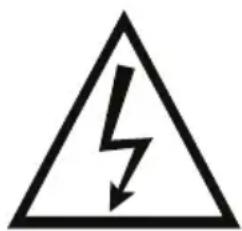
Warning symbol of a lightning bolt inside a triangle (no text or numbers)Warning
The lightning flash with arrowhead symbol within an equilateral triangle is intended to alert the user to the presence of uninsulated dangerous voltage within the products enclosure that may be of sufficient magnitude to constitute a risk of electric shock to persons.
IMPORTANT SAFETY PRECAUTIONS
1 Read & keep this instruction manual.
2 Read all warnings.
3 Clean only with dry cloth.
4 Do not block any ventilation openings. Install in accordance with the manufacturer's instructions.
5 Do not install near any heat source such as radiators, heat registers, stoves or other apparatus (including amplifiers) that produce heat.
6 Do not defeat the safety purpose of the polarized or grounding-type plug. A polarized plug has two blades with one wider than the other. A grounding type plug has two blades and a third grounding prong.
7 The wide blade or third prong are provided for your safety. If the provided plug does not fit into your outlet, protect the power cord from being walked on or pinched particularly at plugs, socket outlets and the point where they exit from the apparatus.
8 Only use attachments / accessories specified by the manufacturer.
9 Use only with the bracket or table stand specified by the manufacturer or sold with the apparatus.
10 Unplug this apparatus during lightning storms or when unused for long period of time.
11 To reduce the risk of fire or electric shock, do not expose this apparatus to rain or moisture.
12 The apparatus should be disconnected from the mains by placing the power / standby switch in the standby position and unplugging the power cord of the apparatus from the AC main outlet.
13 The socket outlet should be installed near the equipment & should be easily accessible.
14 This product should never be placed in a built-in installation such as a bookcase or rack unless proper ventilation is provided or the manufacture's instructions have been adhered to.
15 The apparatus should not be exposed to dripping or splashing & objects filled with liquid, such as vases, should be placed on the apparatus.
16 Do not place any sources of danger on the apparatus (e.g. liquid filled objects, lighted candles).
17 Wall or ceiling mounting - The appliance should be mounted to a wall or ceiling only as recommended by the manufacturer.
Servicing should be carried out by qualified service personnel only. To reduce the risk of electric shock do not perform any servicing other than that contained in the operating instructions.
PREPARATION
Stand Installation
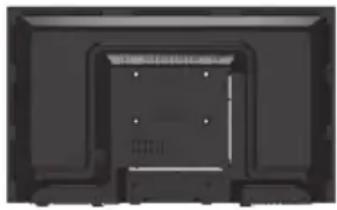
The TV base will be separated with the TV unit. You should install the base before you use the TV unit.
- Place the TV with its front side facing down on a cushioned flat surface.
natural_image
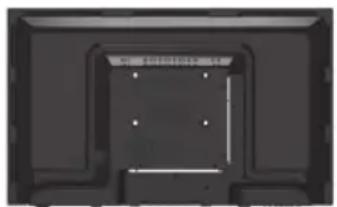
Back view of a black rectangular electronic device with mounting brackets and ventilation slots (no visible text or symbols)- Place the base on the hinge of TV unit, with the base direction shown under the base. (See the picture)
natural_image
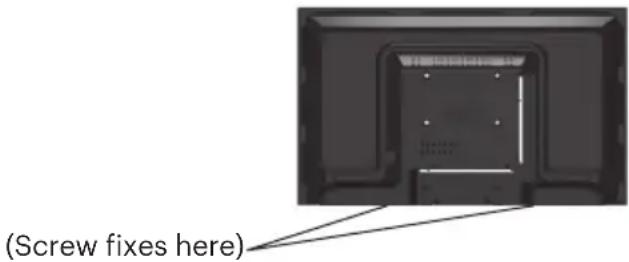
Top-down view of a black rectangular electronic component with internal mounting holes and mounting holes (no text or symbols visible)- Tighten the supplied screws to fix the TV stand securely in place. (Screws - Provided with TV unit)
text_image
(Screw fixes here)WARNING
- The TV stand may not be securely fixed in place after repeated tightening and loosening of screws.
- During assembling and disassembling the TV stand, please use your hand to support it. Failing to do so may cause the TV stand to fall and result in personal injury / damage to the product.
- After installing the TV stand, please ensure that the screws are tightened firmly. Failure to do so may cause the TV set to tip over or damage it.
FUNCTIONAL OVERVIEW
Front & Side Panel

natural_image
Front view of a black rectangular TV with two labeled buttons (1 and 2) pointing to the front panel (no text or symbols on the screen itself)1 Power Light
On Standby Mode, the light turns red.
2 Infrared Remote Sensor
Receives the signals from the remote control.
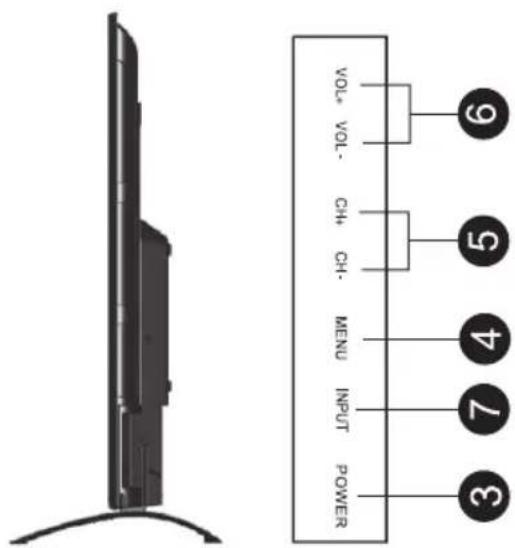
text_image
VOL+ VOL- CH+ CH- MENU INPUT POWER ③ ④ ⑤ ⑥ ⑦3 Power
Press to turn TV on or turn to standby mode.
4 Menu
Press to display the setup menu on the TV screen.
5 CH-, CH+
Press to select desired channels. or press to select or adjust a menu item.
6 Vol-, Vol+
Press to adjust Volume level or press to select & adjust a menu item.
7 Input
Press to select source of viewing & adjust video input modes TV, AV, HDMI, USB, YPBPR
FUNCTIONAL OVERVIEW (AS PER MODEL)
Rear Panel

natural_image
Black-and-white photo of various electronic components including USB, VGA, and camera module (no visible text or labels)| *EARPHONE | RJ 45 HDMI 1 HDMI 2 VGA | PCAUDIO | VIDEO | L - AUDIO - R | |
| AV1 IN | |||||

natural_image
Row of industrial mechanical components including cylindrical and cylindrical parts (no visible text or symbols)| TV USB1 | HDMI x 3 | USB 2 | COAX | L-AUDIO-R | Y / VIDEO | Pb Pr |
| USB3 | IN | AV2 IN | ||||
- LAN (Local Area Network)
For Internet connection
- USB
Insert USB
- HDMI input Terminal
Connect to equipment with HDMI output
- VGA(PC IN) Input Terminal
Connect to PC.
- PC / HDMI Analog Audio Input Terminal
Connect to equipment using HDMI-DVI connection or PC with audio output.
- AV 1 & AV 2 In / YPBPR
Connect the video output jack of DVD or VCR & equipment using with the set-top box
- Antenna Input Terminal
Connect to equipment with antenna output or wall antenna socket.
*This image is for reference only to explain uses of various connections. Actual product specifications may differ from the above.
NOTE : Earphone (optional) connect the earphone lead with extra speaker satellite units
CONNECTIONS
You can connect VCR, DVD player, set-top box, computer, game console or other equipment to the TV. To view external source images, press source to select the input source.
Connecting an AV Equipment with HDMI Connector

text_image
Connecting an AV Equipment with Composite Connector (HDMI) [Example] VCR DVD Player Set-Top Box Game ConsoleConnecting an AV Equipment with VGA Connector

text_image
[Example] ComputerInstalling the remote control batteries

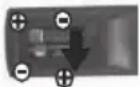

- Open the battery cover.
- Insert batteries (2x AAA size batteries) Place batteries with their terminals observing the (+) & (-) indications.
- Replace the cover & press down until the lock snaps closed. If the remote control is not used for an extended period of time, remove the batteries from the remote control as damage may result due to electrolyte leakage from the batteries.

text_image
1 2 3 4 5 6 7 8 9 0 6:00 TEN 4:00 P ENTER START OK F1 NEW SFFY ON EAT EAT SETTING CAPSING THOMSONNote: - The batteries shall not be exposed to excessive heat such as sunshine, fire or the like.
- Danger of explosion if battery is incorrectly replaced. Replace only with the same or equivalent type.
- Risk of explosion if battery is replaced by an incorrect type. Dispose of batteries according to the instructions.
- Do not dispose of batteries in a fire, danger of explosion
- Batteries not covered under warranty.
FUNCTIONS
| POWER | Turns TV into STANDBY ON/OFF. | |
| FREEZE | Select to freeze the scene still on the screen. | |
| S.MODE | Recalls / changes presetted sound settings. | |
| P.MODE | Recalls / changes presetted picture settings. | |
| FAV | Press to add or remove your favorite channels under TV menu. | |
| FAV-/Setting | Press to switch your favorite channels under TV menu. / Press to open set-up. | |
| FAV+/Capture | Press to switch your favorite channels under TV menu. | |
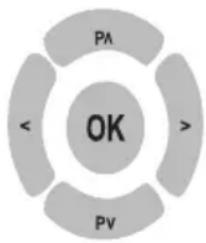 | P^Pv | - Navigates vertically Up/Down through the Menu/Sub Menus.- To enter character/numbers in program name parameter.- To navigate channel Up/Down through valid channels. |
| <> | - Navigates horizontally Right/Left through the Menu/Sub menus.- To enter in Menu/Sub menus & to adjust Vol +/- - To navigate the letter in program name parameter.- To select the time.- To select Source by Up/Down arrow key.- Increase / Decrease the value of selected items & set the parameter On/Off. | |
| OK | - To enter in sub menu.- Enter to edit program name parameter. | |
| EXIT Press to exit the OSD menu | ||
REMOTE CONTROL
| MENU | To select menu OSD window and return to upper menu. |
| INPUT | Input source selection. |
| VOL +/- | Select to increase or decrease volume. |
| PA+/- | Select to increase or decrease volume for power audio. |
| ECO | This key provides the different power saving modes. The current mode is displayed with ecovision symbol on the screen. In audio only mode display is off & only audio is on. Press any key to exit audio only mode. Note: VOL+/-, PA+/- & Mute can function even as panel is off. Note: Audio only mode is not available in models 32" and above. |
| MUTE | Turns sound OFF or ON |
  | Figures 0-9 are used to directly input channel number. |
| - / -- / CH. LIST | - Press this key to enter the program number for different digit eg. -/--/---- Press for the list of program. |
| Q.VIEW | Press this key to toggle between the current & the previous program you were watching. |
Sleep/ Delete  | - Press this key to save channels when manual tuning or to delete channel when editing TVprogram in program edit function.- To set sleep timer except when in program Edit Menu or USB mode- To delete item selected in USB mode. |
Sub Title/ Copy  | - Press this key to display sub title list.- Press this key to rename channels in program edit function. |
Speaker  / Media / Media | - Press this key to switch On/Off internal speaker used in TV set.- Press this key to swap channel in program edit function.- Press this key to open media center. |
Aspect  | - Press this key to switch aspect ratio.- Press this key to skip channel in program edit function. |
| [K7DS] | - Press this key to STOP in USB mode |
 | - Press this key to PLAY/PAUSE in USB mode |
 | - Press this key to FAST REVERSE in USB MODE |
 | - Press this key to FAST FORWARD in USB MODE |
 | - Press this Go to key to select play time position |
 / ↑ / ↑ | When playing the Photo or Video or Mp3 or Text, if you select ROOT key it will stop playing & return to the current list in USB mode.Press to open home page. |
 | - Press this key to play the previous track. |
 | - Press this key to play the next track. |
REMOTE CONTROL
Power On/Off
Turning on the TV
- Plug the TV's power cord into a wall outlet (after this step, the main unit will turn on and enter stanby mode automatically).
- Press the (Power) button on the TV, or press the (Power) button on the remote control. The TV will turn on.
Placing In Standby Mode
Your TV can be placed in Standby mode in order to reduce the power consumption. The standby mode can be useful when you wish to interrupt viewing temporarily (during a meal, for example).
- Press the Power Button.
- To switch back on, simply press power button.
Remark: Do not leave your TV in standby mode for long periods of time. (When you are away on holiday, for example). It is the best to unplug the set from the mains and aerial.
Changing Programmes
Using the programme selection buttons on the remote control to change programmes
To select a programme, press the corresponding programme selection button remote control. For example, to select programme 8, press the "8" programme selection button on the remote control.
Using the P+/- buttons to sequentially change programmes
Press P+/- buttons on the remote control or on the TV to sequentially select the TV programmes available in you area.
Using the G button to return to sequentially change programmes
To return to the previous viewed programme, press the ↗ button on the remote control.
BASIC OPERATION
Power On/Off
To turn on the TV
- Connect the power play into the wall outlet. The power indicator lights in red, indicating that the TV is in Standby Mode.
-Press
The Power indicator lights turns off & the TV turns on.
To turn off the TV
-Press
The power indicator lights in red & the TV turns off to standby mode.
- It takes approximately 10 sec. for the picture to appear after the TV is turned on.
- The TV will switch to standby mode automatically if there is no signal input for 10 minutes.
- If the TV will not be used for a long periods of time, unplug the TV from the wall outlet.
Channel Selection
To select channel
Press P+/- or Program Select buttons to select the channel number directly.
Input Source Selection
To select input "SOURCE".
- Press ▲/▼ to select the desired input source, then press ◀/▶ "enter" to enter. The selected input source image displays.
INPUT Source : TV, AV-1, AV-2, HDMI - 1, HDMI - 2, HDMI - 3, USB-1, USB-2, y.pb,Pr, VGA
Volume Adjustment
To change the volume
- Press V+ to increase the sound volume.
- Press V- to decrease the sound volume.
To Mute the sound
- Press ☒ to temporarily turn off the sound.
- Press ☒ or V+ to restore the sound to previous level.
- You can decrease the sound volume by pressing V- while the sound is muted.
On-Screen Displays (OSD) Selection & Adjustment
- Press "MENU" to display the main menu.
- Press◀/▶ to select a menu. The selected menu page displays.
- Press▲/▼ to set your selection.
- Press▲/▼ to choose an item on the menu page & press ▶ to set your selection.
- Press◀/▶ to adjust an item value or choose options.
- Press "MENU" to return to the menu, press "MENU" again to exit.
The OSD menu screen will be closed automatically when no operation has been made for the set OSD menu display time.
MENU OPERATION
CHANNEL :
Auto Tunning : You can tuto tune all RF channels in ATV input source only.
ATV Manual Tunning : Channel
CH1
: Color System
Auto/PAL/NTSC/SECAM
: Sound System
BG/DK/I/M
: Search
< >
: Frequency
62.25 MHz
MENU
Program Edit
1 S-00 ATV

Delete EditGove Skip


Picture : Standard / Soft / User / Vivid/Natural/Sports/Lightness
ATV Manual Tunning Contrast
rast : 0 - 100
Brightness : 0 - 100
Hue : 0 - 100
Sharpness : 0 - 100
Saturation : 0 - 100
ECO : Off/Low/Middle/High
back Light : 0 - 100
Color Temperature : Standard / Warm / Cool
Aspect Ratio : 16:9
Image Noise
Reduction : Off/Weak/Middle/Strong
SOUND : Standard / Music / Movie / Sports / User
Bass : 0 - 100
Treble : 0 - 100
Balance : 0 - 100
AVC : Off / On
Surround : Off / On
SPDIF Output : PCM/RAQ/OFF
TIME :
Date : 2016 / 7 / 1
Current Time : 09:02:40
Off Time : Setting off Time Off / On
Hour 9 (0-23)
Minute 05 (0-59)
(Off Time must be more, than 1 minutes after the current time)
On Time : Setting Boot Time OFF/ON
Hour
Minute 43
Source ATV
(Schedule time must behind the current time)
Sleep Time : Off / 10 min / 20 min/ 30 min/ 60 min / 90 mibn / 120 min / 180 min / 240 min.
SETTING :
Menu Time : Always / 5 Sec / 10 Sec / 15 Sec / 20 Sec / 30 Sec.
Blue Screen : Off / On
HDMI CEC : Off / On
Stand by On : OFF / ON
ARC : OFF / On
Menu Opcity : 0 - 100
Restore To Default : >>>>
MENU OPERATION
Channel Setting (Use for TV)
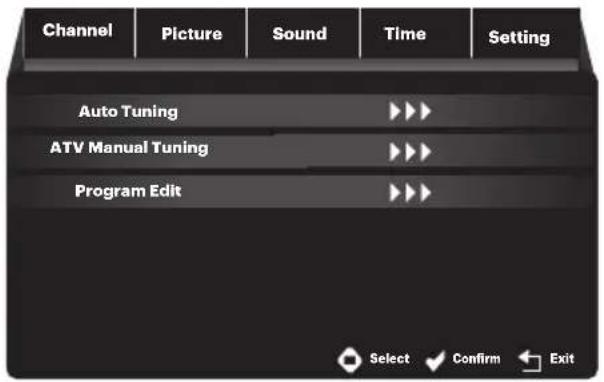
At ATV input source, the first page showed is CHANNEL. At non ATV input source, the first page is PICTURE as default. Currently press ENTER to get in sub menu, submenu highlight fixed on press button key, the subtopic turns up with full screen.
text_image
Channel Picture Sound Time Setting Auto Tuning ATV Manual Tuning Program Edit Select Confirm Exit- Press the "MENU" button on the remote control to enter the OSD menu. Then press ◀▶ buttons the "CHANNEL".
- Press ▲▼ buttons to select the desired item, then press ▶ or ENTER to enter.
- Press ◀▶ buttons on the remote control to adjust desired item.
- Press the "MENU" button on the remote control to return to upper menu.
Note: CHANNEL can be only selected under ATV condition, others can't be used.
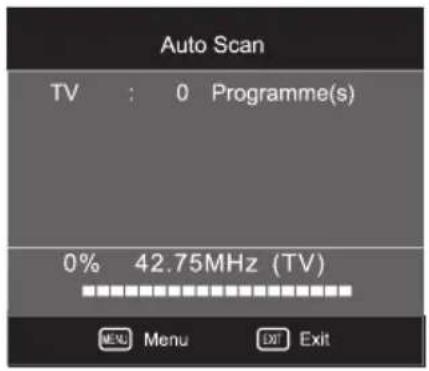
- Auto Scan : Enter Auto, it shows the process of frequency & the number of channels.
text_image
Auto Scan TV : 0 Programme(s) 0% 42.75MHz (TV) MENU Menu EXIT ExitPress to select country & Tune Type at first, press to select start or cancel, then press OK button to start or exit Auto Scan.

text_image
TV Manual Tuning Storage To PAL BG Current CH Search Fine-Tune Frequency Move Save Exit- TV Manual Tuning: Storage To : Current storage space shows, the following option are available : 1-200. System : Default option depends on country selection. The following option are available : BG, I, DK Current CH : Current channel shows. Search : Can be searched at full channel condition. Frequency : Show the current frequency & follow search or Fine-Tune to adjust.
NOTE : After tuning by hand, make sure to press red button for storage, otherwise all channels searched would not be stored after switching condition.
MENU OPERATION
- Program edit :
There are 3 items in the Preference page : Skip, Type

text_image
Programme Edit CH. NAME SKIP Type Select OK OK Cancel Delete Rename Swap SkipSelect : Select your channel name by moving the cursor.
Delete : Delete current channel, as follows :
Press UP/DOWN buttons to choose the channel which you want to delete, then press RED button to delete the current channel.
GREEN Button :
Modify current channel name, only used in ATV mode.
- At normal condition, press GREEN button to enter RENAME mode.
- At RENAME Mode :
MENU : Press to exit RENAME mode, back to normal.
EXIT : Press to exit menu.
UP/DOWN : Press to switch letters, numbers or signs.
LEFT/RIGHT : Press to switch left & right, can select by circle.
GREEN : Press to exit RENAME mode, return normal condition.
Yellow Button :
Channel switching function, ATV available as default.
- At normal condition, enter SWAP mode, & current selected channel is mobile channel X.
- At SWAP mode :
MENU : Press to exit SWAP mode, turn to normal condition.
EXIT : Press to exit menu.
UP/DOWN : Choose switch channels.
YELLOW : If current selected channel is what selected before X, no any other action,
Otherwise, the current channel is channel Y, need to exchange X&Y condition. But the channel number stays 1,2,3,..... order as before.
BLUE Button :
Choose if skip the channel when CH+/- channel tuning.
At Non Skip channel, press BLUE button, & Skip the current channel
At skip channel, press blue button to cancel skip.
MENU OPERATION
Picture Setting

text_image
Picture Mode Contrast 50 Brightness 50 Color 50 Sharpness 50 Tint 50 Software Update(USB)Software Update(USB) Move Menu SelectYou can adjust picture effect here, such as contrast, brightness & etc.
- Press the "MENU" button on the remote control to enter the OSD menu.
Then press ◀▶ buttons to select the "PICTURE". - Press ◀ button to select the desired item to enter.
- Press ◀▶ buttons on the remote control to adjust desired item.
- Press the "MENU" button on the remote control to return upper menu.
Picture Mode : Press ◀▶buttons to select. The following option are available.
"Standard, Mild, User, Dynamic"
Contrast : Adjust image contrast.
Brightness : Adjust image brightness.
Color : Adjust the color saturation.
Sharpness : Adjust the sharpness level of image.
Tint : Determines the tint of the screen (This is only available with NTSC).
Color Temperature : Adjust the color temperature level of image. The following option are available, "Normal, Warm, User, Cool".
RED/GREEN/BLUE : Press ◀▶ buttons to adjust numeric size, Press MENU button to turn back picture main menu.
Aspect Ratio : Press ◀▶ buttons to select, 16:9, Zoom 1, Zoom 2, Panorama, 4:3, Just Scan
Noise Reduction : Press ◀▶buttons to select Off, Low, Middle, High
Color Temperature

text_image
Picture Mode Contrast 50 Brightness 50 Color 50 Sharpness 50 Tint 50 Software Update(USB)Software Update(USB) Move Menu Select ExitYou can select your favorite color temperature.
- Press the "MENU" button on the remote control to enter the OSD menu. Then press
◀▶ buttons to select the "PICTURE"
- Press ▲▼ button to select the "Color Temperature"
- Press ◀▶ buttons on the remote control to choose color temp's value.
- Press the "MENU" button on the remote control to return to upper menu.
User : Adjust the color value.
Normal : Keep the original white color
Warm : Adjust the white color to a little bit red.
Cool : Adjust the white color to a little bit blue.
Remark : The changes you made will be stored automatically.
MENU OPERATION
PC Setting (Only for PC Mode)
text_image
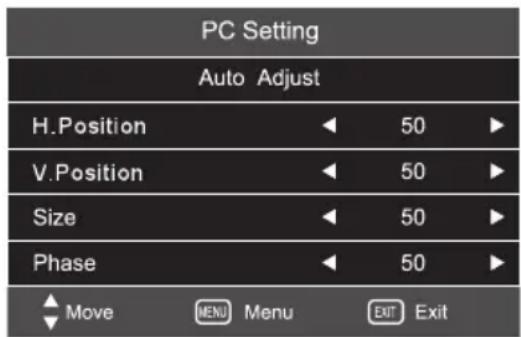
PC Setting Auto Adjust H.Position 50 ▶ V.Position 50 ▶ Size 50 ▶ Phase 50 ▶ Move MENU Menu Exit ExitThe function only used in PC port to adjust PC position. Enter the screen page with ◀▶ buttons or ENTER button.
- When input PC source, you can go to PC to set up menu.
- Press the "MENU" button on the remote control to enter the OSD menu. Then press ◀▶buttons to select the "PICTURE SETUP" in main menu.
- You can press ENTER buttons to enter PC setup mode after selecting PC setting, & the press ▲▼ buttons to select your desired item press ◀▶ buttons to adjust.
- Press the "MENU" button on the remote control to return to upper menu.
- In PC function operation will instruct more clear.
Auto Adjust : Press ◀▶buttons, TV system adjust by itself, it can adjust, H position, V position, Phase & so on that can make the image in center & display best.
H. Position : Adjust Horizontal Position of the PC Screen.
V. Position : Adjust the Vertical Position of the PC Screen.
Size : Adjust the size of the PC Screen.
Phase : When necessary, adjust the pixel phase of the picture to avoid picture interference.
Sound Setting

text_image
Sound Mode Treble 50 Bass 50 Balance 50 Auto Volume Off Surround Sound OffYou can customize different sound mode to get best effect.
- Press the "MENU" button on the remote control to enter the OSD menu. Then press
◀▶ buttons to select the "SOUND" - Press ▲▼ button to select the desired item to enter.
- Press ◀▶ buttons on the remote control to increase or decrease the value of desired item.
- Press the "MENU" button on the remote control to return to upper menu.
Sound Mode : Press ◀▶buttons to select one of the following options are available "Standard, Music, Movie, Sports User".
Treble : Adjust treble effect.
Bass : Adjust bass effect.
Balance : Adjust balance effect.
Auto Volume : (Auto volume control, when you turn on the TV, this feature allows the TV to automatically adjust the sound output from level to the previous level of last time when you turned off the TV) : On/Off.
Surround Sound : Select it to enter, then you can select Off or On.
MENU OPERATION
Time Setting
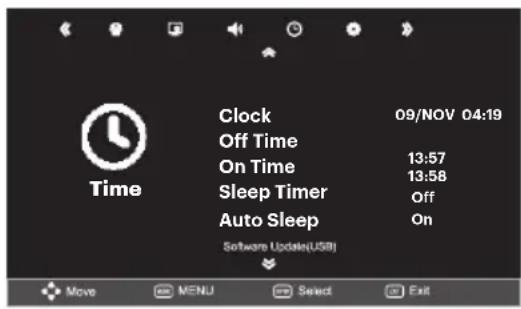
You can set the TV's time & you should set time if you use the automatic On/Off times.
text_image
Clock 09/NOV 04:19 Off Time 13:57 On Time 13:58 Sleep Timer Off Auto Sleep On Time Software Update(USB) Move MENU Select Exit- Press the "MENU" button on the remote control to enter the OSD menu.
Then press ◀▶ buttons to select the "TIME".
- Press ▲▼ button to select the desired item to enter.
- Press ▲▼ buttons on the remote control to adjust desired item.
- Press the "MENU" button on the remote control to upper menu.
Sleep Timer : Press◀▶ buttons to select your desired item (Off, 240 min., 180 min., 120 min., 90 min., 60 min., 30 min., & 10 min.)
Auto Sleep : Within 10 min. there is no signal, the TV will auto sleep
Clock

text_image
Clock Date 09 Month NOV Year 2012 Hour 14 Minute 20 Move MENU Menu EXIT Exit- Press the "MENU" button on the remote control to enter the OSD menu.
Then press ◀▶ buttons to select the "TIME". - Press ▲▼ button to select CLOCK, then press ENTER button to enter.
- Press ▲▼ buttons to select the desired item.
- Press the "MENU" button on the remote control to return upper menu.
Off Time

text_image
Off Time Repeat Every day Hour 13 Minute 17 Move Menu Exit Exit- Press the "MENU" button on the remote control to enter the OSD menu.
Then press ◀▶ buttons to select the "TIME". - Press ▲▼ button to select Off Time, then press ENTER button to enter.
- Press ▲▼ buttons to select the desired item, then press ◀▶ buttons on the remote control to set the time.
- Press the "MENU" button on the remote control to return upper menu.
MENU OPERATION
On Time
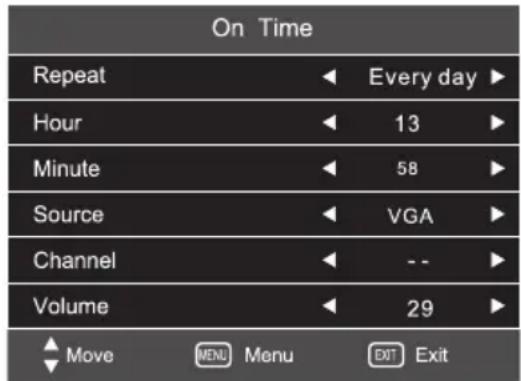
text_image
On Time Repeat ◀ Every day ▶ Hour ◀ 13 ▶ Minute ◀ 58 ▶ Source ◀ VGA ▶ Channel ◀ -- ▶ Volume ◀ 29 ▶ ◀ Move MENU Menu ☑ Exit- Press the "MENU" button on the remote control to enter the OSD menu.
Then press ◀▶ buttons to select the "TIME". - Press ▲▼ button to select On Time, then press ENTER to enter.
- Press ▲▼ buttons on the remote control to adjust desired item, then press ◀▶ buttons on the remote control to set the time.
- Press the "MENU" button on the remote control to return to upper menu.
Option Setting

text_image
Option OSD Language OSD Duration Blue Restore Default English Off Off Software Update(USB) Move MENU Select ExitYou can adjust the OSD language, OSD Duration
- Press the "MENU" button on the remote control to enter the OSD menu, then press ◀▶ buttons to select the "OPTION".
- Press ▲▼ button to select the desired item to enter.
- Press ▲▼ button on the remote on the remote control to return to upper menu.
OSD Lanugage : Press ◀▶ buttons to select the OSD language.
OSD Duration : Press ◀▶ buttons to select your desired item (Off, 5S, 10S, 15S, 30S, 45S, 60S).
Blue Screen : If no signal is being received or the signal is very weak, a blue screen automatically replaces the noisy picture background. Press◀▶ buttons to select On/Off.
Restore Factory Default : Restore the default setting.
Note : Restore factory default will clear all the programs & passwords
Hotel Setting
| Hotel Lock | On |
| Menu Lock | |
| Power On Source | Off |
| Channel Number | 1 |
| Key Lock | Off |
| Max Volume | 100 |
| Power On Volume | 30 |
| Source Lock | |
| Clear Lock | |
| Data Base Export | |
| Data Base Import |
Hotel Mode: To enter Hotel setting mode dial
Menu + 2580 from remote control.
MEDIA PLAY
Remote Controller Media
| Button | Description |
| ■ | Stop / Playback |
| ▶I | Play / Pause |
| ◀◀ ▶▶ | Skip a scene or music |
| |◀◀ ▶▶| | Go back to the previous or skip to the next |
| ▲▼ ◀▶ | Press to select item |
| ENTER | Press to confirm an action (For example: copy, paste, etc.) |

Media Play
When selecting the USB input mode & input your USB, you can play the USB. There are 4 items in the preference page: PHOTO, MUSIC, MOVIE, TEXT.

text_image
Photo Move Menu Exit SelectNote : Select the picture & press PLAY button to play after exiting music play mode. When playing a movie you can press the "ENTER" button, then the function menu will appear on the screen. You can select you desired item.
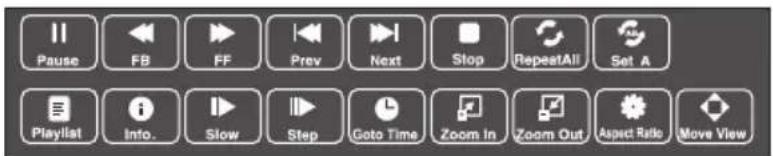
text_image
Pause FB FF Prev Next Stop RepeatAll Set A Playlist Info. Slow Step Goto Time Zoom In Zoom Out Aspect Ratio Move ViewThe supported file format of media playing:
| File Type | Supported File Format | File Name |
| PHOTO | BMP / JPEG / PNG | .jpeg / .bmp |
| MUSIC | WMA / Mp3 / Mp4 / AAC | .mp3 / .wma |
| MOVIE | MPEG1 / MPEG2 / MPEG4 / RM / RMVB | .mpg / .dat / .vob |
| TEXT | TXT | .txt |
Note : In case the screen reads not compatible with HDD. The file you played needs license from external source (customer should check this point) or it will not be played.
PC SETTING
Setting up your PC Software (Based on Windows)

text_image
Display Properties Themes Desktop Screen Server Appearance Settings A theme is a background plus a set of sounds, icons, and other obsolescence to help you personalize your computer with one click. Theme Windows XP Save As... Delete Sample: Active Windows Window Post OK Cancel ApplyThe Windows display-setting for a typical computer are shown below. But the actual screen on your PC will probably be different, depending upon your paticular version of windows and your particular video card. But even if you're actual screen looks different, the same, basic set-up information will apply in almost all cases.
- First, click on "Control panel" on the Windows start menu.
- When the control panel window appears, click on "Appearance & Themes" & a display dialog box will appear.
- When the control panel window appears, click on "Display" & a display dialog -box will appear.
- Navigate to the "Setting" tab on the display dialog-box. The correct size setting (resolution) Optimum: 1366 x 768
If a vertical-frequency option exists on your display settings dialog box, the correct value is "60" or "70 Hz". Otherwise, just click "Enter" & exit the dialog box.
Note : This is only a reference recommendation. Actual user connectivity features may differ & require additional settings.
Display Mode
If the signal from the system equals the standard signal mode, the screen is adjusted automatically. if the signal from the system does not equal the standard signal mode, adjust the mode by referring to your videocard user guide, otherwise there may be no video. For the display modes listed below, the screen image has been optimized by manufacturer.
| Resolution | Vertical Frequency (Hz) | Mode |
| 640x480 | 60Hz | VGA |
| 800x600 | 60Hz | SVGA |
| 1024x768 | 60Hz | XGA |
| 1366x768 | 60Hz | WXGA |
| 1920x1080 | 60Hz WXGA |
INSTRUCTIONS FOR PLATFORM OPERATION
Quick Start
Before using this device, please get familiar with the operations below for better experience.
Language input setting (IME)
Language : Select the system language, select Settings > IME > Language Setting, & press "OK" key. press "____" key to select the desired language, & then press "OK" key.
Selecting Input Method : In the smart mode, select Settings > IME > Update Input Method, & integrated "Android Keyboard" & "Google play in Input Method", you can also download & install third party input method.
Setting System Time : In the smart mode, select Settings > Date & Time > Set Date & Time
Automatically from the internet, press "OK" key & the system update the clock from the network automatically, if the TV set isn't connected to the network, you can set the system time manually.
Screenshot (Optional) : Before screen shooting, please insert the USB mass storage device into the USB interface, & press "SNAPSHOT" key. After screen shooting, the picture are saved in the ";\Pictures\Screenshots" folder in the USB mass storage device.
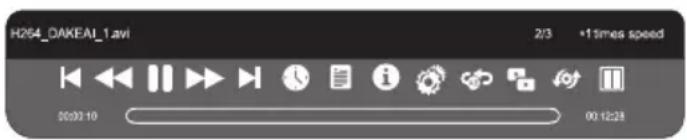
| Play the previous video. | |
| Select the speed of fast rewind | |
| Pause / Play the video | |
| Select the speed of fast forward | |
| Play the next video | |
| Select the starting time point of watching | |
| View the playing list | |
| Show details of the video |
| Playing setup, show/hide subtitle & adjust the audio progress in this option. | |
| Set A-B repeat playing, set point A & point B, & the video will repeat between A & B. | |
| A dual-screen display, start or off dual display function. | |
| Select playing screen. | |
| Select dual display window display mode. |
While playing press "OK" key to show the menu options as in the picture above, select an icon & press "OK" key to perform the operation, you can press "Return" key to exit playing, or ",",",",",",","," keys on the remote control to perform shortcut operation.
INSTRUCTIONS FOR PLATFORM OPERATION
Multimedia Player
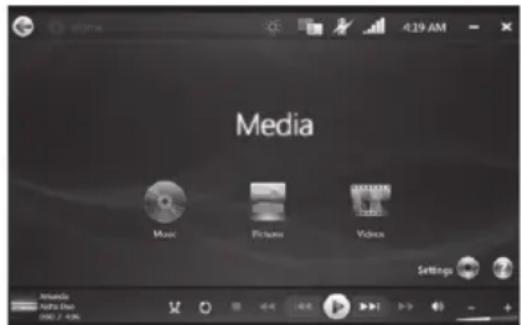
text_image
Media Music Pictures Video Settings Amundi Natu Dui 000 2 4:36Select Multimedia in the main interface, & press
"OK" key to run. Select the file type from all, picture, song & video in the left.
Playing files in local disk device :
Before playing files in the local disk, insert the USB mass storage device into the USB interface. Select local disk device in the file directory in the center, & press "OK" key to enter. Select Back in the directory, press "OK" key to return to previous folder. Select the target folder, press "Return" key to return to the desktop.
Attention :
- Non-standard USB devices be recognized. In this case, please replace with a standard USB device.
- The stream media system has certain restrictions on the format of files. The viewing may be abnormal if it is out of the system restriction.
- Do not remove the USB device while playing, or the system or device may incur a problem. Before replacing USB device, please turn off power supply.
- The system supports standard USB 1.1, USB 2.0, USB 3.0 devices, such as USB mass storage devices & removable hard drives.
- The maximum output current of the USB port of this device is 500 mA, & self-protection will be enabled if it is beyond this limit. Please use external power supply if an external device of higher current will be connected.
- The system is complicated, when it is reading or playing files, the screen may be still or certain functions may be invalid due to the compatibility & stability of the USB device, in this case please turn off the device & re-initialize the system.
Media Player UI icon introduction
Picture Player Menu Options

text_image
1.jpg| Play the previous picture | |
| Pause / Play lantern slide | |
| Play the next picture | |
| Zoom in the picture |
| Zoom out the picture | |
| Rotate 90° left | |
| Rotate 90° right | |
| Show detail of the picture |
Music Player Menu Options
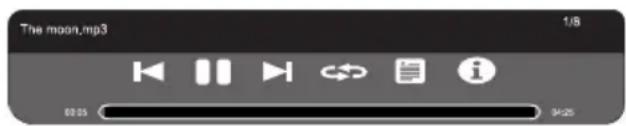
text_image
The moon.mp3 1/8 03:25 9:25| Play the previous track | |
| Pause / resume music playing | |
| Play the next track |
| Set the repeat playing mode : All, Single, Random | |
| View the playing list. | |
| Show details of the music |
Video Player Menu Options
text_image
H264_DAKEAI_1.avi 2/3 +1 times speed 00:00:10 00:12:28SPECIFICATION
| Screen Size | 60cm |
| Resolution | HD Resolution |
| Audio Output | 10W + 10W |
| Power Consumption | 45W |
| Connectivity | RF, AV IN, HDMI, VGA, USB, EARPHONE, PC, AUDIO |
| TV System | PAL, SECAM, AUTO |
| Sound System | DK, BG, I, M |
| Working Voltage | 100V-250V, 50/60 Hz |
| Screen Size | 80cm |
| Resolution | HD Resolution |
| Audio Output | 10W + 10W |
| Power Consumption | 57W |
| Connectivity | RF, AV IN, HDMI, VGA, USB, EARPHONE, PC, AUDIO |
| TV System | PAL, SECAM, AUTO |
| AV System | DK, BG, I, M |
| Working Voltage | 100V-250V, 50/60 Hz |
| Screen Size | 102cm |
| Resolution | Full HD Resolution |
| Audio Output | 10W + 10W |
| Power Consumption | 85W |
| Connectivity | RF, AV IN, HDMI, VGA, USB, EARPHONE, PC, AUDIO |
| TV System | PAL, SECAM, AUTO |
| Sound System | DK, BG, I, M |
| Working Voltage | 100V-250V, 50/60 Hz |
| Screen Size | 124cm |
| Resolution | 1920 X 1080 |
| Audio Output | 10W + 10W |
| Power Consumption | 105W |
| Connectivity | RF, AV IN, HDMI, VGA, USB, EARPHONE, PC, AUDIO |
| TV System | PAL, SECAM, AUTO |
| Sound System | DK, BG, I, M |
| Working Voltage | 105W AC, 50/60 Hz |
Note : This user manual is for reference only. Specifications are subject to change without notice.

If at any time in the future you should need to dispose of this product please note that, Waste electrical products should not be disposed of with household waste. Please recycle where facilities exist. Check with your Local Authority or retailer for recycling advice. (Waste Electrical & Electronic Equipment)
TROUBLESHOOTING
| Problem Possible Causes Solutions | ||
| Snowflake spots occur in the TV images & there is noise in accompanying sound. | - The antenna connector is loose, or the cable damaged.- The antenna type is improper.- The antenna direction or position is inaccurate.- The signal is weak. | - Check if the antenna plug is loose or the cable is in good condition.- Check the antenna type (VHF/UHF).- Adjust the direction & position of the antenna.- Try to use signal enhancer. |
| There is neither display nor sound on the screen. The indication light is not on. | - The power plug is loose or the power supply is not connected.- The power switch is not turned on. | - Check if the power line is connected.- Press the “●” button on the panel. |
| Dotted line or strip disturbance occurs in TV images. | - The signal is disturbed by car, neon light, electric hair dryer, etc. | - Do not use electric hair dryer aside the TV set & adjust the antenna direction to reduce disturbance. |
| Double images occur on the TV screen. | - TV singals are reflected by surrounding high mountains or mansions.- The direction of the antenna is inaccurate. | - Use high oriented antenna & use the Fine Tune function of “TV”.- Adjust the direction of the antenna. |
| The images are colorless. | - The color saturation is adjusted too low. | - Enter “PICTURE” setting to increase color saturation. |
| The TV has no accompanying sound. | - The volume is set too low.- The sound is on mute. | - Adjust the volume to a proper degree.- Press “MUTE” key on the remote control to cancel mute mode. |
| There is no display on the PC, with the prompt of “No Signal Input”. The red indicator light is blinking. | - The signal connecting cable is loose or falls off. | - Check if the signal connecting cable is loose or falls off. Reconnect it. |
| Images displayed on the PC deviate. The screen is not full or is exceeded. The display is fuzzy. | - The adjustment is improper.- The display mode in inaccurate. | - Use automatic adjustment function.- Enter “PC Image Mode” adjustment level or vertical position.- Use the recommended mode. |
| The remote control distance is short or out of control. | - The remote control receiving window of the machine is blocked by some object.- The battery of the remote control is low. | - Remove the object to avoid blocking the remote control receiving window.- Replace the battery. |
| Machine is slow, system crash, can’t operate the machine. | - Too much to run the program.- The external environment (such as lighting, static electricity, etc.) Interfere with the normal work of the machine. | - Disconnect the power supply first, & connect the power supply after about 1-2 minutes, then turn on the TV again. |
TROUBLESHOOTING
NO PICTURE, NO SOUND
- Check if the fuse or circuit breaker is working.
- Plug another electrical device into the outlet to make sure it is working or turned on.
- Power plug is having a bad contact with the outlet.
- Check the signal source.
NO COLOR
- Change the color system.
- Adjust the saturation.
- Try another channel. Black-white program may be received.
REMOTE CONTROL DOES NOT WORK
- Change the batteries.
- Batteries are not installed correctly.
NO PICTURE, NORMAL SOUND
- Adjust the brightness & contrast.
- Broadcasting failure.
NORMAL PICTURE, NO SOUND
- Press the volume up button to increase volume.
- Volume is set to mute, press MUTE to restore Audio.
- Change the sound system.
- Broadcasting failure.
UNORDERLY RIPPLES ON THE PICTURE
- It is usually caused by local interference, such as cars, daylight lamps & hair driers. Adjust the antenna to minimize the interference.
BLANK SCREEN IN PC MODE
- Perhaps the TV can not recognize the resolution set by he PC. Suggest to change the best resolution of Windows system. Set refresh rate.
- If the antenna is located in a fringe area of a television signal where the signal is weak, the picture may be marred by dots. When the signal is extremely weak, it may be necessary to install a special antenna to improve the reception.
- Adjust the position & orientation of the indoor/outdoor antenna.
- Check the connection of antenna.
- Fine tune the channel.
- Try another channel. Broadcasting failure.
IGNITION
- Black spots or horizontal streaks appear or the picture flutters or drifts. This is usually caused by interference from car ignition system, neon lamps, electric drills, or other electrical appliance.
GHOST
- Ghosts are caused by the television signal following two paths. One is the direct path, the other is reflected from tall buildings, hills or other objects. Changing the direction or position of the antenna. This will improve reception.
- This interference produces moving ripples or diagonal streaks, & in some case, loss of contrast in the picture. Find out & remove the radio interference source.
thomsontv.in
Toll Free
1800-8438-777