Epcom

X905-W - Unspecified Epcom - Free user manual and instructions

Find the device manual for free X905-W Epcom in PDF.

📄 4 pages English EN Download 💬 AI Question 10 questions ⚙️ Specs
Notice Epcom X905-W - page 2
Pick your language and provide your email: we'll send you a specifically translated version.
Product TypeTablet Computer
ModelX905-W
BrandEpcom
Display9.6 inch TFT LCD Touchscreen
Resolution1024 x 768 pixels
ProcessorQuad-core 1.3 GHz
RAM2 GB
Internal Storage32 GB (expandable via microSD)
Operating SystemAndroid 8.1 (Go edition)
BatteryRechargeable Li-ion, 6000 mAh
Battery LifeUp to 8 hours of mixed use
Weight560 g (1.23 lbs)
Dimensions240 x 172 x 10 mm
ConnectivityWi-Fi 802.11 b/g/n, Bluetooth 4.0
CameraFront 2 MP, Rear 5 MP
PortsMicro-USB 2.0, 3.5mm headphone jack, microSD slot
Power InputDC 5V / 2A via Micro-USB
Included AccessoriesMicro-USB cable, Power adapter, User manual
Special FeaturesCapacitive touch, G-sensor, Auto-rotate
Languages SupportedMulti-language (English, French, Spanish, etc.)
CertificationCE, FCC, RoHS

Frequently Asked Questions - X905-W Epcom

How do I turn on the Epcom X905-W for the first time?
Press and hold the power button located on the side of the device for about 3-5 seconds until the screen lights up. Follow the on-screen setup wizard to select language, connect to Wi-Fi, and sign in with your Google account.
How can I reset the tablet to factory settings?
Go to Settings > Backup & reset > Factory data reset. Confirm by tapping 'Reset device' and then 'Erase everything'. This will delete all user data and restore original settings.
How do I charge the X905-W?
Connect the included Micro-USB cable to the tablet's charging port and plug the other end into a USB power adapter (5V/2A recommended). The battery icon will indicate charging status. A full charge takes approximately 4-5 hours.
Why is my tablet not connecting to Wi-Fi?
Ensure Wi-Fi is enabled in Settings > Network & Internet > Wi-Fi. Check that you are in range of the router and the password is correct. If problems persist, try restarting the tablet and router, or forget and reconnect to the network.
How do I take a screenshot on the Epcom X905-W?
Press and hold the Power button and the Volume Down button simultaneously for about 2 seconds. You will hear a shutter sound and the screenshot will be saved in the Gallery app.
Can I expand the storage on this tablet?
Yes, the X905-W supports microSD cards up to 128 GB. Insert the card into the slot (usually located under a small flap on the side) and it will be detected automatically. You can move apps and files to the SD card via Settings.
How do I perform a soft reset if the tablet freezes?
Press and hold the Power button for about 10-15 seconds until the device restarts. This will not erase any data and can resolve temporary glitches.
What should I do if the touchscreen is not responding properly?
First, clean the screen with a soft cloth. Remove any screen protector or case that may interfere. If issues persist, go to Settings > System > Developer options (if enabled) and calibrate the touch input, or restart the device.
How do I update the software on my X905-W?
Go to Settings > About tablet > System updates. Tap 'Check for update'. If an update is available, download and install it over Wi-Fi. Ensure the battery is above 50% before starting.
Is the Epcom X905-W compatible with a keyboard or mouse?
Yes, the tablet supports Bluetooth peripherals. Go to Settings > Connected devices > Pair new device and put your keyboard or mouse in pairing mode. It also supports USB OTG for wired accessories with an adapter.

User questions about X905-W Epcom

0 question about this device. Answer the ones you know or ask your own.

Ask a new question about this device

The email remains private: it is only used to notify you if someone responds to your question.

No questions yet. Be the first to ask one.

Download the instructions for your Unspecified in PDF format for free! Find your manual X905-W - Epcom and take your electronic device back in hand. On this page are published all the documents necessary for the use of your device. X905-W by Epcom.

USER MANUAL X905-W Epcom

Bright Beacon X905 SERIES

Epcom X905-W - Bright Beacon X905 SERIES - 1

natural_image Orange illuminated warning light fixture mounted on a black base (no text or symbols visible)

Introduction

The bright bubble X905 Series offers high power LEDs Gen III (Generation III) as light sources, a compact structure. With degree of protection IP65.

With its novel design, its features are high brightness, low current consumption, easy installation and long service time.

The equipment is specially designed to be installed in any type of emergency vehicle.

Note: Please read the manual before installing

Dimensions
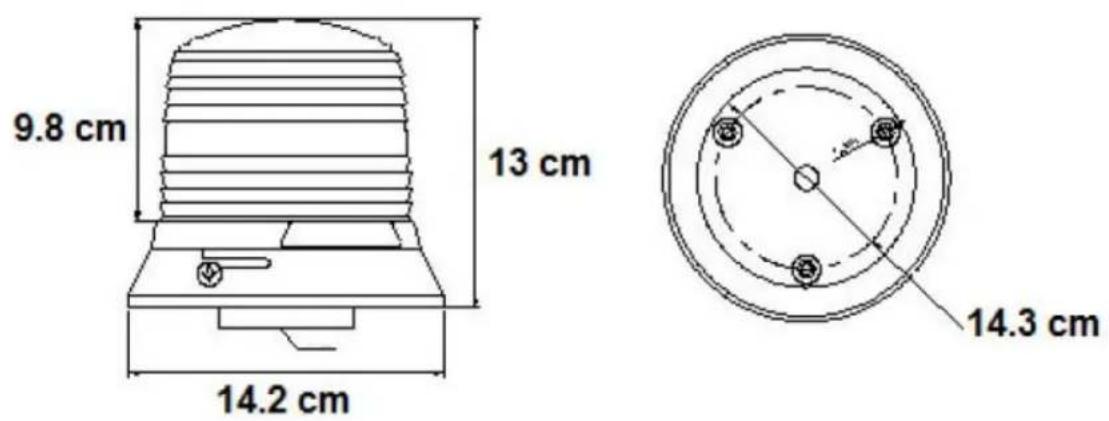
Epcom X905-W - Dimensions - 1

text_image 9.8 cm 13 cm 14.2 cm 14.3 cm

Technical Data

  • Voltage: 12 Vdc
  • Consumption: 1 A max
  • LED quantity: 6
  • Power: 20 W
  • Mounting: Magnetic
  • Flash pattern: 1 (60 FPM)
    • Power supply cable: 3.5 m

Recommendations

  • The warning light is designed for outside use of the vehicle.
  • Keep the equipment ventilated.

Content

  • Beacon Series X905 1 PZ
  • User Manual 1 PZ

Epcom X905-W - Content - 1

text_image CAUTION

High intensity equipment. Do not look directly while the device is on. May cause momentary blindness and/or permanent eye damage.

IMPORTANT Please, read the instructions before installing your equipment

WARNING You must be careful when positioning this equipment, for that the light and / or cable do not interfere with the proper functioning of the airbag of both the driver and the

passenger. Not paying attention to this warning can cause serious or fatal injuries

Manual assistant
Powered by Anthropic
Waiting for your message
Product information

Brand : Epcom

Model : X905-W

Category : Unspecified