
SMPK4600 - Mp3 player SYLVANIA - Free user manual and instructions
Find the device manual for free SMPK4600 SYLVANIA in PDF.


| Product Type | Portable Media Player (MP3 Player) |
| Dimensions | 48mm x 42.1mm x 13.3mm |
| Weight | 25g |
| Power Supply | 120mA, 3.7V Lithium battery (rechargeable via USB) |
| Display | 1.5 inch Colour Display |
| Internal Memory | 128MB/256MB/512MB/1GB/2GB/4GB flash memory |
| Expandable Storage | Micro SD card (up to 4GB supported) |
| Audio Formats | MP3 (8kbps ~ 320kbps), WMA (5kbps ~ 384kbps) |
| Video Format | AMV (convertible from other formats using included software) |
| Photo Formats | JPG, BMP, GIF |
| Interface | USB 2.0 Full Speed |
| Operating System Compatibility | Windows 98/98SE/ME/2000/XP/Vista, MAC OS 9.0, 10.0 |
| Earphone Output | 9mW x 2, 32ohm |
| Signal-to-Noise Ratio | 85dB |
| Audio Features | 7 EQ Modes (Natural, Rock, Pop, Classic, Soft, Jazz, DBB), 8 Repeat Modes (Normal, Repeat One, Folder, Repeat Folder, Repeat All, Random, Intro, A-B Repeat) |
| Recording | Voice recording in WAV format; built-in microphone |
| E-Book | Text file reading with bookmark and auto-scroll |
| Games | Puzzle and Sudoku |
| Cleaning and Maintenance | Use a soft, dry cloth to clean the exterior. Avoid moisture and abrasive cleaners. |
| Safety Precautions | Do not expose to extreme temperatures, moisture, or strong magnetic fields. Disconnect USB safely to prevent data loss. |
| Spare Parts and Repairability | Not user-serviceable. Contact Sylvania support for assistance. |
Frequently Asked Questions - SMPK4600 SYLVANIA
User questions about SMPK4600 SYLVANIA
0 question about this device. Answer the ones you know or ask your own.
Ask a new question about this device
Download the instructions for your Mp3 player in PDF format for free! Find your manual SMPK4600 - SYLVANIA and take your electronic device back in hand. On this page are published all the documents necessary for the use of your device. SMPK4600 by SYLVANIA.
USER MANUAL SMPK4600 SYLVANIA
Sylvania is a registered trademark of OSRAM Sylvania Inc. Used under license.
Portable Media Player
Your Pocket Guide

1
Install Software
2
Get Connected
3
Transfer Media
4
Plug Your Ears & Enjoy
Content
What's in the blister? 2
Know Your Player Well 3
System Requirement 4
Software Installation 5
Connect & Charge 6
Using the Micro SD Card 7
Transfer 8-9
Software Operation 10 - 13
Language Selection 14
Music Playback 15
Edit Lyrics 16
Repeat Mode 17
EQ Mode 18
Video Playback 19
Photo Browse 20
E-Book 21
Records 22
Game 23
Technical Data 24
Trouble Shooting 25
What's in the blister?
What's in the blister?
natural_image
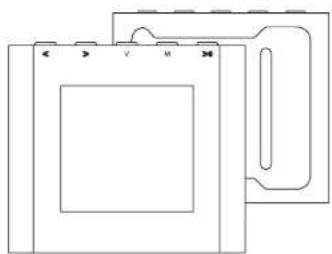
Pure technical line drawing of a mechanical component or bracket (no text or symbols)Portable Media Player
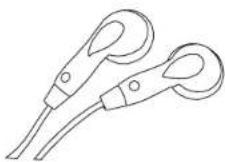
Earphone
natural_image
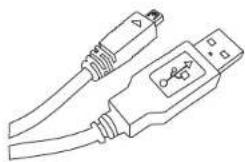
Line drawing of two USB connectors with cable and connector details (no text or symbols)USB Cable
Your Pocket Guide
CD-ROM containing:
• Media player driver for Windows® 98/98SE
- Software for converting .act files into .wav files.
- Software for formatting internal memory.
Know Your Player Well
Plug Your Ears, and Enjoy
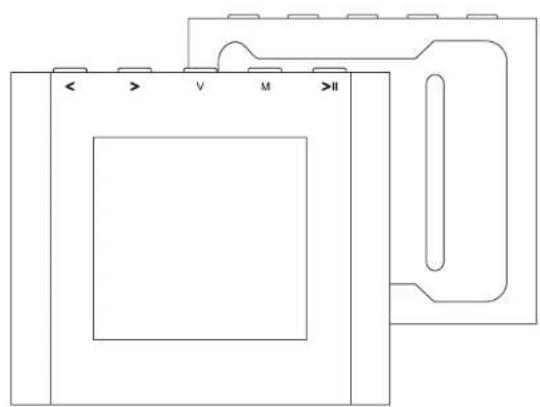
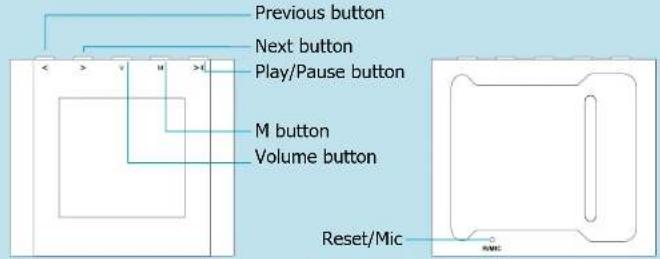
Front View Back View
Bottom View
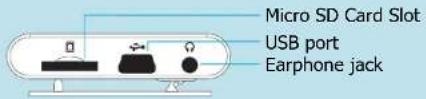
| To | Press | |
| General | Power On/Off | Hold >ll long |
| Scroll through lists | < > | |
| Select Option | M | |
| Return to previous menu | Hold M long | |
| Reset / Mic | Press to Reset | |
| Music | Play/Pause songs | >ll |
| Jump to next song | > | |
| Fast Forward | Hold > long | |
| Move back to previous song | < | |
| Fast Backward | Hold < long | |
| Display lyrics | Hold M long | |
| Stop lyrics display | M | |
| Volume up | Press v and press > | |
| Volume down | Press v and press < | |
| Movie | Play/Pause a movie | >ll |
| Jump to next movie | > | |
| Fast Forward | Hold > long | |
| Move back to previous movie | < | |
| Fast Backward | Hold < long | |
| Images | Select image | >ll |
| Jump to next image | < | |
| Jump to previous image | > | |
| Quit to main menu | Hold M long | |
You'll need a computer with:
natural_image
Blue icon of a laptop computer with blank screen and keyboard (no text or symbols)Windows® 98/98SE/ME/2000/XP/Vista
Pentium Class or faster Processor
CD-ROM Drive
64MB RAM
30MB free hard disk space
USB Port
Software Installation
Software Utilities Installation
Insert the CD into the CD ROM drive of your PC.
Click Std spark driver installation.
Follow the on-screen-menu to complete the installation.
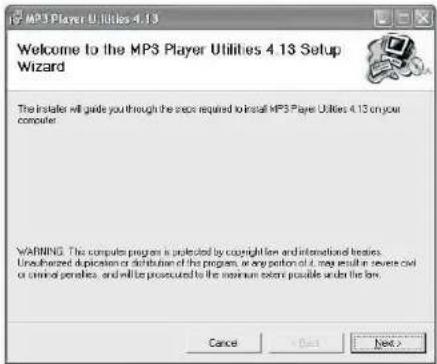
Click Once You're able to the Complete screen.
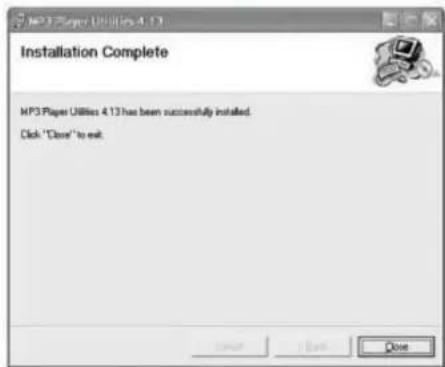
For Windows® 98/98SE users, please install the driver in the CD-ROM before downloading any files to your player.
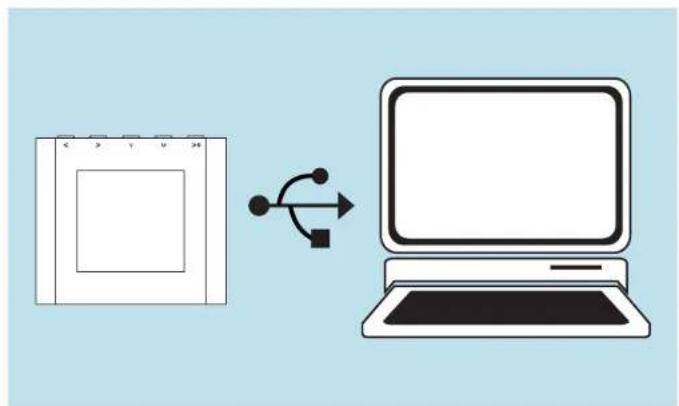
Connect
natural_image
Illustration of a washing machine next to a laptop with a circular arrow indicating data transfer (no text or symbols present)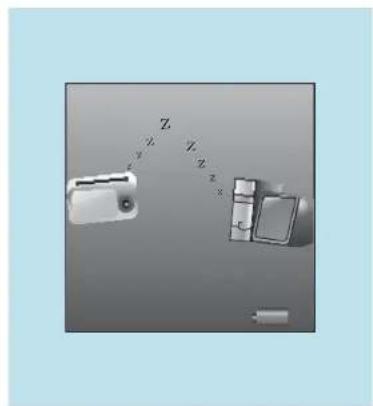
natural_image
Diagram showing a battery connected to a switch and two batteries with labeled terminals (no text or symbols present)Your player will be charged while being connected to PC through the USB cable.
! You will see the charging animation in the bottom right hand corner of the display.
The player is fully charged when the charging animation stops.
Using the Micro SD card
After this unit is connected with the computer, you will find two moving disks. The first one is the built-in memory disk for this unit and the other is the disk for the Micro SD card. If no card is inserted, the second disk cannot be opened.
Inserting and Pulling out the Micro SD card
Inserting: Put the Micro SD card face up (side with words) (with the direction of the clip side as the face), and slightly force the card into the socket of the card, i.e. connecting the unit. Under this state, you can play the content in the Micro card.
Pulling: Slightly push the Micro SD, and it will bounce by a section, and then you can take it out.
Caution: Please perform inserting and pulling operation when power is off! Otherwise, it will lead to the loss or damage to the files within the unit! If no card is inserted, the computer will be unable to perform read and write operation for the disk notes of the later moving disk (Micro SD card).
Transfer
Get Your Player Connected
natural_image
Diagram showing a door handle, door lock, and door with labeled dimensions (no text or symbols present)Step 1:
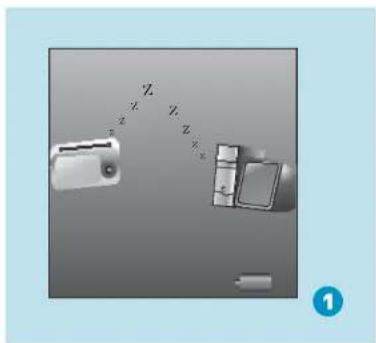
Set the Online Device of the player as USB Disk (Refer to Page 6), then connect it to your PC by USB cable. Once the connection is successfully made, the above screen display (1) would be shown. Try re-connecting the player if the above screen doesn't appear.
Step 2:
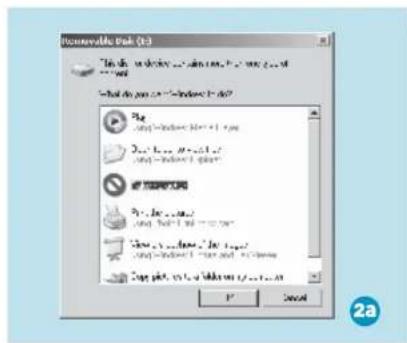
The above screen (2a) would appear.
(Apply only to Windows® XP)
Choose T and click OK
to close the window.
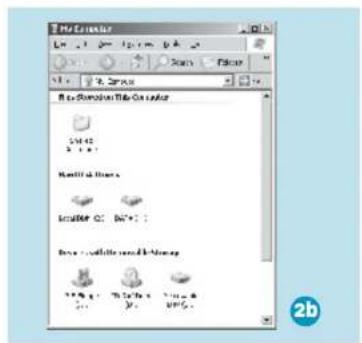
Double click Non your desktop and the above window (2b) would appear. Look for the Removable Disk icon.
Transfer
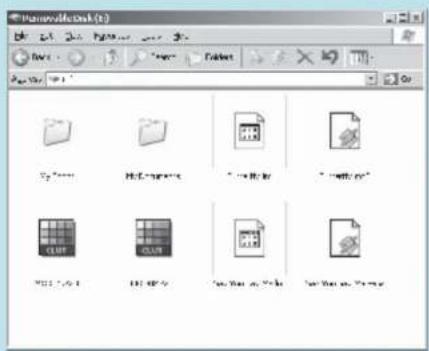
Step 3:
Double click the Riconvable Disk
Note: Do not disconnect the USB cable once you click into the removable disk window. Such action may cause data loss or problems to the player.
Drag and drop your media files into the removable disk.
You can create any folder or directory in the removable disk.
Close the removable disk window and disconnect the player from your PC after the data transfer.
Transfer Music, Image & Movie
Software Operation
Software Operation
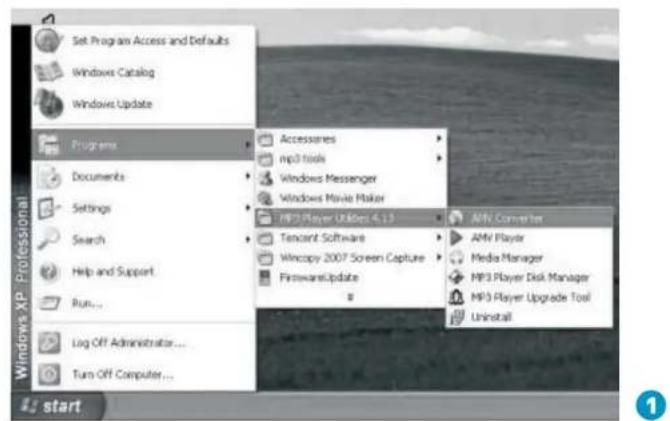
You can convert your favorite video file in any other format into the .AMV format with the help of the AMV converter (Programs\MP3 Player Utilities 4.13\AMV Converter).
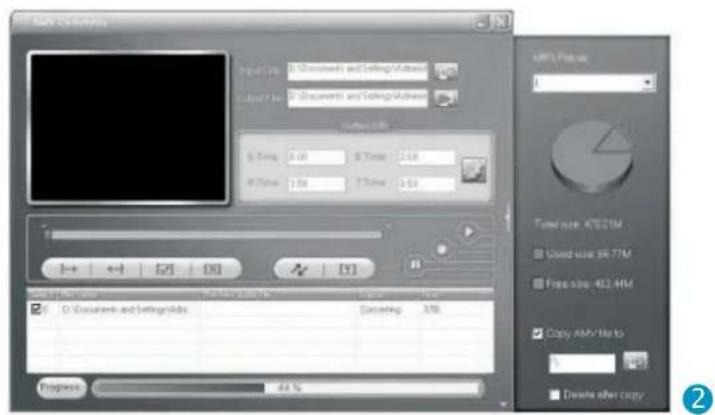
The converting progress is shown as below.
Software Operation
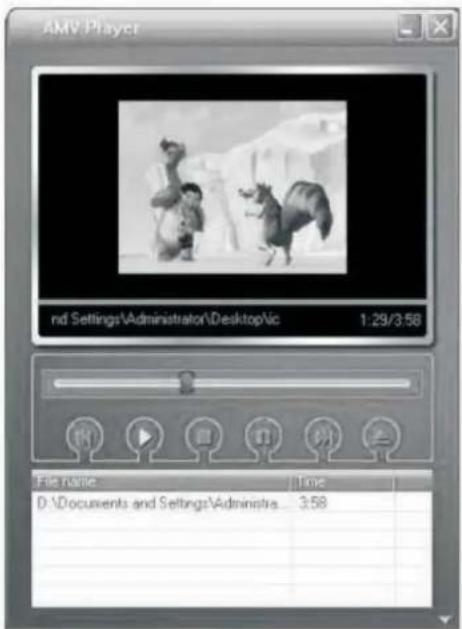
Enjoy Your AMV Movie
To enjoy the converted movie on your PC, you can play it thru the AMV player(Programs\MP3 Player Utilities 4.13\AMV Player).
Software Operation
Software Operation
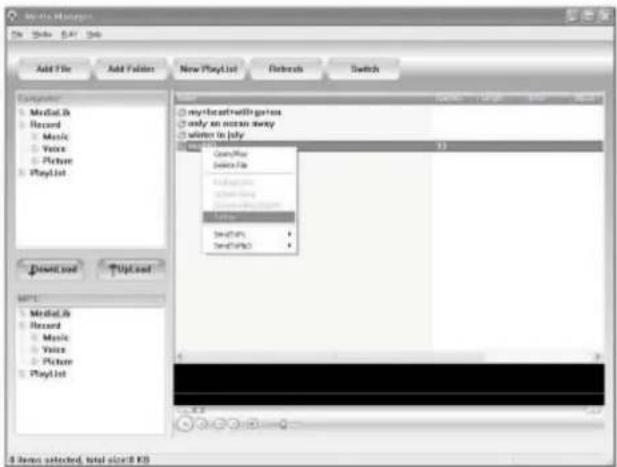
Your can enjoy songs from both PC and your player thru the Media Manager Programs\MP3 Player Utilities 4.13\Media Manager).
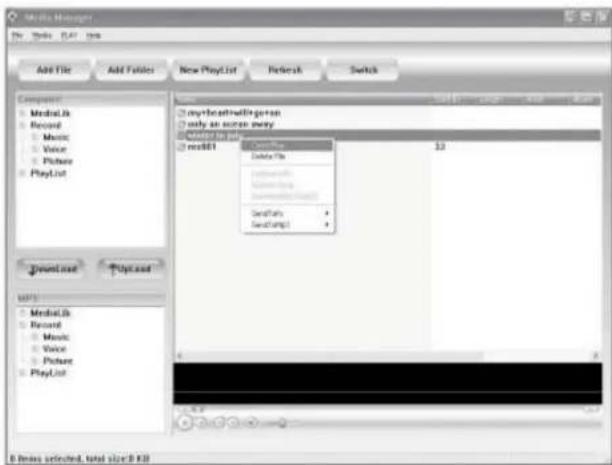
You can also convert your recorded .ACT voice into .WAV format thru the .Media Manager
Software Operation
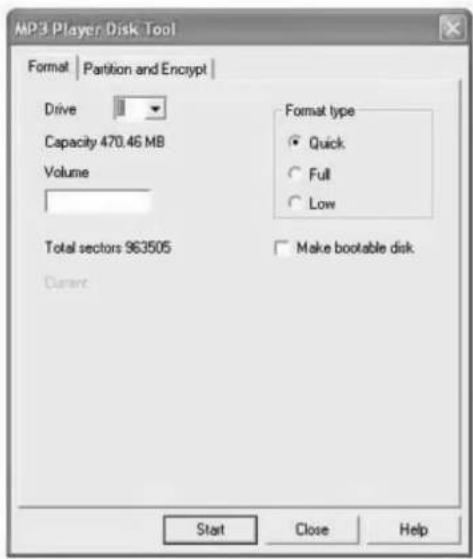
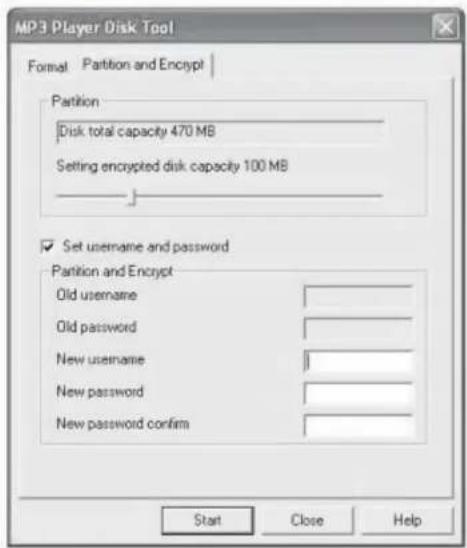
You are also allowed to format the memory of your player, or divide it into two partitions in Programs\MP3 Player Utilities 4.13\MP3 Player Disk Manager
If the updated version is available, please use MP3 Player Firmware Upgrade Tool to upgrade it.
Language Selection
Select Your Preferred Language
Step 1:
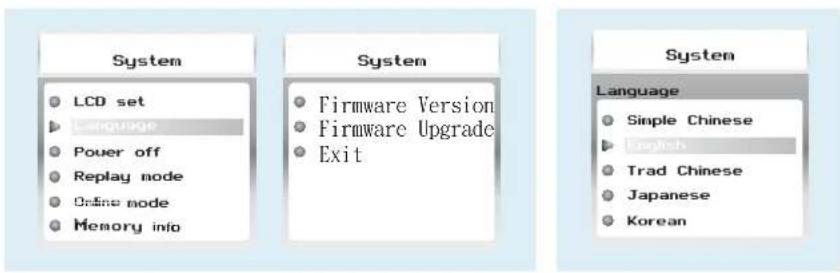
Press < / > to select Setup on the main menu, then press M to enter its sub-menu.
Step 2:
Press > to select Language, then press M to confirm.
Step 3:
You can select your preferred language by pressing < / >, and then press M to confirm your setting.
Music Playback
Music Playback
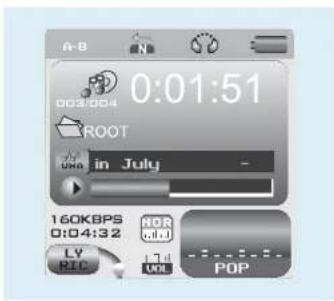
Select Mon the main menu and press to enter the music mode, then you can select different songs by pressing < / > , and you can easily play the song you've chosen by a simple press of >.
While enjoying music, you can press > to pause or continue the music; press < / > to move back to the previous song or jump to the next song; Hold < / > long to move your song forward or rewind it. If you want to adjust the volume, please press v button and then press < or > button.
Display Lyrics
A-B repeat
While playing music, you can press M to enter sub-menu. Press < / > to select Replay Mode and then press M again to select Replay. The mark A is flashing on the display and wait for the setting. Press < / > to set mark A. Mark A is set if flashing stopped. Press < / > to set mark B. Mark B is set if flashing stopped. The music between mark A and mark B will be repeated until you press M button to disable the function.
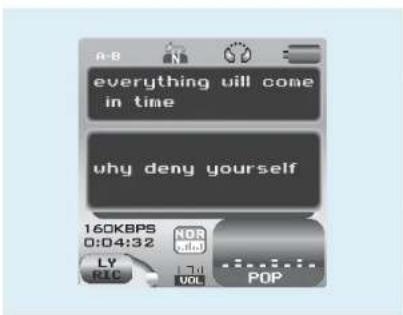
The edited lyrics will be displayed synchronously if you hold M while playing music. And you can press M once to quit the lyrics display scene.
Edit Lyrics
![Winter in July: Notaped File Edit Format View Help [tf:winter in July] [er:sarah Brightman] [all] [or:lot:500] [00:10.18] [00:23.62] Look around wonder why [00:28.98] we can live a life that's never satisfied [00:33.87] lonely hearts troubled minds [00:40.26] looking for a way that we can never find [00:44.51] Many roads are ahead of us [00:48.95] with choices to be made [00:53.57] But life's just one of the games we play [00:59.87] There is no special way [01:04.11] Make the best of what I given you [01:09.47] everything will come in time [01:14.46] why deny yourself [01:20.72] don't just live life pass you by [01:25.10] like winter in July [04:01.09] [02:45.30] [01:130.25] [01:38.33] Future dreams can never Tast](/content/2026/06/1195436/images/87984228286e4629eb63c11d9ead36d1c00dfa8639cccd5fdebaa948ce586d52.jpg)
Edit Lyrics
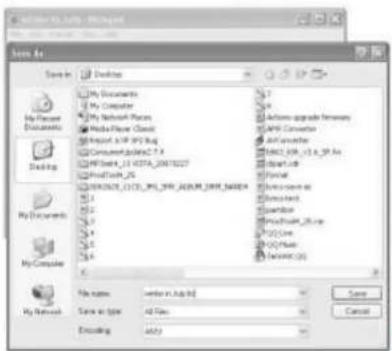
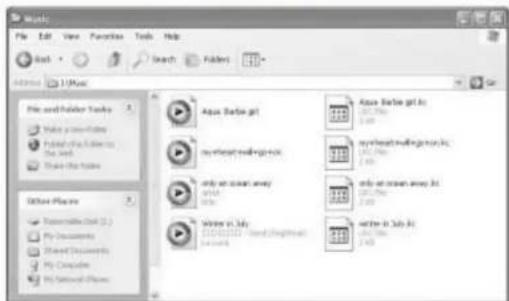
You can copy the synchronous lyrics from internet, and create a new Text Document on your PC, paste them, and then select to save this document in the extension of LRC shown as below.
Then put both .LRC and .MP3 (or .WMA) files of the same song into the same folder in the removable disk. Your lyrics would be shown when you play that song.
![winter in July - Notepad File Edit Format View Help New Ctrl+0 Open... Ctrl+0 Save Ctrl+0 Save As... Page New... Print... Ctrl+0 Edit [0:13.17] But life's just one of the games we play [0:19.67] There is no special way [0:14.11] Make the best of what's given you [0:19.47] everything will come in time [0:14.46] why deny yourself [0:20.73] don't just let life pass you by [0:25.10] like winter in July [0:10.09] [0:245.30][0:18.25] [0:18.33] Future dreams can never last](/content/2026/06/1195436/images/7fef1d6777880bf122f2ea62035a5265eee56cb68036a3f8f1db38f5037ce0d2.jpg)
2
3
4
Repeat Mode
Repeat Mode
Procedure:
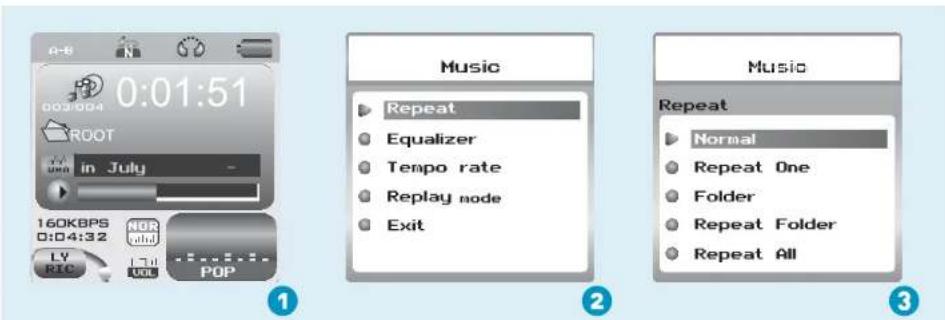
In PLAYING mode (1), press M while playing music to enter the selection menu screen (2). Choose and press M to enter the R menu screen (3).
8 Repeat Modes are available:
Normal, Repeat One, Folder, Repeat Folder, Repeat All, Random, IntroA-B Repeat.
Normal
All music files will be played one by one and stopped at the last music until you disable this function.
Repeat One
The currently played song will be played repeatedly until this function is disabled.
Folder
All music in the selected folder would be played once until this function is disabled.
Repeat Folder
All music in the selected folder would be played from the beginning to the last one repeatedly until this function is disabled.
Repeat All
All music would be played from the beginning to the last one repeatedly until this function is disabled.
Random
All music would be played randomly until this function is disabled.
Intro
All music would be played for 10 seconds from the beginning until this function is disabled.
A-B Repeat
All music would be played from the desired place to the target place until this function is disabled.
Listen to your music at its best
1
2
3
Procedure:
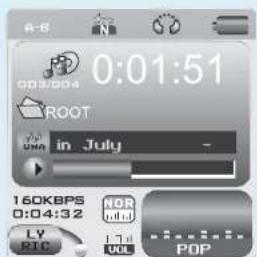
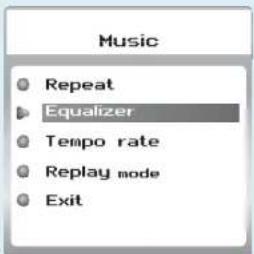
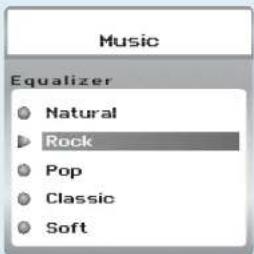
In PLAYING mode (1), press ▼ while playing music to enter the selection menu screen (2). Press > to select E and press to enter the E menu screen (3).
7 EQ Modes are available: Natural, Rock, Pop, Classic, Soft, Jazz, DBB.
Video Playback
Video Playback
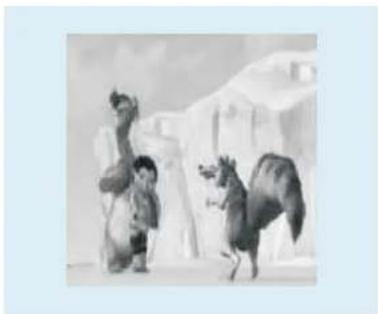
Select Video on the main menu and press >> to enter the video playback mode. You can select different movies by pressing < / > and press >> to start playing.
natural_image
Illustration of a child standing beside a camel and horse in a snowy landscape (no text or symbols)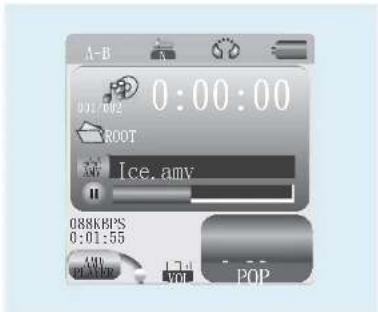
While enjoying video, you can press >> to pause or continue the movie, and press < / > to move back to the previous movie or jump to the next one. You can move your movie forward or rewind it while playing by holding < / > long. If you want to adjust the volume, please press √ button and then press < or > button.
Photo Browse
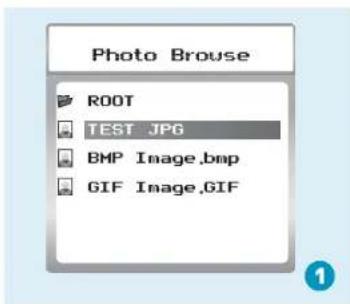
Select Photo on the main menu and press M to enter the ROOT folder with listed photos under it.
You can select different photos by pressing < >/, and press >> to view.
During photo browse, you can switch to the previous or next photo by pressing < / > too.
SlideShow
If you want to create a SlideShow for all photos, you can press M when you select a photo on the ROOT folder list, then press > to select Play set, press M then > to select Auto play. Press M to get access to the Screen of Auto Play Gap Setting.
You can adjust the auto play gap by press < / > . Then press M to confirm your setting.
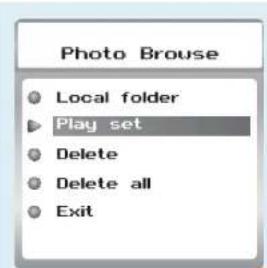
2
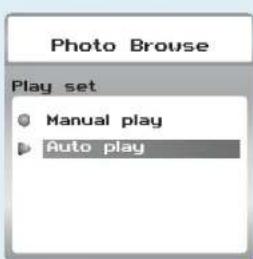
3
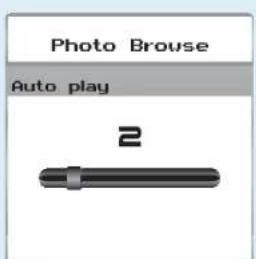
4
Ebook
Ebook
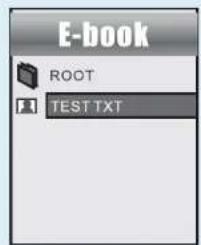
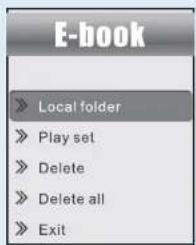
Press < / > to select E on the main menu, and press M to enter it. Press > to select desire text file, and press >II to enter it. Press >II again to return to previous page. While reading an article, press to bookmark the text.
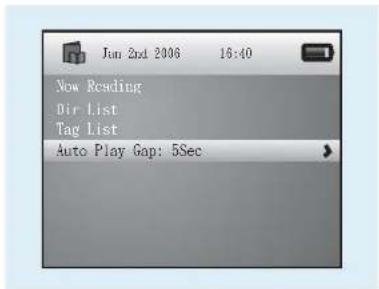
Auto Play Setting
After entering Ebook, press M to select P.Presst to choose Manual Play or Auto Play. If you choose, the article will be scrolled automatically according to the Auto Play Gap you preset. Press < / > to select A on the sub-menu of Play Set.
Voice Recording
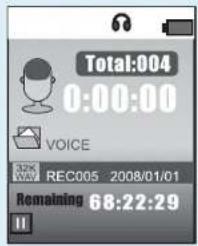
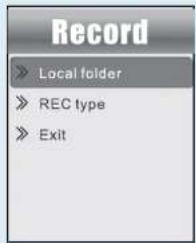
Press < / > to select Ron the main menu, and press M to enter it.
Press > to start it and press M to save the recorded voice. To preset the format of the recorded voice file, you could select to go into Ron the sub-menu of Recorder. Press to enter sub-menu and press > to select Rec Type.
Voice Playback
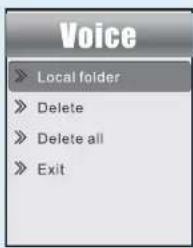
If you want to play the recorded file, you can press < / > to select Von the main menu, and press to enter it.
Press M to select L and the recorded voice files will be listed after you press M. You can press < / > to select one, and press M to start playing.
Game
Game
Press < / > to select Game and press to confirm.
Puzzle
After entering the sub-menu, press < / > to select Puzzle and press M to confirm. Press < / > to move to to left and right. Press v to move downward and press > to go upward.
Sudoku
After entering the sub-menu, press < / > to select Sudoku and press M to confirm.
Press < / > to move left and right and press to go upward. Press > to choose from 0-9. After filling all the numbers, press M to check the final result.
| General Information | Voice Recording | ||
| Power Supply | 120mA, 3.7V Lithium battery | Supported File Types | .WAV files |
| Dimensions | 48mm x 42.1mm x 13.3mm | Video Playback | |
| Weight | 25g | Supported File Type | .AMV files ( ) |
| Display | 1.5 inch Colour Display | Photo Browse | |
| Capacity | 128MB/256MB/512MB/1GB/2GB/4GB internal flash memory | Supported File Type | .JPG, .BMP and .GIF for photo files |
| Operating System | Windows 98/98SE/Me/2000/XP/Vista MAC OS 9.0, 10.0 | Viewing Mode | Manual Browse, Slideshow |
| Interface | USB 2.0 Full Speed | Game Function | |
| Audio Playback | Game Types | Puzzle & Sudoku | |
| Compression Format | .M P3 (8kbps ~ 320kbps), .WMA (5kbps ~ 384kbps) for music at Constant Bit Rate | ||
| S/N ratio | 85dB | ||
| Earphone Output Power | 9mWx, 32ohm | ||
Trouble Shooting
What should I do if…
Q: I cannot enter the MUSIC mode after using the player for a period of time.
A: You should format the memory of the player under connection to PC. (Be sure you remember to backup the data in your player before performing the above action.)
Q: I cannot convert my video file into the .AMV format.
A: Please make sure that the media player software for video files has been installed on your PC. Then try to convert again.
Disposal of your old product
Electrical and electronic equipment (EEE) contains materials, parts and substances which can be dangerous to the environment and harmful to human health if wastes of electrical and electronic equipment (WEEE) are not disposed correctly.
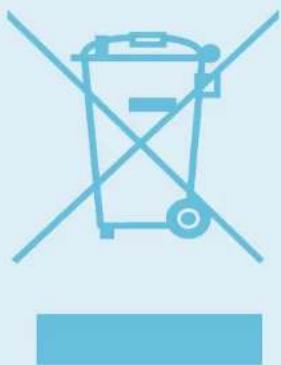
Equipments which are marked with the WEEE logo (as shown on the right), should not be thrown away with your household waste. Contact your local Authority Waste Disposal Department as they will be able to provide details of the recycling options available in your area.
natural_image
Blue line icon of a trash bin with crossed lines indicating no waste or restriction (no text or symbols)Specifications are subject to change without notice. No part of this document may be reproduced or transmitted in any form or by any mean, electronics or mechanical including photocopying and recording or translated to another language for any purpose.

- Your Pocket Guide
- Content
- What's in the blister?
- Know Your Player Well
- Plug Your Ears, and Enjoy
- You'll need a computer with:
- Software Installation
- Software Utilities Installation
- Connect
- Using the Micro SD card
- Inserting and Pulling out the Micro SD card
- Transfer
- Get Your Player Connected
- Step 3:
- Transfer Music, Image & Movie
- Software Operation
- Enjoy Your AMV Movie
- Language Selection
- Select Your Preferred Language
- Music Playback
- Display Lyrics
- A-B repeat
- Edit Lyrics
- Repeat Mode
- Procedure:
- Normal
- Repeat One
- Folder
- Repeat Folder
- Repeat All
- Random
- Intro
- Listen to your music at its best
- Video Playback
- Photo Browse
- SlideShow
- Ebook
- Auto Play Setting
- Voice Recording
- Voice Playback
- Game
- Puzzle
- Sudoku
- Trouble Shooting
- What should I do if…
- Disposal of your old product
Brand : SYLVANIA
Model : SMPK4600
Category : Mp3 player