
SMPK2077 - Mp3 player SYLVANIA - Free user manual and instructions
Find the device manual for free SMPK2077 SYLVANIA in PDF.


| Product Type | MP3 Player |
| Brand | Sylvania |
| Model | SMPK2077 |
| Dimensions | 70 x 52 x 8 mm |
| Weight | 48 g |
| Display | 1.8-inch LCD |
| Internal Memory | 2 GB Flash |
| Battery | 300 mAh Lithium-ion |
| Playback Time | Up to 6-7 hours |
| Audio Formats | MP1, MP2, MP3, WMA, WMV, ASF, WAV |
| Video Format | AMV |
| Photo Format | JPEG |
| Text Format | TXT |
| Recording | Built-in microphone, WAV and ACT formats |
| Equalizer Modes | 7 presets: Normal, Rock, Pop, Classic, Soft, Jazz, DBB |
| Play Modes | Normal, Repeat One, Folder, Repeat Folder, Repeat All, Random, Intro |
| Connectivity | USB 2.0 (FS) |
| Supported Operating Systems | Windows 98/SE/ME/2K/XP, Mac OS 10, Linux 2.4.2 |
| Frequency Response | 20 Hz - 20 kHz |
| Signal-to-Noise Ratio | 85 dB |
| Headphone Output | 10 mW + 10 mW (32 Ohm) |
| MP3 Bit Rate | 8 - 320 kbps |
| WMA Bit Rate | 5 - 384 kbps |
| Additional Features | Voice recorder, photo viewer, e-book reader, games (RusBlock, Puzzle, Sudoku), A-B repeat, tempo rate, private space, firmware upgrade |
| Maintenance | Clean with soft dry cloth; avoid moisture and extreme temperatures |
| Safety | Keep away from water; do not disassemble |
Frequently Asked Questions - SMPK2077 SYLVANIA
User questions about SMPK2077 SYLVANIA
0 question about this device. Answer the ones you know or ask your own.
Ask a new question about this device
Download the instructions for your Mp3 player in PDF format for free! Find your manual SMPK2077 - SYLVANIA and take your electronic device back in hand. On this page are published all the documents necessary for the use of your device. SMPK2077 by SYLVANIA.
USER MANUAL SMPK2077 SYLVANIA
natural_image
Black portable electronic device with a floral display screen and earband, no visible text or symbols on the device itself.The MP3 player is a brand-new generation of digital portable device, supporting MP3/WAV music format ,voice recorder, AMV format play ,JPEG photograph browse and E-book text reading .Its perfect sound quality, great reliability and exquisite appearance make it a masterpiece. Devoutly hope to bring you great enjoyment in this digital era.
Unique Features
- Exquisite Appearance
Unique appearance designed and comfortable for handling
- Multi-Codec Player
e.g.: MP1, MP2, MP3, WMA, WMV, ASF and WAV Music format
- Firmware Upgrade
Providing the latest updated features via firmware upgrade from the website (www.curtisint.com)
- Drive Free U Disk
You may manage your files directly through "Portable Disk" in "My Computer" on Winows2000 Operating System or above without driver.
- "Private Space" Disk Mode
The flash memory can be divided into two parts by using the accessory tools and one is encrypted to hide the contents saved inaccessible by others. Keep Your Secret!
- Record/ Replay
The player supports recording through built-in microphone and saves as WAV and ACT formats. Meanwhile it supports real digital A-B replay or comparison replay.
- 7 Preset EQ
Normal, Rock, Pop, Classic, Soft, Jazz and DBB
- Multi-play Mode
Normal, Repeat One, Folder, Repeat Folder, Repeat All, Random, Intro.
- Power Off
You may set Sleep Timer or Off Time mode in your own convenience.
Declaration
※ Thank you for your purchase.
※ Please read this manual carefully before using your new player.
* Contents in this manual may change possibly for better service.
※ We have the right to make changes to this manual without notice.
If the actual operations of your player are not the same as the instruction in this manual, please visit (www.curtisint.com) for latest product information.
1. Locating the Controls
- Appearance & Keys
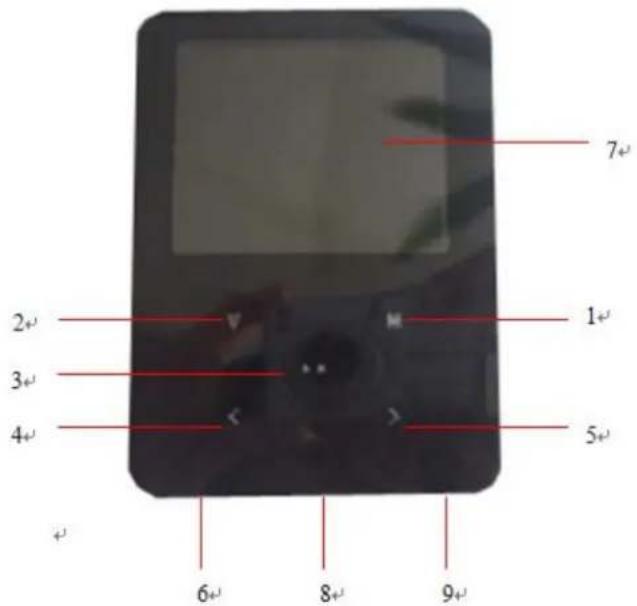
| S/N | Description S/N Description | ||
| 1 | Menu button (Enter/ Return) | 6 | Power switch |
| 2 | Vol/ Hold key(Lock) | 7 | LCD display |
| 3 | Play/Stop 8 USB | ||
| 4 | Previou track/Rewind(◀)/VOL- | 9 | Earphone head |
| 5 | Next track/Forward(◀)/VOL+ |
- LCD Window
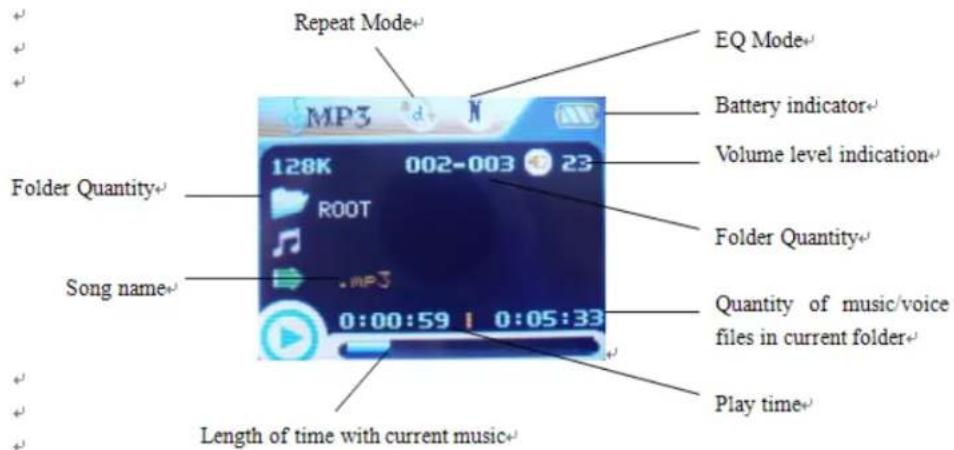
- Battery
The player is in multilevel level battery monitoring system.
Indicates that battery is 3.6V and the power in battery will become less when using.
Indicates low battery power and battery should be charged up.
Basic Operation
- Entering Menu System
Pressing M button may enter the menu system, including main menu (long press M button at Stop state), submenu at Play state (press M button to enter) and submenu at stop state (press M button to enter).
- Browsing
○Browsing music files or menu options:
Short press < / > button
- Fast forward or fast backward when playing:
Long press < / > button
- Entering Different Modes
You may enter different modes from the main menu.
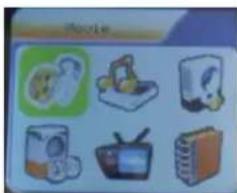
Main menu:
(Long press the M
button to enter)
Movie mode:
Music mode:
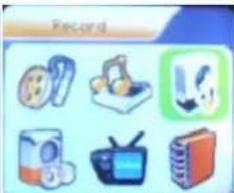
Record mode:
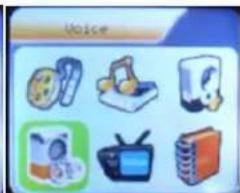
Voice mode:
natural_image
Illustration of six different household appliances or devices, including washing machines, a TV, and a refrigerator (no text or symbols visible)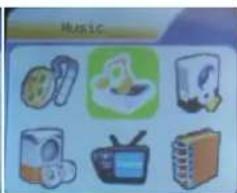
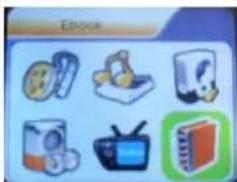
E-Book:
Photo
System setting
GAME:
natural_image
Illustration of six different electronic devices and books arranged in a grid (no text or symbols visible)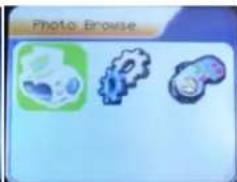
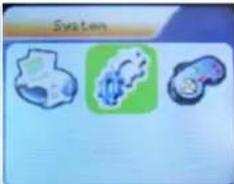
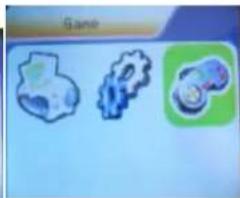
natural_image
Three abstract icons: a gear-like shape, a gear-like gear, and a mechanical device (no text or symbols)● Volume Control
Remark:
Long press M button to return to the main menu at the modes. When connecting the USB cable to PC, then will enter USB mode.
At the music mode, voice mode, short press V buttons to enter the volume control interface and then press the < / > button to adjust volume (follow along with number of volume value be
changed).
● Power On/Off
1. Turn on by Power switch
- After push the Power switch (OFF→ON), the player turn on automatically and enter power on "SYLVANIA" logo interface:
- When connecting the USB plug to PC, the player turn on automatically and will be entering USB mode:
2. Turn ON/Off by Play button, after power switch to ON;
- when the player is in OFF mode, long press Play button to turn on
- when the player is in ON model, long press Play button to turn off
Play Music
- Basic Operation
| 1. Connect the earphone to the player | 2. Turn on “POWER SWITCH” |
3. then enter the main menu: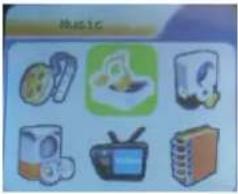 | 4. press M button to enter the Music mode: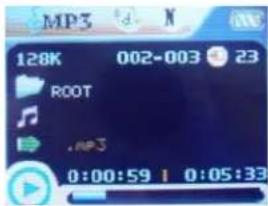 |
| 5. Short press the PLAY button to play music | 6. Choose music> button : to choose previous music.> button : to choose next music. |
| 7. Volume control (Press V)press the < / > button to adjust volume. |
- EQUALIZER Mode
1.When playing music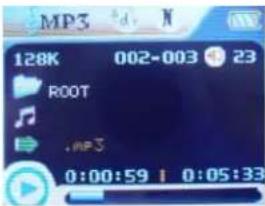 | 2.Press theMbutton to enter Play Submenu |
| 3. select the ‘Equalizer’ and press MENU button to conform. | 4.choose the EQ that you want from 7 kinds by press MENU button |
- Lyric Display
This player supports “*.LRC” lyric files, and lyrics may be synchronous displayed while playing music.
• How to use lyric files?
Save the lyric file with the same name as that of the corresponding music file.
For example.: Music file name: GiGi-Sky.mp3
Lyric file name: GiGi-Sky.mp3.
• How to know whether the lyrics exist?
If the current song has matching lyric files, the lyric sign will be displayed at the top of music mode.
| 1. Current song has matching lyric files | 2. Long press M to enter the Lyric Interface when playing. |
3. Press M button to return to Music play mode.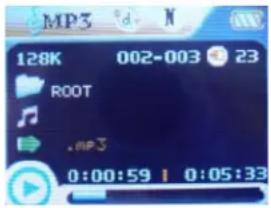 | 4. Browse lyrics manually. |
Movie mode
- Enter the main menu and press the > button to select "MOVIE" mode.
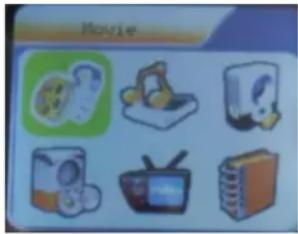
- Press the M to enter.
- press the PLAY to start playing AMV files
- Choose movie
< button : to choose previous file.
button : to choose next music file.
- Volume control
1) Press V
2) Press < / > to adjust volume level.
Voice Recording
Make sure that the battery is not in the status of "low battery".
● Recording in Record Mode
1. At the main menu.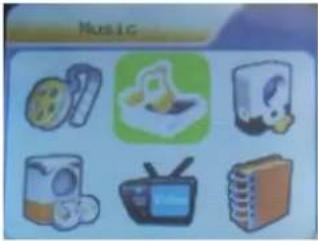 | 2. Press > button to choose recording mode.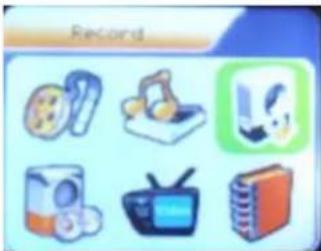 |
3. Press M button to enter Record mode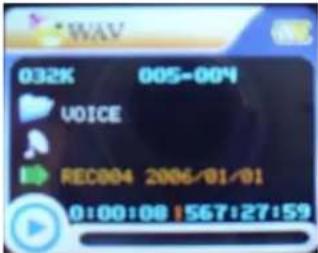 | 4. Press Play button to start recording. |
| 5. Press Play button again to pause recording. | |
| 6. Press Play button to continue recording. | |
| 7. Long press Play button to stop recording. | |
- Select REC type
1. At the record mode stop interface : 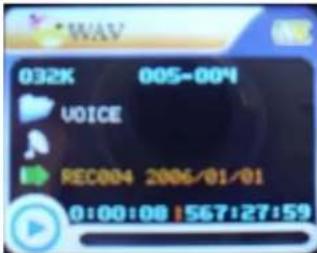 | 2. Press M button to enter record submenu |
| 3. Press > button to select "REC type" option | 4. Press M button enter this option |
| • REC type: |
| 5. Press > button to select desired recording type |
| 6. Press M to confirm the type selected |
| 7. Press PLAY button to start recording |
| B2K H2U | Fine REC | WAV format | Fine timbre |
| B1K ACT | Long REC | ACT format | Generic timbre |
| B2K UOR | Fine VOR | WAV format | voice control record |
| B1K UOR | Fine VOR | ACT format | voice control record |
Playback Files
1.Enter the main menu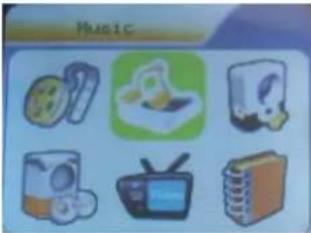 | 2. Press > button to choose “Voice mode”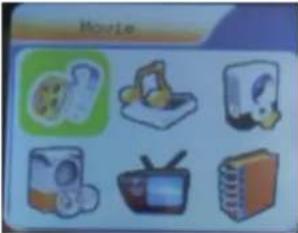 |
| 3.Press M button to enter Voice mode | 4. Press PLAY button to start playing. |
| interface | 5. Choose music < button : to choose previous record file > button : to choose next record file. |
| 6. Volume control 1、Press V 2、Press < / > to adjust volume level. |
Convert ACT format files to WAV format files
The ACT format files can be converted to WAV format files through the accessory installation tools.
- Run "Sound Convert Tool" program, and click "Open" button.
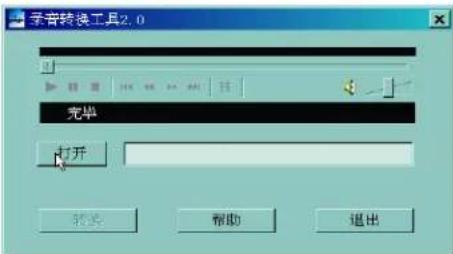
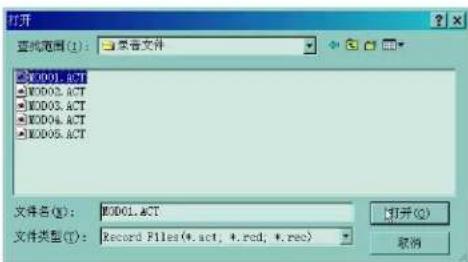
- Choose the ACT format files need conversion
- Click the "Convert" button, the conversion starts
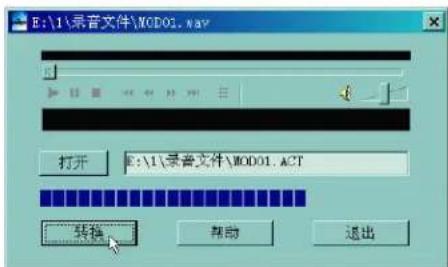
* Besides the conversion from ACT to WAV, the accessory tool can also play WAV and MP3 files.
photo
1、Entering the main menu.
2、Push the ">” buttons to choose "Photo"
3、Long press "M" buttons to enter the "Photo"
System Setting
System parameters can be set here and every option varies according to firmware upgrading At the menu, press > to select the "Setup":
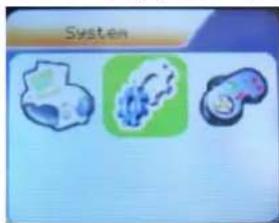
Press M button to System Setting interface is as follows:
● Parameters Introduction
| Clock (Date & time) | set the date and time when recorded files are saved |
| LCD set | set the period of time (second) when Backlight stays on without any operation |
| Language Set different language displayed | |
| Power off Set a fixed time after which the player may turn power off automatically | |
| Replay mode Set working states on Replay mode | |
| Online device MTP and USB Disk setting | |
| Online Mode an option specially designed for “Private Space” function | |
| Memory info. Show memory capacity and percentage that has been used | |
| Firmware Version show firmware version | |
| Firmware Upgrade | special for firmware upgrading |
| DRM time Greenwich Mean TIME | |
| Remove MTP info | Exit MTP mode |
| Exit Exit from current interface | |
- Instruction
○ "Date & time" set
| 1. System Setting Interface | 2. Press M to enter Record Time Interface. |
| 3. Press V to set time in sequence of "YY-MM-DD" | 4. Push < / > button to adjust numbers |
| 5. Press M to confirm and exit. |
- "LCD set" setting
Operating steps is as follows:
| 1. At System Setting interface, | 2. Press > key to select “LCD set” option, |
| 3. Press M button to enter “LCD set” submenu: | 4. Press M button to choose ‘Brightness screen savers’ |
| 5. Press < / > button to adjust time (Unit : second), and press M to confirm and exit. | |
Black screen mode
Set fixed period of time (unit: second) when no operation on keys, the player may turn black screen automatically. If "0" is selected, function is invalid.
○ "Language" setting
| 1. At System setting interface, press < / > button to select “Language” icon: | 2. Press M button to enter “Language” setting interface: |
| 3. Press < / > button to select desired language. | 4. Press M to confirm to exit. |
Language lists as follows :( maybe add more language)
| English |
| French |
| German |
| Italian |
| Spanish |
| Portuguese |
| Dutch |
| Turkish |
- Power saving
Operating steps refer to Language setting.
Off Time mode refers that after a fixed period of time (unit: second) when no operation on keys at Stop mode, the player may turns off automatically to save power. If "0" is selected, power saving function is invalid.
Sleep Time refers that you may set a fixed period of time (unit: minute) for the player to turn off automatically when no keys operation no matter which mode it is at any state. This function is specially designed for listening to music before sleep. Note: Setting of Sleep Timer is valid only once and the set time will be cleared after power off. The time needs to be set again next time.
- Replay Mode
Manual Replay means that at A-B Replay Mode the endpoint B can be set manually only.
Auto Replay means that at A-B Replay Mode the endpoint B can be set automatically.
(Especially for English Reading files without music)
○ Online Mode
Operating steps refers to Equalizer setting.
Some operating systems (under Windows 2K SP4) can not support two driver letters in one USB disk. Thus, if "Private Space" function is on, choose which disk you are going to use, i.e., "single ordinary disk" or "single encrypted disk", in order for correct display of selected disk after connecting to PC.
○ Memory Info.
The number displayed represents total memory capacity and the percentage refers the capacity used.
- Firmware Version
Firmware Version information the player uses can be obtained here.
- Firmware Upgrade
It is specially designed for Firmware Upgrade.
Enter MTP Media
- Choose "Setting" option on the main menu.
- Press < / > to select "Online Device" – "Media Device", Press M to confirm
- Connect PC enter into MTP media player
- Pop-up software will show MTP media player, confirm it and choose Sync column
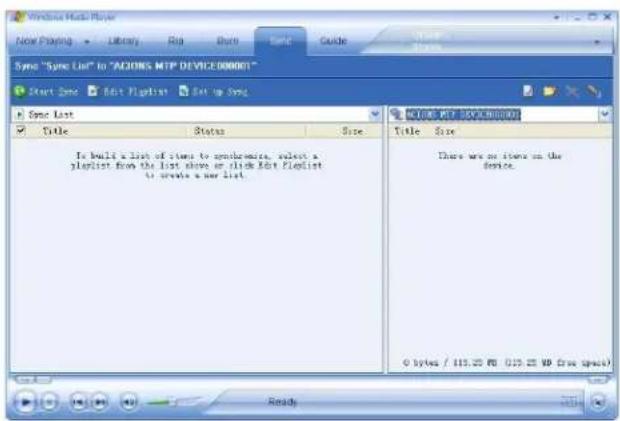
- Choose the music, and copy into documents file in left column, click "Start Sync"
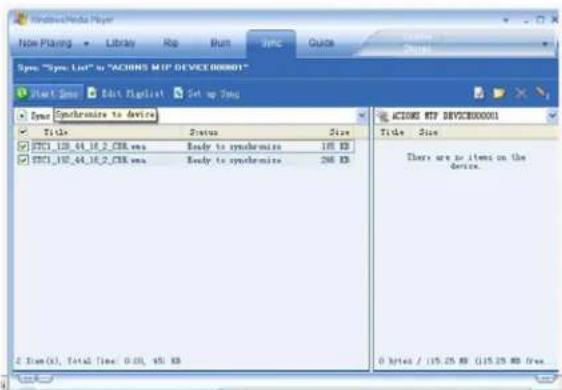
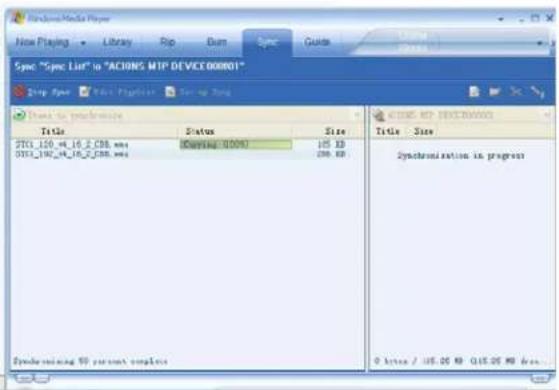
- After complete, you can see the music in the right column side.
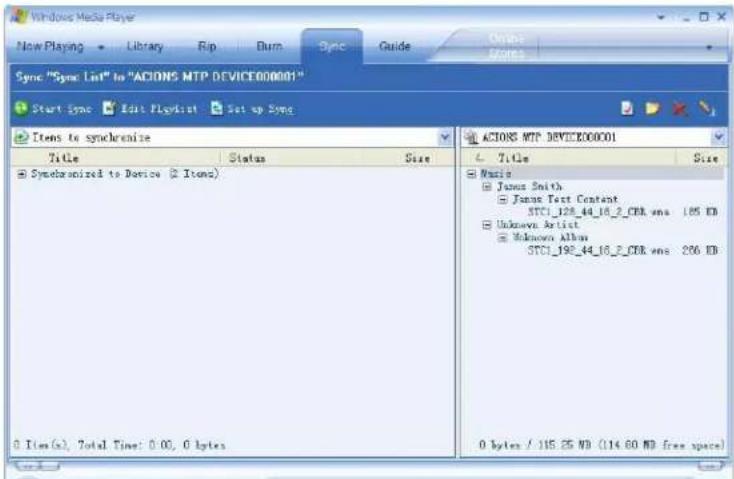
- Disconnect USB-cable, the MP3 which inside ID3 Play list with License.
E-Book function
This function supports all TXT file.
| 1. Enter the main menu. 2. Press > button to choose “E-Book” | |
| 3.press M button to enter TXT file be select menu (if no text file the display “No files” on the screen) | 4.Press > button to select desired text file to read, and then press Play button to enter text interface |
| 5. Press < / > button to turn the pages in sequence. (only suitable for "Manual play") | |
Game
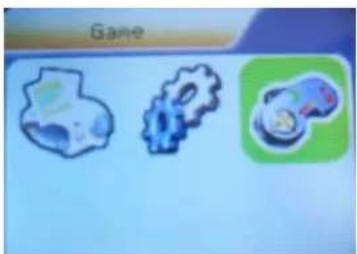
- at the main menu
natural_image
Three stylized game icons: a skull, a gear, and a stopwatch (no text or symbols)- Press > button to choose "Game" option:
- press M button to enter game menu state.
- There are 3 games inside, use < /> to select the games, press M to confirm
Game 1: RusBlock
- Press M to start
- V is down block; M is change direction, long press M return to main menu
- Play button is Pause; < is left; > is right
Game 2: Puzzle
- Press M to start
- V is up; M is return to main menu;
- < is left; > is right
Game 3: Sudoku
- Press M to start
- V is up and down; Play button is numbering; long press M return to main menu
- < is left; > is right
Note: Long press "V" will lock the player
HOLD
- Long press "V" key to lock (see the picture 1)
- . Then continue to long press "V" key to open the lock. (see the picture 2)

natural_image
Simple padlock icon on a blue background (no text or symbols)(1)

natural_image
Simple padlock icon on a blue gradient background (no text or symbols)(2)
Use USB Disk
The player supports standard USB disk function with operating system of Windows98 (driver needed), Windows 2K and above (driver free), Mac OS 10.3 and above, Linux 2.4.2 and above.
The player supports power supply through USB. At waiting Mode, press MODE to exit to main menu, then select to enter desired mode.
The player also supports Suspend Mode.
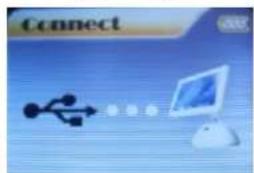
How to connect to PC? Power on the player and plugs the USB cable to enter the following Mode 1. The player may display the following mode after connecting to PC:
- Waiting state :
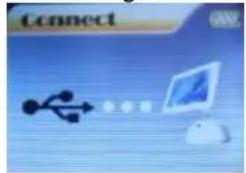
- Downloading state: 3. Uploading state:
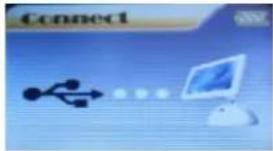
○Created new folder
The player can identify the 99 folders set up in the U-disk.
Firmware Upgrade
The player supports firmware upgrading or maintenance through installing special tools on PC.
- Enter the main menu.
- Press > button to select "System Setting"
- Press M button to enter System Setting
- Press > button to choose "Firmware upgrade" option
-
Press M button to enter "firmware upgrade" interface:
-
Connect the player to PC
-
Run the "MP3 Player Update" program in upgrading tools on PC, then click "Select new firmware file" button. the UI is as follows:
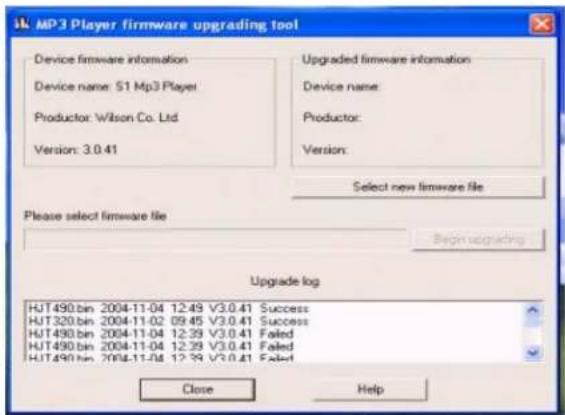
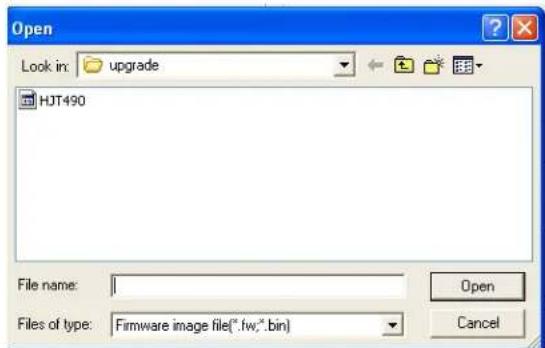
8、Choose new firmware program (You may find it in accessory CD or download form our website.)
9、Click "Start" button, the system starts
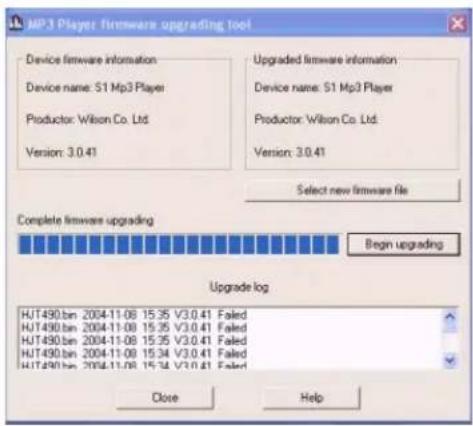
10、upgrading.
11、If upgrading successfully, the player reset.
Notice:
- Firmware upgrade is an operation to promote and optimize the performance of the player. Even if the firmware works without upgrading, there is no any influence on the normal operation of the player.
- Incorrect operation of firmware upgrading may cause the player working abnormally. Please read the manual carefully before operation and firmware upgrading should be operated by the people with basic knowledge in computer operation.
- The upgrading firmware is specially programmed for this player only and not suitable for other serial players, and other firmware is not suitable for this player as well.
Others setting
- Select Folders (At Stop Submenu)
Users can save files in different folders (folders should be created on PC in advance), to manage and play files according to different types. The player supports identification of 8 level subdirectories.
- At Stop interface. (Current example is at Music MENU, and folders can be selected at both Record and Voice MENU as well.)
- Press M to enter Stop Submenu.
- Press M again to enter Select Folder interface.
- Press < / > button to select folders at root directory.
- Press PLAY button to confirm and return the stop interface, or short press M button to enter next select directories as following view.
-
Press < / > button to select folders at this directories.
-
Press PLAY button to confirm and return the stop interface, or short press M button to enter next select subdirectories as following view.
-
When did not selected folder as following states.
-
Short press M button to return previous directory
Note: Independent folders can be set at corresponding mode as Music mode, Record mode and Voice mode, i.e.,
three modes are not bound to correspond with the same folder.
- Delete File (At Stop Submenu)
Files can be deleted at corresponding modes as Music Mode, Voice Mode.
- At the stop interface.
- Press M button to enter stop submenu
- Press > buttons to choose "Delete" option.
- Press M button to enter Delete file folder
- Press M button to enter Delete file folder submenu
- Press > button to choose "Delete" or "Delete all", and Press M button to confirm and deletion starts.
Remark: "Delete All" means to delete all the relevant files at current mode in current folder. (For example, at Music Mode executing "Delete All", all the music files in current files may be deleted, while recorded files without change.)
Note: When deleting files on PC, please take care to eject the player safely before pulling out USB cable, otherwise files may not be deleted.
● Play Mode (Play Submenu)
When playing music and recorded files, different play modes can be selected.
Enter play/stop submenu to enter
The first option in Play Submenu is Play Mode. The player will play files according to the mode selected.
Normal Play files in current folder in normal sequence and then play other files in next folders one by one
Repeat One Play a single music file repeatedly
Folder Play all music files in current folder in sequence and stop
Folder All Play all music files in current folder repeatedly
Repeat All Play all music files repeatedly
Random Play music files in current folder randomly
Intro Play the first 10 seconds of each music file in sequence in the current folder
- Tempo Rate (Play Submenu)
When playing music(Only for MP3 formats) or recorded files, different tempo rate can be set (faster or slower) without changing the tone and sound. Files.
- When playing music
- Press M button to enter Play Submenu is as follows:
- Press > button to choose Tempo Rate option
- Press M button to enter Tempo Rate interface is as follows:
- Press > button to quicken tempo rate and press < button to slow down tempo rate.
- Replay Mode
○ A-B Replay
- At Music Mode or Voice Mode
-
Press M to enter Play Submenu.
-
Press > to select "Replay".
- Press M to enter Replay.
"A" flickers in Replay Mode icon

and start point is to be set.
- Press > to set "A".
- After "A" set, "B" flickers in icon 📄, and endpoint B needs to be set.
- Press > to set "B".
Replay icon is fixed and A-B segment replay begins. When replay times count up to times set in advance, the player will quit from Replay Mode. At Replay Mode, pressing < can set "A" again to select another segment. (Setting of replay times refers to "Replay Times" in the > section.
● Replay Times (Play Submenu)
Operating steps refer to Backlight setting.
Replay times mean that after A-B segment has been replayed up to fixed times; it will exit from Replay Mode.
● Replay Gap (Play Submenu)
Operating steps refer to Backlight setting.
Replay gap means the break period between different playing times (unit: second).
AMV Convert Tool operation introduce
This tool used for transforming the media files to the AMV file\
1、Run the software can pass to click the "AMV Convert Tool", click the "button", after running the software,
can pass to click the add file button to add the media file.
2、After choose unsettled AMV files, click the "button, then click "output information" column set button enters, choose AMV files high & length is 128*128.
3、licks directly button and tool will begin convert be selected file, as follows chart:
3、After convert completes, the AMV Player will play AMV file automatically.
Trouble Shooting
| No sound is heard from headphone. | ※ Check whether Volume is set “0” and connect the headphone plugs firmly.※ Check whether the headphone plug is dirty.※ Corrupted MP3 may make a static noise and the sound may cut off.Make sure that the music files are not corrupted. |
| Characters in LCD are corrupted | ※ Check whether the right language has been selected. |
| Download of music files fails. | ※ Check whether USB cable is damaged and is connected properly.※ Check whether driver is installed correctly.※ Check whether the player’s memory is full. |
Specifications
| Dimension | 70*52*8mm | |
| Weight | 48g | |
| LCM Window 1.8" | ||
| PC connection | USB2.0(FS) (Read: 1000K Byte, Write: 1000-900K Byte) | |
| Flash memory 2GB | ||
| Battery | 300mA | |
| Max Play time: 6-7 hours | ||
| Record | Sample rate 8KHz | |
| Recording format ACT, MP3 | ||
| Recording time | 35hours (ACT, 128M Flash) | |
| MP3、WMA、ASF | Max output of headphone | (L) 10mW+ (R) 10mW (32 Ohm) |
| MP3 bit rate 8K bps – 320K bps | ||
| WMA、WMV bit rate | 5K bps – 384K bps | |
| Frequency response 20Hz to 20KHz | ||
| SNR | 85dB | |
| Music format | MP1、MP2、MP3、WMA | |
| Working temperature -5 to 40 ☐ | ||
| Operating System | Windows98/SE/ME/2K/XP、Mac OS 10、Linux 2.4.2 | |
- Unique Features
- Declaration
- Locating the Controls
- - Appearance & Keys
- - LCD Window
- - Battery
- Basic Operation
- - Entering Menu System
- - Browsing
- - Entering Different Modes
- ● Volume Control
- ● Power On/Off
- Turn on by Power switch
- Turn ON/Off by Play button, after power switch to ON;
- Play Music
- - Basic Operation
- - EQUALIZER Mode
- - Lyric Display
- Movie mode
- Voice Recording
- - Select REC type
- Playback Files
- Convert ACT format files to WAV format files
- photo
- System Setting
- ● Parameters Introduction
- - Instruction
- - "LCD set" setting
- Black screen mode
- ○ "Language" setting
- - Power saving
- - Replay Mode
- ○ Online Mode
- ○ Memory Info.
- - Firmware Version
- - Firmware Upgrade
- Enter MTP Media
- E-Book function
- Game
- Game 1: RusBlock
- Game 2: Puzzle
- Game 3: Sudoku
- HOLD
- Use USB Disk
- ○Created new folder
- Firmware Upgrade
- 9、Click "Start" button, the system starts
- 10、upgrading.
- Notice:
- Others setting
- - Select Folders (At Stop Submenu)
- - Delete File (At Stop Submenu)
- ● Play Mode (Play Submenu)
- - Tempo Rate (Play Submenu)
- ○ A-B Replay
- ● Replay Times (Play Submenu)
- ● Replay Gap (Play Submenu)
- AMV Convert Tool operation introduce
Brand : SYLVANIA
Model : SMPK2077
Category : Mp3 player