
SMPK7634 - Mp3 player SYLVANIA - Free user manual and instructions
Find the device manual for free SMPK7634 SYLVANIA in PDF.


| Product Type | MP3 Player |
| Brand | Sylvania |
| Model | SMPK7634 |
| Dimensions | 4.0 x 2.0 x 0.5 inches (approx) |
| Weight | 1.5 oz (approx) |
| Power Source | Rechargeable lithium-ion battery via USB |
| Display | 1.8-inch TFT color screen |
| Storage | 8GB internal memory, expandable via microSD up to 32GB |
| Music Playback | MP3, WMA |
| FM Radio | Yes, with preset stations |
| Voice Recording | Built-in microphone, WAV format |
| Playback Time | Up to 20 hours (music) |
| Connectivity | USB 2.0, 3.5mm headphone jack |
| Charging Time | Approximately 2 hours |
| Supported OS | Windows, Mac |
| Care and Cleaning | Wipe with a soft, dry cloth; avoid moisture |
| Safety | Keep away from water, heat, and magnetic fields |
| Replaceable Parts | Not user-serviceable; contact support for battery replacement |
Frequently Asked Questions - SMPK7634 SYLVANIA
User questions about SMPK7634 SYLVANIA
0 question about this device. Answer the ones you know or ask your own.
Ask a new question about this device
Download the instructions for your Mp3 player in PDF format for free! Find your manual SMPK7634 - SYLVANIA and take your electronic device back in hand. On this page are published all the documents necessary for the use of your device. SMPK7634 by SYLVANIA.
USER MANUAL SMPK7634 SYLVANIA
natural_image
Front view of a black tablet device with a blank screen and a small icon at the bottom (no text or symbols)Introduction I
Product features:
● Display: 2.8-inch touch TFT screens.
● Operation interface: Friendly operation interface, easy for operation.
● Memory: Built-in flash memory
- Card slot: Micro-SD card slot to expand memory.
● Speaker: A high quality speaker.
- Interface: USB2.0.
● Language: Multi-languages.
● Audio: MP3, WMA format files, etc.
- Video: AVI format files.
● Photo: JPEG format files.
Accessories:
- User manual
- USB Cable
- Earphone and Adaptor
- CD Driver
Charging:
This player has high capacity lithium battery. For charging, connect the player to the USB port of the PC or to a charger. When the charger is used for charging, its indicator light is in red color; when the indicator light turns into green color, it indicates that the charging finishes.
Appearance and Keys II
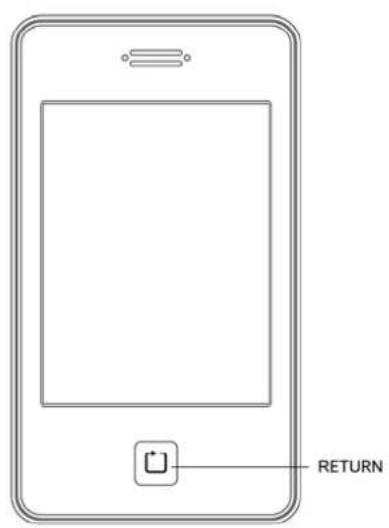
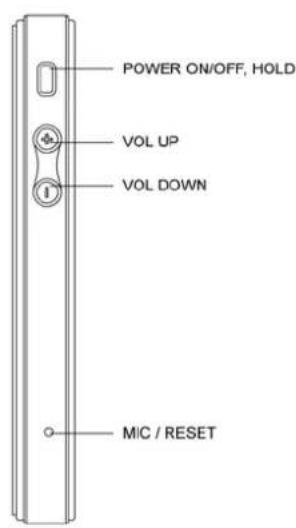

• Power ON/OFF
Long hold Power button to turn on/off of player.
- Hold
Short press Power button to lock/unlock of player.
• Volume adjust
Press + / - to adjust volume.
- Return to main menu
Press 📄 button to return to main menu.
Operations III
1. Playing Music
Choose "Music" option on the main menu, and double click the corresponding icon to enter it.
Keys:
Click “◀ / ▶” previous song / next song
Click to play the music file and click “◀” key or press “◀” to return to the main menu while playing music
Functional Description:
(1) Adjust Volume
Click on speaker volume key “+ / ← -” on the bottom of screen or press volume buttons + / - to adjust the volume.
(2) Play List
Click “◀” or press 📋 to enter the “Play List” and you can choose the song here. When playing music click “◀” to directly return to main menu.
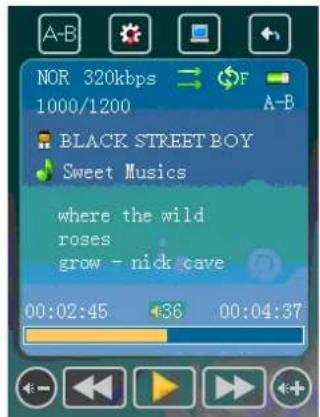
(3) Repeat mode
Click “” to choose once, repeat one, folder one, folder repeat, all once, all repeat, intro under repeat mode file.
(4) Play mode
Click "to choose order / shuffle for play mode."
(5) EQ Setup
Click “” to choose 8 EQ modes: NOR/3D/ROCK/POP/CLASS/BASS/JAZZ/USER EQ.
(6) A-B Repeat and Pause
Click "A-B" to mark the starting point of the "A-B Repeat" Mode, click "A-B" again to mark the end point. Click "A-B" again to quit the "A-B Repeat" Mode. You can't enter "A-B Repeat" mode when the music is in pause.
When the player is under “A-” or “A-B” state, click “◀/▶” to play the previous or next song, and then “A-B Repeat” function will be ineffective.
Click "Play" on the screen to pause the music.
(7) Lyric Display
Naming lyric files as same as the music file and the player will directly display the lyric.
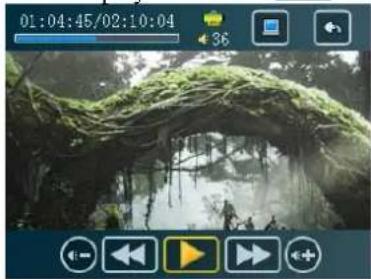
2. Playing Video
Click "Video" on the main menu.
Keys:
● “◀ / ▶”previous song / next video
- Click on the selected video file and play. And click “☐” to return to the main menu.
natural_image
Forest scene with a moss-covered archway and silhouetted figures (no visible text or symbols)Functional Description:
(1) Forward/ Backward
While playing the video, click “◀ / ▶” to go forward or backward.
(2) Adjust Volume
Click the speaker volume key “ / ” on bottom of the screen or press the volume buttons / to adjust the volume.
Notice: While playing the video, the menu bar will be hidden and it will be showed after pointing the screen by finger.
3. Photo Browser
Choose "Photo" option on the main menu. Select and play image from the "picture list".
Double click "M" key or press return to the main menu

natural_image
Exterior view of a modern multi-story building with a curved pathway and green lawn in the foreground (no signage or text visible)Click to play slideshow
Click to return to the picture list
Click or press to return to main menu.
Click to hide the menu bar
Click and to go-forward and backward
Click to set the time interval of slideshow
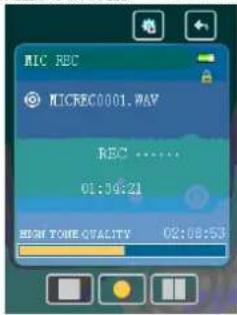
4. Recording
Double click the "Recording" logo on the main menu.
Operations:
Recording:
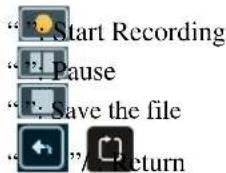
Playing the file:
(1) Enter the music mode
(2) Press "◀" and select the file
(3) Press“◀/◀+” or press volume buttons +/- to adjust the volume
5. Explorer
Double click the "Explorer" logo on the main menu.
Note: An additional folder "SD card" will be shown after inserting the SD card.
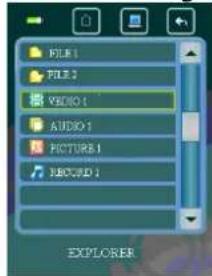
File Manager
● Play the file: Double click the file on the list
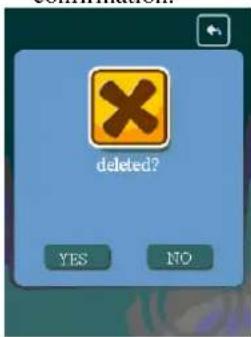
- Delete file: Select the file and Click “ confirmation”. An alert message will be pop out for final
6. Setting
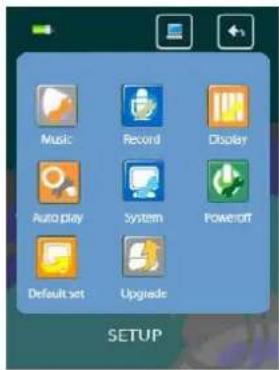
Double click "Setting" logo on the main menu.
- Music
- Repeat Mode
a. Once Stop after playing all the songs in all directories
b. Repeat once The currently played song will be played repeatedly until this function is disabled.
c. Folder once All music in the selected folder would be played once until this function is disable.
d. Folder repeat The current folder will be played repeatedly until this function is disabled.
e. All once The current folder will be played randomly
f. All repeat All music will be played from the beginning to the last one repeatedly
g. Intro All music will be played for 10 seconds from the beginning
- EQ Setup and User EQ
After entering the music option, click on “☐” and press “EQ Select” to choose the EQ mode “Normal/3D/Rock/Pop/Classic/bass/Jazz/User EQ”. Or you can edit your favorite EQ mode in the “User EQ set” option.
- Play mode
You can choose "Order" or "Shuffle" in the "play mode" folder
Order: Choose "Order" mode to play songs in sequence
Shuffle: Choose "Shuffle" to play songs randomly
- Record
Double click "Record" option and select "REC Quality" or "REC Volume"
● REC Quality: high quality, normal quality
● REC Volume: five options of volume level “+1, +2, +3, +4 and +5”
*The recorded voice file will be saved in "Music"
*If the player "Full Space", it indicates that there is no space to save new file
- Display Setup
①Backlight time: six options of 5 sec., 10 sec., 15 sec., 20 sec., 30 sec., and always on.
②Lum: five options of +1, +2, +3, +4 and +5, the higher level, the brighter.
③Backlight mode: Normal and Power save modes.
- Auto play set
There are text and jpeg under this file: 1s, 2s, 3s, 4s, 5s.
- System Setup
Four sub-options: Language, about, Upgrade and Default set.
①Languages: Simplified Chinese, Traditional Chinese, English, Korean, Japanese, and French
②About: Player information
③Touch Screen Calibration
Click the three "+" shown on screen consecutively to complete the touch screen calibration. You can press the "power" to quit the calibration at anytime. It is recommended to set the touch screen calibration every time when you operate your player.
6. Power Off Time
There are six options of Power: Off, 10 min., 15 min., 30 min., 60 min. and 120 min.
7. Defaulted set
Click "yes" to format the player or click "no" to return to the main menu
*The recorded voice file will be saved in "Music"
*If the player "Full Space", it indicates that there is no space to save new file
IV Firmware Update
The player can be upgraded or reset by the software program stored inside the installation CD.
- Insert the installation CD. Open the file \Firmware Upgrade tool\ConsumerUpdate 3.1.2.0\setup.exe
- Install and run the program.
- Click "Open" and select the firmware file (.rfw)
- Click Update to start the firmware upgrade process
Note: Firmware upgrade is to improve and optimize the performance of the player, but the normal operation would not be affected without the firmware upgrade. However, an inappropriate upgrade may damage the player.
V Appendixes
1. Video File Format Conversion
The file format WMV, RM, AVI, VOB or DAT could be converted to AVI format by a software program
-
Insert the installation CD. Open the file \Firmware Upgrade tool\ConsumerUpdate 3.1.2.0\setup.exe
-
Install and run the program.
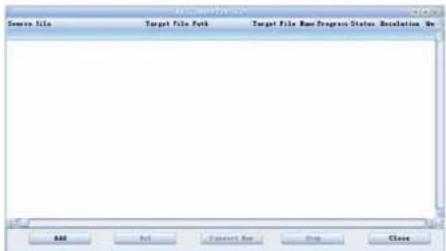
- Click the "Add" button and a dialog will be pop out.
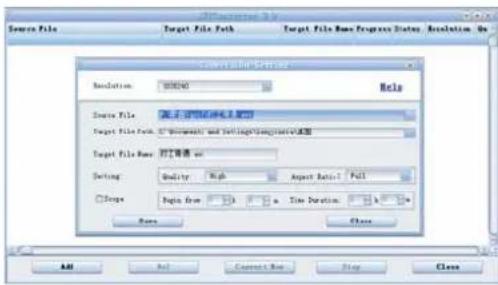
Resolution: 320 x 240 (set as default)
Source File: Select the source file
Target File Path: Select the folder for saving the converted file
Target File Name: Edit the file name
Setting – Quality: High / Medium / Low
Setting – Aspect Ratio: Full / 4:3 / 16:9
Scope: Enter the Starting time and duration
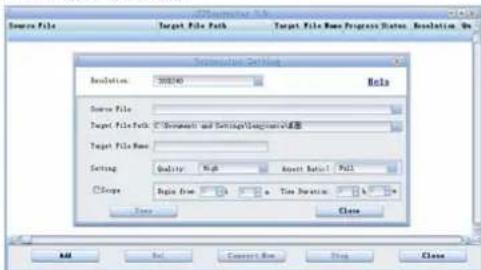
Click "Convert Now" to start the file conversion
2. FAQ
(1) Unable to turn on the player
- Check the battery level (by connecting to the power)
(2) The keys don't work.
- Check the key lock status
(3) Messy code on the screen
- Check the language setting
3. Technical Specifications
| Screen | dot matrix (320*240) 262K color | |
| Dimension | 98mm(length)×55.5mm(width)×11.6mm(height) | |
| Connection Speed | USB2.0 (HIGH SPEED) | |
| Build-in Memory | high speed flash memory: 1G/2GB/4GB/8G (optional) | |
| Power supply | polymer lithium battery 700mAh | |
| Record | Sampling Frequency 8KHz/16KHz | |
| Record Format | WMA (32kbps, 64 kbps) | |
| Record Time | 68 hours (1GB) | |
| MP3、WMA、 | Earphone's Max Output | (L) 5mW+(R) 5mW (32Ohm) |
| MP3 Bit Rate 64K bps | -320K bps | |
| WMA Bit Rate 64K bps | -384K bps | |
| FR | 20Hz~20KHz | |
| SNR | 83dB | |
| Degree of Distortion 0.4% | ||
| Earphone's Max Output | (L) 5mW+(R) 5mW (32Ohm) | |
| Music Format | MP1、MP2、MP3、WMA、WAV、FLAC、APE | |
| Service Temperature -5 ~40°C | ||
| System Requirement Windows98/SE/ME/2K/XP/Vista | ||
- Introduction I
- Product features:
- Accessories:
- Charging:
- Appearance and Keys II
- Operations III
- Playing Music
- Keys:
- Functional Description:
- Playing Video
- Photo Browser
- Recording
- Explorer
- Setting
- Power Off Time
- Defaulted set
- IV Firmware Update
- V Appendixes
- Video File Format Conversion
- FAQ
- Technical Specifications
Brand : SYLVANIA
Model : SMPK7634
Category : Mp3 player