PMP4320 - Mp3 player COBY - Free user manual and instructions
Find the device manual for free PMP4320 COBY in PDF.


User questions about PMP4320 COBY
0 question about this device. Answer the ones you know or ask your own.
Ask a new question about this device
Download the instructions for your Mp3 player in PDF format for free! Find your manual PMP4320 - COBY and take your electronic device back in hand. On this page are published all the documents necessary for the use of your device. PMP4320 by COBY.
USER MANUAL PMP4320 COBY
4.3" Widscreen TFT Portable Media Player with Video Recording and SD Card Slot
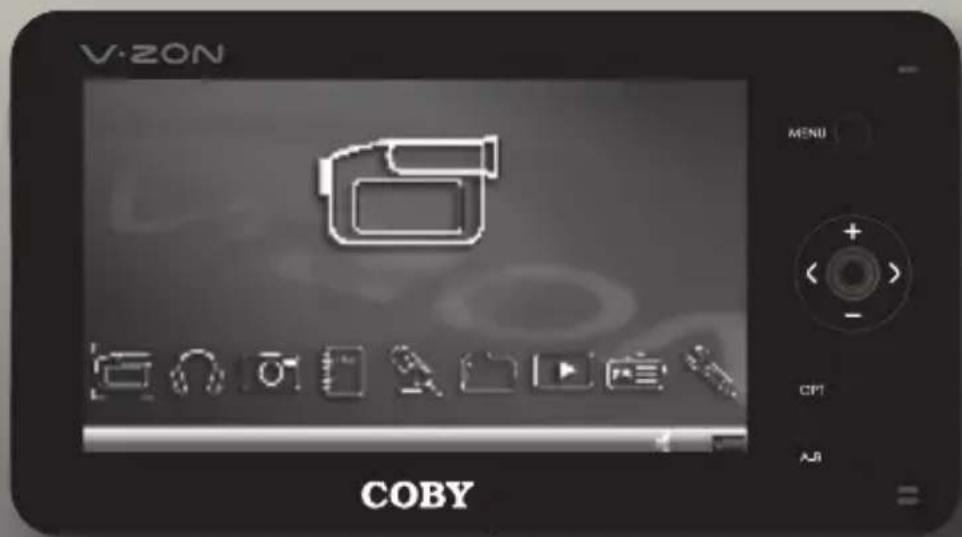
text_image
V-20N MENU COBYINSTRUCTION MANUAL
Please read this manual carefully before operation.
Please read this manual carefully before operation
PRECAUTIONS
CAUTION
WARNING: SHOCK HAZARD. DO NOT OPEN. AVIS: RISQUE DE CHOC ELECTRIQUE. NE PAS OUVRIR

CAUTION: TO REDUCE THE RISK OF FIRE AND ELECTRIC SHOCK, DO NOT REMOVE THE COVER (OR BACK) OF THE UNIT. REFER SERVICING ONLY TO QUALIFIED SERVICE PERSONNEL.
The lightning flash with arrowhead symbol within an equilateral triangle is intended to alert the user to the presence of uninsulated "dangerous voltage" within the product's enclosure that may be of sufficient magnitude to constitute a risk of electric shock.

The exclamation point within an equilateral triangle is intended to alert the user to the presence of important operation and servicing instructions in the literature accompanying the appliance.
For Customer Use:
Enter below the serial number that is located on the bottom of the unit. Retain this information for future reference.
Model No. PMP4320
Serial No.

natural_image
Simple line drawing of three chasing arrows forming a recycling symbol (no text or labels)For recycling or disposal information about this product, please contact your local authorities or the Electronics Industries Alliance: www.eiae.org.
PRECAUTIONS
WARNING:
To prevent fire or shock hazard, do not expose this device to rain or moisture. Dangerous high voltage is present inside the enclosure. Do not open the cabinet.
CAUTION:
To prevent electric shock, match wide blade of plug to wide slot of outlet and fully insert.
WARNING:
Handling the cords on this product will expose you to lead, a chemical known to the State of California to cause cancer, and birth defects or other reproductive harm. Wash hands after handling.
Protect your hearing:
Hearing experts advise against the constant use of personal stereos played at high volume. Constant exposure to high volumes can lead to hearing loss. If you should experience ringing in the ears or hearing loss, discontinue use and seek medical advice.
IMPORTANT SAFETY INSTRUCTIONS
- Read Instructions: All the safety and operating instructions should be read before the product is operated.
- Retain Instructions: The safety and operating instructions should be retained for future reference.
- Heed Warnings: All warnings on the product and in the operating instructions should be adhered to.
- Follow Instructions: All operating and usage instructions should be followed.
- Cleaning: Unplug this product from the wall outlet before cleaning. Do not use liquid cleaners or aerosol cleaners. Use a damp cloth for cleaning.
- Attachments: Use only attachments recommended by the manufacturer. Use of other attachments may be hazardous.
- Water and Moisture: Do not use this product near water (e.g., near a bath tub, washbowl, kitchen sink, laundry tub, in wet basements, or near a swimming pool and the like).
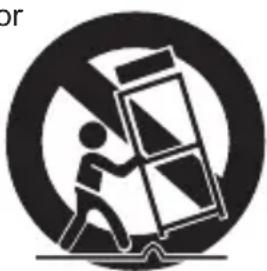
- Accessories: Do not place this product on an unstable cart, stand, tripod, bracket, or table. Use only with carts, stands, tripods, brackets, or tables recommended by the manufacturer or sold with the product.
Any mounting of the product should follow the manufacturer's instructions and should use a mounting accessory recommended by the manufacturer. - A product and cart combination should be moved with care. Quick stops, excessive force, and uneven surfaces may cause the product and cart combination to overturn.
- Ventilation: Slots and openings in the cabinet are provided for ventilation to ensure reliable operation of the product and to protect it from overheating. These openings should never be blocked by placing the product on a bed, sofa, rug, or other similar surface. This product should not be placed in a built-in installation such as a bookcase or rack unless proper ventilation is provided or the manufacturer instructions have been adhered to.
- Power Sources: This product should be operated only from the type of power source indicated on the rating label. If you are not sure of the type of power supply to your home, consult your product dealer or local power company. For products intended to operate from battery power or other sources, refer to the operating instructions.
- Grounding or Polarization: This product may be equipped with a polarized alternating-current line plug that has one blade wider than the other. This plug will only fit into the power outlet in one direction. This is a safety feature. If you are unable to insert the plug fully into the outlet, try reversing the direction of the plug. If the plug should still fail to fit, contact an electrician to replace the obsolete outlet. Do not defeat the safety purpose of the polarized plug.
- Power-Cord Protection: Power supply cords should be routed so that they are not likely to be walked on or pinched by items placed upon or against them, paying particular attention to cords at plugs, convenience receptacles, and at the point which they exit from the product.
natural_image
Symbolic icon of a person climbing a ladder inside a circle (no text or symbols)IMPORTANT SAFETY INSTRUCTIONS
- Protective Attachment Plug: The product may be equipped with an attachment plug with overload protection. This is a safety feature. See the operating instructions for replacement or directions to reset the protective device. If replacement of the plug is required, be sure the service technician has used a replacement plug that has the same overload protection as the original plug as specified by the manufacturer.
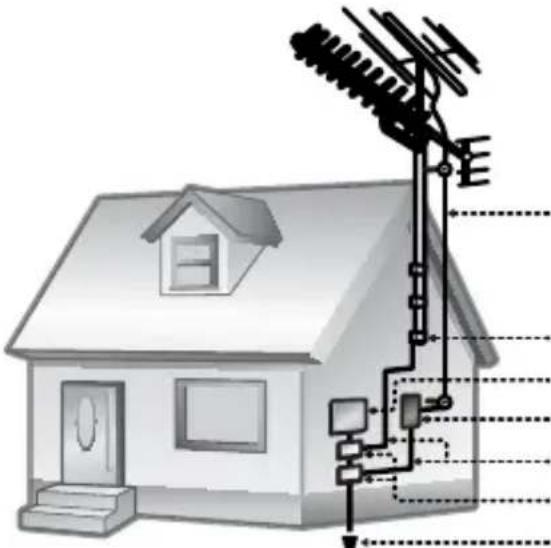
- Outdoor Antenna Grounding: If an outside antenna is connected to the product, be sure the antenna system is grounded so as to provide some protection against voltage surges and built-up static charges. Article 810 of the National Electrical Code, ANS/NFPA 70 provides information with regard to proper grounding of the mast and supporting structure, grounding of the lead-in wire to an antenna-discharge unit, size of grounding conductors, location of antenna-discharge unit, connection to grounding electrodes, and requirements for the grounding electrode (see figure).
text_image
Diagram of a house with antenna array and connected devices, labeled with Chinese characters for componentsAntenna Lead-In Wire
Ground Clamp
Electric Service Equipment
Antenna Discharge Unit (NEC Section 810-20)
Grounding Conductors (NEC Section 810-21)
Ground Clamps
Power Service Grounding Electrode System
(NEC Art 250, Part H)
- Lightning: For added protection for this product, unplug it from the wall outlet and disconnect the antenna or cable system during a lightning storm or when it is left unattended and unused for long periods of time. This will prevent damage to the product due to lightning or power-line surges.
- Power Lines: An outside antenna system should not be located in the vicinity of overhead power lines or other electric light or power circuits, or where it can fall into such power lines or circuits. When installing an outside antenna system, extreme care should be taken to keep from touching such power lines or circuits, as contact with them might be fatal.
- Overloading: Do not overload wall outlets, extension cords, or integral convenience receptacles as this can result in a risk of fire or electric shock.
- Object and Liquid Entry: Never push objects of any kind into this product through openings as they may touch dangerous voltage points or shout-out parts that could result in a fire or electric shock. Never spill liquid of any kind on the product.
IMPORTANT SAFETY INSTRUCTIONS
- Servicing: Do not attempt to service this product yourself as opening or removing covers may expose you to dangerous voltage or other hazards. Refer all servicing to qualified service personnel.
- Damage Requiring Service: Unplug this product from the wall outlet and refer servicing to qualified service personnel under the following conditions: a) when the power-supply or plug is damaged; b) if liquid has been spilled or if objects have fallen into the product; c) if the product has been exposed to rain or water; d) if the product does not operate normally by following the operating instructions. Adjust only those controls that are covered by the operating instructions as improper adjustment of other controls may result in damage and will often require extensive work by a qualified technician to restore the product to its normal operation; e) if the product has been dropped or damaged in any way; f) when the product exhibits a distinct change in performance—this indicates a need for service.
- Replacement Parts: When replacement parts are required, be sure that your service technician has used replacement parts specified by the manufacturer or have the same characteristics as the original part. Unauthorized substitutions may result in fire, electric shock, or other hazards.
- Safety Check: Upon completion of any service or repairs to this product, ask the service technician to perform safety checks to ensure that the product is in proper operating condition.
- Wall or Ceiling Mounting: The product should be mounted to a wall or ceiling only as recommended by the manufacturer.
- Heat: The product should be situated away from heat sources such as radiators, heat registers, stoves, or other products (including amplifiers) that produce heat.
TABLE OF CONTENTS
PRECAUTIONS 2
IMPORTANT SAFETY INSTRUCTIONS ....4
TABLE OF CONTENTS ......7
PACKAGE CONTENTS ....10
GETTING STARTED 12
PMP4320 at a Glance....12
Front View 12
Top View....12
Bottom View....12
Left View 12
Right View....12
Connections 13
Connecting Headphones 13
Connecting to a Television (AV Out) 13
Connecting to an AV Device (AV In) 13
Connecting Power....14
AC Adapter....14
Connecting to a Computer....15
USB Driver Installation ....15
Transferring Files to your PMP4320 16
Disconnecting from a Computer....17
Microsoft Windows....17
Macintosh OS X 17
Using the PMP4320 Controls 18
Power On/Off 18
Hold Function....18
Reset Function....18
Adjusting the Volume 18
Navigating the Menu....18
PMP4320 Display....19
Main Menu 19
File Browser Screen....20
File Browser Controls ....21
File Browser Context Options 21
TABLE OF CONTENTS
VIDEO MODE 23
Getting Video on Your Computer....23
Playing Video 23
Video File Browser Context Options 23
Video Playback Controls....24
MUSIC MODE 25
Getting Music on Your Computer....25
Playing Music....25
Music File Browser Context Options 25
Music Playback Controls ....26
Repeat A-B Mode 27
PHOTO MODE 28
Getting Photos on Your Computer....28
Viewing Photos 28
Photo File Browser Context Options 28
Photo Viewing Controls 28
EBOOK MODE ....30
Reading EBooks 30
Ebook File Browser Context Options....30
Ebook Reader Controls ....30
RECORD MODE 31
Recording Audio and Video to your PMP4320 31
Record Mode Options....31
Record Controls 32
EXPLORER MODE ....33
Managing and Viewing Files on your PMP4320 ....33
RESUME MODE 34
RADIO MODE 35
Listening to FM Radio Broadcasts....35
Radio Screen Display 35
Radio Mode Context Options 35
Radio Mode Controls 36
TABLE OF CONTENTS
SETUP MODE ....37
Display Options....37
System Options....37
Power Options....37
PlayMode Options....38
RESTORE & FIRMWARE UPGRADES ......39
Restoring Your PMP (Format)....39
Upgrading Your PMP Firmware 40
ABOUT DIGITAL MUSIC FILES ....41
TROUBLESHOOTING 42
SPECIFICATIONS 44
PACKAGE CONTENTS
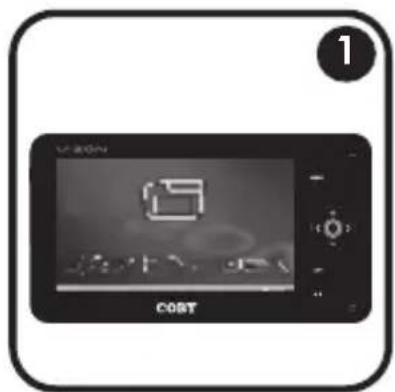
Please make sure that the items shown below are included in the package. Should an item be missing, please contact the local retailer from which you purchased this product.
- COBY PMP4320
- USB Cable
- Audio/Video (AV) Cable
- Professional Stereo Earphones
- AC Adapter
- Installation CD
- Manual
text_image
1 COST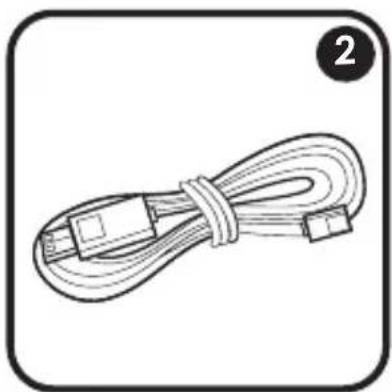
natural_image
Illustration of a bundled cable with two connectors, no text or symbols present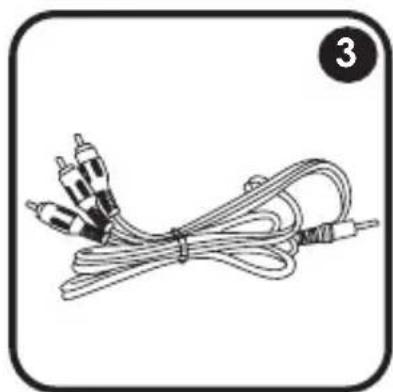
natural_image
Coiled cable with three connectors and a terminal connector, no text or symbols visible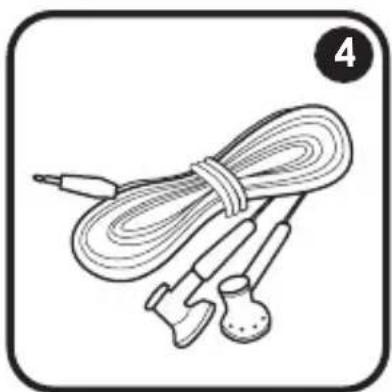
natural_image
Illustration of a medical or scientific instrument with coiled cable and two labeled parts (no text or symbols)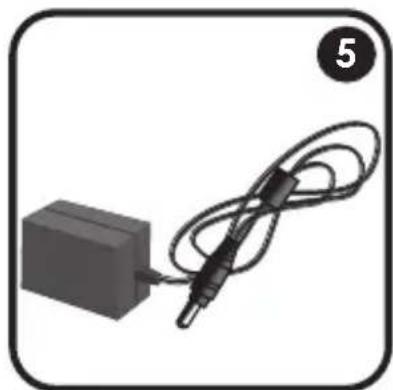
natural_image
Simple line drawing of a connected device with a cable, no text or symbols present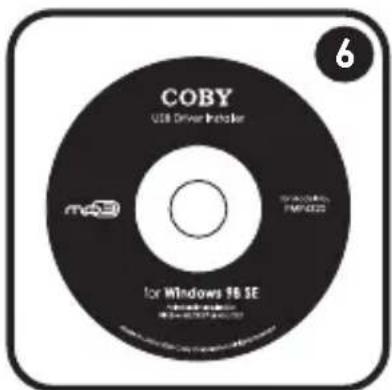
text_image
COBY USB Driver Inverter m39 For Windows 16 SE 6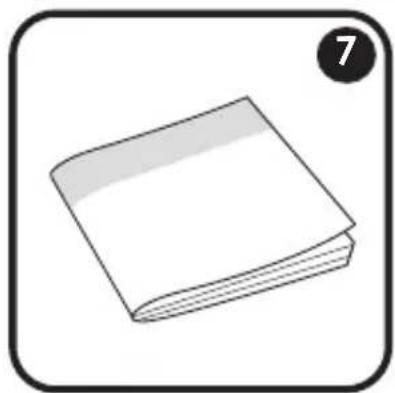
natural_image
Simple line drawing of a closed book with a bookmark, no text or symbols presentFEATURES
20GB Hard Disk Stores up to 10,000 Songs or 80 Hours of Video
Brilliant 4.3" Widescreen TFT LCD True-Color Display
SD/MMC Card Slot for Additional Data Transfer and Storage
◆ Plays Music, Video, Photos, and Text
ID3 and LRC Support for Song and Synchronized Lyric Information Display
Records Audio or Video from External AV Devices (No PC Required)
✦ Integrated FM Radio and Recorder
- Integrated Microphone for Digital Voice Recording
USB 2.0 for Ultra-Fast File Transfers (up to 40x faster than USB 1.0)
♦ Rechargeable Lithium Polymer Battery
Upgradable Firmware
GETTING STARTED
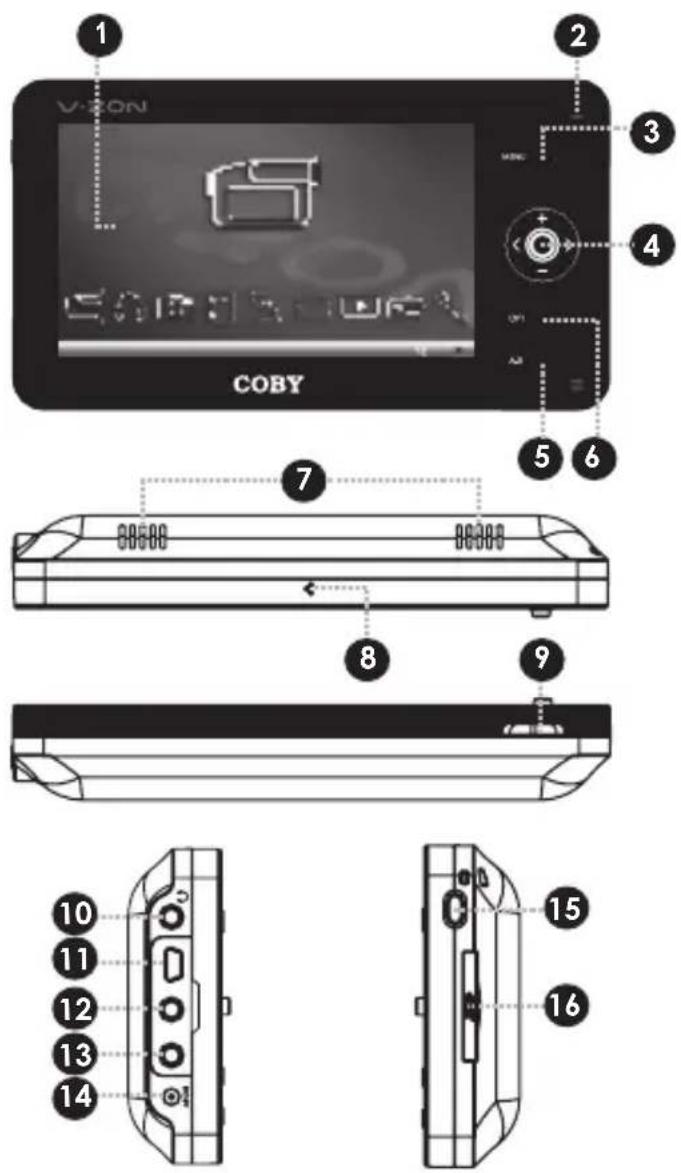
PMP4320 at a Glance
Front View
- 4.3" Widescreen TFT LCD Display
- Power/Charge Indicator
- Menu MENU
-
Navigation Joystick
-
Up / Volume +
-
Down / Volume -
< Left
Right
OK Press Joystick -
Option OPT
- Repeat A-B A-B
Top View
- Stereo Speakers
- Microphone
Bottom View
- Hold/LCD/AV Out Switch
Left View
- Headphone Jack
- USB 2.0 Port
- AV Out Jack
- AV In Jack
- DC 5V Power Jack
Right View
- Power
- SD/MMC Card Slot
text_image
V-SON COBY 1 2 3 4 5 6 7 8 9 10 11 12 13 14 15 16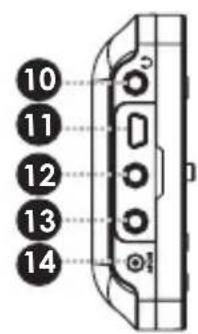
text_image
10 11 12 13 14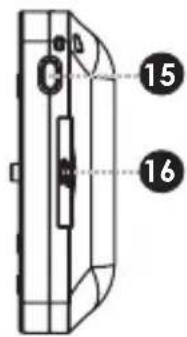
text_image
15 16GETTING STARTED
Connections
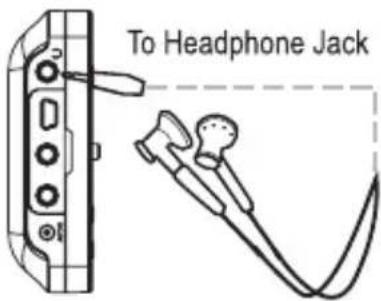
Connecting Headphones
Connect headphones/earphones to the Headphone Out jack for private listening.
text_image
To Headphone Jack♦ Lower the volume level before connecting headphones, then gradually increase the volume for comfortable listening.
Hearing experts advise against the constant use of personal stereos played at high volume.
Constant high-volume use can lead to hearing loss. If you experience ringing in your ears or hearing loss, discontinue use immediately and seek medical advice.
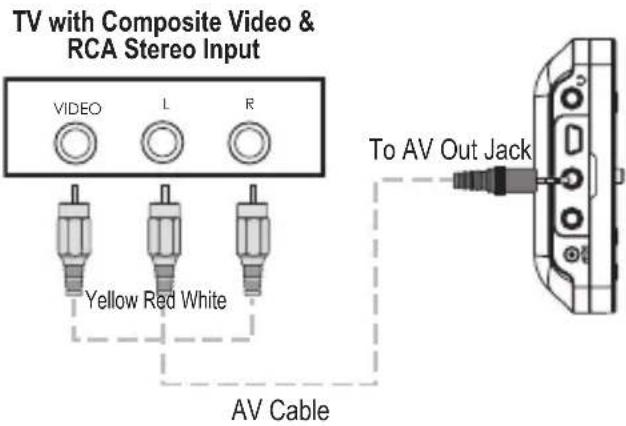
Connecting to a Television (AV Out)
Connect a television to the AV Out jack to play video or photos on your home theater system.
- Make the connections as shown in the diagram.
- Set the Hold/LCD/AV Out switch to the "AV Out" position.
- Set your television to the correct AV mode. You will see the PMP4320 video signal displayed on your TV screen.
Connecting to an AV Device (AV In)
Connect an external AV device (e.g., camcorder, DVD player, video game console) to the AV In jack to use your PMP4320 as a recording device.
- Make the connections as shown in the diagram.
- Set the Hold/LCD/AV Out switch to the "LCD" position.
- Set your television to the correct AV mode. You will see the PMP4320 video signal displayed on your TV screen.
text_image
TV with Composite Video & RCA Stereo Input VIDEO L R Yellow Red White AV Cable To AV Out Jack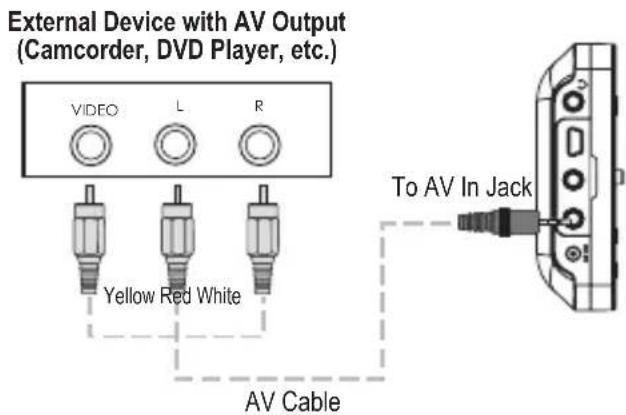
text_image
External Device with AV Output (Camcorder, DVD Player, etc.) VIDEO L R Yellow Red White AV Cable To AV In Jack
Be sure to set the "Setup > System > TV Standard" setting of your PMP4320 to match the video signal (NTSC or PAL).
GETTING STARTED
Connecting Power
This device operates on an integrated rechargeable battery. The battery should be charged fully before using your player for the first time.
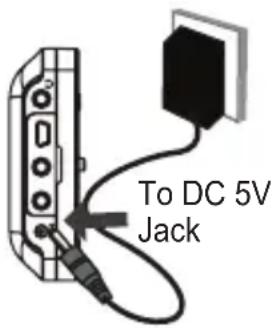
AC Adapter
This adapter should be used with 100-240V 60/60Hz AC wall outlets.
Plug the supplied AC adapter into an AC 100-240V electrical wall outlet.
Connect the other end of the adapter to your device's DC 5V Power jack. The Power/Charge indicator on your device will light orange
When charging has been completed, the Power/Charge indicator on your device will light green.
text_image
To DC 5V Jack
The battery should be charged fully (minimum 4 hours) before its initial use to ensure optimum lifetime performance.

The battery used in this device may present a fire or chemical burn hazard if mistreated. Do not disassemble, incinerate, or heat the battery.
Do not connect the power plug to a power outlet other than that which is indicated here or on the label as this may result in the risk of fire or electric shock.
Do not handle the power plug with wet hands. Doing so may cause electric shock.
Use only AC adapters of the type specified here. Failure to do so may case a fire or damage the player.
GETTING STARTED
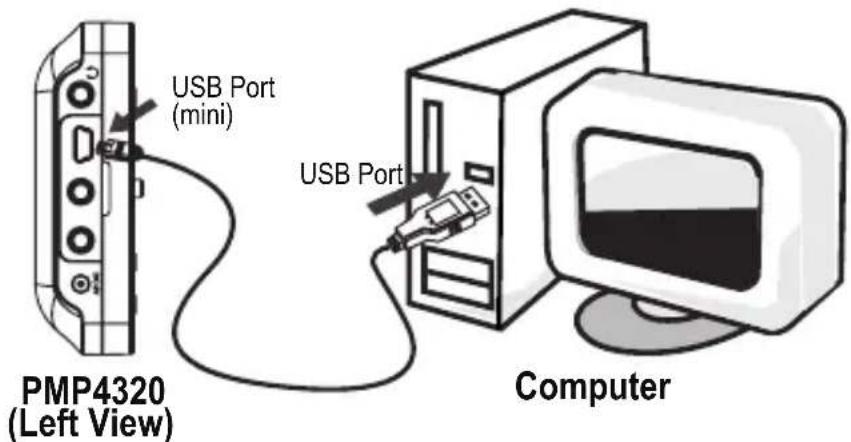
Connecting to a Computer
If you are using Windows 98 SE, you must install the USB driver contained on the supplied Installation CD. Please see the USB Driver Installation section for more information.
Connect the PMP4320 to a computer to transfer media (music, video, photos, etc.) to and from your PMP4320. To connect to a computer:
-
Turn the player off.
-
Connect the player to your computer using the supplied USB cable. It may take Windows several minutes to recognize and set up the device the first time it is connected depending on your hardware configuration
If your computer is running Windows 98 SE, NT, 2000, ME, or XP, your player will be detected as a "Removable Disk" when you open "My Computer".
text_image
USB Port (mini) PMP4320 (Left View) USB Port Computer
For more information and support regarding file transfers and management, please refer to the documentation that came with your computer or operating system.
USB Driver Installation
It is not necessary to install the USB driver if your computer is running Microsoft Windows ME/2000/XP or newer, or Macintosh OS X. Computers running these operating systems will recognize your player automatically when connected.
If your computer is running Windows 98 SE:
-
Insert the Installation CD into your computer's CD or DVD drive. Make sure to place the mini-CD in the center, recessed well of the drive tray.
-
Navigate to MY COMPUTER and double-click on the CD/DVD drive icon (usually "D:").
-
Double-click on the folder "Win98 USB Drivers" and then on the folder "english".
-
Double-click on the SETUP icon (SETUP.EXE) to start the USB driver installation program.
GETTING STARTED
- Follow the on-screen instructions to complete the installation and then restart your computer.

Mini-CDs should only be used in normal tray-loading CD/DVD drives. Mini-CDs may be used in slot-loading drives with the proper adapter; please contact your computer or drive manufacturer for more information.
Transferring Files to your PMP4320
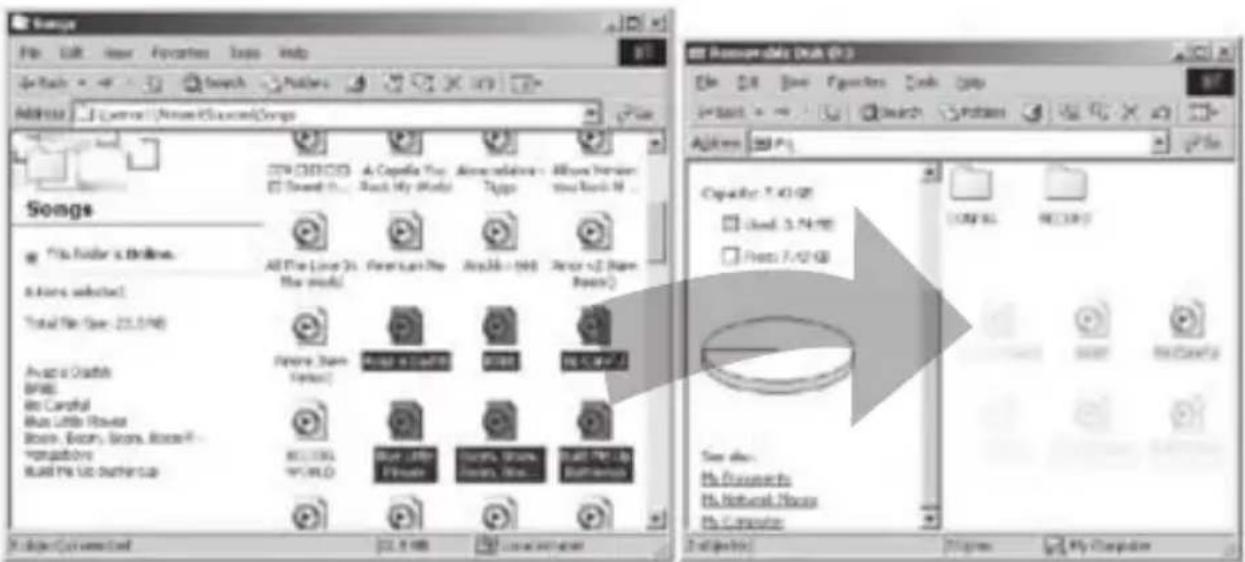
The USB 2.0 High-Speed connection makes it easy to transfer music, video, photo, and text files (or any other data) quickly between the PMP and your computer. Simply use the PMP as you would a floppy disk using basic operating system commands.
If you need further assistance with transferring files, please refer to your operating system's instruction manual or on-screen help, or the documentation that was included with your computer.
text_image
Songs File Edit View Favorites Tools Help Add Back View Search Push Add Import Insert Close Print Apply Songs Files: Finder & Drillbox... & Options: selected() Total File (See: 23.0746) Awards: Create Brack... By Canonical Blue Little Flower Boom - Boxry, Boxry, Boxry- Transpable Build the Up Order-Up Add Preset to New List Add Preset to New List Add Preset to New List Add Preset to New List Add Preset to New List Add Preset to New List Add Preset to New List Add Preset to New List Add Preset to New List Add Preset to New List Add Preset to New List Add Preset to New List Add Preset to New List Add Preset to New List Add Preset to New List All Files Lower On: The mode. New Last On: New Add On: New Add Add On: New Add Add Add On: New Add Add Add On: New Add Add Add Add On: New Add Add Add Add On: New Add Add Add Add On: New Add Add Add Add On: New Add Add Add Add On: New Add Add Add Add On: New Add Add Add Add On: New Add Add Add Add On: New Add Add Add Add On: New Add Add Add Add On: New Add Add Add Add On: New Add Add Add Add On: New Add Add Add Add On: New Add Add Add Add On: New Add Add +100000000000000000000000000000000000000000000000000000000000000000000000000000000000000000000000000 Add Preset to New List Add Preset to New List Add Preset to New List Add Preset to New List Add Preset to New List Add Preset to New List Add Preset to New List Add Preset to New List Add Preset to New List Add Preset to New List Add Preset to New List Add Preset to New List Add Preset to New List Add Preset to New List Set also: My Documents My Network Places My Computer
Do not disconnect or otherwise interrupt the PMP during transmission - this could damage or corrupt the PMP's firmware or your files. If the PMP is accidentally disconnected and is not working properly, reset your PMP (see the Powering Your PMP section for details).
GETTING STARTED
Disconnecting from a Computer
Please follow the steps below to prevent data loss or corruption when disconnecting from a computer.
Microsoft Windows
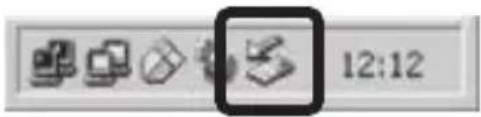
- Double-click the green arrow in the taskbar located on the lower-right side of the computer screen (Safely Remove Hardware).
- Safely Remove Hardware:
Select "USB Mass Storage Device" from the list that appears and then click on "Stop".
Stop a Hardware Device: Select "USB Mass Storage Device" from the list that appears and then click on "OK".
Select "USB Mass Storage Device" from the list that appears and then click on "OK".
- When the "Safe to Remove Hardware" window appears, click the OK button and disconnect the USB cable from the player and your computer.
Macintosh OS X
- On the left side of the Finder window, identify the appropriate Removable Disk icon.
- Click on the "Eject" arrow on the right of the Removable Disk icon.
- Disconnect the USB cable from the player and your computer.
text_image
12:12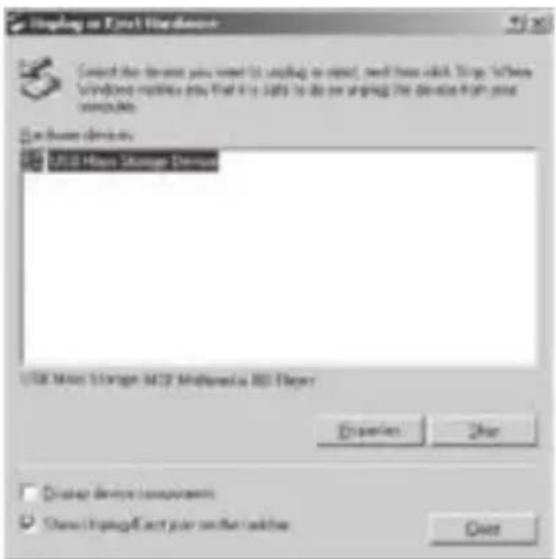
text_image
Display to Excel Helpdesk Context this device you want to use the Open Web (or open), then press your URL. While Windows returns you that it is ready to do or upgrade the device from your website. User Home Devices MOS Hube Storage Device USB Max Storage M2F Microsoft 801 Player Explorer 2nd Display device components Show http://start periods/801 Player Over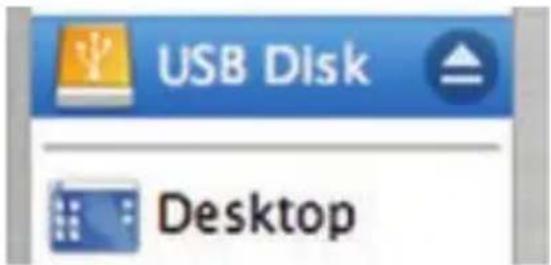
text_image
USB Disk DesktopGETTING STARTED
Using the PMP4320 Controls
Power On/Off
To turn your player on, press
To turn your player off, press and hold


Hold Function
The Hold/LCD/AV Out switch (located on the bottom of your player) locks/unlocks the key controls of your player to prevent them from being pressed accidentally.
To lock the key controls, slide the switch left to the HOLD position.
To unlock the key controls, slide the switch right to the LCD or AV OUT position.
Reset Function
If your player freezes or otherwise behaves abnormally, press and hold 📋 turn off and reset your player.
Adjusting the Volume
When your player is in Video or Music playback mode, press or to adjust the volume level up or down, respectively.
Navigating the Menu
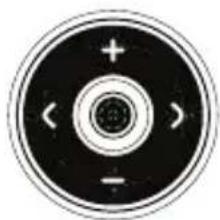
Use the Navigation Joystick to move the selection cursor. Press the joystick to enter (confirm) a selection.
To access the Main Menu Desktop, press and hold
To cancel or to return to the previous screen, press
To access a context (option) menu, press OPT
To move the selection left, press
To move the selection right, press
To move the selection up, press
To move the selection down, press
To enter (confirm) a selection, press OK


natural_image
Circular diagram with concentric circles and directional arrows, no text or symbols presentGETTING STARTED
PMP4320 Display
Main Menu
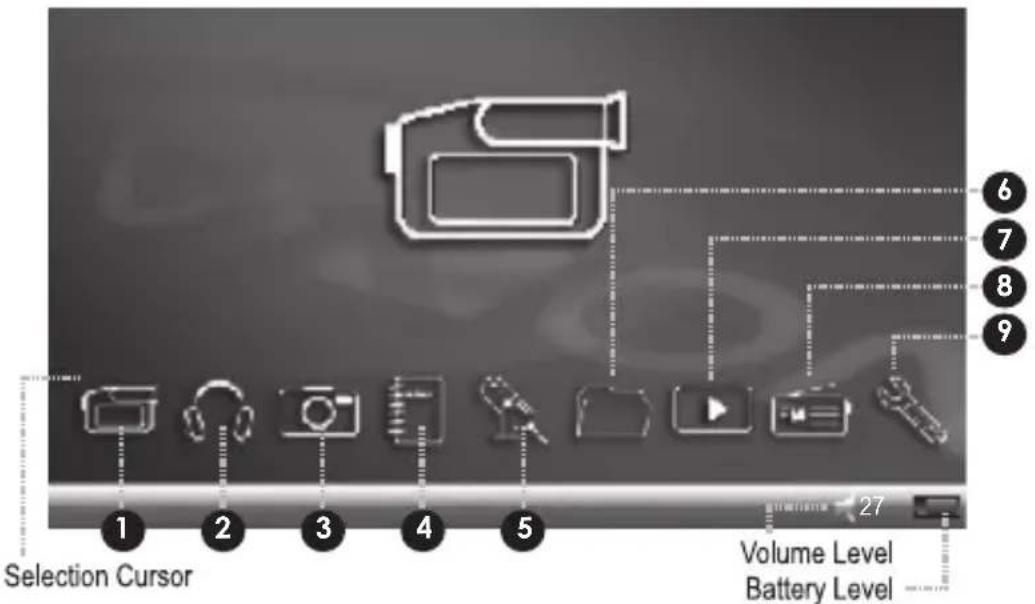
The Main Menu gives you access to the different function modes of your PMP.
To select a mode, press or to highlight the mode with the Selection Cursor and then press OK
To return to the Main Menu Desktop, press and hold MENU
text_image
Selection Cursor Volume Level Battery Level1. Video
Watch your digital video files (AVI, MPEG-1, -2, and -4, and XviD).
2. Music
Play your digital music files (MP3, WMA). Record through the microphone.
3. Photo
View your digital picture files (JPG).
4. E-Book
Read your electronic text files (TXT)
5. Record
Record audio, video, or voice.
6. Explorer
View and organize your media library.
7. Resume
Resume playback of the last file played.
8. FM Radio
Listen to FM Radio broadcasts.
9. Setup
Change the internal settings of your PMP.
GETTING STARTED
File Browser Screen
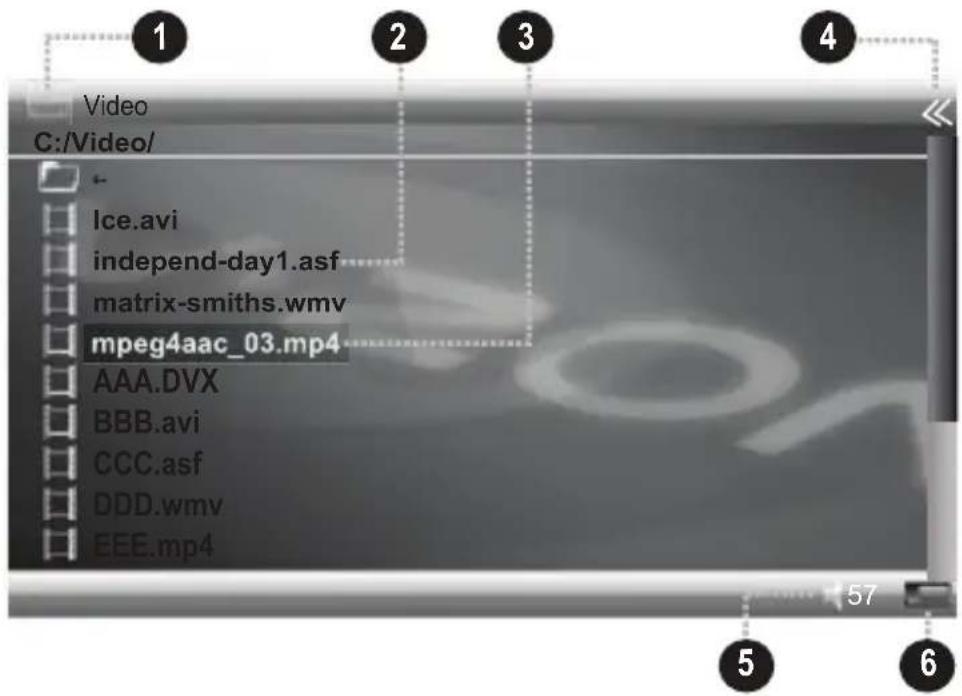
The File Browser Screen allows you to view your collection of media.
text_image
Video C:/Video/ Ice.avi independ-day1.asf matrix-smiths.wmv mpeg4aac_03.mp4 AAA.DVX BBB.avi CCC.asf DDD.wmv EEE.mp41. Browser Mode
Indicates the types of files displayed by the file browser. "Video" indicates that only supported video types are displayed.
2. List of Files
3. Selected File
4. Information View
Press or as indicated to view or hide file information details.
-
Volume Level
-
Battery Level

The File Browser screen will display the type of media that corresponds with the Browser mode, only. Music files will not be displayed in Video mode.
GETTING STARTED
File Browser Controls
Use the following controls in File Browser mode.
| Key Function | |
| Press [ZB4A] | Move the selection up |
Press  | Move the selection down |
Press  | Show or hide file information details |
Press  | Return to the previous folder/screen |
Hold  | Return to the Main Menu Desktop |
Press  | Enter the selection |
Press  | Display the context menu |
File Browser Context Options
Press to view the following context options.
| Item Function | |
| Desktop Return to the Main Menu Desktop | |
| New | Create a new folder. A text input screen will appear: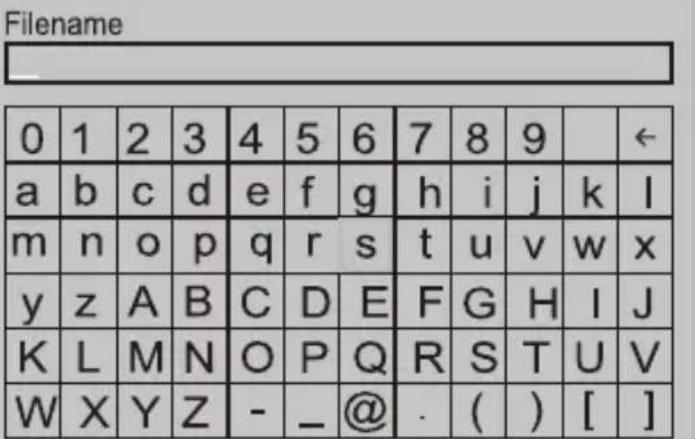 input: Enter Save: OPT Delete: ←Use the navigation joystick to input the name of the new folder. PressOPTto save the new folder when you are done. input: Enter Save: OPT Delete: ←Use the navigation joystick to input the name of the new folder. PressOPTto save the new folder when you are done. |
GETTING STARTED
| Item Function | |
| Copy | Prepare to copy the selected file.✦ After selecting a file to copy, navigate to the target folder.✦ PressOPTaccess the context menu and select PASTE to complete the copy function. |
| Move | Prepare to move the selected file✦ After selecting a file to move, navigate to the target folder.✦ PressOPTaccess the context menu and select PASTE to complete the move function. |
| Paste | Complete copying or moving a file (only available during copy or move operations -- see “Copy” and “Move” above). |
| Delete Delete the selected file | |
| Rename | Rename the selected file. A text input screen will appear: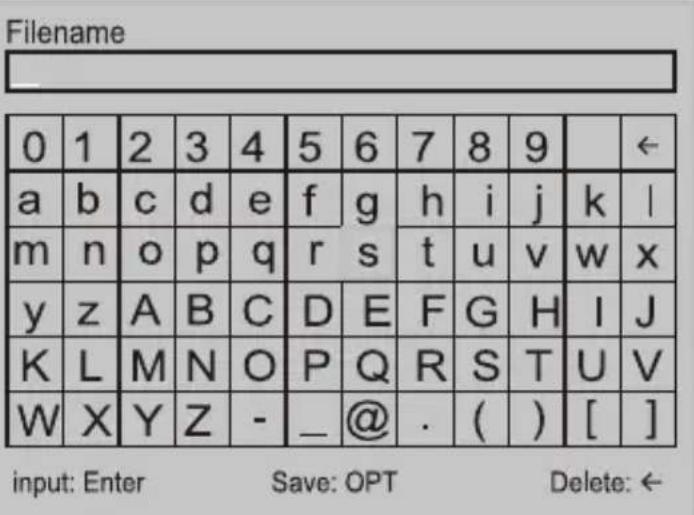 Use the navigation joystick to input the name of the new folder. PressOPTto save the new folder when you are done. Use the navigation joystick to input the name of the new folder. PressOPTto save the new folder when you are done. |
| Information Display | file information details |
VIDEO MODE
Getting Video on Your Computer
There are a number of ways to get digital video onto your computer:
Internet: There are many free digital videos available for download from the internet. Common file types that your player supports are: AVI, XviD, and MPEG-4.
Take care to respect copyright laws and to download videos from legal sources.
- RSS Feeds: Many free and popular media management programs (e.g., Winamp) include free video RSS feeds.
Convert Your Own: There are many software utilities available that will convert preexisting videos to a format compatible with your PMP4320 (e.g., VirtualDub).
Create Your Own: Your PMP4320 can record video in MP4 format (please see the Record Mode section for more information).
Once you have obtained video on your computer, you can transfer it to your PMP4320 for portable viewing (please see the Transferring Files to Your PMP4320 section for more details).
Playing Video
To play videos on your player:
- Select and confirm VIDEO from the Main Menu Desktop.
- Select and confirm a supported video file from the File Browser to start playback.
Video File Browser Context Options
Press to view the following context options.
| Item Function | |
| Desktop Return to the Main Menu Desktop | |
| New Create a new folder | |
| Copy Prepare to copy the selected file | |
| Move Prepare to move the selected file | |
| Paste | Complete copying or moving a file (only available during copy or move operations) |
| Delete Delete the selected file | |
| Rename Rename the selected file | |
| Information Display file information details | |
VIDEO MODE
Video Playback Controls
Use the following controls during video playback.
| Key Function | |
Press  use playback. Press again to resume playback. use playback. Press again to resume playback. | |
Press  | Play previous track |
Press  | Play next track |
Hold  | Reverse through the current track |
Hold  | Fast forward through the current track |
| Press [V4DX] | Adjust the volume level up or down |
Press  NU NU | Return to the File Browser |
Hold  | Return to the Main Menu Desktop |
Press  | Display option bar |
The Option bar items are:
| Item Function | |
 | Play next track |
 | Play previous track |
 | Change Repeat Mode: Repeat Folder Once, Repeat Folder All |
 | Change Aspect Ratio: 4:3, 16:9, Full Screen, Half Screen |
MUSIC MODE
Getting Music on Your Computer
There are a number of ways to get digital music onto your computer:
Internet: There are many websites that make music available for free, legal download. There are also sites such as eMusic.com from which you can purchase legal MP3 music unencumbered by DRM.
Take care to respect copyright laws and to download music from legal sources.
RSS Feeds: Many free and popular media management programs (e.g., Winamp) include free music and audio RSS feeds (commonly referred to as “podcasts”).
Convert Your Own: There are many audio extraction and conversion utilities available that allow you to convert your CD library to MP3 format for personal use.
Create Your Own: Your PMP4320 can record audio in MP3 format (please see the Re- cord Mode section for more information).
Once you have obtained music on your computer, you can transfer it to your PMP4320 for portable listening (please see the Transferring Files to Your PMP4320 section for more details).
Playing Music
To play music on your player:
- Select and confirm MUSIC from the Main Menu Desktop.
- Select and confirm a supported music file from the File Browser to start playback.
Music File Browser Context Options
Press to view the following context options.
| Item Function | |
| Desktop Return to the Main Menu Desktop | |
| New Create a new folder | |
| Copy Prepare to copy the selected file | |
| Move Prepare to move the selected file | |
| Paste | Complete copying or moving a file (only available during copy or move operations) |
| Delete Delete the selected file | |
| Rename Rename the selected file | |
| Information Display file information details | |
MUSIC MODE
Music Playback Controls
Use the following controls during music playback.
| Key Function | |
Press  use playback. Press again to resume playback. use playback. Press again to resume playback. | |
Press  | Play previous track |
Press  | Play next track |
Hold  | Reverse through the current track |
Hold  | Fast forward through the current track |
Press  | Adjust the volume level up or down |
Press  | Return to the File Browser |
Hold  | Return to the Main Menu Desktop |
Press  | Display option bar |
The Option bar items are:
| Item Function | |
 | Play next track |
 | Play previous track |
 | Change Repeat Mode: Repeat Folder Once, Repeat Folder All |
 | Toggle ID3 (song data) or LRC (lyric) information display |
 | Repeat A-B mode. |
 | Access equalizer settings |
MUSIC MODE
Repeat A-B Mode
Repeat A-B mode allows you can define a segment of an audio track to be played repeatedly in a loop.
During music playback, press to set the start point "A" of the loop.
Press again to set the end point "B" of the loop. The track segment will now play repeatedly in a loop from point "A" to point "B".
★ Press again to resume normal playback.
PHOTO MODE
Getting Photos on Your Computer
Connect a digital camera to your computer to transfer photos to your computer.
From your computer, you can transfer the files to your PMP4320 for portable viewing (please see the Transferring Files to Your PMP4320 section for more details).
If your digital camera uses an SD or MMC memory card for storage, you can use the integrated SD/MMC card slot on the PMP4320 to transfer or view the photos directly.
Viewing Photos
To view photos on your player:
- Select and confirm PHOTO from the Main Menu Desktop.
- Select and confirm a supported photo file from the File Browser to start viewing.
Photo File Browser Context Options
Press to view the following context options.
| Item Function | |
| Desktop Return to the Main Menu Desktop | |
| Music Resume Return to music playback screen | |
| Information Display file information details | |
Photo Viewing Controls
Use the following controls during photo viewing.
| Key Function | |
| Press Start slideshow. | Press again to exit slideshow mode. |
| Press < | View previous photo |
| Press > | View next photo |
| Press + | Rotate photo counterclockwise |
| Press - | Rotate photo clockwise |
| Press MENU | Return to the File Browser |
| Hold MENU | Return to the Main Menu Desktop |
| Press OPT | Display option bar |
PHOTO MODE
The Option bar items are:
| Item Function | |
 | Set image as Main Menu Desktop background. To restore the original background, restore the player's default settings in the Setup menu. |
 | Zoom in on photograph. Use the navigation joystick to pan around a magnified photo. |
 | Zoom out. |
 | Display 4 photos simultaneously on the screen. |
 | Display 12 photos simultaneously on the screen. |
 | Return to music playback screen |
EBOOK MODE
Reading EBooks
To read E-Book text files on your player:
- Select and confirm EBOOK from the Main Menu Desktop.
- Select and confirm a text file from the File Browser to start reading.
Ebook File Browser Context Options
Press to view the following context options.
| Item Function | |
| Desktop Return to the Main Menu Desktop | |
| New Create a new folder | |
| Copy Prepare to copy the selected file | |
| Move Prepare to move the selected file | |
| Paste | Complete copying or moving a file (only available during copy or move operations) |
| Delete Delete the selected file | |
| Rename Rename the selected file | |
| Information Display file information details | |
Ebook Reader Controls
Use the following controls during text reading.
| Key Function | |
| Press [50DH] | Read previous file |
Press  | Read next file |
| Press [6H03] | Go to previous page |
Press  | Go to next page |
Press  | Return to the File Browser |
Hold  | Return to the Main Menu Desktop |
RECORD MODE
Recording Audio and Video to your PMP4320
Your PMP4320 can record audio in MP3 format as well as video in MP4 format.
To make a recording:
- Connect an external AV source to the AV In jack.
- Select and confirm RECORD from the Main Menu Desktop.
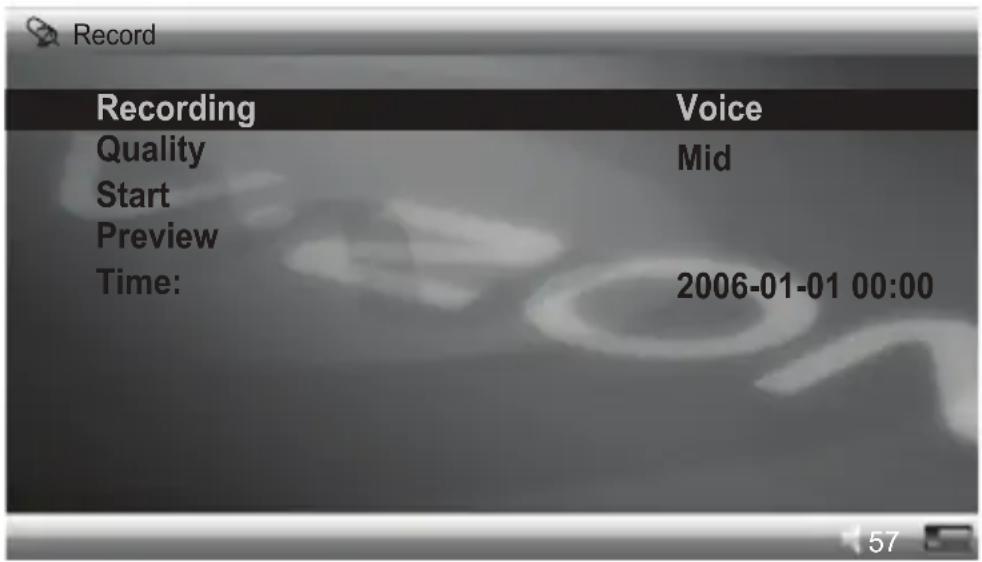
- Set the options on the Record Mode screen.
- Select and confirm PREVIEW to view or listen to the external source without recording.
- Select and confirm START to begin recording.
Record Mode Options
| Item Function | |
| Recording | Select the recording source.Audio: Record audio from the AV In jack in MP3 formatVoice: Record voice from the microphone in MP3 formatVideo: Record video (with sound) from the AV In jack in MP4 format |
| Quality | Select the quality of the recording. Higher quality recordings will take up more memory. |
| Auto Stop Automatic Stop timer | |
| Start Start recording | |
| Preview Preview external audio or video signal | |
| Time Adjust time | |
text_image
Record Recording Voice Quality Mid Start Preview Time: 2006-01-01 00:00RECORD MODE
Record Controls
Use the following controls during recording.
| Key Function | |
| Press [C70A] use recording. Press again to resume recording. | |
| Press [2X08] | Stop and save recording. |
EXPLORER MODE
Managing and Viewing Files on your PMP4320
Explorer mode works like the Music, Video, and Photo File browser modes except that it will display ALL types of files.
To access Explorer mode, select and confirm EXPLORER from the Main Menu Desktop.
The root folder allows you to access the PMP4320 memory (C:) or the optional SD card (A:) if one is installed.
When you select and confirm a file, the PMP4320 will play the file if it is supported.
For information on how to use the Explorer File Browser, please refer to the Getting Started section of this manual.
RESUME MODE
Resume mode allows you to quickly return to the last video played. Video playback will resume from the timepoint at which you stopped the video.
To access Resume mode, select and confirm RESUME from the Main Menu Desktop.
RADIO MODE
Listening to FM Radio Broadcasts
To listen to the radio:
- Select and confirm RADIO from the Main Menu Desktop.

Earphones (or headphones) must be connected to the PMP's Headphone jack for Radio operation for use as an antenna.
Radio Screen Display
- Tuning Mode (Preset or Scan)
- Frequency Pointer
- Frequency Bar
- Current Frequency
- Current Preset Station
- Available Preset Stations

text_image
1 2 3 4 Prest 94.7 WQ 1 2 3 4 5 6Radio Mode Context Options
Press QRT view the following option bar items.
| Item Function | |
 | Toggle between Preset or Scan (manual) tuning modes. (The scan mode icon looks like an eye.) |
 | Auto Search function scans and automatically stores all available FM broadcasts to Preset stations. |
 | Record the current FM broadcast in MP3 format. Press [IMAGE] and save the recording. |
 | Toggle between headphone audio output and speaker output. |
 | Delete or Save Preset Station |
 | Return to Main Menu Desktop while playing current station in the background. |
RADIO MODE
Radio Mode Controls
Use the following controls in Radio mode.
| Key Function | |
Press  use playback. Press again to resume playback. use playback. Press again to resume playback. | |
| Press [OKTT] | Previous preset station or frequency |
Press  | Next preset station or frequency |
| Hold [XGYA] | In Scan mode, seek the next available lower frequency |
Hold  | In Scan mode, seek the next available higher frequency |
Press  | Adjust the volume level up or down |
Press  NU NU | Return to the Main Menu Desktop |
| Press [CGTS] | Display option bar |
SETUP MODE
Enter Setup mode to adjust your player's internal options.
Display Options
| Item Function | |
| Brightness Adjust the brightness of the display | |
| Font Color Change the system font color | |
| Focus Color Change the selected item font color | |
| Bar Color Change the selection bar color | |
| Scheme Themes Select a preset color theme. | |
System Options
| Item Function | |
| Language Change | the on-screen menu language |
| TV Standard Change | the video signal standard (NTSC or PAL) |
| System Info View system information (memory capacity, firmware, etc.) | |
| Factory Setting Restore all options to their factory-default settings | |
Power Options
| Item Function | |
| Backlight | Adjust the duration of time the display backlight will remain on for after the last key press. This is a power-saving feature.A setting of “ON” will keep the backlight on always. |
| Power Off | Adjust the duration of time the player will remain on for when it is idle.This is a power-saving feature. |
CABLE CONNECTION
PlayMode Options
| Item Function | |
| Slide show | Adjust the duration of time a photo is displayed in photo slideshow mode. |
| Music Playmode Random, Repeat all, Repeat one | |
| FM Sensitivity Low | Mid, High. |
RESTORE & FIRMWARE UPGRADES
From time to time, COBY may release firmware updates to improve the performance of the PMP4320 or to add additional features. Please check the COBY website periodically at www.cobyusa.com to see if new firmware has been released for your PMP. If you are experiencing abnormal behavior with your PMP, you may choose to restore (format) your PMP before updating its firmware.
Restoring Your PMP (Format)
- Connect the PMP4320 to a computer using the supplied USB cable.
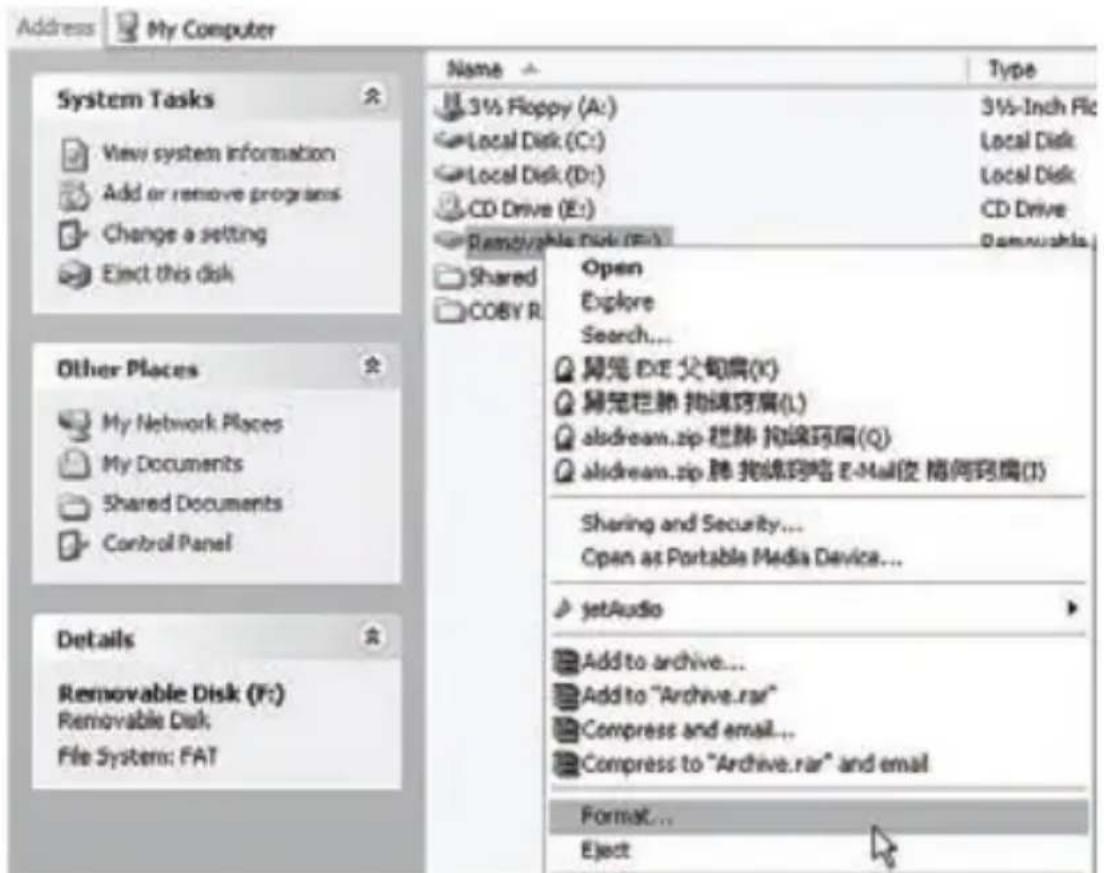
- On the computer, locate the Removable Disk icon that corresponds to the PMP4320.
- Right-click on the Removable Disk icon and select Format.
- A dialog box will appear on-screen. Change the settings to format the PMP as a FAT16 drive, and then click the START button to begin the formatting process.
text_image
Address My Computer System Tasks View system information Add or remove programs Change a setting Eject this disk Other Places My Network Places My Documents Shared Documents Control Panel Details Removable Disk (F:) Removable Disk File System: FAT Name Type 3½ Floppy (A:) Local Disk (C:) Local Disk (D:) CD Drive (E:) Removable Disk (R:) Shared COBY R Open Explore Search... 异笔 EXE 父句魔(K) 异笔栏肺 拐线环扁(L) alsdream.zip 栏肺 拐线环扁(Q) alsdream.zip 肺 拐线网略 E-Mail 使 随何网魔(I) Sharing and Security... Open as Portable Media Device... jetAudio Add to archive... Add to "Archive.rar" Compress and email... Compress to "Archive.rar" and email Format... Eject- When the formatting process is complete, disconnect the USB cable from the PMP.
- Press and hold to turn the PMP off, and then turn it back on.

Formatting your PMP will erase all of your data from it (including musics, recordings, movies, photos). Make sure to copy and back up the data on your PMP that you do not want to lose prior to formatting.
RESTORE & FIRMWARE UPGRADES
Upgrading Your PMP Firmware
- Download the latest firmware for your PMP from www.cobyusa.com. Save this file to the computer.
- Connect your PMP to the computer. Double-click the Removable Icon that corresponds to your PMP, and then double-click the FIRMWARE folder to open it.
- Double-click the downloaded firmware file (you may need a file compression utility in stalled on your computer). In the window that appears, select the file named "UPDATE.BST" and copy it to your PMP's root folder (for example, E:).
- Disconnect your PMP from the computer.
- Press and hold to turn the PMP off, and then turn it back on. The PMP will update its firmware automatically.

Do not disconnect your PMP from the computer or otherwise interrupt the firmware upgrade — doing so could damage your PMP and render it inoperable.
ABOUT DIGITAL MUSIC FILES
For more information about digital MP3 and WMA files, please visit our website at www.cobyusa.com.
TROUBLESHOOTING
If you have a problem with this player, please read the troubleshooting guide below and check our website at www.cobyusa.com for Frequently Asked Questions (FAQs) and firmware updates. If these resources do not resolve the problem, please contact Technical Support.
COBY Electronics Technical Support
56-65 Rust St.
Maspeth, NY 11378
Hours: Monday to Friday, 8:30 AM–11:00 PM EST
Saturday to Sunday, 9:00 AM–11:00 PM EST
Email: techsupport@cobyusa.com
Phone: 800-681-2629 or 718-416-3197
Web: www.cobyusa.com
The player does not turn on.
The battery level may be too low. Try charging the player or operate the player on AC power.
◆ Ensure that the Lock switch is disengaged.
♦ Try resetting your player (press and hold the Power key).
The player does not turn charge when connected to a computer (USB charge).
Try resetting your player (press and hold the Power key).
There is no sound during playback.
★ Check the volume level.
◆ Ensure that the headphones are attached securely to the player.
The sound quality of the music is poor.
Try playing the file on your computer. If the sound quality is still poor, try downloading the file again or re-encoding the file yourself.
- Ensure that the bit rate of the file is not too low. The higher the bit rate of the file, the better it will sound. The minimum recommended bitrate is 128kbps for MP3s and 96kbps for WMAs.
◆ Ensure that the headphones are attached securely to the player.
TROUBLESHOOTING
The buttons do not work.
◆ Ensure that the battery is charged or that the player is operating on AC power.
◆ Ensure that the Lock switch is disengaged.
The player will not play my music/video file.
◆ Ensure that the file is in a compatible format.
The file may be copy-protected. This player cannot play copy-protected files.
The LCD characters are corrupted.
◆ Ensure that the correct language has been selected.
The player will not play my video file.
- Ensure that the video file will play on your computer using Windows Media Player 10. If the file works on the computer, use the same computer to convert the video to a compatible format.
I cannot transfer files to the player.
◆ Ensure that your computer is running a supported operating system.
If you are running Microsoft Windows 98 SE, ensure that the USB driver has been properly installed.
- Ensure that the supplied USB cable is securely attached to the player and the PC, or try using another USB cable.
If you have connected the player through a USB hub, try connecting the player directly to your computer.
Ensure that the player's memory capacity is not full.
The player has malfunctioned.
♦ Try resetting your player (press and hold the Power key).
Try updating the player's firmware. Please refer to the Restore & Firmware Upgrades section of this manual for detailed instructions.
SPECIFICATIONS
Display Type 4.3" TFT LCD
Display Resolution 480 x 272
Memory 20GB Hard Disk
SD/MMC Card Slot for Expanded Memory Capacity
Audio Format Support MP3, WMA
Video Format Support MPEG-4 (ASF, AVI, MP4)
XviD (AVI, MP4)
WMV9 (WMV, ASF)
Photo Format Support JPEG (max 3264 x 2448)
GIF
BMP
FM Frequency Range 87.5 - 108.0MHz
Song Info Support ID3, LRC
PC Interface USB 2.0 High-Speed
Plug and Play Support Windows 98SE/2000/ME/XP or newer
Mac OS X
Audio Output 3.5mm Stereo (Headphone)
Integrated Stereo Speakers
Video Output Composite Video
Audio Input 3.5mm Stereo
Integrated Microphone
Video Input Composite Video
Power Supply DC 5V:
Rechargeable Lithium-ion Battery
100-240V AC Adapter
Specifications and manual are subject to change without prior notice.
COBY Electronics Corp.
56-65 Rust Street
Maspeth, NY 11378
www.cobyusa.com
www.ecoby.com