A104 Ram 3G - Smartphone Plum - Free user manual and instructions
Find the device manual for free A104 Ram 3G Plum in PDF.


User questions about A104 Ram 3G Plum
0 question about this device. Answer the ones you know or ask your own.
Ask a new question about this device
Download the instructions for your Smartphone in PDF format for free! Find your manual A104 Ram 3G - Plum and take your electronic device back in hand. On this page are published all the documents necessary for the use of your device. A104 Ram 3G by Plum.
USER MANUAL A104 Ram 3G Plum
A104 Ram 3G User Manual
Content
Safety matters and environment protection 2
Product Appearance and Button and Key Descriptions....4
Installing and removing SIM card/Micro SD-card and Battery 5
Waterproof Usage....7
Startup and shutdown....7
Standby and unlock....7
Set time and date ....7
Making calls....7
Answering the phone 7
Messaging 7
Calculator....7
Calendar 8
Alarm....8
User Profiles....8
Camera 8
File Management....8
Problem Shooting....8
Warning....9
Safety matters and environment protection
Not following these simple guidelines may be dangerous or illegal. Read the complete user guide for further information.
TURN ON SAFELY
Do not turn on the phone when wireless phone is prohibited or when it may cause interference or danger.
ROAD SAFETY
Obey all road safety laws. Always use both of your hands to operate the vehicle while driving.
INTERFERENCE
All wireless phones may be sensitive to interference, which may affect performance.
TURN OFF IN HOSPITALS
[键入文字]
Follow all restrictions. Turn off the phone near medical equipment.
TURN OFF ON AIRCRAFTS
Follow all restrictions. Wireless devices can cause interference on aircrafts.
TURN OFF WHEN REFUELING
Do not use the phone at/near refueling stations. Do not use near fuel or chemicals.
USE SENSIBLY
Only qualified personnel may install or repair this product.
ENHANCEMENTS AND BATTERIES
Use only appropriate enhancements and batteries. Do not connect incompatible products.
WATER-RESISTANCE
Your phone is not water-resistant. Keep it dry.
BACKUP COPIES
Remember to make back-up copies or keep a written record of all important information stored in your phone.
CONNECTING TO OTHER DEVICES
When connecting to any external device, read its user guide for detailed safety instructions. Do not connect with incompatible products.
Getting Started
Product Appearance and Button and Key Descriptions:

- Flashlight
- Camera Key
- Earpiece;
- Flashlight Key long press)
- SIM2 dial button;
6.SIM1 dial button
7.Direction button
8.** Keypad unlock -
Back button
10.FM shortcut button -
Hang-up button
-
key (Long press to access Slient Mode)
- Used to enter spaces while typing;
- Microphone;
- Volume Up key
- Volume Down key
- Camera
- Loudspeaker;
- Screw lock.
- USB port
- earphone port
Installing and removing SIM card/Micro SD-card and Battery:
■ Open the back cover: First, rotate battery cover lock screws to the left until cover is loosened. Remove back cover and then remove battery.
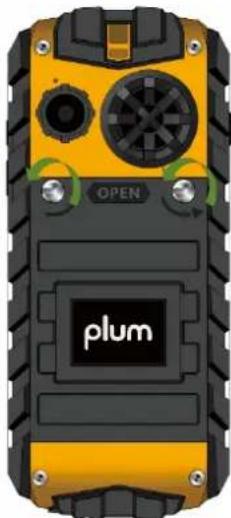
natural_image
Yellow and black portable device with visible ports and branding (no readable text or symbols)← Turn battery cover lock screws to the left until it's loosened
- Put the SIM card and Micro-SD Card chip-sides facing down into corresponding card slots, and lock them properly.
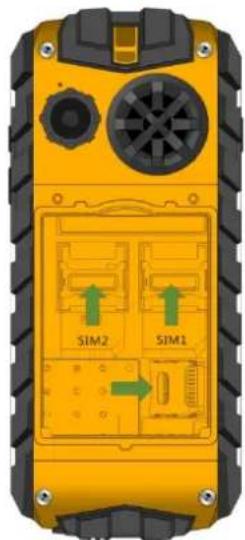
natural_image
Yellow handheld device with black screw, ventilation slots, and internal circuit blocks (no readable text or symbols)[键入文字]
- Push the battery contact-end down against the mobile phone's battery contacts as per arrow-1 direction, and then lock the battery by pressing into the battery slot as per arrow-2 direction.
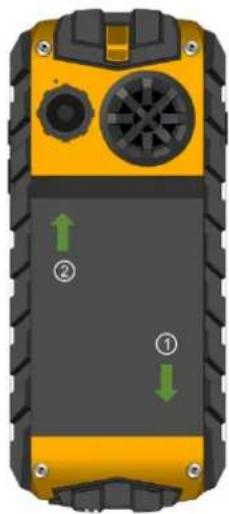
natural_image
Yellow and black handheld device with labeled ports and directional arrows (no text or symbols beyond labels)- Install the back cover and fasten
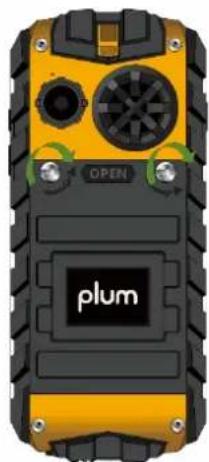
natural_image
Yellow and black portable mobile phone with visible ports and a 'plum' logo on the screen (no readable text beyond branding)← Turn battery cover lock screws to the right until the cover is fastened
Please ensure battery cover, battery cover lock screw, screw hole rubber plugs, earphone and USB rubber plugs are perfectly closed to prevent water and dust from entering.
# Please turn off the mobile phone and disconnect the battery charger from the phone prior to installing / uninstalling the SIM card.
Waterproof Usage
Please make sure the USB plug and screw plugs are fastened to ensure the mobile phone is waterproof.
Startup and shutdown
- Ensure mobile phone battery is charged and properly installed. Press and hold (start / shutdown button) for 2-3 seconds to start or shutdown the phone.
Standby and unlock
- Press the red hang-up button to lock the phone; Press the flashlight shortcut button then * key to unlock the device.
Set time and date
- Main Menu→ Settings→ Phone Settings→ Time and Date
- Select Time/Date Settings, Manually input time and press "ok" key.
- Switch on or off Use 24-hour System, to set time format.
- Select Set Date, manually input date, and press "ok" key.
- Select Format Setting to choose the appropriate date format.
Making calls
- In standby mode, directly input the appropriate phone number and press the "dial button"; select SIM 1 or SIM 2 dial buttons, if two SIM cards are installed, and use the current SIM card dial button, if one SIM card is used.
- You can also select the appropriate contact from the phone book and dial their number.
- You can also select the appropriate contact from the call log and dial their number.
Answering the phone
Press dial button to answer a call, and press hang-up button to end a call.
Messaging
Press left soft button or OK button and select SMS or MMS to enter message writing interface. Press “#” key to switch input method while typing.
1.1 Inbox
You can view the received SMS in the Inbox.
1.2 Draft
You can view saved drafts in the draft box.
1.3 Outbox
You can view sent and saved, failed to send and saved after editing SMS' in the Outbox.
1.4 Sent message
You can view sent SMS in the Sent box.
Calculator
Use 1-9 keys to input the number that needs to be calculated and “#” key to input decimal point; Press right soft button to clear last input step-by-step or to clear results; Press OK button to get the results.
Note: This calculator's precision is limited. It's only meant for simple calculations.
Calendar
This function can help remind you of preset calendar events with an alarm. You can also record your schedule using the calendar. Scroll and highlight the appropriate date: Please press OK button to check the schedule if you want to check all of the day's calendar events.
Alarm
When the mobile phone is switched off, the alarm continues to work only if the battery has sufficient charge. You can set up to 5 alarms, which are turned off by default. One or all the alarms can be turned on according to your requirement. Each alarm can be set individually.
The mobile phone will emit an alarm tone at the appropriate alarm time. Press Stop to switch off the alarm. If you press Snooze, the phone will suspend ringing.
User Profiles
Your mobile phone provides many kinds of settings that are contextual, so that you can define some settings according to different events and environments. First, please setup your personalized settings for a User profile based on your needs. You can then launch the profile anytime you require. The available User profiles can be divided into Standard, Silent, Meeting and Outdoor.
Camera
You can use this function to capture photos using the built-in camera and adjust camera settings. All photos captured by the camera are saved in the JPG format. Please use appropriate software to view the photos after downloading them to a computer.
If there is insufficient storage space to take new photos, you need to delete some old photos or other files using the "File Management" function, to release storage space.
File Management
The mobile phone's memory capacity can be extended by using a memory card. You can use this function to manage pictures, MP3, e-books and folders.
Problem Shooting
| Fault | Possible Causes |
| Doesn’t start up | The battery may be out of charge. Please charge your deviceThe battery may not be installed properly. Please recheck |
| SIM card doesn’t work | Clean SIM card if it’s dirty.Reinstall SIM card.Exchange the SIM card if it’s damaged. |
| Poor signal | Check the signal strength indicator on the display screen. |
| Can’t use phone to call | 1. You may have set “conceal own number”, but your network operator doesn’t provide this service2. Strong signal interference exists in the surrounding environment3. You may have activated call barring function4. You may have activated Line 2, but your network operator doesn’t provide this service. |
| The battery can’t be charged | 1. The battery is completely discharged, in which case the battery charges only after being connected with the charger for some time.2. Battery performance has deteriorated. |
[键入文字]
Warning
Any Changes or modifications not expressly approved by the party responsible for compliance could void the user's authority to operate the equipment.
This device complies with part 15 of the FCC Rules. Operation is subject to the following two conditions:
(1) This device may not cause harmful interference, and
(2) this device must accept any interference received, including interference that may cause undesired operation.
Note: This equipment has been tested and found to comply with the limits for a Class B digital device, pursuant to part 15 of the FCC Rules. These limits are designed to provide reasonable protection against harmful interference in a residential installation. This equipment generates, uses and can radiate radio frequency energy and, if not installed and used in accordance with the instructions, may cause harmful interference to radio communications.
However, there is no guarantee that interference will not occur in a particular installation. If this equipment does cause harmful interference to radio or television reception, which can be determined by turning the equipment off and on, the user is encouraged to try to correct the interference by one or more of the following measures:
—Reorient or relocate the receiving antenna.
—Increase the separation between the equipment and receiver.
—Connect the equipment into an outlet on a circuit different from that to which the receiver is connected.
—Consult the dealer or an experienced radio/TV technician for help.
SAR tests are conducted using standard operating positions accepted by the FCC with the phone transmitting at its highest certified power level in all tested frequency bands, although the SAR is determined at the highest certified power level, the actual SAR level of the phone while operating can be well below the maximum value, in general, the closer you are to a wireless base station antenna, the lower the power output.
Before a new model phone is available for sale to the public, it must be tested and certified to the FCC that it does not exceed the exposure limit established by the FCC, Tests for each phone are performed in positions and locations (e.g. at the ear and worn on the body) as required by the FCC.
For body worn operation, this model phone has been tested and meets the FCC RF exposure guidelines when used with an accessory designated for this product or when used with an accessory that contains no metal and that positions the handset a minimum of 1.0 cm from the body.
Non-compliance with the above restrictions may result in violation of RF exposure guidelines.
[键入文字]