Phantom - Smartphone Plum - Free user manual and instructions
Find the device manual for free Phantom Plum in PDF.


| Product Type | Smartphone |
| Brand | Plum |
| Model | Phantom |
| Dimensions | 150 x 70 x 8 mm |
| Weight | 150 g |
| Display Size | 5.5 inches |
| Battery Capacity | 2500 mAh |
| Operating System | Android |
| Internal Storage | 16 GB |
| RAM | 2 GB |
| Camera (Rear) | 8 MP |
| Camera (Front) | 5 MP |
| Connectivity | 4G LTE, Wi-Fi, Bluetooth |
| SIM Card | Dual SIM (Micro) |
| Battery Type | Lithium-Ion, Removable |
| Charging Port | Micro USB |
| Headphone Jack | 3.5 mm |
| Maintenance | Clean with dry cloth; avoid liquids |
| Safety | Use only approved chargers; keep away from water |
| Spare Parts | Battery available; other parts contact service |
Frequently Asked Questions - Phantom Plum
User questions about Phantom Plum
0 question about this device. Answer the ones you know or ask your own.
Ask a new question about this device
Download the instructions for your Smartphone in PDF format for free! Find your manual Phantom - Plum and take your electronic device back in hand. On this page are published all the documents necessary for the use of your device. Phantom by Plum.
USER MANUAL Phantom Plum
Content
Assembling....4
Install the SIM card....4
Install the memory card....4
Charge the baery....5
Geng started....5
Turn your device on and o....5
Airplane mode ....5
Use the touch panel....6
Home screen....7
Nocaon panel 8
Lock & unlock the screen....8
Security 9
Auto rotaon 9
Enter text....10
Manage applicaons....10
Reset device....10
Communicaon....11
Phone....11
Contacts 12
Messaging....13
Email 15
Gmail....15
Web....16
Browser....16
Play Store....17
Entertainment....17
Gallery....17
Camera....19
Tools....21
Calendar....21
Alarm....21
File Manager....22
Sound Recorder 22
Calculator....22
Connecvity 22
WI-FI....22
BT 23
Find and connect to BT 23
Safety Precauons....24
Care & Maintenance....25
Other Warning....25
Assembling
You need to remove the back cover before you can install the SIM card, memory card and baery.
Install the SIM card
You need to insert SIM card(s) to enable the Phone funcon.
Please follow the instrucons below for the SIM installaon.
- Make sure that the card's gold contacts face into the device.
- Push the SIM card into the slot unl it xed.
Install the memory card
You need to inserts the memory card for the extra storage.
- Insert a memory card with the gold contacts facing downwards.
- Push the memory card into the slot unl it xed.
Charge the baery
Please make sure to always turn o the power before installing or replacing the SIM card and baery.
- You can charge the device with a travel adapter or by connecng the device to a PC with a USB cable.
- Baery full icon will show when nished if your device is power o.
Warning : Please use original charger and baery. Unapproved accessories and Baery can cause explode or damage your device.
Geng started
Turn your device on and o
Press and hold the power key to turn on your device, to turn o your device, press and hold the power key then tap Power O.
Airplane mode
The Airplane Mode will interrupt all the wireless communicaon on your device. Please follow the instrucons below to turn on ight mode:
Tap Sengs→ WIRELESS & NETWORKS→ More→ Airplane mode to enable/disable airplane mode.
Use the touch panel
You can operate the icon, buon, keyboard by the touch panel. Including :
Touch:
To access an applicaon, touch it with your nger. For example: Touch an applicaon icon, you can open the applicaon.
Touch and Hold:
To enter the available opons for an item, touch and hold the item.
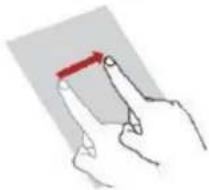
Slide/Swipe:
Slide the screen to scroll up and down the applicaons, images, and web-pages... at your convenience. You could slide the screen horizontally too.
Drag:
Place your nger on the screen to drag an object to another locaon.
Pinch/Spread:
Place your ngers of one hand on the screen surface and draw them apart or together to scale an element on the screen.

natural_image
Hand holding a red circular button on a gray background (no text or symbols)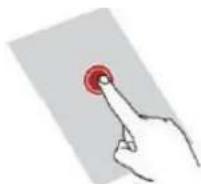
natural_image
Illustration of a hand holding a red object, possibly a tool or device, with no visible text or symbols.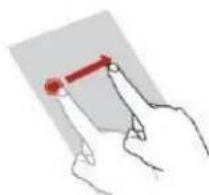
natural_image
Illustration of two hands holding a pen, with a red pen resting on the pen tip (no text or symbols)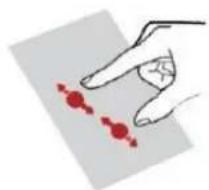
natural_image
Illustration of a hand pointing at two red circular objects on a gray surface (no text or symbols)Home screen
You can bring all the items (applicaons, shortcuts, folders and widgets) you want to your Home screen for quick access.
Slide the Home screen horizontally le and right to get a complete view of the Home screen.
To add the widget, press the menu key to enter the interface below, then choose the Widgets buon
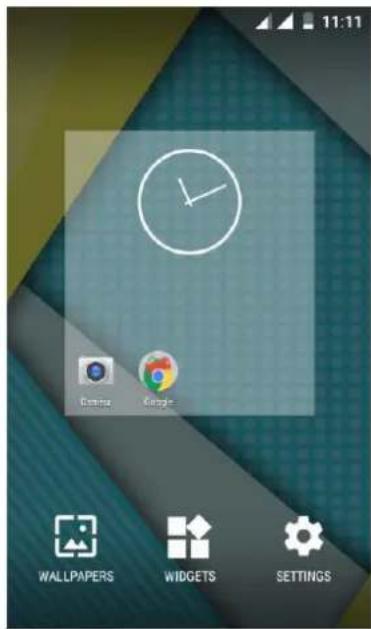
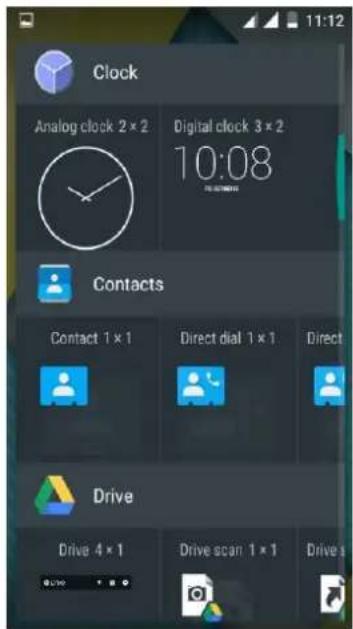
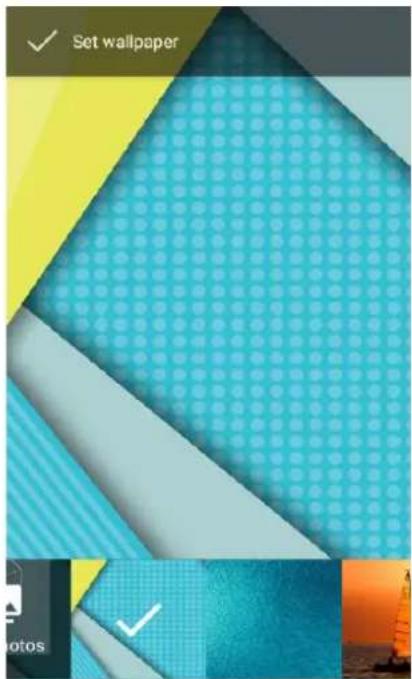
You are able to change the wallpaper by choose the wallpapers in the above interface.
Nocaon panel
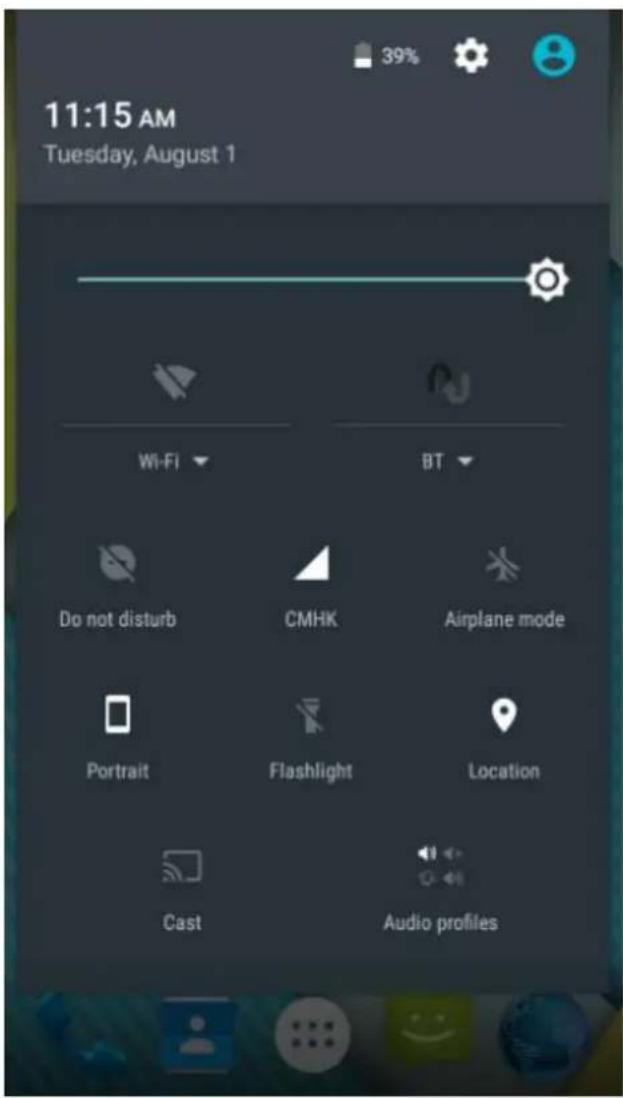
Slide the nocaons area down to open the nocaon panel shown below. You can access a list of nocaons.
You may tap the related icons to acvate or deacvate wireless conncon features or other funcon like the Airplane mode or Flashlight.
Lock & unlock the screen
To lock/awake the screen manually, press Power key once.
Tap and hold the lock icon, then slide it up to unlock the device.
Security
You can protect your device and data by seng screen lock or encrypng your device.
Set a screen lock
To set a screen lock, tap Sengs→ Security→ Screen lock from applicaon list.
None : Deacvate the screen lock.
PIN : Enter a numeric PIN to unlock. When prompted, enter the PIN to unlock the screen.
Paern : Draw a paern to unlock. Follow the instrucons to draw your lock paern. When prompted, draw the paern to unlock the screen.
Password : Enter a passcode to unlock. When prompted, enter the passcode to unlock the screen.
Screen me-out
Select Sengs→Display→Sleep from applicaon list, you can set the me before the screen mes out and goes into lock mode.
Auto rotaon
If you rotate the device while using some features, the interface will automatically rotate as well. To prevent the interface from rotang,
open the nocaons panel and select Auto-rotate screen, then scroll it to O.
Enter text
You can enter text by selecng characters on the virtual keyboard.
Tap the text input eld to display the virtual keyboard.
From a text eld, you can use the copy and paste feature for fast inpung.
Manage applicaons
To manage the applicaons installed on your device, tap Sengs→App. To uninstall an applicaon, select the applicaon and tap Uninstall, tap OK to conrm.
To stop or change the sengs of an applicaon, select the applicaon and click Force stop.
Reset device
You can reset system and desktop sengs to their original values by the following steps:
Select Sengs→ Backup & reset from applicaon list.
Tap Factory data reset.
Tap Reset phone
The device resets to the factory default sengs automacally.
Warning!: Factory data reset will erase all data from your device and SD card, including your google account, system and applicaon data and sengs, and downloaded applicaons.
Communicaon
Phone
To use calling funcons, tap Phone from applicaon list.
Make calls
To make calls, you can use any of the three ways:
- Enter numbers by using the virtual numeric keypad on the screen
- Make a call from call log.
- Make a call from contacts.
Answer a call
To answer a call, drag the circled buon to the blue buon.
To decline a call, drag the circled buon to the red buon.
To end a call in progress, tap the red buon.
Call sengs
To change call sengs, tap the opon buon at the upper right inside the call interface.
Ringtone & Vibrate
You can set dierent ringtones for incoming calls. Select Phone ringtone to open a list of ringtones, select the desired ringtone, and then select OK to conrm.
Tap Vibrate when ringing to create a checkmark and the device vibrates to nofy you of incoming calls.
Dial pad touch tones
Tap Dial pad touch tones to create a checkmark and your device will sound a tone once you tap the dial pad.
Contacts
Tap People from applicaon list to access contacts.
Favorites : List the contacts that you have set as favorites or the contacts that you have sent message to or dialed.
Add new contact

- Access People.
- Tap
- Enter necessary elds.
- Tap DONE.
Edit a contact
- To edit a contact, scroll to the contact you want to change.
- Tap the pen buon at the upper right.
- Change necessary elds.
- Tap DONE.
Create new group

- Tap the opon buon at the upper right.
- Tap at the upper right.
- Enter a category name.
- Tap DONE.
Rename group
- To rename the group, scroll to the group you want to change.
- Tap ☐ at the upper right or tap the opon buon and then select Edit.
- Enter a new category name.
- Tap DONE.
Import/Export contacts
Import from the SIM card
To copy the contacts from the SIM card, tap the opon buon at the upper right and then select Import/Export→ Import from the SIM card, select contacts, and then select Import.
Import from SD card
To import contact les (in vcf format) from a memory card to your device, tap the opon buon at the upper right.
And then select Import/Export→Import from SD card, select a memory locaon and contact les to import and select OK.
Export to SD card
To export contacts from your device to a memory card, tap the opon buon at the upper right and then select Import/Export→Export to SD card, select OK to conrm.
Share visible contacts
With this feature, you can send the visible contacts via Email.
Search for contacts
-
Tap 🔒 at the tle bar from contact list screen, enter the desired informaon, then your device shows the result.
-
Tap the search icon at the upper le from home screen, enter the contact's name or number, your device shows the result immediately.
Messaging
Learn to create and send a text or mulmedia message, and view or manage messages that you have sent or received.
View messages
- Tap Messaging from applicaon list.
- Tap the message to view the detailed informaon.
Create and send SMS
- Tap New Message buon on the upper right.
- In To eld, enter the recipient's mobile phone numbers manually. If you enter more than one number, separate the numbers with a comma.
- In Type message, enter the text of the message.
- Tap to send the message.
Create and send MMS
Mulmedia message can include pictures, sound and text.
- Tap New Message.
- Tap at the tle bar.
- Select one of the items below.
Pictures: Insert image.
Capture picture : Capture new picture and insert the picture.
Videos: Insert video clip.
Capture video: Capture new video clip and insert the video clip.
Audio: Insert sound clip.
Record audio: Record sound clip and insert the sound clip.
Slideshow: Add more than one slide.
Tap to send the message.
To receive and send mail, you must have a remote mailbox service. This service may be oered by a service provider. Your device is compliant with applicable internet standards for POP3/IMAP/Exchange.
Gmail
You can retrieve new email messages from the Google Mail webmail service to your inbox. Before you can send or receive mail on your device, you need to set up a Gmail account.
Create a Gmail account
If you don't have a Google Account, tap New, then follow the on-screen instrucons to create a new one.
Set up a Gmail account
If you want to add an exisng account, tap Exisng, enter your email address and password, and then select Next, when you are nished seng up the email account, the email messages are downloaded to your device.
View email messages
When you open the email account, the amount of unread email messages is displayed at the tle bar and the unread email messages are displayed in bold.
Create and send an email
- Tap

-
In To eld, enter the recipient's email addresses manually and separate them with a comma
-
Add more recipients by tapping Cc/Bcc.
-
To insert aachments, tap the opon buon at the upper right and select Aach le.
-
Enter the subject and the text.
-
Tap SEND to send the email.
Web
Browser
Tap Browser from applicaon list to access to the web.
Browser webpages
- Select Browser to launch a specied homepage.
- To access a specific webpage, select the URL input eld, enter the web address of the webpage, and select Go.
- To zoom in, place two ngers on the screen and spread them apart. To zoom out, move your ngers closer together. You can also double-tap the screen.
Set homepage
- Tap the opon buon at the upper right.
- Select Sengs→General→Set homepage.
- Enter the web address of the desired webpage.
Add bookmarks
While navigang a website, tap the menu key then tap "Save to bookmarks".
View bookmarks and history
Tap to open the bookmark list and the recent history. Tap a bookmark or any entry to display the webpage.
Customize browser
To make adjustments in your browser sengs, tap the opon buon at the upper right, and then select Sengs.
Play Store
Play Store allows you to easily download an abundance of applicaons directly to your device. Before using the Play Store, you must have a Google Account.
Note
- All applicaons oered by Play Store are developed by third party. To get the informaon about the developers, you can read the descripons of each applicaon.
- Our company is not liable for performance issues caused by third-party applicaons.
- Android, Google Play, and the Google Play logo are trademarks of Google Inc.
Entertainment
Gallery
To view or organize your images and video clips, or edit and send your les to other devices, or set photos as wallpapers, select Gallery from applicaon list.
Note: It takes a few more minutes to enter this applicaon if you store more les.
View a photo
Select a folder.
Select a photo to view. To view more photos, scroll le or right.
To zoom in, place two ngers on the screen and spread them apart. To zoom out, move ngers closer together. You can also double-tap the screen.
To start a slideshow, tap at the tle bar.
To view the details of a le, tap the opon buon, then select Details.
To share a photo with others via Email, Gmail or Messaging, tap at the tle bar.
Edit a photo
- To crop the image, tap the opon buon at the upper right, then select Crop.
- To move the crop box, tap and hold the crop box and drag it to the desired locaon.
- To add or subtract from the selecon border of the crop box, drag the crop box to the desired size.
- When you are nished, tap Save.
- To edit photos and apply various eects, tap the opon buon at the upper right, then select Edit.
Play a video
- Select a folder.
- Select a video to play.
- Control playback with the virtual keys.
Camera
With the camera funcon, you can capture photos and take videos.
Capture a photo
-
Open the applicaon list and select Camera.
-
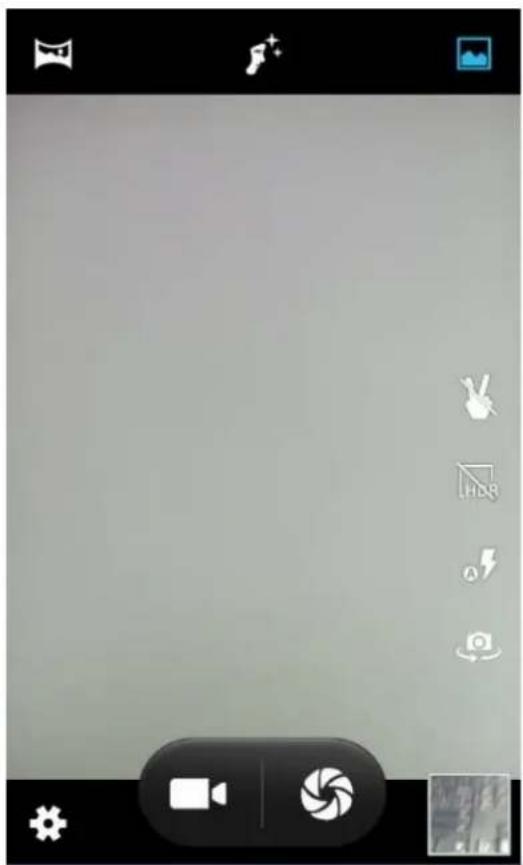
Before taking a picture, you need to know some sengs.
natural_image
Mobile phone screen with camera control buttons and navigation icons (no readable text or symbols)| Icon | Description |
| Settings | |
| Change to video mode. | |
| Take photos | |
| Tap to switch between the front and rear camera lenses | |
| Change to panorama mode to take a landscape photo. |
Place two ngers on the screen and spread them apart or move ngers closer together to zoom in or zoom out.
- Aim the lens at the subject and tap to take a photo. The photo is saved automatically to the folder DCIM.
- Select the image viewer icon at the upper right to view the pictures.
Record a video
- Open the applicaon list and select Camera. Tap to change to video mode.
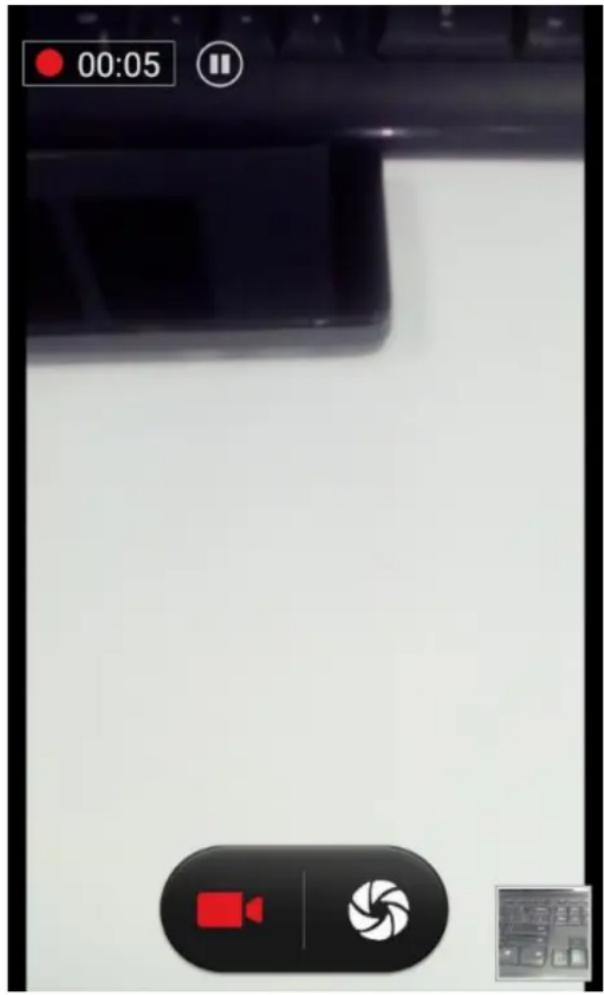
- Tap to start recording. The length of the video recording is restricted by the available space on your storage.
- Tap to stop recording. The video is saved automatically to the folder DCIM.
- Aer recording videos, select the image viewer icon at the upper right to view the recorded videos.
Tools
Calendar
With the Calendar feature, you can consult the calendar by day, week, or month, create events, and set an alarm to act as a reminder, if necessary.
To access the calendar, tap Calendar from applicaon list.
To create an event, tap the date and tap the pop up + icon. Fill in the elds, and set category, date, me & an alarm. Aer you nish, select DONE.
You can view calendar in dierent views, Day, Week, Month and All.
To delete an entry, tap the event to open it, and then tap the icon on the right top corner, then select Delete.
Alarm
From applicaon list, tap Clock, and then select .
Tap the + buon on the boom screen to add alarm.
Tap the numeric pad to set alarm me, and then select AM or PM, when you are nished, tap OK.
Tap the me to change alarm me.
-
Set alarm me, repeat cycle, and alarm ringtone, taps OK aer nished.
-
Tap "cancel" to shut down the alarm, and tap" ring again", then the alarm will stop ringing for a few minutes.
-
Unck the clock to stop using the clock.
-
Long taping the clock then it can be deleted.
File Manager
Many features of the device, such as images, videos, documents, received aachments and downloaded les or applicaons, use memory to store data.
With File manager, you can store and browse les and folders in your device, or edit, move, copy les; you can send les to compatible devices as well.
Note: Some les formats are not supported depending on the sware of the device.
Some les may not play properly depending on how they are encoded.
Sound Recorder
With Recorder, you can record a voice memo. From applicaon list, tap Recorder.
To record a voice memo, tap
To pause the recording, tap □
To listen to a voice recording that you just recorded, tap
Calculator
With this feature, you can use the device as a calculator. The calculator provides the basic arithmec funcons. Tap the virtual numeric and calculaon keys to perform a calculaon.
Connecvity
WI-FI
With WI-FI, you can connect to the internet or other network devices anywhere an access point or wireless hotspot is available.
Acvate the WI-FI feature
-
From applicaon list, tap Sengs.
-
In the eld of WIRELESS & NETWORKS, turn on the WI-FI feature.
Find and connect to WI-FI
- Once the WI-FI feature is acvated, the device automacally search for available WI-FI conncon.
- Select a network.
- Enter a password for the network (if necessary).
- Select Connect.
BT
Find and connect to BT
- Once you need to use the BT, you should open BT onpon. And nd other devices which also need to open BT.
- Select a found device
- Choose pair
- Select pair and use BT.
Safety Precauons
Read these simple guidelines before using your device. Not following them may be dangerous or illegal.
- Aircra
Switch o in aircra and follow any restricons. Wireless devices can cause interference in aircra.
- Vehicles
Never use your device while driving. Place it in a safe place.
Posion your device within easy reach. Be able to access your device without removing your eyes from the road.
• Electronic devices
In some circumstances your device may cause interference with other devices.
• Potenally explosive environments
Switch o your device when in any area with a potenally explosive atmosphere, and obey all signs and instrucons. Sparks in such areas could cause an explosion or re resuling in bodily injury or even death.
• Pacemakers and other medical devices
Pacemaker manufacturers recommend that a minimum separaon of 8 inches be maintained between a wireless device and a pacemaker to avoid potenal interference with the pacemaker.
Operaon of any radio transming equipment, including wireless phones may interference with the funconality of inadequately protected medical devices. Consult a physician or the manufacturer of the medical device to determine if they are adequately shielded from external RF energy or if you have any quesons.
Switch o your device in health care facilities when any regulaons posted in these areas instruct you to do so.
• Operang environment
When connecng to other device, read its user guide for detailed safety instrucons. Do not connect incompatible products.
Do not place your device in the air bag deployment area.
Use the device only in its normal operang posions as explained in the product documentaon.
Always switch o your device when its use is prohibited or when it may cause interference and danger.
• Areas with posted regulaons
Switch o your device when any regulaons posted in these areas instruct you to do so.
Care & Maintenance
- Use only manufacturer-approved accessories. Use general accessories may shorten the life of your device or cause device to malfuncon.
- Keep your device dry. Humidity and all types of liquids may damage device parts or electronic circuits.
- Do not use or store the device in dusty, dirty areas.
- Do not store the device in hot or cold areas.
- Do not store your device near magnec elds.
- Do not store your device with such metal objects as coins, keys and necklace.
- Do not drop your device or cause impacts to your device.
Other Warning
Any Changes or modicaons not expressly approved by the party responsible for compliance could void the user's authority to operate the equipment.
This device complies with part 15 of the FCC Rules. Operaon is subject to the following two conditions:
(1) This device may not cause harmful interference, and
(2) this device must accept any interference received, including interference that may cause undesired operaon.
Note: This equipment has been tested and found to comply with the limits for a Class B digital device, pursuant to part 15 of the FCC Rules.
These limits are designed to provide reasonable protecon against harmful interference in a residential installaon. This equipment generates, uses and can radiate radio frequency energy and, if not installed and used in accordance with the instrucons, may cause harmful interference to radio communicaons.
However, there is no guarantee that interference will not occur in a parcular installaon. If this equipment does cause harmful interference to radio or television recepon, which can be determined by turning the equipment o and on, the user is encouraged to try to correct the interference by one or more of the following measures:
—Reorient or relocate the receiving antenna.
—Increase the separaon between the equipment and receiver.
—Connect the equipment into an outlet on a circuit dierent from that to which the receiver is connected.
—Consult the dealer or an experienced radio/TV technician for help. SAR tests are conducted using standard operang posions accepted by the FCC with the phone transming at its highest cered power level in all tested frequency bands, although the SAR is determined at the highest cered power level, the actual SAR level of the phone while operang can be well below the maximum value, in general, the closer you are to a wireless base staon antenna, the lower the power output.
Before a new model phone is available for sale to the public, it must be tested and cered to the FCC that it does not exceed the exposure limit established by the FCC, Tests for each phone are performed in posions and locaons (e.g. at the ear and worn on the body) as required by the FCC.
For body worn operaon, this model phone has been tested and meets the FCC RF exposure guidelines when used with an accessory designated for this product or when used with an accessory that contains no metal and that posions the handset a minimum of 1.0 cm from the body.
Non-compliance with the above restricons may result in violaon of RF exposure guidelines.