E100 - Smartphone Plum - Free user manual and instructions
Find the device manual for free E100 Plum in PDF.


User questions about E100 Plum
0 question about this device. Answer the ones you know or ask your own.
Ask a new question about this device
Download the instructions for your Smartphone in PDF format for free! Find your manual E100 - Plum and take your electronic device back in hand. On this page are published all the documents necessary for the use of your device. E100 by Plum.
USER MANUAL E100 Plum
1.1 Installing SIM card and battery.... 1
1.2 Installing T-F card 1
1.3 Battery charging 2
1.4 Power on/ off 2
1.4.1 Power on 2
1.4.2 Power off 2
1.5 Using shortcut keys.... 3
2. Using Call Function.... 4
2.1 Making a call 4
2.2 Answering or rejecting a call 4
2.2.1 Answer a call 4
2.2.2 Reject a call 4
2.3 Adjusting call volume 4
2.4 Ending a call.... 4
3.Call logs....2
3.1 Dialed calls....2
3.2 Received calls 2
3.3 Missed calls....2
3.4 Rejected calls.... 2
3.5 Delete all 2
3.6 Call timers 2
3.7 Call cost (need the network support) 3
3.8 GPRS counter 3
4. Contacts .... 3
4.1 View a contact.... 3
4.2 Adding a new contact.... 3
5.Internet.... 3
5.1 Input URL 4
5.2 Homepage....4
5.3 Bookmark 4
5.4 History.... 5
5.5 Offline.... 5
5.6 WAP settings.... 5
5.6.1 Browser settings 5
5.6.2 Preferred storage.... 6
5.6.3 Restore default 6
6. Multimedia.... 6
6.1 TV....6
6.2 Video recorder.... 6
6.3 Audio player 6
6.4 Video player 7
6.5 FM radio 7
7. Messag....9
7.1 Write message 9
7.1.1 New SMS....9
7.1.2 New MMS 9
7.2 Inbox 9
7.3 Outbox....9
7.4 Drafts.... 10
7.5 Sentbox....10
8. Tools 11
8.1 Alarm.... 11
8.2 BT....12
8.3 Calendar.... 13
8.4 Calculator 13
8.5 Recoder.... 13
8.6 STK 14
9. Camera.... 14
10. File management 15
10.1 Audio 15
10.2 Ebook 15
10.3 Photos 16
10.4 Video 16
10.5 Broswer 16
III
10.6 Vcard.... 16
-
Image browser 16
-
Entertainment.... 16
12.1 eBook 16
12.2 Sokoban 16
- Profiles.... 17
13.1 Normal.... 17
13.2 Silent 17
13.3 Meeting 17
13.4 Indoor 17
13.5 Outdoor 17
- Settings.... 17
14.1 Call settings.... 18
14.1.1 Dual-SIM.... 18
14.1.2 Network selection 19
14.1.3 Call divert.... 19
14.1.4 Call barring 21
14.1.5 Call waiting (Need network support).... 23
14.1.6 Hide ID (Need network support) 23
14.1.7 Select line 24
14.1.8 Flight mode 24
14.1.9 Others....24
IV
14.2 Phone settings 25
14.2.1 Time and date.... 25
14.2.2 Select language.... 25
14.2.3 Shortcut settings.... 25
14.2.4 Auto power on/off 26
14.2.5 Power management 26
14.4 Security settings.... 27
14.4.1 PIN....27
14.4.2 PIN2....29
14.4.3 Privacy 29
14.4.4 Auto keypad lock 30
14.4.5 Lock screen by end-key 30
14.4.6 Power-on password 30
14.4.7 Mobile tracker 31
- Safety Precaution 34
V
15.1 Usage environment.... 34
15.2 Medical devices.... 35
15.2.1 Pacemaker 35
15.2.2 Hearing aids 36
15.2.3 Emergency calls 36
15.3 Password access 37
15.3.1 Phone password.... 37
15.3.2 PIN code 37
15.3.3 PIN2 code.... 38
15.3.4 PUK code 38
15.3.5 PUK2 code 38
15.4 Cautions for battery charging 39
15.5 Cautions for battery usage 40
15.6 Cautions for spare parts usage 42
15.7 Other safety information.... 42
1. Quick Gudience
1.1 Installing SIM card and battery
(1) Hold on 【End Key】 for about three seconds to switch off the phone.
(2) Remove the battery cover.
(3) Remove the battery.
(4) Follow the sign for SIM1 and SIM2 on the phone to install SIM1 and SIM2. Please make sure that the golden contacts of the card face into the phone and the notched corner has the same direction with the card slot, then push the other side of the card gently until it fixes itself in the card slot.
(5) Replace the battery with its golden contact part facing the set phone battery contact piece, and then replace the battery cover.
1.2 Installing T-F card
(1) Hold on 【End Key】 for about three seconds to switch off the phone.
(2) Remove the battery cover.
(3) Remove the battery.
(4) Follow the arrow direction of "OPEN" on the T-Card slot cover, open card slot cover, put the T-Card into the slot vertically, make sure that the gold contacts of the card face upwards, until the card fixes itself in the card slot.
(5) Follow the arrow direction of "LOCK" on the T-Card slot cover, pull card slot cover to lock the card slot.
1.3 Battery charging
Charged by the travel charger
(1) Install the battery correctly into the phone.
(2) Insert the lead of the travel charger to connecting slot of the phone, and then connect
(3) the
(4) charger to a standard power socket.
When charging is complete, unplug the charger from the standard power socket first, and then disconnect the phone and charger.

Caution:
- Please use the approved battery and charger designated for this product,
otherwise it may cause an explosion.
- If the battery is completely empty, the battery icon will appear after charging for two to three minutes. Generally, the charging time is 2-5 hours, depending on the current status of the phone (whether switched on, during a phone call etc).
- Please use charger to charge, try best to avoid charging via USB cable.
- For optimal battery performance, charge and discharge the new battery two or three times. The first several times you charge the battery, charge it for at least 10 hours.
1.4 Power on/ off
1.4.1 Power on
Hold on【End Key】for three seconds to switch on the phone.
1.4.2 Power off
Hold on 【End Key】for three seconds to switch off the phone.

Warning:
Don't switch the phone on in areas where wireless phone usage is
prohibited or where it may cause interference or danger, and also make sure that you haven't activated the function "Auto power on/off".
1.5 Using shortcut keys
Pressing some keys directly from the Home Screen provides direct access to common phone functions.
| Key | Operation | Function |
| Call key 2 | press briefly | Enter Call History |
| 1~2 Keys | hold on | Enter voicemail box for SIM1 or SIM2 |
| 3~9 Key | hold on | Enter the corresponding speed dial |
2. Using Call Function
2.1 Making a call
(5) On the Home Screen, input the area code and phone number.
(6) Select
2.2 Answering or rejecting a call
2.2.1 Answer a call
When there is an incoming call, you can press 【Call Key】to answer.
2.2.2 Reject a call
When there is an incoming call, you can press 【End Key】 to reject it.
2.3 Adjusting call volume
During a call, you can press【Navigation Key】to adjust the earphone volume.
2.4 Ending a call
Press 【End Key】 to end the call.
3. Call log
Enter the main menu, and then select [Call logs] to enter the call list.
3.1 Dialed calls
Display recent calls dialed.
3.2 Received calls
Display recent calls received.
3.3 Missed calls
Display recent calls unpicked up.
3.4 Rejected calls
Display recent calls rejected.
3.5 Delete all
Delete all the call entries.
3.6 Call timers
Select the desired SIM Card, and then you can view all relevant information
about the SIM Card.
3.7 Call cost (need the network support)
❖ Total cost: Record total call charges for SIM1 and SIM2.
Max cost: You can set the desired upper limit for call costs.
❖ Price per unit: Record the cost rate for SIM1 and SIM2.
❖ Reset cost: Reset the total call charges as zero.
3.8 GPRS counter
4. Contacts
4.1 View a contact
Enter the phonebook, the phone is defaulted to show contact list with all entries. Press【Left Key/Right Key】to switch between different groups.
4.2 Adding a new contact
On the Contacts list, select
5. Internet
On the Home screen, press【Left Soft Key】and select [Internet].

Caution:
- Your network service provider may not support some functions. In order to ensure the browser work normally, please confirm first that your SIM card supports and have the Internet function activated.
- If you browse the web page, flowrate fee will be charged.
5.1 Input URL
Enter the wanted website, and click
5.2 Homepage
By selecting this option, your mobile phone will directly visit the preset or defaulted homepage. While browsing the website, press【Left Soft Key】 to switch between address bar, websites and tool bar.
5.3 Bookmark
Bookmarks are defaulted as blank, and you are able to edit it as you want. Save the common visited website into the Favorites, and marked by simple names. Select one saved name, then the corresponding web will be
1. Internet
On the Home screen, press【Left Soft Key】and select [Internet].

Caution:
- Your network service provider may not support some functions. In order to ensure the browser work normally, please confirm first that your SIM card supports and have the Internet function activated.
- If you browse the web page, flowrate fee will be charged.
5.1 Input URL
Enter the wanted website, and click
5.2 Homepage
By selecting this option, your mobile phone will directly visit the preset o defaulted homepage. 5
While browsing the website, press【Left
5.4 History
Record the websites you visited before.
5.5 Offline
After saving a website as snapshot, you can browse the website while offline.
5.6 WAP settings
✿ Clear cache: In order to avoid congestion and improve the web browsing speed, please clear the cache regularly.
✿ SIM1 network account: Set the SIM1 network port.
✿ SIM2 network account: Set the SIM2 network port.
✿ Download image: After enabling this function, the image will only be displayed after being downloaded.
❖ Play background sound: After enabling this function, you can play background music.
❖ Accept push: If enabling this function, you can receive Push messages.
Caution:
6
1. Internet
On the Home screen, press【Left Soft Key】and select [Internet].

Caution:
- Your network service provider may not support some functions. In order to ensure the browser work normally, please confirm first that your SIM card supports and have the Internet function activated.
- If you browse the web page, flowrate fee will be charged.
5.1 Input URL
Enter the wanted website, and click
5.2 Homepage
By selecting this option, your mobile phone will directly visit the preset o defaulted homepage. 7
While browsing the website, press【Left
website.
5.6.2 Preferred storage
You can choose the place where to save the picture, music or video files from the Internet.
5.6.3 Restore default
Reset the WAP settings back to the factory set.
6. Multimedia
6.1 TV
Enter the main menu, and select [Multimedia→TV] to enter the TV preview screen, press 【OK Key】to watch TV
6.2 Video recorder
The function provides a prompt access to view the photos and
pictures.
6.3 Audio player
On Home Screen, press 【Left Soft Key】 to enter the main menu, and select [Multimedia→Audio player] to enter the Audio Player screen.
The below table shows the icons on the Player screen:
| Icon | Description |
| Play or pause | |
| Skip to the last/next file | |
| Show the playing volume, press 【* Key】/【# Key】to adjust the volume | |
| Progree bar |
6.4 Video player
Enter the main menu, and click [Multimedia→Video player].
Icon description:
| Icon | Description |
| Play or pause |
| / | Skip to the last/next file |
| Show the playing volume, press【* Key】/【# Key】to adjust the volume | |
| Progree bar |
6.5 FM radio
On standby mode, plug in the earphone, press【Left Soft Key】to enter the main menu, then select [Multimedia→FM radio].
7. Messag
7.1 Write message
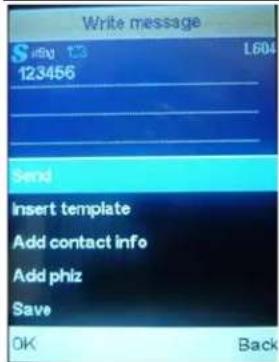
7.1.1 New SMS
On the Home Screen, press【Left Soft Key】and select [Messaging→
Write message→New SMS] to edit a new SMS directly. After writing an SMS, click
7.1.2 New MMS
On the Home Screen, press【Left Soft Key】and select [Messaging→Write message→New MMS] to create a new MMS.
7.2 Inbox
Store all received SMS and MMS.
7.3 Outbox
Store all SMS and MMS failed to be sent.
7.4 Drafts
Save edited SMS and MMS haven't sent.
7.5 Sentbox
Store all the SMS and MMS successfully sent out. If you want the sent messages be saved automatically, please select [Messaging → Option], then select [SMS settings → Save sent messages → Save].
8. Tools
8.1 Alarm
On the Home Screen, press【Left Soft Key】 to enter the main menu, and select [Tools→Alarm], then you can set the alarm name, time, ring and mode.
8.2 BT
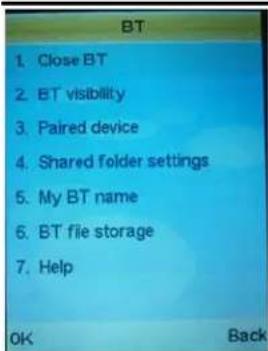
Open/Close BT: This function allows you to switch the Bluetooth on or off. BT visibility: Set to show or hide the Bluetooth of your phone. If you select to hide the phone, other devices cannot detect the Bluetooth device of your phone, even you activated yo
13. Profiles
- ur Bluetooth function.
- Paired device: You can search for the nearby Bluetooth-enabled devices
✿ My BT name: If Bluetooth function activated, while other devices search for Bluetooth signal, the corresponding name represents your phone.
◆ Storage: Able to set the storage location for files received via Bluetooth.
❖ Help: Provide relevant Bluetooth helping information.
8.3 Calendar
Enter the main menu, and select [Tools→Calendar] to enter the Calendar screen.
8.4 Calculator
Directly input numbers, press【Navigation Key】to select your desired operation symbols (+, -, /, X). Press 【OK Key】to get the answer.
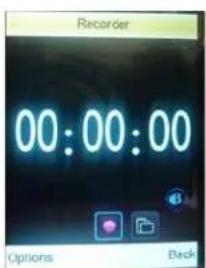
8.5 Recoder
Enter the main menu, and select [Tools→Recoder] to enter the Recoder screen.
8.6 STK
Enter the main menu, and select [Tools→STK] to enter the STK screen.
9. Camera
Enter the main menu, and select [Multimedia→Camera] to enter the camera preview screen, press 【OK Key】to take a photo.
13. Profiles
10. File management
10.1 Audio
10.2 Ebook
You can view file in TXT format by Ebook and copy the TXT file to the [Ebook] folder in the memory card from your PC.
Enter the main menu and select [[File management→E-Book] to enter the Ebook screen you read last time. Select
10.3 Photos
10.4 Video
10.5 Broswer
10.6 Vcard
-
Image browser
-
Entertainment
12.1 eBook
12.2 Sokoban
13. Profiles
13. Profiles
13.1 Normal
❖ Activate: Activate the chosen profile.
❖ Settings: Set the options as required.
❖ Rename: Modify the name of the selected profile.
13.2 Silent
For the settings, please refer to "Standard".
13.3 Meeting
For the settings, please refer to "Standard".
13.4 Indoor
For the settings, please refer to "Standard".
13.5 Outdoor
For the settings, please refer to "Standard".
14. Settings
14.1 Call settings
14.1.1 Dual-SIM
11.1. Set dual SIM call divert: You can set the two SIM cards to forward the calls to each other.
11.2. Standby mode: You can select the standby mode for SIM card, either to have one SIM card standby, or to have both SIM cards standby simultaneously.
11.3. Main SIM settings: There are several types as per below:
11.3.1. Communication: For functions like call, SMS, MMS and internet, you may choose SIM card type to be used according to your need, and you may also choose to have prompt choice while using some certain functions.
11.3.2. Speed dial: If enabling this function, you can speed dial the phone number via the preset SIM card.
11.3.3. Reply by original SIM: You can activate the function to reply from current SIM card for call, SMS, MMS and WAP.
11.4. Set SIM name: You can name the Card as you want.
11.5. Dual SIM settings: Please follow the prompting steps shown on the screen to process dual-SIM setting.
11.6. Help: Provide helping information.
14.1.2 Network selection
11.7. Auto select: The phone can automatically search and register available networks.
11.8. Manual select: Enable this function, the phone will search for the network, and list all searched networks, then you need to choose the one needed to register.
14.1.3 Call divert
Based the set diverting conditions, incoming calls will be forwarded into voice
mail or other numbers.
11.9. Unconditional transfer: All incoming calls will be transferred to the preset number or your voice mail. Select [Query status] to view the current unconditional call divert status.
11.10. Divert if busy: Calls will be transferred to the voice mail or the preset phone number when you are on the phone.
Divert if no answer options: Calls will be transferred to the voice mail or the preset phone number, if the set time is over and phone still won't be answered.
Divert if unreachable: Calls will be transferred to the appointed number or your voice mail, when your phone is out of the service coverage or is switched off.
Cancel all diverts: All Call Divert functions are cancelled.
14.1.4 Call barring
This function helps you to restrict the incoming and outgoing calls.
Select the desired call and press
| Option | Description |
| All outgoing calls | Restrict all outgoing calls |
| All incoming calls | Restrict all incoming calls |
| Incoming calls when roaming | No incoming calls while roaming |
| Internation | Outgoing |
| al calling | international calls forbidden |
| Dial when INTL roaming | Incoming international roaming forbidden |
| Cancel all barring | Cancel all call restrictions |
| Change password | Change the password for Call Restrict function |

Caution:
- Some network operators forbid the function. For more details, please
contact your network service provider.
- The network operator will provide you the initial network password while you apply for this service.
14.1.5 Call waiting (Need network support)
❖ Activated: If you set the function on, the network will alert you that there is an incoming call. You can keep current call and answer another one.
- Off: Cancel call waiting function, then the new incoming calls won't be answered while you're on the phone already.
❖ Query status: Select it to view current status of this function.
14.1.6 Hide ID (Need network support)
❖ Hide ID: While calling, the recipient won't see your phone number.
✿ Display own ID: While calling, your phone number will be visible for the recipient.
✿ Display ID by network: While calling, whether your phone number will be visible or not for the receiver depends on the network presetting.
14.1.7 Select line
You can choose Line 1 or Line 2 as you need.
14.1.8 Flight mode
❖ Activate: Activate flight mode, then all network service won't be available.
- Select when power on: You can select whether to activate flight mode when power on.
14.1.9 Others
IP shortcut key
After activating this function, selecting
✿ 50 sec voice call alert
If you activate the function, an elapsed time reminder will be heard at the 50 ^th second of every minute during your call, so that you may end the call timely to save the phone fare.
❖ Alter for voice call connected
The phone will vibrate to prompt you when the recipient answers your phone.
15. Safety Precaution
❖ Answer/Reject mode
➢ Reply SMS after reject: You can select whether to reply an SMS after rejecting a call.
Auto redial
If you set this function on, the phone will redial the number after an unsuccessful call,
14.2 Phone settings
14.2.1 Time and date
✿ Set time: Directly input the time or press 【Up /Down Key】 to set it.
✿ Set date: Directly input the date or press 【Up /Down Key】 to set it.
14.2.2 Select language
You can select the language you want.
14.2.3 Shortcut settings
✿ While the Home Screen is smart style, you can change the shortcuts on Home Screen via this.
✿ While the Home Screen is standard style, you can change the responsible shortcuts for 【Navigation Key】 under standby mode.
14.2.4 Auto power on/off
You can set the phone to switch on/off at a scheduled time.
14.2.5 Power management
Display the battery capacity.
Reset all parameter values into default status. Please enter the privacy preserving password (Initial password is 1234) to resume factory setting.
14.3 Display settings
14.3.1 Wallpaper settings
Select the default or other pictures as the wallpaper of the phone.
14.3.2 Idle screen style
"Standard style" and "Smart style" are available.
14.3.3 Contrast
Press 【Left /Right Key】 to adjust the contrast.
14.3.4 Backlight
Select the desired backlight time.
14.3.5 Keypad light
Select the desired keypad light time.
14.4 Security settings
In order to secure the information, you can set PIN code, PIN2 code, power-on password and Mobile tracker function.
14.4.1 PIN
PIN code is the personal identification number for SIM card. If never be modified, the initial password set by network operator should be 1234 or 0000. If activated the power-on PIN code, then you have to input the PIN password each time you switch the phone on. You can modify the PIN code to prevent your SIM card being used by others.
Caution:
If you input your PIN code incorrectly three times in succession, the SIM card will be locked automatically, and prompting to enter PUK code to unlock it. Therefore, please do remember the PIN code, if you modify it.
PUK code (PUK1) is made up by 8 digits, unmodifiable. When the phone is locked by PIN code, please enter correct PUK code to unlock the phone. If you incorrectly input the PUK code ten times in succession, then the SIM card cannot be used any more. Some PUK codes are provided together with the SIM card, some should be gained from the network service provider. If you don't know the PUK code while your PIN code is locked, please never input the code casually. In this case, please call the hotline of the service provider for your SIM card, after simply checking about the user identity, you can gain the PUK code for free to unlock your phone.

Caution:
Please be careful when use this function. If you forget PUK code, please consult your network operator. If you incorrectly input the PUK code ten times in succession, the SIM card will be scrap.
Select the desired SIM type and have the following options:
❖ Activated: You should input PIN code each time switching the phone on.
❖ Modify: You should activate PIN code before modifying it.
✿ Off: You should input the correct PIN code before deactivating it.
14.4.2 PIN2
PIN2 code is the personal identification code required for some certain functions (such as set fixed number, set phone fare, etc).
PIN2 code is another password provided together with SIM card by service provider. If wrongly input it for three times in succession, the phone will be locked until correct PUK2 code entered, for detailed operation, please refer to PIN code and PUK code.

Caution:
If you incorrectly input the PUK2 code ten times in succession, you will not be able to use SIM card. Please be careful when use this function.
14.4.3 Privacy
Secured by phone password, the phone will be protected from other unauthorized users. When password function has been activated for call center or message, you have to enter correct password on corresponding main menu or sub-menu. The defaulted password is "1234".
14.4.4 Auto keypad lock
After activating this function, the phone will be locked automatically if the time you set is arrived, so as to avoid error operations.
✿ Manual lock keypad: On the Home screen, press 【Left Soft Key】, then press 【* Key】 to lock the keypad manually.
✿ Manual unlock keypad: On the Home screen, press【Left Soft Key】, then press【*Key】 to unlock the keypad manually.
14.4.5 Lock screen by end-key
Once activated this function, when the backlight is on, press【End Key】to turn off the backlight and auto lock the keypad.
14.4.6 Power-on password
You should set the power on password when you use this function for the first time. After activated this function, you should input password each time you switch the phone on.

Caution:
Power-on password doesn't have the limitation for wrongly inputting.
Please remember carefully about the Power on PWD, otherwise, the phone won't be switched on normally once password forgotten.
14.4.7 Mobile tracker
Mobile tracker is nicknamed as Mobile Phone Dog. When others illegally use your phone, information like CELLID of the phone will be collected and sent to preset mobile phone; moreover, the function will prevent others to use the phone after certain times or certain power-on times.
This function is defaulted to be off. To activate it, please modify the password. Then you need to enter the password if you want to activate, deactivate, or modify the password to process operation, and the password has 6 digits. To activate it, you have to enter a preset mobile phone number (The mobile phone number set to receive the message if the phone is stolen) apart from the password.
After activated, the phone stores the IMSI number for original SIM card, which is sole and unique, if you insert another SIM card, there will be a prompt, asking you to input the guardlock password. If you wrongly enter the password for three times in succession, the phone will default it as illegal and display a
relevant prompt, then collect and send information like CELLID, LAC, MCC, MNC, MCN to preset mobile phone number. While receiving this message, legal user can report it to the police, who can inquire the illegal usage situation (Including the used location, call history, etc) from network operator via the piece of information.
The message will be kept sent to the preset mobile phone till it is successfully received. If the stolen phone is on over 24 hours or re-switch on, the phone will resend a message to your preset phone number. When the message has been successfully sent up to 15 times, any illegally used SIM card won't work in the stolen phone, which will automatically switched off.

Caution:
Please report to the police timely if the phone is stolen, but this doesn't mean that the lost phone will be definitely traced back. Therefore, please take care of your personal property.
If the phone defaults the SIM card inserted is illegal, then guardlock function can not be activated, and relevant setting can not work. If another SIM card is inserted, enter correct password, message count will be sent from zero, meanwhile, there will be a prompt, asking you whether to bind this SIM card. Select binding, then the phone will renew the IMSI number and default the SIM card as the designated one.
- Activated: Before activating this function, please set the password first, if password hasn't been set, then please enter [Change password] to finish the password setting and back to activate this function. While activating it, guardlock password and notified mobile phone number (The number to receive the information of the SIM card illegally used in the stolen phone) are required. After these, guardlock function will work.
✿ Off: To deactivate guardlock function, you should input correct Guardlock password.
❖ Change password: Modify guardlock password.
Warning:
Please use this function carefully. The phone won't be used if password
3
forgotten.
15. Safety Precaution
15.1 Usage environment
Please remember to obey relevant rules and regulations whenever use your phone. This will prevent bad effect from you and the environment.
Switch off your phone near explosive places, such as gas station, bunkers, chemical factories or blasting scene, and adhere to any safety signs and instructions there. Breaking any rules may cause explosion or injury.
❖ Phone using in plane will interfere with the flight operation and bring
dangers. Therefore, please do switch off your phone before boarding, and make sure it is power off during the whole flight.
Please keep the phone in its special bracket while you're driving. Please don't put it on a seat or in places where it could fall off when the car encounters collision or break. In order to ensure safe driving and avoid road accidents, please don't use the phone when driving. If you must use it, please use the phone's hands-free asset or park
at roadside before making or answering a call.
✿ Please put the phone away from the high temperature environment, for explosion might be caused when the battery is of excess high temperature.
15.2 Medical devices
Please switch off your phone in areas near the electronic medical equipments that obviously requires switching the phone off (Such as heart pacemakers, hearing aids, etc). Most medical devices can shield the phone's RF signal, but some can't. If you have any doubts or need to find out more, please consult your doctor or medical device manufacturer.
15.2.1 Pacemaker
Pacemaker manufacturers advise the distance between your phone and heart pacemaker should be 6 inches (15.3 cm) at least, otherwise the phone could interfere with the pacemaker.
The personnel who wears pacemaker should do the followings:
- Should always keep a distance (at lease 6 inches) between the phone and pacemaker, when the phone is switched on.
- Should not have the phone in a breast pocket
- Should listen to the phone closer to the ear which is farther from the pacemaker.

Caution:
Please switch off your phone while you feel there is interference, and consult the doctor timely.
15.2.2 Hearing aids
Mobile phone might bring some interference to some hearing aids. If so, please consult the hearing aids manufacturer.
15.2.3 Emergency calls
As the phone uses a radio signal, wireless and ground communication network and personal settings
functions like other phones, it is impossible to ensure your phone can be connected successfully in any situation, so please don't rely purely on your phone as the only means of notification in cases of emergency (such as medical first aid).
Make an emergency call
If your phone is switched off, please turn on your phone and check whether the network signal is strong enough.
(1) Input the local first aid number correctly (such as 120), different areas have different first aid numbers.
(2) Please press the call key to call.

Caution:
While making an emergency call, you should try best to provide all important information precisely. At this time, the phone may be the only communication tool, so don't end the call without permission.
15.3 Password access
Your phone and SIM card can be protected by a password to prevent others using them illegally.
15.3.1 Phone password
This protects your phone from unauthorized users. You can set the preset password when you use it for the first time. After using it, please
modify your phone password as soon as possible and keep it secret.
15.3.2 PIN code
This is personal identification code, which is used to protect the SIM card from unauthorized users. Generally, the PIN code and SIM card will be provided together. After activating the PIN code, you need to input correct password each time you switch the phone on to ensure normal usage.

Caution:
If you input your PIN code incorrectly for three times in succession, the SIM card will be locked. You need to enter the PUK code to unlock it. (If you
don't have a PUK code, please contact your network operator or SIM card retailer for this information. Please don't input any characters).
15.3.3 PIN2 code
This is the password for activating special functions of the SIM card. You need to input it while entering some functions (eg.Charge Unit, Fixed Dialling etc). Usually, the PIN2 code and the SIM card will be provided together. If you incorrectly input the PIN2 code for three times in succession, it will be locked and you will need to input PUK2 to unlock it.
15.3.4 PUK code
This is used to unlock the PIN code. Usually the PUK code and SIM card are provided together. If you don't have it, please contact with your network operator or SIM card retailer. SIM Card won't be used any more, if you incorrectly input the PUK code ten times in succession. In that case, please apply a new SIM card from your network operator. PUK code is unmodifiable.
15.3.5 PUK2 code
This is used to unlock the PIN2 code. Usually the PUK2 code and the SIM card are provided together. PUK2 can modify the locked PIN2 code. If you incorrectly input the PUK2 code
for ten times in succession, you will not be able to access some functions. Please apply to your operator for a new card. The PUK2 code is unmodifiable. If you lose it, please contact your service provider.
15.4 Cautions for battery charging
The phone provides power by using a lithium battery. The standby time and call time will be influenced by the system's environment and phone settings.
✿ Please use the approved battery and charger designated for this product. The company will take no responsibility for damage caused by unauthorized battery or charger.
✿ The battery icon will start scrolling when the phone is charged in power-on-state.
Caution:
-
If there is no battery left at all, then the battery icon will appear after 2-3 minutes of charging. The battery charging time depends on the status of the phone (whether switched on, making a call), usually, it will take about 2-5 hours.
-
To make the new battery achieve its best capacity, please charge and discharge the phone for twice or three times. Please charge the new battery over 10 hours for the first several times.
Don't use wet hands to touch the battery or charger while charging in order to avoid danger.
❖ Try not to use the phone while charging.
✿ The battery icon stops scrolling while the battery is full, and then you can disconnect the phone from the charger adapter.
15.5 Cautions for battery usage
The battery usage depends on the network, phone setting and usage situation.
❖ Never use any damaged battery.
❖ The phone will consume a little power if it is near network station.
Therefore, the call and standby time depends greatly on the signal strength of honeycomb network and the parameters set by network operator.
The battery charging time lies on the remnant power, and the type of the battery and charger. When the operation time (talk time and standby time) is noticeably shorter than normal, it is time to replace with a new battery.
✿ Only use batteries and charges authorized for this device, otherwise, explosion might be caused. Please disconnect the charger while unused. Do not leave the battery connected to a charger over one week, for
overcharging may shorten the life length.
Do not connect the anode and cathode of a battery inversely.
Do not leave the battery in places with over-high or over-low temperature, otherwise, the battery capacity will be reduced and battery life will be shortened. Always try to keep the battery in room temperature.
Do not short-circuit the battery. This may damage the electronic core or internal protected circuit. If you keep the unused battery in the pocket or bags, metal objects (eg. coin, clip or pen, etc) inside might have the anode directly contacted
with the cathode of the battery and caused accidental short circuit. Therefore, please carefully and separately store the battery.
Don't burn your phone battery or treat it as common rubbish. Please adhere to the local environmental policy in order to avoid endangering life and causing environmental damage, and recycle your batteries in time.
If your phone, battery or other charging device is accidentally penetrated by water, you must not put it inside any calefaction equipment (such as drier, microwave oven etc.) to dry it. The phone or other products may go wrong, and may even cause the
phone, battery or other charging device to burn, expand and explode.
- Please deal with the discarded battery according to the relative introduction.
The company will take no responsibility for any direct or indirect damage caused by user error.
15.6 Cautions for spare parts usage
❖ Please put all spare parts (such as SIM card, storage card, battery etc) out of reach of children, in case danger occurs.
❖ Please do switch off the phone and
unplug the phone and charger before you removing the battery from the phone.
- As the phone's spare parts are not waterproof, please keep all spare parts dry.
- You should pull out the plug of any spare part correctly when you switch off the power, don't drag the power line forcibly.
If the phone, battery, and charger don't operate normally, please contact closest qualified maintenance centres timely.
15.7 Other safety information
If you don't use your phone, it's better to switch it off and remove
the battery so as to save energy and avoid cellular radiation.
- Please don't have the volume over loud while using the phone, which might impair your hearing.
The unprofessional shouldn't disassemble the terminal and battery of the phone.
It is recommended that you should try not to use the holster with magnet button, for the magnet may interfere with the phone signal, and hard iron button may crush the LCD screen. Plastic phone cover will lead to poor volatilization of vapor and have the internal components corrupted, moreover, it can have
the phone shell oxidized and faded.
If you or your family has a medical record of dizziness or epilepsy, please consult with the doctor first, if you want to play phone games or use the flashlight (the flash doesn't available in all phone models).
Please don't put the flashlight too close to the eyes of human beings or animals, as this could do harm to the eyes.
- Should avoid the phone falling off from high places.