
Detect - Security Camera NEST - Free user manual and instructions
Find the device manual for free Detect NEST in PDF.


| Product Type | Indoor/Outdoor Security Camera |
| Brand | Nest |
| Model | Detect |
| Dimensions | 7.6 cm diameter, 7.6 cm height |
| Weight | 200 g |
| Power Supply | AC adapter (5V, 1.5A) or battery (optional) |
| Video Resolution | 1080p HD (1920 x 1080) |
| Field of View | 130° diagonal |
| Night Vision | Infrared LEDs, up to 9 meters |
| Audio | Two-way audio with noise cancellation |
| Connectivity | Wi-Fi 802.11 b/g/n (2.4 GHz) |
| Motion Detection | Passive infrared (PIR) sensor |
| Storage | Cloud storage via Nest Aware subscription |
| Operating Temperature | -20°C to 40°C |
| Weather Resistance | IP56 (outdoor use) |
| Mounting | Magnetic base or wall mount included |
| Compatibility | Nest Aware, Google Assistant, Amazon Alexa |
| Security | Encrypted video stream, two-factor authentication |
| Cleaning | Wipe with dry cloth; do not use liquids |
| Spare Parts & Reparability | No user-serviceable parts; contact Nest support |
| General Information | FCC, CE, IC certified; 1-year warranty |
Frequently Asked Questions - Detect NEST
User questions about Detect NEST
0 question about this device. Answer the ones you know or ask your own.
Ask a new question about this device
Download the instructions for your Security Camera in PDF format for free! Find your manual Detect - NEST and take your electronic device back in hand. On this page are published all the documents necessary for the use of your device. Detect by NEST.
USER MANUAL Detect NEST
Set up with the app 5
Meet Nest Detect 6
How Nest Detect works 7
Where you can place it 8
Dog Pass....9
Installation tips 10
Features 12
Operation 13
Safety and useful information 14
FCC compliance 16
Warranty 17
Want help?
Go to nest.com/support for installation videos and troubleshooting.
You can also find a Nest Pro to install your Nest Detect.

In the box.
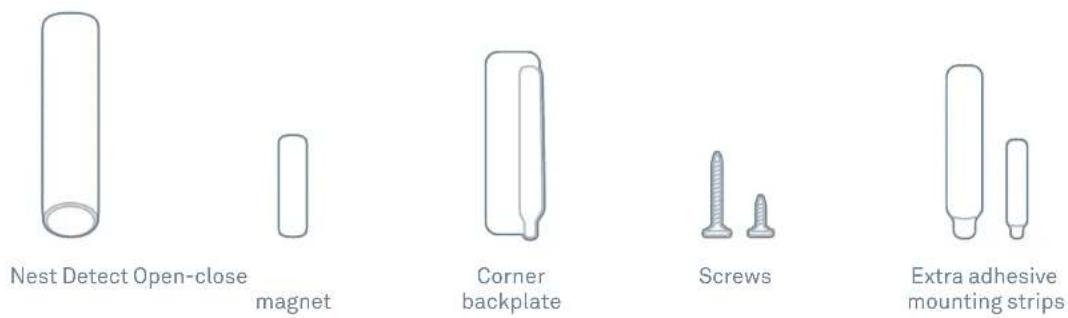
SYSTEM REQUIREMENTS
To use Nest Detect, first you'll need to set up Nest Guard and add it to your Nest Account. You'll need a compatible iOS or Android phone or tablet with Bluetooth 4.0, and a Wi-Fi 802.11 a/b/g/n (2.4GHz or 5GHz) network connection. Go to nest.com/requirements for more information. Nest Detect must be placed within 50 feet (15 m) of Nest Guard.
Set up Nest Detect with the Nest app.
IMPORTANT: Be sure your Nest Guard is already set up and connected to the internet before you set up Detect.
1

2

3
Open the Nest App. Follow the Tap the Add button.
Don't see a
Tap the
app instructions.
Want to see how it's done?
Go to nest.com/installsecure for installation videos and additional tips.
Meet Nest Detect
Nest Detect can tell you what's happening in your home. Its sensors detect when doors and windows open and close, or when someone walks by. When it notices something, it will let Nest Guard know to sound an alarm. You can also get an alert sent to your phone, so you'll know what's happening when you're away.
How Nest Detect works
Nest Detect will sense different things depending on where you place it.
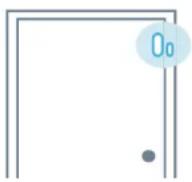
On a door
Nest Detect can sense when a door opens or closes, or when someone walks nearby.
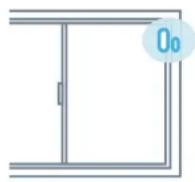
On a window
Nest Detect can sense when a window opens or closes.
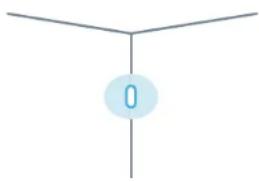
On a wall
Nest Detect can sense when someone walks nearby.
natural_image
Simple diagram with three vertical lines and a central circular element labeled '0' (no text or symbols beyond the number)On a door
On a window On a wall
Detects motion in a room or hallway
Detects open-close (Requires open-close magnet)


Where you can place Nest Detect
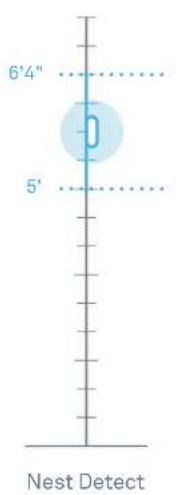
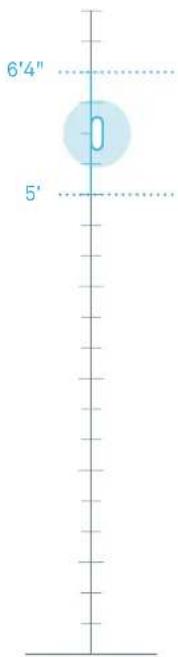
Mounting height
Nest Detect must be mounted 5 feet to 6 feet 4 inches (1.5 to 2 m) above the floor. If you mount it higher or lower, the detection range decreases, and you may also experience false alarms.
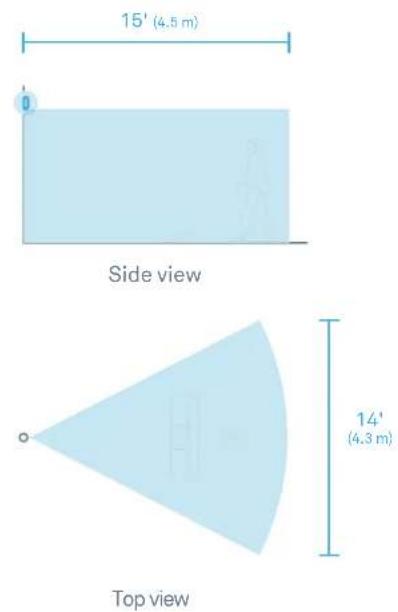
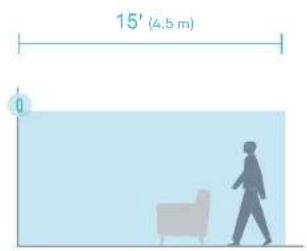
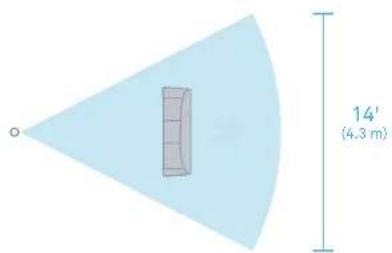
Standard detection area
Nest Detect can sense motion from people walking up to 15 feet (4.5 m) away.
Dog Pass
If you have a dog under 40 pounds (18 kg), turn on Reduced Motion Sensitivity in the Nest app settings to help avoid false alarms. There are different installation requirements and motion detection ranges when using Reduced Motion Sensitivity.
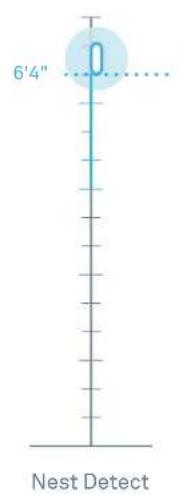
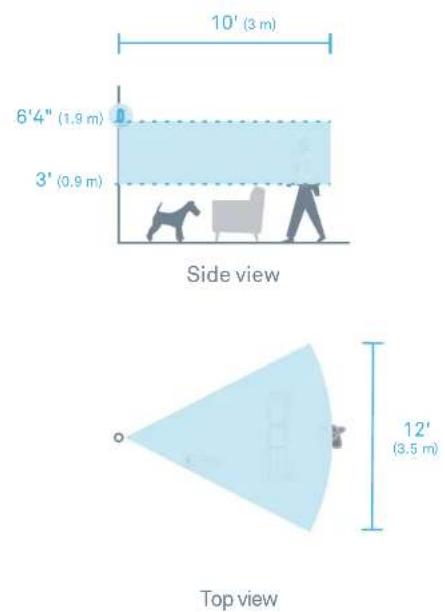
Mounting height
Nest Detect should be mounted exactly 6 feet 4 inches (1.9 m) above the floor.
Reduced Motion Sensitivity detection area
Nest Detect can sense motion from people walking up to 10 feet (3 m) away.
Installation tips
Use the Nest app
During setup, the Nest app will show you where to put Nest Detect and its open-close magnet so they work properly. Here are more things to consider before you install Nest Detect on a wall, window or door.
Mounting with adhesive strips
Nest Detect and the open-close magnet should be installed on smooth, flat surfaces only.
- Make sure the surface is clean and dry.
- Peel the protective cover off the adhesive strip.
- Press evenly with your palm and hold in place for at least 30 seconds.
The adhesive strips shouldn't be used on surfaces painted with low-VOC or zero-VOC paint or any surfaces not listed on page 15.
IMPORTANT: Nest Detect's adhesive strips are very strong and can't be easily repositioned. Before you press and hold it for 30 seconds, be sure Nest Detect is straight and in the right spot.
Mounting with screws
Install Nest Detect with screws if your walls, windows or doors have rough surfaces, are contoured or dirty, are prone to heat or high humidity, or are painted with low-VOC or zero-VOC paint. For best results use a Phillips #2 screwdriver.
- Remove Nest Detect's mounting backplate and you'll see the screw hole.
- Remove all the adhesive material from the backplate.
- Screw the backplate onto the surface. Drill a 3/32" pilot hole first if you're attaching it to wood or other hard material.
- Snap the Nest Detect onto its backplate.
To install the open-close magnet:
- Snap off the backplate and you'll see the screw hole.
- Remove all the adhesive material from the backplate.
- Screw the backplate onto the surface. Drill a 1/16" pilot hole first if you're attaching it to wood or other hard material.
- Snap the open-close magnet onto its backplate.
Installing Nest Detect on a door or window
- Nest Detect should only be installed indoors.
• Install Nest Detect on the upper corner of a door or window with the Nest logo right side up. - Nest Detect should be attached horizontally on vertical double-hung windows.
- Make sure you choose a spot for Nest Detect where the magnet can also fit. They need to be installed close together to sense when doors and windows open or close.
IMPORTANT: Nest Detect should only be installed indoors.
Orienting Nest Detect for motion detection
When installing Nest Detect on a door or wall, the Nest logo must be upright to detect motion.
Installing the open-close magnet
- Install the magnet on the door or window frame inside the room. You'll know it's in the right spot when the Nest Detect light ring turns green.
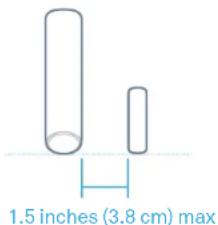
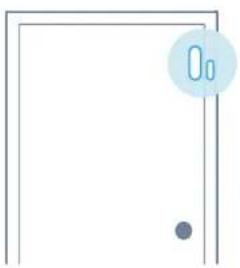
- The magnet should be aligned with the bottom of Nest Detect and placed within 1.5 inches (3.8 cm) of Detect when the door or window is closed, as shown in the image to the below.
Installing Nest Detect on a wall
- Choose a flat spot on the wall or in a corner of a room. For more information on mounting heights refer to page 8.
- Make sure Nest Detect is pointed toward the area you want to keep track of. For more information on motion detection range, refer to page 8.
- To install Nest Detect in a corner, take off the flat backplate and use the included corner backplate for installation.
Features
Quiet Open
When the security level is set to Home and Guarding, you can use Quiet Open to open a door or window without the alarm going off. Press the button on the Nest Detect that you want to use. The light ring will turn green, and you'll have 10 seconds to open it. Your Detect will automatically re-arm when you close the door or window.
You can enable or disable Quiet Open in the Nest app's Settings menu. Select Security then Security Levels.
Pathlight
When you walk by Nest Detect in the dark, Pathlight turns on to help light your way. Using Pathlight may decrease Nest Detect's battery life, so you can change the brightness or turn it off with the Nest app.
Pathlight is off by default. You'll need to turn it on with the Nest app in Nest Detect's Settings menu.
Dog Pass
If you have a dog under 40 pounds (18 kg), you can turn on Reduced Motion Sensitivity with the Nest app to help prevent false alarms caused by your dog. For more information, see page 9.
Tamper detection
If someone tampers with Nest Detect and removes it from the backplate, the Nest app will send you an alert to let you know.
Operation
How to test your Nest Detect
You should test your Nest Detect at least once each year. To check to make sure open/close detection or motion detection is working on your Nest Detect, follow these instructions.
- Tap the gear icon in the upper right corner of the Nest app home screen.
- Select the Nest Detect you want to test from the list.
- Select "Check setup" and follow the app instructions. It will walk you through opening and closing your door or window, or testing motion detection in the room.
Restart
If your Nest Detect loses its connection to the Nest app, or the light ring glows yellow when you press the button, it might help to restart it. Just press and hold the button for 10 seconds.
Reset to factory settings
If you remove Nest Detect from your Nest Account, you must reset it to factory settings before it can be used again. To reset:
- Set Nest Secure to Off, or the alarm will sound when you reset Detect.
- Press and hold down Nest Detect's button until the light ring pulses yellow (around 15 seconds).
- Release the button when the light ring pulses yellow.
Check for updates
Nest Detect will automatically update its software, but you can manually check for updates if you want.
- Disarm Nest Secure.
- Press Detect's button and release it.
- Press the button again and hold it down. Release it when the light blinks blue.
- Detect will begin automatically updating its software and turn off the light when finished.
How to check Detect's status
Just press the button and the light ring will tell you if Nest Detect is working and connected to Nest Guard.
What it means What you see

BLUE pulse Nest Detect is working right.

GREEN pulse If enabled, Quiet Open can be used on this door or window.

YELLOW pulses There's a problem with Nest Detect. Check the Nest app for more information. It could mean a few things:
• The battery has less than 30 days left.
- Nest Detect needs to be recalibrated.
- There's an issue with Detect's hardware.

BLUE pulses Nest Detect hasn't been set up and added to your Nest Account.

RED blinking Unpaired, and critical battery
Safety and useful information
Special considerations
- In some installations the magnet may need to travel up to 1.97" (50 mm) for Nest Detect to detect that a door or window is open.
- Don't install Nest Detect outdoors.
- Don't install Nest Detect in a garage.
- Don't install Nest Detect on glass.
- Nest Detect can't detect motion through glass, like if someone's moving outside a window.
- Don't install where Nest Detect could get wet, like swing-out windows that could be rained on.
- Don't install Nest Detect or the open-close magnet where pets or young children can reach them.
- Don't expose the adhesive mounting strips to oils, chemicals, refrigerants, soaps, X-rays or sunlight.
- Don't paint any part of Nest Guard, Detect or Tag.
- Don't install Nest Detect near magnets other than the open-close magnet. They'll interfere with Nest Detect's open-close sensors.
- Don't install Nest Detect within 3 feet (1 m) of a heat source like an electric heater, heat vent or fireplace or another source that may produce turbulent air.
- Don't install Nest Detect behind large appliances or furniture that may obstruct its motion sensors.
Maintenance
- Nest Detect should be cleaned once every month. If the motion sensor gets dirty, the detection range could decrease.
- To clean, wipe with a damp cloth. You can use isopropyl alcohol if it gets really dirty.
- Make sure Nest Detect senses motion after cleaning. Follow the testing instructions in the Nest app.
Temperature considerations
Nest Detect is meant to be used indoors in temperatures of 0^ C ( 32^ F) to 40^ C ( 104^ F) up to 93% humidity.
Battery replacement
The Nest app will notify you when a Detect's battery gets low. Remove the battery and replace it with another Energizer CR123 or Panasonic CR123A 3V lithium battery.
To open the battery compartment:
- If Nest Detect is mounted to a surface, grip the top and pull it firmly toward you.
- If Nest Detect is not mounted to a surface, use a flathead screwdriver to pry off the backplate.
Troubleshooting offline issues
If one or more Detects are listed as offline in the Nest app after installation, they may be too far from Guard to connect. You can install a Nest Connect (sold separately) to bridge the gap, or try moving your Detects and Guard closer together.
False alarms
The following may cause unintended alarms:
- Pets that walk, climb or fly above 3 feet (1 m)
• Pets heavier than 40 pounds (18 kg) - Heat sources like electric heaters, heat vents and fireplaces
- Cold sources like drafty windows, air conditioners and AC vents
- Curtains near windows that may move while Nest Guard is armed
- Direct sun exposure: the front of Nest Guard and Nest Detect should not be placed in direct sunlight
- Party balloons left unattended: they may drift into the field of view of your sensors
- Insects that may come very close to the sensor
- Vibration or movement caused by pets bumping Nest Guard when it's set to Away and Guarding
- Wireless access points within 6 feet (2 m) of Nest Detect.
WARNING
Wireless communications
- Nest Guard and Nest Detects are engineered to communicate with each other if they're within 50 ft of each other in a home.
- Some features of a home may reduce the effective range, including the number of floors, number and size of rooms, furniture, large metallic appliances, construction materials, and other features like suspended ceilings, ductwork and metal studs.
- Nest Guard's and Nest Detect's specified range is for comparative purposes only and may be reduced when installed in a home.
- Wireless transmissions between buildings will not work and the alarms will not communicate properly.
- Metal objects and metallic wallpaper may interfere with signals from wireless alarms. Test your Nest products first with metal doors opened and closed.
- Nest Guard and Nest Detect have been specifically designed and tested to comply with the standards for which they are Listed. While Nest's wireless network may route signals through other Nest or other Thread-compatible products* to optimize network reliability, you need to ensure every Nest Detect can communicate with Nest Guard directly.
To make sure Nest Detect can directly communicate to Nest Guard, completely power off your other Nest or other Thread-compatible products before installing or relocating Nest Detect. Nest Detect will flash yellow 5 times during installation if it cannot directly communicate to Nest Guard. Nest Detect's light ring will pulse green when it's connected to Nest Guard. To learn more about powering off your Nest or other Thread-compatible products, please see the user guides included with your devices, or support.nest.com, for more information.
* Search for A0024 (Nest Guard) and A0028 (Nest Detect) in the UL Certification Directory (www.ul.com/database) to see the list of products evaluated by UL to route signals on the same network as Nest Guard and Nest Detect.
WARNING
This product contains (a) small magnet(s). Swallowed magnets can cause choking. They can also stick together across intestines causing serious infections and death. Seek immediate medical attention if magnet(s) are swallowed or inhaled. Keep out of reach of children.
Product Information
Model: A0028
FCC ID: ZQAH11
Certification: UL 639, UL 634
Additional certification details
Nest Guard and Nest Detect were designed to meet rigorous UL security standards, and were tested for compliance by Underwriters Laboratories for residential use only. Nest Guard was evaluated by UL for use as a burglar alarm control panel and PIR intrusion detector. Nest Detect was evaluated by UL as a magnetic contact switch and a PIR intrusion detector.
To meet UL specifications, please enable Limited Settings within the app and install Nest Guard and Nest Detect as the primary means of intrusion detection within the protected area of the household. Enabling Limited Settings limits No Rush arm time to 120 seconds maximum and disarm time to 45 seconds maximum, and allows you to arm with a passcode. Nest Guard will also provide an audible warning tone once per minute when there is an issue that needs attention. For UL certified installations the adhesive is suitable for use on Galvanized steel, Enameled steel, Nylon - Polyamide, Polycarbonate, Glass Epoxy, Phenolic - Phenol Formaldehyde, Polyphenylene ether/Polystyrene blend, Polybutylene terephthalate, Epoxy paint, Polyester paint, Coated epoxy paint (Coating is 3M Adhesive Promoter 111), Acrylic urethane paint, Epoxy/Polyester paint.
Nest Detect in Reduced Motion Sensitivity mode has been evaluated by UL only for motion detection of people.
The UL certification of Nest Guard and Nest Detect does not include an evaluation of the Nest app, software updates, Nest Connect's use as a range extender, and Wi-Fi or cellular communication to the Nest Service or to a professional monitoring center.
Federal Communications Commission (FCC) compliance
This equipment has been tested and found to comply with the limits for a Class B digital device, pursuant to part 15 of the FCC Rules. These limits are designed to provide reasonable protection against harmful interference in a residential installation. This equipment generates, uses and can radiate radio frequency energy and, if not installed and used in accordance with the instructions, may cause harmful interference to radio communications. However, there is no guarantee that interference will not occur in a particular installation. If this equipment does cause harmful interference to radio or television reception, which can be determined by turning the equipment off and on, the user is encouraged to try to correct the interference by one or more of the following measures:
- Reorient or relocate the receiving antenna.
- Increase the separation between the equipment and receiver.
- Connect the equipment into an outlet on a circuit different from that to which the receiver is connected.
- Consult the dealer or an experienced radio/TV technician for help.
This device complies with part 15 of FCC rules.
Operation is subject to the following two conditions:
- This device may not cause harmful interference.
- This device must accept any interference received, including interference that may cause undesired operation.
Change or modifications that are not expressly approved by the manufacturer could void the user's authority to operate the equipment.
RF Exposure Information
This equipment complies with FCC radiation exposure limits set forth for an uncontrolled environment. In order to avoid the possibility of exceeding the FCC radio frequency exposure limits, human proximity to the antenna shall not be less than 20cm during normal operation.
Nest Labs, Inc. Limited Warranty Nest Detect
THIS LIMITED WARRANTY CONTAINS IMPORTANT INFORMATION ABOUT YOUR RIGHTS AND OBLIGATIONS, AS WELL AS LIMITATIONS AND EXCLUSIONS THAT MAY APPLY TO YOU.
1. WHAT THIS LIMITED WARRANTY COVERS; PERIOD OF COVERAGE
Nest Labs, Inc. ("Nest Labs"), 3400 Hillview Avenue, Palo Alto, California USA, warrants to the owner of the enclosed product that the product contained in this box ("Product") will be free from defects in materials and workmanship for a period of two (2) years from the date of delivery following the original retail purchase (the "Warranty Period"). If the Product fails to conform to this Limited Warranty during the Warranty Period, Nest Labs will, at its sole discretion, either (a) repair or replace any defective Product or component; or (b) accept the return of the Product and refund the money actually paid by the original purchaser for the Product. Repair or replacement may be made with a new or refurbished product or components, at Nest Labs' sole discretion. If the Product or a component incorporated within it is no longer available, Nest Labs may, at Nest Labs' sole discretion, replace the Product with a similar product of similar function. This is your sole and exclusive remedy for breach of this Limited Warranty. Any Product that has either been repaired or replaced under this Limited Warranty will be covered by the terms of this Limited Warranty for the longer of (a) ninety (90) days from the date of delivery of the repaired Product or replacement Product, or (b) the remaining Warranty Period. This Limited Warranty is transferable from the original purchaser to subsequent owners, but the Warranty Period will not be extended in duration or expanded in coverage for any such transfer.
For more information, visit nest.com

Please recycle packaging and used batteries responsibly.
Visit nest.com/recycle
2. TOTAL SATISFACTION RETURN POLICY
If you are the original purchaser of the Product and you are not satisfied with this Product for any reason, you may return it in its original condition within thirty (30) days of the original purchase and receive a full refund.
3. WARRANTY CONDITIONS; HOW TO GET SERVICE IF YOU WANT TO CLAIM UNDER THIS LIMITED WARRANTY
Before making a claim under this Limited Warranty, the owner of the Product must (a) notify Nest Labs of the intention to claim by visiting nest.com/support during the Warranty Period and providing a description of the alleged failure, and (b) comply with Nest Labs' return shipping instructions. Nest Labs will have no warranty obligations with respect to a returned Product if it determines, in its reasonable discretion after examination of the returned Product, that the Product is an Ineligible Product (defined below). Nest Labs will bear all costs of return shipping to owner and will reimburse any shipping costs incurred by the owner, except with respect to any Ineligible Product, for which owner will bear all shipping costs.
4. WHAT THIS LIMITED WARRANTY DOES NOT COVER
This Limited Warranty does not cover the following (collectively “Ineligible Products”): (i) Products marked as “sample” or “Not for Sale”, or sold “AS IS”; (ii) Products that have been subject to: (a) modifications, alterations, tampering, or improper maintenance or repairs; (b) handling, storage, installation, testing, or use not in accordance with the User’s Guide, Placement Guidelines, or other instructions provided by Nest Labs; (c) abuse or misuse of the Product; (d) breakdowns, fluctuations, or interruptions in electric power or the telecommunications network;
or (e) Acts of God, including but not limited to lightning, flood, tornado, earthquake, or hurricane; or (iii) any non-Nest Labs branded hardware products, even if packaged or sold with Nest Labs hardware. This Limited Warranty does not cover consumable parts, including batteries, unless damage is due to defects in materials or workmanship of the Product, or software (even if packaged or sold with the product). Nest Labs recommends that you use only authorized service providers for maintenance or repair. Unauthorized use of the Product or software can impair the Product's performance and may invalidate this Limited Warranty.
5. DISCLAIMER OF WARRANTIES
EXCEPT AS STATED ABOVE IN THIS LIMITED WARRANTY, AND TO THE MAXIMUM EXTENT PERMITTED BY APPLICABLE LAW, NEST LABS DISCLAIMS ALL EXPRESS, IMPLIED, AND STATUTORY WARRANTIES AND CONDITIONS WITH RESPECT TO THE PRODUCT, INCLUDING THE IMPLIED WARRANTIES OF MERCHANTABILITY AND FITNESS FOR A PARTICULAR PURPOSE. TO THE MAXIMUM EXTENT PERMITTED BY APPLICABLE LAW, NEST LABS ALSO LIMITS THE DURATION OF ANY APPLICABLE IMPLIED WARRANTIES OR CONDITIONS TO THE DURATION OF THIS LIMITED WARRANTY.
6. LIMITATION OF DAMAGES
IN ADDITION TO THE ABOVE WARRANTY DISCLAIMERS, IN NO EVENT WILL NEST LABS BE LIABLE FOR ANY CONSEQUENTIAL, INCIDENTAL, EXEMPLARY, OR SPECIAL DAMAGES, INCLUDING ANY DAMAGES FOR LOST DATA OR LOST PROFITS, ARISING FROM OR RELATING TO THIS LIMITED WARRANTY OR THE PRODUCT, AND NEST LABS' TOTAL CUMULATIVE LIABILITY ARISING FROM OR RELATED TO THIS LIMITED WARRANTY OR THE PRODUCT WILL NOT EXCEED THE AMOUNT ACTUALLY PAID FOR THE PRODUCT BY THE ORIGINAL PURCHASER.
7. LIMITATION OF LIABILITY
THE NEST LABS ONLINE SERVICES (“SERVICES”) PROVIDE YOU INFORMATION (“PRODUCT INFORMATION”) REGARDING YOUR NEST PRODUCTS OR OTHER PERIPHERALS CONNECTED TO YOUR PRODUCTS (“PRODUCT PERIPHERALS”). THE TYPE OF PRODUCT PERIPHERALS THAT MAY BE CONNECTED TO YOUR PRODUCT MAY CHANGE FROM TIME TO TIME. WITHOUT LIMITING THE GENERALITY OF THE DISCLAIMERS ABOVE, ALL PRODUCT INFORMATION IS PROVIDED FOR YOUR CONVENIENCE, “AS IS”, AND “AS AVAILABLE”. NEST LABS DOES NOT REPRESENT, WARRANTY, OR GUARANTEE THAT PRODUCT INFORMATION WILL BE AVAILABLE, ACCURATE, OR RELIABLE OR THAT PRODUCT INFORMATION OR USE OF THE SERVICES OR PRODUCT WILL PROVIDE SAFETY IN YOUR HOME. YOU USE ALL PRODUCT INFORMATION, THE SERVICES, AND THE PRODUCT AT YOUR OWN DISCRETION AND RISK. YOU WILL BE SOLELY RESPONSIBLE FOR (AND NEST LABS DISCLAIMS) ANY AND ALL LOSS, LIABILITY, OR DAMAGES, INCLUDING TO YOUR WIRING, FIXTURES, ELECTRICITY, HOME, PRODUCT, PRODUCT PERIPHERALS, COMPUTER, MOBILE DEVICE, AND ALL OTHER ITEMS AND PETS IN YOUR HOME, RESULTING FROM YOUR USE OF THE PRODUCT INFORMATION, SERVICES, OR PRODUCT. PRODUCT INFORMATION
PROVIDED BY THE SERVICES IS NOT INTENDED AS A SUBSTITUTE FOR DIRECT MEANS OF OBTAINING THE INFORMATION. FOR EXAMPLE, A NOTIFICATION PROVIDED THROUGH THE SERVICE IS NOT INTENDED AS A SUBSTITUTE FOR AUDIBLE AND VISIBLE INDICATIONS IN THE HOME AND ON THE PRODUCT, NOR FOR A THIRD PARTY MONITORING SERVICE THAT MONITORS ALARM STATE.
8. YOUR RIGHTS AND THIS LIMITED WARRANTY
This Limited Warranty gives you specific legal rights. You may also have other legal rights that vary by state, province, or jurisdiction. Likewise, some of the limitations in this Limited Warranty may not apply in certain states, provinces or jurisdictions. The terms of this Limited Warranty will apply to the extent permitted by applicable law. For a full description of your legal rights you should refer to the laws applicable in your jurisdiction and you may wish to contact a relevant consumer advisory service.
064-00004-US

064-00063-US-A
nest
Nest Secure
User's Guide
Contents
In the box 4
Do this first 5
Meet Nest Secure 6
Placement tips 10
Where to place Nest Guard 10
Nest Guard's standard detection area 12
Where you can place Nest Detect 13
Nest Detect's standard detection area 14
Dog Pass 15
Using Nest Secure 16
Setting the security levels 16
Arming and disarming 17
Nest Secure features 17
Nest Guard features 18
Nest Detect features 20
Nest Tag features 20
Testing, maintenance and other useful information 21
Safety and regulatory information 27
Warranty 30
Want help?
Go to nest.com/support for installation videos and troubleshooting.
You can also find a Nest Pro to install Nest Secure.

In the box.
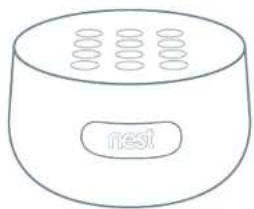
natural_image
Simple line drawing of a cylindrical device with ventilation slots and a labeled button (no text or symbols beyond the label)Nest Guard
Alarm, motion sensor and keypad.
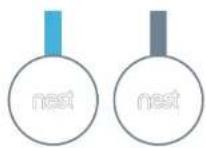
Nest Tags
Key fob to quickly arm and disarm your home.
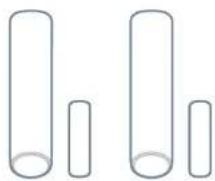
Nest Detect sensors
with open-close magnets Senses when a door or window opens or when someone walks nearby.
For Nest Guard installation For Nest Detect installation
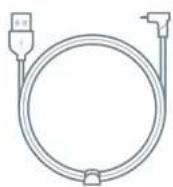
Power cable Power Adapter adapter

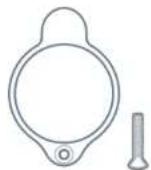
bracket and screw
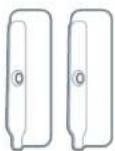
Corner backplates
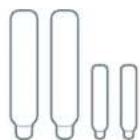
Extra adhesive mounting strips
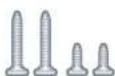
Screws
Do this first.
The Nest app will show you how to set up, install and test everything.
1
Get the Nest app for Android or iOS.

2
Tap the Add button. Add Nest Guard first.
Don't see a
Tap the
3

Then add Tags and Detects.
Want to see how it's done?
Go to nest.com/installsecure for installation videos and additional tips.
SYSTEM REQUIREMENTS
To set up and use Nest Secure you'll need a compatible iOS or Android phone or tablet with Bluetooth 4.0, the Nest app and a free Nest Account, an unused indoor power outlet, and a Wi-Fi 802.11 a/b/g/n (2.4GHz or 5GHz) network connection. Go to nest.com/requirements for more information.
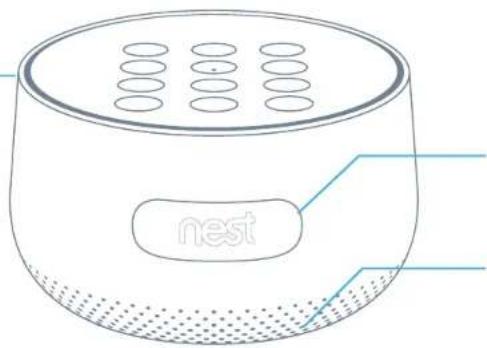
Nest Guard
Alarm, motion sensor and keypad.
Light ring
Shows you the alarm's status. Learn more on page 19.
natural_image
Line drawing of a cylindrical device with perforated top and base, labeled 'nest' (no text or symbols beyond label)Front
Motion sensor
Detects when someone walks nearby.
Speaker
For spoken alerts and the alarm.
Panic button
Press to instantly sound the alarm and send an emergency alert to everyone who shares access to your Nest home.
natural_image
Line drawing of a cylindrical device with circular vented seating and a rectangular cutout (no text or symbols)Back
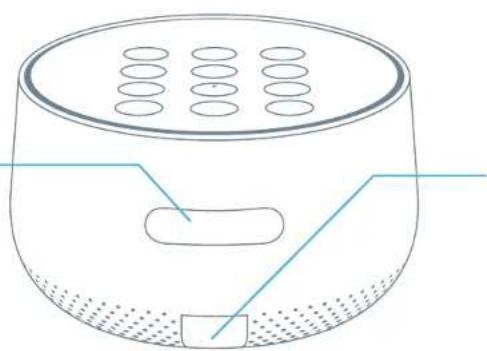
Power port
Plug in the power cable here. A green light tells you it's receiving AC power.
Nest Guard's illuminated keypad
Guard lights up when you approach, and the buttons light up as you need them so you'll know what to do.


Security level buttons
Let you switch between security levels.

Info button
Press when lit to check the status of your security system.
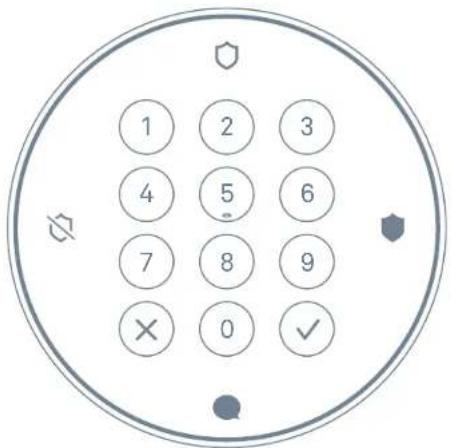
Keypad
Enter your passcode or tap Nest Tag here to arm and disarm.
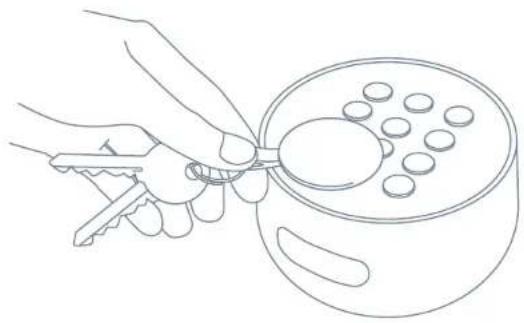
Nest Tag
Key fob lets you arm or disarm without entering a passcode.
Disarm with a tap
Tap and hold Nest Tag on Guard to arm or disarm when you're leaving and coming home.
Give one to people you trust
Kids and guests won't have to remember a passcode. You can also set a schedule that lets them come in at certain times.
Key loop
Attach to your key ring.
natural_image
Line drawing of a hand holding a key to add liquid into a container with round objects (no text or symbols)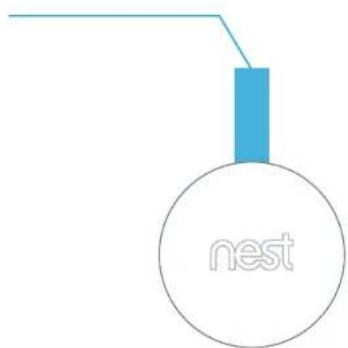
Nest Detect
Nest Detect is a versatile sensor. Put it on a door or window to know when it opens or closes, or put it on the wall to know if someone walks nearby.
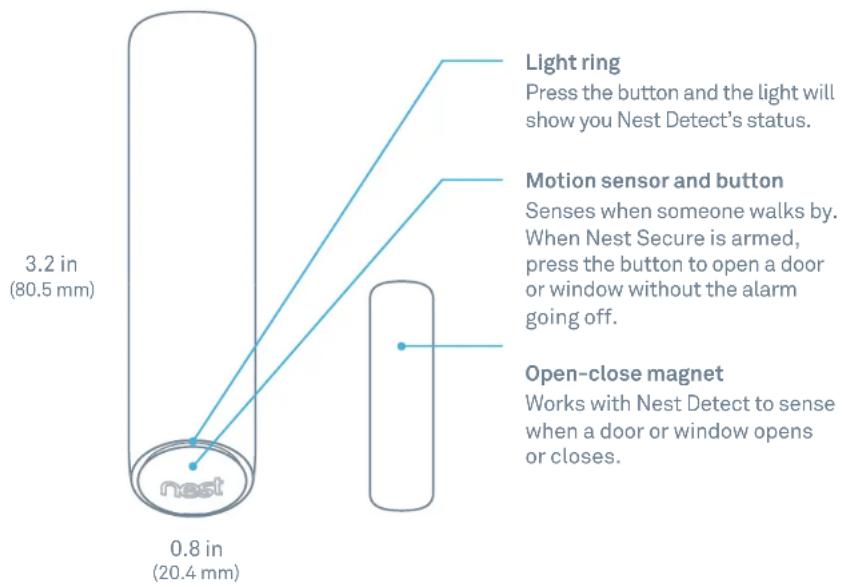
Motion sensor and button
Senses when someone walks by. When Nest Secure is armed, press the button to open a door or window without the alarm going off.
Light ring
Press the button and the light will show you Nest Detect's status.
Battery compartment
Includes one CR123A 3V lithium battery.
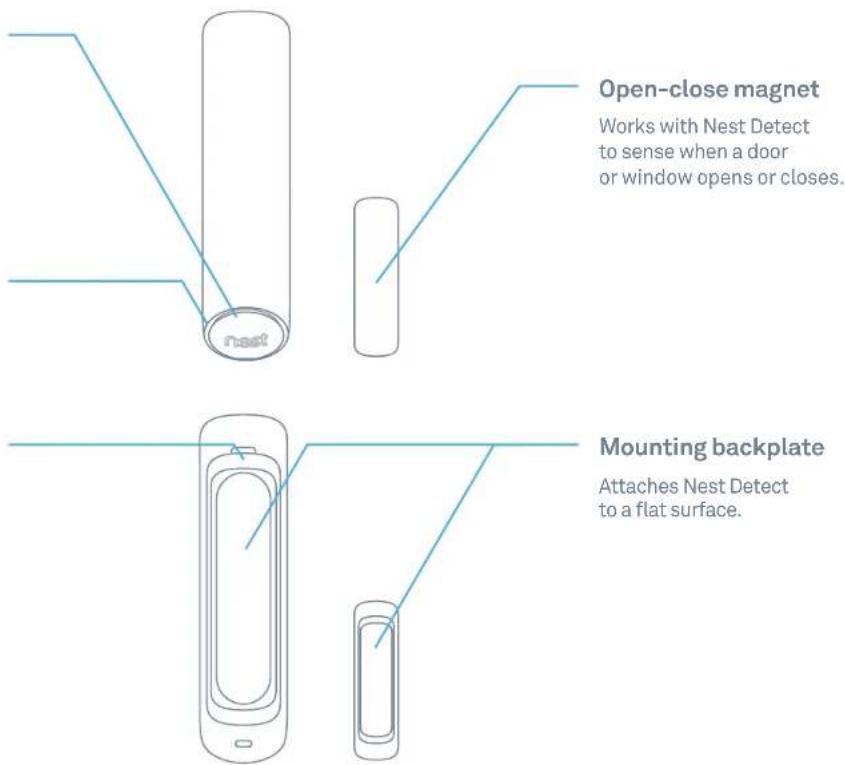
Open-close magnet
Works with Nest Detect to sense when a door or window opens or closes.
Mounting backplate
Attaches Nest Detect to a flat surface.
Placement tips
The Nest app will tell you how to install and set up Nest Guard, Nest Detect and Nest Tag. Here are some tips to get started.
Where to place Nest Guard
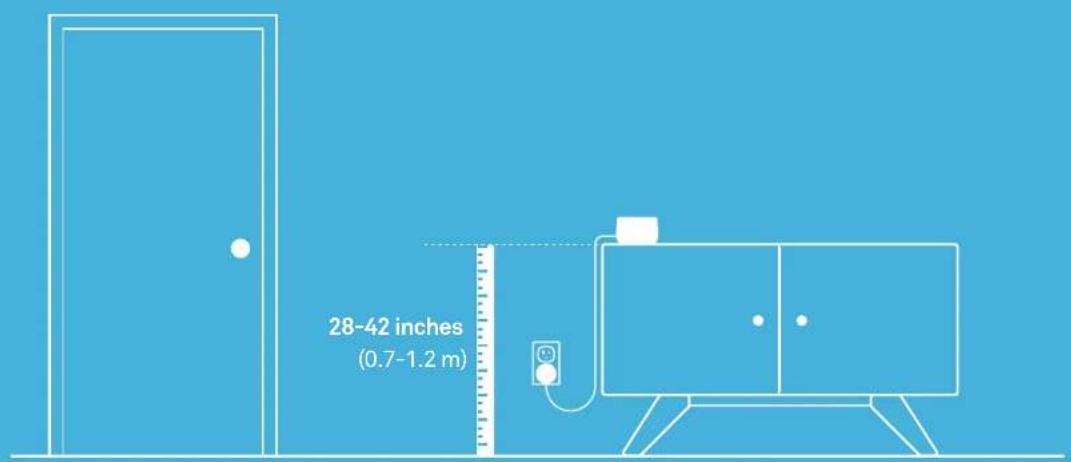
It should be close to where you come and go.
So it's easy to access on your way in and out.
Make sure it's at the right height.
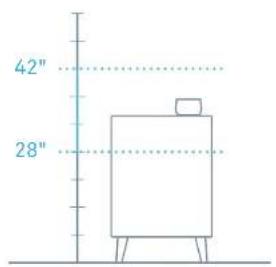
Put Nest Guard on a table or low shelf so it's easy to reach and its motion sensor can see the room. It must be between 28 and 42 inches above the floor.
natural_image
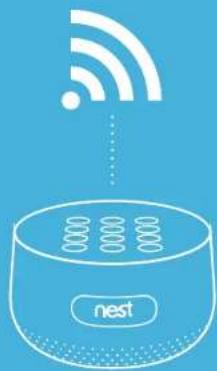
Illustration of a wireless device with Wi-Fi signal icon above it, no text or symbols presentFind a spot with a good Wi-Fi signal.
Nest Guard needs a Wi-Fi internet connection so it can send alerts and notifications to your phone.
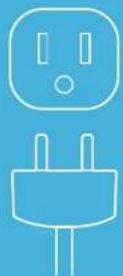
Use an unswitched wall outlet.
Choose an outlet that's not controlled by a switch, so you don't accidentally turn off Nest Guard. The included bracket helps keep Nest Guard plugged in.
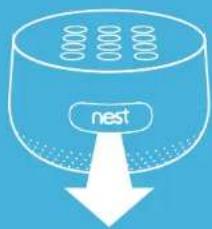
The motion sensor should face front.
Keep it free from mail, keys and anything else that could block its view.
Nest Guard placement
Guard should be placed on a surface 28 to 42 inches (0.7 to 1.2 m) above the floor, and within 2 feet (0.6 m) of the edge so it has a clear view of the room. If it's placed outside of these specifications, the detection range can be affected, and you may also experience false alarms.
Standard detection area
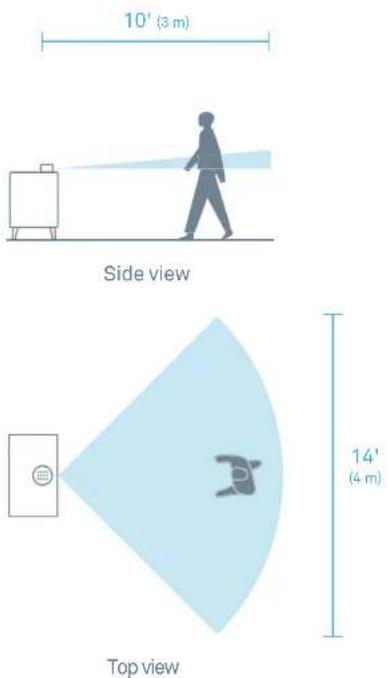
Nest Guard can sense motion from people walking up to 10 feet (3 m) away and up to 90° in front of it.
Where you can place Nest Detect
Nest Detect will sense different things depending on where you place it.
On a door
Nest Detect can sense when a door opens or closes, or when someone walks nearby.
On a window
Nest Detect can sense when a window opens or closes.
On a wall
Nest Detect can sense when someone walks nearby.
natural_image
Simple line drawing of a door frame with a circular label containing '0₀' and a small dot below (no text or symbols beyond the label)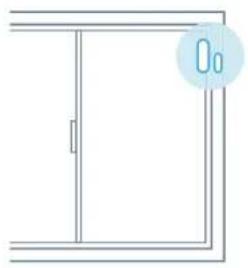
natural_image
Simple line drawing of a door frame with a circular label containing the number '00' (no text or symbols on the door itself)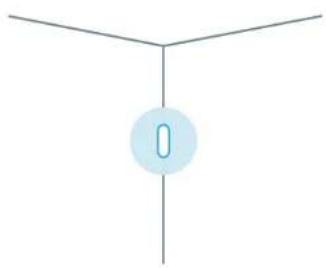
natural_image
Simple diagram with three vertical lines and a central circular element (no text or symbols)On a door On a window On a wall
| Detects motion in a room or hallway | √ | √ | |
| Detects open-close (Requires open-close magnet) | √ | √ |
Nest Detect mounting height
Nest Detect must be mounted 5 feet to 6 feet 4 inches (1.5 to 2 m) above the floor. If you mount it higher or lower, the detection range decreases, and you may also experience false alarms.
Standard detection area
Nest Detect can sense motion from people walking up to 15 feet (4.5 m) away.
Side view
Top view
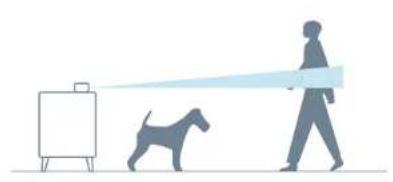
Dog Pass
If you have a dog under 40 pounds (18 kg), turn on Reduced Motion Sensitivity in the Nest app settings to help avoid false alarms. There are different installation requirements and motion detection ranges when using Reduced Motion Sensitivity.
Mounting height
Nest Guard should be placed above your dog's head, but still mounted within the standard range of 28 to 42 inches (0.7 to 1.2 m) above the floor.
Nest Detect should be mounted exactly 6 feet 4 inches (1.9 m) above the floor.
natural_image
Silhouette illustration of a person walking with a dog beside an easel, no text or symbols presentReduced Motion Sensitivity detection area
Nest Detect can sense motion from people walking up to 10 feet (3 m) away.
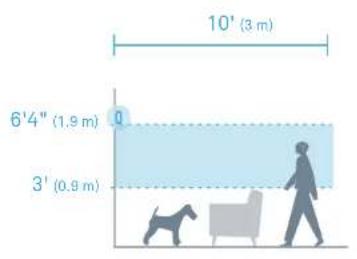
Side viewNest Guard
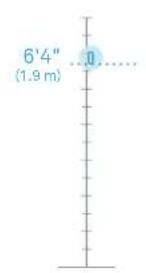
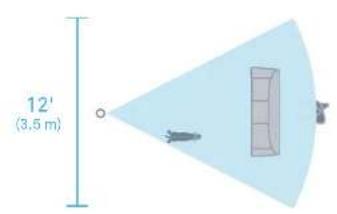
Top viewNest Detect
Using Nest Secure
SETTING THE SECURITY LEVELS
Nest Secure has three different security levels you'll use when you're home or away. You can easily switch between them on Nest Guard or with the Nest app.
| WHAT HAPPENS | WHAT'S DETECTEDMotion Open/close | NOTIFICATIONSAlarm and security alerts | |||
 | Away and GuardingUse when no one is home. | The alarm sounds when a door or window opens, or when there's motion in a room. | √ | √ | √ |
 | Home and GuardingUse when you're home and want security. | The alarm sounds when a door or window opens. | — | √ | √ |
 | OffUse when you don't want security. | The alarm won't sound. | — | — | — |
HOW TO ARM AND DISARM
You can arm and disarm your home in three ways: entering your passcode on Guard, tapping Tag on Guard, or using the Nest app. When you hear Nest Guard's Heads-Up alert, the light ring will also show you a countdown so you know how much time you have before the alarm sounds.

Nest Tag
Hold Tag on Nest Guard to:
• Disarm
• Arm to Away and Guarding
• Silence when the alarm is sounding

Nest Guard
- To arm: Press a security level button.
- To disarm: Enter your passcode, then press the √ button.
- If you make a mistake, press the Ⓧ button, then try again.
If you enter the wrong passcode five times, you won't be able to try again for 90 seconds. But you can use the Nest app or Tag to disarm.
NEST SECURE FEATURES
No Rush
With No Rush, you can take the time you need to leave home or disarm before the alarm sounds. By default, you have 60 seconds. But you can use the Nest app to choose a different time limit between 45 seconds and 5 minutes.
Remind Me
If anyone forgets to arm or disarm, the Nest app can send a Remind Me notification to the last person who left the house or the first to come home. They can easily arm or disarm by tapping the Remind Me notification.
IMPORTANT: Nest Secure does not automatically arm or disarm when you leave or come home. Arming and disarming must be done manually with the Nest app or on Guard.
NEST GUARD FEATURES
Info button
If the Info button lights up, there's an issue with your security system. Press the button and Nest Guard will tell you what it is. Some issues might prevent the system from keeping your home secure.
Issues that won't prevent arming:
• A door or window is open
• Power loss on Guard
• Poor network connectivity
• A device needs attention and should be checked
Issues that prevent arming:
If there's an issue that will prevent arming the Info button will turn red.
• Very low battery on Guard
• A software update is in progress
- Hardware failure
- Wireless interference
IMPORTANT: If you leave a window or door open and arm Nest Secure, the Detect on that door or window is temporarily deactivated. The alarm won't sound if someone opens it more or closes it.
Backup features
Nest Guard battery backup
Nest Guard includes a backup battery that will last for up to 12 hours. So even if the power is out, Nest Secure can still detect when an intruder is in your home and sound the alarm.
Nest cellular backup
You can purchase a cellular backup subscription at store.nest.com that will let Nest Secure stay connected if your home's Wi-Fi or internet connection has stopped working. With cellular backup, you can still get mobile notifications, arm and disarm with your phone, and more.
Heads-Up and alarm
Heads-Up
Before the alarm goes off, you'll usually hear a Heads-Up: a friendly, human voice that tells you the alarm is about to sound. After the Heads-Up, you'll have 60 seconds to disarm. This time can be adjusted in the Nest app's alarm countdown setting.
Alarm
When Nest Guard sounds the alarm, its light ring will pulse red. You can also get a mobile alert so you'll know what's happening at home. To turn the alarm off, use the app, enter your passcode on Nest Guard, or tap Nest Tag on Guard.
Panic button
Nest Guard's panic button can also sound the alarm. Press and hold the button until the alarm sounds. The light ring will also turn red. If you release the button early, the alarm won't sound.
Pressing the panic button sounds the alarm and sends mobile notifications to other people who share access to your home with the Nest app.
IMPORTANT: Nest Secure and cellular backup do not include third-party monitored emergency notifications, response or police dispatch.
est Guard lights and sounds
What you see. What you hear. What it means.

Green light ring countdown Away and Guarding illuminated
"YOU HAVE [ONE MINUTE] TO EXIT."
After the countdown, the alarm will sound if motion is detected, or doors or windows are opened.

Home and Guarding illuminated

CHIME
Alarm will sound if doors or windows are opened.

Off illuminated The alarm won't sound. CHIME

CHIME

Info button illuminated white
EXAMPLE: "THE BEDROOM WINDOW IS OPEN."
One or more potential issues exist.

Info button illuminated yellow
EXAMPLE: "NEST DETECT ON THE BACK DOOR WAS TAMPERED WITH."
There are one or more issues that may require attention.

Info button illuminated red
EXAMPLE: "NEST GUARD IS UNPLUGGED AND THE BACKUP BATTERY IS TOO LOW."
One or more issues that will prevent arming exist.

Yellow light ring countdown with number keys illuminated
"PLEASE ENTER YOUR PASSCODE."
Heads-Up: the alarm will sound if you don't disarm with your passcode or Tag before the countdown ends.

Pulsing blue light ring Initial setup "USE POWERNEST APP TO BEGIN SETUP"

Pulsing yellow light ring Nest Guard No. 100 is extremely low
and needs to be plugged in and charged before normal operation can resume.

Pulsing red light ring The alarm is shown. EXAMPLE: "SECURITY ALERT. THE FRONT DOOR WAS OPENED." [ALARM SOUNDS]
NEST DETECT FEATURES
Quiet Open
When Nest Secure is set to Home and Guarding, you can use Quiet Open to open a door or window without the alarm going off. Press the button on the Nest Detect that you want to use. The light ring will turn green, and you'll have 10 seconds to open it. Your Detect will automatically re-arm when you close the door or window.
You can enable or disable Quiet Open in the Nest app's Settings menu. Select Security then Security Levels.
Pathlight
When you walk by Nest Detect in the dark, Pathlight turns on to help light your way. Using Pathlight may decrease Nest Detect's battery life, so you can change the brightness or turn it off with the Nest app.
Pathlight is off by default. You'll need to turn it on with the Nest app in Nest Detect's Settings menu.
Dog Pass
If you have a dog under 40 pounds (18 kg), you can turn on Reduced Motion Sensitivity with the Nest app to help prevent false alarms caused by your dog.
Tamper detection
If someone tampers with Nest Detect and removes it from the backplate, the Nest app will send you an alert to let you know.
Add more Nest Detects
You can have up to 20 Nest Detects (go to nest.com/howmany) in your home to look after doors, windows and rooms. Adding more is easy. Just use the Nest app to scan the QR code on your new Nest Detect to get started.
NEST TAG FEATURES
Home Entry Schedules
When you give a Nest Tag to someone you can also set a schedule for them, so people like your dog walker or cleaner can only come in during certain times.
Disabling Nest Tag
If you lose or misplace a Tag, you can disable it with the Nest app in the Settings menu. You can always re-enable your Tag later.
Add more Nest Tags
You can give Nest Tags to everyone who needs to enter your home. Use the Nest app to scan the QR code on a new Tag and assign it to anyone you like.
TAMPER DETECTION
Nest Guard and Nest Detect can sense if they're being tampered with.
In Home and Guarding, the alarm sounds when:
- The power cable is unplugged from Nest Guard's power port
- Nest Detect is removed from the backplate
In Away and Guarding, the alarm sounds when:
- Nest Guard is picked up or moved if motion detection is on
- The power cable is unplugged from Nest Guard's power port
- Nest Detect is removed from the backplate
Testing, maintenance and other useful information
TESTING
Full installation testing
Once your installation is complete, test to make sure all parts of Nest Secure are working.
UL requirements state that you should also test Guard weekly, and test all of your Detects' open/close and motion sensing at least once a year.
You should also re-test Guard if you move it to a new location.
Testing Nest Guard
-
Set the security level to Away and Guarding and wait for the countdown to finish.
-
Walk past Nest Guard (within 10 feet) to trigger the motion sensor.
-
Nest Guard will speak the Heads-Up alert "Please enter a passcode." The alarm will sound after the countdown ends.
If you don't want to test the alarm, disarm by entering your passcode or tapping a Tag on Guard before the countdown ends.
Testing Nest Detect
- Set the security level to Away and Guarding and wait for the countdown to finish.
- Walk past a Detect that's installed on a wall or door, or open the door or window that it's installed on.
- Nest Guard will speak the Heads-Up alert "Please enter a passcode."
- Disarm by entering your passcode or tapping Tag on Guard.
- Repeat the previous steps for all Detects in your home.
How to check Detect's status
Just press the button and the light ring will tell you if Nest Detect is working and connected to Nest Guard.
What it means What you see

BLUE pulse Nest Detect is working right.

GREEN pulse If enabled, Quiet Open can be used on this door or window.

YELLOW pulses There's a problem with Nest Detect. Check the Nest app for more information. It could mean a few things:
• The battery has less than 30 days left.
- Nest Detect needs to be recalibrated.
- There's an issue with Detect's hardware.

BLUE pulses Nest Detect hasn't been set up and added to your Nest Account.

RED blinking Unpaired, and critical battery
MAINTENANCE
Nest Guard
Restarting
Restarting Nest Guard can help with troubleshooting some issues.
- Disarm Nest Secure.
- Press and hold the "5" button until Guard's light ring starts spinning blue (about 10 seconds).
- Release the button when Guard tells you to.
- Guard will restart and say, "Hi, from Nest."
Reset to factory settings
If you remove Guard from your Nest Account and you want to add it back, you'll need to reset it to factory settings.
Follow these steps:
- Disarm Nest Secure.
- Press and hold the "2" button until Guard asks if you want to reset.
Note: You won't be able to reset if Nest Secure is armed, sounding a Heads-Up or sounding an alarm.
Check for updates
Nest Guard will automatically update its software, but you can manually check for updates if you want. Follow these steps:
- Disarm Nest Secure.
- Press and hold the "2" button until Guard asks if you want to update the software.
- Release the button and it will check for updates.
Nest Detect
Powering off
If you need to power off Nest Detect, just remove the battery.
Restarting
Restarting Nest Detect can help with troubleshooting some issues.
- Press and hold the button until the light ring pulses blue once (about 10 seconds.)
- Release the button.
Reset to factory settings
If you remove Nest Detect from your Nest Account and you need to add it back, you'll need to reset it to factory settings.
- Press and hold Detect's button until the light ring stays yellow (about 15 seconds).
- Press and hold Detect's button until the light ring stays yellow (about 15 seconds).
- Release the button. You can cancel the reset by pressing the button again while the light is yellow.
Check for updates
Nest Detect will automatically update its software, but you can manually check for updates if you want.
Follow these steps:
- Disarm Nest Secure.
- Press Detect's button and release it.
- Press the button again and hold it down. Release it when the light blinks blue.
- Detect will begin automatically updating its software and turn off the light when finished.
Cleaning
- Both Nest Guard and Detect should be cleaned once every month. If the motion sensor gets dirty, the detection range could decrease.
- To clean, wipe with a damp cloth. You can use isopropyl alcohol if it gets really dirty.
- Make sure Nest Detect and Guard sense motion after cleaning. Follow the testing instructions in the Nest app.
Battery replacement
The Nest app will notify you when a Detect's battery gets low. Remove the battery and replace it with another Energizer CR123 or Panasonic CR123A 3V lithium battery.
To open the battery compartment:
- If Nest Detect is mounted to a surface, grip the top and pull it firmly toward you.
- If Nest Detect is not mounted to a surface, use a flathead screwdriver to pry off the backplate.
INSTALLATION TIPS FOR NEST DETECT
During setup, the Nest app will show you where to put Nest Detect and its open-close magnet so they work properly.
Here are more things to consider before you install Nest Detect on a wall, window or door.
Mounting with adhesive strips
Nest Detect and the open-close magnet should be installed on smooth, flat surfaces only.
- Make sure the surface is clean and dry.
- Peel the protective cover off the adhesive strip.
- Press evenly with your palm and hold in place for at least 30 seconds.
The adhesive strips shouldn't be used on surfaces painted with low-VOC or zero-VOC paint or any surfaces not listed on page 28.
IMPORTANT: Nest Detect's adhesive strips are very strong and can't be easily repositioned. Before you press and hold it for 30 seconds, be sure Nest Detect is straight and in the right spot.
Mounting with screws
Install Nest Detect with screws if your walls, windows or doors have rough surfaces, are contoured or dirty, are prone to heat or high humidity, or are painted with low-VOC or zero-VOC paint. For best results use a Phillips #2 screwdriver.
- Remove Nest Detect's mounting backplate and you'll see the screw hole.
- Remove all the adhesive material from the backplate.
- Screw the backplate onto the surface. Drill a 3/32" pilot hole first if you're attaching it to wood or other hard material.
- Snap the Nest Detect onto its backplate.
To install the open-close magnet:
- Snap off the backplate and you'll see the screw hole.
- Remove all the adhesive material from the backplate.
- Screw the backplate onto the surface. Drill a 1/16" pilot hole first if you're attaching it to wood or other hard material.
- Snap the open-close magnet onto its backplate.
Orienting Nest Detect for motion detection
When installing Nest Detect on a door or wall, the Nest logo must be upright to detect motion.
Installing Nest Detect on a door or window
- Nest Detect should only be installed indoors.
• Install Nest Detect on the upper corner of a door or window with the Nest logo right side up. - Nest Detect should be attached horizontally on vertical double-hung windows.
- Make sure you choose a spot for Nest Detect where the magnet can also fit. They need to be installed close together to sense when doors and windows open or close.
Installing the open-close magnet:
- Install the magnet on the door or window frame inside the room. The Nest app will show you where to place it, and you'll know it's in the right spot when the Nest Detect light ring turns green.
- The magnet should be aligned with the bottom of Nest Detect and placed within 1.5 inches (3.8 cm) of Detect when the door or window is closed, as shown in the image below.
IMPORTANT: Nest Detect should only be installed indoors.
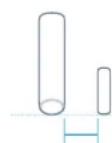
1.5 inches (3.8 cm) max
Installing Nest Detect on a wall
- Choose a flat spot on the wall or in a corner of a room. For more information on mounting heights, refer to page 14.
- Make sure Nest Detect is pointed toward the area you want to keep track of. For more information on motion detection range, refer to page 14.
- To install Nest Detect in a corner, take off the flat backplate and use the included corner backplate for installation.
Troubleshooting offline issues
If one or more Detects are listed as offline in the Nest app after installation, they may be too far from Guard to connect. You can install a Nest Connect (sold separately) to bridge the gap, or try moving your Detects and Guard closer together.
MORE ABOUT GUARD AND DETECT
False alarms
The following may cause unintended alarms:
- Pets that walk, climb or fly above 3 feet (1 m)
• Pets heavier than 40 pounds (18 kg) - Heat sources like electric heaters, heat vents and fireplaces
- Cold sources like drafty windows, air conditioners and AC vents
- Curtains near windows that may move while Nest Guard is armed
- Direct sun exposure: the front of Nest Guard and Nest Detect should not be placed in direct sunlight
- Party balloons left unattended: they may drift into the field of view of your sensors
- Insects that may come very close to the sensor
- Vibration or movement caused by pets bumping Nest Guard when it's set to Away and Guarding
- Wireless access points within 6 feet (2 m) of Nest Detect
Special considerations
- You can have up to 20 Nest Detects working with your Nest Guard. Go to nest.com/howmany for updates
- Place Nest Guard where it can't get bumped. When Nest Guard is set to Away and Guarding and it moves, the alarm may sound.
- Nest Guard should be installed in accordance with the National Electrical Code, ANSI/ NFPA 70.
-
In some installations the magnet may need to travel up to 1.97" (50 mm) for Nest Detect to detect that a door or window is open.
-
Don't install Nest Detect outdoors.
- Don't install Nest Detect in a garage.
- Don't install Nest Detect on glass.
- Nest Detect and Nest Guard can't detect motion through glass, like if someone's moving outside a window.
- Don't install where Nest Detect could get wet, like swing-out windows that could be rained on.
- Don't install Nest Detect or the open-close magnet where pets or young children can reach them.
- Don't expose the adhesive mounting strips to oils, chemicals, refrigerants, soaps, X-rays or sunlight.
- Don't paint any part of Nest Guard, Detect or Tag.
- Don't install Nest Detect near magnets other than the open-close magnet. They'll interfere with Nest Detect's open-close sensors.
- Don't install Nest Detect within 3 feet (1 m) of a heat source like an electric heater, heat vent or fireplace or another source that may produce turbulent air.
- Don't install Nest Detect behind large appliances or furniture that may obstruct its motion sensors.
PRODUCT INFORMATION
Nest Guard
Model: A0024
FCC ID: ZQAH10
Certification: UL 639, UL 1023
Nest Guard Power Supply
Model: A0017
Certification: UL 60950-1
Nest Detect
Model: A0028
FCC ID: ZQAH11
Certification: UL 639, UL 634
Nest Tag
Model: A0068
Safety and regulatory information
Battery and Power Information
Nest Guard
100-240V AC, 50-60Hz, current (2.5 amps)
Only use the included power adapter with Nest Guard.
One 3.7V rechargeable lithium 18650 battery
The included battery provides 12 hours of battery backup under normal operating conditions.
Nest Detect
One 3V lithium battery, Energizer CR123
or Panasonic CR123A
Use only these batteries. Other batteries may damage Nest Detect.
Safe operating requirements
All components of Nest Secure are intended for indoor use only.
Nest Guard: 0°C (32°F) to 40°C (104°F) up to 93% humidity
Nest Detect: 0°C (32°F) to 40°C (104°F) up to 93% humidity
WARNING
This product contains small magnets, which can cause choking or injury if ingested by small children. Keep out of reach of children.
Battery disposal information
Dispose of used batteries promptly and in accordance to your local environmental laws and guidelines. Keep away from children. Do not disassemble and do not dispose of in fire.
All batteries must be recycled or disposed of separately from household waste in accordance with local regulations.
If your Nest Guard needs servicing, contact our support team first at nest.com/help to get a returns number and delivery information.
Battery replacement
Caution – The battery used in Nest Guard may present a risk of fire or chemical burn if mistreated. Do not disassemble, heat above 40^ C, or incinerate.
The lithium-ion battery in Nest Guard must be replaced by Nest or an authorized service provider. Use of another battery may present a risk of fire or explosion.

nia Battery Charger
Energy
Efficiency
WARNING
Wireless communications
- Nest Guard and Nest Detects are engineered to communicate with each other if they're within 50 ft of each other in a home.
- Some features of a home may reduce the effective range, including the number of floors, number and size of rooms, furniture, large metallic appliances, construction materials, and other features like suspended ceilings, ductwork and metal studs.
- Nest Guard's and Nest Detect's specified range is for comparative purposes only and may be reduced when installed in a home.
- Wireless transmissions between buildings will not work and the alarms will not communicate properly.
- Metal objects and metallic wallpaper may interfere with signals from wireless alarms. Test your Nest products first with metal doors opened and closed.
- Nest Guard and Nest Detect have been specifically designed and tested to comply with the standards for which they are Listed. While Nest's wireless network may route signals through other Nest or other Thread-compatible products* to optimize network reliability, you need to ensure every Nest Detect can communicate with Nest Guard directly.
To make sure Nest Detect can directly communicate to Nest Guard, completely power off your other Nest or other Thread-compatible products before installing or relocating Nest Detect. Nest Detect will flash yellow 5 times during installation if it cannot directly communicate to Nest Guard. Nest Detect's light ring will pulse green when it's connected to Nest Guard. To learn more about powering off your Nest or other Thread-compatible products, please see the user guides included with your devices, or support.nest.com, for more information.
* Search for A0024 (Nest Guard) and A0028 (Nest Detect) in the UL Certification Directory (www.ul.com/database) to see the list of products evaluated by UL to route signals on the same network as Nest Guard and Nest Detect.
Additional certification details
Nest Guard and Nest Detect were designed to meet rigorous UL security standards, and were tested for compliance by Underwriters Laboratories for residential use only. Nest Guard was evaluated by UL for use as a burglar alarm control panel and PIR intrusion detector. Nest Detect was evaluated by UL as a magnetic contact switch and a PIR intrusion detector.
To meet UL specifications, please enable Limited Settings within the app and install Nest Guard and Nest Detect as the primary means of intrusion detection within the protected area of the household. Enabling Limited Settings limits the alarm countdown to 120 seconds maximum and disarm time to 45 seconds maximum, and allows you to arm with a passcode. Nest Guard will also provide an audible warning tone once per minute when there is an issue that needs attention.
For UL certified installations the adhesive is suitable for use on Galvanized steel, Enameled steel, Nylon - Polyamide, Polycarbonate, Glass Epoxy, Phenolic - Phenol Formaldehyde, Polyphenylene ether/Polystyrene blend, Polybutylene terephthalate, Epoxy paint, Polyester paint, Coated epoxy paint (Coating is 3M Adhesive Promoter 111), Acrylic urethane paint, Epoxy/Polyester paint.
Nest Detect in Reduced Motion Sensitivity mode has been evaluated by UL only for motion detection of people.
The UL certification of Nest Guard and Nest Detect does not include an evaluation of the Nest app, software updates, Nest Connect's use as a range extender, and Wi-Fi or cellular communication to the Nest Service or to a professional monitoring center.
FCC Compliance Notice
This equipment has been tested and found to comply with the limits for a Class B digital device, pursuant to part 15 of the FCC Rules. These limits are designed to provide reasonable protection against harmful interference in a residential installation. This equipment generates, uses and can radiate radio frequency energy and, if not installed and used in accordance with the instructions, may cause harmful interference to radio communications. However, there is no guarantee that interference will not occur in a particular installation. If this equipment does cause harmful interference to radio or television reception, which can be determined by turning the equipment off and on, the user is encouraged to try to correct the interference by one or more of the following measures:
- Reorient or relocate the receiving antenna.
- Increase the separation between the equipment and receiver.
- Connect the equipment into an outlet on a circuit different from that to which the receiver is connected.
- Consult the dealer or an experienced radio/TV technician for help.
This device complies with part 15 of FCC rules. Operation is subject to the following two conditions:
- This device may not cause harmful interference.
- This device must accept any interference received, including interference that may cause undesired operation.
Change or modifications that are not expressly approved by the manufacturer could void the user's authority to operate the equipment.
RF Exposure Information
This equipment complies with FCC radiation exposure limits set forth for an uncontrolled environment. In order to avoid the possibility of exceeding the FCC radio frequency exposure limits, human proximity to the antenna shall not be less than 20cm during normal operation.
Nest Labs, Inc. Limited Warranty Nest Secure
THIS LIMITED WARRANTY CONTAINS IMPORTANT INFORMATION ABOUT YOUR RIGHTS AND OBLIGATIONS, AS WELL AS LIMITATIONS AND EXCLUSIONS THAT MAY APPLY TO YOU.
1. WHAT THIS LIMITED WARRANTY COVERS; PERIOD OF COVERAGE
Nest Labs, Inc. ("Nest Labs"), 3400 Hillview Avenue, Palo Alto, California USA, warrants to the owner of the enclosed product that the product contained in this box ("Product") will be free from defects in materials and workmanship for a period of two (2) years from the date of delivery following the original retail purchase (the "Warranty Period"). If the Product fails to conform to this Limited Warranty during the Warranty Period, Nest Labs will, at its sole discretion, either (a) repair or replace any defective Product or component; or (b) accept the return of the Product and refund the money actually paid by the original purchaser for the Product. Repair or replacement may be made with a new or refurbished product or components, at Nest Labs' sole discretion. If the Product or a component incorporated within it is no longer available, Nest Labs may, at Nest Labs' sole discretion, replace the Product with a similar product of similar function. This is your sole and exclusive remedy for breach of this Limited Warranty. Any Product that has either been repaired or replaced under this Limited Warranty will be covered by the terms of this Limited Warranty for the longer of (a) ninety (9Q) days from the date of delivery of the repaired Product or replacement Product, or (b) the remaining Warranty Period. This Limited Warranty is transferable from the original purchaser to subsequent owners, but the Warranty Period will not be extended in duration or expanded in coverage for any such transfer.
2. TOTAL SATISFACTION RETURN POLICY
If you are the original purchaser of the Product and you are not satisfied with this Product for any reason, you may return it in its original condition within thirty (30) days of the original purchase and receive a full refund.
3. WARRANTY CONDITIONS; HOW TO GET SERVICE IF YOU WANT TO CLAIM UNDER THIS LIMITED WARRANTY
Before making a claim under this Limited Warranty, the owner of the Product must (a) notify Nest Labs of the intention to claim by visiting nest.com/support during the Warranty Period and providing a description of the alleged failure, and (b) comply with Nest Labs' return shipping instructions. Nest Labs will have no warranty obligations with respect to a returned Product if it determines, in its reasonable discretion after examination of the returned Product, that the Product is an Ineligible Product (defined below). Nest Labs will bear all costs of return shipping to owner and will reimburse any shipping costs incurred by the owner, except with respect to any Ineligible Product, for which owner will bear all shipping costs.

Please recycle Nest's 100% recyclable packaging.
RECYCLING AND DISPOSAL
Visit nest.com/recycle
4. WHAT THIS LIMITED WARRANTY DOES NOT COVER
This Limited Warranty does not cover the following (collectively "Ineligible Products"): (i) Products marked as "sample" or "Not for Sale", or sold "AS IS"; (ii) Products that have been subject to: (a) modifications, alterations, tampering, or improper maintenance or repairs; (b) handling, storage, installation, testing, or use not in accordance with the User's Guide, Placement Guidelines, or other instructions provided by Nest Labs; (c) abuse or misuse of the Product; (d) breakdowns, fluctuations, or interruptions in electric power or the telecommunications network; or (e) Acts of God, including but not limited to lightning, flood, tornado, earthquake, or hurricane; or (ii) any non-Nest Labs branded hardware products, even if packaged or sold with Nest Labs hardware. This Limited Warranty does not cover consumable parts, including batteries, unless damage is due to defects in materials or workmanship of the Product, or software (even if packaged or sold with the product). Nest Labs recommends that you use only authorized service providers for maintenance or repair. Unauthorized use of the Product or software can impair the Product's performance and may invalidate this Limited Warranty.
5. DISCLAIMER OF WARRANTIES
EXCEPT AS STATED ABOVE IN THIS LIMITED WARRANTY, AND TO THE MAXIMUM EXTENT PERMITTED BY APPLICABLE LAW, NEST LABS DISCLAIMS ALL EXPRESS, IMPLIED, AND STATUTORY WARRANTIES AND CONDITIONS WITH RESPECT TO THE PRODUCT, INCLUDING THE IMPLIED WARRANTIES OF MERCHANTABILITY AND FITNESS FOR A PARTICULAR PURPOSE, TO THE MAXIMUM EXTENT PERMITTED BY APPLICABLE LAW, NEST LABS ALSO LIMITS THE DURATION OF ANY APPLICABLE IMPLIED WARRANTIES OR CONDITIONS TO THE DURATION OF THIS LIMITED WARRANTY.
6. LIMITATION OF DAMAGES
IN ADDITION TO THE ABOVE WARRANTY DISCLAIMERS, IN NO EVENT WILL NEST LABS BE LIABLE FOR ANY CONSEQUENTIAL, INCIDENTAL, EXEMPLARY, OR SPECIAL DAMAGES, INCLUDING ANY DAMAGES FOR LOST DATA OR LOST PROFITS, ARISING FROM OR RELATING TO THIS LIMITED WARRANTY OR THE PRODUCT, AND NEST LABS' TOTAL CUMULATIVE LIABILITY ARISING FROM OR RELATED TO THIS LIMITED WARRANTY OR THE PRODUCT WILL NOT EXCEED THE AMOUNT ACTUALLY PAID FOR THE PRODUCT BY THE ORIGINAL PURCHASER.
7. LIMITATION OF LIABILITY
THE NEST LABS ONLINE SERVICES (“SERVICES”) PROVIDE YOU INFORMATION (“PRODUCT INFORMATION”) REGARDING YOUR NEST PRODUCTS OR OTHER PERIPHERALS CONNECTED TO YOUR PRODUCTS (“PRODUCT PERIPHERALS”), THE TYPE OF PRODUCT PERIPHERALS THAT MAY BE CONNECTED TO YOUR PRODUCT MAY CHANGE FROM TIME TO TIME, WITHOUT LIMITING THE GENERALITY OF THE DISCLAIMERS ABOVE, ALL PRODUCT INFORMATION IS PROVIDED FOR YOUR CONVENIENCE, “AS IS”, AND “AS AVAILABLE”. NEST LABS DOES NOT REPRESENT, WARRANTY, OR GUARANTEE THAT PRODUCT INFORMATION WILL BE AVAILABLE, ACCURATE, OR RELIABLE OR THAT PRODUCT INFORMATION OR USE OF THE SERVICES OR PRODUCT WILL PROVIDE SAFETY IN YOUR HOME. YOU USE ALL PRODUCT INFORMATION, THE SERVICES, AND THE PRODUCT AT YOUR OWN DISCRETION AND RISK. YOU WILL BE SOLELY RESPONSIBLE FOR (AND NEST LABS DISCLAIMS) ANY AND ALL LOSS, LIABILITY, OR DAMAGES, INCLUDING TO YOUR WIRING, FIXTURES, ELECTRICITY, HOME, PRODUCT, PRODUCT PERIPHERALS, COMPUTER, MOBILE DEVICE, AND ALL OTHER ITEMS AND PETS IN YOUR HOME, RESULTING FROM YOUR USE OF THE PRODUCT INFORMATION, SERVICES, OR PRODUCT. PRODUCT INFORMATION PROVIDED BY THE SERVICES IS NOT INTENDED AS A SUBSTITUTE FOR DIRECT MEANS OF OBTAINING THE INFORMATION. FOR EXAMPLE, A NOTIFICATION PROVIDED THROUGH THE SERVICE IS NOT INTENDED AS A SUBSTITUTE FOR AUDIBLE AND VISIBLE INDICATIONS IN THE HOME AND ON THE PRODUCT, NOR FOR A THIRD PARTY MONITORING SERVICE THAT MONITORS ALARM STATE.
8. YOUR RIGHTS AND THIS LIMITED WARRANTY
This Limited Warranty gives you specific legal rights. You may also have other legal rights that vary by state, province, or jurisdiction. Likewise, some of the limitations in this Limited Warranty may not apply in certain states, provinces or jurisdictions. The terms of this Limited Warranty will apply to the extent permitted by applicable law. For a full description of your legal rights you should refer to the laws applicable in your jurisdiction and you may wish to contact a relevant consumer advisory service.
064-00004-US

Set up your new Nest products with the Nest app.
1
Get the Nest app.
2
Tap the Add button.


3
Add Nest Guard first. Then add Nest Tags and Nest Detects.
Don't see a +?
Tap the
To learn more, watch our installation video at nest.com/setup/secure
Need help? Contact us at nest.com/support




- In the box.
- SYSTEM REQUIREMENTS
- Set up Nest Detect with the Nest app.
- Meet Nest Detect
- How Nest Detect works
- Nest Detect will sense different things depending on where you place it.
- On a door
- On a window
- On a wall
- On a window On a wall
- Where you can place Nest Detect
- Mounting height
- Standard detection area
- Dog Pass
- Reduced Motion Sensitivity detection area
- Installation tips
- Use the Nest app
- Mounting with adhesive strips
- Mounting with screws
- To install the open-close magnet:
- Installing Nest Detect on a door or window
- Orienting Nest Detect for motion detection
- Installing the open-close magnet
- Installing Nest Detect on a wall
- Features
- Quiet Open
- Pathlight
- Tamper detection
- Operation
- How to test your Nest Detect
- Restart
- Reset to factory settings
- Check for updates
- How to check Detect's status
- What it means What you see
- Safety and useful information
- Special considerations
- Maintenance
- Temperature considerations
- Battery replacement
- Troubleshooting offline issues
- False alarms
- WARNING
- Federal Communications Commission (FCC) compliance
- RF Exposure Information
- Nest Labs, Inc. Limited Warranty Nest Detect
- WHAT THIS LIMITED WARRANTY COVERS; PERIOD OF COVERAGE
- TOTAL SATISFACTION RETURN POLICY
- WARRANTY CONDITIONS; HOW TO GET SERVICE IF YOU WANT TO CLAIM UNDER THIS LIMITED WARRANTY
- WHAT THIS LIMITED WARRANTY DOES NOT COVER
- DISCLAIMER OF WARRANTIES
- LIMITATION OF DAMAGES
- LIMITATION OF LIABILITY
- YOUR RIGHTS AND THIS LIMITED WARRANTY
- nest
- Contents
- Want help?
- For Nest Guard installation For Nest Detect installation
- Do this first.
- Nest Guard
- Light ring
- Motion sensor
- Speaker
- Panic button
- Power port
- Nest Guard's illuminated keypad
- Security level buttons
- Info button
- Keypad
- Nest Tag
- Disarm with a tap
- Give one to people you trust
- Key loop
- Nest Detect
- Motion sensor and button
- Battery compartment
- Open-close magnet
- Mounting backplate
- Placement tips
- Nest Guard placement
- Nest Detect mounting height
- Using Nest Secure
- SETTING THE SECURITY LEVELS
- HOW TO ARM AND DISARM
- NEST SECURE FEATURES
- No Rush
- Remind Me
- NEST GUARD FEATURES
- Issues that won't prevent arming:
- Issues that prevent arming:
- Backup features
- Nest Guard battery backup
- Nest cellular backup
- Heads-Up and alarm
- Heads-Up
- Alarm
- est Guard lights and sounds
- NEST DETECT FEATURES
- Add more Nest Detects
- NEST TAG FEATURES
- Home Entry Schedules
- Disabling Nest Tag
- Add more Nest Tags
- Testing, maintenance and other useful information
- TESTING
- Full installation testing
- Testing Nest Guard
- Testing Nest Detect
- Restarting
- Powering off
- Cleaning
- INSTALLATION TIPS FOR NEST DETECT
- Installing the open-close magnet:
- MORE ABOUT GUARD AND DETECT
- PRODUCT INFORMATION
- Nest Guard Power Supply
- Safety and regulatory information
- Battery and Power Information
- Safe operating requirements
- Battery disposal information
- Wireless communications
- Additional certification details
- FCC Compliance Notice
- Nest Labs, Inc. Limited Warranty Nest Secure
- Set up your new Nest products with the Nest app.
Brand : NEST
Model : Detect
Category : Security Camera