
FreeXwire FW9T - Media Player QUANTUM - Free user manual and instructions
Find the device manual for free FreeXwire FW9T QUANTUM in PDF.


| Product Type | Digital Wireless TTL Flash and Camera Trigger |
| Model | FreeXwire FW9T |
| Brand | Quantum |
| Dimensions (Tx) | 3.6 x 2.3 x 1.1 in (9 x 6 x 2.8 cm) |
| Weight (w/ batteries) | 4.3 oz (122 g) |
| Power Source | 2x AAA batteries (alkaline, NiMH, lithium); or external via FW31 cable from Qflash |
| Battery Life (alkaline) | Approx. 36,000 shots or 150 hours (transmitting) |
| Channels | 8 (0–7) |
| Zones | 4 independent (1–4), can be activated in any combination |
| Range (NORM) | Up to 500 ft (150 m) with FW8R; 300 ft (90 m) with FW7Q |
| Range (HI) | Up to 1000 ft (300 m) with FW8R; 600 ft (175 m) with FW7Q |
| Sync Delay | 1/2000 sec (normal sync); 1/3000 sec (fast sync with all zones ON) |
| Max Flash Rate | 25 fps |
| Key Functions | Wireless flash sync, wireless shutter release, QTTL/TTL control, remote camera operation, high-speed sync |
| Mounting Options | Pole mount (included), hot shoe via FW12/FW11, hook & loop tape, bracket screw (#8-32) |
| Antenna | Red screw indicates FW9T; keep vertical for optimal range, away from metal objects |
| Compatibility | FREEXWIRE FW7Q, FW8R, FW10(w); Qflash series 4/5; TTL adapters (D, QF, FW); most cameras/flashes |
| Maintenance | Clean with dry cloth; avoid metal tape; store in dry place |
| Safety | Use only Quantum specified external power; do not open case; FCC/CE certified |
| Warranty | 1 year limited |
| Country of Design | USA |
Frequently Asked Questions - FreeXwire FW9T QUANTUM
User questions about FreeXwire FW9T QUANTUM
0 question about this device. Answer the ones you know or ask your own.
Ask a new question about this device
Download the instructions for your Media Player in PDF format for free! Find your manual FreeXwire FW9T - QUANTUM and take your electronic device back in hand. On this page are published all the documents necessary for the use of your device. FreeXwire FW9T by QUANTUM.
USER MANUAL FreeXwire FW9T QUANTUM
OPERATING INSTRUCTIONS
FREEXWIRE®
model FW7Q, FW8R
Digital Receivers
model FW9T
Digital Transmitter
Digital Wireless TTL Flash and Camera Trigger

★ DESIGNED AND MANUFACTURED IN THE USA ★
Patent Pending
Contents
| Section | Description | Page |
| 1.0 | Introduction | 4 |
| 2.0 | Channel Code and Zone set-up | 5 |
| 3.0 | Wireless Flash setup -- with or without on-camera Flash | 7 |
| 4.0 | Wireless Shutter Release (motor drive) | 8 |
| 5.0 | Mounting FREEXWIRE | 9 |
| 6.0 | Changing Qflash settings via Wireless Remote | 11 |
| 7.0 | Wireless QTTL ° control for Digital Cameras & pre-flash Film Cameras | 12 |
| 8.0 | Wireless TTL control for Film Cameras (non pre-flash) | 14 |
| 9.0 | Wireless Auto mode for any Qflash without TTL Adapter | 15 |
| 10.0 | Remote Camera and Remote Off-Camera Flash Operation | 16 |
| 11.0 | Miscellaneous | 18 |
| 12.0 | FREEXWIRE Performance Guide | 19 |
| Appendix A | Sync-in connections- camera to Transmitter FW9T | 21 |
| Appendix B | Sync-out connections- Receiver FW8R to flash | 22 |
| Appendix C | Shutter Release (motor drive) cords- Receiver FW8R to camera | 23 |
| Appendix D | QTTL ° & TTL Wireless Adapters for Transmitter FW9T | 24 |
| Appendix E | Miscellaneous connections | 24 |
| Appendix F | Specifications | 25 |
| Customer Service | 26 | |
| Limited Warranty | 26 | |
Included with FREEXWIREFW7Q:
Instructions, Hook and Loop mounting pads (cables and batteries not required))
Included with FREEXWIREFW8R:
Pole mounting kit, 2x AAA batteries, Instructions, Hook and Loop mounting pads
Included with FREEXWIREFW9T:
2x AAA batteries, Sync-in cord, Hook & Loop mounting pads, Instructions
Included with FREEXWIREFW89 (set of Receiver and Transmitter):
FW8R, FW9T, and all accessories included with those models above
All specifications and features are subject to change, updating, and improvements.
Glossary
| Qflash 2 series | refers to models QFT2, QFT2d, QFX2, QFX2d |
| Qflash 4 series | refers to models QFT4d, QFX4d |
| Qflash 5 series | refers to models QFT5d, QFX5d |
| Receiver FW7Q | FREEXWIRE Receiver dedicated for Qflasheries 4 and 5. |
| Receiver FW8R | FREEXWIRE Receiver for any flash or remoteshutter release. |
| Transmitter FW9T | FREEXWIRE Transmitter |
| Transceiver FW10 | FREEXWIRE Transceiver(can be set as transmitter or receiver). |
| Transceiver FW10w | Upgraded FW10 incorporating the features ofSection 7.0. |
| Unimod FW11 | Hot shoe adapter with additional sync inputs-used with QF series TTL adapters |
| Hot Shoe Adapter FW12 | FREEXWIRE hot shoe adapter to mountFW9T or FW10 on camera shoe |
| Zones 1, 2, 3, and 4 | wireless links that can be turned on or off tochange lighting and camera activation |
| Channels 0 thru 7 | independent channels for separate FREEXWIREsetups operating in the same area |
| Local, or on-camera flash | a flash close to the camera and connectedwith a sync cord |
| Remote flash | a flash at a distance from the camera andwirelessly synchronized |
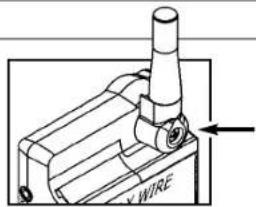
FW Series Antenna Screw
Quantum Instruments, Inc. has made it easier to identify different FW series products by changing the color of the antenna screw.
Green - indicates FW8R Receiver
Red - indicates FW9T Transmitter
Black - indicates FW10w Transceiver
1.0 Introduction
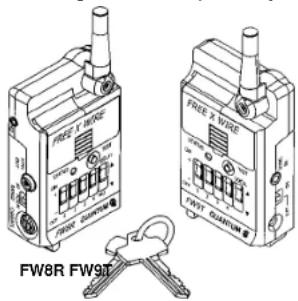
We introduce the newest additions to the FREEXWIRE system: Receivers FW8R, FW7Q and Transmitter FW9T. Transmitter FW9T emits higher power for extended range. Receiver FW8R has extra sensitivity and simplified operation. FW7Q is dedicated to, and designed for any Qflash 4 or 5 series flash. FW7Q, FW8R and FW9T are fully compatible with all other FREEXWIRE system components. Transceiver FW10 may be upgraded for additional features of Section 7.0.
Wireless Sync, Wireless Shutter - Working with all popular flashes and cameras, FREEXWIREs provide wireless sync for remote flash and/or wireless shutter control for remote camera operation.
Wireless TTL flash control: FW8R, FW7Q and FW9T, in conjunction with Dw series Adapters and Qflash 5d flashes, provide wireless "QTTL" flash control from digital and film cameras. This wireless QTTL feature also transmits the "pre-flash" signal utilized by many digital and film cameras to determine exposure values. Qflash 4 series (QFT4d, QFX4d) can be upgraded to Qflash 5 series via software update.
FREEXWIRE controls four independent Zones for wireless flash or wireless shutter release. You can activate any one Zone, or any combination of Zones 1,2,3 and 4. Switch your lighting instantly, remotely. Select and trigger flash, cameras, or combinations of them, from your remote position.
FREEXWIRE also has eight unique Channel Codes. FREEXWIRE units set to one Channel cannot activate FREEXWIREs set to different Channels. You control the Channel Code to make FREEXWIRE units work together or independently, as required.
FREEXWIRE is very small and light and mounts easily to cameras, brackets, poles, and tripod legs. Sync and Shutter Release (motor drive) Cords are available for popular cameras and flashes. You can mount Transmitter FW9T directly on a camera's hot shoe using optional UniMod FW11 or Hot Shoe Adapter FW12.

FW7Q
2.0 Channel Code and Zone set-up
2.1 Setting the Channel Code and Zones
The Channel Codes allow FREEXWIREs to work together. Set all units that you want to work together to the same Channel Code. If you desire independent groups of FREEXWIREs (to work in the same area but not interfere), assign each group of FREEXWIREs its own Channel.
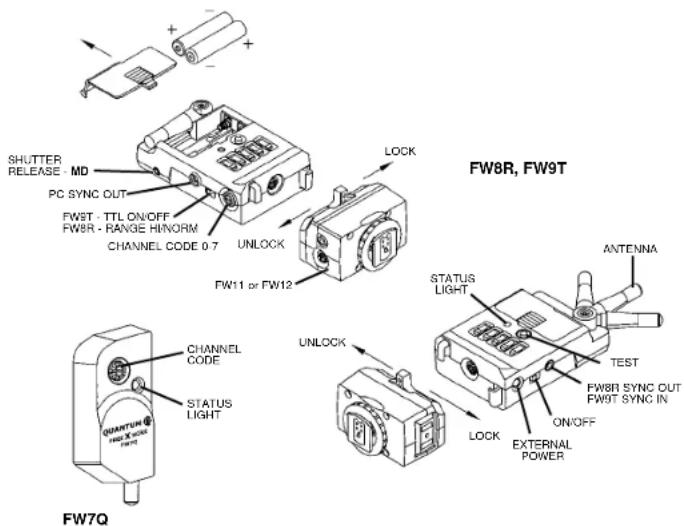
The Channel dial is located on the left side of FW8R and FW9T, and on the front of FW7Q. Rotate the dial to the desired Code, 0 through 7. To rotate, press the pad of your thumb on the dial and turn. Or, use a small screwdriver. Channels can be matched by number or by the position of the cutout in the Channel dial.
Install AAA batteries (not required for FW7Q).
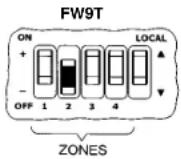
Activate at least one Zone on both FW8R and FW9T by sliding Zone switches 1, 2, 3, and/or 4 up, towards the "+" symbol. Any FW8R and FW9T Zones that match will activate FW8R units each time the FW9T unit transmits. There are many possible combinations and you can change them as you work. To deactivate a Zone slide its switch down towards the "-" symbol.
The FREEXWIRE FW7Q has no Zone Switch. When used with a Qflash 4 series, FW7Q will activate for any Zone 1, 2, 3, or 4, on the matching Channel. However, Qflash 5 series can set the Zone of FW7Q through its control panel. (Note: Qflash 4 series can be upgraded to Qflash 5 series. Please contact the Service Department at www.qtm.com).
To set the Zone on a Qflash 5 series, press the Option button three times. The Zone Code settings should display on Qflash screen. Use the Set button select a Zone, then press the Up ▲ and Down ▼ buttons to turn the selected Zone on or off.

2.2 Turn on the units
Slide the power switch to ON. The status light of FW9T blinks red, slowly. FW8R units blink green, slowly. Low batteries are indicated by 3 quick blinks every few seconds. Qflash 4 and 5 series power Receiver FW7Q which requires no batteries. The green LED indicator on the FW7Q blinks once per second when Qflash is powered.
Open the antennas so that they are approximately vertical. See Section 5.0, Mounting FREEXWIRE.
Press TEST on the Transmitter FW9T to confirm that all units are working. STATUS should light steadily on all FREE XWIRE Receivers for as long as you hold TEST (assuming correct Channel and Zone settings.)
2.3 Using FW9T test button to trigger a flash or shutter release:
For single shot operation, set the TTL switch of the FW9T "ON" when triggering a remote flash, this is a one shot mode to prevent the flash from firing multiple times.
For continuous operation, set the TTL switch of the FW9T "OFF" when releasing the shutter of a camera remotely.
3.0 Wireless Flash set-up - with or without On Camera Flash
3.1 Transmitter FW9T
Connect the included (or other) sync-in cord from your camera PC nipple to FW9T Sync-In. Or use the optional FW11 or FW12 to connect FREEXWIRE to your camera's hot shoe. (See Appendix A for other sync-in options.)
If you want to sync an on-camera flash (in addition to a wireless one) connect the flash manufacturer's PC sync cord to the Sync-Out PC nipple on Transmitter FW9T, and set the Local switch to (+). To turn off the local flash, switch to (-).
If Qflash is the on-camera flash, connect FW31 from Qflash to the FW9T bottom socket (or FW11 DIN socket if used). Then, Qflash can power the FW9T by setting the power switch to EXT, and batteries are not needed.
3.2 Receiver FW8R
Connect the PC sync cord supplied by your flash's manufacturer to the Sync-Out PC nipple or mini phone socket on the FW8R. (See Appendix B for other sync-out options.)
Generally set the RANGE switch to NORM. Only if you require greater range, set RANGE to HI. (See Section 11.0 for range distances). However, whenever using any FREEXWIRE for wireless TTL, always use NORM range.

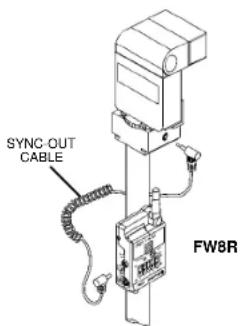
3.3 Wireless Qflash with Receiver FW7Q
This receiver is dedicated to Qflash series 4 and 5 and mounts directly onto the flash. Please see Section 5.0 for proper mounting. FW7Q will be set to NORM range when connected to a Qflash 4d. When connected to Qflash 5d, range can be set to HI or NORM, however, only NORM can be used for wireless TTL (Sections 7 and 8). See Section 11 for range specifications.
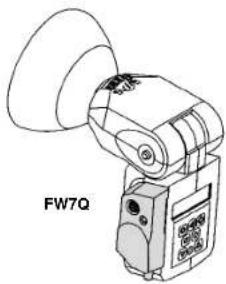
4.0 Wireless Shutter Release (motor drive)

4.1 Receiver FW8R:
Connect a Shutter Release Cord (see Appendix C) from the Receiver FW8R MD connection to the camera shutter release connection.
4.2 Transmitter FW9T:
Press TEST and hold (up to 1 second) to release the shutter. Test the camera -- some require time to wake-up and to auto focus before they release the shutter.
4.3 Shutter MD Delay on FW8R:
Many cameras have two step shutter buttons: Pressing part way turns on the meter and auto focusing, and pressing all the way releases the shutter. Some of these
cameras require a delay between the meter/focus function and shutter release (for example, Contax 645). Select Shutter MD Delay for those cameras by sliding MD DELAY switch to (+). Without Shutter MD Delay, the camera focus, meter, and shutter will be activated together (and the camera will shoot as soon as it can). The Shutter MD Delay requires a two step Shutter Release Cord listed in Appendix C. Shutter Release Cords will be added periodically; please consult your dealer or the Quantum Web Site (qtrn.com) for the latest models available.
4.4 Remote shutter operation is not possible with FW7Q.
5.0 Mounting FREEXWIRE
FREEXWIRE units mount by several means:
5.1 Pole Mount Adapter 513: This item is included with your Receiver FW8R. Attach it to the back of FREEXWIRE and clamp it around any pole, leg, or structure where the antenna can be opened away from metal objects.


5.2 Mounting directly to a bracket: Use the #8/32 screw included with FREEXWIRE to secure it through a hole in a bracket. Any other screw used must protrude not more than 3/4" (2 cm) into the FREEXWIRE case, or you will damage FREEXWIRE!
When mounting the FW12 or FW11 to a Dead Shoe (model 512) it will be necessary to connect a sync-in cable for FW9T units, or sync-out cable for FW8R units. See Appendices A and B.
5.3: Direct Hot Shoe Mounting with FW12 or FW11
Connect the Hot Shoe Adapter FW12 or (Uni-Mod FW11) to a Transmitter FW9T and slip it into a camera hot shoe. The purpose of the Hot Shoe Adapter is only to provide hot shoe mounting and sync from a camera to a Transmitter FW9T. FW11 or FW12 will not provide TTL control -- see Appendix D for selection of QTTL and other TTL adapters.
A Receiver FW8R mounted to FW11 or FW12 on a camera shoe will have no connection to the shutter release. If you desire wireless shutter release, connect a separate Shutter Release Cord (see appendix C) between the FW8R MD socket and the shutter release connection on the camera.
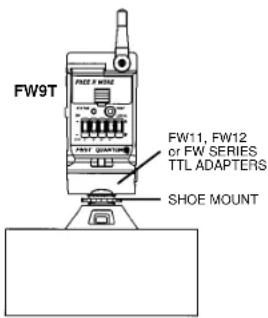
5.4 Mounting FW7Q
Turn off Qflash power before mounting the FW7Q.
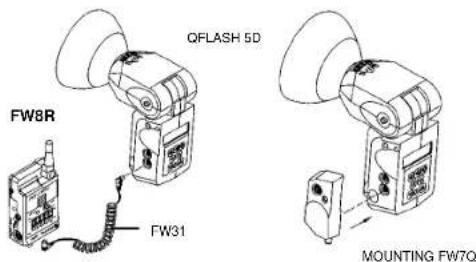
FW7Q plugs into the lower Accessory socket of Qflash, as shown in the diagram. For added stability a hook-and-loop pad is mounted on the back of Receiver FW7Q. One part of this pad will be attached to the Qflash housing as follows:
Note where the hook and loop pad will come into contact with the Qflash housing when FW7Q is plugged into the lower Accessory socket. Clean the area of any dirt or grease. Remove the adhesive liner from the pad (without touching the adhesive), and align and mount FW7Q. Then press the FW7Q housing firmly against Qflash so
that the hook and loop pad adheres to the Qflash housing. Do not remove FW7Q for 24 hours to allow adhesive to cure.
You can now remove and re-mount FW7Q when you need to use it. Additional hook and loop pads are included with FW7Q. They can be used to place additional pads on other Qflash units, or as a replacement.
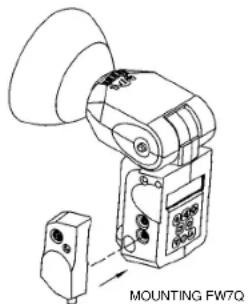
5.5: Mounting FW8R and FW9T with hook & loop tape:
Two sets of hook & loop fasteners and one mounting pad are included in the FW8R and FW9T packages.
5.6: Important notes on antenna orientation:
During operation the antennas should not be left in the stored position!
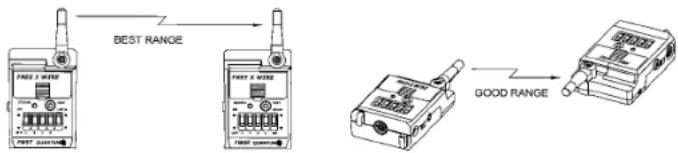
At close range (about 50' or 16m) antenna orientation is not critical. Antenna orientation matters more as distance between Transmitter FW9T and Receivers FW8R and/or FW7Q increases.
The best mounting positions keep FREEXWIRE antennas away from metal objects. Each antenna should be parallel to all others. Vertical FREEXWIREs with vertical antennas provide the greatest range. Other orientations work almost as well. See Section 11, FREEXWIRE Performance Guide, for more tips for ideal operation.
6.0 Changing Qflash Settings via Wireless Remote
This feature allows you to change the settings on a remote Qflash from the panel of another Qflash, using Receivers FW7Q, FW8R or FW10 with Transmitters FW9T or FW10. The settings on Qflash 4 and 5 series can be changed in this way. For example, you can change the ISO, mode, F#, manual power, and most all other Qflash settings.
FW8R, FW10 and FW9T will need FW31 cables to connect each of them to the local and remote Qflashes. (FW7Q connects directly and does not require the FW31 cable). The Qflash 4 and 5 series operating manuals give detailed instructions for adjusting the settings on the remote Qflashes via wireless mode.
7.0 Wireless QTTL control for Digital Cameras and pre-flash Film Cameras
Many newer camera systems utilize a "pre-flash" as a means to set exposure. After the pre-flash the main flash fires and synchronizes with the shutter. FW7Q, FW8R and FW9T provide wireless QTTL flash capability for these types of camera systems, whether digital or film camera systems.
"Dw" series QTTL adapters (e.g. D12w, D13w, etc.) and Qflash series 5d flashes are required for the functions of this Section 7.0. Note: All Qflash 4d series flashes can be converted to Qflash 5d series, and all D series adapters can be converted to Dw series via software upgrades. Please contact Quantum Customer Service for the upgrade procedure.
If you wish to utilize FREEXWIRE FW10 transceivers together with FW7,8, or 9 units, they require an upgrade to FW10w for the functions Sections 7.0 and 8.0. Please contact Quantum Customer Service for the upgrade procedure.
FW10w can not be directly connected to Dw series QTTL Adapters (sections 7.1, 8.1). A local Qflash is required as illustrated in sections 7.3 and 8.3.
7.1 Transmitter FW9T set-up
Select the Dw series QTTL Adapter compatible with your camera (Appendix D, or www.qtm.com for latest additions). Mount the Dw series adapter to the camera and connect its cable to the FW9T Accessory socket. Mount FW9T on a bracket or other convenient location.

7.2 Receiver FW8R or FW7Q set-up
Important: Set receivers FW7Q or FW8R to NORM range only for wireless TTL. Set Qflash to TTL mode.
Connect FW31 Accessory Cable between the Receiver FW8R and either Qflash 5 series Accessory socket. Qflash powers FREEXWIRE, and batteries are not needed, when it is connected with the QF31 cable. Set the power switch of FW8R to EXT. FW7Q plugs directly into a Qflash 5d series as described in Section 5.4.
7.3 Connecting a local Qflash to the Transmitter FW9T
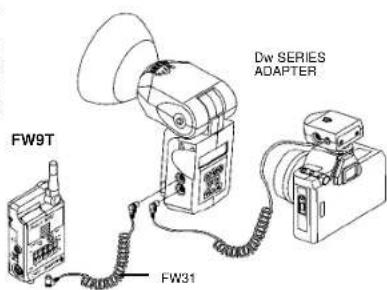
If you wish to sync an on-camera Qflash 5 series with all remote Qflashes, connect the "Dw" series TTL Adapter to either Qflash Accessory socket. Connect the FW9T to the other Accessory socket with an FW31 accessory cable.
Set Qflash 5 series to QTTL mode. Qflash cannot be deactivated with the Local switch on FW9T. However, Qflash 5 series can be turned off by pressing MODE twice. To restart, press any button on Qflash.
8.0 Wireless TTL control for Film Cameras (non pre-flash)
This mode allows a (non pre-flash) TTL camera to control all local and remote Qflash exposures. All series of Qflash and all series of TTL adapters can be used, including QFT, X, T2, X2, T2d, X2d, 4 and 5 series, and TTL adapter series QF, FW, D, and Dw.
Set all Qflashes, on-camera or remote, to TTL mode.
8.1 Transmitter FW9T set-up:
Select the correct type of Qflash TTL Adapter for your camera, from the list in Appendix D or our website.
FW series of TTL adapters attach to Transmitter FW9T and to the camera hot shoe without cables.
QF series TTL Adapters connect to Transmitter FW9T accessory socket and require an FW11 Uni-Module.
D or Dw series QTTL adapters connect to Transmitter FW9T and DO NOT require other accessories.
Set Transmitter FW9T TTL switch to ON. Mount FW9T on a bracket or other location, or use an FW series Adapter which mounts directly to the camera hot shoe.

8.2 Receiver FW8R or FW7Q:
Mount and connect one or more of these receivers as in Section 7.2
8.3 Optional: connect a local Qflash to the Transmitter FW9T:
A local Qflash connected to FW9T will sync with the remote flash and will also power the FW9T. Set the power switch of the FW9T to EXT. Set Qflash to TTL mode.
9.0 Wireless Auto Mode – for any Qflash – without TTL Adapters
With today's complicated camera systems, it is sometimes easier, more reliable and straightforward to shoot in auto mode rather than TTL. Auto also gives the photographer the ability to tailor her/his exposures to personal taste or experience.
This mode will give any model of Qflash wireless Auto mode control of remote Qflashes. This set up does not require a camera with TTL capability nor a TTL Adapter, only local and remote Qflashes.
9.1 Transmitter FW9T set-up:
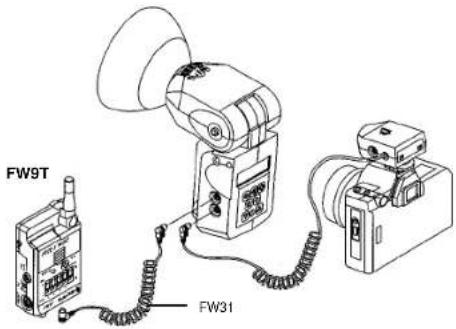
Connect an FW31 cable from Transmitter FW9T to Qflash. Connect a Sync-in cord from camera PC nipple to Transmitter FW9T Sync -in. Set the local Qflash to Auto mode.
9.2 Receiver FW8R or FW7Q:
Mount and connect one or more of these receivers as in Section 7.2. Connect as many remote Qflashes as required. Set the remote Qflashes to TTL mode. The remote TTL Qflashes will expose to the setting of the local "Auto" Qflash.
9.3 Additional features with Qflash 4 and 5 series & QTTL Adapters:
Many other Wireless Auto features are available when a Qflash 4 or 5 series is connected to the camera with a D or Dw series Adapter.
The available features include: Wireless ratio control between Qflashes; Wireless auto-fill; Flash f/# tracking the camera's f/# setting as it changes; Sensor limit with any of the preceding modes. Full details of these features are found in the operating manuals for Qflash 4 or 5 and D series QTTL adapters. Operating manuals can be found at qtm.com if needed.
10.0 Remote Camera and Remote Off-Camera Flash Operation
Remote Camera and Remote off-camera Flash operation using Quantum FREE XWIRE™ FW8R (or FW7Q with Qflash T4d, T5d), FW9T and FW10(w).
The new FW7Q, FW8R and FW9T are fully compatible with the FW10(w). These units can be used together to setup remote camera and remote off-camera flash operation. This setup releases a shutter wirelessly and the camera triggers a remote flash timed to the shutter release. Careful settings are required for this setup to work.
When the TEST button of the FREEXWIRE™ FW9T Transmitter is pressed, the FREEXWIRE™ FW10(w) [set as a receiver (RX)] Relay unit will activate the camera shutter function. The camera will delay the flash sync until wake up, auto focusing, metering, etc. is achieved (this may take up to a second or so), then the shutter opens and the cameras' flash sync activates the FREEXWIRE™ FW10 RX Relay unit which sends a signal to the (FW8R or FW7Q) Receiver and synchronizes (fires) the flash.
Basic setup:
FREE XWIRE™ FW9T Transmitter, set the TTL switch "OFF", set it to any channel Code 0-7, set the Zones "+" (on) that correspond to the FREEXWIRE™ Receivers that you want to fire.
FREEXWIRE™ FW10(w) [set as a receiver (RX)] Relay unit set it to Relay mode ▼, select Special Option for "TTL ON", set the channel number the same as the FREEXWIRE™ TX unit, connect a sync-in cord from the cameras' sync, or mount it on the cameras' hot shoe using a FW11 or FW12 shoe adapter. Connect a shutter release cord (motor drive cord) from the FW10 to the cameras' shutter release connection.
FREEXWIRE™ (FW8R or FW7Q) Receiver, set to NORM range, connect a sync-out cord from the unit to the off-camera flash (not needed when using an FW7Q and Qflash 4d/5d), set the channel Code one higher. For example if FREEXWIRE™ TX and FREEXWIRE™ RX Relay are Code 5, set FREEXWIRE™ RX to Code 6. If the first Code TX unit is 7, the next higher Code is 0. Set a Zone "+" (on) which is also selected on the TX unit.
- The confirmation signal is not possible for this setup.
- Wireless QTTL is not possible for Remote Camera and Remote off-camera Flash operation.
- Multiple FREE XWIRE™ Receivers can be used. Only the FW10(w) can be a RX Relay unit. See FW10(w) section 8.3.
- Advance Setup with "local" flash and remote TTL or Auto control. See FW10(w) section 8.4.
![graph TD A["Wirewire TX CHANNEL 'N' SET TIL TO 'OFF'"] --> B["FWR"] B --> C["MOTOR DRIVE"] C --> D["SYNC IN"] D --> E["FWR"] E --> F["FWR"] F --> G["FWR"] G --> H["FWR"] H --> I["FWR"] I --> J["FWR"] J --> K["FWR"] K --> L["FWR"] L --> M["FWR"] M --> N["FWR"] N --> O["FWR"] O --> P["FWR"] P --> Q["F…](/content/2026/06/1194546/images/2d98268a6ee1f505a02c61e55154e1c6ce248693d4a45a10acfe0dda3da5c0f1.jpg)
11.0 Miscellaneous
11.1 High Speed Sync for remote flash:
For highest sync speeds: Turn on all zones of Receiver FW8R units. High speed sync allows shutter speeds up to 1/500 for focal plane and 1/1000 for leaf shutters. TTL mode does not work with high speed sync.
"Normal sync" speeds are 1/250 for focal plane and 1/500 for leaf shutters (or slower) when selecting one, two or three of the Zones on any FREEXWIRE RX unit.
11.2 External Power:
You can power FREEXWIRE externally with AC adapters, Quantum Batteries, or with a Qflash connected by an FW31 Accessory cable. Appendix E lists AC adapters that connect to the EXT power jack. To utilize external power, switch FREEXWIRE OFF (EXT). When external power is removed, switch FREEXWIRE ON to power it from its internal batteries.
Warning: Use only Quantum specified external power to avoid possibly damaging FREEXWIRE.
12.0 FREEXWIRE Performance Guide
How to maximize performance, troubleshoot, and answer questions about Quantum's FREEXWIRE Wireless Photo Control System.
If for some reason we don't have an answer in this guide, please email, fax, write or call Customer Service for further assistance.
Good radio performance depends on several factors: The orientation of a radio and antenna, the presence of other radio signals which may interfere, and the presence of objects which may interfere. As the range increases, these issues become more important. At close range, performance is less critical.
The following suggestions will maximize range and reliability of your FREEXWIRE link:
Orientation
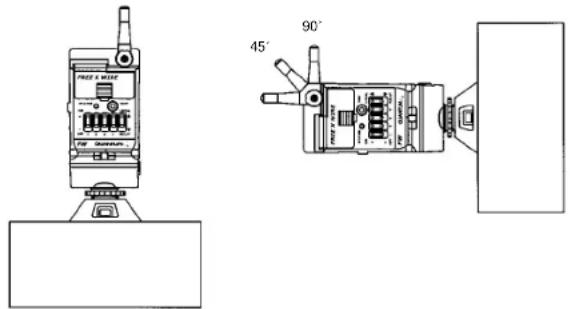
The maximum range may be possible when all FREEXWIRE antennas are aligned vertically. If FREEXWIRE is attached to a camera and you change from vertical to horizontal framing, you can easily swing the FREEXWIRE antenna back to vertical.
When shooting quickly and changing from horizontal to vertical framing, you may get good results the TX antenna at 45° as shown. That will provide reasonable range without adjusting the antenna with every shot. The receiver antenna remains fixed horizontally or vertically.
Mounting and placement
The enemies of radio signals are metal objects, concrete, and water. Mount FREEXWIREs away from metal objects when possible. Of course, you may be mounting FREEXWIRE on light stands and brackets, and they generally have a slight effect on range.
At longer distances it is possible to find dead spots. Moving the FREE XWIRE Remote unit a few inches in any direction can cure the problem.
Do not use gaffers or duct tape which have metal threads imbedded, on any FREE XWIRE. Do not mount metallic labels on the units.
When wearing FREEXWIREs, mount them outside your clothing and away from your body. And, of course, watch out for metal objects on or near you.
Transmitter FW9T units may be mounted close together. FW9T units will trigger FW8R units at a distance greater than 3 ft (1m) up to the maximum range.
These are the maximum ranges which may be possible under optimum conditions (vertical antennas, no metal nearby, no nearby radio stations or interference, about 5' above open field):
Transmitter Receiver HI Range* NORM Range (TTL)
FW9T FW8R 1000' (300m) 500' (150m)
FW9T FW7Q 600' (175m) 300' (90m)
FW10, as a transmitter or receiver, operates at approximately 1/2 of the distances above.
Notes:
* HI range is not recommended for pre-flash systems (digital TTL). HI range can be used for flash sync, wireless shutter release, or for non pre-flash TTL control (mostly film cameras). HI range for FW7Q is set via the QF5d panel.
Interference
Do lot locate FREEXWIRE receivers directly on studio flash power packs or other equipment that generate radio frequency interference, such as most heavy machinery, motors, and of course other transmitters. Arenas, factories, and offices have other sources of radio "noise" which can include TV camera uplinks, walkie-talkies, radio and TV broadcast antennas, and cell phone repeaters.
If you cannot remove FREEXWIRE receivers from the area of interference: Close or partly close the receiver (only!) antennas which will decrease interference. Set FW8R RANGE switch to NORM. Be aware that these measures will necessarily decrease range as well as cut interference.
Appendices
Accessories may be changed or added periodically. Please consult you dealer or the Quantum Web page (www.qtm.com) for the latest models available.
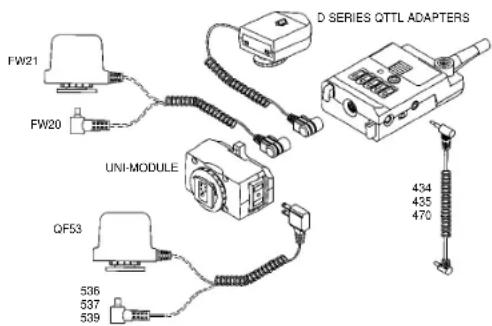
Appendix A - Sync-in connections from camera to Transmitter FW9T
| Model | Description | From | To | Notes |
| 434 | Sync-in cord- 18" (.5m) | Camera PC nipple | FREEXWIRE Sync-In | Included with FW9T |
| 435 | Sync-in cord- 4' (1.2m) | Camera PC nipple | FREEXWIRE Sync-In | Coiled cord |
| 470 | Hasselblad sync cord | Hasselblad “C” lens | FREEXWIRE Sync-In | |
| FW11 | Uni-Mod | Camera hot shoe | FW9T Accy conn | |
| FW12 | Hot Shoe Mount | Camera hot shoe | FW9T Accy conn | |
| FW20 | Sync-in cord- 18".(5m) | Camera PC nipple | FW9T Accy conn | |
| FW21 | Hot Shoe sync- 18" (.5m) | Camera hot shoe | FW9T Accy conn | |
| FW22 | Hot Shoe sync- 18" (.5m) | Camera hot shoe | FW9T Sync-In |
The following require an FW11 Uni-Mod connected to your Transmitter FW9T unit. These Sync-In connections provide no TTL functions. See Appendix D for D series adapters which provide additional TTL functions explained in Sections 7 and 8.
| 536 | Sync-in cord, 18" (.5m) | Camera PC nipple | Uni-Mod two prong | Coiled cord |
| 537 | Sync-in cord, 5' (1.5m) | Hasselblad "C" lens | Uni-Mod two prong | Coiled cord |
| 539 | Sync-in cord, 12" (.3m) | Camera PC nipple | Uni-Mod two prong | Straight cord |
[Note: #536 and 537 serve as Sync-out cords as well I- see Appendix B]
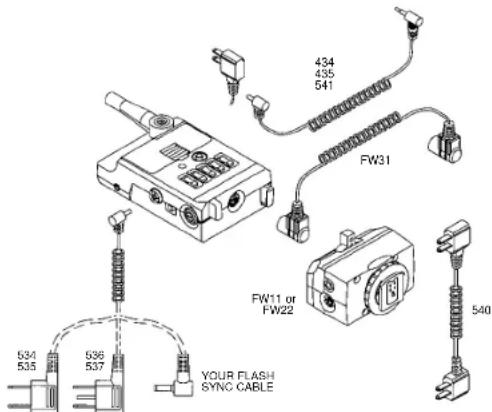
Appendix B - Sync-out connections from FREE XWIRE FW8R to flash
Model Description From To Notes
| ---- flash mfg's sync cord FREE | XWIRE PC conn. Your flash Supplied by | flash mfg. | ||
| FW31 Accy cable 18" FREE(.5m) or wireless TTL. | XWIRE Accy conn. Qflash Accy For Qflash sync | |||
| 434 Sync-out cord 18" FREE(.5m) some studio flash | XWIRE Sync-out | Flash PC nipple | For Qflash and | |
| 435 Sync-out cord 4' FREE(1.2m) | XWIRE Sync-out | Flash PC nipple | For Qflash and some studio flash | |
| 534 Sync-out cord 18" FREE(.5m) -2 prong socket | XWIRE PC conn. | 2 prong | For Studio flash | |
| 535 Sync-out cord 5' FREE(1.5m) | XWIRE PC conn. | 2 prong | For Studio flash-2 prong socket | |
| 536 Sync-out cord 18" FREE(.5m) some studio flash | XWIRE PC conn. | 2 prong + pin | For Qflash and | |
| 537 Sync-out cord 5' FREE(1.5m) | XWIRE PC conn. | 2 prong + pin | For Qflash and some studio flash | |
| 541 Sync-out cord | FREE | XWIRE mini-phone | 2 prong + pin | For Qflash and |
Appendix C - Motor Drive cords from FREEXWIRE to camera
| Model | Camera | Notes |
| 451 | Nikon MD2/4/12/15, 8008s, F4S | N90s, F5 needNikon adapter MC25 |
| 452 | Hasselblad ELM, ELX | |
| 453 | Canon, Olympus, Hasselblad H-1 | See other Canon selections |
| 454 | Mamiya RZ67, RZ67 II, 645 Super, 645 Pro | |
| 456 | Leica R3, R5, R6, R6-2, R7, RE | |
| 458 | Minolta 5000, 7000, 9000, 5000i, 7000i, 8000i, 5Xi, 7Xi, 9Xi, 700si, Maxxum - 7,9 | |
| 459 | Canon EOS A5, A2E, A2, 1, 1N, 620, T90, Rebel 300D | |
| 463 | Bronica SQAI | |
| 464 | Rollei, 6002, 6003, 6006, 6008, SLX | |
| 465 | Hasselblad 503CW/CXi | |
| 466 | Canon EOS 3, 1V, D30, D60, 10D, 1D, 1Ds, 1D Mark II | |
| 467 | Mamiya 645AF | |
| FW41 | Contax 645, Canon Elan 2, 2E, 7, 7E, Rebel 2000, XI Lite, Rebel 300D, Hasselblad H-1 | Two step MD cord |
| FW42 | Maxxum 7, 9 | Two step MD cord |
| FW43 | Canon 1v, 3, D2000, D30, D60, 10D, 20D, 1D, 1Ds, 1D Mark II | Two step MD cord |
| FW44 | Nikon D1, D1H, D1X, D2H, D2X, F5, N90/s, F90x, F100 / Kodak DCS 760, Fuji S3 | Two step MD cord |
| FW45 | Mamiya 645AF | Two step MD cord |
| FW46 | Canon EOS 1, A2, A2E, AS, 1N, 620, T90 | Two step MD cord |
| FW47 | Pentax 645N and all Autofocus SLR Cameras except Z-1p | Two step MD cord |
Appendix D -- QTTL and TTL Wireless Adapters for Transmitter FW9T
These Adapters connect to a FREEXWIRE TX and provide wireless QTTL/TTL exposure control.
D Series *** QF Series** FW Series*
QTTL Adapters TTL Adapters TTL Adapters Cameras
D10w QF10 Olympus, Practica
QF11 Minolta X series
D12w QF12 FW52 Nikon, Fuji S2, S3
D13w QF13N FW53N Canon
QF14 Minolta Xi series
QF15 Contax
QF16 Leica
QF17 FW57 Pentax
QF18 Rollei
D19w QF19 FW59 Hasselblad
QF20 FW60 Bronica
QF22 Mamiya 645 ProTL
QF23 Leica R8
QF24 FW64 Contax 645
D25w QF25 FW65 Mamiya 645AF, 645AFD
* FW series TTL Adapters connect directly to the FREEXWIRE TX
** QF series TTL Adapters require an FW11 Uni-Mod connected to FREEXWIRE TX, unless a Qflash is also connected to the Accessory connector of FREEXWIRE.
*** D series QTTL Adapters provide the most features, including auto-focus, fill flash offset, etc.
Adapters models may be changed or updated periodically. Please check the latest Quantum Price List at your dealer, or www.qtm.com. Look under Qflash and FREEXWIRE.
Appendix E - Miscellaneous Accessories
Model Description
MDC2 External power connection from QB1, 1+, or QB1c to FREEXWIRE.
XDC2 External power connection from Bantam or QB1c to FREEXWIRE.
FW26 Multi clip for FREEXWIRE to clip to a belt or bracket
FW29 AC external adapter, US & Can, 115 VAC.
Appendix F - Specifications
Size: FREEXWIREFW8R/FW9T: 3.6 x 2.3 x 1.1 in.
(9 × 6 × 2.8 cm)
FREEXWIREFW7Q: 3.3 x 1.5 x 1.0 in.
(8.3 × 3.8 × 2.5 cm)
Weight (w/ batteries): FW8R/FW9T: 4.3 oz. (122g)
FW7Q: 1.8 oz. (51g)
Batterles: 2x AAA cell alkaline, nicad, nickel-metal hydride, or lithium
Battery life:(alkaline): FW8R: receiving four synchronizations per minute: 24000 shots, 100 hours;
FW9T: sending synchronizations shots per minute: 36000 shots, 150 hours
Remaining battery life- after low battery signal (triple blink every 2 seconds): approx. 1-3 hours
FW7Q requires no batteries. Any FREEXWIRE connected to Qflash with FW31 cable requires no batteries.
Maximum Range: See Section 11.
Maximum flash rate: 25 fps
Maximum sync delay
from camera trigger
to remote flash:
1/2000-sec (normal sync); 1/3000 sec.
(all RX Zones ON - fast sync mode).
Minimum camera
shutter speeds:
Leaf shutters 1/500, 1/250 focal plane shutters. In fast
sync mode (All RX Zones ON) sync speeds may be
1/1000 for leaf shutters, 1/500 for focal plane shutters.
All equipment, specifications and descriptions are subject to changes, improvements and availability.
Customer Service
If you have any trouble whatsoever in using your Quantum product, we wish to assist you in any way we can. Contact the Service Department via:
Telephone: (631) 656-7400
Fax: (631) 656-7410
Website: www.qtm.com
If you suspect a malfunction, return the unit with a detailed, accurate description of the problem and the type and models of other equipment used with it. Please be sure your problem is not caused by improper operating procedure or malfunctions in your other equipment.
Carefully package and insure units sent for repair. For most reliable service send via UPS, FedEx, or other common carrier to:
Service Department
Quantum Instruments Inc.
10 Commerce Drive
Hauppauge, NY 11788-3968
In case we have to contact you please provide your phone number and best time to call, plus email address if desired.
An estimate of repair cost for out-of-warranty merchandise will be sent if desired. This will require that we contact you for approval before proceeding and will delay the return of your equipment. For fastest turn around, you may pre-approve repairs up to a limit of \$85 with your credit card. We will bill only the actual repair cost, and you will be contacted if repairs exceed the pre-approved limit.
For pre-approved repair charges provide your Visa, MasterCharge, or American Express card, expiration date, and billing address. Send this information via postal mail or phone. DO NOT EMAIL THIS INFORMATION.
Limited Warranty
Quantum products have a one year limited warranty. Please refer to the Limited Warranty card enclosed with your product for further details, conditions, and terms.
QFlash T2/X2, T4d/X4d ACCESSORIES
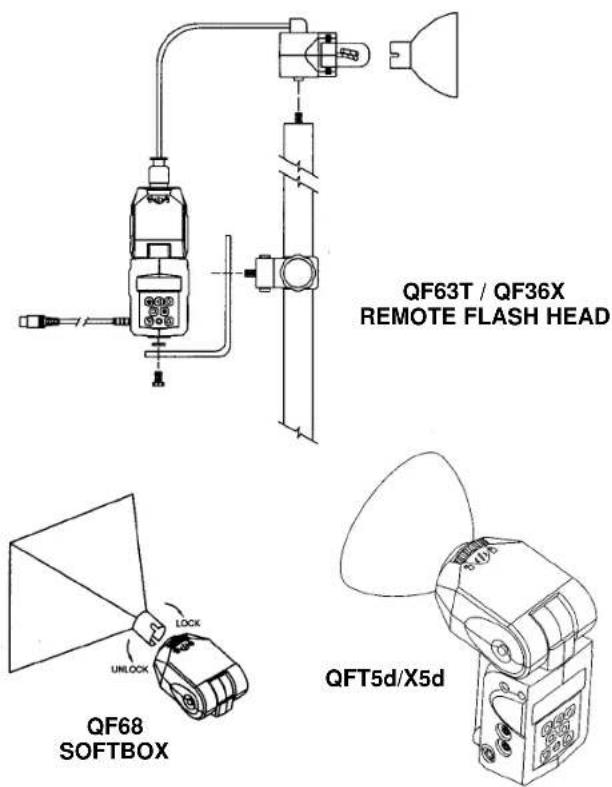
OTHER QUANTUM PRODUCTS OTHER QUANTUM PRODUCTS
TURBO 2X2
TURBO COMPACT
FREEXWIRE™
RADIO SLAVE
TURBO


QB2

QB1+
CANADA: 3707A-IC2811A
FCC ID: CEXFW7Q CEXFW8R CEXFW9T
FREEXWIRE model FW7Q, FW8R, FW9T
This device complies with Part 15 of the FCC Rules and with RSS-210 of Industry & Science Canada. Operation is subject to the following conditions: 1) this device may not cause harmful interference, and 2) this device must accept any interference received including that which may cause undesired operation of the device.
IMPORTANT - CAUTION
Changes or modifications to this equipment could void your authority to use this product under the equipment authorization granted by the regulating agencies.
CE 0678①
Declaration of Conformity: Quantum Instruments, Inc. declares that FREEXWIRE FW10 satisfies all the technical regulations applicable to the product within the scope of Council Directive 1999/5/EC.
For Customer Service, technical help, or information:

Quantum Instruments, Inc
10 Commerce Drive, Hauppauge NY 11788-3968 USA
Tel: 1-631-656-7400 Fax: 1-631-656-7410
www.qtm.com
- OPERATING INSTRUCTIONS
- FREEXWIRE®
- MODEL FW7Q, FW8R
- DIGITAL RECEIVERS
- MODEL FW9T
- DIGITAL TRANSMITTER
- FW SERIES ANTENNA SCREW
- 1.0 INTRODUCTION
- 2.0 CHANNEL CODE AND ZONE SET-UP
- 2.1 SETTING THE CHANNEL CODE AND ZONES
- 2.2 TURN ON THE UNITS
- 2.3 USING FW9T TEST BUTTON TO TRIGGER A FLASH OR SHUTTER RELEASE
- 3.0 WIRELESS FLASH SET-UP - WITH OR WITHOUT ON CAMERA FLASH
- 3.1 TRANSMITTER FW9T
- 3.2 RECEIVER FW8R
- 3.3 WIRELESS QFLASH WITH RECEIVER FW7Q
- 4.0 WIRELESS SHUTTER RELEASE (MOTOR DRIVE)
- 4.1 RECEIVER FW8R
- 4.2 TRANSMITTER FW9T
- 4.3 SHUTTER MD DELAY ON FW8R
- 5.0 MOUNTING FREEXWIRE
- 5.3: DIRECT HOT SHOE MOUNTING WITH FW12 OR FW11
- 5.4 MOUNTING FW7Q
- TURN OFF QFLASH POWER BEFORE MOUNTING THE FW7Q
- 5.5: MOUNTING FW8R AND FW9T WITH HOOK & LOOP TAPE
- 5.6: IMPORTANT NOTES ON ANTENNA ORIENTATION
- DURING OPERATION THE ANTENNAS SHOULD NOT BE LEFT IN THE STORED POSITION
- 6.0 CHANGING QFLASH SETTINGS VIA WIRELESS REMOTE
- 7.0 WIRELESS QTTL CONTROL FOR DIGITAL CAMERAS AND PRE-FLASH FILM CAMERAS
- 7.1 TRANSMITTER FW9T SET-UP
- 7.2 RECEIVER FW8R OR FW7Q SET-UP
- 7.3 CONNECTING A LOCAL QFLASH TO THE TRANSMITTER FW9T
- 8.0 WIRELESS TTL CONTROL FOR FILM CAMERAS (NON PRE-FLASH)
- 8.1 TRANSMITTER FW9T SET-UP
- 8.2 RECEIVER FW8R OR FW7Q
- 8.3 OPTIONAL: CONNECT A LOCAL QFLASH TO THE TRANSMITTER FW9T
- 9.0 WIRELESS AUTO MODE – FOR ANY QFLASH – WITHOUT TTL ADAPTERS
- 9.1 TRANSMITTER FW9T SET-UP
- 9.2 RECEIVER FW8R OR FW7Q
- 9.3 ADDITIONAL FEATURES WITH QFLASH 4 AND 5 SERIES & QTTL ADAPTERS
- 10.0 REMOTE CAMERA AND REMOTE OFF-CAMERA FLASH OPERATION
- REMOTE CAMERA AND REMOTE OFF-CAMERA FLASH OPERATION USING QUANTUM FREE XWIRE™ FW8R (OR FW7Q WITH QFLASH T4D, T5D), FW9T AND FW10(W)
- BASIC SETUP
- 11.0 MISCELLANEOUS
- 11.1 HIGH SPEED SYNC FOR REMOTE FLASH
- 11.2 EXTERNAL POWER
- 12.0 FREEXWIRE PERFORMANCE GUIDE
- ORIENTATION
- MOUNTING AND PLACEMENT
- NOTES
- INTERFERENCE
- APPENDICES
- APPENDIX D -- QTTL AND TTL WIRELESS ADAPTERS FOR TRANSMITTER FW9T
- D SERIES *** QF SERIES** FW SERIES
- QTTL ADAPTERS TTL ADAPTERS TTL ADAPTERS CAMERAS
- APPENDIX E - MISCELLANEOUS ACCESSORIES
- MODEL DESCRIPTION
- APPENDIX F - SPECIFICATIONS
- MAXIMUM SYNC DELAY
- FROM CAMERA TRIGGER
- MINIMUM CAMERA
- CUSTOMER SERVICE
- LIMITED WARRANTY
- OTHER QUANTUM PRODUCTS OTHER QUANTUM PRODUCTS
- IMPORTANT - CAUTION
Brand : QUANTUM
Model : FreeXwire FW9T
Category : Media Player