
NID-7010 - Radio Naxa - Free user manual and instructions
Find the device manual for free NID-7010 Naxa in PDF.


| Product Type | Portable Radio |
| Brand | Naxa |
| Model | NID-7010 |
| Dimensions (W x H x D) | Approx. 200 x 120 x 40 mm |
| Weight | Approx. 500 g (with batteries) |
| Power Source | 3 x AA batteries (not included) or DC 5V adapter (not included) |
| Frequency Range (FM) | 87.5 – 108 MHz |
| Frequency Range (AM) | 520 – 1710 kHz |
| Output Power (Speaker) | 3 W |
| Display | LCD with time and frequency |
| Headphone Jack | 3.5 mm stereo |
| Antenna | Built-in or telescopic FM antenna |
| Radio Functions | AM/FM tuning, digital display, sleep timer, alarm clock |
| Care & Cleaning | Wipe with soft dry cloth; avoid liquids |
| Safety | Keep away from water; do not disassemble |
| Spare Parts & Repairability | Contact Naxa support; no user-serviceable parts inside |
| General Information | User manual available in PDF on notice-facile.com |
Frequently Asked Questions - NID-7010 Naxa
User questions about NID-7010 Naxa
0 question about this device. Answer the ones you know or ask your own.
Ask a new question about this device
Download the instructions for your Radio in PDF format for free! Find your manual NID-7010 - Naxa and take your electronic device back in hand. On this page are published all the documents necessary for the use of your device. NID-7010 by Naxa.
USER MANUAL NID-7010 Naxa
Basic Operation ....5
Getting Started....5
Making Yourself at Home......9
Using the On-Screen Keyboard......10
Managing & Using Apps ......12
About the Apps....13
Managing Downloads....14
Connecting to Wi-Fi Networks......15
Adjusting the System Settings....17
Connect to a Computer via USB......23
Tuning Your Tablet's Performance ...... 24
Troubleshooting 25
Specifications 26
Support....27
Preface
Thank you for buying this tablet from Naxa Electronics. Before using your tablet, please read the operating instructions carefully and retain them for future reference.
Note
- Do not drop the unit. Avoid forceful shaking of the display to prevent damage or unusual operation.
- Do not touch the unit with metal objects to avoid short circuits.
- Schedule regular backup of your data to prevent the loss of important data. Always backup your data before upgrading the firmware.
- Do not disassemble. Do not wipe the surface of the unit with alcohol, thinner or benzene.
- Do not disconnect the tablet while it is formatting or uploading/downloading. Doing so may corrupt your data.
- Do not allow water or foreign objects to
enter the tablet.
- Do not use the tablet in places that are extremely hot, cold, dusty, or humid.
- Specifications are subject to change and improvement without notice.
MEANING OF THE DUSTBIN SYMBOL
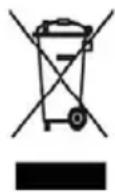
Protect our environment: do not dispose of electrical equipment in your domestic waste. Please return any electrical equipment that you will no longer use to the collection points provided for their disposal. These simple steps can help to avoid the potential effects that incorrect waste disposal can cause on the environment and human health. This will contribute to recycling and other forms of re-use of electrical and electronic equipment. Information concerning where the equipment can be disposed of can be obtained from your local authorities.
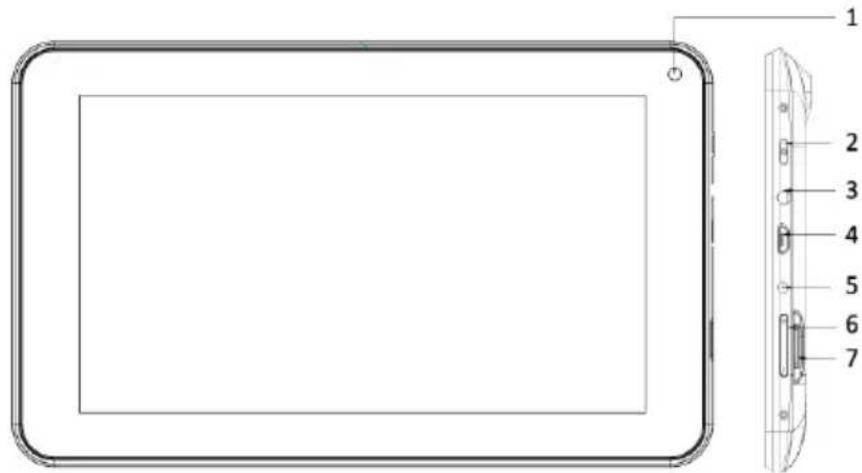
At a Glance
-
Front camera Perfect for video chat apps.
-
Power button Press & hold to turn the unit on/off. Press to turn the screen on/off.
-
Headphone output 3.5 mm audio connection for headphones
-
micro USB port (OTG) Connect to USB devices
-
Power input Charge your tablet with the included AC adapter.
-
Volume buttons Adjust the volume level.
-
Memory card slot Supports microSD, micro SDHC, and micro SDXC cards
Basic Operation
Power on/Power off
Press and hold the power button until the screen turns on and displays the start-up logo (about 3 seconds).
Press and hold the power switch until the screen turns off (about 3 seconds).
Sleep
Place the tablet into Sleep mode to conserve power.
To place the tablet into Sleep mode, press the power button once while the tablet is on. The screen will turn off.
To wake the tablet from Sleep mode, press the power button again. The screen will turn on. (It may take a second or two for the tablet to wake from sleep.)
Charging
When the battery level is low, the tablet will prompt you to charge the tablet. Use the provided charger to charge the tablet.
Note: To improve the performance and life of the battery, charge the tablet for an additional 15 minutes after the tablet indicates that it has been fully charged.
Getting Started
Connecting to a Wireless Network
Your tablet works best when it is connected to the Internet. Connect to a wireless network to experience the best that your tablet has to offer. To learn how to connect to a wireless network, refer to the section “Connecting to Wi-Fi Networks”.
Using the Touchscreen
Use your fingers to manipulate icons, buttons, menus, the onscreen keyboard, and other items on the touchscreen. You can also change the screen's orientation.
To select or activate something, tap it gently with your finger.
To type something (e.g., a name, password, or a website address), just tap where you want to type. A keyboard will appear on the screen; tap the keyboard to type.
Other common gestures include:
- Tap & Hold: Tap an item & hold your finger over it until an action occurs. Do not lift your finger from the screen.
- Tap & Drag: Tap an item & hold your finger over it for a moment; then, without lifting your finger, drag your finger along the screen until you reach the target position. Try using Tap & Drag to reposition icons on the Home screen.
- Swipe or slide: Slide your finger quickly across the surface of the screen. Do not pause when your finger first touches the screen to avoid dragging items accidentally. Swipe up or down to browse a list of items, or try swiping left or right on a Home screen to view other Home screens.
- Pinch-to-Zoom: In some apps (such as Browser and Gallery), you can zoom in and
out by placing two fingers on the screen at once and pinching them together (to zoom out) or spreading them apart (to zoom in).
- Rotate the Screen: On most screens, the orientation of the display will automatically rotate with your tablet as you turn it. You can change this option from the Display setting screen.
Using the Home Screen
The Home screen is the first thing you'll see when you turn on the tablet. The Home screen can display app icons, widgets, and folders.
- To open an app, folder, or widget (tools), tap its icon.
- To see additional Home screens, swipe the screen left or right.
- To return quickly to the main, center Home screen, tap the Home icon displayed in the bottom left corner
Using the Navigation Icons
The Navigation icons are displayed in the bottom left corner of the screen. These three icons are
always accessible. No matter what you are doing, you can always tap these icons to browse the different screens of your tablet
Icon Name Description

Back
Tap this icon to return to the previous screen, even if it was in a different app. Tapping Back repeatedly will return you to the Home screen; you cannot go back further than the Home screen.

Home
Tap this icon to navigate to the Home screen. If there are multiple Home screens, tap Home again to return to the central Home screen.

Recent Apps
Tap this icon to display a list of apps that you've worked with recently. Tap the thumbnail image of any app to start it.
To remove an app from the list, swipe the thumbnail left or right.
The Navigation icons may fade away if the screen has not been touched in a while – for example, when watching a video. Simply tap the lower left corner of the screen to display them again.
Using the Dock
The dock is a permanent fixture at the bottom of all home screens. The dock is a good place to put apps that you will use a lot.
To remove an app from the dock, tap and hold an icon in the dock. Drag the icon away from the dock.
To add an app to the dock, tap and hold the app icon and drag it into the dock.
All Apps Icon
The All Apps icon 📄 displayed in the top right corner of the screen. This icon is always accessible. Tap it to see a list of all your apps and widgets. Tap an app or widget in the list to start it.
About the Status Display
The Status Display is found in the bottom right corner of the screen. It looks like this:

- Notification icons to the left of the clock tell you which apps have sent you notifications (e.g., a message has arrived, or it's time for a meeting). Tap the status display to open the Notification panel when you have a notification. (Refer to the section "Using the Notification Panel" below to learn more.)
- System icons to the right of the clock tell you the current wireless and network connection strength, battery level, and more.
Tap the status display to open the notification panel. Swipe a notification to the left or right to remove it from the panel.
Using the Lock Screen
Customize the lock screen settings to prevent unauthorized use of your tablet.
- From Notification Panel or the All Apps
screen, tap the Settings icon.

-
Browse down the list on the left and tap Security.
-
Tap Screen lock.
- Tap the type of lock to use on the Lock Screen (Slide, Pattern, PIN, Password, or None).
After you set a lock here, the tablet will display the lock screen whenever you turn the screen on. You will need to enter the pattern, PIN, or other password to continue using the tablet.
Important
Screen lock options are listed in the approximate order of the strength of their security, starting with “None” and “Slide,” which provide no security. Face Unlock and Pattern provide minimal security, although it can be more convenient than the stronger options.
Naxa recommends that you always establish a strong PIN or password for security.
If your tablet is playing music when the screen locks, you can continue listening or can pause the selection without unlocking the screen.
Making Yourself at Home
Changing the Wallpaper
Wallpapers are background images that you can use to personalize your Home screens. Your wallpaper can be a custom image, one of the wallpaper images included with the tablet, or a Live Wallpaper (i.e., an animated wallpaper).
To change the wallpaper:
- Tap & hold on an empty part of a Home screen. A list of wallpaper options will appear.
-
Tap a wallpaper source:
-
Super-HD Player: Choose a picture that you've taken with Camera or downloaded to your device.
- Live Wallpapers: Choose an animated wallpaper. (Using a live wallpaper may reduce your tablet's battery life.)
- Wallpapers: Choose an image that has been designed for use as a wallpaper.
- Tap Set Wallpaper to finish.
Additional wallpapers may be downloaded from the Internet or Android application markets.
Related settings
Settings > Device > Display > Wallpaper
Adding Widgets to the Home Screen
Some apps have Widgets that can be placed on a Home screen. Widgets are like windows into your apps; they allow you to use some features of the app quickly from the Home screen.
Tap the Widgets tab of the All Apps screen to explore your app widgets.
To see your available widgets:
- Tap the All Apps icon 📋 on the Home screen.
- Tap the Widgets tab at the top of the screen.
From the main Widgets screen, you can
- Move between screens: Swipe left or right.
- Add a widget to a Home screen: Tap and hold the widget's icon, then drag it to where you want it.
If you have dragged the widget to a Home screen that doesn't have room for it, the widget will not be added.
Some widgets will prompt you to make additional choices before it is added to the Home screen.
Using Folders on the Home Screen
You can combine several app icons in a folder. Drop one app icon over another on a Home screen, and the two icons will be combined.

On any Home screen, you can
- Open a folder: Tap it. The folder opens:
- Rename a folder: Tap the folder label.
- Reposition an icon on the screen: Tap & hold the icon, then drag the icon to where you want it.
Tip
Place related app icons in the same folder (e.g., video apps, game apps, communication apps, etc.).
Using the On-Screen Keyboard
Entering Text
Enter text using the onscreen keyboard. Some apps automatically display the keyboard when necessary; in others you display the keyboard by tapping where you want to type.

As you type, the keyboard displays suggestions above the top row of keys. To accept a suggestion, tap it.
Basic Editing
- Moving the insertion point: Tap where you want to type. The cursor blinks in the new position, and a green tab appears below it. Drag the tab to move the cursor.
- Selecting text: Tap & hold (or double-tap) within the text. The nearest word will be highlighted with tabs at each end of the highlighted selection. Tap & drag the tabs to change the selection. The tabs will disappear after a few moments; to make them reappear, tap the text again.
- Deleting text: Tap to delete selected text or the characters before the cursor.
• Cut, copy, paste: Select some text, then tap
the Paste icons.


To make the keyboard go away, tap the Close icon [ ] found on the bottom left corner of the screen.
Tips & Shortcuts
• To type in capital letters: Tap the Shift
key once to switch to capital letters for one letter. Tap & hold the Shift key

to type in capital letters. Release the key to return to typing in lower case
• To turn caps lock on: Double-tap the
Shift key to turn Caps Lock on. The Shift key will be highlighted to indicate that Caps Lock is active. To turn Caps Lock off, tap the Shift key again.
- To show numbers or symbols: Tap the ?123 key. To see more choices, tap the [ =\ < ] key.
- To quickly access common punctuation and symbols: Some keys have an alternate function. These keys are located near the space bar and are labeled with a smaller, gray symbol. Tap & hold these keys to use their alternate functions.
- To type special characters: Some keys have alternate functions (e.g., accented vowels). Tap & hold these keys to see alternate letters or symbols, then tap again to type.
- To change the input language or keyboard: Tap and hold the comma key [, ] to view the input options menu.
Related settings
Settings > Personal > Language & input
Managing & Using Apps
To see all your apps, tap the All Apps icon on any Home screen, and the main All Apps screen will open. You will be able to see all of your apps, including those downloaded from the Google Play store. You can move app icons to any of your Home screens.
From All Apps, you can:
- See additional app screens: Swipe left or right.
- Launch an app: Tap its icon.
- Place an app icon on a Home screen: Tap & hold the app icon, then drag the icon into place.
- Explore your widgets: Tap the Widgets tab at the top of the All Apps screen.
- To remove an app icon from the Home screen, tap & hold it, then drag
the icon to the Remove icon the top of the screen.

After you open an app, you can usually adjust its settings by tapping the Menu icon near the top or
bottom of the screen
About the Apps
Some apps have been preinstalled on the tablet for your convenience. You can learn more about these apps by reading this section. Some apps may not work if certain region and network service requirements are not met.
Manage your Calendar
The Calendar app lets you view and edit your schedule.
When you sign into a Google Account, any existing calendar events from that account will be synced with your Calendar app. After that, all of your events will stay in sync automatically, whether you make changes on your Tablet, or from another device that is synced to your Google Account. As you add events from different sources, they are synced automatically across all the places you need them.
To view your Calendar, tap on the Home screen or All Apps screen.
To change the Calendar view, tap the tabs at the top of the screen labeled Day, Week, Month, or Agenda.
Swipe to scroll vertically or horizontally. In the Day or Week views, spread your fingers apart or pinch them together to zoom in or out.
From any of these views, you can:
- Read or edit event details. Tap an event to view its details.
- Manage events and calendars. Tap the icons across the top of the screen or tap
Menu for additional options.
Using the Camera
The Camera app is a combination camera and camcorder.
To take pictures and videos, first tap the Camera
icon on a Home screen or the All Apps screen.
You can view photos and videos you take with the camera in the Super-HD Play app.
When Camera starts, you can:
• Take a picture (or start a video recording).
Tap the blue button.
- Switch between camera and camcorder modes.
Tap the camera or camcorder icons in the bottom right corner of the screen.
- Switch between the front and rear camera.

Tap the switch camera icon.
• View the most recently taken picture.
Tap the thumbnail in the top right corner of the screen.
- Share the picture by tapping the icons displayed along the right side of the image (you must be signed into your Google Account or other account that allows picture sharing).
Managing Downloads
Files, apps, and other items you download from your email, app marketplaces, or in other ways are saved to your tablet's internal storage. Use the Downloads app to view, open, or delete what you've downloaded.
Downloaded files are stored in the Download directory that's visible when your tablet is connected to a computer. You can view and copy files from this directory.
To open Downloads and manage downloaded files:
- Tap the Downloads icon from a Home screen or the All Apps screen.
- Tap an item to open it.
- Tap the headings of earlier downloads to view them.
- Check items you want to share. Then tap the Share icon and choose a sharing method from the list.
- Check items you want to delete. Then tap
the Trash icon

- At the bottom of the screen, tap Sort by size or Sort by date to switch back and forth.
Connecting to Wi-Fi Networks
Your tablet works best when it is connected to the Internet. Your tablet can connect wirelessly to the Internet using Wi-Fi networks.
Wi-Fi is a wireless networking technology that can provide Internet access at distances of up to 100 meters, depending on the Wi-Fi router and your surroundings.
To use Wi-Fi, you connect to a wireless access point, or "hotspot." Some hotspots are open and you can simply connect to them. Others implement security features that require other steps to set up, such as digital certificates or other ways to ensure that only authorized users can connect.
Connecting to a Wi-Fi Network
If you're adding a Wi-Fi network when first setting up your device, Wi-Fi is turned on automatically.

-
Tap the Settings icon on a Home screen or All Apps screen.
-
Under Wireless & networks, slide the WiFi switch to the On position.
The device scans for available Wi-Fi networks and displays the names of those it finds. Secured networks are indicated with a Lock icon.
- Tap a network name to see more details or to connect to it. If the network is secured, you will be prompted to enter a password or other credentials. (If you don't know the password, you will need to ask the owner of the network to provide it.) If the tablet finds a network that you connected to previously, it will connect to it automatically.
To forget a network or to modify its settings, tap & hold the network name.
a. You may want the tablet to forget a network if you don't want to connect automatically or if you no longer use the network.
b. Modify a network's settings to change the password or to configure its advanced options (i.e., Proxy and static IP settings). Networks are configured by default to not use proxy servers and to use automatic IP addressing. Proxy settings need to be added for each individual Wi-Fi network.
Adding a Network Manually
Some Wi-Fi networks are configured so that the tablet cannot detect them automatically. These networks need to be added manually.
Under Wireless & Networks, tap Wi-Fi to select it.
- Tap the"+" icon found in the upper right of the screen to open the Add Network settings.
- Enter the SSID (name) of the network. If necessary, enter security or other network
configuration details.
3. Tap Save.
The information about the network is saved. Your tablet will connect to this network automatically the next time you come within range.
Set Advanced Wi-Fi Options
Under Wireless & Networks, tap Wi-Fi to
select it. Tap the Menu icon and choose Advanced.
These are the settings you can adjust:
• Network notification: By default, when Wi-Fi is on, you receive notifications in the Status bar when your device detects an open Wi-Fi network. Uncheck this option to turn off notifications
- Keep Wi-Fi on during sleep: To conserve mobile data usage, your device stays connected to Wi-Fi when the screen goes to sleep.
Tap this option to change this default behavior: either to stay connected to Wi-Fi
only when the device is connected to a charger (when battery life isn't a problem), or to disconnect from Wi-Fi during sleep.
- Avoid poor connections: Don't use a Wi-Fi network unless it has a good internet connection.
• Wi-Fi optimization: Minimize battery usage when Wi-Fi is on.
• This screen also displays the following information:
a. MAC address: The unique Media Access Control (MAC) address of your tablet when connected to a Wi-Fi network.
b. IP address: The Internet Protocol (IP) address assigned to the device by the Wi-Fi network you are connected to (unless you used the IP settings to assign it a static IP address).
Related settings
Settings > Wireless & networks > Wi-Fi
Settings > Wireless & networks > Data usage
Adjusting the System Settings
- Tap the Settings icon 📄 on a Home screen or the All Apps screen.
- The left column displays a list of the system settings. Tap a setting to display its options in the right column.
WIRELESS & NETWORKS
Wi-Fi Options
To learn about the Wireless & Networks options, refer to the section “Connecting to Wi-Fi Networks”.
Bluetooth Options
To learn about the Bluetooth options, refer to the section “Connecting to Bluetooth® devices”.
Data Usage Options
See how much data has been used by your tablet over time, and how much data has been used by each of your applications.
More Options
• Airplane Mode: Check this option to turn off ALL wireless radios.
- Ethernet: This option is not used by your tablet.
• VPN: Add a VPN network for secure networking.
- Portable hotspot: Enable a connection to the Internet over USB. This option is not used by your tablet.
- Mobile networks: This option is not used by your tablet.
• 3G Support Information: This option is not used by your tablet.
DEVICE
Sound
Adjust the sound options of the tablet.
Display
Adjust the display options of the tablet.
Storage
Adjust the storage options of the tablet.
Battery
Adjust the battery options of the tablet.
Apps
The Apps settings allow you to adjust several aspects of the way your tablet uses memory.
You'll see four tabs at the top of the screen; swipe left/right to change tabs. Each tab displays a list of apps or their components.
- Downloaded. Displays apps you've downloaded from apps marketplaces.
- On SD Card. Displays apps that are installed on the memory card.
- Running. Displays all apps, processes, and services that are currently running or that have cached processes, and how much RAM they are using. The graph at the bottom of the Running tab shows the total RAM in use and the amount free. At the
top right corner of the screen, tap Show cached processes or Show running services to switch back and forth.
- All. Displays all apps that came with your tablet and all apps that you have downloaded from apps marketplaces.
To switch the order of the lists displayed in the
Downloaded or All tabs, tap Menu ▪ > Sort by name or Sort by size.
To view details about an app or other item listed under any tab, tap its name. The information and controls available vary among different types of apps, but commonly include:
- Force stop button: Stops an app that is misbehaving. Stopping an app, process, or service may cause your device to stop working correctly. You may need to restart your tablet after doing this.
- Uninstall button: Deletes the app and all of its data and settings.
- Disable button: Prevents the app from running, but does not uninstall it. This
option is available for some apps and services that can't be uninstalled.
• Move to SD card/Move to Device:
Change where the application is installed. Applications will work best when installed to internal (device) memory. Not all apps can be moved to the SD card.
- Clear data button: Delete an app's settings and other data without removing the app itself.
- Clear cache: If the app stores data in a temporary area of the tablet's memory, lists how much information is stored, and includes a button for deleting the data.
- Launch by default: If you have configured an app to launch certain file types by default, you can clear that setting here.
- Permissions: Lists the kinds of information about your tablet and data the app has access to.
A note about memory usage
You typically don't need to worry about managing apps beyond installing, opening, and using them. But there may be times when you
want to know more about what's happening behind the scenes.
Apps use two kinds of memory: internal storage and RAM. They use internal storage for themselves and any files, settings, and other data they use. They also use RAM (memory designed for temporary storage and fast access) when they're running.
Your tablet manages and carefully guards the portion of internal storage where the system, apps, and most data for those apps are stored, because this area may contain your private information. It's not possible to view this portion of internal storage when you connect your device to a computer with a USB cable. The other portion of internal storage, where music, downloaded files, and so on are stored, remains visible for your convenience.
Your tablet also manages how apps use RAM. It may cache some things you've been using recently, for quicker access if you need them again, but it will erase the cache if it needs the RAM for new activities. You affect the way apps use internal storage directly and indirectly in many ways; for example, by:
• Installing or uninstalling apps.
- Downloading files in Browser, mail, and other apps.
- Creating files (for example, by taking pictures).
• Deleting downloaded files or files you created.
• Copying files between your device and a computer via USB.
You rarely need to manage the way apps use RAM. But you can monitor RAM usage and stop them if they misbehave.
Users
If you share your tablet with other people, you can set up different profiles for each user. Each user can have a profile with their own accounts, customized lock screens, home screens, and other settings.
Set up your own user account first, then hand the tablet over to another person. Allow them to set up their own space.
What each user can do with the tablet will be nearly the same. However, only the tablet's owner can remove any user completely, or
uninstall other user's apps. (The first user is automatically set to be the owner.)
To add a new user, you must be the owner.
- Tap on Add User in the upper right corner of the screen. Follow the on-screen instructions to complete the process.
- Users may customize their own info from the Users settings screen. Users may change their picture, their nickname, or add/change additional text to describe the user.
To switch between users:
- The lock screen will display each user's image and nickname. Choose a user by tapping their image and then unlock the screen.
PERSONAL
Location access
Adjust the location services options of your tablet.
Security
- Set screen lock: Depending how you use your tablet, you may want to set some form of automatic screen lock to prevent unauthorized access. If a screen lock has been set, the screen locks when your tablet's display goes to sleep. Select one of the screen lock types from the list and then follow the onscreen instructions to set the lock. The screen lock types are listed in approximate order of strength.
- Slide provides no protection, but lets you get to the Home screen quickly, or open the Camera app to start taking pictures immediately.
○ Pattern lets you draw a simple pattern with your finger to unlock the tablet. - PIN requires four or more numbers. Hold the tablet vertically, enter your pin, and then enter your pin once more to confirm.
○ Password requires four or more letters or numbers. Hold the tablet vertically, enter your password, and
then enter your password once more to confirm. This is the most secure option, as long as you create a strong password. For best security, specify a password that is at least 8 characters long, contains a mixture of numbers, letters, and special symbols, and doesn't contain any recognizable words or phrases.
Language and Input
Adjust the Language and Input options of your tablet.
Backup & Reset
Adjust the Backup & reset options of your tablet.
ACCOUNTS
You can use multiple Google Accounts and Microsoft Exchange ActiveSync accounts on your tablet.
You may also be able to add other kinds of accounts, depending on your apps. Some you can add in the Accounts & Sync screen, as described here. Others you add using an app that works
with those kinds of accounts. For example, you can add IMAP and POP3 email accounts with the Email app.
- Add Account: Tap Add Account, then choose the type of account to add. Follow the onscreen instructions to enter information about the account.
To add some accounts, you may need to obtain details from system administrator about the service to which the account connects. For example, you may need to know the account's domain or server address. Most accounts require a username and password, but the details depend on the kind of account and the configuration of the service you're connecting to. Depending on the kind of account, you may be asked to configure what kinds of data you want to sync, the name of the account, and other details.
When you're finished, the account is added to the list in Accounts & sync. Depending on how you configured the account, email, contacts, and other information will start syncing to your tablet.
- Remove an account: Tap the account type in the left column, then tap the name of an account to select it. Tap the Menu icon at the top right corner of the screen and choose "Remove account".
Remove an account to delete it and all information associated with it from your tablet, including email, contacts, settings, and so on.
- Manually sync an account: Tap the name of an account, then tap the Menu icon at the top right corner of the screen and choose "Sync Now".
- Account sync options: Tap the name of an account to choose which types of data to sync. Some apps, such as Gmail and Calendar, have separate synchronization settings that provide more fine-grained control. In such cases, the settings you select at the account level are still valid. For some accounts, syncing is bi-directional; changes that you make to the information on your tablet are made to the copy of that information on the web. Your Google Account works this way. Other accounts support only one-way sync: the
information on your mobile device is read-only.
SYSTEM
Adjust the System options of your tablet.
- Date & Time.
- Accessibility.
• Developer options. - About Tablet.
Connect to a Computer via USB
You can use a USB cable to connect your tablet to a computer in order to transfer music, pictures, and other files in both directions.
When you connect your tablet to the USB port on your computer, the tablet will prompt you to turn on USB storage.
- Tap Turn on USB storage to make your tablet's storage available to your computer. You can now copy files back and forth as
you would with any other external storage drive.
- Tap Turn off USB storage to use your tablet normally while your computer charges the battery.
Related Settings
Settings > Device > Storage > Menu >
USB computer connection
Tuning Your Tablet's Performance
Optimizing battery life
You can extend your battery's life between charges by turning off features that you don't need. You can also monitor how much power your apps and system resources are using.
To adjust the settings described here, first tap the
Settings icon Apps screen.

on a Home screen or the All
To extend the life of your battery
- If you aren't using Wi-Fi, use the Settings app to turn it off.
- If you have a navigation app, map, or other app that uses Location services, do not leave it open when you are not using it.
- Lower the screen brightness level and set a shorter Sleep timeout (Settings > Device > Display).
- If you don't need it, turn off automatic syncing for all apps (Settings > Personal > Accounts & sync). Note that this means you need to sync manually to collect messages, email, and other recent information, and you won't receive notifications when updates occur.
- If you know you won't be near a Wi-Fi network for a while, switch to Airplane mode. Press and hold the power button until the Tablet options dialog appears, then tap Airplane Mode.
Check battery level and usage details
Tap Settings > Device > Battery.
- The charge status and charge level of the battery are displayed at the top of the screen. The discharge graph shows battery level over time since you last charged the device, and how long you've been running on battery power.
- The list at the bottom of the screen shows detailed battery usage information for individual apps and services. Tap a graph for more details. The details screen for some apps includes buttons that allow you to adjust settings affecting power usage, or to stop the app completely.
Warning!
Some apps or services are required for your tablet to work correctly. Do not stop apps or services that you do not recognize. Restart your tablet if it starts behaving abnormally.
Troubleshooting
What if the device is abnormal during operation?
Answer:
1) Reboot the device to see if it works OK.
2) Charge the device by the charger to activate the battery. Make sure it has power before you operate it.
3) It is suggested to upgrade the OS of the device by professional.
Why the standby time is so short sometimes?
Answer: the use time of the battery is all depend on the temperature and use instance. If the temperature is too high or too low, the use time of the battery might be effected. It is suggest using the device in normal temperature. The using time is also affected by increased volume and frequently operation.
Why does my tablet feel hot?
Answer: The tablet can get quite hot if it is running a complex application, the screen is set to the highest brightness level, or when it is being charged. This is normal and should not cause the tablet to function abnormally.
Why is my tablet not working properly?
Answer: Some apps on that you may install on your tablet could cause it to behave abnormally. If this happens to you, reset the tablet and then remove the app in question.
Specifications
| Processor | Cortex A9 1.0GHz (dual core) |
| Chipset | Amlogic MXS |
| RAM | 512MB DDR3 |
| Screen Type | 7" LCD touchscreen |
| Touch Layer | Multi-touch, capacitive |
| Screen Resolution | 800x480 |
| Built-in Memory | 4GB |
| Memory Card Support | microSD, microSDHC, microSDXC |
| Wireless Radios | Wi-Fi 802.11b/g/n |
| Operating System | AndroidTM 4.2 |
| Video Formats | MPEG-1/-2/-4 (H.263, H.264), RMVB, WMV (VC-1), MVC, AVS, MJPEG |
| Music Formats | MP3, WMA, WAV, OGG, FLAC, ALAC, APE, AAC |
| Front Camera | 0.3MP |
| Rear Camera | 0.3MP |
| Output | 3.5mm headphone |
| PC Interface | micro USB (OTG) |
| Power Source | 2400mAh li-ion polymerAC 100-240V adapter (DC 5V, 1.5A) |
| Battery Life* | Up to 8 hours music, 3 hours video, or 3 hours of web browsing |
| Accessories Included | USB cable, AC power adapter |
*Music was tested with a 128 kbps MP3 file; video was tested with a 1920x1080 MPEG-4/AVC file; browsing was tested with the screen brightness set to default. Actual playback results may vary.
Support
If you have problems with your device, please consult the instructions in this manual, as well as the latest news, alerts, and documentation that can be found by visiting us on the web at www.naxa.com. If you need further assistance, please contact Naxa Technical Support.
NAXA Technical Support
2320 East 49th St.
Vernon, CA 90058
http://www.naxa.com/naxa_support/


- PREFACE
- NOTE
- MEANING OF THE DUSTBIN SYMBOL
- AT A GLANCE
- BASIC OPERATION
- POWER ON/POWER OFF
- SLEEP
- CHARGING
- GETTING STARTED
- CONNECTING TO A WIRELESS NETWORK
- USING THE TOUCHSCREEN
- USING THE HOME SCREEN
- USING THE NAVIGATION ICONS
- ICON NAME DESCRIPTION
- BACK
- HOME
- RECENT APPS
- USING THE DOCK
- ALL APPS ICON
- ABOUT THE STATUS DISPLAY
- USING THE LOCK SCREEN
- IMPORTANT
- MAKING YOURSELF AT HOME
- CHANGING THE WALLPAPER
- RELATED SETTINGS
- ADDING WIDGETS TO THE HOME SCREEN
- USING FOLDERS ON THE HOME SCREEN
- TIP
- USING THE ON-SCREEN KEYBOARD
- ENTERING TEXT
- BASIC EDITING
- TIPS & SHORTCUTS
- MANAGING & USING APPS
- ABOUT THE APPS
- MANAGE YOUR CALENDAR
- USING THE CAMERA
- MANAGING DOWNLOADS
- TO OPEN DOWNLOADS AND MANAGE DOWNLOADED FILES
- CONNECTING TO WI-FI NETWORKS
- CONNECTING TO A WI-FI NETWORK
- ADDING A NETWORK MANUALLY
- TAP SAVE
- SET ADVANCED WI-FI OPTIONS
- ADJUSTING THE SYSTEM SETTINGS
- WIRELESS & NETWORKS
- WI-FI OPTIONS
- BLUETOOTH OPTIONS
- DATA USAGE OPTIONS
- MORE OPTIONS
- DEVICE
- SOUND
- DISPLAY
- STORAGE
- BATTERY
- APPS
- A NOTE ABOUT MEMORY USAGE
- USERS
- PERSONAL
- LOCATION ACCESS
- SECURITY
- LANGUAGE AND INPUT
- BACKUP & RESET
- ACCOUNTS
- SYSTEM
- CONNECT TO A COMPUTER VIA USB
- TUNING YOUR TABLET'S PERFORMANCE
- OPTIMIZING BATTERY LIFE
- TO EXTEND THE LIFE OF YOUR BATTERY
- WARNING
- TROUBLESHOOTING
- WHY THE STANDBY TIME IS SO SHORT SOMETIMES
- WHY DOES MY TABLET FEEL HOT
- WHY IS MY TABLET NOT WORKING PROPERLY
- SUPPORT
Brand : Naxa
Model : NID-7010
Category : Radio