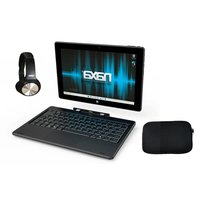
NID-1080 - Radio Naxa - Free user manual and instructions
Find the device manual for free NID-1080 Naxa in PDF.


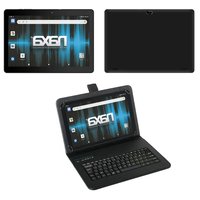
| Product Type | 10.1-inch Tablet Computer with Detachable Keyboard & Bluetooth Headphone |
| Brand | Naxa |
| Model | NID-1080 |
| Display | 10.1-inch IPS LCD, 800x1280 resolution |
| Processor | Intel N4020 |
| RAM | 4 GB |
| Internal Storage | 64 GB eMMC |
| Operating System | Windows 11 |
| Wi-Fi | IEEE 802.11 b/g/n |
| Bluetooth | 4.0 |
| Front Camera | 2.0 MP |
| Rear Camera | 2.0 MP |
| USB Ports | 1 x USB Type-C, 1 x USB 3.0 |
| HDMI | Mini HDMI |
| Audio | 3.5mm headphone jack, dual 1W speakers |
| Battery | Rechargeable Li-Polymer, DC IN 12V/2A |
| Charging Time | Approx. 6 hours for first charge, 4 hours thereafter |
| What's in the Box | Tablet, Detachable Keyboard, Bluetooth Headphone, Power Adapter, User Manual |
| Safety Precautions | Do not disassemble; avoid extreme temperatures, humidity, and dust; keep dry; clean with dry soft cloth |
| Warranty | See manual for details; disassembly voids warranty |
Frequently Asked Questions - NID-1080 Naxa
User questions about NID-1080 Naxa
0 question about this device. Answer the ones you know or ask your own.
Ask a new question about this device
Download the instructions for your Radio in PDF format for free! Find your manual NID-1080 - Naxa and take your electronic device back in hand. On this page are published all the documents necessary for the use of your device. NID-1080 by Naxa.
USER MANUAL NID-1080 Naxa
THE NEW GENERATION IN TECHNOLOGY
10.1" Tablet Combo with Detachable Keyboard & Bluetooth Headphone

natural_image
Exterior view of a black NEXA tablet device with visible waveform display (no text or symbols on screen)NID-1080
User Manual
Thank you for your choosing the new device
This guide serves to enable users to get to know and familiar with our product as soon as possible.
Here we have made a brief introduction to the key layout and definitions in figures and words.
Precautions before Use
- This production is suitable for use in non-tropic areas below 2,000 meters.
- Prevent the device from falling to the ground or being strongly impacted otherwise.
- Do not use it in the long term in any environment where the air is too cold, too hot (<35°C), too humid or with too much dust. Do not expose the Device to sunlight.
- Avoid using it in the strong magnetic and strong static environment as much as possible.
- Once any water or other liquid splashes onto the Device, close it immediately and do not use it until it dries out.
- Do not clean the Device with any detergent containing chemical element or other liquid to avoid causing damage due to corrosion and becoming damp. If cleaning is really necessary, clean it with dry soft cloth tissue paper.
- Our company shall not bear any and all responsibilities for loss or deletion of material inside the machine caused due to abnormal software and hardware operation, maintenance or any other accident.
- Please back up your important material at any time to avoid loss.
- Please do not disassemble the Device by yourself; otherwise you will lose the right to warranty.
Product Overview
Features

Browse the Web
Visit your favourite websites

Connect to the Internet wirelessly
High-speed Wi-Fi 802.11 b/g/n networking

Check your e-mail
Keep in touch with friends and family

Enjoy your media library anywhere
Portable powerhouse plays popular music, video, and photos.

Watch YouTube™ videos
Browse the world's most popular video-sharing community

Built-in camera
Convenient front-facing camera 2.0MP and Rear camera 2.0MP

Discover thousands of apps for Windows™
Install games, applications and more via the installed Microsoft Store™
Know your product
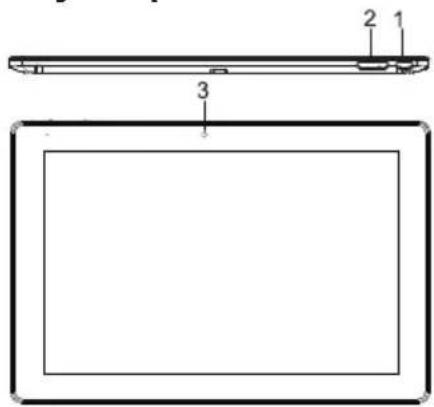
- POWER
- Volume+/Volume-
- FRONT CAMERA
- MIC
- Headphone
- TYPE-C

- HDMI
- USB
- DC IN
- TF CARD
- REAR CAMERA
- SPEAKER

- Start Screen - Display useful information at a glance without opening the app.
- Microsoft™ Account - Change account settings or switch to another user account.
- Settings - View and change any system settings.
- Power - Shut Down, Restart, Hibernate or put your PC to sleep.
- Search Bar - Quickly find files, directions, information or the name of a song.
- Notification Areview all notifications, date and time.

You need to log on your Microsoft account before the application program completely runs.
Using the Tablet
Before First Use
- Before first use, please make sure the tablet is fully charged. If not, connect the power adaptor, so your tablet can charge fully.
- Charging time is at least 6 hours the first time, 4 hours there after.

Note: This tablet contains a Built-in type rechargeable Lithium-ion battery, the charger must be a standard adaptor (12V/2A plug adaptor), this tablet includes DC charging.
- Ensure that you have a good Wi-Fi connection, with your network name and password available.
Starting up
Press and hold the Power key until the screen turns on. Wait until the Desktop screen appears. The computer is now ready for use.
The first time you use your device, the startup wizard will help you set up your device:
- Language
- Date & Time
- Wi-Fi Connection
- Location service options
• Third-party applications - Necessary Updates
• Account Synchronization
Powering up the Tablet
To turn the Tablet on
Press and hold the Power key until the screen turns on. Wait until the Desktop screen appears; the tablet is now ready for use.

To turn the Tablet off
Press the start button and click on the power icon. This then gives the option to shutdown, sleep or restart.

Screen Settings
Turning the Screen On or Off
When the tablet is on, you can turn off the screen to conserve power and protect the screen. Simply press the start button and click on the power icon, then choose sleep.

To conserve battery power, the screen can be set to turn off automatically when the tablet is not in use (between 1 minute and 5 hours). The screen timeout option can be found in the display menu.

It is strongly recommended that you sign into/register for a Windows account (needed for the installation of new apps). When prompted it is also recommended that you agree to backing up your tablet. This creates copies of all of your files should you ever need to restore the tablet.
Connect to a Wi-Fi network
The Notification bar displays icons that indicate your tablet's internet status.

Connected to a Wi-Fi network (waves indicate connection strength).

There are no Wi-Fi networks in range, or the Wi-Fi is not connected.
Open the Settings menu by pressing the start button and clicking on the cog / settings icon
Select your network from the list of available networks. The tablet will prompt you to confirm connection to the network. Touch Connect to confirm. If the network is secured (as indicated by a Lock icon), the tablet will prompt you to enter a password or other credentials.

Settings icon can also be found on the desktop. Open the Network and Internet menu and turn the WiFi on.


User Interface
Start Menu
To open the start menu select the icon in the bottom left hand corner of the desktop. Once the menu has been opened you will be greeted with a variety of options.
Applications
In addition to already fixed on the start screen of the application, you can open all applications in the home page.

Adding a shortcut tile to start menu
- Right-click on properties
- Select fixed at the beginning of the page

Search Box
Right-click the taskbar and go to Taskbar settings. Under Taskbar items, toggle the switch to On/Off next to Search to set up.
Change the taskbar location
Right-click any empty space on the taskbar. Select Taskbar settings > Taskbar behaviors > Taskbar alignment and then select Center or Left.
Rearrange taskbar buttons
Drag a button from its current position to a different one.

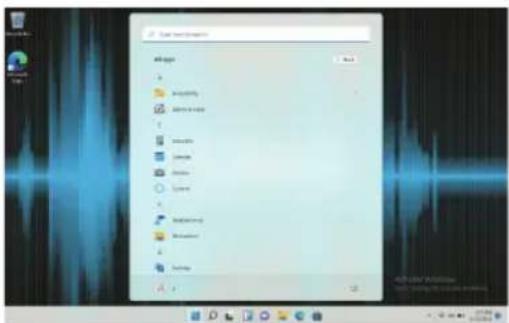
Menu bar
Expand the menu bar from the screen.
File manager, settings, power supply and all applications, you can sleep / shutdown / restart the device

Power

Manage files and applications

Set up your machine
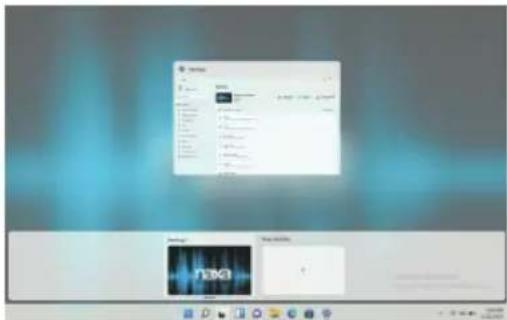
Multitasking operating interface
Click the Desktop task view to operating a multi-operating interface.

Windows Centre
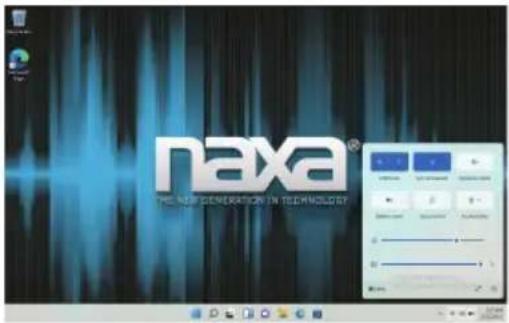
The Action Center is where you can find application notifications and quick actions. On the bottom right corner of the screen, look for the Action Center icon.
The Action Center allows access to quick settings, in the form of small boxes at the bottom of the panel.
Notifications within the action centre are sorted into categories by app.
The Action Center also supports actionable notifications, such as recent text messages, emails or social media integration.
Personalising
Changing your wallpaper and themes
Press start and select the settings icon Select the personalisation menu where you will be greeted with the options to change your background/theme for the Desktop and lockscreen. In this section you also have the option to change the Windows accent colours and choose which elements will use the colour.
To download new apps
To install new apps approved by Windows, click the Windows Store icon on the bottom task bar. There you will find over 1 million apps including many of which are free. Even if you only going to use free apps you will still need to create a Windows account but you don't need to enter your credit card details to do this.

Specifications
| Processor | Intel N4020 | |
| Storage | RAM | 4 GB |
| eMMC | 64 GB | |
| Display | 10.1" IPS LCD(800*1280) | |
| Wi-Fi Networking | IEEE 802.11 b/g/n | |
| Bluetooth | 4.0 | |
| Camera | Front | 2.0 MP |
| Rear | 2.0 MP | |
| USB Host | TYPE-C x1,USB 3.0 x1 | |
| HDMI | MINI HDMI x1 | |
| enohpdaeH mm5.3 | ||
| Speaker | 2x1W Speaker | |
| Power | Rechargeable Li-Polymer Battery Power Adapter(DC IN 12V,2A) | |
| Operating System | WINDOWS 11 | |
Support
If you have problems with your device, please consult the instructions in this manual. Please also visit us on the
web at www.naxa.com to get up to the minute news, alerts, and documentation for your device.
For additional
assistance, please contact Naxa Technical Support.
NAXA Technical Support
2320 East 49th St.
Vernon, CA 90058
866-411-6292
http://www.naxa.com/naxa_support/
tuptuO oiduA



- 10.1" Tablet Combo with Detachable Keyboard & Bluetooth Headphone
- Precautions before Use
- Product Overview
- Features
- Using the Tablet
- Before First Use
- Starting up
- Powering up the Tablet
- To turn the Tablet on
- To turn the Tablet off
- Screen Settings
- Turning the Screen On or Off
- Connect to a Wi-Fi network
- User Interface
- Start Menu
- Applications
- Adding a shortcut tile to start menu
- Search Box
- Change the taskbar location
- Rearrange taskbar buttons
- Menu bar
- Multitasking operating interface
- Windows Centre
- Personalising
- Changing your wallpaper and themes
- To download new apps
- Support
Brand : Naxa
Model : NID-1080
Category : Radio