
NID-9006 - Radio Naxa - Free user manual and instructions
Find the device manual for free NID-9006 Naxa in PDF.


| Brand | Naxa |
| Model | NID-9006 |
| Product Type | 9-inch Tablet with Radio Capabilities |
| Display | 9-inch TFT LCD, 800 x 480 pixels, capacitive touch |
| Operating System | Android 5.0 (Lollipop) |
| Processor | Cortex A7 1.3GHz quad-core |
| RAM | 512 MB |
| Internal Storage | 8 GB |
| External Memory | microSD/microSDHC up to 32 GB |
| Wireless Connectivity | Wi-Fi 802.11 b/g/n, Bluetooth v4.0 |
| Audio Output | Headphone jack (3.5 mm), built-in speaker (1 W) |
| Video Output | HDMI out (mini Type C) |
| Camera | Rear: 2 MP (interpolated); Front: 0.3 MP |
| Battery | Rechargeable lithium-polymer |
| Power Supply | AC 100-240V, 50/60 Hz; DC 5V via included adapter |
| Dimensions (approx.) | 240 x 170 x 10 mm (9.4 x 6.7 x 0.4 in) |
| Weight (approx.) | 400 g (14.1 oz) |
| Maintenance & Cleaning | Unplug before cleaning; use a damp cloth; avoid liquid cleaners, alcohol, thinner, or benzene. |
| Safety Precautions | Do not expose to rain or moisture; do not disassemble; avoid extreme temperatures; keep away from heat sources. |
| Repairability & Spare Parts | No user-serviceable parts; refer all servicing to qualified personnel. Use only manufacturer-recommended attachments. |
| General Information | This device combines tablet functions with radio features. Includes FM radio? (not specified in manual but categorized as radio). |
Frequently Asked Questions - NID-9006 Naxa
User questions about NID-9006 Naxa
0 question about this device. Answer the ones you know or ask your own.
Ask a new question about this device
Download the instructions for your Radio in PDF format for free! Find your manual NID-9006 - Naxa and take your electronic device back in hand. On this page are published all the documents necessary for the use of your device. NID-9006 by Naxa.
USER MANUAL NID-9006 Naxa
THE NEW GENERATION IN TECHNOLOGY
9" Core Tablet
NID-9006

natural_image
Black-and-white illustration of a tablet device with blank screen (no text or symbols)Instruction Manual
Please read carefully before use and keep for future reference.
Table of Contents
Thank You 4
In the Box 4
Before You Start 5
At a Glance 6
Basic Operation 8
Turning the Unit On and Off 8
Sleep 8
About the Lock Screen and Security....9
Charging 10
Getting Started....10
Connecting to a Wireless Network 10
Using the Touchscreen 10
Using the Navigation Icons....11
Using the Home Screen....12
Using the Dock ....13
All Apps Icon 13
About the Notification Bar....14
Making Yourself at Home 15
Changing the Wallpaper 15
Adding App Icons to the Home Screen 16
Adding Widgets to the Home Screen....17
Using Folders on the Home Screen....18
Using the On-Screen Keyboard....19
Entering Text....19
Basic Editing 20
Managing & Using Apps....21
About the Apps....22
Manage your Calendar 22
Using the Camera....23
Managing Downloads....25
Apps Settings and Options....26
Connecting to Wi-Fi Networks....29
Connecting to a Wi-Fi Network 29
Adding a Network Manually 30
Set Advanced Wi-Fi Options 30
Connecting to Bluetooth ^® Devices....32
Adjusting the System Settings....33
Wireless & Networks....33
Wi-Fi 33
Bluetooth 33
Data Usage 33
More 33
Device....34
Display 34
Sound & notification 34
Storage 34
Battery....35
Apps.... 35
Users 35
Personal....36
Location access 36
Security....36
Language and Input....37
Backup & Reset 37
Accounts 37
System 38
Using Keyboards, Mice, and Other USB Devices......38
Using a Keyboard 38
Using a Mouse 39
Other input devices 39
Connect to a Computer via USB.... 39
Using HDMI Out......40
Tuning Your Tablet's Performance....40
Optimizing battery life....40
To extend the life of your battery:....40
To check the battery level and usage details 41
Troubleshooting 41
Warnings and Precautions....42
Specifications 46
Support 47
Thank You
We know you have many choices when it comes to technology; thank you for choosing us here at Naxa Electronics. Established in 2001 in Los Angeles, California, we are dedicated to delivering products that entertain and delight.
We trust that you will be happy with your purchase. Please read this manual carefully and save it for reference. You may also find the latest FAQ, documentation, and other product material at our website. Come visit us on the web at www.naxa.com and see all that we have to offer!
In the Box
Please take a moment to make sure that you have everything in the list below. Although we make every effort to ensure that each Naxa device is securely packed and sealed, we know a lot can happen in between us and you. If anything is missing, check back with your local retailer to get immediate assistance. If they cannot help you, please contact our Naxa Support team at www.naxa.com/naxa_support.
- NID-9006 tablet
- AC power adapter
- USB cable
- User manual
Before You Start
Please take note of the following before you start.
1) Do not drop the unit. Avoid forceful shaking of the display to prevent damage or unusual operation.
2) Do not touch the unit with metal objects to avoid short circuits.
3) Schedule regular backup of your data to prevent the loss of important data. Always backup your data before upgrading the firmware.
4) Do not disassemble. Do not wipe the surface of the unit with alcohol, thinner or benzene.
5) Do not disconnect the tablet while it is formatting or uploading/downloading. Doing so may corrupt your data.
6) Do not allow water or foreign objects to enter the tablet.
7) Do not use the tablet in places that are extremely hot, cold, dusty, or humid.
8) Specifications are subject to change and improvement without notice.
At a Glance
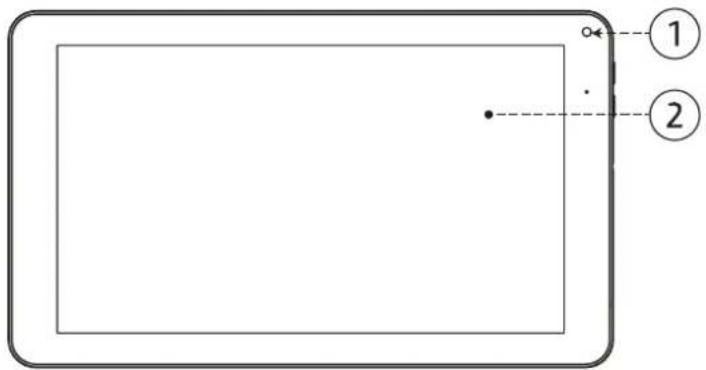
1 Front camera
2 LCD touchscreen
3 Speaker
4 Rear camera
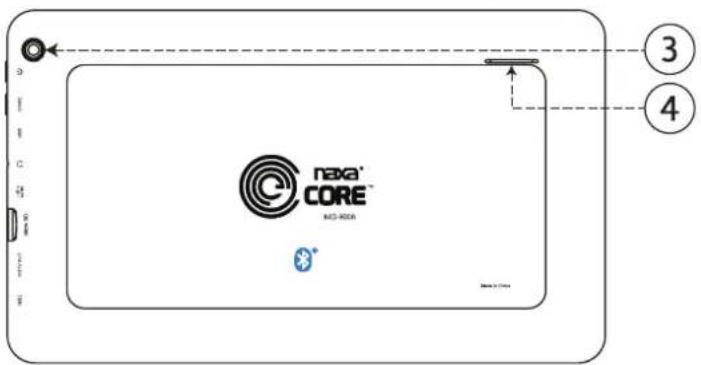

5 Power button
6 Home button
7 Micro USB port
8 Headphone jack
9 Power connector (DC 5 V)
10 microSD card slot
11 HDMI output
Basic Operation
Turning the Unit On and Off
Press and hold the power button [5] until the screen turns on and displays the start-up logo (about 3 seconds).
Press and hold the power button [5] until the screen displays the Power menu. Tap Power off to turn the tablet off.

Sleep
Place the tablet into Sleep mode to conserve power.
To place the tablet into Sleep mode, press the power button once while the tablet is on. The screen will turn off.
To wake the tablet from Sleep mode, press the power button again. The screen will turn on. (It may take a second or two for the tablet to wake from sleep.)

When the tablet is woken from sleep, the screen will be locked for your security. To unlock the screen, simply tap and hold the lock icon, then swipe your finger up the screen.
If you have set a password or other security feature, you will need to enter it to continue.
About the Lock Screen and Security
Customize the lock screen settings to prevent unauthorized use of your tablet.
1) Swipe down from the top of the screen to view the Notifications Panel. Tap the top bar, then tap the Settings icon.

2) Browse down the list of settings to locate the Personal section. Tap Security.
3) Tap Screen lock.
4) Tap the type of lock to use on the Lock Screen (None, Swipe, Voice Unlock, Pattern, PIN, or Password).
After you set a lock here, the tablet will display the lock screen whenever you turn the screen on. You will need to enter the password, PIN, or other security feature to continue using the tablet.
Screen lock options are listed in the appropriate order of the strength of their security, starting with "None" and "Slide," which provide no security. Voice Unlock and Pattern provide minimal security, although it can be more convenient than the stronger options. Naxa recommends that you always establish a strong PIN or password for security.

To learn more about your tablet's security options, please refer to the section "Adjusting System Settings > Personal > Security".
Charging
When the battery level is low, the tablet will prompt you to charge the tablet. Connect the provided charger to the Power connector [9] of the tablet; plug the other end of the charger to household AC 100–240 V power.
Batteries contain chemicals that may be regulated by your local government. Observe all local regulations when disposing of this device

To improve the performance and life of the battery, charge the tablet for an additional 15 minutes after the tablet indicates that it has been fully charged.
Getting Started
Connecting to a Wireless Network
Your tablet works best when it is connected to the Internet. Connect to a wireless network to experience the best that your tablet has to offer. To learn how to connect to a wireless network, refer to the section "Connecting to Wi-Fi Networks".
Using the Touchscreen
Use your fingers to manipulate icons, buttons, menus, the onscreen keyboard, and other items on the touchscreen. You can also change the screen's orientation.
To select or activate something, tap it gently with your finger.
To type something (e.g., a name, password, or a website address), just tap where you want to type. A keyboard will appear on the screen; tap the keyboard to type.
Other common gestures include:
- Tap & Hold: Tap an item & hold your finger over it until an action occurs. Do not lift your finger from the screen.
- Tap & Drag: Tap an item & hold your finger over it for a moment; then, without lifting your finger, drag your finger along the screen until you reach the target position. Try using Tap & Drag to reposition icons on the Home screen.
- Swipe or slide: Slide your finger quickly across the surface of the screen. Do not pause when your finger first touches the screen to avoid dragging items accidentally. Swipe up or down to browse a list of items, or try swiping left or right on a Home screen to view other Home screens.
- Pinch-to-Zoom: In some apps (such as Browser and Gallery), you can zoom in and out by placing two fingers on the screen at once and pinching them together (to zoom out) or spreading them apart (to zoom in).
- Rotate the Screen: On most screens, the orientation of the display will automatically rotate with your tablet as you turn it. You can change this option from the Display setting screen.
Using the Navigation Icons
The Navigation icons are always displayed at the bottom of the screen. No matter what you are doing, these icons are always available for you to browse the different screens of your tablet.
Icon Name Description

Back Tap this icon to return to the previous screen, even if it was in a different app. Tapping Back repeatedly will return you to the Home screen; you cannot go back further than the Home screen.

Home Tap this icon to navigate to the Home screen. If there are multiple Home screens, tap Home again to return to the central Home screen.
Icon Name Description

Recent Tap this icon to display a list of screens that you've worked with recently. Tap the thumbnail image of any screen to open it. To remove an app from the list, swipe the thumbnail left or right, or tap the X.

Volume tap to lower the volume level. down

Volume up Tap to increase the volume level.

The Navigation icons may fade away if the screen has not been touched in a while for example, when watching a video. Simply tap the screen to display them again.
Using the Home Screen
The Home screen is the first thing you'll see when you turn on the tablet. The Home screen can display app icons, widgets, and folders.
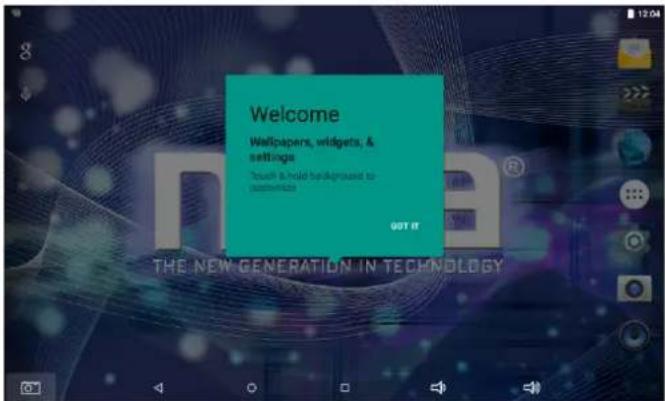
• To open an app, folder, or widget, tap it.
- If there are additional Home screens, swipe the screen left or right to view them.
- To return quickly to the main, center Home screen, tap the Home icon in the navigation bar.
Using the Dock
The dock is a permanent fixture on all home screens. The dock is a good place to put apps that you will use a lot.

natural_image
Row of six computer and media app icons on a blue background (no text or symbols)- To add an app to the dock, tap and hold the app icon and drag it into the dock.
- To remove an app from the dock, tap and hold an icon in the dock, then drag the icon out of the dock.
All Apps Icon
The All Apps icon is displayed in the center of the Dock and is accessible on all Home screens. Tap it to see a list of all apps that are on your tablet.


- Tap an app icon in the list to start it.
- Tap and hold an app icon then drag it to a home screen to create a shortcut that is easily accessible.

To place an app icon shortcut on another home screen, drag it to the edge of the screen and wait for a new home screen to appear. (If the current home screen is empty, the tablet will not create a new home screen).
About the Notification Bar
The Notification Bar is found at the top of the screen and displays quick status information (e.g., the time and battery life).

If you swipe down from the top of the screen, the Notification Panel will appear. The notification panel is where you can view alerts from your apps.
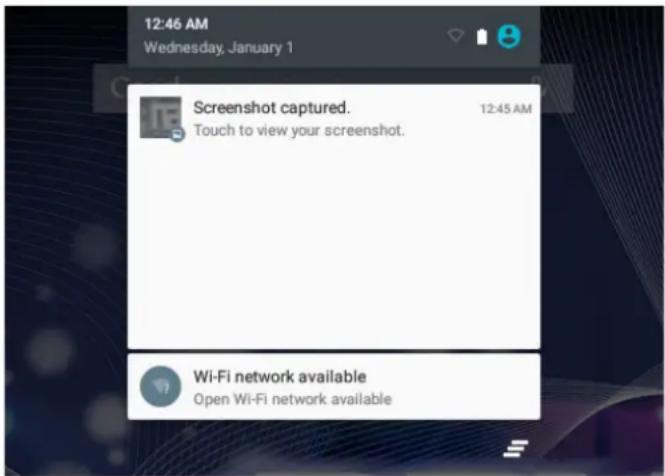
- Swipe up and down to browse the alerts.
- Tap on an alert to open it with an app.
- Swipe down on an alert to see additional information provided by the app. Some alerts will contain controls that allow you to respond to the alert without going to the app.
- Swipe left or right on an alert to dismiss it. At the bottom of the list of alerts, there is a Dismiss All Alerts button; tap it to dismiss all alerts at once.

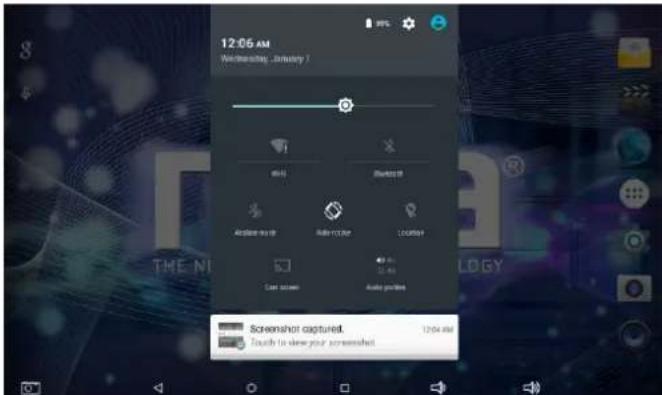
To view the Quick Settings panel, tap the top of the notification panel. Use the Quick Settings to adjust frequently used options (e.g., Wi-Fi, Bluetooth).

- Tap an options icon to turn it on or off.
- Tap the label below the icon to view additional settings.
Making Yourself at Home
Changing the Wallpaper
Wallpapers are background images that you can use to personalize your Home screens. Your wallpaper can be a custom image, one of the wallpaper images included with the tablet, or a Live Wallpaper (i.e., an animated wallpaper).
To change the wallpaper:
1) Tap & hold on an empty part of a Home screen, then tap WALLPAPERS.
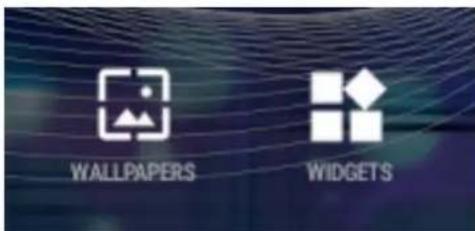
2) Swipe left/right to browse the available wallpapers. Tap a wallpaper to preview it, then tap Set Wallpaper to activate it. To set a custom wallpaper, tap Pick image.


Live wallpapers are animated and may reduce your tablet's battery life.
Additional wallpapers may be downloaded from the Internet or Android application markets.
Related settings
Settings > Device > Display > Personalize > Wallpaper
Adding App Icons to the Home Screen
Add App icons to a Home Screen to quickly access your favorite apps.
1) To add an app icon, tap the All Apps icon in the center of the Dock to see all of your apps.
2) Swipe left or right to browse and find the app you want. Tap and hold the app icon to pick it up, then drag it to its place on a Home screen.

3) To see detailed information about an app: Tap & hold the app icon to pick it up, then drag and drop it on the App Info icon at the top of the screen.
natural_image
Blue square icon with a lowercase 'i' and circular symbol on a dark background, surrounded by curved lines (no text or symbols)
4) To remove an app icon from the Home screen, tap & hold it, then drag the icon to the Remove icon at the top of the screen.

natural_image
Abstract graphic with geometric shapes and a calculator icon (no readable text or symbols)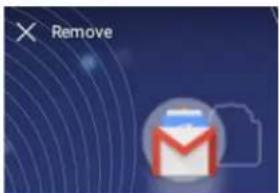

This will only remove the icon from the Home screen. It will not uninstall the app.
Adding Widgets to the Home Screen
Some apps have Widgets that can be placed on a Home screen. Widgets are like windows into your apps; they allow you to use some features of the app quickly from the Home screen.
To add a widget:
1) Tap & hold on an empty part of a Home screen, then tap WIDGETS.

2) Swipe left/right to browse the available widgets. Tap and hold a widget to pick it up, then drag it to an empty space on a Home screen.
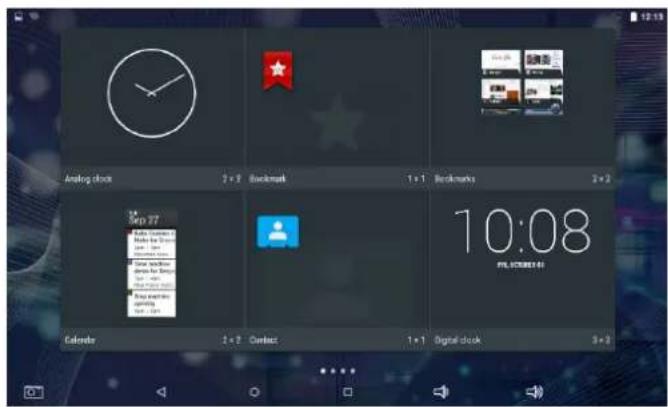

If you have dragged the widget to a Home screen that doesn't have room for it, the widget will not be added.
Some widgets will prompt you to make additional choices before it is added to the Home screen.
Using Folders on the Home Screen
You can combine several app icons in a folder. Tap and hold an icon to pick it up, then drop it onto another icon. A folder will be created that contains both icons.
On any Home screen, you can
1) Open a folder: Tap it. The folder opens.

2) Rename a folder: Tap the folder label.

3) Reposition an app or folder icon on the screen: Tap & hold the icon, then drag the icon to where you want it.


Place related app icons in the same folder (e.g., video apps, game apps, communication apps, etc.)
Using the On-Screen Keyboard
Entering Text
Enter text using the onscreen keyboard. Some apps automatically display the keyboard when necessary; in others you display the keyboard by tapping where you want to type.

As you type, the keyboard displays suggestions above the top row of keys. To accept a suggestion, tap it.
Basic Editing
- Moving the insertion point: Tap where you want to type. The cursor blinks in the new position, and a marker appears below it. Drag the marker to move the cursor.
- Selecting text: Tap & hold (or double-tap) within the text. The nearest word will be highlighted with markers at each end of the highlighted selection. Tap & drag the markers to change the selection. The markers will disappear after a few moments; to make them reappear, tap the text again.
- Cut or copy text: Select some text, then tap the SELECT ALL, CUT, OR COPY icon.

- Deleting text: Tap the [delete] key to delete selected text or the characters before the cursor.
To make the keyboard go away, tap the Close icon found in the Navigation bar at the bottom of the screen.

Tips & Shortcuts
- To type in capital letters: Tap the Shift key once to switch to capital letters for one letter. Tap & hold the Shift key to type in capital letters; release the Shift key to return to typing in lower case letters.
- To turn caps lock on: Double-tap the Shift key to turn Caps Lock on. The Shift key will be highlighted to indicate that Caps Lock is active. To turn Caps Lock off, tap the Shift key again.
- To show numbers or symbols: Tap the ?123 key. To see more choices, tap the [ \~[< ] key. Tap ABC to return to letters.
- To quickly access common punctuation and symbols: Some keys have an alternate function. These keys are located near the space bar and are labeled with a smaller, gray symbol. Tap & hold these keys to use their alternate functions.
- To type alternate characters: Some keys can produce alternate characters (e.g., accented vowels). Tap & hold these keys to see these alternate letters or symbols, then tap again to type.
- To change the input language or keyboard: Tap and hold the comma key [, ] to view the input options menu.
Related settings
Settings > Personal > Language & input
Managing & Using Apps
To see all your apps, tap the All Apps icon on any Home screen, and the main All Apps screen will open. You will be able to see all of your apps, including those downloaded and installed from the Internet. You can move app icons to any of your Home screens.

natural_image
Simple icon of a white circle with six dots inside, set against a solid blue background (no text or symbols)From All Apps, you can:
• See additional app screens: Swipe left or right.
- Launch an app: Tap its icon.
- Place an app icon on a Home screen: Tap & hold the app icon to pick it up, then drag it to its place.
- To see detailed information about an app: Tap & hold the app icon to pick it up, then drag and drop it on the App Info icon at the top of the screen.
About the Apps
Software has been preinstalled on the tablet for your convenience.
Some apps may not work if certain region and network service requirements are not met.

Manage your Calendar
The Calendar app lets you view and edit your schedule.
When you sign into a Google Account, any existing calendar events from that account will be synced with your

natural_image
Calendar icon with grid layout and colored blocks (no text or symbols)Calendar app. After that, all of your events will stay in sync automatically, whether you make changes on your Tablet, or from another device that is synced to your Google Account. As you add events from different sources, they are synced automatically across all the places you need them.
To view your Calendar, tap on the Home screen or All Apps screen.
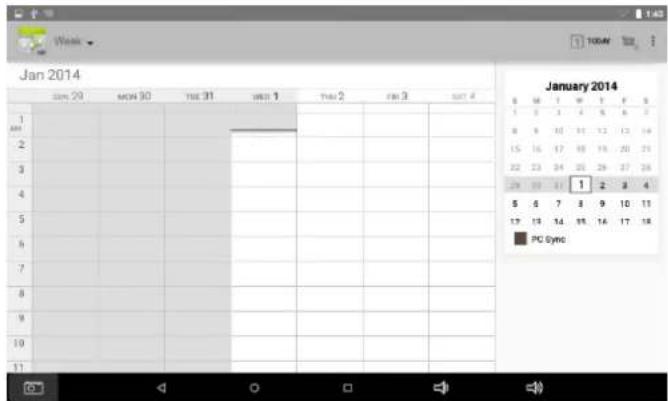
To change the Calendar view, tap the tabs at the top of the screen labeled Day, Week, Month, or Agenda.
Swipe to scroll vertically or horizontally. In the Day or Week views, spread your fingers apart or pinch them together to zoom in or out.
From any of these views, you can:
- Read or edit event details. Tap an event to view its details.
- Manage events and calendars. Tap the icons across the top of the screen or tap the Menu icon for additional options.
Using the Camera
The Camera app is a combination camera and camcorder.
To take pictures and videos, first tap the Camera icon on a Home screen or the All Apps screen.

You can view photos and videos you take with the camera with the Gallery app.
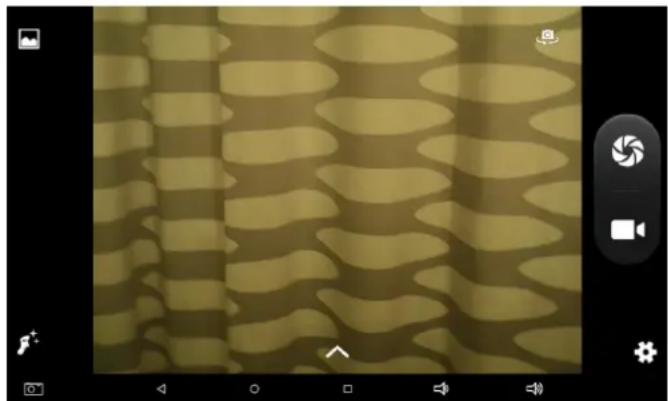
When Camera starts, you can:
natural_image
Abstract pattern of wavy golden shapes on black background, no text or symbols present• Take a picture. Tap the shutter button.

- Start recording a video. Tap the camcorder icon.

- Switch between the front and rear camera. Tap the switch camera icon.
- Adjust the camera options. Tap the settings icon to view recording/capture options. Tap the arrow to view lighting and color options.

- View the most recently taken picture. Tap the thumbnail displayed in the corner of the screen after you take a picture. You can share the picture by tapping the icons displayed along the right side of the image (you must be signed into your Google Account or other account that allows picture sharing).
Managing Downloads
Files, apps, and other items you download from your email, app marketplaces, or in other ways are saved to your tablet's internal storage. Use the Downloads app to view, open, or delete what you've downloaded.
Downloads
Downloaded files are stored in the Download directory that's visible when your tablet is connected to a computer. You can view and copy files from this directory.
To open Downloads and manage downloaded files:
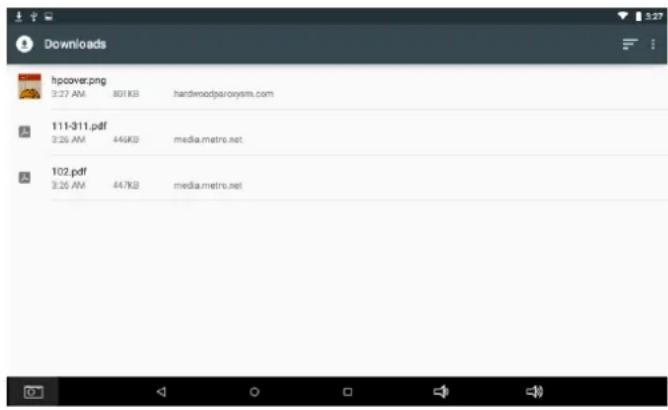
1) Tap the Downloads icon from the All Apps screen.
2) Tap an item to open it.
3) Tap the headings of earlier downloads to view them.
4) Tap and hold to select multiple items, then tap the Share icon and choose a sharing method from the list, or tap the Trash icon to delete them.
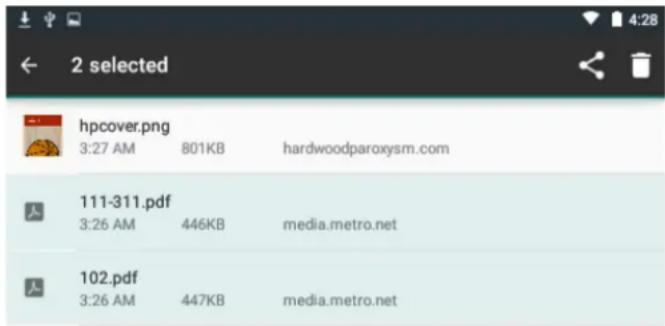
5) Tap the Sort icon to change the display sort order (by name, by date modified, or by size).
Apps Settings and Options
View detailed information about your apps and remove and manage apps on your tablet.
1) Swipe down from the top of the screen to view the Notifications Panel. Tap the top bar, then tap the Settings icon ✿
2) Browse to the Device section, then tap Apps.
3) You'll see four tabs at the top of the screen; swipe left/right to change tabs. Each tab displays a list of apps or their components:

- Downloaded. Displays apps you've downloaded from app marketplaces or the Internet.
- On SD Card. Displays apps that are installed on the memory card (if available).
- Running. Displays all apps, processes, and services that are currently running or that have cached processes, and how much RAM they are using. At the top right corner of the screen, tap the Cached/Running processes icon to change which processes are displayed.
- All. Displays all apps that came with your tablet and all apps that you have downloaded from app marketplaces.
To switch the order of the lists displayed in the Downloaded or All tabs, tap Menu > Sort by name or Sort by size.
To view details about an app or other item listed under any tab, tap its name. The information and controls available vary among different types of apps, but commonly include:

- Force stop button: Stops an app that is misbehaving. Stopping an app, process, or service may cause your device to stop working correctly. You may need to restart your tablet after doing this.
- Uninstall button: Deletes the app and all of its data and settings.
- Disable button: Prevents the app from running, but does not uninstall it. This option is available for some apps and services that can't be uninstalled.
- Move to SD card/Move to Device: Change where the application is installed. Applications will work best when installed to internal (device) memory. Not all apps can be moved to the SD card.
- Clear data button: Delete an app's settings and other data without removing the app itself.
- Clear cache: If the app stores data in a temporary area of the tablet's memory, lists how much information is stored, and includes a button for deleting the data.
- Launch by default: If you have configured an app to launch certain file types by default, you can clear that setting here.
- Permissions: Lists the kinds of information about your tablet and data the app has access to.

Some apps cannot be uninstalled from your tablet, but they can be disabled. Tap the Disable button to stop the app from running on your tablet.
A note about memory usage
You typically don't need to worry about managing apps beyond installing, opening, and using them. But there may be times when you want to know more about what's happening behind the scenes.
Apps use two kinds of memory: internal storage and RAM. They use internal storage for themselves and any files, settings, and other data they use. They also use RAM (memory designed for temporary storage and fast access) when they're running.
Your tablet manages and carefully guards the portion of internal storage where the system, apps, and most data for those apps are stored, because this area may contain your private information. It's not possible to view this portion of internal storage when you connect your device to a computer with a USB cable. The other portion of internal storage, where music, downloaded files, and so on are stored, remains visible for your convenience.
Your tablet also manages how apps use RAM. It may cache some things you've been using recently, for quicker access if you need them again, but it will erase the cache if it needs the RAM for new activities. You affect the way apps use internal storage directly and indirectly in many ways; for example, by:
• Installing or uninstalling apps.
• Downloading files in Browser, mail, and other apps.
- Creating files (for example, by taking pictures).
- Deleting downloaded files or files you created.
- Copying files between your device and a computer via USB.
You rarely need to manage the way apps use RAM. But you can monitor RAM usage and stop them if they misbehave.
Connecting to Wi-Fi Networks
Your tablet works best when it is connected to the Internet. Your tablet can connect wirelessly to the Internet using Wi-Fi networks.
Wi-Fi is a wireless networking technology that can provide Internet access at distances of up to 100 meters, depending on the Wi-Fi router and your surroundings.
To use Wi-Fi, you connect to a wireless access point, or "hotspot." Some hotspots are open and you can simply connect to them. Others implement security features that require other steps to set up, such as digital certificates or other ways to ensure that only authorized users can connect.
Connecting to a Wi-Fi Network
If you're adding a Wi-Fi network when first setting up your device, Wi-Fi is turned on automatically.
1) Swipe down from the top of your screen to reveal the Notifications panel, tap the top bar, and then tap the Settings icon

2) Under Wireless & networks, tap Wi-Fi.
3) Slide the Wi-Fi switch to the On position. The device scans for available Wi-Fi networks and displays the
names of those it finds. Secured networks are indicated with a Lock icon.
4) Tap a network name to see more details or to connect to it. If the network is secured, you will be prompted to enter a password or other credentials. (If you don't know the password, you will need to ask the owner of the network to provide it.) If the tablet finds a network that you connected to previously, it will connect to it automatically.
5) To forget a network or to modify its settings, tap & hold the network name.
- You may want the tablet to forget a network if you don't want to connect automatically or if you no longer use the network.
- Modify a network's settings to change the password or to configure its advanced options (i.e., Proxy and static IP settings). Networks are configured by default to not use proxy servers and to use automatic IP addressing. Proxy settings need to be added for each individual Wi-Fi network.
Adding a Network Manually
Some Wi-Fi networks are configured so that the tablet cannot detect them automatically. These networks need to be added manually.
Under Wireless & Networks, tap Wi-Fi to select it.
1) Tap the options icon, then tap "Add Network".
2) Enter the SSID (name) of the network.
3) If necessary, enter security or other network configuration details.
4) Tap Save.
The information about the network is saved. Your tablet will connect to this network automatically the next time you come within range.
Set Advanced Wi-Fi Options
Under Wireless & Networks, tap Wi-Fi to select it. Tap the Options icon and choose Advanced.
These are the settings you can adjust:
- Network notification: By default, when Wi-Fi is on, you receive notifications in the Status bar when your device detects an open Wi-Fi network. Uncheck this option to turn off notifications
- Scanning always available. Enable to allow Google's location service and other apps to scan for networks, even when Wi-Fi is off. This allows for a better experience with apps that rely on location data.
- Keep Wi-Fi on during sleep: To conserve mobile data usage, your device stays connected to Wi-Fi when the screen goes to sleep. Tap this option to change this default behavior: either to stay connected to Wi-Fi only when the device is connected to a charger (when battery life isn't a problem), or to disconnect from Wi-Fi during sleep.
- Avoid poor connections: Don’t use a Wi-Fi network unless it has a good Internet connection.
-
Install certificates: Select a Wi-Fi certificate to install, if available.
-
Wi-Fi Direct: Connect to another Wi-Fi direct device.
- Wi-Fi optimization: Minimize battery usage when Wi-Fi is on.
- WPS push button: Use with the WPS button on your router, if available.
- WPS Pin Entry: Generates a PIN to use with your Wi-Fi router, if necessary.
This screen also displays the following information:
- MAC address: The unique Media Access Control (MAC) address of your tablet when connected to a Wi-Fi network.
- IP address: The Internet Protocol (IP) address assigned to the device by the Wi-Fi network you are connected to (unless you used the IP settings to assign it a static IP address).
Related settings
Settings > Wireless & networks > Wi-Fi Settings > Wireless & networks > Data usage
Connecting to Bluetooth® Devices
Some Naxa tablets can connect to Bluetooth devices. To learn if your tablet supports Bluetooth, please refer to the Specifications section of this manual.
Bluetooth technology works with computers, headsets, speakers, and other compatible devices to help users stay connected wirelessly. Utilizing the 2.4GHz ISM transmission spectrum for global audio & digital data, Bluetooth has created a new wave in modern communication.
To connect to a device, make sure that Bluetooth is turned on. You will need to go through a one-time "pairing" process to establish a secure connection to your tablet.
1) Swipe down from the top of your screen to reveal the Notifications panel, tap the top bar, and then tap the Settings icon
2) Under Wireless & networks, tap Bluetooth.
3) Slide the Bluetooth switch to the On position.
4) Set the device to temporarily broadcast its identity (that is, set it to "Discoverable" or "Pairing" mode). This will allow the tablet to detect the device. Refer to the documentation that came with your device to learn more.
5) The name of the device will appear under the heading Available Devices. Tap on the device to pair it to your tablet.
- If your device is protected by a PIN code, the tablet will prompt you to enter the code in order to connect (popular default codes are "0000" and "1111").
- If you don't see your device, you can have the tablet search for available devices again. Tap the Options icon in the upper right corner of the screen, then tap Refresh. The tablet will update the list of available devices
6) Devices that have been paired to your tablet appear under the heading Paired Devices. Tap the name of a paired device to connect to it.
Adjusting the System Settings
To view the System Settings screen, swipe down from the top of your screen to reveal the Notifications panel, tap the top bar, then tap the Settings icon

Wireless & Networks
Wi-Fi
To learn about the Wireless & Networks options, refer to the section "Connecting to Wi-Fi Networks".
Bluetooth
To learn about the Bluetooth options, refer to the section "Connecting to Bluetooth® devices".
Data Usage
See how much data your tablet has used over time, and how much data has been used by each of your applications.
More
- Airplane Mode: Enable this option to turn off ALL wireless radios (i.e., Wi-Fi, Bluetooth).
• VPN: Add a VPN network for secure networking.
Device
Display
Adjust the display options of the tablet.
- Brightness level: Move the slider to set the brightness level on your tablet.
- Adaptive brightness: Enable adaptive brightness to automatically optimize the brightness level on your tablet based on the available light around you. Adaptive brightness is on by default and you can still adjust your brightness when needed.
- Sleep: Change how long it takes for your tablet's screen to turn off when you're not using it.
- Daydream: Set up screensavers that display photos, colorful backgrounds, and more when your tablet is charging.
- Font size: Change the font size displayed on your tablet.
- HDMI settings: Enable HDMI output, select the video output resolution, and change how long it
takes for the screen to turn off when you're not using it.
- ScreenshotSetting: Change the screenshot behavior of your tablet. To take a screenshot when the button is not displayed in the status bar, press the Power button and tap Volume Down at the same time.
- When device is rotated: Change how your screen displays what's on the screen when you rotate your screen. This option won't show up if you've disabled "Auto-rotate screen" in accessibility settings.
- Cast screen: Touch the Cast screen icon to connect your device to Chromecast.
Sound & notification
Adjust the sound options of the tablet.
Storage
Adjust the storage options of the tablet.
- Default write disk: Select USB to have the tablet save files and apps to built-in memory by default.
- Internal storage: Shows how much memory is left available to be used. This total does not count the amount of memory used by files required by the tablet to run such as the operating system.
- Mount/Unmount SD card: When a microSD card is installed, the tablet will automatically mount the card to make it available for use. Unmount the card before removing it from the tablet to prevent data corruption.
Battery
Adjust the battery options of the tablet.
Apps
The Apps settings allow you to adjust several aspects of the way your tablet uses memory.
You'll see four tabs at the top of the screen; swipe left/right to change tabs. Each tab displays a list of apps or their components.
To learn about the Apps options, refer to the section "Managing & Using Apps > Apps Settings and Options".
Users
If you share your tablet with other people, you can set up different profiles for each user. Each user can have a profile with their own accounts, customized lock screens, home screens, and other settings.
Set up your own user account first, then hand the tablet over to another person. Allow them to set up their own space.
What each user can do with the tablet will be nearly the same. However, only the tablet's owner can remove any user completely, or uninstall other user's apps. (The first user is automatically set to be the owner.)
To add a new user, you must be the owner.
- Tap on Add User in the upper right corner of the screen. Follow the on-screen instructions to complete the process.
- Users may customize their own info from the Users settings screen. Users may change their picture, their nickname, or add/change additional text to describe the user.
To switch between users:
- The lock screen will display each user's image and nickname. Choose a user by tapping their image and then unlock the screen.
Personal
Location access
Adjust the location services options of your tablet.
Security
Set screen lock: Depending how you use your tablet, you may want to set some form of automatic screen lock to prevent unauthorized access. If a screen lock has been set, the screen locks when your tablet's display goes to sleep. Select one of the screen lock types from the list and then follow the onscreen instructions to set the lock. The screen lock types are listed in approximate order of strength.
- Swipe provides no protection, but lets you get to the Home screen quickly, or open the Camera app to start taking pictures immediately.
- Voice Unlock uses the built-in microphone to check for the voice of an authorized user to unlock the tablet. Follow the instructions on screen to set it up. When Voice Unlock is enabled, you can simply say a passphrase to unlock your tablet.
- Pattern lets you draw a simple pattern with your finger to unlock the tablet.
- PIN requires four or more numbers. Hold the tablet in portrait mode, enter your pin, and then enter your PIN once more to confirm.
- Password requires four or more letters or numbers. Hold the tablet vertically, enter your password, and then enter your password once more to confirm. This is the most secure option, as long as you create a strong password. For best security, specify a password that is at least 8 characters long, contains a mixture of numbers, letters, and
special symbols, and doesn't contain any recognizable words, phrases, or personal information.
Language and Input
Adjust the Language and Input options of your tablet.
Backup & Reset
Adjust the Backup & reset options of your tablet.
Accounts
You can use multiple Google Accounts and e-mail accounts on your tablet.
You may also be able to add other kinds of accounts, depending on which apps are installed on your tablet. Some you can add in the Accounts & Sync screen, as described here. Others you add using an app that works with those kinds of accounts. For example, you can add IMAP and POP3 email accounts with the Email app.
- Add Account: Tap Add Account, then choose the type of account to add. Follow the onscreen in-
structions to enter information about the account. To add some accounts, you may need to obtain details from system administrator about the service to which the account connects. For example, you may need to know the account's domain or server address. Most accounts require a username and password, but the details depend on the kind of account and the configuration of the service you're connecting to. Depending on the kind of account, you may be asked to configure what kinds of data you want to sync, the name of the account, and other details. When you're finished, the account is added to the list in Accounts & sync. Depending on how you configured the account, email, contacts, and other information will start syncing to your tablet.
- Remove an account: Tap the name of an account to select it. Tap the Options icon at the top right corner of the screen and choose "Remove account". Remove an account to delete it and all information associated with it from your tablet, including email, contacts, settings, and so on.
- Manually sync an account: Tap the name of an account, then tap the Options icon at the top right corner of the screen and choose "Sync Now".
- Account sync options: Tap the name of an account to choose which types of data to sync. Some apps, such as E-mail, Gmail, and Calendar, have separate synchronization settings that provide more fine-grained control. In such cases, the settings you select at the account level are still valid. For some accounts, syncing is bi-directional; changes that you make to the information on your tablet are made to the copy of that information on the web. Google Accounts works this way. Other accounts support only one-way sync: the information on your tablet is read-only.
System
Adjust the System options of your tablet.
- Date & Time.
- Accessibility.
- Developer options.
- About Tablet.
Using Keyboards, Mice, and Other USB Devices
You can connect a keyboard, mouse, or even a joystick or other input device to your tablet via USB and use it just as you would with a PC.
You will need an adapter to connect the keyboard or other device to your tablet's USB port. To connect more than one USB device at a time, use a powered USB hub to reduce the drain on your tablet's battery.
Using a Keyboard
In addition to entering text, you can use your keyboard to navigate your tablet's features.
- Use the arrow keys to select items on screen.
- Pressing Return when an item is selected is equivalent to tapping that item.
- Pressing Escape is equivalent to tapping Back.
- Press Tab or Shift+Tab to move from field to field in a form or other screen with multiple text fields.
Using a Mouse
When you connect a mouse to your tablet and move the mouse, an arrow-shaped cursor appears, just as on a computer.
- Use the mouse to move the cursor.
- Clicking, pressing, and dragging with the mouse button are equivalent to tapping, tapping & holding, and dragging with your finger, respectively.
- Only one mouse button is supported.
Other input devices
You can connect other input devices to your tablet. However, games and other apps must be designed to support the features of an input device (e.g., dedicated buttons or other controls).
Connect to a Computer via USB
You can use a USB cable to connect your tablet to a computer in order to transfer music, pictures, and other files in both directions.
When you connect your tablet to the USB port on your computer, the tablet will prompt you to turn on USB storage.
- Tap Turn on USB storage to make your tablet's storage available to your computer. You can now copy files back and forth as you would with any other external storage drive.
- Tap Turn off USB storage to use your tablet normally while your computer charges the battery.
Related Settings
Settings > Device > Storage > Menu > USB computer connection
Using HDMI Out
Connect the tablet to an external display (like a TV) with a mini HDMI to HDMI cable (type A to type C). You can adjust the video output resolution in the tablet's System Settings.
Related settings
Settings > Device > Display > HDMI settings
Tuning Your Tablet's Performance
Optimizing battery life
You can extend your battery's life between charges by turning off features that you don't need. You can also monitor how much power your apps and system resources are using.
To adjust the settings described here, swipe down from the top of the screen to view the Notifications panel, tap the top bar, and then tap the Settings icon.
To extend the life of your battery:
- If you aren't using Wi-Fi, use the Settings app to turn it off.
- If you have a navigation app, map, or other app that uses Location services, do not leave it open when you are not using it.
- Lower the screen brightness level and set a shorter Sleep timeout (Settings > Device > Display).
- If you don't need it, turn off automatic syncing for all apps (Settings > Personal > Accounts & sync). Note that this means you need to sync manually to collect messages, email, and other recent information, and you won't receive notifications when updates occur.
- If you know you won't be near a Wi-Fi network for a while, switch to Airplane mode. Press and hold the power button until the Tablet options dialog appears, then tap Airplane Mode.
To check the battery level and usage details
Tap Settings > Device > Battery.
- The charge status and charge level of the battery are displayed at the top of the screen. The discharge graph shows battery level over time since you last charged the device, and how long you've been running on battery power.
- Enable Standby intelligent power saving to extend the tablet's usable time.
- Enable Battery Saver to turn on automatically, which improves battery life by decreasing the tablet's performance and other methods.
Troubleshooting
1) What if the tablet freezes or exhibits other abnormal behavior during operation?
Press and hold the Power button [5] for approximately 10 seconds to reboot it.
2) What if an app freezes, does not respond, or exhibits other abnormal behavior?
Close the app. Tap the “Recent Screen” icon and then swipe left or right to close the non-responsive app. An alternative would be to locate the non-responsive app in Settings > Device > Apps and then tap the Force Stop button.
3) Why the standby time is so short sometimes?
Battery performance is impacted by many things, including the temperature and what you are using the tablet for. Temperatures that are too high or too low will reduce battery performance. The tablet will work best in room temperature environments (i.e., approximately 72 degrees Fahrenheit). Apps that require a lot of processing power (e.g., games) will use more energy and reduce battery performance device in normal temperature.
4) Only charge the tablet with the included power adapter. Fully charge the tablet the first time you use it. Make sure it has power before you use it.
Warnings and Precautions
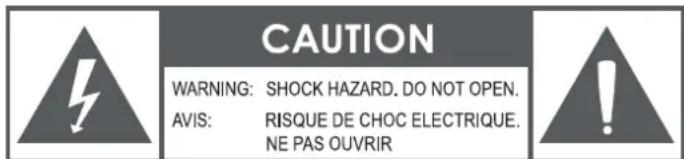
CAUTION
WARNING: SHOCK HAZARD. DO NOT OPEN.
AVIS: RISQUE DE CHOC ELECTRIQUE.
NE PAS OUVRIR
CAUTION: TO REDUCE THE RISK OF FIRE AND ELECTRIC SHOCK, DO NOT REMOVE THE COVER (OR BACK) OF THE UNIT. REFER SERVICING ONLY TO QUALIFIED SERVICE PERSONNEL.

The lightning flash with arrowhead symbol within an equilateral triangle is intended to alter the user to the presence of uninsulated "dangerous voltage" within the product's enclosure that may be of significant magnitude to constitute risk of electric shock
The exclamation point within an equilateral triangle is intended to alert the user to the presence of important operation and servicing instructions in the literature accompanying the appliance.
CAUTION
- Do not block the ventilation openings or holes.
- Do not place any naked flames (such as lighted candles) on the apparatus.
- When discarding batteries, follow all local rules and laws governing the disposal of batteries. Consider the environmental impact of your actions!
- To prevent fire or shock hazard, do not expose this appliance to rain or moisture.
Important Safety Information
- Read Instructions: All the safety and operating instructions should be read before the product is operated.
- Retain Instructions: The safety and operating instructions should be retained for future reference.
- Heed Warnings: All warnings on the product and in the operating instructions should be adhered to.
- Follow Instructions: All operating and usage instructions should be followed.
- Cleaning: Unplug this product from the wall outlet before cleaning. Do not use liquid cleaners or aerosol cleaners. Use a damp cloth for cleaning.
- Attachments: Use only attachments recommended by the manufacturer. Use of other attachments may be hazardous.
- Water and Moisture: Do not use this product near water (e.g., near a bathtub, washbowl, kitchen sink, laundry tub, in wet basements, or near a swimming pool and the like).
- Accessories: Do not place this product on an unstable cart, stand, tripod, bracket, or table. Use only with carts, stands, tripods, brackets, or tables recommended by the manufacturer or sold with the product. Any mounting of the product should follow the manufacturer's instructions and should use a mounting accessory recommended by the manufacturer.
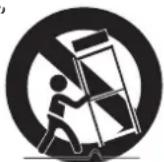
A product and cart combination should be moved with care. Quick stops, excessive force, and uneven surfaces may cause the product and cart combination to overturn.
- Ventilation: Slots and openings in the cabinet are provided for ventilation to ensure reliable operation of the product and to protect it from overheating. These openings should never be blocked by placing the product on a bed, sofa, rug, or other similar surface. This product should not be placed in a built-in installation such as a bookcase or rack unless proper ventilation is provided or the manufacturer instructions have been adhered to.
- Power Sources: This product should be operated only from the type of power source indicated on the rating label. If you are not sure of the type of power supply to your home, consult your product dealer or local power company. For products intended to operate from battery power or other sources, refer to the operating instructions.
- Grounding or Polarization: This product may be equipped with a polarized alternating-current line plug that has one blade wider than the other. This plug will only fit into the power outlet in one direction. This is a safety feature. If you are unable to insert the plug fully into the outlet, try reversing the direction of the plug. If the plug should still fail to fit, contact an electrician to replace the obsolete outlet. Do not defeat the safety purpose of the polarized plug.
- Power-Cord Protection: Power supply cords should be routed so that they are not likely to be walked on or pinched by items placed upon or against them, paying particular attention to cords at plugs, convenience receptacles, and at the point which they exit from the product.
- Protective Attachment Plug: The product may be equipped with an attachment plug with overload protection. This is a safety feature. See the operating instructions for replacement or directions to reset the protective device. If replacement of the plug is required, be sure the
service technician has used a replacement plug that has the same overload protection as the original plug as specified by the manufacturer.
- Outdoor Antenna Grounding: If an outside antenna is connected to the product, be sure the antenna system is grounded so as to provide some protection against voltage surges and built-up static charges. Article 810 of the National Electrical Code, ANS/NFPA70 provides information with regard to proper grounding of the mast and supporting structure, grounding of the lead-in wire to an antenna-discharge unit, size of grounding conductors, location of antenna-discharge unit, connection to grounding electrodes, and requirements for the grounding electrode (see figure).

-
Lightning: For added protection for this product, unplug it from the walloutlet and disconnect the antenna or cable system during a lightning stormor when it is left unattended and unused for long periods of time. This will prevent damage to the product due to lightning or power-line surges.
-
Power Lines: An outside antenna system should not be located in the vicinity of overhead power lines or other electric light or power circuits, or where it can fall into such power lines or circuits. When installing an outside antenna system, extreme care should be taken to keep from touching such power lines or circuits, as contact with them might be fatal.
- Overloading: Do not overload wall outlets, extension cords, or integral conveniencereceptacles as this can result in a risk of fire or electric shock.
- Object and Liquid Entry: Never push objects of any kind into this product through openings as they may touch dangerous voltage points or shout-outparts that could result in a fire or electric shock. Never spill liquid of any kindon the product.
- Servicing: Do not attempt to service this product yourself as opening or removing covers may expose you to dangerous voltage or other hazards. Refer all servicing to qualified service personnel.
- Damage Requiring Service: Unplug this product from the wall outlet and referservicing to qualified service personnel under the following conditions:a) when the power-supply or plug is damaged; b) if liquid has been spilledor if objects have fallen into the product; c) if the product has been exposed to rain or water; d) if the product does not operate normally by following the operating instructions. Adjust only those controls that are covered by the operating instructions as improper adjustment of other controls may result in damage and will often require extensive work by a qualified technician to restore the product to its normal operation; e) if the product has been dropped or damaged in any way; f) when the product exhibits a distinct change in performance—this indicates a need for service.
- Replacement Parts: When replacement parts are required, be sure that your service technician has used replacement parts specified by the manufacturer or have the same characteristics as the original
part. Unauthorized substitutions may result in fire, electric shock, or other hazards.
- Safety Check: Upon completion of any service or repairs to this product, ask the service technician to perform safety checks to ensure that the product is in proper operating condition.
- Wall or Ceiling Mounting: The product should be mounted to a wall or ceiling only as recommended by the manufacturer.
- Heat: The product should be situated away from heat sources such as radiators, heat registers, stoves, or other products (including amplifiers) that produce heat.
FCC NOTICE
This device complies with Part 15 of the FCC Rules. Operation is subject to the following two conditions: (1) this device may not cause harmful interference, and (2) this device must accept any interference received, including interference that may cause undesired operation.
Note: This equipment has been tested and found to comply with the limits for a Class B digital device, pursuant to Part 15 of the FCC Rules. These limits are designed to provide reasonable protection against harmful interference in a residential installation. This equipment generates, uses and can radiate radio frequency energy and, if not installed and used in accordance with the instructions, may cause harmful interference to radio communications. However, there is no guarantee that interference will not occur in a particular installation. If this equipment does cause harmful interference to radio or television reception, which can be determined by turning the equipment off and on, the user is encouraged to try to correct the interference by one or more of the following measures:
- Reorient or relocate the receiving antenna.
- Increase the separation between the equipment and receiver.
- Connect the equipment into an outlet on a circuit different from that to which the receiver is connected.
- Consult the dealer or an experienced radio/TV technician for help.
CAUTION ON MODIFICATIONS
Any changes or modifications not expressly approved by the grantee of this device may void the authority granted by the FCC to operate the equipment.
WARNING:
This product contains lead, a chemical known to the State of California to cause cancer and birth defects or other reproductive harm. Wash hands after handling.
Specifications
| Display Panel 9” TFT LCD | |
| Display Resolution 800 x 480 | |
| Touch layer Capacitive touch screen | |
| OS Android 5.0 | |
| CPU Cortex A7 1.3GHz (quad core) | |
| RAM 512 MB | |
| Memory 8 GB | |
| External Memory microSD, microSDHC (up to 32GB) | |
| Wireless Connectivity Wi-Fi 802.11 b/g/nBluetooth v 4.0 | |
| A/V connectivity Headphone out (3.5 mm)HDMI out (mini Type C)Built-in microphoneBuilt-in speaker (1 W) | |
| Camera Rear: 2 MP (interpolated)Front: 0.3 MP | |
Audio MP3, WMA, FLAC, APE, OGG
Video MPEG4-sp, ASP, DivX, WMV, RMVB, H.264/1080P
Operating temperature -20^ to 60^ ( 68^ to 140^ )
Power supply AC 100\~240V, 50/60 Hz; DC 5V
Battery Rechargeable lithium-polymer battery
Note: Product are improved continuously. We reserve the right to modify the product and specifications without prior notice.
In case of malfunction due to electrostatic discharge, just reset the product to resume normal operation (reconnecting the power source may be required).
Support
If you have problems with your device, please consult the instructions in this manual. Please also visit us on the web at www.naxa.com to get up to the minute news, alerts, and documentation for your device. For additional assistance, please contact Naxa Technical Support.
NAXA Technical Support
2320 East 49th St.
Vernon, CA 90058
http://www.naxa.com/naxa_support/


- Instruction Manual
- Table of Contents
- Adjusting the System Settings....33
- Using Keyboards, Mice, and Other USB Devices......38
- Connect to a Computer via USB.... 39
- Using HDMI Out......40
- Tuning Your Tablet's Performance....40
- Troubleshooting 41
- Warnings and Precautions....42
- Specifications 46
- Support 47
- Thank You
- In the Box
- Before You Start
- Basic Operation
- Turning the Unit On and Off
- Sleep
- About the Lock Screen and Security
- Charging
- Getting Started
- Connecting to a Wireless Network
- Using the Touchscreen
- Using the Navigation Icons
- Icon Name Description
- Using the Home Screen
- Using the Dock
- All Apps Icon
- About the Notification Bar
- Making Yourself at Home
- Changing the Wallpaper
- Related settings
- Adding App Icons to the Home Screen
- Adding Widgets to the Home Screen
- Using Folders on the Home Screen
- Using the On-Screen Keyboard
- Entering Text
- Basic Editing
- Tips & Shortcuts
- Managing & Using Apps
- About the Apps
- Manage your Calendar
- Using the Camera
- Managing Downloads
- Apps Settings and Options
- A note about memory usage
- Connecting to Wi-Fi Networks
- Connecting to a Wi-Fi Network
- Adding a Network Manually
- Set Advanced Wi-Fi Options
- Connecting to Bluetooth® Devices
- Adjusting the System Settings
- Wireless & Networks
- Wi-Fi
- Bluetooth
- Data Usage
- More
- Device
- Display
- Sound & notification
- Storage
- Battery
- Apps
- Users
- Personal
- Location access
- Security
- Language and Input
- Backup & Reset
- Accounts
- System
- Using Keyboards, Mice, and Other USB Devices
- Using a Keyboard
- Using a Mouse
- Other input devices
- Connect to a Computer via USB
- Using HDMI Out
- Tuning Your Tablet's Performance
- Optimizing battery life
- To extend the life of your battery:
- To check the battery level and usage details
- Troubleshooting
- 1) What if the tablet freezes or exhibits other abnormal behavior during operation?
- Warnings and Precautions
- CAUTION
- Important Safety Information
- FCC NOTICE
- CAUTION ON MODIFICATIONS
- WARNING:
- Support
Brand : Naxa
Model : NID-9006
Category : Radio