
OG-4K2HD - Audio/Video Equipment AJA - Free user manual and instructions
Find the device manual for free OG-4K2HD AJA in PDF.


| Product Type | openGear Down-Converter Card |
| Brand | AJA |
| Model | OG-4K2HD |
| Video Inputs | 4x 3G-SDI BNC (SMPTE-259/292/372/424) |
| Video Outputs | 1x 3G-SDI BNC, 1x HDMI Type A (v1.4) |
| Audio Input | SDI embedded, 24-bit, 8-channel |
| Audio Output | SDI and HDMI embedded, 24-bit, 8-channel |
| Supported Input Resolutions | 4K (4096x2160), UltraHD (3840x2160), 2K (2048x1080), HD (1920x1080, 1280x720), SD (720x576i, 720x480i) |
| Down-Conversion | 4K/UltraHD to HD with high-quality scaling |
| Frame Rate Support | Up to 60fps (including HFR 50/60fps) |
| Control Interface | openGear Dashboard software (Windows, macOS, Linux) via Ethernet |
| Power Consumption | 11W max per card |
| Weight | 0.5 lb (0.3 kg) |
| Operating Temperature | 0 to 40°C (32 to 104°F) |
| Storage Temperature | -40 to 60°C (-40 to 140°F) |
| Operating Humidity | 10-90% noncondensing |
| Dimensions | Standard openGear card (two slots) |
| Certifications | FCC Class A, CE, ICES, VCCI, BSMI, KC, and more |
| Warranty | 5 years on hardware (excluding storage modules) |
| Maintenance | Clean with dry cloth; no user-serviceable parts. Refer servicing to qualified personnel. |
| Safety | Follow all warnings: do not use near water, unplug during storms, ensure proper ventilation. |
| Spare Parts | Rear I/O card included; contact AJA for replacement parts. |
| Included Accessories | OG-4K2HD front card, BNC rear card, ESD bag |
Frequently Asked Questions - OG-4K2HD AJA
User questions about OG-4K2HD AJA
0 question about this device. Answer the ones you know or ask your own.
Ask a new question about this device
Download the instructions for your Audio/Video Equipment in PDF format for free! Find your manual OG-4K2HD - AJA and take your electronic device back in hand. On this page are published all the documents necessary for the use of your device. OG-4K2HD by AJA.
USER MANUAL OG-4K2HD AJA
Installation and Operation Guide
Trademarks
AJAircledR and Because it matters. are registered trademarks of AJA Video Systems, Inc. for use with most AJA products. AJATM is a trademark of AJA Video Systems, Inc. for use with recorder, router, software and camera products. Because it matters. is a trademark of AJA Video Systems, Inc. for use with camera products.
CION®, Corvid Ultra®, Io®, Ki Pro®, KONA®, KUMO®, ROI® and T-Tap® are registered trademarks of AJA Video Systems, Inc.
AJA Control Room™, KiStor™, Science of the Beautiful™, TruScale™, TruZoom™, V2Analog™ and V2Digital™ are trademarks of AJA Video Systems, Inc.
All other trademarks are the property of their respective owners.
Copyright
Copyright © 2018 AJA Video Systems, Inc. All rights reserved. All information in this manual is subject to change without notice. No part of the document may be reproduced or transmitted in any form, or by any means, electronic or mechanical, including photocopying or recording, without the express written permission of AJA Video Systems, Inc.
Contacting AJA Support
When calling for support, have all information at hand prior to calling. To contact AJA for sales or support, use any of the following methods:
Telephone +1.530.271.3190
FAX +1.530.271.3140
Web https://www.aja.com
Support Email support@aja.com
Sales Email sales@aja.com
Contents
Notices 2
Trademarks 2
Copyright 2
Contacting AJA Support 2
Chapter 1 – Introduction .....4
Overview. 4
OG-4K2HD Operating Modes 4
Default Operation 5
Video Output 5
Dashboard Control....5
Features 6
Block Diagram 7
openGear and AJA. 7
I/O Connections 7
Signal Indicators on the OG-4K2HD Card. 8
Signal Indicators in the Dashboard Control System 8
User Controls 10
Dashboard Control System. 10
Installation.... 10
Summary 10
Unpacking 10
Rear OG-4K2HD Card Installation. 10
Front OG-4K2HD Card Installation 11
Cabling 12
Chapter 2 – Operation....13
Using the Dashboard Control System.... 13
Requirements 13
Control Interface Basic Components 13
Card Tab Screen....15
Signal Status Tab Screen 16
Config Status Tab Screen 17
Input Tab Screen 18
Output Tab Screen 19
HDMI Tab Screen 21
Audio Tab Screen 22
Setup Tab Screen 22
Upload Screen. 23
Rebooting 25
Appendix A – Specifications ..... 26
OG-4K2HD Tech Specs 26
Appendix B – Safety and Compliance ..... 29
Warranty and Liability Information....38
Limited Warranty on Hardware. 38
Limitation of Liability 39
Governing Law and Language; Your Rights. 39
Index. 40
Chapter 1 – Introduction
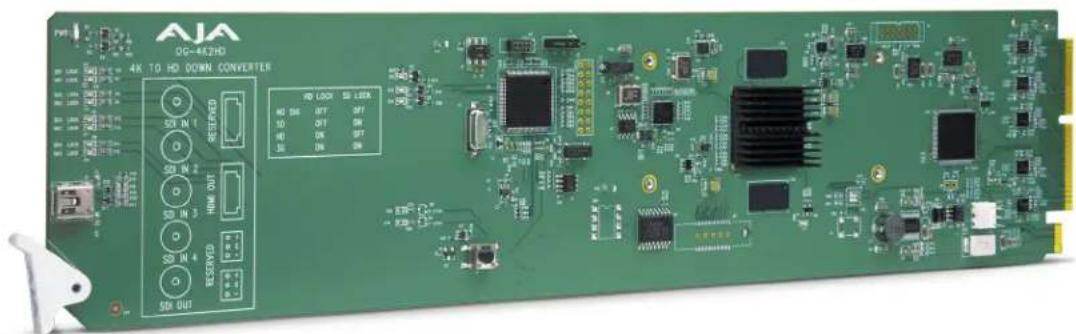
Overview
OG-4K2HD is an openGear card that down-converts professional 3G-SDI 4K/UltraHD signals to HD resolution using AJA's high-quality scaling for cost-effective monitoring and conversion. OG-4K2HD's HD-SDI and HDMI outputs are live simultaneously, producing fantastic-looking HD images for on set monitoring or direct-to-air broadcast.
OG-4K2HD supports high frame rate (HFR) 4K/UltraHD inputs at 50 and 60fps and converts to HD outputs at 50 and 60fps for accurate viewing. OG-4K2HD's configuration options allow extraction of an HD resolution image from the 4K input to provide a one-to-one pixel image for 4K focus checks on HD displays.
Designed for use in high-density openGear's 2RU frames including AJA's OG-X-FR 2RU frame, new Dashboard Software support on Windows ® , macOS ® and Linux ® offers remote control and monitoring of the openGear architecture and provides convenient and industry-standard configuration, monitoring and control options over a PC or local network.
OG-4K2HD Operating Modes
OG-4K2HD has three working modes: 4K Down-Conversion mode, Non-4K mode, and Center Cut mode. The first two modes are selected automatically depending on the input video. These modes can also be manually set using the Dashboard application.
- 4K Down Conversion mode: If the format of the input video is detected as 4K or UltraHD format, or the unit is configured by DashBoard, 4K/UltraHD input video is down-scaled to 2K/HD video and then output on both the HDMI and the SDI outputs.
- Non-4K mode: If the format of the input video is detected as a non-4K video source, for example, 720p60, OG-4K2HD will output video that matches the signal format and resolution of the input signal.
- Center Cut mode: OG-4K2HD will be in Center Cut mode if the input video is 4K/UltraHD format, and the mode has been enabled through Dashboard. In this mode the 2K/HD center of 4K/UltraHD input video will be output to the HDMI and SDI outputs. No down-scaling occurs, and the output format is either 1920x1080 or 2048x1080 (depending the input source and the 2K cropping configuration).
Default Operation
The OG-4K2HD auto configures to the connected inputs.
The auto-configure function identifies the connected inputs and generates the default outputs for the given input. Default operation can be overridden and set manually using AJA's Dashboard application.
NOTE: Signal conversion requires the presence of a valid SDI video signal on the SDI IN 1 BNC.
For single SD or HD inputs, BNC input 1 is the default input. For dual-link 1.5Gb HD inputs, and 4K/UltraHD dual-stream 3Gb SDI inputs, inputs 1 and 2 are default. Where applicable, both level A and B 3Gb inputs are auto-detected and supported.
When connecting the OG-4K2HD with multiple SDI inputs in the auto-configure mode (default), as the user connects the first HD-SDI to input 1, the unit will output that input as a full screen HD. As soon as the second input is connected, the unit will know that either QuadHD or 4K x 2160 is present and the display will change to show the two connected quadrants in the upper left and upper right of the output. The remaining two quadrants will be displayed as they are connected.
It is possible to use two dual-stream 3G inputs to make 3840 or 4K video. In this case SDI1 and SDI2 are assumed to be the inputs: SDI1 linkA makes the top left quadrant, SDI1 linkB makes the top right quadrant, SDI2 linkA makes the lower left quadrant, and SDI2 linkB makes the lower right quadrant. To use this mode change the Video Source Selection to '2 X SDI 4K'.
Video Output
OG-4K2HD has two output connectors, HDMI and SDI, that are both active simultaneously.
For 4096x2160 inputs, the OG-4K2HD will output 2048x1080 if 2K crop option is turned off (through Dashboard), otherwise 4096x2160 inputs will be scaled to 2048x1080, then cropped to 1920x1080. OG-4K2HD will not scale 4096 to 1920 pixels.
The HDMI and SDI output connectors will generally be the same video, with the exception of non-4K PsF video input.
SDI passthrough is enabled by default if the input video is 2K/HD PsF. In this case, SDI output is PsF format, and HDMI output is progressive format. The HDMI output is delayed one frame, compared to the SDI output. The SDI passthrough can be disabled by Dashboard. If disabled, the SDI output will be progressive format, the same as HDMI output, with no frame delay.
HDMI and SDI Output Control Differences
Some video output control options are only applicable to HDMI output, such as color range, sample structure or HDMI/DVI standard. Some options are only applicable to SDI output, such as Level B control, or PsF passthrough. And some output control options are applied to both, such as Center Cut.
Dashboard Control
Configuration set via Dashboard is stored in the OG-4K2HD unit through subsequent power cycles.
Input Video Selections
• Video Source (Auto, 4xSDI 4K, 2xSDI 4K, 2xSDI HD-DL, SDI 1-4)
• Color Space (Auto, 422 YCbCr, 444 RGB, or 444 YCbCr)
- RGB Range (SMPTE or Full color range).
- Bit Depth (Auto, 8-bit, or 10-bit)
- Mapping (Quadrant or 2SI)
• Video Format (Auto, Progressive, Interlaced, or PsF).
• 3G-B Mode (Auto, Dual Link, 2xHD, 1 x HD DS1, 1 x HD DS2)
Output Video Selections
• 4K Convert (Downconvert, Center Cut)
- 2K Crop (On or Off)
• SDI Out (Passthrough or Processed)
- Edge Filtering (On or Off)
• 1080p to 1080i interlacer
HDMI Output
• Color Space (Auto, 4:2:2 YCbCr, 4:4:4 RGB, 4:4:4 YCbCr)
- Bit Depth (Auto, 8-bit, or 10-bit)
- RGB Range (Auto, SMPTE or Full)
• Color Dithering (Off or On)
• HDMI/DVI (Auto, HDMI, or DVI)
Audio
- Input Source (Ch 1-8 or Ch 9-16 from any SDI input)
• HDMI Channel Count (Auto, 2, 8)
• Audio Offset In Frames
Features
- openGear compatible card
• 4K (4096x2160) and UltraHD (3840x2160) support - Downconversion for supporting 4K on HD-SDI and HDMI devices
- Simultaneous HD-SDI and HDMI output
- Controlled by Dashboard network control software
- Aspect ratio conversion from full 4K to HD
• Supports up to 4K/UltraHD 50/60fps high frame rate input formats - Requires Two Slots in openGear Frame
- Rear I/O Card Included
- Use with openGear 2RU frames including AJA's OG-3-FR frame
- Five year warranty
Block Diagram
Figure 1. OG-4K2HD, Simplified Block Diagram

flowchart
graph TD
    A["SDI In 1"] --> B["SDI RCVR"]
    C["SDI In 2"] --> D["SDI RCVR"]
    E["SDI In 3"] --> F["SDI RCVR"]
    G["SDI In 4"] --> H["SDI RCVR"]
    B --> I["Reclock"]
    D --> J["Reclock"]
    F --> K["Reclock"]
    H --> L["Reclock"]
    I --> M["Video Processing"]
    J --> M
    K --> M
    L --> M
    M --> N["Audio Processing"]
    N --> O["Audio"]
    P["HDMI XMIT"] --> Q["HDMI Output with Embedded Audio"]
    R["SDI XMIT"] --> S["SDI Out with Embedded Audio"]
    T["Dashboard"] <--> U["Control"] --> V["12C to HDMI XMIT and EDID Readback"]
openGear and AJA
openGear is an open-architecture, modular frame system designed by Ross Video and supported by a diverse range of terminal equipment manufacturers, including AJA. Ross Video manufactures the frames, power supplies and network cards for openGear. AJA is a reseller of the openGear frames.
AJA Video is a leading manufacturer of video interface technologies, converters, digital video recording solutions and professional cameras, bringing high-quality, cost-effective products to the professional, broadcast and post-production markets. AJA products, including openGear cards, are designed and manufactured at our facilities in Grass Valley, California.
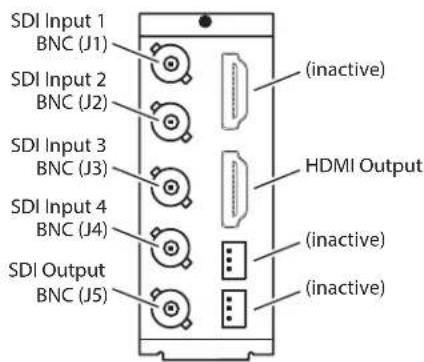
I/O Connections
Figure 2. I/O Connections for the OG-4K2HD
Signal Indicators on the OG-4K2HD Card
Located at the upper front area of the OG-4K2HD card, the SD Lock and HD Lock LEDs work in combination to indicate the type of signal detected for each SDI input.
Figure 3. LED lights on card

Table 1. The meaning of the behaviors of the lights for each pair of SD and HD Lock LEDs.
| Signal Detected HD Lock Light SD Lock Light | |
| No Signal Off Off | |
| SD Signal Off On | |
| HD Signal On Off | |
| 3G Signal On On |
Signal Indicators in the Dashboard Control System
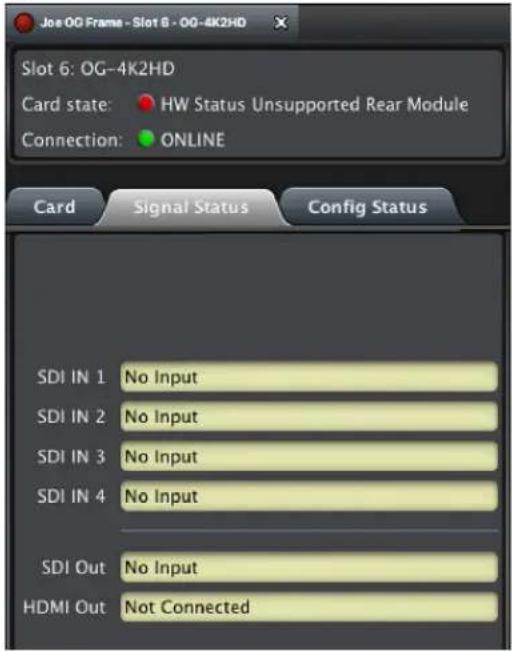
When the signal is either not present or is not locked, the Dashboard Control System shows a red Card State alarm under the Signal Status tab. Additionally, the SDI Signal is shown as "No Input."
Figure 4. Signal not present or not locked
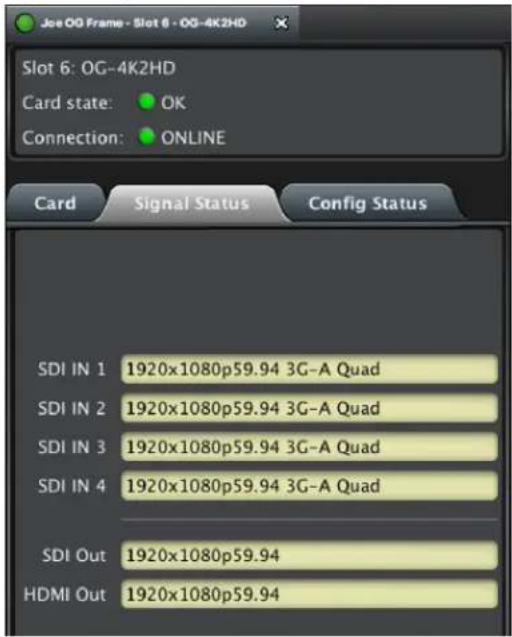
When a signal is present and locked, the Dashboard Control System shows a green Card State and a green Connection under the Signal Status tab. The SDI Signal is also indicated (for example, "1920x1080p59.94 3G-A Quad").
Figure 5. Signal is present and locked
User Controls
The OG-4K2HD can be used right out of the box for many applications, since it is designed to recognize inputs and perform standard actions automatically. However, you can also manually configure the OG-4K2HD using remote configuration through the Dashboard Control System for an openGear Frame.
Dashboard Control System
The Dashboard Control System, created by Ross Video, provides a control interface between Windows, macOS and Linux computers and the cards installed in an openGear frame. Dashboard operates through TCP/IP communication and requires an Ethernet connection between the controlling computer and an openGear frame.
For details about acquiring and using the Dashboard Control System, refer to "Using the Dashboard Control System" on page 13.
Installation
Summary
Installing an OG-4K2HD card into a OG3 openGear frame consists of the following steps:
- Install the Rear Panel onto the back of the frame corresponding to the slot pair you will be using for the OG-4K2HD card.
- Insert the OG-4K2HD card into the frame in the right (even numbered) slot of the pair.
- Connect the BNC, HDMI and audio cabling to the Rear Panel.

ESD Susceptibility - Static discharge can cause serious damage to sensitive semiconductor devices. Avoid handling circuit boards in high static environments such as carpeted areas, and when wearing synthetic fiber clothing. Always exercise proper grounding precautions when working on circuit boards and related equipment.
Unpacking
Unpack each openGear product you received from the shipping container and ensure that all items are included. If any items are missing or damaged, contact your sales representative or AJA directly.
Parts List
| Quantity Description | |
| 1 OG-4K2HD Front | Card in ESD bag |
| 1 BNC Rear Card | |
Rear OG-4K2HD Card Installation
- Ensure that the frame is properly installed.
- Locate the card frame slot on the rear of the openGear frame into which you wish to install the openGear card.
NOTE: An OG-4K2HD card occupies two slots in the frame.
- Using a Phillips screwdriver, unscrew the top screw from the desired blank rear plate and remove the rear plate.
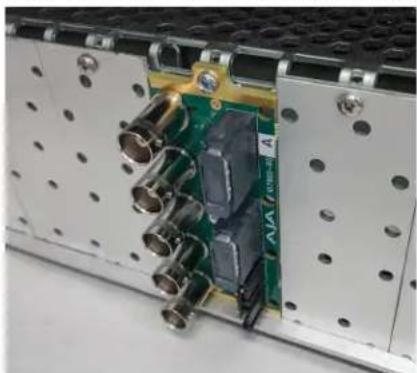
- Seat the bottom of the Rear Card in the seating slot at the base of the frame back plane.
Figure 6. Rear Card Inserting Into Frame Seating Slot

natural_image
Interior view of an electronic device showing a green circuit board with multiple connectors and metal fittings (no visible text or symbols)- Align the top screw of the Rear Card with the screw hole on the top edge of the frame back plane.
- Ensure the Rear Card aligns with the desired card slot before tightening the screw.
- Using a Phillips screwdriver, fasten the Rear Card to the frame back plane. Do not over tighten.
Figure 7. Rear Card Inserted Into Frame Seating Slot
natural_image
Close-up of an electronic device showing a green circuit board with multiple connectors and metallic components (no visible text or symbols)- Ensure proper frame cooling and ventilation by having all rear frame slots covered with rear modules or blank metal plates if plates are not pre-installed.
Front OG-4K2HD Card Installation
- Open the openGear frame door as follows:
A. Gently pull the side door tabs towards the center of the door, releasing the door from the frame.
B. Using both hands, pull the door towards you. The door extender arms prevent the door from falling.
-
Locate the Rear Card you installed as described above. The interior slot number is dependent on the slot combinations into which you installed the Rear Card. This allows adequate spacing to avoid damaging the card, the cards installed in the neighboring slots, or both.
-
Hold the card by the edges and carefully align the card edges with the rails inside the frame. The slots are numbered starting from the left-most slot when facing the fame front.
IMPORTANT: OG-4K2HD cards are installed into the right (even numbered) slot of the pair in order to connect with the rear panel.
- Fully insert the card into the frame until the card is properly seated in the Rear Card.
Figure 8. OG-4K2HD card inserted Into Right Slot

natural_image
Interior view of a server rack with visible circuit board and metal components (no readable text or symbols)- Close the frame door as follows:
A. Slide the door into the frame.
B. Pull and release the door tabs to ensure the frame door is securely locked to the frame.
Cabling
Refer to "I/O Connections for the OG-4K2HD" on page 7 to identify the input and output signal connectors.
Using the Dashboard Control System
The Dashboard Control System is available as a free download from the openGear Dashboard Software Download webpage:
http://www.opengear.tv/dashboard-software/#support_box
Ross Video offers comprehensive documentation that covers the extensive capabilities of the Dashboard Control System:
https://www.rossvideo.com/support/product-documentation/dashboard/
This AJA OG-4K2HD manual addresses only those essential aspects of the Dashboard Control System needed to control the OG-4K2HD card.
Requirements
The Dashboard Control System requires the following components:
- openGear frame with a Frame Controller card
- Ethernet connection between the controlling computer and the openGear frame
NOTE: The openGear frame ships from AJA with the MFC-8322-S Frame Controller card for controlling the new AJA Dashboard cards. The openGear frame also supports the MFC-0G3-N Advanced Networking Frame Controller card, which can be used to control compatible OG cards.
Dashboard automatically discovers openGear and Dashboard Connect devices, such as openGear frames and cards that are present and accessible on your network.
Control Interface Basic Components
The basic components of the Dashboard Control System user interface consist of the basic tree view of frames and cards, the card information and status panel, and the parameter controls panel. These elements are shown below in Figure 6.
The basic tree view of frames and cards shows the frames and cards that are discoverable by Dashboard on your network.
The card information and status panel, shown in the middle panel, display the basic status of the card currently selected in Dashboard.
The parameter controls panel shows the tabs and parameters that the selected card has available for configuration and control.
Figure 9. Main Sections of the Dashboard User Interface
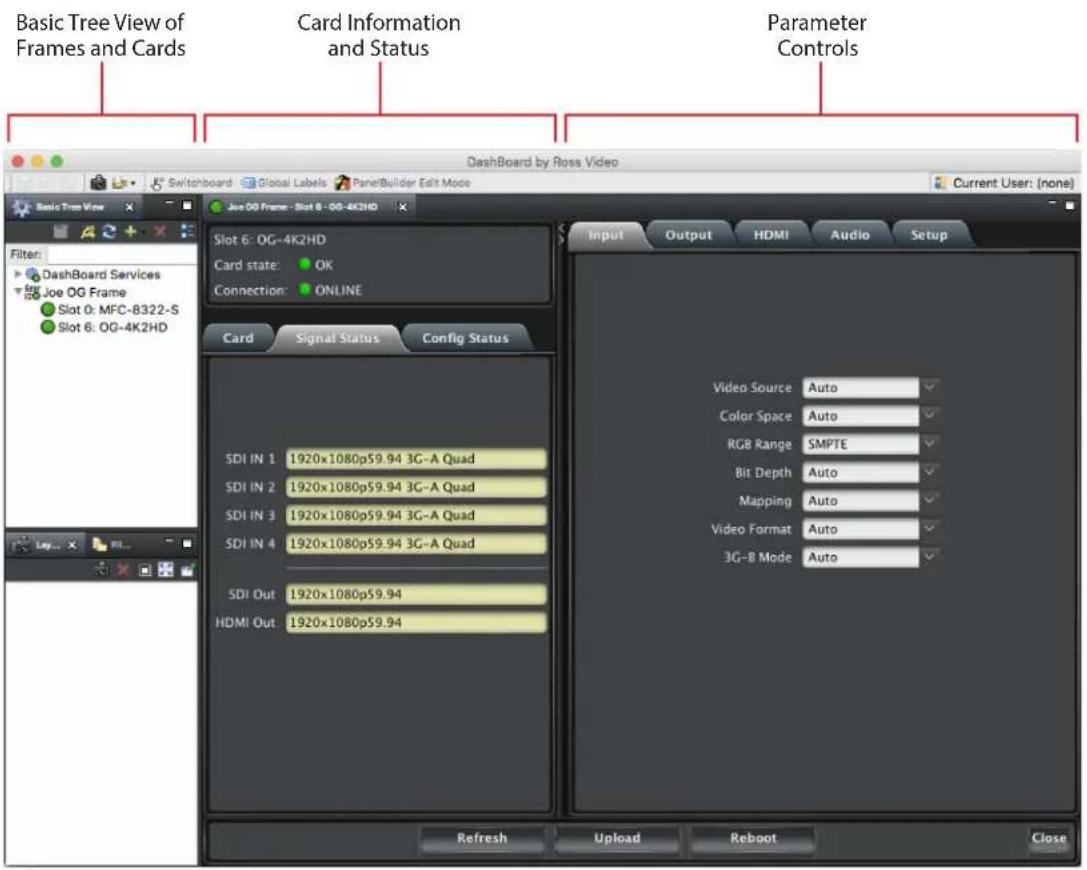
Figure 10. OG-4K2HD Card Tab Screen in Dashboard
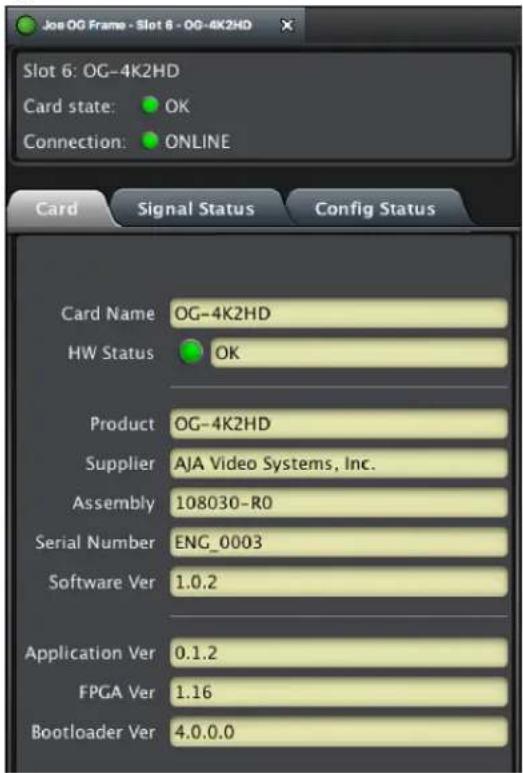
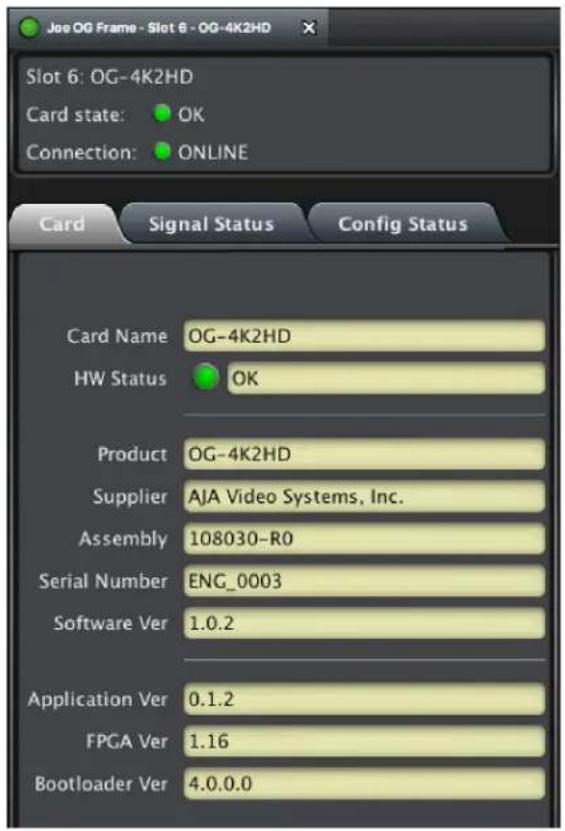
The Card tab screen indicates the basic information about the card itself such as the card name, hardware status, serial number, software version and other items.
Figure 11. OG-4K2HD Signal Status Tab Screen in Dashboard

The SDI In 1 - 4 status controls report whether the signal is connected, or No Input.
Each SDI Input reports the signal detected by the card's corresponding inputs.
Figure 12. OG-4K2HD Config Status Tab Screen in Dashboard
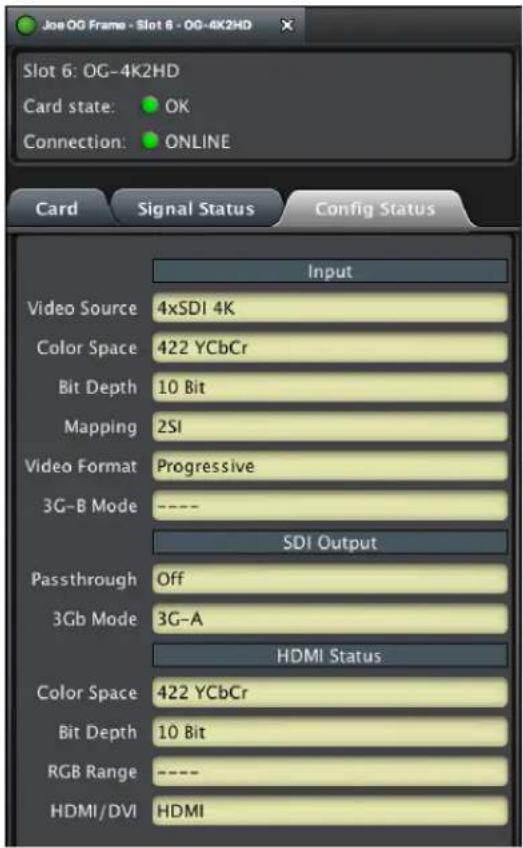
The Config Status tab screen reports the current setting of configuration parameters that are set to Auto.
Figure 13. OG-4K2HD Input Tab Screen in Dashboard
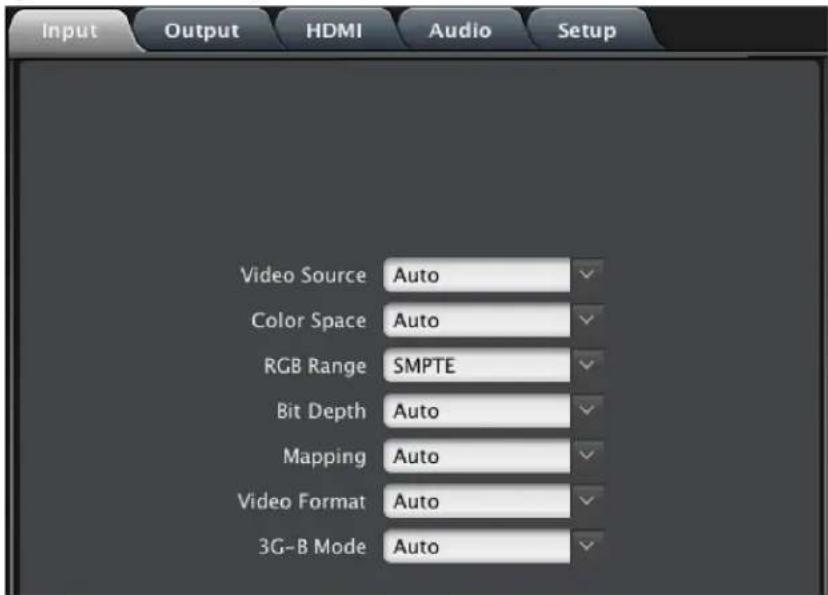
Click on the Input tab to view and make changes to the converter's input settings.
Video Source
Selects the input video format. Choose from the following:
Auto - automatically selects the format based on the input video parameters.
4xSDI 4K
2xSDI 4K - (3G-B Dual Stream input required)
2xSDI HD-DL - (2 wire SMTPE 372)
SDI 1, SDI 2, SDI 3, or SDI 4
NOTE: One of the 4 incoming quadrants of 4K video can be shown full screen on the HDMI/SDI outputs. This is accomplished by selecting one of the 4 SDI inputs, but requires that all 4 SDI inputs are connected.
Color Space
Selects the Input Video Color Space. Choose Auto, 422 YCbCr, 444 RGB, or 444 YCbCr. Choosing "Auto" will automatically select color mode based on the input video parameters and the payload ID.
RGB Range
Selects the Input Video Color Range. Choose SMPTE (default) or Full color range. There is no auto detection for color range.
Bit Depth
Selects the input video bit depth. Choose Auto, 8-bit or 10-bit. Choosing "Auto" automatically selects the bit depth based on the input video parameters and the payload ID.
Mapping
Select the 4K/UltraHD mapping format:
Auto (default) - automatically selects the mapping based on the input video.
2SI - Two Sample Interleave
Quadrant - Square Division
Video Format
Selects the Input Video Format. Choose from Auto, Progressive, Interlaced, or PsF (progressive segmented frame). Choosing "Auto" automatically selects the format based on the input video parameters and the payload ID.
3G-B Mode
Selects the 3G level B Video Mode. Choose from the following:
Auto - automatically selects the format based on the input video parameters.
Level B DL - select this when the input is Dual Link, your 3G signal is carrying 444 information, or the input is 1080p50/59.94.
Level B DS - Dual Stream - each Data Stream is an independent source.
Level B DS Link 1 - use only Data Stream 1 as a single video.
Level B DS Link 2 - use only Data Stream 2 as a single video.
Output Tab Screen
Figure 14. OG-4K2HD Output Tab Screen in Dashboard

Click on the Output tab to view and make changes to the OG-4K2HD Output settings. These settings can affect both the HDMI and SDI outputs.
Output Mode
4K Convert
Downconvert - Downconverts incoming 4K signal to HD (default setting).
Center Cut - Selects the center portion of the incoming 4K signal for display. No down-scaling occurs, and the output format is either 1920x1080 or 2048x1080 (depending the input source and the 2K Crop setting.
2K Crop
Choose On or Off. Provides the option of center cutting 2Kx1080 video signals to make 1920x1080, or center cutting a 4Kx2160 signal to make 1920x1080. Default is On.
Edge Filtering
Choose On or Off. You can disable edge filtering with this control. This is useful if you are stitching together multiple images of OG-4K2HD outputs. An example is using four OG-4K2HDs to view UHD-2 or 8K on a UltraHD/4K or HD monitor. Each OG-4K2HD downconverts one quarter of the 8K image. Disabling edge filtering can eliminate the center vertical and horizontal lines that would occur between the quadrants in that situation. Default setting is On.
Passthrough
Choose Auto, Off, or On (default is Auto). This setting can be used with HD or 2K psf format input signals. When On, psf format will passthrough to the SDI output instead of the converted, progressive format signal.
3Gb Mode
Choose Auto (default), 3G-A, or 3G-B.
Progressive to Interlace Enable
Choose Off or On. When On, a 4K/UHD progressive input will be output as a 1920x1080 interlace signal when possible.
More specifically, when Progressive to Interlace is enabled, the OG-4K2HD converts 4096x2160 or 3840x2160 progressive signals to a 1920x1080 interlace signal. Crop is automatically applied if the input signal is 4K.
This conversion is functional for the 4K and UHD input formats listed below:
| Input Output | |
| 3840x2160p25 | 1920x1080i25 |
| 3840x2160p50 | |
| 4096x2160p25 | |
| 4096x2160p50 | |
| 3840x2160p29.97 | 1920x1080i29.97 |
| 3840x2160p59.94 | |
| 4096x2160p29.97 | |
| 4096x2160p59.94 | |
| 3840x2160p30 | 1920x1080i30 |
| 3840x2160p60 | |
| 4096x2160p30 | |
| 4096x2160p60 |
Figure 15. OG-4K2HD HDMI Tab Screen in Dashboard
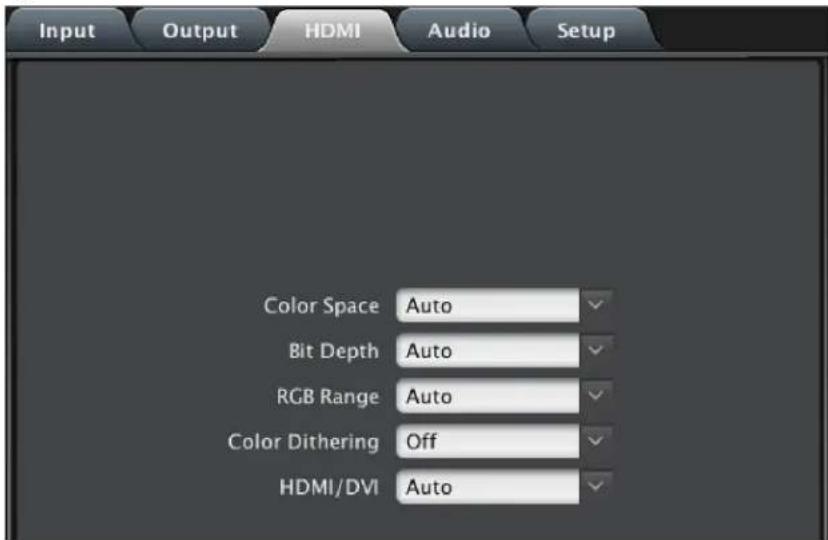
Click on the HDMI tab to view and make changes to the OG-4K2HD HDMI output settings.
Color Space
Selects the desired output video format. Choose from the following:
Auto - selects the video format based on the input video and the attached device's capabilities (default setting).
4:2:2 YCbCr - (cannot exceed 10-bit depth)
4:4:4 RGB
4:4:4 YCbCr
Bit Depth
Choose from Auto, 8-bit, or 10-bit (see limitations above). Choosing "Auto" automatically selects the bit depth based on the input video and the attached device's capabilities.
RGB Range
Choose Auto, SMPTE or Full. Choosing "Auto" automatically selects the same value as the input range setting.
Color Dithering
Choose Off or On. Default is Off.
HDMI/DVI
Choose Auto, HDMI, or DVI. When DVI is selected, any audio signals present are not passed. Choosing "Auto" automatically selects the output mode based on the attached device's capabilities. Default is Auto.
Figure 16. OG-4K2HD Audio Tab Screen in Dashboard
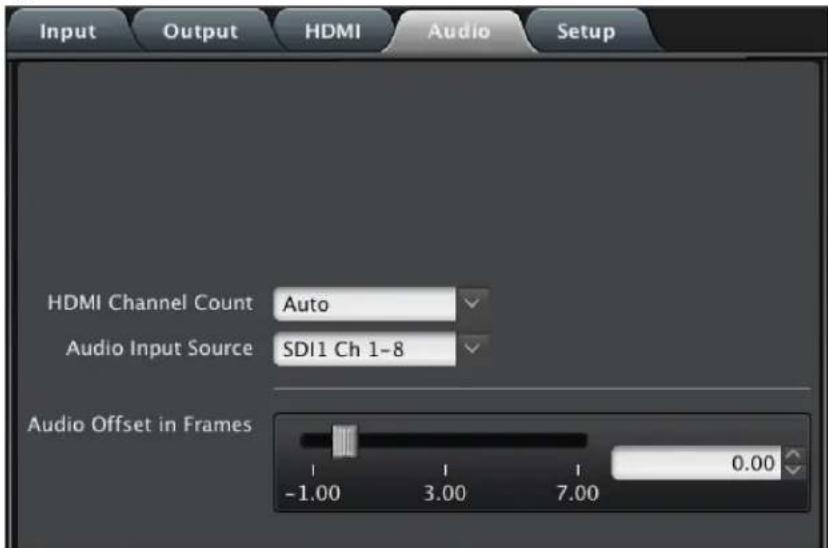
Click on the Audio tab to view and make changes to the OG-4K2HD audio settings.
HDMI Channel Count
Choose Auto, 2 of 8 channels or 8 channels embedded audio. Choosing "Auto" automatically selects the audio channels based on the attached device's capabilities.
The SDI output embedded audio always follows the selected HDMI Output source selection and is limited to 8 channels max.
Audio Input Source
Choose which embedded audio channels are routed to the HDMI output. Eight channels are routed at a time. You can choose Ch 1-8 or Ch 9-16 from any SDI input.
Audio Offset In Frames
Permits time shifting the embedded audio in relationship to the video (for example, to correct for lip sync problems), in 1/16 of a frame increments. Range is from -0.8125 video frame to +7.0 video frames. The actual time duration of delay will vary depending on the frame rate of the format being converted.
Default offset value is 0 frame to match the video delay path, resulting in time-aligned audio on the output. Positive offset delays the audio additional frames (relative to the video output), negative offset advances the audio relative to the video output.
Setup Tab Screen
Click on the Setup tab to view and make changes to the card name or to restore card settings to factory default values.
Figure 17. OG-4K2HD Setup Tab Screen in Dashboard
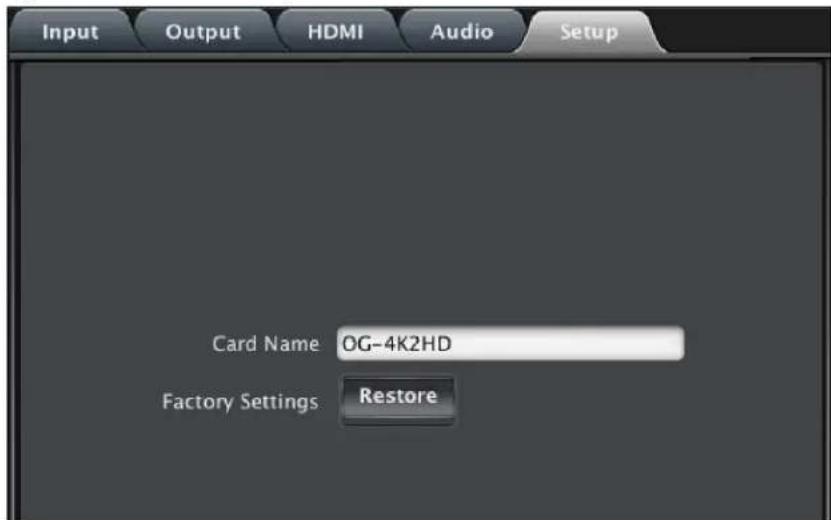
Card Name - By default, this field is pre-populated with the card name OG-4K2HD. You can change the card name by editing the text in the Card Name field.
Factory Settings - If you would like to revert the card settings to factory default values, click Restore.
Upload Screen
To Upload New Software
- Check the AJA website for new software for your OG-4K2HD. If new software is found, download it and uncompress the file archive (zip).
- Click the Upload button in the lower panel of the Dashboard Control System to open the Upload Software Wizard.
Figure 18. OG-4K2HD Upload Software Wizard window in Dashboard
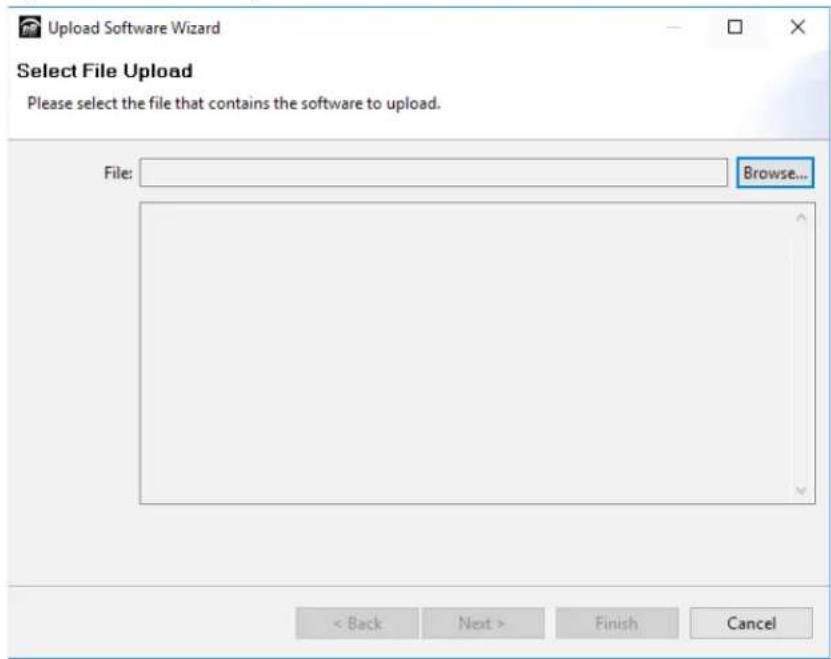
- From the Upload Software Wizard window, select Browse.
- Navigate to the location of the downloaded .bin file containing the software update. Select the .bin file, then select Open. The Upload Software Wizard window displays characteristics of the selected file for uploading.
- Click Finish. The Uploading to Selected Devices window displays with a progress bar.
Figure 19. OG-4K2HD Uploading to Selected Devices window in Dashboard
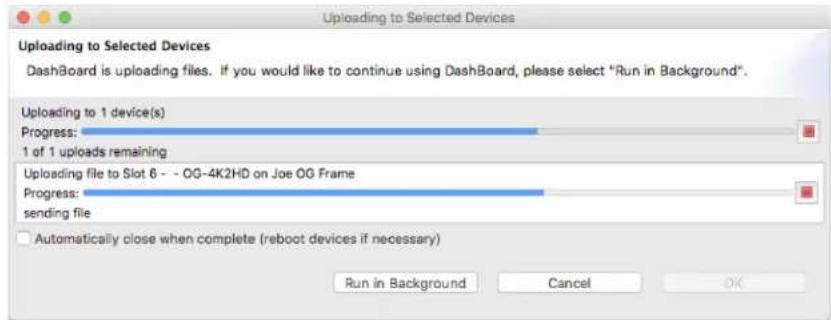
- When the progress bar indicates that the uploading is finished and status indicates "Complete," click OK.
- To verify the version of software or firmware currently installed on your card, select the Card tab from the center panel of Dashboard.
Figure 20. OG-4K2HD Card Tab Screen in Dashboard indicating the currently installed software version.
Rebooting
Rebooting is a standard function built in to the Dashboard Control System, and should only be performed if the board has become unresponsive.
WARNING: During a reboot, any down-converting operations will be briefly interrupted, but will be restored once the reboot has completed.
To Reboot the OG-4K2HD
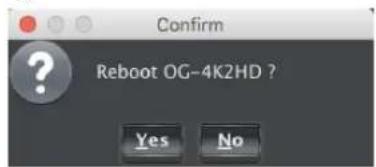
- Click the Reboot button in the lower panel of Dashboard. The reboot confirmation message displays.
Figure 21. Reboot confirmation window
-
Click Yes. The message "Loading data, please wait. Refreshing device data" displays for a moment. The card will be offline for a few seconds, and any current conversion operations will be interrupted.
-
Following a Reboot operation, the board configuration will return to the settings that were in place at the time of rebooting.
OG-4K2HD Tech Specs
Video Formats
• (4K) 4096 x 2160p
• (4K) 4096 x 2160PsF
• (UltraHD) 3840 x 2160p
• (Ultra HD) 3840 x 2160PsF
• (2K) 2048 x 1080p
• (2K) 2048 x 1080Psf
• (HD) 1920 x 1080p
• (HD) 1920 x 1080Psf
• (HD) 1920 x 1080i
• (HD) 1280 x 720p
• (SD) 720 x 576i
• (SD) 720 x 480i
Video Input Digital
• 4x 3G-SDI BNC, SMPTE-259/292/372/424
- YCbCr 4:2:2/4:4:4
• RGB 4:4:4, SMPTE or Full level
- 8 or 10-bit
- Two Sample Interleave (2SI) or Square Division (Quadrant) source mapping
• 4x 3 Gb SDI (Level A or B-Dual Link)
• (4K) 4096 x 2160p 23.98, 24, 25, 29.97, 30, 50, 59.94, 60
• (4K) 4096 x 2160PsF* 23.98, 24, 25, 29.97, 30
• (UltraHD) 3840 x 2160p 23.98, 24, 25, 29.97, 30, 50, 59.94, 60
• (Ultra HD) 3840 x 2160PsF* 23.98, 24, 25, 29.97, 30
- 4x 1.5 Gb SDI
• (4K) 4096 x 2160p 23.98, 24, 25, 29.97, 30
• (4K) 4096 x 2160PsF 23.98, 24, 25, 29.97, 30
• (UltraHD) 3840 x 2160p 23.98, 24, 25, 29.97, 30
• (UltraHD) 3840 x 2160PsF 23.98, 24, 25, 29.97, 30
• 2x 3 Gb SDI (Level B-Dual Stream)
• (4K) 4096 x 2160p 23.98, 24, 25, 29.97, 30
• (4K) 4096 x 2160PsF 23.98, 24, 25, 29.97, 30
• (UltraHD) 3840 x 2160p 23.98, 24, 25, 29.97, 30
• (UltraHD) 3840 x 2160PsF 23.98, 24, 25, 29.97, 30
• 1x 3 Gb SDI (Level A or B-Dual Link)
• (2K) 2048 x 1080p 23.98, 24, 25, 29.97, 30, 50, 59.94, 60
• (2K) 2048 × 1080PsF 23.98, 24, 25, 29.97, 30
• (HD) 1920 x 1080p 23.98, 24, 25, 29.97, 30, 50, 59.94, 60
• (HD) 1920 x 1080PsF 23.98, 24, 25, 29.97, 30
• (HD) 1920 x 1080i 50, 59.94, 60
• (HD) 1280 x 720p** 50, 59.94, 60
- 2x 1.5 Gb SDI
• (HD) 1920 x 1080p 50, 59.94, 60
- 1x 1.5 Gb SDI
• (2K) 2048 x 1080p 23.98, 24, 25, 29.97, 30
• (2K) 2048 x 1080PsF 23.98, 24, 25, 29.97, 30
• (HD) 1920 x 1080p 23.98, 24, 25, 29.97, 30
• (HD) 1920 x 1080PsF 23.98, 24, 25, 29.97, 30
• (HD) 1920 x 1080i 50, 59.94, 60
• (HD) 1280 x 720p 50, 59.94, 60
- 1x 270 Mb SDI
• (SD) 625i 50
• (SD) 525i 59.94
*PsF is Level B-Dual Link
**1280 x 720p is Level A Only
Video Output Digital
• 1x 3G-SDI BNC, SMPTE-259/292/372/424
• Color space and sampling match input signal
• 1x 3 Gb SDI (Level A or B-Dual Link)
• (2K) 2048 x 1080p 23.98, 24, 25, 29.97, 30, 50, 59.94, 60
• (2K) 2048 x 1080PsF 23.98, 24, 25, 29.97, 30
• (HD) 1920 x 1080p 23.98, 24, 25, 29.97, 30, 50, 59.94, 60
• (HD) 1920 x 1080PsF 23.98, 24, 25, 29.97, 30
• (HD) 1920 x 1080i 50, 59.94, 60
• (HD) 1280 x 720p* 50, 59.94, 60
- 1x 1.5 Gb SDI
• (2K) 2048 x 1080p 23.98, 24, 25, 29.97, 30
• (2K) 2048 x 1080PsF 23.98, 24, 25, 29.97, 30
• (HD) 1920 x 1080p 23.98, 24, 25, 29.97, 30
• (HD) 1920 x 1080PsF 23.98, 24, 25, 29.97, 30
• (HD) 1920 x 1080i 50, 59.94, 60
• (HD) 1280 x 720p 50, 59.94, 60
- 1x 270 Mb SDI
• (SD) 625i 50
• (SD) 525i 59.94
• 1x HDMI Type A connector, HDMI v1.4
- YCbCr 4:2:2/4:4:4
• RGB 4:4:4, SMPTE or Full level
• 8 or 10-bit (4:4:4 limited to 8 bit)
• (2K) 2048 x 1080p 23.98, 24, 25, 29.97, 30, 50, 59.94, 60
• (HD) 1920 x 1080p 23.98, 24, 25, 29.97, 30, 50, 59.94, 60
• (HD) 1920 x 1080i 50, 59.94, 60
• (HD) 1280 x 720p 50, 59.94, 60
• (SD) 720 x 576i 50
• (SD) 720 x 480i 59.94
*1280 x 720p is Level A Only
Audio Input Digital
• SDI embedded audio, 24-bit, 8-Channel
Audio Output Digital
• SDI embedded audio, 24-bit, 8-Channel
• HDMI embedded audio, 24-bit, 8-Channel
User Controls
- openGear Dashboard network control software via Windows, macOS or Linux
Size
- openGear standard form factor, front slot and rear card. Two slots required for each card
Weight
• 0.5 lb (0.3 kg)
Power
- openGear frame compatible, 11.0 watts max per card
Environment
- Safe Operating Temperature: 0 to 40 C (32 to 104 F)
- Safe Storage Temperature (Power OFF): -40 to 60 C (-40 to 140 F)
- Operating Relative Humidity: 10-90% noncondensing
- Operating Altitude: <3,000 meters (<10,000 feet)
Appendix B – Safety and Compliance
Federal Communications Commission (FCC) Compliance Notices
Class A Interference Statement
This equipment has been tested and found to comply with the limits for a Class A digital device, pursuant to Part 15, Subpart B of the FCC Rules. These limits are designed to provide reasonable protection against harmful interference in a residential installation. This equipment generates, uses, and can radiate radio frequency energy and, if not installed and used in accordance with the instructions, may cause harmful interference to radio communications. However, there is no guarantee that interference will not occur in a particular installation. If this equipment does cause harmful interference to radio or television reception, which can be determined by turning the equipment off and on, the user is encouraged to try to correct the interference by one or more of the following measures:
- Reorient or relocate the receiving antenna.
- Increase the separation between the equipment and receiver.
- Connect the equipment into an outlet on a circuit different from that to which the receiver is connected.
- Consult the dealer or an experienced radio/TV technician for help.
FCC Caution
This device complies with Part 15 of the FCC Rules. Operation is subject to the following two conditions: (1) This device may not cause harmful interference, and (2) this device must accept any interference received, including interference that may cause undesired operation.
Canadian ICES Statement
Canadian Department of Communications Radio Interference Regulations
This digital apparatus does not exceed the Class A limits for radio-noise emissions from a digital apparatus as set out in the Radio Interference Regulations of the Canadian Department of Communications. This Class A digital apparatus complies with Canadian ICES-003.
European Union and European Free Trade Association (EFTA) Regulatory Compliance
This equipment may be operated in the countries that comprise the member countries of the European Union and the European Free Trade Association. These countries, listed in the following paragraph, are referred to as The European Community throughout this document:
AUSTRIA, BELGIUM, BULGARIA, CYPRUS, CZECH REPUBLIC, DENMARK, ESTONIA, FINLAND, FRANCE, GERMANY, GREECE, HUNGARY, IRELAND, ITALY, LATVIA, LITHUANIA, LUXEMBOURG, MALTA, NETHERLANDS, POLAND, PORTUGAL, ROMANIA, SLOVAKIA, SLOVENIA, SPAIN, SWEDEN, UNITED KINGDOM, ICELAND, LICHTENSTEIN, NORWAY, SWITZERLAND
Declaration of Conformity
Marking by this symbol indicates compliance with the Essential Requirements of the EMC Directive of the European Union 2014/30/EU.

This equipment meets the following conformance standards:
Safety
EN 60065: 2014 (T-Mark License),
IEC 60065: 2014 (CB Scheme Report/Certificate)
Additional licenses issued for specific countries available on request.
Emissions
EN 55032: 2012, CISPR 32: 2015,
EN 61000-3-2: 2014, EN 61000-3-3: 2013
Immunity
EN 55103-2: 2009, EN 61000-4-2:2009, EN 61000-4-3: 2006 + A1:2008 + A2:2010,
EN 61000-4-4: 2004 + A1:2010, EN 61000-4-5:2006, EN 61000-4-6:2009,
EN 61000-4-11:2004
Environments: E2, E3 and E4
The product is also licensed for additional country specific standards as required for the International Marketplace.

Warning! This is a Class A product. In a domestic environment, this product may cause radio interference, in which case, the user may be required to take appropriate measures.
This symbol on the product or its packaging indicates that this product must not be disposed of with your other household waste. Instead, it is your responsibility to dispose of your waste equipment by handing it over to a designated collection point for the recycling of waste electrical and electronic equipment. The separate collection and recycling of your waste equipment at the time of disposal will help conserve natural resources and ensure that it is recycled in a manner that protects human health and the environment. For more information about where you can drop off your waste for recycling, please contact your local authority, or where you purchased your product.
Korea KCC Compliance Statement
Taiwan Compliance Statement
警告使用者:
This is a Class A product based on the standard of the Bureau of Standards, Metrology and Inspection (BSMI) CNS 13438, Class A. In a domestic environment this product may cause radio interference in which case the user may be required to take adequate measures.
Japan Compliance Statement
This is a Class A product based on the standard of the VCCI Council (VCCI 32: 2016). If this equipment is used in a domestic environment, radio interference may occur, in which case, the user may be required to take corrective actions.
Translated Warning and Caution Messages
The following caution statements, warning conventions, and warning messages apply to this product and manual.

Warning Symbol

Hazard Symbol

Caution Symbol
Before Operation Please Read These Instructions

Warning! Read and follow all warning notices and instructions marked on the product or included in the documentation.
Warning! Do not use this device near water and clean only with a dry cloth.
Warning! Do not block any ventilation openings. Install in accordance with the manufacturer's instructions.
Warning! Do not install near any heat sources such as radiators, heat registers, stoves, or other apparatus (including amplifiers) that produce heat.
Warning! Do not defeat the safety purpose of the polarized or grounding-type plug. A polarized plug has two blades with one wider than the other. A grounding type plug has two blades and a third grounding prong. The wide blade or the third prong are provided for your safety. If the provided plug does not fit into your outlet, consult an electrician for replacement of the obsolete outlet.
Warning! Since the Mains plug is used as the disconnection for the device, it must remain readily accessible and operable.
Warning! Protect the power cord from being walked on or pinched particularly at plugs, convenience receptacles, and the point where they exit from the device.
Warning! Unplug this device during lightning storms or when unused for long periods of time.
Warning! Refer all servicing to qualified service personnel. Servicing is required when the device has been damaged in any way, such as power-supply cord or plug is damaged, liquid has been spilled or objects have fallen into the device, the device has been exposed to rain or moisture, does not operate normally, or has been dropped.
Warning! Do not open the chassis. There are no user-serviceable parts inside. Opening the chassis will void the warranty unless performed by an AJA service center or licensed facility.
Warning! Disconnect the external AC power supply line cord(s) from the mains power before moving the unit.
Warning! Only use attachments and accessories specified and/or sold by the manufacturer.
Hazardl High Voltage. This situation or condition can cause injury due to electric shock.
Caution! To meet safety regulations for leakage current, connect the dual power supplies to separate branch circuits.
Warning! Ensure Mains Power is disconnected before installing the OG-4K2HD modules into the frame, or installing and removing options. If a Mains switch is not provided, the power cord(s) of this equipment provide the means of disconnection. The socket outlet must be installed near the equipment and must be easily accessible.
Warning! Dual Power Cord Notice—please read this. To reduce the risk of electrical shock, disconnect both power cords before servicing equipment.
Caution! The OG-4K2HD front fan door is heavy. Remove with Caution.
Warranty and Liability Information
Limited Warranty on Hardware
AJA Video Systems, Inc. (AJA Video) warrants that the hardware product, not including storage modules or software components, will be free from defects in materials and workmanship for a period of five (5) years from the date of purchase. AJA Video warrants that the storage modules provided as part of the hardware product will be free from defects in materials and workmanship for a period of one year from the date of purchase. AJA Video provides a separate software warranty as part of the license agreement applicable to software components.
If a hardware product or storage module (hereafter, a "product") proves to be defective during the applicable warranty period, AJA Video, at its option, will either repair the defective product without charge for parts and labor, or will provide a replacement in exchange for the defective product.
To obtain service under this warranty, the Customer must notify AJA Video of the defect before expiration of the warranty period and make suitable arrangements for the performance of service by contacting AJA Video support through the channels set forth on the support contacts web page at http://www.aja.com/support. Except as stated, the Customer shall bear all shipping, packing, insurance and other costs, excluding parts and labor, to effectuate repair. Customer shall pack and ship the defective product to a service center designated by AJA Video, with shipping charges prepaid. AJA Video shall pay to return the product to Customer but only if to a location within the country in which the AJA Video service center is located.
This warranty shall not apply to any defect, failure or damage caused by negligent, inadequate or improper use, handling or maintenance. Without limiting the foregoing, AJA Video shall not be obligated to furnish service under this warranty or repair any damage or malfunction a) resulting from attempts by personnel other than AJA Video representatives to install, repair or service the product, b) resulting from improper use or connection to incompatible equipment, c) caused by the use of non-AJA Video parts or supplies, d) if the product has been modified or integrated with other products when the effect of such a modification or integration increases the time or difficulty of servicing the product, or e) resulting from being dropped or otherwise subjected to undue force, exposure to moisture or other corrosive or conductive substances, exposure to strong magnetic fields, use with improperly regulated power supplies, exposure to electric shock, use in temperatures outside the specified operating range, or otherwise failing to treat the product in accordance with the standard of care appropriate to sensitive and delicate electronic equipment.
EXCEPT AS STATED ABOVE, AJA VIDEO AND ITS VENDORS DISCLAIM IN THEIR ENTIRETY ALL OTHER WARRANTIES, EXPRESS OR IMPLIED, INCLUDING WITHOUT LIMITATION ALL WARRANTIES OF MERCHANTABILITY OR FITNESS FOR A PARTICULAR PURPOSE. AJA VIDEO'S RESPONSIBILITY TO REPAIR OR REPLACE TIMELY REPORTED DEFECTIVE PRODUCTS IS THE WHOLE AND EXCLUSIVE REMEDY CUSTOMER IS PROVIDED WITH RESPECT TO HARDWARE PRODUCTS AND THEIR STORAGE MODULES. SOME JURISDICTIONS DO NOT ALLOW THE EXCLUSION OF IMPLIED WARRANTIES OR LIMITATIONS ON APPLICABLE STATUTORY RIGHTS OF A CONSUMER, SO SOME OR ALL OF THE TERMS OF THIS PARAGRAPH MAY NOT APPLY TO YOU.
THE PRODUCT IS NOT INTENDED, STATED, OR WARRANTED TO OPERATE UNINTERRUPTED OR ERROR-FREE. YOU UNDERSTAND AND ACKNOWLEDGE THAT THE PRODUCT IS NOT INTENDED TO BE USED AS THE SOLE OR PRIMARY DATA SOURCE OR TARGET FOR CRITICAL DATA, AND THAT IT IS YOUR RESPONSIBILITY TO IMPLEMENT REDUNDANT CAPTURE AND BACKUP SYSTEMS AS APPROPRIATE.
Limitation of Liability
Under no circumstances shall AJA video BE LIABLE IN ANY WAY FOR ANY LOST, CORRUPTED OR DESTROYED DATA, FOOTAGE OR WORK, OR FOR ANY OTHER INDIRECT, SPECIAL, INCIDENTAL OR CONSEQUENTIAL DAMAGES OR LOST PROFITS, OR FOR ANY THIRD PARTY CLAIM, IN CONNECTION WITH THE PRODUCT, WHETHER RESULTING FROM DEFECTS IN THE PRODUCT, SOFTWARE OR HARDWARE FAILURE, OR ANY OTHER CAUSE WHATSOEVER, EVEN IF AJA VIDEO HAS BEEN ADVISED OF THE POSSIBILITY OF SUCH DAMAGES. AJA VIDEO'S LIABILITY IN CONNECTION WITH THE PRODUCT SHALL UNDER NO CIRCUMSTANCES EXCEED THE PURCHASE PRICE PAID FOR THE PRODUCT. The foregoing limitations apply even if any remedy set forth in this LIMITED WARRANTY fails of its essential purpose. SOME JURISDICTIONS DO NOT ALLOW THE LIMITATION OF LIABILITY FOR PERSONAL INJURY, OR OF INCIDENTAL OR CONSEQUENTIAL DAMAGES, SO SOME OR ALL OF THE TERMS OF THIS PARAGRAPH MAY NOT APPLY TO YOU.
Governing Law and Language; Your Rights.
This limited warranty is the only warranty provided by AJA Video on the hardware product. It supersedes all prior or contemporaneous understandings regarding such subject matter. No amendment to or modification of this warranty will be binding unless in writing and signed by AJA Video. The laws of the State of California, USA will govern this warranty and any dispute arising from it. Any translation of this Agreement is intended for convenience and to meet local requirements and in the event of a dispute between the English and any non-English versions, the English version of this warranty will govern. This limited warranty gives you specific legal rights and you may have other rights that vary from jurisdiction to jurisdiction, some of which are noted above.
Symbols
2K Crop 20
2SI 19
3Gb Mode 20
3G-B Mode 19
4K Convert 19
4K Down Conversion Mode 4
4K/UltraHD Dual-stream 3Gb SDI Input 5
Cabling 12
Front Card Installation 11
Rear Card Installation 10
I/O Connections 7
M
Mapping 18
Modes 4
A
AJA Support 2
Audio Input Source 22
Audio Offset In Frames 22
N
Non-4K Mode 4
O
OG-4K2HD
Modes 4
openGear and AJA 7
Operation 13
Output Control Differences
HDMI and SDI 5
Output Mode 19
Overview 4
B
Bit Depth 18, 21
C
Card Tab Screen 15
Center Cut Mode 4
Color Dithering 21
Color Space 18
Color Space
21
P
Passthrough 20
D
Dashboard Control 5
Dashboard Control System 10
Documentation 13
Downloading 13
Rebooting 25
Requirements 13
Setup Tab Screen 22
Uploading New Software 23
Using 13
Default Operation 5
Dual-link 1.5Gb Input 5
Dual-Stream 3G
Two Inputs 5
Q
Quadrant 19
R
RGB Range 18, 21
S
Safety and Compliance 29
SDI inputs
Multiple 5
SDI Output Control
Difference From HDMI 5
SDI Passthrough 5
Signal Status Tab Screen 16
Single HD Input 5
Single SD Input 5
Square Division 19
E
Edge Filtering 20
F
Features 6
T
Technical Specifications 26
Technical Support 2
Two Sample Interleave 19
H
HDMI Channel Count 22
HDMI/DVI 21
HDMI Output Control
Difference From SDI 5
U
User Controls 10
|
Installation 10
V
Video Format 19
Video Output 5
Video Source 18


- Installation and Operation Guide
- Trademarks
- Copyright
- Contacting AJA Support
- Contents
- Notices 2
- Chapter 1 – Introduction .....4
- Chapter 2 – Operation....13
- Appendix A – Specifications ..... 26
- Appendix B – Safety and Compliance ..... 29
- Warranty and Liability Information....38
- Index. 40
- Chapter 1 – Introduction
- Overview
- OG-4K2HD Operating Modes
- Default Operation
- Video Output
- HDMI and SDI Output Control Differences
- Dashboard Control
- Input Video Selections
- Output Video Selections
- HDMI Output
- Audio
- Features
- Block Diagram
- openGear and AJA
- I/O Connections
- Signal Indicators on the OG-4K2HD Card
- Signal Indicators in the Dashboard Control System
- User Controls
- Dashboard Control System
- Installation
- Summary
- Unpacking
- Rear OG-4K2HD Card Installation
- Front OG-4K2HD Card Installation
- Cabling
- Using the Dashboard Control System
- Requirements
- Control Interface Basic Components
- Video Source
- Color Space
- RGB Range
- Bit Depth
- Mapping
- Video Format
- 3G-B Mode
- Output Tab Screen
- Output Mode
- 4K Convert
- 2K Crop
- Edge Filtering
- Passthrough
- 3Gb Mode
- Progressive to Interlace Enable
- Color Dithering
- HDMI/DVI
- HDMI Channel Count
- Audio Input Source
- Audio Offset In Frames
- Setup Tab Screen
- Upload Screen
- To Upload New Software
- Rebooting
- To Reboot the OG-4K2HD
- OG-4K2HD Tech Specs
- Video Formats
- Video Input Digital
- Video Output Digital
- Audio Input Digital
- Audio Output Digital
- Size
- Weight
- Power
- Environment
- Appendix B – Safety and Compliance
- Federal Communications Commission (FCC) Compliance Notices
- Class A Interference Statement
- FCC Caution
- Canadian ICES Statement
- European Union and European Free Trade Association (EFTA) Regulatory Compliance
- Declaration of Conformity
- Korea KCC Compliance Statement
- Taiwan Compliance Statement
- 警告使用者:
- Japan Compliance Statement
- Translated Warning and Caution Messages
- Before Operation Please Read These Instructions
- Warranty and Liability Information
- Limited Warranty on Hardware
- Limitation of Liability
- Governing Law and Language; Your Rights.
- Symbols
- M
- A
- N
- O
- B
- C
- P
- D
- Q
- R
- S
- E
- F
- T
- H
- U
- |
- V
Brand : AJA
Model : OG-4K2HD
Category : Audio/Video Equipment