
FPCEILBTB - Wall panel support StarTech.com - Free user manual and instructions
Find the device manual for free FPCEILBTB StarTech.com in PDF.


| Product Type | Ceiling TV Mount (Back-to-Back, Dual Display) |
| Brand | StarTech.com |
| Model | FPCEILBTB |
| VESA Compatibility | 200x200, 200x300, 200x400, 300x200, 300x300, 400x200, 400x300, 400x400, 600x200, 600x300, 600x400 |
| Weight Capacity (per mount) | Up to 110 lb (50 kg) |
| Screen Size | 32" to 75" (1905 mm) |
| Tilt | +5° to -20° |
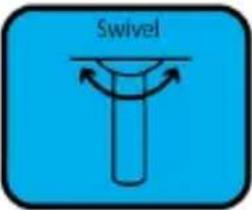
| Swivel (Extension Pole) | +180° to -180° |
| Extension Length | 42" to 61" (1060 to 1560 mm) |
| Level Adjustment | +3° to -3° |
| Ceiling Plate Swivel | -60° to +60° |
| Material | Steel |
| Color | Black |
| Warranty | 5 years |
| Installation Requirements | Professional installation recommended; ceiling structure must support at least 4x weight of equipment |
| Package Contents | Mounting Bracket, Extension Pole, Upper Pole, Horizontal Bracket (x2), Vertical Brackets (x4?), Bolts, Nuts, Wrench, Hex Key, Mounting Template, Screws (M5, M6, M8), Washers, Spacers, Concrete Anchors |
| Regulatory Compliance | ISO 9001 Registered |
Frequently Asked Questions - FPCEILBTB StarTech.com
User questions about FPCEILBTB StarTech.com
0 question about this device. Answer the ones you know or ask your own.
Ask a new question about this device
Download the instructions for your Wall panel support in PDF format for free! Find your manual FPCEILBTB - StarTech.com and take your electronic device back in hand. On this page are published all the documents necessary for the use of your device. FPCEILBTB by StarTech.com.
USER MANUAL FPCEILBTB StarTech.com
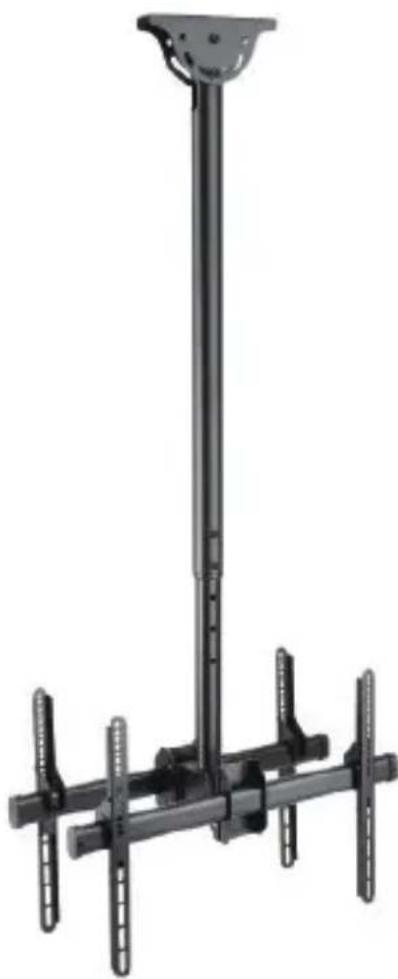
Ceiling TV Mount | Back-to-Back | Dual Display
natural_image
Mechanical support structure with vertical metal frame and mounting brackets (no text or symbols)Actual product may vary from image shown
User Manual
SKU#: FPCEILBTB
For the latest information and specifications visit
www.startech.com/FPCEILBTB
Compliance Statements
Use of Trademarks, Registered Trademarks, and other Protected Names and Symbols
This manual may make reference to trademarks, registered trademarks, and other protected names and/or symbols of third-party companies not related in any way to StarTech.com. Where they occur these references are for illustrative purposes only and do not represent an endorsement of a product or service by StarTech.com, or an endorsement of the product(s) to which this manual applies by the third-party company in question. Regardless of any direct acknowledgement elsewhere in the body of this document, StarTech.com hereby acknowledges that all trademarks, registered trademarks, service marks, and other protected names and/or symbols contained in this manual and related documents are the property of their respective holders.
Safety Statements
Safety Measures
- Product installation and/or mounting should be completed by a certified professional as per the local safety and building code guidelines.
- Cables (including power and charging cables) should be placed and routed to avoid creating electric, tripping or safety hazards.
Mesures de sécurité
To view manuals, videos, drivers, downloads, technical drawings, and more visit www.startech.com/support
Säkerhetsåtgärder
• Make sure to assemble this product according to the instructions. Failure to do so might result in personal injury or property damage.
- Never operate this product if parts are missing or damaged.
- Ceiling structures vary, and it's important to make sure that the type of ceiling structure and mounting hardware that you're using will properly support the mounted equipment. Failure to do so may result in personal injury and/or equipment damage. The ceiling structure should be capable of supporting at least four times the weight of the mounted equipment.
- The mounting hardware included with this product might not be adequate for some ceiling structures. If you lack the necessary expertise to attach this product to the ceiling structure that you're using, contact a construction professional to install the ceiling mount or to provide specific mounting instructions for your ceiling structure.
Varningsmeddelanden
To view manuals, videos, drivers, downloads, technical drawings, and more visit www.startech.com/support
Avertissements
To view manuals, videos, drivers, downloads, technical drawings, and more visit www.startech.com/support
To view manuals, videos, drivers, downloads, technical drawings, and more visit www.startech.com/support
To view manuals, videos, drivers, downloads, technical drawings, and more visit www.startech.com/support
注意
Compliance Statements....1
Safety Statements....2
Warning Statements....3
Product Diagram....9
Product Information....10
Package Contents 10
Specifications....14
Requirements 15
Installation 16
Mounting the Ceiling Mount and Upper Pole Assembly....16
Assembly 16
Attaching the Extension Pole to the Upper Pole....16
Attaching the Horizontal Bracket....18
Selecting the Appropriate Mounting Hardware....19
Attaching the Vertical Brackets to a TV 22
Attaching the Vertical Brackets to a TV Using Spacers....23
Attaching the TVs to the Horizontal Bracket 24
Adjusting the TVs 26
Adjusting the tilt....26
Adjusting the Swivel 27
Adjusting the Vertical Position of the Ceiling TV Mount....27
To view manuals, videos, drivers, downloads, technical drawings, and more visit www.startech.com/support
Product Diagram
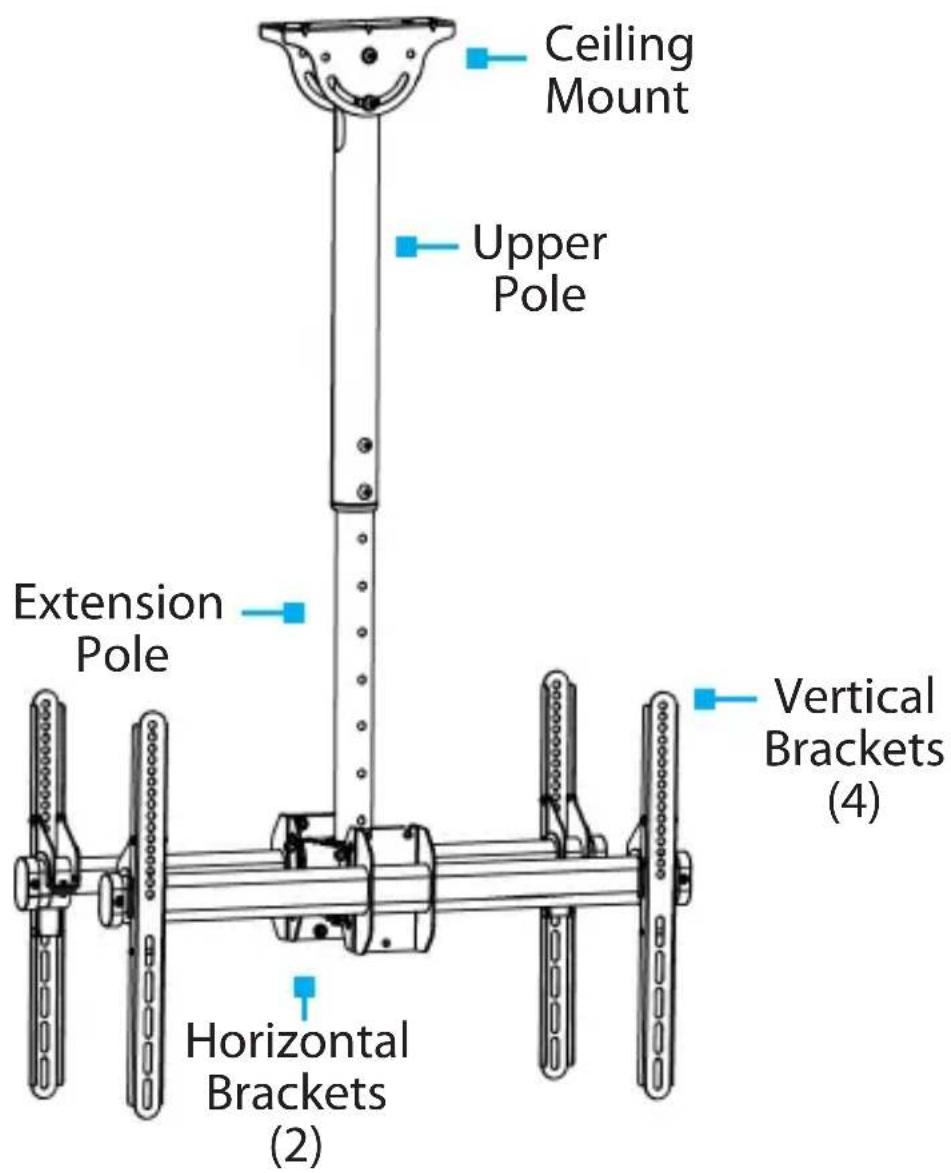
To view manuals, videos, drivers, downloads, technical drawings, and more visit www.startech.com/support
Product Information
Package Contents

Qty: 1
Qty: 1
Qty: 4
Qty: 2
To view manuals, videos, drivers, downloads, technical drawings, and more visit www.startech.com/support
5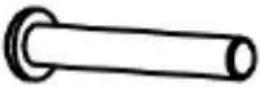 BoltsQty: 2 BoltsQty: 2 | 6 NutsQty: 2 NutsQty: 2 |
7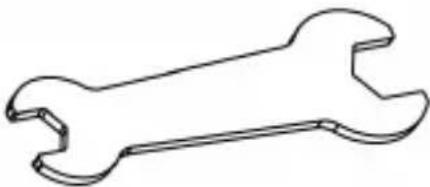 WrenchQty: 1 WrenchQty: 1 | 8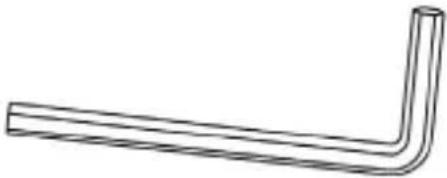 Hex KeyQty: 1 Hex KeyQty: 1 |
9 Mounting TemplateQty: 1 Mounting TemplateQty: 1 | 10 M5x14 mm ScrewsQty: 8 M5x14 mm ScrewsQty: 8 |
To view manuals, videos, drivers, downloads, technical drawings, and more visit www.startech.com/support
11 M6x14 mm ScrewsQty: 8 M6x14 mm ScrewsQty: 8 | 12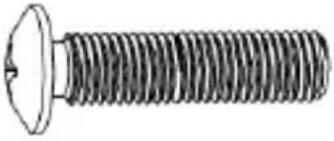 M6x30 mm ScrewsQty: 8 M6x30 mm ScrewsQty: 8 |
13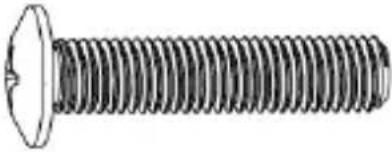 M8x30 mm ScrewsQty: 8 M8x30 mm ScrewsQty: 8 | 14 M8x50 mm ScrewsQty: 8 M8x50 mm ScrewsQty: 8 |
15 Rectangular WashersQty: 8 Rectangular WashersQty: 8 | 16 Short SpacersQty: 16 Short SpacersQty: 16 |
To view manuals, videos, drivers, downloads, technical drawings, and more visit www.startech.com/support
17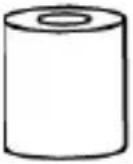 Long SpacersQty: 16 Long SpacersQty: 16 | 18 6.3x55 mm ScrewsQty: 4 6.3x55 mm ScrewsQty: 4 |
19 Concrete AnchorsQty: 4 Concrete AnchorsQty: 4 | 20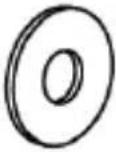 Flat WashersQty: 4 Flat WashersQty: 4 |
21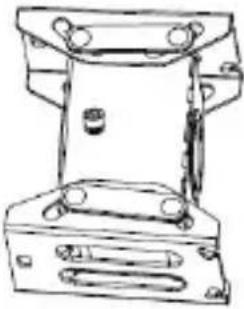 Mounting BracketQty: 1 Mounting BracketQty: 1 |
To view manuals, videos, drivers, downloads, technical drawings, and more visit www.startech.com/support
Specifications
| Type of Measurement Measurement | ||
| VESA mounting hole pattern |  | 200x200, 200x300, 200x400300x200, 300x300400x200, 400x300, 400x400600x200, 600x300, 600x400 |
| Weight capacity Up to 110 lb. per mount(50 kg per mount) | ||
| Tilt +5° to -20° |  | |
| Extension pole swivel |  | +180° to -180° |
| Extension 42" to 61" (1060 to 1560 mm) | ||
| Level adjustment +3° to -3° | ||
To view manuals, videos, drivers, downloads, technical drawings, and more visit www.startech.com/support
Screen size 32" to  | 1905 mm) |
| Ceiling plate swivel | -60° to +60° |
 |
Requirements
Requirements are subject to change. For the latest requirements, please visit www.StarTech.com/FPCEILBTB
- Flat-panel TV (max. 75", VESA mount compatible) x 2
• Phillips Head Screwdriver x 1
To view manuals, videos, drivers, downloads, technical drawings, and more visit www.startech.com/support
Installation
Mounting the Ceiling Mount and Upper Pole Assembly
Notes: Product mounting should be completed by a certified professional as per the local safety and building code guidelines.
Ceiling structures vary, and it's important to make sure that the type of structure and mounting hardware that you're using will properly support the mounted equipment. Failure to do so may result in personal injury and/or equipment damage.
- Before installing the Ceiling TV Mount onto the mounting surface, contact a professional.
- After consulting a professional, the Ceiling Mount and Upper Pole Assembly can be mounted using the Mounting Hardware included.
Note: The mounting hardware provided may not be suitable for all ceiling structures.
Assembly
Attaching the Extension Pole to the Upper Pole
- Align the hole in the Mounting Bracket with the Extension Pole and slide the Mounting Bracket down to the bottom of the Extension Pole.
- Feed the TV Cables through the Cable Hole in the Upper Pole and into the Extension Pole.
To view manuals, videos, drivers, downloads, technical drawings, and more visit www.startech.com/support
Note: At this step in the installation process, the Upper Pole is not attached to the Extension Pole.
- Feed the TV Cables through the Extension Pole, and out the Cable Hole in the bottom of the Extension Pole.

natural_image
Technical line drawing of a mechanical device with a vertical rod and mounting base (no text or symbols)Feeding the TV Cables through the Poles
-
Slide the Extension Pole into the Upper Pole, until the Extension Pole is at the desired height.
-
Align the Adjustment Holes on the Extension Pole with the Adjustment Holes on the Upper Pole.
To view manuals, videos, drivers, downloads, technical drawings, and more visit www.startech.com/support
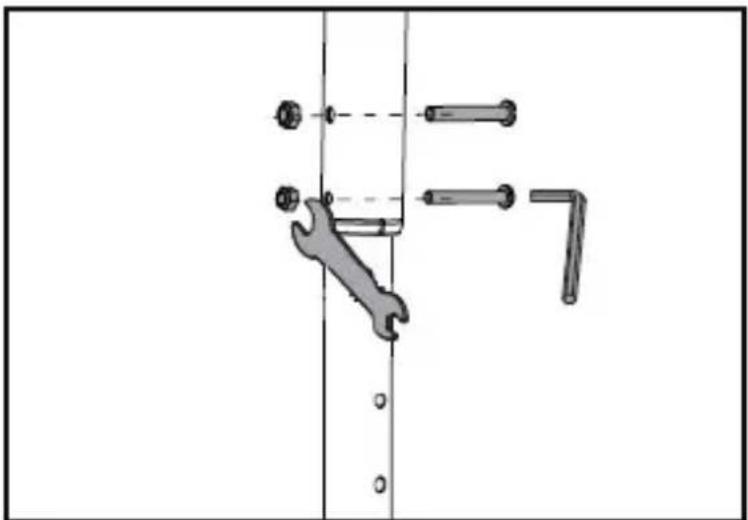
- Insert two Bolts through the Adjustment Holes on the Upper Pole and into the Adjustment Holes on the Extension Pole.
natural_image
Mechanical assembly diagram showing a wrench and two bolts with alignment guides (no text or labels)Installing the Nuts/Bolts through the Adjustment Holes
- Screw one Nut onto the end of each of the Bolts and use the Wrench to hold the Nuts in place while using the Hex Key to tighten the Bolts.
Attaching the Horizontal Bracket
- Using a Wrench, remove the Retainer Nut and loosen the other two Nuts on the Horizontal Bracket.

natural_image
Technical line drawing of a mechanical assembly with two cylindrical components and a wrench (no text or symbols)Removing the Retainer Nut and Loosen the two other Nuts
To view manuals, videos, drivers, downloads, technical drawings, and more visit www.startech.com/support
-
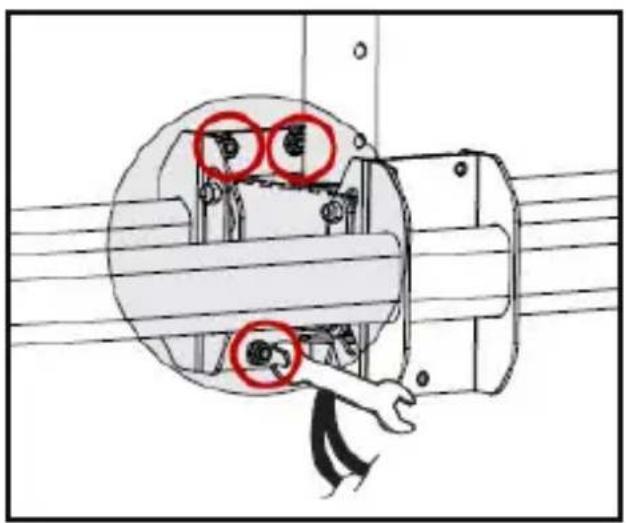
Align the three Threaded Studs on the Horizontal Bracket with the Mounting Hole and Mounting Slots on the Mounting Bracket.
-
Reattach the Retainer Nut removed in Step 1 and use a Wrench to tighten the Retainer Nut and the other two Nuts that were loosened in Step 1.
natural_image
Mechanical assembly diagram showing a motor with two red-circled components and a hand adjusting the shaft (no text or symbols present)Attaching the Mounting Bracket to the Horizontal Bracket
- Repeat Steps 1 - 3 to install the other Horizontal Bracket.
Selecting the Appropriate Mounting Hardware
• Determine if the back of the TV is flush or inset.
• Determine the depth of the mounting holes on the TV.
- Determine the diameter of the mounting holes on the TV.
Note: If you're using a TV with a flush mounting surface, you don't need to use any of the provided spacers.
To view manuals, videos, drivers, downloads, technical drawings, and more visit www.startech.com/support
| Screw Spacer Combination | |||
| Flush Mounting Surface | |||
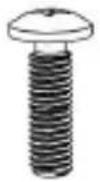 M5x14 mm M5x14 mm | N/A | ||
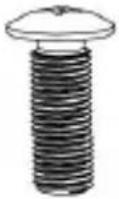 M6x14 mm M6x14 mm | N/A | ||
| Inset Mounting Surface | |||
 M6x30 mm M6x30 mm | 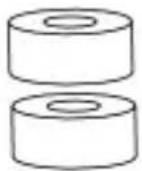 |  |  |
To view manuals, videos, drivers, downloads, technical drawings, and more visit www.startech.com/support
 M8x30 mm M8x30 mm |  | 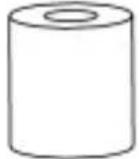 | 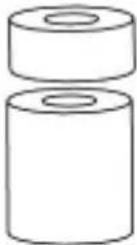 |
 M8x50 mm M8x50 mm | 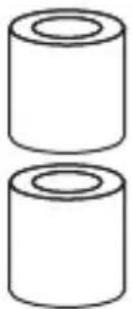 | 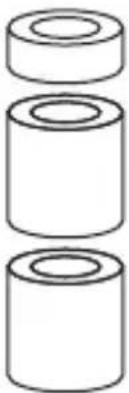 | 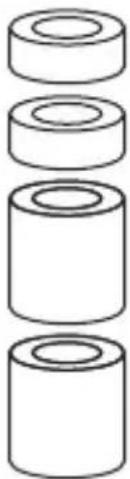 |
To view manuals, videos, drivers, downloads, technical drawings, and more visit www.startech.com/support
Attaching the Vertical Brackets to a TV
Warning! Do not over-tighten the screws. If you encounter resistance while you are installing the screws, stop tightening. Failure to do so could result in damage to the TV.
- Using a Phillips Head Screwdriver, remove the Bracket Screw from the Hinge on each of the Vertical Brackets and open the Hinge.

natural_image
Technical line drawing of a mechanical assembly with rollers and mounting brackets (no text or symbols)Removing Bracket Screw
-
Place the TV on a secure flat surface with the screen facing down. Align the Mounting Holes on the Vertical Brackets with the Mounting Holes on the back of the TV. Make sure that the Hinges on the Vertical Brackets open downward.
-
Align one Washer (use the appropriate Washer hole size) over each of the Mounting Holes on the Vertical Brackets.
-
Insert the Screws through the Washers and Vertical Brackets, and into the back of the TV.
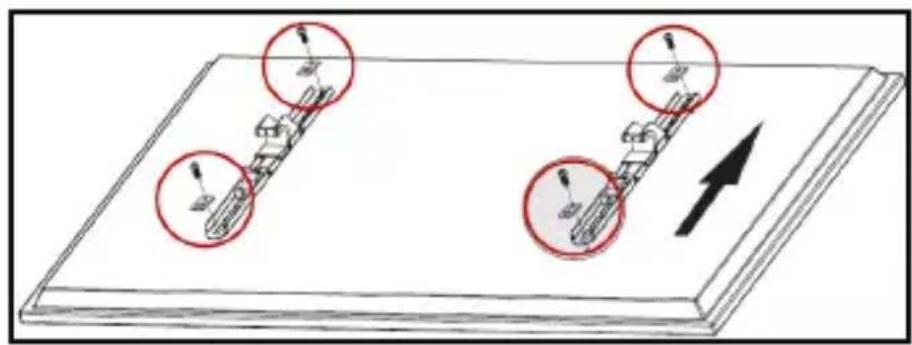
Attaching the Vertical Brackets
- Use a Phillips Head Screwdriver to tighten the Screws. Be careful not to over-tighten the Screws.
Attaching the Vertical Brackets to a TV Using Spacers
If you're attaching a TV with an inset mounting surface:
-
Place the TV on a secure flat surface with the screen facing down. Align the Mounting Holes on the Vertical Brackets with the Mounting Holes on the back of the TV.
-
Align four Washers (use the appropriate Washer hole size) with the Mounting Holes on the Vertical Brackets. Make sure that the Hinge on each of the Vertical Brackets opens downward.
To view manuals, videos, drivers, downloads, technical drawings, and more visit www.startech.com/support
- Insert the Screws through the Washers, Vertical Brackets, and Spacers and into the back of the TV.

natural_image
Technical diagram of a mechanical assembly with labeled components (no text or symbols present)Using Spacers
- Use a Phillips Head Screwdriver to tighten the Screws. Be careful not to over-tighten the Screws.
Attaching the TVs to the Horizontal Bracket
Warning! Attaching the TVs is a two-person job. Do not attempt to hang the TVs by yourself.
- Carefully lift up the TV and hook the Vertical Brackets onto the Horizontal Bracket, making sure the Hinge on the Vertical Bracket is at the bottom of the Horizontal Bracket.
To view manuals, videos, drivers, downloads, technical drawings, and more visit www.startech.com/support
- Close both Hinges on the Vertical Brackets, and use a Phillips Head Screwdriver to fasten the Bracket Screws removed from the Hinges.

natural_image
Technical line drawing of a mechanical assembly with no visible text or symbolsTVs Mounted
- Repeat Steps 1 - 2 to hang the second TV.
To view manuals, videos, drivers, downloads, technical drawings, and more visit www.startech.com/support
Adjusting the TVs
Adjusting the tilt
- Using a Wrench, loosen the three Nuts on the side of the Horizontal Bracket.
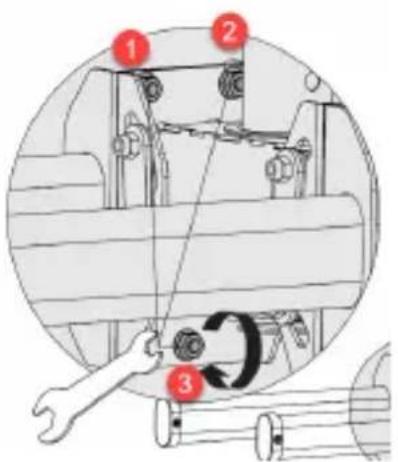
Using a Wrench to loosen the Nuts
-
Rotate the display as needed
-
Re-tigten the loosen Nuts to fix the new display position
Adjusting the Swivel
- Using a Hex Key loosen but do not remove the Retainer Bolt on the back of the Horizontal Bracket.
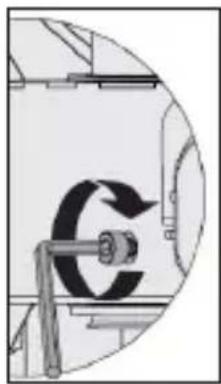
natural_image
Circular diagram showing a mechanical or electrical component with a circular arrow indicating rotational motion (no text or symbols)Using a Hex Key to Loosen the Retainer Bolt
- Adjust the TV to the position that you want it in
- Re-tighten the loosen the Retainer Bolt to fix the new display position.
Adjusting the Vertical Position of the Ceiling TV Mount
This adjustment is recommended for sloped ceiling types only and adjusts the angle of the Ceiling Mount relative to the Pole Assembly.
-
Attach the Wrench to the Nut and insert the Allen Key into the Bolt opposite the Nut on the Ceiling Mount.
-
Loosen the Bolt and slide the Upper Pole to the desired position.
To view manuals, videos, drivers, downloads, technical drawings, and more visit www.startech.com/support
- Re-tighten the Nut and Bolt.

natural_image
Mechanical assembly diagram showing a bracket with gears and a wrench, no text or symbols presentAdjusting the vertical position
To view manuals, videos, drivers, downloads, technical drawings, and more visit www.startech.com/support
Warranty Information
This product is backed by a five-year warranty.
For further information on product warranty terms and conditions, please refer to www.startech.com/warranty.
Limitation of Liability
In no event shall it be the liability of StarTech.com Ltd. and StarTech.com USA LLP (or their officers, directors, employees or agents) for any damages (whether direct or indirect, special, punitive, incidental, consequential, or otherwise), loss of profits, loss of business, or any pecuniary loss, arising out of or related to the use of the product exceed the actual price paid for the product.
Some states do not allow the exclusion or limitation of incidental or consequential damages. If such laws apply, the limitations or exclusions contained in this statement may not apply to you.
Hard-to-find made easy. At StarTech.com, that isn't a slogan. It's a promise.
StarTech.com is your one-stop source for every connectivity part you need. From the latest technology to legacy products — and all the parts that bridge the old and new — we can help you find the parts that connect your solutions.
We make it easy to locate the parts, and we quickly deliver them wherever they need to go. Just talk to one of our tech advisors or visit our website. You'll be connected to the products you need in no time.
Visit www.startech.com for complete information on all StarTech.com products and to access exclusive resources and time-saving tools.
StarTech.com is an ISO 9001 Registered manufacturer of connectivity and technology parts. StarTech.com was founded in 1985 and has operations in the United States, Canada, the United Kingdom and Taiwan servicing a worldwide market.
Reviews
Share your experiences using StarTech.com products, including product applications and setup, what you love about the products, and areas for improvement.
| StarTech.com Ltd. | StarTech.com LLP | StarTech.com Ltd. | StarTech.com Ltd. |
| 45 Artisans Crescent London, Ontario | 4490 South Hamilton Road Groveport, Ohio | Unit B, Pinnacle 15 Gowerton Road Brackmills, | Siriusdreef 17-27 2132 WT Hoofddorp |
| N5V 5E9 Canada | 43125 U.S.A. | Northampton NN4 7BW United Kingdom | The Netherlands |
FR: fr.startech.com
DE: de.startech.com
ES: es.startech.com
NL: nl.startech.com
IT: it.startech.com
JP: jp.startech.com

- Ceiling TV Mount | Back-to-Back | Dual Display
- Compliance Statements
- Use of Trademarks, Registered Trademarks, and other Protected Names and Symbols
- Safety Statements
- Safety Measures
- Mesures de sécurité
- Säkerhetsåtgärder
- Varningsmeddelanden
- Avertissements
- 注意
- Product Diagram
- Product Information
- Package Contents
- Specifications
- Requirements
- Installation
- Mounting the Ceiling Mount and Upper Pole Assembly
- Assembly
- Attaching the Extension Pole to the Upper Pole
- Attaching the Horizontal Bracket
- Selecting the Appropriate Mounting Hardware
- Attaching the Vertical Brackets to a TV
- Attaching the Vertical Brackets to a TV Using Spacers
- Attaching the TVs to the Horizontal Bracket
- Adjusting the TVs
- Adjusting the tilt
- Adjusting the Swivel
- Adjusting the Vertical Position of the Ceiling TV Mount
- Warranty Information
- Limitation of Liability
- Hard-to-find made easy. At StarTech.com, that isn't a slogan. It's a promise.
- Reviews
Brand : StarTech.com
Model : FPCEILBTB
Category : Wall panel support