NV-VP31EE - Camcorder PANASONIC - Free user manual and instructions
Find the device manual for free NV-VP31EE PANASONIC in PDF.


User questions about NV-VP31EE PANASONIC
0 question about this device. Answer the ones you know or ask your own.
Ask a new question about this device
Download the instructions for your Camcorder in PDF format for free! Find your manual NV-VP31EE - PANASONIC and take your electronic device back in hand. On this page are published all the documents necessary for the use of your device. NV-VP31EE by PANASONIC.
USER MANUAL NV-VP31EE PANASONIC
natural_image
Front view of a computer monitor with ports and drive buttons (no visible text or labels)DVD Player/ Video Cassette Recorder
Operating Instructions
Model No. NV-VP31 Series
natural_image
Abstract digital artwork featuring glowing spheres and flowing lines over a reflective surface, with no visible text or symbols.


Before attempting to connect, operate or adjust this product, please read these instructions completely.
SUPER DRIVE
Before Use
Warning and Important Information .... 3
Accessories 3
VHS Deck and Cassette Tape Information...... 4
The Remote Control 4
Disc Information.... 5
Control Reference Guide....6
Main Unit....6
The Unit's Display....6
Remote Control....7
Getting Started
Connections 8
Basic Connections 8
Audio/Video Output Sockets....8
For better video from DVD....8
To enjoy sound through other audio equipment 9
Operating the TV 10
TV Maker Setting.... 10
Tuning the TV to Your Unit.... 11
To change the RF output channel 11
Setting Up for VHS 12
CLOCK SET 12
DVD Quick Setup.... 13
VHS Operations
Playback.... 14
Picture Mode.... 15
Adjusting the playback picture 15
NTSC Playback 15
Recording 16
One-Touch Recording (OTR) 17
Recording from an external source.... 17
Tape Refresh Function 17
Timer Recording.... 18
To check and cancel a Timer Programme.... 19
Search Functions 20
Jet Navigator 20
VHS Index Search System (VISS).... 21
Easy Programme Playback 21
Settings Using the On-Screen Display.... 22
TUNER PRESET 22
SYSTEM....23
OPTION....24
Various indications in on-screen display.... 25
Changing audio.... 25
DVD Operations
Playing Discs-basic play....26
Position Memory function....27
Chapter Review.... 27
Convenient Functions....28
Starting play from a selected item....28
Selecting groups to play.... 28
QUICK REPLAY....28
Rotating Pictures.... 29
Repeat Play.... 29
Changing Play Sequence....30
Program Play 30
Random Play....30
Playing the Programmes or Play Lists on DVD-RAM....31
Direct Navigator 31
Playing a play list 31
MP3/WMA, CD text and JPEG Navigating Menus.....32
Playing HighMAT discs 33
To Enjoy Movies and Music More ....34
Changing soundtracks, subtitles and angles....34
Changing Settings....40
Entering a password (Ratings)......40
SETUP menu 41
Editing
Recording from DVD to VHS....42
Manual Dubbing 42
One-Touch Dubbing....42
Adding Music to Video....43
MUSIC WITH PICTURE....43
Helpful Hints
Before Requesting Service....44
Error Messages.... 46
Glossary 47
Specifications 48
Index 49
Warning and Important Information
Thank you for purchasing this product. For optimum performance and safety, please read these instructions carefully.
CAUTION!
DO NOT INSTALL, OR PLACE THIS UNIT, IN A BOOKCASE, BUILT-IN CABINET OR IN ANOTHER CONFINED SPACE. ENSURE THE UNIT IS WELL VENTILATED. TO PREVENT RISK OF ELECTRIC SHOCK OR FIRE HAZARD DUE TO OVERHEATING, ENSURE THAT CURTAINS AND ANY OTHER MATERIALS DO NOT OBSTRUCT THE VENTILATION VENTS.
CAUTION!
THIS PRODUCT UTILIZES A LASER. USE OF CONTROLS OR ADJUSTMENTS OR PERFORMANCE OF PROCEDURES OTHER THAN THOSE SPECIFIED HEREIN MAY RESULT IN HAZARDOUS RADIATION EXPOSURE. DO NOT OPEN COVERS AND DO NOT REPAIR YOURSELF. REFER SERVICING TO QUALIFIED PERSONNEL.
WARNING
TO REDUCE THE RISK OF FIRE, ELECTRIC SHOCK OR PRODUCT DAMAGE, DO NOT EXPOSE THIS EQUIPMENT TO RAIN, MOISTURE, DRIPPING OR SPLASHING AND ENSURE THAT NO OBJECTS FILLED WITH LIQUIDS, SUCH AS VASES, SHALL BE PLACED ON THE EQUIPMENT.
TO REDUCE THE RISK OF FIRE, SHOCK HAZARD AND ANNOYING INTERFERENCE, USE THE RECOMMENDED ACCESSORIES ONLY.
text_image
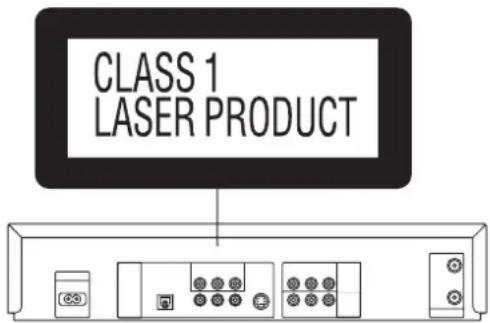
CLASS 1 LASER PRODUCT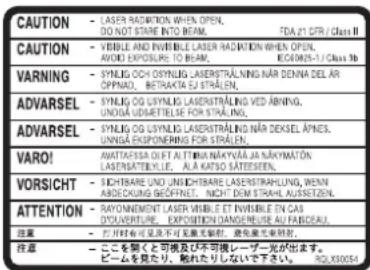
text_image
CAUTION - LASER RADATION WHEN OPEN, DO NOT STARE INTO BEAM. FDA 21 CFR / Class II CAUTION - VERSIBLE AND INVERIBLE LASER RADATION WHEN OPEN. AVOID EXPOSURE TO BEAM. ECONOMS-1 / Class 3b VARNING - SYNLIG OCH SYNELIS LASERSTRALING NÄR DENNA DEL AR OPNAD, BETRAKTA EJ STRÅLEN. ADVARSEL - SYNLIG OCH SYNELIS LASERSTRALING VED ÄBNING, UNIGA UDSMETRELIE FOR STRÅLEN. ADVARSEL - SYNLIG OCH SYNELIS LASERSTRALING NÄR DEKSEL ÄPNE5, UNIGA EKSPONERING FOR STRÅLEN. VARO! ANTATIFSSA OLET AT ITI BHA NAYVAÄ RÄ NÄKMYATN LASERSTÄRELLIE, ALA KARTSO SÄTEESTEN. VORSICHT - SICHTARE NO USI SCHÄRBE LASERSTRALING, WENN ABG DÜCKING GEÖFNET, NICHT DM STRAHL AUSSLZEIN. ATTENTION - MAYNEMENT LASER VIBLI ET INVERILE EN CAS DOLARTEUR, EXPOSITIONEN DANSAGE AU FARIKAU. 注意: 一、此二を除くと不可見及び不可視レーザー光が出す。 ・ ビームを見たり, 就れたりしないで下さい。 QOLX0054(Inside of product)
Important
Your attention is drawn to the fact that the recording of pre-recorded tapes or discs or other published or broadcast material may infringe copyright laws.
For your safety
Do not remove outer cover.
Touching internal parts of the unit is dangerous, and may seriously damage it.
To prevent electric shock, do not remove cover. There are no user serviceable parts inside. Refer all servicing to qualified service personnel.
Cautions before you operate this unit
Avoid:
● Humidity and dust.
- Covering the ventilation holes with soft materials such as cloth or paper.
●Extreme heat such as direct sunlight.
● Magnets or electromagnetic objects.
- Touching internal parts of the unit.
●Water or some other liquid.
●Lightning. (Disconnect the aerial plug from the unit during a lightning storm.)
●Anything heavy on the unit.
- Connecting or handling the equipment with wet hands.
- Using a cell phone near the unit because doing so may cause noise to adversely affect the picture and sound.
Do:
●Wipe the unit with a clean and dry cloth.
- Install the unit in a horizontal position.
- Keep the unit, TV and other equipment switched off until you have finished all connections.
Condensation may form in the following cases:
- The unit is brought from cold surroundings into a well-heated room.
- The unit is suddenly brought from cool surroundings, such as an air-conditioned room or car, to a place which is hot and humid.
Note:
- In any of the above-mentioned conditions, do not operate the unit for at least 1 hour. This unit is not equipped with a dew sensor.
NV-VP31GL: Australia model
NV-VP31GN: New Zealand model
THIS UNIT IS INTENDED FOR USE IN MODERATE CLIMATES.
Accessories
Please check and identify the supplied accessories.
□ 1 pc. Remote Control
□ 1 pc. RF Coaxial cable
☐ 2 pcs. "R6" size batteries
□ 1 pc. AC Main Lead
□ 1 pc. Audio/Video cable
VHS Deck and Cassette Tape Information
Surge Absorber
For further protection for this product, these models are equipped with new surge absorbing circuits which prevents damage due to power surges caused by lightning.
●This function may not be effective for surges by direct lightning.
Crystal View Control
The crystal view control function ensures the optimum picture quality so that you get the best picture automatically.
Tapes
- You can use tapes with the VHS and S-VHS marks, but this unit is unable to make full use of the characteristics of S-VHS tapes.
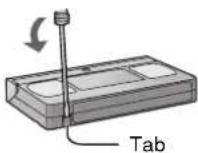
- Break the tape's tab to prevent accidental erasure. Cover the hole with a double layer of adhesive tape when you want to use the tape for recording again.
S-VHS Quasi Playback (SQPB)
It is possible to play back tapes recorded in the S-VHS system.
- Some picture noise may occur depending on the type of tape used.
- It is not possible to fully obtain the high resolution that S-VHS is capable of.
It is not possible to record in the S-VHS system with this unit.
Dirt on the video heads
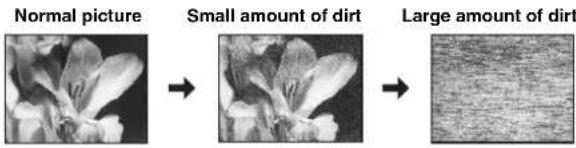
If the video heads get dirty, pictures will not be recorded or played back clearly. (See the following conditions.)
text_image
Normal picture Small amount of dirt Large amount of dirtIf this happens, insert and eject a cassette 5–10 times successively to remove the dirt from the video heads.
If the problem still persists after performing above, contact a service personnel.
Head cleaning by service agents is not covered by warranty.
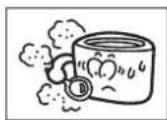
Heads mainly become dirty because of scratched or dirty tapes, use of the unit under high temperature and humidity or under the dust and other reasons.
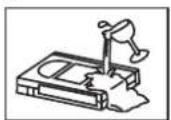
Never use tapes on which liquids have been spilt or those that are extremely damaged since these will cause not only the heads to become dirty, but also the unit malfunction.
The Remote Control
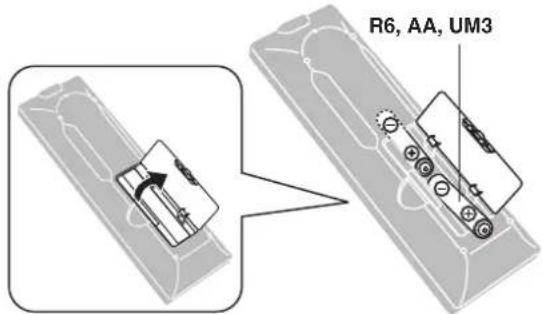
Installing the batteries
Insert the batteries with the polarity (⊕ and ⊖) correctly aligned.
text_image
R6, AA, UM3Notes:
The service life of the batteries is approximately 1 year.
However, it varies considerably depending on the frequency of use.
- When the batteries are exhausted, remove them immediately and dispose them correctly.
- Do not mix old battery with new battery.
- Do not mix different battery types, i.e. Alkaline and Manganese.
- Do not use rechargeable (Ni-Cd) batteries.
- Do not heat or short-circuit the batteries.
- When you do not use the remote control for a long time, take out the batteries and store them in a cool, dry place.
Use
Aim at the receiver window ( page 6), avoiding obstacles, at a maximum range of 7 m directly in front of the unit.
- Keep the transmission window and the unit's sensor free from dust.
- Operation can be affected by strong light sources, such as direct sunlight, and the glass doors on cabinets.
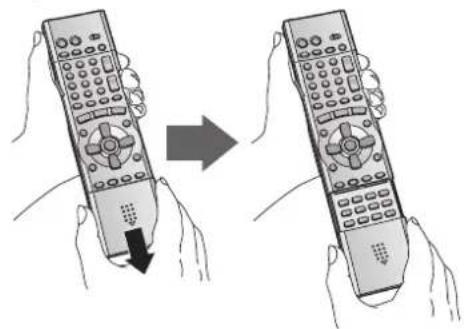
How to open the remote control
natural_image
Illustration of two hands holding remote control devices, one with a downward arrow indicating change (no text or symbols present)Hold both sides of the remote control's cover to open it (You can also open it by pressing on the centre of it and sliding it down).
Disc Information
■Discs that can be played
| DVD-RAM DVD | Video DVD-R SVCD | Video CD CD CD-R/RW | ||||
 Shown as “DVD-VR” on the display Shown as “DVD-VR” on the display |  DVDDVIDEO DVDDVIDEO |  Conforming to IEC62107 Conforming to IEC62107 |  |  |  | |
 | ||||||
| RAM | DVD-V | VCD | CD CDtext | MP3 WMAJPEG | ||
Use discs with the above logos and that conform to specifications. The unit cannot play other discs correctly. Do not use irregularly shaped discs (e.g. heart-shaped), as these can damage the unit.
It may not be possible to play CD-R, CD-RW, DVD-R and DVD-RAM in all cases due to the type of disc or condition of the recording.
Discs that cannot be played
DVD-ROM, DVD-Audio, CD-ROM, CDV, CD-G, +RW, DVD-RW, CVD, SACD, Divx Video Discs and Photo CD, DVD-RAM that cannot be removed from their cartridge, 2.6-GB and 5.2-GB DVD-RAM, and "Chaoji VCD" available on the market including CVD, DVCD and SVCD that do not conform to IEC62107, etc.
■Region number supported by this player
Region numbers are allocated to DVD players and software according to where they are sold.
The region number of the unit is "4". The unit will play DVD-Video marked with labels containing "4" or "ALL".
Examples:


, etc.
■DVDs that can be played
You can play discs with these symbols.


Video systems
- This unit can play PAL and NTSC, but your TV must match the system used on the disc.
- PAL discs cannot be correctly viewed on an NTSC television.
- This unit can convert NTSC signals to PAL 60 for viewing on a PAL television (Video—NTSC Disc Output page 41).
- Output is interlace (5761), when playing PAL discs.
Disc structure
Disc structure and the labels given to the items on discs depend on the disc type.
Track: the smallest division on CDs and Video CDs, or a single MP3/WMA file.
Chapter: the smallest division on DVD-Video.
Group: equivalent to folders or albums on data discs.
Title: the largest division on DVD-Video, usually an entire movie.
Programme: the division on DVD-RAM equivalent to a single recording.
Picture: a single JPEG file.
Play list: the largest grouping on a HighMAT disc, or a group of scenes on DVD-RAM.
Scene: DVD-RAM programme sections specified and grouped into play lists on a DVD video recorder.
Content: covers tracks and pictures on HighMAT discs.
DVD-RAM discs
The DVD-RAM you can play on this unit are those recorded with DVD video recorders, DVD video cameras, personal computers, etc. using Version 1.1 of the Video Recording Format (a unified video recording standard).
- Remove discs from their cartridges before use and return them when you are finished, making sure that the labels of the disc and cartridge face th
- Some parts of the disc, for example where one programme ends and another begins, may not play smoothly.

DVD-R discs
Panasonic DVD-R discs recorded and finalized (a process that allows play on compatible equipment) on a Panasonic DVD video recorder or DVD video camera are played as DVD-Video on this unit.
■Playing DVDs and Video CDs
The producer of these discs can control how they are played so you may not always be able to control play as described in these operating instructions (for example if the play time is not displayed or if a Video CD has menus). Read the disc's instructions carefully.
CD-R and CD-RW discs
This unit can play CD-R/RW (audio recording disc) recorded with CD-DA, Video CD, SVCD (conforming to IEC62107), MP3, WMA, or JPEG. Finalize (a process that allows play on compatible equipment) the disc after recording.
HighMAT™ discs
This unit is compatible with HighMAT™ discs containing MP3, WMA and/or JPEG files.
To clean discs
DVD-Video, Video CD, CD
Wipe with a damp cloth and then wipe dry.

DVD-RAM, DVD-R
- Clean with an optional DVD-RAM/PD disc cleaner (LF-K200DCA1, where available).
●Never use cloths or cleaners for CDs etc.
■Handling precautions
- Do not write on the label side with a ball-point pen or other writing instrument.
- Do not use record cleaning sprays, benzine, thinner, static electricity prevention liquids or any other solvent.
- Do not attach labels or stickers to discs (Do not use discs with exposed adhesive from tape or left over peeled-off stickers).
- Do not use scratch-proof protectors or covers.
- Do not use discs printed with label printers available on the market.
Control Reference Guide
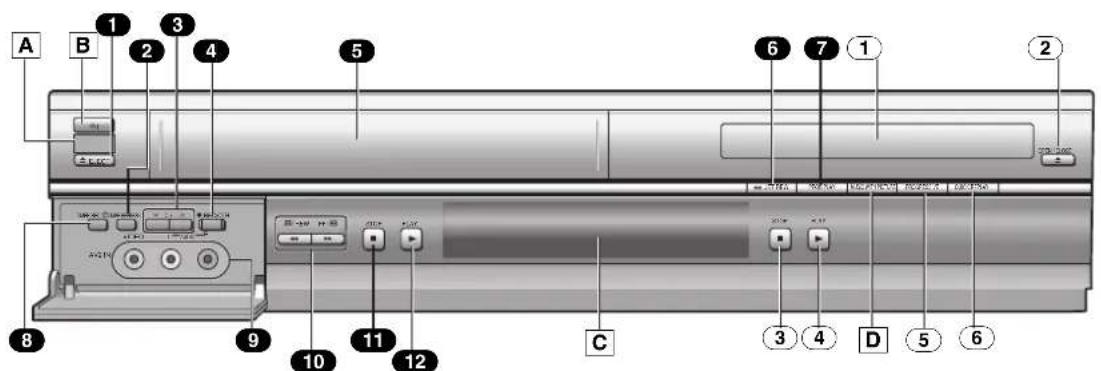
Operations in these instructions are described mainly for the remote control, but you can do the operations on the main unit if the controls are the same.
Main Unit
text_image
A B 1 2 3 4 5 6 7 1 2 8 9 10 11 12 C 3 4 D 5 6Common section
A Infra-red remote control receiver window
B Power button (☐/l)
Press [⏻/l] to switch this unit from on to standby mode or vice versa. In standby mode, the unit is still connected to the main AC power.
c Display
D MUSIC WITH PICTURE button....(→page 43)
VHS section
① Tape eject button (▲EJECT)......(→page 14)
2 TAPE REFRESH button....(→page 17)
3 Channel up/down buttons (CH ∨ ∧)......(→page 15,16)
4 Recording/One-Touch Recording button (●REC/OTR) ......(→page 16,17)
5 Cassette compartment
6 Jet Rewind button (◀◀JET REW)......(→page 14)
7 Easy Programme Playback button (PROG PLAY)....(→page 21)
8 Timer recording button (TIMER REC)...... (→page 18)
9 AV2 IN (AUDIO/VIDEO) sockets ...... (→page 17)
10 Fast-forward/rewind buttons
(◀/REW FF/▶, ◀◀▶▶)...... (→page 14)
11 STOP■ button ...... (→page 14)
12 PLAY▶ button.... (→page 14)
DVD section
① Disc tray
② Disc tray open/close button ( OPEN/CLOSE▲).....(→page 26)
③ STOP■ button ...... (→page 26)
④ PLAY▶ button....(→page 26)
⑤ PROGRESSIVE button....(→page 13)
⑥ QUICK REPLAY button.... (→page 28)
The Unit's Display
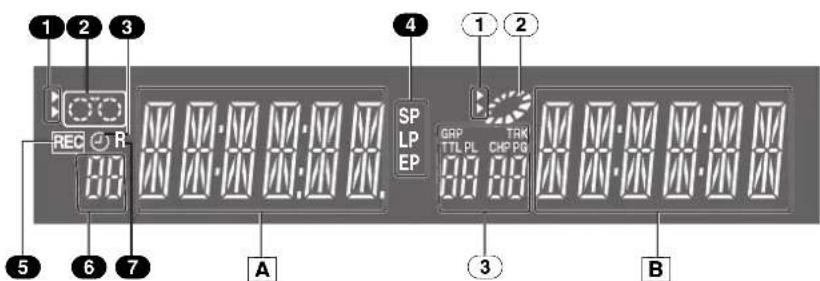
text_image
1 2 3 REC R 5 6 7 A 4 SP LPEP GRP TTL PL TAK CHP PG 00 00 00 00 00 00 00 00 00 00 00 00 00 00 00 00 00 00 00 00 00 00 00 00 00 00 00 00 00 00 00 00 00 00 3 ① ② ③ BCommon section
A Main display
- Current time/VHS recording and play counter/Timer recording start time/Miscellaneous messages, etc.
B Main display
- Disc play counter/Timer recording end time/Disc type (→page 5)/Miscellaneous messages, etc.
VHS section
① VHS selector indicator
●Lights up when the VHS section is active. It flashes for about 5 seconds immediately after selection is made.
② Operation status of VHS section
●Lights up when a cassette is inserted.
- Flashes when recording or timer recording is attempted with no cassette inserted.
- Displays play status graphically.
Rotating: playing
Stopped: paused
3 Timer programme recording indicator......(→page 18)
4 Tape speed indicator....(→page 16)
5 Recording indicator....(→page 16)
6 Channel display....(→page 16)
7 Repeat playback indicator ....(→page 14)
DVD section
① DVD selector indicator
●Lights up when the DVD section is active. It flashes for about 5 seconds immediately after selection is made.
② Operation status of DVD section
●Lights up when a disc is inserted.
- Displays play status graphically.
Rotating: playing
Stopped: paused
③ The display mode of the main display section
GRP: group number TRK: track number
TTL: title number CHP: chapter number
PL: play list number PG: programme number
C: contents number (HighMAT discs → page 33)
G: group number (HighMAT discs →page 33)

Remote Control
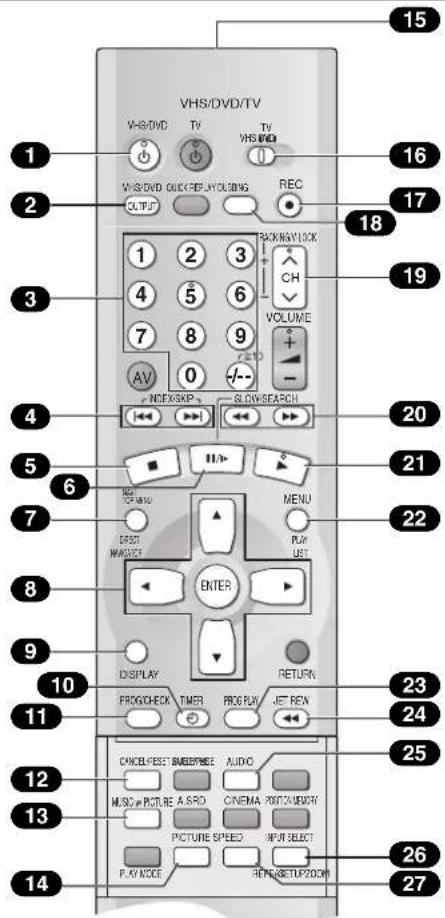
text_image
VHS/DVD/TV VHS/DVD TV TV VHS/DVD QUICK REPLAY OBLIG REC OUTPUT BACKWAY LOCK 1 2 3 4 5 6 7 8 9 AV 0 INDEX/SPIP SLOW/SEARCH 20 21 22 23 24 25 26 27 15 16 17 18 19 20 21 22 23 24 25 26 27 10 DISPLAY TIMER PROG PLK JET REN 9 8 7 6 5 4 3 2 1 CANCE/RESET BEEFREE AUDIO MUSIC PICTURE A.SRD CINEMA POST/UP/UP/UP/UP/UP/UP/UP/UP/UP/UP/UP/UP/UP/UP/UP/UP/UP/UP/UP/UP/UP/UP/UP/UP/UP/UP/UP/UP/UP/UP/UP/UP/UP/UP/UP/UP/UP/UP/UP/UP/UP/UP/UP/UP/UP/UP/UP/UP/UP/UP/Up/Up/Up/Up/Up/Up/Up/Up/Up/Up/Up/Up/Up/Up/Up/Up/Up/Up/Up/Up/Up/Up/Up/Up/Up/Up/Up/Up/Up/Up/Up/Up/Up/Up/Up/Up/Up/Up/Up/Up/Up/Up/Up/Up/Up/Up/Up/Up/Up/Up/DownVHS OPERATION
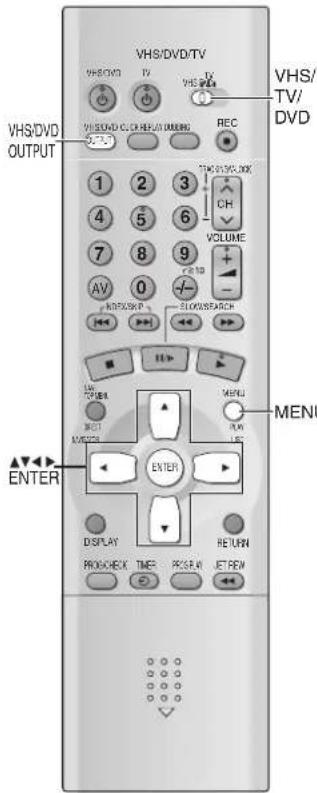
When you operate the VHS, always select "VHS" with the [VHS/TV/DVD] 16 switch.
① VHS power button (VHS)....(→page 11, 14) Press [VHS] to switch this unit from on to standby mode or vice versa. In standby mode, the unit is still consuming a small amount of power.
2 VHS/DVD output switch button (VHS/DVD OUTPUT)....(→page 12)
3 Numeric buttons (0-9, -/--)....(→page 16)
4 Index search buttons (|◀◀ ▶▶, INDEX).... (→page 21)
5 Stop button (■) ...... (→page 14)
6 Pause/slow button (II/▶)....(→page 14)
7 Jet Navigator button (NAVI)....(→page 20)
8 Cursor buttons (▲▼◀▶)/ENTER button....(→page 12, 22)
9 Display button (DISPLAY)....(→page 25)
10 Timer recording button (TIMER)....(→page 18)
11 Timer programming and check button (PROG/CHECK) ...... (→page 18, 19)
12 CANCEL/RESET button.... (→page 19, 25)
13 MUSIC WITH PICTURE button (MUSIC w/ PICTURE)...... (→page 43)
14 Picture mode button (PICTURE)....(→page 15)
15 Infra-red Transmitter
16 VHS/TV/DVD switch (VHS/TV/DVD)
17 Recording button (RECO)....(→page 16)
18 DUBBING button....(→page 42)
19 Tracking/V-Lock and Channel up/down buttons (TRACKING/V-LOCK, CH∨∧)......(→page 15, 16)
20 Fast-forward/rewind buttons (◀◀▶▶)......(→page 14)
21 Play button (▶) ...... (→page 14)
22 MENU button....(→page 12, 22)
23 Easy Programme Playback button (PROG PLAY)....(→page 21)
24 Jet Rewind button (JET REW◀◀)....(→page 14)
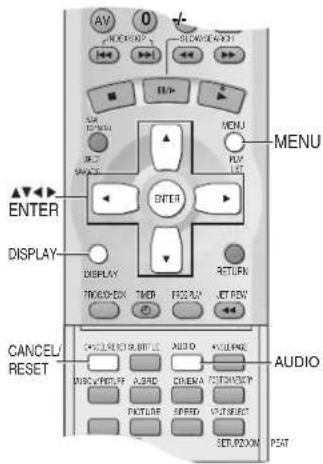
25 AUDIO button....(→page 25)
26 INPUT SELECT button....(→page 17, 42)
27 Tape speed button (SPEED) ...... (→page 16)
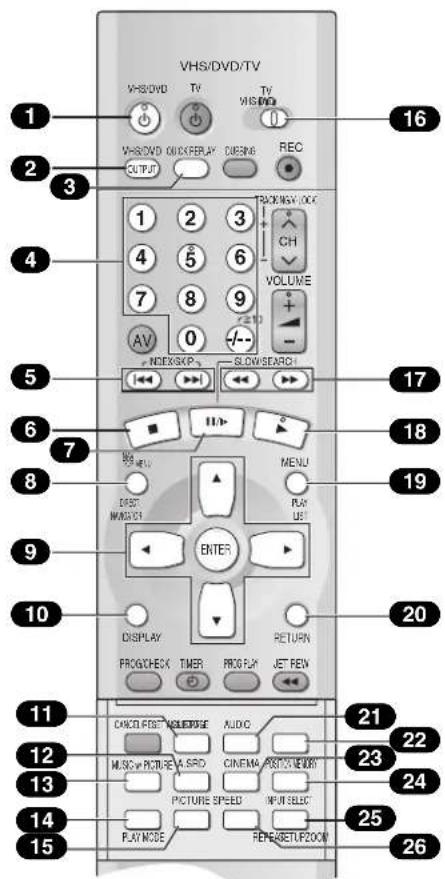
text_image
VHS/DVD/TV VHS/DVD TV TV VHS/DVD QUICKPLAY QUBING REC OUTPUT PACKWAY, OOC CH VOLUME AV 0 -10 MODE&EXP BLOW/SEARD 1 2 3 4 5 6 7 8 9 16 17 18 19 6 7 8 9 DISPLAY RETURN PROCHECK TIMER PROPLAY JET REW 10 11 12 CHECK TEST MUSENCE AUDIO MUSIC PICTURE A SRD CINEMA ACCESS MENU PICTURE SPEED INPUT SELECT PLAY MODE FEMBRETLFZON 20 21 22 23 24 25 26DVD OPERATION
When you operate the DVD, always select "DVD" with the [VHS/TV/DVD] 16 switch.
DVD power button (DVD)....(→page 26) Press [DVD] to switch this unit from on to standby mode or vice versa. In standby mode, the unit is still consuming a small amount of power.
2 VHS/DVD output switch button (VHS/DVD OUTPUT)......(→page 12)
3 QUICK REPLAY button.... (→page 28)
4 Numeric buttons (0–9, ≥10)....(→page 27, 28)
5 Skip buttons (|◀◀ ▶▶, SKIP)....(→page 26)
6 Stop button (■) ...... (→page 26)
7 Still button (11/▶) ...... (→page 26)
8 TOP MENU and DIRECT NAVIGATOR button ...... (→page 31, 32)
9 Cursor buttons (▲▼◀▶)/ENTER button....(→page 37, 40)
10 On-screen menu icon button (DISPLAY).... (→page 37)
11 SUBTITLE button ...... (→page 34)
12 Advanced Surround button (A.SRD)....(→page 35)
13 MUSIC WITH PICTURE button (MUSIC w/ PICTURE).... (→page 43)
14 PLAY MODE button (→page 30)
15 REPEAT button .... (→page 29)
16 VHS/TV/DVD switch (VHS/TV/DVD)
17 Slow/search buttons (◀◀▶▶, SLOW/SEARCH)....(→page 26)
18 Play button (▶) ...... (→page 26)
19 PLAY LIST button ...... (→page 31)
20 RETURN button....(→page 33, 34, 37, 40)
21 AUDIO button....(→page 34)
22 ANGLE/PAGE button.... (→page 29, 34)
23 CINEMA button.... (→page 35)
24 POSITION MEMORY button ...... (→page 27)
25 DVD SETUP menu button (SETUP)....(→page 40)
26 ZOOM button....(→page 35)
When the unit is turned on after connecting the aerial cable and the mains lead, Plug in Auto Tuning starts automatically. (NV-VP31GN only)
Basic Connections
The following connections are required to record the video cassette and play back the video cassette/discs through the TV.
- Refer to the TV's operating instructions.
- Turn the TV off and disconnect its AC mains lead.
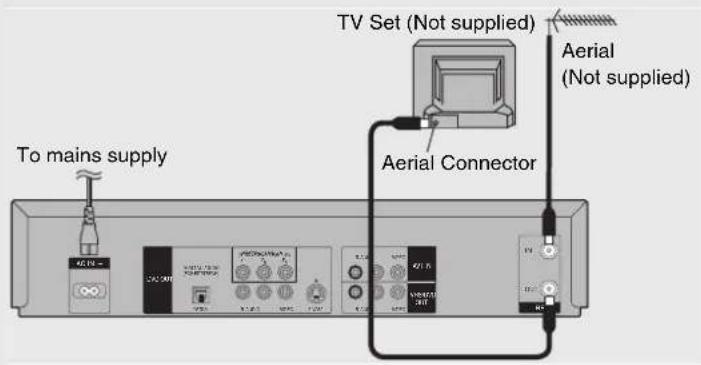
text_image
To mains supply Aerial (Not supplied) Aerial Connector TV Set (Not supplied) Aerial (Not supplied)Audio/Video Output Sockets
- Set the RF output channel of the unit to “——” (RF OFF) (→page 11).
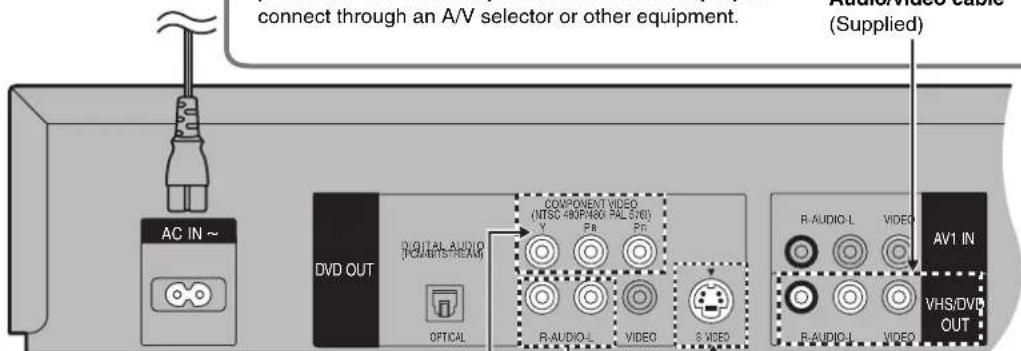
- Connect audio/video cables directly to your TV. The video signals on DVDs and video tapes have copyright protection. The video may not be shown correctly if you connect through an A/V selector or other equipment.
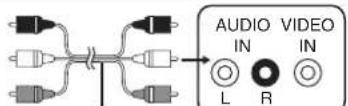
Audio/video cable (Supplied)
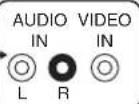
Television
text_image
connect through an A/V selector or other equipment. AC IN ~ DVD OUT DIGITAL AUDIO (POMATSTREAM) OPTICAL COMPONENT VIDEO (NTSC 480P/800 PAL 578) Y Pb Pb R:AUDIO-L VIDEO S VIDEO R:AUDIO-L VIDEO AV1 IN VHS/DVD OUTFor better video from DVD
text_image
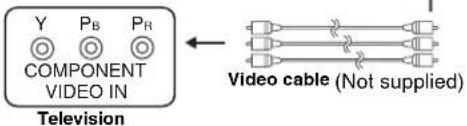
Y P_B P_R COMPONENT VIDEO IN Television Video cable (Not supplied)COMPONENT VIDEO terminal (progressive out)
These terminals can be used for either interlace or progressive output and provide a clearer picture than the S VIDEO terminal. Connection using these terminals outputs the colour difference signals ( P_B/P_R ) and luminance signal (Y) separately in order to achieve high fidelity in reproducing colours.
- The description of the component video input terminals depends on the TV or monitor (e.g. Y/P_B/P_R, Y/B-Y/R-Y, Y/C_B/C_R). Connect to terminals of the same colour.
◇ To enjoy progressive video →page 13
S video cable (Not supplied)

S VIDEO terminal
The S VIDEO terminal achieves a more vivid picture than the VIDEO OUT terminal by separating the chrominance (C) and luminance (Y) signals (Actual results depend on the TV).
- Connect to a different terminal group (e.g., "VIDEO 2") than that you used for the connection through this unit's VHS/DVD OUT terminal. Picture from the VHS section will not appear when you use the same group input terminal connections because the S video terminal input takes precedence.
• These connections are for the DVD section only.
Carry out the Basic Connections described above to view video from the VHS section.
- When making this connection, ensure that you connect the audio cables (not supplied) to the corresponding audio input terminals on the TV.
- You may need to change the video-input mode on the TV to view video from the VHS and DVD sections. Read your TV's operating instructions for details.
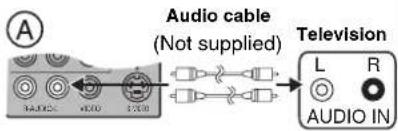
text_image
Audio cable (Not supplied) Television L R AUDIO INThe output terminal common to VHS and DVD, and the one exclusively for DVD
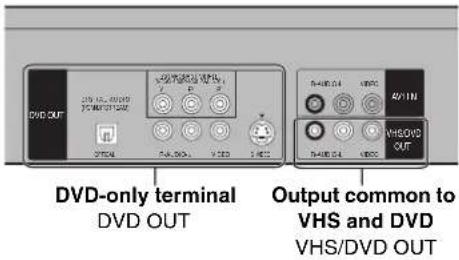
text_image
DVD-ONLY terminal DVD OUT Output common to VHS and DVD VHS/DVD OUTFor the VHS/DVD OUT terminal, VHS and DVD outputs can be switched or it can be assigned for VHS output only (→page 12).
The DVD OUT terminal can only output the DVD signal.
Note:
- When Video is switched to DVD or vice versa, the audio volume may suddenly increase or decrease. This is because when the audio output of this unit is connected to the TV, etc., the audio output of the DVD is generally lower.
When you increase the volume level to play back DVD audio, reduce it when playback is finished.
To enjoy sound through other audio equipment
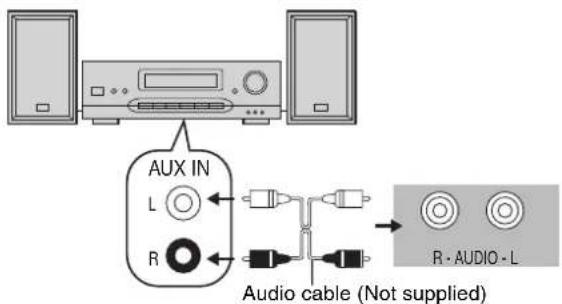
You can enjoy the powerful movie theater and hall-like sound available with multiple channel audio found on DVDs by connecting an amplifier and speakers.
Digital connection
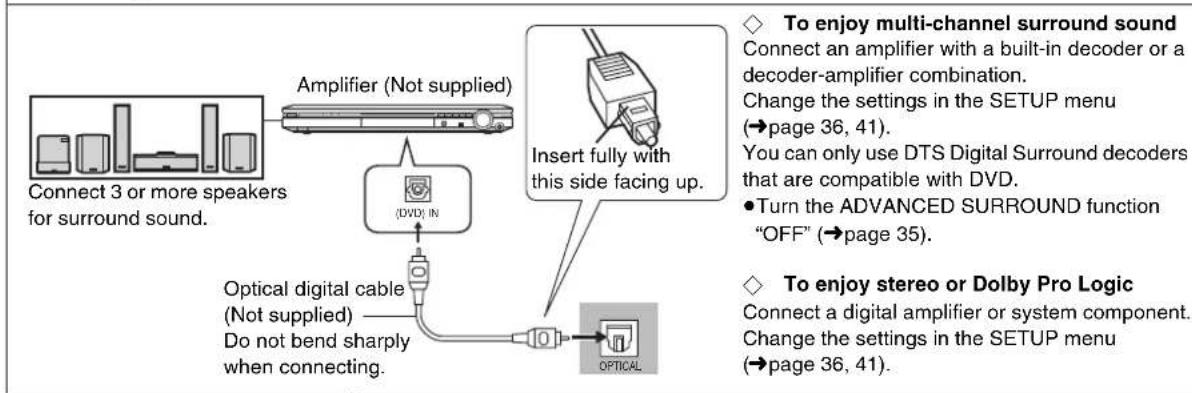
text_image
To enjoy multi-channel surround sound Connect an amplifier with a built-in decoder or a decoder-amplifier combination. Change the settings in the SETUP menu (→page 36, 41). You can only use DTS Digital Surround decoders that are compatible with DVD. ● Turn the ADVANCED SURROUND function "OFF" (→page 35). To enjoy stereo or Dolby Pro Logic Connect a digital amplifier or system component. Change the settings in the SETUP menu (→page 36, 41).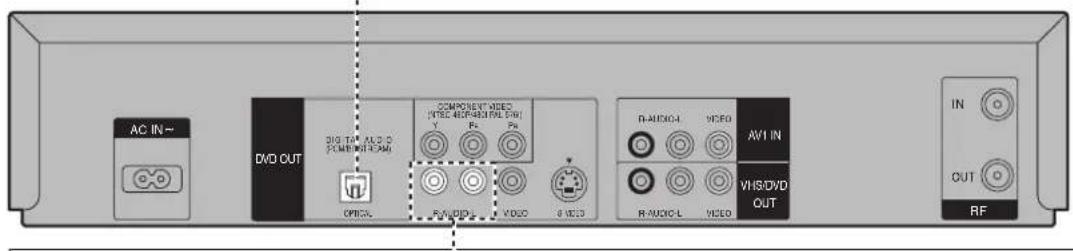
text_image
AC IN+ DVD OUT DIG TIN AUDIO POWER/STREAM COMPONENT ITEMS TYPE APPRAT RAIL OFFICE AUDIO VIDEO AVI IN VHS/DVD OUT IN OUT RFAnalog connection
Amplifier (Not supplied) or system component (Not supplied)
text_image
AUX IN L R Audio cable (Not supplied) R·AUDIO·L◇ To enjoy stereo or Dolby Pro Logic
Connect an analog amplifier or system component.
Change the settings in the SETUP menu
(→page 36, 41).
The audio terminal of VHS/DVD OUT can also be connected.
Notes:
- To purchase an optical digital cable (not supplied), check the terminal shape of the equipment to be connected beforehand.
- The OPTICAL DIGITAL AUDIO terminal is provided with a cap to prevent dust from entering. Simply plug into it, and the cap will be encapsulated in the unit.
Operating the TV
- Turn on the TV.
- Switch [VHS/TV/DVD] to "TV".
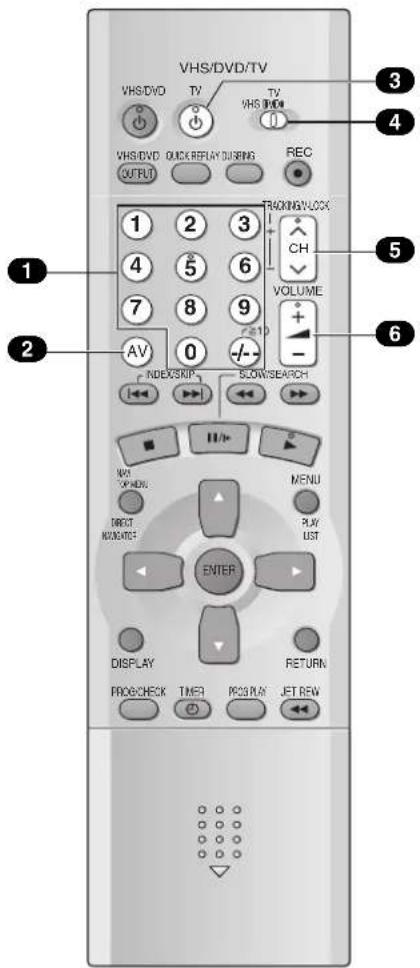
text_image
VHS/DVD/TV VHS/DVD TV TV VHS DVD Quick Replay DURING REC OUTPUT TRACKING/LOCK 1 2 3 4 5 6 7 8 9 AV 0 +/- 210 VOLUME INDEX/SHIP SCOW/SEARCH H/I- W/O X/MEN. DIRECT MODATEF MENU PLAY UST ENTER DISPLAY RETURN PRO/CHECK TIMER PRO/PLAY JET REVTV OPERATION
When you operate the TV, always select "TV" with the [VHS/TV/DVD] switch.
① Numeric buttons (0-9, -/--)
- Selects the TV channel.
2 Television input mode selector (AV)
- Selects desired AV input on the TV.
3 TV power button (TV)
Press to switch the TV from on to standby mode or vice versa.
- With some TV models, it may only be possible to switch the TV to the standby mode using this button. In this case, use [AV], [CH]∨∧ or the numeric buttons to switch the TV on.
4 VHS/TV/DVD switch (VHS/TV/DVD)
5 Channel up/down buttons (CH ∨ ∧)
- Selects the required TV channel.
6 TV volume up/down buttons (VOLUME, + -)
- Adjusts the volume of the TV.
TV Maker Setting
You can operate the TVs of the manufacturers listed below with the remote control after setting it.
1 Refer to the chart below for the code of your TV.
2 Aim the remote control at the TV and
While holding down [TV], use the numeric buttons to enter the two-digit code.
Example: "1"; [0]→[1]
- The remote control outputs the on/off signal. If the code is correct, the TV turns on or off.
3 Check whether the TV can be operated properly.
- When a manufacturer has multiple codes in the following chart, try entering other codes if the TV operations cannot be performed properly, and then select the optimal code.
Notes:
- If you are using a Panasonic TV, this setting has already been made, you do not need to perform the above procedure. However, this remote control may not work on some Panasonic TVs.
- Some TV models cannot be operated by this remote control (including all TVs non-remote compatible).
| Brand Code | |
| Panasonic/National 01-04 | |
| SONY 05 | |
| TOSHIBA 06 | |
| JVC 07 | |
| HITACHI 08 | |
| MITSUBISHI 09, 10 | |
| SHARP 11 | |
| PHILIPS, SAMSUNG 12 | |
| NEC | 13 |
| SANYO | 14 |
| GOLDSTAR/LG | 15, 16 |
| SAMSUNG | 17, 18 |
| SANYO | 19 |
Tuning the TV to Your Unit
The unit supplies a signal to the TV via the RF coaxial cable on channel AU28—69 or NZ21—69. It is possible to view the unit's picture on your TV in the same way that you watch TV broadcasts. The unit is fitted with its own tuner (just like a normal TV) and can be preset to receive up to 99 TV broadcast stations. ●Switch [VHS/TV/DVD] to "VHS".
◇ If you have connected the unit to the TV through the audio/video output sockets
You do not need to follow the procedure below. To view the pictures from the unit, set to the AV mode on the TV with [AV].
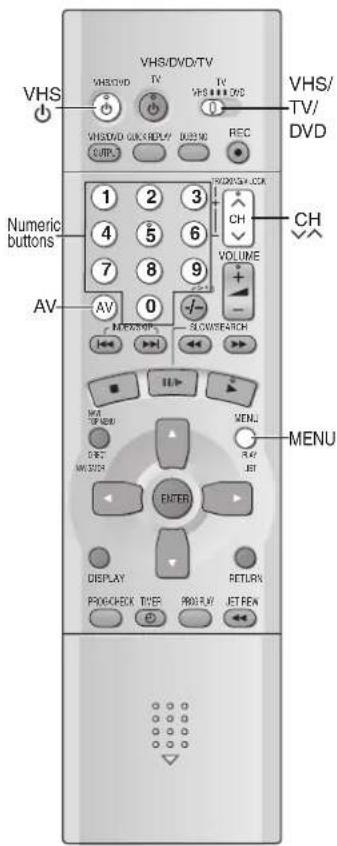
text_image
VHS/DVD/TV VHS/DVD TV VHS DVD VHS/DVD QUICK REPLY BU25 MD REC VHS/DVD/VHD Numeric buttons 1 2 3 4 5 6 7 8 9 AV 0 AVS/STOP SLOUSEARCH MENU MENU ENTER DISPLAY RETURNS PROCHECK TIMER PROPLAY JET REMPre-programmed TV Channels (for NV-VP31GL/Australia)
The local TV broadcast channels 2, 7, 9, 10 and 28 are factory-preset in the unit.
That is, if you can receive TV broadcasts on VHF channels 2, 7, 9, 10 and UHF channel 28, these are already tuned on the programme positions with the matching numbers.
1 Press [VHS] to turn on this unit.
2 Hold down [MENU] for 5 seconds or more.
3 Set the TV to an unused position for the unit viewing channel.
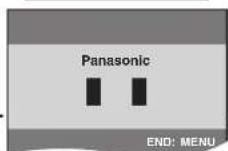
- Tune the TV until the display shown on the right appears. Refer also to the TV's instructions regarding tuning.
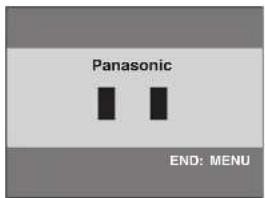
text_image
Panasonic END: MENU4 Press [MENU].
Plug in Auto Tuning (for NV-HV60GN/New Zealand)
When the unit is turned on after connecting the aerial cable and the mains lead for the first time, tuning starts automatically.
- If the unit is turned on with the aerial not connected, all channels are skipped.
1 Press [VHS] to turn on this unit.
2 Set the TV to an unused position for the unit viewing channel.
- Tune the TV until the display shown on the right appears. Refer also to the TV's instructions regarding tuning.
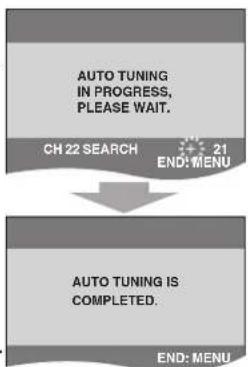
flowchart
graph TD
    A["AUTO TUNING IN PROGRESS, PLEASE WAIT."] --> B["CH 22 SEARCH"]
    B --> C["21 END: MENU"]
    C --> D["AUTO TUNING IS COMPLETED."]
    D --> E["END: MENU"]
3 Press [MENU].
◇ To cancel Auto Tuning partway through
Press [MENU]. Auto Tuning will stop halfway by turning the unit off, pressing [MENU], playback or a power failure.
◇ If Auto Tuning stops halfway by turning the unit off, playback or a power failure
- Disconnect the mains lead and then reconnect it.
- Turn on the unit. Plug in Auto Tuning restarts.
◇ To set the channels manually (→page 23)
To restart Plug in Auto Tuning
- Turn the unit on.
●Make sure there is no video cassette in the unit.
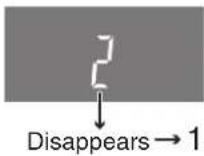
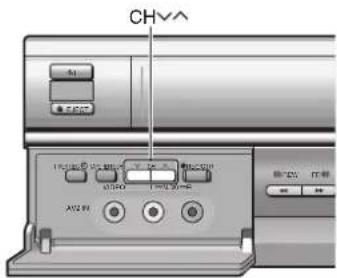
1) Keep both [CN] and on the unit pressed simultaneously for 3 seconds or more until the channel on the unit's display changes to 1.
2) Disconnect the mains lead and then reconnect it.
3) Turn on the unit. Plug in Auto Tuning restarts.
text_image
CHV + - + - + - + - + - + - + -To change the RF output channel
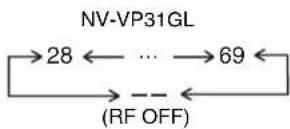
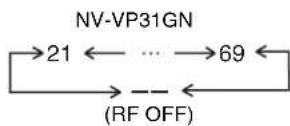
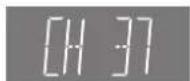
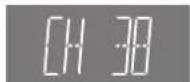
You can change the RF output channel, for example, when interference occurs on the picture after tuning.
1) Hold down [MENU] for 5 seconds or more.
2) Press [CH]∧ to select the channel (AU28-69, NZ21-69).
• Each time you press [CH] ∨ ∧ (→ left)
- Set to “—” (RF OFF) when you use the audio/video cable for the connection.
- You can also use the numeric buttons.
Example: "28"; [2]→[8]
3) Retune your TV to the new RF channel for the unit.
4) Press [MENU] to exit the setting mode.
Note:
- Even if the RF output channel has been changed, it is not necessary to perform Auto Tuning.
NV-VP31GL
NV-VP31GN
Setting Up for VHS
Make basic settings for VHS. These settings are retained in memory until they are changed, even if the unit is turned off.
- Select the unit viewing channel (or the AV input) on the TV.
- Turn on the unit.
- Switch [VHS/TV/DVD] to "VHS".
text_image
VHS/DVD/TV VHS/DVD VHS/DVD OUTPUT VHS/DVD VHS/DVD/TV VHS/DVD VHS/DVD VHS/DVD/TV VHS/DVD VHS/DVD/TV VHS/DVD/TV VHS/DVD/TV VHS/DVD/TV VHS/DVD/TV VHS/DVD/TV VHS/DVD/TV VHS/DVD/TV VHS/DVD/TV VHS/DVD/TV VHS/DVD/TV VHS/DVD/TV VHS/DVD/TV VHS/DVD/TV VHS/DVD/TV 1 2 3 4 5 6 7 8 9 AV 0 RDS/SK/P SLOWS/SPCH VOLUME MENU MENU MENU MENU MENU MENU MENU MENU MENU MENU MENU MENU MENU MENU MENU MENU MENU MENU MENU MENU MENU MENU MENU MENU MENU MENU MENU MENU MENU MENU MENU MENU MENU MENU MENU MENU MENU MENU MENU MENU MENU MENU MENU MENU MENU MENU MENU MENU MENU MENU UNIXCommon procedures
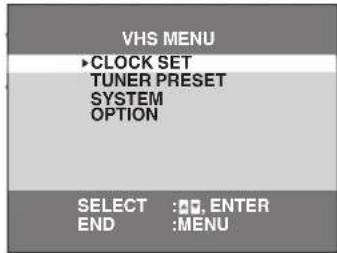
1 Press [MENU].
2 Press [▲▼] to select the menu.
3 Press [ENTER].
text_image
VHS MENU ►CLOCK SET TUNER PRESET SYSTEM OPTION SELECT :OK, ENTER END :MENUCLOCK SET
The clock operates for at least 3 years on its backup system in the event of a power failure. After 3 years, clock back up can only be guaranteed for maximum of 1 hour.
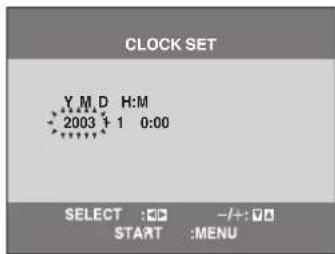
[1] Set each item with [▲▼▶].
Press [◀] to return to the previous item.
At the set time (H:M) point:
- When it is kept pressed, the indication changes in 30 minute steps.
- There is no need to press [▶].
[2] Press [MENU] to start the clock and exit the setting screen.
text_image
CLOCK SET Y M D H:M 2003 1 0:00 SELECT :□ -/+:□ START :MENUTime Reset Function
If the clock is less than 2 minutes early or late, it can easily be reset to the proper time.
Example: Resetting the clock to 12:00.00
1) Display the "CLOCK SET" screen.
2) When the current clock display on the unit is between 11:58.00 and 12:01.59, press [MENU] as soon as you hear the 12:00.00 time tone. This resets the time to 12:00.00.
To switch to the desired video
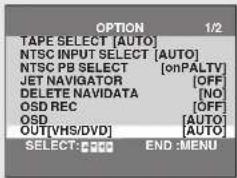
You can set the unit so that the VHS/DVD output is automatically switched to the device which starts playback.
1) In the OPTION menu, select "OUT [VHS/DVD]" with [▲▼].
2) Press [◀▶] to change the setting.
3) Press [MENU] twice to make the on-screen display disappear.
text_image
OPTION 1/2 TAPE SELECT [AUTO] NTSC INPUT SELECT [AUTO] NTSC PB SELECT [onPALTV] JET NAVIGATOR [OFF] DELETE NAVIDATA [NO] OSD REC [OFF] OSD [AUTO] OUT[VHS/DVD] [AUTO] SELECT: F-000 END: MENUVHS: The output is only for VHS, even if you press
[VHS/DVD OUTPUT], the DVD video is not shown.
MANUAL: Press [VHS/DVD OUTPUT] to switch to the desired video source. They are not switched automatically.
AUTO (Initial setting):
VHS and DVD are automatically switched depending on the manipulation or the unit operation. You may also switch them with [VHS/DVD OUTPUT].
Note:
- You can switch to the desired video with the above operation only when the video from this unit is viewed through the VHS/DVD OUT terminal.
- Depending on the operation, the output may not be switched automatically even if "AUTO" is selected. In this case, press [VHS/DVD OUTPUT] to switch it manually.
- When setting timer recording, the output is automatically switched to DVD even if "MANUAL" is selected.
Answer questions in the QUICK SETUP screen to make basic settings for DVD.
- Select the unit viewing channel (or the AV input) on the TV.
- Switch [VHS/TV/DVD] to "DVD".
- Turn on the unit.
text_image
VHS/DVD/TV VHS/DVD TV TV VHS DVD VHS/DVD/CLIF/REVIEW/REVIEW REC 1 2 3 4 5 6 7 8 9 AV 0 AVR/SKIP VOLUME CLOWS/SPATH HIV LPG/TYPE MENU BEST MOUNT PLAY ENTER DISPLAY RETURN PROG/RESET TIME POST & JET/OPEN COLOR/RESET 电源调制 AUDIO MUST A PICTURE A SHO ON/TAKE RUTTER/SMAT PICTURE SPEED INPUT SELECT PLAY MODE SET/FZOOM/REFRANT SETUP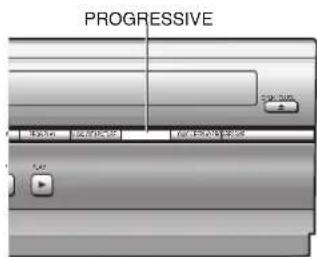
text_image
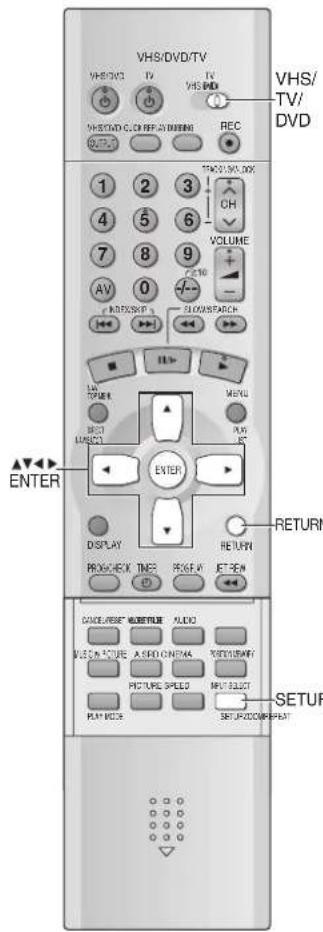
PROGRESSIVE Start Menu End Menu Start Menu1 Press [SETUP].
2 Select "Others" tab with [◀▶].
3 Select "QUICK SETUP" with [▲▼] and press [ENTER].
4 Select "Yes" with [▲▼] and press [ENTER].
5 Press [▲▼] to select the item and press [ENTER].
Menu Language (→page 41)
Audio Language (→page 41)
Subtitle Language (→page 41)
TV Aspect (→below)
Progressive out ( below)
6 Press [ENTER] and then [SETUP] to end the settings.
◇ To return to the previous screen
Press [RETURN].
TV Aspect
Select "4:3" (regular) or "16:9" (widescreen) to suit your TV.
If you have a regular 4:3 TV, you can also select how video on some discs is shown.
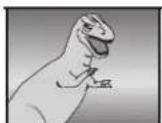
●4:3 Pan & Scan (Initial Setting)
Widescreen software is expanded to fill the screen of a 4:3 aspect TV (unless prohibited by the producer of the disc).
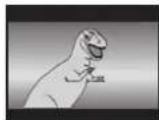
- 4:3 Letterbox
Widescreen software is shown in the letterbox style on a 4:3 aspect TV.
- If you have a wide-screen TV (16:9), you can select the style with the TV's screen mode function.
Progressive out (Component)
You can enjoy higher image quality than that output from the conventional video out terminal or S video terminal (Interlace and progressive output → page 47).
- Connect to the component video input terminals on a 480P compatible TV (→page 8). Video will not be displayed correctly if connected to an incompatible TV.
1) Select "Enable (NTSC Disc Only)" in "Progressive Out (Component)" (→page 41).
2) Change "Video output mode" to "480P" in the on-screen menu (→page 39).
3) Press [PROGRESSIVE] on the unit before or during play.
- All Panasonic TVs that have 480P input terminals are compatible. Consult the manufacturer if you have another brand of TV.

To check whether progressive output is on or off
Press [PROGRESSIVE]. "PR ON" (on) or "PR OFF" (off) appears on the unit's display.
Notes:
●The VHS video may not be progressive-output.
●The TV will be disrupted for a moment but this is normal.
- Output from this unit is interlaced scanning if you have connected to the TV through VIDEO OUT or S VIDEO OUT terminals, regardless of the settings.
- When progressive output is on, closed captions will not be displayed.
- Select the unit viewing channel (or the AV input) on the TV.
- Switch [VHS/TV/DVD] to "VHS".
- Press [VHS ⏻] to turn on the unit.
text_image
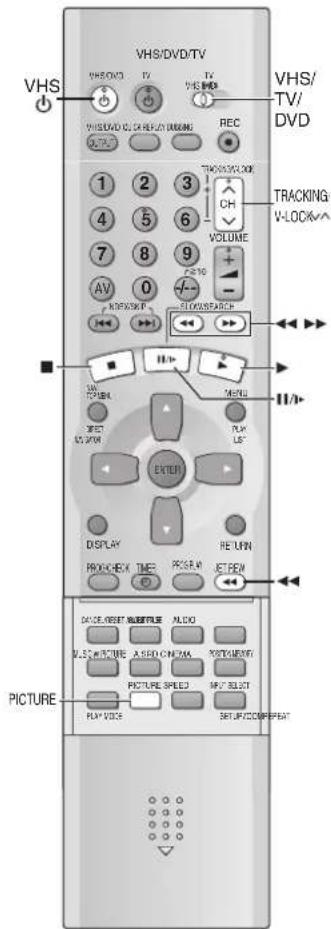
VHS/DVD/TV VHS/DVD TV TV VHS/TV/ DVD VHS/DVD TV VHS/DVD TV VHS/DVD TV VHS/DVD TV VHS/DVD TV VHS/DVD TV VHS/DVD TV VHS/DVD TV VHS/DVD TV VHS/DVD TV VHS/DVD TV VHS/DVD TV VHS/DVD TV VHS/DVD TV VHS/DVD TV VHS/DVD TV VHS/DVD TV VHS/TV/ VHS/TV/ VHS/TV/ VHS/TV/ VHS/TV/ VHS/TV/ VHS/TV/ VHS/TV/ VHS/TV/ VHS/TV/ VHS/TV/ VHS/TV/ VHS/TV/ VHS/TV/ VHS/TV/ VHS/TV/ VHS/TV/ VHS/TV/ VHS/TV/ VHS/TV/ VHS/TV TRACKING V-LOCK/V- 1 2 3 4 5 6 7 8 9 AV 0 OFF/SHIP FLOW/SPACK FLU/SPACK F-10 <<>1 Insert a recorded video cassette tape.
2 Press [▶](PLAY).
- Play starts automatically if you insert a tape that has had its tab (Tapes →page 4) removed.
. - 1](/content/2026/06/1191013/images/7722a656d2cdb7f633151de14e2070d46bfe1f38b78bc9cd876b69bbf5838b24.jpg)
| [■] | S t o pPress this button to stop playback. |
| [◀◀] (backward)/ [▶▶] (forward) | Cue / ReviewDuring playback, tap or keep pressing these buttons.If you keep pressing these buttons, playback restarts by releasing them.Jet SearchDuring playback, tap these buttons twice. You can increase Cue/Review search speed.Fast-forward / RewindPress these buttons in the stop mode. Press [■] to cancel. |
| [JET REW◀◀] | J e t R e w i n dPress this button to obtain a Higher Speed Rewind.The “J . REW” indication appears on the TV screen (except when the remaining tape time indication appears). |
| [II/▶] | P a u s ePress this button during playback. Press [▶](PLAY) or [II/▶] to restart.SlowPress and hold for 2 seconds or more. |
| [▲EJECT] | EjectPress this button to remove the video cassette.Or, keep pressing [■] on the remote control for at least 3 seconds. |
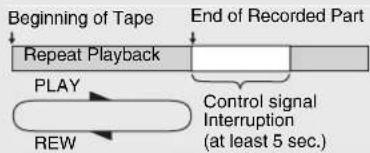
| [▶](PLAY) | Repeat Playback (→page 15)If you press and hold [▶](PLAY) for 5 seconds or more, you can play back the recorded part on the tape repeatedly.The “R ▶” indication appears on the TV screen.Press [■] to cancel (It also cancels if you play, pause, cue, or review). |
. - 2](/content/2026/06/1191013/images/2bef66d35f34fde2678917721e97643f6f271d2e40511389414193a2bb018a31.jpg)
text_image
▲EJECT ▼ ▼◇ To change back to normal playback
Press ▶.
◇ To adjust tracking control manually →page 15
Other convenient functions
- When the unit is off, an inserted video cassette can be played back by pressing ▶.
- You can eject tapes when the unit is in standby mode. It switches back to standby once it ejects the tape.
- When the tape reaches its end, this unit automatically rewinds it to the beginning. During timer recording, OTR and fast-forwarding, this function does not work.
Notes:
- Jet Search, cue, review or slow playback will be automatically released after 10 minutes, and for still playback, it will be released after 5 minutes.
- The tape counter does not appear during Jet rewind.
- Depending on a cassette or the operating condition, Jet rewind may not work or change the rewind speed somewhat.
- During playback function other than normal playback, horizontal noise bars may appear in the picture, the colour of the picture may be unstable, or the picture may be otherwise distorted.
- When you play back a tape recorded in the LP mode, the picture may be turned into monochrome.
- When you play back a tape recorded in the EP mode, the picture and the sound may be unstable. However, these are not malfunctions.
Repeat Playback
At the end of the programme, the tape rewinds to the beginning of the programme and plays it again (It only works if there is at least 5 seconds blank at the end of the programme). This repeats until you cancel it.
flowchart
graph TD
    A["Beginning of Tape"] --> B["Repeat Playback"]
    B --> C["End of Recorded Part"]
    D["PLAY"] --> E["REW"]
    E --> F["Control signal Interruption (at least 5 sec.)"]
Picture Mode
This function reproduces optimum playback picture from various kind of recorded tapes and contents.
Press [PICTURE].
● Each time you press the button, the indication changes in the following order:
![PANASONIC NV-VP31EE - Press [PICTURE]. - 1](/content/2026/06/1191013/images/6112c27775af0aff0ead32033b9c17aaa1c5132b7d186f3c15a6718578166282.jpg)
flowchart
graph TD
    A["STANDARD: Normal mode for recorded TV programmes (Initial Setting)"] --> B["DYNAMIC: Clear & vivid images (e.g. for scenery and sports)"]
    B --> C["SOFT: Mild images (e.g. for rental software)"]
    C --> D["CARTOON: Delicate images for cartoon"]
![PANASONIC NV-VP31EE - Press [PICTURE]. - 2](/content/2026/06/1191013/images/bdc00b39feb85f79fd513290e65fa9f0634579bbeb291c20bdd9879d42cf1ef2.jpg)
natural_image
Illustration of a soccer player kicking a ball with 'STANDARD' label (no other text or symbols)Adjusting the playback picture
Manual tracking
The unit usually makes tracking adjustments, but you may need to do it manually, if noise appears on a tape recorded on other equipment.
During play, press [TRACKING/V-LOCK] ∨ or ∧.
Repeat until the noise disappears.
Vertical locking adjustment
Adjust the vertical to stop the picture jiggling while paused.
While paused, press [TRACKING/V-LOCK] ∨ or ∧.
Repeat until the jiggling stops.
![PANASONIC NV-VP31EE - While paused, press [TRACKING/V-LOCK] ∨ or ∧. - 1](/content/2026/06/1191013/images/0c80b13b9034c0dc0c139705b90e2f7253fe6d598ceea9b7e278b128e6baf7c4.jpg)
natural_image
Illustration of a person standing on water with a soccer ball nearby (no text or symbols)◇ To return to auto tracking
Press both [TRACKING/V-LOCK] √ and ∧ simultaneously.
◇ To remove the noise from a paused picture
Start slow play, then adjust the tracking.
Notes:
●This may not work with some TV models and tapes.
- You can also adjust the tracking and vertical with [CH]∨∧ on the unit.
NTSC Playback
Tapes recorded in the NTSC system can be played back via a PAL system TV.
- To record in the NTSC system, set "NTSC INPUT SELECT" (OPTION → page 24).
- Select "on PAL TV" in "NTSC PB SELECT" to view the NTSC recording in colour (OPTION → page 24).
- On some TVs, the playback picture may roll up or down. If your TV has V-HOLD control or equivalent function, use it to adjust the picture.
Note for only NTSC Playback on PAL system TV
This function is designed to allow only the playback of tapes recorded by NTSC signals on a PAL system TV. The NTSC signal is not completely converted to a PAL signal. For this reason, images play back by this function cannot be recorded correctly on other VHS.
- Select the unit viewing channel (or the AV input) on the TV.
- Switch [VHS/TV/DVD] to "VHS".
- Check that the clock is set to the correct time. If it has not been set, refer to page 12.
text_image
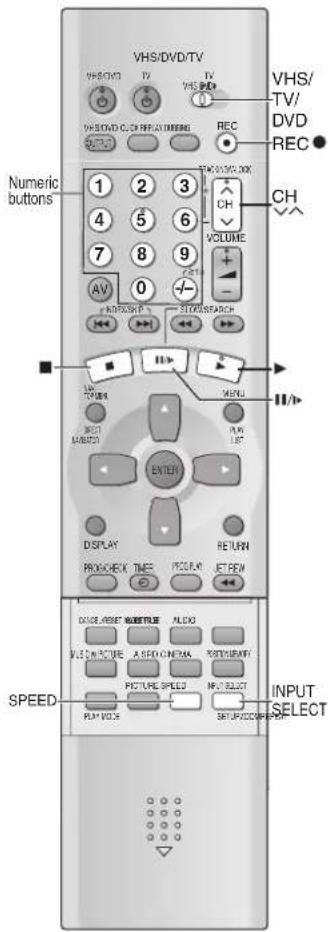
VHS/DVD/TV VHS/DVD TV VHS BIT VHS/DVD OLE REF OUT ORDER REC VHS/ TV/ DVD REC Numeric buttons 1 2 3 4 5 6 7 8 9 AV 0 STOW/SEARCH CH VOLUME SWEER MENU ENTER DISPLAY RETURN PROCHECK TIMES PECOLY JET REIN DANCE, RESET, RESET, RESET, FLOCK VALUE IN CURE A SFD ONE/MAX RESET/RESET PICTURE SPEED INPUT SELECT PLAY VOCE SETUP/COMPRET. SPEED INPUT INPUT SELECT1 Insert a video cassette tape with an intact erasure prevention tab.
2 Press [CH]∨∧ buttons to select the TV station.
- If you keep pressing these buttons, the channels changes quickly.
- You can also select the channels with the numeric buttons.
Example: "5"; [5]
$$ " 1 5"; [ - / - - ] \rightarrow [ 1 ] \rightarrow [ 5 ] $$
3 Press [SPEED] to select the tape speed.
Each time you press the button:
$$ \mathrm{SP} \rightarrow \mathrm{LP} \rightarrow \mathrm{EP} \rightarrow \mathrm{SP} $$
4 Press [RECO] to start recording.
◇ To stop recording
Press [■].
To Interrupt Recording
Press [11/1▶] during recording. Press it again to continue recording.
Tape Speeds
SP: Provides standard recording time, optimum picture and sound quality.
LP: Provides double recording time with slightly reduced picture and sound quality.
EP: Provides triple recording time with slightly reduced picture and sound quality.
- When you play back a tape recorded in the EP mode, the monaural sound may be unstable.
- When you start the recording in the EP mode, "EP" indication on the unit's display flashes for about 8 seconds.
Notes:
- Even if the tape you use is labeled "S-VHS", it is not possible to record in the S-VHS system with this unit. It records in normal VHS system.
- You cannot change channels while recording. You can change channels while in the pause mode.
- When the recording is paused for more than 5 minutes, the unit returns to the stop mode.
Using another device while recording
You can watch another TV programme or play discs while recording. The recording will not be affected.
TV
1) While recording, switch [VHS/TV/DVD] to "TV".
2) Press [CH]∧ or the numeric buttons to select the desired TV programme.
DVD
1) While recording, switch [VHS/TV/DVD] to "DVD".
2) If "OUT [VHS/DVD]" is set to "MANUAL" (→page 12), press [VHS/DVD OUTPUT] to switch to DVD.
3) Insert the disc and press ▶ to start play. (→page 26)
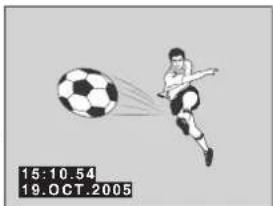
OSD Recording
You can record the present date and time on the same screen as the picture.
Set "OSD REC" to "ON" (OPTION → page 24) and start recording.
- This function is also activated for OTR recording (→page 17) and Timer recording (→page 18).
- This function is not activated during MUSIC WITH PICTURE (→page 43).
natural_image
Illustration of a soccer player kicking a ball, with timestamp 15:10.54 and date 19.OCT.2005 (no text or symbols on the figure itself)One-Touch Recording (OTR)
You can start recording quickly and set a duration.
During recording, press [●REC/OTR] on the unit repeatedly.
Select the desired recording duration.
- Each time you press the button, the indication on the unit's display changes as follows: Counter display (normal recording mode)→OFF 30 (min.)→OFF 60 (min.)→OFF 90 (min.)→OFF 120 (min.)→OFF 180 (min.)→OFF 240 (min.)→Current time (normal recording mode)
- The unit will automatically switch off when OTR is completed.
![PANASONIC NV-VP31EE - During recording, press [●REC/OTR] on the unit repeatedly. - 1](/content/2026/06/1191013/images/602c4d29f2f66420372f2939d409132fc0675869daf1d685639991e7174ba730.jpg)
text_image
I REC/OTR◇ To stop OTR at any time
Press [■] or [⏻/l] (VHS⏻).
Notes:
●The OTR function works during normal recording only.
- When the tape reaches its end during OTR, the unit will turn itself off.
Recording from an external source
You can record from other video sources (VHS, camera, etc.).
- Connect the other equipment to this unit as shown. If audio output on the other equipment is monaural, use a stereo-monaural conversion cable (not supplied).
- Insert a recorded cassette tape with an intact erasure prevention tab.
- Set A1 or A2 with [INPUT SELECT] to select the audio/video source required.
[1] Press ▶.
Find the recording start point.
[2] Press [11/▶], then press [REC●].
Put the unit in the recording standby mode.
[3] Start play on the other equipment.
[4] Press [11/▶] to start recording.
◇ To stop recording
Press [■].
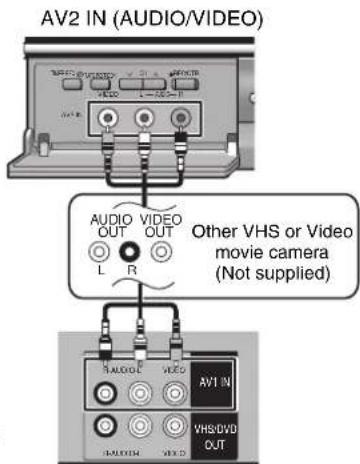
text_image
AV2 IN (AUDIO/VIDEO) AUDIO VIDEO OUT OUT L R Other VHS or Video movie camera (Not supplied) AUDIO F VRSO AV1 IN VHS/DVD OUTAV1 IN (AUDIO/VIDEO)
Tape Refresh Function
You can delete all contents in a cassette's (the picture, the sound and the Jet Navigator data).
For recordings while "JET NAVIGATOR" is set to "ON"
Be sure to set "JET NAVIGATOR" to "ON" (OPTION → page 24).
For recordings while "JET NAVIGATOR" is set to "OFF" or recordings on another VHS
Be sure to set "JET NAVIGATOR" to "OFF" (OPTION → page 24).
[1] Insert a cassette that you want to delete the cassette's contents.
[2] Press [TAPE REFRESH] for 5 seconds or more.
The unit puts on tape refresh standby.
[3] Press [TAPE REFRESH] for 2 seconds or more.
The tape refresh function starts.
- The tape is rewound to the beginning, and it is fast-forwarded with erasing the tape.
- When the tape reaches the end, this unit automatically rewinds it to the beginning.
Note:
- When a video cassette with a broken erasure prevention tab is inserted, this function is not activated.
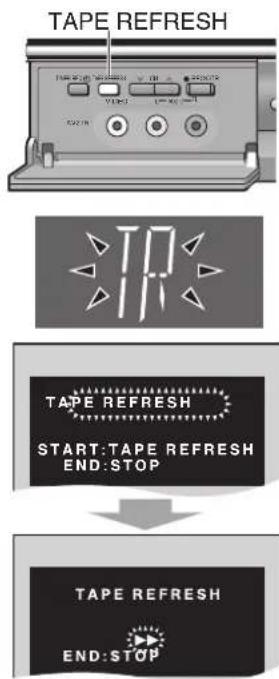
text_image
TAPE REFRESH TAPE REFRESH START:TAPE REFRESH END:STOP TAPE REFRESH END:STOPTimer Recording
Up to 16 timer programmes, including weekly and daily programmes, can be recorded for up to one month in advance by setting the timer.
- Select the unit viewing channel (or the AV input) on the TV.
- Insert a video cassette tape with an intact erasure prevention tab (→page 4).
- Check that the clock is set to the correct time. If it has not been set, refer to page 12.
- Switch [VHS/TV/DVD] to "VHS".
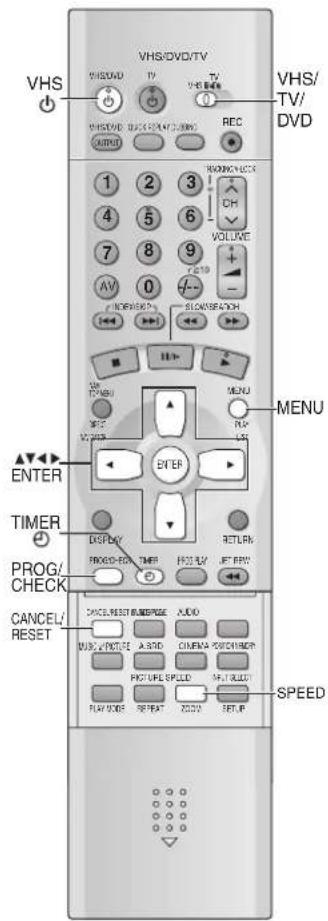
text_image
VHS/DVD/TV VHS/DVD/TV VHS/TV/DVD VHS/DVD/TV VHS/DVD/TV VHS/DVD/TV VHS/DVD/TV VHS/DVD/TV VHS/DVD/TV VHS/DVD/TV VHS/DVD/TV VHS/DVD/TV VHS/DVD/TV VHS/DVD/TV VHS/DVD/TV VHS/DVD/TV VHS/DVD/TV VHS/DVD/TV REC 1 2 3 4 5 6 7 8 9 AV 0 INFORMATION WOMEN/LOCK VOLUME/LOCK CH VOLUME/LOCK VOLUME/LOCK VOLUME/LOCK VOLUME/LOCK VOLUME/LOCK VOLUME/LOCK VOLUME/LOCK VOLUME/LOCK VOLUME/LOCK VOLUME/LOCK VOLUME/LOCK VOLUME/LOCK VOLUME/LOCK VOLUME/LOCK VOLUME/LOCK VOLUME/LOCK VOLUME/LOCK VOLUME/LOCK VOLUME/LOCK VOLUME/LOCK VOLUME/ALLOW VOLUME/ALLOW VOLUME/ALLOW VOLUME/ALLOW VOLUME/ALLOW VOLUME/ALLOW VOLUME/ALLOW VOLUME/ALLOW VOLUME/ALLOW VOLUME/ALLOW VOLUME/ALLOW VOLUME/ALLOW VOLUME/ALLOW VOLUME/ALLOW VOLUME/ALLOW VOLUME/ALLOW VOLUME/ALLOW VOLUME/ALLOW VOLUME/ALLOW VOLUME/ALLOW VOLUME/LOW VOLUME/LOW VOLUME/LOW VOLUME/LOW VOLUME/LOW VOLUME/LOW VOLUME/LOW VOLUME/LOW VOLUME/LOW VOLUME/LOW VOLUME/LOW VOLUME/LOW VOLUME/LOW VOLUME/LOW VOLUME/LOW VOLUME/LOW VOLUME/LOW VOLUME/LOW VOLUME/LOW VOLUME/LOW VOLUME/ROW VOLUME/ROW VOLUME/ROW VOLUME/ROW VOLUME/ROW VOLUME/ROW VOLUME/ROW VOLUME/ROW VOLUME/ROW VOLUME/ROW VOLUME/ROW VOLUME/ROW VOLUME/ROW VOLUME/ROW VOLUME/ROW VOLUME/ROW VOLUME/ROW VOLUME/ROW VOLUME/ROW VOLUME/ROW VOLUME/ROCK/ VOLUME/ROCK/ VOLUME/ROCK/ VOLUME/ROCK/ VOLUME/ROCK/ VOLUME/ROCK/ VOLUME/ROCK/ VOLUME/ROCK/ VOLUME/ROCK/ VOLUME/ROCK/ VOLUME/RISK/ VOLUME/RISK/ VOLUME/RISK/ VOLUME/RISK/ VOLUME/RISK/ VOLUME/RISK/ VOLUME/RISK/ VOLUME/RISK/ VOLUME/RISK/ VOLUME/RISK/ VOLUME/RISK/ VOLUME/RISK/ VOLUME/RISK/ VOLUME/RISK/ VOLUME/RISK/ VOLUME/RISK/ VOLUME/RISK/ VOLUME/RISK/ VOLUME/RISK/ VOLUME/RISK/ VOLUME/Risk/ VOLUME/Risk/ VOLUME/Risk/ VOLUME/Risk/ VOLUME/Risk/ VOLUME/Risk/ VOLUME/Risk/ VOLUME/Risk/ VOLUME/Risk/ VOLUME/Risk/ VOLUME/Risk/ VOLUME/Risk/ VOLUME/Risk/ VOLUME/Risk/ VOLUME/Risk/ VOLUME/Risk/ VOLUME/Risk/ VOLUME/Risk/ GAINER/RISK/ GAINER/Risk/ GAINER/Risk/ GAINER/Risk/ GAINER/Risk/ GAINER/Risk/ GAINER/Risk/ GAINER/Risk/ GAINER/Risk/ GAINER/MARK/SPECI/SPECI/SPECI/SPECI/SPECI/SPECI/SPECI/SPECI/SPECI/SPECI/SPECI/SPECI/SPECI/SPECI/SPECI/SPECI/SPECI/SPECI/SPECI/SPECI/SPECI/SPECI/SPECI/SPECI/SPECI/SPECI/SPECI/SPECI/SPECI/SPECI/SPECI/SPECI/SPECI/SPECI /SPEE#1 Press [PROG/CHECK].
2 Use [▲▼] to move through the items and change the settings with [◀▶].
① SET DATE
![PANASONIC NV-VP31EE - Use [▲▼] to move through the items and change the settings with [◀▶]. - 1](/content/2026/06/1191013/images/70559ce843395a3f0b311d842a9cdc314cc239b4566a11b4624edb2eab8e4a7b.jpg)
flowchart
graph TD
    A["Current date"] --> B["the day before one month later"]
    B --> C["Daily: SU-SA → MO-SA → MO-FR"]
    C --> D["Weekly: SU → ... → SA"]
(SU=Sunday, MO=Monday, TU=Tuesday, WE=Wednesday, TH=Thursday, FR=Friday, SA=Saturday)
② SET CH (Programme Position)
- Select "A1" or "A2" when recording from an external source (→page 17).
③ SET ON (Start Time) / ④ SET OFF (End Time)
- The time increases or decreases in 30-minute increments if you hold the button.
⑤ SET SPEED (Tape Speeds) (→page 16)
PAL system: SP→LP→EP→A*→SP
NTSC system: SP→EP→A * →SP
*Tape Speed Auto Change function (→page 19)
- You may also use [SPEED] to set the tape speed.
⑥ CATEGORY (Only when "JET NAVIGATOR" is "ON" →page 24)
1) Press [◀▶] to display the category list.
2) Press [▲▼◀▶] to select the desired category.
3) Confirm with [ENTER].
- You can also set and change the category in the navigator list (→page 21).
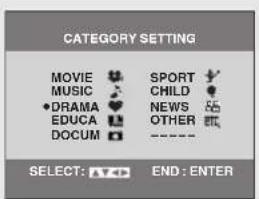
text_image
CATEGORY SETTING MOVIE MUSIC • DRAMA EDUCA DOCUM SPORT CHILD NEWS OTHER ---- SELECT: A70 END: ENTER3 Press [ENTER].
The Timer Programme Confirmation screen appears.
- When "JET NAVIGATOR" is set to "ON", press [▶] to display the category.
4 Press [TIMER]
The Confirmation screen disappears and the unit enters Timer Recording standby mode ("appears on the unit's display").
The unit is not off. To save power, turn the unit off by pressing [VHS].
- If timer recording is executed while the unit is turned on, the power will stay on after the timer recording is completed. The power will not be automatically turned off.
![PANASONIC NV-VP31EE - The unit is not off. To save power, turn the unit off by pressing [VHS]. - 1](/content/2026/06/1191013/images/10c92187055cd7e3ed84724771fe96d8d85f1be928f22b496377e895eca50362.jpg)
text_image
DATE ON OFF 1 29SA 2 20:02 21:30 SP 2 SU-SA 25 10:30 11:00 A 3 SU 14 15:00 16:00 SP 4 19WE 5 22:15 23:30 EP 5 28FR A1 20:02 21:30 SP 6 30SU 4 19:10 19:55 EP 7 ---- -- ---- 8 ---- -- ---- SELECT: ☐ END: MENU DATE ON 1 29SA 2 20:02 21:30 SP 2 SU-SA 25 10:30 11:00 A 3 SU 14 15:00 16:00 SP 4 19WE 5 22:15 23:30 ETC 5 28FR A1 20:02 21:30 D 6 30SU 4 19:10 19:55 ♥ 7 ---- -- ----![PANASONIC NV-VP31EE - The unit is not off. To save power, turn the unit off by pressing [VHS]. - 2](/content/2026/06/1191013/images/7752ab9f390ee0344a79fd11b2a5a423d7d2433c04b2ed90cb25e75efdb09a9f.jpg)
◇ To make further timer programmes
Repeat steps 1 - 4.
◇ To stop recording
Press [TIMER]
When "💡" is flashing
Check the timer recording details again. (→page 19)
Tape Speed Auto Change Function
During a timer recording performed in SP mode, this function automatically changes the tape speed if the unit determines that the remaining tape time is insufficient to record the entire programme. If the remaining tape time is still not sufficient even in LP (EP) mode, the programme cannot be recorded to the end.
The tape speed will change as follows:
PAL system: SP → LP
NTSC system: SP → EP
- This function cannot change the recording speed to the EP mode for PAL system.
e.g. NTSC system (when using a 60-min. tape) Timer programming
| 1st programme(30 min.) | 2nd programme (60 min.) | |
| Video tape | ||
| 30 min. at SP | 15 min.at SP | 45 min.at EP |
- The tape length must be set correctly (→page 24).
●Some tapes may not work correctly. - If the recording speed changes during a timer recording, some picture distortion will occur at that point.
To release the unit from timer recording standby
For example, if you want to record something else before the programme start time:
Press [TIMER] to make “” goes out.
- Be sure to press [TIMER ⏻] before the programme start time to put the unit on recording standby.
The programme only works if “” is on.
To check and cancel a Timer Programme
- This unit must be turned on, or in timer recording standby mode.
[1] Press [PROG/CHECK] twice.
The Timer Programme List screen appears.
[2] Press [PROG/CHECK] repeatedly to select the programme.
- Every time you press [PROG/CHECK], the programme shifts below.
- When "JET NAVIGATOR" is set to "ON", press [▶] to display the category.
Press [▶] again to make the previous display appear.
[3] Press [CANCEL/RESET] to cancel.
[4] Press [MENU] to exit the on-screen display.
![PANASONIC NV-VP31EE - [4] Press [MENU] to exit the on-screen display. - 1](/content/2026/06/1191013/images/5f95e62c8d90bede37c57551274ccd04033cdf3c40f20c861456068f86d0fece.jpg)
text_image
DATE CH ON OFF 1 29SA 2 20:02 21:30 2 SU-SA 25 10:30 11:00 A 3 SU 14 15:00 16:00 4 19WE 5 22:15 23:30 EP 5 28FR A1 20:02 21:30 SP 6 30SU 4 19:10 19:55 7 ---- -- ---- -- ---- 8 ---- -- ---- -- ---- SELECT: END:MENU![PANASONIC NV-VP31EE - [4] Press [MENU] to exit the on-screen display. - 2](/content/2026/06/1191013/images/731e245a16cf03d3b281601ac78cf42c3df1229f9eb6734c8e4af1ab594786aa.jpg)
text_image
DATE CH ON OFF 1 29SA 2 20:02 21:30 2 SU-SA 25 10:30 11:00 A 3 ---- -- --- ---- SP 4 19WE 5 22:15 23:30 EPNotes:
- If timer recording is not completed (due to insufficient tape or cancellation by the user), the programmed timer recording data will be cancelled from the memory by 4 A.M. two days later.
However, if the timer recording function is activated at that time, the programmed timer recording data will not be cancelled. - After you cancel the programmed timer recording data, the current tape speed during the stop mode is displayed.
Search Functions
- Select the unit viewing channel (or the AV input) on the TV.
- Switch [VHS/TV/DVD] to "VHS".
text_image
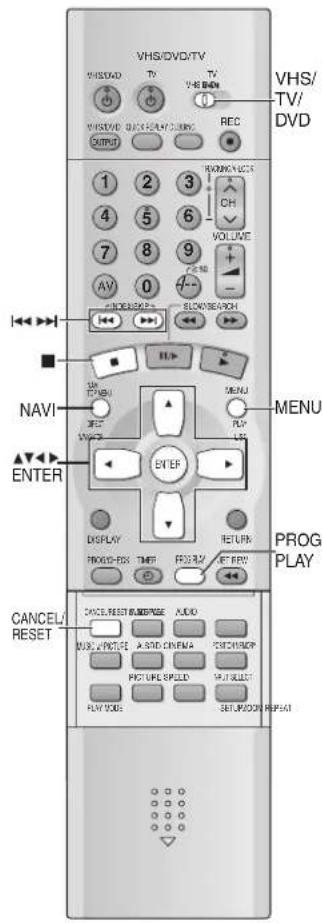
VHS/DVD/TV VHS/DVD TV TV VHS/DVD QUICKER CLOSING REC 1 2 3 4 5 6 7 8 9 AV 0 HOLDSEACH SLOOM SEAPH HOLDSEACH 10 MENU MENU VIEW VIEW ENTER PROG PLAY DISPLAY TURRY FROO BOX FROO BOX POT BOX CANCEL/ RESET CANCE, RESET BLACK/MAKE AUDIO MUSIC, PROTECH A-RID CINEMA FISH/SHOP PICTURE SPEED SUJECT PLAY MODE SET/MODI/RESETJet Navigator
This unit can display a list of the recorded programmes on the inserted video cassette on the TV screen. You can then select the desired programme, and this unit will quickly reach its beginning and start playback.
To save Jet Navigator data
- The tape length of the inserted cassette must be set correctly. (→page 24)
●The unit must not be in the timer recording standby mode.
●A programme of at least 15 minutes must be recorded on the tape.
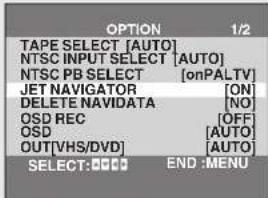
1) Press [MENU] to display the VHS MENU.
2) Press [▲▼] to select "OPTION" and then press [ENTER].
3) Press [▲▼] to select "JET NAVIGATOR" and then select "ON" with [◀▶].
4) Record programmes (→page 16–19).
The unit makes the list as you record.
text_image
OPTION 1/2 TAPE SELECT [AUTO] NTSC INPUT SELECT [AUTO] NTSC PB SELECT [onPALTV] JET NAVIGATOR [ON] DELETE NAVIDATA [NO] OSD REC [OFF] OSD [AUTO] OUT[VHS/DVD] [AUTO] SELECT: END :MENU1 Press [NAVI].
- When pressing [NAVI] during playback, the playback stops and the Jet Navigator list appears.
2 Press [NAVI] several times to select the programme.
After 3 seconds, the unit starts to search for the beginning of the selected programme and the playback will start automatically.
- Every time you press [NAVI], the programme shifts above.
![PANASONIC NV-VP31EE - Press [NAVI] several times to select the programme. - 1](/content/2026/06/1191013/images/fd4616a845ee693f0042b96e47a61b84feb7f0196509bc2dab5894bc4a7188bd.jpg)
text_image
JET NAVIGATOR DATE CH ON CATEGORY 10/18 1 22:30 MUSIC 10/19 24 15:00 SPORT 10/21 5 2215 10/23 A2 2002 10/26 4 1910 EDUCA 10/27 2 2002 10/27 12 2030 SELECT : NAVI, END : MENU◇ To cancel the Jet Navigator list
Press [MENU].
To delete the Jet Navigator data of a single video cassette tape
Keep [CANCEL/RESET] pressed for more than 5 seconds while the Jet Navigator list appears.
“- -” appears on the list.
To delete all the Jet Navigator data stored in the unit's memory (→page 24)
◇ To Demonstrate the Jet Navigator Function
Keep [NAVI] pressed for more than 5 seconds without inserting a tape.
Notes:
- The Jet Navigator programme list displays up to 14 programmes. If you have already stored 14 programmes on a tape and then store another one, the oldest item is replaced.
- Signals approximately 10 seconds before and after the current tape position are checked. During checking, "CHECKING JET NAVIGATOR DATA." is displayed on the TV screen.
- Checking cannot be performed properly where there are no signals, such as unrecorded portions of the tape. In this case, press [NAVI] at a portion of the tape where a programme has been recorded on this unit. When a signal can still not be found, the message "CAN NOT FIND JET NAVIGATOR DATA." appears on the TV.
- The Jet Navigator list is stored in each tape. Up to 20 tapes and 50 programmes can be registered.
- "REMAINING PROGRAM 0 DELETE JET NAVIGATOR DATA." appears when you try to store more than 50 programmes. The new item is added and the oldest item is deleted.
- "REMAINING CASSETTE 0 FOR JET NAVIGATOR DELETE JET NAVIGATOR DATA." appears when you try to store items for more than 20 tapes. Programmes recorded without deleting data as instructed are not registered in the list.
- The list does not appear when playing tapes recorded on other equipment.
- When recording over the same location on a tape, it may not work correctly.
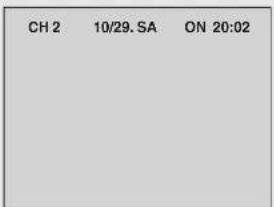
Time Stamp Function
When playback starts after searching with Jet Navigator function or index search function ( page 21), recorded programming data (called Time Stamp) appears on the TV screen for approx. 5 seconds.
Note:
- Time Stamp does not appear if the beginning of the Jet Navigator data is not recorded 10 minutes before and after the current tape position even when index signals are recorded.
text_image
CH 2 10/29. SA ON 20:02Set the category
You can find what kind of programmes are recorded with the character and the icon indications.
1) While the Jet Navigator list appears, press [▶].
2) Press [▲▼◀▶] to select the desired category.
3) Press [ENTER].
| Category | Indication | Icon |
| MOVIE MOVIE | SPORTS SPORT |  |
| MUSIC MUSIC | CHILDREN CHILD |  |
| DRAMA DRAMA | NEWS |  VS VS |
| EDUCATION | EDUCA |  |
| DOCUMENTARY | DOCUM |  |
| Category | Indication | Icon |
 | ||
 | ||
 | ||
| OTHERS | OTHER | [DETT] |
CATEGORY SETTING
MOVIE
MUSIC
DRAMA
EDUCA
DOCUM
#
#
❤️
N
图
S
C
N
0
-
ORT
ILD
WS
HEF
-
[Unreadable]
•
N
ETC
2016
SELECT: ▲◀▶
END : ENTER
VHS Index Search System (VISS)
This unit automatically adds special index signals on the tape when recording starts. You can find the desired programme quickly with these signals.
While stopped or during normal play
Press [◀◀] (backward) or [▶▶] (forward).
● Each press increases the number of skip.

◇ To cancel the Index Search or to stop playback
Press [■].
Notes:
- Up to 20 index signals can be searched for in both directions.
- When you press either one of the button too much, you can control the number of skips by pressing the opposite button.
- The figure on the display decreases by 1 each time an index signal is located.
- This feature may not work correctly if the marks are too close together. Make recordings of at least 5 minutes.
◇ Index signals are recorded in the following cases.
- When a recording is started by pressing [RECO].
- When [RECO] on the remote control is pressed during recording.
- When timer recording is activated.
Easy Programme Playback
You can find a timer-recorded programme with One-touch operation and play it back easily.
- Set timer recording for the programme you wish to view.
Press [PROG PLAY].
- As soon as the timer-recorded programme is found, playback starts automatically.
◇ To cancel the Easy Programme Playback
Press [■].
Notes:
- The unit memorizes the position at which timer recording is set to the standby mode by pressing [TIMER] as the start point of Easy Programme Playback.
- When there is no programmed timer recording data, the message "CAN NOT FIND PROG PLAY DATA." appears on the TV.
- If you take out the cassette after a timer recording has finished, this function does not work.
![PANASONIC NV-VP31EE - Press [PROG PLAY]. - 1](/content/2026/06/1191013/images/4b5b139e56d7dfbb241a27bb6f47ff37cfb9708311f0cf1b20c10b5ca40c9555.jpg)
natural_image
Illustration of a couple embracing, with 'PROG PLAY' text above (no other symbols or readable text)Settings Using the On-Screen Display
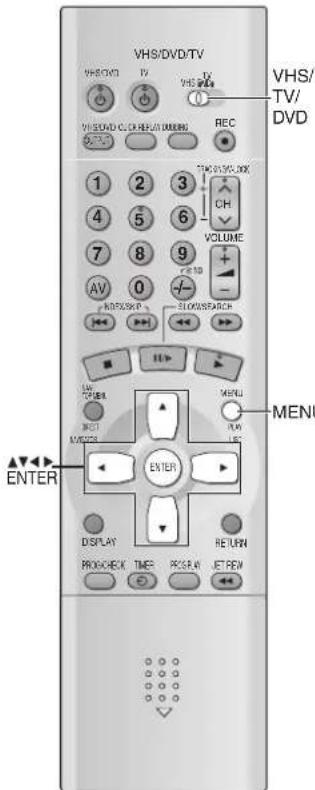
Change the settings to suit your preferences and to suit the unit to the environment in which it is being used. These settings are retained in memory until they are changed, even if the unit is turned off.
- Select the unit viewing channel (or the AV input) on the TV.
- Switch [VHS/TV/DVD] to "VHS".
text_image
VHS/DVD/TV VHS/DVD VHS/DVD VHS/TV/ DVD REC 1 2 3 4 5 6 7 8 9 AV 0 RDS/S&P VOLUME ELOWS&ARCH LIVE METHI METHI METHI MENU ENTER ENTER DISPLAY PROGUECK TIMER PICS R/W JET REW RETURNCommon procedures
1 Press [MENU].
2 Press [▲▼] to select the menu.
3 Press [ENTER].
◇For CLOCK SET (→page 12)
VHS MENU
▶CLOCK SET
TUNER PRESET
SYSTEM
OPTION
SELECT : △ ▼ ENTER
END :MENU
TUNER PRESET
The unit tunes automatically when you plug it in and turn it on for the first time (NV-VP31GN only, →page 11), but you can start the process again if necessary.
- Select any programme position except "A1", "A2" or "dc" (→page 42).
Auto Tuning
Auto tuning searches for TV stations from VHF minimum to UHF maximum and memorizes every tuned programme position. Other programme positions are skipped (Channel plan → below).
[1] Press [▲▼] to select "AUTO TUNE".
[2] Press [◀▶] to start Auto Tuning.
- It may take up to 5 or more minutes to complete.
- When Auto Tuning is completed, the on-screen display disappears and programme position 1 is selected.
TUNER PRESET
| CH 1 | |
| CLEAR | [OFF] |
| AUTO TUNE | |
| SEARCH | [3] |
| FINE | |
AUTO TUNING
IN PROGRESS,
PLEASE WAIT.
CH1SEARCH
+100 END: MENU
The number of channels still to be auto tuned.
◇ To stop partway through
Press [MENU].
◇ If the unit is not correctly tuned by Auto Tuning
Follow the procedure on page 23.
Channel plan
| VHF UHF | CATV | ||
| NV-VP31GL 0 | -12 28-69 45-470 | MHz | |
| NV-VP31GN 1 | -11 21-69 44-470 | MHz |
Manual Tuning
[1] Press [▲▼] to select "CH" and select the channel with [◀▶].
[2] Press [▲▼] to select “CLEAR” and select “OFF” with [◀▶].
To select the blanking of a programme position
Select "ON". If you select "ON", proceed to step 4.
- To restore the channel again, select "OFF".
- Repeat steps 1 and 2 for another unoccupied programme positions to skip during the selection of the programme positions.
[3] Select “SEARCH” with [▲▼] then press [◀▶] to start the Manual Tuning.
- If the desired TV station has not been tuned, press [◀▶] again.
- Press [MENU] and repeat steps 1-3 for each programme position you want to tune to a station.
- You can also set the programme position directly by entering the number with the numeric buttons ( below).
Direct Tuning
After you select "SEARCH", press the numeric buttons to select the programme position. For the 5A and 9A channels, input the following numbers.
90 for CH-5A, 91 for CH-9A. (Example for NV-HV60GL)
- For other channels that require tuning, repeat steps above.
[4] Press [MENU] repeatedly until the setting screen disappears.
TUNER PRESET
▶CH 2
CLEAR
AUTO TUNE
SEARCH
FINE
[OFF]
[3]
CH2
SEARCH

END: MENU
CH2 SEARCH 74
-/+:
END: MENU
Fine Tuning
[1] Press [▲▼] to select "CH" and select the channel with [◀▶].
[2] Select “FINE” with [▲▼] then press [◀▶] to obtain the best tuning condition.
- Press [ENTER] to return the tuning to its former state.
[3] Press [MENU] until the setting screen disappears.
CH 2
FINE +
AFC: ENTER
END: MENU
SYSTEM
Set the Colour TV System.
[1] Select "AUTO" with [▲▼].
- The VHS automatically distinguishes between PAL or NTSC signals. If the picture lacks of colour during AV external recording, playback or recording from DVD to VHS, set to "PAL" or "NTSC".
- When you want to record or play back in black and white, set to "B/W".
[2] Press [MENU] repeatedly until the setting screen disappears.
SYSTEM
AUTO
PAL
NTSC
B/W
SELECT: ▲▼
END :MENU
OPTION
text_image
AV 0 +/- +/- 错带/关机 +/- 错带/关机 +/- 错带/关机 +/- 错带/关机 +/- 错带/关机 +/- 错带/关机 +/- 错带/关机 +/- 错带/关机 +/- 错带/关机 +/- 错带/关机 +/- 错带/关机 +/- 错带/关机 ENTER DISPLAY CANCE/ RESET MENU MENU MENU MENU MENU MENU MENU MENU MENU MENU MENU MENU MENU MENU MENU MENU MENU MENU MENU MENU MENU MENU MENU MENU MENU MENU MENU MENU MENU MENU MENU MENU MENU MENU MENU MENU MENU MENU MENU MENU MENU MENU MENU MENU MENU MENU MENU MENU MENU MENU MENUPress [▲▼] to select the item and press [◀▶] to change the setting.
e.g. NV-VP31GN
![PANASONIC NV-VP31EE - Press [▲▼] to select the item and press [◀▶] to change the setting. - 1](/content/2026/06/1191013/images/273287097a4010695dbbfc55f235e4d2d8746228f10a4e03703fb5a146430787.jpg)
text_image
OPTION 1/2 TAPE SELECT [AUTO] NTSC INPUT SELECT [AUTO] NTSC PB SELECT [onPALTV] JET NAVIGATOR [OFF] DELETE NAVIDATA [NO] OSD REC [OFF] OSD [AUTO] OUT[VHS/DVD] [AUTO] SELECT: 📋 END :MENU![PANASONIC NV-VP31EE - Press [▲▼] to select the item and press [◀▶] to change the setting. - 2](/content/2026/06/1191013/images/205d23624731a4278e232d1454321bb545c991f1f6c12b1509a8643b339dcacc.jpg)
text_image
OPTION 2/2 DUBBING NORMAL AUDIO [L] MONAURAL [OFF] SELECT: 📋 END :MENUTo exit the settings screen Press [MENU] twice.
| Items | Settings (Underlined items are the initial setting.) |
| TAPE SELECTSet the length of tape you are using so the unit can show the correct remaining time (→page 25). | AUTO: E30, E60, E90, E120, E180 and E240 tapesE195: E195 tapesE260: E260 tapesE300: E300 tapes |
| NTSC INPUT SELECTSelect the colour TV system used to record NTSC signals. | AUTO: NTSC [4.43] and [3.58] signals•If the tape has not recorded correctly, select 4.43 or 3.58.4.43: NTSC 4.43 signals3.58: NTSC 3.58 signals•Some programmes on NTSC 3.58 system cannot be recorded correctly at this position. |
| NTSC PB SELECTSelect the colour TV system of the TV used to play back a tape recording NTSC signals. | on PAL TV: TVs that can receive PAL signals4.43: TVs that can receive NTSC 4.43 signals3.58: TVs that can receive NTSC 3.58 signals |
| JET NAVIGATOR (→page 20) | ON: Jet Navigator data automatically registered.OFF: Data not registered.•If you select “ON”, “OSD REC” is set to “OFF” automatically. |
| DELETE NAVIDATASee page 20 to delete data on a single tape. | NOENTER: If you choose this position, press [ENTER] to delete all the Jet Navigator data. |
| OSD RECYou can record the present date and time on the same screen which the picture is recorded. | ONOFF•If you select “ON”, “JET NAVIGATOR” is set to “OFF” automatically. |
| OSD (→page 25) | AUTO: Messages appear on the TV for about 5 seconds when you press [DISPLAY].OFF: Messages do not appear. |
| OUT [VHS/DVD] (→page 12)You can set the unit so that the output is automatically switched to the device which starts playback. | VHS: Only VHS outputs.MANUAL: VHS output and DVD output are manually switched.AUTO: VHS and DVD are automatically switched depending on the manipulation or the unit operation. |
| DUBBING NORMAL AUDIO (→page 42)Select the audio channel to be recorded on the Normal audio track when dubbing a bilingual DVD. | L: To record the sound from left channelR: To record the sound from right channel |
| MONAURALSelect the sound mode. (For NV-VP31GN only) | ON: To record the normal sound during a NICAM broadcast or if the stereo sound is distorted due to inferior reception conditions.OFF |
Various indications in on-screen display
To see these displays, set the OSD item in the "OPTION" menu to "AUTO" (→page 24).
Press [DISPLAY].
The time and operation details appear on the screen for about 5 seconds.
| 1 | Channel display |
| 2 | STEREO or BILINGUAL indicator (NV-VP31GL)Indicates when a programme is broadcast in Stereo or Bilingual.STEREO, M1 and M2 Indicator (NV-VP31GN)Indicates when a programme is broadcast in Stereo, Bilingual or NICAM.STEREO: When receiving a Stereo/NICAM stereo broadcast.M1/M2: When receiving a Bilingual/NICAM dual-sound broadcast.M1: When receiving a NICAM monaural broadcast.To hear stereo sound, connect to a TV or Stereo Amplifier with left and right audio inputs(→page 8, 9). |
| 3 | L and R indicatorsThe Left (L) and Right (R) indicators show which sound mode is selected as follows:Stereo: Both the L and R indicators appear.L: The L indicator appears.R: The R indicator appears.Normal: Neither the L nor R indicator appears. |
| 4 | Operation status display |
| 5 | Shows the time and tape counterPressing [DISPLAY] once makes the on-screen display appears. After that, press the button repeatedly to change the display as follows:Present time→Tape counter→Remaining tape time→Present timeduring Index search: “S 01” to “S 20” is displayed.during Jet Rewind: “J.REW” is displayed.Press [CANCEL/RESET] to reset the tape counter (elapsed time) to “0:00.00”.The tape counter is automatically reset to “0:00.00” when inserting a video cassette.The remaining time is approximate. It will be incorrect if you set the wrong tape time in the “TAPE SELECT” item in the “OPTION” menu and if the tape is of poor quality. |
| 6 | Cassette-in indicatorShows whether you have loaded a cassette. |
| 7 | Colour system indicator (→page 23)Shows selected colour TV system except “AUTO”. |
| 8 | Tape speed indicator (→page 16) |
| 9 | Picture mode indicator (→page 15) |
![PANASONIC NV-VP31EE - Press [DISPLAY]. - 1](/content/2026/06/1191013/images/de3030da0d731c5c60670f808725c87625232eaa7c77c826ae32a407e7342795.jpg)
text_image
① CH 1 STEREO L R 0:00.22 SP PAL STANDARD ⑥ ⑦ ⑧ ⑨Notes:
●These displays do not appear when paused or during slow play.
- The on-screen display may be distorted depending on the playback tape or the input signal.
Changing audio
To change the audio, press [AUDIO].
The audio changes as follows:
When playing a tape: Stereo→L→R→Normal audio track→Stereo
While watching the TV: Stereo→L→R→Normal→Stereo
- You cannot change the audio while you use "dc" channel (→page 42).
To play back tapes recorded Stereo or Bilingual programmes (NV-VP31GL only)
Select the desired sound mode with [AUDIO] during playback. Recording on the unit is automatically made in the stereo or bilingual mode. This prevents errors in the selection of the dubbed or the original language.
◇ The NICAM Broadcast System (NV-VP31GN only)
NV-VP31GN is equipped with the NICAM sound system. NICAM is a 2-channel sound broadcast system to provide either a high quality stereo sound track or 2 independent MONO sound tracks, M1 and M2. NICAM programmes are always accompanied by standard sound broadcasts and you can select the desired sound with [AUDIO] during playback.
●The NICAM digital stereo sound can only be recorded on the Hi-Fi audio track.
- To record the regular sound (ordinary normal sound) on the FM audio tracks when a NICAM programme is received, set "MONAURAL" to "ON" (OPTION → page 24).
IMPORTANT
When NV-VP31GN is switched on, the tuner will be automatically switched to a NICAM broadcast, if NICAM is being transmitted.
At this time the NICAM signal is transmitted on stereo channels only, since the M1 and M2 formats are not yet available. Even if the sound track is MONO, the stereo indicator will appear.
Playing Discs-basic play
DVD-V RAM VCD CD MP3 WMA JPEG
- Select the unit viewing channel (or the AV input) on the TV.
- Switch [VHS/TV/DVD] to "DVD".
- Press [DVD] to turn on the unit.
- When "OUT [VHS/DVD]" in the "OPTION" menu is set to "MANUAL", press [VHS/DVD OUTPUT] to switch it to disc video (→page 12).

text_image
VHS/DVD/TV VHS/DVD TV TV VHS/DVD TV VHS/ DVD VHS/DVD/CCLE/MENU/DIVING REC Numeric buttons 1 2 3 4 5 6 7 8 9 AV 0 MENI TARGET RETURN TARGET TOP MENU ENTER DISPLAY RETURN PROCHECK TIMES SCREEN NETREW SUBTITLE GUIDE/RESET AUDIO VIS ON/PRICE A SETT/CLOSE ENTER/SURFACE PICTURE SPEED INPUT SELECT PLAY VOICE SETUP/OFF/RESET POSITION MEMORY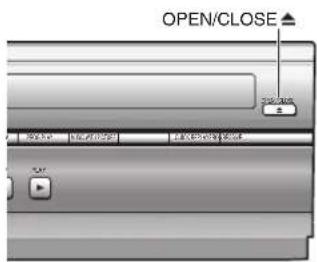
text_image
OPEN/CLOSE ↑ OK Cancel Show OK/Cancel Show Cancel/Cancel PLAY1 Press [OPEN/CLOSE▲] to open the disc tray.
2 Place the disc with the label facing upward.
- Load double-sided discs so the label for the side you want to play is facing up.
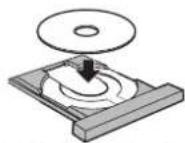
3 Press [▶](PLAY).
● The disc tray closes and play begins. It is normal for sound and pictures to take time to start.
MP3 | WMA | CDtext
Track information appears on the TV. Press [SUBTITLE] to turn the display on or off.
. - 1](/content/2026/06/1191013/images/e02e8085efe2e49a56b7e49b66547ead45edc04e76a31dc8f350b0ab02e014b1.jpg)
| [■] | S t o pPress this button during play.When “ ” in the unit’s display flashes, theResume functionis active.The unit memorizes the position you press [■].■ Resume functionPress [ ▶](PLAY) once to restart from this position.(When playing DVD-Video, seeChapter Review→page 27)●Press [■] again to clear it. |
| [ ◀◀ ] (backward)/[ ▶▶] (forward) | SkipPress these buttons to skip chapters, tracks or programmes.●Each press increases the number of skips.●After skipping, the unit returns to the previous state, play or pause.RAM●If the marker is memorized, the marker position is accessed.■ When you skip groupsJPEGPress [▼] (backward) or [▲] (forward). |
| [ I I/▶ ] Still picture (Pause)Press this button during play. | |
| [◀◀ ] (backward)/[ ▶▶ ] (forward) | SearchPress these buttons during play.You can turn off the sound during search.Change the setting in “Audio during Search” (SETUP menu →page 41).SlowPress these buttons while paused. |
| [◀ ] (backward)/[▶] (forward) | Frame-by-framePress these buttons while paused.●Each press shows the next or previous frame.●Press and hold to change in succession.●For forward only, pressing [I I/▶] repeatedly also shows frame by frame. |
| [OPEN/CLOSE▲ ] Insert/Eject a discThe disc tray comes out with this button.●You can eject a disc even if the power is turned off. | |
◇ To restart play
Press ▶.
Notes:
- If “ ” appears on the TV, the operation is prohibited by the unit or disc.
- When the unit is first turned on and there is a disc loaded, it may start playing automatically.
- When the whole disc has finished playing, the unit automatically stops. Some discs show a menu screen.
- The disc keeps rotating when showing a still picture (pausing).
- Pressing [◀◀]/[◀◀] or [▶▶]/[▶▶] may take you to a menu screen depending on the disc or the portion played (e.g. Video CDs).
- VCD You cannot move backwards during slow-motion and frame-by-frame.
- Each press or hold [◀◀] or [▶▶] accelerates the search or the slow-motion speed in 5 steps.
- Slow-motion and frame-by-frame only work on moving pictures.
When a menu screen appears on the TV DVD-V VCD
Press the numeric buttons to select the desired item.
Example: "03"; [3]
“10”; [≥10]→[1]→[0]
- You can also use [▲▼◀▶] to select items. Press [ENTER] to confirm your selection.
◇ To revert to the menu screen
Press [MENU] (PLAY LIST).
◇ To show the top menu
Press [TOP MENU].
Notes:
- Many Video CDs with playback control display a menu on the TV when played back. "PBC" is displayed in the unit's display.
- The operation may differ depending on the disc. Read the disc's instructions for further details about operation.
- Discs continue to rotate while menus are displayed.
Press [■] when you have finished viewing to preserve the unit's motor and your TV screen.
Position Memory function
DVD-V RAM VCD CD MP3 WMA (When the elapsed play time is displayed)
JPEG
Memorize positions on up to 5 different discs to restart play after turning off or changing discs.
[1] During play, press [POSITION MEMORY].
- Press again to replace the position.
Position memorized

Flashes as you memorize a position.
[2] Turn off the unit or remove the disc.
[3] Turn on the unit or set a disc for which the position is memorized and Press ▶.
- Play starts from the memorized position and the position is cleared.
- When playing DVD-Video, see Chapter Review (→below).
Notes:
- If you set up 6 positions or more, the oldest position memory is replaced.
- This function may not work while playing some DVDs or play lists on DVD-RAM.
Chapter Review
DVD-V
When the Resume function is active, you can review the first few seconds of each chapter previously played.
When “” in the unit’s display flashes, the message appears by pressing ▶ once.
Press ▶ again.
- After reviewing the chapters up to the one where you memorized the position, play resumes from that position.
Press PLAY to Chapter Review
◇ To clear the position
Press [■].
Notes:
- If you do not press ▶, the message disappears and play starts from where you press [■] or [POSITION MEMORY].
- The position is also cleared when you turn the unit off, select another source or open the disc tray.
●This is operative only in the current title.
Convenient Functions
DVD-V RAM VCD CD MP3 WMA JPEG
- Select the unit viewing channel (or the AV input) on the TV.
- Switch [VHS/TV/DVD] to "DVD".
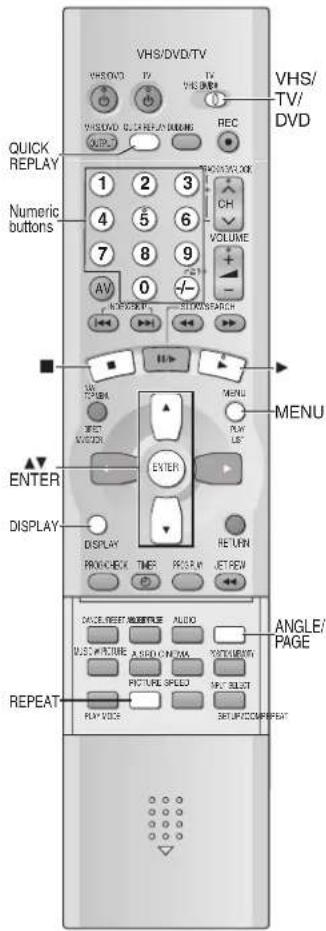
text_image
VHS/DVD/TV VHS/DVD TV TV VHS/DVD TV VHS/ VHS/DVD QUICK REPLAY Numeric buttons 1 2 3 4 5 6 7 8 9 AV 0 VOLUME VOLUME/LOCK VOLUME/STOP VOLUME/RESET VOLUME/RESET VOLUME/RESET VOLUME/RESET VOLUME/RESET VOLUME/RESET VOLUME/RESET VOLUME/RESET VOLUME/RESET VOLUME/RESET VOLUME/RESET VOLUME/RESET VOLUME/RESET VOLUME/RESET VOLUME/RESET VOLUME/RESET VOLUME/RESET VOLUME/RESET VOLUME/RESET VOLUME/RESET VOLUME/REVIEW VOLUME/RESET VOLUME/RESET VOLUME/RESET VOLUME/RESET VOLUME/RESET VOLUME/RESET VOLUME/RESET VOLUME/RESET VOLUME/RESET VOLUME/RESET VOLUME/RESET VOLUME/RESET VOLUME/RESET VOLUME/RESET VOLUME/RESET VOLUME/RESET VOLUME/RESET VOLUME/RESET VOLUME/RESET VOLUME/ReVIEW VOLUME/RESET VOLUME/RESET VOLUME/RESET VOLUME/RESET VOLUME/RESET VOLUME/RESET VOLUME/RESET VOLUME/RESET VOLUME/RESET VOLUME/RESET VOLUME/RESET VOLUME/RESET VOLUME/RESET VOLUME/RESET VOLUME/RESET VOLUME/RESET VOLUME/RESET VOLUME/RESET VOLUME/RESET VOLUME/AVE/VIDE/VIDE/VIDE/VIDE/VIDE/VIDE/VIDE/VIDE/VIDE/VIDE/VIDE/VIDE/VIDE/VIDE/VIDE/VIDE/VIDE/VIDE/VIDE/VIDE/VIDE/VIDE/VIDE/VIDE/VIDE/VIDE/VIDE/VIDE/VIDE/VIDE/VIDE/VIDE/VIDE/VIDE/VIDE/VIDE/VIDE/VIDE/VIDE/VIDE/VIDE/VIDE/VIDE/VIDE/VIDE/VIDE/VIDE/VIDE/VIDE/VIDE/Vide/Vide/Vide/Vide/Vide/Vide/Vide/Vide/Vide/Vide/Vide/Vide/Vide/Vide/Vide/Vide/Vide/Vide/Vide/Vide/Vide/Vide/Vide/Vide/Vide/Vide/Vide/Vide/Vide/Vide/Vide/Vide/Vide/Vide/Vide/Vide/Vide/Vide/Vide/Vide/Vide/Vide/Vide/Vide/Vide/Vide/Vide/Vide/Vide/Vide/Vile / Reverse / Reverse / Reverse / Reverse / Reverse / Reverse / Reverse / Reverse / Reverse / Reverse / Reverse / Reverse / Reverse / Reverse / Reverse / Reverse / Reverse / Reverse / Reverse / Reverse / Reverse / Reverse / Reverse / Reverse / Reverse / Reverse / Reverse / Reverse / Reverse / Reverse / Reverse / Reverse / Reverse / Reverse / Reverse / Reverse / Reverse / Reverse / Reverse / Reverse / Reverse / Reverse / Reverse / Reverse / Reverse / Reverse / Reverse / Reverse / Reverse / Reverse / Forward / Forward / Forward / Forward / Forward / Forward / Forward / Forward / Forward / Forward / Forward / Forward / Forward / Forward / Forward / Forward / Forward / Forward / Forward / Forward / Forward / Forward / Forward / Forward / Forward / Forward / Forward / Forward / Forward / Forward / Forward / Forward / Forward / Forward / Forward / Forward / Forward / Forward / Forward / Forward / Forward / Forward / Forward / Forward / Forward / Forward / Forward / Forward / Forward / Forward / ForeignStarting play from a selected item
Press the numeric buttons.
Example: “10”; [≥10]→[1]→[0]
MP3 WMA JPEG
Press the numeric buttons then press [ENTER] or ▶.
Example: “125”; [1]→[2]→[5]→[ENTER] or ▶
If the Video CD has playback control
1) Press [■] to clear "PBC" from the unit's display.
2) Press the numeric buttons.
- To return to the menu play, press [MENU] (PLAY LIST) to restore "PBC" in the unit's display.
Notes:
●This works only when stopped in some discs.
- This may not work depending on the disc or the play status.
Selecting groups to play
MP3 WMA JPEG
[1] Press [DISPLAY] until the disc information screen is displayed ( page 37).
[2] Press [▲▼] to select the group number and press [ENTER].
[3] Press [▲▼] to select the track/picture number and press [ENTER].
- You can also select the group and track/picture number with the numeric buttons.
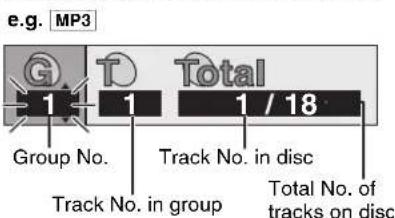
text_image
e.g. MP3 G T Total 1 1 1 / 18 Group No. Track No. in disc Track No. in group Total No. of tracks on discQUICK REPLAY
DVD-V RAM VCD CD MP3 WMA :
Skip back a few seconds within the current item (programme, track or title).
JPEG : Skip back a few pictures.
During play, press [QUICK REPLAY].
Note:
●This may not work on some parts of a disc or some kind of discs.
Rotating Pictures
JPEG
[1] While a picture is displayed, press [ANGLE/PAGE].
[2] Select “Rotate right” or “Rotate left” with [▲▼] and press [ENTER].
The picture rotates 90 degrees each time you do this.
To clear the pop-up screen Press [ANGLE/PAGE].
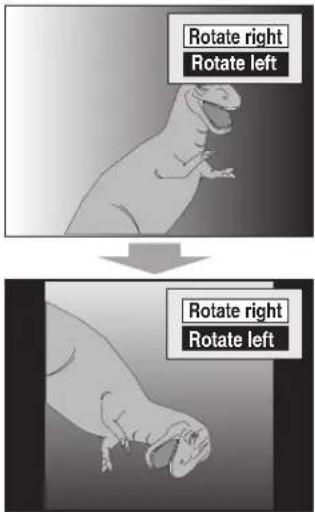
text_image
Rotate right Rotate left Rotate right Rotate leftRepeat Play
DVD-V RAM VCD CD MP3 WMA
(When the elapsed play time is displayed)
JPEG
During play, press [REPEAT].
The indication changes each time you press the button.
RAM
Program → All → Off
![PANASONIC NV-VP31EE - During play, press [REPEAT]. - 1](/content/2026/06/1191013/images/40b105245bbc81410f153b58a95eae71e4c2a099cbcca37b24ac9c768d44d242.jpg)
While playing a play list
Scene → Playlist → Off
DVD-V
Chapter → Title* → Off
VCD CD
Track → All → Off
MP3 WMA
Track → Group* → Off
JPEG
Group → Off
*During program and random play, it is displayed "All".
■To repeat playing in the order programmed
Press [REPEAT] during program play ( page 30).
e.g. DVD-V
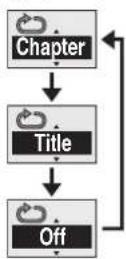
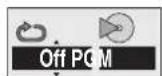
Notes:
- You can also repeat play of content and group on HighMAT discs.
●This may not work on some discs. - If a DVD has 2 or more titles, it is not allowed to repeat the whole disc.
- This does not work during menu play of a Video CD with playback control.
Changing Play Sequence
DVD-V VCD CD MP3 WMA
- Select the unit viewing channel (or the AV input) on the TV.
- Switch [VHS/TV/DVD] to "DVD".
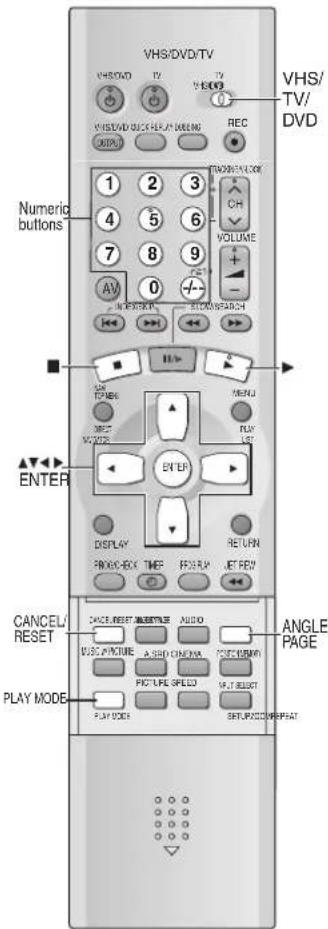
text_image
VHS/DVD/TV VHS/DVD TV TV VHS/DVD/CCS/FL/R/DA/LB/MG REC VHS/ TV/ DVD Numeric buttons 1 2 3 4 5 6 7 8 9 AV 0 + - IN RUSHROOM SCREEN SEARCH HIV MENU OPEN MOVE PLAY LUT ENTER DISPLAY FROM BOX TIMER FOR RUN NET FLOW RETURN CANCEL/ RESET FACE_RESET MEASURE AUDIO BUSING PICTURE A SHED CHINA FIGHTMAY PICTURE SPEED SLIT INSERT PLAY MODE SIF/LIF/CLOSE/SPIRSTAT ANGLE PAGECommon procedures
While stopped, press [PLAY MODE].
Each time you press the button:
Program→Random→Off (Normal play)
Program Play
You can select up to 32 items to play in the order you choose.
[1] Press the numeric buttons to select a group, title, chapter or track.
Example: 10"; [≥10]→[1]→[0]
MP3 WMA
125"; [1]→[2]→[5]→[ENTER]
- Repeat this step to programme other items.
![PANASONIC NV-VP31EE - [1] Press the numeric buttons to select a group, title, chapter or track. - 1](/content/2026/06/1191013/images/a1c64b20d8705da22a6af946fd5ce183ab7a2f12834f42496851fe65e7647057.jpg)
text_image
PROGRAM Choose a title and chapter, then press ENTER. No T C Time 1 Play Select Clear Clear all SELECT NUMBER SELECT ENTER RETURN Press PLAY to start[2] Press [▶](PLAY).
- You may also select "Play" with ▶ and press [ENTER] to start playing.
- Some items will not be played even if you programmed them.
When you use the cursor buttons to select the item
1) Press [ENTER] and [▲▼] to select an item.
2) Press [ENTER] to register.
- Select "ALL" to enter all the items in the selected disc, title or group.
■ To change and cancel a programme
1) Press [▲▼] to select an item and press [ENTER].
Press [ANGLE/PAGE] to skip 8 lines at a time.
2) Carry out step [1] to change an item, or press [CANCEL/RESET] to cancel.
- You can also select "Clear" with [▶▼] and press [ENTER] to cancel.
To clear the whole programme
Select "Clear all" with [▶▼] and press [ENTER].
Random Play
The unit plays chapters in one DVD title or all tracks in a Video CD and audio CD at random.
[1] DVD-V
Press [▲▼] to select a group or a title.
[2] Press ▶.
e.g. DVD-V
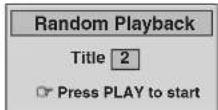
◇ To exit the program/random mode
1) Press [■] twice
2) Press [PLAY MODE] repeatedly to select the normal mode.
Notes:
- These functions does not work during HighMAT disc play. Set "HighMAT" to "Disable" (SETUP menu page 41) and perform the necessary operations.
• DVD-V Some items cannot be selected.
- DVD-V WMA MP3 Times are not displayed while programming.
- When program/random play ends, the unit stops and the screen reverts to the play mode display.
- The programme is cleared when you turn the unit off, open the disc tray, select another source.
Playing the Programmes or Play Lists on DVD-RAM
RAM
- Select the unit viewing channel (or the AV input) on the TV.
- Switch [VHS/TV/DVD] to "DVD"
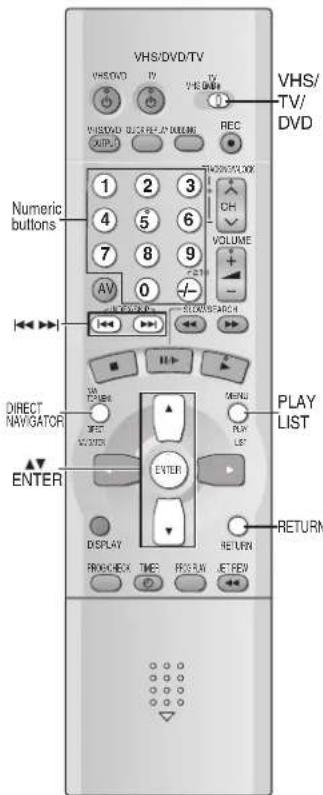
text_image
VHS/DVD/TV VHS/DVD TV VHS/DVD VHS/DVD QUICKER/UP DOWN REC OUTPUT REC VHS/DVD/TV/ DVD Numeric buttons 1 2 3 4 5 6 7 8 9 AV 0 - VOLUME CH VOLUME/CLOCK STOCK/SPEACH DIRECT NAV/GATOR ENTER DISPLAY MENU PLAY LIST RETURN FROM CHECK TIMES FROM WIN RETURNDirect Navigator
You can use the programme list to search for a desired programme to play.
[1] Press [DIRECT NAVIGATOR].
- If pressed when the disc is stopped, playback automatically starts and this screen appears.
[2] Press [▲▼] to select the programme.
●The programme selected is played in the background.
- You can also use the numeric buttons.
Example: "03"; [3]
$$ " 1 0"; [ \geq 1 0 ] \rightarrow [ 1 ] \rightarrow [ 0 ] $$
![PANASONIC NV-VP31EE - [2] Press [▲▼] to select the programme. - 1](/content/2026/06/1191013/images/424ab2dadb75721bf362bfd75ff54c707a323bbe7aad4deca5f5aec85a00226a.jpg)
text_image
DIRECT NAVIGATOR No Date On Program Title 1 11/21(FIN) 23:02 Monday feature 2 11/12(SAT) 22:35 Auto action 3 11/12(SAT) 22:00 Cinema 4 11/14(MON) 21:30 Music 5 11/14(MON) 20:05 Baseball Nov. 2008 SELECT SELECT Used 07:00:00 NUMBER ENTER RETURN[3] Press [ENTER].
●The list disappears and you can view the selected programme.
◇ To clear the programme list
Press [DIRECT NAVIGATOR] or [RETURN].
Notes:
●The DIRECT NAVIGATOR programme list displays up to 99 programmes.
- Titles appear only if they have been entered.
- You cannot change programme and disc titles.
Playing a play list
You can play a play list (→page 5) created on other equipment such as a DVD video recorder.
[1] Press [PLAY LIST].
[2] Press [▲▼] to select the play list.
- You can also select play lists with the numeric buttons.
Example: "03"; [3]
$$ " 1 0"; [ \cong 1 0 ] \rightarrow [ 1 ] \rightarrow [ 0 ] $$
[3] Press [ENTER] to start play.
- To skip scenes, press [◀◀] (backwards) or
[▶▶] (forwards).
![PANASONIC NV-VP31EE - [3] Press [ENTER] to start play. - 1](/content/2026/06/1191013/images/38c001ed8eba48e321f1b1023027182200f7b440154a105aae30359b62b9569c.jpg)
text_image
PLAYLIST No Date Length Title 1 10/17 0:46:35 Clay Penguin 2 10/24 0:09:15 Ashley at Prom 3 11/29 0:12:32 Formula one 4 12/22 0:07:30 Soccer 5 0:30:2012/23 Baseball 6 0:08:1512/23 Naanderthal 7 0:15:3012/24 Cartoons 8 0:20:3012/24 Tilkbones 9 0:20:0012/25 White Dwarf 10 0:55:0012/25 Discovery◇ To clear the play list screen
Press [PLAY LIST] or [RETURN].
Note:
- Up to 99 play lists can be displayed.
MP3/WMA, CD text and JPEG Navigating Menus
MP3 WMA CDtext JPEG
You can play a MP3, WMA, CD text or JPEG disc by using the menu.
- Select the unit viewing channel (or the AV input) on the TV.
- Switch [VHS/TV/DVD] to "DVD".
- If the disc contains both audio data (MP3 and WMA) and JPEG, select "Stills (JPEG)" or "Audio (MP3/WMA)" in "Mixed Disc - Audio & Stills" (SETUP menu → page 41).
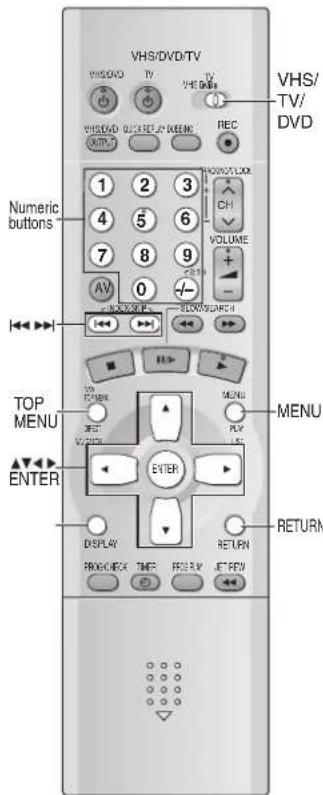
text_image
VHS/DVD/TV VHS/DVD TV VHS/DVD VHS/DVD OUTPUT QUICK RELA GEEPROM REC Numeric buttons 1 2 3 4 5 6 7 8 9 AV 0 -/- - HORN/OFF/LOCK CH VOLUME + - BLOW/SHATCH TOP MENU MENU ENTER ENTER DISPLAY RETURN FROM CHECK TIMER RESUR IT RETURN1 Press [TOP MENU].
2 Press [▲▼] to select the track or [▲▼◀▶] to select the picture.
- To display other pages, select "Prev" or "Next" with [▲▼◀▶] and press [ENTER]. After listing all the tracks or pictures in one group, the list for the next group appears. - You can also select the item with the numeric buttons. Example: "125"; [1]→[2]→[5]
e.g. MP3
![PANASONIC NV-VP31EE - Press [▲▼] to select the track or [▲▼◀▶] to select the picture. - 1](/content/2026/06/1191013/images/67ef6e835d72f630f955b62f8700608b2d04b29ea52379cb26e287afc67efcca.jpg)
text_image
Playing Group name MENU G 1 T 1 Total 223 No Group:001 My favorite Tree 1 001 Both Ends Freezing 2 002 Lady Starfish 3 003 Life on Jupiter 4 004 Metal Glue 5 005 Paint It Yellow 6 006 Pyramamama 7 007 Shrimps from Mars 8 008 Starperson 9 009 Velvet Cuppermine 10 010 Ziggy Starfish Enter RETURN Find NextPrev3 Press [ENTER].
To exit the menu Press [MENU] (PLAY LIST) or [TOP MENU].
e.g. JPEG
![PANASONIC NV-VP31EE - Press [ENTER]. - 1](/content/2026/06/1191013/images/e68c4b9d3e11965876bef9f1ccbf99227b4f6e67e2ed732a5401d9794bcde781.jpg)
text_image
JPEG ALBUM Group: 001 Penguins Picture: Pen001 G 1 P 1 Total 1 1 2 3 SELECT NUMBER SELECT ENTER RETURN Tree NextPlevNotes:
MP3
- This unit is not compatible with ID3 tags (→page 47).
- If you play an MP3 track that includes still picture data, it will take some time before the music starts playing and the elapsed time will not be displayed during this time. Even after the track starts, the correct play time will not be displayed.
- MP3 files must have the extension ".MP3" or ".mp3".
WMA
- You cannot play WMA files that are copy-protected.
- WMA files must have the extension ".WMA" or ".wma".
JPEG
- Use a digital camera that meets the DCF (Design rule for Camera File system) standard. Some digital cameras have functions that are not supported by the DCF standard like automatic picture rotation which may render a picture un-viewable.
- Do not alter the files in any way or save them under a different name.
- JPEG files must have the extension ".JPG", ".jpg", ".JPEG", or ".jpeg".
- This unit cannot display moving pictures, MOTION JPEG and other such formats, still pictures other than JPEG (i.e. TIFF) or play the associated sound.
MP3 WMA JPEG
- Formats that can be used are ISO9660 level1 and level 2 (except extended format).
- Finalize the disc after recording. A disc that is not finalized may not be played back.
- This unit is compatible with multi-session (→page 47) but if there are a lot of sessions it takes more time for play to start. Keep the number of sessions to a minimum to avoid this.
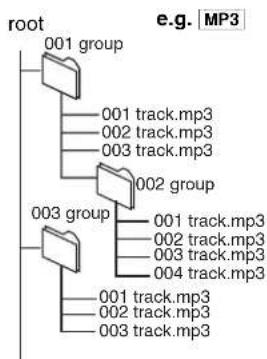
flowchart
graph TD
    A["root"] --> B["001 group"]
    B --> C["001 track.mp3"]
    B --> D["002 track.mp3"]
    B --> E["003 track.mp3"]
    A --> F["002 group"]
    F --> G["003 group"]
    G --> H["001 track.mp3"]
    G --> I["002 track.mp3"]
    G --> J["003 track.mp3"]
    G --> K["004 track.mp3"]
Naming folders and files
At the time of recording, prefix folder and file names with 3-digit numbers in the order you want to play them.
- Depending on how you create files, they may not play in the order you numbered them or may not play at all.
MPEG Layer-3 audio decoding technology licensed from Fraunhofer IIS and Thomson multimedia.
Windows Media, and the Windows logo are trademarks, or registered trademarks of Microsoft Corporation in the United States and/or other countries.
WMA is a compression format developed by Microsoft Corporation. It achieves the same sound quality as MP3 with a file size that is smaller than that of MP3.

To use the tree screen to find a group MP3 WMA JPEG
While the menu screen is displayed
1) MP3 WMA Press [▶] while a track is highlighted to display a tree screen.
JPEG Press [▲▼◀▶] to select "Tree" and press [ENTER].
2) Press [▲▼◀▶] to select a group and press [ENTER].
●The audio navigation menu/album display for the group appears.
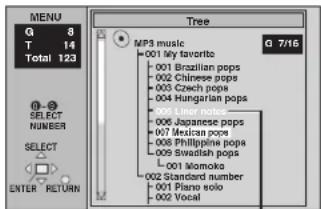
text_image
MENU Q 8 T 14 Total 123 Select NUMBER SELECT ENTER RETURN Tree MP3 music 001 My favorite 001 Brazilian pops 002 Chinese pops 003 Czech pops 004 Hungarian pops 005 Japanese pops 007 Mexican pops 008 Philippine pops 009 Swedish pops 001 Momoka 002 Standard number 001 Piano solo 002 VocalYou cannot select groups that contain non-compatible files.
To use the contents screen to a track CDtext
You can use the text information recorded on these discs to find a track to play.
While the menu screen is displayed
1) Press [▶] while a track is highlighted to display the contents screen.
2) Press [◀▶] to move through the tracks, and press [ENTER].
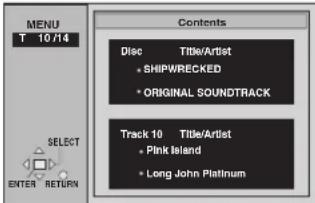
text_image
MENU T 10/14 Select ENTER RETURN Contents Disc Title/Artist • SHIPWRECKED • ORIGINAL SOUNDTRACK Track 10 Title/Artist • Pink Island • Long John PlatinumTrack title search MP3 WMA CDtext
You can find a file by entering part of the title.
Example: To find tracks containing the word "LOVE"
While the menu screen is displayed
1) Select "Find" with [▲▼] and press [ENTER].
2) Select "L" with [▲▼] and press [ENTER].
- Only uppercase appear, but the search also includes lowercase.
- Characters change in alphanumeric order each time you press [▲].
- Press [|◀◀] or [▶▶] to skip between A, E, I, O and U.
- Press [◀] to erase a character.
- You can erase “*” to search for the first word in a title. If you add “*” at the beginning of the word to be searched for, all the tracks containing the word are retrieved.
- You can enter numbers with the numeric buttons.
■ Repeat this step to enter "O", "V", and "E".
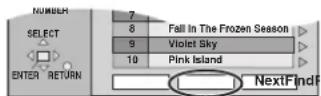
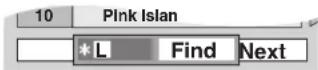
3) Select "Find" with [▶] and press [ENTER].
●The search results screen appears.
4) Select the track with [▲▼] and press [ENTER].
◇ To return to the menu
Press [RETURN].
Playing HighMAT discs
A menu appears when you insert the disc.
Press [▲▼◀▶] to select then press [ENTER].
◇ To return to the menu screen
Press [TOP MENU].
◇ To return to the menu above the current one
Press [RETURN].
◇ To change the menu background
Press [DISPLAY]. The background changes to the one recorded on the disc.
Menu
![PANASONIC NV-VP31EE - Press [▲▼◀▶] to select then press [ENTER]. - 1](/content/2026/06/1191013/images/7559f02e9991e654eb4b1307eb22be0a527199c429ce7518d566584097649840.jpg)
Takes you to the next menu which shows play lists or another menu
Play list
![PANASONIC NV-VP31EE - Press [▲▼◀▶] to select then press [ENTER]. - 2](/content/2026/06/1191013/images/0d410cb78efd5c0b7f85496c6e618b34c76a4632701d7f96c7ff839e17909309.jpg)
Play starts
Playing
Selecting from the lists
1) During play, press [MENU] (PLAY LIST).
2) Press [◀] then [▲▼] to switch between the play list, group and content lists.
3) Press [▶] then [▲▼] to select an item and press [ENTER].
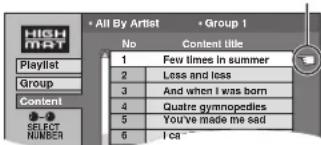
text_image
All By Artist Group 1 No Content Title 1 Few times in summer 2 Less and less 3 And when I was born 4 Quatre gymnopedies 5 You've made me sad 6 I ca◇ To exit the list screen
Press [MENU] (PLAY LIST).

HighMAT™ and the HighMAT logo are either trademarks or registered trademarks of Microsoft Corporation in the United States and/or other countries.
To Enjoy Movies and Music More
- Select the unit viewing channel (or the AV input) on the TV.
- Switch [VHS/TV/DVD] to "DVD".
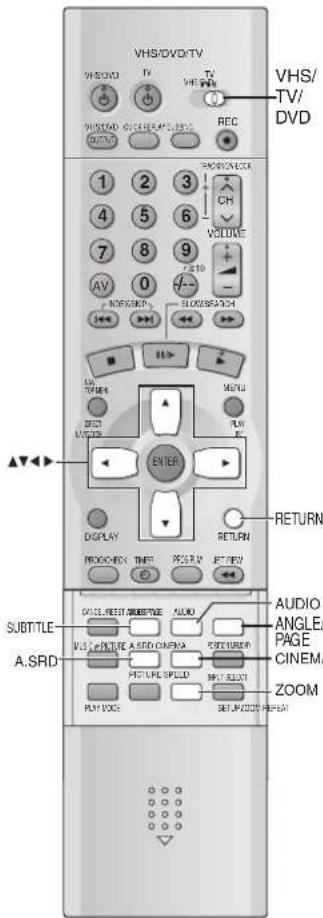
text_image
VHS/DVD/TV VHS/DVD VHS/DVD REC VHS/ TV/ DVD 1 2 3 4 5 6 7 8 9 AV 0 N/A N/A N/A VOLUME VOLUME/BOX VOLUME/BOX VOLUME/BOX VOLUME/BOX VOLUME/BOX VOLUME/BOX VOLUME/BOX VOLUME/BOX VOLUME/BOX VOLUME/BOX VOLUME/BOX VOLUME/BOX VOLUME/BOX VOLUME/BOX VOLUME/BOX VOLUME/BOX VOLUME/BOX VOLUME/BOX VOLUME/BOX VOLUME/BOX VOLUME/Box VOLUME/Box VOLUME/Box VOLUME/Box VOLUME/Box VOLUME/Box VOLUME/Box VOLUME/Box VOLUME/Box VOLUME/Box VOLUME/Box VOLUME/Box VOLUME/Box VOLUME/Box VOLUME/Box VOLUME/Box VOLUME/Box VOLUME/Box VOLUME/Box VOLUME/Box VOLUME/Block VOLUME/Block VOLUME/Block VOLUME/Block VOLUME/Block VOLUME/Block VOLUME/Block VOLUME/Block VOLUME/Block VOLUME/Block VOLUME/Block VOLUME/Block VOLUME/Block VOLUME/Block VOLUME/Block VOLUME/Block VOLUME/Block VOLUME/Block VOLUME/Block VOLUME/Block VOLUME/Box VOLUME/Box VOLUME/Box VOLUME/Box VOLUME/Box VOLUME/Box VOLUME/Box VOLUME/Box VOLUME/Box VOLUME/Box VOLUME/Box VOLUME/Box VOLUME/Box VOLUME/Box VOLUME/Box VOLUME/Box VOLUME/Box VOLUME/Box VOLUME/Box VOLUME/ Box VOLUME/Box VOLUME/Box VOLUME/Box VOLUME/Box VOLUME/Box VOLUME/Box VOLUME/Box VOLUME/Box VOLUME/Box VOLUME/Box VOLUME/Box VOLUME/Box VOLUME/Box VOLUME/Box VOLUME/Box VOLUME/Box VOLUME/Box VOLUME/Box VOLUME/Box VOLUME/box VOLUME/box VOLUME/box VOLUME/box VOLUME/box VOLUME/box VOLUME/box VOLUME/box VOLUME/box VOLUME/box VOLUME/box VOLUME/box VOLUME/box VOLUME/box VOLUME/box VOLUME/box VOLUME/box VOLUME/box VOLUME/box VOLUME/box VOLUME/ boxChanging soundtracks, subtitles and angles
Some discs have multiple soundtracks, subtitle languages and camera angles, and you can change them during play.
- VCD (SVCD only) Soundtrack and subtitle numbers may change even if corresponding soundtracks are not recorded.
Soundtracks DVD-V RAM VCD
During play, press [AUDIO].
DVD-V : The number changes each time you press the button.
RAM VCD : Each time you press the button, the indication changes. LR→L→R→LR
![PANASONIC NV-VP31EE - During play, press [AUDIO]. - 1](/content/2026/06/1191013/images/eae334f43a233ba9a0b3b7233ae30bad9dc6fdda65502ad60662ce9a6825baae.jpg)
text_image
e.g. DVD-V Digital English 3/2.1 ch Soundtrack selected e.g. VCD L R- You can also use this button to turn on and off the vocals on karaoke discs. Read the disc's instructions
for details. - Play restarts from the beginning of the soundtrack when playing DVD-RAM soundtracks that are accompanied by still pictures.
- Refer to A (→page 39) for audio signal type details.
Subtitles DVD-V RAM VCD (SVCD only)
DVD-V VCD : You can change the subtitle language and turn the subtitles on and off.
RAM : You can turn the subtitles on and off.
During play,
Press [SUBTITLE].
The subtitle number changes each time you press the button.
- It may take some time until the language selected actually appears.
- If the subtitles overlap closed captions recorded on discs, turn the subtitles off.
■ To clear/display the subtitles
- Press [▶] (DVD-V VCD).
- select "OFF" or "ON" with [▲▼].
DVD-V Changing the position and brightness of the subtitles
1) While the subtitle icon is on the screen, press [◀▶] to highlight "Subtitle Position" or "Subtitle Brightness".
2) Press [▲▼] to adjust.
- Adjust position between 0 and -60 in 2 unit steps.
- For brightness, select "Auto" so the brightness adjusts automatically against the background, or level between 0 and -9.
e.g. DVD-V

text_image
ON English I love you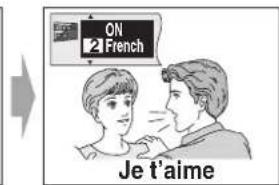
text_image
ON 2 French Je t'aime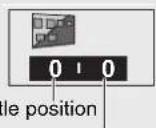
Subtitle brightness
Angles DVD-V
During play, press [ANGLE/PAGE].
The angle number changes each time you press the button.
![PANASONIC NV-VP31EE - During play, press [ANGLE/PAGE]. - 1](/content/2026/06/1191013/images/7871757ab3eae459404a55cf8b64e5cdbaab29975bc963b86c23f28dad97c9eb.jpg)
natural_image
Illustration of a racing car speeding on a track with motion lines, accompanied by a small inset showing a vehicle (no text or symbols)![PANASONIC NV-VP31EE - During play, press [ANGLE/PAGE]. - 2](/content/2026/06/1191013/images/d96f22eeec790fa61e348a1989612fd74b7261aeb22eada88bd6684e4c572c4b.jpg)
natural_image
Illustration of a racing car speeding on a curved track with a numbered inset (no text or symbols)To erase the icon for soundtracks, subtitles or angle-view
Press [RETURN].
Note:
- “—” or “— —” is displayed instead of the language number in circumstances such as when no language is recorded on the disc.
ADVANCED SURROUND
DVD-V RAM VCD (2-channel or over only)
You can enjoy a surround-like effect if you are using 2 front speakers (SP) or headphones (HP). The effect broadens when playing discs with surround effects and sound seems to come from speakers either side of you.
- To enjoy HP-mode, connect the unit to an equipment that has a headphone socket.
Press [A.SRD].
Each time you press the button, the indication changes.
![PANASONIC NV-VP31EE - Press [A.SRD]. - 1](/content/2026/06/1191013/images/6806d73c6b7affdf33c3e0add3df95747957a466bbf8e64156dd6708c2ebee40.jpg)
flowchart
graph TD
    A["SP1/HP1: Natural effect"] --> B["↓"]
    C["SP2/HP2: Emphasized effect"] --> D["↓"]
    E["SP OFF/HP OFF: Cancel (Initial Setting)"] --> D
![PANASONIC NV-VP31EE - Press [A.SRD]. - 2](/content/2026/06/1191013/images/85256c834db022a23dced5e8541b7c831d04280e6dc845cd762e91fbd550bf87.jpg)
To change the mode
Press [◀] and then press [▲▼] to select "SP" or "HP".
Effective listening using the front speakers only
- If "SP1" or "SP2" is selected, only the front speakers sound.
- To activate, then turn off the surround effects on other equipment.
- This function will not work, or will have less effect with some discs.
- Turn this function off if it causes distortion.
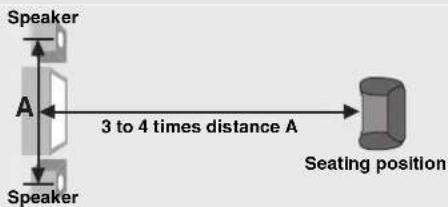
text_image
Speaker A 3 to 4 times distance A Speaker Seating positionCINEMA
DVD-V RAM VCD
You can change the picture quality for movie viewing.
Press [CINEMA].
Each time you press the button, the indication changes.
![PANASONIC NV-VP31EE - Press [CINEMA]. - 1](/content/2026/06/1191013/images/56ad14ba9ccce233bf0503a366e9c66189939c3de977a1b98f46f3ff9db5d439.jpg)
text_image
Cinema 1: Mellows images and enhances details in dark scenes. ↓ Cinema 2: Sharpens images and enhances details in dark scenes. ↓ Normal: Normal mode (Initial Setting)![PANASONIC NV-VP31EE - Press [CINEMA]. - 2](/content/2026/06/1191013/images/82ac6720526e6d1cb0cf04e49a1e2443ac93edf05f4f66fb992a59fbecd6c818.jpg)
- Use the "Picture Menu" (→page 39) to make finer adjustments.
Variable Zoom function
DVD-V RAM VCD
Change the zoom ratio so the pictures expands to suit for the screen.
- Change the setting "TV Aspect" to suit your TV. (→page 41)
During play, press [ZOOM] to select the preset aspect ratio.
Each time you press the button, the indication changes.
![PANASONIC NV-VP31EE - During play, press [ZOOM] to select the preset aspect ratio. - 1](/content/2026/06/1191013/images/7f80bcc9a2dbac67b3f36674f09bd0050b50eb712cbf46aa45a07dc934c1578d.jpg)
![PANASONIC NV-VP31EE - During play, press [ZOOM] to select the preset aspect ratio. - 2](/content/2026/06/1191013/images/57d6e9cf71f44215cc0553495865712933e7a25996d82d20b220a8d50538ee93.jpg)
text_image
x1.00 Zoom - 4:3 Standard The zoom ratio changes each time you press the button.The pop-up shows the video format suited to the ratio.
■Making fine adjustments to the zoom ratio
While the ZOOM icon is displayed, press [▲▼].
The ratio changes in 0.01 units between 1.00 and 1.60 and in 0.02 units between 1.60 and 2.00.
◇ To restore the original ratio
Press [ZOOM] until the ratio returns to 1.00.
Notes:
- The ratio also returns to 1.00 when you open the disc tray, change the source or turn off the unit. The ratio may return to 1.00 when a menu is displayed.
- Refer to the disc's instructions and "Variety of screen sizes" (→right) for the aspect ratio of the picture.
Variety of screen sizes
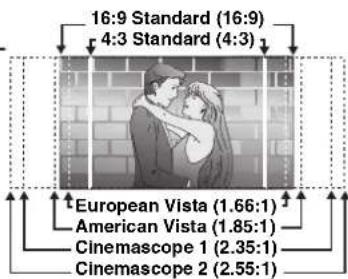
text_image
16:9 Standard (16:9) 4:3 Standard (4:3) European Vista (1.66:1) American Vista (1.85:1) Cinemascope 1 (2.35:1) Cinemascope 2 (2.55:1)- Select the unit viewing channel (or the AV input) on the TV.
- Switch [VHS/TV/DVD] to "DVD".
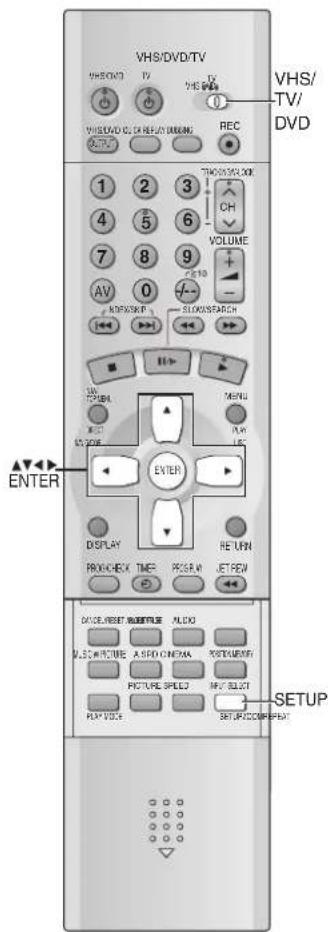
text_image
VHS/DVD/TV VHS/DVD TV VHS VHS/DVD CD CH REPLAY MODELS REC 1 2 3 4 5 6 7 8 9 AV 0 RIFUSKIP SLOWSFARCH THICK/SCHOOL CH VOLUME + - ENTER DISPLAY TIME RE UN PROCHECK PRICE JETREW CASE/RESET 游戏温度 ALDO MASCARURE A STD CINEMA POSTLEARNER PICTURE SPEED M/FY SELECT PLAY VOLE SETUP/ACCR/PREFATDigital output
DVD-V
When you have connected equipment through this unit's OPTICAL DIGITAL AUDIO terminal (→page 9), change the settings for "PCM Down Conversion", "Dolby Digital", "DTS Digital Surround" and "MPEG" (→page 41). You can enjoy the powerful movie theater and hall-like sound.
[1] Press [SETUP].
[2] Select "Audio" tab with [◀▶].
[3] Press [▲▼] to select the item (→below) and press [ENTER].
[4] Press [ENTER] and then [SETUP] to end the settings.
PCM Down Conversion
Select how to output audio with a sampling frequency of 96 kHz.
- Select "Yes" if the equipment you connect cannot process signals with a sampling frequency of 96 kHz.
No (Initial setting): Output as 96 kHz
Yes: Converted to 48 kHz
Note:
- Signals are converted to either 48 kHz despite the above settings if the signals have a sampling frequency of over 96 kHz, or the disc has copy protection.
Dolby Digital, DTS Digital Surround and MPEG
Bitstream (Initial setting for Dolby Digital):
Select if the equipment you connected can decode the signal.
PCM (Initial setting for DTS Digital Surround and MPEG):
Select if the equipment you connected cannot decode the signal.
IMPORTANT
If the equipment you connected cannot decode the signal, the setting must be changed to PCM. If not, signals the equipment cannot process will be output by this unit, causing high levels of noise which can damage your hearing and the speakers.
Manufactured under license from Dolby Laboratories. "Dolby" and the double-D symbol are trademarks of Dolby Laboratories.
Manufactured under license from Digital Theater Systems, Inc. US Pat. No. 5,451,942, 5,956,674, 5,974,380, 5,978,762 and other world-wide patents issued and pending. "DTS" and "DTS Digital Surround" are registered trademarks of Digital Theater Systems, Inc. Copyright 1996, 2000 Digital Theater Systems, Inc. All rights reserved.
Using On-Screen Menu Icons
DVD-V RAM VCD CD MP3 WMA JPEG
On-Screen Menu Icons are menus that contain information about the disc or unit. These menus allow you to operate the unit by changing this information.
- Select the unit viewing channel (or the AV input) on the TV.
- Switch [VHS/TV/DVD] to "DVD".
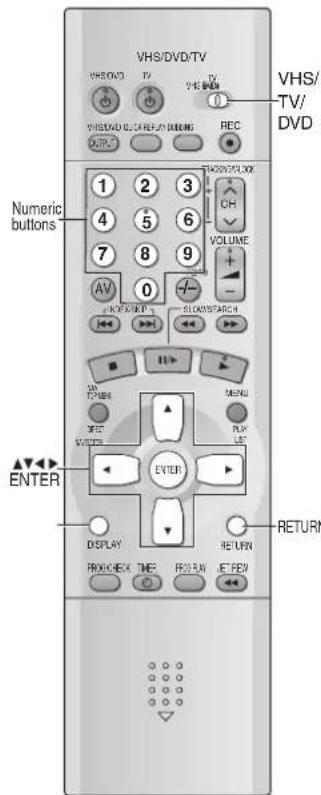
text_image
VHS/DVD/TV VHS/DVD/TV VHS/DVD/TV/DVD Numeric buttons 1 2 3 4 5 6 7 8 9 AV 0 RANGE/LINK VOLUME SLOWS/SEARCH ON PUBISH MENU MINT RUN LE ENTER ENTER DISPLAY RETURN BREAKER TIME RETURN RETURN STOPCommon procedures
1 Press [DISPLAY].
Each time you press the button: Disc information ( below) → Progress indicator ( page 38) Original display ← Unit information ( page 38, 39)
Unit Information only
While the leftmost icon is highlighted
Press [▲▼] to select the menu.
Each time you press the button: Play Menu←→Picture Menu←→Audio Menu←→Display Menu
2 Press [◀▶] to select the item.
3 Change the setting with [▲▼].
- If “▲”, “▼” or both appear in each frame, you can select an item with [▲▼].
- Some items require pressing numeric buttons or [ENTER] for selection.
![PANASONIC NV-VP31EE - Change the setting with [▲▼]. - 1](/content/2026/06/1191013/images/48dfa13fb2b279028829a11654fc3f6f9ca1f7464fa259dc9b3b6beb3ce1bbde.jpg)
◇ To cancel the menus
Press [DISPLAY] several times. Or press [RETURN].
■To change the position of the icons
Press [◀▶] to select the rightmost icon and then press [▲▼] to move the icons.
●There are 5 positions.

Notes:
- Read the following explanations for other items.
- Some items may not be operated depending on the disc or the play status.
Disc information
e.g. DVD-V


Digital 1 ENG 3/2.1 ch

ON 1 ENG


Vocal 1* OFF
e.g.
DVD-V


RAM PG: Programme number PL: Play list number
DVD-V T: Title number C: Chapter number
VCD CD T: Track number
WMA MP3
G: Group number T: Track number in group
JPEG
G: Group number P: Picture number in group
Time DVD-V RAM
Select a position to start play by specifying a time with the numeric buttons and press [ENTER].
Example: To start from 1 hour 46 minutes 50 seconds
[1]→[4]→[6]→[5]→[0]→[ENTER]
Changing the time display DVD-V RAM VCD CD
Press [▲▼] to show the elapsed play time, remaining time for the programme, play list, track or title or remaining time for the disc (VCD CD only).
Elapsed play time VCD (SVCD only) WMA MP3
For display only, cannot be changed.

Audio mode RAM VCD (→page 34)
Soundtrack language DVD-V RAM (→page 34, 39 B)
Audio signal type (→ page 39 A)
Karaoke vocal on/off (Karaoke DVD only) DVD-V
If a DVD title is a duet, select V1 or V2 to duet with the unit.
Current bitrate (kbps) WMA MP3
Current sampling frequency (kHz) WMA MP3

Subtitle language (→page 39 B)
Subtitles on/off
Track information on/off MP3 WMA CDtext
Picture information JPEG
Full: Group title, picture title, picture size, file size, date of shooting, and camera model used ^4 .
Date: Date of shooting only.
OFF: No display
*Actual displays depend on the camera and data.

Angle number DVD-V (→page 34)
Changing the angle to rotate JPEG 0→90→180→270

Track/picture number in disc WMA MP3 JPEG
Total number of tracks/pictures on disc
WMA | MP3 | JPEG

Menu play VCD (with playback control)
Indicates whether menu play is on or off (display only).

Slideshow setting JPEG ON←→OFF
Slideshow timing JPEG 0 - 30 sec
Progress indicator
Indicates how far you have played through an item.
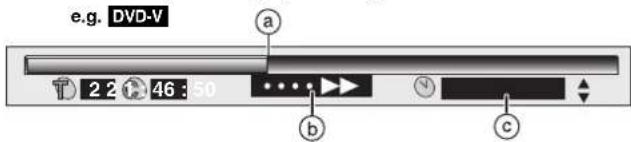
text_image
e.g. DVD-V 2 2 46 : 50 a b c| a | Current position |
| b | Condition – play, pause, or slow/search |
| c | Changing the time display DVD-V RAM VCD CDPress [▲▼] to show the elapsed play time or remaining time for the programme, play list, track or title (or chapter during program and random play).Elapsed play time VCD (SVCD only) MP3 WMAFor display only, cannot be changed. |
■Changing play speed DVD-V (Dolby Digital only)
You can slow down or speed up play.
Press [◀] (slower) or [▶] (faster).
There are 5 steps of speeds:
$$ \times 0. 8 \leftrightarrow \times 0. 9 \leftrightarrow \times 1. 0 (\text { normal speed }) \leftrightarrow \times 1. 2 \leftrightarrow \times 1. 4 $$
◇ To return to normal play
Press ▶.
Notes:
●After you change the speed:
- Output is in stereo,
- You cannot use ADVANCED SURROUND,
- Digital output switches to PCM.
- Sound is stereo as long as “×1.0” is orange.
Unit information
e.g. DVD-V

text_image
AB OFF --- 1 2 3 **
Play Menu
| AB | A-B RepeatDVD-V RAM VCD CD MP3 WMA(When the elapsed play time is displayed)Repeat a section between points A and B within an item.[ENTER] (start point) → [ENTER] (end point) →[ENTER] (cancel)●The end of an item becomes point B when it is reached.●Some subtitles recorded around point A or B may not appear.●A-B repeat is canceled when you press[QUICK REPLAY]. |
| OFF | Repeat mode (→page 29) |
| Play mode (→page 30)DVD-V VCD CD MP3 WMA---: Normal playPGM: Program playRND: Random play | |
| Marker (→right)RAM : 999 positionsDVD-V VCD CD MP3 WMA JPEG :5 positions |
Marker
Stores the position from which playback will resume later.
1) Press [ENTER] (The unit is now ready to accept markers).
2) Press [ENTER] again at the desired position.
• To mark another position
Press [▶] to select “*” and press [ENTER].
•To recall or erase a marker
Press [◀▶] to select a marker and press [ENTER] to recall or press [CANCEL/RESET] to erase.
To mark the eleventh point and beyond RAM
1) Press [◀▶] to select the marker pin icon.
2) Press [▲▼] to select "11-20".
- You can select the next group when the current group is full.
3) Press [▶]
Notes:
- The markers are ordered by time. This means that the marker numbers can change when you add and erase markers.
- If places have been marked (e.g., with a DVD video recorder), they are displayed.
- You can clear existing markers, but they are restored when you open the disc tray, change the source or switch the unit to standby.
- This feature doesn't work while using a play list.
- This feature doesn't work during program and random play.
- Markers added with this unit clear when you turn the unit off, change the source, or open the disc tray.

Audio Menu

DVD-V (Dolby Digital, DTS, 3-channel or over, where the dialogue is recorded in the centre channel)
This makes the dialogue in movies easier to hear. ON←→OFF

Display Menu

4:3 Aspect DVD-V RAM VCD
- Select how to show images made for 4:3 aspect screens on a 16:9 aspect TV. Set to "16:9" in "TV Aspect" (SETUP menu → page 41).
Normal:Laterally stretches images made for a 4:3 screen.
Auto: Expands suitable 4:3 letterbox images to fill more of the screen. Other images appear in full in the centre of the screen.
Shrink: Images appear in the centre of the screen.
Zoom: Expands all images to fill the screen.
- If your TV has a similar feature, use it instead for a better effect.

Zoom (→page 35) DVD-V RAM VCD
Press [ENTER] and select with [◀▶]. Then press [ENTER] to finish.
Making fine adjustments to the zoom ratio
(→page 35) DVD-V RAM VCD

Subtitle position/brightness DVD-V (→page 34)

Bitrate display on/off DVD-V RAM VCD
When you select "ON":
During play: Shows the average bitrate (approximate values) of the video being played While paused: Shows the data volume of the frame and type of picture (I/P/B → page 47)
While the display is on, press [◀▶] to change the display:
9.438 Mbps
[◀▶]

Average bitrate
A record of bitrates for a sampling period

OSD brightness (-3 to +3)
Adjust the brightness of the on-screen displays.

Picture Menu

Picture mode
N: Normal mode
C1: Mellows images and enhances detail in dark scenes
C2: Sharpens images and enhances detail in dark scenes
U1/U2: User mode (→ right)

Video output mode
480I: Interlace video
480P: Progressive video
(*: Progressive output not possible with PAL signals)
- You can change the video output mode only when "Progressive Out (Component)" is set to "Enable (NTSC Disc Only)" (SETUP menu page 41).
- When progressive output is on, closed captions will not be displayed.

Transfer mode
It is displayed only when "Video output mode" is set to "480P". Select the method of conversion for progressive output to suit the type of material (→page 47) being played.
Auto 1 (normal): For film material
Auto 2: For film material (the same as Auto 1, but able to convert 30-frame-per-second progressive video)
Video: For video material
To change the user mode
Define your favorite picture quality.
1) Press [▶] while "U1" or "U2" is highlighted.
2) Press [▲▼] to select "1" or "2".
U1: User mode 1
 | Contrast (-7 to +7)Increases the contrast between light and dark parts of the picture. |
 | Brightness (0 to +15)Brightens the picture. |
 | Sharpness (-7 to +7)Adjusts the sharpness of the edges of the horizontal lines. |
 | Color (-7 to +7)Adjust the shade of the picture's colour. |
 | Gamma (0 to +5)Brightness of dark parts of the picture. |
U2: User mode 2
(Video output mode → Picture Menu, above)
A Audio attributes DVD-V RAM (Display only)
LPCM, □□Digital, DTS, MPEG: Signal type
k: Sampling frequency (kHz)
b: Number of bits (bit)
ch: Number of channels ( page 47)
B Audio/Subtitle language
| ENG: EnglishFRA: FrenchDEU: GermanITA: ItalianESP: SpanishNLD: Dutch | SVE: SwedishNOR: NorwegianDAN: DanishPOR: PortugueseRUS: RussianJPN: Japanese | CHI: ChineseKOR: KoreanMAL: MalayVIE: VietnameseTHA: Thai*: Others |
Changing Settings
Change the settings to suit your preferences and to suit the unit to the environment where it is being used. These settings are retained in memory until they are changed, even if the unit is turned off. See the right page for menu and option details.
- Select the unit viewing channel (or the AV input) on the TV.
- Switch [VHS/TV/DVD] to "DVD".
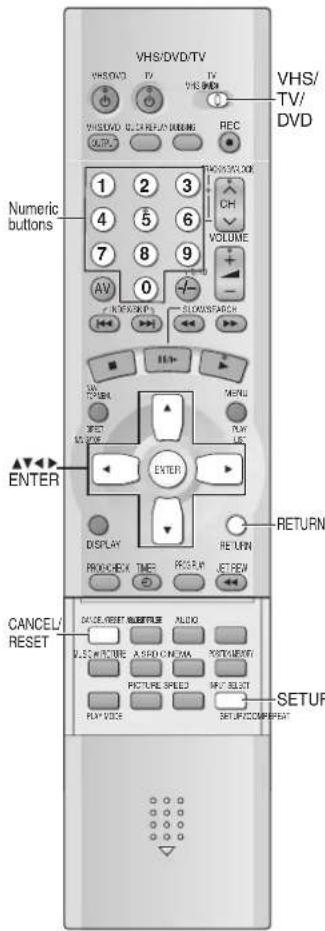
text_image
VHS/DVD/TV VHS/DVD VHS/DVD VHS/DVD VHS/DVD VHS/DVD VHS/DVD VHS/DVD VHS/DVD VHS/DVD VHS/DVD VHS/DVD VHS/DVD VHS/DVD VHS/DVD VHS/DVD VHS/DVD VHS/DVD VHS/DVD VHS/DVD VHS/DVD VHS/DVID VHS/DVID VHS/DVID VHS/DVID VHS/DVID VHS/DVID VHS/DVID VHS/DVID VHS/DVID VHS/DVID VHS/DVID VHS/DVID VHS/DVID VHS/DVID VHS/DVID VHS/DVID VHS/DVID VHS/DVID VHS/DVID VHS/DVID VHS/DID VHS/DID VHS/DID VHS/DID VHS/DID VHS/DID VHS/DID VHS/DID VHS/DID VHS/DID VHS/DID VHS/DID VHS/DID VHS/DID VHS/DID VHS/DID VHS/DID VHS/DID VHS/DID VHS/DID VHS/DIPOCK/PN SLOWS/SEARCH SLOWS/SEARCH SLOWS/SEARCH SLOWS/SEARCH SLOWS/SEARCH SLOWS/SEARCH SLOWS/SEARCH SLOWS/SEARCH SLOWS/SEARCH SLOWS/SEARCH SLOWS/SEARCH SLOWS/SEARCH SLOWS/SEARCH SLOWS/SEARCH SLOWS/SEARCH SLOWS/SEARCH SLOWS/SEARCH SLOOS/INTERPCK/ SLOOS/INTERPCK/ SLOOS/INTERPCK/ SLOOS/INTERPCK/ SLOOS/INTERPCK/ SLOOS/INTERPCK/ SLOOS/INTERPCK/ SLOOS/INTERPCK/ SLOOS/INTERPCK/ SLOOS/INTERPCK/ SLOOS/INTERPCK/ SLOOS/INTERPCK/ SLOOS/INTERPCK/ SLOOS/SOCC/PN SLOOS/SOCC/PN SLOOS/SOCC/PN SLOOS/SOCC/PN SLOOS/SOCC/PN SLOOS/SOCC/PN SLOOS/SOCC/PN SLOOS/SOCC/PN SLOOS/SOCC/PN SLOOS/SOCC/PN SLOOS/SOCC/PN SLOOS/SOCC/PN TENUS/SOCC/PN TENUS/SOCC/PN TENUS/SOCC/PN TENUS/SOCC/PN TENUS/SOCC/PN TENUS/SOCC/PN TENUS/SOCC/PN TENUS/SOCC/PN TENUS/SOCC/PN TENUS/SOCC/PN TENUS/SOCC/PN TENUS/MON/OFFER/RON/OFFER/RON/OFFER/RON/OFFER/RON/OFFER/RON/OFFER/RON/OFFER/RON/OFFER/RON/OFFER/RON/OFFER/RON/OFFER/RON/OFFER/RON/OFFER/RON/OFFER/RON/OFFER/RON/OFFER/RON/OFFER/RON/OFFER/RON/OFFER/RON/OFFER/RON/OFFER/TENUS/MON/OFFER/RON/OFFER/RON/OFFER/RON/OFFER/RON/OFFER/RON/OFFER/RON/OFFER/RON/OFFER/RON/OFFER/RON/OFFER/TENUS/MON/OFFER/RON/OFFER/RON/OFFER/RON/OFFER/RON/OFFER/RON/OFFER/RON/OFFER/RON/OFFER/TENUS/MON/OFFER/RON/OFFER/RON/OFFER/RON/OFFER/RON/OFFER/RON/OFFER/TENUS/MON/OFFER/RON/OFFER/RON/OFFER/RON/OFFER/RON/OFFER/TENUS/MON/OFFER/RON/OFFER/RON/OFFER/RON/OFFER/RON/OFFER/TENUS/MON/OFFER/RON/OFFER/RON/OFFER/RON/OFFER/TENUS/MON/OFFER/RON/OFFER/RON/OFFER/TENUS/MON/OFFER/RON/OFFER/RON/OFFER/TENUS/MON/OFFER/RON/OFFER/RON/OFFER/TENUS/MON/OFFER/RON/OFFER/RON/OFFER/TENUS/MON/OFFER/RON/OFFER/RON/OFFER/TENUS/MON/OFFER/RON/OFFER/TENUS/MON/OFFER/TENUS/MON/OFFER/TENUS/MON/OFFER/TENUS/MON/OFFER/TENUS/MON/OFFER/TENUS/MON/OFFER/TENUS/MON/OFFER/TENUS/MON/OFFER/TENUS/MON/OFFER/TENUS/MON/OFFER/TENUS/MON/OFFER/TENUS/MON/OFFER/TENUS/MON/OFFERAUROUROUROUROUROUROUROUROUROUROUROUROUROUROUROUROUROUROUROUROUROUROUROUROUROUROUROUROUROUROUROUROUROUROUROUROUROUROUROUROUROUROUROUROUROUROUROUROUROUROUFOURIOUROUROUROUROUROUROUROUROUROUROUROUROUROUROUROUROUROUROUROUROUROUROUROUROUROUROUROUROUROUROUROUROUROUROUROUROUROUROUROUROUROUROUROUROUROUROUROUROUROUROCUCUCUCUCUCUCUCUCUCUCUCUCUCUCUCUCUCUCUCUCUCUCUCUCUCUCUCUCUCUCUCUCUCUCUCUCUCUCUCUCUCUCUCUCUCUCUCUCUCUCUCUCUCUCUCUCUCUCUCUCUCUCUCUCUCUCUCUCUCUCUCUCUCUCUCUCUCUCUCUCUCUCUCUCUCUCUCUCUCUCUCUCUCUCUCUCUCUCUCUCUUROCUCUCUCUCUCUCUCUCUCUCUCUCUCUCUCUCUCUCUCUCUCUCUCUCUCUCUCUCUCUCUCUUROCUCUCUCUCUUROCUCUCUCUUROCUCUCUUROCUCUUROCUCUUROCUCUUROCUGCUMCUMCUMCUMCUMCUMCUMCUMCUMCUMCUMCUMCUMCUMCUMCUMCUMCUMCUMCUMCUMCUMCUMCUMCUMCUMCUMCUMCUMCUMCUMCUMCUMCUMCUMCUMCUMCUMCUMCUMCUMCUMCUMCUMCUMCUMCUMCUMCUMCUMCUMMUNOUAUAUAUAUAUAUAUAUAUAUAUAUAUAUAUAUAUAUAUAUAUAUAUAUAUAUAUAUAUAUAUAUAUAUAUAUAUAUAUAUAUAUAUAUAUAUAUAUAUAUAUAUAUAUAUAUAUAUAUAUAUAUAUAUAUAUAUAUAUAUAUAUAUAUAUAUAUAUAUAUAUAUAUAUAUAUAUAUAUAUAUAUAUAUAUAUAUAUAUAUGAUGAUGAUGAUGAUGAUGAUGAUGAUGAUGAUGAUGAUGAUGAUGAUGAUGAUGAUGAUGAUGAUGAUGAUGAUGAUGAUGAUGAUGAUGAUGAUGAUGAUGAUGAUGAUGAUGAUGAUGAUGAUGAUGAUGAUGAUGAUGAUGAUGAUGAAUGAUGAAUGAAUGAAUGAAUGAAUGAAUGAAUGAAUGAAUGAAUGAAUGAAUGAAUGAAUGAAUGAAUGAAUGAAUGAAUGAAUGAAUGAAUGAAUGAAUGAAUGAAUGAAUGAAUGAAUGAAUGAAUGAAUGAAUGAAUGAAUGAAUGAAUGAAUGAAUGAAUGAAUGAAUGAAUGAAUGAAUGAAUGAAUGAAUGAAUGAAUGAAA UAG UAG UAG UAG UAG UAG UAG UAG UAG UAG UAG UAG UAG UAG UAG UAG UAG UAG UAG UAG UAG UAG UAG UAG UAG UAG UAG UAG UAG UAG UAG UAG UAG UAG UAG UAG UAG UAG UAG UAG UAG UAG UAG UAG UAG UAG UAG UAG UAG UAG UTAG UAG UAG UAG UAG UAG UAG UAG UAG UAG UAG UAG UAG UAG UAG UAG UAG UAG UAG UAG UAG UAG UAG UAG UAG UAG UAG UAG UAG UAG UAG UAG UAG UAG UAG UAG UAG UAG UAG UAG UAG UAG UAG UAG UAG UAG UAG UAG UAG UAG UCommon procedures
1 Press [SETUP].
2 Press [◀▶] to select the menu's tab.
The screen changes to display the menu.
Disc ↔ Video ↔ Audio ↔ Display ↔ Others
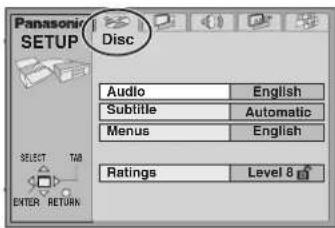
text_image
Panasonic SETUP Disc Audio English Subtitle Automatic Menus English Ratings Level 8 ENTER RETURN3 Press [▲▼] to select the item and press [ENTER].
4 Press [▲▼] to select the option and press [ENTER].
The screen now shows the menu again.
To return to the previous screen Press [RETURN].
To exit the SETUP menu Press [SETUP].
Note:
- Screens other than those described here may appear. In this case, follow the instructions shown on the screen.
Entering a password (Ratings)
DVD-V
The password screen is shown when you select levels 0 to 7 (→page 41).
1) Input a 4-digit password with the numeric buttons.
- If you enter a wrong number, press [CANCEL/RESET] to erase it.
2) Press [ENTER].
●The lock symbol is closed to show the rating is locked.
- Do not forget your password.
3) Press [ENTER] to confirm the 4 digits.
Now, when you insert a DVD-Video that exceeds the ratings limit you set, a message appears on the TV. Follow the on-screen instructions.
Language code list
| Abkhazian: ..... 6566 | Chinese: .....9072 | Hausa: .....7265 | Lithuanian: .....7684 | Romanian: .....8279 | Telugu: .....8469 |
| Afar: ..... 6565 | Corsican: .....6779 | Hebrew: .....7387 | Macedonian: .....7775 | Russian: .....8285 | Thai: .....8472 |
| Afrikaans: ..... 6570 | Croatian: .....7282 | Hindi: .....7273 | Malagasy: .....7771 | Samoan: .....8377 | Tibetan: .....6679 |
| Albanian: ..... 8381 | Czech: .....6783 | Hungarian: .....7285 | Malay: .....7783 | Sanskrit: .....8365 | Tigrinya: .....8473 |
| Ameharic: ..... 6577 | Danish: .....6865 | Icelandic: .....7383 | Malayalam: .....7776 | Scots Gaelic: .....7168 | Tonga: .....8479 |
| Arabic: ..... 6582 | Dutch: .....7876 | Indonesian: .....7378 | Maltese: .....7784 | Serbian: .....8382 | Turkish: .....8482 |
| Armenian: ..... 7289 | English: .....6978 | Interlingua: .....7365 | Maori: .....7773 | Serbo-Croatian: ..8372 | Turkmen: .....8475 |
| Assamese: ..... 6583 | Esperanto: .....6979 | Irish: .....7165 | Marathi: .....7782 | Shona: .....8378 | Twi: .....8487 |
| Aymara: ..... 6588 | Estonian: .....6984 | Italian: .....7384 | Moldavian: .....7779 | Sindhi: .....8368 | Ukrainian: .....8575 |
| Azerbaijani: ..... 6590 | Faroese: .....7079 | Japanese: .....7465 | Mongolian: .....7778 | Singhalese: .....8373 | Urdu: .....8582 |
| Bashkir: ..... 6665 | Fiji: .....7074 | Javanese: .....7487 | Nauru: .....7865 | Slovak: .....8375 | Uzbek: .....8590 |
| Basque: ..... 6985 | Finnish: .....7073 | Kannada: .....7578 | Nepali: .....7869 | Slovenian: .....8376 | Vietnamese: .....8673 |
| Bengali, Bangla: . 6678 | French: .....7082 | Kashmiri: .....7583 | Norwegian: .....7879 | Somali: .....8379 | Volapük: .....8679 |
| Bhutani: ..... 6890 | Frisian: .....7089 | Kazakh: .....7575 | Oriya: .....7982 | Spanish: .....6983 | Welsh: .....6789 |
| Bihari: ..... 6672 | Galician: .....7176 | Kirghiz: .....7589 | Pashto, Pushtα .8083 | Sundanese: .....8385 | Wolof: .....8779 |
| Breton: ..... 6682 | Georgian: .....7565 | Korean: .....7579 | Persian: .....7065 | Swahili: .....8387 | Xhosa: .....8872 |
| Bulgarian: ..... 6671 | German: .....6869 | Kurdish: .....7585 | Polish: .....8076 | Swedish: .....8386 | Yiddish: .....7473 |
| Burmese: ..... 7789 | Greek: .....6976 | Laotian: .....7679 | Portuguese: .....8084 | Tagalog: .....8476 | Yoruba: .....8979 |
| Byelorussian: ... 6669 | Greenlandic: .....7576 | Latin: .....7665 | Punjabi: .....8065 | Tajik: .....8471 | Zulu: .....9085 |
| Cambodian: ..... 7577 | Guarani: .....7178 | Latvian, Lettish: ..7686 | Quechua: .....8185 | Tamil: .....8465 | |
| Catalan: ..... 6765 | Gujarati: .....7185 | Lingala: .....7678 | Rhaeto-Romance: .8277 | Tatar: .....8484 |
If the selected language is not recorded on the disc or a language has been predetermined on the disc, the language most prioritized on the disc is used for play.
SETUP menu
| Menus | Items Options | (Underlined items are the initial setting.) |
| DiscDVD-V | AudioChoose the preferred audio language. | ●English ●(Language options→below)●Original: The original language of each disc will be selected.●Other * * * * :Input a code number with the numeric buttons (→page 40). |
| SubtitleChoose the preferred subtitle language. | ●Automatic: If the language selected for “Audio” is not available, subtitles of that language will automatically appear if available on that disc.●English ●(Language options→below)●Other * * * * :Input a code number with the numeric buttons (→page 40). | |
| MenusChoose the preferred language for disc menus. | ●English ●(Language options→below)●Other * * * * :Input a code number with the numeric buttons (→page 40). | |
| Language optionsFrench German Italian Spanish Portuguese Swedish Dutch | ||
| Ratings (→page 40)Set a ratings level to limit DVD-Video play.●The password screen is shown if you choose levels 0 to 7 or if you choose “Ratings” when levels 0 to 7 have been selected.●Select “Level 0” to prevent play of discs that do not have ratings levels recorded on them. | Setting ratings (When level 8 is selected)8 No Limit: All DVD-Video can be played.1 to 7: Prohibits play of DVD-Video with corresponding ratings recorded on them.0 Lock All: Prohibits play of all DVD-Video.Changing ratings (When level 0–7 is selected)Unlock Player Change PasswordChange Level Temporary Unlock | |
| VideoDVD-VRAMVCD | TV Aspect (→page 13)Choose the setting to suit your TV and preference. | 4:3 Pan&Scan 4:3 Letterbox 16:9 |
| Progressive Out (Component) (→page 13)Choose “Enable (NTSC Disc Only)” to enable progressive output. | Disable: For TVs not supporting progressive output.Enable (NTSC Disc Only) | |
| Still ModeSpecify the type of picture shown when paused. | AutomaticField: Less blurred field stills are shown.Select if jittering occurs when “Automatic” is selected.Frame: Sharper frame stills are shown.Select if small text or fine patterns cannot be seen clearly when “Automatic” is selected. | |
| NTSC Disc OutputChoose PAL 60 or NTSC output when playing NTSC discs (Video systems →page 5). | PAL60: When connected to a PAL televisionNTSC: When connected to an NTSC television | |
| AudioDVD-VRAMVCD | PCM Down Conversion (→page 36) | No Yes |
| Dolby Digital (→page 36) | Bitstream PCM | |
| DTS Digital Surround (→page 36) | PCM Bitstream | |
| MPEG (→page 36) | PCM Bitstream | |
| Dynamic Range Compression (Dolby Digital only)Change the dynamic range for late night viewing. | OffOn: For clear dialog when listening at low volume. | |
| Audio during SearchChoose whether to have sound during search. | On OffThis feature does not work for some discs. | |
| Display | English Français Deutsch ItalianoEspañol Português Svenska Nederlands | |
| Menu LanguageChoose the preferred language for these menus and the on-screen messages. | On Off | |
| On-Screen MessagesChoose whether to show on-screen messages or not. | Enable: Play HighMAT discs as HighMAT discs.Disable: Play HighMAT discs as regular MP3/WMA/JPEG discs. | |
| Others | HighMATSelect how to play HighMAT discs. (Reload the disc for the setting to be effective.) | Audio (MP3/WMA)Stills (JPEG) |
| Mixed Disc — Audio & StillsSelect the type of file played on discs containing both JPEG and MP3/WMA. (Reload the disc for the setting to be effective.) | OffOn: A demonstration of the on-screen displays starts. Press any button to stop it. | |
| Demo | Yes No | |
| QUICK SETUP (→page 13)Answer questions to make basic settings. | ||
Recording from DVD to VHS
You can record the contents of the disc onto a video cassette.
- Select the unit viewing channel (or the AV input) on the TV.
- Insert a video cassette with an intact erasure prevention tab.
- Switch [VHS/TV/DVD] to "VHS".
- Select the desired tape speed (→page 16).
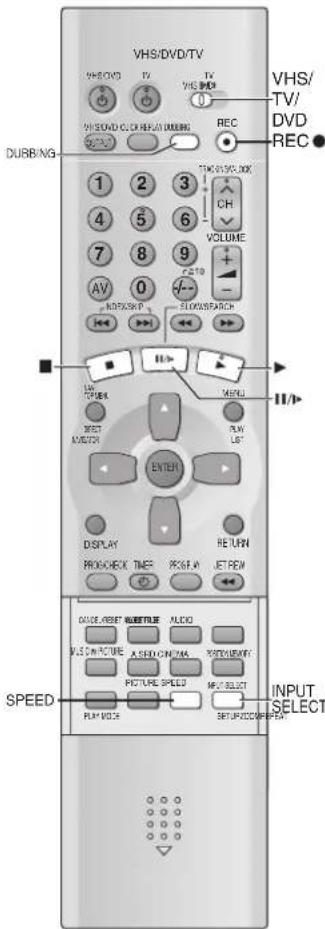
text_image
VHS/DVD/TV VHS/DVD TV TV VHS DVD REC VHS/DVD/CC REP/AT (DUBING) DURBING 1 2 3 4 5 6 7 8 9 AV 0 NOT/SK/P SLOWS/SPACK VOLUME I/O I/O MOSI I/O PLOW/LIFT ENTER DISPLAY PRO/CHECK TIME PRICE # JET/REIN TIME MODE: RESET 锁牌 TLESE ALICK WILE ON PICTURE A SED ON PRAK RETOURFIVE PICTURE SPEED MEAT SELECT PLAY VOICE SET/FY/CCC/SPACK SPEED INPUT SELECTManual Dubbing
Only discs not copy protected can be used.
- Set "On-Screen Messages" to "Off" (SETUP menu→page 41).
- Insert the disc to be played (→page 26). When you copy NTSC discs, select "NTSC" in "NTSC Disc Output" (SETUP menu→page 41).
1 Press [INPUT SELECT] repeatedly.
Select "dc" channel.
- Recording is allowed only when the VHS input channel is set to "dc" (→below).
dc
2 Switch [VHS/TV/DVD] to "DVD", then press [▶](PLAY).
Start playing the disc and find the playing start point.
3 Press [I I/▶].
4 Switch [VHS/TV/DVD] to "VHS", then press [▶](PLAY).
Start playing the video cassette and find the recording start point.
5 Press [I I/I▶], then press [REC●].
Put the unit in the recording standby mode.
6 Press [I I/I].
VHS recording and disc play start at the same time.
◇ To stop recording
1) Press [■]. Recording will stop.
2) Switch [VHS/TV/DVD] to "DVD", and press [■]. Disc play will stop.
Notes:
- You can select the audio channel to be recorded on the Normal audio track when dubbing a bilingual DVD (→page 24).
- If a copy protected disc is inserted, "COPYING OF THIS MATERIAL IS NOT ALLOWED." is displayed on the TV screen. If you proceed with the recording, the video recorded will be distorted.
One-Touch Dubbing
RAM
You can copy programmes on a DVD-RAM disc to a video cassette with One-touch operation.
- This function allows DVD-RAM discs recorded by Panasonic DVD recorders to be dubbed.
- Insert the disc containing the programme to be copied (→page 26).
- This function allows you to record a whole content on a disc automatically. Confirm that the remaining tape time is sufficient for recording.
While stopped, press and hold [DUBBING] for 5 seconds or more.
When the disc is played all of a content or the tape reaches its end, this unit automatically stops dubbing.
- The message is displayed on TV screen for a few seconds when One-touch dubbing is completed.
◇ To stop recording
Press [■].
When "and" is flashing
Check the settings again.
Notes:
- In this function, the index signal is automatically added on the tape for each of the programmes. You can find the desired programme with these index signals (→page 21).
- This function does not work during timer recording standby mode.
- When the dubbing starts, "On-Screen Messages" in the SETUP menu is automatically set to "Off". The "dc" channel is automatically selected (→below).
- If you press [DUBBING] when “○” in the unit’s display flashes (Resume function →page 26), the dubbing starts at the stop position memorized.
•[VHS/DVD OUTPUT] does not work during this function.
●This function does not work with DVD-Video.
"dc" channel
- When the disc is played with the "dc" channel set, the TV screen displays the disc video, but the VHS/DVD output has been switched to VHS.
MUSIC WITH PICTURE
You can play images with background music. The video and music being played can be recorded on a video cassette.
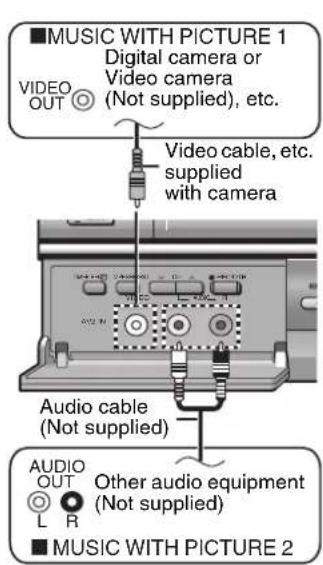
text_image
■MUSIC WITH PICTURE 1 Digital camera or Video camera (Not supplied), etc. VIDEO OUT Video cable, etc. supplied with camera Audio cable (Not supplied) AUDIO OUT L R Other audio equipment (Not supplied) ■MUSIC WITH PICTURE 2Each time you press [MUSIC w/ PICTURE], the indication changes as follows:
→MUSIC WITH PICTURE 1: You can enjoy music fed from a disc while
↓ images taken by digital cameras or video cameras are being played. MUSIC WITH PICTURE 2: You can enjoy music fed from other audio equipment ↓ while images on DVD such as JPEG are being played.
OFF (Initial Setting): Normal mode
- Select the unit viewing channel (or the AV input) on the TV.
- Connect the other equipment to the unit as shown.
- Insert the disc (→page 26). You can not record the contents of the disc which is copy protected.
- If you wish to record the images and music onto a video cassette, insert a video cassette tape with an intact erasure prevention tab. (→page 16)
- Switch [VHS/TV/DVD] to "DVD".
1 Press ▶ to find the playing start point, then press [■/▶].
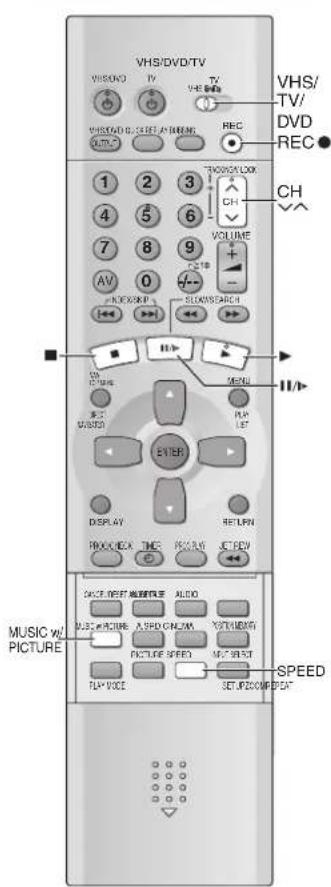
text_image
VHS/DVD/TV VHS/DVD/TV VHS/DVD/TV VHS/DVD/TV VHS/DVD/TV VHS/DVD/TV VHS/DVD/TV VHS/DVD/TV VHS/DVD/TV VHS/DVD/TV VHS/DVD/TV VHS/DVD/TV VHS/DVD/TV VHS/DVD/TV VHS/DVD/TV VH/S VH/S VH/S VH/S VH/S VH/S VH/S VH/S VH/S VH/S VH/S VH/S VH/S VH/S VH/S VH/S VH/S VH/S VH/S VH/S VH/S VH/S VH/S VH/S VH/S VH / V H / V H / V H / V H / V H / V H / V H / V H / V H / V H / V H / V H / V H / V H / V H / V H / V H / V H / V H / V H / V H / V H / V H / V H / V H / V H / V H / V H / V H / V H / V H / V H / V H / V H 1 2 3 4 5 6 7 8 9 0 1 2 3 4 5 6 7 8 9 10 11 12 13 14 15 16 17 18 19 20 21 22 23 24 25 26 27 28 29 30 31 32 33 34 35 36 37 38 39 40 41 42 43 44 45 46 47 48 49 50 51 52 53 54 55 56 57 58 59 60 61 62 63 64 65 66 67 68 69 70 71 72 73 74 75 76 77 78 79 80 81 82 83 84 85 86 87 88 89 90 91 92 93 94 95 96 97 98 99 100 THICK/LOCK CH VOLUME + - + - SLOWS/SEARCH MUSIC/LCD/RCA/RCA/RCA/RCA/RCA/RCA/RCA/RCA/RCA/RCA/RCA/RCA/RCA/RCA/RCA/RCA/RCA/RCA/RCA/RCA/RCA/RCA/RCA/RCA/RCA/RCA/RCA/RCA/RCA/RCA/RCA/RCA/RCA/RCA/RCA/RCA/RCA/RCA/RCA/RCA/RCA/RCA/RCA/RCA/RCA/RCA/RCA/RCA/RCA/RCA/Rca/RCA/RCA/RCA/RCA/RCA/RCA/RCA/RCA/RCA/RCA/RCA/RCA/RCA/RCA/RCA/RCA/RCA/RCA/RCA/RCA/RCA/RCA/RCA/RCA/RCA/RCA/RCA/RCA/RCA/RCA/RCA/RCA/RCA/RCA/RCA/RCA/RCA/RCA/RCA/RCA/RCA/RCA/RCA/RCA/RCA/RCA/RCA/RCA/RCA/RC/A/C/C/C/C/C/C/C/C/C/C/C/C/C/C/C/C/C/C/C/C/C/C/C/C/C/C/C/C/C/C/C/C/C/C/C/C/C/C/C/C/C/C/C/C/C/C/C/C/C/C/C/C/C/C/C/C/C/C/C/C/C/C/C/C/C/C/C/C/C/C/C/C/C/C/C/C/C/C/C/C/C/C/C/C/C/C/C/C/C/C/C/C/C/C/C/C/C/C/C/C/ THICK/LOCK CH VOLUME + - + - SLOWS/SEARCH MUSIC/LCD/RCA/RCA/RCA/RCA/RCA/RCA/RCA/RCA/RCA/RCA/RCA/RCA/RCA/RCA/RCA/RCA/RCA/RCA/RCA/RCA/RCA/RCA/RCA/RCA/RCA/RCA/RCA/RCA/RCA/RCA/RCA/RCA/RCAWhen recording onto a video cassette
1) Switch [VHS/TV/DVD] to "VHS", then press ▶.
Start playing the video cassette and find the recording start point.
2) Press [11/▶], then press [RECO].
Put the unit in the recording standby mode.
- Press [SPEED] to select the desired tape speed (→page 16).
2 Press [MUSIC w/ PICTURE].
Select "MUSIC WITH PICTURE 1" or "MUSIC WITH PICTURE 2".
3 Start playing on the other equipment.
●The "A2" channel is automatically selected.
4 Press ▶ to start a disc play, or press [■/▶] to record.
- When you press [11/1▶] for recording, switch [VHS/TV/DVD] to "VHS".
VHS recording and disc play start at the same time.
◇ To stop playing the disc
Switch [VHS/TV/DVD] to "DVD". Press [■].
To stop recording
Switch [VHS/TV/DVD] to "VHS". Press [■].
●The MUSIC WITH PICTURE mode is not canceled.
To cancel the MUSIC WITH PICTURE mode
Press [MUSIC w/ PICTURE] repeatedly to select the normal mode.
Notes:
- When you switch to "MUSIC WITH PICTURE 1" from the normal mode, the video is automatically input through the AV2 IN socket. Audio is switched to DVD. When the external input is not used, you can also select the video of a TV programme with [CH]∨∧. Audio stays on DVD.
- When you switch to "MUSIC WITH PICTURE 2" from the normal mode, the audio is automatically input through the AV2 IN socket. Video is switched to DVD. When the external input is not used, you can also select the audio of a video cassette or a TV programme with [CH]∨∧. Video stays on DVD.
- While in the MUSIC WITH PICTURE mode, [VHS/DVD OUTPUT] does not work.
Before Requesting Service
Before requesting service, check the following points once again.
General
| No power. | ●Connect the AC mains lead securely to mains supply. | 8 |
| No response when buttons pressed. | ●Some operations may be prohibited by the disc.●The unit may not be operating properly due to lightning, static electricity or some other external factor.Reset procedure:Press [VHS/DVD(↓)] to switch the unit to the standby mode and then back to ON.Alternatively, press [VHS/DVD(↓)] to switch the unit to the standby mode, disconnect the AC mains lead, and wait for 1 minute. Reconnect the AC mains lead. | —— |
| No operations can be performed with the remote control. | ●Check the batteries are installed correctly.●The batteries are depleted: Replace them with new ones.●Point the remote control at the remote control sensor and operate. | 444 |
| Cannot select alternative languages. | ●This function depends on software availability.●Try selecting from the disc's menu if one is available. | —27 |
| The SETUP menu cannot be accessed. | ●Switch [VHS/TV/DVD] to “DVD”.●Cancel all program and random play. | —30 |
| Cannot operate the unit. Cannot operate the TV. | ●Switch [VHS/TV/DVD] to an appropriate position.●The unit is in timer recording standby (“”is on on the unit's display).●Check the TV maker setting. | —1810 |
| TV reception worsens after connecting the unit. | ●This can occur because the signals are being divided between the unit and the TV.It can be solved by using a signal booster, available from audio-visual suppliers. Consult your dealer if reception does not improve. | — |
| The tape counter isn't changing. | ●The tape counter does not change while playing unrecorded parts.●The tape is dirty or damaged. Consult your dealer if this is the case. | —— |
| No on-screen display. | ●Go to “OPTION” in the VHS MENU, and select “AUTO” for “OSD”.●Go to “Display” in the SETUP menu, and select “On” for “On-Screen Messages”. | 2441 |
| The menu is displayed in a different language. | ●Go to “Disc” in the SETUP menu, and select the preferred language for “Menus”. | 41 |
| On-Screen Menu Icon is only partially displayed on the TV. | ●Press [▲▼] while the rightmost icon is highlighted to move them down. | 37 |
Sound
| No sound. | ●Check the connections. | 8, 9 |
| Distorted sound. | ●Check the volume on the equipment you have connected. | — |
| ●Ensure that the input settings on the other equipment are correct. | — | |
| ●Turn ADVANCED SURROUND off if it causes distortion. | 35 | |
| ●Output from this unit will be in stereo (2 channels) when ADVANCED SURROUND is on. | ||
| Turn ADVANCED SURROUND off if you are using three or more speakers. | 35 | |
| ●Press [▶](PLAY) to restore normal play after changing the speed. | 38 | |
| ●Noise may occur when playing WMA files. | — | |
| Piercing noise comes from the speakers. | ●If you have connected this unit to other equipment through the OPTICAL DIGITAL AUDIO terminal, ensure you have selected the correct settings for “Dolby Digital”, “DTS Digital Surround” and “MPEG” in the SETUP menu’s “Audio” menu. | 36, 41 |
| There is noise when playing a video tape. | ●Adjust the tracking. | 15 |
| ●The tape is old or damaged. | — | |
| Effects do not work. | ●Dialogue Enhancer and ADVANCED SURROUND do not work when the unit is outputting bitstream signals. | — |
| ●ADVANCED SURROUND does not work if you have changed the play speed. | 38 |
Recording
| The picture is recorded with noise or a blank screen. | ●Check the antenna connection to the unit.●Check your normal TV picture. If there is no picture, check your antenna.●The unit is not correctly tuned. Retune the unit.●A1 or A2 has been selected. Select the required TV programme. | 8—11— |
| Timer recording doesn’t record a programme correctly. | ●Check the clock and calendar.●Set the channel and start/end times correctly.●Be sure to press [TIMER ☐] after programming to put the unit in timer recording standby.●Programme times may be overlapped. | 121818— |
| “☐” flashes when I try to start recording. Cannot record. | ●If the erasure prevention tab has been removed, cover the hole with adhesive tape. | 4 |
Disc play
| Play doesn’t start (or stops immediately) when you press [▶] (PLAY). | ●Condensation has formed: Wait 1 to 2 hours for it to evaporate.●This unit cannot play discs other than those listed in these operating instructions.●This unit cannot play DVD-Video with a region number other than “4”, “ALL” or multiple region numbers including “4”.●The disc may be dirty and may require cleaning.●Ensure that the disc is installed with the label of the side to be played facing upwards.●Check that the DVD-RAM has something recorded on it. | —55526— |
| No menu play. | ●This function depends on software availability. | — |
| No subtitles. | ●This function depends on software availability.●Subtitles are cleared from the TV. Display the subtitles.●Subtitle’s position is wrong. Adjust the position. | —3434 |
| Soundtrack and/or subtitle language is not the one selected with the SETUP menu. | ●This function depends on software availability. — | |
| Cannot change angle. | ●This function depends on software availability. Even if a disc has a number of angles recorded, these angles may be recorded for specific scenes only. | — |
| Folders deeper than the eighth layer on a data CD are not displayed correctly. | ●Folders deeper than the eighth layer are displayed as if there were in the eighth layer. | — |
| You have forgotten your ratings password.Reset all the settings to Factory Preset. | ●While stopped and “DVD” is the source, press and hold [REW◀◀] (VHS), [PLAY▶](DVD) and [OPEN/CLOSE▲] on the unit for about 3 seconds until “Initialized” disappears from the TV. Turn the unit off and on again.All settings will return to the default values. | — |
| The progressive out indicator does not light. | ●Go to “Video” in the SETUP menu, and select “Enable (NTSC Disc Only)” in “Progressive Out (Component)". 41 | |
| The unit doesn’t play the data type (MP3/WMA or JPEG) selected in “Mixed Disc – Audio & Stills” in the SETUP menu. | ●Reload the disc for the setting to be effective. Press [OPEN/CLOSE▲] to open the tray, then press [▶](PLAY) to start play. | — |
Picture
| No picture. ●Check the connection. | ●Make sure the TV is on.●Ensure the video exclusive channel (or AV input) is selected.Also adjust the channel on the TV. (Also refer to the instructions for the TV.) | 8— |
| The picture shown on the TV is not normal.(The sides of the picture are cut off, the picture is stretched horizontally, or black bands appear at the top and bottom of the screen.) | ●Go to “Video” in the SETUP menu, and change “TV Aspect” to suit your TV.●Change the aspect of TV to the correct one.If your TV cannot change the aspect when input is progressive,try changing “4:3 Aspect” with the on-screen menu icons. If the problem still persists, press [PROGRESSIVE] to cancel the progressive output.●Turn off the zooming feature of your TV if you are using Variable Zoom.●Ensure that the unit is connected directly to the TV, and is not connected through an A/V selector or other equipment.●Connect to the component video input terminals on a 480P compatible TV (Video will not be displayed correctly if connected to an incompatible TV). | 4113, 3935—8 |
| The picture on the TV disappears or stripes appear on the screen. | ●Mobile telephone chargers can cause some disturbance.●The TV antenna cable is too close to the unit. Separate the antenna cable of the TV from the unit. | — |
| The SETUP menu and other screens shown on the TV are displayed incorrectly.Colours appear faded. | ●The unit and TV are using different video systems.Use a multi-system or PAL TV. | — |
VHS picture
| The picture is noisy or is in black and white. Horizontal bars or lines run down the screen. | Adjust the tracking.The TV has not been tuned to the unit. Tune the TV to the unit.Make sure the TV's input setting is correct.The video heads are dirty: clean them with a head-cleaning cassette.The video heads are worn: consult your dealer (for NV-VP31GL only, consult Panasonic Customer Care Centre for advice on 132600).The tape is old or damaged.You cannot correctly play tapes recorded with other systems.Go to “OPTION” and change “NTSC PB SELECT” to suit the recording. | 1511—4——24 |
| The blue back appears during play. | You are playing a blank or poor quality part of the tape.You can damage the unit if you play dirty or damaged tapes and this can cause the blue back to appear. Consult your dealer. | —— |
| The picture jiggles. ●Adjust the vertical hold. | Adjust the TVs vertical hold. Refer to your TV's operating instructions. | 15— |
Disc picture
| Picture distorted. | Some distortion is normal during search. | — |
| There is ghosting when progressive output is on. | Press [PROGRESSIVE] to turn off progressive output. This problem is caused by the editing method or material used on DVD-Video, but should be corrected if you use interlace output. 13 | |
| Picture quality is poor. | Check the settings in the On-Screen Menu Icons' "Picture Menu". | 39 |
| Menus not displayed correctly. | Change the zoom ratio to “×1.00”.Set the subtitle position to 0.With the on-screen menu icon, change “4:3 Aspect" to "Normal". | 353439 |
Editing
| Black bands appear in the recording. | ●Move the other equipment away from the TV as it may be picking up interference. | — |
| Recording video or audio from external equipment is not possible. | ●The connections were done incorrectly. Check the connections to the other equipment.●The external input channel “A1” or “A2”, to which the player is connected is not selected. Press [INPUT SELECT] to select “A1” or “A2”. | 1717 |
| A video was dubbed, but the video is distorted or the colours are abnormal. | ●Copy-protected material was dubbed.Copy-protected materials cannot be recorded normally.Most commercially available videotapes and DVD discs (including rental soft tapes/DVDs) are copy-protected so that illegal dubbing is impossible. | — |
| The audio level on the DVD section is not corresponding to that on the VHS section after editing. | ●Some discs may reproduce different audio levels.If the audio in particular parts, such as speech, is set to a low or high level, it may be recorded on a video cassette at a high or low level, respectively. — |
Error Messages
On-screen display
| PLEASE PUT IN A VIDEO CASSETTE. | ●[RECO] or [TIMER ⊕ ] has been pressed without a video cassette inserted. Insert a video cassette with an intact erasure prevention tab. | 16, 18 |
| PLEASE STOP THE TAPE. | ●TUNER PRESET has been selected during playback. Stop the tape. | 22 |
| PLEASE USE A CASSETTE WITH TAB. | ●[RECO] or [TIMER ⊕ ] has been pressed without a video cassette with an intact erasure prevention tab. Use a video cassette with an intact erasure prevention tab. | 4 |
| NO TIMER RECORDING HAS BEEN SET. | ●[TIMER ⊕] has been pressed with no timer programmes.Set timer recording. | 18 |
| Cannot display group xx, picture xx | ●You are trying to display incompatible pictures. — | |
| The progressive out is set to “Disable” | ●Go to “Video” in the SETUP menu, and select “Enable (NTSC Disc Only)” in “Progressive Out (Component)”. | 41 |
Self-diagnostic Indications on the unit's display
| H☐☐, F☐☐(☐☐ stands for a number.) | ●An error has occurred. The number following “H” or “F” depends on the status of the unit.Reset procedure:Press [∅/l] to switch the unit to the standby mode and then back to ON.Alternatively, press [∅/l] to switch the unit to the standby mode, disconnect the AC mains lead,and then reconnect it.●If the service numbers fail to clear, note them and contact a qualified service person. | — |
| — | ||
| CHECK DISC ●Disc is dirty. Wipe it clean.●You inserted a DVD-R which is not finalized. | 55 | |
| No DISC ●You haven’t inserted | a disc; insert one.●You haven’t inserted the disc correctly; insert it correctly. | —26 |
| No PLAY | ●You inserted a disc the unit cannot play.●You inserted a blank DVD-RAM.●A disc whose playback is restricted in the SETUP menu is inserted.Change the “Ratings” setting. | 5—41 |
Audio channel for DVD (ch)
Sound is divided into channels based on the sound's role.
Example: 5.1 channel
●Front speakers—1 left channel and 1 right channel
- Centre speaker— 1 channel
●Surround speakers—1 left channel and 1 right channel
- Subwoofer—1 channel × 0.1 (the ratio of bass to the total amount of sound output)
The following are indicated on the On-Screen Menu Icons.
Example:
(1).1: Subwoofer signal (not displayed if there is no subwoofer signal)
(2) 0: No surround
1: Mono surround
2: Stereo surround (left/right)
(3) 1: Centre
2: Front left+Front right
3: Front left+Front right+Centre
Bitstream
Digitized and compressed audio signal
It is decoded by decoders into multi-channel audio signals, such as
5.1 channels.
Decoder
A device restores the coded audio signals on DVDs to normal. This is called decoding.
Dolby Digital
This is a method of coding digital signals developed by Dolby Laboratories. Apart from stereo (2-channel) audio, these signals are also compatible with 5.1-channel audio. A large amount of audio information can be recorded on one disc using this method.
Dolby Pro Logic
A surround system where a 4-channel audio track is recorded as 2 channels and then is restored to 4 channels for play.
DTS (Digital Theater Systems)
This surround system is used in many movie theaters around the world. There is good separation between the channels, so realistic sound effects are possible.
Film and video
DVD-Videos are recorded using either film or video. Usually, film is recorded at 24 frames per second, the rate movies are filmed at, while video is recorded at 30 frames per second.
Frame and field
Frames are the still pictures that go together to make a moving picture. A frame is made up of 2 fields.
Frame
三

Field
-

Field
- A frame still is made up of two alternating fields, so the picture may appear blurred, but overall quality is high.
- A field still is not blurred, but it has only half the information of a frame still so picture quality is lower.
ID3 tag
An MP3 file has an area in which the character-based information referred to as ID3 tag, is stored. The information of the track, such as the title, artist name, etc. can be stored here. The information can be displayed on players supporting the ID3 tag when a track is played back. However, this unit cannot because it does not support the ID3 tag.
Interlace and progressive output
NTSC, the video signal standard, has 480 interlaced (I) scan lines, whereas progressive scanning uses twice the number of scan lines. This is called 480P.
I/P/B
The DVD recording system shares the data commonly used by screens and uses screen-independent data individually for each screen to store the data on the disc efficiently.
- I-picture (Intra coded picture):
A frame recorded independently as reference for commonly used data
●P-picture (Predictive coded picture):
This picture is calculated based on past I- or P-pictures.
●B-picture (Bidirectionally-predictive coded picture):
This picture is calculated by comparing past and future I- and P-pictures so it has the lowest volume of information.
I-picture has the best quality and is the best to use when adjusting the picture.
Linear PCM (pulse code modulation)
These are uncompressed digital signals, similar to those found on CDs.
Multi-session
This means recording data onto a CD-R/CD-RW disc several times. "Read-in/Programme area/Read-out" of the data on a disc makes one session.
If data, such as music, is added onto a pre-recorded CD-R/RW disc, a new session will be added. Such a disc is referred to as a multisession disc.
Normal audio CD players can play back only the first session. On the other hand, this unit can play back 2 or more sessions.
Playback control (PBC)
If a Video CD has playback control, you can select scenes and information with menus.
In this manual, playing back of the contents of a Video CD using the menu screen is referred to as "Menu play" for Video CD.
NV-VP31GL
NV-VP31GN
Power Supply:
Power Consumption:
220–240 V AC 50/60 Hz
23 W
VHS SECTION
Video Recording System:
2 rotary heads, helical scanning system
Video Heads: 4 heads
Audio Heads: 2 heads (Hi-Fi)
Tape Speed:
PAL SP; 23.39 mm/s LP; 11.7 mm/s EP; 7.8 mm/s
NTSC SP; 33.3 mm/s EP; 11.1 mm/s
Tape Format: VHS tape
Record/Playback Time:
PAL SP; 240 min with NV-E240
PAL LP; 480 min with NV-E240
PAL EP; 720 min with NV-E240
FF/REW Time:
Approx. 60 s with NV-E180 (FF/REW)
Approx. 43 s with NV-E180 (JET REW)
VIDEO
Television System:
CCIR; 625 lines, 50 fields, PAL colour signal
EIA; 525 lines, 60 fields, NTSC colour signal
Modulation System:
Luminance; FM azimuth recording
Colour signal; converted subcarrier phase shift recording
Input Level:
VIDEO IN (PHONO); 1.0 Vp-p, 75 ohm
Output Level:
VIDEO OUT (PHONO); 1.0 Vp-p, 75 ohm
RF modulate
UHF Channel; AU28 ch-69 ch (NV-VP31GL), 75 ohm
NZ21 ch-69 ch (NV-VP31GN), 75 ohm
AUDIO
Input Level:
AUDIO IN (PHONO); -6 dBV, 47 kohm
Output Level:
AUDIO OUT (PHONO); -6 dBV, 1 kohm
Audio Track: 1 track (normal-mono only),
2 channels (Hi-Fi sound-stereo)
Video Horizontal Resolution:
Colour; more than 240 lines/SP
Signal-to-Noise Ratio:
Video; more than 43 dB/SP
Audio; more than 65 dB/Hi-Fi
Dynamic Range:
Audio; more than 90 dB/Hi-Fi audio track
Audio Frequency Response:
20 Hz–20 kHz/Hi-Fi
Wow and Flutter:
0.005% Wrms/Hi-Fi
DISC SECTION
playable Discs [8 cm or 12 cm]:
DVD-Video, DVD-RAM (DVD-VR compatible),
DVD-R (DVD-Video compatible), CD audio (CD-DA), Video CD,
SVCD (Conforming to IEC62107), CD-R/RW (CD-DA, Video
CD, SVCD, MP3, WMA, JPEG, HighMAT formatted discs)
●MP3/WMA: Maximum number of tracks and groups recognizable; 999 tracks and 99 groups, Compatible compression rate; between 32 kbps and 320 kbps/MP3, between 48 kbps and 192 kbps/WMA
- JPEG: Exif Ver 2.1 JPEG Baseline files, Maximum number of pictures and groups recognizable; 3000 pictures and 300 groups, Picture resolution; between 320 × 240 and 6144 × 4096 pixels (sub sampling is 4:2:2 or 4:2:0)
●HighMAT: Level 2 (Audio and image)
VIDEO
Signal System: PAL/NTSC
Output Level:
Composite video: 1.0 Vp-p, 75 ohm
S VIDEO: Y output level; 1.0 Vp-p, 75 ohm
PAL C output level; 0.300 Vp-p, 75 ohm
NTSC C output level; 0.286 Vp-p, 75 ohm
COMPONENT VIDEO (NTSC; 480P/480I, PAL; 576I):
Y output level; 1.0 Vp-p, 75 ohm
PB/CB output level; 0.7 Vp-p, 75 ohm
PR/CR output level; 0.7 Vp-p, 75 ohm
AUDIO
Output Level:
AUDIO OUT (PHONO);2 Vrms, (1 kHz, 0 dB)
Audio Performance:
●Frequency response:
DVD (linear audio): 4 Hz–22 kHz (48 kHz sampling)
4 Hz–44 kHz (96 kHz sampling)
CD audio: 4 Hz–20 kHz
●Signal-to-Noise ratio:
CD audio: 115 dB (DVD OUT ONLY)
• Dynamic range:
DVD (linear audio): 99 dB
CD audio: 97 dB (DVD OUT ONLY)
●Total harmonic distortion:
CD audio: 0.0035% (DVD OUT ONLY)
Digital Audio Out:
Optical digital output: Optical terminal
Pickup:
Wave Length: 658 nm/780 nm
Laser Power: CLASS 2/CLASS 1
GENERAL
Operating Temperature: 5°C–35°C
Operating Humidity: 35%–80%
Mass: 4.0 kg
Dimensions: 430 (W)×89 (H)×266 (D) mm
Note:
Mass and dimensions shown are approximate.
Specifications are subject to change without notice.
This product incorporates copyright protection technology that is protected by method claims of certain U.S. patents and other intellectual property rights owned by Macrovision Corporation and other rights owners. Use of this copyright protection technology must be authorized by Macrovision Corporation, and is intended for home and other limited viewing uses only unless otherwise authorized by Macrovision Corporation. Reverse engineering or disassembly is prohibited.
Index
A
A-B repeat 38
Advanced Surround 35
Angle 34
Audio 25
Audio attribute 39
B
Battery 4
Brightness 39
C
Category 21
CD text 32
Chapter Review 27
CINEMA 35
Cleaning 4,5
Clock 12
Colour TV System 23
Condensation 3
Connection 8
Contrast 39
Cue 14
D
Dialogue Enhancer 39
Direct Navigator 31
Dolby Digital 36
DTS Digital Surround 36
Dubbing 42
E
EP 16
Erasure protection 4
F
Fast-forward 14
H
HighMAT 33,41
J
Jet Navigator 20
Jet Rewind 14
Jet Search 14
JPEG 32,41
L
Language 40, 41
LP 16
M
Manual Tuning 23
Marker 38
MPEG 36
MP3 32
MUSIC WITH PICTURE 43
N
NTSC 15,24,41
10
On-screen display 22, 25
On-Screen Menu Icon ....37
Option 24
OTR 17
P
PCM Down Conversion 36
Picture 15,39
Play list ....31
Play speed 38
Plug in Auto Tuning ....11
Position Memory function 27
Program play 30
Progressive 8, 13, 41
Q
Quick Replay 28
Quick Setup 13
R
Random play 30
Ratings ......40, 41
Recording 16
Remaining tape time 25
Repeat 14,29
Resume function 26
Review 14
Rewind 14
Rotating Pictures 29
S
Search 26
SETUP menu 41
Skip 26
Slow 14,26
Soundtrack 34, 37
SP 16
SQPB 4
Still picture 14,26
Stop 14,26
Subtitle 34
T
Tape length 24
Tape Refresh 17
Tape speed 16
Tape Speed Auto Change 19
Timer Recording 18
Transfer 39
TUNER PRESET 22
TV Aspect 13,41
v
Vertical Lock 15
VISS 21
W
WMA 32
z
Zoom 35