M-1093H - Suivi SWIT - Free user manual and instructions
Find the device manual for free M-1093H SWIT in PDF.


User questions about M-1093H SWIT
0 question about this device. Answer the ones you know or ask your own.
Ask a new question about this device
Download the instructions for your Suivi in PDF format for free! Find your manual M-1093H - SWIT and take your electronic device back in hand. On this page are published all the documents necessary for the use of your device. M-1093H by SWIT.
USER MANUAL M-1093H SWIT
9" Full HD Rack Mount LCD Monitor
natural_image
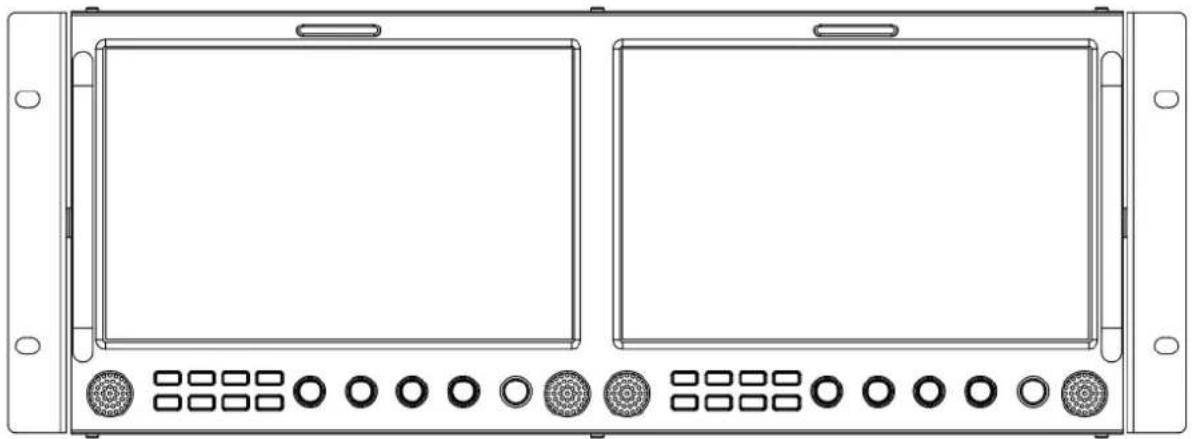
Front view diagram of a dual-panel electronic device with circular and square buttons (no text or symbols)User Manual
Ver: A
Please read this User Manual throughout before using.
Preface
- All internal technologies of this product are protected, including device, software and trademark. Reproduction in whole or in part without written permission is prohibited.
- All brands and trademarks of SWIT Electronics Co., Ltd. are protected and other relative trademarks in this user manual are the property of their respective owners.
- Due to constant effort of product development, SWIT reserves the right to make changes and improvements to the product described in this manual without prior notice.
- The warranty period of this product is 2 years, and does not cover the following:
(1) Physical damage to the surface of the products, including scratches, cracks or other damage to the LCD screen or other externally exposed parts;
(2) The LCD dot defects are not over three;
(3) Any damage caused by using third-party power adaptors;
(4) Any damage or breakdown caused by use, maintenance or storage not according to the user manual.
(5) The product is disassembled by anyone other than an authorized service center.
(6) Any damage or breakdown not caused by the product design, workmanship, or manufacturing quality, etc.
* Any sales personnel have no rights to provide additional warranty.
- For any suggestion and requirement on this product, please contact us through phone, fax, Email, etc.
SWIT Electronics Co., Ltd.
Address: 10 Hengtong Road, Nanjing Economic and Technological Development Zone, Nanjing 210038, P.R.China
Phone: +86-25-85805753
Fax: +86-25-85805296
Email: contact@swit.cc
Website: http://www.swit.cc
Warning
- In order to reduce the risk of fire and electrical shock, do not lay this product in rain or damp places.
- Please keep away from the strong magnetic field; it may cause the noise of the video and audio signals.
The power
- Please use the power adapter provided or recommended by the manufacturer in order to avoid damage.
- For a third party power adapter, please make sure the voltage range, supplied power, and polarity of power lead are fit.
- Please disconnect the power cable under the following situations:
(A). If you do not operate this monitor for a period of time;
(B). If the power cable or power adaptor is damaged;
(C). If the monitor housing is broken.
The monitor
- Please don't touch the screen with your fingers, which would probably deface the screen.
- Please don't press the screen; the LCD is extremely exquisite and flimsy.
- Please don't lay this product on unstable place.
Cleaning
- Please clean the screen with dry and downy cloth or special LCD cleanser.
- Please do not press hard when cleaning the screen.
- Please do not use water or other chemical cleanser to clean the screen. The chemical may damage the LCD.
Contents
Preface....2
Maintenance .... 3
Contents....4
Packing list....4
Introduction....4
Installation Dimensions....5
Operation Instructions 6
Front Panel....6
OSD....7
Back Panel....9
Main Menu....10
Specification....16
Trouble-Shooting 17
Packing list
Standard Package:
- User Manual
- Warranty Card
- LCD protective film
- Power cable
Introduction
M-1093H adopts IPS LCD panel, with resolution 1920×1200 and wide viewing angle H170°/V170°. It supports 2 x 3GSDI (Level A/B), 1 x HDMI, 1 x CVBS and 1 x analog audio input. It also supports 2 x 3GSDI, 1 x HDMI, 1 x CVBS and 1 x analog audio loop through output.
Features:
■ Support multiple Aspect Ratio and scan modes
■ Support multiple Marker selection (Marker, Safety Area)
■ Support multiple functions user-defined (Source ID, function keys, GPI)
■ Multiple power supply methods to meet different requirements
■ TSL UMD (RS485) Tally, GPI control
■ USB firmware upgrade
■ Support 2K
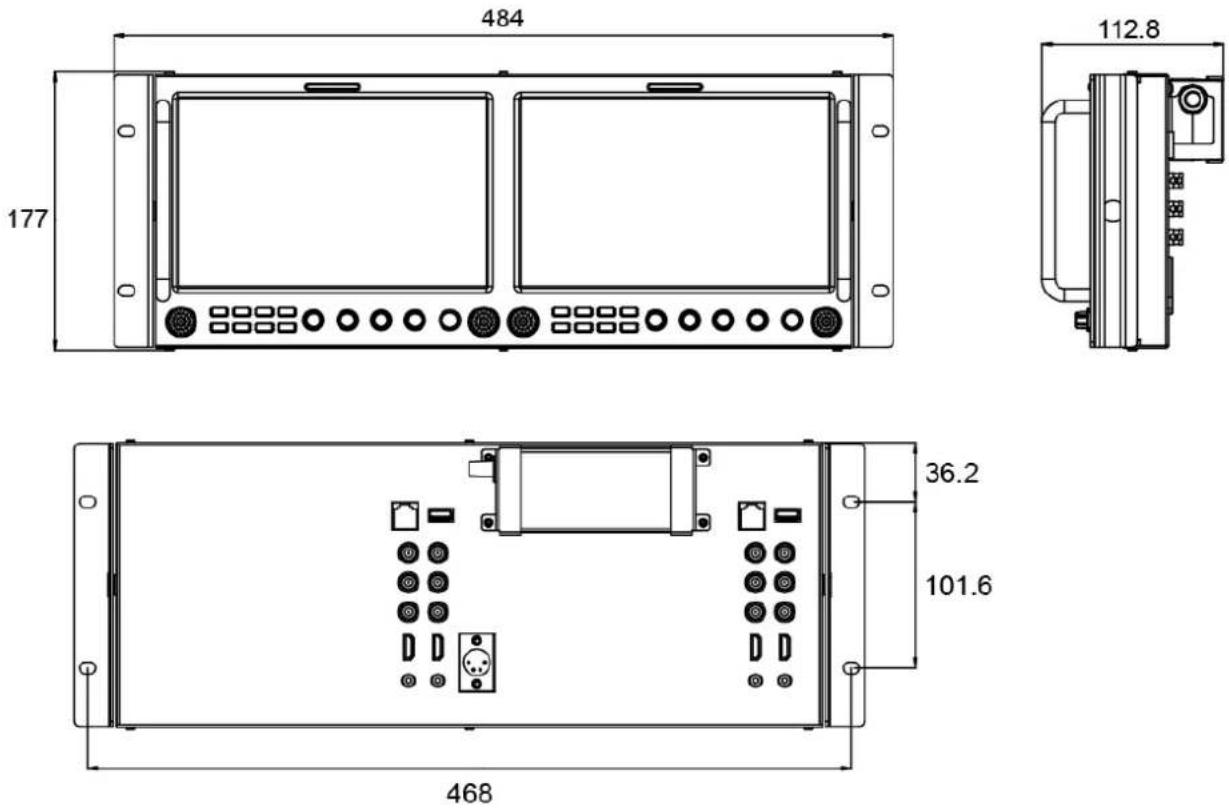
The main body (in mm):
- Front Panel
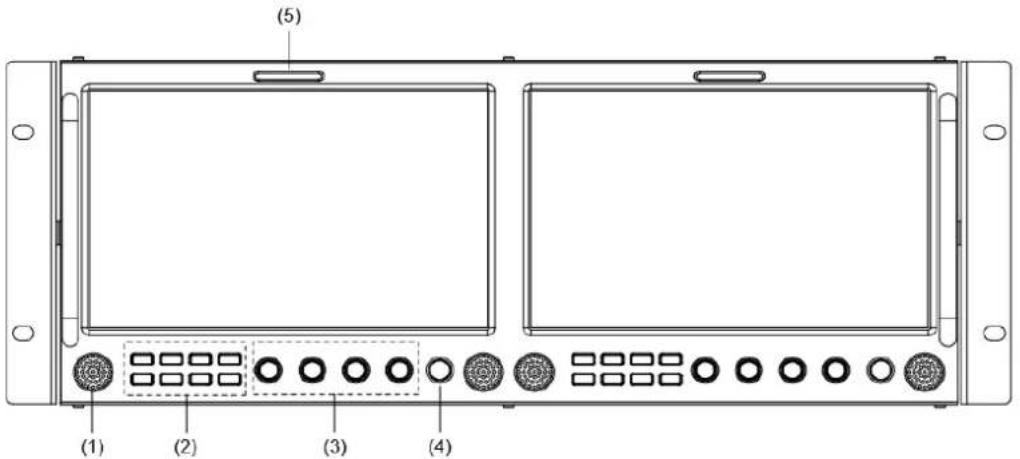
(1) Speaker: For SDI/HDMI embedded audio and analog audio monitoring. (Will not work if earphone is plugged in)
(2) Button
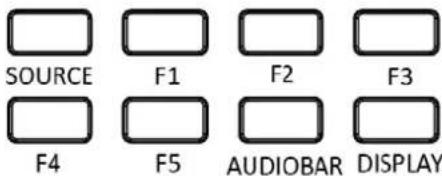
SOURCE: Press "SOURCE" to select SDI1, SDI2, HDMI, and CVBS signal input.
F1~F5: User definable function keys. Please see details in "4. Function key" under "Main Menu".
For example: Set F1 to "Histogram". Press F1 to open histogram and press again to close.
AUDIOBAR: Press "AUDIOBAR" to switch on/off audio bar.
DISPLAY: Press "DISPLAY" to turn on or turn off relevant status information, audio and video waveform.
When main menu is activated, press "DISPLAY" to quit menu.
(3) Rotary Knob
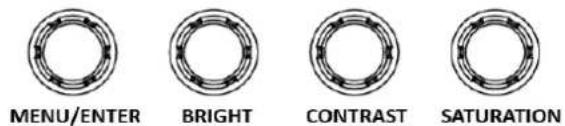
MENU/ENTER: When the menu is inactivated, presses "MENU/ENTE" to turn on the main menu; Revolve "MENU/ENTER" to adjust settings or parameters, and press to apply; When the menu is inactivated, revolve "MENU/ENTER" to adjust sound volume.
BRIGHT: 0-100 value adjustment and the default value is 50.
CONTRAST: 0-100 value adjustment and the default value is 50
SATURATION: 0-100 value adjustment and the default value is 50
(4) POWER: Power on/off
(5) TALLY Light: Red, Green and Yellow 3-color TALLY indicator
-OSD
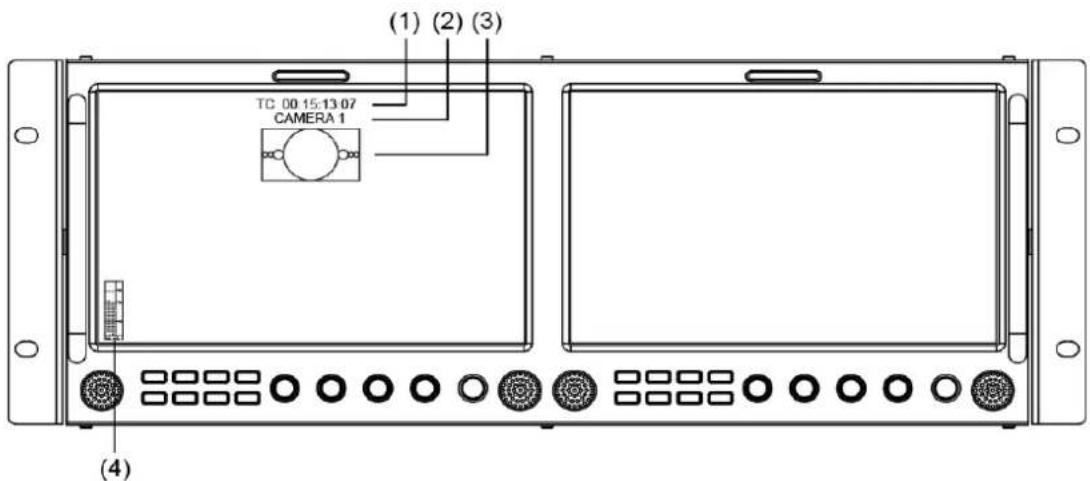
(1) Time code (SDI)
Under SDI input, it can display Time code. If no Time code information is detected, it will be displayed as "TC: UNLOCKED".
User can set function keys F1\~F5 or GPI pins as "Time code" to turn on or off this function.
(2) UMD
Set up the UMD under 'UMD" submenu.
(3) AFD (SDI)
User can set function keys F1\~F5 or GPI pins as "AFD" to turn on or off this function. If no relevant information is detected, it will be displayed as "AFD: UNLOCKED".
(4) Audio
Monitor the audio information. User can set function keys F1\~F5 or GPI pins as "Audio" to turn on or off this function.
The relevant parameters like position, audio channels and blending, etc can be changed under "Audio" submenu.
Introduction of audio and video functions
◆ 2-ch embedded audio meters
Under 3G/HD/SD SDI, HDMI and CVBS, it displays 2 channels embedded audio meters. The audio meter is green, and will turn yellow when audio exceeds -20dB, and turn red when audio exceeds -9dB.
◆ Audio alarm
If the embedded audio value is too low or no embedded audio, it will display "MUTE" or "UNLOCKED" in the audio bar.
◆ Time code (SDI)
Under SDI input, it can display the SMPTE time code (VITC1, VITC2 or LTC) on the top of the screen, which is used extensively for synchronization, and for logging and identifying material in recorded media. If no Time code information is detected, it will be displayed as "UNLOCKED".
◆ Internal Color Bar
Under SDI and HDMI input, it has 100% internal color bar which helps to analyze the monitor color and adjust the display parameter.
User can set function Keys F1\~F5 or GPI pins as "color bar" to turn on or off this function.
◆ Peaking focus assist (red/blue switch)
The Peaking focus assist function is to mark the sharpest edges of the image with red or blue color under SDI and HDMI input, for users to check if the subjects are focused.
User can set function Keys F1\~F5 or GPI pins as "Focus Assist" to turn on or off this function.
◆ Zebra stripes
Zebra Stripes are used to check if the image is over exposed or not by showing black and white lines on the monitor. It is considered over exposed when luminance value exceeds 90%.
User can set function Keys F1\~F5 or GPI pins as "Zebra" to turn on or off this function.
◆ Freeze Frame
The freeze frame is to capture and display the current broadcast frame.
User can set function Keys F1\~F5 or GPI pins as "Freeze Frame" to turn on or off this function.
◆ R/G/B/Mono
R/G/B/Mono is to display only the blue/red/green primary signal or the luminance signal only so as to monitor the image noise.
User can set function Keys F1\~F5 or GPI pins as "R/G/B/Mono" to turn on or off this function.
False Color
The false color is used to aid in the setting of camera exposure. Under false color mode, there's a color chart on the bottom of screen for reference. The color from the dark to the bright will be displayed as blue, cyan, green, yellow, orange and red in a consecutive way. User can set function Keys F1~F5 or GPI pins as "False color" to turn on or off this function.
♦ AFD (SDI)
It is the abbreviation of active format description. AFD is to display the SDI embedded AFD information graphically on the screen.
◆ H/V Delay (SDI)
Under SDI input, H/V Delay can be used to display line/field blanking signal, and to observe the horizontal and vertical synchronous signal.
◆ UMD
When using external control unit, it can display the video source ID and tally information on the screen.
◆ Image Flip
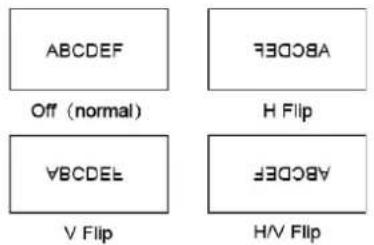
Horizontal, vertical, horizontal and vertical two-way image flip function.
- Back Panel
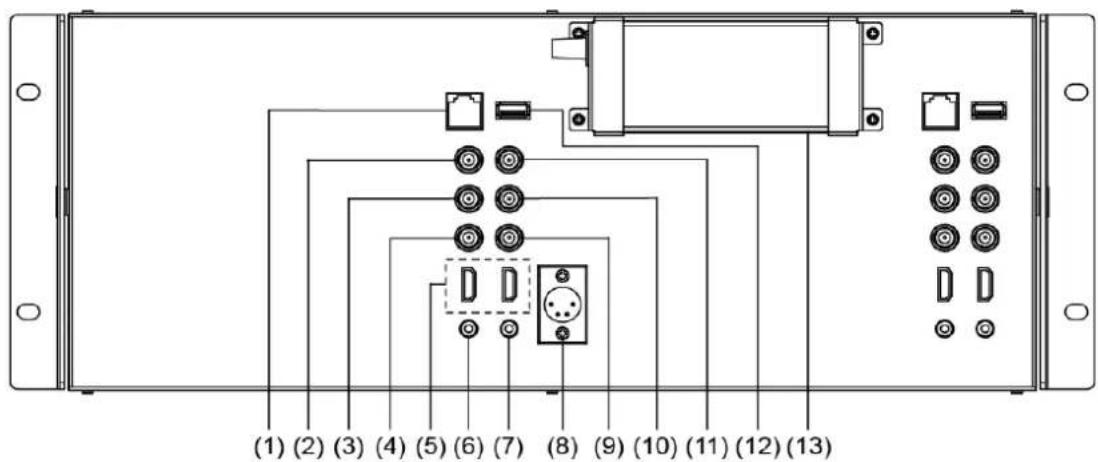
(1) GPI: TSL UMD&GPI control socket
(2) SDI-LOOP1: SDI loop through output from SDI-IN1 (BNC connector)
(3) SDI-LOOP2: SDI loop through output from SDI-IN2 (BNC connector)
(4) CVBS-OUT: CVBS output (BNC connector)
(5) HDMI socket
HDMI-IN: HDMI input (HDMI-A connector)
HDMI-OUT: HDMI loop through output from HDMI-IN (HDMI-A connector)
(6) AUDIO IN: 3.5mm analog audio input (CVBS)
(7) AUDIO OUT: 3.5mm audio output, to monitor SDI embedded audio, HDMI and analog audio output
(8) DC 12V IN: Connect with DC12V 4-pin XLR power adapter, support 6.5V-24V voltage input (Pin 1: Negative, Pin 4: Positive)
(9) CVBS-IN: CVBS input (BNC connector)
(10) SDI-IN2: SDI input (BNC connector)
(11) SDI-IN1: SDI input (BNC connector)
(12) USB socket
(13) Power adaptor
M-1093H has OSD to adjust the parameters and settings, for example: Picture, Color Temp., Function Key, etc.
- Press "MENU/ENTER" button, the main menu will popup from the left top of the screen. The selected main menu highlights in yellow.
- Revolve "MENU/ENTER" to select submenu, the selected submenu highlights in yellow, press "MENU/ENTER" to apply and enter into the selected submenu's items.
- Revolve "MENU/ENTER" to select the item which needed to be adjusted, press "MENU/ENTER", the selected item and its parameters will be highlighted in yellow.
| Main Menu | Marker | ||
| Exit&Status | > | Exit | |
| Picture | > | Marker | XX |
| Color Temp | > | Marker Select | 15:9 |
| Function Key | > | Safety Area | XXX |
| GPI | > | Fit Marker | XXX |
| UMD | > | Center Marker | XXX |
| Marker | > | Marker Color | XXX |
| Audio | > | Marker Outside | XXX |
| Vector | > | ||
| Waveform | > | ||
| Display | > | ||
| System | > | ||
| OSD | > | ||
| Key Inhibit | > | ||
- Revolve "MENU/ENTER" to change the selected item's parameter, press "MENU/ENTER" to apply and save the settings.
- Revolve "MENU/ENTER" to select "Exit", press "MENU/ENTER" to quit submenu. Select "Exit & Status" under the Main Menu and press to quit Main Menu.
Notice:
* The items in gray can not be set up.
* If there is no operation under the setted time, the menu will automatically save settings and quit.
* If the key inhabit function is turned on, except key inhibit function, all other items are in grey. Please turn off the key inhibit function to adjust the items.
Submenu introduction (the default values are marked with underline)
1. Exit & Status
Displays the current status, the details are as down below:
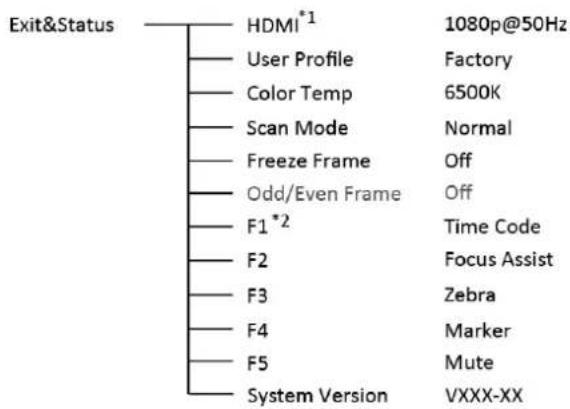
*1 Display the current video signal and format
*2 Display the current function keys setup
2. Picture
To adjust picture parameters
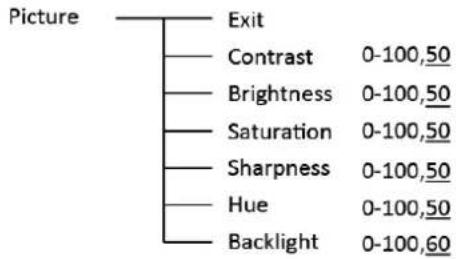
flowchart
graph TD
    A["Picture"] --> B["Exit"]
    B --> C["Contrast 0-100,50"]
    B --> D["Brightness 0-100,50"]
    B --> E["Saturation 0-100,50"]
    B --> F["Sharpness 0-100,50"]
    B --> G["Hue 0-100,50"]
    B --> H["Backlight 0-100,60"]
3. Color Temp
To select different color temperature or setup user-defined color parameters.
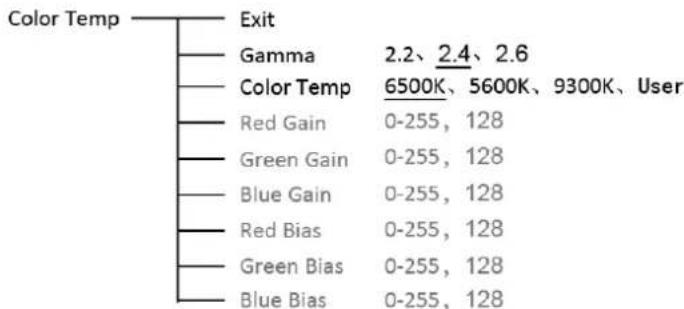
tree
| Color Temp | Exit | Gamma | 2.2, 2.4, 2.6 | |---|---|---|---| | | | Color Temp | 6500K, 5600K, 9300K, User | | | | Red Gain | 0-255, 128 | | | | Green Gain | 0-255, 128 | | | | Blue Gain | 0-255, 128 | | | | Red Bias | 0-255, 128 | | | | Green Bias | 0-255, 128 | | | | Blue Bias | 0-255, 128 |* Only "Color Temp" is set to "User", the Red/Blue/Green Gain or Red/Blue/Green Bias can be adjusted.
4. Function Key
To define the F1\~F5 function keys.
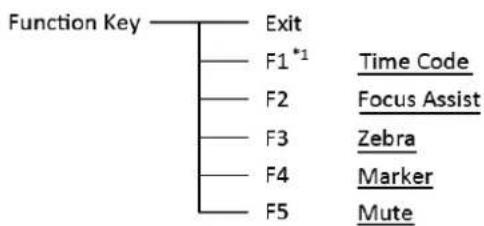
flowchart
graph TD
    A["Function Key"] --> B["Exit"]
    B --> C["F1*1"]
    C --> D["Time Code"]
    C --> E["Focus Assist"]
    C --> F["Zebra"]
    C --> G["Marker"]
    C --> H["Mute"]
*1 Function keys F1-F5 can be setted as the down below functions:
Time code, Zebra, Audio Bar, False Color, AFD, H/V Delay, R/G/B/Mono, Marker, Color Bar, UMD,
Audio Alarm, Focus Assist, Aspect Ratio, Scan Mode, Zoom Mode, Mute, Freeze Frame, Flip Mode, CVBS,HDMI, SDI1,SDI2, Color Temp.
For example: Set F3 to "R/G/B/Mono" under "Function key" submenu. User can press F3 on the front panel to adjust the parameters of "R/G/B/Mono", and the "R/G/B/Mono" will change and follow the sequence: Blue Only → Red Only → Green Only → Mono → Off.
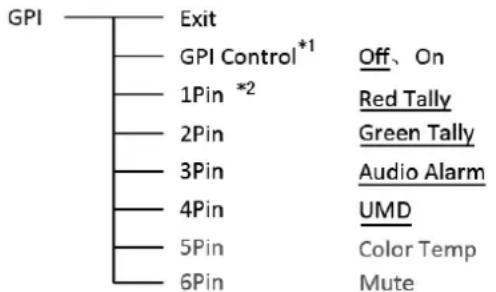
5. GPI
User can set GPI pins1\~4 to relevant functions to turn on or off this function.
flowchart
graph TD
    A["GPI"] --> B["Exit"]
    B --> C["GPI Control*1"]
    C --> D["1Pin *2"]
    D --> E["2Pin"]
    E --> F["3Pin"]
    F --> G["4Pin"]
    G --> H["5Pin"]
    H --> I["6Pin"]
    C --> J["Off、On"]
    D --> K["Red Tally"]
    E --> L["Green Tally"]
    F --> M["Audio Alarm"]
    G --> N["UMD"]
    H --> O["Color Temp"]
    I --> P["Mute"]
*1 When "GPI control" is set to "On", the monitor can be operated through external GPI control unit.
*2 The GPI pins can be set to the down below functions:
Red Tally, Green Tally, Yellow Tally, Aspect Ratio, Scan Mode, Zoom Mode, Mute, Freeze Frame, Flip Mode, Color Temp, Time code, Zebra, Audio Bar, False Color, AFD, H/V Delay, R/G/B/Mono, Marker, Color Bar, UMD, Audio Alarm, Focus Assist.
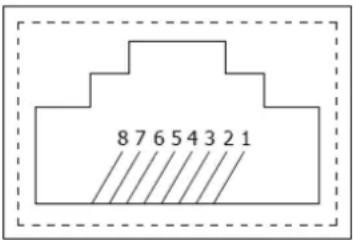
| Pin | 1 | 2 | 3 | 4 |
| GPI | GPI_1 | GPI_2 | RXD+ | GPI_3 |
| Pin | 5 | 6 | 7 | 8 |
| GPI | GPI_4 | RXD- | NC | GND |
When connecting the GPI pin with ground, the setted function will be turned on, and goes out when disconnecting.
Example 1: Under “GPI” submenu, set “GPI control” to “On”, set “2 Pin” to “Red Tally”, when the pin 2 of the extenal GPI control unit is connected with ground, the Tally light on the front panel will turn red. When disconnected, the tally light will turn off.
Example 2: Under “GPI” submenu, set “GPI control” to “On”, set “4 Pin” to “Scan Mode”, when the pin 4 of the external GPI control unit is connected with ground, the Scan mode will change and follow the sequence: “Normal” → “Overscan” → “Native”.
6. UMD
Support "TSL UMD Protocol-V3.1/V4.0" provided by Television System LTD
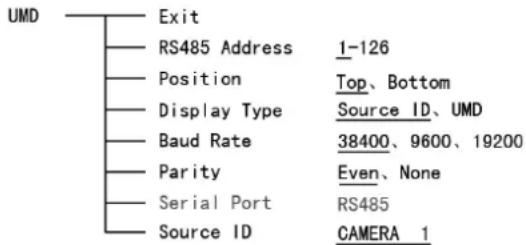
Setup Source ID:
Select "Source ID", revolve "MENU/ENTER" to select the letters and press "MENU/ENTER" to input. Max 8 letters are supported. Select "Exit" to quit and save settings, the source ID will be displayed on top or bottom of the screen.
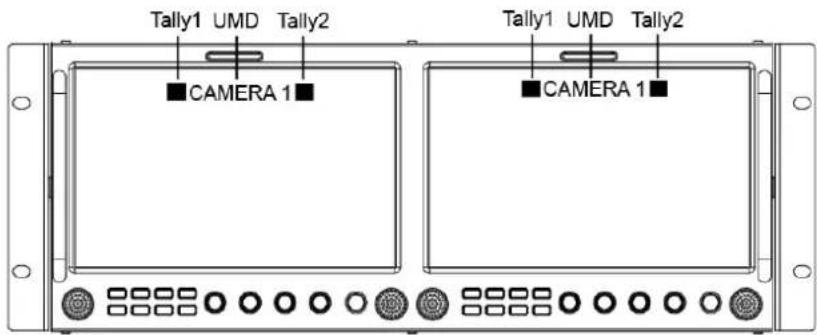
UMD setup:
(1) Connect the external control equipment with M-1093H;
(2) Set "Display Type" to "UMD" under UMD submenu;
(3) Make sure the "address", "Baud Rate", "Parity" the same;
(4) Adjust the external control equipment and send UMD command, the UMD information will be displayed as the right photo.
User can set the character and color of the UMD and the color of Tally1 and Tally2.
Please see "5. GPI" to check the "RS485 pin sequence and definition."
7. Marker
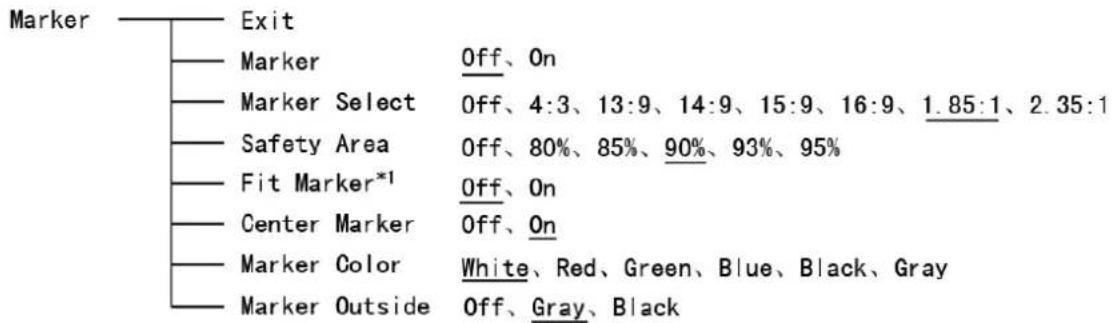
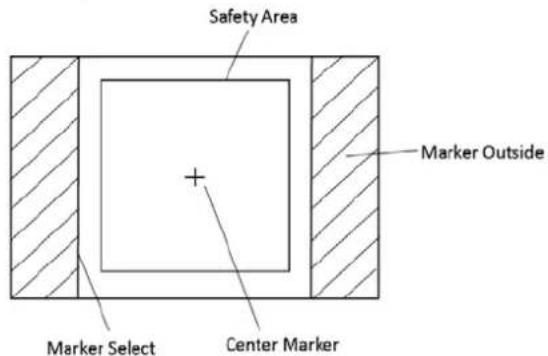
*1 When "Fit Marker" is "Off", the size of safety area is benchmarked against the actual display screen, accounting for 80% \~ 95% of actual display screen. When "Fit Marker" is "On", the size of safety area is benchmarked against the area inside the scales marker, accounting for 80% \~ 95% of the area inside the scales marker.
Example:
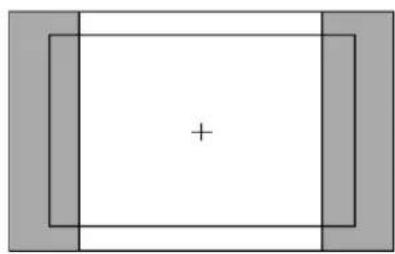
natural_image
Simple geometric diagram with a central plus sign surrounded by two gray rectangles (no text or symbols)Aspect ratio: 4:3
Safety Area: 85%
Center Marker: On
Fit Marker: Off
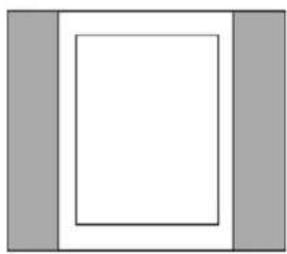
natural_image
Simple geometric diagram with a central rectangle and two vertical gray bars on the left (no text or symbols)Aspect ratio: 4:3
Safety Area: 85%
Center Marker: Off
Fit Marker: On
8. Audio
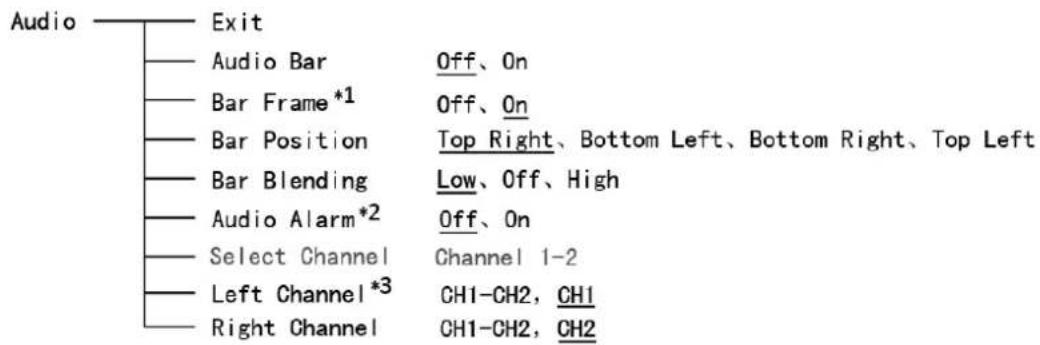
*1 When "Bar Frame" is set to "Off", only the audio meter will be displayed.
When "Bar Frame" is set to "On", frame and real-time audio value will be displayed.
*2 When "Audio Alarm" is set to "On", if no embedded audio is detected, the audio bar will display "UNLOCKED". If the audio value is too low, the audio bar will display "MUTE".
*3 Only under SDI I signal, channel1-2 can be selected.
In audio bar, the left channel audio value is marked with green and right channel audio value is marked with red.
9. Display
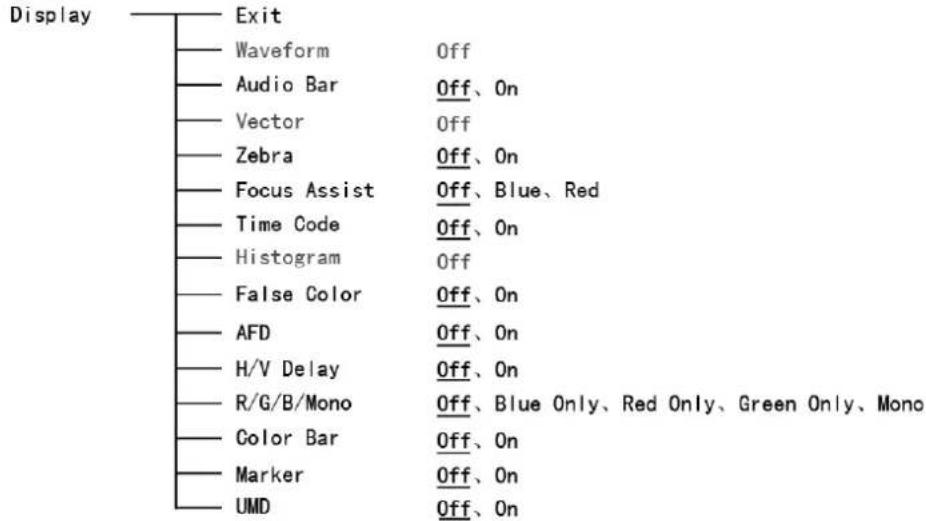
10. System
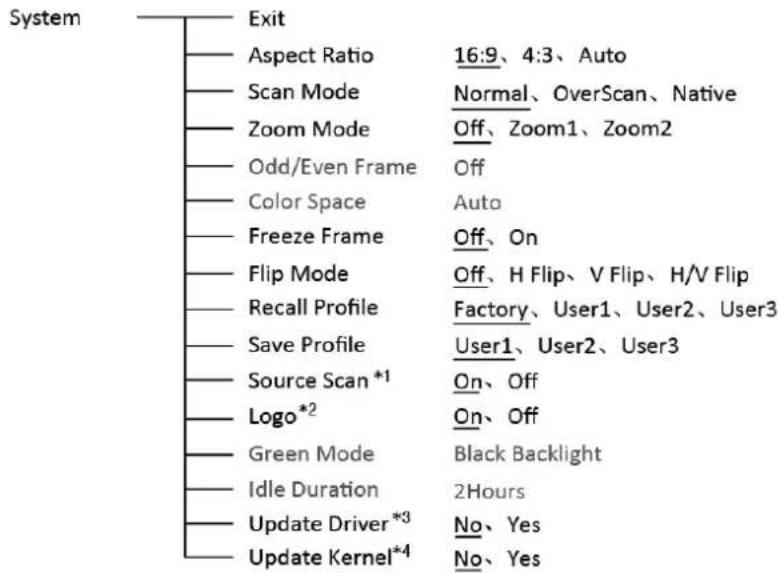
\*1 Source Scan
When set to "ON", after turn on the monitor, the signal will be inspected and follow the sequence of "SDI1→SDI2→HDMI→CVBS".
For example: if channel is selected to SDI2, SDI-IN2 has no input, and CVBS has input. When turn on the monitor, after automatic inspection, SDI2 has no recognized signal, and CVBS has recognized signal, then the input signal will be CVBS.
When set to "Off", source scan will not be supported.
\*2 Logo
When powered on, the screen will display SWIT logo.
\*3, \*4 Update Driver/ Kernel
(1) Power the monitor, insert the USB equipment with update software into the USB socket.
(2) Press "MENU" to open the main menu, and revolve to "system" submenu,
(3) Set "Update Driver" and "Update Kernel" to "Yes" under "System" Submenu, press "MENU/ENTER" to apply.
(4) During the update procedure, please do not power off to make sure the software writing has been successfully completed.
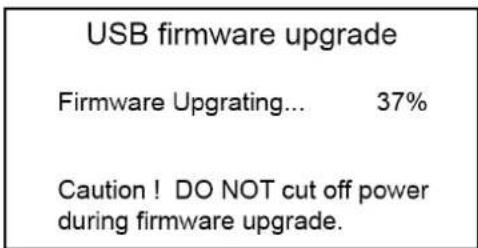
(5) After upgrading, the monitor will auto restart.
11. OSD
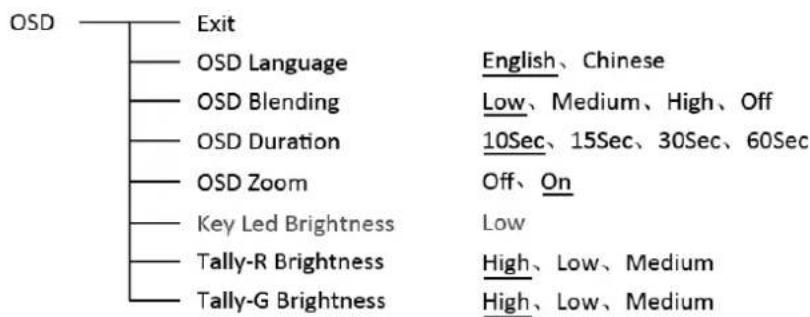
flowchart
graph TD
    A["OSD"] --> B["Exit"]
    A --> C["OSD Language"]
    A --> D["OSD Blending"]
    A --> E["OSD Duration"]
    A --> F["OSD Zoom"]
    A --> G["Key Led Brightness"]
    A --> H["Tally-R Brightness"]
    A --> I["Tally-G Brightness"]
    C --> J["English、Chinese"]
    D --> K["Low、Medium、High、Off"]
    E --> L["10Sec、15Sec、30Sec、60Sec"]
    F --> M["Off、On"]
    G --> N["Low"]
    H --> O["High、Low、Medium"]
    I --> P["High、Low、Medium"]
12. Key Inhibit

If the "Key Inhibit" is "On", there is no response when all the buttons expert "MENU/ENTER" are pressed, the screen will be displayed as "Key Inhibit".
User can set "Key Inhibit" under "key Inhibit" submenu to "Off" to recover the functions of all buttons.
| LCD Performance | ||
| Size | 9inch×2 | |
| Display area | 191.5×119.7 mm×2 | |
| Resolution | 1920×RGB×1200 | |
| Color | 8 bit | |
| Aspect ratio | 16:9/4:3 | |
| Brightness | 450 cd/m2 | |
| Contrast | 1000:1 | |
| Viewing Angle | Horizontal: 170°Vertical: 170° | |
| Input/output | ||
| Input | BNC×4 | 3G/HD/SD-SDI input |
| BNC×2 | CVBS input | |
| HDMI×2 | HDMI input | |
| GPI×2 | UMD, GPI×1 | |
| USB×2 | ||
| 3.5mm×2 | analog audio input | |
| Output | BNC×4 | 3G/HD/SD-SDI loop through output |
| BNC×2 | CVBS loop through output | |
| HDMI×2 | HDMI loop through output | |
| 3.5mm×2 | SDI/HDMI/analog audio output | |
| Video Format | ||
| CVBS | NTSC / PAL | |
| HDMI | 480i/576i/480p/576p | |
| 1080i(60/59.94/50) | ||
| 720p(60/59.94/50) | ||
| 1080p(60/59.94/50/30/29.97/25/24/23.98) | ||
| 1080psf(30/29.97/25/24/23.98) | ||
| SDI | SMPTE-425M-A/B | 1080p(60/59.94/50) |
| SMPTE-274M | 1080i(60/59.94/50) | |
| 1080p(30/29.97/25/24/23.98) | ||
| SMPTE-RP211 | 1080psf(30/29.97/25/24/23.98) | |
| SMPTE-296M | 720p(60/59.94/50) | |
| SMPTE-125M | 480i(59.94) | |
| ITU-R BT.656 | 576i(50) | |
| SMPTE-2048-2 | 2048×1080p(23.98/24/25/29.97/30/50/59.94/60) | |
| General | ||
| Input voltage | DC: 6.5V~24V | |
| Power consumption | 36W | |
| Working temperature | 0°C~+40°C | |
| Working humidity | 10%~90% | |
| Storage temperature | -15°C~+60°C | |
| Storage humidity | 10%~90% | |
| Dimensions | 484×177×112.8mm | |
| Net weight (main body) | 2.8 kg | |
| Symptom | Possible Causes | Solution |
| No display | The power is not turned on | Please check if the power is connected, and then press "POWER" button to turn on the monitor |
| Unstable power voltage | Reconnect to power supply | |
| BNC or HDMI cable loose contact or not correctly connected | Check and correctly connect the BNC or HDMI cable | |
| The attached battery is no power | Change battery | |
| Using DIY power supply but the polarity is reversed | Refer to the provided power supply, reconnect the power. | |
| Image or color abnormal | Bad contact of BNC or HDMI cable | Change cable |
| Video signal has Interference | Remove the interference source(s) | |
| Improper adjustment of the color parameters | Adjust the "Recall profile" to "Default" under "System" submenu | |
| Distortion of the image Reset the Aspect ratio | ||
| Set to Red/Green/Blue only or Mono | Turn the Blue only/ Red Only/ Green Only/Mono off under R/G/B/Mono submenu | |
| Turn on the "Focus Assist" function | Turn off the "Focus Assist" function | |
| Turn on the "False Color" function | Turn off the "False Color" function | |
| No audio output | Set to Mute | Turn off MUTE or revolve "MENU/ENTER" to adjust the volume |
| Bad contact of signal cable | Change signal cable | |
| Wrong connection or bad contact of Audio cable | Connect to the correct input socket. | |