
IPL T S6 - Unspecified Extron - Free user manual and instructions
Find the device manual for free IPL T S6 Extron in PDF.


| Product Type | Ethernet Control Interface with serial ports |
| Model | IPL T S6 |
| Brand | Extron |
| Dimensions (H x W x D) | 1.7" x 4.3" x 3.0" (4.3 cm x 10.9 cm x 7.6 cm) |
| Weight | 0.7 lb (0.3 kg) |
| Power Supply | External 12 VDC, 0.5 A; includes power supply (100-240 VAC input) |
| Serial Ports | 6 bidirectional: 2 configurable RS-232/422/485, 4 RS-232 only |
| Ethernet Port | 1 RJ-45, 10/100Base-T, half/full duplex with autodetect |
| Supported Protocols | ARP, DHCP, ICMP, IP, TCP, UDP, HTTP, SMTP, Telnet |
| Flash Memory | 7.25 MB nonvolatile user memory |
| Web Server | Built-in, supports up to 200 simultaneous sessions |
| Mounting Options | Rack, under-desk, projector mount (kits sold separately) |
| Operating Temperature | +32 to +122 °F (0 to +50 °C) |
| Storage Temperature | -40 to +158 °F (-40 to +70 °C) |
| Humidity (non-condensing) | 10% to 90% |
| Regulatory Compliance | CE, c-UL, UL, FCC Class A, C-tick, ICES, VCCI |
| Warranty | 3 years parts and labor |
| Included Accessories | Power supply, IEC power cord, rubber feet, Velcro strip, captive screw connectors, Tweeker |
| Cleaning Instructions | Clean with a dry cloth; do not use liquids or solvents |
| Safety Notes | Contains a battery; do not open to replace. Use only provided power supply. Risk of electric shock if opened. |
| Repairability | No user-serviceable parts; return to Extron for repair or battery replacement |
Frequently Asked Questions - IPL T S6 Extron
User questions about IPL T S6 Extron
0 question about this device. Answer the ones you know or ask your own.
Ask a new question about this device
Download the instructions for your Unspecified in PDF format for free! Find your manual IPL T S6 - Extron and take your electronic device back in hand. On this page are published all the documents necessary for the use of your device. IPL T S6 by Extron.
USER MANUAL IPL T S6 Extron
Safety Instructions • English
WARNING: This symbol, , when used on the product, is intended to alert the user of the presence of uninsulated dangerous voltage within the product's enclosure that may present a risk of electric shock.
ATTENTION: This symbol, △when used on the product, is intended to alert the user of important operating and maintenance (servicing) instructions in the literature provided with the equipment.
For information on safety guidelines, regulatory compliances, EMI/EMF compatibility, accessibility, and related topics, see the Extron Safety and Regulatory Compliance Guide, part number 68-290-01, on the Extron website, www.extron.com.
This equipment has been tested and found to comply with the limits for a Class A digital device, pursuant to part 15 of the FCC rules. The Class A limits provide reasonable protection against harmful interference when the equipment is operated in a commercial environment. This equipment generates, uses, and can radiate radio frequency energy and, if not installed and used in accordance with the instruction manual, may cause harmful interference to radio communications. Operation of this equipment in a residential area is likely to cause interference. This interference must be corrected at the expense of the user.
NOTE: For more information on safety guidelines, regulatory compliances, EMI/EMF compatibility, accessibility, and related topics, see the "Extron Safety and Regulatory Compliance Guide" on the Extron website.
Battery Notice
This product contains a battery. Do not open the unit to replace the battery. If the battery needs replacing, return the entire unit to Extron (for the correct address, see the Extron Warranty section on the last page of this guide).
CAUTION: Risk of explosion. Do not replace the battery with an incorrect type. Dispose of used batteries according to the instructions.
© 2016 Extron Electronics. All rights reserved.
Trademarks
All trademarks mentioned in this guide are the properties of their respective owners.
The following registered trademarks (8) , registered service marks (SM) , and trademarks (TM) are the property of RGB Systems, Inc. or Extron Electronics:
| Registered Trademarks (1) |
| AVTrac, Cable Cubby, CrossPoint, DTP, eBUS, EDID Manager, EDID Minder, Extron, Flat Field, FlexOS, Global Configurator, GlobalViewer, Hideaway, Inline, IP Intercom, IP Link, Key Minder, LinkLicense, LockIt, MediaLink, NetPA, PlenumVault, PoleVault, PowerCage, PURE3, Quantum, SoundField, SpeedMount, SpeedSwitch, System INTEGRATOR, TeamWork, TouchLink, V-Lock, VersaTools, VN-Matrix, VoiceLift, WallVault, WindoWall, XTP, and XTP Systems |
| Registered Service Mark (SM) : S3 Service Support Solutions |
| Trademarks (TM) |
| AAP, AFL (Accu-Rate Frame Lock), ADSP (Advanced Digital Sync Processing), Auto-Image, CableCover, CDRS (Class D Ripple Suppression), DDSP (Digital Display Sync Processing), DMI (Dynamic Motion Interpolation), Driver Configurator, DSP Configurator, DSVP (Digital Sync Validation Processing), eLink, Entwine, EQIP, FastBite, FOX, FOXBOX, IP Intercom HelpDesk, MAAP, MicroDigital, ProDSP, QS-FPC (QuickSwitch Front Panel Controller), Scope-Trigger, ShareLink, SIS, Simple Instruction Set, Skew-Free, SpeedNav, Triple-Action Switching, True4K, Vector, WebShare, XTRA, ZipCaddy, and ZipClip |
Conventions Used in this Guide
Notifications
The following notifications are used in this guide:
CAUTION Risk of minor personal injury or risk of property damage.
NOTE A note draws attention to important information.
Specifications Availability
Product specifications are available on the Extron website, www.extron.com.
Extron Glossary of Terms
A glossary of terms is available at http://www.extron.com/technology/glossary.aspx.
Quick Start — IPL T S Series
Step 1
Turn power off and disconnect the device from its power source.
Step 2
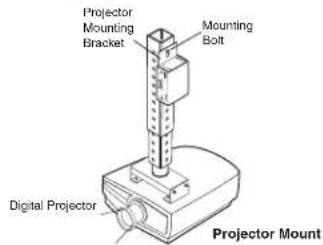
Mount the IPL T S Series unit:
- on a projector
- under a desk

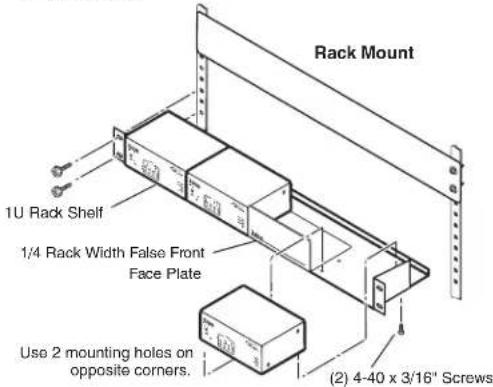
- or on a rack
Step 3
Connect a local area network (LAN) cable from a PC, hub, or router to the IPL T S Series unit.

IPL T S6 Ethernet Control Interface
Step 4
Connect RS-232 cables from the IPL T S Series unit to the audio/video (A/V) devices.
Step 5
Connect power cords and apply power in the following order:
• output devices (projectors, monitors, speakers)
- IPL T S Series device
- PC or serial controller
- input devices (DSS, cable boxes, and so on)
Step 6
Configure the IPL T S Series device. See chapter 3 for more information.
Step 7
Test the IPL T S Series device via its default Web pages. See chapter 4 for more information.

flowchart
graph TD
    A["Extron IPL T S1\nEthernet Control Interface"] -->|RS-232| B["Plasma Display"]
    C["Extron IPL T S1\nEthernet Control Interface"] -->|RS-232| D["Plasma Display"]
    B --> E["TCP/IP Network"]
    D --> E
    E -->|Ethernet| F["Remote User Control and Administrator Monitoring"]
    B -->|Ethernet| E
Typical IPL T S Series configuration
Quick Start — IPL T S Series, cont'd
Table of Contents
Chapter One • Introduction ...... 1-1
About This Manual 1-2
About the IPL T S Series Interface 1-2
IPL T S1 control interface 1-2
IPL T S2 control interface 1-2
IPL T S4 control interface 1-2
IPL T S6 control interface 1-2
Features....1-3
Chapter Two • Installation and Operation 2-1
Installation Overview 2-2
Mounting the IPL T S Interface 2-2
UL guidelines for rack mounting....2-2
Mounting options....2-3
Rack mounting an IPL T S Series interface 2-3
Furniture or projector mounting....2-4
Rear Panel Features and Cabling....2-5
Power 2-6
Ethernet/LAN 2-7
Serial Communication 2-7
Identification 2-9
Operation 2-9
Front panel indicators 2-9
Resetting the unit 2-10
Chapter Three • Connection and Configuration ....3-1
Connecting the Hardware....3-2
Ethernet connection....3-2
Serial connection....3-2
Setting the Internet Protocol (IP) Address....3-3
Setting the IP address using Global Configurator....3-4
Setting the IP address using embedded Web pages....3-5
Setting the IP address using the ARP command....3-7
Configuration using Global Configurator 3-8
Configuration using Embedded Web Pages 3-9
Connecting via the Web server pages....3-10
System Status page 3-11
Configuration page 3-11
System Settings....3-11
Port Settings 3-12
Passwords 3-13
Email Alerts....3-13
Firmware Upgrade....3-14
File Management page 3-14
Configuration using DataViewer 3-15
Chapter Four • Communication and Control....4-1
Programmer's Guide for Telnet and Web Browsers 4-2
Using the command/response table....4-2
Symbol definitions....4-3
Copyright information....4-4
Password information 4-4
Error responses 4-5
References to errors (at command descriptions on the following pages)....4-5
Customization 4-19
Custom Web pages 4-19
Server Side Includes (SSI)....4-19
Query string 4-20
Code examples 4-21
Example 1....4-21
Example 2....4-22
URL encoding....4-23
Reserved characters 4-23
Unsafe characters 4-24
Advanced Serial Port Control 4-24
Serial pass-through (redirect mode) 4-24
Direct port access (ports 2001 through 2006)....4-25
Serial Bridging 4-26
Hardware connection....4-26
Serial bridge configuration....4-27
Troubleshooting....4-28
Power connections 4-28
Data connections....4-28
Appendix A • Specifications, Part Numbers, Accessories...... A-1
Specifications A-2
Part Numbers and Accessories......A-4
Included parts....A-4
Optional accessories A-4
Appendix B • Glossary ......B-1
Glossary......B-2
All trademarks mentioned in this manual are the properties of their respective owners.
1 Chapter One
Introduction
About This Manual
About the IPL T S Series Interface
Features
About This Manual
This manual describes the function, installation, configuration, and operation of the Extron IPL T S Series interface devices which are shown below.
About the IPL T S Series Interface
The Extron IPL T S Series interface devices integrate network connectivity into audio/video (A/V) systems. Installing an IPL T S Series interface into an A/V network gives users the ability to remotely monitor and control projectors, flat-panel displays, switchers, and other serially-controlled devices.
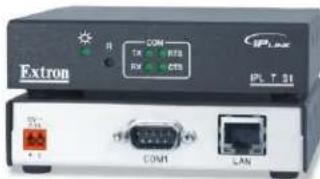
IPL T S1 control interface
• PN 60-801-81
• One bidirectional RS-232 serial port
• 7.25 MB of available flash memory
- Low-profile form factor
- 1.0 inch H × 4.3 inches W × 3.0 inches D (2.5 cm × 10.9 cm × 7.6 cm)
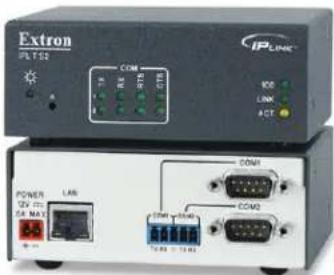
IPL T S2 control interface
• PN 60-544-81
- Two bidirectional RS-232, RS-422, or RS-485 serial ports
• 7.25 MB of available flash memory
- 1.7 inches H x 4.3 inches W x 3.0 inches D (4.3 cm x 10.9 cm x 7.6 cm)
IPL T S4 control interface
• PN 60-544-83
- Four bidirectional RS-232, RS-422, or RS-485 serial ports
• 7.25 MB of available flash memory
- 1.7 inches H x 4.3 inches W x 3.0 inches D (4.3 cm x 10.9 cm x 7.6 cm)

IPL T S6 control interface
• PN 60-544-84
- Six bidirectional RS-232, RS-422, or RS-485 serial ports
• 7.25 MB of available flash memory
- 1.7 inches H x 4.3 inches W x 3.0 inches D (4.3 cm x 10.9 cm x 7.6 cm)

Each IPL T S Series interface comes with the Extron IP Link® technology including:
• A built-in Web server
- A set of Web pages that can be used to configure the device
- Flash memory to store the Extron GlobalViewer ® application and A/V equipment device drivers
- Compatibility with the free GlobalViewer application which provides a graphical user interface with which to remotely monitor and control your A/V network devices
The IPL T S Series interface devices support the following network protocols:
- DHCP – Dynamic host configuration protocol
- ICMP – Internet control message protocol
- SMTP – Simple mail transfer protocol
- Telnet – a computer/client communications protocol
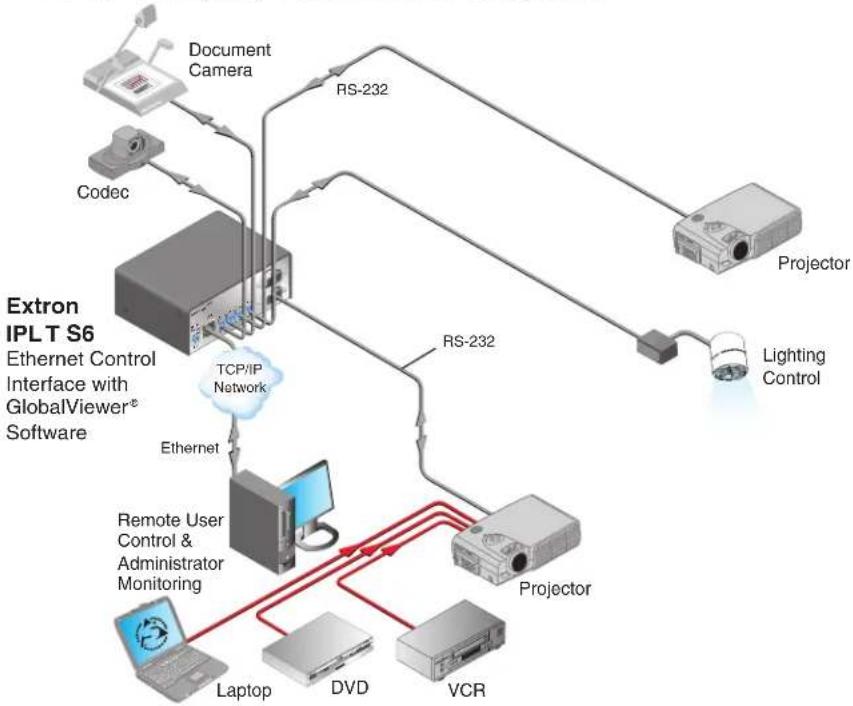
flowchart
graph TD
    A["Document Camera"] --> B["RT-232"]
    C["Codec"] --> B
    D["Projector"] --> E["Lighting Control"]
    F["Remote User Control & Administrator Monitoring"] --> G["Laptop"]
    F --> H["DVD"]
    F --> I["VCR"]
    J["TCP/IP Network"] --> K["Ethernet"]
    L["RS-232"] --> B
    M["RT-232"] --> N["Projector"]
Figure 1-1 — A typical IPL T S Series application
Features
IPL T S Series interface features include:
Support for bidirectional RS-232, RS-422, and RS-485 serial communication — Allows remote and proactive monitoring and troubleshooting of serially-controlled devices.
NOTE The IPL T S1 supports RS-232 only.
Serial port pass-through — Two-, four-, and six-port models can be configured for pass-through mode, enabling each pair of ports on the interfaces to pass through commands and control a single device.
Web-based A/V asset management — When used with GlobalViewer software, the IPL T S interfaces provide a powerful, flexible way to manage, monitor, and control projectors, flat-panel displays, and other devices using a standard Ethernet network.
Integral, high performance Web server — Each IPL T S interface features a built-in Web server with memory available for storing device drivers, GlobalViewer, and development of your own Web pages using "off-the-shelf" Web authoring software.
Industry standard Ethernet protocols — All IPL T S models support industry standard Ethernet communication protocols, including ARP, DHCP, ICMP, UDP/IP, TCP/IP, Telnet, HTTP, and SMTP, accessed through an RJ-45 auto-sense 10/100 Mbps Ethernet LAN connection.
Simultaneous multi-user support — Each IPL T S interface supports multiple concurrent users, improving system throughput.
E-mail capabilities to enable support — With e-mail notification, technical support administrators can receive failure and service messages through an e-mail enabled cell phone, PDA, pager, or Internet e-mail account.
Multiple levels of access with password protection — User access level authorizes limited entry to only pre-designated functions, while administrator access level permits full access to advanced settings.
Configuration utility — Global Configurator software, a free, easy-to-use Windows ® -based configuration utility, makes product setup simple and intuitive — no programming knowledge is required.
Extensive library of device drivers — Device drivers allow Extron products to control various display and source devices, such as projectors, flat-panel displays, and DVD players. Extron has produced thousands of fully tested and uniformly modeled RS-232 and IR device drivers.
Direct port access — Use existing software programs to control a device that has no Ethernet support. Any existing Extron product with a serial control port can be interfaced with a LAN.
Built-in multi-level security — A user can control access to devices attached to the interface. Two levels of password protection provide appropriate security.
Serial port connectivity — Provides serial ports on 9-pin D and/or 3.5 mm, captive screw connectors.
Easy configuration and control — Easily control the interface in three ways:
• The Internet Explorer® browser
• A Web-based interface
- DataViewer (or a standard Telnet client application)
The IPL T S series requires no centralized processor to operate within a system.
Multiple mounting options — Can be mounted under a desktop or podium, on a projector mount, or on a rack shelf.
Chapter Two
Installation and Operation
Installation Overview
Mounting the IPL T S Interface
Rear Panel Features and Cabling
Operation
Installation Overview
To install and set up an IPL T S interface, follow these steps:
- Turn all of the equipment off. Make sure that the video sources (DSS, cable boxes, or other devices), the IPL T S unit, the output devices (monitors, VCRs, projectors, and so on) and the serial controller are all turned off and disconnected from the power source.
- Mount the IPL T S interface. See "Mounting the IPL T S Interface", below.
- Attach the cables. See "Connecting the Hardware" in chapter 3.
- Connect power cords and turn on the devices in the following order: output devices (projectors, monitors, speakers), IPL T S interface, serial controller or computer (PC), then input devices (DSS, cable boxes, and so on).
- Configure the IPL T S interface through DataViewer or Telnet, then access the unit using an Internet browser.
Mounting the IPL T S Interface
UL guidelines for rack mounting
The following Underwriters Laboratories (UL) guidelines pertain to the installation of an IPL T S Series unit onto a rack.
- Elevated operating ambient — If installed in a closed or multi-unit rack assembly, the operating ambient temperature of the rack environment may be greater than room ambient. Therefore, consider installing the equipment in an environment compatible with the maximum ambient temperature specified by the manufacturer [Tma = +32\ to\ +122\ ircF\ (0\ to\ +50\ ircC)] .
- Reduced air flow — Installation of the equipment in a rack should be such that the amount of air flow required for safe operation of the equipment is not compromised.
- Mechanical loading — Mounting of the equipment in the rack should be such that a hazardous condition is not achieved due to uneven mechanical loading.
- Circuit overloading — Consideration should be given to the connection of the equipment to the supply circuit and the effect that overloading of the circuits might have on overcurrent protection and supply wiring. Appropriate consideration of equipment nameplate ratings should be used when addressing this concern.
- Reliable earthing (grounding) — Reliable earthing of rack-mounted equipment should be maintained. Particular attention should be given to supply connections other than direct connections to the branch circuit (such as the use of power strips).
Mounting options
All units are easily mounted in a rack, under a desk or podium, or on a projector mount.
Mounting kits and IPL T S Series device compatibility are shown in the table below.
| Mounting Type Kit PN S1 S2 S4 S6 | |||||
| MBU 125 Under-desk mount 70-077-01 | ● | ||||
| MBU 123 Under-furniture mount 70-212-01 | ●●● | ||||
| PMK 200 Projector mount 70-077-04 | ● | ||||
| PMK 100 Projector mount 70-217-01 | ●●● | ||||
| RSU 129 1U 9.5-inch Deep universal rack shelf | 60-190-01 | ●●●● | |||
| RSF 123 1U 3.5-inch Deep rack shelf 60-190-20 | ●●●● | ||||
Rack mounting an IPL T S Series interface
The following rack mount kits are available:
• PN 60-190-20 RSU 123 1U 3.5-inch Deep Rack Shelf Kit
• PN 60-190-01 RSU 129 1U Universal Rack Shelf Kit
To rack mount an IPL T S Series unit:
- If present, remove the rubber feet from the bottom of the IPL T S unit.
- Secure the underside of the unit on the rack shelf with two 4-40 x 3/16-inch screws in opposite (diagonal) corners.
- Install additional unit(s) or blank panel(s) on the rack shelf as desired.
- Insert the shelf into the rack at the desired location.
- Secure the shelf to the rack using the supplied mounting screws.
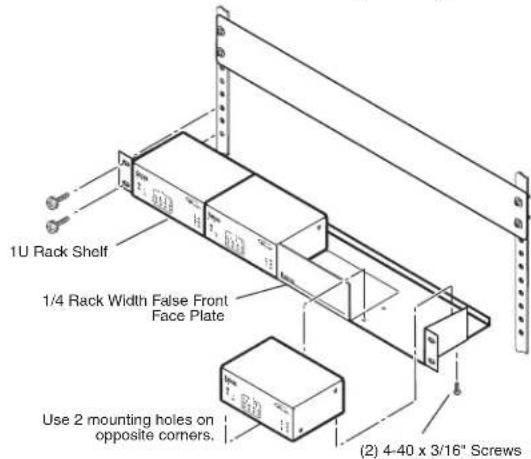
Figure 2-1 — Rack mounting the interface on the rack shelf
NOTE
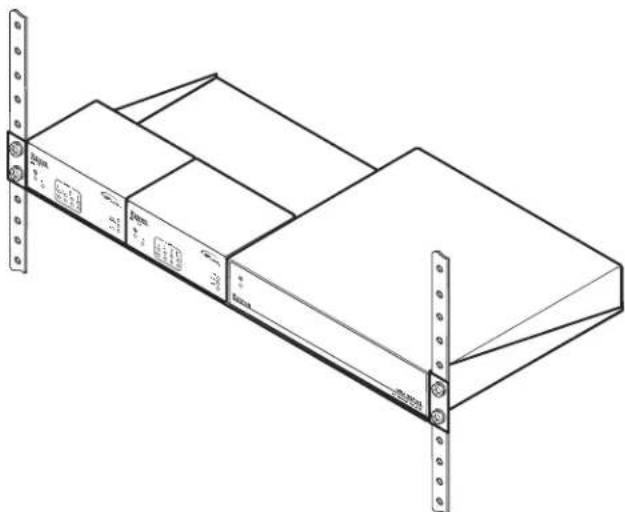
Only products that are 3.5 inches deep can be mounted to a 1U 3.5-inch Deep Rack Shelf. Any 1U or 1-inch high rack-mountable Extron product can be mounted on the Universal 1U Rack Shelf (shown in the following diagram).
natural_image
Line drawing of a server rack with multiple panels and mounting brackets (no text or symbols)Figure 2-2 — Mounting the interface on the standard shelf
Furniture or projector mounting
The following furniture and projector mount kits are available:
• PN 70-077-01 Furniture mount kit (for IPL T S1)
• PN 70-077-04 Projector mount kit (for IPL T S1)
• PN 70-212-01 Furniture mount kit (for IPL T S2, S4, S6)
• PN 70-217-04 Projector mount kit (for IPL T S2, S4, S6)
To mount an IPL T S Series device to furniture:
- If present, remove the rubber feet from the bottom of the IPL T S unit.
- Attach the furniture mounting brackets to the unit with the supplied screws.
- Hold the unit with the attached brackets against the underside of the furniture. Mark the hole locations of the bracket on the mounting surface.
- Drill 3/32-inch (2 mm) diameter pilot holes, 1/4 inches (6.3 mm) deep in the underside of the mounting surface at the marked hole locations.
- Insert #8 wood screws into the four pilot holes. Tighten each screw until just less than 1/4 inches (6.3 mm) of the screw head protrudes above the surface.
- Hang the mounting bracket over the protruding screw heads. Slide the mounting brackets to the narrow end of the screw slots and tighten the mounting screws.
To mount an IPL T S Series device with a projector:
- If present, remove the rubber feet from the bottom of the IPL T S unit.
- Attach the projector mounting bracket to the unit with the supplied screws.
- Secure the unit to the projector post with the supplied mounting bolt.

Figure 2-3 — Mounting the interface
Rear Panel Features and Cabling
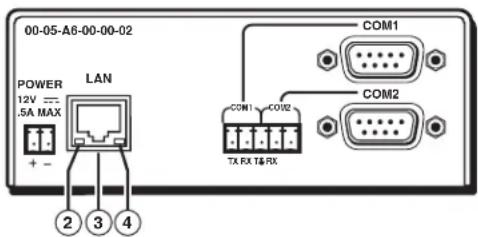
All connections, including power, control, input, and output, are on the back panel of the IPL T S interface. See figures 2-4, 2-5, 2-6, 2-7 below for details on each model.


Figure 2-4 — IPL T S1 interface back panel Figure 2-5 — IPL T S2 interface back panel
NOTE The IPL T S2 allows for use of either the 9-pin D connector or the captive screw connector on COM1 or COM2. The 9-pin D connector COM ports and the captive screw connector COM ports should not be connected simultaneously.


Figure 2-6 — IPL T S4 interface back panel Figure 2-7 — IPL T S6 interface back panel
Power
① Power connection — Plug the unit's external 12 VDC power supply into this connector. The power supply is provided with the unit.
CAUTION When you are connecting the power supply, voltage polarity is extremely important. Applying power with incorrect voltage polarity could damage the power supply and the interface. Identify the power cord negative lead by the ridges on the side of the cord.
CAUTION If not provided with a power supply, this product is intended to be supplied by a UL Listed power source marked "Class 2" or "LPS" and rated output 12 VDC, minimum 0.5 A.
CAUTION Always use a power supply supplied or specified by Extron. Use of an unauthorized power supply voids all regulatory compliance certification and may cause damage to the supply and the unit.
CAUTION Unless otherwise stated, the AC/DC adapters are not suitable for use in air handling spaces or in wall cavities.
CAUTION The installation must always be in accordance with the applicable provisions of National Electrical Code ANSI/NFPA 70, article 725 and the Canadian Electrical Code part 1, section 16. The power supply shall not be permanently fixed to building structure or similar structure.
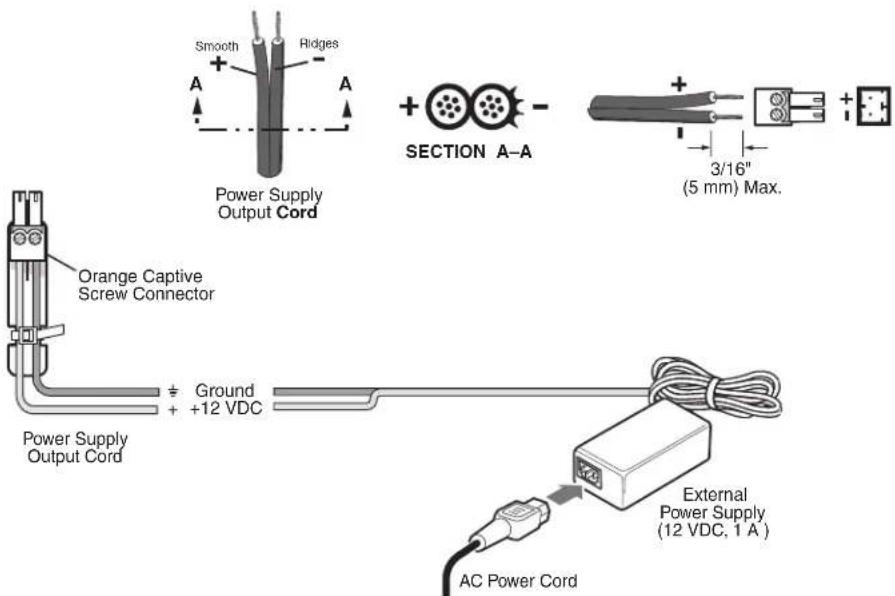
Figure 2-8 — Power connector wiring
NOTE Do not tin the stripped power supply leads before installing the captive screw connector. Tinned wires are not as secure in the captive screw connectors and could pull out.
CAUTION The two power cord wires must be kept separate while the power supply is plugged in. Remove power before continuing.
To verify the polarity before connection, plug in the power supply with no load and check the output with a voltmeter.
Ethernet/LAN
② LAN Activity LED — A blinking yellow LED indicates LAN activity.
③ LAN connector — An RJ-45 connector for a network connection. Use an Ethernet straight-through cable to connect to a switch, hub, or router, or an Ethernet crossover cable to connect directly to a PC.
| Straight-through Cable(for connection to a switch, hub, or router) | |||
| End 1 End 2 | |||
| Pin | Wire Color | Pin | Wire Color |
| 1 | white-orange | 1 | white-orange |
| 2 | orange | 2 | orange |
| 3 | white-green | 3 | white-green |
| 4 | blue | 4 | blue |
| 5 | white-blue | 5 | white-blue |
| 6 | green | 6 | green |
| 7 | white-brown | 7 | white-brown |
| 8 | brown | 8 | brown |

RJ-45 Connector
| Crossover Cable(for direct connection to a PC) | |||
| End 1 End 2Pin | Wire Color | Pin | Wire Color |
| 1 | white-orange | 1 | white-green |
| 2 | orange | 2 | green |
| 3 | white-green | 3 | white-orange |
| 4 | blue | 4 | blue |
| 5 | white-blue | 5 | white-blue |
| 6 | green | 6 | orange |
| 7 | white-brown | 7 | white-brown |
| 8 | brown | 8 | brown |
Figure 2-9 — RJ-45 connector wiring
④ Link LED — A lit green LED indicates a good LAN connection.
Serial Communication
⑤ Captive screw connector — Plug a 3.5 mm, 5-pole captive screw connector into this socket for serial ports 1 and 2 (IPL T S2) or serial ports 3 through 6 (IPL T S6) connections. Pacing and handshaking are not supported via the captive screw connectors.
NOTE The two IPL T S2 captive screw connectors are in parallel with the two 9-pin D connectors. For each serial port on the S2 use either the captive screw connector or the 9-pin D connector, but not both.
⑥ COM1 — 9-pin D connector for serial port 1
⑦ COM2 — 9-pin D connector for serial port 2
⑧ COM3 — 9-pin D connector for serial port 3 (S4 only)
⑨ COM4 — 9-pin D connector for serial port 4 (S4 only)
IPL T S Series interface devices can be used to control display devices, switchers, and other A/V equipment via an RS-232/RS-422/RS-485 connection.
Factory default protocol for the control interface is:
RS-232
• 9600 baud
- no parity
- 8 data bits
- 1 stop bit
- pacing = 0 ms
- handshaking = off
Communication to an attached device can be done through the IPL T S Series device's default Web pages or by using the Extron Simple Instruction Set (SIS v ) commands.
The rear panel 9-pin D connector COM ports have the following pin assignments:
| Pin Function RS-232 RS-422 RS-485 | ||||
| 2 Receive Data/Receive Data - RX RX- | Data -(pins 2 + 3 tied) | |||
| 3 Transmit Data/ Transmit Data - TX TX- | ||||
| 5 Signal Ground GND GND GND | ||||
| 7 | Request to Sent/Transmit Data + | RTS | TX+ | Data +(pins 7 + 8 tied) |
| 8 Clear to Send/Receive Data + CTS | RX+ | |||
NOTE The IPL T S1 uses RS-232 only.
When using RS-485 with the connections indicated above, Data + can connect to either pin 7 or pin 8, and Data - can connect to either pin 2 or pin 3.
For RS-232 communication, pins 7 and 8 (RTS and CTS) are optional.
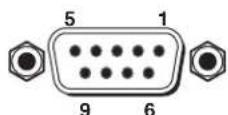
9-Pin D Connector
Pin Locations, Female
IPLT S2
Connectors

TX RX ✦ TX RX


Transmit Receive Ground Transmit Receive
IPL T S6
Connectors

TX RX ↓ TX RX TX RX ↓ TX RX


Transmit
Receive
Ground
Transmit
Receive
Transmit
Receive
Ground
Transmit
Receive
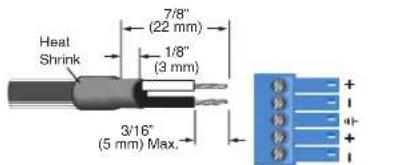
5-pole Captive Screw Connector
Figure 2-10 — 5-pin captive screw assignments
COM ports 1 and 2 of the IPL T S2 can be wired in a similar way as the IPL T S6, as shown in figure 2-10. Both can be wired using a 3.5 mm, 5-pole or 3-pole captive screw connector.
NOTE The IPL T S2 allows for use of either the 9-pin D connector on COM1 or COM2. The 9-pin D connector COM ports and the captive screw connector COM ports cannot be connected simultaneously.
Identification
⑩ UID # — The unique user ID number (MAC address) of the unit (for example, 00-05-A6-00-00-01).
Operation
Connect power cords and turn on the output display devices (projectors, monitors, VCRs), control devices (switchers, scalers, distribution amplifiers), interface, and input devices (PC, laptop, network equipment).
Check indicator LEDs on the PC/laptop, on the interface, on the network hub/router, and so on, to ensure that all the devices are plugged in and communicating. The IPL T S interface is now ready to be configured (see chapter 3, "Connection and Configuration").
If connection or communication problems occur, see "Troubleshooting" in chapter 4. If the troubleshooting tips do not help, check with your local network administrator, or call the Extron S 3 Sales & Technical Support Hotline.
Front panel indicators
The front panels of the IPL T S interfaces have several indicator LEDs that show the current status of communications to and from the unit. A reset button (②) is also available from the front panel, in a small recess next to the Power LED.

Figure 2-11 — IPL T S1 front panel

Figure 2-12 — IPL T S2 front panel
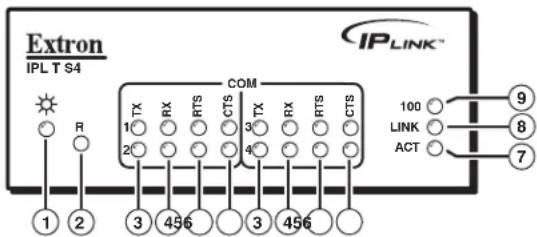
Figure 2-13 — IPL T S4 front panel

Figure 2-14 — IPL T S6 front panel
① Power LED — A green LED lights to indicate that the interface is receiving power.
② Reset button (recessed) — A multi-function reset button. See “Resetting the unit” later in this chapter for more information.
③ TX LEDs — A green LED indicates data is being transmitted from the corresponding serial port.
④ RX LEDs — A green LED indicates data is being received by the corresponding serial port.
⑤ RTS LEDs — A green LED indicates that the corresponding serial port is ready to send data.
⑥ CTS LEDs — A green LED indicates that the device controlled by the corresponding serial port is ready to accept data.
⑦ ACT (Activity) LED — A yellow LED indicates that data is being sent/received.
⑧ LINK LED — A green LED indicates that the unit is connected to an active network.
⑨ 100 LED — A green LED indicates that the connection speed is 100 Mbps. If the LED is not lit, the connection speed is 10 Mbps.
Resetting the unit
There are five reset modes available by pressing the Reset button (②) on the side panel. The Reset button is recessed, so use a pointed stylus, ballpoint pen, or Extron Tweeker to access it. See the following table for a summary of the modes.
CAUTION
Review the reset modes carefully. Using the wrong reset mode may result in unintended loss of flash memory programming, port reassignment, or a controller reboot.
CAUTION
The reset modes listed below (with the exception of Mode 2) close all open IP and Telnet connections and close all sockets.
NOTE If the Reset button is continuously held down, every three seconds the LED pulses (blinks) and puts the unit in a different mode. The Mode 5 LED blinks three times, the third blink indicating that it is the last mode. The following modes are separate functions, not a continuation from Mode 1 to Mode 5.
| Reset Mode Comparison/Summary | ||
| Mode Activation Result Purpose/Notes | ||
| 1 Hold down the recessed Reset button while applying power to the IPL T S unit.NOTE After a mode 1 reset is performed, update the unit's firmware to the latest version. Do not operate the until's firmware version that results from the mode 1 reset. If you want to use the factory default firmware, you must upload that version again. | The unit reverts to the factory default firmware. Event scripting will not start if the unit is powered on in this mode. All user files and settings (drivers, adjustments, IP settings, etc.) are maintained.NOTE If you do not want to update firmware, or you performed a mode 1 reset by mistake, cycle power to the unit to return to the firmware version that was running prior to the mode 1 reset. Use the OQ SIS command to confirm that the factory default firmware is no longer running (look for asterisks following the version number.) | Use mode 1 to revert to the factory default firmware version if incompatibility issues arise with user-loaded firmware. |
| 2 Press and release the Reset button. Within 2 seconds type +++ on the keyboard.NOTE If the three “+’s” (+++) are not enelered in the 2-second time frame, the COM port becomes a control port only. | The connected COM port becomes a console port to send SIS commands. Scripting remains on. | Mode 2 enables the SIS console port. |
| 3 Hold down the Reset button for about 3 sec. until the Reset LED blinks once, then press Reset momentarily (<1 sec.) within 1 second. | Mode 3 turns events on or off. During resetting, the Reset LED flashes 2 times if events are starting, 3 times if events are stopping. | Mode 3 is useful for troubleshooting. |
| 4 Hold down the Reset button for about 6 sec. until the Reset LED has blinked twice (once at 3 sec., again at 6 sec.). Then press Reset momentarily (for <1 sec.) within 1 second. | Mode 4Enables ARP capability.Sets the IP address back to factory default (192.168.254.254).Sets the subnet back to factory default.Sets the default gateway address back to the factory default.Sets port mapping back to factory default.Turns DHCP off.Turns events off.The Reset LED flashes 4 times in quick succession during the reset. | Mode 4 enables you to set IP address information using ARP and the MAC address. |
| 5 Hold down the Reset button for about 9 sec. until the Reset LED has blinked three times (once at 3 sec., again at 6 sec., again at 9 sec.). Then press Reset momentarily (for <1 sec.) within 1 second. | Mode 5 performs a complete reset to factory defaults (except the firmware).Does everything mode 4 does.Resets almost all the real time adjustments: all audio settings, limit initial power up volume, power up/down delay, auto power down, and misc. options. This does not affect an optional MLS switcher, however.Clears driver-port associations and port configurations (IR/RS-232).Removes button configurations.Resets all IP options.Removes scheduling settings.Removes/clears all files from switcher.The Reset LED flashes 4 times in quick succession during the reset. | Mode 5 is useful if you want to start over with configuration and uploading, and also to replace events. |
Chapter Three
Connection and Configuration
Connecting the Hardware
Setting the Internet Protocol (IP) Address
Configuration using Global Configurator
Configuration using Embedded Web Pages
Configuration using DataViewer
Connecting the Hardware
To connect the IPL T S interface, connect the input and output devices to the unit. Use figure 3-1, below, as a guide.
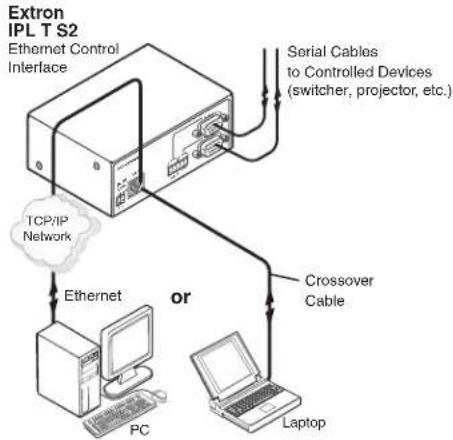
flowchart
graph TD
    A["Extron IPL T S2"] --> B["Ethernet Control Interface"]
    B --> C["TCP/IP Network"]
    B --> D["or"]
    D --> E["Laptop"]
    D --> F["Crossover Cable"]
    F --> G["Serial Cables to Controlled Devices (switcher, projector, etc.)"]
Figure 3-1 — IPL T S interface connections
Ethernet connection
Ethernet connection is used on an ongoing basis to connect the IPL T S unit to a LAN and to control the switching and display devices attached to the unit. To connect the unit to a LAN, do the following:
-
Plug one end of a CAT 5, straight-through Ethernet cable into the rear panel Ethernet connector on the IPL T S unit. See figure 2-9 in chapter 2 for RJ-45 connector wiring information.
-
Plug the other end of the Ethernet cable into a network switch or hub connected to an Ethernet LAN or to the Internet.
-
From your PC, launch a Web browser and type in the IP address previously set up on the IPL T S (if this hasn't been set up, see "Setting the Internet Protocol (IP) Address" later in this chapter). This displays the System Status Web page.
Serial connection
The IPL T S interface can be connected to any A/V device that has a serial control port.
- Connect one end of a serial cable to the rear panel COM port connector of the IPL T S unit. As an alternative, use a 3.5 mm, 5-pole captive screw connector where available.
NOTE This captive screw connector must be wired appropriately. See figure 2-10 for pin assignments, if necessary.

flowchart
graph TD
    A["Lighting Control"] -->|RS-232| B["Extron IPL T S4 Ethernet Control Interface"]
    C["Extron MediaLink™ or Other Controller"] -->|RS-232| B
    D["Projector"] -->|RS-232| B
    E["Remote User Control and Administrator Monitoring"] -->|Ethernet| B
    F["VCR"] -->|RS-232| B
    G["DVD Laptop"] -->|RS-232| B
    H["Extron MAV 62 Matrix Switcher"] -->|RS-232| B
    I["TCP/IP Network"] -->|RS-232| B
Figure 3-2 — Typical IPL T S interface operating configuration
- Connect the other end of the serial cable to the display or switching device to be controlled through the IPL T S.
Setting the Internet Protocol (IP) Address
The IPL T S Series units have a factory default IP address of 192.168.254.254. This IP address must be changed to an address that will operate on your local network.
There are three ways to change the IP address setting:
- Add Device > Auto Config IP option in Global Configurator
- IPL T S unit's embedded Web pages
- Address Resolution Protocol (ARP) command
Before you begin:
- Obtain a valid IP address for your IPL T S Series device from your A/V system's network administrator.
- Write down the unit's MAC address (a 12-digit number) found on a label on the rear panel of the unit (for example, 00-05-A6-01-0A-74).
- If the unit is not at it's factory default IP address (192.168.254.254), perform a Mode 4 reset:
a. Hold down the Reset button until the Power LED blinks twice (6 seconds), then release.
b. Press and release the Reset button again within 1 second.
The Power LED blinks quickly four times, confirming the Mode 4 reset, which returns the unit to its factory default IP address.

Figure 3-3 — IPL T S unit's front panel
① Power LED — A green LED lights to indicate that the interface is receiving power. Blinks four times to confirm a Mode 4 reset.
② Reset button — The Reset button is recessed. Use an Extron Tweeker or similar tool to activate.
Setting the IP address using Global Configurator
The preferred method for setting a unit's IP address is to use the Extron Global Configurator (GC) application.
If you have Global Configurator installed on a local PC, and have a GC project file open, proceed with the steps below. If you do not have Global Configurator installed, it is available as a free download from www.extron.com. The GC help file leads you through the process of creating a new GC project file, and provides an illustrated version of the procedure below.
The IPL T S unit must be:
• physically connected to the network
• at its factory default IP address
To set an IP address with a GC project file open:
- From the Edit menu, select Add Device.
The Add Device dialog box opens (see figure 3-4).
- Select the appropriate device type (for example, IPL T S4) in the IP Link® Device drop-down list.
- Enter the new IP address (for example, 10.14.195.40) in the Name/IP Address field.
- Enter a unique device name in the Display Name field.
- Click the Advanced >>> button.
The Advanced options of the Add Device dialog are displayed, and the "Advanced >>>" button name changes to "Basic <<".
- Enable the Auto Configure IP Address check box.
- Enter the unit's MAC address in the MAC Address field. The first six digits (00-05-0A) are pre-populated, and identify this unit as an Extron device. You only need to enter the final six digits. Dashes between digits are auto-filled.
- Click the Set button. The Auto Configure Successful dialog box opens.
- Click OK.
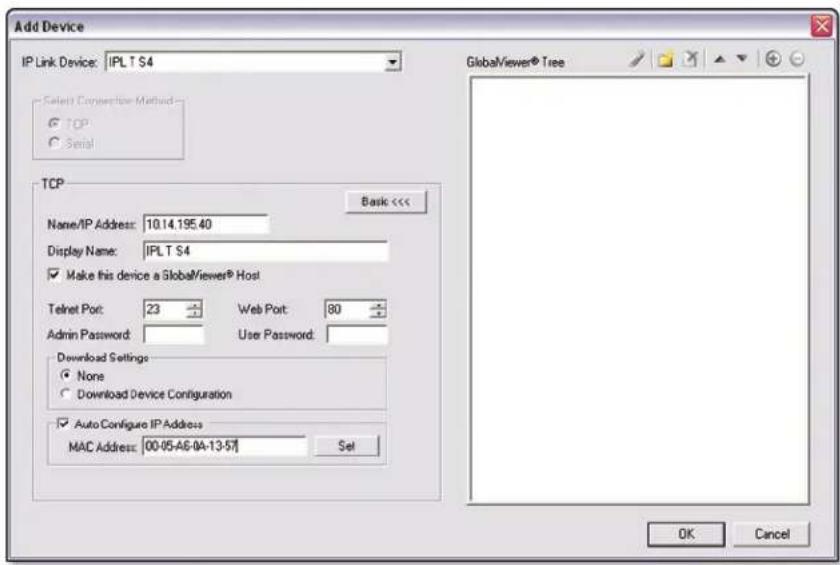
Figure 3-4 — Setting the IP address in Global Configurator
Setting the IP address using embedded Web pages
Each IPL T S unit contains an on-board Web server with interactive pages that can be used to configure the device.
The IPL T S unit must be at its factory default IP address.
To set an IP address via embedded Web pages:
- Connect an Ethernet crossover cable between the device and a local PC.
- On the PC, locate the TCP/IP Properties dialog box.
On Windows XP, the TCP/IP Properties dialog box is found at:
Start > My Network Places > right-click to Properties > Local Area Connection > right-click to Properties > Internet Protocol (TCP/IP) > Properties.
- Record the current IP address, subnet mask, default gateway and DHCP settings. You will need this information later to return the PC to its original TCP/IP settings.
IP Address:
Subnet Mask:
- Enter the following:
IP address: 192.168.254.253
Subnet mask: 255.255.0.0
Default gateway:
5. Click OK.
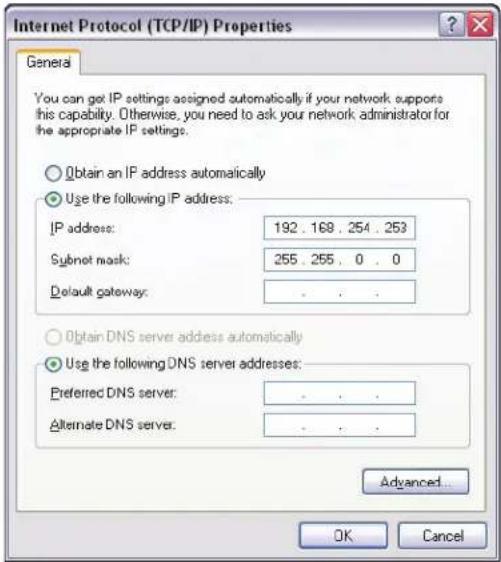
Figure 3-5 — Internet Protocol (TCP/IP) Properties dialog box
- Open a Web browser on the local PC.
-
Enter 192.168.254.254 in the browser's Address field and press the Enter key.
The IPL T S unit's embedded Web page is displayed. -
Click the Configuration tab.
-
Change the IP Address and Subnet Mask fields to the desired IP address and subnet mask.
-
Click the Submit button.
The new IP address and subnet mask are assigned to the device, and the Web browser connection is immediately lost.
The device, with its new IP address and subnet mask is now ready to be connected to your A/V network.

Figure 3-6 — Web server System Settings screen
To return the local PC to its original TCP/IP settings:
- Close the Web browser.
- Disconnect the Ethernet crossover cable from the PC and the device.
- Return to the TCP/IP Properties dialog box on the PC.
- Return the IP address, Subnet mask, Default gateway, and DHCP fields to their original settings.
- Reboot the PC.
Setting the IP address using the ARP command
An IPL T S unit's IP address can be set using the DOS Address Resolution Protocol (ARP) command.
The IPL T S unit must be:
• physically connected to the network
• at its factory default IP address
To set an IP address using the ARP command:
- Open a command prompt window on a local PC. On Windows XP, a command prompt window can be found at:
Start > All Programs > Accessories > Command Prompt
- At the command prompt type:
arp - s
example: C:>arp -s 10.13.197.64 00-05-A6-00-30-5F
The example command assigns IP address 10.13.197.64 to the device that has a MAC address of 00-05-A6-00-30-5F.
![Microsoft Windows XP [Version 5.1.2600] (C) Copyright 1985-2001 Microsoft Corp. C:\arp -s 10.13.197.64 00-05-06-00-30-5F](/content/2026/06/1189897/images/fc0cb0f5624fe788fbee3eace8b3cd820f2803e2865e1e98273d808379b3ca49.jpg)
Figure 3-7 — Executing the ARP command
- To confirm the new IP address is active, perform a ping command to the new IP address.
example: C:>ping 10.13.197.64
If the IP address setting was successful, the device replies 3 or more times:
Reply from
Configuration using Global Configurator
Global Configurator (GC) is a simple-to-use, yet comprehensive software application that allows non-programmers to configure a wide range of Extron IP Link-enabled products. GC provides an integrated environment for defining A/V control and monitoring system functionality from an easy-to-use graphical user interface. It's simple enough to be used for configuring a single room controller, yet powerful enough to facilitate building a Web-based asset management and remote monitoring system for hundreds of A/V devices in multiple locations.
Serial ports on the IPL T S Series devices can be configured using GC.
Global Configurator is available for free from www.extron.com.
To download Global Configurator:
-
Open and Internet browser and advance to www.extron.com.
-
Click the Download tab.
-
Click the Global Configurator icon.
-
Click the Download Now button.
-
Complete the Personal Information form.
-
Scroll down the page and review any related Technical Bulletins.
-
Click the Download GCSW3XX.exe button.
-
Follow the remaining system prompts.
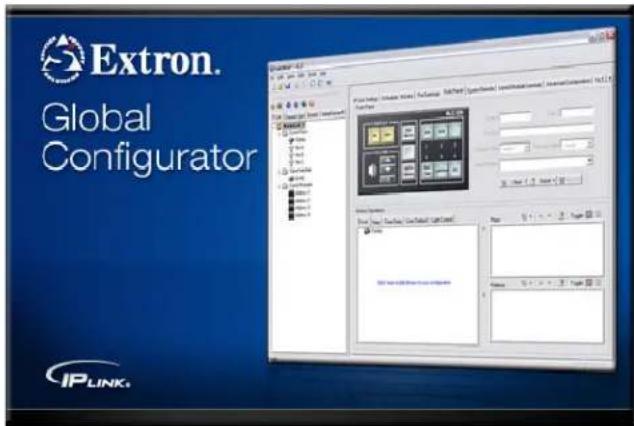
Figure 3-8 — Global Configurator
Once installed on your local PC, Global Configurator can be used to configure your IPL T S Series device and the A/V devices that are attached to the S Series' serial control ports.
See the Global Configurator help file for instructions on how to:
- Download device drivers
- Start Global Configurator
- Create a GC project file
- Add and configure IPL T S Series and A/V devices
Configuration using Embedded Web Pages
Each IPL T S unit contains an on-board Web server with interactive pages that can be used to configure the device. Web server pages are described in detail on the following pages.
Connecting via the Web server pages
To connect to an IPL T S Series device via its Web server pages:
-
Open a Web browser on a local PC.
-
Enter the device's IP address in the browser's Address field and press the Enter key. If the device is password-protected, you will be prompted for a password.

Figure 3-9 — Web server Password dialog box
-
Enter the appropriate administrator or user password.
-
Click OK.
The System Status page opens.
![IP Link Default Web Page - Microsoft Internet Explorer File Edit View Favorites Tools Help Back Search Favorites Address http://18.13.197.64/ Extron Electronics Status Configuration File Management System Status Below are your Unit's current system settings. To make changes, click on the 'Configuration' to System Description Model: IPL T S4 Description: Four BI-Directional Serial Ports [RS232/422/485] Part Number: 60-544-03 Firmware: 1.10 Date 2/05/2008 Time: 12:02 AM IP Settings Unit Name: IPL-T-S4-00-30-SF DHCP: Off IP Address: 10.13.197.54 Gateway IP Address: 0.0.0.0 Subnet Mask: 255.255.0.0 MAC Address: 00-05-A6-00-30-SF Serial Port Settings Port: 1 Port: 2 Port: 3 Port Type: RS-232 Port Type: RS-232 Port Type: RS-232 Baud Rate: 9600 Baud Rate: 9600 Baud Rate: 9600 Data Bits: 8 Data Bits: 8 Data Bits: 8 Parity: None Parity: None Parity: None Stop Bits: 1 Stop Bits: 1 Stop Bits: 1 Flow Control: None Flow Control: None Flow Control: None](/content/2026/06/1189897/images/53e81d4f048d6499c9d9ce540f72684e7af2b947c9574fbc0b4d4bc596949d52.jpg)
Figure 3-10 — Web server System Status screen
System Status page
The System Status page is a read-only page that provides the following status information:
- System Description — Model, Description, Part Number, Firmware, Date, and Time
- IP Settings — Unit Name, DHCP setting, IP Address, Gateway IP Address, Subnet Mask, and MAC Address
- Serial Port Settings — For each port: Port number, Port Type, Baud Rate, Data Bits, Parity, Stop Bits, and Flow Control
![Extron Electronics Status Configuration File Management Logged on: Admin Log Off System Status Below are your Unit's current system settings. To make changes, click on the 'Configuration' tab. System Description Model: IPL-T 04 Description: Four Bi-Directional Serial Ports [RS232/422/485] Part Number: 60-944-03 Firmware: 1.10 Date 2/01/2006 Time: 12:16 AM IP Settings Unit Name: IPL-T-54-00-30-SF DHCP: Off IP Address: 10.13.197.04 Gateway IP Address: 0.0.0.0 Subnet Mask: 255.255.0.0 MAC Address: 00-95-A4-00-30-SF Serial Port Settings Port: 1 Port: 2 Port: 3 Port: 4 Port Type: RS-232 Port Type: RS-232 Port Type: RS-232 Baud Rate: 9000 Baud Rate: 9000 Baud Rate: 9000 Data Bits: 8 Data Bits: 8 Data Bits: 8 Data Bits: 8 Parity: None Parity: None Parity: None Parity: None Stop Bits: 1 Stop Bits: 1 Stop Bits: 1 Stop Bits: 1 Flow Control: None Flow Control: None Flow Control: None Flow Control: None](/content/2026/06/1189897/images/4c476fa879427278343652692cca77c820caef3a44913c6b970c5871691f51d5.jpg)
Figure 3-11 — System Status screen
Configuration page
The Configuration page has five sub-pages, which are described below.
System Settings
The System Settings page grants access to view and change:
- IP Settings
- Date/Time Settings
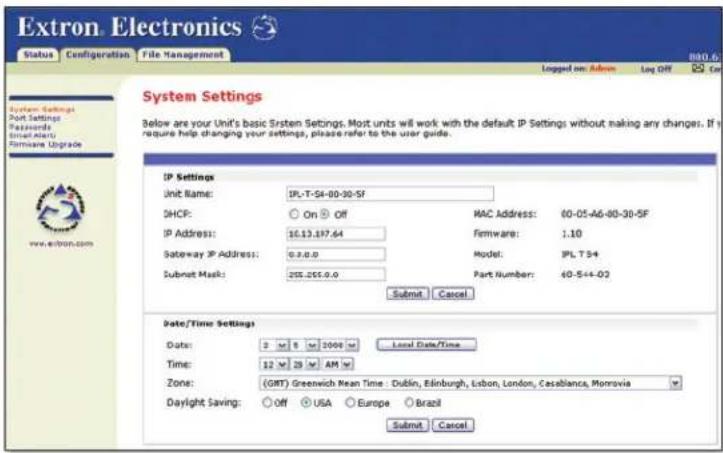
Figure 3-12 — System Settings screen
Port Settings
The Port Settings page grants access to view or change the Serial Port Settings:
- Serial port number — use a radio button to select the desired port
• Port type — RS-232 (default), RS-422, 4S-485 - Baud rate — 300, 600, 1200, 1800, 2400, 3600, 4800, 7200, 9600 (default), 14400, 19200, 28800, 38400, 57600, 115200
- Parity — 7, 8 (default)
- Stop bits — 1 (default), 2
- Flow control — None (default), Hardware, Software
- Serial Bridging — On, Off (default)
- Remote IP Address — view the remote IP address
- Remote TCP Port — view the remote TCP port
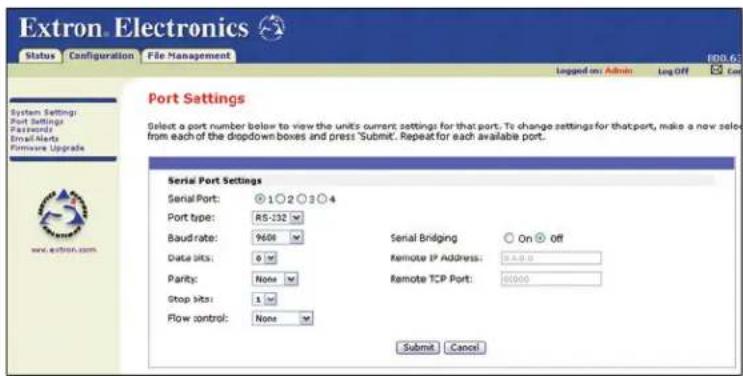
Figure 3-13 — Port Settings screen
Passwords
The Passwords page fields include:
- Administrator Password — provides complete configuration control
- User Password — allows view of configuration only
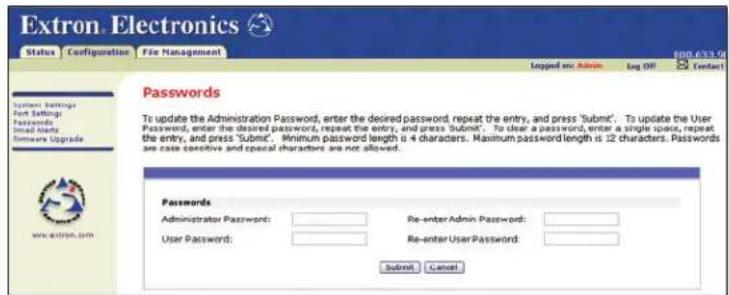
Figure 3-14 — Passwords screen
To clear a password, enter a single space, repeat the entry in the re-enter password field, then click the Submit button.
If no administrator password is present, the user password is not saved.
Email Alerts
Initial e-mail alerts must be created using Global Configurator software. The embedded Web pages only allow you to edit existing e-mail alert settings.
The Email Alerts page allows you to:
- Edit your network's mail server connection information
- Edit e-mail addresses of those you wish to receive e-mail alerts
- Select the desired e-mail delivery files
Fields include:
- Mail IP Address — the network's mail server IP address
- Domain Name — the network's mail server domain name
- SMTP Authentication Required — SMTP authentication is required to access the mail server
- User Name — user name to access the network's mail server
- Password — password to access the network's mail server
- Email Address — e-mail addresses of those to receive e-mail alerts
- File Name — file name of the desired e-mail message

Figure 3-15 — Email Alerts screen
Firmware Upgrade
The Firmware Upgrade page reports the current firmware level, and provides the capability to browse to and upload a new firmware file.
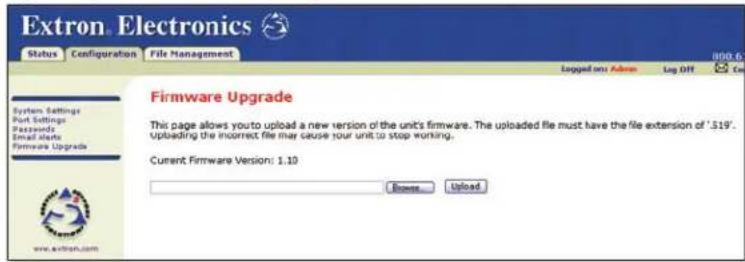
Figure 3-16 — Firmware Upgrade screen
File Management page
The File Management page allows you to create directories as well as upload, use, and delete custom Web pages.
Use the Add Dir, Browse, Upload Files and Delete buttons to upload and manage your custom Web pages.

Figure 3-17 — File Management screen
Configuration using DataViewer
DataViewer is an enhanced terminal emulation program that facilitates analysis of RS-232 and TCP/IP communication with Extron devices. The software allows users to send commands to a device and view the device's responses in ASCII or hexadecimal format. Command and response logs can be saved in text or HTML format.
The data display can be configured in several ways for improved analysis of data communication. Text colors and fonts are user-definable making it easy to differentiate between commands and responses. Four different screen view options are available for viewing commands and responses in the most effective configurations and formats.
With the DataViewer Control Toolbar and Shift Toolbar, you can customize up to 20 shortcut keys. Shortcut keys can be used to automate repetitive communications tasks. DataViewer is ideal for troubleshooting device protocols and determining device timing.
DataViewer is available free from www.extron.com.
To download DataViewer:
- Open an Internet browser and advance to www.extron.com.
- Click the Download tab.
- Click the Control Software icon.
- Scroll to the description of DataViewer.
- Click the Download link in the far right column.
- Complete the Personal Information form.
- Click the Download DVSW1x2x0x4.exe button.
- Follow the remaining system prompts.
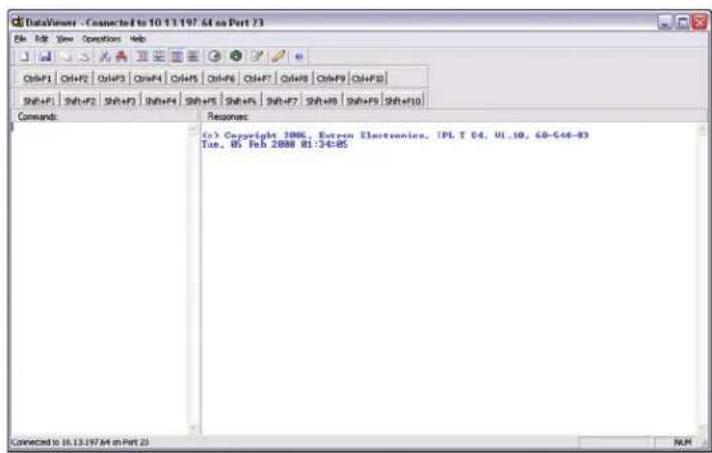
Figure 3-18 — DataViewer main window
To run DataViewer:
- Double-click the DataViewer icon that was placed on the PC desktop during the download procedure.
The Communications Setup dialog box opens.
- Click the TCP/IP tab.

-
Enter the device's IP address in the Hostname/IP Address field.
-
Click OK.

Figure 3-19 — Communication Setup dialog box
The DataViewer application opens (see figure 3-18).
See the DataViewer help file for information on sending commands to the IPL T S Series device, and viewing the responses in the DataViewer user interface.
Chapter Four
Communication and Control
Programmer's Guide for Telnet and Web Browsers
Customization
Advanced Serial Port Control
Troubleshooting
Programmer's Guide for Telnet and Web Browsers
Using the command/response table
The following are either Telnet (port 23) or Web browser (port 80) commands. There are some minor differences when you are implementing these commands via Telnet or via URL encoding using a Web browser. All commands listed below work using either connection method; but, due to some limitations of the Web browser, the encapsulation characters are modified to make sure that the Web browser properly handles them. All examples in the command/response table on page 4-6 show the proper implementation in a Telnet or Web browser session.
NOTE For Web browsers: all non-alphanumeric characters must be represented as their hex equivalent, for example, %xx where xx equals the two character representation of the hex byte that needs to be sent (for example, a comma would be represented as %2C).
Telnet Web Browser
Escape (Hex 1B) W [must not be encoded]
Carriage Return (Hex 0D) Pipe Character (1)
[must not be encoded]
When these commands are used through a Web browser, the URL reference is used below to shorten the examples. This would in practice be the full URL of the control interface and Web page reference including all path information. For example, http://192.168.100.10/myform.htm.
To send any of the commands using a Web browser, you need to prefix them with the full URL followed by ?cmd=. See "URL Encoding", later in this chapter.
NOTE With Telnet you can use either the "Escape" commands with the carriage return or the "W" commands with the pipe (1) character. With the Web browser you are required to use the "W" commands and the pipe character.
The "Command/response table for Simple Instruction Set (SIS TM ) commands" later in this chapter lists the commands that the IPL T S interface recognizes as valid, the responses that are returned to the host, a description of the command's function or the results of executing the command, and an example of each command in ASCII (Telnet) and URL Encoded (Web).
NOTE Upper- and lowercase text can be used interchangeably except where noted.
Symbol definitions are shown below. An ASCII to HEX conversion table is also provided in figure 4-11 (below).
| ASCII to HEX Conversion Table | Esc 1B | CR 0D | LF 0A | |||||||||||
| 20 | ! | 21 | " | 22 | # | 23 | $ | 24 | % | 25 | & | 26 | ' | |
| ( | 28 | ) | 29 | * | 2A | + | 2B | , | 2C | - | 2D | • | 2E | / |
| 0 | 30 | 1 | 31 | 2 | 32 | 3 | 33 | 4 | 34 | 5 | 35 | 6 | 36 | 7 |
| 8 | 38 | 9 | 39 | : | 3A | ; | 3B | < | 3C | = | 3D | > | 3E | ? |
| @ | 40 | A | 41 | B | 42 | C | 43 | D | 44 | E | 45 | F | 46 | G |
| H | 48 | I | 49 | J | 4A | K | 4B | L | 4C | M | 4D | N | 4E | O |
| P | 50 | Q | 51 | R | 52 | S | 53 | T | 54 | U | 55 | V | 56 | W |
| X | 58 | Y | 59 | Z | 5A | [ | 5B | \ | 5C] | 5D | ^ | 5E | _ | |
| . | 60 | a | 61 | b | 62 | c | 63 | d | 64 | e | 65 | f | 66 | g |
| h | 68 | i | 69 | j | 6A | k | 6B | | | 6C | m | 6D | n | 6E | o |
| p | 70 | q | 71 | r | 72 | s | 73 | t | 74 | u | 75 | v | 76 | w |
| x | 78 | y | 79 | z | 7A | { | 7B | | | 7C} | 7D | ~ | 7E | DEL | |
Figure 4-11—ASCII-to-HEX conversion table
Symbol definitions
← = CR/LF (carriage return/line feed)
← = Carriage return (no line feed)
- = Space character
X1 = Specific port number (01-99)
The port number is represented as two ASCII characters (2 bytes). For example, port 05 would be represented as 30 35 in hex.
X2 = Command data section
☒2 is the command string for sending data to an A/V product (for example, a switcher or projector) attached to an IPL T S unit. For remote processing examples, see "Customization" later in this chapter.
NOTE See "URL Encoding" for command restrictions.
X3 = Greenwich Mean Time (GMT) offset value (-12.0 to +14.0)
X5 = On/Off status: 0 = Off/Disable; 1 = On/Enable
X11=Unit version number
X12 = Name is a text string up to 24 characters drawn from the alphabet (A-Z), digits (0-9), minus sign/hyphen (-). No blank or space characters are permitted as part of a name. No distinction is made between upper and lower case. The first character must be an alpha character. The last character must not be a minus sign/hyphen.
13 = Set local date and time format (MM/DD/YY-HH:MM:SS) (for example, 02/01/06-10:54:00) Read local date and time format (day of week, date month year HH:MM:SS) (for example, Tues 14 Feb 2006 18:19:33)
14 = IP address (xxx.xxx.xxx.xxx). Leading zeros in each of four fields are optional in setting values, and are suppressed in returned values.
X15 = Domain name (for example, extron.com, icia.org)
X17 = Time in tens of milliseconds to wait for characters coming into a serial port before terminating (default = 1 = 10 ms, max. = 32767)
X18 = Hardware (MAC) address (xx-xx-xx-xx-xx-xx)
X19 = Subnet mask (xxx.xxx.xxx.xxx). Leading zeros in each of four fields are optional in setting values and are suppressed in returned values.
20 = Time in tens of milliseconds to wait between characters coming into a serial port before terminating (default = 2 = 20 ms ,max. = 32767
21 = Parameter to set either Length of message to receive or Delimiter value. If length delimited, use xxL, where xx is the length of the incoming message in bytes. If character delimited, use xxD, where xx is the decimal ASCII value of the delimiting character.
X22 = Verbose/response Mode: 0 = clear/none; 1 = verbose mode; 2 = tagged responses for queries; 3 = verbose mode and tagged responses for queries. (Default = 0 for Telnet connections, 1 for RS-232 host control).
NOTE If tagged responses is enabled, all read commands return the constant string + the data, as setting the value does. For example, Command: Esc CN ← Response: lpm • X12 ←
X23 = Priority status for receive timeout: 0 = priority set to Send Data String command parameters; 1 = priority set to Configure Receive Timeout command parameters.
25 = Baud rate: 300, 600, 1200, 1800, 2400, 3600, 4800, 7200, 9600, 14400, 19200, 28800, 38400, 57600, 115200
X26 = Parity: Odd, Even, None, Mark, Space (only the first letter is required)
X27 = Data bits: 7, 8
X28=Stop bits:1,2
X29 = Port type: 0 = RS-232; 1 = RS-422; 2 = RS-485
X30 = Flow control: Hardware, Software, None (only the first letter is needed)
X31 = Data pacing (specified in milliseconds between bytes): 0–1000 (default = 0 ms)
X33 = Password: allows a maximum length of 12 alpha numeric characters. Special characters are not allowed.
NOTE User password cannot be assigned if no administrator password exists and returns E14. If an admin password is cleared, then the user password is removed too.
X34 = Daylight saving time (DST) is a region-specific 1-hour offset that begins in spring and ends in fall. 0 = off/ignore; 1 = USA on - Starting in 2007, DST begins on the second Sunday of March at 2 AM and ends at 2 AM on the first Sunday of November. For example, time in California is GMT -8:00 from March to November and GMT -7:00 from November to March. However, DST should be turned off in Hawaii, American Samoa, Guam, Puerto Rico, the Virgin Islands, the eastern time zone portion of the state of Indiana, and the state of Arizona (excluding the Navajo Nation). 2 = Europe on - begins on the last Sunday in March, ends on the last Sunday in October. DST should be turned off for Iceland.
X35 = Event number: range = 0–99 (max.)
X36 = Event buffer: 0 = receive; 1 = user (absolute); 2 = user (relative); 3 = NVRAM
X37 = Memory location: range = 0-max. BufferSize
X38 = Event data size: b = bit; B = byte (8 bit); S = short (16 bit); L = long (32 bit)
NOTE This parameter is case sensitive.
x39 = Event data to write
[X41] = Reading password: responds as empty if no password is set, and 4 asterisks (****) if password exists.
X44 = Number of bytes to read: range = 1-127 (max.)
X45 = E-mail event number: range = 1–48 (max.)
x46 = E-mail recipient address
47= Name of e-mail file to be sent.
NOTE E-mail files must have the file extension .eml.
49 = Default name: a combination of the model-name and the last 3 pairs of the MAC address (e.g., IPL-T-S2-00-02-3D)
X50 = Redirect: 0 = no redirect; 1 - n = redirect serial port from the specified port to allow for a transparent pass-through mode
X52 = Connection's security level: 0 = not logged in; 1 = user; 2 = administrator
X53 = Timeout for data pass-through mode, after which event data can be inserted into the transmit buffer.
54 = ASCII digit(s) representing numeric value of data element read from event buffer. (Leading zeros are suppressed.)
X64 = Time in seconds to keep sending the broadcast message (0–255, default = 10)
X69 = The number of seconds before timeout on IP connections: (min. = 1; max. = 65000; default= 30 = 300 seconds). If no data is received during the timeout period, the Ethernet connection is closed. Each step = 10 seconds. When connected via RS-232, only the global timeout commands apply. Current returns E13. The response is returned with leading zeros.
NOTE X69 is applicable to Ethernet only.
X70 = Number (as optional parameter) inserted into an e-mail message if the .eml file has an embedded ESC CR command with no parameters.
X71 = Hardware (MAC) address: the four most significant hex nibbles converted into a single 16-bit decimal number.
72 = Hardware (MAC) address: the eight least significant hex nibbles converted into single 32-bit decimal number.
NOTE This could be as large as 10 digits.
Copyright information
© COPYRIGHT 2006, EXTRON ELECTRONICS IPL T Sx, Vx.xx
Mon, 17 Feb 2006 11:27:33
The copyright message is displayed upon connecting to the IP Link® product via TCP/IP or Telnet. Sx is the model and Vx.xx is the firmware version number. The current date and time is displayed. This is followed by a password prompt.
Password information
The “◀Password:” prompt requires a password (administrator level or user level) followed by a carriage return. The prompt is repeated if the correct password is not entered.
If the correct password is entered, the unit responds with “◀ Login Administrator ←” or “◀ Login User ←”, depending on the password entered. If the passwords are the same for both administrator and user, the unit defaults to administrator privileges.
Error responses
When the IPL T S interface receives a valid command, it executes the command and sends a response to the host device. If the unit is unable to execute the command because the command contains invalid parameters, it returns an error response to the host.
E12 — Invalid port number
E13 — Invalid parameter
E14 — Not valid for this configuration
E17 — System timed out
E22 — Busy
E24 — Privilege violation
E25 — Device not present
E26 — Maximum number of connections exceeded
E27 — Invalid event number
E28 — Bad filename/file not found
E31 — Attempt to break port pass-through when not set. (A user or software attempted to disable the port redirect feature when it wasn't already set or active.)
References to errors (at command descriptions on the following pages)
13 = Commands that give an E13 (invalid parameter) error
24 = Commands that give an E24 (privilege violation) error if not administrator level
27 = Commands that may give an E27 (invalid event number) error
28 = Commands that may give an E28 (file not found) error
| Command ASCII (Telnet)(host to unit) | URL Encoded (Web)(host to unit) | Response(unit to host) | Additional description | ||||||||||||||||||||||||||
| Bidirectional serial data port | |||||||||||||||||||||||||||||
| Send data string Esc X1*X17*X20*X21RS←X2 W X1%2A X17 %2A X20 %2A X21 response from command← | |||||||||||||||||||||||||||||
| NOTE *X17*X20*X21 is optional. X17 is optional only if X20 is also missing. If these three variables are not specified, the default values are used. For this command, X17 and X20 must both a) equal zero or b) be nonzero. | |||||||||||||||||||||||||||||
| NOTE For Web encoding for X2, convert nonalphanumeric characters to hex numbers. A space (hex = 20) is encoded as %20. A plus sign (hex = 2B) is encoded as %2B. Example: Esc05*4*7*3L RS←W05%2A4%2A7%2A3L RS|response from command← | |||||||||||||||||||||||||||||
| NOTE The data string (X2) in this RS command is limited to 200 bytes. | |||||||||||||||||||||||||||||
| ASCII to Decimal Conversion TableTo find the decimal equivalent of the ASCII character, add the row heading and column heading numbers together. | |||||||||||||||||||||||||||||
| 0 | 1 | 2 | 3 | 4 | 5 | 6 | 7 | 8 | 9 | ||||||||||||||||||||
| LF CR | |||||||||||||||||||||||||||||
| 20 | |||||||||||||||||||||||||||||
| 30 | |||||||||||||||||||||||||||||
| 40 | ( ) | * | + | , | - | . | / | 0 | 1 | ||||||||||||||||||||
| 50 | 2 | 3 | 4 | 5 | 6 | 7 | 8 | 9 | : | ; | |||||||||||||||||||
| 60 | < | = | > | ? | @ | A | B | C | D | E | |||||||||||||||||||
| 70 | F | G | H | I | J | K | L | M | N | O | |||||||||||||||||||
| 80 | P | Q | R | S | T | U | V | W | X | Y | |||||||||||||||||||
| 90 | Z | [ | \ ] | ^ | _ | ' | a | b | c | ||||||||||||||||||||
| 100 | d | e | f | g | h | i | j | k | l | m | |||||||||||||||||||
| 110 | n | o | p | q | r | s | t | u | v | w | |||||||||||||||||||
| 120 | x | y | z | { | l} | ~ | Del | ||||||||||||||||||||||
| Command ASCII (Telnet)(host to unit) | URL Encoded (Web)(host to unit) | Response(unit to host) | Additional description | |
| Configure parameters24 | Esc X1*X25, X26, X27, X28CP← | WX1%2A X25 %2C X26 %2C X27%2C X28 CP | | Cpn X1•Ccp X25, X26, X27X28← | Set baud rate (X25), parity (X26), data bits(X27), and stop bits (X28) for port X1X25= 300, 600, 1200, 1800, 2400, 3600, 4800,7200, 9600, 14400, 19200, 28800, 38400, 57600,or 115200 baud.X26= parity (only the first letter is needed):OddEvenNone (default)MarkSpace.X27= data bits: 7, 8 (default = 8).X28= stop bits: 1, 2 (default = 1). |
| Example: | Esc 4*9600,N,8,1CP← | W4%2A9600%2CN%2C8%2C1CP | | Cpn4•Ccp9600,N,8,1← | Set the projector control port for 9600 baud,no parity, 8 data bits, and 1 stop bit. |
| View parameters | Esc X1 CP← | WX1 CP | X25 | ,X26, X27, X29← | |
| Configure mode24 | Esc X1*X29 CY← | WX1%2A X29 CY | | Cpn X1• Cty X20← | |
| View mode | Esc X1 CY← | WX1 CY | X29← | ||
| Configure flow control | Esc X1*X30 X31 CF← | WX1%2A X30%2C X31 CF | | Cpn X1• Cfl X30, X31← | |
| View flow control | Esc X1 CF← | WX1 CF | X30 | ,X31← | |
| Configure receive timeout24 | Esc X1*X17*X20*X23*X21 CE← | WX1%2A X17%2A X20%2A X23%2A X21 CE | | Cpn X1• Cce X17, X20, X23,X21← | Set the time to wait (X17= waiting time in tens of ms until receipt of the first response character before terminating the receive operation, X20= waiting time in tens of ms between characters before terminating) and priority status(X23: 0 = default, use send data string command parameters; 1 = use configure receive timeout command parameters) for port X1, X21 = #L or #D (see previous page).The response includes leading zeros. |
| View receive timeout | Esc X1 CE← | WX1 CE | | X17, X20, X23, X21← | |
| Configure pass-thru mode24 | Esc X1*X50*X53*X21 CD← | WX1%2A X50%2A X53%2A X21CD | | Cpn X1• Ccd X50, X53, X21← | |
| Terminate pass-thru mode24 | Esc X1*0CD← | WX1%2A0CD | | Cpn X1• Ccd00000,00000,00000L← | |
| Command ASCII (Telnet)(host to unit) | URL Encoded (Web)(host to unit) | Response(unit to host) | Additional description | |
| View pass-thru mode2 | Esc X1CD← | WX1CD | X50 | X53 X21← | |
| Ethernet data port | ||||
| Set current connection port timeout | Esc 0*X69TC← | W0%2A X69TC | | Pti0* X69← | The current port timeout period applies to the currently open Telnet session only.When you start another Telnet session, it uses the default global port timeout period. X69 = timeout period in seconds. See the description above. This variable is applicable only when the IPL T S unit is connected via Ethernet. If the IPL T S device is connected via RS-232 protocol, only the global timeout commands apply, and any commands involving X69 return the E13 error response. |
| View current connection port timeout | Esc 0TC← | W0TC | X69← | ||
| Set global IP port timeout | Esc 1*X69TC← | W1%2A X69TC | | Pti1* X69← | The global port timeout is the default timeout period for all Telnet sessions. X69 = IP connection timeout period in seconds. Each step is specified in 10-second intervals (1 - 65000, default = 30 = 300 seconds). If no data is received during the specified period, the Ethernet connection closes. Responses are returned with leading zeros.This timeout period is applicable only when the IPL T S unit is connected via Ethernet, and you must be logged in as an administrator to change this setting. |
| View global IP port timeout | Esc 1TC← | W1TC | X69← | ||
| Command ASCII (Telnet)(host to unit) | URL Encoded (Web)(host to unit) | Response(unit to host) | Additional description | |
| Firmware version, part number and information requestsNOTE In a query response, an asterisk (*) after the version number indicates the version that is currently used.A question mark (? or ?.??) indicates that the factory default firmware is the only firmware loaded in the IPL T S unit.A carat (^) indicates the version of firmware that should be running, but, since a mode 1 reset was performed, the factory default firmware version is loaded and running instead.An exclamation point (!) indicates that the firmware is corrupted.NOTE Responses to commands differ depending on which, if any, verbose response mode the IPL T S device is in. See the CV command [Esc X22 CV←) under IP setup commands later in this table. | ||||
| Query firmware versionExample: | Q or 1Q Q or 1Q1Q 1Q 1.01 | X11←or Ver01 X11←or Ver01*1.01 | Show the IPL T S unit's firmware version [X11] to two decimal places. This query yields the number of the currently running version of the user-updatable firmware. | |
| Query verbose firmware version information | 0Q 0Q Sum of responses from 2Q-3Q- | 4Q←or Ver00*sum of responses from 2Q-3Q-4Q← | Show the bootstrap, factory-installed, and updated firmware versions.See 2Q, 3Q, and 4Q below. | |
| Example: | 0Q 0Q 1.03-1.00(1.18-IPL Series -Thu, 20 Jan 2005 09:41:47 GMT)-1.01*(1.31-IPL Series -Tue, 14 Jun 2005 00:54:58 GMT)← | |||
| Query bootstrap firmware versionExample: | 2Q 2Q | X11←or Ver02 X11←1.03← | The bootstrap firmware is not user-replaceable, but you may need this information during troubleshooting. | |
| Query factory firmware version | 3Q 3Q | X11(plus Web ver.-desc-UL date/time)←or Ver03 X11(plus Web ver.-desc-UL date/time)← | Factory-installed firmware is different from the bootstrap firmware, but it is also not user-replaceable. This firmware was installed at the factory; it is the version the controller reverts to after a mode 1 reset (see ch. 2). | |
| Example: | 3Q 3Q | 1.00(1.18-IPL Series -Thu, 20 Jan 2005 09:41:47 GMT)← | In this example the factory firmware version is 1.00 and the IP Link kernel version is 1.18 for the IPL T S unit, dated 20 January 2005. | |
| Query updated firmware version | 4Q 4Q | X11(plus Web ver.-desc-UL date/time)←or Ver04 X11(plus Web ver.-desc-UL date/time)← | Use this command to find out which version of the firmware, if any, was uploaded into the controller after it left the factory. | |
| Example: | 4Q 4Q | 1.01*(1.31-IPL Series -Mon, 28 Feb 2005 23:16:55 GMT)← | In this example the current firmware version is 1.01, the IP Link kernel version is 1.31, for the IPL T S device, dated 28 February, 2005. | |
| Query part number N N | 60-xxx-yy←or Pno60-xxx-yy← | Show the IPL T S unit's part #. | ||
| Query model name 1I 1I | IPL T xxxx←or Inf01*IPL T xxxx← | Show the IPL T S unit's model name. | ||
| Query model description | 2I 2I Four Bi-Directional Serial Ports | [RS232/422/485]←or Inf02*Four Bi-Directional Serial Ports← | IPL T S4 with four bi-directional serial ports. | |
| Query sys memory usage | 3I 3I # bytes used out of # of | kbytes←or Inf03*# bytes used out of # of kbytes← | Show amount of memory used and total available memory for system operations. | |
| Query user memory usage | 4I 4I # bytes used out of # of | kbytes←or Inf04*# bytes used out of # of kbytes← | Show amount of user memory used and total available user memory. | |
| Example: | 4I 4I 217856 Bytes Used out of 7232 KBytes | |||
| Configure e-mail events (mailbox) 24 | Esc|X45,X46,X47CR← | W|X45%2C|X46%2C|X47CR| | Ipr|X45|X46|X47←|X45 | = e-mail event number (1 - 64).X46= e-mail recipient's address (e.g., JDoc@extron.com) for the person to whom messages will be sent. This address is limited to 31 characters.X47= name of e-mail file to be sent (1.eml, 2.eml, ... 64.eml)(first line of the file = the subject, the rest = the body of the e-mail). |
| Example: | Esc|5, jdoe@extron.com, 7.eml CR← | |||
| W5%2Cjdoe%40extron%2Ecom%2C 7%2E eml CR| | Ipr 5, jdoe@extron.com, 7.eml← | For e-mail event 5, send file 7.eml to jdoe@extron.com. | ||
| View e-mail events (mailbox) | Esc|X45CR← | W|X45CR|X46 | ,X47← | |
| Send e-mail (file named in mailbox) 24 | Esc|X45SM← | W|X45SM| | Em|X45←|X45 | = e-mail event number (1 - 64). |
| Send e-mail (using different file) 24 | Esc X45, X70 X47 SM← | W X45 %2C X70 %2C X47 SM | | Eml X45 ← X70 | = The number to insert into an e-mail message if a __. eml file has an embedded server-side include "<!--#echo var = "WCR |" ->"(the Esc← command with no parameters.) The numeral is a 16-bit number to be employed as the user defines. This is an optional parameter. Use 0 as a placeholder if the optional X47 variable is used but X70 is not needed.X47 = xxx, where xxx = a number 1 to 999 corresponding to the e-mail's filename (xxx. eml). If xxx = 0 or no parameter is given, the IPL. TS unit sends the file that was set via the CR command. |
| NOTE If file X47 eml is not found when the SM command is executed, the MLC sends a default e-mail message. | ||||
| Set e-mail server IP address and user domain name 24 | Esc X14 X15 X73 X74 CM← | W X14 %2C X15 %2C X73 %2C X74 %2CCM | | Ipm•X14 X15 X73 X74 ← | X14 = IP address (xxx.xxx.xxx.xxx). Leading zeros are optional in setting values. Leading zeros are suppressed in returned values.X15 = E-mail domain name, e.g., extron.com X73 = An e-mail account username (for SMTP authentication) of up to 31 characters. Do not use commas. This parameter is optional during setup.X74 = An e-mail account password (for SMTP authentication) of up to 31 characters. Do not use commas. This parameter is optional during setup. In a response, instead of the actual password, X74 is displayed as 4 asterisks (****) if a password has been set up or as nothing ( ) if it has not. |
| Mail server setup | ||||
| Set mail server IP, unit domain name 24 | Esc X17 X15 CM← | W X14 %2C X15 CM | | Ipm•X14 X15 ← | |
| View mail server IP, unit domain name | Esc CM← | WCM | X14 | X15 ← | |
| Web browser-specific | ||||
| Read response from last URL command | EscUB← | WUB| | response from command← | |
| IP setup commands | ||||
| Set unit name24 | EscX12CN← | WX12CN| | Ipn•X12← | |
| Set unit name to factory default24 | Esc•CN← | W%20CN| | Ipn•X49← | |
| View unit name | EscCN← | WCN|X12← | ||
| Set date/time24 | EscX13CT← | WX13CT| | Ipt•X13← | |
| View date/time | EscCT← | WCT|X13← | ||
| Set GMT offset | EscX3CZ← | WX3CZ| | IpzX3← | |
| View GMT offset | EscCZ← | WCZ|X3← | ||
| Set daylight savings time24 | EscX34CX← | WX34CX| | IpxX34← | |
| View daylight savings time | EscCX← | WCX|X34← | ||
| Set DHCP on24 | Esc1DH← | W1DH| | Idh1← | |
| Set DHCP off24 | Esc0DH← | W0DH| | Idh0← | |
| NOTE Changing DHCP from on to off also resets the IP address to the factory default (192.168.254.254). | ||||
| View DHCP mode | EscDH← | WDH| | X5← | X5=0 (off) or 1 (on). |
| Set IP address24 | EscX14CI← | WX14CI|Ipi• | X14←X14 | =IP address (xxx.xxx.xxx.xxx). Leading zeros in each of the four fields are optional in setting values. |
| View IP address | EscCI← | WCI|X14 | ← | Leading zeros in each of the four fields are suppressed in returned values. |
| View hardware address (MAC) | EscCH← | WCH|X18 | ←or Iph•X18← | X18=hardware (MAC) address (xx-xx-xx-xx-xx-xx). |
| Set subnet mask24 | EscX19CS← | WX19CS| | Ips•X19←X19 | =subnet mask (xxx.xxx.xxx.xxx).Syntax is the same as for IP addresses.Leading zeros are optional in setting values. |
| View subnet mask | EscCS← | WCS|X19← | Leading zeros are suppressed. | |
| Set gateway IP address24 | EscX14CG← | WX14CG| | Ipg•X14←X14 | =IP address (xxx.xxx.xxx.xxx).Leading zeros are optional. |
| View gateway IP address | EscCG← | WCG| | X14← | |
| Set verbose mode24 | EscX22CV← | WX22CV | | VrbX22← | Enable or disable the verbose mode via this command. ForX22:0 = clear/none, default for Telnet connections; responses are not echoed to the host1 = verbose mode is on, default for RS-232 host control; responses are echoed to the host and displayed to the user2 = send tagged responses for queries3 = verbose mode is on and tagged responses are sent for queries. |
| NOTE | If tagged responses are enabled, all read commands return the constant string + data, the same as for setting a value.For example, for EscCN←, the response is Ipn•X12← rather than just the data. | |||
| NOTE | Verbose mode is a communication mode in which the device responds with more information than it usually would—more than the device, itself, requires. For example, the controller can send out unsolicited information (such as notice of a volume or input change or a change in some other setting). That is an example of a verbose (wordy) relationship between the controller and a connected device. Verbose mode creates more network traffic than usual, which can slow down network performance.Verbose mode is usually enabled for troubleshooting and disabled for daily use.For a direct RS-232 connection, the controller is set for verbose mode by default.When the IPL T S device is connected via Ethernet, verbose mode is disabled (by default) in order to reduce the amount of communication traffic on the network.If you want to use the verbose mode with a controller connected via Ethernet, this mode must be set to “on” each time you reconnect to the controller. | |||
| View verbose mode | EscCV← | WCV | X22 | ← | |
| Set broadcast mode | EscX64X14EB← | WX64%2C|X14EB | | BmdX64X14← | This command details how often and to what subnet work the IPL T S unit broadcasts a message.X64= Broadcast repetition interval in seconds (0 to 255 [4.25 minutes], default = 0 = off).X14= IP address (xxx.xxx.xxx.xxx). Leading zeros in each of four fields are optional in setting values, and they are suppressed in returned values.Default broadcast address: 255.255.255.255. |
| Set broadcast mode to the default address | EscX64EB← | WX64EB | | BmdX64,255.255.255.255← | |
| Clear broadcast mode24 | EscOEB← | WOEB | | Bmd000,255.255.255.255← | This command sets the repeat interval to zero, turning off the broadcast mode. |
| View broadcast mode | EscEB← | WEB | X64 | X14← | |
| Set broadcast port and MAC | Esc{port#}*X71X72PB← | W{port}*X71X72PB | | Bpt{port#}*X18← | |
| View broadcast port and MACNOTE{port#} = UIDP outgoing port, X71*X72= MAC address for UIDP unicast transmissions.NOTEChanges to the PB command become effective in kernel versions 1.53 or higher. | WPB| | {port}*X18← | ||
| Password and security settings | ||||
| Set administrator password24 | EscX33CA← | WX33CA| | Ipa•X41← | Set the administrator access password(X33), 4 to 12 alphanumeric characters).The password is case sensitive. Special characters (spaces, symbols) are not allowed. X41= Password to display on screen (response to password query).When the IPL T S unit connects to a host device via RS-232, the password (X33), itself, is the response. When the connection is via IP, X41is 4 asterisks (****) if a password has been assigned, or it is an empty field ( ) if a password hasn't been assigned. |
| Clear administrator password24NOTEA user password cannot be assigned if an administrator password does not exist. Also, if the administrator password is cleared, the user password is also cleared. | W%20CA← | Ipa•← | Clear/remove all passwords (administrator and user). | |
| View administrator password | EscCA← | WCA|X41← | ||
| Set user password14,24 | EscX33CU← | WX33CU| | Ipu•X41← | Set the user password (X33is 4 to 12 alphanumeric characters). The password is case sensitive. Special characters (spaces, symbols) are not allowed. X41= Password to display on screen. |
| NOTEA user password cannot be assigned if an administrator password does not exist. Also, if the administrator password is cleared, the user password is also cleared. | ||||
| Clear user password24 | Esc•CU← | W%20CU| | Ipu•← | This clears the user password only. |
| View user password | EscCU← | WCU|X41← | ||
| Query session's security level | EscCK← | WCK|X52 | ←or PvlX52← | For X5211 = user12 = administrator |
| Command ASCII (Telnet)(host to unit) | URL Encoded (Web)(host to unit) | Response(unit to host) | Additional description | |
| Remap port designationsFor security reasons the network administrator may wish to assign new/different port numbers to the controller's Telnet, Web browser, and direct access ports or to disable one or more ports. Typically Telnet uses port 23, Web access is via port 80 (HTTP), and direct access is via port 2001.CAUTIONDo not set two or more ports to the same port number. Setting two ports to the same number could cause networking conflicts and will also result in an E13 (invalid parameter) error.NOTEIf you remap a port, you must set the port number to 1024 or higher, unless you reset the port to the default number or disable the port by setting it to 0. | ||||
| Set Telnet port map24 | Esc{port#}MT← | W{port#}MT | | Pmt{port#}← | Select a number for the port that will not conflict with any other ports. |
| Reset Telnet port map24 | Esc23MT← | W23MT | | Pmt00023← | This resets the Telnet port to port 23. |
| Disable Telnet port24 | Esc0MT← | W0MT | | Pmt00000← | Setting the port number to 0 disables the port. |
| View Telnet port map | EscMT← | WMT | | {port#}← | |
| Set Web port map24 | Esc{port#}MH← | W{port#}MH | | Pmh{port#}← | |
| Reset Web port map24 | Esc80MH← | W80MH | | Pmh00080← | This resets the Web port to port 80. |
| Disable Web port24 | Esc0MH← | W0MH | | Pmh00000← | |
| View Web port map24 | EscMH← | WMH | | {port#}← | |
| Set Direct Access port map24 | Esc{port#}MD← | W{port#}MD | | Pmd{port#}← | |
| Reset Direct Access port map24 | Esc2001MD← | W2001MD | | Pmd02001← | This resets the direct access port to port 2001. |
| Disable Direct Access port24 | Esc0MD← | W0MD | | Pmd00000← | |
| View Direct Access port map | EscMD← | WMD | | {port#}← | |
| NOTEDuplicate port# assignments are not permitted (for example, Telnet and Web cannot be the same) and result in an E13 (invalid parameter) response. | ||||
| Command ASCII (Telnet)(host to unit) | URL Encoded (Web)(host to unit) | Response(unit to host) | Additional description | |
| Directories | ||||
| Change/create a directory | Escpath/directory/CJ← | Wpath/directory/CJ| | Dir•path/directory/← | The directory's name must be composed of alphanumeric characters and may include the minus sign (hyphen, -) and the colon (:). The first character must be a letter. Case does not matter. No blank or space characters are permitted in the name.Include thefull path, not just the name of the directory. Nonalphanumeric characters in the path (for example, /) must be encoded to hex. characters for use with a Web browser. |
| NOTE A directory does not fully exist until a file has been copied into that path. Also, the IPL T S unit operates differently from PC operating systems: files stored in and directories created in the IPL T S device may have the same names. | ||||
| Example: | Escmajordirectory/subdirectory/next-level/CJ← | Wmajordirectory %2F subdirectory %2F next-level %2F CJ| | ||
| Dir•majordirectory/subdirectory/next-level/← | In this case, the path is majordirectory/subdirectory/. The directory that was just created or changed to is called next-level. | |||
| Example: | Esccustompages/HTMLfiles/CJ← | Wcustompages%2F HTML files%2FCJ| | This example just created a subdirectory for storing the user's custom-made HTML files. The directory that was just created is called HTMLfiles. | |
| Dir•custompagesHTMLfiles/← | ||||
| Example: | Escoak/CJ← | Woak%2FCJ| | Dir• oak← | |
| Back to root directory | Esc/CJ← | W%2FCJ| | Dir• /← | |
| Up one directory | Esc.CJ← | W52E%2ECJ| | Dir• path/directory/← | |
| View current directory | EscCJ WCJ | | | path/directory/← | |
| NOTE The current directory is determined on a per-connection basis. At the beginning of each IP connection/session, the current directory is selected as the root directory. | ||||
| Erase user-supplied Web page/file24 28 | EscfilenameEF← | WfilenameEF| | Del• filename← | |
| Erase current directory and its files24 28 | Esc/EF← | W/EF| | Ddl← | |
| Erase current directory and subdirectories24,28 | Esc/ /EF← | W/ /EF | | Ddl← | |
| List files from current directory | EscDF← | WDF | | ||
| Get connection listing | EscCC← | WCC | | [number of connections]←or Icc [total number of client connections]← | |
| Example: | EscCC← | WCC | | 002← | The example shows two client connections. |
| Stream files via Telnet or RS-232NOTE File streaming commands should be used by advanced programmers only.Load file to user flash memory24,28 | Esc+UF filesize, filename← | {raw, unprocessed data in a file of up to filesize} | Upl← | |
| NOTE If the IPL T S unit has insufficient memory available to store the sent file, it responds with Fld←(failed) instead of with Upl←.NOTE Firmware can be updated by using this command to upload an ___.s19 file to the IPL T S device. If the IPL T S unit determines that the file is not intended for its model, the Upl←response is followed by a Fwm←(firmware mismatch) response. | ||||
| Retrieve file from user flash memory28 | EscfilenameSF← | 1B filename 53 46 0D {responds with 4 bytes of file size,+ raw unprocessed data in file} | ||
| Load files to user flash memory | Use a POST command on port 80 by the delimited data to be written to the flash file memory. | |||
| Retrieve file from user flash memory | Send a page GET on port 80 followed by: WSF | | {responds with raw unprocessed data in file} | ||
| Example: | http://192.168.254.254/mypage.html?cmd=WSF | | {data from the file mypage.html.} | ||
| Reset (zap)/erase commands | ||||
| Erase all files from flash memory21 | EscZFFF← | W ZFFF | pr← | Zpf← | |
| Reset all device settings to factory defaults24 | EscZXXX← | W ZXXX | | Zpx← | The “reset all settings” command does not affect IP settings or flash memory. |
| NOTE This is a product-dependent reset: flex I/O defaults back to TTL input, contact closure defaults to open, relays are reset to open, current sensing thresholds are reset to default, receive time-outs are reset back to defaults, port redirects are terminated. Consult product-specific documentation for settings affected and default values. Excludes IP settings such as IP address, subnet mask, gateway IP address, and IP security-level table, and does not remove the file system. | ||||
| Absolute system reset, but retain IP24 | EscZY← | W ZY | | Zpy← | |
| NOTE This command is intermediate between the ZXXX and ZQQQ commands. It is an absolute system reset excluding IP settings (IP address, subnet mask, gateway IP address, unit name, DHCP settings, port mapping). This allows you to maintain communication with the device. This reset is recommended after a firmware update. It erases the file system. | ||||
| Command ASCII (Telnet)(host to unit) | URL Encoded (Web)(host to unit) | Response(unit to host) | Additional description | |
| Absolute system reset 21 | Esc ZQQQ← | W ZQQQ | | Zpq← | This resets all device settings/memories to factory default; however, the firmware version remains the same. This includes all settings, adjustments, PINs, the IP address, and subnet mask. Files in flash memory are also erased by this command.The IP address is reset to 192.168.254.254, the subnet mask is reset to 255.255.0.0.This command is identical to reset mode 5, discussed in “Resetting the Unit” in chapter 2. |
| NOTE Unlike various PC operating systems, a file and directory on the Extron product are allowed to have the same name. | ||||
Customization
In the IPL T S interface series of products, varying degrees of customization are possible. Custom Web pages allow you to create customized Web pages to control your A/V devices. Server Side Includes (SSI) makes it possible to obtain information from the unit and to display it on Web pages. URL encoding allows you to send information and commands to the unit to change its configuration or to receive feedback.
Custom Web pages
These pages can be either modified versions of the existing default Web pages on the Web server, or new Web pages developed in the field.
Web page development can be done with a Web site development tool such as FrontPage ® or Dreamweaver ® . Custom Web pages can be loaded through the Web server File Management page.
Server Side Includes (SSI)
SSIs are HTML commands that direct the Web server to dynamically generate data for a Web page whenever requested. SSIs typically use the Extron Simple Instruction Set (SIS) to communicate commands to the products or to attached control devices. Using SSIs, you can design and display custom pages with the IPL T S information provided by the SIS commands.
The basic format for an Extron SSI command is:
<!—#echo var="x">
Where x is the SIS command to be executed.
The SIS instructions sent to IP Link-enabled products fall into two categories: host or remote.
- Host commands instruct the IP Link product to act or respond.
- Remote commands instruct an A/V product (for example, a switcher or projector) to act or respond through an IPL T S unit.
When a Web page is requested, the Web server removes the SSI and replaces it with the answer to the SIS command within quotes.
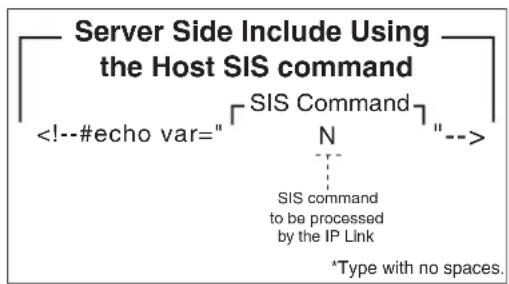
Figure 4-1 — Example of an SSI host command
In this example the "N" command is used to request the IPL T S product's part number.

flowchart
graph TD
A["Server Side Include Using a Remote SIS command"] --> B["<!--#echo var=""]
B --> C["1 * 50"]
C --> D["Delimiter Port Number"]
C --> E["Time to wait for 1st character of response"]
C --> F["3 L between characters in response"]
C --> G["RS Length or Delimiter parameter"]
C --> H["Delimiter Data to be passed to external device via a serial port"]
C --> I["Hello Data to be passed to external device via a serial port"]
J["SIS Command"] --> K["Delimiter"]
K --> L["3L"]
L --> M["Length or Delimiter parameter"]
L --> N["RS"]
N --> O["Delimiter Data to be passed to external device via a serial port"]
P["Type with no spaces."] --> Q["-->W"]
Figure 4-2 — Example of an SSI "remote" command
In the example above, a “remote” serial command sends the word “Hello” and waits up to 50 ms for a response (until three characters are received). For more information on this command, see the “Command/response table for Simple Instruction Set (SIS) commands”, earlier in this chapter.
Query string
A query string is the portion of a URL that appears after the question mark. The query string contains parameters or instructions for the Web server to execute.
The basic format for a query string within a link is:
Where x is the SIS command to be executed.
When a link is accessed on a Web page, the URL is passed to the Web server to tell it which Web page to return to the browser. The portion of the URL after the question mark is the query string, which contains the SIS command that the IPL T S interface removes and executes.
As with SSI formatted commands, query strings can use any valid SIS command — either "host" or "remote".
The query string in the figure below turns off DHCP on the IP Link device.

Figure 4-3 — Example of a host query string command
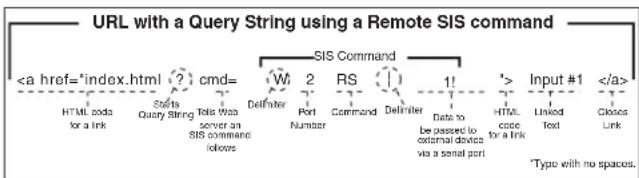
flowchart
graph LR
A["URL with a Query String using a Remote SIS command"] --> B["<a href="index.html ? cmd="]
B --> C["HTML code for a link"]
B --> D["Statee Query String Tells was server an SIS command follows"]
D --> E["W 2 RS 1!"]
E --> F["Port Number"]
E --> G["Command"]
E --> H["Defnliter"]
H --> I["Date to be passed to external devices via a serial port"]
I --> J["HTML code for a link"]
J --> K["Linked Text"]
J --> L["Crosses Link"]
J --> M["Input #1 </a>"]
N["Type with no spaces."] --> M
Figure 4-4 — Example of a remote query string command
In the figure above, the data string that follows the pipe (1) symbol is sent to the attached controlled device on serial port #2. This string instructs an attached Extron switcher to change to input #1.
Code examples
This section shows practical uses for both SSIs and query strings.
Example 1
In the figure below, both host SSI and remote SSI commands are used within the same Web page. You will notice six SSIs: three host commands and three remote commands.

Figure 4-5 — Web page HTML source code document showing Server Side Includes
The host SSI commands in the figure above request the product name, product description, and product part number of an IPL T S interface. The remote SSI commands request the part number, connection information and firmware version of an attached serial device.
![Example 1 HTML Example #1 The following lines demonstrate how to read status from the IPLink Product: IPLink Product Name: IPL T S2 IPLink Product Description: Two Bi-Directional Serial Ports [RS232/422/485] IPLink Product Part Number: 60-544-81 This example requires an Extron Crosspoint 84HVA connected to IPL T S2 serial port #1. Part Number: N60-337-01%0D%0A Connection Info: V08X04 A08X04 Exe0%0D%0A Firmware Version: Ver2.02%0D%0A](/content/2026/06/1189897/images/561769e3947226811e4c4f1aff3a5bc424f613226b226ac9759d828325573998.jpg)
Figure 4-6a — Resulting HTML source code served by an IP Link Web server
In figure 4-6a, the commands executed by the IPL T S2 in response to SSI references have been replied to, and were implemented when the Web page was served to the browser.
![HTML Example #1 The following lines demonstrate how to read status from the IPLink Product IPLink Product Name: IPL T S2 IPLink Product Description: Two Bi-Directional Serial Parts [RS232/422/485] IPLink Product Part Number: 60-544-81 This example requires an Extron Crosspoint 84HVA connected to IPL T S2 serial port #1. Part Number: N60-337-01*0D*0A Connection Info: V08X04 A08X04 Exe0*0D*0A Firmware Version: Ver2.02*0D*0A](/content/2026/06/1189897/images/94caea108005d4bc2a108c7b49eccfec0f8c7db60ce2b8397d4881d88093b6c9.jpg)
Figure 4-6b — Browser view of previous HTML source code
Example 2
The example below shows how a simple hyperlink and a remote query string can be used to build a Web page that can control a device.
<html>
<head><title>Example 2</title></head>
<h2><b>HTML Example 2</b></h2>
<body>
The following lines demonstrate how to send commands to RS-232 Comm Port #1 of an IPLink Product:
<p>
<a href="Index.html?cmd=W01RS|1!">Select Input #1</a>
<br>
<a href="index.html?cmd=W01RS|2!">Select Input #2</a>
</p>
</body>
</html>
Figure 4-7a — HTML source code showing multiple hyperlinks using query strings
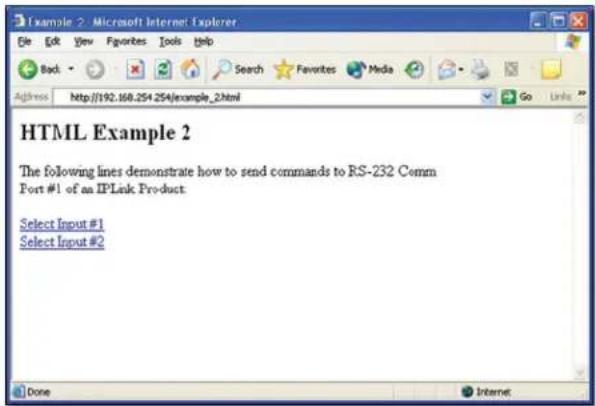
Figure 4-7b — Browser view of previous HTML source code
NOTE Before attempting to develop new Web pages, the user should have a working knowledge of JavaScript, HTML, and SSI.
URL encoding
URL encoding is the method of using ASCII hexadecimal characters to display specific characters in a URL. URL encoding is used for several reasons. On some operating systems, certain characters are unsafe or not available, and others are reserved by the HTML or URL specification. URL encoding is used to ensure compatibility and functionality with most Internet browsers. As a general rule, use the URL hexadecimal encoding method shown on the following page when these characters appear in your URLs.
The following types of characters do not require encoding in a URL.
| Alphanumerics | 0-9 a-z A-Z |
| Special characters | $___.+!*( ), |
| Reserved characters | ;/?:@=&When used for their reserved purposes, these characters do not require encoding within a URL. |
Reserved characters
Reserved characters should not be encoded when they appear in their conventional meaning in a URL. For example, do not encode the slash (/) when using it as part of the URL syntax. Only encode unsafe characters (defined below) in your URLs.
The following table lists reserved characters.
| Characters | Hex Dec | ||
| $ | Dollar | 24 | 36 |
| & | Ampersand | 26 | 38 |
| + | Plus | 2B | 43 |
| , | Comma | 2C | 44 |
| / | Forward slash / virgule | 2F | 47 |
| : | Colon | 3A | 58 |
| ; | Semi-colon | 3B | 59 |
| = | Equal | 3D | 61 |
| ? | Question mark | 3F | 63 |
| @ | “At” symbol | 40 | 64 |
Unsafe characters
URLs use some characters for “special use” in defining their syntax and should be encoded. For various reasons, these characters present the possibility of being misunderstood within a URL, and are therefore considered “unsafe”.
The table below lists unsafe characters.
| Characters | Hex | Dec | |
| Space | 20 | 32 | |
| " " | Quotation marks | 22 | 34 |
| < | "Less than" symbol | 3C | 60 |
| > | "Greater than" symbol | 3E | 62 |
| # | Pound | 23 | 35 |
| % | Percent | 25 | 37 |
| Miscellaneous characters | |||
| { | Left curly brace | 7B | 123 |
| } | Right curly brace | 7D | 125 |
| | | Vertical bar / pipe | 7C | 124 |
| \ | Backslash | 5C | 92 |
| ^ | Caret | 5E | 94 |
| ~ | Tilde | 7E | 126 |
| [ | Left square bracket | 5B | 91 |
| ] | Right square bracket | 5D | 93 |
| ` | Grave accent | 60 | 96 |
Advanced Serial Port Control
If serial setup configurations are required, the following options provide advanced methods for communicating serially with the interface: serial pass-through (or redirect mode), direct port access, and serial bridging.
Serial pass-through (redirect mode)
Serial pass-through allows serial commands from a controller to "pass through" an IPL T S interface on route to an A/V device, as shown in the following figure.
Any serial port on an IPL T S interface can be configured as a pass-through connection to another serial port on the same device.
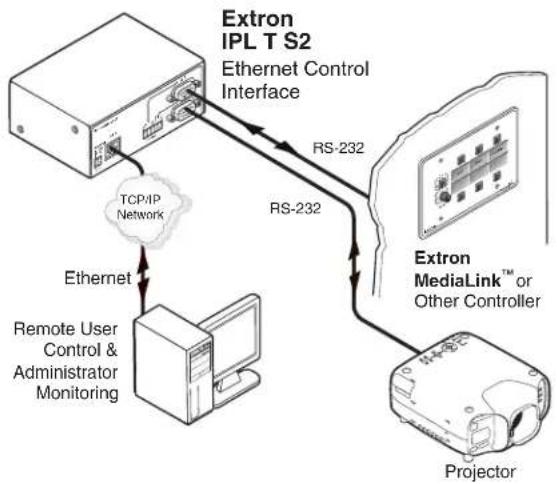
flowchart
graph TD
    A["Extron IPL T S2"] -->|Ethernet Control Interface| B["Extron MediaLink™ or Other Controller"]
    A -->|RS-232| C["Projector"]
    B -->|RS-232| A
    D["TCP/IP Network"] -->|Ethernet| E["Remote User Control & Administrator Monitoring"]
Figure 4-8 — Pass-through mode
In the figure above, a MediaLink ® controller connected to the IPL T S2's serial port 1 (COM1) is controlling a projector connected to serial port 2 (COM2).
Serial pass-through is enabled or disabled through the Com Configuration tab of a device within the Extron Global Configurator software.
Advanced users can use the pass-through SIS command as well. See the "Command/response table for Simple Instruction Set (SIS) commands", earlier in this chapter, for detailed command descriptions.
Direct port access (ports 2001 through 2006)
Direct port access allows a direct, one-to-one connection to any of the serial ports using a TCP/IP connection. When a TCP session is initiated to port 2001 (COM1) through port 2006 (COM6), all data sent and received passes directly to and from that port without any processing. Set serial port parameters (baud rate, parity, and so on.) within the IPL T S Series unit prior to using direct access. (See "Port Settings" in chapter 3).
NOTE The reserved TCP port numbers (2001-2006) are default assignments.
To initiate direct port access using DataViewer:
- If necessary, set serial port parameters (baud rate, parity, and so on.) within the IPL T S unit. (See "Port Settings" in chapter 3.)
- Launch the DataViewer software program.
- Click the TCP/IP tab on the Communication Setup dialog box.
- Complete the fields with the appropriate IP address and the TCP/IP port number (2001-2006), as shown below.
NOTE A password is not required for direct port access.
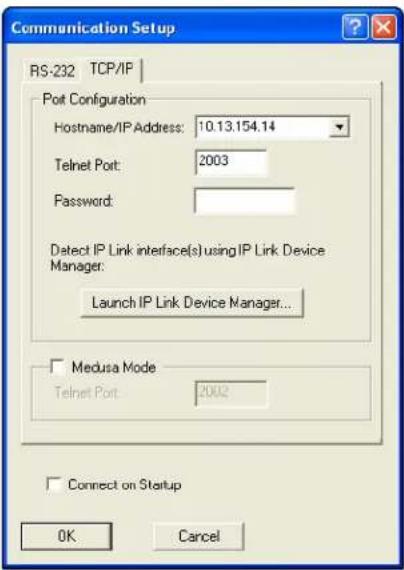
Figure 4-9 — DataViewer Communication Setup dialog box
- Click OK. The DataViewer commands window opens.
- Send serial commands directly through the selected COM port to the attached A/V device.
- To end the direct access session, close DataViewer.
NOTE You can force the direct access session closed by logging on as administrator and entering "Esc x1 *0CD←", where x1 is the selected COM port.
Serial Bridging
Serial bridging mode allows you to pass serial data between two COM ports through an Ethernet port, creating a virtual serial connection over a LAN.
To use serial bridging, two IPL T S devices (one local and one remote) must be enabled to communicate with each other, providing PC or controller access to a remote A/V device.
Hardware connection
To set up the hardware for serial bridging:
- Verify that the serial port parameters of the two devices match, as explained under "Direct port access (ports 2001 through 2006)".
- For IPL T S unit 1 (the remote device), connect a serial cable to an A/V device (for example, a plasma display or projector).
- On the same IPL T S, connect the device to your LAN.

flowchart
graph TD
    A["Extron IPL T S4\nEthernet Control Interface"] -->|RS-232| B["Plasma Display"]
    B -->|Ethernet| C["TCP/IP Network"]
    B -->|RS-232| D["Extron IPL T S1\nEthernet Control Interface"]
    D -->|RS-232| B
    B --> E["PC running serial control software or a serial controller."]
Figure 4-10 — Setup for serial bridging
- For IPL T S unit 2, make a serial connection to the PC or controller that will control the remote A/V device.
- On the same device, follow the step 2 instructions.
You are now ready to configure IPL T S unit 2 for serial bridging mode.
Serial bridge configuration
To allow both IPL T S units to communicate together, you must configure unit 2 to communicate with unit 1.
NOTE If a driver was previously loaded onto your IPL T S device COM port(s) using Global Configurator, serial bridging disables it.
To configure unit 2 to communicate with unit 1:
- Enter the IP address of unit 2 in the Internet browser's Address field at the top of the screen, and press the Enter key.
The System Status page opens, showing the current IP and port settings of the unit. - Access the Web server port setting screen by clicking the Configuration tab, then the Port Settings link on the left side of the window.
The Port Settings page appears, as shown in the figure below. - Choose the serial port that you wish to communicate through.
- Under Serial Bridging, choose the On radio button to activate serial bridging mode.
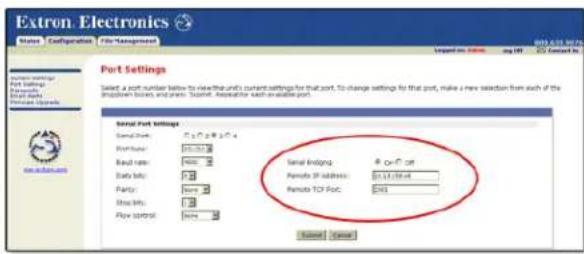
Figure 4-11 — The Port Settings page on unit 2
-
In the Remote IP Address field, enter the direct access IP address of unit 1.
-
In the Remote TCP Port field, enter the port number (2001-2006) that is serially attached to unit 1.
-
Click the Submit button.
The attached A/V device should now accept all serial commands from your PC or controller.
Troubleshooting
Turn on the output device(s) (plasma screens, monitors, projectors), the IPL T S interface, and the control devices (PC, laptop, and so on).
If the output A/V device cannot be remotely controlled, check the following:
Power connections
-
Ensure that all devices are plugged in.
-
Make sure that each device is receiving power. The interface's front panel Power LED lights if the device is receiving power.
Data connections
-
Check the cabling connections and make adjustments as needed. The Link LEDs on the IPL T S control interface and on the computer should be solid green if a network connection is detected. If these LEDs are not lit, either the cable is faulty or not plugged in, or the wrong type of cable is being used (see chapter 2, "Installation and Operation").
-
Try to "ping" the unit by entering "ping 192.168.254.254" at the DOS command prompt, or use the IP or Web address provided to you by your system administrator. If you get no response:
a. Make sure your unit is using the appropriate subnet mask (check with your system administrator).
b. Make sure your PC does not have a software firewall program that might block the IP address of the unit.
- If contact is established with the unit, but the unit's Web pages cannot be accessed by your Web browser, verify (in the Options or Preferences menu) that your Web browser is configured for direct network connection and is not set up to use a proxy server.
If you are still experiencing problems, call the Extron S 3 Sales & Technical Support Hotline.
Appendix A
Specifications, Part Numbers, Accessories
Specifications
Part Numbers and Accessories
Specifications, Part Numbers, Accessories
Specifications
Ethernet control interface
Connectors 1 female RJ-45 connector
Data rate 10/100Base-T, half/full duplex with autodetect
Protocols...... ARP, ICMP (ping), IP, TCP, UDP, DHCP, HTTP, SMTP, Telnet
Default settings.... Link speed and duplex level = autodetected
IP address = 192.168.254.254
Subnet mask = 255.255.0.0
Gateway = 0.0.0.0
DHCP = off
Web server..... Up to 200 simultaneous sessions
7.25 MB nonvolatile user memory
Program control..... Extron Simple Instruction Set (SIS™)
Global Viewer requirements...... Microsoft® Internet Explorer ver. 6 or higher
Serial control interface
Quantity/type
IPL T S1.... 1 RS-232-only
IPL T S2.... 2 RS-232/RS-422/RS-485 configurable serial
IPL T S4.... 4 RS-232/RS-422/RS-485 configurable serial
IPL T S6.... 2 RS-232/RS-422/RS-485 configurable serial
4 RS-232-only
Connectors
IPL T S1.... 1 male 9-pin D
IPL T S2.... 2 male 9-pin D and (1) 3.5 mm captive screw connector, 5 pole
IPL T S6.... 2 male 9-pin D and (1) 3.5 mm captive screw connector, 10 pole
IPL T S4.... 4 male 9-pin D
Baud rate and protocol.... 300 to 115200 baud
Default settings (adjustable): 9600 baud, 8 data bits, 1 stop bit, no parity
Pin configurations
Serial, 9-pin D (IPL T S1)
RS-232 2 = RX, 3 = TX, 5 = GND, 7 = RTS, 8 = CTS
Serial, 9-pin D (IPL T S2, IPL T S4)
RS-232 (default) ..... 2 = RX, 3 = TX, 5 = GND, 7 = RTS, 8 = CTS
RS-422 2 = RX-, 3 = TX-, 5 = GND, 7 = TX+, 8 = RX+
RS-485 2&3 (tied together) = data-, 5 = GND, 7&8 (tied together) = data+
Serial, 5-pole captive screw
IPL T S2..... COM1: pin 1 = TX, 2 = RX, 3 = GND
COM2: pin 4 = TX, 5 = RX, 3 = GND
Serial, 10-pole captive screw
IPL T S6..... COM3: pin 1 = TX, 2 = RX, 3 = GND
COM4: pin 4 = TX, 5 = RX, 3 = GND
COM5: pin 6 = TX, 7 = RX, 8 = GND
COM6: pin 9 = TX, 10 = RX, 8 = GND
General
Power.... Supplied by an included external power supply
External power supply.... 100 VAC to 240 VAC, 50-60 Hz, external; to 12 VDC, 1 A, regulated
Power input requirements...... 12 VDC, 0.5 A
Temperature/humidity...... Storage: -40 to +158 °F (-40 to +70 °C) / 10% to 90%, noncondensing
Operating: +32 to +122 °F (0 to +50 °C) / 10% to 90%, noncondensing
A-2 IPL T S Series • Specifications, Part Numbers, Accessories
Mounting
Rack mount...... Yes, with optional 1U rack shelf
Furniture mount...... Under-furniture mountable with optional kit
Pole mount...... Yes, with optional pole mount kit
Enclosure type ...... Metal
Enclosure dimensions
IPL T S1.... 1.0" H x 4.3" W x 3.0" D (quarter rack wide)
(2.5 cm H x 10.9 cm W x 7.6 cm D)
(Depth excludes connectors.)
All other models.... 1.7" H x 4.3" W x 3.0" D (1U high, quarter rack wide)
(4.3 cm H x 10.9 cm W x 7.6 cm D)
(Depth excludes connectors.)
Product weight 0.7 lbs (0.3 kg)
Shipping weight 2 lbs (1 kg)
Vibration.... ISTA 1A in carton (International Safe Transit Association)
Regulatory compliance
Safety...... CE, c-UL, UL
UL rated for use in plenum airspaces: meets UL 2043 for heat and smoke release, excluding the power supply; meets UL 60950 for safety.
EMI/EMC ...... CE, C-tick, FCC Class A, ICES, VCCI
MTBF.... 30,000 hours
Warranty 3 years parts and labor
NOTE All nominal levels are at ±10%.
NOTE Specifications are subject to change without notice.
Part Numbers and Accessories
Included parts
| Included parts Replacement part | number |
| IPL T S1 60-801-81 | |
| IPL T S2 60-544-81 | |
| IPL T S4 60-544-83 | |
| IPL T S6 60-544-84 | |
| Power supply; external 12 VDC, 1 A (U.S., Canada) 70-055-01 | |
| Power supply; external 12 VDC, 1 A (International) 70-055-02 | |
| IEC power cord | |
| Rubber feet (4) | |
| Velcro ® ; industrial strength strip | |
| Captive screw connector; female 3.5 mm, 5-pole 10-319-10 | |
| Captive screw connector; female 3.5 mm, 2-pole 10-319-05 | |
| Captive screw connector; female 3.5 mm, 2-pole (orange) 10-702-10LF | |
| Tweeker | |
| IPL T S Series Setup Guide |
Optional accessories
| Accessories Part number | |
| RSF 123 1U 3.5-inch Deep Rack Shelf Kit 60-190-20 | |
| RSU 129 1U 9.5-inch Deep Universal Rack Shelf Kit 60-190-01 | |
| MBU 123 Under-Desk Mount Kit 70-212-01 | |
| PMK 100 Mini Projector Mounting Kit 70-217-01 | |
| MBU 125 Under-Desk Mount Kit (for S1 only) 70-077-01 | |
| PMK 200 Projector Mount Kit (for S1 only) 70-077-04 |
Appendix B
Glossary
Glossary
Glossary
10/100Base-T is Ethernet that uses Unshielded Twisted Pair (UTP - CAT 5, and so on.) cable, on which the amount of data transmitted between two points in a given amount of time is equal to either 10 Mbps or 100 Mbps.
Address Resolution Protocol (ARP) is a protocol that assigns an IP address to a device based on the device's MAC or physical machine address.
Custom Web page is any file that can be loaded into an IPL T S interface and served by the unit's internal Web server. A custom Web page can provide control of devices attached to the unit without use of Global Configurator (GC) or GlobalViewer® (GV). This is true with or without an accompanying event script. Any number and size of graphics can be used, but if they are too large to fit on the IPL T S interface, you can write your Web page so that they can be served from another Web server. If you install Microsoft® Internet Information Services (IIS) on your desktop, you can serve any page on its hard disk. The IPL T S unit functions like a little computer with a Web server — you can use it for various Web tasks.
DataViewer allows you to send ASCII or hexadecimal commands to an Extron IPL T S interface and view the device's responses. You can configure the data display in several ways, including selecting the text color, text font, and whether to view commands and responses in separate panes within the DataViewer window. The software can save the command/response data as a text file (.txt) or as an HTML file that preserves some of the display formatting.
Default Web pages are a set of preloaded Web pages that can be accessed via a standard Web browser. These pages are a primary means of initial setup for IP Link ® products and a way to change their settings. Web browsers such as Netscape ® Navigator (version 6.0 or higher), or Internet Explorer ® (version 5.5 or higher) can be used, but if using Internet Explorer, you must also have Microsoft Script (version 5.6 or higher).
DHCP is the Dynamic Host Configuration Protocol (DHCP), which is a standardized communications protocol that enables network administrators to locally and automatically manage the assignment of IP addresses in an organization's network.
Driver is a GC compatible package. It includes the event script that controls devices.
Ethernet is a network protocol that uses MAC addresses instead of IP addresses to exchange data between computers. Using ARP (see Address Resolution Protocol), with TCP/IP support, Ethernet devices can be connected to the Internet. An Ethernet LAN typically uses unshielded twisted pair (UTP) wires. Ethernet systems currently provide transmission speeds of 10 Mbps or 100 Mbps.
Event script is a program that runs on an IPL T S interface, and issues queries and commands to the attached devices. Event scripts are written in the "Extron C" language (as .sc files), and are compiled into event scripts using GC. The results are compiled as .evt files and loaded onto the IPL T S device. The Extron C language is similar to ANSI C, with some differences. As long as event scripts are turned on, they run on the device continuously.
Global Configurator (GC) is a Windows ® -based program that, based on user input, creates the GlobalViewer pages. Global Configurator requests system information such as which devices you have and your current list of IP addresses. With this information, GC creates a GV page for your specific devices. GC also compiles the event scripts and loads the GV pages and event scripts onto the device. When using GC, you must specify the port number for each device (for attached devices to be controlled, they must be on that port). In order for multiple IP Link ® devices to appear in the same GV page, all devices must be configured at the same time using GC.
GlobalViewer (GV) is a set of Web pages (HTML, XML, JS) and graphics that are loaded into the memory of an IPL T S interface. These pages provide an interface for control of devices attached to the IPL T S interface. They communicate with the event scripts running on the device, and the event scripts issue the commands and queries. This communication between the Web pages and the event scripts occurs through predetermined memory locations in the IPL T S interface. GV is initially created by Global Configurator; however, it is possible to edit GV's HTML, XML, and JavaScript files outside of GC. This edited GV is called "hard-coded" or manually generated GlobalViewer.
HTTP is an acronym for the HyperText Transfer Protocol (HTTP), a Web protocol based on TCP/IP, that is used to fetch HyperText objects from remote Web pages.
Internet Protocol (IP) is the protocol or standard used to send information from one computer to another on the Internet.
IP address is a unique, 32-bit binary number (up to a 12 digit decimal number, xxx.xxx.xxx.xxx) that identifies each sender and each receiver of information connected to a LAN, WAN, or the Internet. IP addresses can be static (see Static IP) or dynamic (see DHCP).
IP Netmask is a 32-bit binary number (12 digit decimal number, xxx.xxx.xxx.xxx) used on subnets (smaller, local networks) to help the router determine which network traffic gets routed internally to local computers and which network traffic goes out on the Internet.
Media Access Control (MAC) Address is a unique hardware number given to devices that connect to the Internet. When your computer or networking device (router, hub, interface, etc.) is connected to the Internet, a table (see ARP) associates the device's IP address to its corresponding physical (MAC) address on the LAN.
Pass-through allows control systems to work with the IPL T S interface, and provides a link between two ports.
Ping is a utility that tests network connections. It is used to determine if the host has an operating connection and is able to exchange information with another host.
Port number is a preassigned address within a server that provides a direct route from the application to the Transport layer or from the Transport layer to the application of a TCP/IP system.
Static IP refers to an IP address that has been specifically (instead of dynamically — see DHCP) assigned to a device or system in a network configuration. This type of address requires manual configuration of the actual network device or system and can only be changed manually or by enabling DHCP.
Transmission Control Protocol/Internet Protocol (TCP/IP) is the communication protocol (language) of the Internet. Computers and devices with direct access to the Internet are provided with a copy of the TCP/IP program to allow them to send and receive information in an understandable form.
Telnet is a utility available on most PCs that allows the computer system to communicate with one of its remote users/clients. A user who wishes to access a remote system initiates a Telnet session, using the address of the remote client. The user may be prompted to provide a user name and password if the client is set up to require them.
URL encoding allows you to send information and commands to the unit to change its configuration or provide you with feedback.
Web Server resides on the IPL T S interface and provides storage of the default Web pages, GlobalViewer, and your custom Web pages.
Extron Warranty
Extron Electronics warrants this product against defects in materials and workmanship for a period of three years from the date of purchase. In the event of malfunction during the warranty period attributable directly to faulty workmanship and/or materials, Extron Electronics will, at its option, repair or replace said products or components, to whatever extent it shall deem necessary to restore said product to proper operating condition, provided that it is returned within the warranty period, with proof of purchase and description of malfunction to:
USA, Canada, South America, and Central America:
Extron Electronics
1230 South Lewis Street
Anaheim, CA 92805
U.S.A.
Japan:
Extron Electronics, Japan
Kyodo Building, 16 Ichibancho
Chiyoda-ku, Tokyo 102-0082
Japan
Europe and Africa:
Extron Europe
Hanzeboulevard 10
3825 PH Amersfoort
The Netherlands
China:
Extron China
686 Ronghua Road
Songjiang District
Shanghai 201611
China
Asia:
Extron Asia Pte Ltd
135 Joo Seng Road, #04-01
PM Industrial Bldg.
Singapore 368363
Singapore
Middle East:
Extron Middle East
Dubai Airport Free Zone
F13, PO Box 293666
United Arab Emirates, Dubai
This Limited Warranty does not apply if the fault has been caused by misuse, improper handling care, electrical or mechanical abuse, abnormal operating conditions, or if modifications were made to the product that were not authorized by Extron.
NOTE: If a product is defective, please call Extron and ask for an Application Engineer to receive an RA (Return Authorization) number. This will begin the repair process.
USA: 714.491.1500 or 800.633.9876
Europe: 31.33.453.4040
Asia: 65.6383.4400
Japan: 81.3.3511.7655
Units must be returned insured, with shipping charges prepaid. If not insured, you assume the risk of loss or damage during shipment. Returned units must include the serial number and a description of the problem, as well as the name of the person to contact in case there are any questions.
Extron Electronics makes no further warranties either expressed or implied with respect to the product and its quality, performance, merchantability, or fitness for any particular use. In no event will Extron Electronics be liable for direct, indirect, or consequential damages resulting from any defect in this product even if Extron Electronics has been advised of such damage.
Please note that laws vary from state to state and country to country, and that some provisions of this warranty may not apply to you.
| Extron Headquarters+1.800.633.9876 (Inside USA/Canada Only)Extron USA - West Extron USA - East+1.714.491.1500 +1.919.850.1000+1.714.491.1517 FAX +1.919.850.1001 FAX | Extron Europe+800.3987.6673(Inside Europe Only)+31.33.453.4040+31.33.453.4050 FAX | Extron Asia+65.6383.4400+65.6383.4864 FAX | Extron Japan+81.3.3511.7655+81.3.3511.7656 FAX | Extron China+86.21.3760.1568+86.21.3760.1566 FAX | Extron Middle East+971.4.299.1800+971.4.299.1880 FAX | Extron Australia+61.8.8351.2188+61.8.8351.2511 FAX | Extron India1800.3070.3777(Inside India Only)+91.80.3055.3777+91.80.3055.3737 FAX |


- Safety Instructions • English
- Battery Notice
- Trademarks
- Conventions Used in this Guide
- Notifications
- Specifications Availability
- Extron Glossary of Terms
- Quick Start — IPL T S Series
- Step 1
- Step 2
- Step 3
- Step 4
- Step 5
- Step 6
- Step 7
- Table of Contents
- Chapter One • Introduction ...... 1-1
- About This Manual 1-2
- About the IPL T S Series Interface 1-2
- Features....1-3
- Chapter Two • Installation and Operation 2-1
- Installation Overview 2-2
- Mounting the IPL T S Interface 2-2
- Rear Panel Features and Cabling....2-5
- Operation 2-9
- Chapter Three • Connection and Configuration ....3-1
- Connecting the Hardware....3-2
- Setting the Internet Protocol (IP) Address....3-3
- Configuration using Global Configurator 3-8
- Configuration using Embedded Web Pages 3-9
- File Management page 3-14
- Chapter Four • Communication and Control....4-1
- Programmer's Guide for Telnet and Web Browsers 4-2
- Customization 4-19
- Advanced Serial Port Control 4-24
- Troubleshooting....4-28
- Appendix A • Specifications, Part Numbers, Accessories...... A-1
- Part Numbers and Accessories......A-4
- Appendix B • Glossary ......B-1
- Chapter One
- Introduction
- About This Manual
- About the IPL T S Series Interface
- IPL T S1 control interface
- IPL T S2 control interface
- IPL T S4 control interface
- IPL T S6 control interface
- Features
- Chapter Two
- Installation and Operation
- Installation Overview
- Mounting the IPL T S Interface
- UL guidelines for rack mounting
- Mounting options
- Rack mounting an IPL T S Series interface
- NOTE
- Furniture or projector mounting
- Rear Panel Features and Cabling
- Power
- Ethernet/LAN
- Serial Communication
- Identification
- Operation
- Front panel indicators
- Resetting the unit
- CAUTION
- Chapter Three
- Connection and Configuration
- Connecting the Hardware
- Ethernet connection
- Serial connection
- Setting the Internet Protocol (IP) Address
- Setting the IP address using Global Configurator
- Setting the IP address using embedded Web pages
- Click OK.
- Setting the IP address using the ARP command
- Configuration using Global Configurator
- Configuration using Embedded Web Pages
- Connecting via the Web server pages
- System Status page
- Configuration page
- System Settings
- Port Settings
- Passwords
- Email Alerts
- Firmware Upgrade
- File Management page
- Configuration using DataViewer
- Chapter Four
- Communication and Control
- Programmer's Guide for Telnet and Web Browsers
- Using the command/response table
- Symbol definitions
- Copyright information
- Password information
- Error responses
- References to errors (at command descriptions on the following pages)
- Customization
- Custom Web pages
- Server Side Includes (SSI)
- Query string
- Code examples
- Example 1
- HTML Example #1
- Example 2
- URL encoding
- Reserved characters
- Unsafe characters
- Advanced Serial Port Control
- Serial pass-through (redirect mode)
- Direct port access (ports 2001 through 2006)
- Serial Bridging
- Hardware connection
- Serial bridge configuration
- Troubleshooting
- Power connections
- Data connections
- Appendix A
- Specifications, Part Numbers, Accessories
- Specifications
- Ethernet control interface
- Serial control interface
- General
- A-2 IPL T S Series • Specifications, Part Numbers, Accessories
- Mounting
- Enclosure dimensions
- Regulatory compliance
- Part Numbers and Accessories
- Appendix B
- Glossary
- Extron Warranty
- USA, Canada, South America, and Central America:
- Japan:
- Europe and Africa:
- China:
- Asia:
- Middle East:
Brand : Extron
Model : IPL T S6
Category : Unspecified