
DSC 3G-HD A - Unspecified Extron - Free user manual and instructions
Find the device manual for free DSC 3G-HD A Extron in PDF.


| Product Type | Digital Scaling Converter (3G-SDI to HDMI) |
| Brand | Extron |
| Model | DSC 3G-HD A |
| Input Signal Types | 3G-SDI, HD-SDI, SD-SDI (SMPTE 259M, 292M, 424M) |
| Output Signal Type | HDMI (with embedded audio) |
| Supported Input Resolutions | 480i to 1080p @ 60 Hz and 2K (2048x1080) |
| Supported Output Resolutions | 640x480 to 1920x1200, including HDTV 1080p and 2K |
| Audio Input | Analog stereo (5-pole captive screw) or embedded AES (up to 8 channels) |
| Audio Output | Embedded HDMI audio (LPCM up to 7.1/24-bit/192 kHz) |
| Control Interfaces | Front panel USB Config, rear panel RS-232 |
| Front Panel | LED status indicators, navigation buttons, OSD menu |
| Dimensions (H x W x D) | 1.75" x 8.5" x 8.5" (1U high, half rack width) |
| Power Supply | Internal, 100-240 VAC, 50-60 Hz |
| Mounting Options | Rack mount, under-furniture, free-standing |
| Advanced Features | 30-bit processing, 1080i deinterlacing, Auto-Image, Auto Memory, test patterns, AFL (Accu-RATE Frame Lock), picture controls |
| Product Configuration Software | Windows-based PCS for full configuration via USB or RS-232 |
| Safety Compliance | FCC Class A, VCCI-A |
| Operating Temperature | Up to +122°F (+50°C) |
| Included Accessories | LockIt HDMI cable lacing bracket, power cord, rubber feet |
Frequently Asked Questions - DSC 3G-HD A Extron
User questions about DSC 3G-HD A Extron
0 question about this device. Answer the ones you know or ask your own.
Ask a new question about this device
Download the instructions for your Unspecified in PDF format for free! Find your manual DSC 3G-HD A - Extron and take your electronic device back in hand. On this page are published all the documents necessary for the use of your device. DSC 3G-HD A by Extron.
USER MANUAL DSC 3G-HD A Extron
Safety Instructions
Safety Instructions • English

WARNING: This symbol, 4 when used on the product, is intended to alert the user of the presence of uninsulated dangerous voltage within the product's enclosure that may present a risk of electric shock.
ATTENTION:
This symbol, ⚠ when used on the product, is intended
to alert the user of important operating and maintenance (servicing) instructions in the literature provided with the equipment.
For information on safety guidelines, regulatory compliances, EMI/EMF compatibility, accessibility, and related topics, see the Extron Safety and Regulatory Compliance Guide, part number 68-290-01, on the Extron website, www.extron.com.
All trademarks mentioned in this guide are the properties of their respective owners.
The following registered trademarks (®), registered service marks (SM), and trademarks (TM) are the property of RGB Systems, Inc. or Extron (see the current list of trademarks on the Terms of Use page at www.extron.com):
| Registered Trademarks(®) |
| Extron, Cable Cubby, ControlScript, CrossPoint, DTP, eBUS, EDID Manager, EDID Minder, eLink, Flat Field, FlexOS, Glitch Free, Global Configurator, Global Scripter, GlobalViewer, Hideaway, HyperLane, IP Intercom, IP Link, Key Minder, LinkLicense, LockIt, MediaLink, MediaPort, NAV, NetPA, PlenumVault, PoleVault, PowerCage, PURE3, Quantum, ShareLink, Show Me, SoundField, SpeedMount, SpeedSwitch, StudioStation, System INTEGRATOR, TeamWork, TouchLink, V-Lock, VN-Matrix, VoiceLift, WallVault, WindoWall, XPA, XTP, XTP Systems, and ZipClip |
| Registered Service Mark ^(SM) : S3 Service Support Solutions |
| Trademarks ^(TM) |
| AAP, AFL (Accu-RATE Frame Lock), ADSP (Advanced Digital Sync Processing), AVEdge, CableCover, CDRS (Class D Ripple Suppression), Codec Connect, DDSP (Digital Display Sync Processing), DMI (Dynamic Motion Interpolation), Driver Configurator, DSP Configurator, DSVP (Digital Sync Validation Processing), EQIP, Everlast, FastBite, Flex55, FOX, FOXBOX, IP Intercom HelpDesk, MAAP, MicroDigital, Opti-Torque, PendantConnect, ProDSP, QS-FPC (QuickSwitch Front Panel Controller), Room Agent, Scope-Trigger, SIS, Simple Instruction Set, Skew-Free, SpeedNav, Triple-Action Switching, True4K, True8K, Vector ^TM 4K, WebShare, XTRA, and ZipCaddy |
FCC Class A Notice
This equipment has been tested and found to comply with the limits for a Class A digital device, pursuant to part 15 of the FCC rules. The Class A limits provide reasonable protection against harmful interference when the equipment is operated in a commercial environment. This equipment generates, uses, and can radiate radio frequency energy and, if not installed and used in accordance with the instruction manual, may cause harmful interference to radio communications. Operation of this equipment in a residential area is likely to cause interference. This interference must be corrected at the expense of the user.
NOTE: For more information on safety guidelines, regulatory compliances, EMI/EMF compatibility, accessibility, and related topics, see the Extron Safety and Regulatory Compliance Guide on the Extron website.
VCCI-A Notice
Conventions Used in this Guide
Notifications
The following notifications are used in this guide:
CAUTION: Risk of minor personal injury.
NOTE: A note draws attention to important information.
Software Commands
Commands are written in the fonts shown here:
^AR Merge Scene,,0p1 scene 1,1^B 51^W^C.0
[01] R000400300004000080000600 [02] 35 [17] [03]
Esc X1 * X17 * X20 * X23 * X21 CE ←
NOTE: For commands and examples of computer or device responses used in this guide, the character “o” is the number zero and “O” is the capital letter “o.”
Computer responses and directory paths that do not have variables are written in the font shown here:
Reply from 208.132.180.48: bytes=32 times=2ms TTL=32
C:\Program Files\Extron
Variables are written in slanted form as shown here:
ping xxx.xxx.xxx.xxx -t
SOH R Data STX Command ETB ETX
Selectable items, such as menu names, menu options, buttons, tabs, and field names are written in the font shown here:
From the File menu, select New. Click the OK button.
Specifications Availability
Product specifications are available on the Extron website, www.extron.com.
Extron Glossary of Terms
A glossary of terms is available at https://www.extron.com/technology/glossary.aspx.
Contents
Introduction...... 1
About this Guide....1
About the DSC 3G-HD A and DSC HD-3G A ..... 1
Features 2
DSC 3G-HD A....2
DSC HD-3G A 2
Both Models .... 3
Application Diagrams......4
Installation....5
Rear Panel Connections 5
Securing the HDMI Connector Using the LockIt Bracket 8
Connecting for Remote Control .... 8 Connecting to the RS-232 Port .... 8
Operation....10
Front Panel Features....10
On-screen Display 12
Menu Overview....12
OSD Menus Summary Tables 12
Using the Front Panel Buttons with the OSD Menus....15
Using the OSD Menus 16
Quick Setup Submenu.... 17
User Presets Submenu....19
Picture Controls Submenu....21
Input Submenu....22
Output Submenu — DSC 3G-HD A....24
Output Submenu — DSC HD-3G A....26
Audio Submenu....28
Advanced Submenu....31
Communication Screen 33
Device Info Screen....33
Auto-Image 34
Changing the Output Resolution and Refresh Rate 35
Custom Rates — DSC 3G-HD A Only ..... 35
Importing an HDMI EDID — DSC 3G-HD A Only....35
Changing the Output Resolution from the Front Panel — DSC HD-3G A Only....35
Resetting the Output Rate 36
Power Save Mode....37
Presets....37
Auto Memories 37
User Presets....38
Input Presets 38
Locking the Front Panel (Executive Mode) ...... 39
Resetting....39
Remote Configuration and Control.....40
SIS Commands....40
Copyright Information 40
DSC-initiated Messages 41
Error Responses......41
Using the Command and Response Table .... 41
Symbol Definitions 42
Command and Response Table for SIS Commands 48
Product Configuration Software....61
Software Download Center Page......61
Software Connection....63
Starting the Configuration Program....63
TCP/IP Panel 64
Mounting....65
Rack Mounting 65
UL Guidelines for Rack Mounting....65
Furniture Mounting 66
Free-standing 66
Introduction
This section provides an overview of the DSC 3G-HD A and DSC HD-3G A scalers, covering the following topics:
- About this Guide
• About the DSC 3G-HD A and DSC HD-3G A - Features
• Application Diagrams
About this Guide
This guide describes the Extron DSC 3G/HD/SD SDI-to-HDMI and DSC HDMI-to-3G/HD/SD SDI Digital Scaling Converters and provides instructions for experienced installers to install, configure, and operate them.
In this guide the terms "scaler" and "DSC" are used interchangeably to refer to both DSC models.
About the DSC 3G-HD A and DSC HD-3G A
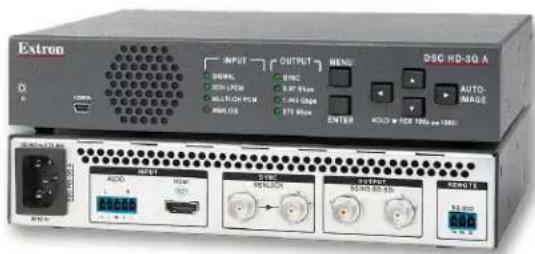
The DSC 3G-HD A and DSC HD-3G A are single-input scalers that accept multiple video resolutions and offer multiple output rates. They provide 30-bit processing and 1080i deinterlacing as well as embedded audio. Other features of both models include Auto Memory, Auto-Image, and internal test patterns. Setup and control are provided via front panel controls with an on-screen display (OSD), a front panel USB Config port, and a rear panel RS-232 port. SIS (Simple Instruction Set) commands and the Windows®-based Product Configuration Software (PCS) program can be used to configure and control the DSC via the Config and RS-232 ports.
Both models have compact 1U high by 1/2 rack wide by 8 1/2 inches (21.5 cm) deep enclosures and can be rack mounted.
- DSC 3G-HD A — The DSC 3G-HD A scaler converts 3G-SDI, HD-SDI, and SD-SDI signals to HDMI. It accepts and scales SMPTE video resolutions from 480i to 1080p @ 60 Hz and 2K (2048x1080), with output rates up to 1920x1200, including HDTV 1080p @ 60 Hz and 2K. It has one 3G-SDI/HD-SDI/SD-SDI input plus an SDI loop-through, and one HDMI output. It can embed analog audio input signals or up to four pairs of AES audio channels from the SDI input in the HDMI output. It provides gain and attenuation for analog stereo input and for each embedded SDI channel.
- DSC HD-3G A — The DSC HD-3G A scaler converts HDMI signals to 3G-SDI, HD-SDI, and SD-SDI formats. It accepts computer and SMPTE video resolutions up to 1920x1200 and 2K, with output rates from 480i to HDTV 1080p @ 60 Hz and 2K. It has one HDMI input and dual 3G-SDI/HD-SDI/SD-SDI outputs. It can embed analog or two-channel or multi-channel HDMI audio in the SDI outputs and provides gain and attenuation adjustments for analog stereo input.
Features
DSC 3G-HD A
- 3G-SDI, HD-SDI, and SD-SDI to HDMI video scaling — Provides high quality conversion of signal format and video resolution with audio embedding.
- Inputs — One 3G-SDI/HD-SDI/SD-SDI on a BNC connector, and balanced and unbalanced stereo audio on a 5-pole captive screw connector
- Outputs — One HDMI and one buffered loop-through 3G-SDI/HD-SDI/SD-SDI on a BNC connector
- Accepts 3G-SDI/HD-SDI/SD-SDI signals up to 2.97 Gbps — Accepts data rates from standard definition to HDTV 1080p/60 and 2K. Complies with SMPTE 259M, 292M, 424M, and ITU digital video standards.
- HDMI audio embedding — Analog stereo audio or up to four pairs of AES audio channels from the SDI input can be embedded onto the HDMI output.
- Input equalization and reclocking — Automatically equalizes incoming signals and reshapes and restores signals on the buffered loop-through.
- Selectable output color space — The color space can be set to RGB or component video.
- HDMI to DVI interface format correction — Automatically enables or disables embedded audio and infoframes and sets the correct color space for proper connection to HDMI and DVI displays.
DSC HD-3G A
- HDMI to 3G-SDI, HD-SDI, and SD-SDI video scaling — Provides high quality conversion of signal format and video resolution with audio embedding.
- Inputs — One HDMI connector, and balanced and unbalanced stereo audio on a 5-pole captive screw connector
- Outputs — Dual buffered 3G-SDI/HD-SDI/SD-SDI on BNC connectors. Simultaneous 3G-SDI/HD-SDI/SDI outputs are available for driving two sink devices.
- Accepts multiple HDMI signals — Accepts HDMI signals up to 1920x1200, 1080p @ 60 Hz, and 2K. Only unencrypted content can be sent to the output.
- SDI audio embedding — Analog stereo audio or HDMI two-channel LPCM or multi-channel PCM audio can be embedded onto the SDI outputs.
- SMPTE compliance — Complies with SMPTE 259M, 292M, 424M, and ITU digital video standards.
- EDID emulation — Provides selectable resolutions and refresh rates and a means for specifying the rate of the incoming signal, ensuring proper communication with the video source.
- Genlock input with loop-through — Allows for synchronization to an external reference signal and supports bi-level or tri-level sync for integration into broadcast and production applications.
Both Models
- Advanced scaling engine — Image scaling and video format conversion are performed at 30-bit precision for enhanced color accuracy and picture detail. High performance deinterlacing for 1080i signals from HD sources delivers optimized image quality.
- Selectable output rates — Available output rates include:
• DSC 3G-HD A: Computer video from 640x480 to 1920x1080 (1080p) and 2048x1080 (2K)
• DSC HD-3G A: HDTV rates from 480i to 1080p and 2K.
- Supported HDMI formats (on pass-through connectors): LPCM up to 7.1/24-bit/192 KHz.
- Aspect ratio control — The aspect ratio of the video output can be controlled by selecting a fill mode, which provides a full screen output, or a follow mode, which preserves the original aspect ratio of the input signal.
- AFL - Accu-RATE Frame Lock — A patented technology exclusive to Extron that locks the output frame rate to a designated input to eliminate stuttering caused by frame rate conversion.
- Front panel LED indicators — Provides visual indication of system status for real-time feedback and monitoring of signal format, presence, and power.
- Product Configuration Software — The Windows-based PCS program is available to be downloaded from the Extron website. This program lets you configure the DSC from your computer via an RS-232 or a USB connection.
- Image freeze control — A live image can be frozen using RS-232 serial control or USB.
- Auto Memory — When activated, the unit automatically stores size, position, and picture settings based on the incoming signal. When the same signal is detected again, these image settings are automatically recalled from memory.
- On-screen menus — On-screen menus enable system setup using the front panel controls. Key parameters such as input and output video formats are grouped for convenience on the initial Quick Setup screen, while additional screens provide full control over the other functions and settings.
- Output Standby Mode — Automatically mutes the video and syncs output to the display device when no active input signal is detected. This allows the projector or flat-panel display to automatically enter into standby mode to save energy and enhance lamp or panel life.
- Power Save Mode — Places the unit in a low power standby state to conserve energy when not in use.
- Automatic 3:2 and 2:2 pulldown detection — Advanced film mode processing techniques that help maximize image detail and sharpness for NTSC, PAL, and HDTV 1080i sources that originated from film
- Picture controls — Enable control of brightness, contrast, detail, horizontal and vertical positioning, overscan, and sizing.
- User presets — Memory presets are available for each input to store and recall optimized image settings.
- LockIt HDMI cable lacing bracket provided
-
Internal test patterns — Offers a crop pattern, grayscale, color bars, alternating pixels, audio pink noise, and four aspect ratio patterns: 1.33, 1.78, 1.85, and 2.35.
-
Audio input gain and attenuation — Gain and attenuation can be adjusted for the analog stereo input.
- Integrated audio delay — The audio output is automatically delayed to compensate for latency introduced by the video processing.
- Signal presence confirmation — Provides real-time verification of status for the digital video input and output through front panel LEDs or RS-232.
- Input audio muting — The analog stereo or digital audio input can be muted.
- Front panel security lockout — Locks out all front panel functions. All functions remain available through USB or RS-232 control.
- Control ports — The following ports enable complete control and configuration of the DSC via SIS commands and the PCS program.
• RS-232 Remote port (rear panel)
• USB Config port (front panel) - Rack mountable
- Internal universal power supply — The 100-240 VAC, 50-60 Hz, international power supply provides worldwide power compatibility.
Application Diagrams

flowchart
graph TD
    A["Camera"] --> B["Extron DSC 3G-HD A\n3G-SDI to HDMI Scaler with Audio Embedding"]
    B --> C["Local Monitor"]
    C --> D["Flat Panel Display"]
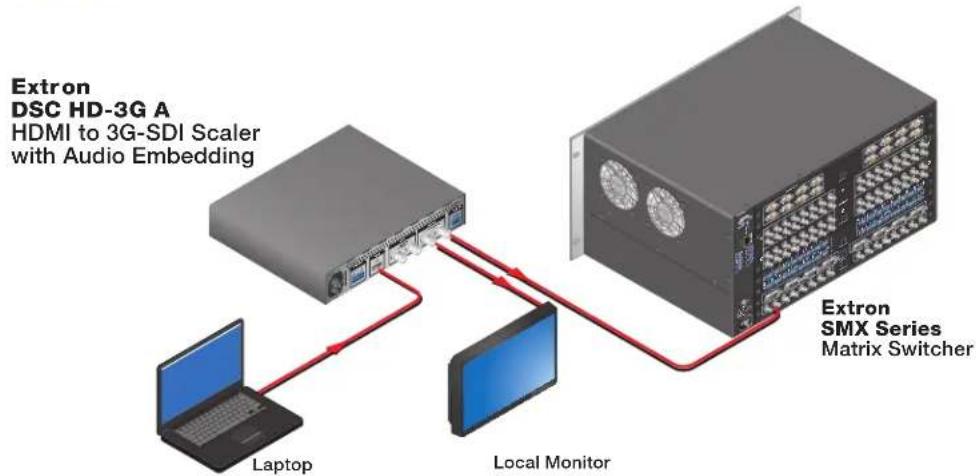
Figure 1. DSC 3G-HD A Application Example
flowchart
graph TD
    A["Extron DSC HD-3G A\nHDMI to 3G-SDI Scaler with Audio Embedding"] --> B["Laptop"]
    A --> C["Local Monitor"]
    C --> D["Extron SMX Series\nMatrix Switcher"]
    D --> A
Figure 2. DSC HD-3G A Application Example
Installation
This section provides a description of the DSC 3G-HD A and DSC HD-3G A rear panel connectors and instructions for cabling. Topics include:
- Rear Panel Connections
• Securing the HDMI Connector Using the LockIt Bracket - Connecting for Remote Control
ATTENTION:
Rear Panel Connections
Figures 3 and 4 on the next page show the rear panel features of the DSC 3G-HD A and DSC HD-3G A, respectively.
CAUTION: Remove power from the system before making any connections.
Figure 3. DSC 3G-HD A Rear Panel

Figure 4. DSC HD-3G A Rear Panel
A AC power connector
E AUDIO input connector
B Input connector
F Output connectors
Buffered LOOP THRU input connector
G REMOTE RS-232 connector
D GENLOCK and LOOP OUT sync connectors
A AC power connector — Connect the supplied US standard IEC power cable between this IEC connector and a 110-220 V 50-60 Hz AC power source. The front panel control and input selection buttons light in sequence during power-up.
B Input connector —
- DSC 3G-HD A — Connect a 3G/HD/SD-SDI source to this SDI BNC input connector.
- DSC HD-3G A — Connect an HDMI source to this HDMI input connector, and secure it using the LockIt bracket (see Securing the HDMI Connector using the LockIt Bracket on page 8).
Buffered LOOP THRU input connector (DSC 3G-HD only) — Connect a local monitor to this SDI BNC input connector. Buffered 3G/HD/SD-SDI signals are reclocked, reshaped, and restored when passed through this loop-through connector.
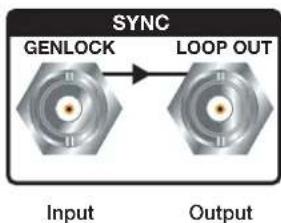
D GENLOCK and LOOP OUT sync connectors (DSC HD-3G A only) —
The BNC input connector (left, labeled GENLOCK) syncs the video signal in broadcast or other sync-critical applications.
The BNC output connector (right, labeled LOOP OUT) routes the sync signal throughout the system in broadcast or other sync-critical applications. Bi-level and tri-level sync are supported.
Connect an external sync device to the GENLOCK input connector, and connect any downstream equipment that requires genlocking LOOP OUT connector
flowchart
graph LR
    A["Input"] --> B["GENLOCK"]
    B --> C["LOOP OUT"]
    C --> D["Output"]
E AUDIO input connector —
- DSC 3G-HD A — Connect audio from the source to this 5-pole captive screw connector. Analog audio input can be embedded on the HDMI output. AES audio that is embedded on the SDI input can be identified and one to four pairs (8 channels) of the available 16 channels can be embedded on the HDMI output:
- If eight-channel digital is selected, four of the eight available channel pairs are used.
- If two-channel digital is selected, one of the eight pairs can be selected.
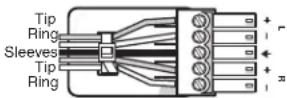
- DSC HD-3G A — If desired, connect analog audio input from the source to this 5-pole captive screw connector. HDMI or analog audio can be passed through to the SDI outputs as AES pairs.
Balanced Stereo Input
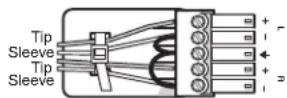
Unbalanced Stereo Input

Do not tin the wires!
Figure 5. Wiring the Audio Input Connector
ATTENTION:
F Output connectors —
- DSC 3G-HD A HDMI output — Connect an HDMI display device to this HDMI connector, and secure it using the LockIt bracket (see Securing the HDMI Connector using the LockIt Bracket on the next page).
- DSC HD-3G A 3G/HD/SD-SDI outputs — Connect one or two SDI output devices to one or both of these BNC connectors. These output ports transmit signals that follow SMPTE standards 259M, 292M, and 424M.
G REMOTE RS-232 port — For serial RS-232 control, connect a host computer or control system to the 3-pole captive screw connector (see Connecting for Remote Control on the next page).
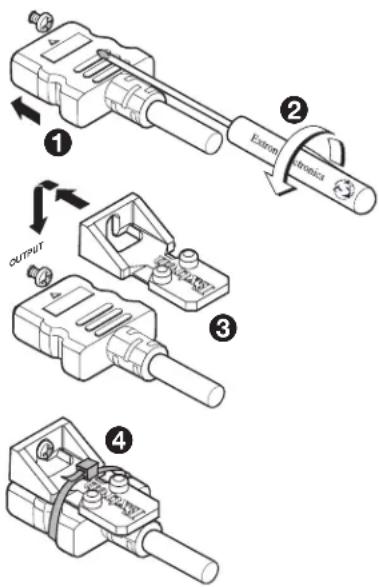
Securing the HDMI Connector Using the LockIt Bracket
After connecting an input or output device to an HDMI connector, secure the connector in place with the provided LockIt bracket as follows (see the illustration at right):
- Plug the HDMI cable into the panel connection (①).
- Loosen the HDMI connection mounting screw from the panel enough to allow the LockIt lacing bracket to be placed over it (②).
- Place the LockIt lacing bracket onto the screw and slide it up against the HDMI connector. Tighten the screw to secure the bracket (③).
- Loosely place the included tie wrap around the HDMI connector and LockIt lacing bracket (④).
- While holding the connector securely against the lacing bracket, tighten the tie wrap, then remove any excess length.
Connecting for Remote Control
Both DSC models have two control ports through which they can be connected to your computer for configuration and control: the rear panel RS-232 port and the front panel USB port.
Connecting to the RS-232 Port
To connect your computer or control system to the DSC RS-232 port, you can use an Extron Universal Control cable (UC50' or UC100') or other female 9-pin-to-bare-wire RS-232 cable.
- Wire the unterminated end of the RS-232 cable to the provided 3-pole captive screw connector as follows (see figure 6 on the next page):
a. Connect the transmit wire to the left pin, which plugs into the Tx (transmit) port.
b. Connect the receive wire to the third pin, which plugs into the Rx (receive) port.
c. Connect the ground wire to the last pin, which plugs into the ground port, marked with G.
- Plug the captive screw connector into the rear panel RS-232 port.
- Connect the 9-pin connector end of the RS-232 cable to the serial port of your computer or control system. Tighten the captive screws to securely fasten the wires in the connector.
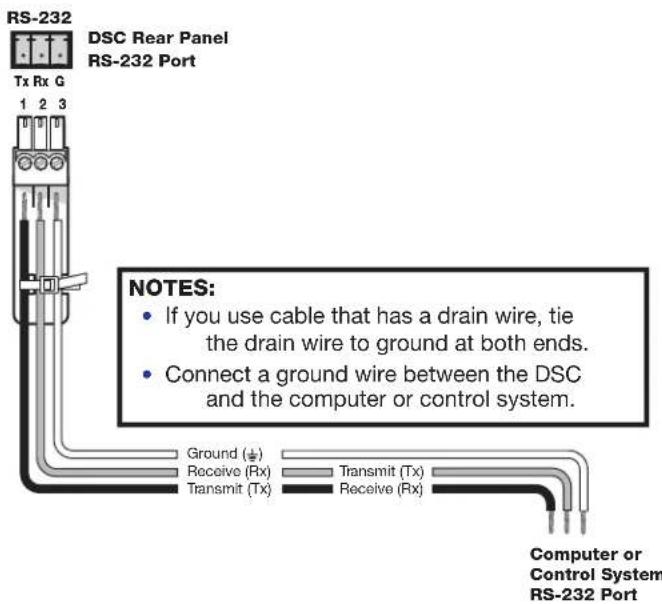
Figure 6. Connecting to the RS-232 Port
See SIS Commands on page 40 for information on sending SIS commands to this port.
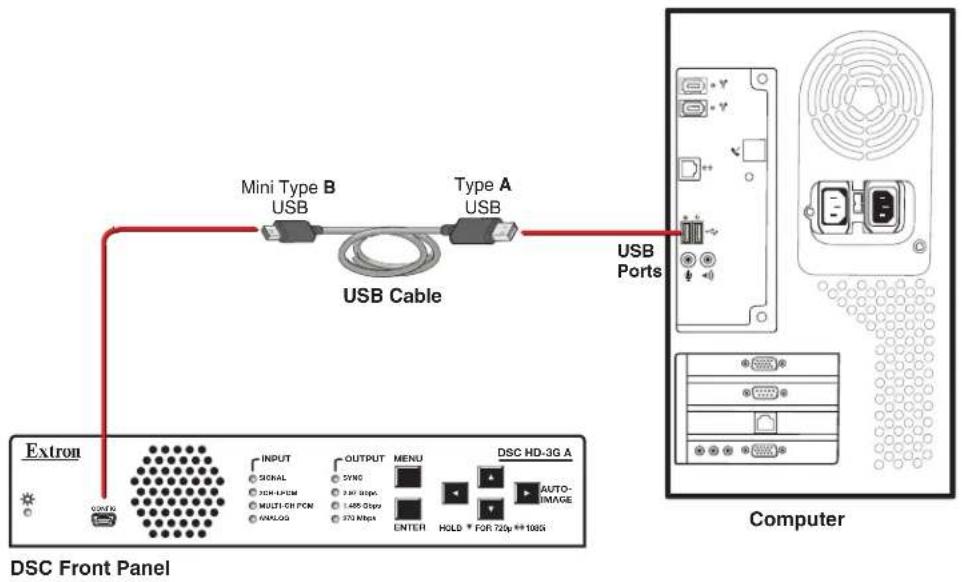
Connecting to the USB Config Port
The USB-mini B CONFIG port is located on the DSC front panel. Use a USB-A to USB-mini B cable to connect the DSC USB CONFIG port to a USB port on your computer.
flowchart
graph LR
    A["Extron"] --> B["Mini Type B USB"]
    B --> C["USB Cable"]
    C --> D["Type A USB"]
    D --> E["USB Ports"]
    E --> F["Computer"]
    subgraph DSC Front Panel
        G["COM/FX"] --> H["INPUT: SIGNAL, PCM EP/SEM, MULTI-CH PCN, 6VANLOG"]
        I["OUTPUT: SYMC, 2.8bit S10ppc, 1.485 GHz, 372 MHz"] --> J["MENU: ENTER"]
        K["DSC HD-3G A"] --> L["HOLD + FOR 720p **108S"]
        M["AUTO-IMAGE"] --> N["Computer"]
Figure 7. Connecting to the Front Panel USB Config Port
Operation
This section discusses the functions available through the front panel and the on-screen display (OSD) to configure and operate the DSC. Topics include:
- Front Panel Features
- On-screen Display
- Auto-Image
• Changing the Output Resolution and Refresh Rate
• Power Save Mode - Presets
- Locking the Front Panel (Executive Mode)
- Resetting
Front Panel Features
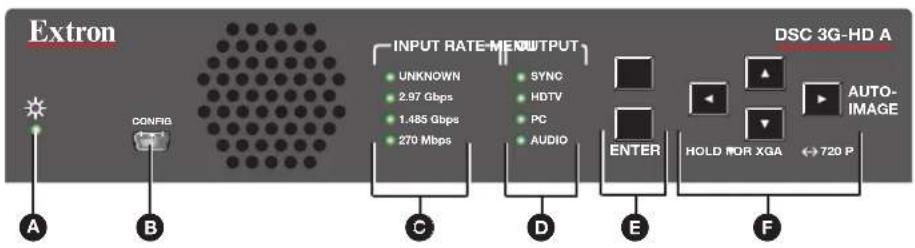
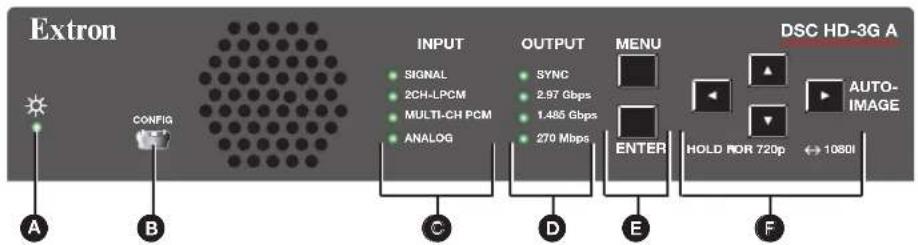
Figures 8 and 9 show the front panel features of the DSC 3G-HD A and DSC HD-3G A, respectively.
flowchart
graph LR
    A["Sun Source"] --> B["CONFIG"]
    B --> C["INPUT RATE-MEN OUTPUT"]
    C --> D["SYNC"]
    C --> E["HDTV"]
    C --> F["PC"]
    C --> G["AUDIO"]
    D --> H["ENTER"]
    E --> H
    F --> H
    G --> H
    H --> I["HOLD FOR XGA ↔720 P"]
    I --> J["DSC 3G-HD A AUTO-IMAGE"]
Figure 8. DSC 3G-HD A Front Panel
flowchart
graph LR
    A["Extron"] --> B["CONFIG"]
    B --> C["SIGNAL 2CH-LPCM MULTI-CH PCM ANALOG"]
    C --> D["OUTPUT SYNC 2.97 Gbps 1.485 Gbps 270 Mbps"]
    D --> E["MENU ENTER HOLD NOR 720p ↔ 1080I"]
    E --> F["DSC HD-3G A AUTOIMAGE"]
Figure 9. DSC HD-3G A Front Panel
A Status LED (power and signal)
B USB CONFIG port
© Input signal information LEDs
Output signal information LEDs
E MENU and ENTER buttons
F Navigation buttons
A Status LED (power and signal) —
- Lights steadily amber when the unit is powered on but no signal is present.
- Blinks amber every 3 seconds when the unit is in standby mode.
- Lights steadily green when both power and an input signal are present.
USB CONFIG port (see figures 8 and 9 on the previous page) — Connect a control system or computer to this mini USB port for device configuration, control, and firmware upgrades.
© Input signal information LEDs
- DSC 3G-HD A INPUT RATE LEDs — One of these four green LEDs lights when the unit is powered on, indicating the type of input signal that is present.
- UNKNOWN — The signal does not reference SMPTE 259M, 292M, or 424M.
• 2.97 Gbps: SMPTE 424M — 1080p @ 50 Hz and higher or 2K @ greater than 30 Hz - 1.485 Gbps: SMPTE 292M — 720p or 1080i, 1080p @ up to 30 Hz, 1080PsF @ 23.98, 24, 25, 29.98, and 32 Hz
• 270 Mbps: SMPTE 259M — 480i or 576i
- DSC HD-3G A INPUT LEDs — These four green LEDs light to indicate presence of a video input signal and the type of audio signal if one is also present.
• SIGNAL — An input signal is present.
• 2CH-LPCM — Two-channel LPCM audio signal is present.
- MULTI-CH PCM — Multi-channel PCM audio signal is present.
• ANALOG — Analog audio signal is present.
D Output signal information LEDs
- DSC 3G-HD A OUTPUT LEDs — These four green LEDs light to indicate the presence of sync and other information about the signal being output.
- SYNC — Sync is present. (If the video is muted, this LED does not light.)
• HDTV — 2K, 1080p, 1080i, 720p, 480p, 576p rates, or custom HDTV rates
• PC — VESA standard or custom computer rates
• AUDIO — Embedded audio is present.
- DSC HD-3G A OUTPUT LEDs — These four green LEDs light to indicate the presence of sync and the output rate specified for the output (output rates can be specified using SIS commands, the PCS program, or the OSD).
- SYNC — Sync is present. (If the video is muted, this LED does not light.)
• 2.97 Gbps — SMPTE 424M
• 1.485 Gbps — SMPTE 292M
• 270 Mbps — SMPTE 259M
E MENU and ENTER buttons — These buttons let you access and make selections from the on-screen display menus (see Using the Front Panel Buttons with the OSD Menus on page 15 for detailed explanations of these buttons and the arrow buttons.
F Navigation buttons — These left ◀, right ▶, up ▲, and down ▼ arrow buttons enable you to step through the OSD submenus. You can also press them to lock the front panel controls (executive mode, see page 39), perform Auto-Image (see page 34), and reset the output rate (see page 36).
On-screen Display
The on-screen display (OSD) enables you to configure and adjust the DSC from menus displayed on a monitor or other display device connected to a rear panel output.
NOTE: The settings available through these menus can also be selected via SIS commands (see the Remote Configuration and Control section, beginning on page 40).
Menu Overview
The OSD main menu has seven configuration submenus and two read-only information screens. The two DSC models have the same items on their main menus. However, some of the submenus differ between products. The DSC 3G-HD A and DSC HD-3G A OSD menu tables on the next two pages show the submenus and their items for each DSC.
NOTE: The Device Info and Communication screens are read-only and give current device status.
The menu screen always displays the following items, regardless of which submenu is displayed.
- Company name and product name are in the upper-left corner.
- Firmware version number is in the upper-right corner.
- Current input resolution and refresh rate are in the lower-left corner.
- Current output resolution and refresh rate are in the lower-right corner.
OSD Menus Summary Tables
The next two pages contain tables that summarize the submenus and their options on the DSC 3G-HD A and the DSC HD-3G A.
| OSD Menus — DSC 3G-HD A | |||||||
| Submenu Subm | menu Items | ||||||
| Quick Setup | Auto-Image (Start) | Output Resolution | Auto Memory (Status) | Aspect Ratio | Input Audio format | Test Pattern | |
| User Presets Recall | Call Save Clear | ||||||
| Picture Controls | Image Position (H and V) | Image Size (H and V) | Brightness -Contrast | Detail | |||
| Input Auto- | Image Film Mode | Active (Pixels) (H and V) | Total (Pixels) (H and V) | Start (Pixel) (H and V) | |||
| Output | Output Resolution | HDMI Format | AFL | ||||
| Audio | Input Audio Format | Audio Mute | Input Gain/ Attenuation | SDI Audio Decode | |||
| Advanced Test | Pattern | Screen Saver -Timeout | Aspect Ratio | Auto Memory (Status) | Overscan | Temperature | Factory Reset |
| Communication (Read-only) | Remote Port | ||||||
| Device Info (Read-only) | Temperature | Input (Resolution, Type, Rate, Total Lines, and Total Pixels) | AFL (Status) | Output (Resolution and Rate) | Format (Output) | Display Info (Resolution and Rate) | Firmware (Version and Build) |
| OSD Menu — DSC HD-3G A | |||||||
| Submenu Submenu Items | |||||||
| Quick Setup | Auto-Image (Start) | Input EDID | Output Resolution | Auto Memory (Status) | Aspect Ratio | Input Audio Format | Test Pattern |
| User Presets | Recall Save Clear | ||||||
| Picture Controls | Image Position (H and V) | Image Size (H and V) | Brightness----Contrast | Detail | |||
| Input Auto | -Image Input | EDID Film Mode | Active Pixels) (H and V) | Total (Pixels) (H and V) | Start (Pixel) (H and V) | ||
| Output | Output Resolution | Genlock/AFL | Genlock Offset (H and V) | ||||
| Audio | Input Audio Format | Audio Mute | Input Gain/Attenuation | ||||
| Advanced | Test Pattern | Screen Saver----Timeout | Aspect Ratio | Auto Memory (Status) | Overscan Temperature | Factory Reset | |
| Communication (Read-only) | Remote Port | ||||||
| Device Info (Read-only) | Temp | Input (Resolution, type, rate, total lines, and total pixels) | Output (Resolution and Rate) | Format (Output) | Genlock/AFL (Status) | Firmware (Version and Build) | |
Using the Front Panel Buttons with the OSD Menus
The front panel navigation buttons enable you to access the OSD and make selections from its menus.
- MENU — Press this button to open and close the OSD. Pressing it from within a submenu or a submenu item returns you to the next higher menu level.
For example, if you select and highlight a submenu item you did not want, pressing MENU changes the highlighting of the item to an outline. From there, you can use the up and down arrow buttons to move the outline to the desired item. - ENTER — Press this button to access the items on the displayed submenu (moves a yellow outline to the first submenu item in the right column). Press this button again to select the outlined submenu item. You can also press the ENTER button to open the OSD, but not to close it.
- Left arrow ◀ — Press this button to adjust settings on screens displayed as a result of selecting submenu items. For Picture Controls submenu items with (for example, Brightness and Contrast or H and V) press this button to select the sub-item on the left, then use the ▲ and ▼ buttons to adjust the sub-item settings.
- Right arrow ▶ — Press this button adjust settings on screens displayed as a result of selecting submenu items. For Picture Controls submenu items, press this button to select the sub-item on the right, then use the ▲ and ▼ buttons to adjust the sub-item settings.
When the OSD is closed, pressing this button performs an Auto-Image (see Auto-Image on page 34).
- Up arrow ▲ — Press this button to move upward through main menu and submenu items. This button also adjusts settings on screens displayed as a result of selecting submenu items.
- Down arrow ▼ — Press this button to move downward through main menu and submenu items. This button also adjusts settings on screens displayed as a result of selecting submenu items.
You can also use this button to reset the output rate (see Resetting the Output Rate on page 36 and in conjunction with the Menu button to lock the front panel (see Locking the Front Panel (Executive Mode) on page 39).
Using the OSD Menus
To access and use the OSD menus:
- Press the Menu button once to open the main menu on the display. The menu opens with the Quick Setup submenu displayed and the menu name bolded (see figure 10).

Figure 10. OSD Main Menu, Initial View
- If the desired submenu does not appear, press the ▼ or ▲ button to move to the desired item.
- Press the Enter button to access the submenu items. A yellow outline appears around the first item.
- Press the ▼ or ▲ button to cycle through the submenu until the desired item is outlined.
- Press the Enter button to select the outlined submenu item. The selected item is highlighted in yellow.
When you select a Picture Controls submenu item, the OSD shrinks to display only the settings currently being adjusted (see figure 11).
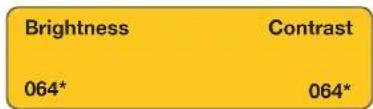
Figure 11. Example of a Selected Picture Controls Submenu Item
- Press the ◀ or ▶ button to adjust the value as desired.
For Picture Controls submenu items:
a. Press the right or left arrow button to select the sub-item on the right or the left.
b. Use the ▲ and ▼ buttons to adjust the settings of the selected sub-item.
c. Repeat steps 6a and 6b for the other sub-item.
-
Press Enter to confirm your new values. Press it again if action confirmation is required. The yellow highlighting is replaced by the yellow outline on the menu screen.
-
Do any of the following:
-
Press the ◀ or ▶ button to move to another item on the submenu and repeat steps 5 through 7.
- Press Menu to exit the submenu.
- Press Menu twice to exit the submenu and close the main menu.
NOTES:
• Values in submenus that do not apply to the current input are shown as N/A.
- An asterisk following an item indicates that it is the default.
- The OSD times out and closes after 1 minute if no buttons are pressed.
Quick Setup Submenu
This submenu (see figure 12) contains a selection of menu items that are also available on other OSD menus. It allows you to make several basic configuration adjustments to the DSC from the same menu screen.
NOTE: On this submenu, the DSC HD-3G A has an Input EDID item, which is not on the DSC 3G-HD A Quick Setup submenu (see figure 10 on page 16).

Figure 12. Quick Setup Submenu — DSC HD-3G A
From this menu, you can configure the following:
- Auto-Image — Select this item, then press Enter to perform a one-time Auto-Image on the video input (see Auto-Image on page 34 for more information about this function).
- Input EDID — (DSC HD-3G A only) Select this item to match the input EDID to the output rate or to set a discrete EDID (see the input EDID table on page 23 for EDID data). The default is 720P @ 59.94 Hz.
- Output Resolution — This item lets you set the resolution and refresh rate for the current output. The DSC 3G-HD A has 42 factory installed output resolutions and rates and 3 custom user defined blocks for new resolutions (see the DSC 3G-HD A output resolutions table on page 25). The DSC HD-3G A has 30 factory output resolutions and rates (no custom rates) (see the DSC HD-3G A output resolutions table on page 27).
- Auto Memory — Select this item to enable or disable Auto Memories. When you select On, the DSC automatically stores the current input configuration and picture control values as an input preset in one of its 32 Auto Memory locations (see Auto Memories on page 37 for more information).
- Aspect Ratio — This item lets you specify how much of the display the image will fill. The sub-items are Fill (fills the entire screen) and Follow (displays with the aspect ratio of the input).
- Input Audio Format — This item enables you to select the format of the audio (if any) that will be embedded in the output (see the audio formats table on page 29 for more information). Selecting None mutes the audio.
- Test Pattern — This item lets you choose a test pattern to aid in setting up the DSC and the corresponding output display. Available patterns are: Off (no test pattern), Crop, Alternating Pixels, Crosshatch, Color Bars, Grayscale, Blue Mode, and Audio Test (displays a crop pattern with OSD text AUDIO TEST and outputs 48 kHz, 24 bit pink noise).
User Presets Submenu
This submenu (see figure 13) allows you to save positioning and sizing information and picture adjustments as a user preset. You can recall saved presets, easily applying their settings to frequently used sources. Presets can also be overwritten or cleared via this menu. (The User Presets submenu is the same on both DSC models.)
- Up to three user presets per input can be saved or recalled.
- A user preset can be saved with one input resolution and later recalled with another resolution. For example, you could save a preset at 720p and recall it at 1080p.
![Extron Electronics DSC 3G-HD A FW: 1.00 Quick Setup User Presets Picture Controls Input Output Audio Advanced Communication Device Info Recall 01: N/A Save 01:[unassigned] Clear 01: N/A Input Resolution 720P @60Hz Output Resolution 1080P @60Hz](/content/2026/06/1189087/images/de252038d95825ffe3e710320bf559fe586c0b4f75176047a62b6f4edcf2bf47.jpg)
Figure 13. User Presets Submenu
In addition to the user presets, 128 global input presets are available via SIS commands (see the Presets commands on page 52). A summary and comparison of the values stored in user and input presets is shown in the table below.
| User Presets Input Presets | ||||
| Contrast | Horizontal image size (Width in pixels) | Contrast Horizontal start Horizontal image size | ||
| Brightness | Vertical image size (Height in lines) | Brightness Vertical start Vertical image size | ||
| Detail Horizontal image position Detail | Active pixels (Horizontal active) | Horizontal image position | ||
| Preset name | Vertical image position Preset name | Active lines (Vertical active) | Vertical image position | |
| Audio gain/ attenuation | Total pixels Film mode | |||
Saving a user preset
To save the current configuration as a preset:
- From the main menu, select User Presets. The User Presets submenu appears in the right column.
-
From the User Presets submenu, select Save. The Save item is highlighted.
-
If no preset has been assigned, the preset item field contains the text 0n: (unassigned), where 0n is the preset number (01 through 03). By default, preset 01 is displayed when the screen is opened.
-
If a preset has been assigned (saved) to a number (01, 02, or 03), the Save item field displays USER PRESET ON.
-
Press any of the arrow buttons to step through the three preset slots and press Enter when the desired preset number is displayed.
-
The selected preset field displays PRESS ENTER TO CONFIRM. Press Enter again to confirm your preset selection.
To overwrite a preset with new settings:
- Change the settings as desired using the other submenus.
- Save the preset again. The new settings replace the previous ones in the preset.
Recalling a user preset
To recall a saved preset:
- Select Recall from the User Presets submenu.
- Use the arrow keys to display the preset name that you want to recall.
- Press Enter to select the preset.
- Press Enter again when prompted in the Recall panel to confirm your selection.
NOTE: If you select an unassigned preset number to recall, the message INVALID PRESET is displayed.
Clearing a user preset
To clear settings assigned to a preset:
- Select Clear from the User Presets submenu.
- Use the arrow keys to navigate to and highlight the preset name that you want to clear.
- Press Enter to select the preset.
- Press Enter again to confirm your selection when prompted. When cleared, the preset again appears as 0n: unassigned.
Picture Controls Submenu
This submenu lets you adjust the horizontal and vertical positions, height and width, brightness and contrast, and sharpness (Detail) of the image on the display. (The Picture Controls submenu is the same on both DSC models.)

Figure 14. Picture Controls Submenu
The following picture settings can be adjusted:
- Image Position — This item lets you adjust the horizontal and vertical position of the image on the display (the available range depends on the current output rate).
- Image Size — This item lets you adjust the horizontal size (width) and vertical size (height) of the image. The range is limited by the output resolution (the maximum size is two times the output resolution).
- Brightness and Contrast — This item lets you adjust the intensity of video light (brightness) and increase or decrease the range of image light and dark values (contrast) independently. The range is 0 through 127. The default is 64.
- Detail — This item lets you adjust the image sharpness. The range is 0 to 127. The default is 64).
NOTE: An asterisk (*) following a value indicates that it is the default.
Adjusting picture controls
- From the Picture Controls submenu, select the control item that you want to adjust. The selected item field appears alone on the display (the rest of the menu is hidden).
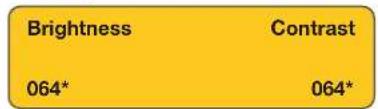
Figure 15. Example of a Selected Picture Control Field
-
Use the arrow buttons to change the value:
-
Press the ▲ or ▼ button to adjust the V (vertical) or Contrast value.
- Press the ◀ or ▶ button to adjust the H (Horizontal) or Brightness value.
- For the Detail value, press either ▲ or ▶ to increase the sharpness. Press ▼ or ◀ to decrease it.
To rapidly increment or decrement the values, press and hold the arrow button.
- When finished adjusting the selected control, press the Menu button to return to the Picture Controls submenu.
Input Submenu
This submenu allows you to perform certain input adjustments and to view the active, total, and start of lines and pixels. (The Input EDID item is available only on the DSC HD-3G A.)

Figure 16. Input Submenu (DSC HD-3G A)
- Auto-Image — Select this item, then press Enter to perform a one-time Auto-Image on the video input (see Auto-Image on page 34 for more information about this function).
- Input EDID — (DSC HD-3G A only) This item lets you select an EDID (resolution and refresh rate) emulation for the HDMI input. You can match the input EDID to the output rate or set a discrete EDID. The default is 720P @ 59.94 Hz. The table below shows the available EDID selections for the DSC HD-3G A.
| Resolution 23.98 | Hz 24 Hz 25 | Hz 29.97 | Hz 30 | Hz 50 Hz 59.94 | Hz 60 Hz | ||
| C1: nnnnXnnnn @nnHz | Custom EDID 1 | ||||||
| C2: nnnnXnnnn @nnHz | Custom EDID 2 | ||||||
| C3: nnnnXnnnn @nnHz | Custom EDID 3 | ||||||
| 640 x 480 X | |||||||
| 800 x 600 X | |||||||
| 852 x 480 X | |||||||
| 1024 x 768 X | |||||||
| 1024 x 852 X | |||||||
| 1024 x 1024 X | |||||||
| 1280 x 768 X | |||||||
| 1280 x 800 X | |||||||
| 1280 x 1024 X | |||||||
| 1360 x 765 X | |||||||
| 1360 x 768 X | |||||||
| 1365 x 768 X | |||||||
| 1366 x 768 X | |||||||
| 1440 x 900 X | |||||||
| 1400 x 1050 X | |||||||
| 1600 x 900 X | |||||||
| 1680 x 1050 X | |||||||
| 1600 x 1200 X | |||||||
| 1920 x 1200 X | |||||||
| 480i (NTSC) X | |||||||
| 576i (PAL) X | |||||||
| 480p X X | |||||||
| 576p X | |||||||
| 720p* | X | X | X | X | X* | ||
| 1080i | X | XX | |||||
| 1080p | X | X | X | X | X | X | X |
| 2K (2048 x 1080) | X | X | X | X | X | X | X |
*Default resolution and rate
Selecting an input EDID
To select a resolution and rate for input emulation:
- From the Input submenu, select Input EDID.
- Press the ◀ or ▶ button to select a resolution.
- Press the ▲ or ▼ button to select a rate for the resolution.
- When finished, press Menu to return to the Input submenu or wait for the DSC to time out (approximately 1 minute). Your selections are saved and appear next time you open the OSD.
- Film Mode — This item lets you enable and disable Film Mode. After selecting the item, press any arrow button to toggle between Auto (the default) and Off.
If Auto is selected, the DSC detects:
• 3:2 pull-down for NTSC and 1080i @ 60 Hz
• 2:2 and 24:1 pull-down for PAL and 1080i @ 50 Hz
• Active — This view-only field shows the width in pixels (the H value) and the height in lines (the V value) of the active video area.
- Total — This view-only field shows the width in pixels (the H value) and the height in lines (the V value) of the total video display area.
- Start — This view-only field shows the distance in pixels from the left edge of the total video display to the left edge of its active area (H value) and the distance in lines from the top edge of the total video display to the top edge of its active area.
Output Submenu — DSC 3G-HD A
This submenu allows you to configure the output of the DSC 3G-HD A.
NOTE: The DSC 3G-HD A has some different items on this submenu from DSC HD-3G A (see Output Submenu — DSC HD-3G A on page 26).

Figure 17. Output Submenu — DSC 3G-HD A
- Output Resolution — This item lets you select the resolution and refresh rate for the connected output display. The DSC 3G-HD A has a range of resolutions from which to choose (see the Resolutions and Refresh Rates for the DSC 3G-HD A table on the next page for the settings that are available for this model). The available refresh rates depend on the selected resolution.
- Select Output Resolution from the Output submenu.
-
Press the ◀ or ▶ button to select a resolution.
-
Press the ▲ or ▼ button to select a rate for the resolution.
-
When you enter a new resolution, a message appears on the display, prompting you to press Enter to confirm your selection.
NOTE: If you do not confirm your resolution and rate selection within 15 seconds, the scaler returns to the previously selected resolution and rate.
The following resolutions and refresh rates are available for the DSC 3G-HD A:
| Resolution 23.98 | Hz 24 Hz 25 | Hz 29.9 | 7 Hz 30 | Hz 50 Hz 5 | 9.94 Hz | 60 Hz | ||
| Match Input Rate Sets | the output rate to match the signal of the connected input. | |||||||
| 640 x 480 X | ||||||||
| 800 x 600 X | ||||||||
| 1024 x 768 X | ||||||||
| 1280 x 768 X | ||||||||
| 1280 x 800 X | ||||||||
| 1280 x 1024 X | ||||||||
| 1360 x 768 X | ||||||||
| 1366 x 768 X | ||||||||
| 1440 x 900 X | ||||||||
| 1400 x 1050 X | ||||||||
| 1600 x 900 X | ||||||||
| 1680 x 1050 X | ||||||||
| 1600 x 1200 X | ||||||||
| 1920 x 1200 X | ||||||||
| 480p XX | ||||||||
| 576p X | ||||||||
| 720p* | X | X | X | X | X | X* | ||
| 1080i | X | XX | ||||||
| 1080p | X | X | X | X | X | X | X | X |
| 2K (2048 x 1080) | X | X | X | X | X | X | X | X |
| Custom 1 | New resolution 1 | |||||||
| Custom 2 | New resolution 2 | |||||||
| Custom 3 | New resolution 3 | |||||||
- HDMI Format — This item lets you set the HDMI output format.
To select the format, select HDMI Format from the Output submenu, then press any of the arrow buttons to step through the items. The choices are:
• Auto (based on the EDID of the sink) (default)
• DVI RGB 444
• HDMI RGB 444 Full
• HDMI RGB 444 Limited
• HDMI YUV 444 Full
• HDMI YUV 444 Limited
• HDMI YUV 422 Full
• HDMI YUV 422 Limited
All output rates include their correct H/V sync polarity per VESA or SMPTE specs, along with VIC codes for SMPTE resolutions.
- Input AFL — This item lets you turn the Extron Accu-RATE Frame Lock (AFL) on and off. The default is Off.
When enabled, this mode locks the output vertical refresh rate to the vertical refresh rate of the currently selected input using Accu-RATE Frame Lock technology. This ensures no frames of the input are repeated or dropped due to frame rate conversion. Input AFL mode can cause glitches or interruptions in the output sync when a new input is selected, or when a new signal has been routed to the selected input, as the DSC locks to the new vertical refresh rate.
NOTE: AFL locks the output refresh rate to similar input rates. If the input signal is locked on a rate that is not considered a standard HDMI output or that is very different from the current output setting, the DSC may not output a signal. The image may not display or may blink.
If no input signal is detected (AFL disabled), or if locking to the input signal is not possible, a free running pixel clock is generated by the DSC.
Output Submenu — DSC HD-3G A
This submenu allows you to configure the output of the DSC HD-3G A.
NOTE: The DSC HD-3G A has some different items on this submenu from DSC 3G-HD A (see Output Submenu — DSC 3G-HD A on page 24).
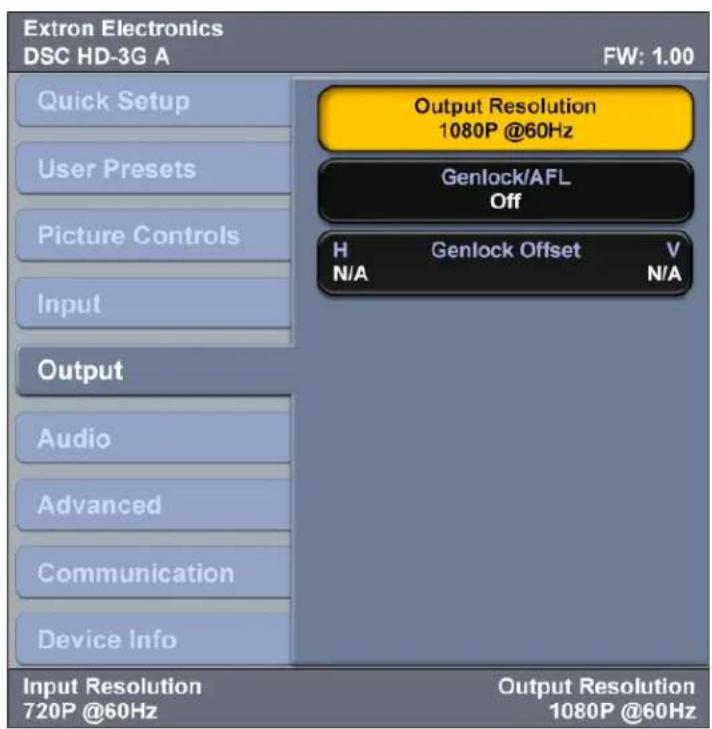
Figure 18. Output Submenu — DSC HD-3G A
- Output Resolution — This item lets you select the resolution and refresh rate for the connected output display. The DSC HD-3G A has a range of factory-loaded resolutions and rates from which to choose (see the resolutions table below for the available resolutions and rates). Different refresh rates are available depending on the selected resolution.
- Select Output Resolution from the Output submenu.
- Press the ◀ or ▶ button to select a resolution.
- Press the ▲ or ▼ button to select a rate for the resolution.
- When you enter a new resolution, a message appears on the display, prompting you to press Enter to confirm your selection. If you do not confirm it within 15 seconds, the scaler returns to the previously selected resolution and rate.
The following resolutions and rates are available for the DSC HD-3G A:
| Resolution 23.98 Hz | 24 Hz 25 | Hz 29.97 | Hz 30 Hz | 50 Hz 59. | 94 Hz 60 Hz | ||
| Match Input Rate Sets the output rate to match the signal of the connected input. | |||||||
| 480i X | |||||||
| 576i X | |||||||
| 720p | X | X | X | X | X | X | X* |
| 1080i | X | X | |||||
| 1080p | X | X | X | X | X | X | X |
| 2K (2048x1080) | X | X | X | X | X | X | X |
Genlock/AFL —
- AFL (Accu RATE Frame Lock) locks the output vertical refresh rate to be to that of the applied HDMI input signal.
- Genlock locks the output vertical refresh rate to that of an applied reference sync signal.
NOTE: Genlock and AFL lock the output refresh rate to similar reference or input rates. If the input reference or the vertical refresh rate of the HDMI input signal do not adhere to SMPTE frequencies, the DSC may not output a signal, or the image may blink.
To select the genlock or AFL mode, select Genlock/AFL from the Output submenu, then press any of the arrow buttons to step through the items. The choices are:
- Off — The output runs at the selected output frame rate using an internally generated clock. This selection is the default.
- Input AFL — The output is locked to the vertical sync of the HDMI input signal. This is valid only if HDMI input frame rate matches that of the DSC scaled output rate.
- SDI Genlock — The genlock input and loop-out are used for sync reference. The Genlock input supports bi-level and tri-level sync.
SDI Genlock locks the output vertical refresh rate to the applied analog genlock input on the DSC HD-3G A. In the SDI Genlock mode, the output resolution and refresh rate of the scaler must be set to exactly match the applied analog genlock signal to ensure a true genlock to the applied SDI Genlock signal.
If the applied SDI Genlock signal does not exactly match the resolution and refresh rate of the DSC HD-3G A output resolution, the scaler locks its output vertical refresh to that of the applied SDI reference (frame lock), which may result in more jitter and may not work for some interlaced signals.
If no SDI Genlock signal is detected, or if the detected SDI Genlock signal would result in a greater than 165 MHz pixel clock, the DSC generates a free running pixel clock.
The Genlock and AFL status can be queried via SIS command (see the Genlock Offset and Input Lock (Accu-Frame Lock [AFL]) commands on page 55) or via PCS (see the DSC 3G-HD A and DSC HD-3G A Help File).
NOTE: If the applied Genlock reference signal differs in resolution or refresh rate from the DSC scaled output resolution, then proper genlock cannot be guaranteed.
- SDI Genlock Offset — This item lets you adjust the horizontal and vertical offset of the genlock signal. (This feature can be adjusted only if the DSC is set for SDI Genlock and actively locked to a reference input.)
Use the ◀ or ▶ button to adjust the horizontal (H) offset value. Use the ▲ or ▼ button to adjust the vertical (V) offset value.
Audio Submenu
This submenu allows you to configure the audio that is processed through the DSC. (The SDI Audio Decode item is available only on the DSC 3G-HD A Audio submenu.)

Figure 19. Audio Submenu — DSC 3G-HD A
To use this submenu, select the desired item, then press any arrow button to step through the selections.
- Input Audio Format — This item lets you select the audio format for the input. The first item on the Audio submenu shows the selected format of the audio.

Figure 20. Input Audio Format Field with Selected Audio Format
The audio format options are listed in the table below.
| Audio Format Selection | Details Model | |
| None | Mutes all audio for the input. Both | |
| Analog | The audio from the 5-pole captive screw input port is embedded in the HDMI output. | DSC 3G-HD A |
| Analog | The audio from the 5-pole captive screw input port is embedded in the SDI output. | DSC HD-3G A |
| 2CH Digital (Default) | Lets you select one pair of AES channels from the available eight pairs. If a format other than two-channel digital is selected for the audio format, the menu to select the pair is disabled (see “Audio channels”). | DSC 3G-HD A |
| LPCM-2Ch (Default) | Displays the selected HDMI input with a PCM two-channel EDID. | DSC HD-3G A |
| 8CH Digital | Lets you select up to four pairs (eight channels) of AES audio to be embedded in the HDMI output (see “Audio channels”). | DSC 3G-HD A |
| Multi-Ch | Displays the HDMI input with a multi-channel EDID (supports only multi-channel PCM audio). | DSC HD-3G A |
| SDI Audio Decode | Lets you select a pair of audio channels to decode from a selected group. | DSC 3G-HD A |
- Audio Mute — This item lets you mute and unmute global audio. Press any arrow key to toggle between Off (default) and On.
- Input Gain / Attenuation — Select this item to set the gain and attenuation for analog audio inputs only. The range is -18 dB to +12 dB. The decibel level can be adjusted in increments of 1.0 dB. The default is 0 dB.
- SDI Decode Audio — (DSC 3G-HD A only) Select this item to select which pair of audio channels to decode and embed. Using this item or SIS commands (see the AES Audio Channel Selection and AES Audio Channel Group Selection commands on page 57), you can pick a group and a channel pair within that group.
Audio channels
On the DSC 3G-HD A you can select channel pairs to embed, in addition to the audio input format. On the DSC HD-3G A, input format selection is available, but channel selection is not.
DSC 3G-HD A: Selecting audio channel pairs
The available formats (modes) for the DSC 3G-HD A are analog, two-channel digital, and eight-channel digital. In two-channel mode, one of the eight channel pairs is embedded in the HDMI output. In eight-channel mode, four pairs are embedded.
The 16 channels are divided into four groups, each consisting of two channel pairs (four channels). The table below shows the channels contained within each group.
| Group 1 Group 2 | Group 3 Group 4 | ||||||||||||||
| Ch Pair 1 Ch | Pair 2 Ch Pair | 1 Ch Pair 2 Ch Pair 1 Ch | Pair 2 Ch Pair 1 Ch Pair 2 | ||||||||||||
| Ch 1 | Ch 2 Ch | 3 Ch 4 | Ch | 5 | Ch 6 | Ch 7 | Ch 8 | Ch 9 | Ch 10 Ch | 11 Ch | 12 Ch 13 | Ch 14 Ch | 15 Ch | 16 | |
- Two-channel Digital Mode: In this mode, you can select a channel group, then one pair of AES channels from that group to embed, using either the SDI Audio Decode item of the Audio submenu or SIS commands (see the Audio Input Format commands on page 56. To select a channel pair:
- Press the ◀ and ▶ buttons to select the group number (1 through 4).
- Press the ▲ and ▼ buttons to select the channel pair number (1 or 2).
- Eight-channel Digital (Full Digital) Mode: In this mode, the first four pairs (eight channels, groups 1 and 2) are embedded (see the table below). You are not able to select a channel pair.
| Group SDI Embedded Audio HDMI | Audio Signal | |
| 1 Pair | 1 — Channel 1 L – Left speaker | |
| Pair 1 — Channel 2 R – Right speaker | ||
| Pair 2 — Channel 1 LFE – Low frequency extension (woofer) | ||
| Pair 2 — Channel 2 C – Center | ||
| 2 Pair | 1 — Channel 1 LS – Left surround | |
| Pair 1 — Channel 2 RS – Right surround | ||
| Pair 2 — Channel 1 SBL – Surround back left | ||
| Pair 2 — Channel 2 SBR – Surround back right | ||
| 3 Pair | 1 — Channel 1 Reserved for future use | |
| Pair 1 — Channel 2 Reserved for future use | ||
| Pair 2 — Channel 1 Reserved for future use | ||
| Pair 2 — Channel 2 Reserved for future use | ||
| 4 Pair | 1 — Channel 1 Reserved for future use | |
| Pair 1 — Channel 2 Reserved for future use | ||
| Pair 2 — Channel 1 Reserved for future use | ||
| Pair 2 — Channel 2 Reserved for future use | ||
DSC HD-3G A: Audio embedding
In PCM multi-channel mode, the DSC HD-3G A embeds up to eight channels of PCM HDMI audio onto the first four pairs of AES channels on the SDI output, in sequential order. In LPCM two-channel mode, the first pair of SDI audio channels is used (you cannot select a channel pair on the DSC HD-3G A).
All audio inputs on the DSC HD-3G A are automatically delayed to compensate for internal video processing.
The table below shows the channel pair mapping for the DSC HD-3G A.
| SDI Embedded Audio | HDMI Audio Signal |
| Pair 1 – Channel 1 | L – Left speaker |
| Pair 1 – Channel 2 | R – Right speaker |
| Pair 2 – Channel 1 | LFE – Low frequency extension (woofer) |
| Pair 2 – Channel 2 | C – Center |
| Pair 3 – Channel 1 | LS – Left surround |
| Pair 3 – Channel 2 | RS – Right surround |
| Pair 4 – Channel 1 | SBL – Surround back left |
| Pair 4 – Channel 2 | SBR – Surround back right |
Advanced Submenu
This submenu allows you to configure the global settings for the unit. The Advanced submenu is the same on both DSC models.

Figure 21. Advanced Submenu
The following items are available on the Advanced submenu:
- Test Pattern — This item lets you select a test pattern to use in setting up a display when outputting different resolutions. The following test patterns are available:
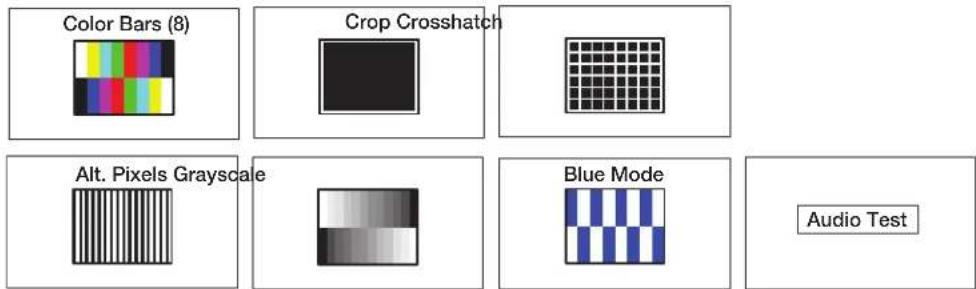
Figure 22. Test Pattern Items
NOTES:
- The Audio Test pattern displays a crop pattern with OSD text AUDIO TEST. It also outputs pink noise at 48 kHz, 24 bit.
- By default all test patterns except Blue Mode include a single pixel wide crop pattern line.
- Screen Saver and Timeout — This item lets you enable screen saver mode, in which the video output is muted to black or blue if there is no active input video signal. It also lets you specify the output sync timeout. Screen saver mode allows display devices (such as an LCD panel, plasma screen, or projector) to enter low power or standby state to increase panel or lamp life.
- To select the screen saver color, press the ◀ or ▶ button. The options are Black (default) or Blue.
- To set the sync timeout, press the ▲ or ▼ button. You can select a duration of 1 through 500 seconds before the output sync times out. The default is Never, meaning that the sync does not time out.
NOTE: The DSC exits screen saver mode when a front panel button is pressed or an active input is detected. If the unit is in front panel lock (executive) mode (see Locking the Front Panel (Executive Mode) on page 39), front panel button presses have no effect on screen saver mode.
- Aspect Ratio — This item lets you set the aspect ratio to Fill (fills the entire output screen) or Follow (follows the native aspect ratio of the input).
- In fill mode, if you want to set an aspect ratio adjustment for a single input rate, you can select the correct size and position manually from the Picture Controls submenu (Image Size and Position) (see Picture Controls Submenu on page 21).
- In follow mode, each input rate is displayed with its native aspect ratio (4:3, 5:4, 15:9, 16:9, 16:10) with the correct letter box or pillar box settings, visible under the Image Size and Image Position items on the Picture Controls submenu.
If you want a single input to fill the screen in follow mode, you can manually set the Image Position item on the Picture Controls submenu to , and set the Image Size to match the current output rate X,Y.
- Auto Memory — This item lets you enable or disable Auto Memory. When Auto Memory is enabled, the DSC stores the current input configuration and picture control values as an input preset. All values are stored except preset name, film mode, and audio gain or attenuation (see Auto Memories on page 37 for more information).
- Overscan — This item lets you select a default overscan mode to apply to SMPTE input rates (480i, 576i, 480p, 576p, 720p, 1080i, 1080p, and 2K). This zooms and crops SMPTE inputs to mask edge effects and ancillary data that may occur in broadcast signals. The selections are 0% (the default), 2.5%, and 5%.
NOTE: If the overscan mode is not 0%, when Auto-Image is performed on an SMPTE input rate, it refers to the default input values for sizing and centering instead of performing a true Auto-Image.
- Temperature — This read-only field shows the internal temperature of the unit in Fahrenheit (left value) and Celsius (right value).
- Factory Reset — This item lets you reset the unit to its factory-installed values (removing any user-defined values) while retaining the current firmware version.
To reset using the OSD, press and hold the Enter button until Factory Reset is displayed. The message remains for approximately 1 minute after the reset is complete to allow time for the display device to sync with the DSC output. (The equivalent SIS command is
Resetting on page 39.
Communication Screen
This read-only screen enables you to view the RS-232 remote port baud rate (left) and port type (right). The protocol for this port is 9600 baud, eight data bits, no stop bits, and no parity. You cannot change any of these port parameters. (This screen is the same on the DSC 3G-HD A and the DSC HD-3G A.)

Figure 23. Communication Screen
Device Info Screen
This read-only screen provides a quick view of certain selections, parameters, and status information for the DSC. All these items are also on other DSC screens. However, the Device Info screen provides them all on a single screen for a system overview. This screen differs between the two DSCs as follows:
- The DSC 3G-HD A Device Info screen (see figure 23) shows the AFL On and Off status and the display resolution and refresh rate (no genlock information).
- The DSC HD-3G A Device Info screen shows the Genlock/AFL On and Off status (no separate items for AFL or the display rate).

Figure 24. Device Info Screen — DSC 3G-HD A
Auto-Image
When Auto-Image is performed, the DSC attempts to size and position the image to fill the display screen (fill mode) or use the native aspect ratio of the input (follow mode). Using SIS commands or the OSD submenus, you can perform a one-time Auto-Image on the current input.
Only the horizontal and vertical positioning and the horizontal and vertical size are adjusted by the Auto-Image. All other controls are left unchanged.
- If the aspect ratio has been set to Fill, the H and V position returns to 0,0, and the H and V Size is set to match the current output rate.
- If the aspect ratio has been set to Follow, the H and V position and size are set to maintain the native aspect ratio of the input rate with respect to the current output resolution.
Auto-Image is useful in applications in which a variety of new input sources may be encountered (such as when a matrix switcher is connected). It is also useful for centering and sizing an image that has been adjusted out of default settings.
You can perform a one-time Auto-Image by the following methods:
- Front panel: While the OSD is not displayed, press the Auto-Image (▶) button twice. (The first press displays the message Press Auto to Confirm on the OSD. The second press initiates the Auto-Image.)
- OSD submenus: Select the Auto-Image / Press Enter to Auto-Image item from the Quick Setup Submenu (see page 17) or the Input Submenu (see page 22).
• SIS commands (see the Auto-Image commands on page 48).
Changing the Output Resolution and Refresh Rate
In addition to the Output submenus (see pages 24 and 26), other options for setting the output resolution and refresh rate include resetting the output rate using the front panel ▼ button (see Resetting the Output Rate on page 36), SIS commands (see the Output Configuration commands beginning on page 53, and the PCS Configuration Program (see the program help file).
Custom Rates — DSC 3G-HD A Only
In addition to the 42 factory output resolutions, 3 custom user-defined rates are available for the DSC 3G-HD A via SIS commands (see the Output Scaler Rate commands on page 53 for the command format) or PCS (see the program help file). When no custom EDIDs are defined, these three resolutions and rates default to 720p @ 60 Hz. The OSD dynamically updates itself based on the current file stored in the custom EDID slot. For example, if a custom 720p EDID has been uploaded, the OSD would read C1: 720P @ 60 Hz.
Importing an HDMI EDID — DSC 3G-HD A Only
You can also import the EDID of a connected HDMI sink to use as a custom rate. This EDID can be saved and stored in one of three custom EDID slots, which are then available for custom EDID emulation or custom output rate generation (custom rate based on the EDIDs preferred timings) (see the Output EDID command on page 53).
NOTE: If an imported or custom rate is not a valid output resolution, the output reverts to the default (720p @ 60 Hz).
Changing the Output Resolution from the Front Panel — DSC HD-3G A Only
Depending on which Output LED is lit (2.97 Gbps for 3G-SDI, 1.485 Gbps for HD-SDI, or 270 Mbps for SD-SDI) you can press a combination of front panel buttons to cycle through the different levels of output signal format and change the resolution. This is helpful if you are not able to display an image on the screen.
To change the resolution using the front panel buttons:
- With the scaler powered on, press and hold the Menu and Auto-Image (▶) buttons until the 1.485 Gbps (HD-SDI) LED lights (approximately 5 seconds), indicating that the unit is now outputting 720p @ 59.94 Hz. If a screen is connected, the following message is displayed:
Press Enter to confirm the new resolution. Unit will return to previous resolution in 15 seconds if not confirmed.
- Press the ▲ or ▼ button repeatedly to cycle through the output resolutions typically associated with the HD-SDI output format.
NOTE: If you do not press a button within 15 seconds, the DSC reverts to the previous output rate and you must return to step 1 to select another resolution.
While the DSC is in resolution change mode, some of the front panel buttons have different functionality. The following table shows which buttons change function:
| Front Panel Button Function | |
| Menu | Cancel and exit. Returns to previous output resolution. |
| Enter | Confirm and exit. Sets the selected new resolution. |
| ▲ | Step through rates incrementally starting with 720p @ 59.94 Hz. |
| ▼ | Step through rates decrementally, starting with 720p @ 59.94 Hz. |
- To access more resolutions, continue pressing either arrow button. After you have stepped through the 1.485 Gbps resolutions, the unit moves to the next level (either the 270 Mbps or the 2.97 Gbps LED lights, depending on which arrow button you are pressing) and continues cycling through the available resolutions.
The following table shows the resolutions associated with each SDI signal type:
| SDI Signal Type Resolutions | |
| 2.97 (3G-SDI) 1080p | @ 60 Hz |
| 1080p @ 59.94 Hz | |
| 1080p @ 50 Hz | |
| 1.485 (HD-SDI) 1080i | @ 60 Hz |
| 1080i @ 59.94 Hz | |
| 1080i @ 50 Hz | |
| 720p @ 60 Hz | |
| 720p @ 59.94 Hz | |
| 720p @ 50 Hz | |
| 270 Mbps (SD-SDI) 480i @ 59.94 Hz | |
- When you have arrived at the desired resolution, press Enter to confirm it.
Resetting the Output Rate
If an output image cannot be displayed due to an incompatible output rate, you can use the front panel buttons to toggle the output rate between 1024x768 @ 60 Hz and 720p @ 60 Hz for the DSC 3G-HD A or 1080i @ 59.94 Hz and 720p @ 59.94 Hz for the DSC HD-3G A.
To set the rate or toggle between the two available rates:
- Ensure that the OSD is closed by pressing and holding Menu for 3 seconds.
- Press and hold the ▼ button for approximately 5 seconds to toggle between the VESA and SMPTE rates (DSC 3G-HD A) or the 720p and 1080i rates (DSC HD-3G A).
NOTE: On the front panels, the ▼ button is labeled as follows:
• DSC 3G-HD A: Hold ▼ for XGA ↔ 720p.
• DSC HD-3G A: Hold ▼ for 720p ↔ 1080i.
Power Save Mode
In power save (standby) mode, all non-essential hardware is shut down in order to conserve power.
- To enable power save mode, enter the Power Save On SIS command (see the Power Save Mode commands on page 54).
- To exit power save mode, either enter the Power Save Off SIS command or press any front panel button. If the front panel is locked, this method does not work.
NOTE: The backup and restore functions available through the PCS control software are not accessible while the unit is in power save mode.
Presets
A preset is a set of input parameters that are either saved by you or automatically by the DSC as a files in DSC memory. Saved presets can be recalled and their settings implemented at any time. A preset saves time by enabling you to apply a group of settings to the DSC at one time.
The DSCs have three types of presets: Auto Memories, user presets, and global input presets.
Auto Memories
The DSC has 32 memory locations in which the current input configuration and picture control values are automatically stored as an input preset, when Auto Memory is enabled. An Auto Memory preset is recalled when an identical input resolution and rate is applied to the input.
Each Auto Memory preset is stored with a time stamp that is incremented each time its stored rate is detected. If all Auto Memory slots are occupied and a new rate is applied, the Auto Memory with the oldest time stamp is overwritten.
Auto memory can be enabled using the OSD (see the Auto Memory item of the Advanced submenu on page 32) and by SIS commands (see the Auto Memories commands on page 52).
The following information is stored in an Auto Memory preset:
- Contrast • Active lines (Vertical Active)
- Brightness • Horizontal image position
• Detail • Vertical image position
• Horizontal start • Horizontal image size (width)
• Vertical start • Vertical image size (height)
• Active pixels (Horizontal Active) • Total pixels
User Presets
Three memory slots are available for you to store certain input settings as a preset. You can then recall a saved preset and apply it to the current input.
NOTE: A user preset can be saved at one input resolution, then recalled at another.
User presets can be saved, recalled, and cleared via the OSD (see User Presets Submenu on page 19) or SIS commands (see the User Presets commands on page 52). The following values are saved in a user preset:
- Contrast • Active lines (Vertical Active)
- Brightness • Horizontal image position
• Detail • Vertical image position - Preset name • Horizontal image size (width)
• Vertical start • Vertical image size (height)
NOTE: You can change the picture and image settings using the Picture Controls Submenu (see page 21) and Input Submenu (see page 22) or SIS commands (see the Presets commands on page 52). The preset name can be assigned only via SIS commands.
Input Presets
The DSC has 16 memory slots in which you can save input presets that are global to the HDMI or SDI input. These presets allow a matrix switcher with multiple types of video inputs (such as an Extron SMX) to be placed upstream from the DSC to expand the number of video sources. Input presets can be saved and recalled only through SIS commands (see the Input Presets commands on page 53).
Values for the following settings are saved in input presets:
- Contrast • Active pixels (Horizontal Active)
- Brightness • Active lines (Vertical Active)
• Detail • Horizontal image position - Film Mode • Vertical image position
- Audio gain and attenuation
- Horizontal image size (width)
• Horizontal start • Vertical image size (height)
• Vertical start • Total pixels
- Preset name
Saving a preset when using a matrix switcher
When using the DSC with a matrix switcher, do the following to save a preset:
- Switch each input of the matrix to the input of the DSC.
- Configure each input: size, position, detail, brightness, and contrast. (The remaining settings — horizontal start, vertical start, active pixels and lines, and total pixels — are not user-configurable, but are stored automatically as part of the preset.)
- Save the settings to a preset for recall by the control system when that matrix input is routed to the HDMI or SDI input.
Locking the Front Panel (Executive Mode)
To prevent access by unauthorized users or accidental changes to the DSC settings, you can lock the front panel controls by placing the DSC in executive mode. In this mode, all front panel buttons are disabled and control is available only by SIS commands.
To lock the front panel, do either of the following:
- Press and hold the front panel Menu and ▼ buttons until the OSD displays the message Executive Mode Enabled (approximately 5 seconds). The message remains on the OSD approximately 2 seconds.
- Enter the Enable SIS command (see the Front Panel Lock (Executive Mode) commands on page 58).
To unlock the front panel, do either of the following:
- Press and hold the front panel Menu and ▼ buttons again until the OSD displays the message Executive Mode Disabled (approximately 5 seconds). The message remains on the OSD approximately 2 seconds.
- Enter the Disable SIS command (see the Front Panel Lock (Executive Mode) commands).
Resetting
Resetting the unit causes various settings to revert to the defaults that were set at the factory. Resets can be performed from the front panel buttons, the OSD, or SIS commands. The following resets are available:
- Factory defaults: This reset clears all user-specified settings but retains the latest firmware version. You can perform this reset by:
- Selecting Factory Reset from the Advanced submenu of the OSD (see the Factory Reset item on the Advanced submenu on page 32)
- Entering the Reset all device settings to factory default SIS command (see the Reset command on page 59)
When the reset is complete, the message Factory Reset is displayed on the OSD.
- Factory firmware: This reset returns the unit to its factory default settings, including the original firmware with which it was shipped. All user settings are cleared.
To perform this reset, press and hold the Enter button for 20 seconds while applying power to the unit. When the reset is completed, the message Firmware Reset appears on the OSD.
NOTE: The Firmware Reset and Factory Reset messages are displayed for 1 minute after the reset to allow time for the display device to sync with the DSC output.
Remote Configuration and Control
This section describes the connections through which the DSC can be configured and controlled remotely via SIS commands and describes the commands that are available. It also provides the procedure for accessing the PCS configuration software. Topics include:
- SIS Commands
• Product Configuration Software
SIS Commands
The DSC can be configured and controlled via a host computer or other device (such as a control system) attached to the front panel USB port or the rear panel RS-232 connector. Enter SIS commands using an application such as the Extron DataViewer, available at https://www.extron.com (see the DataViewer Help file to use this program).
For the RS-232 connection the scaler uses a protocol of 9600 baud, 1 stop bit, no parity, and no flow control.
SIS commands consist of one or more characters per field. No special characters are required to begin or end a command sequence. When the DSC determines that a command is valid, it executes the command and sends a response to the host device. All responses from the scaler to the host end with a carriage return and a line feed (CR/LF = 0) indicating the end of the response character string (one or more characters).
Copyright Information
The DSC sends the following copyright message upon connection to the host if the DSC is already connected via RS-232. (This message is displayed only with an RS-232 connection).
← (c) Copyright 20nn, Extron Electronics, DSC XX-XX A, Vn.nn, 60-130n-01
(20nn is the year, DSC XX-XX A is the model name, Vn.nn is the firmware version number, and 60-130n-01 is the unit part number.)
DSC-initiated Messages
When a local event such as a front panel selection or adjustment takes place, the DSC scaler responds by sending a message to the host. No response is required from the host. Example scaler-initiated messages are listed here.
- Reconfig
The DSC sends this response when a change in the input frequency is detected.
• Hplg0
The DSC 3G-HD A sends this response when a hot plug event on the output is detected (for example, when the unit is unplugged and reconnected).
Error Responses
When the DSC receives a valid command, it executes the command and sends a response to the host device. If the unit is unable to execute the command because the command contains invalid parameters, it returns one of the following error responses to the host.
E01 — Invalid input number
E06 — Invalid switch attempt in this mode
E10 — Invalid command
E11 — Invalid preset number
E12 — Invalid port number
E13 — Invalid parameter
E14 — Invalid command for this configuration
E17 — Invalid command for signal type
E22 — Busy
Using the Command and Response Table
The Command and Response Table for SIS Commands, beginning on page 48, lists the commands that the DSC scaler recognizes as valid, the responses that are returned to the host, a description of the command function or the results of executing the command, and an example of each command in ASCII.
NOTE: Unless otherwise stated, upper- and lowercase text can be used interchangeably in the commands.
| ASCII to HEX Conversion Table | Esc 1B | CR ∅D | LF ∅A | |||||||
| Space | 20 | ! | 21 | " | 22 | # | 23 | $ 24 | % 25 | & 26 |
| ( 28 ) | 29 | * | 2A | + | 2B | , | 2C | - 2D | • 2E | |
| ∅ | 30 | 1 | 31 | 2 | 32 | 3 | 33 | 4 | 34 | 5 35 |
| 8 | 38 | 9 | 39 | : | 3A | ; | 3B | < 3C | = 3D | > 3E |
| @ | 40 | A | 41 | B | 42 | C | 43 | D | 44 | E 45 |
| H | 48 | | | 49 | J | 4A | K | 4B | L | 4C | M 4D |
| P | 50 | Q | 51 | R | 52 | S | 53 | T | 54 | U 55 |
| X | 58 | Y | 59 | Z | 5A | [ | 5B | \ 5C] | 5D | ^ 5E |
| 60 | a | 61 | b | 62 | c | 63 | d | 64 | e 65 | |
| h | 68 | i | 69 | j | 6A | k | 6B | l | 6C | m 6D |
| p | 70 | q | 71 | r | 72 | s | 73 | t | 74 | u 75 |
| x | 78 | y | 79 | z | 7A | { | 7B | l 7C} | 7D | ~ 7E |
Figure 25. ASCII to Hexadecimal Character Conversion Table
Symbol Definitions
- = Space
←= Carriage return with line feed
or | = Carriage return with no line feed
EscW = Escape
^24 = Superscripts indicate the error message displayed if the command is entered incorrectly or with invalid parameters (see Error Responses on the previous page).
*NOTE: Values with an asterisk (*) depend on the resolution.
X2 Input video format for DSC 3G-HD A:
= No signal detected on the current input
1 = SD - 480i
2 = SD - 576i
3 = HD - 480p, 576p, 720p, 1080i, 1080p (up to 30 Hz)
4 = 3G - 1080p (@ 50, 59.94, and 60 Hz), 2K
5 = Unknown
X3 Input video format for DSC HD-3G A:
= No signal detected on the current input
1 = HDMI
2 = DVI
3 = Invalid signal
X4 = Horizontal or vertical start - 0 through 255 (default midpoint = 128)
Response is three digits, padded with zeros.
X6 Total lines:*
DSC 3G-HD A: View only
DSC HD-3G A: ±512 of the default value
Response is four digits, padded with zeros.
x7 Total pixels:*
DSC 3G-HD A: View only
DSC HD-3G A: ±512 of the default value
Response is four digits, padded with zeros.
X8 Active pixels:*
DSC 3G-HD A: View only
DSC HD-3G A: ±512 of the default value
Response is four digits, padded with zeros.
X9 Active lines:*
DSC 3G-HD A: View only
DSC HD-3G A: ±256 of the default value
Response is four digits, padded with zeros.
X10 = On or off (enable or disable)
θ = Off or disable
1 = On or enable
X12= Internal temperature (in degrees Celsius)
Response is two digits, padded with a zero.
X13 Horizontal and vertical frequencies
Format is three digits with a single decimal place and leading zeros. Example: 075.3
X14 Text label or preset name (up to 16 characters)
NOTE: User and input presets saved without a name are given the default names User Preset nn (for example, User Preset 11) or Input Preset nnn (for
example, Input Preset 005).
X15 Picture adjustment - 0 to 127 (default 64)
Response is three digits, padded with zeros.
X16 Horizontal and vertical position
• H range: -02048 through +02048
• V range:
DSC 3G-HD A:-01200 through +01200
DSC HD-3G A: -01080 through +01080
Response is five digits with leading + or - and padded with zeros. Example: -01075
X±7 Horizontal and vertical size
• H range: 00010 through 04096
• V range:
DSC 3G-HD A: 00010 through 02400
DSC HD-3G A: 00010 through 02160
Response five digits, padded with zeros. (Example: -01075)
X20 Output resolution
DSC 3G-HD A:
1 = EDID of the connected HDMI display. Holds last connected display EDID until a new display is attached or a power cycle occurs. Valid for EDID export only.
2 = Custom output rate 1
3 = Custom output rate 2
4 = Custom output rate 3
9 = Match the input rate. (If the current input is not a valid output resolution, the output rate defaults to 720p @ 60 Hz.)
| SIS Variables for DSC 3G-HD A Resolutions and Refresh Rates ( ☒1 through 92) | ||||||||
| Resolution 23 | 98 Hz 24 Hz | 25 Hz | 29.97 Hz | 30 Hz 50 | Hz 59.94 | Hz 60 Hz | ||
| 640x480 | 11 | |||||||
| 800x600 | 14 | |||||||
| 1024x768 | 20 | |||||||
| 1280x768 | 29 | |||||||
| 1280x800 | 32 | |||||||
| 1280x1024 | 35 | |||||||
| 1360x768 | 41 | |||||||
| 1366x768 | 47 | |||||||
| 1440x900 | 53 | |||||||
| 1400x1050 | 56 | |||||||
| 1600x900 | 58 | |||||||
| 1680x1050 | 60 | |||||||
| 1600x1200 | 62 | |||||||
| 1920x1200 | 64 | |||||||
| 480p | 65 66 | |||||||
| 576p | 67 | |||||||
| 720p | 68 | 69 | 70 | 71 | 72 | 73* | ||
| 1080i | 74 | 75 76 | ||||||
| 1080p | 77 | 78 | 79 | 80 | 81 | 82 | 83 | 84 |
| 2048x1080 (2K) | 85 | 86 | 87 | 88 | 89 | 90 | 91 | 92 |
*Default output resolution
DSC HD-3G A:
θ = Automatic: matches the current scaler output resolution
2 = Custom output rate 1
3 = Custom output rate 2
4 = Custom output rate 3
9 = Match the input rate. (If the current input is not a valid output resolution, the output rate defaults to 720p @ 59.94 Hz.)
| SIS Variables for DSC HD-3G A Resolutions and Refresh Rates ( 68 through 94) | |||||||||
| Resolution 23.98 | Hz 24 Hz 25 | Hz 29.97 | Hz 30 | Hz 50 Hz 59.94 | Hz 60 Hz | ||||
| 480i | 93 | ||||||||
| 576i | 94 | ||||||||
| 720p | 95 96 | 68 69 70 | 71 72* | 73 | |||||
| 1080i | 74 | 75 | 76 | ||||||
| 1080p | 77 78 | 79 80 81 | 82 | 83 | 84 | ||||
| 2048x1080 (2K) | 85 86 | 87 88 89 | 90 | 91 | 92 | ||||
*Default output resolution
X21 = EDID emulation for DSC HD-3G A (Response is two digits padded with a zero.)
θ = Automatic: matches the current scaler output resolution
1 = Custom EDID 1
2 = Custom EDID 2
3 = Custom EDID 3
| SIS Variables for EDID Resolution and Refresh Rates (X21 = 11 through 96) | ||||||||
| Resolution | 23.98 Hz | 24 Hz | 25 Hz | 29.97 Hz | 30 Hz | 50 Hz | 59.94 Hz | 60 Hz |
| 640x480 | 11 | |||||||
| 800x600 | 14 | |||||||
| 1024x768 | 20 | |||||||
| 1280x768 | 29 | |||||||
| 1280x800 | 32 | |||||||
| 1280x1024 | 35 | |||||||
| 1360x768 | 41 | |||||||
| 1366x768 | 47 | |||||||
| 1440x900 | 53 | |||||||
| 1400x1050 | 56 | |||||||
| 1600x900 | 58 | |||||||
| 1680x1050 | 60 | |||||||
| 1600x1200 | 62 | |||||||
| 1920x1200 | 64 | |||||||
| 480i | 93 | |||||||
| 576i | 94 | |||||||
| 480p | 65 66 | |||||||
| 576p | 67 | |||||||
| 720p | 95 | 96 | 68 | 69 | 70 | 71 | 72* | 73 |
| 1080i | 74 75 | 76 | ||||||
| 1080p | 77 | 78 | 79 | 80 | 81 | 82 | 83 | 84 |
| 2048x1080 (2K) | 85 | 86 | 87 | 88 | 89 | 90 | 91 | 92 |
*Default EDID value
X22 Test patterns:
θ = Off (default)
1 = Crop
2 = Alternating pixels
3 = Crosshatch
4 = Color bars
5 = Grayscale
6 = Blue mode (no crop pattern)
7 = Audio Test (Crop pattern, OSD text Audio Test. Outputs pink noise at 48 kHz, 24 bits, channels 1/2.)
X25 User presets — 1 to 3
Response is two digits padded with a zero.
X26 Input presets — 1 to 128 (global for device)
Response is three digits padded with a zero.
X28 Output sync timeout — 1 to 500 in 1-second increments
= The output sync is instantly disabled with no active input.
501 = The output sync never times out (default).
X29 Front panel lock (executive mode) status
θ = Disabled (default)
1 = Enabled (front panel locked)
X20 OSD menu system status
θ = Off
1 = On
X31 Verbose mode
θ = None
1 = Verbose mode is on (default for RS-232 and USB connections).
2 = Verbose mode is off, tagged responses are sent for queries (tagged responses are enabled).
3 = Verbose mode is on (enabled) and tagged responses are enabled and sent for queries.
NOTES:
- In verbose response mode, the DSC responds with more information than it usually would. For example, the DSC can send out a notice of a change in some setting without receiving a query via your PC. That change could have been a result of an internal process (a script execution), a selection made using a touchpanel or keypad, a change made using GV or a web page, or input from a connected sensor or switch.
That is an example of a verbose (wordy) relationship between the DSC and a connected device. Verbose mode creates more network traffic than usual, which can slow down network performance.
- If tagged responses are enabled, all read or view commands return the constant string plus the data. For example:
Command:
E\$NAV

Response: SsavM X40 (tagged mode)
or
X40 (untagged mode)
X32 Unit name — A text string of up to 24 characters (A-Z, 0-9, and the hyphen (-) are permitted.
• The first character must be a letter.
- The last character cannot be a hyphen.
- No blank or space characters are permitted as part of the name.
- No distinction is made between uppercase and lowercase letters.
X3.3 Default name — DSC 3G-HD A or DSC HD-3G A
X34 Model description — Digital Scaling Converter
X37 Overscan — DSC 3G-HD A
Applied only to SMPTE input rates (480i, 576i, 720p, 1080i, 1080p, and 2K)
= 0.0% — A true Auto-Image is executed on SMPTE inputs (default for SDI).
1 = 2.5% — An Auto-Image command snaps to a 2.5% table (no true Auto-Image is performed).
2 = 5.0% — An Auto-Image command snaps to a 5.0% table (no true Auto-Image is performed).
X39 Aspect ratio
1 = Fill: each input rate automatically fills the entire output raster (default)
2 = Follow: each input rate is displayed with its native aspect ratio
X40 Screen saver mode
1 = Black screen (default)
2 = Blue output with OSD text
X42 Video mute
θ = Off (unmute) (default)
1 = On (mute to black screen)
2 = On (mute all output sync and video)
X44 HDCP status (DSC 3G-HD A only)
θ = No sink device detected
2 = Sink detected
X48 HDMI output format (DSC 3G-HD A only)
θ = Auto (default). (HDMI – RGB Full to a CEA sink or DVI to a non-CEA sink). OSD reads Auto.)
1 = DVI (RGB 444, 0-255, no audio, no InfoFrames) OSD reads DVI RGB 444.)
2 = HDMI RGB Full (RGB 444, 0-255, audio, InfoFrames. OSD reads RGB Full.)
3 = HDMI RGB Limited (RGB 444, 16-235, audio, InfoFrames. OSD reads RGB Limited.)
4 = HDMI YUV Full (YUV 444, 0-255, audio, InfoFrames. OSD reads YUV 444 Full.)
5 = HDMI YUV Limited (YUV 444, 16-235, audio, InfoFrames. OSD reads YUV 444 Limited.)
6 = HDMI YUV Full (YUV 422, 0-255, audio, InfoFrames. OSD reads YUV 422 Full.)
7 = HDMI YUV Limited (YUV 422, 16-235, audio, InfoFrames. OSD reads YUV 422 Limited.)
X51 SDI audio channels — AES channel pair 1 or 2 of the selected group (DSC 3G-HD A only).
1 = Channel pair 1
2 = Channel pair 2
X52 SDI audio group — AES channel pair group 1 through 4 (DSC 3G-HD A only).
1 = Group 1 3 = Group 3
2 = Group 2 4 = Group 4
X54 Audio gain and attenuation
-18 through +12 dB. (For DSC 3G-HD A, this applies to analog input.) Response is two digits with leading + or - and is padded with a zero.
X58 Audio input type — DSC 3G-HD A
θ = None: input is muted.
1 = Analog (on 5-pole captive screw connector)
2 = Two-channel digital (2CH audio, one channel pair SDI selected) (default)
3 = Eight-channel digital (8CH audio, pairs 1 through 4 SDI. Audio delay is applied and the signal is re-embedded in the SDI output.)
X59 Audio input type — DSC HD-3G A
θ = None: input is muted.
1 = Analog (on 5-pole captive screw connector)
2 = LPCM two-channel digital (embedded in the HDMI input) (default). LPCM-2CH audio is requested from the source via EDID.
3 = Multi-channel digital (via EDID). Allows any digital audio format from the source. Audio delay is applied and the signal is re-embedded into the HDMI output.
4 = (Unsupported input audio format)
X60 EDID file data block, 128 or 256 bytes of binary data (machine-readable only).
X61 Video signal status
θ = Video (DSC 3G-HD A) or TMDS (DSC HD-3G A) signal not detected
1 = Video or TMDS signal detected.
X6-2 Power save mode
θ = Full power mode (default)
1 = Low power mode
X63 Screen saver status
θ = Active input detected, timer not running
1 = No active input detected, timer running, output sync active
2 = No active input detected, timer expired, output sync disabled
X64 Input lock (AFL) — DSC 3G-HD A only
= Disable input lock. Free running pixel clock is generated internally. (Default)
1 = Enable input lock. Locks output vertical to vertical refresh rate of the selected input.
X65 Input lock (AFL) status — DSC 3G-HD A only
= Input lock (AFL) is disabled.
1 = Input lock (AFL) is enabled, but cannot lock to applied input signal. The DSC 3G-HD A defaults to the set output rate.
2 = Input lock (AFL) is enabled. The output is locked to the applied input signal (AFL).
X66 Input lock (AFL) / SDI genlock — DSC HD-3G A only
= Disable input lock/genlock. Free running pixel clock is generated internally. (Default)
1 = Enable input lock (AFL). Locks the output vertical to the vertical refresh rate of the selected input.
2 = Enable SDI genlock. Locks output vertical to selected genlock input.
X6-7 Input lock (AFL) / genlock status — DSC HD-3G A only
= Input lock (AFL) / SDI genlock is disabled.
1 = Input lock (AFL) is enabled, but cannot lock to the applied input signal. The DSC 3G-HD A defaults to the set output rate.
2 = Input lock (AFL) / SDI genlock is enabled. The output is locked to the applied input signal (AFL).
Command and Response Table for SIS Commands
| Command ASCII Command (Host to Scaler) | Response (Scaler to Host) | Additional Description | ||||||
| Input Configuration | ||||||||
| Input Video Format | ||||||||
| View video format: DSC 3G-HD A | 1 * \ | X2←In verbose modes 2 and 3: Vtyp 1 * X2← | View the detected input video format X2DSC 3G-HD A. | |||||
| View video format: DSC HD-3G A | 1 * \ | X3←In verbose modes 2 and 3: Vtyp 1 * X3← | View the detected input video format X3DSC HD-3G A. | |||||
| Input EDID (DSC HD-3G A Only) | ||||||||
| Assign EDID to input | Esc * X20ID ← | Edid A 1 * X21← Assign EDID resolution and refresh rate X21the DSC HD-3G A input. | ||||||
| View assigned EDID data | Esc EDID ← X21 ←In verbose modes 2 and 3: Edid A 1 * X21← | View assigned EDID resolution and refresh rate X21the DSC HD-3G A input. | ||||||
| Auto-Image | ||||||||
| Execute | A | Img← Perform an Auto-Image on the current input (follows current aspect ratio setting). | ||||||
| Execute and Fill | 1*A | Img1← Perform an Auto-Image and fill entire display screen. | ||||||
| Execute and Follow | 2*A | Img2← Perform an Auto-Image and follow the aspect ratio of the input. | ||||||
| Active Pixels | ||||||||
| View Esc | APIX ← X8 ←In verbose modes 2 and 3: Apix1 * X8← | Show active pixels X8r the input. X8four digits padded with zeros. | ||||||
| Active Lines | ||||||||
| View Esc | ALIN ← X9 ←In verbose modes 2 and 3: Alin1 * X9← | Show active lines X9r the input. X9four digits padded with zeros. | ||||||
| KEY: X2= Input video format for DSC 3G-HD A: θ = No signal, 1 = SD: 480i, 2 = SD: 576i, 3 = HD: 480p, 576p, 720p, 1080i, 1080p (up to 30 Hz), 4 = 3G: 1080p (@50, 59.94, and 60 Hz), 2K X3= Input video format for DSC HD-3G A: θ = No signal, 1 = HDMI, 2 = DVI, 3 = Invalid signal X8 Active pixels: For DSC HD-3G A, ±512 of the default value. X9 Active lines: For DSC HD-3G A, ±256 of the default value. X21EDID emulations for DSC HD-3G A: θ = Automatic: matches current output resolution (default), 1 = Custom EDID 1, 2 = Custom EDID 2, 3 = Custom EDID 3, 9 = Match the input rate. For variables 11-96, see the SIS EDID table on page 44. | ||||||||
| Input Configuration (continued) | ||||||||
| Total Lines | ||||||||
| View total lines | Esc | TLIN | ←X6 | ←In verbose modes 2 and 3:Tlin 1* X6 | Show total number of lines for the input. | |||
| Total Pixels | ||||||||
| View total pixels | Esc | TPIX | ←X7 | ←In verbose modes 2 and 3:Tpix 1* X7 | Show the total number of pixels(X7)or the input. | |||
| Horizontal or Vertical Start | ||||||||
| View horizontal start | Esc | HSRT | ←X4 | ←In verbose modes 2 and 3:Hsrt 1* X4 | Show the horizontal location of the first active pixel(X4)the input. | |||
| View vertical start | EASRT | ←X4 | ←In verbose modes 2 and 3:Vsrt 1* X4 | Show the vertical (line) location of the first active pixel(X4)the input. | ||||
| 3:2, 2:2, and 24:1 Film Mode Detection | ||||||||
| Enable auto detection | ESFILM | ← | Film 1* X10 | Enable automatic detection of film mode (3:2, 2:2, and 24:1 pull-down) (default). | ||||
| Disable auto detection | Esc | ∅ FILM | ← | Film 1* X10 | Disable automatic film mode detection. | |||
| View setting | ESRLM | ←X10 | ←In verbose modes 2 and 3:Film 1* X10 | View the current film mode setting. | ||||
| Picture Adjustments | ||||||||
| Video Mute (Defaults to unmuted after a power cycle.) | ||||||||
| Mute video to black | 1*1B | Vmt 1*1 ← Mute video, displaying blackvideo on output. | ||||||
| Mute all sync and video | 1*2B | Vmt 1*2 ← | Mute all of the signal on the SDI output or all TMDS on the HDMI video output. | |||||
| Unmute video and output sync | 1*∅B | Vmt 1*∅ ← | Display the input signal on the output. | |||||
| View | 1B | X42←In verbose modes 2 and 3:Vmt 1* X42← | View output mute status X42 | |||||
| KEY: Horizontal or vertical start: θ to 255 (default midpoint = 128)X6= Total lines: ±512 of the default valueX7= Total pixels: ±512 of the default valueX+0= Film mode automatic detection status: θ = disabled, 1 = enabledX+2= Video mute status: θ = unmuted (default), 1 = muted, 2 = all output sync and video muted | ||||||||
| Picture Adjustments (continued) | ||||||||
| Contrast | ||||||||
| Set a specific value | Esc | X19NT | ← | Cont 1 * | X45 | Set the range of image light and dark values (contrast level) to X19the input. | ||
| Increment contrast value | Esc+ CONT | ←Cont 1 * | X45 | Increase the contrast level by 1. | ||||
| Decrement value | SedCONT | ← | Cont 1 * | X45 | Decrease the contrast level by 1. | |||
| View Esc | CONT | ←X15 | ←In verbose modes 2 and 3: Cont 1 * | X45 | View the current contrast level for the input. | |||
| Brightness | ||||||||
| Set a specific value | Esc | X9BIT | ←Brit 1 * | X45 | Set the intensity of video light on the screen (brightness level) to X19the input. | |||
| Increment value | Esc | + BRIT | ← | Brit 1 * | X45 | Increase the brightness level by 1. | ||
| Decrement value | SedBIT | ← | Brit 1 * | X45 | Decrease the brightness level by 1. | |||
| View Esc | BRIT | ←X15 | ←In verbose modes 2 and 3: Brit 1 * | X45 | View the current brightness level for the input. | |||
| Detail Filter | ||||||||
| Set detail level | Esc | XHDET | ← | Hdet 1 * | X45 | Set the sharpness (detail) level to X19the input. | ||
| Increment value | Esc | + HDET | ← | Hdet 1 * | X45 | Increase the detail level by 1. | ||
| Decrement value | SedDET | ← | Hdet 1 * | X45 | Decrease the detail level by 1. | |||
| View detail value | Esc | HDET | ← | X45In verbose modes 2 and 3: Hdet 1 * | X45 | Show the detail level for the input. | ||
| Horizontal Position (Image) | ||||||||
| Specific value | Esc | X10TR←Hctr | X45 | Set the horizontal position of the image in relation to the center of the screen to X16 | ||||
| Increment value | Esc | + HCTR←Hctr | X45 | Shift image right 1 pixel. | ||||
| Decrement value | SedCTR← | Hctr | X45 | Shift image left 1 pixel. | ||||
| View | LCTR← | X10←In verbose modes 2 and 3: Hctr | X45 | View horizontal position value X16 | ||||
| KEY: X15 Picture adjustment: 0 through 127 (default = 64)X16 Horizontal or vertical position. Response is five digits with leading + or - and padded with zeros.For DSC 3G-HD A: H range = -02048 - +02048, V range = -01200 - +01200For DSC HD-3G A: H range = -02048 - +02048, V range = -01080 - +01080 | ||||||||
| Vertical Position (Image) | ||||||||
| Specific value | Esc | XAGTR | ← | Vctr | X16 | Set the vertical position of the image in relation to the center of the screen to X16 | ||
| Increment value | Esc | + VCTR | ← | Vctr | X16 | Shift the image down by 1 line. | ||
| Decrement value | Ecd/CTR | ← | Vctr | X16 | Shift the image up by 1 line. | |||
| View | Esc | VCTR | ← X16 | ← | View vertical position value | X16 | ||
| Horizontal Size (Image) | ||||||||
| Specific value | Esc | XHSIZ | ← | Hsiz | X17 | Set the horizontal size (width) of the image to X17 | ||
| Increase horizontal size | Esc | + HSIZ | ← | Hsiz | X17 | Widen the image by 1 pixel. | ||
| Decrease horizontal size | Ecd/SIZ | ← | Hsiz | X17 | Make the image narrower by 1 pixel. | |||
| View | E#SIZ | ← X17 | ← | View horizontal size | X17 | |||
| In verbose modes 2 and 3: Hsiz | X17 | |||||||
| Vertical Size (Image) | ||||||||
| Specific value | Esc | XASIZ | ← | Vsiz | X17 | Set the vertical size (height) of the image to X17 | ||
| Increase vertical size | Ecd/SIZ | ← | Vsiz | X17 | Make the image taller by 1 line. | |||
| Decrease vertical size | Ecd/SIZ | ← | Vsiz | X17 | Make the image shorter by 1 line. | |||
| View | Esc | VSIZ | ← X17 | ← | View vertical size | X17 | ||
| In verbose modes 2 and 3: Vsiz | X17 | |||||||
| Compound Image Position and Size | ||||||||
| Specific value | Esc | X18 | X16 | X17 | X17MG | ← | ||
| Ximg | X16 | X16 | X17 | |||||
| Set the horizontal and vertical position ( X48d horizontal and vertical size ( X17the image. | ||||||||
| View | Esc | XIMG | ← X16 | * | X16 | X17 | X17 | |
| In verbose modes 2 and 3: Ximg | X16 | X16 | X17 | |||||
| View x, y position and x, y size for image. | ||||||||
| KEY: X46 Horizontal or vertical position. Response is five digits with leading + or - and padded with zeros. For DSC 3G-HD A: H range = -2048 - +2048, V range = -01200 - +01200. For DSC HD-3G A: H range = -02048 - +02048, V range = -01080 - +01080. Horizontal or vertical size. Response is five digits with leading + or - and padded with zeros. For DSC 3G-HD A: H range = 00010 - 04096, V range = 00010 - 02400. For DSC HD-3G A: H range = 00010 - +04096, V range = -00010 - +02160. | ||||||||
| Presets | ||||||||
| Auto Memories | ||||||||
| Enable | 1 AMEM ← | Amem 1*1 ← | Set Auto Memory to On (default). Settings are automatically stored as presets. Previous settings for the incoming signal are recalled. | |||||
| Disable | 0 AMEM ← | Amem 1*0 ← | Set Auto Memory to Off. Manual recall of input presets is required to configure the input. | |||||
| View setting | AMEM ← | X10←In verbose modes 2 and 3: Amem 1* X10← | View current Auto Memory status X10 | |||||
Settings Saved in User and Input Presets:
| User Presets Input Presets | ||||
| Contrast | Horizontal image size(width in pixels) | Contrast Horizontal start Horizontal image position | ||
| Brightness | Vertical image size(height in lines) | Brightness Vertical start Vertical image position | ||
| Detail | Horizontal image position | Detail | Active pixels(Horizontal Active) | Horizontal image size |
| Preset Name | Vertical image position Film mode | Active lines(Vertical Active) | Vertical image size | |
| Audio gain/attenuation Total pixels Preset name | ||||
User Presets
| Recall preset | 1* | X251 | Rpr | X25← | Recall user preset selected input. | X25the | |||
| Save preset | 1* | X251 | Spr | X25← | Save user preset selected input. | X25the | |||
| Delete (clear) preset | E6d1* | X48ST | ← | Prst X 1* | X25← | Clear user preset its name to [unassigned]. | X25d set |
User Preset Name
| Write name | E5# | X25 | P1NAM | ← | |||
| Pnam 1* | X25 | X14 | Set the name of user preset | ||||
| X85 X14 | |||||||
| Read name | E5# | X25AM | ← | X14 | ← | View the name of user preset | |
| In verbose modes 2 and 3: | X25 | ||||||
| Pnam 1* | X25 | X14 | ← | ||||
NOTE: Unnamed presets are shown as [unassigned]. To restore a default user preset name, enter a single space character for × 1 these entries are valid only for previously saved presets.
KEY:
X±0 Enable or disable Auto Memory: θ = Off or disable, 1 = On or enable (default)
X14 Preset name, up to 16 characters
X25 User preset number: 1 - 3
Response is two digits padded with a zero.
| Command ASCII Command (Host to Scaler) | Response (Scaler to Host) | Additional Description | |||
| Presets (continued) | |||||
| Input Presets | |||||
| Recall preset | 2 * | X26 | 2 Rpr | X26 | Recall input preset selected input. |
| Save preset | 2 * | X26 | 2 Spr | X26 | Save input preset selected input. |
| Delete/clear preset | Esc | X 2 * | X26ST | Prst X 2 * | Clear input preset its name to [unassigned]. |
| Input Preset Name | |||||
| Write name | Esc | 2 * | X26 | X14 | Set the name of input preset |
| Pnam 2 * | X26 X14 | ||||
| Read name | Esc | 2 * | X26AM | X14 | View the name of input preset |
| In verbose modes 2 and 3: Pnam 2 * | X26 X14 | ||||
| NOTE: Unsaved presets are shown as [unassigned]. To restore a default input preset name, enter a single space character for these entries are valid only for previously saved presets. | |||||
| Output Configuration | |||||
| Output EDID (DSC 3G-HD A only) | |||||
| Save output EDID | Esc | * | X20ID | Edid S 1 * | X21 Select the DSC 3G-HD A output to |
| Output Scaler Rate | |||||
| Set output rate | Esc | X20ATE | ← | Rate | X20 Select the DSC 3G-HD A output resolution and refresh rate. |
| View output rate | Esc | RATE | ← | X20 In verbose modes 2 and 3: Rate | X20 Select the DSC 3G-HD A variablestable on page 43. |
| KEY: | X14 Preset name, up to 16 characters | ||||
| X20 Output resolution and refresh rate: | |||||
| ·DSC 3G-HD A: 1 - 92.1 = EDID of connected HDMI display, 2 = Custom rate 1, 3 = Custom rate 2, 4 = Custom rate 3,9 = Match the input rate. If the current input is not a valid output rate, defaults to 720p @ 660 Hz (73).For variables 11 - 92, see the DSC 3G-HD A variablestable on page 43.·DSC HD-3G A: 0 - 96.0 = Automatic: matches current output resolution (default), 1 = Custom rate 1, 2 = Custom rate 3,3 = Custom rate 3, 9 = Match the input rate.For variables 65 - 96, see the DSC HD-3G A variablestable on page 44. | |||||
| X21 Custom EDID emulations: 0 = Automatic: matches current output resolution (default),1 = Custom EDID 1, 2 = Custom EDID 2, 3 = Custom EDID 3, 9 = Match the input rate.For variables 11 - 96, see the SIS EDID table on page 44. Response is two digits padded with a zero. | |||||
| X26 Input preset number: 1 - 128. Response is three digits, padded with zeros. | |||||
| Command ASCII Command (Host to Scaler) | Response (Scaler to Host) | Additional Description | ||||
| Output Configuration (continued) | ||||||
| HDMI Output Format (DSC 3G-HD only) | ||||||
| Set format | Esc | X48PO | ← | Vtpo | X48← Set output format X48 the HDMI output. | |
| View setting | 564PO | ← | X48← Show current HDMI output format. | |||
| Power Save Mode | ||||||
| Power save off | Esc | ∅ PSAV | ← | Psav ∅ | ← Set the DSC to run in full power mode (default). | |
| Power save on | Esc | 1 PSAV | ← | Psav 1 | ← Place the DSC in low power mode. | |
| View setting | Esc | PSAV | ← | X62 | ← In verbose modes 2 and 3: Psav X52← View power save status X62 | |
| Screen Saver Mode (Activated when no signal is detected on the input) | ||||||
| Set screen saver mode | Esc | X99AV | ← | Ssav M | X40← Sets the screen saver mode to X40 default = 1= black). | |
| View mode | Esc | M SSAV | ← | X40 | ← In verbose modes 2 and 3: Ssav M | X40← View current screen saver mode X40 |
| Set sync time out duration | Esc | X28AV | ← | Ssav T | X28← Set the time before sync timeout to X28 bonds. Default = 501 seconds (never). | |
| View sync timeout duration | EscSAV | ← | X28 | ← In verbose modes 2 and 3: Ssav T | X28← View amount of time X28 for sync timeout. | |
| View screen saver status | EscSSAV | ← | X63 | ← In verbose modes 2 and 3: Ssav S | X63← View the screen saver status X63 | |
| KEY: X28 Output sync timeout - 1 through 500, in 1-second increments (default = 501 seconds = never)0 = The output sync is instantly disabled with no active input.501 = Output sync never times out (default).X40 Screen saver mode: 1 = black screen (default), 2 = blue output with OSD textX48 HDMI output format:0 = Auto (default). (HDMI - RGB Full to a CEA sink or DVI to a non-CEA sink). OSD reads Auto.)1 = DVI (RGB 444, 0-255, no audio, no InfoFrames). OSD reads DVI RGB 444.)2 = HDMI RGB Full (RGB 444, 0-255, audio, InfoFrames. OSD reads RGB Full.)3 = HDMI RGB Limited (RGB 444, 16-235, audio, InfoFrames. OSD reads RGB Limited.)4 = HDMI YUV Full (YUV 444, 0-255, audio, InfoFrames. OSD reads YUV 444 Full.)5 = HDMI YUV Limited (YUV 444, 16-235, audio, InfoFrames. OSD reads YUV 444 Limited.)6 = HDMI YUV Full (YUV 422, 0-255, audio, InfoFrames. OSD reads YUV 422 Full.)7 = HDMI YUV Limited (YUV 422, 16-235, audio, InfoFrames. OSD reads YUV 422 Limited.)X62 Power saver mode: 0 = full power mode (default), 1 = lower power modeX63 Screen saver status:0 = active input detected, timer not running1 = No active input detected, timer running, output sync active2 = No active input detected, timer expired, output sync disabled | ||||||
| Output Configuration (continued)HDCP Status (DSC 3G-HD A only) | ||||||
| Query output | HDCP ← | X44←In verbose modes 2 and 3:Hdcp 0 1 * X44← | View HDCP status X44the digital output. | |||
| Input lock (Accu-Frame Lock [AFL]) or SDI Genlock | ||||||
| Disable genlock or Input AFL | LOK ← | Glok 0 ← | Disable global input lock (AFL) or genlock (default). | |||
| Enable input AFL | LOK ← | Glok 1 ← | Lock the output refresh rate to the rate of the selected input. | |||
| Enable SDI genlock (DSC HD-3G A only) | LOK ← | Glok 2 ← | Lock the output refresh rate to the applied genlock signal. | |||
| View the genlock or AFL setting | LOK ← X64 | ←In verbose modes 2 and 3:Glok X64← | View the current global input lock (AFL) or genlock setting. | |||
| View genlock or AFL status | STAT ← | X65←In verbose modes 2 and 3:41 Stat • X65← | View the current global input lock (AFL) or genlock status. | |||
| Genlock Offset (DSC HD-3G A only) | ||||||
| NOTES:Genlock offset commands return an error code unless SDI genlock is currently enabled and genlock is currently locked to an applied genlock reference.Genlock offsets apply only to the current output resolution and reset to 0,0 when the output resolution is adjusted.If the applied Genlock reference signal differs in resolution or refresh rate from the DSC scaled output resolution, then proper genlock cannot be guaranteed. | ||||||
| Set horizontal offset | GLOF ← | Glof H x ← | Set the horizontal genlock offset to x pixels. The x value (genlock pixel offset) range is ± the current output resolution total pixel value -1.Example:-2199 – +2199 for 1080p | |||
| View horizontal offset | LOF ← | x ←In verbose modes 2 and 3:Glof H x ← | View the horizontal genlock offset (default = 0). | |||
| Set vertical offset | GLOF ← | Glof V y ← | Set the vertical genlock offset to y pixels. The y value (genlock pixel offset) range is ± the current output resolution total pixel value -1.Example:-1124 – +1124 for 1080p | |||
| View vertical offset | V GLOF ← | y ←In verbose modes 2 and 3:Glof V y ← | View the vertical genlock offset (default = 0). | |||
| KEY:X44 HDCP status: θ = no sink device detected, 2 = sink detectedX64 Input lock (AFL) status:θ = Input lock disabled (default)1 = Input lock is enabled but cannot lock to applied input signal (defaults to the set output rate).2 = Input lock is enabled. The output is locked to the applied input signal (AFL).X65 SDI genlock status:θ = Disable (default), 1 = Priority to highest numbered input, 2 = Priority to lowest numbered input | ||||||
| Audio Configuration | ||||||
| Audio Mute (Global setting - persists after a power cycle) | ||||||
| Mute on | 1 Z Amt 1 | ← | Mute the selected audio input. | |||
| Mute off | ∅ Z | Amt ∅ | ← Unmute the selected audio input. | |||
| View mute status | Z | X10←In verbose modes 2 and 3: | View audio mute status X10 | |||
| Amt X10← | ||||||
| Audio Gain and Attenuation | ||||||
| NOTE: On the DSC 3G-HD A, these commands apply to analog audio. | ||||||
| Set audio gain and attenuation | X54Aud | X54← Set the audio gain or attenuation on the current input to X54. | ||||
| Increment | +G | Aud X54← | Increment (raise) the audio level by 1 dB. | |||
| Decrement | -G | Aud X54← | Decrement (lower) the audio level (down) by 1 dB. | |||
| View | G | X54←In verbose modes 2 and 3: | View the current audio level. | |||
| Aud X54← | ||||||
| Audio Input Format | ||||||
| NOTE:·DSC 3G-HD A: Selects between analog (5-pole captive screw audio input connector) and digital (embedded in the SDI input) audio sources.·DSC HD-3G A: Selects between analog (5-pole captive screw audio input connector) and digital (embedded in the HDMI input) audio sources. | ||||||
| Set to None | Esd * ∅ AFMT | ← | Afmt I 1 * ∅ | ← Mute all audio for the input. | ||
| Set to Analog | Esd * 1 AFMT | ← | Afmt I 1 * 1 | ← Select analog audio for the input. | ||
| Set to 2CH digital or Set to LPCM-2CH digital | Esd * 2 AFMT | ← | Afmt I 1 * 2 | ← DSC 3G-HD A: Select two-channel digital audio for the input (default).DSC HD-3G A: Select LPCM two-channel digital audio for the input (default). | ||
| Set to 8CH digital or Set to Multi-CH digital | Esd * 3 AFMT | ← | Afmt I 1 * 3 | ← DSC 3G-HD A: Select eight-channel digital audio for the input.DSC HD-3G A: Select PCM multi-channel (eight-channel) digital audio for the input. | ||
| KEY: X±0 Mute or unmute audio: θ = Unmute (default), 1 = Mute X±4 Audio gain and attenuation: -18 through +12 dB (For DSC 3G-HD this applies only to analog input.) Response is two digits with leading + or - and padded with a zero. | ||||||
| Audio Configuration (continued) | ||||||
| Audio Input Format (continued) | ||||||
| View audio type: DSC 3G-HD A | Esf AFMT | ← | X58←In verbose modes 2 and 3: Afmt I 1 * X58← | View audio input type the SDI input. X59 | ||
| View audio type: DSC HD-3G A | Esf AFMT | ← | X59←In verbose modes 2 and 3: Afmt I 1 * X59← | View audio input type the HDMI input. X59 | ||
| AES Audio Channel Selection (DSC 3G-HD A only) | ||||||
| Select channel | Esc | XSTSC | ← | Aesc X51← | Select channel pair decoded and embedded. X51be | |
| View channel | Esc | AESC | ← X51 | ←In verbose modes 2 and 3: Aesc X51← | View selected channel pair X51 | |
| AES Audio Channel Group Selection (DSC 3G-HD A only) | ||||||
| Select channel group | Esc | XSESG | ← | Aesg X52← | Select channel group decoded and embedded. X52be | |
| View channel group | Esc | AESG | ← X52 | ←In verbose modes 2 and 3: Aesg X52← | View selected channel group X52 | |
| Advanced Configuration | ||||||
| Test Pattern | ||||||
| Set test pattern | Esc | X22ST | ← | Test X22← | Select test pattern X22 | |
| View test pattern | ESEST | ← X22 | ←In verbose modes 2 and 3: Test X22← | View the current test pattern. | ||
| Freeze | ||||||
| Enable | 1 F Frz 1 | ← | Freeze the input. | |||
| Disable | ∅ F | Frz ∅ ← Unfreeze the input. | ||||
| View | F | X10←In verbose modes 2 and 3: Frz X10← | View the freeze status. | |||
| KEY: X10 Freeze or unfreeze the input: θ = Unfreeze, 1 = Freeze X22 Test pattern: θ = Off (default), 1 = Crop, 2 = Alternating pixels, 3 = Crosshatch, 4 = Color bars, 5 = Grayscale 6 = Blue mode, 7 = Audio test (crop pattern, OSD text Audio Test, pink noise, channels 1 and 2, 48 kHz, 24 bit) X51 SDI audio channels — AES channel pair 1 or 2 (DSC 3G-HD A only): 1 = Channel pair 1, 2 = Channel pair 2 X52 SDI audio channel group — AES channel group 1-4 1 = Channel group 1 (default), 2 = Channel group 2, 3 = Channel group 3, 4 = Channel group 4. (Groups 3 and 4 are reserved for future use.) X58 Audio input type — DSC 3G-HD A θ = None (muted), 1 = Analog, 2 = 2-channel digital, 3 = 8-channel digital X59 Audio input type — DSC HD-3G A θ = None (muted), 1 = Analog, 2 = LPCM 2-channel digital, 3 = Multi-channel digital, 4 = (Unsupported input audio format) | ||||||
| Advanced Configuration (continued) | ||||||
| Input Aspect Ratio | ||||||
| Set to Fill mode | E21 ASPR ← | Aspr 1*1 ← | Set the input to always fill the entire output raster (default). | |||
| Set to Follow mode | E22 2 ASPR ← | Aspr 1*2 ← | Set the input to preserve its native aspect ratio. | |||
| View aspect setting | E23 ASPR ← | X39←In verbose modes 2 and 3: Aspr 1 * X39← | View input aspect ratio X39 | |||
| Front Panel Lock (Executive Mode) | ||||||
| Enable lock mode | 1 X Exe 1 | Lock the entire front panel. | ||||
| Disable lock mode | ∅ X | Exe ∅ ← Unlock front panel controls. All front panel adjustments can be made. | ||||
| View lock mode status | X | X29←In verbose modes 2 and 3: Exe X29← | View current lock mode status X29 | |||
| Overscan Mode - DSC 3G-HD A(Applies only to SMPTE input rates: 480i, 576i, 720p, 1080i, 1080p, and 2K.) | ||||||
| Set value | E24 X38CN ← | Oscn 1* X37← | Set the SDI input to overscan mode X37 | |||
| View status | E2d SCN ← | X37←In verbose modes 2 and 3: Oscn 1* X37← | Show overscan mode status X37 the SDI input. | |||
| Overscan Mode - DSC HD-3G A(Applies only to SMPTE input rates: 480i, 576i, 720p, 1080i, 1080p, and 2K.) | ||||||
| Set value | E25 X38CN ← | Oscn 1* X38← | Set the HDMI input to overscan mode X38 | |||
| View status | E2d SCN ← | X38←In verbose modes 2 and 3: Oscn 1* X38← | Show overscan mode status X38 the HDMI input. | |||
| Video Signal Presence | ||||||
| View signal presence | E2S ← | X61←In verbose modes 2 and 3: In00 • X61← | View input signal status X61 | |||
| KEY: X29 Front panel lock mode (executive mode):θ = Unlock front panel (default), 1 = Lock front panelX37 Overscan - DSC 3G-HD A:θ = 0.0% - A true Auto-Image is executed on SMPTE inputs (default for SDI).1 = 2.5% - An Auto-Image command snaps to a 2.5% table (no true Auto-Image is performed).2 = 5% - An Auto-Image command snaps to a 5% table (no true Auto-Image is performed).X38 Overscan - DSC HD-3G A:θ = 0.0% - A true Auto-Image is executed on SMPTE inputs (default for HDMI and DVI).1 = 2.5% - An Auto-Image command snaps to a 2.5% table (no true Auto-Image is performed).2 = 5% - An Auto-Image command snaps to a 5% table (no true Auto-Image is performed).X39 Aspect ratio:1 = Fill: The input rate fills the entire output raster (default).2 = Follow: The input rate is displayed with its native aspect ratio.X61 View video signal status:θ = No input signal detected, 1 = Input signal detected | ||||||
| On-Screen Menu Configuration (Front Panel Control Button Emulation) | ||||||
| NOTES:An E13 error code is returned if a navigation button command other than R MENU (right arrow button) is sent while the OSD menu system is off.The right arrow command can be used to initiate an Auto-Image, therefore, it does not return an error code.An E14 error code is returned if a menu emulation command is sent while the unit is in front panel lock mode.The unit exits power save mode if a menu emulation command is sent while the DSC is in power save mode. | ||||||
| Toggle menu on and off | Esc | M MENU | ← | Menu*M | ← | Emulate the Menu button: Toggle the OSD menu on and off. |
| Enter menu system | Esc | A MENU | ← | Menu*A | ← | Enter the OSD menu system. |
| Enter menu system | Esc | X MENU | ← | Menu*X | ← | Exit the OSD menu system. |
| Enter (select) | Esc | E MENU | ← | Menu*E | ← | Emulate the Enter button (select a submenu or item) |
| Up arrow | Esc | U MENU | ← | Menu*U | ← | Emulate the ▲ button. |
| Down arrow | Esc | D MENU | ← | Menu*D | ← | Emulate the ▼ button. |
| Left arrow | EscMENU | ← | Menu*L | ← | Emulate the ◀ button. | |
| Right arrow | Esc | R MENU | ← | Menu*R | ← | Emulate the ▶ button. |
| View menu status | E&ENU | ← | X30 | ←In verbose modes 2 and 3:Menu* X30 | View the OSD menu On/Off status. | |
| Reset | ||||||
| Reset all device settings to factory default settings24 | XX | ← | Zpx | ← | ||
| Information Requests | ||||||
| General Information | ||||||
| DSC 3G-HD A | I Vid 1•Typ | X2•Amt MBDk MHDt MVHT X13 | ||||
| DSC HD-3G A | I Vid 1•Typ | X3•Amt MBDk MHDt MVHT X13 | ||||
| (Responses are the same in verbose modes 2 and 3.)View video input signal type, audio mute status, video mute status, and horizontal and vertical frequencies. | ||||||
| KEY: X2 = Input video format for DSC 3G-HD A: θ = No signal, 1 = SD: 480i, 2 = SD: 576i, 3 = HD: 480p, 576p, 720p, 1080i, 1080p (up to 30 Hz), 4 = 3G: 1080p (@50, 59.94, and 60 Hz), 2K X3 = Input video format for DSC HD-3G A: θ = No signal, 1 = HDMI, 2 = DVI, 3 = Invalid signal X10 Audio mute status: θ = Unmuted (audio on = default), 1 = Muted X13 Horizontal and vertical frequencies. Response is three digits with a single decimal place and padded with zeros. X30 OSD menu system status: θ = Menu off, 1 = Menu on (displayed) X42 Video mute (blanking) status: θ = Off (unmuted), 1 = On (muted to black screen), 2 = On (all output sync and video muted) | ||||||
| Information Requests (continued) | ||||||
| Query firmware version | Q n.nn | ←In verbose modes 2 and 3:Ver01 * n.nn | View firmware version to the second decimal place. | |||
| Query firmware build version | *Q n.nn.nnnn | ←In verbose modes 2 and 3:Bld n.nn.nnnn | View full firmware version details. | |||
| Query boot loader version, factory firmware version, and current firmware version. | 0 Q n.nn-n.nn.nnnn-n.nn.nnnn | ←In verbose modes 2 and 3:Ver00 n.nn-n.nn.nnnn-n.nn.nnnn | ←View boot loader firmware version, factory firmware version, and current firmware version. | |||
| Query part number | N 60-130n-01 | ←In verbose modes 2 and 3:Pno 60-130n-01 | View the unit part number:DSC 3G-HD A: 60-1303-01DSC HD-3G A: 60-1304-01 | |||
| View internal temperature | ESTAT ← | X12←In verbose modes 2 and 3:Stat20 • X12 | View unit internal temperatureX12degrees Celsius. | |||
| Set verbose mode | Esc X3Y ← X31 | ← Set the verbose mode for SIS command responses. | ||||
| View verbose mode | EY ← X31 | ←In verbose modes 2 and 3:Vrb X31← | ||||
| Set unit name | Esc X3X ← | Ipn • X32← Specify a name for the unit. | ||||
| Set unit name to factory default | EscN ← | Ipn • X33← | Reset the unit name to the factory default name. | |||
| View unit name | Esc CN ← X32 | ←In verbose modes 2 and 3:Ipn • X32← | ||||
| View unit description | 2i | X34←In verbose modes 2 and 3:Inf02 * X34← | ||||
| KEY: | X12 Internal temperature in degrees Celsius. Response is two digits, padded with a zero.X31 Verbose mode: 0 = None, 1 = Verbose mode (default), 2 = Tagged response for queries,X32 Unit name: A text string of up to 24 characters (A-Z, 0-9, and the hyphen [-] are permitted.• The first character must be a letter.• The last character cannot be a hyphen.• No blank or space characters are permitted.• No distinction is made between uppercase and lowercase letters.X33 Factory default name: DSC 3G-HD A or DSC HD-3G AX34 Model description: Digital Scaling Converter | |||||
Product Configuration Software
The Extron Product Configuration Software (PCS) is a Windows-based program for the DSC that provides a convenient way to configure the input and output, audio, and image settings. It also lets you save and recall presets and perform nearly all the other functions that can be accomplished via the front panel controls or SIS commands.
To download PCS from the Extron website, locate it on the Download Center page or go to the PCS product page.
Software Download Center Page

Figure 26. Download Center Page on the Extron Website
- On the Extron website, select the Download tab (see figure 26, ①).
- Move the pointer to the Software link (②) in the Downloads column and click it.
Download Center
Software (84 files)
VCS

Dante
Controller
Global
Configurator

Global
Configurator
Plus and Global
Configurator
Professional
GUI
Configurator



Archives
Please consult Release Notes for important compatibility information and history.
| Description | Part Number | Version | Date | Size | |
| PCS Updated Product Configuration Software for a variety of standalone products. ▶ Learn more Release Notes | 79-562-01 | 4.3.1 | Aug. 15, 2018 | 170.4 MB | Download |
| PIP 422 & 444 Control Software for PIP 422 & 444. Release Notes | 79-522-01 | 1.0 | Jan. 12, 2007 | 8.9 MB | Download |
Figure 27. PCS Download Link
- On the Download Center page, click the P link (see figure 27, 1).
- If necessary, scroll to locate PCS from the list of available software programs and click the Download link to the right of the name (2).
- On the login page that appears next, fill in the required information to log in to https://www.extron.com (if you need an ID number, see your Extron representative).
- Follow the instructions on the subsequent screens to complete the software program installation. By default, the configuration program files are stored on your computer at: C:\Program Files (x86) \ Extron \ DSC CrossPoint 82.
If there is not already an Extron folder in your Program Files (x86) folder, the installation program creates it as well.
Software Connection
Open the PCS program from the Start menu or desktop shortcut. The Extron Product Configuration Software window opens with the Device Discovery panel open. Connect to the switcher using the Device Discovery panel or the TCP/IP panel.
Starting the Configuration Program
- To run the PCS control program, do either of the following:
- Double-click on the EAF.exe file, located on your computer at c:\Program Files [or Program Files(x86)]\Extron\Extron PCS.
- Access the program from the Start menu on your computer as follows:
a. Click Start on your computer screen.
b. Select All Programs from the Start menu.
c. From the All Programs menu, select Extron Electronics.
d. From the Extron Electronics drop-down submenu, select the Extron Product Configuration Software folder.
e. From the folder submenu, select Extron Product Configuration Software. The Extron Product Configuration Software window opens.
-
On the PCS main window, click the PCS menu icon in the upper-right corner (see figure 28, ①).
-
From the drop-down menu select Extron PCS Help (②) for the procedures for connecting to the DSC and configuring it.
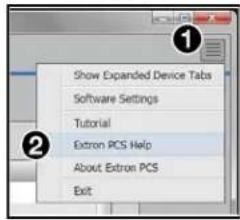
Figure 28. New PCS Software Window
TCP/IP Panel
The TCP/IP panel connects PCS to a specific device through Ethernet.

Figure 29. TCP/IP Panel
- Click the TCP/IP tab (see figure 29, ①).
- In the IP Address field (②), enter the IP address of the desired device.
- If required, enter the device password in the Password field (③).
NOTES:
- The factory configured passwords for all accounts on this device have been set to the device serial number. In the event of an absolute system reset, these passwords convert to the default, which is no password. Passwords are case sensitive.
-
Select the Show Characters checkbox ( 5) to display the password characters.
-
In the Telnet Port field (④), enter the Telnet port of the desired device.
-
Click the Connect button (6). A new device tab opens.
Mounting
This section contains information on mounting the DSC scaler. See
https://www.extron.com for available Extron mounting kits and ordering information. The DSC 3G-HD A and DSC HD-3G A scalers can be mounted by any of the methods described below. To mount the DSC using an Extron mounting kit, see the instructions provided with the kit.
Rack Mounting
Attach the DSC to a standard 19-inch rack shelf.
UL Guidelines for Rack Mounting
The following Underwriters Laboratories (UL) guidelines pertain to the safe installation of the DSC 3G-HD A or DSC HD-3G A in a rack.
CAUTION:
- Elevated operating ambient temperature — If the equipment is installed in a closed or multi-unit rack assembly, the operating ambient temperature of the rack environment may be greater than room ambient temperature. Therefore, install the equipment in an environment compatible with the maximum ambient temperature (TMA = +122 °F, +50 °C) specified by Extron.
- Reduced air flow — Install the equipment in a rack so that the amount of air flow required for safe operation of the equipment is not compromised.
- Mechanical loading — When mounting the equipment in the rack, ensure that uneven mechanical loading does not cause a hazardous condition.
- Circuit overloading — When connecting the equipment to the supply circuit, consider the effect that circuit overloading might have on overcurrent protection and supply wiring. Consider equipment nameplate ratings when addressing this concern.
- Reliable earthing (grounding) — Maintain reliable grounding of rack-mounted equipment. Pay particular attention to supply connections other than direct connections to the branch circuit (for example, use of power strips).
- Under-furniture mounting — Mount the DSC under the surface of a desk, table, or podium.
- Through-furniture mounting — Mount the DSC through a table or desk in which a hole has been cut to enable access to the front panel.
Free-standing
Attach the four rubber feet to the bottom of the DSC at the four corners and place the unit where desired.
Extron Warranty
Extron Electronics warrants this product against defects in materials and workmanship for a period of three years from the date of purchase. In the event of malfunction during the warranty period attributable directly to faulty workmanship and/or materials, Extron Electronics will, at its option, repair or replace said products or components, to whatever extent it shall deem necessary to restore said product to proper operating condition, provided that it is returned within the warranty period, with proof of purchase and description of malfunction to:
USA, Canada, South America, and Central America:
Extron Electronics
1230 South Lewis Street
Anaheim, CA 92805
U.S.A.
Asia:
Extron Asia Pte Ltd
135 Joo Seng Road, #04-01
PM Industrial Bldg.
Singapore 368363
Singapore
Japan:
Extron Electronics, Japan
Kyodo Building, 16 Ichibancho
Chiyoda-ku, Tokyo 102-0082
Japan
Europe:
Extron Europe
Hanzeboulevard 10
3825 PH Amersfoort
The Netherlands
China:
Extron China
686 Ronghua Road
Songjiang District
Shanghai 201611
China
Middle East:
Extron Middle East
Dubai Airport Free Zone
F13, PO Box 293666
United Arab Emirates, Dubai
Africa:
Extron South Africa
3rd Floor, South Tower
160 Jan Smuts Avenue
Rosebank 2196, South Africa
This Limited Warranty does not apply if the fault has been caused by misuse, improper handling care, electrical or mechanical abuse, abnormal operating conditions, or if modifications were made to the product that were not authorized by Extron.
NOTE: If a product is defective, please call Extron and ask for an Application Engineer to receive an RA (Return Authorization) number. This will begin the repair process.
USA: 714.491.1500 or 800.633.9876 Asia: 65.6383.4400
Europe: 31.33.453.4040 or 800.3987.6673
Japan: 81.3.3511.7655
Africa: 27.11.447.6162
Middle East: 971.4.299.1800
Units must be returned insured, with shipping charges prepaid. If not insured, you assume the risk of loss or damage during shipment. Returned units must include the serial number and a description of the problem, as well as the name of the person to contact in case there are any questions.
Extron Electronics makes no further warranties either expressed or implied with respect to the product and its quality, performance, merchantability, or fitness for any particular use. In no event will Extron Electronics be liable for direct, indirect, or consequential damages resulting from any defect in this product even if Extron Electronics has been advised of such damage.
Please note that laws vary from state to state and country to country, and that some provisions of this warranty may not apply to you.


- Safety Instructions
- Safety Instructions • English
- FCC Class A Notice
- VCCI-A Notice
- Conventions Used in this Guide
- Notifications
- Software Commands
- Specifications Availability
- Extron Glossary of Terms
- Contents
- Introduction...... 1
- Installation....5
- Operation....10
- Remote Configuration and Control.....40
- Mounting....65
- Introduction
- About this Guide
- About the DSC 3G-HD A and DSC HD-3G A
- Features
- DSC 3G-HD A
- DSC HD-3G A
- Both Models
- Application Diagrams
- Installation
- ATTENTION:
- Rear Panel Connections
- E AUDIO input connector —
- F Output connectors —
- Securing the HDMI Connector Using the LockIt Bracket
- Connecting for Remote Control
- Connecting to the RS-232 Port
- Connecting to the USB Config Port
- Operation
- Front Panel Features
- A Status LED (power and signal) —
- On-screen Display
- Menu Overview
- OSD Menus Summary Tables
- Using the Front Panel Buttons with the OSD Menus
- Using the OSD Menus
- NOTES:
- Quick Setup Submenu
- User Presets Submenu
- Saving a user preset
- Recalling a user preset
- Clearing a user preset
- Picture Controls Submenu
- Adjusting picture controls
- Input Submenu
- Selecting an input EDID
- Output Submenu — DSC 3G-HD A
- Output Submenu — DSC HD-3G A
- Genlock/AFL —
- Audio Submenu
- Audio channels
- DSC 3G-HD A: Selecting audio channel pairs
- DSC HD-3G A: Audio embedding
- Advanced Submenu
- Communication Screen
- Device Info Screen
- Auto-Image
- Changing the Output Resolution and Refresh Rate
- Custom Rates — DSC 3G-HD A Only
- Importing an HDMI EDID — DSC 3G-HD A Only
- Changing the Output Resolution from the Front Panel — DSC HD-3G A Only
- Resetting the Output Rate
- Power Save Mode
- Presets
- Auto Memories
- User Presets
- Input Presets
- Saving a preset when using a matrix switcher
- Locking the Front Panel (Executive Mode)
- Resetting
- Remote Configuration and Control
- SIS Commands
- Copyright Information
- DSC-initiated Messages
- Error Responses
- Using the Command and Response Table
- Symbol Definitions
- DSC 3G-HD A:
- DSC HD-3G A:
- Product Configuration Software
- Download Center
- Software (84 files)
- Software Connection
- Starting the Configuration Program
- TCP/IP Panel
- Mounting
- Rack Mounting
- UL Guidelines for Rack Mounting
- CAUTION:
- Free-standing
- Extron Warranty
- USA, Canada, South America, and Central America:
- Asia:
- Japan:
- Europe:
- China:
- Middle East:
- Africa:
Brand : Extron
Model : DSC 3G-HD A
Category : Unspecified