HDUS1125LT - Data Storage Addonics - Free user manual and instructions
Find the device manual for free HDUS1125LT Addonics in PDF.


User questions about HDUS1125LT Addonics
0 question about this device. Answer the ones you know or ask your own.
Ask a new question about this device
Download the instructions for your Data Storage in PDF format for free! Find your manual HDUS1125LT - Addonics and take your electronic device back in hand. On this page are published all the documents necessary for the use of your device. HDUS1125LT by Addonics.
USER MANUAL HDUS1125LT Addonics
text_image
Addonics. Addonics. Addonics. Addonics. Addonics. Addonics. Addonics. Addonics. Addonics. Addonics. Addonics. Addonics. Addonics. Addonics. Addonics. Addonics. Addonics. Addonics. Addonics. Addonics. Addonics. Addonics. Addonics. Addonics. Addonics. Addonics ENT ESC.User Guide
1:11 2.5" HDD Duplicator LT
(HDUS1125LT)
www.addonics.com
v3.1.11
Technical Support
If you need any assistance to get your unit functioning properly, please have your product information ready and contact Addonics Technical Support at:
Hours: 8:30 am - 6:00 pm PST
Phone: 408-453-6212
Email: http://www.addonics.com/support/query/
Table Of Contents
Basic Instructions ...... Page 3
Functions ...... Page 5
Copy HDD ...... Page 6
Compare HDD ...... Page 6
PreScan Source ...... Page 7
ReScan Bus ...... Page 8
Source Size ...... Page 8
Overwrite ...... Page 9
Setup ...... Page 9
Advanced Setup ...... Page 13
Basic Troubleshooting ...... Page 16
Error Messages List ...... Page 17
Firmware Update Procedure ...... Page 18
Basic Instructions
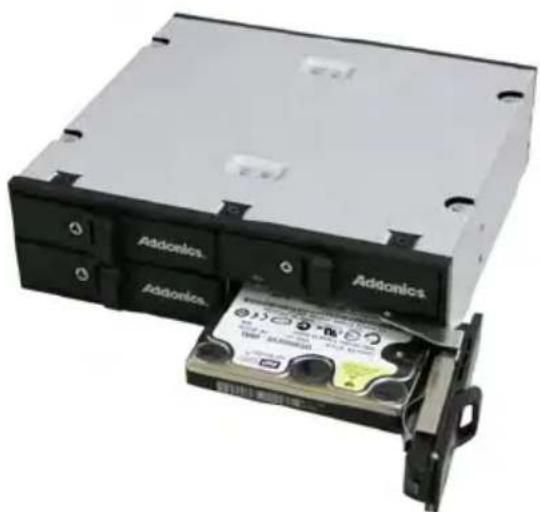
Installing drives into the 1:11 Snap-In Duplicator
- Be sure the lock on each drive door is in an unlock position. If not, use the key that comes with the Disk Array to unlock the drive door. Pull on the door lever to swing open the drive door all the way.
Source Drive 1
- Slide a 2.5" SATA hard drive into the drive slot with the drive the drive slot with the drive side facing in. The drive should slide all the way into the slot with very little resistance. Forcing the drive into the slot will cause drive damage or permanent damage to the Disk Array. Destination (Left to Rig
LCD
Management Console
Power Button

text_image
Add-onics Add-onics Add-onics Add-onics Add-onics Add-onics Add-onics Add-onics Add-onics Add-onics Add-onics Add-onics Add-onics Add-onics Add-onics Add-onics Add-onics Add-onics Add-onics Add-onics Add-onics Add-onics Add-onics Add-onics Add-onics Add-onicsDestination Drive 2-10 (Left to Right)
Destination Drive 1
-
Once the drive is all the way into the drive slot, close the door all the way till the drive door latches securely. This will engage power and data connection with the hard drive. The LED lit for the drive slot should lit if the Disk Array already powered on. You may lock the drive door with the key on page.
-
To remove the hard drive from the Disk Array, simply follow the step 2 - 3 in reverse.
natural_image
Exterior view of a CD-ROM drive with two Addonics modules and a battery pack (no visible text or symbols on the main components)I. Connecting the Power Cable and Powering On
a. Connect the power cord provided from the wall outlet to the back of the tower.
b. Push the power button to turn on the HDD duplicator.
II. The Duplicator Panel
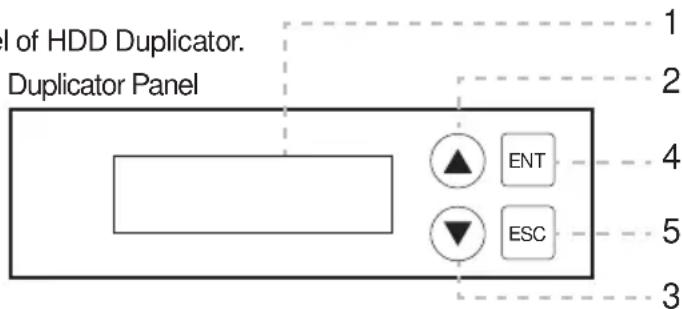
There are four buttons and an LCD on the panel of HDD Duplicator.
1 – LCD shows a function or a message.
2 – it is used to scroll up function menus.
3 – it is used to scroll down function menus.
4 – it is used to execute a function.
5 – it is used to cancel a function.
text_image
I of HDD Duplicator. Duplicator Panel 1 2 4 5 3III. Duplicating a drive
When the duplicator powers on, it initializes and goes through the steps below
Shows the firmware version
HD Duplicator 1-1 Ver:
Initialize SDRAM's status..
Initialize SDRAM
Detect Drives' status.
Detect Drives
Shows the first function:
1.Copy HD
Copy HDD copies data directly from the source hard disk to the target hard disk.
Press ENT button to begin copy. The system will auto-detect the hard disks and show the following info on the LCD.
Copy-36MBs 0% 235.7GB 1:48
The LCD will show the following info during the copying process: remaining time, completed percentage. The copy speed, capacity and time will vary depending on the source hard disk. Once the copying process is complete the LCD will display the following results.
Copy HD OK:
Functions
The copy controller has 11 functions in total, with the 11th (Adv Setup) being a hidden system function that only appears when the ESC key is pressed for 2 seconds until there is a beep. These are shown below.

flowchart
graph TD
    A["Duplicator Controller"] --> B["1. Copy HDD"]
    A --> C["2. Async Copy HDD"]
    A --> D["3. Compare HDD"]
    A --> E["4. Async Compare"]
    A --> F["5. PreScan Source"]
    A --> G["6. ReScan BUS"]
    A --> H["7. Source Size"]
    A --> I["8. Secure Erase"]
    A --> J["9. Overwrite"]
    A --> K["10. Setup"]
    A --> L["11. Adv Setup"]

    M["10. Setup"] --> N["10-01. Language"]
    M --> O["10-02. Copy Size"]
    M --> P["10-03. Startup Menu"]
    M --> Q["10-04. Auto Compare"]
    M --> R["10-05. Button Sound"]
    M --> S["10-06. Device Info"]
    M --> T["10-07. System Info"]
    M --> U["10-08. Fast Copy"]
    M --> V["10-09. Auto Start Drive"]
    M --> W["10-10. Auto Start Timer"]
    M --> X["10-11. Tolerance Size"]
    M --> Y["10-12. BootTime Delay"]
    M --> Z["10-13. Quick Compare"]

    AA["11. Adv Setup"] --> AB["11-01. Read Error Skip"]
    AA --> AC["11-02. Update Firmware"]
    AA --> AD["11-03. Compare Firmware"]
    AA --> AE["11-04. Quick Erase HDD"]
    AA --> AF["11-05. Full Erase HDD"]
    AA --> AG["11-06. H/W Diagnostic"]
    AA --> AH["11-07. Load Default"]
    AA --> AI["11-08. Copy HPA"]
    AA --> AJ["11-09. Burn In"]
Copy HDD
Copy HDD copies data directly from the source hard disk to the target hard disk. Please make sure that the capacity of the target hard disk is equal or larger than the source hard disk.
Choose option 1 from the menu:
- Copy HDD
HDD:11 232.9GB
Press ENT to begin copy. The system will auto-detect the hard disks and show the following copying info on the LCD.
Copy-36MB/s 0%
232.9GB 00:00:00
The LCD will show the following info during the copying process: elapsed time, completed percentage. The copy speed, capacity and time will vary depending on the source hard disk. Once the copying process is complete the LCD will display the following results.
Copy HDD
OK: 11 Fail: 0
Async Copy HDD
This option is used to specify the size of the source for simplifying further copying operations.
Choose option 2 from the menu:
- Async Copy HDD
HDD:10 232.9GB
Press ENT. Before the start of the reproduction, if the console detects that a hard drive capacity is less than source, then the LCD will show the corresponding channel number.
8
Space Not Enough
And then automatically copies. The LCD will display the following info.
Acpy-36MB/s 0%
232.9GB 00:00:00
If the replication process to continue to add additional hard disk device, LCD will only show the last completed percentage.
Once the copying process is complete the LCD will display the following results.
Async Copy HDD
OK: 11 Fail: 0
Compare
Compare HDD is used to see if the data on a source hard disk is identical to the target hard disk after the Copy HD operation.
Choose option 3 from the menu:
- Compare HDD
HDD: 11 232.9GB
Press ENT to begin the comparison. The LCD will display the following info.
Comp-23MB/s 0%
232.9GB 00:00:00
Once the comparison is complete the LCD will display the following info as well as the amount of data on the source hard disk.
Compare OK:11
Fail: 0 Di☐: 0
Async Compare
Compare HDD is used to see if the data on a source hard disk is identical to the target hard disk after the Copy HDD operation. While compare process is on-going, allows you to plug-in additional target drives and comparison will automatically start for the added target drive.
Choose option 4 from the menu:
Press ENT
- Async Compare
HDD: 11 232.9GB
to begin the async comparison. The LCD will display the following info.
ACmp-23MB/s 0%
232.9GB 00:00:00
If the comparison process continues to add additional hard disk device, LCD will only show the last completed percentage.
Once the copying process is complete the LCD will display the following results.
Compare OK:11
Fail: 0 Di☐: 0
PreScan Source
PreScan HDD is used to check if the source hard disk can be accessed properly. It also tests the read speed.
Choose option 5 from the menu:
Press ENT
- PreScan Source
HDD:11 232.9GB
to begin scan. The LCD will display the following info
Scan-90MB/s 1%
230.6GB 00:00:27
Once the scan is complete, the LCD will display the corresponding results
PreScan OK!
ReScan Bus
ReScan Bus allows swapping the source or target in and out without having to reboot the system.
Choose option 6 from the menu:
- ReScan BUS
Press ENT to re-scan hardware. The LCD will display the following info.
Re-Scan BUS NOW?
Yes
When the scan is complete the LCD will display the following info.
Bus re- scan OK!
Source Size
Source Size is used to show the capacity of the source.
Choose option 7 from the menu:
- Source Size
Press ENT and the LCD will show the following info.
HDD:Hitachi
Size:232.9GB
Then press ENT and the LCD will show the data's size info.
HDD:Hitachi
Data:200.9GB
Secure Erase
Secure Erase is used to wipe the data of the hard disk, i t will erase all of HDD of duplicator (included Source HDD).
Choose option 8 from the menu:
- Secure Erase
Press ENT to access option. By default it is set to No. Use the Up and Down arrow keys to choose Yes.
Wipe all data.
Continue? No
Press ENT and the LCD will show the following info.
In Process
Elapsed 01:00
Overwrite
Overwrite is used to overwrite the data of the hard disk, it will erase all HDDs connected to the duplicator (including Source HDD). There are 3 sub-options: One pass, 3 pass and 7 pass.
Choose option 9 from the menu:
- Overwrite
Press ENT to access option. By default it is One pass Use the Up and Down arrow keys to choose other options.
9-01. Overwrite
One pass
Press ENT to access option. By default it is set to No. Use the Up and Down arrow keys to choose Yes.
Wipe all data.
Continue? No
Press ENT and the LCD will show the following info.
In Process
Elapsed 01:00
Setup
Setup allows various system settings to be changed. There are 12 sub-options: Language, Copy Size, Startup Menu, Auto Compare, Button Sound, Device Info, System Info, Fast Copy, Auto Start Drive, Auto Start Timer, Tolerance Size and Boot Time Delay.
Choose option 8 from the menu:
- Setup
Language
This option is used to select the system's language support. By default this is set to English. Press ENT to change the Language settings.
Language
English
Copy Size
This option is used to specify the size of the source hard disk for simplifying further copying operations.
10-02. Setup
Copy Size
Press ENT and the LCD will display a detailed list of options as shown below
Copy Size
100%\~1% (*MB)
Use the Up and Down arrow keys to choose different copy sizes. The system will offer their corresponding percentages so the user can specify the amount to copy from the source hard disk. Press ENT to confirm and save the changes.
Startup Menu
This option allows you to set an option other than "Se tup" to be displayed as the first available option on the menu every time you start the system.
10-03. Setup
Startup Menu
Press ENT then use the Up and Down arrow keys to choose other options. By default the first menu option is Copy HDD.
Startup Menu
- Copy HDD
Auto Compare
This option automatically compares the source hard disk with the target hard disk after a copy operation is completed.
10-04. Setup
Auto Compare
Press ENT to access option. By default it is set to O□. Use the Up and Down arrow keys to choose On.
Auto Compare
O□
Button Sound
This option is used to control the sound of a button when you press it.
10-05. Setup
Button Sound
Press ENT and the LCD will display the following info. Use the Up and Down arrow keys to choose whether button sound is on or o.
Button Sound
On
Device Info
This option is used to display the details of all hard disks connected to the copy controller.
10-06. Setup
Device Info
Press ENT and the LCD will display each hard disk' information in order as shown below.
0 Source CH: 0
Hitachi 232.9GB
System Info
This option displays system information.
10-07. Setup
System Info
Fast Copy
This option displays Fast Copy. Fast Copy only copies data on the source drive to the target drives. Currently only supports FAT, FAT32, NTFS, HFS, Ext2 and Ext3 partitions.
10-08. Setup
Fast Copy
Press ENT and the LCD will display the following info. Use the Up and Down arrow keys to choose whether fast copy is on or o. (This function currently only effective in FAT, FAT32, NTFS, HFS, Ext2 and Ext3 partitions.)
Fast Copy
On
Auto Start Drive
This option is used to display to copy automatically once you insert HDD on target port.
10-09. Setup
Auto Start Drive
Press ENT to enter the following figure. The default is O. Use the Up and Down arrow keys to choose 1-11.
Auto Start Drive
O□
Auto Start Timer
This option is used to set the period of time when the duplicator starts copying automatically once you insert HDD on target port. Default is set at OFF, use the
arrows to choose time.
10-10. Setup
Auto Start Timer
Press ENT to enter the following figure. The default is O. Use the Up and Down arrow keys to choose 5 Sec-50 Sec.
Auto Start Timer
O[]
Tolerance Size
This option is used to set the tolerance in terms of percentage difference between the source and target capacity. This is to ensure that when the target drive is smaller than the source drive, the duplication process will not start.
10-11. Setup
Tolerance Size
Press ENT to enter the following figure. The default is O. Use the Up and Down arrow keys to choose 1MB\~100MB of source.
Tolerance Size
1MB
BootTime Delay
This option is used to to set boot delay time.
10-12. Setup
BootTime Delay
Press ENT to enter the following figure. The default is 5 sec. Use the Up and Down arrow keys to choose 0\~99 sec.
BootTime Delay
5 sec
Quick Compare
This option is used to set the size of each comparison unit.
10-13. Setup
Quick Compare
Press ENT to enter the following figure. The default is O. Use the Up and Down arrow keys to choose 1 Byte/1K/10K/100K/1MB/10MB/100 Mbytes. (In order to improve the accuracy of pure data can maintain the default settings.)
Quick Compare
O[]
Adv Setup
Adv Setup offers expert users access to more advanced system settings. To access this option, hold down the ESC key for two seconds until it appears.
- Adv Setup
Read Error Skip
This function sets the system to ignore any errors during the copying process. Normally if there is an error during copying a warning is displayed on the LCD. By using this function, users can also copy a HDD with errors.
11-01. Adv Setup Read Error Skip
Press ENT to enter the following screen. By default this option is set to OFF. Use the up and down buttons to enable or disable this option.
Read Error Skip O
Update Firmware
This function is used to update the system's rmware. Download the latest version of the rmware from the Internet at www.addonics.com. For the complete instructions, visit the rmware update webpage or view the instructions found later in this manual.
11-02. Adv Setup Update Firmware
Compare Firmware
This function is used to compare the current system ☐rmware version with the new version the user is upgrading to. This ensures that the downloaded ☐rmware is the latest version. The message "Last update F/W" indicates that it is the latest version.

flowchart
graph LR
    A["11-03.Adv Setup Compare Firmware"] --> B["Searching F/W ... Please Wait ..."]
    B --> C["Last update F/W OK!"]
Quick Erase HDD
This function is used to quickly erase all data on the HDD . Please backup any important data before using this function.
11-04. Adv Setup Quick Erase HDD
Press ENT to enter the following screen. Use the Up and Down buttons to select the HDD to erase.
Quick Erase HDD ALL/Target CH:*
Press ENT again and the LCD will prompt you to confirm the erase operation.
All data will be
lost, Erase? No
Full Erase HDD
This function is used to full erase all data on the HDD. Please backup any important data before using this function.
11-05.Adv Setup
Full Erase HDD
Press ENT to enter the following screen. Use the Up and Down buttons to select the HDD to erase.
Quick Erase HDD
ALL/Target CH:*
Press ENT again and the LCD will prompt you to confirm the erase operation.
All data will be
lost, Erase? No
H/W Diagnostic
Press ENT to enter the following screen. This function is used to check that the system is operating normally.
11-06.Adv Setup
H/W Diagnostic
Press ENT again to enter the following screen. The LCD will cycle through the test categories as they are performed. The LCD display is tested first, the control panel is tested next (requires manual operation), then followed by the system's internal diagnostics, hardware connection test then the RAM and SD Flash test. All test results are shown on the LCD. This is a simple way to verify that the system is operating normally.
Press ENT and the system will begin the tests as shown below.
LCD Test Start
Button Test ?

SDRAM Test:
8192Kbytes OK
Test IDE 0/1 OK

FlashTest: OK Test

Once the system diagnostics have been completed the "Test finished" message will appear on the LCD.
Load Default
Press ESC to return to the main menu then use the ENT button to select. This function resets all settings to their factory default. This function helps the system recover from errors caused by an illegal operation.
11-07.Adv Setup Load Default
Press ENT to enter the following screen. Use the Up and Down buttons to confirm reset to factory defaults.
Load Default Cong? Yes
If Load Default OK, this will be displayed on the LCD as shown below.
Load Default Ok
Copy HPA
If this function is set to "ON", the system will completely copy the data in a source HDD's host protected area.
11-08. Adv Setup Copy HPA
The default is "OFF". Use the ENT, Up and Down buttons to change this to "On".
Burn In
This function is used to burn test the system reliability.
11-09. Adv Setup Burn In
Press ENT to enter the following screen.
Burn In Mode Copy & Compare
Use the Up and Down buttons to choose Compare, Async Copy & Cmp and Async Compare, then press ENT to confirm.
Basic Troubleshooting
LCD
If the LCD blank after the device is turned on, check that the power cable is properly connected and that the power supply is on.
Error Message
When the system is running a copy operation or hardware diagnostics, if the operation is manually terminated by pressing ESC an error message will be shown by the LCD. This may lead to an illegal operation and cause the device to stop reminding. If this happens, the device must be restarted.
Hard Disk
If unable to read the hard disk please check that the data and power cables are properly connected.
Keys
If pressing the keys on the front panel produces no response from the system, the keys may have malfunctioned. Please check the control panel to see if the wiring has come loose.
Firmware Upgrade
The device can be updated to new versions of ☐rmware through CD/DVD-ROM. If unable to update the ☐rmware, check that the ☐rmware was downlo aded correctly. A failed ☐rmware upgrade may cause the duplicator to become inoperable. If the system is working normally, do not attempt this operation. If the system is already experiencing problems, please contact your distributor for repairs.
Startup/Shutdown
Do not suddenly turn of the power while the system is performing an operation. After shutting down normally, wait a moment (usually around 2 seconds) before starting the system again so it can run its self-diagnostics.
About Copy HPA
The HPA (Host Protected Area) is a hidden data region defined in ATA/ATAPI-4. This area is not usually accessible to software. The SATA HDD Duplicate Controller supports the copying of data from this hidden area.
Drive is locked (cannot be initialized after the SECURE ERASE or OVERWRITE)
- Place drive in the source slot
- Execute "PreScan" function for 1 minute
- Press "ESC" key until you see "User Abort" on the LCD screen
- Now remove the drive from the duplicator and connect it to your system, the HDD should be recognized and be able to initialize again
Error Messages List
| NO# | Error Messages | Description | Applied to |
| 1 Source Drive Not Exist! | No source HDD exist during operating | Copy, Async Copy, Compare,Async Compare, PreScanSource, Source Size, CopySize, Tolerance Size | |
| 2 User Abort! Cancel operating | Any function and any time | ||
| 3 No | Drive Exist | No HDD exist during operating | Device Info |
| 4 X Space Not EnoughTarget Drive Space Not Enough | When source capacity is small than target | Copy, Compare | |
| 5 X Space Not EnoughTarget Drive Fail! | When source capacity is small than target | Async Copy, Async Compare | |
| 6 Pre Scan Fail | Lose SATA connection during copy or bad sector on HDD | PreScan Source | |
| 7 Source Drive Read Fail! | Lose target SATA connection on source port during copy or bad sector on source HDD | Copy, Async Copy, Compare | |
| 8 Target Drive Write Fail! | Lose target SATA connection on target port during copy | Copy | |
| 9 Target Drive Read Fail! | Lose target SATA connection on target port during comparing | Compare | |
| 10 Target Drive Fail | Lose target SATA connection on target port during async comparing | Async Copy, Async Compare | |
| 11 Target Drive Not Exis t! | No HDD exist during operating | Overwrite | |
| 12 One passOne pass failed | Lose SATA connection on SATA port during Overwrite | Overwrite | |
| 13 3 passpass 1 failed | Lose SATA connection on SATA port during Overwrite | Overwrite | |
| 14 7 pass 5220.22-Mpass 1 failed | Lose SATA connection on SATA port during Overwrite | Overwrite | |
If you hear the warning signal while the copying function is executing (a beep every 5 seconds), the LCD screen will display the problem status; you may press any button to return to the copy progress screen.
Firmware Update Procedure
(Requires one hard drive containing the ☐rmware ☐le):
- Create a 50MB HDD partition with FAT/FAT32 or NTFS ☐les system on any SATA hard drive
- Download the ☐rmware and unzip the ☐le to .BIN ☐le format
- Copy the .BIN □le onto the 50 MB partition of the HDD
- Insert this drive to the Source slot of the duplicator. For subsystem, connect the drive to the Source SATA port
- Select "Firmware Update" function under the "Setup" or "Advanced Setup" menu and press ENT to do the update. To access the "Advanced Setup", hold onto the ESC button for 5 seconds. The new option will appear
- Once completed, it will reboot and show you the new ☐rmware version
Notes:
SECURE ERASE - HDD duplicator sends a WIPE
command to the hard drive. This command 00 string to entire HDD
OVERWRITE - There are three options: One pass, 3 passes and 7 passes 5220.22-M. The duplicator writes a string of pattern over the entire disk one time, three times or seven times. (5220.22-M is the DoD standard for drive sanitization)
Please note that some drives may become locked and cannot be initialized after the SECURE ERASE or OVERWRITE. Should this happen, use the following procedures to unlock the drive:
- Place drive in the source slot
- Execute "PreScan" function for 1 minute
- Press "ESC" key until you see "User Abort" on the LCD screen
- Now remove the drive from the duplicator and connect it to your system, the HDD should be recognized and be able to initialize again