JASPER II 3M 1:3 - Dupliqueur Addonics - Free user manual and instructions
Find the device manual for free JASPER II 3M 1:3 Addonics in PDF.


User questions about JASPER II 3M 1:3 Addonics
0 question about this device. Answer the ones you know or ask your own.
Ask a new question about this device
Download the instructions for your Dupliqueur in PDF format for free! Find your manual JASPER II 3M 1:3 - Addonics and take your electronic device back in hand. On this page are published all the documents necessary for the use of your device. JASPER II 3M 1:3 by Addonics.
USER MANUAL JASPER II 3M 1:3 Addonics
Jasper II Duplicator
Applies to all Jasper II duplicator models 2/14/17
Addonics Technologies, Inc.
www.addonics.com
Copyright © 2017. All rights reserved
Jasper II duplicator user guide
Contents
- Control Panel Overview....3
I. WARNING ....4
II. OPERATION OVERVIEW ....4 - Copy 6
- Compare 6
- Copy + Compare 6
- Capacity Check 7
- Utility....7
5.1. Format FAT32....7
5.2. Format exFAT 7
5.3. Measure Speed 8
5.4. Quick Erase 8
5.5. Full Erase....8
5.6. DoD Erase 8
5.7. Secure Erase....9
5.8. Change Disk Signatures....9
5.9. Media Information....9
5.10. Device Model 10
5.11. System Information.... 10
5.12. System Update .... 10
- Setup....10
6.1. Copy Area....10
6.2. Smaller Target....11
6.3. Unknown Format....11
6.4. Check Before Copy....12
6.5. HPA Set 12
6.6. Display Mode....13
6.7. Start-up Menu....13
Jasper II duplicator user guide
6.8. Button Beep....14
6.9. Show Result Time....14
6.10. Boot Password 14
6.11. Setup Password 14
6.12. Language.... 14
6.13. Clear Setup 15
6.14. Performance....15
Jasper II duplicator user guide
Control Panel Overview

text_image
▲Button ENT Button ESC Button LCD Screen ▼Button▲Button: Up, Backward: To navigate backward in the menu.
▼Button: Down, Forward: To navigate forward in the menu.
ENT Button: Enter, OK: Execute the function.
ESC Button: Escape, Cancel: Go back to the previous level in the menu.
Jasper II duplicator user guide
I. Warning
- The duplicator tasks mentioned in this user's manual are as following: Copy, Compare, Copy + Compare, Capacity Check, and the functions under Utility sub menu, such as Format FAT32, Format exFAT, Quick Erase, Full Erase and DOD Erase.
- The Green LED flashes during the execution process of a task. After the task is done, the Green LED will stay solid if the process is successful, otherwise the Red LED will be on if the process is failed.
- Press and hold ESC button during the execution process of a task will stop and exit the execution of the task.
- DO NOT unplug HDD from the duplicator during the execution process of a task. It may cause damage to the duplicator system and media.
- It is strongly recommended that the capacities of the source and target media are equal or similar.
II. Operation Overview
The duplicator will start to execute a task after the source and target devices have been inserted and the ENT button is pressed. The task will begin and end at the same time for all target devices. Any other target device plugged in during the process of a task will not be executed with the task.
a. Insert source media into the source channel and blank media into the target channels properly. The LCD display will show no source disk when source media is not plugged in yet, and show the number of target media inserted when source media plugged in.
b. The green LED will be on if the target device is plugged in properly.
c. Select the task from menu, and press ENT button to execute it.
d. During the execution process, the status of each target device can be checked by using the ▲ and ▼ buttons.
e. After the task is done, LCD display will show the number of successful and failed target(s), and execution time. Go to section 6.8 Show Result Time to set up the display of time.
f. If anyone target failed the process of task, LCD display will show the following
Jasper II duplicator user guide
information (will only show error message when all targets failed).

flowchart
graph LR
    A["Pass 4 07:40\nF_2__vv__-0 v_v_"] --> B["F: Failed\n_: the port # of unplugged target\n2: the port # of failed target\n-: separation sign (used only when the port # is greater than 9)\nv: stand for the port # of passed target"]
Jasper II duplicator user guide
Menu Overview
1. Copy
To copy from source device to target device(s), please go to 6.1 Copy Area to select the setting first before this step.

flowchart
graph TD
    A["1. Copy\nSource Not Ready\nNo source device"] --> B["1. Copy\nReady device: 7\nSource and target devices inserted"]
    B --> C["Copy: 7\nP: 0 F: 0\n500G\n10%"]
    B --> D["Result:\nPass: 7\nFail: 0\nDisplay copy progress\nCopy: 7 number of targets\n500G: data to be copied\nP: number of passed\nF: number of failed\n10%: rate of progress\nThe process of all tasks are displayed in the same format"]
2. Compare
This command allows to compare the copied target devices against the source for accuracy.

flowchart
graph LR
    A["2. Compare\nReady device: 7"] -->|ENT| B["COMP: 7\n500G"]
    B --> C["Result:\nPass: 6 Fail: 1"]
    style A fill:#f9f,stroke:#333
    style B fill:#ccf,stroke:#333
    style C fill:#cfc,stroke:#333
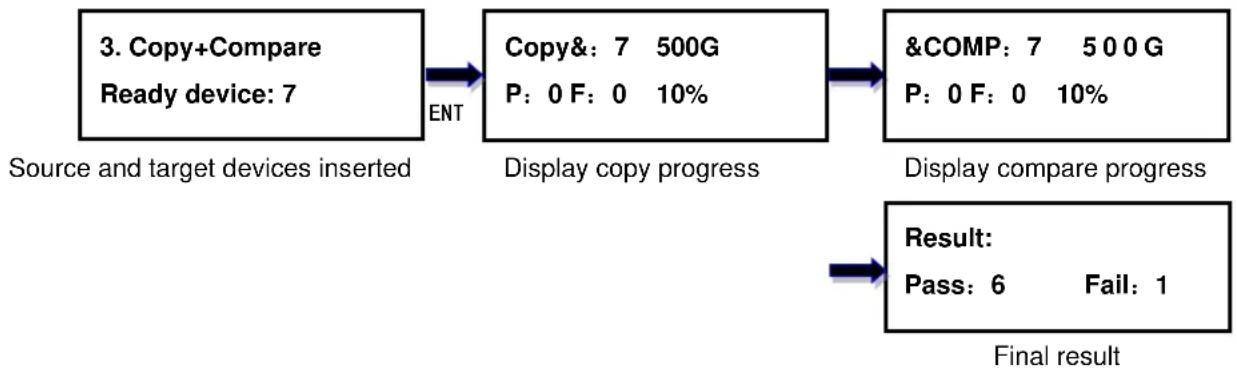
3. Copy + Compare
This command allows duplicator to start Copy process first, then follow with Compare process immediately.
flowchart
graph TD
    A["3. Copy+Compare\nReady device: 7\nSource and target devices inserted"] -->|ENT| B["Copy&: 7 500G\nP: 0 F: 0 10%"]
    B --> C["&COMP: 7 500G\nP: 0 F: 0 10%"]
    C --> D["Display compare progress"]
    D --> E["Result:\nPass: 6 Fail: 1\nFinal result"]
Jasper II duplicator user guide
4. Capacity Check
This command allows to verify the device capacity. It can detect the actual capacity of devices within 3 seconds.

flowchart
graph LR
    A["4. Capacity Check\nReady device: 8"] -->|ENT| B["Check: 8\nP: 0 F: 0"]
    B --> C["Result:\nPass: 8 Fail: 0"]
    style A fill:#f9f,stroke:#333
    style B fill:#ccf,stroke:#333
    style C fill:#cfc,stroke:#333
5. Utility
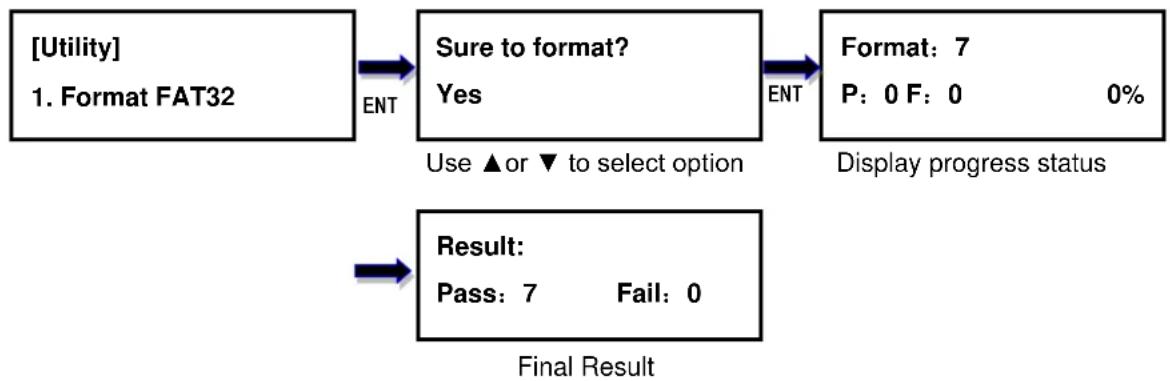
5.1. Format FAT32
This option allows to format the target device to FAT32 file format. It will not format the source device, avoiding accidentally erasing the original data content. User will be asked if it is sure to format the target devices before the Format process starts.
flowchart
graph TD
    A["[Utility"]
1. Format FAT32] -->|ENT| B["Sure to format?<br>Yes"]
    B -->|ENT| C["Format: 7<br>P: 0 F: 0 0%"]
    D["Result:<br>Pass: 7 Fail: 0"] --> E["Final Result"]
    style A fill:#f9f,stroke:#333
    style B fill:#ccf,stroke:#333
    style C fill:#cfc,stroke:#333
    style D fill:#fcc,stroke:#333
5.2. Format exFAT
This option allows to format the target device to exFAT file format. It will not format the source device, avoiding accidentally erasing the original data content. User will be asked if it is sure to format the target devices before the Format process starts.

flowchart
graph TD
    A["[Utility"]
1. Format exFAT] --> B["Sure to format?<br>Yes"]
    B --> C["Format: 7<br>P: 0 F: 0 0%"]
    D["Result:<br>Pass: 7 Fail: 0"] --> E["Final result"]
    style A fill:#f9f,stroke:#333
    style B fill:#ccf,stroke:#333
    style C fill:#cfc,stroke:#333
    style D fill:#fcc,stroke:#333
    style E fill:#cff,stroke:#333
Jasper II duplicator user guide
5.3. Measure Speed
This option allows to measure the actual Read and Write speed of the target device. This option will NOT alter or erase existing data on the target device.

flowchart
graph LR
    A["[Utility"]
3. Measure Speed] -->|ENT| B["[# 0"] Read 120M\n1sec Write 115M]
    B --> C["[# 1"] Read 121M\n1sec Write 116M]
    C -->|Use ▲ or ▼ to select device| D["Display read/write speed"]
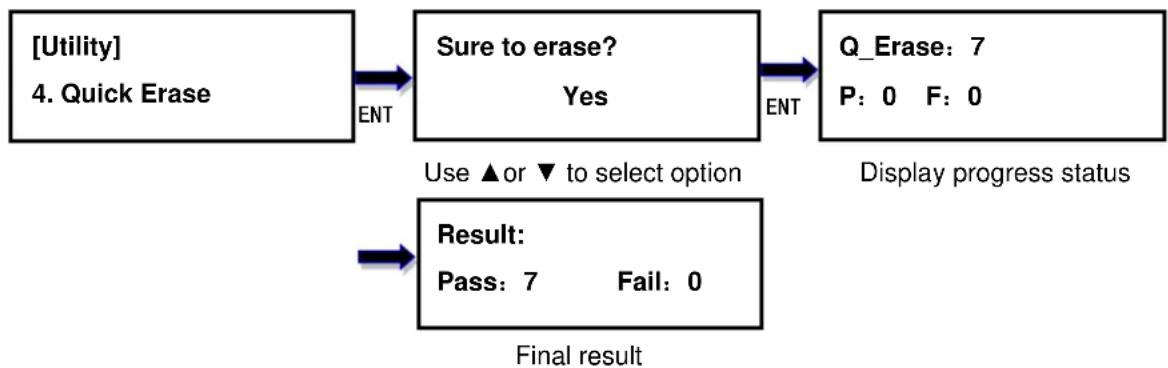
5.4. Quick Erase
This option erases the table of content of file system of the target device, so it is fast to do Quick Erase. There is chance that some files can be retrieved by software.
flowchart
graph TD
    A["[Utility"]
4. Quick Erase] -->|ENT| B["Sure to erase?<br>Yes"]
    B -->|ENT| C["Q_Erase: 7<br>P: 0 F: 0"]
    D["Result:<br>Pass: 7 Fail: 0"] --> E["Final result"]
    style A fill:#f9f,stroke:#333
    style B fill:#ccf,stroke:#333
    style C fill:#cfc,stroke:#333
    style D fill:#fcc,stroke:#333
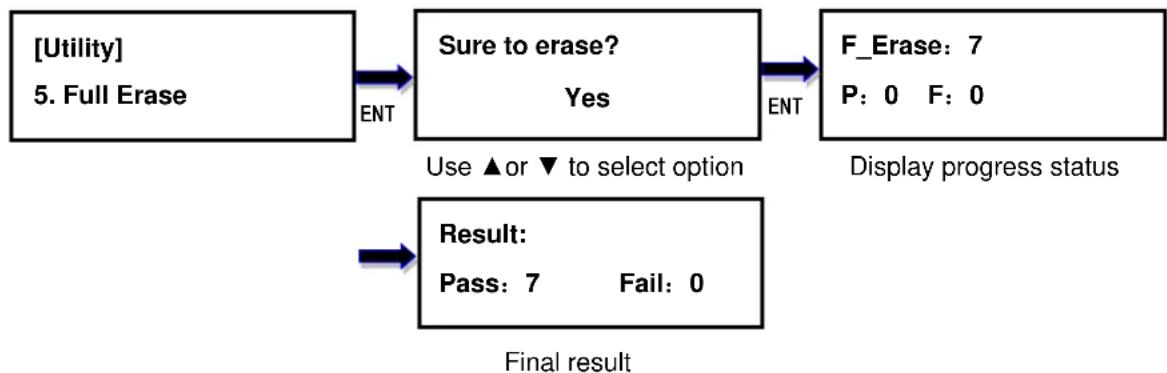
5.5. Full Erase
This option completely erases the content of target device. It takes longer time to erase and the content will not be retrieved by software.
flowchart
graph TD
    A["[Utility"]
5. Full Erase] -->|ENT| B["Sure to erase?<br>Yes"]
    B -->|ENT| C["F_Erase: 7<br>P: 0 F: 0"]
    D["Result:<br>Pass: 7 Fail: 0"] --> E["Final result"]
    style A fill:#f9f,stroke:#333
    style B fill:#ccf,stroke:#333
    style C fill:#cfc,stroke:#333
    style D fill:#fcc,stroke:#333
    style E fill:#cff,stroke:#333
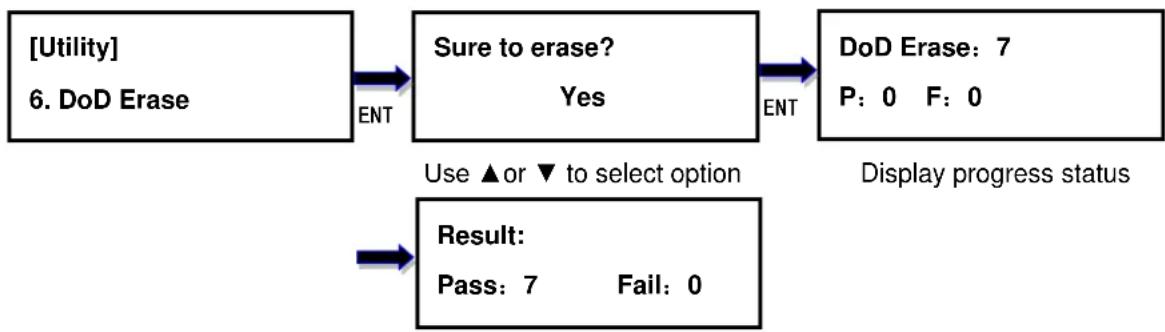
5.6. DoD Erase
This is to comply with the U.S.A. Department of Defense (DoD 5220) standard to fully erase the media by rewriting bit by bit three times to guarantee the data to be permanently deleted. It takes the longest time to erase, and the content will not be retrieved by software.
Jasper II duplicator user guide
flowchart
graph TD
    A["[Utility"]
6. DoD Erase] -->|ENT| B["Sure to erase?<br>Yes"]
    B -->|ENT| C["DoD Erase: 7<br>P: 0 F: 0"]
    D["Result:<br>Pass: 7 Fail: 0"] -->|Use ▲ or ▼ to select option| B
    style A fill:#f9f,stroke:#333
    style C fill:#ccf,stroke:#333
    style D fill:#cfc,stroke:#333
Final result
5.7. Secure Erase
The international authorized high standard Secure Erase function, it complies with standard of secure erase (NIST800-88). It overwrites every single track on the hard drive with "00". Even HPA/DCO or other data area which are not able to load, can be erased all together.

flowchart
graph TD
    A["[Utility"]
7. Secure Erase] -->|ENT| B["Sure to erase?<br>Yes"]
    B -->|ENT| C["S_Erase: 7<br>P: 0 F: 0"]
    D["Result:<br>Pass: 7 Fail: 0"] --> E["Final result"]
    style A fill:#f9f,stroke:#333
    style B fill:#ccf,stroke:#333
    style C fill:#cfc,stroke:#333
    style D fill:#fcc,stroke:#333
    style E fill:#cff,stroke:#333
5.8. Change Disk Signatures
Duplicator generates the same disk signatures after copy which may cause computer unable to read the disk correctly when two disks with identical disk signatures are presented, or shut down the computer. This function allows to change disk signature.
Attention: it will cause error (data mismatch) if compare the disks after execution of this function.

flowchart
graph LR
    A["[Utility"]
8. Change Disk Signatures] -->|ENT| B["D_Signatures: 0<br>P: 0 F: 0"]
    B -->|ENT| C["Result:<br>Pass: 7 Fail: 0"]
    style A fill:#f9f,stroke:#333
    style C fill:#ccf,stroke:#333
5.9. Media Information
This option displays the information of selected device media, such as total capacity, file format and the size of data content.
Jasper II duplicator user guide

flowchart
graph LR
    A["[Utility"]
9. Media Information] -->|ENT| B["[# 0"]
60.0G]
    B --> C["Port # Total Capacity"]
    style A fill:#f9f,stroke:#333
    style B fill:#ccf,stroke:#333
    style C fill:#cfc,stroke:#333
5.10. Device Model
This option displays the model information of selected device, such as device model, serial information and firmware version

flowchart
graph LR
    A["[Utility"] 10. Device Model] -->|ENT| B["[# 0"] P: 0 Model information]
    B -->|ENT| C["[# 1"] P: 1 Model information]
    style A fill:#f9f,stroke:#333
    style C fill:#f9f,stroke:#333
    note bottom
        Use ▲ or ▼ to select device
    end
5.11. System Information
This option displays general information of the duplicator, including controller model, system memory size, firmware version and number of targets.

flowchart
graph LR
    A["[Utility"]
11. System Info.] -->|ENT| B["F0107V<br>128MB"]
    B --> C["Controller Model<br>Memory"]
    style A fill:#f9f,stroke:#333
    style B fill:#ccf,stroke:#333
    style C fill:#cfc,stroke:#333
5.12. System Update
This option allows user to update the firmware of duplicator when necessary. Please obtain the proper firmware file from manufacturer, and save the unzipped file under home folder on the flash device (DO NOT save the file under sub folder). Insert the flash device containing the firmware into the source port of duplicator and press ENT. It will update the system, reboot the duplicator after update, active and operate under the new firmware.
Only support FAT32 file system format.

flowchart
graph LR
    A["[Utility"]
12. System Update] -->|ENT| B["Update BIOS<br>Identify disc..."]
    B -->|ENT| C["Update BIOS<br>Complete! Reboot!"]
    style A fill:#f9f,stroke:#333
    style B fill:#ccf,stroke:#333
    style C fill:#cfc,stroke:#333
6. Setup
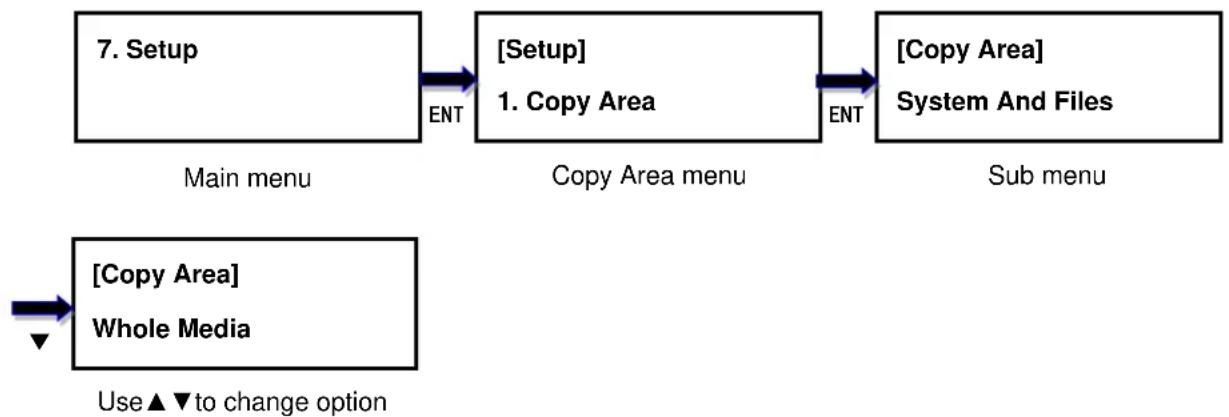
6.1. Copy Area
This option allows to select the area on the source device to copy onto the target devices. You may select either “System And Files” to skip all the unoccupied area on the source device
Jasper II duplicator user guide
or "Whole Media". By default, the copy area is set up as System And Files.
System And Files
The duplicator first analyzes the file format of source device. You may copy only the system and files area to save overall copy time if the file format is FAT16, FAT32, exFAT, NTFS (Windows), EXT2, EXT3, EXT4 (Linux), and HFS/HFS+ (Mac). Otherwise, the duplicator will copy the entire source device content to the target devices including unoccupied space. For instance, the source device has 8GB capacity but with only 50MB of data in FAT32 file format. The duplicator will copy only the 50MB of data area to the target device, hence shortening overall copy time.
Whole Media
When selected, the duplicator copies the entire content on the source device, including both the data and empty spaces. This option is used when you have a source device with unknown file format. For instance a source device has 8GB capacity and 50MB of data with unknown file format, the duplicator will copy the whole 8GB of content to target device.
flowchart
graph LR
    A["7. Setup"] -->|ENT| B["[Setup"] 1. Copy Area]
    B -->|ENT| C["[Copy Area"] System And Files]
    D["[Copy Area"] Whole Media] -->|▼ to change option| E
6.2. Smaller Target
If the capacity of the target device is smaller than the source device, the duplicator will partly copy or cannot copy. Cannot Copy is the default setting.

flowchart
graph LR
    A["Setup\n2. Smaller Target"] -->|ENT| B["Smaller Target\nPartly Copy"]
    B -->|Use ▲ or ▼ to select| C
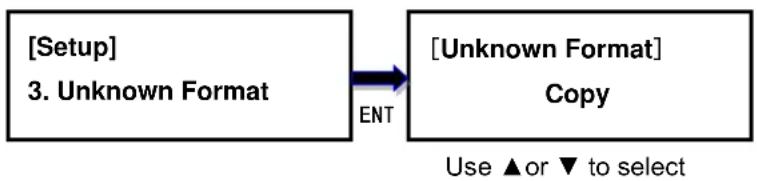
6.3. Unknown Format
This option allows you to Copy or Skip unknown format. If option Skip is selected here, the unknown format from source will not be copied during copy process. Copy unknown format
Jasper II duplicator user guide
is the default setting.
flowchart
graph LR
    A["Setup"] --> B["Unknown Format"]
    B --> C["Copy"]
    style A fill:#fff,stroke:#000
    style B fill:#fff,stroke:#000
    style C fill:#fff,stroke:#000
    note right of B: ENT
        Use ▲ or ▼ to select
    end
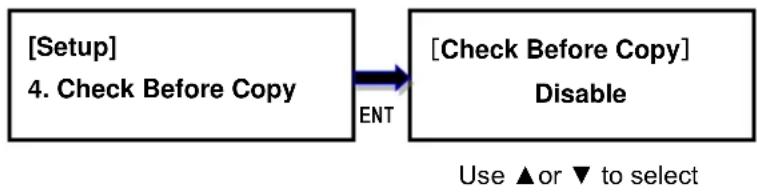
6.4. Check Before Copy
This option allows to check device real capacity before copying. Default setting is disabled.
flowchart
graph LR
    A["[Setup"]
4. Check Before Copy] -->|ENT| B["[Check Before Copy"]
Disable]
    B -->|Use ▲ or ▼ to select| C
6.5. HPA Set
HPA, Host Protected Area or Hidden Protected Area, is kept invisible space for booting area, recovery data or blocked bad-sector, etc. By creating HPA, it resets max sectors and keeps some space for HPA. It reduces the reported size of HDD.
There are 4 settings in this function. The HPA setting and data stored in HPA of source HDD will not be modified.

flowchart
graph LR
    A["[Setup"]
5. HPA Set] -->|ENT| B["[HPA Set"]
Skip]
    B -->|Use ▲ or ▼ to select| C
Skip (default)
Copy data from source to target except data stored in HPA and keep the target HPA setting during Copy.
Clear Target HPA without Copy
Remove the target HPA setting only. No copying of any source data.
Set Target HPA without Copy
Replace the target HPA data with the source HPA data only. Other data are not copied.
Copy
Copy data from source to target including source data stored in HPA.
Jasper II duplicator user guide
6.6. Display Mode
There are three display modes: Basic, Show Timer, and Expert. Basic Mode shows the copy progress in general; Show Timer Mode displays the time used for the task; Expert Mode shows the devices with highest copy speed and lowest copy speed and their copy progress respectively. By default it is Basic Mode.

flowchart
graph TD
    A["Setup"] --> B["Display Mode"]
    B --> C["ENT"]
    C --> D["Display Mode"]
    D --> E["Basic"]
    E --> F["Copy: 1, 2.5G\nP: 0 F: 0, 10%"]
    F --> G["Copy: 1, 2.5G\n03:45, 10%"]
    G --> H["A: 10, 4 = 2303M\nP: 0, 1 = 2183M"]
    H --> I["Expert Mode"]
    I --> J["A: 10, number of targets in cop\nP: 0, number of targets passed\n4 = 2303M : the port with highest speed and data copied so far\n1 = 2183M : the port with lowest speed and data copied so far"]
    J --> K["Copy: 1 number of target\n2.5G : data to be copied\nP : number of passed copies\nF : number of failed copies\n10% : rate of progress"]
    K --> L["Copy: 1 number of target\n2.5G : data to be copied\n03:45 : copy time used\n10% : rate of progress"]
    L --> M["Copy: 1 number of target\n2.5G : data to be copied\n03:45 : copy time used\n10% : rate of progress"]
6.7. Start-up Menu
Choose one of the following as the default start-up function: Copy, Compare, Copy+Compare, Capacity Check, Utility and Setup. The default start-up function is Copy.

flowchart
graph LR
    A["Setup"] --> B["Start-up Menu"]
    B --> C["Copy"]
    style A fill:#f9f,stroke:#333
    style B fill:#ccf,stroke:#333
    style C fill:#cfc,stroke:#333
Jasper II duplicator user guide
6.8. Button Beep
This option allows to set up button sound from the following options: Button & Warning, OFF, Warning only. The default setting is Button & Warning.

flowchart
graph LR
    A["[Setup"]] --> B["[Button Beep"]]
    C["8. Button Beep"] --> D["Button & Warning"]
    B -->|ENT| D
    style A fill:#f9f,stroke:#333
    style C fill:#f9f,stroke:#333
    style B fill:#ccf,stroke:#333
    style D fill:#ccf,stroke:#333
6.9. Show Result Time
This option allows to enable or disable the display of copy time after finishing the copy process. The default setting is disable.
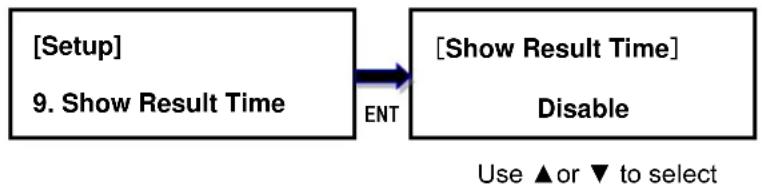
flowchart
graph LR
    A["[Setup"]
9. Show Result Time] -->|ENT| B["[Show Result Time"]
Disable]
    B -->|Use ▲ or ▼ to select| C
6.10. Boot Password
This option allows to set up password for system boot up to prevent from the unauthorized use of the duplicator. The password must be 6 characters.

flowchart
graph LR
    A["Setup\n10. Boot Password"] -->|ENT| B["Boot Password\nEnable\nUse ▲ or ▼ to select"]
    B -->|ENT| C["Boot Password\n=> _ _ _ _<br>Use ▲ or ▼ to select,\nPress ENT to confirm"]
6.11. Setup Password
This option allows to set up password for Setup function to prevent from the change of system settings on the duplicator. The password must be 6 characters.

flowchart
graph LR
    A["[Setup"] 11. Setup Password] -->|ENT| B["Setup Password Enable"]
    B -->|ENT| C["[Setup Password"] ====> _ _ _ _ _
Use ▲ or ▼ to select, Press ENT to confirm]
6.12. Language
This option allows to choose the language for display: English, Spanish, Portuguese, and Japanese. English is the default language.
Jasper II duplicator user guide

flowchart
graph LR
    A["Setup"] --> B["Language"]
    C["12. Language"] --> D["English"]
    B --> E["ENT"]
Use ▲ or ▼ to select
6.13. Clear Setup
This option resets the duplicator back to factory default settings.

flowchart
graph LR
    A["[Setup"]
13. Clear Setup] -->|ENT| B["Clear Parameter To Default?<br>Yes"]
    B -->|ENT| C["Clear Parameter To Default?<br>All Parameters were cleared!"]
Use ▲ or ▼ to select
6.14. Performance
This option allows to set up the performance for Copy function based on the following modes: Speed, Balance, and Compatibility. Speed mode is to execute the Copy function at the fastest speed, but may have compatibility issue with certain brands flash media. Balance mode is to execute the Copy function at stable speed, and have less compatibility issue with certain brands flash media. Compatibility mode is to execute the Copy function at the most stable speed, and almost have no compatible issue with flash media. The default mode is Speed.

flowchart
graph LR
    A["[Setup"]] --> B["[Performance"]]
    C["14. Performance"] --> D["ENT"]
    D --> E["Speed"]
Use ▲ or ▼ to select