
Sprint EVDO - Computer accessory PANASONIC - Free user manual and instructions
Find the device manual for free Sprint EVDO PANASONIC in PDF.


| Product Type | HSDPA/EVDO Modem (Computer Accessory) |
| Compatibility | Panasonic Toughbook CF-19/CF-30 Series |
| Wireless Technology | HSDPA/UMTS, EDGE, GPRS |
| Frequency Bands | HSDPA/UMTS: 2100 MHz; EDGE: 900/1800 MHz; GPRS: 900/1800 MHz |
| Power Class | HSDPA Class 3 (+24dBm); EDGE Class E2 (+27dBm/26dBm); GPRS Class 4/1 (+33dBm/30dBm) |
| Data Communication | HSDPA Category 12, UMTS 3GPP Release 5, EDGE/GPRS MultiSlot Class 10 |
| SIM Card Support | 1.8V/3V SIM card |
| SMS | Mobile Originated and Terminated (MO-SMS/MT-SMS) |
| Voice | No support |
| Fax | No support |
| Indicators | Wireless WAN status LED (on when signals on), Wireless ready LED (on when switch on) |
| Software | MobiLink (Novatel Wireless) |
| Installation | Driver installation from provided CD-ROM; requires SIM card for HSDPA |
| Safety | Complies with RF safety; switch off in hazardous areas, hospitals, aircraft |
| Operating Environment | Use with laptop; avoid interference with medical devices |
| Cleaning | Use dry cloth; avoid liquids |
| Repair | Not user-serviceable; contact Panasonic support |
| Supplied Accessories | Wireless WAN (HSDPA/UMTS) Software CD-ROM |
Frequently Asked Questions - Sprint EVDO PANASONIC
User questions about Sprint EVDO PANASONIC
0 question about this device. Answer the ones you know or ask your own.
Ask a new question about this device
Download the instructions for your Computer accessory in PDF format for free! Find your manual Sprint EVDO - PANASONIC and take your electronic device back in hand. On this page are published all the documents necessary for the use of your device. Sprint EVDO by PANASONIC.
USER MANUAL Sprint EVDO PANASONIC
Supplementary Instructions for HSDPA or EVDO Modem
Personal Computer Model No. CF-19/CF-30 Series
This manual contains supplementary instructions regarding the use of the computer. It explains the cases where the operation of the computer differs from that in the Operating Instructions.
Your computer is equipped with the HSDPA or EVDO modem enabling you to communicate using radio frequencies.
Contents
Precautions ...... 2
Description of Parts ...... 4
Inserting/Removing a SIM Card (HSDPS) 8
Installing the Software....10
Appendix....12
Specifications....13
Terms and illustrations in this Manual
NOTE: Useful and helpful information.
CAUTION: Condition that may result in minor or moderate injury.
[start] - [Run]: Click [start], and then click [Run].

You may need to double-click in some cases.
Page in these Supplementary Instructions or in the Reference Manual for the computer.

: Reference to the on-screen manuals.
- Some of the illustrations in this manual may differ slightly in shape from the actual items in order to make the explanation easier to understand.
- The “CD/DVD drive” is a description about drives, such as CD-ROM, DVD-ROM & CD-R/RW and DVD MULTI drives.
- About the abbreviations in this manual, refer to the table on page 12.
Safety Precautions
The following safety precautions must be observed during all phases of the operation, usage, service or repair of any Personal Computer or Handheld Computer incorporating HSDPA/EVDO modem. Manufacturers of the cellular terminal are advised to convey the following safety information to users and operating personnel and to incorporate these guidelines into all manuals supplied with the product. Failure to comply with these precautions violates safety standards of design, manufacture and intended use of the product. Panasonic assumes no liability for customer failure to comply with these precautions.

When in a hospital or other health care facility, observe the restrictions on the use of mobiles. Switch Personal Computer or Handheld Computer incorporating HSDPA/EVDO modem off, if instructed to do so by the guidelines posted in sensitive areas. Medical equipment may be sensitive to RF energy.
The operation of cardiac pacemakers, other implanted medical equipment and hearing aids can be affected by interference from Personal Computer or Handheld Computer incorporating HSDPA/EVDO modem placed close to the device. If in doubt about potential danger, contact the physician or the manufacturer of the device to verify that the equipment is properly shielded. Pacemaker patients are advised to keep their Personal Computer or Handheld Computer incorporating HSDPA/EVDO modem away from the pacemaker, while it is on.

Switch off Personal Computer or Handheld Computer incorporating HSDPA/EVDO modem before boarding an aircraft. Make sure it cannot be switched on inadvertently. The operation of wireless appliances in an aircraft is forbidden to prevent interference with communications systems. Failure to observe these instructions may lead to the suspension or denial of cellular services to the offender, legal action, or both.
For details on usage of this unit in aircrafts please consult and follow instruction provided by the airline.

Do not operate Personal Computer or Handheld Computer incorporating HSDPA \EVDO modem in the presence of flammable gases or fumes. Switch off the cellular terminal when you are near petrol stations, fuel depots, chemical plants or where blasting operations are in progress. Operation of any electrical equipment in potentially explosive atmospheres can constitute a safety hazard.

Your Personal Computer or Handheld Computer incorporating HSDPA/EVDO modem receives and transmits radio frequency energy while switched on. Remember that interference can occur if it is used close to TV sets, radios, computers or inadequately shielded equipment. Follow any special regulations and always switch off Personal Computer or Handheld Computer incorporating HSDPA/EVDO modem wherever forbidden, or when you suspect that it may cause interference or danger.

Road safety comes first! Do not use a Personal Computer or Handheld Computer incorporating HSDPA/EVDO modem while driving a vehicle. Do not place the computer with HSDPA/EVDO modem in an area where it could cause personal injury to the driver or passengers. It is recommended to stow the unit in the boot or secure stowage area while driving.
Do not place the computer with HSDPA/EVDO modem in an area over an air bag or in the vicinity where an air bag may deploy.
Air bags inflate with great force and if the computer with HSDPA/EVDO modem is placed in the air bag deployment area may be propelled with great force and cause serious injury to occupants of the vehicle.

IMPORTANT!
Personal Computer or Handheld Computer incorporating HSDPA/EVDO modem operate using radio signals and cellular networks cannot be guaranteed to connect in all conditions. Therefore, you should never rely solely upon any wireless device for essential communications, for example emergency calls.
Remember, in order to make or receive calls, Personal Computer or Handheld Computer incorporating HSDPA/EVDO modem must be switched on and in a coverage area with adequate cellular signal strength.
Some networks do not allow for emergency calls if certain network services or phone features are in use (e.g. lock functions, fixed dialing etc.). You may need to deactivate those features before you can make an emergency call.
Some networks require that a valid SIM card be properly inserted in Personal Computer or Handheld Computer incorporating HSDPA/EVDO modem.
27-E-1-1
Declaration of Conformity (DoC)
CE0682 Hereby, we declare that this Personal Computer is in compliance with the essential requirements and other relevant provisions of the Directive 1999/5/EC.
Hint:
If you want to get a copy of the original DoC of our products which relates to the R&TTE, please contact to our web address: http://www.doc.panasonic.de
Contact:
Panasonic Services Europe
A Division of Panasonic Marketing Europe GmbH
Panasonic Testing Centre
29-E-1
Except the followings, refer to the Operating Instructions for the computer.
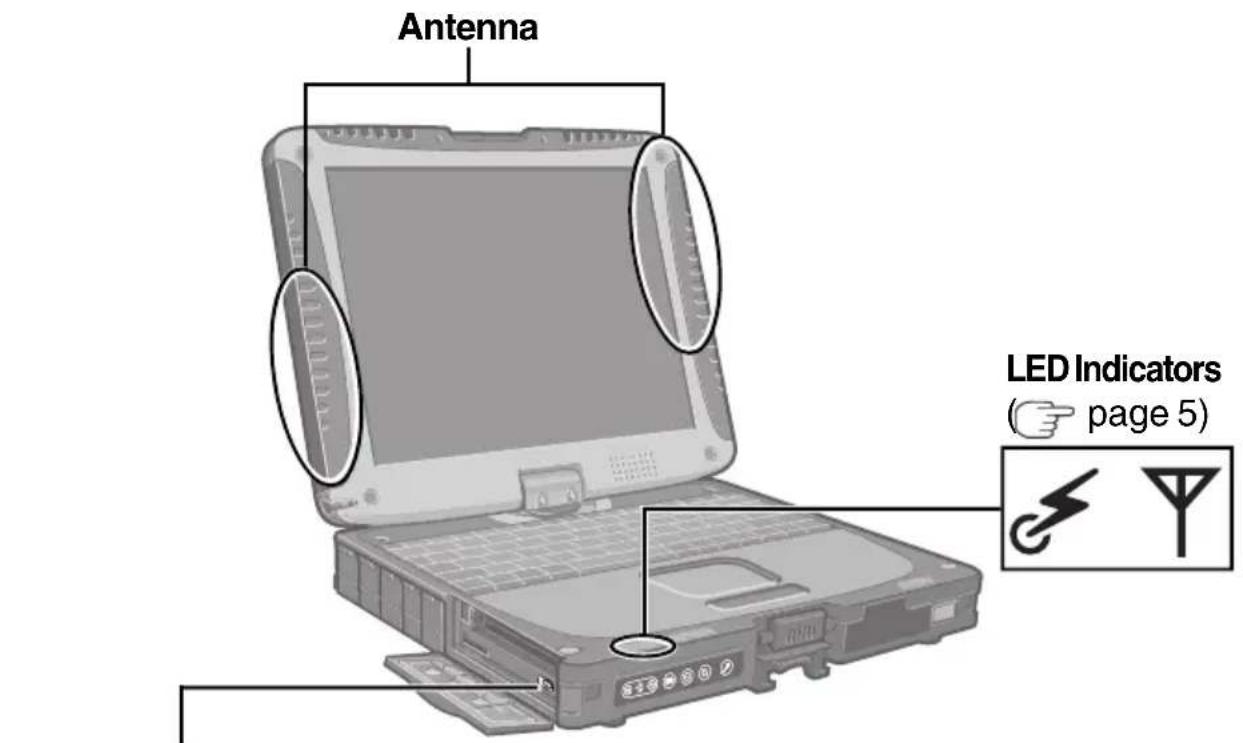
Wireless Switch

page 6,

Reference Manual for the computer
"Wireless Switch Utility")
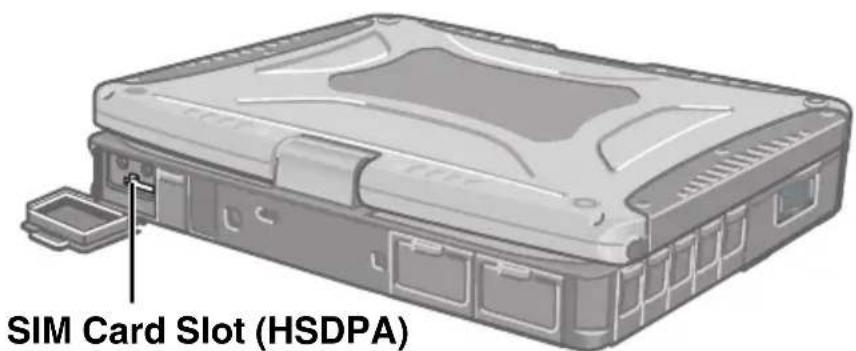
(page 8)
(Appearance may differ depending on specifications.)
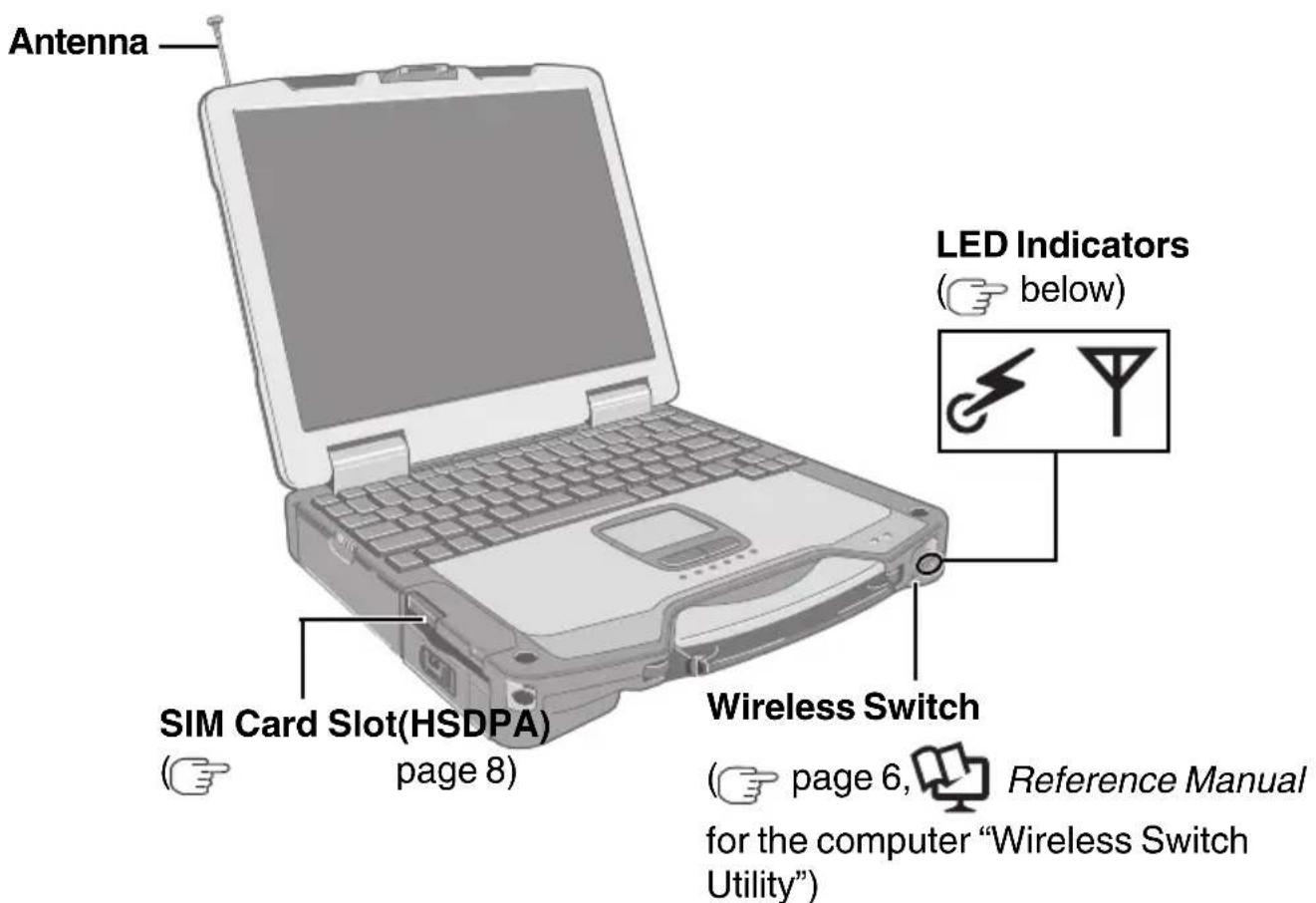
(Appearance may differ depending on specifications.)
● LED Description
| Indicators | Name Status | |
 | Wireless WAN status | This indicator lights while the HSDPA/EVDO modem's signals are on.To turn on or off the HSDPA/EVDO modem's signals:See “Using the Wireless Switch” (page 6). |
 | Wireless ready | This indicator lights when Wireless WAN switch is on.  Reference Manual for the computer “Wireless Switch Utility”) Reference Manual for the computer “Wireless Switch Utility”) |
● Supplied Accessories
Wireless WAN (HSDPA/UMTS) Software CD-ROM ....1
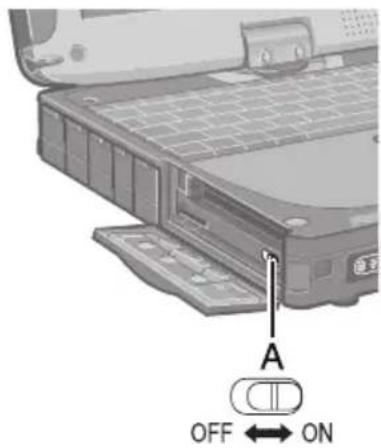
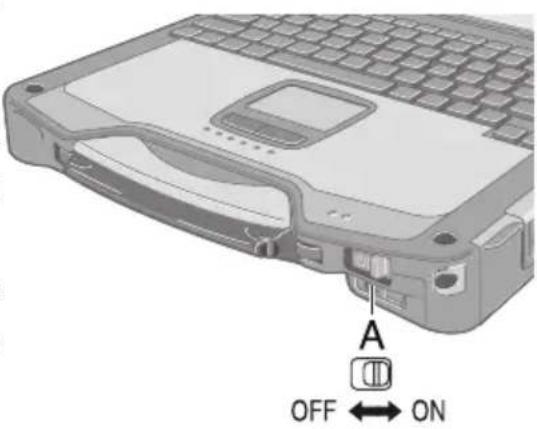
Using the Wireless Switch
1 Open the cover.
①Slide the latch to the right to unlock the cover.
②Slide the latch down, and open the cover.
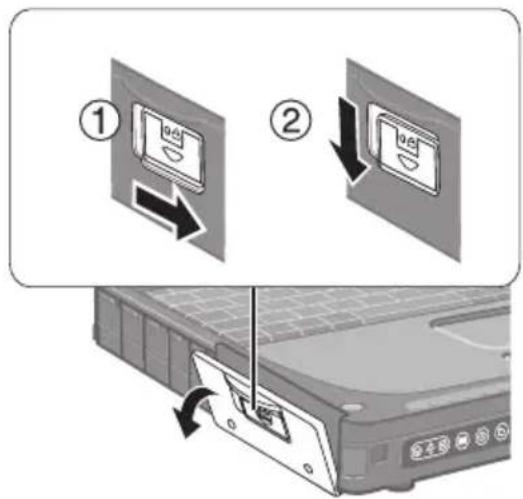
2 Slide the wireless switch (A) to turn on/off the wireless devices.
● The Wireless Switch Utility icon on the notification area:

: All or any of the wireless devices is (are) on.

: All of the wireless devices are off.

: (gray out) All of the wireless devices are disabled in the Setup Utility.
- In the default setting, turning on the wireless switch will turn on all wireless devices.
- When you are using all or any of wireless LAN, Bluetooth and HSDPA/EVDO modem, you can turn them on/off together or separately using Wireless Switch Utility.
For further information, 📋 Reference Manual for the computer “Wireless Switch Utility”.
NOTE
- To use wireless communication, set the wireless device setting ([Wireless LAN] / [Bluetooth] / [Wireless WAN]) to [Enable] (default) in the [Advanced] menu of the Setup Utility.
- It may take some time to turn off wireless communication after switching the wireless switch to off.
- Do not turn on/off the switch repeatedly at too short intervals.
- Do not restart, log off, or enter standby or hibernation immediately after turning on/off the switch.
- Do not turn on/off the switch while Windows is starting up.
- When you set [Wireless Switch] to [Disable] in the [Advanced] menu of the
Setup Utility (
Reference Manual for the computer "Wireless Switch
Utility”), the Wireless Switch Utility icon will not appear in the notification area. All wireless equipment (Wireless LAN, Bluetooth, HSDPA/EVDO) will remain ready irrespective of the wireless switch setting.

● To check the wireless communication status
Place the cursor over the Wireless Switch Utility icon ( 📄 or 📅 ) on the notification area. A tooltip appears.
Inserting/Removing a SIM Card(HSDPA)
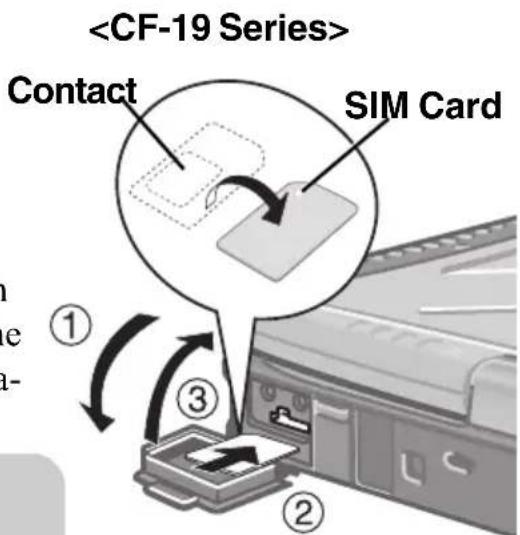
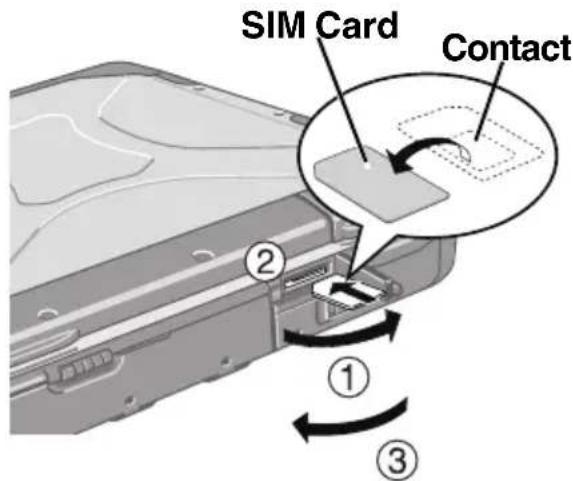
Before using the HSDPA modem, set a SIM card to the SIM card slot.
CAUTION
- Do not insert or remove the SIM card while the HSDPA modem's power is on (while [Wireless WAN] in the [Advanced] menu of the Setup Utility is set to [Enable] or while the computer is on).
1 Turn off the computer or enter the standby or hibernation.
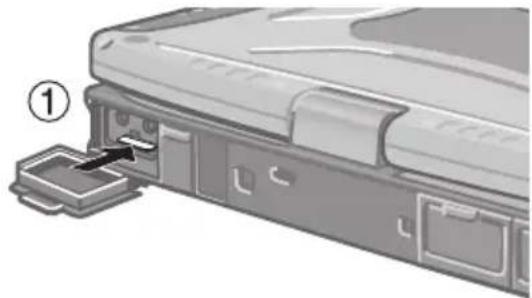
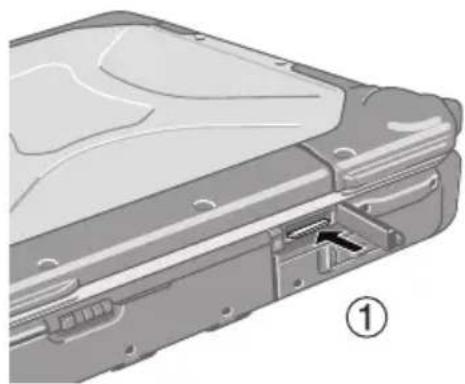
2 ● Inserting a SIM card
① Open the cover.
②Insert the SIM card into the SIM card slot with the contact side facing downward and with the cut corner oriented as shown in the illustration.
CAUTION
- Do not insert the SIM card upside down.
③Close the cover.
If the cover is not closed, the SIM card may jump out when the computer falls.
● Removing a SIM card
①Push the card. It will come out of the slot a little bit.
② Pull the card all the way out.
③Close the cover.
natural_image
Diagram of a device rear panel with a labeled component (①), showing internal components and a zoomed-in section (no text or symbols present)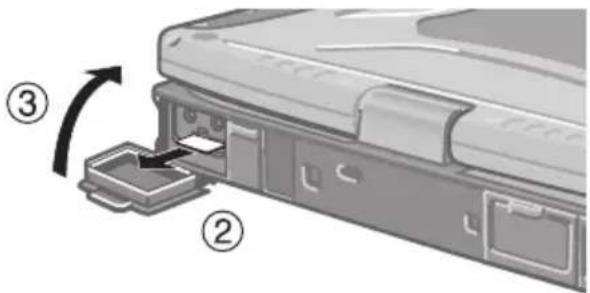
natural_image
Diagram of a mechanical device showing internal components and a numbered label (1), no readable text or symbols present.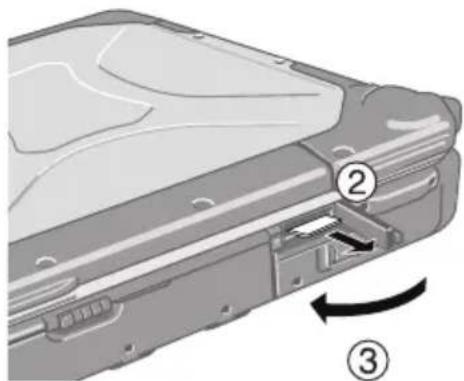
natural_image
Diagram of a device showing internal components and a directional arrow (no text or symbols)Installing the Software
The steps below must be taken before using the HSDPA modem.
1 Turn off the wireless switch.
2 Turn on or restart the computer, and run the Setup Utility by pressing F2 while [Panasonic] boot screen is displayed.
If [Enter Password] is displayed, input the Supervisor Password.
3 Select the [Advanced] menu, and set [Wireless WAN] to [Disable].
4 Save the settings and exit the Setup Utility.
5 Log on to Windows with the administrator authority.
6 Install the wireless WAN software (MobiLink) by following procedure.
①
Connect the CD/DVD drive.
Insert the CD/DVD drive into the Multimedia Pocket. (C)

Reference
Manual for the computer "Multimedia Pocket")
② Set the Wireless WAN (HSDPA/UMTS) Software CD-ROM into the CD/DVD drive.
③Input [x: *\setup.bat] in [start] - [Run] and select [OK].
*1 "x:" is the drive letter of the CD/DVD drive. Change this to match the drive letter on your own computer.
④ Follow the on-screen instructions, and install the software.
7 Turn off the computer.
8 Turn on the computer, and run the Setup Utility by pressing F2 while [Panasonic] boot screen is displayed.
If [Enter Password] is displayed, input the Supervisor Password.
9 Select the [Advanced] menu, and set [Wireless WAN] to [Enable].
10 Save the settings and exit the Setup Utility.
11 Turn on the wireless switch.
Running MobiLink
You can run MobiLink using either of the following procedures.

- Double-click on the desktop.
MobiLink
- Click [start] - [All Programs] - [Novatel Wireless] - [MobiLink].
How to access the Online Manual
- Select “?” of the MobiLink control panel.
Uninstalling the software
- Click [start] - [Control Panel] - [Add or Remove Programs] - [Mobilink], and then click [Remove] to uninstall the software.
Abbreviations
| EDGEEnhanced Data rates for Global Evolution | |
| GPRS General Packet Radio Service | |
| HSDPA High Speed Downlink Packet Access | |
| SIM Subscriber Identity Module | |
| SMS Short Message Service | |
| UMTS Universal Mobile Telecommunications System |
| Frequency Band & Power Class | HSDPA/UMTS | 2100 MHz Class 3 (+24dBm) |
| EDGE | 900 MHz Class E2 (+27dBm)1800 MHz Class E2 (+26dBm) | |
| GPRS | 900 MHz Class 4 (+33dBm)1800 MHz Class 1 (+30dBm) | |
| Data Communication | HSDPA | Category 12 |
| UMTS | 3GPP Release 5 | |
| EDGE/GPRS | MultiSlot Class 10 | |
| Other Features | SMS | Mobile Originated SMS (MO-SMS)Mobile Terminated SMS (MT-SMS) |
| FAX | No Support | |
| Voice | No Support | |
| SIM | 1.8/3V SIM Support | |
Importer's name & address
Panasonic Canada Inc.
5770 Ambler Drive.
Mississauga, Ontario
Canada L4W 2T3
© 2006 Matsushita Electric Industrial Co., Ltd. All Rights Reserved.
Printed in Canada.
PCI01508ZA
- Supplementary Instructions for HSDPA or EVDO Modem
- Contents
- Terms and illustrations in this Manual
- Safety Precautions
- IMPORTANT!
- Declaration of Conformity (DoC)
- Wireless Switch
- ● LED Description
- ● Supplied Accessories
- Using the Wireless Switch
- Open the cover.
- Slide the wireless switch (A) to turn on/off the wireless devices.
- NOTE
- ● To check the wireless communication status
- Inserting/Removing a SIM Card(HSDPA)
- CAUTION
- Turn off the computer or enter the standby or hibernation.
- ● Inserting a SIM card
- ● Removing a SIM card
- Installing the Software
- Running MobiLink
- How to access the Online Manual
- Uninstalling the software
Brand : PANASONIC
Model : Sprint EVDO
Category : Computer accessory